Venturing into the Cloud 
With Google Apps 
Jeff Piontek 
Punahou 
June 14, 2011
What criteria make something 
valuable for an educator?
Name a single tool that meets 
this criteria.
Was such a tool available five 
years ago?
Why is it available now?
Toolsfor Educators 
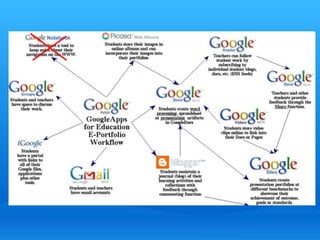
An Educator's World of Google Tools
Google's Mission 
“Organize the world’s information 
and make it universally accessible 
and useful.”
Google's Philosophy: 
• Focus on the user and all else will follow. 
• It’s best to do one thing really, really well. 
• Fast is better than slow. 
• Democracy on the web works. 
• You don’t need to be at your desk to need 
an answer. 
• You can make money without doing evil. 
• There’s always more information out there. 
• The need for information crosses all borders. 
• You can be serious without a suit. 
• Great isn’t just good enough.
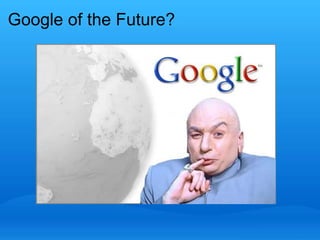
Google of the Future?
Google Time Line 
What Google has been up to for ten years
Vocabulary 
Web 2.0 - second iteration of internet; highly dynamic 
Blogging - weblogging 
RSS - Really Simple Syndication 
Widget - tool added to web page 
Aggregator - site for compiling RSS feeds 
Cloud computing - working in the Internet; online file storage, 

web apps. 
Web apps - applications that are web hosted rather than hard 
drive based
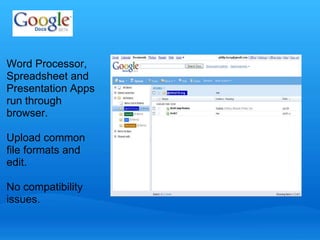
Word Processor, 
Spreadsheet and 
Presentation Apps 
run through 
browser. 
Upload common 
file formats and 
edit. 
No compatibility 
issues.
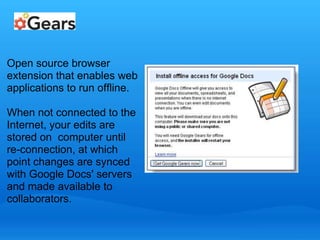
Open source browser 
extension that enables web 
applications to run offline. 
When not connected to the 
Internet, your edits are 
stored on computer until 
re-connection, at which 
point changes are synced 
with Google Docs' servers 
and made available to 
collaborators.
Video Chat
Calendar
Calendar
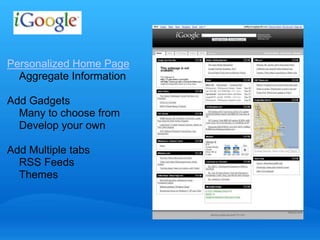
Personalized Home Page 
Aggregate Information 
Add Gadgets 
Many to choose from 
Develop your own 
Add Multiple tabs 
RSS Feeds 
Themes
Ed Tech Arena
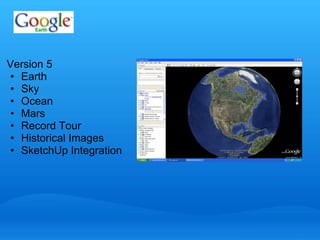
Version 5 
• Earth 
• Sky 
• Ocean 
• Mars 
• Record Tour 
• Historical Images 
• SketchUp Integration
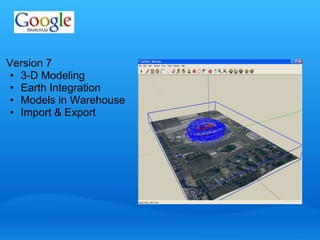
Version 7 
• 3-D Modeling 
• Earth Integration 
• Models in Warehouse 
• Import & Export
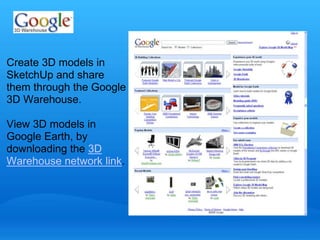
Create 3D models in 
SketchUp and share 
them through the Google 
3D Warehouse. 
View 3D models in 
Google Earth, by 
downloading the 3D 
Warehouse network link.
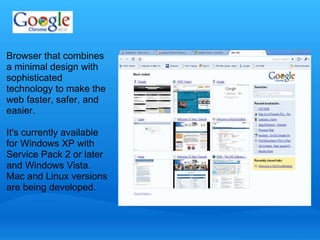
Browser that combines 
a minimal design with 
sophisticated 
technology to make the 
web faster, safer, and 
easier. 
It's currently available 
for Windows XP with 
Service Pack 2 or later 
and Windows Vista. 
Mac and Linux versions 
are being developed.
Blog 
• Free site 
• Interactive 
• Facilitate 
communication 
• Multiple languages 
• Follow updates with 
Reader
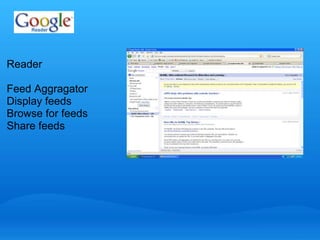
Reader 
Feed Aggragator 
Display feeds 
Browse for feeds 
Share feeds
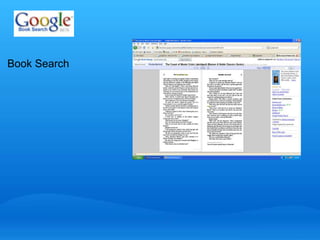
Book Search
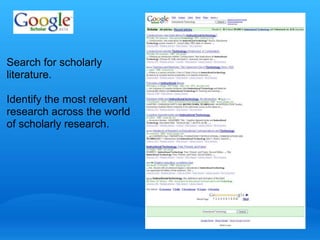
Search for scholarly 
literature. 
Identify the most relevant 
research across the world 
of scholarly research.
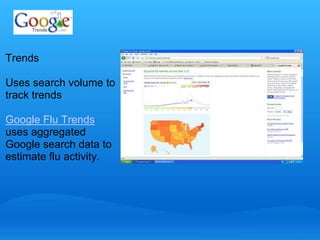
Trends 
Uses search volume to 
track trends 
Google Flu Trends 
uses aggregated 
Google search data to 
estimate flu activity.
Google Alerts are email 
updates of the latest 
relevant Google results 
(web, news, etc.) based on 
your choice of query or 
topic. 
Some handy uses of Google 
Alerts include: 
• monitoring developing 
news story 
• keeping current on 
research
Google Mobile 
News. Anytime, Anywhere. 
Google News for your phone lets you read up on the latest 
news from anywhere at anytime. 
Google News for your phone lets you read up on the latest 
news from anywhere at anytime. Point your phone at 
m.google.com/news, and you can: 
• See the top stories currently making headlines 
• Browse related articles from a variety of sources 
• Customize your news to show just the sections you want
Client Application for Windows 
Instant messaging 
Free PC-to-PC voice calls 
Send and receive voicemails 
Unlimited file transfers 
Gmail notifications on your desktop 
On the Web
On the Web
Gmail integration
Reader
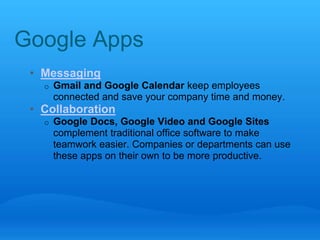
Google Apps 
• Messaging 
o Gmail and Google Calendar keep employees 
connected and save your company time and money. 
• Collaboration 
o Google Docs, Google Video and Google Sites 
complement traditional office software to make 
teamwork easier. Companies or departments can use 
these apps on their own to be more productive.
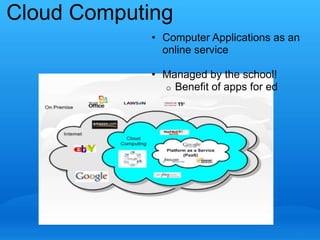
Cloud Computing 
• Computer Applications as an 
online service 

• Managed by the school! 
o Benefit of apps for ed
Cloud Computing School Options 
• Cloud Computing intro - YouTube.com 
• Google Apps 
• Zoho 
 http://zoho.com/index.html
Google Tools for Schools 
• Standard single user google/gmail accounts 
• Google Team Edition 
o Overview page 
o Can be setup and managed by a teacher or group of 
students 
• Google Apps Complete School Solution 
o Overview page 
o Requires IT management support and involvement
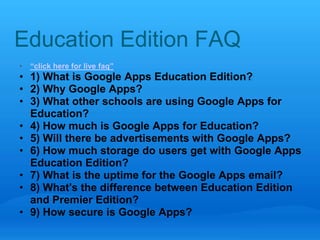
Education Edition FAQ 
• “click here for live faq” 
• 1) What is Google Apps Education Edition? 
• 2) Why Google Apps? 
• 3) What other schools are using Google Apps for 
Education? 
• 4) How much is Google Apps for Education? 
• 5) Will there be advertisements with Google Apps? 
• 6) How much storage do users get with Google Apps 
Education Edition? 
• 7) What is the uptime for the Google Apps email? 
• 8) What's the difference between Education Edition 
and Premier Edition? 
• 9) How secure is Google Apps?
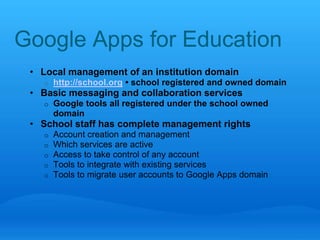
Google Apps for Education 
• Local management of an institution domain 
o http://school.org • school registered and owned domain 
• Basic messaging and collaboration services 
o Google tools all registered under the school owned 
domain 
• School staff has complete management rights 
o Account creation and management 
o Which services are active 
o Access to take control of any account 
o Tools to integrate with existing services 
o Tools to migrate user accounts to Google Apps domain
Reference 
• Other Google Apps video 
o http://www.youtube.com/user/GoogleApps 
• Admin Control Panel video 
o http://www.youtube.com/view_play_list?p=445899A1 
305C271C
What is it? 
• Option to Mix and Match 
o Gmail 
o Google Talk 
o Google Calendar 
o Google Docs 
 Document, Spreadsheet, Presentation 
 Document Storage, upload, export, publish 
o Google Sites (website)
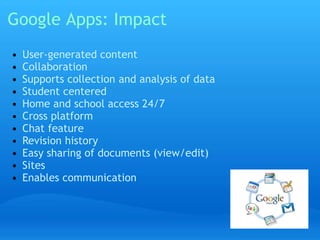
Google Apps: Impact 
• User-generated content 
• Collaboration 
• Supports collection and analysis of data 
• Student centered 
• Home and school access 24/7 
• Cross platform 
• Chat feature 
• Revision history 
• Easy sharing of documents (view/edit) 
• Sites 
• Enables communication
Our Goals 
• To ensure each student the broadest possible 
experience with existing and emerging technologies. 
• To embed these experiences throughout the K-12 
curriculum. 
• To teach each student the safe, legal, ethical and 
responsible use of existing and emerging technologies.
Our Philosophy 
• Try anything that's out there 
• Allow distributed support 
• Every teacher/student is free to use what works best 
• Every teacher/student is free to suggest using a new 
product 
• Minimize the filter /adjust for grade level
Our Usage Plan 
• embed Google Apps into the ICT K-12 curriculum 
• pilot experiences districtwide 
• identify assured experiences 
• free to use and publish for school use 
o teachers/administration 
o students 
o school organizations
Responding to Concerns 
• Sites shared with the world... privacy issues 
• Who owns the data and online content 
• How to transition students without losing information 
• Google doesn't share our data. 
• Inappropriate content 
• Technical Support 
Google Apps User Sites 
Apps for K-12: Staying Ahead of the Curve Google Apps Help Site
Gmail 
• Connectivity 
o ability to contact all students 
 auto-populating/standardization 
o Custom auto forwarding 
o All students K-12 and K12 Staff 
o Dashboard Level Custom “Distribution Lists” Groups by 
class 
o Freshmen Class 
o Groups created in Mail show up in other apps 
o Created new learning opportunity for teachers 
 knowledge of csv files
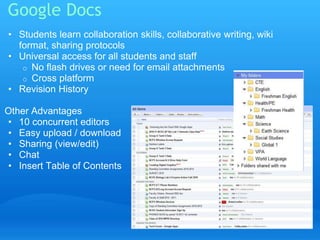
Google Docs 
• Students learn collaboration skills, collaborative writing, wiki 
format, sharing protocols 
• Universal access for all students and staff 
o No flash drives or need for email attachments 
o Cross platform 
• Revision History 
Other Advantages 
• 10 concurrent editors 
• Easy upload / download 
• Sharing (view/edit) 
• Chat 
• Insert Table of Contents
Google Docs: K-12 
Embedded in ICT Curriculum 
Grade 3: Google Presentations 
Grade 4: Google Spreadsheets and Forms 
Middle School: Integration of Neo2 /Google Docs 
High School: collaborative research docs and data 
collection on spreadsheets
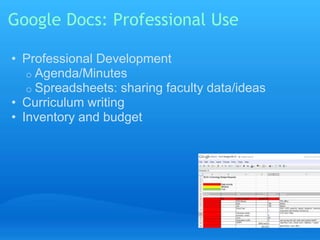
Google Docs: Professional Use 
• Professional Development 
o Agenda/Minutes 
o Spreadsheets: sharing faculty data/ideas 
• Curriculum writing 
• Inventory and budget
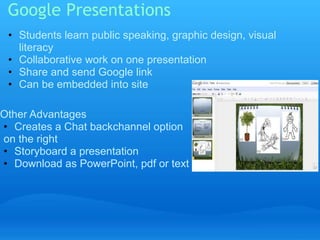
Google Presentations 
• Students learn public speaking, graphic design, visual 
literacy 
• Collaborative work on one presentation 
• Share and send Google link 
• Can be embedded into site 
Other Advantages 
• Creates a Chat backchannel option 
on the right 
• Storyboard a presentation 
• Download as PowerPoint, pdf or text
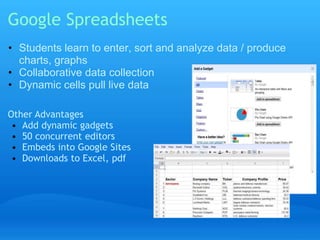
Google Spreadsheets 
• Students learn to enter, sort and analyze data / produce 
charts, graphs 
• Collaborative data collection 
• Dynamic cells pull live data 
Other Advantages 
• Add dynamic gadgets 
• 50 concurrent editors 
• Embeds into Google Sites 
• Downloads to Excel, pdf
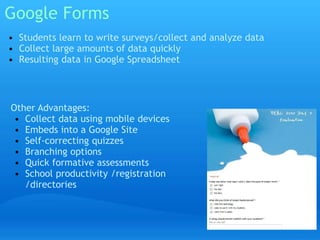
Google Forms 
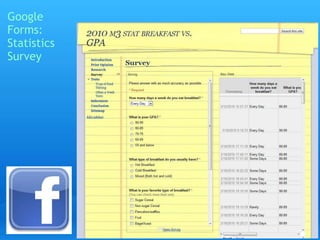
• Students learn to write surveys/collect and analyze data 
• Collect large amounts of data quickly 
• Resulting data in Google Spreadsheet 
Other Advantages: 
• Collect data using mobile devices 
• Embeds into a Google Site 
• Self-correcting quizzes 
• Branching options 
• Quick formative assessments 
• School productivity /registration 
/directories
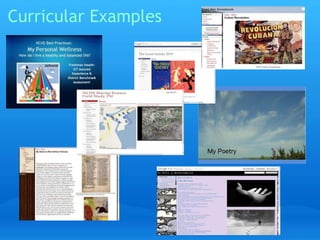
Curricular Examples
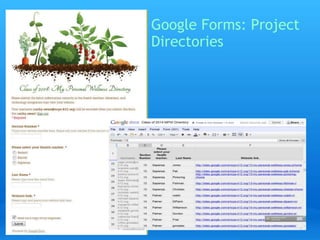
Google Forms: Project 
Directories
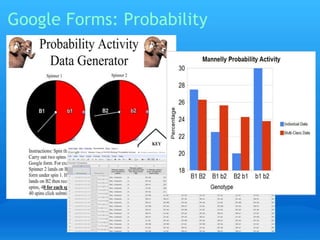
Google Forms: Probability
Google 
Forms: 
Statistics 
Survey 
.
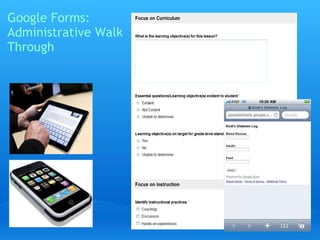
Google Forms: 
Administrative Walk 
Through
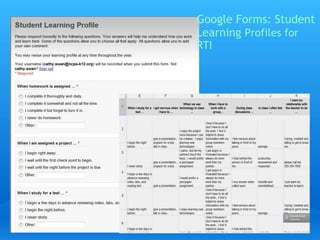
Google Forms: Student 
Learning Profiles for 
RTI
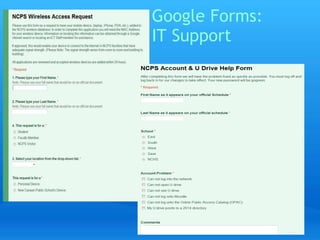
Google Forms: 
IT Support
Google Calendars 
• Students learn to use calendars for project 
mapping 
• Shared calendars for labs, COWs 
• Import 8-day rotation 
• Layered views: turn on and off 
Other Advantages: 
• Specialized calendars 
• Project calendars 
• Embeds within Site 
• Syncs with SmartPhones, Outlook
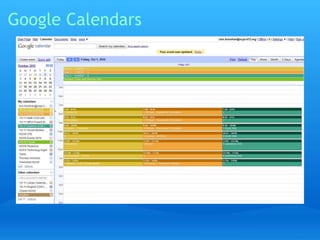
Google Calendars
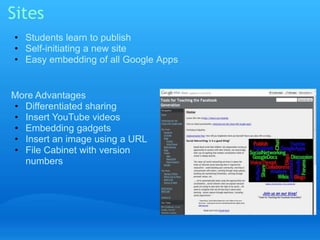
Sites 
• Students learn to publish 
• Self-initiating a new site 
• Easy embedding of all Google Apps 
More Advantages 
• Differentiated sharing 
• Insert YouTube videos 
• Embedding gadgets 
• Insert an image using a URL 
• File Cabinet with version 
numbers
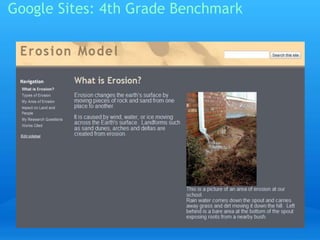
Google Sites: 4th Grade Benchmark
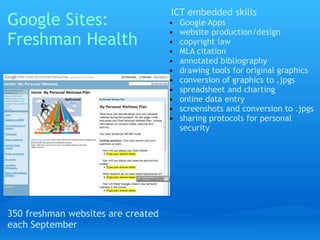
Google Sites: 
Freshman Health 
350 freshman websites are created 
each September 
ICT embedded skills 
• Google Apps 
• website production/design 
• copyright law 
• MLA citation 
• annotated bibliography 
• drawing tools for original graphics 
• conversion of graphics to .jpgs 
• spreadsheet and charting 
• online data entry 
• screenshots and conversion to .jpgs 
• sharing protocols for personal 
security
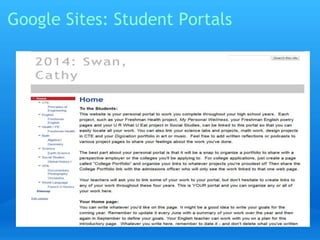
Google Sites: Student Portals
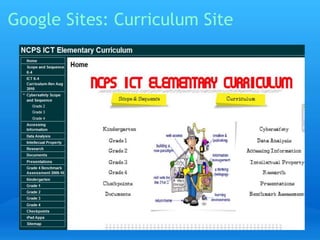
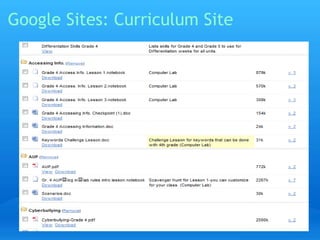
Google Sites: Curriculum Site
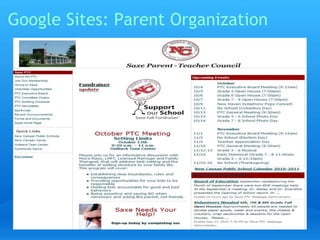
Google Sites: Parent Organization
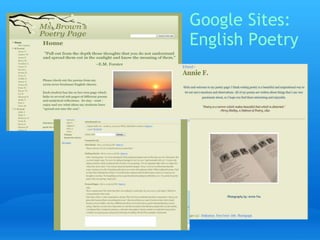
Google Sites: 
English Poetry
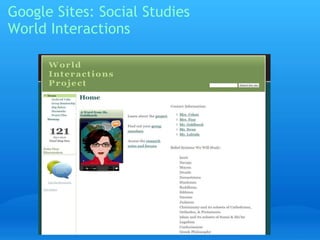
Google Sites: Social Studies 
World Interactions
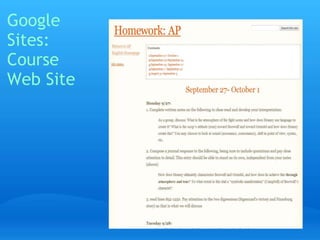
Google 
Sites: 
Course 
Web Site
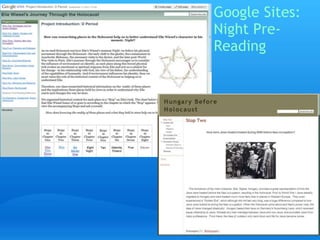
Google Sites: 
Night Pre- 
Reading
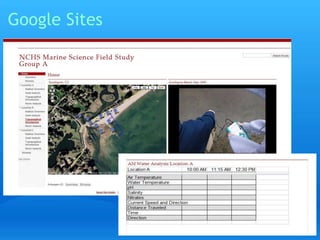
Google Sites
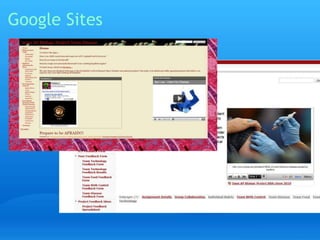
Google Sites
Contact us 
• if you have further questions 
• if you would like to visit our school 
• if you would like us to come to your school 
• if you would be interested in establishing a collaboration 
between your teachers/students and ours
Google Apps Resources 
Google Apps Education Training Center 
Google Apps Administrator Help 
Google Apps Security and Privacy FAQs
Photo Credits 
cloud photo: http://www.logichp.com/wp-content/ 
uploads/2010/09/clouds.jpg
Mahalo 
• Jeff.piontek@gmail.com

Venturing into the cloud

  • 1.
    Venturing into theCloud With Google Apps Jeff Piontek Punahou June 14, 2011
  • 2.
    What criteria makesomething valuable for an educator?
  • 3.
    Name a singletool that meets this criteria.
  • 4.
    Was such atool available five years ago?
  • 5.
    Why is itavailable now?
  • 6.
    Toolsfor Educators AnEducator's World of Google Tools
  • 7.
    Google's Mission “Organizethe world’s information and make it universally accessible and useful.”
  • 8.
    Google's Philosophy: •Focus on the user and all else will follow. • It’s best to do one thing really, really well. • Fast is better than slow. • Democracy on the web works. • You don’t need to be at your desk to need an answer. • You can make money without doing evil. • There’s always more information out there. • The need for information crosses all borders. • You can be serious without a suit. • Great isn’t just good enough.
  • 9.
  • 10.
    Google Time Line What Google has been up to for ten years
  • 11.
    Vocabulary Web 2.0- second iteration of internet; highly dynamic Blogging - weblogging RSS - Really Simple Syndication Widget - tool added to web page Aggregator - site for compiling RSS feeds Cloud computing - working in the Internet; online file storage, web apps. Web apps - applications that are web hosted rather than hard drive based
  • 12.
    Word Processor, Spreadsheetand Presentation Apps run through browser. Upload common file formats and edit. No compatibility issues.
  • 13.
    Open source browser extension that enables web applications to run offline. When not connected to the Internet, your edits are stored on computer until re-connection, at which point changes are synced with Google Docs' servers and made available to collaborators.
  • 16.
  • 17.
  • 18.
  • 19.
    Personalized Home Page Aggregate Information Add Gadgets Many to choose from Develop your own Add Multiple tabs RSS Feeds Themes
  • 20.
  • 22.
    Version 5 •Earth • Sky • Ocean • Mars • Record Tour • Historical Images • SketchUp Integration
  • 23.
    Version 7 •3-D Modeling • Earth Integration • Models in Warehouse • Import & Export
  • 24.
    Create 3D modelsin SketchUp and share them through the Google 3D Warehouse. View 3D models in Google Earth, by downloading the 3D Warehouse network link.
  • 25.
    Browser that combines a minimal design with sophisticated technology to make the web faster, safer, and easier. It's currently available for Windows XP with Service Pack 2 or later and Windows Vista. Mac and Linux versions are being developed.
  • 26.
    Blog • Freesite • Interactive • Facilitate communication • Multiple languages • Follow updates with Reader
  • 27.
    Reader Feed Aggragator Display feeds Browse for feeds Share feeds
  • 28.
  • 29.
    Search for scholarly literature. Identify the most relevant research across the world of scholarly research.
  • 30.
    Trends Uses searchvolume to track trends Google Flu Trends uses aggregated Google search data to estimate flu activity.
  • 31.
    Google Alerts areemail updates of the latest relevant Google results (web, news, etc.) based on your choice of query or topic. Some handy uses of Google Alerts include: • monitoring developing news story • keeping current on research
  • 32.
    Google Mobile News.Anytime, Anywhere. Google News for your phone lets you read up on the latest news from anywhere at anytime. Google News for your phone lets you read up on the latest news from anywhere at anytime. Point your phone at m.google.com/news, and you can: • See the top stories currently making headlines • Browse related articles from a variety of sources • Customize your news to show just the sections you want
  • 33.
    Client Application forWindows Instant messaging Free PC-to-PC voice calls Send and receive voicemails Unlimited file transfers Gmail notifications on your desktop On the Web
  • 34.
  • 35.
  • 36.
  • 37.
    Google Apps •Messaging o Gmail and Google Calendar keep employees connected and save your company time and money. • Collaboration o Google Docs, Google Video and Google Sites complement traditional office software to make teamwork easier. Companies or departments can use these apps on their own to be more productive.
  • 38.
    Cloud Computing •Computer Applications as an online service • Managed by the school! o Benefit of apps for ed
  • 39.
    Cloud Computing SchoolOptions • Cloud Computing intro - YouTube.com • Google Apps • Zoho  http://zoho.com/index.html
  • 40.
    Google Tools forSchools • Standard single user google/gmail accounts • Google Team Edition o Overview page o Can be setup and managed by a teacher or group of students • Google Apps Complete School Solution o Overview page o Requires IT management support and involvement
  • 42.
    Education Edition FAQ • “click here for live faq” • 1) What is Google Apps Education Edition? • 2) Why Google Apps? • 3) What other schools are using Google Apps for Education? • 4) How much is Google Apps for Education? • 5) Will there be advertisements with Google Apps? • 6) How much storage do users get with Google Apps Education Edition? • 7) What is the uptime for the Google Apps email? • 8) What's the difference between Education Edition and Premier Edition? • 9) How secure is Google Apps?
  • 43.
    Google Apps forEducation • Local management of an institution domain o http://school.org • school registered and owned domain • Basic messaging and collaboration services o Google tools all registered under the school owned domain • School staff has complete management rights o Account creation and management o Which services are active o Access to take control of any account o Tools to integrate with existing services o Tools to migrate user accounts to Google Apps domain
  • 44.
    Reference • OtherGoogle Apps video o http://www.youtube.com/user/GoogleApps • Admin Control Panel video o http://www.youtube.com/view_play_list?p=445899A1 305C271C
  • 45.
    What is it? • Option to Mix and Match o Gmail o Google Talk o Google Calendar o Google Docs  Document, Spreadsheet, Presentation  Document Storage, upload, export, publish o Google Sites (website)
  • 46.
    Google Apps: Impact • User-generated content • Collaboration • Supports collection and analysis of data • Student centered • Home and school access 24/7 • Cross platform • Chat feature • Revision history • Easy sharing of documents (view/edit) • Sites • Enables communication
  • 47.
    Our Goals •To ensure each student the broadest possible experience with existing and emerging technologies. • To embed these experiences throughout the K-12 curriculum. • To teach each student the safe, legal, ethical and responsible use of existing and emerging technologies.
  • 48.
    Our Philosophy •Try anything that's out there • Allow distributed support • Every teacher/student is free to use what works best • Every teacher/student is free to suggest using a new product • Minimize the filter /adjust for grade level
  • 49.
    Our Usage Plan • embed Google Apps into the ICT K-12 curriculum • pilot experiences districtwide • identify assured experiences • free to use and publish for school use o teachers/administration o students o school organizations
  • 50.
    Responding to Concerns • Sites shared with the world... privacy issues • Who owns the data and online content • How to transition students without losing information • Google doesn't share our data. • Inappropriate content • Technical Support Google Apps User Sites Apps for K-12: Staying Ahead of the Curve Google Apps Help Site
  • 51.
    Gmail • Connectivity o ability to contact all students  auto-populating/standardization o Custom auto forwarding o All students K-12 and K12 Staff o Dashboard Level Custom “Distribution Lists” Groups by class o Freshmen Class o Groups created in Mail show up in other apps o Created new learning opportunity for teachers  knowledge of csv files
  • 52.
    Google Docs •Students learn collaboration skills, collaborative writing, wiki format, sharing protocols • Universal access for all students and staff o No flash drives or need for email attachments o Cross platform • Revision History Other Advantages • 10 concurrent editors • Easy upload / download • Sharing (view/edit) • Chat • Insert Table of Contents
  • 53.
    Google Docs: K-12 Embedded in ICT Curriculum Grade 3: Google Presentations Grade 4: Google Spreadsheets and Forms Middle School: Integration of Neo2 /Google Docs High School: collaborative research docs and data collection on spreadsheets
  • 54.
    Google Docs: ProfessionalUse • Professional Development o Agenda/Minutes o Spreadsheets: sharing faculty data/ideas • Curriculum writing • Inventory and budget
  • 55.
    Google Presentations •Students learn public speaking, graphic design, visual literacy • Collaborative work on one presentation • Share and send Google link • Can be embedded into site Other Advantages • Creates a Chat backchannel option on the right • Storyboard a presentation • Download as PowerPoint, pdf or text
  • 56.
    Google Spreadsheets •Students learn to enter, sort and analyze data / produce charts, graphs • Collaborative data collection • Dynamic cells pull live data Other Advantages • Add dynamic gadgets • 50 concurrent editors • Embeds into Google Sites • Downloads to Excel, pdf
  • 57.
    Google Forms •Students learn to write surveys/collect and analyze data • Collect large amounts of data quickly • Resulting data in Google Spreadsheet Other Advantages: • Collect data using mobile devices • Embeds into a Google Site • Self-correcting quizzes • Branching options • Quick formative assessments • School productivity /registration /directories
  • 58.
  • 59.
  • 60.
  • 61.
  • 62.
  • 63.
    Google Forms: Student Learning Profiles for RTI
  • 64.
  • 65.
    Google Calendars •Students learn to use calendars for project mapping • Shared calendars for labs, COWs • Import 8-day rotation • Layered views: turn on and off Other Advantages: • Specialized calendars • Project calendars • Embeds within Site • Syncs with SmartPhones, Outlook
  • 66.
  • 67.
    Sites • Studentslearn to publish • Self-initiating a new site • Easy embedding of all Google Apps More Advantages • Differentiated sharing • Insert YouTube videos • Embedding gadgets • Insert an image using a URL • File Cabinet with version numbers
  • 68.
    Google Sites: 4thGrade Benchmark
  • 69.
    Google Sites: FreshmanHealth 350 freshman websites are created each September ICT embedded skills • Google Apps • website production/design • copyright law • MLA citation • annotated bibliography • drawing tools for original graphics • conversion of graphics to .jpgs • spreadsheet and charting • online data entry • screenshots and conversion to .jpgs • sharing protocols for personal security
  • 70.
  • 71.
  • 72.
  • 73.
  • 74.
  • 75.
    Google Sites: SocialStudies World Interactions
  • 76.
  • 77.
    Google Sites: NightPre- Reading
  • 78.
  • 79.
  • 80.
    Contact us •if you have further questions • if you would like to visit our school • if you would like us to come to your school • if you would be interested in establishing a collaboration between your teachers/students and ours
  • 81.
    Google Apps Resources Google Apps Education Training Center Google Apps Administrator Help Google Apps Security and Privacy FAQs
  • 82.
    Photo Credits cloudphoto: http://www.logichp.com/wp-content/ uploads/2010/09/clouds.jpg
  • 83.