Lead User Training
   Rochester SC
 Monday 13th August
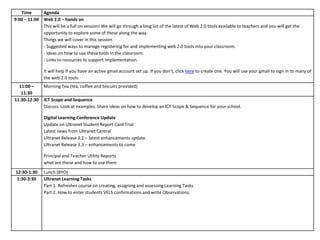
Time      Agenda
9:00 – 11:00 Web 2.0 – hands on
             This will be a full on session! We will go through a long list of the latest of Web 2.0 tools available to teachers and you will get the
             opportunity to explore some of these along the way.
             Things we will cover in this session
             - Suggested ways to manage registering for and implementing web 2.0 tools into your classroom.
             - Ideas on how to use these tools in the classroom.
             - Links to resources to support implementation.

               It will help if you have an active gmail account set up. If you don’t, click here to create one. You will use your gmail to sign in to many of
               the web 2.0 tools.
  11:00 –      Morning Tea (tea, coffee and biscuits provided)
   11:30
11:30-12:30    ICT Scope and Sequence
               Discuss. Look at examples. Share ideas on how to develop an ICT Scope & Sequence for your school.

               Digital Learning Conference Update
               Update on Ultranet Student Report Card Trial
               Latest news from Ultranet Central
               Ultranet Release 3.2 – latest enhancements update
               Ultranet Release 3.3 – enhancements to come

               Principal and Teacher Utility Reports
               what are these and how to use them
12:30-1:30     Lunch (BYO)
1:30-3:30      Ultranet Learning Tasks
               Part 1. Refresher course on creating, assigning and assessing Learning Tasks
               Part 2. How to enter students VELS confirmations and write Observations.
• Web 2.0 is a term used to describe advanced
  internet technology and applications that allow
  users to communicate, share information, design and
  collaborate and construct on the World Wide Web

• In the past, we could only use the WWW to gather
  source and gather information.

• The most significant difference between the web 2.0
  and the traditional World Wide Web is greater
  collaboration among internet users, content providers
  and enterprises.
Things to consider
• Knowing what’s out there

• Registrations / sign up and hidden costs – read
  carefully

• Password management appendix

• Become familiar before using it with your class

• Do some research about best practise – google it! or
  look on YouTube
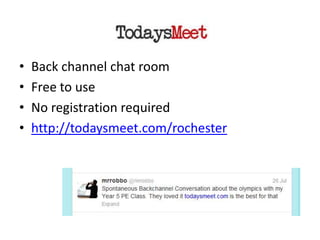
•   Back channel chat room
•   Free to use
•   No registration required
•   http://todaysmeet.com/rochester
• Collaborate online using a word processor,
  slide shows, spread sheets and create
  electronic forms for data collection.
• Free
• https://drive.google.com/start#home
• Free
• Network with other educators
• Follow innovators
• Get links to resources
• Share ideas and thoughts
http://www.slideshare.net/hopkinsdavid/twitter
-in-education
Twitter Hashtags to follow #
• #vicpln – resources shared by Vic educators
• #edtech – technology for educational purposes
• #ultranet - Ultranet
• #edchat – global education discussions
• #BYOD – discussions around Bring Your Own
  Device
• #engchat – for English teachers
• #mathchat – for Maths teachers
• #musedchat – for music teachers
• Collaborative web-based word processor
• Free access to web-based word processor

• http://beta.primarypad.com/p/5cMKUADm7E
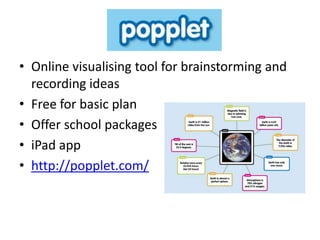
• Online visualising tool for brainstorming and
  recording ideas
• Free for basic plan
• Offer school packages
• iPad app
• http://popplet.com/
• Make short videos to share or embed online.
• Sign in using Facebook or create an Animoto
  account
• Free plan allows you to make 30 sec videos
• http://animoto.com
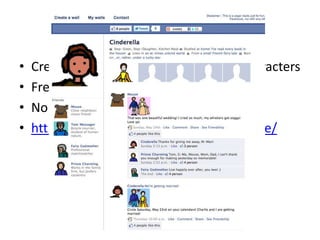
•   Create fakebook pages for historical characters
•   Free (with ads)
•   No sign up
•   http://www.classtools.net/fb/home/page/
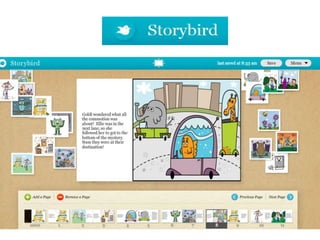
• Artful story telling
• Choose some images from their collection and
  then write your story and create a book
• Free
• Create class logins from your account
• http://storybird.com
• Largest and most popular flashcard creator
  website
• Targeted at Secondary and University students
• Free
• Sign in with Facebook
• http://quizlet.com
• With over 3,300 videos and revision exercises
  for mathematics, history and science
• Targeted at secondary students
• Free
• Sign up for tracking tools
• http://www.khanacademy.org
•   Minimalistic feedback tool
•   Free
•   No sign up required
•   Targeted at teachers
•   http://answergarden.ch/view/34390
• One of the most popular ways to upload and
  share slide show presentations
• Get embed codes for Ultranet use
• Free
• Sign up with your Facebook account
• Create a class account for your students
• http://www.slideshare.net
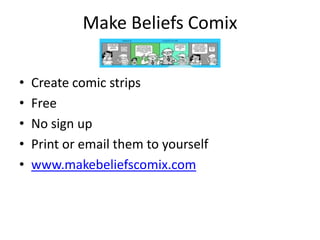
Make Beliefs Comix

•   Create comic strips
•   Free
•   No sign up
•   Print or email them to yourself
•   www.makebeliefscomix.com
•   Online message board
•   Free
•   Sign up with Google account
•   Great for brainstorming and sharing ideas
•   http://wallwisher.com/wall/grade234
• Create and publish your own online surveys or
  quizzes in minutes
• Sign in using Google or Facebook account
• or create a Survey Monkey Account
• Free plan allows you to create 10 question
  quizzes/surveys
• Share link to survey with students
• http://www.surveymonkey.com
•   Create online polls, surveys and quizzes
•   Create a Poll Daddy account
•   Free plan includes 200 surveys a month
•   10 questions per survey
•   Basic reports from surveys
•   Share link to survey with students
•   http://polldaddy.com
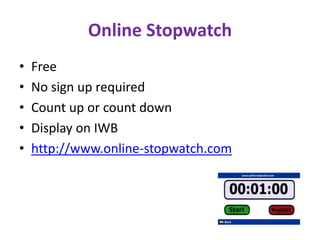
Online Stopwatch
•   Free
•   No sign up required
•   Count up or count down
•   Display on IWB
•   http://www.online-stopwatch.com
• Shorten and share URLs
• Free
• No sign in required
• Or sign in with Facebook or Twitter account to
  keep a record or your bitly’s
• https://bitly.com
Google Art Project
•   Explore art works and art collections
•   Take a virtual tour of an art gallery
•   Free
•   No sign up
•   http://www.googleartproject.com
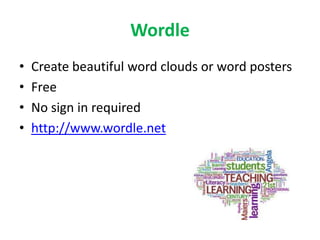
Wordle
•   Create beautiful word clouds or word posters
•   Free
•   No sign in required
•   http://www.wordle.net
• Digital canvas that allows students to create
  basic images
• Free
• No sign up
• Use screen capture tool to save images
• http://artpad.art.com/artpad/painter
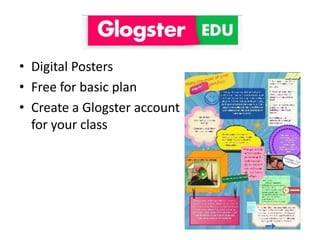
• Digital Posters
• Free for basic plan
• Create a Glogster account
  for your class
• Website that will allow you to download You
  Tube clips and save to your computer for later
  viewing
• Free
• No sign in required
Sandpit Time
• Have a play around with some of the tools
  we’ve visited this morning
• Add your own finds to the google doc:
  http://bit.ly/PaR0RL
ICT Scope and Sequence
• A whole school plan for the delivery of ICT
  core skills
• Echuca PS sharing
• Examples in Dropbox
Digital Learning Conference - Update
Release 3.2
• Not a substantial release
• Fixes to a small number of defects
• Search functionality working better in design
  and collaborative. Tagging is a crucial part of
  creating your space
• Parents can now leave spaces as they could
  not before.
Release 3.3
         coming soon (Term 4)
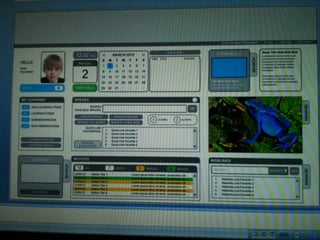
• New landing/home page
Other news….
• Continued Funding
• CSG no longer. NEC Technologies now has
  Ultranet contract
• Secondary Timetabling – short term fix, going to
  remove time and place from timetable in
  Ultranet which means no timetable widget. Will
  be effective from beginning of next year. Long
  term, look into a timetabling software that will
  integrate straight into Ultranet rather than go
  through CASES21
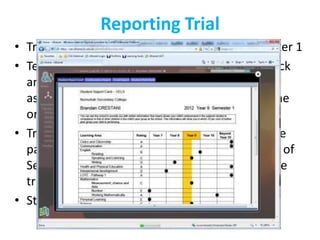
Reporting Trial
• Trials completed in 5 primary schools in semester 1
• Teachers and parents have given lots of feedback
  and information around functionality, change
  aspects about the rich ongoing feedback and the
  one page student report card.
• Trial is continuing and more Primary Schools are
  participating in the trial and a selected number of
  Secondary Colleges have been introduced to the
  trial also.
• Statewide rollout – unknown
Some findings from trial
• School staff find functionality easy to
  use, considerable time saving and better quality
  information provided to parents
• Parents who were not walked through said they
  preferred the old style of report card.
• Parents who found their way around loved the
  access, interactions and dialogue.
• Looking at way to include a summative comment
  at the bottom of the one-page report card.
Utility reports
Learning and Teaching
• Learning Item Summary
• Learning Item Detail
• Student Progress Detail
• Observation Summary
• Observation Detail
• Historical (Only available to School Leaders)
Learning Item Summary
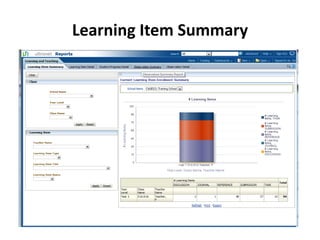
Purpose
• The Learning Item Summary Report displays
  the number and type of Learning Items
  published by a teacher for each class.
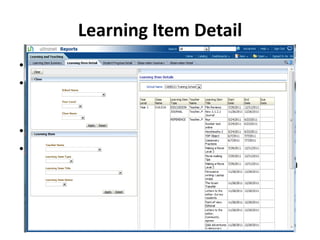
Learning Item Detail
• Purpose
• The Student Progress Detail report displays the
  details of the Learning Items published by a Teacher
  for all of their classes.
• Potential Scenarios
• By filtering on the Learning Item type you can view
  the details of all Submissions. These Submissions can
  then be sorted on the End Date to get a clearer
  indication of the student workloads.
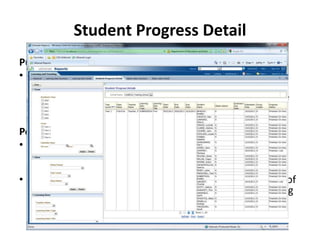
Student Progress Detail
Purpose
• The Student Progress Detail report displays the Learning
  Items assigned to students within a defined period. For
  each individual Learning Item you will be able to view the
  details of all of the students assigned, including their
  progress in relation to completing the Learning Item.
Potential Scenarios
• By filtering for a specific Learning Item you can view the
  progress of all of the students assigned to that Learning
  Item.
• By filtering on the Progress you will be able to view a list of
  all assigned students yet to complete a particular Learning
  Item.
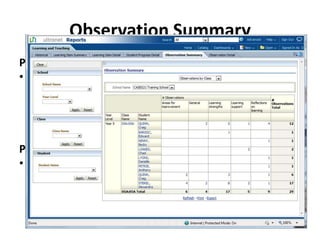
Observation Summary
Purpose
• The Observation Summary report displays, for each of
  the Teachers classes, the number of Observations
  recorded against each student. These Observations are
  recorded against 5 key categories and include
  Observations recorded by Teachers, Parents and the
  Student.
Potential Scenarios
• By clicking on any of the hyperlinked numbers the
  Observation Detail report will be displayed with an
  itemised view of that Observation Category for that
  particular student.
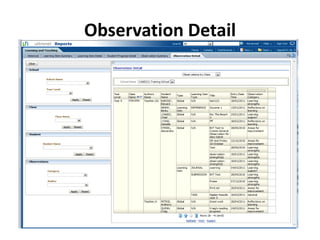
Observation Detail
Purpose
• The Observation Detail report displays, for each
  of the Teachers classes, the details of each
  Observation recorded against the student.
Tips
• In order to view the full details of any
  Observation you will need to locate that
  Observation within the Learning Tasks area of
  Ultranet.

Lead user training

  • 1.
    Lead User Training Rochester SC Monday 13th August
  • 2.
    Time Agenda 9:00 – 11:00 Web 2.0 – hands on This will be a full on session! We will go through a long list of the latest of Web 2.0 tools available to teachers and you will get the opportunity to explore some of these along the way. Things we will cover in this session - Suggested ways to manage registering for and implementing web 2.0 tools into your classroom. - Ideas on how to use these tools in the classroom. - Links to resources to support implementation. It will help if you have an active gmail account set up. If you don’t, click here to create one. You will use your gmail to sign in to many of the web 2.0 tools. 11:00 – Morning Tea (tea, coffee and biscuits provided) 11:30 11:30-12:30 ICT Scope and Sequence Discuss. Look at examples. Share ideas on how to develop an ICT Scope & Sequence for your school. Digital Learning Conference Update Update on Ultranet Student Report Card Trial Latest news from Ultranet Central Ultranet Release 3.2 – latest enhancements update Ultranet Release 3.3 – enhancements to come Principal and Teacher Utility Reports what are these and how to use them 12:30-1:30 Lunch (BYO) 1:30-3:30 Ultranet Learning Tasks Part 1. Refresher course on creating, assigning and assessing Learning Tasks Part 2. How to enter students VELS confirmations and write Observations.
  • 3.
    • Web 2.0is a term used to describe advanced internet technology and applications that allow users to communicate, share information, design and collaborate and construct on the World Wide Web • In the past, we could only use the WWW to gather source and gather information. • The most significant difference between the web 2.0 and the traditional World Wide Web is greater collaboration among internet users, content providers and enterprises.
  • 4.
    Things to consider •Knowing what’s out there • Registrations / sign up and hidden costs – read carefully • Password management appendix • Become familiar before using it with your class • Do some research about best practise – google it! or look on YouTube
  • 5.
    • Back channel chat room • Free to use • No registration required • http://todaysmeet.com/rochester
  • 6.
    • Collaborate onlineusing a word processor, slide shows, spread sheets and create electronic forms for data collection. • Free • https://drive.google.com/start#home
  • 7.
    • Free • Networkwith other educators • Follow innovators • Get links to resources • Share ideas and thoughts http://www.slideshare.net/hopkinsdavid/twitter -in-education
  • 8.
    Twitter Hashtags tofollow # • #vicpln – resources shared by Vic educators • #edtech – technology for educational purposes • #ultranet - Ultranet • #edchat – global education discussions • #BYOD – discussions around Bring Your Own Device • #engchat – for English teachers • #mathchat – for Maths teachers • #musedchat – for music teachers
  • 9.
    • Collaborative web-basedword processor • Free access to web-based word processor • http://beta.primarypad.com/p/5cMKUADm7E
  • 10.
    • Online visualisingtool for brainstorming and recording ideas • Free for basic plan • Offer school packages • iPad app • http://popplet.com/
  • 11.
    • Make shortvideos to share or embed online. • Sign in using Facebook or create an Animoto account • Free plan allows you to make 30 sec videos • http://animoto.com
  • 12.
    • Create fakebook pages for historical characters • Free (with ads) • No sign up • http://www.classtools.net/fb/home/page/
  • 13.
    • Artful storytelling • Choose some images from their collection and then write your story and create a book • Free • Create class logins from your account • http://storybird.com
  • 14.
    • Largest andmost popular flashcard creator website • Targeted at Secondary and University students • Free • Sign in with Facebook • http://quizlet.com
  • 15.
    • With over3,300 videos and revision exercises for mathematics, history and science • Targeted at secondary students • Free • Sign up for tracking tools • http://www.khanacademy.org
  • 16.
    • Minimalistic feedback tool • Free • No sign up required • Targeted at teachers • http://answergarden.ch/view/34390
  • 17.
    • One ofthe most popular ways to upload and share slide show presentations • Get embed codes for Ultranet use • Free • Sign up with your Facebook account • Create a class account for your students • http://www.slideshare.net
  • 18.
    Make Beliefs Comix • Create comic strips • Free • No sign up • Print or email them to yourself • www.makebeliefscomix.com
  • 19.
    • Online message board • Free • Sign up with Google account • Great for brainstorming and sharing ideas • http://wallwisher.com/wall/grade234
  • 20.
    • Create andpublish your own online surveys or quizzes in minutes • Sign in using Google or Facebook account • or create a Survey Monkey Account • Free plan allows you to create 10 question quizzes/surveys • Share link to survey with students • http://www.surveymonkey.com
  • 21.
    • Create online polls, surveys and quizzes • Create a Poll Daddy account • Free plan includes 200 surveys a month • 10 questions per survey • Basic reports from surveys • Share link to survey with students • http://polldaddy.com
  • 22.
    Online Stopwatch • Free • No sign up required • Count up or count down • Display on IWB • http://www.online-stopwatch.com
  • 23.
    • Shorten andshare URLs • Free • No sign in required • Or sign in with Facebook or Twitter account to keep a record or your bitly’s • https://bitly.com
  • 24.
    Google Art Project • Explore art works and art collections • Take a virtual tour of an art gallery • Free • No sign up • http://www.googleartproject.com
  • 25.
    Wordle • Create beautiful word clouds or word posters • Free • No sign in required • http://www.wordle.net
  • 26.
    • Digital canvasthat allows students to create basic images • Free • No sign up • Use screen capture tool to save images • http://artpad.art.com/artpad/painter
  • 27.
    • Digital Posters •Free for basic plan • Create a Glogster account for your class
  • 28.
    • Website thatwill allow you to download You Tube clips and save to your computer for later viewing • Free • No sign in required
  • 29.
    Sandpit Time • Havea play around with some of the tools we’ve visited this morning • Add your own finds to the google doc: http://bit.ly/PaR0RL
  • 30.
    ICT Scope andSequence • A whole school plan for the delivery of ICT core skills • Echuca PS sharing • Examples in Dropbox
  • 31.
  • 32.
    Release 3.2 • Nota substantial release • Fixes to a small number of defects • Search functionality working better in design and collaborative. Tagging is a crucial part of creating your space • Parents can now leave spaces as they could not before.
  • 33.
    Release 3.3 coming soon (Term 4) • New landing/home page
  • 35.
    Other news…. • ContinuedFunding • CSG no longer. NEC Technologies now has Ultranet contract • Secondary Timetabling – short term fix, going to remove time and place from timetable in Ultranet which means no timetable widget. Will be effective from beginning of next year. Long term, look into a timetabling software that will integrate straight into Ultranet rather than go through CASES21
  • 36.
    Reporting Trial • Trialscompleted in 5 primary schools in semester 1 • Teachers and parents have given lots of feedback and information around functionality, change aspects about the rich ongoing feedback and the one page student report card. • Trial is continuing and more Primary Schools are participating in the trial and a selected number of Secondary Colleges have been introduced to the trial also. • Statewide rollout – unknown
  • 37.
    Some findings fromtrial • School staff find functionality easy to use, considerable time saving and better quality information provided to parents • Parents who were not walked through said they preferred the old style of report card. • Parents who found their way around loved the access, interactions and dialogue. • Looking at way to include a summative comment at the bottom of the one-page report card.
  • 38.
    Utility reports Learning andTeaching • Learning Item Summary • Learning Item Detail • Student Progress Detail • Observation Summary • Observation Detail • Historical (Only available to School Leaders)
  • 39.
    Learning Item Summary Purpose •The Learning Item Summary Report displays the number and type of Learning Items published by a teacher for each class.
  • 40.
    Learning Item Detail •Purpose • The Student Progress Detail report displays the details of the Learning Items published by a Teacher for all of their classes. • Potential Scenarios • By filtering on the Learning Item type you can view the details of all Submissions. These Submissions can then be sorted on the End Date to get a clearer indication of the student workloads.
  • 41.
    Student Progress Detail Purpose •The Student Progress Detail report displays the Learning Items assigned to students within a defined period. For each individual Learning Item you will be able to view the details of all of the students assigned, including their progress in relation to completing the Learning Item. Potential Scenarios • By filtering for a specific Learning Item you can view the progress of all of the students assigned to that Learning Item. • By filtering on the Progress you will be able to view a list of all assigned students yet to complete a particular Learning Item.
  • 42.
    Observation Summary Purpose • TheObservation Summary report displays, for each of the Teachers classes, the number of Observations recorded against each student. These Observations are recorded against 5 key categories and include Observations recorded by Teachers, Parents and the Student. Potential Scenarios • By clicking on any of the hyperlinked numbers the Observation Detail report will be displayed with an itemised view of that Observation Category for that particular student.
  • 43.
    Observation Detail Purpose • TheObservation Detail report displays, for each of the Teachers classes, the details of each Observation recorded against the student. Tips • In order to view the full details of any Observation you will need to locate that Observation within the Learning Tasks area of Ultranet.