WEBINAR SERIES – 5
Technology in/for Education
3
Organizing Secretary
Prof. B.William Dharmaraja,
Head, Department of Education
Dean Faculty of Arts Manonmaniam
Sundaranar University,
Tirunelveli- 627012
Tamilnadu
4
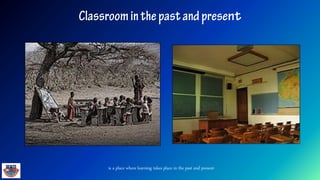
is a place where learning takes place in the past and present
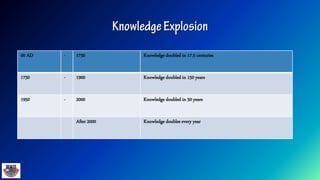
00 AD - 1750 Knowledge doubled in 17.5 centuries
1750 - 1900 Knowledge doubled in 150 years
1950 - 2000 Knowledge doubled in 50 years
After 2000 Knowledge doubles every year
Digital Age Learners
NET GENERATION LEARNERS
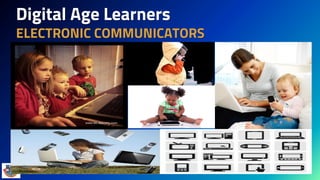
Digital Age Learners
ELECTRONIC COMMUNICATORS
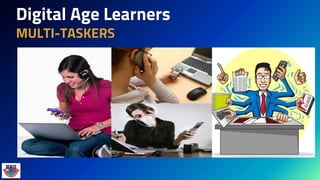
Digital Age Learners
MULTI-TASKERS
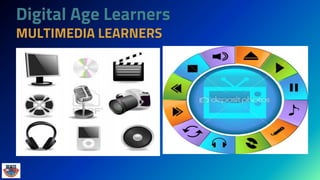
Digital Age Learners
MULTIMEDIA LEARNERS
Digital Age Learners
ON-LINE COLLABORATORS
NET GENERATION LEARNERS
18
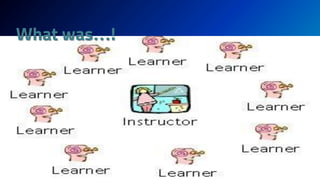
What was…!
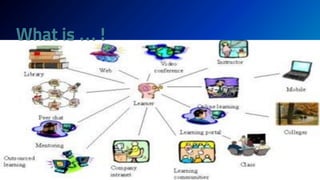
What is … !




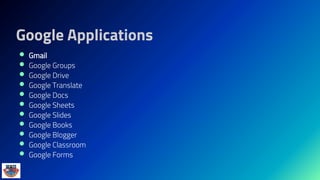
Google Applications
 Gmail
 Google Groups
 Google Drive
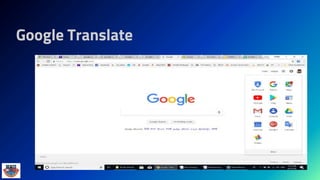
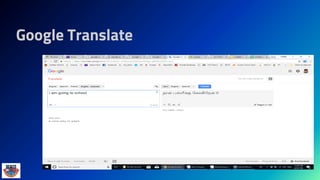
 Google Translate
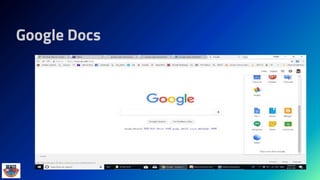
 Google Docs
 Google Sheets
 Google Slides
 Google Books
 Google Blogger
 Google Classroom
 Google Forms
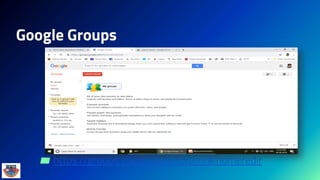
▰ Google Groups is a service from Google that
provides discussion groups for people sharing
common interests. The Groups service also
provides a gateway to Usenet newsgroups via a
shared user interface. Google Groups became
operational in February 2001
Google Groups
▰ https://groups.google.com/forum/#!homeredir
▰ Cloud Computing is a general term used to describe a new class of network based
computing that takes place over the Internet.
○ basically a step on from Utility Computing
○ a collection/group of integrated and networked hardware, software and
Internet infrastructure (called a platform).
○ Using the Internet for communication and transport provides hardware,
software and networking services to clients.
▰ A cloud refers to a distinct IT environment that is designed for the purpose of remotely providing scalable and
measured IT resources.
▰ It is a network of networks providing remote access to a set of decentralized IT resources.
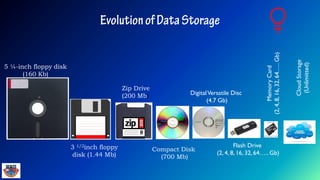
5 ¼-inch floppy disk
(160 Kb)
3 1/2inch floppy
disk (1.44 Mb)
Zip Drive
(200 Mb)
Compact Disk
(700 Mb)
DigitalVersatile Disc
(4.7 Gb)
Flash Drive
(2, 4, 8, 16, 32, 64….. Gb)
MemoryCard
(2,4,8,16,32,64…..Gb)
CloudStorage
(Unlimitted)
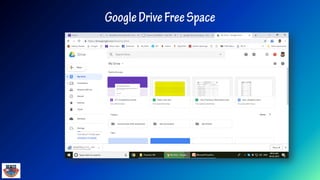
Google Drive
 Google Drive is a file storage and synchronization service developed
by Google.
 Launched on April 24, 2012, Google Drive allows users to store files on
their servers, synchronize files across devices, and share files. In
addition to a website, Google Drive offers apps with offline capabilities
for Windows and macOS computers,
and Android and iOS smartphones and tablets. Google Drive
encompasses Google Docs, Sheets and Slides, an office suite that
permits collaborative editing of documents, spreadsheets,
presentations, drawings, forms, and more.
 Files created and edited through the office suite are saved in Google
Drive.
 Google Drive offers users 15 gigabytes of free storage, with
100 gigabytes, 1 terabyte, 2 terabytes, 10 terabytes, 20 terabytes, and
30 terabytes offered through optional paid plans.
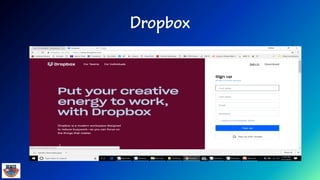
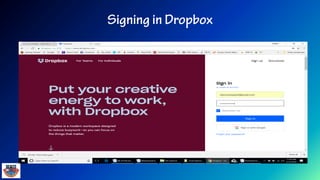
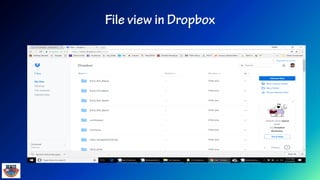
• Dropbox is the simplest and most efficient storage service in the cloud –
think simplicity, think Dropbox.
• Apart from storage it offers synchronization, web sharing of files and client
software for Windows, Mac, Linux and mobile devices (iPhone, iPad,
Android.)
▰ With Dropbox installed at my office and home computers I no longer carry
USB flash drive. As your files are auto-synchronized on every
computer/device - no emailing and downloading of files to different
computers/devices – i.e. no headache of getting messed up with multiple file
versions. On a new computer (or device) you can always use web interface to
access your files (photos, videos, docs etc)d, BlackBerry)
▰ Sync: Sync makes it easy to store, share and access
your files from just about anywhere
▰ Best of all, Sync protects your privacy with end-to-
end encryption — ensuring that your data in the
cloud is safe, secure and 100% private
1. Usability: This allows users to drag and drop files between the cloud
storage and their local storage.
2. Bandwidth: You can avoid emailing files to individuals and instead send
a web link to recipients through your email.
3. Accessibility: Stored files can be accessed from anywhere via Internet
connection.
4. Disaster Recovery: have an emergency backup plan ready in the case of
an emergency. Cloud storage can be used as a back‐up.
5. Cost Savings: Users can see additional cost savings because it does not
require internal power to store information remotely.
6. Synchronization
7. Folder Sharing with the mentor
▰ Requires a constant Internet connection
▰ Does not work well with low-speed connections
▰ Features might be limited (at the initial stage)
▰ Stored data might not be secure
▰ Who provide the service have the right to delete
information from free, inactive accounts
Google Translate
Google Translate
Google Docs
Google Docs
Google Docs
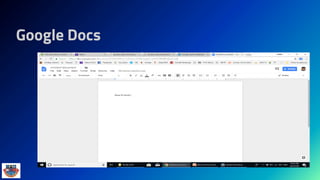
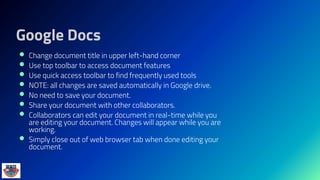
 Change document title in upper left-hand corner
 Use top toolbar to access document features
 Use quick access toolbar to find frequently used tools
 NOTE: all changes are saved automatically in Google drive.
 No need to save your document.
 Share your document with other collaborators.
 Collaborators can edit your document in real-time while you
are editing your document. Changes will appear while you are
working.
 Simply close out of web browser tab when done editing your
document.
Google Sheets
Google Sheets
Google Sheets
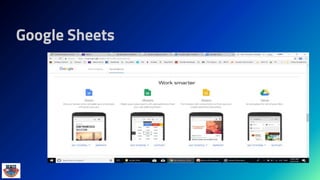
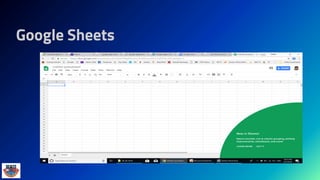
▰ Similar to Microsoft Excel
▰ Insert charts, images, videos
▰ Create calculations and formulas
▰ Create multiple sheets
▰ Protect cells, sheets or the entire workbook
▰ Configure notification rules notifying you of
changes to your spreadsheet.
Google Slides (Presentation)
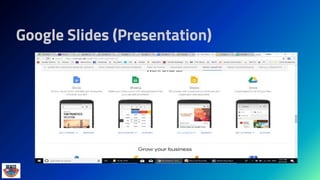
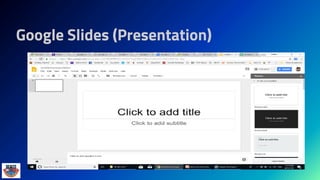
 Similar to Microsoft PowerPoint
 Choose your title and theme
 Top toolbar gives you access to more features
 Quick-launch toolbar gives you quick access to commonly used features
 Insert text, images, video, etc.
 Insert tables
 Presenter Views
 click screen or scroll up/down to advance
 Full screen views
 Presenter with speaker notes opens up additional notes window
 Share your presentation with collaborators
 Configure who can view your presentation
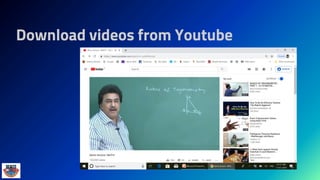
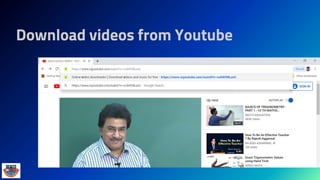
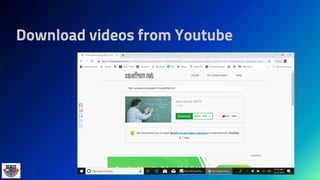
Download videos from Youtube
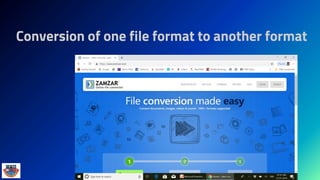
Conversion of one file format to another format
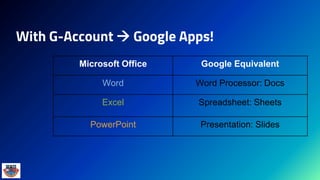
With G-Account  Google Apps!
Microsoft Office Google Equivalent
Word Word Processor: Docs
Excel Spreadsheet: Sheets
PowerPoint Presentation: Slides
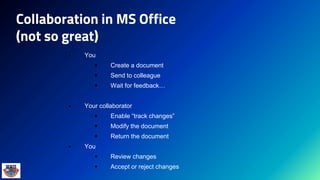
Collaboration in MS Office
(not so great)
 You
 Create a document
 Send to colleague
 Wait for feedback…
 Your collaborator
 Enable “track changes”
 Modify the document
 Return the document
 You
 Review changes
 Accept or reject changes
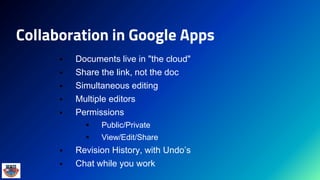
Collaboration in Google Apps
 Documents live in "the cloud"
 Share the link, not the doc
 Simultaneous editing
 Multiple editors
 Permissions
 Public/Private
 View/Edit/Share
 Revision History, with Undo’s
 Chat while you work
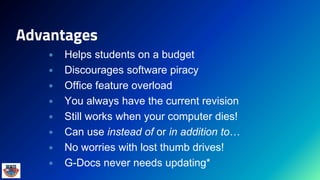
Advantages
 Helps students on a budget
 Discourages software piracy
 Office feature overload
 You always have the current revision
 Still works when your computer dies!
 Can use instead of or in addition to…
 No worries with lost thumb drives!
 G-Docs never needs updating*
Disadvantages
Because updates are automatic…
 You don’t have a choice
 The timing can be inconvenient
 Features change on Google’s
timetable, not yours.
 Compatibility with Office…
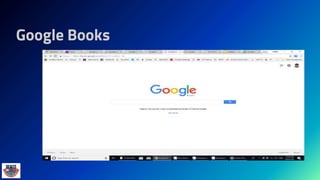
Google Books
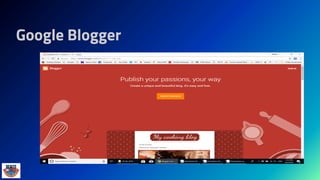
Google Blogger
Google Classroom
▰ Google Classroom is a free web service
developed by Google for schools that aims
to simplify creating, distributing and grading
assignments in a paperless way.
▰ The primary purpose of Google Classroom
is to streamline the process of sharing files
between teachers and students
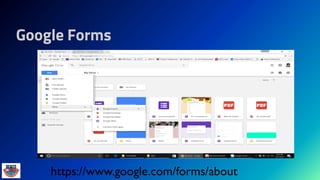
Google Forms
https://www.google.com/forms/about
▰Part of the Google Drive suite.
▰Create forms and surveys.
▰Delivered Electronically
▰Responses are collected in a
Google Drive spreadsheet.
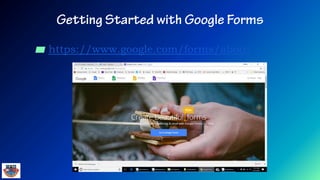
▰ https://www.google.com/forms/about
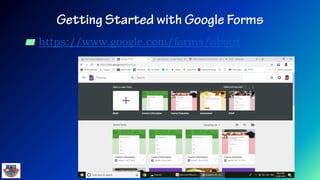
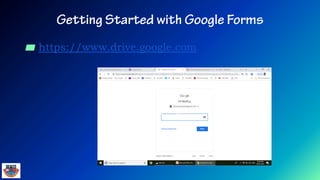
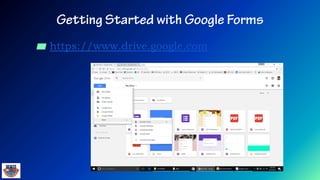
▰ https://www.drive.google.com
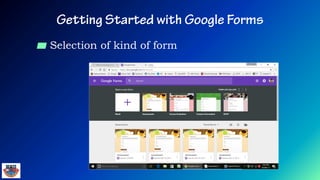
▰ Selection of kind of form
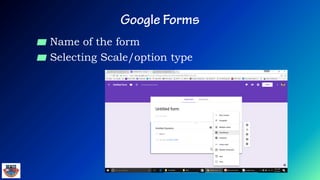
▰ Name of the form
▰ Selecting Scale/option type
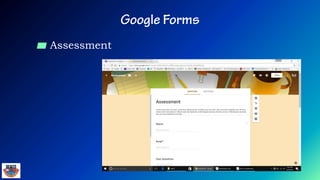
▰ Assessment
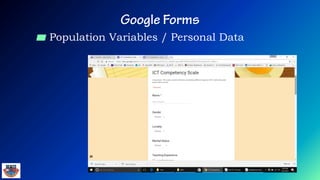
▰ Population Variables / Personal Data
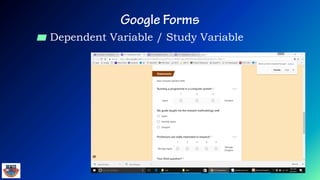
▰ Dependent Variable / Study Variable
▰ Link of the questionnaire can be shared through…..
○ Dedicated web site
○ Free web sites
○ Social Media like twitter, face book,
instagram …..
○ Whats app
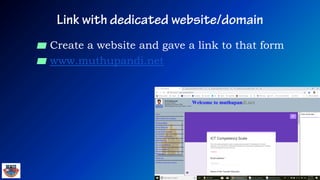
▰ Create a website and gave a link to that form
▰ www.muthupandi.net
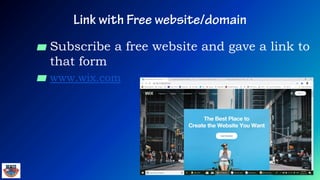
▰ Subscribe a free website and gave a link to
that form
▰ www.wix.com
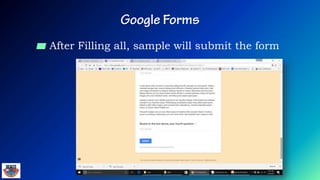
▰ After Filling all, sample will submit the form
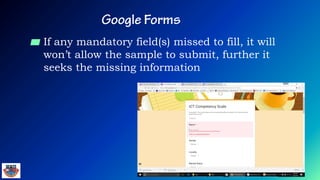
▰ If any mandatory field(s) missed to fill, it will
won’t allow the sample to submit, further it
seeks the missing information
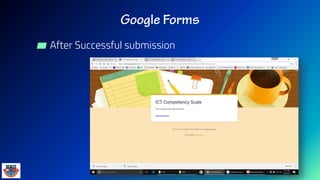
▰ After Successful submission
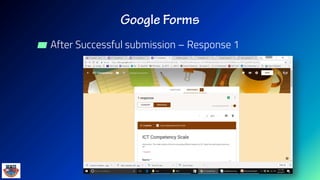
▰ After Successful submission – Response 1
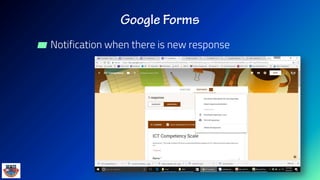
▰ Notification when there is new response
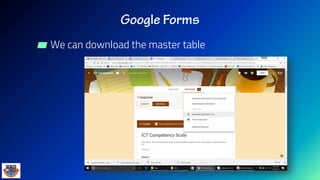
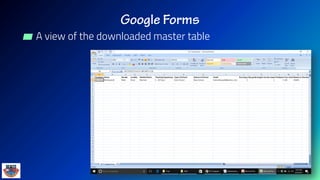
▰ We can download the master table
▰ A view of the downloaded master table
Other than Google forms
 Survey Monkey
 Type form
 Client Heartbeat
 Zoho Survey
 Survey Gizmo
 Survey Planet
 Google Forms
▰ Unlimited surveys
▰ Unlimited respondents
▰ Survey answers and data are automatically collected in Google
Spreadsheets
▰ Lots of theme options
▰ Add your own custom logo
▰ Add images or videos
▰ Skip logic and page branching
▰ Embed survey into emails or website
▰ Add collaborators
▰ 100% free!
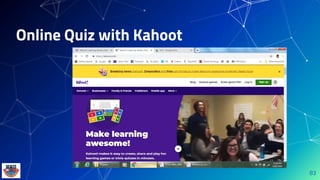
Online Quiz with Kahoot
83
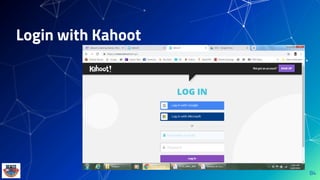
Login with Kahoot
84
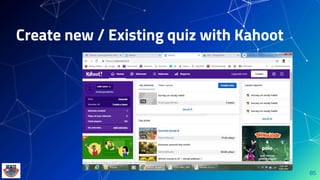
Create new / Existing quiz with Kahoot
85
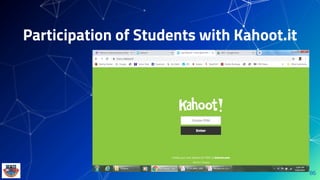
Participation of Students with Kahoot.it
86
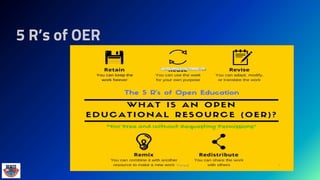
What is OER
 Open Educational Resources (OERs) are any type of
educational materials that are in the public domain
or introduced with an open license.
 The nature of these open materials means that
anyone can legally and freely copy, use, adapt and
re-share them.
 OERs range from textbooks to curricula, syllabi,
lecture notes, assignments, tests, projects, audio,
video and animation.
5 R’s of OER
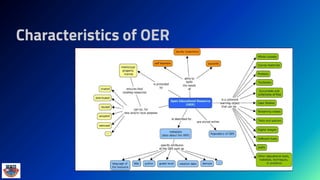
Characteristics of OER
▰ Orange
▰ R
▰ DataMelt
▰ Tableau Public
▰ Weka
▰ https://www.easycalculation.com/
▰ http://www.physics.csbsju.edu/stats/contingency_NROW_NCOLUMN_f
orm.html
▰ http://cfcc.edu/faculty/cmoore/IndexExcHtm.htm
▰ Google Charts
▰ Open Office
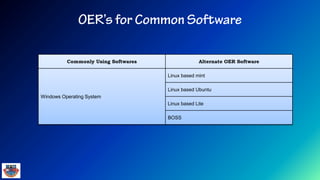
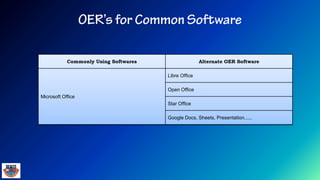
Commonly Using Softwares Alternate OER Software
Windows Operating System
Linux based mint
Linux based Ubuntu
Linux based Lite
BOSS
Commonly Using Softwares Alternate OER Software
Microsoft Office
Libre Office
Open Office
Star Office
Google Docs, Sheets, Presentation......
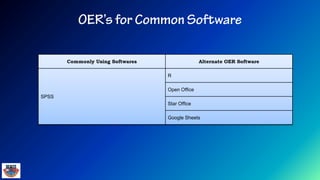
Commonly Using Softwares Alternate OER Software
SPSS
R
Open Office
Star Office
Google Sheets
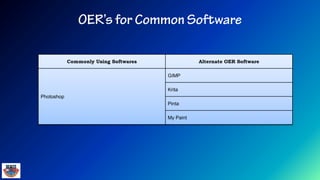
Commonly Using Softwares Alternate OER Software
Photoshop
GIMP
Krita
Pinta
My Paint
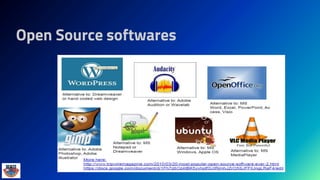
Open Source softwares
Use of this material
(Presentation)
▰ If you would like to use this Digital presentation
you can download from the below website
under my presentations…..
▰ www.muthupandi.net
96
Introduction to Blogs and
Websites
Blogs
▰ A blog (a truncation of "weblog") is a discussion or
informational website published on the World Wide
Web consisting of discrete, often informal diary-style
text entries (posts).
▰ Posts are typically displayed in reverse chronological
order, so that the most recent post appears first, at the
top of the web page.
98
Free Blog Providers
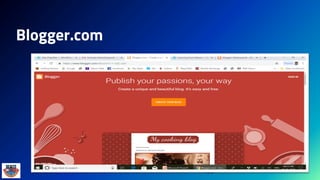
▰ www.blogger.com
▰ www.wordpress.com
▰ www.wix.com
▰ www.theblogpress.com
▰ www.weebly.com
▰ www.medium.com
▰ www.ghost.org
▰ www.tumblr.com)
▰ www.joomla.org
▰ www.jimdo.com
99
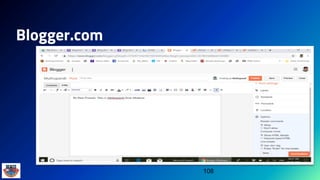
Blogger.com
100
Blogger.com
101
Blogger.com
102
Blogger.com
103
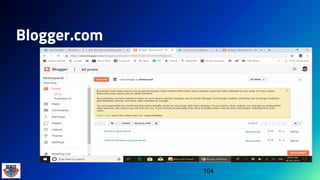
Blogger.com
104
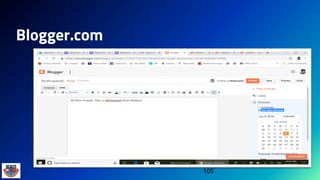
Blogger.com
105
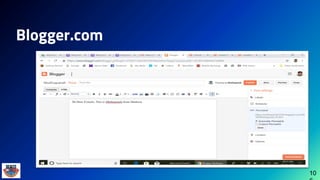
Blogger.com
10
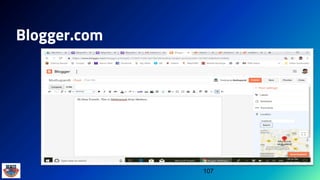
Blogger.com
107
Blogger.com
108
Blogger.com
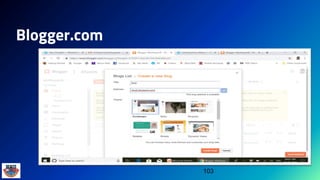
▰ After Creating a blog, please submit your blog id at
www.muthupandi.net
109
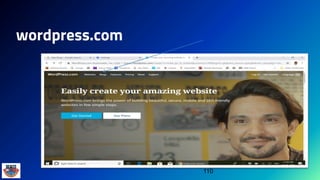
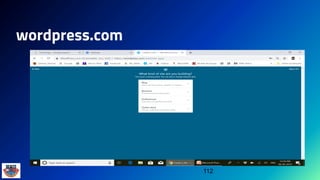
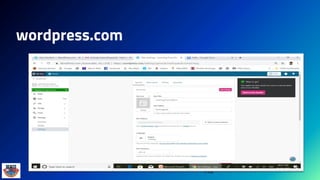
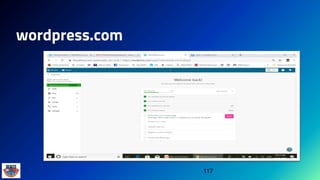
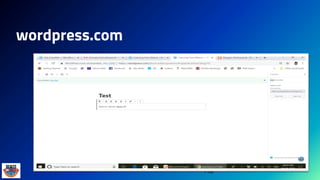
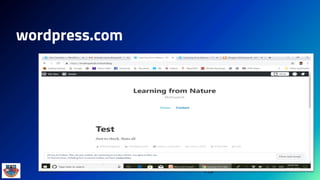
wordpress.com
110
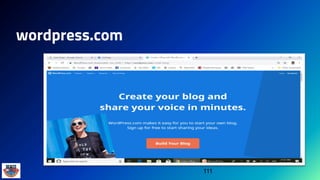
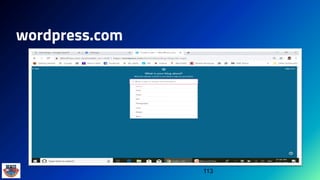
wordpress.com
111
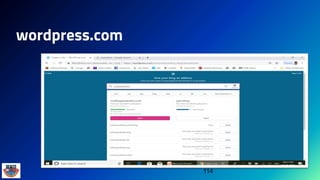
wordpress.com
112
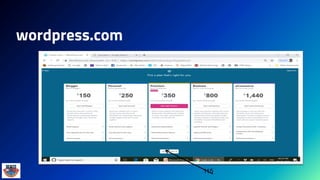
wordpress.com
113
wordpress.com
114
wordpress.com
115
wordpress.com
116
wordpress.com
117
wordpress.com
118
wordpress.com
119
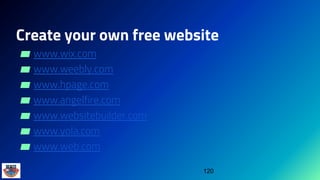
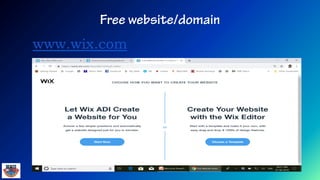
Create your own free website
▰ www.wix.com
▰ www.weebly.com
▰ www.hpage.com
▰ www.angelfire.com
▰ www.websitebuilder.com
▰ www.yola.com
▰ www.web.com
120
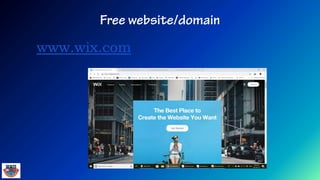
www.wix.com
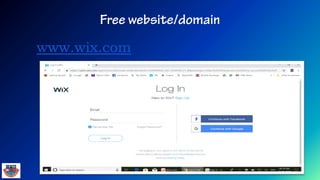
www.wix.com
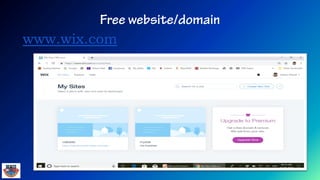
www.wix.com
www.wix.com
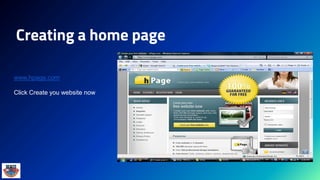
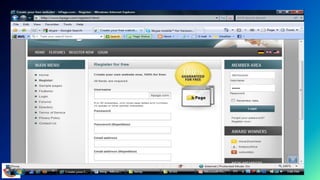
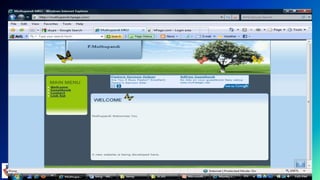
Creating a home page
www.hpage.com
Click Create you website now
1. Visitor-centric, clear purpose
2. Progressive disclosure
3. Displays quickly
4. Browser compatible
5. Intuitive navigation
6. Spelling, grammar, writing
7. Secure (eCommerce)
8. Attractive design, easy to read
9. Cultural bias? (Regional? Domestic? International?)
10. No technical problems (broken links, buggy scripts)
11. Maintainable (separate content from style)
12. Search Engine Accessible
Resources
http://www.w3schools.com/
HTML Tutorials
Learn HTML
Learn XHTML
Learn CSS
Learn TCP/IP
Browser Scripting
Learn JavaScript
Learn DHTML
Learn VBScript
Learn HTML DOM
Learn WMLScript
Server Scripting
Learn SQL
Learn ASP
Learn ADO
Learn PHP
XML Tutorials
Learn XML
Learn XSL
Learn XSLT
Learn XSL-FO
Learn XPath
Learn XQuery
Learn XLink
Learn XPointer
Learn DTD
Learn Schema
Learn XML DOM
Learn XForms
Learn SOAP
Learn WSDL
Learn RDF
Learn RSS
Learn WAP
 .NET (dotnet)
.NET Microsoft
.NET ASP
.NET Mobile
 Multimedia
Learn Media
Learn SMIL
Learn SVG
Learn Flash
 Web Building
Web Building
Web W3C
Web Browsers
Web Quality
Web Semantic
Web Careers
Web Hosting
Web Certification
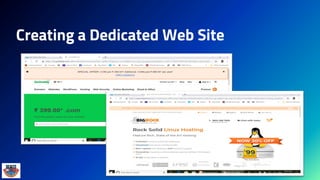
Creating a Dedicated Web Site
131
Questions to Ask Yourself
▰ What is the purpose of my website?
▰ Who is my main audience?
▰ My secondary audience?
▰ What information do I want to present?
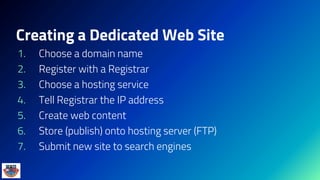
Creating a Dedicated Web Site
1. Choose a domain name
2. Register with a Registrar
3. Choose a hosting service
4. Tell Registrar the IP address
5. Create web content
6. Store (publish) onto hosting server (FTP)
7. Submit new site to search engines
Thank you
E-mail :
haimuthupandi@yahoo.com
Website :
http://www.muthupandi.net

Technology Enabled Teaching, Learning & Research

  • 1.
    WEBINAR SERIES –5 Technology in/for Education
  • 3.
    3 Organizing Secretary Prof. B.WilliamDharmaraja, Head, Department of Education Dean Faculty of Arts Manonmaniam Sundaranar University, Tirunelveli- 627012 Tamilnadu
  • 4.
  • 7.
    is a placewhere learning takes place in the past and present
  • 8.
    00 AD -1750 Knowledge doubled in 17.5 centuries 1750 - 1900 Knowledge doubled in 150 years 1950 - 2000 Knowledge doubled in 50 years After 2000 Knowledge doubles every year
  • 12.
    Digital Age Learners NETGENERATION LEARNERS
  • 13.
  • 14.
  • 15.
  • 16.
    Digital Age Learners ON-LINECOLLABORATORS NET GENERATION LEARNERS
  • 18.
  • 19.
  • 20.
  • 21.
  • 22.
    Google Applications  Gmail Google Groups  Google Drive  Google Translate  Google Docs  Google Sheets  Google Slides  Google Books  Google Blogger  Google Classroom  Google Forms
  • 23.
    ▰ Google Groupsis a service from Google that provides discussion groups for people sharing common interests. The Groups service also provides a gateway to Usenet newsgroups via a shared user interface. Google Groups became operational in February 2001
  • 24.
  • 25.
    ▰ Cloud Computingis a general term used to describe a new class of network based computing that takes place over the Internet. ○ basically a step on from Utility Computing ○ a collection/group of integrated and networked hardware, software and Internet infrastructure (called a platform). ○ Using the Internet for communication and transport provides hardware, software and networking services to clients. ▰ A cloud refers to a distinct IT environment that is designed for the purpose of remotely providing scalable and measured IT resources. ▰ It is a network of networks providing remote access to a set of decentralized IT resources.
  • 26.
    5 ¼-inch floppydisk (160 Kb) 3 1/2inch floppy disk (1.44 Mb) Zip Drive (200 Mb) Compact Disk (700 Mb) DigitalVersatile Disc (4.7 Gb) Flash Drive (2, 4, 8, 16, 32, 64….. Gb) MemoryCard (2,4,8,16,32,64…..Gb) CloudStorage (Unlimitted)
  • 27.
    Google Drive  GoogleDrive is a file storage and synchronization service developed by Google.  Launched on April 24, 2012, Google Drive allows users to store files on their servers, synchronize files across devices, and share files. In addition to a website, Google Drive offers apps with offline capabilities for Windows and macOS computers, and Android and iOS smartphones and tablets. Google Drive encompasses Google Docs, Sheets and Slides, an office suite that permits collaborative editing of documents, spreadsheets, presentations, drawings, forms, and more.  Files created and edited through the office suite are saved in Google Drive.  Google Drive offers users 15 gigabytes of free storage, with 100 gigabytes, 1 terabyte, 2 terabytes, 10 terabytes, 20 terabytes, and 30 terabytes offered through optional paid plans.
  • 29.
    • Dropbox isthe simplest and most efficient storage service in the cloud – think simplicity, think Dropbox. • Apart from storage it offers synchronization, web sharing of files and client software for Windows, Mac, Linux and mobile devices (iPhone, iPad, Android.)
  • 30.
    ▰ With Dropboxinstalled at my office and home computers I no longer carry USB flash drive. As your files are auto-synchronized on every computer/device - no emailing and downloading of files to different computers/devices – i.e. no headache of getting messed up with multiple file versions. On a new computer (or device) you can always use web interface to access your files (photos, videos, docs etc)d, BlackBerry)
  • 34.
    ▰ Sync: Syncmakes it easy to store, share and access your files from just about anywhere ▰ Best of all, Sync protects your privacy with end-to- end encryption — ensuring that your data in the cloud is safe, secure and 100% private
  • 35.
    1. Usability: Thisallows users to drag and drop files between the cloud storage and their local storage. 2. Bandwidth: You can avoid emailing files to individuals and instead send a web link to recipients through your email. 3. Accessibility: Stored files can be accessed from anywhere via Internet connection. 4. Disaster Recovery: have an emergency backup plan ready in the case of an emergency. Cloud storage can be used as a back‐up. 5. Cost Savings: Users can see additional cost savings because it does not require internal power to store information remotely. 6. Synchronization 7. Folder Sharing with the mentor
  • 36.
    ▰ Requires aconstant Internet connection ▰ Does not work well with low-speed connections ▰ Features might be limited (at the initial stage) ▰ Stored data might not be secure ▰ Who provide the service have the right to delete information from free, inactive accounts
  • 37.
  • 38.
  • 39.
  • 40.
  • 41.
    Google Docs  Changedocument title in upper left-hand corner  Use top toolbar to access document features  Use quick access toolbar to find frequently used tools  NOTE: all changes are saved automatically in Google drive.  No need to save your document.  Share your document with other collaborators.  Collaborators can edit your document in real-time while you are editing your document. Changes will appear while you are working.  Simply close out of web browser tab when done editing your document.
  • 42.
  • 43.
  • 44.
    Google Sheets ▰ Similarto Microsoft Excel ▰ Insert charts, images, videos ▰ Create calculations and formulas ▰ Create multiple sheets ▰ Protect cells, sheets or the entire workbook ▰ Configure notification rules notifying you of changes to your spreadsheet.
  • 45.
  • 46.
  • 47.
    Google Slides (Presentation) Similar to Microsoft PowerPoint  Choose your title and theme  Top toolbar gives you access to more features  Quick-launch toolbar gives you quick access to commonly used features  Insert text, images, video, etc.  Insert tables  Presenter Views  click screen or scroll up/down to advance  Full screen views  Presenter with speaker notes opens up additional notes window  Share your presentation with collaborators  Configure who can view your presentation
  • 48.
  • 49.
  • 50.
  • 51.
    Conversion of onefile format to another format
  • 52.
    With G-Account Google Apps! Microsoft Office Google Equivalent Word Word Processor: Docs Excel Spreadsheet: Sheets PowerPoint Presentation: Slides
  • 53.
    Collaboration in MSOffice (not so great)  You  Create a document  Send to colleague  Wait for feedback…  Your collaborator  Enable “track changes”  Modify the document  Return the document  You  Review changes  Accept or reject changes
  • 54.
    Collaboration in GoogleApps  Documents live in "the cloud"  Share the link, not the doc  Simultaneous editing  Multiple editors  Permissions  Public/Private  View/Edit/Share  Revision History, with Undo’s  Chat while you work
  • 55.
    Advantages  Helps studentson a budget  Discourages software piracy  Office feature overload  You always have the current revision  Still works when your computer dies!  Can use instead of or in addition to…  No worries with lost thumb drives!  G-Docs never needs updating*
  • 56.
    Disadvantages Because updates areautomatic…  You don’t have a choice  The timing can be inconvenient  Features change on Google’s timetable, not yours.  Compatibility with Office…
  • 57.
  • 58.
  • 59.
    Google Classroom ▰ GoogleClassroom is a free web service developed by Google for schools that aims to simplify creating, distributing and grading assignments in a paperless way. ▰ The primary purpose of Google Classroom is to streamline the process of sharing files between teachers and students
  • 60.
  • 61.
    ▰Part of theGoogle Drive suite. ▰Create forms and surveys. ▰Delivered Electronically ▰Responses are collected in a Google Drive spreadsheet.
  • 62.
  • 63.
  • 64.
  • 65.
  • 66.
    ▰ Selection ofkind of form
  • 67.
    ▰ Name ofthe form ▰ Selecting Scale/option type
  • 68.
  • 69.
    ▰ Population Variables/ Personal Data
  • 70.
    ▰ Dependent Variable/ Study Variable
  • 71.
    ▰ Link ofthe questionnaire can be shared through….. ○ Dedicated web site ○ Free web sites ○ Social Media like twitter, face book, instagram ….. ○ Whats app
  • 72.
    ▰ Create awebsite and gave a link to that form ▰ www.muthupandi.net
  • 73.
    ▰ Subscribe afree website and gave a link to that form ▰ www.wix.com
  • 74.
    ▰ After Fillingall, sample will submit the form
  • 75.
    ▰ If anymandatory field(s) missed to fill, it will won’t allow the sample to submit, further it seeks the missing information
  • 76.
  • 77.
    ▰ After Successfulsubmission – Response 1
  • 78.
    ▰ Notification whenthere is new response
  • 79.
    ▰ We candownload the master table
  • 80.
    ▰ A viewof the downloaded master table
  • 81.
    Other than Googleforms  Survey Monkey  Type form  Client Heartbeat  Zoho Survey  Survey Gizmo  Survey Planet  Google Forms
  • 82.
    ▰ Unlimited surveys ▰Unlimited respondents ▰ Survey answers and data are automatically collected in Google Spreadsheets ▰ Lots of theme options ▰ Add your own custom logo ▰ Add images or videos ▰ Skip logic and page branching ▰ Embed survey into emails or website ▰ Add collaborators ▰ 100% free!
  • 83.
  • 84.
  • 85.
    Create new /Existing quiz with Kahoot 85
  • 86.
    Participation of Studentswith Kahoot.it 86
  • 87.
    What is OER Open Educational Resources (OERs) are any type of educational materials that are in the public domain or introduced with an open license.  The nature of these open materials means that anyone can legally and freely copy, use, adapt and re-share them.  OERs range from textbooks to curricula, syllabi, lecture notes, assignments, tests, projects, audio, video and animation.
  • 88.
  • 89.
  • 90.
    ▰ Orange ▰ R ▰DataMelt ▰ Tableau Public ▰ Weka ▰ https://www.easycalculation.com/ ▰ http://www.physics.csbsju.edu/stats/contingency_NROW_NCOLUMN_f orm.html ▰ http://cfcc.edu/faculty/cmoore/IndexExcHtm.htm ▰ Google Charts ▰ Open Office
  • 91.
    Commonly Using SoftwaresAlternate OER Software Windows Operating System Linux based mint Linux based Ubuntu Linux based Lite BOSS
  • 92.
    Commonly Using SoftwaresAlternate OER Software Microsoft Office Libre Office Open Office Star Office Google Docs, Sheets, Presentation......
  • 93.
    Commonly Using SoftwaresAlternate OER Software SPSS R Open Office Star Office Google Sheets
  • 94.
    Commonly Using SoftwaresAlternate OER Software Photoshop GIMP Krita Pinta My Paint
  • 95.
  • 96.
    Use of thismaterial (Presentation) ▰ If you would like to use this Digital presentation you can download from the below website under my presentations….. ▰ www.muthupandi.net 96
  • 97.
  • 98.
    Blogs ▰ A blog(a truncation of "weblog") is a discussion or informational website published on the World Wide Web consisting of discrete, often informal diary-style text entries (posts). ▰ Posts are typically displayed in reverse chronological order, so that the most recent post appears first, at the top of the web page. 98
  • 99.
    Free Blog Providers ▰www.blogger.com ▰ www.wordpress.com ▰ www.wix.com ▰ www.theblogpress.com ▰ www.weebly.com ▰ www.medium.com ▰ www.ghost.org ▰ www.tumblr.com) ▰ www.joomla.org ▰ www.jimdo.com 99
  • 100.
  • 101.
  • 102.
  • 103.
  • 104.
  • 105.
  • 106.
  • 107.
  • 108.
  • 109.
    Blogger.com ▰ After Creatinga blog, please submit your blog id at www.muthupandi.net 109
  • 110.
  • 111.
  • 112.
  • 113.
  • 114.
  • 115.
  • 116.
  • 117.
  • 118.
  • 119.
  • 120.
    Create your ownfree website ▰ www.wix.com ▰ www.weebly.com ▰ www.hpage.com ▰ www.angelfire.com ▰ www.websitebuilder.com ▰ www.yola.com ▰ www.web.com 120
  • 121.
  • 122.
  • 123.
  • 124.
  • 125.
    Creating a homepage www.hpage.com Click Create you website now
  • 129.
    1. Visitor-centric, clearpurpose 2. Progressive disclosure 3. Displays quickly 4. Browser compatible 5. Intuitive navigation 6. Spelling, grammar, writing 7. Secure (eCommerce) 8. Attractive design, easy to read 9. Cultural bias? (Regional? Domestic? International?) 10. No technical problems (broken links, buggy scripts) 11. Maintainable (separate content from style) 12. Search Engine Accessible
  • 130.
    Resources http://www.w3schools.com/ HTML Tutorials Learn HTML LearnXHTML Learn CSS Learn TCP/IP Browser Scripting Learn JavaScript Learn DHTML Learn VBScript Learn HTML DOM Learn WMLScript Server Scripting Learn SQL Learn ASP Learn ADO Learn PHP XML Tutorials Learn XML Learn XSL Learn XSLT Learn XSL-FO Learn XPath Learn XQuery Learn XLink Learn XPointer Learn DTD Learn Schema Learn XML DOM Learn XForms Learn SOAP Learn WSDL Learn RDF Learn RSS Learn WAP  .NET (dotnet) .NET Microsoft .NET ASP .NET Mobile  Multimedia Learn Media Learn SMIL Learn SVG Learn Flash  Web Building Web Building Web W3C Web Browsers Web Quality Web Semantic Web Careers Web Hosting Web Certification
  • 131.
  • 132.
    Questions to AskYourself ▰ What is the purpose of my website? ▰ Who is my main audience? ▰ My secondary audience? ▰ What information do I want to present?
  • 133.
    Creating a DedicatedWeb Site 1. Choose a domain name 2. Register with a Registrar 3. Choose a hosting service 4. Tell Registrar the IP address 5. Create web content 6. Store (publish) onto hosting server (FTP) 7. Submit new site to search engines
  • 136.