User Interface Design
What is it? Interface design is the process of creating an interaction between the computer and humans. It is a way of allowing humans to communicate with computers and computers to communicate with humans.
What is it? Interface design is achieved through the screen, mouse, keyboard, touchpads etc.
Why is it Important? Makes software easier to use. The better the interface, the less help people will need. More users will want to use the software. An application that is difficult to use won’t be used.
Interface Design History Initially computers communicated through flashing lights and mechanical switches. Then it was through printing devices such as punched cards. Then came video screens - but they were limited to text only. Now there is a Graphical User Interface (GUI) such as Windows
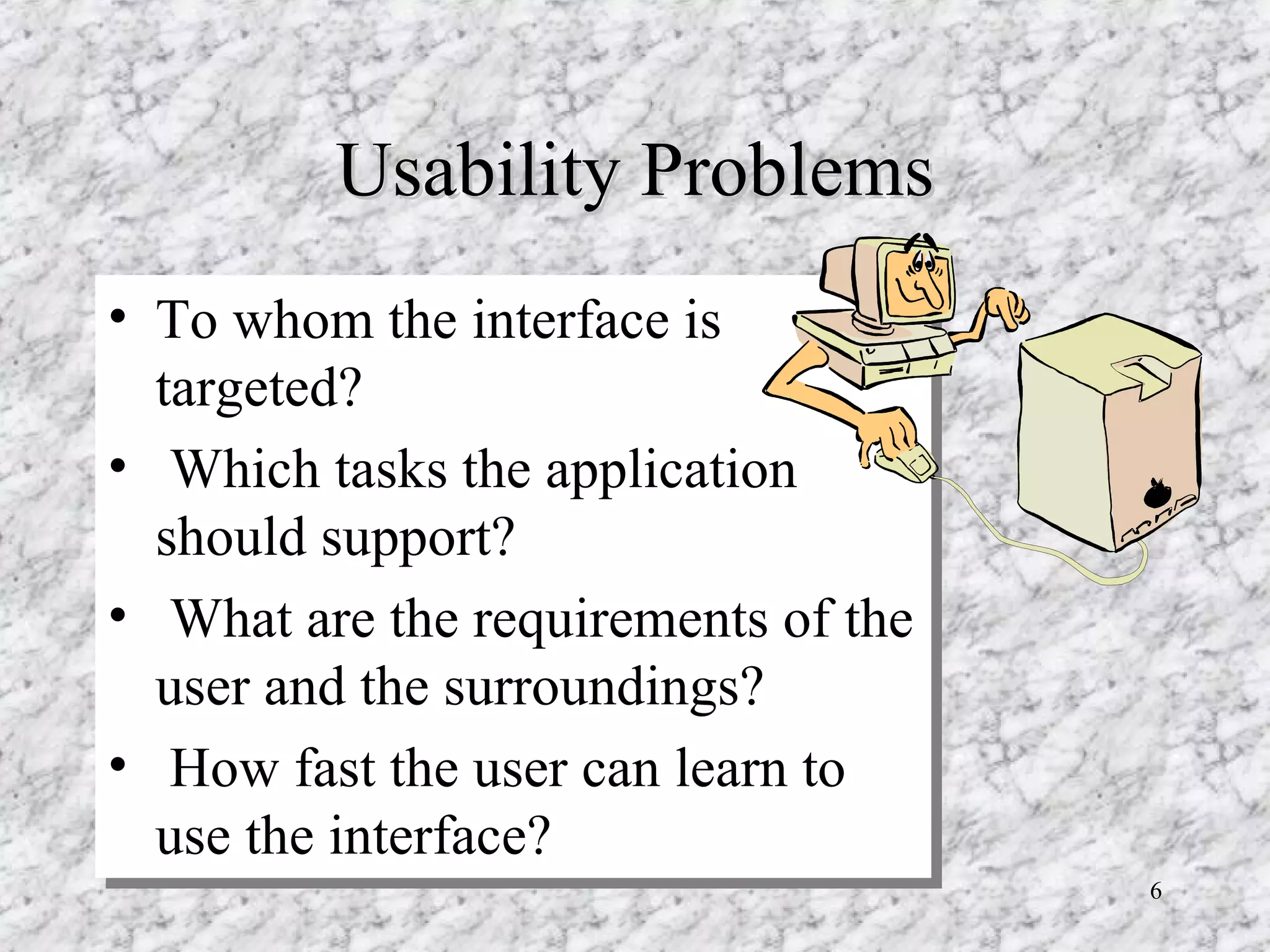
Usability Problems To whom the interface is targeted?  Which tasks the application should support?  What are the requirements of the user and the surroundings?  How fast the user can learn to use the interface?
Usability Problems What kinds of mistakes occur and how the user corrects them?  How tiring is the use of the interface to the user?  What are the requirements of hardware?
Good User Interface Design 1. Be consistent Put buttons in consistent places Use a consistent colour scheme Use the same wording in messages 2. Set a Standard To maintain consistency a standards sheet or template should be used. This should contain information on fonts, backgrounds and graphic formats
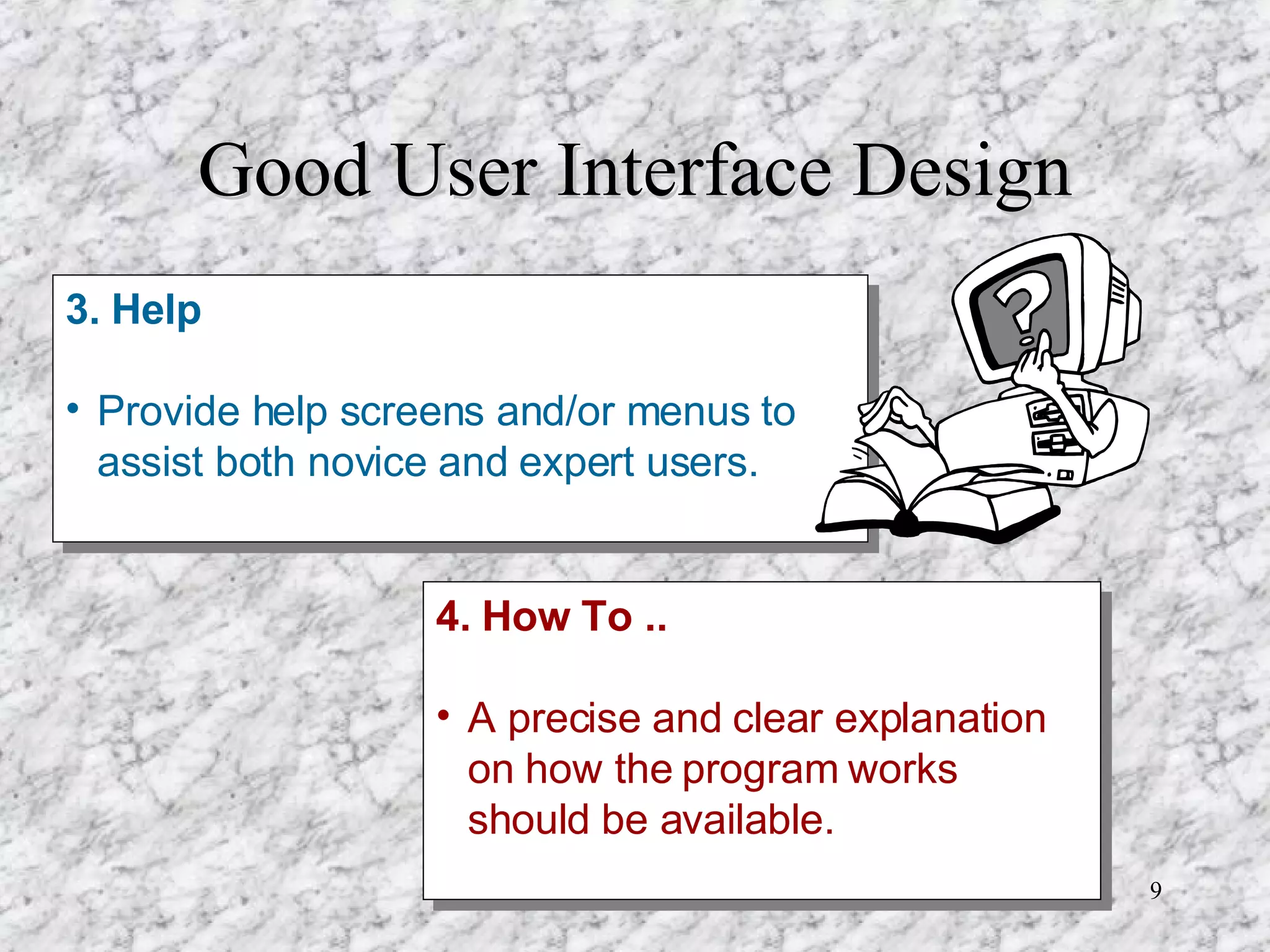
Good User Interface Design 3. Help Provide help screens and/or menus to assist both novice and expert users. 4. How To .. A precise and clear explanation on how the program works should be available.
Good User Interface Design 5. Clear Navigation Put buttons in consistent places Use a consistent colour scheme Use the same wording in messages 6. Navigation within the Screen People read left to right and top to bottom - so information should be organised in a similar manner.
Good User Interface Design 7. Use Colour Be careful not to overuse colour. Don’t use bright colours in the background - so that everyhting else is lost. 8. White Space is OK Try and avoid overcrowding on the screen by leaving plenty of ‘white space’ between objects and controls.
Good User Interface Design 9. Interface Objects Objects used on screen should look and behave exactly like the ‘real’ objects they represent. 10. Consider the User Cater to a particular group Readers - read text Viewers - entertainment  Users - functionality
Good User Interface Design DON’T Squeeze in too much text on one screen USE ALL CAPITAL LETTERS Use fonts that aren’t generally available Assume the user knows what to do . Place important information at the top or   bottom of the screen
UI Questions Does the design simplify the user’s task Is it clear what actions are currently possible Is there clear, understandable and relevant feedback Is the information arranged into logical chunks ?
Colour Be consistent!  Don’t change the meaning of a colour in the middle of the document.  The use of color should relate to normal expectations:  hot - red ,  cold - blue .  The result should be aesthetically pleasant.
What makes a Good Interface? It’s invisible! It’s predictable It’s easy to learn It’s flexible It’s easy to recover from errors People like it!

User Interface Design

  • 1.
  • 2.
    What is it?Interface design is the process of creating an interaction between the computer and humans. It is a way of allowing humans to communicate with computers and computers to communicate with humans.
  • 3.
    What is it?Interface design is achieved through the screen, mouse, keyboard, touchpads etc.
  • 4.
    Why is itImportant? Makes software easier to use. The better the interface, the less help people will need. More users will want to use the software. An application that is difficult to use won’t be used.
  • 5.
    Interface Design HistoryInitially computers communicated through flashing lights and mechanical switches. Then it was through printing devices such as punched cards. Then came video screens - but they were limited to text only. Now there is a Graphical User Interface (GUI) such as Windows
  • 6.
    Usability Problems Towhom the interface is targeted? Which tasks the application should support? What are the requirements of the user and the surroundings? How fast the user can learn to use the interface?
  • 7.
    Usability Problems Whatkinds of mistakes occur and how the user corrects them? How tiring is the use of the interface to the user? What are the requirements of hardware?
  • 8.
    Good User InterfaceDesign 1. Be consistent Put buttons in consistent places Use a consistent colour scheme Use the same wording in messages 2. Set a Standard To maintain consistency a standards sheet or template should be used. This should contain information on fonts, backgrounds and graphic formats
  • 9.
    Good User InterfaceDesign 3. Help Provide help screens and/or menus to assist both novice and expert users. 4. How To .. A precise and clear explanation on how the program works should be available.
  • 10.
    Good User InterfaceDesign 5. Clear Navigation Put buttons in consistent places Use a consistent colour scheme Use the same wording in messages 6. Navigation within the Screen People read left to right and top to bottom - so information should be organised in a similar manner.
  • 11.
    Good User InterfaceDesign 7. Use Colour Be careful not to overuse colour. Don’t use bright colours in the background - so that everyhting else is lost. 8. White Space is OK Try and avoid overcrowding on the screen by leaving plenty of ‘white space’ between objects and controls.
  • 12.
    Good User InterfaceDesign 9. Interface Objects Objects used on screen should look and behave exactly like the ‘real’ objects they represent. 10. Consider the User Cater to a particular group Readers - read text Viewers - entertainment Users - functionality
  • 13.
    Good User InterfaceDesign DON’T Squeeze in too much text on one screen USE ALL CAPITAL LETTERS Use fonts that aren’t generally available Assume the user knows what to do . Place important information at the top or bottom of the screen
  • 14.
    UI Questions Doesthe design simplify the user’s task Is it clear what actions are currently possible Is there clear, understandable and relevant feedback Is the information arranged into logical chunks ?
  • 15.
    Colour Be consistent! Don’t change the meaning of a colour in the middle of the document. The use of color should relate to normal expectations: hot - red , cold - blue . The result should be aesthetically pleasant.
  • 16.
    What makes aGood Interface? It’s invisible! It’s predictable It’s easy to learn It’s flexible It’s easy to recover from errors People like it!