An introduction to Figma
@SangNguyen
Thời gian:
19h30 - 20h30 10/01/2022
Địa điểm: Google Meet
Flutter Study Jam
1. Figma?
2. Figma interface
3. Grids and columns
4. Shapes
5. Images
6. Text
7. Label elements, groups
8. Components
9. Color picker
10. Prototype interactions
11. Share and preview
12. Get feedbacks on our design
Table of contents
Figma
Figma, Adobe XD, Marvel, Sketch,...?
Figma is a powerful design tool that helps you to create
anything: websites, applications, logos, and much more.
Follow this link and create an account:
Figma: the collaborative interface design tool.
Create an Figma account
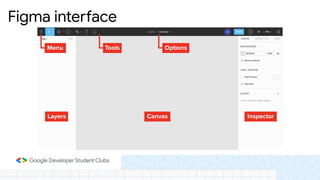
Figma interface
Make a frame in Figma
Frame is the same as a page, and it's where our design
will live.
Frame
Press + or - to zoom out or zoom in
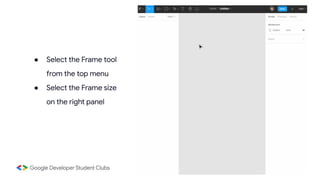
● Select the Frame tool
from the top menu
● Select the Frame size
on the right panel
How can I align contents?
You will want to add grids that help you keep the
alignment of content for your page consistent.
Grids and Columns in Figma
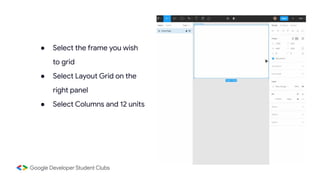
● Select the frame you wish
to grid
● Select Layout Grid on the
right panel
● Select Columns and 12 units
⨀ΔϾ
Use the shapes and elements in Figma to create
squares, circles, lines, and more. These are the
fundamentals for creating a design on a page.
Shapes in Figma
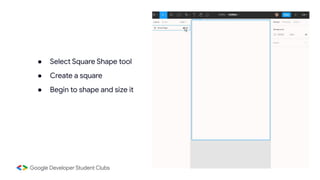
● Select Square Shape tool
● Create a square
● Begin to shape and size it
We cannot design without images
Add images in Figma
You can add images from an online source or locally to
your page. Images are an important part of designing a
website, especially for the hero section.
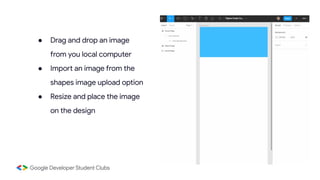
● Drag and drop an image
from you local computer
● Import an image from the
shapes image upload option
● Resize and place the image
on the design
To add text to a design, select the text tool and place it
on the page. The font will default to Roboto, but you can
change the font family, size, and color at any stage.
abcxyz
Add Text in Figma
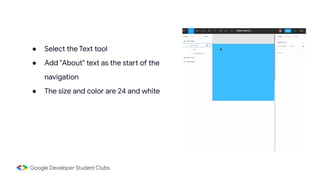
● Select the Text tool
● Add "About" text as the start of the
navigation
● The size and color are 24 and white
Working with lots of layers in Figma can get confusing,
so label all your elements as soon as you create them.
Even better is to group different sections and shapes
with labels such as "Hero Background" or "Navbar".
Groups help us to manage our design
Label elements, groups
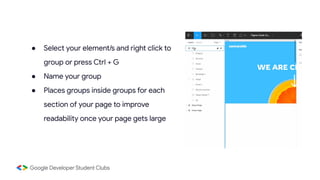
● Select your element/s and right click to
group or press Ctrl + G
● Name your group
● Places groups inside groups for each
section of your page to improve
readability once your page gets large
Components are elements you can reuse across your
designs. They help to create and manage consistent
designs across projects.
How to reuse a button design
Components in Figma
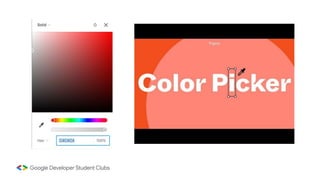
Use the color picker to apply solid fills, gradients, or
images. You can also control the hue, saturation, or
opacity of a color, as well as apply blend modes.
Pick a color anywhere
Color picker
Protype replicate how users might interact with your
designs. You can make connections between frames to
create flows, or pathways, through an interactive design.
Test UI before coding
Prototype interactions
How can we share our prototypes, how can we get
feedbacks from our teammates?
Show your works
Share and preview prototype
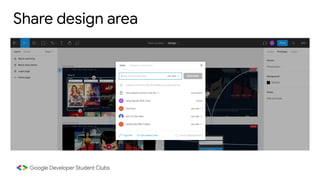
Share design area
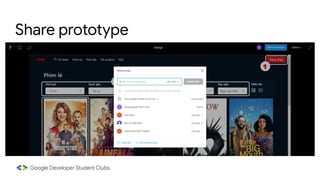
Share prototype
How to get feedbacks from your team?
Get feedbacks
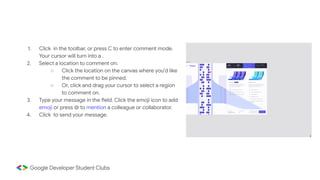
1. Click in the toolbar, or press C to enter comment mode.
Your cursor will turn into a .
2. Select a location to comment on:
○ Click the location on the canvas where you'd like
the comment to be pinned.
○ Or, click and drag your cursor to select a region
to comment on.
3. Type your message in the field. Click the emoji icon to add
emoji or press @ to mention a colleague or collaborator.
4. Click to send your message.
Dictionary app:
https://www.figma.com/file/kf1IIK6y
Q2oBHuFDTL8HwF/Dictionary-app
?node-id=1%3A3

Introduction to figma

  • 2.
    An introduction toFigma @SangNguyen Thời gian: 19h30 - 20h30 10/01/2022 Địa điểm: Google Meet Flutter Study Jam
  • 5.
    1. Figma? 2. Figmainterface 3. Grids and columns 4. Shapes 5. Images 6. Text 7. Label elements, groups 8. Components 9. Color picker 10. Prototype interactions 11. Share and preview 12. Get feedbacks on our design Table of contents
  • 6.
    Figma Figma, Adobe XD,Marvel, Sketch,...? Figma is a powerful design tool that helps you to create anything: websites, applications, logos, and much more.
  • 7.
    Follow this linkand create an account: Figma: the collaborative interface design tool. Create an Figma account
  • 8.
  • 9.
    Make a framein Figma Frame is the same as a page, and it's where our design will live. Frame Press + or - to zoom out or zoom in
  • 10.
    ● Select theFrame tool from the top menu ● Select the Frame size on the right panel
  • 11.
    How can Ialign contents? You will want to add grids that help you keep the alignment of content for your page consistent. Grids and Columns in Figma
  • 12.
    ● Select theframe you wish to grid ● Select Layout Grid on the right panel ● Select Columns and 12 units
  • 13.
    ⨀ΔϾ Use the shapesand elements in Figma to create squares, circles, lines, and more. These are the fundamentals for creating a design on a page. Shapes in Figma
  • 14.
    ● Select SquareShape tool ● Create a square ● Begin to shape and size it
  • 15.
    We cannot designwithout images Add images in Figma You can add images from an online source or locally to your page. Images are an important part of designing a website, especially for the hero section.
  • 16.
    ● Drag anddrop an image from you local computer ● Import an image from the shapes image upload option ● Resize and place the image on the design
  • 17.
    To add textto a design, select the text tool and place it on the page. The font will default to Roboto, but you can change the font family, size, and color at any stage. abcxyz Add Text in Figma
  • 18.
    ● Select theText tool ● Add "About" text as the start of the navigation ● The size and color are 24 and white
  • 19.
    Working with lotsof layers in Figma can get confusing, so label all your elements as soon as you create them. Even better is to group different sections and shapes with labels such as "Hero Background" or "Navbar". Groups help us to manage our design Label elements, groups
  • 20.
    ● Select yourelement/s and right click to group or press Ctrl + G ● Name your group ● Places groups inside groups for each section of your page to improve readability once your page gets large
  • 21.
    Components are elementsyou can reuse across your designs. They help to create and manage consistent designs across projects. How to reuse a button design Components in Figma
  • 23.
    Use the colorpicker to apply solid fills, gradients, or images. You can also control the hue, saturation, or opacity of a color, as well as apply blend modes. Pick a color anywhere Color picker
  • 25.
    Protype replicate howusers might interact with your designs. You can make connections between frames to create flows, or pathways, through an interactive design. Test UI before coding Prototype interactions
  • 27.
    How can weshare our prototypes, how can we get feedbacks from our teammates? Show your works Share and preview prototype
  • 28.
  • 29.
  • 30.
    How to getfeedbacks from your team? Get feedbacks
  • 31.
    1. Click inthe toolbar, or press C to enter comment mode. Your cursor will turn into a . 2. Select a location to comment on: ○ Click the location on the canvas where you'd like the comment to be pinned. ○ Or, click and drag your cursor to select a region to comment on. 3. Type your message in the field. Click the emoji icon to add emoji or press @ to mention a colleague or collaborator. 4. Click to send your message.
  • 33.