Introduction to Graphical
User Interfaces
Spring 2014
Instructor:
Wayne Summers
Room 453, CCT Building
Phone: 706-507-8170
Email: wsummers@columbusstate.edu
Today's Schedule
• Introductions
• Syllabus
• GUI Design Principles
Slide 1- 2
Introductions –
About you …
• Your name, major track
• What you do apart from studying
• Your favorite course so far – and the one
you’ve found most difficult
• What you expect to gain from this class
Slide 1- 3
Syllabus
Slide 1- 4
What is User Interface?
Slide 1- 5
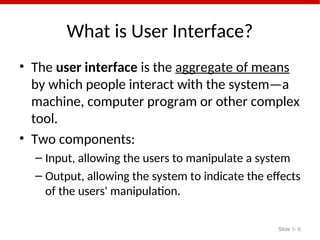
What is User Interface?
• The user interface is the aggregate of means
by which people interact with the system—a
machine, computer program or other complex
tool.
• Two components:
– Input, allowing the users to manipulate a system
– Output, allowing the system to indicate the effects
of the users' manipulation.
Slide 1- 6
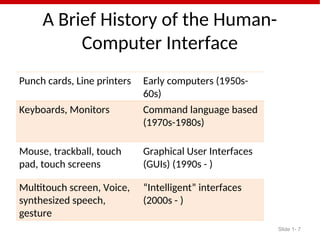
A Brief History of the Human-
Computer Interface
Punch cards, Line printers Early computers (1950s-
60s)
Keyboards, Monitors Command language based
(1970s-1980s)
Mouse, trackball, touch
pad, touch screens
Graphical User Interfaces
(GUIs) (1990s - )
Multitouch screen, Voice,
synthesized speech,
gesture
“Intelligent” interfaces
(2000s - )
Slide 1- 7
Punch card, keypunch and then
VDUs
Slide 1- 8
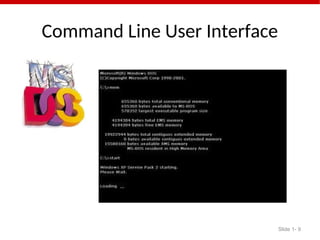
Command Line User Interface
Slide 1- 9
A Brief History of the Graphical
User Interface in 77 seconds
• http://www.youtube.com/watch?v=TZGGUro
m1Mg&feature=related
• The MS Surface
• http://www.youtube.com/watch?v=6VfpVYYQzHs
• The MS Surface – a different take
• http://www.youtube.com/watch?v=CZrr7AZ9nCY
Slide 1- 10
Why User Interface is Important
• User needs must be satisfied in an effective
and satisfying way
• User focus should be on the task, instead of
the mechanism to perform the task.
• How would you describe a poorly designed
user interface?
Slide 1- 11
The Costs of Badly Designed
Interfaces
Slide 1- 12
The Costs of Badly Designed
Interfaces
o Confusion leads to mistakes, loss of
productivity
o Bad interfaces frustrates user, discourages use
o Financial loss for user
o Loss of market share for vendor
Slide 1- 13
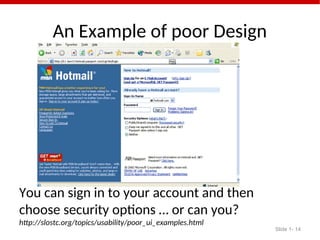
An Example of poor Design
Slide 1- 14
You can sign in to your account and then
choose security options … or can you?
http://slostc.org/topics/usability/poor_ui_examples.html
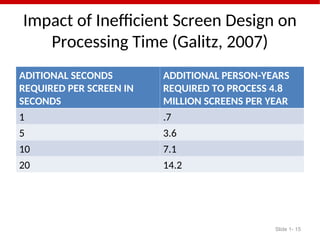
Impact of Inefficient Screen Design on
Processing Time (Galitz, 2007)
ADITIONAL SECONDS
REQUIRED PER SCREEN IN
SECONDS
ADDITIONAL PERSON-YEARS
REQUIRED TO PROCESS 4.8
MILLION SCREENS PER YEAR
1 .7
5 3.6
10 7.1
20 14.2
Slide 1- 15
Benefits of good Design
Slide 1- 16
Benefits of good Design
Increased productivity
Lower training time
Lower customer support line costs
More satisfied customers
Rule of thumb:$1 invested in system usability
returns $10 to $100 (IBM, 2001)
Slide 1- 17
User Interface Design Guidelines
• “When developing an application, you should
carefully plan the design of its user interface.
A correctly designed user interface should be
simple, self-explanatory, and without
distracting features” (Gaddis & Irvine, p. 801)
Slide 1- 18
Some User Interface Design Guidelines
• Provide a menu system
• Use color wisely
– Use dark text on a light background
– Use predefined Windows colors
– Avoid bright colors
• Avoid nonstandard fonts
• Define a logical tab order
Slide 1- 19
Some User Interface Design Guidelines
• Provide a menu system
• Use color wisely
– Use dark text on a light background
– Use predefined Windows colors
– Avoid bright colors
• Avoid nonstandard fonts
• Define a logical tab order
Slide 1- 20
Some User Interface Design Guidelines
• Provide a menu system
• Use color wisely
– Use dark text on a light background
– Use predefined Windows colors
– Avoid bright colors
• Avoid nonstandard fonts
• Define a logical tab order
Slide 1- 21
User Interface Design Guidelines (cont)
• Assign tool tips
• Provide keyboard access
• Group controls
• Position forms appropriately
• Provide a splash screen
Slide 1- 22

Introduction to intelligent user interface

  • 1.
    Introduction to Graphical UserInterfaces Spring 2014 Instructor: Wayne Summers Room 453, CCT Building Phone: 706-507-8170 Email: wsummers@columbusstate.edu
  • 2.
    Today's Schedule • Introductions •Syllabus • GUI Design Principles Slide 1- 2
  • 3.
    Introductions – About you… • Your name, major track • What you do apart from studying • Your favorite course so far – and the one you’ve found most difficult • What you expect to gain from this class Slide 1- 3
  • 4.
  • 5.
    What is UserInterface? Slide 1- 5
  • 6.
    What is UserInterface? • The user interface is the aggregate of means by which people interact with the system—a machine, computer program or other complex tool. • Two components: – Input, allowing the users to manipulate a system – Output, allowing the system to indicate the effects of the users' manipulation. Slide 1- 6
  • 7.
    A Brief Historyof the Human- Computer Interface Punch cards, Line printers Early computers (1950s- 60s) Keyboards, Monitors Command language based (1970s-1980s) Mouse, trackball, touch pad, touch screens Graphical User Interfaces (GUIs) (1990s - ) Multitouch screen, Voice, synthesized speech, gesture “Intelligent” interfaces (2000s - ) Slide 1- 7
  • 8.
    Punch card, keypunchand then VDUs Slide 1- 8
  • 9.
    Command Line UserInterface Slide 1- 9
  • 10.
    A Brief Historyof the Graphical User Interface in 77 seconds • http://www.youtube.com/watch?v=TZGGUro m1Mg&feature=related • The MS Surface • http://www.youtube.com/watch?v=6VfpVYYQzHs • The MS Surface – a different take • http://www.youtube.com/watch?v=CZrr7AZ9nCY Slide 1- 10
  • 11.
    Why User Interfaceis Important • User needs must be satisfied in an effective and satisfying way • User focus should be on the task, instead of the mechanism to perform the task. • How would you describe a poorly designed user interface? Slide 1- 11
  • 12.
    The Costs ofBadly Designed Interfaces Slide 1- 12
  • 13.
    The Costs ofBadly Designed Interfaces o Confusion leads to mistakes, loss of productivity o Bad interfaces frustrates user, discourages use o Financial loss for user o Loss of market share for vendor Slide 1- 13
  • 14.
    An Example ofpoor Design Slide 1- 14 You can sign in to your account and then choose security options … or can you? http://slostc.org/topics/usability/poor_ui_examples.html
  • 15.
    Impact of InefficientScreen Design on Processing Time (Galitz, 2007) ADITIONAL SECONDS REQUIRED PER SCREEN IN SECONDS ADDITIONAL PERSON-YEARS REQUIRED TO PROCESS 4.8 MILLION SCREENS PER YEAR 1 .7 5 3.6 10 7.1 20 14.2 Slide 1- 15
  • 16.
    Benefits of goodDesign Slide 1- 16
  • 17.
    Benefits of goodDesign Increased productivity Lower training time Lower customer support line costs More satisfied customers Rule of thumb:$1 invested in system usability returns $10 to $100 (IBM, 2001) Slide 1- 17
  • 18.
    User Interface DesignGuidelines • “When developing an application, you should carefully plan the design of its user interface. A correctly designed user interface should be simple, self-explanatory, and without distracting features” (Gaddis & Irvine, p. 801) Slide 1- 18
  • 19.
    Some User InterfaceDesign Guidelines • Provide a menu system • Use color wisely – Use dark text on a light background – Use predefined Windows colors – Avoid bright colors • Avoid nonstandard fonts • Define a logical tab order Slide 1- 19
  • 20.
    Some User InterfaceDesign Guidelines • Provide a menu system • Use color wisely – Use dark text on a light background – Use predefined Windows colors – Avoid bright colors • Avoid nonstandard fonts • Define a logical tab order Slide 1- 20
  • 21.
    Some User InterfaceDesign Guidelines • Provide a menu system • Use color wisely – Use dark text on a light background – Use predefined Windows colors – Avoid bright colors • Avoid nonstandard fonts • Define a logical tab order Slide 1- 21
  • 22.
    User Interface DesignGuidelines (cont) • Assign tool tips • Provide keyboard access • Group controls • Position forms appropriately • Provide a splash screen Slide 1- 22

Editor's Notes

  • #5 Definition based on entry in the Wikipedia
  • #6 Definition based on entry in the Wikipedia
  • #11 Gaddis & Irvine, Visual Basic 2005
  • #18 Gaddis & Irvine, Visual Basic 2005