HTML

 Introduction
 Lists
 Tables
 Images
 Forms
 Frames
 CSS
Definitions
    WWW: World Wide Web
     The set of computers on the Internet that support
     HTTP
    HTTP:Hyper Text Transfer Protocol
    Browser: Piece of software used to view HTML
     documents
    HTML: Language used to format documents for use
     on the WWW
     (or)
     Language used to create web pages
HTML-Significance

  Scripting language
  Subset of SGML(Standard General
   Markup Language)
  SGML-Language to define markup
   language
  Defines layout and attributes of www
   document
  Used to create link between pages
  Java script,DHTML,XML,PHP are also
HTML- Basics
  Hypertext is simply a piece of text that works as link
  Markup language is a language of writing layout
   information within documents
  HTML document is a plain text file
  It contains rich text. Rich text means text with tags
  HTML program can be written in notepad or wordpad
  Extension to this program is html or htm
  HTML program contains two parts, head and body.
  The head acts as a header file and the body contains
   the look and feel of the web page.
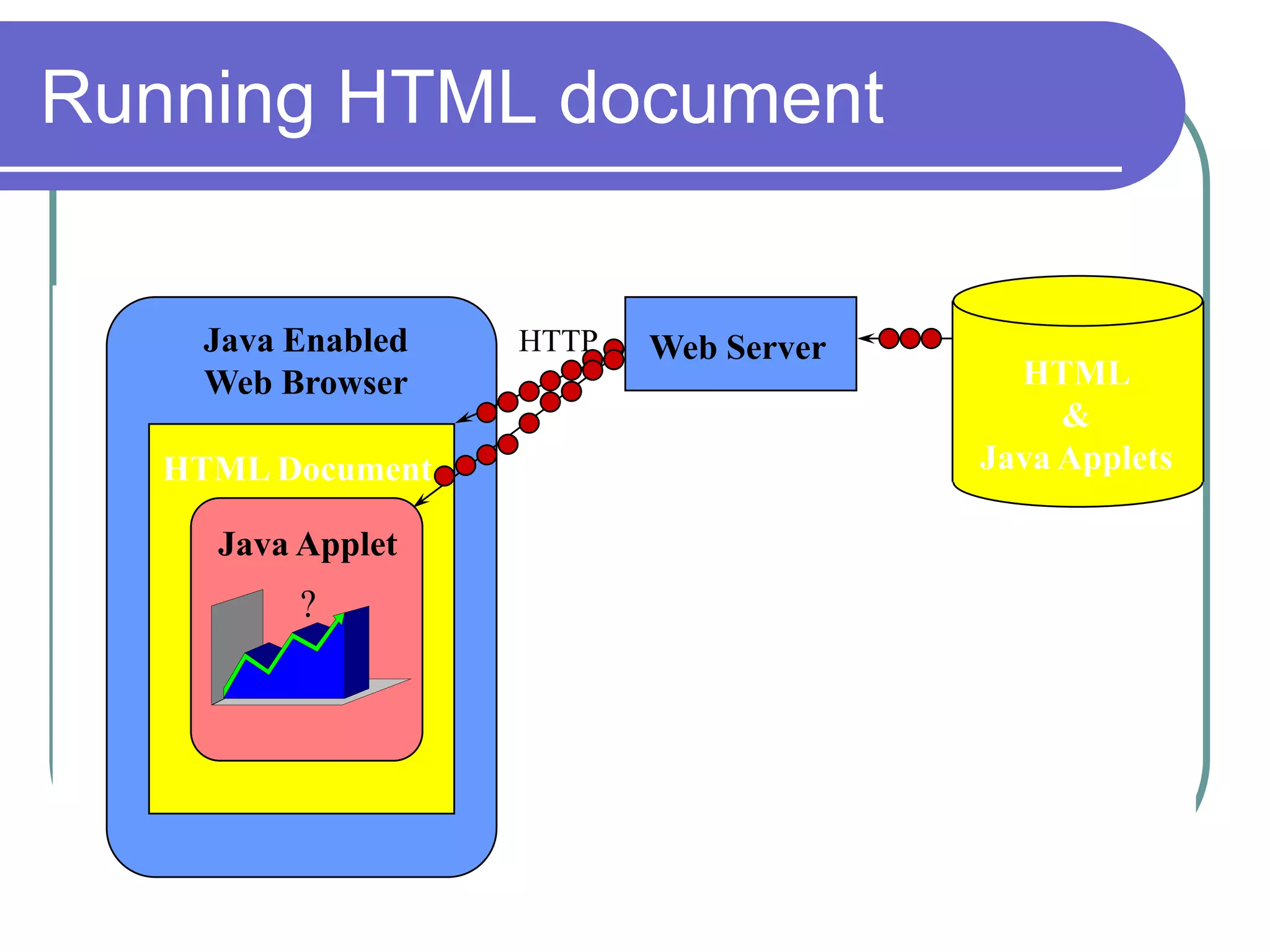
Running HTML document


    Java Enabled   HTTP   Web Server
    Web Browser                          HTML
                                            &
   HTML Document                       Java Applets

     Java Applet
     <APPLET…>
          ?
     </APPLET>
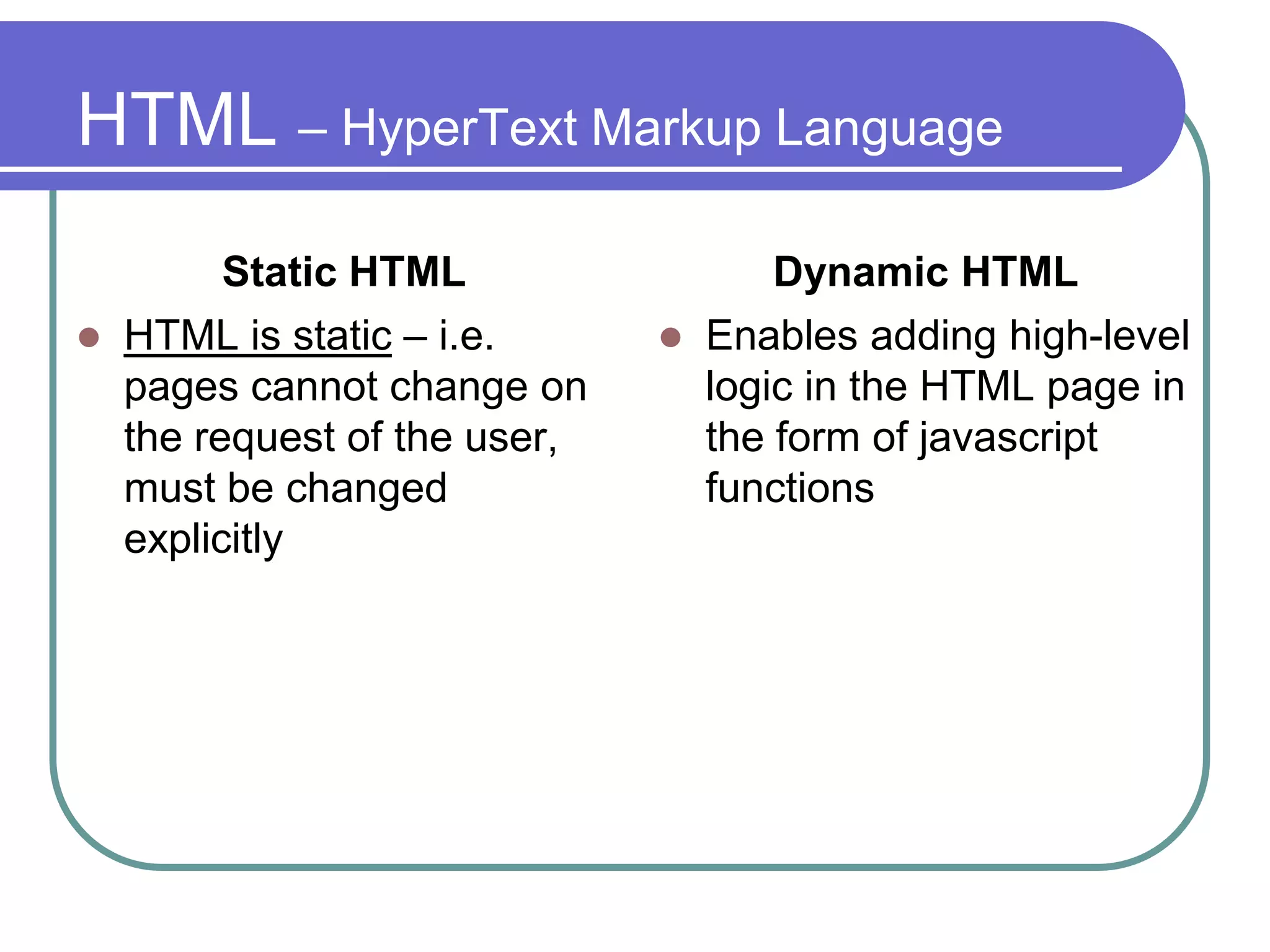
HTML – HyperText Markup Language
          Static HTML                  Dynamic HTML
   HTML is static – i.e.         Enables adding high-level
    pages cannot change on         logic in the HTML page in
    the request of the user,       the form of javascript
    must be changed                functions
    explicitly
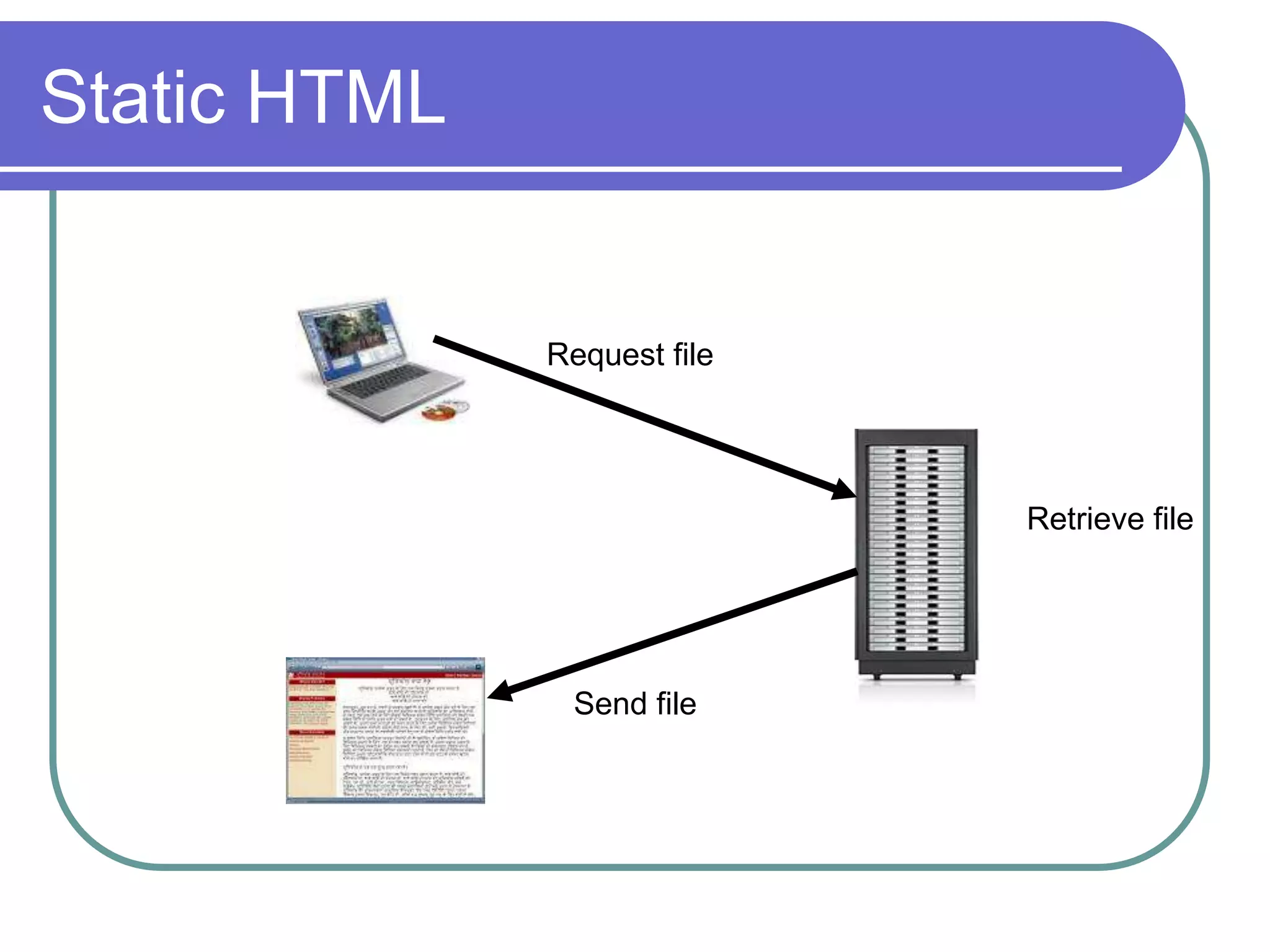
Static HTML


              Request file


                             Retrieve file


               Send file
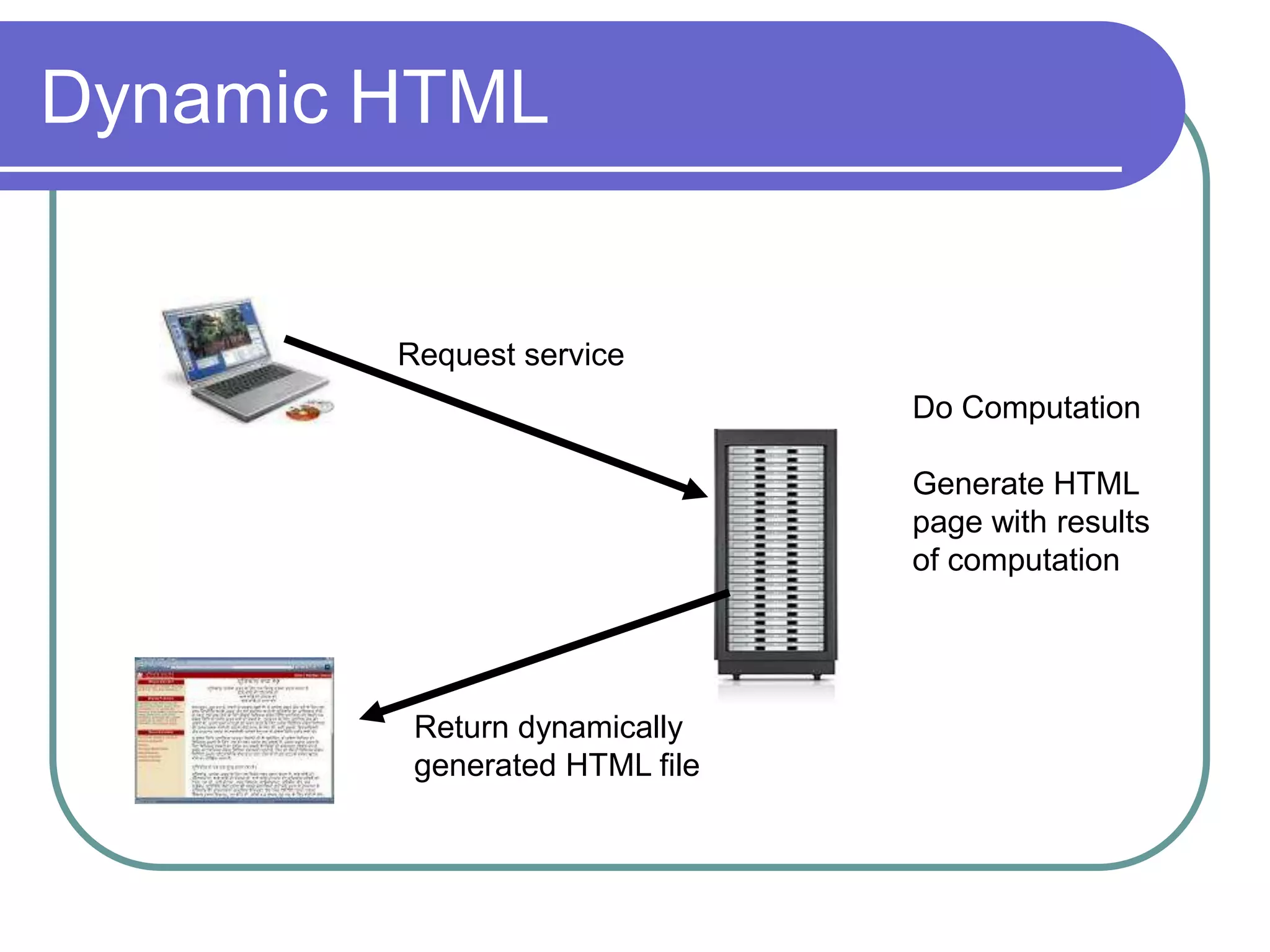
Dynamic HTML


        Request service
                               Do Computation

                               Generate HTML
                               page with results
                               of computation


         Return dynamically
         generated HTML file
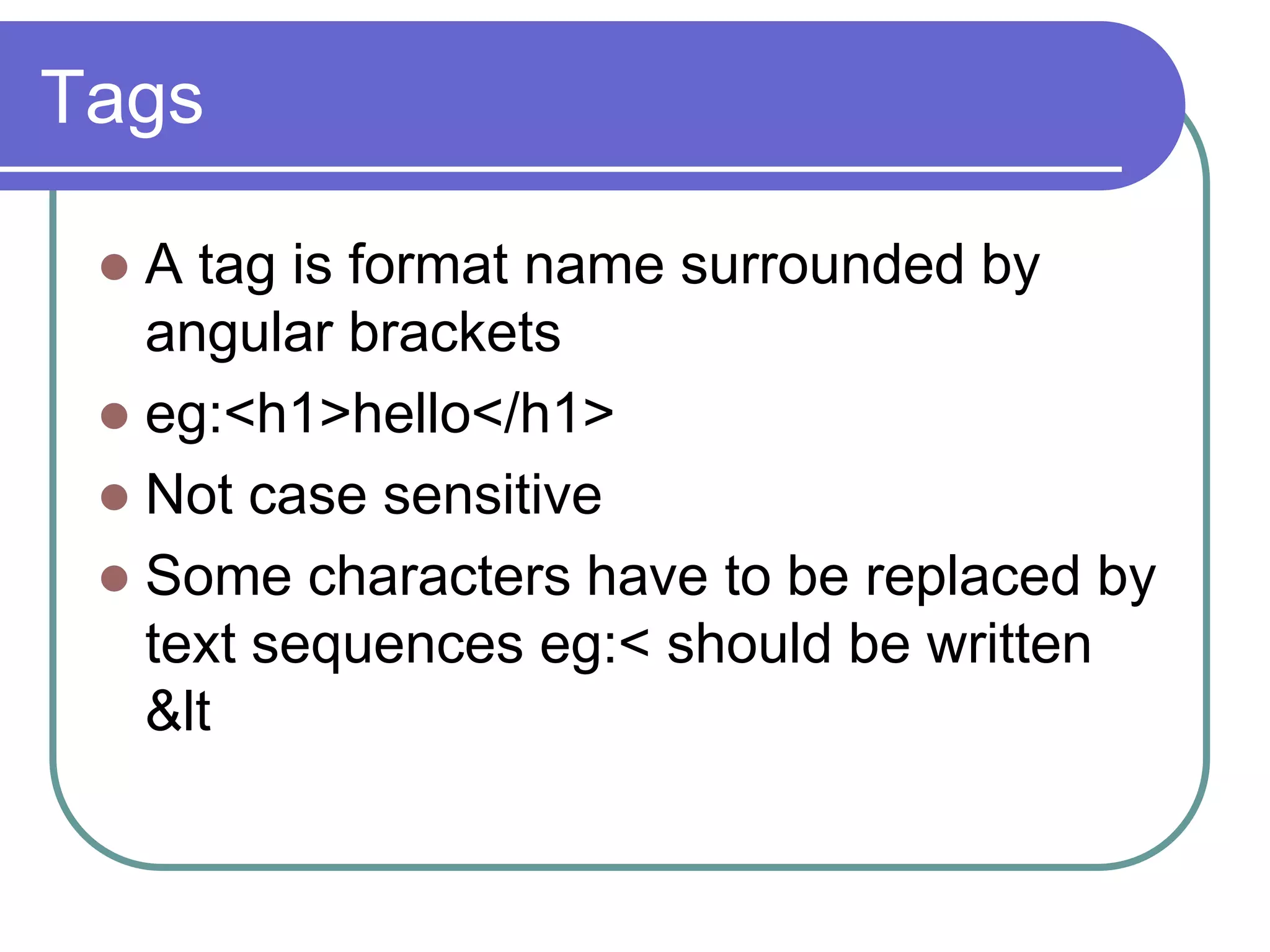
Tags

  A tag is format name surrounded by
   angular brackets
  eg:<h1>hello</h1>
  Not case sensitive
  Some characters have to be replaced by
   text sequences eg:< should be written
   &lt
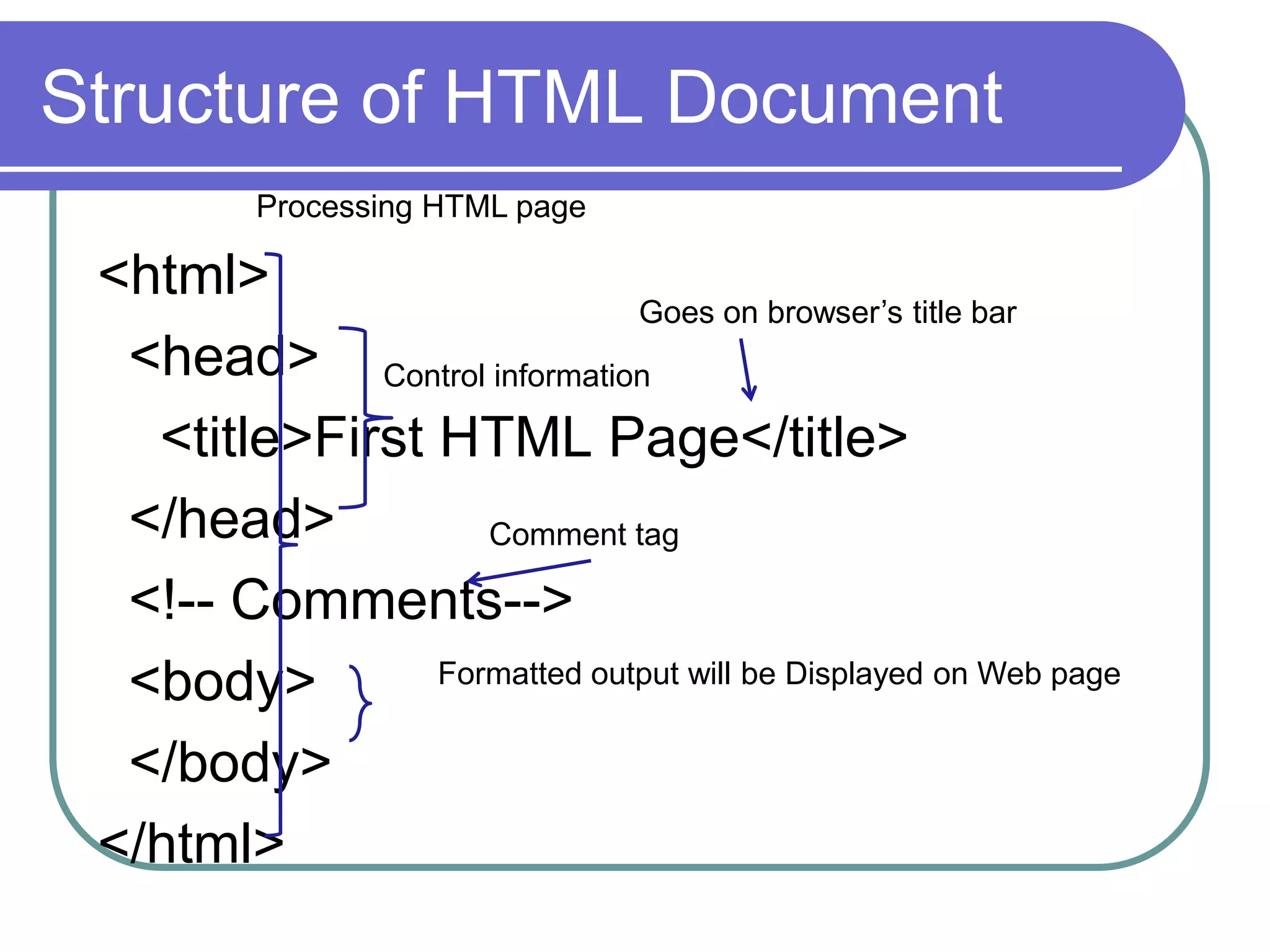
Structure of HTML Document
          Processing HTML page

 <html>
                             Goes on browser’s title bar
  <head> Control information
   <title>First HTML Page</title>
  </head>          Comment tag

  <!-- Comments-->
  <body>        Formatted output will be Displayed on Web page


  </body>
 </html>
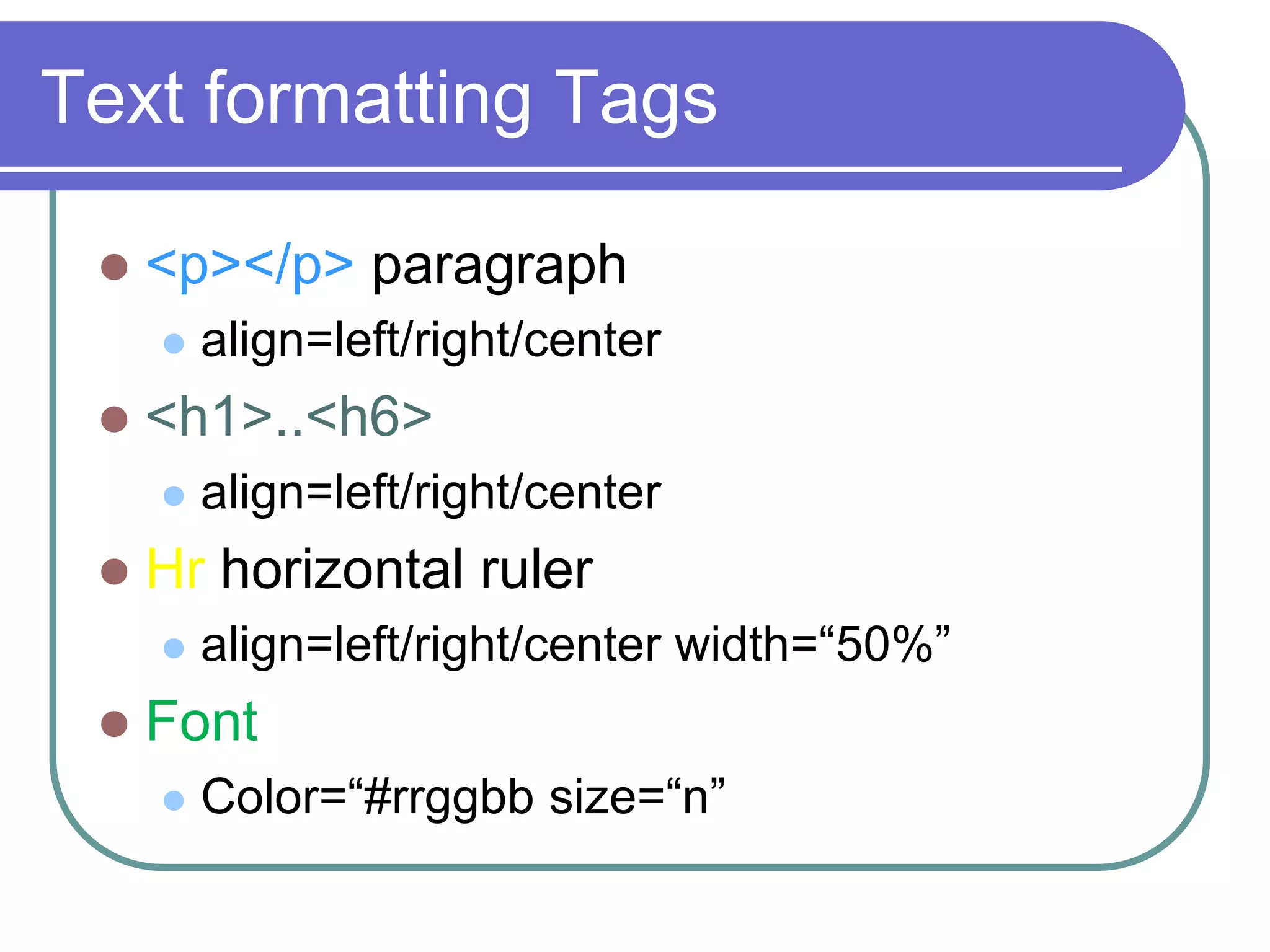
Text formatting Tags

    <p></p> paragraph
        align=left/right/center
    <h1>..<h6>
        align=left/right/center
    Hr horizontal ruler
        align=left/right/center width=“50%”
    Font
        Color=“#rrggbb size=“n”
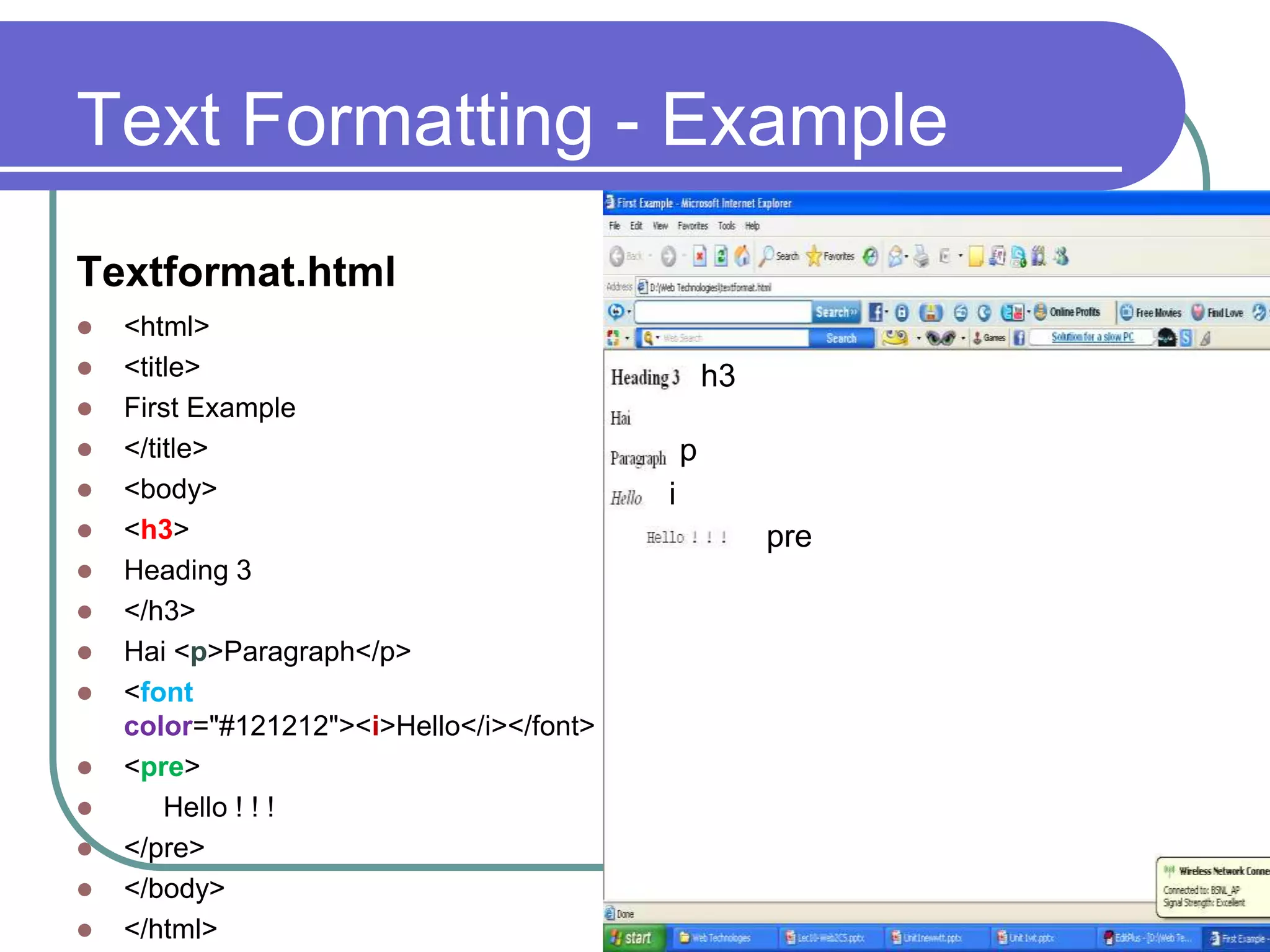
Text Formatting - Example
Textformat.html
   <html>
   <title>                                       h3
   First Example
   </title>                                  p
   <body>                                i
   <h3>                                               pre
   Heading 3
   </h3>
   Hai <p>Paragraph</p>
   <font
    color="#121212"><i>Hello</i></font>
   <pre>
       Hello ! ! !
   </pre>
   </body>
   </html>
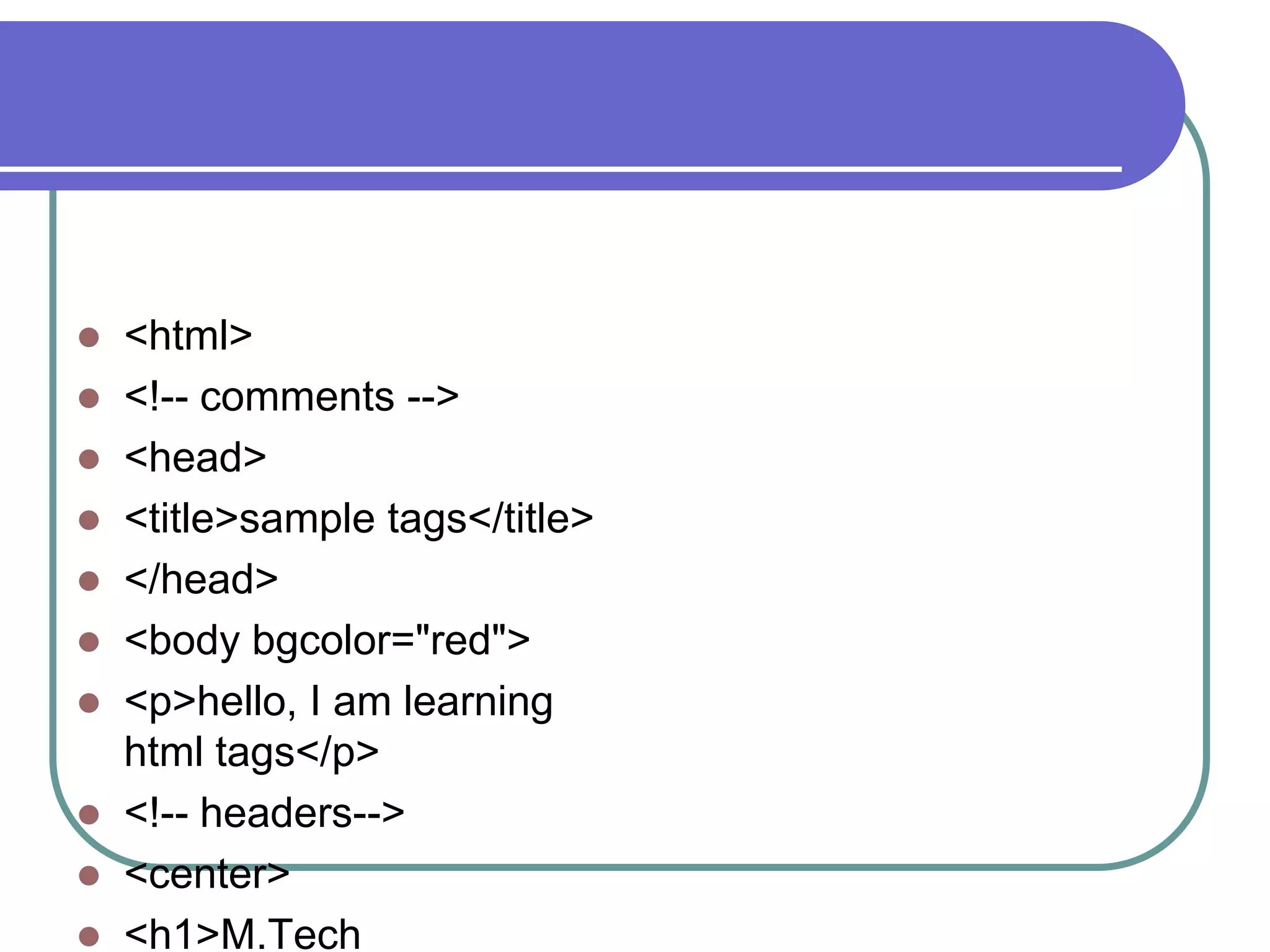
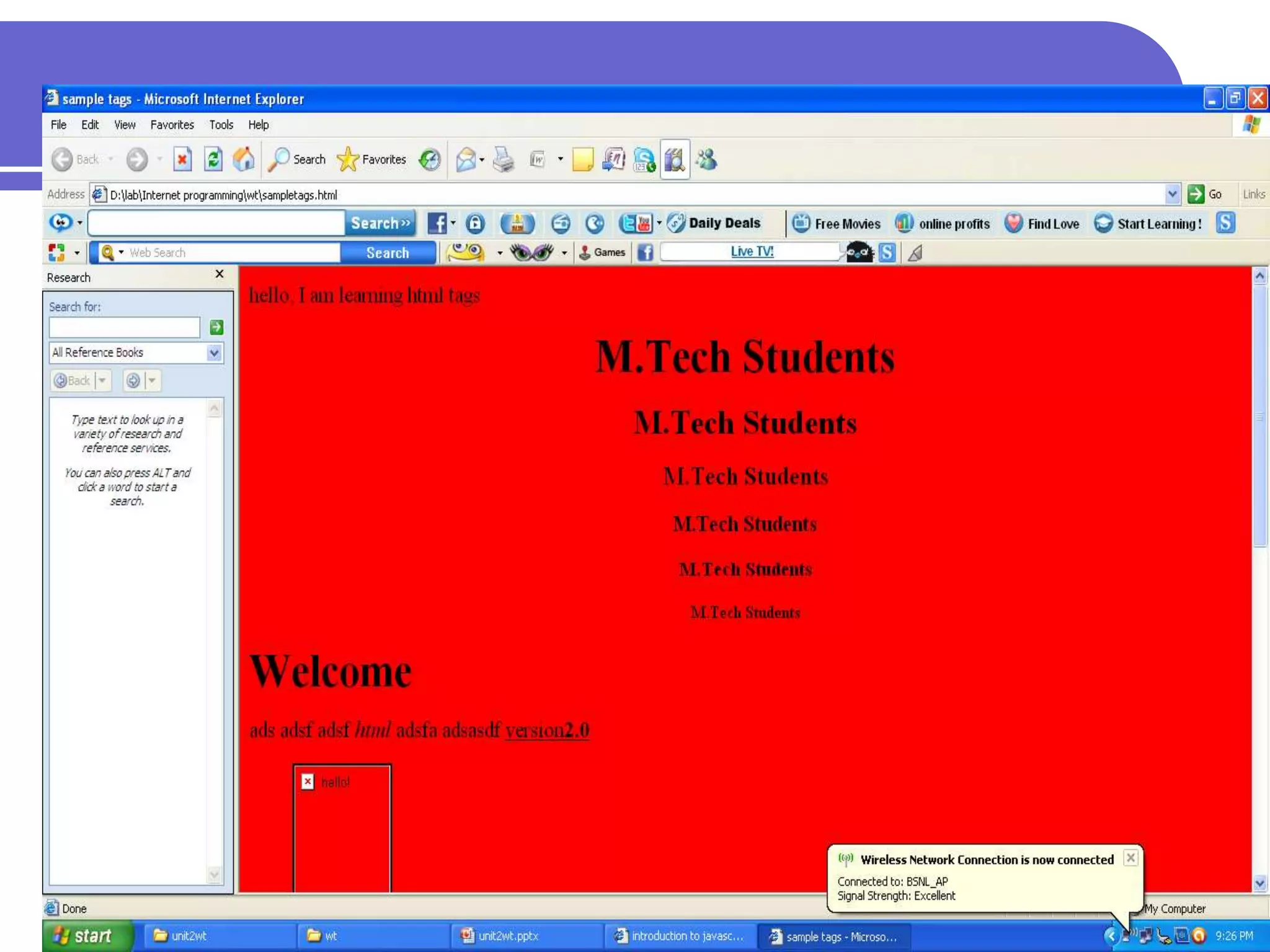
 <html>
 <!-- comments -->
 <head>
 <title>sample tags</title>
 </head>
 <body bgcolor="red">
 <p>hello, I am learning
  html tags</p>
 <!-- headers-->
 <center>
 <h1>M.Tech
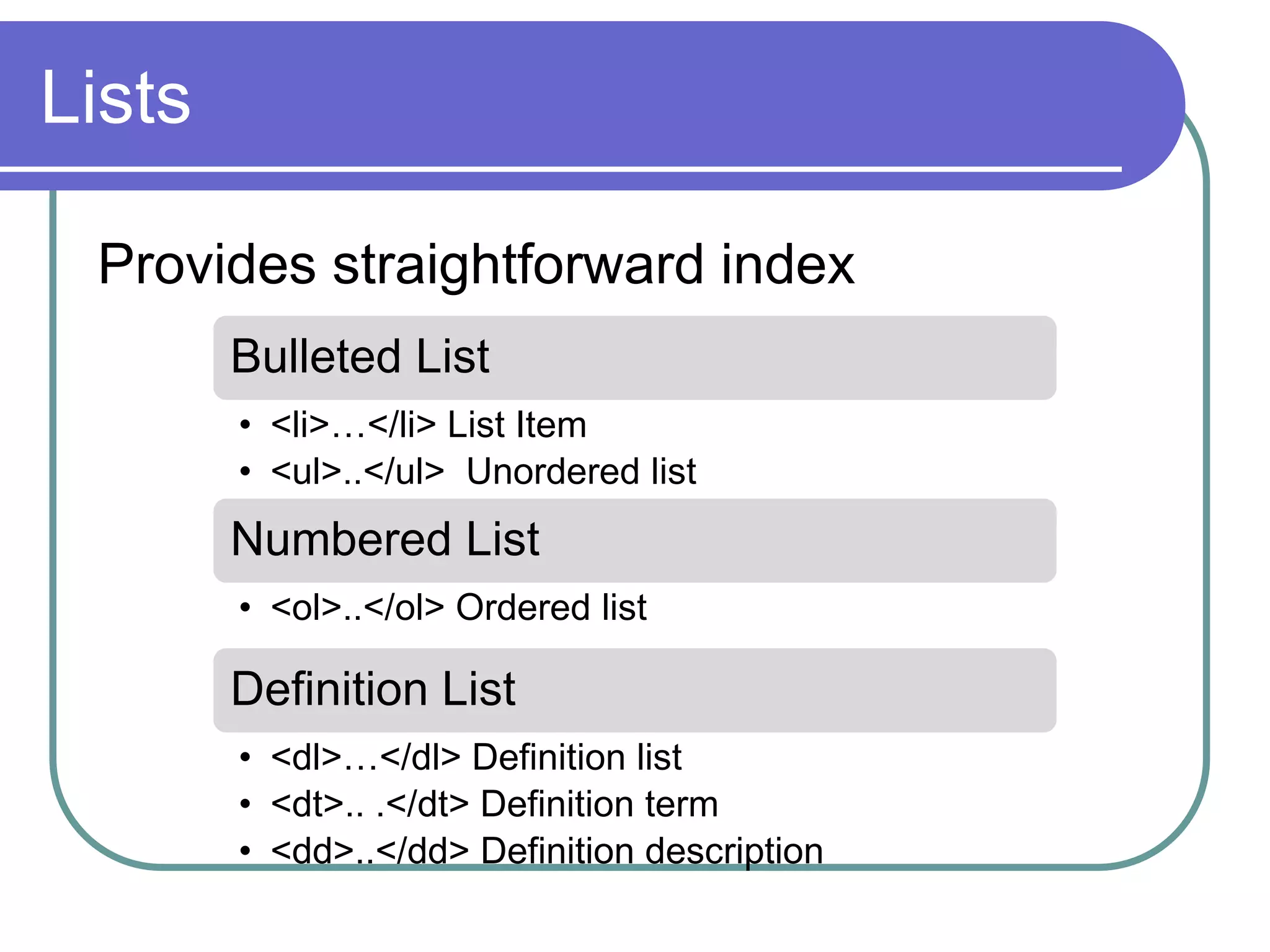
Lists

 Provides straightforward index
        Bulleted List
        • <li>…</li> List Item
        • <ul>..</ul> Unordered list
        Numbered List
        • <ol>..</ol> Ordered list

        Definition List
        • <dl>…</dl> Definition list
        • <dt>.. .</dt> Definition term
        • <dd>..</dd> Definition description
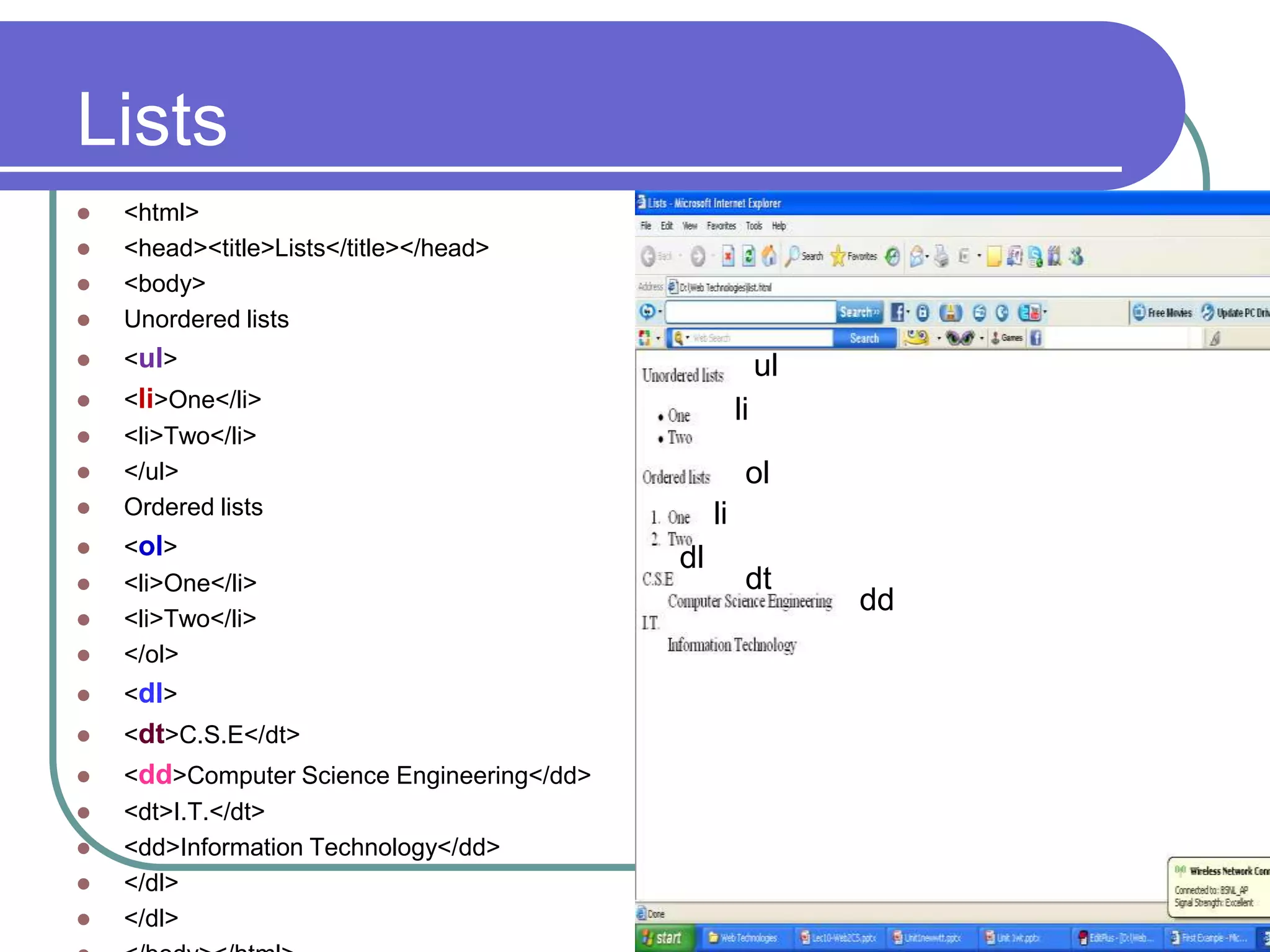
Lists
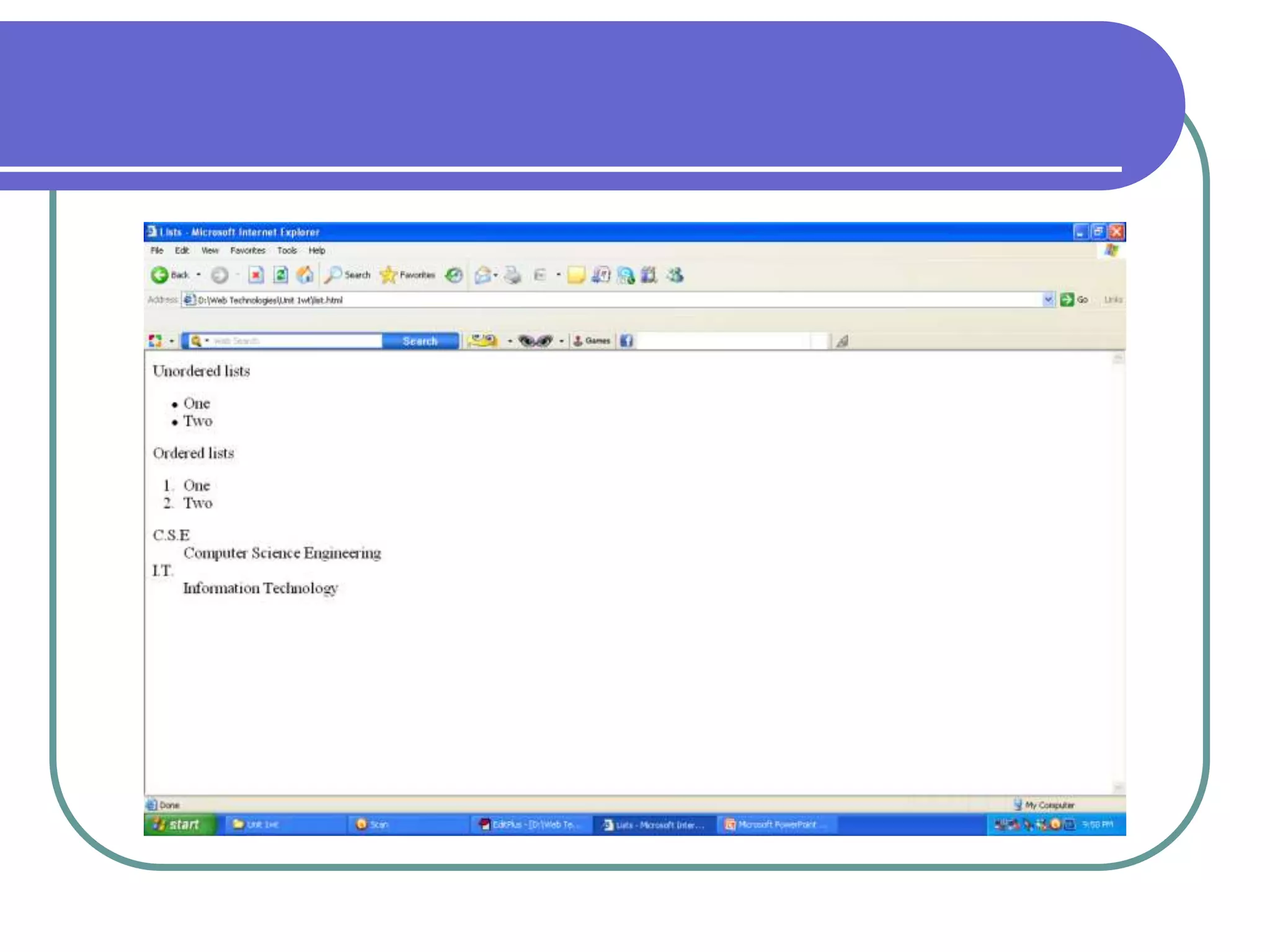
   <html>
   <head><title>Lists</title></head>
   <body>
   Unordered lists
   <ul>                                                   ul
   <li>One</li>                                      li
   <li>Two</li>
   </ul>                                              ol
   Ordered lists                                li
   <ol>
                                            dl
   <li>One</li>                                       dt
                                                                dd
   <li>Two</li>
   </ol>
   <dl>
   <dt>C.S.E</dt>
   <dd>Computer Science Engineering</dd>
   <dt>I.T.</dt>
   <dd>Information Technology</dd>
   </dl>
   </dl>
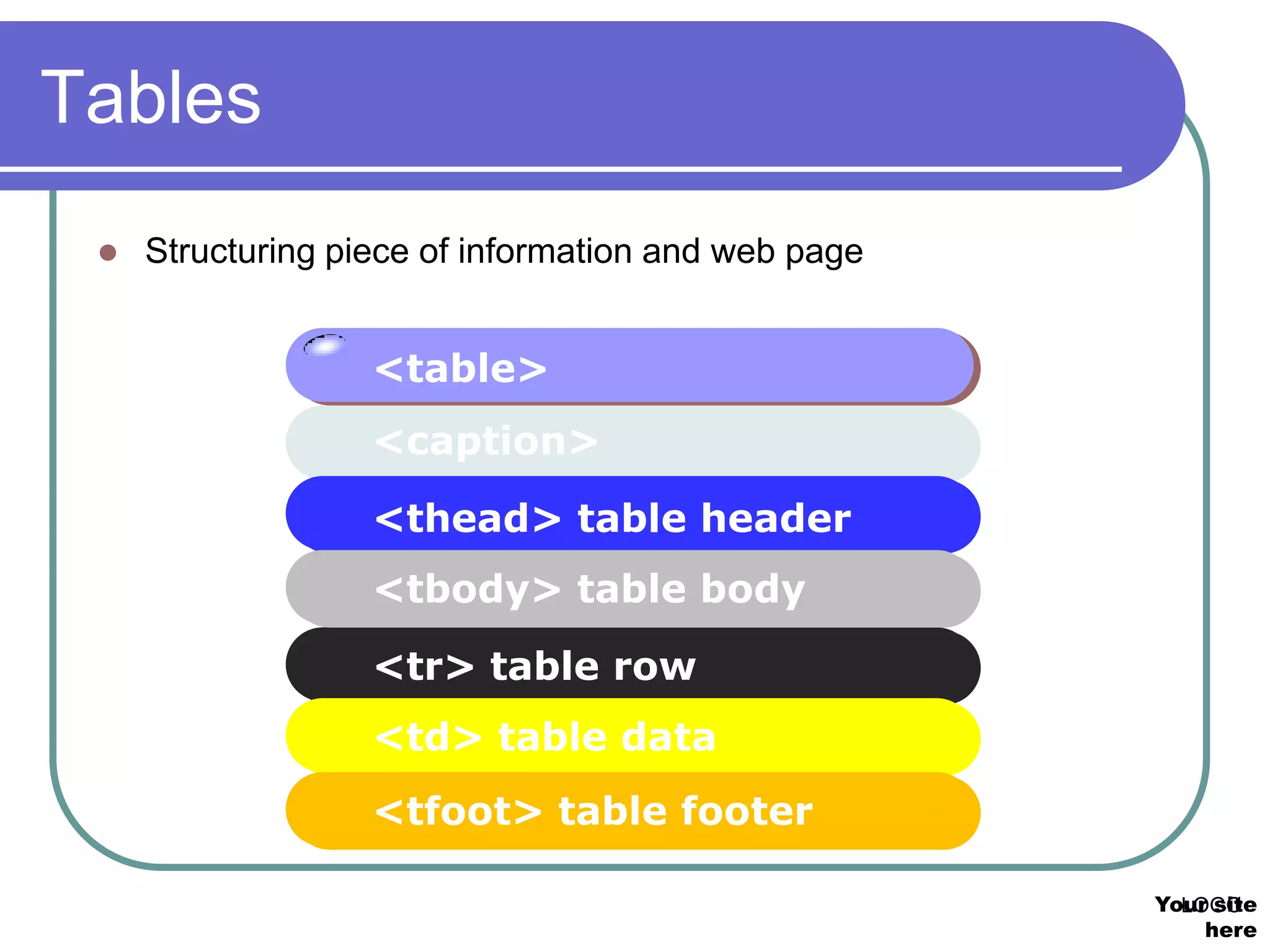
Tables
    Structuring piece of information and web page


                   <table>
                   <caption>

                   <thead> table header
                   <tbody> table body
                   <tr> table row
                   <td> table data
                   <tfoot> table footer

                                                     Your site
                                                       LOGO
                                                         here
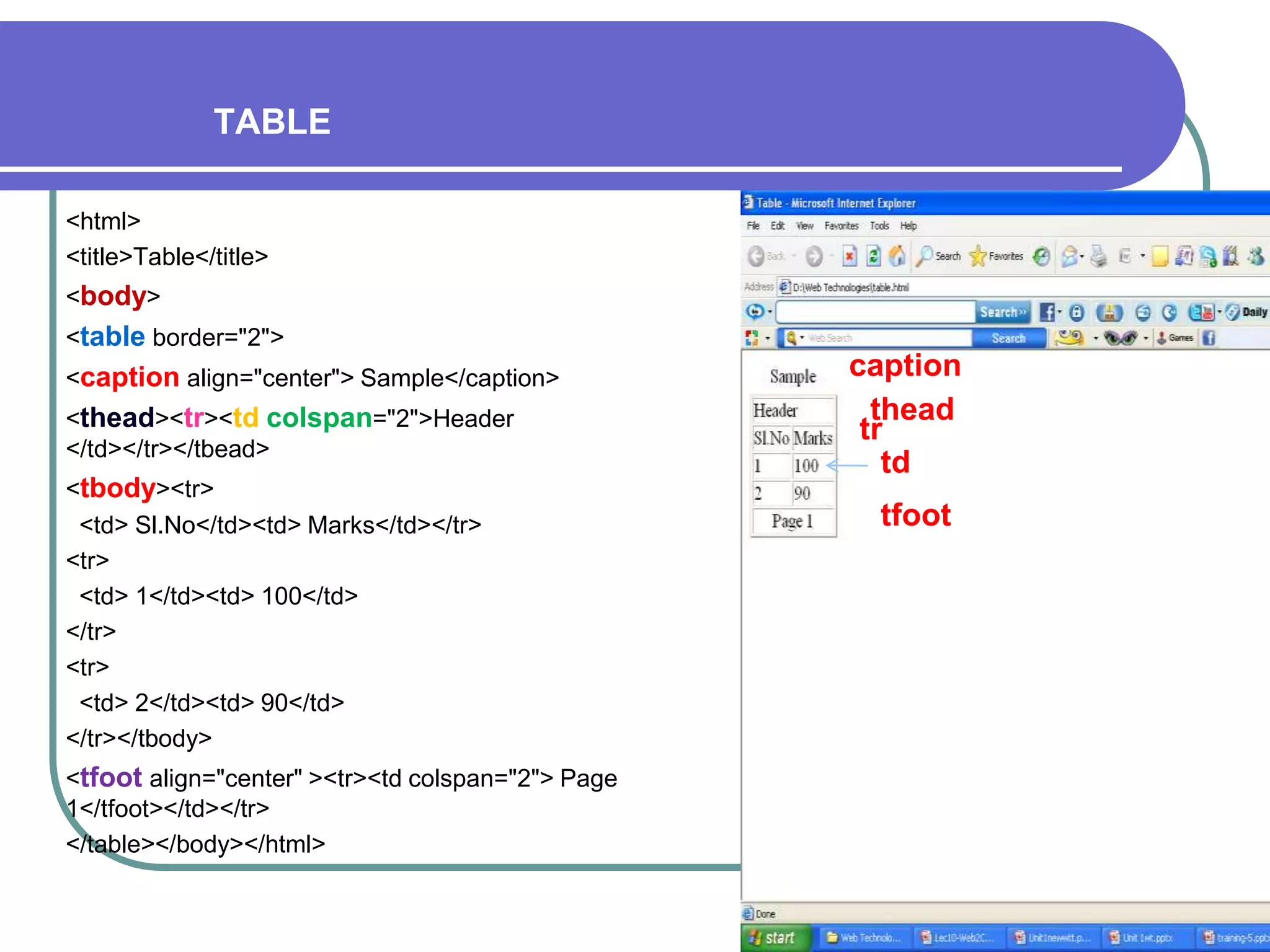
TABLE

<html>
<title>Table</title>
<body>
<table border="2">
<caption align="center"> Sample</caption>          caption
<thead><tr><td colspan="2">Header                    thead
                                                    tr
</td></tr></tbead>
                                                      td
<tbody><tr>
 <td> Sl.No</td><td> Marks</td></tr>                tfoot
<tr>
 <td> 1</td><td> 100</td>
</tr>
<tr>
 <td> 2</td><td> 90</td>
</tr></tbody>
<tfoot align="center" ><tr><td colspan="2"> Page
1</tfoot></td></tr>
</table></body></html>
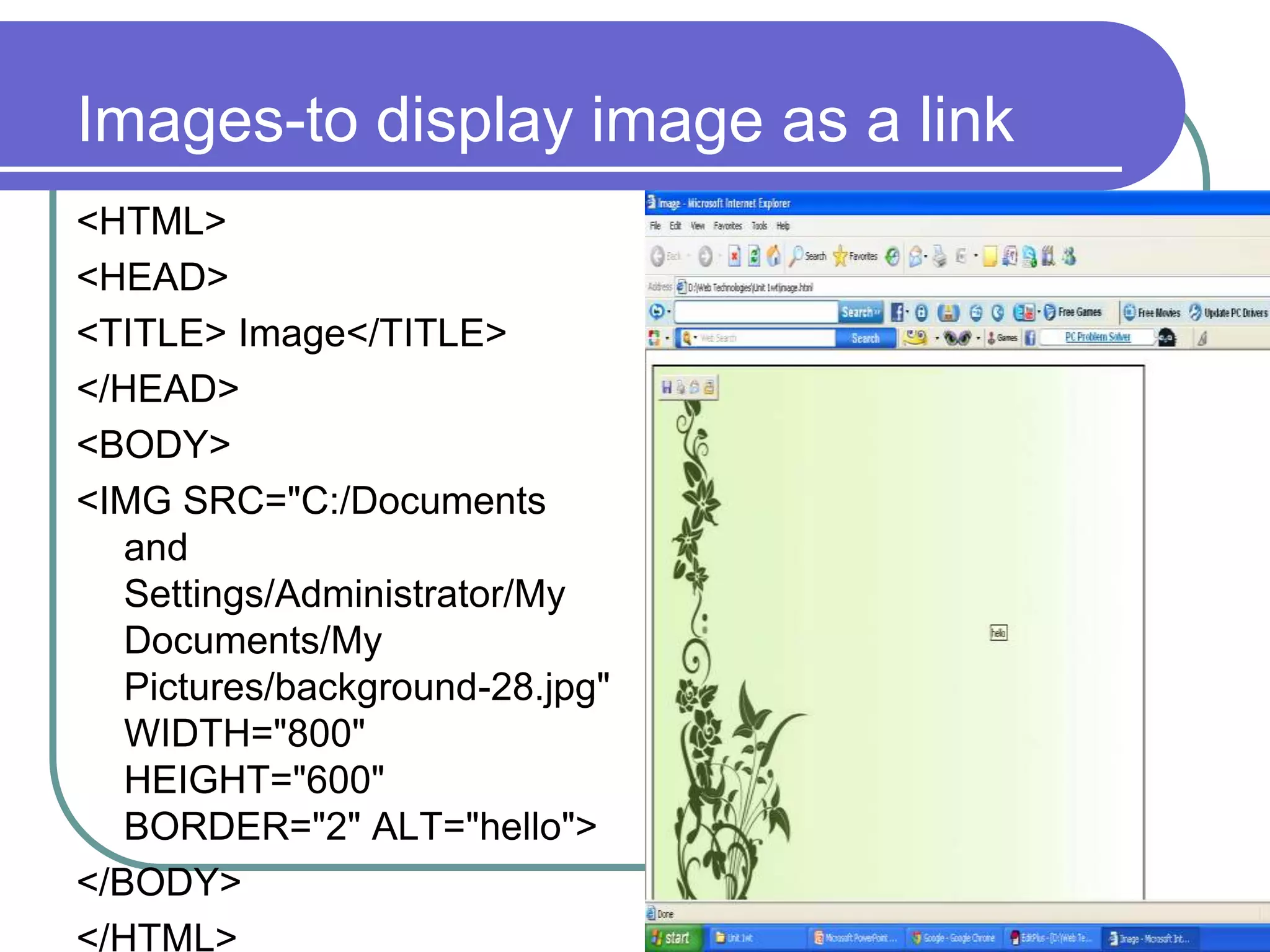
Images-to display image as a link
<HTML>
<HEAD>
<TITLE> Image</TITLE>
</HEAD>
<BODY>
<IMG SRC="C:/Documents
   and
   Settings/Administrator/My
   Documents/My
   Pictures/background-28.jpg"
   WIDTH="800"
   HEIGHT="600"
   BORDER="2" ALT="hello">
</BODY>
</HTML>
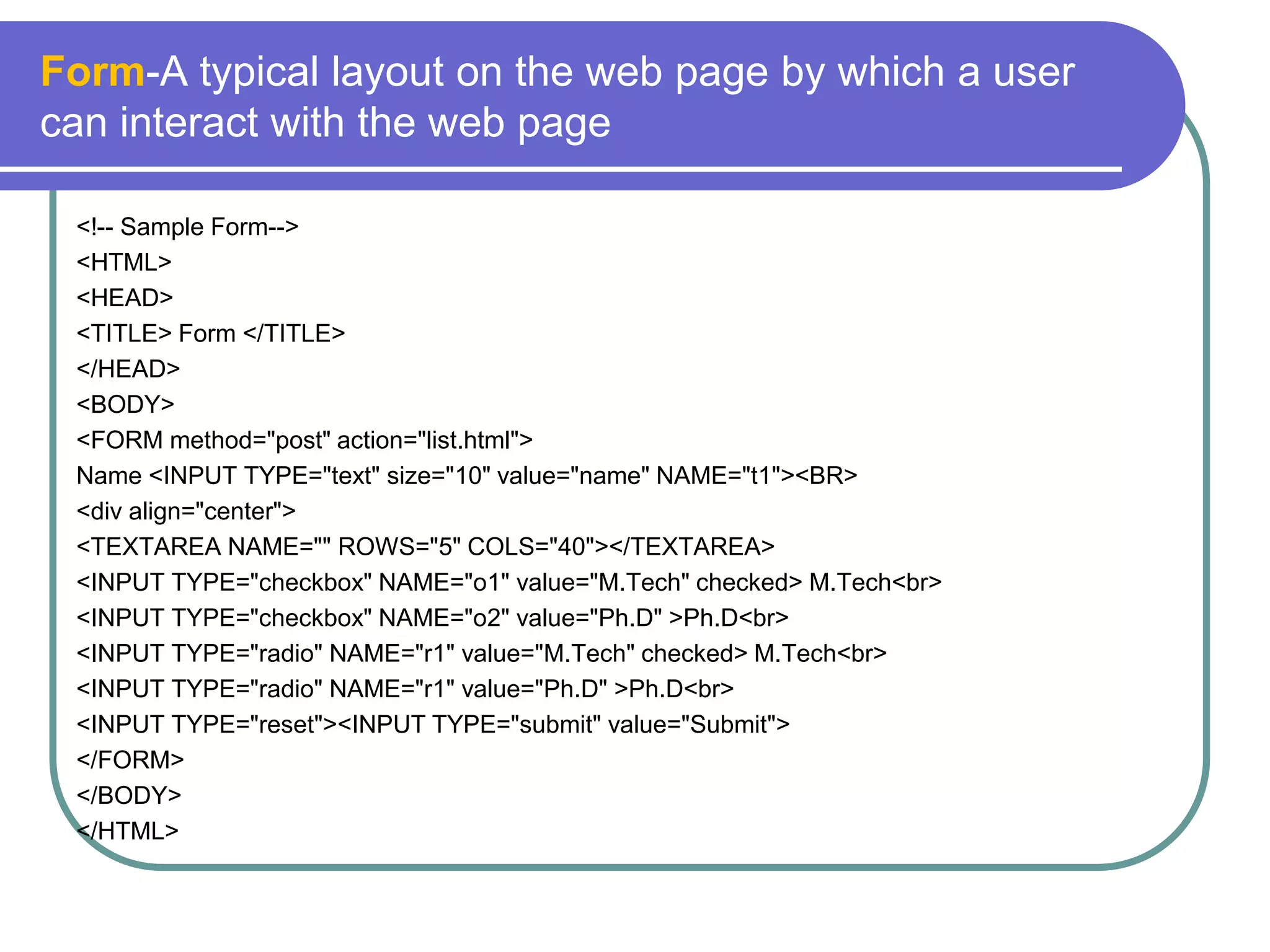
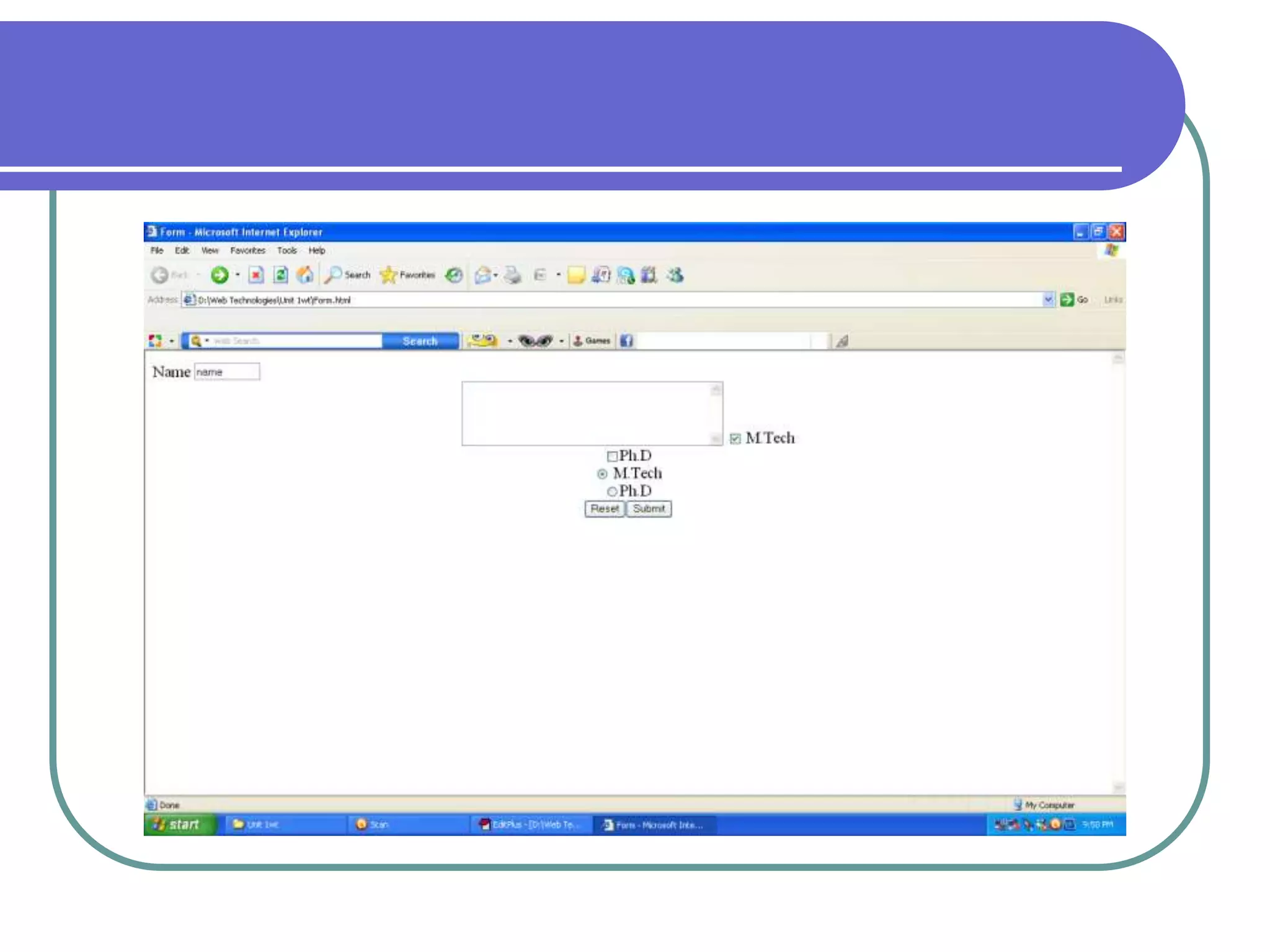
Form-A typical layout on the web page by which a user
can interact with the web page

 <!-- Sample Form-->
 <HTML>
 <HEAD>
 <TITLE> Form </TITLE>
 </HEAD>
 <BODY>
 <FORM method="post" action="list.html">
 Name <INPUT TYPE="text" size="10" value="name" NAME="t1"><BR>
 <div align="center">
 <TEXTAREA NAME="" ROWS="5" COLS="40"></TEXTAREA>
 <INPUT TYPE="checkbox" NAME="o1" value="M.Tech" checked> M.Tech<br>
 <INPUT TYPE="checkbox" NAME="o2" value="Ph.D" >Ph.D<br>
 <INPUT TYPE="radio" NAME="r1" value="M.Tech" checked> M.Tech<br>
 <INPUT TYPE="radio" NAME="r1" value="Ph.D" >Ph.D<br>
 <INPUT TYPE="reset"><INPUT TYPE="submit" value="Submit">
 </FORM>
 </BODY>
 </HTML>
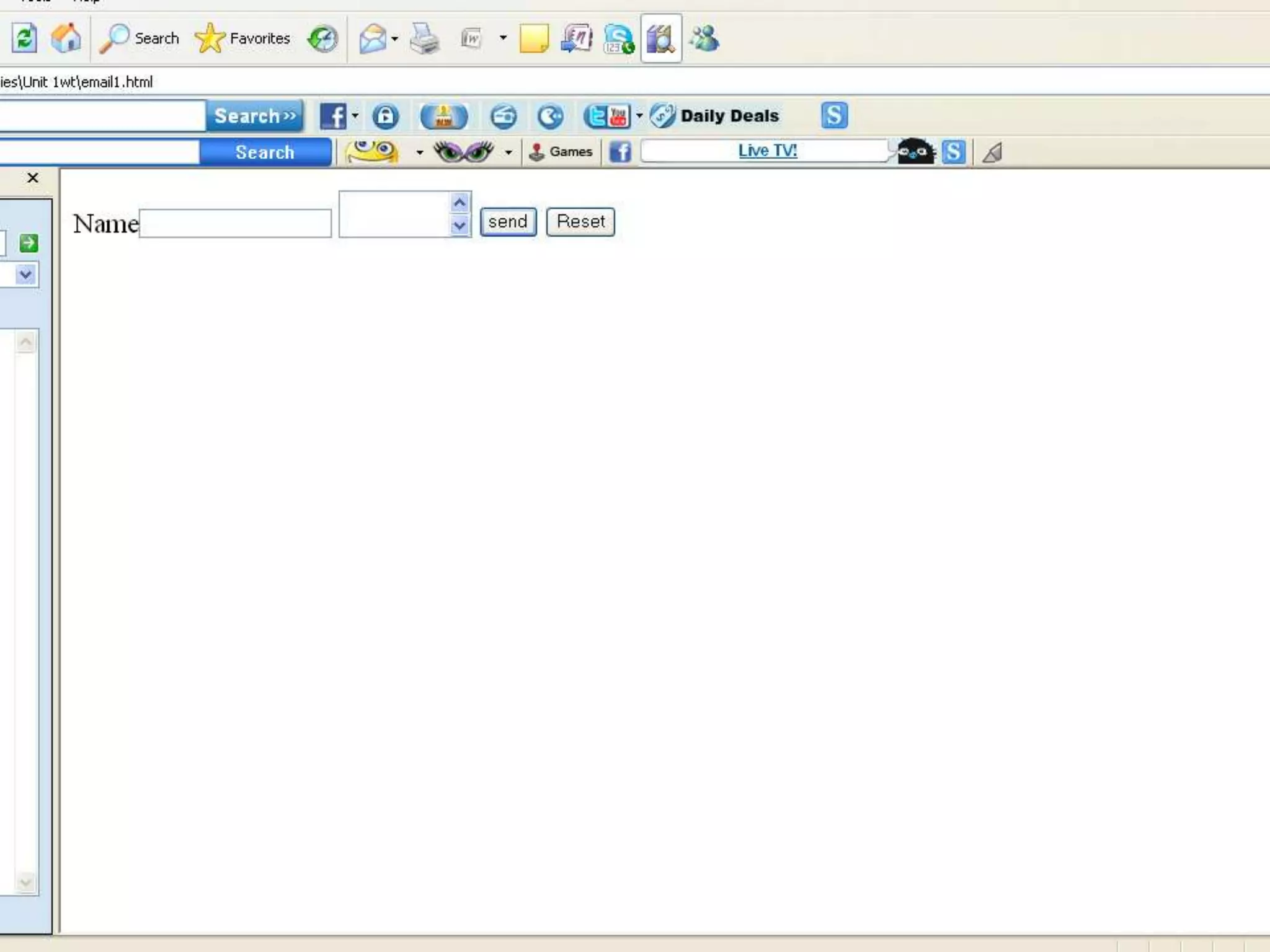
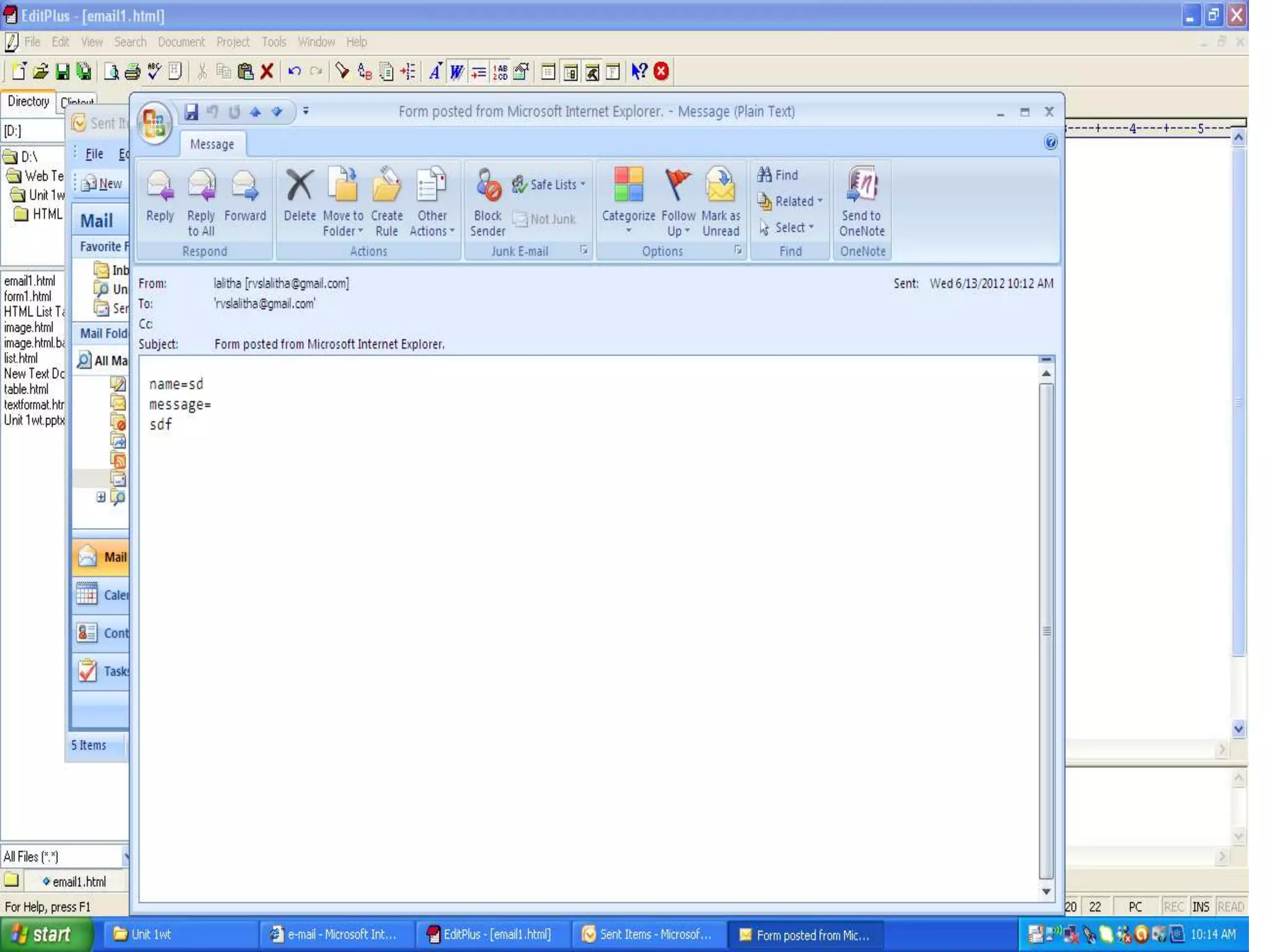
Sending an e-mail
 <!Mailing>
 <HTML>
 <HEAD>
 <TITLE> e-mail </TITLE>
 </HEAD>
 <BODY>
 <FORM ACTION="MAILTO:rvslalitha@gmail.com" METHOD="POST"
    enctype="text/plain">
 Name<INPUT TYPE="text" NAME="name" value="">
 <TEXTAREA name="message" ROWS="2" COLS="10“ >
 </TEXTAREA>
 <INPUT TYPE="submit" value="send">
 <INPUT TYPE="reset">
 </FORM>
 </BODY>
 </HTML>
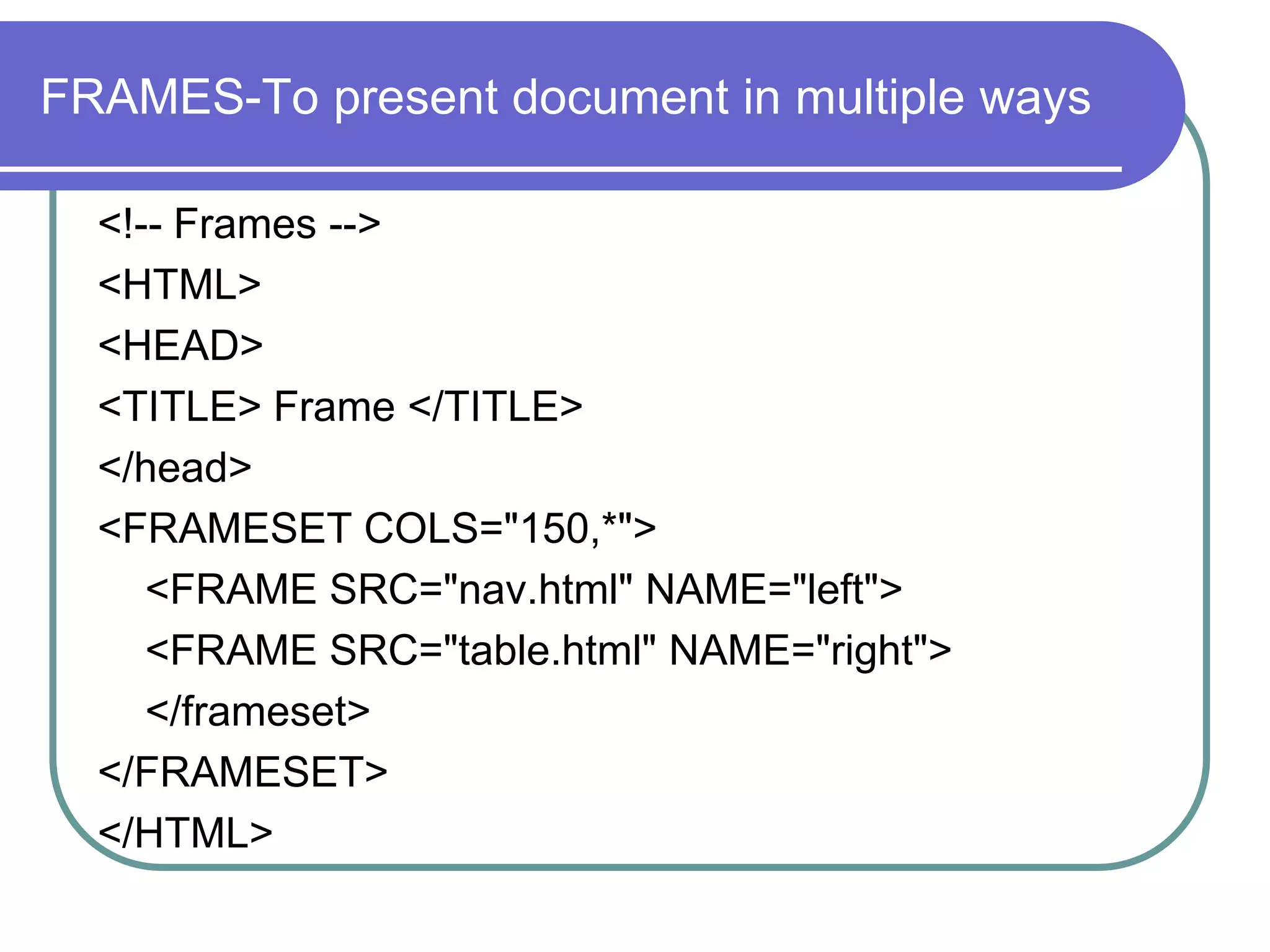
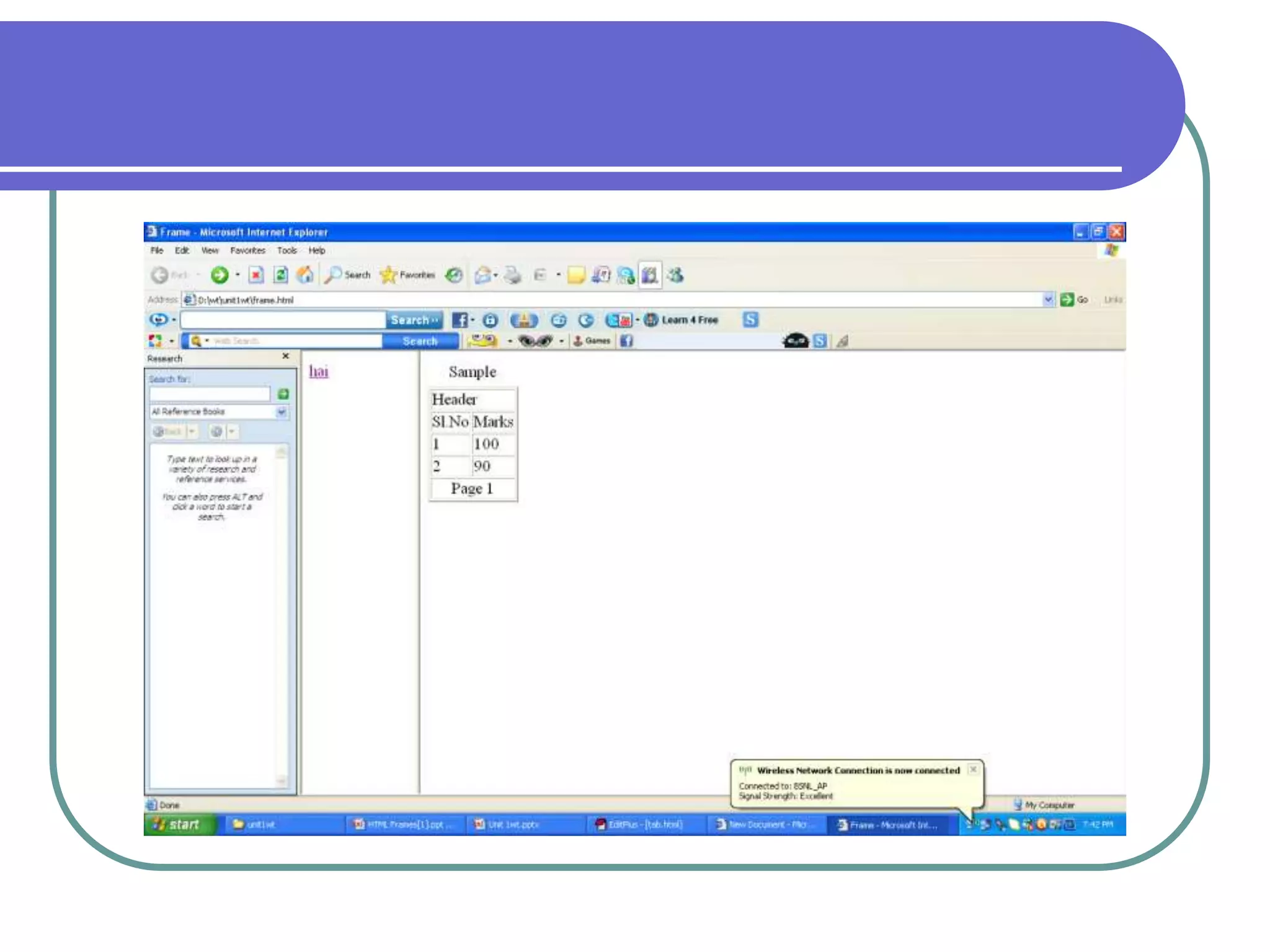
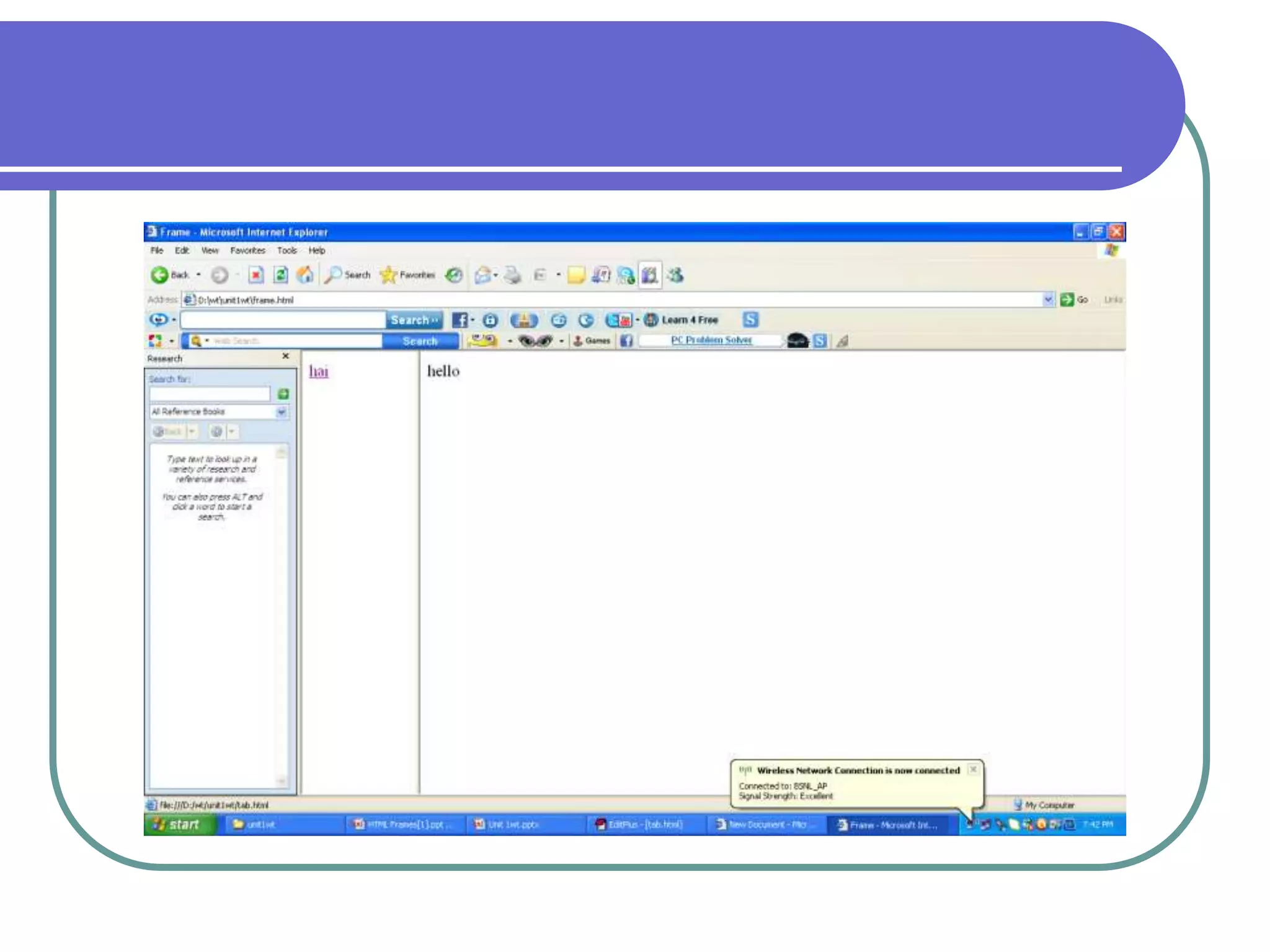
FRAMES-To present document in multiple ways

  <!-- Frames -->
  <HTML>
  <HEAD>
  <TITLE> Frame </TITLE>
  </head>
  <FRAMESET COLS="150,*">
     <FRAME SRC="nav.html" NAME="left">
     <FRAME SRC="table.html" NAME="right">
     </frameset>
  </FRAMESET>
  </HTML>
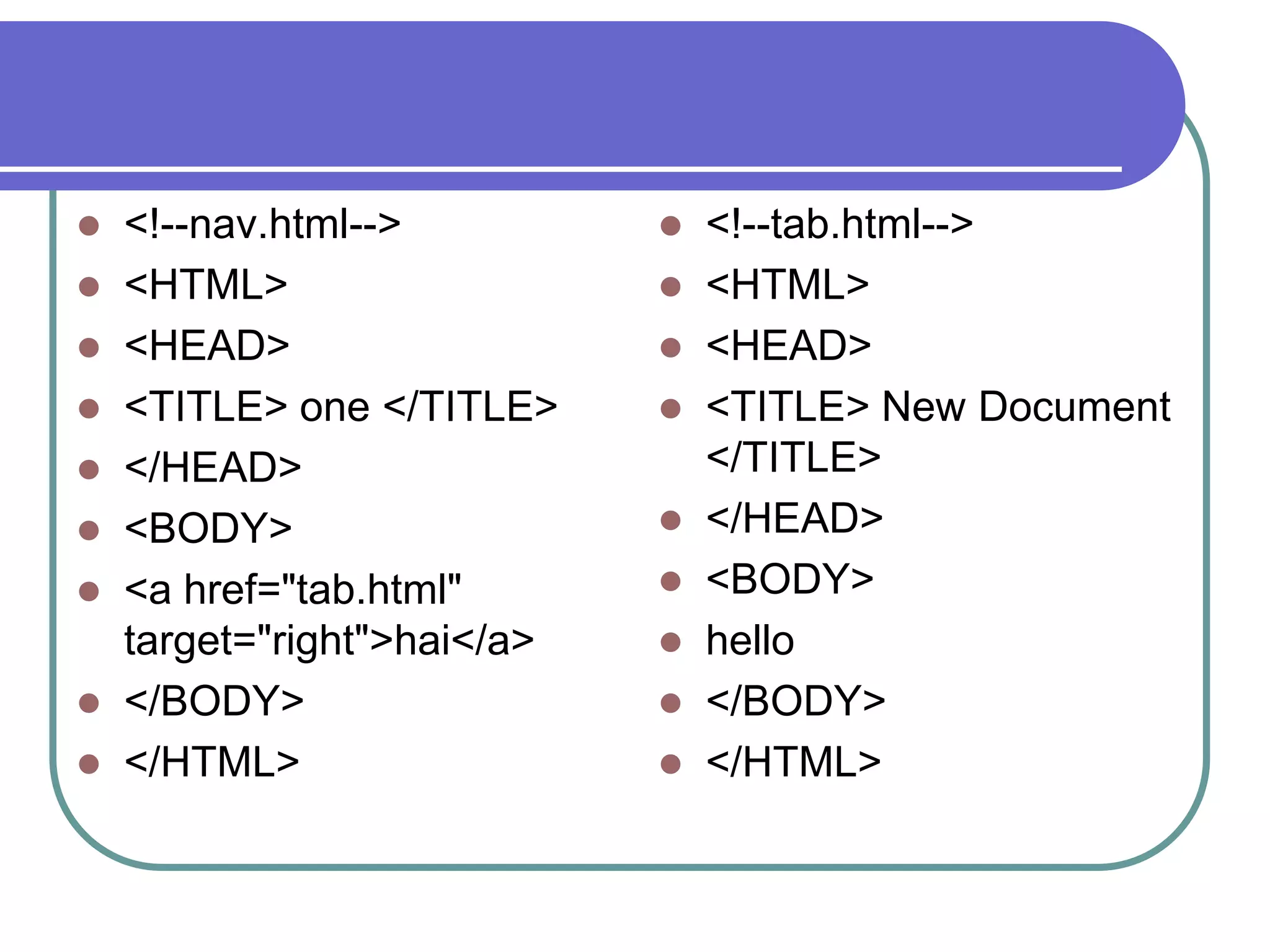
 <!--nav.html-->           <!--tab.html-->
 <HTML>                    <HTML>
 <HEAD>                    <HEAD>
 <TITLE> one </TITLE>      <TITLE> New Document
 </HEAD>                    </TITLE>
 <BODY>                    </HEAD>

 <a href="tab.html"        <BODY>
  target="right">hai</a>    hello
 </BODY>                   </BODY>
 </HTML>                   </HTML>
Cascading Style Sheets(CSS)


      CSS stands for Cascading Style Sheets and is a
  simple styling language which allows attaching style to
  HTML elements.
A style definition is made up of a selector followed by a
declaration block, as shown in this example:


        <html>
        <head>
        <title>CSS Basics</title>
        <style type="text/css">
               P { color:#000000 }
               h1{font-weight: bold; font-style: italic;
        color: red}
        </style>
        </head>
        <body>
Putting CSS And HTML Together

      1. Defining a style sheet inside of the HTML document,
         inside the <HEAD> tag.
         Example
      2. Referring to an external file which contains a style
      sheet,
         by using the 'LINK' element.
         Example
      3. to a tag.
         Example


32
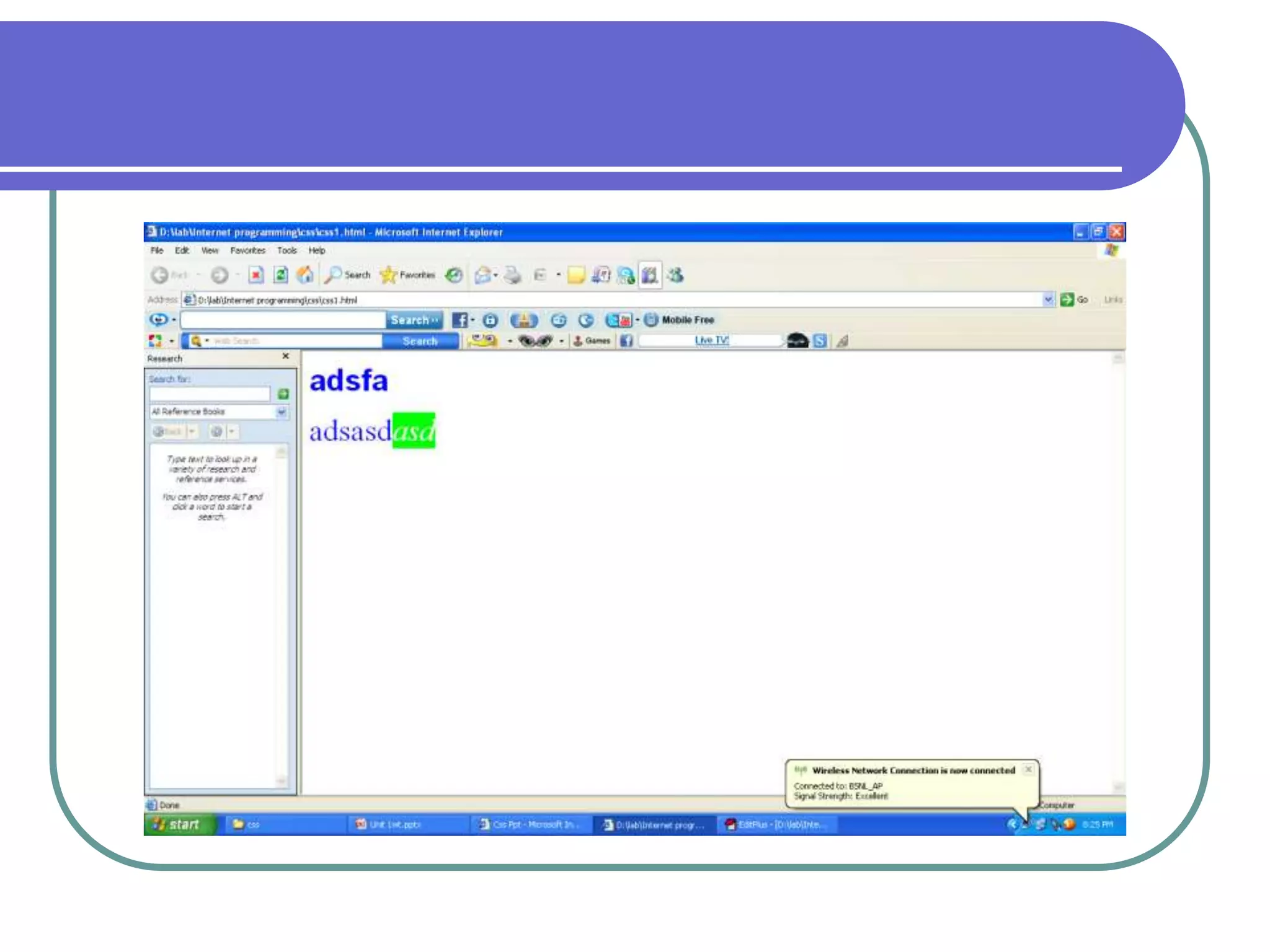
Type selector
   <html>
   <head>
   <style type="text/css">
   em {background-color:#00ff00;
             color:white}
   h1 { font-family:Arial,sans-serif}
   p { font-size:28pt}
   .re{color:blue;font-size:30pt}
   </style>
   </head>
   <body>
   <h1 class="re">adsfa</h1><p class="re“
    >adsasd<em>asd</em></p></body>
   </html>
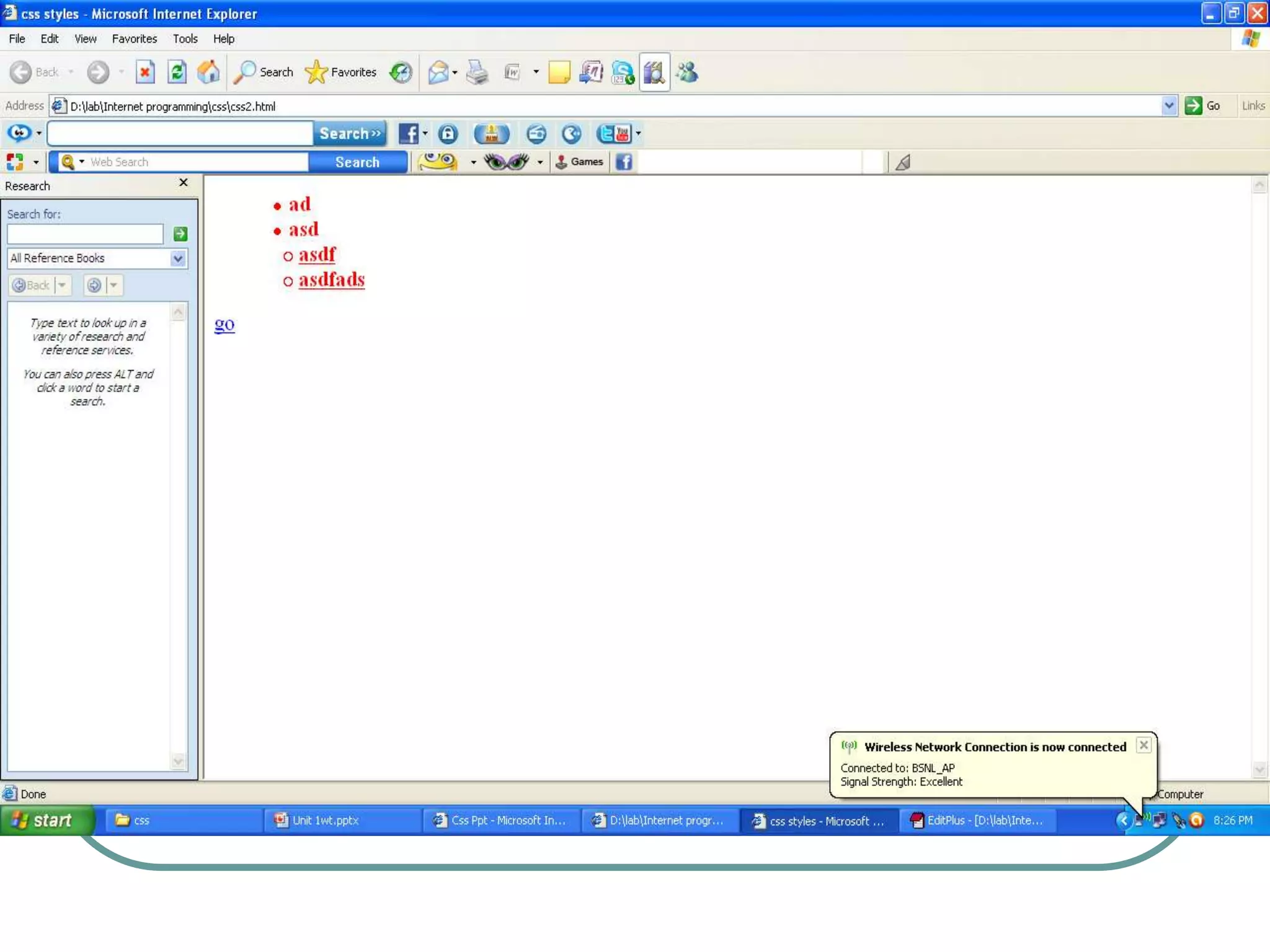
   <html>
   <head>
   <title>css styles</title>
   <style type="text/css">
   A:nodec{text-decoration:none}
   A:hover{text-decoration:underline;
                color:red;
   background-color:red}
   li {color:red;
        font-weight:bold}
   ul{margin-left:75px}
   ul ul{text-decoration:underline;
   margin-left:10px}
   </style>
   </head>
   <body>
   <ul>
   <li>ad</li>
   <li>asd
   <ul>
   <li>asdf</li>
   <li>asdfads</li>
   </ul></li>
   </ul>
   <p><a class="hover" href="file:///D:/Internet%20programming/css1.html">go</a>
   </body>
   </html>
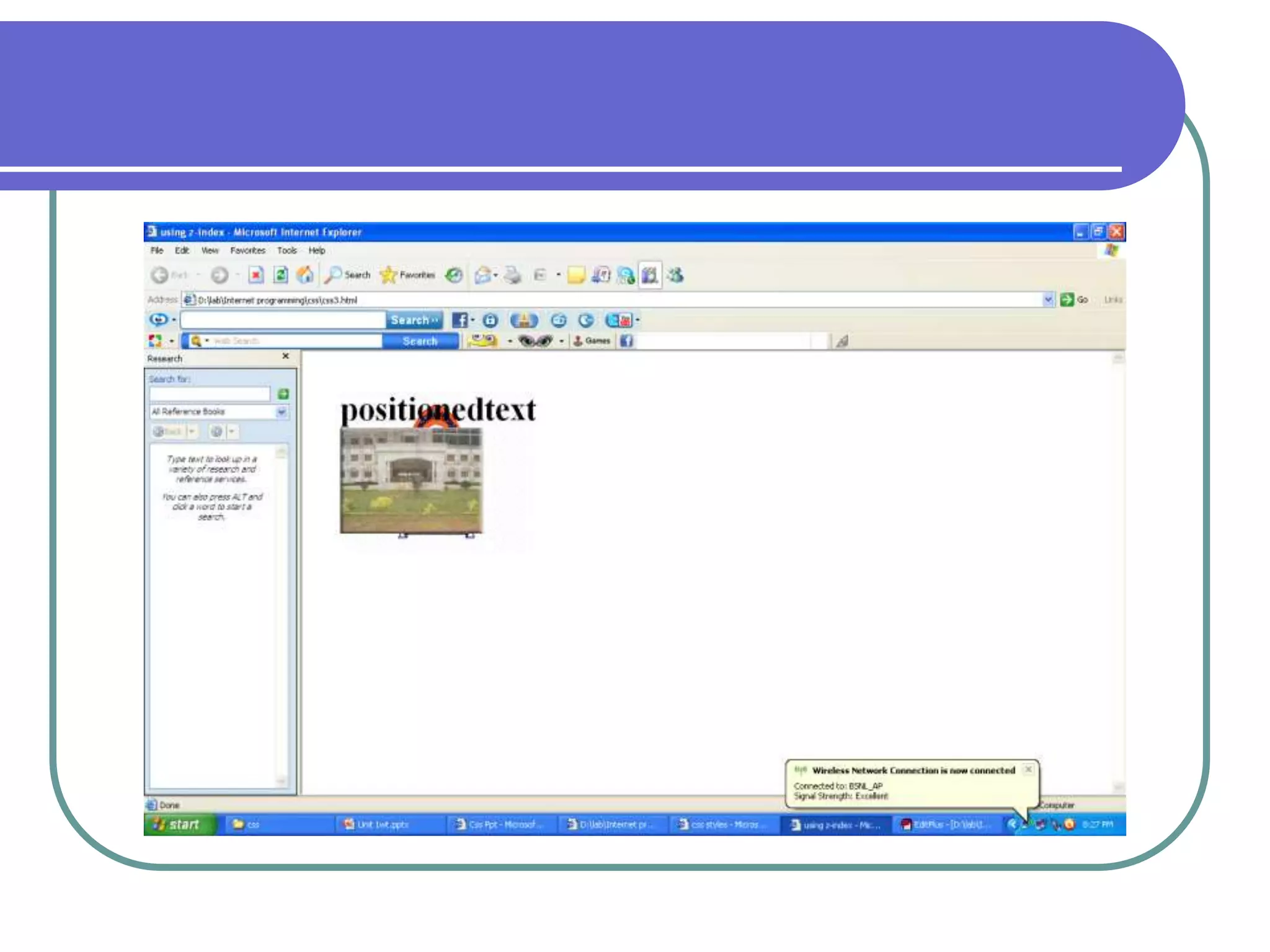
   <html>
   <head><title>using z-index</title>
   </head>
   <body>
   <img src="one.gif" style="position:absolute;
   top:50px;left:50px;z-index:3">
   <h1 style="position:absolute;top:50px;
   left:50px;z-index:30;">
   positionedtext</h1>

   </body><img src="two.gif"
   style="position:absolute;top:100px;left:50px;z-index:15">
   </html>
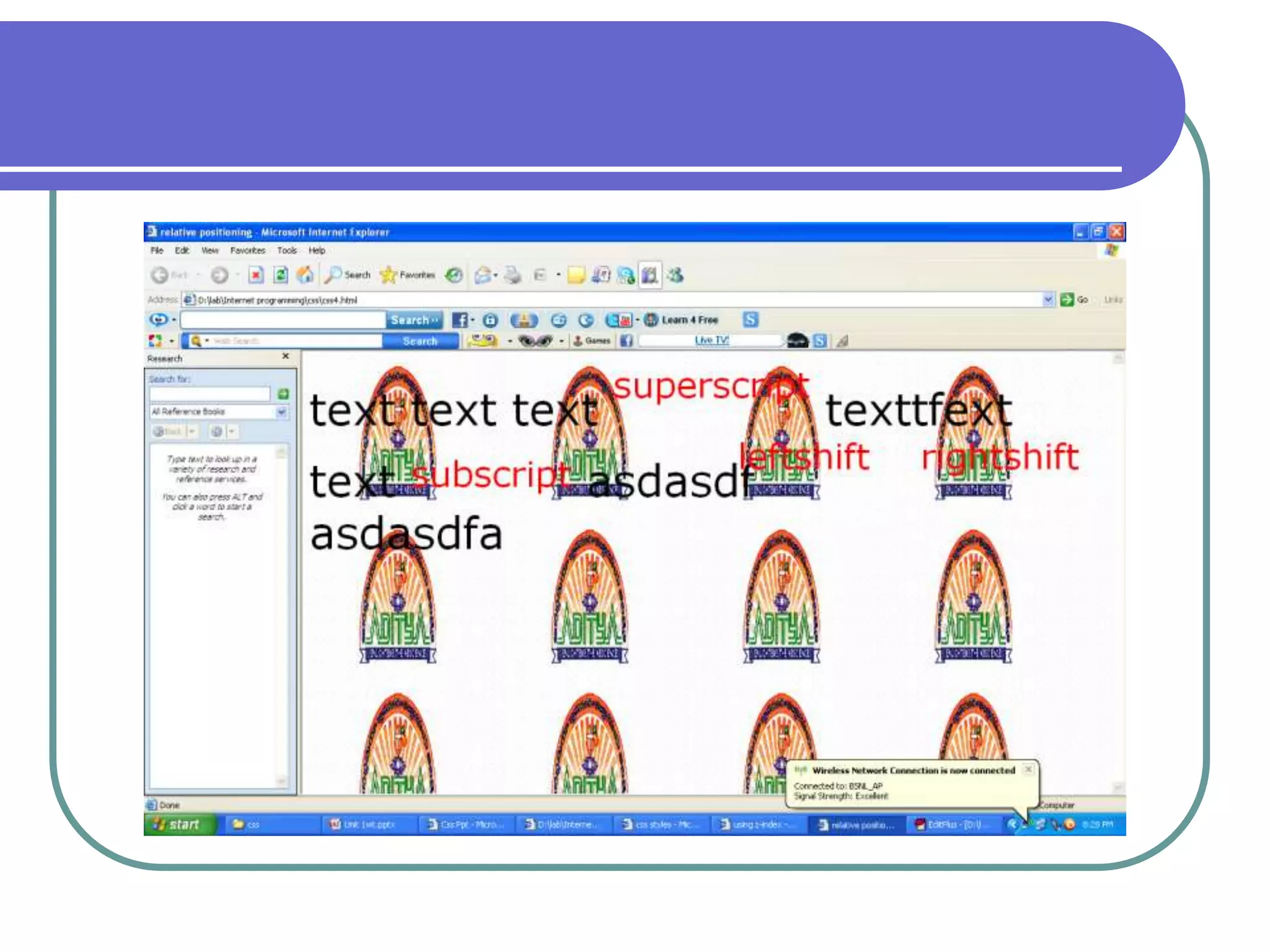
   <html>
   <head><title>relative positioning</title>
   <style type="text/css">
   p {font-size:2em;
     font-family=Verdana,Arial}
   span {color:red;font-size:.6em;height:2em}
   .super {position:relative top:-1ex}
   .sub {position:relative;bottom:-1ex}
   .shiftl{position:relative;left:-1ex}
   .shiftr{ position:relative;right:-1ex}
   </style>
   </head>
   <body style="background-image:url('one.gif')">
   <p>
   text text text <span class="super">superscript</span>
   texttfext text <span class="sub">subscript</span>
   asdasdf<span class="shiftl">leftshift</span>
   <span class="shiftr">rightshift</span>
   asdasdfa
   </p>
   </body></html>
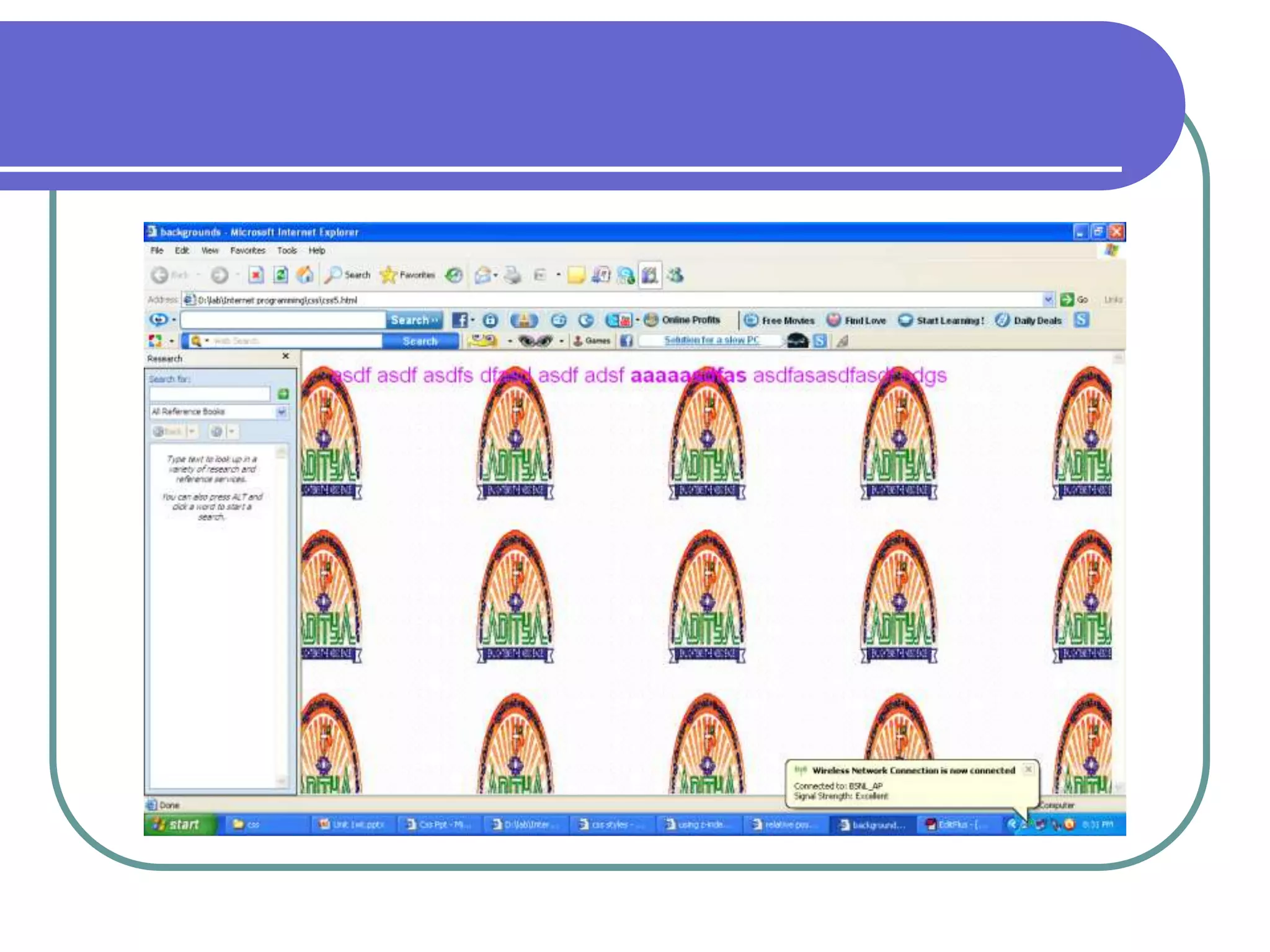
   <html>
   <head><title>backgrounds</title>
   <style type="text/css">
   body {background-image:url(one.gif);
       background-position:top;
   background-repeat:repeat;
   background-attachment:scroll}
   p { font-size:1em;
   color:#dd00ff;
   text-indent:1em;
   font-family:Arial,sans-serif}
   .dark {font-weight:bold}
   </style>
   </head>
   <body>
   <p>
   asdf asdf asdfs dfasd asdf adsf<span class="dark"> aaaaasdfas
   </span>
   asdfasasdfasdf
   sdgs
   </p></body></html>
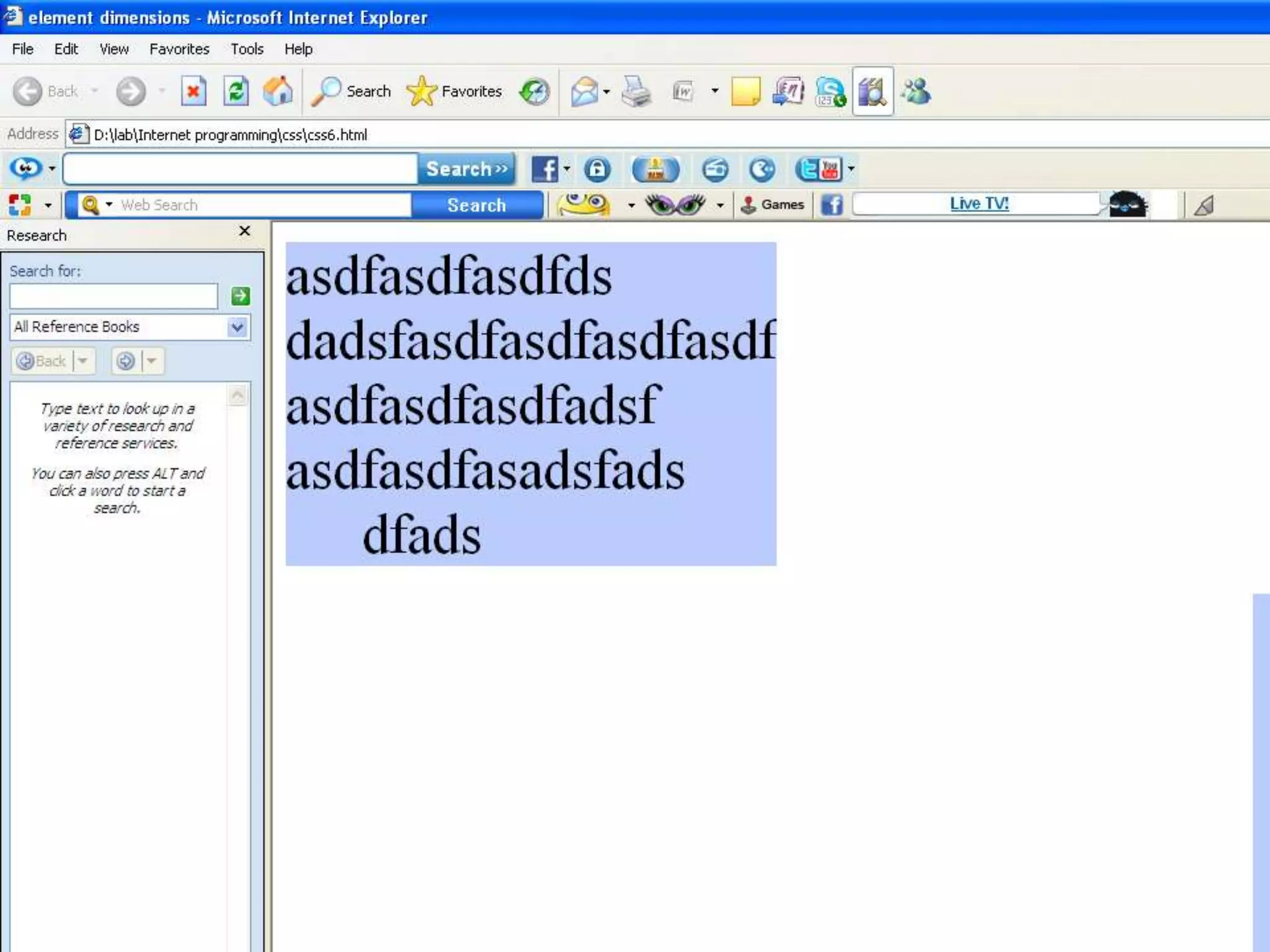
   <html>
   <head><title>element dimensions</title>
   <style type="text/css">
   div {background-color:#bbccff;
      margin-bottom:.5em;
   font-size:1.5em}
   </style>
   </head>
   <body>
   <div style="width:20% ;height:40%; text-align:center">
   asdfasdfasdfds dadsfasdfasdfasdfasdf
   asdfasdfasdfadsf
   asdfasdfasadsfads
   dfads</div>
   <div style="width:20%; float:right; padding=1.5em">asdfasdf
   asdf
   asdfasdfas
   dfads</div>
   <span style="clear:all">lalitha sdfasdf
   asdf
   asdfasdfas
   dfads</span>
   </body>
   </html>
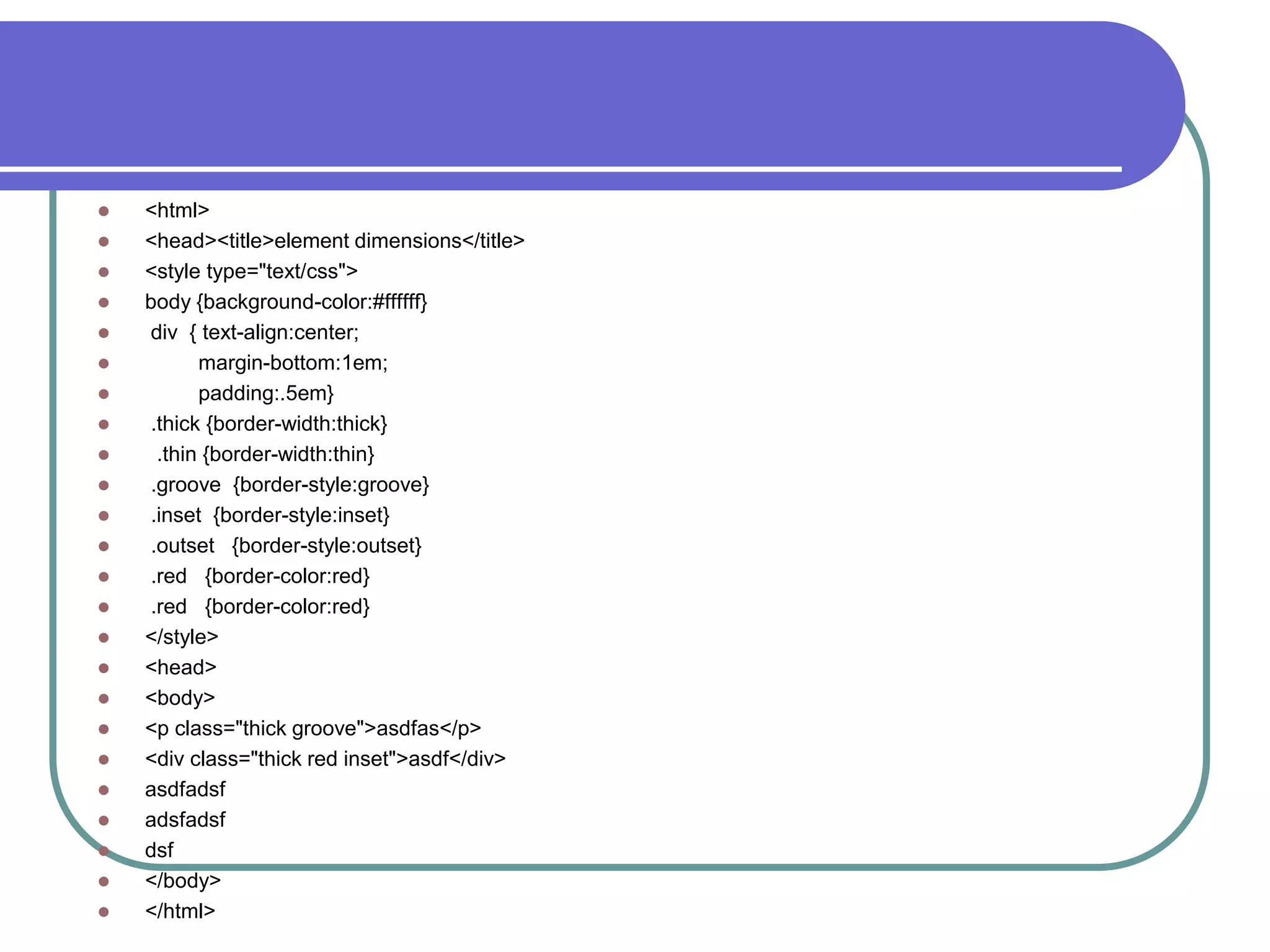
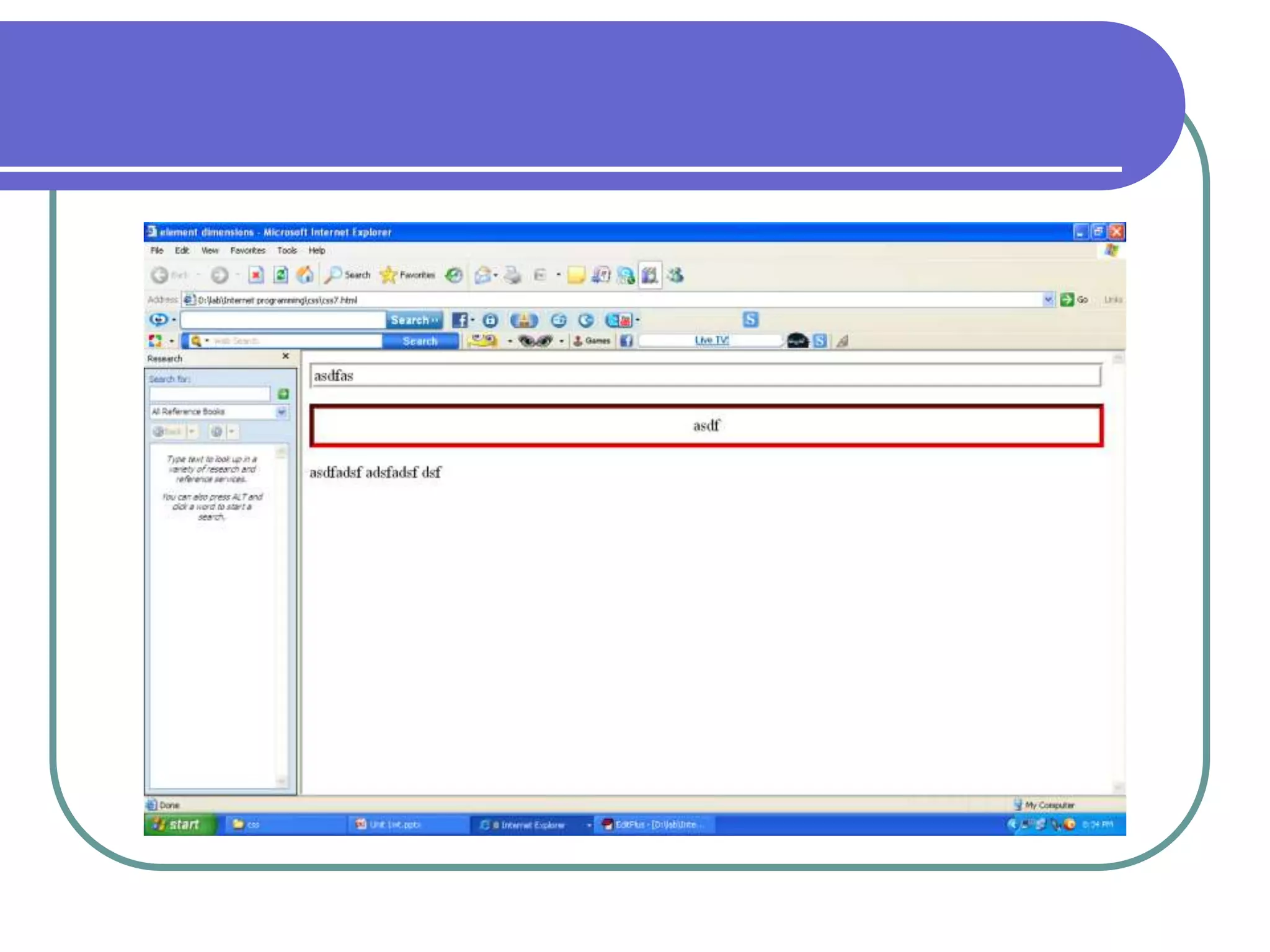
   <html>
   <head><title>element dimensions</title>
   <style type="text/css">
   body {background-color:#ffffff}
   div { text-align:center;
         margin-bottom:1em;
         padding:.5em}
   .thick {border-width:thick}
    .thin {border-width:thin}
   .groove {border-style:groove}
   .inset {border-style:inset}
   .outset {border-style:outset}
   .red {border-color:red}
   </style>
   <head>
   <body>
   <p class="thick groove">asdfas</p>
   <div class="thick red inset">asdf</div>
   asdfadsf
   adsfadsf
   dsf
   </body>
   </html>
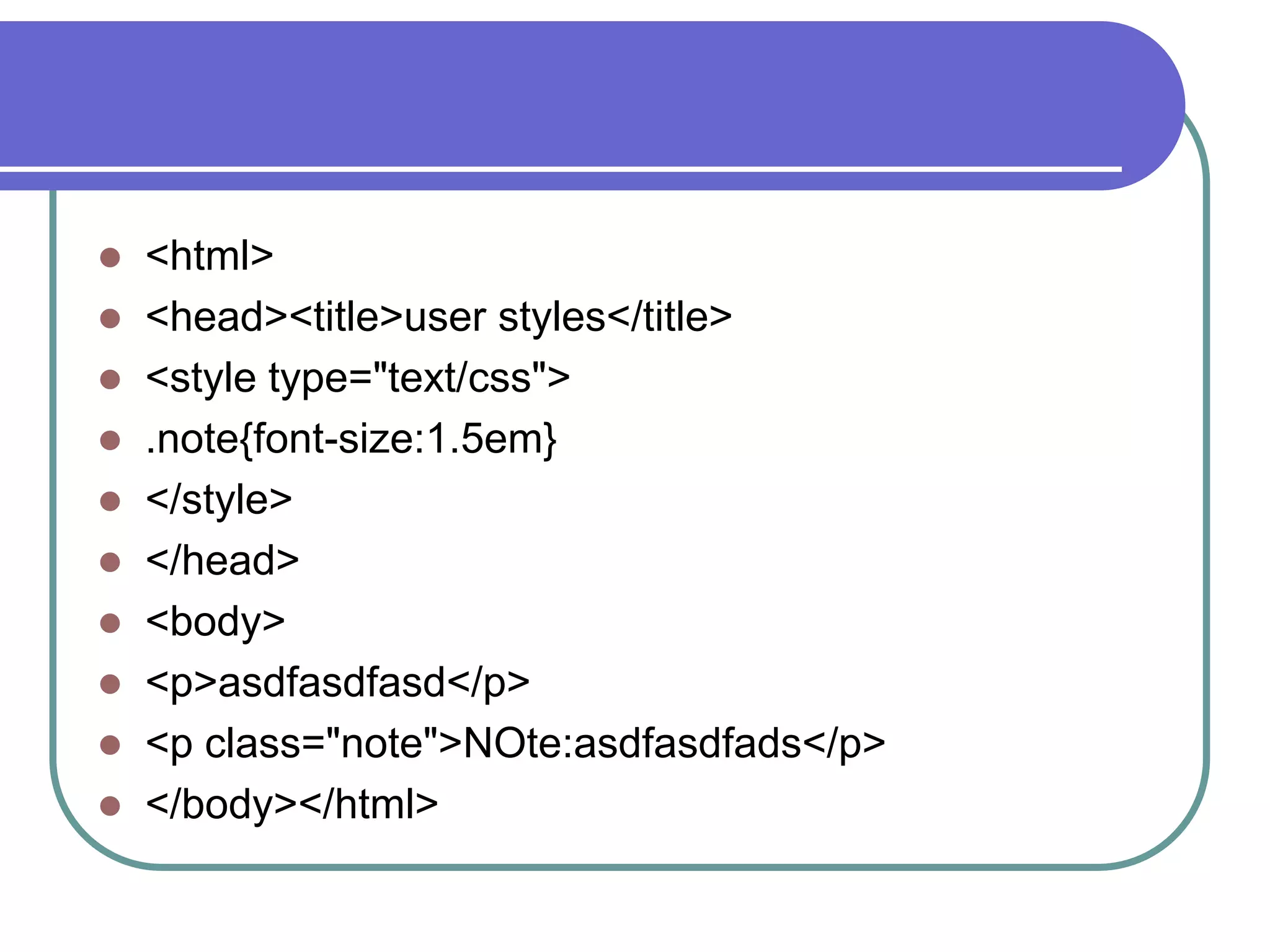
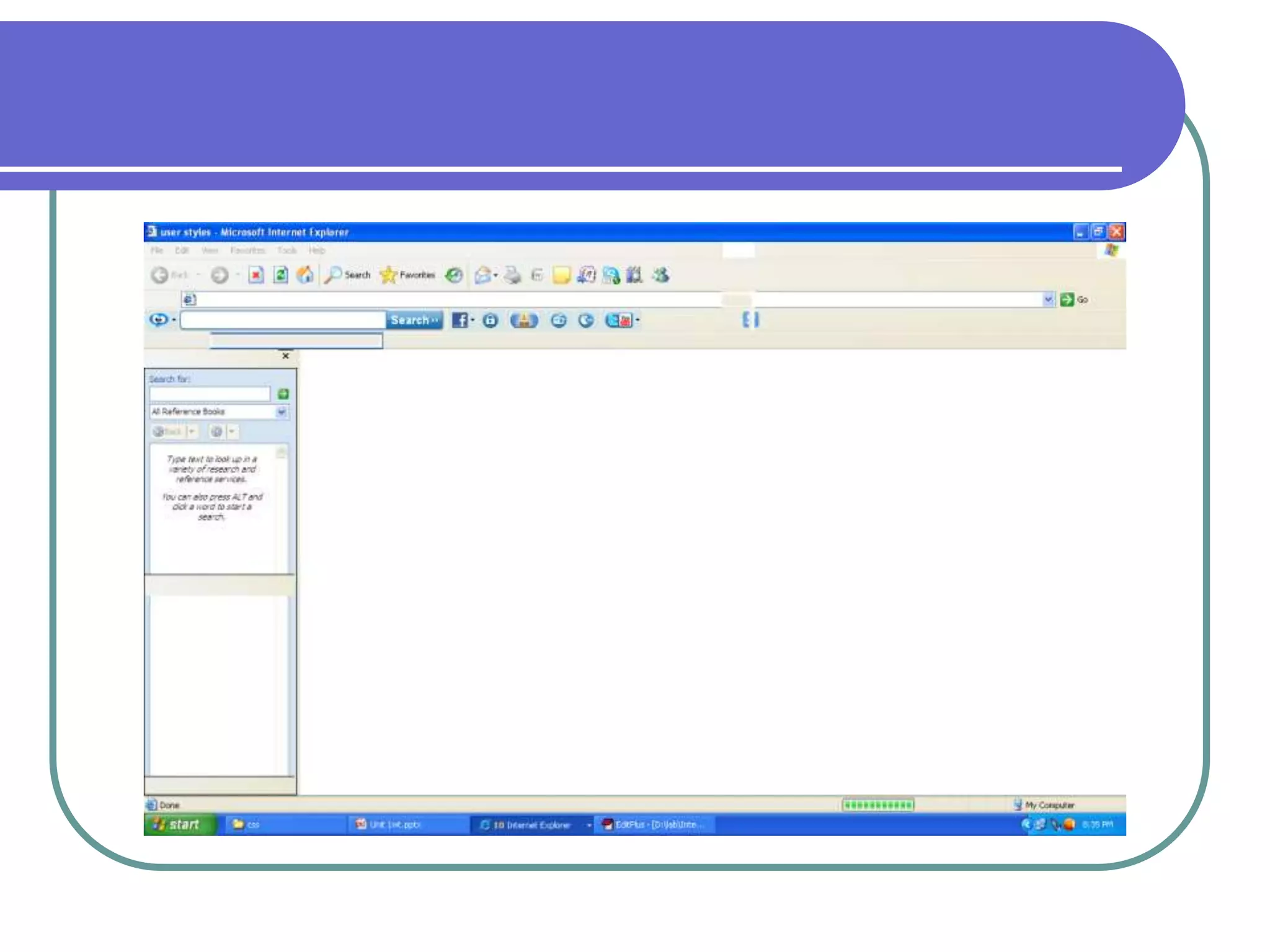
 <html>
 <head><title>user styles</title>
 <style type="text/css">
 .note{font-size:1.5em}
 </style>
 </head>
 <body>
 <p>asdfasdfasd</p>
 <p class="note">NOte:asdfasdfads</p>
 </body></html>
External Style Sheets
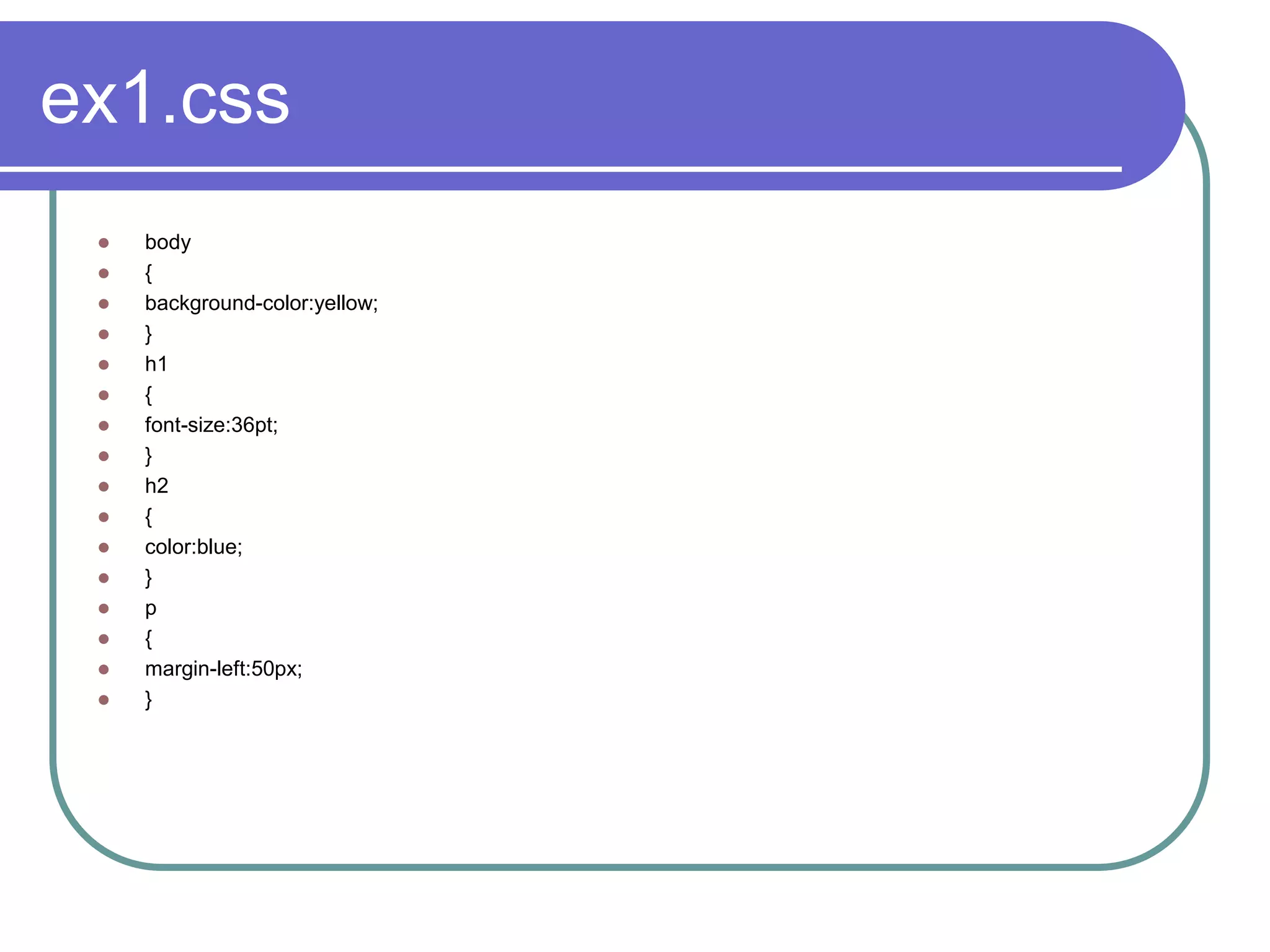
ex1.css
    body
    {
    background-color:yellow;
    }
    h1
    {
    font-size:36pt;
    }
    h2
    {
    color:blue;
    }
    p
    {
    margin-left:50px;
    }
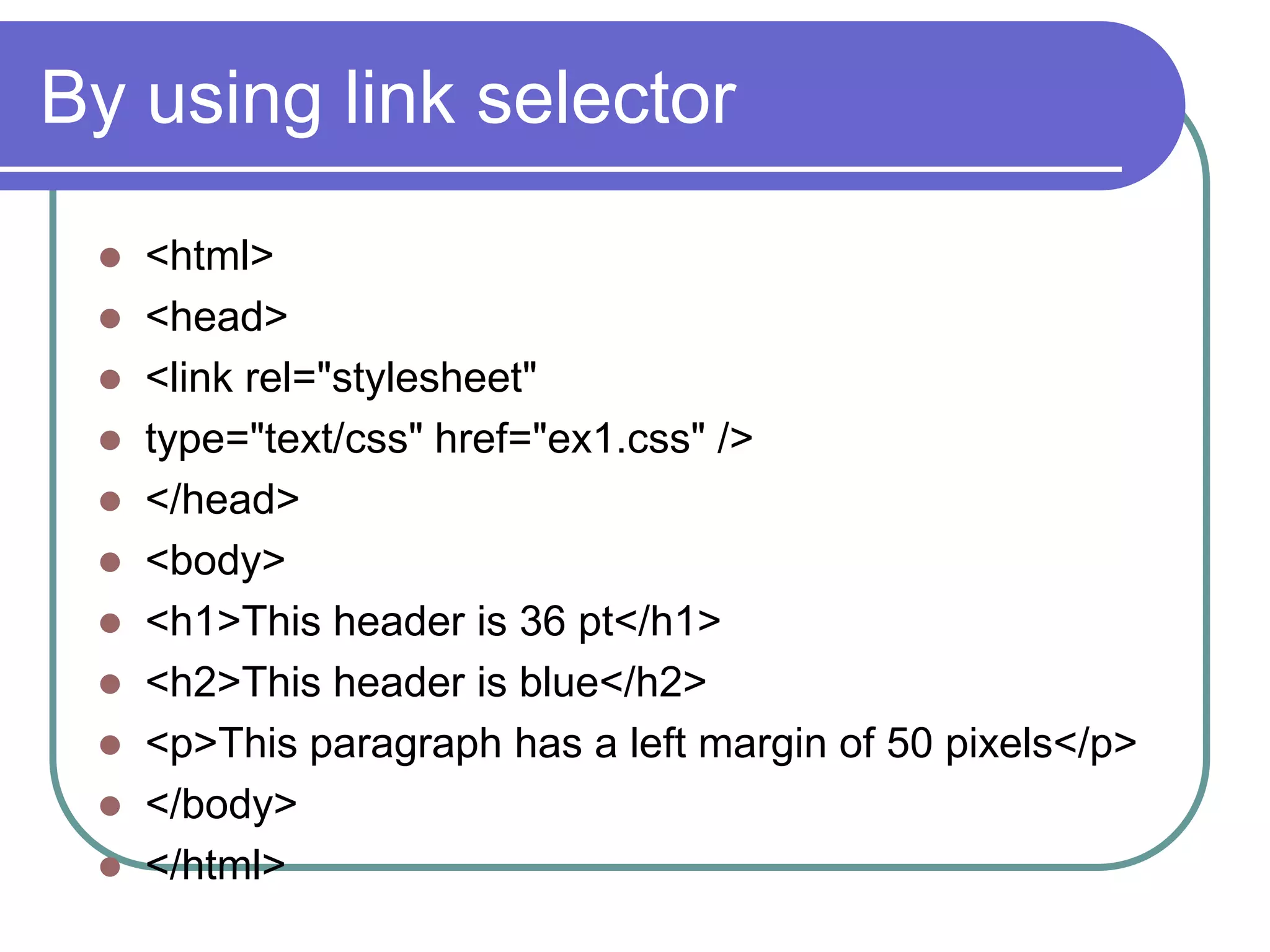
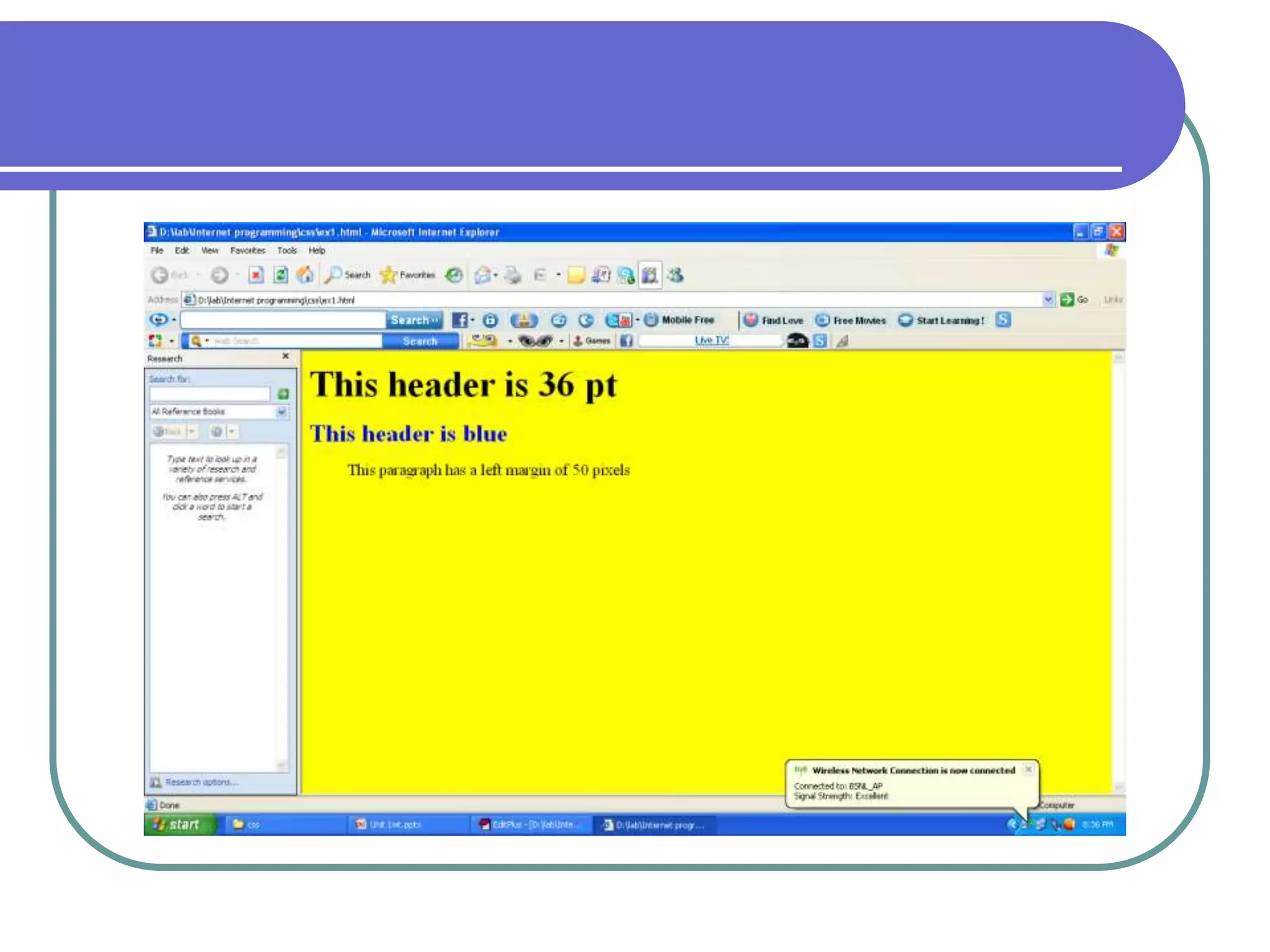
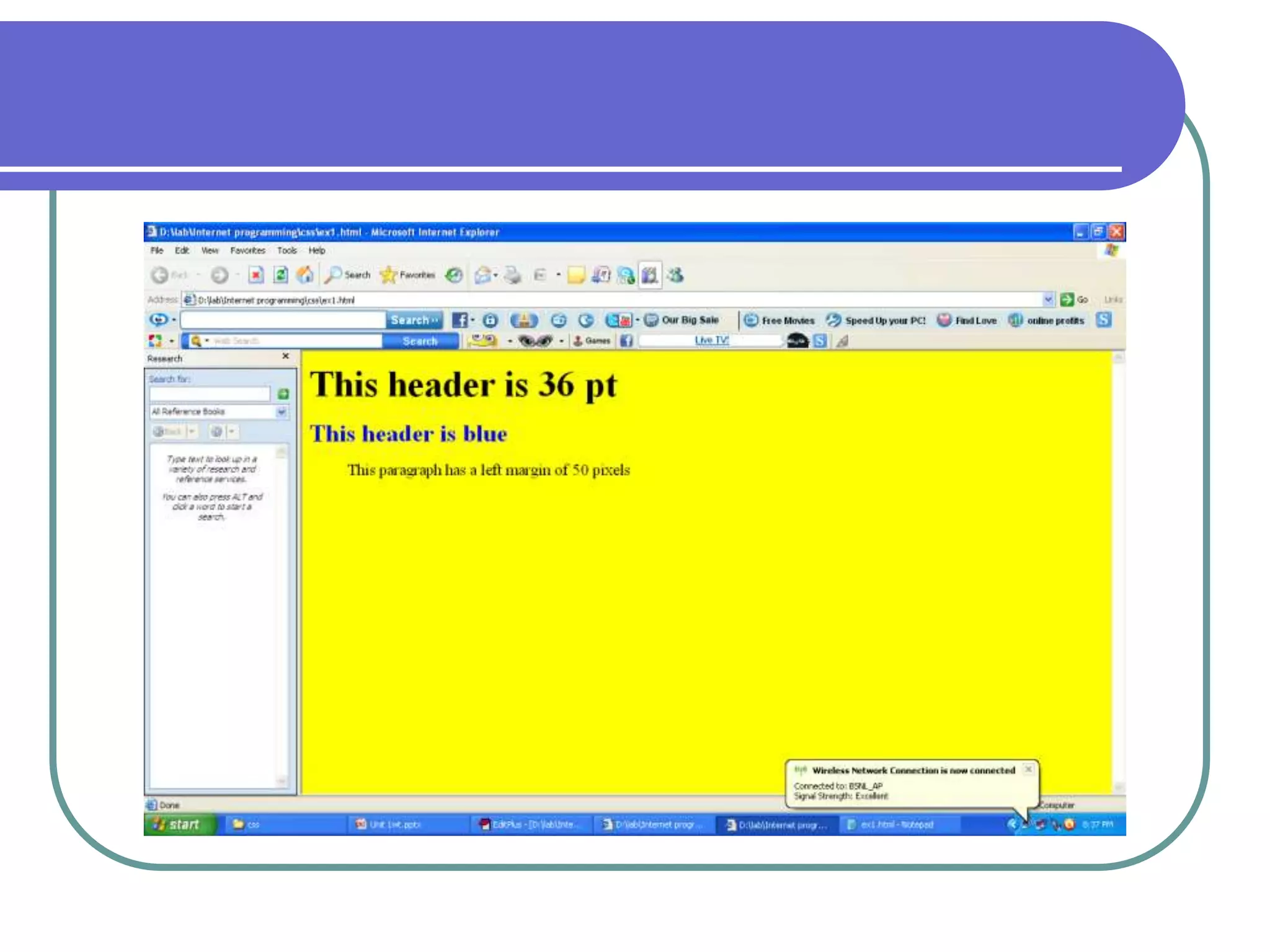
By using link selector
  <html>
  <head>
  <link rel="stylesheet"
  type="text/css" href="ex1.css" />
  </head>
  <body>
  <h1>This header is 36 pt</h1>
  <h2>This header is blue</h2>
  <p>This paragraph has a left margin of 50 pixels</p>
  </body>
  </html>
Unit 1wt
Unit 1wt
Unit 1wt

Unit 1wt

  • 1.
    HTML  Introduction  Lists Tables  Images  Forms  Frames  CSS
  • 2.
    Definitions  WWW: World Wide Web The set of computers on the Internet that support HTTP  HTTP:Hyper Text Transfer Protocol  Browser: Piece of software used to view HTML documents  HTML: Language used to format documents for use on the WWW (or) Language used to create web pages
  • 3.
    HTML-Significance  Scriptinglanguage  Subset of SGML(Standard General Markup Language)  SGML-Language to define markup language  Defines layout and attributes of www document  Used to create link between pages  Java script,DHTML,XML,PHP are also
  • 4.
    HTML- Basics Hypertext is simply a piece of text that works as link  Markup language is a language of writing layout information within documents  HTML document is a plain text file  It contains rich text. Rich text means text with tags  HTML program can be written in notepad or wordpad  Extension to this program is html or htm  HTML program contains two parts, head and body.  The head acts as a header file and the body contains the look and feel of the web page.
  • 5.
    Running HTML document Java Enabled HTTP Web Server Web Browser HTML & HTML Document Java Applets Java Applet <APPLET…> ? </APPLET>
  • 6.
    HTML – HyperTextMarkup Language Static HTML Dynamic HTML  HTML is static – i.e.  Enables adding high-level pages cannot change on logic in the HTML page in the request of the user, the form of javascript must be changed functions explicitly
  • 7.
    Static HTML Request file Retrieve file Send file
  • 8.
    Dynamic HTML Request service Do Computation Generate HTML page with results of computation Return dynamically generated HTML file
  • 9.
    Tags  Atag is format name surrounded by angular brackets  eg:<h1>hello</h1>  Not case sensitive  Some characters have to be replaced by text sequences eg:< should be written &lt
  • 10.
    Structure of HTMLDocument Processing HTML page <html> Goes on browser’s title bar <head> Control information <title>First HTML Page</title> </head> Comment tag <!-- Comments--> <body> Formatted output will be Displayed on Web page </body> </html>
  • 11.
    Text formatting Tags  <p></p> paragraph  align=left/right/center  <h1>..<h6>  align=left/right/center  Hr horizontal ruler  align=left/right/center width=“50%”  Font  Color=“#rrggbb size=“n”
  • 12.
    Text Formatting -Example Textformat.html  <html>  <title> h3  First Example  </title> p  <body> i  <h3> pre  Heading 3  </h3>  Hai <p>Paragraph</p>  <font color="#121212"><i>Hello</i></font>  <pre>  Hello ! ! !  </pre>  </body>  </html>
  • 13.
     <html>  <!--comments -->  <head>  <title>sample tags</title>  </head>  <body bgcolor="red">  <p>hello, I am learning html tags</p>  <!-- headers-->  <center>  <h1>M.Tech
  • 15.
    Lists Provides straightforwardindex Bulleted List • <li>…</li> List Item • <ul>..</ul> Unordered list Numbered List • <ol>..</ol> Ordered list Definition List • <dl>…</dl> Definition list • <dt>.. .</dt> Definition term • <dd>..</dd> Definition description
  • 16.
    Lists  <html>  <head><title>Lists</title></head>  <body>  Unordered lists  <ul> ul  <li>One</li> li  <li>Two</li>  </ul> ol  Ordered lists li  <ol> dl  <li>One</li> dt dd  <li>Two</li>  </ol>  <dl>  <dt>C.S.E</dt>  <dd>Computer Science Engineering</dd>  <dt>I.T.</dt>  <dd>Information Technology</dd>  </dl>  </dl>
  • 17.
    Tables  Structuring piece of information and web page <table> <caption> <thead> table header <tbody> table body <tr> table row <td> table data <tfoot> table footer Your site LOGO here
  • 18.
    TABLE <html> <title>Table</title> <body> <table border="2"> <caption align="center">Sample</caption> caption <thead><tr><td colspan="2">Header thead tr </td></tr></tbead> td <tbody><tr> <td> Sl.No</td><td> Marks</td></tr> tfoot <tr> <td> 1</td><td> 100</td> </tr> <tr> <td> 2</td><td> 90</td> </tr></tbody> <tfoot align="center" ><tr><td colspan="2"> Page 1</tfoot></td></tr> </table></body></html>
  • 19.
    Images-to display imageas a link <HTML> <HEAD> <TITLE> Image</TITLE> </HEAD> <BODY> <IMG SRC="C:/Documents and Settings/Administrator/My Documents/My Pictures/background-28.jpg" WIDTH="800" HEIGHT="600" BORDER="2" ALT="hello"> </BODY> </HTML>
  • 20.
    Form-A typical layouton the web page by which a user can interact with the web page <!-- Sample Form--> <HTML> <HEAD> <TITLE> Form </TITLE> </HEAD> <BODY> <FORM method="post" action="list.html"> Name <INPUT TYPE="text" size="10" value="name" NAME="t1"><BR> <div align="center"> <TEXTAREA NAME="" ROWS="5" COLS="40"></TEXTAREA> <INPUT TYPE="checkbox" NAME="o1" value="M.Tech" checked> M.Tech<br> <INPUT TYPE="checkbox" NAME="o2" value="Ph.D" >Ph.D<br> <INPUT TYPE="radio" NAME="r1" value="M.Tech" checked> M.Tech<br> <INPUT TYPE="radio" NAME="r1" value="Ph.D" >Ph.D<br> <INPUT TYPE="reset"><INPUT TYPE="submit" value="Submit"> </FORM> </BODY> </HTML>
  • 23.
    Sending an e-mail <!Mailing> <HTML> <HEAD> <TITLE> e-mail </TITLE> </HEAD> <BODY> <FORM ACTION="MAILTO:rvslalitha@gmail.com" METHOD="POST" enctype="text/plain"> Name<INPUT TYPE="text" NAME="name" value=""> <TEXTAREA name="message" ROWS="2" COLS="10“ > </TEXTAREA> <INPUT TYPE="submit" value="send"> <INPUT TYPE="reset"> </FORM> </BODY> </HTML>
  • 26.
    FRAMES-To present documentin multiple ways <!-- Frames --> <HTML> <HEAD> <TITLE> Frame </TITLE> </head> <FRAMESET COLS="150,*"> <FRAME SRC="nav.html" NAME="left"> <FRAME SRC="table.html" NAME="right"> </frameset> </FRAMESET> </HTML>
  • 27.
     <!--nav.html-->  <!--tab.html-->  <HTML>  <HTML>  <HEAD>  <HEAD>  <TITLE> one </TITLE>  <TITLE> New Document  </HEAD> </TITLE>  <BODY>  </HEAD>  <a href="tab.html"  <BODY> target="right">hai</a>  hello  </BODY>  </BODY>  </HTML>  </HTML>
  • 30.
    Cascading Style Sheets(CSS) CSS stands for Cascading Style Sheets and is a simple styling language which allows attaching style to HTML elements.
  • 31.
    A style definitionis made up of a selector followed by a declaration block, as shown in this example: <html> <head> <title>CSS Basics</title> <style type="text/css"> P { color:#000000 } h1{font-weight: bold; font-style: italic; color: red} </style> </head> <body>
  • 32.
    Putting CSS AndHTML Together 1. Defining a style sheet inside of the HTML document, inside the <HEAD> tag. Example 2. Referring to an external file which contains a style sheet, by using the 'LINK' element. Example 3. to a tag. Example 32
  • 33.
    Type selector  <html>  <head>  <style type="text/css">  em {background-color:#00ff00;  color:white}  h1 { font-family:Arial,sans-serif}  p { font-size:28pt}  .re{color:blue;font-size:30pt}  </style>  </head>  <body>  <h1 class="re">adsfa</h1><p class="re“ >adsasd<em>asd</em></p></body>  </html>
  • 35.
    <html>  <head>  <title>css styles</title>  <style type="text/css">  A:nodec{text-decoration:none}  A:hover{text-decoration:underline;  color:red;  background-color:red}  li {color:red;  font-weight:bold}  ul{margin-left:75px}  ul ul{text-decoration:underline;  margin-left:10px}  </style>  </head>  <body>  <ul>  <li>ad</li>  <li>asd  <ul>  <li>asdf</li>  <li>asdfads</li>  </ul></li>  </ul>  <p><a class="hover" href="file:///D:/Internet%20programming/css1.html">go</a>  </body>  </html>
  • 37.
    <html>  <head><title>using z-index</title>  </head>  <body>  <img src="one.gif" style="position:absolute;  top:50px;left:50px;z-index:3">  <h1 style="position:absolute;top:50px;  left:50px;z-index:30;">  positionedtext</h1>  </body><img src="two.gif"  style="position:absolute;top:100px;left:50px;z-index:15">  </html>
  • 39.
    <html>  <head><title>relative positioning</title>  <style type="text/css">  p {font-size:2em;  font-family=Verdana,Arial}  span {color:red;font-size:.6em;height:2em}  .super {position:relative top:-1ex}  .sub {position:relative;bottom:-1ex}  .shiftl{position:relative;left:-1ex}  .shiftr{ position:relative;right:-1ex}  </style>  </head>  <body style="background-image:url('one.gif')">  <p>  text text text <span class="super">superscript</span>  texttfext text <span class="sub">subscript</span>  asdasdf<span class="shiftl">leftshift</span>  <span class="shiftr">rightshift</span>  asdasdfa  </p>  </body></html>
  • 41.
    <html>  <head><title>backgrounds</title>  <style type="text/css">  body {background-image:url(one.gif);  background-position:top;  background-repeat:repeat;  background-attachment:scroll}  p { font-size:1em;  color:#dd00ff;  text-indent:1em;  font-family:Arial,sans-serif}  .dark {font-weight:bold}  </style>  </head>  <body>  <p>  asdf asdf asdfs dfasd asdf adsf<span class="dark"> aaaaasdfas  </span>  asdfasasdfasdf  sdgs  </p></body></html>
  • 43.
    <html>  <head><title>element dimensions</title>  <style type="text/css">  div {background-color:#bbccff;  margin-bottom:.5em;  font-size:1.5em}  </style>  </head>  <body>  <div style="width:20% ;height:40%; text-align:center">  asdfasdfasdfds dadsfasdfasdfasdfasdf  asdfasdfasdfadsf  asdfasdfasadsfads  dfads</div>  <div style="width:20%; float:right; padding=1.5em">asdfasdf  asdf  asdfasdfas  dfads</div>  <span style="clear:all">lalitha sdfasdf  asdf  asdfasdfas  dfads</span>  </body>  </html>
  • 45.
    <html>  <head><title>element dimensions</title>  <style type="text/css">  body {background-color:#ffffff}  div { text-align:center;  margin-bottom:1em;  padding:.5em}  .thick {border-width:thick}  .thin {border-width:thin}  .groove {border-style:groove}  .inset {border-style:inset}  .outset {border-style:outset}  .red {border-color:red}  .red {border-color:red}  </style>  <head>  <body>  <p class="thick groove">asdfas</p>  <div class="thick red inset">asdf</div>  asdfadsf  adsfadsf  dsf  </body>  </html>
  • 47.
     <html>  <head><title>userstyles</title>  <style type="text/css">  .note{font-size:1.5em}  </style>  </head>  <body>  <p>asdfasdfasd</p>  <p class="note">NOte:asdfasdfads</p>  </body></html>
  • 49.
  • 50.
    ex1.css  body  {  background-color:yellow;  }  h1  {  font-size:36pt;  }  h2  {  color:blue;  }  p  {  margin-left:50px;  }
  • 51.
    By using linkselector  <html>  <head>  <link rel="stylesheet"  type="text/css" href="ex1.css" />  </head>  <body>  <h1>This header is 36 pt</h1>  <h2>This header is blue</h2>  <p>This paragraph has a left margin of 50 pixels</p>  </body>  </html>