What the following term mean:
1. Web server: a system on the internet
containing one or more web site
2. Web site: a collection of one or more
web pages
3. Web pages: single disk file with a
single file name
4 .Home pages: first page in website
 HTML is a method where ordinary text can be
converted into hypertext.
 HTML is not a Programming Language.
 It combines instructions within data to tell a
display program called browser.
 Html is the character based method for
describing and expressing the content like
pictures, text, sound and video clips.
 It delivers the contents to multiple platforms.
 It links documents or components together to
compose compound documents.
 Tim Berners-Lee developed HTML in early
1990 @ CERN.
 HTML is a public domain and not owned by
anybody.
 HTML 1.0 was first introduced in 1989 by Tim Berners-Lee.
 In November 1995 the first draft of HTML 2.0 was published.
 January 1997: HTML 3.2 was published as a W3C (World Wide
Web Consortium) recommendation.
 May 2000: HTML 4.0 was published as a W3C
Recommendation.
 January 2008: HTML 5.0 is published as a Working Draft by
W3C.
Creating a HTML File
1. Open Notepad
2. Click on File -> Save as…
3. In the File name pull-down box, type in
webpage.html
4. Click on Save
5. Type in content for your file
6. Once you finished the content, click on
File -> Save
 Hyper Text Markup Language
 A markup language designed for the creation
of web pages and other information viewable
in a browser
 The basic language used to write web pages
 File extension: .htm, .html
What is HTML?
Telling the browser what to do, and what props to use.
A series of tags that are integrated into a text document.
 HTML files
◦ Text files
◦ Contain mark-up tags
◦ Tags direct how page is to be displayed by
browser
◦ Can be created from a simple text editor
◦ File extension “.htm” or “.html”
 Notepad or Wordpad (PC) or SimpleText (Mac)
 First tag: <html>
◦ Indicates that you are starting an HTML document
 Last tag: </html>
◦ Indicates that you are ending an HTML document
◦ *Note* the open & close structure to HTML
◦ Fictional example: <sleep> and </sleep>
 Save file as “index.html”
◦ This is a typical default title for home pages
◦ Windows may seem to prefer “.htm” but “.html” will
also work just fine.
<html>
</html>
<html>
<head>
<title> Page Title Goes Here </title>
</head>
<body>
content goes here
</body>
</html>
 Header information
◦ <head> to begin, and </head> to end
◦ Gives information about the page
 Page Title
◦ <title> to begin, and </title> to end
◦ Example: <title>Transcriptions Studio</title>
 Body Tags
◦ <body> and </body>
◦ *Note* that all text that appears on the page must
be encapsulated within the body tags
 Text headings
◦ <h1> and </h1>
◦ There are six defined heading sizes
◦ <h1> (largest) through <h6> (smallest)
 Paragraphs
◦ <p> and </p>
<html>
<header>
<title>Transcriptions Studio</title>
</header>
<body>
<h1>This is a big heading!</h1>
<h2>This is a smaller heading</h2>
<p>This is an example of a paragraph.</p>
</body>
</html>
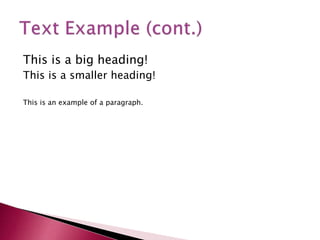
This is a big heading!
This is a smaller heading!
This is an example of a paragraph.
 A Prologue is only a comment for preparing
the document.
Syntax : <! Doctype HTML 3.0>
 Spacing
◦ Spacing organizes your work!
◦ Spacing makes your files easy to read!
◦ Spacing makes no functional difference to your web
browser
 Comments
◦ Comments are notes in your HTML file
◦ The Comment will not appear in the web page.
◦ Comments make no functional difference to your
web browser
◦ “<!--” begins a comment, and “ -->” ends it
<html>
<header>
<title>Transcriptions Studio</title>
</header>
<body>
<h1>This is a big header!</h1>
<h2>This is a smaller heading</h2>
<p>This is an example of a paragraph.</p>
</body>
</html>
<!-- This is an example of a comment.-->
 For example: <b>, <font>,<title>, <p>
etc.
 Tag usually goes with pair: an open tag
(<b>) and an end tag (<b>)
 Single tag: <hr>,<br>
 Tags are NOT case sensitive
Effect Code Code Used What It Does
Bold B <B>Bold</B> Bold
Italic I <I>Italic</I> Italic
 Banner:
- A Banner is a fixed part of the page
that will stay on the screen when we
scroll the text on the page.
Ex: College logo
<link REL=Banner href=“logo.html”>
 Base Element:
-A Base element in the head section
informs the browser the location where
all the base documents are available.
Ex: http://www.bonsecourscollege.org
Tag usually goes with pair: an open tag (<b>)
and an end tag (<b>)
Single tag: <hr>,<br>
Tags are NOT case sensitive
A source anchor is created in an HTML document (webpage)
by adding an anchor element <a> with a hypertext
reference href containing a uniform resource identifier
(URI)
Hyperlink Element Destination
anchor code
Source anchor
code
Page top <a> <a
name="pagetop"
></a>
<a
href="#pagetop"
> Page top </a>
Content <a> <a
name="content">
</a>
<a
href="#content">
Content </a>
Destination
anchors
<h2> <h2
id="destination">
Destination
anchors </h2>
<a
href="#destinatio
n"> Destination
anchors </a>
Eg : <a href=“”>
<li><a href="a001">Jump to a001</a></li>
<li><a href="#a002">Jump to a002</a></li>
<li><a href="#a003">Jump to a003</a></li>
 A Web page can also be made colorful by
using three attributes in the <body> tag.
They are,
1. background design
2. background color
3. text color
 Bgcolor
 Specifies a background-
color for a HTML page.
<body
bgcolor="#000000">
<body
bgcolor="rgb(0,0,0)">
<body
bgcolor="black">
 Background
 Specifies a background-
image for a HTML page
<body
background="clouds.gif">
<body
background="http://www.w
3schools.com/clouds.gif">
<body src=“hills.bmp">
In HTML, each colors has a degree from
00 to FF in the hexadecimal forms.
So each permits 256 colors (0 to 255)
 Put text on a webpage
◦ <p>Today is my first day at my new job, I’m so
excited!</p>
◦ Output: Today is my first day at my new job, I’m
so excited!
 Put text in center of a page
◦ <center>Hello</center>
◦ Output: Hello
 Put text on the right of a page
◦ <p align=“right”>Hello</p>
◦ Output: Hello
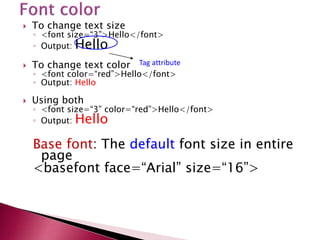
 To change text size
◦ <font size=“3”>Hello</font>
◦ Output: Hello
 To change text color
◦ <font color=“red”>Hello</font>
◦ Output: Hello
 Using both
◦ <font size=“3” color=“red”>Hello</font>
◦ Output: Hello
Base font: The default font size in entire
page
<basefont face=“Arial” size=“16”>
Tag attribute
 The link will appear in a different color. When we
open a web page several links may appear in a
page.
 Ex:
<body bgcolor=“#FF0000” text=“#00FF00”
link=“#AAAA00” vlink=“#AA00AA”
alink=“#FF0000”>
Contains:
The background color is # FF0000
The Text color is #00FF00
The link color is #AAAA00
The visited link color is #AA00AA
The active link is #FF0000
Result Description Entity Name
Non-breaking space &nbsp;
< Less than &lt;
> Greater than &gt;
& Ampersand &amp;
“ Quotation mark &quot;
© Copyright &copy;
 There are 6 heading commands.
<H1>This is Heading 1</H1>
<H2>This is Heading 2</H2>
<H3>This is Heading 3</H3>
<H4>This is Heading 4</H4>
<H5>This is Heading 5</H5>
<H6>This is Heading 6</H6>
 There are four types of Alignments.
1. Left
2. Right
3. Center
4. Justified
 <b> Defines bold text
 <big> Defines big text
 <em> Defines emphasized text
 <i> Defines italic text
 <small> Defines small text
 <strong> Defines strong text
 <sub> Defines subscripted text
 <sup> Defines superscripted text
 <ins> Defines inserted text
 <del> Defines deleted text
 A Horizontal Rule can be created using the
<hr> tag.
Example
<h1> Department of CA<h1>
<hr>
Output
Department of CA
___________________________
 There are four attributes to the <hr> tag, all of
which are optional. They are:
 Size
 Width
 Alignment
 Source
1. Size
 The size attribute has an integer value. If
size=1, a thin line is drawn horizontally, If
size=5, The line is thicker. <hr size=1>
 The width attribute tells the width of the
window in which the horizontal line has to be
drawn. The default value of the width will be
100 percent. <hr width=50%>
3. Alignment
The default alignment is always LEFT.
There are three options for the align tag;
1. Left 2. right 3. center
<hr size=5 width=25% align=right>
 When we filled with any design, available in a
graphics file in GIF format.
• <a href=“http://www.bdu.ac.in”>
<img src=“image.gif”></a>
 HTML automatically adjusts the intermediate
spaces and aligns the test as per the given
format. Such spaces are called soft spaces.
 soft spaces may go realigning the text.
 The space inserted by the user are called
hard spaces
 <h1> Bon secours &nbsp college &nbsp for
&nbsp women</h1>
Presentation is an art. It is very effective when the
concerned information is presented in the form of
LIST.
Two types of list available.
1. Ordered List (OL) 2. UnOrdered List (UL)
Ordered List defines a sequentially numbered list
of items. It is used in conjunction with the LI (List
Item) tag, which is used to tag the individual list
items in a list.
UnOrdered List defines a bullet list of items. The LI
tag is nested inside the UL tag and defines each
item within the list.
 Unordered list
◦ Code:
<ul>
<li>Coffee</li>
<li>Milk</li>
</ul>
◦ Output:
 Coffee
 Milk
 Ordered list
◦ Code:
<ol>
<li>Coffee</li
>
<li>Milk</li>
</ol>
◦ Output:
1. Coffee
2. Milk
 <ol type=B>
<li>This is item
one.
<li>This is item
two.
<li>This is item
three.
</ol>
 <ol start=“5”>
<li>This is item
one.
<li>This is item
two.
<li>This is item
three.
</ol>
 <ul type=“circle”>
<li>This is item one.
<li>This is item two.
<li>This is item
three.
</ul>
Plain attribute:
if we do not have any
bullets, we can use
the plain attribute in
the <ul> tag
 <ul type=“square”>
<li>This is item one.
<li>This is item two.
<li>This is item
three.
</ul>
Ex: <ul plain>
 The DL (definition list) tag allows you to
create glossaries or list of terms and
definitions.
 It consists of three tag elements – a tag to
define the list (DL), a tag to define the term
(DT), and a tag to define the definitions (DD).
 Example
<html>
<head> <title>Definitions Lists</title> </head>
<body>
<dl>
<dt>Hardware
<dd>Is defined as physical or tangible equipments associated with computer
systems. Examples of hardware are CPU,I/O devices and Secondary Storage
Devices.
<dt>Software
<dd>Is a set of Programs.
<dt>Peripherals
<dd>Equipments connected around the CPU.
</body>
</html>
A List within another type of list is called
nested list.
Example:
<ol>
<li> BCA
<li>MCA
</ol>
<ul>
<li> This courses are the best and first course is IT
Field.
</ul>
Tables are very efficient means of displaying
information in a correct form.
 The TABLE tag needs to bracket your table.
All other tags or text included in your table
should nest inside the TABLE tag.
 <html>
<head>
<title>Tables</title>
</head>
<body>
<table>
…………
</table></body></html>
There are three following components in a table
1. Table caption
2. table Heading row
3. Rows and columns
 The TR (table row) and TD (table data)tags are used to create a grid of rows
and columns.
 <table>
<tr>
<td>1</td>
<td>Aarthi</td>
<td>Thanjai</td>
</tr>
<tr>
<td>2</td>
<td>Anandhi</td>
<td>Thanjai</td>
</tr>
</table>
 By default , the table does not contain a border, To include a
border to the table, specify a BORDER attribute inside the Table
tag.
 <table border=“3”>
<tr>
<td>1</td>
<td>Aarthi</td>
<td>Thanjai</td>
</tr>
<tr>
<td>2</td>
<td>Anandhi</td>
<td>Thanjai</td>
</tr>
</table>
 The TH(table heading) tag is used to define a
“cell” as a heading cell rather than as an
ordinary data cell.
 To create the column headings at the top of
the table, first create a row using the TR tag
and then, use the TH tag to define the cells
instead of using the TD tags.
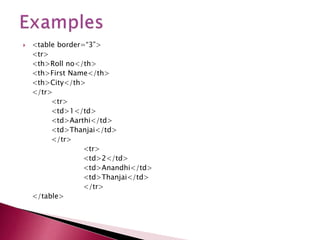
 <table border=“3”>
<tr>
<th>Roll no</th>
<th>First Name</th>
<th>City</th>
</tr>
<tr>
<td>1</td>
<td>Aarthi</td>
<td>Thanjai</td>
</tr>
<tr>
<td>2</td>
<td>Anandhi</td>
<td>Thanjai</td>
</tr>
</table>
 The Cellspacing attribute adds space between
the cells, whereas the Cellpadding attribute
adds space within each cell.
 <Table border=“1” cellspacing=“6”
cellpadding=“6”> The cellspacing attribute
increases the thickness of the border of each
cell.
 The Caption tag is used to insert a caption for
the table.
 <Table border=“1” cellspacing=“6”
cellpadding=“6”>
<caption>Student Table</caption>
 It can be used to specify the size of your
table. You can use either absolute
value(number of pixels) or relative values
(Percentages).
 <Table border=“1” cellspacing=“6”
cellpadding=“6” width=“80%”>
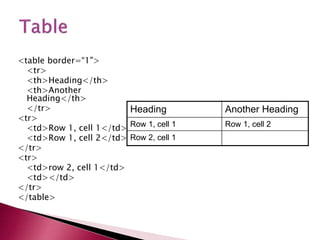
<table border=“1">
<tr>
<th>Heading</th>
<th>Another
Heading</th>
</tr>
<tr>
<td>Row 1, cell 1</td>
<td>Row 1, cell 2</td>
</tr>
<tr>
<td>row 2, cell 1</td>
<td></td>
</tr>
</table>
Heading Another Heading
Row 1, cell 1 Row 1, cell 2
Row 2, cell 1
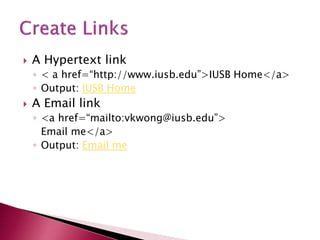
 A Hypertext link
◦ < a href=“http://www.iusb.edu”>IUSB Home</a>
◦ Output: IUSB Home
 A Email link
◦ <a href=“mailto:vkwong@iusb.edu”>
Email me</a>
◦ Output: Email me
Image can be stored in any one these formats
 .gif
◦ Graphics Interchange Format
 .jpeg or .jpg
◦ Joint Photographic Experts Group
 .bmp
◦ bitmap
 Place all images in the same directory/folder
where you web pages are
 <img src> is a single tag
 <img src=“image.gif”>
◦ Output:
 Turn an image into a hyerlink
◦ <a href=“http://www.iusb.edu”><img
src=“image.gif”></a>
◦ Output:
 Computer images are made up of “pixels”
 <IMG HEIGHT=“100" WIDTH=“150"
SRC=“flag.gif">
Width
Height
THANK YOU

Web Design-III IT.ppt

  • 2.
    What the followingterm mean: 1. Web server: a system on the internet containing one or more web site 2. Web site: a collection of one or more web pages 3. Web pages: single disk file with a single file name 4 .Home pages: first page in website
  • 3.
     HTML isa method where ordinary text can be converted into hypertext.  HTML is not a Programming Language.  It combines instructions within data to tell a display program called browser.  Html is the character based method for describing and expressing the content like pictures, text, sound and video clips.
  • 4.
     It deliversthe contents to multiple platforms.  It links documents or components together to compose compound documents.  Tim Berners-Lee developed HTML in early 1990 @ CERN.  HTML is a public domain and not owned by anybody.
  • 5.
     HTML 1.0was first introduced in 1989 by Tim Berners-Lee.  In November 1995 the first draft of HTML 2.0 was published.  January 1997: HTML 3.2 was published as a W3C (World Wide Web Consortium) recommendation.  May 2000: HTML 4.0 was published as a W3C Recommendation.  January 2008: HTML 5.0 is published as a Working Draft by W3C.
  • 6.
    Creating a HTMLFile 1. Open Notepad 2. Click on File -> Save as… 3. In the File name pull-down box, type in webpage.html 4. Click on Save 5. Type in content for your file 6. Once you finished the content, click on File -> Save
  • 7.
     Hyper TextMarkup Language  A markup language designed for the creation of web pages and other information viewable in a browser  The basic language used to write web pages  File extension: .htm, .html
  • 8.
    What is HTML? Tellingthe browser what to do, and what props to use. A series of tags that are integrated into a text document.  HTML files ◦ Text files ◦ Contain mark-up tags ◦ Tags direct how page is to be displayed by browser ◦ Can be created from a simple text editor ◦ File extension “.htm” or “.html”
  • 9.
     Notepad orWordpad (PC) or SimpleText (Mac)  First tag: <html> ◦ Indicates that you are starting an HTML document  Last tag: </html> ◦ Indicates that you are ending an HTML document ◦ *Note* the open & close structure to HTML ◦ Fictional example: <sleep> and </sleep>  Save file as “index.html” ◦ This is a typical default title for home pages ◦ Windows may seem to prefer “.htm” but “.html” will also work just fine.
  • 10.
  • 11.
    <html> <head> <title> Page TitleGoes Here </title> </head> <body> content goes here </body> </html>
  • 12.
     Header information ◦<head> to begin, and </head> to end ◦ Gives information about the page  Page Title ◦ <title> to begin, and </title> to end ◦ Example: <title>Transcriptions Studio</title>
  • 13.
     Body Tags ◦<body> and </body> ◦ *Note* that all text that appears on the page must be encapsulated within the body tags  Text headings ◦ <h1> and </h1> ◦ There are six defined heading sizes ◦ <h1> (largest) through <h6> (smallest)  Paragraphs ◦ <p> and </p>
  • 14.
    <html> <header> <title>Transcriptions Studio</title> </header> <body> <h1>This isa big heading!</h1> <h2>This is a smaller heading</h2> <p>This is an example of a paragraph.</p> </body> </html>
  • 15.
    This is abig heading! This is a smaller heading! This is an example of a paragraph.
  • 16.
     A Prologueis only a comment for preparing the document. Syntax : <! Doctype HTML 3.0>
  • 17.
     Spacing ◦ Spacingorganizes your work! ◦ Spacing makes your files easy to read! ◦ Spacing makes no functional difference to your web browser  Comments ◦ Comments are notes in your HTML file ◦ The Comment will not appear in the web page. ◦ Comments make no functional difference to your web browser ◦ “<!--” begins a comment, and “ -->” ends it
  • 18.
    <html> <header> <title>Transcriptions Studio</title> </header> <body> <h1>This isa big header!</h1> <h2>This is a smaller heading</h2> <p>This is an example of a paragraph.</p> </body> </html> <!-- This is an example of a comment.-->
  • 19.
     For example:<b>, <font>,<title>, <p> etc.  Tag usually goes with pair: an open tag (<b>) and an end tag (<b>)  Single tag: <hr>,<br>  Tags are NOT case sensitive Effect Code Code Used What It Does Bold B <B>Bold</B> Bold Italic I <I>Italic</I> Italic
  • 20.
     Banner: - ABanner is a fixed part of the page that will stay on the screen when we scroll the text on the page. Ex: College logo <link REL=Banner href=“logo.html”>  Base Element: -A Base element in the head section informs the browser the location where all the base documents are available. Ex: http://www.bonsecourscollege.org
  • 21.
    Tag usually goeswith pair: an open tag (<b>) and an end tag (<b>) Single tag: <hr>,<br> Tags are NOT case sensitive
  • 22.
    A source anchoris created in an HTML document (webpage) by adding an anchor element <a> with a hypertext reference href containing a uniform resource identifier (URI) Hyperlink Element Destination anchor code Source anchor code Page top <a> <a name="pagetop" ></a> <a href="#pagetop" > Page top </a> Content <a> <a name="content"> </a> <a href="#content"> Content </a> Destination anchors <h2> <h2 id="destination"> Destination anchors </h2> <a href="#destinatio n"> Destination anchors </a>
  • 23.
    Eg : <ahref=“”> <li><a href="a001">Jump to a001</a></li> <li><a href="#a002">Jump to a002</a></li> <li><a href="#a003">Jump to a003</a></li>
  • 24.
     A Webpage can also be made colorful by using three attributes in the <body> tag. They are, 1. background design 2. background color 3. text color
  • 25.
     Bgcolor  Specifiesa background- color for a HTML page. <body bgcolor="#000000"> <body bgcolor="rgb(0,0,0)"> <body bgcolor="black">  Background  Specifies a background- image for a HTML page <body background="clouds.gif"> <body background="http://www.w 3schools.com/clouds.gif"> <body src=“hills.bmp"> In HTML, each colors has a degree from 00 to FF in the hexadecimal forms. So each permits 256 colors (0 to 255)
  • 26.
     Put texton a webpage ◦ <p>Today is my first day at my new job, I’m so excited!</p> ◦ Output: Today is my first day at my new job, I’m so excited!  Put text in center of a page ◦ <center>Hello</center> ◦ Output: Hello  Put text on the right of a page ◦ <p align=“right”>Hello</p> ◦ Output: Hello
  • 27.
     To changetext size ◦ <font size=“3”>Hello</font> ◦ Output: Hello  To change text color ◦ <font color=“red”>Hello</font> ◦ Output: Hello  Using both ◦ <font size=“3” color=“red”>Hello</font> ◦ Output: Hello Base font: The default font size in entire page <basefont face=“Arial” size=“16”> Tag attribute
  • 28.
     The linkwill appear in a different color. When we open a web page several links may appear in a page.  Ex: <body bgcolor=“#FF0000” text=“#00FF00” link=“#AAAA00” vlink=“#AA00AA” alink=“#FF0000”> Contains: The background color is # FF0000 The Text color is #00FF00 The link color is #AAAA00 The visited link color is #AA00AA The active link is #FF0000
  • 29.
    Result Description EntityName Non-breaking space &nbsp; < Less than &lt; > Greater than &gt; & Ampersand &amp; “ Quotation mark &quot; © Copyright &copy;
  • 30.
     There are6 heading commands. <H1>This is Heading 1</H1> <H2>This is Heading 2</H2> <H3>This is Heading 3</H3> <H4>This is Heading 4</H4> <H5>This is Heading 5</H5> <H6>This is Heading 6</H6>
  • 31.
     There arefour types of Alignments. 1. Left 2. Right 3. Center 4. Justified
  • 32.
     <b> Definesbold text  <big> Defines big text  <em> Defines emphasized text  <i> Defines italic text  <small> Defines small text  <strong> Defines strong text  <sub> Defines subscripted text  <sup> Defines superscripted text  <ins> Defines inserted text  <del> Defines deleted text
  • 34.
     A HorizontalRule can be created using the <hr> tag. Example <h1> Department of CA<h1> <hr> Output Department of CA ___________________________
  • 35.
     There arefour attributes to the <hr> tag, all of which are optional. They are:  Size  Width  Alignment  Source 1. Size  The size attribute has an integer value. If size=1, a thin line is drawn horizontally, If size=5, The line is thicker. <hr size=1>
  • 36.
     The widthattribute tells the width of the window in which the horizontal line has to be drawn. The default value of the width will be 100 percent. <hr width=50%> 3. Alignment The default alignment is always LEFT. There are three options for the align tag; 1. Left 2. right 3. center <hr size=5 width=25% align=right>
  • 37.
     When wefilled with any design, available in a graphics file in GIF format. • <a href=“http://www.bdu.ac.in”> <img src=“image.gif”></a>
  • 38.
     HTML automaticallyadjusts the intermediate spaces and aligns the test as per the given format. Such spaces are called soft spaces.  soft spaces may go realigning the text.  The space inserted by the user are called hard spaces
  • 39.
     <h1> Bonsecours &nbsp college &nbsp for &nbsp women</h1>
  • 40.
    Presentation is anart. It is very effective when the concerned information is presented in the form of LIST. Two types of list available. 1. Ordered List (OL) 2. UnOrdered List (UL) Ordered List defines a sequentially numbered list of items. It is used in conjunction with the LI (List Item) tag, which is used to tag the individual list items in a list. UnOrdered List defines a bullet list of items. The LI tag is nested inside the UL tag and defines each item within the list.
  • 41.
     Unordered list ◦Code: <ul> <li>Coffee</li> <li>Milk</li> </ul> ◦ Output:  Coffee  Milk  Ordered list ◦ Code: <ol> <li>Coffee</li > <li>Milk</li> </ol> ◦ Output: 1. Coffee 2. Milk
  • 42.
     <ol type=B> <li>Thisis item one. <li>This is item two. <li>This is item three. </ol>  <ol start=“5”> <li>This is item one. <li>This is item two. <li>This is item three. </ol>
  • 43.
     <ul type=“circle”> <li>Thisis item one. <li>This is item two. <li>This is item three. </ul> Plain attribute: if we do not have any bullets, we can use the plain attribute in the <ul> tag  <ul type=“square”> <li>This is item one. <li>This is item two. <li>This is item three. </ul> Ex: <ul plain>
  • 44.
     The DL(definition list) tag allows you to create glossaries or list of terms and definitions.  It consists of three tag elements – a tag to define the list (DL), a tag to define the term (DT), and a tag to define the definitions (DD).
  • 45.
     Example <html> <head> <title>DefinitionsLists</title> </head> <body> <dl> <dt>Hardware <dd>Is defined as physical or tangible equipments associated with computer systems. Examples of hardware are CPU,I/O devices and Secondary Storage Devices. <dt>Software <dd>Is a set of Programs. <dt>Peripherals <dd>Equipments connected around the CPU. </body> </html>
  • 46.
    A List withinanother type of list is called nested list. Example: <ol> <li> BCA <li>MCA </ol> <ul> <li> This courses are the best and first course is IT Field. </ul>
  • 47.
    Tables are veryefficient means of displaying information in a correct form.  The TABLE tag needs to bracket your table. All other tags or text included in your table should nest inside the TABLE tag.  <html> <head> <title>Tables</title> </head> <body> <table> ………… </table></body></html>
  • 48.
    There are threefollowing components in a table 1. Table caption 2. table Heading row 3. Rows and columns  The TR (table row) and TD (table data)tags are used to create a grid of rows and columns.  <table> <tr> <td>1</td> <td>Aarthi</td> <td>Thanjai</td> </tr> <tr> <td>2</td> <td>Anandhi</td> <td>Thanjai</td> </tr> </table>
  • 49.
     By default, the table does not contain a border, To include a border to the table, specify a BORDER attribute inside the Table tag.  <table border=“3”> <tr> <td>1</td> <td>Aarthi</td> <td>Thanjai</td> </tr> <tr> <td>2</td> <td>Anandhi</td> <td>Thanjai</td> </tr> </table>
  • 50.
     The TH(tableheading) tag is used to define a “cell” as a heading cell rather than as an ordinary data cell.  To create the column headings at the top of the table, first create a row using the TR tag and then, use the TH tag to define the cells instead of using the TD tags.
  • 51.
     <table border=“3”> <tr> <th>Rollno</th> <th>First Name</th> <th>City</th> </tr> <tr> <td>1</td> <td>Aarthi</td> <td>Thanjai</td> </tr> <tr> <td>2</td> <td>Anandhi</td> <td>Thanjai</td> </tr> </table>
  • 52.
     The Cellspacingattribute adds space between the cells, whereas the Cellpadding attribute adds space within each cell.  <Table border=“1” cellspacing=“6” cellpadding=“6”> The cellspacing attribute increases the thickness of the border of each cell.  The Caption tag is used to insert a caption for the table.  <Table border=“1” cellspacing=“6” cellpadding=“6”> <caption>Student Table</caption>
  • 53.
     It canbe used to specify the size of your table. You can use either absolute value(number of pixels) or relative values (Percentages).  <Table border=“1” cellspacing=“6” cellpadding=“6” width=“80%”>
  • 54.
    <table border=“1"> <tr> <th>Heading</th> <th>Another Heading</th> </tr> <tr> <td>Row 1,cell 1</td> <td>Row 1, cell 2</td> </tr> <tr> <td>row 2, cell 1</td> <td></td> </tr> </table> Heading Another Heading Row 1, cell 1 Row 1, cell 2 Row 2, cell 1
  • 55.
     A Hypertextlink ◦ < a href=“http://www.iusb.edu”>IUSB Home</a> ◦ Output: IUSB Home  A Email link ◦ <a href=“mailto:vkwong@iusb.edu”> Email me</a> ◦ Output: Email me
  • 56.
    Image can bestored in any one these formats  .gif ◦ Graphics Interchange Format  .jpeg or .jpg ◦ Joint Photographic Experts Group  .bmp ◦ bitmap
  • 57.
     Place allimages in the same directory/folder where you web pages are  <img src> is a single tag  <img src=“image.gif”> ◦ Output:  Turn an image into a hyerlink ◦ <a href=“http://www.iusb.edu”><img src=“image.gif”></a> ◦ Output:
  • 58.
     Computer imagesare made up of “pixels”  <IMG HEIGHT=“100" WIDTH=“150" SRC=“flag.gif"> Width Height
  • 59.