UCCN1003 Data Communications and Networks
Lab 01: Introduction to Client, Services, and Commands
Instructions:
    1. Read the “Introduction” section for the background
    2. Perform all the lab exercises, starting with exercise 1
    3. Follow all the steps.
    4. Record the results in all italic bold actions (by screen capture or copying).
    5. Paste your screen captures on a Word Document and save it.
    6. Answer all the questions in italic.
    7. Write your answer in the same Word Document.
    8. Please follow the sequence of the exercises, and don’t skip any step.
    9. Please keep your word document. You will need it for your tests and exam.

Introduction
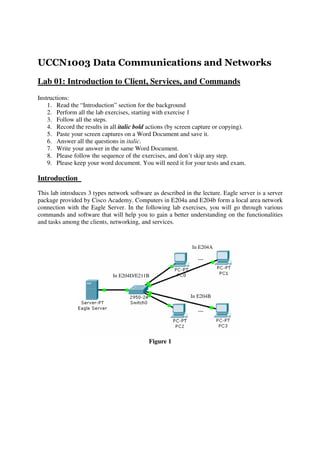
This lab introduces 3 types network software as described in the lecture. Eagle server is a server
package provided by Cisco Academy. Computers in E204a and E204b form a local area network
connection with the Eagle Server. In the following lab exercises, you will go through various
commands and software that will help you to gain a better understanding on the functionalities
and tasks among the clients, networking, and services.


                                                              In E204A

                                                                …


                              In E204D/E211B


                                                             In E204B

                                                                …


                                            Figure 1
Exercise 1: Networking Commands – ipconfig

  1. Open your command prompt. (Start     →   Run    →   type in “cmd”   →   press “ok”)

  2. Type “cd ” and type “ipconfig”

  3. Make sure there is no “media disconnect” on your working NIC, and make sure you have
     a valid IP address (no 169.x.x.x)

  4. Open a Word document.

  5. Record your IP address (192.168.x.x) in the Word document.

  6. Don’t close your command prompt. You need to use it later. Minimize it.

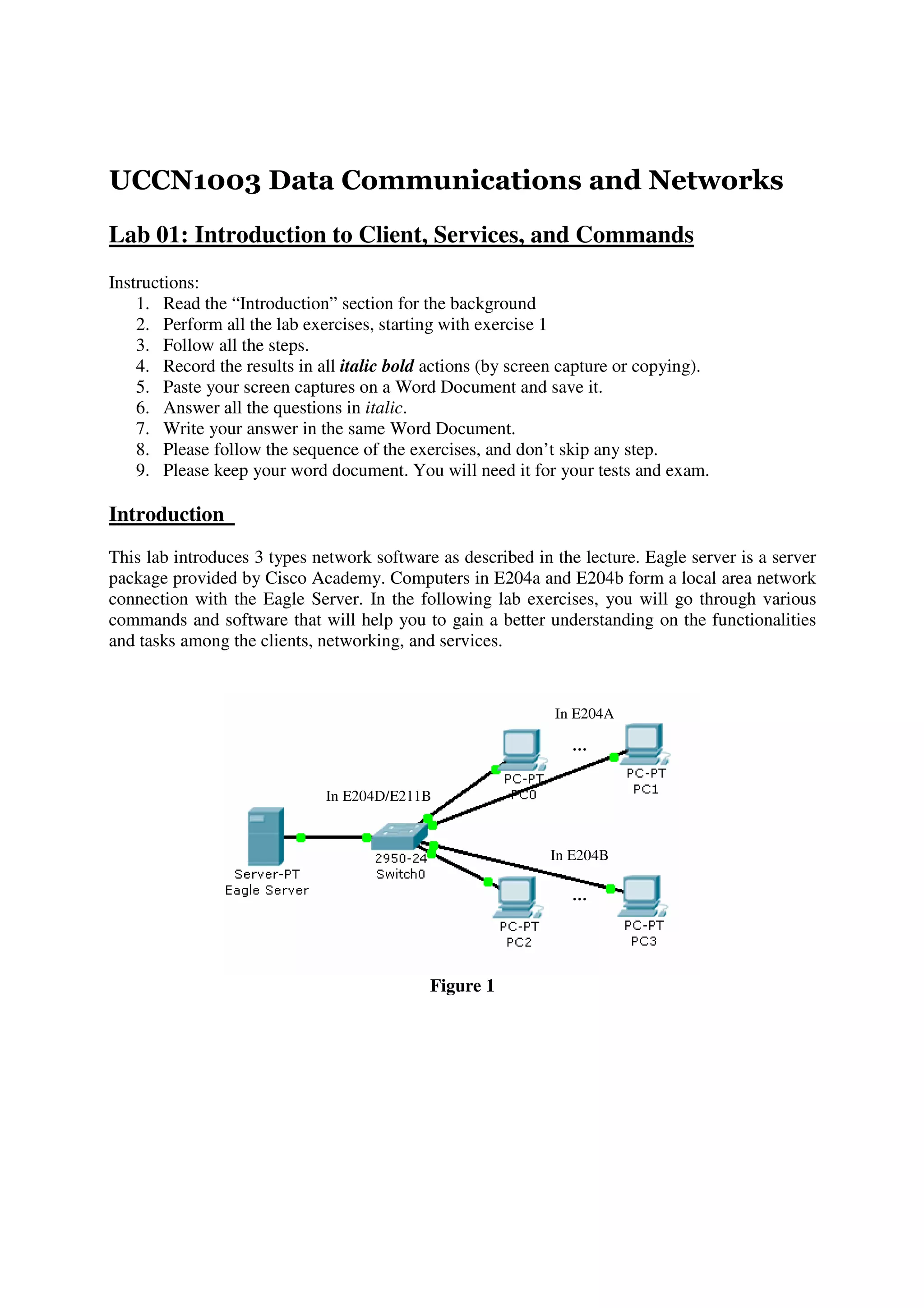
  7. The following is just an example that you should expect.


                                                                             Your IP address


                                          Figure 2

Exercise 2: Networking Commands – ping
  1. Find out the IP address of the Eagle server from your instructor.

  2. Type “ping {eagle_server_ip}”. This will perform a connectivity test between
     your PC and the Eagle Server. (Note: Please don’t blindly type in {eagle_server_ip}. This
     is an IP address).

  3. Make sure you have a successful ping before you proceed to exercise 3. If you have a
     “time out” in ping, ask your lab instructor to help you.
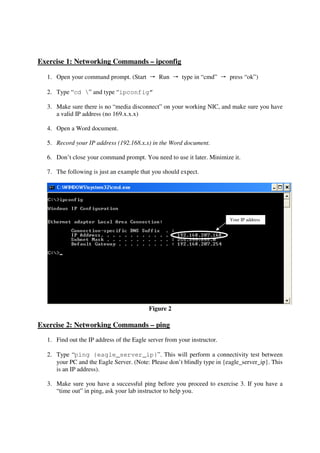
4. The following is just an example that you should expect.


                                             eagle_server_ip


                                         Figure 3

Exercise 3: Networking Software– nmap
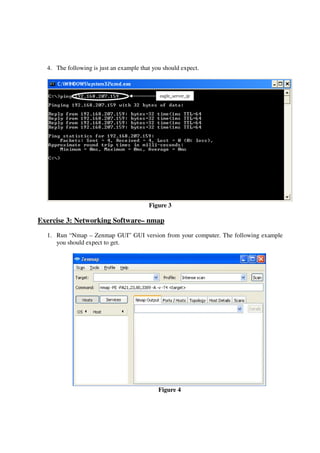
  1. Run “Nmap – Zenmap GUI” GUI version from your computer. The following example
     you should expect to get.


                                             Figure 4
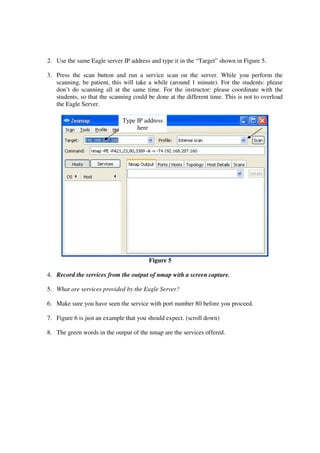
2. Use the same Eagle server IP address and type it in the “Target” shown in Figure 5.

3. Press the scan button and run a service scan on the server. While you perform the
   scanning, be patient, this will take a while (around 1 minute). For the students: please
   don’t do scanning all at the same time. For the instructor: please coordinate with the
   students, so that the scanning could be done at the different time. This is not to overload
   the Eagle Server.

                              Type IP address
                                   here


                                        Figure 5

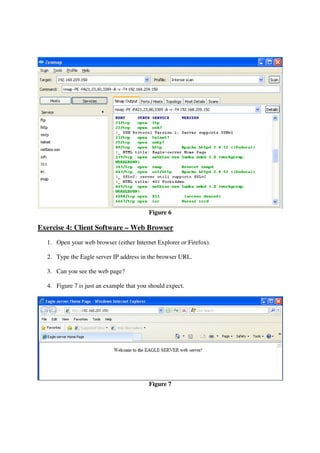
4. Record the services from the output of nmap with a screen capture.

5. What are services provided by the Eagle Server?

6. Make sure you have seen the service with port number 80 before you proceed.

7. Figure 6 is just an example that you should expect. (scroll down)

8. The green words in the output of the nmap are the services offered.
Figure 6

Exercise 4: Client Software – Web Browser
  1. Open your web browser (either Internet Explorer or Firefox).

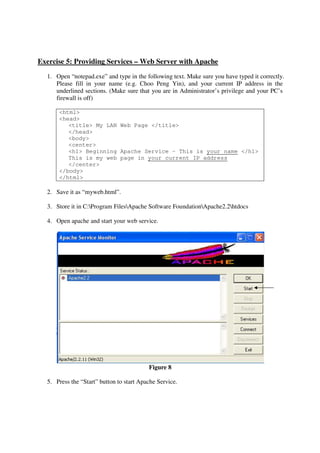
  2. Type the Eagle server IP address in the browser URL.

  3. Can you see the web page?

  4. Figure 7 is just an example that you should expect.


                                          Figure 7
Exercise 5: Providing Services – Web Server with Apache
  1. Open “notepad.exe” and type in the following text. Make sure you have typed it correctly.
     Please fill in your name (e.g. Choo Peng Yin), and your current IP address in the
     underlined sections. (Make sure that you are in Administrator’s privilege and your PC’s
     firewall is off)

      <html>
      <head>
         <title> My LAN Web Page </title>
         </head>
         <body>
         <center>
         <h1> Beginning Apache Service – This is your name </h1>
         This is my web page in your current IP address
         </center>
      </body>
      </html>

  2. Save it as “myweb.html”.

  3. Store it in C:Program FilesApache Software FoundationApache2.2htdocs

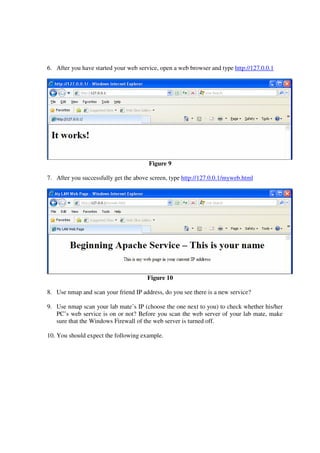
  4. Open apache and start your web service.


                                          Figure 8

  5. Press the “Start” button to start Apache Service.
6. After you have started your web service, open a web browser and type http://127.0.0.1


                                       Figure 9

7. After you successfully get the above screen, type http://127.0.0.1/myweb.html


                                      Figure 10

8. Use nmap and scan your friend IP address, do you see there is a new service?

9. Use nmap scan your lab mate’s IP (choose the one next to you) to check whether his/her
   PC’s web service is on or not? Before you scan the web server of your lab mate, make
   sure that the Windows Firewall of the web server is turned off.

10. You should expect the following example.
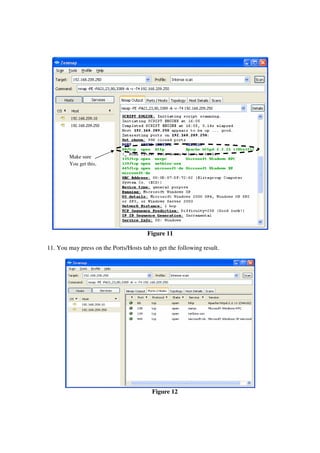
Make sure
        You get this.


                                        Figure 11

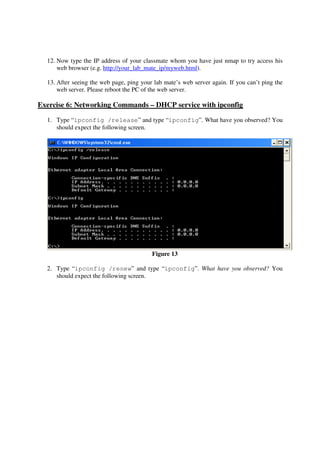
11. You may press on the Ports/Hosts tab to get the following result.


                                          Figure 12
12. Now type the IP address of your classmate whom you have just nmap to try access his
      web browser (e.g. http://your_lab_mate_ip/myweb.html).

  13. After seeing the web page, ping your lab mate’s web server again. If you can’t ping the
      web server. Please reboot the PC of the web server.

Exercise 6: Networking Commands – DHCP service with ipconfig

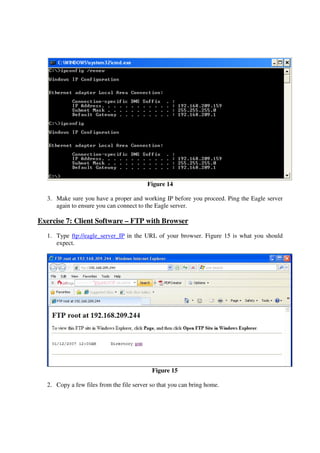
  1. Type “ipconfig /release” and type “ipconfig”. What have you observed? You
     should expect the following screen.


                                          Figure 13

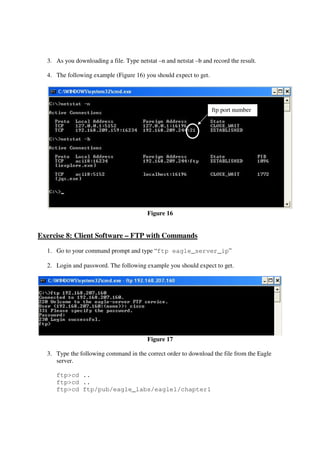
  2. Type “ipconfig /renew” and type “ipconfig”. What have you observed? You
     should expect the following screen.
Figure 14

  3. Make sure you have a proper and working IP before you proceed. Ping the Eagle server
     again to ensure you can connect to the Eagle server.

Exercise 7: Client Software – FTP with Browser
  1. Type ftp://eagle_server_IP in the URL of your browser. Figure 15 is what you should
     expect.


                                           Figure 15

  2. Copy a few files from the file server so that you can bring home.
3. As you downloading a file. Type netstat –n and netstat –b and record the result.

  4. The following example (Figure 16) you should expect to get.


                                                                   ftp port number


                                         Figure 16


Exercise 8: Client Software – FTP with Commands

  1. Go to your command prompt and type “ftp eagle_server_ip”

  2. Login and password. The following example you should expect to get.


                                         Figure 17

  3. Type the following command in the correct order to download the file from the Eagle
     server.

     ftp>cd ..
     ftp>cd ..
     ftp>cd ftp/pub/eagle_labs/eagle1/chapter1
4. Do “ls” and “get {file_name}”

   5. Type quit.

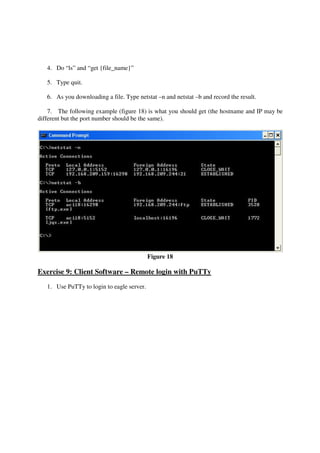
   6. As you downloading a file. Type netstat –n and netstat –b and record the result.

    7. The following example (figure 18) is what you should get (the hostname and IP may be
different but the port number should be the same).


                                            Figure 18

Exercise 9: Client Software – Remote login with PuTTy
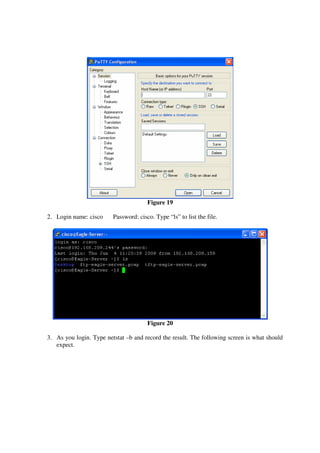
   1. Use PuTTy to login to eagle server.
Figure 19

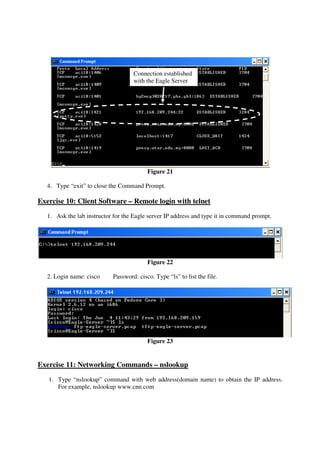
2. Login name: cisco     Password: cisco. Type “ls” to list the file.


                                       Figure 20

3. As you login. Type netstat –b and record the result. The following screen is what should
   expect.
Connection established
                                    with the Eagle Server


                                          Figure 21

   4. Type “exit” to close the Command Prompt.

Exercise 10: Client Software – Remote login with telnet
   1. Ask the lab instructor for the Eagle server IP address and type it in command prompt.


                                          Figure 22

   2. Login name: cisco     Password: cisco. Type “ls” to list the file.


                                          Figure 23


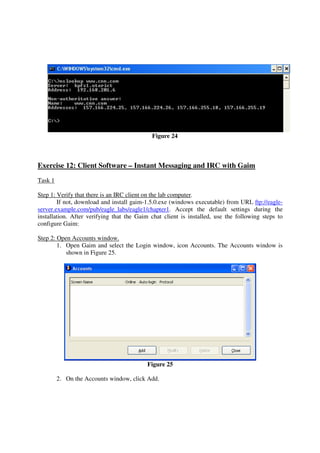
Exercise 11: Networking Commands – nslookup
   1. Type “nslookup” command with web address(domain name) to obtain the IP address.
      For example, nslookup www.cnn.com
Figure 24


Exercise 12: Client Software – Instant Messaging and IRC with Gaim
Task 1

Step 1: Verify that there is an IRC client on the lab computer.
        If not, download and install gaim-1.5.0.exe (windows executable) from URL ftp://eagle-
server.example.com/pub/eagle_labs/eagle1/chapter1. Accept the default settings during the
installation. After verifying that the Gaim chat client is installed, use the following steps to
configure Gaim:

Step 2: Open Accounts window.
        1. Open Gaim and select the Login window, icon Accounts. The Accounts window is
           shown in Figure 25.


                                          Figure 25

         2. On the Accounts window, click Add.
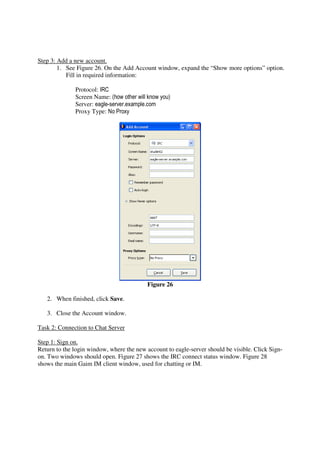
Step 3: Add a new account.
        1. See Figure 26. On the Add Account window, expand the “Show more options” option.
           Fill in required information:

              Protocol: IRC
              Screen Name: (how other will know you)
              Server: eagle-server.example.com
              Proxy Type: No Proxy


                                           Figure 26

   2. When finished, click Save.

   3. Close the Account window.

Task 2: Connection to Chat Server

Step 1: Sign on.
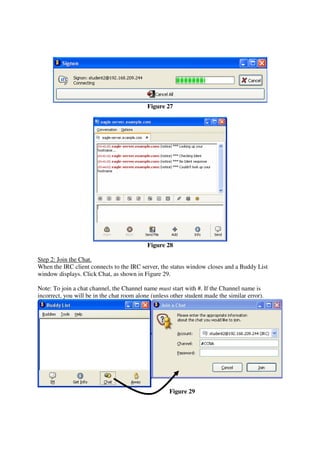
Return to the login window, where the new account to eagle-server should be visible. Click Sign-
on. Two windows should open. Figure 27 shows the IRC connect status window. Figure 28
shows the main Gaim IM client window, used for chatting or IM.
Figure 27


                                            Figure 28

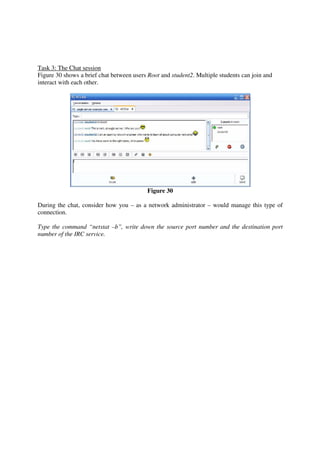
Step 2: Join the Chat.
When the IRC client connects to the IRC server, the status window closes and a Buddy List
window displays. Click Chat, as shown in Figure 29.

Note: To join a chat channel, the Channel name must start with #. If the Channel name is
incorrect, you will be in the chat room alone (unless other student made the similar error).


                                                     Figure 29
Task 3: The Chat session
Figure 30 shows a brief chat between users Root and student2. Multiple students can join and
interact with each other.


                                           Figure 30

During the chat, consider how you – as a network administrator – would manage this type of
connection.

Type the command “netstat –b”, write down the source port number and the destination port
number of the IRC service.

Uccn1003 -may10_-_lab_01_-_network_services_and_commands

  • 1.
    UCCN1003 Data Communicationsand Networks Lab 01: Introduction to Client, Services, and Commands Instructions: 1. Read the “Introduction” section for the background 2. Perform all the lab exercises, starting with exercise 1 3. Follow all the steps. 4. Record the results in all italic bold actions (by screen capture or copying). 5. Paste your screen captures on a Word Document and save it. 6. Answer all the questions in italic. 7. Write your answer in the same Word Document. 8. Please follow the sequence of the exercises, and don’t skip any step. 9. Please keep your word document. You will need it for your tests and exam. Introduction This lab introduces 3 types network software as described in the lecture. Eagle server is a server package provided by Cisco Academy. Computers in E204a and E204b form a local area network connection with the Eagle Server. In the following lab exercises, you will go through various commands and software that will help you to gain a better understanding on the functionalities and tasks among the clients, networking, and services. In E204A … In E204D/E211B In E204B … Figure 1
  • 2.
    Exercise 1: NetworkingCommands – ipconfig 1. Open your command prompt. (Start → Run → type in “cmd” → press “ok”) 2. Type “cd ” and type “ipconfig” 3. Make sure there is no “media disconnect” on your working NIC, and make sure you have a valid IP address (no 169.x.x.x) 4. Open a Word document. 5. Record your IP address (192.168.x.x) in the Word document. 6. Don’t close your command prompt. You need to use it later. Minimize it. 7. The following is just an example that you should expect. Your IP address Figure 2 Exercise 2: Networking Commands – ping 1. Find out the IP address of the Eagle server from your instructor. 2. Type “ping {eagle_server_ip}”. This will perform a connectivity test between your PC and the Eagle Server. (Note: Please don’t blindly type in {eagle_server_ip}. This is an IP address). 3. Make sure you have a successful ping before you proceed to exercise 3. If you have a “time out” in ping, ask your lab instructor to help you.
  • 3.
    4. The followingis just an example that you should expect. eagle_server_ip Figure 3 Exercise 3: Networking Software– nmap 1. Run “Nmap – Zenmap GUI” GUI version from your computer. The following example you should expect to get. Figure 4
  • 4.
    2. Use thesame Eagle server IP address and type it in the “Target” shown in Figure 5. 3. Press the scan button and run a service scan on the server. While you perform the scanning, be patient, this will take a while (around 1 minute). For the students: please don’t do scanning all at the same time. For the instructor: please coordinate with the students, so that the scanning could be done at the different time. This is not to overload the Eagle Server. Type IP address here Figure 5 4. Record the services from the output of nmap with a screen capture. 5. What are services provided by the Eagle Server? 6. Make sure you have seen the service with port number 80 before you proceed. 7. Figure 6 is just an example that you should expect. (scroll down) 8. The green words in the output of the nmap are the services offered.
  • 5.
    Figure 6 Exercise 4:Client Software – Web Browser 1. Open your web browser (either Internet Explorer or Firefox). 2. Type the Eagle server IP address in the browser URL. 3. Can you see the web page? 4. Figure 7 is just an example that you should expect. Figure 7
  • 6.
    Exercise 5: ProvidingServices – Web Server with Apache 1. Open “notepad.exe” and type in the following text. Make sure you have typed it correctly. Please fill in your name (e.g. Choo Peng Yin), and your current IP address in the underlined sections. (Make sure that you are in Administrator’s privilege and your PC’s firewall is off) <html> <head> <title> My LAN Web Page </title> </head> <body> <center> <h1> Beginning Apache Service – This is your name </h1> This is my web page in your current IP address </center> </body> </html> 2. Save it as “myweb.html”. 3. Store it in C:Program FilesApache Software FoundationApache2.2htdocs 4. Open apache and start your web service. Figure 8 5. Press the “Start” button to start Apache Service.
  • 7.
    6. After youhave started your web service, open a web browser and type http://127.0.0.1 Figure 9 7. After you successfully get the above screen, type http://127.0.0.1/myweb.html Figure 10 8. Use nmap and scan your friend IP address, do you see there is a new service? 9. Use nmap scan your lab mate’s IP (choose the one next to you) to check whether his/her PC’s web service is on or not? Before you scan the web server of your lab mate, make sure that the Windows Firewall of the web server is turned off. 10. You should expect the following example.
  • 8.
    Make sure You get this. Figure 11 11. You may press on the Ports/Hosts tab to get the following result. Figure 12
  • 9.
    12. Now typethe IP address of your classmate whom you have just nmap to try access his web browser (e.g. http://your_lab_mate_ip/myweb.html). 13. After seeing the web page, ping your lab mate’s web server again. If you can’t ping the web server. Please reboot the PC of the web server. Exercise 6: Networking Commands – DHCP service with ipconfig 1. Type “ipconfig /release” and type “ipconfig”. What have you observed? You should expect the following screen. Figure 13 2. Type “ipconfig /renew” and type “ipconfig”. What have you observed? You should expect the following screen.
  • 10.
    Figure 14 3. Make sure you have a proper and working IP before you proceed. Ping the Eagle server again to ensure you can connect to the Eagle server. Exercise 7: Client Software – FTP with Browser 1. Type ftp://eagle_server_IP in the URL of your browser. Figure 15 is what you should expect. Figure 15 2. Copy a few files from the file server so that you can bring home.
  • 11.
    3. As youdownloading a file. Type netstat –n and netstat –b and record the result. 4. The following example (Figure 16) you should expect to get. ftp port number Figure 16 Exercise 8: Client Software – FTP with Commands 1. Go to your command prompt and type “ftp eagle_server_ip” 2. Login and password. The following example you should expect to get. Figure 17 3. Type the following command in the correct order to download the file from the Eagle server. ftp>cd .. ftp>cd .. ftp>cd ftp/pub/eagle_labs/eagle1/chapter1
  • 12.
    4. Do “ls”and “get {file_name}” 5. Type quit. 6. As you downloading a file. Type netstat –n and netstat –b and record the result. 7. The following example (figure 18) is what you should get (the hostname and IP may be different but the port number should be the same). Figure 18 Exercise 9: Client Software – Remote login with PuTTy 1. Use PuTTy to login to eagle server.
  • 13.
    Figure 19 2. Loginname: cisco Password: cisco. Type “ls” to list the file. Figure 20 3. As you login. Type netstat –b and record the result. The following screen is what should expect.
  • 14.
    Connection established with the Eagle Server Figure 21 4. Type “exit” to close the Command Prompt. Exercise 10: Client Software – Remote login with telnet 1. Ask the lab instructor for the Eagle server IP address and type it in command prompt. Figure 22 2. Login name: cisco Password: cisco. Type “ls” to list the file. Figure 23 Exercise 11: Networking Commands – nslookup 1. Type “nslookup” command with web address(domain name) to obtain the IP address. For example, nslookup www.cnn.com
  • 15.
    Figure 24 Exercise 12:Client Software – Instant Messaging and IRC with Gaim Task 1 Step 1: Verify that there is an IRC client on the lab computer. If not, download and install gaim-1.5.0.exe (windows executable) from URL ftp://eagle- server.example.com/pub/eagle_labs/eagle1/chapter1. Accept the default settings during the installation. After verifying that the Gaim chat client is installed, use the following steps to configure Gaim: Step 2: Open Accounts window. 1. Open Gaim and select the Login window, icon Accounts. The Accounts window is shown in Figure 25. Figure 25 2. On the Accounts window, click Add.
  • 16.
    Step 3: Adda new account. 1. See Figure 26. On the Add Account window, expand the “Show more options” option. Fill in required information: Protocol: IRC Screen Name: (how other will know you) Server: eagle-server.example.com Proxy Type: No Proxy Figure 26 2. When finished, click Save. 3. Close the Account window. Task 2: Connection to Chat Server Step 1: Sign on. Return to the login window, where the new account to eagle-server should be visible. Click Sign- on. Two windows should open. Figure 27 shows the IRC connect status window. Figure 28 shows the main Gaim IM client window, used for chatting or IM.
  • 17.
    Figure 27 Figure 28 Step 2: Join the Chat. When the IRC client connects to the IRC server, the status window closes and a Buddy List window displays. Click Chat, as shown in Figure 29. Note: To join a chat channel, the Channel name must start with #. If the Channel name is incorrect, you will be in the chat room alone (unless other student made the similar error). Figure 29
  • 18.
    Task 3: TheChat session Figure 30 shows a brief chat between users Root and student2. Multiple students can join and interact with each other. Figure 30 During the chat, consider how you – as a network administrator – would manage this type of connection. Type the command “netstat –b”, write down the source port number and the destination port number of the IRC service.