and its Implementation in Android
+sidiqpermana
@nouvrizky10
A passionate developer who
loves coding, teaching,
travelling and diving so much.
Cofounder & CIO Nusantara Beta Studio
Intel Software Innovator
Google Developer Expert
Introduction to Firebase
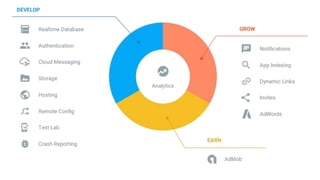
Firebase is a mobile platform that helps you
quickly develop high-quality apps, grow your
user base, and earn more money. Firebase is
made up of complementary features that you
can mix-and-match to fit your needs.
Firebase has shifted from the Backend as a Service to Unified App Platform
Forget about the backend and
infrastructure complexity Easy to Track the app
Analytics and Free forever
Run on
Your beloved languages!
Makes your life app development easier
Let’s Talk About Firebase
Code
What We’ll gonna do
Sync data using the Firebase Realtime Database.
Receive background messages with Firebase Notifications.
Configure an application with Firebase Remote Config.
Track application usage flows with Firebase Analytics.
Allow users to send invitations to install with Firebase Invites.
Report crashes with Firebase Crash Reporting.
Test your app with Firebase Test Lab.
You could also try the CodeLab : https://codelabs.developers.google.com/codelabs/firebase-
https://goo.gl/ioU9FB
Go to the links to see how the app works.
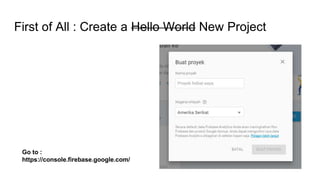
First of All : Create a Hello World New Project
Go to :
https://console.firebase.google.com/
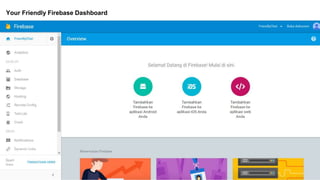
Your Friendly Firebase Dashboard
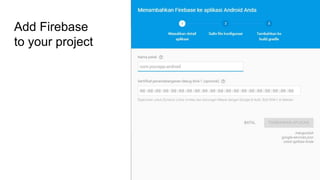
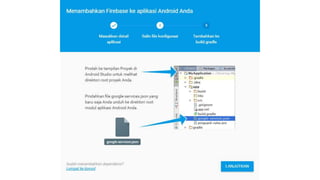
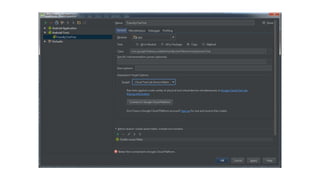
Add Firebase
to your project
C:Program FilesJavajdk1.8.0_40bin>keytool.exe -exportcert -alias androiddebu
gkey -keystore "C:/debug.keystore" -list -v -storepass android
Alias name: androiddebugkey
Creation date: 05 Apr 15
Entry type: PrivateKeyEntry
Certificate chain length: 1
Certificate[1]:
Owner: CN=Android Debug, O=Android, C=US
Issuer: CN=Android Debug, O=Android, C=US
Serial number: 1832afe8
Valid from: Sun Apr 05 23:19:45 ICT 2015 until: Tue Mar 28 23:19:45 ICT 2045
Certificate fingerprints:
MD5: CC:A1:BC:33:63:E0:BB:70:24:D2:C4:42:44:16:D1:C5
SHA1: BE:19:F6:EE:74:9F:0D:80:42:56:ED:A6:01:8B:1F:60:ED:F0:F4:24
SHA256: D6:86:58:8F:4B:57:DB:6A:57:6F:0C:1E:70:26:7F:C8:A6:C2:92:EF:7D:
72:E1:25:55:81:40:D6:EE:CE:0E:83
Signature algorithm name: SHA256withRSA
Version: 3
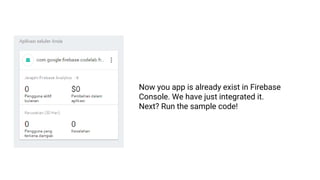
Now you app is already exist in Firebase
Console. We have just integrated it.
Next? Run the sample code!
Grab the code on :
$ git clone https://github.com/firebase/friendlychat
Then Import the Android-Start Project to your beloved Android Studio
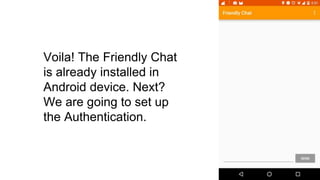
Voila! The Friendly Chat
is already installed in
Android device. Next?
We are going to set up
the Authentication.
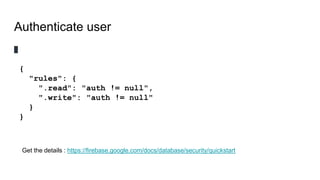
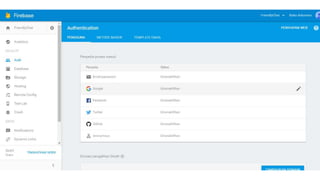
Authenticate user
{
"rules": {
".read": "auth != null",
".write": "auth != null"
}
}
Get the details : https://firebase.google.com/docs/database/security/quickstart
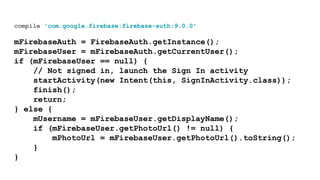
compile 'com.google.firebase:firebase-auth:9.0.0'
mFirebaseAuth = FirebaseAuth.getInstance();
mFirebaseUser = mFirebaseAuth.getCurrentUser();
if (mFirebaseUser == null) {
// Not signed in, launch the Sign In activity
startActivity(new Intent(this, SignInActivity.class));
finish();
return;
} else {
mUsername = mFirebaseUser.getDisplayName();
if (mFirebaseUser.getPhotoUrl() != null) {
mPhotoUrl = mFirebaseUser.getPhotoUrl().toString();
}
}
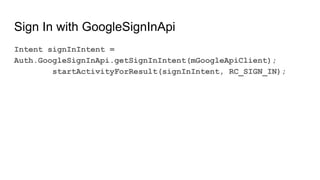
Sign In with GoogleSignInApi
Intent signInIntent =
Auth.GoogleSignInApi.getSignInIntent(mGoogleApiClient);
startActivityForResult(signInIntent, RC_SIGN_IN);
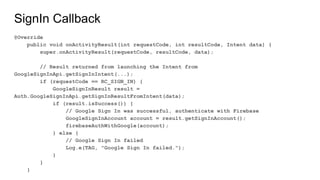
SignIn Callback
@Override
public void onActivityResult(int requestCode, int resultCode, Intent data) {
super.onActivityResult(requestCode, resultCode, data);
// Result returned from launching the Intent from
GoogleSignInApi.getSignInIntent(...);
if (requestCode == RC_SIGN_IN) {
GoogleSignInResult result =
Auth.GoogleSignInApi.getSignInResultFromIntent(data);
if (result.isSuccess()) {
// Google Sign In was successful, authenticate with Firebase
GoogleSignInAccount account = result.getSignInAccount();
firebaseAuthWithGoogle(account);
} else {
// Google Sign In failed
Log.e(TAG, "Google Sign In failed.");
}
}
}
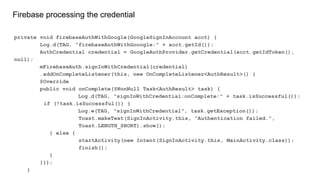
Firebase processing the credential
private void firebaseAuthWithGoogle(GoogleSignInAccount acct) {
Log.d(TAG, "firebaseAuthWithGooogle:" + acct.getId());
AuthCredential credential = GoogleAuthProvider.getCredential(acct.getIdToken(),
null);
mFirebaseAuth.signInWithCredential(credential)
.addOnCompleteListener(this, new OnCompleteListener<AuthResult>() {
@Override
public void onComplete(@NonNull Task<AuthResult> task) {
Log.d(TAG, "signInWithCredential:onComplete:" + task.isSuccessful());
if (!task.isSuccessful()) {
Log.w(TAG, "signInWithCredential", task.getException());
Toast.makeText(SignInActivity.this, "Authentication failed.",
Toast.LENGTH_SHORT).show();
} else {
startActivity(new Intent(SignInActivity.this, MainActivity.class));
finish();
}
}});
}
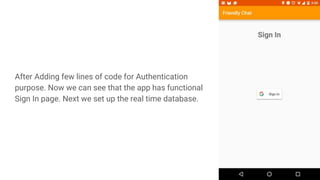
After Adding few lines of code for Authentication
purpose. Now we can see that the app has functional
Sign In page. Next we set up the real time database.
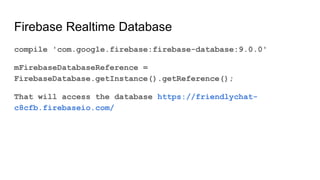
Firebase Realtime Database
compile 'com.google.firebase:firebase-database:9.0.0'
mFirebaseDatabaseReference =
FirebaseDatabase.getInstance().getReference();
That will access the database https://friendlychat-
c8cfb.firebaseio.com/
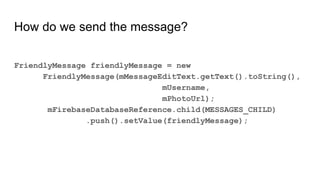
How do we send the message?
FriendlyMessage friendlyMessage = new
FriendlyMessage(mMessageEditText.getText().toString(),
mUsername,
mPhotoUrl);
mFirebaseDatabaseReference.child(MESSAGES_CHILD)
.push().setValue(friendlyMessage);
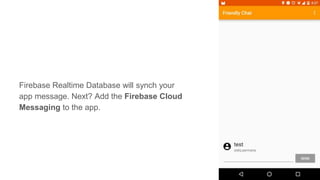
Firebase Realtime Database will synch your
app message. Next? Add the Firebase Cloud
Messaging to the app.
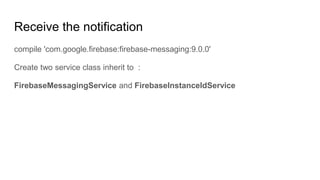
Receive the notification
compile 'com.google.firebase:firebase-messaging:9.0.0'
Create two service class inherit to :
FirebaseMessagingService and FirebaseInstanceIdService
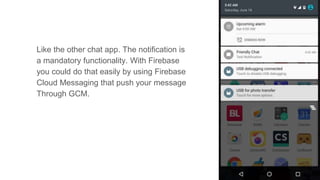
Like the other chat app. The notification is
a mandatory functionality. With Firebase
you could do that easily by using Firebase
Cloud Messaging that push your message
Through GCM.
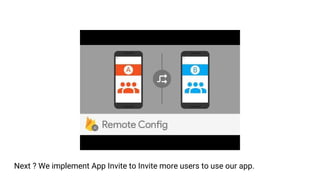
The awesome one : Firebase Remote Config
Feature
Firebase Remote Config gives you instantly-updatable variables that you can use
to tune and customize your app on the fly to deliver the best experience to your
users. You can enable or disable features or change the look and feel without
having to publish a new version. You can also target configurations to specific
Firebase Analytics Audiences so that each of your users has an experience that’s
tailored for them.
Next ? We implement App Invite to Invite more users to use our app.
Show me the code
Put the dependency : compile 'com.google.firebase:firebase-config:9.0.0'
// Initialize Firebase Remote Config.
mFirebaseRemoteConfig = FirebaseRemoteConfig.getInstance();
// Define Firebase Remote Config Settings.
FirebaseRemoteConfigSettings firebaseRemoteConfigSettings =
new FirebaseRemoteConfigSettings.Builder()
.setDeveloperModeEnabled(true)
.build();
// Define default config values. Defaults are used when fetched config values are not
// available. Eg: if an error occurred fetching values from the server.
Map<String, Object> defaultConfigMap = new HashMap<>();
defaultConfigMap.put("friendly_msg_length", 10L);
// Apply config settings and default values.
mFirebaseRemoteConfig.setConfigSettings(firebaseRemoteConfigSettings);
mFirebaseRemoteConfig.setDefaults(defaultConfigMap);
// Fetch remote config.
fetchConfig();
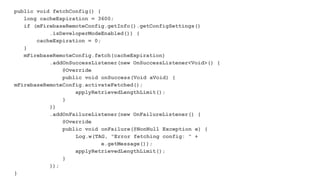
public void fetchConfig() {
long cacheExpiration = 3600;
if (mFirebaseRemoteConfig.getInfo().getConfigSettings()
.isDeveloperModeEnabled()) {
cacheExpiration = 0;
}
mFirebaseRemoteConfig.fetch(cacheExpiration)
.addOnSuccessListener(new OnSuccessListener<Void>() {
@Override
public void onSuccess(Void aVoid) {
mFirebaseRemoteConfig.activateFetched();
applyRetrievedLengthLimit();
}
})
.addOnFailureListener(new OnFailureListener() {
@Override
public void onFailure(@NonNull Exception e) {
Log.w(TAG, "Error fetching config: " +
e.getMessage());
applyRetrievedLengthLimit();
}
});
}
private void applyRetrievedLengthLimit() {
Long friendly_msg_length =
mFirebaseRemoteConfig.getLong("friendly_msg_length");
mMessageEditText.setFilters(new InputFilter[]{new
InputFilter.LengthFilter(friendly_msg_length.intValue())});
Log.d(TAG, "FML is: " + friendly_msg_length);
}
We apply the changes in that method
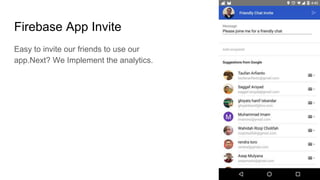
Firebase App Invite
Easy to invite our friends to use our
app.Next? We Implement the analytics.
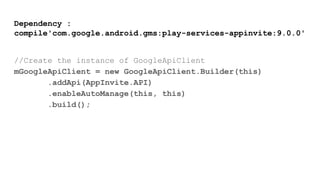
Dependency :
compile'com.google.android.gms:play-services-appinvite:9.0.0'
//Create the instance of GoogleApiClient
mGoogleApiClient = new GoogleApiClient.Builder(this)
.addApi(AppInvite.API)
.enableAutoManage(this, this)
.build();
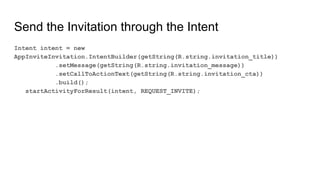
Send the Invitation through the Intent
Intent intent = new
AppInviteInvitation.IntentBuilder(getString(R.string.invitation_title))
.setMessage(getString(R.string.invitation_message))
.setCallToActionText(getString(R.string.invitation_cta))
.build();
startActivityForResult(intent, REQUEST_INVITE);
The callback
@Override
protected void onActivityResult(int requestCode, int resultCode, Intent data) {
super.onActivityResult(requestCode, resultCode, data);
Log.d(TAG, "onActivityResult: requestCode=" + requestCode +
", resultCode=" + resultCode);
if (requestCode == REQUEST_INVITE) {
if (resultCode == RESULT_OK) {
// Check how many invitations were sent.
String[] ids = AppInviteInvitation
.getInvitationIds(resultCode, data);
Log.d(TAG, "Invitations sent: " + ids.length);
} else {
// Sending failed or it was canceled, show failure message to
// the user
Log.d(TAG, "Failed to send invitation.");
}
}
}
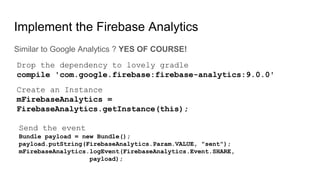
Implement the Firebase Analytics
Similar to Google Analytics ? YES OF COURSE!
Drop the dependency to lovely gradle
compile 'com.google.firebase:firebase-analytics:9.0.0'
Create an Instance
mFirebaseAnalytics =
FirebaseAnalytics.getInstance(this);
Send the event
Bundle payload = new Bundle();
payload.putString(FirebaseAnalytics.Param.VALUE, "sent");
mFirebaseAnalytics.logEvent(FirebaseAnalytics.Event.SHARE,
payload);
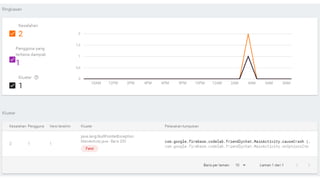
Implement Firebase Report Crashes (beta)
Just the dependency :
compile 'com.google.firebase:firebase-crash:9.0.0'
Test App in The Cloud
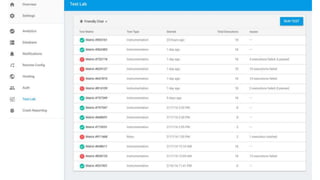
Firebase Test Lab lets you test your app on various types of Android devices
across multiple API levels and locales. The best part is that all this testing
happens automatically in the cloud without you needing to maintain a collection of
test devices.
Unfortunately this is the Freemium Feature :D.
You should upgrade your package to Blaze.
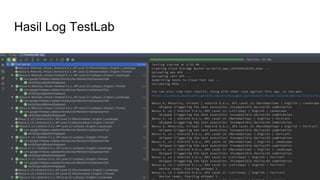
Hasil Log TestLab
Firebase Dynamic Links
Firebase Dynamic Links are smart URLs that dynamically change behavior to provide the best experience across
different platforms.
Dynamic Links can link to different content depending on the platform they're opened on. In addition, Dynamic Links
work across app installs: if a user opens a Dynamic Link and doesn't have your app installed, the user can be prompted
to install it; then, after installation, your app starts and can access the link.
It works with App Invite.
Dependency :
compile 'com.google.firebase:firebase-invites:9.0.2'
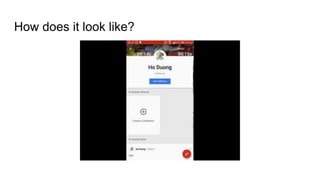
How does it look like?
Conclusion
The new Firebase platform will make your life app development becomes easier.
It contains a bunch of Tools, easy to use and well documented although several of
them still need enhancement.
These are useful resources:
https://firebase.google.com/docs/
https://codelabs.developers.google.com/codelabs/firebase-android
https://www.udacity.com/course/firebase-essentials-for-android--ud009
And Give a try to Firebase :)
Thanks

I/O Extended (GDG Bogor) - Sidiq Permana

  • 1.
    and its Implementationin Android +sidiqpermana @nouvrizky10
  • 2.
    A passionate developerwho loves coding, teaching, travelling and diving so much. Cofounder & CIO Nusantara Beta Studio Intel Software Innovator Google Developer Expert
  • 3.
    Introduction to Firebase Firebaseis a mobile platform that helps you quickly develop high-quality apps, grow your user base, and earn more money. Firebase is made up of complementary features that you can mix-and-match to fit your needs.
  • 5.
    Firebase has shiftedfrom the Backend as a Service to Unified App Platform
  • 6.
    Forget about thebackend and infrastructure complexity Easy to Track the app Analytics and Free forever Run on Your beloved languages! Makes your life app development easier
  • 7.
    Let’s Talk AboutFirebase Code
  • 8.
    What We’ll gonnado Sync data using the Firebase Realtime Database. Receive background messages with Firebase Notifications. Configure an application with Firebase Remote Config. Track application usage flows with Firebase Analytics. Allow users to send invitations to install with Firebase Invites. Report crashes with Firebase Crash Reporting. Test your app with Firebase Test Lab. You could also try the CodeLab : https://codelabs.developers.google.com/codelabs/firebase-
  • 9.
    https://goo.gl/ioU9FB Go to thelinks to see how the app works.
  • 10.
    First of All: Create a Hello World New Project Go to : https://console.firebase.google.com/
  • 11.
  • 12.
  • 13.
    C:Program FilesJavajdk1.8.0_40bin>keytool.exe -exportcert-alias androiddebu gkey -keystore "C:/debug.keystore" -list -v -storepass android Alias name: androiddebugkey Creation date: 05 Apr 15 Entry type: PrivateKeyEntry Certificate chain length: 1 Certificate[1]: Owner: CN=Android Debug, O=Android, C=US Issuer: CN=Android Debug, O=Android, C=US Serial number: 1832afe8 Valid from: Sun Apr 05 23:19:45 ICT 2015 until: Tue Mar 28 23:19:45 ICT 2045 Certificate fingerprints: MD5: CC:A1:BC:33:63:E0:BB:70:24:D2:C4:42:44:16:D1:C5 SHA1: BE:19:F6:EE:74:9F:0D:80:42:56:ED:A6:01:8B:1F:60:ED:F0:F4:24 SHA256: D6:86:58:8F:4B:57:DB:6A:57:6F:0C:1E:70:26:7F:C8:A6:C2:92:EF:7D: 72:E1:25:55:81:40:D6:EE:CE:0E:83 Signature algorithm name: SHA256withRSA Version: 3
  • 15.
    Now you appis already exist in Firebase Console. We have just integrated it. Next? Run the sample code!
  • 16.
    Grab the codeon : $ git clone https://github.com/firebase/friendlychat Then Import the Android-Start Project to your beloved Android Studio
  • 17.
    Voila! The FriendlyChat is already installed in Android device. Next? We are going to set up the Authentication.
  • 18.
    Authenticate user { "rules": { ".read":"auth != null", ".write": "auth != null" } } Get the details : https://firebase.google.com/docs/database/security/quickstart
  • 20.
    compile 'com.google.firebase:firebase-auth:9.0.0' mFirebaseAuth =FirebaseAuth.getInstance(); mFirebaseUser = mFirebaseAuth.getCurrentUser(); if (mFirebaseUser == null) { // Not signed in, launch the Sign In activity startActivity(new Intent(this, SignInActivity.class)); finish(); return; } else { mUsername = mFirebaseUser.getDisplayName(); if (mFirebaseUser.getPhotoUrl() != null) { mPhotoUrl = mFirebaseUser.getPhotoUrl().toString(); } }
  • 21.
    Sign In withGoogleSignInApi Intent signInIntent = Auth.GoogleSignInApi.getSignInIntent(mGoogleApiClient); startActivityForResult(signInIntent, RC_SIGN_IN);
  • 22.
    SignIn Callback @Override public voidonActivityResult(int requestCode, int resultCode, Intent data) { super.onActivityResult(requestCode, resultCode, data); // Result returned from launching the Intent from GoogleSignInApi.getSignInIntent(...); if (requestCode == RC_SIGN_IN) { GoogleSignInResult result = Auth.GoogleSignInApi.getSignInResultFromIntent(data); if (result.isSuccess()) { // Google Sign In was successful, authenticate with Firebase GoogleSignInAccount account = result.getSignInAccount(); firebaseAuthWithGoogle(account); } else { // Google Sign In failed Log.e(TAG, "Google Sign In failed."); } } }
  • 23.
    Firebase processing thecredential private void firebaseAuthWithGoogle(GoogleSignInAccount acct) { Log.d(TAG, "firebaseAuthWithGooogle:" + acct.getId()); AuthCredential credential = GoogleAuthProvider.getCredential(acct.getIdToken(), null); mFirebaseAuth.signInWithCredential(credential) .addOnCompleteListener(this, new OnCompleteListener<AuthResult>() { @Override public void onComplete(@NonNull Task<AuthResult> task) { Log.d(TAG, "signInWithCredential:onComplete:" + task.isSuccessful()); if (!task.isSuccessful()) { Log.w(TAG, "signInWithCredential", task.getException()); Toast.makeText(SignInActivity.this, "Authentication failed.", Toast.LENGTH_SHORT).show(); } else { startActivity(new Intent(SignInActivity.this, MainActivity.class)); finish(); } }}); }
  • 24.
    After Adding fewlines of code for Authentication purpose. Now we can see that the app has functional Sign In page. Next we set up the real time database.
  • 25.
    Firebase Realtime Database compile'com.google.firebase:firebase-database:9.0.0' mFirebaseDatabaseReference = FirebaseDatabase.getInstance().getReference(); That will access the database https://friendlychat- c8cfb.firebaseio.com/
  • 26.
    How do wesend the message? FriendlyMessage friendlyMessage = new FriendlyMessage(mMessageEditText.getText().toString(), mUsername, mPhotoUrl); mFirebaseDatabaseReference.child(MESSAGES_CHILD) .push().setValue(friendlyMessage);
  • 27.
    Firebase Realtime Databasewill synch your app message. Next? Add the Firebase Cloud Messaging to the app.
  • 28.
    Receive the notification compile'com.google.firebase:firebase-messaging:9.0.0' Create two service class inherit to : FirebaseMessagingService and FirebaseInstanceIdService
  • 29.
    Like the otherchat app. The notification is a mandatory functionality. With Firebase you could do that easily by using Firebase Cloud Messaging that push your message Through GCM.
  • 30.
    The awesome one: Firebase Remote Config Feature Firebase Remote Config gives you instantly-updatable variables that you can use to tune and customize your app on the fly to deliver the best experience to your users. You can enable or disable features or change the look and feel without having to publish a new version. You can also target configurations to specific Firebase Analytics Audiences so that each of your users has an experience that’s tailored for them.
  • 31.
    Next ? Weimplement App Invite to Invite more users to use our app.
  • 32.
    Show me thecode Put the dependency : compile 'com.google.firebase:firebase-config:9.0.0' // Initialize Firebase Remote Config. mFirebaseRemoteConfig = FirebaseRemoteConfig.getInstance(); // Define Firebase Remote Config Settings. FirebaseRemoteConfigSettings firebaseRemoteConfigSettings = new FirebaseRemoteConfigSettings.Builder() .setDeveloperModeEnabled(true) .build(); // Define default config values. Defaults are used when fetched config values are not // available. Eg: if an error occurred fetching values from the server. Map<String, Object> defaultConfigMap = new HashMap<>(); defaultConfigMap.put("friendly_msg_length", 10L); // Apply config settings and default values. mFirebaseRemoteConfig.setConfigSettings(firebaseRemoteConfigSettings); mFirebaseRemoteConfig.setDefaults(defaultConfigMap); // Fetch remote config. fetchConfig();
  • 33.
    public void fetchConfig(){ long cacheExpiration = 3600; if (mFirebaseRemoteConfig.getInfo().getConfigSettings() .isDeveloperModeEnabled()) { cacheExpiration = 0; } mFirebaseRemoteConfig.fetch(cacheExpiration) .addOnSuccessListener(new OnSuccessListener<Void>() { @Override public void onSuccess(Void aVoid) { mFirebaseRemoteConfig.activateFetched(); applyRetrievedLengthLimit(); } }) .addOnFailureListener(new OnFailureListener() { @Override public void onFailure(@NonNull Exception e) { Log.w(TAG, "Error fetching config: " + e.getMessage()); applyRetrievedLengthLimit(); } }); }
  • 34.
    private void applyRetrievedLengthLimit(){ Long friendly_msg_length = mFirebaseRemoteConfig.getLong("friendly_msg_length"); mMessageEditText.setFilters(new InputFilter[]{new InputFilter.LengthFilter(friendly_msg_length.intValue())}); Log.d(TAG, "FML is: " + friendly_msg_length); } We apply the changes in that method
  • 35.
    Firebase App Invite Easyto invite our friends to use our app.Next? We Implement the analytics.
  • 36.
    Dependency : compile'com.google.android.gms:play-services-appinvite:9.0.0' //Create theinstance of GoogleApiClient mGoogleApiClient = new GoogleApiClient.Builder(this) .addApi(AppInvite.API) .enableAutoManage(this, this) .build();
  • 37.
    Send the Invitationthrough the Intent Intent intent = new AppInviteInvitation.IntentBuilder(getString(R.string.invitation_title)) .setMessage(getString(R.string.invitation_message)) .setCallToActionText(getString(R.string.invitation_cta)) .build(); startActivityForResult(intent, REQUEST_INVITE);
  • 38.
    The callback @Override protected voidonActivityResult(int requestCode, int resultCode, Intent data) { super.onActivityResult(requestCode, resultCode, data); Log.d(TAG, "onActivityResult: requestCode=" + requestCode + ", resultCode=" + resultCode); if (requestCode == REQUEST_INVITE) { if (resultCode == RESULT_OK) { // Check how many invitations were sent. String[] ids = AppInviteInvitation .getInvitationIds(resultCode, data); Log.d(TAG, "Invitations sent: " + ids.length); } else { // Sending failed or it was canceled, show failure message to // the user Log.d(TAG, "Failed to send invitation."); } } }
  • 39.
    Implement the FirebaseAnalytics Similar to Google Analytics ? YES OF COURSE! Drop the dependency to lovely gradle compile 'com.google.firebase:firebase-analytics:9.0.0' Create an Instance mFirebaseAnalytics = FirebaseAnalytics.getInstance(this); Send the event Bundle payload = new Bundle(); payload.putString(FirebaseAnalytics.Param.VALUE, "sent"); mFirebaseAnalytics.logEvent(FirebaseAnalytics.Event.SHARE, payload);
  • 40.
    Implement Firebase ReportCrashes (beta) Just the dependency : compile 'com.google.firebase:firebase-crash:9.0.0'
  • 42.
    Test App inThe Cloud Firebase Test Lab lets you test your app on various types of Android devices across multiple API levels and locales. The best part is that all this testing happens automatically in the cloud without you needing to maintain a collection of test devices. Unfortunately this is the Freemium Feature :D. You should upgrade your package to Blaze.
  • 44.
  • 46.
    Firebase Dynamic Links FirebaseDynamic Links are smart URLs that dynamically change behavior to provide the best experience across different platforms. Dynamic Links can link to different content depending on the platform they're opened on. In addition, Dynamic Links work across app installs: if a user opens a Dynamic Link and doesn't have your app installed, the user can be prompted to install it; then, after installation, your app starts and can access the link. It works with App Invite. Dependency : compile 'com.google.firebase:firebase-invites:9.0.2'
  • 47.
    How does itlook like?
  • 48.
    Conclusion The new Firebaseplatform will make your life app development becomes easier. It contains a bunch of Tools, easy to use and well documented although several of them still need enhancement. These are useful resources: https://firebase.google.com/docs/ https://codelabs.developers.google.com/codelabs/firebase-android https://www.udacity.com/course/firebase-essentials-for-android--ud009 And Give a try to Firebase :)
  • 49.