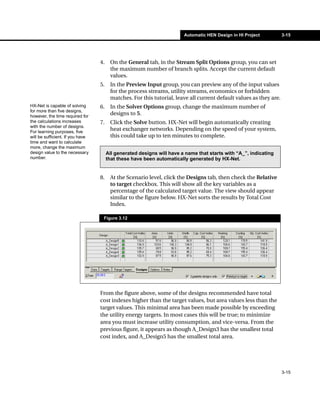
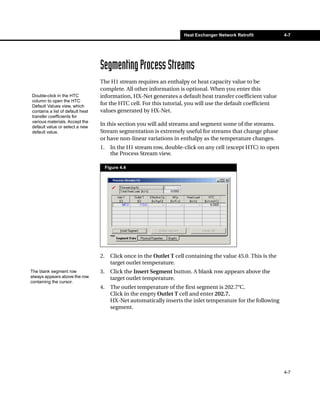
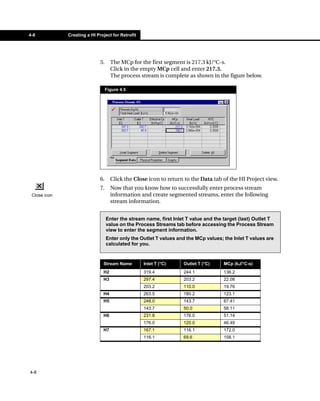
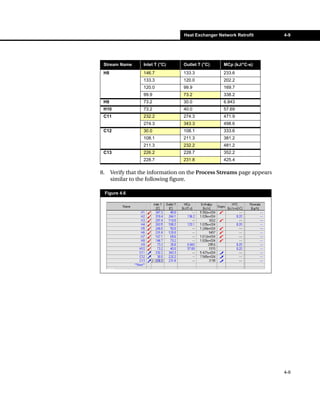
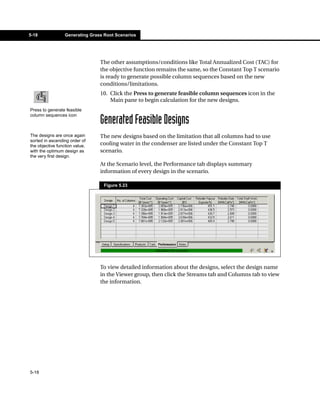
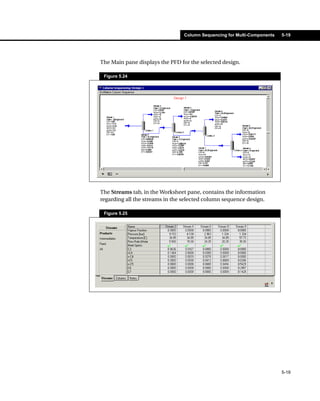
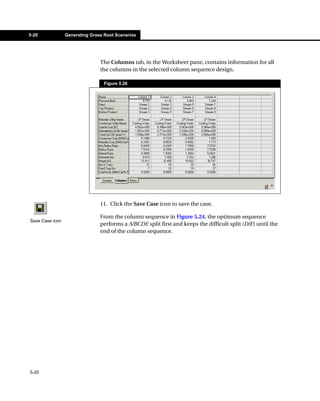
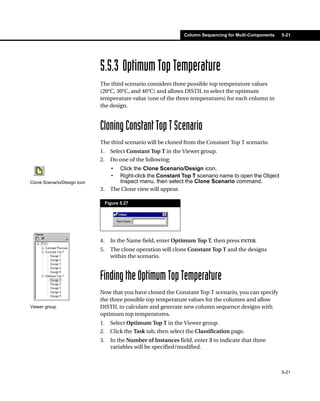
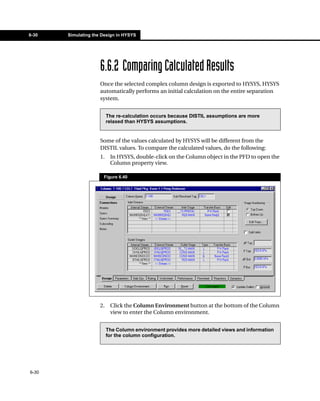
Conceptual Engineering
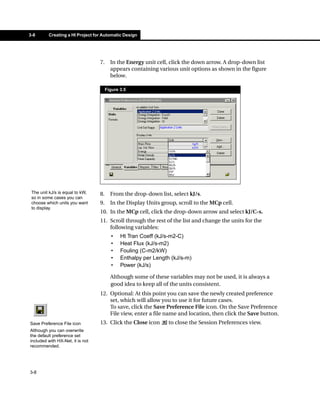
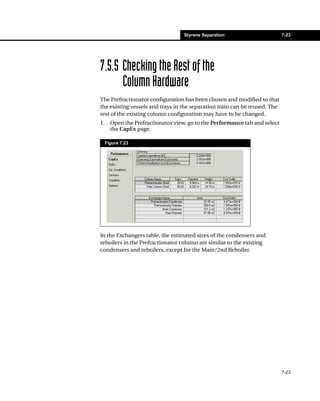
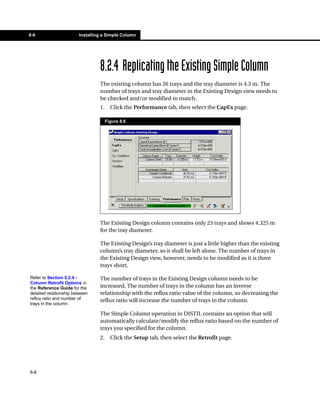
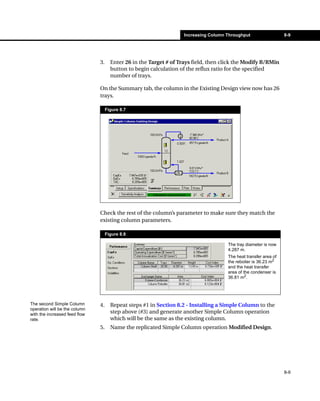
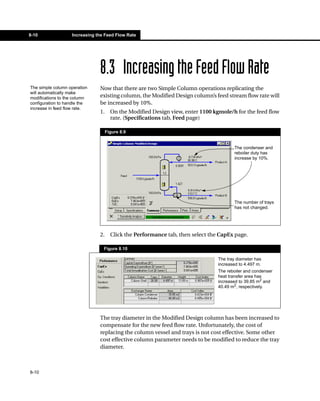
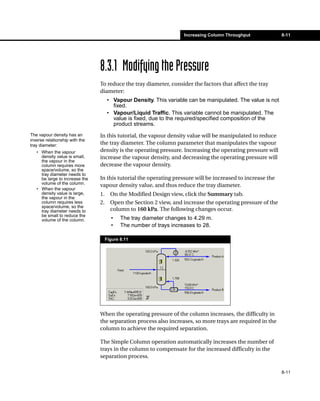
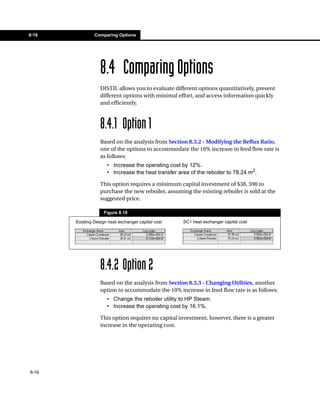
         Products™ 6.2


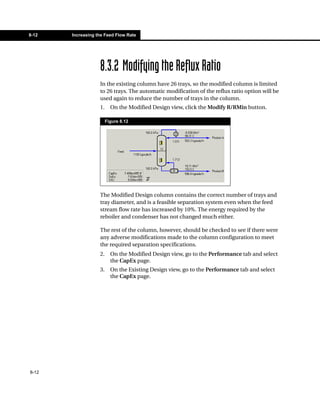
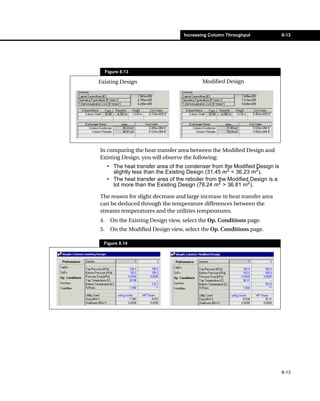
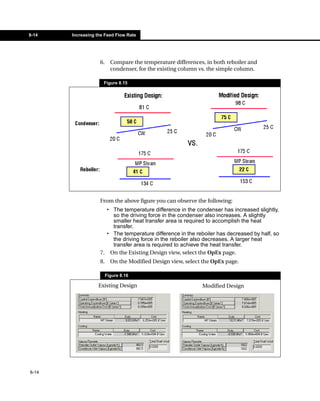
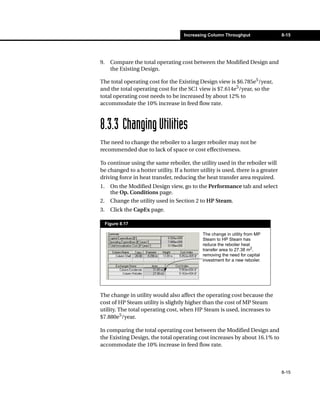
               Tutorials
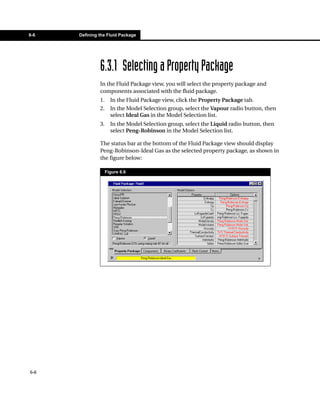
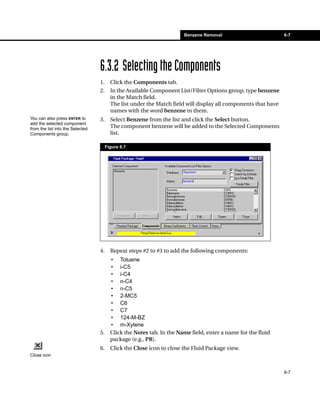
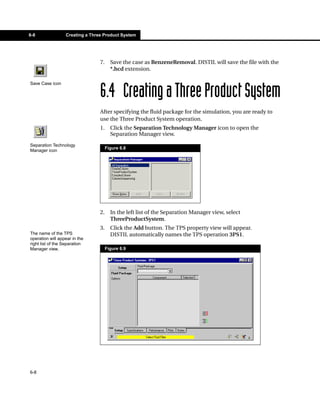
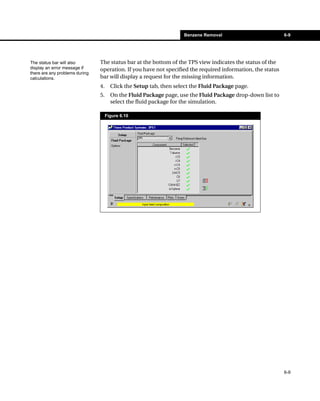
Copyright Notice
© 2004 Hyprotech, a subsidiary of Aspen Technology, Inc. All rights reserved.

Hyprotech is the owner of, and have vested in them, the copyright and all other intellectual property
rights of a similar nature relating to their software, which includes, but is not limited to, their computer
programs, user manuals, and all associated documentation, whether in printed or electronic form (the
“Software”), which is supplied by us or our subsidiaries to our respective customers. No copying or
reproduction of the Software shall be permitted without prior written consent of Aspen Technology, Inc.,
Ten Canal Park, Cambridge, MA 02141, USA, save to the extent permitted by law.

Hyprotech reserves the right to make changes to this document or its associated computer program
without obligation to notify any person or organization. Companies, names, and data used in examples
herein are fictitious unless otherwise stated. Hyprotech does not make any representations regarding the
use, or the results of use, of the Software, in terms of correctness or otherwise. The entire risk as to the
results and performance of the Software is assumed by the user.

DISTIL, HX-NET, COMThermo Workbench, HYSYS, and HYSIM are registered trademarks of Hyprotech.

HTFS are trademarks of AEA Technology plc.

PIPESYS is a trademark of Neotechnology Consultants. AMSIM is a trademark of DBR & Associates. OLI
Engine is a trademark of OLI Systems Inc.

Microsoft Windows 2000, Windows XP Visual Basic, and Excel are registered trademarks of the Microsoft
                                  ,
Corporation.
Table of Contents
1   Crude Pre-Heat Train Network .................................. 1-1
    1.1 Introduction..........................................................................1-2
    1.2 Entering Process Information ..............................................1-4
    1.3 Examining the Targets.......................................................1-14
    1.4 Building the Heat Exchanger Network...............................1-17
    1.5 References ........................................................................1-39

2   Data Extraction from HYSYS ..................................... 2-1
    2.1 Introduction..........................................................................2-2
    2.2 Preparing for Data Extraction ..............................................2-5
    2.3 Editing the HYSYS Case .....................................................2-9
    2.4 Performing the Data Extraction .........................................2-18
    2.5 Adjusting the Extracted Data in HX-Net ............................2-31

3   Automatic HEN Design in HI Project ......................... 3-1
    3.1 Introduction..........................................................................3-2
    3.2 Creating a HI Project for Automatic Design Generation ......3-7
    3.3 Generating HEN Designs ..................................................3-14
    3.4 References ........................................................................3-17

4   Heat Exchanger Network Retrofit ............................. 4-1
    4.1 Introduction..........................................................................4-2
    4.2 Creating a HI Project for Retrofit .........................................4-3
    4.3 Performing the Retrofit ......................................................4-20
    4.4 Comparing Designs ...........................................................4-28


                                                                                                    iii
5   Column Sequencing for Multi-Components ............... 5-1
         5.1 Introduction..........................................................................5-2
         5.2 Setting Unit Preferences......................................................5-4
         5.3 Creating the Fluid Package .................................................5-5
         5.4 Installing Column Sequencing .............................................5-7
         5.5 Generating Grass Root Scenarios.....................................5-11
         5.6 Comparing Grass Root Designs........................................5-26
         5.7 Generating a Retrofit Scenario ..........................................5-27
         5.8 Comparing Grass Root and Retrofit Designs ....................5-32

     6   Benzene Removal....................................................... 6-1
         6.1 Introduction..........................................................................6-2
         6.2 Setting Unit Preferences......................................................6-3
         6.3 Defining the Fluid Package..................................................6-5
         6.4 Creating a Three Product System .......................................6-8
         6.5 Comparing Complex Columns...........................................6-16
         6.6 Simulating the Design in HYSYS.......................................6-28

     7   Styrene Separation .................................................... 7-1
         7.1 Introduction..........................................................................7-2
         7.2 Setting Unit Preferences......................................................7-3
         7.3 Defining the Fluid Package..................................................7-4
         7.4 Creating a Three Product System .......................................7-6
         7.5 Comparing Complex Columns...........................................7-10
         7.6 Simulating the Design in HYSYS.......................................7-26

     8   Increasing Column Throughput ................................. 8-1
         8.1 Introduction..........................................................................8-2
         8.2 Installing a Simple Column ..................................................8-4
         8.3 Increasing the Feed Flow Rate..........................................8-10
         8.4 Comparing Options............................................................8-16


iv
Crude Pre-Heat Train Network                               1-1


1 Crude Pre-Heat Train
  Network
  1.1 Introduction......................................................................................2

  1.2 Entering Process Information.........................................................4
        1.2.1    Setting Unit Preferences..........................................................4
        1.2.2    Creating a HI Case ..................................................................6
        1.2.3    Entering Process Stream Data ................................................7
        1.2.4    Entering Utility Stream Data ..................................................11

  1.3 Examining the Targets ..................................................................14
        1.3.1 Range Targeting ....................................................................15

  1.4 Building the Heat Exchanger Network.........................................17
        1.4.1    Accessing the HEN Design View...........................................17
        1.4.2    Modifying HEN Diagram Properties.......................................18
        1.4.3    Adding a Splitter ....................................................................20
        1.4.4    Adding Heat Exchangers .......................................................21
        1.4.5    Using the Worksheet to Enter Heat Exchanger Information ..31
        1.4.6    Completing the Pre-Flash Section .........................................33
        1.4.7    Completing the Heat Exchanger Network..............................36

  1.5 References .....................................................................................39


                                                                                                            1-1
1-2       Introduction


      1.1 Introduction
      In this tutorial, you will design a heat exchanger network for a crude pre-
      heat train. A network will be created based on a process flow diagram
      proposed by a contractor. The concepts introduced here are used
      throughout the tutorial:
        • creating process and utility streams,
        • adding heat exchangers, and
        • using the worksheet to manipulate the network.

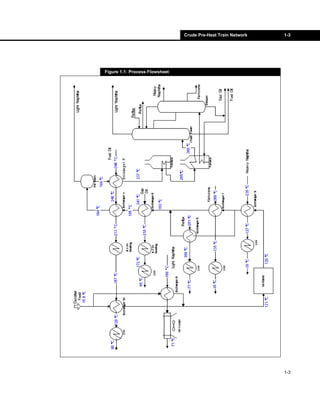
      Crude oil is often fractionated to produce saleable products such as
      heavy and light naphtha, kerosene, gas, and fuel oils. The proposed
      flowsheet was adapted from B. Linnhoff, D.W. Townsend, et al1 and
      appears in Figure 1.1. The crude oil is split and heated in two heat
      exchangers, 10 and 6, by the Fuel Oil and Light Naphtha product
      streams, respectively. The crude feed is then mixed back together and
      passed through the desalter unit.

      Effluent leaving the desalter is heated up further in heat exchangers 9, 7,
      8, 5, and 4 by the product streams Heavy Naphtha, Kerosene, Reflux, Gas
      Oil, and Fuel Oil, respectively. An air cooler, coolers using cooling water,
      and boiler feed water heaters are used to further cool the product
      streams down to their target temperatures.

      After the crude oil has been heated by the products, it is passed through
      a Pre-Flash operation to remove the Light naphtha cut. The heavier
      components from the Pre-Flash operation are heated by the hottest
      portion of the fuel oil in heat exchanger 3, and then passed through two
      furnaces. The crude tower takes the heated feed, and separates the Light
      Naphtha and the Fuel Oil cuts. The remaining cuts pass to the second
      column, the stripper. The stripper column also produces three other
      products: Gas Oil, Heavy Naphtha, and Kerosene.


1-2
Crude Pre-Heat Train Network   1-3


Figure 1.1: Process Flowsheet


                                                               1-3
1-4   Entering Process Information


                 1.2 Entering Process Information
                 In order to analyze and create the heat exchanger network described
                 earlier, all of the information from the pre-heat train must be entered
                 into HX-Net. This includes all process stream information and utility
                 stream information.


                 1.2.1 Setting Unit Preferences
                 Before you begin, verify that the units currently selected in the
                 preferences are the ones you want to use. For this example, the desired
                 unit for energy is MW.
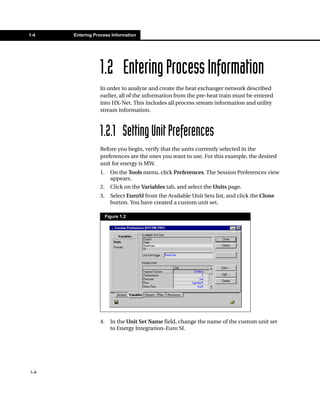
                 1.     On the Tools menu, click Preferences. The Session Preferences view
                        appears.
                 2.     Click on the Variables tab, and select the Units page.
                 3.     Select EuroSI from the Available Unit Sets list, and click the Clone
                        button. You have created a custom unit set.

                      Figure 1.2


                 4.     In the Unit Set Name field, change the name of the custom unit set
                        to Energy Integration-Euro SI.


1-4
Crude Pre-Heat Train Network             1-5


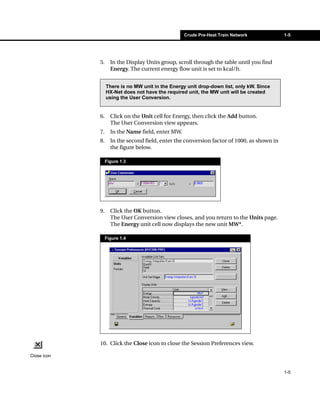
             5.     In the Display Units group, scroll through the table until you find
                    Energy. The current energy flow unit is set to kcal/h.


                  There is no MW unit in the Energy unit drop-down list, only kW. Since
                  HX-Net does not have the required unit, the MW unit will be created
                  using the User Conversion.


             6.     Click on the Unit cell for Energy, then click the Add button.
                    The User Conversion view appears.
             7.     In the Name field, enter MW.
             8.     In the second field, enter the conversion factor of 1000, as shown in
                    the figure below.

                  Figure 1.3


             9.     Click the OK button.
                    The User Conversion view closes, and you return to the Units page.
                    The Energy unit cell now displays the new unit MW*.

                  Figure 1.4


             10. Click the Close icon to close the Session Preferences view.

Close icon


                                                                                            1-5
1-6                  Entering Process Information


                                1.2.2 Creating a HI Case
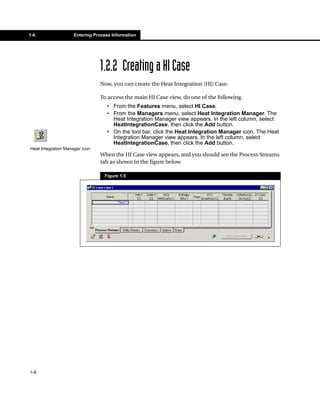
                                Now, you can create the Heat Integration (HI) Case.

                                To access the main HI Case view, do one of the following.
                                   • From the Features menu, select HI Case.
                                   • From the Managers menu, select Heat Integration Manager. The
                                     Heat Integration Manager view appears. In the left column, select
                                     HeatIntegrationCase, then click the Add button.
                                   • On the tool bar, click the Heat Integration Manager icon. The Heat
                                     Integration Manager view appears. In the left column, select
                                     HeatIntegrationCase, then click the Add button.
Heat Integration Manager icon
                                When the HI Case view appears, and you should see the Process Streams
                                tab as shown in the figure below.

                                  Figure 1.5


1-6
Crude Pre-Heat Train Network           1-7


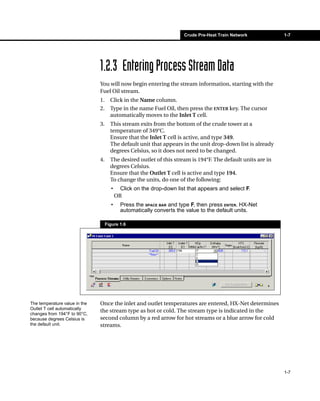
                               1.2.3 Entering Process Stream Data
                               You will now begin entering the stream information, starting with the
                               Fuel Oil stream.
                               1.     Click in the Name column.
                               2.     Type in the name Fuel Oil, then press the ENTER key. The cursor
                                      automatically moves to the Inlet T cell.
                               3.     This stream exits from the bottom of the crude tower at a
                                      temperature of 349°C.
                                      Ensure that the Inlet T cell is active, and type 349.
                                      The default unit that appears in the unit drop-down list is already
                                      degrees Celsius, so it does not need to be changed.
                               4.     The desired outlet of this stream is 194°F. The default units are in
                                      degrees Celsius.
                                      Ensure that the Outlet T cell is active and type 194.
                                      To change the units, do one of the following:
                                      •     Click on the drop-down list that appears and select F.
                                          OR
                                      •     Press the SPACE BAR and type F, then press ENTER. HX-Net
                                            automatically converts the value to the default units.

                                    Figure 1.6


The temperature value in the   Once the inlet and outlet temperatures are entered, HX-Net determines
Outlet T cell automatically
                               the stream type as hot or cold. The stream type is indicated in the
changes from 194°F to 90°C,
because degrees Celsius is     second column by a red arrow for hot streams or a blue arrow for cold
the default unit.              streams.


                                                                                                             1-7
1-8                     Entering Process Information


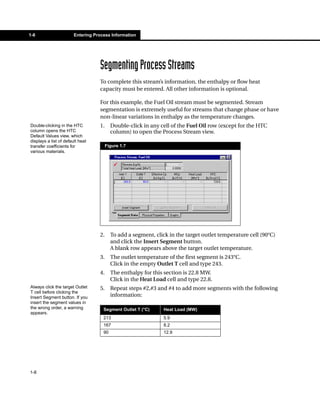
                                   Segmenting Process Streams
                                   To complete this stream’s information, the enthalpy or flow heat
                                   capacity must be entered. All other information is optional.

                                   For this example, the Fuel Oil stream must be segmented. Stream
                                   segmentation is extremely useful for streams that change phase or have
                                   non-linear variations in enthalpy as the temperature changes.
Double-clicking in the HTC         1.     Double-click in any cell of the Fuel Oil row (except for the HTC
column opens the HTC                      column) to open the Process Stream view.
Default Values view, which
displays a list of default heat
transfer coefficients for               Figure 1.7
various materials.


                                   2.     To add a segment, click in the target outlet temperature cell (90°C)
                                          and click the Insert Segment button.
                                          A blank row appears above the target outlet temperature.
                                   3.     The outlet temperature of the first segment is 243°C.
                                          Click in the empty Outlet T cell and type 243.
                                   4.     The enthalpy for this section is 22.8 MW.
                                          Click in the Heat Load cell and type 22.8.
Always click the target Outlet     5.     Repeat steps #2,#3 and #4 to add more segments with the following
T cell before clicking the
Insert Segment button. If you             information:
insert the segment values in
the wrong order, a warning           Segment Outlet T (°C)      Heat Load (MW)
appears.
                                     213                        5.9
                                     167                        8.2
                                     90                         12.9


1-8
Crude Pre-Heat Train Network             1-9


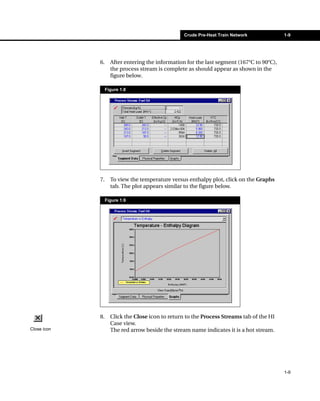
             6.     After entering the information for the last segment (167°C to 90°C),
                    the process stream is complete as should appear as shown in the
                    figure below.

                  Figure 1.8


             7.     To view the temperature versus enthalpy plot, click on the Graphs
                    tab. The plot appears similar to the figure below.

                  Figure 1.9


             8.     Click the Close icon to return to the Process Streams tab of the HI
                    Case view.
Close icon          The red arrow beside the stream name indicates it is a hot stream.


                                                                                           1-9
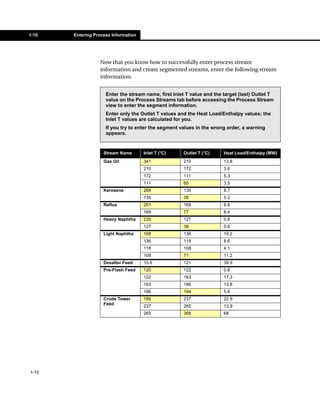
1-10   Entering Process Information


                  Now that you know how to successfully enter process stream
                  information and create segmented streams, enter the following stream
                  information.


                     Enter the stream name, first Inlet T value and the target (last) Outlet T
                     value on the Process Streams tab before accessing the Process Stream
                     view to enter the segment information.
                     Enter only the Outlet T values and the Heat Load/Enthalpy values; the
                     Inlet T values are calculated for you.
                     If you try to enter the segment values in the wrong order, a warning
                     appears.


                    Stream Name       Inlet T (°C)    Outlet T (°C)     Heat Load/Enthalpy (MW)
                    Gas Oil           341             210               13.8
                                      210             172               3.6
                                      172             111               5.3
                                      111             65                3.5
                    Kerosene          268             135               8.7
                                      135             38                5.2
                    Reflux            251             169               8.6
                                      169             77                8.4
                    Heavy Naphtha     235             127               0.8
                                      127             38                0.6
                    Light Naphtha     168             136               19.2
                                      136             118               8.6
                                      118             108               4.1
                                      108             71                11.2
                    Desalter Feed     15.6            121               39.9
                    Pre-Flash Feed    120             122               0.8
                                      122             163               17.3
                                      163             186               13.8
                                      186             194               5.8
                    Crude Tower       189             237               22.9
                    Feed
                                      237             265               13.9
                                      265             368               68


1-10
Crude Pre-Heat Train Network               1-11


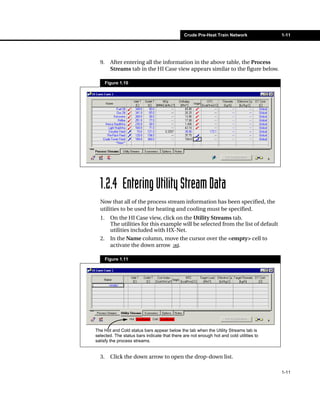
  9.     After entering all the information in the above table, the Process
         Streams tab in the HI Case view appears similar to the figure below.

       Figure 1.10


  1.2.4 Entering Utility Stream Data
  Now that all of the process stream information has been specified, the
  utilities to be used for heating and cooling must be specified.
  1.     On the HI Case view, click on the Utility Streams tab.
         The utilities for this example will be selected from the list of default
         utilities included with HX-Net.
  2.     In the Name column, move the cursor over the <empty> cell to
         activate the down arrow .

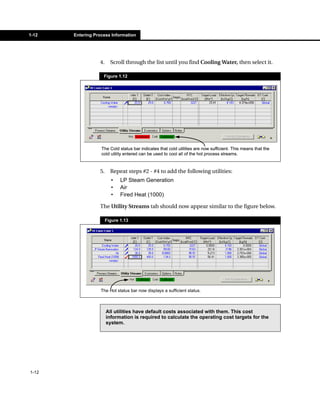
       Figure 1.11


The Hot and Cold status bars appear below the tab when the Utility Streams tab is
selected. The status bars indicate that there are not enough hot and cold utilities to
satisfy the process streams.


  3.     Click the down arrow to open the drop-down list.

                                                                                         1-11
1-12   Entering Process Information


                  4.     Scroll through the list until you find Cooling Water, then select it.

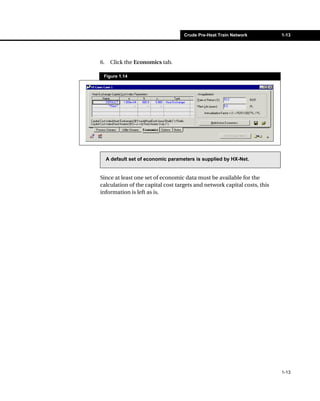
                    Figure 1.12


                   The Cold status bar indicates that cold utilities are now sufficient. This means that the
                   cold utility entered can be used to cool all of the hot process streams.


                  5.     Repeat steps #2 - #4 to add the following utilities:
                         •    LP Steam Generation
                         •    Air
                         •    Fired Heat (1000)

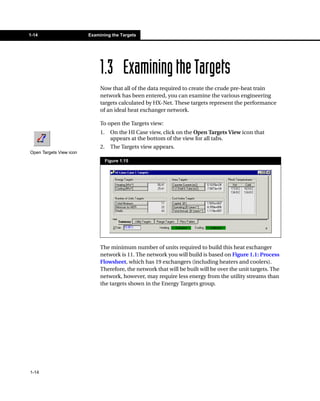
                  The Utility Streams tab should now appear similar to the figure below.

                       Figure 1.13


                   The Hot status bar now displays a sufficient status.


                       All utilities have default costs associated with them. This cost
                       information is required to calculate the operating cost targets for the
                       system.


1-12
Crude Pre-Heat Train Network         1-13


6.    Click the Economics tab.

 Figure 1.14


     A default set of economic parameters is supplied by HX-Net.


Since at least one set of economic data must be available for the
calculation of the capital cost targets and network capital costs, this
information is left as is.


                                                                          1-13
1-14                     Examining the Targets


                              1.3 Examining the Targets
                              Now that all of the data required to create the crude pre-heat train
                              network has been entered, you can examine the various engineering
                              targets calculated by HX-Net. These targets represent the performance
                              of an ideal heat exchanger network.

                              To open the Targets view:
                              1.     On the HI Case view, click on the Open Targets View icon that
                                     appears at the bottom of the view for all tabs.
                              2.     The Targets view appears.
Open Targets View icon
                                   Figure 1.15


                              The minimum number of units required to build this heat exchanger
                              network is 11. The network you will build is based on Figure 1.1: Process
                              Flowsheet, which has 19 exchangers (including heaters and coolers).
                              Therefore, the network that will be built will be over the unit targets. The
                              network, however, may require less energy from the utility streams than
                              the targets shown in the Energy Targets group.


1-14
Crude Pre-Heat Train Network                    1-15


          1.3.1 Range Targeting
          One of the main objectives when creating a heat exchanger network is to
          minimize the capital and operating costs. The minimum approach
          temperature, DTmin, is a key parameter in defining the balance between
          capital and operating costs. You can find the optimal value for DTmin by
          performing a Range Targeting calculation.
          1.     On the Targets view, click on the Range Targets tab.
          2.     Click the Calculate button, located below the Range Targets tab, to
                 perform the calculations.
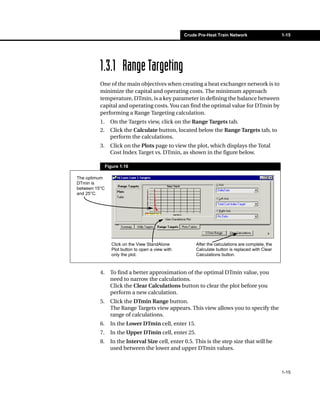
          3.     Click on the Plots page to view the plot, which displays the Total
                 Cost Index Target vs. DTmin, as shown in the figure below.

               Figure 1.16

The optimum
DTmin is
between 15°C
and 25°C.


                  Click on the View StandAlone           After the calculations are complete, the
                  Plot button to open a view with        Calculate button is replaced with Clear
                  only the plot.                         Calculations button.


          4.     To find a better approximation of the optimal DTmin value, you
                 need to narrow the calculations.
                 Click the Clear Calculations button to clear the plot before you
                 perform a new calculation.
          5.     Click the DTmin Range button.
                 The Range Targets view appears. This view allows you to specify the
                 range of calculations.
          6.     In the Lower DTmin cell, enter 15.
          7.     In the Upper DTmin cell, enter 25.
          8.     In the Interval Size cell, enter 0.5. This is the step size that will be
                 used between the lower and upper DTmin values.


                                                                                                    1-15
1-16         Examining the Targets


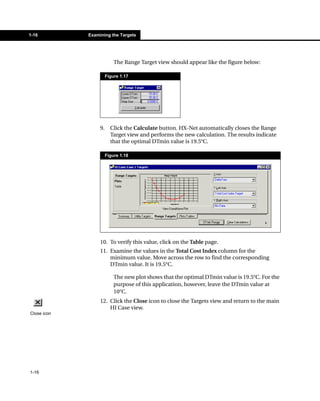
                           The Range Target view should appear like the figure below:

                       Figure 1.17


                  9.     Click the Calculate button. HX-Net automatically closes the Range
                         Target view and performs the new calculation. The results indicate
                         that the optimal DTmin value is 19.5°C.

                       Figure 1.18


                  10. To verify this value, click on the Table page.
                  11. Examine the values in the Total Cost Index column for the
                      minimum value. Move across the row to find the corresponding
                      DTmin value. It is 19.5°C.

                           The new plot shows that the optimal DTmin value is 19.5°C. For the
                           purpose of this application, however, leave the DTmin value at
                           10°C.
                  12. Click the Close icon to close the Targets view and return to the main
                      HI Case view.
Close icon


1-16
Crude Pre-Heat Train Network   1-17


                         1.4 Building the Heat
                             Exchanger Network
                         1.4.1 Accessing the HEN Design View
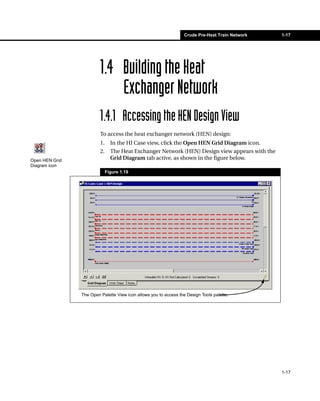
                         To access the heat exchanger network (HEN) design:
                         1.     In the HI Case view, click the Open HEN Grid Diagram icon.
                         2.     The Heat Exchanger Network (HEN) Design view appears with the
Open HEN Grid                   Grid Diagram tab active, as shown in the figure below.
Diagram icon
                              Figure 1.19


                The Open Palette View icon allows you to access the Design Tools palette.


                                                                                                  1-17
1-18         Building the Heat Exchanger Network


                                1.4.2 Modifying HEN Diagram Properties
                                1.    To open the Property Presets view, do one of the following:
                                     • On the HEN Design view, click the Open Palette View icon. The
                                       Design Tools palette appears. On the Design Tools palette, click the
 Open Palette View icon
                                       Open HEN Diagram Properties View icon.
                                       OR
                                  • Right-click on the Grid Diagram, and select Properties from the
                                    Object Inspect menu.
 Open HEN Diagram               2. From the list in the Property Presets view, select Preset 4:
 Properties View icon
                                   (Temperature). This property preset sorts the streams by their
                                   temperatures and displays both process and utility streams.
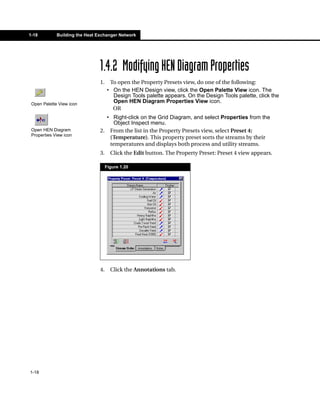
                                3.     Click the Edit button. The Property Preset: Preset 4 view appears.

                                     Figure 1.20


                                4.     Click the Annotations tab.


1-18
Crude Pre-Heat Train Network           1-19


             5.     In the Heat Exchangers group, click the Middle drop-down list and
                    select Name as shown in the figure below.
                    The heat exchanger name will now appear above the heat exchanger
                    object in the Grid Diagram.

                  Figure 1.21


             6.     Click the Close icon to close the Property Preset 4:(Temperature)
                    view and the Property Presets view.
Close icon


                                                                                        1-19
1-20          Building the Heat Exchanger Network


                                 1.4.3 Adding a Splitter
                                 To maintain a logical order, you will place the heat exchangers in a
                                 position similar to that shown on the Process Flowsheet. The crude oil
                                 feed is split before it enters heat exchanger 10 and 6 on the Process
                                 Flowsheet, so we must split the Desalter Feed stream.

                                 In this procedure, you will add a splitter to the Desalter Feed stream in
                                 the flowsheet.
                                 1.     Click the Open Palette View icon, located in the bottom right corner
                                        of the Grid Diagram tab.
Open Palette View icon                  The Design Tools palette appears.

To add heat exchangers,               Figure 1.22
mixers and splitters, the
Design Tools palette must be
available.


                                 2.     Right-click and hold on the Add Split icon.
                                 3.     Drag the cursor over the Desalter Feed stream until the Bull’s eye
Add Split icon                          icon appears.
                                 4.     Now release the mouse button. The splitter appears as a solid blue
                                        dot.
                                 5.     To expand the splitter, click the blue dot once. The stream will now
                                        appear as shown in the figure below.

Bull’s eye icon                       Figure 1.23


Blue Dot icon
                                                                  Each segment of the split is called a branch.


                                 The Desalter Feed stream exchanges heat with the Light Naphtha stream
                                 in exchanger 6 and the Fuel Oil stream in exchanger 10. You will now
                                 place the first heat exchanger on the Desalter Feed stream.


1-20
Crude Pre-Heat Train Network             1-21


                          1.4.4 Adding Heat Exchangers
                          Adding Heat Exchanger 6
                          In this procedure, you will place an exchanger between the Light
                          Naphtha stream and the Desalter Feed stream. This is Exchanger 6 on
                          the Process Flowsheet.


                               The streams on the Grid Diagram appear dashed because the energy in
Heat Exchanger 6               the streams has not been satisfied. As heat exchangers are placed and
                               stream energy is satisfied, the lines representing the streams changes
                               from dashed to solid.


                          1.    In the Design Tools palette, right-click and hold on the Add Heat
                                Exchanger icon.
                          2.    Drag the cursor to the top branch of the split on the Desalter Feed
Add Heat Exchanger icon
                                stream until the Bull’s eye icon appears.
                          3.    Release the mouse button. The heat exchanger appears as a sold red
                                dot.
                          4.    Click and hold on the red dot, then drag the cursor to the Light
                                Naphtha stream. A light blue dot will appear underneath the cursor
                                as you drag it to the new stream.
Bull’s eye icon
                          5.    Release the mouse button. The heat exchanger appears.


Red Dot icon


Light blue dot icon
(under four arrows)


                                                                                                        1-21
1-22   Building the Heat Exchanger Network


                                The Grid Diagram tab should now appear as shown in the figure
                                below.

                           Figure 1.24


                          HX-Net may appear to move the heat exchanger to the bottom branch. If
                          this happens, adding a heat exchanger to the second branch later in the
                          tutorial will result in Exchanger 6 showing on the top branch (see Figure
                          1.28).
                          6.   Double-click either end of the heat exchanger (the grey circles) to
                               open the Heat Exchanger Editor view.
                          7.   Click the Notes tab.
                          8.   In the Name field, type Exchanger 6.
                          9.   Click the Data tab.


1-22
Crude Pre-Heat Train Network                 1-23


                                  10. Click the Tied checkbox by the Desalter Feed stream (cold stream)
                                      inlet temperature field. The view now appears as shown in the figure
                                      below.

                                   Figure 1.25


       Hot Stream Inlet                                                                       Hot Stream Outlet
       Temperature                                                                            Temperature


                                                                                              Cold Stream
                                                                                              Downstream
        Cold Stream                                                                           Splitter
        Upstream Mixer                                                                        Temperature (in
        (Outlet)                                                                              this case, Inlet
        Temperature                                                                           Temperature


                                    The Desalter Feed stream passes through the hottest part of the Light
                                    Naphtha stream, therefore, you can tie the inlet temperature of the hot
                                    stream entering the heat exchanger.


Since the Desalter Feed           11. Click the Tied checkbox by the hot stream inlet temperature field.
stream is being heated from
its initial inlet temperature,        Before the calculation can occur, you must specify the cold stream
you can “tie” this value to the       outlet temperature.
inlet temperature value found
on the Process Streams tab        12. In the cold stream outlet temperature field, enter 121°C. This value
on the main HI Case view.             comes from the Defaulter Stream outlet target temperature on the
                                      Process Flowsheet.


                                                                                                                  1-23
1-24         Building the Heat Exchanger Network


All values in blue have been    The heat exchanger now solves and appears as shown in the figure
entered by the user and can
                                below.
be altered.
All values in black have been
calculated by HX-Net and          Figure 1.26
cannot be altered.


                                13. Click the Close icon to close the Exchanger 6 property view.

Close icon


1-24
Crude Pre-Heat Train Network              1-25


                          Adding Heat Exchanger 10
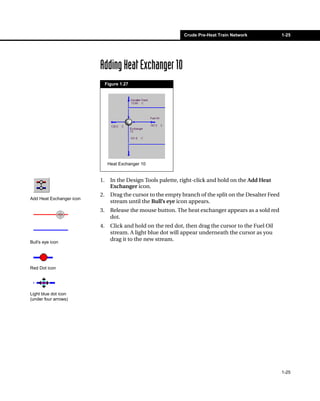
                               Figure 1.27


                                Heat Exchanger 10


                          1.     In the Design Tools palette, right-click and hold on the Add Heat
                                 Exchanger icon.
                          2.     Drag the cursor to the empty branch of the split on the Desalter Feed
Add Heat Exchanger icon
                                 stream until the Bull’s eye icon appears.
                          3.     Release the mouse button. The heat exchanger appears as a sold red
                                 dot.
                          4.     Click and hold on the red dot, then drag the cursor to the Fuel Oil
                                 stream. A light blue dot will appear underneath the cursor as you
Bull’s eye icon
                                 drag it to the new stream.


Red Dot icon


Light blue dot icon
(under four arrows)


                                                                                                         1-25
1-26         Building the Heat Exchanger Network


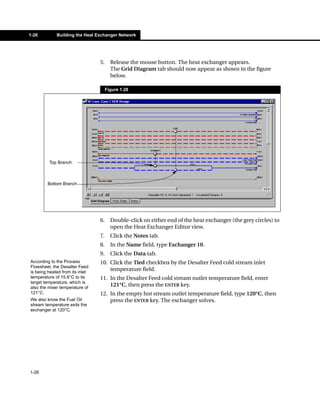
                                 5.     Release the mouse button. The heat exchanger appears.
                                        The Grid Diagram tab should now appear as shown in the figure
                                        below.

                                      Figure 1.28


         Top Branch


        Bottom Branch


                                 6.     Double-click on either end of the heat exchanger (the grey circles) to
                                        open the Heat Exchanger Editor view.
                                 7.     Click the Notes tab.
                                 8.     In the Name field, type Exchanger 10.
                                 9.     Click the Data tab.
According to the Process         10. Click the Tied checkbox by the Desalter Feed cold stream inlet
Flowsheet, the Desalter Feed
is being heated from its inlet
                                     temperature field.
temperature of 15.6°C to its     11. In the Desalter Feed cold stream outlet temperature field, enter
target temperature, which is
also the mixer temperature of
                                     121°C, then press the ENTER key.
121°C.                           12. In the empty hot stream outlet temperature field, type 120°C, then
We also know the Fuel Oil            press the ENTER key. The exchanger solves.
stream temperature exits the
exchanger at 120°C.


1-26
Crude Pre-Heat Train Network            1-27


 Figure 1.29


13. Click the Close icon to close the property view.

HX-Net automatically calculates the inlet temperature of the hot stream
to be 232.7°C. From the Process Flowsheet, however, you know that the
temperature of the hot stream entering the exchanger should be 167°C.
In order to adjust this temperature, you must change the balance of
flows going through the splitter on the Desalter Feed stream.


                                                                          1-27
1-28          Building the Heat Exchanger Network


                                  Adjusting the Split Ratio
                                  Before you adjust the split ratio, ensure the split ratio values are visible
                                  on the Grid Diagram view.
                                  1.     On the Design Tools palette, click the Open HEN Diagram
                                         Properties View icon. The Property Presets view appears.
Open HEN Properties View          2.     Click the New button. The New Property Preset view appears.
icon
                                  3.     In the Name field, type Split Ratio, then press ENTER.
                                         The Property Presets view reappears, and Split Ratio appears in the
                                         list.
                                  4.     In the list, select Split Ratio, then click the Edit button.
                                         The Property Preset: Split Ratio view appears.
                                  5.     Click the Annotations tab.
                                  6.     In the Streams group, click the Segments drop-down list and select
                                         Split Fraction.
                                  7.     Click the Close icon on both the Property Preset: Split Ratio view
                                         and the Property Preset view to close them.
                                         The split ratio values now appear on the Grid Diagram view for the
                                         Desalter Feed stream. The default ratio is 0.5:0.5.

                                  Now you will adjust the split ratio.
 Remember, the heat               1.     Double-click on either end of Exchanger 10 to open the heat
 exchanger views and Split               exchanger view. You want this view open so you can observe the
 Editor view are Modal views.
 To open all views, you have to          changes in the hot stream inlet temperature.
 click the Pin icon and change    2.     Open the splitter view by double-clicking on either end of the
 the Modal views to Non-
 Modal views.
                                         splitter. The Split Editor view appears as shown in the figure below.

                                       Figure 1.30


                                  3.     Arrange the heat exchanger view and the Split Editor view so you
                                         can see both views clearly.


1-28
Crude Pre-Heat Train Network                1-29


                              To decrease the inlet temperature for Exchanger 10, you must transfer
                              less energy in the heat exchanger. An effective way of doing this is to
                              decrease the flow of the cold stream.
                              4.   In the Split Editor view, Flow Ratios column, click in the top cell with
                                   the blue text. Change the flow ratio value from 0.5 to 0.75 and
                                   observe the inlet temperature change in the heat exchanger view.
The rows in the Branch        5.   Continue to adjust the split ratio until the hot stream inlet
Streams table represent the
two branches of the split.         temperature for Exchanger 10 is about 167°C. The split ratio will be
Examine the Grid Diagram to
                                   approximately 0.2 for Exchanger 10 and 0.8 for Exchanger 6.
confirm which table row       6.   Close the Split Editor view and the Exchanger 10 property views.
affects which branch of the
split.
                              The line representing the Desalter Feed stream is now solid. This means
                              that this stream’s energy requirements have been satisfied.

                               Figure 1.31


                              7.   Open the Property Presets view by clicking the Open HEN Diagram
                                   Properties View icon in the Design Tools palette.
Open HEN Properties View      8.   Select the Preset 4: Temperature to display the temperature value
icon                               above the streams for each segment.
                              9.   Click the Close icon on the Property Preset view to close the view.


                                                                                                              1-29
1-30         Building the Heat Exchanger Network


                                Adding Two Coolers
                                You will now place an air cooler on the Light Naphtha stream and a
                                cooler on the Fuel Oil stream.
                                1.     Follow steps #1 through #5 in Section 1.4.4 - Adding Heat
                                       Exchangers to add an air cooler between the Air stream and Light
                                       Naphtha stream, downstream from Exchanger 6.
                                2.     Open the Heat Exchanger Editor view by double-clicking on either
                                       end of the newly inserted heat exchanger.
                                3.     Click the Notes tab. In the Name field, type Air Cooler.
                                4.     Click the Data tab.
From the Process Flowsheet,     5.     Click the Tied checkbox by the hot stream inlet temperature field.
you know the air cooler cools
the Light Naptha stream from    6.     Click the Tied checkbox by the hot stream outlet temperature field.
the Exchanger 6 outlet                 The heat exchanger now solves.
temperature of 107°C to the
stream target temperature of
71°C.                                Figure 1.32


                                7.     Add a cooler between the Fuel Oil stream and the Cooling Water
                                       utility stream, downstream from Exchanger 10 on the Fuel Oil
                                       stream.
                                8.     Open the Heat Exchanger Editor view by double-clicking on either
                                       end of the newly inserted heat exchanger.
                                9.     Click the Notes tab. In the Name field, type CW1.
                                10. Click the Data tab.


1-30
Crude Pre-Heat Train Network               1-31


From the Process Flowsheet,          11. Click the Tied checkbox by the hot stream inlet temperature field.
you know the cooling water
utility cools the rest of the Fuel   12. Click the Tied checkbox by the hot stream outlet temperature field.
Oil stream from the                      The exchanger solves.
Exchanger 10 outlet
temperature of 120°C to the
stream target temperature of         The Fuel Oil and Light Naphtha streams should appear as shown in the
90°C.                                figure below.

                                      Figure 1.33


                                     1.4.5 Using the Worksheet to Enter Heat
                                           Exchanger Information
                                     After the desalter operation, the crude oil is represented by the Pre-Flash
                                     Feed stream. This stream will first pass through Exchanger 9 and transfer
                                     heat with the Heavy Naphtha stream.

You can only add heat                In the following procedure, you will use the Work Sheet tab to modify
exchangers in the Grid               the heat exchangers:
Diagram tab.
                                     1.   Close any property views that are open.
                                     2.   Follow steps #1 through #5 in Section 1.4.4 - Adding Heat
                                          Exchangers to add a heat exchanger between the Pre-Flash Feed
                                          stream and the Heavy Naphtha stream.


                                                                                                                   1-31
1-32        Building the Heat Exchanger Network


                                 3.     On the HEN Design view, click the Work Sheet tab (see figure
                                        below). The newly added heat exchanger is named E-104.

                                      Figure 1.34

                   Double-clicking on any heat exchanger name or stream name
                   will open the property view of that heat exchanger or stream.
                                                                                              The “yellow light”
                                                                                              icon indicates
                                                                                              that this heat
                                                                                              exchanger is not
                                                                                              fully specified yet.


                                 4.     In the Heat Exchanger column, click in the cell with E-104 and type
                                        Exchanger 9.
From the Process Flowsheet,      5.     In the Exchanger 9 row, click the checkbox in the Tied column
you know that both the
                                        beside the Cold T in column.
Heavy Naptha stream and
the Pre-Flash Feed stream        6.     Click the checkbox in the Tied column beside the Hot T in column.
enter Exchanger 9 at their
inlet temperatures.              7.     Click in the Cold T out cell and enter 122°C. The final values are
You also know the Pre-Flash             calculated and appear on the worksheet. The “yellow light” icon
Feed stream exits the                   disappears, indicating a fully solved heat exchanger.
exchanger at 122°C.
                                 8.     Click on the Grid Diagram tab.
                                 9.     To satisfy the rest of the energy in the Heavy Naphtha stream, follow
                                        steps #1 through #5 in Section 1.4.4 - Adding Heat Exchangers to
                                        add a heat exchanger between the Heavy Naphtha stream and the
                                        Cooling Water utility stream.
                                 10. Click the Work Sheet tab and rename the new exchanger CW2.
                                 11. In the CW2 row, click the checkboxes in the Tied columns beside the
                                     Hot T in and Hot T out columns. The exchanger solves.


1-32
Crude Pre-Heat Train Network               1-33


                                 1.4.6 Completing the Pre-Flash Section
                                 To complete the section between the desalter operation and the pre-
                                 flash operation, four more exchangers and five coolers must be added.
                                 You can do this by using just the Grid Diagram tab, or both Grid
                                 Diagram and Work Sheet tabs.


                                 Satisfying the Kerosene and Reflux Streams
                                 1.     Add a splitter to the Pre-Flash Feed stream downstream from
                                        Exchanger 9. Refer to steps #1 through #5 in Section 1.4.3 - Adding a
                                        Splitter.
If necessary, refer to Section   2.     Add a heat exchanger between the top branch of the split Pre-Flash
1.4.4 - Adding Heat
Exchangers to review the
                                        Feed stream and the Kerosene stream.
procedure for adding a heat      3.     Rename the new exchanger Exchanger 7.
exchanger.
                                 4.     Click the Tied checkbox for both the hot and cold stream inlet
                                        temperatures.
                                 5.     In the cold stream outlet temperature field, enter 163°C. This is also
                                        the mixer temperature.
                                 6.     Add a heat exchanger on the other/empty branch of the Pre-Flash
                                        Feed and connect the exchanger to the Reflux stream.
                                 7.     Rename the new exchanger Exchanger 8.
                                 8.     Click the Tied checkbox for both the hot and cold stream inlet
                                        temperatures.
                                 9.     In the cold stream outlet temperature field, enter 163°C. This is also
                                        the mixer temperature.
                                        After the addition of these two exchangers, the Pre-Flash Feed
                                        stream should appear similar to the figure below.

                                      Figure 1.35


If necessary, refer to steps     10. Adjust the split ratio of the Pre-Flash Feed stream, if required.
#1 through #6 of Adjusting
the Split Ratio.
                                     Ensure that the hot stream outlet temperature of Exchanger 7 is
                                     135°C, and the hot stream outlet temperature of Exchanger 8 is
                                     169°C. The default split of 0.50 to each branch should be sufficient.


                                                                                                                 1-33
1-34        Building the Heat Exchanger Network


                               11. Add a heat exchanger between the Cooling Water utility and the
                                   Reflux stream, downstream from Exchanger 8.
                               12. Rename the new exchanger CW3.
                               13. Click the Tied checkboxes for both the hot stream inlet and outlet
                                   temperatures. The exchanger solves.
                               14. Add a heat exchanger between the Cooling Water utility and the
                                   Kerosene stream, downstream from Exchanger 7.
                               15. Rename the new exchanger CW4.
                               16. Click the Tied checkboxes for both the hot stream inlet and outlet
                                   temperatures. The exchanger solves.
                               17. Close any property views that are open.


                               Satisfying the Gas Oil Stream
                               1.   Add a heat exchanger between the Pre-Flash Feed stream,
                                    downstream from the splitter, and the Gas Oil stream.
                               2.   Rename this heat exchanger Exchanger 5.
                               3.   Click the Tied checkboxes for both inlet temperatures.
                               4.   In the hot stream outlet temperature field, enter 210°C. This value
                                    comes from the Process Flowsheet
                               5.   Add another heat exchanger between the Gas Oil stream and the LP
                                    Steam Generation utility, downstream from Exchanger 5.
                               6.   Rename this heat exchanger BFW Heating 1.
                               7.   Click the Tied checkbox for the hot stream inlet temperature only.
                               8.   In the hot stream outlet temperature field, enter 172°C.
 Heat Exchanger 5
                               9.   Add one more heat exchanger between the Gas Oil stream and the
                                    Cooling Water utility, downstream from BFW Heating 1.
                               10. Rename this heat exchanger CW5.
                               11. Click the Tied checkboxes for the hot stream inlet and outlet
                                   temperatures. The exchanger solves.


1-34
Crude Pre-Heat Train Network              1-35


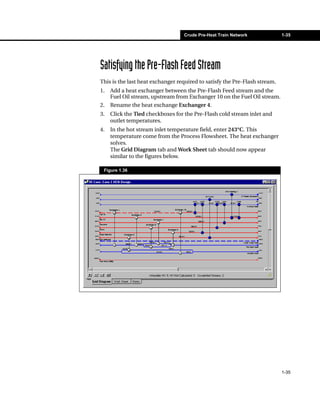
Satisfying the Pre-Flash Feed Stream
This is the last heat exchanger required to satisfy the Pre-Flash stream.
1.   Add a heat exchanger between the Pre-Flash Feed stream and the
     Fuel Oil stream, upstream from Exchanger 10 on the Fuel Oil stream.
2.   Rename the heat exchange Exchanger 4.
3.   Click the Tied checkboxes for the Pre-Flash cold stream inlet and
     outlet temperatures.
4.   In the hot stream inlet temperature field, enter 243°C. This
     temperature come from the Process Flowsheet. The heat exchanger
     solves.
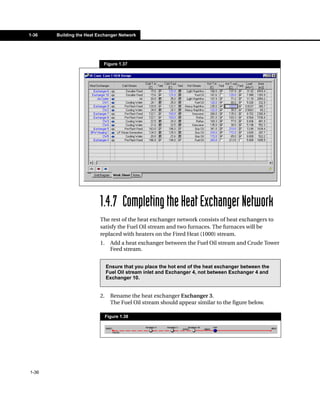
     The Grid Diagram tab and Work Sheet tab should now appear
     similar to the figures below.

 Figure 1.36


                                                                            1-35
1-36   Building the Heat Exchanger Network


                           Figure 1.37


                          1.4.7 Completing the Heat Exchanger Network
                          The rest of the heat exchanger network consists of heat exchangers to
                          satisfy the Fuel Oil stream and two furnaces. The furnaces will be
                          replaced with heaters on the Fired Heat (1000) stream.
                          1.     Add a heat exchanger between the Fuel Oil stream and Crude Tower
                                 Feed stream.


                               Ensure that you place the hot end of the heat exchanger between the
                               Fuel Oil stream inlet and Exchanger 4, not between Exchanger 4 and
                               Exchanger 10.


                          2.     Rename the heat exchanger Exchanger 3.
                                 The Fuel Oil stream should appear similar to the figure below.

                               Figure 1.38


1-36
Crude Pre-Heat Train Network           1-37


3.   Click the Tied checkboxes for the hot stream inlet and outlet
     temperatures, and for the cold stream inlet temperature. The heat
     exchanger solves.
4.   Add a heat exchanger between the Fuel Oil stream and the LP Steam
     Generation utility, between Exchanger 4 and Exchanger 10.
5.   Rename the exchanger BFW Heating 2.
6.   Click the Tied checkboxes for the hot stream inlet and outlet
     temperatures. The exchanger solves.
7.   Add the first of the fired heaters by placing a heat exchanger
     between the Crude Tower Feed and Fired Heat (1000) utility,
     downstream of Exchanger 3.
8.   Rename this exchanger Furnace 1.
9.   Click the Tied checkbox by the cold stream inlet temperature.
10. In the cold stream outlet temperature field, enter 265°C. The
    exchanger solves.
11. Add the final heat exchanger between the same streams as in step #4
    above, downstream from Furnace 1.
12. Rename the exchanger Furnace 2.
13. Click the Tied checkbox for both cold stream temperatures. The
    exchanger solves and all streams are satisfied.

The heat exchanger network is complete. The status bar on the Grid
Diagram tab will appear green, indicating that there are no unsatisfied
streams, and no uncalculated heat exchangers.


                                                                          1-37
1-38   Building the Heat Exchanger Network


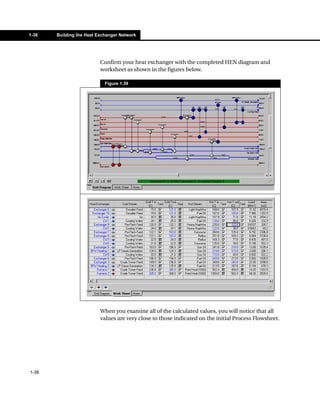
                          Confirm your heat exchanger with the completed HEN diagram and
                          worksheet as shown in the figures below.

                            Figure 1.39


                          When you examine all of the calculated values, you will notice that all
                          values are very close to those indicated on the initial Process Flowsheet.


1-38
Crude Pre-Heat Train Network                 1-39


1.5 References
1
    Linnhoff, B., Townsend, D.W., Boland, D., Hewitt, G.F., Thomas, B.E.A., Guy,
      A.R., Marsland, R.H., A User Guide on Process Integration for the Efficient
      use of Energy, IChemE England, 1982.


                                                                                    1-39
Data Extraction from HYSYS                                 2-1


2 Data Extraction from HYSYS

  2.1 Introduction......................................................................................2

  2.2 Preparing for Data Extraction.........................................................5
        2.2.1 Setting Unit Preferences..........................................................5
        2.2.2 Opening a HI Case or HI Project .............................................6
        2.2.3 Examining the Extraction Tips .................................................8

  2.3 Editing the HYSYS Case .................................................................9
        2.3.1 Checking Mode & Solved Status of Unit Operations ...............9
        2.3.2 Checking Stream & Unit Operation Names ...........................12
        2.3.3 Checking Mixers & Splitters...................................................14

  2.4 Performing the Data Extraction ....................................................18
        2.4.1 Performing the Initial Data Extraction ....................................18
        2.4.2 Fixing Warnings in the HYSYS Case ....................................28
        2.4.3 Performing the Final Data Extraction.....................................31

  2.5 Adjusting the Extracted Data in HX-Net ......................................31


                                                                                                            2-1
2-2       Introduction


      2.1 Introduction
      One of the extremely useful features of HX-Net is its ability to extract
      information from HYSYS or Aspen Plus so that heat integration analysis
      can be performed on a pre-built simulation, without having to re-enter
      the information.

      In this tutorial, you will examine one of the default HYSYS cases
      provided with HX-Net, and then extract the information into HX-Net.


        You must have HYSYS version 3.0 or higher installed on your computer
        in order to use this tutorial.


      This tutorial assumes that you have used HYSYS and understand how to
      navigate through HX-Net. It is also assumed that you have completed
      the HI Case or HI Project tutorial, and that you understand how to create
      streams and create a heat exchanger network using the Grid Diagram.

      The HYSYS case that will be extracted is a modified version of the
      sample HYSYS case G-2.hsc. The file included with HX-Net is named
      dataext.hsc and can be found in the SamplesHYSYSTestCases
      directory.


2-2
Data Extraction from HYSYS   2-3


The HYSYS flowsheet is shown in the figure below.

 Figure 2.1


                                                             2-3
2-4       Introduction


      The natural gas industry commonly uses tri-ethylene glycol (TEG) for
      gas dehydration where low gas dew point temperatures are required,
      such as in the design of offshore platforms in the Arctic or North Sea
      regions or for other cryogenic processes.

      The composition of the natural gas stream (Inlet Gas) has been provided
      on a water-free basis. To ensure water saturation, this stream is mixed
      with stream Water To Saturate. The water-saturated gas stream Gas +
      H2O is then fed to a scrubber to knock out the free water. This scrubbed
      stream (Gas To Contactor) is fed to the TEG Contactor, where it is
      contacted with a regenerated lean TEG stream (TEG Feed). Stream TEG
      Feed absorbs most of the water in the Gas To Contactor stream. The rich
      TEG stream from the absorber bottoms (Rich TEG) is heated to 220 °F by
      the hot lean TEG from the regenerator (Regen Bttms), and is fed to the
      stripper column for regeneration. The stripper column is a refluxed
      tower consisting of 3 stages plus a condenser. The regenerated TEG is
      cooled and returned to the top of the TEG absorber.

      For the purposes of demonstrating HX-Net capabilities to extract HYSYS
      data, the TEG only stream is being heated at the same time that the
      pressure is greatly reduced. A multiple attachment has been used to
      display two options, a heat exchanger using steam or a valve.

      A recycle operation is required to complete this simulation because the
      lean TEG is being returned to the contactor. An initial estimate of the
      lean TEG is required to run the contactor, and when the rest of the
      simulation has been built, the regenerator will calculate the new lean
      TEG. This stream is updated by the recycle operation.


2-4
Data Extraction from HYSYS                2-5


2.2 Preparing for Data Extraction
HYSYS or Aspen Plus data can be extracted into either HI Project or HI
Case. Before performing a data extraction, it is always wise to read the
Extraction Tips so that you can find as many possible problems in your
simulation flowsheet before performing the first extraction.


2.2.1 Setting Unit Preferences
Before you begin, verify that the units currently selected in the
preferences are the ones you want to use. HX-Net will perform the unit
conversion calculations when it extracts the data from HYSYS, but it is
easier to compare numbers if they use the same units.
1.     Open HYSYS (version 3.0 or higher).
2.     Open the case dataext.hcs, included in the
       SamplesHYSYSTestCases directory of your HX-Net program.
3.     In the HYSYS Tools menu, select Preferences. The Session
       Preferences view appears.
4.     Click the Variables tab, then click the Units page. The Unit Set Name
       should be SI. If it isn’t, select SI in the Available Unit Sets list.

     Figure 2.2


5.     From the Windows Start menu, open HX-Net.

                                                                               2-5
2-6                Preparing for Data Extraction


                               6.   In HX-Net, repeat steps #3 and #4 to set the units to match the
                                    HYSYS case.
                               7.   Save the modified case under a new name, such as
                                    newDataEXT.hsc. Do not save any changes over the original case.

                               Before you can examine the extraction tips, open the HI Case view or HI
                               Project view.


                               2.2.2 Opening a HI Case or HI Project
                               1.   To access the HI Case view or HI Project view, do one of the
                                    following:
                                    • From the Features menu, select HI Case or HI Project.
                                    • From the Managers menu, select Heat Integration Manager.
                                         The Heat Integration Manager view appears. In the left column,
                                         select HeatIntegrationCase or HeatIntegrationProject, then
                                         click the Add button.
                                    • On the tool bar, click the Heat Integration Manager icon. The
                                         Heat Integration Manager view appears. In the left column, select
                                         HeatIntegrationCase or HeatIntegrationProject, then click the
Heat Integration                         Add button.
Manager icon
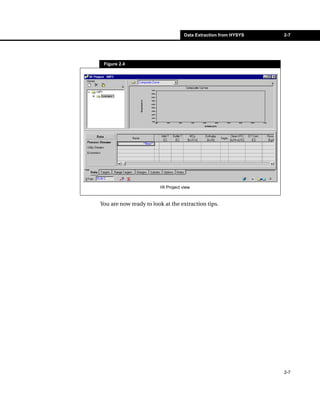
                               The HI Case view or HI Project view appears.

                                Figure 2.3


                                                     HI Case view


2-6
Data Extraction from HYSYS   2-7


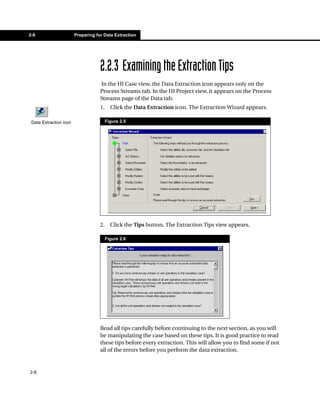
 Figure 2.4


                        HI Project view


You are now ready to look at the extraction tips.


                                                                 2-7
2-8                     Preparing for Data Extraction


                                    2.2.3 Examining the Extraction Tips
                                    In the HI Case view, the Data Extraction icon appears only on the
                                    Process Streams tab. In the HI Project view, it appears on the Process
                                    Streams page of the Data tab.
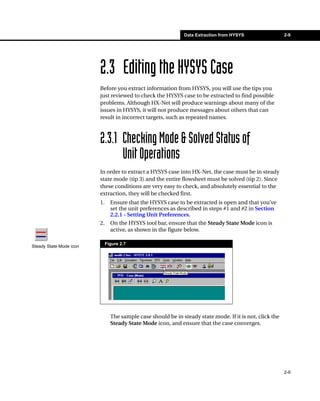
                                    1.     Click the Data Extraction icon. The Extraction Wizard appears.

 Data Extraction icon                    Figure 2.5


                                    2.     Click the Tips button. The Extraction Tips view appears.

                                         Figure 2.6


                                    Read all tips carefully before continuing to the next section, as you will
                                    be manipulating the case based on these tips. It is good practice to read
                                    these tips before every extraction. This will allow you to find some if not
                                    all of the errors before you perform the data extraction.


2-8
Data Extraction from HYSYS                 2-9


                         2.3 Editing the HYSYS Case
                         Before you extract information from HYSYS, you will use the tips you
                         just reviewed to check the HYSYS case to be extracted to find possible
                         problems. Although HX-Net will produce warnings about many of the
                         issues in HYSYS, it will not produce messages about others that can
                         result in incorrect targets, such as repeated names.


                         2.3.1 Checking Mode & Solved Status of
                               Unit Operations
                         In order to extract a HYSYS case into HX-Net, the case must be in steady
                         state mode (tip 3) and the entire flowsheet must be solved (tip 2). Since
                         these conditions are very easy to check, and absolutely essential to the
                         extraction, they will be checked first.
                         1.     Ensure that the HYSYS case to be extracted is open and that you’ve
                                set the unit preferences as described in steps #1 and #2 in Section
                                2.2.1 - Setting Unit Preferences.
                         2.     On the HYSYS tool bar, ensure that the Steady State Mode icon is
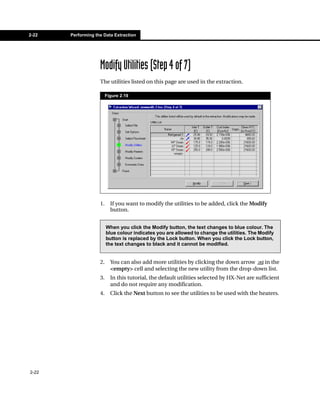
                                active, as shown in the figure below.

                              Figure 2.7
Steady State Mode icon


                                The sample case should be in steady state mode. If it is not, click the
                                Steady State Mode icon, and ensure that the case converges.


                                                                                                          2-9
2-10   Editing the HYSYS Case


             3.     On the flowsheet, verify that all streams and unit operations have
                    been solved by doing one or both of the following:
                    •    Examine all streams and unit operations. All material streams
                         should appear dark blue, all energy streams should appear dark
                         red, and all unit operations should be outlined in black.

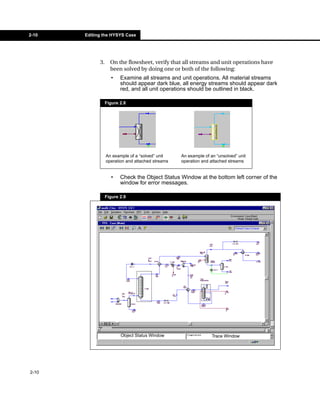
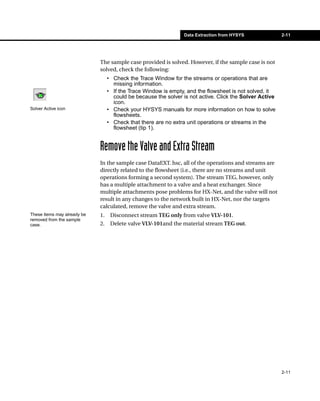
                  Figure 2.8


                  An example of a “solved” unit    An example of an “unsolved” unit
                  operation and attached streams   operation and attached streams


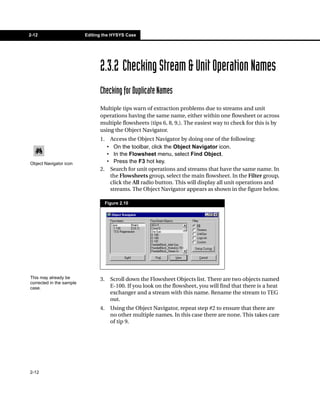
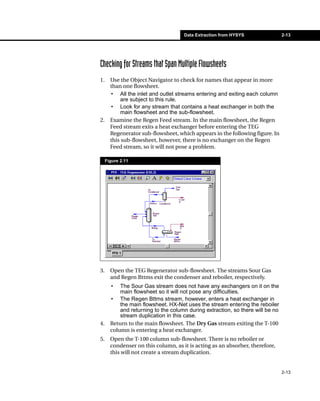
                    •    Check the Object Status Window at the bottom left corner of the
                         window for error messages.

                  Figure 2.9


                         Object Status Window                     Trace Window


2-10
Data Extraction from HYSYS              2-11


                             The sample case provided is solved. However, if the sample case is not
                             solved, check the following:
                                  • Check the Trace Window for the streams or operations that are
                                    missing information.
                                  • If the Trace Window is empty, and the flowsheet is not solved, it
                                    could be because the solver is not active. Click the Solver Active
                                    icon.
Solver Active icon                • Check your HYSYS manuals for more information on how to solve
                                    flowsheets.
                                  • Check that there are no extra unit operations or streams in the
                                    flowsheet (tip 1).


                             Remove the Valve and Extra Stream
                             In the sample case DataEXT. hsc, all of the operations and streams are
                             directly related to the flowsheet (i.e., there are no streams and unit
                             operations forming a second system). The stream TEG, however, only
                             has a multiple attachment to a valve and a heat exchanger. Since
                             multiple attachments pose problems for HX-Net, and the valve will not
                             result in any changes to the network built in HX-Net, nor the targets
                             calculated, remove the valve and extra stream.
These items may already be   1.    Disconnect stream TEG only from valve VLV-101.
removed from the sample
case.                        2.    Delete valve VLV-101and the material stream TEG out.


                                                                                                         2-11
2-12                      Editing the HYSYS Case


                                2.3.2 Checking Stream & Unit Operation Names
                                Checking for Duplicate Names
                                Multiple tips warn of extraction problems due to streams and unit
                                operations having the same name, either within one flowsheet or across
                                multiple flowsheets (tips 6, 8, 9,). The easiest way to check for this is by
                                using the Object Navigator.
                                1. Access the Object Navigator by doing one of the following:
                                  • On the toolbar, click the Object Navigator icon.
                                  • In the Flowsheet menu, select Find Object.
Object Navigator icon             • Press the F3 hot key.
                                2. Search for unit operations and streams that have the same name. In
                                   the Flowsheets group, select the main flowsheet. In the Filter group,
                                   click the All radio button. This will display all unit operations and
                                   streams. The Object Navigator appears as shown in the figure below.

                                     Figure 2.10


This may already be             3.     Scroll down the Flowsheet Objects list. There are two objects named
corrected in the sample
case.                                  E-100. If you look on the flowsheet, you will find that there is a heat
                                       exchanger and a stream with this name. Rename the stream to TEG
                                       out.
                                4.     Using the Object Navigator, repeat step #2 to ensure that there are
                                       no other multiple names. In this case there are none. This takes care
                                       of tip 9.


2-12
Data Extraction from HYSYS                 2-13


Checking for Streams that Span Multiple Flowsheets
1.     Use the Object Navigator to check for names that appear in more
       than one flowsheet.
       • All the inlet and outlet streams entering and exiting each column
            are subject to this rule.
       • Look for any stream that contains a heat exchanger in both the
            main flowsheet and the sub-flowsheet.
2.     Examine the Regen Feed stream. In the main flowsheet, the Regen
       Feed stream exits a heat exchanger before entering the TEG
       Regenerator sub-flowsheet, which appears in the following figure. In
       this sub-flowsheet, however, there is no exchanger on the Regen
       Feed stream, so it will not pose a problem.

     Figure 2.11


3.     Open the TEG Regenerator sub-flowsheet. The streams Sour Gas
       and Regen Bttms exit the condenser and reboiler, respectively.
       •   The Sour Gas stream does not have any exchangers on it on the
           main flowsheet so it will not pose any difficulties.
       • The Regen Bttms stream, however, enters a heat exchanger in
           the main flowsheet. HX-Net uses the stream entering the reboiler
           and returning to the column during extraction, so there will be no
           stream duplication in this case.
4.     Return to the main flowsheet. The Dry Gas stream exiting the T-100
       column is entering a heat exchanger.
5.     Open the T-100 column sub-flowsheet. There is no reboiler or
       condenser on this column, as it is acting as an absorber, therefore,
       this will not create a stream duplication.


                                                                                2-13
2-14   Editing the HYSYS Case


             6.     Use the Object Navigator to see if there are any internal streams
                    existing within any sub-flowsheet that do not represent a real
                    stream.
                    •    To do this, highlight each sub-flowsheet in the Flowsheets group
                         of the Object Navigator, then select the Stream radio button in
                         the Filter group.
                    •    This will display all material streams existing in the flowsheet. All
                         internal streams will be extracted as real streams.
                    •    In this case, all of the internal streams do represent real streams
                         in the process. Since the reboiler and condenser must be taken
                         into account, no changes are required.
                    •    If there are streams that you do not want extracted, you will have
                         to manually delete them after the data extraction.


             2.3.3 Checking Mixers & Splitters
             The last items to check before performing the data extraction in HYSYS
             are mixers and splitters. Check for non-isothermal mixers (tip 10). In
             this case, there are no multiple splitters or mixers in series, however,
             there are two mixers that should be checked to see if they are
             isothermal.
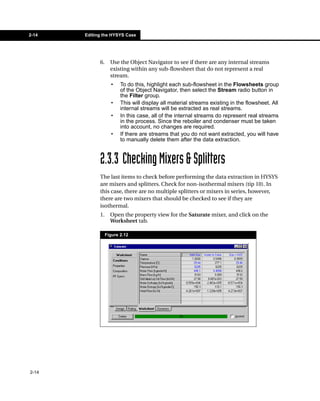
             1.     Open the property view for the Saturate mixer, and click on the
                    Worksheet tab.

                  Figure 2.12


2-14
Data Extraction from HYSYS               2-15


     The temperatures of the two inlet streams, Inlet Gas and Water to
     Saturate, are not the same temperature, so the Water to Saturate
     stream should be cooled down to the temperature of the Inlet Gas and
     the mixer outlet stream Gas + H2O, before it enters the mixer.


2.     Create a new material stream named Water In. Copy all of the
       information from the Water to Saturate stream by using the Define
       from Other Stream button.
3.     Add a cooler named Water Cooler. Its inlet stream is the Water In
       stream you just created, and its outlet stream will be a new stream
       named Water to Mixer. Define an energy stream named Q-200.
4.     On the Design tab of the cooler property view, click on the
       Parameters page, and define a pressure drop of 0 kPa.
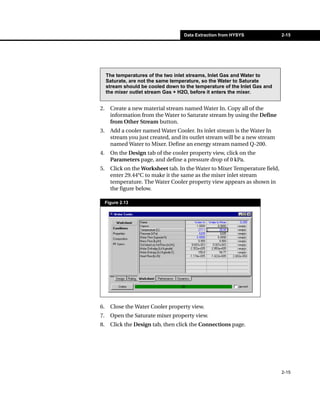
5.     Click on the Worksheet tab. In the Water to Mixer Temperature field,
       enter 29.44°C to make it the same as the mixer inlet stream
       temperature. The Water Cooler property view appears as shown in
       the figure below.

     Figure 2.13


6.     Close the Water Cooler property view.
7.     Open the Saturate mixer property view.
8.     Click the Design tab, then click the Connections page.


                                                                              2-15
2-16   Editing the HYSYS Case


             9.     Click in the inlets stream cell Water to Saturate, and from the drop-
                    down list, select the Water to Mixer stream. Also, define a new outlet
                    stream named Mixer Outlet. This should be done because, even if
                    the inlet temperatures are identical, the outlet temperature can be
                    different than the original outlet stream due to phase changes.


                  The first part of the flowsheet will now calculate. The rest of the
                  flowsheet will not be calculated.


             10. As per (tip 1), delete the now unnecessary Water to Saturate stream.
             11. Move the cursor over the Mixer Outlet stream. The fly-by for the
                 Mixer Outlet stream indicates that the calculated temperature is
                 28.69°C. This is less than the original outlet temperature of the Gas +
                 H2O stream, which is 29.44°C. Therefore, a heater is required
                 between these two streams.
             12. Add a heater with the name Gas + H2O Heater, and set the inlet
                 stream as Mixer Outlet, outlet stream as Gas+H2O, and an energy
                 stream as Q-201.
             13. On the Design tab, click on the Parameters page, and define a
                 pressure drop of 0 kPa.
             14. The entire flowsheet should now recalculate.
             15. Close all property views.

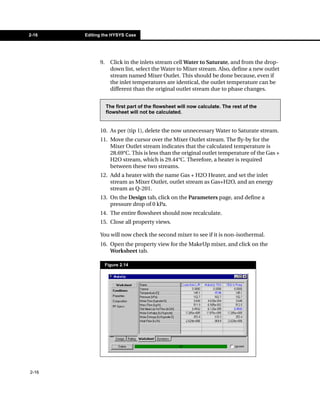
             You will now check the second mixer to see if it is non-isothermal.
             16. Open the property view for the MakeUp mixer, and click on the
                 Worksheet tab.

                  Figure 2.14


2-16
Data Extraction from HYSYS                 2-17


  In this case, the stream MakeUp TEG must be heated up to the mixer
  outlet temperature.


17. Using the same procedure as step #2, create a stream named Cool
    MakeUp TEG based on the information in the stream MakeUp TEG.
18. Add a heater named Heat MakeUp TEG. Set the inlet stream as Cool
    MakeUp TEG and define the new outlet stream as MakeUp TEG to
    Mixer. Define a new energy stream as Q-202.
19. On the Design tab, click on the Parameters page, then define a
    pressure drop of 0 kPa.
20. On the Worksheet tab, enter the MakeUp TEG to Mixer temperature
    as 145.07°C. This is the same as the other mixer inlet stream.
21. Close the Heat MakeUp TEG heater property view, and re-open the
    MakeUp mixer property view (if not already open).
22. On the Design tab, click on the Connections page. Replace the
    outlet stream with a new stream TEG from Mixer, and replace the
    inlet stream MakeUp TEG with the stream MakeUp TEG to Mixer.
23. Delete the now unnecessary stream MakeUp TEG.
24. Close all property views.
25. Move the cursor over the TEG from Mixer stream. The fly-by for the
    TEG from Mixer stream indicates that the temperature calculated is
    145.1°C. This is the same as the two inlet temperatures. So, you do
    not need to heat or cool this stream.
26. Open the property view for the pump P-100. On the Connections
    page of the Designs tab, replace the inlet stream TEG to Pump with
    the stream TEG from Mixer. Delete the stream TEG to Pump. The
    entire flowsheet should solve at this point.
27. If you want, you can manipulate the PFD to make it appear neater.
28. Save the modified HYSYS case (renamed in step #7 of Section 2.2.1 -
    Setting Unit Preferences). Do not save over the original case.
29. Close HYSYS.

This is all of the work that will be performed on this particular case
before performing the first extraction. It is important to remember that
in other cases, you will also have to deal with LNG exchangers. It is also
important to remember that the extraction cannot perform perfectly on
the first attempt. After the extraction is complete, the warning section
will indicate that more changes are required to our HYSYS flowsheet.


                                                                             2-17
2-18                   Performing the Data Extraction


                                    2.4 Performing the Data Extraction
                                    2.4.1 Performing the Initial Data Extraction
                                    1.     If you have closed HX-Net, re-open it at this time.
                                    2.     Open a new HI Project. Data extraction can also be performed in HI
                                           Case, but for this tutorial you will use HI Project.
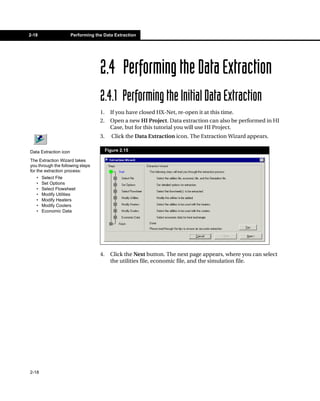
                                    3.      Click the Data Extraction icon. The Extraction Wizard appears.

Data Extraction icon                     Figure 2.15

The Extraction Wizard takes
you through the following steps
for the extraction process:
   •   Select File
   •   Set Options
   •   Select Flowsheet
   •   Modify Utilities
   •   Modify Heaters
   •   Modify Coolers
   •   Economic Data


                                    4.     Click the Next button. The next page appears, where you can select
                                           the utilities file, economic file, and the simulation file.


2-18
Data Extraction from HYSYS                   2-19


                                   Select File (Step 1 of 7)
                                   The data extraction process requires utility and economic information
                                   in order to perform the extraction and the costing target calculations.

                                   HX-Net automatically selects the default utility and capital cost default
                                   files, but you can change the selection if required.
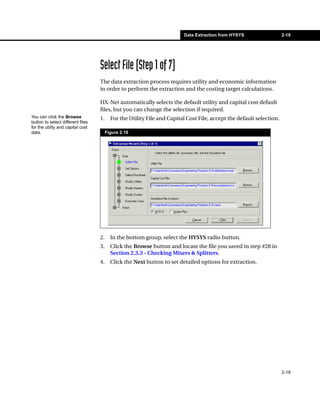
You can click the Browse           1.     For the Utility File and Capital Cost File, accept the default selection.
button to select different files
for the utility and capital cost
data.                                   Figure 2.16


                                   2.     In the bottom group, select the HYSYS radio button.
                                   3.     Click the Browse button and locate the file you saved in step #28 in
                                          Section 2.3.3 - Checking Mixers & Splitters.
                                   4.     Click the Next button to set detailed options for extraction.


                                                                                                                      2-19
2-20   Performing the Data Extraction


                    Set Options (Step 2 of 7)
                    You can select different options that will affect the way in which the data
                    is extracted.
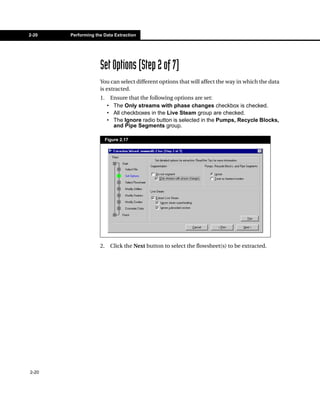
                    1.    Ensure that the following options are set:
                         • The Only streams with phase changes checkbox is checked.
                         • All checkboxes in the Live Steam group are checked.
                         • The Ignore radio button is selected in the Pumps, Recycle Blocks,
                           and Pipe Segments group.

                         Figure 2.17


                    2.     Click the Next button to select the flowsheet(s) to be extracted.


2-20
Data Extraction from HYSYS                2-21


Select Flowsheet (Step 3 of 7)
The data from the selected flowsheet(s) is exported. When you click the
Next button after setting the options, HX-Net starts HYSYS running and
will extract the data.
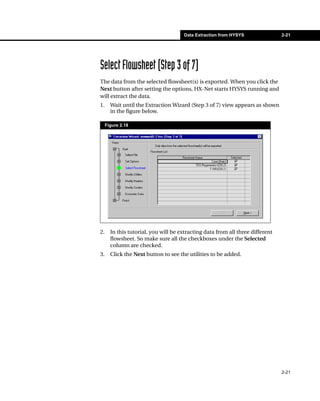
1.     Wait until the Extraction Wizard (Step 3 of 7) view appears as shown
       in the figure below.

     Figure 2.18


2.     In this tutorial, you will be extracting data from all three different
       flowsheet. So make sure all the checkboxes under the Selected
       column are checked.
3.     Click the Next button to see the utilities to be added.


                                                                                2-21
2-22   Performing the Data Extraction


                    Modify Utilities (Step 4 of 7)
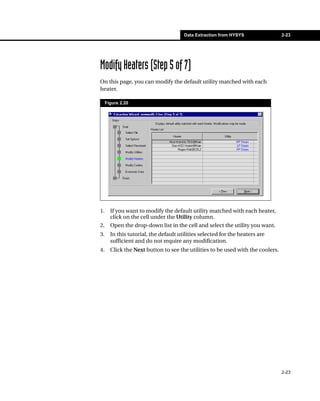
                    The utilities listed on this page are used in the extraction.

                         Figure 2.19


                    1.     If you want to modify the utilities to be added, click the Modify
                           button.


                         When you click the Modify button, the text changes to blue colour. The
                         blue colour indicates you are allowed to change the utilities. The Modify
                         button is replaced by the Lock button. When you click the Lock button,
                         the text changes to black and it cannot be modified.


                    2.     You can also add more utilities by clicking the down arrow  in the
                           <empty> cell and selecting the new utility from the drop-down list.
                    3.     In this tutorial, the default utilities selected by HX-Net are sufficient
                           and do not require any modification.
                    4.     Click the Next button to see the utilities to be used with the heaters.


2-22
Data Extraction from HYSYS                2-23


Modify Heaters (Step 5 of 7)
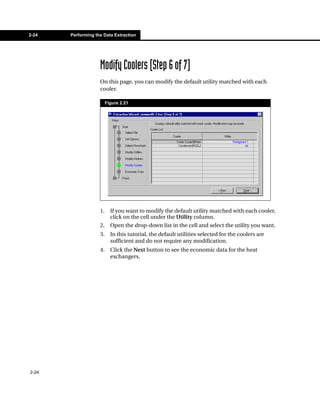
On this page, you can modify the default utility matched with each
heater.

     Figure 2.20


1.     If you want to modify the default utility matched with each heater,
       click on the cell under the Utility column.
2.     Open the drop-down list in the cell and select the utility you want.
3.     In this tutorial, the default utilities selected for the heaters are
       sufficient and do not require any modification.
4.     Click the Next button to see the utilities to be used with the coolers.


                                                                                 2-23
2-24   Performing the Data Extraction


                    Modify Coolers (Step 6 of 7)
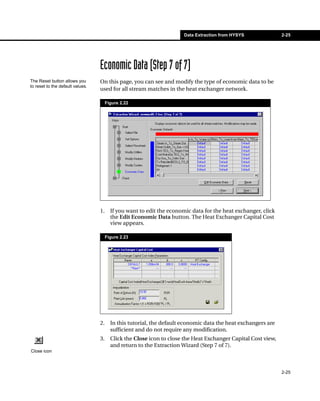
                    On this page, you can modify the default utility matched with each
                    cooler.

                         Figure 2.21


                    1.     If you want to modify the default utility matched with each cooler,
                           click on the cell under the Utility column.
                    2.     Open the drop-down list in the cell and select the utility you want.
                    3.     In this tutorial, the default utilities selected for the coolers are
                           sufficient and do not require any modification.
                    4.     Click the Next button to see the economic data for the heat
                           exchangers.


2-24
Data Extraction from HYSYS              2-25


                                  Economic Data (Step 7 of 7)
The Reset button allows you       On this page, you can see and modify the type of economic data to be
to reset to the default values.
                                  used for all stream matches in the heat exchanger network.

                                       Figure 2.22


                                  1.     If you want to edit the economic data for the heat exchanger, click
                                         the Edit Economic Data button. The Heat Exchanger Capital Cost
                                         view appears.

                                       Figure 2.23


                                  2.     In this tutorial, the default economic data the heat exchangers are
                                         sufficient and do not require any modification.
                                  3.     Click the Close icon to close the Heat Exchanger Capital Cost view,
                                         and return to the Extraction Wizard (Step 7 of 7).
Close icon


                                                                                                               2-25
2-26   Performing the Data Extraction


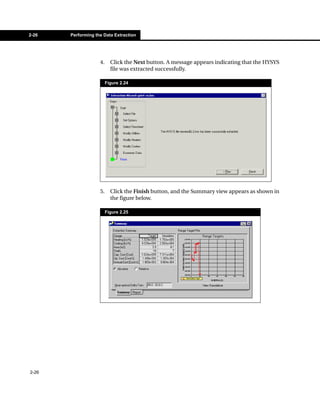
                    4.     Click the Next button. A message appears indicating that the HYSYS
                           file was extracted successfully.

                         Figure 2.24


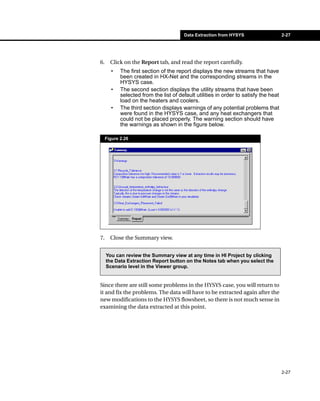
                    5.     Click the Finish button, and the Summary view appears as shown in
                           the figure below.

                         Figure 2.25


2-26
Data Extraction from HYSYS                     2-27


6.     Click on the Report tab, and read the report carefully.
       •    The first section of the report displays the new streams that have
            been created in HX-Net and the corresponding streams in the
            HYSYS case.
       •    The second section displays the utility streams that have been
            selected from the list of default utilities in order to satisfy the heat
            load on the heaters and coolers.
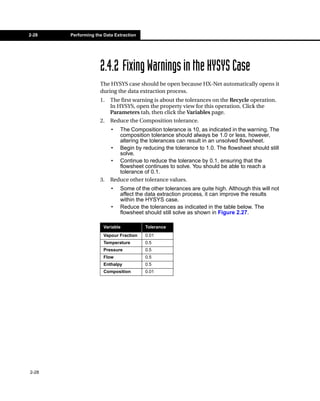
       •    The third section displays warnings of any potential problems that
            were found in the HYSYS case, and any heat exchangers that
            could not be placed properly. The warning section should have
            the warnings as shown in the figure below.

     Figure 2.26


7.     Close the Summary view.


     You can review the Summary view at any time in HI Project by clicking
     the Data Extraction Report button on the Notes tab when you select the
     Scenario level in the Viewer group.


Since there are still some problems in the HYSYS case, you will return to
it and fix the problems. The data will have to be extracted again after the
new modifications to the HYSYS flowsheet, so there is not much sense in
examining the data extracted at this point.


                                                                                       2-27
2-28   Performing the Data Extraction


                    2.4.2 Fixing Warnings in the HYSYS Case
                    The HYSYS case should be open because HX-Net automatically opens it
                    during the data extraction process.
                    1.   The first warning is about the tolerances on the Recycle operation.
                         In HYSYS, open the property view for this operation. Click the
                         Parameters tab, then click the Variables page.
                    2.   Reduce the Composition tolerance.
                         •  The Composition tolerance is 10, as indicated in the warning. The
                            composition tolerance should always be 1.0 or less, however,
                            altering the tolerances can result in an unsolved flowsheet.
                         • Begin by reducing the tolerance to 1.0. The flowsheet should still
                            solve.
                         • Continue to reduce the tolerance by 0.1, ensuring that the
                            flowsheet continues to solve. You should be able to reach a
                            tolerance of 0.1.
                    3.   Reduce other tolerance values.
                         •   Some of the other tolerances are quite high. Although this will not
                             affect the data extraction process, it can improve the results
                             within the HYSYS case.
                         •   Reduce the tolerances as indicated in the table below. The
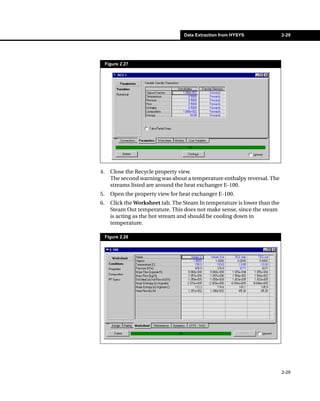
                             flowsheet should still solve as shown in Figure 2.27.

                      Variable          Tolerance
                      Vapour Fraction   0.01
                      Temperature       0.5
                      Pressure          0.5
                      Flow              0.5
                      Enthalpy          0.5
                      Composition       0.01


2-28
Data Extraction from HYSYS               2-29


     Figure 2.27


4.     Close the Recycle property view.
       The second warning was about a temperature enthalpy reversal. The
       streams listed are around the heat exchanger E-100.
5.     Open the property view for heat exchanger E-100.
6.     Click the Worksheet tab. The Steam In temperature is lower than the
       Steam Out temperature. This does not make sense, since the steam
       is acting as the hot stream and should be cooling down in
       temperature.

     Figure 2.28


                                                                             2-29
2-30   Performing the Data Extraction


                    7.     To solve the problem, set the Steam Out temperature lower than the
                           Steam In temperature. In the Temperature cell of the Steam Out
                           column, enter 148°C.
                           The Status bar in the E-100 property view turns yellow and indicates
                           a Converge From Wrong Direction problem.

                         Figure 2.29


                    8.     In the Temperature cell of the TEG Out column, enter -8°C. This
                           should solve the converge from wrong direction problem.
                    9.     The entire flowsheet should solve.
                    10. Close the E-100 property view.
                    11. Save the modified case and rename it newDataEXT.hsc.

                    Although this should now take care of the warnings listed in the Data
                    Extraction report, there is one more potential problem.

                    Steam is used in the heat exchanger E-100. Even though this is a utility
                    stream it will be extracted as a process stream. There are two options in
                    this case. The first is to make E-100 a heater, which will automatically
                    cause HX-Net to select a utility for it. The second is to manually replace
                    the heat exchanger in HYSYS with a heater.

                    For now, leave the HYSYS case as it is and you will manipulate the data
                    in HX-Net after the next data extraction.

                    You are now ready to extract the information from HYSYS again.


2-30
Data Extraction from HYSYS                 2-31


2.4.3 Performing the Final Data Extraction
You do not have to close the HYSYS case to perform the data extraction.
Leave HYSYS open and return to HX-Net.
1.   Create a new HI Project. Re-extracting the data into an existing
     project will generate inaccurate results.
2.   Perform the steps in Section 2.4.1 - Performing the Initial Data
     Extraction. When the extraction Summary view appears again, read
     the report carefully. It should no longer display any warnings.


2.5 Adjusting the Extracted
    Data in HX-Net
Now that all of the HYSYS information has been extracted into HX-Net,
you can examine the newly create streams heat exchanger network.
1.   In HI Project, click on the Scenario level in the Viewer group.
2.   Click the Data tab, then click the Process Streams page. Eleven
     streams have been extracted, however, one stream will be manually
     deleted as it is actually a utility stream, as noted after step #11 in
     Section 2.4.2 - Fixing Warnings in the HYSYS Case.
3.   Before deleting the Steam stream, examine the Grid Diagram to see
     if there are any exchangers on this stream.
4.   In the Viewer group of the main HI Project view, click on the
     SimulationBaseCase design.
5.   On the Grid Diagram, locate the stream Steam_In_to_Steam_Out.
     There is one heat exchanger on this stream that is matched with the
     stream TEG_only_to_TEG_out. When the Steam stream is deleted,
     this stream will become unsatisfied.
6.   In the Viewer Group, click the Scenario level and return to the
     Process Streams page on the Data tab.
7.   Select the stream Steam_In_to_Steam_Out, then press the DELETE
     key on the keyboard.
8.   Click the Utility Streams page. There are utilities that have been
     added during the extraction process, including three steam utilities,
     so a utility will not have to be added to take into account the stream
     that was deleted.

                                                                              2-31
2-32       Adjusting the Extracted Data in HX-Net


                                9.   Return to the SimulationBaseCase design.
                                10. Click the Open Palette View icon in the lower right-hand corner of
                                    the Grid Diagram tab. The Design Tools palette appears.
Open Palette View icon          11. Click the Open Property Preset View icon. The Property Presets view
                                    appears.
                                12. Select Preset 6: Alphabetical, which orders the streams
                                    alphabetically and shows the utility streams. Close the Property
Open Property Preset View           Presets view.
icon
                                13. Add a heat exchanger between the TEG_only_to_TEG_out stream
                                    and the utility stream LP steam.
                                14. Open the heat exchanger property view.
                                15. Click the Tied checkbox for both of the cold process stream
                                    temperatures. The heat exchanger will solve. The network status bar
                                    turns green, and all streams and heat exchangers are completely
                                    satisfied and solved.

                                The data extraction process is now complete. All required adjustments
                                to the HYSYS flowsheet were performed, and no warnings appeared in
                                the extraction summary report. Changes were made to the process
                                stream data in HX-Net to account for duplicate streams, and the heat
                                exchanger network was completed by adding the final heat exchanger.
                                You can now be confident that the targets calculated by HX-Net are
                                accurate, and can continue on in the analysis of the existing network, or
                                can perform changes to improve the network.


2-32
Automatic HEN Design in HI Project                         3-1


3 Automatic HEN Design in
  HI Project
  3.1 Introduction......................................................................................2
        3.1.1 Navigating Through HI Project ................................................3

  3.2 Creating a HI Project for Automatic Design Generation ..............7
        3.2.1    Setting Unit Preferences..........................................................7
        3.2.2    Creating the HI Project ............................................................9
        3.2.3    Entering Process Stream Data..............................................10
        3.2.4    Entering Utility Stream Data ..................................................12

  3.3 Generating HEN Designs ..............................................................14

  3.4 References .....................................................................................17


                                                                                                            3-1
3-2                                  Introduction


                                 3.1 Introduction
                                 This tutorial serves two functions:
                                   • Introduces the HX-Net Heat Integration (HI) Project environment.
                                   • Demonstrates how to use the Recommend Designs feature to
                                     automatically generate Heat Exchange Network (HEN) designs.
If you are a new user to HX-     In this tutorial, you will create an HX-Net HI Project, enter stream and
Net, it is highly recommended
that you complete the Crude
                                 utility information, then use the HX-Net Recommend Designs feature to
Pre-Heat Train Network           automatically generate heat exchanger network designs.
tutorial (refer to Chapter 1 -
Crude Pre-Heat Train
Network) before starting this
                                 To demonstrate HX-Net’s ability to optimize HEN designs, you will build
tutorial.                        a very simple network that will be far above the target values, then use
It is assumed that you know      the Recommend Designs feature to optimize the network design.
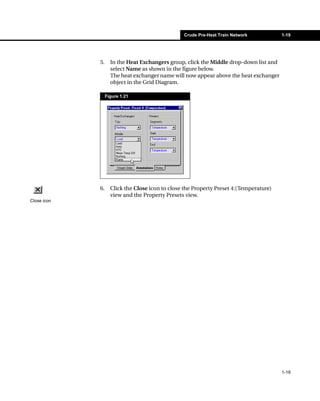
how to add and complete heat
exchangers on the Grid
Diagram tab.
                                 HX-Net provides you with a self-contained environment where you can
                                 create a HI Project with multiple Scenarios and Designs.

                                 At the Project level, you define what you want to design. Within each
                                 Project, there can be numerous Scenarios and Designs, as shown in the
                                 figure below.

                                  Figure 3.1

                                                                Project


                                   Scenario 1             Scenario 2   .......................   Scenario n


                                            Design 1

                                            Design 2
                                                .......


                                            Design j


3-2
Automatic HEN Design in HI Project     3-3


            The Project level contains only the most general description of the
            problem set being examined.

            The Scenario level contains the assumptions, conditions, and
            information required to generate a design. These conditions include
            process stream specifications, utility streams, and economic factors.

            The Design level contains the generated HEN design solutions. A
            Scenario can contain multiple designs. The generated designs are
            determined by the conditions, assumptions and specifications defined
            at the Scenario level.


            3.1.1 Navigating Through HI Project
            The Heat Integration Project View
            The Heat Integration Project view in HX-Net is divided into three
            sections: the Viewer group, the Main pane, and the Worksheet pane.

            The three sections are displayed and labeled in the figure below.

             Figure 3.2


Viewer
group

Main pane


Worksheet
pane


                                                                                    3-3
3-4       Introduction


      Viewer Group
      The Viewer group is always visible in the Heat Integration (HI) Project
      view and contains the HX-Net tree browser, which is used to access,
      create and delete Scenario and Design levels within a HI Project.

      To expand or compress the tree, click on the + or - beside the level you
      want to view.

       Figure 3.3


      When you create a new HI Project, HX-Net automatically creates a
      Scenario and Design level. You cannot delete the default Scenario and
      Design levels.


      Main Pane
      At the Scenario level, the Main pane displays a plot. You can select the
      type of plot to display from a drop-down list at the top of the view.

      At the Design level, the Main view displays the Heat Exchanger Network
      (HEN) diagram.


      Worksheet Pane
      The Worksheet pane of the HI Project view displays the entered and
      calculated values, both at the Scenario and Design levels.


3-4
Automatic HEN Design in HI Project                  3-5


The following sections describes some of the commonly used tabs
available at the Scenario and Design levels of the HI Project view.


Scenario Level
The following table lists and describes the tabs found at the Scenario
level.

 Tab                      Description
 Data tab                 On this tab, you enter all process and utility stream data
                          and set the cost parameters.
 Targets tab              All three pages on this tab contain the target values
                          calculated by HX-Net. These values represent the
                          performance of an ideal heat exchanger network design
                          for the entered stream and economic data.
 Range Targets tab        The options on this tab are useful for determining the
                          optimal minimum approach temperature, or DTmin, value.
                          Click the Calculate button, and use the plot or the table to
                          find the DTmin value for a minimum area or minimum cost
                          value. For more information, refer to Section 1.3.1 -
                          Range Targeting.
 Designs tab              Use this tab to compare all designs within a Scenario.
                          Here, you can display all designs or display only
                          completed designs. You can also display the designs as a
                          percentage related to the target values.
 Options tab              Use this tab to manipulate the utility load allocation
                          method and access the utility and HTC databases.
 Notes tab                Use this tab to enter notes for the Scenario level.


Design Level
To view the Design level, expand the tree in the Viewer group. To do this,
click the + beside the Scenario folder. Any designs contained within the
Scenario appear in the tree.


                                                                                         3-5
3-6       Introduction


      To view a design, click the design name. The Main pane now displays a
      Grid Diagram instead of a plot.

       Figure 3.4


      The following table lists and describes the tabs found at the Design level.

       Tab                      Description
       Performance tab          This tab displays the performance information for all heat
                                exchangers and utilities in the design.
       Worksheets tab           As in HI Case, this tab provides an alternative way to
                                manipulate the heat exchangers on the Grid Diagram.
       Heat Exchangers tab      This tab displays detailed information about each heat
                                exchanger. When the Show All checkbox is checked, this
                                tab shows all heat exchangers. When the checkbox is
                                unchecked, only solved exchangers appear.
       Targets tab              This tab shows all the same targets information available
                                at the Scenario level.
       Notes tab                This tab displays notes for a particular design. This tab
                                also contains a Modification Log page, which
                                automatically records and displays all modifications made
                                to the Grid Diagram.


      Now that you have an understanding of the setup and structure of the HI
      Project views, you are ready to begin the tutorial.


3-6
Automatic HEN Design in HI Project        3-7


                                   3.2 Creating a HI Project for
                                       Automatic Design Generation
To use HX-Net’s Recommend          In the following sections you will set unit preferences, create the HI
Design feature, the HI Project
must contain all required
                                   Project, and enter process and utility stream data.
process stream data and
utility streams that are
sufficient to satisfy the energy
demands of the process
streams.
                                   3.2.1 Setting Unit Preferences
                                   In this section, you will define a new unit set. For this tutorial, the
                                   temperatures are in Celsius, and the MCp is in kJ/C-s.
                                   1.   Start the HX-Net program, if it is not already open.
                                   2.   From the Tools menu, select Preferences. The Session Preferences
                                        view appears.
                                   3.   Click the Variables tab, then select the Units page.
The current set does not use       4.   In the Available Unit Sets list, select the unit set SI, then click the
the units required for this
tutorial, so you will create a          Clone button. This will create a cloned unit set named New User.
new set and modify the units.      5.   In the Unit Set Name field, rename the New User set to Application
                                        2 Units.
                                   6.   In the Display Units group, scroll down the list to find the Energy
                                        units cell. The default unit is kJ/h.


                                                                                                                  3-7
3-8      Creating a HI Project for Automatic Design


                                  7.     In the Energy unit cell, click the down arrow. A drop-down list
                                         appears containing various unit options as shown in the figure
                                         below.

                                       Figure 3.5


 The unit kJ/s is equal to kW,    8.     From the drop-down list, select kJ/s.
 so in some cases you can
 choose which units you want      9.     In the Display Units group, scroll to the MCp cell.
 to display.
                                  10. In the MCp cell, click the drop-down arrow and select kJ/C-s.
                                  11. Scroll through the rest of the list and change the units for the
                                      following variables:
                                         •    Ht Tran Coeff (kJ/s-m2-C)
                                         •    Heat Flux (kJ/s-m2)
                                         •    Fouling (C-m2/kW)
                                         •    Enthalpy per Length (kJ/s-m)
                                         •    Power (kJ/s)

                                         Although some of these variables may not be used, it is always a
                                         good idea to keep all of the units consistent.
                                  12. Optional: At this point you can save the newly created preference
                                      set, which will allow you to use it for future cases.
                                      To save, click the Save Preference File icon. On the Save Preference
                                      File view, enter a file name and location, then click the Save button.
Save Preference File icon         13. Click the Close icon       to close the Session Preferences view.
Although you can overwrite
the default preference set
included with HX-Net, it is not
recommended.


3-8
Automatic HEN Design in HI Project      3-9


                           3.2.2 Creating the HI Project
                           In this section you will create the Heat Integration (HI) Project.

                           To access the HI Project view, do one of the following:
                             • From the Features menu, select HI Project.
                             • Click the Heat Integration Manager icon, or, from the Managers
                               menu, select Heat Integration Manager. The manager view
                               appears. In the left list, select HeatIntegrationProject, then click
                               the Add button.
Heat Integration Manager
icon                       The HI Project view appears.

                            Figure 3.6


       You should be
       at the Scenario
       level in the
       Viewer group.


      In the
      Worksheet
      pane, you
      should be on
      the Process
      Streams page
      of the Data tab


                                                                                                      3-9
3-10   Creating a HI Project for Automatic Design


                               3.2.3 Entering Process Stream Data
                               In this section you will enter data for the all the process streams.
                               1.   Ensure that you are in the Scenario view, Data tab, Process Streams
                                    page.
                               2.   In the Name column, click on **New**.
                               3.   Type h1, then press the ENTER key. The cursor automatically moves
                                    to the Inlet T cell.
                               4.   In the Inlet T cell enter 230°C. The default units that appear in the
                                    unit drop-down list are already the desired unit, degrees Celsius, so
                                    they do not need to be changed.
                               5.   In the Outlet T cell, enter 80°C.
                                    If you know the temperature in a unit other than the default, type
                                    the known temperature in the cell, then select the appropriate units
                                    from the drop-down list, as shown in the figure below. HX-Net
                                    automatically converts the value to the default units. For example, if
                                    you enter 176°F, HX-Net converts this value to 80°C.

                                 Figure 3.7


                               6.   In the MCp cell, enter 30 kJ/°C-s.
                               7.   In the HTC cell, enter 0.4 kJ/s-m2-C.

                               After you enter the inlet and outlet temperatures, HX-Net knows if the
                               stream type is hot or cold. A red or blue arrow appears in the second
                               column. A red arrow indicates a hot stream; a blue arrow indicates a cold
                               stream.

                               Next you will add more streams to the HI Project.


3-10
Automatic HEN Design in HI Project   3-11


Using the procedure you just learned, enter the data for following
process streams. The stream information provided is from U. Shenoy
(1995)1.

 Name      Inlet T (°C)   Outlet T (°C)     MCp (kJ/°C-s)    HTC (kJ/s-m2-C)
 h2        200            40                45               0.4
 c3        40             180               40               0.4
 c4        140            280               60               0.4
 h5        110            45                0.1              0.4
 h6        115            40                0.1              0.4
 h7        105            40                0.1              0.4
 h8        110            42                0.1              0.4
 h9        117            48                0.1              0.4
 h10       103            50                0.1              0.4
 c11       170            270               0.1              0.4
 c12       175            265               0.1              0.4
 c13       180            275               0.1              0.4
 c14       168            277               0.1              0.4
 c15       181            267               0.1              0.4
 h16       110            45                0.1              0.4
 h17       115            40                0.1              0.4
 h18       105            40                0.1              0.4
 h19       110            42                0.1              0.4
 h20       117            48                0.1              0.4
 h21       103            50                0.1              0.4
 c22       170            270               0.1              0.4
 c23       175            265               0.1              0.4
 c24       180            275               0.1              0.4
 c25       168            277               0.1              0.4
 c26       181            267               0.1              0.4
 h27       115            42                0.1              0.4
 h28       117            43                0.1              0.4


8.    Verify that the information you just entered on the Process Streams
      page matches the figures in the table above.


                                                                               3-11
3-12       Creating a HI Project for Automatic Design


                                       3.2.4 Entering Utility Stream Data
                                       In this section, you will specify all the required heating and cooling
                                       utilities for the HEN design.
                                       1.    On the Data tab, select the Utility Streams page.


                                            The hot and cold status bars at the bottom of the tab display
                                            “insufficient”, which means there are not enough cold and hot utilities
                                            to satisfy the process streams.


 Click the drop-down arrow in          2.    First you will define the hot utility. In the Name column, click in the
 the Name column to view a                   <empty> cell. Type hu, then press ENTER.
 list of default utilities available
 within HX-Net.                        3.    Click in the Inlet T cell and enter 400°C.
 Usually, you would use these          4.    Click in the Outlet T cell and enter 350°C. This is the minimum
 values, but for this tutorial you
 will define the utilities                   information required for a utility.
 manually.

                                            The hot utility is now sufficient, which means that the hot utility entered
                                            has enough energy to heat all of the cold process streams.


                                       5.    Click in the HTC cell and enter 0.4.
                                       6.    Now you will define the cold utility. In the Name column, click in the
                                             <empty> cell and type cu.
                                       7.    In the Inlet T cell, enter 10°C.
                                       8.    In the Outlet T cell, enter 50°C.
                                       9.    In the HTC cell, enter 0.4.
                                             Since the cost information for the utility is unknown, use the default
                                             value displayed. HX-Net requires cost information for each utility to
                                             perform the cost target calculations.


3-12
Automatic HEN Design in HI Project        3-13


10. Verify that the information on the Utility Streams page appears
    similar to the figure below.

 Figure 3.8


11. On the Data tab, select the Economics page.

 Figure 3.9


HX-Net supplies a default set of economic parameters. At least one set of
economic data must be available for the calculation of the capital cost
targets and network capital costs. For this tutorial, leave the default
values as they are.


                                                                            3-13
3-14   Generating HEN Designs


              3.3 Generating HEN Designs
              In this section you will use HX-Net’s Recommend Designs feature to
              automatically generate HEN designs. HX-Net lets you control how many
              designs are generated. You can then compare the designs and make any
              modifications required.
              1.     In the Viewer group, click on the Scenario level.
              2.     Right-click the mouse button on the selected Scenario. The
                     following menu appears.

                   Figure 3.10


              3.     From this menu, select Recommend Designs. The Recommend
                     Designs view appears as shown in the figure below. This view allows
                     you to control certain aspects of the automatic design feature.

                   Figure 3.11


3-14
Automatic HEN Design in HI Project          3-15


                                  4.    On the General tab, in the Stream Split Options group, you can set
                                        the maximum number of branch splits. Accept the current default
                                        values.
                                  5.    In the Preview Input group, you can preview any of the input values
                                        for the process streams, utility streams, economics or forbidden
                                        matches. For this tutorial, leave all current default values as they are.
HX-Net is capable of solving      6.    In the Solver Options group, change the maximum number of
for more than five designs,
however, the time required for
                                        designs to 5.
the calculations increases        7.    Click the Solve button. HX-Net will begin automatically creating
with the number of designs.
For learning purposes, five
                                        heat exchanger networks. Depending on the speed of your system,
will be sufficient. If you have         this could take up to ten minutes to complete.
time and want to calculate
more, change the maximum
design value to the necessary          All generated designs will have a name that starts with “A_”, indicating
number.                                that these have been automatically generated by HX-Net.


                                  8.    At the Scenario level, click the Designs tab, then check the Relative
                                        to target checkbox. This will show all the key variables as a
                                        percentage of the calculated target value. The view should appear
                                        similar to the figure below. HX-Net sorts the results by Total Cost
                                        Index.

                                   Figure 3.12


                                  From the figure above, some of the designs recommended have total
                                  cost indexes higher than the target values, but area values less than the
                                  target values. This minimal area has been made possible by exceeding
                                  the utility energy targets. In most cases this will be true; to minimize
                                  area you must increase utility consumption, and vice-versa. From the
                                  previous figure, it appears as though A_Design3 has the smallest total
                                  cost index, and A_Design5 has the smallest total area.


                                                                                                                    3-15
3-16   Generating HEN Designs


              9.    In the Viewer group, click the design level A_Design3.


                   Depending on your settings, you may have slightly different results in
                   the list of recommended designs. For the step above, click on the
                   design that has the smallest total cost index.


              10. On the Notes tab, select the Modification Log page. This page
                  displays all the actions performed by HX-Net during the creation of
                  this network design.
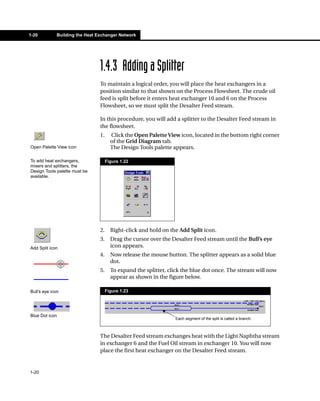
               Figure 3.13


              All of the designs generated by HX-Net are optimal for the given network
              structure, however, if you had a design that was not already minimized
              for area or cost, you can optimize the design by using the retrofit options
              described in Chapter 4 - Heat Exchanger Network Retrofit.


3-16
Automatic HEN Design in HI Project       3-17


3.4 References
1
    Shenoy, U.V., Heat Exchanger Network Synthesis: Process Optimization by
      Energy and Resource Analysis, Gulf Publishing Company, Houston, USA,
      1995.


                                                                              3-17
Heat Exchanger Network Retrofit                            4-1


4 Heat Exchanger Network
  Retrofit
  4.1 Introduction......................................................................................2

  4.2 Creating a HI Project for Retrofit ....................................................3
        4.2.1    Setting Unit Preferences..........................................................3
        4.2.2    Creating the HI Project ............................................................5
        4.2.3    Entering the Process Stream Data..........................................6
        4.2.4    Entering Utility Stream Data ..................................................10
        4.2.5    Building the Heat Exchanger Network...................................12

  4.3 Performing the Retrofit..................................................................20
        4.3.1    Entering the Retrofit Environment .........................................20
        4.3.2    HEN Retrofit - Resequencing Heat Exchangers....................22
        4.3.3    HEN Retrofit - Repiping Heat Exchangers ............................24
        4.3.4    HEN Retrofit - Adding Heat Exchangers ...............................26

  4.4 Comparing Designs.......................................................................28


                                                                                                            4-1
4-2                                    Introduction


                                 4.1 Introduction
If you are a new user to HX-     In this tutorial, you will use the Automatic Retrofit feature of HX-Net.
Net, it is highly recommended
                                 You will start by creating a heat exchanger network (HEN) in the HI
that you complete the HI Case
tutorial (refer to Chapter 1 -   Project environment. Then, you will enter the Automatic Retrofit
Crude Pre-Heat Train             environment to retrofit the HEN. During the retrofit, you will use four
Network) and HI Project
tutorial (refer to Chapter 3 -   methods:
Automatic HEN Design in HI         •    modifying utility exchangers
Project) before starting this
tutorial.                          •    resequencing heat exchangers
It is assumed that you know        •    repiping heat exchangers
how to add and complete heat       •    adding heat exchangers
exchangers on the Grid
Diagram.
                                 HEN retrofit focuses on modifying an existing heat exchanger network
                                 to improve energy efficiency. In the past, HEN retrofits using Pinch
                                 technology required an expert user, and the Mathematical
                                 programming method reduced the interaction between the design
                                 engineer and HX-Net. HX-Net performs the HEN Retrofit algorithm one
                                 step at a time so the engineer may still control the decision making
                                 process.

                                 The design engineer can apply constraints during the design process
                                 that will affect the retrofit calculations. Within the retrofit environment,
                                 the design engineer is required to choose one type of modification at a
                                 time. The design engineer also has to assess the operational safety and
                                 practicality of the optimal designs generated by HX-Net.


4-2
Heat Exchanger Network Retrofit          4-3


4.2 Creating a HI Project for Retrofit
The following sections describe how to create a HEN design within the
HI Project environment.


4.2.1 Setting Unit Preferences
Before you begin, verify that the units currently selected in the session
preferences are the ones you want to use. For this tutorial, the
temperatures are in degrees Celsius, and the MCp is in kJ/°C-s.
1.   Open HX-Net if it is not already open.
2.   From the Tools menu, select Preferences. The Session Preferences
     view appears.
3.   Click the Variables tab, then select the Units page.
4.   In the Available Unit Sets group, select the unit set SI.
     The default energy units appear in the units of kJ/h, so, you will
     need to define a new unit set.
5.   With the unit set SI selected, click the Clone button.
     This will create a cloned unit set named New User.
6.   In the Unit Set Name field, rename the New User set to Application
     3 Units.
7.   In the Display Units group, scroll down the list to find the Energy
     units cell. The default unit is kJ/h.


                                                                            4-3
4-4                 Creating a HI Project for Retrofit


                                    8.        In the Energy units cell, click the down arrow. A drop-down list
                                              appears containing various unit options as shown in the figure
                                              below.

                                         Figure 4.1


                                    9.        From the drop-down list, select kJ/s.
                                    10. In the Display Units group, scroll to the MCp cell.
                                    11. In the MCp cell, click the drop down list and select kJ/C-s.
The unit kJ/s is equal to kW,       12. Scroll through the rest of the list and change the units for the
so in some cases you can
choose which units you want
                                        following variables:
to see displayed.                         •    Ht Tran Coeff (kJ/s-m2-C)
                                          •    Heat Flux (kJ/s-m2)
                                          •    Fouling (C-m2/kW)
                                          •    Enthalpy per Length (kJ/s-m)
                                          •    Power (kJ/s)

                                    Although some of these variables might not be used, it is always a good
                                    idea to keep all of the units consistent.
                                    13. Optional: At this point you can save the newly created preference
                                        set, which will allow you to use it in future cases.
                                        To save, click the Save Preference Set icon. On the Save Preference
                                        File view, enter a file name and location, then click the Save button.
Save Preference Set icon
Although you can overwrite
the default preference set
included with HX-Net, it is not
recommended.


4-4
Heat Exchanger Network Retrofit          4-5


                           4.2.2 Creating the HI Project
                           Now you will create the Heat Integration (HI) Project in HX-Net.

                           To access the HI Project view, do one of the following:
                             • From the Features menu, select HI Project.
                             • Click the Heat Integration Manager icon, or, from the Managers
                               menu, select Heat Integration Manager. The manager view
                               appears. In the left list, select HeatIntegrationProject, then click
                               the Add button.
Heat Integration Manager
icon                       The HI Project view appears.

                            Figure 4.2


       You should be
       at the Scenario
       level in the
       Viewer group.


      In the
      Worksheet
      pane, you
      should be on
      the Process
      Streams page
      of the Data tab


                                                                                                      4-5
4-6   Creating a HI Project for Retrofit


                      4.2.3 Entering the Process Stream Data
                      In this section, you will enter data for the process streams on the Process
                      Stream page on the Data tab.
                      1.   In the Name column, click on **New**.
                      2.   Type H1, then press the ENTER key. The cursor automatically moves
                           to the Inlet T cell.
                      3.   In the Inlet T cell, enter 347.3°C. The default units that appear in the
                           unit drop-down list are already in degrees Celsius, so they do not
                           need to be changed.
                      4.   In the Outlet T cell, enter 45°C.
                           If you know the temperature in a unit other than the default, type
                           the known temperature in the cell, then select the appropriate units
                           from the drop-down list, as shown in the figure below. HX-Net
                           automatically converts the value to the default units. For example, if
                           you enter 113°F, HX-Net converts this value to 45°C.

                       Figure 4.3


                      5.   In the MCp cell, enter 180.1 kJ/°C-s.

                      After you enter the inlet and outlet temperatures, HX-Net knows if the
                      stream type is hot or cold. A red or blue arrow appears in the second
                      column. A red arrow indicates a hot stream; a blue arrow indicates a cold
                      stream.

                      Next, you will segment this stream and add other streams to the HI
                      Project.


4-6
Heat Exchanger Network Retrofit           4-7


                                  Segmenting Process Streams
                                  The H1 stream requires an enthalpy or heat capacity value to be
                                  complete. All other information is optional. When you enter this
Double-click in the HTC           information, HX-Net generates a default heat transfer coefficient value
column to open the HTC
Default Values view, which
                                  for the HTC cell. For this tutorial, you will use the default coefficient
contains a list of default heat   values generated by HX-Net.
transfer coefficients for
various materials. Accept the
default value or select a new
                                  In this section you will add streams and segment some of the streams.
default value.                    Stream segmentation is extremely useful for streams that change phase
                                  or have non-linear variations in enthalpy as the temperature changes.
                                  1.     In the H1 stream row, double-click on any cell (except HTC) to open
                                         the Process Stream view.

                                       Figure 4.4


                                  2.     Click once in the Outlet T cell containing the value 45.0. This is the
                                         target outlet temperature.
The blank segment row             3.     Click the Insert Segment button. A blank row appears above the
always appears above the row             target outlet temperature.
containing the cursor.
                                  4.     The outlet temperature of the first segment is 202.7°C.
                                         Click in the empty Outlet T cell and enter 202.7.
                                         HX-Net automatically inserts the inlet temperature for the following
                                         segment.


                                                                                                                  4-7
4-8           Creating a HI Project for Retrofit


                              5.     The MCp for the first segment is 217.3 kJ/°C-s.
                                     Click in the empty MCp cell and enter 217.3.
                                     The process stream is complete as shown in the figure below.

                                   Figure 4.5


                              6.     Click the Close icon to return to the Data tab of the HI Project view.
                              7.     Now that you know how to successfully enter process stream
 Close icon                          information and create segmented streams, enter the following
                                     stream information.


                                   Enter the stream name, first Inlet T value and the target (last) Outlet T
                                   value on the Process Streams tab before accessing the Process Stream
                                   view to enter the segment information.
                                   Enter only the Outlet T values and the MCp values; the Inlet T values are
                                   calculated for you.


                               Stream Name         Inlet T (°C)     Outlet T (°C)     MCp (kJ/°C-s)
                               H2                  319.4            244.1             136.2
                               H3                  297.4            203.2             22.08
                                                   203.2            110.0             19.76
                               H4                  263.5            180.2             123.1
                               H5                  248.0            143.7             67.41
                                                   143.7            50.0              58.11
                               H6                  231.8            176.0             51.14
                                                   176.0            120.0             46.49
                               H7                  167.1            116.1             172.0
                                                   116.1            69.6              158.1


4-8
Heat Exchanger Network Retrofit       4-9


 Stream Name        Inlet T (°C)   Outlet T (°C)    MCp (kJ/°C-s)
 H8                 146.7          133.3            233.6
                    133.3          120.0            202.2
                    120.0          99.9             169.7
                    99.9           73.2             338.2
 H9                 73.2           30.0             6.843
 H10                73.2           40.0             57.69
 C11                232.2          274.3            471.9
                    274.3          343.3            498.6
 C12                30.0           108.1            333.6
                    108.1          211.3            381.2
                    211.3          232.2            481.2
 C13                226.2          228.7            352.2
                    228.7          231.8            425.4

8.     Verify that the information on the Process Streams page appears
       similar to the following figure.

     Figure 4.6


                                                                         4-9
4-10               Creating a HI Project for Retrofit


                                   4.2.4 Entering Utility Stream Data
                                   In this section, you will specify all the required heating and cooling
                                   utilities for the HEN design.
                                   1.        Click on the Data tab, then click on the Utility Streams page.


                                        The hot and cold status bars at the bottom of the tab displays
                                        “insufficient”, which means that there are not enough cold and hot
                                        utilities to satisfy the process streams.


                                   2.        In the Name Column, click on <empty>. A drop-down arrow
                                             becomes active.

                                        Figure 4.7


                                   3.        Click the arrow, and a drop-down list appears containing all of the
                                             default utilities available within HX-Net.

                                        Figure 4.8


                                   4.        Select the following default utilities from the list:
                                         •    Cooling Water
You can change or define                 •    Fired Heat (1000) - If a warning box appears, click OK.
economics parameters on
the Economics page of the                •    HP Steam
Data tab. Refer to step #6.              •    LP Steam Generation
                                         •    MP Steam
                                         •    MP Steam Generation


4-10
Heat Exchanger Network Retrofit        4-11


5.   Verify that the information on the Utility Streams page appears
     similar to the figure below.

 Figure 4.9


6.   On the Data tab, click on the Economics page.

 Figure 4.10


HX-Net supplies a default set of economic parameters for a typical heat
exchanger. Here, you can change or add another type of installation cost
and area-related cost law coefficient if required. At least one set of
economic data must be available for the calculation of the capital cost
targets and network capital costs.

For this tutorial, you will use the default values.


                                                                           4-11
4-12   Creating a HI Project for Retrofit


                       4.2.5 Building the Heat Exchanger Network
                       In this tutorial, you will add heat exchangers only to the heat exchanger
                       network. Splitters are not required.


                       Accessing the Design Level
                       To build the HEN diagram, you must enter the Design level of the HI
                       Project view.
                       1.     In the Viewer group, click on the + beside Scenario 1 to expand the
                              tree.
                       2.     Click on the design named Design 1. The view appears as shown in
                              the figure below.

                            Figure 4.11


                                                                                     The Main
                                                                                     pane displays
                                                                                     the Grid
                                                                                     Diagram
                                                                                     instead of the
                                                                                     plots.


                                                                                     The status bar
                                                                                     is not green.
                                                                                     There are 13
                                                                                     unsatisfied
                                                                                     streams.


4-12
Heat Exchanger Network Retrofit     4-13


                            Setting the Grid Diagram View Options
                            To modify the appearance of the heat exchanger network design in the
                            Grid Diagram:
                            1.    Open the Property Presets view by doing one of the following:
                                 • Click the Open Palette View icon. The Design Tools palette
                                   appears.Click the Open Property Preset View icon.
Open Palette View icon
                                 Figure 4.12


Open Property Preset View
icon


                              • Right-click on the Grid Diagram, then select Properties from the
                                Object Inspect menu.
                            2. The Property Presets view appears.
                               Select Preset 4: (Temperature), then click the Edit button.
                               The Property Preset: Preset 4: (Temperature) view appears.
                            3.     Click the Annotations tab.
                            4.     In the Heat Exchangers group, click the Middle drop-down list.
                            5.     From the drop-down list, select Name.
                                   The stream name will now appear in the Grid Diagram.
                            6.     Close both the Property Presets and Property Preset: Preset 4:
                                   (Temperature) views to return to the HI Project view.


                                                                                                    4-13
4-14                  Creating a HI Project for Retrofit


                                      Adding Heaters
                                      In this section, you will add heat exchangers to the network design.
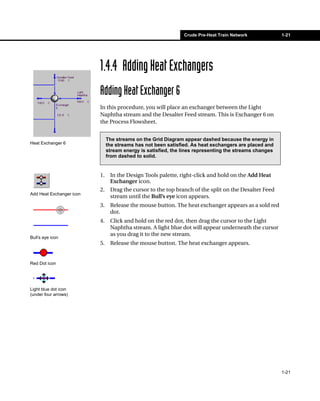
                                      The Design Tools palette must be visible before you can add heat
                                      exchangers.
                                      1.   Press F4 to open/access the Design Tools palette.
                                      2.   In the Design Tools palette, right-click and hold on the Add Heat
                                           Exchanger icon.
                                      3.   Drag the cursor over the C11 stream until the Bull’s eye icon
Add Heat Exchanger icon
                                           appears.
                                      4.   Release the mouse button. The heat exchanger appears as a solid
                                           red dot.
                                      5.   To attach the heat exchanger to the Fired Heat (1000) stream, click
                                           and hold on the red dot, then drag the cursor to the Fired Heat
                                           stream. A light blue dot will appear underneath the cursor as you
Bull’s eye icon
                                           drag it to the new stream.
                                      6.   Release the mouse button. The heat exchanger appears. Since this is
                                           a heater, the heat exchanger is red.
Red dot icon                          7.   Double-click either end of the heat exchanger (the red dots) to open
                                           the Heat Exchanger property view.
                                      8.   Click the Notes tab.
Light blue dot icon                   9.   In the Name field, enter HU1.
(under four arrows)
                                      10. Click the Data tab.


4-14
Heat Exchanger Network Retrofit                4-15


                                 11. On the Data tab, Click the Tied checkbox for the C11 cold stream
                                     outlet temperature. The heat exchanger property view appears as
                                     shown in the figure below.

                                  Figure 4.13


         C11 is a cold stream


           C11 stream Outlet                                                                  C11 stream Inlet
           Temperature                                                                        Temperature


                                                                                              Fired Heat (1000)
                                                                                              stream Outlet
                                                                                              Temperature

      Fired Heat (1000) stream                                                                Fired Heat (1000)
      Inlet Temperature                                                                       is a hot stream


Since the C11 stream is          12. In the Duty field, enter 37.9, then select MW from the units list.
being heated to the known
outlet temperature, you can
“tie” the cold stream outlet      Figure 4.14
temperature value to the
outlet temperature value
previously entered on the
Process Streams tab.


                                                                                                                  4-15
4-16   Creating a HI Project for Retrofit


                       The heat exchanger solves, and the view appears as shown in the figure
                       below.

                         Figure 4.15


                       13. Use the procedure you just learned and the data in the table below
                           to add the other heaters.


                         When placing heat exchangers on the stream, remember that the hot
                         streams flow from left to right, while the cold streams flow from right to
                         left.


                                                Location of Heat      Cold Stream (°C)
                        Name      Streams                                                  Duty (MW)
                                                Exchanger             Inlet T   Outlet T
                        HU2       C12 & HP      Place on C12 stream             Tied       27.8
                                  Steam
                        HU3       C13 & HP      Place on C13 stream   Tied      Tied
                                  Steam


                       “Tied” indicates that you must check the Tied checkbox as indicated. A
                       blank cell in the table above indicates that HX-Net will calculate the
                       value.


4-16
Heat Exchanger Network Retrofit          4-17


                               Adding Heat Exchangers
                               In this section, you will add heat exchangers to the Grid Diagram.
                               1.     Press F4 to open/access the Design Tools palette.
                               2.     In the Design Tools palette, right-click and hold on the Add Heat
                                      Exchanger icon.
                               3.     Drag the cursor over the H6 stream until the Bull’s eye icon appears.
Add Heat Exchanger icon
                               4.     Release the mouse button. The heat exchanger appears as a solid
                                      red dot.
                               5.     To attach the heat exchanger to the C12 stream, click and hold on
                                      the red dot, then drag the cursor to the C12 stream. A light blue dot
                                      will appear underneath the cursor as you drag it to the new stream.
Bull’s eye icon
                                    Remember that cold streams flow from right to left. Place the new heat
                                    exchanger upstream from (to the right of) HU2 on the C12 stream.
Red dot icon

                               6.     Release the mouse button. The heat exchanger appears.

                                    Figure 4.16


Light blue dot underneath
four arrow cursor


                               7.     Double-click either end of the heat exchanger (the gray dots) to
                                      open the Heat Exchanger property view.
                               8.     Click the Notes tab.
                               9.     In the Name field, enter E1.
You know from the stream       10. Click the Data tab.
information you entered on
the Process Streams tab that   11. Click the Tied checkbox for the inlet hot stream temperature.
the inlet hot stream
temperature for E1 is the      12. Click the Tied checkbox for the outlet cold stream temperature.
same as the initial stream     13. In the Duty field, enter 0.7 MW. The heat exchanger solves.
temperature for H6.


                                                                                                              4-17
4-18              Creating a HI Project for Retrofit


If you make an error and need     14. Use the procedure you just learned and the data in the table below
to delete a heat exchanger,           to add the rest of the heat exchangers and coolers to the Grid
right-click either end of the
exchanger and select Delete
                                      Diagram.
from the Object Inspect menu.

                                    When placing heat exchangers on the stream, remember that the hot
                                    streams flow from left to right, while the cold streams flow from right to
                                    left. This is important when placing heat exchangers ‘before’ or ‘after’
                                    other exchangers in the design.


                                  “Tied” indicates that you must check the stream Tied checkbox. A blank
                                  cell indicates that HX-Net will solve the value.

                                                                 Hot Stream (°C)      Cold Stream (°C)     Load/Duty
          Name      Streams       Location of Heat Exchanger
                                                                 Inlet T   Outlet T   Inlet T   Outlet T   (MW)

          E2        H1 & C11      Place on C11 stream, before    Tied                           Tied       15.2
                                  HU1
          E3        H3 & C11      Place on C11 stream, before    Tied                 Tied      Tied
                                  E2
          E4        H3 & C12      Place on H3 stream, after E3   Tied                           Tied       0.7
                                  Place on C12 stream, before
                                  E1
          E5        H1 & C12      Place on H1 stream, after E2   Tied      Tied                 Tied
                                  Place on C12 stream, before
                                  E4
          E6        H3 & C12      Place on H3 stream, after E4   Tied                 Tied      Tied
                                  Place on C12 stream, before
                                  E5
          CU1       H3 &          Place on H3 stream, after E6   Tied      Tied
                    Cooling
                    Water
          CU2       H6 &          Place on H6 stream, after E1   Tied      Tied
                    Cooling
                    Water
          CU3       H10 &         Place on H10 stream            Tied      Tied
                    Cooling
                    Water
          CU4       H5 &          Place on H5 stream             Tied      Tied
                    Cooling
                    Water
          CU5       H9 &          Place on H9 stream             Tied      Tied
                    Cooling
                    Water
          CU6       H7 &          Place on H7 stream             Tied      Tied
                    Cooling
                    Water


4-18
Heat Exchanger Network Retrofit               4-19


                                                 Hot Stream (°C)      Cold Stream (°C)       Load/Duty
Name   Streams      Location of Heat Exchanger
                                                 Inlet T   Outlet T   Inlet T   Outlet T     (MW)

CU7    H8 &         Place on H8 stream           Tied      Tied
       Cooling
       Water
CU8    H2 & MP      Place on H2 stream           Tied      Tied
       Steam
       Generation
CU9    H4 & LP      Place on H4 stream           Tied      Tied
       Steam
       Generation


                    After entering the information in the table above, the Grid Diagram
                    should appear as shown in the figure below. There might be some
                    variation in the heater placement.

                     Figure 4.17


                                                                                                         4-19
4-20                       Performing the Retrofit


                                 4.3 Performing the Retrofit
                                 4.3.1 Entering the Retrofit Environment
                                 In this section, you will use HX-Net’s retrofit tools to generate optimal
                                 HEN designs.
                                 1.     In the Viewer group, select Scenario 1.
                                 2.     Click the Enter Retrofit Mode icon located at the bottom right
                                        corner of the view.
Enter Retrofit Mode icon
                                 3.     The Enter Retrofit Environment view appears, as shown in the figure
                                        below.

                                      Figure 4.18

                                       Ensure the
                                       Create New
                                       Retrofit Scenario
                                       is selected.


                                                                                      Read the
                                                                                      suggestions on
                                                                                      the Tips tab to
                                       Select the design
                                                                                      simplify the
                                       to be entered into
                                                                                      design before
                                       the Retrofit
                                                                                      entering into the
                                       Environment.
                                                                                      HEN Retrofit
                                                                                      environment.


                                      While you are in the Retrofit Mode you cannot make any changes to the
                                      design and stream information.


                                 The Tips tab contains the following information:
                                      • Reduce the scope of the problem by minimizing the number of
                                        streams and heat exchangers in the heat exchanger network.
                                        Remove the exchanger(s) at either end of the streams that you don't
                                        want to modify and update the corresponding inlet or outlet stream
                                        temperatures. This can simplify the network and increase the
                                        efficiency of the model.
                                      • Keep stream segmentation to a minimum as they increase the
                                        computational power required to solve the problem.

4-20
Heat Exchanger Network Retrofit           4-21


                               • Combine adjacent heat exchangers between two process streams
                                 into one heat exchange when possible. This has no effect in the final
                                 outcome but makes the solver work more efficiently.
                               • Remove all energy streams. Energy streams are important to
                                 establish the targets of a process but are not necessary to perform a
                                 retrofit study. By removing them, the problem becomes easier to
                                 solve.


                               Verify that the heat exchanger network represented in HX-Net matches
                               the setup that exists in the plant before entering the retrofit
                               environment. This will ensure that accurate and meaningful designs are
                               generated when retrofit is performed.


                          4.     Click the Enter Retrofit Environment button.
                                 The following view appears (Performance tab, Summary page).

                               Figure 4.19


HX-Net creates a
new scenario called
Scenario 1 1. The
light blue folders
indicate you are in the
Retrofit environment.


                                                                                                         4-21
4-22                            Performing the Retrofit


                                      4.3.2 HEN Retrofit - Resequencing
                                            Heat Exchangers
                                      In this section you will generate a retrofit design by resequencing the
                                      heat exchangers.
                                      1.     In the Viewer group, select Design 1 under Scenario 1 1 (blue folder).
                                      2.     Click the Open Palette View icon. The Design Tools palette appears.
Open Palette View icon
                                      3.     On the Design Tools palette, click the Modify utility heat exchanger
                                             icon.
                                             In this example, it is not optimal to modify any of the utility heat
                                             exchangers. The following view appears.
Modify utility heat exchanger
icon
                                           Figure 4.20


                                      4.     Click the OK button to close the view. The view for Scenario 1 1
                                             appears.
                                      5.     In the Viewer group, select Design 1 under Scenario 1 1 (blue folder)
                                             again.
                                      6.     Click the Open Palette View icon. The Design Tools palette appears.
                                      7.     On the Design Tools palette, click the Move one end of a Heat
                                             Exchanger icon. The Retrofit Specifications view appears.

Move one end of a Heat                     Figure 4.21
Exchanger icon


                                      8.     In the Maximum Investment field, enter a capital cost investment
                                             value. Entering a value here helps ensure that HX-Net will generate
                                             retrofit solutions. Leave the field blank if you want to see if HX-Net
                                             can generate a solution requiring no capital investment.


4-22
Heat Exchanger Network Retrofit         4-23


                                9.     Click the Run button. HX-Net begins retrofit calculations.
                                       The following view will appear if HX-Net calculates a cost above
                                       what you entered in the previous step.

                                     Figure 4.22


To display the exchanger
                                In this view, you can do the following:
names in the new design,           • Click Delete Design to exit the calculation and delete the design.
refer to the previous Setting
the Grid Diagram View              • Click Keep Design to finish the calculation and keep the design.
Options section.                   • Click Recalculate and enter a new Maximum Investment value.
                                10. For this tutorial, click Keep Design.
                                    A new design called Design 1-1S appears in the Viewer group.
                                11. In the Viewer group, select Design 1-1S. Verify that the Grid Diagram
                                    appears similar to the view below.

                                     Figure 4.23


     The green icon
     indicates that a
     section of the
     heat exchanger
     has been moved.


                                                                                                            4-23
4-24                            Performing the Retrofit


                                      4.3.3 HEN Retrofit - Repiping Heat Exchangers
                                      1.     In the Viewer group, select Design 1 under Scenario 1 1 (blue
                                             folder).
                                      2.     Click the Open Palette View icon. The Design Tools palette appears.
                                      3.     On the Design Tools palette, click the Move both ends of a Heat
Open Palette View icon
                                             Exchanger icon. The Retrofit Specifications view appears.

                                           Figure 4.24


Move both ends of a Heat
Exchanger icon


                                      4.     In the Maximum Investment field, enter a capital cost investment
                                             value. Entering a value here helps ensure that HX-Net will generate
                                             retrofit solutions. Leave the field blank if you want to see if HX-Net
                                             can generate a solution requiring no capital investment.
                                      5.     Click the Run button. HX-Net begins retrofit calculations.
                                             The following view will appear if HX-Net calculates a cost above
                                             what you entered in the previous step.

                                           Figure 4.25


                                      In this view, you can do the following:
                                        • Click Delete Design to exit the calculation and delete the design.
                                        • Click Keep Design to finish the calculation and keep the design.
                                        • Click Recalculate and enter a new Maximum Investment value.
To display the exchanger              6. For this tutorial, click Keep Design.
names in the new design,
refer to the previous Setting
                                         A new design called Design 1-1P appears in the Viewer group.
the Grid Diagram View
Options section.


4-24
Heat Exchanger Network Retrofit           4-25


                 7.     In the Viewer group, select Design 1-1P Verify that the Grid Diagram
                                                               .
                        appears similar to the view below.

                      Figure 4.26


The two green
icons indicate
that the heat
exchanger has
been moved.


                                                                                               4-25
4-26                            Performing the Retrofit


                                      4.3.4 HEN Retrofit - Adding Heat Exchangers
                                      1.     In the Viewer group, select Design 1 under Scenario 1 1.
                                      2.     Click the Open Palette View icon. The Design Tools palette appears.
                                      3.     On the Design Tools palette, click the Add a Heat Exchanger icon.
Open Palette View icon                       The Retrofit Specifications view appears.

                                           Figure 4.27

Add Heat Exchanger icon


                                      4.     In the Maximum Investment field, enter a capital cost investment
                                             value. Entering a value here helps ensure that HX-Net will generate
                                             retrofit solutions. Leave the field blank if you want to see if HX-Net
                                             can generate a solution requiring no capital investment.
                                      5.     Click the Run button. HX-Net begins retrofit calculations.
                                             The following view will appear if HX-Net calculates a cost above
                                             what you entered in the previous step.

                                           Figure 4.28


                                      In this view, you can do the following:
                                        • Click Delete Design to exit the calculation and delete the design.
                                        • Click Keep Design to finish the calculation and keep the design.
                                        • Click Recalculate and enter a new Maximum Investment value.
To display the exchanger              6. For this tutorial, click Keep Design.
names in the new design,
refer to the previous Setting            A new design called Design 1-1N appears in the Viewer group.
the Grid Diagram View                 7.     In the Viewer group, select Design 1-1N. Verify that the Grid
Options section.
                                             Diagram appears similar to the view below.


4-26
Heat Exchanger Network Retrofit   4-27


                         Figure 4.29


The two green icons
and a new exchanger
name indicate that the
heat exchanger was
added.


                                                                         4-27
4-28   Comparing Designs


         4.4 Comparing Designs
         Now that HX-Net has generated three possible design improvements,
         you can compare each design and decide which one best suits the
         project requirements.
         1.       In the Viewer group, select Scenario 1 1.
         2.       Click the Designs tab. The following worksheet appears. The values
                  displayed may be different than what appears below.

              Figure 4.30


         The Designs worksheet displays data on the original and all the retrofit
         generated designs. For each retrofit generated design you can compare
         the following:
              •    the payback of the generated design
              •    new area required
              •    capital investment required
              •    energy consumption reduction
              •    operation costs reduction

         Remember that all estimated cost values are based on the HX-Net
         default economic parameters. You can change the economic parameters
         on the Economics page of the Data tab. All modification changes are
         compared to the base case design.


4-28
Heat Exchanger Network Retrofit          4-29


3.     Click the checkbox beside Relative to base design to view the above
       data with percent values relative to the original HEN design.

     Figure 4.31


                                                                             4-29
Column Sequencing for Multi-Components                     5-1


5 Column Sequencing for
  Multi-Components
  5.1 Introduction......................................................................................2
        5.1.1 About the Scenarios ................................................................3

  5.2 Setting Unit Preferences .................................................................4

  5.3 Creating the Fluid Package.............................................................5
        5.3.1 Selecting a Property Package .................................................5
        5.3.2 Selecting the Components ......................................................6

  5.4 Installing Column Sequencing .......................................................7
        5.4.1 Specifying the Feed Stream Conditions ..................................8
        5.4.2 Specify Product Streams Conditions .......................................9

  5.5 Generating Grass Root Scenarios ...............................................11
        5.5.1 Columns with Constant Pressure ..........................................11
        5.5.2 Columns with Constant Top Temperature..............................16
        5.5.3 Optimum Top Temperature ....................................................21

  5.6 Comparing Grass Root Designs ..................................................26

  5.7 Generating a Retrofit Scenario.....................................................27
        5.7.1    Cloning an Existing Scenario ................................................27
        5.7.2    Remove Temperature Constraints .........................................27
        5.7.3    Specify the Existing Number of Trays....................................28
        5.7.4    Generated Feasible Designs .................................................29

  5.8 Comparing Grass Root and Retrofit Designs .............................32


                                                                                                            5-1
5-2                              Introduction


                             5.1 Introduction
This tutorial serves as an   In this tutorial, you will use DISTIL to help you decide the best column
introduction to the DISTIL
Column Sequencing
                             sequence design to separate a feed stream into five product streams.
operation.
                              Figure 5.1


                             For a five product separation system, there are as many as 14 different
                             column sequence designs. The figure below displays two possible
                             sequences:

                              Figure 5.2


                                                      OR


                             The objective of this tutorial is to illustrate how you can use the column
                             sequencing feature for screening and scoping different design options.


5-2
Column Sequencing for Multi-Components      5-3


For more information about       The performance of all tasks is estimated using the Shortcut models and
task, refer to Section 5.4.4 -
Representation from the
                                 then the rigorous MILP model is employed to identify a few promising
Reference Guide.                 column sequences.


                                 5.1.1 About the Scenarios
                                 The following four different scenarios will be considered to see how the
                                 performance of the optimum design changes as the search domain is
                                 expanded.
                                   • The first scenario looks at the classical column sequencing problem
                                     where all the tasks (i.e., all potential columns of sequence) operate
                                     at a fixed pressure (P = 5 bar). This scenario will illustrate how
                                     different sequences of splits affect the performance of the
                                     separation system.
                                   • The second scenario expands the search domain by adjusting the
                                     operating pressure of all tasks to use cooling water as the cold utility
                                     and then performing column sequence screening. This scenario will
                                     illustrate that the optimum column sequence strongly depends on
                                     the operating pressure of the columns within the sequence.
For more information about         • The third scenario further widens the search domain by allocating
instance, refer to Section           instances of tasks that perform identical separation but operate at
5.4.5 - Task Classification          different pressures. This scenario allows you to solve sequencing
from the Reference Guide.            and pressure optimization problems simultaneously. The number of
                                     design options increases exponentially, but the rigorous MILP
                                     framework allows you to identify promising options without any
                                     difficulty.
                                   • The fourth scenario imposes some constraints on the search space
                                     domain to utilize the available assets more effectively and find the
                                     most promising sequence.

                                 The first three scenarios assume a grass-roots situation, while the fourth
                                 scenario addresses retrofitting the real industrial plant.


                                                                                                                5-3
5-4                        Setting Unit Preferences


                                  5.2 Setting Unit Preferences
                                  Before you begin setting up the simulation, verify that the units
                                  currently selected in the DISTIL preferences are the ones you want to
                                  use. For this example, the temperature is in Celsius, the pressure is in
                                  bars, and the cost per time is in $/year.
                                  1.     Open DISTIL if it is not already open.
                                  2.     From the Tools menu, select Preferences. The Session Preferences
                                         view appears.
                                  3.     Click the Variables tab, then select the Units page.

                                       Figure 5.3


                                  4.     Select Separation - EuroSI from the Available Unit Sets group.

                                           If this unit set is not available, clone the Euro-SI unit set, name the
                                           new unit set Separation - EuroSI, and set the Cost Index per Time
                                           unit to $/year.
Blue text indicates that you      5.     Scroll through the table in the Display Units group to confirm that
can modify the value
associated with the selected
                                         the selected unit set contains the units you want to work with.
variable.


5-4
Column Sequencing for Multi-Components   5-5


                             5.3 Creating the Fluid Package
                             To use the Column Sequencing operation, you have to create a fluid
                             package containing the property package and components required to
                             simulate the feed stream entering the separation system.
                             1.     Open the Fluid Package Manager view by clicking the Fluid Package
                                    Manager icon.
Fluid Package Manager icon
                             2.     In the Fluid Package Manager view, click the Add Fluid Package
                                    icon.
                                    The Fluid Package view will appear.


Add Fluid Package icon       5.3.1 Selecting a Property Package
                             1.     In the Fluid Package view, click the Property Package tab.
                             2.     In the Model Selection group, select the Vapour radio button, then
                                    select Ideal Gas from the Model Selection list.
                             3.     In the Model Selection group, select the Liquid radio button, then
                                    select Peng-Robinson from the Model Selection list.
                             4.     Click the Notes tab. In the Name field, type PR-5ProductSystem.

                             The status bar at the bottom of the Fluid Package view should display
                             Peng-Robinson-Ideal Gas, as shown in the figure below:

                                  Figure 5.4


                                                                                                          5-5
5-6                       Creating the Fluid Package


                                   5.3.2 Selecting the Components
                                   In this section you will add components to the property package.
                                   1.     Click the Components tab.
                                   2.     In the Available Component List/Filter Options group, enter c3 in
                                          the Match field.
                                   3.     The list under the Match field will be sorted to display all
                                          components that have c3 in the name.
You can also press ENTER to        4.     Select C3 from the list, then click the Select button.
add the selected component
from the list into the Selected
                                          The component propane will be added to the Selected Components
Components group.                         list.

                                        Figure 5.5


                                   5.     Repeat steps #2 to #4 to add the following components:
                                          • i-C4
                                          • n-C4
                                          • i-C5
                                          • n-C5
                                          • C6
                                          • C7
                                   6.     Click the Close icon to close the Fluid Package view.
Close icon                         7.     Save the case as 5ProductDistillation. DISTIL will save the file with
                                          *.hcd extension.


5-6
Column Sequencing for Multi-Components   5-7


                                   5.4 Installing Column Sequencing
                                   Now that you have specified the fluid package for the simulation, you
                                   are ready to use the Column Sequencing (CS) operation.
                                   1.     Click the Separation Technology Manager icon to open the
                                          Separation Manager view.
Separation Technology
                                        Figure 5.6
Manager icon


                                   2.     In the left list of the Separation Manager view, select
                                          ColumnSequencing.
                                   3.     Click the Add button, and Column Sequencing (CS) property view
                                          will appear.
The name of the CS operation              DISTIL automatically names the CS operation CS1.
will appear in the right list of
the Separation Manager view.
                                    Figure 5.7


                                                                                                                  5-7
5-8                 Installing Column Sequencing


                                     The CS view is a project view. Refer to Section 2.3.5 - Project View in
                                     the User Guide for more information about project views.


The status bar will also        The status bar at the bottom of the CS view indicates the status of the
display an error message if
there are any problems during   operation. If you have not specified the required information, the status
calculations.                   bar will display a request for the missing information.

                                When the CS operation is first added, DISTIL automatically creates a
                                blank scenario called Scenario 1, as shown in the Viewer pane. The
                                Scenario 1 level is where you specify the conditions and properties of
                                the feed and product streams, and the characteristics of the scenario.


                                5.4.1 Specifying the Feed Stream Conditions
                                In this section you will specify the feed stream:
                                1.    In the Worksheet pane, click the Setup tab, then select the Fluid
                                      Package page.
                                2.    On the Fluid Package page, use the Fluid Package drop-down list to
                                      select the fluid package for the simulation.

                                 Figure 5.8


5-8
Column Sequencing for Multi-Components   5-9


                              3.   Click the Specifications tab, then select the Feed page.
                              4.   In the Pressure field, enter 5 bar.
                              5.   In the Molar Flow Rate field, enter 100 kgmole/hr.
                              6.   In the Composition table, specify the composition of the feed
                                   stream as shown in the figure below:

                               Figure 5.9


                              5.4.2 Specify Product Streams Conditions
                              In this section, you will specify the product streams:
                              1.   Click the Splits page.
                              2.   In the No of Product field, type 5 and press ENTER.
Refer to Section 5.3.3 -      3.   Select the light and heavy key components for each product stream
Specification of Three
Product System in the
                                   as shown in the figure below:
Reference Guide for more
information about light and    Figure 5.10
heavy keys.


                                                                                                           5-9
5-10                   Installing Column Sequencing


                                   4.     Click the Recovery Matrix icon to view the percentage split of the
                                          components in each product stream. Close the view when you are
                                          finished
Recovery Matrix icon
                                        Figure 5.11


                                   5.     Click the Overall Mass Balance icon to see the flow rate of each
                                          components and the product streams. Close the view when you are
Overall Mass Balance icon                 finished.

                                        Figure 5.12


                                   Now that all the required information for the feed and product streams
                                   have been specified, the status bar at the bottom of the CS view
                                   indicates that the operation is ready to generate the feasible column
                                   sequencing designs.

                                   The Press to generate feasible column sequences icon will become
                                   available. This icon activates the Column Sequencing calculations and
Press to generate feasible         feasible column sequences/designs are generated based on the
column sequences icon              calculation results. The generated feasible designs, however, will have
                                   no relation to the scenarios/limitations in your plant.


5-10
Column Sequencing for Multi-Components   5-11


                               5.5 Generating Grass Root Scenarios
                               As mentioned in Section 5.1 - Introduction, this tutorial will consider
                               four scenarios. The first three are user-constructed, and the fourth
                               retrofits an existing design.


                               5.5.1 Columns with Constant Pressure
                               The first scenario considers the effect of a constant operating pressure
                               of five bars for all the columns in the possible/feasible column sequence
                               designs.

                               You already set a constant pressure for the columns when you specified
                               the pressure of the feed stream (i.e., 5 bars).
                               1.     Rename the Scenario by selecting Scenario 1 in the Viewer group,
                                      and right-clicking to open the Object Inspect menu.
                               2.     Select the Rename Scenario command from the Object Inspect
                                      menu. The Rename view appears.

                                    Figure 5.13


                               3.     Enter Constant Pressure in the New Name field, then press ENTER.
The Options page allows you    4.     In the Worksheet pane, click the Setup tab, then select the Options
to specify/change the
conditions/limitations and
                                      page.
assumptions used to generate
the feasible designs.


                                                                                                            5-11
5-12           Generating Grass Root Scenarios


                              The defaul settings in the Options page are correct for this scenario.

                                Figure 5.14

           The objective                  Limits the number of designs listed/kept at the top five best designs.
           function for
           designing the
           column sequences
           is the Total
           Annualized Cost
           (TAC).


                              5.     In the Main pane, click the Press to generate feasible column
                                     sequences icon to begin generating feasible designs.

                                   Figure 5.15


                                   Press to
                                   generate
                                   feasible
                                   column
                                   sequences
                                   icon


                              Generated Feasible Designs
                              The Column Sequencing (CS) operation will generate possible feasible
                              designs and list the feasible designs in the Viewer group.

                              The Viewer group will contain maximum five possible designs under the
                              Constant Pressure scenario, as specified in the Options page. The
                              designs are also arranged in ascending order of the TAC (i.e., the design
                              costing the least amount of TAC is first).
Viewer group


5-12
Column Sequencing for Multi-Components   5-13


Viewing Summary Information
To obtain summary information of every design in the scenario, do the
following:
1.   Select the Constant Pressure scenario in the Viewer group.
2.   In the Worksheet pane, click the Performance tab.

 Figure 5.16


The Performance tab contains a table that lists the following
information on each design: name, number of columns, total
annualized cost, operating cost/year, capital cost, reboiler vapour flow
rate, reboiler duty, and total shaft work.


                                                                           5-13
5-14   Generating Grass Root Scenarios


                      Viewing Detailed Design Information
                      To view detailed information for the optimum design, do the following:
                      1.     Select the Constant Pressure design in the Viewer group.
                             The Main pane will display the Process Flow Diagram of the selected
                             design.

                           Figure 5.17


                      2.     In the Worksheet pane, click the Streams tab. This tab contains the
                             information for all the streams in the selected column sequence
                             design.

                        Figure 5.18


5-14
Column Sequencing for Multi-Components     5-15


                 3.   In the Worksheet pane, click the Columns tab. This tab contains
                      information for all the columns in the selected column sequence
                      design.

                  Figure 5.19


                 4.   Click the Save Case icon to save the case.

                 From the column sequence in Figure 5.17, the optimum sequence
Save Case icon
                 performs a A/BCDE split first and moves the difficult split (D/E) until the
                 end of the column sequence.


                                                                                               5-15
5-16            Generating Grass Root Scenarios


                               5.5.2 Columns with Constant Top Temperature
                               The second scenario considers a constant top temperature of 35°C for
                               all the columns in the column sequence designs. By limiting the top
                               temperature for all columns to a specific value, the generated design will
                               use only one type of utility to cool/condense the vapours in the column.
                               For this scenario, the cooling utility for the condensers in all the column
                               is limited to cooling water.


                               Cloning the Constant Pressure Scenario
                               Rather than re-specify all the information regarding the feed and
                               product stream, you can save time by cloning the Constant Pressure
                               scenario.
                               1.     Select Constant Pressure in the Viewer group.
                               2.     Do one of the following:
                                      •    Right-click on the Constant Pressure scenario to open the
                                           Object Inspect menu and select the Clone Scenario command.
                                      •    Click the Clone Scenario/Design icon.

Clone Scenario/Design icon     The Clone view will appear.

                                    Figure 5.20


                               3.     In the New Name field, enter Constant Top T, then press ENTER.
                               4.     The clone operation will clone the Constant Pressure scenario and
                                      all designs within the scenario.


Viewer group


5-16
Column Sequencing for Multi-Components   5-17


                              Limiting Designs to Constant Top Temperature
                              Now that you have a clone of the Constant Pressure scenario, you can
                              lock/fix the top temperature value for all the columns and re-generate/
                              calculate possible column sequence designs.
                              1.     Select the Constant Top T in the Viewer group.
                              2.     Click the Task tab, then select the Classification page.
                              3.     In the Number of Instances field, enter 1 to indicate only one
                                     variable will be specified/modified.
This view informs you that    4.     A warning view will appear.
since the conditions of the
selected scenario have
changed, any designs in the        Figure 5.21
selected scenario will be
deleted.


                              5.     Click the Yes button to confirm that you want to delete the old
                                     designs. The warning view will automatically close.
                              6.     In the Task classification based on group, select the Instance
                                     Conditions radio button.
                              7.     In the Instances group, enter 35°C in the cell under the Top
                                     Temperature column.
                              8.     Click the Populate Task Operating Conditions button to place 35°C
                                     in all the possible column splits.
                              9.     Click the Pressure/Temp page and confirm that any columns
                                     generated will have the top temperature value of 35°C.

                               Figure 5.22


                                                                                                            5-17
5-18              Generating Grass Root Scenarios


                                 The other assumptions/conditions like Total Annualized Cost (TAC) for
                                 the objective function remains the same, so the Constant Top T scenario
                                 is ready to generate possible column sequences based on the new
                                 conditions/limitations.
                                 10. Click the Press to generate feasible column sequences icon in the
                                     Main pane to begin calculation for the new designs.
Press to generate feasible
column sequences icon
                                 Generated Feasible Designs
The designs are once again       The new designs based on the limitation that all columns had to use
sorted in ascending order of
the objective function value,    cooling water in the condenser are listed under the Constant Top T
with the optimum design as       scenario.
the very first design.
                                 At the Scenario level, the Performance tab displays summary
                                 information of every design in the scenario.

                                   Figure 5.23


                                 To view detailed information about the designs, select the design name
                                 in the Viewer group, then click the Streams tab and Columns tab to view
                                 the information.


5-18
Column Sequencing for Multi-Components   5-19


The Main pane displays the PFD for the selected design.

 Figure 5.24


The Streams tab, in the Worksheet pane, contains the information
regarding all the streams in the selected column sequence design.

 Figure 5.25


                                                                          5-19
5-20             Generating Grass Root Scenarios


                                The Columns tab, in the Worksheet pane, contains information for all
                                the columns in the selected column sequence design.

                                  Figure 5.26


                                11. Click the Save Case icon to save the case.

                                From the column sequence in Figure 5.24, the optimum sequence
Save Case icon
                                performs a A/BCDE split first and keeps the difficult split (D/E) until the
                                end of the column sequence.


5-20
Column Sequencing for Multi-Components   5-21


                             5.5.3 Optimum Top Temperature
                             The third scenario considers three possible top temperature values
                             (20°C, 30°C, and 40°C) and allows DISTIL to select the optimum
                             temperature value (one of the three temperatures) for each column in
                             the design.


                             Cloning Constant Top T Scenario
                             The third scenario will be cloned from the Constant Top T scenario.
                             1.     Select Constant Top T in the Viewer group.
                             2.     Do one of the following:
                                    •  Click the Clone Scenario/Design icon.
                                    •  Right-click the Constant Top T scenario name to open the Object
Clone Scenario/Design icon             Inspect menu, then select the Clone Scenario command.
                             3.     The Clone view will appear.

                                  Figure 5.27


                             4.     In the Name field, enter Optimum Top T, then press ENTER.
                             5.     The clone operation will clone Constant Top T and the designs
                                    within the scenario.


                             Finding the Optimum Top Temperature
                             Now that you have cloned the Constant Top T scenario, you can specify
                             the three possible top temperature values for the columns and allow
Viewer group                 DISTIL to calculate and generate new column sequence designs with
                             optimum top temperatures.
                             1.     Select Optimum Top T in the Viewer group.
                             2.     Click the Task tab, then select the Classification page.
                             3.     In the Number of Instances field, enter 3 to indicate that three
                                    variables will be specified/modified.


                                                                                                           5-21
5-22             Generating Grass Root Scenarios


                                4.   A warning view will appear.
                                     The warning view informs you that since the conditions of the
                                     selected scenario have changed, any designs in the selected
                                     scenario will be deleted.
                                5.   Click the Yes button to confirm that you want to delete the old
                                     designs. The warning view will automatically close.
                                6.   In the Task classification based on group, select the Instance
                                     Conditions radio button.
                                7.   In the Instances table, enter 20°C, 30°C, and 40°C in the cells under
                                     the Top Temperature column.
                                8.   In the Instances group, click the Populate Task Operating
                                     Conditions button to place the three temperatures in all the
                                     possible column splits.
                                9.   Click the Pressure/Temp page and confirm that any columns
                                     generated will have one of the three specified top temperature
                                     values.

                                  Figure 5.28


                                The other assumptions/conditions like Total Annualized Cost (TAC) for
                                the objective function remains the same, so the Optimum Top T
                                scenario is ready to generate possible column sequences based on the
                                new conditions/limitations.
                                10. Click the Press to generate feasible column sequences icon in the
                                    Main pane to begin calculation for the new designs.
Press to generate feasible
column sequences icon


5-22
Column Sequencing for Multi-Components   5-23


                                 Generated Feasible Designs
The designs are sorted in        The new designs based on the limitation that all columns had to use
ascending order of the
objective function value, with
                                 cooling water in the condenser are listed under the Constant Top T
the optimum design as the        scenario.
very first design.
                                 The Performance tab at the Scenario level contains summary
                                 information for every design.

                                  Figure 5.29


                                 To view detail information about the designs, select the design name in
                                 the Viewer group, then click the Streams tab and Columns tab to view
                                 the information.


                                                                                                           5-23
5-24   Generating Grass Root Scenarios


                      The Main pane will display the PFD of the selected design.

                        Figure 5.30


                      The Streams tab, in the Worksheet pane, contains the information for all
                      the streams in the selected column sequence design.

                        Figure 5.31


5-24
Column Sequencing for Multi-Components   5-25


                 The Columns tab, in the Worksheet pane, contains the information for
                 all the columns in the selected column sequence design.

                  Figure 5.32


                 11. Click the Save Case icon to save the case.


Save Case icon


                                                                                            5-25
5-26   Comparing Grass Root Designs


                    5.6 Comparing Grass Root Designs
                    Before examining the fourth scenario, retrofitted designs, you will
                    compare the best design from each previous scenario and select the
                    column sequence design that best suits your plant.
                    1.     Select the Constant Pressure scenario name in the Viewer group.
                           In the Main pane, the Output Summary group displays the summary
                           cost of the best design in the scenario (first design).
                    2.     Click the scenario name for the other two scenarios you created.
                           The figure below displays the Main pane for all three scenarios.

                         Figure 5.33

                                                                                    Constant
                                                                                    Pressure


                                                                                    Constant
                                                                                    Top T


                                                                                    Optimum
                                                                                    Top T


                    The following table lists and compares the total annualized cost (TAC) of
                    the best design from each of the three scenarios:

                     Scenario                   Rank    TAC ($/year)        Relative (%)
                                                                   5
                     Constant Pressure          3       9.062*10            100
                     Constant Top T             2       7.303*105           80.6
                     Optimum Top T              1       7.121*105           78.6


5-26
Column Sequencing for Multi-Components   5-27


                               5.7 Generating a Retrofit Scenario
                               The last scenario we will examine is retrofitting an existing separation
                               system. As mentioned in Section 5.1 - Introduction, the existing
                               separation system contains four columns with the following number of
                               trays: 20, 65, 30, and 75.


                               5.7.1 Cloning an Existing Scenario
                               The forth scenario will be cloned from the Constant Top T scenario.
                               1.   Select Constant Top T in the Viewer group.
                               2.   Do one of the following:
                                    •  Click the Clone Scenario/Design icon.
                                    •  Right-click the Constant Top T scenario name to open the Object
Clone Scenario/Design icon             Inspect menu, then select the Clone Scenario command.
                               3.   The Clone view will appear.
                               4.   In the New Name field, enter Retrofit, then press ENTER.
                               5.   The clone operation will clone Constant Top T and the designs
                                    within the scenario.


                               5.7.2 Remove Temperature Constraints
                               Now that you have a clone of the Constant Top T scenario, you can
Viewer group
                               specify the number of columns and trays allowed in the retrofit designs.
                               Before specifying the limited number of trays, you must remove the
                               temperature constraints on the top column temperature.
                               1.   Select Retrofit in the Viewer group.
                               2.   In the Worksheet pane, click the Task tab, then select the
                                    Classification page.
                               3.   In the Number of Instances field, enter 1 to clear the value in the
                                    Instances group.
The warning view informs you   4.   A warning view will appear.
that since the conditions of
the selected scenario have     5.   Click the Yes button to confirm that you want to delete the old
changed, any designs in the         designs. The warning view will automatically close.
selected scenario will be
deleted.


                                                                                                           5-27
5-28   Generating a Retrofit Scenario


                    5.7.3 Specify the Existing Number of Trays
                    The objective function of the retrofit scenario is operating cost, not total
                    annualized cost (TAC). TAC takes into account both operating and
                    capital cost, but since you do not have capital expense (the hardware is
                    already there) you want to focus on reducing the operating cost.
                    1.   Click the Setup tab, then select the Options page.
                    2.   In the Objective Function group, select Operating Cost from the
                         drop-down list.
                    3.   Click the Task tab, then select the Assets page.
                    4.   Enter the information shown in the picture below, and check all the
                         checkboxes under the Fix Tray column.

                     Figure 5.34


                    5.   Click the Populate Column Retrofit Information button.
                    6.   Select the Retrofit page and confirm that all possible splits contains
                         only one of the four possible tray numbers.

                     Figure 5.35


5-28
Column Sequencing for Multi-Components   5-29


                                7.   Click the Press to generate feasible column sequences icon in the
                                     Main pane to begin calculation for the new designs.

Press to generate feasible
column sequences icon
                                5.7.4 Generated Feasible Designs
The designs are once again      The new designs based on the limitation that columns in the column
sorted in ascending order of
the objective function value,   sequence design are from existing columns are listed under the Retrofit
with the optimum design as      scenario.
the very first design.

                                The Performance tab displays summary information for every design in
                                the scenario.

                                 Figure 5.36


                                To view detail information about the designs, select the design name in
                                the Viewer group, then click the Streams tab and Column tab.


                                                                                                           5-29
5-30   Generating a Retrofit Scenario


                    The Main pane will display the PFD of the selected design.

                      Figure 5.37


                    The Streams tab, in the Worksheet pane, contains the information for all
                    the streams in the selected column sequence design.

                     Figure 5.38


5-30
Column Sequencing for Multi-Components   5-31


                 The Columns tab, in the Worksheet pane, contains the information for
                 all the columns in the selected column sequence design.

                  Figure 5.39


                 8.   Click the Save Case icon to save the case.


Save Case icon


                                                                                             5-31
5-32   Comparing Grass Root and Retrofit


                         5.8 Comparing Grass Root and
                             Retrofit Designs
                         Now that you have information for the best retrofit design, you can
                         compare the grass root scenarios with the retrofit scenario.
                         1.     Select the Retrofit scenario in the Viewer group.
                                In the Main pane, the Output Summary group displays the summary
                                cost of the best design in the scenario (first design).
                                The figure below displays the Main pane for the selected scenario.

                              Figure 5.40


                         2.     Click the scenario name for the grass root scenarios you created.

                         The following table lists and compares the operating cost and capital
                         expense of the best design from each of the four scenarios.

        Scenario                      Rank   Operating Cost ($/year)   Relative (%)   Capital Cost ($)
                                                        5
        Constant Pressure             4      2.338*10                  100            3.529*106
        Constant Top T                3      2.089*105                 89.3           2.736*106
                                                        5
        Optimum Top T                 2      2.063*10                  88.2           2.655*106
        Retrofit                      1      1.984*105                 84.9           0


                         The Retrofit scenario ranked 1st in the operating cost and first for the
                         capital cost. The other three scenarios require a capital investment,
                         while the Retrofit scenario requires little or no capital investment.


5-32
Benzene Removal                                            6-1


6 Benzene Removal

  6.1 Introduction......................................................................................2

  6.2 Setting Unit Preferences .................................................................3

  6.3 Defining the Fluid Package .............................................................5
        6.3.1 Selecting a Property Package .................................................6
        6.3.2 Selecting the Components ......................................................7

  6.4 Creating a Three Product System ..................................................8
        6.4.1 Modifying Column Configurations..........................................10
        6.4.2 Specifying Feed and Product Streams ..................................13

  6.5 Comparing Complex Columns .....................................................16
        6.5.1 Direct Sequence Design........................................................17
        6.5.2 Dividing Wall Column Design ................................................21
        6.5.3 Quality vs. Quantity of Energy ...............................................26

  6.6 Simulating the Design in HYSYS..................................................28
        6.6.1 Extracting the Column Design ...............................................28
        6.6.2 Comparing Calculated Results..............................................30


                                                                                                            6-1
6-2                              Introduction


                             6.1 Introduction
This tutorial serves as an   In this tutorial, you will use DISTIL to help you choose the best column
introduction to the DISTIL
Three Product System
                             configuration to remove benzene from gasoline in a refinery process.
operation.                   The Clean Air Act states that “...benzene content in gasoline must be less
                             than 1% by volume...”

                             The benzene content in the gasoline exiting the Separation Train is
                             assumed to be 15%. One option is to separate the benzene and benzene
                             precursors from the gasoline, and send only the benzene and benzene
                             precursors into the Hydrogenation. In this case, a small amount of
                             hydrogen is required in the Hydrogenation.

                              Figure 6.1


                             There are many possible column designs for the above separation
                             system. DISTIL Three Product System (TPS) operation offers nine
                             different complex column designs from which you can check and
                             compare the designs to select the column configuration that meets your
                             requirements.


6-2
Benzene Removal                        6-3


                                 6.2 Setting Unit Preferences
                                 Before you begin the simulation, you will verify that the units currently
                                 selected in the DISTIL preferences are the ones you want to use. For this
                                 example, the temperatures are in Celsius and the cost per time is in
                                 Cost/year.
                                 1.     Start DISTIL if it is not already open.
                                 2.     From the Tools menu, select Preferences. The Session Preferences
                                        view appears.
                                 3.     Click the Variables tab, then select the Units page.

                                      Figure 6.2


                                 4.     Select SI from the Available Unit Sets group.

The text in the Unit column of   The SI unit set is a default unit set and you cannot modify the units
the Display Units table are
black. This indicates that you   associated with the variables. You have to clone the default unit set, and
cannot modify the units          modify the cloned unit set. You will do this in the next section.
associated with the variables.


                                                                                                              6-3
6-4                          Setting Unit Preferences


                                    Cloning a Default Unit Set
                                    To clone a default unit set:
                                    1.     In the Available Unit Sets group, select the SI unit set and click the
                                           Clone button. A new unit set appears called New User.
                                    2.     In the Unit Set Name field, rename the New User unit set Cost in
                                           years - SI.
                                    3.     In the Display Units table, scroll and find the Cost Index per Time
                                           cell.
                                    4.     Click the down arrow in the Cost Index per Time cell, and select
                                           Cost/year from the drop-down list.
Down arrow icon

                                         Figure 6.3


                                    5.     Repeat step #3 and #4 to change the Energy variable to kW.
                                    6.     Optional: At this point you can save the modified-cloned unit set in
                                           a new preference file, which will allow you to use the modified-
                                           cloned unit set in future cases.
                                           To save the preference file, click the Save Preference File icon. On
                                           the Save Preference File view, enter a file name and location, and
                                           click the Save button.
Save Preference File icon
Although you can overwrite          7.     Click the Close icon to close the Session Preferences view when
the default preference set                 you have completed the unit set modification.
included with DISTIL, it is not
recommended.


6-4
Benzene Removal                         6-5


                             6.3 Defining the Fluid Package
                             To use the Three Product System operation, you need to define a fluid
                             package containing the property package and components required to
                             simulate the feed stream entering the separation system.
                             1.     Open the Fluid Package Manager view by clicking the Fluid Package
                                    Manager icon.
Fluid Package Manager icon
                                  Figure 6.4


                             2.     In the Fluid Package Manager view, click the Add Fluid Package
                                    icon.
                                    The Fluid Package view will appear.
Add Fluid Package icon

                                  Figure 6.5


                                                                                                        6-5
6-6   Defining the Fluid Package


               6.3.1 Selecting a Property Package
               In the Fluid Package view, you will select the property package and
               components associated with the fluid package.
               1.     In the Fluid Package view, click the Property Package tab.
               2.     In the Model Selection group, select the Vapour radio button, then
                      select Ideal Gas in the Model Selection list.
               3.     In the Model Selection group, select the Liquid radio button, then
                      select Peng-Robinson in the Model Selection list.

               The status bar at the bottom of the Fluid Package view should display
               Peng-Robinson-Ideal Gas as the selected property package, as shown in
               the figure below:

                    Figure 6.6


6-6
Benzene Removal                          6-7


                                  6.3.2 Selecting the Components
                                  1.     Click the Components tab.
                                  2.     In the Available Component List/Filter Options group, type benzene
                                         in the Match field.
                                         The list under the Match field will display all components that have
                                         names with the word benzene in them.
You can also press ENTER to       3.     Select Benzene from the list and click the Select button.
add the selected component
from the list into the Selected
                                         The component benzene will be added to the Selected Components
Components group.                        list.

                                       Figure 6.7


                                  4.     Repeat steps #2 to #3 to add the following components:
                                         • Toluene
                                         • i-C5
                                         • i-C4
                                         • n-C4
                                         • n-C5
                                         • 2-MC5
                                         • C6
                                         • C7
                                         • 124-M-BZ
                                         • m-Xylene
                                  5.     Click the Notes tab. In the Name field, enter a name for the fluid
                                         package (e.g., PR).
                                  6.     Click the Close icon to close the Fluid Package view.
Close icon


                                                                                                                6-7
6-8               Creating a Three Product System


                                 7.     Save the case as BenzeneRemoval. DISTIL will save the file with the
                                        *.hcd extension.

Save Case icon

                                 6.4 Creating a Three Product System
                                 After specifying the fluid package for the simulation, you are ready to
                                 use the Three Product System operation.
                                 1.     Click the Separation Technology Manager icon to open the
                                        Separation Manager view.
Separation Technology
                                      Figure 6.8
Manager icon


                                 2.     In the left list of the Separation Manager view, select
                                        ThreeProductSystem.
                                 3.     Click the Add button. The TPS property view will appear.
The name of the TPS                     DISTIL automatically names the TPS operation 3PS1.
operation will appear in the
right list of the Separation
Manager view.                         Figure 6.9


6-8
Benzene Removal                         6-9


The status bar will also        The status bar at the bottom of the TPS view indicates the status of the
display an error message if     operation. If you have not specified the required information, the status
there are any problems during
calculations.                   bar will display a request for the missing information.
                                4.     Click the Setup tab, then select the Fluid Package page.
                                5.     On the Fluid Package page, use the Fluid Package drop-down list to
                                       select the fluid package for the simulation.

                                     Figure 6.10


                                                                                                            6-9
6-10             Creating a Three Product System


                                6.4.1 Modifying Column Configurations
                                In this tutorial, there are some limitations that need to be applied to the
                                complex columns design calculations.
                                1.     On the Setup tab, select the Options page.
                                2.     In the Configurations group, ensure that all the checkboxes are
                                       checked.
                                3.     In the Options group, check the Disable Azeotrope Check checkbox.
                                       The following warning message will appear:

                                     Figure 6.11


                                4.     Click the OK button.
                                5.     Click the Molar Fraction Basis icon to open the Basis Selection view.
                                6.     On the Basis Selection view, select the LiqVol Fraction radio button,
Molar Fraction Basis icon              then click the Close icon to close the Basis Selection view.
                                7.     In the Options group, check the Use Cooling Water checkbox
                                8.     In the Default Key Recovery field, enter 0.98.
                                       The Options page should appear as shown in the figure below:

                                     Figure 6.12


6-10
Benzene Removal                          6-11


                                    Modifying Capital Cost Calculation
                                    In this section, you will modify the capital cost parameter values.
                                    1.     On the Setup tab, Options page, click the Capital Cost button in the
                                           Economics group.
                                           The Capital Cost view will appear:

                                         Figure 6.13


                                    2.     In the Common tab, enter 1070 in the Current Year cell.

If you modify any settings          You can modify the following parameters in the capital cost calculations,
other than the Current Year,
                                    using the options in the Capital Cost view:
the calculated results in the
rest of this tutorial will differ     • Column tab: tray size, vessel thickness, vessel cost, tray cost,
from what you see on your               platform and ladder cost, and installation cost.
screen.
                                      • Heat Exchangers tab: heat exchangers size, heat exchangers cost,
                                        and installation cost.
                                    3. In this tutorial, the default values for the rest of the parameters are
                                       adequate. Click the Close icon to close the Capital Cost view.
Close icon


                                                                                                                  6-11
6-12         Creating a Three Product System


                            Modifying the Utility Database
                            In this tutorial there is no Air utility, so you will remove the Air utility
                            from the DISTIL default utility database.
                            1.     On the Setup tab, Options page, click the Utility Database button in
                                   the Economics group.
                                   The Utility Database view will appear.

                                 Figure 6.14


                            2.     Select the Air cell in the Name column.
                            3.     Press DELETE. DISTIL will remove Air from the utility database.
                            4.     Click the Close icon to close the Utility Database view.
Close icon


6-12
Benzene Removal                           6-13


                                6.4.2 Specifying Feed and Product Streams
                                Now that you have selected the fluid package and calculation options for
                                the Three Product System operation, you will specify the feed and
                                product streams characteristics.
The Feed page allows you to     1.     On the main TPS view, click the Specifications tab, then select the
specify the composition,               Feed page.
pressure/temperature, and
flow rate of the feed stream.   2.     On the Feed page, enter the information from the table below:

                                 Object             Value           Object             Value
                                 Benzene cell       0.1530 mole     C6 cell            0.0225 mole
                                 Toluene cell       0.1373 mole     C7 cell            0.0630 mole
                                 i-C5 cell          0.0500 mole     124-M-BZ cell      0.2125 mole
                                 i-C4 cell          0.0268 mole     m-Xylene cell      0.1376 mole
                                 n-C4 cell          0.0344 mole     Pressure cell      200 kPa
                                 n-C5 cell          0.0495 mole     Flowrate cell      1500 kgmole/h
                                 2-MC5 cell         0.1134 mole


                                The Feed page should appear as shown in the figure below:

                                     Figure 6.15


                                3.     Select the Splits page.
                                       The Splits page allows you to control the component splits in the
                                       mixture by selecting the components that will be in each of the three
                                       product streams.


                                                                                                               6-13
6-14              Creating a Three Product System


The drop-down lists in the        4.     In the Light Split group, select n-C5 component from the Light Key
Light Split group allows you to          drop-down list and select C6 component from the Heavy Key drop-
select the components that
will be in product A stream              down list.
and the light component of        5.     In the Heavy Split group, select Benzene component from the Light
product B stream.
                                         Key drop-down list and select Toluene component from the Heavy
The drop-down lists in the
Heavy Split group allows you             Key drop-down list.
to select the components that
will be in the product C stream
and the heavy component of             After you finish selecting the key components for the split, DISTIL
product B stream.                      automatically begins calculating the variable values of the complex
                                       columns based on the specified product streams.


                                  When the calculations and complex column designs are complete, the
                                  status bar will become green and display ‘Calculations are successful’.
                                  The Splits page should appear as shown in the figure below:

                                       Figure 6.16


                                  DISTIL may have already generated the variable values for the complex
                                  column designs, but the recovery percentage for each key component in
                                  the streams is set at the specified default values (i.e., 0.98 for the light
                                  and heavy key components in each product stream).


6-14
Benzene Removal                      6-15


                       To change the recovery percentage for each key components you need
                       to access the Recovery Matrix view:
                       6.     Click the Recovery Matrix icon at the bottom right corner of the
                              view. The Recovery Matrix view appears.
Recovery Matrix icon   7.     Change the recovery percentage for C6 in the Product A stream by
                              entering 0.04 in the cell intersecting the C6 row and Product A
                              column. The modified value appears in the figure below:

                            Figure 6.17


                              DISTIL will automatically recalculate the variable values of the
                              complex column designs every time you modify any percentage
                              values in the Recovery Matrix view.
                       8.     Click the Close icon   to close the Recovery Matrix view.
                       9.     Click the Save Case icon to save the case.


Save Case icon


                                                                                                 6-15
6-16                 Comparing Complex Columns


                                 6.5 Comparing Complex Columns
                                 When the Three Product System operation has finish calculating the
                                 configuration variables for all nine complex column designs, you can
                                 then compare the summary cost, utilities, vapour flowrate, and number
                                 of trays for all designs.
In the Summary page, the         1.     Click the Performance tab, then select the Summary page.
default setting is to sort the
complex column configuration     2.     Uncheck the Relative Values checkbox to view the summary cost
in terms of total annualized            information in cost per year.
cost (TAC), from lowest to
highest cost.
                                      Figure 6.18


The Direct Sequence design
is currently ranked 3rd in
terms of TAC.


                                      You can double-click on the complex column’s name, in the
                                      Configuration column, to view the parameters of the complex column in
                                      detail.


6-16
Benzene Removal                            6-17


                                6.5.1 Direct Sequence Design
                                In this section, you will examine the details of the design parameters
                                from the conventional Direct Sequence design.
                                1.     Double-click the Direct Sequence cell in the Configuration column.
All major design parameters            The Direct Sequence view will appear.
(like operating pressure,
exchanger duties, exchanger
temperatures, number of trays        Figure 6.19
in each section, etc.) of the
Direct Sequence column
appear on this view.


                                The second column in the Direct Sequence design is operating at a low
                                pressure (23.77 kPa), so you will change the column to operate at an
                                atmospheric condition.
                                2.     Click the Section 3 icon to open the Section 3 view of the column.
                                       You can also access the Section 4 view, since section 4 is also located
Section 3 icon                         in the same column.
                                3.     In the Section 3 view, locate the Top Pressure cell and enter 1 atm as
                                       the new operating pressure value.


                                                                                                                 6-17
6-18                  Comparing Complex Columns


                                  A warning view will appear informing you that any changes made to the
                                  operating pressure or temperature will result in DISTIL recalculating the
                                  values in the entire column design.

                                       Figure 6.20


                                  4.     Click the OK button.
If the parameter value is blue,   5.     The Section 3 view should appear as shown in the figure below:
you can modify the value of
that parameter.
                                       Figure 6.21


                                  6.     Click the Close icon to close the Section 3 view.
Close icon


6-18
Benzene Removal                           6-19


             In the Direct Sequence view, the design parameter values for the second
             column have been changed to accommodate the new operating
             pressure value.

                  Figure 6.22


             7.     Click the Close icon to close the Direct Sequence view and return to
                    the Performance tab, Summary page of the TPS view.
Close icon
             In forcing the second column to work at atmospheric conditions, the
             Direct Sequence configuration has been reduce in rank in terms of TAC.
             The original rank was 3rd, and now the rank is 7th.

                  Figure 6.23


             8.     Repeat the steps you learned in this section to change the columns
                    with low pressure (< 1 atm) to 1 atm for the Indirect Sequence and
                    Distributed Sequence column designs.
                    All columns in the Direct Sequence, Indirect Sequence, and
                    Distributed Sequence designs should be operating at atmospheric
                    conditions.
             9.     When you have finished making the modifications, return to the
                    Performance tab, Summary page of the TPS view.


                                                                                           6-19
6-20                 Comparing Complex Columns


                               In forcing the other columns in the Indirect Sequence and Distributed
                               Sequence column designs to atmospheric conditions, the rank of the
                               complex column configurations have changed.

                                 Figure 6.24


                               10. Check the Relative Values checkbox to compare the complex
                                   column configurations in relative terms.

                                 Figure 6.25

According to this table, the
Dividing Wall Column is the
most cost effective option
(18% less than the Direct
Sequence).


6-20
Benzene Removal                          6-21


                               6.5.2 Dividing Wall Column Design
                               According to the previous DISTIL calculations, the Dividing Wall
                               Column (DWC) is the most cost effective design. This section looks at
                               the design parameters of the DWC in more detail.
                               1.     Double-click on the Dividing Wall Column cell in the Configuration
                                      column.
                                      The Dividing Wall Column (DWC) view appears.

                                    Figure 6.26

The DWC is capable of
separating the mixture using
only one column.


                               2.     Click the Overall Mass Balance icon to view the mass balance of the
                                      DWC.
Overall Mass Balance icon
                                    Figure 6.27

                                                                               As you can see, the
                                                                               benzene content
                                                                               for Product A and
                                                                               Product C streams
                                                                               are below 15%.
                                                                               This confirms that
                                                                               the DWC design
                                                                               meets the Clean
                                                                               Air Act regulation.


                                                                                                            6-21
6-22                  Comparing Complex Columns


                                3.     Click the Close icon   to close the Mass Balance view.
                                4.     Click the Energy Balance icon to view the utility duties of the
                                       condenser and reboiler of the DWC.
Energy Balance icon
                                     Figure 6.28


                                5.     Click the Close icon to close the Energy Balance view.
Close icon                      6.     Click the Performance tab in the DWC view.

                                The Performance tab is divided into six pages:
                                  • CapEx page displays the capital expenditure, operating
                                    expenditure, TAC, column dimensions (number of tray, height, and
                                    diameter), column/vessel cost, heat exchanger areas, and heat
                                    exchanger costs.
                                  • OpEx page displays the capital expenditure, operating expenditure,
                                    TAC, hot utility’s duty and cost, cold utility’s duty and cost, and
                                    vapour flow rates of condenser and reboiler.
Blue text indicates that you      • Op. Conditions page displays the operating pressure, temperature,
can modify the value.               utility used (if applicable), utility’s duty (if applicable), and R/Rmin
                                    value for each section in the DWC.
                                  • Sections page displays the number of trays, minimum number of
                                    trays, diameter, height, vapour and liquid flow rate, and the liquid/
                                    vapour ratio for each section in the DWC.
                                  • Volatilities page displays the relative volatility of all the components
                                    in terms of the heaviest component in the mixture.
                                  • Options page allows you to modify parts of the column
                                    configuration and/or add constraints in designing the column.
                                7. Return to the Summary tab.
                                8.     In the column diagram, notice the number of trays on the left side of
                                       the column is 16, while the number of trays on the right side is 23.

                                It can be difficult to balance a column with an uneven load and pressure
                                drop. DISTIL has a function that allows you to automatically balance the
                                number of trays on either side of the dividing wall.


6-22
Benzene Removal                           6-23


                                 9.     Click the Performance tab, then select the Options page.
You can also modify the          10. In the Options to Equate Trays on Two Sides of Wall group, click the
following parameters of the
equating tray calculation:
                                     Equate Trays by changing R by Rmin button.
   • Specify the number of
     calculation iterations in   DISTIL will now begin re-calculating the parameter and variable values
     the Max number of           of the column to different reflux values until a reflux value is found that
     Iterations field.
   • Specify the step size of    allows the column to meet specifications and contain an equal number
     the operating reflux in     of trays on both sides of the wall.
     the Step size for R by
     Rmin field.
                                 11. If a feasible reflux value is found that allows for equal trays on both
                                     side of the wall, a message view will appear to inform you. Click the
                                     OK button to close the message view.

                                      Figure 6.29


                                 12. Click the Summary tab to view the new number of trays.

                                      Figure 6.30


                                                                                                               6-23
6-24   Comparing Complex Columns


                 13. Click the Plots tab to view the temperature vs. enthalpy graph of the
                     DWC system.

                      Figure 6.31


                 Sensitivity Analysis
                 DISTIL allows you to perform a sensitivity analysis on the main design
                 variables. For example, you can view how changes in the operating
                 pressure will affect the total cost of the DWC column.
                 1.     Click the Sensitivity Analysis button located at the bottom left
                        corner of the DWC view.
                        The Sensitivity Analysis view will appear.

                      Figure 6.32


                 2.     In the X-Axis group, select Operating Pressure.

6-24
Benzene Removal                              6-25


                              3.     In the Bound 2 cell, increase the pressure range value by entering
                                     600 kPa.

                                  Figure 6.33

             At lower pressure,                                                       At higher pressure,
             refrigeration is                                                         more expensive hot
             required, and cost                                                       utility is required, and
             increases.                                                               cost also increases.


                                                                                      The optimum pressure
                                                                                      is at 200 kPa, as
                                                                                      shown in the plot.


                              4.     Click the Close icon to close the Sensitivity Analysis view.
Close icon                    5.     Click the Close icon to close the DWC view and return to the
                                     Performance tab, Summary page of the TPS view.

                                   Figure 6.34


                              As you can see from the information in the Summary page, the changes
                              made in the Dividing Wall Column did not lower the configuration’s rank
                              in TAC.

                              In the next section, you will analyze the trade-off between quality and
                              quantity of energy for different designs.


                                                                                                                 6-25
6-26                Comparing Complex Columns


                               6.5.3 Quality vs. Quantity of Energy
                               The Three Product System operation contains a tab that displays the
                               temperature vs. enthalpy plot for all complex columns, which allows you
                               to compare the energy quality and energy quantity of each complex
                               column.
The Temperature vs. Enthalpy   1.     Click the Plots tab of the TPS view.
plot is blank by default.

                                    Figure 6.35


                               2.     To plot the temperature vs. enthalpy data of the complex columns,
                                      click the icons in the Display column.
                                      •    Red X icon      indicates that the associated complex column data
                                           is removed from the plot. Click on this icon to change the icon to a
                                           green checkmark and display the associated complex column
                                           data on the plot.
                                      •    Green Checkmark icon         indicates that the associated complex
                                           column data is displayed on the plot. Click on this icon to change
                                           the icon to a red X and remove the associated complex column
                                           data from the plot.


6-26
Benzene Removal                         6-27


In terms of TAC, the Indirect    3.     Click the icon in the Display column for the Dividing Wall Column
Sequence design was 22%                 (DWC) and the Indirect Sequence designs.
more than the DWC design.

                                      Figure 6.36


                                 Based on the data plots from the figure above, you can make the
                                 following assumptions:
LP steam utility is slightly          • The Indirect Sequence design requires more utility energy than the
cheaper than MP steam utility.          DWC design.
                                      • The DWC design requires less utility energy than Indirect Sequence.
                                      • The Indirect Sequence design uses both LP steam and MP steam
                                        hot utilities to heat the streams.
                                      • The DWC design uses only MP steam to heat the streams.

                                      Figure 6.37


                                                                           MP steam top
                                                                           temperature


                                                                           LP steam top
                                                                           temperature


                                 The Indirect Sequence needs more energy (quantity), but requires a less
                                 expensive hot utility (quality). The DWC needs less energy (quantity),
                                 but requires a more expensive hot utility (quality).

Save Case icon                   4.     Click the Save Case icon to save the case.


                                                                                                              6-27
6-28            Simulating the Design in HYSYS


                              6.6 Simulating the Design in HYSYS
                              Once you have decided which complex column design is the most
                              promising candidate to separate the benzene from the gasoline product
                              mixture, you can perform a more rigorous simulation on the selected
                              complex column system.

                              DISTIL allows you to extract information from the selected complex
                              column from the Three Product System operation and export the
                              information to HYSYS. Once in HYSYS, you can perform a more rigorous
                              simulation.


                                   To perform the simulation in HYSYS, you need HYSYS 3.0 or higher.


                              6.6.1 Extracting the Column Design
                              In this section you will extract the complex column system and export it
                              to HYSYS.
                              1.     Click the Performance tab of the TPS view.
                              2.     Double-click on the Dividing Wall Column cell in the Configuration
                                     column. The DWC view appears.
                              3.     In the DWC view, click the Simulate icon.
                              4.     A warning message appears to inform you that the DWC will be
Simulate icon                        modeled as a Petlyuk column in HYSYS. Click the OK button

                                   Figure 6.38


6-28
Benzene Removal                    6-29


5.     DISTIL will automatically activate HYSYS and send the fluid
       package and selected complex column design specifications to
       HYSYS.

     Figure 6.39


                                                                      6-29
6-30   Simulating the Design in HYSYS


                     6.6.2 Comparing Calculated Results
                     Once the selected complex column design is exported to HYSYS, HYSYS
                     automatically performs an initial calculation on the entire separation
                     system.


                          The re-calculation occurs because DISTIL assumptions are more
                          relaxed than HYSYS assumptions.


                     Some of the values calculated by HYSYS will be different from the
                     DISTIL values. To compare the calculated values, do the following:
                     1.    In HYSYS, double-click on the Column object in the PFD to open the
                           Column property view.

                      Figure 6.40


                     2.    Click the Column Environment button at the bottom of the Column
                           view to enter the Column environment.


                          The Column environment provides more detailed views and information
                          for the column configuration.


6-30
Benzene Removal                            6-31


           3.     In the Column environment, click the PFD icon to open the PFD
                  view of the Column environment (if it isn’t already visible).

PFD icon        Figure 6.41


                                                                       As the warning
                                                                       message had
                                                                       stated, the DWC
                                                                       would be
                                                                       modeled as a
                                                                       Petlyuk column in
                                                                       HYSYS.


           4.     In the Column environment PFD view you can do the following:
                  •    Double-click any of the Stream objects to access the properties
                       and composition of the selected stream.
                  •    Double-click the Condenser or Reboiler object to access the
                       properties and parameters of the condenser or reboiler.
                  •    Double-click the Column objects to access the properties and
                       parameters of the columns.

           In the object views (stream, column, and exchangers), you can change
           any values where the value text is blue or red.
             • Blue text indicates the values were entered manually.
             • Red text indicates the values are HYSYS and/or DISTIL default
               values.
             • Black colour text indicates that the values are calculated by HYSYS.
               You cannot modify these values.
           5. From the File menu, select Save As, and save the HYSYS case as
              ImportedBenzeneRemovalCase.


                                                                                           6-31
Styrene Separation                                         7-1


7 Styrene Separation

  7.1 Introduction......................................................................................2

  7.2 Setting Unit Preferences .................................................................3

  7.3 Defining the Fluid Package .............................................................4
        7.3.1 Selecting a Property Package .................................................4
        7.3.2 Selecting the Components ......................................................5

  7.4 Creating a Three Product System ..................................................6
        7.4.1 Specifying Feed and Product Streams ....................................8

  7.5 Comparing Complex Columns .....................................................10
        7.5.1    Analyzing the Styrene Separation Process ...........................11
        7.5.2    Replicating the Existing Separation Train ..............................12
        7.5.3    Modifying the PCP Configuration ..........................................14
        7.5.4    Modifying the Prefractionator Configuration ..........................21
        7.5.5    Checking the Rest of the Column Hardware .........................23

  7.6 Simulating the Design in HYSYS..................................................26


                                                                                                            7-1
7-2                                    Introduction


                                   7.1 Introduction
This is an advanced tutorial. It   In this tutorial, you will use DISTIL to help you decide whether to
is assumed that you know all
the basic functions of DISTIL.     replace or modify an existing separation train of a styrene separation
For information about the          process with a more efficient column configuration. A more efficient
basic functions, refer to the      separation process is required because the profitability of the plant has
User Guide and Separation
manual.                            dropped by 20% due to increase in energy cost.

                                    Figure 7.1


                                   The current separation train used in the styrene separation process is
                                   similar to a Direct Sequence design.

                                    Figure 7.2


7-2
Styrene Separation                         7-3


There are many possible column designs for the above separation
system. DISTIL’s Three Product System (TPS) operation offers nine
different complex column designs from which you can compare the
designs to select the column configuration that meets your
requirements.


7.2 Setting Unit Preferences
Before you begin setting up the simulation, verify that the units
currently selected in the DISTIL preferences are the ones you want to
use.

For this tutorial, the temperature is in Celsius and the Cost Index per
Time is in $/year. Since you defined a unit set containing this variable in
the previous tutorial (Cost in years-SI), you do not have to create a new
one.
1.   Activate DISTIL, if it is not already open.
2.   From the Tools menu, select Preferences. The Session Preferences
     view appears.
3.   Click the Variables tab, then select the Units page.
4.   In the Available Unit Sets group, select the Cost in years-SI unit set.


                                                                               7-3
7-4                      Defining the Fluid Package


                                  7.3 Defining the Fluid Package
                                  To use the Three Product System operation, you need to generate a fluid
                                  package containing the property package and components required to
                                  simulate the feed stream entering the separation system.
                                  1.     Activate DISTIL, if it is not already open.
                                  2.     Open the Fluid Package Manager view by click the Fluid Package
                                         Manager icon.
Fluid Package Manager icon
                                  3.     In the Fluid Package Manager view, click the Add Fluid Package
                                         icon.
                                         The Fluid Package view will appear.
Add Fluid Package icon

                                  7.3.1 Selecting a Property Package
                                  In the Fluid Package view, you will select the property package and
                                  components associated with the fluid package.
                                  1.     In the Fluid Package view, click the Property Package tab.
                                  2.     In the Model Selection group, select the Vapour radio button, then
                                         select Ideal Gas in the Model Selection list.
                                  3.     In the Model Selection group, select the Liquid radio button, then
                                         select Peng-Robinson in the Model Selection list.

                                       Figure 7.3


7-4
Styrene Separation                       7-5


             The status bar at the bottom of the Fluid Package view should display
             Peng-Robinson-Ideal Gas as the selected property package, as shown in
             the previous figure.


             7.3.2 Selecting the Components
             1.   Click the Components tab.
             2.   In the Available Component List/Filter Options group, type benzene
                  in the Match field.
                  The list under the Match field will display all components that have
                  names with the word benzene in them.
             3.   Select Benzene from the list and click the Select button.
                  The component benzene will be added to the Selected Components
                  list.
             4.   Repeat steps #2 to #3 to add the following components:
                  • Toluene
                  • Styrene
                  • E-BZ
                  • alpha-M-Styrene
             5.   Click the Notes tab. In the Name field, enter a name for the fluid
                  package (e.g., PR-styrene).
             6.   Click the Close icon to close the Fluid Package view.
             7.   Save the case as StyreneSeparation. DISTIL will save the file with
Close icon
                  the *.hcd extension.


                                                                                         7-5
7-6               Creating a Three Product System


                                 7.4 Creating a Three Product System
                                 After specifying the fluid package for the simulation, you are ready to
                                 use the Three Product System (TPS) operation.
                                 1.     Click the Separation Technology Manager icon to open the
                                        Separation Manager view.
Separation Technology
                                      Figure 7.4
Manager icon


                                 2.     In the left list of the Separation Manager view, select
                                        ThreeProductSystem.
                                 3.     Click the Add button. The TPS property view will appear.
The name of the TPS                     DISTIL automatically names the TPS operation 3PS1.
operation will appear in the
right list of the Separation     4.     On the TPS view, select the PR-styrene fluid package from the Fluid
Manager view.                           Package drop-down list.

                                      Figure 7.5


7-6
Styrene Separation                         7-7


                                 Modifying the Utility Database
                                 In this tutorial, there is no Air utility, so you will remove the Air utility
                                 from the DISTIL default utility database.
                                 1.   On the Setup tab, Options page, click the Utility Database button in
                                      the Economics group. The Utility Database view appears.
                                 2.   Select the Air cell in the Name column.
                                 3.   Press DELETE. DISTIL will remove Air from the utility database.
                                 4.   Click the Save Default Utilities to File icon, the Save Heat
                                      Integration Defaults view appears.

Save Default Utilities to File
                                 5.   In the File Name field, enter NoAir-utildata and click the Save
icon                                  button to save the modified utility database.
                                 6.   Click the Close icon     to close the Utility Database view.


                                 Modifying the Tray Spacing
                                 In this tutorial, the column’s tray spacing is 18 inches. You must check
                                 and ensure the assumed value for tray spacing is 18 inches.
                                 1.   On the Setup tab, Options page, click the Capital Cost button in the
                                      Economics group. The Capital Cost view appears.
                                 2.   Click the Column tab, and select the Sizing page.
                                 3.   In the Tray Spacing field, check that the value is 18 inch. If the value
                                      is incorrect, use the down arrow and select 18 inch from the drop-
                                      down list.
                                 4.   Click the Close icon     to close the Capital Cost view.


                                                                                                                 7-7
7-8               Creating a Three Product System


                                  7.4.1 Specifying Feed and Product Streams
                                  Now that you have selected the fluid package for the Three Product
                                  System operation, you will specify the feed and product streams
                                  characteristics.
The Feed page allows you to       1.    On the main TPS view, click the Specifications tab, then select the
specify the composition,                Feed page.
pressure/temperature, and
flow rate of the feed stream.     2.    Enter the information as shown in the table below:

                                   Object              Value            Object              Value
                                   Styrene cell        0.500            alpha-M-Styrene     0.0500
                                   Benzene cell        0.0200           Pressure cell       30.00 kPa
                                   Toluene cell        0.0300           Flowrate cell       1000
                                   E-BZ cell           0.4000

The Splits page allows you to     3.    Select the Splits page.
control the component splits
in the mixture by selecting the   4.    In the Light Split group, select E-BZ component from the Light Key
components that will be in              drop-down list and select Styrene component from the Heavy Key
each of the three product
streams.
                                        drop-down list.
                                  5.    In the Heavy Split group, select Styrene component from the Light
                                        Key drop-down list and select alpha-M-Styrene component from
                                        the Heavy Key drop-down list.


                                       After you finish selecting the key components for the splits, DISTIL
                                       automatically begins calculating the variable values of the complex
                                       columns based on the specified product streams.


7-8
Styrene Separation                        7-9


                              6.     The Splits page should appears as shown in the figure below:

                                   Figure 7.6


You can change the default    In this tutorial, the DISTIL default recovery percentage values for the key
value in the Default Key
Recovery field of the Setup   components are the desired values. The DISTIL default recovery
tab, Options page.            percentage value is 0.95.

                              To view the recovery percentage values of the components for each
                              product stream, open the Recovery Matrix view.
                              7.     Click the Recovery Matrix icon at the bottom right corner of the
                                     view to open the Recovery Matrix view.
Recovery Matrix icon
                                   Figure 7.7


                                                                                                            7-9
7-10                 Comparing Complex Columns


                                 7.5 Comparing Complex Columns
                                 When the Three Product System operation has finish calculating the
                                 configuration variables for all nine complex column designs, you can
                                 compare the summary cost, utilities, vapour flowrate, and number of
                                 trays for all designs.
In the Summary page, the         1.     Click the Performance tab, then select the Summary page.
default setting is to sort the
complex column configuration
in terms of total annualized          Figure 7.8
cost (TAC), from lowest to
highest cost.


                                      Double-click on the complex column’s name under the Configuration
                                      column to view the parameters of the complex column in detail.


                                 Based on the calculated results in the Summary page, the top five
                                 ranking column configurations are prefractionation based designs. In
                                 these designs, the feed mixing losses are minimized.

                                 The designs where the back mixing is important rank 7th and 8th place
                                 (Side Stripper and Side Rectifier).


7-10
Styrene Separation                            7-11


                                    7.5.1 Analyzing the Styrene Separation Process
                                    In this section, you will analyze the styrene separation process
                                    performance and the calculated results from the Three Product System
                                    operation compared with the performance to confirm that a complex
                                    column design would be a more efficient process.

                                    For the styrene separation process, consider the following assumptions
                                    and conclusions:
                                      • Since the effect of back mixing is less important, the Side Stripper
                                        and Side Rectifier designs need not be considered.
Refer to Section 5.3.4 -
                                      • Since the feed contains about 48% middle product, it is more
Complex Column Design
Options in the Reference
                                        efficient to use Prefractionator base columns to separate the
Guide for more information.
                                        mixture.
                                      • The splits in the styrene separation process are difficult, as indicated
                                        by the relative volatility values calculated by DISTIL. You can check
                                        the components’ relative volatility values in the individual complex
                                        column view on the Performance tab, Volatilities page.

                                     Figure 7.9


When the split ratio of the             Based on the values in the figure above, the relative volatility value
relative volatility value is less       for the first split is E-BZ ⁄ Styrene = 1.35 , and for the second split is
than 2, the Light and Heavy
key components in the split             Styrene ⁄ alpha-M-Styrene = 1.84 .
are considered difficult to           • There is a need to lower operating costs due to higher energy costs.
separate.                               Complex column configurations are known to lower the operating
                                        costs. For example, the Partially Coupled Prefractionator (PCP)
                                        design has the lowest operating cost because the configuration
                                        allows for the use of low temperature hot utilities.
                                      • As mentioned previously, the existing separation train is similar to a
                                        Direct Sequence configuration. The calculated values for the
                                        complex column configuration (Figure 7.8) indicate that the PCP’s
                                        TAC is 19% less than the Direct Sequence and the PCP’s operating
                                        cost is 23% less than the Direct Sequence


                                                                                                                     7-11
7-12                 Comparing Complex Columns


                                 In conclusion, a Prefractionator base column configuration would
                                 improve the efficiency of the separation train in the styrene separation
                                 process. The next step is to decide if the existing columns in the process
                                 need to be replaced or modified.


                                 7.5.2 Replicating the Existing Separation Train
                                 A good engineer should always see if some (ideally most) of the
                                 hardware elements in the existing column sequence can be reused in
                                 the modified energy efficient column configuration to reduce the cost of
                                 material needed to modify the existing column sequence.

Whether the existing             Which column configuration you choose will depend on your ability to
hardware can be re-used will
depend on the selection of the   properly compare the existing configuration with the possible improved
possible new column              configurations.
configuration.
                                 As mentioned at the beginning of this chapter, the existing separation
                                 train configuration is similar to the Direct Sequence configuration,
                                 however, the calculated cost values of the Direct Sequence configuration
                                 are based on the Three Product System operation parameter values, not
                                 on the existing separation train parameter values, so the cost values
                                 between the configurations are not accurate.

                                 DISTIL allows you to manipulate the parameter values of the Direct
                                 Sequence in the TPS operation to match the existing separation train
                                 configuration, creating a more accurate configuration/design for
                                 comparison.


7-12
Styrene Separation                         7-13


                                1.     Open the Direct Sequence view.

                                     Figure 7.10


                                According to the information in the Summary tab, the first column
                                contains 48 trays and the second column contains 27 trays. The existing
                                separation train’s first and second columns contain 55 and 30 trays
                                respectively.

Refer to Section 5.2.4 -        The number of trays in the Direct Sequence view needs to be increased.
Column Retrofit Options in
the Reference Guide for the     The number of trays in a column is inversely proportional to the reflux
detailed relationship between   ratio value of the column, so decreasing the reflux ratio value of the
reflux ratio and number of      column will increase the number of trays in the column.
trays in the column.
                                2.     Click the Performance tab.
                                3.     Select the Op. Conditions page. The current reflux ratio value for the
                                       column is 1.100.
                                4.     Decrease the reflux ratio value for the column and observe the
                                       change in the number of trays.

                                You will find that the values 1.05 for the first column (Sections 1 &2) and
                                1.06 for the second column (Sections 3 &4) work well for the reflux ratio
                                value.


                                                                                                                7-13
7-14   Comparing Complex Columns


                   Figure 7.11


                 7.5.3 Modifying the PCP Configuration
                 As stated in the previous section, it is cheaper to take the existing
                 column sequence and modify it to match the more cost efficient
                 configuration.
                    • The existing separation train for the styrene separation process has
                      two column shells, so from the list of possible complex columns, a
                      configuration with two column shells is considered.
                    • The existing separation train is not energy efficient, so from the list
                      of possible complex columns, the complex column with the lowest
                      operating cost is considered.

                 From the above two requirements, the first configuration to be
                 considered is the Partially Coupled Prefractionator (PCP). The columns
                 in the PCP configuration will be modified on the assumption that the
                 existing columns in the styrene separation process are still used for the
                 separation.

                   Figure 7.12


                                                                        Notice that the Direct
                                                                        Sequence cost went
                                                                        down from 20% (see
                                                                        Figure 7.8) to 16.6%
                                                                        more than the PCP
                                                                        after the
                                                                        modification.


7-14
Styrene Separation                         7-15


                                1.     Open the PCP view.

                                     Figure 7.13


                                The first column of the PCP contains 24 trays and the second column
                                contains 62 trays.
                                     • There is a column in the existing separation train that contains 30
                                       trays, which can be used as the first column (prefractionator) of the
                                       PCP configuration. The reflux ratio value of the first column of the
                                       PCP can be reduced to increase the number of trays.
                                     • The other column in the existing separation train contains only 55
                                       trays, so the reflux ratio will increase to reduce the number of trays
                                       in the second column of the PCP from 62 to 55.


                                Matching the Number of Trays
Click the Section 1     and
                                1.     On the Summary tab, open the Section 1 and Section 3 views.
                                2.     Reduce the reflux ratio value in the Section 1 view to increase the
Section 3       icons to open
the section views.                     number of trays in the first column.
                                       You will find that 1.04 is adequate for this tutorial.
                                3.     Increase the reflux ratio value in the Section 3 view to decrease the
                                       number of trays in the second column.
                                       You will find that 1.20 is adequate for this tutorial.


                                                                                                                7-15
7-16   Comparing Complex Columns


                      Figure 7.14

                                                                             The first
                                                                             column now
                                                                             contains 28
                                                                             trays, and the
                                                                             second
                                                                             column now
                                                                             contains 55
                                                                             trays.


                 While the number of trays now appears suitable, there may be other
                 column parameters that have been modified due to the changes in
                 reflux ratio. The other column parameters, such as the tray diameter,
                 should be checked.
                 4.     Click the Performance tab, then select the CapEx page.

                      Figure 7.15


                 The tray diameters for the PCP columns are about 5.817 m and 9.010 m.
                 The tray diameter for the existing columns are 5.6 m and 8.6 m. Clearly
                 the PCP columns are too fat, and the tray diameters need to be
                 decreased.


7-16
Styrene Separation                        7-17


Consider the factors that controls the tray diameter:
  • Vapour Density. This variable can be manipulated; the value is not
    fixed.
  • Vapour/Liquid Traffic. This variable cannot be manipulated; the
    value is fixed due to the required/specified composition of the
    product streams.

In this tutorial, the vapour density value will be manipulated to decrease
the tray diameter. The vapour density has an inverse relationship with
the tray diameter:
  • When the vapour density value is small, the vapour in the column
    requires more space/volume, so the tray diameter needs to be large
    to increase the volume of the column.
  • When the vapour density value is large, the vapour in the column
    requires less space/volume, so the tray diameter needs to be small
    to reduce the volume of the column.

The variable that increases or decreases the vapour density in the
column is the operating pressure. Increasing the operating pressure will
increase the vapour density, and decreasing the operating pressure will
decrease the vapour density.

In this tutorial the operating pressure will be increased to increase the
vapour density value and decrease the tray diameter.

The increase in operating pressure, however, may increase the difficulty
in the separation process, which means more trays will be required in
the column to achieve the required/specified separation.

DISTIL will automatically increase the number of trays in the column to
compensate for the increased difficulty in the separation process. In
order to match the number of trays in the simulated columns with the
existing column, the reflux ratio value will have to be modified.


  The above analysis relies on basic knowledge about how to manipulate
  tray diameter, however, this analysis has been done qualitatively. There
  are no numbers to support the reasoning.
  DISTIL provides the quantitative analysis. The operating pressure value
  of the simulated columns can be increased or decreased to show how
  the quantitative changes to the value affect the rest of the simulated
  columns.


                                                                             7-17
7-18                   Comparing Complex Columns


                                   Matching the Column Diameters
                                   1.     Click the Summary tab, then open the Section 1 view.
                                   2.     Increase the Top Pressure of the first column to 45 kPa. The
                                          following results occur:
                                          • The tray diameter is reduced from 5.817 m to 5.585 m.
                                          • The number of trays increases from 28 to 29.
                                   3.     Open the Section 3 view.
                                   4.     Increase the Top Pressure for the second column to 46 kPa. The
                                          following results occur:
                                          • The tray diameter is reduced from 9.010 m to 8.476 m.
                                          • The number of trays increases from 55 to 57.
                                   5.     On the Section 3 view, increase the reflux ratio value to 1.24.
                                          The number of trays is reduced from 57 to 55.


                                   Analyze the Rank of the Modified PCP
                                   Now that the simulated PCP configuration has been successfully
                                   modified to match the existing column’s hardware (column vessel and
                                   trays), the modified PCP’s cost will be compared to the existing
                                   separation column’s cost.
                                   1.     On the main TPS view, click the Performance tab and select the
                                          Summary page.

                                        Figure 7.16


According to Figure 7.16, the
capital cost of the modified
PCP (1.626) is still lower than    The modified PCP configuration has a lower total annualized cost (TAC)
the capital cost of the existing
column (1.682), therefore, the     rank than it did before the modifications. The modified PCP appears to
operating cost has to be the       be more expensive than the existing column separation in both TAC and
only factor that increased the
                                   operating costs.
TAC of the PCP.


7-18
Styrene Separation                               7-19


Considering that the PCP configuration was first chosen because it had
the lowest operating cost, an analysis on why the PCP’s operating cost
increased so substantially must be performed.


Factors that Increased the Operating Cost
Since the only column parameters that were changed in the modified
PCP were the reflux ratio and the operating pressure, it can be assumed
that the changes in the two parameters are the factors that increased the
operating cost.

In this section you will analyze how the changes in the reflux ratio and
operating pressure affected the cost.
1.    On the TPS view, go to the Plots tab.
2.    Select the Direct Sequence and Partially Coupled Prefractionator
      configurations to be displayed in the plot.

 Figure 7.17

                                                          The PCP requires hotter
                                                          utilities than the Direct
                                                          Sequence


                                                          The PCP requires
                                                          slightly less energy than
                                                          Direct Sequence


From the resulting plot, you can conclude the following regarding the
reason for the large increase in the operating cost of the PCP:
     • Operating costs increased because of the need for hotter utilities.
     • Hotter utilities were required because of the increase in reflux ratio
       and operating pressure.
     • Operating pressure and reflux ratio increased because of the need
       to increase the vapour density.


                                                                                      7-19
7-20                 Comparing Complex Columns


                                     • Vapour density increased because of the need to reduce the
                                       diameter of the column.
                                     • Column diameter was too fat because of the high vapour load.

                                The analysis above indicates that the vapour load is the main factor
                                contributing to the increased operation cost.

                                The next step is to find out why there is a high vapour load, and decide if
                                there is a way to reduce the vapour load and thus reduce the operating
                                cost.

                                From the configuration of the PCP design, you can see that the top trays
                                of the second column (Section 3) will contain very high vapour flow rate.

                                     Figure 7.18

                                     There is a large vapour flow
                                     rate in Section 3, because the
                                     columns are thermal coupled
                                     (only one condenser for two
                                     columns).


DISTIL confirms that Section    3.     On the PCP view, click the Performance tab, then select the Sections
3 contains the highest vapour
flow rate quantitatively.
                                       page.

                                 Figure 7.19

                                                                                         The Vapour Flow
                                                                                         row indicates that
                                                                                         Section 3 contains
                                                                                         the highest vapour
                                                                                         flow rate.


7-20
Styrene Separation                         7-21


To reduce the high vapour flow rate, the thermal coupling could be
removed to redistribute the vapour flow rate more evenly throughout
the configuration, so a new configuration needs to be considered,
preferably one without thermal coupling.


7.5.4 Modifying the
      Prefractionator Configuration
The Prefractionator configuration is the next candidate for the
separation train because it does not contain thermal coupling and it is
similar to the PCP configuration.

 Figure 7.20

                                                        The Prefractionator
                                                        configuration is
                                                        currently ranked in
                                                        2nd place.


1.     On the main TPS view, open the Prefractionator view.

     Figure 7.21


     The first column of
     the Prefractionator
     contains 24 trays
     and the second
     column contains 62
     trays.


                                                                              7-21
7-22   Comparing Complex Columns


                 Just like the PCP, the Prefractionator column parameters will be
                 modified to match the parameters of the existing column.
                 2.   For the first column, reduce the reflux ratio value to 1.04. The
                      number of trays increases to 28 and the tray diameter changes to
                      5.747 m.
                 3.   For the second column, increase the reflux ratio value to 1.2. in the
                      second column to decrease the number of trays. The number of
                      trays decreases to 55 and the tray diameter changes to 8.23 m.

                 The tray diameter for the first column is slightly too large, so like the PCP
                 configuration, the first column’s operating pressure needs to be
                 increased to reduce the vapour density, and therefore reduce the tray
                 diameter.
                 4.   For the first column, increase the operating pressure to 39 kPa. The
                      tray diameter changes to 5.446 m.


                 Analyze the Rank of the Modified Prefractionator
                 Now that the simulated Prefractionator configuration has been
                 successfully modified to match the existing column’s hardware (column
                 vessel and trays), the modified Prefractionator’s cost will be compared to
                 the existing separation column’s cost.
                 1.   On the TPS view, go to the Performance tab and select the
                      Summary tab.

                   Figure 7.22

                                                                • The Prefractionator’s
                                                                  operating cost is only 3.3%
                                                                  more than the lowest
                                                                  operating cost.
                                                                • The Prefractionator ranks
                                                                  3rd in the TAC value.
                                                                • The Prefractionator
                                                                  operating cost is about 8%
                                                                  less than the operating cost
                                                                  of the existing separation
                                                                  train configuration.


7-22
Styrene Separation                       7-23


7.5.5 Checking the Rest of the
      Column Hardware
The Prefractionator configuration has been chosen and modified so that
the existing vessels and trays in the separation train can be reused. The
rest of the existing column configuration may have to be changed.
1.     Open the Prefractionator view, go to the Performance tab and select
       the CapEx page.

     Figure 7.23


In the Exchangers table, the estimated sizes of the condensers and
reboilers in the Prefractionator column are similar to the existing
condensers and reboilers, except for the Main/2nd Reboiler.


                                                                             7-23
7-24   Comparing Complex Columns


                   Figure 7.24


                 The piping connections/layout of the existing separation train will also
                 need to be modified.

                   Figure 7.25


                 In conclusion, the following modifications need to be made to the
                 existing separation train:
                    • The main/2nd reboiler needs to be replaced with a larger reboiler.
                      The heat transfer area needs to be increased by about 33 m2.
                    • The pipes network needs to be modified.


7-24
Styrene Separation                          7-25


                               The cost of modifying the pipe network would be small compared to the
                               cost of replacing the reboiler, so the payback time for the cost of the
                               reboiler only will be analyzed.
                               2.   Open the Direct Sequence view.
                               3.   Arrange both Direct Sequence and Prefractionator views so you can
                                    see the calculated results from both views.
                               4.   On the Direct Sequence view, click the Performance tab, then select
                                    the CapEx page.
Assume that the calculated     5.   Subtract the operating cost of the Prefractionator view ($2.763e6/
operating cost of the Direct
Sequence view matches the           year) from the operating cost of the Direct Sequence view ($2.971e6/
current separation train            year).
operating cost.
                               6.   The operating cost saved per year is $2.08e5 or $1.733e4 per month.
                               7.   Subtract the capital cost of the second reboiler of the Direct
Assume that the current             Sequence view ($5.8364)from the second reboiler of the
reboiler can be sold at the
capital cost calculated by          Prefractionator view ($8.976e4).
DISTIL.                        8.   The cost difference to purchase the reboiler for the Prefractionator is
                                    $3.14e4.

                               About $31,400 needs to be invested to purchase the new reboiler, and
                               the new separation train (Prefractionator) will save about $17,333 per
                               month in operating costs.

                               In roughly three months of operation time, the new separation system
                               will pay for itself.


                                                                                                              7-25
7-26            Simulating the Design in HYSYS


                              7.6 Simulating the Design in HYSYS
                              Once you have decided which complex column design is the most
                              promising candidate to for the styrene separation process, you can
                              perform a more rigorous simulation on the selected complex column
                              system using HYSYS.

                              DISTIL allows you to extract information from the selected complex
                              column from TPS operation and export the information to HYSYS. Once
                              in HYSYS, you can perform a more rigorous simulation.


                                   To simulate the column design in HYSYS, you will require HYSYS 3.0 or
                                   higher.


                              1.    To export the Prefractionator column information from DISTIL to
                                    HYSYS, open the Prefractionator view, then click the Simulate icon.
Simulate icon
                              DISTIL will automatically activate HYSYS, add the fluid package,
                              populate the stream sequence, initialize the column and perform robust
                              covergence operations.


                                   The extraction option performs a seamless data transfer that reduces
                                   possible copy/paste errors and time required to replicate the complete
                                   column simulation in HYSYS.


                              2.    Double click any of the PFD objects or streams to view the details.


7-26
Styrene Separation                            7-27


                                   Figure 7.26


                              The figure is a combination of the PFD view from the column environment of both columns.

Refer to HYSYS manuals for       Once the selected complex column design is exported to HYSYS, some
information on using HYSYS.
                                 of the values calculated by HYSYS will be different from the DISTIL’
                                 values.


                                      The difference in values is because DISTIL assumptions are more
                                      relaxed than HYSYS assumptions.


                                 3.    From the File menu, select Save As, and save the HYSYS case as
                                       ImportedStyreneSeparationCase. HYSYS will save the file with *.hcs
                                       extension.


                                                                                                                         7-27
Increasing Column Throughput                                8-1


8 Increasing Column
  Throughput
  8.1 Introduction......................................................................................2
        8.1.1 Setting Unit Preferences..........................................................3
        8.1.2 Defining the Fluid Package......................................................3
        8.1.3 Saving the Case ......................................................................3

  8.2 Installing a Simple Column.............................................................4
        8.2.1    Modifying the Tray Spacing......................................................4
        8.2.2    Modifying Available Utilities .....................................................5
        8.2.3    Specifying Feed and Product Streams ....................................6
        8.2.4    Replicating the Existing Simple Column..................................8

  8.3 Increasing the Feed Flow Rate .....................................................10
        8.3.1 Modifying the Pressure..........................................................11
        8.3.2 Modifying the Reflux Ratio.....................................................12
        8.3.3 Changing Utilities...................................................................15

  8.4 Comparing Options .......................................................................16
        8.4.1 Option 1 .................................................................................16
        8.4.2 Option 2 .................................................................................16


                                                                                                             8-1
8-2       Introduction


      8.1 Introduction
      In this tutorial, you will use DISTIL to help you retrofit a column to
      accommodate for a 10% increase in the throughput.

       Figure 8.1


        This is an advanced tutorial. It is assumed that you know all the basic
        functions of DISTIL. For information about the basic functions, refer to
        the User Guide and Separation manual.


8-2
Increasing Column Throughput              8-3


                             8.1.1 Setting Unit Preferences
                             Before you begin setting up the simulation, verify that the units
                             currently selected in the DISTIL preferences are the ones you want to
                             use.

                             For this tutorial, the temperature is in Celsius and the cost per time is in
                             $/year.
                             1.    From the Tools menu, select Preferences.
                             2.    Click the Variables tab, then select the Units page.
                             3.    In the Available Unit Sets group, select the Separation - SI unit set.


                             8.1.2 Defining the Fluid Package
                             To use the Simple Column operation, you have to generate a fluid
                             package containing the property package and components required to
                             simulate the feed stream entering the separation system.
                             1.    Open the Fluid Package Manager.
                             2.    In the Fluid Package Manager view, and create a fluid package with
                                   the following parameters and components.
Fluid Package Manager icon
                              Property Package           Components
                              Peng-Robinson (Ideal)      C6, C7, C8, C9


                             8.1.3 Saving the Case
                             To save the case, do one of the following:
                                  • Click the Save Case icon.
                                  • Select File-Save command from the menu bar.
Save Case icon                    • Select File-Save As command from the menu bar.

                             In the Save Case view, select the saving location and enter the file name
                             for the case. DISTIL will save the file with *.hcd extension.


                                                                                                            8-3
8-4                     Installing a Simple Column


                                 8.2 Installing a Simple Column
                                 After specifying the fluid package for the simulation, you are ready to
                                 use the Simple Column operation.
                                 1.     Open the Separation Manager view.
                                 2.     In the Separation Manager view, select and add the simple column
Separation Technology                   operation.
Manager icon                     3.     On the Simple Column view, rename the simple column operation
                                        Existing Design and select the appropriate fluid package.

                                      Figure 8.2


                                 8.2.1 Modifying the Tray Spacing
                                 In this tutorial, the column’s tray spacing is 18 inches. You must check
                                 and ensure the assumed value for tray spacing is 18 inches.
                                 1.     On the Setup tab, Options page, click the Capital Cost button in the
                                        Economics group. The Capital Cost view appears.
                                 2.     Click the Column tab, and select the Sizing page.
                                 3.     In the Tray Spacing field, check that the value is 18 inch. If the value
                                        is incorrect, use the down arrow and select 18 inch from the drop-
                                        down list.
                                 4.     Click the Close icon    to close the Capital Cost view.


8-4
Increasing Column Throughput                8-5


                                 8.2.2 Modifying Available Utilities
                                 In this tutorial, there are only six utilities available in the plant system,
                                 so you will remove almost all the utilities from the DISTIL default utility
                                 database.
                                 1.   Open the Utility Database view associated with the Existing Design
                                      view (Setup tab, Options page).
                                 2.   Remove all the utilities except for the following:
                                      • LP Steam
                                      • MP Steam
                                      • HP Steam (Needs to be modified)
                                      • Very High Temperature
                                      • Cooling Water
                                      • Very Low Temperature
                                 3.   Modify the HP Steam so the values as follows:
                                      •   Outlet T: 214°C
                                      •   Inlet T: 215°C
                                      •   Cost Index: 8.22e-003 Cost/kW-h

                                  Figure 8.3


                                 4.   Click the Save Default Utilities to File icon, the Save Heat
                                      Integration Defaults view appears.

Save Default Utilities to File
                                 5.   In the File Name field, enter Tutorial8-utildata and click the Save
icon                                  button to save the modified utility database.
                                 6.   Click the Close icon    to close the Utility Database view.


                                                                                                                 8-5
8-6                       Installing a Simple Column


                                   8.2.3 Specifying Feed and Product Streams
                                   Once you have selected the fluid package and calculation options for the
                                   Existing Design view, you will specify the feed and product streams
                                   characteristic.
The Feed page allows you to        1.     Click the Specifications tab, then select the Feed page.
specify the composition,
pressure/temperature, and          2.     Enter the information as shown in the table below:
flow rate of the feed stream.
                                     Object             Value            Object              Value
                                     C6                 0.250            C9                  0.200
                                     C7                 0.200            Pressure cell       100 kPa
                                     C8                 0.350            Flowrate cell       1000 kgmole/h

The Splits page allows you to      3.     Select the Splits page.
control the component splits
in the mixture by selecting the    4.     Define the splits information as follows:
components that will be in
each of the two product                   •    Light Split: C7
streams.                                  •    Heavy Split: C8

                                        Figure 8.4


                                        DISTIL automatically begins calculating the variable values of the
                                        complex columns based on the specified product streams.


8-6
Increasing Column Throughput           8-7


                       5.     Click the Overall Mass Balance icon at the bottom right corner of
                              the Simple Column view to open the Mass Balance view.

                            Figure 8.5
Recovery Matrix icon


                       The Mass Balance view displays the molar, mass, and liquid volume flow
                       rate of the feed and product streams.


                                                                                                  8-7
8-8                     Installing a Simple Column


                                 8.2.4 Replicating the Existing Simple Column
                                 The existing column has 26 trays and the tray diameter is 4.3 m. The
                                 number of trays and tray diameter in the Existing Design view needs to
                                 be checked and/or modified to match.
                                 1.     Click the Performance tab, then select the CapEx page.

                                      Figure 8.6


                                 The Existing Design column contains only 23 trays and shows 4.325 m
                                 for the tray diameter.

                                 The Existing Design’s tray diameter is just a little higher than the existing
                                 column’s tray diameter, so it shall be left alone. The number of trays in
                                 the Existing Design view, however, needs to be modified as it is three
                                 trays short.

Refer to Section 5.2.4 -         The number of trays in the Existing Design column needs to be
Column Retrofit Options in
the Reference Guide for the      increased. The number of trays in the column has an inverse
detailed relationship between    relationship with the reflux ratio value of the column, so decreasing the
reflux ratio and number of       reflux ratio will increase the number of trays in the column.
trays in the column.

                                 The Simple Column operation in DISTIL contains an option that will
                                 automatically calculate/modify the reflux ratio based on the number of
                                 trays you specified for the column.
                                 2.     Click the Setup tab, then select the Retrofit page.


8-8
Increasing Column Throughput                  8-9


                               3.     Enter 26 in the Target # of Trays field, then click the Modify R/RMin
                                      button to begin calculation of the reflux ratio for the specified
                                      number of trays.

                               On the Summary tab, the column in the Existing Design view now has 26
                               trays.

                                    Figure 8.7


                               Check the rest of the column’s parameter to make sure they match the
                               existing column parameters.

                                    Figure 8.8

                                                                                      The tray diameter is now
                                                                                      4.287 m.
                                                                                      The heat transfer area of
                                                                                      the reboiler is 36.23 m2
                                                                                      and the heat transfer
                                                                                      area of the condenser is
                                                                                      36.81 m2.


The second Simple Column       4.     Repeat steps #1 in Section 8.2 - Installing a Simple Column to the
operation will be the column
with the increased feed flow
                                      step above (#3) and generate another Simple Column operation
rate.                                 which will be the same as the existing column.
                               5.     Name the replicated Simple Column operation Modified Design.


                                                                                                                  8-9
8-10               Increasing the Feed Flow Rate


                               8.3 Increasing the Feed Flow Rate
The simple column operation    Now that there are two Simple Column operations replicating the
will automatically make
modifications to the column    existing column, the Modified Design column’s feed stream flow rate will
configuration to handle the    be increased by 10%.
increase in feed flow rate.
                               1.     On the Modified Design view, enter 1100 kgmole/h for the feed flow
                                      rate. (Specifications tab, Feed page)

                                    Figure 8.9


                                                                                       The condenser and
                                                                                       reboiler duty has
                                                                                       increase by 10%.


                                                                                       The number of trays
                                                                                       has not changed.


                               2.     Click the Performance tab, then select the CapEx page.

                                 Figure 8.10

                                                                                The tray diameter has
                                                                                increased to 4.497 m.
                                                                                The reboiler and condenser
                                                                                heat transfer area has
                                                                                increased to 39.85 m2 and
                                                                                40.49 m2, respectively.


                               The tray diameter in the Modified Design column has been increased to
                               compensate for the new feed flow rate. Unfortunately, the cost of
                               replacing the column vessel and trays is not cost effective. Some other
                               cost effective column parameter needs to be modified to reduce the tray
                               diameter.


8-10
Increasing Column Throughput             8-11


                                8.3.1 Modifying the Pressure
                                To reduce the tray diameter, consider the factors that affect the tray
                                diameter:
                                     • Vapour Density. This variable can be manipulated. The value is not
                                       fixed.
                                     • Vapour/Liquid Traffic. This variable cannot be manipulated. The
                                       value is fixed, due to the required/specified composition of the
                                       product streams.
The vapour density has an       In this tutorial, the vapour density value will be manipulated to reduce
inverse relationship with the
tray diameter:                  the tray diameter. The column parameter that manipulates the vapour
   • When the vapour            density is the operating pressure. Increasing the operating pressure will
     density value is small,    increase the vapour density, and decreasing the operating pressure will
     the vapour in the
     column requires more       decrease the vapour density.
     space/volume, so the
     tray diameter needs to
     be large to increase the   In this tutorial the operating pressure will be increased to increase the
     volume of the column.      vapour density value, and thus reduce the tray diameter.
   • When the vapour
     density value is large,    1.     On the Modified Design view, click the Summary tab.
     the vapour in the
     column requires less       2.     Open the Section 2 view, and increase the operating pressure of the
     space/volume, so the
     tray diameter needs to            column to 160 kPa. The following changes occur.
     be small to reduce the
     volume of the column.             •    The tray diameter changes to 4.29 m.
                                       •    The number of trays increases to 28.

                                     Figure 8.11


                                When the operating pressure of the column increases, the difficulty in
                                the separation process also increases, so more trays are required in the
                                column to achieve the required separation.

                                The Simple Column operation automatically increases the number of
                                trays in the column to compensate for the increased difficulty in the
                                separation process.

                                                                                                             8-11
8-12   Increasing the Feed Flow Rate


                   8.3.2 Modifying the Reflux Ratio
                   In the existing column have 26 trays, so the modified column is limited
                   to 26 trays. The automatic modification of the reflux ratio option will be
                   used again to reduce the number of trays in the column.
                   1.     On the Modified Design view, click the Modify R/RMin button.

                        Figure 8.12


                   The Modified Design column contains the correct number of trays and
                   tray diameter, and is a feasible separation system even when the feed
                   stream flow rate has increased by 10%. The energy required by the
                   reboiler and condenser has not changed much either.

                   The rest of the column, however, should be checked to see if there were
                   any adverse modifications made to the column configuration to meet
                   the required separation specifications.
                   2.     On the Modified Design view, go to the Performance tab and select
                          the CapEx page.
                   3.     On the Existing Design view, go to the Performance tab and select
                          the CapEx page.


8-12
Increasing Column Throughput              8-13


     Figure 8.13

Existing Design                            Modified Design


In comparing the heat transfer area between the Modified Design and
Existing Design, you will observe the following:
     • The heat transfer area of the condenser from the Modified Design is
       slightly less than the Existing Design (31.45 m2 < 36.23 m2).
     • The heat transfer area of the reboiler from the Modified Design is a
       lot more than the Existing Design (78.24 m2 > 36.81 m2).

The reason for slight decrease and large increase in heat transfer area
can be deduced through the temperature differences between the
streams temperatures and the utilities temperatures.
4.     On the Existing Design view, select the Op. Conditions page.
5.     On the Modified Design view, select the Op. Conditions page.

  Figure 8.14


                                                                              8-13
8-14   Increasing the Feed Flow Rate


                   6.     Compare the temperature differences, in both reboiler and
                          condenser, for the existing column vs. the simple column.

                     Figure 8.15


                   From the above figure you can observe the following:
                     • The temperature difference in the condenser has increased slightly,
                       so the driving force in the condenser also increases. A slightly
                       smaller heat transfer area is required to accomplish the heat
                       transfer.
                     • The temperature difference in the reboiler has decreased by half, so
                       the driving force in the reboiler also decreases. A larger heat
                       transfer area is required to achieve the heat transfer.
                   7. On the Existing Design view, select the OpEx page.
                   8.     On the Modified Design view, select the OpEx page.

                        Figure 8.16

                  Existing Design                            Modified Design


8-14
Increasing Column Throughput                 8-15


9.     Compare the total operating cost between the Modified Design and
       the Existing Design.

The total operating cost for the Existing Design view is $6.785e5/year,
and the total operating cost for the SC1 view is $7.614e5/year, so the
total operating cost needs to be increased by about 12% to
accommodate the 10% increase in feed flow rate.


8.3.3 Changing Utilities
The need to change the reboiler to a larger reboiler may not be
recommended due to lack of space or cost effectiveness.

To continue using the same reboiler, the utility used in the reboiler will
be changed to a hotter utility. If a hotter utility is used, there is a greater
driving force in heat transfer, reducing the heat transfer area required.
1.     On the Modified Design view, go to the Performance tab and select
       the Op. Conditions page.
2.     Change the utility used in Section 2 to HP Steam.
3.     Click the CapEx page.

     Figure 8.17

                                             The change in utility from MP
                                             Steam to HP Steam has
                                             reduce the reboiler heat
                                             transfer area to 27.38 m2,
                                             removing the need for capital
                                             investment for a new reboiler.


The change in utility would also affect the operating cost because the
cost of HP Steam utility is slightly higher than the cost of MP Steam
utility. The total operating cost, when HP Steam is used, increases to
$7.880e5/year.

In comparing the total operating cost between the Modified Design and
the Existing Design, the total operating cost increases by about 16.1% to
accommodate the 10% increase in feed flow rate.


                                                                                  8-15
8-16            Comparing Options


                   8.4 Comparing Options
                   DISTIL allows you to evaluate different options quantitatively, present
                   different options with minimal effort, and access information quickly
                   and efficiently.


                   8.4.1 Option 1
                   Based on the analysis from Section 8.3.2 - Modifying the Reflux Ratio,
                   one of the options to accommodate the 10% increase in feed flow rate is
                   as follows:
                      • Increase the operating cost by 12%.
                      • Increase the heat transfer area of the reboiler to 78.24 m2.

                   This option requires a minimum capital investment of $38, 590 to
                   purchase the new reboiler, assuming the existing reboiler is sold at the
                   suggested price.

                     Figure 8.18

       Existing Design heat exchanger capital cost   SC1 heat exchanger capital cost


                   8.4.2 Option 2
                   Based on the analysis from Section 8.3.3 - Changing Utilities, another
                   option to accommodate the 10% increase in feed flow rate is as follows:
                      • Change the reboiler utility to HP Steam.
                      • Increase the operating cost by 16.1%.

                   This option requires no capital investment, however, there is a greater
                   increase in the operating cost.


8-16

Tutorial hysys

  • 1.
    Conceptual Engineering Products™ 6.2 Tutorials
  • 2.
    Copyright Notice © 2004Hyprotech, a subsidiary of Aspen Technology, Inc. All rights reserved. Hyprotech is the owner of, and have vested in them, the copyright and all other intellectual property rights of a similar nature relating to their software, which includes, but is not limited to, their computer programs, user manuals, and all associated documentation, whether in printed or electronic form (the “Software”), which is supplied by us or our subsidiaries to our respective customers. No copying or reproduction of the Software shall be permitted without prior written consent of Aspen Technology, Inc., Ten Canal Park, Cambridge, MA 02141, USA, save to the extent permitted by law. Hyprotech reserves the right to make changes to this document or its associated computer program without obligation to notify any person or organization. Companies, names, and data used in examples herein are fictitious unless otherwise stated. Hyprotech does not make any representations regarding the use, or the results of use, of the Software, in terms of correctness or otherwise. The entire risk as to the results and performance of the Software is assumed by the user. DISTIL, HX-NET, COMThermo Workbench, HYSYS, and HYSIM are registered trademarks of Hyprotech. HTFS are trademarks of AEA Technology plc. PIPESYS is a trademark of Neotechnology Consultants. AMSIM is a trademark of DBR & Associates. OLI Engine is a trademark of OLI Systems Inc. Microsoft Windows 2000, Windows XP Visual Basic, and Excel are registered trademarks of the Microsoft , Corporation.
  • 3.
    Table of Contents 1 Crude Pre-Heat Train Network .................................. 1-1 1.1 Introduction..........................................................................1-2 1.2 Entering Process Information ..............................................1-4 1.3 Examining the Targets.......................................................1-14 1.4 Building the Heat Exchanger Network...............................1-17 1.5 References ........................................................................1-39 2 Data Extraction from HYSYS ..................................... 2-1 2.1 Introduction..........................................................................2-2 2.2 Preparing for Data Extraction ..............................................2-5 2.3 Editing the HYSYS Case .....................................................2-9 2.4 Performing the Data Extraction .........................................2-18 2.5 Adjusting the Extracted Data in HX-Net ............................2-31 3 Automatic HEN Design in HI Project ......................... 3-1 3.1 Introduction..........................................................................3-2 3.2 Creating a HI Project for Automatic Design Generation ......3-7 3.3 Generating HEN Designs ..................................................3-14 3.4 References ........................................................................3-17 4 Heat Exchanger Network Retrofit ............................. 4-1 4.1 Introduction..........................................................................4-2 4.2 Creating a HI Project for Retrofit .........................................4-3 4.3 Performing the Retrofit ......................................................4-20 4.4 Comparing Designs ...........................................................4-28 iii
  • 4.
    5 Column Sequencing for Multi-Components ............... 5-1 5.1 Introduction..........................................................................5-2 5.2 Setting Unit Preferences......................................................5-4 5.3 Creating the Fluid Package .................................................5-5 5.4 Installing Column Sequencing .............................................5-7 5.5 Generating Grass Root Scenarios.....................................5-11 5.6 Comparing Grass Root Designs........................................5-26 5.7 Generating a Retrofit Scenario ..........................................5-27 5.8 Comparing Grass Root and Retrofit Designs ....................5-32 6 Benzene Removal....................................................... 6-1 6.1 Introduction..........................................................................6-2 6.2 Setting Unit Preferences......................................................6-3 6.3 Defining the Fluid Package..................................................6-5 6.4 Creating a Three Product System .......................................6-8 6.5 Comparing Complex Columns...........................................6-16 6.6 Simulating the Design in HYSYS.......................................6-28 7 Styrene Separation .................................................... 7-1 7.1 Introduction..........................................................................7-2 7.2 Setting Unit Preferences......................................................7-3 7.3 Defining the Fluid Package..................................................7-4 7.4 Creating a Three Product System .......................................7-6 7.5 Comparing Complex Columns...........................................7-10 7.6 Simulating the Design in HYSYS.......................................7-26 8 Increasing Column Throughput ................................. 8-1 8.1 Introduction..........................................................................8-2 8.2 Installing a Simple Column ..................................................8-4 8.3 Increasing the Feed Flow Rate..........................................8-10 8.4 Comparing Options............................................................8-16 iv
  • 5.
    Crude Pre-Heat TrainNetwork 1-1 1 Crude Pre-Heat Train Network 1.1 Introduction......................................................................................2 1.2 Entering Process Information.........................................................4 1.2.1 Setting Unit Preferences..........................................................4 1.2.2 Creating a HI Case ..................................................................6 1.2.3 Entering Process Stream Data ................................................7 1.2.4 Entering Utility Stream Data ..................................................11 1.3 Examining the Targets ..................................................................14 1.3.1 Range Targeting ....................................................................15 1.4 Building the Heat Exchanger Network.........................................17 1.4.1 Accessing the HEN Design View...........................................17 1.4.2 Modifying HEN Diagram Properties.......................................18 1.4.3 Adding a Splitter ....................................................................20 1.4.4 Adding Heat Exchangers .......................................................21 1.4.5 Using the Worksheet to Enter Heat Exchanger Information ..31 1.4.6 Completing the Pre-Flash Section .........................................33 1.4.7 Completing the Heat Exchanger Network..............................36 1.5 References .....................................................................................39 1-1
  • 6.
    1-2 Introduction 1.1 Introduction In this tutorial, you will design a heat exchanger network for a crude pre- heat train. A network will be created based on a process flow diagram proposed by a contractor. The concepts introduced here are used throughout the tutorial: • creating process and utility streams, • adding heat exchangers, and • using the worksheet to manipulate the network. Crude oil is often fractionated to produce saleable products such as heavy and light naphtha, kerosene, gas, and fuel oils. The proposed flowsheet was adapted from B. Linnhoff, D.W. Townsend, et al1 and appears in Figure 1.1. The crude oil is split and heated in two heat exchangers, 10 and 6, by the Fuel Oil and Light Naphtha product streams, respectively. The crude feed is then mixed back together and passed through the desalter unit. Effluent leaving the desalter is heated up further in heat exchangers 9, 7, 8, 5, and 4 by the product streams Heavy Naphtha, Kerosene, Reflux, Gas Oil, and Fuel Oil, respectively. An air cooler, coolers using cooling water, and boiler feed water heaters are used to further cool the product streams down to their target temperatures. After the crude oil has been heated by the products, it is passed through a Pre-Flash operation to remove the Light naphtha cut. The heavier components from the Pre-Flash operation are heated by the hottest portion of the fuel oil in heat exchanger 3, and then passed through two furnaces. The crude tower takes the heated feed, and separates the Light Naphtha and the Fuel Oil cuts. The remaining cuts pass to the second column, the stripper. The stripper column also produces three other products: Gas Oil, Heavy Naphtha, and Kerosene. 1-2
  • 7.
    Crude Pre-Heat TrainNetwork 1-3 Figure 1.1: Process Flowsheet 1-3
  • 8.
    1-4 Entering Process Information 1.2 Entering Process Information In order to analyze and create the heat exchanger network described earlier, all of the information from the pre-heat train must be entered into HX-Net. This includes all process stream information and utility stream information. 1.2.1 Setting Unit Preferences Before you begin, verify that the units currently selected in the preferences are the ones you want to use. For this example, the desired unit for energy is MW. 1. On the Tools menu, click Preferences. The Session Preferences view appears. 2. Click on the Variables tab, and select the Units page. 3. Select EuroSI from the Available Unit Sets list, and click the Clone button. You have created a custom unit set. Figure 1.2 4. In the Unit Set Name field, change the name of the custom unit set to Energy Integration-Euro SI. 1-4
  • 9.
    Crude Pre-Heat TrainNetwork 1-5 5. In the Display Units group, scroll through the table until you find Energy. The current energy flow unit is set to kcal/h. There is no MW unit in the Energy unit drop-down list, only kW. Since HX-Net does not have the required unit, the MW unit will be created using the User Conversion. 6. Click on the Unit cell for Energy, then click the Add button. The User Conversion view appears. 7. In the Name field, enter MW. 8. In the second field, enter the conversion factor of 1000, as shown in the figure below. Figure 1.3 9. Click the OK button. The User Conversion view closes, and you return to the Units page. The Energy unit cell now displays the new unit MW*. Figure 1.4 10. Click the Close icon to close the Session Preferences view. Close icon 1-5
  • 10.
    1-6 Entering Process Information 1.2.2 Creating a HI Case Now, you can create the Heat Integration (HI) Case. To access the main HI Case view, do one of the following. • From the Features menu, select HI Case. • From the Managers menu, select Heat Integration Manager. The Heat Integration Manager view appears. In the left column, select HeatIntegrationCase, then click the Add button. • On the tool bar, click the Heat Integration Manager icon. The Heat Integration Manager view appears. In the left column, select HeatIntegrationCase, then click the Add button. Heat Integration Manager icon When the HI Case view appears, and you should see the Process Streams tab as shown in the figure below. Figure 1.5 1-6
  • 11.
    Crude Pre-Heat TrainNetwork 1-7 1.2.3 Entering Process Stream Data You will now begin entering the stream information, starting with the Fuel Oil stream. 1. Click in the Name column. 2. Type in the name Fuel Oil, then press the ENTER key. The cursor automatically moves to the Inlet T cell. 3. This stream exits from the bottom of the crude tower at a temperature of 349°C. Ensure that the Inlet T cell is active, and type 349. The default unit that appears in the unit drop-down list is already degrees Celsius, so it does not need to be changed. 4. The desired outlet of this stream is 194°F. The default units are in degrees Celsius. Ensure that the Outlet T cell is active and type 194. To change the units, do one of the following: • Click on the drop-down list that appears and select F. OR • Press the SPACE BAR and type F, then press ENTER. HX-Net automatically converts the value to the default units. Figure 1.6 The temperature value in the Once the inlet and outlet temperatures are entered, HX-Net determines Outlet T cell automatically the stream type as hot or cold. The stream type is indicated in the changes from 194°F to 90°C, because degrees Celsius is second column by a red arrow for hot streams or a blue arrow for cold the default unit. streams. 1-7
  • 12.
    1-8 Entering Process Information Segmenting Process Streams To complete this stream’s information, the enthalpy or flow heat capacity must be entered. All other information is optional. For this example, the Fuel Oil stream must be segmented. Stream segmentation is extremely useful for streams that change phase or have non-linear variations in enthalpy as the temperature changes. Double-clicking in the HTC 1. Double-click in any cell of the Fuel Oil row (except for the HTC column opens the HTC column) to open the Process Stream view. Default Values view, which displays a list of default heat transfer coefficients for Figure 1.7 various materials. 2. To add a segment, click in the target outlet temperature cell (90°C) and click the Insert Segment button. A blank row appears above the target outlet temperature. 3. The outlet temperature of the first segment is 243°C. Click in the empty Outlet T cell and type 243. 4. The enthalpy for this section is 22.8 MW. Click in the Heat Load cell and type 22.8. Always click the target Outlet 5. Repeat steps #2,#3 and #4 to add more segments with the following T cell before clicking the Insert Segment button. If you information: insert the segment values in the wrong order, a warning Segment Outlet T (°C) Heat Load (MW) appears. 213 5.9 167 8.2 90 12.9 1-8
  • 13.
    Crude Pre-Heat TrainNetwork 1-9 6. After entering the information for the last segment (167°C to 90°C), the process stream is complete as should appear as shown in the figure below. Figure 1.8 7. To view the temperature versus enthalpy plot, click on the Graphs tab. The plot appears similar to the figure below. Figure 1.9 8. Click the Close icon to return to the Process Streams tab of the HI Case view. Close icon The red arrow beside the stream name indicates it is a hot stream. 1-9
  • 14.
    1-10 Entering Process Information Now that you know how to successfully enter process stream information and create segmented streams, enter the following stream information. Enter the stream name, first Inlet T value and the target (last) Outlet T value on the Process Streams tab before accessing the Process Stream view to enter the segment information. Enter only the Outlet T values and the Heat Load/Enthalpy values; the Inlet T values are calculated for you. If you try to enter the segment values in the wrong order, a warning appears. Stream Name Inlet T (°C) Outlet T (°C) Heat Load/Enthalpy (MW) Gas Oil 341 210 13.8 210 172 3.6 172 111 5.3 111 65 3.5 Kerosene 268 135 8.7 135 38 5.2 Reflux 251 169 8.6 169 77 8.4 Heavy Naphtha 235 127 0.8 127 38 0.6 Light Naphtha 168 136 19.2 136 118 8.6 118 108 4.1 108 71 11.2 Desalter Feed 15.6 121 39.9 Pre-Flash Feed 120 122 0.8 122 163 17.3 163 186 13.8 186 194 5.8 Crude Tower 189 237 22.9 Feed 237 265 13.9 265 368 68 1-10
  • 15.
    Crude Pre-Heat TrainNetwork 1-11 9. After entering all the information in the above table, the Process Streams tab in the HI Case view appears similar to the figure below. Figure 1.10 1.2.4 Entering Utility Stream Data Now that all of the process stream information has been specified, the utilities to be used for heating and cooling must be specified. 1. On the HI Case view, click on the Utility Streams tab. The utilities for this example will be selected from the list of default utilities included with HX-Net. 2. In the Name column, move the cursor over the <empty> cell to activate the down arrow . Figure 1.11 The Hot and Cold status bars appear below the tab when the Utility Streams tab is selected. The status bars indicate that there are not enough hot and cold utilities to satisfy the process streams. 3. Click the down arrow to open the drop-down list. 1-11
  • 16.
    1-12 Entering Process Information 4. Scroll through the list until you find Cooling Water, then select it. Figure 1.12 The Cold status bar indicates that cold utilities are now sufficient. This means that the cold utility entered can be used to cool all of the hot process streams. 5. Repeat steps #2 - #4 to add the following utilities: • LP Steam Generation • Air • Fired Heat (1000) The Utility Streams tab should now appear similar to the figure below. Figure 1.13 The Hot status bar now displays a sufficient status. All utilities have default costs associated with them. This cost information is required to calculate the operating cost targets for the system. 1-12
  • 17.
    Crude Pre-Heat TrainNetwork 1-13 6. Click the Economics tab. Figure 1.14 A default set of economic parameters is supplied by HX-Net. Since at least one set of economic data must be available for the calculation of the capital cost targets and network capital costs, this information is left as is. 1-13
  • 18.
    1-14 Examining the Targets 1.3 Examining the Targets Now that all of the data required to create the crude pre-heat train network has been entered, you can examine the various engineering targets calculated by HX-Net. These targets represent the performance of an ideal heat exchanger network. To open the Targets view: 1. On the HI Case view, click on the Open Targets View icon that appears at the bottom of the view for all tabs. 2. The Targets view appears. Open Targets View icon Figure 1.15 The minimum number of units required to build this heat exchanger network is 11. The network you will build is based on Figure 1.1: Process Flowsheet, which has 19 exchangers (including heaters and coolers). Therefore, the network that will be built will be over the unit targets. The network, however, may require less energy from the utility streams than the targets shown in the Energy Targets group. 1-14
  • 19.
    Crude Pre-Heat TrainNetwork 1-15 1.3.1 Range Targeting One of the main objectives when creating a heat exchanger network is to minimize the capital and operating costs. The minimum approach temperature, DTmin, is a key parameter in defining the balance between capital and operating costs. You can find the optimal value for DTmin by performing a Range Targeting calculation. 1. On the Targets view, click on the Range Targets tab. 2. Click the Calculate button, located below the Range Targets tab, to perform the calculations. 3. Click on the Plots page to view the plot, which displays the Total Cost Index Target vs. DTmin, as shown in the figure below. Figure 1.16 The optimum DTmin is between 15°C and 25°C. Click on the View StandAlone After the calculations are complete, the Plot button to open a view with Calculate button is replaced with Clear only the plot. Calculations button. 4. To find a better approximation of the optimal DTmin value, you need to narrow the calculations. Click the Clear Calculations button to clear the plot before you perform a new calculation. 5. Click the DTmin Range button. The Range Targets view appears. This view allows you to specify the range of calculations. 6. In the Lower DTmin cell, enter 15. 7. In the Upper DTmin cell, enter 25. 8. In the Interval Size cell, enter 0.5. This is the step size that will be used between the lower and upper DTmin values. 1-15
  • 20.
    1-16 Examining the Targets The Range Target view should appear like the figure below: Figure 1.17 9. Click the Calculate button. HX-Net automatically closes the Range Target view and performs the new calculation. The results indicate that the optimal DTmin value is 19.5°C. Figure 1.18 10. To verify this value, click on the Table page. 11. Examine the values in the Total Cost Index column for the minimum value. Move across the row to find the corresponding DTmin value. It is 19.5°C. The new plot shows that the optimal DTmin value is 19.5°C. For the purpose of this application, however, leave the DTmin value at 10°C. 12. Click the Close icon to close the Targets view and return to the main HI Case view. Close icon 1-16
  • 21.
    Crude Pre-Heat TrainNetwork 1-17 1.4 Building the Heat Exchanger Network 1.4.1 Accessing the HEN Design View To access the heat exchanger network (HEN) design: 1. In the HI Case view, click the Open HEN Grid Diagram icon. 2. The Heat Exchanger Network (HEN) Design view appears with the Open HEN Grid Grid Diagram tab active, as shown in the figure below. Diagram icon Figure 1.19 The Open Palette View icon allows you to access the Design Tools palette. 1-17
  • 22.
    1-18 Building the Heat Exchanger Network 1.4.2 Modifying HEN Diagram Properties 1. To open the Property Presets view, do one of the following: • On the HEN Design view, click the Open Palette View icon. The Design Tools palette appears. On the Design Tools palette, click the Open Palette View icon Open HEN Diagram Properties View icon. OR • Right-click on the Grid Diagram, and select Properties from the Object Inspect menu. Open HEN Diagram 2. From the list in the Property Presets view, select Preset 4: Properties View icon (Temperature). This property preset sorts the streams by their temperatures and displays both process and utility streams. 3. Click the Edit button. The Property Preset: Preset 4 view appears. Figure 1.20 4. Click the Annotations tab. 1-18
  • 23.
    Crude Pre-Heat TrainNetwork 1-19 5. In the Heat Exchangers group, click the Middle drop-down list and select Name as shown in the figure below. The heat exchanger name will now appear above the heat exchanger object in the Grid Diagram. Figure 1.21 6. Click the Close icon to close the Property Preset 4:(Temperature) view and the Property Presets view. Close icon 1-19
  • 24.
    1-20 Building the Heat Exchanger Network 1.4.3 Adding a Splitter To maintain a logical order, you will place the heat exchangers in a position similar to that shown on the Process Flowsheet. The crude oil feed is split before it enters heat exchanger 10 and 6 on the Process Flowsheet, so we must split the Desalter Feed stream. In this procedure, you will add a splitter to the Desalter Feed stream in the flowsheet. 1. Click the Open Palette View icon, located in the bottom right corner of the Grid Diagram tab. Open Palette View icon The Design Tools palette appears. To add heat exchangers, Figure 1.22 mixers and splitters, the Design Tools palette must be available. 2. Right-click and hold on the Add Split icon. 3. Drag the cursor over the Desalter Feed stream until the Bull’s eye Add Split icon icon appears. 4. Now release the mouse button. The splitter appears as a solid blue dot. 5. To expand the splitter, click the blue dot once. The stream will now appear as shown in the figure below. Bull’s eye icon Figure 1.23 Blue Dot icon Each segment of the split is called a branch. The Desalter Feed stream exchanges heat with the Light Naphtha stream in exchanger 6 and the Fuel Oil stream in exchanger 10. You will now place the first heat exchanger on the Desalter Feed stream. 1-20
  • 25.
    Crude Pre-Heat TrainNetwork 1-21 1.4.4 Adding Heat Exchangers Adding Heat Exchanger 6 In this procedure, you will place an exchanger between the Light Naphtha stream and the Desalter Feed stream. This is Exchanger 6 on the Process Flowsheet. The streams on the Grid Diagram appear dashed because the energy in Heat Exchanger 6 the streams has not been satisfied. As heat exchangers are placed and stream energy is satisfied, the lines representing the streams changes from dashed to solid. 1. In the Design Tools palette, right-click and hold on the Add Heat Exchanger icon. 2. Drag the cursor to the top branch of the split on the Desalter Feed Add Heat Exchanger icon stream until the Bull’s eye icon appears. 3. Release the mouse button. The heat exchanger appears as a sold red dot. 4. Click and hold on the red dot, then drag the cursor to the Light Naphtha stream. A light blue dot will appear underneath the cursor as you drag it to the new stream. Bull’s eye icon 5. Release the mouse button. The heat exchanger appears. Red Dot icon Light blue dot icon (under four arrows) 1-21
  • 26.
    1-22 Building the Heat Exchanger Network The Grid Diagram tab should now appear as shown in the figure below. Figure 1.24 HX-Net may appear to move the heat exchanger to the bottom branch. If this happens, adding a heat exchanger to the second branch later in the tutorial will result in Exchanger 6 showing on the top branch (see Figure 1.28). 6. Double-click either end of the heat exchanger (the grey circles) to open the Heat Exchanger Editor view. 7. Click the Notes tab. 8. In the Name field, type Exchanger 6. 9. Click the Data tab. 1-22
  • 27.
    Crude Pre-Heat TrainNetwork 1-23 10. Click the Tied checkbox by the Desalter Feed stream (cold stream) inlet temperature field. The view now appears as shown in the figure below. Figure 1.25 Hot Stream Inlet Hot Stream Outlet Temperature Temperature Cold Stream Downstream Cold Stream Splitter Upstream Mixer Temperature (in (Outlet) this case, Inlet Temperature Temperature The Desalter Feed stream passes through the hottest part of the Light Naphtha stream, therefore, you can tie the inlet temperature of the hot stream entering the heat exchanger. Since the Desalter Feed 11. Click the Tied checkbox by the hot stream inlet temperature field. stream is being heated from its initial inlet temperature, Before the calculation can occur, you must specify the cold stream you can “tie” this value to the outlet temperature. inlet temperature value found on the Process Streams tab 12. In the cold stream outlet temperature field, enter 121°C. This value on the main HI Case view. comes from the Defaulter Stream outlet target temperature on the Process Flowsheet. 1-23
  • 28.
    1-24 Building the Heat Exchanger Network All values in blue have been The heat exchanger now solves and appears as shown in the figure entered by the user and can below. be altered. All values in black have been calculated by HX-Net and Figure 1.26 cannot be altered. 13. Click the Close icon to close the Exchanger 6 property view. Close icon 1-24
  • 29.
    Crude Pre-Heat TrainNetwork 1-25 Adding Heat Exchanger 10 Figure 1.27 Heat Exchanger 10 1. In the Design Tools palette, right-click and hold on the Add Heat Exchanger icon. 2. Drag the cursor to the empty branch of the split on the Desalter Feed Add Heat Exchanger icon stream until the Bull’s eye icon appears. 3. Release the mouse button. The heat exchanger appears as a sold red dot. 4. Click and hold on the red dot, then drag the cursor to the Fuel Oil stream. A light blue dot will appear underneath the cursor as you Bull’s eye icon drag it to the new stream. Red Dot icon Light blue dot icon (under four arrows) 1-25
  • 30.
    1-26 Building the Heat Exchanger Network 5. Release the mouse button. The heat exchanger appears. The Grid Diagram tab should now appear as shown in the figure below. Figure 1.28 Top Branch Bottom Branch 6. Double-click on either end of the heat exchanger (the grey circles) to open the Heat Exchanger Editor view. 7. Click the Notes tab. 8. In the Name field, type Exchanger 10. 9. Click the Data tab. According to the Process 10. Click the Tied checkbox by the Desalter Feed cold stream inlet Flowsheet, the Desalter Feed is being heated from its inlet temperature field. temperature of 15.6°C to its 11. In the Desalter Feed cold stream outlet temperature field, enter target temperature, which is also the mixer temperature of 121°C, then press the ENTER key. 121°C. 12. In the empty hot stream outlet temperature field, type 120°C, then We also know the Fuel Oil press the ENTER key. The exchanger solves. stream temperature exits the exchanger at 120°C. 1-26
  • 31.
    Crude Pre-Heat TrainNetwork 1-27 Figure 1.29 13. Click the Close icon to close the property view. HX-Net automatically calculates the inlet temperature of the hot stream to be 232.7°C. From the Process Flowsheet, however, you know that the temperature of the hot stream entering the exchanger should be 167°C. In order to adjust this temperature, you must change the balance of flows going through the splitter on the Desalter Feed stream. 1-27
  • 32.
    1-28 Building the Heat Exchanger Network Adjusting the Split Ratio Before you adjust the split ratio, ensure the split ratio values are visible on the Grid Diagram view. 1. On the Design Tools palette, click the Open HEN Diagram Properties View icon. The Property Presets view appears. Open HEN Properties View 2. Click the New button. The New Property Preset view appears. icon 3. In the Name field, type Split Ratio, then press ENTER. The Property Presets view reappears, and Split Ratio appears in the list. 4. In the list, select Split Ratio, then click the Edit button. The Property Preset: Split Ratio view appears. 5. Click the Annotations tab. 6. In the Streams group, click the Segments drop-down list and select Split Fraction. 7. Click the Close icon on both the Property Preset: Split Ratio view and the Property Preset view to close them. The split ratio values now appear on the Grid Diagram view for the Desalter Feed stream. The default ratio is 0.5:0.5. Now you will adjust the split ratio. Remember, the heat 1. Double-click on either end of Exchanger 10 to open the heat exchanger views and Split exchanger view. You want this view open so you can observe the Editor view are Modal views. To open all views, you have to changes in the hot stream inlet temperature. click the Pin icon and change 2. Open the splitter view by double-clicking on either end of the the Modal views to Non- Modal views. splitter. The Split Editor view appears as shown in the figure below. Figure 1.30 3. Arrange the heat exchanger view and the Split Editor view so you can see both views clearly. 1-28
  • 33.
    Crude Pre-Heat TrainNetwork 1-29 To decrease the inlet temperature for Exchanger 10, you must transfer less energy in the heat exchanger. An effective way of doing this is to decrease the flow of the cold stream. 4. In the Split Editor view, Flow Ratios column, click in the top cell with the blue text. Change the flow ratio value from 0.5 to 0.75 and observe the inlet temperature change in the heat exchanger view. The rows in the Branch 5. Continue to adjust the split ratio until the hot stream inlet Streams table represent the two branches of the split. temperature for Exchanger 10 is about 167°C. The split ratio will be Examine the Grid Diagram to approximately 0.2 for Exchanger 10 and 0.8 for Exchanger 6. confirm which table row 6. Close the Split Editor view and the Exchanger 10 property views. affects which branch of the split. The line representing the Desalter Feed stream is now solid. This means that this stream’s energy requirements have been satisfied. Figure 1.31 7. Open the Property Presets view by clicking the Open HEN Diagram Properties View icon in the Design Tools palette. Open HEN Properties View 8. Select the Preset 4: Temperature to display the temperature value icon above the streams for each segment. 9. Click the Close icon on the Property Preset view to close the view. 1-29
  • 34.
    1-30 Building the Heat Exchanger Network Adding Two Coolers You will now place an air cooler on the Light Naphtha stream and a cooler on the Fuel Oil stream. 1. Follow steps #1 through #5 in Section 1.4.4 - Adding Heat Exchangers to add an air cooler between the Air stream and Light Naphtha stream, downstream from Exchanger 6. 2. Open the Heat Exchanger Editor view by double-clicking on either end of the newly inserted heat exchanger. 3. Click the Notes tab. In the Name field, type Air Cooler. 4. Click the Data tab. From the Process Flowsheet, 5. Click the Tied checkbox by the hot stream inlet temperature field. you know the air cooler cools the Light Naptha stream from 6. Click the Tied checkbox by the hot stream outlet temperature field. the Exchanger 6 outlet The heat exchanger now solves. temperature of 107°C to the stream target temperature of 71°C. Figure 1.32 7. Add a cooler between the Fuel Oil stream and the Cooling Water utility stream, downstream from Exchanger 10 on the Fuel Oil stream. 8. Open the Heat Exchanger Editor view by double-clicking on either end of the newly inserted heat exchanger. 9. Click the Notes tab. In the Name field, type CW1. 10. Click the Data tab. 1-30
  • 35.
    Crude Pre-Heat TrainNetwork 1-31 From the Process Flowsheet, 11. Click the Tied checkbox by the hot stream inlet temperature field. you know the cooling water utility cools the rest of the Fuel 12. Click the Tied checkbox by the hot stream outlet temperature field. Oil stream from the The exchanger solves. Exchanger 10 outlet temperature of 120°C to the stream target temperature of The Fuel Oil and Light Naphtha streams should appear as shown in the 90°C. figure below. Figure 1.33 1.4.5 Using the Worksheet to Enter Heat Exchanger Information After the desalter operation, the crude oil is represented by the Pre-Flash Feed stream. This stream will first pass through Exchanger 9 and transfer heat with the Heavy Naphtha stream. You can only add heat In the following procedure, you will use the Work Sheet tab to modify exchangers in the Grid the heat exchangers: Diagram tab. 1. Close any property views that are open. 2. Follow steps #1 through #5 in Section 1.4.4 - Adding Heat Exchangers to add a heat exchanger between the Pre-Flash Feed stream and the Heavy Naphtha stream. 1-31
  • 36.
    1-32 Building the Heat Exchanger Network 3. On the HEN Design view, click the Work Sheet tab (see figure below). The newly added heat exchanger is named E-104. Figure 1.34 Double-clicking on any heat exchanger name or stream name will open the property view of that heat exchanger or stream. The “yellow light” icon indicates that this heat exchanger is not fully specified yet. 4. In the Heat Exchanger column, click in the cell with E-104 and type Exchanger 9. From the Process Flowsheet, 5. In the Exchanger 9 row, click the checkbox in the Tied column you know that both the beside the Cold T in column. Heavy Naptha stream and the Pre-Flash Feed stream 6. Click the checkbox in the Tied column beside the Hot T in column. enter Exchanger 9 at their inlet temperatures. 7. Click in the Cold T out cell and enter 122°C. The final values are You also know the Pre-Flash calculated and appear on the worksheet. The “yellow light” icon Feed stream exits the disappears, indicating a fully solved heat exchanger. exchanger at 122°C. 8. Click on the Grid Diagram tab. 9. To satisfy the rest of the energy in the Heavy Naphtha stream, follow steps #1 through #5 in Section 1.4.4 - Adding Heat Exchangers to add a heat exchanger between the Heavy Naphtha stream and the Cooling Water utility stream. 10. Click the Work Sheet tab and rename the new exchanger CW2. 11. In the CW2 row, click the checkboxes in the Tied columns beside the Hot T in and Hot T out columns. The exchanger solves. 1-32
  • 37.
    Crude Pre-Heat TrainNetwork 1-33 1.4.6 Completing the Pre-Flash Section To complete the section between the desalter operation and the pre- flash operation, four more exchangers and five coolers must be added. You can do this by using just the Grid Diagram tab, or both Grid Diagram and Work Sheet tabs. Satisfying the Kerosene and Reflux Streams 1. Add a splitter to the Pre-Flash Feed stream downstream from Exchanger 9. Refer to steps #1 through #5 in Section 1.4.3 - Adding a Splitter. If necessary, refer to Section 2. Add a heat exchanger between the top branch of the split Pre-Flash 1.4.4 - Adding Heat Exchangers to review the Feed stream and the Kerosene stream. procedure for adding a heat 3. Rename the new exchanger Exchanger 7. exchanger. 4. Click the Tied checkbox for both the hot and cold stream inlet temperatures. 5. In the cold stream outlet temperature field, enter 163°C. This is also the mixer temperature. 6. Add a heat exchanger on the other/empty branch of the Pre-Flash Feed and connect the exchanger to the Reflux stream. 7. Rename the new exchanger Exchanger 8. 8. Click the Tied checkbox for both the hot and cold stream inlet temperatures. 9. In the cold stream outlet temperature field, enter 163°C. This is also the mixer temperature. After the addition of these two exchangers, the Pre-Flash Feed stream should appear similar to the figure below. Figure 1.35 If necessary, refer to steps 10. Adjust the split ratio of the Pre-Flash Feed stream, if required. #1 through #6 of Adjusting the Split Ratio. Ensure that the hot stream outlet temperature of Exchanger 7 is 135°C, and the hot stream outlet temperature of Exchanger 8 is 169°C. The default split of 0.50 to each branch should be sufficient. 1-33
  • 38.
    1-34 Building the Heat Exchanger Network 11. Add a heat exchanger between the Cooling Water utility and the Reflux stream, downstream from Exchanger 8. 12. Rename the new exchanger CW3. 13. Click the Tied checkboxes for both the hot stream inlet and outlet temperatures. The exchanger solves. 14. Add a heat exchanger between the Cooling Water utility and the Kerosene stream, downstream from Exchanger 7. 15. Rename the new exchanger CW4. 16. Click the Tied checkboxes for both the hot stream inlet and outlet temperatures. The exchanger solves. 17. Close any property views that are open. Satisfying the Gas Oil Stream 1. Add a heat exchanger between the Pre-Flash Feed stream, downstream from the splitter, and the Gas Oil stream. 2. Rename this heat exchanger Exchanger 5. 3. Click the Tied checkboxes for both inlet temperatures. 4. In the hot stream outlet temperature field, enter 210°C. This value comes from the Process Flowsheet 5. Add another heat exchanger between the Gas Oil stream and the LP Steam Generation utility, downstream from Exchanger 5. 6. Rename this heat exchanger BFW Heating 1. 7. Click the Tied checkbox for the hot stream inlet temperature only. 8. In the hot stream outlet temperature field, enter 172°C. Heat Exchanger 5 9. Add one more heat exchanger between the Gas Oil stream and the Cooling Water utility, downstream from BFW Heating 1. 10. Rename this heat exchanger CW5. 11. Click the Tied checkboxes for the hot stream inlet and outlet temperatures. The exchanger solves. 1-34
  • 39.
    Crude Pre-Heat TrainNetwork 1-35 Satisfying the Pre-Flash Feed Stream This is the last heat exchanger required to satisfy the Pre-Flash stream. 1. Add a heat exchanger between the Pre-Flash Feed stream and the Fuel Oil stream, upstream from Exchanger 10 on the Fuel Oil stream. 2. Rename the heat exchange Exchanger 4. 3. Click the Tied checkboxes for the Pre-Flash cold stream inlet and outlet temperatures. 4. In the hot stream inlet temperature field, enter 243°C. This temperature come from the Process Flowsheet. The heat exchanger solves. The Grid Diagram tab and Work Sheet tab should now appear similar to the figures below. Figure 1.36 1-35
  • 40.
    1-36 Building the Heat Exchanger Network Figure 1.37 1.4.7 Completing the Heat Exchanger Network The rest of the heat exchanger network consists of heat exchangers to satisfy the Fuel Oil stream and two furnaces. The furnaces will be replaced with heaters on the Fired Heat (1000) stream. 1. Add a heat exchanger between the Fuel Oil stream and Crude Tower Feed stream. Ensure that you place the hot end of the heat exchanger between the Fuel Oil stream inlet and Exchanger 4, not between Exchanger 4 and Exchanger 10. 2. Rename the heat exchanger Exchanger 3. The Fuel Oil stream should appear similar to the figure below. Figure 1.38 1-36
  • 41.
    Crude Pre-Heat TrainNetwork 1-37 3. Click the Tied checkboxes for the hot stream inlet and outlet temperatures, and for the cold stream inlet temperature. The heat exchanger solves. 4. Add a heat exchanger between the Fuel Oil stream and the LP Steam Generation utility, between Exchanger 4 and Exchanger 10. 5. Rename the exchanger BFW Heating 2. 6. Click the Tied checkboxes for the hot stream inlet and outlet temperatures. The exchanger solves. 7. Add the first of the fired heaters by placing a heat exchanger between the Crude Tower Feed and Fired Heat (1000) utility, downstream of Exchanger 3. 8. Rename this exchanger Furnace 1. 9. Click the Tied checkbox by the cold stream inlet temperature. 10. In the cold stream outlet temperature field, enter 265°C. The exchanger solves. 11. Add the final heat exchanger between the same streams as in step #4 above, downstream from Furnace 1. 12. Rename the exchanger Furnace 2. 13. Click the Tied checkbox for both cold stream temperatures. The exchanger solves and all streams are satisfied. The heat exchanger network is complete. The status bar on the Grid Diagram tab will appear green, indicating that there are no unsatisfied streams, and no uncalculated heat exchangers. 1-37
  • 42.
    1-38 Building the Heat Exchanger Network Confirm your heat exchanger with the completed HEN diagram and worksheet as shown in the figures below. Figure 1.39 When you examine all of the calculated values, you will notice that all values are very close to those indicated on the initial Process Flowsheet. 1-38
  • 43.
    Crude Pre-Heat TrainNetwork 1-39 1.5 References 1 Linnhoff, B., Townsend, D.W., Boland, D., Hewitt, G.F., Thomas, B.E.A., Guy, A.R., Marsland, R.H., A User Guide on Process Integration for the Efficient use of Energy, IChemE England, 1982. 1-39
  • 44.
    Data Extraction fromHYSYS 2-1 2 Data Extraction from HYSYS 2.1 Introduction......................................................................................2 2.2 Preparing for Data Extraction.........................................................5 2.2.1 Setting Unit Preferences..........................................................5 2.2.2 Opening a HI Case or HI Project .............................................6 2.2.3 Examining the Extraction Tips .................................................8 2.3 Editing the HYSYS Case .................................................................9 2.3.1 Checking Mode & Solved Status of Unit Operations ...............9 2.3.2 Checking Stream & Unit Operation Names ...........................12 2.3.3 Checking Mixers & Splitters...................................................14 2.4 Performing the Data Extraction ....................................................18 2.4.1 Performing the Initial Data Extraction ....................................18 2.4.2 Fixing Warnings in the HYSYS Case ....................................28 2.4.3 Performing the Final Data Extraction.....................................31 2.5 Adjusting the Extracted Data in HX-Net ......................................31 2-1
  • 45.
    2-2 Introduction 2.1 Introduction One of the extremely useful features of HX-Net is its ability to extract information from HYSYS or Aspen Plus so that heat integration analysis can be performed on a pre-built simulation, without having to re-enter the information. In this tutorial, you will examine one of the default HYSYS cases provided with HX-Net, and then extract the information into HX-Net. You must have HYSYS version 3.0 or higher installed on your computer in order to use this tutorial. This tutorial assumes that you have used HYSYS and understand how to navigate through HX-Net. It is also assumed that you have completed the HI Case or HI Project tutorial, and that you understand how to create streams and create a heat exchanger network using the Grid Diagram. The HYSYS case that will be extracted is a modified version of the sample HYSYS case G-2.hsc. The file included with HX-Net is named dataext.hsc and can be found in the SamplesHYSYSTestCases directory. 2-2
  • 46.
    Data Extraction fromHYSYS 2-3 The HYSYS flowsheet is shown in the figure below. Figure 2.1 2-3
  • 47.
    2-4 Introduction The natural gas industry commonly uses tri-ethylene glycol (TEG) for gas dehydration where low gas dew point temperatures are required, such as in the design of offshore platforms in the Arctic or North Sea regions or for other cryogenic processes. The composition of the natural gas stream (Inlet Gas) has been provided on a water-free basis. To ensure water saturation, this stream is mixed with stream Water To Saturate. The water-saturated gas stream Gas + H2O is then fed to a scrubber to knock out the free water. This scrubbed stream (Gas To Contactor) is fed to the TEG Contactor, where it is contacted with a regenerated lean TEG stream (TEG Feed). Stream TEG Feed absorbs most of the water in the Gas To Contactor stream. The rich TEG stream from the absorber bottoms (Rich TEG) is heated to 220 °F by the hot lean TEG from the regenerator (Regen Bttms), and is fed to the stripper column for regeneration. The stripper column is a refluxed tower consisting of 3 stages plus a condenser. The regenerated TEG is cooled and returned to the top of the TEG absorber. For the purposes of demonstrating HX-Net capabilities to extract HYSYS data, the TEG only stream is being heated at the same time that the pressure is greatly reduced. A multiple attachment has been used to display two options, a heat exchanger using steam or a valve. A recycle operation is required to complete this simulation because the lean TEG is being returned to the contactor. An initial estimate of the lean TEG is required to run the contactor, and when the rest of the simulation has been built, the regenerator will calculate the new lean TEG. This stream is updated by the recycle operation. 2-4
  • 48.
    Data Extraction fromHYSYS 2-5 2.2 Preparing for Data Extraction HYSYS or Aspen Plus data can be extracted into either HI Project or HI Case. Before performing a data extraction, it is always wise to read the Extraction Tips so that you can find as many possible problems in your simulation flowsheet before performing the first extraction. 2.2.1 Setting Unit Preferences Before you begin, verify that the units currently selected in the preferences are the ones you want to use. HX-Net will perform the unit conversion calculations when it extracts the data from HYSYS, but it is easier to compare numbers if they use the same units. 1. Open HYSYS (version 3.0 or higher). 2. Open the case dataext.hcs, included in the SamplesHYSYSTestCases directory of your HX-Net program. 3. In the HYSYS Tools menu, select Preferences. The Session Preferences view appears. 4. Click the Variables tab, then click the Units page. The Unit Set Name should be SI. If it isn’t, select SI in the Available Unit Sets list. Figure 2.2 5. From the Windows Start menu, open HX-Net. 2-5
  • 49.
    2-6 Preparing for Data Extraction 6. In HX-Net, repeat steps #3 and #4 to set the units to match the HYSYS case. 7. Save the modified case under a new name, such as newDataEXT.hsc. Do not save any changes over the original case. Before you can examine the extraction tips, open the HI Case view or HI Project view. 2.2.2 Opening a HI Case or HI Project 1. To access the HI Case view or HI Project view, do one of the following: • From the Features menu, select HI Case or HI Project. • From the Managers menu, select Heat Integration Manager. The Heat Integration Manager view appears. In the left column, select HeatIntegrationCase or HeatIntegrationProject, then click the Add button. • On the tool bar, click the Heat Integration Manager icon. The Heat Integration Manager view appears. In the left column, select HeatIntegrationCase or HeatIntegrationProject, then click the Heat Integration Add button. Manager icon The HI Case view or HI Project view appears. Figure 2.3 HI Case view 2-6
  • 50.
    Data Extraction fromHYSYS 2-7 Figure 2.4 HI Project view You are now ready to look at the extraction tips. 2-7
  • 51.
    2-8 Preparing for Data Extraction 2.2.3 Examining the Extraction Tips In the HI Case view, the Data Extraction icon appears only on the Process Streams tab. In the HI Project view, it appears on the Process Streams page of the Data tab. 1. Click the Data Extraction icon. The Extraction Wizard appears. Data Extraction icon Figure 2.5 2. Click the Tips button. The Extraction Tips view appears. Figure 2.6 Read all tips carefully before continuing to the next section, as you will be manipulating the case based on these tips. It is good practice to read these tips before every extraction. This will allow you to find some if not all of the errors before you perform the data extraction. 2-8
  • 52.
    Data Extraction fromHYSYS 2-9 2.3 Editing the HYSYS Case Before you extract information from HYSYS, you will use the tips you just reviewed to check the HYSYS case to be extracted to find possible problems. Although HX-Net will produce warnings about many of the issues in HYSYS, it will not produce messages about others that can result in incorrect targets, such as repeated names. 2.3.1 Checking Mode & Solved Status of Unit Operations In order to extract a HYSYS case into HX-Net, the case must be in steady state mode (tip 3) and the entire flowsheet must be solved (tip 2). Since these conditions are very easy to check, and absolutely essential to the extraction, they will be checked first. 1. Ensure that the HYSYS case to be extracted is open and that you’ve set the unit preferences as described in steps #1 and #2 in Section 2.2.1 - Setting Unit Preferences. 2. On the HYSYS tool bar, ensure that the Steady State Mode icon is active, as shown in the figure below. Figure 2.7 Steady State Mode icon The sample case should be in steady state mode. If it is not, click the Steady State Mode icon, and ensure that the case converges. 2-9
  • 53.
    2-10 Editing the HYSYS Case 3. On the flowsheet, verify that all streams and unit operations have been solved by doing one or both of the following: • Examine all streams and unit operations. All material streams should appear dark blue, all energy streams should appear dark red, and all unit operations should be outlined in black. Figure 2.8 An example of a “solved” unit An example of an “unsolved” unit operation and attached streams operation and attached streams • Check the Object Status Window at the bottom left corner of the window for error messages. Figure 2.9 Object Status Window Trace Window 2-10
  • 54.
    Data Extraction fromHYSYS 2-11 The sample case provided is solved. However, if the sample case is not solved, check the following: • Check the Trace Window for the streams or operations that are missing information. • If the Trace Window is empty, and the flowsheet is not solved, it could be because the solver is not active. Click the Solver Active icon. Solver Active icon • Check your HYSYS manuals for more information on how to solve flowsheets. • Check that there are no extra unit operations or streams in the flowsheet (tip 1). Remove the Valve and Extra Stream In the sample case DataEXT. hsc, all of the operations and streams are directly related to the flowsheet (i.e., there are no streams and unit operations forming a second system). The stream TEG, however, only has a multiple attachment to a valve and a heat exchanger. Since multiple attachments pose problems for HX-Net, and the valve will not result in any changes to the network built in HX-Net, nor the targets calculated, remove the valve and extra stream. These items may already be 1. Disconnect stream TEG only from valve VLV-101. removed from the sample case. 2. Delete valve VLV-101and the material stream TEG out. 2-11
  • 55.
    2-12 Editing the HYSYS Case 2.3.2 Checking Stream & Unit Operation Names Checking for Duplicate Names Multiple tips warn of extraction problems due to streams and unit operations having the same name, either within one flowsheet or across multiple flowsheets (tips 6, 8, 9,). The easiest way to check for this is by using the Object Navigator. 1. Access the Object Navigator by doing one of the following: • On the toolbar, click the Object Navigator icon. • In the Flowsheet menu, select Find Object. Object Navigator icon • Press the F3 hot key. 2. Search for unit operations and streams that have the same name. In the Flowsheets group, select the main flowsheet. In the Filter group, click the All radio button. This will display all unit operations and streams. The Object Navigator appears as shown in the figure below. Figure 2.10 This may already be 3. Scroll down the Flowsheet Objects list. There are two objects named corrected in the sample case. E-100. If you look on the flowsheet, you will find that there is a heat exchanger and a stream with this name. Rename the stream to TEG out. 4. Using the Object Navigator, repeat step #2 to ensure that there are no other multiple names. In this case there are none. This takes care of tip 9. 2-12
  • 56.
    Data Extraction fromHYSYS 2-13 Checking for Streams that Span Multiple Flowsheets 1. Use the Object Navigator to check for names that appear in more than one flowsheet. • All the inlet and outlet streams entering and exiting each column are subject to this rule. • Look for any stream that contains a heat exchanger in both the main flowsheet and the sub-flowsheet. 2. Examine the Regen Feed stream. In the main flowsheet, the Regen Feed stream exits a heat exchanger before entering the TEG Regenerator sub-flowsheet, which appears in the following figure. In this sub-flowsheet, however, there is no exchanger on the Regen Feed stream, so it will not pose a problem. Figure 2.11 3. Open the TEG Regenerator sub-flowsheet. The streams Sour Gas and Regen Bttms exit the condenser and reboiler, respectively. • The Sour Gas stream does not have any exchangers on it on the main flowsheet so it will not pose any difficulties. • The Regen Bttms stream, however, enters a heat exchanger in the main flowsheet. HX-Net uses the stream entering the reboiler and returning to the column during extraction, so there will be no stream duplication in this case. 4. Return to the main flowsheet. The Dry Gas stream exiting the T-100 column is entering a heat exchanger. 5. Open the T-100 column sub-flowsheet. There is no reboiler or condenser on this column, as it is acting as an absorber, therefore, this will not create a stream duplication. 2-13
  • 57.
    2-14 Editing the HYSYS Case 6. Use the Object Navigator to see if there are any internal streams existing within any sub-flowsheet that do not represent a real stream. • To do this, highlight each sub-flowsheet in the Flowsheets group of the Object Navigator, then select the Stream radio button in the Filter group. • This will display all material streams existing in the flowsheet. All internal streams will be extracted as real streams. • In this case, all of the internal streams do represent real streams in the process. Since the reboiler and condenser must be taken into account, no changes are required. • If there are streams that you do not want extracted, you will have to manually delete them after the data extraction. 2.3.3 Checking Mixers & Splitters The last items to check before performing the data extraction in HYSYS are mixers and splitters. Check for non-isothermal mixers (tip 10). In this case, there are no multiple splitters or mixers in series, however, there are two mixers that should be checked to see if they are isothermal. 1. Open the property view for the Saturate mixer, and click on the Worksheet tab. Figure 2.12 2-14
  • 58.
    Data Extraction fromHYSYS 2-15 The temperatures of the two inlet streams, Inlet Gas and Water to Saturate, are not the same temperature, so the Water to Saturate stream should be cooled down to the temperature of the Inlet Gas and the mixer outlet stream Gas + H2O, before it enters the mixer. 2. Create a new material stream named Water In. Copy all of the information from the Water to Saturate stream by using the Define from Other Stream button. 3. Add a cooler named Water Cooler. Its inlet stream is the Water In stream you just created, and its outlet stream will be a new stream named Water to Mixer. Define an energy stream named Q-200. 4. On the Design tab of the cooler property view, click on the Parameters page, and define a pressure drop of 0 kPa. 5. Click on the Worksheet tab. In the Water to Mixer Temperature field, enter 29.44°C to make it the same as the mixer inlet stream temperature. The Water Cooler property view appears as shown in the figure below. Figure 2.13 6. Close the Water Cooler property view. 7. Open the Saturate mixer property view. 8. Click the Design tab, then click the Connections page. 2-15
  • 59.
    2-16 Editing the HYSYS Case 9. Click in the inlets stream cell Water to Saturate, and from the drop- down list, select the Water to Mixer stream. Also, define a new outlet stream named Mixer Outlet. This should be done because, even if the inlet temperatures are identical, the outlet temperature can be different than the original outlet stream due to phase changes. The first part of the flowsheet will now calculate. The rest of the flowsheet will not be calculated. 10. As per (tip 1), delete the now unnecessary Water to Saturate stream. 11. Move the cursor over the Mixer Outlet stream. The fly-by for the Mixer Outlet stream indicates that the calculated temperature is 28.69°C. This is less than the original outlet temperature of the Gas + H2O stream, which is 29.44°C. Therefore, a heater is required between these two streams. 12. Add a heater with the name Gas + H2O Heater, and set the inlet stream as Mixer Outlet, outlet stream as Gas+H2O, and an energy stream as Q-201. 13. On the Design tab, click on the Parameters page, and define a pressure drop of 0 kPa. 14. The entire flowsheet should now recalculate. 15. Close all property views. You will now check the second mixer to see if it is non-isothermal. 16. Open the property view for the MakeUp mixer, and click on the Worksheet tab. Figure 2.14 2-16
  • 60.
    Data Extraction fromHYSYS 2-17 In this case, the stream MakeUp TEG must be heated up to the mixer outlet temperature. 17. Using the same procedure as step #2, create a stream named Cool MakeUp TEG based on the information in the stream MakeUp TEG. 18. Add a heater named Heat MakeUp TEG. Set the inlet stream as Cool MakeUp TEG and define the new outlet stream as MakeUp TEG to Mixer. Define a new energy stream as Q-202. 19. On the Design tab, click on the Parameters page, then define a pressure drop of 0 kPa. 20. On the Worksheet tab, enter the MakeUp TEG to Mixer temperature as 145.07°C. This is the same as the other mixer inlet stream. 21. Close the Heat MakeUp TEG heater property view, and re-open the MakeUp mixer property view (if not already open). 22. On the Design tab, click on the Connections page. Replace the outlet stream with a new stream TEG from Mixer, and replace the inlet stream MakeUp TEG with the stream MakeUp TEG to Mixer. 23. Delete the now unnecessary stream MakeUp TEG. 24. Close all property views. 25. Move the cursor over the TEG from Mixer stream. The fly-by for the TEG from Mixer stream indicates that the temperature calculated is 145.1°C. This is the same as the two inlet temperatures. So, you do not need to heat or cool this stream. 26. Open the property view for the pump P-100. On the Connections page of the Designs tab, replace the inlet stream TEG to Pump with the stream TEG from Mixer. Delete the stream TEG to Pump. The entire flowsheet should solve at this point. 27. If you want, you can manipulate the PFD to make it appear neater. 28. Save the modified HYSYS case (renamed in step #7 of Section 2.2.1 - Setting Unit Preferences). Do not save over the original case. 29. Close HYSYS. This is all of the work that will be performed on this particular case before performing the first extraction. It is important to remember that in other cases, you will also have to deal with LNG exchangers. It is also important to remember that the extraction cannot perform perfectly on the first attempt. After the extraction is complete, the warning section will indicate that more changes are required to our HYSYS flowsheet. 2-17
  • 61.
    2-18 Performing the Data Extraction 2.4 Performing the Data Extraction 2.4.1 Performing the Initial Data Extraction 1. If you have closed HX-Net, re-open it at this time. 2. Open a new HI Project. Data extraction can also be performed in HI Case, but for this tutorial you will use HI Project. 3. Click the Data Extraction icon. The Extraction Wizard appears. Data Extraction icon Figure 2.15 The Extraction Wizard takes you through the following steps for the extraction process: • Select File • Set Options • Select Flowsheet • Modify Utilities • Modify Heaters • Modify Coolers • Economic Data 4. Click the Next button. The next page appears, where you can select the utilities file, economic file, and the simulation file. 2-18
  • 62.
    Data Extraction fromHYSYS 2-19 Select File (Step 1 of 7) The data extraction process requires utility and economic information in order to perform the extraction and the costing target calculations. HX-Net automatically selects the default utility and capital cost default files, but you can change the selection if required. You can click the Browse 1. For the Utility File and Capital Cost File, accept the default selection. button to select different files for the utility and capital cost data. Figure 2.16 2. In the bottom group, select the HYSYS radio button. 3. Click the Browse button and locate the file you saved in step #28 in Section 2.3.3 - Checking Mixers & Splitters. 4. Click the Next button to set detailed options for extraction. 2-19
  • 63.
    2-20 Performing the Data Extraction Set Options (Step 2 of 7) You can select different options that will affect the way in which the data is extracted. 1. Ensure that the following options are set: • The Only streams with phase changes checkbox is checked. • All checkboxes in the Live Steam group are checked. • The Ignore radio button is selected in the Pumps, Recycle Blocks, and Pipe Segments group. Figure 2.17 2. Click the Next button to select the flowsheet(s) to be extracted. 2-20
  • 64.
    Data Extraction fromHYSYS 2-21 Select Flowsheet (Step 3 of 7) The data from the selected flowsheet(s) is exported. When you click the Next button after setting the options, HX-Net starts HYSYS running and will extract the data. 1. Wait until the Extraction Wizard (Step 3 of 7) view appears as shown in the figure below. Figure 2.18 2. In this tutorial, you will be extracting data from all three different flowsheet. So make sure all the checkboxes under the Selected column are checked. 3. Click the Next button to see the utilities to be added. 2-21
  • 65.
    2-22 Performing the Data Extraction Modify Utilities (Step 4 of 7) The utilities listed on this page are used in the extraction. Figure 2.19 1. If you want to modify the utilities to be added, click the Modify button. When you click the Modify button, the text changes to blue colour. The blue colour indicates you are allowed to change the utilities. The Modify button is replaced by the Lock button. When you click the Lock button, the text changes to black and it cannot be modified. 2. You can also add more utilities by clicking the down arrow in the <empty> cell and selecting the new utility from the drop-down list. 3. In this tutorial, the default utilities selected by HX-Net are sufficient and do not require any modification. 4. Click the Next button to see the utilities to be used with the heaters. 2-22
  • 66.
    Data Extraction fromHYSYS 2-23 Modify Heaters (Step 5 of 7) On this page, you can modify the default utility matched with each heater. Figure 2.20 1. If you want to modify the default utility matched with each heater, click on the cell under the Utility column. 2. Open the drop-down list in the cell and select the utility you want. 3. In this tutorial, the default utilities selected for the heaters are sufficient and do not require any modification. 4. Click the Next button to see the utilities to be used with the coolers. 2-23
  • 67.
    2-24 Performing the Data Extraction Modify Coolers (Step 6 of 7) On this page, you can modify the default utility matched with each cooler. Figure 2.21 1. If you want to modify the default utility matched with each cooler, click on the cell under the Utility column. 2. Open the drop-down list in the cell and select the utility you want. 3. In this tutorial, the default utilities selected for the coolers are sufficient and do not require any modification. 4. Click the Next button to see the economic data for the heat exchangers. 2-24
  • 68.
    Data Extraction fromHYSYS 2-25 Economic Data (Step 7 of 7) The Reset button allows you On this page, you can see and modify the type of economic data to be to reset to the default values. used for all stream matches in the heat exchanger network. Figure 2.22 1. If you want to edit the economic data for the heat exchanger, click the Edit Economic Data button. The Heat Exchanger Capital Cost view appears. Figure 2.23 2. In this tutorial, the default economic data the heat exchangers are sufficient and do not require any modification. 3. Click the Close icon to close the Heat Exchanger Capital Cost view, and return to the Extraction Wizard (Step 7 of 7). Close icon 2-25
  • 69.
    2-26 Performing the Data Extraction 4. Click the Next button. A message appears indicating that the HYSYS file was extracted successfully. Figure 2.24 5. Click the Finish button, and the Summary view appears as shown in the figure below. Figure 2.25 2-26
  • 70.
    Data Extraction fromHYSYS 2-27 6. Click on the Report tab, and read the report carefully. • The first section of the report displays the new streams that have been created in HX-Net and the corresponding streams in the HYSYS case. • The second section displays the utility streams that have been selected from the list of default utilities in order to satisfy the heat load on the heaters and coolers. • The third section displays warnings of any potential problems that were found in the HYSYS case, and any heat exchangers that could not be placed properly. The warning section should have the warnings as shown in the figure below. Figure 2.26 7. Close the Summary view. You can review the Summary view at any time in HI Project by clicking the Data Extraction Report button on the Notes tab when you select the Scenario level in the Viewer group. Since there are still some problems in the HYSYS case, you will return to it and fix the problems. The data will have to be extracted again after the new modifications to the HYSYS flowsheet, so there is not much sense in examining the data extracted at this point. 2-27
  • 71.
    2-28 Performing the Data Extraction 2.4.2 Fixing Warnings in the HYSYS Case The HYSYS case should be open because HX-Net automatically opens it during the data extraction process. 1. The first warning is about the tolerances on the Recycle operation. In HYSYS, open the property view for this operation. Click the Parameters tab, then click the Variables page. 2. Reduce the Composition tolerance. • The Composition tolerance is 10, as indicated in the warning. The composition tolerance should always be 1.0 or less, however, altering the tolerances can result in an unsolved flowsheet. • Begin by reducing the tolerance to 1.0. The flowsheet should still solve. • Continue to reduce the tolerance by 0.1, ensuring that the flowsheet continues to solve. You should be able to reach a tolerance of 0.1. 3. Reduce other tolerance values. • Some of the other tolerances are quite high. Although this will not affect the data extraction process, it can improve the results within the HYSYS case. • Reduce the tolerances as indicated in the table below. The flowsheet should still solve as shown in Figure 2.27. Variable Tolerance Vapour Fraction 0.01 Temperature 0.5 Pressure 0.5 Flow 0.5 Enthalpy 0.5 Composition 0.01 2-28
  • 72.
    Data Extraction fromHYSYS 2-29 Figure 2.27 4. Close the Recycle property view. The second warning was about a temperature enthalpy reversal. The streams listed are around the heat exchanger E-100. 5. Open the property view for heat exchanger E-100. 6. Click the Worksheet tab. The Steam In temperature is lower than the Steam Out temperature. This does not make sense, since the steam is acting as the hot stream and should be cooling down in temperature. Figure 2.28 2-29
  • 73.
    2-30 Performing the Data Extraction 7. To solve the problem, set the Steam Out temperature lower than the Steam In temperature. In the Temperature cell of the Steam Out column, enter 148°C. The Status bar in the E-100 property view turns yellow and indicates a Converge From Wrong Direction problem. Figure 2.29 8. In the Temperature cell of the TEG Out column, enter -8°C. This should solve the converge from wrong direction problem. 9. The entire flowsheet should solve. 10. Close the E-100 property view. 11. Save the modified case and rename it newDataEXT.hsc. Although this should now take care of the warnings listed in the Data Extraction report, there is one more potential problem. Steam is used in the heat exchanger E-100. Even though this is a utility stream it will be extracted as a process stream. There are two options in this case. The first is to make E-100 a heater, which will automatically cause HX-Net to select a utility for it. The second is to manually replace the heat exchanger in HYSYS with a heater. For now, leave the HYSYS case as it is and you will manipulate the data in HX-Net after the next data extraction. You are now ready to extract the information from HYSYS again. 2-30
  • 74.
    Data Extraction fromHYSYS 2-31 2.4.3 Performing the Final Data Extraction You do not have to close the HYSYS case to perform the data extraction. Leave HYSYS open and return to HX-Net. 1. Create a new HI Project. Re-extracting the data into an existing project will generate inaccurate results. 2. Perform the steps in Section 2.4.1 - Performing the Initial Data Extraction. When the extraction Summary view appears again, read the report carefully. It should no longer display any warnings. 2.5 Adjusting the Extracted Data in HX-Net Now that all of the HYSYS information has been extracted into HX-Net, you can examine the newly create streams heat exchanger network. 1. In HI Project, click on the Scenario level in the Viewer group. 2. Click the Data tab, then click the Process Streams page. Eleven streams have been extracted, however, one stream will be manually deleted as it is actually a utility stream, as noted after step #11 in Section 2.4.2 - Fixing Warnings in the HYSYS Case. 3. Before deleting the Steam stream, examine the Grid Diagram to see if there are any exchangers on this stream. 4. In the Viewer group of the main HI Project view, click on the SimulationBaseCase design. 5. On the Grid Diagram, locate the stream Steam_In_to_Steam_Out. There is one heat exchanger on this stream that is matched with the stream TEG_only_to_TEG_out. When the Steam stream is deleted, this stream will become unsatisfied. 6. In the Viewer Group, click the Scenario level and return to the Process Streams page on the Data tab. 7. Select the stream Steam_In_to_Steam_Out, then press the DELETE key on the keyboard. 8. Click the Utility Streams page. There are utilities that have been added during the extraction process, including three steam utilities, so a utility will not have to be added to take into account the stream that was deleted. 2-31
  • 75.
    2-32 Adjusting the Extracted Data in HX-Net 9. Return to the SimulationBaseCase design. 10. Click the Open Palette View icon in the lower right-hand corner of the Grid Diagram tab. The Design Tools palette appears. Open Palette View icon 11. Click the Open Property Preset View icon. The Property Presets view appears. 12. Select Preset 6: Alphabetical, which orders the streams alphabetically and shows the utility streams. Close the Property Open Property Preset View Presets view. icon 13. Add a heat exchanger between the TEG_only_to_TEG_out stream and the utility stream LP steam. 14. Open the heat exchanger property view. 15. Click the Tied checkbox for both of the cold process stream temperatures. The heat exchanger will solve. The network status bar turns green, and all streams and heat exchangers are completely satisfied and solved. The data extraction process is now complete. All required adjustments to the HYSYS flowsheet were performed, and no warnings appeared in the extraction summary report. Changes were made to the process stream data in HX-Net to account for duplicate streams, and the heat exchanger network was completed by adding the final heat exchanger. You can now be confident that the targets calculated by HX-Net are accurate, and can continue on in the analysis of the existing network, or can perform changes to improve the network. 2-32
  • 76.
    Automatic HEN Designin HI Project 3-1 3 Automatic HEN Design in HI Project 3.1 Introduction......................................................................................2 3.1.1 Navigating Through HI Project ................................................3 3.2 Creating a HI Project for Automatic Design Generation ..............7 3.2.1 Setting Unit Preferences..........................................................7 3.2.2 Creating the HI Project ............................................................9 3.2.3 Entering Process Stream Data..............................................10 3.2.4 Entering Utility Stream Data ..................................................12 3.3 Generating HEN Designs ..............................................................14 3.4 References .....................................................................................17 3-1
  • 77.
    3-2 Introduction 3.1 Introduction This tutorial serves two functions: • Introduces the HX-Net Heat Integration (HI) Project environment. • Demonstrates how to use the Recommend Designs feature to automatically generate Heat Exchange Network (HEN) designs. If you are a new user to HX- In this tutorial, you will create an HX-Net HI Project, enter stream and Net, it is highly recommended that you complete the Crude utility information, then use the HX-Net Recommend Designs feature to Pre-Heat Train Network automatically generate heat exchanger network designs. tutorial (refer to Chapter 1 - Crude Pre-Heat Train Network) before starting this To demonstrate HX-Net’s ability to optimize HEN designs, you will build tutorial. a very simple network that will be far above the target values, then use It is assumed that you know the Recommend Designs feature to optimize the network design. how to add and complete heat exchangers on the Grid Diagram tab. HX-Net provides you with a self-contained environment where you can create a HI Project with multiple Scenarios and Designs. At the Project level, you define what you want to design. Within each Project, there can be numerous Scenarios and Designs, as shown in the figure below. Figure 3.1 Project Scenario 1 Scenario 2 ....................... Scenario n Design 1 Design 2 ....... Design j 3-2
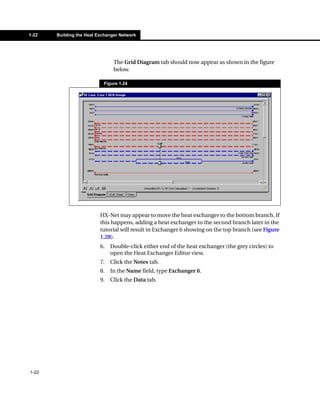
  • 78.
    Automatic HEN Designin HI Project 3-3 The Project level contains only the most general description of the problem set being examined. The Scenario level contains the assumptions, conditions, and information required to generate a design. These conditions include process stream specifications, utility streams, and economic factors. The Design level contains the generated HEN design solutions. A Scenario can contain multiple designs. The generated designs are determined by the conditions, assumptions and specifications defined at the Scenario level. 3.1.1 Navigating Through HI Project The Heat Integration Project View The Heat Integration Project view in HX-Net is divided into three sections: the Viewer group, the Main pane, and the Worksheet pane. The three sections are displayed and labeled in the figure below. Figure 3.2 Viewer group Main pane Worksheet pane 3-3
  • 79.
    3-4 Introduction Viewer Group The Viewer group is always visible in the Heat Integration (HI) Project view and contains the HX-Net tree browser, which is used to access, create and delete Scenario and Design levels within a HI Project. To expand or compress the tree, click on the + or - beside the level you want to view. Figure 3.3 When you create a new HI Project, HX-Net automatically creates a Scenario and Design level. You cannot delete the default Scenario and Design levels. Main Pane At the Scenario level, the Main pane displays a plot. You can select the type of plot to display from a drop-down list at the top of the view. At the Design level, the Main view displays the Heat Exchanger Network (HEN) diagram. Worksheet Pane The Worksheet pane of the HI Project view displays the entered and calculated values, both at the Scenario and Design levels. 3-4
  • 80.
    Automatic HEN Designin HI Project 3-5 The following sections describes some of the commonly used tabs available at the Scenario and Design levels of the HI Project view. Scenario Level The following table lists and describes the tabs found at the Scenario level. Tab Description Data tab On this tab, you enter all process and utility stream data and set the cost parameters. Targets tab All three pages on this tab contain the target values calculated by HX-Net. These values represent the performance of an ideal heat exchanger network design for the entered stream and economic data. Range Targets tab The options on this tab are useful for determining the optimal minimum approach temperature, or DTmin, value. Click the Calculate button, and use the plot or the table to find the DTmin value for a minimum area or minimum cost value. For more information, refer to Section 1.3.1 - Range Targeting. Designs tab Use this tab to compare all designs within a Scenario. Here, you can display all designs or display only completed designs. You can also display the designs as a percentage related to the target values. Options tab Use this tab to manipulate the utility load allocation method and access the utility and HTC databases. Notes tab Use this tab to enter notes for the Scenario level. Design Level To view the Design level, expand the tree in the Viewer group. To do this, click the + beside the Scenario folder. Any designs contained within the Scenario appear in the tree. 3-5
  • 81.
    3-6 Introduction To view a design, click the design name. The Main pane now displays a Grid Diagram instead of a plot. Figure 3.4 The following table lists and describes the tabs found at the Design level. Tab Description Performance tab This tab displays the performance information for all heat exchangers and utilities in the design. Worksheets tab As in HI Case, this tab provides an alternative way to manipulate the heat exchangers on the Grid Diagram. Heat Exchangers tab This tab displays detailed information about each heat exchanger. When the Show All checkbox is checked, this tab shows all heat exchangers. When the checkbox is unchecked, only solved exchangers appear. Targets tab This tab shows all the same targets information available at the Scenario level. Notes tab This tab displays notes for a particular design. This tab also contains a Modification Log page, which automatically records and displays all modifications made to the Grid Diagram. Now that you have an understanding of the setup and structure of the HI Project views, you are ready to begin the tutorial. 3-6
  • 82.
    Automatic HEN Designin HI Project 3-7 3.2 Creating a HI Project for Automatic Design Generation To use HX-Net’s Recommend In the following sections you will set unit preferences, create the HI Design feature, the HI Project must contain all required Project, and enter process and utility stream data. process stream data and utility streams that are sufficient to satisfy the energy demands of the process streams. 3.2.1 Setting Unit Preferences In this section, you will define a new unit set. For this tutorial, the temperatures are in Celsius, and the MCp is in kJ/C-s. 1. Start the HX-Net program, if it is not already open. 2. From the Tools menu, select Preferences. The Session Preferences view appears. 3. Click the Variables tab, then select the Units page. The current set does not use 4. In the Available Unit Sets list, select the unit set SI, then click the the units required for this tutorial, so you will create a Clone button. This will create a cloned unit set named New User. new set and modify the units. 5. In the Unit Set Name field, rename the New User set to Application 2 Units. 6. In the Display Units group, scroll down the list to find the Energy units cell. The default unit is kJ/h. 3-7
  • 83.
    3-8 Creating a HI Project for Automatic Design 7. In the Energy unit cell, click the down arrow. A drop-down list appears containing various unit options as shown in the figure below. Figure 3.5 The unit kJ/s is equal to kW, 8. From the drop-down list, select kJ/s. so in some cases you can choose which units you want 9. In the Display Units group, scroll to the MCp cell. to display. 10. In the MCp cell, click the drop-down arrow and select kJ/C-s. 11. Scroll through the rest of the list and change the units for the following variables: • Ht Tran Coeff (kJ/s-m2-C) • Heat Flux (kJ/s-m2) • Fouling (C-m2/kW) • Enthalpy per Length (kJ/s-m) • Power (kJ/s) Although some of these variables may not be used, it is always a good idea to keep all of the units consistent. 12. Optional: At this point you can save the newly created preference set, which will allow you to use it for future cases. To save, click the Save Preference File icon. On the Save Preference File view, enter a file name and location, then click the Save button. Save Preference File icon 13. Click the Close icon to close the Session Preferences view. Although you can overwrite the default preference set included with HX-Net, it is not recommended. 3-8
  • 84.
    Automatic HEN Designin HI Project 3-9 3.2.2 Creating the HI Project In this section you will create the Heat Integration (HI) Project. To access the HI Project view, do one of the following: • From the Features menu, select HI Project. • Click the Heat Integration Manager icon, or, from the Managers menu, select Heat Integration Manager. The manager view appears. In the left list, select HeatIntegrationProject, then click the Add button. Heat Integration Manager icon The HI Project view appears. Figure 3.6 You should be at the Scenario level in the Viewer group. In the Worksheet pane, you should be on the Process Streams page of the Data tab 3-9
  • 85.
    3-10 Creating a HI Project for Automatic Design 3.2.3 Entering Process Stream Data In this section you will enter data for the all the process streams. 1. Ensure that you are in the Scenario view, Data tab, Process Streams page. 2. In the Name column, click on **New**. 3. Type h1, then press the ENTER key. The cursor automatically moves to the Inlet T cell. 4. In the Inlet T cell enter 230°C. The default units that appear in the unit drop-down list are already the desired unit, degrees Celsius, so they do not need to be changed. 5. In the Outlet T cell, enter 80°C. If you know the temperature in a unit other than the default, type the known temperature in the cell, then select the appropriate units from the drop-down list, as shown in the figure below. HX-Net automatically converts the value to the default units. For example, if you enter 176°F, HX-Net converts this value to 80°C. Figure 3.7 6. In the MCp cell, enter 30 kJ/°C-s. 7. In the HTC cell, enter 0.4 kJ/s-m2-C. After you enter the inlet and outlet temperatures, HX-Net knows if the stream type is hot or cold. A red or blue arrow appears in the second column. A red arrow indicates a hot stream; a blue arrow indicates a cold stream. Next you will add more streams to the HI Project. 3-10
  • 86.
    Automatic HEN Designin HI Project 3-11 Using the procedure you just learned, enter the data for following process streams. The stream information provided is from U. Shenoy (1995)1. Name Inlet T (°C) Outlet T (°C) MCp (kJ/°C-s) HTC (kJ/s-m2-C) h2 200 40 45 0.4 c3 40 180 40 0.4 c4 140 280 60 0.4 h5 110 45 0.1 0.4 h6 115 40 0.1 0.4 h7 105 40 0.1 0.4 h8 110 42 0.1 0.4 h9 117 48 0.1 0.4 h10 103 50 0.1 0.4 c11 170 270 0.1 0.4 c12 175 265 0.1 0.4 c13 180 275 0.1 0.4 c14 168 277 0.1 0.4 c15 181 267 0.1 0.4 h16 110 45 0.1 0.4 h17 115 40 0.1 0.4 h18 105 40 0.1 0.4 h19 110 42 0.1 0.4 h20 117 48 0.1 0.4 h21 103 50 0.1 0.4 c22 170 270 0.1 0.4 c23 175 265 0.1 0.4 c24 180 275 0.1 0.4 c25 168 277 0.1 0.4 c26 181 267 0.1 0.4 h27 115 42 0.1 0.4 h28 117 43 0.1 0.4 8. Verify that the information you just entered on the Process Streams page matches the figures in the table above. 3-11
  • 87.
    3-12 Creating a HI Project for Automatic Design 3.2.4 Entering Utility Stream Data In this section, you will specify all the required heating and cooling utilities for the HEN design. 1. On the Data tab, select the Utility Streams page. The hot and cold status bars at the bottom of the tab display “insufficient”, which means there are not enough cold and hot utilities to satisfy the process streams. Click the drop-down arrow in 2. First you will define the hot utility. In the Name column, click in the the Name column to view a <empty> cell. Type hu, then press ENTER. list of default utilities available within HX-Net. 3. Click in the Inlet T cell and enter 400°C. Usually, you would use these 4. Click in the Outlet T cell and enter 350°C. This is the minimum values, but for this tutorial you will define the utilities information required for a utility. manually. The hot utility is now sufficient, which means that the hot utility entered has enough energy to heat all of the cold process streams. 5. Click in the HTC cell and enter 0.4. 6. Now you will define the cold utility. In the Name column, click in the <empty> cell and type cu. 7. In the Inlet T cell, enter 10°C. 8. In the Outlet T cell, enter 50°C. 9. In the HTC cell, enter 0.4. Since the cost information for the utility is unknown, use the default value displayed. HX-Net requires cost information for each utility to perform the cost target calculations. 3-12
  • 88.
    Automatic HEN Designin HI Project 3-13 10. Verify that the information on the Utility Streams page appears similar to the figure below. Figure 3.8 11. On the Data tab, select the Economics page. Figure 3.9 HX-Net supplies a default set of economic parameters. At least one set of economic data must be available for the calculation of the capital cost targets and network capital costs. For this tutorial, leave the default values as they are. 3-13
  • 89.
    3-14 Generating HEN Designs 3.3 Generating HEN Designs In this section you will use HX-Net’s Recommend Designs feature to automatically generate HEN designs. HX-Net lets you control how many designs are generated. You can then compare the designs and make any modifications required. 1. In the Viewer group, click on the Scenario level. 2. Right-click the mouse button on the selected Scenario. The following menu appears. Figure 3.10 3. From this menu, select Recommend Designs. The Recommend Designs view appears as shown in the figure below. This view allows you to control certain aspects of the automatic design feature. Figure 3.11 3-14
  • 90.
    Automatic HEN Designin HI Project 3-15 4. On the General tab, in the Stream Split Options group, you can set the maximum number of branch splits. Accept the current default values. 5. In the Preview Input group, you can preview any of the input values for the process streams, utility streams, economics or forbidden matches. For this tutorial, leave all current default values as they are. HX-Net is capable of solving 6. In the Solver Options group, change the maximum number of for more than five designs, however, the time required for designs to 5. the calculations increases 7. Click the Solve button. HX-Net will begin automatically creating with the number of designs. For learning purposes, five heat exchanger networks. Depending on the speed of your system, will be sufficient. If you have this could take up to ten minutes to complete. time and want to calculate more, change the maximum design value to the necessary All generated designs will have a name that starts with “A_”, indicating number. that these have been automatically generated by HX-Net. 8. At the Scenario level, click the Designs tab, then check the Relative to target checkbox. This will show all the key variables as a percentage of the calculated target value. The view should appear similar to the figure below. HX-Net sorts the results by Total Cost Index. Figure 3.12 From the figure above, some of the designs recommended have total cost indexes higher than the target values, but area values less than the target values. This minimal area has been made possible by exceeding the utility energy targets. In most cases this will be true; to minimize area you must increase utility consumption, and vice-versa. From the previous figure, it appears as though A_Design3 has the smallest total cost index, and A_Design5 has the smallest total area. 3-15
  • 91.
    3-16 Generating HEN Designs 9. In the Viewer group, click the design level A_Design3. Depending on your settings, you may have slightly different results in the list of recommended designs. For the step above, click on the design that has the smallest total cost index. 10. On the Notes tab, select the Modification Log page. This page displays all the actions performed by HX-Net during the creation of this network design. Figure 3.13 All of the designs generated by HX-Net are optimal for the given network structure, however, if you had a design that was not already minimized for area or cost, you can optimize the design by using the retrofit options described in Chapter 4 - Heat Exchanger Network Retrofit. 3-16
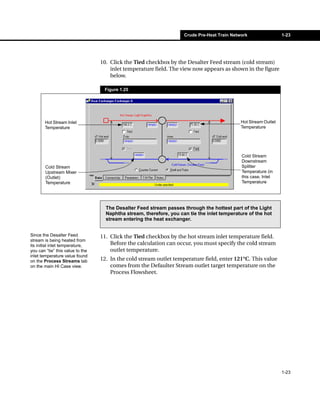
  • 92.
    Automatic HEN Designin HI Project 3-17 3.4 References 1 Shenoy, U.V., Heat Exchanger Network Synthesis: Process Optimization by Energy and Resource Analysis, Gulf Publishing Company, Houston, USA, 1995. 3-17
  • 93.
    Heat Exchanger NetworkRetrofit 4-1 4 Heat Exchanger Network Retrofit 4.1 Introduction......................................................................................2 4.2 Creating a HI Project for Retrofit ....................................................3 4.2.1 Setting Unit Preferences..........................................................3 4.2.2 Creating the HI Project ............................................................5 4.2.3 Entering the Process Stream Data..........................................6 4.2.4 Entering Utility Stream Data ..................................................10 4.2.5 Building the Heat Exchanger Network...................................12 4.3 Performing the Retrofit..................................................................20 4.3.1 Entering the Retrofit Environment .........................................20 4.3.2 HEN Retrofit - Resequencing Heat Exchangers....................22 4.3.3 HEN Retrofit - Repiping Heat Exchangers ............................24 4.3.4 HEN Retrofit - Adding Heat Exchangers ...............................26 4.4 Comparing Designs.......................................................................28 4-1
  • 94.
    4-2 Introduction 4.1 Introduction If you are a new user to HX- In this tutorial, you will use the Automatic Retrofit feature of HX-Net. Net, it is highly recommended You will start by creating a heat exchanger network (HEN) in the HI that you complete the HI Case tutorial (refer to Chapter 1 - Project environment. Then, you will enter the Automatic Retrofit Crude Pre-Heat Train environment to retrofit the HEN. During the retrofit, you will use four Network) and HI Project tutorial (refer to Chapter 3 - methods: Automatic HEN Design in HI • modifying utility exchangers Project) before starting this tutorial. • resequencing heat exchangers It is assumed that you know • repiping heat exchangers how to add and complete heat • adding heat exchangers exchangers on the Grid Diagram. HEN retrofit focuses on modifying an existing heat exchanger network to improve energy efficiency. In the past, HEN retrofits using Pinch technology required an expert user, and the Mathematical programming method reduced the interaction between the design engineer and HX-Net. HX-Net performs the HEN Retrofit algorithm one step at a time so the engineer may still control the decision making process. The design engineer can apply constraints during the design process that will affect the retrofit calculations. Within the retrofit environment, the design engineer is required to choose one type of modification at a time. The design engineer also has to assess the operational safety and practicality of the optimal designs generated by HX-Net. 4-2
  • 95.
    Heat Exchanger NetworkRetrofit 4-3 4.2 Creating a HI Project for Retrofit The following sections describe how to create a HEN design within the HI Project environment. 4.2.1 Setting Unit Preferences Before you begin, verify that the units currently selected in the session preferences are the ones you want to use. For this tutorial, the temperatures are in degrees Celsius, and the MCp is in kJ/°C-s. 1. Open HX-Net if it is not already open. 2. From the Tools menu, select Preferences. The Session Preferences view appears. 3. Click the Variables tab, then select the Units page. 4. In the Available Unit Sets group, select the unit set SI. The default energy units appear in the units of kJ/h, so, you will need to define a new unit set. 5. With the unit set SI selected, click the Clone button. This will create a cloned unit set named New User. 6. In the Unit Set Name field, rename the New User set to Application 3 Units. 7. In the Display Units group, scroll down the list to find the Energy units cell. The default unit is kJ/h. 4-3
  • 96.
    4-4 Creating a HI Project for Retrofit 8. In the Energy units cell, click the down arrow. A drop-down list appears containing various unit options as shown in the figure below. Figure 4.1 9. From the drop-down list, select kJ/s. 10. In the Display Units group, scroll to the MCp cell. 11. In the MCp cell, click the drop down list and select kJ/C-s. The unit kJ/s is equal to kW, 12. Scroll through the rest of the list and change the units for the so in some cases you can choose which units you want following variables: to see displayed. • Ht Tran Coeff (kJ/s-m2-C) • Heat Flux (kJ/s-m2) • Fouling (C-m2/kW) • Enthalpy per Length (kJ/s-m) • Power (kJ/s) Although some of these variables might not be used, it is always a good idea to keep all of the units consistent. 13. Optional: At this point you can save the newly created preference set, which will allow you to use it in future cases. To save, click the Save Preference Set icon. On the Save Preference File view, enter a file name and location, then click the Save button. Save Preference Set icon Although you can overwrite the default preference set included with HX-Net, it is not recommended. 4-4
  • 97.
    Heat Exchanger NetworkRetrofit 4-5 4.2.2 Creating the HI Project Now you will create the Heat Integration (HI) Project in HX-Net. To access the HI Project view, do one of the following: • From the Features menu, select HI Project. • Click the Heat Integration Manager icon, or, from the Managers menu, select Heat Integration Manager. The manager view appears. In the left list, select HeatIntegrationProject, then click the Add button. Heat Integration Manager icon The HI Project view appears. Figure 4.2 You should be at the Scenario level in the Viewer group. In the Worksheet pane, you should be on the Process Streams page of the Data tab 4-5
  • 98.
    4-6 Creating a HI Project for Retrofit 4.2.3 Entering the Process Stream Data In this section, you will enter data for the process streams on the Process Stream page on the Data tab. 1. In the Name column, click on **New**. 2. Type H1, then press the ENTER key. The cursor automatically moves to the Inlet T cell. 3. In the Inlet T cell, enter 347.3°C. The default units that appear in the unit drop-down list are already in degrees Celsius, so they do not need to be changed. 4. In the Outlet T cell, enter 45°C. If you know the temperature in a unit other than the default, type the known temperature in the cell, then select the appropriate units from the drop-down list, as shown in the figure below. HX-Net automatically converts the value to the default units. For example, if you enter 113°F, HX-Net converts this value to 45°C. Figure 4.3 5. In the MCp cell, enter 180.1 kJ/°C-s. After you enter the inlet and outlet temperatures, HX-Net knows if the stream type is hot or cold. A red or blue arrow appears in the second column. A red arrow indicates a hot stream; a blue arrow indicates a cold stream. Next, you will segment this stream and add other streams to the HI Project. 4-6
  • 99.
    Heat Exchanger NetworkRetrofit 4-7 Segmenting Process Streams The H1 stream requires an enthalpy or heat capacity value to be complete. All other information is optional. When you enter this Double-click in the HTC information, HX-Net generates a default heat transfer coefficient value column to open the HTC Default Values view, which for the HTC cell. For this tutorial, you will use the default coefficient contains a list of default heat values generated by HX-Net. transfer coefficients for various materials. Accept the default value or select a new In this section you will add streams and segment some of the streams. default value. Stream segmentation is extremely useful for streams that change phase or have non-linear variations in enthalpy as the temperature changes. 1. In the H1 stream row, double-click on any cell (except HTC) to open the Process Stream view. Figure 4.4 2. Click once in the Outlet T cell containing the value 45.0. This is the target outlet temperature. The blank segment row 3. Click the Insert Segment button. A blank row appears above the always appears above the row target outlet temperature. containing the cursor. 4. The outlet temperature of the first segment is 202.7°C. Click in the empty Outlet T cell and enter 202.7. HX-Net automatically inserts the inlet temperature for the following segment. 4-7
  • 100.
    4-8 Creating a HI Project for Retrofit 5. The MCp for the first segment is 217.3 kJ/°C-s. Click in the empty MCp cell and enter 217.3. The process stream is complete as shown in the figure below. Figure 4.5 6. Click the Close icon to return to the Data tab of the HI Project view. 7. Now that you know how to successfully enter process stream Close icon information and create segmented streams, enter the following stream information. Enter the stream name, first Inlet T value and the target (last) Outlet T value on the Process Streams tab before accessing the Process Stream view to enter the segment information. Enter only the Outlet T values and the MCp values; the Inlet T values are calculated for you. Stream Name Inlet T (°C) Outlet T (°C) MCp (kJ/°C-s) H2 319.4 244.1 136.2 H3 297.4 203.2 22.08 203.2 110.0 19.76 H4 263.5 180.2 123.1 H5 248.0 143.7 67.41 143.7 50.0 58.11 H6 231.8 176.0 51.14 176.0 120.0 46.49 H7 167.1 116.1 172.0 116.1 69.6 158.1 4-8
  • 101.
    Heat Exchanger NetworkRetrofit 4-9 Stream Name Inlet T (°C) Outlet T (°C) MCp (kJ/°C-s) H8 146.7 133.3 233.6 133.3 120.0 202.2 120.0 99.9 169.7 99.9 73.2 338.2 H9 73.2 30.0 6.843 H10 73.2 40.0 57.69 C11 232.2 274.3 471.9 274.3 343.3 498.6 C12 30.0 108.1 333.6 108.1 211.3 381.2 211.3 232.2 481.2 C13 226.2 228.7 352.2 228.7 231.8 425.4 8. Verify that the information on the Process Streams page appears similar to the following figure. Figure 4.6 4-9
  • 102.
    4-10 Creating a HI Project for Retrofit 4.2.4 Entering Utility Stream Data In this section, you will specify all the required heating and cooling utilities for the HEN design. 1. Click on the Data tab, then click on the Utility Streams page. The hot and cold status bars at the bottom of the tab displays “insufficient”, which means that there are not enough cold and hot utilities to satisfy the process streams. 2. In the Name Column, click on <empty>. A drop-down arrow becomes active. Figure 4.7 3. Click the arrow, and a drop-down list appears containing all of the default utilities available within HX-Net. Figure 4.8 4. Select the following default utilities from the list: • Cooling Water You can change or define • Fired Heat (1000) - If a warning box appears, click OK. economics parameters on the Economics page of the • HP Steam Data tab. Refer to step #6. • LP Steam Generation • MP Steam • MP Steam Generation 4-10
  • 103.
    Heat Exchanger NetworkRetrofit 4-11 5. Verify that the information on the Utility Streams page appears similar to the figure below. Figure 4.9 6. On the Data tab, click on the Economics page. Figure 4.10 HX-Net supplies a default set of economic parameters for a typical heat exchanger. Here, you can change or add another type of installation cost and area-related cost law coefficient if required. At least one set of economic data must be available for the calculation of the capital cost targets and network capital costs. For this tutorial, you will use the default values. 4-11
  • 104.
    4-12 Creating a HI Project for Retrofit 4.2.5 Building the Heat Exchanger Network In this tutorial, you will add heat exchangers only to the heat exchanger network. Splitters are not required. Accessing the Design Level To build the HEN diagram, you must enter the Design level of the HI Project view. 1. In the Viewer group, click on the + beside Scenario 1 to expand the tree. 2. Click on the design named Design 1. The view appears as shown in the figure below. Figure 4.11 The Main pane displays the Grid Diagram instead of the plots. The status bar is not green. There are 13 unsatisfied streams. 4-12
  • 105.
    Heat Exchanger NetworkRetrofit 4-13 Setting the Grid Diagram View Options To modify the appearance of the heat exchanger network design in the Grid Diagram: 1. Open the Property Presets view by doing one of the following: • Click the Open Palette View icon. The Design Tools palette appears.Click the Open Property Preset View icon. Open Palette View icon Figure 4.12 Open Property Preset View icon • Right-click on the Grid Diagram, then select Properties from the Object Inspect menu. 2. The Property Presets view appears. Select Preset 4: (Temperature), then click the Edit button. The Property Preset: Preset 4: (Temperature) view appears. 3. Click the Annotations tab. 4. In the Heat Exchangers group, click the Middle drop-down list. 5. From the drop-down list, select Name. The stream name will now appear in the Grid Diagram. 6. Close both the Property Presets and Property Preset: Preset 4: (Temperature) views to return to the HI Project view. 4-13
  • 106.
    4-14 Creating a HI Project for Retrofit Adding Heaters In this section, you will add heat exchangers to the network design. The Design Tools palette must be visible before you can add heat exchangers. 1. Press F4 to open/access the Design Tools palette. 2. In the Design Tools palette, right-click and hold on the Add Heat Exchanger icon. 3. Drag the cursor over the C11 stream until the Bull’s eye icon Add Heat Exchanger icon appears. 4. Release the mouse button. The heat exchanger appears as a solid red dot. 5. To attach the heat exchanger to the Fired Heat (1000) stream, click and hold on the red dot, then drag the cursor to the Fired Heat stream. A light blue dot will appear underneath the cursor as you Bull’s eye icon drag it to the new stream. 6. Release the mouse button. The heat exchanger appears. Since this is a heater, the heat exchanger is red. Red dot icon 7. Double-click either end of the heat exchanger (the red dots) to open the Heat Exchanger property view. 8. Click the Notes tab. Light blue dot icon 9. In the Name field, enter HU1. (under four arrows) 10. Click the Data tab. 4-14
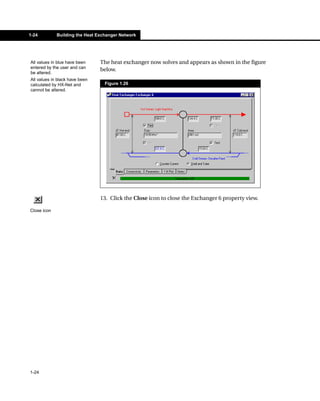
  • 107.
    Heat Exchanger NetworkRetrofit 4-15 11. On the Data tab, Click the Tied checkbox for the C11 cold stream outlet temperature. The heat exchanger property view appears as shown in the figure below. Figure 4.13 C11 is a cold stream C11 stream Outlet C11 stream Inlet Temperature Temperature Fired Heat (1000) stream Outlet Temperature Fired Heat (1000) stream Fired Heat (1000) Inlet Temperature is a hot stream Since the C11 stream is 12. In the Duty field, enter 37.9, then select MW from the units list. being heated to the known outlet temperature, you can “tie” the cold stream outlet Figure 4.14 temperature value to the outlet temperature value previously entered on the Process Streams tab. 4-15
  • 108.
    4-16 Creating a HI Project for Retrofit The heat exchanger solves, and the view appears as shown in the figure below. Figure 4.15 13. Use the procedure you just learned and the data in the table below to add the other heaters. When placing heat exchangers on the stream, remember that the hot streams flow from left to right, while the cold streams flow from right to left. Location of Heat Cold Stream (°C) Name Streams Duty (MW) Exchanger Inlet T Outlet T HU2 C12 & HP Place on C12 stream Tied 27.8 Steam HU3 C13 & HP Place on C13 stream Tied Tied Steam “Tied” indicates that you must check the Tied checkbox as indicated. A blank cell in the table above indicates that HX-Net will calculate the value. 4-16
  • 109.
    Heat Exchanger NetworkRetrofit 4-17 Adding Heat Exchangers In this section, you will add heat exchangers to the Grid Diagram. 1. Press F4 to open/access the Design Tools palette. 2. In the Design Tools palette, right-click and hold on the Add Heat Exchanger icon. 3. Drag the cursor over the H6 stream until the Bull’s eye icon appears. Add Heat Exchanger icon 4. Release the mouse button. The heat exchanger appears as a solid red dot. 5. To attach the heat exchanger to the C12 stream, click and hold on the red dot, then drag the cursor to the C12 stream. A light blue dot will appear underneath the cursor as you drag it to the new stream. Bull’s eye icon Remember that cold streams flow from right to left. Place the new heat exchanger upstream from (to the right of) HU2 on the C12 stream. Red dot icon 6. Release the mouse button. The heat exchanger appears. Figure 4.16 Light blue dot underneath four arrow cursor 7. Double-click either end of the heat exchanger (the gray dots) to open the Heat Exchanger property view. 8. Click the Notes tab. 9. In the Name field, enter E1. You know from the stream 10. Click the Data tab. information you entered on the Process Streams tab that 11. Click the Tied checkbox for the inlet hot stream temperature. the inlet hot stream temperature for E1 is the 12. Click the Tied checkbox for the outlet cold stream temperature. same as the initial stream 13. In the Duty field, enter 0.7 MW. The heat exchanger solves. temperature for H6. 4-17
  • 110.
    4-18 Creating a HI Project for Retrofit If you make an error and need 14. Use the procedure you just learned and the data in the table below to delete a heat exchanger, to add the rest of the heat exchangers and coolers to the Grid right-click either end of the exchanger and select Delete Diagram. from the Object Inspect menu. When placing heat exchangers on the stream, remember that the hot streams flow from left to right, while the cold streams flow from right to left. This is important when placing heat exchangers ‘before’ or ‘after’ other exchangers in the design. “Tied” indicates that you must check the stream Tied checkbox. A blank cell indicates that HX-Net will solve the value. Hot Stream (°C) Cold Stream (°C) Load/Duty Name Streams Location of Heat Exchanger Inlet T Outlet T Inlet T Outlet T (MW) E2 H1 & C11 Place on C11 stream, before Tied Tied 15.2 HU1 E3 H3 & C11 Place on C11 stream, before Tied Tied Tied E2 E4 H3 & C12 Place on H3 stream, after E3 Tied Tied 0.7 Place on C12 stream, before E1 E5 H1 & C12 Place on H1 stream, after E2 Tied Tied Tied Place on C12 stream, before E4 E6 H3 & C12 Place on H3 stream, after E4 Tied Tied Tied Place on C12 stream, before E5 CU1 H3 & Place on H3 stream, after E6 Tied Tied Cooling Water CU2 H6 & Place on H6 stream, after E1 Tied Tied Cooling Water CU3 H10 & Place on H10 stream Tied Tied Cooling Water CU4 H5 & Place on H5 stream Tied Tied Cooling Water CU5 H9 & Place on H9 stream Tied Tied Cooling Water CU6 H7 & Place on H7 stream Tied Tied Cooling Water 4-18
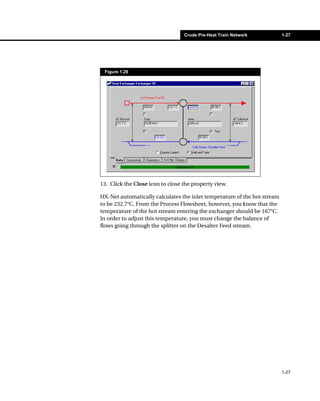
  • 111.
    Heat Exchanger NetworkRetrofit 4-19 Hot Stream (°C) Cold Stream (°C) Load/Duty Name Streams Location of Heat Exchanger Inlet T Outlet T Inlet T Outlet T (MW) CU7 H8 & Place on H8 stream Tied Tied Cooling Water CU8 H2 & MP Place on H2 stream Tied Tied Steam Generation CU9 H4 & LP Place on H4 stream Tied Tied Steam Generation After entering the information in the table above, the Grid Diagram should appear as shown in the figure below. There might be some variation in the heater placement. Figure 4.17 4-19
  • 112.
    4-20 Performing the Retrofit 4.3 Performing the Retrofit 4.3.1 Entering the Retrofit Environment In this section, you will use HX-Net’s retrofit tools to generate optimal HEN designs. 1. In the Viewer group, select Scenario 1. 2. Click the Enter Retrofit Mode icon located at the bottom right corner of the view. Enter Retrofit Mode icon 3. The Enter Retrofit Environment view appears, as shown in the figure below. Figure 4.18 Ensure the Create New Retrofit Scenario is selected. Read the suggestions on the Tips tab to Select the design simplify the to be entered into design before the Retrofit entering into the Environment. HEN Retrofit environment. While you are in the Retrofit Mode you cannot make any changes to the design and stream information. The Tips tab contains the following information: • Reduce the scope of the problem by minimizing the number of streams and heat exchangers in the heat exchanger network. Remove the exchanger(s) at either end of the streams that you don't want to modify and update the corresponding inlet or outlet stream temperatures. This can simplify the network and increase the efficiency of the model. • Keep stream segmentation to a minimum as they increase the computational power required to solve the problem. 4-20
  • 113.
    Heat Exchanger NetworkRetrofit 4-21 • Combine adjacent heat exchangers between two process streams into one heat exchange when possible. This has no effect in the final outcome but makes the solver work more efficiently. • Remove all energy streams. Energy streams are important to establish the targets of a process but are not necessary to perform a retrofit study. By removing them, the problem becomes easier to solve. Verify that the heat exchanger network represented in HX-Net matches the setup that exists in the plant before entering the retrofit environment. This will ensure that accurate and meaningful designs are generated when retrofit is performed. 4. Click the Enter Retrofit Environment button. The following view appears (Performance tab, Summary page). Figure 4.19 HX-Net creates a new scenario called Scenario 1 1. The light blue folders indicate you are in the Retrofit environment. 4-21
  • 114.
    4-22 Performing the Retrofit 4.3.2 HEN Retrofit - Resequencing Heat Exchangers In this section you will generate a retrofit design by resequencing the heat exchangers. 1. In the Viewer group, select Design 1 under Scenario 1 1 (blue folder). 2. Click the Open Palette View icon. The Design Tools palette appears. Open Palette View icon 3. On the Design Tools palette, click the Modify utility heat exchanger icon. In this example, it is not optimal to modify any of the utility heat exchangers. The following view appears. Modify utility heat exchanger icon Figure 4.20 4. Click the OK button to close the view. The view for Scenario 1 1 appears. 5. In the Viewer group, select Design 1 under Scenario 1 1 (blue folder) again. 6. Click the Open Palette View icon. The Design Tools palette appears. 7. On the Design Tools palette, click the Move one end of a Heat Exchanger icon. The Retrofit Specifications view appears. Move one end of a Heat Figure 4.21 Exchanger icon 8. In the Maximum Investment field, enter a capital cost investment value. Entering a value here helps ensure that HX-Net will generate retrofit solutions. Leave the field blank if you want to see if HX-Net can generate a solution requiring no capital investment. 4-22
  • 115.
    Heat Exchanger NetworkRetrofit 4-23 9. Click the Run button. HX-Net begins retrofit calculations. The following view will appear if HX-Net calculates a cost above what you entered in the previous step. Figure 4.22 To display the exchanger In this view, you can do the following: names in the new design, • Click Delete Design to exit the calculation and delete the design. refer to the previous Setting the Grid Diagram View • Click Keep Design to finish the calculation and keep the design. Options section. • Click Recalculate and enter a new Maximum Investment value. 10. For this tutorial, click Keep Design. A new design called Design 1-1S appears in the Viewer group. 11. In the Viewer group, select Design 1-1S. Verify that the Grid Diagram appears similar to the view below. Figure 4.23 The green icon indicates that a section of the heat exchanger has been moved. 4-23
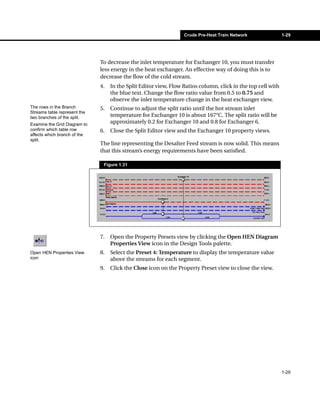
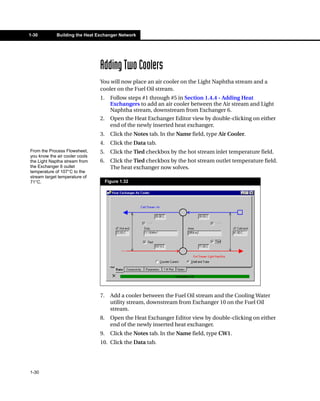
  • 116.
    4-24 Performing the Retrofit 4.3.3 HEN Retrofit - Repiping Heat Exchangers 1. In the Viewer group, select Design 1 under Scenario 1 1 (blue folder). 2. Click the Open Palette View icon. The Design Tools palette appears. 3. On the Design Tools palette, click the Move both ends of a Heat Open Palette View icon Exchanger icon. The Retrofit Specifications view appears. Figure 4.24 Move both ends of a Heat Exchanger icon 4. In the Maximum Investment field, enter a capital cost investment value. Entering a value here helps ensure that HX-Net will generate retrofit solutions. Leave the field blank if you want to see if HX-Net can generate a solution requiring no capital investment. 5. Click the Run button. HX-Net begins retrofit calculations. The following view will appear if HX-Net calculates a cost above what you entered in the previous step. Figure 4.25 In this view, you can do the following: • Click Delete Design to exit the calculation and delete the design. • Click Keep Design to finish the calculation and keep the design. • Click Recalculate and enter a new Maximum Investment value. To display the exchanger 6. For this tutorial, click Keep Design. names in the new design, refer to the previous Setting A new design called Design 1-1P appears in the Viewer group. the Grid Diagram View Options section. 4-24
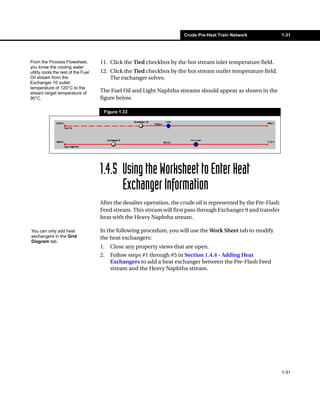
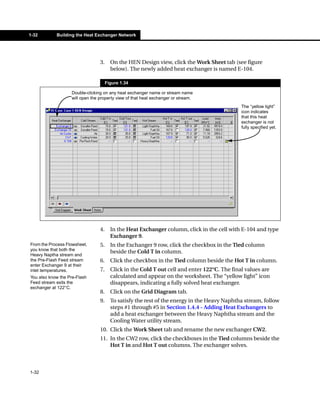
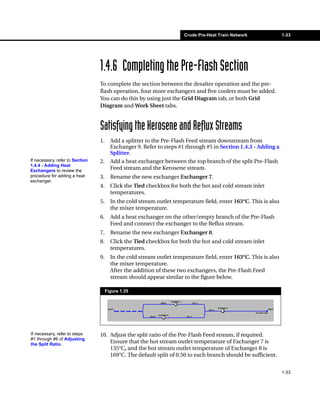
  • 117.
    Heat Exchanger NetworkRetrofit 4-25 7. In the Viewer group, select Design 1-1P Verify that the Grid Diagram . appears similar to the view below. Figure 4.26 The two green icons indicate that the heat exchanger has been moved. 4-25
  • 118.
    4-26 Performing the Retrofit 4.3.4 HEN Retrofit - Adding Heat Exchangers 1. In the Viewer group, select Design 1 under Scenario 1 1. 2. Click the Open Palette View icon. The Design Tools palette appears. 3. On the Design Tools palette, click the Add a Heat Exchanger icon. Open Palette View icon The Retrofit Specifications view appears. Figure 4.27 Add Heat Exchanger icon 4. In the Maximum Investment field, enter a capital cost investment value. Entering a value here helps ensure that HX-Net will generate retrofit solutions. Leave the field blank if you want to see if HX-Net can generate a solution requiring no capital investment. 5. Click the Run button. HX-Net begins retrofit calculations. The following view will appear if HX-Net calculates a cost above what you entered in the previous step. Figure 4.28 In this view, you can do the following: • Click Delete Design to exit the calculation and delete the design. • Click Keep Design to finish the calculation and keep the design. • Click Recalculate and enter a new Maximum Investment value. To display the exchanger 6. For this tutorial, click Keep Design. names in the new design, refer to the previous Setting A new design called Design 1-1N appears in the Viewer group. the Grid Diagram View 7. In the Viewer group, select Design 1-1N. Verify that the Grid Options section. Diagram appears similar to the view below. 4-26
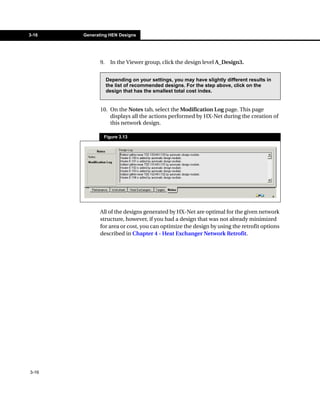
  • 119.
    Heat Exchanger NetworkRetrofit 4-27 Figure 4.29 The two green icons and a new exchanger name indicate that the heat exchanger was added. 4-27
  • 120.
    4-28 Comparing Designs 4.4 Comparing Designs Now that HX-Net has generated three possible design improvements, you can compare each design and decide which one best suits the project requirements. 1. In the Viewer group, select Scenario 1 1. 2. Click the Designs tab. The following worksheet appears. The values displayed may be different than what appears below. Figure 4.30 The Designs worksheet displays data on the original and all the retrofit generated designs. For each retrofit generated design you can compare the following: • the payback of the generated design • new area required • capital investment required • energy consumption reduction • operation costs reduction Remember that all estimated cost values are based on the HX-Net default economic parameters. You can change the economic parameters on the Economics page of the Data tab. All modification changes are compared to the base case design. 4-28
  • 121.
    Heat Exchanger NetworkRetrofit 4-29 3. Click the checkbox beside Relative to base design to view the above data with percent values relative to the original HEN design. Figure 4.31 4-29
  • 122.
    Column Sequencing forMulti-Components 5-1 5 Column Sequencing for Multi-Components 5.1 Introduction......................................................................................2 5.1.1 About the Scenarios ................................................................3 5.2 Setting Unit Preferences .................................................................4 5.3 Creating the Fluid Package.............................................................5 5.3.1 Selecting a Property Package .................................................5 5.3.2 Selecting the Components ......................................................6 5.4 Installing Column Sequencing .......................................................7 5.4.1 Specifying the Feed Stream Conditions ..................................8 5.4.2 Specify Product Streams Conditions .......................................9 5.5 Generating Grass Root Scenarios ...............................................11 5.5.1 Columns with Constant Pressure ..........................................11 5.5.2 Columns with Constant Top Temperature..............................16 5.5.3 Optimum Top Temperature ....................................................21 5.6 Comparing Grass Root Designs ..................................................26 5.7 Generating a Retrofit Scenario.....................................................27 5.7.1 Cloning an Existing Scenario ................................................27 5.7.2 Remove Temperature Constraints .........................................27 5.7.3 Specify the Existing Number of Trays....................................28 5.7.4 Generated Feasible Designs .................................................29 5.8 Comparing Grass Root and Retrofit Designs .............................32 5-1
  • 123.
    5-2 Introduction 5.1 Introduction This tutorial serves as an In this tutorial, you will use DISTIL to help you decide the best column introduction to the DISTIL Column Sequencing sequence design to separate a feed stream into five product streams. operation. Figure 5.1 For a five product separation system, there are as many as 14 different column sequence designs. The figure below displays two possible sequences: Figure 5.2 OR The objective of this tutorial is to illustrate how you can use the column sequencing feature for screening and scoping different design options. 5-2
  • 124.
    Column Sequencing forMulti-Components 5-3 For more information about The performance of all tasks is estimated using the Shortcut models and task, refer to Section 5.4.4 - Representation from the then the rigorous MILP model is employed to identify a few promising Reference Guide. column sequences. 5.1.1 About the Scenarios The following four different scenarios will be considered to see how the performance of the optimum design changes as the search domain is expanded. • The first scenario looks at the classical column sequencing problem where all the tasks (i.e., all potential columns of sequence) operate at a fixed pressure (P = 5 bar). This scenario will illustrate how different sequences of splits affect the performance of the separation system. • The second scenario expands the search domain by adjusting the operating pressure of all tasks to use cooling water as the cold utility and then performing column sequence screening. This scenario will illustrate that the optimum column sequence strongly depends on the operating pressure of the columns within the sequence. For more information about • The third scenario further widens the search domain by allocating instance, refer to Section instances of tasks that perform identical separation but operate at 5.4.5 - Task Classification different pressures. This scenario allows you to solve sequencing from the Reference Guide. and pressure optimization problems simultaneously. The number of design options increases exponentially, but the rigorous MILP framework allows you to identify promising options without any difficulty. • The fourth scenario imposes some constraints on the search space domain to utilize the available assets more effectively and find the most promising sequence. The first three scenarios assume a grass-roots situation, while the fourth scenario addresses retrofitting the real industrial plant. 5-3
  • 125.
    5-4 Setting Unit Preferences 5.2 Setting Unit Preferences Before you begin setting up the simulation, verify that the units currently selected in the DISTIL preferences are the ones you want to use. For this example, the temperature is in Celsius, the pressure is in bars, and the cost per time is in $/year. 1. Open DISTIL if it is not already open. 2. From the Tools menu, select Preferences. The Session Preferences view appears. 3. Click the Variables tab, then select the Units page. Figure 5.3 4. Select Separation - EuroSI from the Available Unit Sets group. If this unit set is not available, clone the Euro-SI unit set, name the new unit set Separation - EuroSI, and set the Cost Index per Time unit to $/year. Blue text indicates that you 5. Scroll through the table in the Display Units group to confirm that can modify the value associated with the selected the selected unit set contains the units you want to work with. variable. 5-4
  • 126.
    Column Sequencing forMulti-Components 5-5 5.3 Creating the Fluid Package To use the Column Sequencing operation, you have to create a fluid package containing the property package and components required to simulate the feed stream entering the separation system. 1. Open the Fluid Package Manager view by clicking the Fluid Package Manager icon. Fluid Package Manager icon 2. In the Fluid Package Manager view, click the Add Fluid Package icon. The Fluid Package view will appear. Add Fluid Package icon 5.3.1 Selecting a Property Package 1. In the Fluid Package view, click the Property Package tab. 2. In the Model Selection group, select the Vapour radio button, then select Ideal Gas from the Model Selection list. 3. In the Model Selection group, select the Liquid radio button, then select Peng-Robinson from the Model Selection list. 4. Click the Notes tab. In the Name field, type PR-5ProductSystem. The status bar at the bottom of the Fluid Package view should display Peng-Robinson-Ideal Gas, as shown in the figure below: Figure 5.4 5-5
  • 127.
    5-6 Creating the Fluid Package 5.3.2 Selecting the Components In this section you will add components to the property package. 1. Click the Components tab. 2. In the Available Component List/Filter Options group, enter c3 in the Match field. 3. The list under the Match field will be sorted to display all components that have c3 in the name. You can also press ENTER to 4. Select C3 from the list, then click the Select button. add the selected component from the list into the Selected The component propane will be added to the Selected Components Components group. list. Figure 5.5 5. Repeat steps #2 to #4 to add the following components: • i-C4 • n-C4 • i-C5 • n-C5 • C6 • C7 6. Click the Close icon to close the Fluid Package view. Close icon 7. Save the case as 5ProductDistillation. DISTIL will save the file with *.hcd extension. 5-6
  • 128.
    Column Sequencing forMulti-Components 5-7 5.4 Installing Column Sequencing Now that you have specified the fluid package for the simulation, you are ready to use the Column Sequencing (CS) operation. 1. Click the Separation Technology Manager icon to open the Separation Manager view. Separation Technology Figure 5.6 Manager icon 2. In the left list of the Separation Manager view, select ColumnSequencing. 3. Click the Add button, and Column Sequencing (CS) property view will appear. The name of the CS operation DISTIL automatically names the CS operation CS1. will appear in the right list of the Separation Manager view. Figure 5.7 5-7
  • 129.
    5-8 Installing Column Sequencing The CS view is a project view. Refer to Section 2.3.5 - Project View in the User Guide for more information about project views. The status bar will also The status bar at the bottom of the CS view indicates the status of the display an error message if there are any problems during operation. If you have not specified the required information, the status calculations. bar will display a request for the missing information. When the CS operation is first added, DISTIL automatically creates a blank scenario called Scenario 1, as shown in the Viewer pane. The Scenario 1 level is where you specify the conditions and properties of the feed and product streams, and the characteristics of the scenario. 5.4.1 Specifying the Feed Stream Conditions In this section you will specify the feed stream: 1. In the Worksheet pane, click the Setup tab, then select the Fluid Package page. 2. On the Fluid Package page, use the Fluid Package drop-down list to select the fluid package for the simulation. Figure 5.8 5-8
  • 130.
    Column Sequencing forMulti-Components 5-9 3. Click the Specifications tab, then select the Feed page. 4. In the Pressure field, enter 5 bar. 5. In the Molar Flow Rate field, enter 100 kgmole/hr. 6. In the Composition table, specify the composition of the feed stream as shown in the figure below: Figure 5.9 5.4.2 Specify Product Streams Conditions In this section, you will specify the product streams: 1. Click the Splits page. 2. In the No of Product field, type 5 and press ENTER. Refer to Section 5.3.3 - 3. Select the light and heavy key components for each product stream Specification of Three Product System in the as shown in the figure below: Reference Guide for more information about light and Figure 5.10 heavy keys. 5-9
  • 131.
    5-10 Installing Column Sequencing 4. Click the Recovery Matrix icon to view the percentage split of the components in each product stream. Close the view when you are finished Recovery Matrix icon Figure 5.11 5. Click the Overall Mass Balance icon to see the flow rate of each components and the product streams. Close the view when you are Overall Mass Balance icon finished. Figure 5.12 Now that all the required information for the feed and product streams have been specified, the status bar at the bottom of the CS view indicates that the operation is ready to generate the feasible column sequencing designs. The Press to generate feasible column sequences icon will become available. This icon activates the Column Sequencing calculations and Press to generate feasible feasible column sequences/designs are generated based on the column sequences icon calculation results. The generated feasible designs, however, will have no relation to the scenarios/limitations in your plant. 5-10
  • 132.
    Column Sequencing forMulti-Components 5-11 5.5 Generating Grass Root Scenarios As mentioned in Section 5.1 - Introduction, this tutorial will consider four scenarios. The first three are user-constructed, and the fourth retrofits an existing design. 5.5.1 Columns with Constant Pressure The first scenario considers the effect of a constant operating pressure of five bars for all the columns in the possible/feasible column sequence designs. You already set a constant pressure for the columns when you specified the pressure of the feed stream (i.e., 5 bars). 1. Rename the Scenario by selecting Scenario 1 in the Viewer group, and right-clicking to open the Object Inspect menu. 2. Select the Rename Scenario command from the Object Inspect menu. The Rename view appears. Figure 5.13 3. Enter Constant Pressure in the New Name field, then press ENTER. The Options page allows you 4. In the Worksheet pane, click the Setup tab, then select the Options to specify/change the conditions/limitations and page. assumptions used to generate the feasible designs. 5-11
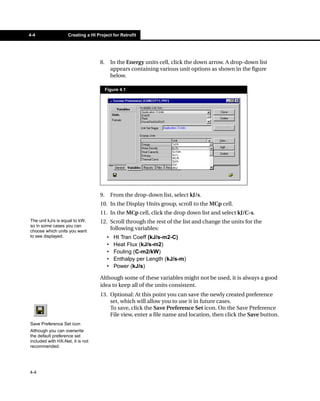
  • 133.
    5-12 Generating Grass Root Scenarios The defaul settings in the Options page are correct for this scenario. Figure 5.14 The objective Limits the number of designs listed/kept at the top five best designs. function for designing the column sequences is the Total Annualized Cost (TAC). 5. In the Main pane, click the Press to generate feasible column sequences icon to begin generating feasible designs. Figure 5.15 Press to generate feasible column sequences icon Generated Feasible Designs The Column Sequencing (CS) operation will generate possible feasible designs and list the feasible designs in the Viewer group. The Viewer group will contain maximum five possible designs under the Constant Pressure scenario, as specified in the Options page. The designs are also arranged in ascending order of the TAC (i.e., the design costing the least amount of TAC is first). Viewer group 5-12
  • 134.
    Column Sequencing forMulti-Components 5-13 Viewing Summary Information To obtain summary information of every design in the scenario, do the following: 1. Select the Constant Pressure scenario in the Viewer group. 2. In the Worksheet pane, click the Performance tab. Figure 5.16 The Performance tab contains a table that lists the following information on each design: name, number of columns, total annualized cost, operating cost/year, capital cost, reboiler vapour flow rate, reboiler duty, and total shaft work. 5-13
  • 135.
    5-14 Generating Grass Root Scenarios Viewing Detailed Design Information To view detailed information for the optimum design, do the following: 1. Select the Constant Pressure design in the Viewer group. The Main pane will display the Process Flow Diagram of the selected design. Figure 5.17 2. In the Worksheet pane, click the Streams tab. This tab contains the information for all the streams in the selected column sequence design. Figure 5.18 5-14
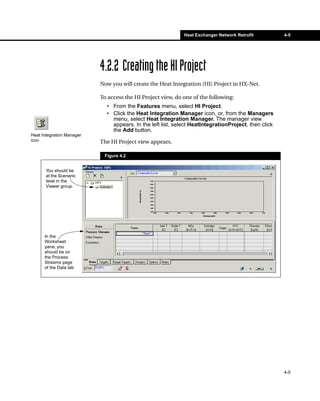
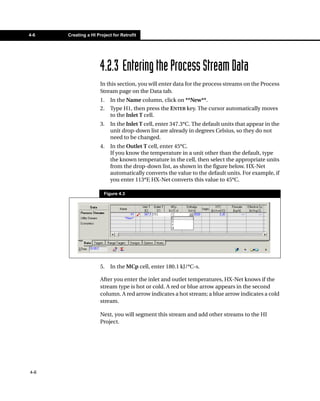
  • 136.
    Column Sequencing forMulti-Components 5-15 3. In the Worksheet pane, click the Columns tab. This tab contains information for all the columns in the selected column sequence design. Figure 5.19 4. Click the Save Case icon to save the case. From the column sequence in Figure 5.17, the optimum sequence Save Case icon performs a A/BCDE split first and moves the difficult split (D/E) until the end of the column sequence. 5-15
  • 137.
    5-16 Generating Grass Root Scenarios 5.5.2 Columns with Constant Top Temperature The second scenario considers a constant top temperature of 35°C for all the columns in the column sequence designs. By limiting the top temperature for all columns to a specific value, the generated design will use only one type of utility to cool/condense the vapours in the column. For this scenario, the cooling utility for the condensers in all the column is limited to cooling water. Cloning the Constant Pressure Scenario Rather than re-specify all the information regarding the feed and product stream, you can save time by cloning the Constant Pressure scenario. 1. Select Constant Pressure in the Viewer group. 2. Do one of the following: • Right-click on the Constant Pressure scenario to open the Object Inspect menu and select the Clone Scenario command. • Click the Clone Scenario/Design icon. Clone Scenario/Design icon The Clone view will appear. Figure 5.20 3. In the New Name field, enter Constant Top T, then press ENTER. 4. The clone operation will clone the Constant Pressure scenario and all designs within the scenario. Viewer group 5-16
  • 138.
    Column Sequencing forMulti-Components 5-17 Limiting Designs to Constant Top Temperature Now that you have a clone of the Constant Pressure scenario, you can lock/fix the top temperature value for all the columns and re-generate/ calculate possible column sequence designs. 1. Select the Constant Top T in the Viewer group. 2. Click the Task tab, then select the Classification page. 3. In the Number of Instances field, enter 1 to indicate only one variable will be specified/modified. This view informs you that 4. A warning view will appear. since the conditions of the selected scenario have changed, any designs in the Figure 5.21 selected scenario will be deleted. 5. Click the Yes button to confirm that you want to delete the old designs. The warning view will automatically close. 6. In the Task classification based on group, select the Instance Conditions radio button. 7. In the Instances group, enter 35°C in the cell under the Top Temperature column. 8. Click the Populate Task Operating Conditions button to place 35°C in all the possible column splits. 9. Click the Pressure/Temp page and confirm that any columns generated will have the top temperature value of 35°C. Figure 5.22 5-17
  • 139.
    5-18 Generating Grass Root Scenarios The other assumptions/conditions like Total Annualized Cost (TAC) for the objective function remains the same, so the Constant Top T scenario is ready to generate possible column sequences based on the new conditions/limitations. 10. Click the Press to generate feasible column sequences icon in the Main pane to begin calculation for the new designs. Press to generate feasible column sequences icon Generated Feasible Designs The designs are once again The new designs based on the limitation that all columns had to use sorted in ascending order of the objective function value, cooling water in the condenser are listed under the Constant Top T with the optimum design as scenario. the very first design. At the Scenario level, the Performance tab displays summary information of every design in the scenario. Figure 5.23 To view detailed information about the designs, select the design name in the Viewer group, then click the Streams tab and Columns tab to view the information. 5-18
  • 140.
    Column Sequencing forMulti-Components 5-19 The Main pane displays the PFD for the selected design. Figure 5.24 The Streams tab, in the Worksheet pane, contains the information regarding all the streams in the selected column sequence design. Figure 5.25 5-19
  • 141.
    5-20 Generating Grass Root Scenarios The Columns tab, in the Worksheet pane, contains information for all the columns in the selected column sequence design. Figure 5.26 11. Click the Save Case icon to save the case. From the column sequence in Figure 5.24, the optimum sequence Save Case icon performs a A/BCDE split first and keeps the difficult split (D/E) until the end of the column sequence. 5-20
  • 142.
    Column Sequencing forMulti-Components 5-21 5.5.3 Optimum Top Temperature The third scenario considers three possible top temperature values (20°C, 30°C, and 40°C) and allows DISTIL to select the optimum temperature value (one of the three temperatures) for each column in the design. Cloning Constant Top T Scenario The third scenario will be cloned from the Constant Top T scenario. 1. Select Constant Top T in the Viewer group. 2. Do one of the following: • Click the Clone Scenario/Design icon. • Right-click the Constant Top T scenario name to open the Object Clone Scenario/Design icon Inspect menu, then select the Clone Scenario command. 3. The Clone view will appear. Figure 5.27 4. In the Name field, enter Optimum Top T, then press ENTER. 5. The clone operation will clone Constant Top T and the designs within the scenario. Finding the Optimum Top Temperature Now that you have cloned the Constant Top T scenario, you can specify the three possible top temperature values for the columns and allow Viewer group DISTIL to calculate and generate new column sequence designs with optimum top temperatures. 1. Select Optimum Top T in the Viewer group. 2. Click the Task tab, then select the Classification page. 3. In the Number of Instances field, enter 3 to indicate that three variables will be specified/modified. 5-21
  • 143.
    5-22 Generating Grass Root Scenarios 4. A warning view will appear. The warning view informs you that since the conditions of the selected scenario have changed, any designs in the selected scenario will be deleted. 5. Click the Yes button to confirm that you want to delete the old designs. The warning view will automatically close. 6. In the Task classification based on group, select the Instance Conditions radio button. 7. In the Instances table, enter 20°C, 30°C, and 40°C in the cells under the Top Temperature column. 8. In the Instances group, click the Populate Task Operating Conditions button to place the three temperatures in all the possible column splits. 9. Click the Pressure/Temp page and confirm that any columns generated will have one of the three specified top temperature values. Figure 5.28 The other assumptions/conditions like Total Annualized Cost (TAC) for the objective function remains the same, so the Optimum Top T scenario is ready to generate possible column sequences based on the new conditions/limitations. 10. Click the Press to generate feasible column sequences icon in the Main pane to begin calculation for the new designs. Press to generate feasible column sequences icon 5-22
  • 144.
    Column Sequencing forMulti-Components 5-23 Generated Feasible Designs The designs are sorted in The new designs based on the limitation that all columns had to use ascending order of the objective function value, with cooling water in the condenser are listed under the Constant Top T the optimum design as the scenario. very first design. The Performance tab at the Scenario level contains summary information for every design. Figure 5.29 To view detail information about the designs, select the design name in the Viewer group, then click the Streams tab and Columns tab to view the information. 5-23
  • 145.
    5-24 Generating Grass Root Scenarios The Main pane will display the PFD of the selected design. Figure 5.30 The Streams tab, in the Worksheet pane, contains the information for all the streams in the selected column sequence design. Figure 5.31 5-24
  • 146.
    Column Sequencing forMulti-Components 5-25 The Columns tab, in the Worksheet pane, contains the information for all the columns in the selected column sequence design. Figure 5.32 11. Click the Save Case icon to save the case. Save Case icon 5-25
  • 147.
    5-26 Comparing Grass Root Designs 5.6 Comparing Grass Root Designs Before examining the fourth scenario, retrofitted designs, you will compare the best design from each previous scenario and select the column sequence design that best suits your plant. 1. Select the Constant Pressure scenario name in the Viewer group. In the Main pane, the Output Summary group displays the summary cost of the best design in the scenario (first design). 2. Click the scenario name for the other two scenarios you created. The figure below displays the Main pane for all three scenarios. Figure 5.33 Constant Pressure Constant Top T Optimum Top T The following table lists and compares the total annualized cost (TAC) of the best design from each of the three scenarios: Scenario Rank TAC ($/year) Relative (%) 5 Constant Pressure 3 9.062*10 100 Constant Top T 2 7.303*105 80.6 Optimum Top T 1 7.121*105 78.6 5-26
  • 148.
    Column Sequencing forMulti-Components 5-27 5.7 Generating a Retrofit Scenario The last scenario we will examine is retrofitting an existing separation system. As mentioned in Section 5.1 - Introduction, the existing separation system contains four columns with the following number of trays: 20, 65, 30, and 75. 5.7.1 Cloning an Existing Scenario The forth scenario will be cloned from the Constant Top T scenario. 1. Select Constant Top T in the Viewer group. 2. Do one of the following: • Click the Clone Scenario/Design icon. • Right-click the Constant Top T scenario name to open the Object Clone Scenario/Design icon Inspect menu, then select the Clone Scenario command. 3. The Clone view will appear. 4. In the New Name field, enter Retrofit, then press ENTER. 5. The clone operation will clone Constant Top T and the designs within the scenario. 5.7.2 Remove Temperature Constraints Now that you have a clone of the Constant Top T scenario, you can Viewer group specify the number of columns and trays allowed in the retrofit designs. Before specifying the limited number of trays, you must remove the temperature constraints on the top column temperature. 1. Select Retrofit in the Viewer group. 2. In the Worksheet pane, click the Task tab, then select the Classification page. 3. In the Number of Instances field, enter 1 to clear the value in the Instances group. The warning view informs you 4. A warning view will appear. that since the conditions of the selected scenario have 5. Click the Yes button to confirm that you want to delete the old changed, any designs in the designs. The warning view will automatically close. selected scenario will be deleted. 5-27
  • 149.
    5-28 Generating a Retrofit Scenario 5.7.3 Specify the Existing Number of Trays The objective function of the retrofit scenario is operating cost, not total annualized cost (TAC). TAC takes into account both operating and capital cost, but since you do not have capital expense (the hardware is already there) you want to focus on reducing the operating cost. 1. Click the Setup tab, then select the Options page. 2. In the Objective Function group, select Operating Cost from the drop-down list. 3. Click the Task tab, then select the Assets page. 4. Enter the information shown in the picture below, and check all the checkboxes under the Fix Tray column. Figure 5.34 5. Click the Populate Column Retrofit Information button. 6. Select the Retrofit page and confirm that all possible splits contains only one of the four possible tray numbers. Figure 5.35 5-28
  • 150.
    Column Sequencing forMulti-Components 5-29 7. Click the Press to generate feasible column sequences icon in the Main pane to begin calculation for the new designs. Press to generate feasible column sequences icon 5.7.4 Generated Feasible Designs The designs are once again The new designs based on the limitation that columns in the column sorted in ascending order of the objective function value, sequence design are from existing columns are listed under the Retrofit with the optimum design as scenario. the very first design. The Performance tab displays summary information for every design in the scenario. Figure 5.36 To view detail information about the designs, select the design name in the Viewer group, then click the Streams tab and Column tab. 5-29
  • 151.
    5-30 Generating a Retrofit Scenario The Main pane will display the PFD of the selected design. Figure 5.37 The Streams tab, in the Worksheet pane, contains the information for all the streams in the selected column sequence design. Figure 5.38 5-30
  • 152.
    Column Sequencing forMulti-Components 5-31 The Columns tab, in the Worksheet pane, contains the information for all the columns in the selected column sequence design. Figure 5.39 8. Click the Save Case icon to save the case. Save Case icon 5-31
  • 153.
    5-32 Comparing Grass Root and Retrofit 5.8 Comparing Grass Root and Retrofit Designs Now that you have information for the best retrofit design, you can compare the grass root scenarios with the retrofit scenario. 1. Select the Retrofit scenario in the Viewer group. In the Main pane, the Output Summary group displays the summary cost of the best design in the scenario (first design). The figure below displays the Main pane for the selected scenario. Figure 5.40 2. Click the scenario name for the grass root scenarios you created. The following table lists and compares the operating cost and capital expense of the best design from each of the four scenarios. Scenario Rank Operating Cost ($/year) Relative (%) Capital Cost ($) 5 Constant Pressure 4 2.338*10 100 3.529*106 Constant Top T 3 2.089*105 89.3 2.736*106 5 Optimum Top T 2 2.063*10 88.2 2.655*106 Retrofit 1 1.984*105 84.9 0 The Retrofit scenario ranked 1st in the operating cost and first for the capital cost. The other three scenarios require a capital investment, while the Retrofit scenario requires little or no capital investment. 5-32
  • 154.
    Benzene Removal 6-1 6 Benzene Removal 6.1 Introduction......................................................................................2 6.2 Setting Unit Preferences .................................................................3 6.3 Defining the Fluid Package .............................................................5 6.3.1 Selecting a Property Package .................................................6 6.3.2 Selecting the Components ......................................................7 6.4 Creating a Three Product System ..................................................8 6.4.1 Modifying Column Configurations..........................................10 6.4.2 Specifying Feed and Product Streams ..................................13 6.5 Comparing Complex Columns .....................................................16 6.5.1 Direct Sequence Design........................................................17 6.5.2 Dividing Wall Column Design ................................................21 6.5.3 Quality vs. Quantity of Energy ...............................................26 6.6 Simulating the Design in HYSYS..................................................28 6.6.1 Extracting the Column Design ...............................................28 6.6.2 Comparing Calculated Results..............................................30 6-1
  • 155.
    6-2 Introduction 6.1 Introduction This tutorial serves as an In this tutorial, you will use DISTIL to help you choose the best column introduction to the DISTIL Three Product System configuration to remove benzene from gasoline in a refinery process. operation. The Clean Air Act states that “...benzene content in gasoline must be less than 1% by volume...” The benzene content in the gasoline exiting the Separation Train is assumed to be 15%. One option is to separate the benzene and benzene precursors from the gasoline, and send only the benzene and benzene precursors into the Hydrogenation. In this case, a small amount of hydrogen is required in the Hydrogenation. Figure 6.1 There are many possible column designs for the above separation system. DISTIL Three Product System (TPS) operation offers nine different complex column designs from which you can check and compare the designs to select the column configuration that meets your requirements. 6-2
  • 156.
    Benzene Removal 6-3 6.2 Setting Unit Preferences Before you begin the simulation, you will verify that the units currently selected in the DISTIL preferences are the ones you want to use. For this example, the temperatures are in Celsius and the cost per time is in Cost/year. 1. Start DISTIL if it is not already open. 2. From the Tools menu, select Preferences. The Session Preferences view appears. 3. Click the Variables tab, then select the Units page. Figure 6.2 4. Select SI from the Available Unit Sets group. The text in the Unit column of The SI unit set is a default unit set and you cannot modify the units the Display Units table are black. This indicates that you associated with the variables. You have to clone the default unit set, and cannot modify the units modify the cloned unit set. You will do this in the next section. associated with the variables. 6-3
  • 157.
    6-4 Setting Unit Preferences Cloning a Default Unit Set To clone a default unit set: 1. In the Available Unit Sets group, select the SI unit set and click the Clone button. A new unit set appears called New User. 2. In the Unit Set Name field, rename the New User unit set Cost in years - SI. 3. In the Display Units table, scroll and find the Cost Index per Time cell. 4. Click the down arrow in the Cost Index per Time cell, and select Cost/year from the drop-down list. Down arrow icon Figure 6.3 5. Repeat step #3 and #4 to change the Energy variable to kW. 6. Optional: At this point you can save the modified-cloned unit set in a new preference file, which will allow you to use the modified- cloned unit set in future cases. To save the preference file, click the Save Preference File icon. On the Save Preference File view, enter a file name and location, and click the Save button. Save Preference File icon Although you can overwrite 7. Click the Close icon to close the Session Preferences view when the default preference set you have completed the unit set modification. included with DISTIL, it is not recommended. 6-4
  • 158.
    Benzene Removal 6-5 6.3 Defining the Fluid Package To use the Three Product System operation, you need to define a fluid package containing the property package and components required to simulate the feed stream entering the separation system. 1. Open the Fluid Package Manager view by clicking the Fluid Package Manager icon. Fluid Package Manager icon Figure 6.4 2. In the Fluid Package Manager view, click the Add Fluid Package icon. The Fluid Package view will appear. Add Fluid Package icon Figure 6.5 6-5
  • 159.
    6-6 Defining the Fluid Package 6.3.1 Selecting a Property Package In the Fluid Package view, you will select the property package and components associated with the fluid package. 1. In the Fluid Package view, click the Property Package tab. 2. In the Model Selection group, select the Vapour radio button, then select Ideal Gas in the Model Selection list. 3. In the Model Selection group, select the Liquid radio button, then select Peng-Robinson in the Model Selection list. The status bar at the bottom of the Fluid Package view should display Peng-Robinson-Ideal Gas as the selected property package, as shown in the figure below: Figure 6.6 6-6
  • 160.
    Benzene Removal 6-7 6.3.2 Selecting the Components 1. Click the Components tab. 2. In the Available Component List/Filter Options group, type benzene in the Match field. The list under the Match field will display all components that have names with the word benzene in them. You can also press ENTER to 3. Select Benzene from the list and click the Select button. add the selected component from the list into the Selected The component benzene will be added to the Selected Components Components group. list. Figure 6.7 4. Repeat steps #2 to #3 to add the following components: • Toluene • i-C5 • i-C4 • n-C4 • n-C5 • 2-MC5 • C6 • C7 • 124-M-BZ • m-Xylene 5. Click the Notes tab. In the Name field, enter a name for the fluid package (e.g., PR). 6. Click the Close icon to close the Fluid Package view. Close icon 6-7
  • 161.
    6-8 Creating a Three Product System 7. Save the case as BenzeneRemoval. DISTIL will save the file with the *.hcd extension. Save Case icon 6.4 Creating a Three Product System After specifying the fluid package for the simulation, you are ready to use the Three Product System operation. 1. Click the Separation Technology Manager icon to open the Separation Manager view. Separation Technology Figure 6.8 Manager icon 2. In the left list of the Separation Manager view, select ThreeProductSystem. 3. Click the Add button. The TPS property view will appear. The name of the TPS DISTIL automatically names the TPS operation 3PS1. operation will appear in the right list of the Separation Manager view. Figure 6.9 6-8
  • 162.
    Benzene Removal 6-9 The status bar will also The status bar at the bottom of the TPS view indicates the status of the display an error message if operation. If you have not specified the required information, the status there are any problems during calculations. bar will display a request for the missing information. 4. Click the Setup tab, then select the Fluid Package page. 5. On the Fluid Package page, use the Fluid Package drop-down list to select the fluid package for the simulation. Figure 6.10 6-9
  • 163.
    6-10 Creating a Three Product System 6.4.1 Modifying Column Configurations In this tutorial, there are some limitations that need to be applied to the complex columns design calculations. 1. On the Setup tab, select the Options page. 2. In the Configurations group, ensure that all the checkboxes are checked. 3. In the Options group, check the Disable Azeotrope Check checkbox. The following warning message will appear: Figure 6.11 4. Click the OK button. 5. Click the Molar Fraction Basis icon to open the Basis Selection view. 6. On the Basis Selection view, select the LiqVol Fraction radio button, Molar Fraction Basis icon then click the Close icon to close the Basis Selection view. 7. In the Options group, check the Use Cooling Water checkbox 8. In the Default Key Recovery field, enter 0.98. The Options page should appear as shown in the figure below: Figure 6.12 6-10
  • 164.
    Benzene Removal 6-11 Modifying Capital Cost Calculation In this section, you will modify the capital cost parameter values. 1. On the Setup tab, Options page, click the Capital Cost button in the Economics group. The Capital Cost view will appear: Figure 6.13 2. In the Common tab, enter 1070 in the Current Year cell. If you modify any settings You can modify the following parameters in the capital cost calculations, other than the Current Year, using the options in the Capital Cost view: the calculated results in the rest of this tutorial will differ • Column tab: tray size, vessel thickness, vessel cost, tray cost, from what you see on your platform and ladder cost, and installation cost. screen. • Heat Exchangers tab: heat exchangers size, heat exchangers cost, and installation cost. 3. In this tutorial, the default values for the rest of the parameters are adequate. Click the Close icon to close the Capital Cost view. Close icon 6-11
  • 165.
    6-12 Creating a Three Product System Modifying the Utility Database In this tutorial there is no Air utility, so you will remove the Air utility from the DISTIL default utility database. 1. On the Setup tab, Options page, click the Utility Database button in the Economics group. The Utility Database view will appear. Figure 6.14 2. Select the Air cell in the Name column. 3. Press DELETE. DISTIL will remove Air from the utility database. 4. Click the Close icon to close the Utility Database view. Close icon 6-12
  • 166.
    Benzene Removal 6-13 6.4.2 Specifying Feed and Product Streams Now that you have selected the fluid package and calculation options for the Three Product System operation, you will specify the feed and product streams characteristics. The Feed page allows you to 1. On the main TPS view, click the Specifications tab, then select the specify the composition, Feed page. pressure/temperature, and flow rate of the feed stream. 2. On the Feed page, enter the information from the table below: Object Value Object Value Benzene cell 0.1530 mole C6 cell 0.0225 mole Toluene cell 0.1373 mole C7 cell 0.0630 mole i-C5 cell 0.0500 mole 124-M-BZ cell 0.2125 mole i-C4 cell 0.0268 mole m-Xylene cell 0.1376 mole n-C4 cell 0.0344 mole Pressure cell 200 kPa n-C5 cell 0.0495 mole Flowrate cell 1500 kgmole/h 2-MC5 cell 0.1134 mole The Feed page should appear as shown in the figure below: Figure 6.15 3. Select the Splits page. The Splits page allows you to control the component splits in the mixture by selecting the components that will be in each of the three product streams. 6-13
  • 167.
    6-14 Creating a Three Product System The drop-down lists in the 4. In the Light Split group, select n-C5 component from the Light Key Light Split group allows you to drop-down list and select C6 component from the Heavy Key drop- select the components that will be in product A stream down list. and the light component of 5. In the Heavy Split group, select Benzene component from the Light product B stream. Key drop-down list and select Toluene component from the Heavy The drop-down lists in the Heavy Split group allows you Key drop-down list. to select the components that will be in the product C stream and the heavy component of After you finish selecting the key components for the split, DISTIL product B stream. automatically begins calculating the variable values of the complex columns based on the specified product streams. When the calculations and complex column designs are complete, the status bar will become green and display ‘Calculations are successful’. The Splits page should appear as shown in the figure below: Figure 6.16 DISTIL may have already generated the variable values for the complex column designs, but the recovery percentage for each key component in the streams is set at the specified default values (i.e., 0.98 for the light and heavy key components in each product stream). 6-14
  • 168.
    Benzene Removal 6-15 To change the recovery percentage for each key components you need to access the Recovery Matrix view: 6. Click the Recovery Matrix icon at the bottom right corner of the view. The Recovery Matrix view appears. Recovery Matrix icon 7. Change the recovery percentage for C6 in the Product A stream by entering 0.04 in the cell intersecting the C6 row and Product A column. The modified value appears in the figure below: Figure 6.17 DISTIL will automatically recalculate the variable values of the complex column designs every time you modify any percentage values in the Recovery Matrix view. 8. Click the Close icon to close the Recovery Matrix view. 9. Click the Save Case icon to save the case. Save Case icon 6-15
  • 169.
    6-16 Comparing Complex Columns 6.5 Comparing Complex Columns When the Three Product System operation has finish calculating the configuration variables for all nine complex column designs, you can then compare the summary cost, utilities, vapour flowrate, and number of trays for all designs. In the Summary page, the 1. Click the Performance tab, then select the Summary page. default setting is to sort the complex column configuration 2. Uncheck the Relative Values checkbox to view the summary cost in terms of total annualized information in cost per year. cost (TAC), from lowest to highest cost. Figure 6.18 The Direct Sequence design is currently ranked 3rd in terms of TAC. You can double-click on the complex column’s name, in the Configuration column, to view the parameters of the complex column in detail. 6-16
  • 170.
    Benzene Removal 6-17 6.5.1 Direct Sequence Design In this section, you will examine the details of the design parameters from the conventional Direct Sequence design. 1. Double-click the Direct Sequence cell in the Configuration column. All major design parameters The Direct Sequence view will appear. (like operating pressure, exchanger duties, exchanger temperatures, number of trays Figure 6.19 in each section, etc.) of the Direct Sequence column appear on this view. The second column in the Direct Sequence design is operating at a low pressure (23.77 kPa), so you will change the column to operate at an atmospheric condition. 2. Click the Section 3 icon to open the Section 3 view of the column. You can also access the Section 4 view, since section 4 is also located Section 3 icon in the same column. 3. In the Section 3 view, locate the Top Pressure cell and enter 1 atm as the new operating pressure value. 6-17
  • 171.
    6-18 Comparing Complex Columns A warning view will appear informing you that any changes made to the operating pressure or temperature will result in DISTIL recalculating the values in the entire column design. Figure 6.20 4. Click the OK button. If the parameter value is blue, 5. The Section 3 view should appear as shown in the figure below: you can modify the value of that parameter. Figure 6.21 6. Click the Close icon to close the Section 3 view. Close icon 6-18
  • 172.
    Benzene Removal 6-19 In the Direct Sequence view, the design parameter values for the second column have been changed to accommodate the new operating pressure value. Figure 6.22 7. Click the Close icon to close the Direct Sequence view and return to the Performance tab, Summary page of the TPS view. Close icon In forcing the second column to work at atmospheric conditions, the Direct Sequence configuration has been reduce in rank in terms of TAC. The original rank was 3rd, and now the rank is 7th. Figure 6.23 8. Repeat the steps you learned in this section to change the columns with low pressure (< 1 atm) to 1 atm for the Indirect Sequence and Distributed Sequence column designs. All columns in the Direct Sequence, Indirect Sequence, and Distributed Sequence designs should be operating at atmospheric conditions. 9. When you have finished making the modifications, return to the Performance tab, Summary page of the TPS view. 6-19
  • 173.
    6-20 Comparing Complex Columns In forcing the other columns in the Indirect Sequence and Distributed Sequence column designs to atmospheric conditions, the rank of the complex column configurations have changed. Figure 6.24 10. Check the Relative Values checkbox to compare the complex column configurations in relative terms. Figure 6.25 According to this table, the Dividing Wall Column is the most cost effective option (18% less than the Direct Sequence). 6-20
  • 174.
    Benzene Removal 6-21 6.5.2 Dividing Wall Column Design According to the previous DISTIL calculations, the Dividing Wall Column (DWC) is the most cost effective design. This section looks at the design parameters of the DWC in more detail. 1. Double-click on the Dividing Wall Column cell in the Configuration column. The Dividing Wall Column (DWC) view appears. Figure 6.26 The DWC is capable of separating the mixture using only one column. 2. Click the Overall Mass Balance icon to view the mass balance of the DWC. Overall Mass Balance icon Figure 6.27 As you can see, the benzene content for Product A and Product C streams are below 15%. This confirms that the DWC design meets the Clean Air Act regulation. 6-21
  • 175.
    6-22 Comparing Complex Columns 3. Click the Close icon to close the Mass Balance view. 4. Click the Energy Balance icon to view the utility duties of the condenser and reboiler of the DWC. Energy Balance icon Figure 6.28 5. Click the Close icon to close the Energy Balance view. Close icon 6. Click the Performance tab in the DWC view. The Performance tab is divided into six pages: • CapEx page displays the capital expenditure, operating expenditure, TAC, column dimensions (number of tray, height, and diameter), column/vessel cost, heat exchanger areas, and heat exchanger costs. • OpEx page displays the capital expenditure, operating expenditure, TAC, hot utility’s duty and cost, cold utility’s duty and cost, and vapour flow rates of condenser and reboiler. Blue text indicates that you • Op. Conditions page displays the operating pressure, temperature, can modify the value. utility used (if applicable), utility’s duty (if applicable), and R/Rmin value for each section in the DWC. • Sections page displays the number of trays, minimum number of trays, diameter, height, vapour and liquid flow rate, and the liquid/ vapour ratio for each section in the DWC. • Volatilities page displays the relative volatility of all the components in terms of the heaviest component in the mixture. • Options page allows you to modify parts of the column configuration and/or add constraints in designing the column. 7. Return to the Summary tab. 8. In the column diagram, notice the number of trays on the left side of the column is 16, while the number of trays on the right side is 23. It can be difficult to balance a column with an uneven load and pressure drop. DISTIL has a function that allows you to automatically balance the number of trays on either side of the dividing wall. 6-22
  • 176.
    Benzene Removal 6-23 9. Click the Performance tab, then select the Options page. You can also modify the 10. In the Options to Equate Trays on Two Sides of Wall group, click the following parameters of the equating tray calculation: Equate Trays by changing R by Rmin button. • Specify the number of calculation iterations in DISTIL will now begin re-calculating the parameter and variable values the Max number of of the column to different reflux values until a reflux value is found that Iterations field. • Specify the step size of allows the column to meet specifications and contain an equal number the operating reflux in of trays on both sides of the wall. the Step size for R by Rmin field. 11. If a feasible reflux value is found that allows for equal trays on both side of the wall, a message view will appear to inform you. Click the OK button to close the message view. Figure 6.29 12. Click the Summary tab to view the new number of trays. Figure 6.30 6-23
  • 177.
    6-24 Comparing Complex Columns 13. Click the Plots tab to view the temperature vs. enthalpy graph of the DWC system. Figure 6.31 Sensitivity Analysis DISTIL allows you to perform a sensitivity analysis on the main design variables. For example, you can view how changes in the operating pressure will affect the total cost of the DWC column. 1. Click the Sensitivity Analysis button located at the bottom left corner of the DWC view. The Sensitivity Analysis view will appear. Figure 6.32 2. In the X-Axis group, select Operating Pressure. 6-24
  • 178.
    Benzene Removal 6-25 3. In the Bound 2 cell, increase the pressure range value by entering 600 kPa. Figure 6.33 At lower pressure, At higher pressure, refrigeration is more expensive hot required, and cost utility is required, and increases. cost also increases. The optimum pressure is at 200 kPa, as shown in the plot. 4. Click the Close icon to close the Sensitivity Analysis view. Close icon 5. Click the Close icon to close the DWC view and return to the Performance tab, Summary page of the TPS view. Figure 6.34 As you can see from the information in the Summary page, the changes made in the Dividing Wall Column did not lower the configuration’s rank in TAC. In the next section, you will analyze the trade-off between quality and quantity of energy for different designs. 6-25
  • 179.
    6-26 Comparing Complex Columns 6.5.3 Quality vs. Quantity of Energy The Three Product System operation contains a tab that displays the temperature vs. enthalpy plot for all complex columns, which allows you to compare the energy quality and energy quantity of each complex column. The Temperature vs. Enthalpy 1. Click the Plots tab of the TPS view. plot is blank by default. Figure 6.35 2. To plot the temperature vs. enthalpy data of the complex columns, click the icons in the Display column. • Red X icon indicates that the associated complex column data is removed from the plot. Click on this icon to change the icon to a green checkmark and display the associated complex column data on the plot. • Green Checkmark icon indicates that the associated complex column data is displayed on the plot. Click on this icon to change the icon to a red X and remove the associated complex column data from the plot. 6-26
  • 180.
    Benzene Removal 6-27 In terms of TAC, the Indirect 3. Click the icon in the Display column for the Dividing Wall Column Sequence design was 22% (DWC) and the Indirect Sequence designs. more than the DWC design. Figure 6.36 Based on the data plots from the figure above, you can make the following assumptions: LP steam utility is slightly • The Indirect Sequence design requires more utility energy than the cheaper than MP steam utility. DWC design. • The DWC design requires less utility energy than Indirect Sequence. • The Indirect Sequence design uses both LP steam and MP steam hot utilities to heat the streams. • The DWC design uses only MP steam to heat the streams. Figure 6.37 MP steam top temperature LP steam top temperature The Indirect Sequence needs more energy (quantity), but requires a less expensive hot utility (quality). The DWC needs less energy (quantity), but requires a more expensive hot utility (quality). Save Case icon 4. Click the Save Case icon to save the case. 6-27
  • 181.
    6-28 Simulating the Design in HYSYS 6.6 Simulating the Design in HYSYS Once you have decided which complex column design is the most promising candidate to separate the benzene from the gasoline product mixture, you can perform a more rigorous simulation on the selected complex column system. DISTIL allows you to extract information from the selected complex column from the Three Product System operation and export the information to HYSYS. Once in HYSYS, you can perform a more rigorous simulation. To perform the simulation in HYSYS, you need HYSYS 3.0 or higher. 6.6.1 Extracting the Column Design In this section you will extract the complex column system and export it to HYSYS. 1. Click the Performance tab of the TPS view. 2. Double-click on the Dividing Wall Column cell in the Configuration column. The DWC view appears. 3. In the DWC view, click the Simulate icon. 4. A warning message appears to inform you that the DWC will be Simulate icon modeled as a Petlyuk column in HYSYS. Click the OK button Figure 6.38 6-28
  • 182.
    Benzene Removal 6-29 5. DISTIL will automatically activate HYSYS and send the fluid package and selected complex column design specifications to HYSYS. Figure 6.39 6-29
  • 183.
    6-30 Simulating the Design in HYSYS 6.6.2 Comparing Calculated Results Once the selected complex column design is exported to HYSYS, HYSYS automatically performs an initial calculation on the entire separation system. The re-calculation occurs because DISTIL assumptions are more relaxed than HYSYS assumptions. Some of the values calculated by HYSYS will be different from the DISTIL values. To compare the calculated values, do the following: 1. In HYSYS, double-click on the Column object in the PFD to open the Column property view. Figure 6.40 2. Click the Column Environment button at the bottom of the Column view to enter the Column environment. The Column environment provides more detailed views and information for the column configuration. 6-30
  • 184.
    Benzene Removal 6-31 3. In the Column environment, click the PFD icon to open the PFD view of the Column environment (if it isn’t already visible). PFD icon Figure 6.41 As the warning message had stated, the DWC would be modeled as a Petlyuk column in HYSYS. 4. In the Column environment PFD view you can do the following: • Double-click any of the Stream objects to access the properties and composition of the selected stream. • Double-click the Condenser or Reboiler object to access the properties and parameters of the condenser or reboiler. • Double-click the Column objects to access the properties and parameters of the columns. In the object views (stream, column, and exchangers), you can change any values where the value text is blue or red. • Blue text indicates the values were entered manually. • Red text indicates the values are HYSYS and/or DISTIL default values. • Black colour text indicates that the values are calculated by HYSYS. You cannot modify these values. 5. From the File menu, select Save As, and save the HYSYS case as ImportedBenzeneRemovalCase. 6-31
  • 185.
    Styrene Separation 7-1 7 Styrene Separation 7.1 Introduction......................................................................................2 7.2 Setting Unit Preferences .................................................................3 7.3 Defining the Fluid Package .............................................................4 7.3.1 Selecting a Property Package .................................................4 7.3.2 Selecting the Components ......................................................5 7.4 Creating a Three Product System ..................................................6 7.4.1 Specifying Feed and Product Streams ....................................8 7.5 Comparing Complex Columns .....................................................10 7.5.1 Analyzing the Styrene Separation Process ...........................11 7.5.2 Replicating the Existing Separation Train ..............................12 7.5.3 Modifying the PCP Configuration ..........................................14 7.5.4 Modifying the Prefractionator Configuration ..........................21 7.5.5 Checking the Rest of the Column Hardware .........................23 7.6 Simulating the Design in HYSYS..................................................26 7-1
  • 186.
    7-2 Introduction 7.1 Introduction This is an advanced tutorial. It In this tutorial, you will use DISTIL to help you decide whether to is assumed that you know all the basic functions of DISTIL. replace or modify an existing separation train of a styrene separation For information about the process with a more efficient column configuration. A more efficient basic functions, refer to the separation process is required because the profitability of the plant has User Guide and Separation manual. dropped by 20% due to increase in energy cost. Figure 7.1 The current separation train used in the styrene separation process is similar to a Direct Sequence design. Figure 7.2 7-2
  • 187.
    Styrene Separation 7-3 There are many possible column designs for the above separation system. DISTIL’s Three Product System (TPS) operation offers nine different complex column designs from which you can compare the designs to select the column configuration that meets your requirements. 7.2 Setting Unit Preferences Before you begin setting up the simulation, verify that the units currently selected in the DISTIL preferences are the ones you want to use. For this tutorial, the temperature is in Celsius and the Cost Index per Time is in $/year. Since you defined a unit set containing this variable in the previous tutorial (Cost in years-SI), you do not have to create a new one. 1. Activate DISTIL, if it is not already open. 2. From the Tools menu, select Preferences. The Session Preferences view appears. 3. Click the Variables tab, then select the Units page. 4. In the Available Unit Sets group, select the Cost in years-SI unit set. 7-3
  • 188.
    7-4 Defining the Fluid Package 7.3 Defining the Fluid Package To use the Three Product System operation, you need to generate a fluid package containing the property package and components required to simulate the feed stream entering the separation system. 1. Activate DISTIL, if it is not already open. 2. Open the Fluid Package Manager view by click the Fluid Package Manager icon. Fluid Package Manager icon 3. In the Fluid Package Manager view, click the Add Fluid Package icon. The Fluid Package view will appear. Add Fluid Package icon 7.3.1 Selecting a Property Package In the Fluid Package view, you will select the property package and components associated with the fluid package. 1. In the Fluid Package view, click the Property Package tab. 2. In the Model Selection group, select the Vapour radio button, then select Ideal Gas in the Model Selection list. 3. In the Model Selection group, select the Liquid radio button, then select Peng-Robinson in the Model Selection list. Figure 7.3 7-4
  • 189.
    Styrene Separation 7-5 The status bar at the bottom of the Fluid Package view should display Peng-Robinson-Ideal Gas as the selected property package, as shown in the previous figure. 7.3.2 Selecting the Components 1. Click the Components tab. 2. In the Available Component List/Filter Options group, type benzene in the Match field. The list under the Match field will display all components that have names with the word benzene in them. 3. Select Benzene from the list and click the Select button. The component benzene will be added to the Selected Components list. 4. Repeat steps #2 to #3 to add the following components: • Toluene • Styrene • E-BZ • alpha-M-Styrene 5. Click the Notes tab. In the Name field, enter a name for the fluid package (e.g., PR-styrene). 6. Click the Close icon to close the Fluid Package view. 7. Save the case as StyreneSeparation. DISTIL will save the file with Close icon the *.hcd extension. 7-5
  • 190.
    7-6 Creating a Three Product System 7.4 Creating a Three Product System After specifying the fluid package for the simulation, you are ready to use the Three Product System (TPS) operation. 1. Click the Separation Technology Manager icon to open the Separation Manager view. Separation Technology Figure 7.4 Manager icon 2. In the left list of the Separation Manager view, select ThreeProductSystem. 3. Click the Add button. The TPS property view will appear. The name of the TPS DISTIL automatically names the TPS operation 3PS1. operation will appear in the right list of the Separation 4. On the TPS view, select the PR-styrene fluid package from the Fluid Manager view. Package drop-down list. Figure 7.5 7-6
  • 191.
    Styrene Separation 7-7 Modifying the Utility Database In this tutorial, there is no Air utility, so you will remove the Air utility from the DISTIL default utility database. 1. On the Setup tab, Options page, click the Utility Database button in the Economics group. The Utility Database view appears. 2. Select the Air cell in the Name column. 3. Press DELETE. DISTIL will remove Air from the utility database. 4. Click the Save Default Utilities to File icon, the Save Heat Integration Defaults view appears. Save Default Utilities to File 5. In the File Name field, enter NoAir-utildata and click the Save icon button to save the modified utility database. 6. Click the Close icon to close the Utility Database view. Modifying the Tray Spacing In this tutorial, the column’s tray spacing is 18 inches. You must check and ensure the assumed value for tray spacing is 18 inches. 1. On the Setup tab, Options page, click the Capital Cost button in the Economics group. The Capital Cost view appears. 2. Click the Column tab, and select the Sizing page. 3. In the Tray Spacing field, check that the value is 18 inch. If the value is incorrect, use the down arrow and select 18 inch from the drop- down list. 4. Click the Close icon to close the Capital Cost view. 7-7
  • 192.
    7-8 Creating a Three Product System 7.4.1 Specifying Feed and Product Streams Now that you have selected the fluid package for the Three Product System operation, you will specify the feed and product streams characteristics. The Feed page allows you to 1. On the main TPS view, click the Specifications tab, then select the specify the composition, Feed page. pressure/temperature, and flow rate of the feed stream. 2. Enter the information as shown in the table below: Object Value Object Value Styrene cell 0.500 alpha-M-Styrene 0.0500 Benzene cell 0.0200 Pressure cell 30.00 kPa Toluene cell 0.0300 Flowrate cell 1000 E-BZ cell 0.4000 The Splits page allows you to 3. Select the Splits page. control the component splits in the mixture by selecting the 4. In the Light Split group, select E-BZ component from the Light Key components that will be in drop-down list and select Styrene component from the Heavy Key each of the three product streams. drop-down list. 5. In the Heavy Split group, select Styrene component from the Light Key drop-down list and select alpha-M-Styrene component from the Heavy Key drop-down list. After you finish selecting the key components for the splits, DISTIL automatically begins calculating the variable values of the complex columns based on the specified product streams. 7-8
  • 193.
    Styrene Separation 7-9 6. The Splits page should appears as shown in the figure below: Figure 7.6 You can change the default In this tutorial, the DISTIL default recovery percentage values for the key value in the Default Key Recovery field of the Setup components are the desired values. The DISTIL default recovery tab, Options page. percentage value is 0.95. To view the recovery percentage values of the components for each product stream, open the Recovery Matrix view. 7. Click the Recovery Matrix icon at the bottom right corner of the view to open the Recovery Matrix view. Recovery Matrix icon Figure 7.7 7-9
  • 194.
    7-10 Comparing Complex Columns 7.5 Comparing Complex Columns When the Three Product System operation has finish calculating the configuration variables for all nine complex column designs, you can compare the summary cost, utilities, vapour flowrate, and number of trays for all designs. In the Summary page, the 1. Click the Performance tab, then select the Summary page. default setting is to sort the complex column configuration in terms of total annualized Figure 7.8 cost (TAC), from lowest to highest cost. Double-click on the complex column’s name under the Configuration column to view the parameters of the complex column in detail. Based on the calculated results in the Summary page, the top five ranking column configurations are prefractionation based designs. In these designs, the feed mixing losses are minimized. The designs where the back mixing is important rank 7th and 8th place (Side Stripper and Side Rectifier). 7-10
  • 195.
    Styrene Separation 7-11 7.5.1 Analyzing the Styrene Separation Process In this section, you will analyze the styrene separation process performance and the calculated results from the Three Product System operation compared with the performance to confirm that a complex column design would be a more efficient process. For the styrene separation process, consider the following assumptions and conclusions: • Since the effect of back mixing is less important, the Side Stripper and Side Rectifier designs need not be considered. Refer to Section 5.3.4 - • Since the feed contains about 48% middle product, it is more Complex Column Design Options in the Reference efficient to use Prefractionator base columns to separate the Guide for more information. mixture. • The splits in the styrene separation process are difficult, as indicated by the relative volatility values calculated by DISTIL. You can check the components’ relative volatility values in the individual complex column view on the Performance tab, Volatilities page. Figure 7.9 When the split ratio of the Based on the values in the figure above, the relative volatility value relative volatility value is less for the first split is E-BZ ⁄ Styrene = 1.35 , and for the second split is than 2, the Light and Heavy key components in the split Styrene ⁄ alpha-M-Styrene = 1.84 . are considered difficult to • There is a need to lower operating costs due to higher energy costs. separate. Complex column configurations are known to lower the operating costs. For example, the Partially Coupled Prefractionator (PCP) design has the lowest operating cost because the configuration allows for the use of low temperature hot utilities. • As mentioned previously, the existing separation train is similar to a Direct Sequence configuration. The calculated values for the complex column configuration (Figure 7.8) indicate that the PCP’s TAC is 19% less than the Direct Sequence and the PCP’s operating cost is 23% less than the Direct Sequence 7-11
  • 196.
    7-12 Comparing Complex Columns In conclusion, a Prefractionator base column configuration would improve the efficiency of the separation train in the styrene separation process. The next step is to decide if the existing columns in the process need to be replaced or modified. 7.5.2 Replicating the Existing Separation Train A good engineer should always see if some (ideally most) of the hardware elements in the existing column sequence can be reused in the modified energy efficient column configuration to reduce the cost of material needed to modify the existing column sequence. Whether the existing Which column configuration you choose will depend on your ability to hardware can be re-used will depend on the selection of the properly compare the existing configuration with the possible improved possible new column configurations. configuration. As mentioned at the beginning of this chapter, the existing separation train configuration is similar to the Direct Sequence configuration, however, the calculated cost values of the Direct Sequence configuration are based on the Three Product System operation parameter values, not on the existing separation train parameter values, so the cost values between the configurations are not accurate. DISTIL allows you to manipulate the parameter values of the Direct Sequence in the TPS operation to match the existing separation train configuration, creating a more accurate configuration/design for comparison. 7-12
  • 197.
    Styrene Separation 7-13 1. Open the Direct Sequence view. Figure 7.10 According to the information in the Summary tab, the first column contains 48 trays and the second column contains 27 trays. The existing separation train’s first and second columns contain 55 and 30 trays respectively. Refer to Section 5.2.4 - The number of trays in the Direct Sequence view needs to be increased. Column Retrofit Options in the Reference Guide for the The number of trays in a column is inversely proportional to the reflux detailed relationship between ratio value of the column, so decreasing the reflux ratio value of the reflux ratio and number of column will increase the number of trays in the column. trays in the column. 2. Click the Performance tab. 3. Select the Op. Conditions page. The current reflux ratio value for the column is 1.100. 4. Decrease the reflux ratio value for the column and observe the change in the number of trays. You will find that the values 1.05 for the first column (Sections 1 &2) and 1.06 for the second column (Sections 3 &4) work well for the reflux ratio value. 7-13
  • 198.
    7-14 Comparing Complex Columns Figure 7.11 7.5.3 Modifying the PCP Configuration As stated in the previous section, it is cheaper to take the existing column sequence and modify it to match the more cost efficient configuration. • The existing separation train for the styrene separation process has two column shells, so from the list of possible complex columns, a configuration with two column shells is considered. • The existing separation train is not energy efficient, so from the list of possible complex columns, the complex column with the lowest operating cost is considered. From the above two requirements, the first configuration to be considered is the Partially Coupled Prefractionator (PCP). The columns in the PCP configuration will be modified on the assumption that the existing columns in the styrene separation process are still used for the separation. Figure 7.12 Notice that the Direct Sequence cost went down from 20% (see Figure 7.8) to 16.6% more than the PCP after the modification. 7-14
  • 199.
    Styrene Separation 7-15 1. Open the PCP view. Figure 7.13 The first column of the PCP contains 24 trays and the second column contains 62 trays. • There is a column in the existing separation train that contains 30 trays, which can be used as the first column (prefractionator) of the PCP configuration. The reflux ratio value of the first column of the PCP can be reduced to increase the number of trays. • The other column in the existing separation train contains only 55 trays, so the reflux ratio will increase to reduce the number of trays in the second column of the PCP from 62 to 55. Matching the Number of Trays Click the Section 1 and 1. On the Summary tab, open the Section 1 and Section 3 views. 2. Reduce the reflux ratio value in the Section 1 view to increase the Section 3 icons to open the section views. number of trays in the first column. You will find that 1.04 is adequate for this tutorial. 3. Increase the reflux ratio value in the Section 3 view to decrease the number of trays in the second column. You will find that 1.20 is adequate for this tutorial. 7-15
  • 200.
    7-16 Comparing Complex Columns Figure 7.14 The first column now contains 28 trays, and the second column now contains 55 trays. While the number of trays now appears suitable, there may be other column parameters that have been modified due to the changes in reflux ratio. The other column parameters, such as the tray diameter, should be checked. 4. Click the Performance tab, then select the CapEx page. Figure 7.15 The tray diameters for the PCP columns are about 5.817 m and 9.010 m. The tray diameter for the existing columns are 5.6 m and 8.6 m. Clearly the PCP columns are too fat, and the tray diameters need to be decreased. 7-16
  • 201.
    Styrene Separation 7-17 Consider the factors that controls the tray diameter: • Vapour Density. This variable can be manipulated; the value is not fixed. • Vapour/Liquid Traffic. This variable cannot be manipulated; the value is fixed due to the required/specified composition of the product streams. In this tutorial, the vapour density value will be manipulated to decrease the tray diameter. The vapour density has an inverse relationship with the tray diameter: • When the vapour density value is small, the vapour in the column requires more space/volume, so the tray diameter needs to be large to increase the volume of the column. • When the vapour density value is large, the vapour in the column requires less space/volume, so the tray diameter needs to be small to reduce the volume of the column. The variable that increases or decreases the vapour density in the column is the operating pressure. Increasing the operating pressure will increase the vapour density, and decreasing the operating pressure will decrease the vapour density. In this tutorial the operating pressure will be increased to increase the vapour density value and decrease the tray diameter. The increase in operating pressure, however, may increase the difficulty in the separation process, which means more trays will be required in the column to achieve the required/specified separation. DISTIL will automatically increase the number of trays in the column to compensate for the increased difficulty in the separation process. In order to match the number of trays in the simulated columns with the existing column, the reflux ratio value will have to be modified. The above analysis relies on basic knowledge about how to manipulate tray diameter, however, this analysis has been done qualitatively. There are no numbers to support the reasoning. DISTIL provides the quantitative analysis. The operating pressure value of the simulated columns can be increased or decreased to show how the quantitative changes to the value affect the rest of the simulated columns. 7-17
  • 202.
    7-18 Comparing Complex Columns Matching the Column Diameters 1. Click the Summary tab, then open the Section 1 view. 2. Increase the Top Pressure of the first column to 45 kPa. The following results occur: • The tray diameter is reduced from 5.817 m to 5.585 m. • The number of trays increases from 28 to 29. 3. Open the Section 3 view. 4. Increase the Top Pressure for the second column to 46 kPa. The following results occur: • The tray diameter is reduced from 9.010 m to 8.476 m. • The number of trays increases from 55 to 57. 5. On the Section 3 view, increase the reflux ratio value to 1.24. The number of trays is reduced from 57 to 55. Analyze the Rank of the Modified PCP Now that the simulated PCP configuration has been successfully modified to match the existing column’s hardware (column vessel and trays), the modified PCP’s cost will be compared to the existing separation column’s cost. 1. On the main TPS view, click the Performance tab and select the Summary page. Figure 7.16 According to Figure 7.16, the capital cost of the modified PCP (1.626) is still lower than The modified PCP configuration has a lower total annualized cost (TAC) the capital cost of the existing column (1.682), therefore, the rank than it did before the modifications. The modified PCP appears to operating cost has to be the be more expensive than the existing column separation in both TAC and only factor that increased the operating costs. TAC of the PCP. 7-18
  • 203.
    Styrene Separation 7-19 Considering that the PCP configuration was first chosen because it had the lowest operating cost, an analysis on why the PCP’s operating cost increased so substantially must be performed. Factors that Increased the Operating Cost Since the only column parameters that were changed in the modified PCP were the reflux ratio and the operating pressure, it can be assumed that the changes in the two parameters are the factors that increased the operating cost. In this section you will analyze how the changes in the reflux ratio and operating pressure affected the cost. 1. On the TPS view, go to the Plots tab. 2. Select the Direct Sequence and Partially Coupled Prefractionator configurations to be displayed in the plot. Figure 7.17 The PCP requires hotter utilities than the Direct Sequence The PCP requires slightly less energy than Direct Sequence From the resulting plot, you can conclude the following regarding the reason for the large increase in the operating cost of the PCP: • Operating costs increased because of the need for hotter utilities. • Hotter utilities were required because of the increase in reflux ratio and operating pressure. • Operating pressure and reflux ratio increased because of the need to increase the vapour density. 7-19
  • 204.
    7-20 Comparing Complex Columns • Vapour density increased because of the need to reduce the diameter of the column. • Column diameter was too fat because of the high vapour load. The analysis above indicates that the vapour load is the main factor contributing to the increased operation cost. The next step is to find out why there is a high vapour load, and decide if there is a way to reduce the vapour load and thus reduce the operating cost. From the configuration of the PCP design, you can see that the top trays of the second column (Section 3) will contain very high vapour flow rate. Figure 7.18 There is a large vapour flow rate in Section 3, because the columns are thermal coupled (only one condenser for two columns). DISTIL confirms that Section 3. On the PCP view, click the Performance tab, then select the Sections 3 contains the highest vapour flow rate quantitatively. page. Figure 7.19 The Vapour Flow row indicates that Section 3 contains the highest vapour flow rate. 7-20
  • 205.
    Styrene Separation 7-21 To reduce the high vapour flow rate, the thermal coupling could be removed to redistribute the vapour flow rate more evenly throughout the configuration, so a new configuration needs to be considered, preferably one without thermal coupling. 7.5.4 Modifying the Prefractionator Configuration The Prefractionator configuration is the next candidate for the separation train because it does not contain thermal coupling and it is similar to the PCP configuration. Figure 7.20 The Prefractionator configuration is currently ranked in 2nd place. 1. On the main TPS view, open the Prefractionator view. Figure 7.21 The first column of the Prefractionator contains 24 trays and the second column contains 62 trays. 7-21
  • 206.
    7-22 Comparing Complex Columns Just like the PCP, the Prefractionator column parameters will be modified to match the parameters of the existing column. 2. For the first column, reduce the reflux ratio value to 1.04. The number of trays increases to 28 and the tray diameter changes to 5.747 m. 3. For the second column, increase the reflux ratio value to 1.2. in the second column to decrease the number of trays. The number of trays decreases to 55 and the tray diameter changes to 8.23 m. The tray diameter for the first column is slightly too large, so like the PCP configuration, the first column’s operating pressure needs to be increased to reduce the vapour density, and therefore reduce the tray diameter. 4. For the first column, increase the operating pressure to 39 kPa. The tray diameter changes to 5.446 m. Analyze the Rank of the Modified Prefractionator Now that the simulated Prefractionator configuration has been successfully modified to match the existing column’s hardware (column vessel and trays), the modified Prefractionator’s cost will be compared to the existing separation column’s cost. 1. On the TPS view, go to the Performance tab and select the Summary tab. Figure 7.22 • The Prefractionator’s operating cost is only 3.3% more than the lowest operating cost. • The Prefractionator ranks 3rd in the TAC value. • The Prefractionator operating cost is about 8% less than the operating cost of the existing separation train configuration. 7-22
  • 207.
    Styrene Separation 7-23 7.5.5 Checking the Rest of the Column Hardware The Prefractionator configuration has been chosen and modified so that the existing vessels and trays in the separation train can be reused. The rest of the existing column configuration may have to be changed. 1. Open the Prefractionator view, go to the Performance tab and select the CapEx page. Figure 7.23 In the Exchangers table, the estimated sizes of the condensers and reboilers in the Prefractionator column are similar to the existing condensers and reboilers, except for the Main/2nd Reboiler. 7-23
  • 208.
    7-24 Comparing Complex Columns Figure 7.24 The piping connections/layout of the existing separation train will also need to be modified. Figure 7.25 In conclusion, the following modifications need to be made to the existing separation train: • The main/2nd reboiler needs to be replaced with a larger reboiler. The heat transfer area needs to be increased by about 33 m2. • The pipes network needs to be modified. 7-24
  • 209.
    Styrene Separation 7-25 The cost of modifying the pipe network would be small compared to the cost of replacing the reboiler, so the payback time for the cost of the reboiler only will be analyzed. 2. Open the Direct Sequence view. 3. Arrange both Direct Sequence and Prefractionator views so you can see the calculated results from both views. 4. On the Direct Sequence view, click the Performance tab, then select the CapEx page. Assume that the calculated 5. Subtract the operating cost of the Prefractionator view ($2.763e6/ operating cost of the Direct Sequence view matches the year) from the operating cost of the Direct Sequence view ($2.971e6/ current separation train year). operating cost. 6. The operating cost saved per year is $2.08e5 or $1.733e4 per month. 7. Subtract the capital cost of the second reboiler of the Direct Assume that the current Sequence view ($5.8364)from the second reboiler of the reboiler can be sold at the capital cost calculated by Prefractionator view ($8.976e4). DISTIL. 8. The cost difference to purchase the reboiler for the Prefractionator is $3.14e4. About $31,400 needs to be invested to purchase the new reboiler, and the new separation train (Prefractionator) will save about $17,333 per month in operating costs. In roughly three months of operation time, the new separation system will pay for itself. 7-25
  • 210.
    7-26 Simulating the Design in HYSYS 7.6 Simulating the Design in HYSYS Once you have decided which complex column design is the most promising candidate to for the styrene separation process, you can perform a more rigorous simulation on the selected complex column system using HYSYS. DISTIL allows you to extract information from the selected complex column from TPS operation and export the information to HYSYS. Once in HYSYS, you can perform a more rigorous simulation. To simulate the column design in HYSYS, you will require HYSYS 3.0 or higher. 1. To export the Prefractionator column information from DISTIL to HYSYS, open the Prefractionator view, then click the Simulate icon. Simulate icon DISTIL will automatically activate HYSYS, add the fluid package, populate the stream sequence, initialize the column and perform robust covergence operations. The extraction option performs a seamless data transfer that reduces possible copy/paste errors and time required to replicate the complete column simulation in HYSYS. 2. Double click any of the PFD objects or streams to view the details. 7-26
  • 211.
    Styrene Separation 7-27 Figure 7.26 The figure is a combination of the PFD view from the column environment of both columns. Refer to HYSYS manuals for Once the selected complex column design is exported to HYSYS, some information on using HYSYS. of the values calculated by HYSYS will be different from the DISTIL’ values. The difference in values is because DISTIL assumptions are more relaxed than HYSYS assumptions. 3. From the File menu, select Save As, and save the HYSYS case as ImportedStyreneSeparationCase. HYSYS will save the file with *.hcs extension. 7-27
  • 212.
    Increasing Column Throughput 8-1 8 Increasing Column Throughput 8.1 Introduction......................................................................................2 8.1.1 Setting Unit Preferences..........................................................3 8.1.2 Defining the Fluid Package......................................................3 8.1.3 Saving the Case ......................................................................3 8.2 Installing a Simple Column.............................................................4 8.2.1 Modifying the Tray Spacing......................................................4 8.2.2 Modifying Available Utilities .....................................................5 8.2.3 Specifying Feed and Product Streams ....................................6 8.2.4 Replicating the Existing Simple Column..................................8 8.3 Increasing the Feed Flow Rate .....................................................10 8.3.1 Modifying the Pressure..........................................................11 8.3.2 Modifying the Reflux Ratio.....................................................12 8.3.3 Changing Utilities...................................................................15 8.4 Comparing Options .......................................................................16 8.4.1 Option 1 .................................................................................16 8.4.2 Option 2 .................................................................................16 8-1
  • 213.
    8-2 Introduction 8.1 Introduction In this tutorial, you will use DISTIL to help you retrofit a column to accommodate for a 10% increase in the throughput. Figure 8.1 This is an advanced tutorial. It is assumed that you know all the basic functions of DISTIL. For information about the basic functions, refer to the User Guide and Separation manual. 8-2
  • 214.
    Increasing Column Throughput 8-3 8.1.1 Setting Unit Preferences Before you begin setting up the simulation, verify that the units currently selected in the DISTIL preferences are the ones you want to use. For this tutorial, the temperature is in Celsius and the cost per time is in $/year. 1. From the Tools menu, select Preferences. 2. Click the Variables tab, then select the Units page. 3. In the Available Unit Sets group, select the Separation - SI unit set. 8.1.2 Defining the Fluid Package To use the Simple Column operation, you have to generate a fluid package containing the property package and components required to simulate the feed stream entering the separation system. 1. Open the Fluid Package Manager. 2. In the Fluid Package Manager view, and create a fluid package with the following parameters and components. Fluid Package Manager icon Property Package Components Peng-Robinson (Ideal) C6, C7, C8, C9 8.1.3 Saving the Case To save the case, do one of the following: • Click the Save Case icon. • Select File-Save command from the menu bar. Save Case icon • Select File-Save As command from the menu bar. In the Save Case view, select the saving location and enter the file name for the case. DISTIL will save the file with *.hcd extension. 8-3
  • 215.
    8-4 Installing a Simple Column 8.2 Installing a Simple Column After specifying the fluid package for the simulation, you are ready to use the Simple Column operation. 1. Open the Separation Manager view. 2. In the Separation Manager view, select and add the simple column Separation Technology operation. Manager icon 3. On the Simple Column view, rename the simple column operation Existing Design and select the appropriate fluid package. Figure 8.2 8.2.1 Modifying the Tray Spacing In this tutorial, the column’s tray spacing is 18 inches. You must check and ensure the assumed value for tray spacing is 18 inches. 1. On the Setup tab, Options page, click the Capital Cost button in the Economics group. The Capital Cost view appears. 2. Click the Column tab, and select the Sizing page. 3. In the Tray Spacing field, check that the value is 18 inch. If the value is incorrect, use the down arrow and select 18 inch from the drop- down list. 4. Click the Close icon to close the Capital Cost view. 8-4
  • 216.
    Increasing Column Throughput 8-5 8.2.2 Modifying Available Utilities In this tutorial, there are only six utilities available in the plant system, so you will remove almost all the utilities from the DISTIL default utility database. 1. Open the Utility Database view associated with the Existing Design view (Setup tab, Options page). 2. Remove all the utilities except for the following: • LP Steam • MP Steam • HP Steam (Needs to be modified) • Very High Temperature • Cooling Water • Very Low Temperature 3. Modify the HP Steam so the values as follows: • Outlet T: 214°C • Inlet T: 215°C • Cost Index: 8.22e-003 Cost/kW-h Figure 8.3 4. Click the Save Default Utilities to File icon, the Save Heat Integration Defaults view appears. Save Default Utilities to File 5. In the File Name field, enter Tutorial8-utildata and click the Save icon button to save the modified utility database. 6. Click the Close icon to close the Utility Database view. 8-5
  • 217.
    8-6 Installing a Simple Column 8.2.3 Specifying Feed and Product Streams Once you have selected the fluid package and calculation options for the Existing Design view, you will specify the feed and product streams characteristic. The Feed page allows you to 1. Click the Specifications tab, then select the Feed page. specify the composition, pressure/temperature, and 2. Enter the information as shown in the table below: flow rate of the feed stream. Object Value Object Value C6 0.250 C9 0.200 C7 0.200 Pressure cell 100 kPa C8 0.350 Flowrate cell 1000 kgmole/h The Splits page allows you to 3. Select the Splits page. control the component splits in the mixture by selecting the 4. Define the splits information as follows: components that will be in each of the two product • Light Split: C7 streams. • Heavy Split: C8 Figure 8.4 DISTIL automatically begins calculating the variable values of the complex columns based on the specified product streams. 8-6
  • 218.
    Increasing Column Throughput 8-7 5. Click the Overall Mass Balance icon at the bottom right corner of the Simple Column view to open the Mass Balance view. Figure 8.5 Recovery Matrix icon The Mass Balance view displays the molar, mass, and liquid volume flow rate of the feed and product streams. 8-7
  • 219.
    8-8 Installing a Simple Column 8.2.4 Replicating the Existing Simple Column The existing column has 26 trays and the tray diameter is 4.3 m. The number of trays and tray diameter in the Existing Design view needs to be checked and/or modified to match. 1. Click the Performance tab, then select the CapEx page. Figure 8.6 The Existing Design column contains only 23 trays and shows 4.325 m for the tray diameter. The Existing Design’s tray diameter is just a little higher than the existing column’s tray diameter, so it shall be left alone. The number of trays in the Existing Design view, however, needs to be modified as it is three trays short. Refer to Section 5.2.4 - The number of trays in the Existing Design column needs to be Column Retrofit Options in the Reference Guide for the increased. The number of trays in the column has an inverse detailed relationship between relationship with the reflux ratio value of the column, so decreasing the reflux ratio and number of reflux ratio will increase the number of trays in the column. trays in the column. The Simple Column operation in DISTIL contains an option that will automatically calculate/modify the reflux ratio based on the number of trays you specified for the column. 2. Click the Setup tab, then select the Retrofit page. 8-8
  • 220.
    Increasing Column Throughput 8-9 3. Enter 26 in the Target # of Trays field, then click the Modify R/RMin button to begin calculation of the reflux ratio for the specified number of trays. On the Summary tab, the column in the Existing Design view now has 26 trays. Figure 8.7 Check the rest of the column’s parameter to make sure they match the existing column parameters. Figure 8.8 The tray diameter is now 4.287 m. The heat transfer area of the reboiler is 36.23 m2 and the heat transfer area of the condenser is 36.81 m2. The second Simple Column 4. Repeat steps #1 in Section 8.2 - Installing a Simple Column to the operation will be the column with the increased feed flow step above (#3) and generate another Simple Column operation rate. which will be the same as the existing column. 5. Name the replicated Simple Column operation Modified Design. 8-9
  • 221.
    8-10 Increasing the Feed Flow Rate 8.3 Increasing the Feed Flow Rate The simple column operation Now that there are two Simple Column operations replicating the will automatically make modifications to the column existing column, the Modified Design column’s feed stream flow rate will configuration to handle the be increased by 10%. increase in feed flow rate. 1. On the Modified Design view, enter 1100 kgmole/h for the feed flow rate. (Specifications tab, Feed page) Figure 8.9 The condenser and reboiler duty has increase by 10%. The number of trays has not changed. 2. Click the Performance tab, then select the CapEx page. Figure 8.10 The tray diameter has increased to 4.497 m. The reboiler and condenser heat transfer area has increased to 39.85 m2 and 40.49 m2, respectively. The tray diameter in the Modified Design column has been increased to compensate for the new feed flow rate. Unfortunately, the cost of replacing the column vessel and trays is not cost effective. Some other cost effective column parameter needs to be modified to reduce the tray diameter. 8-10
  • 222.
    Increasing Column Throughput 8-11 8.3.1 Modifying the Pressure To reduce the tray diameter, consider the factors that affect the tray diameter: • Vapour Density. This variable can be manipulated. The value is not fixed. • Vapour/Liquid Traffic. This variable cannot be manipulated. The value is fixed, due to the required/specified composition of the product streams. The vapour density has an In this tutorial, the vapour density value will be manipulated to reduce inverse relationship with the tray diameter: the tray diameter. The column parameter that manipulates the vapour • When the vapour density is the operating pressure. Increasing the operating pressure will density value is small, increase the vapour density, and decreasing the operating pressure will the vapour in the column requires more decrease the vapour density. space/volume, so the tray diameter needs to be large to increase the In this tutorial the operating pressure will be increased to increase the volume of the column. vapour density value, and thus reduce the tray diameter. • When the vapour density value is large, 1. On the Modified Design view, click the Summary tab. the vapour in the column requires less 2. Open the Section 2 view, and increase the operating pressure of the space/volume, so the tray diameter needs to column to 160 kPa. The following changes occur. be small to reduce the volume of the column. • The tray diameter changes to 4.29 m. • The number of trays increases to 28. Figure 8.11 When the operating pressure of the column increases, the difficulty in the separation process also increases, so more trays are required in the column to achieve the required separation. The Simple Column operation automatically increases the number of trays in the column to compensate for the increased difficulty in the separation process. 8-11
  • 223.
    8-12 Increasing the Feed Flow Rate 8.3.2 Modifying the Reflux Ratio In the existing column have 26 trays, so the modified column is limited to 26 trays. The automatic modification of the reflux ratio option will be used again to reduce the number of trays in the column. 1. On the Modified Design view, click the Modify R/RMin button. Figure 8.12 The Modified Design column contains the correct number of trays and tray diameter, and is a feasible separation system even when the feed stream flow rate has increased by 10%. The energy required by the reboiler and condenser has not changed much either. The rest of the column, however, should be checked to see if there were any adverse modifications made to the column configuration to meet the required separation specifications. 2. On the Modified Design view, go to the Performance tab and select the CapEx page. 3. On the Existing Design view, go to the Performance tab and select the CapEx page. 8-12
  • 224.
    Increasing Column Throughput 8-13 Figure 8.13 Existing Design Modified Design In comparing the heat transfer area between the Modified Design and Existing Design, you will observe the following: • The heat transfer area of the condenser from the Modified Design is slightly less than the Existing Design (31.45 m2 < 36.23 m2). • The heat transfer area of the reboiler from the Modified Design is a lot more than the Existing Design (78.24 m2 > 36.81 m2). The reason for slight decrease and large increase in heat transfer area can be deduced through the temperature differences between the streams temperatures and the utilities temperatures. 4. On the Existing Design view, select the Op. Conditions page. 5. On the Modified Design view, select the Op. Conditions page. Figure 8.14 8-13
  • 225.
    8-14 Increasing the Feed Flow Rate 6. Compare the temperature differences, in both reboiler and condenser, for the existing column vs. the simple column. Figure 8.15 From the above figure you can observe the following: • The temperature difference in the condenser has increased slightly, so the driving force in the condenser also increases. A slightly smaller heat transfer area is required to accomplish the heat transfer. • The temperature difference in the reboiler has decreased by half, so the driving force in the reboiler also decreases. A larger heat transfer area is required to achieve the heat transfer. 7. On the Existing Design view, select the OpEx page. 8. On the Modified Design view, select the OpEx page. Figure 8.16 Existing Design Modified Design 8-14
  • 226.
    Increasing Column Throughput 8-15 9. Compare the total operating cost between the Modified Design and the Existing Design. The total operating cost for the Existing Design view is $6.785e5/year, and the total operating cost for the SC1 view is $7.614e5/year, so the total operating cost needs to be increased by about 12% to accommodate the 10% increase in feed flow rate. 8.3.3 Changing Utilities The need to change the reboiler to a larger reboiler may not be recommended due to lack of space or cost effectiveness. To continue using the same reboiler, the utility used in the reboiler will be changed to a hotter utility. If a hotter utility is used, there is a greater driving force in heat transfer, reducing the heat transfer area required. 1. On the Modified Design view, go to the Performance tab and select the Op. Conditions page. 2. Change the utility used in Section 2 to HP Steam. 3. Click the CapEx page. Figure 8.17 The change in utility from MP Steam to HP Steam has reduce the reboiler heat transfer area to 27.38 m2, removing the need for capital investment for a new reboiler. The change in utility would also affect the operating cost because the cost of HP Steam utility is slightly higher than the cost of MP Steam utility. The total operating cost, when HP Steam is used, increases to $7.880e5/year. In comparing the total operating cost between the Modified Design and the Existing Design, the total operating cost increases by about 16.1% to accommodate the 10% increase in feed flow rate. 8-15
  • 227.
    8-16 Comparing Options 8.4 Comparing Options DISTIL allows you to evaluate different options quantitatively, present different options with minimal effort, and access information quickly and efficiently. 8.4.1 Option 1 Based on the analysis from Section 8.3.2 - Modifying the Reflux Ratio, one of the options to accommodate the 10% increase in feed flow rate is as follows: • Increase the operating cost by 12%. • Increase the heat transfer area of the reboiler to 78.24 m2. This option requires a minimum capital investment of $38, 590 to purchase the new reboiler, assuming the existing reboiler is sold at the suggested price. Figure 8.18 Existing Design heat exchanger capital cost SC1 heat exchanger capital cost 8.4.2 Option 2 Based on the analysis from Section 8.3.3 - Changing Utilities, another option to accommodate the 10% increase in feed flow rate is as follows: • Change the reboiler utility to HP Steam. • Increase the operating cost by 16.1%. This option requires no capital investment, however, there is a greater increase in the operating cost. 8-16