Atmospheric Crude Tower R1-1
R1-1
R1 Atmospheric Crude
Tower
R1.1 Process Description.....................................................................2
R1.2 Setup...........................................................................................5
R1.3 SteadyStateSimulation...............................................................8
R1.3.1 Simulate the Pre-Fractionation Train..........................................9
R1.3.2 Install Atmospheric Crude Fractionator....................................11
R1.4 Results.......................................................................................16
R1-2 Process Description
R1-2
R1.1 Process Description
After passing through a preheat train, 100,000 barrel/day of
29.32o
API crude is fed into a pre-flash separator operating at
450o F and 75 psia. The vapour from this separator bypasses the
crude furnace and is re-mixed with the hot (650o
F) pre-flash
liquids leaving the furnace. The combined stream is then fed to
the atmospheric crude column.
Figure R1.1
Atmospheric Crude Tower R1-3
R1-3
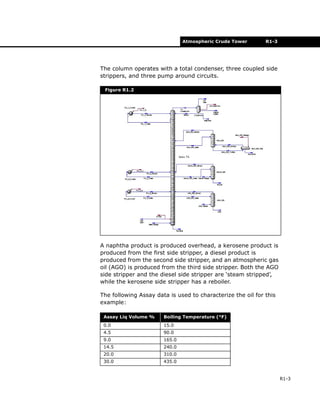
The column operates with a total condenser, three coupled side
strippers, and three pump around circuits.
A naphtha product is produced overhead, a kerosene product is
produced from the first side stripper, a diesel product is
produced from the second side stripper, and an atmospheric gas
oil (AGO) is produced from the third side stripper. Both the AGO
side stripper and the diesel side stripper are ‘steam stripped’,
while the kerosene side stripper has a reboiler.
The following Assay data is used to characterize the oil for this
example:
Figure R1.2
Assay Liq Volume % Boiling Temperature (°F)
0.0 15.0
4.5 90.0
9.0 165.0
14.5 240.0
20.0 310.0
30.0 435.0
R1-4 Process Description
R1-4
There are two basic steps in this process simulation:
1. Setup. The component list must include C1 to C4 light ends
components as well as the hypocomponents that will be used
to represent the C5+ portion of the crude oil. The Oil
Characterization procedure in HYSYS will be used to convert
the laboratory data into petroleum hypocomponents.
2. Steady State Simulation. This case will be modeled using
a Pre-Fractionation Train consisting of a Separator and
Heater. The Outlet stream will then fed to an Atmospheric
Crude Fractionator. The results will be displayed. Dynamic
Simulation - The steady state solution will be used to size
all the unit operations and tray section. An appropriate
control strategy will be implemented and the key variables
will be displayed on a strip chart.
40.0 524.0
50.0 620.0
60.0 740.0
70.0 885.0
76.0 969.0
80.0 1015.0
85.0 1050.0
Bulk Properties
Standard Density 29.32o API
Light Ends Liq Volume %
Methane 0.0065
Ethane 0.0225
Propane 0.3200
i-Butane 0.2400
n-Butane 0.8200
H2O 0.0000
Any other library components required for the overall
simulation (for example, H2O) should be selected as well.
Assay Liq Volume % Boiling Temperature (°F)
Atmospheric Crude Tower R1-5
R1-5
R1.2 Setup
1. In the Session Preferences property view, set the unit set to
Field units.
2. In the Component List property view, select the following
components: methane, ethane, propane, i-butane, n-
butane, and water.
3. In the Fluid Package property view, define a fluid package
with Peng-Robinson as the property package.
Oil Characterization
Click the Oil Environment icon to enter the Oil Characterization
Environment, using the fluid package you just created. Three
steps are required for characterizing the oil:
1. Define the Assay.
2. Create the Blend.
3. Install Oil in the Flowsheet.
Define the Assay
1. On the Assay page of the Oil Characterization property view,
click the Add button. This will create a new assay, and you
will see the Assay property view.
2. Change the Bulk Properties setting to Used.
3. Complete the Input data for the Bulk Properties as shown
below:
4. Since the TBP data is supplied, select TBP from the Assay
Data Type drop-down list.
Figure R1.3
Oil Environment icon
R1-6 Setup
R1-6
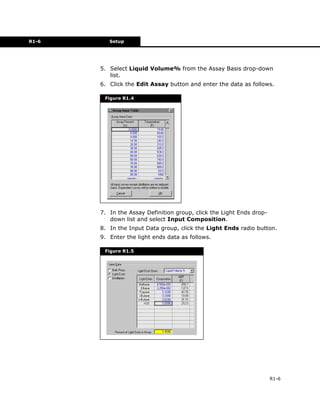
5. Select Liquid Volume% from the Assay Basis drop-down
list.
6. Click the Edit Assay button and enter the data as follows.
7. In the Assay Definition group, click the Light Ends drop-
down list and select Input Composition.
8. In the Input Data group, click the Light Ends radio button.
9. Enter the light ends data as follows.
Figure R1.4
Figure R1.5
Atmospheric Crude Tower R1-7
R1-7
10. Upon completion of characterizing the assay, select the
Calculate button. HYSYS will calculate the Working Curves,
which can be viewed on the Working Curve tab.
You can scroll through this table to view all 50 points of the
Working Curve.
11. Close the Assay property view.
Create the Blend (Cut the Oil)
1. Click the Cut/Blend tab (Oil Characterization property view)
and click the Add button. The Blend: Blend-1 view appears.
2. Click the Data tab, then select the Assay you created in the
Available Assays column.
3. Click the Add button. HYSYS will transfer that Assay to the
Oil Flow Information table.
As a guideline, each Outlet stream from the crude column
should contain a minimum of 5 hypocomponents where the
composition is greater than 1.0%. Therefore, a total of 30
components should fulfil this requirement.
4. From the Cut Option Selection drop-down list, select User
Points, then specify the Number of Cuts at 30. HYSYS will
calculate the hypocomponents.
Figure R1.6
R1-8 Steady State Simulation
R1-8
5. Click the Tables tab to view the hypocomponents.
6. From the Table Type group drop-down list, select Molar
Compositions.
7. Close the Blend property view.
Install Oil in the Flowsheet
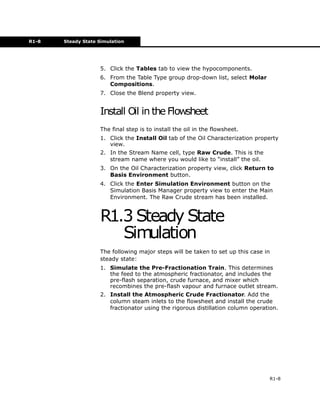
The final step is to install the oil in the flowsheet.
1. Click the Install Oil tab of the Oil Characterization property
view.
2. In the Stream Name cell, type Raw Crude. This is the
stream name where you would like to “install” the oil.
3. On the Oil Characterization property view, click Return to
Basis Environment button.
4. Click the Enter Simulation Environment button on the
Simulation Basis Manager property view to enter the Main
Environment. The Raw Crude stream has been installed.
R1.3 Steady State
Simulation
The following major steps will be taken to set up this case in
steady state:
1. Simulate the Pre-Fractionation Train. This determines
the feed to the atmospheric fractionator, and includes the
pre-flash separation, crude furnace, and mixer which
recombines the pre-flash vapour and furnace outlet stream.
2. Install the Atmospheric Crude Fractionator. Add the
column steam inlets to the flowsheet and install the crude
fractionator using the rigorous distillation column operation.
Atmospheric Crude Tower R1-9
R1-9
R1.3.1 Simulate the Pre-
Fractionation Train
Inlet Stream
Specify the Inlet stream (Raw Crude) as shown below.
Because the composition has been transferred from the Oil
Characterization, the stream is automatically flashed.
Pre-Flash Operations
Install the Separator, Heater, and Mixer and provide the
information displayed below:
Stream [Raw Crude]
In this cell... Enter...
Temperature [F] 450.0°F
Pressure [psia] 75.0 psia
Std Ideal Liq Vol Flow [barrel/day] 100,000 barrel/day
Separator [PreFlash]
Tab [Page] In this cell... Enter...
Design
[Connections]
Inlet Raw Crude
Vapour Outlet PreFlash Vap
Liquid Outlet PreFlash Liq
Heater [Crude Heater]
Tab [Page] In this cell... Enter...
Design
[Connections]
Inlet PreFlash Liq
Outlet Hot Crude
Energy Crude Duty
Design [Parameters] Delta P 10.00 psi
Worksheet
[Conditions]
Temperature (Hot Crude) 650 °F
R1-10 Steady State Simulation
R1-10
The calculated specifications for the Pre-Fractionation Atm Feed
stream appear below.
The Pre-Fractionation train is shown as follows:
Mixer [Mixer]
Tab [Page] In this cell... Enter...
Design
[Connections]
Inlets Hot Crude, PreFlash Vap
Outlet Atm Feed
Figure R1.7
Figure R1.8
Atmospheric Crude Tower R1-11
R1-11
R1.3.2 Install Atmospheric
Crude Fractionator
Steamand TrimDuty Streams
Before simulating the atmospheric crude tower, the steam feeds
and the energy stream (Q-Trim - representing the side
exchanger on stage 28) to the column must be defined.
The Q-Trim stream does not require any specifications, this will
be calculated by the Column.
Three steam streams are fed to various locations in the tower.
Specify the steam streams as shown below. Define the
composition for each as H2O = 1.0000.
These streams could be installed inside the Column Build
Environment as well. By taking this approach, you will need
to “attach” these streams to the Column Flowsheet so that
they can be used in the calculations.
Column
In this application, the Input Experts option have been turned
off, and the Column is being configured directly through the
Column property view.
An energy stream can be installed by selecting the
appropriate icon from the palette, or a material stream
converted to an energy stream on the Util page of the stream
property view.
Stream Name Temperature [F] Pressure [psia] Mass Flow [lb/hr]
Main Steam 375.00 150.00 7500.00
Diesel Steam 300.00 50.00 3000.00
AGO Steam 300.00 50.00 2500.00
R1-12 Steady State Simulation
R1-12
The main column, Atms Tower, is represented by the following:
• Number of stages is 29 ideal stages (not including the
condenser).
• The overhead condenser operates at 19.7 psia and the
bottom stage at 32.7 psia.
• The condenser experiences a 9 psi pressure drop.
• The temperature estimates for the condenser, top stage,
and bottom stage are 100o
F, 250o
F and 600o
F,
respectively.
• Condensed water is removed via a water draw from the
three-phase condenser.
HYSYS comes with a 3 Stripper Crude Column template. A
Refluxed Absorber template could also be used, but this would
add the procedure of installing Side Strippers and Pump
Arounds.
For this example, install the 3 Stripper Crude Column custom
template.
1. Select the Custom Column icon in the Object Palette, then
click the Read an Existing Column Template button. The
Available Column Templates finder property view appears.
2. In the Files of type drop-down list, select Column
Templates (*.col).
3. From the list, select the 3sscrude.col template file, then
click the Open button.
The 3sscrude.col template installed 40 trays, 29 in the Main
Tray section, 3 trays in each of the 3 Side Strippers (1
reboiled and 2 steam stripped), a reboiler, and a condenser.
Custom Column icon
Atmospheric Crude Tower R1-13
R1-13
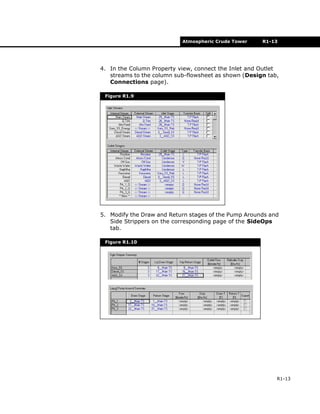
4. In the Column Property view, connect the Inlet and Outlet
streams to the column sub-flowsheet as shown (Design tab,
Connections page).
5. Modify the Draw and Return stages of the Pump Arounds and
Side Strippers on the corresponding page of the SideOps
tab.
Figure R1.9
Figure R1.10
R1-14 Steady State Simulation
R1-14
6. In the Atmos Tower Column property view, specify the
column information below.
Field units are used for column preferences.
Specifications
On the Monitor page of the Design tab, make the following
changes and input the values into the default set of
specifications supplied with the pre-built 3-Side Stripper
Column.
1. Change all the Pump Around delta T specifications to a
Duty specification.
2. Delete the Kero SS BoilUp Ratio and the Residue Rate
specs.
Open the specification property view by clicking the View
button, then click Delete to delete the specification.
3. Specify the Reflux Ratio spec to have a value of 1. Clear
the Reflux Ratio Active checkbox and make it an Estimate
only.
4. Change the following default specifications by selecting the
specification in the table and clicking the View button.
Change the Flow Basis to Std Ideal Volume before entering
values.
Column [Atms Tower]
Tab [Page] In this cell... Enter...
Parameters
[Profiles]
Condenser Pressure 19.7 psia
29_Main TS Pressure 32.7 psia
Condenser Temperature 100°F
1_Main TS Temperature 250°F
29_Main TS Temperature 600°F
Specification Flow Basis Spec Type Spec Value
Kero_SS Prod Flow Volume 9300 barrel/day
Diesel_SS Prod Flow Volume 1.925e+04 barrel/day
AGO_SS Prod Flow Volume 4500 barrel/day
PA_1_Rate(Pa) Volume 5.000e+04 barrel/day
PA_1_Duty(Pa) Duty -5.500e+07 Btu/hr
Atmospheric Crude Tower R1-15
R1-15
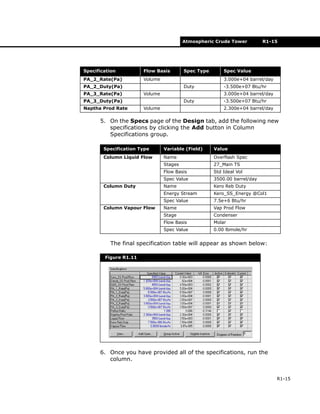
5. On the Specs page of the Design tab, add the following new
specifications by clicking the Add button in Column
Specifications group.
The final specification table will appear as shown below:
6. Once you have provided all of the specifications, run the
column.
PA_2_Rate(Pa) Volume 3.000e+04 barrel/day
PA_2_Duty(Pa) Duty -3.500e+07 Btu/hr
PA_3_Rate(Pa) Volume 3.000e+04 barrel/day
PA_3_Duty(Pa) Duty -3.500e+07 Btu/hr
Naptha Prod Rate Volume 2.300e+04 barrel/day
Specification Type Variable (Field) Value
Column Liquid Flow Name Overflash Spec
Stages 27_Main TS
Flow Basis Std Ideal Vol
Spec Value 3500.00 barrel/day
Column Duty Name Kero Reb Duty
Energy Stream Kero_SS_Energy @Col1
Spec Value 7.5e+6 Btu/hr
Column Vapour Flow Name Vap Prod Flow
Stage Condenser
Flow Basis Molar
Spec Value 0.00 lbmole/hr
Figure R1.11
Specification Flow Basis Spec Type Spec Value
R1-16 Results
R1-16
R1.4 Results
Workbook Case (Main)
The material stream results for the Workbook Case[Main]
appear below.
Figure R1.12
Atmospheric Crude Tower R1-17
R1-17
Workbook Case (Atms Tower)
The material stream results for the Workbook Case [Atms
Tower] appear below.
Figure R1.13

Atmospheric crude tower simulation

  • 1.
    Atmospheric Crude TowerR1-1 R1-1 R1 Atmospheric Crude Tower R1.1 Process Description.....................................................................2 R1.2 Setup...........................................................................................5 R1.3 SteadyStateSimulation...............................................................8 R1.3.1 Simulate the Pre-Fractionation Train..........................................9 R1.3.2 Install Atmospheric Crude Fractionator....................................11 R1.4 Results.......................................................................................16
  • 2.
    R1-2 Process Description R1-2 R1.1Process Description After passing through a preheat train, 100,000 barrel/day of 29.32o API crude is fed into a pre-flash separator operating at 450o F and 75 psia. The vapour from this separator bypasses the crude furnace and is re-mixed with the hot (650o F) pre-flash liquids leaving the furnace. The combined stream is then fed to the atmospheric crude column. Figure R1.1
  • 3.
    Atmospheric Crude TowerR1-3 R1-3 The column operates with a total condenser, three coupled side strippers, and three pump around circuits. A naphtha product is produced overhead, a kerosene product is produced from the first side stripper, a diesel product is produced from the second side stripper, and an atmospheric gas oil (AGO) is produced from the third side stripper. Both the AGO side stripper and the diesel side stripper are ‘steam stripped’, while the kerosene side stripper has a reboiler. The following Assay data is used to characterize the oil for this example: Figure R1.2 Assay Liq Volume % Boiling Temperature (°F) 0.0 15.0 4.5 90.0 9.0 165.0 14.5 240.0 20.0 310.0 30.0 435.0
  • 4.
    R1-4 Process Description R1-4 Thereare two basic steps in this process simulation: 1. Setup. The component list must include C1 to C4 light ends components as well as the hypocomponents that will be used to represent the C5+ portion of the crude oil. The Oil Characterization procedure in HYSYS will be used to convert the laboratory data into petroleum hypocomponents. 2. Steady State Simulation. This case will be modeled using a Pre-Fractionation Train consisting of a Separator and Heater. The Outlet stream will then fed to an Atmospheric Crude Fractionator. The results will be displayed. Dynamic Simulation - The steady state solution will be used to size all the unit operations and tray section. An appropriate control strategy will be implemented and the key variables will be displayed on a strip chart. 40.0 524.0 50.0 620.0 60.0 740.0 70.0 885.0 76.0 969.0 80.0 1015.0 85.0 1050.0 Bulk Properties Standard Density 29.32o API Light Ends Liq Volume % Methane 0.0065 Ethane 0.0225 Propane 0.3200 i-Butane 0.2400 n-Butane 0.8200 H2O 0.0000 Any other library components required for the overall simulation (for example, H2O) should be selected as well. Assay Liq Volume % Boiling Temperature (°F)
  • 5.
    Atmospheric Crude TowerR1-5 R1-5 R1.2 Setup 1. In the Session Preferences property view, set the unit set to Field units. 2. In the Component List property view, select the following components: methane, ethane, propane, i-butane, n- butane, and water. 3. In the Fluid Package property view, define a fluid package with Peng-Robinson as the property package. Oil Characterization Click the Oil Environment icon to enter the Oil Characterization Environment, using the fluid package you just created. Three steps are required for characterizing the oil: 1. Define the Assay. 2. Create the Blend. 3. Install Oil in the Flowsheet. Define the Assay 1. On the Assay page of the Oil Characterization property view, click the Add button. This will create a new assay, and you will see the Assay property view. 2. Change the Bulk Properties setting to Used. 3. Complete the Input data for the Bulk Properties as shown below: 4. Since the TBP data is supplied, select TBP from the Assay Data Type drop-down list. Figure R1.3 Oil Environment icon
  • 6.
    R1-6 Setup R1-6 5. SelectLiquid Volume% from the Assay Basis drop-down list. 6. Click the Edit Assay button and enter the data as follows. 7. In the Assay Definition group, click the Light Ends drop- down list and select Input Composition. 8. In the Input Data group, click the Light Ends radio button. 9. Enter the light ends data as follows. Figure R1.4 Figure R1.5
  • 7.
    Atmospheric Crude TowerR1-7 R1-7 10. Upon completion of characterizing the assay, select the Calculate button. HYSYS will calculate the Working Curves, which can be viewed on the Working Curve tab. You can scroll through this table to view all 50 points of the Working Curve. 11. Close the Assay property view. Create the Blend (Cut the Oil) 1. Click the Cut/Blend tab (Oil Characterization property view) and click the Add button. The Blend: Blend-1 view appears. 2. Click the Data tab, then select the Assay you created in the Available Assays column. 3. Click the Add button. HYSYS will transfer that Assay to the Oil Flow Information table. As a guideline, each Outlet stream from the crude column should contain a minimum of 5 hypocomponents where the composition is greater than 1.0%. Therefore, a total of 30 components should fulfil this requirement. 4. From the Cut Option Selection drop-down list, select User Points, then specify the Number of Cuts at 30. HYSYS will calculate the hypocomponents. Figure R1.6
  • 8.
    R1-8 Steady StateSimulation R1-8 5. Click the Tables tab to view the hypocomponents. 6. From the Table Type group drop-down list, select Molar Compositions. 7. Close the Blend property view. Install Oil in the Flowsheet The final step is to install the oil in the flowsheet. 1. Click the Install Oil tab of the Oil Characterization property view. 2. In the Stream Name cell, type Raw Crude. This is the stream name where you would like to “install” the oil. 3. On the Oil Characterization property view, click Return to Basis Environment button. 4. Click the Enter Simulation Environment button on the Simulation Basis Manager property view to enter the Main Environment. The Raw Crude stream has been installed. R1.3 Steady State Simulation The following major steps will be taken to set up this case in steady state: 1. Simulate the Pre-Fractionation Train. This determines the feed to the atmospheric fractionator, and includes the pre-flash separation, crude furnace, and mixer which recombines the pre-flash vapour and furnace outlet stream. 2. Install the Atmospheric Crude Fractionator. Add the column steam inlets to the flowsheet and install the crude fractionator using the rigorous distillation column operation.
  • 9.
    Atmospheric Crude TowerR1-9 R1-9 R1.3.1 Simulate the Pre- Fractionation Train Inlet Stream Specify the Inlet stream (Raw Crude) as shown below. Because the composition has been transferred from the Oil Characterization, the stream is automatically flashed. Pre-Flash Operations Install the Separator, Heater, and Mixer and provide the information displayed below: Stream [Raw Crude] In this cell... Enter... Temperature [F] 450.0°F Pressure [psia] 75.0 psia Std Ideal Liq Vol Flow [barrel/day] 100,000 barrel/day Separator [PreFlash] Tab [Page] In this cell... Enter... Design [Connections] Inlet Raw Crude Vapour Outlet PreFlash Vap Liquid Outlet PreFlash Liq Heater [Crude Heater] Tab [Page] In this cell... Enter... Design [Connections] Inlet PreFlash Liq Outlet Hot Crude Energy Crude Duty Design [Parameters] Delta P 10.00 psi Worksheet [Conditions] Temperature (Hot Crude) 650 °F
  • 10.
    R1-10 Steady StateSimulation R1-10 The calculated specifications for the Pre-Fractionation Atm Feed stream appear below. The Pre-Fractionation train is shown as follows: Mixer [Mixer] Tab [Page] In this cell... Enter... Design [Connections] Inlets Hot Crude, PreFlash Vap Outlet Atm Feed Figure R1.7 Figure R1.8
  • 11.
    Atmospheric Crude TowerR1-11 R1-11 R1.3.2 Install Atmospheric Crude Fractionator Steamand TrimDuty Streams Before simulating the atmospheric crude tower, the steam feeds and the energy stream (Q-Trim - representing the side exchanger on stage 28) to the column must be defined. The Q-Trim stream does not require any specifications, this will be calculated by the Column. Three steam streams are fed to various locations in the tower. Specify the steam streams as shown below. Define the composition for each as H2O = 1.0000. These streams could be installed inside the Column Build Environment as well. By taking this approach, you will need to “attach” these streams to the Column Flowsheet so that they can be used in the calculations. Column In this application, the Input Experts option have been turned off, and the Column is being configured directly through the Column property view. An energy stream can be installed by selecting the appropriate icon from the palette, or a material stream converted to an energy stream on the Util page of the stream property view. Stream Name Temperature [F] Pressure [psia] Mass Flow [lb/hr] Main Steam 375.00 150.00 7500.00 Diesel Steam 300.00 50.00 3000.00 AGO Steam 300.00 50.00 2500.00
  • 12.
    R1-12 Steady StateSimulation R1-12 The main column, Atms Tower, is represented by the following: • Number of stages is 29 ideal stages (not including the condenser). • The overhead condenser operates at 19.7 psia and the bottom stage at 32.7 psia. • The condenser experiences a 9 psi pressure drop. • The temperature estimates for the condenser, top stage, and bottom stage are 100o F, 250o F and 600o F, respectively. • Condensed water is removed via a water draw from the three-phase condenser. HYSYS comes with a 3 Stripper Crude Column template. A Refluxed Absorber template could also be used, but this would add the procedure of installing Side Strippers and Pump Arounds. For this example, install the 3 Stripper Crude Column custom template. 1. Select the Custom Column icon in the Object Palette, then click the Read an Existing Column Template button. The Available Column Templates finder property view appears. 2. In the Files of type drop-down list, select Column Templates (*.col). 3. From the list, select the 3sscrude.col template file, then click the Open button. The 3sscrude.col template installed 40 trays, 29 in the Main Tray section, 3 trays in each of the 3 Side Strippers (1 reboiled and 2 steam stripped), a reboiler, and a condenser. Custom Column icon
  • 13.
    Atmospheric Crude TowerR1-13 R1-13 4. In the Column Property view, connect the Inlet and Outlet streams to the column sub-flowsheet as shown (Design tab, Connections page). 5. Modify the Draw and Return stages of the Pump Arounds and Side Strippers on the corresponding page of the SideOps tab. Figure R1.9 Figure R1.10
  • 14.
    R1-14 Steady StateSimulation R1-14 6. In the Atmos Tower Column property view, specify the column information below. Field units are used for column preferences. Specifications On the Monitor page of the Design tab, make the following changes and input the values into the default set of specifications supplied with the pre-built 3-Side Stripper Column. 1. Change all the Pump Around delta T specifications to a Duty specification. 2. Delete the Kero SS BoilUp Ratio and the Residue Rate specs. Open the specification property view by clicking the View button, then click Delete to delete the specification. 3. Specify the Reflux Ratio spec to have a value of 1. Clear the Reflux Ratio Active checkbox and make it an Estimate only. 4. Change the following default specifications by selecting the specification in the table and clicking the View button. Change the Flow Basis to Std Ideal Volume before entering values. Column [Atms Tower] Tab [Page] In this cell... Enter... Parameters [Profiles] Condenser Pressure 19.7 psia 29_Main TS Pressure 32.7 psia Condenser Temperature 100°F 1_Main TS Temperature 250°F 29_Main TS Temperature 600°F Specification Flow Basis Spec Type Spec Value Kero_SS Prod Flow Volume 9300 barrel/day Diesel_SS Prod Flow Volume 1.925e+04 barrel/day AGO_SS Prod Flow Volume 4500 barrel/day PA_1_Rate(Pa) Volume 5.000e+04 barrel/day PA_1_Duty(Pa) Duty -5.500e+07 Btu/hr
  • 15.
    Atmospheric Crude TowerR1-15 R1-15 5. On the Specs page of the Design tab, add the following new specifications by clicking the Add button in Column Specifications group. The final specification table will appear as shown below: 6. Once you have provided all of the specifications, run the column. PA_2_Rate(Pa) Volume 3.000e+04 barrel/day PA_2_Duty(Pa) Duty -3.500e+07 Btu/hr PA_3_Rate(Pa) Volume 3.000e+04 barrel/day PA_3_Duty(Pa) Duty -3.500e+07 Btu/hr Naptha Prod Rate Volume 2.300e+04 barrel/day Specification Type Variable (Field) Value Column Liquid Flow Name Overflash Spec Stages 27_Main TS Flow Basis Std Ideal Vol Spec Value 3500.00 barrel/day Column Duty Name Kero Reb Duty Energy Stream Kero_SS_Energy @Col1 Spec Value 7.5e+6 Btu/hr Column Vapour Flow Name Vap Prod Flow Stage Condenser Flow Basis Molar Spec Value 0.00 lbmole/hr Figure R1.11 Specification Flow Basis Spec Type Spec Value
  • 16.
    R1-16 Results R1-16 R1.4 Results WorkbookCase (Main) The material stream results for the Workbook Case[Main] appear below. Figure R1.12
  • 17.
    Atmospheric Crude TowerR1-17 R1-17 Workbook Case (Atms Tower) The material stream results for the Workbook Case [Atms Tower] appear below. Figure R1.13