

Turnitin @ TUT – Turnitin website
Marius Pienaar (Instructional Designer)
• myTUTor course
• Two routes
• Plagiarism and Copyright
• Using the Turnitin website
• Using Turnitin on myTUTor
Turnitin @ TUT: GRC course
Overview
Turnitin @ TUT: GRC course
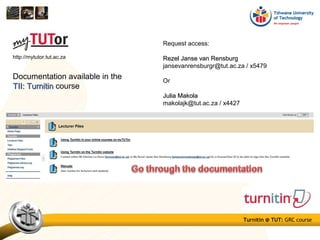
http://mytutor.tut.ac.za
Request access:
Rezel Janse van RensburgRezel Janse van Rensburg
jansevanrensburgr@tut.ac.za / x5479
Or
Julia MakolaJulia Makola
makolajk@tut.ac.za / x4427
Documentation available in the
TII: TurnitinTII: Turnitin course
Turnitin @ TUT: GRC course
Using the Turnitin website
Two routes
Manually
•Set up a class
•Enrol students
Request your User ID:
•Etienne le RouxEtienne le Roux
lerouxe@tut.ac.za
•Rezel Janse van RensburgRezel Janse van Rensburg
jansevanrensburgr@tut.ac.za
You can also access your assignments on the Turnitin website after you have created it in
myTUTor
Using Turnitin in myTUTor Setting up of class and enrolment of students done automatically
Turnitin @ TUT: GRC course
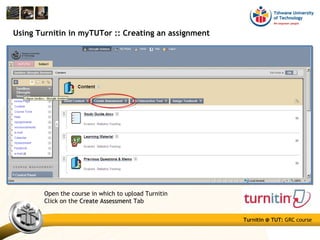
Using Turnitin in myTUTor :: Creating an assignment
Open the course in which to upload Turnitin
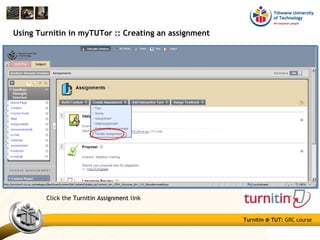
Click on the Create AssessmentCreate Assessment Tab
Turnitin @ TUT: GRC course
Using Turnitin in myTUTor :: Creating an assignment
Click the Turnitin AssignmentTurnitin Assignment link
Turnitin @ TUT: GRC course
Using Turnitin in myTUTor :: Creating an assignment
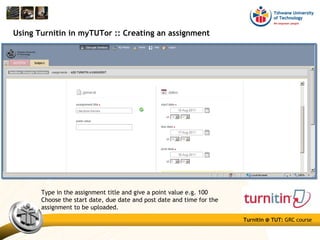
Type in the assignment title and give a point value e.g. 100
Choose the start date, due date and post date and time for the
assignment to be uploaded.
Turnitin @ TUT: GRC course
Using Turnitin in myTUTor :: Creating an assignment
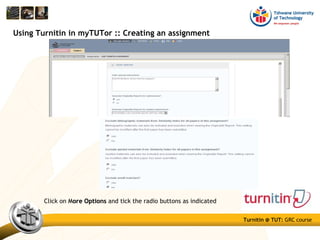
Click on MMore Optionsore Options and tick the radio buttons as indicated
Turnitin @ TUT: GRC course
Using Turnitin in myTUTor :: Creating an assignment
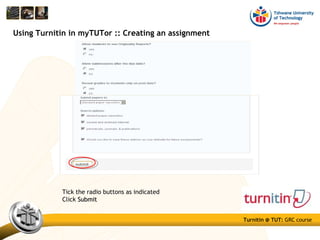
Tick the radio buttons as indicated
Click SubmitSubmit
Turnitin @ TUT: GRC course
Using Turnitin in myTUTor :: Creating an assignment
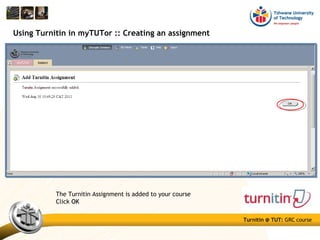
The Turnitin Assignment is added to your course
Click OKOK
Turnitin @ TUT: GRC course
Using Turnitin in myTUTor :: Student View
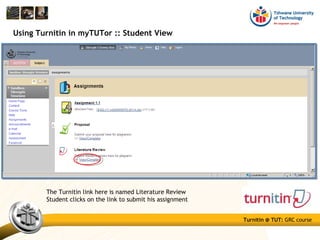
The Turnitin link here is named Literature Review
Student clicks on the link to submit his assignment
Turnitin @ TUT: GRC course
Using Turnitin in myTUTor :: Student View
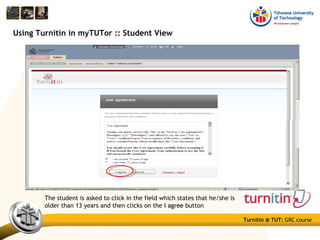
The student is asked to click in the field which states that he/she is
older than 13 years and then clicks on the I agreeI agree button
Turnitin @ TUT: GRC course
Using Turnitin in myTUTor :: Student View
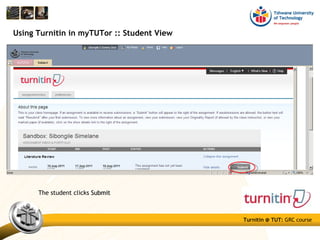
The student clicks SubmitSubmit
Turnitin @ TUT: GRC course
Using Turnitin in myTUTor :: Student View
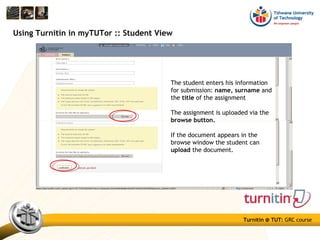
The student enters his information
for submission: name, surname and
the title of the assignment
The assignment is uploaded via the
browse button.
If the document appears in the
browse window the student can
upload the document.
Turnitin @ TUT: GRC course
Using Turnitin in myTUTor :: Student View
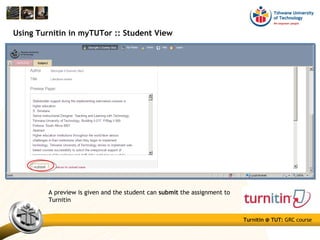
A preview is given and the student can submit the assignment to
Turnitin
Turnitin @ TUT: GRC course
Using Turnitin in myTUTor :: Student View
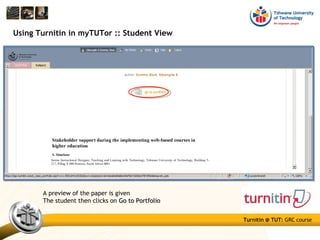
A preview of the paper is given
The student then clicks on Go to PortfolioGo to Portfolio
Turnitin @ TUT: GRC course
Using Turnitin in myTUTor :: Student View
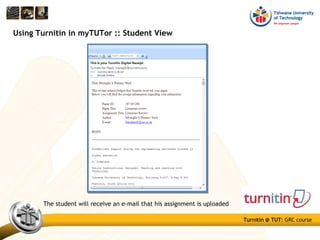
The student will receive an e-mail that his assignment is uploaded
Turnitin @ TUT: GRC course
Using Turnitin in myTUTor :: Originality Report
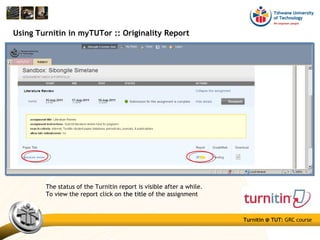
The status of the Turnitin report is visible after a while.
To view the report click on the titlethe title of the assignment
Turnitin @ TUT: GRC course
Using Turnitin in myTUTor :: Originality Report
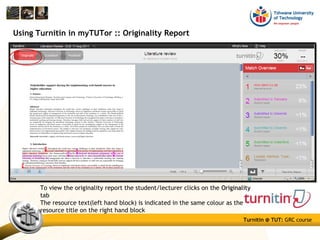
To view the originality report the student/lecturer clicks on the OriginalityOriginality
tab
The resource text(left hand block) is indicated in the same colour as the
resource title on the right hand block
Turnitin @ TUT: GRC course
Using Turnitin in myTUTor :: Originality Report
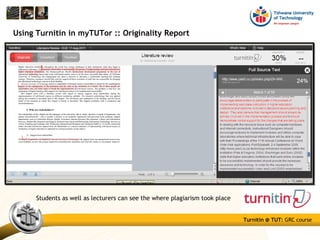
Students as well as lecturers can see the where plagiarism took place
Turnitin @ TUT: GRC course
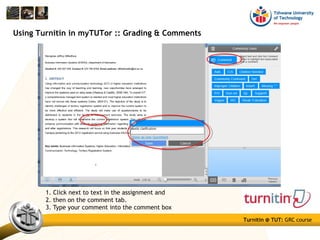
Using Turnitin in myTUTor :: Grading & Comments
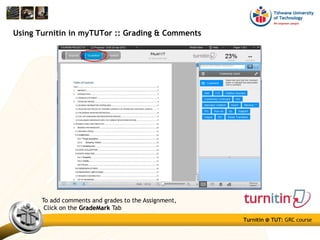
To add comments and grades to the Assignment,
Click on the GradeMarkGradeMark Tab
Turnitin @ TUT: GRC course
Using Turnitin in myTUTor :: Grading & Comments
1. Click next to text in the assignment and
2. then on the comment tab.
3. Type your comment into the comment box
Turnitin @ TUT: GRC course
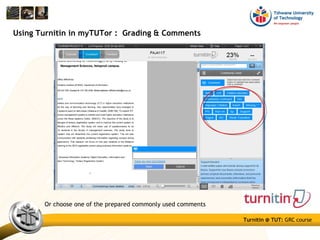
Using Turnitin in myTUTor : Grading & Comments
Or choose one of the prepared commonly used comments
Turnitin @ TUT: GRC course
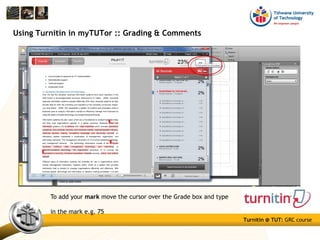
Using Turnitin in myTUTor :: Grading & Comments
To add your mark move the cursor over the Grade box and type
in the mark e.g. 75
Turnitin @ TUT: GRC course
Sources
myTUTor: http://mytutor.tut.ac.za
PPT (S Simelane): Turnitin Lecturer and Student view and Grading of Assignment
Turnitin @ TUT : Turnitin website

Turnitin @ TUT : Turnitin website

  • 1.
    Turnitin @ TUT– Turnitin website Marius Pienaar (Instructional Designer)
  • 2.
    • myTUTor course •Two routes • Plagiarism and Copyright • Using the Turnitin website • Using Turnitin on myTUTor Turnitin @ TUT: GRC course Overview
  • 3.
    Turnitin @ TUT:GRC course http://mytutor.tut.ac.za Request access: Rezel Janse van RensburgRezel Janse van Rensburg jansevanrensburgr@tut.ac.za / x5479 Or Julia MakolaJulia Makola makolajk@tut.ac.za / x4427 Documentation available in the TII: TurnitinTII: Turnitin course
  • 4.
    Turnitin @ TUT:GRC course Using the Turnitin website Two routes Manually •Set up a class •Enrol students Request your User ID: •Etienne le RouxEtienne le Roux lerouxe@tut.ac.za •Rezel Janse van RensburgRezel Janse van Rensburg jansevanrensburgr@tut.ac.za You can also access your assignments on the Turnitin website after you have created it in myTUTor Using Turnitin in myTUTor Setting up of class and enrolment of students done automatically
  • 5.
    Turnitin @ TUT:GRC course Using Turnitin in myTUTor :: Creating an assignment Open the course in which to upload Turnitin Click on the Create AssessmentCreate Assessment Tab
  • 6.
    Turnitin @ TUT:GRC course Using Turnitin in myTUTor :: Creating an assignment Click the Turnitin AssignmentTurnitin Assignment link
  • 7.
    Turnitin @ TUT:GRC course Using Turnitin in myTUTor :: Creating an assignment Type in the assignment title and give a point value e.g. 100 Choose the start date, due date and post date and time for the assignment to be uploaded.
  • 8.
    Turnitin @ TUT:GRC course Using Turnitin in myTUTor :: Creating an assignment Click on MMore Optionsore Options and tick the radio buttons as indicated
  • 9.
    Turnitin @ TUT:GRC course Using Turnitin in myTUTor :: Creating an assignment Tick the radio buttons as indicated Click SubmitSubmit
  • 10.
    Turnitin @ TUT:GRC course Using Turnitin in myTUTor :: Creating an assignment The Turnitin Assignment is added to your course Click OKOK
  • 11.
    Turnitin @ TUT:GRC course Using Turnitin in myTUTor :: Student View The Turnitin link here is named Literature Review Student clicks on the link to submit his assignment
  • 12.
    Turnitin @ TUT:GRC course Using Turnitin in myTUTor :: Student View The student is asked to click in the field which states that he/she is older than 13 years and then clicks on the I agreeI agree button
  • 13.
    Turnitin @ TUT:GRC course Using Turnitin in myTUTor :: Student View The student clicks SubmitSubmit
  • 14.
    Turnitin @ TUT:GRC course Using Turnitin in myTUTor :: Student View The student enters his information for submission: name, surname and the title of the assignment The assignment is uploaded via the browse button. If the document appears in the browse window the student can upload the document.
  • 15.
    Turnitin @ TUT:GRC course Using Turnitin in myTUTor :: Student View A preview is given and the student can submit the assignment to Turnitin
  • 16.
    Turnitin @ TUT:GRC course Using Turnitin in myTUTor :: Student View A preview of the paper is given The student then clicks on Go to PortfolioGo to Portfolio
  • 17.
    Turnitin @ TUT:GRC course Using Turnitin in myTUTor :: Student View The student will receive an e-mail that his assignment is uploaded
  • 18.
    Turnitin @ TUT:GRC course Using Turnitin in myTUTor :: Originality Report The status of the Turnitin report is visible after a while. To view the report click on the titlethe title of the assignment
  • 19.
    Turnitin @ TUT:GRC course Using Turnitin in myTUTor :: Originality Report To view the originality report the student/lecturer clicks on the OriginalityOriginality tab The resource text(left hand block) is indicated in the same colour as the resource title on the right hand block
  • 20.
    Turnitin @ TUT:GRC course Using Turnitin in myTUTor :: Originality Report Students as well as lecturers can see the where plagiarism took place
  • 21.
    Turnitin @ TUT:GRC course Using Turnitin in myTUTor :: Grading & Comments To add comments and grades to the Assignment, Click on the GradeMarkGradeMark Tab
  • 22.
    Turnitin @ TUT:GRC course Using Turnitin in myTUTor :: Grading & Comments 1. Click next to text in the assignment and 2. then on the comment tab. 3. Type your comment into the comment box
  • 23.
    Turnitin @ TUT:GRC course Using Turnitin in myTUTor : Grading & Comments Or choose one of the prepared commonly used comments
  • 24.
    Turnitin @ TUT:GRC course Using Turnitin in myTUTor :: Grading & Comments To add your mark move the cursor over the Grade box and type in the mark e.g. 75
  • 25.
    Turnitin @ TUT:GRC course Sources myTUTor: http://mytutor.tut.ac.za PPT (S Simelane): Turnitin Lecturer and Student view and Grading of Assignment