The Basics of
Microsoft Project
André Sanz
…or how to avoid using Excel to manage a
project schedule..!
 Step 3: Creating a top-level WBS
(Summary Tasks)
Agenda
The Basics of Microsoft Project
 Creating & Assigning a Project calendar
 Defining basic Project information
 Loading Project resources
 Creating a top-level WBS (Summary Tasks)
 Loading each top-level WBS (Subtasks)
 Task Types, Durations & Predecessors
 Filtering & Reports
Creating a top-level WBS
(Summary Tasks)
Creating a Top-Level WBS
The Basics of Microsoft Project
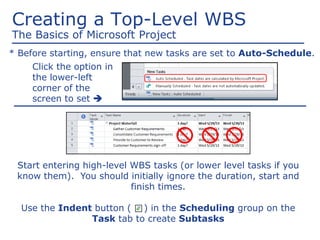
Click the option in
the lower-left
corner of the
screen to set 
* Before starting, ensure that new tasks are set to Auto-Schedule.
Start entering high-level WBS tasks (or lower level tasks if you
know them). You should initially ignore the duration, start and
finish times.
Use the Indent button ( ) in the Scheduling group on the
Task tab to create Subtasks
WBS Build Workflow
The Basics of Microsoft Project
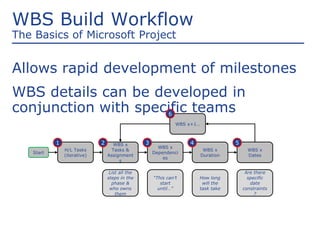
Allows rapid development of milestones
WBS details can be developed in
conjunction with specific teams
WBS x
Tasks &
Assignment
s
H/L Tasks
(iterative)
WBS x
Dependenci
es
WBS x
Duration
WBS x
Dates
WBS x+1…
Start
List all the
steps in the
phase &
who owns
them
“This can’t
start
until…”
How long
will the
task take
Are there
specific
date
constraints
?
1 2 3 4 5
6
Build Out a Plan
The Basics of Microsoft Project
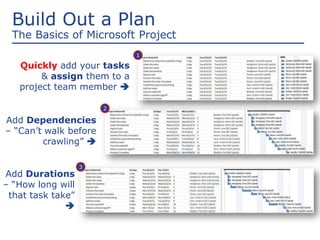
Quickly add your tasks
& assign them to a
project team member 
Add Dependencies
– “Can’t walk before
crawling” 
Add Durations
– “How long will
that task take”

1
2
3
Build Out a Plan
The Basics of Microsoft Project
Avoid
directly
changing
dates in a
project 
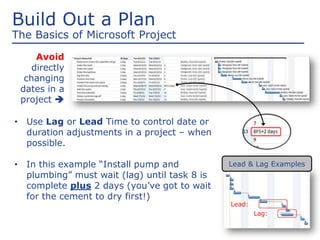
• Use Lag or Lead Time to control date or
duration adjustments in a project – when
possible.
• In this example “Install pump and
plumbing” must wait (lag) until task 8 is
complete plus 2 days (you’ve got to wait
for the cement to dry first!)
Lead:
Lag:
Lead & Lag Examples

The Basics of Microsoft Project Step 3

  • 1.
    The Basics of MicrosoftProject André Sanz …or how to avoid using Excel to manage a project schedule..!  Step 3: Creating a top-level WBS (Summary Tasks)
  • 2.
    Agenda The Basics ofMicrosoft Project  Creating & Assigning a Project calendar  Defining basic Project information  Loading Project resources  Creating a top-level WBS (Summary Tasks)  Loading each top-level WBS (Subtasks)  Task Types, Durations & Predecessors  Filtering & Reports
  • 3.
    Creating a top-levelWBS (Summary Tasks)
  • 4.
    Creating a Top-LevelWBS The Basics of Microsoft Project Click the option in the lower-left corner of the screen to set  * Before starting, ensure that new tasks are set to Auto-Schedule. Start entering high-level WBS tasks (or lower level tasks if you know them). You should initially ignore the duration, start and finish times. Use the Indent button ( ) in the Scheduling group on the Task tab to create Subtasks
  • 5.
    WBS Build Workflow TheBasics of Microsoft Project Allows rapid development of milestones WBS details can be developed in conjunction with specific teams WBS x Tasks & Assignment s H/L Tasks (iterative) WBS x Dependenci es WBS x Duration WBS x Dates WBS x+1… Start List all the steps in the phase & who owns them “This can’t start until…” How long will the task take Are there specific date constraints ? 1 2 3 4 5 6
  • 6.
    Build Out aPlan The Basics of Microsoft Project Quickly add your tasks & assign them to a project team member  Add Dependencies – “Can’t walk before crawling”  Add Durations – “How long will that task take”  1 2 3
  • 7.
    Build Out aPlan The Basics of Microsoft Project Avoid directly changing dates in a project  • Use Lag or Lead Time to control date or duration adjustments in a project – when possible. • In this example “Install pump and plumbing” must wait (lag) until task 8 is complete plus 2 days (you’ve got to wait for the cement to dry first!) Lead: Lag: Lead & Lag Examples