Tenable.sc 5.21.x User Guide
Last Revised: May 31, 2022
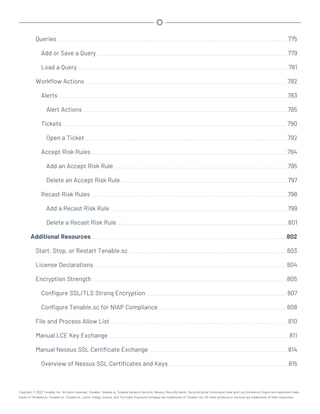
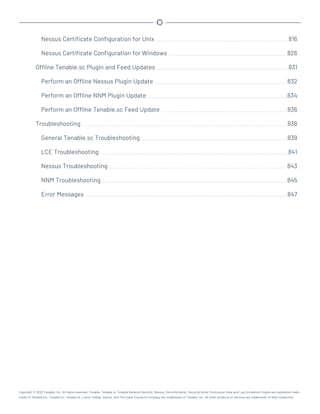
Table of Contents
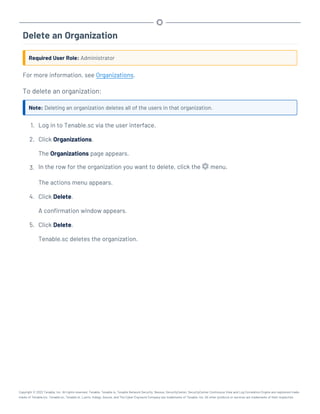
Welcome to Tenable.sc 18
Get Started With Tenable.sc 19
Considerations for Air-Gapped Environments 23
Requirements 25
Hardware Requirements 26
Cloud Requirements 29
System Requirements 34
Customize SELinux Enforcing Mode Policies for Tenable.sc 38
Use /dev/random for Random Number Data Generation 39
Tenable.sc Database Journaling Modes 40
Enable Write-Ahead Logging 42
Disable Write-Ahead Logging 44
License Requirements 46
Apply a New License 48
Update an Existing License 49
Tenable.sc+ License Expiration 51
Port Requirements 52
Browser Requirements 57
Tenable Integrated Product Compatibility 58
Large Enterprise Deployments 59
Installation and Upgrade 60
Before You Install 61
Copyright © 2022 Tenable, Inc. All rights reserved. Tenable, Tenable.io, Tenable Network Security, Nessus, SecurityCenter, SecurityCenter Continuous View and Log Correlation Engine are registered trade-
marks of Tenable,Inc. Tenable.sc, Tenable.ot, Lumin, Indegy, Assure, and The Cyber Exposure Company are trademarks of Tenable, Inc. All other products or services are trademarks of their respective
Install Tenable.sc 63
Quick Setup 65
Before You Upgrade 70
Upgrade Tenable.sc 72
Restore Custom SSL Certificates 74
Uninstall Tenable.sc 76
User Access 77
Log In to the Web Interface 78
Log in to the Web Interface via SSL Client Certificate 80
User Roles 83
Create a User Role 88
Edit a User Role 89
View User Role Details 91
Delete a User Role 93
Organizations and Groups 94
Organizations 95
Add an Organization 100
View Organization Details 101
Delete an Organization 103
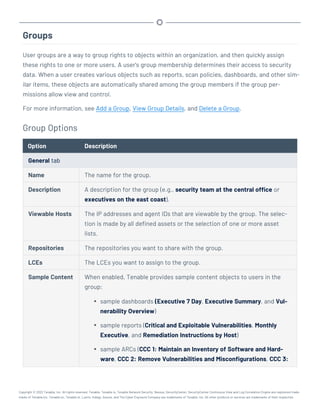
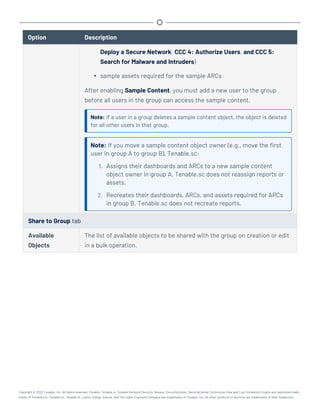
Groups 104
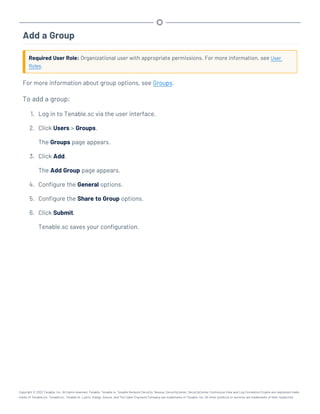
Add a Group 106
View Group Details 107
Delete a Group 108
User Accounts 109
Copyright © 2022 Tenable, Inc. All rights reserved. Tenable, Tenable.io, Tenable Network Security, Nessus, SecurityCenter, SecurityCenter Continuous View and Log Correlation Engine are registered trade-
marks of Tenable,Inc. Tenable.sc, Tenable.ot, Lumin, Indegy, Assure, and The Cyber Exposure Company are trademarks of Tenable, Inc. All other products or services are trademarks of their respective
Add a TNS-Authenticated User 110
Add an LDAP-Authenticated User 112
Add a SAML-Authenticated User 115
Manage User Accounts 118
Edit Your User Account 119
View User Details 120
Delete a User 122
Linked User Accounts 124
Add a Linked User 125
Switch to a Linked User Account 127
Edit a Linked User Account 128
Delete a Linked User Account 129
Custom Group Permissions 131
Generate API Keys 134
Delete API Keys 136
User Account Options 137
LDAP Authentication 147
Add an LDAP Server 151
LDAP User Provisioning 152
Configure LDAP User Provisioning 153
Delete an LDAP Server 155
LDAP Servers with Multiple OUs 156
SAML Authentication 159
Configure SAML Authentication Automatically via the User Interface 162
Copyright © 2022 Tenable, Inc. All rights reserved. Tenable, Tenable.io, Tenable Network Security, Nessus, SecurityCenter, SecurityCenter Continuous View and Log Correlation Engine are registered trade-
marks of Tenable,Inc. Tenable.sc, Tenable.ot, Lumin, Indegy, Assure, and The Cyber Exposure Company are trademarks of Tenable, Inc. All other products or services are trademarks of their respective
Configure SAML Authentication Manually via the User Interface 164
Configure SAML Authentication via the SimpleSAML Module 166
SAML User Provisioning 170
Configure SAML User Provisioning 171
SAML Authentication XML Configuration Examples 173
Certificate Authentication 178
Configure Tenable.sc to Allow SSL Client Certificate Authentication 179
Configure a CRL in Tenable.sc 181
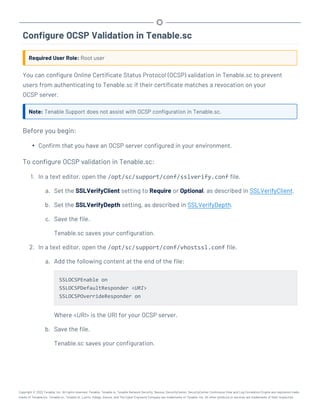
Configure OCSP Validation in Tenable.sc 185
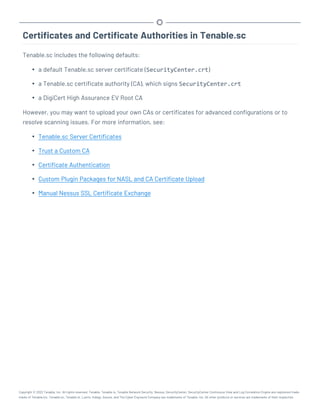
Certificates and Certificate Authorities in Tenable.sc 187
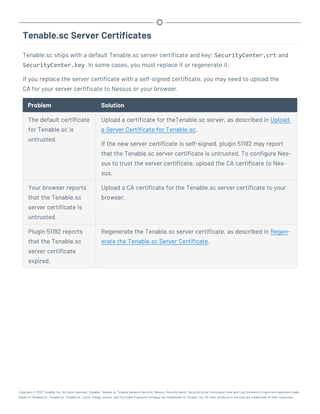
Tenable.sc Server Certificates 188
Upload a Server Certificate for Tenable.sc 189
Regenerate the Tenable.sc Server Certificate 192
Trust a Custom CA 194
System Settings 195
Configuration Settings 196
Edit Plugin and Feed Settings and Schedules 208
Configure Plugin Text Translation 210
API Key Authentication 211
Enable API Key Authentication 212
Disable API Key Authentication 213
Enable Picture in Picture 214
Disable Picture in Picture 215
Lumin Data 216
Copyright © 2022 Tenable, Inc. All rights reserved. Tenable, Tenable.io, Tenable Network Security, Nessus, SecurityCenter, SecurityCenter Continuous View and Log Correlation Engine are registered trade-
marks of Tenable,Inc. Tenable.sc, Tenable.ot, Lumin, Indegy, Assure, and The Cyber Exposure Company are trademarks of Tenable, Inc. All other products or services are trademarks of their respective
View Lumin Metrics 217
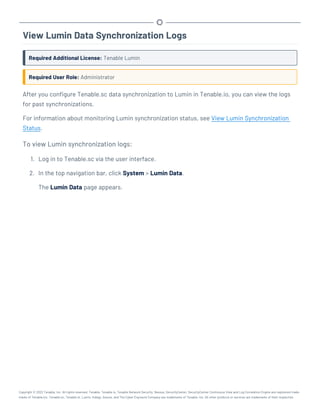
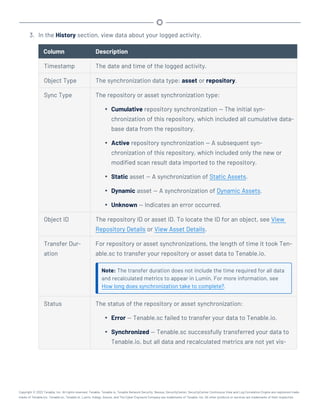
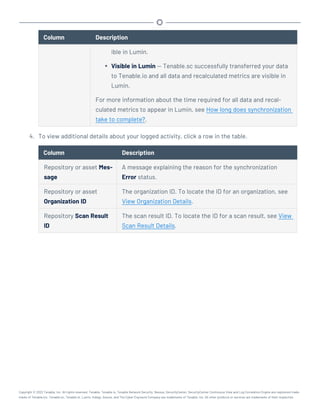
View Lumin Data Synchronization Logs 219
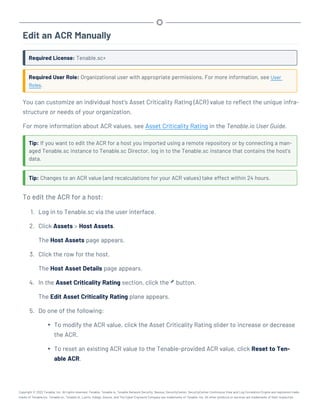
Edit an ACR Manually 222
Diagnostics Settings 224
Generate a Diagnostics File 226
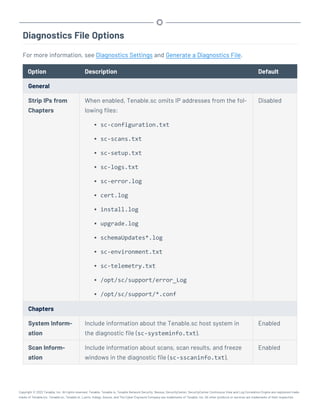
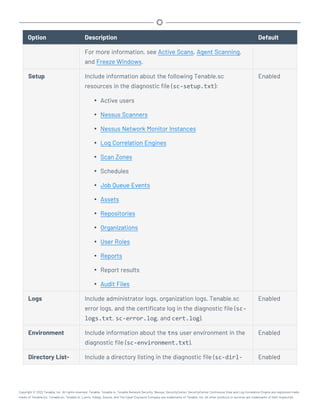
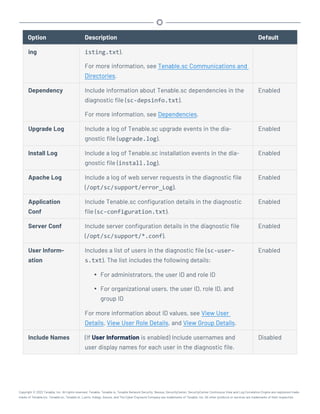
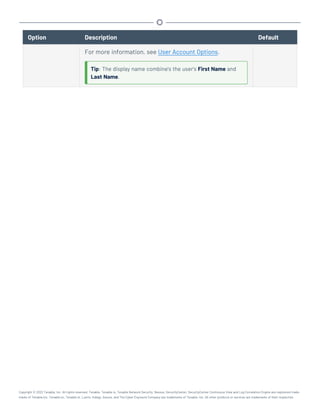
Diagnostics File Options 227
Enable Touch Debugging 231
Disable Touch Debugging 232
Job Queue Events 233
System Logs 234
View System Logs 235
Publishing Sites Settings 236
Keys Settings 237
Add a Key 238
Delete a Key 239
Download the Tenable.sc SSH Key 240
Username Menu Settings 241
Custom Plugin Packages for NASL and CA Certificate Upload 244
Create the Custom Plugin Package 247
Upload the Custom Plugin Package 248
Troubleshooting Issues with the custom_CA.inc File 249
Backup and Restore 251
Perform a Backup 254
Restore a Backup 256
Copyright © 2022 Tenable, Inc. All rights reserved. Tenable, Tenable.io, Tenable Network Security, Nessus, SecurityCenter, SecurityCenter Continuous View and Log Correlation Engine are registered trade-
marks of Tenable,Inc. Tenable.sc, Tenable.ot, Lumin, Indegy, Assure, and The Cyber Exposure Company are trademarks of Tenable, Inc. All other products or services are trademarks of their respective
Perform a Configuration Backup 258
Restore a Configuration Backup 260
Lumin Synchronization 262
Plan Your Lumin Synchronization 264
Network Support and Repository Overlap 268
Configure Lumin Synchronization 270
View Lumin Synchronization Status 275
Disable Lumin Synchronization 278
Configure Scans 279
Scanning Overview 280
Resources 282
Nessus Scanners 283
Add a Nessus Scanner 287
Add a Tenable.io Scanner 290
Nessus Scanner Statuses 293
Manage Nessus Scanners 297
View Your Nessus Scanners 298
View Details for a Nessus Scanner 300
View Nessus Instances in Tenable.sc 302
Download Nessus Scanner Logs 303
Delete a Nessus Scanner 305
Nessus Network Monitor Instances 306
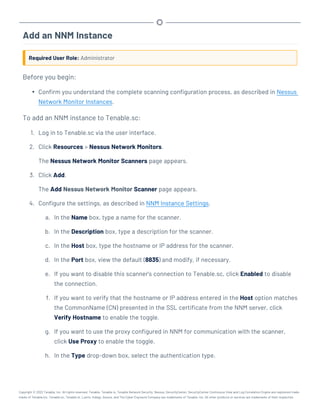
Add an NNM Instance 308
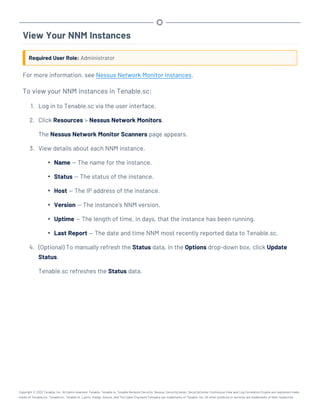
View Your NNM Instances 310
Copyright © 2022 Tenable, Inc. All rights reserved. Tenable, Tenable.io, Tenable Network Security, Nessus, SecurityCenter, SecurityCenter Continuous View and Log Correlation Engine are registered trade-
marks of Tenable,Inc. Tenable.sc, Tenable.ot, Lumin, Indegy, Assure, and The Cyber Exposure Company are trademarks of Tenable, Inc. All other products or services are trademarks of their respective
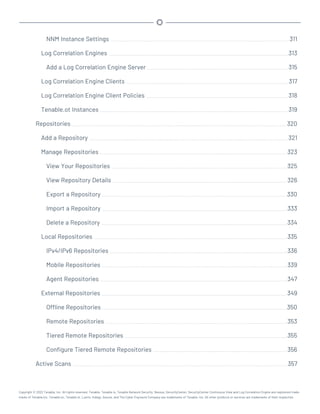
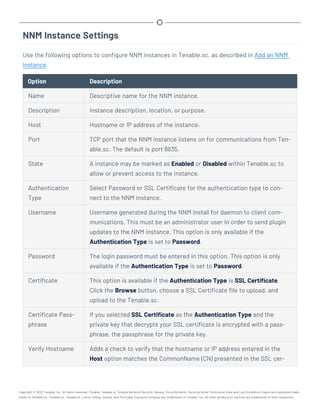
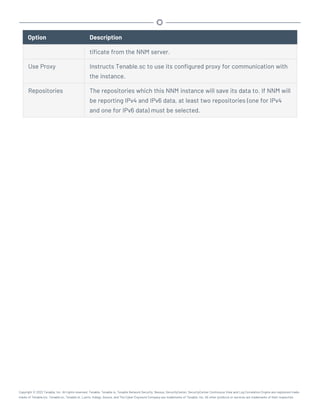
NNM Instance Settings 311
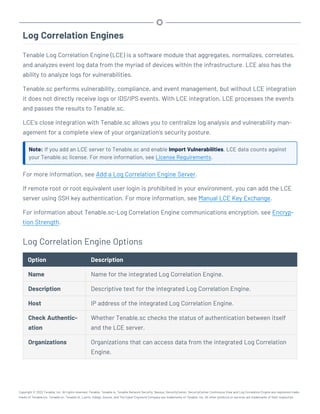
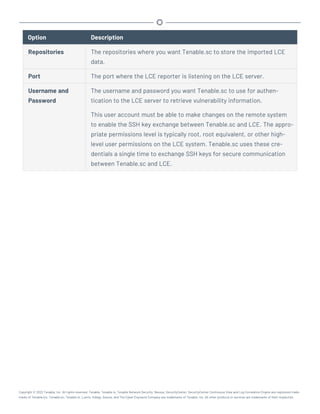
Log Correlation Engines 313
Add a Log Correlation Engine Server 315
Log Correlation Engine Clients 317
Log Correlation Engine Client Policies 318
Tenable.ot Instances 319
Repositories 320
Add a Repository 321
Manage Repositories 323
View Your Repositories 325
View Repository Details 326
Export a Repository 330
Import a Repository 333
Delete a Repository 334
Local Repositories 335
IPv4/IPv6 Repositories 336
Mobile Repositories 339
Agent Repositories 347
External Repositories 349
Offline Repositories 350
Remote Repositories 353
Tiered Remote Repositories 355
Configure Tiered Remote Repositories 356
Active Scans 357
Copyright © 2022 Tenable, Inc. All rights reserved. Tenable, Tenable.io, Tenable Network Security, Nessus, SecurityCenter, SecurityCenter Continuous View and Log Correlation Engine are registered trade-
marks of Tenable,Inc. Tenable.sc, Tenable.ot, Lumin, Indegy, Assure, and The Cyber Exposure Company are trademarks of Tenable, Inc. All other products or services are trademarks of their respective
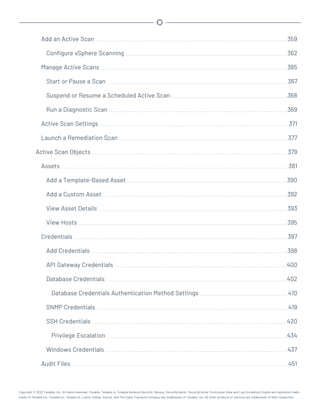
Add an Active Scan 359
Configure vSphere Scanning 362
Manage Active Scans 365
Start or Pause a Scan 367
Suspend or Resume a Scheduled Active Scan 368
Run a Diagnostic Scan 369
Active Scan Settings 371
Launch a Remediation Scan 377
Active Scan Objects 379
Assets 381
Add a Template-Based Asset 390
Add a Custom Asset 392
View Asset Details 393
View Hosts 395
Credentials 397
Add Credentials 398
API Gateway Credentials 400
Database Credentials 402
Database Credentials Authentication Method Settings 410
SNMP Credentials 419
SSH Credentials 420
Privilege Escalation 434
Windows Credentials 437
Audit Files 451
Copyright © 2022 Tenable, Inc. All rights reserved. Tenable, Tenable.io, Tenable Network Security, Nessus, SecurityCenter, SecurityCenter Continuous View and Log Correlation Engine are registered trade-
marks of Tenable,Inc. Tenable.sc, Tenable.ot, Lumin, Indegy, Assure, and The Cyber Exposure Company are trademarks of Tenable, Inc. All other products or services are trademarks of their respective
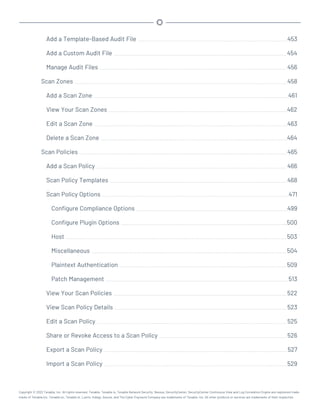
Add a Template-Based Audit File 453
Add a Custom Audit File 454
Manage Audit Files 456
Scan Zones 458
Add a Scan Zone 461
View Your Scan Zones 462
Edit a Scan Zone 463
Delete a Scan Zone 464
Scan Policies 465
Add a Scan Policy 466
Scan Policy Templates 468
Scan Policy Options 471
Configure Compliance Options 499
Configure Plugin Options 500
Host 503
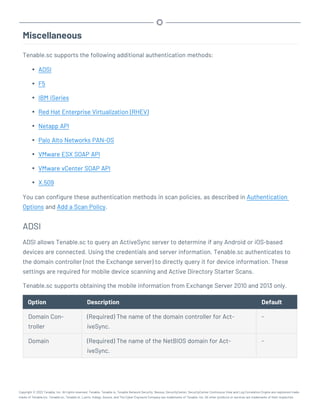
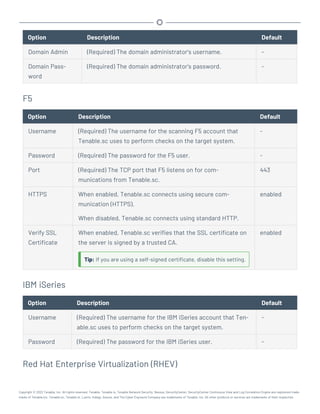
Miscellaneous 504
Plaintext Authentication 509
Patch Management 513
View Your Scan Policies 522
View Scan Policy Details 523
Edit a Scan Policy 525
Share or Revoke Access to a Scan Policy 526
Export a Scan Policy 527
Import a Scan Policy 529
Copyright © 2022 Tenable, Inc. All rights reserved. Tenable, Tenable.io, Tenable Network Security, Nessus, SecurityCenter, SecurityCenter Continuous View and Log Correlation Engine are registered trade-
marks of Tenable,Inc. Tenable.sc, Tenable.ot, Lumin, Indegy, Assure, and The Cyber Exposure Company are trademarks of Tenable, Inc. All other products or services are trademarks of their respective
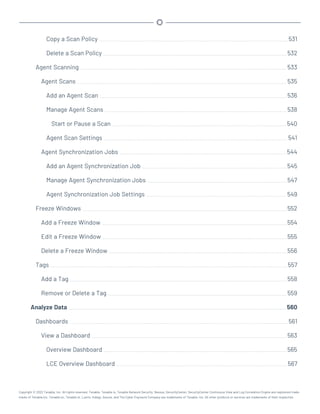
Copy a Scan Policy 531
Delete a Scan Policy 532
Agent Scanning 533
Agent Scans 535
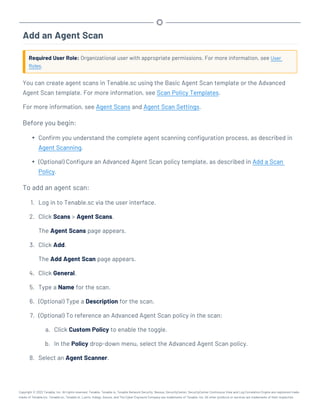
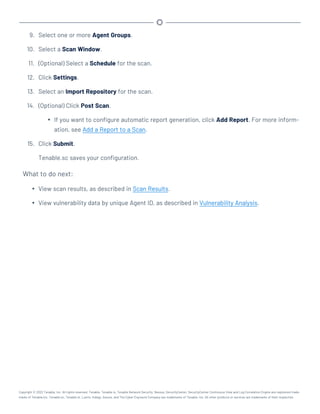
Add an Agent Scan 536
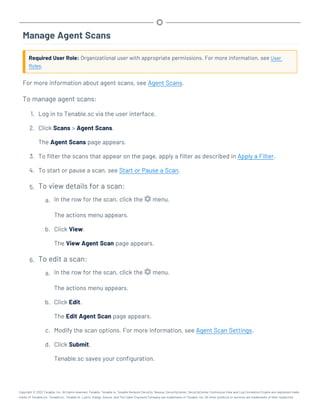
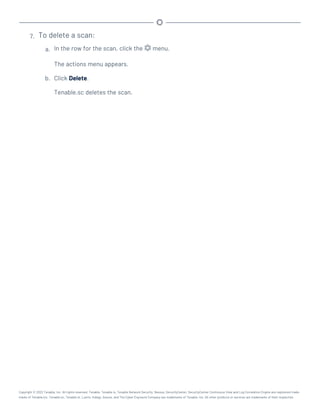
Manage Agent Scans 538
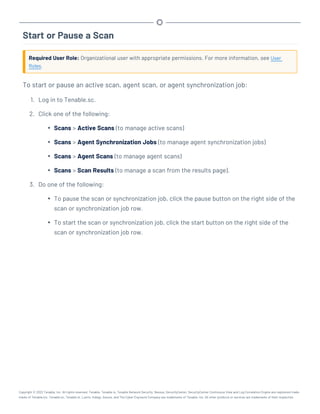
Start or Pause a Scan 540
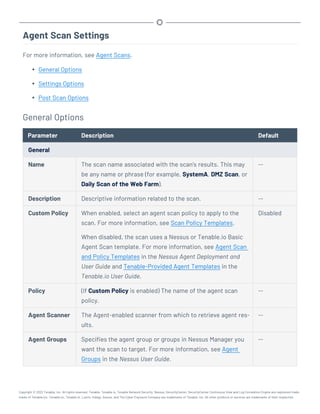
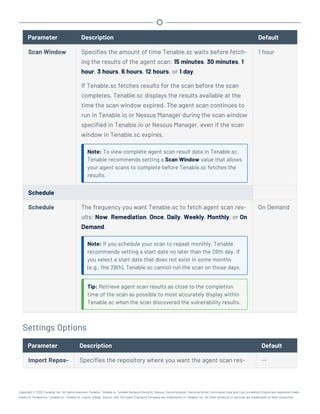
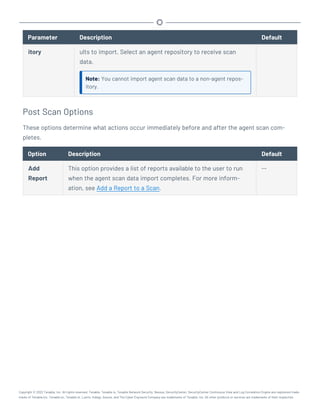
Agent Scan Settings 541
Agent Synchronization Jobs 544
Add an Agent Synchronization Job 545
Manage Agent Synchronization Jobs 547
Agent Synchronization Job Settings 549
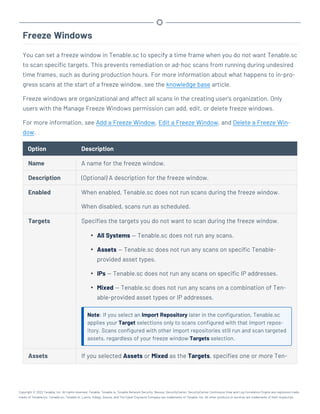
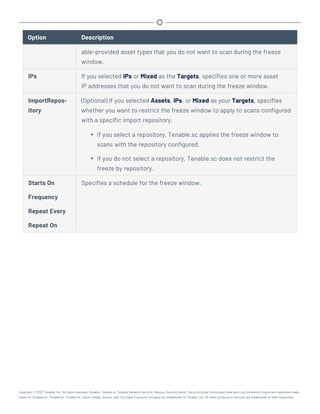
Freeze Windows 552
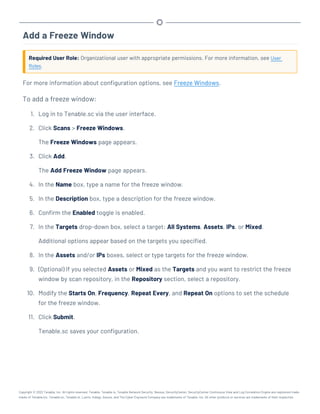
Add a Freeze Window 554
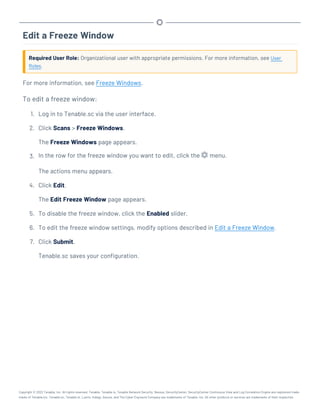
Edit a Freeze Window 555
Delete a Freeze Window 556
Tags 557
Add a Tag 558
Remove or Delete a Tag 559
Analyze Data 560
Dashboards 561
View a Dashboard 563
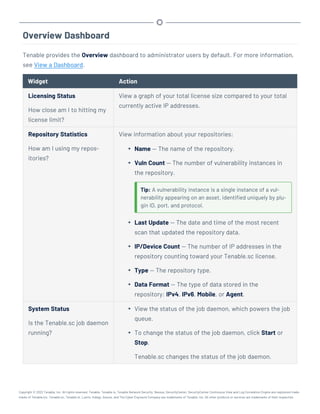
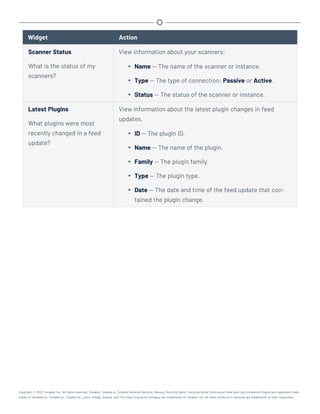
Overview Dashboard 565
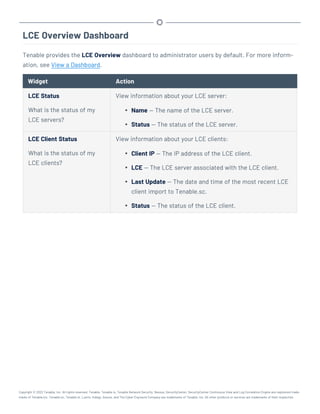
LCE Overview Dashboard 567
Copyright © 2022 Tenable, Inc. All rights reserved. Tenable, Tenable.io, Tenable Network Security, Nessus, SecurityCenter, SecurityCenter Continuous View and Log Correlation Engine are registered trade-
marks of Tenable,Inc. Tenable.sc, Tenable.ot, Lumin, Indegy, Assure, and The Cyber Exposure Company are trademarks of Tenable, Inc. All other products or services are trademarks of their respective
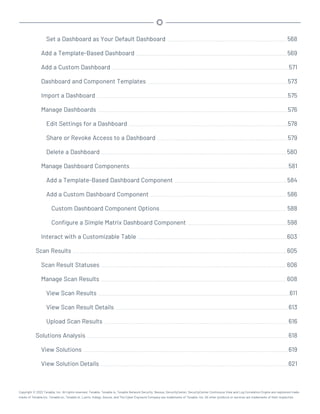
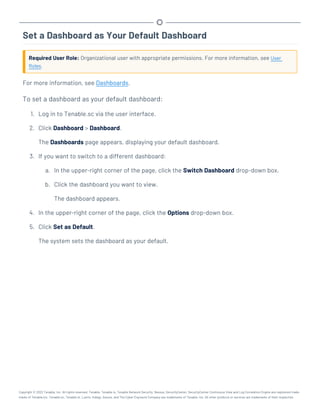
Set a Dashboard as Your Default Dashboard 568
Add a Template-Based Dashboard 569
Add a Custom Dashboard 571
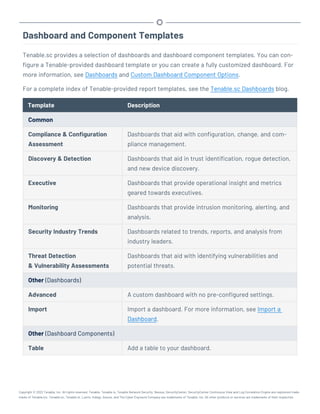
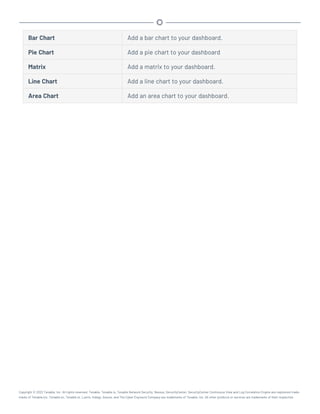
Dashboard and Component Templates 573
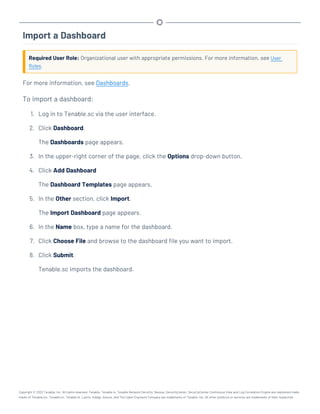
Import a Dashboard 575
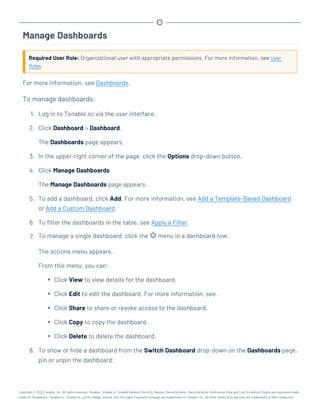
Manage Dashboards 576
Edit Settings for a Dashboard 578
Share or Revoke Access to a Dashboard 579
Delete a Dashboard 580
Manage Dashboard Components 581
Add a Template-Based Dashboard Component 584
Add a Custom Dashboard Component 586
Custom Dashboard Component Options 588
Configure a Simple Matrix Dashboard Component 598
Interact with a Customizable Table 603
Scan Results 605
Scan Result Statuses 606
Manage Scan Results 608
View Scan Results 611
View Scan Result Details 613
Upload Scan Results 616
Solutions Analysis 618
View Solutions 619
View Solution Details 621
Copyright © 2022 Tenable, Inc. All rights reserved. Tenable, Tenable.io, Tenable Network Security, Nessus, SecurityCenter, SecurityCenter Continuous View and Log Correlation Engine are registered trade-
marks of Tenable,Inc. Tenable.sc, Tenable.ot, Lumin, Indegy, Assure, and The Cyber Exposure Company are trademarks of Tenable, Inc. All other products or services are trademarks of their respective
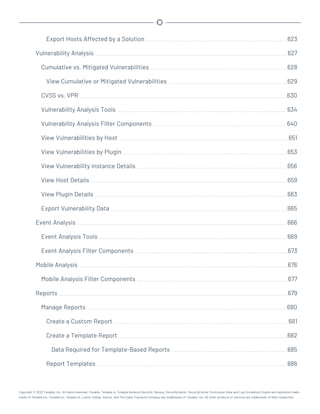
Export Hosts Affected by a Solution 623
Vulnerability Analysis 627
Cumulative vs. Mitigated Vulnerabilities 628
View Cumulative or Mitigated Vulnerabilities 629
CVSS vs. VPR 630
Vulnerability Analysis Tools 634
Vulnerability Analysis Filter Components 640
View Vulnerabilities by Host 651
View Vulnerabilities by Plugin 653
View Vulnerability Instance Details 656
View Host Details 659
View Plugin Details 663
Export Vulnerability Data 665
Event Analysis 666
Event Analysis Tools 669
Event Analysis Filter Components 673
Mobile Analysis 676
Mobile Analysis Filter Components 677
Reports 679
Manage Reports 680
Create a Custom Report 681
Create a Template Report 682
Data Required for Template-Based Reports 685
Report Templates 686
Copyright © 2022 Tenable, Inc. All rights reserved. Tenable, Tenable.io, Tenable Network Security, Nessus, SecurityCenter, SecurityCenter Continuous View and Log Correlation Engine are registered trade-
marks of Tenable,Inc. Tenable.sc, Tenable.ot, Lumin, Indegy, Assure, and The Cyber Exposure Company are trademarks of Tenable, Inc. All other products or services are trademarks of their respective
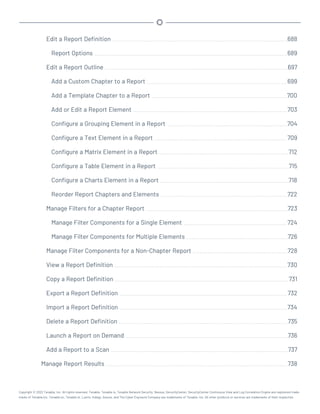
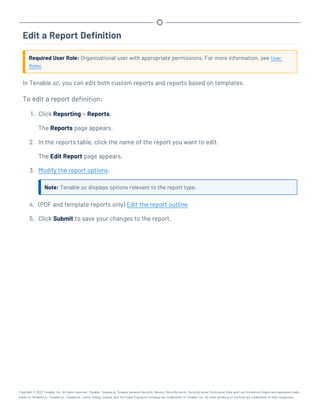
Edit a Report Definition 688
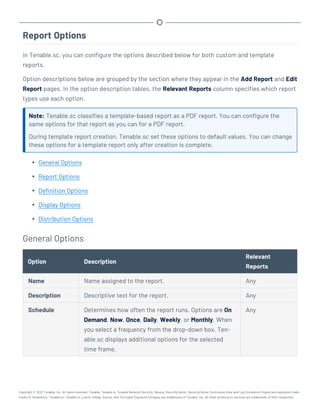
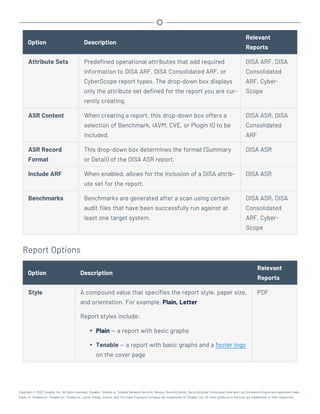
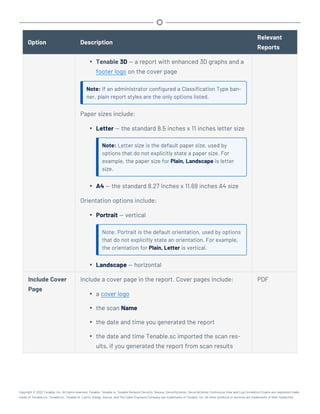
Report Options 689
Edit a Report Outline 697
Add a Custom Chapter to a Report 699
Add a Template Chapter to a Report 700
Add or Edit a Report Element 703
Configure a Grouping Element in a Report 704
Configure a Text Element in a Report 709
Configure a Matrix Element in a Report 712
Configure a Table Element in a Report 715
Configure a Charts Element in a Report 718
Reorder Report Chapters and Elements 722
Manage Filters for a Chapter Report 723
Manage Filter Components for a Single Element 724
Manage Filter Components for Multiple Elements 726
Manage Filter Components for a Non-Chapter Report 728
View a Report Definition 730
Copy a Report Definition 731
Export a Report Definition 732
Import a Report Definition 734
Delete a Report Definition 735
Launch a Report on Demand 736
Add a Report to a Scan 737
Manage Report Results 738
Copyright © 2022 Tenable, Inc. All rights reserved. Tenable, Tenable.io, Tenable Network Security, Nessus, SecurityCenter, SecurityCenter Continuous View and Log Correlation Engine are registered trade-
marks of Tenable,Inc. Tenable.sc, Tenable.ot, Lumin, Indegy, Assure, and The Cyber Exposure Company are trademarks of Tenable, Inc. All other products or services are trademarks of their respective
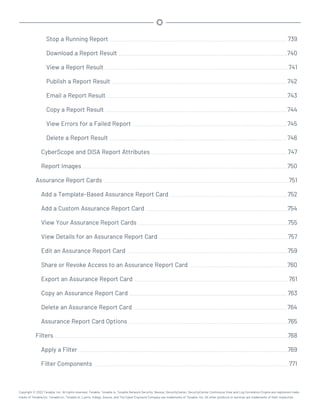
Stop a Running Report 739
Download a Report Result 740
View a Report Result 741
Publish a Report Result 742
Email a Report Result 743
Copy a Report Result 744
View Errors for a Failed Report 745
Delete a Report Result 746
CyberScope and DISA Report Attributes 747
Report Images 750
Assurance Report Cards 751
Add a Template-Based Assurance Report Card 752
Add a Custom Assurance Report Card 754
View Your Assurance Report Cards 755
View Details for an Assurance Report Card 757
Edit an Assurance Report Card 759
Share or Revoke Access to an Assurance Report Card 760
Export an Assurance Report Card 761
Copy an Assurance Report Card 763
Delete an Assurance Report Card 764
Assurance Report Card Options 765
Filters 768
Apply a Filter 769
Filter Components 771
Copyright © 2022 Tenable, Inc. All rights reserved. Tenable, Tenable.io, Tenable Network Security, Nessus, SecurityCenter, SecurityCenter Continuous View and Log Correlation Engine are registered trade-
marks of Tenable,Inc. Tenable.sc, Tenable.ot, Lumin, Indegy, Assure, and The Cyber Exposure Company are trademarks of Tenable, Inc. All other products or services are trademarks of their respective
Queries 775
Add or Save a Query 779
Load a Query 781
Workflow Actions 782
Alerts 783
Alert Actions 785
Tickets 790
Open a Ticket 792
Accept Risk Rules 794
Add an Accept Risk Rule 795
Delete an Accept Risk Rule 797
Recast Risk Rules 798
Add a Recast Risk Rule 799
Delete a Recast Risk Rule 801
Additional Resources 802
Start, Stop, or Restart Tenable.sc 803
License Declarations 804
Encryption Strength 805
Configure SSL/TLS Strong Encryption 807
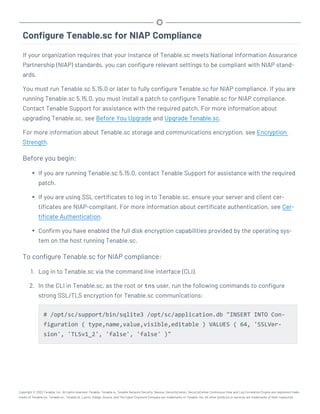
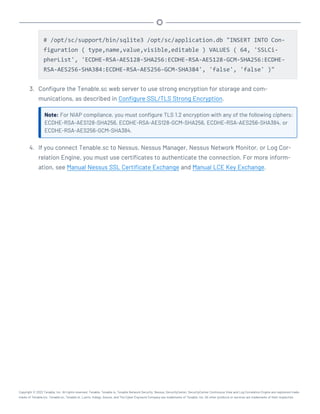
Configure Tenable.sc for NIAP Compliance 808
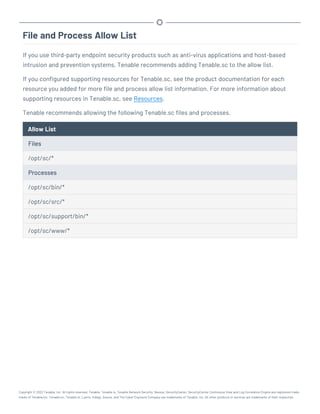
File and Process Allow List 810
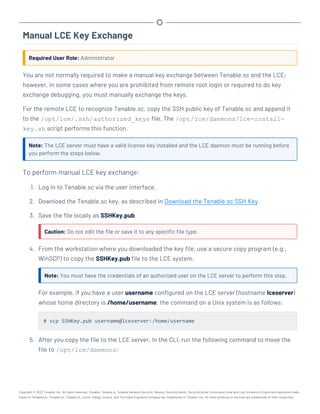
Manual LCE Key Exchange 811
Manual Nessus SSL Certificate Exchange 814
Overview of Nessus SSL Certificates and Keys 815
Copyright © 2022 Tenable, Inc. All rights reserved. Tenable, Tenable.io, Tenable Network Security, Nessus, SecurityCenter, SecurityCenter Continuous View and Log Correlation Engine are registered trade-
marks of Tenable,Inc. Tenable.sc, Tenable.ot, Lumin, Indegy, Assure, and The Cyber Exposure Company are trademarks of Tenable, Inc. All other products or services are trademarks of their respective
Nessus Certificate Configuration for Unix 816
Nessus Certificate Configuration for Windows 826
Offline Tenable.sc Plugin and Feed Updates 831
Perform an Offline Nessus Plugin Update 832
Perform an Offline NNM Plugin Update 834
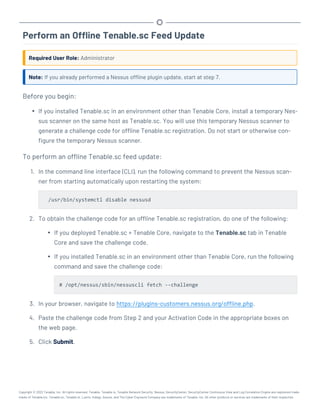
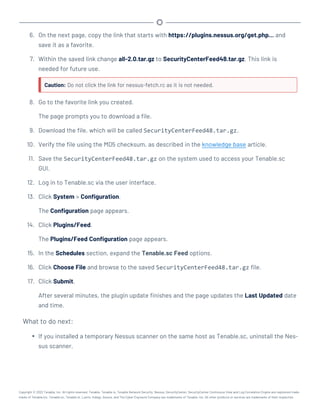
Perform an Offline Tenable.sc Feed Update 836
Troubleshooting 838
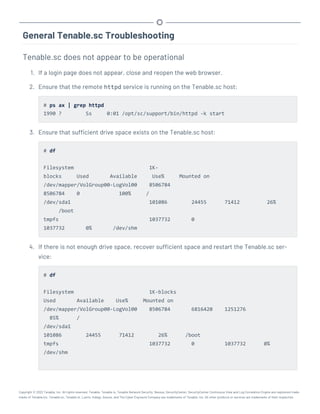
General Tenable.sc Troubleshooting 839
LCE Troubleshooting 841
Nessus Troubleshooting 843
NNM Troubleshooting 845
Error Messages 847
Copyright © 2022 Tenable, Inc. All rights reserved. Tenable, Tenable.io, Tenable Network Security, Nessus, SecurityCenter, SecurityCenter Continuous View and Log Correlation Engine are registered trade-
marks of Tenable,Inc. Tenable.sc, Tenable.ot, Lumin, Indegy, Assure, and The Cyber Exposure Company are trademarks of Tenable, Inc. All other products or services are trademarks of their respective
Welcome to Tenable.sc
This user guide describes how to install, configure, and manage Tenable.sc™ 5.21.x.
Tenable.sc is a comprehensive vulnerability management solution that provides complete visibility
into the security posture of your distributed and complex IT infrastructure. Tenable.sc consolidates
and evaluates vulnerability data from across your entire IT infrastructure, illustrates vulnerability
trends over time, and assesses risk with actionable context for effective remediation prioritization.
To get started, see Get Started With Tenable.sc.
Copyright © 2022 Tenable, Inc. All rights reserved. Tenable, Tenable.io, Tenable Network Security, Nessus, SecurityCenter, SecurityCenter Continuous View and Log Correlation Engine are registered trade-
marks of Tenable,Inc. Tenable.sc, Tenable.ot, Lumin, Indegy, Assure, and The Cyber Exposure Company are trademarks of Tenable, Inc. All other products or services are trademarks of their respective
Get Started With Tenable.sc
Use the following getting started sequence to configure and mature your Tenable.sc deployment.
1. Prepare
2. Install
3. Configure Scans
4. Refine
5. Expand
Prepare
Before you begin, learn about Tenable.sc and establish a deployment plan and analysis workflow to
guide your configurations.
l Access Tenable Support and training resources for Tenable.sc, including:
l the Tenable Deployment Strategy Planning video
l the Tenable University training courses
l the Tenable Scan Strategy guide
l Design a deployment plan by identifying your organization's objectives and analyzing your net-
work topology. Consider Tenable-recommended best practices for your environment. For
more information about environment requirements, see Requirements. For information about
scan types, see Scanning Overview.
l Design an analysis workflow. Identify key stakeholders in your management and operational
groups, considering the data you intend to share with each stakeholder.
For more information about planning a large enterprise deployment of Tenable.sc, see the Ten-
able.sc Large Enterprise Deployment Guide.
Install
Install Tenable.sc and perform initial configuration.
Copyright © 2022 Tenable, Inc. All rights reserved. Tenable, Tenable.io, Tenable Network Security, Nessus, SecurityCenter, SecurityCenter Continuous View and Log Correlation Engine are registered trade-
marks of Tenable,Inc. Tenable.sc, Tenable.ot, Lumin, Indegy, Assure, and The Cyber Exposure Company are trademarks of Tenable, Inc. All other products or services are trademarks of their respective
1. Depending on your environment, install in your environment or deploy or install with Tenable
Core.
For complete information about Tenable Core + Tenable.sc, see the Tenable Core User Guide.
2. Perform quick setup, as described in Quick Setup. You can:
l Upload licenses
l Configure one Nessus scanner
l Configure one NNM scanner (requires a NNM activation license)
l Configure one LCE server (requires an LCE® activation license)
l Create one repository
l Create one organization
l Configure one LDAP server
l Create one administrator user account and one security manager account
l Configure usage statistic collection
Tenable recommends following the quick setup wizard, but you can configure these features
later. For example, do not configure LDAP until you have easy access to all necessary LDAP
parameters.
3. Configure SMTP settings, as described in Mail Settings.
4. Configure scan zones, as described in Add a Scan Zone.
5. Configure additional repositories, if necessary, as described in Repositories.
6. Configure additional scanners, if necessary, as described in Nessus Scanners, Nessus Net-
work Monitor Instances, and Log Correlation Engines.
7. Configure security settings (e.g., password complexity requirements and custom banners), as
described in Security Settings.
Configure Scans
Copyright © 2022 Tenable, Inc. All rights reserved. Tenable, Tenable.io, Tenable Network Security, Nessus, SecurityCenter, SecurityCenter Continuous View and Log Correlation Engine are registered trade-
marks of Tenable,Inc. Tenable.sc, Tenable.ot, Lumin, Indegy, Assure, and The Cyber Exposure Company are trademarks of Tenable, Inc. All other products or services are trademarks of their respective
Configure and run basic scans to begin evaluating the effectiveness of your deployment plan and
analysis workflow.
1. Configure credentials, as described in Credentials.
2. Create static assets, as described in Add a Custom Asset. For more information about asset
types, see Assets.
3. Configure a Host Discovery policy and a Basic Network Scan policy from Tenable-provided
scan policy templates, as described in Add a Scan Policy.
4. Configure and run scans for those policies, as described in Add an Active Scan and Add an
Agent Scan.
5. Confirm that the scans can access all areas of your network with no credential issues.
6. Configure NNM scanners, as described in Nessus Network Monitor Instances.
7. When the scans complete, create template-based dashboards and reports, as described in
Dashboards and Reports.
Tenable recommends frequently reviewing your scan results and scan coverage. You may need to
modify your scan configurations to suit your organization's objectives and reach all areas of your
network.
Refine
Configure other features, if necessary, and refine your existing configurations.
l Configure audit files, as described in Audit Files.
l Create additional scan policies, as described in Add a Scan Policy.
l Configure scan freeze windows, as described in Add a Freeze Window.
l Configure groups, as described in Add a Group.
l Create a custom user role, as described in Create a User Role.
l Create additional user accounts and share objects with users, as described in User Accounts.
l Create dynamic assets and combination assets, as described in Add a Custom Asset. For
more information about asset types, see Assets.
Copyright © 2022 Tenable, Inc. All rights reserved. Tenable, Tenable.io, Tenable Network Security, Nessus, SecurityCenter, SecurityCenter Continuous View and Log Correlation Engine are registered trade-
marks of Tenable,Inc. Tenable.sc, Tenable.ot, Lumin, Indegy, Assure, and The Cyber Exposure Company are trademarks of Tenable, Inc. All other products or services are trademarks of their respective
l Review the plugin update schedule, as described in Edit Plugin and Feed Settings and Sched-
ules. Consider editing the schedules to suit your needs. For example, you may want to sched-
ule plugin and feed updates to run a few hours before your scheduled scans.
l Add queries and use filters, as described in Add or Save a Query and Apply a Filter.
l Create custom dashboards and reports, as described in Dashboards and Reports.
l Create Assurance Report Cards (ARCs), as described in Assurance Report Cards.
l Configure alerts, ticketing, accept risk rules, and recast risk rules, as described in Workflow
Actions.
l View vulnerability data and use the built-in analysis tools, as described in Vulnerability Ana-
lysis.
Expand
Review and mature your deployment plan and analysis workflow.
l Conduct weekly meetings to review your organization's responses to identified vulnerabilities.
l Conduct weekly management meetings to oversee your teams executing the analysis work-
flow.
l Review scan automation settings and consider revising.
l Review your scan results and scan coverage. You may need to modify your scan con-
figurations to suit your organization's objectives and reach all areas of your network.
l Optimize and operationalize your custom dashboards to meet the needs of individual user
account holders.
l Optimize and operationalize your custom reports to prepare them for distribution.
l Consider configuring API integrations, as described in the Tenable.sc API Guide and the Ten-
able.sc API Best Practices Guide.
l Consider synchronizing Tenable.sc with Tenable.io Lumin to take advantage of Cyber Expos-
ure features, as described in Lumin Synchronization.
Copyright © 2022 Tenable, Inc. All rights reserved. Tenable, Tenable.io, Tenable Network Security, Nessus, SecurityCenter, SecurityCenter Continuous View and Log Correlation Engine are registered trade-
marks of Tenable,Inc. Tenable.sc, Tenable.ot, Lumin, Indegy, Assure, and The Cyber Exposure Company are trademarks of Tenable, Inc. All other products or services are trademarks of their respective
Considerations for Air-Gapped Environments
Consider the following when deploying Tenable.sc in an air-gapped (offline) environment.
Architecture
You must deploy a Tenable.sc and a set of scanners within each air-gapped network.
If you want to consolidate data from other networks with the data generated in your air-gapped net-
work, you can use offline repositories to export data from your air-gapped Tenable.sc to your other
instance of Tenable.sc. This supports both consolidated and federated reporting structures.
Upgrades and Updates
Tenable recommends performing Tenable.sc upgrades at least once a year (quarterly preferred) and
plugin/feed updates at least once a month. After you perform a plugin update, run comprehensive
scans to take advantage of the new vulnerability data and generate current scan results.
Note: A few plugins require internet access and cannot run in an air-gapped environment. For example,
Nessus plugin 52669 checks to see if a host is part of a botnet.
After you perform a plugin update or feed update, verify the files as described in the knowledge
base article.
To perform a Tenable.sc upgrade or a plugin/feed update offline:
Tip: You can use the API to automate some Tenable.sc upgrade and plugin update process.
1. Download the files in a browser or via the API.
2. Verify the integrity of the files.
l Tenable.sc upgrade: Compare the download checksum with the checksum on the Ten-
able downloads page
l Plugin/feed update: Download and compare the checksums.
3. Move the files to your Tenable.sc instance.
Copyright © 2022 Tenable, Inc. All rights reserved. Tenable, Tenable.io, Tenable Network Security, Nessus, SecurityCenter, SecurityCenter Continuous View and Log Correlation Engine are registered trade-
marks of Tenable,Inc. Tenable.sc, Tenable.ot, Lumin, Indegy, Assure, and The Cyber Exposure Company are trademarks of Tenable, Inc. All other products or services are trademarks of their respective
4. Upload the files to Tenable.sc.
l Tenable.sc upgrade: via the CLI.
l Plugin/feed update: in a browser or via the API.
Nessus Agents
If you deployed Nessus Manager to manage Nessus Agents in an air-gapped environment, perform
an offline software update (nessus-agent-updates-X.X.X.tar.gz on the Tenable Downloads
site) on your Nessus Manager. Nessus Manager pushes the update to the managed Nessus Agents.
For more information, see the knowledge base article.
Copyright © 2022 Tenable, Inc. All rights reserved. Tenable, Tenable.io, Tenable Network Security, Nessus, SecurityCenter, SecurityCenter Continuous View and Log Correlation Engine are registered trade-
marks of Tenable,Inc. Tenable.sc, Tenable.ot, Lumin, Indegy, Assure, and The Cyber Exposure Company are trademarks of Tenable, Inc. All other products or services are trademarks of their respective
Requirements
You can run Tenable.sc in the following environments.
Environment More Information
Tenable Core Virtual VMware Requirements in the Tenable Core
User Guide
Microsoft Hyper-V
Cloud Amazon Web Services
(AWS)
Hardware
Other plat-
forms
Cloud Amazon Web Services
(AWS)
Cloud Requirements
Hardware Hardware Requirements
For general information about other requirements to run Tenable.sc, see:
l System Requirements
l License Requirements
l Port Requirements
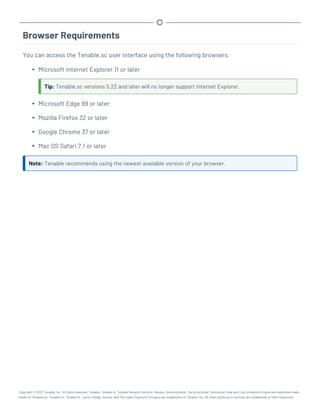
l Browser Requirements
l Tenable Integrated Product Compatibility
For detailed information about running Tenable.sc in a large enterprise deployments, see Large
Enterprise Deployments.
Copyright © 2022 Tenable, Inc. All rights reserved. Tenable, Tenable.io, Tenable Network Security, Nessus, SecurityCenter, SecurityCenter Continuous View and Log Correlation Engine are registered trade-
marks of Tenable,Inc. Tenable.sc, Tenable.ot, Lumin, Indegy, Assure, and The Cyber Exposure Company are trademarks of Tenable, Inc. All other products or services are trademarks of their respective
Hardware Requirements
You can run Tenable.sc on hardware, with or without Tenable Core. For more information about Ten-
able Core, see the Tenable Core User Guide.
Note:Tenable strongly discourages running Tenable.sc or Tenable Core + Tenable.sc in an environment
shared with other Tenable applications.
Storage Requirements
Tenable recommends installing Tenable.sc on direct-attached storage (DAS) devices (or storage
area networks [SANs], if necessary) with a storage latency of 10 milliseconds or less.
Tenable does not support installing Tenable.sc on network-attached storage (NAS).
Disk Space Requirements
Enterprise networks can vary in performance, capacity, protocols, and overall activity. Resource
requirements to consider for deployments include raw network speed, the size of the network being
monitored, and the configuration of the application. Processors, memory, and network cards will be
heavily based on the former. Disk space requirements will vary depending on usage based on the
amount and length of time data is stored on the system.
An important consideration is that Tenable.sc can be configured to save a snapshot of vulnerability
archives each day. In addition, the size of the vulnerability data stored by Tenable.sc depends on
the number and types of vulnerabilities, not just the number of hosts. For example, 100 hosts with
100 vulnerabilities each could consume as much data as 1,000 hosts with 10 vulnerabilities each. In
addition, the output for vulnerability check plugins that do directory listings, etc. is much larger
than Open Port plugins from discovery scans.
For networks of 35,000 to 50,000 hosts, Tenable has encountered data sizes of up to 25 GB. That
number is based on storage of 50,000 hosts and approximately 500 KB per host.
Additionally, during active scanning sessions, large scans and multiple smaller scans have been
reported to consume as much as 150 GB of disk space as results are acquired. Once a scan has com-
pleted and its results are imported, that disk space is freed up.
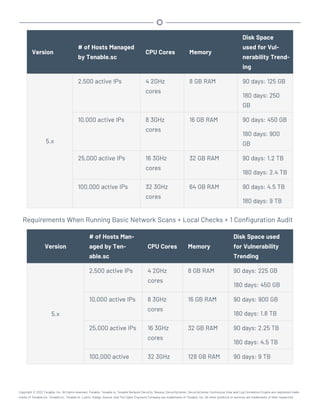
Requirements When Running Basic Network Scans + Local Checks
Copyright © 2022 Tenable, Inc. All rights reserved. Tenable, Tenable.io, Tenable Network Security, Nessus, SecurityCenter, SecurityCenter Continuous View and Log Correlation Engine are registered trade-
marks of Tenable,Inc. Tenable.sc, Tenable.ot, Lumin, Indegy, Assure, and The Cyber Exposure Company are trademarks of Tenable, Inc. All other products or services are trademarks of their respective
Version
# of Hosts Managed
by Tenable.sc
CPU Cores Memory
Disk Space
used for Vul-
nerability Trend-
ing
5.x
2,500 active IPs 4 2GHz
cores
8 GB RAM 90 days: 125 GB
180 days: 250
GB
10,000 active IPs 8 3GHz
cores
16 GB RAM 90 days: 450 GB
180 days: 900
GB
25,000 active IPs 16 3GHz
cores
32 GB RAM 90 days: 1.2 TB
180 days: 2.4 TB
100,000 active IPs 32 3GHz
cores
64 GB RAM 90 days: 4.5 TB
180 days: 9 TB
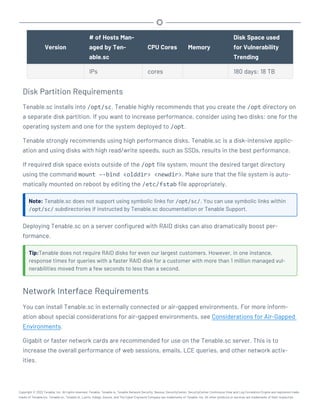
Requirements When Running Basic Network Scans + Local Checks + 1 Configuration Audit
Version
# of Hosts Man-
aged by Ten-
able.sc
CPU Cores Memory
Disk Space used
for Vulnerability
Trending
5.x
2,500 active IPs 4 2GHz
cores
8 GB RAM 90 days: 225 GB
180 days: 450 GB
10,000 active IPs 8 3GHz
cores
16 GB RAM 90 days: 900 GB
180 days: 1.8 TB
25,000 active IPs 16 3GHz
cores
32 GB RAM 90 days: 2.25 TB
180 days: 4.5 TB
100,000 active 32 3GHz 128 GB RAM 90 days: 9 TB
Copyright © 2022 Tenable, Inc. All rights reserved. Tenable, Tenable.io, Tenable Network Security, Nessus, SecurityCenter, SecurityCenter Continuous View and Log Correlation Engine are registered trade-
marks of Tenable,Inc. Tenable.sc, Tenable.ot, Lumin, Indegy, Assure, and The Cyber Exposure Company are trademarks of Tenable, Inc. All other products or services are trademarks of their respective
Version
# of Hosts Man-
aged by Ten-
able.sc
CPU Cores Memory
Disk Space used
for Vulnerability
Trending
IPs cores 180 days: 18 TB
Disk Partition Requirements
Tenable.sc installs into /opt/sc. Tenable highly recommends that you create the /opt directory on
a separate disk partition. If you want to increase performance, consider using two disks: one for the
operating system and one for the system deployed to /opt.
Tenable strongly recommends using high performance disks. Tenable.sc is a disk-intensive applic-
ation and using disks with high read/write speeds, such as SSDs, results in the best performance.
If required disk space exists outside of the /opt file system, mount the desired target directory
using the command mount –-bind <olddir> <newdir>. Make sure that the file system is auto-
matically mounted on reboot by editing the /etc/fstab file appropriately.
Note: Tenable.sc does not support using symbolic links for /opt/sc/. You can use symbolic links within
/opt/sc/ subdirectories if instructed by Tenable.sc documentation or Tenable Support.
Deploying Tenable.sc on a server configured with RAID disks can also dramatically boost per-
formance.
Tip:Tenable does not require RAID disks for even our largest customers. However, in one instance,
response times for queries with a faster RAID disk for a customer with more than 1 million managed vul-
nerabilities moved from a few seconds to less than a second.
Network Interface Requirements
You can install Tenable.sc in externally connected or air-gapped environments. For more inform-
ation about special considerations for air-gapped environments, see Considerations for Air-Gapped
Environments.
Gigabit or faster network cards are recommended for use on the Tenable.sc server. This is to
increase the overall performance of web sessions, emails, LCE queries, and other network activ-
ities.
Copyright © 2022 Tenable, Inc. All rights reserved. Tenable, Tenable.io, Tenable Network Security, Nessus, SecurityCenter, SecurityCenter Continuous View and Log Correlation Engine are registered trade-
marks of Tenable,Inc. Tenable.sc, Tenable.ot, Lumin, Indegy, Assure, and The Cyber Exposure Company are trademarks of Tenable, Inc. All other products or services are trademarks of their respective
Cloud Requirements
The primary method to deploy Tenable.sc in a cloud environment is with Tenable Core + Tenable.sc.
For more information, see the Tenable Core User Guide.
However, you can install Tenable.sc in vendor-supported version of your cloud environment that
meets the operating system requirements to run Tenable.sc.
The following guidelines can help you install Tenable.sc in an Amazon Elastic Compute Cloud
(Amazon EC2) cloud-based environment or an Azure Virtual Machine (Azure Virtual Image) cloud-
based environment, but they do not cover all deployment scenarios or cloud environments. For
assistance with a different cloud environment, contact Tenable Professional Services.
l Supported Amazon EC2 Instance Types
l Supported Amazon Machine Images (AMIs)
l Supported Azure Instance Types
l Supported Azure Machine Images
Supported Amazon EC2 Instance Types
You can install Tenable.sc in an Amazon Elastic Compute Cloud (Amazon EC2) cloud-based envir-
onment that meets all of the following requirements.
Tenable.sc uses a balance of networking and compute resources and requires persistent storage
for proper operation. To meet these requirements, Tenable supports installing Tenable.sc on M5
instances with General Purpose SSD (gp2) EBS storage.
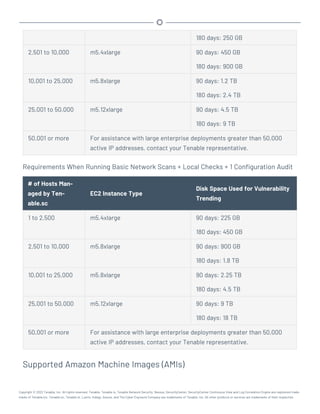
Tenable recommends the following Amazon EC2 instance types based on your Tenable.sc deploy-
ment size.
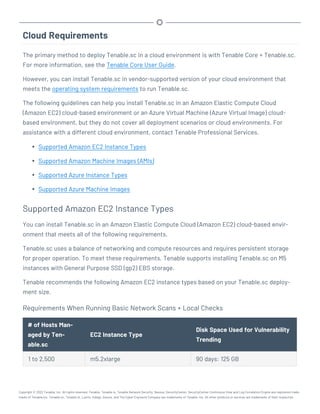
Requirements When Running Basic Network Scans + Local Checks
# of Hosts Man-
aged by Ten-
able.sc
EC2 Instance Type
Disk Space Used for Vulnerability
Trending
1 to 2,500 m5.2xlarge 90 days: 125 GB
Copyright © 2022 Tenable, Inc. All rights reserved. Tenable, Tenable.io, Tenable Network Security, Nessus, SecurityCenter, SecurityCenter Continuous View and Log Correlation Engine are registered trade-
marks of Tenable,Inc. Tenable.sc, Tenable.ot, Lumin, Indegy, Assure, and The Cyber Exposure Company are trademarks of Tenable, Inc. All other products or services are trademarks of their respective
180 days: 250 GB
2,501 to 10,000 m5.4xlarge 90 days: 450 GB
180 days: 900 GB
10,001 to 25,000 m5.8xlarge 90 days: 1.2 TB
180 days: 2.4 TB
25,001 to 50,000 m5.12xlarge 90 days: 4.5 TB
180 days: 9 TB
50,001 or more For assistance with large enterprise deployments greater than 50,000
active IP addresses, contact your Tenable representative.
Requirements When Running Basic Network Scans + Local Checks + 1 Configuration Audit
# of Hosts Man-
aged by Ten-
able.sc
EC2 Instance Type
Disk Space Used for Vulnerability
Trending
1 to 2,500 m5.4xlarge 90 days: 225 GB
180 days: 450 GB
2,501 to 10,000 m5.8xlarge 90 days: 900 GB
180 days: 1.8 TB
10,001 to 25,000 m5.8xlarge 90 days: 2.25 TB
180 days: 4.5 TB
25,001 to 50,000 m5.12xlarge 90 days: 9 TB
180 days: 18 TB
50,001 or more For assistance with large enterprise deployments greater than 50,000
active IP addresses, contact your Tenable representative.
Supported Amazon Machine Images (AMIs)
Copyright © 2022 Tenable, Inc. All rights reserved. Tenable, Tenable.io, Tenable Network Security, Nessus, SecurityCenter, SecurityCenter Continuous View and Log Correlation Engine are registered trade-
marks of Tenable,Inc. Tenable.sc, Tenable.ot, Lumin, Indegy, Assure, and The Cyber Exposure Company are trademarks of Tenable, Inc. All other products or services are trademarks of their respective
Tenable provides an AMI for Tenable Core, but not for other cloud deployments without Tenable
Core. Tenable supports using the following Amazon Marketplace AMI for Tenable.sc without Tenable
Core:
AMI Required Configuration Changes
CentOS 7 (x86_
64) - with
Updates HVM
l This AMI does not include Java, but Tenable.sc requires OpenJDK or
the Oracle Java JRE to export PDF reports.
You must install OpenJDK or the Oracle Java JRE onto your AMI
before hosting Tenable.sc. For more information, see Dependencies.
l This AMI configures an SELinux enforcing mode policy, which
requires customization to be compatible with Tenable.sc.
You must use the SELinux sealert tool to identify errors and solu-
tions. For more information, see Customize SELinux Enforcing Mode
Policies for Tenable.sc.
l You must confirm this AMI meets all other standard requirements for
operating systems. For more information, see Operating System
Requirements.
Supported Azure Instance Types
You can install Tenable.sc in an Azure Virtual Machine (Azure Virtual Image) cloud-based envir-
onment that meets all of the following requirements.
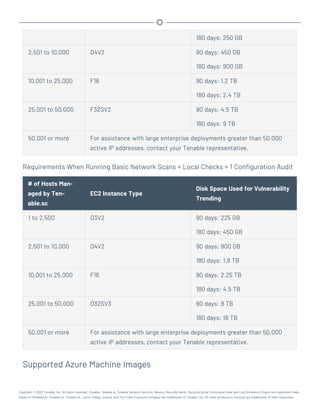
Tenable recommends the following virtual machine instance types based on your Tenable.sc deploy-
ment size. You may need to increase the storage allocated to the virtual machine instance depend-
ing on usage.
Requirements When Running Basic Network Scans + Local Checks
# of Hosts Man-
aged by Ten-
able.sc
Virtual Machine Instance
Disk Space Used for Vulnerability
Trending
1 to 2,500 D3V2 90 days: 125 GB
Copyright © 2022 Tenable, Inc. All rights reserved. Tenable, Tenable.io, Tenable Network Security, Nessus, SecurityCenter, SecurityCenter Continuous View and Log Correlation Engine are registered trade-
marks of Tenable,Inc. Tenable.sc, Tenable.ot, Lumin, Indegy, Assure, and The Cyber Exposure Company are trademarks of Tenable, Inc. All other products or services are trademarks of their respective
180 days: 250 GB
2,501 to 10,000 D4V2 90 days: 450 GB
180 days: 900 GB
10,001 to 25,000 F16 90 days: 1.2 TB
180 days: 2.4 TB
25,001 to 50,000 F32SV2 90 days: 4.5 TB
180 days: 9 TB
50,001 or more For assistance with large enterprise deployments greater than 50,000
active IP addresses, contact your Tenable representative.
Requirements When Running Basic Network Scans + Local Checks + 1 Configuration Audit
# of Hosts Man-
aged by Ten-
able.sc
EC2 Instance Type
Disk Space Used for Vulnerability
Trending
1 to 2,500 D3V2 90 days: 225 GB
180 days: 450 GB
2,501 to 10,000 D4V2 90 days: 900 GB
180 days: 1.8 TB
10,001 to 25,000 F16 90 days: 2.25 TB
180 days: 4.5 TB
25,001 to 50,000 D32SV3 90 days: 9 TB
180 days: 18 TB
50,001 or more For assistance with large enterprise deployments greater than 50,000
active IP addresses, contact your Tenable representative.
Supported Azure Machine Images
Copyright © 2022 Tenable, Inc. All rights reserved. Tenable, Tenable.io, Tenable Network Security, Nessus, SecurityCenter, SecurityCenter Continuous View and Log Correlation Engine are registered trade-
marks of Tenable,Inc. Tenable.sc, Tenable.ot, Lumin, Indegy, Assure, and The Cyber Exposure Company are trademarks of Tenable, Inc. All other products or services are trademarks of their respective
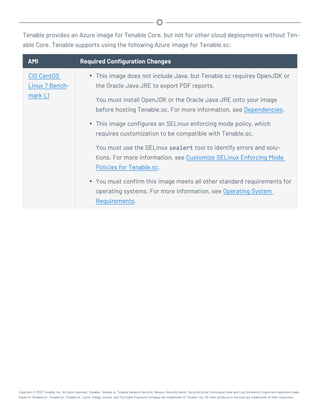
Tenable provides an Azure image for Tenable Core, but not for other cloud deployments without Ten-
able Core. Tenable supports using the following Azure image for Tenable.sc:
AMI Required Configuration Changes
CIS CentOS
Linux 7 Bench-
mark L1
l This image does not include Java, but Tenable.sc requires OpenJDK or
the Oracle Java JRE to export PDF reports.
You must install OpenJDK or the Oracle Java JRE onto your image
before hosting Tenable.sc. For more information, see Dependencies.
l This image configures an SELinux enforcing mode policy, which
requires customization to be compatible with Tenable.sc.
You must use the SELinux sealert tool to identify errors and solu-
tions. For more information, see Customize SELinux Enforcing Mode
Policies for Tenable.sc.
l You must confirm this image meets all other standard requirements for
operating systems. For more information, see Operating System
Requirements.
Copyright © 2022 Tenable, Inc. All rights reserved. Tenable, Tenable.io, Tenable Network Security, Nessus, SecurityCenter, SecurityCenter Continuous View and Log Correlation Engine are registered trade-
marks of Tenable,Inc. Tenable.sc, Tenable.ot, Lumin, Indegy, Assure, and The Cyber Exposure Company are trademarks of Tenable, Inc. All other products or services are trademarks of their respective
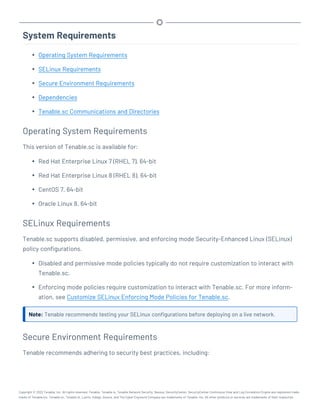
System Requirements
l Operating System Requirements
l SELinux Requirements
l Secure Environment Requirements
l Dependencies
l Tenable.sc Communications and Directories
Operating System Requirements
This version of Tenable.sc is available for:
l Red Hat Enterprise Linux 7 (RHEL 7), 64-bit
l Red Hat Enterprise Linux 8 (RHEL 8), 64-bit
l CentOS 7, 64-bit
l Oracle Linux 8, 64-bit
SELinux Requirements
Tenable.sc supports disabled, permissive, and enforcing mode Security-Enhanced Linux (SELinux)
policy configurations.
l Disabled and permissive mode policies typically do not require customization to interact with
Tenable.sc.
l Enforcing mode policies require customization to interact with Tenable.sc. For more inform-
ation, see Customize SELinux Enforcing Mode Policies for Tenable.sc.
Note: Tenable recommends testing your SELinux configurations before deploying on a live network.
Secure Environment Requirements
Tenable recommends adhering to security best practices, including:
Copyright © 2022 Tenable, Inc. All rights reserved. Tenable, Tenable.io, Tenable Network Security, Nessus, SecurityCenter, SecurityCenter Continuous View and Log Correlation Engine are registered trade-
marks of Tenable,Inc. Tenable.sc, Tenable.ot, Lumin, Indegy, Assure, and The Cyber Exposure Company are trademarks of Tenable, Inc. All other products or services are trademarks of their respective
l Configure the operating system to ensure that security controls cannot be bypassed.
l Configure the network to ensure that the Tenable.sc system resides in a secure network seg-
ment that is not accessible from the Internet.
l Configure network time synchronization to ensure that accurate time stamps are recorded in
reports and log files.
Note: The time zone is set automatically during the installation process with no user interaction. The
time zone configured in php.ini must be synchronized with the system time zone in /etc/sy-
sconfig/clock.
l Configure access control to ensure that only authorized users have access to the operating
system platform.
l Monitor system resources to ensure that adequate disk space and memory are available, as
described in Hardware Requirements. If system resources are exhausted, Tenable.sc may not
log audit data during system administrator troubleshooting or other activities. For more
information about troubleshooting resource exhaustion, see General Tenable.sc Troubleshoot-
ing.
For information about secure administration of a Red Hat installation, see the Red Hat Enterprise
Linux Security Guide for your version.
Note: Even though the security concepts from this guide are written for RHEL 6, most of the concepts and
methodologies apply to earlier versions of RHEL that are supported with Tenable.sc.
Note: As with any application, the security and reliability of the installation is dependent on the envir-
onment that supports it. It is strongly recommended that organizations deploying Tenable.sc have an estab-
lished and applied IT management policy that covers system administration integrity, resource monitoring,
physical security, and disaster recovery.
Dependencies
Note: Either OpenJDK or the Oracle Java JRE along with their accompanying dependencies must be
installed on the system along with any additional Java installations removed for reporting to function prop-
erly.
Note: If you are running Tenable.sc 5.20.0, you must upgrade pyTenable to version 1.4.2 or later.
Copyright © 2022 Tenable, Inc. All rights reserved. Tenable, Tenable.io, Tenable Network Security, Nessus, SecurityCenter, SecurityCenter Continuous View and Log Correlation Engine are registered trade-
marks of Tenable,Inc. Tenable.sc, Tenable.ot, Lumin, Indegy, Assure, and The Cyber Exposure Company are trademarks of Tenable, Inc. All other products or services are trademarks of their respective
Note: Tenable does not recommend forcing the installation without all required dependencies. If your ver-
sion of Red Hat or CentOS is missing certain dependencies, it will cause problems that are not readily
apparent with a wide variety of functions. Tenable Support has observed different types of failure modes
for Tenable.sc when dependencies are missing.
All dependencies must be installed on the system prior to installing the Tenable.sc package. While
they are not all required by the installation RPM file, some functionality of Tenable.sc may not work
properly if the packages are not installed.
Note: Tenable recommends using the latest stable production version of each package.
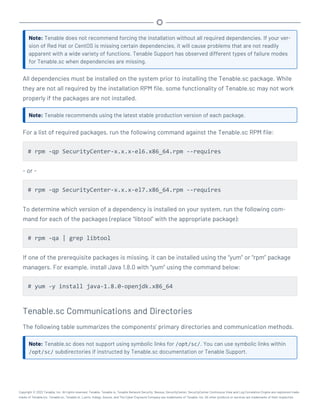
For a list of required packages, run the following command against the Tenable.sc RPM file:
# rpm -qp SecurityCenter-x.x.x-el6.x86_64.rpm --requires
- or -
# rpm -qp SecurityCenter-x.x.x-el7.x86_64.rpm --requires
To determine which version of a dependency is installed on your system, run the following com-
mand for each of the packages (replace “libtool” with the appropriate package):
# rpm -qa | grep libtool
If one of the prerequisite packages is missing, it can be installed using the “yum” or “rpm” package
managers. For example, install Java 1.8.0 with “yum” using the command below:
# yum -y install java-1.8.0-openjdk.x86_64
Tenable.sc Communications and Directories
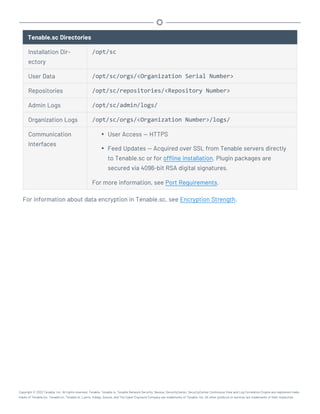
The following table summarizes the components’ primary directories and communication methods.
Note: Tenable.sc does not support using symbolic links for /opt/sc/. You can use symbolic links within
/opt/sc/ subdirectories if instructed by Tenable.sc documentation or Tenable Support.
Copyright © 2022 Tenable, Inc. All rights reserved. Tenable, Tenable.io, Tenable Network Security, Nessus, SecurityCenter, SecurityCenter Continuous View and Log Correlation Engine are registered trade-
marks of Tenable,Inc. Tenable.sc, Tenable.ot, Lumin, Indegy, Assure, and The Cyber Exposure Company are trademarks of Tenable, Inc. All other products or services are trademarks of their respective
Tenable.sc Directories
Installation Dir-
ectory
/opt/sc
User Data /opt/sc/orgs/<Organization Serial Number>
Repositories /opt/sc/repositories/<Repository Number>
Admin Logs /opt/sc/admin/logs/
Organization Logs /opt/sc/orgs/<Organization Number>/logs/
Communication
Interfaces
l User Access — HTTPS
l Feed Updates — Acquired over SSL from Tenable servers directly
to Tenable.sc or for offline installation. Plugin packages are
secured via 4096-bit RSA digital signatures.
For more information, see Port Requirements.
For information about data encryption in Tenable.sc, see Encryption Strength.
Copyright © 2022 Tenable, Inc. All rights reserved. Tenable, Tenable.io, Tenable Network Security, Nessus, SecurityCenter, SecurityCenter Continuous View and Log Correlation Engine are registered trade-
marks of Tenable,Inc. Tenable.sc, Tenable.ot, Lumin, Indegy, Assure, and The Cyber Exposure Company are trademarks of Tenable, Inc. All other products or services are trademarks of their respective
Customize SELinux Enforcing Mode Policies for Tenable.sc
Security-Enhanced Linux (SELinux) enforcing mode policies require customization to interact with
Tenable.sc.
Tenable Support does not assist with customizing SELinux policies, but Tenable recommends mon-
itoring your SELinux logs to identify errors and solutions for your policy configuration.
Before you begin:
l Install the SELinux sealert tool in a test environment that resembles your production envir-
onment.
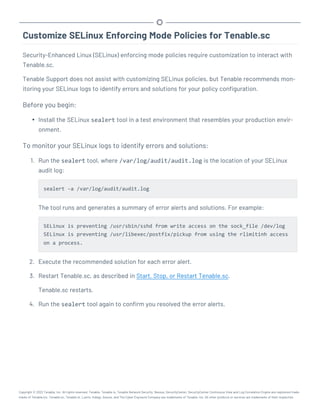
To monitor your SELinux logs to identify errors and solutions:
1. Run the sealert tool, where /var/log/audit/audit.log is the location of your SELinux
audit log:
sealert -a /var/log/audit/audit.log
The tool runs and generates a summary of error alerts and solutions. For example:
SELinux is preventing /usr/sbin/sshd from write access on the sock_file /dev/log
SELinux is preventing /usr/libexec/postfix/pickup from using the rlimitinh access
on a process.
2. Execute the recommended solution for each error alert.
3. Restart Tenable.sc, as described in Start, Stop, or Restart Tenable.sc.
Tenable.sc restarts.
4. Run the sealert tool again to confirm you resolved the error alerts.
Copyright © 2022 Tenable, Inc. All rights reserved. Tenable, Tenable.io, Tenable Network Security, Nessus, SecurityCenter, SecurityCenter Continuous View and Log Correlation Engine are registered trade-
marks of Tenable,Inc. Tenable.sc, Tenable.ot, Lumin, Indegy, Assure, and The Cyber Exposure Company are trademarks of Tenable, Inc. All other products or services are trademarks of their respective
Use /dev/random for Random Number Data Generation
Required User Role: Root user
If your organization requires Tenable.sc to use /dev/random instead of /dev/urandom to generate
random number data for secure communication functions, modify the random data source using an
environment variable.
Unlike /dev/urandom, /dev/random blocks HTTPS and SSL/TLS functions if there is not enough
entropy to perform the functions. The functions resume after the system generates enough
entropy.
Note: If /dev/random blocks during an installation or upgrade, the system waits up to 10 minutes for more
entropy to be generated before halting the operation.
Tenable does not recommend using /dev/random unless required by your organization.
To use /dev/random for random number data generation in Tenable.sc:
1. Log in to Tenable.sc via the command line interface (CLI).
2. In the CLI in Tenable.sc, run the following command:
export TSC_ENTROPY_CHECK=true
Tenable.sc recognizes the environment variable and uses /dev/random.
What to do next:
l Install or upgrade Tenable.sc in order for your changes to take effect, as described in Install
Tenable.sc or Upgrade Tenable.sc.
Copyright © 2022 Tenable, Inc. All rights reserved. Tenable, Tenable.io, Tenable Network Security, Nessus, SecurityCenter, SecurityCenter Continuous View and Log Correlation Engine are registered trade-
marks of Tenable,Inc. Tenable.sc, Tenable.ot, Lumin, Indegy, Assure, and The Cyber Exposure Company are trademarks of Tenable, Inc. All other products or services are trademarks of their respective
Tenable.sc Database Journaling Modes
By default, Tenable.sc databases that can significantly impact performance use write-ahead logging
(WAL) journaling mode. All other databases use DELETE mode. Tenable.sc also supports converting
WAL journaling mode databases to DELETE mode.
For Tenable.sc installations where WAL is not enabled, enabling WAL may resolve issues with
excessive database locks. If your Tenable.sc does not experience database locking issues, Tenable
recommends leaving your Tenable.sc databases in the default journaling mode.
Tenable strongly recommends performing a backup before converting database journaling modes
and performing regular backups after converting database journaling modes. For more information,
see Backup and Restore.
For general information about SQLite3 database journaling modes, see the SQLite3 documentation.
For more information, see:
l Enable Write-Ahead Logging
l Disable Write-Ahead Logging
Note: If you previously converted one or more Tenable.sc databases to WAL journaling mode without using
the convertDatabaseMode.php script, you must use the convertDatabaseMode.php script to ensure
your Tenable.sc databases are fully converted to WAL journaling mode.
WAL Requirements
In addition to the requirements to run Tenable.sc, your Tenable.sc installation must be running Ten-
able.sc 5.19.x or later.
Databases Affected
Enabling or disabling WAL converts the database journaling mode for the following Tenable.sc data-
bases:
l /opt/sc/application.db
l /opt/sc/hosts.db
Copyright © 2022 Tenable, Inc. All rights reserved. Tenable, Tenable.io, Tenable Network Security, Nessus, SecurityCenter, SecurityCenter Continuous View and Log Correlation Engine are registered trade-
marks of Tenable,Inc. Tenable.sc, Tenable.ot, Lumin, Indegy, Assure, and The Cyber Exposure Company are trademarks of Tenable, Inc. All other products or services are trademarks of their respective
l /opt/sc/jobqueue.db
l /opt/sc/plugins.db
l /opt/sc/remediationHierarchy.db
l /opt/sc/orgs/<orgID>/organization.db (for each organization in your Tenable.sc)
l /opt/sc/orgs/<orgID>/assets.db (for each organization in your Tenable.sc)
The convertDatabaseMode.php script only converts the database journaling mode for Tenable.sc
databases that can significantly impact performance.
Copyright © 2022 Tenable, Inc. All rights reserved. Tenable, Tenable.io, Tenable Network Security, Nessus, SecurityCenter, SecurityCenter Continuous View and Log Correlation Engine are registered trade-
marks of Tenable,Inc. Tenable.sc, Tenable.ot, Lumin, Indegy, Assure, and The Cyber Exposure Company are trademarks of Tenable, Inc. All other products or services are trademarks of their respective
Enable Write-Ahead Logging
Required User Role: Root user
Note: This topic assumes a basic understanding of Linux.
You can use the convertDatabaseMode.php script to enable write-ahead logging (WAL) journaling
mode for Tenable.sc databases. Enabling WAL may resolve issues with excessive database locks. If
your Tenable.sc does not experience database locking issues, Tenable recommends leaving your
Tenable.sc databases in the default DELETE journaling mode.
For more information, see Tenable.sc Database Journaling Modes.
Before you begin:
l Confirm your Tenable.sc installation meets the requirements to enable WAL. For more inform-
ation, see WAL Requirements.
l Perform a backup of Tenable.sc, as described in Perform a Backup.
To enable WAL:
1. Log in to Tenable.sc via the command line interface (CLI).
2. Stop Tenable.sc, as described in Start, Stop, or Restart Tenable.sc.
3. In the CLI in Tenable.sc, run the following command to start the converDatabaseMode.php
script:
/opt/sc/support/bin/php /opt/sc/src/tools/convertDatabaseMode.php -m WAL
The script runs.
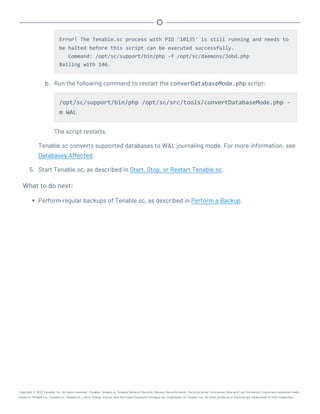
4. If the script detects any running tns user processes, repeat the following steps for each tns
user process detected:
a. Follow the prompts in the error output to halt the tns user process.
Example error output:
Copyright © 2022 Tenable, Inc. All rights reserved. Tenable, Tenable.io, Tenable Network Security, Nessus, SecurityCenter, SecurityCenter Continuous View and Log Correlation Engine are registered trade-
marks of Tenable,Inc. Tenable.sc, Tenable.ot, Lumin, Indegy, Assure, and The Cyber Exposure Company are trademarks of Tenable, Inc. All other products or services are trademarks of their respective
Error! The Tenable.sc process with PID '10135' is still running and needs to
be halted before this script can be executed successfully.
Command: /opt/sc/support/bin/php -f /opt/sc/daemons/Jobd.php
Bailing with 146.
b. Run the following command to restart the converDatabaseMode.php script:
/opt/sc/support/bin/php /opt/sc/src/tools/convertDatabaseMode.php -
m WAL
The script restarts.
Tenable.sc converts supported databases to WAL journaling mode. For more information, see
Databases Affected.
5. Start Tenable.sc, as described in Start, Stop, or Restart Tenable.sc.
What to do next:
l Perform regular backups of Tenable.sc, as described in Perform a Backup.
Copyright © 2022 Tenable, Inc. All rights reserved. Tenable, Tenable.io, Tenable Network Security, Nessus, SecurityCenter, SecurityCenter Continuous View and Log Correlation Engine are registered trade-
marks of Tenable,Inc. Tenable.sc, Tenable.ot, Lumin, Indegy, Assure, and The Cyber Exposure Company are trademarks of Tenable, Inc. All other products or services are trademarks of their respective
Disable Write-Ahead Logging
Required User Role: Root user
Note: This topic assumes a basic understanding of Linux.
If you experience issues with write-ahead logging (WAL), disable WAL by reverting your Tenable.sc
databases to DELETE journaling mode. For more information, see Tenable.sc Database Journaling
Modes.
Before you begin:
l Perform a backup of Tenable.sc, as described in Perform a Backup.
To disable WAL:
1. Log in to Tenable.sc via the command line interface (CLI).
2. Stop Tenable.sc, as described in Start, Stop, or Restart Tenable.sc.
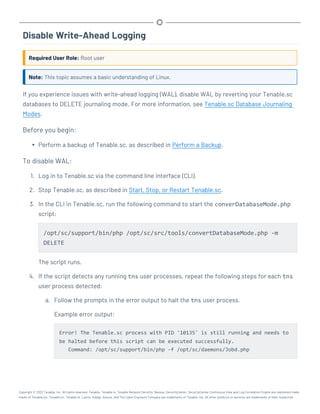
3. In the CLI in Tenable.sc, run the following command to start the converDatabaseMode.php
script:
/opt/sc/support/bin/php /opt/sc/src/tools/convertDatabaseMode.php -m
DELETE
The script runs.
4. If the script detects any running tns user processes, repeat the following steps for each tns
user process detected:
a. Follow the prompts in the error output to halt the tns user process.
Example error output:
Error! The Tenable.sc process with PID '10135' is still running and needs to
be halted before this script can be executed successfully.
Command: /opt/sc/support/bin/php -f /opt/sc/daemons/Jobd.php
Copyright © 2022 Tenable, Inc. All rights reserved. Tenable, Tenable.io, Tenable Network Security, Nessus, SecurityCenter, SecurityCenter Continuous View and Log Correlation Engine are registered trade-
marks of Tenable,Inc. Tenable.sc, Tenable.ot, Lumin, Indegy, Assure, and The Cyber Exposure Company are trademarks of Tenable, Inc. All other products or services are trademarks of their respective
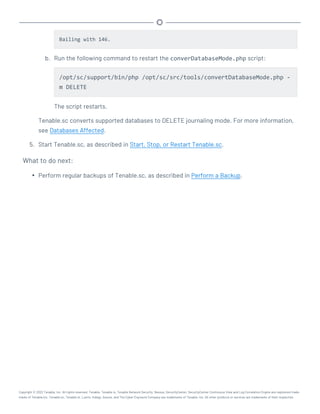
Bailing with 146.
b. Run the following command to restart the converDatabaseMode.php script:
/opt/sc/support/bin/php /opt/sc/src/tools/convertDatabaseMode.php -
m DELETE
The script restarts.
Tenable.sc converts supported databases to DELETE journaling mode. For more information,
see Databases Affected.
5. Start Tenable.sc, as described in Start, Stop, or Restart Tenable.sc.
What to do next:
l Perform regular backups of Tenable.sc, as described in Perform a Backup.
Copyright © 2022 Tenable, Inc. All rights reserved. Tenable, Tenable.io, Tenable Network Security, Nessus, SecurityCenter, SecurityCenter Continuous View and Log Correlation Engine are registered trade-
marks of Tenable,Inc. Tenable.sc, Tenable.ot, Lumin, Indegy, Assure, and The Cyber Exposure Company are trademarks of Tenable, Inc. All other products or services are trademarks of their respective
License Requirements
Tenable.sc does not support an unlicensed demo mode. License keys are required for Tenable.sc
and for all attached Tenable products. You first configure your Tenable.sc license and additional
Tenable product licenses during quick start, as described in Quick Setup.
You can update your Tenable.sc license in an externally connected or air-gapped environment, as
described in Update an Existing License.
Tenable.sc requires an internet connection to validate additional Tenable product licenses. To apply
a license for an additional Tenable product, see Apply a New License. To update a license for an
additional Tenable product, see Update an Existing License.
Tip: For information about Tenable.sc-Tenable product registration server communications encryption,
see Encryption Strength.
Your Tenable.sc License
Tenable.sc licenses are valid for a specific hostname and for a maximum number of active assets
(identified by IP address or UUID). Assets are counted towards your license limit depending on how
Tenable.sc discovers, or sees, the asset. In general, an asset does not count against your license
limit unless it has been assessed for vulnerabilities.
For example, if you purchase a 500 asset Tenable.sc license, you can perform host discovery on
your network but you cannot assess more than 500 assets. For more information about discovery
and assessment scanning, see Scanning Overview.
Tenable.sc generates a warning in the web interface when you approach or exceed the license limit.
To monitor your license limit, use the Licensing Status widget, as described in Overview
Dashboard. To upgrade your license, contact your Tenable representative.
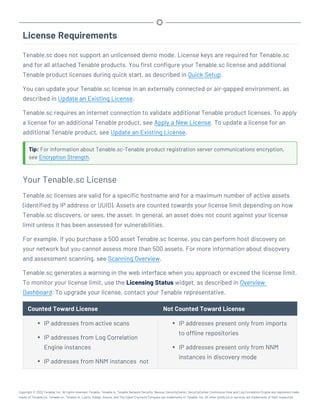
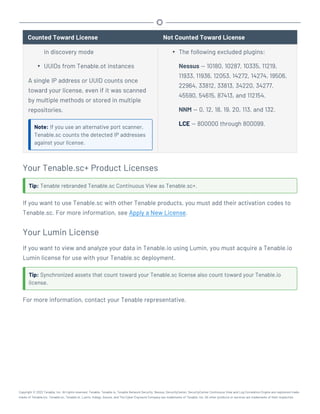
Counted Toward License Not Counted Toward License
l IP addresses from active scans
l IP addresses from Log Correlation
Engine instances
l IP addresses from NNM instances not
l IP addresses present only from imports
to offline repositories
l IP addresses present only from NNM
instances in discovery mode
Copyright © 2022 Tenable, Inc. All rights reserved. Tenable, Tenable.io, Tenable Network Security, Nessus, SecurityCenter, SecurityCenter Continuous View and Log Correlation Engine are registered trade-
marks of Tenable,Inc. Tenable.sc, Tenable.ot, Lumin, Indegy, Assure, and The Cyber Exposure Company are trademarks of Tenable, Inc. All other products or services are trademarks of their respective
Counted Toward License Not Counted Toward License
in discovery mode
l UUIDs from Tenable.ot instances
A single IP address or UUID counts once
toward your license, even if it was scanned
by multiple methods or stored in multiple
repositories.
Note: If you use an alternative port scanner,
Tenable.sc counts the detected IP addresses
against your license.
l The following excluded plugins:
Nessus — 10180, 10287, 10335, 11219,
11933, 11936, 12053, 14272, 14274, 19506,
22964, 33812, 33813, 34220, 34277,
45590, 54615, 87413, and 112154.
NNM — 0, 12, 18, 19, 20, 113, and 132.
LCE — 800000 through 800099.
Your Tenable.sc+ Product Licenses
Tip: Tenable rebranded Tenable.sc Continuous View as Tenable.sc+.
If you want to use Tenable.sc with other Tenable products, you must add their activation codes to
Tenable.sc. For more information, see Apply a New License.
Your Lumin License
If you want to view and analyze your data in Tenable.io using Lumin, you must acquire a Tenable.io
Lumin license for use with your Tenable.sc deployment.
Tip: Synchronized assets that count toward your Tenable.sc license also count toward your Tenable.io
license.
For more information, contact your Tenable representative.
Copyright © 2022 Tenable, Inc. All rights reserved. Tenable, Tenable.io, Tenable Network Security, Nessus, SecurityCenter, SecurityCenter Continuous View and Log Correlation Engine are registered trade-
marks of Tenable,Inc. Tenable.sc, Tenable.ot, Lumin, Indegy, Assure, and The Cyber Exposure Company are trademarks of Tenable, Inc. All other products or services are trademarks of their respective
Apply a New License
Required User Role: Administrator
To apply a license for an additional Tenable product, add the license activation code. To update a
license for an existing Tenable product, see Update an Existing License.
For general information about licensing, see License Requirements. For information about adding a
license during quick setup, see Quick Setup.
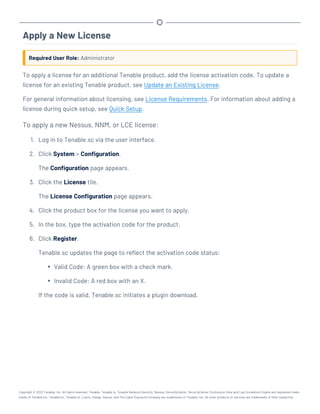
To apply a new Nessus, NNM, or LCE license:
1. Log in to Tenable.sc via the user interface.
2. Click System > Configuration.
The Configuration page appears.
3. Click the License tile.
The License Configuration page appears.
4. Click the product box for the license you want to apply.
5. In the box, type the activation code for the product.
6. Click Register.
Tenable.sc updates the page to reflect the activation code status:
l Valid Code: A green box with a check mark.
l Invalid Code: A red box with an X.
If the code is valid, Tenable.sc initiates a plugin download.
Copyright © 2022 Tenable, Inc. All rights reserved. Tenable, Tenable.io, Tenable Network Security, Nessus, SecurityCenter, SecurityCenter Continuous View and Log Correlation Engine are registered trade-
marks of Tenable,Inc. Tenable.sc, Tenable.ot, Lumin, Indegy, Assure, and The Cyber Exposure Company are trademarks of Tenable, Inc. All other products or services are trademarks of their respective
Update an Existing License
Required User Role: Administrator
Tip: Tenable rebranded Tenable.sc Continuous View as Tenable.sc+.
If you need to replace your Tenable.sc or Tenable.sc+ license or the license activation code for your
Nessus, Nessus Network Monitor, or Log Correlation Engine license, update the license.
To apply a new license for an additional Tenable product for the first time, see Apply a New License.
You can update your Tenable.sc license in an externally connected or air-gapped environment. Ten-
able.sc requires an internet connection to validate product licenses for Nessus, NNM, or LCE.
For general information about licensing, see License Requirements.
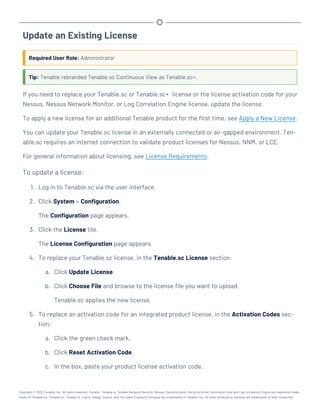
To update a license:
1. Log in to Tenable.sc via the user interface.
2. Click System > Configuration.
The Configuration page appears.
3. Click the License tile.
The License Configuration page appears.
4. To replace your Tenable.sc license, in the Tenable.sc License section:
a. Click Update License.
b. Click Choose File and browse to the license file you want to upload.
Tenable.sc applies the new license.
5. To replace an activation code for an integrated product license, in the Activation Codes sec-
tion:
a. Click the green check mark.
b. Click Reset Activation Code.
c. In the box, paste your product license activation code.
Copyright © 2022 Tenable, Inc. All rights reserved. Tenable, Tenable.io, Tenable Network Security, Nessus, SecurityCenter, SecurityCenter Continuous View and Log Correlation Engine are registered trade-
marks of Tenable,Inc. Tenable.sc, Tenable.ot, Lumin, Indegy, Assure, and The Cyber Exposure Company are trademarks of Tenable, Inc. All other products or services are trademarks of their respective
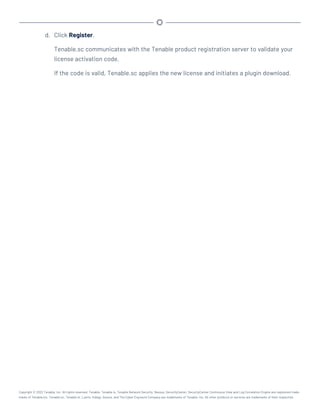
d. Click Register.
Tenable.sc communicates with the Tenable product registration server to validate your
license activation code.
If the code is valid, Tenable.sc applies the new license and initiates a plugin download.
Copyright © 2022 Tenable, Inc. All rights reserved. Tenable, Tenable.io, Tenable Network Security, Nessus, SecurityCenter, SecurityCenter Continuous View and Log Correlation Engine are registered trade-
marks of Tenable,Inc. Tenable.sc, Tenable.ot, Lumin, Indegy, Assure, and The Cyber Exposure Company are trademarks of Tenable, Inc. All other products or services are trademarks of their respective
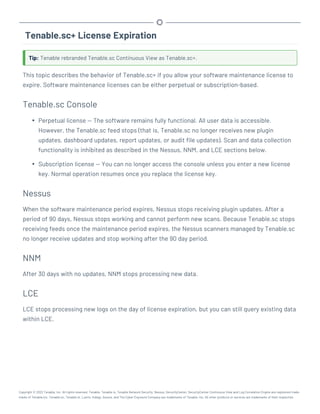
Tenable.sc+ License Expiration
Tip: Tenable rebranded Tenable.sc Continuous View as Tenable.sc+.
This topic describes the behavior of Tenable.sc+ if you allow your software maintenance license to
expire. Software maintenance licenses can be either perpetual or subscription-based.
Tenable.sc Console
l Perpetual license — The software remains fully functional. All user data is accessible.
However, the Tenable.sc feed stops (that is, Tenable.sc no longer receives new plugin
updates, dashboard updates, report updates, or audit file updates). Scan and data collection
functionality is inhibited as described in the Nessus, NNM, and LCE sections below.
l Subscription license — You can no longer access the console unless you enter a new license
key. Normal operation resumes once you replace the license key.
Nessus
When the software maintenance period expires, Nessus stops receiving plugin updates. After a
period of 90 days, Nessus stops working and cannot perform new scans. Because Tenable.sc stops
receiving feeds once the maintenance period expires, the Nessus scanners managed by Tenable.sc
no longer receive updates and stop working after the 90 day period.
NNM
After 30 days with no updates, NNM stops processing new data.
LCE
LCE stops processing new logs on the day of license expiration, but you can still query existing data
within LCE.
Copyright © 2022 Tenable, Inc. All rights reserved. Tenable, Tenable.io, Tenable Network Security, Nessus, SecurityCenter, SecurityCenter Continuous View and Log Correlation Engine are registered trade-
marks of Tenable,Inc. Tenable.sc, Tenable.ot, Lumin, Indegy, Assure, and The Cyber Exposure Company are trademarks of Tenable, Inc. All other products or services are trademarks of their respective
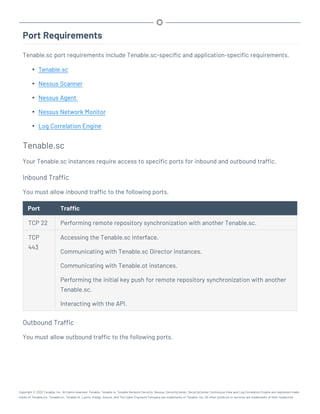
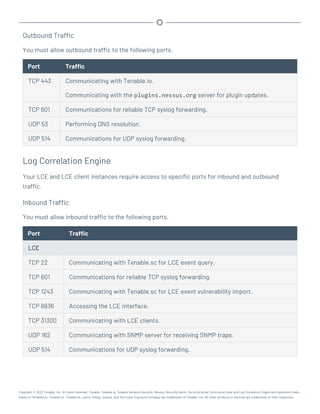
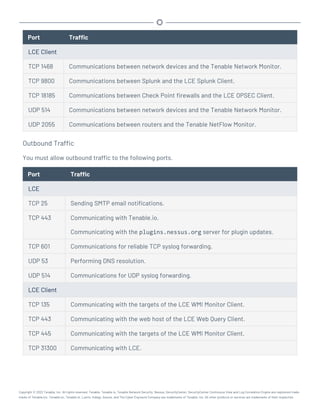
Port Requirements
Tenable.sc port requirements include Tenable.sc-specific and application-specific requirements.
l Tenable.sc
l Nessus Scanner
l Nessus Agent
l Nessus Network Monitor
l Log Correlation Engine
Tenable.sc
Your Tenable.sc instances require access to specific ports for inbound and outbound traffic.
Inbound Traffic
You must allow inbound traffic to the following ports.
Port Traffic
TCP 22 Performing remote repository synchronization with another Tenable.sc.
TCP
443
Accessing the Tenable.sc interface.
Communicating with Tenable.sc Director instances.
Communicating with Tenable.ot instances.
Performing the initial key push for remote repository synchronization with another
Tenable.sc.
Interacting with the API.
Outbound Traffic
You must allow outbound traffic to the following ports.
Copyright © 2022 Tenable, Inc. All rights reserved. Tenable, Tenable.io, Tenable Network Security, Nessus, SecurityCenter, SecurityCenter Continuous View and Log Correlation Engine are registered trade-
marks of Tenable,Inc. Tenable.sc, Tenable.ot, Lumin, Indegy, Assure, and The Cyber Exposure Company are trademarks of Tenable, Inc. All other products or services are trademarks of their respective
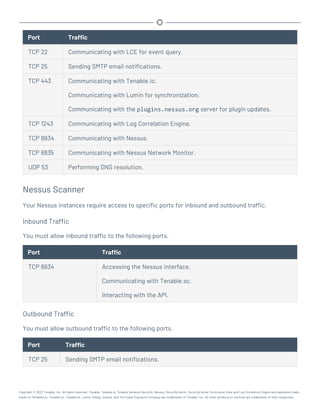
Port Traffic
TCP 22 Communicating with LCE for event query.
TCP 25 Sending SMTP email notifications.
TCP 443 Communicating with Tenable.io.
Communicating with Lumin for synchronization.
Communicating with the plugins.nessus.org server for plugin updates.
TCP 1243 Communicating with Log Correlation Engine.
TCP 8834 Communicating with Nessus.
TCP 8835 Communicating with Nessus Network Monitor.
UDP 53 Performing DNS resolution.
Nessus Scanner
Your Nessus instances require access to specific ports for inbound and outbound traffic.
Inbound Traffic
You must allow inbound traffic to the following ports.
Port Traffic
TCP 8834 Accessing the Nessus interface.
Communicating with Tenable.sc.
Interacting with the API.
Outbound Traffic
You must allow outbound traffic to the following ports.
Port Traffic
TCP 25 Sending SMTP email notifications.
Copyright © 2022 Tenable, Inc. All rights reserved. Tenable, Tenable.io, Tenable Network Security, Nessus, SecurityCenter, SecurityCenter Continuous View and Log Correlation Engine are registered trade-
marks of Tenable,Inc. Tenable.sc, Tenable.ot, Lumin, Indegy, Assure, and The Cyber Exposure Company are trademarks of Tenable, Inc. All other products or services are trademarks of their respective
Port Traffic
TCP 443 Communicating with Tenable.io.
Communicating with the plugins.nessus.org server for plugin updates.
UDP 53 Performing DNS resolution.
Performing malware scans.
Nessus Agent
Your Nessus Agents require access to specific ports for outbound traffic.
Outbound Traffic
You must allow outbound traffic to the following ports.
Port Traffic
TCP 443 Communicating with Tenable.io.
Communicating with the plugins.nessus.org server for plugin updates.
TCP 8834 Communicating with Nessus Manager for plugin updates.
UDP 53 Performing DNS resolution.
Nessus Network Monitor
Your Nessus Network Monitor instances require access to specific ports for inbound and outbound
traffic.
Inbound Traffic
You must allow inbound traffic to the following ports.
Port Traffic
TCP 8835 Accessing the Nessus Network Monitor interface.
Communicating with Tenable.sc.
Copyright © 2022 Tenable, Inc. All rights reserved. Tenable, Tenable.io, Tenable Network Security, Nessus, SecurityCenter, SecurityCenter Continuous View and Log Correlation Engine are registered trade-
marks of Tenable,Inc. Tenable.sc, Tenable.ot, Lumin, Indegy, Assure, and The Cyber Exposure Company are trademarks of Tenable, Inc. All other products or services are trademarks of their respective
Outbound Traffic
You must allow outbound traffic to the following ports.
Port Traffic
TCP 443 Communicating with Tenable.io.
Communicating with the plugins.nessus.org server for plugin updates.
TCP 601 Communications for reliable TCP syslog forwarding.
UDP 53 Performing DNS resolution.
UDP 514 Communications for UDP syslog forwarding.
Log Correlation Engine
Your LCE and LCE client instances require access to specific ports for inbound and outbound
traffic.
Inbound Traffic
You must allow inbound traffic to the following ports.
Port Traffic
LCE
TCP 22 Communicating with Tenable.sc for LCE event query.
TCP 601 Communications for reliable TCP syslog forwarding.
TCP 1243 Communicating with Tenable.sc for LCE event vulnerability import.
TCP 8836 Accessing the LCE interface.
TCP 31300 Communicating with LCE clients.
UDP 162 Communicating with SNMP server for receiving SNMP traps.
UDP 514 Communications for UDP syslog forwarding.
Copyright © 2022 Tenable, Inc. All rights reserved. Tenable, Tenable.io, Tenable Network Security, Nessus, SecurityCenter, SecurityCenter Continuous View and Log Correlation Engine are registered trade-
marks of Tenable,Inc. Tenable.sc, Tenable.ot, Lumin, Indegy, Assure, and The Cyber Exposure Company are trademarks of Tenable, Inc. All other products or services are trademarks of their respective
Port Traffic
LCE Client
TCP 1468 Communications between network devices and the Tenable Network Monitor.
TCP 9800 Communications between Splunk and the LCE Splunk Client.
TCP 18185 Communications between Check Point firewalls and the LCE OPSEC Client.
UDP 514 Communications between network devices and the Tenable Network Monitor.
UDP 2055 Communications between routers and the Tenable NetFlow Monitor.
Outbound Traffic
You must allow outbound traffic to the following ports.
Port Traffic
LCE
TCP 25 Sending SMTP email notifications.
TCP 443 Communicating with Tenable.io.
Communicating with the plugins.nessus.org server for plugin updates.
TCP 601 Communications for reliable TCP syslog forwarding.
UDP 53 Performing DNS resolution.
UDP 514 Communications for UDP syslog forwarding.
LCE Client
TCP 135 Communicating with the targets of the LCE WMI Monitor Client.
TCP 443 Communicating with the web host of the LCE Web Query Client.
TCP 445 Communicating with the targets of the LCE WMI Monitor Client.
TCP 31300 Communicating with LCE.
Copyright © 2022 Tenable, Inc. All rights reserved. Tenable, Tenable.io, Tenable Network Security, Nessus, SecurityCenter, SecurityCenter Continuous View and Log Correlation Engine are registered trade-
marks of Tenable,Inc. Tenable.sc, Tenable.ot, Lumin, Indegy, Assure, and The Cyber Exposure Company are trademarks of Tenable, Inc. All other products or services are trademarks of their respective
Browser Requirements
You can access the Tenable.sc user interface using the following browsers:
l Microsoft Internet Explorer 11 or later
Tip: Tenable.sc versions 5.22 and later will no longer support Internet Explorer.
l Microsoft Edge 99 or later
l Mozilla Firefox 32 or later
l Google Chrome 37 or later
l Mac OS Safari 7.1 or later
Note: Tenable recommends using the newest available version of your browser.
Copyright © 2022 Tenable, Inc. All rights reserved. Tenable, Tenable.io, Tenable Network Security, Nessus, SecurityCenter, SecurityCenter Continuous View and Log Correlation Engine are registered trade-
marks of Tenable,Inc. Tenable.sc, Tenable.ot, Lumin, Indegy, Assure, and The Cyber Exposure Company are trademarks of Tenable, Inc. All other products or services are trademarks of their respective
Tenable Integrated Product Compatibility
The release notes list the versions of Tenable products tested with Tenable.sc 5.21.x. For more
information, see the Tenable.sc Release Notes for your version.
Copyright © 2022 Tenable, Inc. All rights reserved. Tenable, Tenable.io, Tenable Network Security, Nessus, SecurityCenter, SecurityCenter Continuous View and Log Correlation Engine are registered trade-
marks of Tenable,Inc. Tenable.sc, Tenable.ot, Lumin, Indegy, Assure, and The Cyber Exposure Company are trademarks of Tenable, Inc. All other products or services are trademarks of their respective
Large Enterprise Deployments
You may have a number of unique technical and business requirements to consider when planning a
large enterprise deployment of Tenable.sc. If your organization scans 100,000 or more IP addresses,
consider the information in the Tenable.sc Large Enterprise Deployment Guide when planning, con-
figuring, and operationalizing your Tenable.sc deployment.
Copyright © 2022 Tenable, Inc. All rights reserved. Tenable, Tenable.io, Tenable Network Security, Nessus, SecurityCenter, SecurityCenter Continuous View and Log Correlation Engine are registered trade-
marks of Tenable,Inc. Tenable.sc, Tenable.ot, Lumin, Indegy, Assure, and The Cyber Exposure Company are trademarks of Tenable, Inc. All other products or services are trademarks of their respective
Installation and Upgrade
To perform a fresh installation of Tenable.sc, see Before You Install and Install Tenable.sc.
To perform an upgrade of Tenable.sc, see Before You Upgrade and Upgrade Tenable.sc.
To uninstall Tenable.sc, see Uninstall Tenable.sc.
Copyright © 2022 Tenable, Inc. All rights reserved. Tenable, Tenable.io, Tenable Network Security, Nessus, SecurityCenter, SecurityCenter Continuous View and Log Correlation Engine are registered trade-
marks of Tenable,Inc. Tenable.sc, Tenable.ot, Lumin, Indegy, Assure, and The Cyber Exposure Company are trademarks of Tenable, Inc. All other products or services are trademarks of their respective
Before You Install
Note: A basic understanding of Linux is assumed throughout the installation, upgrade, and removal pro-
cesses.
Understand Tenable.sc Licenses
Confirm your licenses are valid for your Tenable.sc deployment. Tenable.sc does not support an unli-
censed demo mode.
For more information, see License Requirements.
Disable Default Web Servers
Tenable.sc provides its own Apache web server listening on port 443. If the installation target
already has another web server or other service listening on port 443, you must disable that service
on that port or configure Tenable.sc to use a different port after installation.
Identify which services, if any, are listening on port 443 by running the following command:
# ss -pan | grep ':443 '
Modify Security Settings
Tenable.sc supports disabled, permissive, and enforcing mode Security-Enhanced Linux (SELinux)
policy configurations. For more information, see SELinux Requirements.
Perform Log File Rotation
The installation does not include a log rotate utility; however, the native Linux logrotate tool is
supported post-installation. In most Red Hat environments, logrotate is installed by default. The
following logs are rotated if the logrotate utility is installed:
l All files in /opt/sc/support/logs matching *log
l /opt/sc/admin/logs/sc-error.log
During an install/upgrade, the installer drops a file named SecurityCenter into
/etc/logrotate.d/ that contains log rotate rules for the files mentioned above.
Copyright © 2022 Tenable, Inc. All rights reserved. Tenable, Tenable.io, Tenable Network Security, Nessus, SecurityCenter, SecurityCenter Continuous View and Log Correlation Engine are registered trade-
marks of Tenable,Inc. Tenable.sc, Tenable.ot, Lumin, Indegy, Assure, and The Cyber Exposure Company are trademarks of Tenable, Inc. All other products or services are trademarks of their respective
Log files are rotated on a monthly basis. This file is owned by root/root.
Allow Tenable Sites
To allow Tenable.sc to communicate with Tenable servers for product updates and plugin updates,
Tenable recommends adding Tenable sites to an allow list at the perimeter firewall. For more
information, see the knowledge base article.
Copyright © 2022 Tenable, Inc. All rights reserved. Tenable, Tenable.io, Tenable Network Security, Nessus, SecurityCenter, SecurityCenter Continuous View and Log Correlation Engine are registered trade-
marks of Tenable,Inc. Tenable.sc, Tenable.ot, Lumin, Indegy, Assure, and The Cyber Exposure Company are trademarks of Tenable, Inc. All other products or services are trademarks of their respective
Install Tenable.sc
Required User Role: Root user
Note: A basic understanding of Linux is assumed throughout the installation, upgrade, and removal pro-
cesses.
Caution: When performing sudo installs, use sudo –i to ensure the proper use of environmental variables.
Caution: During the installation process, Tenable.sc produces a log file in a temporary location:
/tmp/sc.install.log. Once the installation process finishes, the file is stored here:
/opt/sc/admin/logs/install.log. Do not remove or modify these files; they are important for debug-
ging in case of a failed installation.
For information about new features, resolved issues, third-party product updates, and supported
upgrade paths, see the release notes for Tenable.sc 5.21.x.
Before you begin:
l Complete system prerequisites, as described in Before You Install.
l Download the installation RPM file from the Tenable downloads page. If necessary, depending
on the operating system of the host, move the installation RPM file onto the host.
l Confirm the integrity of the installation RPM file by comparing the download checksum with
the checksum on the Tenable downloads page, as described in the knowledge base article.
l If your organization requires Tenable.sc to use /dev/random instead of /dev/urandom to gen-
erate random number data for secure communication functions, modify the random data
source as described in Use /dev/random for Random Number Data Generation.
To install Tenable.sc:
1. On the host where you want to install Tenable.sc, open the command line interface (CLI).
2. Run one of the following commands to install the RPM:
# rpm -ivh SecurityCenter-x.x.x-el7.x86_64.rpm
Copyright © 2022 Tenable, Inc. All rights reserved. Tenable, Tenable.io, Tenable Network Security, Nessus, SecurityCenter, SecurityCenter Continuous View and Log Correlation Engine are registered trade-
marks of Tenable,Inc. Tenable.sc, Tenable.ot, Lumin, Indegy, Assure, and The Cyber Exposure Company are trademarks of Tenable, Inc. All other products or services are trademarks of their respective
- or -
# rpm -ivh SecurityCenter-x.x.x-el8.x86_64.rpm
Output similar to the following is generated:
# rpm -ivh SecurityCenter-5.x.x-es6.x86_64.rpm
Preparing... ########################################### [100%]
1:SecurityCenter ########################################### [100%]
Installing Nessus plugins ... complete
Applying database updates ... complete.
By default, SecurityCenter will listen for HTTPS requests on ALL available
interfaces. To complete your installation, please point your web browser to one of
the following URL(s):
https://x.x.x.x
Starting SecurityCenter services
[ OK ] SecurityCenter services: [ OK ]
#
The system installs the package into /opt/sc and attempts to start all required daemons and
web server services.
Tip: In rare cases, a system restart is required after installation in order to start all services. For
more information, see Start, Stop, or Restart Tenable.sc.
Copyright © 2022 Tenable, Inc. All rights reserved. Tenable, Tenable.io, Tenable Network Security, Nessus, SecurityCenter, SecurityCenter Continuous View and Log Correlation Engine are registered trade-
marks of Tenable,Inc. Tenable.sc, Tenable.ot, Lumin, Indegy, Assure, and The Cyber Exposure Company are trademarks of Tenable, Inc. All other products or services are trademarks of their respective
Quick Setup
The Tenable.sc Quick Setup Guide walks through the following configurations:
l License
l Nessus Scanner
l NNM
l LCE
l Repository
l Organization
l LDAP
l User
l Additional Settings
After configuring, Review and confirm.
License
Upload your Tenable.sc license and apply additional product licenses.
Tenable.sc License
1. Click Choose File to upload the Tenable.sc license file you received from Tenable.
The file should follow the format:
<CompanyName>_SC<IP Count>-<#>-<#>.key
2. Click Activate.
The page confirms successful upload and activation of a valid license.
Consider adding additional license activation codes:
Copyright © 2022 Tenable, Inc. All rights reserved. Tenable, Tenable.io, Tenable Network Security, Nessus, SecurityCenter, SecurityCenter Continuous View and Log Correlation Engine are registered trade-
marks of Tenable,Inc. Tenable.sc, Tenable.ot, Lumin, Indegy, Assure, and The Cyber Exposure Company are trademarks of Tenable, Inc. All other products or services are trademarks of their respective
l Tenable.sc license activation code — required before adding any Nessus scanners. The Ten-
able.sc license activation code allows Tenable.sc to download plugins and update Nessus
scanner plugins.
In the Nessus section, type the Tenable.sc activation code and click Register.
l NNM license activation code — required before using and managing attached NNM scanners.
In the NNM section, type the NNM activation code and click Register.
l LCE Activation Code — required before downloading LCE Event vulnerability plugins to Ten-
able.sc. The LCE Activation Code allows Tenable.sc to download event plugins, but it does not
manage plugin updates for LCE servers.
In the LCE section, type the Log Correlation Engine activation code and click Register.
Click Next to continue.
A plus (+) sign indicates that no license is applied for the product. A box with an X indicates an
invalid activation code. Click on the plus (+) or X to add or reset a license activation code.
A box with a checkmark indicates a valid license is applied and that Tenable.sc initiated a plugin
download in the background.
The download may take several minutes and must complete before initiating any Nessus scans.
After the download completes, the Last Updated date and time update on the Plugins page.
Nessus Scanner
Configure your first Nessus scanner. For information about the options you can configure, see Nes-
sus Scanners. There are some limitations on the scanner options you can configure during Quick
Start:
l Agent Capable: If you use a Tenable.io or Nessus Manager scanner for Nessus Agent scan
imports, do not configure that scanner during the Quick Start.
l Zones: If you want to grant scan zones access to this scanner, you must configure the Zones
option after the Quick Start.
NNM
Copyright © 2022 Tenable, Inc. All rights reserved. Tenable, Tenable.io, Tenable Network Security, Nessus, SecurityCenter, SecurityCenter Continuous View and Log Correlation Engine are registered trade-
marks of Tenable,Inc. Tenable.sc, Tenable.ot, Lumin, Indegy, Assure, and The Cyber Exposure Company are trademarks of Tenable, Inc. All other products or services are trademarks of their respective
If you added an NNM license activation code, you can configure your first NNM scanner. For inform-
ation about the options you can configure, see Nessus Network Monitor Instances. There are some
limitations on the scanner options you can configure during Quick Start:
l Repositories: If you want to select repositories to store the scanner's data, you must con-
figure the Repositories option after the Quick Start.
LCE
If you added an LCE Activation Code, you can configure your first Log Correlation Engine scanner.
For information about the options you can configure, see Log Correlation Engines. There are some
limitations on the scanner options you can configure during Quick Start:
l Organizations: If you want to select organizations that can access the scanner's data, you
must configure the Organizations option after the Quick Start.
l Repositories: If you want to select repositories to store the scanner's data, you must con-
figure the Repositories option after the Quick Start.
Repository
You can configure your first local IPv4 or IPv6 repository.
Caution: When creating repositories, note that IPv4 and IPv6 addresses must be stored separately. Addi-
tional repositories may be created once the initial configuration is complete.
A repository is essentially a database of vulnerability data defined by one or more ranges of IP
addresses. When the repository is created, a selection for IPv4 or IPv6 addresses must be made.
Only IP addresses of the designated type may be imported to the designated repository. The organ-
ization created in steps that follow can take advantage of one or more repositories. During install-
ation, a single local repository is created with the ability to modify its configuration and add others
post-install.
Caution: When creating Tenable.sc repositories, LCE event source IP address ranges must be included
along with the vulnerability IP address ranges or the event data is not accessible from the Tenable.sc UI.
Local repositories are based on the IP addresses specified in the IP Ranges option on this page dur-
ing the initial setup. Remote repositories use addressing information pulled over the network from a
Copyright © 2022 Tenable, Inc. All rights reserved. Tenable, Tenable.io, Tenable Network Security, Nessus, SecurityCenter, SecurityCenter Continuous View and Log Correlation Engine are registered trade-
marks of Tenable,Inc. Tenable.sc, Tenable.ot, Lumin, Indegy, Assure, and The Cyber Exposure Company are trademarks of Tenable, Inc. All other products or services are trademarks of their respective
remote Tenable.sc. Remote repositories are useful in multi-Tenable.sc configurations where secur-
ity installations are separate but reports are shared. Offline repositories also contain addressing
information from another Tenable.sc. However, the information is imported to the new installation
via a configuration file and not via a direct network connection. For information about how this
works in air-gapped environments, see Considerations for Air-Gapped Environments.
For information about the options you can configure, see Local Repositories. There are some lim-
itations on the repositories and repository options you can configure during Quick Start:
l You cannot configure a local mobile repository during Quick Start.
l You cannot configure a local agent repository during Quick Start.
l You cannot configure an external repository during Quick Start.
l Organizations: If you want to select organizations that can access the repository's data, you
must configure the Organizations option after the Quick Start.
l LCE Correlation: If you want to select LCE servers where you want Tenable.sc to retrieve
data, you must configure the LCE Correlation option after the Quick Start.
Organization
An organization is a set of distinct users and groups and the resources they have available to them.
For information about the options you can configure, see Organizations.
You can configure one organization during initial setup. If you want to use multiple organizations,
you must configure other organizations after the Quick Start.
LDAP
Configuring LDAP allows you to use external LDAP servers for the Tenable.sc user account authen-
tication or as LDAP query assets. Type all required LDAP server settings and click Next. Click Skip if
you do not want to configure LDAP during initial configuration.
You can configure one LDAP server connection during initial setup. If you want to use multiple
LDAP servers, or if you want to configure additional options, you must continue configuring
LDAP after the Quick Start.
For information about the options you can configure, see LDAP Authentication.
Copyright © 2022 Tenable, Inc. All rights reserved. Tenable, Tenable.io, Tenable Network Security, Nessus, SecurityCenter, SecurityCenter Continuous View and Log Correlation Engine are registered trade-
marks of Tenable,Inc. Tenable.sc, Tenable.ot, Lumin, Indegy, Assure, and The Cyber Exposure Company are trademarks of Tenable, Inc. All other products or services are trademarks of their respective
User
You must create one administrator and one security manager during initial setup. For more inform-
ation, see User Roles.
l Security manager — a user to manage the organization you just created. After you finish initial
setup, the security manager can create other user accounts within the organization.
l Administrator — a user to manage Tenable.sc. After you finish initial setup, the administrator
can create other organizations and user accounts.
If you already configured an LDAP server, you have the option to create an LDAP user account. For
more information about user account options, see User Accounts.
After creating the security manager user and setting the administrator password, click Next to fin-
ish initial setup. The Admin Dashboard page appears, where you can review login configuration
data.
Additional Settings
The Enable Usage Statistics option specifies whether Tenable collects anonymous telemetry data
about your Tenable.sc deployment.
When enabled, Tenable collects usage statistics that cannot be attributed to a specific user or cus-
tomer. Tenable does not collect personal data or personally identifying information (PII).
Usage statistics include, but are not limited to, data about your visited pages, your used reports and
dashboards, your Tenable.sc license, and your configured features. Tenable uses the data to
improve your user experience in future Tenable.sc releases. You can disable this option at any time
to stop sharing usage statistics with Tenable.
For more information about enabling or disabling this option after initial setup, see Configuration
Settings.
Review
The review page displays your currently selected configurations. If you want to make further
changes, click the links in the left navigation bar.
When you are finished, click Confirm.
Copyright © 2022 Tenable, Inc. All rights reserved. Tenable, Tenable.io, Tenable Network Security, Nessus, SecurityCenter, SecurityCenter Continuous View and Log Correlation Engine are registered trade-
marks of Tenable,Inc. Tenable.sc, Tenable.ot, Lumin, Indegy, Assure, and The Cyber Exposure Company are trademarks of Tenable, Inc. All other products or services are trademarks of their respective
Before You Upgrade
Note: A basic understanding of Linux is assumed throughout the installation, upgrade, and removal pro-
cesses.
l Tenable.sc Upgrade Path
l Java Version Requirements
l Halt or Complete Running Jobs
l Perform a Tenable.sc Backup
l Rename Your Mount Point
Tenable.sc Upgrade Path
For more information about the upgrade paths to Tenable.sc version 5.21.x, see the Tenable.sc
Release Notes.
Java Version Requirements
If you have not installed the Oracle Java JRE or OpenJDK, Tenable.sc displays the following warn-
ing:
[WARNING] SecurityCenter has determined that Oracle Java JRE and OpenJDK is not
installed. One of two must be installed for SecurityCenter reporting to func-
tion properly.
You must install the latest version of Oracle Java JRE or OpenJDK to take full advantage of Ten-
able.sc reporting.
Halt or Complete Running Jobs
Tenable recommends stopping all running Tenable.sc processes before beginning an upgrade. If pro-
cesses are running (for example, Nessus scans), Tenable.sc displays the following message along
with the related process names and their PIDs:
Copyright © 2022 Tenable, Inc. All rights reserved. Tenable, Tenable.io, Tenable Network Security, Nessus, SecurityCenter, SecurityCenter Continuous View and Log Correlation Engine are registered trade-
marks of Tenable,Inc. Tenable.sc, Tenable.ot, Lumin, Indegy, Assure, and The Cyber Exposure Company are trademarks of Tenable, Inc. All other products or services are trademarks of their respective
SecurityCenter has determined that the following jobs are still running. Please
wait a few minutes before performing the upgrade again. This will allow the run-
ning jobs to complete their tasks.
Stop the processes manually or retry the upgrade after the processes complete.
Perform a Tenable.sc Backup
Perform a backup of Tenable.sc before beginning your upgrade. For more information, see Backup
and Restore.
Rename Your Mount Point
If the existing /opt/sc directory is or contains a mount point to another location, rename the
mount point. During the RPM upgrade process, a message appears with information about the dis-
covered mount point. Contact your system administrator for assistance.
Copyright © 2022 Tenable, Inc. All rights reserved. Tenable, Tenable.io, Tenable Network Security, Nessus, SecurityCenter, SecurityCenter Continuous View and Log Correlation Engine are registered trade-
marks of Tenable,Inc. Tenable.sc, Tenable.ot, Lumin, Indegy, Assure, and The Cyber Exposure Company are trademarks of Tenable, Inc. All other products or services are trademarks of their respective
Upgrade Tenable.sc
Required User Role: Root user
Note: This topic assumes a basic understanding of Linux.
Caution: During the upgrade process, Tenable.sc produces a log file in a temporary location:
/tmp/sc.install.log. Once the installation process finishes, the file is stored here:
/opt/sc/admin/logs/install.log. Do not remove or modify these files; they are important for debug-
ging in case of a failed upgrade.
For information about new features, resolved issues, third-party product updates, and supported
upgrade paths, see the release notes for Tenable.sc 5.21.x.
Note: For Tenable.sc 5.21 and later, follow this procedure to upgrade from an early access Tenable.sc ver-
sion to the latest version.
Before you begin:
1. Complete system prerequisites, as described in Before You Upgrade.
Note: Tenable recommends creating a backup of your Tenable.sc data before upgrading, as
described in Perform a Backup.
2. Download the upgrade RPM file from the Tenable downloads page. If necessary, depending on
the operating system of the host, move the upgrade RPM file onto the host.
3. Confirm the integrity of the upgrade RPM file by comparing the download checksum with the
checksum on the Tenable downloads page.
4. If your organization requires Tenable.sc to use /dev/random instead of /dev/urandom to gen-
erate random number data for secure communication functions, modify the random data
source as described in Use /dev/random for Random Number Data Generation.
To upgrade to Tenable.sc 5.21.x:
1. Log in to Tenable.sc via the user interface.
2. Pause all running scans, as described in Start or Pause a Scan.
Copyright © 2022 Tenable, Inc. All rights reserved. Tenable, Tenable.io, Tenable Network Security, Nessus, SecurityCenter, SecurityCenter Continuous View and Log Correlation Engine are registered trade-
marks of Tenable,Inc. Tenable.sc, Tenable.ot, Lumin, Indegy, Assure, and The Cyber Exposure Company are trademarks of Tenable, Inc. All other products or services are trademarks of their respective
3. Prepare the upgrade command you intend to run:
l Use rpm with the “-Uvh” switches from the command-line of the Tenable.sc server.
l Use “sudo -i” when performing sudo upgrades of Tenable.sc to ensure the proper use
of environmental variables.
For example:
# rpm -Uvh SecurityCenter-x.x.x-el7.x86_64.rpm
- or -
# rpm -Uvh SecurityCenter-x.x.x-el8.x86_64.rpm
The upgrade begins. Tenable.sc is not available until the upgrade finishes.
# rpm -Uvh SecurityCenter-x.x.x-el6.x86_64.rpm
Preparing... ########################################### [100%]
Shutting down SecurityCenter services: [ OK ]
Backing up previous application files ... complete.
1:SecurityCenter ########################################### [100%]
Applying database updates ... complete.
Beginning data migration.
Starting plugins database migration...complete.
(1 of 4) Converting Repository 1 ... complete.
(2 of 4) Converting Repository 2 ... complete.
(3 of 4) Converting Repository 3 ... complete.
(4 of 4) Converting Repository 4 ... complete.
Migration complete.
Starting SecurityCenter services: [ OK ]
~]#
What to do next:
l (Optional) If you used custom Apache SSL certificates before upgrading Tenable.sc, restore
the custom SSL certificates, as described in Restore Custom SSL Certificates.
Copyright © 2022 Tenable, Inc. All rights reserved. Tenable, Tenable.io, Tenable Network Security, Nessus, SecurityCenter, SecurityCenter Continuous View and Log Correlation Engine are registered trade-
marks of Tenable,Inc. Tenable.sc, Tenable.ot, Lumin, Indegy, Assure, and The Cyber Exposure Company are trademarks of Tenable, Inc. All other products or services are trademarks of their respective
Restore Custom SSL Certificates
Required User Role: Root user
If you used custom Apache SSL certificates before upgrading Tenable.sc, you must restore the cus-
tom Apache SSL certificates after you upgrade Tenable.sc.
Tenable.sc creates a backup of the certificates during the upgrade process. Tenable.sc copies the
existing custom SSL certificates to the Apache configuration backup directory that the upgrade pro-
cess creates in the /tmp/[version].apache.conf-######## directory. The exact name of the
directory varies, but the system displays the name during the upgrade process and reports it in the
/opt/sc/admin/log/install.log file.
Before you begin:
l Upgrade to a new version of Tenable.sc, as described in Upgrade Tenable.sc.
To restore custom SSL certificates after upgrading Tenable.sc:
1. Log in to Tenable.sc via the command line interface (CLI).
2. In the CLI in Tenable.sc, run the following command:
# cp /tmp/[version].apache.conf-########/SecurityCenter.cert
/opt/sc/support/conf/SecurityCenter.crt
3. Select yes to overwrite the existing file.
4. In the CLI in Tenable.sc, run the following command:
# cp /tmp/[version].apache.conf-########/SecurityCenter.pem
/opt/sc/support/conf/SecurityCenter.key
5. Select yes to overwrite the existing file.
Caution: Ensure that the newly copied files have permissions of 0640 and ownership of tns:tns.
Copyright © 2022 Tenable, Inc. All rights reserved. Tenable, Tenable.io, Tenable Network Security, Nessus, SecurityCenter, SecurityCenter Continuous View and Log Correlation Engine are registered trade-
marks of Tenable,Inc. Tenable.sc, Tenable.ot, Lumin, Indegy, Assure, and The Cyber Exposure Company are trademarks of Tenable, Inc. All other products or services are trademarks of their respective
6. Modify the servername parameter in /opt/sc/support/conf/servername to match the
Common Name (CN) of the SSL certificate.
Tip: To obtain the CN, run the following command and note the CN= portion of the result.
# /opt/sc/support/bin/openssl verify
/opt/sc/support/conf/SecurityCenter.crt
7. In the CLI in Tenable.sc, run one of the following commands to restart the Apache server:
# /opt/sc/support/bin/apachectl restart
-or-
# service SecurityCenter restart
The Apache server restarts.
Copyright © 2022 Tenable, Inc. All rights reserved. Tenable, Tenable.io, Tenable Network Security, Nessus, SecurityCenter, SecurityCenter Continuous View and Log Correlation Engine are registered trade-
marks of Tenable,Inc. Tenable.sc, Tenable.ot, Lumin, Indegy, Assure, and The Cyber Exposure Company are trademarks of Tenable, Inc. All other products or services are trademarks of their respective
Uninstall Tenable.sc
Required User Role: Root user
To uninstall Tenable.sc:
1. On the host where you want to uninstall Tenable.sc, open the command line interface (CLI).
2. In the CLI, run the following command to stop Tenable.sc:
service SecurityCenter stop
3. Run the following command to determine the name of the RPM package:
rpm -qa | grep SecurityCenter
The name of the RPM package appears.
4. Run one of the following commands to remove the Tenable.sc package:
rpm -e SecurityCenter-x.x.x-el7.x86_64.rpm
- or -
rpm -e SecurityCenter-x.x.x-el8.x86_64.rpm
5. Run the following command to remove user-created and user-modified files:
rm -rf /opt/sc
Tenable.sc is removed.
Copyright © 2022 Tenable, Inc. All rights reserved. Tenable, Tenable.io, Tenable Network Security, Nessus, SecurityCenter, SecurityCenter Continuous View and Log Correlation Engine are registered trade-
marks of Tenable,Inc. Tenable.sc, Tenable.ot, Lumin, Indegy, Assure, and The Cyber Exposure Company are trademarks of Tenable, Inc. All other products or services are trademarks of their respective
User Access
The Users page provides the ability to add, edit, delete, or view the details of Tenable.sc user
accounts. When you view the Users page, you see a list of users and actions, limited by your
account privileges. Your user role, organization membership, and/or group membership determine
your account privileges. For more information, see User Roles and Organizations and Groups.
There are two categories of user accounts:
l Administrator users have the system-provided administrator role and do not belong to organ-
izations.
l Organizational users have the system-provided security manager, auditor, credential manager,
executive, security analyst, security manager, or vulnerability analyst role, or a custom role,
and belong to an organization.
Tenable.sc supports three types of user account authentication: TNS, LDAP, and SAML. For more
information, see User Accounts.
To log in to the Tenable.sc web interface with a user account, see Log In to the Web Interface or
Log in to the Web Interface via SSL Client Certificate.
Copyright © 2022 Tenable, Inc. All rights reserved. Tenable, Tenable.io, Tenable Network Security, Nessus, SecurityCenter, SecurityCenter Continuous View and Log Correlation Engine are registered trade-
marks of Tenable,Inc. Tenable.sc, Tenable.ot, Lumin, Indegy, Assure, and The Cyber Exposure Company are trademarks of Tenable, Inc. All other products or services are trademarks of their respective
Log In to the Web Interface
Required User Role: Any
To log in to the Tenable.sc configuration interface:
1. Open a supported web browser on a system that has access to the system’s network address
space.
Note: You must access the Tenable.sc web interface using a secure web connection
(HTTPS) with SSL/TLS 1.2 enabled. Tenable.sc recommends configuring the strongest
encryption supported by your browser.
For more information, see Encryption Strength.
2. Clear your web browser's cache.
3. Navigate to the URL for your Tenable.sc: https://<SERVER ADDRESS OR NAME>/.
Where <SERVER ADDRESS OR NAME> is the IPv4 or IPv6 address or hostname for your Ten-
able.sc.
The Tenable.sc web interface appears.
4. Log in using the supported method for your account configuration.
Note: If you are the first administrator user logging in to Tenable.sc, see Inital Login Considerations.
l To log in via a username and password, type your Tenable.sc credentials and click Log
In.
l To log in via SAML authentication, click Sign In Using Identity Provider. When presented
with your identity provider login page, type your identity provider credentials.
For more information about SAML authentication, see Configure SAML Authentication
Manually via the User Interface.
l To log in via certificate, see Log in to the Web Interface via SSL Client Certificate.
Tenable.sc logs you in and displays the dashboard with different elements depending on your
user role.
Copyright © 2022 Tenable, Inc. All rights reserved. Tenable, Tenable.io, Tenable Network Security, Nessus, SecurityCenter, SecurityCenter Continuous View and Log Correlation Engine are registered trade-
marks of Tenable,Inc. Tenable.sc, Tenable.ot, Lumin, Indegy, Assure, and The Cyber Exposure Company are trademarks of Tenable, Inc. All other products or services are trademarks of their respective
Inital Login Considerations
When you log in to Tenable.sc for the first time, Tenable.sc displays the Quick Setup Guide welcome
page to begin a multi-step setup process for initial configuration. For more information about quick
setup, see Quick Setup.
If you prefer to configure the system manually, click Exit Quick Setup Guide. For more information
about getting started with Tenable.sc, see Get Started With Tenable.sc.
Copyright © 2022 Tenable, Inc. All rights reserved. Tenable, Tenable.io, Tenable Network Security, Nessus, SecurityCenter, SecurityCenter Continuous View and Log Correlation Engine are registered trade-
marks of Tenable,Inc. Tenable.sc, Tenable.ot, Lumin, Indegy, Assure, and The Cyber Exposure Company are trademarks of Tenable, Inc. All other products or services are trademarks of their respective
Log in to the Web Interface via SSL Client Certificate
Required User Role: Any
Before you begin:
l Confirm your Tenable.sc administrator fully configured Tenable.sc for certificate authen-
tication, as described in Certificate Authentication.
To perform a certificate-based Tenable.sc login:
Note: The following information is provided with the understanding that your browser is configured for
SSL certificate authentication. Please refer to your browser’s help files or other documentation to con-
figure this feature.
1. Open a browser window and navigate to Tenable.sc.
The browser presents a list of available certificate identities.
For information about Tenable.sc-browser communications encryption, see Encryption
Strength.
2. Select a certificate.
Copyright © 2022 Tenable, Inc. All rights reserved. Tenable, Tenable.io, Tenable Network Security, Nessus, SecurityCenter, SecurityCenter Continuous View and Log Correlation Engine are registered trade-
marks of Tenable,Inc. Tenable.sc, Tenable.ot, Lumin, Indegy, Assure, and The Cyber Exposure Company are trademarks of Tenable, Inc. All other products or services are trademarks of their respective
3. Click OK.
An authentication prompt appears (if required to access your certificate).
4. (Optional) If prompted, type a PIN or password.
5. Click OK.
The Tenable.sc login page appears.
6. Log in using the username to be associated with the selected certificate.
Caution: Only one Tenable.sc user may be associated with a single certificate. If one user holds mul-
tiple user names and roles, a unique certificate must be provided for each login name.
The Certificate Authentication window appears.
7. When prompted, specify whether the current certificate is to be used to authenticate the cur-
rent user.
l Click Yes to always use the certificate for authentication.
l Click No to ignore the certificate and log in via TNS authentication.
Tenable.sc logs you in.
Subsequent Logins
After you log out of Tenable.sc, Tenable.sc displays the login page. If you want to log in again with
the same certificate, refresh your browser window. If you want to use a different certificate, you
must start a new browser session.
Copyright © 2022 Tenable, Inc. All rights reserved. Tenable, Tenable.io, Tenable Network Security, Nessus, SecurityCenter, SecurityCenter Continuous View and Log Correlation Engine are registered trade-
marks of Tenable,Inc. Tenable.sc, Tenable.ot, Lumin, Indegy, Assure, and The Cyber Exposure Company are trademarks of Tenable, Inc. All other products or services are trademarks of their respective
After you perform your second certificate login, edit your account from the Profile page to view
your certificate details. If your certificate changes or you need to revoke it, click the Clear Cer-
tification Details button to disassociate the certificate from your account.
Copyright © 2022 Tenable, Inc. All rights reserved. Tenable, Tenable.io, Tenable Network Security, Nessus, SecurityCenter, SecurityCenter Continuous View and Log Correlation Engine are registered trade-
marks of Tenable,Inc. Tenable.sc, Tenable.ot, Lumin, Indegy, Assure, and The Cyber Exposure Company are trademarks of Tenable, Inc. All other products or services are trademarks of their respective
User Roles
Roles determine what a user can or cannot access from their account. Tenable.sc comes with eight
system-provided roles, but you can also create custom roles to satisfy complex security policy
needs. You can customize the permissions on some, but not all, system-provided user roles.
If you configure linked user accounts, an Administrator can switch to one or more Security Manager
user accounts without logging out and logging back in to Tenable.sc. For more information, see
Linked User Accounts.
For more information about user roles in Tenable.sc, see Create a User Role, Edit a User Role, View
User Role Details, and Delete a User Role.
Roles
User Role
Customizable
Permissions?
Description
Administrator No An account that manages Tenable.sc as a whole. The
primary task of the Administrator is to install and con-
figure each organization. In addition, the Admin-
istrator adds components to Tenable.sc such as
NNM, LCE, and Nessus to extend its capabilities. The
Administrator is automatically assigned the “Manage
Application” role.
Because administrators do not belong to an organ-
ization, they do not have access to the data collected
by Tenable.sc.
Organizational User Roles
Security Manager No An account that manages an individual organization.
This is the role assigned to the initial user that is
assigned when a new organization is created. They
have the ability to launch scans, configure users
(except for administrator user roles), vulnerability
Copyright © 2022 Tenable, Inc. All rights reserved. Tenable, Tenable.io, Tenable Network Security, Nessus, SecurityCenter, SecurityCenter Continuous View and Log Correlation Engine are registered trade-
marks of Tenable,Inc. Tenable.sc, Tenable.ot, Lumin, Indegy, Assure, and The Cyber Exposure Company are trademarks of Tenable, Inc. All other products or services are trademarks of their respective
policies, and other objects belonging to their organ-
ization.
A Security Manager is the account within an organ-
ization that has a broad range of security roles within
the defined organization. This is the initial user that
is created when a new organization is created and
has the ability to launch scans, configure users
(except for the Administrator user), vulnerability
policies, and other objects that belong to their organ-
ization. This initial Security Manager account cannot
be deleted without deleting the entire organization.
Security Managers have complete access to all data
collected by their organization.
Auditor Yes An account that can access summary information to
perform third party audits. An Auditor can view dash-
boards, reports, and logs, but cannot perform scans
or create tickets.
Credential Man-
ager
Yes An account that can be used specifically for handling
credentials. A Credential Manager can create and
share credentials without revealing the contents of
the credential. This can be used by someone outside
the security team to keep scanning credentials up to
date.
Executive Yes An account intended for users who are interested in
a high-level overview of their security posture and
risk profile. Executives would most likely browse
dashboards and review reports, but would not be con-
cerned with monitoring running scans or managing
users. Executives would also be able to assign tasks
to other users using the ticketing interface.
Copyright © 2022 Tenable, Inc. All rights reserved. Tenable, Tenable.io, Tenable Network Security, Nessus, SecurityCenter, SecurityCenter Continuous View and Log Correlation Engine are registered trade-
marks of Tenable,Inc. Tenable.sc, Tenable.ot, Lumin, Indegy, Assure, and The Cyber Exposure Company are trademarks of Tenable, Inc. All other products or services are trademarks of their respective
Security Analyst Yes An account that has permissions to perform all
actions at the Organizational level except managing
groups and users. A Security Analyst is most likely an
advanced user who can be trusted with some system
related tasks such as setting freeze windows or
updating plugins.
Vulnerability Ana-
lyst
Yes An account that can perform basic tasks within the
application. A Vulnerability Analyst is allowed to view
security data, perform scans, share objects, view
logs, and work with tickets.
No Role No An account with virtually no permissions. No Role is
assigned to a user if their designated role is deleted.
Custom Role Yes A custom role that you create by enabling or dis-
abling individual permissions.
Role Options
Permissions Option Description
General
Name Custom role name
Description Custom role description
Scan Permissions
Create Scans Allows the user to create policy-based scans. Disabling Create Policies
while enabling this permission allows you to lock user into specific set
of policies for scanning.
Create Agent Syn-
chronization Jobs
Allows the user to add agent synchronization jobs that fetch agent scan
results from Tenable.io or Nessus Manager.
Create Agent Scans Allows the user to add agent scans that create and launch parallel scans
in Nessus Manager, then import the scan results to Tenable.sc.
Copyright © 2022 Tenable, Inc. All rights reserved. Tenable, Tenable.io, Tenable Network Security, Nessus, SecurityCenter, SecurityCenter Continuous View and Log Correlation Engine are registered trade-
marks of Tenable,Inc. Tenable.sc, Tenable.ot, Lumin, Indegy, Assure, and The Cyber Exposure Company are trademarks of Tenable, Inc. All other products or services are trademarks of their respective
Permissions Option Description
Create Audit Files Allows the user to upload audit files, which can be used for con-
figuration audit scans.
Create Policies Allows the user to set scan parameters and select plugins for scanning.
Upload Nessus
Scan Results
Allows the user to import results from an external Nessus scanner. Res-
ult upload will be limited to user’s repositories and restricted by user’s IP
address ranges.
Manage Freeze Win-
dows
Allows the user to add, edit, and delete organization-wide freeze win-
dows. Freeze windows prevent scans from launching and stop any scans
in progress.
Asset Permissions
Create LDAP Query
Assets
Allows the user to create LDAP Query Assets, which update a list of
hosts based on a user-defined LDAP query.
Analysis Permissions
Accept Risks Allows the user to accept risks for vulnerabilities, which removes them
from the default view for analysis, dashboards, and reports.
Recast Risks Allows the user to change the severity for vulnerabilities.
Organizational Permissions
Share Objects
Between Groups
Allows the user to share assets, audit files, credentials, queries, and
policies with any group. Users in groups to which these objects have
been shared will be able to use them for filtering and scan creation.
View Organization
Logs
Allows the user to view logs for entire organization.
User Permissions
Manage Roles Allows the user to create new roles and edit and delete organizational
roles. Any roles added must have permissions equal to or lesser than the
user’s role.
Copyright © 2022 Tenable, Inc. All rights reserved. Tenable, Tenable.io, Tenable Network Security, Nessus, SecurityCenter, SecurityCenter Continuous View and Log Correlation Engine are registered trade-
marks of Tenable,Inc. Tenable.sc, Tenable.ot, Lumin, Indegy, Assure, and The Cyber Exposure Company are trademarks of Tenable, Inc. All other products or services are trademarks of their respective
Permissions Option Description
Manage Groups Allows the user to add, edit, and delete groups. Users with this per-
mission are allowed to create groups with access to any vulnerability
and event data available to the organization.
Manage Group Rela-
tionships
Allows the user to set other user’s relationship with any other groups.
Group relationships allow for a user to view and manage objects and
users in other groups.
Report Permissions
Manage Images Allows the user to upload images, which can be used in reports by any-
one in the organization.
Manage Attribute
Sets
Allows the user to add, edit, and delete attribute sets.
System Permissions
Update Feeds Allows the user to request a plugin update or a Tenable.sc feed update.
Workflow Permissions
Create Alerts Allows the user to create alerts which are used to trigger actions (e.g.,
launch scans, run reports, send emails) when specified vulnerability or
event conditions occur.
Create Tickets Allows the user to create tickets, which are typically used to delegate
work to other users.
Copyright © 2022 Tenable, Inc. All rights reserved. Tenable, Tenable.io, Tenable Network Security, Nessus, SecurityCenter, SecurityCenter Continuous View and Log Correlation Engine are registered trade-
marks of Tenable,Inc. Tenable.sc, Tenable.ot, Lumin, Indegy, Assure, and The Cyber Exposure Company are trademarks of Tenable, Inc. All other products or services are trademarks of their respective
Create a User Role
Required User Role: Administrator or organizational user with appropriate permissions. For more inform-
ation, see User Roles.
For more information about user role options, see User Roles.
To create a custom user role:
1. Log in to Tenable.sc via the user interface.
2. Click Users > Roles.
The Roles page appears.
3. Click Add.
The Add Role page appears.
4. In the Name box, type a name for the role.
5. (Optional) In the Description box, type a description for the role.
6. Set the Scanning Permissions, Asset Permissions, Analysis Permissions, Organization Per-
missions, User Permissions, Reporting Permissions, System Permissions, and Workflow Per-
missions.
7. Click Submit.
Tenable.sc saves your configuration.
Copyright © 2022 Tenable, Inc. All rights reserved. Tenable, Tenable.io, Tenable Network Security, Nessus, SecurityCenter, SecurityCenter Continuous View and Log Correlation Engine are registered trade-
marks of Tenable,Inc. Tenable.sc, Tenable.ot, Lumin, Indegy, Assure, and The Cyber Exposure Company are trademarks of Tenable, Inc. All other products or services are trademarks of their respective
Edit a User Role
Required User Role: Administrator or organizational user with appropriate permissions. For more inform-
ation, see User Roles.
For more information about user role options, see User Roles.
To edit the permissions of a custom or system-provided role:
1. Log in to Tenable.sc via the user interface.
2. Click Users > Roles.
The Roles page appears.
3. In the row for the role you want to edit, click the menu.
The actions menu appears.
4. Click Edit.
The Edit Role page appears.
5. (Optional) Modify the Name
6. (Optional) Modify the Description.
7. (Optional) Modify the following permissions, as described in User Roles
l Scanning Permissions
l Asset Permissions
l Analysis Permissions
l Organization Permissions
l User Permissions
l Reporting Permissions
l System Permissions
l Workflow Permissions
Copyright © 2022 Tenable, Inc. All rights reserved. Tenable, Tenable.io, Tenable Network Security, Nessus, SecurityCenter, SecurityCenter Continuous View and Log Correlation Engine are registered trade-
marks of Tenable,Inc. Tenable.sc, Tenable.ot, Lumin, Indegy, Assure, and The Cyber Exposure Company are trademarks of Tenable, Inc. All other products or services are trademarks of their respective
8. Click Submit.
Tenable.sc saves your configuration.
Copyright © 2022 Tenable, Inc. All rights reserved. Tenable, Tenable.io, Tenable Network Security, Nessus, SecurityCenter, SecurityCenter Continuous View and Log Correlation Engine are registered trade-
marks of Tenable,Inc. Tenable.sc, Tenable.ot, Lumin, Indegy, Assure, and The Cyber Exposure Company are trademarks of Tenable, Inc. All other products or services are trademarks of their respective
View User Role Details
Required User Role: Administrator or organizational user with appropriate permissions. For more inform-
ation, see User Roles.
You can view details for any user role. For more information, see User Roles.
To view role details:
1. Log in to Tenable.sc via the user interface.
2. Click Users > Roles.
The Roles page appears.
3. In the row for the user role, click the menu.
The actions menu appears.
4. Click View.
The View Role page appears.
Section Action
General View general information for the user role.
l Name — The user role name.
l Description — The user role description.
l User Count — The number of users with this role.
l Created — The date the user role was created.
l Last Modified — The date the user role was last modified.
l ID — The user role ID.
Scanning Per-
missions
View a summary of permissions for the role. For more inform-
ation, see User Roles.
Asset Permissions
Copyright © 2022 Tenable, Inc. All rights reserved. Tenable, Tenable.io, Tenable Network Security, Nessus, SecurityCenter, SecurityCenter Continuous View and Log Correlation Engine are registered trade-
marks of Tenable,Inc. Tenable.sc, Tenable.ot, Lumin, Indegy, Assure, and The Cyber Exposure Company are trademarks of Tenable, Inc. All other products or services are trademarks of their respective
Section Action
Analysis Per-
missions
Organization Per-
missions
User Permissions
Reporting Per-
missions
System Per-
missions
Workflow Per-
missions
Copyright © 2022 Tenable, Inc. All rights reserved. Tenable, Tenable.io, Tenable Network Security, Nessus, SecurityCenter, SecurityCenter Continuous View and Log Correlation Engine are registered trade-
marks of Tenable,Inc. Tenable.sc, Tenable.ot, Lumin, Indegy, Assure, and The Cyber Exposure Company are trademarks of Tenable, Inc. All other products or services are trademarks of their respective
Delete a User Role
Required User Role: Administrator or organizational user with appropriate permissions. For more inform-
ation, see User Roles.
For more information, see User Roles.
To delete a custom or system-provided user role:
Note: Deleting a role will cause all users with that role to lose all assigned permissions.
1. Log in to Tenable.sc via the user interface.
2. Click Users > Roles.
The Roles page appears.
3. In the row for the role you want to delete, click the menu.
The actions menu appears.
4. Click Delete.
A confirmation window appears.
5. Click Delete.
Tenable.sc deletes the role.
Copyright © 2022 Tenable, Inc. All rights reserved. Tenable, Tenable.io, Tenable Network Security, Nessus, SecurityCenter, SecurityCenter Continuous View and Log Correlation Engine are registered trade-
marks of Tenable,Inc. Tenable.sc, Tenable.ot, Lumin, Indegy, Assure, and The Cyber Exposure Company are trademarks of Tenable, Inc. All other products or services are trademarks of their respective
Organizations and Groups
An organization is a set of distinct users and groups and the resources they have available to them.
These users are assigned repositories and zones within one or more specified IP address networks.
Users refers to any non-administrator user account on Tenable.sc. Groups refers to collections of
users with the same permissions within an organization.
For more information, see Organizations and Groups.
Copyright © 2022 Tenable, Inc. All rights reserved. Tenable, Tenable.io, Tenable Network Security, Nessus, SecurityCenter, SecurityCenter Continuous View and Log Correlation Engine are registered trade-
marks of Tenable,Inc. Tenable.sc, Tenable.ot, Lumin, Indegy, Assure, and The Cyber Exposure Company are trademarks of Tenable, Inc. All other products or services are trademarks of their respective
Organizations
An organization is a set of distinct users and groups and the resources (e.g., scanners, repositories,
and LDAP servers) they have available to them.
The organization is managed primarily by the administrator users and security manager users. The
administrator user creates the organization and creates, assigns, and maintains the security man-
ager user account. The security manager user (or any organizational user with appropriate per-
missions) creates other users within the organization. Groups allow you to manage users and share
permissions to resources and objects among the group. For more information, see User Access.
Multiple organizations can share the same repositories, and the vulnerability data associated with
the overlapping ranges is shared between each organization. Conversely, organizations can be con-
figured with their own discrete repositories to facilitate situations where data must be kept con-
fidential between different organizational units.
Creation of an organization is a multi-step process. After you create an organization, Tenable.sc
prompts you to create the initial security manager user. For more information, see Add an Organ-
ization and Delete an Organization.
To view details for any organization, see View Organization Details.
Organization Options
Option Description
General
Name (Required) The organization name.
Description A description for the organization.
Contact Information The relevant contact information for the organization including
address, city, state, country, and phone number.
Scanning
Distribution Method The scan distribution mode you want to use for this organization:
l Automatic Distribution Only: Tenable.sc chooses one or
Copyright © 2022 Tenable, Inc. All rights reserved. Tenable, Tenable.io, Tenable Network Security, Nessus, SecurityCenter, SecurityCenter Continuous View and Log Correlation Engine are registered trade-
marks of Tenable,Inc. Tenable.sc, Tenable.ot, Lumin, Indegy, Assure, and The Cyber Exposure Company are trademarks of Tenable, Inc. All other products or services are trademarks of their respective
Option Description
more scan zones to run the scan. Organizational users can-
not choose a scan zone when configuring a scan.
Tenable.sc distributes targets for scans based on your con-
figured scan zone ranges. This facilitates optimal scanning
and is very useful if an organization has devices placed
behind a firewall or NAT device or has conflicting RFC 1918
non-internet-routable address spaces.
l Locked Zone: Tenable.sc uses the one Available Zone you
specify to run the scan. Organizational users cannot modify
the scan zone when configuring a scan.
l Selectable Zones: Tenable.sc allows organizational users
to select a scan zone when configuring a scan.
This mode allows organizational users to use scanners to
run internal and external vulnerability scans and analyze the
vulnerability stance from a new perspective. For example,
an organizational user can choose an external scanner to
see the attack surface from an external attacker’s per-
spective.
For more information about scan zones, see Scan Zones.
Available Zones One or more scan zones that you want organizational users to
have access to when configuring scans.
Allow for Automatic Dis-
tribution
Enable or disable this option to specify whether you want Ten-
able.sc to automatically select one or more scan zones if an
organizational user does not specify a scan zone when con-
figuring a scan.
l When enabled, Tenable.sc chooses one or more scan zones
as specified by your Restrict to Selected Zones setting.
l When disabled, Tenable.sc requires the organizational user
Copyright © 2022 Tenable, Inc. All rights reserved. Tenable, Tenable.io, Tenable Network Security, Nessus, SecurityCenter, SecurityCenter Continuous View and Log Correlation Engine are registered trade-
marks of Tenable,Inc. Tenable.sc, Tenable.ot, Lumin, Indegy, Assure, and The Cyber Exposure Company are trademarks of Tenable, Inc. All other products or services are trademarks of their respective
Option Description
to specify a scan zone when configuring a scan.
Restrict to Selected
Zones
If Allow for Automatic Distribution is enabled, enable or disable
this option to specify the zones you want Tenable.sc to choose
from when automatically distributing zones.
l When enabled, Tenable.sc chooses from the Available
Zones shared with the organization.
l When disabled, Tenable.sc chooses from all zones on Ten-
able.sc.
Restricted Scan Ranges The IP address ranges you do not want users in this organization
to scan.
Analysis
Accessible LCEs The LCEs that you want this organization to have access to. You
can search for the LCEs by name or scroll through the list.
Accessible Repositories The repositories that you want this organization to have access
to. You can search for the repositories by name or scroll through
the list.
Accessible Agent Capable
Scanners
The Nessus scanners (with Nessus Agents enabled) that you
want this organization to have access to. Select one or more of
the available scanners to allow the organization to import Nessus
Agent results from the selected scanner.
Accessible LDAP Servers The LDAP servers that you want this organization to have access
to. An organization must have access to an LDAP server in order
to perform LDAP authentication on user accounts within that
organization, and to configure LDAP query assets.
Note: If you revoke access to an LDAP server, users in the organ-
ization cannot authenticate and LDAP query assets cannot run.
Copyright © 2022 Tenable, Inc. All rights reserved. Tenable, Tenable.io, Tenable Network Security, Nessus, SecurityCenter, SecurityCenter Continuous View and Log Correlation Engine are registered trade-
marks of Tenable,Inc. Tenable.sc, Tenable.ot, Lumin, Indegy, Assure, and The Cyber Exposure Company are trademarks of Tenable, Inc. All other products or services are trademarks of their respective
Option Description
Custom Analysis Links
A list of custom analysis links provided to users within the host vulnerability details when ana-
lyzing data outside of Tenable.sc is desired. Click Add Custom Link to create a new option to
type the link name and URL to look up additional data external to Tenable.sc.
For example: http://example.com/index.htm?ip=%ip%
The %ip% reference is a variable that inserts the IP address of the current host into the spe-
cified URI.
Vulnerability Weights
Low The vulnerability weighting to apply to Low criticality vul-
nerabilities for scoring purposes. (Default: 1)
Medium The vulnerability weighting to apply to Medium criticality vul-
nerabilities for scoring purposes. (Default: 3)
High The vulnerability weighting to apply to High criticality vul-
nerabilities for scoring purposes. (Default: 10)
Critical The vulnerability weighting to apply to Critical criticality vul-
nerabilities for scoring purposes. (Default: 40)
Vulnerability Scoring System
Scoring System The scoring system Tenable.sc uses to assess the severity of
vulnerabilities: CVSS v2 or CVSS v3.
Note: Changing the Scoring System while Tenable.sc is running cer-
tain operations, such as preparing reports or dashboard data, res-
ults in data using mixed CVSS v2 and CVSS v3 scores.
Note: Changing the Scoring System does not impact historical dash-
board trend data. For example, if you change the Scoring System
from CVSS v2 to CVSS v3, dashboard trend data prior to the change
displays CVSS v2 scores and dashboard trend data after the change
displays CVSS v3 scores.
Copyright © 2022 Tenable, Inc. All rights reserved. Tenable, Tenable.io, Tenable Network Security, Nessus, SecurityCenter, SecurityCenter Continuous View and Log Correlation Engine are registered trade-
marks of Tenable,Inc. Tenable.sc, Tenable.ot, Lumin, Indegy, Assure, and The Cyber Exposure Company are trademarks of Tenable, Inc. All other products or services are trademarks of their respective
Option Description
Copyright © 2022 Tenable, Inc. All rights reserved. Tenable, Tenable.io, Tenable Network Security, Nessus, SecurityCenter, SecurityCenter Continuous View and Log Correlation Engine are registered trade-
marks of Tenable,Inc. Tenable.sc, Tenable.ot, Lumin, Indegy, Assure, and The Cyber Exposure Company are trademarks of Tenable, Inc. All other products or services are trademarks of their respective
Add an Organization
Required User Role: Administrator
For more information about organization options, see Organizations.
To add an organization:
1. Log in to Tenable.sc via the user interface.
2. Click Organizations.
The Organizations page appears.
3. Click Add.
The Add Organization page appears.
4. Configure the following settings:
l General
l Scanning
l Analysis
l Custom Analysis Links
l Vulnerability Weights
l Vulnerability Scoring System
5. Click Submit.
Tenable.sc saves your configuration.
Copyright © 2022 Tenable, Inc. All rights reserved. Tenable, Tenable.io, Tenable Network Security, Nessus, SecurityCenter, SecurityCenter Continuous View and Log Correlation Engine are registered trade-
marks of Tenable,Inc. Tenable.sc, Tenable.ot, Lumin, Indegy, Assure, and The Cyber Exposure Company are trademarks of Tenable, Inc. All other products or services are trademarks of their respective
View Organization Details
Required User Role: Administrator
You can view details for any organization. For more information, see Organizations.
To view organization details:
1. Log in to Tenable.sc via the user interface.
2. Click Organizations.
The Organizations page appears.
3. In the row for the organization, click the menu.
The actions menu appears.
4. Click View.
The View Organization page appears.
Section Action
General View general information for the organization.
l Name — The organization name.
l Description — The organization description.
l Address / City / State / Country / Phone — The contact inform-
ation for the organization.
l Created — The date the organization was created.
l Last Modified — The date the organization was last modified.
l ID — The organization ID.
Scanning View a summary of your scanning settings for the organization. For
more information about a setting, see Organizations.
Analysis View a summary of your analysis settings for the organization. For
Copyright © 2022 Tenable, Inc. All rights reserved. Tenable, Tenable.io, Tenable Network Security, Nessus, SecurityCenter, SecurityCenter Continuous View and Log Correlation Engine are registered trade-
marks of Tenable,Inc. Tenable.sc, Tenable.ot, Lumin, Indegy, Assure, and The Cyber Exposure Company are trademarks of Tenable, Inc. All other products or services are trademarks of their respective
Section Action
more information about a setting, see Organizations.
Custom Ana-
lysis Links
View a summary of your custom analysis link settings for the organ-
ization. For more information about a setting, see Organizations.
Vulnerability
Weights
View a summary of your vulnerability weights settings for the organ-
ization. For more information about a setting, see Organizations.
Vulnerability
Scoring System
View the vulnerability scoring system selected for the organization.
For more information, see Organizations.
Copyright © 2022 Tenable, Inc. All rights reserved. Tenable, Tenable.io, Tenable Network Security, Nessus, SecurityCenter, SecurityCenter Continuous View and Log Correlation Engine are registered trade-
marks of Tenable,Inc. Tenable.sc, Tenable.ot, Lumin, Indegy, Assure, and The Cyber Exposure Company are trademarks of Tenable, Inc. All other products or services are trademarks of their respective
Delete an Organization
Required User Role: Administrator
For more information, see Organizations.
To delete an organization:
Note: Deleting an organization deletes all of the users in that organization.
1. Log in to Tenable.sc via the user interface.
2. Click Organizations.
The Organizations page appears.
3. In the row for the organization you want to delete, click the menu.
The actions menu appears.
4. Click Delete.
A confirmation window appears.
5. Click Delete.
Tenable.sc deletes the organization.
Copyright © 2022 Tenable, Inc. All rights reserved. Tenable, Tenable.io, Tenable Network Security, Nessus, SecurityCenter, SecurityCenter Continuous View and Log Correlation Engine are registered trade-
marks of Tenable,Inc. Tenable.sc, Tenable.ot, Lumin, Indegy, Assure, and The Cyber Exposure Company are trademarks of Tenable, Inc. All other products or services are trademarks of their respective
Groups
User groups are a way to group rights to objects within an organization, and then quickly assign
these rights to one or more users. A user's group membership determines their access to security
data. When a user creates various objects such as reports, scan policies, dashboards, and other sim-
ilar items, these objects are automatically shared among the group members if the group per-
missions allow view and control.
For more information, see Add a Group, View Group Details, and Delete a Group.
Group Options
Option Description
General tab
Name The name for the group.
Description A description for the group (e.g., security team at the central office or
executives on the east coast).
Viewable Hosts The IP addresses and agent IDs that are viewable by the group. The selec-
tion is made by all defined assets or the selection of one or more asset
lists.
Repositories The repositories you want to share with the group.
LCEs The LCEs you want to assign to the group.
Sample Content When enabled, Tenable provides sample content objects to users in the
group:
l sample dashboards (Executive 7 Day, Executive Summary, and Vul-
nerability Overview)
l sample reports (Critical and Exploitable Vulnerabilities, Monthly
Executive, and Remediation Instructions by Host)
l sample ARCs (CCC 1: Maintain an Inventory of Software and Hard-
ware, CCC 2: Remove Vulnerabilities and Misconfigurations, CCC 3:
Copyright © 2022 Tenable, Inc. All rights reserved. Tenable, Tenable.io, Tenable Network Security, Nessus, SecurityCenter, SecurityCenter Continuous View and Log Correlation Engine are registered trade-
marks of Tenable,Inc. Tenable.sc, Tenable.ot, Lumin, Indegy, Assure, and The Cyber Exposure Company are trademarks of Tenable, Inc. All other products or services are trademarks of their respective
Option Description
Deploy a Secure Network, CCC 4: Authorize Users, and CCC 5:
Search for Malware and Intruders)
l sample assets required for the sample ARCs
After enabling Sample Content, you must add a new user to the group
before all users in the group can access the sample content.
Note: If a user in a group deletes a sample content object, the object is deleted
for all other users in that group.
Note: If you move a sample content object owner (e.g., move the first
user in group A to group B), Tenable.sc:
1. Assigns their dashboards and ARCs to a new sample content
object owner in group A. Tenable.sc does not reassign reports or
assets.
2. Recreates their dashboards, ARCs, and assets required for ARCs
in group B. Tenable.sc does not recreate reports.
Share to Group tab
Available
Objects
The list of available objects to be shared with the group on creation or edit
in a bulk operation.
Copyright © 2022 Tenable, Inc. All rights reserved. Tenable, Tenable.io, Tenable Network Security, Nessus, SecurityCenter, SecurityCenter Continuous View and Log Correlation Engine are registered trade-
marks of Tenable,Inc. Tenable.sc, Tenable.ot, Lumin, Indegy, Assure, and The Cyber Exposure Company are trademarks of Tenable, Inc. All other products or services are trademarks of their respective
Add a Group
Required User Role: Organizational user with appropriate permissions. For more information, see User
Roles.
For more information about group options, see Groups.
To add a group:
1. Log in to Tenable.sc via the user interface.
2. Click Users > Groups.
The Groups page appears.
3. Click Add.
The Add Group page appears.
4. Configure the General options.
5. Configure the Share to Group options.
6. Click Submit.
Tenable.sc saves your configuration.
Copyright © 2022 Tenable, Inc. All rights reserved. Tenable, Tenable.io, Tenable Network Security, Nessus, SecurityCenter, SecurityCenter Continuous View and Log Correlation Engine are registered trade-
marks of Tenable,Inc. Tenable.sc, Tenable.ot, Lumin, Indegy, Assure, and The Cyber Exposure Company are trademarks of Tenable, Inc. All other products or services are trademarks of their respective
View Group Details
Required User Role: Organizational user with appropriate permissions. For more information, see User
Roles.
You can view details for any group. For more information, see Groups.
To view group details:
1. Log in to Tenable.sc via the user interface.
2. Click Users > Groups.
The Groups page appears.
3. In the row for the group, click the menu.
The actions menu appears.
4. Click View.
The View Group page appears.
Section Action
General View general information for the group.
l Name — The group name.
l Description — The group description.
l Created — The date the group was created.
l Last Modified — The date the group options were last modified.
l ID — The group ID.
Access View the lists of Viewable Hosts, Repositories, and LCEs users in the
group can access. For more information, see Group Options.
Preferences View whether you enabled Sample Content for the group. For more
information, see Group Options.
Users View the list of users associated with the group.
Copyright © 2022 Tenable, Inc. All rights reserved. Tenable, Tenable.io, Tenable Network Security, Nessus, SecurityCenter, SecurityCenter Continuous View and Log Correlation Engine are registered trade-
marks of Tenable,Inc. Tenable.sc, Tenable.ot, Lumin, Indegy, Assure, and The Cyber Exposure Company are trademarks of Tenable, Inc. All other products or services are trademarks of their respective
Delete a Group
Required User Role: Organizational user with appropriate permissions. For more information, see User
Roles.
To delete a group:
1. Log in to Tenable.sc via the user interface.
2. Click Users > Groups.
The Groups page appears.
3. In the row for the group you want to delete, click the menu.
The actions menu appears.
4. Click Delete.
A confirmation window appears.
5. Click Delete.
Tenable.sc deletes the group.
Copyright © 2022 Tenable, Inc. All rights reserved. Tenable, Tenable.io, Tenable Network Security, Nessus, SecurityCenter, SecurityCenter Continuous View and Log Correlation Engine are registered trade-
marks of Tenable,Inc. Tenable.sc, Tenable.ot, Lumin, Indegy, Assure, and The Cyber Exposure Company are trademarks of Tenable, Inc. All other products or services are trademarks of their respective
User Accounts
The Users page displays the user accounts on Tenable.sc, limited by your account privileges. You
can sort the columns or apply filters to locate specific user accounts. You can also add a user (Add
a TNS-Authenticated User, Add an LDAP-Authenticated User, or Add a SAML-Authenticated User) or
Delete a User.
You can create one or more administrator accounts on Tenable.sc. You can create one or more
organizational users (security managers and custom roles) per organization. Tenable recommends
you make at least one TNS-authenticated administrator and security manager user per organization
so that you can still log in if the LDAP or SAML service becomes unavailable. For more information
about user account types, see User Access.
For more information about options available when configuring user accounts, see User Account
Options.
Linked User Accounts
You can create linked user accounts to allow an Administrator user to switch to one or more Secur-
ity Manager accounts without logging out and logging back in to Tenable.sc. For more information,
see Linked User Accounts.
API Keys
You can generate API keys to authenticate as a specific user for Tenable.sc API requests. For more
information, see API Key Authentication.
Copyright © 2022 Tenable, Inc. All rights reserved. Tenable, Tenable.io, Tenable Network Security, Nessus, SecurityCenter, SecurityCenter Continuous View and Log Correlation Engine are registered trade-
marks of Tenable,Inc. Tenable.sc, Tenable.ot, Lumin, Indegy, Assure, and The Cyber Exposure Company are trademarks of Tenable, Inc. All other products or services are trademarks of their respective
Add a TNS-Authenticated User
Required User Role: Administrator or organizational user with appropriate permissions. For more inform-
ation, see User Roles.
For more information about user account configuration options, see TNS User Account Options.
To add a TNS-authenticated user account as an administrator user:
1. Log in to Tenable.sc via the user interface.
2. Click Users > Users.
The Users page appears.
3. Click Add.
The Add User page appears.
4. Select a Role.
5. If you selected Security Manager as the Role, select an Organization.
6. (Optional) Type a First Name and Last Name.
7. Type a Username and Password for the user.
8. If the Type drop-down box is visible, select TNS.
9. (Optional) Enable User Must Change Password.
10. Select a Time Zone.
11. (Optional) Select a Scan Result Default Timeframe.
12. (Optional) Enable Cached Fetching.
13. (Optional) Enable Dark Mode for the user.
14. (Optional) Type Contact Information for the user.
15. Click Submit.
Tenable.sc saves your configuration.
To add a TNS-authenticated user account as an organizational user:
Copyright © 2022 Tenable, Inc. All rights reserved. Tenable, Tenable.io, Tenable Network Security, Nessus, SecurityCenter, SecurityCenter Continuous View and Log Correlation Engine are registered trade-
marks of Tenable,Inc. Tenable.sc, Tenable.ot, Lumin, Indegy, Assure, and The Cyber Exposure Company are trademarks of Tenable, Inc. All other products or services are trademarks of their respective
1. Log in to Tenable.sc via the user interface. You must log in with a user account belonging to
the organization where you want to create a new user.
2. Click Users > Users.
The Users page appears.
3. Click Add.
The Add User page appears.
4. (Optional) Type a First Name and Last Name for the user.
5. If the Type drop-down box is visible, select TNS.
6. Type a Username and Password for the user.
7. (Optional) Enable User Must Change Password.
8. Select a Time Zone.
9. (Optional) Select a Scan Result Default Timeframe.
10. (Optional) Enable Cached Fetching.
11. Select a Role. For more information, see User Roles.
12. Select a Group. For more information, see Organizations and Groups.
13. (Optional) If you want to customize the group-related permissions for the user, modify the
Group Permissions as described in Custom Group Permissions.
14. (Optional) If you want to share an asset list with the user, select an Asset. For more inform-
ation, see Assets.
15. (Optional) Enable Dark Mode for the user.
16. (Optional) Type Contact Information for the user.
17. Click Submit.
Tenable.sc saves your configuration.
Copyright © 2022 Tenable, Inc. All rights reserved. Tenable, Tenable.io, Tenable Network Security, Nessus, SecurityCenter, SecurityCenter Continuous View and Log Correlation Engine are registered trade-
marks of Tenable,Inc. Tenable.sc, Tenable.ot, Lumin, Indegy, Assure, and The Cyber Exposure Company are trademarks of Tenable, Inc. All other products or services are trademarks of their respective
Add an LDAP-Authenticated User
Required User Role: Administrator or organizational user with appropriate permissions. For more inform-
ation, see User Roles.
For more information about user account configuration options, see User Accounts To auto-
matically add LDAP-authenticated users by importing users from your LDAP identity provider, see
Configure LDAP User Provisioning.
To add an LDAP-authenticated user account as an administrator user:
1. Log in to Tenable.sc via the user interface.
2. Configure an LDAP server, as described in LDAP Authentication. If you want the new user to
be a member of an organization, associate the LDAP server with an organization.
3. Click Users > Users.
The Users page appears.
4. Click Add.
The Add User page appears.
5. Select a Role for the user account.
6. If you selected Security Manager as the Role, select an Organization for the user account.
You must select an organization with an associated LDAP server.
7. (Optional) Type a First Name and Last Name for the user.
8. In the Type drop-down list, select LDAP. If LDAP does not appear in the drop-down list, add
an LDAP server as described in Add an LDAP Server.
9. Select the LDAP Server where you want to authenticate the user.
10. Type a Search String to find existing users on the LDAP server.
11. Click Search.
The page displays the LDAP Users Found by the LDAP search string.
12. Select an LDAP user from the LDAP Users Found drop-down box.
Copyright © 2022 Tenable, Inc. All rights reserved. Tenable, Tenable.io, Tenable Network Security, Nessus, SecurityCenter, SecurityCenter Continuous View and Log Correlation Engine are registered trade-
marks of Tenable,Inc. Tenable.sc, Tenable.ot, Lumin, Indegy, Assure, and The Cyber Exposure Company are trademarks of Tenable, Inc. All other products or services are trademarks of their respective
The page populates the Username option with your selection.
13. View the Username. Tenable does not recommend modifying the Username since it must
match the username on the LDAP server.
14. Select a Time Zone.
15. (Optional) Select a Scan Result Default Timeframe.
16. (Optional) Enable Cached Fetching.
17. (Optional) Enable Dark Mode for the user.
18. (Optional) Type Contact Information for the user.
19. Click Submit.
Tenable.sc saves your configuration.
To add an LDAP-authenticated user account as an organizational user:
1. Log in to Tenable.sc via the user interface. You must log in with a user account belonging to
the organization where you want to create a new user.
2. Confirm that an administrator user configured an LDAP server, and that the LDAP server was
associated with the organization where you want to create a user account.
3. Click Users > Users.
The Users page appears.
4. Click Add.
The Add User page appears.
5. (Optional) Type a First Name and Last Name for the user.
6. In the Type drop-down list, select LDAP. If LDAP does not appear in the drop-down list, add
an LDAP server as described in Add an LDAP Server.
7. Select the LDAP Server where you want to authenticate the user.
8. Select an LDAP user from the LDAP Users Found drop-down box.
The page populates the Username option with your selection.
Copyright © 2022 Tenable, Inc. All rights reserved. Tenable, Tenable.io, Tenable Network Security, Nessus, SecurityCenter, SecurityCenter Continuous View and Log Correlation Engine are registered trade-
marks of Tenable,Inc. Tenable.sc, Tenable.ot, Lumin, Indegy, Assure, and The Cyber Exposure Company are trademarks of Tenable, Inc. All other products or services are trademarks of their respective
9. View the Username. Tenable does not recommend modifying the Username since it must
match the username on the LDAP server.
10. Select a Time Zone.
11. (Optional) Select a Scan Result Default Timeframe.
12. (Optional) Enable Cached Fetching.
13. Select a Role. For more information, see User Roles.
14. Select a Group. For more information, see Organizations and Groups.
15. (Optional) If you want to customize the group-related permissions for the user, modify the
Group Permissions as described in Custom Group Permissions.
16. (Optional) If you want to share an asset list with the user, select an Asset. For more inform-
ation, see Assets.
17. (Optional) Enable Dark Mode for the user.
18. (Optional) Type Contact Information for the user.
19. Click Submit.
Tenable.sc saves your configuration.
Copyright © 2022 Tenable, Inc. All rights reserved. Tenable, Tenable.io, Tenable Network Security, Nessus, SecurityCenter, SecurityCenter Continuous View and Log Correlation Engine are registered trade-
marks of Tenable,Inc. Tenable.sc, Tenable.ot, Lumin, Indegy, Assure, and The Cyber Exposure Company are trademarks of Tenable, Inc. All other products or services are trademarks of their respective
Add a SAML-Authenticated User
Required User Role: Administrator or organizational user with appropriate permissions. For more inform-
ation, see User Roles.
For more information about user account configuration options, see SAML User Account Options.
To automatically add SAML-authenticated users by importing users from your SAML identity pro-
vider, see Configure SAML User Provisioning.
Before you begin:
l Configure SAML authentication, as described in Configure SAML Authentication Manually via
the User Interface.
To add a SAML-authenticated user account as an administrator user:
1. Log in to Tenable.sc via the user interface.
2. Click Users > Users.
The Users page appears.
3. Click Add.
The Add User page appears.
4. (Optional) Type a First Name and Last Name for the user.
5. In the Type drop-down box, select SAML. If SAML does not appear in the drop-down box, con-
figure SAML authentication as described in Configure SAML Authentication Manually via the
User Interface.
6. In the Username box, type the user's SAML username exactly as it appears in your identity pro-
vider SAML configuration for this user.
7. Select a Time Zone.
8. (Optional) Select a Scan Result Default Timeframe.
9. (Optional) Enable Cached Fetching.
10. (Optional) Enable Dark Mode for the user.
Copyright © 2022 Tenable, Inc. All rights reserved. Tenable, Tenable.io, Tenable Network Security, Nessus, SecurityCenter, SecurityCenter Continuous View and Log Correlation Engine are registered trade-
marks of Tenable,Inc. Tenable.sc, Tenable.ot, Lumin, Indegy, Assure, and The Cyber Exposure Company are trademarks of Tenable, Inc. All other products or services are trademarks of their respective
11. (Optional) Type Contact Information for the user.
12. Click Submit.
Tenable.sc saves your configuration.
To add a SAML-authenticated user account as an organizational user:
1. Log in to Tenable.sc via the user interface. You must log in with a user account belonging to
the organization where you want to create a new user.
2. Click Users > Users.
The Users page appears.
3. Click Add.
The Add User page appears.
4. (Optional) Type a First Name and Last Name for the user.
5. In the Type drop-down list, select SAML. If SAML does not appear in the drop-down list, con-
figure SAML authentication as described in Configure SAML Authentication Manually via the
User Interface.
6. In the Username box, type the user's SAML username exactly as it appears in your identity pro-
vider SAML configuration for this user.
7. Select a Time Zone.
8. (Optional) Select a Scan Result Default Timeframe.
9. (Optional) Enable Cached Fetching.
10. Select a Role. For more information, see User Roles.
11. Select a Group. For more information, see Organizations and Groups.
12. (Optional) To customize the user's object and user account management permissions, modify
the Group Permissions as described in Custom Group Permissions.
13. (Optional) To share an asset list with the user, select an Asset. For more information, see
Assets.
14. (Optional) Enable Dark Mode for the user.
Copyright © 2022 Tenable, Inc. All rights reserved. Tenable, Tenable.io, Tenable Network Security, Nessus, SecurityCenter, SecurityCenter Continuous View and Log Correlation Engine are registered trade-
marks of Tenable,Inc. Tenable.sc, Tenable.ot, Lumin, Indegy, Assure, and The Cyber Exposure Company are trademarks of Tenable, Inc. All other products or services are trademarks of their respective
15. (Optional) Type Contact Information for the user.
16. Click Submit.
Tenable.sc saves your configuration.
Copyright © 2022 Tenable, Inc. All rights reserved. Tenable, Tenable.io, Tenable Network Security, Nessus, SecurityCenter, SecurityCenter Continuous View and Log Correlation Engine are registered trade-
marks of Tenable,Inc. Tenable.sc, Tenable.ot, Lumin, Indegy, Assure, and The Cyber Exposure Company are trademarks of Tenable, Inc. All other products or services are trademarks of their respective
Manage User Accounts
Required User Role: Administrator or organizational user with appropriate permissions. For more inform-
ation, see User Roles.
For more information about user accounts, see User Accounts.
To view or edit a user account:
1. Log in to Tenable.sc via the user interface.
2. In the top navigation bar, click Users > Users.
The Users page appears.
3. To filter the users that appear on the page, apply a filter as described in Apply a Filter.
4. To view details for a user, see View User Details.
5. To edit a user:
a. In the row for the user, click the menu.
The actions menu appears.
b. Click Edit.
The Edit User page appears.
c. Modify the user details.
Note: If you want to edit a Tenable.sc user that was created via user provisioning and you
enabled User Data Sync, edit the user in your SAML or LDAP identity provider. Otherwise, the
Tenable.sc user data synchronization overwrites your changes the next time the user logs in
to Tenable.sc using your SAML or LDAP identity provider. For more information about User
Data Sync, see SAML Authentication Options or LDAP Authentication Options.
d. Click Submit.
Tenable.sc saves your configuration.
6. To delete a user, see Delete a User.
Copyright © 2022 Tenable, Inc. All rights reserved. Tenable, Tenable.io, Tenable Network Security, Nessus, SecurityCenter, SecurityCenter Continuous View and Log Correlation Engine are registered trade-
marks of Tenable,Inc. Tenable.sc, Tenable.ot, Lumin, Indegy, Assure, and The Cyber Exposure Company are trademarks of Tenable, Inc. All other products or services are trademarks of their respective
Edit Your User Account
Required User Role: Any
You can edit your user account to update your password, contact information, display preferences,
and other settings depending on your user role.
To edit your user account as an administrator:
1. Log in to Tenable.sc via the user interface.
2. Click Users > Users.
The Users page appears.
3. Click the row for your user account.
The Edit User page appears.
4. Modify your user account settings. For more information, see User Account Options.
5. Click Submit.
Tenable.sc saves your configuration.
To edit your user account as an organizational user:
1. Log in to Tenable.sc via the user interface.
2. Click Username > Profile.
The Edit User Profile page appears.
3. Modify your user account settings. For more information, see User Account Options.
4. Click Submit.
Tenable.sc saves your configuration.
Copyright © 2022 Tenable, Inc. All rights reserved. Tenable, Tenable.io, Tenable Network Security, Nessus, SecurityCenter, SecurityCenter Continuous View and Log Correlation Engine are registered trade-
marks of Tenable,Inc. Tenable.sc, Tenable.ot, Lumin, Indegy, Assure, and The Cyber Exposure Company are trademarks of Tenable, Inc. All other products or services are trademarks of their respective
View User Details
Required User Role: Administrator or organizational user with appropriate permissions. For more inform-
ation, see User Roles.
For more information about user accounts, see User Accounts.
To view details for a user:
1. Log in to Tenable.sc via the user interface.
2. Click Users > Users.
The Users page appears.
3. In the row for the user, click the menu.
4. Click View.
The View User page appears.
5. View the following information for the user:
Section Action
General View general information for the user.
l Created — The date the user was created.
l Last Modified — The date the user was last modified.
l ID — The user ID.
Membership View role and organization information for the user. For more inform-
ation, see User Account Options.
Contact Inform-
ation
View contact information for the user. For more information, see User
Account Options.
API Key If the user has API keys, view the access key for the user. For more
information, see Enable API Key Authentication.
Copyright © 2022 Tenable, Inc. All rights reserved. Tenable, Tenable.io, Tenable Network Security, Nessus, SecurityCenter, SecurityCenter Continuous View and Log Correlation Engine are registered trade-
marks of Tenable,Inc. Tenable.sc, Tenable.ot, Lumin, Indegy, Assure, and The Cyber Exposure Company are trademarks of Tenable, Inc. All other products or services are trademarks of their respective
Linked User
Details
Required User Role: Administrator
View linked user accounts associated with the user:
l Linked Users — If the user is an Administrator, view the linked
Security Manager users.
l Primary User — If the user is a Security Manager, view the linked
Administrator user.
For more information, see Linked User Accounts.
Copyright © 2022 Tenable, Inc. All rights reserved. Tenable, Tenable.io, Tenable Network Security, Nessus, SecurityCenter, SecurityCenter Continuous View and Log Correlation Engine are registered trade-
marks of Tenable,Inc. Tenable.sc, Tenable.ot, Lumin, Indegy, Assure, and The Cyber Exposure Company are trademarks of Tenable, Inc. All other products or services are trademarks of their respective
Delete a User
Required User Role: Administrator or organizational user with appropriate permissions. For more inform-
ation, see User Roles.
If you want to migrate a user's objects, you must use a Security Manager account in the user's organ-
ization to delete the user. Other roles cannot migrate user objects.
Note: You cannot delete the first user created in any of your organizations. For more information, contact
Tenable Support.
Note: If you want to delete an administrator user with linked user accounts, you must delete the linked
accounts associated with the administrator before deleting the administrator, as described in Delete a
Linked User Account. For more information about linked user accounts, see Linked User Accounts.
Note: If you want to delete a Tenable.sc user that was created via user provisioning, delete the user from
your SAML or LDAP identity provider. If you delete a user in Tenable.sc that was created via user pro-
visioning without deleting the user in your SAML or LDAP identity provider, Tenable.sc automatically re-cre-
ates the user in Tenable.sc the next time they log in using your SAML or LDAP identity provider. For more
information, see SAML User Provisioning or LDAP User Provisioning.
To delete a user:
1. Log in to Tenable.sc via the user interface.
2. Click Users > Users.
The Users page appears.
3. In the row for the user you want to delete, click the menu.
The actions menu appears.
4. Click Delete.
A confirmation window appears.
5. (Optional) If you want to migrate the user's objects, click the toggle to migrate the user's
objects to another user. Tenable.sc supports migrating:
Copyright © 2022 Tenable, Inc. All rights reserved. Tenable, Tenable.io, Tenable Network Security, Nessus, SecurityCenter, SecurityCenter Continuous View and Log Correlation Engine are registered trade-
marks of Tenable,Inc. Tenable.sc, Tenable.ot, Lumin, Indegy, Assure, and The Cyber Exposure Company are trademarks of Tenable, Inc. All other products or services are trademarks of their respective
l Active scans, agent scans, and scan results
l Custom assets, credentials, audit files, and scan policies
l Freeze windows
l Queries
l Tickets and alerts
l ARCs
l Dashboards
l Reports, report images, report attributes, and report results
If you do not migrate the user's objects, Tenable.sc deletes the user's objects.
Note: You cannot migrate objects when deleting an Administrator user because all Administrator-
created objects are shared across Tenable.sc and remain accessible after user deletion.
6. Click Delete.
Tenable.sc deletes the user.
Copyright © 2022 Tenable, Inc. All rights reserved. Tenable, Tenable.io, Tenable Network Security, Nessus, SecurityCenter, SecurityCenter Continuous View and Log Correlation Engine are registered trade-
marks of Tenable,Inc. Tenable.sc, Tenable.ot, Lumin, Indegy, Assure, and The Cyber Exposure Company are trademarks of Tenable, Inc. All other products or services are trademarks of their respective
Linked User Accounts
If a user needs to perform administrator and non-administrator tasks in Tenable.sc, you can con-
figure linked user accounts to allow an Administrator user to switch to one or more Security Man-
ager users without logging out and logging back in to Tenable.sc.
Users with linked user accounts can use a single set of login credentials to log in to Tenable.sc as
an Administrator, then switch to a linked Security Manager, from one linked Security Manager to
another, or from a linked Security Manager to the linked Administrator. You do not need to re-
authenticate to switch between linked user accounts after logging in as the linked Administrator.
The following restrictions apply to linked user accounts:
l Each Administrator can have one linked Security Manager per organization.
l Linked Security Managers can be associated with only one Administrator user account.
l Linked Security Managers cannot log in to Tenable.sc directly. You must log into the Admin-
istrator account associated to the linked Security Manager, then switch users.
l You cannot convert a standalone user account to a linked user account.
l You cannot convert a linked user account to a standalone user account. To unlink a Security
Manager user from an Administrator user, delete the linked Security Manager, then create a
standalone Security Manager.
For more information about user accounts in Tenable.sc, see User Access and User Roles.
For more information about linked user accounts, see:
l Add a Linked User
l Switch to a Linked User Account
l Delete a Linked User Account
Copyright © 2022 Tenable, Inc. All rights reserved. Tenable, Tenable.io, Tenable Network Security, Nessus, SecurityCenter, SecurityCenter Continuous View and Log Correlation Engine are registered trade-
marks of Tenable,Inc. Tenable.sc, Tenable.ot, Lumin, Indegy, Assure, and The Cyber Exposure Company are trademarks of Tenable, Inc. All other products or services are trademarks of their respective
Add a Linked User
Required User Role: Administrator
To allow an Administrator user to switch to one or more Security Manager users without logging out
and logging back in to Tenable.sc, add a linked user account to the Administrator. The following
restrictions apply to linked user accounts:
l You cannot convert a standalone user account to a linked user account.
l Each Administrator can have one linked Security Manager per organization.
l You can only associate a linked Security Manager with a single Administrator user account.
For more information about linked user accounts, see Linked User Accounts. For more information
about user account configuration options, see User Account Options.
To add a linked Security Manager to an Administrator:
1. Log in to Tenable.sc via the user interface.
2. Click Users > Users.
The Users page appears.
3. In the row for the Administrator for which you want to add a linked user, click the menu.
The actions menu appears.
4. Click Add Linked User.
The Add User page appears. Tenable.sc pre-populates the First Name, Last Name, and
Contact Information fields with values from the administrator user account.
5. Select an Organization.
6. (Optional) Modify the First Name and Last Name for the user.
7. Type a Username for the user.
8. Select a Time Zone.
9. (Optional) Select a Scan Result Default Timeframe.
Copyright © 2022 Tenable, Inc. All rights reserved. Tenable, Tenable.io, Tenable Network Security, Nessus, SecurityCenter, SecurityCenter Continuous View and Log Correlation Engine are registered trade-
marks of Tenable,Inc. Tenable.sc, Tenable.ot, Lumin, Indegy, Assure, and The Cyber Exposure Company are trademarks of Tenable, Inc. All other products or services are trademarks of their respective
10. (Optional) Enable Cached Fetching.
11. (Optional) Enable or disable Dark Mode for the user.
12. (Optional) Modify the Contact Information for the user.
13. Click Submit.
Tenable.sc saves your configuration.
What to do next:
l Switch between linked Administrator and Security Manager user accounts, as described in
Switch to a Linked User Account.
Copyright © 2022 Tenable, Inc. All rights reserved. Tenable, Tenable.io, Tenable Network Security, Nessus, SecurityCenter, SecurityCenter Continuous View and Log Correlation Engine are registered trade-
marks of Tenable,Inc. Tenable.sc, Tenable.ot, Lumin, Indegy, Assure, and The Cyber Exposure Company are trademarks of Tenable, Inc. All other products or services are trademarks of their respective
Switch to a Linked User Account
Required User Role: Administrator with linked user accounts or a Security Manager linked to an Admin-
istrator. For more information, see User Roles and Linked User Accounts.
Linked users can switch from the linked Administrator to a linked Security Manager, from one linked
Security Manager to another, or from a linked Security Manager to the linked Administrator user.
For more information about linked user accounts, see Linked User Accounts.
Before you begin:
l Configure one or more linked user accounts, as described in Add a Linked User.
To switch to a linked user account:
1. Log in to Tenable.sc via the user interface.
2.
Note: You must log into the Administrator user associated to the linked Security Manager, then
switch between linked users. Linked Security Managers cannot log in to Tenable.sc directly.
3. Click Username > Switch User.
The Switch To Linked Account window appears.
4. Click the name of the linked user you want to switch to.
5. Click Switch.
Tenable.sc logs you in as the selected user.
The username menu updates to show the linked account name and associated organization.
Copyright © 2022 Tenable, Inc. All rights reserved. Tenable, Tenable.io, Tenable Network Security, Nessus, SecurityCenter, SecurityCenter Continuous View and Log Correlation Engine are registered trade-
marks of Tenable,Inc. Tenable.sc, Tenable.ot, Lumin, Indegy, Assure, and The Cyber Exposure Company are trademarks of Tenable, Inc. All other products or services are trademarks of their respective
Edit a Linked User Account
Required User Role: Administrator or a Security Manager linked to an Administrator. For more information,
see User Roles and Linked User Accounts.
You can edit a linked user account as an administrator or while logged in as the linked user. For
more information, see Linked User Accounts.
To edit a linked user account as an administrator:
1. Log in to Tenable.sc via the user interface.
2. Click Users > Users.
The Users page appears.
3. Filter the Users page to show user accounts for the linked user's organization, as described in
Apply a Filter.
4. Click the row for the linked user account you want to edit.
The Edit User page appears.
5. Modify the user account settings. For more information, see User Account Options.
6. Click Submit.
Tenable.sc saves your configuration.
To edit your linked user account as a linked user:
1. Log in to Tenable.sc via the user interface.
2. Switch to a linked user account, as described in Switch to a Linked User Account.
3. Click Username > Profile.
The Edit User Profile page appears.
4. Modify the user account settings. For more information, see User Account Options.
5. Click Submit.
Tenable.sc saves your configuration.
Copyright © 2022 Tenable, Inc. All rights reserved. Tenable, Tenable.io, Tenable Network Security, Nessus, SecurityCenter, SecurityCenter Continuous View and Log Correlation Engine are registered trade-
marks of Tenable,Inc. Tenable.sc, Tenable.ot, Lumin, Indegy, Assure, and The Cyber Exposure Company are trademarks of Tenable, Inc. All other products or services are trademarks of their respective
Delete a Linked User Account
Required User Role: Administrator
If you want to remove a linked user account, you must delete the linked account. You cannot con-
vert a linked user account into a standalone user account. For more information about linked user
accounts, see Linked User Accounts.
Note: If you want to delete an administrator user with linked user accounts, you must delete the admin-
istrator's linked accounts before deleting the administrator.
To delete a linked user account:
1. Log in to Tenable.sc via the user interface.
2. Click Users > Users.
The Users page appears.
3. Apply a filter to view the organization for the user you want to delete, as described in Apply a
Filter.
4. In the row for the user you want to delete, click the menu.
The actions menu appears.
5. Click Delete.
A confirmation window appears.
6. (Optional) If you want to migrate the user's objects, click the toggle to migrate the user's
objects to another user. Tenable.sc supports migrating:
l Active scans, agent scans, and scan results
l Custom assets, credentials, audit files, and scan policies
l Freeze windows
l Queries
l Tickets and alerts
Copyright © 2022 Tenable, Inc. All rights reserved. Tenable, Tenable.io, Tenable Network Security, Nessus, SecurityCenter, SecurityCenter Continuous View and Log Correlation Engine are registered trade-
marks of Tenable,Inc. Tenable.sc, Tenable.ot, Lumin, Indegy, Assure, and The Cyber Exposure Company are trademarks of Tenable, Inc. All other products or services are trademarks of their respective
l ARCs
l Dashboards
l Reports, report images, report attributes, and report results
If you do not migrate the user's objects, Tenable.sc deletes the user's objects.
Note: You cannot migrate objects when deleting an Administrator user because all Administrator-
created objects are shared across Tenable.sc and remain accessible after user deletion.
7. Click Delete.
Tenable.sc deletes the user.
Copyright © 2022 Tenable, Inc. All rights reserved. Tenable, Tenable.io, Tenable Network Security, Nessus, SecurityCenter, SecurityCenter Continuous View and Log Correlation Engine are registered trade-
marks of Tenable,Inc. Tenable.sc, Tenable.ot, Lumin, Indegy, Assure, and The Cyber Exposure Company are trademarks of Tenable, Inc. All other products or services are trademarks of their respective
Custom Group Permissions
When creating or editing a user account, you can customize a user's group permissions.
l Your selection in the Group field assigns the user to a group.
l Your selections in the Group Permissions section grant the user resource (user and object)
permissions in their assigned group and other groups.
For more information about organizations and groups, see Organizations and Groups.
In the Group Permissions section, the Manage All Users and Manage All Objects sliders enable or
disable all of the settings in the User Permission and Object Permission columns, respectively. By
default, the system enables all permissions for all groups. You can clear the check boxes in each
group row to restrict the user's ability to perform the following actions on the resources within a
group.
Resources Controlled by Man-
age Users/User Permissions
Resources Controlled by Manage Objects/Object Per-
missions
l Users (edit and delete)
l Groups (edit and delete)
l Reports (launch, stop, copy, delete, and sometimes
edit)
Note: A user can only edit reports within their assigned
group, even if you grant them Object Permissions for
another group.
l Report results (publish, email, copy, and delete)
l Report images (delete)
l Report attributes (delete)
l Scan results (launch, import, copy, send to report,
stop, pause, and delete)
l Policies (edit, copy, and delete)
l Assets (edit, share, and delete)
l Alerts (edit and delete)
Copyright © 2022 Tenable, Inc. All rights reserved. Tenable, Tenable.io, Tenable Network Security, Nessus, SecurityCenter, SecurityCenter Continuous View and Log Correlation Engine are registered trade-
marks of Tenable,Inc. Tenable.sc, Tenable.ot, Lumin, Indegy, Assure, and The Cyber Exposure Company are trademarks of Tenable, Inc. All other products or services are trademarks of their respective
Resources Controlled by Man-
age Users/User Permissions
Resources Controlled by Manage Objects/Object Per-
missions
l Audit files (edit, share, and delete)
l Credentials (edit, share, and delete)
l Tickets (edit, resolve, and close)
l Risk rules (delete)
l Queries (edit, share, and delete)
l ARCs (edit, share, copy, and delete)
l Dashboards (edit, share, copy, and delete)
Examples
Consider the following examples for a user assigned to Group1.
Control Permissions to Resources in the User's Assigned Group
l If you select the User Permissions and/or Object Permissions check boxes in the Group1 row,
the user can perform actions for all resources in Group1, including the resources owned by
other users.
l If you clear the User Permissions and/or Object Permissions check boxes in the Group1 row,
the user cannot perform actions on resources owned by other users in Group1.
Control Permissions to Resources in Other Groups
l If you select the User Permissions and/or Object Permissions check boxes in the Group2 row,
the user can perform actions for all resources in Group2, including the resources owned by
other users.
Note: Although the user receives many permissions for resources in Group2, the user cannot edit
reports owned by Group2 users. Users must be assigned to Group2 and have Object Permissions
selected in order to edit reports, active scans, and agent scans.
Copyright © 2022 Tenable, Inc. All rights reserved. Tenable, Tenable.io, Tenable Network Security, Nessus, SecurityCenter, SecurityCenter Continuous View and Log Correlation Engine are registered trade-
marks of Tenable,Inc. Tenable.sc, Tenable.ot, Lumin, Indegy, Assure, and The Cyber Exposure Company are trademarks of Tenable, Inc. All other products or services are trademarks of their respective
l If you clear the User Permissions and/or Object Permissions check boxes in the Group2 row,
the user cannot perform actions on resources owned by other users in Group2.
Copyright © 2022 Tenable, Inc. All rights reserved. Tenable, Tenable.io, Tenable Network Security, Nessus, SecurityCenter, SecurityCenter Continuous View and Log Correlation Engine are registered trade-
marks of Tenable,Inc. Tenable.sc, Tenable.ot, Lumin, Indegy, Assure, and The Cyber Exposure Company are trademarks of Tenable, Inc. All other products or services are trademarks of their respective
Generate API Keys
Required User Role: Administrator or organizational user with appropriate permissions. For more inform-
ation, see User Roles.
API keys allow you to authenticate as a specific user for Tenable.sc API requests. Administrators
can generate API keys for any user account. Other roles can generate API keys for user accounts
with the same role. For more information, see API Key Authentication.
Note: If you generate API keys for a user that already has API keys, the old keys will be replaced. If you
delete existing keys or generate new API keys for a user, Tenable.sc deauthorizes API requests attempted
with the old keys.
Before you begin:
l Enable API keys to allow users to perform API key authentication, as described in Enable
API Key Authentication.
To generate API keys:
1. Log in to Tenable.sc via the user interface.
2. Click Users > Users.
The Users page appears.
3. In the row for the user for which you want to generate an API key, click the menu.
The actions menu appears.
4. Click Generate API Key.
A confirmation window appears.
5. Click Generate.
The Your API Key window appears, displaying the access key and secret key for the user.
6. Save the API keys in a safe location.
Note: You cannot view API secret keys in the Tenable.sc interface after initial generation. If you lose
your existing secret key, you must generate new API keys.
Copyright © 2022 Tenable, Inc. All rights reserved. Tenable, Tenable.io, Tenable Network Security, Nessus, SecurityCenter, SecurityCenter Continuous View and Log Correlation Engine are registered trade-
marks of Tenable,Inc. Tenable.sc, Tenable.ot, Lumin, Indegy, Assure, and The Cyber Exposure Company are trademarks of Tenable, Inc. All other products or services are trademarks of their respective
What to do next:
l Use the API keys to perform API requests, as described in API Key Authorization in the Ten-
able.sc API Best Practices Guide.
Copyright © 2022 Tenable, Inc. All rights reserved. Tenable, Tenable.io, Tenable Network Security, Nessus, SecurityCenter, SecurityCenter Continuous View and Log Correlation Engine are registered trade-
marks of Tenable,Inc. Tenable.sc, Tenable.ot, Lumin, Indegy, Assure, and The Cyber Exposure Company are trademarks of Tenable, Inc. All other products or services are trademarks of their respective
Delete API Keys
Required User Role: Administrator or organizational user with appropriate permissions. For more inform-
ation, see User Roles.
After you delete a user's API keys, the deleted keys cannot be used for authentication in Tenable.sc
API requests. To generate new API keys for a user, see Generate API Keys. For more information,
see API Key Authentication.
To delete API keys:
1. Log in to Tenable.sc via the user interface.
2. Click Users > Users.
The Users page appears.
3. In the row for the user for which you want to delete API keys, click the menu.
The actions menu appears.
4. Click Delete API Key.
A confirmation window appears.
5. Click Delete.
The system deletes the API keys.
Copyright © 2022 Tenable, Inc. All rights reserved. Tenable, Tenable.io, Tenable Network Security, Nessus, SecurityCenter, SecurityCenter Continuous View and Log Correlation Engine are registered trade-
marks of Tenable,Inc. Tenable.sc, Tenable.ot, Lumin, Indegy, Assure, and The Cyber Exposure Company are trademarks of Tenable, Inc. All other products or services are trademarks of their respective
User Account Options
You can configure the following options for Tenable.sc user accounts. The available options depend
on the user type, the user's role, and the role of the user adding or editing the user.
l TNS User Account Options
l LDAP User Account Options
l SAML User Account Options
For more information about user accounts in Tenable.sc, see User Accounts.
TNS User Account Options
To add a TNS-authenticated user, see Add a TNS-Authenticated User.
Option Description
First Name The user's first name.
Last Name The user's last name.
Type (If LDAP or SAML are configured) The type of authentication you want to
perform on the user:
l Tenable (TNS)
l Lightweight Directory Access Protocol (LDAP)
l Security Assertion Markup Language (SAML)
You must configure an LDAP server or SAML authentication in order to
select LDAP or SAML from the Type drop-down box.
Username (Required) The username for the user account.
Note: The username value is case-sensitive.
Password (Required) The password for the user account.
Tip:Tenable recommends using passwords that meet stringent length and com-
Copyright © 2022 Tenable, Inc. All rights reserved. Tenable, Tenable.io, Tenable Network Security, Nessus, SecurityCenter, SecurityCenter Continuous View and Log Correlation Engine are registered trade-
marks of Tenable,Inc. Tenable.sc, Tenable.ot, Lumin, Indegy, Assure, and The Cyber Exposure Company are trademarks of Tenable, Inc. All other products or services are trademarks of their respective
plexity requirements.
For information about Tenable.sc password data encryption, see Encryp-
tion Strength.
When editing a user, type a new password to change the password for the
user account.
Confirm Pass-
word
(Required) When creating a user or changing a user's password, re-type the
password for the user account.
Password
Change
Click Change Password to change the password for the user account.
To change a user password:
1. Begin editing a user account, as described in Manage User Accounts
or Edit Your User Account.
2. Click Change Password.
3. In the Current Password box, type your password. If you do not have
a password (for example, you have a SAML-authenticated or LDAP-
authenticated user account), type any string of characters in this
field.
4. In the Password box, type a new password.
5. In the Confirm Password box, type the new password again.
6. Click Submit.
Tenable.sc saves your configuration.
Current Pass-
word
(If you click Change Password) Type your password. If you do not have a
password (for example, you have a SAML-authenticated or LDAP-authen-
ticated user account), type any string of characters in this field.
User Must
Change Pass-
word
When enabled, the user must change their password upon initial login.
Copyright © 2022 Tenable, Inc. All rights reserved. Tenable, Tenable.io, Tenable Network Security, Nessus, SecurityCenter, SecurityCenter Continuous View and Log Correlation Engine are registered trade-
marks of Tenable,Inc. Tenable.sc, Tenable.ot, Lumin, Indegy, Assure, and The Cyber Exposure Company are trademarks of Tenable, Inc. All other products or services are trademarks of their respective
Account
Locked
When enabled, the user cannot log in to Tenable.sc. An administrator must
unlock the user's account to allow them to log in.
Time Zone (Required) The time zone for the user.
Scan Result
Default Time-
frame
The default Completion Time filter applied when the user accesses or
refreshes the scan results page.
Cached Fetch-
ing
When enabled, Tenable.sc caches plugin policy information and performs
plugin policy downloads once per page load.
Membership
Role (Required) The role assigned to the user. For more information, see User
Roles.
Administrator users can create Administrator or Security Manager user
accounts. Organizational users can create Auditor, Credential Manager,
Executive, No Role, Security Analyst, Security Manager, or Vulnerability
Analyst accounts at their own privilege level or lower. For example:
l If a user is an Auditor, they can create new Auditors or lesser roles.
l If a custom user has the Create Policies privilege but not the Update
Feeds privilege, that user can create users with the Create Policies
privilege, but not the Update Feeds privilege.
Organization (Required) The organization where you want to assign the user account.
Group (Required) The group where you want to assign the user account. A user's
group determines their access to Tenable.sc resources. For more inform-
ation about groups, see Groups.
To grant a user limited privileges to other groups' resources, see Custom
Group Permissions.
Group Permissions
Manage All When enabled, allows the user to manage users in all of the user's assigned
Copyright © 2022 Tenable, Inc. All rights reserved. Tenable, Tenable.io, Tenable Network Security, Nessus, SecurityCenter, SecurityCenter Continuous View and Log Correlation Engine are registered trade-
marks of Tenable,Inc. Tenable.sc, Tenable.ot, Lumin, Indegy, Assure, and The Cyber Exposure Company are trademarks of Tenable, Inc. All other products or services are trademarks of their respective
Users groups. For more information, see Custom Group Permissions.
Manage All
Objects
When enabled, allows the user to manage objects in all of the user's
assigned groups. For more information, see Custom Group Permissions.
Responsibility
Asset Assigns a user to an asset list for which the user is responsible. Assigning a
user to an asset list makes it easier to determine who in a group or organ-
ization should be assigned tickets, notifications, and other tasks to resolve
particular issues. Selecting an asset updates the User Responsibility Sum-
mary in the Vulnerability Analysis section.
Display Options
Dark Mode When enabled, sets the Tenable.sc user interface to dark mode for the
user.
Contact Information
Title
The contact information for the user.
Address
City
State
Country
Email
Phone
LDAP User Account Options
You must configure an LDAP server to add LDAP-authenticated users. For more information, see
LDAP Authentication.
To add an LDAP-authenticated user, see Add an LDAP-Authenticated User.
Copyright © 2022 Tenable, Inc. All rights reserved. Tenable, Tenable.io, Tenable Network Security, Nessus, SecurityCenter, SecurityCenter Continuous View and Log Correlation Engine are registered trade-
marks of Tenable,Inc. Tenable.sc, Tenable.ot, Lumin, Indegy, Assure, and The Cyber Exposure Company are trademarks of Tenable, Inc. All other products or services are trademarks of their respective
Option Description
First Name The user's first name.
Last Name The user's last name.
Type (If LDAP or SAML are configured) The type of authentication you want to
perform on the user:
l Tenable (TNS)
l Lightweight Directory Access Protocol (LDAP)
l Security Assertion Markup Language (SAML)
You must configure an LDAP server or SAML authentication in order to
select LDAP or SAML from the Type drop-down box.
LDAP Server The LDAP server you want to use to authenticate the user.
Search String The LDAP search string you want to use to filter your user search. Use
the format: attribute=<filter text>. You can use wildcards, and the option
accepts up to 1024 characters.
Examples
sAMAccountName=*
mail=a*
displayName=C*
LDAP Users
Found
A filtered list of LDAP user accounts retrieved by the Search String. Your
selection in this option populates the Username option.
The Username for
this account must
match a user on
the LDAP server
in order to authen-
ticate.
If the user was created via LDAP user provisioning, the username on the
LDAP server associated with the Tenable.sc user account. If you select a
username in the drop-down, Tenable.sc overwrites the Tenable.sc user
account using information from the new LDAP user you selected. By
default, this option is blank.
You do not need to configure this option to enable user provisioning or
Copyright © 2022 Tenable, Inc. All rights reserved. Tenable, Tenable.io, Tenable Network Security, Nessus, SecurityCenter, SecurityCenter Continuous View and Log Correlation Engine are registered trade-
marks of Tenable,Inc. Tenable.sc, Tenable.ot, Lumin, Indegy, Assure, and The Cyber Exposure Company are trademarks of Tenable, Inc. All other products or services are trademarks of their respective
automatic synchronization of user data between your LDAP server and
Tenable.sc.
For more information, see LDAP User Provisioning.
Username (Required) The username, populated by your LDAP Users Found selec-
tion. This username must match a user on the LDAP server in order to
authenticate successfully.
Time Zone (Required) The time zone for the user.
Scan Result
Default Time-
frame
The default Completion Time filter applied when the user accesses or
refreshes the scan results page.
Cached Fetching When enabled, Tenable.sc caches plugin policy information and performs
plugin policy downloads once per page load.
Membership
Role (Required) The role assigned to the user. For more information, see User
Roles.
Administrator users can create Administrator or Security Manager user
accounts. Organizational users can create Auditor, Credential Manager,
Executive, No Role, Security Analyst, Security Manager, or Vulnerability
Analyst accounts at their own privilege level or lower. For example:
l If a user is an Auditor, they can create new Auditors or lesser roles.
l If a custom user has the Create Policies privilege but not the
Update Feeds privilege, that user can create users with the Create
Policies privilege, but not the Update Feeds privilege.
Organization (Required) The organization where you want to assign the user account.
Group (Required) The group where you want to assign the user account. A user's
group determines their access to Tenable.sc resources. For more inform-
ation about groups, see Groups.
Copyright © 2022 Tenable, Inc. All rights reserved. Tenable, Tenable.io, Tenable Network Security, Nessus, SecurityCenter, SecurityCenter Continuous View and Log Correlation Engine are registered trade-
marks of Tenable,Inc. Tenable.sc, Tenable.ot, Lumin, Indegy, Assure, and The Cyber Exposure Company are trademarks of Tenable, Inc. All other products or services are trademarks of their respective
To grant a user limited privileges to other groups' resources, see Custom
Group Permissions.
Group Permissions
Manage All Users When enabled, allows the user to manage users in all of the user's
assigned groups. For more information, see Custom Group Permissions.
Manage All
Objects
When enabled, allows the user to manage objects in all of the user's
assigned groups. For more information, see Custom Group Permissions.
Responsibility
Asset Assigns a user to an asset list for which the user is responsible. Assign-
ing a user to an asset list makes it easier to determine who in a group or
organization should be assigned tickets, notifications, and other tasks to
resolve particular issues. Selecting an asset updates the User Respons-
ibility Summary in the Vulnerability Analysis section.
Display Options
Dark Mode When enabled, sets the Tenable.sc user interface to dark mode for the
user.
Contact Information
Title
The contact information for the user.
Address
City
State
Country
Email
Phone
SAML User Account Options
Copyright © 2022 Tenable, Inc. All rights reserved. Tenable, Tenable.io, Tenable Network Security, Nessus, SecurityCenter, SecurityCenter Continuous View and Log Correlation Engine are registered trade-
marks of Tenable,Inc. Tenable.sc, Tenable.ot, Lumin, Indegy, Assure, and The Cyber Exposure Company are trademarks of Tenable, Inc. All other products or services are trademarks of their respective
You must configure SAML authentication to add SAML-authenticated users. For more information,
see SAML Authentication.
To add a SAML-authenticated user, see Add a SAML-Authenticated User.
Option Description
First Name The user's first name.
Last Name The user's last name.
Type (If LDAP or SAML are configured) The type of authentication you want to
perform on the user:
l Tenable (TNS)
l Lightweight Directory Access Protocol (LDAP)
l Security Assertion Markup Language (SAML)
You must configure an LDAP server or SAML authentication in order to
select LDAP or SAML from the Type drop-down box.
Username (Required) The user's SAML username. Type the username exactly as it
appears in your identity provider SAML configuration for this user.
Time Zone (Required) The time zone for the user.
Scan Result
Default Time-
frame
The default Completion Time filter applied when the user accesses or
refreshes the scan results page.
Cached Fetch-
ing
When enabled, Tenable.sc caches plugin policy information and performs
plugin policy downloads once per page load.
Membership
Role (Required) The role assigned to the user. For more information, see User
Roles.
Administrator users can create Administrator or Security Manager user
accounts. Organizational users can create Auditor, Credential Manager,
Copyright © 2022 Tenable, Inc. All rights reserved. Tenable, Tenable.io, Tenable Network Security, Nessus, SecurityCenter, SecurityCenter Continuous View and Log Correlation Engine are registered trade-
marks of Tenable,Inc. Tenable.sc, Tenable.ot, Lumin, Indegy, Assure, and The Cyber Exposure Company are trademarks of Tenable, Inc. All other products or services are trademarks of their respective
Executive, No Role, Security Analyst, Security Manager, or Vulnerability
Analyst accounts at their own privilege level or lower. For example:
l If a user is an Auditor, they can create new Auditors or lesser roles.
l If a custom user has the Create Policies privilege but not the Update
Feeds privilege, that user can create users with the Create Policies
privilege, but not the Update Feeds privilege.
Organization (Required) The organization where you want to assign the user account.
Group (Required) The group where you want to assign the user account. A user's
group determines their access to Tenable.sc resources. For more inform-
ation about groups, see Groups.
To grant a user limited privileges to other groups' resources, see Custom
Group Permissions.
Group Permissions
Manage All
Users
When enabled, allows the user to manage users in all of the user's assigned
groups. For more information, see Custom Group Permissions.
Manage All
Objects
When enabled, allows the user to manage objects in all of the user's
assigned groups. For more information, see Custom Group Permissions.
Responsibility
Asset Assigns a user to an asset list for which the user is responsible. Assigning a
user to an asset list makes it easier to determine who in a group or organ-
ization should be assigned tickets, notifications, and other tasks to resolve
particular issues. Selecting an asset updates the User Responsibility Sum-
mary in the Vulnerability Analysis section.
Display Options
Dark Mode When enabled, sets the Tenable.sc user interface to dark mode for the
user.
Contact Information
Copyright © 2022 Tenable, Inc. All rights reserved. Tenable, Tenable.io, Tenable Network Security, Nessus, SecurityCenter, SecurityCenter Continuous View and Log Correlation Engine are registered trade-
marks of Tenable,Inc. Tenable.sc, Tenable.ot, Lumin, Indegy, Assure, and The Cyber Exposure Company are trademarks of Tenable, Inc. All other products or services are trademarks of their respective
Title
The contact information for the user.
Address
City
State
Country
Email
Phone
Copyright © 2022 Tenable, Inc. All rights reserved. Tenable, Tenable.io, Tenable Network Security, Nessus, SecurityCenter, SecurityCenter Continuous View and Log Correlation Engine are registered trade-
marks of Tenable,Inc. Tenable.sc, Tenable.ot, Lumin, Indegy, Assure, and The Cyber Exposure Company are trademarks of Tenable, Inc. All other products or services are trademarks of their respective
LDAP Authentication
Adding LDAP servers allows you to use one or more external LDAP servers for Tenable.sc user
account authentication. LDAP authentication enhances the security of Tenable.sc by inheriting pass-
word complexity requirements from environments mandated by security policy.
After you configure an LDAP server, create Tenable.sc user accounts for each LDAP user you want
to grant access.
l To manually add LDAP-authenticated users in Tenable.sc, see Add an LDAP-Authenticated
User.
l To automatically add LDAP-authenticated users by importing users from your LDAP identity
provider, see LDAP User Provisioning.
Then, users with LDAP-authenticated accounts can log in to Tenable.sc using the Sign In Using Iden-
tity Provider button, as described in Log In to the Web Interface.
You can also use configured LDAP servers as LDAP query assets. For more information, see Assets.
Note: Tenable.sc does not support Microsoft Active Directory Lightweight Directory Services (AD LDS) serv-
ers for LDAP authentication.
Note: Tenable.sc cannot retrieve more than one page of LDAP results. If Tenable.sc asset list or user
authentication queries are not retrieving all expected results, consider modifying your LDAP pagination
control settings to increase the results per page.
For more information, see Add an LDAP Server and Delete an LDAP Server.
LDAP Authentication Options
Configure the LDAP settings as directed by your LDAP server administrator. Click Test LDAP Set-
tings to validate the connection.
Option Description
Server Settings
Name (Required) A unique name for the LDAP server.
Copyright © 2022 Tenable, Inc. All rights reserved. Tenable, Tenable.io, Tenable Network Security, Nessus, SecurityCenter, SecurityCenter Continuous View and Log Correlation Engine are registered trade-
marks of Tenable,Inc. Tenable.sc, Tenable.ot, Lumin, Indegy, Assure, and The Cyber Exposure Company are trademarks of Tenable, Inc. All other products or services are trademarks of their respective
Option Description
Description A description for the LDAP server.
Hostname (Required) The IP address or DNS name of the LDAP server.
Port (Required) The remote LDAP port. Confirm the selection with your LDAP
server administrators.
l When Encryption is None, Port is typically 389.
l When Encryption is TLS or LDAPS, Port is typically 636.
Encryption If the LDAP server encrypts communications, the encryption
method: Transport Layer Security (STARTTLS) or LDAP over SSL (LDAPS).
Username / Pass-
word
(Required) The username and password for an account on the LDAP server
with credentials to search for user data. For example, Active Directory
servers require an authenticated search.
Format the username as provided by the LDAP server.
Tip: It is recommended to use passwords that meet stringent length and com-
plexity requirements.
User Pro-
visioning
You can enable user provisioning to automatically create LDAP-authen-
ticated users in Tenable.sc by importing user accounts from your LDAP
identity provider. When user provisioning is enabled, users who log into
your LDAP identity provider are automatically created in Tenable.sc.
Tenable.sc supports the following LDAP authentication systems for user
provisioning:
l Active Directory on Microsoft Server 2016 (on-premises)
l Active Directory on Microsoft Server 2019 (on-premises)
For more information, see LDAP User Provisioning.
Note: If you want to delete a Tenable.sc user that was created via LDAP user
provisioning, delete the user from your LDAP identity provider. If you delete a
Copyright © 2022 Tenable, Inc. All rights reserved. Tenable, Tenable.io, Tenable Network Security, Nessus, SecurityCenter, SecurityCenter Continuous View and Log Correlation Engine are registered trade-
marks of Tenable,Inc. Tenable.sc, Tenable.ot, Lumin, Indegy, Assure, and The Cyber Exposure Company are trademarks of Tenable, Inc. All other products or services are trademarks of their respective
Option Description
user in Tenable.sc that was created via LDAP user provisioning without delet-
ing the user in your LDAP identity provider, Tenable.sc automatically re-cre-
ates the user in Tenable.sc the next time they log in using your LDAP identity
provider.
User Data Sync If you enable User Provisioning, you can enable User Data Sync to allow
Tenable.sc to automatically synchronize contact information (first name,
last name, email address, and phone number) from your LDAP identity pro-
vider for Tenable.sc users created via LDAP user provisioning. For more
information, see LDAP User Provisioning.
Note: If you want to edit a Tenable.sc user that was created via LDAP user pro-
visioning and you enabled User Data Sync, edit the user in your LDAP identity
provider. Otherwise, the Tenable.sc user data synchronization overwrites your
changes the next time the user logs in to Tenable.sc using your LDAP identity
provider.
LDAP Schema Settings
Base DN (Required) The LDAP search base used as the starting point to search for
the user data.
User Object Fil-
ter
The string you want to use to create a search based on a location or filter
other than the default search base or attribute.
User Schema Settings (Optional, if you plan to use the LDAP server only as an LDAP query
asset.)
Username Attrib-
ute
The attribute name on the LDAP server that contains the username for the
account. This is often specified by the string sAMAccountName in Active
Directory servers that may be used by LDAP. Contact your LDAP server
administrator for the correct value.
E-mail Attribute The attribute name on the LDAP server that contains the email address for
the account. This is often specified by the string mail in Active Directory
servers that may be used by LDAP. Contact your LDAP server admin-
Copyright © 2022 Tenable, Inc. All rights reserved. Tenable, Tenable.io, Tenable Network Security, Nessus, SecurityCenter, SecurityCenter Continuous View and Log Correlation Engine are registered trade-
marks of Tenable,Inc. Tenable.sc, Tenable.ot, Lumin, Indegy, Assure, and The Cyber Exposure Company are trademarks of Tenable, Inc. All other products or services are trademarks of their respective
Option Description
istrator for the correct value.
Phone Attribute The attribute name on the LDAP server that contains the telephone num-
ber for the account. This is often specified by the string telephoneNumber
in Active Directory servers that may be used by LDAP. Contact your LDAP
server administrator for the correct value.
Name Attribute The attribute name on the LDAP server that contains the name associated
with the account. This is often specified by the string CN in Active Dir-
ectory servers that may be used by LDAP. Contact your LDAP admin-
istrator for the correct value.
Access Settings
Organizations The Tenable.sc organizations you want to authenticate using this
LDAP server.
Advanced Settings
Lowercase When enabled, Tenable.sc modifies the usernames sent by the LDAP
server to use only lowercase characters.
Tenable recommends keeping this option disabled.
DNS Field The LDAP server parameter used in LDAP server requests to filter the
returned asset data.
Tenable recommends using the default value provided by Tenable.sc.
Time Limit The number of seconds you want Tenable.sc to wait for search results
from the LDAP server.
Tenable recommends using the default value provided by Tenable.sc.
Note: Access to Active Directory is performed via AD’s LDAP mode. When using multiple AD domains,
LDAP access may be configured to go through the Global Catalog. Port 3268 is the default non-SSL/TLS
setting, while port 3269 is used for SSL/TLS connections by default. More general information about LDAP
searches via the Global Catalog may be found at: http://technet.microsoft.com/en-us/library/cc728188
(v=ws.10).aspx.
Copyright © 2022 Tenable, Inc. All rights reserved. Tenable, Tenable.io, Tenable Network Security, Nessus, SecurityCenter, SecurityCenter Continuous View and Log Correlation Engine are registered trade-
marks of Tenable,Inc. Tenable.sc, Tenable.ot, Lumin, Indegy, Assure, and The Cyber Exposure Company are trademarks of Tenable, Inc. All other products or services are trademarks of their respective
Add an LDAP Server
Required User Role: Administrator
For more information about LDAP server options, see LDAP Authentication.
To add an LDAP server connection:
1. Log in to Tenable.sc via the user interface.
2. Click Resources > LDAP Servers.
3. Click Add.
4. Configure the following settings as described in the Options table:
l Server Settings
l LDAP Schema Settings
l User Schema Settings
l Access Settings
5. If necessary, modify the default Advanced Settings.
6. Click Test LDAP Settings to validate the LDAP server connection.
7. Click Submit.
What to do next:
l Add LDAP-authenticated user accounts.
l To manually add LDAP-authenticated users in Tenable.sc, see Add an LDAP-Authentic-
ated User.
l To automatically add LDAP-authenticated users by importing users from your LDAP iden-
tity provider, see Configure LDAP User Provisioning.
Copyright © 2022 Tenable, Inc. All rights reserved. Tenable, Tenable.io, Tenable Network Security, Nessus, SecurityCenter, SecurityCenter Continuous View and Log Correlation Engine are registered trade-
marks of Tenable,Inc. Tenable.sc, Tenable.ot, Lumin, Indegy, Assure, and The Cyber Exposure Company are trademarks of Tenable, Inc. All other products or services are trademarks of their respective
LDAP User Provisioning
You can enable user provisioning to automatically create LDAP-authenticated users in Tenable.sc
by importing user accounts from your LDAP identity provider. When user provisioning is enabled,
users who log into your LDAP identity provider are automatically created in Tenable.sc.
Tenable.sc supports the following LDAP authentication systems for user provisioning:
l Active Directory on Microsoft Server 2016 (on-premises)
l Active Directory on Microsoft Server 2019 (on-premises)
For more information about LDAP authentication in Tenable.sc, see LDAP Authentication.
If you enable user provisioning and a user who does not have a Tenable.sc user account logs in
using your LDAP identity provider, Tenable.sc automatically creates a user account for them in Ten-
able.sc.
Tenable.sc creates users using data from attribute fields you map to the corresponding fields in
your LDAP identity provider. If you enable User Data Sync for an LDAP server, each time a user logs
into Tenable.sc using your LDAP identity provider, Tenable.sc updates any mapped attribute fields
in Tenable.sc with values from the fields in your LDAP identity provider. For more information about
User Data Sync, see LDAP Authentication Options.
Note: If you want to edit a Tenable.sc user that was created via LDAP user provisioning and you enabled
User Data Sync, edit the user in your LDAP identity provider. Otherwise, the Tenable.sc user data syn-
chronization overwrites your changes the next time the user logs in to Tenable.sc using your LDAP identity
provider.
Note: If you want to delete a Tenable.sc user that was created via LDAP user provisioning, delete the user
from your LDAP identity provider. If you delete a user in Tenable.sc that was created via LDAP user pro-
visioning without deleting the user in your LDAP identity provider, Tenable.sc automatically re-creates the
user in Tenable.sc the next time they log in using your LDAP identity provider.
For more information, see Configure LDAP User Provisioning.
Copyright © 2022 Tenable, Inc. All rights reserved. Tenable, Tenable.io, Tenable Network Security, Nessus, SecurityCenter, SecurityCenter Continuous View and Log Correlation Engine are registered trade-
marks of Tenable,Inc. Tenable.sc, Tenable.ot, Lumin, Indegy, Assure, and The Cyber Exposure Company are trademarks of Tenable, Inc. All other products or services are trademarks of their respective
Configure LDAP User Provisioning
Required User Role: Administrator
You can enable user provisioning to automatically create LDAP-authenticated users in Tenable.sc
by importing user accounts from your LDAP identity provider. When user provisioning is enabled,
users who log into your LDAP identity provider are automatically created in Tenable.sc.
Tenable.sc supports the following LDAP authentication systems for user provisioning:
l Active Directory on Microsoft Server 2016 (on-premises)
l Active Directory on Microsoft Server 2019 (on-premises)
For more information, see LDAP User Provisioning.
To manually create LDAP-authenticated users in Tenable.sc, see Add an LDAP-Authenticated User.
For more information about user account configuration options, see LDAP User Account Options.
Before you begin:
1. (Recommended) Create a backup of your user directory in your LDAP identity provider.
2. In Tenable.sc, add an LDAP server, as described in Add an LDAP Server.
3. In your LDAP identity provider, create the following custom user attributes: tenableRoleID, ten-
ableGroupID, and tenableOrgID.
4. In your LDAP identity provider, specify the role, group, and organization you want to assign the
user in Tenable.sc:
a. In the tenableRoleID attribute field, type the ID for the Tenable.sc role you want to
assign to the user. To locate the ID for a role, see View User Role Details.
b. In the tenableGroupID attribute field, type the ID for the Tenable.sc group you want to
assign to the user. To locate the ID for a group, see View Group Details.
c. In the tenableOrgID attribute field, type the ID for the Tenable.sc organization you want
to assign to the user. To locate the ID for an organization, see View Organization Details.
To enable LDAP user provisioning for an LDAP server:
Copyright © 2022 Tenable, Inc. All rights reserved. Tenable, Tenable.io, Tenable Network Security, Nessus, SecurityCenter, SecurityCenter Continuous View and Log Correlation Engine are registered trade-
marks of Tenable,Inc. Tenable.sc, Tenable.ot, Lumin, Indegy, Assure, and The Cyber Exposure Company are trademarks of Tenable, Inc. All other products or services are trademarks of their respective
1. Log in to Tenable.sc via the user interface.
2. In the top navigation bar, click Resources > LDAP Servers.
The LDAP Servers page appears.
3. In the row for the LDAP server where you want to enable user provisioning, click the menu.
The actions menu appears.
4. Click Edit.
The Edit LDAP Server page appears.
5. In the Server Settings section, click the toggle to enable User Provisioning.
6. (Optional) To automatically update contact information (first name, last name, email address,
and phone number) for users created via LDAP user provisioning, click the User Data Sync
toggle. For more information about User Data Sync, see LDAP Authentication Options.
7. (Optional) In the User Schema Settings section, type the names of the attributes in your LDAP
identity provider you want to use to populate the Username, Email, Phone, First Name, and
Last Name for users created via LDAP user provisioning. For more information about user
account options, see LDAP User Account Options.
Note: If you enable User Data Sync and configure the options in the User Schema Settings section,
Tenable.sc automatically updates the attributes in the User Schema Settings section with values
from your LDAP identity provider. For more information, see LDAP Authentication Options.
8. Click Submit.
Tenable.sc saves your configuration.
Copyright © 2022 Tenable, Inc. All rights reserved. Tenable, Tenable.io, Tenable Network Security, Nessus, SecurityCenter, SecurityCenter Continuous View and Log Correlation Engine are registered trade-
marks of Tenable,Inc. Tenable.sc, Tenable.ot, Lumin, Indegy, Assure, and The Cyber Exposure Company are trademarks of Tenable, Inc. All other products or services are trademarks of their respective
Delete an LDAP Server
Required User Role: Administrator
For more information, see LDAP Authentication.
To delete an LDAP server connection:
Note: If you delete a connection to an LDAP server, the users associated with that server cannot log in to
Tenable.sc. Tenable recommends reconfiguring associated user accounts before deleting LDAP server con-
nections.
1. Log in to Tenable.sc via the user interface.
2. Click Resources > LDAP Servers.
3. In the row for the server connection you want to delete, click the menu.
The actions menu appears.
4. Click Delete.
A confirmation window appears.
5. Click Delete.
Tenable.sc deletes the LDAP server.
Copyright © 2022 Tenable, Inc. All rights reserved. Tenable, Tenable.io, Tenable Network Security, Nessus, SecurityCenter, SecurityCenter Continuous View and Log Correlation Engine are registered trade-
marks of Tenable,Inc. Tenable.sc, Tenable.ot, Lumin, Indegy, Assure, and The Cyber Exposure Company are trademarks of Tenable, Inc. All other products or services are trademarks of their respective
LDAP Servers with Multiple OUs
Tenable’s Tenable.sc LDAP configuration does not support the direct addition of multiple Organ-
izational Units (OUs) in the LDAP configuration page. Two deployment options are possible for those
with multiple OUs.
For general information about LDAP Servers, see LDAP Authentication.
Option 1 (Recommended)
When you complete these changes, new users who are members of this group can log in imme-
diately. No restart is required.
Before you begin:
l In LDAP, add a new group for Tenable.sc users.
l In LDAP, allow existing Active Directory users to become members of the new group.
To configure LDAP with multiple OUs (Option 1):
1. Log in to Tenable.sc via the user interface.
2. Click Resources > LDAP Servers.
3. Add the LDAP server, as described in Add an LDAP Server.
Note: Use the Distinguished Name (DN) of the new group as the Search Base (e.g., CN=Te-
enablesc,DC=target,DC=example,DC=com).
4. Log out of Tenable.sc.
5. Log in to Tenable.sc as the organizational user you want to manage the users.
6. Create a user account for each Active Directory user in the new group, as described in Add an
LDAP-Authenticated User.
In the Search String box, type =*.
Option 2
Copyright © 2022 Tenable, Inc. All rights reserved. Tenable, Tenable.io, Tenable Network Security, Nessus, SecurityCenter, SecurityCenter Continuous View and Log Correlation Engine are registered trade-
marks of Tenable,Inc. Tenable.sc, Tenable.ot, Lumin, Indegy, Assure, and The Cyber Exposure Company are trademarks of Tenable, Inc. All other products or services are trademarks of their respective
Use a high level Search Base in the LDAP configuration. For example: DC=ta-
arget,DC=example,DC=com.
The example above could be used along with a Search String for global usage. As another example,
you might use this search string, when used in the configuration, applies to all LDAP searches:
memberOf=CN=nested1,OU=cftest1,DC=target,DC=example,DC=com
Note: This option is limited to 128 characters.
To configure LDAP with multiple OUs (Option 2):
1. Log in to Tenable.sc via the user interface.
2. Click Resources > LDAP Servers.
3. Begin configuring the LDAP server, as described in Add an LDAP Server.
Copyright © 2022 Tenable, Inc. All rights reserved. Tenable, Tenable.io, Tenable Network Security, Nessus, SecurityCenter, SecurityCenter Continuous View and Log Correlation Engine are registered trade-
marks of Tenable,Inc. Tenable.sc, Tenable.ot, Lumin, Indegy, Assure, and The Cyber Exposure Company are trademarks of Tenable, Inc. All other products or services are trademarks of their respective
4. Click Test LDAP Settings to test configurations.
5. Log out of Tenable.sc.
6. Log in to Tenable.sc as the organizational user you want to manage the users.
7. Create a user account for each Active Directory user, as described in Add an LDAP-Authentic-
ated User.
In the Search String box, type =*.
Copyright © 2022 Tenable, Inc. All rights reserved. Tenable, Tenable.io, Tenable Network Security, Nessus, SecurityCenter, SecurityCenter Continuous View and Log Correlation Engine are registered trade-
marks of Tenable,Inc. Tenable.sc, Tenable.ot, Lumin, Indegy, Assure, and The Cyber Exposure Company are trademarks of Tenable, Inc. All other products or services are trademarks of their respective
SAML Authentication
You can configure SAML authentication so that Tenable.sc users can use identity provider-initiated
single sign-on (SSO) when logging in to Tenable.sc. Tenable.sc supports:
l SAML 2.0-based authentication (e.g., Okta, OneLogin, Microsoft ADFS, etc.)
l Shibboleth 2.0 authentication
For more information, see:
l Configure SAML Authentication Automatically via the User Interface
l Configure SAML Authentication Manually via the User Interface
l Configure SAML Authentication via the SimpleSAML Module
After you configure SAML authentication, create Tenable.sc user accounts for each SAML user you
want to grant access.
l To manually add SAML-authenticated users in Tenable.sc, see Add a SAML-Authenticated
User.
l To automatically add SAML-authenticated users by importing users from your SAML identity
provider, see SAML User Provisioning.
Then, users with SAML-authenticated accounts can log in to Tenable.sc using the Sign In Using
Identity Provider button, as described in Log In to the Web Interface.
Considerations for Advanced SAML Features
Because Tenable.sc cannot accept private keys to decrypt SAML assertions, Tenable.sc does not
support SAML assertion encryption. If you want to configure SAML authentication in Tenable.sc,
choose an identity provider that does not require assertion encryption and confirm that assertion
encryption is not enabled.
For information about Tenable.sc communications encryption, see Encryption Strength.
Note: Tenable Support does not assist with configuring or troubleshooting advanced SAML features.
SAML Authentication Options
Copyright © 2022 Tenable, Inc. All rights reserved. Tenable, Tenable.io, Tenable Network Security, Nessus, SecurityCenter, SecurityCenter Continuous View and Log Correlation Engine are registered trade-
marks of Tenable,Inc. Tenable.sc, Tenable.ot, Lumin, Indegy, Assure, and The Cyber Exposure Company are trademarks of Tenable, Inc. All other products or services are trademarks of their respective
Option Description
SAML Specifies whether SAML authentication is enabled or disabled.
If you disable SAML, the system clears your SAML configuration settings
and prevents SAML-authenticated user accounts from accessing Ten-
able.sc.
Source Specifies your SAML configuration method:
l Import — Configure SAML authentication by uploading the metadata
file provided by your identity provider, as described in Configure
SAML Authentication Automatically via the User Interface.
l Entry — Configure SAML authentication by manually configuring SAML
options using data from the metadata file provided by your identity
provider, as described in Configure SAML Authentication Manually via
the User Interface.
Type Specifies the identity provider you are using: SAML 2.0 (e.g., Okta, OneLo-
gin, etc.) or Shibboleth 2.0.
Entity ID The name of the Entity ID attribute. Type the attribute exactly as it appears
in your identity provider SAML configuration.
Tip: This is the Federation Service Identifier value in Microsoft ADFS.
Identity Pro-
vider (IdP)
The identity provider identifier string.
For example:
l The Identity Provider Issuer value in Okta.
l The Federation Service Identifier value in Microsoft ADFS.
Username
Attribute
The name of the SAML username attribute. Type the attribute exactly as it
appears in your identity provider SAML configuration.
For example, if your SAML username attribute is NameID, specify NameID to
instruct Tenable.sc to recognize users who match the format NameID=user-
Copyright © 2022 Tenable, Inc. All rights reserved. Tenable, Tenable.io, Tenable Network Security, Nessus, SecurityCenter, SecurityCenter Continuous View and Log Correlation Engine are registered trade-
marks of Tenable,Inc. Tenable.sc, Tenable.ot, Lumin, Indegy, Assure, and The Cyber Exposure Company are trademarks of Tenable, Inc. All other products or services are trademarks of their respective
Option Description
name.
Single Sign-on
Service
The identity provider URL where users log in via single sign-on. Type the
URL exactly as it appears in your identity provider SAML metadata.
Single Logout
Service
The identity provider URL where users log out. Type the URL exactly as it
appears in your identity provider SAML metadata.
Certificate Data The text of the identity provider's X.509 SSL certificate, without the
===BEGIN CERT=== and the ===END CERT=== strings.
User Pro-
visioning
You can enable user provisioning to automatically create SAML-authen-
ticated users in Tenable.sc by importing user accounts from your SAML
identity provider. When user provisioning is enabled, users who log into your
SAML identity provider are automatically created in Tenable.sc. For more
information, see SAML User Provisioning.
Note: If you want to delete a Tenable.sc user that was created via SAML user
provisioning, delete the user from your SAML identity provider. If you delete a
user in Tenable.sc that was created via SAML user provisioning without deleting
the user in your SAML identity provider, Tenable.sc automatically re-creates the
user in Tenable.sc the next time they log in using your SAML identity provider.
User Data Sync If you enabled User Provisioning, you can enable User Data Sync to allow
Tenable.sc to automatically synchronize contact information from your
SAML identity provider for Tenable.sc users created via SAML user pro-
visioning. For more information, see SAML User Provisioning.
Note: If you want to edit a Tenable.sc user that was created via SAML user pro-
visioning and you enabled User Data Sync, edit the user in your SAML identity
provider. Otherwise, the Tenable.sc user data sync overwrites your changes the
next time the user logs in to Tenable.sc using your SAML identity provider.
Note: Tenable.sc does not update required fields (Organization ID, Group ID, and
Role ID). To change the organization, group, or role for a user created via
SAML user provisioning, see Manage User Accounts.
Copyright © 2022 Tenable, Inc. All rights reserved. Tenable, Tenable.io, Tenable Network Security, Nessus, SecurityCenter, SecurityCenter Continuous View and Log Correlation Engine are registered trade-
marks of Tenable,Inc. Tenable.sc, Tenable.ot, Lumin, Indegy, Assure, and The Cyber Exposure Company are trademarks of Tenable, Inc. All other products or services are trademarks of their respective
Configure SAML Authentication Automatically via the User Inter-
face
Required User Role: Administrator
You can use this method to configure most types of SAML authentication via the Tenable.sc user
interface. If you encounter issues with this method (for example, when configuring Microsoft ADFS),
try the module method described in Configure SAML Authentication via the SimpleSAML Module.
For more information about SAML authentication and SAML authentication options, see
SAML Authentication.
Before you begin:
l Save your identity provider SAML metadata file to a directory on your local computer.
To automatically configure SAML authentication for Tenable.sc users:
1. Log in to Tenable.sc via the user interface.
2. In the top navigation bar, click System > Configuration.
The Configuration page appears.
3. Click the SAML button.
The SAML Configuration page appears.
4. In the General section, confirm the SAML toggle is enabled.
If you want to disable SAML authentication for Tenable.sc users, click the toggle.
5. In the Source drop-down box, select Import.
The page updates to display additional options.
6. In the Type drop-down box, select SAML 2.0 (for example, Okta, OneLogin, etc.) or Shibboleth
2.0.
7. Click Choose File and browse to the SAML metadata file from your identity provider.
Copyright © 2022 Tenable, Inc. All rights reserved. Tenable, Tenable.io, Tenable Network Security, Nessus, SecurityCenter, SecurityCenter Continuous View and Log Correlation Engine are registered trade-
marks of Tenable,Inc. Tenable.sc, Tenable.ot, Lumin, Indegy, Assure, and The Cyber Exposure Company are trademarks of Tenable, Inc. All other products or services are trademarks of their respective
Note: The metadata file must match the Type you selected. If Tenable.sc rejects the file, contact
your identity provider for assistance.
8. Click Submit.
Tenable.sc saves your configuration.
What to do next:
l Click Download SAML Configuration XML, save the .xml file locally, and use it to configure
your identity provider SAML configuration. For more information, see SAML Authentication
XML Configuration Examples.
l Add SAML-authenticated user accounts.
l To manually add SAML-authenticated users in Tenable.sc, see Add a SAML-Authentic-
ated User.
l To automatically add SAML-authenticated users by importing users from your SAML iden-
tity provider, see Configure SAML User Provisioning.
l Instruct users to log in to Tenable.sc using the Sign In Using Identity Provider button, as
described in Log In to the Web Interface.
Copyright © 2022 Tenable, Inc. All rights reserved. Tenable, Tenable.io, Tenable Network Security, Nessus, SecurityCenter, SecurityCenter Continuous View and Log Correlation Engine are registered trade-
marks of Tenable,Inc. Tenable.sc, Tenable.ot, Lumin, Indegy, Assure, and The Cyber Exposure Company are trademarks of Tenable, Inc. All other products or services are trademarks of their respective
Configure SAML Authentication Manually via the User Interface
Required User Role: Administrator
You can use this method to configure most types of SAML authentication via the Tenable.sc inter-
face. However, you may prefer a more streamlined method:
l To configure SAML Authentication automatically, use the method described in Configure
SAML Authentication Automatically via the User Interface.
l If you encounter issues with either method (for example, when configuring Microsoft ADFS),
try the module method described in Configure SAML Authentication via
the SimpleSAML Module.
For more information about SAML authentication and SAML authentication options, see
SAML Authentication.
Before you begin:
l Save your identity provider SAML metadata file to a directory on your local computer.
To configure SAML authentication for Tenable.sc users:
1. Log in to Tenable.sc via the user interface.
2. In the top navigation bar, click System > Configuration.
The Configuration page appears.
3. Click the SAML button.
The SAML Configuration page appears.
4. In the General section, confirm the SAML toggle is enabled.
If you want to disable SAML authentication for Tenable.sc users, click the toggle.
5. In the Source drop-down box, select Entry.
The page updates to display additional options.
Copyright © 2022 Tenable, Inc. All rights reserved. Tenable, Tenable.io, Tenable Network Security, Nessus, SecurityCenter, SecurityCenter Continuous View and Log Correlation Engine are registered trade-
marks of Tenable,Inc. Tenable.sc, Tenable.ot, Lumin, Indegy, Assure, and The Cyber Exposure Company are trademarks of Tenable, Inc. All other products or services are trademarks of their respective
6. In the SAML Settings section, configure the options:
a. In the Type drop-down box, select SAML 2.0 (for example, Okta, OneLogin, etc.) or Shib-
boleth 2.0.
b. In the Entity ID box, type the name of the Entity ID attribute exactly as it appears in your
identity provider SAML configuration.
c. In the Identity Provider (IdP) box, type identity provider identifier string.
d. In the Username Attribute box, type the SAML username attribute exactly as it appears
in your identity provider SAML configuration.
e. In the Single Sign-on Service box, type the identity provider URL where users log in via
single sign-on exactly as it appears in your identity provider SAML metadata.
f. In the Single Logout Service box, type the identity provider URL where users log out
exactly as it appears in your identity provider SAML metadata.
g. In the Certificate Data box, paste the text of the identity provider's X.509
SSL certificate, without the ===BEGIN CERT=== and the ===END CERT=== strings.
7. Click Submit.
Tenable.sc saves your configuration.
What to do next:
l Click Download SAML Configuration XML, save the .xml file locally, and use it to configure
your identity provider SAML configuration. For more information, see SAML Authentication
XML Configuration Examples.
l Add SAML-authenticated user accounts.
l To manually add SAML-authenticated users in Tenable.sc, see Add a SAML-Authentic-
ated User.
l To automatically add SAML-authenticated users by importing users from your SAML iden-
tity provider, see Configure SAML User Provisioning.
l Instruct users to log in to Tenable.sc using the Sign In Using Identity Provider button, as
described in Log In to the Web Interface.
Copyright © 2022 Tenable, Inc. All rights reserved. Tenable, Tenable.io, Tenable Network Security, Nessus, SecurityCenter, SecurityCenter Continuous View and Log Correlation Engine are registered trade-
marks of Tenable,Inc. Tenable.sc, Tenable.ot, Lumin, Indegy, Assure, and The Cyber Exposure Company are trademarks of Tenable, Inc. All other products or services are trademarks of their respective
Configure SAML Authentication via the SimpleSAML Module
Required User Role: Administrator
If you encounter issues configuring SAML via the Tenable.sc interface, you can use a hidden Sim-
pleSAML module to automatically configure SAML authentication.
For general information, see SAML Authentication.
Before you begin:
l Save your identity provider SAML metadata file to a directory on your local computer.
To configure SAML authentication via the SimpleSAML module:
1. Log in to Tenable.sc via the user interface.
2. In the top navigation bar, click System > Configuration.
The Configuration page appears.
3. Click the SAML button.
The SAML Configuration page appears.
4. Type placeholder values into all SAML configuration options. You do not need to configure
valid values.
5. Click Submit.
Tenable.sc saves your configuration.
6. Log in to Tenable.sc via the command line interface (CLI).
7. Navigate to and open the /opt/sc/support/etc/SimpleSAML/config/authsources.php
file.
8. Copy and paste the following text into the file, between the ), line and the ); line:
// This is a authentication source which handles admin authentication.
'admin' => array(
// The default is to use core:AdminPassword, but it can be replaced with
Copyright © 2022 Tenable, Inc. All rights reserved. Tenable, Tenable.io, Tenable Network Security, Nessus, SecurityCenter, SecurityCenter Continuous View and Log Correlation Engine are registered trade-
marks of Tenable,Inc. Tenable.sc, Tenable.ot, Lumin, Indegy, Assure, and The Cyber Exposure Company are trademarks of Tenable, Inc. All other products or services are trademarks of their respective
// any authentication source.
'core:AdminPassword',
),
9. Save the file.
10. In a browser, navigate to https://<Tenable.sc IP address or hostname>/sam-
l/module.php/core/frontpage_config.php.
The SimpleSAML.php installation page appears.
11. On the Configuration tab, click Login as administrator.
The Enter your username and password page appears.
12. In the Username box, type admin.
13. In the Password box, type admin.
14. Click Login.
15. On the Federation tab, in the Tools section, click XML to SimpleSAML.php metadata con-
verter.
The Metadata parser page appears.
16. Click Choose File and select your identity provider SAML metadata file.
17. Click Parse.
Tenable.sc validates the identity provider SAML metadata file. If the metadata file is sup-
ported, Tenable.sc populates the XML metadata box with content from your metadata file. If
the metadata file is not supported, you cannot use it for SAML authentication in Tenable.sc.
18. In the saml20-idp-remote section, copy the text in the box.
19. Log in to Tenable.sc via the command line interface (CLI).
20. Navigate to and open the /opt/sc/support/etc/SimpleSAML/metadata/saml20-idp-
remote.php file (for SAML 2.0) or /opt/sc/support/etc/SimpleSAML/metadata/shib13-
Copyright © 2022 Tenable, Inc. All rights reserved. Tenable, Tenable.io, Tenable Network Security, Nessus, SecurityCenter, SecurityCenter Continuous View and Log Correlation Engine are registered trade-
marks of Tenable,Inc. Tenable.sc, Tenable.ot, Lumin, Indegy, Assure, and The Cyber Exposure Company are trademarks of Tenable, Inc. All other products or services are trademarks of their respective
idp-remote.php file (for Shibboleth 2.0).
21. Paste the text into the file, after the <?php line.
22. Save the file.
23. Navigate to and open the /opt/sc/support/etc/SimpleSAML/config/authsources.php
file again.
24. Confirm the idp URL in the authsources.php file matches the $metadata URL in the
saml20-idp-remote.php or shib13-idp-remote.php file:
Valid authsources.php syntax example:
'idp' => 'http://www.okta.com/abcdefghijKLmnopQr0s1'
Valid saml20-idp-remote.php or shib13-idp-remote.php syntax example:
$metadata['http://www.okta.com/abcdefghijKLmnopQr0s1']
25. In a browser, navigate to https://<Tenable.sc IP address or hostname>/sam-
l/module.php/core/frontpage_config.php.
The SimpleSAML.php installation page appears.
26. On the Authentication tab, click Test configured authentication sources.
The Test authentication sources page appears.
27. Click 1.
Your identity provider login page appears.
28. Log in to your identity provider.
The SAML 2.0 SP Demo Example page appears. If this page does not appear, the con-
figuration did not succeed.
What to do next:
Copyright © 2022 Tenable, Inc. All rights reserved. Tenable, Tenable.io, Tenable Network Security, Nessus, SecurityCenter, SecurityCenter Continuous View and Log Correlation Engine are registered trade-
marks of Tenable,Inc. Tenable.sc, Tenable.ot, Lumin, Indegy, Assure, and The Cyber Exposure Company are trademarks of Tenable, Inc. All other products or services are trademarks of their respective
l In the Tenable.sc interface, on the SAML Configuration page, click Download
SAML Configuration XML, save the .xml file locally, and use it to configure your identity pro-
vider SAML configuration. For more information, see SAML Authentication XML Configuration
Examples.
l Add SAML-authenticated user accounts.
l To manually add SAML-authenticated users in Tenable.sc, see Add a SAML-Authentic-
ated User.
l To automatically add SAML-authenticated users by importing users from your SAML iden-
tity provider, see Configure SAML User Provisioning.
l Instruct users to log in to Tenable.sc using the Sign In Using Identity Provider button, as
described in Log In to the Web Interface.
Copyright © 2022 Tenable, Inc. All rights reserved. Tenable, Tenable.io, Tenable Network Security, Nessus, SecurityCenter, SecurityCenter Continuous View and Log Correlation Engine are registered trade-
marks of Tenable,Inc. Tenable.sc, Tenable.ot, Lumin, Indegy, Assure, and The Cyber Exposure Company are trademarks of Tenable, Inc. All other products or services are trademarks of their respective
SAML User Provisioning
You can enable user provisioning to automatically create SAML-authenticated users in Tenable.sc
by importing user accounts from your SAML identity provider. When user provisioning is enabled,
users who log into your SAML identity provider are automatically created in Tenable.sc. For more
information about SAML authentication in Tenable.sc, see SAML Authentication.
If you enable user provisioning and a user who does not have a Tenable.sc user account logs in
using your SAML identity provider, Tenable.sc automatically creates a user account for them in Ten-
able.sc.
Tenable.sc creates users using data from attribute fields you map to the corresponding fields in
your SAML identity provider. If you enable User Data Sync, each time a user logs into Tenable.sc
using your SAML identity provider, Tenable.sc updates any mapped attribute fields in Tenable.sc
with values from the fields in your SAML identity provider. For more information about User Data
Sync, see SAML Authentication Options.
Note: If you want to edit a Tenable.sc user that was created via SAML user provisioning and you enabled
User Data Sync, edit the user in your SAML identity provider. Otherwise, the Tenable.sc user data sync
overwrites your changes the next time the user logs in to Tenable.sc using your SAML identity provider.
Note: If you want to delete a Tenable.sc user that was created via SAML user provisioning, delete the user
from your SAML identity provider. If you delete a user in Tenable.sc that was created via SAML user pro-
visioning without deleting the user in your SAML identity provider, Tenable.sc automatically re-creates the
user in Tenable.sc the next time they log in using your SAML identity provider.
For more information, Configure SAML User Provisioning.
Copyright © 2022 Tenable, Inc. All rights reserved. Tenable, Tenable.io, Tenable Network Security, Nessus, SecurityCenter, SecurityCenter Continuous View and Log Correlation Engine are registered trade-
marks of Tenable,Inc. Tenable.sc, Tenable.ot, Lumin, Indegy, Assure, and The Cyber Exposure Company are trademarks of Tenable, Inc. All other products or services are trademarks of their respective
Configure SAML User Provisioning
Required User Role: Administrator
You can enable user provisioning to automatically create SAML-authenticated users in Tenable.sc
by importing user accounts from your SAML identity provider. When user provisioning is enabled,
users who log into your SAML identity provider are automatically created in Tenable.sc. For more
information, see SAML User Provisioning.
To manually create SAML-authenticated users in Tenable.sc, see Add a SAML-Authenticated User.
For more information about user account configuration options, see SAML User Account Options.
Before you begin:
l Configure SAML authentication, as described in Configure SAML Authentication Manually via
the User Interface.
To import SAML-authenticated user accounts from your SAML identity provider:
1. Log in to Tenable.sc via the user interface.
2. In the top navigation bar, click System > Configuration.
The Configuration page appears.
3. Click the SAML button.
The SAML Configuration page appears.
4. In the SAML Settings section, click the toggle to enable User Provisioning.
5. (Optional) To automatically update contact information for imported SAML-authenticated
users, click the User Data Sync toggle. For more information about User Data Sync, see SAML
Authentication Options.
6. Click Submit.
Tenable.sc saves your configuration.
What to do next:
Copyright © 2022 Tenable, Inc. All rights reserved. Tenable, Tenable.io, Tenable Network Security, Nessus, SecurityCenter, SecurityCenter Continuous View and Log Correlation Engine are registered trade-
marks of Tenable,Inc. Tenable.sc, Tenable.ot, Lumin, Indegy, Assure, and The Cyber Exposure Company are trademarks of Tenable, Inc. All other products or services are trademarks of their respective
l In your SAML identity provider, map the required Tenable.sc user attribute fields to the cor-
responding fields for users in your identity provider: Organization ID, Group ID, and Role ID.
Note: Tenable.sc uses the fields listed in the Attribute Mapping section to create and update users
in Tenable.sc. Any Tenable fields that you map to corresponding fields in your SAML identity provider
populate when Tenable.sc imports SAML users into Tenable.sc. If you enable User Data Sync, each
time a user logs into Tenable.sc using your SAML identity provider, Tenable.sc updates any mapped
attribute fields in Tenable.sc with values from the corresponding fields in your SAML identity pro-
vider.
Copyright © 2022 Tenable, Inc. All rights reserved. Tenable, Tenable.io, Tenable Network Security, Nessus, SecurityCenter, SecurityCenter Continuous View and Log Correlation Engine are registered trade-
marks of Tenable,Inc. Tenable.sc, Tenable.ot, Lumin, Indegy, Assure, and The Cyber Exposure Company are trademarks of Tenable, Inc. All other products or services are trademarks of their respective
SAML Authentication XML Configuration Examples
Identity provider SAML configurations vary widely, but you can use the following examples to guide
your SAML-side configurations.
l OneLogin Example
l Okta Example
l Microsoft ADFS Example
OneLogin Example
In the OneLogin SAML configuration, paste data from your .xml download file.
OneLogin Field Description
Relay State Leave this field blank.
Audience Type tenable.sc.
Recipient Type https://<Tenable.sc host>/sam-
l/module.php/saml/sp/saml2-acs.php/1, where <Tenable.sc
host> is the IP address or hostname for Tenable.sc.
ACS (Consumer)
URL Validatior
Type -*.
ACS (Consumer)
URL
Type https://<Tenable.sc host>/sam-
l/module.php/saml/sp/saml2-acs.php/1, where <Tenable.sc
host> is the IP address or hostname for Tenable.sc.
Single Logout
URL
Type https://<Tenable.sc host>/sam-
l/module.php/saml/index.php?sls, where <Tenable.sc host> is
the IP address or hostname for Tenable.sc.
Okta Example
In the Okta SAML configuration, paste data from your .xml download file.
Copyright © 2022 Tenable, Inc. All rights reserved. Tenable, Tenable.io, Tenable Network Security, Nessus, SecurityCenter, SecurityCenter Continuous View and Log Correlation Engine are registered trade-
marks of Tenable,Inc. Tenable.sc, Tenable.ot, Lumin, Indegy, Assure, and The Cyber Exposure Company are trademarks of Tenable, Inc. All other products or services are trademarks of their respective
Okta Field Description
General
Single Sign On URL Type https://<Tenable.sc host>/sam-
l/module.php/saml/sp/saml2-acs.php/1, where <Ten-
able.sc host> is the IP address or hostname for Tenable.sc.
Recipient URL Type https://<Tenable.sc host>/sam-
l/module.php/saml/sp/saml2-acs.php/1, where <Ten-
able.sc host> is the IP address or hostname for Tenable.sc.
Destination URL Type https://<Tenable.sc host>/sam-
l/module.php/saml/sp/saml2-acs.php/1, where <Ten-
able.sc host> is the IP address or hostname for Tenable.sc.
Audience Restriction Type tenable.sc.
Default Relay State Leave this field blank.
Name ID Format Set to Unspecified.
Response Set to Signed.
Assertion Signature Set to Signed.
Signature Algorithm Set to RSA_SHA256.
Digest Algorithm Set to SHA256.
Assertion Encryption Set to Unencrypted.
SAML Single Logout Set to Disabled.
authnContextClassRef Set to PasswordProtectedTransport.
Honor Force Authentic-
ation
Set to Yes.
SAML Issuer ID Type http://www.okta.com/${org.externalKey}.
Attribute Statements
Copyright © 2022 Tenable, Inc. All rights reserved. Tenable, Tenable.io, Tenable Network Security, Nessus, SecurityCenter, SecurityCenter Continuous View and Log Correlation Engine are registered trade-
marks of Tenable,Inc. Tenable.sc, Tenable.ot, Lumin, Indegy, Assure, and The Cyber Exposure Company are trademarks of Tenable, Inc. All other products or services are trademarks of their respective
Okta Field Description
FirstName Set to Name Format: Unspecified and Value:
user.firstName.
LastName Set to Name Format: Unspecified and Value: user.lastName.
Email Set to Name Format: Unspecified and Value: user.email.
username Set to Name Format: Unspecified and one of the following:
l Value: user.displayName, if your Tenable.sc user account
usernames are full names (e.g., Jill Smith).
l Value: user.email, if your Tenable.sc user account user-
names are email addresses (e.g., jsmith@website.com).
l Value: user.login, if your Tenable.sc user account user-
names are name-based text strings (e.g., jsmith).
Microsoft ADFS Example
In the Microsoft ADFS configuration, paste data from your .xml download file.
Microsoft ADFS
Configuration
Description
Edit Authentication Methods window
Extranet Select, at minimum, the Forms Authentication check box.
Intranet Select, at minimum, the Forms Authentication check box.
Add Relying Party Trust wizard
Welcome section l Select Claims aware.
l Select Import data about the relying party from a file.
l Browse to and select the SAML configuration .xml file you down-
loaded from Tenable.sc.
Copyright © 2022 Tenable, Inc. All rights reserved. Tenable, Tenable.io, Tenable Network Security, Nessus, SecurityCenter, SecurityCenter Continuous View and Log Correlation Engine are registered trade-
marks of Tenable,Inc. Tenable.sc, Tenable.ot, Lumin, Indegy, Assure, and The Cyber Exposure Company are trademarks of Tenable, Inc. All other products or services are trademarks of their respective
Microsoft ADFS
Configuration
Description
Note: If you see a warning that some content was skipped, click Ok to
continue.
Specify Display
Name section
In the Display Name box, type your Tenable.sc FQDN.
Configure Cer-
tificate section
Browse to and select the encryption certificate you want to use.
Choose Access Con-
trol Policy section
Select the Permit everyone policy.
Ready to Add Trust
section
l On the Advanced tab, select SHA256 or the value dictated by your
security policy.
l On the Identifiers tab, confirm the information is accurate.
l On the Endpoints tab, confirm the information is accurate.
Finish section Select the Configure claims issuance policy for this application check
box.
Edit Claim Issuance
Policy window
Add one or more claim rules to specify the ADFS value you want Ten-
able.sc to use when authenticating SAML users. For example:
To transform an incoming claim:
1. In Incoming claim type, select Email address or UPN.
2. In Outgoing claim type, select Name ID.
3. In Outgoing name ID format, select Transient Identifier.
4. Select the Pass through all claim values check box.
To send LDAP attributes as claim:
1. In Attribute store, select Active Directory.
2. In LDAP Attribute, select E-Mail Addresses.
Copyright © 2022 Tenable, Inc. All rights reserved. Tenable, Tenable.io, Tenable Network Security, Nessus, SecurityCenter, SecurityCenter Continuous View and Log Correlation Engine are registered trade-
marks of Tenable,Inc. Tenable.sc, Tenable.ot, Lumin, Indegy, Assure, and The Cyber Exposure Company are trademarks of Tenable, Inc. All other products or services are trademarks of their respective
Microsoft ADFS
Configuration
Description
3. In Outgoing Claim Type, select E-Mail Addresses.
Note:Tenable Support does not assist with claim rules.
Copyright © 2022 Tenable, Inc. All rights reserved. Tenable, Tenable.io, Tenable Network Security, Nessus, SecurityCenter, SecurityCenter Continuous View and Log Correlation Engine are registered trade-
marks of Tenable,Inc. Tenable.sc, Tenable.ot, Lumin, Indegy, Assure, and The Cyber Exposure Company are trademarks of Tenable, Inc. All other products or services are trademarks of their respective
Certificate Authentication
You can use configure SSL client certificate authentication for Tenable.sc user account authen-
tication. Tenable.sc supports:
l SSL client certificates
l smart cards
l personal identity verification (PIV) cards
l Common Access Cards (CAC)
Configuring certificate authentication is a multi-step process.
To fully configure SSL client certificate authentication for Tenable.sc user accounts:
1. Configure Tenable.sc to allow SSL client certificate authentication, as described in Configure
Tenable.sc to Allow SSL Client Certificate Authentication.
2. Configure Tenable.sc to trust certificates from your CA, as described in Trust a Custom CA.
3. Add TNS-authenticated user accounts for the users you want to authenticate via certificate,
as described in Add a TNS-Authenticated User.
4. (Optional) If you want to validate client certificates against a certificate revocation list (CRL),
configure CRLs or OCSP in Tenable.sc, as described in Configure a CRL in Tenable.sc or Con-
figure OCSP Validation in Tenable.sc.
What to do next:
l Instruct users to log in to Tenable.sc via certificate, as described in Log in to the Web Inter-
face via SSL Client Certificate.
Copyright © 2022 Tenable, Inc. All rights reserved. Tenable, Tenable.io, Tenable Network Security, Nessus, SecurityCenter, SecurityCenter Continuous View and Log Correlation Engine are registered trade-
marks of Tenable,Inc. Tenable.sc, Tenable.ot, Lumin, Indegy, Assure, and The Cyber Exposure Company are trademarks of Tenable, Inc. All other products or services are trademarks of their respective
Configure Tenable.sc to Allow SSL Client Certificate Authentic-
ation
You must configure the Tenable.sc server to allow SSL client certificate connections. For complete
information about certificate authentication, see Certificate Authentication.
To allow SSL client certificate authentication:
1. Open the /opt/sc/support/conf/sslverify.conf file in a text editor.
2. Edit the SSLVerifyClient setting:
Value Description
none
(default)
Tenable.sc does not accept SSL certificates for user authentication.
require Tenable.sc requires a valid SSL certificate for user authentication.
optional Tenable.sc accepts but does not require a valid SSL certificate for user
authentication.
If a user does not present a certificate, they can log in via username and
password.
Note: Some browsers may not connect to Tenable.sc when you use the
optional setting.
optional_no_
ca
Tenable.sc accepts valid and invalid SSL certificates for user authen-
tication.
Tip: This setting does not configure reliable user authentication, but you can
use it to troubleshoot issues with your SSL connection and determine
whether there is an issue with the key or the CA.
3. Edit the SSLVerifyDepth setting to specify the length of the certificate chain you want Ten-
able.sc to accept for user authentication. For example:
Copyright © 2022 Tenable, Inc. All rights reserved. Tenable, Tenable.io, Tenable Network Security, Nessus, SecurityCenter, SecurityCenter Continuous View and Log Correlation Engine are registered trade-
marks of Tenable,Inc. Tenable.sc, Tenable.ot, Lumin, Indegy, Assure, and The Cyber Exposure Company are trademarks of Tenable, Inc. All other products or services are trademarks of their respective
l When set to 0, Tenable.sc accepts self-signed certificates.
l When set to 1, Tenable.sc does not accept intermediate certificates. Tenable.sc accepts
self-signed certificates or certificates signed by known CAs.
l When set to 2, Tenable.sc accepts up to 1 intermediate certificate. Tenable.sc accepts
self-signed certificates, certificates signed by known CAs, or certificates signed by
unknown CAs whose certificate was signed by a known CA.
4. Save the file.
Tenable.sc saves your configuration.
Copyright © 2022 Tenable, Inc. All rights reserved. Tenable, Tenable.io, Tenable Network Security, Nessus, SecurityCenter, SecurityCenter Continuous View and Log Correlation Engine are registered trade-
marks of Tenable,Inc. Tenable.sc, Tenable.ot, Lumin, Indegy, Assure, and The Cyber Exposure Company are trademarks of Tenable, Inc. All other products or services are trademarks of their respective
Configure a CRL in Tenable.sc
Required User Role: Root user
You can enable a certificate revocation list (CRL) in Tenable.sc to prevent users from authenticating
to Tenable.sc if their certificate matches a revocation in the CRL.
Note: Tenable Support does not assist with CRL creation or configuration in Tenable.sc.
Before you begin:
l Confirm that you have the mod_ssl Apache module installed on Tenable.sc.
l Back up the /opt/sc/data/CA/ directory in case you encounter issues and need to restore
the current version.
To configure a CRL in Tenable.sc:
1. In a text editor, open the /opt/sc/support/conf/sslverify.conf file.
a. Set the SSLVerifyClient setting to Require or Optional, as described in SSLVerifyClient.
b. Set the SSLVerifyDepth setting, as described in SSLVerifyDepth.
c. Save the file.
Tenable.sc saves your configuration.
2. Restart Tenable.sc, as described in Start, Stop, or Restart Tenable.sc.
Tenable.sc restarts.
3. Confirm that your CA root configuration file contains the following parameters:
l crl_dir
l database
l crl
Copyright © 2022 Tenable, Inc. All rights reserved. Tenable, Tenable.io, Tenable Network Security, Nessus, SecurityCenter, SecurityCenter Continuous View and Log Correlation Engine are registered trade-
marks of Tenable,Inc. Tenable.sc, Tenable.ot, Lumin, Indegy, Assure, and The Cyber Exposure Company are trademarks of Tenable, Inc. All other products or services are trademarks of their respective
l clr_extensions
l default_crl_days
For example:
...
# Directory and file locations.
dir = /opt/sc/data/CA
crl_dir = /opt/sc/support/conf/crl
database = /opt/sc/support/conf/index.txt
# The root key and root certificate.
private_key = /opt/sc/support/conf/TenableCA.key
certificate = /opt/sc/data/CA/TenableCA.crt
# For certificate revocation lists.
crl = /opt/sc/support/conf/crl/ca.crl
crl_extensions = crl_ext
default_crl_days = 30
...
4. Save your CA root configuration file as YourCAname.conf in a subdirectory of /op-
t/sc/support/conf/.
5. Confirm the directories and files referenced in your YourCAname.conf file are present on Ten-
able.sc in a subdirectory of /opt/sc/support/conf/.
6. Configure Tenable.sc to trust your CA, as described in Trust a Custom CA.
Tenable.sc processes your CA.
7. In the command line interface (CLI), run the following command to enable the CRL in Ten-
able.sc:
$ openssl ca -config <CA root configuration file directory> -gencrl -out
<crl parameter value in the YourCAname.conf file>
For example:
Copyright © 2022 Tenable, Inc. All rights reserved. Tenable, Tenable.io, Tenable Network Security, Nessus, SecurityCenter, SecurityCenter Continuous View and Log Correlation Engine are registered trade-
marks of Tenable,Inc. Tenable.sc, Tenable.ot, Lumin, Indegy, Assure, and The Cyber Exposure Company are trademarks of Tenable, Inc. All other products or services are trademarks of their respective
$ openssl ca -config /opt/sc/support/conf/ca-root.conf -gencrl -out /op-
t/sc/support/conf/crl/ca.crl
Tenable.sc creates the CRL file.
8. In a text editor, open the /opt/sc/support/conf/vhostssl.conf file.
a. Add the following content at the end of the file:
SSLCARevocationCheck <value>
SSLCARevocationFile "<filepath>"
Where <value> and <filepath> are:
Content Description
SSLCARevocationCheck <value>
chain Tenable.sc checks all certificates in a chain
against the CRL.
leaf Tenable.sc checks only the end-entity cer-
tificate in a chain against the CRL.
SSLCARevocationFile <filepath>
Specifies the file path for the CRL file in Tenable.sc. For example, /op-
t/sc/support/conf/crl/ca.crl.
b. Save the file.
Tenable.sc saves your configuration.
9. In the CLI, run the following command to create a symbolic link for the CRL file:
$ ln -s <crl parameter value in the YourCAname.conf file> `openssl crl -
hash -noout -in <crl parameter value in the YourCAname.conf file>`.r0
For example:
Copyright © 2022 Tenable, Inc. All rights reserved. Tenable, Tenable.io, Tenable Network Security, Nessus, SecurityCenter, SecurityCenter Continuous View and Log Correlation Engine are registered trade-
marks of Tenable,Inc. Tenable.sc, Tenable.ot, Lumin, Indegy, Assure, and The Cyber Exposure Company are trademarks of Tenable, Inc. All other products or services are trademarks of their respective
$ ln -s /opt/sc/support/conf/crl/ca.crl `openssl crl -hash -noout -in
/opt/sc/support/conf/crl/ca.crl`.r0
Caution: Do not use a single quote character (') instead of a backtick character (`); this command
requires the backtick.
Tenable.sc creates a symbolic link for the CRL file.
10. Restart Tenable.sc, as described in Start, Stop, or Restart Tenable.sc.
Tenable.sc restarts.
Copyright © 2022 Tenable, Inc. All rights reserved. Tenable, Tenable.io, Tenable Network Security, Nessus, SecurityCenter, SecurityCenter Continuous View and Log Correlation Engine are registered trade-
marks of Tenable,Inc. Tenable.sc, Tenable.ot, Lumin, Indegy, Assure, and The Cyber Exposure Company are trademarks of Tenable, Inc. All other products or services are trademarks of their respective
Configure OCSP Validation in Tenable.sc
Required User Role: Root user
You can configure Online Certificate Status Protocol (OCSP) validation in Tenable.sc to prevent
users from authenticating to Tenable.sc if their certificate matches a revocation on your
OCSP server.
Note: Tenable Support does not assist with OCSP configuration in Tenable.sc.
Before you begin:
l Confirm that you have an OCSP server configured in your environment.
To configure OCSP validation in Tenable.sc:
1. In a text editor, open the /opt/sc/support/conf/sslverify.conf file.
a. Set the SSLVerifyClient setting to Require or Optional, as described in SSLVerifyClient.
b. Set the SSLVerifyDepth setting, as described in SSLVerifyDepth.
c. Save the file.
Tenable.sc saves your configuration.
2. In a text editor, open the /opt/sc/support/conf/vhostssl.conf file.
a. Add the following content at the end of the file:
SSLOCSPEnable on
SSLOCSPDefaultResponder <URI>
SSLOCSPOverrideResponder on
Where <URI> is the URI for your OCSP server.
b. Save the file.
Tenable.sc saves your configuration.
Copyright © 2022 Tenable, Inc. All rights reserved. Tenable, Tenable.io, Tenable Network Security, Nessus, SecurityCenter, SecurityCenter Continuous View and Log Correlation Engine are registered trade-
marks of Tenable,Inc. Tenable.sc, Tenable.ot, Lumin, Indegy, Assure, and The Cyber Exposure Company are trademarks of Tenable, Inc. All other products or services are trademarks of their respective
3. Restart Tenable.sc, as described in Start, Stop, or Restart Tenable.sc.
Tenable.sc restarts.
Copyright © 2022 Tenable, Inc. All rights reserved. Tenable, Tenable.io, Tenable Network Security, Nessus, SecurityCenter, SecurityCenter Continuous View and Log Correlation Engine are registered trade-
marks of Tenable,Inc. Tenable.sc, Tenable.ot, Lumin, Indegy, Assure, and The Cyber Exposure Company are trademarks of Tenable, Inc. All other products or services are trademarks of their respective
Certificates and Certificate Authorities in Tenable.sc
Tenable.sc includes the following defaults:
l a default Tenable.sc server certificate (SecurityCenter.crt)
l a Tenable.sc certificate authority (CA), which signs SecurityCenter.crt
l a DigiCert High Assurance EV Root CA
However, you may want to upload your own CAs or certificates for advanced configurations or to
resolve scanning issues. For more information, see:
l Tenable.sc Server Certificates
l Trust a Custom CA
l Certificate Authentication
l Custom Plugin Packages for NASL and CA Certificate Upload
l Manual Nessus SSL Certificate Exchange
Copyright © 2022 Tenable, Inc. All rights reserved. Tenable, Tenable.io, Tenable Network Security, Nessus, SecurityCenter, SecurityCenter Continuous View and Log Correlation Engine are registered trade-
marks of Tenable,Inc. Tenable.sc, Tenable.ot, Lumin, Indegy, Assure, and The Cyber Exposure Company are trademarks of Tenable, Inc. All other products or services are trademarks of their respective
Tenable.sc Server Certificates
Tenable.sc ships with a default Tenable.sc server certificate and key: SecurityCenter.crt and
SecurityCenter.key. In some cases, you must replace it or regenerate it.
If you replace the server certificate with a self-signed certificate, you may need to upload the
CA for your server certificate to Nessus or your browser.
Problem Solution
The default certificate
for Tenable.sc is
untrusted.
Upload a certificate for theTenable.sc server, as described in Upload
a Server Certificate for Tenable.sc.
If the new server certificate is self-signed, plugin 51192 may report
that the Tenable.sc server certificate is untrusted. To configure Nes-
sus to trust the server certificate, upload the CA certificate to Nes-
sus.
Your browser reports
that the Tenable.sc
server certificate is
untrusted.
Upload a CA certificate for the Tenable.sc server certificate to your
browser.
Plugin 51192 reports
that the Tenable.sc
server certificate
expired.
Regenerate the Tenable.sc server certificate, as described in Regen-
erate the Tenable.sc Server Certificate.
Copyright © 2022 Tenable, Inc. All rights reserved. Tenable, Tenable.io, Tenable Network Security, Nessus, SecurityCenter, SecurityCenter Continuous View and Log Correlation Engine are registered trade-
marks of Tenable,Inc. Tenable.sc, Tenable.ot, Lumin, Indegy, Assure, and The Cyber Exposure Company are trademarks of Tenable, Inc. All other products or services are trademarks of their respective
Upload a Server Certificate for Tenable.sc
Required User Role: Root user
For information about Tenable.sc server certificates, see Tenable.sc Server Certificates.
Tip: The custom certificate email address must not be SecurityCenter@SecurityCenter or subsequent
upgrades cannot retain the new certificate.
Before you begin:
l Save your new server certificate and key files as host.crt and host.key.
To upload a server certificate for Tenable.sc:
1. Log in to Tenable.sc via the user interface.
2. Back up the existing SecurityCenter.crt and SecurityCenter.key files located in the
/opt/sc/support/conf directory.
For example:
# cp /opt/sc/support/conf/SecurityCenter.crt /tm-
p/SecurityCenter.crt.bak
# cp /opt/sc/support/conf/SecurityCenter.key /tm-
p/SecurityCenter.key.bak
3. To rename the host.crt and host.key files and copy them to the /opt/sc/support/conf
directory, run:
# cp host.crt /opt/sc/support/conf/SecurityCenter.crt
# cp host.key /opt/sc/support/conf/SecurityCenter.key
If prompted, type y to overwrite the existing files.
4. To confirm the files have the correct permissions (640) and ownership (tns), run:
Copyright © 2022 Tenable, Inc. All rights reserved. Tenable, Tenable.io, Tenable Network Security, Nessus, SecurityCenter, SecurityCenter Continuous View and Log Correlation Engine are registered trade-
marks of Tenable,Inc. Tenable.sc, Tenable.ot, Lumin, Indegy, Assure, and The Cyber Exposure Company are trademarks of Tenable, Inc. All other products or services are trademarks of their respective
# ls -l /opt/sc/support/conf/SecurityCenter.crt
-rw-r---- 1 tns tns 4389 May 15 15:12 SecurityCenter.crt
# ls -l /opt/sc/support/conf/SecurityCenter.key
-rw-r---- 1 tns tns 887 May 15 15:12 SecurityCenter.key
Note: If an intermediate certificate is required, it must also be copied to the system and given the
correct permissions (640) and ownership (tns). Additionally, you must remove the # from the line in
/opt/sc/support/conf/vhostssl.conf that begins with #SSLCertificateChainFile to enable
the setting. Modify the path and filename to match the uploaded certificate.
If necessary, change the ownership or permissions.
a. To change the ownership, run:
# chown tns:tns /opt/sc/support/conf/SecurityCenter.crt
# chown tns:tns /opt/sc/support/conf/SecurityCenter.key
b. To change the permissions, run:
# chmod 640 /opt/sc/support/conf/SecurityCenter.crt
# chmod 640 /opt/sc/support/conf/SecurityCenter.key
5. Restart the Tenable.sc service:
# service SecurityCenter restart
6. In a browser, log in to the Tenable.sc user interface as a user with administrator permissions.
7. When prompted, verify the new certificate details.
What to do next:
Copyright © 2022 Tenable, Inc. All rights reserved. Tenable, Tenable.io, Tenable Network Security, Nessus, SecurityCenter, SecurityCenter Continuous View and Log Correlation Engine are registered trade-
marks of Tenable,Inc. Tenable.sc, Tenable.ot, Lumin, Indegy, Assure, and The Cyber Exposure Company are trademarks of Tenable, Inc. All other products or services are trademarks of their respective
l If you uploaded a self-signed server certificate and plugin 51192 reports that the CA for your
self-signed certificate is untrusted, upload the custom CA certificate to Nessus.
Copyright © 2022 Tenable, Inc. All rights reserved. Tenable, Tenable.io, Tenable Network Security, Nessus, SecurityCenter, SecurityCenter Continuous View and Log Correlation Engine are registered trade-
marks of Tenable,Inc. Tenable.sc, Tenable.ot, Lumin, Indegy, Assure, and The Cyber Exposure Company are trademarks of Tenable, Inc. All other products or services are trademarks of their respective
Regenerate the Tenable.sc Server Certificate
Required User Role: tns user
Required User Role: Root user
Tenable.sc ships with a default server certificate that is valid for two years. After the certificate
expires, you must regenerate the SSL certificate.
To regenerate the Tenable.sc SSL certificate:
1. Log in to Tenable.sc via the command line interface (CLI).
2. In the CLI in Tenable.sc, run the following command to switch to the tns user:
su - tns
3. As the tns user, run the following command:
/opt/sc/support/bin/php /opt/sc/src/tools/installSSLCertificate.php
(Optional) If you want to suppress the self-signed warning or specify a Common Name, include
an optional argument.
Argument Description
-q Suppresses the warning: This script generates a self-
signed SSL certificate, which is not recommended for
production.
-h <IP|host
name>
Specifies an IP address or hostname that will be used as the Common
Name for the certificate.
Tenable.sc generates a new certificate.
4. Run the following command to exit the tns user:
Copyright © 2022 Tenable, Inc. All rights reserved. Tenable, Tenable.io, Tenable Network Security, Nessus, SecurityCenter, SecurityCenter Continuous View and Log Correlation Engine are registered trade-
marks of Tenable,Inc. Tenable.sc, Tenable.ot, Lumin, Indegy, Assure, and The Cyber Exposure Company are trademarks of Tenable, Inc. All other products or services are trademarks of their respective
exit
5. As the root user, run the following command to restart the Tenable.sc service:
# service SecurityCenter restart
The service restarts and Tenable.sc applies the new certificate.
Copyright © 2022 Tenable, Inc. All rights reserved. Tenable, Tenable.io, Tenable Network Security, Nessus, SecurityCenter, SecurityCenter Continuous View and Log Correlation Engine are registered trade-
marks of Tenable,Inc. Tenable.sc, Tenable.ot, Lumin, Indegy, Assure, and The Cyber Exposure Company are trademarks of Tenable, Inc. All other products or services are trademarks of their respective
Trust a Custom CA
Required User Role: tns user
You can configure Tenable.sc to trust a custom CA for certificate authentication or other uses.
To configure Tenable.sc to trust a custom CA:
1. Log in to Tenable.sc via the user interface.
2. Copy the required PEM-encoded CA certificate (and intermediate CA certificate, if needed) to
the Tenable.sc server’s /tmp directory.
In this example, the file is named ROOTCA2.cer.
3. Run the installCA.php script to create the required files for each CA in /opt/sc/data/CA:
# /opt/sc/support/bin/php /opt/sc/src/tools/installCA.php /tm-
p/ROOTCA2.cer2
Tenable.sc processes all the CAs in the file.
4. Restart Tenable.sc, as described in Start, Stop, or Restart Tenable.sc.
Copyright © 2022 Tenable, Inc. All rights reserved. Tenable, Tenable.io, Tenable Network Security, Nessus, SecurityCenter, SecurityCenter Continuous View and Log Correlation Engine are registered trade-
marks of Tenable,Inc. Tenable.sc, Tenable.ot, Lumin, Indegy, Assure, and The Cyber Exposure Company are trademarks of Tenable, Inc. All other products or services are trademarks of their respective
System Settings
The System and Username menus in the top navigation bar contain several options to configure
Tenable.sc system settings. Administrator users can configure more options than organizational
users.
l Configuration Settings
l Lumin Data
l Diagnostics Settings
l Job Queue Events
l System Logs
l Publishing Sites Settings
l Keys Settings
l Username Menu Settings
Copyright © 2022 Tenable, Inc. All rights reserved. Tenable, Tenable.io, Tenable Network Security, Nessus, SecurityCenter, SecurityCenter Continuous View and Log Correlation Engine are registered trade-
marks of Tenable,Inc. Tenable.sc, Tenable.ot, Lumin, Indegy, Assure, and The Cyber Exposure Company are trademarks of Tenable, Inc. All other products or services are trademarks of their respective
Configuration Settings
The configuration menu includes the following settings:
l Data Expiration Settings
l External Schedules Settings
l Lumin Settings
l Mail Settings
l Miscellaneous Settings
l License Settings
l Plugins/Feed Settings
l SAML Settings
l Security Settings
Data Expiration Settings
Data expiration determines how long Tenable.sc retains closed tickets, scan results, and report res-
ults.
Option Description
User Generated Object Lifetime
Closed
Tickets
The number of days you want Tenable.sc to retain closed tickets. The default
value of this option is 365 days.
Scan Res-
ults
The number of days you want Tenable.sc to retain scan results. The default
value of this option is 365 days.
Report
Results
The number of days you want Tenable.sc to retain report results. The default
value of this option is 365 days.
Tip: You can configure vulnerability data expiration for individual IPv4, IPv6, and agent repositories. For
more information, see IPv4/IPv6 Repositories and Agent Repositories.
Copyright © 2022 Tenable, Inc. All rights reserved. Tenable, Tenable.io, Tenable Network Security, Nessus, SecurityCenter, SecurityCenter Continuous View and Log Correlation Engine are registered trade-
marks of Tenable,Inc. Tenable.sc, Tenable.ot, Lumin, Indegy, Assure, and The Cyber Exposure Company are trademarks of Tenable, Inc. All other products or services are trademarks of their respective
External Schedules Settings
The Tenable.sc external schedule settings determine the update schedule for the common tasks of
pulling NNM data, IDS signature updates, and IDS correlation updates.
Option Description
Nessus Network Monitor
Pull Interval This option configures the interval that Tenable.sc uses to pull results
from the attached NNM instances. The default setting is 1 hour. The tim-
ing is based from the start of the Tenable.sc service on the host system.
Log Correlation Engine
IDS Signatures Specifies the frequency to update Tenable.sc IDS signatures via third-
party sources. The schedule appears along with the specified time zone.
IDS Correlation
Databases
Specifies the frequency to push vulnerability information to the LCE for
correlation. The schedule appears along with the specified time zone.
You can also configure each of the update schedule times to occur by time in a particular time zone
using the Time Zone link next to each hour selection.
Lumin Settings
If you have a Tenable.io license to use Lumin with Tenable.sc, you can configure your Tenable.sc
data to synchronize to Tenable.io for Lumin analysis.
For more information, see Lumin Synchronization.
Mail Settings
The Mail option designates SMTP settings for all email-related Tenable.sc functions. Available
options include SMTP host, port, authentication method, encryption, and return address. In addi-
tion, you can use the Test SMTP Settings in the upper-left of the page to validate the settings.
Note: The Return Address defaults to noreply@localhost. Use a valid return email address for this option. If
this option is empty or the email server requires emails from valid accounts, the email server cannot send
the email.
Copyright © 2022 Tenable, Inc. All rights reserved. Tenable, Tenable.io, Tenable Network Security, Nessus, SecurityCenter, SecurityCenter Continuous View and Log Correlation Engine are registered trade-
marks of Tenable,Inc. Tenable.sc, Tenable.ot, Lumin, Indegy, Assure, and The Cyber Exposure Company are trademarks of Tenable, Inc. All other products or services are trademarks of their respective
Note: Type the Username in a format supported by your SMTP server (for example, username@domain.com
or domainusername).
Miscellaneous Settings
The Miscellaneous Configuration section offers options to configure settings for web proxy, syslog,
notifications, and enable or disable some report types.
Web Proxy
From this configuration page, you can configure a web proxy by entering the host URL (proxy host-
name or IP address), port, authentication type, username, and password. The host name used must
resolve properly from the Tenable.sc host.
Syslog
In the Syslog section, you can configure options to allow Tenable.sc to send log events to the local
syslog service.
Option Description
Enable For-
warding
Enables log forwarding options.
Facility Type the facility you want to receive the log messages.
Severity Specifies which syslog message levels you want to forward: Informational,
Warning, or Critical.
Scanning
The IP Randomization option specifies how you want Tenable.sc to send active scan target lists to
Nessus and Tenable.io scanners.
You enable or disable IP randomization for all configured active scans; you cannot configure
IP randomization on a per-scan basis.
Copyright © 2022 Tenable, Inc. All rights reserved. Tenable, Tenable.io, Tenable Network Security, Nessus, SecurityCenter, SecurityCenter Continuous View and Log Correlation Engine are registered trade-
marks of Tenable,Inc. Tenable.sc, Tenable.ot, Lumin, Indegy, Assure, and The Cyber Exposure Company are trademarks of Tenable, Inc. All other products or services are trademarks of their respective
l When enabled, Tenable.sc randomizes the targets in the active scan before sending the target
list to the scanners to reduce strain on network devices during large active scans.
Scan Randomization
1,000 or fewer
targets
Tenable.sc randomizes all the IP addresses in the target list.
1,001 or more
targets
Tenable.sc randomizes all the IP addresses in the target list by:
1. Ordering the IP addresses numerically and splitting them into 100
groups.
2. Randomly selecting a group and choosing the lowest IP address
from that group.
3. Selecting groups and IP addresses until all IP addresses in all
groups are randomized in the target list.
If the active scan includes a Tenable.io scanner, Tenable.sc breaks the target list into smaller
lists (256 IP addresses each) before sending to Tenable.io.
Note: Some randomized target lists (such as very small target lists) may still contain sequences of
increasing IP addresses. This is a possible outcome of randomization, not an indication that ran-
domization failed.
l When disabled, Tenable.sc organizes the target list by increasing IP address. Then, scanners
scan targets, starting with the lowest IP address and finishing with the highest IP address.
Tip: The Max simultaneous hosts per scan scan policy option specifies how many IP addresses Tenable.sc
sends to each scanner at a time. For more information, see Scan Policy Options.
Notifications
The Notifications section defines the Tenable.sc web address used when alerts and tickets gen-
erate notifications.
Report Generation
Copyright © 2022 Tenable, Inc. All rights reserved. Tenable, Tenable.io, Tenable Network Security, Nessus, SecurityCenter, SecurityCenter Continuous View and Log Correlation Engine are registered trade-
marks of Tenable,Inc. Tenable.sc, Tenable.ot, Lumin, Indegy, Assure, and The Cyber Exposure Company are trademarks of Tenable, Inc. All other products or services are trademarks of their respective
If your organization requires specialized reporting formats, such as DISA or CyberScope, you can
enable Report Generation options based on your organization's needs.
l Defense Information Systems Agency (DISA) reporting standards include the Assessment Sum-
mary Results (ASR), Assessment Results Format (ARF), and Consolidated Assessment Results
Format (CARF) styles.
l CyberScope reports utilize Lightweight Asset Summary Results Schema (LASR) style reports,
which are used by some segments of governments and industry.
To allow users to choose these reports during report creation, you must enable the corresponding
toggles. For more information about reports in Tenable.sc, see Reports.
Option Description
Enable DISA ARF Enable the DISA ARF report format, which meets the standards of the
Defense Information Systems Agency Assessment Results Format.
Enable
DISA Consolidated
ARF
Enable the DISA consolidated ARF report format, which meets the
standards of the Defense Information Systems Agency Consolidated
Assessment Results Format.
Enable DISA ASR Enable the DISA ASR report format, which meets the standards of the
Defense Information Systems Agency Assessment Summary Results.
Enable CyberScope Enable the CyberScope report format, which meets CyberScope
reporting standards to support FISMA compliance.
Risk Rule Comments
You can enable the Recast and Accept Risk Rule Comments option to display accept risk rule com-
ments and recast risk rule comments in reports and vulnerability analysis views.
For more information about recast risk rules and accept risk rules, see Recast Risk Rules and
Accept Risk Rules.
For more information about vulnerability analysis views, see View Vulnerability Instance Details and
View Vulnerabilities by Plugin.
Privacy
Copyright © 2022 Tenable, Inc. All rights reserved. Tenable, Tenable.io, Tenable Network Security, Nessus, SecurityCenter, SecurityCenter Continuous View and Log Correlation Engine are registered trade-
marks of Tenable,Inc. Tenable.sc, Tenable.ot, Lumin, Indegy, Assure, and The Cyber Exposure Company are trademarks of Tenable, Inc. All other products or services are trademarks of their respective
The Enable Usage Statistics option specifies whether Tenable collects anonymous telemetry data
about your Tenable.sc deployment.
When enabled, Tenable collects usage statistics that cannot be attributed to a specific user or cus-
tomer. Tenable does not collect personal data or personally identifying information (PII).
Usage statistics include, but are not limited to, data about your visited pages, your used reports and
dashboards, your Tenable.sc license, and your configured features. Tenable uses the data to
improve your user experience in future Tenable.sc releases. You can disable this option at any time
to stop sharing usage statistics with Tenable.
After you enable or disable this option, all Tenable.sc users must refresh their browser window for
the changes to take effect.
Performance Optimization
You can enable the Disk Writes option to reduce the number of times Tenable.sc writes to disk
while performing certain functions, such as importing scan results, passive data, and LCE data.
Enabling this option can improve performance and increase the potential disk lifetime for the host
where Tenable.sc stores its repository data (typically, the /opt/sc/repositories folder).
For more information about importing scan policies, see Import a Scan Policy.
License Settings
The License Configuration section allows you to configure licensing and activation code settings
for Tenable.sc and all attached Tenable products.
For information about the Tenable.sc license count, see License Requirements. To add or update a
license, see Apply a New License or Update an Existing License.
Plugins/Feed Settings
The Plugins/Feed Configuration page displays the Plugin Detail Locale for Tenable.sc and the feed
and plugin update (scanner update) schedules.
For more information, see Edit Plugin and Feed Settings and Schedules.
Copyright © 2022 Tenable, Inc. All rights reserved. Tenable, Tenable.io, Tenable Network Security, Nessus, SecurityCenter, SecurityCenter Continuous View and Log Correlation Engine are registered trade-
marks of Tenable,Inc. Tenable.sc, Tenable.ot, Lumin, Indegy, Assure, and The Cyber Exposure Company are trademarks of Tenable, Inc. All other products or services are trademarks of their respective
Update Description
Tenable.sc
Feed
Retrieves the latest Tenable.sc feed from Tenable. This feed includes data
for general use, including templates (for example, dashboards, ARCs, reports,
policies, assets, and audit files), template-required objects, some general plu-
gin information, and updated VPR values.
Active Plugins Retrieves the latest active plugins feed (for Nessus and Tenable.io scanners)
from Tenable. Tenable.sc pushes the feed to Nessus and Tenable.io scan-
ners.
Passive Plu-
gins
Retrieves the latest passive plugins feed from Tenable. Tenable.sc pushes
the feed to NNM instances.
Event Plugins Retrieves the latest event plugins feed from Tenable. Tenable.sc uses the
feed locally with LCE data but does not push the feed to LCE; LCE retrieves
the feed directly from Tenable.
For information about Tenable.sc-Tenable plugins server communications encryption, see Encryp-
tion Strength.
Plugin Detail Locale
The local language plugin feature allows you to display portions of plugin data in local languages.
When available, translated text displays on all pages where plugin details appear.
Select Default to display plugin data in English.
Note: Tenable.sc cannot translate text within custom files. You must upload a translated Active
Plugins.xml file to display the file content in a local language.
For more information, see Configure Plugin Text Translation.
Schedules
Tenable.sc automatically updates Tenable.sc feeds, active plugins, passive plugins, and event plu-
gins. If you upload a custom feed or plugin file, the system merges the custom file data with the
data contained in the associated automatically updating feed or plugin.
You can upload tar.gz files with a maximum size of 1500 MB.
Copyright © 2022 Tenable, Inc. All rights reserved. Tenable, Tenable.io, Tenable Network Security, Nessus, SecurityCenter, SecurityCenter Continuous View and Log Correlation Engine are registered trade-
marks of Tenable,Inc. Tenable.sc, Tenable.ot, Lumin, Indegy, Assure, and The Cyber Exposure Company are trademarks of Tenable, Inc. All other products or services are trademarks of their respective
For more information, see Edit Plugin and Feed Settings and Schedules.
SAML Settings
Use the SAML section to configure SAML 2.0 or Shibboleth 2.0-based SAML authentication for Ten-
able.sc users. For more information, see SAML Authentication.
Security Settings
Use the Security section to define the Tenable.sc user interface login parameters and options for
account logins. You can also configure banners, headers, and classification headers and footers.
Option Description
Authentication Settings
Session Timeout The web session timeout in minutes (default: 60).
Maximum Login
Attempts
The maximum number of user login attempts Tenable.sc allows before
locking out the account (default: 20). To disable this feature, set the
value to 0.
Minimum Password
Length
This setting defines the minimum number of characters for passwords
of accounts created using the local TNS authentication access
(default: 3).
Password Com-
plexity
When enabled, user passwords must be at least 4 characters long and
contain at least one of each of the following:
l An uppercase letter
l A lowercase letter
l A numerical character
l A special character
Note: After you enable Password Complexity, Tenable.sc prompts all
users to reset their passwords the next time they log in to Tenable.sc.
Copyright © 2022 Tenable, Inc. All rights reserved. Tenable, Tenable.io, Tenable Network Security, Nessus, SecurityCenter, SecurityCenter Continuous View and Log Correlation Engine are registered trade-
marks of Tenable,Inc. Tenable.sc, Tenable.ot, Lumin, Indegy, Assure, and The Cyber Exposure Company are trademarks of Tenable, Inc. All other products or services are trademarks of their respective
Option Description
Note: If you enable Password Complexity and set the Minimum Password
Length to a value greater than 4, Tenable.sc enforces the longer password
requirement.
Startup Banner Text Type the text banner that appears before to the login interface.
Header Text Adds custom text to the top of the Tenable.sc user interface pages.
You can use the text to identify a company, group, or other organ-
izational information (maximum 128 characters).
Classification Type Adds a header and footer banner to Tenable.sc to indicate the clas-
sification of the data accessible via the software. Current options are
None, Unclassified, Confidential, Secret, Top Secret, and Top Secret
– No Foreign.
Sample header:
Sample footer:
Note: If you set Classification Type to an option other than None, users
can only see the plain report styles. The Tenable report styles do not sup-
Copyright © 2022 Tenable, Inc. All rights reserved. Tenable, Tenable.io, Tenable Network Security, Nessus, SecurityCenter, SecurityCenter Continuous View and Log Correlation Engine are registered trade-
marks of Tenable,Inc. Tenable.sc, Tenable.ot, Lumin, Indegy, Assure, and The Cyber Exposure Company are trademarks of Tenable, Inc. All other products or services are trademarks of their respective
Option Description
port the classification banners.
Allow API Keys When enabled, allows users to generate API keys as an authentication
method for Tenable.sc API requests. For more information, see Enable
API Key Authentication.
Allow Session Man-
agement
This setting is disabled by default. When enabled, the Session Limit
option appears. This feature displays the option that allows admin-
istrators to set a session limit for all users.
Disable Inactive
Users
When enabled, Tenable.sc disables user accounts after a set period of
inactivity. You cannot use a disabled user account to log in to Ten-
able.sc, but other users can use and manage objects owned by the dis-
abled user account.
Days Users Remain
Enabled
When you enable Disable Inactive Users, specify the number of inact-
ive days you want to allow before automatically disabling a user
account.
Session Limit Specifies the maximum number of sessions a user can have open at
once.
If you log in and the session limit has already been reached, Tenable.sc
notifies you that the oldest session with that username will be logged
out automatically. You can cancel the login or proceed with the login
and end the oldest session.
Note: This behavior is different for Common Access Cards (CAC) logins.
The previously described behavior is bypassed as was the old login beha-
vior.
Login Notifications Sends notifications for each time a user logs in.
WebSeal Allows you to enable or disable WebSEAL. WebSEAL supports multiple
authentication methods, provides Security Access Authorization ser-
vice, and single sign-on capabilities.
Copyright © 2022 Tenable, Inc. All rights reserved. Tenable, Tenable.io, Tenable Network Security, Nessus, SecurityCenter, SecurityCenter Continuous View and Log Correlation Engine are registered trade-
marks of Tenable,Inc. Tenable.sc, Tenable.ot, Lumin, Indegy, Assure, and The Cyber Exposure Company are trademarks of Tenable, Inc. All other products or services are trademarks of their respective
Option Description
Caution: Before the user that enabled WebSEAL logs out of Tenable.sc,
Tenable.sc strongly recommends confirming, in a separate session, that at
least one user (preferably an administrator user) is able to log in suc-
cessfully via WebSEAL. Otherwise, if there is an issue, no one will be able
to access Tenable.sc to turn WebSEAL off.
Caution: Any user created while WebSEAL is enabled will not have a pass-
word. An administrator must update the user account to establish a pass-
word. Any user that existed before enabling WebSEAL must revert to their
old password.
PHP Serialization
Operational Status Summarizes your current setting.
PHP Serialization
Mode
Specifies whether you want to allow or prevent PHP serialization in
Tenable.sc.
l PHP Serialization ON — Tenable.sc performs PHP serialization
and Tenable.sc features operate as expected.
l PHP Serialization OFF — Tenable.sc does not perform
PHP serialization and prevents users from importing or exporting
the following objects.
l Assets
l Scan policies
l Assurance Report Cards
l Reports
l Audit files
l Dashboards
Scanners
Picture in Picture When enabled, allows administrators to view and manage Nessus scan-
Copyright © 2022 Tenable, Inc. All rights reserved. Tenable, Tenable.io, Tenable Network Security, Nessus, SecurityCenter, SecurityCenter Continuous View and Log Correlation Engine are registered trade-
marks of Tenable,Inc. Tenable.sc, Tenable.ot, Lumin, Indegy, Assure, and The Cyber Exposure Company are trademarks of Tenable, Inc. All other products or services are trademarks of their respective
Option Description
ner configurations from the Tenable.sc user interface. For more
information, see Enable Picture in Picture.
Note: You cannot use Picture in Picture with a Nessus scanner if you
enabled Use Proxy for the scanner or if the scanner's Authentication Type
is SSL Certificate. For more information, see Nessus Scanner Settings.
Copyright © 2022 Tenable, Inc. All rights reserved. Tenable, Tenable.io, Tenable Network Security, Nessus, SecurityCenter, SecurityCenter Continuous View and Log Correlation Engine are registered trade-
marks of Tenable,Inc. Tenable.sc, Tenable.ot, Lumin, Indegy, Assure, and The Cyber Exposure Company are trademarks of Tenable, Inc. All other products or services are trademarks of their respective
Edit Plugin and Feed Settings and Schedules
Required User Role: Administrator or organizational user with appropriate permissions. For more inform-
ation, see User Roles.
For more information, see Configuration Settings.
To view and edit plugin and feed settings and schedules as an administrator user:
1. Log in to Tenable.sc via the user interface.
2. In the top navigation bar, click System > Configuration.
The Configuration page appears.
3. Click the Plugins/Feed tile.
The Plugins/Feed Configuration page appears.
4. View the Plugin Detail Locale section to see the local language configured for Tenable.sc.
5. Expand the Schedules section to show the settings for the Tenable.sc Feed, Active Plugins,
Passive Plugins, or Event Plugins schedule.
6. If you want to update a plugin or feed on demand, click Update. You cannot update feeds with
invalid activation codes.
7. If you want to upload a custom feed file, click Choose File.
8. Click Submit.
Tenable.sc saves your configuration.
To view and edit plugin and feed settings and schedules as an organizational user:
1. Log in to Tenable.sc via the user interface.
2. In the top navigation bar, click Username > Feeds.
The Plugins/Feed Configuration page appears.
3. View the Plugin Detail Locale section to see the local language configured for Tenable.sc.
Copyright © 2022 Tenable, Inc. All rights reserved. Tenable, Tenable.io, Tenable Network Security, Nessus, SecurityCenter, SecurityCenter Continuous View and Log Correlation Engine are registered trade-
marks of Tenable,Inc. Tenable.sc, Tenable.ot, Lumin, Indegy, Assure, and The Cyber Exposure Company are trademarks of Tenable, Inc. All other products or services are trademarks of their respective
4. Expand the Schedules section to show the settings for the Tenable.sc Feed, Active Plugins,
Passive Plugins, or Event Plugins schedule.
5. If you want to update a plugin or feed on demand, click Update. You cannot update feeds with
invalid activation codes.
6. If you want to upload a custom feed file, click Choose File.
7. Click Submit.
Tenable.sc saves your configuration.
Copyright © 2022 Tenable, Inc. All rights reserved. Tenable, Tenable.io, Tenable Network Security, Nessus, SecurityCenter, SecurityCenter Continuous View and Log Correlation Engine are registered trade-
marks of Tenable,Inc. Tenable.sc, Tenable.ot, Lumin, Indegy, Assure, and The Cyber Exposure Company are trademarks of Tenable, Inc. All other products or services are trademarks of their respective
Configure Plugin Text Translation
Required User Role: Administrator
For more information, see Configuration Settings.
To configure plugin text translation:
1. Log in to Tenable.sc via the user interface.
2. In the top navigation bar, click System > Configuration.
The Configuration page appears.
3. Click the Plugins/Feed tile.
The Plugins/Feed Configuration page appears.
4. If you want plugin text to display in a local language, select a language from the Locale List
box.
5. Click Apply.
Tenable.sc saves your configuration.
6. In the Schedules section, in the Active Plugins row, click Update.
Tenable.sc updates active plugins to obtain available translations.
Copyright © 2022 Tenable, Inc. All rights reserved. Tenable, Tenable.io, Tenable Network Security, Nessus, SecurityCenter, SecurityCenter Continuous View and Log Correlation Engine are registered trade-
marks of Tenable,Inc. Tenable.sc, Tenable.ot, Lumin, Indegy, Assure, and The Cyber Exposure Company are trademarks of Tenable, Inc. All other products or services are trademarks of their respective
API Key Authentication
You can enable API key authentication to allow users to use API keys as an authentication method
for Tenable.sc API requests. Without API keys, users must use the /token endpoint to log in to the
Tenable.sc API and establish a token for subsequent requests, as described in Token in the Ten-
able.sc API Guide.
Tenable.sc attributes actions performed with API keys to the user account associated with the
API keys. You can only perform actions allowed by the privileges granted to the user account asso-
ciated with the API keys.
You can enable the Allow API Keys toggle in your Security Settings to allow users to perform
API key authentication. Then, users can generate API keys for themselves or for other users. API
keys include an access key and secret key that must be used together for API key authentication.
For more information, see Enable API Key Authentication and Generate API Keys.
A user can use API keys for Tenable.sc API request authentication by including the x-apikey header
element in your HTTP request messages, as described in API Key Authorization in the Tenable.sc
API Best Practices Guide.
Deleting API keys prevents users from authenticating Tenable.sc API requests with the deleted
keys. For more information, see Delete API Keys.
For more information about the Tenable.sc API, see the Tenable.sc API Guide and the Tenable.sc
API Best Practices Guide.
Copyright © 2022 Tenable, Inc. All rights reserved. Tenable, Tenable.io, Tenable Network Security, Nessus, SecurityCenter, SecurityCenter Continuous View and Log Correlation Engine are registered trade-
marks of Tenable,Inc. Tenable.sc, Tenable.ot, Lumin, Indegy, Assure, and The Cyber Exposure Company are trademarks of Tenable, Inc. All other products or services are trademarks of their respective
Enable API Key Authentication
Required User Role: Administrator or organizational user with appropriate permissions. For more inform-
ation, see User Roles.
You can enable API key authentication to allow users to use API keys as an authentication method
for Tenable.sc API requests. For more information, see API Key Authentication.
To allow users to authenticate to the Tenable.sc API using API keys:
1. Log in to Tenable.sc via the user interface.
2. In the top navigation bar, click System > Configuration.
The Configuration page appears.
3. Click the Security tile.
The Security Configuration page appears.
4. In the Authentication Settings section, click Allow API Keys to enable the toggle.
5. Click Submit.
Tenable.sc saves your configuration.
What to do next:
l Generate API keys for a user, as described in Generate API Keys.
Copyright © 2022 Tenable, Inc. All rights reserved. Tenable, Tenable.io, Tenable Network Security, Nessus, SecurityCenter, SecurityCenter Continuous View and Log Correlation Engine are registered trade-
marks of Tenable,Inc. Tenable.sc, Tenable.ot, Lumin, Indegy, Assure, and The Cyber Exposure Company are trademarks of Tenable, Inc. All other products or services are trademarks of their respective
Disable API Key Authentication
Required User Role: Administrator or organizational user with appropriate permissions. For more inform-
ation, see User Roles.
Caution: Disabling API keys prevents users from authenticating API requests with API keys. Disabling
API keys does not delete existing API keys. If you re-enable API keys, Tenable.sc reauthorizes any API keys
they were active before you disabled API key authentication.
For more information, see API Key Authentication.
To disable API key authentication:
1. Log in to Tenable.sc via the user interface.
2. In the top navigation bar, click System > Configuration.
The Configuration page appears.
3. Click the Security tile.
The Security Configuration page appears.
4. In the Authentication Settings section, click Allow API Keys to disable the toggle.
5. Click Submit.
Tenable.sc saves your configuration.
Copyright © 2022 Tenable, Inc. All rights reserved. Tenable, Tenable.io, Tenable Network Security, Nessus, SecurityCenter, SecurityCenter Continuous View and Log Correlation Engine are registered trade-
marks of Tenable,Inc. Tenable.sc, Tenable.ot, Lumin, Indegy, Assure, and The Cyber Exposure Company are trademarks of Tenable, Inc. All other products or services are trademarks of their respective
Enable Picture in Picture
Required User Role: Administrator
You can enable Picture in Picture to allow administrators to view and manage Nessus scanner con-
figurations from the Tenable.sc user interface.
Note: You cannot use Picture in Picture with a Nessus scanner if you enabled Use Proxy for the scanner or
if the scanner's Authentication Type is SSL Certificate. For more information, see Nessus Scanner Set-
tings.
To enable Picture in Picture:
1. Log in to Tenable.sc via the user interface.
2. Click System > Configuration.
The Configuration page appears.
3. Click the Security tile.
The Security Configuration page appears.
4. In the Scanners section, click Picture in Picture to enable the toggle.
5. Click Submit.
Tenable.sc saves your configuration.
What to do next:
l View and manage your Nessus instances in Tenable.sc, as described in View Nessus Instances
in Tenable.sc.
Copyright © 2022 Tenable, Inc. All rights reserved. Tenable, Tenable.io, Tenable Network Security, Nessus, SecurityCenter, SecurityCenter Continuous View and Log Correlation Engine are registered trade-
marks of Tenable,Inc. Tenable.sc, Tenable.ot, Lumin, Indegy, Assure, and The Cyber Exposure Company are trademarks of Tenable, Inc. All other products or services are trademarks of their respective
Disable Picture in Picture
Required User Role: Administrator
For more information, see Nessus Scanners.
To disable Picture in Picture:
1. Log in to Tenable.sc via the user interface.
2. Click System > Configuration.
The Configuration page appears.
3. Click the Security tile.
The Security Configuration page appears.
4. In the Scanners section, click Picture in Picture to disable the toggle.
5. Click Submit.
Tenable.sc saves your configuration.
Copyright © 2022 Tenable, Inc. All rights reserved. Tenable, Tenable.io, Tenable Network Security, Nessus, SecurityCenter, SecurityCenter Continuous View and Log Correlation Engine are registered trade-
marks of Tenable,Inc. Tenable.sc, Tenable.ot, Lumin, Indegy, Assure, and The Cyber Exposure Company are trademarks of Tenable, Inc. All other products or services are trademarks of their respective
Lumin Data
After you configure Tenable.sc data synchronization to Lumin in Tenable.io, you can monitor inform-
ation about your Lumin metrics and past synchronizations. For general information about Lumin syn-
chronization, see Configure Lumin Synchronization.
Tenable.sc retrieves your latest Cyber Exposure Score (CES), Assessment Maturity grade, and
Remediation Maturity grade daily from Lumin in Tenable.io. For more information about the metrics
and timing, see View Lumin Metrics.
Tenable.sc logs all Lumin synchronization activity. For more information about the log contents, see
View Lumin Data Synchronization Logs.
Copyright © 2022 Tenable, Inc. All rights reserved. Tenable, Tenable.io, Tenable Network Security, Nessus, SecurityCenter, SecurityCenter Continuous View and Log Correlation Engine are registered trade-
marks of Tenable,Inc. Tenable.sc, Tenable.ot, Lumin, Indegy, Assure, and The Cyber Exposure Company are trademarks of Tenable, Inc. All other products or services are trademarks of their respective
View Lumin Metrics
Required Additional License: Tenable Lumin
Required User Role: Administrator
After you configure Tenable.sc data synchronization to Lumin in Tenable.io, you can view inform-
ation about your Lumin metrics.
Every day at 11:00 PM UTC, Tenable.sc retrieves data from Lumin in Tenable.io.
Note: Newly transferred data does not immediately impact your Lumin metrics (for example,
your CES). Tenable requires up to 48 hours to recalculate your metrics. Recalculated metrics
appear in Tenable.sc after the next daily retrieval.
For more information, see How long does synchronization take to complete?.
Tip: To view all Lumin data and take advantage of full Lumin functionality, see Get Started with Lumin in the
Tenable.io User Guide.
To view Lumin metrics in Tenable.sc:
1. Log in to Tenable.sc via the user interface.
2. To view your Cyber Exposure Score, Assessment Maturity grade, and Remediation Maturity
grade, do the following:
a. In the top navigation bar, click System > Lumin Data.
The Lumin Data page appears.
b. In the Metrics section, view data about your Lumin metrics.
l An updated Cyber Exposure Score (CES) for the data you synchronized to Lumin.
High CES values indicate higher risk.
l An updated Assessment Maturity grade for the data you synchronized to Lumin. A
high grade indicates you are assessing your assets frequently and thoroughly.
Copyright © 2022 Tenable, Inc. All rights reserved. Tenable, Tenable.io, Tenable Network Security, Nessus, SecurityCenter, SecurityCenter Continuous View and Log Correlation Engine are registered trade-
marks of Tenable,Inc. Tenable.sc, Tenable.ot, Lumin, Indegy, Assure, and The Cyber Exposure Company are trademarks of Tenable, Inc. All other products or services are trademarks of their respective
l An updated Remediation Maturity grade for the data you synchronized to Lumin. A
high grade indicates you are remediating the vulnerabilities on your assets quickly
and thoroughly.
If a metric changed since the last retrieval, Tenable.sc identifies if the value increased (
) or decreased ( ).
Tip: If you performed an initial synchronization, Tenable requires up to 48 hours to
calculate your Lumin metrics. Then, metrics appear in Tenable.sc after the next daily
retrieval.
For more information, see How long does synchronization take to complete?.
3. (Requires Tenable.sc+ license) To view the Asset Criticality Rating for a host, view details for
the host, as described in View Hosts. For more information, see Asset Criticality Rating in the
Tenable.io User Guide.
Copyright © 2022 Tenable, Inc. All rights reserved. Tenable, Tenable.io, Tenable Network Security, Nessus, SecurityCenter, SecurityCenter Continuous View and Log Correlation Engine are registered trade-
marks of Tenable,Inc. Tenable.sc, Tenable.ot, Lumin, Indegy, Assure, and The Cyber Exposure Company are trademarks of Tenable, Inc. All other products or services are trademarks of their respective
View Lumin Data Synchronization Logs
Required Additional License: Tenable Lumin
Required User Role: Administrator
After you configure Tenable.sc data synchronization to Lumin in Tenable.io, you can view the logs
for past synchronizations.
For information about monitoring Lumin synchronization status, see View Lumin Synchronization
Status.
To view Lumin synchronization logs:
1. Log in to Tenable.sc via the user interface.
2. In the top navigation bar, click System > Lumin Data.
The Lumin Data page appears.
Copyright © 2022 Tenable, Inc. All rights reserved. Tenable, Tenable.io, Tenable Network Security, Nessus, SecurityCenter, SecurityCenter Continuous View and Log Correlation Engine are registered trade-
marks of Tenable,Inc. Tenable.sc, Tenable.ot, Lumin, Indegy, Assure, and The Cyber Exposure Company are trademarks of Tenable, Inc. All other products or services are trademarks of their respective
3. In the History section, view data about your logged activity.
Column Description
Timestamp The date and time of the logged activity.
Object Type The synchronization data type: asset or repository.
Sync Type The repository or asset synchronization type:
l Cumulative repository synchronization — The initial syn-
chronization of this repository, which included all cumulative data-
base data from the repository.
l Active repository synchronization — A subsequent syn-
chronization of this repository, which included only the new or
modified scan result data imported to the repository.
l Static asset — A synchronization of Static Assets.
l Dynamic asset — A synchronization of Dynamic Assets.
l Unknown — Indicates an error occurred.
Object ID The repository ID or asset ID. To locate the ID for an object, see View
Repository Details or View Asset Details.
Transfer Dur-
ation
For repository or asset synchronizations, the length of time it took Ten-
able.sc to transfer your repository or asset data to Tenable.io.
Note: The transfer duration does not include the time required for all data
and recalculated metrics to appear in Lumin. For more information, see
How long does synchronization take to complete?.
Status The status of the repository or asset synchronization:
l Error — Tenable.sc failed to transfer your data to Tenable.io.
l Synchronized — Tenable.sc successfully transferred your data to
Tenable.io, but all data and recalculated metrics are not yet vis-
Copyright © 2022 Tenable, Inc. All rights reserved. Tenable, Tenable.io, Tenable Network Security, Nessus, SecurityCenter, SecurityCenter Continuous View and Log Correlation Engine are registered trade-
marks of Tenable,Inc. Tenable.sc, Tenable.ot, Lumin, Indegy, Assure, and The Cyber Exposure Company are trademarks of Tenable, Inc. All other products or services are trademarks of their respective
Column Description
ible in Lumin.
l Visible in Lumin — Tenable.sc successfully transferred your data
to Tenable.io and all data and recalculated metrics are visible in
Lumin.
For more information about the time required for all data and recal-
culated metrics to appear in Lumin, see How long does synchronization
take to complete?.
4. To view additional details about your logged activity, click a row in the table.
Column Description
Repository or asset Mes-
sage
A message explaining the reason for the synchronization
Error status.
Repository or asset
Organization ID
The organization ID. To locate the ID for an organization, see
View Organization Details.
Repository Scan Result
ID
The scan result ID. To locate the ID for a scan result, see View
Scan Result Details.
Copyright © 2022 Tenable, Inc. All rights reserved. Tenable, Tenable.io, Tenable Network Security, Nessus, SecurityCenter, SecurityCenter Continuous View and Log Correlation Engine are registered trade-
marks of Tenable,Inc. Tenable.sc, Tenable.ot, Lumin, Indegy, Assure, and The Cyber Exposure Company are trademarks of Tenable, Inc. All other products or services are trademarks of their respective
Edit an ACR Manually
Required License: Tenable.sc+
Required User Role: Organizational user with appropriate permissions. For more information, see User
Roles.
You can customize an individual host's Asset Criticality Rating (ACR) value to reflect the unique infra-
structure or needs of your organization.
For more information about ACR values, see Asset Criticality Rating in the Tenable.io User Guide.
Tip: If you want to edit the ACR for a host you imported using a remote repository or by connecting a man-
aged Tenable.sc instance to Tenable.sc Director, log in to the Tenable.sc instance that contains the host's
data.
Tip: Changes to an ACR value (and recalculations for your ACR values) take effect within 24 hours.
To edit the ACR for a host:
1. Log in to Tenable.sc via the user interface.
2. Click Assets > Host Assets.
The Host Assets page appears.
3. Click the row for the host.
The Host Asset Details page appears.
4. In the Asset Criticality Rating section, click the button.
The Edit Asset Criticality Rating plane appears.
5. Do one of the following:
l To modify the ACR value, click the Asset Criticality Rating slider to increase or decrease
the ACR.
l To reset an existing ACR value to the Tenable-provided ACR value, click Reset to Ten-
able ACR.
Copyright © 2022 Tenable, Inc. All rights reserved. Tenable, Tenable.io, Tenable Network Security, Nessus, SecurityCenter, SecurityCenter Continuous View and Log Correlation Engine are registered trade-
marks of Tenable,Inc. Tenable.sc, Tenable.ot, Lumin, Indegy, Assure, and The Cyber Exposure Company are trademarks of Tenable, Inc. All other products or services are trademarks of their respective
6. (Optional) In the Overwrite Reasoning section, select one or more options to include a jus-
tification for your ACR change. For example, if a host in your development lab environment
received a Tenable-assigned ACR appropriate for a public host but not the development host,
you can select Dev Only.
7. (Optional) In the Notes box, type a note about your ACR change.
8. Click Submit.
Tenable.sc saves the ACR.
What to do next:
l View the ACR for each host, as described in View Hosts.
Copyright © 2022 Tenable, Inc. All rights reserved. Tenable, Tenable.io, Tenable Network Security, Nessus, SecurityCenter, SecurityCenter Continuous View and Log Correlation Engine are registered trade-
marks of Tenable,Inc. Tenable.sc, Tenable.ot, Lumin, Indegy, Assure, and The Cyber Exposure Company are trademarks of Tenable, Inc. All other products or services are trademarks of their respective
Diagnostics Settings
This page displays and creates information that assists in troubleshooting issues that may arise
while using Tenable.sc.
System Status
You can use this section to view the current status of system functions.
System Function Description
Correct Java Ver-
sion
Indicates whether the minimum version of Java required to support Ten-
able.sc functionality is installed.
For more information, see Before You Upgrade.
Sufficient Disk
Space
Indicates whether you have enough disk space to support Tenable.sc func-
tionality. A red X indicates the disk is at 95% capacity or higher.
For more information, see Hardware Requirements.
Correct
RPM Package
Installed
Indicates whether you have the correct Tenable.sc RPM installed for your
operating system.
For more information, see System Requirements.
Touch Debug-
ging
Indicates whether touch debugging is enabled. You may experience per-
formance and storage issues if you leave touch debugging enabled for
extended periods of time.
For more information, see Touch Debugging.
Migration Errors Indicates whether an error occurred during a recent Tenable.sc update.
PHP Integrity
Errors
Indicates whether any PHP files have been modified from the original ver-
sion included in the Tenable.sc RPM.
Diagnostics File
You can use this section to generate a diagnostics file for troubleshooting with Tenable Support.
For more information, see Generate a Diagnostics File.
Copyright © 2022 Tenable, Inc. All rights reserved. Tenable, Tenable.io, Tenable Network Security, Nessus, SecurityCenter, SecurityCenter Continuous View and Log Correlation Engine are registered trade-
marks of Tenable,Inc. Tenable.sc, Tenable.ot, Lumin, Indegy, Assure, and The Cyber Exposure Company are trademarks of Tenable, Inc. All other products or services are trademarks of their respective
Touch Debugging
You can use this section to enable or disable touch debugging logs for troubleshooting with Tenable
Support. For more information, see Enable Touch Debugging and Disable Touch Debugging.
Note: Tenable does not recommend leaving touch debugging enabled on Tenable.sc after you send the log
files to Tenable Support. You may experience performance and storage issues if you leave touch debug-
ging enabled for extended periods of time.
Copyright © 2022 Tenable, Inc. All rights reserved. Tenable, Tenable.io, Tenable Network Security, Nessus, SecurityCenter, SecurityCenter Continuous View and Log Correlation Engine are registered trade-
marks of Tenable,Inc. Tenable.sc, Tenable.ot, Lumin, Indegy, Assure, and The Cyber Exposure Company are trademarks of Tenable, Inc. All other products or services are trademarks of their respective
Generate a Diagnostics File
Required User Role: Administrator
Tenable Support may ask you to generate a diagnostics file to assist with troubleshooting. The
debug.zip diagnostics file contains files related to the selected chapters. For more information
about diagnostics file options, see Diagnostics File Options.
For more information about Tenable.sc diagnostics, see Diagnostics Settings.
To generate a diagnostics file for Tenable Support:
1. Log in to Tenable.sc via the user interface.
2. In the top navigation bar, click System > Diagnostics.
The Diagnostics page appears.
3. In the Diagnostics File section, click Create Diagnostics File.
The page updates with options to configure the diagnostics file.
4. In the General section, if you want to omit IP addresses from the diagnostics file, click to
enable the Strip IPs from Chapters toggle.
5. In the Chapters section, click the toggles to enable or disable the chapters you want to
include in the diagnostics file.
6. Click Generate File.
Tenable.sc generates the diagnostics file.
7. Click Download Diagnostics File.
The debug.zip file downloads.
What to do next:
l Share the debug.zip file with Tenable Support for troubleshooting.
Copyright © 2022 Tenable, Inc. All rights reserved. Tenable, Tenable.io, Tenable Network Security, Nessus, SecurityCenter, SecurityCenter Continuous View and Log Correlation Engine are registered trade-
marks of Tenable,Inc. Tenable.sc, Tenable.ot, Lumin, Indegy, Assure, and The Cyber Exposure Company are trademarks of Tenable, Inc. All other products or services are trademarks of their respective
Diagnostics File Options
For more information, see Diagnostics Settings and Generate a Diagnostics File.
Option Description Default
General
Strip IPs from
Chapters
When enabled, Tenable.sc omits IP addresses from the fol-
lowing files:
l sc-configuration.txt
l sc-scans.txt
l sc-setup.txt
l sc-logs.txt
l sc-error.log
l cert.log
l install.log
l upgrade.log
l schemaUpdates*.log
l sc-environment.txt
l sc-telemetry.txt
l /opt/sc/support/error_Log
l /opt/sc/support/*.conf
Disabled
Chapters
System Inform-
ation
Include information about the Tenable.sc host system in
the diagnostic file (sc-systeminfo.txt).
Enabled
Scan Inform-
ation
Include information about scans, scan results, and freeze
windows in the diagnostic file (sc-sscaninfo.txt).
Enabled
Copyright © 2022 Tenable, Inc. All rights reserved. Tenable, Tenable.io, Tenable Network Security, Nessus, SecurityCenter, SecurityCenter Continuous View and Log Correlation Engine are registered trade-
marks of Tenable,Inc. Tenable.sc, Tenable.ot, Lumin, Indegy, Assure, and The Cyber Exposure Company are trademarks of Tenable, Inc. All other products or services are trademarks of their respective
Option Description Default
For more information, see Active Scans, Agent Scanning,
and Freeze Windows.
Setup Include information about the following Tenable.sc
resources in the diagnostic file (sc-setup.txt):
l Active users
l Nessus Scanners
l Nessus Network Monitor Instances
l Log Correlation Engines
l Scan Zones
l Schedules
l Job Queue Events
l Assets
l Repositories
l Organizations
l User Roles
l Reports
l Report results
l Audit Files
Enabled
Logs Include administrator logs, organization logs, Tenable.sc
error logs, and the certificate log in the diagnostic file (sc-
logs.txt, sc-error.log, and cert.log).
Enabled
Environment Include information about the tns user environment in the
diagnostic file (sc-environment.txt).
Enabled
Directory List- Include a directory listing in the diagnostic file (sc-dirl- Enabled
Copyright © 2022 Tenable, Inc. All rights reserved. Tenable, Tenable.io, Tenable Network Security, Nessus, SecurityCenter, SecurityCenter Continuous View and Log Correlation Engine are registered trade-
marks of Tenable,Inc. Tenable.sc, Tenable.ot, Lumin, Indegy, Assure, and The Cyber Exposure Company are trademarks of Tenable, Inc. All other products or services are trademarks of their respective
Option Description Default
ing isting.txt).
For more information, see Tenable.sc Communications and
Directories.
Dependency Include information about Tenable.sc dependencies in the
diagnostic file (sc-depsinfo.txt).
For more information, see Dependencies.
Enabled
Upgrade Log Include a log of Tenable.sc upgrade events in the dia-
gnostic file (upgrade.log).
Enabled
Install Log Include a log of Tenable.sc installation events in the dia-
gnostic file (install.log).
Enabled
Apache Log Include a log of web server requests in the diagnostic file
(/opt/sc/support/error_Log).
Enabled
Application
Conf
Include Tenable.sc configuration details in the diagnostic
file (sc-configuration.txt).
Enabled
Server Conf Include server configuration details in the diagnostic file
(/opt/sc/support/*.conf).
Enabled
User Inform-
ation
Includes a list of users in the diagnostic file (sc-user-
s.txt). The list includes the following details:
l For administrators, the user ID and role ID
l For organizational users, the user ID, role ID, and
group ID
For more information about ID values, see View User
Details, View User Role Details, and View Group Details.
Enabled
Include Names (If User Information is enabled) Include usernames and
user display names for each user in the diagnostic file.
Disabled
Copyright © 2022 Tenable, Inc. All rights reserved. Tenable, Tenable.io, Tenable Network Security, Nessus, SecurityCenter, SecurityCenter Continuous View and Log Correlation Engine are registered trade-
marks of Tenable,Inc. Tenable.sc, Tenable.ot, Lumin, Indegy, Assure, and The Cyber Exposure Company are trademarks of Tenable, Inc. All other products or services are trademarks of their respective
Option Description Default
For more information, see User Account Options.
Tip: The display name combine's the user's First Name and
Last Name.
Copyright © 2022 Tenable, Inc. All rights reserved. Tenable, Tenable.io, Tenable Network Security, Nessus, SecurityCenter, SecurityCenter Continuous View and Log Correlation Engine are registered trade-
marks of Tenable,Inc. Tenable.sc, Tenable.ot, Lumin, Indegy, Assure, and The Cyber Exposure Company are trademarks of Tenable, Inc. All other products or services are trademarks of their respective
Enable Touch Debugging
Required User Role: Administrator
You can enable touch debugging to generate logs for troubleshooting with Tenable Support.
To enable touch debugging:
1. Log in to Tenable.sc via the user interface.
2. In the top navigation bar, click System > Diagnostics.
The Diagnostics page appears.
3. In the Touch Debugging section, select one or more touch debugging logs Tenable Support
asked you to enable.
4. Click Enable/Disable Touch Debugging.
Tenable.sc enables the touch debugging logs you selected and saves the corresponding log
files to /opt/sc/admin/logs.
What to do next:
l Share the touch debugging log files with Tenable Support.
l Disable any unneeded touch debugging logs, as described in Disable Touch Debugging.
Note: Tenable does not recommend leaving touch debugging enabled on Tenable.sc after you send
the log files to Tenable Support. You may experience performance and storage issues if you leave
touch debugging enabled for extended periods of time.
Copyright © 2022 Tenable, Inc. All rights reserved. Tenable, Tenable.io, Tenable Network Security, Nessus, SecurityCenter, SecurityCenter Continuous View and Log Correlation Engine are registered trade-
marks of Tenable,Inc. Tenable.sc, Tenable.ot, Lumin, Indegy, Assure, and The Cyber Exposure Company are trademarks of Tenable, Inc. All other products or services are trademarks of their respective
Disable Touch Debugging
Required User Role: Administrator
Tenable does not recommend leaving touch debugging enabled on Tenable.sc after you send the log
files to Tenable Support. You may experience performance and storage issues if you leave touch
debugging enabled for extended periods of time.
For more information about touch debugging logs, see Touch Debugging.
To disable touch debugging:
1. Log in to Tenable.sc via the user interface.
2. In the top navigation bar, click System > Diagnostics.
The Diagnostics page appears.
3. In the Touch Debugging section:
l To disable individual touch debugging logs, deselect the logs.
l To disable all touch debugging logs, click Deselect All.
4. Click Enable/Disable Touch Debugging.
Tenable.sc disables the touch debugging logs you deselected.
What to do next:
l Follow Tenable Support's instructions to manually remove old touch debugging log files from
/opt/sc/admin/logs.
Copyright © 2022 Tenable, Inc. All rights reserved. Tenable, Tenable.io, Tenable Network Security, Nessus, SecurityCenter, SecurityCenter Continuous View and Log Correlation Engine are registered trade-
marks of Tenable,Inc. Tenable.sc, Tenable.ot, Lumin, Indegy, Assure, and The Cyber Exposure Company are trademarks of Tenable, Inc. All other products or services are trademarks of their respective
Job Queue Events
Path: System > Job Queue
Job Queue is a Tenable.sc feature that displays specified events in a list for review.
You can view and sort Job Queue notifications in several ways by clicking on the desired sort
column. Using the menu next to an item, that item may be viewed for more detail or, if the job is
running, the process may be killed. Killing a process should be done only as a last resort, as killing a
process may have undesirable effects on other Tenable.sc processes.
Copyright © 2022 Tenable, Inc. All rights reserved. Tenable, Tenable.io, Tenable Network Security, Nessus, SecurityCenter, SecurityCenter Continuous View and Log Correlation Engine are registered trade-
marks of Tenable,Inc. Tenable.sc, Tenable.ot, Lumin, Indegy, Assure, and The Cyber Exposure Company are trademarks of Tenable, Inc. All other products or services are trademarks of their respective
System Logs
Tenable.sc logs contain detailed information about functionality to troubleshoot unusual system or
user activity. You can use the system logs for debugging and for maintaining an audit trail of users
who access Tenable.sc or perform basic functions (for example, changing passwords, recasting
risks, or running Nessus scans).
For more information, see View System Logs.
Copyright © 2022 Tenable, Inc. All rights reserved. Tenable, Tenable.io, Tenable Network Security, Nessus, SecurityCenter, SecurityCenter Continuous View and Log Correlation Engine are registered trade-
marks of Tenable,Inc. Tenable.sc, Tenable.ot, Lumin, Indegy, Assure, and The Cyber Exposure Company are trademarks of Tenable, Inc. All other products or services are trademarks of their respective
View System Logs
Required User Role: Administrator or organizational user with appropriate permissions. For more inform-
ation, see User Roles.
For more information, see System Logs.
To view system logs:
1. Log in to Tenable.sc via the user interface.
2. Click System > System Logs (Administrator users) or Username > System Logs (Organ-
izational users).
The System Logs page appears.
3. To filter the logs, see Apply a Filter.
The page updates to reflect the filter you applied.
Copyright © 2022 Tenable, Inc. All rights reserved. Tenable, Tenable.io, Tenable Network Security, Nessus, SecurityCenter, SecurityCenter Continuous View and Log Correlation Engine are registered trade-
marks of Tenable,Inc. Tenable.sc, Tenable.ot, Lumin, Indegy, Assure, and The Cyber Exposure Company are trademarks of Tenable, Inc. All other products or services are trademarks of their respective
Publishing Sites Settings
Path: System > Publishing Sites
Organizations may configure publishing sites as targets to send report results to a properly con-
figured web server or a Defense Information Systems Agency (DISA) Continuous Monitoring and Risk
Scoring (CMRS) site.
Option Description
Name Type a name for the publishing site.
Description Type a description of the publishing site.
Type The method Tenable.sc uses to publish to the site. Available options are
HTTP Post or CMRS. Use the selection appropriate for the configuration
of the publishing site.
Max Chunk Size
(MB)
If the target is a CMRS site, Tenable sends the report in chunks sized
according to this value.
URI The target address to send the report to when completed.
Authentication There are two methods of authentication available: SSL Certificate and
Password.
Username / Pass-
word
If you select Password as the Authentication method, the credentials to
authenticate to the target publishing server.
Certificate If you selected SSL Certificate as the Authentication method, the cer-
tificate you want to use for authentication.
Organizations Select the organization(s) that are allowed to publish to the configured
site.
Verify Host When enabled, Tenable.sc verifies that the target address specified in
the URI option matches the CommonName (CN) in the SSL certificate
from the target publishing server.
Copyright © 2022 Tenable, Inc. All rights reserved. Tenable, Tenable.io, Tenable Network Security, Nessus, SecurityCenter, SecurityCenter Continuous View and Log Correlation Engine are registered trade-
marks of Tenable,Inc. Tenable.sc, Tenable.ot, Lumin, Indegy, Assure, and The Cyber Exposure Company are trademarks of Tenable, Inc. All other products or services are trademarks of their respective
Keys Settings
Keys allow administrator users to use key-based authentication with a remote Tenable.sc (remote
repository) or between a Tenable.sc and an LCE server. This also removes the need for Tenable.sc
administrators to know the administrator login or password of the remote system.
Note: The public key from the local Tenable.sc must be added to the Keys section of the Tenable.sc from
which you wish to retrieve a repository. If the keys are not added properly, the remote repository add pro-
cess prompts for the root username and password of the remote host to perform a key exchange before
the repository add/sync occurs.
For more information, see Add a Key, Delete a Key, and Download the Tenable.sc SSH Key.
Remote LCE Key Exchange
A manual key exchange between the Tenable.sc and the LCE is normally not required; however, in
some cases where remote root login is prohibited or key exchange debugging is required, you must
manually exchange the keys.
For the remote LCE to recognize the Tenable.sc, you need to copy the SSH public key of the Ten-
able.sc and append it to the /opt/lce/.ssh/authorized_keys file. The
/opt/lce/daemons/lce-install-key.sh script performs this function. For more information,
see Manual LCE Key Exchange.
Copyright © 2022 Tenable, Inc. All rights reserved. Tenable, Tenable.io, Tenable Network Security, Nessus, SecurityCenter, SecurityCenter Continuous View and Log Correlation Engine are registered trade-
marks of Tenable,Inc. Tenable.sc, Tenable.ot, Lumin, Indegy, Assure, and The Cyber Exposure Company are trademarks of Tenable, Inc. All other products or services are trademarks of their respective
Add a Key
Required User Role: Administrator
For more information, see Keys Settings.
To add a new key:
1. Log in to Tenable.sc via the user interface.
2. Click System > Keys.
The Keys page appears.
3. Click Add.
The Add Key page appears.
4. In the Type drop-down, select DSA or RSA.
5. In the Comment box, add a description or note about the key.
6. In the Public Key box, type the text of your public key from your remote Tenable.sc.
7. Click Submit.
Tenable.sc saves your configuration.
Copyright © 2022 Tenable, Inc. All rights reserved. Tenable, Tenable.io, Tenable Network Security, Nessus, SecurityCenter, SecurityCenter Continuous View and Log Correlation Engine are registered trade-
marks of Tenable,Inc. Tenable.sc, Tenable.ot, Lumin, Indegy, Assure, and The Cyber Exposure Company are trademarks of Tenable, Inc. All other products or services are trademarks of their respective
Delete a Key
Required User Role: Administrator
For more information, see Keys Settings.
To delete a key:
1. Log in to Tenable.sc via the user interface.
2. Click System > Keys.
3. In the row for the key you want to delete, click the menu.
The actions menu appears.
4. Click Delete.
A confirmation window appears.
5. Click Delete.
Tenable.sc deletes the key.
Copyright © 2022 Tenable, Inc. All rights reserved. Tenable, Tenable.io, Tenable Network Security, Nessus, SecurityCenter, SecurityCenter Continuous View and Log Correlation Engine are registered trade-
marks of Tenable,Inc. Tenable.sc, Tenable.ot, Lumin, Indegy, Assure, and The Cyber Exposure Company are trademarks of Tenable, Inc. All other products or services are trademarks of their respective
Download the Tenable.sc SSH Key
Required User Role: Administrator
For more information, see Keys Settings.
To download the Tenable.sc SSH key:
1. Log in to Tenable.sc via the user interface.
2. Click System > Keys.
3. In the Options drop-down, click Download SC Key.
The Tenable.sc SSH key downloads.
Copyright © 2022 Tenable, Inc. All rights reserved. Tenable, Tenable.io, Tenable Network Security, Nessus, SecurityCenter, SecurityCenter Continuous View and Log Correlation Engine are registered trade-
marks of Tenable,Inc. Tenable.sc, Tenable.ot, Lumin, Indegy, Assure, and The Cyber Exposure Company are trademarks of Tenable, Inc. All other products or services are trademarks of their respective
Username Menu Settings
The username menu in the top navigation bar contains pages to manage your user account.
Note: Depending on the screen resolution, the username may be omitted and only a user icon appears.
About
Path: Username > About
The About menu item displays the Tenable.sc version, Server Build ID, and copyright information.
System Logs (Organizational Users Only)
Path: Username > System Logs
For a complete discussion about system logs, see System Logs.
Profile (Organizational Users Only)
Path: Username > Profile
The Profile option launches the Edit User Profile page, where you can modify some of your user
account information and permissions. For more information about user account options, see User
Account Options.
Feeds (Organizational Users Only)
Path: Username > Feeds
The Feeds option displays information about the Tenable.sc feeds and plugin sets and, if permitted,
a link to update the plugins either through Tenable.sc or by manually uploading plugins. The dis-
played feeds are for Tenable.sc Feed, Active Plugins, Passive Plugins, and Event Plugins. Only feeds
with valid Activation Codes are updatable.
Plugins are scripts used by the Nessus, NNM, and LCE servers to interpret vulnerability data. For
ease of operation, Nessus and NNM plugins are managed centrally by Tenable.sc and pushed out to
their respective scanners. LCE servers download their own event plugins and Tenable.sc downloads
Copyright © 2022 Tenable, Inc. All rights reserved. Tenable, Tenable.io, Tenable Network Security, Nessus, SecurityCenter, SecurityCenter Continuous View and Log Correlation Engine are registered trade-
marks of Tenable,Inc. Tenable.sc, Tenable.ot, Lumin, Indegy, Assure, and The Cyber Exposure Company are trademarks of Tenable, Inc. All other products or services are trademarks of their respective
event plugins for its local reference. Tenable.sc does not currently push event plugins to LCE serv-
ers.
For more information about plugin/feed settings, see Configuration Settings and Edit Plugin and
Feed Settings and Schedules.
Notifications
Path: Username > Notifications
Notifications are a feature of Tenable.sc that allow specified events to display a pop-up in the lower
right-hand corner of the Tenable.sc user interface.
Current notifications can be viewed by clicking on the notifications menu item.
Plugins
Path: Username > Plugins
Plugins are scripts used by the Nessus, NNM, and LCE servers to interpret vulnerability data. For
ease of operation, Nessus and NNM plugins are managed centrally by Tenable.sc and pushed out to
their respective scanners. LCE servers download their own event plugins and Tenable.sc downloads
event plugins for its local reference. Tenable.sc does not currently push event plugins to LCE serv-
ers.
Within the Plugins interface, click the information icon next to the Plugin ID and search for specific
plugins utilizing the filtering tools to view plugin details/source.
For more information about custom plugins, see Custom Plugin Packages for NASL and CA Cer-
tificate Upload.
Help
Path: Username > Help
The Help option opens the Tenable.sc User Guide section for your page. To access other Tenable
documentation, see https://docs.tenable.com/.
Logout
Copyright © 2022 Tenable, Inc. All rights reserved. Tenable, Tenable.io, Tenable Network Security, Nessus, SecurityCenter, SecurityCenter Continuous View and Log Correlation Engine are registered trade-
marks of Tenable,Inc. Tenable.sc, Tenable.ot, Lumin, Indegy, Assure, and The Cyber Exposure Company are trademarks of Tenable, Inc. All other products or services are trademarks of their respective
To end your session in Tenable.sc, click Username > Logout. Tenable recommends closing your
browser window after logging out.
Copyright © 2022 Tenable, Inc. All rights reserved. Tenable, Tenable.io, Tenable Network Security, Nessus, SecurityCenter, SecurityCenter Continuous View and Log Correlation Engine are registered trade-
marks of Tenable,Inc. Tenable.sc, Tenable.ot, Lumin, Indegy, Assure, and The Cyber Exposure Company are trademarks of Tenable, Inc. All other products or services are trademarks of their respective
Custom Plugin Packages for NASL and CA Certificate Upload
You can upload a custom plugin package as a .tar.gz or .tgz file. Depending on your needs, you
must include a combination of the following files:
l A custom_feed_info.inc file. Always include this file to time stamp your upload to Ten-
able.sc.
l (Optional) A custom_nasl_archive.tar.gz or custom_nasl_archive.tgz file. Include this
file if you are uploading one or more custom plugins.
l (Optional) A custom_CA.inc file. Include this file if you are uploading one or more CA cer-
tificates to solve a Nessus scanning issue.
After you Create the Custom Plugin Package and Upload the Custom Plugin Package, Tenable.sc
pushes the package to Nessus for use when scanning.
Note: The system untars the files within your custom plugin package and overwrites any identically named
files already in Tenable.sc or Nessus.
custom_feed_info.inc Guidelines
Always include this file to time stamp your upload to Tenable.sc. This text file must contain the fol-
lowing lines:
PLUGIN_SET = "YYYYMMDDHHMM";
PLUGIN_FEED = "Custom";
The PLUGIN_SET variable YYYYMMDDHHMM is the date and time 2 minutes in the future from when
you plan to upload the file to Tenable.sc.
custom_nasl_archive.tar.gz or custom_nasl_archive.tgz
Guidelines
Include this file if you are uploading one or more custom plugins. This package must contain one or
more custom plugin NASL files.
Copyright © 2022 Tenable, Inc. All rights reserved. Tenable, Tenable.io, Tenable Network Security, Nessus, SecurityCenter, SecurityCenter Continuous View and Log Correlation Engine are registered trade-
marks of Tenable,Inc. Tenable.sc, Tenable.ot, Lumin, Indegy, Assure, and The Cyber Exposure Company are trademarks of Tenable, Inc. All other products or services are trademarks of their respective
All custom plugins must have unique Plugin ID numbers and have family associations based on exist-
ing Tenable.sc families.
Note: Tenable Support does not assist with creating custom plugin NASL files.
custom_CA.inc Guidelines
Include this file if you are uploading one or more CA certificates to solve a Nessus scanning issue.
This text file must contain PEM-encoded (Base64) CA certificate text.
For troubleshooting information, see Troubleshooting Issues with the custom_CA.inc File.
One CA Certificate
If you need to include a single CA certificate, paste the PEM-encoded (Base64) certificate directly
into the file.
-----BEGIN CERTIFICATE-----
certificatetext
certificatetext
certificatetext
certificatetext
-----END CERTIFICATE-----
Multiple CA Certificates
If you need to include two or more CA certificates, include the PEM-encoded (Base64) certificates
back-to-back.
-----BEGIN CERTIFICATE-----
certificate1text
certificate1text
certificate1text
certificate1text
-----END CERTIFICATE-----
-----BEGIN CERTIFICATE-----
certificate2text
certificate2text
certificate2text
Copyright © 2022 Tenable, Inc. All rights reserved. Tenable, Tenable.io, Tenable Network Security, Nessus, SecurityCenter, SecurityCenter Continuous View and Log Correlation Engine are registered trade-
marks of Tenable,Inc. Tenable.sc, Tenable.ot, Lumin, Indegy, Assure, and The Cyber Exposure Company are trademarks of Tenable, Inc. All other products or services are trademarks of their respective
certificate2text
-----END CERTIFICATE-----
Copyright © 2022 Tenable, Inc. All rights reserved. Tenable, Tenable.io, Tenable Network Security, Nessus, SecurityCenter, SecurityCenter Continuous View and Log Correlation Engine are registered trade-
marks of Tenable,Inc. Tenable.sc, Tenable.ot, Lumin, Indegy, Assure, and The Cyber Exposure Company are trademarks of Tenable, Inc. All other products or services are trademarks of their respective
Create the Custom Plugin Package
Required User Role: Administrator
For complete information, see Custom Plugin Packages for NASL and CA Certificate Upload.
To create the .tar.gz or .tgz custom plugin package:
1. Prepare the individual text files you want to include in the custom plugins package.
l custom_nasl_archive.tar.gz or custom_nasl_archive.tgz
l custom_feed_info.inc
l custom_CA.inc
Confirm the files meet the requirements described in Custom Plugin Packages for NASL and
CA Certificate Upload.
Note: After upload, the system untars the files within your custom plugin package and overwrites
any identically named files already in Tenable.sc or Nessus.
2. In the command line interface (CLI), tar and compress the files together. (7-Zip or running tar
on a Mac does not work for this.) For example:
# tar -zcvf upload_this.tar.gz custom_feed_info.inc custom_CA.inc
The system generates a .tar.gz or .tgz file.
What to do next:
l Upload the .tar.gz or .tgz file, as described in Upload the Custom Plugin Package.
Copyright © 2022 Tenable, Inc. All rights reserved. Tenable, Tenable.io, Tenable Network Security, Nessus, SecurityCenter, SecurityCenter Continuous View and Log Correlation Engine are registered trade-
marks of Tenable,Inc. Tenable.sc, Tenable.ot, Lumin, Indegy, Assure, and The Cyber Exposure Company are trademarks of Tenable, Inc. All other products or services are trademarks of their respective
Upload the Custom Plugin Package
Required User Role: Administrator
For complete information, see Custom Plugin Packages for NASL and CA Certificate Upload.
Before you begin:
l Create the .tar.gz or .tgz custom plugin file, as described in Create the Custom Plugin
Package.
Upload the .tar.gz or .tgz file to Tenable.sc:
1. Log in to Tenable.sc via the user interface.
2. Click Username > Plugins.
The Plugins page appears.
3. Click Upload Custom Plugins and select the .tar.gz or .tgz file.
4. Click Submit.
Tenable.sc uploads the package and pushes it to Nessus.
What to do next:
l To verify the upload succeeded, click System > System Logs.
l To verify the upload resolved a validation issue, run another scan that includes plugin 51192.
Verify that Nessus has the custom plugin bundle by checking its plugin directory.
Copyright © 2022 Tenable, Inc. All rights reserved. Tenable, Tenable.io, Tenable Network Security, Nessus, SecurityCenter, SecurityCenter Continuous View and Log Correlation Engine are registered trade-
marks of Tenable,Inc. Tenable.sc, Tenable.ot, Lumin, Indegy, Assure, and The Cyber Exposure Company are trademarks of Tenable, Inc. All other products or services are trademarks of their respective
Troubleshooting Issues with the custom_CA.inc File
If uploading a custom_CA.inc file does not resolve your issue, confirm your file meets the require-
ments described in custom_CA.inc Guidelines. Then, use these tips to continue troubleshooting.
The /opt/sc/data/customNasl/custom_CA.inc file
If the Tenable.sc installation is not on the Appliance, check the uploaded custom_CA.inc with the
following command: # cat /opt/sc/data/customNasl/custom_CA.inc.
The output should match the custom_CA.inc file that you checked in a text editor in step T1 above.
If the file does not exist, the upload was not successful. If the file does not match, the most recent
upload may not have been successful. Go over the steps above for creating and uploading upload_
this.tar.gz and ensure it is done correctly.
The /opt/nessus/lib/nessus/plugins/custom_CA.inc or Pro-
gramDataTenableNessusnessuspluginscustom_CA.inc file
If Nessus is not on the Appliance, navigate to the plugins folder and cat or type custom_CA.inc to
verify it exists and matches the custom_CA.inc file contents verified in steps 1 and 2 above. If cus-
tom_CA.inc does not exist in the plugins folder, or does not match the most recent custom_CA.inc
in Tenable.sc, it has not propagated to the scanner. Check Resources > Nessus Scanners in Ten-
able.sc to see if the scanner is still updating plugins. If it is in a Working state, try updating the act-
ive plugins in Tenable.sc to prompt a plugin push. If the plugin feed version has not incremented
and the customer must push plugins immediately, see the following article: Force plugin update on
scanner managed by Tenable.sc (Comparable to nessus-update-plugins -f).
The plugin 51192 output details
Adding the custom CA certificate to custom_CA.inc does not resolve the issue if the service is miss-
ing intermediate certificate(s). If the service has a self-signed or default certificate (if not self-
signed with the server name, it may be issued by a vendor name like Nessus Certification Authority)
and not a certificate signed by their custom CA at all, the certificate is expired, etc.
Look at the detailed plugin output of 51192 to see exactly why the certificate is untrusted. If cus-
tom_CA.inc can fix it, the output states that the certificate at the top of the certificate chain is
Copyright © 2022 Tenable, Inc. All rights reserved. Tenable, Tenable.io, Tenable Network Security, Nessus, SecurityCenter, SecurityCenter Continuous View and Log Correlation Engine are registered trade-
marks of Tenable,Inc. Tenable.sc, Tenable.ot, Lumin, Indegy, Assure, and The Cyber Exposure Company are trademarks of Tenable, Inc. All other products or services are trademarks of their respective
unrecognized, and the certificate it shows is either issued by the custom CA (matching the name
exactly) or the actual custom CA self-signed certificate.
Copyright © 2022 Tenable, Inc. All rights reserved. Tenable, Tenable.io, Tenable Network Security, Nessus, SecurityCenter, SecurityCenter Continuous View and Log Correlation Engine are registered trade-
marks of Tenable,Inc. Tenable.sc, Tenable.ot, Lumin, Indegy, Assure, and The Cyber Exposure Company are trademarks of Tenable, Inc. All other products or services are trademarks of their respective
Backup and Restore
Tenable recommends performing regular backups of the Tenable.sc data in your /opt/sc directory.
When you restore a backup, the file overwrites the content in your /opt/sc directory.
Data backup requirements:
l You must restore a backup file to a Tenable.sc running the same version. For example, you
cannot restore a backup file created on version 5.20.0 to a Tenable.sc running Tenable.sc
5.21.0.
l You must restore a backup file to the same Tenable.sc where you created the backup file. The
hostname associated with the backup file must match the hostname on the receiving Ten-
able.sc. For example, you cannot restore a backup file created on a Tenable.sc with the host-
name Example1 to a Tenable.sc with the hostname Example2.
For more information, see Perform a Backup and Restore a Backup.
Configuration Backups
Tenable recommends performing regular backups of your Tenable.sc configuration in addition to
your Tenable.sc data. You can restore a configuration backup to quickly resume normal Tenable.sc
operation as part of your disaster recovery plan.
Configuration backups do not include data (such as vulnerability data, trend data, licenses, or
secure connection settings). When your repositories contain new vulnerability data, you can use
your dashboards, reports, and analysis tools to assess your network.
Note: After you restore a configuration backup, Tenable recommends performing discovery scans to re-
populate your repositories with vulnerability data. For more information, see Scanning Overview.
Configuration backup requirements:
l You must restore a backup file to a Tenable.sc running the same version. For example, you
cannot restore a backup file created on version 5.20.0 to a Tenable.sc running Tenable.sc
5.21.0.
Copyright © 2022 Tenable, Inc. All rights reserved. Tenable, Tenable.io, Tenable Network Security, Nessus, SecurityCenter, SecurityCenter Continuous View and Log Correlation Engine are registered trade-
marks of Tenable,Inc. Tenable.sc, Tenable.ot, Lumin, Indegy, Assure, and The Cyber Exposure Company are trademarks of Tenable, Inc. All other products or services are trademarks of their respective
Note: For best performance, after restoring a configuration backup, ensure the hostname associated with
the configuration backup file matches the hostname on the receiving Tenable.sc.
For more information, see Perform a Configuration Backup and Restore a Configuration Backup.
Configurations Included in a Configuration Backup
Category Configurations
Users User accounts, user roles, groups, and organizations
Resources Nessus scanners, NNM instances, LCEs, LDAP servers, and scan zones
System Configuration settings (including data expiration settings, external schedules
settings, Lumin settings, mail settings, miscellaneous settings, license set-
tings, plugins/feed settings, SAML settings, and security settings), publishing
sites settings, keys settings, and schedules
Scanning Active scans, agent synchronization jobs, agent scans, freeze windows, cre-
dentials, scan policies, audit files, assets, repositories, and compliance check
plugin entries
Reporting Dashboards, Assurance Report Cards, report definitions, report images, and
CyberScope and DISA report attributes
Workflow Alerts
Analysis Queries
Automatic Backups
Tenable.sc performs automatic nightly backups of the following databases:
l /opt/sc/application.db
l /opt/sc/hosts.db
l /opt/sc/jobqueue.db
l /opt/sc/plugins.db
Copyright © 2022 Tenable, Inc. All rights reserved. Tenable, Tenable.io, Tenable Network Security, Nessus, SecurityCenter, SecurityCenter Continuous View and Log Correlation Engine are registered trade-
marks of Tenable,Inc. Tenable.sc, Tenable.ot, Lumin, Indegy, Assure, and The Cyber Exposure Company are trademarks of Tenable, Inc. All other products or services are trademarks of their respective
l /opt/sc/remediationHierarchy.db
l /opt/sc/orgs/<orgID>/organization.db (for each organization in your Tenable.sc)
l /opt/sc/orgs/<orgID>/assets.db (for each organization in your Tenable.sc)
Tenable.sc stores backups in the same directory as the database.
Copyright © 2022 Tenable, Inc. All rights reserved. Tenable, Tenable.io, Tenable Network Security, Nessus, SecurityCenter, SecurityCenter Continuous View and Log Correlation Engine are registered trade-
marks of Tenable,Inc. Tenable.sc, Tenable.ot, Lumin, Indegy, Assure, and The Cyber Exposure Company are trademarks of Tenable, Inc. All other products or services are trademarks of their respective
Perform a Backup
Required User Role: Root user
For more information about the backup and restore process, see Backup and Restore.
To perform a backup of Tenable.sc data:
1. Log in to Tenable.sc via the command line interface (CLI).
2. Stop Tenable.sc, as described in Start, Stop, or Restart Tenable.sc.
Tenable.sc stops.
3. In the CLI in Tenable.sc, run the following command to view all running processes:
# ps -fu tns
4. If any processes are listed, run the following commands to stop them:
# killall -u tns
# killall httpd
Note: These commands stop all jobs (including scans) running on Tenable.sc.
5. If necessary, repeat step 4 to confirm all processes stopped.
6. Run the following command to create a .tar file for your /opt/sc directory:
# tar -pzcf sc_backup.tar.gz /opt/sc
Note: The.tar file switches are case-sensitive.
Tenable.sc creates the backup file.
7. Run the following command to confirm the backup file is not corrupted:
Copyright © 2022 Tenable, Inc. All rights reserved. Tenable, Tenable.io, Tenable Network Security, Nessus, SecurityCenter, SecurityCenter Continuous View and Log Correlation Engine are registered trade-
marks of Tenable,Inc. Tenable.sc, Tenable.ot, Lumin, Indegy, Assure, and The Cyber Exposure Company are trademarks of Tenable, Inc. All other products or services are trademarks of their respective
# tar -tvf sc_backup.tar.gz
8. Move the backup file to a secure location.
9. Start Tenable.sc, as described in Start, Stop, or Restart Tenable.sc.
Tenable.sc starts.
What to do next:
l (Optional) Restore the backup file, as described in Restore a Backup.
Copyright © 2022 Tenable, Inc. All rights reserved. Tenable, Tenable.io, Tenable Network Security, Nessus, SecurityCenter, SecurityCenter Continuous View and Log Correlation Engine are registered trade-
marks of Tenable,Inc. Tenable.sc, Tenable.ot, Lumin, Indegy, Assure, and The Cyber Exposure Company are trademarks of Tenable, Inc. All other products or services are trademarks of their respective
Restore a Backup
Required User Role: Root user
For more information about the backup and restore process, see Backup and Restore.
Before you begin:
l Perform a backup of your Tenable.sc, as described in Perform a Backup.
l Confirm your receiving Tenable.sc meets the requirements described in Backup and Restore.
l Move the backup file to your receiving Tenable.sc's /tmp directory.
To restore a backup file:
Log in to Tenable.sc via the command line interface (CLI).
1. Stop Tenable.sc, as described in Start, Stop, or Restart Tenable.sc.
Tenable.sc stops.
2. In the CLI in Tenable.sc, run the following command to view all running processes:
# ps -fu tns
3. If any processes are listed, run the following commands to stop them:
# killall -u tns
# killall httpd
Note: These commands stop all jobs (including scans) running on Tenable.sc.
4. If necessary, repeat step 4 to confirm all processes are stopped.
5. Run the following commands to decompress the .tar file and overwrite the existing /opt/sc
directory:
Copyright © 2022 Tenable, Inc. All rights reserved. Tenable, Tenable.io, Tenable Network Security, Nessus, SecurityCenter, SecurityCenter Continuous View and Log Correlation Engine are registered trade-
marks of Tenable,Inc. Tenable.sc, Tenable.ot, Lumin, Indegy, Assure, and The Cyber Exposure Company are trademarks of Tenable, Inc. All other products or services are trademarks of their respective
# cd /
# tar -xvf /tmp/sc_backup.tar.gz
Note: The.tar file switches are case-sensitive.
The restore finishes.
6. Start Tenable.sc, as described in Start, Stop, or Restart Tenable.sc.
Tenable.sc starts.
Copyright © 2022 Tenable, Inc. All rights reserved. Tenable, Tenable.io, Tenable Network Security, Nessus, SecurityCenter, SecurityCenter Continuous View and Log Correlation Engine are registered trade-
marks of Tenable,Inc. Tenable.sc, Tenable.ot, Lumin, Indegy, Assure, and The Cyber Exposure Company are trademarks of Tenable, Inc. All other products or services are trademarks of their respective
Perform a Configuration Backup
Required User Role: Root user
For more information about the backup and restore process and the configurations included in a
configuration backup, see Backup and Restore.
Before you begin:
l If you uploaded custom plugins, save a copy of your custom plugins in a safe location.
To perform a backup of your Tenable.sc configuration:
1. Log in to Tenable.sc via the command line interface (CLI).
2. Stop Tenable.sc, as described in Start, Stop, or Restart Tenable.sc.
Tenable.sc stops.
3. In the CLI in Tenable.sc, do one of the following:
l To save the configuration backup file to a local directory, run the following command,
where [local directory path] is the local directory where you want to save the
backup file:
/opt/sc/support/bin/php /opt/sc/src/tools/backupSCConfiguration.php
-l [local directory path]
For example:
/opt/sc/support/bin/php /opt/sc/src/tools/backupSCConfiguration.php
-l /tmp/
l To save the configuration backup file to a remote directory, run the following command,
where [remote directory absolute path] is the absolute path to the remote dir-
ectory where you want to save the backup file:
Copyright © 2022 Tenable, Inc. All rights reserved. Tenable, Tenable.io, Tenable Network Security, Nessus, SecurityCenter, SecurityCenter Continuous View and Log Correlation Engine are registered trade-
marks of Tenable,Inc. Tenable.sc, Tenable.ot, Lumin, Indegy, Assure, and The Cyber Exposure Company are trademarks of Tenable, Inc. All other products or services are trademarks of their respective
/opt/sc/support/bin/php /opt/sc/src/tools/backupSCConfiguration.php
-r [user]@[host]:[remote absolute path to configuration backups
directory]
For example:
/opt/sc/support/bin/php /opt/sc/src/tools/backupSCConfiguration.php
-r tns@100.100.100.100:/tmp/
Tenable.sc creates the configuration backup file and saves it to the specified directory.
Tip: The configuration backup file name includes the backup date and time, the Tenable.sc host-
name, and the Tenable.sc version (for example, SC-config-20211101-165111-sc-hostname-5_
20_0.tar.gz).
4. Start Tenable.sc, as described in Start, Stop, or Restart Tenable.sc.
Tenable.sc starts.
What to do next:
l (Optional) Restore the configuration backup file, as described in Restore a Configuration
Backup.
Copyright © 2022 Tenable, Inc. All rights reserved. Tenable, Tenable.io, Tenable Network Security, Nessus, SecurityCenter, SecurityCenter Continuous View and Log Correlation Engine are registered trade-
marks of Tenable,Inc. Tenable.sc, Tenable.ot, Lumin, Indegy, Assure, and The Cyber Exposure Company are trademarks of Tenable, Inc. All other products or services are trademarks of their respective
Restore a Configuration Backup
Required User Role: Root user
For more information about the backup and restore process and the configurations included in a
configuration backup, see Backup and Restore.
Note: For best performance, after restoring a configuration backup, ensure the hostname associated with
the configuration backup file matches the hostname on the receiving Tenable.sc.
Before you begin:
1. Perform a configuration backup of your Tenable.sc, as described in Perform a Configuration
Backup.
2. Confirm your receiving Tenable.sc meets the requirements described in Backup and Restore.
To restore a configuration backup file:
1. Log in to Tenable.sc via the command line interface (CLI).
2. Stop Tenable.sc, as described in Start, Stop, or Restart Tenable.sc.
Tenable.sc stops.
3. In the CLI in Tenable.sc, run the following command to restore the configuration backup,
where [path to backup file] is the path to the backup file you want to restore:
/opt/sc/support/bin/php /opt/sc/src/tools/restoreSCConfiguration.php -l
[path to backup file]
For example:
/opt/sc/support/bin/php /opt/sc/src/tools/restoreSCConfiguration.php -l
/tmp/SC-config-20211101-165111-sc-hostname-5_20_0.tar.gz
Tenable.sc restores the configuration backup.
Copyright © 2022 Tenable, Inc. All rights reserved. Tenable, Tenable.io, Tenable Network Security, Nessus, SecurityCenter, SecurityCenter Continuous View and Log Correlation Engine are registered trade-
marks of Tenable,Inc. Tenable.sc, Tenable.ot, Lumin, Indegy, Assure, and The Cyber Exposure Company are trademarks of Tenable, Inc. All other products or services are trademarks of their respective
4. Start Tenable.sc, as described in Start, Stop, or Restart Tenable.sc.
Tenable.sc starts.
What to do next:
1. If you uploaded custom plugins before restoring your Tenable.sc configuration, re-upload the
custom plugins. For more information, see Custom Plugin Packages for NASL and CA Cer-
tificate Upload.
2. Perform discovery scans to re-populate your repositories with vulnerability data. For more
information, see Scanning Overview.
Copyright © 2022 Tenable, Inc. All rights reserved. Tenable, Tenable.io, Tenable Network Security, Nessus, SecurityCenter, SecurityCenter Continuous View and Log Correlation Engine are registered trade-
marks of Tenable,Inc. Tenable.sc, Tenable.ot, Lumin, Indegy, Assure, and The Cyber Exposure Company are trademarks of Tenable, Inc. All other products or services are trademarks of their respective
Lumin Synchronization
You can use Tenable Lumin to quickly and accurately assess your Cyber Exposure risk and compare
your health and remediation performance to other Tenable customers in your Salesforce industry
and the larger population. Lumin correlates raw vulnerability data with asset business criticality and
threat context data to support faster, more targeted analysis workflows than traditional vul-
nerability management tools. For more information about Lumin, see Lumin in the Tenable.io User
Guide.
After you acquire a Tenable.io Lumin license for use with Tenable.sc, you can configure Tenable.sc
synchronization to send limited Tenable.sc data to Tenable.io for use in Lumin analysis. Tenable.sc
communicates with Tenable.io using an encrypted connection, as described in Encryption Strength.
When you send data to Tenable.io, the system does not remove the data from your Tenable.sc. You
can continue normal operation of Tenable.sc.
For more information, see:
l Plan Your Lumin Synchronization
l Configure Lumin Synchronization
l View Lumin Synchronization Status
l View Lumin Data Synchronization Logs
l View Lumin Metrics
l Disable Lumin Synchronization
Lumin Synchronization Options
Option Description
Access Key The Tenable.io API access key for a Tenable.io user with Administrator per-
missions.
Secret Key The Tenable.io API secret key for a Tenable.io user with Administrator per-
missions.
Copyright © 2022 Tenable, Inc. All rights reserved. Tenable, Tenable.io, Tenable Network Security, Nessus, SecurityCenter, SecurityCenter Continuous View and Log Correlation Engine are registered trade-
marks of Tenable,Inc. Tenable.sc, Tenable.ot, Lumin, Indegy, Assure, and The Cyber Exposure Company are trademarks of Tenable, Inc. All other products or services are trademarks of their respective
Option Description
Network
Support
Supports accurate tracking of assets in repositories with overlapping IPv4
addresses.
Tip: The default setting for Network Support depends on the Tenable.sc
version where you configured Lumin synchronization. For the purpose of
determining the default setting for Network Support, Lumin syn-
chronization is configured if you have configured the Tenable.io Con-
nection Settings and selected at least one repository to synchronize.
l Tenable.sc 5.18.x or earlier — Disabled by default if Lumin is already
configured.
l Tenable.sc 5.19.x or later — Enabled by default and cannot be disabled.
l Enabled — Tenable.sc synchronizes each IPv4 repository and agent repos-
itory to its own network in Tenable.io, named TSC-Repository Name. You
do not need to resolve repository overlaps if you enable Network
Support.
Note: Once enabled, you cannot disable Network Support.
l Disabled — Tenable.sc synchronizes all repository data to the Default net-
work in Tenable.io. You must resolve all repository overlaps before syn-
chronizing your Tenable.sc data to Tenable.io.
For more information, see Networks in the Tenable.io User Guide.
Contact your Tenable representative to enable Network Support.
Copyright © 2022 Tenable, Inc. All rights reserved. Tenable, Tenable.io, Tenable Network Security, Nessus, SecurityCenter, SecurityCenter Continuous View and Log Correlation Engine are registered trade-
marks of Tenable,Inc. Tenable.sc, Tenable.ot, Lumin, Indegy, Assure, and The Cyber Exposure Company are trademarks of Tenable, Inc. All other products or services are trademarks of their respective
Plan Your Lumin Synchronization
Tenable recommends planning your synchronization strategy to accommodate synchronization lim-
itations and limit data duplication in Tenable.io.
Can I communicate with Tenable.io through a proxy?
To use the proxy configured for your Tenable.sc instance for communications with your Tenable.io
instance, contact Tenable Support.
Can I synchronize multiple Tenable.sc instances?
You can synchronize data from one Tenable.sc to one Tenable.io instance. You cannot synchronize
data from multiple Tenable.sc instances to a single Tenable.io instance.
If you purchase multiple Tenable.io instances, you can synchronize one Tenable.sc to each Ten-
able.io instance.
What data does synchronization include?
Tenable.sc supports synchronizing:
l IPv4 addresses within dynamic assets and IPv4 addresses within static assets.
Note: You cannot synchronize IPv6 addresses within static assets. If an asset contains a mix of IPv4
and IPv6 addresses, Tenable.sc synchronizes only the IPv4 addresses.
Note: You cannot synchronize non-IPv4 assets within dynamic assets. If a dynamic asset contains
other asset types, Tenable.sc synchronizes only the IPv4 addresses.
Note: You cannot synchronize DNS name list assets, LDAP query assets, combination assets, watch-
list assets, or import assets.
l Active or agent cumulative database and scan result vulnerability data stored in IPv4 and
agent repositories.
Copyright © 2022 Tenable, Inc. All rights reserved. Tenable, Tenable.io, Tenable Network Security, Nessus, SecurityCenter, SecurityCenter Continuous View and Log Correlation Engine are registered trade-
marks of Tenable,Inc. Tenable.sc, Tenable.ot, Lumin, Indegy, Assure, and The Cyber Exposure Company are trademarks of Tenable, Inc. All other products or services are trademarks of their respective
The initial synchronization includes all cumulative database data from the repository. All sub-
sequent synchronizations include only the new or modified scan result data imported to the
repository.
Note: You cannot synchronize passive scan result vulnerability data. Tenable.sc identifies vul-
nerability data by plugin family and excludes NNM and LCE plugin families from synchronization.
Caution: To avoid data merge issues in Tenable.io, Tenable recommends enabling Network Support
or resolving all repository overlaps before synchronizing data to Tenable.io. You cannot resolve data
merge issues after synchronizing a repository with Tenable.io; you must enable Network Support or
resolve overlapping repositories in Tenable.sc before synchronizing a repository for the first time.
For more information, see Network Support and Repository Overlap.
Do I need to synchronize both data types (repositories and assets)?
Yes. In order to accurately assess your Cyber Exposure risk with Lumin, you must synchronize one
or more asset lists and one or more repositories containing vulnerability data for those assets.
Should I resolve repository overlaps or enable Network Support?
If you first configured Lumin synchronization in Tenable.sc 5.19.x or later, Network Support is
enabled by default and cannot be disabled.
If you first configured Lumin synchronization in Tenable.sc 5.18.x or earlier and upgraded to Ten-
able.sc 5.19.x or later, you can decide to enable Network Support instead of resolving repository
overlaps in the Tenable.sc repositories you synchronize with Tenable.io. Contact your Tenable rep-
resentative to enable Network Support.
Tip: For the purpose of determining the default setting for Network Support, Lumin synchronization is con-
figured if you have configured the Tenable.io Connection Settings and selected at least one repository to
synchronize.
For more information, see Network Support and Repository Overlap and Lumin Synchronization
Options.
How long does synchronization take to complete?
Vulnerability and asset data synchronize differently to Tenable.io.
Copyright © 2022 Tenable, Inc. All rights reserved. Tenable, Tenable.io, Tenable Network Security, Nessus, SecurityCenter, SecurityCenter Continuous View and Log Correlation Engine are registered trade-
marks of Tenable,Inc. Tenable.sc, Tenable.ot, Lumin, Indegy, Assure, and The Cyber Exposure Company are trademarks of Tenable, Inc. All other products or services are trademarks of their respective
Data Synchronization Method Timing
Vulnerability
data
l Manual initial syn-
chronization.
l Automatic subsequent
synchronizations when
new scan result data
imports to your syn-
chronized repositories.
After you initiate a synchronization, Ten-
able.sc immediately begins transferring
data to Tenable.io. After 10-15 minutes,
data begins appearing in Tenable.io.
Newly transferred data does not imme-
diately impact your Lumin metrics (for
example, your CES). Tenable requires up
to 48 hours to recalculate your metrics.
All data and recalculated Lumin metrics
appear in Tenable.io within 48 hours.
Recalculated metrics appear in Ten-
able.sc after the next daily retrieval.
Asset data (tags
in Tenable.io)
l Manual initial syn-
chronization.
l On-demand, automatic,
or scheduled sub-
sequent syn-
chronizations,
depending on your syn-
chronization con-
figuration.
To monitor the success or failure of synchronizations, see View Lumin Synchronization Status and
View Lumin Data Synchronization Logs.
Which of my synchronized assets count toward my Tenable.io license?
Synchronized assets that count toward your Tenable.sc license also count toward your Tenable.io
license. For more information about Tenable.sc asset counting, see License Requirements.
Where will I see synchronized data in Tenable.io?
Tip: Viewing vulnerability data is temporarily not possible in Tenable.io. You can view asset and solutions
data, but not vulnerability data. For more information, contact your Tenable representative.
You can view your synchronized data in both the Vulnerability Management and Lumin areas of Ten-
able.io.
Vulnerability Management
Copyright © 2022 Tenable, Inc. All rights reserved. Tenable, Tenable.io, Tenable Network Security, Nessus, SecurityCenter, SecurityCenter Continuous View and Log Correlation Engine are registered trade-
marks of Tenable,Inc. Tenable.sc, Tenable.ot, Lumin, Indegy, Assure, and The Cyber Exposure Company are trademarks of Tenable, Inc. All other products or services are trademarks of their respective
View your synchronized data on the Assets page. For more information, see View Assets in Ten-
able.io Vulnerability Management.
Lumin
View your synchronized data on any Lumin page. For more information, see Get Started with Lumin
in the Tenable.io User Guide.
Tip: To view limited metrics Tenable.sc retrieves from Lumin in Tenable.io, see View Lumin Metrics.
Copyright © 2022 Tenable, Inc. All rights reserved. Tenable, Tenable.io, Tenable Network Security, Nessus, SecurityCenter, SecurityCenter Continuous View and Log Correlation Engine are registered trade-
marks of Tenable,Inc. Tenable.sc, Tenable.ot, Lumin, Indegy, Assure, and The Cyber Exposure Company are trademarks of Tenable, Inc. All other products or services are trademarks of their respective
Network Support and Repository Overlap
Two or more IPv4 repositories overlap if their specified IP Ranges contain intersecting
IP addresses. To avoid data merge issues in Tenable.io, Tenable recommends enabling Network
Support or resolving all repository overlaps before synchronizing data to Tenable.io.
While both methods avoid data merge issues, Tenable recommends enabling Network Support to
support accurate tracking of assets in repositories with overlapping IPv4 addresses without manu-
ally resolving repository overlaps.
Synchronize Repositories to Individual Tenable.io Networks
Tip: The default setting for Network Support depends on the Tenable.sc version where you con-
figured Lumin synchronization. For the purpose of determining the default setting for Network
Support, Lumin synchronization is configured if you have configured the Tenable.io Connection
Settings and selected at least one repository to synchronize.
l Tenable.sc 5.18.x or earlier — Disabled by default if Lumin is already configured.
l Tenable.sc 5.19.x or later — Enabled by default and cannot be disabled.
Because Network Support synchronizes each IPv4 and agent repository to its own individual net-
work in Tenable.io, repositories with overlap do not cause data merge issues in Tenable.io.
For more information, see Lumin Synchronization Options.
Resolve Repository Overlaps
If Network Support is disabled and you do not plan to enable it, you must resolve repository over-
laps before synchronizing new repositories to Tenable.io.
To resolve an overlap between two repositories, edit the repository configurations and reconfigure
the IP Ranges to avoid intersecting IP addresses, as described in IPv4/IPv6 Repositories.
Caution: You cannot resolve data merge issues after synchronizing a repository with Tenable.io; you must
enable Network Support or resolve overlapping repositories in Tenable.sc before synchronizing a repos-
itory for the first time.
Copyright © 2022 Tenable, Inc. All rights reserved. Tenable, Tenable.io, Tenable Network Security, Nessus, SecurityCenter, SecurityCenter Continuous View and Log Correlation Engine are registered trade-
marks of Tenable,Inc. Tenable.sc, Tenable.ot, Lumin, Indegy, Assure, and The Cyber Exposure Company are trademarks of Tenable, Inc. All other products or services are trademarks of their respective
If you cannot resolve all overlaps and you do not want to enable Network Support, plan to syn-
chronize a limited number of repositories to avoid conflicts. For example, to avoid a conflict
between two repositories, synchronize one repository but not the other repository.
Copyright © 2022 Tenable, Inc. All rights reserved. Tenable, Tenable.io, Tenable Network Security, Nessus, SecurityCenter, SecurityCenter Continuous View and Log Correlation Engine are registered trade-
marks of Tenable,Inc. Tenable.sc, Tenable.ot, Lumin, Indegy, Assure, and The Cyber Exposure Company are trademarks of Tenable, Inc. All other products or services are trademarks of their respective
Configure Lumin Synchronization
Required Additional License: Tenable Lumin
Required Tenable.sc User Role: Administrator
Required Tenable.io User Role: Administrator
You can configure Tenable.sc to send limited Tenable.sc data to Tenable.io for use in Lumin ana-
lysis. For more information, see Lumin Synchronization.
Before you begin:
l License and enable Lumin in Tenable.io, as described in License and Enable Lumin in the Ten-
able.io User Guide.
l Plan your synchronization strategy and review known limitations and dependencies, as
described in Plan Your Lumin Synchronization.
l Plan your strategy for avoiding data merge issues and perform any required cleanup, as
described in Network Support and Repository Overlap.
Caution:You cannot resolve data merge issues after synchronizing a repository with Tenable.io; you
must enable Network Support or resolve overlapping repositories in Tenable.sc before syn-
chronizing a repository for the first time.
l Generate Tenable.io API keys for a Tenable.io user with Administrator permissions, as
described in Generate API Keys in the Tenable.io User Guide.
l Share any assets you want to synchronize with the Full Access group, as described in Groups.
You cannot synchronize assets with more limited sharing.
To configure data synchronization between Tenable.sc and Lumin in Tenable.io:
1. Log in to Tenable.sc via the user interface.
2. Click System > Configuration.
The Configuration page appears.
3. Click the Lumin tile.
Copyright © 2022 Tenable, Inc. All rights reserved. Tenable, Tenable.io, Tenable Network Security, Nessus, SecurityCenter, SecurityCenter Continuous View and Log Correlation Engine are registered trade-
marks of Tenable,Inc. Tenable.sc, Tenable.ot, Lumin, Indegy, Assure, and The Cyber Exposure Company are trademarks of Tenable, Inc. All other products or services are trademarks of their respective
The Lumin Configuration page appears.
4. In the Tenable.io Connection Settings section, type an Access Key and Secret Key for the
Tenable.io user you want to have full access to your data in Tenable.io. For more information,
see Lumin Synchronization Options.
Tenable.sc validates the connection to Tenable.io and locks the key configuration.
5. (Optional) To test the connection to Tenable.io, click Test Connection.
Tenable.sc tests the connection to Tenable.io using the access key and secret key you
provided.
Tenable.sc displays a notification indicating the status of the connection to Tenable.io.
6. In the Vulnerability Data Synchronization section:
a. (Optional) If you did not enable Network Support and you want to synchronize each Ten-
able.sc IPv4 and agent repository to its own network in Tenable.io, contact your Tenable
representative to enable Network Support. For more information, see Lumin Syn-
chronization Options.
Note: Once enabled, you cannot disable Network Support.
b. Select one or more IPv4 or agent repositories that contain the scan result data you want
to synchronize with Tenable.io.
The initial synchronization includes all cumulative database data from the repository. All
subsequent synchronizations include only the new or modified scan result data imported
to the repository.
Note: You cannot synchronize passive scan result vulnerability data. Tenable.sc identifies vul-
nerability data by plugin family and excludes NNM and LCE plugin families from syn-
chronization.
Caution: To avoid data merge issues in Tenable.io, Tenable recommends enabling Network
Support or resolving all repository overlaps before synchronizing data to Tenable.io. You can-
not resolve data merge issues after synchronizing a repository with Tenable.io; you must
enable Network Support or resolve overlapping repositories in Tenable.sc before syn-
Copyright © 2022 Tenable, Inc. All rights reserved. Tenable, Tenable.io, Tenable Network Security, Nessus, SecurityCenter, SecurityCenter Continuous View and Log Correlation Engine are registered trade-
marks of Tenable,Inc. Tenable.sc, Tenable.ot, Lumin, Indegy, Assure, and The Cyber Exposure Company are trademarks of Tenable, Inc. All other products or services are trademarks of their respective
chronizing a repository for the first time. For more information, see Network Support and
Repository Overlap.
Tip: Hover over the to view details for a repository (including information about unresolved
repository overlaps).
c. Click Synchronize.
A confirmation window appears.
d. Click Synchronize.
Tenable.sc begins synchronizing your vulnerability data to Tenable.io.
7. In the Asset to Tag Synchronization section:
a. If you want to synchronize asset data at a scheduled time:
i. Click to enable the Custom Schedule slider.
ii. Next to the schedule link, click the button.
iii. Modify the Time and Timezone options to specify when you want synchronizations
to occur.
Tip: You cannot modify the Frequency or Repeat Every options; all Lumin syn-
chronizations occur once daily.
If you do not schedule your asset synchronizations, Tenable.sc automatically syn-
chronizes once daily, after business hours for your local time zone.
b. If you want to filter the assets that appear in the Unstaged Assets section, do any of the
following:
l Select an organization from the Organization Filter drop-down list and click Apply
Filters.
l Select an asset type from the Asset Type Filter drop-down list and click Apply Fil-
ters.
l Type an asset name in the Search Name box and press Enter.
Copyright © 2022 Tenable, Inc. All rights reserved. Tenable, Tenable.io, Tenable Network Security, Nessus, SecurityCenter, SecurityCenter Continuous View and Log Correlation Engine are registered trade-
marks of Tenable,Inc. Tenable.sc, Tenable.ot, Lumin, Indegy, Assure, and The Cyber Exposure Company are trademarks of Tenable, Inc. All other products or services are trademarks of their respective
Note: You can synchronize any assets shared with the Full Access group. You cannot syn-
chronize assets with more limited sharing.
Tenable.sc applies your filter to the Unstaged Assets section.
c. To stage one or more assets for synchronization, do one of the following:
l Click the Add All button to stage all visible assets for synchronization.
Tenable.sc stages all visible assets for synchronization and displays them in the
Staged Assets section.
l In the rows for individual assets you want to stage for synchronization, click the
button.
Tenable.sc stages your selected assets for synchronization and displays them in
the Staged Assets section.
Note: You cannot synchronize IPv6 addresses within static assets. If an asset contains a mix
of IPv4 and IPv6 addresses, Tenable.sc synchronizes only the IPv4 addresses.
Note: You cannot synchronize non-IPv4 assets within dynamic assets. If a dynamic asset con-
tains other asset types, Tenable.sc synchronizes only the IPv4 addresses.
Note: You cannot synchronize DNS name list assets, LDAP query assets, combination assets,
watchlist assets, or import assets.
Tip: Click an asset row to view details for an asset.
d. Click Synchronize Staged Assets.
A confirmation window appears.
e. Click Synchronize.
Tenable.sc begins synchronizing your assets to Tenable.io.
8. Wait for data transfer and Lumin data calculations to complete. For more information, see
How long does synchronization take to complete?.
Copyright © 2022 Tenable, Inc. All rights reserved. Tenable, Tenable.io, Tenable Network Security, Nessus, SecurityCenter, SecurityCenter Continuous View and Log Correlation Engine are registered trade-
marks of Tenable,Inc. Tenable.sc, Tenable.ot, Lumin, Indegy, Assure, and The Cyber Exposure Company are trademarks of Tenable, Inc. All other products or services are trademarks of their respective
9. Monitor the synchronization and confirm there were no errors, as described in View Lumin Syn-
chronization Status or View Lumin Data Synchronization Logs.
What to do next:
l Begin using Tenable.io and Lumin, as described in Where will I see synchronized data in Ten-
able.io?.
l View Lumin metrics information within Tenable.sc, as described in View Lumin Metrics.
l By default, synchronized data is visible to the Tenable.io Administrator account used for syn-
chronization and to all other users in Tenable.io. If you want to restrict privileges for syn-
chronized data, configure access groups as described in Access Groups in the Tenable.io User
Guide.
Copyright © 2022 Tenable, Inc. All rights reserved. Tenable, Tenable.io, Tenable Network Security, Nessus, SecurityCenter, SecurityCenter Continuous View and Log Correlation Engine are registered trade-
marks of Tenable,Inc. Tenable.sc, Tenable.ot, Lumin, Indegy, Assure, and The Cyber Exposure Company are trademarks of Tenable, Inc. All other products or services are trademarks of their respective
View Lumin Synchronization Status
Required Additional License: Tenable Lumin
Required User Role: Administrator
After you configure Tenable.sc data synchronization to Lumin in Tenable.io, you can view the status
of your synchronizations.
For information about viewing logs for past synchronizations, see View Lumin Data Synchronization
Logs.
Before you begin:
l Configure Lumin synchronization, as described in Configure Lumin Synchronization.
To monitor the status of your data synchronization between Tenable.sc and Lumin in Ten-
able.io:
1. Log in to Tenable.sc via the user interface.
2. Click System > Configuration.
The Configuration page appears.
3. Click the Lumin tile.
The Lumin Configuration page appears.
4. In the Vulnerability Data Synchronization section:
l View the Last Successful Sync date and time for data from any repository.
l View details for a repository by hovering over the that appears when you hover over a
repository name:
Data Description
Name The repository name.
Copyright © 2022 Tenable, Inc. All rights reserved. Tenable, Tenable.io, Tenable Network Security, Nessus, SecurityCenter, SecurityCenter Continuous View and Log Correlation Engine are registered trade-
marks of Tenable,Inc. Tenable.sc, Tenable.ot, Lumin, Indegy, Assure, and The Cyber Exposure Company are trademarks of Tenable, Inc. All other products or services are trademarks of their respective
Data Description
Format The repository type: IPv4 or Agent.
First Successful
Synchronization
The date and time of the first synchronization of this repos-
itory.
Last Successful
Synchronization
The date and time of the most recent synchronization of this
repository.
Error Status If the most recent synchronization of this repository failed, a
description of the failure.
Last Failed Syn-
chronization
The date and time of the most recent failed synchronization
of this repository.
Repositories Over-
lapping with
<Repository Name>
The names of other repositories with IP Ranges that overlap
this repository. For more information, see Network Support
and Repository Overlap.
5. In the Asset to Tag Synchronization section:
Copyright © 2022 Tenable, Inc. All rights reserved. Tenable, Tenable.io, Tenable Network Security, Nessus, SecurityCenter, SecurityCenter Continuous View and Log Correlation Engine are registered trade-
marks of Tenable,Inc. Tenable.sc, Tenable.ot, Lumin, Indegy, Assure, and The Cyber Exposure Company are trademarks of Tenable, Inc. All other products or services are trademarks of their respective
l In the Unstaged Assets or Staged Assets section, click an asset row to view details for
an asset:
Data Description
Description The asset description.
First Sync Suc-
cess
The date and time of the first synchronization of this asset.
Last Sync Suc-
cess
The date and time of the most recent synchronization of this
asset.
Last Sync Fail-
ure
The date and time of the most recent failed synchronization of
this asset.
Sync Error If the most recent synchronization of this asset failed, a descrip-
tion of the failure.
l View the Last Successful Sync date and time for any asset data.
Copyright © 2022 Tenable, Inc. All rights reserved. Tenable, Tenable.io, Tenable Network Security, Nessus, SecurityCenter, SecurityCenter Continuous View and Log Correlation Engine are registered trade-
marks of Tenable,Inc. Tenable.sc, Tenable.ot, Lumin, Indegy, Assure, and The Cyber Exposure Company are trademarks of Tenable, Inc. All other products or services are trademarks of their respective
Disable Lumin Synchronization
Required Additional License: Tenable Lumin
Required User Role: Administrator
When you disable Lumin synchronization, Tenable.sc stops synchronizing new or updated scan res-
ult and asset data with Lumin in Tenable.io. Existing Tenable.sc data remains visible in Tenable.io.
To stop synchronizing data with Lumin in Tenable.io:
1. Log in to Tenable.sc via the user interface.
2. Click System > Configuration.
The Configuration page appears.
3. Click the Lumin tile.
The Lumin Configuration page appears.
4. In the Vulnerability Data Synchronization section:
a. Deselect all of your repositories.
b. Click Synchronize.
Tenable.sc stops synchronizing vulnerability data to Tenable.io. Existing Tenable.sc data
remains visible in Tenable.io.
5. In the Asset to Tag Synchronization section:
a. In the Staged Assets section, click Remove All.
All staged assets move to the Unstaged Assets section.
b. Click Synchronize Staged Assets.
Tenable.sc stops synchronizing asset data to Tenable.io. Existing Tenable.sc data
remains visible in Tenable.io.
Copyright © 2022 Tenable, Inc. All rights reserved. Tenable, Tenable.io, Tenable Network Security, Nessus, SecurityCenter, SecurityCenter Continuous View and Log Correlation Engine are registered trade-
marks of Tenable,Inc. Tenable.sc, Tenable.ot, Lumin, Indegy, Assure, and The Cyber Exposure Company are trademarks of Tenable, Inc. All other products or services are trademarks of their respective
Configure Scans
See the following sections to configure Tenable.sc scans.
l Scanning Overview
l Resources
l Repositories
l Active Scans
l Active Scan Objects
l Agent Scans
l Agent Scanning
l Freeze Windows
l Patch Management
Copyright © 2022 Tenable, Inc. All rights reserved. Tenable, Tenable.io, Tenable Network Security, Nessus, SecurityCenter, SecurityCenter Continuous View and Log Correlation Engine are registered trade-
marks of Tenable,Inc. Tenable.sc, Tenable.ot, Lumin, Indegy, Assure, and The Cyber Exposure Company are trademarks of Tenable, Inc. All other products or services are trademarks of their respective
Scanning Overview
You can perform two types of scans using Tenable products: discovery scans and assessment
scans. Tenable recommends performing discovery scans to get an accurate picture of the assets on
your network and assessment scans to understand the vulnerabilities on your assets.
Configuring both methods provides a comprehensive view of the organization’s security posture and
reduces false positives. For more information about Tenable scanning strategies, see the Tenable
Scan Strategy Guide.
Scan Type Description Licensing
Discovery Scan Find assets on your network. For example:
l a scan configured with the Host Discovery tem-
plate.
l a scan configured to use only discovery plugins.
l an NNM instance in discovery mode.
Assets iden-
tified by dis-
covery scans
do not count
toward your
license.
Assessment
Scan
Find vulnerabilities on your assets. For example:
l an authenticated or unauthenticated active scan
using a Nessus or Tenable.io scanner.
l an agent scan using an agent-capable Tenable.io
or Nessus Manager scanner.
Authenticated Active Scans
Configure authenticated scans, also known as cre-
dentialed scans, by adding access credentials to your
assessment scan configuration.
Credentialed scans can perform a wider variety of
checks than non-credentialed scans, which can result in
more accurate scan results. This facilitates scanning of
a very large network to determine local exposures or
compliance violations.
In general,
assets
assessed by
assessment
scans count
toward your
license.
Copyright © 2022 Tenable, Inc. All rights reserved. Tenable, Tenable.io, Tenable Network Security, Nessus, SecurityCenter, SecurityCenter Continuous View and Log Correlation Engine are registered trade-
marks of Tenable,Inc. Tenable.sc, Tenable.ot, Lumin, Indegy, Assure, and The Cyber Exposure Company are trademarks of Tenable, Inc. All other products or services are trademarks of their respective
Credentialed scans can perform any operation that a
local user can perform. The level of scanning depends
on the privileges granted to the user account. The more
privileges the scanner has via the login account (e.g.,
root or administrator access), the more thorough the
scan results.
For more information, see Credentials.
Unauthenticated Active Scans
If you do not add access credentials to your assessment
scan configuration, Tenable.io performs a limited num-
ber of checks when scanning your assets.
For more information about how discovered and assessed assets are counted towards your license,
see License Requirements.
Copyright © 2022 Tenable, Inc. All rights reserved. Tenable, Tenable.io, Tenable Network Security, Nessus, SecurityCenter, SecurityCenter Continuous View and Log Correlation Engine are registered trade-
marks of Tenable,Inc. Tenable.sc, Tenable.ot, Lumin, Indegy, Assure, and The Cyber Exposure Company are trademarks of Tenable, Inc. All other products or services are trademarks of their respective
Resources
Administrator users can configure supporting resources.
l Nessus Scanners
l Nessus Network Monitor Instances
l Log Correlation Engines
l Log Correlation Engine Clients
l Log Correlation Engine Client Policies
l Tenable.ot Instances
Scan zone resources are considered active scan objects. For more information, see Active Scan
Objects and Scan Zones.
LDAP server resources are part of user account configuration. For more information, see User
Accounts and LDAP Authentication.
Copyright © 2022 Tenable, Inc. All rights reserved. Tenable, Tenable.io, Tenable Network Security, Nessus, SecurityCenter, SecurityCenter Continuous View and Log Correlation Engine are registered trade-
marks of Tenable,Inc. Tenable.sc, Tenable.ot, Lumin, Indegy, Assure, and The Cyber Exposure Company are trademarks of Tenable, Inc. All other products or services are trademarks of their respective
Nessus Scanners
For high level information about active and agent scanning, see Active Scans and Agent Scans.
In the Tenable.sc framework, the Nessus scanner behaves as a server, while Tenable.sc serves as a
client that schedules and initiates scans, retrieves results, reports results, and performs a wide vari-
ety of other important functions.
You can add Nessus or Tenable.io deployments to Tenable.sc as Nessus scanners in Tenable.sc:
l Managed or unmanaged Nessus scanners
Note: Tenable.sc cannot perform scans with or update plugins for scanners running unsupported
versions of Nessus. For minimum Nessus scanner version requirements, see the Tenable.sc Release
Notes for your version.
l Nessus Manager instances
Note: If you enabled clustering on Nessus Manager, add the parent node of the cluster to
Tenable.sc. For more information, see Clustering in the Nessus User Guide.
l Tenable.io instances
For more information, see:
l Add a Nessus Scanner
l Add a Tenable.io Scanner
l Manage Nessus Scanners
l View Your Nessus Scanners
l View Details for a Nessus Scanner
l Delete a Nessus Scanner
l View Nessus Instances in Tenable.sc
For information about Tenable.sc-Nessus and Tenable.sc-Tenable.io communications encryption,
see Encryption Strength.
Nessus Scanner Settings
Copyright © 2022 Tenable, Inc. All rights reserved. Tenable, Tenable.io, Tenable Network Security, Nessus, SecurityCenter, SecurityCenter Continuous View and Log Correlation Engine are registered trade-
marks of Tenable,Inc. Tenable.sc, Tenable.ot, Lumin, Indegy, Assure, and The Cyber Exposure Company are trademarks of Tenable, Inc. All other products or services are trademarks of their respective
Option Description
Name A descriptive name for the scanner.
Description A scanner description, location, or purpose.
Host The hostname or IP address of the scanner.
Port The TCP port that the scanner listens on for communications from Ten-
able.sc. The default is port 8834.
Enabled A scanner may be Enabled or Disabled within Tenable.sc to allow or pre-
vent access to the scanner.
Verify Hostname Adds a check to verify that the hostname or IP address entered in the
Host option matches the CommonName (CN) presented in the SSL cer-
tificate from the Nessus server.
Note: Confirm that the correct CA certificate is configured for use by Ten-
able.sc. If you are using a custom CA, configure Tenable.sc to trust your cus-
tom CA, as described in Trust a Custom CA. You do not need to perform this
step when using the default certificates for Nessus servers.
Use Proxy Instructs Tenable.sc to use its configured proxy for communication with
the scanner.
Authentication
Type
Select Password or SSL Certificate for the authentication type to con-
nect to the scanner.
For complete information about Nessus SSL certificate authentication,
see Manual Nessus SSL Certificate Exchange.
Username Username generated during the install for daemon to client com-
munications. This must be an administrator user in order to send plugin
updates to the scanner. If the scanner is updated by a different method,
such as through another Tenable.sc, a standard user account may be
used to perform scans. This option is only available if the Authentication
Type is set to Password.
Password The login password must be entered in this option. This option is only
Copyright © 2022 Tenable, Inc. All rights reserved. Tenable, Tenable.io, Tenable Network Security, Nessus, SecurityCenter, SecurityCenter Continuous View and Log Correlation Engine are registered trade-
marks of Tenable,Inc. Tenable.sc, Tenable.ot, Lumin, Indegy, Assure, and The Cyber Exposure Company are trademarks of Tenable, Inc. All other products or services are trademarks of their respective
Option Description
available if the Authentication Type is set to Password.
Certificate If you set Authentication Type to SSL Certificate, specifies the nes-
suscert.pem file you want to use for authentication to the scanner.
For complete information about Nessus SSL certificate authentication,
see Manual Nessus SSL Certificate Exchange.
Certificate Pass-
phrase
If you selected SSL Certificate as the Authentication Type and the
private key that decrypts your SSL certificate is encrypted with a pass-
phrase, the passphrase for the private key.
Zones The scan zones that can use this scanner. For more information, see
Scan Zones.
Agent Capable Specifies whether you want this scanner to provide Nessus Agent scan
results to Tenable.sc.
Agent capable scanners must be either Tenable.io or Nessus Manager 6.5
or later. When using Nessus Manager, you must use an organizational
user account to connect from Tenable.sc.
Organizations When the Agent Capable option is enabled, specifies one or more organ-
izations that you want to grant access to import Nessus Agent data into
Tenable.sc.
API Keys When the Agent Capable option is enabled, specifies whether you want
to use secure API keys when importing agent scan data from Nessus or
Tenable.io scanners.
For more information about retrieving your access key and secret key
from Nessus and Tenable.io, see Generate a Nessus API Key in the Nes-
sus User Guide and Generate a Tenable.io API Key in the Tenable.io User
Guide.
Access Key When the API Keys option is enabled, specifies the access key for the
Nessus or Tenable.io scanner.
Copyright © 2022 Tenable, Inc. All rights reserved. Tenable, Tenable.io, Tenable Network Security, Nessus, SecurityCenter, SecurityCenter Continuous View and Log Correlation Engine are registered trade-
marks of Tenable,Inc. Tenable.sc, Tenable.ot, Lumin, Indegy, Assure, and The Cyber Exposure Company are trademarks of Tenable, Inc. All other products or services are trademarks of their respective
Option Description
Secret Key When the API Keys option is enabled, specifies the secret key for the
Nessus or Tenable.io scanner.
Copyright © 2022 Tenable, Inc. All rights reserved. Tenable, Tenable.io, Tenable Network Security, Nessus, SecurityCenter, SecurityCenter Continuous View and Log Correlation Engine are registered trade-
marks of Tenable,Inc. Tenable.sc, Tenable.ot, Lumin, Indegy, Assure, and The Cyber Exposure Company are trademarks of Tenable, Inc. All other products or services are trademarks of their respective
Add a Nessus Scanner
Required User Role: Administrator
For more information, see Nessus Scanners.
Note: Tenable.sc cannot perform scans with or update plugins for scanners running unsupported versions
of Nessus. For minimum Nessus scanner version requirements, see the Tenable.sc Release Notes for your
version.
To add a Nessus scanner to Tenable.sc:
1. Log in to Tenable.sc via the user interface.
2. Click Resources > Nessus Scanners.
The Nessus Scanners page appears.
3. Click Add.
The Add Nessus Scanner page appears.
4. Configure Nessus scanner options, as described in Nessus Scanners.
a. In the Name box, type a name for the scanner.
b. In the Description box, type a description for the scanner.
c. In the Host box, type the hostname or IP address for the scanner.
d. In the Port box, view the default (8834) and modify, if necessary.
e. If you want to disable this scanner's connection to Tenable.sc, click Enabled to disable
the connection.
f. If you want to verify that the hostname or IP address entered in the Host option matches
the CommonName (CN) presented in the SSL certificate from the Nessus scanner, click
Verify Hostname to enable the toggle.
g. If you want to use the proxy configured in Nessus for communication with the scanner,
click Use Proxy to enable the toggle.
Copyright © 2022 Tenable, Inc. All rights reserved. Tenable, Tenable.io, Tenable Network Security, Nessus, SecurityCenter, SecurityCenter Continuous View and Log Correlation Engine are registered trade-
marks of Tenable,Inc. Tenable.sc, Tenable.ot, Lumin, Indegy, Assure, and The Cyber Exposure Company are trademarks of Tenable, Inc. All other products or services are trademarks of their respective
h. In the Type drop-down box, select the authentication type.
i. If you selected Password as the Type:
i. In the Username box, type the username for the account generated during the Nes-
sus installation for daemon-to-client client communications.
ii. In the Password box, type the password associated with the username you
provided.
j. If you selected SSL Certificate as the Type:
i. Click Choose File to upload the nessuscert.pem file you want to use for authen-
tication to the scanner. For more information, see Manual Nessus SSL Certificate
Exchange.
ii. (Optional) If the private key that decrypts your SSL certificate is encrypted with a
passphrase, in the Certificate Passphrase box, type the passphrase for the private
key.
k. Check the box for all active scan zones you want to use this scanner.
l. If you want this scanner to provide Nessus Agent scan results to Tenable.sc:
i. Click Agent Capable to enable the toggle.
ii. Check the box for one or more Organizations that you want to grant access to
import Nessus Agent data into Tenable.sc.
iii. If you want to use secure API keys when importing agent scan data from Nessus
scanners:
a. Click API Keys to enable the toggle.
b. In the Access Key box, type the access key.
c. In the Secret Key box, type the secret key.
5. Click Submit.
Tenable.sc saves your configuration.
What to do next:
Copyright © 2022 Tenable, Inc. All rights reserved. Tenable, Tenable.io, Tenable Network Security, Nessus, SecurityCenter, SecurityCenter Continuous View and Log Correlation Engine are registered trade-
marks of Tenable,Inc. Tenable.sc, Tenable.ot, Lumin, Indegy, Assure, and The Cyber Exposure Company are trademarks of Tenable, Inc. All other products or services are trademarks of their respective
l Configure a scan zone, repository, and active scan objects, as described in Active Scans.
Copyright © 2022 Tenable, Inc. All rights reserved. Tenable, Tenable.io, Tenable Network Security, Nessus, SecurityCenter, SecurityCenter Continuous View and Log Correlation Engine are registered trade-
marks of Tenable,Inc. Tenable.sc, Tenable.ot, Lumin, Indegy, Assure, and The Cyber Exposure Company are trademarks of Tenable, Inc. All other products or services are trademarks of their respective
Add a Tenable.io Scanner
The following feature is not supported in Tenable.io Federal Risk and Authorization Management Program
(FedRAMP) environments. For more information, see the FedRAMP Product Offering.
Required User Role: Administrator
Tenable.sc supports the use of Tenable.io as a Nessus scanner within Tenable.sc. Tenable.io is an
enterprise-class remote vulnerability scanning service you can use to audit internet-facing IP
addresses for both network and web application vulnerabilities from the cloud. While Tenable.sc
does not manage Tenable.io scanners (for example, Tenable.sc does not push plugins to the scan-
ner), you can add Tenable.io scanners to Tenable.sc the same way you add internal, local, or remote
Nessus scanners.
Before you begin:
l Confirm that you have a valid, active Tenable.io subscription.
To add Tenable.io to Tenable.sc as a Nessus scanner:
1. Log in to Tenable.sc via the user interface.
2. Click Resources > Nessus Scanners.
3. Click Add.
Copyright © 2022 Tenable, Inc. All rights reserved. Tenable, Tenable.io, Tenable Network Security, Nessus, SecurityCenter, SecurityCenter Continuous View and Log Correlation Engine are registered trade-
marks of Tenable,Inc. Tenable.sc, Tenable.ot, Lumin, Indegy, Assure, and The Cyber Exposure Company are trademarks of Tenable, Inc. All other products or services are trademarks of their respective
4. Configure Nessus scanner options, as described in Nessus Scanners. You use Tenable.io-spe-
cific values for some settings.
Copyright © 2022 Tenable, Inc. All rights reserved. Tenable, Tenable.io, Tenable Network Security, Nessus, SecurityCenter, SecurityCenter Continuous View and Log Correlation Engine are registered trade-
marks of Tenable,Inc. Tenable.sc, Tenable.ot, Lumin, Indegy, Assure, and The Cyber Exposure Company are trademarks of Tenable, Inc. All other products or services are trademarks of their respective
Option Value for a Tenable.io Configuration
Host l Commercial Tenable.io: cloud.tenable.com
l Tenable.io FedRAMP: fedcloud.tenable.com
Port 443
Username The username for an active Tenable.io user account.
Password The password for an active Tenable.io user account.
Zones The zones within Tenable.sc that use Tenable.io as a scanner.
5. Click Submit.
Note: Existing scan reports from Tenable.io are not automatically available in Tenable.sc. However, you
can manually download and import them into Tenable.sc.
Note: By default, Tenable.io selects the corresponding regional scanner. For example, if you run a scan in
the United States, Tenable.io selects the United States scanner. If you run a scan in Germany, Tenable.io
selects the Germany scanner.
What to do next:
l Configure a scan zone, repository, and active scan objects, as described in Active Scans.
Copyright © 2022 Tenable, Inc. All rights reserved. Tenable, Tenable.io, Tenable Network Security, Nessus, SecurityCenter, SecurityCenter Continuous View and Log Correlation Engine are registered trade-
marks of Tenable,Inc. Tenable.sc, Tenable.ot, Lumin, Indegy, Assure, and The Cyber Exposure Company are trademarks of Tenable, Inc. All other products or services are trademarks of their respective
Nessus Scanner Statuses
You can view the status for scanners, as described in View Your Nessus Scanners.
Status Description Recommended Action
Authentication
Error
Tenable.sc could not authen-
ticate to the scanner using the
credentials you provided.
Check your scanner configuration set-
tings and confirm the Username and
Password options specify valid login
credentials for the scanner.
Certificate Mis-
match
Tenable.sc could not confirm
the validity of the SSL cer-
tificate presented by the scan-
ner.
Do one of the following:
l Edit your scanner configuration
and select a different authen-
tication type.
l (Nessus scanners only) Check
your scanner configuration set-
tings and confirm the Certificate
option specifies the correct nes-
suscert.pem file. For more
information about managing SSL
certificates in Nessus, see Man-
age SSL Certificates in the Nes-
sus User Guide.
Connection Error Tenable.sc cannot connect to
the scanner because the scan-
ner is unreachable or does not
exist at the IP address or host-
name provided.
Do one or both of the following:
l Check your scanner con-
figuration and confirm the Host
option specifies the correct IP
address or hostname for the
scanner.
l Confirm the network devices
and firewalls between Ten-
able.sc and the scanner are con-
Copyright © 2022 Tenable, Inc. All rights reserved. Tenable, Tenable.io, Tenable Network Security, Nessus, SecurityCenter, SecurityCenter Continuous View and Log Correlation Engine are registered trade-
marks of Tenable,Inc. Tenable.sc, Tenable.ot, Lumin, Indegy, Assure, and The Cyber Exposure Company are trademarks of Tenable, Inc. All other products or services are trademarks of their respective
figured to permit network
traffic.
Connection
Timeout
Tenable.sc connected to the
scanner but timed out waiting
for a reply.
Contact your network administrator
for troubleshooting assistance.
Invalid Con-
figuration
The scanner attempted to con-
nect to a scanner on port 0.
Check your scanner configuration and
confirm the Port option specifies a
valid TCP port to connect to your scan-
ners. For more information, see Port
Requirements.
Plugins Out of
Sync
The plugin sets on the scanner
do not match the plugin sets
in Tenable.sc.
For troubleshooting assistance, see
the knowledge base article.
Protocol Error Tenable.sc connected to the
scanner but the scanner
returned an HTTPS protocol
negotiation error.
Contact your network administrator
for troubleshooting assistance.
Reloading Scan-
ner
The scanner is temporarily
unable to run scans because
Nessus is restarting on the
scanner.
None.
Updating Plugins Tenable.sc is performing a plu-
gin update on the scanner.
You may want to schedule plugin
updates to run a few hours before
your scheduled scans. For more
information, see Edit Plugin and Feed
Settings and Schedules.
If a scanner has a persistent Updating
Plugins status, the plugin update have
been interrupted. For troubleshooting
assistance, see the knowledge base
Copyright © 2022 Tenable, Inc. All rights reserved. Tenable, Tenable.io, Tenable Network Security, Nessus, SecurityCenter, SecurityCenter Continuous View and Log Correlation Engine are registered trade-
marks of Tenable,Inc. Tenable.sc, Tenable.ot, Lumin, Indegy, Assure, and The Cyber Exposure Company are trademarks of Tenable, Inc. All other products or services are trademarks of their respective
article.
Updating Status Tenable.sc is refreshing the
status of the scanner. Scan-
ners can continue to run
scans while Tenable.sc
refreshes the status.
Note: Tenable.sc auto-
matically refreshes scanner
statuses every 15 minutes.
If you create a new scan-
ner, edit a scanner, or
manually refresh the
status using the Update
Status option, Tenable.sc
refreshes the status of the
scanner on demand.
None.
Upgrade Required The version of Nessus on the
scanner is unsupported and
requires an upgrade.
Tenable.sc cannot perform
scans with or update plugins
for scanners running unsup-
ported versions of Nessus. For
minimum Nessus scanner ver-
sion requirements, see the
Tenable.sc Release Notes for
your version.
Upgrade to a supported version of Nes-
sus, as described in Upgrade Nessus
in the Nessus User Guide.
User Disabled A Tenable.sc user disabled the
scanner.
Edit your scanner configuration and
click the Enabled toggle to re-enable
the scanner.
For more information about scanner
Copyright © 2022 Tenable, Inc. All rights reserved. Tenable, Tenable.io, Tenable Network Security, Nessus, SecurityCenter, SecurityCenter Continuous View and Log Correlation Engine are registered trade-
marks of Tenable,Inc. Tenable.sc, Tenable.ot, Lumin, Indegy, Assure, and The Cyber Exposure Company are trademarks of Tenable, Inc. All other products or services are trademarks of their respective
options, see Nessus Scanners.
Working The scanner is connected to
Tenable.sc and able to run
scans.
None.
Copyright © 2022 Tenable, Inc. All rights reserved. Tenable, Tenable.io, Tenable Network Security, Nessus, SecurityCenter, SecurityCenter Continuous View and Log Correlation Engine are registered trade-
marks of Tenable,Inc. Tenable.sc, Tenable.ot, Lumin, Indegy, Assure, and The Cyber Exposure Company are trademarks of Tenable, Inc. All other products or services are trademarks of their respective
Manage Nessus Scanners
Required User Role: Administrator
For more information, see Nessus Scanners.
To manage your Nessus scanners:
1. Log in to Tenable.sc via the user interface.
2. Click Resources > Nessus Scanners.
The Nessus Scanners page appears.
3. To filter the scanners that appear on the page, apply a filter as described in Apply a Filter.
4. To view the list of configured scanners, see View Your Nessus Scanners.
5. To view details for a scanner, see View Details for a Nessus Scanner.
6. To edit a scanner:
a. In the row for the scan, click the menu.
The actions menu appears.
b. Click Edit.
The Edit Nessus Scanner page appears.
c. Modify the scanner options. For more information about scanner options, see Nessus
Scanners.
d. Click Submit.
7. To download logs for a scanner, see Download Nessus Scanner Logs.
8. To delete a scanner, see Delete a Nessus Scanner.
Copyright © 2022 Tenable, Inc. All rights reserved. Tenable, Tenable.io, Tenable Network Security, Nessus, SecurityCenter, SecurityCenter Continuous View and Log Correlation Engine are registered trade-
marks of Tenable,Inc. Tenable.sc, Tenable.ot, Lumin, Indegy, Assure, and The Cyber Exposure Company are trademarks of Tenable, Inc. All other products or services are trademarks of their respective
View Your Nessus Scanners
Required User Role: Administrator
For more information, see Nessus Scanners.
To view a list of configured Nessus scanners:
1. Log in to Tenable.sc via the user interface.
2. Click Resources > Nessus Scanners.
The Nessus Scanners page appears.
3. View details about each Nessus scanner.
l Name — The name for the scanner.
l Features — Specifies whether the scanner is a Standard scanner or an Agent Capable
scanner. Agent capable scanners provide Nessus Agent scan results to Tenable.sc.
l Status — The status of the scanner. For more information, see Nessus Scanner
Statuses.
l Host — The IP address or hostname of the scanner.
l Version — The scanner's Nessus version.
l Type — The type of scanner connection.
Type Description
Unknown Tenable.sc could not identify the scanner.
Nessus (Unman-
aged Plugins)
Tenable.sc accesses the scanner using a Nessus user
account with Standard permissions.
Tenable.sc cannot send plugin updates to the scanner or
manage the scanner's activation code.
Nessus (Managed Tenable.sc manages the scanner and authenticates via a Nes-
Copyright © 2022 Tenable, Inc. All rights reserved. Tenable, Tenable.io, Tenable Network Security, Nessus, SecurityCenter, SecurityCenter Continuous View and Log Correlation Engine are registered trade-
marks of Tenable,Inc. Tenable.sc, Tenable.ot, Lumin, Indegy, Assure, and The Cyber Exposure Company are trademarks of Tenable, Inc. All other products or services are trademarks of their respective
Type Description
Plugins) sus user account.
Tenable.sc sends plugin updates to the scanner and manages
the scanner's activation code.
Tenable.io (Unman-
aged Plugins)
Tenable.sc accesses the instance using a Tenable.io user
account with Standard permissions.
Tenable.sc cannot send plugin updates to the instance or
manage the instance's activation code.
l Uptime — The length of time, in days, that the scanner has been running.
l Last Modified — The date and time the scanner was last modified.
4. To view details of a specific Nessus scanner, see View Details for a Nessus Scanner.
5. To filter the scanners that appear on the page, apply a filter as described in Apply a Filter.
6. To manually refresh the Status data, in the Options drop-down box, click Update Status.
Tenable.sc refreshes the Status data.
Copyright © 2022 Tenable, Inc. All rights reserved. Tenable, Tenable.io, Tenable Network Security, Nessus, SecurityCenter, SecurityCenter Continuous View and Log Correlation Engine are registered trade-
marks of Tenable,Inc. Tenable.sc, Tenable.ot, Lumin, Indegy, Assure, and The Cyber Exposure Company are trademarks of Tenable, Inc. All other products or services are trademarks of their respective
View Details for a Nessus Scanner
Required User Role: Administrator
For more information, see Nessus Scanners.
To view details for a Nessus scanner:
1. Log in to Tenable.sc via the user interface.
2. Click Resources > Nessus Scanners.
The Nessus Scanners page appears.
3. In the row for the scanner for which you want to view details, click the menu.
The actions menu appears.
4. Click View.
The View Nessus Scanner page appears.
Section Action
Options drop-
down box
l To edit the scanner, click Edit.
l To delete the scanner, click Delete, as described in Delete a
Nessus Scanner.
l To download logs for the scanner, click Download Logs. For
more information, see Download Nessus Scanner Logs.
General View general information about the scanner.
Authentication View authentication information for the scanner.
Active Scans View active scan information for the scanner.
Agents View agent information for the scanner.
l Agent Capable — Specifies whether the scanner is agent
capable: Yes or No.
Copyright © 2022 Tenable, Inc. All rights reserved. Tenable, Tenable.io, Tenable Network Security, Nessus, SecurityCenter, SecurityCenter Continuous View and Log Correlation Engine are registered trade-
marks of Tenable,Inc. Tenable.sc, Tenable.ot, Lumin, Indegy, Assure, and The Cyber Exposure Company are trademarks of Tenable, Inc. All other products or services are trademarks of their respective
Section Action
l Organizations — If the scanner is agent capable, the organ-
ization configured for the scanner.
l API Keys Set — If the scanner is agent capable, specifies
whether API keys are configured for the scanner: Yes or No.
Data summary View metadata and performance metrics for the scanner.
Note: Tenable.sc refreshes the load information every 15 minutes.
Nessus Scanner
Health
If you are viewing details for a managed Nessus scanner running
version 8.2.0 or later, view scanner health summary data:
l Running Scans — The number of scans currently running on
the scanner.
l Hosts Being Scanned — The number of hosts currently being
scanned by the scanner.
l CPU Load — The percent of the total CPU currently in use by
the scanner.
l Total Memory — The total memory installed on the scanner.
l Memory Used — The percent of the total memory currently in
use by the scanner.
l Total Disk Space — The total disk space installed on the scan-
ner.
l Disk Space Used — The percent of the total disk space cur-
rently in use by the scanner.
l Last Updated — The date and time Tenable.sc last updated
the scanner data.
Tenable.sc refreshes the data when you load the View Nessus
Scanner page. To force a manual refresh, click the button.
Copyright © 2022 Tenable, Inc. All rights reserved. Tenable, Tenable.io, Tenable Network Security, Nessus, SecurityCenter, SecurityCenter Continuous View and Log Correlation Engine are registered trade-
marks of Tenable,Inc. Tenable.sc, Tenable.ot, Lumin, Indegy, Assure, and The Cyber Exposure Company are trademarks of Tenable, Inc. All other products or services are trademarks of their respective
View Nessus Instances in Tenable.sc
Required User Role: Administrator
Administrators can view and manage Nessus scanner configurations from the Tenable.sc user inter-
face. For more information about Nessus scanners in Tenable.sc, see Nessus Scanners.
Note: You cannot use Picture in Picture with a Nessus scanner if you enabled Use Proxy for the scanner or
if the scanner's Authentication Type is SSL Certificate. For more information, see Nessus Scanner Set-
tings.
Before you begin:
l Enable Picture in Picture, as described in Enable Picture in Picture.
To view Nessus instances inside the Tenable.sc user interface:
1. Log in to Tenable.sc via the user interface.
2. Click Resources > Nessus Scanners.
The Nessus Scanners page appears.
3. In the row for the Nessus scanner, click the menu.
The actions menu appears.
4. Click Manage System.
The Nessus instance opens inside the Tenable.sc user interface.
What to do next:
l Manage your Nessus scanner configurations using the picture in picture window in
Tenable.sc. For more information about Nessus and Nessus settings, see the Nessus User
Guide.
Copyright © 2022 Tenable, Inc. All rights reserved. Tenable, Tenable.io, Tenable Network Security, Nessus, SecurityCenter, SecurityCenter Continuous View and Log Correlation Engine are registered trade-
marks of Tenable,Inc. Tenable.sc, Tenable.ot, Lumin, Indegy, Assure, and The Cyber Exposure Company are trademarks of Tenable, Inc. All other products or services are trademarks of their respective
Download Nessus Scanner Logs
Required User Role: Administrator
You can download a log file for Nessus scanners managed by Tenable.sc. The Nessus scanner must
be running version 8.0.0 or later to send logs to Tenable.sc for download.
All Nessus scanner logs include:
l Recent Nessus log data
l System information (operating system version, CPU statistics, available memory, available
disk space, etc.)
l Troubleshooting data
If you include extended logs, the system also downloads recent Nessus web server log records, sys-
tem log data, and network configuration information.
To download logs for a Nessus scanner:
1. Log in to Tenable.sc via the user interface.
2. Click Resources > Nessus Scanners.
The Nessus Scanners page appears.
3. In the row for the scanner for which you want to download logs, click the menu.
The actions menu appears.
4. Click Download Logs.
The Download Nessus Scanner Logs window appears.
5. To include recent Nessus web server log records, system log data, and network configuration
information, click to enable the Extended Logs toggle.
6. To hide the first two octets of IPv4 addresses within the logs, click to enable the Sanitize IPs
toggle.
7. Click Download.
Copyright © 2022 Tenable, Inc. All rights reserved. Tenable, Tenable.io, Tenable Network Security, Nessus, SecurityCenter, SecurityCenter Continuous View and Log Correlation Engine are registered trade-
marks of Tenable,Inc. Tenable.sc, Tenable.ot, Lumin, Indegy, Assure, and The Cyber Exposure Company are trademarks of Tenable, Inc. All other products or services are trademarks of their respective
Tenable.sc downloads the tar.gz file in your browser.
Tip: If you use 7-Zip to extract the tar.gz file, you may see the following error message: There are
some data after the end of the payload data. You can safely ignore this error.
Copyright © 2022 Tenable, Inc. All rights reserved. Tenable, Tenable.io, Tenable Network Security, Nessus, SecurityCenter, SecurityCenter Continuous View and Log Correlation Engine are registered trade-
marks of Tenable,Inc. Tenable.sc, Tenable.ot, Lumin, Indegy, Assure, and The Cyber Exposure Company are trademarks of Tenable, Inc. All other products or services are trademarks of their respective
Delete a Nessus Scanner
Required User Role: Administrator
For more information, see Nessus Scanners.
To delete a Nessus scanner:
1. Log in to Tenable.sc via the user interface.
2. Click Resources > Nessus Scanners.
The Nessus Scanners page appears.
3. In the row for the scanner you want to delete, click the menu.
The actions menu appears.
4. Click Delete.
A confirmation window appears.
5. Click Delete.
Tenable.sc deletes the scanner.
Copyright © 2022 Tenable, Inc. All rights reserved. Tenable, Tenable.io, Tenable Network Security, Nessus, SecurityCenter, SecurityCenter Continuous View and Log Correlation Engine are registered trade-
marks of Tenable,Inc. Tenable.sc, Tenable.ot, Lumin, Indegy, Assure, and The Cyber Exposure Company are trademarks of Tenable, Inc. All other products or services are trademarks of their respective
Nessus Network Monitor Instances
Nessus Network Monitor (NNM) is a patented network discovery and vulnerability analysis software
solution that delivers real-time network profiling and monitoring for continuous assessment of an
organization’s security posture in a non-intrusive manner. NNM monitors network traffic at the
packet layer to determine topology, services, and vulnerabilities. Where an active scanner takes a
snapshot of the network in time, NNM behaves like a security motion detector on the network.
Tenable.sc communicates with NNM utilizing the XMLRPC protocol on port 8835 by default. For
information about Tenable.sc-NNM communications encryption, see Encryption Strength.
Note: It is important for you to restrict the data NNM collects to only the desired IP address ranges. For
example, if your attached NNM collects information on 1100 hosts and Tenable.sc is licensed for 1000
hosts, Tenable.sc imports all of the NNM data and indicates that you exceeded your host count. For more
information, see License Requirements.
Tenable.sc will ask NNM for the latest (if any) vulnerability report once every hour by default. The
pull interval may be changed under the System Configuration page under the Update tab.
To fully configure passive scan data retrieval from NNM:
1. Configure NNM, as described in Get Started in the Nessus Network Monitor User Guide.
2. Add your NNM license to Tenable.sc, as described in Apply a New License.
3. Add an IPv4 or IPv6 repository for NNM data in Tenable.sc, as described in Add a Repository.
4. Add an NNM instance in Tenable.sc, as described in Add an NNM Instance.
5. (Optional) Configure NNM plugin import schedules, as described in Edit Plugin and Feed Set-
tings and Schedules. By default, Tenable.sc checks for new passive vulnerability plugins every
24 hours and pushes them to your attached NNM instances.
What to do next:
l View vulnerability data filtered by your NNM repository, as described in Vulnerability Analysis.
Considerations for Licensing
Copyright © 2022 Tenable, Inc. All rights reserved. Tenable, Tenable.io, Tenable Network Security, Nessus, SecurityCenter, SecurityCenter Continuous View and Log Correlation Engine are registered trade-
marks of Tenable,Inc. Tenable.sc, Tenable.ot, Lumin, Indegy, Assure, and The Cyber Exposure Company are trademarks of Tenable, Inc. All other products or services are trademarks of their respective
If you want Tenable.sc to push plugin updates to NNM, you must add the product activation code to
Tenable.sc. For more information, see Apply a New License.
For detailed information about plugins counted toward the Tenable.sc license count, see License
Requirements.
Considerations for NNM Discovery Mode
Your NNM instances can run in two modes: discovery mode disabled and discovery mode enabled.
For more information, see NNM Settings in the Nessus Network Monitor User Guide.
If discovery mode is enabled on an NNM instance, Tenable.sc stores discovery mode asset data to
Tenable.sc repositories. Since discovery mode only discovers limited asset data, the repository
data appears incomplete.
Tenable.sc does not count IP addresses present only from NNM instances in discovery mode toward
your license count.
Copyright © 2022 Tenable, Inc. All rights reserved. Tenable, Tenable.io, Tenable Network Security, Nessus, SecurityCenter, SecurityCenter Continuous View and Log Correlation Engine are registered trade-
marks of Tenable,Inc. Tenable.sc, Tenable.ot, Lumin, Indegy, Assure, and The Cyber Exposure Company are trademarks of Tenable, Inc. All other products or services are trademarks of their respective
Add an NNM Instance
Required User Role: Administrator
Before you begin:
l Confirm you understand the complete scanning configuration process, as described in Nessus
Network Monitor Instances.
To add an NNM instance to Tenable.sc:
1. Log in to Tenable.sc via the user interface.
2. Click Resources > Nessus Network Monitors.
The Nessus Network Monitor Scanners page appears.
3. Click Add.
The Add Nessus Network Monitor Scanner page appears.
4. Configure the settings, as described in NNM Instance Settings.
a. In the Name box, type a name for the scanner.
b. In the Description box, type a description for the scanner.
c. In the Host box, type the hostname or IP address for the scanner.
d. In the Port box, view the default (8835) and modify, if necessary.
e. If you want to disable this scanner's connection to Tenable.sc, click Enabled to disable
the connection.
f. If you want to verify that the hostname or IP address entered in the Host option matches
the CommonName (CN) presented in the SSL certificate from the NNM server, click
Verify Hostname to enable the toggle.
g. If you want to use the proxy configured in NNM for communication with the scanner,
click Use Proxy to enable the toggle.
h. In the Type drop-down box, select the authentication type.
Copyright © 2022 Tenable, Inc. All rights reserved. Tenable, Tenable.io, Tenable Network Security, Nessus, SecurityCenter, SecurityCenter Continuous View and Log Correlation Engine are registered trade-
marks of Tenable,Inc. Tenable.sc, Tenable.ot, Lumin, Indegy, Assure, and The Cyber Exposure Company are trademarks of Tenable, Inc. All other products or services are trademarks of their respective
i. If you selected Password as the Type:
i. In the Username box, type the username for the account generated during the
NNM installation for daemon-to-client client communications.
ii. In the Password box, type the password for the account generated during the
NNM installation for daemon-to-client client communications
j. If you selected SSL Certificate as the Type:
i. Click Choose File to upload a certificate.
ii. (Optional) If the private key that decrypts your SSL certificate is encrypted with a
passphrase, in the Certificate Passphrase box, type the passphrase for the private
key.
k. In the Repositories list, select one or more repositories where you want Tenable.sc to
store the scanner data.
5. Click Submit.
Tenable.sc saves your configuration.
Copyright © 2022 Tenable, Inc. All rights reserved. Tenable, Tenable.io, Tenable Network Security, Nessus, SecurityCenter, SecurityCenter Continuous View and Log Correlation Engine are registered trade-
marks of Tenable,Inc. Tenable.sc, Tenable.ot, Lumin, Indegy, Assure, and The Cyber Exposure Company are trademarks of Tenable, Inc. All other products or services are trademarks of their respective
View Your NNM Instances
Required User Role: Administrator
For more information, see Nessus Network Monitor Instances.
To view your NNM instances in Tenable.sc:
1. Log in to Tenable.sc via the user interface.
2. Click Resources > Nessus Network Monitors.
The Nessus Network Monitor Scanners page appears.
3. View details about each NNM instance.
l Name — The name for the instance.
l Status — The status of the instance.
l Host — The IP address of the instance.
l Version — The instance's NNM version.
l Uptime — The length of time, in days, that the instance has been running.
l Last Report — The date and time NNM most recently reported data to Tenable.sc.
4. (Optional) To manually refresh the Status data, in the Options drop-down box, click Update
Status.
Tenable.sc refreshes the Status data.
Copyright © 2022 Tenable, Inc. All rights reserved. Tenable, Tenable.io, Tenable Network Security, Nessus, SecurityCenter, SecurityCenter Continuous View and Log Correlation Engine are registered trade-
marks of Tenable,Inc. Tenable.sc, Tenable.ot, Lumin, Indegy, Assure, and The Cyber Exposure Company are trademarks of Tenable, Inc. All other products or services are trademarks of their respective
NNM Instance Settings
Use the following options to configure NNM instances in Tenable.sc, as described in Add an NNM
Instance.
Option Description
Name Descriptive name for the NNM instance.
Description Instance description, location, or purpose.
Host Hostname or IP address of the instance.
Port TCP port that the NNM instance listens on for communications from Ten-
able.sc. The default is port 8835.
State A instance may be marked as Enabled or Disabled within Tenable.sc to
allow or prevent access to the instance.
Authentication
Type
Select Password or SSL Certificate for the authentication type to con-
nect to the NNM instance.
Username Username generated during the NNM install for daemon to client com-
munications. This must be an administrator user in order to send plugin
updates to the NNM instance. This option is only available if the
Authentication Type is set to Password.
Password The login password must be entered in this option. This option is only
available if the Authentication Type is set to Password.
Certificate This option is available if the Authentication Type is SSL Certificate.
Click the Browse button, choose a SSL Certificate file to upload, and
upload to the Tenable.sc.
Certificate Pass-
phrase
If you selected SSL Certificate as the Authentication Type and the
private key that decrypts your SSL certificate is encrypted with a pass-
phrase, the passphrase for the private key.
Verify Hostname Adds a check to verify that the hostname or IP address entered in the
Host option matches the CommonName (CN) presented in the SSL cer-
Copyright © 2022 Tenable, Inc. All rights reserved. Tenable, Tenable.io, Tenable Network Security, Nessus, SecurityCenter, SecurityCenter Continuous View and Log Correlation Engine are registered trade-
marks of Tenable,Inc. Tenable.sc, Tenable.ot, Lumin, Indegy, Assure, and The Cyber Exposure Company are trademarks of Tenable, Inc. All other products or services are trademarks of their respective
Option Description
tificate from the NNM server.
Use Proxy Instructs Tenable.sc to use its configured proxy for communication with
the instance.
Repositories The repositories which this NNM instance will save its data to. If NNM will
be reporting IPv4 and IPv6 data, at least two repositories (one for IPv4
and one for IPv6 data) must be selected.
Copyright © 2022 Tenable, Inc. All rights reserved. Tenable, Tenable.io, Tenable Network Security, Nessus, SecurityCenter, SecurityCenter Continuous View and Log Correlation Engine are registered trade-
marks of Tenable,Inc. Tenable.sc, Tenable.ot, Lumin, Indegy, Assure, and The Cyber Exposure Company are trademarks of Tenable, Inc. All other products or services are trademarks of their respective
Log Correlation Engines
Tenable Log Correlation Engine (LCE) is a software module that aggregates, normalizes, correlates,
and analyzes event log data from the myriad of devices within the infrastructure. LCE also has the
ability to analyze logs for vulnerabilities.
Tenable.sc performs vulnerability, compliance, and event management, but without LCE integration
it does not directly receive logs or IDS/IPS events. With LCE integration, LCE processes the events
and passes the results to Tenable.sc.
LCE's close integration with Tenable.sc allows you to centralize log analysis and vulnerability man-
agement for a complete view of your organization’s security posture.
Note: If you add an LCE server to Tenable.sc and enable Import Vulnerabilities, LCE data counts against
your Tenable.sc license. For more information, see License Requirements.
For more information, see Add a Log Correlation Engine Server.
If remote root or root equivalent user login is prohibited in your environment, you can add the LCE
server using SSH key authentication. For more information, see Manual LCE Key Exchange.
For information about Tenable.sc-Log Correlation Engine communications encryption, see Encryp-
tion Strength.
Log Correlation Engine Options
Option Description
Name Name for the integrated Log Correlation Engine.
Description Descriptive text for the integrated Log Correlation Engine.
Host IP address of the integrated Log Correlation Engine.
Check Authentic-
ation
Whether Tenable.sc checks the status of authentication between itself
and the LCE server.
Organizations Organizations that can access data from the integrated Log Correlation
Engine.
Copyright © 2022 Tenable, Inc. All rights reserved. Tenable, Tenable.io, Tenable Network Security, Nessus, SecurityCenter, SecurityCenter Continuous View and Log Correlation Engine are registered trade-
marks of Tenable,Inc. Tenable.sc, Tenable.ot, Lumin, Indegy, Assure, and The Cyber Exposure Company are trademarks of Tenable, Inc. All other products or services are trademarks of their respective
Option Description
Repositories The repositories where you want Tenable.sc to store the imported LCE
data.
Port The port where the LCE reporter is listening on the LCE server.
Username and
Password
The username and password you want Tenable.sc to use for authen-
tication to the LCE server to retrieve vulnerability information.
This user account must be able to make changes on the remote system
to enable the SSH key exchange between Tenable.sc and LCE. The appro-
priate permissions level is typically root, root equivalent, or other high-
level user permissions on the LCE system. Tenable.sc uses these cre-
dentials a single time to exchange SSH keys for secure communication
between Tenable.sc and LCE.
Copyright © 2022 Tenable, Inc. All rights reserved. Tenable, Tenable.io, Tenable Network Security, Nessus, SecurityCenter, SecurityCenter Continuous View and Log Correlation Engine are registered trade-
marks of Tenable,Inc. Tenable.sc, Tenable.ot, Lumin, Indegy, Assure, and The Cyber Exposure Company are trademarks of Tenable, Inc. All other products or services are trademarks of their respective
Add a Log Correlation Engine Server
Required User Role: Administrator
Tip: You can configure more than one Log Correlation Engine to work with Tenable.sc.
Before you begin:
l Confirm you understand the complete scanning configuration process, as described in Log
Correlation Engines.
To add an LCE server to Tenable.sc:
1. Log in to Tenable.sc via the user interface.
2. Click Resources > Log Correlation Engines.
The LCE Servers page appears.
3. Click Add.
The Add LCE Server window appears.
4. Configure the General options, as described in Log Correlation Engines.
a. In the Name box, type a name for the LCE server.
b. In the Description box, type a description for the LCE server.
c. In the Host box, type the hostname or IP address for the LCE server.
d. In the Port box, view the default (1243) and modify, if necessary.
5. (Optional) To allow Tenable.sc to log in to the LCE server and retrieve vulnerability inform-
ation:
a. Enable Import Vulnerabilities.
Note: If you use an LCE server with Tenable.sc, Tenable.sc counts the IP addresses asso-
ciated with each imported instance against your license. For more information, see License
Requirements.
Copyright © 2022 Tenable, Inc. All rights reserved. Tenable, Tenable.io, Tenable Network Security, Nessus, SecurityCenter, SecurityCenter Continuous View and Log Correlation Engine are registered trade-
marks of Tenable,Inc. Tenable.sc, Tenable.ot, Lumin, Indegy, Assure, and The Cyber Exposure Company are trademarks of Tenable, Inc. All other products or services are trademarks of their respective
b. Select a Repository for the event vulnerability data.
c. Type a Username and Password you want Tenable.sc to use for access to the LCE
server.
6. Click Submit.
Tenable.sc saves your configuration.
7. (Optional) If you enabled the Check Authentication option above, Tenable.sc checks its ability
to authenticate with the LCE server.
l If authentication is successful, Tenable.sc displays a message to acknowledge that fact.
l If authentication fails, Tenable.sc prompts you for credentials to the LCE server:
a. Type a username and password.
b. Click Push Key to initiate the transfer of the SSH Key.
If the transfer is successful, Tenable.sc displays a message to acknowledge that
fact.
Copyright © 2022 Tenable, Inc. All rights reserved. Tenable, Tenable.io, Tenable Network Security, Nessus, SecurityCenter, SecurityCenter Continuous View and Log Correlation Engine are registered trade-
marks of Tenable,Inc. Tenable.sc, Tenable.ot, Lumin, Indegy, Assure, and The Cyber Exposure Company are trademarks of Tenable, Inc. All other products or services are trademarks of their respective
Log Correlation Engine Clients
The LCE server manages configuration files for LCE 5.x clients remotely from the command line.
Tenable.sc manages the configuration files for LCE 5.x clients via a graphical interface.
The default view for the LCE Clients page displays all of the available clients for the selected LCE
server in the Filters section, and may be changed by updating the LCE Server filter. Use the other fil-
ter options, to narrow down the displayed clients for the selected server by a mix of criteria based
on combinations of the displayed columns.
Current LCE Client versions display information in the table including their name, host address,
authorization status, client type, host OS, assigned policy file, date last updated, and client version.
LCE Client configurations can be managed from Tenable.sc.
Tip: Configured clients prior to version 5.x appear in the list without OS and policy information. However,
these clients cannot have their policy files centrally managed from Tenable.sc.
Each client may have a name assigned to it to help easily identify the client. The currently assigned
name appears in the Name column. To change the name, click on the client to edit from the list, and
type the name. Client names may not contain spaces. Click the Submit button to save the change.
LCE Clients are initially configured to send their data to a particular LCE server, but must be author-
ized by the LCE sever for the server to accept the data. The client’s authorization status appears in
the left-side column. If there is no icon, the client is authorized to send data to the LCE server. If
there is a broken link icon, the client is not authorized to send data to the LCE server. Toggle this by
selecting the menu for the client and clicking either the Authorize or Revoke Authorization from
the list as appropriate.
Each client must have a policy assigned to it that specifies the appropriate data to send. The cur-
rently assigned policy appears in the Policy column. To change the assigned policy, select the client
to edit and click the appropriate policy from the drop-down box. Search client policies by name by
entering text into the Policy box. Click the Submit button to save the change. The policy updates on
the client on its next connection.
Copyright © 2022 Tenable, Inc. All rights reserved. Tenable, Tenable.io, Tenable Network Security, Nessus, SecurityCenter, SecurityCenter Continuous View and Log Correlation Engine are registered trade-
marks of Tenable,Inc. Tenable.sc, Tenable.ot, Lumin, Indegy, Assure, and The Cyber Exposure Company are trademarks of Tenable, Inc. All other products or services are trademarks of their respective
Log Correlation Engine Client Policies
The LCE Client Policies page contains a list of all the client policies currently available for use by
LCEclients. The list contains the name of the policy, the operating system it is configured for use
on, and the type of client the policy can be applied to.
Example policy files are available for use with the names default and beginning with TNS-. You can
use these policy files as is or export them to be used as a basis for custom policy files. Tenable may
update or change these example policy files without notice, so using them as is may return dif-
ferent results at a later time.
Use the Add button to add customized LCEClient policy files to the LCE server and make them avail-
able for use. The Name option is appended to the beginning of the file name and offers a descrip-
tion of the function or use of the policy file. The OS Type is used in the file name to easily identify
the OS for which the policy is designed. The Client Type indicates the LCE Client for which the
policy is written. The Source option is used to select and upload the custom policy file or type the
policy file into the box. Click the Submit button to save the policy file and send it to the LCE server.
Note: The default and TNS prefixes should only be used by policies supplied by Tenable. If you use default
or TNS as a prefix for custom policy files, they may be overwritten or manipulated.
Select a policy, click the gear button drop-down menu, then click Export to save the policy to a
local drive. The file is in XML format, which you can edit with standard text or XML editors.
Select a policy, click the gear button drop-down menu, then click View to display the policy name
and source of the policy in a window within Tenable.sc. You cannot edit the information from within
this window.
Note: For more information on creating LCE Client policy files, see the LCE Client Guide.
Copyright © 2022 Tenable, Inc. All rights reserved. Tenable, Tenable.io, Tenable Network Security, Nessus, SecurityCenter, SecurityCenter Continuous View and Log Correlation Engine are registered trade-
marks of Tenable,Inc. Tenable.sc, Tenable.ot, Lumin, Indegy, Assure, and The Cyber Exposure Company are trademarks of Tenable, Inc. All other products or services are trademarks of their respective
Tenable.ot Instances
Tenable.ot protects industrial networks by providing industrial and critical infrastructure operations
with visibility, security, and control to ensure safe facility operation while reducing overall risk. You
can use Tenable.sc to analyze Tenable.ot asset and vulnerability data alongside your data from
other scanners.
When you configure data synchronization from Tenable.ot to Tenable.sc, Tenable.ot sends asset
and vulnerability data to an agent repository in Tenable.sc. Tenable.ot communicates with Ten-
able.sc using the Tenable.sc API.
Note: It is important to restrict the data Tenable.ot collects to only the desired host IP address ranges. For
example, if Tenable.ot collects information on 1100 hosts and Tenable.sc is licensed for 1000 hosts, Ten-
able.ot sends all of the data to Tenable.sc and Tenable.sc will indicate that you exceeded your host count.
For more information, see License Requirements.
Before you begin:
l Deploy Tenable.ot, as described in the Tenable.ot User Guide.
l Begin vulnerability assessment in Tenable.ot, as described in the Tenable.ot User Guide.
To fully configure data synchronization from Tenable.ot to Tenable.sc:
1. Add a designated agent repository for Tenable.ot data in Tenable.sc, as described in Add a
Repository.
2. Using the Tenable.ot API, configure the Tenable.sc integration to specify the sync schedule,
import repository, and authentication.
What to do next:
l View scan results from Tenable.ot, as described in View Scan Results.
l View vulnerability data filtered by your Tenable.ot repository, as described in Vulnerability Ana-
lysis.
Copyright © 2022 Tenable, Inc. All rights reserved. Tenable, Tenable.io, Tenable Network Security, Nessus, SecurityCenter, SecurityCenter Continuous View and Log Correlation Engine are registered trade-
marks of Tenable,Inc. Tenable.sc, Tenable.ot, Lumin, Indegy, Assure, and The Cyber Exposure Company are trademarks of Tenable, Inc. All other products or services are trademarks of their respective
Repositories
Repositories are databases within Tenable.sc that contain vulnerability data. You can share repos-
itories with users and organizations based on admin-defined assets. Repositories provide scalable
and configurable data storage. Optionally, you can share repository data between multiple Ten-
able.scs.
Note: The maximum repository size is 64 GB. For best performance, Tenable recommends splitting repos-
itories larger than 32 GB.
When adding a local repository, you designate storage within Tenable.sc for different types of vul-
nerability data (identified by IPv4 addresses, IPv6 addresses, agents, or mobile scanners). Scanners
attached to a Tenable.sc populate your local repositories with vulnerability data. For more inform-
ation, see Local Repositories.
When adding an external repository, you access a local repository from another Tenable.sc:
l Remote repositories allow you to share repository data from one Tenable.sc deployment to
your primary Tenable.sc deployment via an SSH session.
l Offline repositories allow you to share repository data from one Tenable.sc deployment to
your primary Tenable.sc deployment via manual export and import (a .tar.gz archive file).
You can combine data from several repository files into a single offline repository by import-
ing multiple files to the offline repository.
External repository data is static and used solely for reporting purposes. For more information, see
External Repositories.
For more information, see Add a Repository and Manage Repositories. For information about Ten-
able.sc repository data encryption, see Encryption Strength.
Tip: If you need to remove data from a repository (for example, to remove retired asset data or to resolve a
license issue), see the knowledge base article.
Copyright © 2022 Tenable, Inc. All rights reserved. Tenable, Tenable.io, Tenable Network Security, Nessus, SecurityCenter, SecurityCenter Continuous View and Log Correlation Engine are registered trade-
marks of Tenable,Inc. Tenable.sc, Tenable.ot, Lumin, Indegy, Assure, and The Cyber Exposure Company are trademarks of Tenable, Inc. All other products or services are trademarks of their respective
Add a Repository
Required User Role: Administrator
For more information about repositories, see Repositories.
To add a repository:
1. Log in to Tenable.sc via the user interface.
2. Click Repositories > Repositories.
The Repositories page appears.
3. Click Add.
The Add Repository page appears.
4. Click the tile for the repository type you want to add.
The Add Repository page appears.
5. Configure the options for your repository type:
l IPv4/IPv6 Repositories
l Mobile Repositories
l Agent Repositories
l Remote Repositories
l Offline Repositories
6. Click Submit.
Tenable.sc saves your configuration.
What to do next:
l If you added an offline repository, export one or more repositories from your other Tenable.sc
as described in Export a Repository.
Copyright © 2022 Tenable, Inc. All rights reserved. Tenable, Tenable.io, Tenable Network Security, Nessus, SecurityCenter, SecurityCenter Continuous View and Log Correlation Engine are registered trade-
marks of Tenable,Inc. Tenable.sc, Tenable.ot, Lumin, Indegy, Assure, and The Cyber Exposure Company are trademarks of Tenable, Inc. All other products or services are trademarks of their respective
l If you added an offline repository, import one or more exported repository files as described
in Import a Repository.
Copyright © 2022 Tenable, Inc. All rights reserved. Tenable, Tenable.io, Tenable Network Security, Nessus, SecurityCenter, SecurityCenter Continuous View and Log Correlation Engine are registered trade-
marks of Tenable,Inc. Tenable.sc, Tenable.ot, Lumin, Indegy, Assure, and The Cyber Exposure Company are trademarks of Tenable, Inc. All other products or services are trademarks of their respective
Manage Repositories
Required User Role: Administrator
For more information, see Repositories.
To manage your repositories:
1. Log in to Tenable.sc via the user interface.
2. Click Repositories > Repositories.
The Repositories page appears.
3. To filter the repositories that appear on the page, apply a filter as described in Apply a Filter.
4. To view details for a repository:
a. In the row for the repository, click the menu.
The actions menu appears.
b. Click View.
The View Repository page appears. For more information, see Repository Details.
5. To edit a repository:
a. In the row for the repository, click the menu.
The actions menu appears.
b. Click Edit.
The Edit Repository page appears.
c. Modify the repository options, as described in IPv4/IPv6 Repositories, Mobile Repos-
itories, Agent Repositories, Remote Repositories, or Offline Repositories.
d. Click Submit.
Tenable.sc saves your configuration.
6. To export a repository, see Export a Repository.
Copyright © 2022 Tenable, Inc. All rights reserved. Tenable, Tenable.io, Tenable Network Security, Nessus, SecurityCenter, SecurityCenter Continuous View and Log Correlation Engine are registered trade-
marks of Tenable,Inc. Tenable.sc, Tenable.ot, Lumin, Indegy, Assure, and The Cyber Exposure Company are trademarks of Tenable, Inc. All other products or services are trademarks of their respective
7. To import a repository file into an offline repository, see Import a Repository.
8. To delete a repository, see Delete a Repository.
Copyright © 2022 Tenable, Inc. All rights reserved. Tenable, Tenable.io, Tenable Network Security, Nessus, SecurityCenter, SecurityCenter Continuous View and Log Correlation Engine are registered trade-
marks of Tenable,Inc. Tenable.sc, Tenable.ot, Lumin, Indegy, Assure, and The Cyber Exposure Company are trademarks of Tenable, Inc. All other products or services are trademarks of their respective
View Your Repositories
Required User Role: Administrator
You can view a list of all repositories on your Tenable.sc. For more information, see Repositories.
To view a list of your repositories:
1. Log in to Tenable.sc via the user interface.
2. Click Repositories > Repositories.
The Repositories page appears.
3. View details about each repository.
l Name — The name of the repository.
l Vulnerability Count — The total number of vulnerability instances in the repository.
Tip: A vulnerability instance is a single instance of a vulnerability appearing on an asset, iden-
tified uniquely by plugin ID, port, and protocol.
l IP/Device Count — The total number of assets for which the repository contains vul-
nerability data.
l Type — The repository type.
l Capacity — (IPv4, IPv6, and Agent repositories only) The percentage of maximum avail-
able repository space you are currently using. The maximum repository size is 64 GB.
Tip: For best performance, Tenable recommends splitting repositories larger than 32 GB.
l Last Updated — The date and time the repository was last updated.
Copyright © 2022 Tenable, Inc. All rights reserved. Tenable, Tenable.io, Tenable Network Security, Nessus, SecurityCenter, SecurityCenter Continuous View and Log Correlation Engine are registered trade-
marks of Tenable,Inc. Tenable.sc, Tenable.ot, Lumin, Indegy, Assure, and The Cyber Exposure Company are trademarks of Tenable, Inc. All other products or services are trademarks of their respective
View Repository Details
Required User Role: Administrator
You can view details for any repository. For more information, see Repositories.
To view repository details:
1. Log in to Tenable.sc via the user interface.
2. Click Repositories > Repositories.
The Repositories page appears.
3. In the row for the repository, click the menu.
The actions menu appears.
4. Click View.
The View Repository page appears.
Section Repository Type Action
General All View general information for the repos-
itory.
l Name — The repository name.
l Description — The repository descrip-
tion.
l IP Count — The total number of
assets for which the repository con-
tains vulnerability data.
l Last Vuln Update — The date and
time the repository was last
updated.
l Vulnerability Count — The total num-
Copyright © 2022 Tenable, Inc. All rights reserved. Tenable, Tenable.io, Tenable Network Security, Nessus, SecurityCenter, SecurityCenter Continuous View and Log Correlation Engine are registered trade-
marks of Tenable,Inc. Tenable.sc, Tenable.ot, Lumin, Indegy, Assure, and The Cyber Exposure Company are trademarks of Tenable, Inc. All other products or services are trademarks of their respective
Section Repository Type Action
ber of vulnerability instances in the
repository.
Tip: A vulnerability instance is a
single instance of a vulnerability
appearing on an asset, identified
uniquely by plugin ID, port, and pro-
tocol.
l Repository Capacity — (IPv4, IPv6,
and Agent repositories only) The per-
centage of maximum available repos-
itory space you are currently using.
The maximum repository size is 64
GB.
Tip: For best performance, Tenable
recommends splitting repositories
larger than 32 GB.
l Created — The date the repository
was created.
l Last Modified — The date the repos-
itory was last modified.
l ID — The repository ID.
MDM Mobile View a summary of your settings for the
repository. For more information about a
setting, see Mobile Repositories.
Data IPv4/IPv6, Agent,
Remote, Offline
View a summary of the repository data (for
example, the IP address range). For more
information, see:
Copyright © 2022 Tenable, Inc. All rights reserved. Tenable, Tenable.io, Tenable Network Security, Nessus, SecurityCenter, SecurityCenter Continuous View and Log Correlation Engine are registered trade-
marks of Tenable,Inc. Tenable.sc, Tenable.ot, Lumin, Indegy, Assure, and The Cyber Exposure Company are trademarks of Tenable, Inc. All other products or services are trademarks of their respective
Section Repository Type Action
l IPv4/IPv6 Repositories
l Agent Repositories
l Remote Repositories
l Offline Repositories
Access All View the name of the organizations with
access to this repository.
Advanced Settings IPv4/IPv6, Agent,
Remote, Offline
View a summary of your settings for the
repository. For more information about a
setting, see:
l IPv4/IPv6 Repositories
l Agent Repositories
l Remote Repositories
l Offline Repositories
Tenable.io Syn-
chronization Data
All supported for
Lumin syn-
chronization
View synchronization summary data:
l Status — The status of the repos-
itory in Lumin synchronization:
l Finished — The most recent
synchronization that included
this repository succeeded.
l Not Synced — The repository is
not configured for Lumin syn-
chronization.
l Error — An error occurred. For
more information, see View
Lumin Data Synchronization
Copyright © 2022 Tenable, Inc. All rights reserved. Tenable, Tenable.io, Tenable Network Security, Nessus, SecurityCenter, SecurityCenter Continuous View and Log Correlation Engine are registered trade-
marks of Tenable,Inc. Tenable.sc, Tenable.ot, Lumin, Indegy, Assure, and The Cyber Exposure Company are trademarks of Tenable, Inc. All other products or services are trademarks of their respective
Section Repository Type Action
Logs.
l First Synchronization — The date
and time of the first synchronization
of this repository.
l Last Success — The date and time of
the most recent synchronization of
this repository.
l Last Failure — The date and time of
the most recent failed syn-
chronization of this repository.
For more information about Lumin syn-
chronization, see Lumin Synchronization.
Vulnerability Data
Lifetime
IPv4/IPv6, Agent View the data expiration settings for the
repository. For more information, see:
l IPv4/IPv6 Repositories
l Agent Repositories
Copyright © 2022 Tenable, Inc. All rights reserved. Tenable, Tenable.io, Tenable Network Security, Nessus, SecurityCenter, SecurityCenter Continuous View and Log Correlation Engine are registered trade-
marks of Tenable,Inc. Tenable.sc, Tenable.ot, Lumin, Indegy, Assure, and The Cyber Exposure Company are trademarks of Tenable, Inc. All other products or services are trademarks of their respective
Export a Repository
Required User Role: Administrator
You can export a repository from one Tenable.sc and import it as an offline repository on another
Tenable.sc. You can export repositories via the Tenable.sc user interface or the CLI. For more
information, see Offline Repositories.
Note: Depending on the size of the repository database, this file can be quite large. It is important to save
the file to a location with sufficient free disk space.
Tip: If the repository you want to export has trend data enabled and you want to include trend data in your
repository export, export the repository via the CLI. Repositories that you export via the user interface do
not include trend data. For more information about trend data, see IPv4/IPv6 Repositories and Agent
Repositories.
To export a repository via the user interface:
1. Log in to Tenable.sc via the user interface.
2. Click Repositories > Repositories.
The Repositories page appears.
3. In the row for the repository, click the menu.
The actions menu appears.
4. Click Export.
Tenable.sc exports the repository.
To export a repository via the CLI:
1. Log in to Tenable.sc via the command line interface (CLI).
2. Prepare the command you want to run.
Copyright © 2022 Tenable, Inc. All rights reserved. Tenable, Tenable.io, Tenable Network Security, Nessus, SecurityCenter, SecurityCenter Continuous View and Log Correlation Engine are registered trade-
marks of Tenable,Inc. Tenable.sc, Tenable.ot, Lumin, Indegy, Assure, and The Cyber Exposure Company are trademarks of Tenable, Inc. All other products or services are trademarks of their respective
/opt/sc/customer-tools/exportRepository.sh [repID] [trendingDays]
[trendWithRaw]
Variable Description
repID The repository ID of the repository you want to export. To locate the
repository ID, view the details for the repository, as described in
View Repository Details.
trendingDays (IP and Agent repositories only) The number of days of vulnerability
trending data to include. To use the preconfigured repository set-
ting, type default.
Note: The number of days of trending data included in the export can-
not exceed the Days Trending setting for the repository or the number
of days of trending data available for the repository. For example, if you
request 30 days of trending data, but trending data has been enabled for
only 15 days, then the export includes only 15 days of trending data. For
more information about repository settings, see IPv4/IPv6 Repositories
and Agent Repositories.
trendWithRaw (IP and agent repositories only) Specify whether you want the export
to include plugin output data: yes or no. To use the preconfigured
repository setting, type default.
(Optional) To automatically overwrite an existing repository file with the same name, include
the optional argument -f.
3. In the CLI in Tenable.sc, run the export command.
For example:
/opt/sc/customer-tools/exportRepository.sh 1 default default -f
Tenable.sc exports the repository.
What to do next:
Copyright © 2022 Tenable, Inc. All rights reserved. Tenable, Tenable.io, Tenable Network Security, Nessus, SecurityCenter, SecurityCenter Continuous View and Log Correlation Engine are registered trade-
marks of Tenable,Inc. Tenable.sc, Tenable.ot, Lumin, Indegy, Assure, and The Cyber Exposure Company are trademarks of Tenable, Inc. All other products or services are trademarks of their respective
l To import the repository to another Tenable.sc, add an offline repository to that Tenable.sc,
as described in Add a Repository.
Copyright © 2022 Tenable, Inc. All rights reserved. Tenable, Tenable.io, Tenable Network Security, Nessus, SecurityCenter, SecurityCenter Continuous View and Log Correlation Engine are registered trade-
marks of Tenable,Inc. Tenable.sc, Tenable.ot, Lumin, Indegy, Assure, and The Cyber Exposure Company are trademarks of Tenable, Inc. All other products or services are trademarks of their respective
Import a Repository
Required User Role: Administrator
You can import one or more repository files to an offline repository. For more information, see Off-
line Repositories.
Note: When importing the repository archive, the default maximum file import size is 360MB. This is spe-
cified by the post_max_size directive in /opt/sc/support/etc/php.ini. If larger file uploads are
required, increase the default value.
Before you begin:
l Export one or more repository files from your other Tenable.sc, as described in Export a
Repository.
l Add an offline repository, as described in Add a Repository.
To import an exported repository to an offline repository:
1. Log in to Tenable.sc via the user interface.
2. Click Repositories > Repositories.
The Repositories page appears.
3. In the row for the offline repository you created, click the menu.
The actions menu appears.
4. Click Upload and browse to the file you want to upload.
Tenable.sc imports the repository.
Copyright © 2022 Tenable, Inc. All rights reserved. Tenable, Tenable.io, Tenable Network Security, Nessus, SecurityCenter, SecurityCenter Continuous View and Log Correlation Engine are registered trade-
marks of Tenable,Inc. Tenable.sc, Tenable.ot, Lumin, Indegy, Assure, and The Cyber Exposure Company are trademarks of Tenable, Inc. All other products or services are trademarks of their respective
Delete a Repository
Required User Role: Administrator
To delete a repository:
1. Log in to Tenable.sc via the user interface.
2. Click Repositories > Repositories.
The Repositories page appears.
3. In the row for the repository you want to delete, click the menu.
The actions menu appears.
4. Click Delete.
A confirmation window appears.
5. Click Delete.
Tenable.sc deletes the repository.
Copyright © 2022 Tenable, Inc. All rights reserved. Tenable, Tenable.io, Tenable Network Security, Nessus, SecurityCenter, SecurityCenter Continuous View and Log Correlation Engine are registered trade-
marks of Tenable,Inc. Tenable.sc, Tenable.ot, Lumin, Indegy, Assure, and The Cyber Exposure Company are trademarks of Tenable, Inc. All other products or services are trademarks of their respective
Local Repositories
When adding local repositories, you designate storage within Tenable.sc for different types of vul-
nerability data. Scanners attached to a Tenable.sc populate your local repositories with vulnerability
data.
Tenable.sc supports three types of local repositories: IPv4/IPv6 Repositories, Mobile Repositories,
and Agent Repository Options.
For more information, see Repositories and Add a Repository.
Copyright © 2022 Tenable, Inc. All rights reserved. Tenable, Tenable.io, Tenable Network Security, Nessus, SecurityCenter, SecurityCenter Continuous View and Log Correlation Engine are registered trade-
marks of Tenable,Inc. Tenable.sc, Tenable.ot, Lumin, Indegy, Assure, and The Cyber Exposure Company are trademarks of Tenable, Inc. All other products or services are trademarks of their respective
IPv4/IPv6 Repositories
These are the most common types of repositories used with Tenable.sc. They store IPv4 and IPv6
data from active and passive scans. Data stored in local repositories can be shared between organ-
izations and includes the full range of event and vulnerability metadata.
Caution: When creating Tenable.sc IPv4 or IPv6 repositories, LCE event source IP address ranges must be
included along with the vulnerability IP address ranges or the event data and event vulnerabilities are not
accessible from the Tenable.sc web interface.
For more information, see Add a Repository.
IP Repository Options
Option Description
General
Name The repository name.
Description (Optional) A description for the repository.
Data
IP Ranges Specifies the IP address range of vulnerability data you want to store in
the repository.
Type the range as a comma-delimited list of IP addresses, IP address
ranges, and/or CIDR blocks.
Access
Organizations Specifies which organizations have access to the vulnerability data stored
in the repository.
If groups are configured for the organization, Tenable.sc prompts you to
grant or deny access to all of the groups in the organization. For more
granular control, grant access within the settings for that group.
Advanced Settings
Copyright © 2022 Tenable, Inc. All rights reserved. Tenable, Tenable.io, Tenable Network Security, Nessus, SecurityCenter, SecurityCenter Continuous View and Log Correlation Engine are registered trade-
marks of Tenable,Inc. Tenable.sc, Tenable.ot, Lumin, Indegy, Assure, and The Cyber Exposure Company are trademarks of Tenable, Inc. All other products or services are trademarks of their respective
Option Description
Generate Trend
Data
When enabled, Tenable.sc generates trend data by taking periodic snap-
shots of the cumulative database. Trend data is displayed in some Ten-
able.sc tools (e.g., trending line charts and trending area charts).
Tenable.sc also produces differential data (snapshot comparison data),
which improves performance when displaying trend data in Tenable.sc
tools.
Tip: Disable this option to reduce your disk space usage.
Days Trending Specifies the number of days of cumulative vulnerability data that you
want Tenable.sc to display in dashboard and report vulnerability trending
displays.
Enable Full Text
Search
When enabled, Tenable.sc includes vulnerability text in periodic snapshots
of .nessus data for vulnerability trending purposes. For more information
about the Vulnerability Text filter component, see Vulnerability Analysis
Filter Components.
LCE Correlation Not supported for IPv6 repositories.
The LCE server where you want Tenable.sc to retrieve data. The data
retrieved depends on the Import Vulnerabilities setting in your LCE server
configuration:
l If Import Vulnerabilities is enabled, Tenable.sc retrieves vul-
nerability data and LCE events.
l If Import Vulnerabilities is disabled, Tenable.sc retrieves LCE
events.
Vulnerability Data Lifetime (Data Expiration Settings)
Active The number of days you want Tenable.sc to retain active scan vulnerability
data stored in IP repositories. The default value of this option is 365 days.
Passive The number of days you want Tenable.sc to retain NNM vulnerability data
Copyright © 2022 Tenable, Inc. All rights reserved. Tenable, Tenable.io, Tenable Network Security, Nessus, SecurityCenter, SecurityCenter Continuous View and Log Correlation Engine are registered trade-
marks of Tenable,Inc. Tenable.sc, Tenable.ot, Lumin, Indegy, Assure, and The Cyber Exposure Company are trademarks of Tenable, Inc. All other products or services are trademarks of their respective
Option Description
stored in IP repositories. The default value of this option is 7 days.
Event (IPv4 repositories only) The number of days you want Tenable.sc to retain
LCE event data stored in IPv4 repositories. The default value of this
option is 365 days.
Compliance The number of days you want Tenable.sc to retain audit compliance data
stored in agent repositories. The default value of this option is 365 days.
Mitigated The number of days you want Tenable.sc to retain mitigated vulnerability
data. The default value of this option is 365 days.
Copyright © 2022 Tenable, Inc. All rights reserved. Tenable, Tenable.io, Tenable Network Security, Nessus, SecurityCenter, SecurityCenter Continuous View and Log Correlation Engine are registered trade-
marks of Tenable,Inc. Tenable.sc, Tenable.ot, Lumin, Indegy, Assure, and The Cyber Exposure Company are trademarks of Tenable, Inc. All other products or services are trademarks of their respective
Mobile Repositories
The mobile repository is a local type that stores data from various servers. For more information,
see Add a Repository.
l General Options
l ActiveSync Options
l AirWatch MDM Options
l Apple Profile Manager Options
l Blackberry UEM Options
l Good MDM Options
l Microsoft Intune Options
l Mobile Iron Options
General Options
Configure the following options for all mobile repository types.
Option Description Default
Name The repository name. --
Description (Optional) A description for the repository. --
Type The type of repository you want to configure. Your Type
selection determines the type-specific options you must
configure: ActiveSync Options, AirWatch MDM Options,
Apple Profile Manager Options, Blackberry UEM Options,
Good MDM Options, Microsoft Intune Options, or Mobile Iron
Options.
--
Organizations Specifies which organizations have access to the vul-
nerability data stored in the repository.
If groups are configured for the organization, Tenable.sc
--
Copyright © 2022 Tenable, Inc. All rights reserved. Tenable, Tenable.io, Tenable Network Security, Nessus, SecurityCenter, SecurityCenter Continuous View and Log Correlation Engine are registered trade-
marks of Tenable,Inc. Tenable.sc, Tenable.ot, Lumin, Indegy, Assure, and The Cyber Exposure Company are trademarks of Tenable, Inc. All other products or services are trademarks of their respective
Option Description Default
prompts you to grant or deny access to all of the groups in
the organization. For more granular control, grant access
within the settings for that group.
ActiveSync Options
The following table describes the additional options to configure when creating an ActiveSync
mobile repository.
Option Description Default
Domain Con-
troller
(Required) The domain controller for ActiveSync. --
Domain (Required) The Windows domain for ActiveSync. --
Domain User-
name
(Required) The username for the domain administrator's
account that Tenable.sc uses to authenticate to ActiveSync.
--
Domain Pass-
word
(Required) The password for the domain administrator user. --
Scanner (Required) Specifies which Nessus scanner Tenable.sc uses
when scanning the server. Tenable.sc can only use one Nessus
scanner to add data to a mobile repository.
--
Update
Schedule
Sets the schedule for the MDM server to be scanned to update
the mobile repository. On each scan, the current data in the
repository is removed and replaced with the information from
the latest scan.
Every day
at 12:30 -
04:00
AirWatch MDM Options
The following table describes the additional options to configure when creating an AirWatch MDM
mobile repository.
Copyright © 2022 Tenable, Inc. All rights reserved. Tenable, Tenable.io, Tenable Network Security, Nessus, SecurityCenter, SecurityCenter Continuous View and Log Correlation Engine are registered trade-
marks of Tenable,Inc. Tenable.sc, Tenable.ot, Lumin, Indegy, Assure, and The Cyber Exposure Company are trademarks of Tenable, Inc. All other products or services are trademarks of their respective
Option Description Default
AirWatch Envir-
onment API URL
(Required) The SOAP URL or REST API URL you want Ten-
able.sc to use to authenticate with AirWatch.
--
Port (Required) The TCP port that AirWatch listens on for com-
munications from Tenable.sc.
443
Username (Required) The username for the AirWatch user account
Tenable.sc uses to authenticate to AirWatch's REST API.
--
Password (Required) The password for the AirWatch user. --
API Key (Required) The API key for the AirWatch REST API. --
HTTPS When enabled, Tenable.sc connects using secure com-
munication (HTTPS).
When disabled, Tenable.sc connects using
standard HTTP.
Enabled
Verify
SSL Certificate
When enabled, Tenable.sc verifies that the
SSL certificate on the server is signed by a trusted CA.
Tip: If you are using a self-signed certificate, disable this
setting.
Enabled
Scanner (Required) Specifies which Nessus scanner Tenable.sc
uses when scanning the server. Tenable.sc can only use
one Nessus scanner to add data to a mobile repository.
--
Update Schedule Specifies when Tenable.sc scans the server to update
the mobile repository. On each scan, Tenable.sc removes
the current data in the repository and replaces it with
data from the latest scan.
Every day
at 12:30 -
04:00
Apple Profile Manager Options
The following table describes the additional options to configure when creating an Apple Profile
Manager mobile repository.
Copyright © 2022 Tenable, Inc. All rights reserved. Tenable, Tenable.io, Tenable Network Security, Nessus, SecurityCenter, SecurityCenter Continuous View and Log Correlation Engine are registered trade-
marks of Tenable,Inc. Tenable.sc, Tenable.ot, Lumin, Indegy, Assure, and The Cyber Exposure Company are trademarks of Tenable, Inc. All other products or services are trademarks of their respective
Option Description Default
Server (Required) The server URL Tenable.sc uses to authen-
ticate with Apple Profile Manager.
--
Port (Required) The TCP port that Apple Profile Manager
listens on for communications from Tenable.sc.
443
Username The username for the Apple Profile Manager user
account Tenable.sc uses to authenticate to Apple Profile
Manager.
--
Password The password for the Apple Profile Manager user. --
HTTPS When enabled, Tenable.sc connects using secure com-
munication (HTTPS).
When disabled, Tenable.sc connects using
standard HTTP.
Enabled
Verify
SSL Certificate
When enabled, Tenable.sc verifies that the
SSL certificate on the server is signed by a trusted CA.
Tip: If you are using a self-signed certificate, disable this
setting.
Enabled
Scanner (Required) Specifies which Nessus scanner Tenable.sc
uses when scanning the server. Tenable.sc can only use
one Nessus scanner to add data to a mobile repository.
--
Update Schedule Specifies when Tenable.sc scans the server to update
the mobile repository. On each scan, Tenable.sc removes
the current data in the repository and replaces it with
data from the latest scan.
Every day
at 12:30 -
04:00
Blackberry UEM Options
The following table describes the additional options to configure when creating a Blackberry UEM
mobile repository.
Copyright © 2022 Tenable, Inc. All rights reserved. Tenable, Tenable.io, Tenable Network Security, Nessus, SecurityCenter, SecurityCenter Continuous View and Log Correlation Engine are registered trade-
marks of Tenable,Inc. Tenable.sc, Tenable.ot, Lumin, Indegy, Assure, and The Cyber Exposure Company are trademarks of Tenable, Inc. All other products or services are trademarks of their respective
Option Description Default
Blackberry UEM
Hostname
(Required) The hostname for the Blackberry UEM server. --
Blackberry UEM
Port
(Required) The port you want Tenable.sc to use for
authenticating to the Blackberry UEM server.
--
Blackberry UEM
Tenant
(Required) The SRP ID value in Blackberry UEM. --
Blackberry UEM
Domain
The domain name value in Blackberry UEM. --
Blackberry UEM
Username
(Required) The username for the Blackberry UEM user
account Tenable.sc uses to authenticate to Blackberry
UEM.
--
Blackberry UEM
Password
(Required) The password for the Blackberry UEM user. --
Blackberry UEM
SSL
When enabled, Tenable.sc uses an encrypted connection
to authenticate with Blackberry UEM.
Disabled
Blackberry UEM
Verify
SSL Certificate
When enabled, Tenable.sc verifies that the
SSL certificate on the server is signed by a trusted CA.
Tip: If you are using a self-signed certificate, disable this
setting.
Disabled
Scanner (Required) Specifies which Nessus scanner Tenable.sc
uses when scanning the server. Tenable.sc can only use
one Nessus scanner to add data to a mobile repository.
--
Update Schedule Specifies when Tenable.sc scans the server to update
the mobile repository. On each scan, Tenable.sc
removes the current data in the repository and replaces
it with data from the latest scan.
Every day at
12:30 -
04:00
Good MDM Options
Copyright © 2022 Tenable, Inc. All rights reserved. Tenable, Tenable.io, Tenable Network Security, Nessus, SecurityCenter, SecurityCenter Continuous View and Log Correlation Engine are registered trade-
marks of Tenable,Inc. Tenable.sc, Tenable.ot, Lumin, Indegy, Assure, and The Cyber Exposure Company are trademarks of Tenable, Inc. All other products or services are trademarks of their respective
The following table describes the additional options to configure when creating a Good MDM mobile
repository.
Option Description Default
Server (Required) The server URL Tenable.sc uses to authen-
ticate with Good MDM.
--
Port (Required) The TCP port that Good MDM listens on for
communications from Tenable.sc.
--
Domain (Required) The domain name for Good MDM. --
Username (Required) The username for the Good MDM user account
Tenable.sc uses to authenticate to Good MDM.
--
Password (Required) The password for the Good MDM user. --
HTTPS When enabled, Tenable.sc connects using secure com-
munication (HTTPS).
When disabled, Tenable.sc connects using
standard HTTP.
Enabled
Verify
SSL Certificate
When enabled, Tenable.sc verifies that the
SSL certificate on the server is signed by a trusted CA.
Tip: If you are using a self-signed certificate, disable this
setting.
Enabled
Scanner (Required) Specifies which Nessus scanner Tenable.sc
uses when scanning the server. Tenable.sc can only use
one Nessus scanner to add data to a mobile repository.
--
Update Schedule Specifies when Tenable.sc scans the server to update
the mobile repository. On each scan, Tenable.sc removes
the current data in the repository and replaces it with
data from the latest scan.
Every day
at 12:30 -
04:00
Microsoft Intune Options
Copyright © 2022 Tenable, Inc. All rights reserved. Tenable, Tenable.io, Tenable Network Security, Nessus, SecurityCenter, SecurityCenter Continuous View and Log Correlation Engine are registered trade-
marks of Tenable,Inc. Tenable.sc, Tenable.ot, Lumin, Indegy, Assure, and The Cyber Exposure Company are trademarks of Tenable, Inc. All other products or services are trademarks of their respective
The following table describes the additional options to configure when creating a Microsoft Intune
mobile repository.
Option Description Default
Intune Ten-
ant
(Required) The Microsoft Azure Directory value in your
Microsoft Intune registration.
--
Intune Client (Required) The Microsoft Azure Application value generated dur-
ing your Microsoft Intune registration.
--
Intune Secret (Required) The Microsoft Azure client secret key. --
Intune User-
name
(Required) The username for the Microsoft Intune user account
Tenable.sc uses to authenticate to Microsoft Intune.
--
Intune Pass-
word
(Required) The password for the Microsoft Intune user. --
Scanner (Required) Specifies which Nessus scanner Tenable.sc uses
when scanning the server. Tenable.sc can only use one Nessus
scanner to add data to a mobile repository.
--
Update
Schedule
Specifies when Tenable.sc scans the server to update the
mobile repository. On each scan, Tenable.sc removes the cur-
rent data in the repository and replaces it with data from the
latest scan.
Every day
at 12:30 -
04:00
Mobile Iron Options
The following table describes the additional options to configure when creating a Mobile Iron mobile
repository.
Option Description Default
MobileIron VSP
Admin Portal URL
(Required) The server URL Tenable.sc uses to authen-
ticate to the MobileIron administrator portal.
--
VSP Admin Portal
Port
The TCP port that the MobileIron administrator portail
listens on for communications from Tenable.sc.
--
Copyright © 2022 Tenable, Inc. All rights reserved. Tenable, Tenable.io, Tenable Network Security, Nessus, SecurityCenter, SecurityCenter Continuous View and Log Correlation Engine are registered trade-
marks of Tenable,Inc. Tenable.sc, Tenable.ot, Lumin, Indegy, Assure, and The Cyber Exposure Company are trademarks of Tenable, Inc. All other products or services are trademarks of their respective
Option Description Default
MobileIron Port (Required) The TCP port that MobileIron listens on for
communications from Tenable.sc.
443
Username (Required) The username for the MobileIron admin-
istrator account Tenable.sc uses to authenticate to
MobileIron.
--
Password (Required) The password for the MobileIron administrator
user.
--
HTTPS When enabled, Tenable.sc connects using secure com-
munication (HTTPS).
When disabled, Tenable.sc connects using
standard HTTP.
Enabled
Verify
SSL Certificate
When enabled, Tenable.sc verifies that the
SSL certificate on the server is signed by a trusted CA.
Tip: If you are using a self-signed certificate, disable this
setting.
Enabled
Scanner (Required) Specifies which Nessus scanner Tenable.sc
uses when scanning the server. Tenable.sc can only use
one Nessus scanner to add data to a mobile repository.
--
Update Schedule Specifies when Tenable.sc scans the server to update
the mobile repository. On each scan, Tenable.sc removes
the current data in the repository and replaces it with
data from the latest scan.
Every day
at 12:30 -
04:00
Copyright © 2022 Tenable, Inc. All rights reserved. Tenable, Tenable.io, Tenable Network Security, Nessus, SecurityCenter, SecurityCenter Continuous View and Log Correlation Engine are registered trade-
marks of Tenable,Inc. Tenable.sc, Tenable.ot, Lumin, Indegy, Assure, and The Cyber Exposure Company are trademarks of Tenable, Inc. All other products or services are trademarks of their respective
Agent Repositories
Agent repositories can store data from Nessus Agents (identified by agent ID) or Tenable.ot (iden-
tified by Tenable.ot UUID).
An agent ID uniquely identifies agent-detected assets that may share a common IP address.
Tenable.ot assigns UUIDs to assets to uniquely identify them, since not all operational technology
assets have IP addresses. Then, Tenable.sc uses the UUIDs to uniquely identify Tenable.ot data in
Tenable.sc. For more information about viewing Tenable.ot data in Tenable.sc, see Tenable.ot
Instances.
For more information, see Add a Repository.
Agent Repository Options
Option Description
General
Name The repository name.
Description (Optional) A description for the repository.
Access
Organizations Specifies which organizations have access to the vulnerability data stored
in the repository.
If groups are configured for the organization, Tenable.sc prompts you to
grant or deny access to all of the groups in the organization. For more
granular control, grant access within the settings for that group.
Advanced Settings
Generate Trend
Data
When enabled, Tenable.sc generates trend data by taking periodic snap-
shots of the cumulative database. Trend data is displayed in some Ten-
able.sc tools (e.g., trending line charts and trending area charts).
Tenable.sc also produces differential data (snapshot comparison data),
which improves performance when displaying trend data in Tenable.sc
Copyright © 2022 Tenable, Inc. All rights reserved. Tenable, Tenable.io, Tenable Network Security, Nessus, SecurityCenter, SecurityCenter Continuous View and Log Correlation Engine are registered trade-
marks of Tenable,Inc. Tenable.sc, Tenable.ot, Lumin, Indegy, Assure, and The Cyber Exposure Company are trademarks of Tenable, Inc. All other products or services are trademarks of their respective
Option Description
tools.
Tip: Disable this option to reduce your disk space usage.
Days Trending Specifies the number of days of cumulative vulnerability data that you
want Tenable.sc to display in dashboard and report vulnerability trending
displays.
Enable Full Text
Search
When enabled, Tenable.sc includes vulnerability text in periodic snapshots
of .nessus data for vulnerability trending purposes. For more information
about the Vulnerability Text filter component, see Vulnerability Analysis
Filter Components.
Vulnerability Data Lifetime (Data Expiration Settings)
Active The number of days you want Tenable.sc to retain agent scan vulnerability
data stored in agent repositories. The default value of this option is 365
days.
Compliance The number of days you want Tenable.sc to retain audit compliance data
stored in agent repositories. The default value of this option is 365 days.
Mitigated The number of days you want Tenable.sc to retain mitigated vulnerability
data. The default value of this option is 365 days.
Copyright © 2022 Tenable, Inc. All rights reserved. Tenable, Tenable.io, Tenable Network Security, Nessus, SecurityCenter, SecurityCenter Continuous View and Log Correlation Engine are registered trade-
marks of Tenable,Inc. Tenable.sc, Tenable.ot, Lumin, Indegy, Assure, and The Cyber Exposure Company are trademarks of Tenable, Inc. All other products or services are trademarks of their respective
External Repositories
When adding an external repository, you access a local repository from another Tenable.sc:
l Offline repositories allow you to share repository data from one Tenable.sc deployment to
your primary Tenable.sc deployment via manual export and import (a .tar.gz archive file).
You can combine data from several repository files into a single offline repository by import-
ing multiple files to the offline repository.
l Remote repositories allow you to share repository data from one Tenable.sc deployment to
your primary Tenable.sc deployment via an SSH session.
External repository data is static and used solely for reporting purposes. For more information, see
Offline Repository Options and Remote Repositories.
For more information, see Repositories and Add a Repository.
Copyright © 2022 Tenable, Inc. All rights reserved. Tenable, Tenable.io, Tenable Network Security, Nessus, SecurityCenter, SecurityCenter Continuous View and Log Correlation Engine are registered trade-
marks of Tenable,Inc. Tenable.sc, Tenable.ot, Lumin, Indegy, Assure, and The Cyber Exposure Company are trademarks of Tenable, Inc. All other products or services are trademarks of their respective
Offline Repositories
Offline repositories allow you to share repository data from one Tenable.sc deployment to your
primary Tenable.sc deployment via manual export and import (a .tar.gz archive file). You can com-
bine data from several repository files into a single offline repository by importing multiple files to
the offline repository.
Offline repositories are particularly useful to export data from air-gapped instances of Tenable.sc.
For more information, see Considerations for Air-Gapped Environments.
Note: You cannot set an offline repository as the Import Repository for active scans. You can only use off-
line repository data for reporting purposes.
To fully configure an offline repository:
1. Add an offline repository to your primary Tenable.sc deployment.
2. Export one or more repositories from your other Tenable.sc deployment.
3. Import one or more repositories to the offline repository on your primary Tenable.sc deploy-
ment.
Offline Repository Options
Option Description
General
Name The repository name.
Description (Optional) A description for the repository.
Access
Data Type The type of data in the other Tenable.sc repository: IPv4, IPv6, Mobile, or
Agent.
IP Ranges If the Data Type is IPv4 or IPv6, specifies the IP address range of vul-
nerability data that you want to view in the offline repository. For example,
to view all data from the exported repository file, specify a range that
Copyright © 2022 Tenable, Inc. All rights reserved. Tenable, Tenable.io, Tenable Network Security, Nessus, SecurityCenter, SecurityCenter Continuous View and Log Correlation Engine are registered trade-
marks of Tenable,Inc. Tenable.sc, Tenable.ot, Lumin, Indegy, Assure, and The Cyber Exposure Company are trademarks of Tenable, Inc. All other products or services are trademarks of their respective
Option Description
includes all data in that repository.
Type the range as a comma-delimited list of IP addresses, IP address
ranges, and/or CIDR blocks.
For more information, see IPv4/IPv6 Repositories.
Type If the Data Type is Mobile, the type of mobile repository: ActiveSync,
AirWatch MDM, Apple Profile Manager, Blackberry UEM, Good MDM,
Microsoft Intune, or Mobile Iron.
For more information, see Mobile Repositories.
Access
Organizations Specifies which organizations have access to the vulnerability data stored
in the repository.
If groups are configured for the organization, Tenable.sc prompts you to
grant or deny access to all of the groups in the organization. For more
granular control, grant access within the settings for that group.
Advanced Settings
Generate Trend
Data
When enabled, Tenable.sc generates trend data by taking periodic snap-
shots of the cumulative database. Trend data is displayed in some Ten-
able.sc tools (e.g., trending line charts and trending area charts).
Tenable.sc also produces differential data (snapshot comparison data),
which improves performance when displaying trend data in Tenable.sc
tools.
Tip: Disable this option to reduce your disk space usage.
Days Trending Specifies the number of days of cumulative vulnerability data that you
want Tenable.sc to display in dashboard and report vulnerability trending
displays.
Copyright © 2022 Tenable, Inc. All rights reserved. Tenable, Tenable.io, Tenable Network Security, Nessus, SecurityCenter, SecurityCenter Continuous View and Log Correlation Engine are registered trade-
marks of Tenable,Inc. Tenable.sc, Tenable.ot, Lumin, Indegy, Assure, and The Cyber Exposure Company are trademarks of Tenable, Inc. All other products or services are trademarks of their respective
Option Description
Enable Full Text
Search
When enabled, Tenable.sc includes vulnerability text in periodic snapshots
of .nessus data for vulnerability trending purposes. For more information
about the Vulnerability Text filter component, see Vulnerability Analysis
Filter Components.
Copyright © 2022 Tenable, Inc. All rights reserved. Tenable, Tenable.io, Tenable Network Security, Nessus, SecurityCenter, SecurityCenter Continuous View and Log Correlation Engine are registered trade-
marks of Tenable,Inc. Tenable.sc, Tenable.ot, Lumin, Indegy, Assure, and The Cyber Exposure Company are trademarks of Tenable, Inc. All other products or services are trademarks of their respective
Remote Repositories
Remote repositories allow you to share repository data from one Tenable.sc deployment to your
primary Tenable.sc deployment via an SSH session.
Note: You cannot set a remote repository as the Import Repository for active scans. You can use remote
repository data only for reporting purposes.
Note: If your remote repository exists on a Tenable.sc running 5.19.x or later, upgrade your primary Ten-
able.sc deployment to Tenable.sc 5.19.x or later.
For more information, see Add a Repository.
To use tiered remote repositories for large enterprise deployments of Tenable.sc, see Tiered
Remote Repositories.
Option Description
General
Name The repository name.
Description (Optional) A description for the repository.
Remote Tenable.sc
Host The IP address for the host you want to synchronize with to obtain repos-
itory data. After you type the IP address:
1. Click Request Repositories.
2. Type the username and password for an administrator account on
the remote Tenable.sc.
The Tenable.sc deployments exchange SSH keys, and the system
populates the Repository list with all available repositories from the
remote Tenable.sc.
Repository The remote repository you want to collect IP addresses and vulnerability
data from.
Copyright © 2022 Tenable, Inc. All rights reserved. Tenable, Tenable.io, Tenable Network Security, Nessus, SecurityCenter, SecurityCenter Continuous View and Log Correlation Engine are registered trade-
marks of Tenable,Inc. Tenable.sc, Tenable.ot, Lumin, Indegy, Assure, and The Cyber Exposure Company are trademarks of Tenable, Inc. All other products or services are trademarks of their respective
Option Description
Update Schedule Sets the schedule for the remote server to be queried for updated inform-
ation.
Access
Organizations Specifies which organizations have access to the vulnerability data stored
in the repository.
If groups are configured for the organization, Tenable.sc prompts you to
grant or deny access to all of the groups in the organization. For more
granular control, grant access within the settings for that group.
Copyright © 2022 Tenable, Inc. All rights reserved. Tenable, Tenable.io, Tenable Network Security, Nessus, SecurityCenter, SecurityCenter Continuous View and Log Correlation Engine are registered trade-
marks of Tenable,Inc. Tenable.sc, Tenable.ot, Lumin, Indegy, Assure, and The Cyber Exposure Company are trademarks of Tenable, Inc. All other products or services are trademarks of their respective
Tiered Remote Repositories
Remote repositories allow you to share repository data from one Tenable.sc deployment to your
primary Tenable.sc deployment via an SSH session.
A tiered remote repository configuration uses remote repositories to share data between multiple
Tenable.sc instances.
l If you plan to support 100,000-249,999 hosts, Tenable recommends a tiered remote repository
configuration.
l If you plan to support 250,000 or more hosts, Tenable requires a tiered remote repository con-
figuration.
Tiered Tenable.sc instances perform informal roles in your overall Tenable.sc deployment. Tenable
recommends at least one designated reporting Tenable.sc and an additional Tenable.sc instance for
every 100,000 to 150,000 hosts on your network.
l A scanning tier Tenable.sc optimizes scanning by managing scan jobs across your attached
scanners. Scanning tier Tenable.sc instances prioritize efficient collection of scan data.
l A reporting tier Tenable.sc optimizes dashboards and reporting by centralizing the data col-
lected by scanning tier Tenable.sc instances.
Note: Your scanning tier and reporting tier Tenable.sc instances must be running the same Tenable.sc ver-
sion.
Without a tiered remote repository configuration, enterprise-scale scanning and analysis may cause
performance issues on a single Tenable.sc. Tiered remote repositories optimize your analysis and
report generation without negatively impacting scanning performance.
For more information, see Configure Tiered Remote Repositories.
Tip: Configuring tiered remote repositories does not allow you to monitor the status of scanning tier Ten-
able.sc instances. To monitor the status of multiple Tenable.sc instances, connect your Tenable.sc
instances to Tenable.sc Director. For more information about Tenable.sc Director, see the Tenable.sc Dir-
ector User Guide.
Copyright © 2022 Tenable, Inc. All rights reserved. Tenable, Tenable.io, Tenable Network Security, Nessus, SecurityCenter, SecurityCenter Continuous View and Log Correlation Engine are registered trade-
marks of Tenable,Inc. Tenable.sc, Tenable.ot, Lumin, Indegy, Assure, and The Cyber Exposure Company are trademarks of Tenable, Inc. All other products or services are trademarks of their respective
Configure Tiered Remote Repositories
You may want to configure tiered remote repositories in large deployments of Tenable.sc. For more
information, see Tiered Remote Repositories.
To configure a tiered remote repository deployment:
1. On the scanning tier Tenable.sc instance, create one or more repositories for storing scan res-
ult data.
Note: To view trend data for scanning tier Tenable.sc instances on your reporting tier Ten-
able.sc instance, enable the Generate Trend Data option for each repository on your scan-
ning tier Tenable.sc instances. For more information, see Agent Repositories and
IPv4/IPv6 Repositories.
2. On the scanning tier Tenable.sc instance, run scans to populate the repositories with data.
3. On the reporting tier Tenable.sc instance, create a remote repository for each repository on
your scanning tier Tenable.sc instance.
The reporting tier Tenable.sc syncs scan result data from the scanning tier Tenable.sc repos-
itories.
Copyright © 2022 Tenable, Inc. All rights reserved. Tenable, Tenable.io, Tenable Network Security, Nessus, SecurityCenter, SecurityCenter Continuous View and Log Correlation Engine are registered trade-
marks of Tenable,Inc. Tenable.sc, Tenable.ot, Lumin, Indegy, Assure, and The Cyber Exposure Company are trademarks of Tenable, Inc. All other products or services are trademarks of their respective
Active Scans
In active scanning, the scanner sends packets to a remote target to provide a snapshot of network
services and applications. Tenable.sc compares this data to a plugin database to determine if any
vulnerabilities are present. Tenable.sc can also use a scanner located outside the local network to
simulate what an external entity might see.
For more information about supported active scanner types (Nessus and Tenable.io deployments) in
Tenable.sc, see Nessus Scanners.
You can use credentialed Nessus scans, a type of active scanning, to perform highly accurate and
rapid patch, configuration, and vulnerability audits on Unix, Windows, Cisco, and database systems
by actually logging in to the target system with provided credentials. Credentialed scans can also
enumerate all UDP and TCP ports in just a few seconds. Tenable.sc can manage these credentials
securely across thousands of different systems and also share the results of these audits only with
users who need to access them.
For more information, see Manage Active Scans and Active Scan Settings.
To fully configure active scans using a Nessus or Tenable.io scanner:
1. If you are configuring a Nessus scanner (not a Tenable.io deployment), configure scanning in
Nessus, as described in Scans in the Nessus User Guide.
Note: For information about credentialed scanning in Nessus, see Credentialed Checks in the Nessus
User Guide.
2. Add the Nessus scanner or your Tenable.io deployment in Tenable.sc, as described in Nessus
Scanners.
3. Add a scan zone in Tenable.sc, as described in Add a Scan Zone.
4. Add a repository for the scan data in Tenable.sc, as described in Add a Repository.
5. Create active scan objects in Tenable.sc, as described in:
a. Add a Template-Based Asset or Add a Custom Asset.
b. Add Credentials.
Copyright © 2022 Tenable, Inc. All rights reserved. Tenable, Tenable.io, Tenable Network Security, Nessus, SecurityCenter, SecurityCenter Continuous View and Log Correlation Engine are registered trade-
marks of Tenable,Inc. Tenable.sc, Tenable.ot, Lumin, Indegy, Assure, and The Cyber Exposure Company are trademarks of Tenable, Inc. All other products or services are trademarks of their respective
c. Add a Template-Based Audit File or Add a Custom Audit File.
d. Add a Scan Zone.
e. Add a Scan Policy.
6. Add an active scan in Tenable.sc, as described in Add an Active Scan.
What to do next:
l View scan results, as described in Scan Results.
l View vulnerability data by IP address, as described in Vulnerability Analysis.
Special Active Scans
Diagnostic Scans
If you experience issues with an active scan, Tenable Support may ask you to run a diagnostic scan
to assist with troubleshooting. After Tenable.sc runs the diagnostic scan, download the diagnostic
file and send it to Tenable Support.
For more information, see Run a Diagnostic Scan.
Remediation Scans
You can run a remediation scan to run a followup active scan against existing active scan results. A
remediation scan evaluates a specific plugin against a specific target or targets where the related
vulnerability was present in your earlier active scan.
For more information, see Launch a Remediation Scan.
Copyright © 2022 Tenable, Inc. All rights reserved. Tenable, Tenable.io, Tenable Network Security, Nessus, SecurityCenter, SecurityCenter Continuous View and Log Correlation Engine are registered trade-
marks of Tenable,Inc. Tenable.sc, Tenable.ot, Lumin, Indegy, Assure, and The Cyber Exposure Company are trademarks of Tenable, Inc. All other products or services are trademarks of their respective
Add an Active Scan
Required User Role: Organizational user with appropriate permissions. For more information, see User
Roles.
For more information about active scan options, see Active Scan Settings.
Before you begin:
l Confirm you are running Nessus 6.3.6 or later.
l Confirm you understand the complete scanning configuration process, as described in Active
Scans.
To add an active scan:
1. Log in to Tenable.sc via the user interface.
2. Click Scans > Active Scans.
The Active Scans page appears.
3. Click Add.
The Add Active Scan page appears.
4. Click General.
5. Type a Name for the scan.
6. (Optional) Type a Description for the scan.
7. Select a Policy for the scan.
8. (Optional) If you want to schedule the scan to run automatically, select a Schedule for the
scan.
9. Click Settings.
The Settings tab appears.
10. If prompted, select a preconfigured Scan Zone for the scan.
11. Select an Import Repository for the scan.
Copyright © 2022 Tenable, Inc. All rights reserved. Tenable, Tenable.io, Tenable Network Security, Nessus, SecurityCenter, SecurityCenter Continuous View and Log Correlation Engine are registered trade-
marks of Tenable,Inc. Tenable.sc, Tenable.ot, Lumin, Indegy, Assure, and The Cyber Exposure Company are trademarks of Tenable, Inc. All other products or services are trademarks of their respective
12. Select a Scan Timeout Action for the scan.
13. Select a Rollover Schedule for the scan.
14. Enable or disable the Advanced options.
15. Click Targets.
The Targets tab appears.
16. Select a Target Type for the scan.
17. Select one or more Assets and IPs / DNS Names for the scan.
18. (Optional) To configure credentialed scanning, do the following:
a. Click Credentials.
The Credentials tab appears.
b. Click Add Credential.
c. In the drop-down boxes, select a credential type and a preconfigured credential.
d. Click the check mark to save your selection.
19. (Optional) If you want to configure multiple credentials for the active scan, repeat step 19.
Note: When running an active scan, Tenable.sc attempts authentication using the newest
credentials added by an Administrator user. If the newest Administrator-added credentials
do not match, Tenable.sc attempts authentication with older Administrator-added cre-
dentials.
Then, if no Administrator-added credentials match, Tenable.sc attempts to authenticate
using the newest credentials added by an organizational user. If the newest organizational
user-added credentials do not match, Tenable.sc attempts authentication with older
organizational user-added credentials.
If no credentials match, the scan runs without credentialed access.
20. (Optional) To configure post-scan options, do the following:
a. Click Post Scan.
The Post Scan tab appears.
Copyright © 2022 Tenable, Inc. All rights reserved. Tenable, Tenable.io, Tenable Network Security, Nessus, SecurityCenter, SecurityCenter Continuous View and Log Correlation Engine are registered trade-
marks of Tenable,Inc. Tenable.sc, Tenable.ot, Lumin, Indegy, Assure, and The Cyber Exposure Company are trademarks of Tenable, Inc. All other products or services are trademarks of their respective
b. To configure automatic report generation, click Add Report.
c. Select the report you want to run after the scan completes, as described in Add a Report
to a Scan.
21. Click Submit.
Tenable.sc saves your configuration.
Copyright © 2022 Tenable, Inc. All rights reserved. Tenable, Tenable.io, Tenable Network Security, Nessus, SecurityCenter, SecurityCenter Continuous View and Log Correlation Engine are registered trade-
marks of Tenable,Inc. Tenable.sc, Tenable.ot, Lumin, Indegy, Assure, and The Cyber Exposure Company are trademarks of Tenable, Inc. All other products or services are trademarks of their respective
Configure vSphere Scanning
Required User Role: Administrator or organizational user with appropriate permissions. For more inform-
ation, see User Roles.
You can configure a scan policy to scan the following virtual environments:
l ESXi/vSphere managed by vCenter
l ESXi/vSphere that is not managed by vCenter
l Virtual machines
Scanning ESXi/vSphere Not Managed by vCenter
To configure an ESXi/vSphere scan that is not managed by vCenter:
1. Begin configuring a scan policy that supports credentialed access, as described in Add a Scan
Policy. For more information about authentication options in scan policies, see Authentication
Options.
2. In the left navigation menu, click Authentication.
The Authentication tab appears.
3. Click Add Authentication Settings.
The authentication options appear.
4. In the first Type drop-down box, select Miscellaneous.
5. In the second Type drop-down box, select VMware ESX SOAP API.
6. Click Select.
The VMware ESX SOAP API options appear. For more information, see VMware ESX SOAP API.
7. In the Username box, type the username associated with the local ESXi account.
8. In the Password box, type the password associated with the username you provided.
Copyright © 2022 Tenable, Inc. All rights reserved. Tenable, Tenable.io, Tenable Network Security, Nessus, SecurityCenter, SecurityCenter Continuous View and Log Correlation Engine are registered trade-
marks of Tenable,Inc. Tenable.sc, Tenable.ot, Lumin, Indegy, Assure, and The Cyber Exposure Company are trademarks of Tenable, Inc. All other products or services are trademarks of their respective
9. If your vCenter host includes an SSL certificate (not a self-signed certificate), disable the Do
not verify SSL Certificate toggle.
10. Click the button.
Tenable.sc applies the VMware ESX SOAP API authentication options to the scan policy.
What to do next:
l Reference the scan policy in an active scan configuration, as described in Add an Active Scan.
Scanning vCenter Managed ESXi/vSpheres
To configure an ESXi/vSphere scan managed by vCenter:
1. Begin configuring a scan policy that supports credentialed access, as described in Add a Scan
Policy. For more information about authentication options in scan policies, see Authentication
Options.
2. In the left navigation menu, click Authentication.
The Authentication tab appears.
3. Click Add Authentication Settings.
The authentication options appear.
4. In the first Type drop-down box, select Miscellaneous.
5. In the second Type drop-down box, select VMware vCenter SOAP API.
6. Click Select.
The VMware vCenter SOAP API options appear. For more information, see VMware vCenter
SOAP API.
7. In the vCenter Host box, type the IP address of the vCenter host.
8. In the vCenter Port box, type the port for the vCenter host.
9. In the Username box, type the username associated with the local ESXi account.
10. In the Password box, type the password associated with the username you provided.
Copyright © 2022 Tenable, Inc. All rights reserved. Tenable, Tenable.io, Tenable Network Security, Nessus, SecurityCenter, SecurityCenter Continuous View and Log Correlation Engine are registered trade-
marks of Tenable,Inc. Tenable.sc, Tenable.ot, Lumin, Indegy, Assure, and The Cyber Exposure Company are trademarks of Tenable, Inc. All other products or services are trademarks of their respective
11. If the vCenter host is not SSL enabled, disable the HTTPS toggle.
12. If your vCenter host includes an SSL certificate (not a self-signed certificate), enable the
Verify SSL Certificate toggle.
13. Click the button.
Tenable.sc applies the VMware vCenter SOAP API authentication options to the scan policy.
What to do next:
l Reference the scan policy in an active scan configuration, as described in Add an Active Scan.
Scanning Virtual Machines
You can scan virtual machines just like any other host on the network. Be sure to include the IP
addresses of virtual machines you want to scan in your scan targets. For more information, see Add
an Active Scan.
Copyright © 2022 Tenable, Inc. All rights reserved. Tenable, Tenable.io, Tenable Network Security, Nessus, SecurityCenter, SecurityCenter Continuous View and Log Correlation Engine are registered trade-
marks of Tenable,Inc. Tenable.sc, Tenable.ot, Lumin, Indegy, Assure, and The Cyber Exposure Company are trademarks of Tenable, Inc. All other products or services are trademarks of their respective
Manage Active Scans
Required User Role: Organizational user with appropriate permissions. For more information, see User
Roles.
For more information about active scans, see Active Scans.
To manage active scans:
1. Log in to Tenable.sc via the user interface.
2. Click Scans > Active Scans.
The Active Scans page appears.
3. To filter the scans that appear on the page, apply a filter as described in Apply a Filter.
4. To start or pause a scan, see Start or Pause a Scan.
5. To suspend or resume a scheduled scan, see Suspend or Resume a Scheduled Active Scan.
6. To view details for a scan:
a. In the row for the scan, click the menu.
The actions menu appears.
b. Click View.
The View Active Scan page appears.
7. To edit a scan:
a. In the row for the scan, click the menu.
The actions menu appears.
b. Click Edit.
The Edit Active Scan page appears.
c. Modify the scan options.
d. Click Submit.
Copyright © 2022 Tenable, Inc. All rights reserved. Tenable, Tenable.io, Tenable Network Security, Nessus, SecurityCenter, SecurityCenter Continuous View and Log Correlation Engine are registered trade-
marks of Tenable,Inc. Tenable.sc, Tenable.ot, Lumin, Indegy, Assure, and The Cyber Exposure Company are trademarks of Tenable, Inc. All other products or services are trademarks of their respective
Tenable.sc saves your configuration.
8. To copy a scan:
a. In the row for the scan, click the menu.
The actions menu appears.
b. Click Copy.
Tenable.sc creates a copy of the scan.
9. To run a diagnostic scan, see Run a Diagnostic Scan.
10. To delete a scan:
a. In the row for the scan, click the menu.
The actions menu appears.
b. Click Delete.
A confirmation window appears.
c. Click Delete.
Tenable.sc deletes the scan.
Copyright © 2022 Tenable, Inc. All rights reserved. Tenable, Tenable.io, Tenable Network Security, Nessus, SecurityCenter, SecurityCenter Continuous View and Log Correlation Engine are registered trade-
marks of Tenable,Inc. Tenable.sc, Tenable.ot, Lumin, Indegy, Assure, and The Cyber Exposure Company are trademarks of Tenable, Inc. All other products or services are trademarks of their respective
Start or Pause a Scan
Required User Role: Organizational user with appropriate permissions. For more information, see User
Roles.
To start or pause an active scan, agent scan, or agent synchronization job:
1. Log in to Tenable.sc.
2. Click one of the following:
l Scans > Active Scans (to manage active scans)
l Scans > Agent Synchronization Jobs (to manage agent synchronization jobs)
l Scans > Agent Scans (to manage agent scans)
l Scans > Scan Results (to manage a scan from the results page).
3. Do one of the following:
l To pause the scan or synchronization job, click the pause button on the right side of the
scan or synchronization job row.
l To start the scan or synchronization job, click the start button on the right side of the
scan or synchronization job row.
Copyright © 2022 Tenable, Inc. All rights reserved. Tenable, Tenable.io, Tenable Network Security, Nessus, SecurityCenter, SecurityCenter Continuous View and Log Correlation Engine are registered trade-
marks of Tenable,Inc. Tenable.sc, Tenable.ot, Lumin, Indegy, Assure, and The Cyber Exposure Company are trademarks of Tenable, Inc. All other products or services are trademarks of their respective
Suspend or Resume a Scheduled Active Scan
Required User Role: Organizational user with appropriate permissions. For more information, see User
Roles.
If you suspend a scheduled active scan, Tenable.sc stops launching new scans for that active scan
configuration. Tenable.sc does not disrupt scans already in progress or prevent users from launch-
ing scans on demand.
If you resume a suspended active scan, Tenable.sc resumes launching scans on the schedule con-
figured for that active scan.
For more information, see Active Scans.
Before you begin:
l Configure a scheduled active scan, as described in Add an Active Scan.
To suspend or resume a scheduled active scan:
1. Log in to Tenable.sc via the user interface.
2. Click Scans > Active Scans.
The Active Scans page appears.
3. In the row for the scheduled scan you want to suspend or resume, click the menu.
The actions menu appears.
4. Click Suspend Schedule or Resume Schedule.
The page updates to reflect the scan schedule status. When a scan is suspended, Tenable.sc
displays a line through the Start Time and Schedule values.
Copyright © 2022 Tenable, Inc. All rights reserved. Tenable, Tenable.io, Tenable Network Security, Nessus, SecurityCenter, SecurityCenter Continuous View and Log Correlation Engine are registered trade-
marks of Tenable,Inc. Tenable.sc, Tenable.ot, Lumin, Indegy, Assure, and The Cyber Exposure Company are trademarks of Tenable, Inc. All other products or services are trademarks of their respective
Run a Diagnostic Scan
Required User Role: Organizational user with appropriate permissions. For more information, see User
Roles.
If you experience issues with an active scan, Tenable Support may ask you to run a diagnostic scan
to assist with troubleshooting. After Tenable.sc runs the diagnostic scan, download the diagnostic
file and send it to Tenable Support.
Before you begin:
l Add an active scan, as described in Add an Active Scan.
l Confirm the scanner associated with the active scan is running a supported version of
Nessus. For minimum Nessus scanner version requirements, see the Tenable.sc Release
Notes for your version.
To run a diagnostic scan:
1. Click Scans > Active Scans.
2. In the row for the scan where you want to run a diagnostic scan, click the menu.
The actions menu appears.
3. Click Run Diagnostic Scan.
Note: You must resolve repository errors before running a diagnostic scan.
4. In the Diagnostic Target box, type a target as a single IPv4 address, IPv6 address, or host-
name. The target must also be specified in the active scan's Targets.
5. In the Diagnostic Password box, type a password to secure the diagnostic file.
6. Click Submit.
The diagnostic scan runs and finishes.
7. Click Scans > Scan Results.
8. Locate the diagnostic scan and confirm that the scan finished without errors.
Copyright © 2022 Tenable, Inc. All rights reserved. Tenable, Tenable.io, Tenable Network Security, Nessus, SecurityCenter, SecurityCenter Continuous View and Log Correlation Engine are registered trade-
marks of Tenable,Inc. Tenable.sc, Tenable.ot, Lumin, Indegy, Assure, and The Cyber Exposure Company are trademarks of Tenable, Inc. All other products or services are trademarks of their respective
9. In the row for the diagnostic scan result, click the menu.
The actions menu appears.
10. Click Download Diagnostic Info.
The diagnostic scan file downloads.
Copyright © 2022 Tenable, Inc. All rights reserved. Tenable, Tenable.io, Tenable Network Security, Nessus, SecurityCenter, SecurityCenter Continuous View and Log Correlation Engine are registered trade-
marks of Tenable,Inc. Tenable.sc, Tenable.ot, Lumin, Indegy, Assure, and The Cyber Exposure Company are trademarks of Tenable, Inc. All other products or services are trademarks of their respective
Active Scan Settings
For more information, see Add an Active Scan.
l General Options
l Settings Options
l Targets Options
l Credentials Options
l Post Scan Options
General Options
Parameter Description
General
Name The scan name that is associated with the scan’s results and may be any
name or phrase (for example, SystemA, DMZ Scan, or Daily Scan of the Web
Farm).
Description Descriptive information related to the scan.
Policy The policy on which you want to base the scan. You can scroll through the
list, or search by entering text in the search box at the top of the list of avail-
able policies.
Schedule
Schedule The frequency you want to run the scan.
l Now specifies that you want Tenable.sc to launch the scan imme-
diately without saving the configuration for later.
Note: Scans configured to run Now do not appear on the Active Scans
page.
l Once specifies that you want Tenable.sc to launch the scan at the spe-
Copyright © 2022 Tenable, Inc. All rights reserved. Tenable, Tenable.io, Tenable Network Security, Nessus, SecurityCenter, SecurityCenter Continuous View and Log Correlation Engine are registered trade-
marks of Tenable,Inc. Tenable.sc, Tenable.ot, Lumin, Indegy, Assure, and The Cyber Exposure Company are trademarks of Tenable, Inc. All other products or services are trademarks of their respective
Parameter Description
cified time without saving the configuration for later.
Note: Scans configured to run Once do not appear on the Active Scans
page.
l Daily, Weekly, or Monthly specifies that you want Tenable.sc to launch
the scan at a scheduled interval.
Note: If you schedule your scan to repeat monthly, Tenable recommends
setting a start date no later than the 28th day. If you select a start date
that does not exist in some months (e.g., the 29th), Tenable.sc cannot run
the scan on those days.
l On Demand specifies that you want to manually launch the scan at any
time.
l Dependent specifies that you want Tenable.sc to launch the scan
every time Tenable.sc finishes a scheduled run of the dependent scan
you select.
Settings Options
Parameter Description
Basic
Scan Zone Note: If your organization's Distribution Method setting is Locked Zone, you
cannot modify this setting. If your organization's Distribution Method setting
is Automatic Distribution Only, Tenable.sc automatically chooses one or
more scan zones and hides this setting.
Specifies the scan zone you want to use to run the scan. Depending on
your organization's Distribution Method setting, you can select one of the
following:
l An available zone — use a single scan zone to run the scan.
Copyright © 2022 Tenable, Inc. All rights reserved. Tenable, Tenable.io, Tenable Network Security, Nessus, SecurityCenter, SecurityCenter Continuous View and Log Correlation Engine are registered trade-
marks of Tenable,Inc. Tenable.sc, Tenable.ot, Lumin, Indegy, Assure, and The Cyber Exposure Company are trademarks of Tenable, Inc. All other products or services are trademarks of their respective
Parameter Description
Note: If you select a single scan zone, Tenable.sc ignores the ranges in
the scan zone and scans all of the targets you specify in the scan con-
figuration.
l Automatic Distribution — allow Tenable.sc to choose the best scan
zone to run the scan.
For more information, see Organizations and Scan Zones.
Import Repository Specifies the repository where Tenable.sc imports the scan results.
Select a IPv4 or IPv6 repository to receive IPv4 or IPv6 results appro-
priate to the scan.
Scan Timeout
Action
The action you want Tenable.sc to perform in the event a scan is incom-
plete:
l Import Completed Results With Rollover — (Default) The system
imports the results from the scan into the database and creates a
rollover scan that you can launch manually to complete the scan.
l Import Completed Results — The system imports the results of the
current scan and discards the information for the unscanned hosts.
l Discard Results — The system does not import any of the results
obtained by the scan to the database.
Rollover Schedule If you set the Scan Timeout Action to Import results with Rollover, this
option specifies how to handle the rollover scan. You can create the
rollover scan as a template to launch manually, or to launch the next day
at the same start time as the just-completed scan.
Advanced
Scan Virtual
Hosts
Specifies whether the system treats a new DNS entry for an IP address
as a virtual host as opposed to a DNS name update.
When Tenable.sc finds a new DNS name for an IP address:
Copyright © 2022 Tenable, Inc. All rights reserved. Tenable, Tenable.io, Tenable Network Security, Nessus, SecurityCenter, SecurityCenter Continuous View and Log Correlation Engine are registered trade-
marks of Tenable,Inc. Tenable.sc, Tenable.ot, Lumin, Indegy, Assure, and The Cyber Exposure Company are trademarks of Tenable, Inc. All other products or services are trademarks of their respective
Parameter Description
l If Scan Virtual Hosts is enabled, vulnerability data for the two DNS
names appears as two entries with the same IP address in the IP
Summary analysis tool.
l If Scan Virtual Hosts is disabled, vulnerability data for the two DNS
names merge into a single IP address entry in the IP Summary ana-
lysis tool.
Track hosts
which have been
issued new IP
address
This option uses the DNS name, NetBIOS name, Agent ID, and MAC
address (if known), in that order, to track a host when its IP address
changes. Once Tenable.sc finds a match, Tenable.sc does not search fur-
ther for matches.
For example, if Tenable.sc does not match a DNS name, but it does
match a NetBIOS name, the system does not check the MAC address. Net-
works using DHCP require that you set this option to properly track
hosts.
Immediately
remove vul-
nerabilities from
scanned hosts
that do not reply
If a previously responsive host does not reply to a scan, Tenable.sc
removes the host's vulnerabilities from the cumulative database. If the
host has vulnerabilities in the mitigated database, they remain in the mit-
igated database.
l If you enable this option, the system removes the vulnerabilities
immediately after the scan completes.
l If you disable this option, the system removes the vulnerabilities
according to the interval set in the Number of days to wait before
removing dead hosts option.
Number of days
to wait before
removing dead
hosts
If you disable Immediately remove vulnerabilities from scanned hosts
that do not reply, this value specifies how many days the system waits to
remove vulnerabilities.
Max scan duration Specifies the maximum number of hours you want a scan to run.
Copyright © 2022 Tenable, Inc. All rights reserved. Tenable, Tenable.io, Tenable Network Security, Nessus, SecurityCenter, SecurityCenter Continuous View and Log Correlation Engine are registered trade-
marks of Tenable,Inc. Tenable.sc, Tenable.ot, Lumin, Indegy, Assure, and The Cyber Exposure Company are trademarks of Tenable, Inc. All other products or services are trademarks of their respective
Parameter Description
(hours) If a scan reaches this threshold, Tenable.sc automatically creates a
rollover scan that you can launch manually to complete the scan. Ten-
able.sc creates a rollover scan regardless of your Scan Timeout Action
setting.
Targets Options
The Targets section identifies the devices Tenable.sc scans.
Option Description
Target Type Specifies the target type for the scan:
l Assets — Scan one or more assets. For more information, see Assets.
l IP / DNS Name — Scan one or more IP addresses or DNS names.
l Mixed—Scan a combination of asset lists, IP addresses, and DNS
names.
Assets (Available if Target Type is Assets or Mixed) The list of assets to scan. Click
to select or deselect the assets you want to scan.
IPs /
DNS Names
(Available if Target Type is IP / DNS Name or Mixed) The IP addresses or
DNS names you want to scan.
Specify IP addresses and DNS names using the following valid formats:
l A single IPv4 address (for example, 192.0.2.202)
l A single IPv6 address (for example, 2001:d-
b8:d54e:cca6:4109:ac02:2fbe:134e)
l An IP address range in dot-decimal or CIDR notation (for example,
192.0.2.0-192.0.2.255 or 192.0.2.0/24)
l A resolvable hostname (for example, www.yourdomain.com)
Note: You cannot scan both IPv4 and IPv6 addresses in the same scan, because
Copyright © 2022 Tenable, Inc. All rights reserved. Tenable, Tenable.io, Tenable Network Security, Nessus, SecurityCenter, SecurityCenter Continuous View and Log Correlation Engine are registered trade-
marks of Tenable,Inc. Tenable.sc, Tenable.ot, Lumin, Indegy, Assure, and The Cyber Exposure Company are trademarks of Tenable, Inc. All other products or services are trademarks of their respective
you can only select one Import Repository.
Credentials Options
The Credentials section allows users to select pre-configured credential sets for authenticated
scanning. For more information, see Credentials.
Tenable.sc active scans support the following credential types:
l Windows Credentials
l SSH Credentials
l SNMP Credentials
l Database Credentials
l API Gateway Credentials
Post Scan Options
These options determine what actions occur immediately before and after the active scan com-
pletes.
Option Description
Reports to Run on Scan Completion
Add
Report
This option provides a list of reports available to the user to run when the scan
completes. For more information, see Add a Report to a Scan.
Copyright © 2022 Tenable, Inc. All rights reserved. Tenable, Tenable.io, Tenable Network Security, Nessus, SecurityCenter, SecurityCenter Continuous View and Log Correlation Engine are registered trade-
marks of Tenable,Inc. Tenable.sc, Tenable.ot, Lumin, Indegy, Assure, and The Cyber Exposure Company are trademarks of Tenable, Inc. All other products or services are trademarks of their respective
Launch a Remediation Scan
Required User Role: Organizational user with appropriate permissions. For more information, see User
Roles.
You can run a remediation scan to run a followup active scan against existing active scan results. A
remediation scan evaluates a specific plugin against a specific target or targets where the related
vulnerability was present in your earlier active scan.
Remediation scans allow you to validate whether your vulnerability remediation actions on the tar-
gets have been successful. If a remediation scan cannot identify a vulnerability on targets where it
was previously identified, the system changes the status of the vulnerability to mitigated. For more
information, see Cumulative vs. Mitigated Vulnerabilities.
Note the following:
l You can perform remediation scans only for active scan results.
l You cannot perform remediation scans for agent repository scan results.
l If the selected plugin requires dependent plugins, the system automatically includes those plu-
gins in the remediation scan.
l Remediation scans only evaluate plugins against the port you specify. Keep this in mind when
launching a remediation scan for a plugin that typically targets multiple ports.
l Remediation scans work best for un-credentialed network scan results. Use caution when run-
ning a remediation scan for a plugin that requires scan credentials. If you neglect to add scan
credentials when required for a specific plugin, or if you mis-enter the credentials, the system
may identify the related vulnerabilities as mitigated, not because they are mitigated, but
because the system could not complete the credentialed scan.
To launch a remediation scan:
1. Log in to Tenable.sc via the user interface.
2. Click Analysis > Vulnerabilities.
The Vulnerabilities page appears.
Copyright © 2022 Tenable, Inc. All rights reserved. Tenable, Tenable.io, Tenable Network Security, Nessus, SecurityCenter, SecurityCenter Continuous View and Log Correlation Engine are registered trade-
marks of Tenable,Inc. Tenable.sc, Tenable.ot, Lumin, Indegy, Assure, and The Cyber Exposure Company are trademarks of Tenable, Inc. All other products or services are trademarks of their respective
3. In the analysis tools drop-down box, select Vulnerability Detail List.
The page refreshes to show the analysis tool view you selected.
4. Right-click the row for the vulnerability for which you want to launch a remediation scan and
click Launch Remediation Scan.
The Launch Remediation Scan page appears.
Note: A remediation scan inherits certain settings from the vulnerability or vulnerability
instance you selected. The Launch Remediation Scan page:
l Automatically populates the relevant plugin information.
l Provides an editable scan name in the format "Remediation Scan of Plugin # number".
l Populates the target IP address based on the asset where the previous scan identified the vul-
nerability.
5. Configure the settings for the scan, as described in Active Scan Settings.
Note: You do not need to associate the remediation scan with a scan policy.
Note: You cannot schedule a remediation scan. The scan launches as soon as you submit it.
6. Click Submit.
Tenable.sc launches the remediation scan.
Copyright © 2022 Tenable, Inc. All rights reserved. Tenable, Tenable.io, Tenable Network Security, Nessus, SecurityCenter, SecurityCenter Continuous View and Log Correlation Engine are registered trade-
marks of Tenable,Inc. Tenable.sc, Tenable.ot, Lumin, Indegy, Assure, and The Cyber Exposure Company are trademarks of Tenable, Inc. All other products or services are trademarks of their respective
Active Scan Objects
Complete Tenable.sc scan configurations rely on the following scan objects. For information about
active scans, see Active Scans.
Scan Object Description
assets Assets are lists of devices (for example, laptops, servers, tablets, or phones)
within a Tenable.sc organization. You can share assets with one or more
users based on local security policy requirements.
You can add an asset to group devices that share common attributes. Then,
you can use the asset during scan configuration to target the devices in the
asset.
For more information, see Assets.
credentials Credentials are reusable objects that facilitate a login to a scan target. You
can configure various types of credentials with different authentication meth-
ods for use within scan policies. You can also share credentials between
users for scanning purposes.
Tenable.sc supports an unlimited number of SSH, Windows, and database
credentials, and four SNMP credential sets per scan configuration.
For more information, see Credentials.
audit files During a configuration audit, auditors verify that your server and device con-
figurations meet an established standard and that you maintain them with an
appropriate procedure. Tenable.sc can perform configuration audits on key
assets by using local Nessus checks that can log directly on to a Unix or Win-
dows server without an agent.
Tenable.sc supports several audit standards. Some of these come from best
practice centers like the PCI Security Standards Council and the Center for
Internet Security (CIS). Some of these are based on Tenable’s interpretation
of audit requirements to comply with specific industry standards such as PCI
DSS or legislation such as Sarbanes-Oxley.
Copyright © 2022 Tenable, Inc. All rights reserved. Tenable, Tenable.io, Tenable Network Security, Nessus, SecurityCenter, SecurityCenter Continuous View and Log Correlation Engine are registered trade-
marks of Tenable,Inc. Tenable.sc, Tenable.ot, Lumin, Indegy, Assure, and The Cyber Exposure Company are trademarks of Tenable, Inc. All other products or services are trademarks of their respective
In addition to base audits, you can create customized audits for the par-
ticular requirements of any organization. You can upload customized audits
into Tenable.sc and make them available to anyone performing configuration
audits within an organization.
You can upload and use NIST SCAP files in the same manner as an audit file.
Navigate to NIST’s SCAP website (http://scap.nist.gov) and under the SCAP
Content section, download the desired SCAP security checklist zip file. You
can then upload the file to Tenable.sc and select it for use in Nessus scan
jobs.
Once you configure audit scan policies in Tenable.sc, you can use them as
needed. Tenable.sc can also perform audits intended for specific assets. A
Tenable.sc user can use audit policies and asset lists to determine the com-
pliance posture of any specified asset.
For more information, see Audit Files.
scan zones Scan zones represent areas of your network that you want to target in an act-
ive scan, associating an IP address or range of IP addresses with one or more
scanners in your deployment. Scan zones define the IP address ranges asso-
ciated with the scanner along with organizational access.
For more information, see Scan Zones.
scan policies Scan policies contain options related to performing an active scan. For
example:
l Options that control technical aspects of the scan such as timeouts,
number of hosts, type of port scanner, and more.
l Options that provide plugin family-based or individual plugin-based
scan specifications.
l Options that control compliance policy checks (Windows, Linux, Data-
base, etc.), report verbosity, service detection scan settings, audit
files, patch management systems, and more.
For more information, see Scan Policies.
Copyright © 2022 Tenable, Inc. All rights reserved. Tenable, Tenable.io, Tenable Network Security, Nessus, SecurityCenter, SecurityCenter Continuous View and Log Correlation Engine are registered trade-
marks of Tenable,Inc. Tenable.sc, Tenable.ot, Lumin, Indegy, Assure, and The Cyber Exposure Company are trademarks of Tenable, Inc. All other products or services are trademarks of their respective
Assets
Tenable.sc assets are lists of devices (for example, laptops, servers, tablets, or phones) within a
Tenable.sc organization. Assets can be shared with one or more users based on local security policy
requirements.
You can add an asset to group devices that share common attributes. Then, you can use the asset
during scan configuration to target the devices in the asset. Examples of common attributes
include:
l IP address ranges
l hardware types
l vulnerabilities
l outdated software versions
l operating systems
Tenable.sc supports template-based and custom assets. For more information, see Add a Tem-
plate-Based Asset and Add a Custom Asset. To view details for any of your assets, see View Asset
Details.
To view details about individual hosts that appear in your assets, see View Hosts and View Host
Details.
Template-Based Assets
Tenable provides asset templates that you can customize for your environment. Tenable-provided
asset templates are updated via the Tenable.sc feed and visible depending on other configurations.
Custom Assets
Tenable.sc supports the following custom assets types: Static Assets, DNS Name List Assets, LDAP
Query Assets, Combination Assets, Dynamic Assets, Watchlist Assets, and Import Assets.
Static Assets
Static assets are lists of IP addresses. You can use static assets immediately after configuration.
Copyright © 2022 Tenable, Inc. All rights reserved. Tenable, Tenable.io, Tenable Network Security, Nessus, SecurityCenter, SecurityCenter Continuous View and Log Correlation Engine are registered trade-
marks of Tenable,Inc. Tenable.sc, Tenable.ot, Lumin, Indegy, Assure, and The Cyber Exposure Company are trademarks of Tenable, Inc. All other products or services are trademarks of their respective
For example, if your organization assigns laptops within a defined IP address range, you can create
a custom static asset for laptops using that IP address range.
Option Description
Name A name for the asset.
Description A description for the asset.
Tag A tag for the asset. For more information, see Tags.
IP Addresses IP addresses to include within the asset (20,000 character limit).
l Type a comma-separated list of IP addresses, CIDR addresses, or
ranges.
l Upload a .txt file containing a comma-separated list of
IP addressees, CIDR addresses, or ranges.
DNS Name List Assets
Option Description
Name A name for the asset.
Description A description for the asset.
DNS Names The DNS hostnames for the asset to be based on.
LDAP Query Assets
The LDAP query asset type appears if your organization includes a configured LDAP server.
Option Description
Name A name for the asset.
Description A description for the asset.
LDAP Server The LDAP server where you want to perform the query.
Copyright © 2022 Tenable, Inc. All rights reserved. Tenable, Tenable.io, Tenable Network Security, Nessus, SecurityCenter, SecurityCenter Continuous View and Log Correlation Engine are registered trade-
marks of Tenable,Inc. Tenable.sc, Tenable.ot, Lumin, Indegy, Assure, and The Cyber Exposure Company are trademarks of Tenable, Inc. All other products or services are trademarks of their respective
Option Description
Note: If the LDAP server uses a different DNS server than
Tenable.sc, Tenable.sc cannot resolve hostnames retrieved
from the LDAP server.
Note: Tenable.sc cannot retrieve more than one page of
LDAP results. If Tenable.sc asset or user authentication quer-
ies are not retrieving all expected results, consider modi-
fying your LDAP pagination control settings to increase the
results per page.
Search Base The LDAP search base used as the starting point to search
for specific LDAP data.
Search String Modify this string to create a search based on a location
or filter other than the default search base or attribute.
Generate Pre-
view
Click to display a preview query in the Results Preview
section. The preview lists the LDAP data that matches the
defined search string.
Combination Assets
Combination assets allow you to create an asset based on existing assets and the AND, OR, and
NOT operators.
Combination assets can include agent IDs if the asset contains exclusively dynamic assets. You may
experience unexpected asset behavior if your combination asset contains other asset types and
interacts with agent repository data.
Option Description
Name A name for the asset.
Description A description for the asset.
Combination This option accepts multiple existing assets utilizing the operators AND,
OR, and NOT. You can use these operators and multiple existing assets to
Copyright © 2022 Tenable, Inc. All rights reserved. Tenable, Tenable.io, Tenable Network Security, Nessus, SecurityCenter, SecurityCenter Continuous View and Log Correlation Engine are registered trade-
marks of Tenable,Inc. Tenable.sc, Tenable.ot, Lumin, Indegy, Assure, and The Cyber Exposure Company are trademarks of Tenable, Inc. All other products or services are trademarks of their respective
Option Description
create new unique assets. If the source assets change, the Combination
asset updates to match the new conditions.
To configure the query:
1. Click inside the Combination box.
A list of assets appears.
2. Click one of the options in the list to select it.
3. Press Space.
4. Continue selecting options and pressing space to describe the com-
bination asset you want to configure.
Tip: A red border around a combination option indicates there is a problem in
the query logic.
Dynamic Assets
Dynamic assets are flexible groups of condition statements that Tenable.sc uses to retrieve a list of
devices meeting the conditions. Tenable.sc refreshes dynamic asset lists using the results from
Tenable.sc scans. You cannot use dynamic assets until after Tenable.sc performs an initial dis-
covery scan and retrieves a list of devices.
Dynamic assets can include agent IDs.
Copyright © 2022 Tenable, Inc. All rights reserved. Tenable, Tenable.io, Tenable Network Security, Nessus, SecurityCenter, SecurityCenter Continuous View and Log Correlation Engine are registered trade-
marks of Tenable,Inc. Tenable.sc, Tenable.ot, Lumin, Indegy, Assure, and The Cyber Exposure Company are trademarks of Tenable, Inc. All other products or services are trademarks of their respective
For example, in the asset above, Tenable.sc retrieves a list of Linux systems listening on TCP Port
80. For more information about constructing dynamic asset conditions, see Dynamic Assets.
Option Description
Name A name for the asset.
Description A description for the asset.
Asset Defin-
ition
Defines the rules for creating a dynamic asset list. Hover over an existing
rule to display the options to add, edit, or delete a group or a rule.
Dynamic Asset Rule Logic
Valid Operators Effect
Plugin ID
is equal to Value must be equal to value specified.
Copyright © 2022 Tenable, Inc. All rights reserved. Tenable, Tenable.io, Tenable Network Security, Nessus, SecurityCenter, SecurityCenter Continuous View and Log Correlation Engine are registered trade-
marks of Tenable,Inc. Tenable.sc, Tenable.ot, Lumin, Indegy, Assure, and The Cyber Exposure Company are trademarks of Tenable, Inc. All other products or services are trademarks of their respective
Valid Operators Effect
not equal to Value must be not equal to value specified.
is less than Value must be less than the value specified.
is greater than Value must be greater than the value specified.
Plugin Text
is equal to Value must be equal to value specified.
not equal to Value must be not equal to value specified.
contains the pat-
tern
Value must contain the text specified (for example, ABCDEF contains ABC).
Posix regex Any valid Posix regex pattern contained within “/” and “/” (example:
/.*ABC.*/).
Perl compatible
regex
Any valid Perl compatible regex pattern.
Operating System
is equal to Value must be equal to value specified.
not equal to Value must be not equal to value specified.
contains the pat-
tern
Value must contain the text specified (for example, ABCDEF contains ABC).
Posix regex Any valid Posix regex pattern contained within “/” and “/” (for example,
/.*ABC.*/).
Perl compatible
regex
Any valid Perl compatible regex pattern.
IP Address
is equal to Value must be equal to value specified.
Copyright © 2022 Tenable, Inc. All rights reserved. Tenable, Tenable.io, Tenable Network Security, Nessus, SecurityCenter, SecurityCenter Continuous View and Log Correlation Engine are registered trade-
marks of Tenable,Inc. Tenable.sc, Tenable.ot, Lumin, Indegy, Assure, and The Cyber Exposure Company are trademarks of Tenable, Inc. All other products or services are trademarks of their respective
Valid Operators Effect
not equal to Value must be not equal to value specified.
DNS, NetBIOS Host, NetBIOS Workgroup, MAC, SSH v1 Fingerprint, SSH v2 Fingerprint
is equal to Value must be equal to value specified.
not equal to Value must be not equal to value specified.
contains the pat-
tern
Value must contain the text specified (for example, 1.2.3.124 contains 124).
Posix regex Any valid Posix regex pattern contained within “/” and “/” (for example,
/.*ABC.*/).
Perl compatible
regex
Any valid Perl compatible regex pattern.
Port, TCP Port, UDP Port
is equal to Value must be equal to value specified.
not equal to Value must be not equal to value specified.
is less than Value is less than value specified.
is greater than Value is greater than the value specified.
Days Since Discovery, Days Since Observation
is equal to Value must be equal to value specified (maximum 365).
not equal to Value must be not equal to value specified (maximum 365).
is less than Value is less than value specified (maximum 365).
is greater than Value is greater than the value specified (maximum 365).
where Plugin ID
is
Any valid plugin ID number. You can enter multiple plugin IDs using a range
or comma-separated plugin IDs (for example, 3, 10189, 34598, 50000-55000,
800001-800055).
Copyright © 2022 Tenable, Inc. All rights reserved. Tenable, Tenable.io, Tenable Network Security, Nessus, SecurityCenter, SecurityCenter Continuous View and Log Correlation Engine are registered trade-
marks of Tenable,Inc. Tenable.sc, Tenable.ot, Lumin, Indegy, Assure, and The Cyber Exposure Company are trademarks of Tenable, Inc. All other products or services are trademarks of their respective
Valid Operators Effect
Severity
is equal to Value must be equal to value specified: Info, Low, Medium, High, or Crit-
ical.
not equal to Value must be not equal to value specified: Info, Low, Medium, High, or
Critical.
is less than Value must be less than the value specified: Info, Low, Medium, High, or
Critical.
is greater than Value must be greater than the value specified: Info, Low, Medium, High,
or Critical.
where Plugin ID
is
Any valid plugin ID number. You can enter multiple plugin IDs using a range
or comma-separated plugin IDs (for example, 3, 10189, 34598, 50000-55000,
800001-800055).
Exploit Available
Is Click True or False in the drop-down box.
Exploit Frameworks
is equal to Value must be equal to value specified.
Is not equal to Value must not be equal to value specified.
contains the pat-
tern
Value must contain the pattern entered.
XRef
Value must be in the XRef option.
Watchlist Assets
You can use a watchlist asset to maintain lists of IPs that are not in the user’s managed range of IP
addresses. You can filter for IPs from a watchlist regardless of your IP address range configuration
to help analyze event activity originating outside of the user’s managed range. For example, if a
Copyright © 2022 Tenable, Inc. All rights reserved. Tenable, Tenable.io, Tenable Network Security, Nessus, SecurityCenter, SecurityCenter Continuous View and Log Correlation Engine are registered trade-
marks of Tenable,Inc. Tenable.sc, Tenable.ot, Lumin, Indegy, Assure, and The Cyber Exposure Company are trademarks of Tenable, Inc. All other products or services are trademarks of their respective
block of IP addresses is a known source of malicious activity, you could add it to a Malicious IPs
watchlist and added to a custom query.
Note: Watchlists only uses event data to create the asset list.
Option Description
Name A name for the asset.
Description A description for the asset.
IP Addresses IP addresses to include within the asset list (20,000 character limit). You
can enter one address, CIDR address, or range per line.
Click Choose File to import a list of IP addresses from a saved file.
Import Assets
Option Description
Name The asset name.
Asset Click Choose File to choose the asset that was previously exported for import
into Tenable.sc.
Copyright © 2022 Tenable, Inc. All rights reserved. Tenable, Tenable.io, Tenable Network Security, Nessus, SecurityCenter, SecurityCenter Continuous View and Log Correlation Engine are registered trade-
marks of Tenable,Inc. Tenable.sc, Tenable.ot, Lumin, Indegy, Assure, and The Cyber Exposure Company are trademarks of Tenable, Inc. All other products or services are trademarks of their respective
Add a Template-Based Asset
Required User Role: Organizational user with appropriate permissions. For more information, see User
Roles.
For information, see Assets.
To add an asset from a Tenable-provided template:
1. Log in to Tenable.sc via the user interface.
2. Click Assets > Assets.
The Assets page appears.
3. Click Add.
The Asset Templates page appears.
4. (Optional) If you want to search for a specific asset template, type a search phrase in the
Search Templates box.
5. In the Common section, click a template type.
The Add Asset Template page for the template type appears.
6. View the available templates.
l The four square icon ( ) on the left side indicates a collection of several assets.
l The data icons ( ) on the right side indicate the data required to build the
asset. The NNM (PVS), LCE, and NS icons indicate you must have NNM, LCE, or Nessus
data. The key icon ( ) indicates you must have credentials for the device. The notepad
icon ( ) indicates you must have compliance data.
7. (Optional) If you want to search for a specific asset template, type a search phrase in the
Search Templates box or select a category from the All drop-down box.
8. Click the row for the template you want to use.
The detail page for the template type appears.
Copyright © 2022 Tenable, Inc. All rights reserved. Tenable, Tenable.io, Tenable Network Security, Nessus, SecurityCenter, SecurityCenter Continuous View and Log Correlation Engine are registered trade-
marks of Tenable,Inc. Tenable.sc, Tenable.ot, Lumin, Indegy, Assure, and The Cyber Exposure Company are trademarks of Tenable, Inc. All other products or services are trademarks of their respective
9. Click Add.
The Assets page appears.
10. Click the row for the asset you just added.
The Edit page appears.
11. View the details for the asset.
12. (Optional) If necessary, edit the asset to customize it for your environment. For more inform-
ation about asset options, see Assets.
13. Click Submit.
Tenable.sc saves your configuration.
Copyright © 2022 Tenable, Inc. All rights reserved. Tenable, Tenable.io, Tenable Network Security, Nessus, SecurityCenter, SecurityCenter Continuous View and Log Correlation Engine are registered trade-
marks of Tenable,Inc. Tenable.sc, Tenable.ot, Lumin, Indegy, Assure, and The Cyber Exposure Company are trademarks of Tenable, Inc. All other products or services are trademarks of their respective
Add a Custom Asset
Required User Role: Organizational user with appropriate permissions. For more information, see User
Roles.
For information, see Assets.
To add a custom asset:
1. Log in to Tenable.sc via the user interface.
2. Click Assets > Assets.
The Assets page appears.
3. Click Add.
The Asset Templates page appears.
4. In the Other section, click an asset type.
The Add Assets page for the asset type appears.
5. Configure the required options for the asset type, as described in Assets.
6. Click Submit.
Tenable.sc saves your configuration.
Copyright © 2022 Tenable, Inc. All rights reserved. Tenable, Tenable.io, Tenable Network Security, Nessus, SecurityCenter, SecurityCenter Continuous View and Log Correlation Engine are registered trade-
marks of Tenable,Inc. Tenable.sc, Tenable.ot, Lumin, Indegy, Assure, and The Cyber Exposure Company are trademarks of Tenable, Inc. All other products or services are trademarks of their respective
View Asset Details
Required User Role: Organizational user with appropriate permissions. For more information, see User
Roles.
You can view details for any asset. For more information, see Assets.
To view asset details:
1. Log in to Tenable.sc via the user interface.
2. Click Assets > Assets.
The Assets page appears.
3. In the row for the asset you want to view, click the menu.
The actions menu appears.
4. Click View.
The View Asset page appears.
Section Action
General View general information for the asset.
l Name — The asset name.
l Description — The asset description.
l Tag — The tag applied to the asset. For more information,
see Tags.
l IP Addresses (static assets only) — The IP addresses spe-
cified in the asset. For more information, see Assets.
l Created — The date the asset was created.
l Last Modified — The date the asset was last modified.
l Owner — The username for the user who created the asset.
Copyright © 2022 Tenable, Inc. All rights reserved. Tenable, Tenable.io, Tenable Network Security, Nessus, SecurityCenter, SecurityCenter Continuous View and Log Correlation Engine are registered trade-
marks of Tenable,Inc. Tenable.sc, Tenable.ot, Lumin, Indegy, Assure, and The Cyber Exposure Company are trademarks of Tenable, Inc. All other products or services are trademarks of their respective
Section Action
l Group — The group in which the asset belongs.
l ID — The asset ID.
Tenable.io Syn-
chronization Data
View synchronization summary data:
l Status — The status of the asset in Lumin synchronization:
l Finished — The most recent synchronization that
included this asset succeeded.
l Not Synced — The asset is not configured for Lumin
synchronization.
l Error — An error occurred. For more information, see
View Lumin Data Synchronization Logs.
l First Synchronization — The date and time of the first syn-
chronization of this asset.
l Last Success — The date and time of the most recent syn-
chronization of this asset.
l Last Failure — The date and time of the most recent failed
synchronization of this asset.
l Details — If the Status is Error, details about the error.
For more information about Lumin synchronization, see Lumin Syn-
chronization.
Copyright © 2022 Tenable, Inc. All rights reserved. Tenable, Tenable.io, Tenable Network Security, Nessus, SecurityCenter, SecurityCenter Continuous View and Log Correlation Engine are registered trade-
marks of Tenable,Inc. Tenable.sc, Tenable.ot, Lumin, Indegy, Assure, and The Cyber Exposure Company are trademarks of Tenable, Inc. All other products or services are trademarks of their respective
View Hosts
Required User Role: Organizational user with appropriate permissions. For more information, see User
Roles.
You can view a list of hosts associated with asset lists. For more information, see Assets.
To view details for an individual host, see View Host Details.
To view the list of hosts:
1. Log in to Tenable.sc via the user interface.
2. Click Assets > Host Assets.
The Host Assets page appears.
3. (Optional) To show or hide columns on the Host Assets page:
a. In the top right corner, click Options.
The options menu appears.
b. Click Choose Columns.
The list of display columns appears.
c. Check or uncheck the boxes to show or hide columns.
d. Click Submit.
The page updates to show the columns you selected.
4. View details about each host asset.
l Name — The name of the host.
l ACR— (Requires Tenable.sc+ license) The host's Asset Criticality Rating. For more inform-
ation, see Asset Criticality Rating in the Tenable.io User Guide.
l IP Address — The host's IP address, if available.
l Repository — The repository that contains vulnerability data associated with the host.
Copyright © 2022 Tenable, Inc. All rights reserved. Tenable, Tenable.io, Tenable Network Security, Nessus, SecurityCenter, SecurityCenter Continuous View and Log Correlation Engine are registered trade-
marks of Tenable,Inc. Tenable.sc, Tenable.ot, Lumin, Indegy, Assure, and The Cyber Exposure Company are trademarks of Tenable, Inc. All other products or services are trademarks of their respective
l OS — The operating system running on the host, if available.
l System Type — The host's device type, as determined by plugin 54615.
l Net BIOS — The host's NetBIOS name, if available.
l DNS — The host's DNS name, if available.
l Last Seen — The date and time last Tenable.sc detected the host on your network.
l Asset ID — The ID of the host.
l Source — The type of scan that discovered the host on your network: Nessus Scan,
NNM, LCE, or Agent Scan.
Tip: The following columns are hidden by default: System Type, Net BIOS, DNS, and Asset ID.
Copyright © 2022 Tenable, Inc. All rights reserved. Tenable, Tenable.io, Tenable Network Security, Nessus, SecurityCenter, SecurityCenter Continuous View and Log Correlation Engine are registered trade-
marks of Tenable,Inc. Tenable.sc, Tenable.ot, Lumin, Indegy, Assure, and The Cyber Exposure Company are trademarks of Tenable, Inc. All other products or services are trademarks of their respective
Credentials
Credentials are reusable objects that facilitate scan target login.
Administrators can add credentials available to all organizations. Organizational users can add cre-
dentials available to other users in the same organization. For information about user access in Ten-
able.sc, see User Access.
Users can share credentials with other users, allowing them to scan remote hosts without knowing
the credentials of the host. For information about Tenable.sc credential data encryption, see
Encryption Strength.
Tenable.sc supports the following credential types:
l API Gateway Credentials
l Database Credentials
l SNMP Credentials
l SSH Credentials
l Windows Credentials
If a scan contains multiple instances of one type of credential, Tenable.sc tries the credentials on
each scan target in the order you added the credentials to Tenable.sc.
Note: Tenable.sc uses the first credential that allows successful login to perform credentialed checks on
the target. After a credential allows a successful login, Tenable.sc does not try any of the other credentials
in the list, even if a different credential has greater privileges.
To add credentials, see Add Credentials.
Copyright © 2022 Tenable, Inc. All rights reserved. Tenable, Tenable.io, Tenable Network Security, Nessus, SecurityCenter, SecurityCenter Continuous View and Log Correlation Engine are registered trade-
marks of Tenable,Inc. Tenable.sc, Tenable.ot, Lumin, Indegy, Assure, and The Cyber Exposure Company are trademarks of Tenable, Inc. All other products or services are trademarks of their respective
Add Credentials
Required User Role: Administrator or organizational user with appropriate permissions. For more inform-
ation, see User Roles.
For more information about credentials, see Credentials.
Note: You can add up to 1000 SSH credentials in a single scan. For best performance, Tenable recom-
mends adding no more than 10 SSH credentials per scan.
To add credentials:
1. Log in to Tenable.sc.
2. Click Scanning > Credentials (administrator users) or Scans > Credentials (organizational
users).
The Credentials page appears.
3. Click Add.
The Credential Templates page appears.
4. In the API Gateway, Database, SNMP, SSH, or Windows sections, click the tile for the specific
method you want to configure.
The Add Credentials configuration page appears.
5. In the Name box, type a name for the credentials.
6. In the Description box, type a description for the credentials.
7. (Optional) Type or select a Tag. For more information, see Tags.
8. Configure the options, as described in:
l API Gateway Credentials
l Database Credentials
l SNMP Credentials
Copyright © 2022 Tenable, Inc. All rights reserved. Tenable, Tenable.io, Tenable Network Security, Nessus, SecurityCenter, SecurityCenter Continuous View and Log Correlation Engine are registered trade-
marks of Tenable,Inc. Tenable.sc, Tenable.ot, Lumin, Indegy, Assure, and The Cyber Exposure Company are trademarks of Tenable, Inc. All other products or services are trademarks of their respective
l SSH Credentials
l Windows Credentials
9. Click Submit.
Tenable.sc saves your configuration.
Copyright © 2022 Tenable, Inc. All rights reserved. Tenable, Tenable.io, Tenable Network Security, Nessus, SecurityCenter, SecurityCenter Continuous View and Log Correlation Engine are registered trade-
marks of Tenable,Inc. Tenable.sc, Tenable.ot, Lumin, Indegy, Assure, and The Cyber Exposure Company are trademarks of Tenable, Inc. All other products or services are trademarks of their respective
API Gateway Credentials
Configure the following options for all API gateway credentials.
Option Description
Name
(Required)
A name for the credential.
Description A description for the credential.
Tag A tag for the credential. For more information, see Tags.
IBM DataPower Options
The following table describes the additional options to configure for IBM DataPower credentials.
Option Description
Client Cer-
tificate
The file that contains the PEM certificate used to communicate with the
IBM DataPower host.
Client Cer-
tificate Private
Key
The file that contains the PEM private key for the client certificate.
Client Cer-
tificate Private
Key Passphrase
The passphrase for the private key, if required.
Custom Header
Key
If your IBM DataPower configuration uses custom HTTP headers, the cus-
tom HTTP header key.
Custom Header
Value
If your IBM DataPower configuration uses custom HTTP headers, the cus-
tom HTTP header value.
Enable for
Hashicorp Vault
When enabled, allows Tenable.sc to use the IBM DataPower credential with
a Hashicorp Vault credential.
Tip: If you want to run a test that does not use IBM DataPower credentials
Copyright © 2022 Tenable, Inc. All rights reserved. Tenable, Tenable.io, Tenable Network Security, Nessus, SecurityCenter, SecurityCenter Continuous View and Log Correlation Engine are registered trade-
marks of Tenable,Inc. Tenable.sc, Tenable.ot, Lumin, Indegy, Assure, and The Cyber Exposure Company are trademarks of Tenable, Inc. All other products or services are trademarks of their respective
Option Description
without having to delete the credential, you can temporarily disable this option
to prevent Tenable.sc from using IBM DataPower credentials.
Copyright © 2022 Tenable, Inc. All rights reserved. Tenable, Tenable.io, Tenable Network Security, Nessus, SecurityCenter, SecurityCenter Continuous View and Log Correlation Engine are registered trade-
marks of Tenable,Inc. Tenable.sc, Tenable.ot, Lumin, Indegy, Assure, and The Cyber Exposure Company are trademarks of Tenable, Inc. All other products or services are trademarks of their respective
Database Credentials
The following are available Database credentials:
l IBM DB2
l Informix/DRDA
l MySQL
l Oracle Database
l PostgreSQL
l SQL Server
l Sybase ASE
l MongoDB
l Apache Cassandra
Note: Aspects of credential options are based on Nessus plugin options. Therefore, specific credential
options may differ from the descriptions documented here.
Configure the following options for all database credentials:
Options Description
Name
(Required)
A name for the credential.
Description A description for the credential.
Tag A tag for the credential. For more information, see Tags.
IBM DB2
The following table describes the additional options to configure for IBM DB2 credentials.
Options Description
Source The method for providing the required credential details: Entry
Copyright © 2022 Tenable, Inc. All rights reserved. Tenable, Tenable.io, Tenable Network Security, Nessus, SecurityCenter, SecurityCenter Continuous View and Log Correlation Engine are registered trade-
marks of Tenable,Inc. Tenable.sc, Tenable.ot, Lumin, Indegy, Assure, and The Cyber Exposure Company are trademarks of Tenable, Inc. All other products or services are trademarks of their respective
Options Description
or Import.
l Entry — Specifies you want to use a single SID value or
SERVICE_NAME value for the credential. You must also con-
figure the remaining options on the Add Credential page,
as described in Add Credentials.
l Import — Specifies you want to use multiple SID values for
the credential, uploaded as a .csv file. For more inform-
ation about the required .csv file format, see Database
Credentials Authentication.
Authentication Method The authentication method for providing the required cre-
dentials.
l CyberArk
l Password
l Lieberman
l Hashicorp Vault
For descriptions of the options for your selected authentication
type, see Database Credentials Authentication.
Port The TCP port that the IBM DB2 database instance listens on for
communications from Tenable.sc. The default is port 50000.
Database Name The name for your database (not the name of your instance).
Informix/DRDA
The following table describes the additional options to configure for Informix/DRDA credentials.
Options Description
Username The username for a user on the database.
Copyright © 2022 Tenable, Inc. All rights reserved. Tenable, Tenable.io, Tenable Network Security, Nessus, SecurityCenter, SecurityCenter Continuous View and Log Correlation Engine are registered trade-
marks of Tenable,Inc. Tenable.sc, Tenable.ot, Lumin, Indegy, Assure, and The Cyber Exposure Company are trademarks of Tenable, Inc. All other products or services are trademarks of their respective
Options Description
Password The password associated with the username you provided.
Port The TCP port that the Informix/DRDA database instance listens on for com-
munications from Tenable.sc. The default is port 1526.
MySQL
The following table describes the additional options to configure for MySQL credentials.
Options Description
Source The method for providing the required credential details: Entry
or Import.
l Entry — Specifies you want to use a single SID value or
SERVICE_NAME value for the credential. You must also con-
figure the remaining options on the Add Credential page,
as described in Add Credentials.
l Import — Specifies you want to use multiple SID values for
the credential, uploaded as a .csv file. For more inform-
ation about the required .csv file format, see Database
Credentials Authentication.
Authentication Method The authentication method for providing the required cre-
dentials.
l CyberArk
l Password
l Lieberman
l Hashicorp Vault
For descriptions of the options for your selected authentication
type, see Database Credentials Authentication.
Copyright © 2022 Tenable, Inc. All rights reserved. Tenable, Tenable.io, Tenable Network Security, Nessus, SecurityCenter, SecurityCenter Continuous View and Log Correlation Engine are registered trade-
marks of Tenable,Inc. Tenable.sc, Tenable.ot, Lumin, Indegy, Assure, and The Cyber Exposure Company are trademarks of Tenable, Inc. All other products or services are trademarks of their respective
Options Description
Username The username for a user on the database.
Password The password associated with the username you provided.
Port The TCP port that the MySQL database instance listens on for
communications from Tenable.sc. The default is port 3306.
SID The name for your database instance.
Oracle Database
The following table describes the additional options to configure for Oracle Database credentials.
Options Description
Source The method for providing the required credential details: Entry
or Import.
l Entry — Specifies you want to use a single SID value or
SERVICE_NAME value for the credential. You must also con-
figure the remaining options on the Add Credential page,
as described in Add Credentials.
l Import — Specifies you want to use multiple SID values for
the credential, uploaded as a .csv file. For more inform-
ation about the required .csv file format, see Database
Credentials Authentication.
Authentication Method The authentication method for providing the required cre-
dentials.
l CyberArk
l Password
l Lieberman
l Hashicorp Vault
Copyright © 2022 Tenable, Inc. All rights reserved. Tenable, Tenable.io, Tenable Network Security, Nessus, SecurityCenter, SecurityCenter Continuous View and Log Correlation Engine are registered trade-
marks of Tenable,Inc. Tenable.sc, Tenable.ot, Lumin, Indegy, Assure, and The Cyber Exposure Company are trademarks of Tenable, Inc. All other products or services are trademarks of their respective
Options Description
For descriptions of the options for your selected authentication
type, see Database Credentials Authentication.
Port The TCP port that the Oracle database instance listens on for
communications from Tenable.sc. The default is port 1521.
Authentication The type of account you want Tenable.sc to use to access the
database instance:
l Normal
l System Operator
l System Database Administrator
Service Type The Oracle parameter you want to use to specify the database
instance: SID or Service Name.
Service The SID value or SERVICE_NAME value for your database
instance.
The Service value you enter must match your parameter selec-
tion for the Service Type option.
PostgreSQL
The following table describes the additional options to configure for PostgreSQL credentials.
Options Description
Authentication Method The authentication method for providing the required cre-
dentials.
l CyberArk
l Password
l Lieberman
l Hashicorp Vault
Copyright © 2022 Tenable, Inc. All rights reserved. Tenable, Tenable.io, Tenable Network Security, Nessus, SecurityCenter, SecurityCenter Continuous View and Log Correlation Engine are registered trade-
marks of Tenable,Inc. Tenable.sc, Tenable.ot, Lumin, Indegy, Assure, and The Cyber Exposure Company are trademarks of Tenable, Inc. All other products or services are trademarks of their respective
Options Description
For descriptions of the options for your selected authentication
type, see Database Credentials Authentication.
Port The TCP port that the PostgreSQL database instance listens on
for communications from Tenable.sc. The default is port 5432.
Database Name The name for your database instance.
SQL Server
The following table describes the additional options to configure for SQL Server credentials.
Options Description
Source The method for providing the required credential details: Entry
or Import.
l Entry — Specifies you want to use a single SID value or
SERVICE_NAME value for the credential. You must also con-
figure the remaining options on the Add Credential page,
as described in Add Credentials.
l Import — Specifies you want to use multiple SID values for
the credential, uploaded as a .csv file. For more inform-
ation about the required .csv file format, see Database
Credentials Authentication.
Authentication Method The authentication method for providing the required cre-
dentials.
l CyberArk
l Password
l Lieberman
l Hashicorp Vault
For descriptions of the options for your selected authentication
Copyright © 2022 Tenable, Inc. All rights reserved. Tenable, Tenable.io, Tenable Network Security, Nessus, SecurityCenter, SecurityCenter Continuous View and Log Correlation Engine are registered trade-
marks of Tenable,Inc. Tenable.sc, Tenable.ot, Lumin, Indegy, Assure, and The Cyber Exposure Company are trademarks of Tenable, Inc. All other products or services are trademarks of their respective
Options Description
type, see Database Credentials Authentication.
Username The username for a user on the database.
Password The password associated with the username you provided.
Port The TCP port that the SQL Server database instance listens on
for communications from Tenable.sc. The default is port 1433.
Authentication The type of account you want Tenable.sc to use to access the
database instance: SQL or Windows.
Instance Name The name for your database instance.
Sybase ASE
The following table describes the additional options to configure for Sybase ASE credentials.
Options Description
Authentication Method The authentication method for providing the required cre-
dentials.
l CyberArk
l Password
l Lieberman
l Hashicorp Vault
For descriptions of the options for your selected authentication
type, see Database Credentials Authentication.
Port The TCP port that the Sybase ASE database instance listens on
for communications from Tenable.sc. The default is port 3638.
Sybase ASE Auth Type The type of authentication used by the Sybase ASE
database: RSA or Plain Text.
Copyright © 2022 Tenable, Inc. All rights reserved. Tenable, Tenable.io, Tenable Network Security, Nessus, SecurityCenter, SecurityCenter Continuous View and Log Correlation Engine are registered trade-
marks of Tenable,Inc. Tenable.sc, Tenable.ot, Lumin, Indegy, Assure, and The Cyber Exposure Company are trademarks of Tenable, Inc. All other products or services are trademarks of their respective
Apache Cassandra
Option Description
Authentication Method The authentication method for providing the required cre-
dentials.
l CyberArk
l Password
l Lieberman
l Hashicorp Vault
For descriptions of the options for your selected authentication
type, see Database Credentials Authentication.
Database Port The port the database listens on. The default is port 9042.
MongoDB
Option Description
Username The username for the database.
Password The password for the supplied username.
Database The name of the database to authenticate to.
Tip: To authenticate via LDAP or saslauthd, type $external.
Port (Required) The TCP port that the MongoDB database instance listens on for
communications from Tenable.sc.
Copyright © 2022 Tenable, Inc. All rights reserved. Tenable, Tenable.io, Tenable Network Security, Nessus, SecurityCenter, SecurityCenter Continuous View and Log Correlation Engine are registered trade-
marks of Tenable,Inc. Tenable.sc, Tenable.ot, Lumin, Indegy, Assure, and The Cyber Exposure Company are trademarks of Tenable, Inc. All other products or services are trademarks of their respective
Database Credentials Authentication Method Settings
Depending on the authentication type you select for your database credentials, you must configure
the following options. For more information about database credential settings, see Database Cre-
dentials.
l Import
l CyberArk Options
l Password Options
l Lieberman Options
l Hashicorp Vault Options
Import
Upload a .csv file with the credentials entered in the specified format. For descriptions of valid val-
ues to use for each item, see Database Credentials.
You must configure either CyberArk or HashiCorp credentials for a database credential in the same
scan so that Tenable.sc can retrieve the credentials.
Database Credential CSV Format
IBM DB2 target, port, database_name, username, cred_manager,
accountname_or_secretname
MySQL target, port, database_name, username, cred_manager,
accountname_or_secretname
Oracle target, port, service_type, service_ID, username,
auth_type, cred_manager, accountname_or_secretname
SQL Server target, port, instance_name, username, auth_type,
cred_manager, accountname_or_secretname
Copyright © 2022 Tenable, Inc. All rights reserved. Tenable, Tenable.io, Tenable Network Security, Nessus, SecurityCenter, SecurityCenter Continuous View and Log Correlation Engine are registered trade-
marks of Tenable,Inc. Tenable.sc, Tenable.ot, Lumin, Indegy, Assure, and The Cyber Exposure Company are trademarks of Tenable, Inc. All other products or services are trademarks of their respective
Note: Include the required data in the specified order, with commas between each value, without spaces.
For example, for Oracle with CyberArk: 192.0.2.255,1521,SID,service_id,username,SYSDBA,Cy-
berArk,Database-Oracle-SYS.
Note: The value for cred_manager must be either CyberArk or HashiCorp.
CyberArk Options
The following table describes the additional options to configure when using CyberArk as the
Authentication Method for IBM DB2, SQL Server, MySQL, Oracle Database, or PostgreSQL database
credentials.
Note: You must be running Nessus 7.0.0 or later to configure CyberArk credentials.
Option
Database
Types
Description
Username All The username for the target system.
Port All The port the database is listening on.
Service Type Oracle Data-
base
The Oracle parameter you want to use to identify the data-
base instance: SID or Service Name.
Service Oracle Data-
base
The SID value for your database instance or a SERVICE_
NAME value.
The Service value you enter must match your parameter
selection for the Service Type option.
Database
Name
IBM D2
Postgre SQL
The name for your database instance.
Central Cre-
dential Pro-
vider URL Host
All The IP/DNS address of the CyberArk Central Credential Pro-
vider.
Central Cre- All The port the CyberArk Central Credential Provider is listen-
Copyright © 2022 Tenable, Inc. All rights reserved. Tenable, Tenable.io, Tenable Network Security, Nessus, SecurityCenter, SecurityCenter Continuous View and Log Correlation Engine are registered trade-
marks of Tenable,Inc. Tenable.sc, Tenable.ot, Lumin, Indegy, Assure, and The Cyber Exposure Company are trademarks of Tenable, Inc. All other products or services are trademarks of their respective
Option
Database
Types
Description
dential Pro-
vider URL Port
ing on.
Vault User-
name
All The username for the vault, if the CyberArk Central Cre-
dential Provider is configured for basic authentication.
Vault Pass-
word
All The password for the vault, if the CyberArk Central Cre-
dential Provider is configured for basic authentication.
Safe All The safe on the CyberArk Central Credential Provider
server that contains the credentials you want to retrieve.
CyberArk Cli-
ent Certificate
All The file that contains the PEM certificate used to com-
municate with the CyberArk host.
CyberArk Cli-
ent Certificate
Private Key
All The file that contains the PEM private key for the client cer-
tificate.
CyberArk Cli-
ent Certificate
Private Key
Passphrase
All The passphrase for the private key, if required.
AppID All The AppID with CyberArk Central Credential Provider per-
missions to retrieve the target password.
Folder All The folder on the CyberArk Central Credential Provider
server that contains the credentials you want to retrieve.
PolicyID All
Vault Use SSL All When enabled, Tenable.sc uses SSL through IIS for secure
communications. You must configure SSL through IIS in
CyberArk Central Credential Provider before enabling this
option.
Copyright © 2022 Tenable, Inc. All rights reserved. Tenable, Tenable.io, Tenable Network Security, Nessus, SecurityCenter, SecurityCenter Continuous View and Log Correlation Engine are registered trade-
marks of Tenable,Inc. Tenable.sc, Tenable.ot, Lumin, Indegy, Assure, and The Cyber Exposure Company are trademarks of Tenable, Inc. All other products or services are trademarks of their respective
Option
Database
Types
Description
Vault Verify
SSL
All When enabled, Tenable.sc validates the SSL certificate.
You must configure SSL through IIS in CyberArk Central Cre-
dential Provider before enabling this option.
For more information about using self-signed certificates,
see the Nessus custom_CA.inc documentation.
CyberArk AIM
Service URL
All The URL for the CyberArk AIM web service. By default, Ten-
able.sc uses /AIMWebservice/v1.1/AIM.asmx.
Password Options
The following table describes the additional options to configure when using Password as the
Authentication Method for database credentials.
Option
Database
Types
Description
Username All The username for a user on the database.
Password All The password associated with the username you
provided.
Port All The port the database is listening on.
Database Name IBM D2
PostgreSQL
The name for your database instance.
Authentication Oracle Data-
base
SQL Server
The type of account you want Tenable.sc to use to
access the database instance.
Service Type Oracle Data-
base
The Oracle parameter you want to use to identify the
database instance: SID or Service Name.
Service Oracle Data- The SID value for your database instance or a
Copyright © 2022 Tenable, Inc. All rights reserved. Tenable, Tenable.io, Tenable Network Security, Nessus, SecurityCenter, SecurityCenter Continuous View and Log Correlation Engine are registered trade-
marks of Tenable,Inc. Tenable.sc, Tenable.ot, Lumin, Indegy, Assure, and The Cyber Exposure Company are trademarks of Tenable, Inc. All other products or services are trademarks of their respective
Option
Database
Types
Description
base SERVICE_NAME value.
The Service value you enter must match your para-
meter selection for the Service Type option.
Instance Name SQL Server The name for your database instance.
Lieberman Options
The following table describes the additional options to configure when using Lieberman as the
Authentication Method for IBM DB2, SQL Server, MySQL, Oracle Database, or PostgreSQL database
credentials.
Note: You must meet the version requirements specified in Tenable Integrated Product Compatibility.
Option
Database
Types
Description
Username All The username for a user on the database.
Port All The port the database is listening on.
Database Name IBM DB2
PostgreSQL
The name for your database instance.
Authentication Oracle Data-
base
SQL Server
The type of account you want Tenable.sc to use to
access the database instance.
Service Type Oracle Data-
base
The Oracle parameter you want to use to identify the
database instance: SID or Service Name.
Service Oracle Data-
base
The SID value for your database instance or a
SERVICE_NAME value.
The Service value you enter must match your para-
Copyright © 2022 Tenable, Inc. All rights reserved. Tenable, Tenable.io, Tenable Network Security, Nessus, SecurityCenter, SecurityCenter Continuous View and Log Correlation Engine are registered trade-
marks of Tenable,Inc. Tenable.sc, Tenable.ot, Lumin, Indegy, Assure, and The Cyber Exposure Company are trademarks of Tenable, Inc. All other products or services are trademarks of their respective
Option
Database
Types
Description
meter selection for the Service Type option.
Instance Name SQL Server The name for your database instance.
Lieberman Host All The Lieberman IP address or DNS address.
Lieberman Port All The port Lieberman is listening on.
Lieberman User All The username for the Lieberman explicit user you
want Tenable.sc to use for authentication to the
Lieberman Rapid Enterprise Defense (RED) API.
Lieberman Pass-
word
All The password for the Lieberman explicit user.
Use SSL All When enabled, Tenable.sc uses SSL through IIS for
secure communications. You must configure SSL
through IIS in Lieberman before enabling this option.
Verify
SSL Certificate
All When enabled, Tenable.sc validates the SSL cer-
tificate. You must configure SSL through IIS in Lieber-
man before enabling this option.
System Name All The name for the database credentials in Lieberman.
Hashicorp Vault Options
The following table describes the additional options to configure when using Hashicorp Vault as the
Authentication Method for IBM DB2, SQL Server, MySQL, Oracle Database, or PostgreSQL database
credentials.
Option Credential Description Required
Port Oracle Database
IBM DB2
The port on which Tenable.sc com-
municates with the database.
yes
Copyright © 2022 Tenable, Inc. All rights reserved. Tenable, Tenable.io, Tenable Network Security, Nessus, SecurityCenter, SecurityCenter Continuous View and Log Correlation Engine are registered trade-
marks of Tenable,Inc. Tenable.sc, Tenable.ot, Lumin, Indegy, Assure, and The Cyber Exposure Company are trademarks of Tenable, Inc. All other products or services are trademarks of their respective
MySQL
PostgreSQL
SQL Server
SID MySQL The security identifier used to con-
nect to the database.
yes
Database Name IBM DB2
PostgreSQL
The name of the database. no
Instance Name SQL Server The SQL server name. yes
Hashicorp Host All The Hashicorp Vault IP address or
DNS address.
Note: If your Hashicorp Vault
installation is in a subdirectory,
you must include the subdirectory
path. For example, type IP
address or hostname/sub-
directory path.
yes
Hashicorp Port All The port on which Hashicorp Vault
listens.
yes
Service Type Oracle Database The unique SID or Service Name
that identifies your database.
yes
Service Oracle Database The SID or Service Name value for
your database instance.
Note: The Service value must
match the Service Type option
parameter selection.
yes
Authentication
Type
All Specifies the authentication type
for connecting to the instance:
App Role or Certificates.
yes
Copyright © 2022 Tenable, Inc. All rights reserved. Tenable, Tenable.io, Tenable Network Security, Nessus, SecurityCenter, SecurityCenter Continuous View and Log Correlation Engine are registered trade-
marks of Tenable,Inc. Tenable.sc, Tenable.ot, Lumin, Indegy, Assure, and The Cyber Exposure Company are trademarks of Tenable, Inc. All other products or services are trademarks of their respective
Client Cert All If Authentication Type is Cer-
tificates, the client certificate file
you want to use to authenticate
the connection.
yes
Private Key All If Authentication Type is Cer-
tificates, the private key file asso-
ciated with the client certificate
you want to use to authenticate
the connection.
yes
Role ID All The GUID provided by Hashicorp
Vault when you configured your
App Role.
yes
Role Secret ID All The GUID generated by Hashicorp
Vault when you configured your
App Role.
yes
Authentication URL All The path/subdirectory to the
authentication endpoint. This is
not the full URL. For example:
/v1/auth/approle/login
yes
Namespace All The name of a specified team in a
multi-team environment.
no
Hashicorp Vault
Type
All The type of Hashicorp Vault
secrets engine:
l KV1 — Key/Value Secrets
Engine Version 1
l KV2 — Key/Value Secrets
Engine Version 2
l AD — Active Directory
yes
KV Engine URL All The URL Tenable.sc uses to yes
Copyright © 2022 Tenable, Inc. All rights reserved. Tenable, Tenable.io, Tenable Network Security, Nessus, SecurityCenter, SecurityCenter Continuous View and Log Correlation Engine are registered trade-
marks of Tenable,Inc. Tenable.sc, Tenable.ot, Lumin, Indegy, Assure, and The Cyber Exposure Company are trademarks of Tenable, Inc. All other products or services are trademarks of their respective
access the Hashicorp Vault
secrets engine.
Username Source All (Only displays if Hashicorp Vault
Type is KV1 or KV2) Specifies if
the username is input manually or
pulled from Hashicorp Vault.
yes
Username key All (Only displays if Hashicorp Vault
Type is KV1 or KV2) The name in
Hashicorp Vault that usernames
are stored under.
no
Username All (Only displays if Username Source
is Manual Entry) The name in
Hashicorp Vault that usernames
are stored under.
yes
Password key All (Only displays if Hashicorp Vault
Type is KV1 or KV2) The key in
Hashicorp Vault that passwords
are stored under.
no
Secret Name All The key secret you want to
retrieve values for.
yes
Use SSL All When enabled, Tenable.sc uses
SSL for secure communications.
You must configure SSL in
Hashicorp Vault before enabling
this option.
no
Verify SSL All When enabled, Tenable.sc val-
idates the SSL certificate. You
must configure SSL in Hashicorp
Vault before enabling this option.
no
Copyright © 2022 Tenable, Inc. All rights reserved. Tenable, Tenable.io, Tenable Network Security, Nessus, SecurityCenter, SecurityCenter Continuous View and Log Correlation Engine are registered trade-
marks of Tenable,Inc. Tenable.sc, Tenable.ot, Lumin, Indegy, Assure, and The Cyber Exposure Company are trademarks of Tenable, Inc. All other products or services are trademarks of their respective
SNMP Credentials
Configure the following options for SNMP credentials. Tenable.sc supports SNMPv1 for authen-
tication via a community string.
Options Description
Name (Required) A name for the credential.
Description A description for the credential.
Tag A tag for the credential. For more information, see Tags.
Community The SNMP community string used for authentication.
Copyright © 2022 Tenable, Inc. All rights reserved. Tenable, Tenable.io, Tenable Network Security, Nessus, SecurityCenter, SecurityCenter Continuous View and Log Correlation Engine are registered trade-
marks of Tenable,Inc. Tenable.sc, Tenable.ot, Lumin, Indegy, Assure, and The Cyber Exposure Company are trademarks of Tenable, Inc. All other products or services are trademarks of their respective
SSH Credentials
Use SSH credentials for host-based checks on Unix systems and supported network devices. Ten-
able.sc uses these credentials to obtain local information from remote Unix systems for patch audit-
ing or compliance checks. Tenable.sc uses Secure Shell (SSH) protocol version 2 based programs
(e.g., OpenSSH, Solaris SSH, etc.) for host-based checks.
Tenable.sc encrypts the data using the AES-256-CBC algorithm to protect it from being viewed by
sniffer programs.
Note: Non-privileged users with local access on Linux systems can determine basic security issues, such
as patch levels or entries in the /etc/passwd file. For more comprehensive information, such as system
configuration data or file permissions across the entire system, an account with root privileges is required.
Note: You can add up to 1000 SSH credentials in a single scan. For best performance, Tenable recom-
mends adding no more than 10 SSH credentials per scan.
Configure the following options for SSH credentials, including options specific for your authen-
tication method: Arcon Options, Centrify Options, Certificate Options, CyberArk Vault (Legacy)
Options, CyberArk Vault Options, Hashicorp Vault Options, Kerberos Options, Password Options,
Public Key Options, Thycotic Secret Server Options, BeyondTrust Options, and Lieberman Options.
General Option Description
Name (Required) A name for the credential.
Description A description for the credential.
Tag A tag for the credential. For more information, see Tags.
Arcon Options
The following table describes the additional options to configure when using Arcon as the authen-
tication method for SSH credentials.
Option Description
Arcon Host (Required) The Arcon IP address or DNS address.
Copyright © 2022 Tenable, Inc. All rights reserved. Tenable, Tenable.io, Tenable Network Security, Nessus, SecurityCenter, SecurityCenter Continuous View and Log Correlation Engine are registered trade-
marks of Tenable,Inc. Tenable.sc, Tenable.ot, Lumin, Indegy, Assure, and The Cyber Exposure Company are trademarks of Tenable, Inc. All other products or services are trademarks of their respective
Note: If your Arcon installation is in a subdirectory, you must
include the subdirectory path. For example, type IP address or
hostname/subdirectory path.
Arcon Port (Required) The port on which Arcon listens. By default, Ten-
able.sc uses port 444.
API User (Required) The API user provided by Arcon.
API Key (Required) The API key provided by Arcon.
Authentication URL (Required) The URL Tenable.sc uses to access Arcon.
Password Engine URL (Required) The URL Tenable.sc uses to access the pass-
words in Arcon.
Username (Required) The username to log in to the hosts you want to
scan.
Checkout Duration (Required) The length of time, in minutes, that you want to
keep credentials checked out in Arcon. Configure the Check-
out Duration to exceed the typical duration of your Ten-
able.sc scans. If a password from a previous scan is still
checked out when a new scan begins, the new scan fails.
Tip: Configure the password change interval in Arcon so that
password changes do not disrupt your Tenable.sc scans. If
Arcon changes a password during a scan, the scan fails.
Use SSL When enabled, Tenable.sc uses SSL through IIS for secure
communications. You must configure SSL through IIS in
Arcon before enabling this option.
Verify SSL Certificate When enabled, Tenable.sc validates the SSL certificate. You
must configure SSL through IIS in Arcon before enabling this
option.
Privilege Escalation The privilege escalation method you want to use to increase
users' privileges after initial authentication. Your Privilege
Copyright © 2022 Tenable, Inc. All rights reserved. Tenable, Tenable.io, Tenable Network Security, Nessus, SecurityCenter, SecurityCenter Continuous View and Log Correlation Engine are registered trade-
marks of Tenable,Inc. Tenable.sc, Tenable.ot, Lumin, Indegy, Assure, and The Cyber Exposure Company are trademarks of Tenable, Inc. All other products or services are trademarks of their respective
Escalation selection determines the specific options you
must configure. For more information, see Privilege Escal-
ation.
Centrify Options
The following table describes the additional options to configure when using Centrify as the authen-
tication method for SSH credentials.
Option Description
Centrify Host (Required) The Centrify IP address or DNS address.
Note: If your Centrify installation is in a subdirectory, you must
include the subdirectory path. For example, type IP address or
hostname/subdirectory path.
Centrify Port (Required) The port on which Centrify listens. By default, Ten-
able.sc uses port 443.
API User (Required) The API user provided by Centrify.
API Key (Required) The API key provided by Centrify.
Tenant (Required) The Centrify tenant associated with the API. By
default, Tenable.sc uses centrify.
Authentication URL (Required) The URL Tenable.sc uses to access Centrify. By
default, Tenable.sc uses /Security.
Password Query URL (Required) The URL Tenable.sc uses to query the passwords
in Centrify. By default, Tenable.sc uses /RedRock.
Password Engine URL (Required) The URL Tenable.sc uses to access the pass-
words in Centrify. By default, Tenable.sc uses /Server-
Manage.
Username (Required) The username to log in to the hosts you want to
scan.
Copyright © 2022 Tenable, Inc. All rights reserved. Tenable, Tenable.io, Tenable Network Security, Nessus, SecurityCenter, SecurityCenter Continuous View and Log Correlation Engine are registered trade-
marks of Tenable,Inc. Tenable.sc, Tenable.ot, Lumin, Indegy, Assure, and The Cyber Exposure Company are trademarks of Tenable, Inc. All other products or services are trademarks of their respective
Checkout Duration (Required) The length of time, in minutes, that you want to
keep credentials checked out in Centrify.
Configure the Checkout Duration to exceed the typical dur-
ation of your Tenable.sc scans so that password changes do
not disrupt your Tenable.sc scans. If Centrify changes a pass-
word during a scan, the scan fails. If a password from a pre-
vious scan is still checked out when a new scan begins, the
new scan fails.
Use SSL When enabled, Tenable.sc uses SSL through IIS for secure
communications. You must configure SSL through IIS in
Centrify before enabling this option.
Verify SSL Certificate When enabled, Tenable.sc validates the SSL certificate. You
must configure SSL through IIS in Centrify before enabling
this option.
Certificate Options
The following table describes the additional options to configure when using Certificate as the
authentication method for SSH credentials.
Option Description
Username (Required) The username for a user on the host system.
User Cer-
tificate
(Required) The RSA or DSA OpenSSH certificate file for the user.
Private Key (Required) The RSA or DSA OpenSSH private key file for the user.
Passphrase The passphrase for the private key, if required.
Privilege Escal-
ation
The privilege escalation method you want to use to increase users' priv-
ileges after initial authentication. Your Privilege Escalation selection
determines the specific options you must configure. For more information,
see Privilege Escalation.
Copyright © 2022 Tenable, Inc. All rights reserved. Tenable, Tenable.io, Tenable Network Security, Nessus, SecurityCenter, SecurityCenter Continuous View and Log Correlation Engine are registered trade-
marks of Tenable,Inc. Tenable.sc, Tenable.ot, Lumin, Indegy, Assure, and The Cyber Exposure Company are trademarks of Tenable, Inc. All other products or services are trademarks of their respective
CyberArk Vault (Legacy) Options
The following table describes the additional options to configure when using CyberArk Vault
(Legacy) as the authentication method for SSH credentials.
Option Description
Username (Required) The username for the target system.
CyberArk elev-
ate privileges
with
The privilege escalation method you want to use to increase users' priv-
ileges after initial authentication. Your CyberArk elevate privileges with
selection determines the specific options you must configure. For more
information, see Privilege Escalation.
Central Cre-
dential Pro-
vider URL Host
(Required) The CyberArk Central Credential Provider IP/DNS address.
Central Cre-
dential Pro-
vider URL Port
(Required) The port the CyberArk Central Credential Provider is listening on.
CyberArk
Address
The domain for the CyberArk account. You must configure SSL through IIS in
CyberArk Central Credential Provider before configuring this option.
Vault User-
name
The username for the vault, if the CyberArk Central Credential Provider is
configured for basic authentication.
Vault Pass-
word
The password for the vault, if the CyberArk Central Credential Provider is
configured for basic authentication.
Safe (Required) The safe on the CyberArk Central Credential Provider server that
contains the credentials you want to retrieve.
CyberArk Cli-
ent Certificate
The file that contains the PEM certificate used to communicate with the
CyberArk host.
CyberArk Cli-
ent Certificate
Private Key
The file that contains the PEM private key for the client certificate.
Copyright © 2022 Tenable, Inc. All rights reserved. Tenable, Tenable.io, Tenable Network Security, Nessus, SecurityCenter, SecurityCenter Continuous View and Log Correlation Engine are registered trade-
marks of Tenable,Inc. Tenable.sc, Tenable.ot, Lumin, Indegy, Assure, and The Cyber Exposure Company are trademarks of Tenable, Inc. All other products or services are trademarks of their respective
Option Description
CyberArk Cli-
ent Certificate
Private Key
Passphrase
The passphrase for the private key, if required.
AppID (Required) The AppID with CyberArk Central Credential Provider permissions
to retrieve the target password.
Folder (Required) The folder on the CyberArk Central Credential Provider server
that contains the credentials you want to retrieve.
PolicyID The PolicyID assigned to the credentials you want to retrieve.
Vault Use SSL When enabled, Tenable.sc uses SSL through IIS for secure communications.
You must configure SSL through IIS in CyberArk Central Credential Provider
before enabling this option.
Vault Verify
SSL
When enabled, Tenable.sc validates the SSL certificate. You must configure
SSL through IIS in CyberArk Central Credential Provider before enabling this
option.
CyberArk
Escalation
Account
Details Name
The unique name of the credential you want to retrieve from CyberArk.
CyberArk AIM
Service URL
The URL for the CyberArk AIM web service. By default, Tenable.sc uses
/AIMWebservice/v1.1/AIM.asmx.
CyberArk Vault Options
Copyright © 2022 Tenable, Inc. All rights reserved. Tenable, Tenable.io, Tenable Network Security, Nessus, SecurityCenter, SecurityCenter Continuous View and Log Correlation Engine are registered trade-
marks of Tenable,Inc. Tenable.sc, Tenable.ot, Lumin, Indegy, Assure, and The Cyber Exposure Company are trademarks of Tenable, Inc. All other products or services are trademarks of their respective
The following table describes the additional options to configure when using CyberArk Vault as the
authentication method for SSH credentials.
Option Description Required
CyberArk Host The IP address or FQDN name for the CyberArk
AIM Web Service.
yes
Port The port on which the CyberArk API com-
municates. By default, uses 443.
yes
AppId The Application ID associated with the CyberArk
API connection.
yes
Client Certificate The file that contains the PEM certificate used to
communicate with the CyberArk host.
yes
Client Certificate Priv-
ate Key
The file that contains the PEM private key for the
client certificate.
yes
Client Certificate Priv-
ate Key Passphrase
The passphrase for the private key, if required. yes, if private
key requires
Get credential by The method with which your CyberArk
API credentials are retrieved: Username or Iden-
tifier
yes
Username (If Get credential by is Username) The username
of the CyberArk user to request a password from.
no
Safe (If Get credential by is Username) The CyberArk
safe the credential should be retrieved from.
no
Account Name (If Get credential by is Identifier) The unique
account name or identifier assigned to the Cyber-
Ark API credential.
no
Use SSL If enabled, the scanner uses SSL through IIS for
secure communications. Enable this option if
CyberArk is configured to support SSL through IIS.
no
Copyright © 2022 Tenable, Inc. All rights reserved. Tenable, Tenable.io, Tenable Network Security, Nessus, SecurityCenter, SecurityCenter Continuous View and Log Correlation Engine are registered trade-
marks of Tenable,Inc. Tenable.sc, Tenable.ot, Lumin, Indegy, Assure, and The Cyber Exposure Company are trademarks of Tenable, Inc. All other products or services are trademarks of their respective
Option Description Required
Verify SSL Certificate If enabled, the scanner validates the SSL cer-
tificate. Enable this option if CyberArk is con-
figured to support SSL through IIS and you want
to validate the certificate.
no
Hashicorp Vault Options
The following table describes the additional options to configure when using Hashicorp Vault as the
authentication method for SSH credentials.
Option Default Value Required
Hashicorp Host The Hashicorp Vault IP address or DNS address.
Note: If your Hashicorp Vault installation is in a sub-
directory, you must include the subdirectory path. For
example, type IP address or hostname/sub-
directory path.
yes
Hashicorp Port The port on which Hashicorp Vault listens. yes
Authentication
Type
Specifies the authentication type for connecting to the
instance: App Role or Certificates.
If you select Certificates, additional options for
Hashicorp Client Certificate (Required) and Hashicorp
Client Certificate Private Key (Required) appear. Select
the appropriate files for the client certificate and
private key.
yes
Role ID The GUID provided by Hashicorp Vault when you con-
figured your App Role.
yes
Role Secret ID The GUID generated by Hashicorp Vault when you con-
figured your App Role.
yes
Authentication The path/subdirectory to the authentication endpoint. yes
Copyright © 2022 Tenable, Inc. All rights reserved. Tenable, Tenable.io, Tenable Network Security, Nessus, SecurityCenter, SecurityCenter Continuous View and Log Correlation Engine are registered trade-
marks of Tenable,Inc. Tenable.sc, Tenable.ot, Lumin, Indegy, Assure, and The Cyber Exposure Company are trademarks of Tenable, Inc. All other products or services are trademarks of their respective
URL This is not the full URL. For example:
/v1/auth/approle/login
Namespace The name of a specified team in a multi-team envir-
onment.
no
Hashicorp Vault
Type
The type of Hashicorp Vault secrets engine:
l KV1 — Key/Value Secrets Engine Version 1
l KV2 — Key/Value Secrets Engine Version 2
l AD — Active Directory
yes
KV Engine URL The URL Tenable.sc uses to access the Hashicorp Vault
secrets engine.
yes
Username Source (Only displays if Hashicorp Vault Type is KV1 or KV2)
Specifies if the username is input manually or pulled
from Hashicorp Vault.
yes
Username key (Only displays if Hashicorp Vault Type is KV1 or KV2)
The name in Hashicorp Vault that usernames are stored
under.
yes
Password key (Only displays if Hashicorp Vault Type is KV1 or KV2)
The key in Hashicorp Vault that passwords are stored
under.
yes
Secret Name The key secret you want to retrieve values for. yes
Use SSL When enabled, Tenable.sc uses SSL for secure com-
munications. You must configure SSL in Hashicorp
Vault before enabling this option.
no
Verify SSL When enabled, Tenable.sc validates the SSL certificate.
You must configure SSL in Hashicorp Vault before
enabling this option.
no
Kerberos Options
Copyright © 2022 Tenable, Inc. All rights reserved. Tenable, Tenable.io, Tenable Network Security, Nessus, SecurityCenter, SecurityCenter Continuous View and Log Correlation Engine are registered trade-
marks of Tenable,Inc. Tenable.sc, Tenable.ot, Lumin, Indegy, Assure, and The Cyber Exposure Company are trademarks of Tenable, Inc. All other products or services are trademarks of their respective
The following table describes the additional options to configure when using Kerberos as the
authentication method for SSH credentials.
Option Description
Username (Required) The username for a user on the target system.
Password (Required) The password associated with the username you provided.
KDC Host (Required) The host supplying the session tickets.
KDC Port (Required) The port you want to use for the KDC connection. By default,
Tenable.sc uses port 88.
KDC Transport (Required) The method you want to use to connect to the KDC server.
Note: If you select UDP, you may need to edit the KDC Port. The KDC UDP pro-
tocol uses either port 88 or port 750.
Realm (Required) The authentication domain, typically the domain name of the
target (e.g., example.com).
Privilege Escal-
ation
The privilege escalation method you want to use to increase users' priv-
ileges after initial authentication. Your Privilege Escalation selection
determines the specific options you must configure. For more inform-
ation, see Privilege Escalation.
Password Options
The most effective credentialed scans are those with root privileges (enable privileges, for Cisco
IOS). Since many sites do not permit a remote login as root for security reasons, a Nessus user
account can invoke a variety of privilege escalation options including: su, sudo, su+sudo, Dir-
ectAuthorize (dzdo), PowerBroker (pbrun), k5login, and Cisco Enable.
The following table describes the additional options to configure when using Password as the
authentication method for SSH credentials.
Copyright © 2022 Tenable, Inc. All rights reserved. Tenable, Tenable.io, Tenable Network Security, Nessus, SecurityCenter, SecurityCenter Continuous View and Log Correlation Engine are registered trade-
marks of Tenable,Inc. Tenable.sc, Tenable.ot, Lumin, Indegy, Assure, and The Cyber Exposure Company are trademarks of Tenable, Inc. All other products or services are trademarks of their respective
Option Description
Username (Required) The username for a user on the target system.
Password (Required) The password associated with the username you provided.
Privilege
Escalation
The privilege escalation method you want to use to increase users' privileges
after initial authentication. Your Privilege Escalation selection determines
the specific options you must configure. For more information, see Privilege
Escalation.
Public Key Options
The following table describes the additional options to configure when using Public Key as the
authentication method for SSH credentials.
Option Description
Username (Required) The username for a user on the host system.
Private Key (Required) The RSA or DSA OpenSSH key file for the user.
Passphrase The passphrase for the private key, if required.
Privilege Escal-
ation
The privilege escalation method you want to use to increase users' priv-
ileges after initial authentication. Your Privilege Escalation selection
determines the specific options you must configure. For more information,
see Privilege Escalation.
Thycotic Secret Server Options
The following table describes the additional options to configure when using Thycotic Secret
Server as the authentication method for SSH credentials.
Option Description
Username (Required) The username for a user on the target system.
Thycotic elev- The privilege escalation method you want to use to increase users' priv-
Copyright © 2022 Tenable, Inc. All rights reserved. Tenable, Tenable.io, Tenable Network Security, Nessus, SecurityCenter, SecurityCenter Continuous View and Log Correlation Engine are registered trade-
marks of Tenable,Inc. Tenable.sc, Tenable.ot, Lumin, Indegy, Assure, and The Cyber Exposure Company are trademarks of Tenable, Inc. All other products or services are trademarks of their respective
Option Description
ate privileges
with
ileges after initial authentication. Your selection for this setting determines
the specific options you must configure. For more information, see Priv-
ilege Escalation.
Thycotic Secret
Name
The Secret Name value on the Thycotic server.
Thycotic Secret
Server URL
(Required) The value you want Tenable.sc to use when setting the transfer
method, target, and target directory for the scanner. Find the value on the
Thycotic server, in Admin > Configuration > Application Settings > Secret
Server URL.
For example, if you type https://pw.mydomain.com/SecretServer, Ten-
able.sc determines it is an SSL connection, that pw.mydomain.com is the
target address, and that /SecretServer is the root directory.
Thycotic Login
Name
(Required) The username for a user on the Thycotic server.
Thycotic Pass-
word
(Required) The password associated with the Thycotic Login Name you
provided.
Thycotic Organ-
ization
In cloud instances of Thycotic, the value that identifies the organization
you want Tenable.sc to target.
Thycotic
Domain
The domain, if set for the Thycotic server.
Verify SSL Cer-
tificate
If enabled, Tenable.sc verifies the SSL Certificate on the Thycotic server.
For more information about using self-signed certificates, see the Nessus
custom_CA.inc documentation.
Use Private Key If enabled, Tenable.sc uses key-based authentication for SSH connections
instead of password authentication.
BeyondTrust Options
Copyright © 2022 Tenable, Inc. All rights reserved. Tenable, Tenable.io, Tenable Network Security, Nessus, SecurityCenter, SecurityCenter Continuous View and Log Correlation Engine are registered trade-
marks of Tenable,Inc. Tenable.sc, Tenable.ot, Lumin, Indegy, Assure, and The Cyber Exposure Company are trademarks of Tenable, Inc. All other products or services are trademarks of their respective
The following table describes the additional options to configure when using BeyondTrust as the
authentication method for SSH credentials.
Option Description
Username The username to log in to the hosts you want to scan.
BeyondTrust Host The BeyondTrust IP address or DNS address.
BeyondTrust Port The port BeyondTrust is listening on.
BeyondTrust
API User
The API user provided by BeyondTrust.
BeyondTrust
API Key
The API key provided by BeyondTrust.
Checkout Duration The length of time, in minutes, that you want to keep credentials
checked out in BeyondTrust. Configure the Checkout duration to exceed
the typical duration of your Tenable.sc scans. If a password from a pre-
vious scan is still checked out when a new scan begins, the new scan
fails.
Tip: Configure the password change interval in BeyondTrust so that pass-
word changes do not disrupt your Tenable.sc scans. If BeyondTrust changes
a password during a scan, the scan fails.
Use SSL If enabled, Tenable.sc uses SSL through IIS for secure communications.
You must configure SSL through IIS in BeyondTrust before enabling this
option.
Verify
SSL Certificate
If enabled, Tenable.sc validates the SSL certificate. You must configure
SSL through IIS in BeyondTrust before enabling this option.
Use Private Key If enabled, Tenable.sc uses key-based authentication for
SSH connections instead of password authentication.
Use Privilege
Escalations
If enabled, Tenable.sc uses BeyondTrust for privilege escalation.
Copyright © 2022 Tenable, Inc. All rights reserved. Tenable, Tenable.io, Tenable Network Security, Nessus, SecurityCenter, SecurityCenter Continuous View and Log Correlation Engine are registered trade-
marks of Tenable,Inc. Tenable.sc, Tenable.ot, Lumin, Indegy, Assure, and The Cyber Exposure Company are trademarks of Tenable, Inc. All other products or services are trademarks of their respective
Lieberman Options
The following table describes the additional options to configure when using Lieberman as the
authentication method for SSH credentials.
Option Description
Username The username for a user on the database.
Lieberman Host The Lieberman IP address or DNS address.
Note: If your Lieberman installation is in a subdirectory, you must include
the subdirectory path. For example, type IP address or hostname/sub-
directory path.
Lieberman Port The port Lieberman is listening on.
Lieberman User The username for the Lieberman explicit user you want Tenable.sc to
use for authentication to the Lieberman Rapid Enterprise Defense
(RED) API.
Lieberman Pass-
word
The password for the Lieberman explicit user.
Use SSL When enabled, Tenable.sc uses SSL through IIS for secure com-
munications. You must configure SSL through IIS in Lieberman before
enabling this option.
Verify
SSL Certificate
When enabled, Tenable.sc validates the SSL certificate. You must con-
figure SSL through IIS in Lieberman before enabling this option.
System Name The name for the database credentials in Lieberman.
Copyright © 2022 Tenable, Inc. All rights reserved. Tenable, Tenable.io, Tenable Network Security, Nessus, SecurityCenter, SecurityCenter Continuous View and Log Correlation Engine are registered trade-
marks of Tenable,Inc. Tenable.sc, Tenable.ot, Lumin, Indegy, Assure, and The Cyber Exposure Company are trademarks of Tenable, Inc. All other products or services are trademarks of their respective
Privilege Escalation
Some SSH credential types support privilege escalation.
Note: BeyondTrust's PowerBroker (pbrun) and Centrify's DirectAuthorize (dzdo) are proprietary root task
delegation methods for Unix and Linux systems.
Tip: Scans run using su+sudo allow the user to scan with a non-privileged account and then switch to a
user with sudo privileges on the remote host. This is important for locations where remote privileged login
is prohibited.
Note: Scans run using sudo vs. the root user do not always return the same results because of the dif-
ferent environmental variables applied to the sudo user and other subtle differences. For more inform-
ation, see https://www.sudo.ws/man/sudo.man.html.
The following table describes the additional options to configure for privilege escalation.
Option SSH Types Description
Escalation
Username
Arcon
Kerberos
Password
Public Key
The username for the account with elevated privileges.
Escalation
Password
Kerberos
Password
Public Key
The password for the account with elevated privileges.
Escalation
Path
Arcon
Kerberos
Password
Public Key
The directory path for the privilege escalation commands.
Escalation Su
User
Arcon The username for the account with su privileges.
Copyright © 2022 Tenable, Inc. All rights reserved. Tenable, Tenable.io, Tenable Network Security, Nessus, SecurityCenter, SecurityCenter Continuous View and Log Correlation Engine are registered trade-
marks of Tenable,Inc. Tenable.sc, Tenable.ot, Lumin, Indegy, Assure, and The Cyber Exposure Company are trademarks of Tenable, Inc. All other products or services are trademarks of their respective
Option SSH Types Description
CyberArk
Kerberos
Password
Public Key
Escalation
Account
Name
Arcon The name parameter for the Arcon account with elevated
privileges.
CyberArk
Escalation
Account
Details Name
CyberArk The name parameter for the CyberArk account with elev-
ated privileges.
Note: The system uses the password associated with the
CyberArk account name you provide for all scanned hosts.
Escalation
Account
CyberArk The username for the account with elevated privileges.
Escalation
sudo user
CyberArk The username for the account with sudo privileges.
Location of
dzdo (dir-
ectory)
CyberArk The directory path for the dzdo command.
Location of
pbrun (dir-
ectory)
CyberArk The directory path for the pbrun command.
Location of su
(directory)
CyberArk The directory path for the su command.
Location of su
and sudo (dir-
ectory)
CyberArk The directory path for the su and sudo commands.
Copyright © 2022 Tenable, Inc. All rights reserved. Tenable, Tenable.io, Tenable Network Security, Nessus, SecurityCenter, SecurityCenter Continuous View and Log Correlation Engine are registered trade-
marks of Tenable,Inc. Tenable.sc, Tenable.ot, Lumin, Indegy, Assure, and The Cyber Exposure Company are trademarks of Tenable, Inc. All other products or services are trademarks of their respective
Option SSH Types Description
Location of
sudo (dir-
ectory)
CyberArk The directory path for the sudo command.
su login CyberArk The username for the account with su privileges.
sudo login CyberArk The username for the account with sudo privileges.
Thycotic
Escalation
Account
Thycotic
Secret
Server
The name parameter for the Thycotic account with elevated
privileges.
Note: The system uses the password associated with the Thy-
cotic account name you provide for all scanned hosts.
Copyright © 2022 Tenable, Inc. All rights reserved. Tenable, Tenable.io, Tenable Network Security, Nessus, SecurityCenter, SecurityCenter Continuous View and Log Correlation Engine are registered trade-
marks of Tenable,Inc. Tenable.sc, Tenable.ot, Lumin, Indegy, Assure, and The Cyber Exposure Company are trademarks of Tenable, Inc. All other products or services are trademarks of their respective
Windows Credentials
Nessus has vulnerability checks that can use a Microsoft Windows domain account to find local
information from a remote Windows host. For example, using credentials enables Nessus to determ-
ine if important security patches have been applied.
Tip: Using a non-administrator account will greatly affect the quality of the scan results. Often it makes
sense to create a special Nessus user with administrative privileges that is used solely for scheduled scan-
ning.
Configure the following options for Windows credentials, including options specific for your authen-
tication method: Arcon Options, Centrify Options, CyberArk Vault (Legacy) Options, CyberArk Vault
Options, Hashicorp Vault Options, Kerberos Options, LM Hash Options, NTLM Hash Options, Pass-
word Options, Thycotic Secret Server Options, BeyondTrust Options, and Lieberman Options.
General
Options
Description
Name (Required) A name for the credential.
Description A description for the credential.
Tag A tag for the credential. For more information, see Tags.
Arcon Options
The following table describes the additional options to configure when using Arcon as the authen-
tication method for Windows credentials.
Option Description
Arcon Host (Required) The Arcon IP address or DNS address.
Note: If your Arcon installation is in a subdirectory, you must
include the subdirectory path. For example, type IP address or
hostname/subdirectory path.
Arcon Port (Required) The port on which Arcon listens. By default, Ten-
Copyright © 2022 Tenable, Inc. All rights reserved. Tenable, Tenable.io, Tenable Network Security, Nessus, SecurityCenter, SecurityCenter Continuous View and Log Correlation Engine are registered trade-
marks of Tenable,Inc. Tenable.sc, Tenable.ot, Lumin, Indegy, Assure, and The Cyber Exposure Company are trademarks of Tenable, Inc. All other products or services are trademarks of their respective
able.sc uses port 444.
API User (Required) The API user provided by Arcon.
API Key (Required) The API key provided by Arcon.
Authentication URL (Required) The URL Tenable.sc uses to access Arcon.
Password Engine URL (Required) The URL Tenable.sc uses to access the pass-
words in Arcon.
Username (Required) The username to log in to the hosts you want to
scan.
Checkout Duration (Required) The length of time, in minutes, that you want to
keep credentials checked out in Arcon. Configure the Check-
out Duration to exceed the typical duration of your Ten-
able.sc scans. If a password from a previous scan is still
checked out when a new scan begins, the new scan fails.
Tip: Configure the password change interval in Arcon so that
password changes do not disrupt your Tenable.sc scans. If
Arcon changes a password during a scan, the scan fails.
Use SSL When enabled, Tenable.sc uses SSL through IIS for secure
communications. You must configure SSL through IIS in
Arcon before enabling this option.
Verify SSL Certificate When enabled, Tenable.sc validates the SSL certificate. You
must configure SSL through IIS in Arcon before enabling this
option.
Centrify Options
The following table describes the additional options to configure when using Centrify as the authen-
tication method for Windows credentials.
Option Description
Copyright © 2022 Tenable, Inc. All rights reserved. Tenable, Tenable.io, Tenable Network Security, Nessus, SecurityCenter, SecurityCenter Continuous View and Log Correlation Engine are registered trade-
marks of Tenable,Inc. Tenable.sc, Tenable.ot, Lumin, Indegy, Assure, and The Cyber Exposure Company are trademarks of Tenable, Inc. All other products or services are trademarks of their respective
Centrify Host (Required) The Centrify IP address or DNS address.
Note: If your Centrify installation is in a subdirectory, you must
include the subdirectory path. For example, type IP address or
hostname/subdirectory path.
Centrify Port (Required) The port on which Centrify listens. By default, Ten-
able.sc uses port 443.
API User (Required) The API user provided by Centrify.
API Key (Required) The API key provided by Centrify.
Tenant (Required) The Centrify tenant associated with the API. By
default, Tenable.sc uses centrify.
Authentication URL (Required) The URL Tenable.sc uses to access Centrify. By
default, Tenable.sc uses /Security.
Password Query URL (Required) The URL Tenable.sc uses to query the passwords
in Centrify. By default, Tenable.sc uses /RedRock.
Password Engine URL (Required) The URL Tenable.sc uses to access the pass-
words in Centrify. By default, Tenable.sc uses /Server-
Manage.
Username (Required) The username to log in to the hosts you want to
scan.
Checkout Duration (Required) The length of time, in minutes, that you want to
keep credentials checked out in Centrify.
Configure the Checkout Duration to exceed the typical dur-
ation of your Tenable.sc scans so that password changes do
not disrupt your Tenable.sc scans. If Centrify changes a pass-
word during a scan, the scan fails. If a password from a pre-
vious scan is still checked out when a new scan begins, the
new scan fails.
Use SSL When enabled, Tenable.sc uses SSL through IIS for secure
Copyright © 2022 Tenable, Inc. All rights reserved. Tenable, Tenable.io, Tenable Network Security, Nessus, SecurityCenter, SecurityCenter Continuous View and Log Correlation Engine are registered trade-
marks of Tenable,Inc. Tenable.sc, Tenable.ot, Lumin, Indegy, Assure, and The Cyber Exposure Company are trademarks of Tenable, Inc. All other products or services are trademarks of their respective
communications. You must configure SSL through IIS in
Centrify before enabling this option.
Verify SSL Certificate When enabled, Tenable.sc validates the SSL certificate. You
must configure SSL through IIS in Centrify before enabling
this option.
CyberArk Vault (Legacy) Options
The following table describes the options to configure when using CyberArk Vault (Legacy) as the
authentication method for Windows credentials.
Option Description
Username The username for the target system.
Domain The domain, if the username is part of a domain.
Central Cre-
dential Pro-
vider URL Host
The CyberArk Central Credential Provider IP/DNS address.
Central Cre-
dential Pro-
vider URL Port
The port the CyberArk Central Credential Provider is listening on.
Vault User-
name
The username for the vault, if the CyberArk Central Credential Provider is
configured for basic authentication.
Vault Pass-
word
The password for the vault, if the CyberArk Central Credential Provider is
configured for basic authentication.
Safe The safe on the CyberArk Central Credential Provider server that contains
the credentials you want to retrieve.
CyberArk Cli-
ent Certificate
The file that contains the PEM certificate used to communicate with the
CyberArk host.
CyberArk Cli- The file that contains the PEM private key for the client certificate.
Copyright © 2022 Tenable, Inc. All rights reserved. Tenable, Tenable.io, Tenable Network Security, Nessus, SecurityCenter, SecurityCenter Continuous View and Log Correlation Engine are registered trade-
marks of Tenable,Inc. Tenable.sc, Tenable.ot, Lumin, Indegy, Assure, and The Cyber Exposure Company are trademarks of Tenable, Inc. All other products or services are trademarks of their respective
Option Description
ent Certificate
Private Key
CyberArk Cli-
ent Certificate
Private Key
Passphrase
The passphrase for the private key, if required.
AppID The AppID with CyberArk Central Credential Provider permissions to retrieve
the target password.
Folder The folder on the CyberArk Central Credential Provider server that contains
the credentials you want to retrieve.
PolicyID The PolicyID assigned to the credentials you want to retrieve.
Vault Use SSL When enabled, Tenable.sc uses SSL through IIS for secure communications.
You must configure SSL through IIS in CyberArk Central Credential Provider
before enabling this option.
Vault Verify
SSL
When enabled, Tenable.sc validates the SSL certificate. You must configure
SSL through IIS in CyberArk Central Credential Provider before enabling this
option.
For more information about using self-signed certificates, see Custom Plu-
gin Packages for NASL and CA Certificate Upload.
CyberArk
Escalation
Account
Details Name
The unique name of the credential you want to retrieve from CyberArk.
Copyright © 2022 Tenable, Inc. All rights reserved. Tenable, Tenable.io, Tenable Network Security, Nessus, SecurityCenter, SecurityCenter Continuous View and Log Correlation Engine are registered trade-
marks of Tenable,Inc. Tenable.sc, Tenable.ot, Lumin, Indegy, Assure, and The Cyber Exposure Company are trademarks of Tenable, Inc. All other products or services are trademarks of their respective
Option Description
CyberArk AIM
Service URL
The URL for the CyberArk AIM web service. By default, Tenable.sc uses
/AIMWebservice/v1.1/AIM.asmx.
CyberArk Vault Options
The following table describes the additional options to configure when using CyberArk Vault as the
authentication method for Windows credentials.
Option Description Required
CyberArk Host The IP address or FQDN name for the CyberArk
AIM Web Service. This can be the host, or the host
with a custom URL added on in a single string.
yes
Port The port on which the CyberArk API com-
municates. By default, uses 443.
yes
AppId The Application ID associated with the CyberArk
API connection.
yes
Client Certificate The file that contains the PEM certificate used to
communicate with the CyberArk host.
yes
Client Certificate Priv-
ate Key
The file that contains the PEM private key for the
client certificate.
yes
Copyright © 2022 Tenable, Inc. All rights reserved. Tenable, Tenable.io, Tenable Network Security, Nessus, SecurityCenter, SecurityCenter Continuous View and Log Correlation Engine are registered trade-
marks of Tenable,Inc. Tenable.sc, Tenable.ot, Lumin, Indegy, Assure, and The Cyber Exposure Company are trademarks of Tenable, Inc. All other products or services are trademarks of their respective
Option Description Required
Client Certificate Priv-
ate Key Passphrase
The passphrase for the private key, if required. yes, if private
key requires
Get credential by The method with which your CyberArk
API credentials are retrieved: Username or Iden-
tifier
yes
Username (If Get credential by is Username) The username
of the CyberArk user to request a password from.
no
Domain (If Get credential by is Username) The domain to
which the username belongs, if applicable.
no
Safe (If Get credential by is Username) The CyberArk
safe the credential should be retrieved from.
no
Account Name (If Get credential by is Identifier) The unique
account name or identifier assigned to the Cyber-
Ark API credential.
no
Use SSL If enabled, the scanner uses SSL through IIS for
secure communications. Enable this option if
CyberArk is configured to support SSL through IIS.
no
Verify SSL Certificate If enabled, the scanner validates the SSL cer-
tificate. Enable this option if CyberArk is con-
figured to support SSL through IIS and you want
to validate the certificate.
no
Hashicorp Vault Options
The following table describes the additional options to configure when using Hashicorp Vault as the
authentication method for SSH credentials.
Option Default Value Required
Hashicorp Host The Hashicorp Vault IP address or DNS address. yes
Copyright © 2022 Tenable, Inc. All rights reserved. Tenable, Tenable.io, Tenable Network Security, Nessus, SecurityCenter, SecurityCenter Continuous View and Log Correlation Engine are registered trade-
marks of Tenable,Inc. Tenable.sc, Tenable.ot, Lumin, Indegy, Assure, and The Cyber Exposure Company are trademarks of Tenable, Inc. All other products or services are trademarks of their respective
Note: If your Hashicorp Vault installation is in a sub-
directory, you must include the subdirectory path.
For example, type IP address or hostname/sub-
directory path.
Hashicorp Port The port on which Hashicorp Vault listens. yes
Authenticaton Type Specifies the authentication type for connecting
to the instance: App Role or Certificates.
If you select Certificates, additional options for
Hashicorp Client Certificate (Required) and
Hashicorp Client Certificate Private Key
(Required) appear. Select the appropriate files for
the client certificate and private key.
yes
Role ID The GUID provided by Hashicorp Vault when you
configured your App Role.
yes
Role Secret ID The GUID generated by Hashicorp Vault when you
configured your App Role.
yes
Authentication URL The path/subdirectory to the authentication end-
point. This is not the full URL. For example:
/v1/auth/approle/login
yes
Namespace The name of a specified team in a multi-team
environment.
no
Hashicorp Vault Type The type of Hashicorp Vault secrets engine:
l KV1 — Key/Value Secrets Engine Version 1
l KV2 — Key/Value Secrets Engine Version 2
l AD — Active Directory
yes
KV Engine URL The URL Tenable.sc uses to access the Hashicorp
Vault secrets engine.
yes
Copyright © 2022 Tenable, Inc. All rights reserved. Tenable, Tenable.io, Tenable Network Security, Nessus, SecurityCenter, SecurityCenter Continuous View and Log Correlation Engine are registered trade-
marks of Tenable,Inc. Tenable.sc, Tenable.ot, Lumin, Indegy, Assure, and The Cyber Exposure Company are trademarks of Tenable, Inc. All other products or services are trademarks of their respective
Username Source (Only displays if Hashicorp Vault Type is KV1
or KV2) Specifies if the username is input manu-
ally or pulled from Hashicorp Vault.
yes
Username key (Only displays if Hashicorp Vault Type is KV1
or KV2) The name in Hashicorp Vault that user-
names are stored under.
yes
Password key (Only displays if Hashicorp Vault Type is KV1
or KV2) The key in Hashicorp Vault that pass-
words are stored under.
yes
Secret Name The key secret you want to retrieve values for. yes
Use SSL When enabled, Tenable.sc uses SSL for secure
communications. You must configure SSL in
Hashicorp Vault before enabling this option.
no
Verify SSL When enabled, Tenable.sc validates the SSL cer-
tificate. You must configure SSL in Hashicorp
Vault before enabling this option.
no
Kerberos Options
The following table describes the options to configure when using Kerberos as the authentication
method for Windows credentials.
Option Description
Username The username for a user on the target system.
Password The password associated with the username you provided.
Domain The authentication domain, typically the domain name of the target (e.g.,
example.com).
KDC Host The host supplying the session tickets.
KDC Port The port you want to use for the KDC connection. By default, Tenable.sc
uses port 88.
Copyright © 2022 Tenable, Inc. All rights reserved. Tenable, Tenable.io, Tenable Network Security, Nessus, SecurityCenter, SecurityCenter Continuous View and Log Correlation Engine are registered trade-
marks of Tenable,Inc. Tenable.sc, Tenable.ot, Lumin, Indegy, Assure, and The Cyber Exposure Company are trademarks of Tenable, Inc. All other products or services are trademarks of their respective
Option Description
KDC Transport The method you want to use to connect to the KDC server.
Note: If you select UDP, you may need to edit the KDC Port. The KDC UDP
protocol uses either port 88 or port 750.
LM Hash Options
The following table describes the options to configure when using LM Hash as the authentication
method for Windows credentials.
Option Description
Username The username for a user on the target system.
Hash The LM hash you want to use.
Domain The domain of the username, if required.
NTLM Hash Options
The following table describes the options to configure when using NTLM Hash as the authentication
method for Windows credentials.
Option Description
Username The username for a user on the target system.
Hash The NTLM hash you want to use.
Domain The domain of the username, if required.
Password Options
The following table describes the options to configure when using Password as the authentication
method for Windows credentials.
Copyright © 2022 Tenable, Inc. All rights reserved. Tenable, Tenable.io, Tenable Network Security, Nessus, SecurityCenter, SecurityCenter Continuous View and Log Correlation Engine are registered trade-
marks of Tenable,Inc. Tenable.sc, Tenable.ot, Lumin, Indegy, Assure, and The Cyber Exposure Company are trademarks of Tenable, Inc. All other products or services are trademarks of their respective
Option Description
Username The username for a user on the target system.
Password The password associated with the username you provided.
Domain The domain of the username, if required.
Thycotic Secret Server Options
The following table describes the options to configure when using Thycotic Secret Server as the
authentication method for Windows credentials.
Option Description
Username (Required) The username for a user on the target system.
Domain The domain of the username, if set on the Thycotic server.
Thycotic Secret
Name
The Secret Name value on the Thycotic server.
Thycotic Secret
Server URL
(Required) The value you want Tenable.sc to use when setting the transfer
method, target, and target directory for the scanner. Find the value on the
Thycotic server, in Admin > Configuration > Application Settings > Secret
Server URL.
For example, if you type https://pw.mydomain.com/SecretServer, Ten-
able.sc determines it is an SSL connection, that pw.mydomain.com is the
target address, and that /SecretServer is the root directory.
Thycotic Login
Name
(Required) The username for a user on the Thycotic server.
Thycotic Pass-
word
(Required) The password associated with the Thycotic Login Name you
provided.
Thycotic Organ-
ization
In cloud instances of Thycotic, the value that identifies which organization
the Tenable.sc query should target.
Thycotic The domain, if set for the Thycotic server.
Copyright © 2022 Tenable, Inc. All rights reserved. Tenable, Tenable.io, Tenable Network Security, Nessus, SecurityCenter, SecurityCenter Continuous View and Log Correlation Engine are registered trade-
marks of Tenable,Inc. Tenable.sc, Tenable.ot, Lumin, Indegy, Assure, and The Cyber Exposure Company are trademarks of Tenable, Inc. All other products or services are trademarks of their respective
Option Description
Domain
Use Private Key If enabled, Tenable.sc uses key-based authentication for SSH connections
instead of password authentication.
Verify SSL Cer-
tificate
If enabled, Tenable.sc verifies the SSL Certificate on the Thycotic server.
For more information about using self-signed certificates, see Custom Plu-
gin Packages for NASL and CA Certificate Upload.
BeyondTrust Options
The following table describes the options to configure when using BeyondTrust as the authen-
tication method for Windows credentials.
Option Description
Username The username to log in to the hosts you want to scan.
Domain The domain of the username, if required by BeyondTrust.
BeyondTrust Host The BeyondTrust IP address or DNS address.
BeyondTrust Port The port BeyondTrust is listening on.
BeyondTrust
API User
The API user provided by BeyondTrust.
BeyondTrust
API Key
The API key provided by BeyondTrust.
Checkout Duration The length of time, in minutes, that you want to keep credentials
checked out in BeyondTrust. Configure the Checkout duration to exceed
the typical duration of your Tenable.sc scans. If a password from a pre-
vious scan is still checked out when a new scan begins, the new scan
fails.
Tip: Configure the password change interval in BeyondTrust so that pass-
Copyright © 2022 Tenable, Inc. All rights reserved. Tenable, Tenable.io, Tenable Network Security, Nessus, SecurityCenter, SecurityCenter Continuous View and Log Correlation Engine are registered trade-
marks of Tenable,Inc. Tenable.sc, Tenable.ot, Lumin, Indegy, Assure, and The Cyber Exposure Company are trademarks of Tenable, Inc. All other products or services are trademarks of their respective
Option Description
word changes do not disrupt your Tenable.sc scans. If BeyondTrust changes
a password during a scan, the scan fails.
Use SSL If enabled, Tenable.sc uses SSL through IIS for secure communications.
You must configure SSL through IIS in BeyondTrust before enabling this
option.
Verify
SSL Certificate
If enabled, Tenable.sc validates the SSL certificate. You must configure
SSL through IIS in BeyondTrust before enabling this option.
Lieberman Options
The following table describes the additional options to configure when using Lieberman as the
authentication method for Windows credentials.
Option Description
Username The username for a user on the database.
Domain The domain of the username, if required by Lieberman.
Lieberman Host The Lieberman IP address or DNS address.
Note: If your Lieberman installation is in a subdirectory, you must include
the subdirectory path. For example, type IP address or hostname/sub-
directory path.
Lieberman Port The port Lieberman is listening on.
Lieberman User The username for the Lieberman explicit user you want Tenable.sc to
use for authentication to the Lieberman Rapid Enterprise Defense
(RED) API.
Lieberman Pass-
word
The password for the Lieberman explicit user.
Use SSL When enabled, Tenable.sc uses SSL through IIS for secure com-
Copyright © 2022 Tenable, Inc. All rights reserved. Tenable, Tenable.io, Tenable Network Security, Nessus, SecurityCenter, SecurityCenter Continuous View and Log Correlation Engine are registered trade-
marks of Tenable,Inc. Tenable.sc, Tenable.ot, Lumin, Indegy, Assure, and The Cyber Exposure Company are trademarks of Tenable, Inc. All other products or services are trademarks of their respective
Option Description
munications. You must configure SSL through IIS in Lieberman before
enabling this option.
Verify
SSL Certificate
When enabled, Tenable.sc validates the SSL certificate. You must con-
figure SSL through IIS in Lieberman before enabling this option.
For more information about using self-signed certificates, see Custom
Plugin Packages for NASL and CA Certificate Upload.
System Name The name for the database credentials in Lieberman.
Copyright © 2022 Tenable, Inc. All rights reserved. Tenable, Tenable.io, Tenable Network Security, Nessus, SecurityCenter, SecurityCenter Continuous View and Log Correlation Engine are registered trade-
marks of Tenable,Inc. Tenable.sc, Tenable.ot, Lumin, Indegy, Assure, and The Cyber Exposure Company are trademarks of Tenable, Inc. All other products or services are trademarks of their respective
Audit Files
The Nessus vulnerability scanner allows you to perform compliance audits of numerous platforms
including (but not limited to) databases, Cisco, Unix, and Windows configurations as well as sens-
itive data discovery based on regex contained in audit files. Audit files are XML-based text files that
contain the specific configuration, file permission, and access control tests to be performed. For
more information, see Manage Audit Files.
After you create an audit file, you can reference the audit file in a template-based Policy Com-
pliance Auditing scan policy or a custom scan policy. For more information about compliance
options in custom scan policies, see Compliance Options.
For more information on compliance checks and creating custom audits, see the Compliance
Checks Reference.
Template-Based Audit Files
You can add template-based audit files using templates embedded within Tenable.sc. Tenable
updates these templates regularly through the Tenable.sc feed.
For more information, see Add a Template-Based Audit File.
Custom Audit Files
You can add custom audit files to upload any of the following:
l a Tenable-created audit file downloaded from the Tenable downloads page.
l a Security Content Automation Protocol (SCAP) Data Stream file downloaded from a
SCAP repository (e.g., https://nvd.nist.gov/ncp/repository).
The file must contain full SCAP content (Open Vulnerability and Assessment Language
(OVAL) and Extensible Configuration Checklist Description Format (XCCDF) content) or
OVAL standalone content.
Note: XCCDF standalone content audit files lack automated checks and do not return scan results in
Tenable.sc.
Copyright © 2022 Tenable, Inc. All rights reserved. Tenable, Tenable.io, Tenable Network Security, Nessus, SecurityCenter, SecurityCenter Continuous View and Log Correlation Engine are registered trade-
marks of Tenable,Inc. Tenable.sc, Tenable.ot, Lumin, Indegy, Assure, and The Cyber Exposure Company are trademarks of Tenable, Inc. All other products or services are trademarks of their respective
l a custom audit file created or customized for a specific environment. For more information,
see the knowledge base article.
For more information, see Add a Custom Audit File.
Copyright © 2022 Tenable, Inc. All rights reserved. Tenable, Tenable.io, Tenable Network Security, Nessus, SecurityCenter, SecurityCenter Continuous View and Log Correlation Engine are registered trade-
marks of Tenable,Inc. Tenable.sc, Tenable.ot, Lumin, Indegy, Assure, and The Cyber Exposure Company are trademarks of Tenable, Inc. All other products or services are trademarks of their respective
Add a Template-Based Audit File
Required User Role: Administrator or organizational user with appropriate permissions. For more inform-
ation, see User Roles.
You can add template-based audit files using templates embedded within Tenable.sc. Tenable
updates these templates regularly through the Tenable.sc feed.
For more information, see Audit Files.
To add a template-based audit file:
1. Log in to Tenable.sc.
2. Click Scanning > Audit Files (administrator users) or Scans > Audit Files (organizational
users).
The Audit Files page appears.
3. Click Add
The Audit File Templates page appears.
4. In the Common section, click a template category tile.
The Add Audit Template page appears.
5. In the Name box, type a name for the audit file.
6. (Optional) In the Description box, type a description for the audit file.
7. (Optional) Edit the template-specific options if you do not want to use the default values.
8. Click Submit.
Tenable.sc saves your configuration.
What to do next:
l Reference the audit file in a template-based Policy Compliance Auditing scan policy or a cus-
tom scan policy. For more information about compliance options in custom scan policies, see
Compliance Options.
Copyright © 2022 Tenable, Inc. All rights reserved. Tenable, Tenable.io, Tenable Network Security, Nessus, SecurityCenter, SecurityCenter Continuous View and Log Correlation Engine are registered trade-
marks of Tenable,Inc. Tenable.sc, Tenable.ot, Lumin, Indegy, Assure, and The Cyber Exposure Company are trademarks of Tenable, Inc. All other products or services are trademarks of their respective
Add a Custom Audit File
Required User Role: Administrator or organizational user with appropriate permissions. For more inform-
ation, see User Roles.
You can add custom audit files to upload any of the following:
l a Tenable-created audit file downloaded from the Tenable downloads page.
l a Security Content Automation Protocol (SCAP) Data Stream file downloaded from a
SCAP repository (e.g., https://nvd.nist.gov/ncp/repository).
The file must contain full SCAP content (Open Vulnerability and Assessment Language
(OVAL) and Extensible Configuration Checklist Description Format (XCCDF) content) or
OVAL standalone content.
Note: XCCDF standalone content audit files lack automated checks and do not return scan results in
Tenable.sc.
l a custom audit file created or customized for a specific environment. For more information,
see the knowledge base article.
For more information, see Audit Files.
Before you begin:
l Download or prepare the file you intend to upload.
To add a custom audit file or SCAP Data Stream file:
1. Log in to Tenable.sc via the user interface.
2. Click Scanning > Audit Files (administrator users) or Scans > Audit Files (organizational
users).
The Audit Files page appears.
3. Click Add
The Audit File Templates page appears.
Copyright © 2022 Tenable, Inc. All rights reserved. Tenable, Tenable.io, Tenable Network Security, Nessus, SecurityCenter, SecurityCenter Continuous View and Log Correlation Engine are registered trade-
marks of Tenable,Inc. Tenable.sc, Tenable.ot, Lumin, Indegy, Assure, and The Cyber Exposure Company are trademarks of Tenable, Inc. All other products or services are trademarks of their respective
4. In the Other section, click the Advanced tile.
5. In the Name box, type a descriptive name for the audit file.
6. In the Description box, type a description for the audit file.
7. Click Choose File and browse to the Audit File you want to upload.
The system uploads the file. If you uploaded a SCAP Data Stream file, additional options
appear.
8. If you uploaded a Data Stream file with full SCAP content, continue configuring options for the
file:
a. If you uploaded SCAP 1.2 content or later, in the Data Stream Name box, select the Data
Stream identifier found in the SCAP 1.2 Data Stream content.
b. In the Benchmark Type box, select the operating system that the SCAP content targets.
c. In the Benchmark Name box, select the benchmark identifier found in the
SCAP XCCDF component.
d. In the Profile box, select the benchmark profile identifier found in the
SCAP XCCDF component.
9. Click Submit.
Tenable.sc saves your configuration.
What to do next:
l Reference the audit file in a template-based Policy Compliance Auditing scan policy or a cus-
tom scan policy. For more information about compliance options in custom scan policies, see
Compliance Options.
Copyright © 2022 Tenable, Inc. All rights reserved. Tenable, Tenable.io, Tenable Network Security, Nessus, SecurityCenter, SecurityCenter Continuous View and Log Correlation Engine are registered trade-
marks of Tenable,Inc. Tenable.sc, Tenable.ot, Lumin, Indegy, Assure, and The Cyber Exposure Company are trademarks of Tenable, Inc. All other products or services are trademarks of their respective
Manage Audit Files
Required User Role: Administrator or organizational user with appropriate permissions. For more inform-
ation, see User Roles.
For more information, see Audit Files.
To manage your audit files:
1. Log in to Tenable.sc via the user interface.
2. Click Scans > Audit Files.
The Audit Files page appears.
3. To filter the audit files that appear on the page, apply a filter as described in Apply a Filter.
4. To add an audit file, see Add a Template-Based Audit File or Add a Custom Audit File.
5. To view details for an audit file:
a. In the row for the audit file, click the menu.
The actions menu appears.
b. Click View.
The View Audit File page appears.
6. To edit or replace an audit file:
a. In the row for the audit file, click the menu.
The actions menu appears.
b. Click Edit.
The Edit Audit File page appears.
c. To edit the name or description, type a new Name or Description.
d. To replace the audit file, click the delete button ( ) next to the file and upload a new
audit file.
Copyright © 2022 Tenable, Inc. All rights reserved. Tenable, Tenable.io, Tenable Network Security, Nessus, SecurityCenter, SecurityCenter Continuous View and Log Correlation Engine are registered trade-
marks of Tenable,Inc. Tenable.sc, Tenable.ot, Lumin, Indegy, Assure, and The Cyber Exposure Company are trademarks of Tenable, Inc. All other products or services are trademarks of their respective
e. Click Submit.
Tenable.sc saves your configuration.
7. To share or revoke access to an audit file:
a. In the row for the audit file, click the menu.
The actions menu appears.
b. Click Share.
c. Share or revoke access for each group in your organization.
d. Click Submit.
Tenable.sc saves your configuration.
8. To export an audit file:
a. In the row for the audit file, click the menu.
The actions menu appears.
b. Click Export.
Tenable.sc exports the audit file.
9. To delete an audit file:
a. In the row for the audit file, click the menu
The actions menu appears..
b. Click Delete.
A confirmation window appears.
c. Click Delete.
Tenable.sc deletes the audit file.
Copyright © 2022 Tenable, Inc. All rights reserved. Tenable, Tenable.io, Tenable Network Security, Nessus, SecurityCenter, SecurityCenter Continuous View and Log Correlation Engine are registered trade-
marks of Tenable,Inc. Tenable.sc, Tenable.ot, Lumin, Indegy, Assure, and The Cyber Exposure Company are trademarks of Tenable, Inc. All other products or services are trademarks of their respective
Scan Zones
Scan zones are areas of your network that you want to target in an active scan, associating an
IP address or range of IP addresses with one or more scanners in your deployment. You must create
scan zones in order to run active scans in Tenable.sc.
For more information, see Add a Scan Zone, View Your Scan Zones, Edit a Scan Zone, and Delete a
Scan Zone.
Option Description
Name A name for the scan zone.
Description (Optional) A description for the scan zone.
Ranges One or more IP addresses that you want the scan zone to target. Supported
formats:
l a comma-separated list of IP addresses and/or CIDR addresses.
l a newline-separated list of IP addresses and/or CIDR addresses.
l a hyphenated range of IP addresses (e.g., 192.0.2.0-192.0.2.25).
Scanners One or more scanners that you want to use to scan the Ranges in this scan
zone.
Note: Do not choose scanners that cannot reach the areas of your network iden-
tified in the Ranges. Similarly, consider the quality of the network connection
between the scanners you choose and the Ranges.
Best Practices
Tenable recommends pre-planning your scan zone strategy to efficiently target discrete areas of
your network. If configured improperly, scan zones prevent scanners from reaching their targets.
Consider the following best practices:
l It is simplest to configure and manage a small number of scan zones with large ranges.
l It is simplest to target ranges (versus large lists of individual IP addresses).
Copyright © 2022 Tenable, Inc. All rights reserved. Tenable, Tenable.io, Tenable Network Security, Nessus, SecurityCenter, SecurityCenter Continuous View and Log Correlation Engine are registered trade-
marks of Tenable,Inc. Tenable.sc, Tenable.ot, Lumin, Indegy, Assure, and The Cyber Exposure Company are trademarks of Tenable, Inc. All other products or services are trademarks of their respective
l If you use Nessus Manager for agent management, do not target Nessus Manager in any scan
zone ranges.
Overlapping Scan Zones
In some cases, you may want to configure overlapping scan zones to ensure scanning coverage or
redundancy.
Note: Do not configure overlapping scan zones without pre-planning your scan zone and Distribution
Method strategy.
Two or more scan zones are redundant if they target the same area of your network. If Tenable.sc
executes a scan with redundant scan zones, it first attempts the scan using the narrowest, most
specific scan zone.
In this example, the red numbers represent specific IP addresses on your network. The grey circles
represent the network coverage of individual scan zones.
See the following table to understand the primary and redundant scan zones for the IP addresses in
this example.
Copyright © 2022 Tenable, Inc. All rights reserved. Tenable, Tenable.io, Tenable Network Security, Nessus, SecurityCenter, SecurityCenter Continuous View and Log Correlation Engine are registered trade-
marks of Tenable,Inc. Tenable.sc, Tenable.ot, Lumin, Indegy, Assure, and The Cyber Exposure Company are trademarks of Tenable, Inc. All other products or services are trademarks of their respective
IP Address Primary Scan Zone Redundant Scan Zones
1 Scan Zone A None.
2 Scan Zone B Scan Zone A.
3 Scan Zone C Scan Zone B, then Scan Zone A.
4 Scan Zone C Scan Zone A.
5 Scan Zone D Scan Zone A.
6 Scan Zone E Scan Zone A.
7 Scan Zone F Scan Zone E, then Scan Zone A.
Copyright © 2022 Tenable, Inc. All rights reserved. Tenable, Tenable.io, Tenable Network Security, Nessus, SecurityCenter, SecurityCenter Continuous View and Log Correlation Engine are registered trade-
marks of Tenable,Inc. Tenable.sc, Tenable.ot, Lumin, Indegy, Assure, and The Cyber Exposure Company are trademarks of Tenable, Inc. All other products or services are trademarks of their respective
Add a Scan Zone
Required User Role: Administrator
For more information about scan zone options, see Scan Zones.
To add a scan zone:
1. Log in to Tenable.sc via the user interface.
2. Click Resources > Scan Zones.
The Scan Zones page appears.
3. Click Add.
The Add Scan Zone page appears.
4. In the Name box, type a name for the scan zone.
5. In the Description box, type a description for the scan zone.
6. In the Ranges box, type one or more IP addresses, CIDR addresses, or ranges to target with
the scan zone.
7. In the Scanners box, choose one or more scanners to associate with the scan zone.
8. Click Submit.
Tenable.sc saves your configuration.
What to do next:
l Configure scan zone-related organization settings, as described in Organizations.
l Configure an active scan that targets your scan zone, as described in Add an Active Scan.
Copyright © 2022 Tenable, Inc. All rights reserved. Tenable, Tenable.io, Tenable Network Security, Nessus, SecurityCenter, SecurityCenter Continuous View and Log Correlation Engine are registered trade-
marks of Tenable,Inc. Tenable.sc, Tenable.ot, Lumin, Indegy, Assure, and The Cyber Exposure Company are trademarks of Tenable, Inc. All other products or services are trademarks of their respective
View Your Scan Zones
Required User Role: Administrator
For more information, see Scan Zones.
To view a list of configured scan zones:
1. Log in to Tenable.sc via the user interface.
2. Click Resources > Scan Zones.
The Scan Zones page appears.
3. View details about each scan zone.
l Name — The name of the scan zone.
l Status — The status of the scan zone.
Scan Zone Status Description
All Scanners Available All of the scanners in the scan zone are Working.
x/y Scanners Available Only some of the scanners in the scan zone are Working.
No Scanners Available None of the scanners in the scan zone are Working.
For information about Working and other scanner statuses, see Nessus Scanner
Statuses.
l Scanners — The number of Nessus scanners in the scan zone.
l Last Modified — The date and time the scan zone was last modified.
Copyright © 2022 Tenable, Inc. All rights reserved. Tenable, Tenable.io, Tenable Network Security, Nessus, SecurityCenter, SecurityCenter Continuous View and Log Correlation Engine are registered trade-
marks of Tenable,Inc. Tenable.sc, Tenable.ot, Lumin, Indegy, Assure, and The Cyber Exposure Company are trademarks of Tenable, Inc. All other products or services are trademarks of their respective
Edit a Scan Zone
Required User Role: Administrator
For more information about scan zone options, see Scan Zones.
To edit a scan zone:
1. Log in to Tenable.sc via the user interface.
2. Click Resources > Scan Zones.
The Scan Zones page appears.
3. In the row for the scan zone you want to edit, click the menu.
The actions menu appears.
4. Click Edit.
The Edit Scan Zone page appears.
5. Modify the following scan zone options. For more information, see Scan Zones.
l Name
l Description
l Ranges
l Scanners
6. Click Submit.
Tenable.sc saves your configuration.
Copyright © 2022 Tenable, Inc. All rights reserved. Tenable, Tenable.io, Tenable Network Security, Nessus, SecurityCenter, SecurityCenter Continuous View and Log Correlation Engine are registered trade-
marks of Tenable,Inc. Tenable.sc, Tenable.ot, Lumin, Indegy, Assure, and The Cyber Exposure Company are trademarks of Tenable, Inc. All other products or services are trademarks of their respective
Delete a Scan Zone
Required User Role: Administrator
For more information, see Scan Zones.
Before you begin:
l Confirm that no scans target the scan zone you want to delete. Tenable.sc scans may fail if
you delete an actively targeted scan zone.
To delete a scan zone:
1. Log in to Tenable.sc via the user interface.
2. Click Resources > Scan Zones.
The Scan Zones page appears.
3. In the row for the scan zone you want to delete, click the menu.
The actions menu appears.
4. Click Delete.
A confirmation window appears.
5. Click Delete.
Tenable.sc deletes the scan zone.
Copyright © 2022 Tenable, Inc. All rights reserved. Tenable, Tenable.io, Tenable Network Security, Nessus, SecurityCenter, SecurityCenter Continuous View and Log Correlation Engine are registered trade-
marks of Tenable,Inc. Tenable.sc, Tenable.ot, Lumin, Indegy, Assure, and The Cyber Exposure Company are trademarks of Tenable, Inc. All other products or services are trademarks of their respective
Scan Policies
Scan policies contain plugin settings and advanced directives for active scans.
When an administrator user creates a scan policy, the policy is available to all organizations. When
an organizational user creates a scan policy, the scan policy is available only to their organization.
Users with the appropriate permissions can use scan policies in an active scan, modify policy
options, and more. For more information about user permissions, see User Roles.
For more information, see:
l Add a Scan Policy
l Scan Policy Templates
l Scan Policy Options
l View Your Scan Policies
l View Scan Policy Details
l Edit a Scan Policy
l Share or Revoke Access to a Scan Policy
l Export a Scan Policy
l Import a Scan Policy
l Copy a Scan Policy
l Delete a Scan Policy
Copyright © 2022 Tenable, Inc. All rights reserved. Tenable, Tenable.io, Tenable Network Security, Nessus, SecurityCenter, SecurityCenter Continuous View and Log Correlation Engine are registered trade-
marks of Tenable,Inc. Tenable.sc, Tenable.ot, Lumin, Indegy, Assure, and The Cyber Exposure Company are trademarks of Tenable, Inc. All other products or services are trademarks of their respective
Add a Scan Policy
Required User Role: Administrator or organizational user with appropriate permissions. For more inform-
ation, see User Roles.
You can create template-based or custom scan policies for your active scans. When you create a
custom scan policy, you can configure any scan policy option. When you configure a template-
based scan policy, you can configure the options included for the template type.
For more information, see Scan Policies and Active Scans.
To add a template-based scan policy:
1. Log in to Tenable.sc via the user interface.
2. Click Scanning > Policies (administrator users) or Scans > Policies (organizational users).
The Policies page appears.
3. Click Add.
The Add Policy page appears.
4. In the Template section, click a policy template. For more information, see Scan Policy Tem-
plates.
The policy template page appears.
5. Configure the options described in Scan Policy Options.
6. Click Submit.
Tenable.sc saves your configuration.
To add a custom scan policy:
1. Log in to Tenable.sc via the user interface.
2. Click Scanning > Policies (administrator users) or Scans > Policies (organizational users).
The Policies page appears.
3. Click Add.
Copyright © 2022 Tenable, Inc. All rights reserved. Tenable, Tenable.io, Tenable Network Security, Nessus, SecurityCenter, SecurityCenter Continuous View and Log Correlation Engine are registered trade-
marks of Tenable,Inc. Tenable.sc, Tenable.ot, Lumin, Indegy, Assure, and The Cyber Exposure Company are trademarks of Tenable, Inc. All other products or services are trademarks of their respective
The Add Policy page appears.
4. In the Custom section, click Advanced Scan.
The Advanced Scan page appears.
5. Configure the options described in Scan Policy Options.
6. Click Submit.
Tenable.sc saves your configuration.
What to do next:
l Reference the scan policy in an active scan configuration, as described in Add an Active Scan.
Copyright © 2022 Tenable, Inc. All rights reserved. Tenable, Tenable.io, Tenable Network Security, Nessus, SecurityCenter, SecurityCenter Continuous View and Log Correlation Engine are registered trade-
marks of Tenable,Inc. Tenable.sc, Tenable.ot, Lumin, Indegy, Assure, and The Cyber Exposure Company are trademarks of Tenable, Inc. All other products or services are trademarks of their respective
Scan Policy Templates
Tenable.sc provides scan policy templates with pre-configured plugin settings and advanced dir-
ectives for active scans. You can configure a Tenable-provided template or you can create a fully
customized scan policy from all of the available scan policy options in Tenable.sc.
Each Tenable-provided scan policy template contains a different set of scan policy options. You can
only modify the settings included for that scan policy template type.
Custom scan policies, such as Advanced Scan, contain all scan policy options. You can modify any
scan policy options for custom scans.
For more information, see Scan Policies and Scan Policy Options.
Template Description
Common
Advanced Agent
Scan
An agent scan without any recommendations, so that you can fully cus-
tomize the scan settings. In Tenable.io, the Advanced Agent Scan tem-
plate allows for two scanning methods:
l Scan Window - Specify the timeframe during which the agent must
report to be included and visible in vulnerability reports.
l Triggered Scans - Provide the agent with specific criteria that indic-
ates when to launch a scan. The agent launches the scan when one
(or more) of the criteria are met. For more information, see Basic
Settings in the Tenable.io User Guide.
Advanced Scan An scan without any recommendations, so that you can fully customize
the scan settings.
Basic Network
Scan
Performs a full system scan that is suitable for any host. For example,
you could use this template to perform an internal vulnerability scan on
your organization's systems.
Credentialed Patch
Audit
Authenticates hosts and enumerates missing updates.
Copyright © 2022 Tenable, Inc. All rights reserved. Tenable, Tenable.io, Tenable Network Security, Nessus, SecurityCenter, SecurityCenter Continuous View and Log Correlation Engine are registered trade-
marks of Tenable,Inc. Tenable.sc, Tenable.ot, Lumin, Indegy, Assure, and The Cyber Exposure Company are trademarks of Tenable, Inc. All other products or services are trademarks of their respective
Web Application
Tests
Scan for published and unknown web vulnerabilities.
Compliance Configuration
Internal PCI Net-
work Scan
Performs an internal PCI DSS (11.2.1) vulnerability scan.
PCI Quarterly
External Scan
Performs quarterly external scans as required by PCI.
Policy Compliance
Auditing
Audits system configurations against a known baseline.
SCAP and OVAL
Auditing
Audits systems using SCAP and OVAL definitions.
Other
2021 Threat Land-
scape Restro-
spective (TLR)
Detects vulnerabilities featured in Tenable's 2021 Threat Landscape Ret-
rospective report.
Active Directory
Starter Scan
Scans for misconfigurations in Active Directory.
Note: Active Directory Starter Scans require ADSI credentials. For more
information, see Miscellaneous.
CISA Alerts AA22-
011A and AA22-
047A
Performs remote and local checks for vulnerabilities from CISA alerts
AA22-011A and AA22-047A.
GHOST (glibc)
Detection
Performs local checks to detect vulnerabilities related to CVE-2015-
0235.
Host Discovery Performs a simple scan to discover live hosts and open ports.
Intel AMT Security
Bypass Detection
Performs remote and local checks for CVE-2017-5689.
Log4Shell Detects the Log4Shell vulnerability (CVE-2021-44228) in Apache Log4j
Copyright © 2022 Tenable, Inc. All rights reserved. Tenable, Tenable.io, Tenable Network Security, Nessus, SecurityCenter, SecurityCenter Continuous View and Log Correlation Engine are registered trade-
marks of Tenable,Inc. Tenable.sc, Tenable.ot, Lumin, Indegy, Assure, and The Cyber Exposure Company are trademarks of Tenable, Inc. All other products or services are trademarks of their respective
via local checks.
Log4Shell Remote
Checks
Detects the Log4Shell vulnerability (CVE-2021-44228) in Apache Log4j
via remote checks.
Log4Shell Vul-
nerability
Ecosystm
Detects the Log4Shell vulnerability (CVE-2021-44228) in Apache Log4j
via local and remote checks. This template is dynamic and is regularly
updated with new plugins as third-party vendors patch their software.
Malware Scan Scans for malware on Windows and Unix systems.
PrintNightmare Performs local checks for CVE-2021-34527, the PrintNightmare Windows
Print Spooler vulnerability.
ProxyLogon:
MS Exchange
Performs remote and local checks to detect Microsoft Exchange Server
vulnerabilities related to CVE-2021-26855, CVE-2021-26857, CVE-2021-
26858, and CVE-2021-27065.
Solarigate Detects SolarWinds Solorigate vulnerabilities using remote and local
checks.
Spectre and Melt-
down Detection
Performs remote and local checks for CVE-2017-5753, CVE-2017-5715,
and CVE-2017-5754.
WannaCry
Ransomeware
Detection
Scans for the WannaCry ransomware (MS17-010).
Zerologon Remote
Scan
Detects Microsoft Netlogon elevation of privilege vulnerability (Zer-
ologon).
Copyright © 2022 Tenable, Inc. All rights reserved. Tenable, Tenable.io, Tenable Network Security, Nessus, SecurityCenter, SecurityCenter Continuous View and Log Correlation Engine are registered trade-
marks of Tenable,Inc. Tenable.sc, Tenable.ot, Lumin, Indegy, Assure, and The Cyber Exposure Company are trademarks of Tenable, Inc. All other products or services are trademarks of their respective
Scan Policy Options
Scan policy options specify granular configurations for your active scans.
When you create a custom scan policy, you can configure any scan policy option. When you con-
figure a template-based scan policy, you can configure the options included for the template type.
For more information about Tenable-provided scan policy templates, see Scan Policy Templates.
l Setup Options
l Advanced Options
l Host Discovery Options
l Port Scanning Options
l Service Discovery Options
l Assessment Options
l Brute Force Options
l Malware Options
l SCADA Options
l Web Applications Options
l Windows Options
l Report Options
l Authentication Options
l Compliance Options
l Plugins Options
Setup Options
Option Description
Name A unique name for the policy.
Copyright © 2022 Tenable, Inc. All rights reserved. Tenable, Tenable.io, Tenable Network Security, Nessus, SecurityCenter, SecurityCenter Continuous View and Log Correlation Engine are registered trade-
marks of Tenable,Inc. Tenable.sc, Tenable.ot, Lumin, Indegy, Assure, and The Cyber Exposure Company are trademarks of Tenable, Inc. All other products or services are trademarks of their respective
Option Description
Description (Optional) A description for the policy.
Tag A tag for the policy. For more information, see Tags.
Advanced Options
Option Description
General Settings
Enable safe
checks
Nessus attempts to identify remote vulnerabilities by interpreting banner
information and attempting to exercise a vulnerability. When Enable safe
checks is enabled, the second step is skipped. This is not as reliable as a
full probe, but is less likely to negatively impact a targeted system.
Stop scanning
hosts that
become unre-
sponsive during
the scan
During a scan, hosts may become unresponsive after a period of time.
Enabling this setting stops scan attempts against hosts that stop sending
results.
Automatically
accept detected
SSH disclaimer
prompts
When enabled, if a credentialed scan tries to connect via SSH to a FortiOS
host that presents a disclaimer prompt, the scanner provides the neces-
sary text input to accept the disclaimer prompt and continue the scan.
When disabled, credentialed scans on hosts that present a disclaimer
prompt fail because the scanner cannot connect to the device and accept
the disclaimer. The error appears in the plugin output.
Performance Options
Slow down the
scan when net-
work congestion
is detected
When Nessus detects congestion during a scan, it will slow the speed of
the scan in an attempt to ease the burden on the affected segment(s).
Use Linux kernel Use Linux kernel congestion detection during the scan to help alleviate
Copyright © 2022 Tenable, Inc. All rights reserved. Tenable, Tenable.io, Tenable Network Security, Nessus, SecurityCenter, SecurityCenter Continuous View and Log Correlation Engine are registered trade-
marks of Tenable,Inc. Tenable.sc, Tenable.ot, Lumin, Indegy, Assure, and The Cyber Exposure Company are trademarks of Tenable, Inc. All other products or services are trademarks of their respective
Option Description
congestion detec-
tion
system lockups on the Nessus scanner server.
Network timeout
(in seconds)
Determines the amount of time, in seconds, to determine if there is an
issue communicating over the network.
Max sim-
ultaneous checks
per host
This setting limits the maximum number of checks a Nessus scanner will
perform against a single host at one time. The default value of this option
is 5 simultaneous checks per host.
Type an integer greater than 0. If you enter 0, enter a negative integer, or
delete the value in the field, Tenable.sc does not perform any checks and
scans will not complete.
Max sim-
ultaneous hosts
per scan
This setting limits the maximum number of hosts that a single Nessus
scanner will scan at the same time. If the scan is using a zone with mul-
tiple scanners, each scanner will accept up to the amount specified in the
Max simultaneous hosts per scan option. For example, if the Max sim-
ultaneous hosts per scan is set to 5 and there are 5 scanners per zone,
each scanner will accept 5 hosts to scan, allowing a total of 25 hosts to be
scanned between the 5 scanners. The default value of this option is 30
hosts per scan.
Max number of
concurrent TCP
sessions per
host
Specifies the maximum number of established TCP sessions for a single
host.
This TCP throttling option also controls the number of packets per second
the SYN scanner sends, which is 10 times the number of TCP sessions.
E.g., if this option is set to 15, the SYN scanner sends 150 packets per
second at most.
Type an integer between 1-2000. If you leave the box empty or enter 0,
Tenable.sc does not enforce a limit.
Max number of
concurrent TCP
This setting limits the maximum number of TCP sessions established by
any of the active scanners during a scan.
Copyright © 2022 Tenable, Inc. All rights reserved. Tenable, Tenable.io, Tenable Network Security, Nessus, SecurityCenter, SecurityCenter Continuous View and Log Correlation Engine are registered trade-
marks of Tenable,Inc. Tenable.sc, Tenable.ot, Lumin, Indegy, Assure, and The Cyber Exposure Company are trademarks of Tenable, Inc. All other products or services are trademarks of their respective
Option Description
sessions per
scan
Type an integer between 1-2000. If you leave the box empty or enter 0,
Tenable.sc does not enforce a limit.
Unix find command Options
Exclude Filepath A plain text file containing a list of filepaths to exclude from all plugins
that search using the find command on Unix systems.
In the file, enter one filepath per line, formatted per patterns allowed by
the Unix find command -path argument. For more information, see the
find command man page.
Exclude Filesys-
tem
A plain text file containing a list of filesystems to exclude from all plugins
that search using the find command on Unix systems.
In the file, enter one filesystem per line, using filesystem types supported
by the Unix find command -fstype argument. For more information, see
the find command man page.
Include Filepath A plain text file containing a list of filepaths to include from all plugins
that search using the find command on Unix systems.
In the file, enter one filepath per line, formatted per patterns allowed by
the Unix find command -path argument. For more information, see the
find command man page.
Including filepaths increases the locations that are searched by plugins,
which extends the duration of the scan. Make your inclusions as specific
as possible.
Tip: Avoid having the same filepaths in Include Filepath and Exclude Filepath.
This conflict may result in the filepath being excluded from the search, though
results may vary by operating system.
Debug Settings
Enumerate
launched plugins
Displays a list of plugins that were launched during the scan. You can view
the list in scan results under plugin 112154.
Copyright © 2022 Tenable, Inc. All rights reserved. Tenable, Tenable.io, Tenable Network Security, Nessus, SecurityCenter, SecurityCenter Continuous View and Log Correlation Engine are registered trade-
marks of Tenable,Inc. Tenable.sc, Tenable.ot, Lumin, Indegy, Assure, and The Cyber Exposure Company are trademarks of Tenable, Inc. All other products or services are trademarks of their respective
Option Description
Stagger scan start
Maximum delay
(minutes)
(Agent scans only) (Agents 8.2 and later) If set, each agent in the agent
group delays starting the scan for a random number of minutes, up to the
specified maximum. Staggered starts can reduce the impact of agents
that use a shared resource, such as virtual machine CPU.
If the maximum delay you set exceeds your scan window, Tenable.sc
shortens your maximum delay to ensure that agents begin scanning at
least 30 minutes before the scan window closes.
Host Discovery Options
Option Description
Ping the
remote host
When enabled, Nessus attempts to ping the hosts in the scan to determine
if the host is alive or not.
General Settings (available when Ping the remote host is enabled)
Test the local
Nessus host
This option allows you to include or exclude the local Nessus host from the
scan. This is used when the Nessus host falls within the target network
range for the scan.
Use fast net-
work discovery
When Nessus pings a remote IP address and receives a reply, it performs
extra checks to make sure that it is not a transparent proxy or a load bal-
ancer that would return noise but no result (some devices answer to every
port 1 - 65535 even when there is no service behind the device). Such
checks can take some time, especially if the remote host is firewalled. If
Use fast network discovery is enabled, Nessus will not perform these
checks.
Ping Methods (available when Ping the remote host is enabled)
ARP Ping a host using its hardware address via Address Resolution Protocol
(ARP). This only works on a local network.
Copyright © 2022 Tenable, Inc. All rights reserved. Tenable, Tenable.io, Tenable Network Security, Nessus, SecurityCenter, SecurityCenter Continuous View and Log Correlation Engine are registered trade-
marks of Tenable,Inc. Tenable.sc, Tenable.ot, Lumin, Indegy, Assure, and The Cyber Exposure Company are trademarks of Tenable, Inc. All other products or services are trademarks of their respective
Option Description
TCP Ping a host using TCP.
Destination
ports
Destination ports can be configured to use specific ports for TCP ping. This
option specifies the list of ports that are checked via TCP ping. Type one of
the following:
l a single port
l a comma-delimited list of ports
l built-in
For more information about which ports built-in specifies, see the
knowledge base article.
ICMP Ping a host using the Internet Control Message Protocol (ICMP).
Assume ICMP
unreachable
means the host
is down
When a ping is sent to a host that is down, its gateway may return an ICMP
unreachable message. When enabled, this option will consider this to mean
the host is dead. This is to help speed up discovery on some networks.
Note that some firewalls and packet filters use this same behavior for hosts
that are up but are connecting to a port or protocol that is filtered. With
this option enabled, this will lead to the scan considering the host is down
when it is indeed up.
Maximum num-
ber of retries
(If you enabled ICMP) Allows you to specify the number of attempts to try to
ping the remote host. The default is two attempts.
UDP Ping a host using the User Datagram Protocol (UDP).
Tip: UDP is a stateless protocol, meaning that communication is not performed
with handshake dialogues. UDP-based communication is not always reliable,
and because of the nature of UDP services and screening devices, they are not
always remotely detectable.
Fragile Devices
Scan Network Instructs the Nessus scanner not to scan network printers if unselected.
Copyright © 2022 Tenable, Inc. All rights reserved. Tenable, Tenable.io, Tenable Network Security, Nessus, SecurityCenter, SecurityCenter Continuous View and Log Correlation Engine are registered trade-
marks of Tenable,Inc. Tenable.sc, Tenable.ot, Lumin, Indegy, Assure, and The Cyber Exposure Company are trademarks of Tenable, Inc. All other products or services are trademarks of their respective
Option Description
Printers Since many printers are prone to denial of service conditions, Nessus can
skip scanning them once identified. This is particularly recommended if
scanning is performed on production networks.
Scan Novell Net-
ware hosts
Instructs the Nessus scanner not to scan Novel Netware hosts if unse-
lected. Since many Novell Netware hosts are prone to denial of service con-
ditions, Nessus can skip scanning them once identified. This is particularly
recommended if scanning is performed on production networks.
Scan Oper-
ational Tech-
nology devices
When enabled, Tenable.sc performs a full scan of Operational Technology
(OT) devices such as programmable logic controllers (PLCs) and remote ter-
minal units (RTUs) that monitor environmental factors and the activity and
state of machinery.
When disabled, Tenable.sc uses ICS/SCADA Smart Scanning to cautiously
identify OT devices and stops scanning them once they are discovered.
Wake-on-LAN
List of MAC
addresses
Wake on Lan (WOL) packets will be sent to the hosts listed, one on each
line, in an attempt to wake the specified host(s) during a scan.
Boot time wait
(in minutes)
The number of minutes Nessus will wait to attempt a scan of hosts sent a
WOL packet.
Port Scanning Options
Option Description
Ports
Consider
unscanned
ports as closed
If a port is not scanned with a selected port scanner (for example, out of
the range specified), the scanner will consider it closed.
Port scan range Specifies a keyword (default) or a custom port range that you want the
scanner to target.
Copyright © 2022 Tenable, Inc. All rights reserved. Tenable, Tenable.io, Tenable Network Security, Nessus, SecurityCenter, SecurityCenter Continuous View and Log Correlation Engine are registered trade-
marks of Tenable,Inc. Tenable.sc, Tenable.ot, Lumin, Indegy, Assure, and The Cyber Exposure Company are trademarks of Tenable, Inc. All other products or services are trademarks of their respective
Option Description
l Type default to instruct the scanners to scan approximately 4,790
commonly used ports. The list of ports can be found in the nessus-
services file.
l Type all to instruct the scanner to scan all 65,536 ports, including
port 0.
l Type a custom port range to instruct the scanners to scan the cus-
tom range of ports. Type a custom port range as a comma-delimited
list of ports or port ranges. For example, 21,23,25,80,110 or 1-
1024,8080,9000-9200.
Tenable.sc applies the custom range to the protocols you specify in
the Local Port Enumerators section. If you want to scan both TCP
and UDP, you can specify a split range specific to each protocol. For
example, if you want to scan a different range of ports for TCP and
UDP in the same policy, type T:1-1024,U:300-500. You can also spe-
cify a set of ports to scan for both protocols, as well as individual
ranges for each separate protocol. For example, 1-1024,T:1024-
65535,U:1025.
Local Port Enumerators
SSH (netstat) When enabled, the scanner uses netstat to check for open ports from the
local machine. It relies on the netstat command being available via an SSH
connection to the target. This scan is intended for Linux-based systems
and requires authentication credentials.
WMI (netstat) When enabled, the scanner uses netstat to determine open ports while per-
forming a WMI-based scan.
In addition, the scanner:
l Ignores any custom range specified in the Port Scan Range setting.
l Continues to treat unscanned ports as closed if the Consider
unscanned ports as closed setting is enabled.
Copyright © 2022 Tenable, Inc. All rights reserved. Tenable, Tenable.io, Tenable Network Security, Nessus, SecurityCenter, SecurityCenter Continuous View and Log Correlation Engine are registered trade-
marks of Tenable,Inc. Tenable.sc, Tenable.ot, Lumin, Indegy, Assure, and The Cyber Exposure Company are trademarks of Tenable, Inc. All other products or services are trademarks of their respective
Option Description
If any port enumerator (netstat or SNMP) is successful, the port range
becomes all.
SNMP When enabled, if the appropriate credentials are provided by the user, the
scanner can better test the remote host and produce more detailed audit
results. For example, there are many Cisco router checks that determine
the vulnerabilities present by examining the version of the returned SNMP
string. This information is necessary for these audits.
Only run net-
work port scan-
ners if local port
enumeration
failed
When enabled, the scanner relies on local port enumeration first before
relying on network port scans.
Verify open TCP
ports found by
local port enu-
merators
When enabled, if a local port enumerator (for example, WMI or netstat)
finds a port, the scanner also verifies that the port is open remotely. This
approach helps determine if some form of access control is being used (for
example, TCP wrappers or a firewall).
Network Port Scanners
TCP Use the built-in Nessus TCP scanner to identify open TCP ports on the tar-
gets, using a full TCP three-way handshake. TCP scans are only possible if
you are using Linux or FreeBSD. On Windows or Mac OS X, the scanner
does not do a TCP scan and instead uses the SYN scanner to avoid per-
formance issues native to those operating systems.If you enable this
option, you can also set the Override Automatic Firewall Detection option.
Note: On some platforms (e.g., Windows and Mac OS X), if the operating system
is causing serious performance issues using the TCP scanner, Nessus will
launch the SYN scanner instead.
SYN Use the built-in Nessus SYN scanner to identify open TCP ports on the tar-
get hosts. SYN scans do not initiate a full TCP three-way handshake. The
Copyright © 2022 Tenable, Inc. All rights reserved. Tenable, Tenable.io, Tenable Network Security, Nessus, SecurityCenter, SecurityCenter Continuous View and Log Correlation Engine are registered trade-
marks of Tenable,Inc. Tenable.sc, Tenable.ot, Lumin, Indegy, Assure, and The Cyber Exposure Company are trademarks of Tenable, Inc. All other products or services are trademarks of their respective
Option Description
scanner sends a SYN packet to the port, waits for SYN-ACK reply, and
determines the port state based on a response or lack of response.
If you enable this option, you can also set the Override Automatic Firewall
Detection option.
Override auto-
matic firewall
detection
Rely on local port enumeration first before relying on network port scans.
UDP This option engages the built-in Nessus UDP scanner to identify open UDP
ports on the targets.
Due to the nature of the protocol, it is generally not possible for a port
scanner to tell the difference between open and filtered UDP ports.
Enabling the UDP port scanner may dramatically increase the scan time
and produce unreliable results. Consider using the netstat or SNMP port
enumeration options instead if possible.
Service Discovery Options
The Service Discovery tab specifies how the scanner looks for services running on the target’s
ports.
Option Description
Probe all ports
to find ser-
vices
When enabled, the scanner attempts to map each open port with the ser-
vice that is running on that port, as defined by the Port scan range option.
Caution: In some rare cases, probing might disrupt some services and cause
unforeseen side effects.
Search for
SSL/TLS ser-
vices
Controls how the scanner tests SSL-based services.
Caution: Testing for SSL capability on all ports may be disruptive for the tested
host.
Copyright © 2022 Tenable, Inc. All rights reserved. Tenable, Tenable.io, Tenable Network Security, Nessus, SecurityCenter, SecurityCenter Continuous View and Log Correlation Engine are registered trade-
marks of Tenable,Inc. Tenable.sc, Tenable.ot, Lumin, Indegy, Assure, and The Cyber Exposure Company are trademarks of Tenable, Inc. All other products or services are trademarks of their respective
Option Description
Search for
SSL/TLS on
Specifies which ports on target hosts the scanner searches for SSL/TLS ser-
vices.
This setting has two options:
l Known SSL/TLS ports
l All ports
Identify cer-
tificates expir-
ing within x
days
Identifies SSL certificates that will expire within the specified timeframe.
Type a value to set a timeframe (in days).
Enumerate all
SSL/TLS
ciphers
When Tenable.sc performs an SSL scan, it tries to determine the SSL
ciphers used by the remote server by attempting to establish a connection
with each different documented SSL cipher, regardless of what the server
says is available.
Enable CRL
checking (con-
nects to the
Internet)
Direct Nessus to check SSL certificates against known Certificate Revoc-
ation Lists (CRL). Enabling this option will make a connection and query one
or more servers on the internet.
Assessment Options
The Assessment tab specifies how the scanner tests for information during the scan.
Value Description
Accuracy
Override nor-
mal accur-
acy
In some cases, Nessus cannot remotely determine whether a flaw is present
or not. If report paranoia is set to Paranoid then a flaw will be reported every
time, even when there is a doubt about the remote host being affected. Con-
versely, a paranoia setting of Avoid false alarms will cause Nessus to not
report any flaw whenever there is a hint of uncertainty about the remote host.
Copyright © 2022 Tenable, Inc. All rights reserved. Tenable, Tenable.io, Tenable Network Security, Nessus, SecurityCenter, SecurityCenter Continuous View and Log Correlation Engine are registered trade-
marks of Tenable,Inc. Tenable.sc, Tenable.ot, Lumin, Indegy, Assure, and The Cyber Exposure Company are trademarks of Tenable, Inc. All other products or services are trademarks of their respective
Value Description
Normal is a middle ground between these two settings.
Perform thor-
ough tests
(may disrupt
your net-
work or
impact scan
speed)
Causes various plugins to use more aggressive settings. For example, when
looking through SMB file shares, a plugin can analyze 3 directory levels deep
instead of its default of 1. This could cause much more network traffic and ana-
lysis in some cases. Note that by being more thorough, the scan will be more
intrusive and is more likely to disrupt the network, while potentially providing
better audit results.
Antivirus
Antivirus
definition
grace period
(in days)
This option determines the delay in the number of days of reporting the soft-
ware as being outdated. The valid values are between 0 (no delay, default) and
7.
SMTP
Third party
domain
Nessus attempts to send spam through each SMTP device to the address lis-
ted in this option. This third party domain address must be outside the range
of the site being scanned or the site performing the scan. Otherwise, the test
may be aborted by the SMTP server.
From
address
The test messages sent to the SMTP server(s) will appear as if they originated
from the address specified in this option.
To Address Nessus attempts to send messages addressed to the mail recipient listed in
this option. The postmaster address is the default value since it is a valid
address on most mail servers.
Brute Force Options
The Brute Force tab specifies how the scanner tests for information against SCADA systems.
Additionally, if Hydra is installed on the same host as a Nessus server linked to Tenable.sc, the
Hydra section is enabled. Hydra extends brute force login testing for the following services:
Copyright © 2022 Tenable, Inc. All rights reserved. Tenable, Tenable.io, Tenable Network Security, Nessus, SecurityCenter, SecurityCenter Continuous View and Log Correlation Engine are registered trade-
marks of Tenable,Inc. Tenable.sc, Tenable.ot, Lumin, Indegy, Assure, and The Cyber Exposure Company are trademarks of Tenable, Inc. All other products or services are trademarks of their respective
Asterisk, AFP, Cisco AAA, Cisco auth, Cisco enable, CVS, Firebird, FTP, HTTP-FORM-GET, HTTP-
FORM-POST, HTTP-GET, HTTP-HEAD, HTTP-PROXY, HTTPS-FORM-GET, HTTPS-FORM-POST,
HTTPS-GET, HTTPS-HEAD, HTTP-Proxy, ICQ, IMAP, IRC, LDAP, MS-SQL, MYSQL, NCP, NNTP, Oracle
Listener, Oracle SID, Oracle, PC-Anywhere, PCNFS, POP3, POSTGRES, RDP, Rexec, Rlogin, Rsh, S7-
300, SAP/R3, SIP, SMB, SMTP, SMTP Enum, SNMP, SOCKS5, SSH (v1 and v2), Subversion, Teamspeak
(TS2), Telnet, VMware-Auth, VNC and XMPP.
Option Description
General Settings
Only use cre-
dentials
provided by
the user
In some cases, Nessus can test default accounts and known default pass-
words. This can cause the account to be locked out if too many consecutive
invalid attempts trigger security protocols on the operating system or applic-
ation. By default, this setting is enabled to prevent Nessus from performing
these tests.
Oracle Database
Test default
Oracle
accounts
(slow)
Test for known default accounts in Oracle software.
Hydra
Always enable
Hydra (slow)
Enables Hydra whenever the scan is performed.
Logins file A file that contains user names that Hydra will use during the scan.
Passwords file A file that contains passwords for user accounts that Hydra will use during
the scan.
Number of par-
allel tasks
The number of simultaneous Hydra tests that you want to execute. By
default, this value is 16.
Timeout (in
seconds)
The number of seconds per login attempt.
Copyright © 2022 Tenable, Inc. All rights reserved. Tenable, Tenable.io, Tenable Network Security, Nessus, SecurityCenter, SecurityCenter Continuous View and Log Correlation Engine are registered trade-
marks of Tenable,Inc. Tenable.sc, Tenable.ot, Lumin, Indegy, Assure, and The Cyber Exposure Company are trademarks of Tenable, Inc. All other products or services are trademarks of their respective
Option Description
Try empty
passwords
If enabled, Hydra will additionally try user names without using a password.
Try login as
password
If enabled, Hydra will additionally try a user name as the corresponding pass-
word.
Stop brute for-
cing after the
first success
If enabled, Hydra will stop brute forcing user accounts after the first time an
account is successfully accessed.
Add accounts
found by other
plugins to the
login file
If disabled, only the user names specified in the logins file will be used for
the scan. Otherwise, additional user names discovered by other plugins will
be added to the logins file and used for the scan.
PostgreSQL
database name
The database that you want Hydra to test.
SAP R3 Client
ID (0 - 99)
The ID of the SAP R3 client that you want Hydra to test.
Windows
accounts to
test
Can be set to Local accounts, Domain Accounts, or Either.
Interpret pass-
words as NTLM
hashes
If enabled, Hydra will interpret passwords as NTLM hashes.
Cisco login
password
This password is used to login to a Cisco system before brute forcing enable
passwords. If no password is provided here, Hydra will attempt to login
using credentials that were successfully brute forced earlier in the scan.
Web page to
brute force
Type a web page that is protected by HTTP basic or digest authentication. If
a web page is not provided here, Hydra will attempt to brute force a page
discovered by the Nessus web crawler that requires HTTP authentication.
Copyright © 2022 Tenable, Inc. All rights reserved. Tenable, Tenable.io, Tenable Network Security, Nessus, SecurityCenter, SecurityCenter Continuous View and Log Correlation Engine are registered trade-
marks of Tenable,Inc. Tenable.sc, Tenable.ot, Lumin, Indegy, Assure, and The Cyber Exposure Company are trademarks of Tenable, Inc. All other products or services are trademarks of their respective
Option Description
HTTP proxy
test website
If Hydra successfully brute forces an HTTP proxy, it will attempt to access
the website provided here via the brute forced proxy.
LDAP DN The LDAP Distinguish Name scope that Hydra will authenticate against.
Malware Options
The Malware tab specifies options for DNS Resolution, hash, and allowlist files and file system scan-
ning.
Option Description
Malware Scan Settings
Malware scan When enabled, displays the General Settings, Hash and Allowlist Files,
and File System Scanning sections.
General Settings (available when Malware scan is enabled)
Disable DNS Res-
olution
Checking this option will prevent Nessus from using the cloud to com-
pare scan findings against known malware.
Hash and Allowlist Files (available when Malware scan is enabled)
Custom Netstat IP
Threat List
A text file that contains a list of known bad IP addresses that you want
to detect.
Each line in the file must begin with an IPv4 address. Optionally, you
can add a description by adding a comma after the IP address, fol-
lowed by the description. You can also use hash-delimited comments
(e.g., #) in addition to comma-delimited comments.
Note: Tenable does not detect private IP ranges in the text file.
Provide your own
list of known bad
MD5/SHA1/SHA256
hashes
Additional known bad MD5 hashes can be uploaded via a text file that
contains one MD5 hash per line.
If you want to add a description for each hash, type a comma after the
Copyright © 2022 Tenable, Inc. All rights reserved. Tenable, Tenable.io, Tenable Network Security, Nessus, SecurityCenter, SecurityCenter Continuous View and Log Correlation Engine are registered trade-
marks of Tenable,Inc. Tenable.sc, Tenable.ot, Lumin, Indegy, Assure, and The Cyber Exposure Company are trademarks of Tenable, Inc. All other products or services are trademarks of their respective
hash, followed by the description. If any matches are found when scan-
ning a target and a description was provided for the hash, the descrip-
tion will show up in the scan results.
Provide your own
list of known good
MD5/SHA1/SHA256
hashes
Additional known good MD5 hashes can be uploaded via a text file that
contains one MD5 hash per line.
If you want to add a description for each hash, type a comma after the
hash, followed by the description. If any matches are found when scan-
ning a target and a description was provided for the hash, the descrip-
tion will show up in the scan results.
Hosts file allowlist Nessus checks system hosts files for signs of a compromise (e.g., Plu-
gin ID 23910). This option allows you to upload a file containing a list of
IPs and hostnames that will be ignored by Nessus during a scan.
Include one IP address and hostname (formatted identically to your
hosts file on the target) per line in a regular text file.
File System Scanning (available when Malware scan is enabled)
Scan file system Turning on this option allows you to scan system directories and files
on host computers.
Caution: Enabling this setting in scans targeting 10 or more hosts could
result in performance degradation.
Directories (available when File System Scanning is enabled)
Scan %Sys-
temroot%
Enable file system scanning to scan %Systemroot%.
Scan %Pro-
gramFiles%
Enable file system scanning to scan %ProgramFiles%.
Scan %ProgramFiles
(x86)%
Enable file system scanning to scan %ProgramFiles(x86)%.
Scan %Pro-
gramData%
Enable file system scanning to scan %ProgramData%.
Copyright © 2022 Tenable, Inc. All rights reserved. Tenable, Tenable.io, Tenable Network Security, Nessus, SecurityCenter, SecurityCenter Continuous View and Log Correlation Engine are registered trade-
marks of Tenable,Inc. Tenable.sc, Tenable.ot, Lumin, Indegy, Assure, and The Cyber Exposure Company are trademarks of Tenable, Inc. All other products or services are trademarks of their respective
Scan User Profiles Enable file system scanning to scan user profiles.
Custom Filescan Dir-
ectories
A custom file that lists directories for malware file scanning. List each
directory on one line.
Caution: Root directories such as C: or D: are not accepted.
Yara Rules Files A .yar file containing the YARA rules to be applied in the scan. You
can only upload one file per scan, so include all rules in a single file.
For more information, see yara.readthedocs.io.
SCADA Options
The SCADA tab specifies how the scanner tests for information against SCADA systems.
Option Description
Modbus/TCP Coil Access
Start at
register
End at
register
These options are available for commercial users. This drop-down box item is
dynamically generated by the SCADA plugins available with the commercial ver-
sion of Nessus. Modbus uses a function code of 1 to read coils in a Modbus
slave. Coils represent binary output settings and are typically mapped to actu-
ators. The ability to read coils may help an attacker profile a system and identify
ranges of registers to alter via a write coil message. The defaults for this are 0
for the Start at register value and 16 for the End at register value.
ICCP/COTP TSAP Addressing Weakness
Start COTP
TSAP
Stop COTP
TSAP
The ICCP/COTP TSAP Addressing menu determines a Connection Oriented
Transport Protocol (COTP) Transport Service Access Points (TSAP) value on an
ICCP server by trying possible values. The start and stop values are set to 8 by
default.
Web Applications Options
The Web Applications tab specifies how the scanner tests for information against web server
applications.
Copyright © 2022 Tenable, Inc. All rights reserved. Tenable, Tenable.io, Tenable Network Security, Nessus, SecurityCenter, SecurityCenter Continuous View and Log Correlation Engine are registered trade-
marks of Tenable,Inc. Tenable.sc, Tenable.ot, Lumin, Indegy, Assure, and The Cyber Exposure Company are trademarks of Tenable, Inc. All other products or services are trademarks of their respective
Value Description
Web Application Settings
Scan web
applications
When enabled, displays the General Settings, Web Crawler, and Applic-
ation Test Settings sections.
General Settings (available when Scan web applications is enabled)
Use a custom
User-Agent
Specifies which type of web browser Nessus will impersonate while scan-
ning.
Web Crawler (available when Scan web applications is enabled)
Start crawling
from
The URL of the first page that will be tested. If multiple pages are required,
use a colon delimiter to separate them (e.g., /:/php4:/base).
Excluded pages
(regex)
Enable exclusion of portions of the web site from being crawled. For
example, to exclude the /manual directory and all Perl CGI, set this option
to: (^/manual)|(.pl(?.*)?$). Nessus supports POSIX regular expressions for
string matching and handling, as well as Perl-compatible regular expres-
sions (PCRE).
Maximum
pages to crawl
The maximum number of pages to crawl.
Maximum depth
to crawl
Limit the number of links Nessus will follow for each start page.
Follow dynam-
ically gen-
erated pages
When enabled, Nessus will follow dynamic links and may exceed the para-
meters set above.
Application Test Settings (available when Scan web applications is enabled)
Enable generic
web application
tests
Enables the Application Test Settings options.
Abort web If Nessus cannot login to the target via HTTP, then do not run any web
Copyright © 2022 Tenable, Inc. All rights reserved. Tenable, Tenable.io, Tenable Network Security, Nessus, SecurityCenter, SecurityCenter Continuous View and Log Correlation Engine are registered trade-
marks of Tenable,Inc. Tenable.sc, Tenable.ot, Lumin, Indegy, Assure, and The Cyber Exposure Company are trademarks of Tenable, Inc. All other products or services are trademarks of their respective
Value Description
application
tests if HTTP
login fails
application tests.
Try all HTTP
Methods
This option will instruct Nessus to also use POST requests for enhanced
web form testing. By default, the web application tests will only use GET
requests, unless this option is enabled. Generally, more complex applic-
ations use the POST method when a user submits data to the application.
This setting provides more thorough testing, but may considerably increase
the time required. When selected, Nessus will test each script/variable with
both GET and POST requests. This setting provides more thorough testing,
but may considerably increase the time required.
Attempt HTTP
Parameter Pol-
lution
When performing web application tests, attempt to bypass filtering mech-
anisms by injecting content into a variable while supplying the same vari-
able with valid content as well. For example, a normal SQL injection test
may look like /target.cgi?a='&b=2. With HTTP Parameter Pollution (HPP)
enabled, the request may look like /target.cgi?a='&a=1&b=2.
Test embedded
web servers
Embedded web servers are often static and contain no customizable CGI
scripts. In addition, embedded web servers may be prone to crash or
become non-responsive when scanned. Tenable recommends scanning
embedded web servers separately from other web servers using this
option.
Test more than
one parameter
at a time per
form
This option manages the combination of argument values used in the HTTP
requests. The default, without checking this option, is testing one para-
meter at a time with an attack string, without trying non-attack variations
for additional parameters. For example, Nessus attempts /test.php?ar-
g1=XSS&b=1&c=1 where b and c allows other values, without testing each
combination. This is the quickest method of testing with the smallest result
set generated.
This drop-down box has five selections:
Copyright © 2022 Tenable, Inc. All rights reserved. Tenable, Tenable.io, Tenable Network Security, Nessus, SecurityCenter, SecurityCenter Continuous View and Log Correlation Engine are registered trade-
marks of Tenable,Inc. Tenable.sc, Tenable.ot, Lumin, Indegy, Assure, and The Cyber Exposure Company are trademarks of Tenable, Inc. All other products or services are trademarks of their respective
Value Description
l One value — This tests one parameter at a time with an attack string,
without trying non-attack variations for additional parameters. For
example, Nessus attempts /test.php?arg1=XSS&b=1&c=1 where b
and c allows other values, without testing each combination. This is
the quickest method of testing with the smallest result set generated.
l Some pairs — This form of testing will randomly check a combination
of random pairs of parameters. This is the fastest way to test multiple
parameters.
l All pairs (slower but efficient) — This form of testing is slightly slower
but more efficient than the one value test. While testing multiple para-
meters, it will test an attack string, variations for a single variable and
then use the first value for all other variables. For example, Nessus
attempts /test.php?arg1=XSS&b=1&c=1 and then cycles through
the variables so that one is given the attack string, one is cycled
through all possible values (as discovered during the mirror process)
and any other variables are given the first value. In this case, Nessus
will never test for /test.php?a=XSS&b=3&c=3&d=3 when the first
value of each variable is 1.
l Some combinations — This form of testing will randomly check a com-
bination of three or more parameters. This is more thorough than test-
ing only pairs of parameters. Note that increasing the amount of
combinations by three or more increases the web application test
time.
l All combinations (extremely slow) — This method of testing will do a
fully exhaustive test of all possible combinations of attack strings
with valid input to variables. Where All-pairs testing seeks to create a
smaller data set as a tradeoff for speed, all combinations makes no
compromise on time and uses a complete data set of tests. This test-
ing method may take a long time to complete.
Do not stop This option determines when a new flaw is targeted. This applies at the
Copyright © 2022 Tenable, Inc. All rights reserved. Tenable, Tenable.io, Tenable Network Security, Nessus, SecurityCenter, SecurityCenter Continuous View and Log Correlation Engine are registered trade-
marks of Tenable,Inc. Tenable.sc, Tenable.ot, Lumin, Indegy, Assure, and The Cyber Exposure Company are trademarks of Tenable, Inc. All other products or services are trademarks of their respective
Value Description
after the first
flaw is found
per web page
script level; finding an XSS flaw will not disable searching for SQL injection
or header injection, but you will have at most one report for each type on a
given port, unless thorough tests is set. Note that several flaws of the same
type (e.g., XSS, SQLi, etc.) may be reported sometimes, if they were caught
by the same attack. The drop-down has four options:
l Per CGI — As soon as a flaw is found on a CGI by a script, Nessus
switches to the next known CGI on the same server, or if there is no
other CGI, to the next port/server. This is the default option.
l Per port (faster) — As soon as a flaw is found on a web server by a
script, Nessus stops and switches to another web server on a dif-
ferent port.
l Per parameter (slow) — As soon as one type of flaw is found in a para-
meter of a CGI (e.g., XSS), Nessus switches to the next parameter of
the same CGI, or the next known CGI, or to the next port/server.
l Look for all flaws (slower) — Perform extensive tests regardless of
flaws found. This option can produce a very verbose report and is not
recommend in most cases.
URL for
Remote File
Inclusion
During Remote File Inclusion (RFI) testing, this option specifies a file on a
remote host to use for tests. By default, Nessus will use a safe file hosted
by Tenable for RFI testing. If the scanner cannot reach the Internet, using
an internally hosted file is recommended for more accurate RFI testing.
Maximum run
time (minutes)
This option manages the amount of time in minutes spent performing web
application tests. This option defaults to 60 minutes and applies to all ports
and CGIs for a given web site. Scanning the local network for web sites with
small applications will typically complete in under an hour, however web
sites with large applications may require a higher value.
Windows Options
The Windows tab specifies basic Windows SMB domain options.
Copyright © 2022 Tenable, Inc. All rights reserved. Tenable, Tenable.io, Tenable Network Security, Nessus, SecurityCenter, SecurityCenter Continuous View and Log Correlation Engine are registered trade-
marks of Tenable,Inc. Tenable.sc, Tenable.ot, Lumin, Indegy, Assure, and The Cyber Exposure Company are trademarks of Tenable, Inc. All other products or services are trademarks of their respective
Option Description
General Settings
Request inform-
ation about the
SMB Domain
When enabled, Nessus queries domain users instead of local users.
User Enumeration Methods
SAM Registry When enabled, Nessus enumerates users via the Security Account Man-
ager (SAM) registry.
ADSI Query When enabled, Nessus enumerates users via Active Directory Service Inter-
faces (ADSI). To use ADSI, you must also configure ADSI authentication
options.
WMI Query When enabled, Nessus enumerates users via Windows Management Inter-
face (WMI).
RID Brute For-
cing
When enabled, Nessus enumerates users via relative identifier (RID) brute
forcing. Enabling this setting enables the Enumerate Domain User and
Enumerate Local User options.
Enumerate Domain Users (available when RID Brute Forcing is enabled)
Start UID 1000
End UID 1200
Enumerate Local Users (available when RID Brute Forcing is enabled)
Start UID 1000
End UID 1200
Report Options
The Report tab specifies information to include in the scan’s report.
Copyright © 2022 Tenable, Inc. All rights reserved. Tenable, Tenable.io, Tenable Network Security, Nessus, SecurityCenter, SecurityCenter Continuous View and Log Correlation Engine are registered trade-
marks of Tenable,Inc. Tenable.sc, Tenable.ot, Lumin, Indegy, Assure, and The Cyber Exposure Company are trademarks of Tenable, Inc. All other products or services are trademarks of their respective
Option Description
Processing
Override normal
verbosity
Determines the verbosity of the detail in the output of the scan results:
l Normal — Provides the standard level of plugin activity in the report.
l Quiet — Provides less information about plugin activity in the report
to minimize impact on disk space.
l Verbose — Provides more information about plugin activity in the
report. When this option is selected, the output includes the inform-
ational plugins 56310, 64582, and 58651.
Show missing
patches that
have been super-
seded
Show patches in the report that have not been applied but have been
superseded by a newer patch if enabled.
Hide results from
plugins initiated
as a dependency
If a plugin is only run due to it being a dependency of a selected plugin,
hide the results if enabled.
Output
Designate hosts
by their DNS
name
When possible, designate hosts by their DNS name rather than IP address
in the reports.
Display hosts
that respond to
ping
When enabled, show a list of hosts that respond to pings sent as part of
the scan.
Display unreach-
able hosts
Display a list of hosts within the scan range that were not able to be
reached during the scan, if enabled.
Display Unicode
characters
When enabled, Unicode characters appear in plugin output such as user-
names, installed application names, and SSL certificate information.
Copyright © 2022 Tenable, Inc. All rights reserved. Tenable, Tenable.io, Tenable Network Security, Nessus, SecurityCenter, SecurityCenter Continuous View and Log Correlation Engine are registered trade-
marks of Tenable,Inc. Tenable.sc, Tenable.ot, Lumin, Indegy, Assure, and The Cyber Exposure Company are trademarks of Tenable, Inc. All other products or services are trademarks of their respective
Option Description
Note: Plugin output may sometimes incorrectly parse or truncate strings with
Unicode characters. If this issue causes problems with regular expressions in
plugins or custom audits, disable this setting and scan again.
Generate SCAP
XML Results
Generate a SCAP XML results file as a part of the report output for the
scan.
Authentication Options
The Authentication tab specifies authentication options during a scan.
Option Description
Authentication
Type Specifies the type of authentication you want scanners to use for cre-
dentialed access to scan targets. Credentialed access gathers more com-
plete data about a target.
l Host
l Database Credentials
l Miscellaneous
l Plaintext Authentication
l Patch Management
SNMP
UDP Port
Additional UDP
port #1
Additional UDP
port #2
Additional UDP
This is the UDP port that will be used when performing certain SNMP
scans. Up to four different ports may be configured, with the default port
being 161.
Copyright © 2022 Tenable, Inc. All rights reserved. Tenable, Tenable.io, Tenable Network Security, Nessus, SecurityCenter, SecurityCenter Continuous View and Log Correlation Engine are registered trade-
marks of Tenable,Inc. Tenable.sc, Tenable.ot, Lumin, Indegy, Assure, and The Cyber Exposure Company are trademarks of Tenable, Inc. All other products or services are trademarks of their respective
Option Description
port #3
SSH
known_hosts file If an SSH known_hosts file is provided for the scan policy, Nessus will
only attempt to log in to hosts defined in this file. This helps to ensure
that the same username and password you are using to audit your known
SSH servers is not used to attempt a login to a system that may not be
under your control.
Preferred port This option is set to direct the scan to connect to a specific port if SSH
is known to be listening on a port other than the default of 22.
Client version Specifies which type of SSH client to impersonate while performing
scans.
Attempt least priv-
ilege (exper-
imental)
Enables or disables dynamic privilege escalation. When enabled, if the
scan target credentials include privilege escalation, Nessus first
attempts to run commands without privilege escalation. If running com-
mands without privilege escalation fails, Nessus retries the commands
with privilege escalation.
Plugins 102095 and 102094 report whether plugins ran with or without
privilege escalation.
Note: Enabling this option may increase the time required to perform scans
by up to 30%.
Windows
Never send cre-
dentials in the
clear
By default, Windows credentials are not sent to the target host in the
clear.
Do not use
NTLMv1 authen-
tication
When disabled, it is theoretically possible to trick Nessus into attempting
to log in to a Windows server with domain credentials via the NTLM ver-
sion 1 protocol. This provides the remote attacker with the ability to use
Copyright © 2022 Tenable, Inc. All rights reserved. Tenable, Tenable.io, Tenable Network Security, Nessus, SecurityCenter, SecurityCenter Continuous View and Log Correlation Engine are registered trade-
marks of Tenable,Inc. Tenable.sc, Tenable.ot, Lumin, Indegy, Assure, and The Cyber Exposure Company are trademarks of Tenable, Inc. All other products or services are trademarks of their respective
Option Description
a hash obtained from Nessus. This hash can be potentially cracked to
reveal a username or password. It may also be used to directly log in to
other servers.
Because NTLMv1 is an insecure protocol, this option is enabled by
default.
Start the Remote
Registry service
during the scan
This option tells Nessus to start the Remote Registry service on com-
puters being scanned if it is not running. This service must be running in
order for Nessus to execute some Windows local check plugins.
Enable admin-
istrative shares
during the scan
This option will allow Nessus to access certain registry entries that can
be read with administrator privileges.
Start the Server
service during the
scan
When enabled, the scanner temporarily enables the Windows Server ser-
vice, which allows the computer to share files and other devices on a net-
work. The service is disabled after the scan completes.
By default, Windows systems have the Windows Server service enabled,
which means you do not need to enable this setting. However, if you dis-
able the Windows Server service in your environment, and want to scan
using SMB credentials, you must enable this setting so that the scanner
can access files remotely.
Plaintext Authentication
Perform patch
audits over telnet
When enabled, Tenable.sc uses telnet to connect to the host device for
patch audits.
Note: This protocol is sent in cleartext and could contain unencrypted user-
names and passwords.
Perform patch
audits over rsh
When enabled, Tenable.sc permits patch audits over a rsh connection.
Note: This protocol is sent in cleartext and could contain unencrypted user-
names and passwords.
Copyright © 2022 Tenable, Inc. All rights reserved. Tenable, Tenable.io, Tenable Network Security, Nessus, SecurityCenter, SecurityCenter Continuous View and Log Correlation Engine are registered trade-
marks of Tenable,Inc. Tenable.sc, Tenable.ot, Lumin, Indegy, Assure, and The Cyber Exposure Company are trademarks of Tenable, Inc. All other products or services are trademarks of their respective
Option Description
Perform patch
audits over rexec
When enabled, Tenable.sc permits patch audits over a rexec connection.
Note: This protocol is sent in cleartext and could contain unencrypted user-
names and passwords.
HTTP
Login method Specify whether the login action is performed via a GET or POST request.
Re-authenticate
delay (seconds)
The delay between authentication attempts, in seconds.
Tip: A time delay can help prevent triggering brute force lockout mech-
anisms.
Follow 30x redir-
ections (# of
levels)
If a 30x redirect code is received from a web server, this directs Nessus
to follow the link provided or not.
Invert authen-
ticated regex
The regex pattern you want Tenable.sc to look for on the login page that,
if found, denies authentication.
Tip: Tenable.sc can attempt to match a given string, such as Authentic-
ation failed.
Use authenticated
regex on HTTP
headers
When enabled, Tenable.sc searches the HTTP response headers for a
given regex pattern instead of searching the body of a response to better
determine authentication state.
Case insensitive
authenticated
regex
When enabled, Tenable.sc ignores case in regex.
Compliance Options
The Compliance tab specifies compliance the audit files to reference in a scan policy. The options
available depend on the type of audit file selected.
For more information, see Audit Files and Configure Compliance Options.
Copyright © 2022 Tenable, Inc. All rights reserved. Tenable, Tenable.io, Tenable Network Security, Nessus, SecurityCenter, SecurityCenter Continuous View and Log Correlation Engine are registered trade-
marks of Tenable,Inc. Tenable.sc, Tenable.ot, Lumin, Indegy, Assure, and The Cyber Exposure Company are trademarks of Tenable, Inc. All other products or services are trademarks of their respective
Option Description
Generic
SSH Escalation
command
(Generic SSH audits only) The command to use for accomplishing the
privilege escalation. This is similar to the enable command for Cisco
devices.
Generic
SSH Escalation
success check
(Generic SSH audits only) A regular expression that must match after the
escalation has succeeded. This can be the prompt or any other message
notifying the success of privilege escalation.
Plugins Options
The Plugins tab specifies which plugins are used during the policy’s Nessus scan. You can enable or
disable plugins in the plugin family view or in the plugin view for more granular control.
For more information, see Configure Plugin Options.
Caution: The Denial of Service plugin family contains plugins that could cause outages on network hosts if
the Safe Checks option is not enabled, but it also contains useful checks that do not cause any harm. The
Denial of Service plugin family can be used in conjunction with Safe Checks to ensure that any potentially
dangerous plugins are not run. However, Tenable does not recommend enabling the Denial of Service plu-
gin family in production environments.
Copyright © 2022 Tenable, Inc. All rights reserved. Tenable, Tenable.io, Tenable Network Security, Nessus, SecurityCenter, SecurityCenter Continuous View and Log Correlation Engine are registered trade-
marks of Tenable,Inc. Tenable.sc, Tenable.ot, Lumin, Indegy, Assure, and The Cyber Exposure Company are trademarks of Tenable, Inc. All other products or services are trademarks of their respective
Configure Compliance Options
Required User Role: Administrator or organizational user with appropriate permissions. For more inform-
ation, see User Roles.
You can configure compliance options within a scan policy to reference one or more audit files in a
template-based Policy Compliance Auditing scan policy or a custom scan policy.
For more information, see Audit Files, Scan Policies, and Scan Policy Options.
To configure compliance options for a scan policy:
1. Begin configuring a scan policy, as described in Add a Scan Policy.
2. In the left navigation bar, click Compliance.
The Compliance options appear.
3. Click + Add Audit File.
The Select a Type drop-down box appears.
4. In the Select a Type drop-down box, select the type of audit file you want to reference in the
scan policy.
The Select an Audit File drop-down box appears.
5. In the Select an Audit File drop-down box, select the name of the audit file you want to ref-
erence in the scan policy.
6. Click the button.
Tenable.sc applies the audit file to the scan policy.
7. If required, configure additional options for the audit file you applied to the scan policy. For
more information, see Compliance Options.
Copyright © 2022 Tenable, Inc. All rights reserved. Tenable, Tenable.io, Tenable Network Security, Nessus, SecurityCenter, SecurityCenter Continuous View and Log Correlation Engine are registered trade-
marks of Tenable,Inc. Tenable.sc, Tenable.ot, Lumin, Indegy, Assure, and The Cyber Exposure Company are trademarks of Tenable, Inc. All other products or services are trademarks of their respective
Configure Plugin Options
Required User Role: Administrator or organizational user with appropriate permissions. For more inform-
ation, see User Roles.
You can configure plugin options within a scan policy to enable or disable plugins at the plugin fam-
ily level or individual plugin level.
Note: When Tenable adds new plugins to Tenable.sc, Tenable.sc automatically enables the new plugins if
the entire plugin family they belong to is enabled in your scan policy template. If you only enabled some plu-
gins from a family, you must manually enable new plugins to include them in your scan policy.
To configure plugin options at the plugin family level:
1. Begin configuring a scan, policy as described in Add a Scan Policy.
2. In the left navigation bar, click Plugins.
The Plugins page appears with the plugin family view displayed.
3. In the Status column, view the plugin family status and the number of enabled plugins within
the plugin family:
l Enabled — All plugins in the family are enabled. The scan targets the parameters in the
plugins.
l Disabled — All plugins in the family are disabled. The scan does not target the para-
meters in the plugins.
Note: Disabling a plugin family reduces the time and resources required to run the scan.
l Mixed — The plugin family contains a combination of Enabled and Disabled plugins.
4. In the Total column, view the number of plugins in the family.
5. To enable or disable all plugins in the family, click the Status box.
6. To filter the plugin families listed on the page, use the Select a Filter drop-down box to build
and apply a filter.
Copyright © 2022 Tenable, Inc. All rights reserved. Tenable, Tenable.io, Tenable Network Security, Nessus, SecurityCenter, SecurityCenter Continuous View and Log Correlation Engine are registered trade-
marks of Tenable,Inc. Tenable.sc, Tenable.ot, Lumin, Indegy, Assure, and The Cyber Exposure Company are trademarks of Tenable, Inc. All other products or services are trademarks of their respective
The Total column becomes the Matched column and indicates the number of plugins in the
family that match the current filter.
7. To hide all disabled plugin families, click Hide Disabled.
8. If you hid all disabled plugin families and you want to show them again, click Show All.
9. To sort the plugin families listed on the page, click the Status, Plugin Family, or Total column
title.
10. To perform a bulk action on all of the plugin families displayed on the page, click Enable
Shown or Disable Shown.
Tenable.sc enables or disables all plugins within the plugin families shown on the page, not
just the number of plugins in the Total or Matched column. For more granular control, set plu-
gin statuses in the plugin view.
11. To enable or disable individual plugins within a family, click the plugin family name to access
the plugin view.
The plugin view appears.
To configure plugin options at the individual plugin level:
1. Begin configuring a scan policy as described in Add a Scan Policy.
2. Click Plugins in the left navigation bar.
The Plugins page appears.
3. Click the plugin family name.
The plugin view appears.
4. In the Status column, view the plugin status:
l Enabled — The plugin is enabled. The scan targets the parameters in the plugins.
l Disabled — The plugin is disabled. The scan does not target the parameters in the plu-
gins.
Disabling a plugin family reduces the time and resources required to run the scan.
Copyright © 2022 Tenable, Inc. All rights reserved. Tenable, Tenable.io, Tenable Network Security, Nessus, SecurityCenter, SecurityCenter Continuous View and Log Correlation Engine are registered trade-
marks of Tenable,Inc. Tenable.sc, Tenable.ot, Lumin, Indegy, Assure, and The Cyber Exposure Company are trademarks of Tenable, Inc. All other products or services are trademarks of their respective
5. In the Plugin ID column, click the information icon to display the plugin details.
6. To enable or disable a plugin, click the Status box.
7. To filter the plugins listed on the page, use the Select a Filter drop-down box to build and
apply a filter.
8. To hide all disabled plugins, click Hide Disabled.
9. If you hid all disabled plugins and you want to show them again, click Show All.
10. To sort the plugins listed on the page, click the Status, Plugin Name, or Plugin ID column title.
11. To perform a bulk action on all of the plugins displayed on the page, click Enable Shown or Dis-
able Shown.
Tenable.sc enables or disables all plugins shown on the page.
12. To return to the plugin family view, click the Back option.
13. To view the plugins in a different family, click the drop-down box and select a different plugin
family.
Copyright © 2022 Tenable, Inc. All rights reserved. Tenable, Tenable.io, Tenable Network Security, Nessus, SecurityCenter, SecurityCenter Continuous View and Log Correlation Engine are registered trade-
marks of Tenable,Inc. Tenable.sc, Tenable.ot, Lumin, Indegy, Assure, and The Cyber Exposure Company are trademarks of Tenable, Inc. All other products or services are trademarks of their respective
Host
Tenable.sc can use SNMPv3 credentials to scan remote systems that use an encrypted network
management protocol (including network devices). Tenable.sc uses these credentials to scan for
patch auditing or compliance checks.
You can configure SNMPv3 options in scan policies, as described in Authentication Options and Add
a Scan Policy.
SNMPv3 Options
Option Description Default
Username The username for the SNMPv3 account that Ten-
able.sc uses to perform checks on the target sys-
tem.
-
Port (Required) The TCP port that SNMPv3 listens on for
communications from Tenable.sc.
161
Security Level The security level for SNMP:
l No authentication and no privacy
l Authentication without privacy
l Authentication and privacy
Authentication
and privacy
Authentication
algorithm
The algorithm the remove service supports: MD5 or
SHA1.
SHA1
Authentication
password
The password associated with the Username. -
Privacy algorithm The encryption algorithm to use for SNMP traffic:
AES or DES.
AES
Privacy password A password used to protect encrypted SNMP com-
munication.
-
Copyright © 2022 Tenable, Inc. All rights reserved. Tenable, Tenable.io, Tenable Network Security, Nessus, SecurityCenter, SecurityCenter Continuous View and Log Correlation Engine are registered trade-
marks of Tenable,Inc. Tenable.sc, Tenable.ot, Lumin, Indegy, Assure, and The Cyber Exposure Company are trademarks of Tenable, Inc. All other products or services are trademarks of their respective
Miscellaneous
Tenable.sc supports the following additional authentication methods:
l ADSI
l F5
l IBM iSeries
l Red Hat Enterprise Virtualization (RHEV)
l Netapp API
l Palo Alto Networks PAN-OS
l VMware ESX SOAP API
l VMware vCenter SOAP API
l X.509
You can configure these authentication methods in scan policies, as described in Authentication
Options and Add a Scan Policy.
ADSI
ADSI allows Tenable.sc to query an ActiveSync server to determine if any Android or iOS-based
devices are connected. Using the credentials and server information, Tenable.sc authenticates to
the domain controller (not the Exchange server) to directly query it for device information. These
settings are required for mobile device scanning and Active Directory Starter Scans.
Tenable.sc supports obtaining the mobile information from Exchange Server 2010 and 2013 only.
Option Description Default
Domain Con-
troller
(Required) The name of the domain controller for Act-
iveSync.
-
Domain (Required) The name of the NetBIOS domain for Act-
iveSync.
-
Copyright © 2022 Tenable, Inc. All rights reserved. Tenable, Tenable.io, Tenable Network Security, Nessus, SecurityCenter, SecurityCenter Continuous View and Log Correlation Engine are registered trade-
marks of Tenable,Inc. Tenable.sc, Tenable.ot, Lumin, Indegy, Assure, and The Cyber Exposure Company are trademarks of Tenable, Inc. All other products or services are trademarks of their respective
Option Description Default
Domain Admin (Required) The domain administrator's username. -
Domain Pass-
word
(Required) The domain administrator's password. -
F5
Option Description Default
Username (Required) The username for the scanning F5 account that
Tenable.sc uses to perform checks on the target system.
-
Password (Required) The password for the F5 user. -
Port (Required) The TCP port that F5 listens on for com-
munications from Tenable.sc.
443
HTTPS When enabled, Tenable.sc connects using secure com-
munication (HTTPS).
When disabled, Tenable.sc connects using standard HTTP.
enabled
Verify SSL
Certificate
When enabled, Tenable.sc verifies that the SSL certificate on
the server is signed by a trusted CA.
Tip: If you are using a self-signed certificate, disable this setting.
enabled
IBM iSeries
Option Description Default
Username (Required) The username for the IBM iSeries account that Ten-
able.sc uses to perform checks on the target system.
-
Password (Required) The password for the IBM iSeries user. -
Red Hat Enterprise Virtualization (RHEV)
Copyright © 2022 Tenable, Inc. All rights reserved. Tenable, Tenable.io, Tenable Network Security, Nessus, SecurityCenter, SecurityCenter Continuous View and Log Correlation Engine are registered trade-
marks of Tenable,Inc. Tenable.sc, Tenable.ot, Lumin, Indegy, Assure, and The Cyber Exposure Company are trademarks of Tenable, Inc. All other products or services are trademarks of their respective
Option Description Default
Username (Required) The username for RHEV account that Tenable.sc
uses to perform checks on the target system.
-
Password (Required) The password for the RHEV user. -
Port (Required) The TCP port that the RHEV server listens on for
communications from Tenable.sc.
443
Verify SSL
Certificate
When enabled, Tenable.sc verifies that the SSL certificate on
the server is signed by a trusted CA.
Tip: If you are using a self-signed certificate, disable this setting.
enabled
Netapp API
Option Description Default
Username (Required) The username for the Netapp API account with
HTTPS access that Tenable.sc uses to perform checks on the
target system.
-
Password (Required) The password for the Netapp API user. -
vFiler The vFiler nodes to scan for on the target systems.
To limit the audit to a single vFiler, type the name of the vFiler.
To audit for all discovered Netapp virtual filers (vFilers) on tar-
get systems, leave the field blank.
-
Port (Required) The TCP port that Netapp API listens on for com-
munications from Tenable.sc.
443
Palo Alto Networks PAN-OS
Option Description Default
Copyright © 2022 Tenable, Inc. All rights reserved. Tenable, Tenable.io, Tenable Network Security, Nessus, SecurityCenter, SecurityCenter Continuous View and Log Correlation Engine are registered trade-
marks of Tenable,Inc. Tenable.sc, Tenable.ot, Lumin, Indegy, Assure, and The Cyber Exposure Company are trademarks of Tenable, Inc. All other products or services are trademarks of their respective
Username (Required) The username for the PAN-OS account that Ten-
able.sc uses to perform checks on the target system.
-
Password (Required) The password for the PAN-OS user. -
Port (Required) The TCP port that PAN-OS listens on for com-
munications from Tenable.sc.
443
Verify SSL
Certificate
When enabled, Tenable.sc verifies that the SSL certificate on
the server is signed by a trusted CA.
Tip: If you are using a self-signed certificate, disable this setting.
enabled
VMware ESX SOAP API
For more information about configuring VMWare ESX SOAP API, see Configure vSphere Scanning.
Tenable.sc can access VMware servers through the native VMware SOAP API.
Option Description Default
Username (Required) The username for the ESXi server account that
Tenable.sc uses to perform checks on the target system.
-
Password (Required) The password for the ESXi user. -
Do not verify
SSL Certificate
Do not validate the SSL certificate for the ESXi server. disabled
VMware vCenter SOAP API
For more information about configuring VMWare vCenter SOAP API, see Configure vSphere Scan-
ning.
Tenable.sc can access vCenter through the native VMware vCenter SOAP API. If available, Ten-
able.sc uses the vCenter REST API to collect data in addition to the SOAP API.
Note: You must use a vCenter admin account with read and write permissions.
Copyright © 2022 Tenable, Inc. All rights reserved. Tenable, Tenable.io, Tenable Network Security, Nessus, SecurityCenter, SecurityCenter Continuous View and Log Correlation Engine are registered trade-
marks of Tenable,Inc. Tenable.sc, Tenable.ot, Lumin, Indegy, Assure, and The Cyber Exposure Company are trademarks of Tenable, Inc. All other products or services are trademarks of their respective
Option Description Default
vCenter Host (Required) The name of the vCenter host. -
vCenter Port (Required) The TCP port that vCenter listens on for com-
munications from Tenable.sc.
443
Username (Required) The username for the vCenter server account with
admin read/write access that Tenable.sc uses to perform
checks on the target system.
-
Password (Required) The password for the vCenver server user. -
HTTPS When enabled, Tenable.sc connects using secure com-
munication (HTTPS). When disabled, Tenable.sc connects
using standard HTTP.
enabled
Verify SSL
Certificate
When enabled, Tenable.sc verifies that the SSL certificate on
the server is signed by a trusted CA.
Tip: If you are using a self-signed certificate, disable this setting.
enabled
X.509
Option Description Default
Client Certificate (Required) The client certificate. -
Client Key (Required) The client private key. -
Password (Required) The passphrase for the client private key. -
CA Certificate to
Trust
(Required) The trusted Certificate Authority's (CA) digital
certificate.
-
Copyright © 2022 Tenable, Inc. All rights reserved. Tenable, Tenable.io, Tenable Network Security, Nessus, SecurityCenter, SecurityCenter Continuous View and Log Correlation Engine are registered trade-
marks of Tenable,Inc. Tenable.sc, Tenable.ot, Lumin, Indegy, Assure, and The Cyber Exposure Company are trademarks of Tenable, Inc. All other products or services are trademarks of their respective
Plaintext Authentication
Caution: Tenable does not recommend plaintext credentials. Instead, use encrypted authentication meth-
ods when possible.
If a secure method of performing credentialed checks is not available, you can configure Tenable.sc
to perform checks over unsecure protocols using plaintext authentication settings.
Tenable.sc supports the following plaintext authentication methods:
l telnet/rsh/rexec
l NNTP
l FTP
l POP2
l POP3
l IMAP
l IPMI
l HTTP
You can configure plaintext authentication options in scan policies, as described in Authentication
Options and Add a Scan Policy.
telnet/rsh/rexec
Tenable.sc performs patch auditing on non-Windows targets only.
Setting Description Default
Username (Required) The username for the telnet, rsh, or rexec account
that Tenable.sc uses to perform checks on the target system.
-
Password
(Unsafe!)
(Required) The password for the telnet, rsh, or rexec user. -
NNTP
Copyright © 2022 Tenable, Inc. All rights reserved. Tenable, Tenable.io, Tenable Network Security, Nessus, SecurityCenter, SecurityCenter Continuous View and Log Correlation Engine are registered trade-
marks of Tenable,Inc. Tenable.sc, Tenable.ot, Lumin, Indegy, Assure, and The Cyber Exposure Company are trademarks of Tenable, Inc. All other products or services are trademarks of their respective
Setting Description Default
Username (Required) The username for the NNTP account that Tenable.sc
uses to perform checks on the target system.
-
Password (Required) The password for the NNTP user. -
FTP
Setting Description Default
Username (Required) The username for the FTP account that Tenable.sc
uses to perform checks on the target system.
-
Password (Required) The password for the FTP user. -
POP2
Setting Description Default
Username (Required) The username for the POP2 account that Tenable.sc
uses to perform checks on the target system.
-
Password (Required) The password for the POP2 user. -
POP3
Setting Description Default
Username (Required) The username for the POP3 account that Tenable.sc
uses to perform checks on the target system.
-
Password (Required) The password for the POP3 user. -
IMAP
Setting Description Default
Copyright © 2022 Tenable, Inc. All rights reserved. Tenable, Tenable.io, Tenable Network Security, Nessus, SecurityCenter, SecurityCenter Continuous View and Log Correlation Engine are registered trade-
marks of Tenable,Inc. Tenable.sc, Tenable.ot, Lumin, Indegy, Assure, and The Cyber Exposure Company are trademarks of Tenable, Inc. All other products or services are trademarks of their respective
Username (Required) The username for the IMAP account that Tenable.sc
uses to perform checks on the target system.
-
Password (Required) The password for the IMAP user. -
IPMI
Setting Description Default
Username (Required) The username for the IMPI account that Tenable.sc
uses to perform checks on the target system.
-
Password
(Sent in Clear)
(Required) The password for the IPMI user. -
HTTP
Setting Description Default
Authentication
Method
(Required) The authentication method.
l Automatic authentication
l Basic/Digest authentication
l HTTP login form — Controls the start location of
authenticated testing of a custom web-based
application.
l HTTP cookies import — Tenable.sc uses cookies
imported from another piece of software (such
as a web browser or web proxy) to facilitate web
application testing by using when attempting to
access a web application.
HTTP Login
Form
Username (Required) The username for the HTTP account that
Tenable.sc uses to perform checks on the target sys-
tem.
–
Copyright © 2022 Tenable, Inc. All rights reserved. Tenable, Tenable.io, Tenable Network Security, Nessus, SecurityCenter, SecurityCenter Continuous View and Log Correlation Engine are registered trade-
marks of Tenable,Inc. Tenable.sc, Tenable.ot, Lumin, Indegy, Assure, and The Cyber Exposure Company are trademarks of Tenable, Inc. All other products or services are trademarks of their respective
Setting Description Default
Password (Required) The password for the HTTP user. –
Login page (Required) The absolute path to the application login
page. For example, /login.html.
–
Login submission
page
(Required) The action parameter for the form method.
For example, for <form method="POST" name-
e="auth_form" action="/login.php">, use /lo-
gin.php.
–
Login parameters (Required) The authentication parameters (for
example, login=%USER%&password=%PASS%).
Tenable.sc replaces the %USER% and %PASS% keywords
with values supplied on the Login configurations drop-
down menu.
Tip: If needed, you can provide additional parameters,
such as a group name or other information required for
authentication.
–
Check authen-
tication on page
(Required) The absolute path of a protected web page
that requires authentication. For example, /ad-
min.html.
–
Regex to verify
successful authen-
tication
(Required) The regex pattern you want Tenable.sc to
look for on the login page to validate authentication.
Tip: Tenable.sc can attempt to match a given string,
such as Authentication successful.
–
Cookies file (Required) A cookie file in Netscape cookies.txt
format.
–
Copyright © 2022 Tenable, Inc. All rights reserved. Tenable, Tenable.io, Tenable Network Security, Nessus, SecurityCenter, SecurityCenter Continuous View and Log Correlation Engine are registered trade-
marks of Tenable,Inc. Tenable.sc, Tenable.ot, Lumin, Indegy, Assure, and The Cyber Exposure Company are trademarks of Tenable, Inc. All other products or services are trademarks of their respective
Patch Management
Tenable.sc can leverage credentials for patch management systems to perform patch auditing on
systems for which credentials may not be available to Nessus Professional or managed scanners.
Tenable.sc supports:
l Dell KACE K1000
l HCL BigFix
l Microsoft System Center Configuration Manager (SCCM)
l Microsoft Windows Server Update Services (WSUS)
l Red Hat Satellite Server
l Symantec Altiris
You can configure patch management options in scan policies, as described in Authentication
Options and Add a Scan Policy.
IT administrators are expected to manage the patch monitoring software and install any agents
required by the patch management system on their systems.
Note: If the credential check sees a system but it is unable to authenticate against the system, it uses the
data obtained from the patch management system to perform the check. If Tenable.sc is able to connect
to the target system, it performs checks on that system and ignores the patch management system out-
put.
Note: The data returned to Tenable.sc by the patch management system is only as current as the most
recent data that the patch management system has obtained from its managed hosts.
Scanning with Multiple Patch Managers
If you provide multiple sets of credentials to Tenable.sc for patch management tools, Tenable.sc
uses all of them.
If you provide credentials for a host and for one or more patch management systems, Tenable.sc
compares the findings between all methods and report on conflicts or provide a satisfied finding.
Copyright © 2022 Tenable, Inc. All rights reserved. Tenable, Tenable.io, Tenable Network Security, Nessus, SecurityCenter, SecurityCenter Continuous View and Log Correlation Engine are registered trade-
marks of Tenable,Inc. Tenable.sc, Tenable.ot, Lumin, Indegy, Assure, and The Cyber Exposure Company are trademarks of Tenable, Inc. All other products or services are trademarks of their respective
Use the Patch Management Windows Auditing Conflicts plugins to highlight patch data differences
between the host and a patch management system.
Dell KACE K1000
KACE K1000 is available from Dell to manage the distribution of updates and hotfixes for Linux, Win-
dows, and Mac OS X systems. Tenable.sc can query KACE K1000 to verify whether or not patches
are installed on systems managed by KACE K1000 and display the patch information through the
Tenable.sc user interface.
Tenable.sc supports KACE K1000 versions 6.x and earlier.
KACE K1000 scanning uses the following Tenable plugins: 76867, 76868, 76866, and 76869.
Option Description Default
Server (Required) The KACE K1000 IP address or system name. -
Database Port (Required) The TCP port that KACE K1000 listens on for com-
munications from Tenable.sc.
3306
Organization
Database Name
(Required) The name of the organization component for the
KACE K1000 database (e.g., ORG1).
ORG1
Database User-
name
(Required) The username for the KACE K1000 account that
Tenable.sc uses to perform checks on the target system.
R1
K1000 Database
Password
(Required) The password for the KACE K1000 user. -
HCL BigFix
HCL Bigfix is available to manage the distribution of updates and hotfixes for desktop systems. Ten-
able.sc can query HCL Bigfix to verify whether or not patches are installed on systems managed by
HCL Bigfix and display the patch information.
Package reporting is supported by RPM-based and Debian-based distributions that HCL Bigfix offi-
cially supports. This includes Red Hat derivatives such as RHEL, CentOS, Scientific Linux, and
Oracle Linux, as well as Debian and Ubuntu. Other distributions may also work, but unless
HCL Bigfix officially supports them, there is no support available.
Copyright © 2022 Tenable, Inc. All rights reserved. Tenable, Tenable.io, Tenable Network Security, Nessus, SecurityCenter, SecurityCenter Continuous View and Log Correlation Engine are registered trade-
marks of Tenable,Inc. Tenable.sc, Tenable.ot, Lumin, Indegy, Assure, and The Cyber Exposure Company are trademarks of Tenable, Inc. All other products or services are trademarks of their respective
For local check plugins to trigger, only RHEL, CentOS, Scientific Linux, Oracle Linux, Debian,
Ubuntu, and Solaris are supported. Plugin 160250 must be enabled.
Tenable.sc supports HCL Bigfix 9.5 and later and 10.x and later.
HCL Bigfix scanning uses the following Tenable plugins: 160247, 160248, 160249, 160250, and
160251.
Option Description Default
Web Reports
Server
(Required) The name of HCL Bigfix Web Reports server. -
Web Reports
Port
(Required) The TCP port that the HCL Bigfix Web Reports
server listens on for communications from Tenable.sc.
-
Web Reports
Username
(Required) The username for the HCL Bigfix Web Reports
administrator account that Tenable.sc uses to perform
checks on the target system.
-
Web Reports
Password
(Required) The password for the HCL Bigfix Web Reports
administrator user.
-
HTTPS When enabled, Tenable.sc connects using secure com-
munication (HTTPS).
When disabled, Tenable.sc connects using standard HTTP.
Enabled
Verify SSL
certificate
When enabled, Tenable.sc verifies that the SSL certificate on
the server is signed by a trusted CA.
Tip: If you are using a self-signed certificate, disable this setting.
Enabled
HCL Bigfix Server Configuration
In order to use these auditing features, you must make changes to the HCL Bigfix server. You must
import a custom analysis into HCL Bigfix so that detailed package information is retrieved and
made available to Tenable.sc.
From the HCL BigFix Console application, import the following .bes files.
BES file:
Copyright © 2022 Tenable, Inc. All rights reserved. Tenable, Tenable.io, Tenable Network Security, Nessus, SecurityCenter, SecurityCenter Continuous View and Log Correlation Engine are registered trade-
marks of Tenable,Inc. Tenable.sc, Tenable.ot, Lumin, Indegy, Assure, and The Cyber Exposure Company are trademarks of Tenable, Inc. All other products or services are trademarks of their respective
<?xml version="1.0" encoding="UTF-8"?>
<BES xmlns:xsi="http://www.w3.org/2001/XMLSchema-instance" xsi:noNamespaceSchemaLocation="BES.xsd">
<Analysis>
<Title>Tenable</Title>
<Description>This analysis provides SecurityCenter with the data it needs for vulnerability reporting. <
<Relevance>true</Relevance>
<Source>Internal</Source>
<SourceReleaseDate>2013-01-31</SourceReleaseDate>
<MIMEField>
<Name>x-fixlet-modification-time</Name>
<Value>Thu, 13 May 2021 21:43:29 +0000</Value>
</MIMEField>
<Domain>BESC</Domain>
<Property Name="Packages - With Versions (Tenable)" ID="74"><![CDATA[if (exists true whose (if true then
repository) else false)) then unique values of (lpp_name of it & "|" & version of it as string & "|" & "fileset"
tecture of operating system) of filesets of products of object repository else if (exists true whose (if true th
anpackage) else false)) then unique values of (name of it & "|" & version of it as string & "|" & "deb" & "|" &
it & "|" & architecture of operating system) of packages whose (exists version of it) of debianpackages else if
whose (if true then (exists rpm) else false)) then unique values of (name of it & "|" & version of it as string
"|" & architecture of it & "|" & architecture of operating system) of packages of rpm else if (exists true whose
(exists ips image) else false)) then unique values of (full name of it & "|" & version of it as string & "|" & "
architecture of operating system) of latest installed packages of ips image else if (exists true whose (if true
pkgdb) else false)) then unique values of(pkginst of it & "|" & version of it & "|" & "pkg10") of pkginfos of pk
"<unsupported>"]]></Property>
<Property Name="Tenable AIX Technology Level" ID="76">current technology level of operating system</Prop
<Property Name="Tenable Solaris - Showrev -a" ID="77"><![CDATA[if ((operating system as string as lowerc
"SunOS 5.10" as lowercase) AND (exists file "/var/opt/BESClient/showrev_patches.b64")) then lines of file "/var/
opt/BESClient/showrev_patches.b64" else "<unsupported>"]]></Property>
</Analysis>
</BES>
BES file:
<?xml version="1.0" encoding="UTF-8"?>
<BES xmlns:xsi="http://www.w3.org/2001/XMLSchema-instance" xsi:noNamespaceSchemaLocation="BES.xsd">
<Task>
<Title>Tenable - Solaris 5.10 - showrev -a Capture</Title>
<Description><![CDATA[&lt;enter a description of the task here&gt; ]]></Description>
<GroupRelevance JoinByIntersection="false">
<SearchComponentPropertyReference PropertyName="OS" Comparison="Contains">
<SearchText>SunOS 5.10</SearchText>
<Relevance>exists (operating system) whose (it as string as lowercase contains "SunOS
5.10" as lowercase)</Relevance>
</SearchComponentPropertyReference>
</GroupRelevance>
<Category></Category>
<Source>Internal</Source>
<SourceID></SourceID>
<SourceReleaseDate>2021-05-12</SourceReleaseDate>
<SourceSeverity></SourceSeverity>
<CVENames></CVENames>
<SANSID></SANSID>
<MIMEField>
<Name>x-fixlet-modification-time</Name>
<Value>Thu, 13 May 2021 21:50:58 +0000</Value>
</MIMEField>
Copyright © 2022 Tenable, Inc. All rights reserved. Tenable, Tenable.io, Tenable Network Security, Nessus, SecurityCenter, SecurityCenter Continuous View and Log Correlation Engine are registered trade-
marks of Tenable,Inc. Tenable.sc, Tenable.ot, Lumin, Indegy, Assure, and The Cyber Exposure Company are trademarks of Tenable, Inc. All other products or services are trademarks of their respective
<Domain>BESC</Domain>
<DefaultAction ID="Action1">
<Description>
<PreLink>Click </PreLink>
<Link>here</Link>
<PostLink> to deploy this action.</PostLink>
</Description>
<ActionScript MIMEType="application/x-sh"><![CDATA[#!/bin/sh
/usr/bin/showrev -a > /var/opt/BESClient/showrev_patches
/usr/sfw/bin/openssl base64 -in /var/opt/BESClient/showrev_patches -out /var/opt/BESClient/showrev_
patches.b64
]]></ActionScript>
</DefaultAction>
</Task>
</BES>
Microsoft System Center Configuration Manager (SCCM)
Microsoft System Center Configuration Manager (SCCM) is available to manage large groups of Win-
dows-based systems. Tenable.sc can query the SCCM service to verify whether or not patches are
installed on systems managed by SCCM and display the patch information through the scan results.
Tenable.sc connects to the server that is running the SCCM site (e.g., credentials must be valid for
the SCCM service, so the selected user must have privileges to query all the data in the SCCM MMC).
This server may also run the SQL database, or the database and the SCCM repository can be on sep-
arate servers. When leveraging this audit, Tenable.sc must connect to the SCCM server via WMI and
HTTPS.
SCCM scanning uses the following Tenable plugins: 57029, 57030, 73636, and 58186.
Note: SCCM patch management plugins support SCCM 2007, SCCM 2012, SCCM 2016, and SCCM 2019.
Credential Description Default
Server (Required) The SCCM IP address or system name. -
Domain (Required) The name of the SCCM server's domain. -
Username (Required) The username for the SCCM user account that Ten-
able.sc uses to perform checks on the target system. The user
account must have privileges to query all data in the
SCCM MMC.
-
Copyright © 2022 Tenable, Inc. All rights reserved. Tenable, Tenable.io, Tenable Network Security, Nessus, SecurityCenter, SecurityCenter Continuous View and Log Correlation Engine are registered trade-
marks of Tenable,Inc. Tenable.sc, Tenable.ot, Lumin, Indegy, Assure, and The Cyber Exposure Company are trademarks of Tenable, Inc. All other products or services are trademarks of their respective
Credential Description Default
Password (Required) The password for the SCCM user with privileges to
query all data in the SCCM MMC.
-
Windows Server Update Services (WSUS)
Windows Server Update Services (WSUS) is available from Microsoft to manage the distribution of
updates and hotfixes for Microsoft products. Tenable.sc can query WSUS to verify whether or not
patches are installed on systems managed by WSUS and display the patch information through the
Tenable.sc user interface.
WSUS scanning uses the following Tenable plugins: 57031, 57032, and 58133.
Option Description Default
Server (Required) The WSUS IP address or system name. -
Port (Required) The TCP port that Microsoft WSUS listens on
for communications from Tenable.sc.
8530
Username (Required) The username for the WSUS administrator
account that Tenable.sc uses to perform checks on the
target system.
-
Password (Required) The password for the WSUS administrator
user.
-
HTTPS When enabled, Tenable.sc connects using secure com-
munication (HTTPS).
When disabled, Tenable.sc connects using
standard HTTP.
Enabled
Verify
SSL Certificate
When enabled, Tenable.sc verifies that the
SSL certificate on the server is signed by a trusted CA.
Tip: If you are using a self-signed certificate, disable this
setting.
Enabled
Copyright © 2022 Tenable, Inc. All rights reserved. Tenable, Tenable.io, Tenable Network Security, Nessus, SecurityCenter, SecurityCenter Continuous View and Log Correlation Engine are registered trade-
marks of Tenable,Inc. Tenable.sc, Tenable.ot, Lumin, Indegy, Assure, and The Cyber Exposure Company are trademarks of Tenable, Inc. All other products or services are trademarks of their respective
Red Hat Satellite Server
Red Hat Satellite is a systems management platform for Linux-based systems. Tenable.sc can
query Satellite to verify whether or not patches are installed on systems managed by Satellite and
display the patch information.
Although not supported by Tenable, the Red Hat Satellite plugin also works with Spacewalk Server,
the Open Source Upstream Version of Red Hat Satellite. Spacewalk can manage distributions based
on Red Hat (RHEL, CentOS, Fedora) and SUSE. Tenable supports the Satellite server for Red Hat
Enterprise Linux.
Satellite scanning uses the following Tenable plugins: 84236, 84235, 84234, 84237, and 84238.
Option Description Default
Satellite
Server
(Required) The Red Hat Satellite IP address or system name. -
Port (Required) The TCP port that Red Hat Satellite listens on for
communications from Tenable.sc.
443
Username (Required) The username for the Red Hat Satellite account
that Tenable.sc uses to perform checks on the target system.
-
Password (Required) The password for the Red Hat Satellite user. -
Verify SSL
Certificate
When enabled, Tenable.sc verifies that the SSL certificate on
the server is signed by a trusted CA.
Tip: If you are using a self-signed certificate, disable this set-
ting.
Enabled
Red Hat Satellite 6 Server
Red Hat Satellite 6 is a systems management platform for Linux-based systems. Tenable.sc can
query Satellite to verify whether or not patches are installed on systems managed by Satellite and
display the patch information.
Although not supported by Tenable, the Red Hat Satellite 6 plugin also works with Spacewalk
Server, the Open Source Upstream Version of Red Hat Satellite. Spacewalk can manage
Copyright © 2022 Tenable, Inc. All rights reserved. Tenable, Tenable.io, Tenable Network Security, Nessus, SecurityCenter, SecurityCenter Continuous View and Log Correlation Engine are registered trade-
marks of Tenable,Inc. Tenable.sc, Tenable.ot, Lumin, Indegy, Assure, and The Cyber Exposure Company are trademarks of Tenable, Inc. All other products or services are trademarks of their respective
distributions based on Red Hat (RHEL, CentOS, Fedora) and SUSE. Tenable supports the Satellite
server for Red Hat Enterprise Linux.
Red Hat Satellite 6 scanning uses the following Tenable plugins: 84236, 84235, 84234, 84237, 84238,
84231, 84232, and 84233.
Option Description Default
Satellite Server (Required) The Red Hat Satellite 6 IP address or system
name.
-
Port (Required) The TCP port that Red Hat Satellite 6 listens
on for communications from Tenable.sc.
443
Username (Required) The username for the Red Hat Satellite 6
account that Tenable.sc uses to perform checks on the
target system.
-
Password (Required) The password for the Red Hat Satellite 6 user. -
HTTPS When enabled, Tenable.sc connects using secure com-
munication (HTTPS).
When disabled, Tenable.sc connects using
standard HTTP.
Enabled
Verify
SSL Certificate
When enabled, Tenable.sc verifies that the
SSL certificate on the server is signed by a trusted CA.
Tip: If you are using a self-signed certificate, disable this
setting.
Enabled
Symantec Altiris
Altiris is available from Symantec to manage the distribution of updates and hotfixes for Linux, Win-
dows, and Mac OS X systems. Tenable.sc has the ability to use the Altiris API to verify whether or
not patches are installed on systems managed by Altiris and display the patch information through
the Tenable.sc user interface.
Copyright © 2022 Tenable, Inc. All rights reserved. Tenable, Tenable.io, Tenable Network Security, Nessus, SecurityCenter, SecurityCenter Continuous View and Log Correlation Engine are registered trade-
marks of Tenable,Inc. Tenable.sc, Tenable.ot, Lumin, Indegy, Assure, and The Cyber Exposure Company are trademarks of Tenable, Inc. All other products or services are trademarks of their respective
Tenable.sc connects to the Microsoft SQL server that is running on the Altiris host. When leveraging
this audit, if the MSSQL database and Altiris server are on separate hosts, Tenable.sc must connect
to the MSSQL database, not the Altiris server.
Altiris scanning uses the following Tenable plugins: 78013, 78012, 78011, and 78014.
Credential Description Default
Server (Required) The Altiris IP address or system name. -
Database Port (Required) The TCP port that Altiris listens on for com-
munications from Tenable.sc.
5690
Database Name (Required) The name of the MSSQL database that man-
ages Altiris patch information.
Symantec_
CMDB
Database User-
name
(Required) The username for the Altiris MSSQL data-
base account that Tenable.sc uses to perform checks
on the target system. Credentials must be valid for a
MSSQL databas account with the privileges to query all
the data in the Altiris MSSQL database.
-
Database Pass-
word
(Required) The password for the Altiris MSSQL data-
base user.
-
Use Windows
Authentication
When enabled, use NTLMSSP for compatibility with
older Windows Servers.
When disabled, use Kerberos.
Enabled
Copyright © 2022 Tenable, Inc. All rights reserved. Tenable, Tenable.io, Tenable Network Security, Nessus, SecurityCenter, SecurityCenter Continuous View and Log Correlation Engine are registered trade-
marks of Tenable,Inc. Tenable.sc, Tenable.ot, Lumin, Indegy, Assure, and The Cyber Exposure Company are trademarks of Tenable, Inc. All other products or services are trademarks of their respective
View Your Scan Policies
Required User Role: Administrator or organizational user with appropriate permissions. For more inform-
ation, see User Roles.
For more information, see Scan Policies.
To view a list of configured scan policies:
1. Log in to Tenable.sc via the user interface.
2. Click Scanning > Policies (administrator users) or Scans > Policies (organizational users).
The Policies page appears.
3. View details about each scan policy.
l Name — The name of the scan policy.
l Tag — The tag applied to the scan policy.
l Type — The name of the template used to add the scan policy.
l Group — The group associated with the scan policy.
l Owner — The username for the user associated with the scan policy.
l Last Modified — The date and time the scan policy was last modified.
Copyright © 2022 Tenable, Inc. All rights reserved. Tenable, Tenable.io, Tenable Network Security, Nessus, SecurityCenter, SecurityCenter Continuous View and Log Correlation Engine are registered trade-
marks of Tenable,Inc. Tenable.sc, Tenable.ot, Lumin, Indegy, Assure, and The Cyber Exposure Company are trademarks of Tenable, Inc. All other products or services are trademarks of their respective
View Scan Policy Details
Required User Role: Administrator or organizational user with appropriate permissions. For more inform-
ation, see User Roles.
You can view details for individual scan policies. For more information, see Scan Policies.
To view details of a scan policy:
1. Log in to Tenable.sc via the user interface.
2. Click Scanning > Policies (administrator users) or Scans > Policies (organizational users).
The Policies page appears.
3. In the row for the scan policy you want to view, click the menu.
The actions menu appears.
4. Click View.
The View Policy page appears.
Section Action
General View general information for the scan policy.
l Name — The name of the scan policy.
l Description — The description for the scan policy.
l Tag — The tag applied to the scan policy.
l Type — The name of the template used to add the scan policy.
l Created — The date and time the scan policy was added.
l Last Modified — The date and time the scan policy was last
modified.
l Owner — The username for the user associated with the scan
policy.
Copyright © 2022 Tenable, Inc. All rights reserved. Tenable, Tenable.io, Tenable Network Security, Nessus, SecurityCenter, SecurityCenter Continuous View and Log Correlation Engine are registered trade-
marks of Tenable,Inc. Tenable.sc, Tenable.ot, Lumin, Indegy, Assure, and The Cyber Exposure Company are trademarks of Tenable, Inc. All other products or services are trademarks of their respective
Section Action
l Group — The group associated with the scan policy.
l ID — The scan policy ID.
Configuration (Template-based policies only) View a summary of options con-
figured for the scan policy. For more information, see Scan Policy
Options.
Options tabs View all of the options configured for the scan policy. The tabs dis-
played depend on the scan policy type. For more information, see
Scan Policy Options.
Copyright © 2022 Tenable, Inc. All rights reserved. Tenable, Tenable.io, Tenable Network Security, Nessus, SecurityCenter, SecurityCenter Continuous View and Log Correlation Engine are registered trade-
marks of Tenable,Inc. Tenable.sc, Tenable.ot, Lumin, Indegy, Assure, and The Cyber Exposure Company are trademarks of Tenable, Inc. All other products or services are trademarks of their respective
Edit a Scan Policy
Required User Role: Administrator or organizational user with appropriate permissions. For more inform-
ation, see User Roles.
For more information, see Scan Policies.
To edit a scan policy:
1. Log in to Tenable.sc via the user interface.
2. Click Scanning > Policies (administrator users) or Scans > Policies (organizational users).
The Policies page appears.
3. In the row for the scan policy you want to edit, click the menu.
The actions menu appears.
4. Click Edit.
The Edit Policy page appears.
5. Modify the scan policy. For more information, see Scan Policy Options.
6. Click Submit.
Tenable.sc saves your configuration.
Copyright © 2022 Tenable, Inc. All rights reserved. Tenable, Tenable.io, Tenable Network Security, Nessus, SecurityCenter, SecurityCenter Continuous View and Log Correlation Engine are registered trade-
marks of Tenable,Inc. Tenable.sc, Tenable.ot, Lumin, Indegy, Assure, and The Cyber Exposure Company are trademarks of Tenable, Inc. All other products or services are trademarks of their respective
Share or Revoke Access to a Scan Policy
Required User Role: Organizational user with appropriate permissions. For more information, see User
Roles.
You can share or revoke access to a scan policy to allow or restrict access to a user group. When
you share a scan policy with a user group, users in the group with the appropriate permissions can
use the policy in an active scan, modify policy options, and more.
For more information, see Scan Policies. For more information about user groups, see Groups.
To share or revoke access to a scan policy:
1. Log in to Tenable.sc via the user interface.
2. Click Scanning > Policies (administrator users) or Scans > Policies (organizational users).
The Policies page appears.
3. In the row for the scan policy for which you want to share or revoke access, click the
menu.
The actions menu appears.
4. Click Share.
The Share Policy window appears.
5. In the Share Policy window, select the groups for which you want to share or revoke access to
the scan policy.
6. Click Submit.
Tenable.sc saves your configuration.
Copyright © 2022 Tenable, Inc. All rights reserved. Tenable, Tenable.io, Tenable Network Security, Nessus, SecurityCenter, SecurityCenter Continuous View and Log Correlation Engine are registered trade-
marks of Tenable,Inc. Tenable.sc, Tenable.ot, Lumin, Indegy, Assure, and The Cyber Exposure Company are trademarks of Tenable, Inc. All other products or services are trademarks of their respective
Export a Scan Policy
Required User Role: Administrator or organizational user with appropriate permissions. For more inform-
ation, see User Roles.
You can export a scan policy as a .nessus file and import it to another Tenable.sc to use in an act-
ive scan configuration.
In some cases, Tenable Support may also ask you to export a scan policy for troubleshooting.
Note: Exported scan policy files do not include audit files or credentials. You can re-configure audit files
and credentials you want to use with the scan policy on the Tenable.sc where you import the scan policy.
For more information, see Audit Files and Credentials.
For more information, see Scan Policies.
Before you begin:
l Add a scan policy, as described in Add a Scan Policy.
l Confirm your PHP Serialization Mode setting is set to PHP Serialization ON. For more inform-
ation, see Security Settings.
To export a scan policy:
1. Log in to Tenable.sc via the user interface.
2. Click Scanning > Policies (administrator users) or Scans > Policies (organizational users).
The Policies page appears.
3. In the row for the scan policy you want to export, click the menu.
The actions menu appears.
4. Click Export.
Tenable.sc exports the scan policy as a .xml file.
What to do next:
Copyright © 2022 Tenable, Inc. All rights reserved. Tenable, Tenable.io, Tenable Network Security, Nessus, SecurityCenter, SecurityCenter Continuous View and Log Correlation Engine are registered trade-
marks of Tenable,Inc. Tenable.sc, Tenable.ot, Lumin, Indegy, Assure, and The Cyber Exposure Company are trademarks of Tenable, Inc. All other products or services are trademarks of their respective
l Do any of the following:
o Import the scan policy into another Tenable.sc, as described in Import a Scan Policy.
o If Tenable Support requested a scan policy file for troubleshooting, share the scan policy
file with Tenable Support.
Copyright © 2022 Tenable, Inc. All rights reserved. Tenable, Tenable.io, Tenable Network Security, Nessus, SecurityCenter, SecurityCenter Continuous View and Log Correlation Engine are registered trade-
marks of Tenable,Inc. Tenable.sc, Tenable.ot, Lumin, Indegy, Assure, and The Cyber Exposure Company are trademarks of Tenable, Inc. All other products or services are trademarks of their respective
Import a Scan Policy
Required User Role: Administrator or organizational user with appropriate permissions. For more inform-
ation, see User Roles.
You can import a .nessus scan policy file from Nessus or from another Tenable.sc to use in an act-
ive scan configuration. For more information, see Scan Policies.
Note: Imported scan policies do not include audit files or credentials. For more information, see Audit Files
and Credentials.
Before you begin:
l Ensure your PHP Serialization Mode setting is PHP Serialization ON. For more information,
see Security Settings.
l Do one of the following:
o Export a scan policy from another Tenable.sc, as described in Export a Scan Policy.
o Export a scan policy from Nessus. For more information, see Policies in the Nessus User
Guide.
To import a scan policy:
1. Log in to Tenable.sc via the user interface.
2. Click Scanning > Policies (administrator users) or Scans > Policies (organizational users).
The Policies page appears.
3. In the top right corner of the page, click Options.
The options menu appears.
4. Click Upload Policy.
The Upload Policy page appears.
5. In the Name box, type a name for the scan policy.
6. (Optional) In the Description box, type a description for the scan policy.
Copyright © 2022 Tenable, Inc. All rights reserved. Tenable, Tenable.io, Tenable Network Security, Nessus, SecurityCenter, SecurityCenter Continuous View and Log Correlation Engine are registered trade-
marks of Tenable,Inc. Tenable.sc, Tenable.ot, Lumin, Indegy, Assure, and The Cyber Exposure Company are trademarks of Tenable, Inc. All other products or services are trademarks of their respective
7. (Optional) In the Tag box, type or select a tag for the scan policy.
8. Click Choose File and browse to the .nessus scan policy file you want to import.
9. Click Submit.
Tenable.sc imports the scan policy.
What to do next:
l (Optional) Modify the scan policy settings, as described in Edit a Scan Policy.
l (Optional) Configure audit files and credentials you wish to reference with the scan policy, as
described in Add a Custom Audit File and Add Credentials.
l Reference the scan policy in an active scan configuration, as described in Add an Active Scan.
Copyright © 2022 Tenable, Inc. All rights reserved. Tenable, Tenable.io, Tenable Network Security, Nessus, SecurityCenter, SecurityCenter Continuous View and Log Correlation Engine are registered trade-
marks of Tenable,Inc. Tenable.sc, Tenable.ot, Lumin, Indegy, Assure, and The Cyber Exposure Company are trademarks of Tenable, Inc. All other products or services are trademarks of their respective
Copy a Scan Policy
Required User Role: Administrator or organizational user with appropriate permissions. For more inform-
ation, see User Roles.
For more information, see Scan Policies.
To create a copy of a scan policy:
1. Log in to Tenable.sc via the user interface.
2. Click Scanning > Policies (administrator users) or Scans > Policies (organizational users).
The Policies page appears.
3. In the row for the scan policy you want to copy, click the menu.
The actions menu appears.
4. Click Copy.
Tenable.sc copies the scan policy. The copy appears, named Copy of PolicyName.
Copyright © 2022 Tenable, Inc. All rights reserved. Tenable, Tenable.io, Tenable Network Security, Nessus, SecurityCenter, SecurityCenter Continuous View and Log Correlation Engine are registered trade-
marks of Tenable,Inc. Tenable.sc, Tenable.ot, Lumin, Indegy, Assure, and The Cyber Exposure Company are trademarks of Tenable, Inc. All other products or services are trademarks of their respective
Delete a Scan Policy
Required User Role: Administrator or organizational user with appropriate permissions. For more inform-
ation, see User Roles.
For more information, see Scan Policies.
Note: If you delete a scan policy referenced by an active scan, Tenable.sc disables the scan. For more
information, see Scan Result Statuses.
Before you begin:
l If any active scans reference the scan policy you intend to delete, update the active scans to
use a different scan policy, as described in Manage Active Scans.
To delete a scan policy:
1. Log in to Tenable.sc via the user interface.
2. Click Scanning > Policies (administrator users) or Scans > Policies (organizational users).
The Policies page appears.
3. In the row for the scan policy you want to delete, click the menu.
The actions menu appears.
4. Click Delete.
A confirmation window appears.
5. Click Delete.
Tenable.sc deletes the scan policy.
Copyright © 2022 Tenable, Inc. All rights reserved. Tenable, Tenable.io, Tenable Network Security, Nessus, SecurityCenter, SecurityCenter Continuous View and Log Correlation Engine are registered trade-
marks of Tenable,Inc. Tenable.sc, Tenable.ot, Lumin, Indegy, Assure, and The Cyber Exposure Company are trademarks of Tenable, Inc. All other products or services are trademarks of their respective
Agent Scanning
To perform agent scanning, Tenable.sc fetches agent scan results from agent-capable Nessus Man-
ager or Tenable.io instances. Using Nessus Agents for scanning reduces network usage and allows
devices to maintain their scan schedules even when disconnected from the network. Tenable.sc
fetches these results for review with other acquired information about the host and network.
You can configure one or both methods of fetching agent scan results in Tenable.sc:
l Agent scans fetch results from agent scans you add and launch in Tenable.sc. When you add
an agent scan in Tenable.sc, Tenable.sc creates a corresponding agent scan in an instance of
Nessus Manager or Tenable.io that you linked to Tenable.sc. When you launch an agent scan
in Tenable.sc, Tenable.sc launches the corresponding scan in Nessus Manager or Tenable.io,
then imports the results into Tenable.sc.
You can create agent scans in Tenable.sc using the Basic Agent Scan template or the
Advanced Agent Scan template. For more information, see Scan Policy Templates.
For more information, see Agent Scans.
l Agent synchronization jobs fetch results from agent scans you previously created and
launched in Nessus Manager or Tenable.io.
Agent synchronization jobs can fetch results from agent scans configured in Nessus Manager
or Tenable.io using any agent scan template.
For more information, see Agent Synchronization Jobs.
To configure agent scanning:
1. Configure Nessus Agents in either Nessus Manager or Tenable.io, as described in Deployment
Workflow in the Nessus Agent Deployment and User Guide.
2. Add your agent-capable Nessus Manager or Tenable.io instance as a Nessus scanner in Ten-
able.sc, as described in Nessus Scanners.
3. Add one or more agent repositories in Tenable.sc, as described in Add a Repository.
Copyright © 2022 Tenable, Inc. All rights reserved. Tenable, Tenable.io, Tenable Network Security, Nessus, SecurityCenter, SecurityCenter Continuous View and Log Correlation Engine are registered trade-
marks of Tenable,Inc. Tenable.sc, Tenable.ot, Lumin, Indegy, Assure, and The Cyber Exposure Company are trademarks of Tenable, Inc. All other products or services are trademarks of their respective
4. Do one or both of the following:
l Add an agent scan using the Basic Agent Scan or Advanced Agent Scan template in Ten-
able.sc, as described in Add an Agent Scan.
l Add an agent synchronization job in Tenable.sc, as described in Add an Agent Syn-
chronization Job.
What to do next:
l View scan results, as described in Scan Results.
l View vulnerability data by unique Agent ID, as described in Vulnerability Analysis.
Copyright © 2022 Tenable, Inc. All rights reserved. Tenable, Tenable.io, Tenable Network Security, Nessus, SecurityCenter, SecurityCenter Continuous View and Log Correlation Engine are registered trade-
marks of Tenable,Inc. Tenable.sc, Tenable.ot, Lumin, Indegy, Assure, and The Cyber Exposure Company are trademarks of Tenable, Inc. All other products or services are trademarks of their respective
Agent Scans
Agent scans fetch results from agent scans you add and launch in Tenable.sc. When you add an
agent scan in Tenable.sc, Tenable.sc creates a corresponding agent scan in an instance of Nessus
Manager or Tenable.io that you linked to Tenable.sc. When you launch an agent scan in Tenable.sc,
Tenable.sc launches the corresponding scan in Nessus Manager or Tenable.io, then imports the res-
ults into Tenable.sc.
You can create agent scans in Tenable.sc using the Basic Agent Scan template or the Advanced
Agent Scan template. For more information, see Scan Policy Templates.
For more information about agent scanning in Tenable.sc, see Agent Scanning.
The Agent Scans page displays a list of all available agent scans. Tenable.sc shares newly created
agent scan import schedules to everyone within the same user group when users have the appro-
priate permissions.
When more than one agent scan result is ready on Tenable.io or Nessus Manager, the scan results
queue for import to Tenable.sc.
For more information about agent scans, see:
l Add an Agent Scan
l Agent Scan Settings
l Manage Agent Scans
Copyright © 2022 Tenable, Inc. All rights reserved. Tenable, Tenable.io, Tenable Network Security, Nessus, SecurityCenter, SecurityCenter Continuous View and Log Correlation Engine are registered trade-
marks of Tenable,Inc. Tenable.sc, Tenable.ot, Lumin, Indegy, Assure, and The Cyber Exposure Company are trademarks of Tenable, Inc. All other products or services are trademarks of their respective
Add an Agent Scan
Required User Role: Organizational user with appropriate permissions. For more information, see User
Roles.
You can create agent scans in Tenable.sc using the Basic Agent Scan template or the Advanced
Agent Scan template. For more information, see Scan Policy Templates.
For more information, see Agent Scans and Agent Scan Settings.
Before you begin:
l Confirm you understand the complete agent scanning configuration process, as described in
Agent Scanning.
l (Optional) Configure an Advanced Agent Scan policy template, as described in Add a Scan
Policy.
To add an agent scan:
1. Log in to Tenable.sc via the user interface.
2. Click Scans > Agent Scans.
The Agent Scans page appears.
3. Click Add.
The Add Agent Scan page appears.
4. Click General.
5. Type a Name for the scan.
6. (Optional) Type a Description for the scan.
7. (Optional) To reference an Advanced Agent Scan policy in the scan:
a. Click Custom Policy to enable the toggle.
b. In the Policy drop-down menu, select the Advanced Agent Scan policy.
8. Select an Agent Scanner.
Copyright © 2022 Tenable, Inc. All rights reserved. Tenable, Tenable.io, Tenable Network Security, Nessus, SecurityCenter, SecurityCenter Continuous View and Log Correlation Engine are registered trade-
marks of Tenable,Inc. Tenable.sc, Tenable.ot, Lumin, Indegy, Assure, and The Cyber Exposure Company are trademarks of Tenable, Inc. All other products or services are trademarks of their respective
9. Select one or more Agent Groups.
10. Select a Scan Window.
11. (Optional) Select a Schedule for the scan.
12. Click Settings.
13. Select an Import Repository for the scan.
14. (Optional) Click Post Scan.
l If you want to configure automatic report generation, click Add Report. For more inform-
ation, see Add a Report to a Scan.
15. Click Submit.
Tenable.sc saves your configuration.
What to do next:
l View scan results, as described in Scan Results.
l View vulnerability data by unique Agent ID, as described in Vulnerability Analysis.
Copyright © 2022 Tenable, Inc. All rights reserved. Tenable, Tenable.io, Tenable Network Security, Nessus, SecurityCenter, SecurityCenter Continuous View and Log Correlation Engine are registered trade-
marks of Tenable,Inc. Tenable.sc, Tenable.ot, Lumin, Indegy, Assure, and The Cyber Exposure Company are trademarks of Tenable, Inc. All other products or services are trademarks of their respective
Manage Agent Scans
Required User Role: Organizational user with appropriate permissions. For more information, see User
Roles.
For more information about agent scans, see Agent Scans.
To manage agent scans:
1. Log in to Tenable.sc via the user interface.
2. Click Scans > Agent Scans.
The Agent Scans page appears.
3. To filter the scans that appear on the page, apply a filter as described in Apply a Filter.
4. To start or pause a scan, see Start or Pause a Scan.
5. To view details for a scan:
a. In the row for the scan, click the menu.
The actions menu appears.
b. Click View.
The View Agent Scan page appears.
6. To edit a scan:
a. In the row for the scan, click the menu.
The actions menu appears.
b. Click Edit.
The Edit Agent Scan page appears.
c. Modify the scan options. For more information, see Agent Scan Settings.
d. Click Submit.
Tenable.sc saves your configuration.
Copyright © 2022 Tenable, Inc. All rights reserved. Tenable, Tenable.io, Tenable Network Security, Nessus, SecurityCenter, SecurityCenter Continuous View and Log Correlation Engine are registered trade-
marks of Tenable,Inc. Tenable.sc, Tenable.ot, Lumin, Indegy, Assure, and The Cyber Exposure Company are trademarks of Tenable, Inc. All other products or services are trademarks of their respective
7. To delete a scan:
a. In the row for the scan, click the menu.
The actions menu appears.
b. Click Delete.
Tenable.sc deletes the scan.
Copyright © 2022 Tenable, Inc. All rights reserved. Tenable, Tenable.io, Tenable Network Security, Nessus, SecurityCenter, SecurityCenter Continuous View and Log Correlation Engine are registered trade-
marks of Tenable,Inc. Tenable.sc, Tenable.ot, Lumin, Indegy, Assure, and The Cyber Exposure Company are trademarks of Tenable, Inc. All other products or services are trademarks of their respective
Start or Pause a Scan
Required User Role: Organizational user with appropriate permissions. For more information, see User
Roles.
To start or pause an active scan, agent scan, or agent synchronization job:
1. Log in to Tenable.sc.
2. Click one of the following:
l Scans > Active Scans (to manage active scans)
l Scans > Agent Synchronization Jobs (to manage agent synchronization jobs)
l Scans > Agent Scans (to manage agent scans)
l Scans > Scan Results (to manage a scan from the results page).
3. Do one of the following:
l To pause the scan or synchronization job, click the pause button on the right side of the
scan or synchronization job row.
l To start the scan or synchronization job, click the start button on the right side of the
scan or synchronization job row.
Copyright © 2022 Tenable, Inc. All rights reserved. Tenable, Tenable.io, Tenable Network Security, Nessus, SecurityCenter, SecurityCenter Continuous View and Log Correlation Engine are registered trade-
marks of Tenable,Inc. Tenable.sc, Tenable.ot, Lumin, Indegy, Assure, and The Cyber Exposure Company are trademarks of Tenable, Inc. All other products or services are trademarks of their respective
Agent Scan Settings
For more information, see Agent Scans.
l General Options
l Settings Options
l Post Scan Options
General Options
Parameter Description Default
General
Name The scan name associated with the scan’s results. This may
be any name or phrase (for example, SystemA, DMZ Scan, or
Daily Scan of the Web Farm).
--
Description Descriptive information related to the scan. --
Custom Policy When enabled, select an agent scan policy to apply to the
scan. For more information, see Scan Policy Templates.
When disabled, the scan uses a Nessus or Tenable.io Basic
Agent Scan template. For more information, see Agent Scan
and Policy Templates in the Nessus Agent Deployment and
User Guide and Tenable-Provided Agent Templates in the
Tenable.io User Guide.
Disabled
Policy (If Custom Policy is enabled) The name of the agent scan
policy.
--
Agent Scanner The Agent-enabled scanner from which to retrieve agent res-
ults.
--
Agent Groups Specifies the agent group or groups in Nessus Manager you
want the scan to target. For more information, see Agent
Groups in the Nessus User Guide.
--
Copyright © 2022 Tenable, Inc. All rights reserved. Tenable, Tenable.io, Tenable Network Security, Nessus, SecurityCenter, SecurityCenter Continuous View and Log Correlation Engine are registered trade-
marks of Tenable,Inc. Tenable.sc, Tenable.ot, Lumin, Indegy, Assure, and The Cyber Exposure Company are trademarks of Tenable, Inc. All other products or services are trademarks of their respective
Parameter Description Default
Scan Window Specifies the amount of time Tenable.sc waits before fetch-
ing the results of the agent scan: 15 minutes, 30 minutes, 1
hour, 3 hours, 6 hours, 12 hours, or 1 day.
If Tenable.sc fetches results for the scan before the scan
completes, Tenable.sc displays the results available at the
time the scan window expired. The agent scan continues to
run in Tenable.io or Nessus Manager during the scan window
specified in Tenable.io or Nessus Manager, even if the scan
window in Tenable.sc expires.
Note: To view complete agent scan result data in Tenable.sc,
Tenable recommends setting a Scan Window value that allows
your agent scans to complete before Tenable.sc fetches the
results.
1 hour
Schedule
Schedule The frequency you want Tenable.sc to fetch agent scan res-
ults: Now, Remediation, Once, Daily, Weekly, Monthly, or On
Demand.
Note: If you schedule your scan to repeat monthly, Tenable
recommends setting a start date no later than the 28th day. If
you select a start date that does not exist in some months
(e.g., the 29th), Tenable.sc cannot run the scan on those days.
Tip: Retrieve agent scan results as close to the completion
time of the scan as possible to most accurately display within
Tenable.sc when the scan discovered the vulnerability results.
On Demand
Settings Options
Parameter Description Default
Import Repos- Specifies the repository where you want the agent scan res- --
Copyright © 2022 Tenable, Inc. All rights reserved. Tenable, Tenable.io, Tenable Network Security, Nessus, SecurityCenter, SecurityCenter Continuous View and Log Correlation Engine are registered trade-
marks of Tenable,Inc. Tenable.sc, Tenable.ot, Lumin, Indegy, Assure, and The Cyber Exposure Company are trademarks of Tenable, Inc. All other products or services are trademarks of their respective
Parameter Description Default
itory ults to import. Select an agent repository to receive scan
data.
Note: You cannot import agent scan data to a non-agent repos-
itory.
Post Scan Options
These options determine what actions occur immediately before and after the agent scan com-
pletes.
Option Description Default
Add
Report
This option provides a list of reports available to the user to run
when the agent scan data import completes. For more inform-
ation, see Add a Report to a Scan.
--
Copyright © 2022 Tenable, Inc. All rights reserved. Tenable, Tenable.io, Tenable Network Security, Nessus, SecurityCenter, SecurityCenter Continuous View and Log Correlation Engine are registered trade-
marks of Tenable,Inc. Tenable.sc, Tenable.ot, Lumin, Indegy, Assure, and The Cyber Exposure Company are trademarks of Tenable, Inc. All other products or services are trademarks of their respective
Agent Synchronization Jobs
Agent synchronization jobs fetch results from agent scans you previously created and launched in
Nessus Manager or Tenable.io. Agent synchronization jobs can fetch results from agent scans con-
figured in Nessus Manager or Tenable.io using any agent scan template. For more information about
agent scanning in Tenable.sc, see Agent Scanning.
The Agent Synchronization Jobs page displays a list of all available agent synchronization jobs. Ten-
able.sc shares newly created agent scan import schedules to everyone within the same user group
when users have the appropriate permissions.
When more than one agent scan result is ready on Nessus Manager, the scan results queue for
import to Tenable.sc.
For more information about agent synchronization jobs, see:
l Add an Agent Synchronization Job
l Agent Synchronization Job Settings
l Manage Agent Synchronization Jobs
Copyright © 2022 Tenable, Inc. All rights reserved. Tenable, Tenable.io, Tenable Network Security, Nessus, SecurityCenter, SecurityCenter Continuous View and Log Correlation Engine are registered trade-
marks of Tenable,Inc. Tenable.sc, Tenable.ot, Lumin, Indegy, Assure, and The Cyber Exposure Company are trademarks of Tenable, Inc. All other products or services are trademarks of their respective
Add an Agent Synchronization Job
Required User Role: Organizational user with appropriate permissions. For more information, see User
Roles.
For more information about agent synchronization jobs, see Agent Synchronization Jobs. For more
information about agent synchronization job options, see Agent Synchronization Job Settings.
Before you begin:
l Confirm you understand the complete agent scanning configuration process, as described in
Agent Scanning.
To add an agent synchronization job:
1. Log in to Tenable.sc via the user interface.
2. Click Scans > Agent Synchronization Jobs.
The Agent Synchronization Jobs page appears.
3. Click Add.
The Add Agent Synchronization Job page appears.
4. Click General.
5. Type a Name for the agent synchronization job.
6. (Optional) Type a Description for the agent synchronization job.
7. Select an Agent Scanner.
8. Type an Agent Scan Name Filter.
9. (Optional) If you want to limit the scan results fetched by Tenable.sc, enable Scan Result
Threshold and select a date and time to specify the oldest scan results you want Tenable.sc
to fetch.
10. (Optional) Select a Schedule for the agent synchronization job.
11. Click Settings.
Copyright © 2022 Tenable, Inc. All rights reserved. Tenable, Tenable.io, Tenable Network Security, Nessus, SecurityCenter, SecurityCenter Continuous View and Log Correlation Engine are registered trade-
marks of Tenable,Inc. Tenable.sc, Tenable.ot, Lumin, Indegy, Assure, and The Cyber Exposure Company are trademarks of Tenable, Inc. All other products or services are trademarks of their respective
12. Select an Import Repository for the agent synchronization job.
13. (Optional) Click Post Scan.
l If you want to configure automatic report generation, click Add Report. For more inform-
ation, see Add a Report to a Scan.
l If you previously added an email address to your account profile and you want to con-
figure email notifications, enable or disable E-Mail Me on Launch or E-Mail Me on Com-
pletion.
14. Click Submit.
Tenable.sc saves your configuration.
What to do next:
l View scan results, as described in Scan Results.
l View vulnerability data by unique Agent ID, as described in Vulnerability Analysis.
Copyright © 2022 Tenable, Inc. All rights reserved. Tenable, Tenable.io, Tenable Network Security, Nessus, SecurityCenter, SecurityCenter Continuous View and Log Correlation Engine are registered trade-
marks of Tenable,Inc. Tenable.sc, Tenable.ot, Lumin, Indegy, Assure, and The Cyber Exposure Company are trademarks of Tenable, Inc. All other products or services are trademarks of their respective
Manage Agent Synchronization Jobs
Required User Role: Organizational user with appropriate permissions. For more information, see User
Roles.
For more information, see Agent Synchronization Jobs.
To manage agent synchronization jobs:
1. Log in to Tenable.sc via the user interface.
2. Click Scans > Agent Synchronization Jobs.
The Agent Synchronization Jobs page appears.
3. To filter the agent synchronization jobs that appear on the page, apply a filter as described in
Apply a Filter.
4. To start or pause an agent synchronization job, see Start or Pause a Scan.
5. To view details for an agent synchronization job:
a. In the row for the agent synchronization job, click the menu.
The actions menu appears.
b. Click View.
The View Agent Synchronization Job page appears.
6. To edit an agent synchronization job:
a. In the row for the agent synchronization job, click the menu.
The actions menu appears.
b. Click Edit.
The Edit Agent Synchronization Job page appears.
c. Modify the agent synchronization job options. For more information, see Agent Syn-
chronization Job Settings.
Copyright © 2022 Tenable, Inc. All rights reserved. Tenable, Tenable.io, Tenable Network Security, Nessus, SecurityCenter, SecurityCenter Continuous View and Log Correlation Engine are registered trade-
marks of Tenable,Inc. Tenable.sc, Tenable.ot, Lumin, Indegy, Assure, and The Cyber Exposure Company are trademarks of Tenable, Inc. All other products or services are trademarks of their respective
d. Click Submit.
Tenable.sc saves your configuration.
7. To copy an agent synchronization job:
a. In the row for the agent synchronization job, click the menu.
The actions menu appears.
b. Click Copy.
Tenable.sc creates a copy of the agent synchronization job.
8. To delete an agent synchronization job:
a. In the row for the agent synchronization job, click the menu.
The actions menu appears.
b. Click Delete.
Tenable.sc deletes the agent synchronization job.
Copyright © 2022 Tenable, Inc. All rights reserved. Tenable, Tenable.io, Tenable Network Security, Nessus, SecurityCenter, SecurityCenter Continuous View and Log Correlation Engine are registered trade-
marks of Tenable,Inc. Tenable.sc, Tenable.ot, Lumin, Indegy, Assure, and The Cyber Exposure Company are trademarks of Tenable, Inc. All other products or services are trademarks of their respective
Agent Synchronization Job Settings
For more information, see Agent Synchronization Jobs.
l General Options
l Settings Options
l Post Scan Options
General Options
Option Description
Name The agent synchronization job name associated with the scan’s results. This
may be any name or phrase (e.g., SystemA, DMZ Scan, Daily Scan of the
Web Farm, etc.).
Description A description for the agent synchronization job.
Agent Scanner The agent-capable scanner from which you want Tenable.sc to retrieve
agent results.
Agent Scan
Name Filter
A filter for agent scan results to retrieve from the Nessus Agent-enabled
scanner. Filters can use the specific name of the result(s) to retrieve or an
asterisk (*) or question mark (?) for all or part of the scan result name(s) to
retrieve. You can find the available agent scans retrieved from the selected
scanner on the Scan page of the user logged in to the Nessus server.
You can click the Preview Filter button to view results that match the filter.
Scan Result
Threshold
Specifies whether Tenable.sc fetches all or some agent scan results from
the agent-capable scanner.
l When disabled, Tenable.sc fetches all agent scan results.
l When enabled, Tenable.sc restricts the agent scan results it fetches.
Note: You cannot modify the Scan Result Threshold after initial creation of the
agent synchronization job.
Copyright © 2022 Tenable, Inc. All rights reserved. Tenable, Tenable.io, Tenable Network Security, Nessus, SecurityCenter, SecurityCenter Continuous View and Log Correlation Engine are registered trade-
marks of Tenable,Inc. Tenable.sc, Tenable.ot, Lumin, Indegy, Assure, and The Cyber Exposure Company are trademarks of Tenable, Inc. All other products or services are trademarks of their respective
Option Description
After you create the agent synchronization job, the Edit Agent Syn-
chronization Job and View Agent Synchronization Job pages display the
Last Fetched date to indicate when Tenable.sc performed the most recent
successful agent synchronization job.
Select Date
and Time
When Scan Result Threshold is enabled, specifies the oldest agent scan res-
ults you want Tenable.sc to fetch.
Schedule The frequency you want Tenable.sc to fetch agent scan results. Select Now,
Once, Daily, Weekly, Monthly, On Demand, or Dependent to create an agent
scan result retrieval template that you can launch manually at any time. The
other time frames allow you to retrieve agent scan results at specified times
and intervals.
Tenable recommends retrieving agent scan results as close to the com-
pletion time of the scan as possible to most accurately display within Ten-
able.sc when the scan discovered the vulnerability results. For more
information about how Tenable.sc determines vulnerability discovery dates,
see Vulnerability Discovered.
Note: If you schedule your scan to repeat monthly, Tenable recommends setting
a start date no later than the 28th day. If you select a start date that does not
exist in some months (e.g., the 29th), Tenable.sc cannot run the scan on those
days.
Settings Options
Parameter Description
Import Repos-
itory
Specifies the agent repository where you want the agent scan results to
import.
Note: You cannot import agent scan data to a non-agent repository.
Post Scan Options
Copyright © 2022 Tenable, Inc. All rights reserved. Tenable, Tenable.io, Tenable Network Security, Nessus, SecurityCenter, SecurityCenter Continuous View and Log Correlation Engine are registered trade-
marks of Tenable,Inc. Tenable.sc, Tenable.ot, Lumin, Indegy, Assure, and The Cyber Exposure Company are trademarks of Tenable, Inc. All other products or services are trademarks of their respective
These options determine what actions occurs immediately before and after the agent syn-
chronization job completes. The table below describes the post agent synchronization job options
available to users:
Option Description
Add
Report
This option provides a list of reports available to the user to run when the agent
scan data import completes.
The initial choices are to click the group and owner of the report to present a list
of valid report options. Next, click the report from the list that can be searched
using the text search box. When hovering over a report name, you can select the
information icon to display the name and description of the report. You can base
the generated report on the current scan’s results or the results in the Cumu-
lative database.
Selecting the check mark causes the report to launch once the agent syn-
chronization job completes. Selecting the X removes the changes. Once added,
you can modify or delete the report information.
Copyright © 2022 Tenable, Inc. All rights reserved. Tenable, Tenable.io, Tenable Network Security, Nessus, SecurityCenter, SecurityCenter Continuous View and Log Correlation Engine are registered trade-
marks of Tenable,Inc. Tenable.sc, Tenable.ot, Lumin, Indegy, Assure, and The Cyber Exposure Company are trademarks of Tenable, Inc. All other products or services are trademarks of their respective
Freeze Windows
You can set a freeze window in Tenable.sc to specify a time frame when you do not want Tenable.sc
to scan specific targets. This prevents remediation or ad-hoc scans from running during undesired
time frames, such as during production hours. For more information about what happens to in-pro-
gress scans at the start of a freeze window, see the knowledge base article.
Freeze windows are organizational and affect all scans in the creating user’s organization. Only
users with the Manage Freeze Windows permission can add, edit, or delete freeze windows.
For more information, see Add a Freeze Window, Edit a Freeze Window, and Delete a Freeze Win-
dow.
Option Description
Name A name for the freeze window.
Description (Optional) A description for the freeze window.
Enabled When enabled, Tenable.sc does not run scans during the freeze window.
When disabled, scans run as scheduled.
Targets Specifies the targets you do not want to scan during the freeze window.
l All Systems — Tenable.sc does not run any scans.
l Assets — Tenable.sc does not run any scans on specific Tenable-
provided asset types.
l IPs — Tenable.sc does not run any scans on specific IP addresses.
l Mixed — Tenable.sc does not run any scans on a combination of Ten-
able-provided asset types or IP addresses.
Note: If you select an Import Repository later in the configuration, Tenable.sc
applies your Target selections only to scans configured with that import repos-
itory. Scans configured with other import repositories still run and scan targeted
assets, regardless of your freeze window Targets selection.
Assets If you selected Assets or Mixed as the Targets, specifies one or more Ten-
Copyright © 2022 Tenable, Inc. All rights reserved. Tenable, Tenable.io, Tenable Network Security, Nessus, SecurityCenter, SecurityCenter Continuous View and Log Correlation Engine are registered trade-
marks of Tenable,Inc. Tenable.sc, Tenable.ot, Lumin, Indegy, Assure, and The Cyber Exposure Company are trademarks of Tenable, Inc. All other products or services are trademarks of their respective
Option Description
able-provided asset types that you do not want to scan during the freeze
window.
IPs If you selected IPs or Mixed as the Targets, specifies one or more asset
IP addresses that you do not want to scan during the freeze window.
ImportRepos-
itory
(Optional) If you selected Assets, IPs, or Mixed as your Targets, specifies
whether you want to restrict the freeze window to apply to scans configured
with a specific import repository.
l If you select a repository, Tenable.sc applies the freeze window to
scans with the repository configured.
l If you do not select a repository, Tenable.sc does not restrict the
freeze by repository.
Starts On
Frequency
Repeat Every
Repeat On
Specifies a schedule for the freeze window.
Copyright © 2022 Tenable, Inc. All rights reserved. Tenable, Tenable.io, Tenable Network Security, Nessus, SecurityCenter, SecurityCenter Continuous View and Log Correlation Engine are registered trade-
marks of Tenable,Inc. Tenable.sc, Tenable.ot, Lumin, Indegy, Assure, and The Cyber Exposure Company are trademarks of Tenable, Inc. All other products or services are trademarks of their respective
Add a Freeze Window
Required User Role: Organizational user with appropriate permissions. For more information, see User
Roles.
For more information about configuration options, see Freeze Windows.
To add a freeze window:
1. Log in to Tenable.sc via the user interface.
2. Click Scans > Freeze Windows.
The Freeze Windows page appears.
3. Click Add.
The Add Freeze Window page appears.
4. In the Name box, type a name for the freeze window.
5. In the Description box, type a description for the freeze window.
6. Confirm the Enabled toggle is enabled.
7. In the Targets drop-down box, select a target: All Systems, Assets, IPs, or Mixed.
Additional options appear based on the targets you specified.
8. In the Assets and/or IPs boxes, select or type targets for the freeze window.
9. (Optional) If you selected Assets or Mixed as the Targets and you want to restrict the freeze
window by scan repository, in the Repository section, select a repository.
10. Modify the Starts On, Frequency, Repeat Every, and Repeat On options to set the schedule
for the freeze window.
11. Click Submit.
Tenable.sc saves your configuration.
Copyright © 2022 Tenable, Inc. All rights reserved. Tenable, Tenable.io, Tenable Network Security, Nessus, SecurityCenter, SecurityCenter Continuous View and Log Correlation Engine are registered trade-
marks of Tenable,Inc. Tenable.sc, Tenable.ot, Lumin, Indegy, Assure, and The Cyber Exposure Company are trademarks of Tenable, Inc. All other products or services are trademarks of their respective
Edit a Freeze Window
Required User Role: Organizational user with appropriate permissions. For more information, see User
Roles.
For more information, see Freeze Windows.
To edit a freeze window:
1. Log in to Tenable.sc via the user interface.
2. Click Scans > Freeze Windows.
The Freeze Windows page appears.
3. In the row for the freeze window you want to edit, click the menu.
The actions menu appears.
4. Click Edit.
The Edit Freeze Window page appears.
5. To disable the freeze window, click the Enabled slider.
6. To edit the freeze window settings, modify options described in Edit a Freeze Window.
7. Click Submit.
Tenable.sc saves your configuration.
Copyright © 2022 Tenable, Inc. All rights reserved. Tenable, Tenable.io, Tenable Network Security, Nessus, SecurityCenter, SecurityCenter Continuous View and Log Correlation Engine are registered trade-
marks of Tenable,Inc. Tenable.sc, Tenable.ot, Lumin, Indegy, Assure, and The Cyber Exposure Company are trademarks of Tenable, Inc. All other products or services are trademarks of their respective
Delete a Freeze Window
Required User Role: Organizational user with appropriate permissions. For more information, see User
Roles.
For more information, see Freeze Windows.
To delete a freeze window:
1. Log in to Tenable.sc via the user interface.
2. Click Scans > Freeze Windows.
The Freeze Windows page appears.
3. In the row for the freeze window you want to delete, click the menu.
The actions menu appears.
4. Click Delete.
A confirmation window appears.
5. Click Delete.
Tenable.sc deletes the freeze window.
Copyright © 2022 Tenable, Inc. All rights reserved. Tenable, Tenable.io, Tenable Network Security, Nessus, SecurityCenter, SecurityCenter Continuous View and Log Correlation Engine are registered trade-
marks of Tenable,Inc. Tenable.sc, Tenable.ot, Lumin, Indegy, Assure, and The Cyber Exposure Company are trademarks of Tenable, Inc. All other products or services are trademarks of their respective
Tags
You can use tags in Tenable.sc to label assets, policies, credentials, or queries with a custom
descriptor to improve filtering and object management. For example, you could add a tag named
East Coast Employees to label all of your assets in that geographic area.
After you create a tag and apply it to an object, the tag is visible to all users who can view or modify
that object. However, tags are not shared across object types.
For more information, see Add a Tag and Remove or Delete a Tag.
Copyright © 2022 Tenable, Inc. All rights reserved. Tenable, Tenable.io, Tenable Network Security, Nessus, SecurityCenter, SecurityCenter Continuous View and Log Correlation Engine are registered trade-
marks of Tenable,Inc. Tenable.sc, Tenable.ot, Lumin, Indegy, Assure, and The Cyber Exposure Company are trademarks of Tenable, Inc. All other products or services are trademarks of their respective
Add a Tag
Required User Role: Administrator or organizational user with appropriate permissions. For more inform-
ation, see User Roles.
For more information, see Tags.
To add a tag:
1. Log in to Tenable.sc.
2. Navigate to the assets, policies, credentials, or queries page:
l Click Assets > Assets.
l Click Scanning > Policies (administrator users) or Scans > Policies (organizational
users).
l Click Scanning > Credentials (administrator users) or Scans > Credentials (organ-
izational users).
l Click Analysis > Queries.
3. In the row for the asset, policy, credential, or query you want to tag, click the menu.
The actions menu appears.
4. Click Edit.
5. In the Tag drop-box, select an existing tag or type a new tag.
6. Click Submit.
The tag appears, applied to the asset, policy, credential, or query.
Copyright © 2022 Tenable, Inc. All rights reserved. Tenable, Tenable.io, Tenable Network Security, Nessus, SecurityCenter, SecurityCenter Continuous View and Log Correlation Engine are registered trade-
marks of Tenable,Inc. Tenable.sc, Tenable.ot, Lumin, Indegy, Assure, and The Cyber Exposure Company are trademarks of Tenable, Inc. All other products or services are trademarks of their respective
Remove or Delete a Tag
Required User Role: Administrator or organizational user with appropriate permissions. For more inform-
ation, see User Roles.
You can remove a tag from an asset, policy, credential, or query to stop associating that object with
the tag. To completely delete a tag from Tenable.sc, you must remove the tag from all assets,
policies, credentials, or queries. For more information, see Tags.
To remove a tag or completely delete a tag from Tenable.sc:
1. Log in to Tenable.sc via the user interface.
2. Navigate to the assets, policies, credentials, or queries page:
l Click Assets > Assets.
l Click Scanning > Policies (administrator users) or Scans > Policies (organizational
users).
l Click Scanning > Credentials (administrator users) or Scans > Credentials (organ-
izational users).
l Click Analysis > Queries.
3. In the row for the asset, policy, credential, or query where you want to remove the tag, click
the menu.
The actions menu appears.
4. Click Edit.
5. In the Tag drop-box, remove the tag from the asset, policy, credential, or query.
6. Click Submit.
Tenable.sc removes the tag from the asset, policy, credential, or query.
7. (Optional) If you want to delete the tag from Tenable.sc, repeat steps 2 through 6 until you
have removed all uses of the tag for the object type.
Tenable.sc deletes the tag.
Copyright © 2022 Tenable, Inc. All rights reserved. Tenable, Tenable.io, Tenable Network Security, Nessus, SecurityCenter, SecurityCenter Continuous View and Log Correlation Engine are registered trade-
marks of Tenable,Inc. Tenable.sc, Tenable.ot, Lumin, Indegy, Assure, and The Cyber Exposure Company are trademarks of Tenable, Inc. All other products or services are trademarks of their respective
Analyze Data
See the following sections to analyze and respond to Tenable.sc data.
Analysis Tool Description
Scan Results View a table of scan results from active and agent scans.
Dashboards View graphical summaries of scans, scan results, and system activity.
Solutions Ana-
lysis
View recommended solutions for all vulnerabilities on your network.
Vulnerability
Analysis
View a table of cumulative or mitigated vulnerability data.
Event Analysis View a table of Log Correlation Engine security event data.
Mobile Analysis View a table of vulnerability data discovered by scanning an ActiveSync,
Apple Profile Manager, AirWatch, Good, or MobileIron MDM server.
Reports Create custom or template-based reports to export Tenable.sc data for fur-
ther analysis.
Assurance
Report Cards
Create ARCs to develop security program objectives and assess your organ-
ization's security posture.
You can use Filters and Queries to manipulate the data you see in analysis tools and save views for
later access. You can perform Workflow Actions (alerting, ticketing, accepting risk, recasting risk)
from some analysis tools.
If you are licensed for Lumin, you can synchronize Tenable.sc with Tenable.io Lumin to take advant-
age of Cyber Exposure features, as described in Lumin Synchronization. For more information, con-
tact your Tenable representative.
Copyright © 2022 Tenable, Inc. All rights reserved. Tenable, Tenable.io, Tenable Network Security, Nessus, SecurityCenter, SecurityCenter Continuous View and Log Correlation Engine are registered trade-
marks of Tenable,Inc. Tenable.sc, Tenable.ot, Lumin, Indegy, Assure, and The Cyber Exposure Company are trademarks of Tenable, Inc. All other products or services are trademarks of their respective
Dashboards
Required User Role: Administrator or organizational user with appropriate permissions. For more inform-
ation, see User Roles.
Administrator users can view Tenable-provided Overview and LCE Overview dashboards. For more
information, see Overview Dashboard and LCE Overview Dashboard.
Organizational users can configure custom or template-based dashboards that contain dashboard
components, which display vulnerability, event, ticket, user, and alert data for analysis. When view-
ing vulnerability or event data, you can drill into the underlying dataset for further evaluation.
Tip: Tenable provides many dashboard templates (for example, the VPR Summary dashboard). For a com-
plete index of Tenable-provided dashboard templates, see the Tenable.sc Dashboards blog.
Dashboards allow you to organize similar dashboard components to streamline your analysis.
Instead of creating a single dashboard with several dozen dashboard components, you can create
several dashboards that group similar dashboard components together. For example, you can cre-
ate two separate dashboards to view active scanning data and passive scanning data.
Note: Dashboards display vulnerability, event, and other scan data. Tenable recommends configuring sev-
eral data sources to optimize the data you see in dashboards. For more information, see Scanning Over-
view.
Tip: Tenable.sc automatically refreshes dashboard data once per day. To refresh all dashboard com-
ponents on demand as an organizational user, click Refresh All.
For more information, see:
l View a Dashboard
l Add a Template-Based Dashboard
l Add a Custom Dashboard
l Import a Dashboard
l Manage Dashboards
l Manage Dashboard Components
Copyright © 2022 Tenable, Inc. All rights reserved. Tenable, Tenable.io, Tenable Network Security, Nessus, SecurityCenter, SecurityCenter Continuous View and Log Correlation Engine are registered trade-
marks of Tenable,Inc. Tenable.sc, Tenable.ot, Lumin, Indegy, Assure, and The Cyber Exposure Company are trademarks of Tenable, Inc. All other products or services are trademarks of their respective
Dashboard Options
Option Description
General
Name The name of the dashboard.
Description (Optional) A description for the dashboard.
Layout The number and arrangement of dashboard columns.
Copyright © 2022 Tenable, Inc. All rights reserved. Tenable, Tenable.io, Tenable Network Security, Nessus, SecurityCenter, SecurityCenter Continuous View and Log Correlation Engine are registered trade-
marks of Tenable,Inc. Tenable.sc, Tenable.ot, Lumin, Indegy, Assure, and The Cyber Exposure Company are trademarks of Tenable, Inc. All other products or services are trademarks of their respective
View a Dashboard
Required User Role: Administrator or organizational user with appropriate permissions. For more inform-
ation, see User Roles.
For more information, see Dashboards.
To view a dashboard:
1. Log in to Tenable.sc via the user interface.
2. Click Dashboard > Dashboard.
The Dashboards page appears, displaying your default dashboard.
3. If you want to switch to a different dashboard:
a. In the upper-right corner of the page, click the Switch Dashboard drop-down box.
b. Click the dashboard you want to view.
The dashboard appears.
If you are an organizational user, you can:
l Add a dashboard component to the dashboard in view, as described in Add a Tem-
plate-Based Dashboard Component or Add a Custom Dashboard Component.
l Manage dashboard components on the dashboard in view, as described in Manage
Dashboard Components.
l Edit the dashboard settings for the dashboard in view, as described in Edit Set-
tings for a Dashboard.
l Share or revoke access to the dashboard in view, as described in Share or Revoke
Access to a Dashboard.
l Create a report from the dashboard in view:
Copyright © 2022 Tenable, Inc. All rights reserved. Tenable, Tenable.io, Tenable Network Security, Nessus, SecurityCenter, SecurityCenter Continuous View and Log Correlation Engine are registered trade-
marks of Tenable,Inc. Tenable.sc, Tenable.ot, Lumin, Indegy, Assure, and The Cyber Exposure Company are trademarks of Tenable, Inc. All other products or services are trademarks of their respective
a. In the upper-right corner of the page, click the Options drop-down box.
b. Click Send to Report.
For more information about reports, see Reports.
l Delete the dashboard in view, as described in Delete a Dashboard.
l Customize the table, as described in Interact with a Customizable Table.
Copyright © 2022 Tenable, Inc. All rights reserved. Tenable, Tenable.io, Tenable Network Security, Nessus, SecurityCenter, SecurityCenter Continuous View and Log Correlation Engine are registered trade-
marks of Tenable,Inc. Tenable.sc, Tenable.ot, Lumin, Indegy, Assure, and The Cyber Exposure Company are trademarks of Tenable, Inc. All other products or services are trademarks of their respective
Overview Dashboard
Tenable provides the Overview dashboard to administrator users by default. For more information,
see View a Dashboard.
Widget Action
Licensing Status
How close am I to hitting my
license limit?
View a graph of your total license size compared to your total
currently active IP addresses.
Repository Statistics
How am I using my repos-
itories?
View information about your repositories:
l Name — The name of the repository.
l Vuln Count — The number of vulnerability instances in
the repository.
Tip: A vulnerability instance is a single instance of a vul-
nerability appearing on an asset, identified uniquely by plu-
gin ID, port, and protocol.
l Last Update — The date and time of the most recent
scan that updated the repository data.
l IP/Device Count — The number of IP addresses in the
repository counting toward your Tenable.sc license.
l Type — The repository type.
l Data Format — The type of data stored in the
repository: IPv4, IPv6, Mobile, or Agent.
System Status
Is the Tenable.sc job daemon
running?
l View the status of the job daemon, which powers the job
queue.
l To change the status of the job daemon, click Start or
Stop.
Tenable.sc changes the status of the job daemon.
Copyright © 2022 Tenable, Inc. All rights reserved. Tenable, Tenable.io, Tenable Network Security, Nessus, SecurityCenter, SecurityCenter Continuous View and Log Correlation Engine are registered trade-
marks of Tenable,Inc. Tenable.sc, Tenable.ot, Lumin, Indegy, Assure, and The Cyber Exposure Company are trademarks of Tenable, Inc. All other products or services are trademarks of their respective
Widget Action
Scanner Status
What is the status of my
scanners?
View information about your scanners:
l Name — The name of the scanner or instance.
l Type — The type of connection: Passive or Active.
l Status — The status of the scanner or instance.
Latest Plugins
What plugins were most
recently changed in a feed
update?
View information about the latest plugin changes in feed
updates.
l ID — The plugin ID.
l Name — The name of the plugin.
l Family — The plugin family.
l Type — The plugin type.
l Date — The date and time of the feed update that con-
tained the plugin change.
Copyright © 2022 Tenable, Inc. All rights reserved. Tenable, Tenable.io, Tenable Network Security, Nessus, SecurityCenter, SecurityCenter Continuous View and Log Correlation Engine are registered trade-
marks of Tenable,Inc. Tenable.sc, Tenable.ot, Lumin, Indegy, Assure, and The Cyber Exposure Company are trademarks of Tenable, Inc. All other products or services are trademarks of their respective
LCE Overview Dashboard
Tenable provides the LCE Overview dashboard to administrator users by default. For more inform-
ation, see View a Dashboard.
Widget Action
LCE Status
What is the status of my
LCE servers?
View information about your LCE server:
l Name — The name of the LCE server.
l Status — The status of the LCE server.
LCE Client Status
What is the status of my
LCE clients?
View information about your LCE clients:
l Client IP — The IP address of the LCE client.
l LCE — The LCE server associated with the LCE client.
l Last Update — The date and time of the most recent LCE
client import to Tenable.sc.
l Status — The status of the LCE client.
Copyright © 2022 Tenable, Inc. All rights reserved. Tenable, Tenable.io, Tenable Network Security, Nessus, SecurityCenter, SecurityCenter Continuous View and Log Correlation Engine are registered trade-
marks of Tenable,Inc. Tenable.sc, Tenable.ot, Lumin, Indegy, Assure, and The Cyber Exposure Company are trademarks of Tenable, Inc. All other products or services are trademarks of their respective
Set a Dashboard as Your Default Dashboard
Required User Role: Organizational user with appropriate permissions. For more information, see User
Roles.
For more information, see Dashboards.
To set a dashboard as your default dashboard:
1. Log in to Tenable.sc via the user interface.
2. Click Dashboard > Dashboard.
The Dashboards page appears, displaying your default dashboard.
3. If you want to switch to a different dashboard:
a. In the upper-right corner of the page, click the Switch Dashboard drop-down box.
b. Click the dashboard you want to view.
The dashboard appears.
4. In the upper-right corner of the page, click the Options drop-down box.
5. Click Set as Default.
The system sets the dashboard as your default.
Copyright © 2022 Tenable, Inc. All rights reserved. Tenable, Tenable.io, Tenable Network Security, Nessus, SecurityCenter, SecurityCenter Continuous View and Log Correlation Engine are registered trade-
marks of Tenable,Inc. Tenable.sc, Tenable.ot, Lumin, Indegy, Assure, and The Cyber Exposure Company are trademarks of Tenable, Inc. All other products or services are trademarks of their respective
Add a Template-Based Dashboard
Required User Role: Organizational user with appropriate permissions. For more information, see User
Roles.
You can add a dashboard by configuring a Tenable-provided dashboard template. To add a custom
dashboard instead, see Add a Custom Dashboard. To import a dashboard, see Import a Dashboard.
For more information, see Dashboards and Dashboard and Component Templates.
To add a template-based dashboard:
1. Log in to Tenable.sc via the user interface.
2. Click Dashboard > Dashboard.
The Dashboards page appears.
3. In the upper-right corner of the page, click the Options drop-down button.
4. Click Add Dashboard
The Dashboard Templates page appears.
5. In the Common section, click a template category tile.
The Add Dashboard Template page appears.
6. Click a template.
The Add Dashboard Template page updates to reflect the template you selected.
7. Modify the dashboard template:
l To edit the dashboard name, click the name box and edit the name.
l To edit the dashboard description, click the Description box and edit the description.
l To restrict the target data displayed in the dashboard, click the Targets drop-down box.
l To edit the dashboard refresh schedule, click the Schedule link.
8. Click Add.
Copyright © 2022 Tenable, Inc. All rights reserved. Tenable, Tenable.io, Tenable Network Security, Nessus, SecurityCenter, SecurityCenter Continuous View and Log Correlation Engine are registered trade-
marks of Tenable,Inc. Tenable.sc, Tenable.ot, Lumin, Indegy, Assure, and The Cyber Exposure Company are trademarks of Tenable, Inc. All other products or services are trademarks of their respective
Tenable.sc saves your configuration and the Dashboards page appears.
9. In the upper-right corner of the page, click the Switch Dashboard drop-down box.
10. Click the name of the dashboard you just created.
The page for the dashboard appears.
What to do next:
l Add dashboard components, as described in Add a Template-Based Dashboard Component or
Add a Custom Dashboard Component.
Copyright © 2022 Tenable, Inc. All rights reserved. Tenable, Tenable.io, Tenable Network Security, Nessus, SecurityCenter, SecurityCenter Continuous View and Log Correlation Engine are registered trade-
marks of Tenable,Inc. Tenable.sc, Tenable.ot, Lumin, Indegy, Assure, and The Cyber Exposure Company are trademarks of Tenable, Inc. All other products or services are trademarks of their respective
Add a Custom Dashboard
Required User Role: Organizational user with appropriate permissions. For more information, see User
Roles.
You can add a fully customized dashboard. To add a dashboard from a Tenable-provided template
instead, see Add a Template-Based Dashboard.
For more information, see Dashboards.
To add a custom dashboard:
1. Log in to Tenable.sc via the user interface.
2. Click Dashboard > Dashboard.
The Dashboards page appears.
3. In the upper-right corner of the page, click the Options drop-down button.
4. Click Add Dashboard
The Dashboard Templates page appears.
5. In the Other section, click the Advanced tile.
6. In the Name box, type a name for the dashboard.
7. In the Description box, type a description for the dashboard.
8. In the Layout section, select the layout you want to use for the dashboard.
9. Click Submit.
Tenable.sc saves your configuration and the Dashboards page appears.
10. In the upper-right corner of the page, click the Switch Dashboard drop-down box.
11. Click the name of the dashboard you just created.
The page for the dashboard appears.
What to do next:
Copyright © 2022 Tenable, Inc. All rights reserved. Tenable, Tenable.io, Tenable Network Security, Nessus, SecurityCenter, SecurityCenter Continuous View and Log Correlation Engine are registered trade-
marks of Tenable,Inc. Tenable.sc, Tenable.ot, Lumin, Indegy, Assure, and The Cyber Exposure Company are trademarks of Tenable, Inc. All other products or services are trademarks of their respective
l Add dashboard components, as described in Add a Template-Based Dashboard Component or
Add a Custom Dashboard Component.
Copyright © 2022 Tenable, Inc. All rights reserved. Tenable, Tenable.io, Tenable Network Security, Nessus, SecurityCenter, SecurityCenter Continuous View and Log Correlation Engine are registered trade-
marks of Tenable,Inc. Tenable.sc, Tenable.ot, Lumin, Indegy, Assure, and The Cyber Exposure Company are trademarks of Tenable, Inc. All other products or services are trademarks of their respective
Dashboard and Component Templates
Tenable.sc provides a selection of dashboards and dashboard component templates. You can con-
figure a Tenable-provided dashboard template or you can create a fully customized dashboard. For
more information, see Dashboards and Custom Dashboard Component Options.
For a complete index of Tenable-provided report templates, see the Tenable.sc Dashboards blog.
Template Description
Common
Compliance & Configuration
Assessment
Dashboards that aid with configuration, change, and com-
pliance management.
Discovery & Detection Dashboards that aid in trust identification, rogue detection,
and new device discovery.
Executive Dashboards that provide operational insight and metrics
geared towards executives.
Monitoring Dashboards that provide intrusion monitoring, alerting, and
analysis.
Security Industry Trends Dashboards related to trends, reports, and analysis from
industry leaders.
Threat Detection
& Vulnerability Assessments
Dashboards that aid with identifying vulnerabilities and
potential threats.
Other (Dashboards)
Advanced A custom dashboard with no pre-configured settings.
Import Import a dashboard. For more information, see Import a
Dashboard.
Other (Dashboard Components)
Table Add a table to your dashboard.
Copyright © 2022 Tenable, Inc. All rights reserved. Tenable, Tenable.io, Tenable Network Security, Nessus, SecurityCenter, SecurityCenter Continuous View and Log Correlation Engine are registered trade-
marks of Tenable,Inc. Tenable.sc, Tenable.ot, Lumin, Indegy, Assure, and The Cyber Exposure Company are trademarks of Tenable, Inc. All other products or services are trademarks of their respective
Bar Chart Add a bar chart to your dashboard.
Pie Chart Add a pie chart to your dashboard
Matrix Add a matrix to your dashboard.
Line Chart Add a line chart to your dashboard.
Area Chart Add an area chart to your dashboard.
Copyright © 2022 Tenable, Inc. All rights reserved. Tenable, Tenable.io, Tenable Network Security, Nessus, SecurityCenter, SecurityCenter Continuous View and Log Correlation Engine are registered trade-
marks of Tenable,Inc. Tenable.sc, Tenable.ot, Lumin, Indegy, Assure, and The Cyber Exposure Company are trademarks of Tenable, Inc. All other products or services are trademarks of their respective
Import a Dashboard
Required User Role: Organizational user with appropriate permissions. For more information, see User
Roles.
For more information, see Dashboards.
To import a dashboard:
1. Log in to Tenable.sc via the user interface.
2. Click Dashboard.
The Dashboards page appears.
3. In the upper-right corner of the page, click the Options drop-down button.
4. Click Add Dashboard
The Dashboard Templates page appears.
5. In the Other section, click Import.
The Import Dashboard page appears.
6. In the Name box, type a name for the dashboard.
7. Click Choose File and browse to the dashboard file you want to import.
8. Click Submit.
Tenable.sc imports the dashboard.
Copyright © 2022 Tenable, Inc. All rights reserved. Tenable, Tenable.io, Tenable Network Security, Nessus, SecurityCenter, SecurityCenter Continuous View and Log Correlation Engine are registered trade-
marks of Tenable,Inc. Tenable.sc, Tenable.ot, Lumin, Indegy, Assure, and The Cyber Exposure Company are trademarks of Tenable, Inc. All other products or services are trademarks of their respective
Manage Dashboards
Required User Role: Organizational user with appropriate permissions. For more information, see User
Roles.
For more information, see Dashboards.
To manage dashboards:
1. Log in to Tenable.sc via the user interface.
2. Click Dashboard > Dashboard.
The Dashboards page appears.
3. In the upper-right corner of the page, click the Options drop-down button.
4. Click Manage Dashboards
The Manage Dashboards page appears.
5. To add a dashboard, click Add. For more information, see Add a Template-Based Dashboard
or Add a Custom Dashboard.
6. To filter the dashboards in the table, see Apply a Filter.
7. To manage a single dashboard, click the menu in a dashboard row.
The actions menu appears.
From this menu, you can:
l Click View to view details for the dashboard.
l Click Edit to edit the dashboard. For more information, see .
l Click Share to share or revoke access to the dashboard.
l Click Copy to copy the dashboard.
l Click Delete to delete the dashboard.
8. To show or hide a dashboard from the Switch Dashboard drop-down on the Dashboards page,
pin or unpin the dashboard:
Copyright © 2022 Tenable, Inc. All rights reserved. Tenable, Tenable.io, Tenable Network Security, Nessus, SecurityCenter, SecurityCenter Continuous View and Log Correlation Engine are registered trade-
marks of Tenable,Inc. Tenable.sc, Tenable.ot, Lumin, Indegy, Assure, and The Cyber Exposure Company are trademarks of Tenable, Inc. All other products or services are trademarks of their respective
l — pinned, the dashboard appears.
l — unpinned, the dashboard does not appear.
To export the dashboard as an XML file:
a. Click Export.
b. Then, identify how you want Tenable.sc to handle object references:
o Remove All References – all object references are removed, altering the definitions of
the components. Importing users do not need to make any changes for components to
be useable.
o Keep All References – object references are kept intact. Importing users must be in the
same organization and have access to all relevant objects for the components to be
useable.
o Replace With Placeholders – object references are removed and replaced with their
respective names. Importing users see the name of the reference object, but need to
replace it with an applicable object within their organization before the component is
useable.
Note: Due to version-specific changes in dashboard XML file formats, exported dashboards are not always
compatible for import between Tenable.sc versions.
Copyright © 2022 Tenable, Inc. All rights reserved. Tenable, Tenable.io, Tenable Network Security, Nessus, SecurityCenter, SecurityCenter Continuous View and Log Correlation Engine are registered trade-
marks of Tenable,Inc. Tenable.sc, Tenable.ot, Lumin, Indegy, Assure, and The Cyber Exposure Company are trademarks of Tenable, Inc. All other products or services are trademarks of their respective
Edit Settings for a Dashboard
Required User Role: Organizational user with appropriate permissions. For more information, see User
Roles.
For more information, see Dashboards.
To edit the settings for a dashboard:
1. Log in to Tenable.sc via the user interface.
2. Click Dashboard > Dashboard.
The Dashboards page appears, displaying your default dashboard.
3. If you want to switch to a different dashboard:
a. In the upper-right corner of the page, click the Switch Dashboard drop-down box.
b. Click the dashboard you want to view.
The dashboard appears.
4. In the upper-right corner of the page, click the Options drop-down box.
5. Click Edit.
The Edit Dashboard page appears.
6. Edit the Name, Description, or Layout.
7. Click Submit.
Tenable.sc saves your configuration.
Copyright © 2022 Tenable, Inc. All rights reserved. Tenable, Tenable.io, Tenable Network Security, Nessus, SecurityCenter, SecurityCenter Continuous View and Log Correlation Engine are registered trade-
marks of Tenable,Inc. Tenable.sc, Tenable.ot, Lumin, Indegy, Assure, and The Cyber Exposure Company are trademarks of Tenable, Inc. All other products or services are trademarks of their respective
Share or Revoke Access to a Dashboard
Required User Role: Organizational user with appropriate permissions. For more information, see User
Roles.
You can share access to a dashboard to give users in a group the ability to view the dashboard. The
user's role and custom permissions determine if they can drill down into other pages with more
information. For more information, see Dashboards.
To share or revoke access to a dashboard:
1. Log in to Tenable.sc via the user interface.
2. Click Dashboard > Dashboard.
The Dashboards page appears, displaying your default dashboard.
3. If you want to switch to a different dashboard:
a. In the upper-right corner of the page, click the Switch Dashboard drop-down box.
b. Click the dashboard you want to view.
The dashboard appears.
4. In the upper-right corner of the page, click the Options drop-down box.
5. Click Share.
The Share Dashboard window appears.
6. In the box, search for and select the groups for which you want to share or revoke access.
7. Click Submit.
Tenable.sc saves your configuration.
Copyright © 2022 Tenable, Inc. All rights reserved. Tenable, Tenable.io, Tenable Network Security, Nessus, SecurityCenter, SecurityCenter Continuous View and Log Correlation Engine are registered trade-
marks of Tenable,Inc. Tenable.sc, Tenable.ot, Lumin, Indegy, Assure, and The Cyber Exposure Company are trademarks of Tenable, Inc. All other products or services are trademarks of their respective
Delete a Dashboard
Required User Role: Organizational user with appropriate permissions. For more information, see User
Roles.
For more information, see Dashboards.
To delete a dashboard:
1. Log in to Tenable.sc via the user interface.
2. Click Dashboard > Dashboard.
The Dashboards page appears, displaying your default dashboard.
3. If you want to switch to a different dashboard:
a. In the upper-right corner of the page, click the Switch Dashboard drop-down box.
b. Click the dashboard you want to view.
The dashboard appears.
4. In the upper-right corner of the page, click the Options drop-down box.
5. Click Delete.
A confirmation window appears.
6. Click Delete.
The system deletes the dashboard.
Copyright © 2022 Tenable, Inc. All rights reserved. Tenable, Tenable.io, Tenable Network Security, Nessus, SecurityCenter, SecurityCenter Continuous View and Log Correlation Engine are registered trade-
marks of Tenable,Inc. Tenable.sc, Tenable.ot, Lumin, Indegy, Assure, and The Cyber Exposure Company are trademarks of Tenable, Inc. All other products or services are trademarks of their respective
Manage Dashboard Components
Required User Role: Organizational user with appropriate permissions. For more information, see User
Roles.
For more information, see Dashboards.
To manage dashboard components:
1. Log in to Tenable.sc via the user interface.
2. Click Dashboard > Dashboard.
The Dashboards page appears.
To edit a dashboard component:
1. Hover over the dashboard component.
2. Click the menu.
The actions menu appears.
3. Click Edit.
4. Edit the dashboard component options. For more information, see Custom Dashboard Com-
ponent Options.
To view the data behind a dashboard component:
1. Hover over the dashboard component.
2. Click the arrow icon.
The analysis page appears.
Note: Only dashboard components that display vulnerability analysis or event analysis data support
viewing the data behind a dashboard component.
To reorder a dashboard component:
Copyright © 2022 Tenable, Inc. All rights reserved. Tenable, Tenable.io, Tenable Network Security, Nessus, SecurityCenter, SecurityCenter Continuous View and Log Correlation Engine are registered trade-
marks of Tenable,Inc. Tenable.sc, Tenable.ot, Lumin, Indegy, Assure, and The Cyber Exposure Company are trademarks of Tenable, Inc. All other products or services are trademarks of their respective
1. Click the title of a dashboard component.
2. Drag the dashboard component around the page.
To copy a dashboard component to the dashboard in view or a different dashboard:
1. Hover over the dashboard component.
2. Click the menu.
The actions menu appears.
3. Click Copy.
4. In the Name box, edit the name for the copied dashboard component.
5. In the Dashboard drop-down box, click the name of the dashboard where you want to copy the
dashboard component.
6. Click Copy.
Tenable.sc copies the dashboard component.
To refresh the dashboard component data:
1. Hover over the dashboard component.
2. Click the menu.
The actions menu appears.
3. Click Refresh.
Tenable.sc refreshes the dashboard component data.
To delete the dashboard component:
1. Hover over the dashboard component.
2. Click the menu.
The actions menu appears.
3. Click Delete.
A confirmation window appears.
Copyright © 2022 Tenable, Inc. All rights reserved. Tenable, Tenable.io, Tenable Network Security, Nessus, SecurityCenter, SecurityCenter Continuous View and Log Correlation Engine are registered trade-
marks of Tenable,Inc. Tenable.sc, Tenable.ot, Lumin, Indegy, Assure, and The Cyber Exposure Company are trademarks of Tenable, Inc. All other products or services are trademarks of their respective
4. Click Delete.
Tenable.sc deletes the dashboard component.
Copyright © 2022 Tenable, Inc. All rights reserved. Tenable, Tenable.io, Tenable Network Security, Nessus, SecurityCenter, SecurityCenter Continuous View and Log Correlation Engine are registered trade-
marks of Tenable,Inc. Tenable.sc, Tenable.ot, Lumin, Indegy, Assure, and The Cyber Exposure Company are trademarks of Tenable, Inc. All other products or services are trademarks of their respective
Add a Template-Based Dashboard Component
Required User Role: Organizational user with appropriate permissions. For more information, see User
Roles.
You can add a dashboard component by configuring a Tenable-provided dashboard component tem-
plate. To add a custom dashboard component instead, see Add a Custom Dashboard Component.
For more information, see Dashboards and Dashboard and Component Templates.
Before you begin:
l Add a dashboard, as described in Add a Template-Based Dashboard, Add a Custom
Dashboard, or Import a Dashboard.
To add a template-based dashboard component to a dashboard:
1. Log in to Tenable.sc via the user interface.
2. Click Dashboard.
The Dashboards page appears.
3. In the upper-right corner of the page, click the Switch Dashboard drop-down box.
4. Click the name of the dashboard for which you want to add a component.
The dashboard appears.
5. In the upper-right corner of the page, click the Options drop-down box.
6. Click Add Component.
The Component Templates page appears.
7. In the Common section, click the template you want to use for the dashboard component.
The Add Component Template page updates to reflect the template you selected.
8. Modify the dashboard component template:
Copyright © 2022 Tenable, Inc. All rights reserved. Tenable, Tenable.io, Tenable Network Security, Nessus, SecurityCenter, SecurityCenter Continuous View and Log Correlation Engine are registered trade-
marks of Tenable,Inc. Tenable.sc, Tenable.ot, Lumin, Indegy, Assure, and The Cyber Exposure Company are trademarks of Tenable, Inc. All other products or services are trademarks of their respective
l To edit the dashboard component name, click the name box and edit the name.
l To edit the dashboard component description, click the Description box and edit the
description.
l To restrict the target data displayed in the dashboard component, click the Targets
drop-down box.
l To edit the dashboard component refresh schedule, click the Schedule link.
9. Click Add.
Tenable.sc saves your configuration and the Dashboards page appears.
Copyright © 2022 Tenable, Inc. All rights reserved. Tenable, Tenable.io, Tenable Network Security, Nessus, SecurityCenter, SecurityCenter Continuous View and Log Correlation Engine are registered trade-
marks of Tenable,Inc. Tenable.sc, Tenable.ot, Lumin, Indegy, Assure, and The Cyber Exposure Company are trademarks of Tenable, Inc. All other products or services are trademarks of their respective
Add a Custom Dashboard Component
Required User Role: Organizational user with appropriate permissions. For more information, see User
Roles.
You can configure a custom dashboard component to add a table, bar chart, pie chart, line chart,
area chart, or matrix to a dashboard. For more information, see Dashboards and Dashboard and
Component Templates.
For an example matrix component configuration, see Configure a Simple Matrix Dashboard Com-
ponent.
Before you begin:
l Add a dashboard, as described in Add a Template-Based Dashboard, Add a Custom
Dashboard, or Import a Dashboard.
To add a custom dashboard component to a dashboard:
1. Log in to Tenable.sc via the user interface.
2. Click Dashboard.
The Dashboards page appears.
3. In the upper-right corner of the page, click the Switch Dashboard drop-down box.
4. Click the name of the dashboard for which you want to add a component.
The dashboard page appears.
5. In the upper-right corner of the page, click the Options drop-down box.
6. Click Add Component.
The Component Templates page appears.
7. In the Other section, click the type of component you want to configure.
The component configuration page appears.
Copyright © 2022 Tenable, Inc. All rights reserved. Tenable, Tenable.io, Tenable Network Security, Nessus, SecurityCenter, SecurityCenter Continuous View and Log Correlation Engine are registered trade-
marks of Tenable,Inc. Tenable.sc, Tenable.ot, Lumin, Indegy, Assure, and The Cyber Exposure Company are trademarks of Tenable, Inc. All other products or services are trademarks of their respective
8. Configure the options for your component type, as described in Custom Dashboard Com-
ponent Options.
9. Click Submit.
Tenable.sc saves your configuration.
Copyright © 2022 Tenable, Inc. All rights reserved. Tenable, Tenable.io, Tenable Network Security, Nessus, SecurityCenter, SecurityCenter Continuous View and Log Correlation Engine are registered trade-
marks of Tenable,Inc. Tenable.sc, Tenable.ot, Lumin, Indegy, Assure, and The Cyber Exposure Company are trademarks of Tenable, Inc. All other products or services are trademarks of their respective
Custom Dashboard Component Options
Use the following options to configure custom dashboard components. For more information about
dashboard component types, see Dashboard and Component Templates.
Tenable.sc supports the following custom dashboard components:
l Table Component Options
l Bar Chart Component Options
l Pie Chart Component Options
l Matrix Component Options
l Line and Area Chart Component Options
General Options
Configure the following options for all custom dashboard component types.
Option Description Default
Name (Required) A name for the dashboard component. --
Description A description for the dashboard component. The description
appears on the Dashboards page when you hover over a dash-
board component.
--
Schedule (Required for all except Matrix components) Specifies how
often the component polls the data source to obtain updates:
l Never — The component never polls the data source.
l Minutely — Polls every 15, 20, or 30 minutes.
l Hourly — Polls every 1, 2, 4, 6, or 12 hours.
l Daily — Polls daily or every specified number of days at
the specified time.
l Weekly — Polls weekly or every specified number of
Daily
Copyright © 2022 Tenable, Inc. All rights reserved. Tenable, Tenable.io, Tenable Network Security, Nessus, SecurityCenter, SecurityCenter Continuous View and Log Correlation Engine are registered trade-
marks of Tenable,Inc. Tenable.sc, Tenable.ot, Lumin, Indegy, Assure, and The Cyber Exposure Company are trademarks of Tenable, Inc. All other products or services are trademarks of their respective
Option Description Default
weeks at the specified time.
l Monthly — Polls monthly or every specified number of
months at the specified day and time.
Caution: Excessively frequent updates may cause the applic-
ation to become less responsive due to the added processing
load imposed on the host OS.
Table Component Options
Option Description Default
Data
Type The type of data: Vulnerability, Event, Mobile, User,
Ticket, or Alert.
Vulnerability
Query Predefined query used to further narrow down the data
source options. If a query does not exist or is not desired,
it may be left unselected. The query may be used as is or
as a template on which to base the Filters option.
--
Source (If Type is Vulnerability or Event) Specifies the data
source.
For vulnerability data, select Cumulative or Mitigated.
For event data, the data source is Active. Tenable.sc can
use only active event data for event-based components.
Cumulative
Tool The analysis tool to use for creating the chart. For more
information, see Vulnerability Analysis Tools and Event
Analysis Tools.
Vulnerability
Summary
Filters Additional filters to use on the data source. For more
information, see Filters.
--
Copyright © 2022 Tenable, Inc. All rights reserved. Tenable, Tenable.io, Tenable Network Security, Nessus, SecurityCenter, SecurityCenter Continuous View and Log Correlation Engine are registered trade-
marks of Tenable,Inc. Tenable.sc, Tenable.ot, Lumin, Indegy, Assure, and The Cyber Exposure Company are trademarks of Tenable, Inc. All other products or services are trademarks of their respective
Option Description Default
Display
Results Dis-
played
The number of displayed results. You can choose to dis-
play up to 999 results.
If the Viewport Size setting is smaller than this setting,
the results display is limited to the Viewport Size setting
with a scrollbar to display the additional results.
10
Viewport
Size
The number of records (maximum: 50) to display along
with a scrollbar to handle additional records. For example,
if Results Displayed is set to 100 and Viewport Size is 15,
15 records are displayed with a scrollbar to view the addi-
tional 85 records.
10
Sort Column (Not available if Type is Event) The column Tenable.sc
uses to sort the results.
Plugin ID
Sort Dir-
ection
(Not available if Type is Event) The sort direction: Des-
cending or Ascending.
Descending
Display
Columns
The columns to display in the component output. --
Bar Chart Component Options
Option Description Default
Data
Type The type of data: Vulnerability, Event, Mobile, or Ticket. Vulnerability
Query Predefined query used to further narrow down the data
source options. If a query does not exist or is not desired,
it may be left unselected. The query may be used as is or
as a template on which to base the Filters option.
--
Source (If Type is Vulnerability or Event) Specifies the data Cumulative
Copyright © 2022 Tenable, Inc. All rights reserved. Tenable, Tenable.io, Tenable Network Security, Nessus, SecurityCenter, SecurityCenter Continuous View and Log Correlation Engine are registered trade-
marks of Tenable,Inc. Tenable.sc, Tenable.ot, Lumin, Indegy, Assure, and The Cyber Exposure Company are trademarks of Tenable, Inc. All other products or services are trademarks of their respective
Option Description Default
source.
For vulnerability data, select Cumulative or Mitigated.
For event data, the data source is Active. Tenable.sc can
use only active event data for event-based components.
Tool The analysis tool to use for creating the chart. For more
information, see Vulnerability Analysis Tools and Event
Analysis Tools.
Vulnerability
Summary
Filters Additional filters to use on the data source. For more
information, see Filters.
--
Display
Results Dis-
played
The number of displayed results. You can choose to dis-
play up to 100 results.
10
Sort Column (If Type is Vulnerability or Ticket) The column Tenable.sc
uses to sort the results.
Plugin ID
Sort Dir-
ection
(If Type is Vulnerability or Ticket) The sort direction: Des-
cending or Ascending.
Descending
Display
Column
The columns to display in the component output. --
Pie Chart Component Options
Option Description Default
Data
Type The type of data: Vulnerability, Event, Mobile, or Ticket. Vulnerability
Query Predefined query used to further narrow down the data
source options. If a query does not exist or is not desired,
it may be left unselected. The query may be used as is or
--
Copyright © 2022 Tenable, Inc. All rights reserved. Tenable, Tenable.io, Tenable Network Security, Nessus, SecurityCenter, SecurityCenter Continuous View and Log Correlation Engine are registered trade-
marks of Tenable,Inc. Tenable.sc, Tenable.ot, Lumin, Indegy, Assure, and The Cyber Exposure Company are trademarks of Tenable, Inc. All other products or services are trademarks of their respective
Option Description Default
as a template on which to base the Filters option.
Source (If Type is Vulnerability or Event) Specifies the data
source.
For vulnerability data, select Cumulative or Mitigated.
For event data, the data source is Active. Tenable.sc can
use only active event data for event-based components.
Cumulative
Tool The analysis tool to use for creating the chart. For more
information, see Vulnerability Analysis Tools and Event
Analysis Tools.
Vulnerability
Summary
Filters Additional filters to use on the data source. For more
information, see Filters.
--
Display
Results Dis-
played
The number of displayed results. 10
Sort Column The column Tenable.sc uses to sort the results. Plugin ID
Sort Dir-
ection
The sort direction: Descending or Ascending. Descending
Display
Column
The columns to display in the component output. --
Matrix Component Options
For information about configuring matrix components and to download samples, visit the Ten-
able.sc Dashboards blog. For an example matrix component, see Configure a Simple Matrix Dash-
board Component.
When you create a matrix component, you define rules to determine what displays in each cell in a
table of customizable columns and rows.
Copyright © 2022 Tenable, Inc. All rights reserved. Tenable, Tenable.io, Tenable Network Security, Nessus, SecurityCenter, SecurityCenter Continuous View and Log Correlation Engine are registered trade-
marks of Tenable,Inc. Tenable.sc, Tenable.ot, Lumin, Indegy, Assure, and The Cyber Exposure Company are trademarks of Tenable, Inc. All other products or services are trademarks of their respective
l Use columns to define a group of vulnerability, mobile, event, ticket, user, or alert data. For
example, you could create columns for critical, high, medium, low, and informational vul-
nerabilities.
l Use rows to define the operations performed against each column element for that row. For
example, if each column determines the vulnerability type (critical, high, medium, low, and
informational), you can create a row to calculate the ratio of the particular vulnerability type
count against the total vulnerability count.
By default, each cell definition includes a single customizable rule that defines what appears in the
cell if no other conditions have been defined or triggered.
Tenable.sc reviews each rule in a cell from top to bottom and triggers the display rule on the first
rule match. Once a rule triggers, Tenable.sc stops reviewing rules for the cell. If none of the added
rules match, Tenable.sc performs the default rule.
Option Action
Cells
Size Use the drop-down menus to select the number of columns and rows for the mat-
rix. Tenable.sc supports matrices from 1x1 to 10x10.
Click Generate Cells create a blank matrix with customizable cells.
gear
icon
Click the gear icon in a row or column header cell to manage the column or
row.
l To edit the header name or refresh frequency, click Edit Header.
Tip: You can choose to refresh the data more often to see the most current
view. However, frequent refreshes can cause slow system performance.
l To delete the row or column, click Delete Cells.
Tenable.sc deletes the row or column.
l To copy the row or column, click Copy.
Tenable.sc copies the row or column.
pencil Click the pencil icon inside a cell to configure rules for the cell. For more inform-
Copyright © 2022 Tenable, Inc. All rights reserved. Tenable, Tenable.io, Tenable Network Security, Nessus, SecurityCenter, SecurityCenter Continuous View and Log Correlation Engine are registered trade-
marks of Tenable,Inc. Tenable.sc, Tenable.ot, Lumin, Indegy, Assure, and The Cyber Exposure Company are trademarks of Tenable, Inc. All other products or services are trademarks of their respective
Option Action
icon ation, see Matrix Component Query Options.
Matrix Component Query Options
Option Description Default
Data
Data Type The type of data: Vulnerability, Mobile, Event, User,
Alert, or Ticket.
The Data Type determines which query values are avail-
able in the Condition option.
Vulnerability
Type The matrix component display type: Count or Ratio Count
Source (If Data Type is Vulnerability or Event) Specifies the
data source.
For vulnerability data, select Cumulative or Mitigated.
For event data, the data source is Active. Tenable.sc
can use only active event data for event-based com-
ponents.
Cumulative
Filters (If Type is Count) Additional filters to use on the data
source. For more information, see Filters.
--
Numerator Fil-
ters
(If Type is Ratio) The filters to apply to the ratio numer-
ator. For more information, see Filters.
--
Denominator Fil-
ters
(If Type is Ratio) The filters to apply to the ratio denom-
inator. For more information, see Filters.
--
Rules
Condition Specifies the conditions for the matrix component.
Use the drop-down menus to define the quantity and
query value to use for the rule.
--
Copyright © 2022 Tenable, Inc. All rights reserved. Tenable, Tenable.io, Tenable Network Security, Nessus, SecurityCenter, SecurityCenter Continuous View and Log Correlation Engine are registered trade-
marks of Tenable,Inc. Tenable.sc, Tenable.ot, Lumin, Indegy, Assure, and The Cyber Exposure Company are trademarks of Tenable, Inc. All other products or services are trademarks of their respective
Option Description Default
Quantities: Less than or equal to, Greater than or
equal to, Exactly, or Not Equal to.
Query values: Events, Hosts, Vulnerabilities, Ports,
Devices, Users, Alerts, or Tickets.
Note: The available query values depend on the Data
Type.
Display Specifies the appears of the matrix component when
the rule Condition is met.
l Text — Displays the Query Value or custom User-
Defined text.
l Icon — Displays the selected indicator icon.
l (If Type is Ratio) Indicator — Displays a per-
centage.
Text
Text Color (If Display is Text) The matrix component text color. #1a1a40
Background (If Display is Text) The matrix component background
color.
#333333 or
#ffffff
Line and Area Chart Component Options
Option Description Default
Data
Date
Type
The date type:
l Relative — A date relative to the current time when the chart
is loaded.
l Absolute — An absolute time frame that is the same on each
page visit.
Relative
Copyright © 2022 Tenable, Inc. All rights reserved. Tenable, Tenable.io, Tenable Network Security, Nessus, SecurityCenter, SecurityCenter Continuous View and Log Correlation Engine are registered trade-
marks of Tenable,Inc. Tenable.sc, Tenable.ot, Lumin, Indegy, Assure, and The Cyber Exposure Company are trademarks of Tenable, Inc. All other products or services are trademarks of their respective
Option Description Default
Date
Range
The date range for the line or area chart.
If Date Type is Relative, select from the following options:
l Within x Minutes — Display data within the last 15, 20, or 30
minutes.
l Within x Hours — Display data within the last 1, 2, 4, 6, 12, 24,
48, or 72 hours.
l Within x Days — Display data within the last 5, 7, 25, or 50
days.
l Within x Months — Display data within the last 3 or 6
months.
l Within 1 Year — Display data within the last year.
If Date Type is Absolute, select a date and time for the beginning
and end of the range.
Within 24
Hours
Series Click to add a series to the line or area chart. For more inform-
ation, see Line and Area Chart Series Options.
--
Line and Area Chart Series Options
Option Description Default
Name The name of the series. --
Data
Data Type The type of data: Vulnerability or Event.
Note: For line/area charts, vulnerability data analysis often
requires that the underlying repository be a trending repository.
If the selected repository is not a trending repository, no his-
torical analysis is available.
Vulnerability
Query Predefined query used to further narrow down the data --
Copyright © 2022 Tenable, Inc. All rights reserved. Tenable, Tenable.io, Tenable Network Security, Nessus, SecurityCenter, SecurityCenter Continuous View and Log Correlation Engine are registered trade-
marks of Tenable,Inc. Tenable.sc, Tenable.ot, Lumin, Indegy, Assure, and The Cyber Exposure Company are trademarks of Tenable, Inc. All other products or services are trademarks of their respective
source options. If a query does not exist or is not desired, it
may be left unselected. The query may be used as is or as a
template on which to base the Filters option.
Filters Additional filters to use on the data source. For more inform-
ation, see Filters.
--
Display
Series
Data
Data to display in the chart: Total, Info, Low, Medium, High,
or Critical.
All
Copyright © 2022 Tenable, Inc. All rights reserved. Tenable, Tenable.io, Tenable Network Security, Nessus, SecurityCenter, SecurityCenter Continuous View and Log Correlation Engine are registered trade-
marks of Tenable,Inc. Tenable.sc, Tenable.ot, Lumin, Indegy, Assure, and The Cyber Exposure Company are trademarks of Tenable, Inc. All other products or services are trademarks of their respective
Configure a Simple Matrix Dashboard Component
Required User Role: Organizational user with appropriate permissions. For more information, see User
Roles.
For more information, see Dashboards and Matrix Component Options.
Before you begin:
l Begin adding a custom matrix dashboard component, as described in Add a Custom Dash-
board Component.
To construct a simple matrix dashboard component:
1. On the Add Matrix Component page, in the Name box, type a name for the dashboard com-
ponent.
2. Type a Description for the dashboard component.
3. In the Cells section, select the number of Columns and Rows for the matrix.
Copyright © 2022 Tenable, Inc. All rights reserved. Tenable, Tenable.io, Tenable Network Security, Nessus, SecurityCenter, SecurityCenter Continuous View and Log Correlation Engine are registered trade-
marks of Tenable,Inc. Tenable.sc, Tenable.ot, Lumin, Indegy, Assure, and The Cyber Exposure Company are trademarks of Tenable, Inc. All other products or services are trademarks of their respective
For example, 5 columns and 3 rows.
4. Click Generate Cells.
The matrix editor appears.
5. Next to the header label, click the menu.
The actions menu appears.
6. Click Edit Header.
7. Type a Label for the column or row header.
8. Click Submit.
The matrix editor appears, with the new header label displayed.
Copyright © 2022 Tenable, Inc. All rights reserved. Tenable, Tenable.io, Tenable Network Security, Nessus, SecurityCenter, SecurityCenter Continuous View and Log Correlation Engine are registered trade-
marks of Tenable,Inc. Tenable.sc, Tenable.ot, Lumin, Indegy, Assure, and The Cyber Exposure Company are trademarks of Tenable, Inc. All other products or services are trademarks of their respective
9. Repeat the header label steps for the other header cells.
10. Hover over the body cells and click the edit icon.
The Add Matrix Component page appears.
11. Customize the matrix component options.
For example, this matrix component displays Vulnerability data by a ratio from the Cumulative
database. The numerator filters are looking for vulnerabilities that have an exploit available
with a Critical severity discovered within the last 7 days. The Denominator filters are for vul-
nerabilities that have a Critical severity discovered within the last 7 days. The rules are looking
for percentages of the vulnerabilities that match and designate the ratio value with the cor-
responding color based on the percentages found.
Copyright © 2022 Tenable, Inc. All rights reserved. Tenable, Tenable.io, Tenable Network Security, Nessus, SecurityCenter, SecurityCenter Continuous View and Log Correlation Engine are registered trade-
marks of Tenable,Inc. Tenable.sc, Tenable.ot, Lumin, Indegy, Assure, and The Cyber Exposure Company are trademarks of Tenable, Inc. All other products or services are trademarks of their respective
12. Repeat the body cell steps for the other body cells.
In the example above, the other cells are similar with many of the same rules. The differences
are adding a Numerator filter to include the Exploit Framework we are looking for and a
Denominator filter for the Exploit Available option.
Copyright © 2022 Tenable, Inc. All rights reserved. Tenable, Tenable.io, Tenable Network Security, Nessus, SecurityCenter, SecurityCenter Continuous View and Log Correlation Engine are registered trade-
marks of Tenable,Inc. Tenable.sc, Tenable.ot, Lumin, Indegy, Assure, and The Cyber Exposure Company are trademarks of Tenable, Inc. All other products or services are trademarks of their respective
13. Click Submit.
The matrix element appears.
Copyright © 2022 Tenable, Inc. All rights reserved. Tenable, Tenable.io, Tenable Network Security, Nessus, SecurityCenter, SecurityCenter Continuous View and Log Correlation Engine are registered trade-
marks of Tenable,Inc. Tenable.sc, Tenable.ot, Lumin, Indegy, Assure, and The Cyber Exposure Company are trademarks of Tenable, Inc. All other products or services are trademarks of their respective
Interact with a Customizable Table
To interact with a customizable table:
1. Log in to Tenable.sc via the user interface.
2. View a customizable table.
3. Do any of the following:
Navigate the table:
l To navigate to another page of the table, click the arrows:
Button Action
Navigate to the first page of the table.
Navigate to the last page of the table.
Navigate to the next page of the table.
Navigate to the previous page of the table.
o Click any row to navigate to another page to view more details.
o On the Dashboard page, click any plugin ID to view the Plugin ID pane.
l To change the column order, drag and drop a column header to another position in the
table.
l Remove or add columns:
1. Roll over any column.
The appears in the header.
2. Click the button.
A column selection box appears.
Copyright © 2022 Tenable, Inc. All rights reserved. Tenable, Tenable.io, Tenable Network Security, Nessus, SecurityCenter, SecurityCenter Continuous View and Log Correlation Engine are registered trade-
marks of Tenable,Inc. Tenable.sc, Tenable.ot, Lumin, Indegy, Assure, and The Cyber Exposure Company are trademarks of Tenable, Inc. All other products or services are trademarks of their respective
3. Select or clear the check box for any column you want to show or hide in the table.
Tenable.sc updates the table based on your selection.
l Adjust column width:
a. Roll over the header between two columns until the resize cursor appears.
Click and drag the column width to the desired width.
l To sort data in the table, click a column header.
Tenable.sc sorts all pages of the table by the data in the column you selected.
Copyright © 2022 Tenable, Inc. All rights reserved. Tenable, Tenable.io, Tenable Network Security, Nessus, SecurityCenter, SecurityCenter Continuous View and Log Correlation Engine are registered trade-
marks of Tenable,Inc. Tenable.sc, Tenable.ot, Lumin, Indegy, Assure, and The Cyber Exposure Company are trademarks of Tenable, Inc. All other products or services are trademarks of their respective
Scan Results
The Scan Results page displays scan results and statuses from active scans, agent scans, and
agent synchronization jobs .
Note: Tenable.sc does not include all agent scans in the scan results table. If an agent scan imports scan
results identical to the previous agent scan, Tenable.sc omits the most recent agent scan from the scan
results table.
Note: If you added the parent node of a Nessus Manager cluster as a scanner in Tenable.sc, Tenable.sc dis-
plays scan results for all child nodes. For more information, see Clustering in the Nessus User Guide.
Note: For each agent synchronization job result for a child node, Tenable.sc imports a metadata
record containing no vulnerability data. This metadata record appears as a second result on the
Scan Results page. To prevent Tenable.sc from importing the metadata file, configure and
launch agent scans from Tenable.sc, as described in Agent Scans.
For more information, see Manage Scan Results and Scan Result Statuses.
Copyright © 2022 Tenable, Inc. All rights reserved. Tenable, Tenable.io, Tenable Network Security, Nessus, SecurityCenter, SecurityCenter Continuous View and Log Correlation Engine are registered trade-
marks of Tenable,Inc. Tenable.sc, Tenable.ot, Lumin, Indegy, Assure, and The Cyber Exposure Company are trademarks of Tenable, Inc. All other products or services are trademarks of their respective
Scan Result Statuses
You can view the scan status and the import status for all scan results, as described in View Scan
Result Details.
l Scan Status
l Import Status
Scan Status
The scan status specifies the status of the scan.
Status Description
Active Scans
Queued The scan is queued.
Preparing Tenable.sc is preparing to run the scan.
Resolving Hostnames Tenable.sc is resolving hostnames before running the scan.
Verifying Targets Tenable.sc is verifying targets before running the scan.
Initializing Scanners Tenable.sc is initializing scanners before running the scan.
Running The scan is running.
Pausing You paused the scan and Tenable.sc is pausing the scan.
Paused The scan is paused.
Resuming You resumed the scan and Tenable.sc is resuming the scan.
Stopping Tenable.sc is stopping the scan.
Completed The scan finished successfully.
Partial The scan finished and some results are available.
Error The scan did not finish.
Copyright © 2022 Tenable, Inc. All rights reserved. Tenable, Tenable.io, Tenable Network Security, Nessus, SecurityCenter, SecurityCenter Continuous View and Log Correlation Engine are registered trade-
marks of Tenable,Inc. Tenable.sc, Tenable.ot, Lumin, Indegy, Assure, and The Cyber Exposure Company are trademarks of Tenable, Inc. All other products or services are trademarks of their respective
Status Description
Agent Scans
Queued The scan is queued.
Running The scan is running.
Completed The scan finished successfully.
Error The scan did not finish.
Import Status
The scan status specifies the status of the scan result import to Tenable.sc.
Status Description
Active and Agent Scans
No Results The scan finished successfully but yielded no results.
Import Pending Tenable.sc is preparing to start the import.
Importing Tenable.sc is importing the scan result data.
Finished The import finished successfully.
Blocked Tenable.sc did not import the scan result for one of
the following reasons:
l You have exceeded your license limit.
l The scan result import would cause you to
exceed your license.
For more information about license limits, see
License Requirements.
Error The import did not finish.
Copyright © 2022 Tenable, Inc. All rights reserved. Tenable, Tenable.io, Tenable Network Security, Nessus, SecurityCenter, SecurityCenter Continuous View and Log Correlation Engine are registered trade-
marks of Tenable,Inc. Tenable.sc, Tenable.ot, Lumin, Indegy, Assure, and The Cyber Exposure Company are trademarks of Tenable, Inc. All other products or services are trademarks of their respective
Manage Scan Results
Required User Role: Organizational user with appropriate permissions. For more information, see User
Roles.
Depending on the state of a scan result, you can perform different management actions (e.g., you
cannot download results for a scan with errors).
For more information, see Scan Results.
To manage scan results:
1. Log in to Tenable.sc via the user interface.
2. Click Scans > Scan Results.
The Scan Results page appears.
3. Manage the results:
To filter the scan results:
l Click the filter icon.
Filters allow you to view only desired scan results. Filter parameters include the Name,
Group, Owner, Scan Policy, Status, Completion Time, Access, and Type.
To remove all filters:
l Under the filter options, click Clear Filters.
Note: To return to the default filter for your user account, refresh your browser window. The
number in grey next to the filter displays how many filters are currently in use.
To view a set of scan results:
a. In the row for the scan, click the menu.
The actions menu appears.
b. Select Browse.
The Vulnerability Summary analysis tool appears, populated with data from the scan.
Copyright © 2022 Tenable, Inc. All rights reserved. Tenable, Tenable.io, Tenable Network Security, Nessus, SecurityCenter, SecurityCenter Continuous View and Log Correlation Engine are registered trade-
marks of Tenable,Inc. Tenable.sc, Tenable.ot, Lumin, Indegy, Assure, and The Cyber Exposure Company are trademarks of Tenable, Inc. All other products or services are trademarks of their respective
To view scan result details for a set of scan results:
a. In the row for the scan, click the menu.
The actions menu appears.
b. Click View.
The View Scan Result page appears. For more information, see Scan Result Details.
To download the results of a scan:
a. In the row for the scan, click the menu.
The actions menu appears.
b. Select Download.
Tip: On a standard scan, you can download a Nessus results file. If the scan contains SCAP res-
ults, you can use an additional option to download the SCAP results.
To manually import scans listed on the scan results page:
a. In the row for the scan, click the menu.
The actions menu appears.
b. Select Import.
Tip: This option is useful for cases where a scan may have not fully imported after com-
pletion. For example, if a scan was blocked because importing it would have exceeded the
licensed IP address count, you can increase the IP address count, then import the scan results
previously not imported.
To share scan results with other users:
a. In the row for the scan, click the menu.
The actions menu appears.
Copyright © 2022 Tenable, Inc. All rights reserved. Tenable, Tenable.io, Tenable Network Security, Nessus, SecurityCenter, SecurityCenter Continuous View and Log Correlation Engine are registered trade-
marks of Tenable,Inc. Tenable.sc, Tenable.ot, Lumin, Indegy, Assure, and The Cyber Exposure Company are trademarks of Tenable, Inc. All other products or services are trademarks of their respective
b. Select Copy.
Selecting a Group from the drop-down box displays a list of users from that group. You
can select one or more users from the list.
To send a copy of the scan results to users without access to Tenable.sc:
a. In the row for the scan, click the menu.
The actions menu appears.
b. Select Email.
To generate a report for the scan results based off a preconfigured report:
a. In the row for the scan, click the menu.
The actions menu appears.
b. Select Send to Report.
Tenable.sc sends the scan results to a report.
To upload Nessus scan results performed by other systems:
l See Upload Scan Results.
To pause or resume a running scan:
l In the row for the scan, click the pause or play button, as described in Start or Pause a
Scan.
To delete a set of scan results from Tenable.sc:
a. In the row for the scan, click the menu.
The actions menu appears.
b. Select Delete.
Tenable.sc deletes the scan results.
Copyright © 2022 Tenable, Inc. All rights reserved. Tenable, Tenable.io, Tenable Network Security, Nessus, SecurityCenter, SecurityCenter Continuous View and Log Correlation Engine are registered trade-
marks of Tenable,Inc. Tenable.sc, Tenable.ot, Lumin, Indegy, Assure, and The Cyber Exposure Company are trademarks of Tenable, Inc. All other products or services are trademarks of their respective
View Scan Results
Required User Role: Organizational user with appropriate permissions. For more information, see User
Roles.
For more information, see Scan Results.
Note: Tenable.sc does not include all agent scans in the scan results table. If an agent scan imports scan
results identical to the previous agent scan, Tenable.sc omits the most recent agent scan from the scan
results table.
Note: If you added the parent node of a Nessus Manager cluster as a scanner in Tenable.sc, Tenable.sc dis-
plays scan results for all child nodes. For more information, see Clustering in the Nessus User Guide.
Note: For each agent synchronization job result for a child node, Tenable.sc imports a metadata
record containing no vulnerability data. This metadata record appears as a second result on the
Scan Results page. To prevent Tenable.sc from importing the metadata file, configure and
launch agent scans from Tenable.sc, as described in Agent Scans.
To view a list of scan results:
1. Log in to Tenable.sc via the user interface.
2. Click Scans > Scan Results.
The Scan Results page appears.
3. View details about each scan result.
l Name — The name for the scan associated with the result.
l Type — The type of scan that generated the scan result.
l Scan Policy — The name of the scan policy that generated the scan result.
l Scanned IPs — The number of IP addresses scanned.
l Group — The group associated with the scan.
l Owner — The username for the user who added the scan.
Copyright © 2022 Tenable, Inc. All rights reserved. Tenable, Tenable.io, Tenable Network Security, Nessus, SecurityCenter, SecurityCenter Continuous View and Log Correlation Engine are registered trade-
marks of Tenable,Inc. Tenable.sc, Tenable.ot, Lumin, Indegy, Assure, and The Cyber Exposure Company are trademarks of Tenable, Inc. All other products or services are trademarks of their respective
l Duration — The total time elapsed while running the scan.
l Import Time — The date and time Tenable.sc completed the scan result import.
l Status — The status of the scan that generated the scan result. For more information,
see Scan Status.
4. To view additional details for a scan result, see View Scan Result Details.
Copyright © 2022 Tenable, Inc. All rights reserved. Tenable, Tenable.io, Tenable Network Security, Nessus, SecurityCenter, SecurityCenter Continuous View and Log Correlation Engine are registered trade-
marks of Tenable,Inc. Tenable.sc, Tenable.ot, Lumin, Indegy, Assure, and The Cyber Exposure Company are trademarks of Tenable, Inc. All other products or services are trademarks of their respective
View Scan Result Details
Required User Role: Organizational user with appropriate permissions. For more information, see User
Roles.
You can view details for any scan result. For more information, see Scan Results.
To view scan result details:
1. Log in to Tenable.sc via the user interface.
2. Click Scans > Scan Results.
The Scan Results page appears.
3. In the row for the scan result, click the menu.
The actions menu appears.
4. Click View.
The View Scan Result page appears.
Section Action
General View general information for the scan result.
l Name — The scan result name.
l Type — The type of scan that generated the scan result.
l Scan Policy — The name of the scan policy that generated
the scan result.
l Repository — The name of the repository associated with
the scan policy that generated the scan result.
l Scanned IPs / Total IPs — The number of IP addresses
scanned compared to the total number of IP addresses tar-
geted in the scan.
l Status — The scan status. For more information, see Scan
Copyright © 2022 Tenable, Inc. All rights reserved. Tenable, Tenable.io, Tenable Network Security, Nessus, SecurityCenter, SecurityCenter Continuous View and Log Correlation Engine are registered trade-
marks of Tenable,Inc. Tenable.sc, Tenable.ot, Lumin, Indegy, Assure, and The Cyber Exposure Company are trademarks of Tenable, Inc. All other products or services are trademarks of their respective
Section Action
Status.
l Start Time — The date and time Tenable.sc started the
scan.
l Finish Time — The date and time Tenable.sc completed the
scan.
l Status — The scan status. For more information, see Scan
Status.
l Duration — The total time elapsed while running the scan.
l Import Start — The date and time Tenable.sc started the
scan result import.
l Import Finish — The date and time Tenable.sc completed
the scan result import.
l Import Status — The scan result import status. For more
information, see Import Status.
l Import Duration — The total time elapsed during scan result
import.
l Owner — The username for the user who added the scan.
l Group — The group associated with the scan.
l ID — The scan result ID.
Tenable.io Syn-
chronization Data
View synchronization summary data:
l Status — The status of the Lumin synchronization con-
taining this scan result data:
l Not Synced — The repository containing this scan res-
ult data is not configured for Lumin synchronization.
Copyright © 2022 Tenable, Inc. All rights reserved. Tenable, Tenable.io, Tenable Network Security, Nessus, SecurityCenter, SecurityCenter Continuous View and Log Correlation Engine are registered trade-
marks of Tenable,Inc. Tenable.sc, Tenable.ot, Lumin, Indegy, Assure, and The Cyber Exposure Company are trademarks of Tenable, Inc. All other products or services are trademarks of their respective
Section Action
l Syncing — The Lumin synchronization containing this
scan result data is in progress.
l Finished — The most recent synchronization that
included this scan result data succeeded.
l Error — An error occurred. For more information, see
View Lumin Data Synchronization Logs.
l Start Time — The date and time Tenable.sc started the most
recent transfer of data to Tenable.io.
l Finish Time — The date and time Tenable.sc finished the
most recent transfer of data to Tenable.io.
l Duration — The total time elapsed during the most recent
transfer of data to Tenable.io.
l Details — If the Status is Error, details about the error.
For more information about Lumin synchronization, see Lumin
Synchronization.
Copyright © 2022 Tenable, Inc. All rights reserved. Tenable, Tenable.io, Tenable Network Security, Nessus, SecurityCenter, SecurityCenter Continuous View and Log Correlation Engine are registered trade-
marks of Tenable,Inc. Tenable.sc, Tenable.ot, Lumin, Indegy, Assure, and The Cyber Exposure Company are trademarks of Tenable, Inc. All other products or services are trademarks of their respective
Upload Scan Results
Required User Role: Organizational user with appropriate permissions. For more information, see User
Roles.
You can upload active or agent scan results from scans performed by other systems. Tenable.sc
supports either raw (.nessus) or compressed (.zip) files, with one .nessus file per archive before
uploading. This allows you to import scan results from scans run in remote locations without net-
work connectivity to Tenable.sc.
Note: To upload files greater than 300 MB to Tenable.sc, you must modify upload_max_filesize in /op-
t/sc/support/etc/php.ini to accommodate the larger uploads.
Scan Result-Repository Incompatibility
Caution: Tenable does not recommend importing scan results to incompatible repositories since data may
be omitted.
If you upload agent scan results to a non-agent repository, Tenable.sc omits all vulnerabilities
without IP Address data for the host. Non-agent repositories cannot uniquely identify hosts without
IP Address data for the host.
If you upload non-agent scan results to an agent repository, Tenable.sc omits all vulnerabilities
without Agent ID data for the host. Agent repositories cannot uniquely identify hosts without Agent
ID data for the host.
To upload scan results:
1. Log in to Tenable.sc via the user interface.
2. Click Scans > Scan Results.
The Scan Results page appears.
3. Click Upload Scan Results.
4. In the Scan File option, click Choose File.
The file uploads to Tenable.sc.
5. In the Import Repository drop-down box, select a repository.
Copyright © 2022 Tenable, Inc. All rights reserved. Tenable, Tenable.io, Tenable Network Security, Nessus, SecurityCenter, SecurityCenter Continuous View and Log Correlation Engine are registered trade-
marks of Tenable,Inc. Tenable.sc, Tenable.ot, Lumin, Indegy, Assure, and The Cyber Exposure Company are trademarks of Tenable, Inc. All other products or services are trademarks of their respective
6. If you selected an IPv4 or IPv6 repository, enable or disable the Advanced options: Track
hosts which have been issued new IP address, Scan Virtual Hosts, and Immediately remove
vulnerabilities from scanned hosts that do not reply.
For more information about the advanced options, see Active Scan Settings.
7. Click Submit.
Tenable.sc saves your configuration.
Copyright © 2022 Tenable, Inc. All rights reserved. Tenable, Tenable.io, Tenable Network Security, Nessus, SecurityCenter, SecurityCenter Continuous View and Log Correlation Engine are registered trade-
marks of Tenable,Inc. Tenable.sc, Tenable.ot, Lumin, Indegy, Assure, and The Cyber Exposure Company are trademarks of Tenable, Inc. All other products or services are trademarks of their respective
Solutions Analysis
Tenable provides recommended solutions for all vulnerabilities on your network. You can perform
the recommended action in a solution to lower the risk on your network.
For more information, see:
l View Solutions
l View Solution Details
Copyright © 2022 Tenable, Inc. All rights reserved. Tenable, Tenable.io, Tenable Network Security, Nessus, SecurityCenter, SecurityCenter Continuous View and Log Correlation Engine are registered trade-
marks of Tenable,Inc. Tenable.sc, Tenable.ot, Lumin, Indegy, Assure, and The Cyber Exposure Company are trademarks of Tenable, Inc. All other products or services are trademarks of their respective
View Solutions
Required User Role: Organizational user with appropriate permissions. For more information, see User
Roles.
You can use the Solutions page to view solutions for specific assets on your network or drill into
solution details. To export the list of solutions, see Export Solutions.
To view solutions for assets on your network:
1. Log in to Tenable.sc via the user interface.
2. Click Solutions.
The Solutions page appears.
3. To filter the solutions in the table by an asset list, in the Targeted Assets drop-down box,
click an asset list name.
The system refreshes the page and filters the table by the asset list you selected. For more
information about asset lists, see Assets.
4. To customize the table, see Interact with a Customizable Table.
5. View information about each solution.
l Solution — A description for the solution.
l Risk Reduction — The percent you would reduce your risk by addressing the vulnerability
in the solution. Tenable.sc calculates the risk reduction percentage by dividing the score
of the vulnerabilities in the solution by the score of all of the vulnerabilities on your net-
work.
l Hosts Affected — The number of devices affected by the solution.
l Vulnerabilities — The number of vulnerability instances included in the solution.
Tip: A vulnerability instance is a single instance of a vulnerability appearing on an asset, iden-
tified uniquely by plugin ID, port, and protocol.
l VPR — The highest VPR for a vulnerability included in the solution.
Copyright © 2022 Tenable, Inc. All rights reserved. Tenable, Tenable.io, Tenable Network Security, Nessus, SecurityCenter, SecurityCenter Continuous View and Log Correlation Engine are registered trade-
marks of Tenable,Inc. Tenable.sc, Tenable.ot, Lumin, Indegy, Assure, and The Cyber Exposure Company are trademarks of Tenable, Inc. All other products or services are trademarks of their respective
l CVSSv3 Base Score — The highest CVSSv3 score for a vulnerability included in the solu-
tion. If only CVSSv2 is available, the column is blank.
6. To view details for a solution, click a row.
The Solution Details page appears. For more information, see Solution Details.
Copyright © 2022 Tenable, Inc. All rights reserved. Tenable, Tenable.io, Tenable Network Security, Nessus, SecurityCenter, SecurityCenter Continuous View and Log Correlation Engine are registered trade-
marks of Tenable,Inc. Tenable.sc, Tenable.ot, Lumin, Indegy, Assure, and The Cyber Exposure Company are trademarks of Tenable, Inc. All other products or services are trademarks of their respective
View Solution Details
Required User Role: Organizational user with appropriate permissions. For more information, see User
Roles.
You can use the Solution Details page to view details for a specific solution. To export the details
for a solution, see Export Hosts Affected by a Solution.
To view details for a specific solution:
1. Log in to Tenable.sc via the user interface.
2. Click Solutions.
The Solutions page appears.
3. Click a solution row.
The Solution Details page appears.
Section Action
Metrics summary View summary statistics for the recommended solution.
l Hosts Affected — The number of devices affected by the solu-
tion.
l Vulnerabilities — The total number of vulnerability instances
included in the solution.
Tip: A vulnerability instance is a single instance of a vulnerability
appearing on an asset, identified uniquely by plugin ID, port, and
protocol.
l VPR — The highest VPR for a vulnerability included in the solu-
tion.
l CVSSv3 Base Score — The highest CVSSv3 score for a vul-
nerability included in the solution. If only CVSSv2 is available,
the column is blank.
Copyright © 2022 Tenable, Inc. All rights reserved. Tenable, Tenable.io, Tenable Network Security, Nessus, SecurityCenter, SecurityCenter Continuous View and Log Correlation Engine are registered trade-
marks of Tenable,Inc. Tenable.sc, Tenable.ot, Lumin, Indegy, Assure, and The Cyber Exposure Company are trademarks of Tenable, Inc. All other products or services are trademarks of their respective
Section Action
Vulnerabilities
Included table
View all vulnerabilities related to the recommended solution, sorted
by decreasing VPR.
l Plugin — The plugin ID.
l Hosts Affected — The number of devices affected by the solu-
tion.
l VPR — The VPR for the vulnerability.
l CVSSv3 Base Score — The CVSSv3 score for the vulnerability
included in the solution. If only CVSSv2 is available, the
column is blank.
Hosts Affected
table
View device information.
l IP Address — The IP address for the device.
l NetBIOS — The NetBIOS name, if known.
l DNS — The DNS name, if known.
l OS CPE — The operating system common platform enu-
meration (CPE) name.
l Repository — The repository name where device's scan data is
stored.
A device appears in multiple rows if the device's scan data is
stored in multiple repositories.
What to do next:
l (Optional) Export the hosts affected by the solution to share with others in your organization,
as described in Export Hosts Affected by a Solution.
Copyright © 2022 Tenable, Inc. All rights reserved. Tenable, Tenable.io, Tenable Network Security, Nessus, SecurityCenter, SecurityCenter Continuous View and Log Correlation Engine are registered trade-
marks of Tenable,Inc. Tenable.sc, Tenable.ot, Lumin, Indegy, Assure, and The Cyber Exposure Company are trademarks of Tenable, Inc. All other products or services are trademarks of their respective
Export Hosts Affected by a Solution
Required User Role: Organizational user with appropriate permissions. For more information, see User
Roles.
You can export a list of hosts affected by a solution as a .csv file to share the data with others in
your organization. For more information, see Solutions Analysis.
To export hosts affected by a solution:
1. Log in to Tenable.sc via the user interface.
2. Click Solutions.
The Solutions page appears.
3. Click the row for the solution for which you want to export a list of affected hosts.
The Solution Details page appears.
4. In the upper-right corner, click Export as CSV.
A confirmation window appears.
Note: If the number of affected hosts is greater than 1,000, Tenable.sc prompts you to type a name
for the CSV report result you want to generate. After generation, you can download the report result,
as described in Download a Report Result.
5. Select or clear the check boxes to indicate which columns you want to appear in the exported
file.
Column Name Description
Solution ID The plugin ID associated with the recommended solution.
Solution A description for the solution.
Tenable UUID The Tenable UUID, if applicable. A Tenable UUID uniquely identifies:
l Agent-detected assets that may share a common IP address.
Copyright © 2022 Tenable, Inc. All rights reserved. Tenable, Tenable.io, Tenable Network Security, Nessus, SecurityCenter, SecurityCenter Continuous View and Log Correlation Engine are registered trade-
marks of Tenable,Inc. Tenable.sc, Tenable.ot, Lumin, Indegy, Assure, and The Cyber Exposure Company are trademarks of Tenable, Inc. All other products or services are trademarks of their respective
l Tenable.ot assets that may not have an IP address. For more
information, see Tenable.ot Instances.
DNS The DNS name of the device, if known.
IP Address The IP address for the device.
OS The operating system running on the device.
CVEs The number of unique CVEs associated with vulnerabilities on the
affected host that are addressed by the solution.
CVE Instances The total number of CVE instances associated with vulnerabilities
on the affected host that are addressed by the solution.
Tip: A vulnerability instance is a single instance of a vulnerability appear-
ing on an asset, identified uniquely by plugin ID, port, and protocol.
OS CPE The operating system common platform enumeration (CPE) name of
the device.
Repository The name of the repository that stores the device's scan data.
MAC The MAC address of the device, if known.
NetBIOS The NetBIOS name of the device, if known.
Vulnerabilities The total number of vulnerability instances on the affected host
addressed by the solution.
Tip: A vulnerability instance is a single instance of a vulnerability appear-
ing on an asset, identified uniquely by plugin ID, port, and protocol.
Vulnerability Per-
centage
The number of vulnerability instances on the affected host
addressed by the solution as a percentage of total vulnerability
instances.
Tip: A vulnerability instance is a single instance of a vulnerability appear-
Copyright © 2022 Tenable, Inc. All rights reserved. Tenable, Tenable.io, Tenable Network Security, Nessus, SecurityCenter, SecurityCenter Continuous View and Log Correlation Engine are registered trade-
marks of Tenable,Inc. Tenable.sc, Tenable.ot, Lumin, Indegy, Assure, and The Cyber Exposure Company are trademarks of Tenable, Inc. All other products or services are trademarks of their respective
ing on an asset, identified uniquely by plugin ID, port, and protocol.
Score The sum of the weighted CVSS score across vulnerability instances
on the affected host addressed by the solution.
Note: Tenable.sc uses either CVSSv2 or CVSSv3 to assess the severity
of vulnerabilities, depending on your configuration. For more inform-
ation, see Organizations.
Tip: A vulnerability instance is a single instance of a vulnerability appear-
ing on an asset, identified uniquely by plugin ID, port, and protocol.
Risk Reduction The percent you would reduce your risk across all solutions and
affected hosts by addressing the vulnerabilities on this affected
host associated with the solution. Tenable.sc calculates the risk
reduction percentage by dividing the total CVSS score of the vul-
nerabilities on the affected host addressed by the solution by the
total CVSS score of all of the vulnerabilities on your network.
Note: Tenable.sc uses either CVSSv2 or CVSSv3 to assess the severity
of vulnerabilities, depending on your configuration. For more inform-
ation, see Organizations.
MS Bulletins The number of unique MS Bulletins associated with vulnerabilities
on the affected host that are addressed by the solution.
MS Bulletin
Instances
The total number of vulnerabilities with associated MS Bulletins on
the affected host that are addressed by the solution.
VPR The highest VPR of all vulnerabilities on the affected host that are
addressed by the solution. If no VPR is available, the column is
blank.
CVSS v3 The highest CVSSv3 score of all vulnerabilities on the affected host
that are addressed by the solution. If only a CVSSv2 score is avail-
able, the column is blank.
Copyright © 2022 Tenable, Inc. All rights reserved. Tenable, Tenable.io, Tenable Network Security, Nessus, SecurityCenter, SecurityCenter Continuous View and Log Correlation Engine are registered trade-
marks of Tenable,Inc. Tenable.sc, Tenable.ot, Lumin, Indegy, Assure, and The Cyber Exposure Company are trademarks of Tenable, Inc. All other products or services are trademarks of their respective
6. Click Download.
Tenable.sc exports the list of hosts affected by the solution.
Copyright © 2022 Tenable, Inc. All rights reserved. Tenable, Tenable.io, Tenable Network Security, Nessus, SecurityCenter, SecurityCenter Continuous View and Log Correlation Engine are registered trade-
marks of Tenable,Inc. Tenable.sc, Tenable.ot, Lumin, Indegy, Assure, and The Cyber Exposure Company are trademarks of Tenable, Inc. All other products or services are trademarks of their respective
Vulnerability Analysis
The Vulnerabilities page displays vulnerabilities from either the cumulative or mitigated vul-
nerability database. For more information, see Cumulative vs. Mitigated Vulnerabilities.
Note: If multiple vulnerabilities share the same IP Address or Agent ID data, Tenable.sc assumes they are
from the same host.
To perform a common type of vulnerability analysis, see View Vulnerabilities by Plugin or View Vul-
nerabilities by Host.
To view a specific vulnerability analysis tool, see Vulnerability Analysis Tools.
Copyright © 2022 Tenable, Inc. All rights reserved. Tenable, Tenable.io, Tenable Network Security, Nessus, SecurityCenter, SecurityCenter Continuous View and Log Correlation Engine are registered trade-
marks of Tenable,Inc. Tenable.sc, Tenable.ot, Lumin, Indegy, Assure, and The Cyber Exposure Company are trademarks of Tenable, Inc. All other products or services are trademarks of their respective
Cumulative vs. Mitigated Vulnerabilities
Tenable.sc stores vulnerabilities in two databases: the cumulative database and the mitigated data-
base. You can choose to view cumulative vulnerabilities or mitigated vulnerabilities in any vul-
nerability analysis tool. For more information, see View Cumulative or Mitigated Vulnerabilities.
Cumulative Vulnerabilities
The cumulative database contains currently vulnerable vulnerabilities, including recast, accepted, or
previously mitigated vulnerabilities.
Mitigated Vulnerabilities
The mitigated database contains vulnerabilities that Tenable.sc determines are not vulnerable,
based on the scan definition, the results of the scan, the current state of the cumulative view, and
authentication information.
A vulnerability is mitigated if:
l The IP address of the vulnerability was in the target list of the scan.
l The plugin ID of the vulnerability was in the list of scanned plugins.
l The port of the vulnerability was in the list of scanned ports.
l The vulnerability with that IP address/port/plugin ID combination was not in the scan result.
To start, the vulnerability must appear in the cumulative view to be considered for mitigation. The
import process then looks at each vulnerability in the import repository. The import process also
verifies that authentication was successful before mitigating any local check vulnerabilities that
meet the above criteria.
Note: Mitigation logic works with scans using policies defined by templates, advanced policies, and remedi-
ation scans. These policies are set up to take advantage of this new mitigation logic.
For more information about mitigation, see the knowledge base article.
Copyright © 2022 Tenable, Inc. All rights reserved. Tenable, Tenable.io, Tenable Network Security, Nessus, SecurityCenter, SecurityCenter Continuous View and Log Correlation Engine are registered trade-
marks of Tenable,Inc. Tenable.sc, Tenable.ot, Lumin, Indegy, Assure, and The Cyber Exposure Company are trademarks of Tenable, Inc. All other products or services are trademarks of their respective
View Cumulative or Mitigated Vulnerabilities
Required User Role: Organizational user with appropriate permissions. For more information, see User
Roles.
For general information about cumulative vulnerabilities and mitigated vulnerabilities, see Cumu-
lative vs. Mitigated Vulnerabilities.
To switch between viewing mitigated or cumulative vulnerabilities:
1. Log in to Tenable.sc via the user interface.
2. Click Analysis > Vulnerabilities.
The Vulnerabilities page appears.
3. In the upper-right corner, click Cumulative or Mitigated.
The page updates to display data from the mitigated or cumulative vulnerability database.
Copyright © 2022 Tenable, Inc. All rights reserved. Tenable, Tenable.io, Tenable Network Security, Nessus, SecurityCenter, SecurityCenter Continuous View and Log Correlation Engine are registered trade-
marks of Tenable,Inc. Tenable.sc, Tenable.ot, Lumin, Indegy, Assure, and The Cyber Exposure Company are trademarks of Tenable, Inc. All other products or services are trademarks of their respective
CVSS vs. VPR
Tenable uses CVSS scores and a dynamic Tenable-calculated Vulnerability Priority Rating (VPR) to
quantify the risk and urgency of a vulnerability.
Note: When you view these metrics on an analysis page organized by plugin (for example, the
Vulnerabilities page), the metrics represent the highest value assigned or calculated for a vul-
nerability associated with the plugin.
CVSS
Tenable uses and displays third-party Common Vulnerability Scoring System (CVSS) values retrieved
from the National Vulnerability Database (NVD) to describe risk associated with vulnerabilities.
Tenable assigns all vulnerabilities a severity (Info, Low, Medium, High, or Critical) based on the vul-
nerability's static CVSSv2 or CVSSv3 score, depending on your configuration. For more information,
see Organizations.
Tenable.sc analysis pages provide summary information about vulnerabilities using the following
CVSS categories.
Severity CVSSv2 Range CVSSv3 Range
Critical The plugin's highest vulnerability
CVSSv2 score is 10.0.
The plugin's highest vulnerability
CVSSv3 score is between 9.0 and 10.0.
High The plugin's highest vulnerability
CVSSv2 score is between 7.0 and 9.9.
The plugin's highest vulnerability
CVSSv3 score is between 7.0 and 8.9.
Medium The plugin's highest vulnerability
CVSSv2 score is between 4.0 and 6.9.
The plugin's highest vulnerability
CVSSv3 score is between 4.0 and 6.9.
Low The plugin's highest vulnerability
CVSSv2 score is between 0.1 and 3.9.
The plugin's highest vulnerability
CVSSv3 score is between 0.1 and 3.9.
Info The plugin's highest vulnerability
CVSSv2 score is 0.
- or -
The plugin's highest vulnerability
CVSSv3 score is 0.
- or -
Copyright © 2022 Tenable, Inc. All rights reserved. Tenable, Tenable.io, Tenable Network Security, Nessus, SecurityCenter, SecurityCenter Continuous View and Log Correlation Engine are registered trade-
marks of Tenable,Inc. Tenable.sc, Tenable.ot, Lumin, Indegy, Assure, and The Cyber Exposure Company are trademarks of Tenable, Inc. All other products or services are trademarks of their respective
The plugin does not search for vul-
nerabilities.
The plugin does not search for vul-
nerabilities.
Vulnerability Priority Rating
Tenable calculates a dynamic VPR for most vulnerabilities. The VPR is a dynamic companion to the
data provided by the vulnerability's CVSS score, since Tenable updates the VPR to reflect the cur-
rent threat landscape. VPR values range from 0.1-10.0, with a higher value representing a higher like-
lihood of exploit.
VPR Category VPR Range
Critical 9.0 to 10.0
High 7.0 to 8.9
Medium 4.0 to 6.9
Low 0.1 to 3.9
Note: Vulnerabilities without CVEs in the National Vulnerability Database (NVD) (e.g., many vulnerabilities
with the Info severity) do not receive a VPR. Tenable recommends remediating these vulnerabilities accord-
ing to their CVSS-based severity.
Note: You cannot edit VPR values.
Tenable.sc provides new and updated VPR values through the Tenable.sc feed. For more inform-
ation, see Edit Plugin and Feed Schedules.
Tenable recommends resolving vulnerabilities with the highest VPRs first. You can view VPR scores
and summary data in:
l The Tenable-provided Vulnerability Priority Rating (VPR) Summary dashboard, described in
Dashboards.
l The Vulnerability Summary, Vulnerability List, and Vulnerability Detail List tools, described in
View Vulnerabilities by Plugin.
VPR Key Drivers
Copyright © 2022 Tenable, Inc. All rights reserved. Tenable, Tenable.io, Tenable Network Security, Nessus, SecurityCenter, SecurityCenter Continuous View and Log Correlation Engine are registered trade-
marks of Tenable,Inc. Tenable.sc, Tenable.ot, Lumin, Indegy, Assure, and The Cyber Exposure Company are trademarks of Tenable, Inc. All other products or services are trademarks of their respective
You can view the following key drivers to explain a vulnerability's VPR.
Note: Tenable does not customize these values for your organization; VPR key drivers reflect a vul-
nerability's global threat landscape.
Key Driver Description
Vulnerability
Age
The number of days since the National Vulnerability Database (NVD) pub-
lished the vulnerability.
CVSSv3 Impact
Score
The NVD-provided CVSSv3 impact score for the vulnerability. If the NVD did
not provide a score, Tenable.sc displays a Tenable-predicted score.
Exploit Code
Maturity
The relative maturity of a possible exploit for the vulnerability based on the
existence, sophistication, and prevalence of exploit intelligence from
internal and external sources (e.g., Reversinglabs, Exploit-db, Metasploit,
etc.). The possible values (High, Functional, PoC, or Unproven) parallel the
CVSS Exploit Code Maturity categories.
Product Cover-
age
The relative number of unique products affected by the vulnerability: Low,
Medium, High, or Very High.
Threat Sources A list of all sources (e.g., social media channels, the dark web, etc.) where
threat events related to this vulnerability occurred. If the system did not
observe a related threat event in the past 28 days, the system displays No
recorded events.
Threat Intensity The relative intensity based on the number and frequency of recently
observed threat events related to this vulnerability: Very Low, Low,
Medium, High, or Very High.
Threat Recency The number of days (0-730) since a threat event occurred for the vul-
nerability.
Threat Event Examples
Common threat events include:
Copyright © 2022 Tenable, Inc. All rights reserved. Tenable, Tenable.io, Tenable Network Security, Nessus, SecurityCenter, SecurityCenter Continuous View and Log Correlation Engine are registered trade-
marks of Tenable,Inc. Tenable.sc, Tenable.ot, Lumin, Indegy, Assure, and The Cyber Exposure Company are trademarks of Tenable, Inc. All other products or services are trademarks of their respective
l An exploit of the vulnerability
l A posting of the vulnerability exploit code in a public repository
l A discussion of the vulnerability in mainstream media
l Security research about the vulnerability
l A discussion of the vulnerability on social media channels
l A discussion of the vulnerability on the dark web and underground
l A discussion of the vulnerability on hacker forums
Copyright © 2022 Tenable, Inc. All rights reserved. Tenable, Tenable.io, Tenable Network Security, Nessus, SecurityCenter, SecurityCenter Continuous View and Log Correlation Engine are registered trade-
marks of Tenable,Inc. Tenable.sc, Tenable.ot, Lumin, Indegy, Assure, and The Cyber Exposure Company are trademarks of Tenable, Inc. All other products or services are trademarks of their respective
Vulnerability Analysis Tools
On the Vulnerabilities page, you can use the drop-down box to select the vulnerability analysis tool
you want to view.
To perform a common type of vulnerability analysis, see View Vulnerabilities by Plugin or View Vul-
nerabilities by Host.
Analysis Tool Description
IP Summary Summarizes host information, organized by IP address/agent ID. You can
click the IP Address to view host details, as described in View Host
Details.
For more information, see View Vulnerabilities by Host.
Class A Summary
Class B Summary
Class C Summary
Summarizes host information.
The vulnerability score for an address is computed by adding up the num-
ber of vulnerabilities at each severity level and multiplying it with the
organization’s severity score.
Starting out with a Class A or Class B summary can identify more active
network ranges for networks with a large number of active IP addresses.
You can click a Class A or Class B row to view the Class B or Class C tool,
filtered by the asset list you selected. You can click a Class C row to view
the IP Summary tool, filtered by the asset list you selected.
Asset Summary This tool summarizes the scores and counts of vulnerabilities for all
dynamic or static asset lists.
A breakdown of each asset’s specific vulnerabilities and counts for each
severity level is also included.
You can click a count to view the IP Summary tool, filtered by the asset
list you selected.
CCE Summary This displays a summary of hosts which have Common Configuration Enu-
meration (CCE) vulnerabilities.
Copyright © 2022 Tenable, Inc. All rights reserved. Tenable, Tenable.io, Tenable Network Security, Nessus, SecurityCenter, SecurityCenter Continuous View and Log Correlation Engine are registered trade-
marks of Tenable,Inc. Tenable.sc, Tenable.ot, Lumin, Indegy, Assure, and The Cyber Exposure Company are trademarks of Tenable, Inc. All other products or services are trademarks of their respective
Analysis Tool Description
You can click a count to view the Vulnerability Summary tool, filtered by
the CCE vulnerability you selected.
CVE Summary This view groups vulnerabilities based on their CVE ID, Hosts Total, and vul-
nerability count.
DNS Name Sum-
mary
Tenable.sc includes the ability to summarize information by vulnerable
DNS name. The DNS Name Summary lists the matching hostnames, the
repository, vulnerability count, and a breakdown of the individual severity
counts.
You can click a DNS name to view the Vulnerability List tool, filtered by
the DNS name you selected.
List Mail Clients Tenable.sc uses NNM to determine a unique list of email clients. The list
contains the email client name, count of detections, and the detection
method.
You can click a count to view the IP Summary tool, filtered by the email cli-
ent you selected.
List OS Tenable.sc understands both actively and passively fingerprinted oper-
ating systems. This tool lists what has been discovered.
The method (active, passive, or event) of discovery is also indicated.
You can click a count to view the IP Summary tool, filtered by operating
system.
List Services Tenable.sc processes information from scans and creates a summary of
unique services discovered. The service discovered, count of hosts, and
detection method are listed.
You can click a service to view the IP Summary tool, filtered by the ser-
vice you selected.
List SSH Servers This tool utilizes active and passive scan results to create a unique list of
known SSH servers. The list contains the ssh server name, count of detec-
Copyright © 2022 Tenable, Inc. All rights reserved. Tenable, Tenable.io, Tenable Network Security, Nessus, SecurityCenter, SecurityCenter Continuous View and Log Correlation Engine are registered trade-
marks of Tenable,Inc. Tenable.sc, Tenable.ot, Lumin, Indegy, Assure, and The Cyber Exposure Company are trademarks of Tenable, Inc. All other products or services are trademarks of their respective
Analysis Tool Description
tions, and the detection method.
Tip: Not all SSH servers run on port 22. Do not be surprised if you encounter
SSH servers running on unexpected ports.
You can click a count to view the IP Summary tool, filtered by the SSH
server you selected.
List Software Tenable.sc processes information from scans and creates a summary of
unique software packages discovered. The software name, count of hosts,
and detection method are listed.
You can click a software name to view the IP Summary tool, filtered by the
software you selected.
List Web Clients Tenable.sc understands NNM plugin ID 1735, which passively detects the
web client in use. This tool lists the unique web clients detected. The list
contains the user-agents, count of detections, and the detection method.
You can click a count to view the IP Summary tool, filtered by the web cli-
ent you selected.
List Web Servers This tool takes the passive output from passive and active scans to create
a unique list of known web servers. The list contains the web server name,
count of detections, and the detection method.
Tip: Not all web servers run on port 80 or 443. Do not be surprised if you
encounter web servers running on unexpected ports.
You can click a count to view the IP Summary tool, filtered by the web
server you selected.
MS Bulletin Sum-
mary
This tool filters vulnerabilities based on Microsoft Bulletin ID. Displayed
are the IDs, Vulnerability Totals, Host Total, and Severity. This view is par-
ticularly useful in cases where Microsoft releases a new bulletin and a
quick snapshot of vulnerable hosts is required.
Copyright © 2022 Tenable, Inc. All rights reserved. Tenable, Tenable.io, Tenable Network Security, Nessus, SecurityCenter, SecurityCenter Continuous View and Log Correlation Engine are registered trade-
marks of Tenable,Inc. Tenable.sc, Tenable.ot, Lumin, Indegy, Assure, and The Cyber Exposure Company are trademarks of Tenable, Inc. All other products or services are trademarks of their respective
Analysis Tool Description
Plugin Family
Summary
This tool charts the Nessus, NNM, or Event plugin family as well as their
relative counts based on severity level for all matching vulnerabilities.
You can click a count to view the Vulnerability List tool, filtered by the plu-
gin family you selected.
Port Summary A summary of the ports in use is displayed for all matched vulnerabilities.
Each port has its count of vulnerabilities as well as a breakdown for each
severity level.
You can click a port to view the IP Summary tool, filtered by the port you
selected.
Protocol Sum-
mary
This tool summarizes the detected IP protocols such as TCP, UDP, and
ICMP. The tool also breaks out the counts for each protocol’s severity
levels.
You can click a count to view the IP Summary tool, filtered by the count
you selected.
Remediation Sum-
mary
The Remediation Summary tool provides a list of remediation actions that
may be taken to prioritize tasks that have the greatest effect to reduce
vulnerabilities in systems. This list provides a solution to resolve a par-
ticular CPE on a given OS platform. The data provided includes:
l Risk Reduction — The percent you would reduce your risk by
addressing the vulnerability in the solution. Tenable.sc calculates
the risk reduction percentage by dividing the score of the vul-
nerabilities in the solution by the score of all of the vulnerabilities on
your network.
l Hosts Affected — The number of unique hosts that would be
affected by performing the remediation action.
l Vulnerabilities — The count of vulnerabilities (Nessus plugins) that
would be remediated by performing the remediation action.
Copyright © 2022 Tenable, Inc. All rights reserved. Tenable, Tenable.io, Tenable Network Security, Nessus, SecurityCenter, SecurityCenter Continuous View and Log Correlation Engine are registered trade-
marks of Tenable,Inc. Tenable.sc, Tenable.ot, Lumin, Indegy, Assure, and The Cyber Exposure Company are trademarks of Tenable, Inc. All other products or services are trademarks of their respective
Analysis Tool Description
l Score — This is calculated by adding up the score for each vul-
nerability that would be remediated by performing the remediation
action.
l CVE — The number of distinct CVEs that would be remediated by per-
forming the remediation action.
l MS Bulletin — The number of unique MS Bulletins that would be
remediated by performing the remediation action.
l Vulnerability % — The count of vulnerabilities (Nessus plugins) that
would be remediated by performing the remediation action over the
total vulnerability count returned by the query as a percentage.
Severity Sum-
mary
This tool considers all of the matching vulnerabilities and then charts the
total number of info, low, medium, high, and critical vulnerabilities.
You can click a count to view the Vulnerability Summary tool, filtered by
the severity you selected.
User Respons-
ibility Summary
This displays a list of the users who are assigned responsibility for the vul-
nerability based on the user’s assigned asset list. Multiple users with the
same responsibility are displayed on the same line. Users without any
assigned responsibilities are not displayed in the list. Tenable.sc pop-
ulates this list after you assign an asset to a user account.
Vulnerability
Detail List
Displays the details for a specific vulnerability instance on your network.
Tip: A vulnerability instance is a single instance of a vulnerability appearing on
an asset, identified uniquely by plugin ID, port, and protocol.
Important options include CVSS v2/CVSS v3 score, CVSS v2/CVSSv3 tem-
poral score, VPR, VPR key drivers, availability of public exploit, CVE, BID,
synopsis, description, and solution.
For more information, see View Vulnerability Instance Details.
Vulnerability List Displays a table of all vulnerability instances found on your network, organ-
Copyright © 2022 Tenable, Inc. All rights reserved. Tenable, Tenable.io, Tenable Network Security, Nessus, SecurityCenter, SecurityCenter Continuous View and Log Correlation Engine are registered trade-
marks of Tenable,Inc. Tenable.sc, Tenable.ot, Lumin, Indegy, Assure, and The Cyber Exposure Company are trademarks of Tenable, Inc. All other products or services are trademarks of their respective
Analysis Tool Description
ized by plugin ID.
Tip: A vulnerability instance is a single instance of a vulnerability appearing on
an asset, identified uniquely by plugin ID, port, and protocol.
For more information, see View Vulnerabilities by Plugin.
Vulnerability Sum-
mary
Displays a table of all plugins associated with vulnerabilities on your net-
work, organized by plugin ID.
For more information, see View Vulnerabilities by Plugin.
Copyright © 2022 Tenable, Inc. All rights reserved. Tenable, Tenable.io, Tenable Network Security, Nessus, SecurityCenter, SecurityCenter Continuous View and Log Correlation Engine are registered trade-
marks of Tenable,Inc. Tenable.sc, Tenable.ot, Lumin, Indegy, Assure, and The Cyber Exposure Company are trademarks of Tenable, Inc. All other products or services are trademarks of their respective
Vulnerability Analysis Filter Components
For general information about constructing filters, see Filters.
Filter Com-
ponent
Availability Description
Accept Risk Cumulative
View
Display vulnerabilities based on their Accepted Risk
workflow status. Available choices include Accepted
Risk or Non-Accepted Risk. Choosing both options dis-
plays all vulnerabilities regardless of acceptance status.
Address All This filter specifies an IPv4 or IPv6 address, range, or
CIDR block to limit the viewed vulnerabilities. For
example, entering 198.51.100.28/24 and/or 2001:DB8::/32
limits any of the web tools to only show vulnerability
data from the selected network(s). Addresses can be
comma separated or separate lines.
Agent ID All Displays results matching the specified agent UUID (Ten-
able UUID). An agent UUID uniquely identifies:
l Agent-detected assets that may share a common
IP address.
l Tenable.ot assets that may not have an IP address.
For more information, see Tenable.ot Instances.
Application CPE All Allows a text string search to match against available
CPEs. The filter may be set to search based on a con-
tains, Exact Match, or Regex Filter filter. The Regex Fil-
ter is based on Perl-compatible regular expressions
(PCRE).
Asset All This filter displays systems from the assets you select.
If more than one asset contains the systems from the
primary asset (i.e., there is an intersect between the
asset lists), those assets are displayed as well.
Copyright © 2022 Tenable, Inc. All rights reserved. Tenable, Tenable.io, Tenable Network Security, Nessus, SecurityCenter, SecurityCenter Continuous View and Log Correlation Engine are registered trade-
marks of Tenable,Inc. Tenable.sc, Tenable.ot, Lumin, Indegy, Assure, and The Cyber Exposure Company are trademarks of Tenable, Inc. All other products or services are trademarks of their respective
Filter Com-
ponent
Availability Description
Tip: Use NOT, OR, and AND operators to exclude unwanted
assets from the view.
Asset Criticality
Rating
All (Requires Tenable.sc+ license) Filters for vulnerabilities
on hosts within the specified ACR range (for example,
between 1 and 5). For more information, see Asset Crit-
icality Rating in the Tenable.io User Guide.
Tip: To edit the ACR for an asset, see Edit an ACR
Manually.
Audit File All This filter displays vulnerabilities detected when a scan
was performed using the chosen .audit file.
CCE ID All Displays results matching the entered CCE ID.
CVE ID All Displays vulnerabilities based on one or more CVE IDs.
Type multiple IDs as a comma-separated list (e.g., CVE-
2011-3348,CVE-2011-3268,CVE-2011-3267).
CVSS v2 Score All Displays vulnerabilities within the chosen Common Vul-
nerability Scoring System version 2 (CVSS v2) score
range.
CVSS v2 Vector All Filters results based on a search against the CVSS v2
vector information.
CVSS v3 Score All Displays vulnerabilities within the chosen Common Vul-
nerability Scoring System version 3 (CVSS v3) score
range.
CVSS v3 Vector All Filters results based on a search against the CVSS v3
vector information.
Cross Refer- All Filters results based on a search against the cross ref-
Copyright © 2022 Tenable, Inc. All rights reserved. Tenable, Tenable.io, Tenable Network Security, Nessus, SecurityCenter, SecurityCenter Continuous View and Log Correlation Engine are registered trade-
marks of Tenable,Inc. Tenable.sc, Tenable.ot, Lumin, Indegy, Assure, and The Cyber Exposure Company are trademarks of Tenable, Inc. All other products or services are trademarks of their respective
Filter Com-
ponent
Availability Description
ences erence information in a vulnerability.
Data Format All Displays results matching the specified data type: IPv4,
IPv6, or Agent.
DNS Name All This filter specifies a DNS name to limit the viewed vul-
nerabilities. For example, entering host.example.com
limits any of the web tools to only show vulnerability
data from that DNS name.
Exploit Avail-
able
All If set to yes, displays only vulnerabilities for which a
known public exploit exists.
Exploit Frame-
works
All When set, the text option can be equal to or contain the
text entered in the option.
IAVM ID All Displays vulnerabilities based on one or more IVAM IDs.
Type multiple IDs as a comma-separated list (e.g., 2011-
A-0005,2011-A-0007,2012-A-0004).
MS Bulletin ID All Displays vulnerabilities based on one or more Microsoft
Bulletin IDs. Type multiple IDs as a comma-separated list
(e.g., MS10-012,MS10-054,MS11-020).
Mitigated All Display vulnerabilities for a specific mitigation status:
l Previously Mitigated — the vulnerability was pre-
viously mitigated but it reappeared in a scan and is
currently vulnerable
l Never Mitigated — the vulnerability is currently vul-
nerable and has never been mitigated
For more information about mitigation, see Mitigated
Vulnerabilities.
Output Assets Asset Sum- This filter displays only the desired asset list systems.
Copyright © 2022 Tenable, Inc. All rights reserved. Tenable, Tenable.io, Tenable Network Security, Nessus, SecurityCenter, SecurityCenter Continuous View and Log Correlation Engine are registered trade-
marks of Tenable,Inc. Tenable.sc, Tenable.ot, Lumin, Indegy, Assure, and The Cyber Exposure Company are trademarks of Tenable, Inc. All other products or services are trademarks of their respective
Filter Com-
ponent
Availability Description
mary Analysis
Tool
Patch Published All Some plugins contain information about when a patch
was published for a vulnerability. This filter allows the
user to search based on when a vulnerability's patch
became available:
l None (displays vulnerabilities that do not have a
patch available)
l Within the last day
l Within the last 7 days
l Within the last 30 days
l More than 7 days ago
l More than 30 days ago
l Current Month
l Last Month
l Current Quarter (during the current calendar year
quarter)
l Last Quarter (during the previous calendar year
quarter)
l Custom Range (during a specific range you spe-
cify)
l Explicit (at a specific time you specify)
Plugin Family All This filter chooses a Nessus or NNM plugin family. Only
vulnerabilities from that family display.
Copyright © 2022 Tenable, Inc. All rights reserved. Tenable, Tenable.io, Tenable Network Security, Nessus, SecurityCenter, SecurityCenter Continuous View and Log Correlation Engine are registered trade-
marks of Tenable,Inc. Tenable.sc, Tenable.ot, Lumin, Indegy, Assure, and The Cyber Exposure Company are trademarks of Tenable, Inc. All other products or services are trademarks of their respective
Filter Com-
ponent
Availability Description
Plugin ID All Type the plugin ID desired or range based on a plugin ID.
Available operators are equal to (=), not equal to (!=),
greater than or equal (>=) and less than or equal to (<=).
Plugin Modified All Tenable plugins contain information about when a plugin
was last modified. This filter allows users to search
based on when a particular plugin was modified:
l Within the last day
l Within the last 7 days
l Within the last 30 days
l More than 7 days ago
l More than 30 days ago
l Current Month
l Last Month
l Current Quarter (during the current calendar year
quarter)
l Last Quarter (during the previous calendar cal-
endar year quarter)
l Custom Range (during a specific range you spe-
cify)
l Explicit (at a specific time you specify)
Plugin Name All Using the Contains option, type all or a portion of the
actual plugin name. For example, entering MS08-067 in
the plugin name filter displays vulnerabilities using the
plugin named MS08-067: Microsoft Windows Server Ser-
vice Crafted RPC Request Handling Remote Code Exe-
Copyright © 2022 Tenable, Inc. All rights reserved. Tenable, Tenable.io, Tenable Network Security, Nessus, SecurityCenter, SecurityCenter Continuous View and Log Correlation Engine are registered trade-
marks of Tenable,Inc. Tenable.sc, Tenable.ot, Lumin, Indegy, Assure, and The Cyber Exposure Company are trademarks of Tenable, Inc. All other products or services are trademarks of their respective
Filter Com-
ponent
Availability Description
cution (958644) (uncredentialed check). Similarly,
entering the string uncredentialed displays a list of vul-
nerabilities with that string in the plugin name.
Using the Regex Match option regex options may be
used to filter on the Plugin Name.
Plugin Pub-
lished
All Tenable plugins contain information about when a plugin
was first published. This filter allows users to search
based on when a particular plugin was created:
l Within the last day
l Within the last 7 days
l Within the last 30 days
l More than 7 days ago
l More than 30 days ago
l Current Month
l Last Month
l Current Quarter (during the current calendar year
quarter)
l Last Quarter (during the previous calendar year
quarter)
l Custom Range (during a specific range you spe-
cify)
l Explicit (at a specific time you specify)
Plugin Type All Select whether to view all plugin types or passive, act-
ive, event, or compliance vulnerabilities.
Copyright © 2022 Tenable, Inc. All rights reserved. Tenable, Tenable.io, Tenable Network Security, Nessus, SecurityCenter, SecurityCenter Continuous View and Log Correlation Engine are registered trade-
marks of Tenable,Inc. Tenable.sc, Tenable.ot, Lumin, Indegy, Assure, and The Cyber Exposure Company are trademarks of Tenable, Inc. All other products or services are trademarks of their respective
Filter Com-
ponent
Availability Description
Port All This filter is in two parts. First the equality operator is
specified to allow matching vulnerabilities with the same
ports, different ports, all ports less than or all ports
greater than the port filter. The port filter allows a
comma separated list of ports. For the larger than or
less than filters, only one port may be used.
Note: All host-based vulnerability checks are reported with
a port of 0 (zero).
Protocol All This filter provides boxes to select TCP, UDP, or ICMP-
based vulnerabilities.
Recast Risk Cumulative
View
Display vulnerabilities based on their Recast Risk work-
flow status. Available choices include Recast Risk or
Non-Recast Risk. Choosing both options displays all vul-
nerabilities regardless of recast risk status.
Repositories All Display vulnerabilities from the chosen repositories.
STIG Severity All Display vulnerabilities with the chosen STIG severity in
the plugins database.
Scan Policy Plu-
gins
All Display vulnerabilities found by the currently enabled plu-
gins in the scan policy. For more information, see Plu-
gins Options.
Severity All Displays vulnerabilities with the selected severity. For
more information, see CVSS vs. VPR.
Users All Allows selection of one or more users who are respons-
ible for the vulnerabilities.
Vulnerability Dis-
covered
All Tenable.sc tracks when each vulnerability was first dis-
covered. This filter allows you to see when vul-
Copyright © 2022 Tenable, Inc. All rights reserved. Tenable, Tenable.io, Tenable Network Security, Nessus, SecurityCenter, SecurityCenter Continuous View and Log Correlation Engine are registered trade-
marks of Tenable,Inc. Tenable.sc, Tenable.ot, Lumin, Indegy, Assure, and The Cyber Exposure Company are trademarks of Tenable, Inc. All other products or services are trademarks of their respective
Filter Com-
ponent
Availability Description
nerabilities were discovered:
l Within the last day
l Within the last 7 days
l Within the last 30 days
l More than 7 days ago
l More than 30 days ago
l Current Month
l Last Month
l Current Quarter (during the current calendar year
quarter)
l Last Quarter (during the previous calendar year
quarter)
l Custom Range (during a specific range you spe-
cify)
l Explicit (at a specific time you specify)
Note: The discovery date is based on when the vul-
nerability was first imported into Tenable.sc. For NNM, this
date does not match the exact vulnerability discovery time
as there is normally a lag between the time that NNM dis-
covers a vulnerability and the import occurs.
Note: Days are calculated based on 24-hour periods prior
to the current time, not calendar days. For example, if the
report run time was 1/8/2019 at 1:00 PM, using a 3-day
count would include vulnerabilities starting 1/5/2019 at
1:00 PM and not from 12:00 AM.
Copyright © 2022 Tenable, Inc. All rights reserved. Tenable, Tenable.io, Tenable Network Security, Nessus, SecurityCenter, SecurityCenter Continuous View and Log Correlation Engine are registered trade-
marks of Tenable,Inc. Tenable.sc, Tenable.ot, Lumin, Indegy, Assure, and The Cyber Exposure Company are trademarks of Tenable, Inc. All other products or services are trademarks of their respective
Filter Com-
ponent
Availability Description
Vulnerability
Last Observed
Cumulative
View
This filter allows the user to see when the vulnerability
was last observed by Nessus, LCE, or NNM:
l Within the last day
l Within the last 7 days
l Within the last 30 days
l More than 7 days ago
l More than 30 days ago
l Current Month
l Last Month
l Current Quarter (during the current calendar year
quarter)
l Last Quarter (during the previous calendar year
quarter)
l Custom Range (during a specific range you spe-
cify)
l Explicit (at a specific time you specify)
Note: The observation date is based on when the vul-
nerability was most recently imported into Tenable.sc. For
NNM, this date does not match the exact vulnerability dis-
covery as there is normally a lag between the time that
NNM discovers a vulnerability and the import occurs.
Vulnerability Mit-
igated
Mitigated View This filter allows the user to filter results based on when
the vulnerability was mitigated:
l Within the last day
Copyright © 2022 Tenable, Inc. All rights reserved. Tenable, Tenable.io, Tenable Network Security, Nessus, SecurityCenter, SecurityCenter Continuous View and Log Correlation Engine are registered trade-
marks of Tenable,Inc. Tenable.sc, Tenable.ot, Lumin, Indegy, Assure, and The Cyber Exposure Company are trademarks of Tenable, Inc. All other products or services are trademarks of their respective
Filter Com-
ponent
Availability Description
l Within the last 7 days
l Within the last 30 days
l More than 7 days ago
l More than 30 days ago
l Current Month
l Last Month
l Current Quarter (during the current calendar year
quarter)
l Last Quarter (during the previous calendar year
quarter)
l Custom Range (during a specific range you spe-
cify)
l Explicit (at a specific time you specify)
Vulnerability Pri-
ority Rating
(VPR)
All Displays vulnerabilities within the chosen VPR range. For
more information, see CVSS vs. VPR.
Tip:The Vulnerabilities page displays vulnerabilities by plu-
gin. The VPR that appears is the highest VPR of all the vul-
nerabilities associated with that plugin.
Vulnerability
Published
All When available, Tenable plugins contain information
about when a vulnerability was published. This filter
allows users to search based on when a particular vul-
nerability was published:
l All
l Within the last day
Copyright © 2022 Tenable, Inc. All rights reserved. Tenable, Tenable.io, Tenable Network Security, Nessus, SecurityCenter, SecurityCenter Continuous View and Log Correlation Engine are registered trade-
marks of Tenable,Inc. Tenable.sc, Tenable.ot, Lumin, Indegy, Assure, and The Cyber Exposure Company are trademarks of Tenable, Inc. All other products or services are trademarks of their respective
Filter Com-
ponent
Availability Description
l Within the last 7 days
l Within the last 30 days
l More than 7 days ago
l More than 30 days ago
l Current Month
l Last Month
l Current Quarter (during the current calendar year
quarter)
l Last Quarter (during the previous calendar year
quarter)
l Custom Range (during a specific range you spe-
cify, up to 999 days ago)
l Explicit (at a specific time you specify)
Vulnerability
Text
All Displays vulnerabilities containing the entered text (e.g.,
php 5.3) or regex search term.
Copyright © 2022 Tenable, Inc. All rights reserved. Tenable, Tenable.io, Tenable Network Security, Nessus, SecurityCenter, SecurityCenter Continuous View and Log Correlation Engine are registered trade-
marks of Tenable,Inc. Tenable.sc, Tenable.ot, Lumin, Indegy, Assure, and The Cyber Exposure Company are trademarks of Tenable, Inc. All other products or services are trademarks of their respective
View Vulnerabilities by Host
Required User Role: Organizational user with appropriate permissions. For more information, see User
Roles.
You can drill into analysis views, filtering by host, to view vulnerabilities and vulnerability instances
on a host.
To view vulnerabilities and vulnerability instances associated with a host:
1. Log in to Tenable.sc via the user interface.
2. Click Analysis > Vulnerabilities.
The Vulnerabilities page appears.
3. In the drop-down box, click IP Summary.
The IP Summary tool appears.
4. Filter the tool to locate the host where you want to view vulnerability instance details, as
described in Filters and Vulnerability Analysis Filter Components.
5. To customize the table, see Interact with a Customizable Table.
6. To view details of a vulnerability instance:
a. Click the row for the vulnerability instance for which you want to view the details.
The Vulnerability List tool appears, filtered by the vulnerability instance you selected.
In this tool, you can:
Options Actions
Jump to Vul-
nerability Detail
View the Vulnerability Detail List page. This page displays the
synopsis, description, solution, and the plugin output of the vul-
nerability.
Export Export data as a .csv or a .pdf file, as described in Export Vul-
nerability Data.
Copyright © 2022 Tenable, Inc. All rights reserved. Tenable, Tenable.io, Tenable Network Security, Nessus, SecurityCenter, SecurityCenter Continuous View and Log Correlation Engine are registered trade-
marks of Tenable,Inc. Tenable.sc, Tenable.ot, Lumin, Indegy, Assure, and The Cyber Exposure Company are trademarks of Tenable, Inc. All other products or services are trademarks of their respective
Save l Save Query — Save a query, as described in Add or Save a
Query.
l Save Asset — Save an asset, as described in Assets.
More l Open Ticket — Open a ticket, as described in Open a
Ticket.
l Set as Default View — Set this view as your default view.
Cumulative Switch between viewing cumulative vulnerabilities or mitigated
vulnerabilities, as described in View Cumulative or Mitigated Vul-
nerabilities.
Mitigated Switch between viewing cumulative vulnerabilities or mitigated
vulnerabilities, as described in View Cumulative or Mitigated Vul-
nerabilities.
Filters side bar Apply a filter, as described in Apply a Filter and Vulnerability
Analysis Filter Components.
Vulnerability
row
l Click the Plugin ID to view the plugin details associated
with the vulnerability, as described in View Plugin Details.
l Click the IP Address to view the host details for the vul-
nerability, as described in View Host Details.
l Click the row to view the vulnerability instance details in
the Vulnerability Detail List tool, as described in View Vul-
nerability Instance Details.
Tip: A vulnerability instance is a single instance of a vul-
nerability appearing on an asset, identified uniquely by plu-
gin ID, port, and protocol.
7. To view the host details of an instance:
a. Click the IP Address link.
The System Information pane appears. For more information, see View Host Details.
Copyright © 2022 Tenable, Inc. All rights reserved. Tenable, Tenable.io, Tenable Network Security, Nessus, SecurityCenter, SecurityCenter Continuous View and Log Correlation Engine are registered trade-
marks of Tenable,Inc. Tenable.sc, Tenable.ot, Lumin, Indegy, Assure, and The Cyber Exposure Company are trademarks of Tenable, Inc. All other products or services are trademarks of their respective
View Vulnerabilities by Plugin
Required User Role: Organizational user with appropriate permissions. For more information, see User
Roles.
You can drill into analysis views, filtering by plugin, to view vulnerabilities and vulnerability instances
related to that plugin.
To view vulnerabilities and vulnerability instances associated with a plugin:
1. Log in to Tenable.sc via the user interface.
2. Click Analysis > Vulnerabilities.
The Vulnerabilities page appears.
3. In the drop-down box, click Vulnerability Summary.
The Vulnerability Summary tool appears.
In this tool, you can:
Options Actions
Jump to Vul-
nerability Detail
View the Vulnerability Detail List page. This page displays the syn-
opsis, description, solution, and the plugin output of the vulnerability.
Export Export data as a .csv or a .pdf file, as described in Export Vul-
nerability Data.
Save l Save Query: Save a query, as described in Add or Save a Query.
l Save Asset: Save an asset, as described in Assets.
More l Open Ticket: Open a ticket, as described in Open a Ticket.
l Set as Default View: Set this view as your default view.
Cumulative Switch between viewing cumulative vulnerabilities or mitigated vul-
nerabilities, as described in View Cumulative or Mitigated Vul-
nerabilities.
Copyright © 2022 Tenable, Inc. All rights reserved. Tenable, Tenable.io, Tenable Network Security, Nessus, SecurityCenter, SecurityCenter Continuous View and Log Correlation Engine are registered trade-
marks of Tenable,Inc. Tenable.sc, Tenable.ot, Lumin, Indegy, Assure, and The Cyber Exposure Company are trademarks of Tenable, Inc. All other products or services are trademarks of their respective
Mitigated Switch between viewing cumulative vulnerabilities or mitigated vul-
nerabilities, as described in View Cumulative or Mitigated Vul-
nerabilities.
Table Customize the table, as described in Interact with a Customizable
Table.
Filters side bar Apply a filter, as described in Apply a Filter and Vulnerability Analysis
Filter Components.
Plugin row l Click the Plugin ID to view the plugin details for the plugin, as
described in View Plugin Details.
l Click the row to view the vulnerability details in the Vul-
nerability List tool.
Plugin row You can right-click any row to do the following:
l View Asset Summary tool, DNS Summary tool, or IP Summary
tool.
l Create an accept risk rule, as described in Add an Accept Risk
Rule.
l Create a recast risk rule, as described in Add a Recast Risk
Rule.
l Launch a remediation scan, as described in Launch a Remedi-
ation Scan.
4. Click the row for the plugin where you want to view vulnerability instance details.
The Vulnerability List tool appears, filtered by the plugin you selected.
In this tool, you can:
Options Actions
Jump to Vul-
nerability Detail
View the Vulnerability Detail List page. This page displays the syn-
opsis, description, solution, and the plugin output of the vulnerability.
Copyright © 2022 Tenable, Inc. All rights reserved. Tenable, Tenable.io, Tenable Network Security, Nessus, SecurityCenter, SecurityCenter Continuous View and Log Correlation Engine are registered trade-
marks of Tenable,Inc. Tenable.sc, Tenable.ot, Lumin, Indegy, Assure, and The Cyber Exposure Company are trademarks of Tenable, Inc. All other products or services are trademarks of their respective
Export Export data as a .csv or a .pdf file, as described in Export Vul-
nerability Data.
Save l Save Query — Save a query, as described in Add or Save a
Query.
l Save Asset — Save an asset, as described in Assets.
More l Open Ticket — Open a ticket, as described in Open a Ticket.
l Set as Default View — Set this view as your default view.
Cumulative Switch between viewing cumulative vulnerabilities or mitigated vul-
nerabilities, as described in View Cumulative or Mitigated Vul-
nerabilities.
Mitigated Switch between viewing cumulative vulnerabilities or mitigated vul-
nerabilities, as described in View Cumulative or Mitigated Vul-
nerabilities.
Filters side bar Apply a filter, as described in Apply a Filter and Vulnerability Analysis
Filter Components.
Vulnerability
row
l Click the Plugin ID to view the plugin details associated with
the vulnerability, as described in View Plugin Details.
l Click the IP Address to view the host details for the vul-
nerability, as described in View Host Details.
l Click the row to view the vulnerability instance details in the Vul-
nerability Detail List tool, as described in View Vulnerability
Instance Details.
Tip: A vulnerability instance is a single instance of a vulnerability
appearing on an asset, identified uniquely by plugin ID, port, and
protocol.
Copyright © 2022 Tenable, Inc. All rights reserved. Tenable, Tenable.io, Tenable Network Security, Nessus, SecurityCenter, SecurityCenter Continuous View and Log Correlation Engine are registered trade-
marks of Tenable,Inc. Tenable.sc, Tenable.ot, Lumin, Indegy, Assure, and The Cyber Exposure Company are trademarks of Tenable, Inc. All other products or services are trademarks of their respective
View Vulnerability Instance Details
Required User Role: Organizational user with appropriate permissions. For more information, see User
Roles.
You can drill into analysis views to view details for a specific instance of a vulnerability found on
your network.
Tip: A vulnerability instance is a single instance of a vulnerability appearing on an asset, identified uniquely
by plugin ID, port, and protocol.
To view vulnerability instance details:
1. Log in to Tenable.sc via the user interface.
2. Click Analysis > Vulnerabilities.
The Vulnerabilities page appears.
3. In the drop-down box, click Vulnerability Detail List.
The Vulnerability Detail List tool appears.
In this tool, you can:
Section Actions
Options menu l Export data as a .csv or a .pdf file, as described in Export Vul-
nerability Data.
l Save a query, as described in Add or Save a Query.
l Save an asset.
l Open a ticket, as described in Open a Ticket.
l Set this view as your default view.
l Switch between viewing cumulative vulnerabilities or mitigated
vulnerabilities, as described in View Cumulative or Mitigated Vul-
nerabilities.
Copyright © 2022 Tenable, Inc. All rights reserved. Tenable, Tenable.io, Tenable Network Security, Nessus, SecurityCenter, SecurityCenter Continuous View and Log Correlation Engine are registered trade-
marks of Tenable,Inc. Tenable.sc, Tenable.ot, Lumin, Indegy, Assure, and The Cyber Exposure Company are trademarks of Tenable, Inc. All other products or services are trademarks of their respective
arrows Click the arrows to view other vulnerability instances related to the
plugin.
toolbar l Launch a remediation scan, as described in Launch a Remedi-
ation Scan.
l Create an accept risk rule, as described in Add an Accept Risk
Rule.
l Create a recast risk rule, as described in Add a Recast Risk
Rule.
Synopsis and
Description
View information about the plugin, vulnerability instance, and
affected assets.
Solution View the Tenable-recommended action to remediate the vul-
nerability.
See Also View related links about the plugin or vulnerability.
Discovery View details about when the vulnerability was discovered and last
seen on your network.
Note: The discovery date is based on when the vulnerability was first
imported into Tenable.sc. For NNM, this date does not match the exact
vulnerability discovery time as there is normally a lag between the time
that NNM discovers a vulnerability and the import occurs.
Note: Days are calculated based on 24-hour periods prior to the current
time, not calendar days. For example, if the report run time was 1/8/2019
at 1:00 PM, using a 3-day count would include vulnerabilities starting
1/5/2019 at 1:00 PM and not from 12:00 AM.
Host Inform-
ation
View details about the asset.
Risk Inform-
ation
View metrics (e.g., CVSS score, VPR, etc.) about the risk associated
with the vulnerability.
Copyright © 2022 Tenable, Inc. All rights reserved. Tenable, Tenable.io, Tenable Network Security, Nessus, SecurityCenter, SecurityCenter Continuous View and Log Correlation Engine are registered trade-
marks of Tenable,Inc. Tenable.sc, Tenable.ot, Lumin, Indegy, Assure, and The Cyber Exposure Company are trademarks of Tenable, Inc. All other products or services are trademarks of their respective
Exploit Inform-
ation
View details about the exploit.
Plugin Details View details about the plugin.
VPR Key Drivers View the key drivers Tenable used to calculate the VPR score. For
more information, see CVSS vs. VPR.
Vulnerability
Information
View Common Platform Enumeration (CPE) details.
Reference
Information
View related links to the CVE, BID, MSFT, CERT, and other industry
materials about the vulnerability.
Copyright © 2022 Tenable, Inc. All rights reserved. Tenable, Tenable.io, Tenable Network Security, Nessus, SecurityCenter, SecurityCenter Continuous View and Log Correlation Engine are registered trade-
marks of Tenable,Inc. Tenable.sc, Tenable.ot, Lumin, Indegy, Assure, and The Cyber Exposure Company are trademarks of Tenable, Inc. All other products or services are trademarks of their respective
View Host Details
Required User Role: Organizational user with appropriate permissions. For more information, see User
Roles.
You can drill into analysis views to view details for a specific host on your network.
To view host details from the Vulnerabilities page:
1. Log in to Tenable.sc via the user interface.
2. Click Analysis > Vulnerabilities.
The Vulnerabilities page appears.
3. In the drop-down box, click Vulnerability List.
The Vulnerability List tool appears.
4. In the IP Address column, click the IP address link to view host details for a specific vul-
nerability instance.
Tip: A vulnerability instance is a single instance of a vulnerability appearing on an asset, identified
uniquely by plugin ID, port, and protocol.
The host details panel appears.
Section Actions
System Inform-
ation
View information about the host system.
l IP Address — The host's IP address, if available.
l UUID — The host's UUID, if available.
l NetBIOS Name — The host's NetBIOS name, if available.
l DNS Name — The host's DNS name, if available.
l MAC Address — The host's MAC address, if available.
l OS — The operating system running on the host, if available.
Copyright © 2022 Tenable, Inc. All rights reserved. Tenable, Tenable.io, Tenable Network Security, Nessus, SecurityCenter, SecurityCenter Continuous View and Log Correlation Engine are registered trade-
marks of Tenable,Inc. Tenable.sc, Tenable.ot, Lumin, Indegy, Assure, and The Cyber Exposure Company are trademarks of Tenable, Inc. All other products or services are trademarks of their respective
l CPE — The host's application common platform enumeration
(CPE).
l Score — The cumulative score for all vulnerability instances
on the host. For more information about vulnerability scoring,
see CVSS vs. VPR.
Tip: A vulnerability instance is a single instance of a vulnerability
appearing on an asset, identified uniquely by plugin ID, port, and
protocol.
l Repository — The repository that contains vulnerability data
associated with the host.
l Last Scan — The date and time Tenable.sc last scanned the
host.
l Passive Data — Indicates whether a passive scan detected
the vulnerability.
l Compliance Data — Indicates whether the scan that detected
the vulnerability included compliance plugins.
Vulnerabilities View the number of vulnerabilities on the host, organized by sever-
ity category. For more information, see CVSS vs. VPR.
Links l View SANS and ARIN links for the host. If configured, this sec-
tion also displays custom resource links.
l Click a resource link to view details for the current IP
address/agent IDs. For example, if the current IP address was
a publicly registered address, click the ARIN link to view the
registration information for that address.
Assets View the asset lists containing the asset. For more information, see
Assets.
To view host details from the Host Assets page:
Copyright © 2022 Tenable, Inc. All rights reserved. Tenable, Tenable.io, Tenable Network Security, Nessus, SecurityCenter, SecurityCenter Continuous View and Log Correlation Engine are registered trade-
marks of Tenable,Inc. Tenable.sc, Tenable.ot, Lumin, Indegy, Assure, and The Cyber Exposure Company are trademarks of Tenable, Inc. All other products or services are trademarks of their respective
1. Log in to Tenable.sc via the user interface.
2. Click Assets > Host Assets.
The Host Assets page appears.
3. Click the row for the host.
The Host Asset Details page appears.
Section Action
Host Inform-
ation
View general information about the host.
l Name — The name of the host.
l System Type — The host's device type, as determined by plugin
54615.
l Operating System — The operating system running on the host,
if available.
l IP Addresses — The host's IP address, if available.
l MAC Addresses — The host's MAC address, if available.
l Asset ID — The ID of the host.
l Repository — The repository that contains vulnerability data
associated with the host.
Asset Crit-
icality Rating
(Requires Tenable.sc+ license) View the host's ACR and details about
modifications to the ACR.
l Overwrite Reasoning — The justification for overwriting the
host's ACR.
l Notes — Notes associated with overwriting the host's ACR.
l Overwritten By — The user that overwrote the host's ACR.
l ACR By Key Drivers — The key drivers used to calculate the
host's ACR.
Copyright © 2022 Tenable, Inc. All rights reserved. Tenable, Tenable.io, Tenable Network Security, Nessus, SecurityCenter, SecurityCenter Continuous View and Log Correlation Engine are registered trade-
marks of Tenable,Inc. Tenable.sc, Tenable.ot, Lumin, Indegy, Assure, and The Cyber Exposure Company are trademarks of Tenable, Inc. All other products or services are trademarks of their respective
Section Action
For more information, see Asset Criticality Rating and ACR Key Drivers
in the Tenable.io User Guide.
To edit the host's ACR, see Edit an ACR Manually.
Scan Inform-
ation
View scan information related to the host.
l First Seen — The date and time Tenable.sc first detected the
host on your network.
l Last Seen — The date and time last Tenable.sc detected the
host on your network.
l Source — The type of scan that discovered the host on your net-
work: Nessus Scan, NNM, LCE, or Agent Scan.
Findings tab l View the vulnerabilities detected on the host. For more inform-
ation, see CVSS vs. VPR.
l Customize the table, as described in Interact with a Cus-
tomizable Table.
Installed Soft-
ware tab
View the software packages installed on the host, if available.
Customize the table, as described in Interact with a Customizable
Table.
Copyright © 2022 Tenable, Inc. All rights reserved. Tenable, Tenable.io, Tenable Network Security, Nessus, SecurityCenter, SecurityCenter Continuous View and Log Correlation Engine are registered trade-
marks of Tenable,Inc. Tenable.sc, Tenable.ot, Lumin, Indegy, Assure, and The Cyber Exposure Company are trademarks of Tenable, Inc. All other products or services are trademarks of their respective
View Plugin Details
Required User Role: Organizational user with appropriate permissions. For more information, see User
Roles.
You can drill into analysis views to view details for a specific instance of a vulnerability found on
your network.
Tip: A vulnerability instance is a single instance of a vulnerability appearing on an asset, identified uniquely
by plugin ID, port, and protocol.
To view plugin details:
1. Log in to Tenable.sc via the user interface.
2. Click Analysis > Vulnerabilities.
The Vulnerabilities page appears.
3. In the drop-down box, click Vulnerability Summary.
The Vulnerability Summary tool appears.
4. To customize the table, see Interact with a Customizable Table.
5. In the Plugin ID column, click the plugin ID to view plugin details for a specific plugin.
The Plugin Details panel appears.
In this panel, you can:
Section Actions
Description View information about the plugin, vulnerability instance, and
affected assets.
Solution View the Tenable-recommended action to remediate the vul-
nerability.
Vulnerability Priority Rat-
ing (VPR) Key Drivers
View the key drivers Tenable used to calculate the vul-
nerability VPR. For more information, see CVSS vs. VPR.
Copyright © 2022 Tenable, Inc. All rights reserved. Tenable, Tenable.io, Tenable Network Security, Nessus, SecurityCenter, SecurityCenter Continuous View and Log Correlation Engine are registered trade-
marks of Tenable,Inc. Tenable.sc, Tenable.ot, Lumin, Indegy, Assure, and The Cyber Exposure Company are trademarks of Tenable, Inc. All other products or services are trademarks of their respective
CVE and BID View related links to the CVE and BID materials about the vul-
nerability.
Cross-References View related documentation for the vulnerability.
See Also View related links about the plugin or vulnerability.
Copyright © 2022 Tenable, Inc. All rights reserved. Tenable, Tenable.io, Tenable Network Security, Nessus, SecurityCenter, SecurityCenter Continuous View and Log Correlation Engine are registered trade-
marks of Tenable,Inc. Tenable.sc, Tenable.ot, Lumin, Indegy, Assure, and The Cyber Exposure Company are trademarks of Tenable, Inc. All other products or services are trademarks of their respective
Export Vulnerability Data
Required User Role: Organizational user with appropriate permissions. For more information, see User
Roles.
You can export data from the Vulnerabilities page as a .csv or a .pdf file.
To export data from the Vulnerabilities page:
1. Log in to Tenable.sc via the user interface.
2. Click Analysis > Vulnerabilities.
The Vulnerabilities page appears.
3. In the Export drop-down box, click Export > Export as CSV or Export as PDF.
Note: If the record count (rows displayed) of any CSV export is greater than 1,000, Tenable.sc
prompts you for the name of the CSV report you want to generate. After generation, you can down-
load the report from the Report Results page.
4. Select or clear the check boxes to indicate which columns you want to appear in the exported
file.
5. Click Submit.
Tenable.sc exports the vulnerability data.
Copyright © 2022 Tenable, Inc. All rights reserved. Tenable, Tenable.io, Tenable Network Security, Nessus, SecurityCenter, SecurityCenter Continuous View and Log Correlation Engine are registered trade-
marks of Tenable,Inc. Tenable.sc, Tenable.ot, Lumin, Indegy, Assure, and The Cyber Exposure Company are trademarks of Tenable, Inc. All other products or services are trademarks of their respective
Event Analysis
The Events display page contains an aggregation of security events from Log Correlation Engine.
Events can be viewed in a list format with options similar to the Vulnerability interface.
Raw Syslog Events
Tenable.sc’s event filters includes a Syslog Text option to narrow down the scope of a set of
events, and supports the use of keyword searches for active filters.
Active vs. Archived
In the upper-right corner, click Active or Archived to switch between the active and archived data.
This selection determines whether the displayed events are pulled from the active or an archived
event database. The Active view is the default that displays all currently active events. The Archived
view prompts for the selection of the LCE and an Archive Silo from which the event data is dis-
played. In the example below, the LCE and Silo date range are displayed to help the user choose the
correct archive data for analysis.
Copyright © 2022 Tenable, Inc. All rights reserved. Tenable, Tenable.io, Tenable Network Security, Nessus, SecurityCenter, SecurityCenter Continuous View and Log Correlation Engine are registered trade-
marks of Tenable,Inc. Tenable.sc, Tenable.ot, Lumin, Indegy, Assure, and The Cyber Exposure Company are trademarks of Tenable, Inc. All other products or services are trademarks of their respective
Analysis Tools
A wide variety of analysis tools are available for comprehensive event analysis.
When viewing the analysis tool results, clicking on result will generally take you to the next level of
detail for the analysis. For instance, from the Type summary page clicking on a type will display the
Normalized Event Summary. Clicking on an even in that list will display the List of Events page fea-
turing that event. Along each progression a new drop-down menu will appear allowing for easy
access to either pivot to another analysis tool based on the current view or to return to the previous
view.
Additionally most results will have a gear icon next to them. This icon will provide summaries, nor-
mally based on time restrictions or a view of the vulnerability summary for the affected host,
around that item’s result.
For more information, see Event Analysis Tools.
Load Query
The Load Query option enables users to load a predefined query and display the current dataset
against that query. Click on Load Query in the filters list to display a box with all available queries.
The query names are displayed in alphabetical order. After clicking on an individual query, the vul-
nerability view is changed to match the query view for the current dataset.
Event Analysis Filters
For more information, see Event Analysis Filter Components.
Event Analysis Actions
You can use the Options drop-down menu to perform the following event analysis actions.
Save Query
You can save the current view as a query for reuse. For more information about queries, see Quer-
ies.
Save Asset
Event results can be saved to an asset list for later use. For more information, see Assets.
Copyright © 2022 Tenable, Inc. All rights reserved. Tenable, Tenable.io, Tenable Network Security, Nessus, SecurityCenter, SecurityCenter Continuous View and Log Correlation Engine are registered trade-
marks of Tenable,Inc. Tenable.sc, Tenable.ot, Lumin, Indegy, Assure, and The Cyber Exposure Company are trademarks of Tenable, Inc. All other products or services are trademarks of their respective
Save Watchlist
Event results can be saved to a watchlist asset list for later use. For more information, see Assets.
Open Ticket
Tickets are used within Tenable.sc to assist with the assessment and remediation of vulnerabilities
and security events. For more information, see Open a Ticket.
View Settings
When available, this setting controls the columns displayed in your view.
Switch to Archived / Switch Archive / Switch to Active
The Switch to Archived item is displayed when viewing active event data and when selected will
present a dialog to choose the archived event data to display by LCE and date range.
The Switch Archive menu item is displayed when viewing archived event data. Selecting this option
displays the same menu and selections as above to select a different archive silo for viewing.
The Switch to Active menu item is displayed when viewing archived data and when selected,
changes the view to active event data for analysis.
Export as CSV
Event results can be exported to a comma-separated file for detailed analysis outside of Tenable.sc
by clicking on the Options drop-down menu and then the Export as CSV option. When selected, a
window opens with an option to choose the columns to be included in the CSV file.
If the record count (rows displayed) of any CSV export is greater than 1,000 records, a note is dis-
played that prompts for the name of the CSV report to be generated. When complete, the report
can be downloaded from the Report Results page. For CSV exports of under 1,000 records, the
browser’s standard Save As dialog window is displayed.
Once the appropriate selections are made, click the Submit button to create the CSV file or Cancel
to abort the process.
Copyright © 2022 Tenable, Inc. All rights reserved. Tenable, Tenable.io, Tenable Network Security, Nessus, SecurityCenter, SecurityCenter Continuous View and Log Correlation Engine are registered trade-
marks of Tenable,Inc. Tenable.sc, Tenable.ot, Lumin, Indegy, Assure, and The Cyber Exposure Company are trademarks of Tenable, Inc. All other products or services are trademarks of their respective
Event Analysis Tools
A wide variety of analysis tools are available for comprehensive event analysis. Clicking on the drop-
down menu indicating the current view (Type Summary by default) displays a list of analysis tools to
choose from.
When viewing the analysis tool results, clicking on result will generally take you to the next level of
detail for the analysis. For instance, from the Type summary page clicking on a type will display the
Normalized Event Summary. Clicking on an even in that list will display the List of Events page fea-
turing that event. Along each progression a new drop-down menu will appear allowing for easy
access to either pivot to another analysis tool based on the current view or to return to the previous
view.
Additionally most results will have a gear icon next to them. This icon will provide summaries, nor-
mally based on time restrictions or a view of the vulnerability summary for the affected host,
around that item’s result.
Tool Description
Asset Sum-
mary
This tool can be used to see how certain types of activity, remote attackers,
or non-compliant events have occurred across different asset groups.
Clicking on the Total count for the listed asset displays a Type Summary ana-
lysis tool.
Connection
Summary
This tool lists connections made between two different hosts by source and
destination IP address and the counts of connections between them.
Clicking on a host will display the Type Summary analysis tool.
Date Summary When analyzing large amounts of data, it is often useful to get a quick sum-
mary of how the data set manifests itself across several dates.
For example, when analyzing a suspected attacker’s IP address, creating a fil-
ter for that IP address and looking at the type of events is simple enough.
However, displaying that same data over the last few days or weeks can
paint a much more interesting picture of a potential attacker’s activity.
Selecting a date will display the Type Summary analysis tool.
Copyright © 2022 Tenable, Inc. All rights reserved. Tenable, Tenable.io, Tenable Network Security, Nessus, SecurityCenter, SecurityCenter Continuous View and Log Correlation Engine are registered trade-
marks of Tenable,Inc. Tenable.sc, Tenable.ot, Lumin, Indegy, Assure, and The Cyber Exposure Company are trademarks of Tenable, Inc. All other products or services are trademarks of their respective
Tool Description
Destination IP
Summary
This tool displays events listed by the destination IP address recorded. The
table lists the LCE it was discovered on, the IP address, and the count. Click-
ing on the information icon next to the IP address displays the system inform-
ation pertaining to the host IP address.
Clicking on one of the hosts displays the Type Summary analysis tool.
Detailed Event
Summary
This tool displays a summary of the various events based on their full event
name and count. Clicking on an event displays the List of Events analysis
tool.
Event Trend This analysis tool displays an event trend area graph with total events over
the last 24 hours. Modify the filters for this graph to display the desired
event trend view.
IP Summary
Class A Sum-
mary
Class B Sum-
mary
Class C Sum-
mary
Tenable.sc provides the ability to quickly summarize matching IP addresses
by single IP address, Class A, Class B, and Class C addresses.
The IP Summary tool displays the associated LCE server along with the IP
address of the reporting system and about the event count for that system.
Clicking on an IP address displays a Host Detail window for that IP address.
Clicking the information icon next to the IP address displays information
about the NetBIOS Name (if known), DNS Name (if known), MAC address (if
known), OS (if known), Score, Repository, Last Scan, Passive Data, Com-
pliance Data, and Vulnerability severity counts. The Assets box displays
which asset lists the IP address belongs to. The Useful Links box contains a
list of resources that can be queried by IP address. Clicking on one of the
Resource links causes the resource to be queried with the current IP
address. For example, if the current IP address was a publicly registered
address, clicking on the ARIN link causes the ARIN database to be queried
for the registration information for that address. If custom resources have
been added by an administrative user (via the Manage IP Address Inform-
ation Links selection under the Customization tab), they will be displayed
here.
Copyright © 2022 Tenable, Inc. All rights reserved. Tenable, Tenable.io, Tenable Network Security, Nessus, SecurityCenter, SecurityCenter Continuous View and Log Correlation Engine are registered trade-
marks of Tenable,Inc. Tenable.sc, Tenable.ot, Lumin, Indegy, Assure, and The Cyber Exposure Company are trademarks of Tenable, Inc. All other products or services are trademarks of their respective
Tool Description
The Sum by Class A, B, and C tools work by displaying matching addresses.
Clicking on the number displayed in the Total column will display the Type
Summary for that IP address range.
List of Events This tool displays a line of data for each matching event. The line includes
many pieces of information such as time, event name, number of correlated
vulnerabilities involved IP addresses, and sensor.
Normalized
Event Sum-
mary
This tool summarizes a listing of all normalized events and their count for
the chosen time period. Normalized events are lower-level events that have
been assigned a Tenable name based on LCE scripts parsing of the log
records (e.g., Snort-HTTP_Inspect).
Clicking on the event name displays the List of Events analysis tool.
Port Summary A port summary can be invoked. This tool produces a table of the top used
ports and combines counts for source and destination ports into one overall
count.
Clicking on the port will display a Type Summary of events filtered for that
port.
Note: Port 0 events are host-based events that are not specific to any particular
TCP/UDP port.
Protocol Sum-
mary
This tool summarizes counts of events based on IP protocols.
Clicking on the event total displays a Type Summary view of events filtered
by the selected protocol.
Raw Syslog
Events
Users can choose to view the original log message or IDS event for full
forensic analysis.
It is recommended that users attempt some sort of filtering match first
before attempting to find their desired event. Users will typically sort their
results and drill into the list until they find what they are looking for before
attempting to view the raw data.
Copyright © 2022 Tenable, Inc. All rights reserved. Tenable, Tenable.io, Tenable Network Security, Nessus, SecurityCenter, SecurityCenter Continuous View and Log Correlation Engine are registered trade-
marks of Tenable,Inc. Tenable.sc, Tenable.ot, Lumin, Indegy, Assure, and The Cyber Exposure Company are trademarks of Tenable, Inc. All other products or services are trademarks of their respective
Tool Description
Sensor Sum-
mary
This tool displays the unique event counts for any query from unique sensor
types.
When a sensor is clicked on, the Type Summary analysis tool is displayed for
events from the selected sensor.
Source IP Sum-
mary
This tool displays events listed by the source IP address recorded. The table
lists the LCE it was discovered on, the IP address, and the count. Clicking on
the information icon next to the IP address displays the system information
pertaining to the host IP address.
Clicking on one of the hosts displays the Type Summary analysis tool.
Type Summary This tool displays the matching unique event types and the number of cor-
responding events for each.
The unique event types are based on normalized logs or events such as fire-
wall, system, correlated, network and IDS. These types are high-level types
used to describe event types (e.g., login or lce).
Clicking on any of the event counts displays the Normalized Event Summary
for the type.
User Summary This tool displays the matching unique event types and the number of cor-
responding events for each user when user tracking is enabled in LCE.
The unique event types are based on normalized logs such as firewall, sys-
tem, correlated, network, and IDS.
Clicking on any of the event counts under the Total column will display the
Type Summary analysis tool.
Copyright © 2022 Tenable, Inc. All rights reserved. Tenable, Tenable.io, Tenable Network Security, Nessus, SecurityCenter, SecurityCenter Continuous View and Log Correlation Engine are registered trade-
marks of Tenable,Inc. Tenable.sc, Tenable.ot, Lumin, Indegy, Assure, and The Cyber Exposure Company are trademarks of Tenable, Inc. All other products or services are trademarks of their respective
Event Analysis Filter Components
Filters limit the results of the event data displayed and can be added, modified, or reset as desired.
For more information, see Filters.
The Events page also supports using a filter bar for filtering. To display the filter bar, in the toolbar,
click More > Show Filter Bar.
Note: The filter bar does not display or adjust the time frame filter.
Filter Com-
ponent
Description
Address Specifies an IP address, range, or CIDR block to limit the displayed events.
For example, entering 198.51.100.64/24 limits any of the web tools to show
only the event data from that network. You can enter addresses on sep-
arate lines or comma separated.
Asset Filter the event by the specified asset list.
Tip: Use NOT, OR, and AND operators to exclude unwanted assets from the
view.
Destination
Address
Specifies an IP address or CIDR block to limit the displayed events based
on destination. For example, entering 198.51.100.64/24 limits any of the ana-
lysis tools to show only the event data with destination IPs in that block.
Addresses can be comma-separated.
Destination
Asset
Filter the destination address of the event data by the specified asset list.
Tip: Use NOT, OR, and AND operators to exclude unwanted assets from the
view.
Destination Port This filter is in two parts. Specify the type of filter to allow matching events
with the same ports (=) or different ports (≠). The port filter may specify a
single, comma separated list of ports or range of ports (e.g., 8000-8080).
Detailed Event This is the detailed event name given by the IDS vendor. For example, an
Copyright © 2022 Tenable, Inc. All rights reserved. Tenable, Tenable.io, Tenable Network Security, Nessus, SecurityCenter, SecurityCenter Continuous View and Log Correlation Engine are registered trade-
marks of Tenable,Inc. Tenable.sc, Tenable.ot, Lumin, Indegy, Assure, and The Cyber Exposure Company are trademarks of Tenable, Inc. All other products or services are trademarks of their respective
Filter Com-
ponent
Description
event received from a Snort sensor can have a detailed event name of
DOUBLE DECODING ATTACK, which means that HTTP_INSPECT 119:2:1 fired
and was sent to the LCE.
Direction Filter by event direction of All by default or select Inbound, Outbound, or
Internal.
LCEs Specify the LCE(s) to obtain events from by checking the box next to the
choices.
Normalized
Event
The name given to the event by the LCE after the LCE runs its PRM and
TASL scripts against it.
Port This filter is in two parts. Specify the type of filter to allow matching vul-
nerabilities with the specified ports (=), excluding ports (≠), ports greater
than or equal to (≥), or ports less than or equal to (≤). The specified and
excluding port filter may specify a single port, comma-separated list of
ports, or range of ports (for example, 8000-8080).
Note: Tenable.sc reports all host-based vulnerability checks with a port of 0
(zero).
Protocol Specify the protocol of the event TCP, UDP, or ICMP.
Repositories Specify the Repositories to obtain events from. You can search the repos-
itories using the search filter at the top. You can select multiple repos-
itories from the list.
Sensor Filter the events by sensor using the equal (=) or not equal (!=) operators.
Source Address Specifies an IP address or CIDR block to limit the displayed events based
on source. For example, entering 198.51.100.64/24 limits any of the analysis
tools to show only the event data with source IPs in that block. Addresses
can be comma separated.
Source Asset Filter the source address of the event data by asset list and select an asset
Copyright © 2022 Tenable, Inc. All rights reserved. Tenable, Tenable.io, Tenable Network Security, Nessus, SecurityCenter, SecurityCenter Continuous View and Log Correlation Engine are registered trade-
marks of Tenable,Inc. Tenable.sc, Tenable.ot, Lumin, Indegy, Assure, and The Cyber Exposure Company are trademarks of Tenable, Inc. All other products or services are trademarks of their respective
Filter Com-
ponent
Description
list from those available or the NOT operator to exclude asset lists. After
you add each list, the AND or OR operator are available to customize the
combining of asset lists.
Source Port This filter is in two parts. Specify the type of filter to allow matching events
with the same ports (=) or different ports (≠). The port filter may specify a
single port, comma-separated list of ports, or range of ports (for example,
8000-8080).
Syslog Text (Raw Syslog Events Analysis Tool) String to search for within the filtered
event.
Targeted IDS
Events
This filter box selects IDS events that have targeted systems and ports
with vulnerabilities likely to be exploited by the detected attack. This is
determined by comparing the host’s vulnerabilities (CVE, etc.) against those
tied to the actual IDS event.
Timeframe Tip: Tenable.sc always uses this filter. By default, it is set for the last 24 hours,
based on the time of the page load.
By default, Tenable.sc displays an explicit timeframe using the last 24
hours. Specify either an explicit or relative timeframe for the event filter.
Choosing explicit allows for selecting dates and times from a calendar and
time sliders for the start and end time. Relative timeframes, available from
the drop-down box, range using various time periods from the last 15
minutes to the last 12 months and All.
Type Use this to filter by the event type. For example: error, lce, login, intrusion,
etc..
User Specify only events tied to a particular username.
Note: Clicking on Clear Filters causes the filters to return to the default settings.
Copyright © 2022 Tenable, Inc. All rights reserved. Tenable, Tenable.io, Tenable Network Security, Nessus, SecurityCenter, SecurityCenter Continuous View and Log Correlation Engine are registered trade-
marks of Tenable,Inc. Tenable.sc, Tenable.ot, Lumin, Indegy, Assure, and The Cyber Exposure Company are trademarks of Tenable, Inc. All other products or services are trademarks of their respective
Mobile Analysis
The Mobile page displays lists of vulnerabilities discovered by scanning an ActiveSync, Apple Profile
Manager, AirWatch, Good, and/or MobileIron MDM servers.
For information about mobile analysis filtering, see Mobile Analysis Filter Components.
Mobile Analysis Actions
You can use the options in the toolbar to perform the following mobile analysis actions:
l Save Query
l Export as CSV or PDF
Save Query
You can save the current view as a query for reuse. For more information about queries, see Quer-
ies.
Export as CSV or PDF
You can export mobile results in the current view to a comma-separated file or a PDF for detailed
analysis outside of Tenable.sc.
Note: If the record count (rows displayed) of any CSV export is greater than 1,000 records, a note is dis-
played that prompts for the name of the CSV report to be generated. When complete, the report can be
downloaded from the Report Results page. For CSV exports of under 1,000 records, the browser’s standard
Save As dialog window is displayed.
Select the columns of data you want exported, then click Submit.
Copyright © 2022 Tenable, Inc. All rights reserved. Tenable, Tenable.io, Tenable Network Security, Nessus, SecurityCenter, SecurityCenter Continuous View and Log Correlation Engine are registered trade-
marks of Tenable,Inc. Tenable.sc, Tenable.ot, Lumin, Indegy, Assure, and The Cyber Exposure Company are trademarks of Tenable, Inc. All other products or services are trademarks of their respective
Mobile Analysis Filter Components
For general information about constructing filters, see Filters.
Option Description
Analysis Tool Filter
Analysis Tool This drop-down box is used to choose the analysis tool used by the fil-
ter. This is the same as selecting the desired analysis tool from the Ana-
lysis > Mobile dialog.
Active Filters Displays the existing filters and allows the user to selectively remove fil-
ters as needed.
Filters
Identifier A text based search filter that looks at the Identifier option in the repos-
itory.
MDM Type A drop-down box to select the MDM server type of ActiveSync, Apple Pro-
file Manager, Good, AirWatch, and MobileIron MDM server.
Model A text based search filter that looks at the Model option in the repos-
itory.
Operating System
CPE
A text based search filter that looks at the Operating System CPE option
in the repository.
Plugin ID Type the Plugin ID to filter results on.
Plugin Output Filter results based on a text search of plugin output.
Repositories Display vulnerabilities from the chosen repositories.
Serial Number This is a text based search filter that looks at the Serial Number option
in the repository.
Severity Displays vulnerabilities with the selected severity (Info, Low, Medium,
High, Critical).
Username This is a text based search filter that looks at the User option in the
Copyright © 2022 Tenable, Inc. All rights reserved. Tenable, Tenable.io, Tenable Network Security, Nessus, SecurityCenter, SecurityCenter Continuous View and Log Correlation Engine are registered trade-
marks of Tenable,Inc. Tenable.sc, Tenable.ot, Lumin, Indegy, Assure, and The Cyber Exposure Company are trademarks of Tenable, Inc. All other products or services are trademarks of their respective
Option Description
repository.
Version This is a text based search filter that looks at the OS Version option in
the repository.
Vulnerability Last
Observed (Cumu-
lative only)
This filter allows the user to see when the vulnerability was last
observed.
Copyright © 2022 Tenable, Inc. All rights reserved. Tenable, Tenable.io, Tenable Network Security, Nessus, SecurityCenter, SecurityCenter Continuous View and Log Correlation Engine are registered trade-
marks of Tenable,Inc. Tenable.sc, Tenable.ot, Lumin, Indegy, Assure, and The Cyber Exposure Company are trademarks of Tenable, Inc. All other products or services are trademarks of their respective
Reports
Tenable provides reporting through an assortment of report templates and customizable report
formats, including PDF and CSV.
Custom CyberScope, DISA ASR, DISA ARF, and DISA Consolidated ARF reports are also available for
specialized needs. An administrator user must enable report generation options before organ-
izational users can generate reports with CyberScope, DISA ASR, DISA ARF, or DISA Consolidated
ARF data.
In Tenable.sc, organizational users can create custom reports or template-based reports, as
described in Create a Custom Report or Create a Template Report.
Note: To create custom PDF reports and template-based reports, you must install either the Oracle Java
JRE or OpenJDK (along with their accompanying dependencies) on the system hosting the Tenable.sc.
Tip: Tenable provides report templates through the Tenable.sc feed. For a complete index of Tenable-
provided report templates, see the Tenable.sc Report Templates blog.
For more information, see:
l Manage Reports
l Manage Report Results
l CyberScope and DISA Report Attributes
l Report Images
Copyright © 2022 Tenable, Inc. All rights reserved. Tenable, Tenable.io, Tenable Network Security, Nessus, SecurityCenter, SecurityCenter Continuous View and Log Correlation Engine are registered trade-
marks of Tenable,Inc. Tenable.sc, Tenable.ot, Lumin, Indegy, Assure, and The Cyber Exposure Company are trademarks of Tenable, Inc. All other products or services are trademarks of their respective
Manage Reports
Required User Role: Organizational user with appropriate permissions. For more information, see User
Roles.
On the Reports page of Tenable.sc, you can manage report definitions and launch reports. For more
information, see Reports.
To manage reports:
1. Click Reporting > Reports.
The Reports page appears.
2. Do any of the following:
l Filter existing report definitions in the reports table.
l Create a custom report.
l Create a template report.
l Edit a report definition.
l Edit a report outline.
l Manage filters for a chapter report.
l Manage filters for a non-chapter report.
l View a report definition.
l Copy a report definition.
l Export a report definition.
l Import a report definition.
l Delete a report definition.
l Launch a report on demand.
l Add a report to a scan.
Copyright © 2022 Tenable, Inc. All rights reserved. Tenable, Tenable.io, Tenable Network Security, Nessus, SecurityCenter, SecurityCenter Continuous View and Log Correlation Engine are registered trade-
marks of Tenable,Inc. Tenable.sc, Tenable.ot, Lumin, Indegy, Assure, and The Cyber Exposure Company are trademarks of Tenable, Inc. All other products or services are trademarks of their respective
Create a Custom Report
Required User Role: Organizational user with appropriate permissions. For more information, see User
Roles.
For more information, see Reports.
Before you begin:
l If you want to create a CyberScope, DISA ASR, DISA ARF, or DISA Consolidated ARF report,
confirm an administrator user enabled the corresponding report generation options, as
described in Configuration Settings.
l If you want to create a CyberScope, DISA ARF, or DISA Consolidated ARF report, create report
attributes as described in CyberScope and DISA Report Attributes.
To create a custom report definition:
1. Log in to Tenable.sc via the user interface.
2. Click Reporting > Reports.
The Reports page appears.
3. Click Add.
The Report Template page appears.
4. In the Other section, click a report tile. For more information, see Report Templates.
5. Configure the options for the report.
Tenable.sc displays options relevant to the report format you selected.
6. (Optional) Edit the report outline.
7. Click Submit to save your report.
Tenable.sc saves your configuration.
Copyright © 2022 Tenable, Inc. All rights reserved. Tenable, Tenable.io, Tenable Network Security, Nessus, SecurityCenter, SecurityCenter Continuous View and Log Correlation Engine are registered trade-
marks of Tenable,Inc. Tenable.sc, Tenable.ot, Lumin, Indegy, Assure, and The Cyber Exposure Company are trademarks of Tenable, Inc. All other products or services are trademarks of their respective
Create a Template Report
Required User Role: Organizational user with appropriate permissions. For more information, see User
Roles.
Template reports are formatted reports that can be customized using chapter and target selec-
tions. For more information, see Reports.
To create a template report:
1. Log in to Tenable.sc via the user interface.
2. Click Reporting > Reports.
The Reports page appears.
3. Click Add.
The Report Template page appears.
4. Do one of the following to locate a specific template:
l In the Search Templates box in the top right corner of the page, search for a specific
template by keyword.
Tip: After the initial search, you can limit search results by template category.
l In the Common section, click a template category to view the related templates. For
more information, see Report Templates.
5. Click a template report.
Note: Each template description specifies which Tenable.sc data must be available to obtain a com-
plete report. For more information, see Data Required for Template-Based Reports.
6. (Optional) In the Chapters section, select which chapters from the template you want to
include in your report. By default, the report includes all chapters from the template.
7. In the Focus section, do one of the following:
Target all systems in the report.
Copyright © 2022 Tenable, Inc. All rights reserved. Tenable, Tenable.io, Tenable Network Security, Nessus, SecurityCenter, SecurityCenter Continuous View and Log Correlation Engine are registered trade-
marks of Tenable,Inc. Tenable.sc, Tenable.ot, Lumin, Indegy, Assure, and The Cyber Exposure Company are trademarks of Tenable, Inc. All other products or services are trademarks of their respective
Note: This is the default setting.
To return to this setting, click All Systems in the Targets drop-down box.
Target specific assets in the report.
a. In the Targets drop-down box, click Assets.
b. Select Assets and Repositories.
Target specific IP addresses in the report.
a. In the Targets drop-down box, click IP Addresses.
b. In the IP Addresses box, type the IP address or addresses where you want the report to
focus. Use commas to separate multiple addresses.
c. In the Repositories box, select a target repository or repositories.
Target specific repositories in the report.
a. In the Targets drop-down box, click Repositories.
b. In the Repositories box, select a target repository or repositories.
8. (Optional) Edit the default text in the Description box.
Note: You cannot modify any information in the Details section of the page.
9. Click Add.
Tenable.sc creates a report based on the template and displays the Reports page. The new
report appears as the last entry in reports table.
10. (Optional) Modify report options that are common to both custom and template reports. For
more information, see Report Options.
For example, the default value for the Schedule option for all template-based reports is On
Demand. If you want to run the report automatically, modify the Schedule option for the
report.
11. (Optional) Customize the report outline, as described in Edit a Report Outline.
Copyright © 2022 Tenable, Inc. All rights reserved. Tenable, Tenable.io, Tenable Network Security, Nessus, SecurityCenter, SecurityCenter Continuous View and Log Correlation Engine are registered trade-
marks of Tenable,Inc. Tenable.sc, Tenable.ot, Lumin, Indegy, Assure, and The Cyber Exposure Company are trademarks of Tenable, Inc. All other products or services are trademarks of their respective
For example, you might want to use text elements to add your business context to template-
based chapters.
Copyright © 2022 Tenable, Inc. All rights reserved. Tenable, Tenable.io, Tenable Network Security, Nessus, SecurityCenter, SecurityCenter Continuous View and Log Correlation Engine are registered trade-
marks of Tenable,Inc. Tenable.sc, Tenable.ot, Lumin, Indegy, Assure, and The Cyber Exposure Company are trademarks of Tenable, Inc. All other products or services are trademarks of their respective
Data Required for Template-Based Reports
Each report template description contains icons that represent which types of data must be avail-
able on Tenable.sc to obtain a complete report.
Hover the cursor over the icon to display the label.
Icon Label Action Required
Asset Required Configure an IPv4/IPv6 repository and store scan results in the
repository; see Local Repositories and IPv4/IPv6 Repositories.
Audit File
Required Upload audit files and add them to your scan policy; see Audit
Files and Scan Policies.
Compliance
Data Required
Local Checks
Required
Configure and run credentialed scans; see Active Scans.
Mobile Data
Required
Configure a mobile repository and store scan results in the
repository; see Mobile Repositories.
Active Data
Required
Configure a Nessus scanner and run active scans. For more
information, see Nessus Scanners and Active Scans.
Passive Data
Required
Configure a Nessus Network Monitor (NNM) scanner; see Nes-
sus Network Monitor Instances.
Event Data
Required
Configure a Log Correlation Engine server; see Log Correlation
Engines.
Copyright © 2022 Tenable, Inc. All rights reserved. Tenable, Tenable.io, Tenable Network Security, Nessus, SecurityCenter, SecurityCenter Continuous View and Log Correlation Engine are registered trade-
marks of Tenable,Inc. Tenable.sc, Tenable.ot, Lumin, Indegy, Assure, and The Cyber Exposure Company are trademarks of Tenable, Inc. All other products or services are trademarks of their respective
Report Templates
Tenable.sc provides a selection of report templates and customizable report formats. You can con-
figure a Tenable-provided report template or you can create a fully customized report from one of
the available formats. For more information, see Reports.
For a complete index of Tenable-provided report templates, see the Tenable.sc Report Templates
blog.
Template Description
Common
Compliance
& Configuration
Assessment
Reports that aid with configuration, change, and compliance man-
agement.
Discovery
& Detection
Reports that aid in trust identification, rogue detection, and new device
discovery.
Executive Reports that provide operational insight and metrics geared towards
executives.
Monitoring Reports that provide intrusion monitoring, alerting, and analysis.
Security Industry
Trends
Reports related to trends, reports, and analysis from industry leaders.
Threat Detection
& Vulnerability
Assessments
Reports that aid with identifying vulnerabilities and potential threats.
Other
PDF Create a Portable Document Format (PDF) report that can be viewed uni-
versally.
CSV Create a Comma Separated Values (CSV) report that can be imported
into spreadsheets or databases.
DISA ARF (Requires Report Generation configuration) Create a report that meets
Copyright © 2022 Tenable, Inc. All rights reserved. Tenable, Tenable.io, Tenable Network Security, Nessus, SecurityCenter, SecurityCenter Continuous View and Log Correlation Engine are registered trade-
marks of Tenable,Inc. Tenable.sc, Tenable.ot, Lumin, Indegy, Assure, and The Cyber Exposure Company are trademarks of Tenable, Inc. All other products or services are trademarks of their respective
the standards of the Defense Information Systems Agency Assessment
Results Format (DISA ARF).
DISA Consolidated
ARF
(Requires Report Generation configuration) Create a report that meets
the standards of the Defense Information Systems Agency Consolidated
Assessment Results Format (DISA Consolidated ARF).
DISA ASR (Requires Report Generation configuration) Create a report that meets
the standards of the Defense Information Systems Agency Assessment
Summary Results (DISA ASR).
CyberScope (Requires Report Generation configuration) Create a report that meets
CyberScope reporting standards to support FISMA compliance.
Copyright © 2022 Tenable, Inc. All rights reserved. Tenable, Tenable.io, Tenable Network Security, Nessus, SecurityCenter, SecurityCenter Continuous View and Log Correlation Engine are registered trade-
marks of Tenable,Inc. Tenable.sc, Tenable.ot, Lumin, Indegy, Assure, and The Cyber Exposure Company are trademarks of Tenable, Inc. All other products or services are trademarks of their respective
Edit a Report Definition
Required User Role: Organizational user with appropriate permissions. For more information, see User
Roles.
In Tenable.sc, you can edit both custom reports and reports based on templates.
To edit a report definition:
1. Click Reporting > Reports.
The Reports page appears.
2. In the reports table, click the name of the report you want to edit.
The Edit Report page appears.
3. Modify the report options.
Note: Tenable.sc displays options relevant to the report type.
4. (PDF and template reports only) Edit the report outline.
5. Click Submit to save your changes to the report.
Copyright © 2022 Tenable, Inc. All rights reserved. Tenable, Tenable.io, Tenable Network Security, Nessus, SecurityCenter, SecurityCenter Continuous View and Log Correlation Engine are registered trade-
marks of Tenable,Inc. Tenable.sc, Tenable.ot, Lumin, Indegy, Assure, and The Cyber Exposure Company are trademarks of Tenable, Inc. All other products or services are trademarks of their respective
Report Options
In Tenable.sc, you can configure the options described below for both custom and template
reports.
Option descriptions below are grouped by the section where they appear in the Add Report and Edit
Report pages. In the option description tables, the Relevant Reports column specifies which report
types use each option.
Note: Tenable.sc classifies a template-based report as a PDF report. You can configure the
same options for that report as you can for a PDF report.
During template report creation, Tenable.sc set these options to default values. You can change
these options for a template report only after creation is complete.
l General Options
l Report Options
l Definition Options
l Display Options
l Distribution Options
General Options
Option Description
Relevant
Reports
Name Name assigned to the report. Any
Description Descriptive text for the report. Any
Schedule Determines how often the report runs. Options are On
Demand, Now, Once, Daily, Weekly, or Monthly. When
you select a frequency from the drop-down box, Ten-
able.sc displays additional options for the selected
time frame.
Any
Copyright © 2022 Tenable, Inc. All rights reserved. Tenable, Tenable.io, Tenable Network Security, Nessus, SecurityCenter, SecurityCenter Continuous View and Log Correlation Engine are registered trade-
marks of Tenable,Inc. Tenable.sc, Tenable.ot, Lumin, Indegy, Assure, and The Cyber Exposure Company are trademarks of Tenable, Inc. All other products or services are trademarks of their respective
Option Description
Relevant
Reports
Attribute Sets Predefined operational attributes that add required
information to DISA ARF, DISA Consolidated ARF, or
CyberScope report types. The drop-down box displays
only the attribute set defined for the report you are cur-
rently creating.
DISA ARF, DISA
Consolidated
ARF, Cyber-
Scope
ASR Content When creating a report, this drop-down box offers a
selection of Benchmark, IAVM, CVE, or Plugin ID to be
included.
DISA ASR, DISA
Consolidated
ARF
ASR Record
Format
This drop-down box determines the format (Summary
or Detail) of the DISA ASR report.
DISA ASR
Include ARF When enabled, allows for the inclusion of a DISA attrib-
ute set for the report.
DISA ASR
Benchmarks Benchmarks are generated after a scan using certain
audit files that have been successfully run against at
least one target system.
DISA ASR, DISA
Consolidated
ARF, Cyber-
Scope
Report Options
Option Description
Relevant
Reports
Style A compound value that specifies the report style, paper size,
and orientation. For example, Plain, Letter
Report styles include:
l Plain — a report with basic graphs
l Tenable — a report with basic graphs and a footer logo
on the cover page
PDF
Copyright © 2022 Tenable, Inc. All rights reserved. Tenable, Tenable.io, Tenable Network Security, Nessus, SecurityCenter, SecurityCenter Continuous View and Log Correlation Engine are registered trade-
marks of Tenable,Inc. Tenable.sc, Tenable.ot, Lumin, Indegy, Assure, and The Cyber Exposure Company are trademarks of Tenable, Inc. All other products or services are trademarks of their respective
Option Description
Relevant
Reports
l Tenable 3D — a report with enhanced 3D graphs and a
footer logo on the cover page
Note: If an administrator configured a Classification Type ban-
ner, plain report styles are the only options listed.
Paper sizes include:
l Letter — the standard 8.5 inches x 11 inches letter size
Note: Letter size is the default paper size, used by
options that do not explicitly state a paper size. For
example, the paper size for Plain, Landscape is letter
size.
l A4 — the standard 8.27 inches x 11.69 inches A4 size
Orientation options include:
l Portrait — vertical
Note: Portrait is the default orientation, used by options
that do not explicitly state an orientation. For example,
the orientation for Plain, Letter is vertical.
l Landscape — horizontal
Include Cover
Page
Include a cover page in the report. Cover pages include:
l a cover logo
l the scan Name
l the date and time you generated the report
l the date and time Tenable.sc imported the scan res-
ults, if you generated the report from scan results
PDF
Copyright © 2022 Tenable, Inc. All rights reserved. Tenable, Tenable.io, Tenable Network Security, Nessus, SecurityCenter, SecurityCenter Continuous View and Log Correlation Engine are registered trade-
marks of Tenable,Inc. Tenable.sc, Tenable.ot, Lumin, Indegy, Assure, and The Cyber Exposure Company are trademarks of Tenable, Inc. All other products or services are trademarks of their respective
Option Description
Relevant
Reports
l the scan result ID, if you generated the report from
scan results
Include
Header
Include a predefined header in the report. PDF
Include Footer Include a predefined footer in the report. PDF
Include Table
of Contents
Include a table of contents with the report. PDF
Include Index Include an Index with the report. PDF
Cover Logo Specifies which image to use for the lower-left footer logo
on the cover page of the report. The default logo is the Ten-
able logo. To add a custom logo, see Report Images.
Note: The Plain report style suppresses this footer logo on the
cover page.
PDF
Footer Logo Specifies which image to use for the lower-left footer logo
on all pages except the cover page. The default logo is the
Tenable logo. To add a custom logo, see Report Images.
PDF
Watermark Specifies a watermark for each page of the report. The
default is no watermark. To add a custom watermark, see
Report Images.
PDF
Encrypt PDF Protect the PDF with a password. When enabled, a pass-
word option is displayed for a text entry of a password to
use. This password must be used to open the report and
view its contents.
PDF
Definition Options
Tenable.sc displays definition options relevant to the report or report element type.
Copyright © 2022 Tenable, Inc. All rights reserved. Tenable, Tenable.io, Tenable Network Security, Nessus, SecurityCenter, SecurityCenter Continuous View and Log Correlation Engine are registered trade-
marks of Tenable,Inc. Tenable.sc, Tenable.ot, Lumin, Indegy, Assure, and The Cyber Exposure Company are trademarks of Tenable, Inc. All other products or services are trademarks of their respective
Option Description Relevant Reports
Add Chapter The primary component in the report organ-
ization. Chapters are listed in the table of con-
tents for the report and consist of sections and
elements. For more information, see Add a Cus-
tom Chapter to a Report and Edit a Report
Outline.
PDF
Add Template
Chapter
A predefined chapter from a Tenable-provided
report template. For more information, see Add a
Template Chapter to a Report.
PDF
Query A list of predefined queries you can use to
retrieve data for the report. For more information,
see Queries.
CSV, DISA ARF, DISA
Consolidated ARF,
DISA ASR, Cyber-
Scope; Iterator,
Table, and Chart ele-
ments in PDF
Type The type of data to include in the report. CSV; Iterator, Table,
and Chart elements
in PDF
Source The source of the data to include in the report.
For CSV reports, valid values for this field differ
based on the setting of the Type option:
l If Type is set to Vulnerability, valid Source
values are:
o Cumulative—All vulnerabilities, regard-
less of whether the vulnerabilities
have been remediated or not
o MItigated—Remediated vulnerabilities
o Individual Scan—Vulnerabilities iden-
CSV, DISA ARF, DISA
Consolidated ARF,
DISA ASR, Cyber-
Scope; Iterator,
Table, and Chart ele-
ments in PDF
Copyright © 2022 Tenable, Inc. All rights reserved. Tenable, Tenable.io, Tenable Network Security, Nessus, SecurityCenter, SecurityCenter Continuous View and Log Correlation Engine are registered trade-
marks of Tenable,Inc. Tenable.sc, Tenable.ot, Lumin, Indegy, Assure, and The Cyber Exposure Company are trademarks of Tenable, Inc. All other products or services are trademarks of their respective
Option Description Relevant Reports
tified in a specific scan
Note: If you select Individual Scan,
Tenable.sc displays the Selected
Scan option, which allows you to
select a scan to use as the basis of
the report:
a. Click one of the predefined date
ranges, or click Custom Range
and enter starting and ending
days for the range.
b. Click Fetch Scans to view a list
of possible scans within the date
range.
c. Click the scan you want to use in
the drop-down box.
l If Type is set to Event, valid Source values
are:
o Active—Currently active events
o Archive—Archived events
Note: If you select Archive, Tenable.sc
displays additional options, allowing
you to select the LCE that collected
the events and the Silo that stores the
archived events.
l If Type is set to Mobile, Ticket, or Alert, this
option is absent.
For DISA ARF, DISA Consolidated ARF, and DISA
ASR reports, you do not set the Type option. Valid
Source values are limited to Cumulative and Indi-
vidual Scan, which operate in the same way as
Copyright © 2022 Tenable, Inc. All rights reserved. Tenable, Tenable.io, Tenable Network Security, Nessus, SecurityCenter, SecurityCenter Continuous View and Log Correlation Engine are registered trade-
marks of Tenable,Inc. Tenable.sc, Tenable.ot, Lumin, Indegy, Assure, and The Cyber Exposure Company are trademarks of Tenable, Inc. All other products or services are trademarks of their respective
Option Description Relevant Reports
they do for CSV reports.
Tool Select the tool Tenable.sc uses to analyze the
data in the report.
CSV; Iterator, Table,
and Chart elements
in PDF
Filters Specifies additional criteria to refine report data.
For more information, see Manage Filter Com-
ponents for a Non-Chapter Report.
CSV, DISA ARF, DISA
Consolidated ARF,
DISA ASR, Cyber-
Scope; Iterator,
Table, and Chart ele-
ments in PDF
Find/Update Fil-
ters
This option appears after you add at least one
chapter to the report.
For more information, see Manage Filter Com-
ponents for Multiple Elements.
PDF
Display Options
These options allow you to specify column format information format. A selection to define the
columns and number of results to appear in the report is then available for configuration.
Option Description Relevant Reports
Results Dis-
played
The number of results included in the CSV file. CSV; Iterator, Table, Bar
Chart, and Pie Chart ele-
ments in PDF
Sort Column The column that Tenable.sc uses to sort res-
ults in the CSV file.
Available columns depend on:
l the Type you selected in the Definition
options
CSV; Iterator, Table, Bar
Chart, and Pie Chart ele-
ments in PDF
Copyright © 2022 Tenable, Inc. All rights reserved. Tenable, Tenable.io, Tenable Network Security, Nessus, SecurityCenter, SecurityCenter Continuous View and Log Correlation Engine are registered trade-
marks of Tenable,Inc. Tenable.sc, Tenable.ot, Lumin, Indegy, Assure, and The Cyber Exposure Company are trademarks of Tenable, Inc. All other products or services are trademarks of their respective
Option Description Relevant Reports
l the Display Columns value you select in
the Display options
Sort Dir-
ection
The sort direction for results in the CSV file. CSV; Iterator, Table, Bar
Chart, and Pie Chart ele-
ments in PDF
Display
Columns
The columns included in the results file. Avail-
able columns depend on Definition options
you select.
Tip: The Display Columns appear in the results
file in the order in which you select them.
CSV; Iterator, Table, Bar
Chart, and Pie Chart ele-
ments in PDF
Distribution Options
Distribution options specify the actions Tenable.sc takes when a report run completes.
Option Description
Relevant
Reports
Email Users Allows you to select Tenable.sc users to whom Tenable.sc
emails the completed report. The drop-down list includes
only users with defined email addresses.
Any
Email
Addresses
Allows you to add email addresses where Tenable.sc emails
the completed report. You can specify multiple email
addresses, separated by commas.
Any
Share Allows you to select which Tenable.sc users within your
organization can view the completed report in Tenable.sc.
Use this option if organizational policies prohibit emailing
potentially sensitive data.
Any
Publishing
Sites
Allows you to select predefined publishing sites where Ten-
able.sc uploads the completed report. For more information,
see Publishing Sites Settings.
Any
Copyright © 2022 Tenable, Inc. All rights reserved. Tenable, Tenable.io, Tenable Network Security, Nessus, SecurityCenter, SecurityCenter Continuous View and Log Correlation Engine are registered trade-
marks of Tenable,Inc. Tenable.sc, Tenable.ot, Lumin, Indegy, Assure, and The Cyber Exposure Company are trademarks of Tenable, Inc. All other products or services are trademarks of their respective
Edit a Report Outline
Required User Role: Organizational user with appropriate permissions. For more information, see User
Roles.
In Tenable.sc, the report outline allows you to modify the structure of a PDF or template-based
report.
The outline consists of the following components:
Component Outline Level Description
chapter primary Highest-level component. Can contain any type of ele-
ment (grouping, text, chart).
element subordinate A grouping, text, or chart element. Can be nested in a
chapter or grouping component.
To edit a report outline:
1. Click Reporting > Reports.
The Reports page appears.
2. In the reports table, click the name of the report you want to edit.
The Edit Report page appears.
3. In the left navigation bar, click Definition.
The report outline appears. The outline is, by default, expanded.
4. In the report outline, you can:
l Expand or collapse elements nested in the outline by clicking Collapse All or Expand All
in the top navigation bar.
l Expand or collapse elements nested in an individual chapter or element by clicking the
arrow next to the element.
l Add a custom chapter.
Copyright © 2022 Tenable, Inc. All rights reserved. Tenable, Tenable.io, Tenable Network Security, Nessus, SecurityCenter, SecurityCenter Continuous View and Log Correlation Engine are registered trade-
marks of Tenable,Inc. Tenable.sc, Tenable.ot, Lumin, Indegy, Assure, and The Cyber Exposure Company are trademarks of Tenable, Inc. All other products or services are trademarks of their respective
l Add a template chapter.
l Add or edit a report element.
l Reorder chapters and elements in a report.
l Delete a report element by clicking the delete icon next to the element.
Note: Tenable.sc does not ask you to confirm this deletion. However, the deletion is not final
until you save all changes to the report.
5. Click Submit to save your changes to the report.
Copyright © 2022 Tenable, Inc. All rights reserved. Tenable, Tenable.io, Tenable Network Security, Nessus, SecurityCenter, SecurityCenter Continuous View and Log Correlation Engine are registered trade-
marks of Tenable,Inc. Tenable.sc, Tenable.ot, Lumin, Indegy, Assure, and The Cyber Exposure Company are trademarks of Tenable, Inc. All other products or services are trademarks of their respective
Add a Custom Chapter to a Report
Required User Role: Organizational user with appropriate permissions. For more information, see User
Roles.
In Tenable.sc, you can add custom chapters to PDF or template-based reports.
To add a custom chapter to a report definition:
1. Click Reporting > Reports.
The Reports page appears.
2. In the reports table, click the name of the report you want to edit.
The Edit Report page appears.
3. In the left navigation bar, click Definition.
The report outline appears. This outline is, by default, expanded. For more information, see
Edit a Report Outline.
4. In the bottom navigation bar of the report outline, click Add Chapter
Tip: If the report contains multiple chapters or sections, scroll down to locate the bottom navigation
bar. It can also be helpful to click Collapse All on the top navigation bar to collapse the outline to its
highest-level components.
The Add Chapter page appears.
5. In the Name box, enter a title for the chapter.
6. In the Location box, select a relative location for the chapter within the report.
7. In the Style box, select a style for the report.
8. Click Submit.
Tenable.sc adds the chapter to the report and displays the Edit Report page.
9. Click Submit to save your changes to the report.
Copyright © 2022 Tenable, Inc. All rights reserved. Tenable, Tenable.io, Tenable Network Security, Nessus, SecurityCenter, SecurityCenter Continuous View and Log Correlation Engine are registered trade-
marks of Tenable,Inc. Tenable.sc, Tenable.ot, Lumin, Indegy, Assure, and The Cyber Exposure Company are trademarks of Tenable, Inc. All other products or services are trademarks of their respective
Add a Template Chapter to a Report
Required User Role: Organizational user with appropriate permissions. For more information, see User
Roles.
In Tenable.sc, you can add template chapters to template reports and custom PDF reports.
To add a template-based chapter to a report definition:
1. Click Reporting > Reports.
The Reports page appears.
2. In the reports table, click the name of the report you want to edit.
The Edit Report page appears.
3. In the left navigation bar, click Definition.
The report outline appears. This outline is, by default, expanded. For more information, see
Edit a Report Outline.
4. In the top navigation bar of the outline, click Add Template Chapter.
5. Do one of the following:
l In the Search Templates box in the top right corner of the page, search for a specific
template by keyword.
Tip: After the initial search, you can limit search results by template category.
l Click a template category icon to view the related templates.
6. Click the report template that contains chapters you want to include in your custom report.
7. (Optional) Modify the default options for the report template:
a. In the Chapters section, select which chapters from the template you want to include in
your report. By default, the report includes all chapters from the template.
Copyright © 2022 Tenable, Inc. All rights reserved. Tenable, Tenable.io, Tenable Network Security, Nessus, SecurityCenter, SecurityCenter Continuous View and Log Correlation Engine are registered trade-
marks of Tenable,Inc. Tenable.sc, Tenable.ot, Lumin, Indegy, Assure, and The Cyber Exposure Company are trademarks of Tenable, Inc. All other products or services are trademarks of their respective
b. Do one of the following:
l
In the Focus section, target all systems in the report.
This is the default setting. To return to this setting, click All Systems in the Tar-
gets drop-down box.
l
Target specific assets in the report.
i. In the Targets drop-down box, click Assets.
ii. Select Assets and Repositories.
l
Target specific IP addresses in the report.
i. In the Targets drop-down box, click IP Addresses.
ii. In the IP Addresses box, type the IP address or addresses where you want
the report to focus. Use commas to separate multiple addresses.
iii. In the Repositories box, select a target repository or repositories.
l
Target specific repositories in the report.
i. In the Targets drop-down box, click Repositories.
ii. In the Repositories box, select a target repository or repositories.
c. (Optional) Edit text in the Description box.
Note: You cannot modify any information in the Details section.
8. Click Add.
Tenable.sc adds the template chapter or chapters to your custom report and displays the Add
Report page again.
9. (Optional) Change the template chapter options.
a. Click the edit icon next to the chapter you added.
b. In the Name box, edit the chapter title.
Copyright © 2022 Tenable, Inc. All rights reserved. Tenable, Tenable.io, Tenable Network Security, Nessus, SecurityCenter, SecurityCenter Continuous View and Log Correlation Engine are registered trade-
marks of Tenable,Inc. Tenable.sc, Tenable.ot, Lumin, Indegy, Assure, and The Cyber Exposure Company are trademarks of Tenable, Inc. All other products or services are trademarks of their respective
c. In the Location box, change the relative location for the chapter within the report.
d. In the Style box, select a style for the chapter.
e. Click Submit to save your changes to the chapter.
10. Click Submit to save your changes to the report.
Copyright © 2022 Tenable, Inc. All rights reserved. Tenable, Tenable.io, Tenable Network Security, Nessus, SecurityCenter, SecurityCenter Continuous View and Log Correlation Engine are registered trade-
marks of Tenable,Inc. Tenable.sc, Tenable.ot, Lumin, Indegy, Assure, and The Cyber Exposure Company are trademarks of Tenable, Inc. All other products or services are trademarks of their respective
Add or Edit a Report Element
Required User Role: Organizational user with appropriate permissions. For more information, see User
Roles.
You can add or edit elements within chapters or grouping elements in Tenable.sc reports.
To add or edit a report element:
1. Click Reporting > Reports.
The Reports page appears.
2. In the reports table, click the name of the report you want to edit.
The Edit Report page appears.
3. In the left navigation bar, click Definition.
The report outline appears. This outline is, by default, expanded. For more information, see
Edit a Report Outline.
4. Do one of the following:
l Click Add Element next to the element where you want to add the element.
l Click the edit icon next to the element you want to change.
Tip: To display Add Element or the edit icon, hover the cursor over the element.
5. Configure any of the following types of elements:
l Grouping
l Text
l Charts
6. Click Submit to save your changes to the report.
Copyright © 2022 Tenable, Inc. All rights reserved. Tenable, Tenable.io, Tenable Network Security, Nessus, SecurityCenter, SecurityCenter Continuous View and Log Correlation Engine are registered trade-
marks of Tenable,Inc. Tenable.sc, Tenable.ot, Lumin, Indegy, Assure, and The Cyber Exposure Company are trademarks of Tenable, Inc. All other products or services are trademarks of their respective
Configure a Grouping Element in a Report
Required User Role: Organizational user with appropriate permissions. For more information, see User
Roles.
Grouping elements in Tenable.screports include:
Type Description
Relevant
Reports
Group Groups associated elements on the same page. PDF
Section Allows you to organize content within chapters. PDF
Iterator Allows you to specify how the report groups its data. For
example, if an Iterator Type of Port Summary is chosen for a
vulnerability report, vulnerability data in the report is grouped by
detected ports. If you do not configure an iterator, hosts and vul-
nerabilities are listed in the report individually.
PDF
To configure a grouping element:
1. Click Reporting > Reports.
The Reports page appears.
2. In the reports table, click the name of the report you want to edit.
The Edit Report page appears.
3. In the left navigation bar, click Definition.
The report outline appears. This outline is, by default, expanded. For more information, see
Edit a Report Outline.
4. Click Add Element.
Tip: To display Add Element, hover the cursor over the element.
Copyright © 2022 Tenable, Inc. All rights reserved. Tenable, Tenable.io, Tenable Network Security, Nessus, SecurityCenter, SecurityCenter Continuous View and Log Correlation Engine are registered trade-
marks of Tenable,Inc. Tenable.sc, Tenable.ot, Lumin, Indegy, Assure, and The Cyber Exposure Company are trademarks of Tenable, Inc. All other products or services are trademarks of their respective
5. Do one of the following:
l
Add a group to the report.
a. In the Grouping section, click the Group icon.
b. Configure the following options:
Option Action
Name Type a name for the element.
Location Select a location for the element in the report.
Style Select a style for the element.
l
Add a section to the report.
a. In the Grouping section, click the Section icon.
b. Configure the following options:
Option Action
Name Type a name for the element.
Location Select a location for the element in the report.
Style Select a style for the element.
l
Add an iterator to the report.
a. In the Grouping section, click the Iterator icon.
b. Configure the following options:
Option Action
General
Name Type a name for the element.
Copyright © 2022 Tenable, Inc. All rights reserved. Tenable, Tenable.io, Tenable Network Security, Nessus, SecurityCenter, SecurityCenter Continuous View and Log Correlation Engine are registered trade-
marks of Tenable,Inc. Tenable.sc, Tenable.ot, Lumin, Indegy, Assure, and The Cyber Exposure Company are trademarks of Tenable, Inc. All other products or services are trademarks of their respective
Location Select a location for the element in the report.
Style Select a style for the element.
Definition
Query Select a predefined query to define the data included in
the element. For more information, see Queries.
Type Select the type of data to include in the element. Iterator
elements support vulnerability or event data only.
Source Select the source of the data included in the element.
Valid values for this field differ based on the setting of the
Type option:
l If Type is set to Vulnerability, valid Source values
are:
o Cumulative—All vulnerabilities, regardless of
whether the vulnerabilities have been remedi-
ated or not
o MItigated—Remediated vulnerabilities
o Individual Scan—Vulnerabilities identified in a
specific scan
Note: If you select Individual Scan, Ten-
able.sc displays the Selected Scan option,
which allows you to select a scan to use as
the basis of the report:
a. Click one of the predefined date ranges, or
click Custom Range and enter starting and
ending days for the range.
Copyright © 2022 Tenable, Inc. All rights reserved. Tenable, Tenable.io, Tenable Network Security, Nessus, SecurityCenter, SecurityCenter Continuous View and Log Correlation Engine are registered trade-
marks of Tenable,Inc. Tenable.sc, Tenable.ot, Lumin, Indegy, Assure, and The Cyber Exposure Company are trademarks of Tenable, Inc. All other products or services are trademarks of their respective
b. Click Fetch Scans to view a list of possible
scans within the date range.
c. Click the scan you want to use in the drop-
down box.
l If Type is set to Event, valid Source values are:
o Active—Currently active events
o Archive—Archived events
Note: If you select Archive, Tenable.sc displays
additional options, allowing you to select the LCE
that collected the events and the Silo that stores
the archived events.
Filters Specify additional criteria to refine element data. See Man-
age Filters for a Chapter Report
Iterator Type Select a grouping method for iteration data:
l IP Summary—Group vulnerability or event data by the
IP addresses of detected hosts.
l Port Summary—Group vulnerability or event data by
the detected ports.
l Type Summary—Group event data by event type.
l User Summary—Group event data by user.
l Vulnerability Summary—Group vulnerability data by
individual vulnerability.
Results Dis-
played
Select the number of results you want to include in the iter-
ation.
Copyright © 2022 Tenable, Inc. All rights reserved. Tenable, Tenable.io, Tenable Network Security, Nessus, SecurityCenter, SecurityCenter Continuous View and Log Correlation Engine are registered trade-
marks of Tenable,Inc. Tenable.sc, Tenable.ot, Lumin, Indegy, Assure, and The Cyber Exposure Company are trademarks of Tenable, Inc. All other products or services are trademarks of their respective
Sort Column Select the column that Tenable.sc uses to sort the iter-
ation data.
Sort Direction Select the sort direction for the iteration data.
Header Inform-
ation
Select the columns you want to include in the iteration
data. Available columns depend on the settings of the Type
and Source options.
6. Click Submit to save the element.
7. Click Submit to save your changes to the report.
Copyright © 2022 Tenable, Inc. All rights reserved. Tenable, Tenable.io, Tenable Network Security, Nessus, SecurityCenter, SecurityCenter Continuous View and Log Correlation Engine are registered trade-
marks of Tenable,Inc. Tenable.sc, Tenable.ot, Lumin, Indegy, Assure, and The Cyber Exposure Company are trademarks of Tenable, Inc. All other products or services are trademarks of their respective
Configure a Text Element in a Report
Required User Role: Organizational user with appropriate permissions. For more information, see User
Roles.
Text elements in Tenable.sc reports include:
Type Description
Relevant
Reports
Matrix Data in a chart layout. PDF
Table Data in a table layout (max results displayed: 999).
The underlying data set determines the report display. The
default view for most reports is host-centric and Tenable.sc
presents the user with the ability to choose a vulnerability-
centric report (a listing of vulnerabilities with all associated
hosts).
PDF
Paragraph Descriptive text that can be inserted anywhere in the report.
Use this option to describe table elements or report output
for the viewer.
PDF
Assurance
Report Card
An element based on the results of a selected Assurance
Report Card.
PDF
To configure a text element in a report:
1. Click Reporting > Reports.
The Reports page appears.
2. In the reports table, click the name of the report you want to edit.
The Edit Report page appears.
3. In the left navigation bar, click Definition.
Copyright © 2022 Tenable, Inc. All rights reserved. Tenable, Tenable.io, Tenable Network Security, Nessus, SecurityCenter, SecurityCenter Continuous View and Log Correlation Engine are registered trade-
marks of Tenable,Inc. Tenable.sc, Tenable.ot, Lumin, Indegy, Assure, and The Cyber Exposure Company are trademarks of Tenable, Inc. All other products or services are trademarks of their respective
The report outline appears. This outline is, by default, expanded. For more information, see
Edit a Report Outline.
4. Do one of the following:
l Click Add Element to add an element.
l Click the edit icon next to the element to edit an existing element.
Tip: To display Add Element and the edit icon, hover the cursor over the element.
5. Do one of the following:
l Add a matrix to the report.
l Add a table to the report.
l
Add a paragraph to the report.
a. In the Text section, click the Paragraph icon.
b. Configure the following options:
Option Action
Name Type a name for the element.
Location Select a location for the element in the report.
Style Select a style for the element.
Text Type the text of the paragraph.
c. Click Submit to save your changes to the element.
l
Add an Assurance Report Card to the report.
a. In the Text section, click the Assurance Report Card icon.
Copyright © 2022 Tenable, Inc. All rights reserved. Tenable, Tenable.io, Tenable Network Security, Nessus, SecurityCenter, SecurityCenter Continuous View and Log Correlation Engine are registered trade-
marks of Tenable,Inc. Tenable.sc, Tenable.ot, Lumin, Indegy, Assure, and The Cyber Exposure Company are trademarks of Tenable, Inc. All other products or services are trademarks of their respective
b. Configure the following options:
Option Action
Name Type a name for the element.
Location Select a location for the element in the report.
Style Select a style for the element.
Assurance
Report Card
Select the Assurance Report Card (ARC) you want to add to
the report. For more information on ARCs, see Assurance
Report Cards.
c. Click Submit to save your changes to the element.
6. Click Submit to save your changes to the report.
Copyright © 2022 Tenable, Inc. All rights reserved. Tenable, Tenable.io, Tenable Network Security, Nessus, SecurityCenter, SecurityCenter Continuous View and Log Correlation Engine are registered trade-
marks of Tenable,Inc. Tenable.sc, Tenable.ot, Lumin, Indegy, Assure, and The Cyber Exposure Company are trademarks of Tenable, Inc. All other products or services are trademarks of their respective
Configure a Matrix Element in a Report
Required User Role: Organizational user with appropriate permissions. For more information, see User
Roles.
A matrix element is a type of text element you can insert into a Tenable.sc report definition. For
more information on text elements, see Configure a Text Element in a Report.
To configure a matrix element in a report:
1. Click Reporting > Reports.
The Reports page appears.
2. In the reports table, click the name of the report you want to edit.
The Edit Report page appears.
3. In the left navigation bar, click Definition.
The report outline appears. This outline is, by default, expanded. For more information, see
Edit a Report Outline.
4. Do one of the following:
l
Add a new element.
a. Click Add Element.
b. In the Text section, click the Matrix icon.
l Click the edit icon next to the element you want to change.
Tip: To display Add Element and the edit icon next to an element, hover the cursor over the
element.
5. Configure the General options:
Option Action
Name Type a name for the element.
Copyright © 2022 Tenable, Inc. All rights reserved. Tenable, Tenable.io, Tenable Network Security, Nessus, SecurityCenter, SecurityCenter Continuous View and Log Correlation Engine are registered trade-
marks of Tenable,Inc. Tenable.sc, Tenable.ot, Lumin, Indegy, Assure, and The Cyber Exposure Company are trademarks of Tenable, Inc. All other products or services are trademarks of their respective
Location Select a location for the element in the report.
Style Select a style for the element.
6. In the Cells section, select the number of columns and rows you want the matrix to include.
By default, the matrix is 4 cells by 4 cells.
7. Click Generate Cells.
Tenable.sc displays the empty matrix for configuration.
8. Do one of the following:
l
Edit a row or column header.
a. Click the header for the row or column you want to edit.
b. Next to the header label, click the menu.
The actions menu appears.
c. Click Edit Header.
d. In the Label box, type a new header.
e. Click Submit.
l
Add a matrix component.
a. Click the matrix cell where you want to add the component.
b. In the Data Type drop-down box, select the type of data for the component.
c. In the Type drop-down box, select the type of calculation you want the component
to perform.
d. In the Source drop-down box, select a data source.
e. (Optional) In the Filter box, add or edit a filter using the same steps you would to
add a filter to a report element; see Manage Filter Components for a Single Ele-
ment.
f. In the Rules section, click Add Rule to add a rule.
Copyright © 2022 Tenable, Inc. All rights reserved. Tenable, Tenable.io, Tenable Network Security, Nessus, SecurityCenter, SecurityCenter Continuous View and Log Correlation Engine are registered trade-
marks of Tenable,Inc. Tenable.sc, Tenable.ot, Lumin, Indegy, Assure, and The Cyber Exposure Company are trademarks of Tenable, Inc. All other products or services are trademarks of their respective
-or-
Click the edit icon next to a rule to edit an existing rule.
g. Click Submit to save your changes to the component.
l
Copy a row or column.
a. Click the header for the row or column you want to copy.
b. Next to the header label, click the menu.
The actions menu appears.
c. Click Copy.
For columns, Tenable.sc inserts the copied column to the right of the original
column
For rows, Tenable.sc inserts the copied row under the original row.
l
Delete a row or column.
a. Click the header for the row or column you want to delete.
b. Next to the header label, click the menu.
The actions menu appears.
c. Click Delete Cells.
9. Click Submit to save your changes to the element.
10. Click Submit to save your changes to the report.
Example
Copyright © 2022 Tenable, Inc. All rights reserved. Tenable, Tenable.io, Tenable Network Security, Nessus, SecurityCenter, SecurityCenter Continuous View and Log Correlation Engine are registered trade-
marks of Tenable,Inc. Tenable.sc, Tenable.ot, Lumin, Indegy, Assure, and The Cyber Exposure Company are trademarks of Tenable, Inc. All other products or services are trademarks of their respective
Configure a Table Element in a Report
Required User Role: Organizational user with appropriate permissions. For more information, see User
Roles.
A table element is a type of text element you can insert into a Tenable.sc report definition. For
more information on text elements, see Configure a Text Element in a Report.
To configure a table element in a report:
1. Click Reporting > Reports.
The Reports page appears.
2. In the reports table, click the name of the report you want to edit.
The Edit Report page appears.
3. In the left navigation bar, click Definition.
The report outline appears. This outline is, by default, expanded. For more information, see
Edit a Report Outline.
4. Do one of the following:
l
Add a new element.
a. Click Add Element.
b. In the Text section, click the Table icon.
l Click the edit icon next to the element you want to change.
Tip: To display Add Element and the edit icon next to an element, hover the cursor over the
element.
5. Configure the General options:
Option Action
Name Type a name for the element.
Copyright © 2022 Tenable, Inc. All rights reserved. Tenable, Tenable.io, Tenable Network Security, Nessus, SecurityCenter, SecurityCenter Continuous View and Log Correlation Engine are registered trade-
marks of Tenable,Inc. Tenable.sc, Tenable.ot, Lumin, Indegy, Assure, and The Cyber Exposure Company are trademarks of Tenable, Inc. All other products or services are trademarks of their respective
Location Select a location for the element in the report.
Style Select a style for the element.
6. Configure the Data options:
Option Description
Type
Equivalent to the Definition option of the same name in Report Options.
Query
Source
Tool
Filters
7. Configure the Display options:
Option Description
Results Dis-
played
Equivalent to the Display option of the same name in Report
Options.
Sort Column
Sort Direction
Display Columns
8. Click Submit to save your changes to the element.
9. Click Submit to save your changes to the report.
Example
Copyright © 2022 Tenable, Inc. All rights reserved. Tenable, Tenable.io, Tenable Network Security, Nessus, SecurityCenter, SecurityCenter Continuous View and Log Correlation Engine are registered trade-
marks of Tenable,Inc. Tenable.sc, Tenable.ot, Lumin, Indegy, Assure, and The Cyber Exposure Company are trademarks of Tenable, Inc. All other products or services are trademarks of their respective
Copyright © 2022 Tenable, Inc. All rights reserved. Tenable, Tenable.io, Tenable Network Security, Nessus, SecurityCenter, SecurityCenter Continuous View and Log Correlation Engine are registered trade-
marks of Tenable,Inc. Tenable.sc, Tenable.ot, Lumin, Indegy, Assure, and The Cyber Exposure Company are trademarks of Tenable, Inc. All other products or services are trademarks of their respective
Configure a Charts Element in a Report
Required User Role: Organizational user with appropriate permissions. For more information, see User
Roles.
Charts elements in Tenable.sc reports include:
Option Description
Relevant
Reports
Bar Chart Click to add a bar chart element to the report. PDF
Pie Chart Click to add a pie chart element to the report. PDF
Line
Chart
Click to add a line chart element to the report. PDF
Copyright © 2022 Tenable, Inc. All rights reserved. Tenable, Tenable.io, Tenable Network Security, Nessus, SecurityCenter, SecurityCenter Continuous View and Log Correlation Engine are registered trade-
marks of Tenable,Inc. Tenable.sc, Tenable.ot, Lumin, Indegy, Assure, and The Cyber Exposure Company are trademarks of Tenable, Inc. All other products or services are trademarks of their respective
Option Description
Relevant
Reports
Line charts are defined by time (x-axis) and series data (y-axis).
When selecting the time, available options include Relative time
and Absolute time. One or more series data elements can be
chosen and displayed as discrete lines for easy comparison.
Area
Chart
Click to add an area chart element to the report.
Area charts are defined by time (x-axis) and series data (y-axis).
When selecting the time, available options include Relative time
and Absolute time. One or more series data elements can be
chosen and displayed as a stackable view for easy comparison.
PDF
To configure a chart element in a report:
1. Click Reporting > Reports.
The Reports page appears.
2. In the reports table, click the name of the report you want to edit.
Copyright © 2022 Tenable, Inc. All rights reserved. Tenable, Tenable.io, Tenable Network Security, Nessus, SecurityCenter, SecurityCenter Continuous View and Log Correlation Engine are registered trade-
marks of Tenable,Inc. Tenable.sc, Tenable.ot, Lumin, Indegy, Assure, and The Cyber Exposure Company are trademarks of Tenable, Inc. All other products or services are trademarks of their respective
The Edit Report page appears.
3. In the left navigation bar, click Definition.
The report outline appears. This outline is, by default, expanded. For more information, see
Edit a Report Outline.
4. Do one of the following:
l
Add a chart element
a. Click Add Element to add an element.
b. In the Charts section, click the icon for the type of chart you want to add.
l Click the edit icon next to an existing chart element.
Tip: To display Add Element and the edit icon, hover the cursor over the element.
5. For all charts, configure the General options:
Option Action
Name Type a name for the element.
Location Select a location for the element in the report.
Style Select a style for the element.
6. For bar charts and pie charts, configure the following Data options:
Option Action
Type
Equivalent to the option the Definition option of the same name in Report
Options.
Query
Source
Tool
Filters
Copyright © 2022 Tenable, Inc. All rights reserved. Tenable, Tenable.io, Tenable Network Security, Nessus, SecurityCenter, SecurityCenter Continuous View and Log Correlation Engine are registered trade-
marks of Tenable,Inc. Tenable.sc, Tenable.ot, Lumin, Indegy, Assure, and The Cyber Exposure Company are trademarks of Tenable, Inc. All other products or services are trademarks of their respective
7. For line charts and area charts, configure the following Data options:
Option Action
Data
Type
Valid values are Relative and Absolute. Use to configure the x-axis of the
chart.
Data
Range
Use to configure the x-axis of the chart:
l If you select Relative for Data Type, select a relative date range.
l If you select Absolute for Data Type, select a specific start and end
date for the data.
Series Use to configure the y-axis of the chart. Line charts and area charts require
that you configure at least one series.
8. For bar charts and pie charts, configure the following Display options:
Option Action
Results Dis-
played
Equivalent to the Display option of the same name in Report
Options.
Sort Column
Sort Direction
Display Columns
9. Click Submit to save your changes to the element.
10. Click Submit to save your changes to the report.
Copyright © 2022 Tenable, Inc. All rights reserved. Tenable, Tenable.io, Tenable Network Security, Nessus, SecurityCenter, SecurityCenter Continuous View and Log Correlation Engine are registered trade-
marks of Tenable,Inc. Tenable.sc, Tenable.ot, Lumin, Indegy, Assure, and The Cyber Exposure Company are trademarks of Tenable, Inc. All other products or services are trademarks of their respective
Reorder Report Chapters and Elements
Required User Role: Organizational user with appropriate permissions. For more information, see User
Roles.
In Tenable.sc, you can reorder chapters and elements in a PDF, CSV, or template-based report.
To reorder report chapters and elements:
1. Click Reporting > Reports.
The Reports page appears.
2. In the reports table, click the name of the report you want to edit.
The Edit Report page appears.
3. In the left navigation bar, click Definition.
The report outline appears. This outline is, by default, expanded. For more information, see
Edit a Report Outline.
4. Do one of the following:
l In the report outline, click the report element, then drag and drop it to its new location.
l Click the edit icon for the component, and select a new location in the Location drop-
down box.
5. Click Submit to save your changes to the report.
Copyright © 2022 Tenable, Inc. All rights reserved. Tenable, Tenable.io, Tenable Network Security, Nessus, SecurityCenter, SecurityCenter Continuous View and Log Correlation Engine are registered trade-
marks of Tenable,Inc. Tenable.sc, Tenable.ot, Lumin, Indegy, Assure, and The Cyber Exposure Company are trademarks of Tenable, Inc. All other products or services are trademarks of their respective
Manage Filters for a Chapter Report
In Tenable.sc, PDF and template-based reports use a chapter structure, so you can specify dif-
ferent filters for individual chapter elements of those reports.
You can manage filters for a single element or for multiple elements at the same time. For more
information, see:
l Manage Filter Components for a Single Element
l Manage Filter Components for Multiple Elements
Copyright © 2022 Tenable, Inc. All rights reserved. Tenable, Tenable.io, Tenable Network Security, Nessus, SecurityCenter, SecurityCenter Continuous View and Log Correlation Engine are registered trade-
marks of Tenable,Inc. Tenable.sc, Tenable.ot, Lumin, Indegy, Assure, and The Cyber Exposure Company are trademarks of Tenable, Inc. All other products or services are trademarks of their respective
Manage Filter Components for a Single Element
Required User Role: Organizational user with appropriate permissions. For more information, see User
Roles.
Tip: You can build filters using one or more filter components with defined filter component criteria. Filter
components are types of data (e.g., CVE ID or Severity). After you select a filter component, you specify
the filter component criteria (e.g., a specific CVE ID or a specific severity level).
To manage filter components for a single element in a chapter report in Tenable.sc:
1. Click Reporting > Reports.
The Reports page appears.
2. In the reports table, click the name of the report you want to edit.
The Edit Report page appears.
3. In the left navigation bar, click Definition.
The report outline appears. This outline is, by default, expanded. For more information, see
Edit a Report Outline.
4. Click the edit icon next to the element you want to edit.
Tip: To display icons next to a element, hover the cursor over the element.
5. Do one of the following:
l
Add a filter component.
Use these steps to add one or more filter components to a single element. For inform-
ation about the filter components available for vulnerability analysis data or event ana-
lysis data, see Vulnerability Analysis Filter Components or Event Analysis Filter
Components.
a. In the Data section, click Add Filter.
b. Select a filter component from the drop-down box.
Copyright © 2022 Tenable, Inc. All rights reserved. Tenable, Tenable.io, Tenable Network Security, Nessus, SecurityCenter, SecurityCenter Continuous View and Log Correlation Engine are registered trade-
marks of Tenable,Inc. Tenable.sc, Tenable.ot, Lumin, Indegy, Assure, and The Cyber Exposure Company are trademarks of Tenable, Inc. All other products or services are trademarks of their respective
c. Set the filter component criteria, as prompted.
Depending on the filter component you selected, Tenable.sc prompts you to type
the value you want to filter for or to select from valid values and operators.
Note: If Tenable.sc does not prompt you to specify an operator, the unstated operator
is equivalent to is equal to or is set to.
d. Click the check mark next to the filter component to stop editing it.
Note: The new filter component is not saved until you click Submit.
l
Edit a filter component.
a. In the Data section, click the edit icon next to the filter component.
b. Edit the filter component criteria.
c. Click the check mark next to the filter component to stop editing it.
Note: Your changes to the filter are not saved until you click Submit.
l
Delete a filter component.
In the Data section, click the delete icon next to the filter component.
Note:Tenable.sc does not prompt you to confirm the deletion. However, the deletion is not
final until you click Submit to save your changes.
6. Click Submit.
Copyright © 2022 Tenable, Inc. All rights reserved. Tenable, Tenable.io, Tenable Network Security, Nessus, SecurityCenter, SecurityCenter Continuous View and Log Correlation Engine are registered trade-
marks of Tenable,Inc. Tenable.sc, Tenable.ot, Lumin, Indegy, Assure, and The Cyber Exposure Company are trademarks of Tenable, Inc. All other products or services are trademarks of their respective
Manage Filter Components for Multiple Elements
Required User Role: Organizational user with appropriate permissions. For more information, see User
Roles.
When managing filter components for a chapter report in Tenable.sc, you can search the report for
elements that use certain filter components, then update the filter component criteria for all match-
ing elements in that report at the same time.
Tip: You can build filters using one or more filter components with defined filter component criteria. Filter
components are types of data (e.g., CVE ID or Severity). After you select a filter component, you specify
the filter component criteria (e.g., a specific CVE ID or a specific severity level).
You can use the following filter components to search and update: Address, Audit File, Asset, CVE
ID, DNS Name, IAVM ID, Repositories, Scan Policy, and Severity.
For example, if you search a report definition for all elements where the Severity filter component
is set to Info, you can update the Severity filter component to Medium for all elements, and add an
Audit File filter component to the elements at the same time.
To manage filter components for multiple elements in a chapter report:
1. Click Reporting > Reports.
The Reports page appears.
2. In the reports table, click the name of the report you want to edit.
The Edit Report page appears.
3. In the left navigation bar, click Definition.
The report outline appears. This outline is, by default, expanded. For more information, see
Edit a Report Outline.
4. In the top navigation bar of the outline, click Find/Update Filters.
To search for specific elements in the report:
1. In the Search Filters section, click Add Search Filter.
2. Select a filter component from the drop-down box.
Copyright © 2022 Tenable, Inc. All rights reserved. Tenable, Tenable.io, Tenable Network Security, Nessus, SecurityCenter, SecurityCenter Continuous View and Log Correlation Engine are registered trade-
marks of Tenable,Inc. Tenable.sc, Tenable.ot, Lumin, Indegy, Assure, and The Cyber Exposure Company are trademarks of Tenable, Inc. All other products or services are trademarks of their respective
3. Select an operator from the drop-down box.
a. If you selected is equal to or contains as operator, type filter component criteria or
select a value from the list of valid filter component criteria, as appropriate to the filter
component you selected.
4. Click the check mark at the end of the filter box.
Tenable.sc searches the report outline for elements that match your search criteria and dis-
plays the results in the Matching Filters box.
To specify the filter updates you want to make:
1. In the Update Actions section, click Add Search Filter.
2. Select a filter component from the drop-down box.
3. Select an operator from the drop-down box.
4. Type filter component criteria or select a value from the list of valid filter values, as appro-
priate to the filter component and operator you selected.
5. Click the check mark at the end of the filter box.
To review and update the filter updates:
1. In the Matching Filters box, review the list to verify that you want to apply the update to all
the listed elements.
Tip: If you do not want to apply the current update to all the listed elements, it may be more appro-
priate to manage filter components by individual element. For more information, see Manage Filter
Components for a Single Element.
2. Click Update Filters.
Tenable.sc applies the updates to the matching elements and returns you to the report out-
line.
3. Click Submit to save your changes to the report.
Copyright © 2022 Tenable, Inc. All rights reserved. Tenable, Tenable.io, Tenable Network Security, Nessus, SecurityCenter, SecurityCenter Continuous View and Log Correlation Engine are registered trade-
marks of Tenable,Inc. Tenable.sc, Tenable.ot, Lumin, Indegy, Assure, and The Cyber Exposure Company are trademarks of Tenable, Inc. All other products or services are trademarks of their respective
Manage Filter Components for a Non-Chapter Report
Required User Role: Organizational user with appropriate permissions. For more information, see User
Roles.
In Tenable.sc, CSV, DISA ARF, DISA ASR, and Cyberscope reports do not use a chapter structure, so
you can create a set of filter components that apply to every element of the report.
Tip: You can build filters using one or more filter components with defined filter component criteria. Filter
components are types of data (e.g., CVE ID or Severity). After you select a filter component, you specify
the filter component criteria (e.g., a specific CVE ID or a specific severity level).
To manage filter components for a non-chapter report:
1. Click Reporting > Reports.
The Reports page appears.
2. In the reports table, click the name of the report you want to edit.
The Edit Report page appears.
3. Do one of the following:
l
Add a filter component.
Use these steps to add one or more filter components to a single element. For inform-
ation about the filter components available for vulnerability analysis data or event ana-
lysis data, see Vulnerability Analysis Filter Components or Event Analysis Filter
Components.
a. In the Definition section, click Add Filter.
b. Select a filter component from the drop-down box.
c. Set the filter component criteria, as prompted.
Depending on the filter component you selected, Tenable.sc prompts you to type
the value you want to filter for or to select from valid values and operators.
Copyright © 2022 Tenable, Inc. All rights reserved. Tenable, Tenable.io, Tenable Network Security, Nessus, SecurityCenter, SecurityCenter Continuous View and Log Correlation Engine are registered trade-
marks of Tenable,Inc. Tenable.sc, Tenable.ot, Lumin, Indegy, Assure, and The Cyber Exposure Company are trademarks of Tenable, Inc. All other products or services are trademarks of their respective
d. Click the check mark next to the filter component to stop editing it.
Note: The new filter component is not saved until you click Submit.
l
Edit a filter component.
a. In the Definition section, click the edit icon next to the filter component.
b. Edit the filter criteria.
c. Click the check mark next to the filter component to stop editing it.
Note: Your changes to the filter component are not saved until you click Submit.
l
Delete a
Tenablesc_UserGuide.pdf

Tenablesc_UserGuide.pdf

  • 1.
    Tenable.sc 5.21.x UserGuide Last Revised: May 31, 2022
  • 2.
    Table of Contents Welcometo Tenable.sc 18 Get Started With Tenable.sc 19 Considerations for Air-Gapped Environments 23 Requirements 25 Hardware Requirements 26 Cloud Requirements 29 System Requirements 34 Customize SELinux Enforcing Mode Policies for Tenable.sc 38 Use /dev/random for Random Number Data Generation 39 Tenable.sc Database Journaling Modes 40 Enable Write-Ahead Logging 42 Disable Write-Ahead Logging 44 License Requirements 46 Apply a New License 48 Update an Existing License 49 Tenable.sc+ License Expiration 51 Port Requirements 52 Browser Requirements 57 Tenable Integrated Product Compatibility 58 Large Enterprise Deployments 59 Installation and Upgrade 60 Before You Install 61 Copyright © 2022 Tenable, Inc. All rights reserved. Tenable, Tenable.io, Tenable Network Security, Nessus, SecurityCenter, SecurityCenter Continuous View and Log Correlation Engine are registered trade- marks of Tenable,Inc. Tenable.sc, Tenable.ot, Lumin, Indegy, Assure, and The Cyber Exposure Company are trademarks of Tenable, Inc. All other products or services are trademarks of their respective
  • 3.
    Install Tenable.sc 63 QuickSetup 65 Before You Upgrade 70 Upgrade Tenable.sc 72 Restore Custom SSL Certificates 74 Uninstall Tenable.sc 76 User Access 77 Log In to the Web Interface 78 Log in to the Web Interface via SSL Client Certificate 80 User Roles 83 Create a User Role 88 Edit a User Role 89 View User Role Details 91 Delete a User Role 93 Organizations and Groups 94 Organizations 95 Add an Organization 100 View Organization Details 101 Delete an Organization 103 Groups 104 Add a Group 106 View Group Details 107 Delete a Group 108 User Accounts 109 Copyright © 2022 Tenable, Inc. All rights reserved. Tenable, Tenable.io, Tenable Network Security, Nessus, SecurityCenter, SecurityCenter Continuous View and Log Correlation Engine are registered trade- marks of Tenable,Inc. Tenable.sc, Tenable.ot, Lumin, Indegy, Assure, and The Cyber Exposure Company are trademarks of Tenable, Inc. All other products or services are trademarks of their respective
  • 4.
    Add a TNS-AuthenticatedUser 110 Add an LDAP-Authenticated User 112 Add a SAML-Authenticated User 115 Manage User Accounts 118 Edit Your User Account 119 View User Details 120 Delete a User 122 Linked User Accounts 124 Add a Linked User 125 Switch to a Linked User Account 127 Edit a Linked User Account 128 Delete a Linked User Account 129 Custom Group Permissions 131 Generate API Keys 134 Delete API Keys 136 User Account Options 137 LDAP Authentication 147 Add an LDAP Server 151 LDAP User Provisioning 152 Configure LDAP User Provisioning 153 Delete an LDAP Server 155 LDAP Servers with Multiple OUs 156 SAML Authentication 159 Configure SAML Authentication Automatically via the User Interface 162 Copyright © 2022 Tenable, Inc. All rights reserved. Tenable, Tenable.io, Tenable Network Security, Nessus, SecurityCenter, SecurityCenter Continuous View and Log Correlation Engine are registered trade- marks of Tenable,Inc. Tenable.sc, Tenable.ot, Lumin, Indegy, Assure, and The Cyber Exposure Company are trademarks of Tenable, Inc. All other products or services are trademarks of their respective
  • 5.
    Configure SAML AuthenticationManually via the User Interface 164 Configure SAML Authentication via the SimpleSAML Module 166 SAML User Provisioning 170 Configure SAML User Provisioning 171 SAML Authentication XML Configuration Examples 173 Certificate Authentication 178 Configure Tenable.sc to Allow SSL Client Certificate Authentication 179 Configure a CRL in Tenable.sc 181 Configure OCSP Validation in Tenable.sc 185 Certificates and Certificate Authorities in Tenable.sc 187 Tenable.sc Server Certificates 188 Upload a Server Certificate for Tenable.sc 189 Regenerate the Tenable.sc Server Certificate 192 Trust a Custom CA 194 System Settings 195 Configuration Settings 196 Edit Plugin and Feed Settings and Schedules 208 Configure Plugin Text Translation 210 API Key Authentication 211 Enable API Key Authentication 212 Disable API Key Authentication 213 Enable Picture in Picture 214 Disable Picture in Picture 215 Lumin Data 216 Copyright © 2022 Tenable, Inc. All rights reserved. Tenable, Tenable.io, Tenable Network Security, Nessus, SecurityCenter, SecurityCenter Continuous View and Log Correlation Engine are registered trade- marks of Tenable,Inc. Tenable.sc, Tenable.ot, Lumin, Indegy, Assure, and The Cyber Exposure Company are trademarks of Tenable, Inc. All other products or services are trademarks of their respective
  • 6.
    View Lumin Metrics217 View Lumin Data Synchronization Logs 219 Edit an ACR Manually 222 Diagnostics Settings 224 Generate a Diagnostics File 226 Diagnostics File Options 227 Enable Touch Debugging 231 Disable Touch Debugging 232 Job Queue Events 233 System Logs 234 View System Logs 235 Publishing Sites Settings 236 Keys Settings 237 Add a Key 238 Delete a Key 239 Download the Tenable.sc SSH Key 240 Username Menu Settings 241 Custom Plugin Packages for NASL and CA Certificate Upload 244 Create the Custom Plugin Package 247 Upload the Custom Plugin Package 248 Troubleshooting Issues with the custom_CA.inc File 249 Backup and Restore 251 Perform a Backup 254 Restore a Backup 256 Copyright © 2022 Tenable, Inc. All rights reserved. Tenable, Tenable.io, Tenable Network Security, Nessus, SecurityCenter, SecurityCenter Continuous View and Log Correlation Engine are registered trade- marks of Tenable,Inc. Tenable.sc, Tenable.ot, Lumin, Indegy, Assure, and The Cyber Exposure Company are trademarks of Tenable, Inc. All other products or services are trademarks of their respective
  • 7.
    Perform a ConfigurationBackup 258 Restore a Configuration Backup 260 Lumin Synchronization 262 Plan Your Lumin Synchronization 264 Network Support and Repository Overlap 268 Configure Lumin Synchronization 270 View Lumin Synchronization Status 275 Disable Lumin Synchronization 278 Configure Scans 279 Scanning Overview 280 Resources 282 Nessus Scanners 283 Add a Nessus Scanner 287 Add a Tenable.io Scanner 290 Nessus Scanner Statuses 293 Manage Nessus Scanners 297 View Your Nessus Scanners 298 View Details for a Nessus Scanner 300 View Nessus Instances in Tenable.sc 302 Download Nessus Scanner Logs 303 Delete a Nessus Scanner 305 Nessus Network Monitor Instances 306 Add an NNM Instance 308 View Your NNM Instances 310 Copyright © 2022 Tenable, Inc. All rights reserved. Tenable, Tenable.io, Tenable Network Security, Nessus, SecurityCenter, SecurityCenter Continuous View and Log Correlation Engine are registered trade- marks of Tenable,Inc. Tenable.sc, Tenable.ot, Lumin, Indegy, Assure, and The Cyber Exposure Company are trademarks of Tenable, Inc. All other products or services are trademarks of their respective
  • 8.
    NNM Instance Settings311 Log Correlation Engines 313 Add a Log Correlation Engine Server 315 Log Correlation Engine Clients 317 Log Correlation Engine Client Policies 318 Tenable.ot Instances 319 Repositories 320 Add a Repository 321 Manage Repositories 323 View Your Repositories 325 View Repository Details 326 Export a Repository 330 Import a Repository 333 Delete a Repository 334 Local Repositories 335 IPv4/IPv6 Repositories 336 Mobile Repositories 339 Agent Repositories 347 External Repositories 349 Offline Repositories 350 Remote Repositories 353 Tiered Remote Repositories 355 Configure Tiered Remote Repositories 356 Active Scans 357 Copyright © 2022 Tenable, Inc. All rights reserved. Tenable, Tenable.io, Tenable Network Security, Nessus, SecurityCenter, SecurityCenter Continuous View and Log Correlation Engine are registered trade- marks of Tenable,Inc. Tenable.sc, Tenable.ot, Lumin, Indegy, Assure, and The Cyber Exposure Company are trademarks of Tenable, Inc. All other products or services are trademarks of their respective
  • 9.
    Add an ActiveScan 359 Configure vSphere Scanning 362 Manage Active Scans 365 Start or Pause a Scan 367 Suspend or Resume a Scheduled Active Scan 368 Run a Diagnostic Scan 369 Active Scan Settings 371 Launch a Remediation Scan 377 Active Scan Objects 379 Assets 381 Add a Template-Based Asset 390 Add a Custom Asset 392 View Asset Details 393 View Hosts 395 Credentials 397 Add Credentials 398 API Gateway Credentials 400 Database Credentials 402 Database Credentials Authentication Method Settings 410 SNMP Credentials 419 SSH Credentials 420 Privilege Escalation 434 Windows Credentials 437 Audit Files 451 Copyright © 2022 Tenable, Inc. All rights reserved. Tenable, Tenable.io, Tenable Network Security, Nessus, SecurityCenter, SecurityCenter Continuous View and Log Correlation Engine are registered trade- marks of Tenable,Inc. Tenable.sc, Tenable.ot, Lumin, Indegy, Assure, and The Cyber Exposure Company are trademarks of Tenable, Inc. All other products or services are trademarks of their respective
  • 10.
    Add a Template-BasedAudit File 453 Add a Custom Audit File 454 Manage Audit Files 456 Scan Zones 458 Add a Scan Zone 461 View Your Scan Zones 462 Edit a Scan Zone 463 Delete a Scan Zone 464 Scan Policies 465 Add a Scan Policy 466 Scan Policy Templates 468 Scan Policy Options 471 Configure Compliance Options 499 Configure Plugin Options 500 Host 503 Miscellaneous 504 Plaintext Authentication 509 Patch Management 513 View Your Scan Policies 522 View Scan Policy Details 523 Edit a Scan Policy 525 Share or Revoke Access to a Scan Policy 526 Export a Scan Policy 527 Import a Scan Policy 529 Copyright © 2022 Tenable, Inc. All rights reserved. Tenable, Tenable.io, Tenable Network Security, Nessus, SecurityCenter, SecurityCenter Continuous View and Log Correlation Engine are registered trade- marks of Tenable,Inc. Tenable.sc, Tenable.ot, Lumin, Indegy, Assure, and The Cyber Exposure Company are trademarks of Tenable, Inc. All other products or services are trademarks of their respective
  • 11.
    Copy a ScanPolicy 531 Delete a Scan Policy 532 Agent Scanning 533 Agent Scans 535 Add an Agent Scan 536 Manage Agent Scans 538 Start or Pause a Scan 540 Agent Scan Settings 541 Agent Synchronization Jobs 544 Add an Agent Synchronization Job 545 Manage Agent Synchronization Jobs 547 Agent Synchronization Job Settings 549 Freeze Windows 552 Add a Freeze Window 554 Edit a Freeze Window 555 Delete a Freeze Window 556 Tags 557 Add a Tag 558 Remove or Delete a Tag 559 Analyze Data 560 Dashboards 561 View a Dashboard 563 Overview Dashboard 565 LCE Overview Dashboard 567 Copyright © 2022 Tenable, Inc. All rights reserved. Tenable, Tenable.io, Tenable Network Security, Nessus, SecurityCenter, SecurityCenter Continuous View and Log Correlation Engine are registered trade- marks of Tenable,Inc. Tenable.sc, Tenable.ot, Lumin, Indegy, Assure, and The Cyber Exposure Company are trademarks of Tenable, Inc. All other products or services are trademarks of their respective
  • 12.
    Set a Dashboardas Your Default Dashboard 568 Add a Template-Based Dashboard 569 Add a Custom Dashboard 571 Dashboard and Component Templates 573 Import a Dashboard 575 Manage Dashboards 576 Edit Settings for a Dashboard 578 Share or Revoke Access to a Dashboard 579 Delete a Dashboard 580 Manage Dashboard Components 581 Add a Template-Based Dashboard Component 584 Add a Custom Dashboard Component 586 Custom Dashboard Component Options 588 Configure a Simple Matrix Dashboard Component 598 Interact with a Customizable Table 603 Scan Results 605 Scan Result Statuses 606 Manage Scan Results 608 View Scan Results 611 View Scan Result Details 613 Upload Scan Results 616 Solutions Analysis 618 View Solutions 619 View Solution Details 621 Copyright © 2022 Tenable, Inc. All rights reserved. Tenable, Tenable.io, Tenable Network Security, Nessus, SecurityCenter, SecurityCenter Continuous View and Log Correlation Engine are registered trade- marks of Tenable,Inc. Tenable.sc, Tenable.ot, Lumin, Indegy, Assure, and The Cyber Exposure Company are trademarks of Tenable, Inc. All other products or services are trademarks of their respective
  • 13.
    Export Hosts Affectedby a Solution 623 Vulnerability Analysis 627 Cumulative vs. Mitigated Vulnerabilities 628 View Cumulative or Mitigated Vulnerabilities 629 CVSS vs. VPR 630 Vulnerability Analysis Tools 634 Vulnerability Analysis Filter Components 640 View Vulnerabilities by Host 651 View Vulnerabilities by Plugin 653 View Vulnerability Instance Details 656 View Host Details 659 View Plugin Details 663 Export Vulnerability Data 665 Event Analysis 666 Event Analysis Tools 669 Event Analysis Filter Components 673 Mobile Analysis 676 Mobile Analysis Filter Components 677 Reports 679 Manage Reports 680 Create a Custom Report 681 Create a Template Report 682 Data Required for Template-Based Reports 685 Report Templates 686 Copyright © 2022 Tenable, Inc. All rights reserved. Tenable, Tenable.io, Tenable Network Security, Nessus, SecurityCenter, SecurityCenter Continuous View and Log Correlation Engine are registered trade- marks of Tenable,Inc. Tenable.sc, Tenable.ot, Lumin, Indegy, Assure, and The Cyber Exposure Company are trademarks of Tenable, Inc. All other products or services are trademarks of their respective
  • 14.
    Edit a ReportDefinition 688 Report Options 689 Edit a Report Outline 697 Add a Custom Chapter to a Report 699 Add a Template Chapter to a Report 700 Add or Edit a Report Element 703 Configure a Grouping Element in a Report 704 Configure a Text Element in a Report 709 Configure a Matrix Element in a Report 712 Configure a Table Element in a Report 715 Configure a Charts Element in a Report 718 Reorder Report Chapters and Elements 722 Manage Filters for a Chapter Report 723 Manage Filter Components for a Single Element 724 Manage Filter Components for Multiple Elements 726 Manage Filter Components for a Non-Chapter Report 728 View a Report Definition 730 Copy a Report Definition 731 Export a Report Definition 732 Import a Report Definition 734 Delete a Report Definition 735 Launch a Report on Demand 736 Add a Report to a Scan 737 Manage Report Results 738 Copyright © 2022 Tenable, Inc. All rights reserved. Tenable, Tenable.io, Tenable Network Security, Nessus, SecurityCenter, SecurityCenter Continuous View and Log Correlation Engine are registered trade- marks of Tenable,Inc. Tenable.sc, Tenable.ot, Lumin, Indegy, Assure, and The Cyber Exposure Company are trademarks of Tenable, Inc. All other products or services are trademarks of their respective
  • 15.
    Stop a RunningReport 739 Download a Report Result 740 View a Report Result 741 Publish a Report Result 742 Email a Report Result 743 Copy a Report Result 744 View Errors for a Failed Report 745 Delete a Report Result 746 CyberScope and DISA Report Attributes 747 Report Images 750 Assurance Report Cards 751 Add a Template-Based Assurance Report Card 752 Add a Custom Assurance Report Card 754 View Your Assurance Report Cards 755 View Details for an Assurance Report Card 757 Edit an Assurance Report Card 759 Share or Revoke Access to an Assurance Report Card 760 Export an Assurance Report Card 761 Copy an Assurance Report Card 763 Delete an Assurance Report Card 764 Assurance Report Card Options 765 Filters 768 Apply a Filter 769 Filter Components 771 Copyright © 2022 Tenable, Inc. All rights reserved. Tenable, Tenable.io, Tenable Network Security, Nessus, SecurityCenter, SecurityCenter Continuous View and Log Correlation Engine are registered trade- marks of Tenable,Inc. Tenable.sc, Tenable.ot, Lumin, Indegy, Assure, and The Cyber Exposure Company are trademarks of Tenable, Inc. All other products or services are trademarks of their respective
  • 16.
    Queries 775 Add orSave a Query 779 Load a Query 781 Workflow Actions 782 Alerts 783 Alert Actions 785 Tickets 790 Open a Ticket 792 Accept Risk Rules 794 Add an Accept Risk Rule 795 Delete an Accept Risk Rule 797 Recast Risk Rules 798 Add a Recast Risk Rule 799 Delete a Recast Risk Rule 801 Additional Resources 802 Start, Stop, or Restart Tenable.sc 803 License Declarations 804 Encryption Strength 805 Configure SSL/TLS Strong Encryption 807 Configure Tenable.sc for NIAP Compliance 808 File and Process Allow List 810 Manual LCE Key Exchange 811 Manual Nessus SSL Certificate Exchange 814 Overview of Nessus SSL Certificates and Keys 815 Copyright © 2022 Tenable, Inc. All rights reserved. Tenable, Tenable.io, Tenable Network Security, Nessus, SecurityCenter, SecurityCenter Continuous View and Log Correlation Engine are registered trade- marks of Tenable,Inc. Tenable.sc, Tenable.ot, Lumin, Indegy, Assure, and The Cyber Exposure Company are trademarks of Tenable, Inc. All other products or services are trademarks of their respective
  • 17.
    Nessus Certificate Configurationfor Unix 816 Nessus Certificate Configuration for Windows 826 Offline Tenable.sc Plugin and Feed Updates 831 Perform an Offline Nessus Plugin Update 832 Perform an Offline NNM Plugin Update 834 Perform an Offline Tenable.sc Feed Update 836 Troubleshooting 838 General Tenable.sc Troubleshooting 839 LCE Troubleshooting 841 Nessus Troubleshooting 843 NNM Troubleshooting 845 Error Messages 847 Copyright © 2022 Tenable, Inc. All rights reserved. Tenable, Tenable.io, Tenable Network Security, Nessus, SecurityCenter, SecurityCenter Continuous View and Log Correlation Engine are registered trade- marks of Tenable,Inc. Tenable.sc, Tenable.ot, Lumin, Indegy, Assure, and The Cyber Exposure Company are trademarks of Tenable, Inc. All other products or services are trademarks of their respective
  • 18.
    Welcome to Tenable.sc Thisuser guide describes how to install, configure, and manage Tenable.sc™ 5.21.x. Tenable.sc is a comprehensive vulnerability management solution that provides complete visibility into the security posture of your distributed and complex IT infrastructure. Tenable.sc consolidates and evaluates vulnerability data from across your entire IT infrastructure, illustrates vulnerability trends over time, and assesses risk with actionable context for effective remediation prioritization. To get started, see Get Started With Tenable.sc. Copyright © 2022 Tenable, Inc. All rights reserved. Tenable, Tenable.io, Tenable Network Security, Nessus, SecurityCenter, SecurityCenter Continuous View and Log Correlation Engine are registered trade- marks of Tenable,Inc. Tenable.sc, Tenable.ot, Lumin, Indegy, Assure, and The Cyber Exposure Company are trademarks of Tenable, Inc. All other products or services are trademarks of their respective
  • 19.
    Get Started WithTenable.sc Use the following getting started sequence to configure and mature your Tenable.sc deployment. 1. Prepare 2. Install 3. Configure Scans 4. Refine 5. Expand Prepare Before you begin, learn about Tenable.sc and establish a deployment plan and analysis workflow to guide your configurations. l Access Tenable Support and training resources for Tenable.sc, including: l the Tenable Deployment Strategy Planning video l the Tenable University training courses l the Tenable Scan Strategy guide l Design a deployment plan by identifying your organization's objectives and analyzing your net- work topology. Consider Tenable-recommended best practices for your environment. For more information about environment requirements, see Requirements. For information about scan types, see Scanning Overview. l Design an analysis workflow. Identify key stakeholders in your management and operational groups, considering the data you intend to share with each stakeholder. For more information about planning a large enterprise deployment of Tenable.sc, see the Ten- able.sc Large Enterprise Deployment Guide. Install Install Tenable.sc and perform initial configuration. Copyright © 2022 Tenable, Inc. All rights reserved. Tenable, Tenable.io, Tenable Network Security, Nessus, SecurityCenter, SecurityCenter Continuous View and Log Correlation Engine are registered trade- marks of Tenable,Inc. Tenable.sc, Tenable.ot, Lumin, Indegy, Assure, and The Cyber Exposure Company are trademarks of Tenable, Inc. All other products or services are trademarks of their respective
  • 20.
    1. Depending onyour environment, install in your environment or deploy or install with Tenable Core. For complete information about Tenable Core + Tenable.sc, see the Tenable Core User Guide. 2. Perform quick setup, as described in Quick Setup. You can: l Upload licenses l Configure one Nessus scanner l Configure one NNM scanner (requires a NNM activation license) l Configure one LCE server (requires an LCE® activation license) l Create one repository l Create one organization l Configure one LDAP server l Create one administrator user account and one security manager account l Configure usage statistic collection Tenable recommends following the quick setup wizard, but you can configure these features later. For example, do not configure LDAP until you have easy access to all necessary LDAP parameters. 3. Configure SMTP settings, as described in Mail Settings. 4. Configure scan zones, as described in Add a Scan Zone. 5. Configure additional repositories, if necessary, as described in Repositories. 6. Configure additional scanners, if necessary, as described in Nessus Scanners, Nessus Net- work Monitor Instances, and Log Correlation Engines. 7. Configure security settings (e.g., password complexity requirements and custom banners), as described in Security Settings. Configure Scans Copyright © 2022 Tenable, Inc. All rights reserved. Tenable, Tenable.io, Tenable Network Security, Nessus, SecurityCenter, SecurityCenter Continuous View and Log Correlation Engine are registered trade- marks of Tenable,Inc. Tenable.sc, Tenable.ot, Lumin, Indegy, Assure, and The Cyber Exposure Company are trademarks of Tenable, Inc. All other products or services are trademarks of their respective
  • 21.
    Configure and runbasic scans to begin evaluating the effectiveness of your deployment plan and analysis workflow. 1. Configure credentials, as described in Credentials. 2. Create static assets, as described in Add a Custom Asset. For more information about asset types, see Assets. 3. Configure a Host Discovery policy and a Basic Network Scan policy from Tenable-provided scan policy templates, as described in Add a Scan Policy. 4. Configure and run scans for those policies, as described in Add an Active Scan and Add an Agent Scan. 5. Confirm that the scans can access all areas of your network with no credential issues. 6. Configure NNM scanners, as described in Nessus Network Monitor Instances. 7. When the scans complete, create template-based dashboards and reports, as described in Dashboards and Reports. Tenable recommends frequently reviewing your scan results and scan coverage. You may need to modify your scan configurations to suit your organization's objectives and reach all areas of your network. Refine Configure other features, if necessary, and refine your existing configurations. l Configure audit files, as described in Audit Files. l Create additional scan policies, as described in Add a Scan Policy. l Configure scan freeze windows, as described in Add a Freeze Window. l Configure groups, as described in Add a Group. l Create a custom user role, as described in Create a User Role. l Create additional user accounts and share objects with users, as described in User Accounts. l Create dynamic assets and combination assets, as described in Add a Custom Asset. For more information about asset types, see Assets. Copyright © 2022 Tenable, Inc. All rights reserved. Tenable, Tenable.io, Tenable Network Security, Nessus, SecurityCenter, SecurityCenter Continuous View and Log Correlation Engine are registered trade- marks of Tenable,Inc. Tenable.sc, Tenable.ot, Lumin, Indegy, Assure, and The Cyber Exposure Company are trademarks of Tenable, Inc. All other products or services are trademarks of their respective
  • 22.
    l Review theplugin update schedule, as described in Edit Plugin and Feed Settings and Sched- ules. Consider editing the schedules to suit your needs. For example, you may want to sched- ule plugin and feed updates to run a few hours before your scheduled scans. l Add queries and use filters, as described in Add or Save a Query and Apply a Filter. l Create custom dashboards and reports, as described in Dashboards and Reports. l Create Assurance Report Cards (ARCs), as described in Assurance Report Cards. l Configure alerts, ticketing, accept risk rules, and recast risk rules, as described in Workflow Actions. l View vulnerability data and use the built-in analysis tools, as described in Vulnerability Ana- lysis. Expand Review and mature your deployment plan and analysis workflow. l Conduct weekly meetings to review your organization's responses to identified vulnerabilities. l Conduct weekly management meetings to oversee your teams executing the analysis work- flow. l Review scan automation settings and consider revising. l Review your scan results and scan coverage. You may need to modify your scan con- figurations to suit your organization's objectives and reach all areas of your network. l Optimize and operationalize your custom dashboards to meet the needs of individual user account holders. l Optimize and operationalize your custom reports to prepare them for distribution. l Consider configuring API integrations, as described in the Tenable.sc API Guide and the Ten- able.sc API Best Practices Guide. l Consider synchronizing Tenable.sc with Tenable.io Lumin to take advantage of Cyber Expos- ure features, as described in Lumin Synchronization. Copyright © 2022 Tenable, Inc. All rights reserved. Tenable, Tenable.io, Tenable Network Security, Nessus, SecurityCenter, SecurityCenter Continuous View and Log Correlation Engine are registered trade- marks of Tenable,Inc. Tenable.sc, Tenable.ot, Lumin, Indegy, Assure, and The Cyber Exposure Company are trademarks of Tenable, Inc. All other products or services are trademarks of their respective
  • 23.
    Considerations for Air-GappedEnvironments Consider the following when deploying Tenable.sc in an air-gapped (offline) environment. Architecture You must deploy a Tenable.sc and a set of scanners within each air-gapped network. If you want to consolidate data from other networks with the data generated in your air-gapped net- work, you can use offline repositories to export data from your air-gapped Tenable.sc to your other instance of Tenable.sc. This supports both consolidated and federated reporting structures. Upgrades and Updates Tenable recommends performing Tenable.sc upgrades at least once a year (quarterly preferred) and plugin/feed updates at least once a month. After you perform a plugin update, run comprehensive scans to take advantage of the new vulnerability data and generate current scan results. Note: A few plugins require internet access and cannot run in an air-gapped environment. For example, Nessus plugin 52669 checks to see if a host is part of a botnet. After you perform a plugin update or feed update, verify the files as described in the knowledge base article. To perform a Tenable.sc upgrade or a plugin/feed update offline: Tip: You can use the API to automate some Tenable.sc upgrade and plugin update process. 1. Download the files in a browser or via the API. 2. Verify the integrity of the files. l Tenable.sc upgrade: Compare the download checksum with the checksum on the Ten- able downloads page l Plugin/feed update: Download and compare the checksums. 3. Move the files to your Tenable.sc instance. Copyright © 2022 Tenable, Inc. All rights reserved. Tenable, Tenable.io, Tenable Network Security, Nessus, SecurityCenter, SecurityCenter Continuous View and Log Correlation Engine are registered trade- marks of Tenable,Inc. Tenable.sc, Tenable.ot, Lumin, Indegy, Assure, and The Cyber Exposure Company are trademarks of Tenable, Inc. All other products or services are trademarks of their respective
  • 24.
    4. Upload thefiles to Tenable.sc. l Tenable.sc upgrade: via the CLI. l Plugin/feed update: in a browser or via the API. Nessus Agents If you deployed Nessus Manager to manage Nessus Agents in an air-gapped environment, perform an offline software update (nessus-agent-updates-X.X.X.tar.gz on the Tenable Downloads site) on your Nessus Manager. Nessus Manager pushes the update to the managed Nessus Agents. For more information, see the knowledge base article. Copyright © 2022 Tenable, Inc. All rights reserved. Tenable, Tenable.io, Tenable Network Security, Nessus, SecurityCenter, SecurityCenter Continuous View and Log Correlation Engine are registered trade- marks of Tenable,Inc. Tenable.sc, Tenable.ot, Lumin, Indegy, Assure, and The Cyber Exposure Company are trademarks of Tenable, Inc. All other products or services are trademarks of their respective
  • 25.
    Requirements You can runTenable.sc in the following environments. Environment More Information Tenable Core Virtual VMware Requirements in the Tenable Core User Guide Microsoft Hyper-V Cloud Amazon Web Services (AWS) Hardware Other plat- forms Cloud Amazon Web Services (AWS) Cloud Requirements Hardware Hardware Requirements For general information about other requirements to run Tenable.sc, see: l System Requirements l License Requirements l Port Requirements l Browser Requirements l Tenable Integrated Product Compatibility For detailed information about running Tenable.sc in a large enterprise deployments, see Large Enterprise Deployments. Copyright © 2022 Tenable, Inc. All rights reserved. Tenable, Tenable.io, Tenable Network Security, Nessus, SecurityCenter, SecurityCenter Continuous View and Log Correlation Engine are registered trade- marks of Tenable,Inc. Tenable.sc, Tenable.ot, Lumin, Indegy, Assure, and The Cyber Exposure Company are trademarks of Tenable, Inc. All other products or services are trademarks of their respective
  • 26.
    Hardware Requirements You canrun Tenable.sc on hardware, with or without Tenable Core. For more information about Ten- able Core, see the Tenable Core User Guide. Note:Tenable strongly discourages running Tenable.sc or Tenable Core + Tenable.sc in an environment shared with other Tenable applications. Storage Requirements Tenable recommends installing Tenable.sc on direct-attached storage (DAS) devices (or storage area networks [SANs], if necessary) with a storage latency of 10 milliseconds or less. Tenable does not support installing Tenable.sc on network-attached storage (NAS). Disk Space Requirements Enterprise networks can vary in performance, capacity, protocols, and overall activity. Resource requirements to consider for deployments include raw network speed, the size of the network being monitored, and the configuration of the application. Processors, memory, and network cards will be heavily based on the former. Disk space requirements will vary depending on usage based on the amount and length of time data is stored on the system. An important consideration is that Tenable.sc can be configured to save a snapshot of vulnerability archives each day. In addition, the size of the vulnerability data stored by Tenable.sc depends on the number and types of vulnerabilities, not just the number of hosts. For example, 100 hosts with 100 vulnerabilities each could consume as much data as 1,000 hosts with 10 vulnerabilities each. In addition, the output for vulnerability check plugins that do directory listings, etc. is much larger than Open Port plugins from discovery scans. For networks of 35,000 to 50,000 hosts, Tenable has encountered data sizes of up to 25 GB. That number is based on storage of 50,000 hosts and approximately 500 KB per host. Additionally, during active scanning sessions, large scans and multiple smaller scans have been reported to consume as much as 150 GB of disk space as results are acquired. Once a scan has com- pleted and its results are imported, that disk space is freed up. Requirements When Running Basic Network Scans + Local Checks Copyright © 2022 Tenable, Inc. All rights reserved. Tenable, Tenable.io, Tenable Network Security, Nessus, SecurityCenter, SecurityCenter Continuous View and Log Correlation Engine are registered trade- marks of Tenable,Inc. Tenable.sc, Tenable.ot, Lumin, Indegy, Assure, and The Cyber Exposure Company are trademarks of Tenable, Inc. All other products or services are trademarks of their respective
  • 27.
    Version # of HostsManaged by Tenable.sc CPU Cores Memory Disk Space used for Vul- nerability Trend- ing 5.x 2,500 active IPs 4 2GHz cores 8 GB RAM 90 days: 125 GB 180 days: 250 GB 10,000 active IPs 8 3GHz cores 16 GB RAM 90 days: 450 GB 180 days: 900 GB 25,000 active IPs 16 3GHz cores 32 GB RAM 90 days: 1.2 TB 180 days: 2.4 TB 100,000 active IPs 32 3GHz cores 64 GB RAM 90 days: 4.5 TB 180 days: 9 TB Requirements When Running Basic Network Scans + Local Checks + 1 Configuration Audit Version # of Hosts Man- aged by Ten- able.sc CPU Cores Memory Disk Space used for Vulnerability Trending 5.x 2,500 active IPs 4 2GHz cores 8 GB RAM 90 days: 225 GB 180 days: 450 GB 10,000 active IPs 8 3GHz cores 16 GB RAM 90 days: 900 GB 180 days: 1.8 TB 25,000 active IPs 16 3GHz cores 32 GB RAM 90 days: 2.25 TB 180 days: 4.5 TB 100,000 active 32 3GHz 128 GB RAM 90 days: 9 TB Copyright © 2022 Tenable, Inc. All rights reserved. Tenable, Tenable.io, Tenable Network Security, Nessus, SecurityCenter, SecurityCenter Continuous View and Log Correlation Engine are registered trade- marks of Tenable,Inc. Tenable.sc, Tenable.ot, Lumin, Indegy, Assure, and The Cyber Exposure Company are trademarks of Tenable, Inc. All other products or services are trademarks of their respective
  • 28.
    Version # of HostsMan- aged by Ten- able.sc CPU Cores Memory Disk Space used for Vulnerability Trending IPs cores 180 days: 18 TB Disk Partition Requirements Tenable.sc installs into /opt/sc. Tenable highly recommends that you create the /opt directory on a separate disk partition. If you want to increase performance, consider using two disks: one for the operating system and one for the system deployed to /opt. Tenable strongly recommends using high performance disks. Tenable.sc is a disk-intensive applic- ation and using disks with high read/write speeds, such as SSDs, results in the best performance. If required disk space exists outside of the /opt file system, mount the desired target directory using the command mount –-bind <olddir> <newdir>. Make sure that the file system is auto- matically mounted on reboot by editing the /etc/fstab file appropriately. Note: Tenable.sc does not support using symbolic links for /opt/sc/. You can use symbolic links within /opt/sc/ subdirectories if instructed by Tenable.sc documentation or Tenable Support. Deploying Tenable.sc on a server configured with RAID disks can also dramatically boost per- formance. Tip:Tenable does not require RAID disks for even our largest customers. However, in one instance, response times for queries with a faster RAID disk for a customer with more than 1 million managed vul- nerabilities moved from a few seconds to less than a second. Network Interface Requirements You can install Tenable.sc in externally connected or air-gapped environments. For more inform- ation about special considerations for air-gapped environments, see Considerations for Air-Gapped Environments. Gigabit or faster network cards are recommended for use on the Tenable.sc server. This is to increase the overall performance of web sessions, emails, LCE queries, and other network activ- ities. Copyright © 2022 Tenable, Inc. All rights reserved. Tenable, Tenable.io, Tenable Network Security, Nessus, SecurityCenter, SecurityCenter Continuous View and Log Correlation Engine are registered trade- marks of Tenable,Inc. Tenable.sc, Tenable.ot, Lumin, Indegy, Assure, and The Cyber Exposure Company are trademarks of Tenable, Inc. All other products or services are trademarks of their respective
  • 29.
    Cloud Requirements The primarymethod to deploy Tenable.sc in a cloud environment is with Tenable Core + Tenable.sc. For more information, see the Tenable Core User Guide. However, you can install Tenable.sc in vendor-supported version of your cloud environment that meets the operating system requirements to run Tenable.sc. The following guidelines can help you install Tenable.sc in an Amazon Elastic Compute Cloud (Amazon EC2) cloud-based environment or an Azure Virtual Machine (Azure Virtual Image) cloud- based environment, but they do not cover all deployment scenarios or cloud environments. For assistance with a different cloud environment, contact Tenable Professional Services. l Supported Amazon EC2 Instance Types l Supported Amazon Machine Images (AMIs) l Supported Azure Instance Types l Supported Azure Machine Images Supported Amazon EC2 Instance Types You can install Tenable.sc in an Amazon Elastic Compute Cloud (Amazon EC2) cloud-based envir- onment that meets all of the following requirements. Tenable.sc uses a balance of networking and compute resources and requires persistent storage for proper operation. To meet these requirements, Tenable supports installing Tenable.sc on M5 instances with General Purpose SSD (gp2) EBS storage. Tenable recommends the following Amazon EC2 instance types based on your Tenable.sc deploy- ment size. Requirements When Running Basic Network Scans + Local Checks # of Hosts Man- aged by Ten- able.sc EC2 Instance Type Disk Space Used for Vulnerability Trending 1 to 2,500 m5.2xlarge 90 days: 125 GB Copyright © 2022 Tenable, Inc. All rights reserved. Tenable, Tenable.io, Tenable Network Security, Nessus, SecurityCenter, SecurityCenter Continuous View and Log Correlation Engine are registered trade- marks of Tenable,Inc. Tenable.sc, Tenable.ot, Lumin, Indegy, Assure, and The Cyber Exposure Company are trademarks of Tenable, Inc. All other products or services are trademarks of their respective
  • 30.
    180 days: 250GB 2,501 to 10,000 m5.4xlarge 90 days: 450 GB 180 days: 900 GB 10,001 to 25,000 m5.8xlarge 90 days: 1.2 TB 180 days: 2.4 TB 25,001 to 50,000 m5.12xlarge 90 days: 4.5 TB 180 days: 9 TB 50,001 or more For assistance with large enterprise deployments greater than 50,000 active IP addresses, contact your Tenable representative. Requirements When Running Basic Network Scans + Local Checks + 1 Configuration Audit # of Hosts Man- aged by Ten- able.sc EC2 Instance Type Disk Space Used for Vulnerability Trending 1 to 2,500 m5.4xlarge 90 days: 225 GB 180 days: 450 GB 2,501 to 10,000 m5.8xlarge 90 days: 900 GB 180 days: 1.8 TB 10,001 to 25,000 m5.8xlarge 90 days: 2.25 TB 180 days: 4.5 TB 25,001 to 50,000 m5.12xlarge 90 days: 9 TB 180 days: 18 TB 50,001 or more For assistance with large enterprise deployments greater than 50,000 active IP addresses, contact your Tenable representative. Supported Amazon Machine Images (AMIs) Copyright © 2022 Tenable, Inc. All rights reserved. Tenable, Tenable.io, Tenable Network Security, Nessus, SecurityCenter, SecurityCenter Continuous View and Log Correlation Engine are registered trade- marks of Tenable,Inc. Tenable.sc, Tenable.ot, Lumin, Indegy, Assure, and The Cyber Exposure Company are trademarks of Tenable, Inc. All other products or services are trademarks of their respective
  • 31.
    Tenable provides anAMI for Tenable Core, but not for other cloud deployments without Tenable Core. Tenable supports using the following Amazon Marketplace AMI for Tenable.sc without Tenable Core: AMI Required Configuration Changes CentOS 7 (x86_ 64) - with Updates HVM l This AMI does not include Java, but Tenable.sc requires OpenJDK or the Oracle Java JRE to export PDF reports. You must install OpenJDK or the Oracle Java JRE onto your AMI before hosting Tenable.sc. For more information, see Dependencies. l This AMI configures an SELinux enforcing mode policy, which requires customization to be compatible with Tenable.sc. You must use the SELinux sealert tool to identify errors and solu- tions. For more information, see Customize SELinux Enforcing Mode Policies for Tenable.sc. l You must confirm this AMI meets all other standard requirements for operating systems. For more information, see Operating System Requirements. Supported Azure Instance Types You can install Tenable.sc in an Azure Virtual Machine (Azure Virtual Image) cloud-based envir- onment that meets all of the following requirements. Tenable recommends the following virtual machine instance types based on your Tenable.sc deploy- ment size. You may need to increase the storage allocated to the virtual machine instance depend- ing on usage. Requirements When Running Basic Network Scans + Local Checks # of Hosts Man- aged by Ten- able.sc Virtual Machine Instance Disk Space Used for Vulnerability Trending 1 to 2,500 D3V2 90 days: 125 GB Copyright © 2022 Tenable, Inc. All rights reserved. Tenable, Tenable.io, Tenable Network Security, Nessus, SecurityCenter, SecurityCenter Continuous View and Log Correlation Engine are registered trade- marks of Tenable,Inc. Tenable.sc, Tenable.ot, Lumin, Indegy, Assure, and The Cyber Exposure Company are trademarks of Tenable, Inc. All other products or services are trademarks of their respective
  • 32.
    180 days: 250GB 2,501 to 10,000 D4V2 90 days: 450 GB 180 days: 900 GB 10,001 to 25,000 F16 90 days: 1.2 TB 180 days: 2.4 TB 25,001 to 50,000 F32SV2 90 days: 4.5 TB 180 days: 9 TB 50,001 or more For assistance with large enterprise deployments greater than 50,000 active IP addresses, contact your Tenable representative. Requirements When Running Basic Network Scans + Local Checks + 1 Configuration Audit # of Hosts Man- aged by Ten- able.sc EC2 Instance Type Disk Space Used for Vulnerability Trending 1 to 2,500 D3V2 90 days: 225 GB 180 days: 450 GB 2,501 to 10,000 D4V2 90 days: 900 GB 180 days: 1.8 TB 10,001 to 25,000 F16 90 days: 2.25 TB 180 days: 4.5 TB 25,001 to 50,000 D32SV3 90 days: 9 TB 180 days: 18 TB 50,001 or more For assistance with large enterprise deployments greater than 50,000 active IP addresses, contact your Tenable representative. Supported Azure Machine Images Copyright © 2022 Tenable, Inc. All rights reserved. Tenable, Tenable.io, Tenable Network Security, Nessus, SecurityCenter, SecurityCenter Continuous View and Log Correlation Engine are registered trade- marks of Tenable,Inc. Tenable.sc, Tenable.ot, Lumin, Indegy, Assure, and The Cyber Exposure Company are trademarks of Tenable, Inc. All other products or services are trademarks of their respective
  • 33.
    Tenable provides anAzure image for Tenable Core, but not for other cloud deployments without Ten- able Core. Tenable supports using the following Azure image for Tenable.sc: AMI Required Configuration Changes CIS CentOS Linux 7 Bench- mark L1 l This image does not include Java, but Tenable.sc requires OpenJDK or the Oracle Java JRE to export PDF reports. You must install OpenJDK or the Oracle Java JRE onto your image before hosting Tenable.sc. For more information, see Dependencies. l This image configures an SELinux enforcing mode policy, which requires customization to be compatible with Tenable.sc. You must use the SELinux sealert tool to identify errors and solu- tions. For more information, see Customize SELinux Enforcing Mode Policies for Tenable.sc. l You must confirm this image meets all other standard requirements for operating systems. For more information, see Operating System Requirements. Copyright © 2022 Tenable, Inc. All rights reserved. Tenable, Tenable.io, Tenable Network Security, Nessus, SecurityCenter, SecurityCenter Continuous View and Log Correlation Engine are registered trade- marks of Tenable,Inc. Tenable.sc, Tenable.ot, Lumin, Indegy, Assure, and The Cyber Exposure Company are trademarks of Tenable, Inc. All other products or services are trademarks of their respective
  • 34.
    System Requirements l OperatingSystem Requirements l SELinux Requirements l Secure Environment Requirements l Dependencies l Tenable.sc Communications and Directories Operating System Requirements This version of Tenable.sc is available for: l Red Hat Enterprise Linux 7 (RHEL 7), 64-bit l Red Hat Enterprise Linux 8 (RHEL 8), 64-bit l CentOS 7, 64-bit l Oracle Linux 8, 64-bit SELinux Requirements Tenable.sc supports disabled, permissive, and enforcing mode Security-Enhanced Linux (SELinux) policy configurations. l Disabled and permissive mode policies typically do not require customization to interact with Tenable.sc. l Enforcing mode policies require customization to interact with Tenable.sc. For more inform- ation, see Customize SELinux Enforcing Mode Policies for Tenable.sc. Note: Tenable recommends testing your SELinux configurations before deploying on a live network. Secure Environment Requirements Tenable recommends adhering to security best practices, including: Copyright © 2022 Tenable, Inc. All rights reserved. Tenable, Tenable.io, Tenable Network Security, Nessus, SecurityCenter, SecurityCenter Continuous View and Log Correlation Engine are registered trade- marks of Tenable,Inc. Tenable.sc, Tenable.ot, Lumin, Indegy, Assure, and The Cyber Exposure Company are trademarks of Tenable, Inc. All other products or services are trademarks of their respective
  • 35.
    l Configure theoperating system to ensure that security controls cannot be bypassed. l Configure the network to ensure that the Tenable.sc system resides in a secure network seg- ment that is not accessible from the Internet. l Configure network time synchronization to ensure that accurate time stamps are recorded in reports and log files. Note: The time zone is set automatically during the installation process with no user interaction. The time zone configured in php.ini must be synchronized with the system time zone in /etc/sy- sconfig/clock. l Configure access control to ensure that only authorized users have access to the operating system platform. l Monitor system resources to ensure that adequate disk space and memory are available, as described in Hardware Requirements. If system resources are exhausted, Tenable.sc may not log audit data during system administrator troubleshooting or other activities. For more information about troubleshooting resource exhaustion, see General Tenable.sc Troubleshoot- ing. For information about secure administration of a Red Hat installation, see the Red Hat Enterprise Linux Security Guide for your version. Note: Even though the security concepts from this guide are written for RHEL 6, most of the concepts and methodologies apply to earlier versions of RHEL that are supported with Tenable.sc. Note: As with any application, the security and reliability of the installation is dependent on the envir- onment that supports it. It is strongly recommended that organizations deploying Tenable.sc have an estab- lished and applied IT management policy that covers system administration integrity, resource monitoring, physical security, and disaster recovery. Dependencies Note: Either OpenJDK or the Oracle Java JRE along with their accompanying dependencies must be installed on the system along with any additional Java installations removed for reporting to function prop- erly. Note: If you are running Tenable.sc 5.20.0, you must upgrade pyTenable to version 1.4.2 or later. Copyright © 2022 Tenable, Inc. All rights reserved. Tenable, Tenable.io, Tenable Network Security, Nessus, SecurityCenter, SecurityCenter Continuous View and Log Correlation Engine are registered trade- marks of Tenable,Inc. Tenable.sc, Tenable.ot, Lumin, Indegy, Assure, and The Cyber Exposure Company are trademarks of Tenable, Inc. All other products or services are trademarks of their respective
  • 36.
    Note: Tenable doesnot recommend forcing the installation without all required dependencies. If your ver- sion of Red Hat or CentOS is missing certain dependencies, it will cause problems that are not readily apparent with a wide variety of functions. Tenable Support has observed different types of failure modes for Tenable.sc when dependencies are missing. All dependencies must be installed on the system prior to installing the Tenable.sc package. While they are not all required by the installation RPM file, some functionality of Tenable.sc may not work properly if the packages are not installed. Note: Tenable recommends using the latest stable production version of each package. For a list of required packages, run the following command against the Tenable.sc RPM file: # rpm -qp SecurityCenter-x.x.x-el6.x86_64.rpm --requires - or - # rpm -qp SecurityCenter-x.x.x-el7.x86_64.rpm --requires To determine which version of a dependency is installed on your system, run the following com- mand for each of the packages (replace “libtool” with the appropriate package): # rpm -qa | grep libtool If one of the prerequisite packages is missing, it can be installed using the “yum” or “rpm” package managers. For example, install Java 1.8.0 with “yum” using the command below: # yum -y install java-1.8.0-openjdk.x86_64 Tenable.sc Communications and Directories The following table summarizes the components’ primary directories and communication methods. Note: Tenable.sc does not support using symbolic links for /opt/sc/. You can use symbolic links within /opt/sc/ subdirectories if instructed by Tenable.sc documentation or Tenable Support. Copyright © 2022 Tenable, Inc. All rights reserved. Tenable, Tenable.io, Tenable Network Security, Nessus, SecurityCenter, SecurityCenter Continuous View and Log Correlation Engine are registered trade- marks of Tenable,Inc. Tenable.sc, Tenable.ot, Lumin, Indegy, Assure, and The Cyber Exposure Company are trademarks of Tenable, Inc. All other products or services are trademarks of their respective
  • 37.
    Tenable.sc Directories Installation Dir- ectory /opt/sc UserData /opt/sc/orgs/<Organization Serial Number> Repositories /opt/sc/repositories/<Repository Number> Admin Logs /opt/sc/admin/logs/ Organization Logs /opt/sc/orgs/<Organization Number>/logs/ Communication Interfaces l User Access — HTTPS l Feed Updates — Acquired over SSL from Tenable servers directly to Tenable.sc or for offline installation. Plugin packages are secured via 4096-bit RSA digital signatures. For more information, see Port Requirements. For information about data encryption in Tenable.sc, see Encryption Strength. Copyright © 2022 Tenable, Inc. All rights reserved. Tenable, Tenable.io, Tenable Network Security, Nessus, SecurityCenter, SecurityCenter Continuous View and Log Correlation Engine are registered trade- marks of Tenable,Inc. Tenable.sc, Tenable.ot, Lumin, Indegy, Assure, and The Cyber Exposure Company are trademarks of Tenable, Inc. All other products or services are trademarks of their respective
  • 38.
    Customize SELinux EnforcingMode Policies for Tenable.sc Security-Enhanced Linux (SELinux) enforcing mode policies require customization to interact with Tenable.sc. Tenable Support does not assist with customizing SELinux policies, but Tenable recommends mon- itoring your SELinux logs to identify errors and solutions for your policy configuration. Before you begin: l Install the SELinux sealert tool in a test environment that resembles your production envir- onment. To monitor your SELinux logs to identify errors and solutions: 1. Run the sealert tool, where /var/log/audit/audit.log is the location of your SELinux audit log: sealert -a /var/log/audit/audit.log The tool runs and generates a summary of error alerts and solutions. For example: SELinux is preventing /usr/sbin/sshd from write access on the sock_file /dev/log SELinux is preventing /usr/libexec/postfix/pickup from using the rlimitinh access on a process. 2. Execute the recommended solution for each error alert. 3. Restart Tenable.sc, as described in Start, Stop, or Restart Tenable.sc. Tenable.sc restarts. 4. Run the sealert tool again to confirm you resolved the error alerts. Copyright © 2022 Tenable, Inc. All rights reserved. Tenable, Tenable.io, Tenable Network Security, Nessus, SecurityCenter, SecurityCenter Continuous View and Log Correlation Engine are registered trade- marks of Tenable,Inc. Tenable.sc, Tenable.ot, Lumin, Indegy, Assure, and The Cyber Exposure Company are trademarks of Tenable, Inc. All other products or services are trademarks of their respective
  • 39.
    Use /dev/random forRandom Number Data Generation Required User Role: Root user If your organization requires Tenable.sc to use /dev/random instead of /dev/urandom to generate random number data for secure communication functions, modify the random data source using an environment variable. Unlike /dev/urandom, /dev/random blocks HTTPS and SSL/TLS functions if there is not enough entropy to perform the functions. The functions resume after the system generates enough entropy. Note: If /dev/random blocks during an installation or upgrade, the system waits up to 10 minutes for more entropy to be generated before halting the operation. Tenable does not recommend using /dev/random unless required by your organization. To use /dev/random for random number data generation in Tenable.sc: 1. Log in to Tenable.sc via the command line interface (CLI). 2. In the CLI in Tenable.sc, run the following command: export TSC_ENTROPY_CHECK=true Tenable.sc recognizes the environment variable and uses /dev/random. What to do next: l Install or upgrade Tenable.sc in order for your changes to take effect, as described in Install Tenable.sc or Upgrade Tenable.sc. Copyright © 2022 Tenable, Inc. All rights reserved. Tenable, Tenable.io, Tenable Network Security, Nessus, SecurityCenter, SecurityCenter Continuous View and Log Correlation Engine are registered trade- marks of Tenable,Inc. Tenable.sc, Tenable.ot, Lumin, Indegy, Assure, and The Cyber Exposure Company are trademarks of Tenable, Inc. All other products or services are trademarks of their respective
  • 40.
    Tenable.sc Database JournalingModes By default, Tenable.sc databases that can significantly impact performance use write-ahead logging (WAL) journaling mode. All other databases use DELETE mode. Tenable.sc also supports converting WAL journaling mode databases to DELETE mode. For Tenable.sc installations where WAL is not enabled, enabling WAL may resolve issues with excessive database locks. If your Tenable.sc does not experience database locking issues, Tenable recommends leaving your Tenable.sc databases in the default journaling mode. Tenable strongly recommends performing a backup before converting database journaling modes and performing regular backups after converting database journaling modes. For more information, see Backup and Restore. For general information about SQLite3 database journaling modes, see the SQLite3 documentation. For more information, see: l Enable Write-Ahead Logging l Disable Write-Ahead Logging Note: If you previously converted one or more Tenable.sc databases to WAL journaling mode without using the convertDatabaseMode.php script, you must use the convertDatabaseMode.php script to ensure your Tenable.sc databases are fully converted to WAL journaling mode. WAL Requirements In addition to the requirements to run Tenable.sc, your Tenable.sc installation must be running Ten- able.sc 5.19.x or later. Databases Affected Enabling or disabling WAL converts the database journaling mode for the following Tenable.sc data- bases: l /opt/sc/application.db l /opt/sc/hosts.db Copyright © 2022 Tenable, Inc. All rights reserved. Tenable, Tenable.io, Tenable Network Security, Nessus, SecurityCenter, SecurityCenter Continuous View and Log Correlation Engine are registered trade- marks of Tenable,Inc. Tenable.sc, Tenable.ot, Lumin, Indegy, Assure, and The Cyber Exposure Company are trademarks of Tenable, Inc. All other products or services are trademarks of their respective
  • 41.
    l /opt/sc/jobqueue.db l /opt/sc/plugins.db l/opt/sc/remediationHierarchy.db l /opt/sc/orgs/<orgID>/organization.db (for each organization in your Tenable.sc) l /opt/sc/orgs/<orgID>/assets.db (for each organization in your Tenable.sc) The convertDatabaseMode.php script only converts the database journaling mode for Tenable.sc databases that can significantly impact performance. Copyright © 2022 Tenable, Inc. All rights reserved. Tenable, Tenable.io, Tenable Network Security, Nessus, SecurityCenter, SecurityCenter Continuous View and Log Correlation Engine are registered trade- marks of Tenable,Inc. Tenable.sc, Tenable.ot, Lumin, Indegy, Assure, and The Cyber Exposure Company are trademarks of Tenable, Inc. All other products or services are trademarks of their respective
  • 42.
    Enable Write-Ahead Logging RequiredUser Role: Root user Note: This topic assumes a basic understanding of Linux. You can use the convertDatabaseMode.php script to enable write-ahead logging (WAL) journaling mode for Tenable.sc databases. Enabling WAL may resolve issues with excessive database locks. If your Tenable.sc does not experience database locking issues, Tenable recommends leaving your Tenable.sc databases in the default DELETE journaling mode. For more information, see Tenable.sc Database Journaling Modes. Before you begin: l Confirm your Tenable.sc installation meets the requirements to enable WAL. For more inform- ation, see WAL Requirements. l Perform a backup of Tenable.sc, as described in Perform a Backup. To enable WAL: 1. Log in to Tenable.sc via the command line interface (CLI). 2. Stop Tenable.sc, as described in Start, Stop, or Restart Tenable.sc. 3. In the CLI in Tenable.sc, run the following command to start the converDatabaseMode.php script: /opt/sc/support/bin/php /opt/sc/src/tools/convertDatabaseMode.php -m WAL The script runs. 4. If the script detects any running tns user processes, repeat the following steps for each tns user process detected: a. Follow the prompts in the error output to halt the tns user process. Example error output: Copyright © 2022 Tenable, Inc. All rights reserved. Tenable, Tenable.io, Tenable Network Security, Nessus, SecurityCenter, SecurityCenter Continuous View and Log Correlation Engine are registered trade- marks of Tenable,Inc. Tenable.sc, Tenable.ot, Lumin, Indegy, Assure, and The Cyber Exposure Company are trademarks of Tenable, Inc. All other products or services are trademarks of their respective
  • 43.
    Error! The Tenable.scprocess with PID '10135' is still running and needs to be halted before this script can be executed successfully. Command: /opt/sc/support/bin/php -f /opt/sc/daemons/Jobd.php Bailing with 146. b. Run the following command to restart the converDatabaseMode.php script: /opt/sc/support/bin/php /opt/sc/src/tools/convertDatabaseMode.php - m WAL The script restarts. Tenable.sc converts supported databases to WAL journaling mode. For more information, see Databases Affected. 5. Start Tenable.sc, as described in Start, Stop, or Restart Tenable.sc. What to do next: l Perform regular backups of Tenable.sc, as described in Perform a Backup. Copyright © 2022 Tenable, Inc. All rights reserved. Tenable, Tenable.io, Tenable Network Security, Nessus, SecurityCenter, SecurityCenter Continuous View and Log Correlation Engine are registered trade- marks of Tenable,Inc. Tenable.sc, Tenable.ot, Lumin, Indegy, Assure, and The Cyber Exposure Company are trademarks of Tenable, Inc. All other products or services are trademarks of their respective
  • 44.
    Disable Write-Ahead Logging RequiredUser Role: Root user Note: This topic assumes a basic understanding of Linux. If you experience issues with write-ahead logging (WAL), disable WAL by reverting your Tenable.sc databases to DELETE journaling mode. For more information, see Tenable.sc Database Journaling Modes. Before you begin: l Perform a backup of Tenable.sc, as described in Perform a Backup. To disable WAL: 1. Log in to Tenable.sc via the command line interface (CLI). 2. Stop Tenable.sc, as described in Start, Stop, or Restart Tenable.sc. 3. In the CLI in Tenable.sc, run the following command to start the converDatabaseMode.php script: /opt/sc/support/bin/php /opt/sc/src/tools/convertDatabaseMode.php -m DELETE The script runs. 4. If the script detects any running tns user processes, repeat the following steps for each tns user process detected: a. Follow the prompts in the error output to halt the tns user process. Example error output: Error! The Tenable.sc process with PID '10135' is still running and needs to be halted before this script can be executed successfully. Command: /opt/sc/support/bin/php -f /opt/sc/daemons/Jobd.php Copyright © 2022 Tenable, Inc. All rights reserved. Tenable, Tenable.io, Tenable Network Security, Nessus, SecurityCenter, SecurityCenter Continuous View and Log Correlation Engine are registered trade- marks of Tenable,Inc. Tenable.sc, Tenable.ot, Lumin, Indegy, Assure, and The Cyber Exposure Company are trademarks of Tenable, Inc. All other products or services are trademarks of their respective
  • 45.
    Bailing with 146. b.Run the following command to restart the converDatabaseMode.php script: /opt/sc/support/bin/php /opt/sc/src/tools/convertDatabaseMode.php - m DELETE The script restarts. Tenable.sc converts supported databases to DELETE journaling mode. For more information, see Databases Affected. 5. Start Tenable.sc, as described in Start, Stop, or Restart Tenable.sc. What to do next: l Perform regular backups of Tenable.sc, as described in Perform a Backup. Copyright © 2022 Tenable, Inc. All rights reserved. Tenable, Tenable.io, Tenable Network Security, Nessus, SecurityCenter, SecurityCenter Continuous View and Log Correlation Engine are registered trade- marks of Tenable,Inc. Tenable.sc, Tenable.ot, Lumin, Indegy, Assure, and The Cyber Exposure Company are trademarks of Tenable, Inc. All other products or services are trademarks of their respective
  • 46.
    License Requirements Tenable.sc doesnot support an unlicensed demo mode. License keys are required for Tenable.sc and for all attached Tenable products. You first configure your Tenable.sc license and additional Tenable product licenses during quick start, as described in Quick Setup. You can update your Tenable.sc license in an externally connected or air-gapped environment, as described in Update an Existing License. Tenable.sc requires an internet connection to validate additional Tenable product licenses. To apply a license for an additional Tenable product, see Apply a New License. To update a license for an additional Tenable product, see Update an Existing License. Tip: For information about Tenable.sc-Tenable product registration server communications encryption, see Encryption Strength. Your Tenable.sc License Tenable.sc licenses are valid for a specific hostname and for a maximum number of active assets (identified by IP address or UUID). Assets are counted towards your license limit depending on how Tenable.sc discovers, or sees, the asset. In general, an asset does not count against your license limit unless it has been assessed for vulnerabilities. For example, if you purchase a 500 asset Tenable.sc license, you can perform host discovery on your network but you cannot assess more than 500 assets. For more information about discovery and assessment scanning, see Scanning Overview. Tenable.sc generates a warning in the web interface when you approach or exceed the license limit. To monitor your license limit, use the Licensing Status widget, as described in Overview Dashboard. To upgrade your license, contact your Tenable representative. Counted Toward License Not Counted Toward License l IP addresses from active scans l IP addresses from Log Correlation Engine instances l IP addresses from NNM instances not l IP addresses present only from imports to offline repositories l IP addresses present only from NNM instances in discovery mode Copyright © 2022 Tenable, Inc. All rights reserved. Tenable, Tenable.io, Tenable Network Security, Nessus, SecurityCenter, SecurityCenter Continuous View and Log Correlation Engine are registered trade- marks of Tenable,Inc. Tenable.sc, Tenable.ot, Lumin, Indegy, Assure, and The Cyber Exposure Company are trademarks of Tenable, Inc. All other products or services are trademarks of their respective
  • 47.
    Counted Toward LicenseNot Counted Toward License in discovery mode l UUIDs from Tenable.ot instances A single IP address or UUID counts once toward your license, even if it was scanned by multiple methods or stored in multiple repositories. Note: If you use an alternative port scanner, Tenable.sc counts the detected IP addresses against your license. l The following excluded plugins: Nessus — 10180, 10287, 10335, 11219, 11933, 11936, 12053, 14272, 14274, 19506, 22964, 33812, 33813, 34220, 34277, 45590, 54615, 87413, and 112154. NNM — 0, 12, 18, 19, 20, 113, and 132. LCE — 800000 through 800099. Your Tenable.sc+ Product Licenses Tip: Tenable rebranded Tenable.sc Continuous View as Tenable.sc+. If you want to use Tenable.sc with other Tenable products, you must add their activation codes to Tenable.sc. For more information, see Apply a New License. Your Lumin License If you want to view and analyze your data in Tenable.io using Lumin, you must acquire a Tenable.io Lumin license for use with your Tenable.sc deployment. Tip: Synchronized assets that count toward your Tenable.sc license also count toward your Tenable.io license. For more information, contact your Tenable representative. Copyright © 2022 Tenable, Inc. All rights reserved. Tenable, Tenable.io, Tenable Network Security, Nessus, SecurityCenter, SecurityCenter Continuous View and Log Correlation Engine are registered trade- marks of Tenable,Inc. Tenable.sc, Tenable.ot, Lumin, Indegy, Assure, and The Cyber Exposure Company are trademarks of Tenable, Inc. All other products or services are trademarks of their respective
  • 48.
    Apply a NewLicense Required User Role: Administrator To apply a license for an additional Tenable product, add the license activation code. To update a license for an existing Tenable product, see Update an Existing License. For general information about licensing, see License Requirements. For information about adding a license during quick setup, see Quick Setup. To apply a new Nessus, NNM, or LCE license: 1. Log in to Tenable.sc via the user interface. 2. Click System > Configuration. The Configuration page appears. 3. Click the License tile. The License Configuration page appears. 4. Click the product box for the license you want to apply. 5. In the box, type the activation code for the product. 6. Click Register. Tenable.sc updates the page to reflect the activation code status: l Valid Code: A green box with a check mark. l Invalid Code: A red box with an X. If the code is valid, Tenable.sc initiates a plugin download. Copyright © 2022 Tenable, Inc. All rights reserved. Tenable, Tenable.io, Tenable Network Security, Nessus, SecurityCenter, SecurityCenter Continuous View and Log Correlation Engine are registered trade- marks of Tenable,Inc. Tenable.sc, Tenable.ot, Lumin, Indegy, Assure, and The Cyber Exposure Company are trademarks of Tenable, Inc. All other products or services are trademarks of their respective
  • 49.
    Update an ExistingLicense Required User Role: Administrator Tip: Tenable rebranded Tenable.sc Continuous View as Tenable.sc+. If you need to replace your Tenable.sc or Tenable.sc+ license or the license activation code for your Nessus, Nessus Network Monitor, or Log Correlation Engine license, update the license. To apply a new license for an additional Tenable product for the first time, see Apply a New License. You can update your Tenable.sc license in an externally connected or air-gapped environment. Ten- able.sc requires an internet connection to validate product licenses for Nessus, NNM, or LCE. For general information about licensing, see License Requirements. To update a license: 1. Log in to Tenable.sc via the user interface. 2. Click System > Configuration. The Configuration page appears. 3. Click the License tile. The License Configuration page appears. 4. To replace your Tenable.sc license, in the Tenable.sc License section: a. Click Update License. b. Click Choose File and browse to the license file you want to upload. Tenable.sc applies the new license. 5. To replace an activation code for an integrated product license, in the Activation Codes sec- tion: a. Click the green check mark. b. Click Reset Activation Code. c. In the box, paste your product license activation code. Copyright © 2022 Tenable, Inc. All rights reserved. Tenable, Tenable.io, Tenable Network Security, Nessus, SecurityCenter, SecurityCenter Continuous View and Log Correlation Engine are registered trade- marks of Tenable,Inc. Tenable.sc, Tenable.ot, Lumin, Indegy, Assure, and The Cyber Exposure Company are trademarks of Tenable, Inc. All other products or services are trademarks of their respective
  • 50.
    d. Click Register. Tenable.sccommunicates with the Tenable product registration server to validate your license activation code. If the code is valid, Tenable.sc applies the new license and initiates a plugin download. Copyright © 2022 Tenable, Inc. All rights reserved. Tenable, Tenable.io, Tenable Network Security, Nessus, SecurityCenter, SecurityCenter Continuous View and Log Correlation Engine are registered trade- marks of Tenable,Inc. Tenable.sc, Tenable.ot, Lumin, Indegy, Assure, and The Cyber Exposure Company are trademarks of Tenable, Inc. All other products or services are trademarks of their respective
  • 51.
    Tenable.sc+ License Expiration Tip:Tenable rebranded Tenable.sc Continuous View as Tenable.sc+. This topic describes the behavior of Tenable.sc+ if you allow your software maintenance license to expire. Software maintenance licenses can be either perpetual or subscription-based. Tenable.sc Console l Perpetual license — The software remains fully functional. All user data is accessible. However, the Tenable.sc feed stops (that is, Tenable.sc no longer receives new plugin updates, dashboard updates, report updates, or audit file updates). Scan and data collection functionality is inhibited as described in the Nessus, NNM, and LCE sections below. l Subscription license — You can no longer access the console unless you enter a new license key. Normal operation resumes once you replace the license key. Nessus When the software maintenance period expires, Nessus stops receiving plugin updates. After a period of 90 days, Nessus stops working and cannot perform new scans. Because Tenable.sc stops receiving feeds once the maintenance period expires, the Nessus scanners managed by Tenable.sc no longer receive updates and stop working after the 90 day period. NNM After 30 days with no updates, NNM stops processing new data. LCE LCE stops processing new logs on the day of license expiration, but you can still query existing data within LCE. Copyright © 2022 Tenable, Inc. All rights reserved. Tenable, Tenable.io, Tenable Network Security, Nessus, SecurityCenter, SecurityCenter Continuous View and Log Correlation Engine are registered trade- marks of Tenable,Inc. Tenable.sc, Tenable.ot, Lumin, Indegy, Assure, and The Cyber Exposure Company are trademarks of Tenable, Inc. All other products or services are trademarks of their respective
  • 52.
    Port Requirements Tenable.sc portrequirements include Tenable.sc-specific and application-specific requirements. l Tenable.sc l Nessus Scanner l Nessus Agent l Nessus Network Monitor l Log Correlation Engine Tenable.sc Your Tenable.sc instances require access to specific ports for inbound and outbound traffic. Inbound Traffic You must allow inbound traffic to the following ports. Port Traffic TCP 22 Performing remote repository synchronization with another Tenable.sc. TCP 443 Accessing the Tenable.sc interface. Communicating with Tenable.sc Director instances. Communicating with Tenable.ot instances. Performing the initial key push for remote repository synchronization with another Tenable.sc. Interacting with the API. Outbound Traffic You must allow outbound traffic to the following ports. Copyright © 2022 Tenable, Inc. All rights reserved. Tenable, Tenable.io, Tenable Network Security, Nessus, SecurityCenter, SecurityCenter Continuous View and Log Correlation Engine are registered trade- marks of Tenable,Inc. Tenable.sc, Tenable.ot, Lumin, Indegy, Assure, and The Cyber Exposure Company are trademarks of Tenable, Inc. All other products or services are trademarks of their respective
  • 53.
    Port Traffic TCP 22Communicating with LCE for event query. TCP 25 Sending SMTP email notifications. TCP 443 Communicating with Tenable.io. Communicating with Lumin for synchronization. Communicating with the plugins.nessus.org server for plugin updates. TCP 1243 Communicating with Log Correlation Engine. TCP 8834 Communicating with Nessus. TCP 8835 Communicating with Nessus Network Monitor. UDP 53 Performing DNS resolution. Nessus Scanner Your Nessus instances require access to specific ports for inbound and outbound traffic. Inbound Traffic You must allow inbound traffic to the following ports. Port Traffic TCP 8834 Accessing the Nessus interface. Communicating with Tenable.sc. Interacting with the API. Outbound Traffic You must allow outbound traffic to the following ports. Port Traffic TCP 25 Sending SMTP email notifications. Copyright © 2022 Tenable, Inc. All rights reserved. Tenable, Tenable.io, Tenable Network Security, Nessus, SecurityCenter, SecurityCenter Continuous View and Log Correlation Engine are registered trade- marks of Tenable,Inc. Tenable.sc, Tenable.ot, Lumin, Indegy, Assure, and The Cyber Exposure Company are trademarks of Tenable, Inc. All other products or services are trademarks of their respective
  • 54.
    Port Traffic TCP 443Communicating with Tenable.io. Communicating with the plugins.nessus.org server for plugin updates. UDP 53 Performing DNS resolution. Performing malware scans. Nessus Agent Your Nessus Agents require access to specific ports for outbound traffic. Outbound Traffic You must allow outbound traffic to the following ports. Port Traffic TCP 443 Communicating with Tenable.io. Communicating with the plugins.nessus.org server for plugin updates. TCP 8834 Communicating with Nessus Manager for plugin updates. UDP 53 Performing DNS resolution. Nessus Network Monitor Your Nessus Network Monitor instances require access to specific ports for inbound and outbound traffic. Inbound Traffic You must allow inbound traffic to the following ports. Port Traffic TCP 8835 Accessing the Nessus Network Monitor interface. Communicating with Tenable.sc. Copyright © 2022 Tenable, Inc. All rights reserved. Tenable, Tenable.io, Tenable Network Security, Nessus, SecurityCenter, SecurityCenter Continuous View and Log Correlation Engine are registered trade- marks of Tenable,Inc. Tenable.sc, Tenable.ot, Lumin, Indegy, Assure, and The Cyber Exposure Company are trademarks of Tenable, Inc. All other products or services are trademarks of their respective
  • 55.
    Outbound Traffic You mustallow outbound traffic to the following ports. Port Traffic TCP 443 Communicating with Tenable.io. Communicating with the plugins.nessus.org server for plugin updates. TCP 601 Communications for reliable TCP syslog forwarding. UDP 53 Performing DNS resolution. UDP 514 Communications for UDP syslog forwarding. Log Correlation Engine Your LCE and LCE client instances require access to specific ports for inbound and outbound traffic. Inbound Traffic You must allow inbound traffic to the following ports. Port Traffic LCE TCP 22 Communicating with Tenable.sc for LCE event query. TCP 601 Communications for reliable TCP syslog forwarding. TCP 1243 Communicating with Tenable.sc for LCE event vulnerability import. TCP 8836 Accessing the LCE interface. TCP 31300 Communicating with LCE clients. UDP 162 Communicating with SNMP server for receiving SNMP traps. UDP 514 Communications for UDP syslog forwarding. Copyright © 2022 Tenable, Inc. All rights reserved. Tenable, Tenable.io, Tenable Network Security, Nessus, SecurityCenter, SecurityCenter Continuous View and Log Correlation Engine are registered trade- marks of Tenable,Inc. Tenable.sc, Tenable.ot, Lumin, Indegy, Assure, and The Cyber Exposure Company are trademarks of Tenable, Inc. All other products or services are trademarks of their respective
  • 56.
    Port Traffic LCE Client TCP1468 Communications between network devices and the Tenable Network Monitor. TCP 9800 Communications between Splunk and the LCE Splunk Client. TCP 18185 Communications between Check Point firewalls and the LCE OPSEC Client. UDP 514 Communications between network devices and the Tenable Network Monitor. UDP 2055 Communications between routers and the Tenable NetFlow Monitor. Outbound Traffic You must allow outbound traffic to the following ports. Port Traffic LCE TCP 25 Sending SMTP email notifications. TCP 443 Communicating with Tenable.io. Communicating with the plugins.nessus.org server for plugin updates. TCP 601 Communications for reliable TCP syslog forwarding. UDP 53 Performing DNS resolution. UDP 514 Communications for UDP syslog forwarding. LCE Client TCP 135 Communicating with the targets of the LCE WMI Monitor Client. TCP 443 Communicating with the web host of the LCE Web Query Client. TCP 445 Communicating with the targets of the LCE WMI Monitor Client. TCP 31300 Communicating with LCE. Copyright © 2022 Tenable, Inc. All rights reserved. Tenable, Tenable.io, Tenable Network Security, Nessus, SecurityCenter, SecurityCenter Continuous View and Log Correlation Engine are registered trade- marks of Tenable,Inc. Tenable.sc, Tenable.ot, Lumin, Indegy, Assure, and The Cyber Exposure Company are trademarks of Tenable, Inc. All other products or services are trademarks of their respective
  • 57.
    Browser Requirements You canaccess the Tenable.sc user interface using the following browsers: l Microsoft Internet Explorer 11 or later Tip: Tenable.sc versions 5.22 and later will no longer support Internet Explorer. l Microsoft Edge 99 or later l Mozilla Firefox 32 or later l Google Chrome 37 or later l Mac OS Safari 7.1 or later Note: Tenable recommends using the newest available version of your browser. Copyright © 2022 Tenable, Inc. All rights reserved. Tenable, Tenable.io, Tenable Network Security, Nessus, SecurityCenter, SecurityCenter Continuous View and Log Correlation Engine are registered trade- marks of Tenable,Inc. Tenable.sc, Tenable.ot, Lumin, Indegy, Assure, and The Cyber Exposure Company are trademarks of Tenable, Inc. All other products or services are trademarks of their respective
  • 58.
    Tenable Integrated ProductCompatibility The release notes list the versions of Tenable products tested with Tenable.sc 5.21.x. For more information, see the Tenable.sc Release Notes for your version. Copyright © 2022 Tenable, Inc. All rights reserved. Tenable, Tenable.io, Tenable Network Security, Nessus, SecurityCenter, SecurityCenter Continuous View and Log Correlation Engine are registered trade- marks of Tenable,Inc. Tenable.sc, Tenable.ot, Lumin, Indegy, Assure, and The Cyber Exposure Company are trademarks of Tenable, Inc. All other products or services are trademarks of their respective
  • 59.
    Large Enterprise Deployments Youmay have a number of unique technical and business requirements to consider when planning a large enterprise deployment of Tenable.sc. If your organization scans 100,000 or more IP addresses, consider the information in the Tenable.sc Large Enterprise Deployment Guide when planning, con- figuring, and operationalizing your Tenable.sc deployment. Copyright © 2022 Tenable, Inc. All rights reserved. Tenable, Tenable.io, Tenable Network Security, Nessus, SecurityCenter, SecurityCenter Continuous View and Log Correlation Engine are registered trade- marks of Tenable,Inc. Tenable.sc, Tenable.ot, Lumin, Indegy, Assure, and The Cyber Exposure Company are trademarks of Tenable, Inc. All other products or services are trademarks of their respective
  • 60.
    Installation and Upgrade Toperform a fresh installation of Tenable.sc, see Before You Install and Install Tenable.sc. To perform an upgrade of Tenable.sc, see Before You Upgrade and Upgrade Tenable.sc. To uninstall Tenable.sc, see Uninstall Tenable.sc. Copyright © 2022 Tenable, Inc. All rights reserved. Tenable, Tenable.io, Tenable Network Security, Nessus, SecurityCenter, SecurityCenter Continuous View and Log Correlation Engine are registered trade- marks of Tenable,Inc. Tenable.sc, Tenable.ot, Lumin, Indegy, Assure, and The Cyber Exposure Company are trademarks of Tenable, Inc. All other products or services are trademarks of their respective
  • 61.
    Before You Install Note:A basic understanding of Linux is assumed throughout the installation, upgrade, and removal pro- cesses. Understand Tenable.sc Licenses Confirm your licenses are valid for your Tenable.sc deployment. Tenable.sc does not support an unli- censed demo mode. For more information, see License Requirements. Disable Default Web Servers Tenable.sc provides its own Apache web server listening on port 443. If the installation target already has another web server or other service listening on port 443, you must disable that service on that port or configure Tenable.sc to use a different port after installation. Identify which services, if any, are listening on port 443 by running the following command: # ss -pan | grep ':443 ' Modify Security Settings Tenable.sc supports disabled, permissive, and enforcing mode Security-Enhanced Linux (SELinux) policy configurations. For more information, see SELinux Requirements. Perform Log File Rotation The installation does not include a log rotate utility; however, the native Linux logrotate tool is supported post-installation. In most Red Hat environments, logrotate is installed by default. The following logs are rotated if the logrotate utility is installed: l All files in /opt/sc/support/logs matching *log l /opt/sc/admin/logs/sc-error.log During an install/upgrade, the installer drops a file named SecurityCenter into /etc/logrotate.d/ that contains log rotate rules for the files mentioned above. Copyright © 2022 Tenable, Inc. All rights reserved. Tenable, Tenable.io, Tenable Network Security, Nessus, SecurityCenter, SecurityCenter Continuous View and Log Correlation Engine are registered trade- marks of Tenable,Inc. Tenable.sc, Tenable.ot, Lumin, Indegy, Assure, and The Cyber Exposure Company are trademarks of Tenable, Inc. All other products or services are trademarks of their respective
  • 62.
    Log files arerotated on a monthly basis. This file is owned by root/root. Allow Tenable Sites To allow Tenable.sc to communicate with Tenable servers for product updates and plugin updates, Tenable recommends adding Tenable sites to an allow list at the perimeter firewall. For more information, see the knowledge base article. Copyright © 2022 Tenable, Inc. All rights reserved. Tenable, Tenable.io, Tenable Network Security, Nessus, SecurityCenter, SecurityCenter Continuous View and Log Correlation Engine are registered trade- marks of Tenable,Inc. Tenable.sc, Tenable.ot, Lumin, Indegy, Assure, and The Cyber Exposure Company are trademarks of Tenable, Inc. All other products or services are trademarks of their respective
  • 63.
    Install Tenable.sc Required UserRole: Root user Note: A basic understanding of Linux is assumed throughout the installation, upgrade, and removal pro- cesses. Caution: When performing sudo installs, use sudo –i to ensure the proper use of environmental variables. Caution: During the installation process, Tenable.sc produces a log file in a temporary location: /tmp/sc.install.log. Once the installation process finishes, the file is stored here: /opt/sc/admin/logs/install.log. Do not remove or modify these files; they are important for debug- ging in case of a failed installation. For information about new features, resolved issues, third-party product updates, and supported upgrade paths, see the release notes for Tenable.sc 5.21.x. Before you begin: l Complete system prerequisites, as described in Before You Install. l Download the installation RPM file from the Tenable downloads page. If necessary, depending on the operating system of the host, move the installation RPM file onto the host. l Confirm the integrity of the installation RPM file by comparing the download checksum with the checksum on the Tenable downloads page, as described in the knowledge base article. l If your organization requires Tenable.sc to use /dev/random instead of /dev/urandom to gen- erate random number data for secure communication functions, modify the random data source as described in Use /dev/random for Random Number Data Generation. To install Tenable.sc: 1. On the host where you want to install Tenable.sc, open the command line interface (CLI). 2. Run one of the following commands to install the RPM: # rpm -ivh SecurityCenter-x.x.x-el7.x86_64.rpm Copyright © 2022 Tenable, Inc. All rights reserved. Tenable, Tenable.io, Tenable Network Security, Nessus, SecurityCenter, SecurityCenter Continuous View and Log Correlation Engine are registered trade- marks of Tenable,Inc. Tenable.sc, Tenable.ot, Lumin, Indegy, Assure, and The Cyber Exposure Company are trademarks of Tenable, Inc. All other products or services are trademarks of their respective
  • 64.
    - or - #rpm -ivh SecurityCenter-x.x.x-el8.x86_64.rpm Output similar to the following is generated: # rpm -ivh SecurityCenter-5.x.x-es6.x86_64.rpm Preparing... ########################################### [100%] 1:SecurityCenter ########################################### [100%] Installing Nessus plugins ... complete Applying database updates ... complete. By default, SecurityCenter will listen for HTTPS requests on ALL available interfaces. To complete your installation, please point your web browser to one of the following URL(s): https://x.x.x.x Starting SecurityCenter services [ OK ] SecurityCenter services: [ OK ] # The system installs the package into /opt/sc and attempts to start all required daemons and web server services. Tip: In rare cases, a system restart is required after installation in order to start all services. For more information, see Start, Stop, or Restart Tenable.sc. Copyright © 2022 Tenable, Inc. All rights reserved. Tenable, Tenable.io, Tenable Network Security, Nessus, SecurityCenter, SecurityCenter Continuous View and Log Correlation Engine are registered trade- marks of Tenable,Inc. Tenable.sc, Tenable.ot, Lumin, Indegy, Assure, and The Cyber Exposure Company are trademarks of Tenable, Inc. All other products or services are trademarks of their respective
  • 65.
    Quick Setup The Tenable.scQuick Setup Guide walks through the following configurations: l License l Nessus Scanner l NNM l LCE l Repository l Organization l LDAP l User l Additional Settings After configuring, Review and confirm. License Upload your Tenable.sc license and apply additional product licenses. Tenable.sc License 1. Click Choose File to upload the Tenable.sc license file you received from Tenable. The file should follow the format: <CompanyName>_SC<IP Count>-<#>-<#>.key 2. Click Activate. The page confirms successful upload and activation of a valid license. Consider adding additional license activation codes: Copyright © 2022 Tenable, Inc. All rights reserved. Tenable, Tenable.io, Tenable Network Security, Nessus, SecurityCenter, SecurityCenter Continuous View and Log Correlation Engine are registered trade- marks of Tenable,Inc. Tenable.sc, Tenable.ot, Lumin, Indegy, Assure, and The Cyber Exposure Company are trademarks of Tenable, Inc. All other products or services are trademarks of their respective
  • 66.
    l Tenable.sc licenseactivation code — required before adding any Nessus scanners. The Ten- able.sc license activation code allows Tenable.sc to download plugins and update Nessus scanner plugins. In the Nessus section, type the Tenable.sc activation code and click Register. l NNM license activation code — required before using and managing attached NNM scanners. In the NNM section, type the NNM activation code and click Register. l LCE Activation Code — required before downloading LCE Event vulnerability plugins to Ten- able.sc. The LCE Activation Code allows Tenable.sc to download event plugins, but it does not manage plugin updates for LCE servers. In the LCE section, type the Log Correlation Engine activation code and click Register. Click Next to continue. A plus (+) sign indicates that no license is applied for the product. A box with an X indicates an invalid activation code. Click on the plus (+) or X to add or reset a license activation code. A box with a checkmark indicates a valid license is applied and that Tenable.sc initiated a plugin download in the background. The download may take several minutes and must complete before initiating any Nessus scans. After the download completes, the Last Updated date and time update on the Plugins page. Nessus Scanner Configure your first Nessus scanner. For information about the options you can configure, see Nes- sus Scanners. There are some limitations on the scanner options you can configure during Quick Start: l Agent Capable: If you use a Tenable.io or Nessus Manager scanner for Nessus Agent scan imports, do not configure that scanner during the Quick Start. l Zones: If you want to grant scan zones access to this scanner, you must configure the Zones option after the Quick Start. NNM Copyright © 2022 Tenable, Inc. All rights reserved. Tenable, Tenable.io, Tenable Network Security, Nessus, SecurityCenter, SecurityCenter Continuous View and Log Correlation Engine are registered trade- marks of Tenable,Inc. Tenable.sc, Tenable.ot, Lumin, Indegy, Assure, and The Cyber Exposure Company are trademarks of Tenable, Inc. All other products or services are trademarks of their respective
  • 67.
    If you addedan NNM license activation code, you can configure your first NNM scanner. For inform- ation about the options you can configure, see Nessus Network Monitor Instances. There are some limitations on the scanner options you can configure during Quick Start: l Repositories: If you want to select repositories to store the scanner's data, you must con- figure the Repositories option after the Quick Start. LCE If you added an LCE Activation Code, you can configure your first Log Correlation Engine scanner. For information about the options you can configure, see Log Correlation Engines. There are some limitations on the scanner options you can configure during Quick Start: l Organizations: If you want to select organizations that can access the scanner's data, you must configure the Organizations option after the Quick Start. l Repositories: If you want to select repositories to store the scanner's data, you must con- figure the Repositories option after the Quick Start. Repository You can configure your first local IPv4 or IPv6 repository. Caution: When creating repositories, note that IPv4 and IPv6 addresses must be stored separately. Addi- tional repositories may be created once the initial configuration is complete. A repository is essentially a database of vulnerability data defined by one or more ranges of IP addresses. When the repository is created, a selection for IPv4 or IPv6 addresses must be made. Only IP addresses of the designated type may be imported to the designated repository. The organ- ization created in steps that follow can take advantage of one or more repositories. During install- ation, a single local repository is created with the ability to modify its configuration and add others post-install. Caution: When creating Tenable.sc repositories, LCE event source IP address ranges must be included along with the vulnerability IP address ranges or the event data is not accessible from the Tenable.sc UI. Local repositories are based on the IP addresses specified in the IP Ranges option on this page dur- ing the initial setup. Remote repositories use addressing information pulled over the network from a Copyright © 2022 Tenable, Inc. All rights reserved. Tenable, Tenable.io, Tenable Network Security, Nessus, SecurityCenter, SecurityCenter Continuous View and Log Correlation Engine are registered trade- marks of Tenable,Inc. Tenable.sc, Tenable.ot, Lumin, Indegy, Assure, and The Cyber Exposure Company are trademarks of Tenable, Inc. All other products or services are trademarks of their respective
  • 68.
    remote Tenable.sc. Remoterepositories are useful in multi-Tenable.sc configurations where secur- ity installations are separate but reports are shared. Offline repositories also contain addressing information from another Tenable.sc. However, the information is imported to the new installation via a configuration file and not via a direct network connection. For information about how this works in air-gapped environments, see Considerations for Air-Gapped Environments. For information about the options you can configure, see Local Repositories. There are some lim- itations on the repositories and repository options you can configure during Quick Start: l You cannot configure a local mobile repository during Quick Start. l You cannot configure a local agent repository during Quick Start. l You cannot configure an external repository during Quick Start. l Organizations: If you want to select organizations that can access the repository's data, you must configure the Organizations option after the Quick Start. l LCE Correlation: If you want to select LCE servers where you want Tenable.sc to retrieve data, you must configure the LCE Correlation option after the Quick Start. Organization An organization is a set of distinct users and groups and the resources they have available to them. For information about the options you can configure, see Organizations. You can configure one organization during initial setup. If you want to use multiple organizations, you must configure other organizations after the Quick Start. LDAP Configuring LDAP allows you to use external LDAP servers for the Tenable.sc user account authen- tication or as LDAP query assets. Type all required LDAP server settings and click Next. Click Skip if you do not want to configure LDAP during initial configuration. You can configure one LDAP server connection during initial setup. If you want to use multiple LDAP servers, or if you want to configure additional options, you must continue configuring LDAP after the Quick Start. For information about the options you can configure, see LDAP Authentication. Copyright © 2022 Tenable, Inc. All rights reserved. Tenable, Tenable.io, Tenable Network Security, Nessus, SecurityCenter, SecurityCenter Continuous View and Log Correlation Engine are registered trade- marks of Tenable,Inc. Tenable.sc, Tenable.ot, Lumin, Indegy, Assure, and The Cyber Exposure Company are trademarks of Tenable, Inc. All other products or services are trademarks of their respective
  • 69.
    User You must createone administrator and one security manager during initial setup. For more inform- ation, see User Roles. l Security manager — a user to manage the organization you just created. After you finish initial setup, the security manager can create other user accounts within the organization. l Administrator — a user to manage Tenable.sc. After you finish initial setup, the administrator can create other organizations and user accounts. If you already configured an LDAP server, you have the option to create an LDAP user account. For more information about user account options, see User Accounts. After creating the security manager user and setting the administrator password, click Next to fin- ish initial setup. The Admin Dashboard page appears, where you can review login configuration data. Additional Settings The Enable Usage Statistics option specifies whether Tenable collects anonymous telemetry data about your Tenable.sc deployment. When enabled, Tenable collects usage statistics that cannot be attributed to a specific user or cus- tomer. Tenable does not collect personal data or personally identifying information (PII). Usage statistics include, but are not limited to, data about your visited pages, your used reports and dashboards, your Tenable.sc license, and your configured features. Tenable uses the data to improve your user experience in future Tenable.sc releases. You can disable this option at any time to stop sharing usage statistics with Tenable. For more information about enabling or disabling this option after initial setup, see Configuration Settings. Review The review page displays your currently selected configurations. If you want to make further changes, click the links in the left navigation bar. When you are finished, click Confirm. Copyright © 2022 Tenable, Inc. All rights reserved. Tenable, Tenable.io, Tenable Network Security, Nessus, SecurityCenter, SecurityCenter Continuous View and Log Correlation Engine are registered trade- marks of Tenable,Inc. Tenable.sc, Tenable.ot, Lumin, Indegy, Assure, and The Cyber Exposure Company are trademarks of Tenable, Inc. All other products or services are trademarks of their respective
  • 70.
    Before You Upgrade Note:A basic understanding of Linux is assumed throughout the installation, upgrade, and removal pro- cesses. l Tenable.sc Upgrade Path l Java Version Requirements l Halt or Complete Running Jobs l Perform a Tenable.sc Backup l Rename Your Mount Point Tenable.sc Upgrade Path For more information about the upgrade paths to Tenable.sc version 5.21.x, see the Tenable.sc Release Notes. Java Version Requirements If you have not installed the Oracle Java JRE or OpenJDK, Tenable.sc displays the following warn- ing: [WARNING] SecurityCenter has determined that Oracle Java JRE and OpenJDK is not installed. One of two must be installed for SecurityCenter reporting to func- tion properly. You must install the latest version of Oracle Java JRE or OpenJDK to take full advantage of Ten- able.sc reporting. Halt or Complete Running Jobs Tenable recommends stopping all running Tenable.sc processes before beginning an upgrade. If pro- cesses are running (for example, Nessus scans), Tenable.sc displays the following message along with the related process names and their PIDs: Copyright © 2022 Tenable, Inc. All rights reserved. Tenable, Tenable.io, Tenable Network Security, Nessus, SecurityCenter, SecurityCenter Continuous View and Log Correlation Engine are registered trade- marks of Tenable,Inc. Tenable.sc, Tenable.ot, Lumin, Indegy, Assure, and The Cyber Exposure Company are trademarks of Tenable, Inc. All other products or services are trademarks of their respective
  • 71.
    SecurityCenter has determinedthat the following jobs are still running. Please wait a few minutes before performing the upgrade again. This will allow the run- ning jobs to complete their tasks. Stop the processes manually or retry the upgrade after the processes complete. Perform a Tenable.sc Backup Perform a backup of Tenable.sc before beginning your upgrade. For more information, see Backup and Restore. Rename Your Mount Point If the existing /opt/sc directory is or contains a mount point to another location, rename the mount point. During the RPM upgrade process, a message appears with information about the dis- covered mount point. Contact your system administrator for assistance. Copyright © 2022 Tenable, Inc. All rights reserved. Tenable, Tenable.io, Tenable Network Security, Nessus, SecurityCenter, SecurityCenter Continuous View and Log Correlation Engine are registered trade- marks of Tenable,Inc. Tenable.sc, Tenable.ot, Lumin, Indegy, Assure, and The Cyber Exposure Company are trademarks of Tenable, Inc. All other products or services are trademarks of their respective
  • 72.
    Upgrade Tenable.sc Required UserRole: Root user Note: This topic assumes a basic understanding of Linux. Caution: During the upgrade process, Tenable.sc produces a log file in a temporary location: /tmp/sc.install.log. Once the installation process finishes, the file is stored here: /opt/sc/admin/logs/install.log. Do not remove or modify these files; they are important for debug- ging in case of a failed upgrade. For information about new features, resolved issues, third-party product updates, and supported upgrade paths, see the release notes for Tenable.sc 5.21.x. Note: For Tenable.sc 5.21 and later, follow this procedure to upgrade from an early access Tenable.sc ver- sion to the latest version. Before you begin: 1. Complete system prerequisites, as described in Before You Upgrade. Note: Tenable recommends creating a backup of your Tenable.sc data before upgrading, as described in Perform a Backup. 2. Download the upgrade RPM file from the Tenable downloads page. If necessary, depending on the operating system of the host, move the upgrade RPM file onto the host. 3. Confirm the integrity of the upgrade RPM file by comparing the download checksum with the checksum on the Tenable downloads page. 4. If your organization requires Tenable.sc to use /dev/random instead of /dev/urandom to gen- erate random number data for secure communication functions, modify the random data source as described in Use /dev/random for Random Number Data Generation. To upgrade to Tenable.sc 5.21.x: 1. Log in to Tenable.sc via the user interface. 2. Pause all running scans, as described in Start or Pause a Scan. Copyright © 2022 Tenable, Inc. All rights reserved. Tenable, Tenable.io, Tenable Network Security, Nessus, SecurityCenter, SecurityCenter Continuous View and Log Correlation Engine are registered trade- marks of Tenable,Inc. Tenable.sc, Tenable.ot, Lumin, Indegy, Assure, and The Cyber Exposure Company are trademarks of Tenable, Inc. All other products or services are trademarks of their respective
  • 73.
    3. Prepare theupgrade command you intend to run: l Use rpm with the “-Uvh” switches from the command-line of the Tenable.sc server. l Use “sudo -i” when performing sudo upgrades of Tenable.sc to ensure the proper use of environmental variables. For example: # rpm -Uvh SecurityCenter-x.x.x-el7.x86_64.rpm - or - # rpm -Uvh SecurityCenter-x.x.x-el8.x86_64.rpm The upgrade begins. Tenable.sc is not available until the upgrade finishes. # rpm -Uvh SecurityCenter-x.x.x-el6.x86_64.rpm Preparing... ########################################### [100%] Shutting down SecurityCenter services: [ OK ] Backing up previous application files ... complete. 1:SecurityCenter ########################################### [100%] Applying database updates ... complete. Beginning data migration. Starting plugins database migration...complete. (1 of 4) Converting Repository 1 ... complete. (2 of 4) Converting Repository 2 ... complete. (3 of 4) Converting Repository 3 ... complete. (4 of 4) Converting Repository 4 ... complete. Migration complete. Starting SecurityCenter services: [ OK ] ~]# What to do next: l (Optional) If you used custom Apache SSL certificates before upgrading Tenable.sc, restore the custom SSL certificates, as described in Restore Custom SSL Certificates. Copyright © 2022 Tenable, Inc. All rights reserved. Tenable, Tenable.io, Tenable Network Security, Nessus, SecurityCenter, SecurityCenter Continuous View and Log Correlation Engine are registered trade- marks of Tenable,Inc. Tenable.sc, Tenable.ot, Lumin, Indegy, Assure, and The Cyber Exposure Company are trademarks of Tenable, Inc. All other products or services are trademarks of their respective
  • 74.
    Restore Custom SSLCertificates Required User Role: Root user If you used custom Apache SSL certificates before upgrading Tenable.sc, you must restore the cus- tom Apache SSL certificates after you upgrade Tenable.sc. Tenable.sc creates a backup of the certificates during the upgrade process. Tenable.sc copies the existing custom SSL certificates to the Apache configuration backup directory that the upgrade pro- cess creates in the /tmp/[version].apache.conf-######## directory. The exact name of the directory varies, but the system displays the name during the upgrade process and reports it in the /opt/sc/admin/log/install.log file. Before you begin: l Upgrade to a new version of Tenable.sc, as described in Upgrade Tenable.sc. To restore custom SSL certificates after upgrading Tenable.sc: 1. Log in to Tenable.sc via the command line interface (CLI). 2. In the CLI in Tenable.sc, run the following command: # cp /tmp/[version].apache.conf-########/SecurityCenter.cert /opt/sc/support/conf/SecurityCenter.crt 3. Select yes to overwrite the existing file. 4. In the CLI in Tenable.sc, run the following command: # cp /tmp/[version].apache.conf-########/SecurityCenter.pem /opt/sc/support/conf/SecurityCenter.key 5. Select yes to overwrite the existing file. Caution: Ensure that the newly copied files have permissions of 0640 and ownership of tns:tns. Copyright © 2022 Tenable, Inc. All rights reserved. Tenable, Tenable.io, Tenable Network Security, Nessus, SecurityCenter, SecurityCenter Continuous View and Log Correlation Engine are registered trade- marks of Tenable,Inc. Tenable.sc, Tenable.ot, Lumin, Indegy, Assure, and The Cyber Exposure Company are trademarks of Tenable, Inc. All other products or services are trademarks of their respective
  • 75.
    6. Modify theservername parameter in /opt/sc/support/conf/servername to match the Common Name (CN) of the SSL certificate. Tip: To obtain the CN, run the following command and note the CN= portion of the result. # /opt/sc/support/bin/openssl verify /opt/sc/support/conf/SecurityCenter.crt 7. In the CLI in Tenable.sc, run one of the following commands to restart the Apache server: # /opt/sc/support/bin/apachectl restart -or- # service SecurityCenter restart The Apache server restarts. Copyright © 2022 Tenable, Inc. All rights reserved. Tenable, Tenable.io, Tenable Network Security, Nessus, SecurityCenter, SecurityCenter Continuous View and Log Correlation Engine are registered trade- marks of Tenable,Inc. Tenable.sc, Tenable.ot, Lumin, Indegy, Assure, and The Cyber Exposure Company are trademarks of Tenable, Inc. All other products or services are trademarks of their respective
  • 76.
    Uninstall Tenable.sc Required UserRole: Root user To uninstall Tenable.sc: 1. On the host where you want to uninstall Tenable.sc, open the command line interface (CLI). 2. In the CLI, run the following command to stop Tenable.sc: service SecurityCenter stop 3. Run the following command to determine the name of the RPM package: rpm -qa | grep SecurityCenter The name of the RPM package appears. 4. Run one of the following commands to remove the Tenable.sc package: rpm -e SecurityCenter-x.x.x-el7.x86_64.rpm - or - rpm -e SecurityCenter-x.x.x-el8.x86_64.rpm 5. Run the following command to remove user-created and user-modified files: rm -rf /opt/sc Tenable.sc is removed. Copyright © 2022 Tenable, Inc. All rights reserved. Tenable, Tenable.io, Tenable Network Security, Nessus, SecurityCenter, SecurityCenter Continuous View and Log Correlation Engine are registered trade- marks of Tenable,Inc. Tenable.sc, Tenable.ot, Lumin, Indegy, Assure, and The Cyber Exposure Company are trademarks of Tenable, Inc. All other products or services are trademarks of their respective
  • 77.
    User Access The Userspage provides the ability to add, edit, delete, or view the details of Tenable.sc user accounts. When you view the Users page, you see a list of users and actions, limited by your account privileges. Your user role, organization membership, and/or group membership determine your account privileges. For more information, see User Roles and Organizations and Groups. There are two categories of user accounts: l Administrator users have the system-provided administrator role and do not belong to organ- izations. l Organizational users have the system-provided security manager, auditor, credential manager, executive, security analyst, security manager, or vulnerability analyst role, or a custom role, and belong to an organization. Tenable.sc supports three types of user account authentication: TNS, LDAP, and SAML. For more information, see User Accounts. To log in to the Tenable.sc web interface with a user account, see Log In to the Web Interface or Log in to the Web Interface via SSL Client Certificate. Copyright © 2022 Tenable, Inc. All rights reserved. Tenable, Tenable.io, Tenable Network Security, Nessus, SecurityCenter, SecurityCenter Continuous View and Log Correlation Engine are registered trade- marks of Tenable,Inc. Tenable.sc, Tenable.ot, Lumin, Indegy, Assure, and The Cyber Exposure Company are trademarks of Tenable, Inc. All other products or services are trademarks of their respective
  • 78.
    Log In tothe Web Interface Required User Role: Any To log in to the Tenable.sc configuration interface: 1. Open a supported web browser on a system that has access to the system’s network address space. Note: You must access the Tenable.sc web interface using a secure web connection (HTTPS) with SSL/TLS 1.2 enabled. Tenable.sc recommends configuring the strongest encryption supported by your browser. For more information, see Encryption Strength. 2. Clear your web browser's cache. 3. Navigate to the URL for your Tenable.sc: https://<SERVER ADDRESS OR NAME>/. Where <SERVER ADDRESS OR NAME> is the IPv4 or IPv6 address or hostname for your Ten- able.sc. The Tenable.sc web interface appears. 4. Log in using the supported method for your account configuration. Note: If you are the first administrator user logging in to Tenable.sc, see Inital Login Considerations. l To log in via a username and password, type your Tenable.sc credentials and click Log In. l To log in via SAML authentication, click Sign In Using Identity Provider. When presented with your identity provider login page, type your identity provider credentials. For more information about SAML authentication, see Configure SAML Authentication Manually via the User Interface. l To log in via certificate, see Log in to the Web Interface via SSL Client Certificate. Tenable.sc logs you in and displays the dashboard with different elements depending on your user role. Copyright © 2022 Tenable, Inc. All rights reserved. Tenable, Tenable.io, Tenable Network Security, Nessus, SecurityCenter, SecurityCenter Continuous View and Log Correlation Engine are registered trade- marks of Tenable,Inc. Tenable.sc, Tenable.ot, Lumin, Indegy, Assure, and The Cyber Exposure Company are trademarks of Tenable, Inc. All other products or services are trademarks of their respective
  • 79.
    Inital Login Considerations Whenyou log in to Tenable.sc for the first time, Tenable.sc displays the Quick Setup Guide welcome page to begin a multi-step setup process for initial configuration. For more information about quick setup, see Quick Setup. If you prefer to configure the system manually, click Exit Quick Setup Guide. For more information about getting started with Tenable.sc, see Get Started With Tenable.sc. Copyright © 2022 Tenable, Inc. All rights reserved. Tenable, Tenable.io, Tenable Network Security, Nessus, SecurityCenter, SecurityCenter Continuous View and Log Correlation Engine are registered trade- marks of Tenable,Inc. Tenable.sc, Tenable.ot, Lumin, Indegy, Assure, and The Cyber Exposure Company are trademarks of Tenable, Inc. All other products or services are trademarks of their respective
  • 80.
    Log in tothe Web Interface via SSL Client Certificate Required User Role: Any Before you begin: l Confirm your Tenable.sc administrator fully configured Tenable.sc for certificate authen- tication, as described in Certificate Authentication. To perform a certificate-based Tenable.sc login: Note: The following information is provided with the understanding that your browser is configured for SSL certificate authentication. Please refer to your browser’s help files or other documentation to con- figure this feature. 1. Open a browser window and navigate to Tenable.sc. The browser presents a list of available certificate identities. For information about Tenable.sc-browser communications encryption, see Encryption Strength. 2. Select a certificate. Copyright © 2022 Tenable, Inc. All rights reserved. Tenable, Tenable.io, Tenable Network Security, Nessus, SecurityCenter, SecurityCenter Continuous View and Log Correlation Engine are registered trade- marks of Tenable,Inc. Tenable.sc, Tenable.ot, Lumin, Indegy, Assure, and The Cyber Exposure Company are trademarks of Tenable, Inc. All other products or services are trademarks of their respective
  • 81.
    3. Click OK. Anauthentication prompt appears (if required to access your certificate). 4. (Optional) If prompted, type a PIN or password. 5. Click OK. The Tenable.sc login page appears. 6. Log in using the username to be associated with the selected certificate. Caution: Only one Tenable.sc user may be associated with a single certificate. If one user holds mul- tiple user names and roles, a unique certificate must be provided for each login name. The Certificate Authentication window appears. 7. When prompted, specify whether the current certificate is to be used to authenticate the cur- rent user. l Click Yes to always use the certificate for authentication. l Click No to ignore the certificate and log in via TNS authentication. Tenable.sc logs you in. Subsequent Logins After you log out of Tenable.sc, Tenable.sc displays the login page. If you want to log in again with the same certificate, refresh your browser window. If you want to use a different certificate, you must start a new browser session. Copyright © 2022 Tenable, Inc. All rights reserved. Tenable, Tenable.io, Tenable Network Security, Nessus, SecurityCenter, SecurityCenter Continuous View and Log Correlation Engine are registered trade- marks of Tenable,Inc. Tenable.sc, Tenable.ot, Lumin, Indegy, Assure, and The Cyber Exposure Company are trademarks of Tenable, Inc. All other products or services are trademarks of their respective
  • 82.
    After you performyour second certificate login, edit your account from the Profile page to view your certificate details. If your certificate changes or you need to revoke it, click the Clear Cer- tification Details button to disassociate the certificate from your account. Copyright © 2022 Tenable, Inc. All rights reserved. Tenable, Tenable.io, Tenable Network Security, Nessus, SecurityCenter, SecurityCenter Continuous View and Log Correlation Engine are registered trade- marks of Tenable,Inc. Tenable.sc, Tenable.ot, Lumin, Indegy, Assure, and The Cyber Exposure Company are trademarks of Tenable, Inc. All other products or services are trademarks of their respective
  • 83.
    User Roles Roles determinewhat a user can or cannot access from their account. Tenable.sc comes with eight system-provided roles, but you can also create custom roles to satisfy complex security policy needs. You can customize the permissions on some, but not all, system-provided user roles. If you configure linked user accounts, an Administrator can switch to one or more Security Manager user accounts without logging out and logging back in to Tenable.sc. For more information, see Linked User Accounts. For more information about user roles in Tenable.sc, see Create a User Role, Edit a User Role, View User Role Details, and Delete a User Role. Roles User Role Customizable Permissions? Description Administrator No An account that manages Tenable.sc as a whole. The primary task of the Administrator is to install and con- figure each organization. In addition, the Admin- istrator adds components to Tenable.sc such as NNM, LCE, and Nessus to extend its capabilities. The Administrator is automatically assigned the “Manage Application” role. Because administrators do not belong to an organ- ization, they do not have access to the data collected by Tenable.sc. Organizational User Roles Security Manager No An account that manages an individual organization. This is the role assigned to the initial user that is assigned when a new organization is created. They have the ability to launch scans, configure users (except for administrator user roles), vulnerability Copyright © 2022 Tenable, Inc. All rights reserved. Tenable, Tenable.io, Tenable Network Security, Nessus, SecurityCenter, SecurityCenter Continuous View and Log Correlation Engine are registered trade- marks of Tenable,Inc. Tenable.sc, Tenable.ot, Lumin, Indegy, Assure, and The Cyber Exposure Company are trademarks of Tenable, Inc. All other products or services are trademarks of their respective
  • 84.
    policies, and otherobjects belonging to their organ- ization. A Security Manager is the account within an organ- ization that has a broad range of security roles within the defined organization. This is the initial user that is created when a new organization is created and has the ability to launch scans, configure users (except for the Administrator user), vulnerability policies, and other objects that belong to their organ- ization. This initial Security Manager account cannot be deleted without deleting the entire organization. Security Managers have complete access to all data collected by their organization. Auditor Yes An account that can access summary information to perform third party audits. An Auditor can view dash- boards, reports, and logs, but cannot perform scans or create tickets. Credential Man- ager Yes An account that can be used specifically for handling credentials. A Credential Manager can create and share credentials without revealing the contents of the credential. This can be used by someone outside the security team to keep scanning credentials up to date. Executive Yes An account intended for users who are interested in a high-level overview of their security posture and risk profile. Executives would most likely browse dashboards and review reports, but would not be con- cerned with monitoring running scans or managing users. Executives would also be able to assign tasks to other users using the ticketing interface. Copyright © 2022 Tenable, Inc. All rights reserved. Tenable, Tenable.io, Tenable Network Security, Nessus, SecurityCenter, SecurityCenter Continuous View and Log Correlation Engine are registered trade- marks of Tenable,Inc. Tenable.sc, Tenable.ot, Lumin, Indegy, Assure, and The Cyber Exposure Company are trademarks of Tenable, Inc. All other products or services are trademarks of their respective
  • 85.
    Security Analyst YesAn account that has permissions to perform all actions at the Organizational level except managing groups and users. A Security Analyst is most likely an advanced user who can be trusted with some system related tasks such as setting freeze windows or updating plugins. Vulnerability Ana- lyst Yes An account that can perform basic tasks within the application. A Vulnerability Analyst is allowed to view security data, perform scans, share objects, view logs, and work with tickets. No Role No An account with virtually no permissions. No Role is assigned to a user if their designated role is deleted. Custom Role Yes A custom role that you create by enabling or dis- abling individual permissions. Role Options Permissions Option Description General Name Custom role name Description Custom role description Scan Permissions Create Scans Allows the user to create policy-based scans. Disabling Create Policies while enabling this permission allows you to lock user into specific set of policies for scanning. Create Agent Syn- chronization Jobs Allows the user to add agent synchronization jobs that fetch agent scan results from Tenable.io or Nessus Manager. Create Agent Scans Allows the user to add agent scans that create and launch parallel scans in Nessus Manager, then import the scan results to Tenable.sc. Copyright © 2022 Tenable, Inc. All rights reserved. Tenable, Tenable.io, Tenable Network Security, Nessus, SecurityCenter, SecurityCenter Continuous View and Log Correlation Engine are registered trade- marks of Tenable,Inc. Tenable.sc, Tenable.ot, Lumin, Indegy, Assure, and The Cyber Exposure Company are trademarks of Tenable, Inc. All other products or services are trademarks of their respective
  • 86.
    Permissions Option Description CreateAudit Files Allows the user to upload audit files, which can be used for con- figuration audit scans. Create Policies Allows the user to set scan parameters and select plugins for scanning. Upload Nessus Scan Results Allows the user to import results from an external Nessus scanner. Res- ult upload will be limited to user’s repositories and restricted by user’s IP address ranges. Manage Freeze Win- dows Allows the user to add, edit, and delete organization-wide freeze win- dows. Freeze windows prevent scans from launching and stop any scans in progress. Asset Permissions Create LDAP Query Assets Allows the user to create LDAP Query Assets, which update a list of hosts based on a user-defined LDAP query. Analysis Permissions Accept Risks Allows the user to accept risks for vulnerabilities, which removes them from the default view for analysis, dashboards, and reports. Recast Risks Allows the user to change the severity for vulnerabilities. Organizational Permissions Share Objects Between Groups Allows the user to share assets, audit files, credentials, queries, and policies with any group. Users in groups to which these objects have been shared will be able to use them for filtering and scan creation. View Organization Logs Allows the user to view logs for entire organization. User Permissions Manage Roles Allows the user to create new roles and edit and delete organizational roles. Any roles added must have permissions equal to or lesser than the user’s role. Copyright © 2022 Tenable, Inc. All rights reserved. Tenable, Tenable.io, Tenable Network Security, Nessus, SecurityCenter, SecurityCenter Continuous View and Log Correlation Engine are registered trade- marks of Tenable,Inc. Tenable.sc, Tenable.ot, Lumin, Indegy, Assure, and The Cyber Exposure Company are trademarks of Tenable, Inc. All other products or services are trademarks of their respective
  • 87.
    Permissions Option Description ManageGroups Allows the user to add, edit, and delete groups. Users with this per- mission are allowed to create groups with access to any vulnerability and event data available to the organization. Manage Group Rela- tionships Allows the user to set other user’s relationship with any other groups. Group relationships allow for a user to view and manage objects and users in other groups. Report Permissions Manage Images Allows the user to upload images, which can be used in reports by any- one in the organization. Manage Attribute Sets Allows the user to add, edit, and delete attribute sets. System Permissions Update Feeds Allows the user to request a plugin update or a Tenable.sc feed update. Workflow Permissions Create Alerts Allows the user to create alerts which are used to trigger actions (e.g., launch scans, run reports, send emails) when specified vulnerability or event conditions occur. Create Tickets Allows the user to create tickets, which are typically used to delegate work to other users. Copyright © 2022 Tenable, Inc. All rights reserved. Tenable, Tenable.io, Tenable Network Security, Nessus, SecurityCenter, SecurityCenter Continuous View and Log Correlation Engine are registered trade- marks of Tenable,Inc. Tenable.sc, Tenable.ot, Lumin, Indegy, Assure, and The Cyber Exposure Company are trademarks of Tenable, Inc. All other products or services are trademarks of their respective
  • 88.
    Create a UserRole Required User Role: Administrator or organizational user with appropriate permissions. For more inform- ation, see User Roles. For more information about user role options, see User Roles. To create a custom user role: 1. Log in to Tenable.sc via the user interface. 2. Click Users > Roles. The Roles page appears. 3. Click Add. The Add Role page appears. 4. In the Name box, type a name for the role. 5. (Optional) In the Description box, type a description for the role. 6. Set the Scanning Permissions, Asset Permissions, Analysis Permissions, Organization Per- missions, User Permissions, Reporting Permissions, System Permissions, and Workflow Per- missions. 7. Click Submit. Tenable.sc saves your configuration. Copyright © 2022 Tenable, Inc. All rights reserved. Tenable, Tenable.io, Tenable Network Security, Nessus, SecurityCenter, SecurityCenter Continuous View and Log Correlation Engine are registered trade- marks of Tenable,Inc. Tenable.sc, Tenable.ot, Lumin, Indegy, Assure, and The Cyber Exposure Company are trademarks of Tenable, Inc. All other products or services are trademarks of their respective
  • 89.
    Edit a UserRole Required User Role: Administrator or organizational user with appropriate permissions. For more inform- ation, see User Roles. For more information about user role options, see User Roles. To edit the permissions of a custom or system-provided role: 1. Log in to Tenable.sc via the user interface. 2. Click Users > Roles. The Roles page appears. 3. In the row for the role you want to edit, click the menu. The actions menu appears. 4. Click Edit. The Edit Role page appears. 5. (Optional) Modify the Name 6. (Optional) Modify the Description. 7. (Optional) Modify the following permissions, as described in User Roles l Scanning Permissions l Asset Permissions l Analysis Permissions l Organization Permissions l User Permissions l Reporting Permissions l System Permissions l Workflow Permissions Copyright © 2022 Tenable, Inc. All rights reserved. Tenable, Tenable.io, Tenable Network Security, Nessus, SecurityCenter, SecurityCenter Continuous View and Log Correlation Engine are registered trade- marks of Tenable,Inc. Tenable.sc, Tenable.ot, Lumin, Indegy, Assure, and The Cyber Exposure Company are trademarks of Tenable, Inc. All other products or services are trademarks of their respective
  • 90.
    8. Click Submit. Tenable.scsaves your configuration. Copyright © 2022 Tenable, Inc. All rights reserved. Tenable, Tenable.io, Tenable Network Security, Nessus, SecurityCenter, SecurityCenter Continuous View and Log Correlation Engine are registered trade- marks of Tenable,Inc. Tenable.sc, Tenable.ot, Lumin, Indegy, Assure, and The Cyber Exposure Company are trademarks of Tenable, Inc. All other products or services are trademarks of their respective
  • 91.
    View User RoleDetails Required User Role: Administrator or organizational user with appropriate permissions. For more inform- ation, see User Roles. You can view details for any user role. For more information, see User Roles. To view role details: 1. Log in to Tenable.sc via the user interface. 2. Click Users > Roles. The Roles page appears. 3. In the row for the user role, click the menu. The actions menu appears. 4. Click View. The View Role page appears. Section Action General View general information for the user role. l Name — The user role name. l Description — The user role description. l User Count — The number of users with this role. l Created — The date the user role was created. l Last Modified — The date the user role was last modified. l ID — The user role ID. Scanning Per- missions View a summary of permissions for the role. For more inform- ation, see User Roles. Asset Permissions Copyright © 2022 Tenable, Inc. All rights reserved. Tenable, Tenable.io, Tenable Network Security, Nessus, SecurityCenter, SecurityCenter Continuous View and Log Correlation Engine are registered trade- marks of Tenable,Inc. Tenable.sc, Tenable.ot, Lumin, Indegy, Assure, and The Cyber Exposure Company are trademarks of Tenable, Inc. All other products or services are trademarks of their respective
  • 92.
    Section Action Analysis Per- missions OrganizationPer- missions User Permissions Reporting Per- missions System Per- missions Workflow Per- missions Copyright © 2022 Tenable, Inc. All rights reserved. Tenable, Tenable.io, Tenable Network Security, Nessus, SecurityCenter, SecurityCenter Continuous View and Log Correlation Engine are registered trade- marks of Tenable,Inc. Tenable.sc, Tenable.ot, Lumin, Indegy, Assure, and The Cyber Exposure Company are trademarks of Tenable, Inc. All other products or services are trademarks of their respective
  • 93.
    Delete a UserRole Required User Role: Administrator or organizational user with appropriate permissions. For more inform- ation, see User Roles. For more information, see User Roles. To delete a custom or system-provided user role: Note: Deleting a role will cause all users with that role to lose all assigned permissions. 1. Log in to Tenable.sc via the user interface. 2. Click Users > Roles. The Roles page appears. 3. In the row for the role you want to delete, click the menu. The actions menu appears. 4. Click Delete. A confirmation window appears. 5. Click Delete. Tenable.sc deletes the role. Copyright © 2022 Tenable, Inc. All rights reserved. Tenable, Tenable.io, Tenable Network Security, Nessus, SecurityCenter, SecurityCenter Continuous View and Log Correlation Engine are registered trade- marks of Tenable,Inc. Tenable.sc, Tenable.ot, Lumin, Indegy, Assure, and The Cyber Exposure Company are trademarks of Tenable, Inc. All other products or services are trademarks of their respective
  • 94.
    Organizations and Groups Anorganization is a set of distinct users and groups and the resources they have available to them. These users are assigned repositories and zones within one or more specified IP address networks. Users refers to any non-administrator user account on Tenable.sc. Groups refers to collections of users with the same permissions within an organization. For more information, see Organizations and Groups. Copyright © 2022 Tenable, Inc. All rights reserved. Tenable, Tenable.io, Tenable Network Security, Nessus, SecurityCenter, SecurityCenter Continuous View and Log Correlation Engine are registered trade- marks of Tenable,Inc. Tenable.sc, Tenable.ot, Lumin, Indegy, Assure, and The Cyber Exposure Company are trademarks of Tenable, Inc. All other products or services are trademarks of their respective
  • 95.
    Organizations An organization isa set of distinct users and groups and the resources (e.g., scanners, repositories, and LDAP servers) they have available to them. The organization is managed primarily by the administrator users and security manager users. The administrator user creates the organization and creates, assigns, and maintains the security man- ager user account. The security manager user (or any organizational user with appropriate per- missions) creates other users within the organization. Groups allow you to manage users and share permissions to resources and objects among the group. For more information, see User Access. Multiple organizations can share the same repositories, and the vulnerability data associated with the overlapping ranges is shared between each organization. Conversely, organizations can be con- figured with their own discrete repositories to facilitate situations where data must be kept con- fidential between different organizational units. Creation of an organization is a multi-step process. After you create an organization, Tenable.sc prompts you to create the initial security manager user. For more information, see Add an Organ- ization and Delete an Organization. To view details for any organization, see View Organization Details. Organization Options Option Description General Name (Required) The organization name. Description A description for the organization. Contact Information The relevant contact information for the organization including address, city, state, country, and phone number. Scanning Distribution Method The scan distribution mode you want to use for this organization: l Automatic Distribution Only: Tenable.sc chooses one or Copyright © 2022 Tenable, Inc. All rights reserved. Tenable, Tenable.io, Tenable Network Security, Nessus, SecurityCenter, SecurityCenter Continuous View and Log Correlation Engine are registered trade- marks of Tenable,Inc. Tenable.sc, Tenable.ot, Lumin, Indegy, Assure, and The Cyber Exposure Company are trademarks of Tenable, Inc. All other products or services are trademarks of their respective
  • 96.
    Option Description more scanzones to run the scan. Organizational users can- not choose a scan zone when configuring a scan. Tenable.sc distributes targets for scans based on your con- figured scan zone ranges. This facilitates optimal scanning and is very useful if an organization has devices placed behind a firewall or NAT device or has conflicting RFC 1918 non-internet-routable address spaces. l Locked Zone: Tenable.sc uses the one Available Zone you specify to run the scan. Organizational users cannot modify the scan zone when configuring a scan. l Selectable Zones: Tenable.sc allows organizational users to select a scan zone when configuring a scan. This mode allows organizational users to use scanners to run internal and external vulnerability scans and analyze the vulnerability stance from a new perspective. For example, an organizational user can choose an external scanner to see the attack surface from an external attacker’s per- spective. For more information about scan zones, see Scan Zones. Available Zones One or more scan zones that you want organizational users to have access to when configuring scans. Allow for Automatic Dis- tribution Enable or disable this option to specify whether you want Ten- able.sc to automatically select one or more scan zones if an organizational user does not specify a scan zone when con- figuring a scan. l When enabled, Tenable.sc chooses one or more scan zones as specified by your Restrict to Selected Zones setting. l When disabled, Tenable.sc requires the organizational user Copyright © 2022 Tenable, Inc. All rights reserved. Tenable, Tenable.io, Tenable Network Security, Nessus, SecurityCenter, SecurityCenter Continuous View and Log Correlation Engine are registered trade- marks of Tenable,Inc. Tenable.sc, Tenable.ot, Lumin, Indegy, Assure, and The Cyber Exposure Company are trademarks of Tenable, Inc. All other products or services are trademarks of their respective
  • 97.
    Option Description to specifya scan zone when configuring a scan. Restrict to Selected Zones If Allow for Automatic Distribution is enabled, enable or disable this option to specify the zones you want Tenable.sc to choose from when automatically distributing zones. l When enabled, Tenable.sc chooses from the Available Zones shared with the organization. l When disabled, Tenable.sc chooses from all zones on Ten- able.sc. Restricted Scan Ranges The IP address ranges you do not want users in this organization to scan. Analysis Accessible LCEs The LCEs that you want this organization to have access to. You can search for the LCEs by name or scroll through the list. Accessible Repositories The repositories that you want this organization to have access to. You can search for the repositories by name or scroll through the list. Accessible Agent Capable Scanners The Nessus scanners (with Nessus Agents enabled) that you want this organization to have access to. Select one or more of the available scanners to allow the organization to import Nessus Agent results from the selected scanner. Accessible LDAP Servers The LDAP servers that you want this organization to have access to. An organization must have access to an LDAP server in order to perform LDAP authentication on user accounts within that organization, and to configure LDAP query assets. Note: If you revoke access to an LDAP server, users in the organ- ization cannot authenticate and LDAP query assets cannot run. Copyright © 2022 Tenable, Inc. All rights reserved. Tenable, Tenable.io, Tenable Network Security, Nessus, SecurityCenter, SecurityCenter Continuous View and Log Correlation Engine are registered trade- marks of Tenable,Inc. Tenable.sc, Tenable.ot, Lumin, Indegy, Assure, and The Cyber Exposure Company are trademarks of Tenable, Inc. All other products or services are trademarks of their respective
  • 98.
    Option Description Custom AnalysisLinks A list of custom analysis links provided to users within the host vulnerability details when ana- lyzing data outside of Tenable.sc is desired. Click Add Custom Link to create a new option to type the link name and URL to look up additional data external to Tenable.sc. For example: http://example.com/index.htm?ip=%ip% The %ip% reference is a variable that inserts the IP address of the current host into the spe- cified URI. Vulnerability Weights Low The vulnerability weighting to apply to Low criticality vul- nerabilities for scoring purposes. (Default: 1) Medium The vulnerability weighting to apply to Medium criticality vul- nerabilities for scoring purposes. (Default: 3) High The vulnerability weighting to apply to High criticality vul- nerabilities for scoring purposes. (Default: 10) Critical The vulnerability weighting to apply to Critical criticality vul- nerabilities for scoring purposes. (Default: 40) Vulnerability Scoring System Scoring System The scoring system Tenable.sc uses to assess the severity of vulnerabilities: CVSS v2 or CVSS v3. Note: Changing the Scoring System while Tenable.sc is running cer- tain operations, such as preparing reports or dashboard data, res- ults in data using mixed CVSS v2 and CVSS v3 scores. Note: Changing the Scoring System does not impact historical dash- board trend data. For example, if you change the Scoring System from CVSS v2 to CVSS v3, dashboard trend data prior to the change displays CVSS v2 scores and dashboard trend data after the change displays CVSS v3 scores. Copyright © 2022 Tenable, Inc. All rights reserved. Tenable, Tenable.io, Tenable Network Security, Nessus, SecurityCenter, SecurityCenter Continuous View and Log Correlation Engine are registered trade- marks of Tenable,Inc. Tenable.sc, Tenable.ot, Lumin, Indegy, Assure, and The Cyber Exposure Company are trademarks of Tenable, Inc. All other products or services are trademarks of their respective
  • 99.
    Option Description Copyright ©2022 Tenable, Inc. All rights reserved. Tenable, Tenable.io, Tenable Network Security, Nessus, SecurityCenter, SecurityCenter Continuous View and Log Correlation Engine are registered trade- marks of Tenable,Inc. Tenable.sc, Tenable.ot, Lumin, Indegy, Assure, and The Cyber Exposure Company are trademarks of Tenable, Inc. All other products or services are trademarks of their respective
  • 100.
    Add an Organization RequiredUser Role: Administrator For more information about organization options, see Organizations. To add an organization: 1. Log in to Tenable.sc via the user interface. 2. Click Organizations. The Organizations page appears. 3. Click Add. The Add Organization page appears. 4. Configure the following settings: l General l Scanning l Analysis l Custom Analysis Links l Vulnerability Weights l Vulnerability Scoring System 5. Click Submit. Tenable.sc saves your configuration. Copyright © 2022 Tenable, Inc. All rights reserved. Tenable, Tenable.io, Tenable Network Security, Nessus, SecurityCenter, SecurityCenter Continuous View and Log Correlation Engine are registered trade- marks of Tenable,Inc. Tenable.sc, Tenable.ot, Lumin, Indegy, Assure, and The Cyber Exposure Company are trademarks of Tenable, Inc. All other products or services are trademarks of their respective
  • 101.
    View Organization Details RequiredUser Role: Administrator You can view details for any organization. For more information, see Organizations. To view organization details: 1. Log in to Tenable.sc via the user interface. 2. Click Organizations. The Organizations page appears. 3. In the row for the organization, click the menu. The actions menu appears. 4. Click View. The View Organization page appears. Section Action General View general information for the organization. l Name — The organization name. l Description — The organization description. l Address / City / State / Country / Phone — The contact inform- ation for the organization. l Created — The date the organization was created. l Last Modified — The date the organization was last modified. l ID — The organization ID. Scanning View a summary of your scanning settings for the organization. For more information about a setting, see Organizations. Analysis View a summary of your analysis settings for the organization. For Copyright © 2022 Tenable, Inc. All rights reserved. Tenable, Tenable.io, Tenable Network Security, Nessus, SecurityCenter, SecurityCenter Continuous View and Log Correlation Engine are registered trade- marks of Tenable,Inc. Tenable.sc, Tenable.ot, Lumin, Indegy, Assure, and The Cyber Exposure Company are trademarks of Tenable, Inc. All other products or services are trademarks of their respective
  • 102.
    Section Action more informationabout a setting, see Organizations. Custom Ana- lysis Links View a summary of your custom analysis link settings for the organ- ization. For more information about a setting, see Organizations. Vulnerability Weights View a summary of your vulnerability weights settings for the organ- ization. For more information about a setting, see Organizations. Vulnerability Scoring System View the vulnerability scoring system selected for the organization. For more information, see Organizations. Copyright © 2022 Tenable, Inc. All rights reserved. Tenable, Tenable.io, Tenable Network Security, Nessus, SecurityCenter, SecurityCenter Continuous View and Log Correlation Engine are registered trade- marks of Tenable,Inc. Tenable.sc, Tenable.ot, Lumin, Indegy, Assure, and The Cyber Exposure Company are trademarks of Tenable, Inc. All other products or services are trademarks of their respective
  • 103.
    Delete an Organization RequiredUser Role: Administrator For more information, see Organizations. To delete an organization: Note: Deleting an organization deletes all of the users in that organization. 1. Log in to Tenable.sc via the user interface. 2. Click Organizations. The Organizations page appears. 3. In the row for the organization you want to delete, click the menu. The actions menu appears. 4. Click Delete. A confirmation window appears. 5. Click Delete. Tenable.sc deletes the organization. Copyright © 2022 Tenable, Inc. All rights reserved. Tenable, Tenable.io, Tenable Network Security, Nessus, SecurityCenter, SecurityCenter Continuous View and Log Correlation Engine are registered trade- marks of Tenable,Inc. Tenable.sc, Tenable.ot, Lumin, Indegy, Assure, and The Cyber Exposure Company are trademarks of Tenable, Inc. All other products or services are trademarks of their respective
  • 104.
    Groups User groups area way to group rights to objects within an organization, and then quickly assign these rights to one or more users. A user's group membership determines their access to security data. When a user creates various objects such as reports, scan policies, dashboards, and other sim- ilar items, these objects are automatically shared among the group members if the group per- missions allow view and control. For more information, see Add a Group, View Group Details, and Delete a Group. Group Options Option Description General tab Name The name for the group. Description A description for the group (e.g., security team at the central office or executives on the east coast). Viewable Hosts The IP addresses and agent IDs that are viewable by the group. The selec- tion is made by all defined assets or the selection of one or more asset lists. Repositories The repositories you want to share with the group. LCEs The LCEs you want to assign to the group. Sample Content When enabled, Tenable provides sample content objects to users in the group: l sample dashboards (Executive 7 Day, Executive Summary, and Vul- nerability Overview) l sample reports (Critical and Exploitable Vulnerabilities, Monthly Executive, and Remediation Instructions by Host) l sample ARCs (CCC 1: Maintain an Inventory of Software and Hard- ware, CCC 2: Remove Vulnerabilities and Misconfigurations, CCC 3: Copyright © 2022 Tenable, Inc. All rights reserved. Tenable, Tenable.io, Tenable Network Security, Nessus, SecurityCenter, SecurityCenter Continuous View and Log Correlation Engine are registered trade- marks of Tenable,Inc. Tenable.sc, Tenable.ot, Lumin, Indegy, Assure, and The Cyber Exposure Company are trademarks of Tenable, Inc. All other products or services are trademarks of their respective
  • 105.
    Option Description Deploy aSecure Network, CCC 4: Authorize Users, and CCC 5: Search for Malware and Intruders) l sample assets required for the sample ARCs After enabling Sample Content, you must add a new user to the group before all users in the group can access the sample content. Note: If a user in a group deletes a sample content object, the object is deleted for all other users in that group. Note: If you move a sample content object owner (e.g., move the first user in group A to group B), Tenable.sc: 1. Assigns their dashboards and ARCs to a new sample content object owner in group A. Tenable.sc does not reassign reports or assets. 2. Recreates their dashboards, ARCs, and assets required for ARCs in group B. Tenable.sc does not recreate reports. Share to Group tab Available Objects The list of available objects to be shared with the group on creation or edit in a bulk operation. Copyright © 2022 Tenable, Inc. All rights reserved. Tenable, Tenable.io, Tenable Network Security, Nessus, SecurityCenter, SecurityCenter Continuous View and Log Correlation Engine are registered trade- marks of Tenable,Inc. Tenable.sc, Tenable.ot, Lumin, Indegy, Assure, and The Cyber Exposure Company are trademarks of Tenable, Inc. All other products or services are trademarks of their respective
  • 106.
    Add a Group RequiredUser Role: Organizational user with appropriate permissions. For more information, see User Roles. For more information about group options, see Groups. To add a group: 1. Log in to Tenable.sc via the user interface. 2. Click Users > Groups. The Groups page appears. 3. Click Add. The Add Group page appears. 4. Configure the General options. 5. Configure the Share to Group options. 6. Click Submit. Tenable.sc saves your configuration. Copyright © 2022 Tenable, Inc. All rights reserved. Tenable, Tenable.io, Tenable Network Security, Nessus, SecurityCenter, SecurityCenter Continuous View and Log Correlation Engine are registered trade- marks of Tenable,Inc. Tenable.sc, Tenable.ot, Lumin, Indegy, Assure, and The Cyber Exposure Company are trademarks of Tenable, Inc. All other products or services are trademarks of their respective
  • 107.
    View Group Details RequiredUser Role: Organizational user with appropriate permissions. For more information, see User Roles. You can view details for any group. For more information, see Groups. To view group details: 1. Log in to Tenable.sc via the user interface. 2. Click Users > Groups. The Groups page appears. 3. In the row for the group, click the menu. The actions menu appears. 4. Click View. The View Group page appears. Section Action General View general information for the group. l Name — The group name. l Description — The group description. l Created — The date the group was created. l Last Modified — The date the group options were last modified. l ID — The group ID. Access View the lists of Viewable Hosts, Repositories, and LCEs users in the group can access. For more information, see Group Options. Preferences View whether you enabled Sample Content for the group. For more information, see Group Options. Users View the list of users associated with the group. Copyright © 2022 Tenable, Inc. All rights reserved. Tenable, Tenable.io, Tenable Network Security, Nessus, SecurityCenter, SecurityCenter Continuous View and Log Correlation Engine are registered trade- marks of Tenable,Inc. Tenable.sc, Tenable.ot, Lumin, Indegy, Assure, and The Cyber Exposure Company are trademarks of Tenable, Inc. All other products or services are trademarks of their respective
  • 108.
    Delete a Group RequiredUser Role: Organizational user with appropriate permissions. For more information, see User Roles. To delete a group: 1. Log in to Tenable.sc via the user interface. 2. Click Users > Groups. The Groups page appears. 3. In the row for the group you want to delete, click the menu. The actions menu appears. 4. Click Delete. A confirmation window appears. 5. Click Delete. Tenable.sc deletes the group. Copyright © 2022 Tenable, Inc. All rights reserved. Tenable, Tenable.io, Tenable Network Security, Nessus, SecurityCenter, SecurityCenter Continuous View and Log Correlation Engine are registered trade- marks of Tenable,Inc. Tenable.sc, Tenable.ot, Lumin, Indegy, Assure, and The Cyber Exposure Company are trademarks of Tenable, Inc. All other products or services are trademarks of their respective
  • 109.
    User Accounts The Userspage displays the user accounts on Tenable.sc, limited by your account privileges. You can sort the columns or apply filters to locate specific user accounts. You can also add a user (Add a TNS-Authenticated User, Add an LDAP-Authenticated User, or Add a SAML-Authenticated User) or Delete a User. You can create one or more administrator accounts on Tenable.sc. You can create one or more organizational users (security managers and custom roles) per organization. Tenable recommends you make at least one TNS-authenticated administrator and security manager user per organization so that you can still log in if the LDAP or SAML service becomes unavailable. For more information about user account types, see User Access. For more information about options available when configuring user accounts, see User Account Options. Linked User Accounts You can create linked user accounts to allow an Administrator user to switch to one or more Secur- ity Manager accounts without logging out and logging back in to Tenable.sc. For more information, see Linked User Accounts. API Keys You can generate API keys to authenticate as a specific user for Tenable.sc API requests. For more information, see API Key Authentication. Copyright © 2022 Tenable, Inc. All rights reserved. Tenable, Tenable.io, Tenable Network Security, Nessus, SecurityCenter, SecurityCenter Continuous View and Log Correlation Engine are registered trade- marks of Tenable,Inc. Tenable.sc, Tenable.ot, Lumin, Indegy, Assure, and The Cyber Exposure Company are trademarks of Tenable, Inc. All other products or services are trademarks of their respective
  • 110.
    Add a TNS-AuthenticatedUser Required User Role: Administrator or organizational user with appropriate permissions. For more inform- ation, see User Roles. For more information about user account configuration options, see TNS User Account Options. To add a TNS-authenticated user account as an administrator user: 1. Log in to Tenable.sc via the user interface. 2. Click Users > Users. The Users page appears. 3. Click Add. The Add User page appears. 4. Select a Role. 5. If you selected Security Manager as the Role, select an Organization. 6. (Optional) Type a First Name and Last Name. 7. Type a Username and Password for the user. 8. If the Type drop-down box is visible, select TNS. 9. (Optional) Enable User Must Change Password. 10. Select a Time Zone. 11. (Optional) Select a Scan Result Default Timeframe. 12. (Optional) Enable Cached Fetching. 13. (Optional) Enable Dark Mode for the user. 14. (Optional) Type Contact Information for the user. 15. Click Submit. Tenable.sc saves your configuration. To add a TNS-authenticated user account as an organizational user: Copyright © 2022 Tenable, Inc. All rights reserved. Tenable, Tenable.io, Tenable Network Security, Nessus, SecurityCenter, SecurityCenter Continuous View and Log Correlation Engine are registered trade- marks of Tenable,Inc. Tenable.sc, Tenable.ot, Lumin, Indegy, Assure, and The Cyber Exposure Company are trademarks of Tenable, Inc. All other products or services are trademarks of their respective
  • 111.
    1. Log into Tenable.sc via the user interface. You must log in with a user account belonging to the organization where you want to create a new user. 2. Click Users > Users. The Users page appears. 3. Click Add. The Add User page appears. 4. (Optional) Type a First Name and Last Name for the user. 5. If the Type drop-down box is visible, select TNS. 6. Type a Username and Password for the user. 7. (Optional) Enable User Must Change Password. 8. Select a Time Zone. 9. (Optional) Select a Scan Result Default Timeframe. 10. (Optional) Enable Cached Fetching. 11. Select a Role. For more information, see User Roles. 12. Select a Group. For more information, see Organizations and Groups. 13. (Optional) If you want to customize the group-related permissions for the user, modify the Group Permissions as described in Custom Group Permissions. 14. (Optional) If you want to share an asset list with the user, select an Asset. For more inform- ation, see Assets. 15. (Optional) Enable Dark Mode for the user. 16. (Optional) Type Contact Information for the user. 17. Click Submit. Tenable.sc saves your configuration. Copyright © 2022 Tenable, Inc. All rights reserved. Tenable, Tenable.io, Tenable Network Security, Nessus, SecurityCenter, SecurityCenter Continuous View and Log Correlation Engine are registered trade- marks of Tenable,Inc. Tenable.sc, Tenable.ot, Lumin, Indegy, Assure, and The Cyber Exposure Company are trademarks of Tenable, Inc. All other products or services are trademarks of their respective
  • 112.
    Add an LDAP-AuthenticatedUser Required User Role: Administrator or organizational user with appropriate permissions. For more inform- ation, see User Roles. For more information about user account configuration options, see User Accounts To auto- matically add LDAP-authenticated users by importing users from your LDAP identity provider, see Configure LDAP User Provisioning. To add an LDAP-authenticated user account as an administrator user: 1. Log in to Tenable.sc via the user interface. 2. Configure an LDAP server, as described in LDAP Authentication. If you want the new user to be a member of an organization, associate the LDAP server with an organization. 3. Click Users > Users. The Users page appears. 4. Click Add. The Add User page appears. 5. Select a Role for the user account. 6. If you selected Security Manager as the Role, select an Organization for the user account. You must select an organization with an associated LDAP server. 7. (Optional) Type a First Name and Last Name for the user. 8. In the Type drop-down list, select LDAP. If LDAP does not appear in the drop-down list, add an LDAP server as described in Add an LDAP Server. 9. Select the LDAP Server where you want to authenticate the user. 10. Type a Search String to find existing users on the LDAP server. 11. Click Search. The page displays the LDAP Users Found by the LDAP search string. 12. Select an LDAP user from the LDAP Users Found drop-down box. Copyright © 2022 Tenable, Inc. All rights reserved. Tenable, Tenable.io, Tenable Network Security, Nessus, SecurityCenter, SecurityCenter Continuous View and Log Correlation Engine are registered trade- marks of Tenable,Inc. Tenable.sc, Tenable.ot, Lumin, Indegy, Assure, and The Cyber Exposure Company are trademarks of Tenable, Inc. All other products or services are trademarks of their respective
  • 113.
    The page populatesthe Username option with your selection. 13. View the Username. Tenable does not recommend modifying the Username since it must match the username on the LDAP server. 14. Select a Time Zone. 15. (Optional) Select a Scan Result Default Timeframe. 16. (Optional) Enable Cached Fetching. 17. (Optional) Enable Dark Mode for the user. 18. (Optional) Type Contact Information for the user. 19. Click Submit. Tenable.sc saves your configuration. To add an LDAP-authenticated user account as an organizational user: 1. Log in to Tenable.sc via the user interface. You must log in with a user account belonging to the organization where you want to create a new user. 2. Confirm that an administrator user configured an LDAP server, and that the LDAP server was associated with the organization where you want to create a user account. 3. Click Users > Users. The Users page appears. 4. Click Add. The Add User page appears. 5. (Optional) Type a First Name and Last Name for the user. 6. In the Type drop-down list, select LDAP. If LDAP does not appear in the drop-down list, add an LDAP server as described in Add an LDAP Server. 7. Select the LDAP Server where you want to authenticate the user. 8. Select an LDAP user from the LDAP Users Found drop-down box. The page populates the Username option with your selection. Copyright © 2022 Tenable, Inc. All rights reserved. Tenable, Tenable.io, Tenable Network Security, Nessus, SecurityCenter, SecurityCenter Continuous View and Log Correlation Engine are registered trade- marks of Tenable,Inc. Tenable.sc, Tenable.ot, Lumin, Indegy, Assure, and The Cyber Exposure Company are trademarks of Tenable, Inc. All other products or services are trademarks of their respective
  • 114.
    9. View theUsername. Tenable does not recommend modifying the Username since it must match the username on the LDAP server. 10. Select a Time Zone. 11. (Optional) Select a Scan Result Default Timeframe. 12. (Optional) Enable Cached Fetching. 13. Select a Role. For more information, see User Roles. 14. Select a Group. For more information, see Organizations and Groups. 15. (Optional) If you want to customize the group-related permissions for the user, modify the Group Permissions as described in Custom Group Permissions. 16. (Optional) If you want to share an asset list with the user, select an Asset. For more inform- ation, see Assets. 17. (Optional) Enable Dark Mode for the user. 18. (Optional) Type Contact Information for the user. 19. Click Submit. Tenable.sc saves your configuration. Copyright © 2022 Tenable, Inc. All rights reserved. Tenable, Tenable.io, Tenable Network Security, Nessus, SecurityCenter, SecurityCenter Continuous View and Log Correlation Engine are registered trade- marks of Tenable,Inc. Tenable.sc, Tenable.ot, Lumin, Indegy, Assure, and The Cyber Exposure Company are trademarks of Tenable, Inc. All other products or services are trademarks of their respective
  • 115.
    Add a SAML-AuthenticatedUser Required User Role: Administrator or organizational user with appropriate permissions. For more inform- ation, see User Roles. For more information about user account configuration options, see SAML User Account Options. To automatically add SAML-authenticated users by importing users from your SAML identity pro- vider, see Configure SAML User Provisioning. Before you begin: l Configure SAML authentication, as described in Configure SAML Authentication Manually via the User Interface. To add a SAML-authenticated user account as an administrator user: 1. Log in to Tenable.sc via the user interface. 2. Click Users > Users. The Users page appears. 3. Click Add. The Add User page appears. 4. (Optional) Type a First Name and Last Name for the user. 5. In the Type drop-down box, select SAML. If SAML does not appear in the drop-down box, con- figure SAML authentication as described in Configure SAML Authentication Manually via the User Interface. 6. In the Username box, type the user's SAML username exactly as it appears in your identity pro- vider SAML configuration for this user. 7. Select a Time Zone. 8. (Optional) Select a Scan Result Default Timeframe. 9. (Optional) Enable Cached Fetching. 10. (Optional) Enable Dark Mode for the user. Copyright © 2022 Tenable, Inc. All rights reserved. Tenable, Tenable.io, Tenable Network Security, Nessus, SecurityCenter, SecurityCenter Continuous View and Log Correlation Engine are registered trade- marks of Tenable,Inc. Tenable.sc, Tenable.ot, Lumin, Indegy, Assure, and The Cyber Exposure Company are trademarks of Tenable, Inc. All other products or services are trademarks of their respective
  • 116.
    11. (Optional) TypeContact Information for the user. 12. Click Submit. Tenable.sc saves your configuration. To add a SAML-authenticated user account as an organizational user: 1. Log in to Tenable.sc via the user interface. You must log in with a user account belonging to the organization where you want to create a new user. 2. Click Users > Users. The Users page appears. 3. Click Add. The Add User page appears. 4. (Optional) Type a First Name and Last Name for the user. 5. In the Type drop-down list, select SAML. If SAML does not appear in the drop-down list, con- figure SAML authentication as described in Configure SAML Authentication Manually via the User Interface. 6. In the Username box, type the user's SAML username exactly as it appears in your identity pro- vider SAML configuration for this user. 7. Select a Time Zone. 8. (Optional) Select a Scan Result Default Timeframe. 9. (Optional) Enable Cached Fetching. 10. Select a Role. For more information, see User Roles. 11. Select a Group. For more information, see Organizations and Groups. 12. (Optional) To customize the user's object and user account management permissions, modify the Group Permissions as described in Custom Group Permissions. 13. (Optional) To share an asset list with the user, select an Asset. For more information, see Assets. 14. (Optional) Enable Dark Mode for the user. Copyright © 2022 Tenable, Inc. All rights reserved. Tenable, Tenable.io, Tenable Network Security, Nessus, SecurityCenter, SecurityCenter Continuous View and Log Correlation Engine are registered trade- marks of Tenable,Inc. Tenable.sc, Tenable.ot, Lumin, Indegy, Assure, and The Cyber Exposure Company are trademarks of Tenable, Inc. All other products or services are trademarks of their respective
  • 117.
    15. (Optional) TypeContact Information for the user. 16. Click Submit. Tenable.sc saves your configuration. Copyright © 2022 Tenable, Inc. All rights reserved. Tenable, Tenable.io, Tenable Network Security, Nessus, SecurityCenter, SecurityCenter Continuous View and Log Correlation Engine are registered trade- marks of Tenable,Inc. Tenable.sc, Tenable.ot, Lumin, Indegy, Assure, and The Cyber Exposure Company are trademarks of Tenable, Inc. All other products or services are trademarks of their respective
  • 118.
    Manage User Accounts RequiredUser Role: Administrator or organizational user with appropriate permissions. For more inform- ation, see User Roles. For more information about user accounts, see User Accounts. To view or edit a user account: 1. Log in to Tenable.sc via the user interface. 2. In the top navigation bar, click Users > Users. The Users page appears. 3. To filter the users that appear on the page, apply a filter as described in Apply a Filter. 4. To view details for a user, see View User Details. 5. To edit a user: a. In the row for the user, click the menu. The actions menu appears. b. Click Edit. The Edit User page appears. c. Modify the user details. Note: If you want to edit a Tenable.sc user that was created via user provisioning and you enabled User Data Sync, edit the user in your SAML or LDAP identity provider. Otherwise, the Tenable.sc user data synchronization overwrites your changes the next time the user logs in to Tenable.sc using your SAML or LDAP identity provider. For more information about User Data Sync, see SAML Authentication Options or LDAP Authentication Options. d. Click Submit. Tenable.sc saves your configuration. 6. To delete a user, see Delete a User. Copyright © 2022 Tenable, Inc. All rights reserved. Tenable, Tenable.io, Tenable Network Security, Nessus, SecurityCenter, SecurityCenter Continuous View and Log Correlation Engine are registered trade- marks of Tenable,Inc. Tenable.sc, Tenable.ot, Lumin, Indegy, Assure, and The Cyber Exposure Company are trademarks of Tenable, Inc. All other products or services are trademarks of their respective
  • 119.
    Edit Your UserAccount Required User Role: Any You can edit your user account to update your password, contact information, display preferences, and other settings depending on your user role. To edit your user account as an administrator: 1. Log in to Tenable.sc via the user interface. 2. Click Users > Users. The Users page appears. 3. Click the row for your user account. The Edit User page appears. 4. Modify your user account settings. For more information, see User Account Options. 5. Click Submit. Tenable.sc saves your configuration. To edit your user account as an organizational user: 1. Log in to Tenable.sc via the user interface. 2. Click Username > Profile. The Edit User Profile page appears. 3. Modify your user account settings. For more information, see User Account Options. 4. Click Submit. Tenable.sc saves your configuration. Copyright © 2022 Tenable, Inc. All rights reserved. Tenable, Tenable.io, Tenable Network Security, Nessus, SecurityCenter, SecurityCenter Continuous View and Log Correlation Engine are registered trade- marks of Tenable,Inc. Tenable.sc, Tenable.ot, Lumin, Indegy, Assure, and The Cyber Exposure Company are trademarks of Tenable, Inc. All other products or services are trademarks of their respective
  • 120.
    View User Details RequiredUser Role: Administrator or organizational user with appropriate permissions. For more inform- ation, see User Roles. For more information about user accounts, see User Accounts. To view details for a user: 1. Log in to Tenable.sc via the user interface. 2. Click Users > Users. The Users page appears. 3. In the row for the user, click the menu. 4. Click View. The View User page appears. 5. View the following information for the user: Section Action General View general information for the user. l Created — The date the user was created. l Last Modified — The date the user was last modified. l ID — The user ID. Membership View role and organization information for the user. For more inform- ation, see User Account Options. Contact Inform- ation View contact information for the user. For more information, see User Account Options. API Key If the user has API keys, view the access key for the user. For more information, see Enable API Key Authentication. Copyright © 2022 Tenable, Inc. All rights reserved. Tenable, Tenable.io, Tenable Network Security, Nessus, SecurityCenter, SecurityCenter Continuous View and Log Correlation Engine are registered trade- marks of Tenable,Inc. Tenable.sc, Tenable.ot, Lumin, Indegy, Assure, and The Cyber Exposure Company are trademarks of Tenable, Inc. All other products or services are trademarks of their respective
  • 121.
    Linked User Details Required UserRole: Administrator View linked user accounts associated with the user: l Linked Users — If the user is an Administrator, view the linked Security Manager users. l Primary User — If the user is a Security Manager, view the linked Administrator user. For more information, see Linked User Accounts. Copyright © 2022 Tenable, Inc. All rights reserved. Tenable, Tenable.io, Tenable Network Security, Nessus, SecurityCenter, SecurityCenter Continuous View and Log Correlation Engine are registered trade- marks of Tenable,Inc. Tenable.sc, Tenable.ot, Lumin, Indegy, Assure, and The Cyber Exposure Company are trademarks of Tenable, Inc. All other products or services are trademarks of their respective
  • 122.
    Delete a User RequiredUser Role: Administrator or organizational user with appropriate permissions. For more inform- ation, see User Roles. If you want to migrate a user's objects, you must use a Security Manager account in the user's organ- ization to delete the user. Other roles cannot migrate user objects. Note: You cannot delete the first user created in any of your organizations. For more information, contact Tenable Support. Note: If you want to delete an administrator user with linked user accounts, you must delete the linked accounts associated with the administrator before deleting the administrator, as described in Delete a Linked User Account. For more information about linked user accounts, see Linked User Accounts. Note: If you want to delete a Tenable.sc user that was created via user provisioning, delete the user from your SAML or LDAP identity provider. If you delete a user in Tenable.sc that was created via user pro- visioning without deleting the user in your SAML or LDAP identity provider, Tenable.sc automatically re-cre- ates the user in Tenable.sc the next time they log in using your SAML or LDAP identity provider. For more information, see SAML User Provisioning or LDAP User Provisioning. To delete a user: 1. Log in to Tenable.sc via the user interface. 2. Click Users > Users. The Users page appears. 3. In the row for the user you want to delete, click the menu. The actions menu appears. 4. Click Delete. A confirmation window appears. 5. (Optional) If you want to migrate the user's objects, click the toggle to migrate the user's objects to another user. Tenable.sc supports migrating: Copyright © 2022 Tenable, Inc. All rights reserved. Tenable, Tenable.io, Tenable Network Security, Nessus, SecurityCenter, SecurityCenter Continuous View and Log Correlation Engine are registered trade- marks of Tenable,Inc. Tenable.sc, Tenable.ot, Lumin, Indegy, Assure, and The Cyber Exposure Company are trademarks of Tenable, Inc. All other products or services are trademarks of their respective
  • 123.
    l Active scans,agent scans, and scan results l Custom assets, credentials, audit files, and scan policies l Freeze windows l Queries l Tickets and alerts l ARCs l Dashboards l Reports, report images, report attributes, and report results If you do not migrate the user's objects, Tenable.sc deletes the user's objects. Note: You cannot migrate objects when deleting an Administrator user because all Administrator- created objects are shared across Tenable.sc and remain accessible after user deletion. 6. Click Delete. Tenable.sc deletes the user. Copyright © 2022 Tenable, Inc. All rights reserved. Tenable, Tenable.io, Tenable Network Security, Nessus, SecurityCenter, SecurityCenter Continuous View and Log Correlation Engine are registered trade- marks of Tenable,Inc. Tenable.sc, Tenable.ot, Lumin, Indegy, Assure, and The Cyber Exposure Company are trademarks of Tenable, Inc. All other products or services are trademarks of their respective
  • 124.
    Linked User Accounts Ifa user needs to perform administrator and non-administrator tasks in Tenable.sc, you can con- figure linked user accounts to allow an Administrator user to switch to one or more Security Man- ager users without logging out and logging back in to Tenable.sc. Users with linked user accounts can use a single set of login credentials to log in to Tenable.sc as an Administrator, then switch to a linked Security Manager, from one linked Security Manager to another, or from a linked Security Manager to the linked Administrator. You do not need to re- authenticate to switch between linked user accounts after logging in as the linked Administrator. The following restrictions apply to linked user accounts: l Each Administrator can have one linked Security Manager per organization. l Linked Security Managers can be associated with only one Administrator user account. l Linked Security Managers cannot log in to Tenable.sc directly. You must log into the Admin- istrator account associated to the linked Security Manager, then switch users. l You cannot convert a standalone user account to a linked user account. l You cannot convert a linked user account to a standalone user account. To unlink a Security Manager user from an Administrator user, delete the linked Security Manager, then create a standalone Security Manager. For more information about user accounts in Tenable.sc, see User Access and User Roles. For more information about linked user accounts, see: l Add a Linked User l Switch to a Linked User Account l Delete a Linked User Account Copyright © 2022 Tenable, Inc. All rights reserved. Tenable, Tenable.io, Tenable Network Security, Nessus, SecurityCenter, SecurityCenter Continuous View and Log Correlation Engine are registered trade- marks of Tenable,Inc. Tenable.sc, Tenable.ot, Lumin, Indegy, Assure, and The Cyber Exposure Company are trademarks of Tenable, Inc. All other products or services are trademarks of their respective
  • 125.
    Add a LinkedUser Required User Role: Administrator To allow an Administrator user to switch to one or more Security Manager users without logging out and logging back in to Tenable.sc, add a linked user account to the Administrator. The following restrictions apply to linked user accounts: l You cannot convert a standalone user account to a linked user account. l Each Administrator can have one linked Security Manager per organization. l You can only associate a linked Security Manager with a single Administrator user account. For more information about linked user accounts, see Linked User Accounts. For more information about user account configuration options, see User Account Options. To add a linked Security Manager to an Administrator: 1. Log in to Tenable.sc via the user interface. 2. Click Users > Users. The Users page appears. 3. In the row for the Administrator for which you want to add a linked user, click the menu. The actions menu appears. 4. Click Add Linked User. The Add User page appears. Tenable.sc pre-populates the First Name, Last Name, and Contact Information fields with values from the administrator user account. 5. Select an Organization. 6. (Optional) Modify the First Name and Last Name for the user. 7. Type a Username for the user. 8. Select a Time Zone. 9. (Optional) Select a Scan Result Default Timeframe. Copyright © 2022 Tenable, Inc. All rights reserved. Tenable, Tenable.io, Tenable Network Security, Nessus, SecurityCenter, SecurityCenter Continuous View and Log Correlation Engine are registered trade- marks of Tenable,Inc. Tenable.sc, Tenable.ot, Lumin, Indegy, Assure, and The Cyber Exposure Company are trademarks of Tenable, Inc. All other products or services are trademarks of their respective
  • 126.
    10. (Optional) EnableCached Fetching. 11. (Optional) Enable or disable Dark Mode for the user. 12. (Optional) Modify the Contact Information for the user. 13. Click Submit. Tenable.sc saves your configuration. What to do next: l Switch between linked Administrator and Security Manager user accounts, as described in Switch to a Linked User Account. Copyright © 2022 Tenable, Inc. All rights reserved. Tenable, Tenable.io, Tenable Network Security, Nessus, SecurityCenter, SecurityCenter Continuous View and Log Correlation Engine are registered trade- marks of Tenable,Inc. Tenable.sc, Tenable.ot, Lumin, Indegy, Assure, and The Cyber Exposure Company are trademarks of Tenable, Inc. All other products or services are trademarks of their respective
  • 127.
    Switch to aLinked User Account Required User Role: Administrator with linked user accounts or a Security Manager linked to an Admin- istrator. For more information, see User Roles and Linked User Accounts. Linked users can switch from the linked Administrator to a linked Security Manager, from one linked Security Manager to another, or from a linked Security Manager to the linked Administrator user. For more information about linked user accounts, see Linked User Accounts. Before you begin: l Configure one or more linked user accounts, as described in Add a Linked User. To switch to a linked user account: 1. Log in to Tenable.sc via the user interface. 2. Note: You must log into the Administrator user associated to the linked Security Manager, then switch between linked users. Linked Security Managers cannot log in to Tenable.sc directly. 3. Click Username > Switch User. The Switch To Linked Account window appears. 4. Click the name of the linked user you want to switch to. 5. Click Switch. Tenable.sc logs you in as the selected user. The username menu updates to show the linked account name and associated organization. Copyright © 2022 Tenable, Inc. All rights reserved. Tenable, Tenable.io, Tenable Network Security, Nessus, SecurityCenter, SecurityCenter Continuous View and Log Correlation Engine are registered trade- marks of Tenable,Inc. Tenable.sc, Tenable.ot, Lumin, Indegy, Assure, and The Cyber Exposure Company are trademarks of Tenable, Inc. All other products or services are trademarks of their respective
  • 128.
    Edit a LinkedUser Account Required User Role: Administrator or a Security Manager linked to an Administrator. For more information, see User Roles and Linked User Accounts. You can edit a linked user account as an administrator or while logged in as the linked user. For more information, see Linked User Accounts. To edit a linked user account as an administrator: 1. Log in to Tenable.sc via the user interface. 2. Click Users > Users. The Users page appears. 3. Filter the Users page to show user accounts for the linked user's organization, as described in Apply a Filter. 4. Click the row for the linked user account you want to edit. The Edit User page appears. 5. Modify the user account settings. For more information, see User Account Options. 6. Click Submit. Tenable.sc saves your configuration. To edit your linked user account as a linked user: 1. Log in to Tenable.sc via the user interface. 2. Switch to a linked user account, as described in Switch to a Linked User Account. 3. Click Username > Profile. The Edit User Profile page appears. 4. Modify the user account settings. For more information, see User Account Options. 5. Click Submit. Tenable.sc saves your configuration. Copyright © 2022 Tenable, Inc. All rights reserved. Tenable, Tenable.io, Tenable Network Security, Nessus, SecurityCenter, SecurityCenter Continuous View and Log Correlation Engine are registered trade- marks of Tenable,Inc. Tenable.sc, Tenable.ot, Lumin, Indegy, Assure, and The Cyber Exposure Company are trademarks of Tenable, Inc. All other products or services are trademarks of their respective
  • 129.
    Delete a LinkedUser Account Required User Role: Administrator If you want to remove a linked user account, you must delete the linked account. You cannot con- vert a linked user account into a standalone user account. For more information about linked user accounts, see Linked User Accounts. Note: If you want to delete an administrator user with linked user accounts, you must delete the admin- istrator's linked accounts before deleting the administrator. To delete a linked user account: 1. Log in to Tenable.sc via the user interface. 2. Click Users > Users. The Users page appears. 3. Apply a filter to view the organization for the user you want to delete, as described in Apply a Filter. 4. In the row for the user you want to delete, click the menu. The actions menu appears. 5. Click Delete. A confirmation window appears. 6. (Optional) If you want to migrate the user's objects, click the toggle to migrate the user's objects to another user. Tenable.sc supports migrating: l Active scans, agent scans, and scan results l Custom assets, credentials, audit files, and scan policies l Freeze windows l Queries l Tickets and alerts Copyright © 2022 Tenable, Inc. All rights reserved. Tenable, Tenable.io, Tenable Network Security, Nessus, SecurityCenter, SecurityCenter Continuous View and Log Correlation Engine are registered trade- marks of Tenable,Inc. Tenable.sc, Tenable.ot, Lumin, Indegy, Assure, and The Cyber Exposure Company are trademarks of Tenable, Inc. All other products or services are trademarks of their respective
  • 130.
    l ARCs l Dashboards lReports, report images, report attributes, and report results If you do not migrate the user's objects, Tenable.sc deletes the user's objects. Note: You cannot migrate objects when deleting an Administrator user because all Administrator- created objects are shared across Tenable.sc and remain accessible after user deletion. 7. Click Delete. Tenable.sc deletes the user. Copyright © 2022 Tenable, Inc. All rights reserved. Tenable, Tenable.io, Tenable Network Security, Nessus, SecurityCenter, SecurityCenter Continuous View and Log Correlation Engine are registered trade- marks of Tenable,Inc. Tenable.sc, Tenable.ot, Lumin, Indegy, Assure, and The Cyber Exposure Company are trademarks of Tenable, Inc. All other products or services are trademarks of their respective
  • 131.
    Custom Group Permissions Whencreating or editing a user account, you can customize a user's group permissions. l Your selection in the Group field assigns the user to a group. l Your selections in the Group Permissions section grant the user resource (user and object) permissions in their assigned group and other groups. For more information about organizations and groups, see Organizations and Groups. In the Group Permissions section, the Manage All Users and Manage All Objects sliders enable or disable all of the settings in the User Permission and Object Permission columns, respectively. By default, the system enables all permissions for all groups. You can clear the check boxes in each group row to restrict the user's ability to perform the following actions on the resources within a group. Resources Controlled by Man- age Users/User Permissions Resources Controlled by Manage Objects/Object Per- missions l Users (edit and delete) l Groups (edit and delete) l Reports (launch, stop, copy, delete, and sometimes edit) Note: A user can only edit reports within their assigned group, even if you grant them Object Permissions for another group. l Report results (publish, email, copy, and delete) l Report images (delete) l Report attributes (delete) l Scan results (launch, import, copy, send to report, stop, pause, and delete) l Policies (edit, copy, and delete) l Assets (edit, share, and delete) l Alerts (edit and delete) Copyright © 2022 Tenable, Inc. All rights reserved. Tenable, Tenable.io, Tenable Network Security, Nessus, SecurityCenter, SecurityCenter Continuous View and Log Correlation Engine are registered trade- marks of Tenable,Inc. Tenable.sc, Tenable.ot, Lumin, Indegy, Assure, and The Cyber Exposure Company are trademarks of Tenable, Inc. All other products or services are trademarks of their respective
  • 132.
    Resources Controlled byMan- age Users/User Permissions Resources Controlled by Manage Objects/Object Per- missions l Audit files (edit, share, and delete) l Credentials (edit, share, and delete) l Tickets (edit, resolve, and close) l Risk rules (delete) l Queries (edit, share, and delete) l ARCs (edit, share, copy, and delete) l Dashboards (edit, share, copy, and delete) Examples Consider the following examples for a user assigned to Group1. Control Permissions to Resources in the User's Assigned Group l If you select the User Permissions and/or Object Permissions check boxes in the Group1 row, the user can perform actions for all resources in Group1, including the resources owned by other users. l If you clear the User Permissions and/or Object Permissions check boxes in the Group1 row, the user cannot perform actions on resources owned by other users in Group1. Control Permissions to Resources in Other Groups l If you select the User Permissions and/or Object Permissions check boxes in the Group2 row, the user can perform actions for all resources in Group2, including the resources owned by other users. Note: Although the user receives many permissions for resources in Group2, the user cannot edit reports owned by Group2 users. Users must be assigned to Group2 and have Object Permissions selected in order to edit reports, active scans, and agent scans. Copyright © 2022 Tenable, Inc. All rights reserved. Tenable, Tenable.io, Tenable Network Security, Nessus, SecurityCenter, SecurityCenter Continuous View and Log Correlation Engine are registered trade- marks of Tenable,Inc. Tenable.sc, Tenable.ot, Lumin, Indegy, Assure, and The Cyber Exposure Company are trademarks of Tenable, Inc. All other products or services are trademarks of their respective
  • 133.
    l If youclear the User Permissions and/or Object Permissions check boxes in the Group2 row, the user cannot perform actions on resources owned by other users in Group2. Copyright © 2022 Tenable, Inc. All rights reserved. Tenable, Tenable.io, Tenable Network Security, Nessus, SecurityCenter, SecurityCenter Continuous View and Log Correlation Engine are registered trade- marks of Tenable,Inc. Tenable.sc, Tenable.ot, Lumin, Indegy, Assure, and The Cyber Exposure Company are trademarks of Tenable, Inc. All other products or services are trademarks of their respective
  • 134.
    Generate API Keys RequiredUser Role: Administrator or organizational user with appropriate permissions. For more inform- ation, see User Roles. API keys allow you to authenticate as a specific user for Tenable.sc API requests. Administrators can generate API keys for any user account. Other roles can generate API keys for user accounts with the same role. For more information, see API Key Authentication. Note: If you generate API keys for a user that already has API keys, the old keys will be replaced. If you delete existing keys or generate new API keys for a user, Tenable.sc deauthorizes API requests attempted with the old keys. Before you begin: l Enable API keys to allow users to perform API key authentication, as described in Enable API Key Authentication. To generate API keys: 1. Log in to Tenable.sc via the user interface. 2. Click Users > Users. The Users page appears. 3. In the row for the user for which you want to generate an API key, click the menu. The actions menu appears. 4. Click Generate API Key. A confirmation window appears. 5. Click Generate. The Your API Key window appears, displaying the access key and secret key for the user. 6. Save the API keys in a safe location. Note: You cannot view API secret keys in the Tenable.sc interface after initial generation. If you lose your existing secret key, you must generate new API keys. Copyright © 2022 Tenable, Inc. All rights reserved. Tenable, Tenable.io, Tenable Network Security, Nessus, SecurityCenter, SecurityCenter Continuous View and Log Correlation Engine are registered trade- marks of Tenable,Inc. Tenable.sc, Tenable.ot, Lumin, Indegy, Assure, and The Cyber Exposure Company are trademarks of Tenable, Inc. All other products or services are trademarks of their respective
  • 135.
    What to donext: l Use the API keys to perform API requests, as described in API Key Authorization in the Ten- able.sc API Best Practices Guide. Copyright © 2022 Tenable, Inc. All rights reserved. Tenable, Tenable.io, Tenable Network Security, Nessus, SecurityCenter, SecurityCenter Continuous View and Log Correlation Engine are registered trade- marks of Tenable,Inc. Tenable.sc, Tenable.ot, Lumin, Indegy, Assure, and The Cyber Exposure Company are trademarks of Tenable, Inc. All other products or services are trademarks of their respective
  • 136.
    Delete API Keys RequiredUser Role: Administrator or organizational user with appropriate permissions. For more inform- ation, see User Roles. After you delete a user's API keys, the deleted keys cannot be used for authentication in Tenable.sc API requests. To generate new API keys for a user, see Generate API Keys. For more information, see API Key Authentication. To delete API keys: 1. Log in to Tenable.sc via the user interface. 2. Click Users > Users. The Users page appears. 3. In the row for the user for which you want to delete API keys, click the menu. The actions menu appears. 4. Click Delete API Key. A confirmation window appears. 5. Click Delete. The system deletes the API keys. Copyright © 2022 Tenable, Inc. All rights reserved. Tenable, Tenable.io, Tenable Network Security, Nessus, SecurityCenter, SecurityCenter Continuous View and Log Correlation Engine are registered trade- marks of Tenable,Inc. Tenable.sc, Tenable.ot, Lumin, Indegy, Assure, and The Cyber Exposure Company are trademarks of Tenable, Inc. All other products or services are trademarks of their respective
  • 137.
    User Account Options Youcan configure the following options for Tenable.sc user accounts. The available options depend on the user type, the user's role, and the role of the user adding or editing the user. l TNS User Account Options l LDAP User Account Options l SAML User Account Options For more information about user accounts in Tenable.sc, see User Accounts. TNS User Account Options To add a TNS-authenticated user, see Add a TNS-Authenticated User. Option Description First Name The user's first name. Last Name The user's last name. Type (If LDAP or SAML are configured) The type of authentication you want to perform on the user: l Tenable (TNS) l Lightweight Directory Access Protocol (LDAP) l Security Assertion Markup Language (SAML) You must configure an LDAP server or SAML authentication in order to select LDAP or SAML from the Type drop-down box. Username (Required) The username for the user account. Note: The username value is case-sensitive. Password (Required) The password for the user account. Tip:Tenable recommends using passwords that meet stringent length and com- Copyright © 2022 Tenable, Inc. All rights reserved. Tenable, Tenable.io, Tenable Network Security, Nessus, SecurityCenter, SecurityCenter Continuous View and Log Correlation Engine are registered trade- marks of Tenable,Inc. Tenable.sc, Tenable.ot, Lumin, Indegy, Assure, and The Cyber Exposure Company are trademarks of Tenable, Inc. All other products or services are trademarks of their respective
  • 138.
    plexity requirements. For informationabout Tenable.sc password data encryption, see Encryp- tion Strength. When editing a user, type a new password to change the password for the user account. Confirm Pass- word (Required) When creating a user or changing a user's password, re-type the password for the user account. Password Change Click Change Password to change the password for the user account. To change a user password: 1. Begin editing a user account, as described in Manage User Accounts or Edit Your User Account. 2. Click Change Password. 3. In the Current Password box, type your password. If you do not have a password (for example, you have a SAML-authenticated or LDAP- authenticated user account), type any string of characters in this field. 4. In the Password box, type a new password. 5. In the Confirm Password box, type the new password again. 6. Click Submit. Tenable.sc saves your configuration. Current Pass- word (If you click Change Password) Type your password. If you do not have a password (for example, you have a SAML-authenticated or LDAP-authen- ticated user account), type any string of characters in this field. User Must Change Pass- word When enabled, the user must change their password upon initial login. Copyright © 2022 Tenable, Inc. All rights reserved. Tenable, Tenable.io, Tenable Network Security, Nessus, SecurityCenter, SecurityCenter Continuous View and Log Correlation Engine are registered trade- marks of Tenable,Inc. Tenable.sc, Tenable.ot, Lumin, Indegy, Assure, and The Cyber Exposure Company are trademarks of Tenable, Inc. All other products or services are trademarks of their respective
  • 139.
    Account Locked When enabled, theuser cannot log in to Tenable.sc. An administrator must unlock the user's account to allow them to log in. Time Zone (Required) The time zone for the user. Scan Result Default Time- frame The default Completion Time filter applied when the user accesses or refreshes the scan results page. Cached Fetch- ing When enabled, Tenable.sc caches plugin policy information and performs plugin policy downloads once per page load. Membership Role (Required) The role assigned to the user. For more information, see User Roles. Administrator users can create Administrator or Security Manager user accounts. Organizational users can create Auditor, Credential Manager, Executive, No Role, Security Analyst, Security Manager, or Vulnerability Analyst accounts at their own privilege level or lower. For example: l If a user is an Auditor, they can create new Auditors or lesser roles. l If a custom user has the Create Policies privilege but not the Update Feeds privilege, that user can create users with the Create Policies privilege, but not the Update Feeds privilege. Organization (Required) The organization where you want to assign the user account. Group (Required) The group where you want to assign the user account. A user's group determines their access to Tenable.sc resources. For more inform- ation about groups, see Groups. To grant a user limited privileges to other groups' resources, see Custom Group Permissions. Group Permissions Manage All When enabled, allows the user to manage users in all of the user's assigned Copyright © 2022 Tenable, Inc. All rights reserved. Tenable, Tenable.io, Tenable Network Security, Nessus, SecurityCenter, SecurityCenter Continuous View and Log Correlation Engine are registered trade- marks of Tenable,Inc. Tenable.sc, Tenable.ot, Lumin, Indegy, Assure, and The Cyber Exposure Company are trademarks of Tenable, Inc. All other products or services are trademarks of their respective
  • 140.
    Users groups. Formore information, see Custom Group Permissions. Manage All Objects When enabled, allows the user to manage objects in all of the user's assigned groups. For more information, see Custom Group Permissions. Responsibility Asset Assigns a user to an asset list for which the user is responsible. Assigning a user to an asset list makes it easier to determine who in a group or organ- ization should be assigned tickets, notifications, and other tasks to resolve particular issues. Selecting an asset updates the User Responsibility Sum- mary in the Vulnerability Analysis section. Display Options Dark Mode When enabled, sets the Tenable.sc user interface to dark mode for the user. Contact Information Title The contact information for the user. Address City State Country Email Phone LDAP User Account Options You must configure an LDAP server to add LDAP-authenticated users. For more information, see LDAP Authentication. To add an LDAP-authenticated user, see Add an LDAP-Authenticated User. Copyright © 2022 Tenable, Inc. All rights reserved. Tenable, Tenable.io, Tenable Network Security, Nessus, SecurityCenter, SecurityCenter Continuous View and Log Correlation Engine are registered trade- marks of Tenable,Inc. Tenable.sc, Tenable.ot, Lumin, Indegy, Assure, and The Cyber Exposure Company are trademarks of Tenable, Inc. All other products or services are trademarks of their respective
  • 141.
    Option Description First NameThe user's first name. Last Name The user's last name. Type (If LDAP or SAML are configured) The type of authentication you want to perform on the user: l Tenable (TNS) l Lightweight Directory Access Protocol (LDAP) l Security Assertion Markup Language (SAML) You must configure an LDAP server or SAML authentication in order to select LDAP or SAML from the Type drop-down box. LDAP Server The LDAP server you want to use to authenticate the user. Search String The LDAP search string you want to use to filter your user search. Use the format: attribute=<filter text>. You can use wildcards, and the option accepts up to 1024 characters. Examples sAMAccountName=* mail=a* displayName=C* LDAP Users Found A filtered list of LDAP user accounts retrieved by the Search String. Your selection in this option populates the Username option. The Username for this account must match a user on the LDAP server in order to authen- ticate. If the user was created via LDAP user provisioning, the username on the LDAP server associated with the Tenable.sc user account. If you select a username in the drop-down, Tenable.sc overwrites the Tenable.sc user account using information from the new LDAP user you selected. By default, this option is blank. You do not need to configure this option to enable user provisioning or Copyright © 2022 Tenable, Inc. All rights reserved. Tenable, Tenable.io, Tenable Network Security, Nessus, SecurityCenter, SecurityCenter Continuous View and Log Correlation Engine are registered trade- marks of Tenable,Inc. Tenable.sc, Tenable.ot, Lumin, Indegy, Assure, and The Cyber Exposure Company are trademarks of Tenable, Inc. All other products or services are trademarks of their respective
  • 142.
    automatic synchronization ofuser data between your LDAP server and Tenable.sc. For more information, see LDAP User Provisioning. Username (Required) The username, populated by your LDAP Users Found selec- tion. This username must match a user on the LDAP server in order to authenticate successfully. Time Zone (Required) The time zone for the user. Scan Result Default Time- frame The default Completion Time filter applied when the user accesses or refreshes the scan results page. Cached Fetching When enabled, Tenable.sc caches plugin policy information and performs plugin policy downloads once per page load. Membership Role (Required) The role assigned to the user. For more information, see User Roles. Administrator users can create Administrator or Security Manager user accounts. Organizational users can create Auditor, Credential Manager, Executive, No Role, Security Analyst, Security Manager, or Vulnerability Analyst accounts at their own privilege level or lower. For example: l If a user is an Auditor, they can create new Auditors or lesser roles. l If a custom user has the Create Policies privilege but not the Update Feeds privilege, that user can create users with the Create Policies privilege, but not the Update Feeds privilege. Organization (Required) The organization where you want to assign the user account. Group (Required) The group where you want to assign the user account. A user's group determines their access to Tenable.sc resources. For more inform- ation about groups, see Groups. Copyright © 2022 Tenable, Inc. All rights reserved. Tenable, Tenable.io, Tenable Network Security, Nessus, SecurityCenter, SecurityCenter Continuous View and Log Correlation Engine are registered trade- marks of Tenable,Inc. Tenable.sc, Tenable.ot, Lumin, Indegy, Assure, and The Cyber Exposure Company are trademarks of Tenable, Inc. All other products or services are trademarks of their respective
  • 143.
    To grant auser limited privileges to other groups' resources, see Custom Group Permissions. Group Permissions Manage All Users When enabled, allows the user to manage users in all of the user's assigned groups. For more information, see Custom Group Permissions. Manage All Objects When enabled, allows the user to manage objects in all of the user's assigned groups. For more information, see Custom Group Permissions. Responsibility Asset Assigns a user to an asset list for which the user is responsible. Assign- ing a user to an asset list makes it easier to determine who in a group or organization should be assigned tickets, notifications, and other tasks to resolve particular issues. Selecting an asset updates the User Respons- ibility Summary in the Vulnerability Analysis section. Display Options Dark Mode When enabled, sets the Tenable.sc user interface to dark mode for the user. Contact Information Title The contact information for the user. Address City State Country Email Phone SAML User Account Options Copyright © 2022 Tenable, Inc. All rights reserved. Tenable, Tenable.io, Tenable Network Security, Nessus, SecurityCenter, SecurityCenter Continuous View and Log Correlation Engine are registered trade- marks of Tenable,Inc. Tenable.sc, Tenable.ot, Lumin, Indegy, Assure, and The Cyber Exposure Company are trademarks of Tenable, Inc. All other products or services are trademarks of their respective
  • 144.
    You must configureSAML authentication to add SAML-authenticated users. For more information, see SAML Authentication. To add a SAML-authenticated user, see Add a SAML-Authenticated User. Option Description First Name The user's first name. Last Name The user's last name. Type (If LDAP or SAML are configured) The type of authentication you want to perform on the user: l Tenable (TNS) l Lightweight Directory Access Protocol (LDAP) l Security Assertion Markup Language (SAML) You must configure an LDAP server or SAML authentication in order to select LDAP or SAML from the Type drop-down box. Username (Required) The user's SAML username. Type the username exactly as it appears in your identity provider SAML configuration for this user. Time Zone (Required) The time zone for the user. Scan Result Default Time- frame The default Completion Time filter applied when the user accesses or refreshes the scan results page. Cached Fetch- ing When enabled, Tenable.sc caches plugin policy information and performs plugin policy downloads once per page load. Membership Role (Required) The role assigned to the user. For more information, see User Roles. Administrator users can create Administrator or Security Manager user accounts. Organizational users can create Auditor, Credential Manager, Copyright © 2022 Tenable, Inc. All rights reserved. Tenable, Tenable.io, Tenable Network Security, Nessus, SecurityCenter, SecurityCenter Continuous View and Log Correlation Engine are registered trade- marks of Tenable,Inc. Tenable.sc, Tenable.ot, Lumin, Indegy, Assure, and The Cyber Exposure Company are trademarks of Tenable, Inc. All other products or services are trademarks of their respective
  • 145.
    Executive, No Role,Security Analyst, Security Manager, or Vulnerability Analyst accounts at their own privilege level or lower. For example: l If a user is an Auditor, they can create new Auditors or lesser roles. l If a custom user has the Create Policies privilege but not the Update Feeds privilege, that user can create users with the Create Policies privilege, but not the Update Feeds privilege. Organization (Required) The organization where you want to assign the user account. Group (Required) The group where you want to assign the user account. A user's group determines their access to Tenable.sc resources. For more inform- ation about groups, see Groups. To grant a user limited privileges to other groups' resources, see Custom Group Permissions. Group Permissions Manage All Users When enabled, allows the user to manage users in all of the user's assigned groups. For more information, see Custom Group Permissions. Manage All Objects When enabled, allows the user to manage objects in all of the user's assigned groups. For more information, see Custom Group Permissions. Responsibility Asset Assigns a user to an asset list for which the user is responsible. Assigning a user to an asset list makes it easier to determine who in a group or organ- ization should be assigned tickets, notifications, and other tasks to resolve particular issues. Selecting an asset updates the User Responsibility Sum- mary in the Vulnerability Analysis section. Display Options Dark Mode When enabled, sets the Tenable.sc user interface to dark mode for the user. Contact Information Copyright © 2022 Tenable, Inc. All rights reserved. Tenable, Tenable.io, Tenable Network Security, Nessus, SecurityCenter, SecurityCenter Continuous View and Log Correlation Engine are registered trade- marks of Tenable,Inc. Tenable.sc, Tenable.ot, Lumin, Indegy, Assure, and The Cyber Exposure Company are trademarks of Tenable, Inc. All other products or services are trademarks of their respective
  • 146.
    Title The contact informationfor the user. Address City State Country Email Phone Copyright © 2022 Tenable, Inc. All rights reserved. Tenable, Tenable.io, Tenable Network Security, Nessus, SecurityCenter, SecurityCenter Continuous View and Log Correlation Engine are registered trade- marks of Tenable,Inc. Tenable.sc, Tenable.ot, Lumin, Indegy, Assure, and The Cyber Exposure Company are trademarks of Tenable, Inc. All other products or services are trademarks of their respective
  • 147.
    LDAP Authentication Adding LDAPservers allows you to use one or more external LDAP servers for Tenable.sc user account authentication. LDAP authentication enhances the security of Tenable.sc by inheriting pass- word complexity requirements from environments mandated by security policy. After you configure an LDAP server, create Tenable.sc user accounts for each LDAP user you want to grant access. l To manually add LDAP-authenticated users in Tenable.sc, see Add an LDAP-Authenticated User. l To automatically add LDAP-authenticated users by importing users from your LDAP identity provider, see LDAP User Provisioning. Then, users with LDAP-authenticated accounts can log in to Tenable.sc using the Sign In Using Iden- tity Provider button, as described in Log In to the Web Interface. You can also use configured LDAP servers as LDAP query assets. For more information, see Assets. Note: Tenable.sc does not support Microsoft Active Directory Lightweight Directory Services (AD LDS) serv- ers for LDAP authentication. Note: Tenable.sc cannot retrieve more than one page of LDAP results. If Tenable.sc asset list or user authentication queries are not retrieving all expected results, consider modifying your LDAP pagination control settings to increase the results per page. For more information, see Add an LDAP Server and Delete an LDAP Server. LDAP Authentication Options Configure the LDAP settings as directed by your LDAP server administrator. Click Test LDAP Set- tings to validate the connection. Option Description Server Settings Name (Required) A unique name for the LDAP server. Copyright © 2022 Tenable, Inc. All rights reserved. Tenable, Tenable.io, Tenable Network Security, Nessus, SecurityCenter, SecurityCenter Continuous View and Log Correlation Engine are registered trade- marks of Tenable,Inc. Tenable.sc, Tenable.ot, Lumin, Indegy, Assure, and The Cyber Exposure Company are trademarks of Tenable, Inc. All other products or services are trademarks of their respective
  • 148.
    Option Description Description Adescription for the LDAP server. Hostname (Required) The IP address or DNS name of the LDAP server. Port (Required) The remote LDAP port. Confirm the selection with your LDAP server administrators. l When Encryption is None, Port is typically 389. l When Encryption is TLS or LDAPS, Port is typically 636. Encryption If the LDAP server encrypts communications, the encryption method: Transport Layer Security (STARTTLS) or LDAP over SSL (LDAPS). Username / Pass- word (Required) The username and password for an account on the LDAP server with credentials to search for user data. For example, Active Directory servers require an authenticated search. Format the username as provided by the LDAP server. Tip: It is recommended to use passwords that meet stringent length and com- plexity requirements. User Pro- visioning You can enable user provisioning to automatically create LDAP-authen- ticated users in Tenable.sc by importing user accounts from your LDAP identity provider. When user provisioning is enabled, users who log into your LDAP identity provider are automatically created in Tenable.sc. Tenable.sc supports the following LDAP authentication systems for user provisioning: l Active Directory on Microsoft Server 2016 (on-premises) l Active Directory on Microsoft Server 2019 (on-premises) For more information, see LDAP User Provisioning. Note: If you want to delete a Tenable.sc user that was created via LDAP user provisioning, delete the user from your LDAP identity provider. If you delete a Copyright © 2022 Tenable, Inc. All rights reserved. Tenable, Tenable.io, Tenable Network Security, Nessus, SecurityCenter, SecurityCenter Continuous View and Log Correlation Engine are registered trade- marks of Tenable,Inc. Tenable.sc, Tenable.ot, Lumin, Indegy, Assure, and The Cyber Exposure Company are trademarks of Tenable, Inc. All other products or services are trademarks of their respective
  • 149.
    Option Description user inTenable.sc that was created via LDAP user provisioning without delet- ing the user in your LDAP identity provider, Tenable.sc automatically re-cre- ates the user in Tenable.sc the next time they log in using your LDAP identity provider. User Data Sync If you enable User Provisioning, you can enable User Data Sync to allow Tenable.sc to automatically synchronize contact information (first name, last name, email address, and phone number) from your LDAP identity pro- vider for Tenable.sc users created via LDAP user provisioning. For more information, see LDAP User Provisioning. Note: If you want to edit a Tenable.sc user that was created via LDAP user pro- visioning and you enabled User Data Sync, edit the user in your LDAP identity provider. Otherwise, the Tenable.sc user data synchronization overwrites your changes the next time the user logs in to Tenable.sc using your LDAP identity provider. LDAP Schema Settings Base DN (Required) The LDAP search base used as the starting point to search for the user data. User Object Fil- ter The string you want to use to create a search based on a location or filter other than the default search base or attribute. User Schema Settings (Optional, if you plan to use the LDAP server only as an LDAP query asset.) Username Attrib- ute The attribute name on the LDAP server that contains the username for the account. This is often specified by the string sAMAccountName in Active Directory servers that may be used by LDAP. Contact your LDAP server administrator for the correct value. E-mail Attribute The attribute name on the LDAP server that contains the email address for the account. This is often specified by the string mail in Active Directory servers that may be used by LDAP. Contact your LDAP server admin- Copyright © 2022 Tenable, Inc. All rights reserved. Tenable, Tenable.io, Tenable Network Security, Nessus, SecurityCenter, SecurityCenter Continuous View and Log Correlation Engine are registered trade- marks of Tenable,Inc. Tenable.sc, Tenable.ot, Lumin, Indegy, Assure, and The Cyber Exposure Company are trademarks of Tenable, Inc. All other products or services are trademarks of their respective
  • 150.
    Option Description istrator forthe correct value. Phone Attribute The attribute name on the LDAP server that contains the telephone num- ber for the account. This is often specified by the string telephoneNumber in Active Directory servers that may be used by LDAP. Contact your LDAP server administrator for the correct value. Name Attribute The attribute name on the LDAP server that contains the name associated with the account. This is often specified by the string CN in Active Dir- ectory servers that may be used by LDAP. Contact your LDAP admin- istrator for the correct value. Access Settings Organizations The Tenable.sc organizations you want to authenticate using this LDAP server. Advanced Settings Lowercase When enabled, Tenable.sc modifies the usernames sent by the LDAP server to use only lowercase characters. Tenable recommends keeping this option disabled. DNS Field The LDAP server parameter used in LDAP server requests to filter the returned asset data. Tenable recommends using the default value provided by Tenable.sc. Time Limit The number of seconds you want Tenable.sc to wait for search results from the LDAP server. Tenable recommends using the default value provided by Tenable.sc. Note: Access to Active Directory is performed via AD’s LDAP mode. When using multiple AD domains, LDAP access may be configured to go through the Global Catalog. Port 3268 is the default non-SSL/TLS setting, while port 3269 is used for SSL/TLS connections by default. More general information about LDAP searches via the Global Catalog may be found at: http://technet.microsoft.com/en-us/library/cc728188 (v=ws.10).aspx. Copyright © 2022 Tenable, Inc. All rights reserved. Tenable, Tenable.io, Tenable Network Security, Nessus, SecurityCenter, SecurityCenter Continuous View and Log Correlation Engine are registered trade- marks of Tenable,Inc. Tenable.sc, Tenable.ot, Lumin, Indegy, Assure, and The Cyber Exposure Company are trademarks of Tenable, Inc. All other products or services are trademarks of their respective
  • 151.
    Add an LDAPServer Required User Role: Administrator For more information about LDAP server options, see LDAP Authentication. To add an LDAP server connection: 1. Log in to Tenable.sc via the user interface. 2. Click Resources > LDAP Servers. 3. Click Add. 4. Configure the following settings as described in the Options table: l Server Settings l LDAP Schema Settings l User Schema Settings l Access Settings 5. If necessary, modify the default Advanced Settings. 6. Click Test LDAP Settings to validate the LDAP server connection. 7. Click Submit. What to do next: l Add LDAP-authenticated user accounts. l To manually add LDAP-authenticated users in Tenable.sc, see Add an LDAP-Authentic- ated User. l To automatically add LDAP-authenticated users by importing users from your LDAP iden- tity provider, see Configure LDAP User Provisioning. Copyright © 2022 Tenable, Inc. All rights reserved. Tenable, Tenable.io, Tenable Network Security, Nessus, SecurityCenter, SecurityCenter Continuous View and Log Correlation Engine are registered trade- marks of Tenable,Inc. Tenable.sc, Tenable.ot, Lumin, Indegy, Assure, and The Cyber Exposure Company are trademarks of Tenable, Inc. All other products or services are trademarks of their respective
  • 152.
    LDAP User Provisioning Youcan enable user provisioning to automatically create LDAP-authenticated users in Tenable.sc by importing user accounts from your LDAP identity provider. When user provisioning is enabled, users who log into your LDAP identity provider are automatically created in Tenable.sc. Tenable.sc supports the following LDAP authentication systems for user provisioning: l Active Directory on Microsoft Server 2016 (on-premises) l Active Directory on Microsoft Server 2019 (on-premises) For more information about LDAP authentication in Tenable.sc, see LDAP Authentication. If you enable user provisioning and a user who does not have a Tenable.sc user account logs in using your LDAP identity provider, Tenable.sc automatically creates a user account for them in Ten- able.sc. Tenable.sc creates users using data from attribute fields you map to the corresponding fields in your LDAP identity provider. If you enable User Data Sync for an LDAP server, each time a user logs into Tenable.sc using your LDAP identity provider, Tenable.sc updates any mapped attribute fields in Tenable.sc with values from the fields in your LDAP identity provider. For more information about User Data Sync, see LDAP Authentication Options. Note: If you want to edit a Tenable.sc user that was created via LDAP user provisioning and you enabled User Data Sync, edit the user in your LDAP identity provider. Otherwise, the Tenable.sc user data syn- chronization overwrites your changes the next time the user logs in to Tenable.sc using your LDAP identity provider. Note: If you want to delete a Tenable.sc user that was created via LDAP user provisioning, delete the user from your LDAP identity provider. If you delete a user in Tenable.sc that was created via LDAP user pro- visioning without deleting the user in your LDAP identity provider, Tenable.sc automatically re-creates the user in Tenable.sc the next time they log in using your LDAP identity provider. For more information, see Configure LDAP User Provisioning. Copyright © 2022 Tenable, Inc. All rights reserved. Tenable, Tenable.io, Tenable Network Security, Nessus, SecurityCenter, SecurityCenter Continuous View and Log Correlation Engine are registered trade- marks of Tenable,Inc. Tenable.sc, Tenable.ot, Lumin, Indegy, Assure, and The Cyber Exposure Company are trademarks of Tenable, Inc. All other products or services are trademarks of their respective
  • 153.
    Configure LDAP UserProvisioning Required User Role: Administrator You can enable user provisioning to automatically create LDAP-authenticated users in Tenable.sc by importing user accounts from your LDAP identity provider. When user provisioning is enabled, users who log into your LDAP identity provider are automatically created in Tenable.sc. Tenable.sc supports the following LDAP authentication systems for user provisioning: l Active Directory on Microsoft Server 2016 (on-premises) l Active Directory on Microsoft Server 2019 (on-premises) For more information, see LDAP User Provisioning. To manually create LDAP-authenticated users in Tenable.sc, see Add an LDAP-Authenticated User. For more information about user account configuration options, see LDAP User Account Options. Before you begin: 1. (Recommended) Create a backup of your user directory in your LDAP identity provider. 2. In Tenable.sc, add an LDAP server, as described in Add an LDAP Server. 3. In your LDAP identity provider, create the following custom user attributes: tenableRoleID, ten- ableGroupID, and tenableOrgID. 4. In your LDAP identity provider, specify the role, group, and organization you want to assign the user in Tenable.sc: a. In the tenableRoleID attribute field, type the ID for the Tenable.sc role you want to assign to the user. To locate the ID for a role, see View User Role Details. b. In the tenableGroupID attribute field, type the ID for the Tenable.sc group you want to assign to the user. To locate the ID for a group, see View Group Details. c. In the tenableOrgID attribute field, type the ID for the Tenable.sc organization you want to assign to the user. To locate the ID for an organization, see View Organization Details. To enable LDAP user provisioning for an LDAP server: Copyright © 2022 Tenable, Inc. All rights reserved. Tenable, Tenable.io, Tenable Network Security, Nessus, SecurityCenter, SecurityCenter Continuous View and Log Correlation Engine are registered trade- marks of Tenable,Inc. Tenable.sc, Tenable.ot, Lumin, Indegy, Assure, and The Cyber Exposure Company are trademarks of Tenable, Inc. All other products or services are trademarks of their respective
  • 154.
    1. Log into Tenable.sc via the user interface. 2. In the top navigation bar, click Resources > LDAP Servers. The LDAP Servers page appears. 3. In the row for the LDAP server where you want to enable user provisioning, click the menu. The actions menu appears. 4. Click Edit. The Edit LDAP Server page appears. 5. In the Server Settings section, click the toggle to enable User Provisioning. 6. (Optional) To automatically update contact information (first name, last name, email address, and phone number) for users created via LDAP user provisioning, click the User Data Sync toggle. For more information about User Data Sync, see LDAP Authentication Options. 7. (Optional) In the User Schema Settings section, type the names of the attributes in your LDAP identity provider you want to use to populate the Username, Email, Phone, First Name, and Last Name for users created via LDAP user provisioning. For more information about user account options, see LDAP User Account Options. Note: If you enable User Data Sync and configure the options in the User Schema Settings section, Tenable.sc automatically updates the attributes in the User Schema Settings section with values from your LDAP identity provider. For more information, see LDAP Authentication Options. 8. Click Submit. Tenable.sc saves your configuration. Copyright © 2022 Tenable, Inc. All rights reserved. Tenable, Tenable.io, Tenable Network Security, Nessus, SecurityCenter, SecurityCenter Continuous View and Log Correlation Engine are registered trade- marks of Tenable,Inc. Tenable.sc, Tenable.ot, Lumin, Indegy, Assure, and The Cyber Exposure Company are trademarks of Tenable, Inc. All other products or services are trademarks of their respective
  • 155.
    Delete an LDAPServer Required User Role: Administrator For more information, see LDAP Authentication. To delete an LDAP server connection: Note: If you delete a connection to an LDAP server, the users associated with that server cannot log in to Tenable.sc. Tenable recommends reconfiguring associated user accounts before deleting LDAP server con- nections. 1. Log in to Tenable.sc via the user interface. 2. Click Resources > LDAP Servers. 3. In the row for the server connection you want to delete, click the menu. The actions menu appears. 4. Click Delete. A confirmation window appears. 5. Click Delete. Tenable.sc deletes the LDAP server. Copyright © 2022 Tenable, Inc. All rights reserved. Tenable, Tenable.io, Tenable Network Security, Nessus, SecurityCenter, SecurityCenter Continuous View and Log Correlation Engine are registered trade- marks of Tenable,Inc. Tenable.sc, Tenable.ot, Lumin, Indegy, Assure, and The Cyber Exposure Company are trademarks of Tenable, Inc. All other products or services are trademarks of their respective
  • 156.
    LDAP Servers withMultiple OUs Tenable’s Tenable.sc LDAP configuration does not support the direct addition of multiple Organ- izational Units (OUs) in the LDAP configuration page. Two deployment options are possible for those with multiple OUs. For general information about LDAP Servers, see LDAP Authentication. Option 1 (Recommended) When you complete these changes, new users who are members of this group can log in imme- diately. No restart is required. Before you begin: l In LDAP, add a new group for Tenable.sc users. l In LDAP, allow existing Active Directory users to become members of the new group. To configure LDAP with multiple OUs (Option 1): 1. Log in to Tenable.sc via the user interface. 2. Click Resources > LDAP Servers. 3. Add the LDAP server, as described in Add an LDAP Server. Note: Use the Distinguished Name (DN) of the new group as the Search Base (e.g., CN=Te- enablesc,DC=target,DC=example,DC=com). 4. Log out of Tenable.sc. 5. Log in to Tenable.sc as the organizational user you want to manage the users. 6. Create a user account for each Active Directory user in the new group, as described in Add an LDAP-Authenticated User. In the Search String box, type =*. Option 2 Copyright © 2022 Tenable, Inc. All rights reserved. Tenable, Tenable.io, Tenable Network Security, Nessus, SecurityCenter, SecurityCenter Continuous View and Log Correlation Engine are registered trade- marks of Tenable,Inc. Tenable.sc, Tenable.ot, Lumin, Indegy, Assure, and The Cyber Exposure Company are trademarks of Tenable, Inc. All other products or services are trademarks of their respective
  • 157.
    Use a highlevel Search Base in the LDAP configuration. For example: DC=ta- arget,DC=example,DC=com. The example above could be used along with a Search String for global usage. As another example, you might use this search string, when used in the configuration, applies to all LDAP searches: memberOf=CN=nested1,OU=cftest1,DC=target,DC=example,DC=com Note: This option is limited to 128 characters. To configure LDAP with multiple OUs (Option 2): 1. Log in to Tenable.sc via the user interface. 2. Click Resources > LDAP Servers. 3. Begin configuring the LDAP server, as described in Add an LDAP Server. Copyright © 2022 Tenable, Inc. All rights reserved. Tenable, Tenable.io, Tenable Network Security, Nessus, SecurityCenter, SecurityCenter Continuous View and Log Correlation Engine are registered trade- marks of Tenable,Inc. Tenable.sc, Tenable.ot, Lumin, Indegy, Assure, and The Cyber Exposure Company are trademarks of Tenable, Inc. All other products or services are trademarks of their respective
  • 158.
    4. Click TestLDAP Settings to test configurations. 5. Log out of Tenable.sc. 6. Log in to Tenable.sc as the organizational user you want to manage the users. 7. Create a user account for each Active Directory user, as described in Add an LDAP-Authentic- ated User. In the Search String box, type =*. Copyright © 2022 Tenable, Inc. All rights reserved. Tenable, Tenable.io, Tenable Network Security, Nessus, SecurityCenter, SecurityCenter Continuous View and Log Correlation Engine are registered trade- marks of Tenable,Inc. Tenable.sc, Tenable.ot, Lumin, Indegy, Assure, and The Cyber Exposure Company are trademarks of Tenable, Inc. All other products or services are trademarks of their respective
  • 159.
    SAML Authentication You canconfigure SAML authentication so that Tenable.sc users can use identity provider-initiated single sign-on (SSO) when logging in to Tenable.sc. Tenable.sc supports: l SAML 2.0-based authentication (e.g., Okta, OneLogin, Microsoft ADFS, etc.) l Shibboleth 2.0 authentication For more information, see: l Configure SAML Authentication Automatically via the User Interface l Configure SAML Authentication Manually via the User Interface l Configure SAML Authentication via the SimpleSAML Module After you configure SAML authentication, create Tenable.sc user accounts for each SAML user you want to grant access. l To manually add SAML-authenticated users in Tenable.sc, see Add a SAML-Authenticated User. l To automatically add SAML-authenticated users by importing users from your SAML identity provider, see SAML User Provisioning. Then, users with SAML-authenticated accounts can log in to Tenable.sc using the Sign In Using Identity Provider button, as described in Log In to the Web Interface. Considerations for Advanced SAML Features Because Tenable.sc cannot accept private keys to decrypt SAML assertions, Tenable.sc does not support SAML assertion encryption. If you want to configure SAML authentication in Tenable.sc, choose an identity provider that does not require assertion encryption and confirm that assertion encryption is not enabled. For information about Tenable.sc communications encryption, see Encryption Strength. Note: Tenable Support does not assist with configuring or troubleshooting advanced SAML features. SAML Authentication Options Copyright © 2022 Tenable, Inc. All rights reserved. Tenable, Tenable.io, Tenable Network Security, Nessus, SecurityCenter, SecurityCenter Continuous View and Log Correlation Engine are registered trade- marks of Tenable,Inc. Tenable.sc, Tenable.ot, Lumin, Indegy, Assure, and The Cyber Exposure Company are trademarks of Tenable, Inc. All other products or services are trademarks of their respective
  • 160.
    Option Description SAML Specifieswhether SAML authentication is enabled or disabled. If you disable SAML, the system clears your SAML configuration settings and prevents SAML-authenticated user accounts from accessing Ten- able.sc. Source Specifies your SAML configuration method: l Import — Configure SAML authentication by uploading the metadata file provided by your identity provider, as described in Configure SAML Authentication Automatically via the User Interface. l Entry — Configure SAML authentication by manually configuring SAML options using data from the metadata file provided by your identity provider, as described in Configure SAML Authentication Manually via the User Interface. Type Specifies the identity provider you are using: SAML 2.0 (e.g., Okta, OneLo- gin, etc.) or Shibboleth 2.0. Entity ID The name of the Entity ID attribute. Type the attribute exactly as it appears in your identity provider SAML configuration. Tip: This is the Federation Service Identifier value in Microsoft ADFS. Identity Pro- vider (IdP) The identity provider identifier string. For example: l The Identity Provider Issuer value in Okta. l The Federation Service Identifier value in Microsoft ADFS. Username Attribute The name of the SAML username attribute. Type the attribute exactly as it appears in your identity provider SAML configuration. For example, if your SAML username attribute is NameID, specify NameID to instruct Tenable.sc to recognize users who match the format NameID=user- Copyright © 2022 Tenable, Inc. All rights reserved. Tenable, Tenable.io, Tenable Network Security, Nessus, SecurityCenter, SecurityCenter Continuous View and Log Correlation Engine are registered trade- marks of Tenable,Inc. Tenable.sc, Tenable.ot, Lumin, Indegy, Assure, and The Cyber Exposure Company are trademarks of Tenable, Inc. All other products or services are trademarks of their respective
  • 161.
    Option Description name. Single Sign-on Service Theidentity provider URL where users log in via single sign-on. Type the URL exactly as it appears in your identity provider SAML metadata. Single Logout Service The identity provider URL where users log out. Type the URL exactly as it appears in your identity provider SAML metadata. Certificate Data The text of the identity provider's X.509 SSL certificate, without the ===BEGIN CERT=== and the ===END CERT=== strings. User Pro- visioning You can enable user provisioning to automatically create SAML-authen- ticated users in Tenable.sc by importing user accounts from your SAML identity provider. When user provisioning is enabled, users who log into your SAML identity provider are automatically created in Tenable.sc. For more information, see SAML User Provisioning. Note: If you want to delete a Tenable.sc user that was created via SAML user provisioning, delete the user from your SAML identity provider. If you delete a user in Tenable.sc that was created via SAML user provisioning without deleting the user in your SAML identity provider, Tenable.sc automatically re-creates the user in Tenable.sc the next time they log in using your SAML identity provider. User Data Sync If you enabled User Provisioning, you can enable User Data Sync to allow Tenable.sc to automatically synchronize contact information from your SAML identity provider for Tenable.sc users created via SAML user pro- visioning. For more information, see SAML User Provisioning. Note: If you want to edit a Tenable.sc user that was created via SAML user pro- visioning and you enabled User Data Sync, edit the user in your SAML identity provider. Otherwise, the Tenable.sc user data sync overwrites your changes the next time the user logs in to Tenable.sc using your SAML identity provider. Note: Tenable.sc does not update required fields (Organization ID, Group ID, and Role ID). To change the organization, group, or role for a user created via SAML user provisioning, see Manage User Accounts. Copyright © 2022 Tenable, Inc. All rights reserved. Tenable, Tenable.io, Tenable Network Security, Nessus, SecurityCenter, SecurityCenter Continuous View and Log Correlation Engine are registered trade- marks of Tenable,Inc. Tenable.sc, Tenable.ot, Lumin, Indegy, Assure, and The Cyber Exposure Company are trademarks of Tenable, Inc. All other products or services are trademarks of their respective
  • 162.
    Configure SAML AuthenticationAutomatically via the User Inter- face Required User Role: Administrator You can use this method to configure most types of SAML authentication via the Tenable.sc user interface. If you encounter issues with this method (for example, when configuring Microsoft ADFS), try the module method described in Configure SAML Authentication via the SimpleSAML Module. For more information about SAML authentication and SAML authentication options, see SAML Authentication. Before you begin: l Save your identity provider SAML metadata file to a directory on your local computer. To automatically configure SAML authentication for Tenable.sc users: 1. Log in to Tenable.sc via the user interface. 2. In the top navigation bar, click System > Configuration. The Configuration page appears. 3. Click the SAML button. The SAML Configuration page appears. 4. In the General section, confirm the SAML toggle is enabled. If you want to disable SAML authentication for Tenable.sc users, click the toggle. 5. In the Source drop-down box, select Import. The page updates to display additional options. 6. In the Type drop-down box, select SAML 2.0 (for example, Okta, OneLogin, etc.) or Shibboleth 2.0. 7. Click Choose File and browse to the SAML metadata file from your identity provider. Copyright © 2022 Tenable, Inc. All rights reserved. Tenable, Tenable.io, Tenable Network Security, Nessus, SecurityCenter, SecurityCenter Continuous View and Log Correlation Engine are registered trade- marks of Tenable,Inc. Tenable.sc, Tenable.ot, Lumin, Indegy, Assure, and The Cyber Exposure Company are trademarks of Tenable, Inc. All other products or services are trademarks of their respective
  • 163.
    Note: The metadatafile must match the Type you selected. If Tenable.sc rejects the file, contact your identity provider for assistance. 8. Click Submit. Tenable.sc saves your configuration. What to do next: l Click Download SAML Configuration XML, save the .xml file locally, and use it to configure your identity provider SAML configuration. For more information, see SAML Authentication XML Configuration Examples. l Add SAML-authenticated user accounts. l To manually add SAML-authenticated users in Tenable.sc, see Add a SAML-Authentic- ated User. l To automatically add SAML-authenticated users by importing users from your SAML iden- tity provider, see Configure SAML User Provisioning. l Instruct users to log in to Tenable.sc using the Sign In Using Identity Provider button, as described in Log In to the Web Interface. Copyright © 2022 Tenable, Inc. All rights reserved. Tenable, Tenable.io, Tenable Network Security, Nessus, SecurityCenter, SecurityCenter Continuous View and Log Correlation Engine are registered trade- marks of Tenable,Inc. Tenable.sc, Tenable.ot, Lumin, Indegy, Assure, and The Cyber Exposure Company are trademarks of Tenable, Inc. All other products or services are trademarks of their respective
  • 164.
    Configure SAML AuthenticationManually via the User Interface Required User Role: Administrator You can use this method to configure most types of SAML authentication via the Tenable.sc inter- face. However, you may prefer a more streamlined method: l To configure SAML Authentication automatically, use the method described in Configure SAML Authentication Automatically via the User Interface. l If you encounter issues with either method (for example, when configuring Microsoft ADFS), try the module method described in Configure SAML Authentication via the SimpleSAML Module. For more information about SAML authentication and SAML authentication options, see SAML Authentication. Before you begin: l Save your identity provider SAML metadata file to a directory on your local computer. To configure SAML authentication for Tenable.sc users: 1. Log in to Tenable.sc via the user interface. 2. In the top navigation bar, click System > Configuration. The Configuration page appears. 3. Click the SAML button. The SAML Configuration page appears. 4. In the General section, confirm the SAML toggle is enabled. If you want to disable SAML authentication for Tenable.sc users, click the toggle. 5. In the Source drop-down box, select Entry. The page updates to display additional options. Copyright © 2022 Tenable, Inc. All rights reserved. Tenable, Tenable.io, Tenable Network Security, Nessus, SecurityCenter, SecurityCenter Continuous View and Log Correlation Engine are registered trade- marks of Tenable,Inc. Tenable.sc, Tenable.ot, Lumin, Indegy, Assure, and The Cyber Exposure Company are trademarks of Tenable, Inc. All other products or services are trademarks of their respective
  • 165.
    6. In theSAML Settings section, configure the options: a. In the Type drop-down box, select SAML 2.0 (for example, Okta, OneLogin, etc.) or Shib- boleth 2.0. b. In the Entity ID box, type the name of the Entity ID attribute exactly as it appears in your identity provider SAML configuration. c. In the Identity Provider (IdP) box, type identity provider identifier string. d. In the Username Attribute box, type the SAML username attribute exactly as it appears in your identity provider SAML configuration. e. In the Single Sign-on Service box, type the identity provider URL where users log in via single sign-on exactly as it appears in your identity provider SAML metadata. f. In the Single Logout Service box, type the identity provider URL where users log out exactly as it appears in your identity provider SAML metadata. g. In the Certificate Data box, paste the text of the identity provider's X.509 SSL certificate, without the ===BEGIN CERT=== and the ===END CERT=== strings. 7. Click Submit. Tenable.sc saves your configuration. What to do next: l Click Download SAML Configuration XML, save the .xml file locally, and use it to configure your identity provider SAML configuration. For more information, see SAML Authentication XML Configuration Examples. l Add SAML-authenticated user accounts. l To manually add SAML-authenticated users in Tenable.sc, see Add a SAML-Authentic- ated User. l To automatically add SAML-authenticated users by importing users from your SAML iden- tity provider, see Configure SAML User Provisioning. l Instruct users to log in to Tenable.sc using the Sign In Using Identity Provider button, as described in Log In to the Web Interface. Copyright © 2022 Tenable, Inc. All rights reserved. Tenable, Tenable.io, Tenable Network Security, Nessus, SecurityCenter, SecurityCenter Continuous View and Log Correlation Engine are registered trade- marks of Tenable,Inc. Tenable.sc, Tenable.ot, Lumin, Indegy, Assure, and The Cyber Exposure Company are trademarks of Tenable, Inc. All other products or services are trademarks of their respective
  • 166.
    Configure SAML Authenticationvia the SimpleSAML Module Required User Role: Administrator If you encounter issues configuring SAML via the Tenable.sc interface, you can use a hidden Sim- pleSAML module to automatically configure SAML authentication. For general information, see SAML Authentication. Before you begin: l Save your identity provider SAML metadata file to a directory on your local computer. To configure SAML authentication via the SimpleSAML module: 1. Log in to Tenable.sc via the user interface. 2. In the top navigation bar, click System > Configuration. The Configuration page appears. 3. Click the SAML button. The SAML Configuration page appears. 4. Type placeholder values into all SAML configuration options. You do not need to configure valid values. 5. Click Submit. Tenable.sc saves your configuration. 6. Log in to Tenable.sc via the command line interface (CLI). 7. Navigate to and open the /opt/sc/support/etc/SimpleSAML/config/authsources.php file. 8. Copy and paste the following text into the file, between the ), line and the ); line: // This is a authentication source which handles admin authentication. 'admin' => array( // The default is to use core:AdminPassword, but it can be replaced with Copyright © 2022 Tenable, Inc. All rights reserved. Tenable, Tenable.io, Tenable Network Security, Nessus, SecurityCenter, SecurityCenter Continuous View and Log Correlation Engine are registered trade- marks of Tenable,Inc. Tenable.sc, Tenable.ot, Lumin, Indegy, Assure, and The Cyber Exposure Company are trademarks of Tenable, Inc. All other products or services are trademarks of their respective
  • 167.
    // any authenticationsource. 'core:AdminPassword', ), 9. Save the file. 10. In a browser, navigate to https://<Tenable.sc IP address or hostname>/sam- l/module.php/core/frontpage_config.php. The SimpleSAML.php installation page appears. 11. On the Configuration tab, click Login as administrator. The Enter your username and password page appears. 12. In the Username box, type admin. 13. In the Password box, type admin. 14. Click Login. 15. On the Federation tab, in the Tools section, click XML to SimpleSAML.php metadata con- verter. The Metadata parser page appears. 16. Click Choose File and select your identity provider SAML metadata file. 17. Click Parse. Tenable.sc validates the identity provider SAML metadata file. If the metadata file is sup- ported, Tenable.sc populates the XML metadata box with content from your metadata file. If the metadata file is not supported, you cannot use it for SAML authentication in Tenable.sc. 18. In the saml20-idp-remote section, copy the text in the box. 19. Log in to Tenable.sc via the command line interface (CLI). 20. Navigate to and open the /opt/sc/support/etc/SimpleSAML/metadata/saml20-idp- remote.php file (for SAML 2.0) or /opt/sc/support/etc/SimpleSAML/metadata/shib13- Copyright © 2022 Tenable, Inc. All rights reserved. Tenable, Tenable.io, Tenable Network Security, Nessus, SecurityCenter, SecurityCenter Continuous View and Log Correlation Engine are registered trade- marks of Tenable,Inc. Tenable.sc, Tenable.ot, Lumin, Indegy, Assure, and The Cyber Exposure Company are trademarks of Tenable, Inc. All other products or services are trademarks of their respective
  • 168.
    idp-remote.php file (forShibboleth 2.0). 21. Paste the text into the file, after the <?php line. 22. Save the file. 23. Navigate to and open the /opt/sc/support/etc/SimpleSAML/config/authsources.php file again. 24. Confirm the idp URL in the authsources.php file matches the $metadata URL in the saml20-idp-remote.php or shib13-idp-remote.php file: Valid authsources.php syntax example: 'idp' => 'http://www.okta.com/abcdefghijKLmnopQr0s1' Valid saml20-idp-remote.php or shib13-idp-remote.php syntax example: $metadata['http://www.okta.com/abcdefghijKLmnopQr0s1'] 25. In a browser, navigate to https://<Tenable.sc IP address or hostname>/sam- l/module.php/core/frontpage_config.php. The SimpleSAML.php installation page appears. 26. On the Authentication tab, click Test configured authentication sources. The Test authentication sources page appears. 27. Click 1. Your identity provider login page appears. 28. Log in to your identity provider. The SAML 2.0 SP Demo Example page appears. If this page does not appear, the con- figuration did not succeed. What to do next: Copyright © 2022 Tenable, Inc. All rights reserved. Tenable, Tenable.io, Tenable Network Security, Nessus, SecurityCenter, SecurityCenter Continuous View and Log Correlation Engine are registered trade- marks of Tenable,Inc. Tenable.sc, Tenable.ot, Lumin, Indegy, Assure, and The Cyber Exposure Company are trademarks of Tenable, Inc. All other products or services are trademarks of their respective
  • 169.
    l In theTenable.sc interface, on the SAML Configuration page, click Download SAML Configuration XML, save the .xml file locally, and use it to configure your identity pro- vider SAML configuration. For more information, see SAML Authentication XML Configuration Examples. l Add SAML-authenticated user accounts. l To manually add SAML-authenticated users in Tenable.sc, see Add a SAML-Authentic- ated User. l To automatically add SAML-authenticated users by importing users from your SAML iden- tity provider, see Configure SAML User Provisioning. l Instruct users to log in to Tenable.sc using the Sign In Using Identity Provider button, as described in Log In to the Web Interface. Copyright © 2022 Tenable, Inc. All rights reserved. Tenable, Tenable.io, Tenable Network Security, Nessus, SecurityCenter, SecurityCenter Continuous View and Log Correlation Engine are registered trade- marks of Tenable,Inc. Tenable.sc, Tenable.ot, Lumin, Indegy, Assure, and The Cyber Exposure Company are trademarks of Tenable, Inc. All other products or services are trademarks of their respective
  • 170.
    SAML User Provisioning Youcan enable user provisioning to automatically create SAML-authenticated users in Tenable.sc by importing user accounts from your SAML identity provider. When user provisioning is enabled, users who log into your SAML identity provider are automatically created in Tenable.sc. For more information about SAML authentication in Tenable.sc, see SAML Authentication. If you enable user provisioning and a user who does not have a Tenable.sc user account logs in using your SAML identity provider, Tenable.sc automatically creates a user account for them in Ten- able.sc. Tenable.sc creates users using data from attribute fields you map to the corresponding fields in your SAML identity provider. If you enable User Data Sync, each time a user logs into Tenable.sc using your SAML identity provider, Tenable.sc updates any mapped attribute fields in Tenable.sc with values from the fields in your SAML identity provider. For more information about User Data Sync, see SAML Authentication Options. Note: If you want to edit a Tenable.sc user that was created via SAML user provisioning and you enabled User Data Sync, edit the user in your SAML identity provider. Otherwise, the Tenable.sc user data sync overwrites your changes the next time the user logs in to Tenable.sc using your SAML identity provider. Note: If you want to delete a Tenable.sc user that was created via SAML user provisioning, delete the user from your SAML identity provider. If you delete a user in Tenable.sc that was created via SAML user pro- visioning without deleting the user in your SAML identity provider, Tenable.sc automatically re-creates the user in Tenable.sc the next time they log in using your SAML identity provider. For more information, Configure SAML User Provisioning. Copyright © 2022 Tenable, Inc. All rights reserved. Tenable, Tenable.io, Tenable Network Security, Nessus, SecurityCenter, SecurityCenter Continuous View and Log Correlation Engine are registered trade- marks of Tenable,Inc. Tenable.sc, Tenable.ot, Lumin, Indegy, Assure, and The Cyber Exposure Company are trademarks of Tenable, Inc. All other products or services are trademarks of their respective
  • 171.
    Configure SAML UserProvisioning Required User Role: Administrator You can enable user provisioning to automatically create SAML-authenticated users in Tenable.sc by importing user accounts from your SAML identity provider. When user provisioning is enabled, users who log into your SAML identity provider are automatically created in Tenable.sc. For more information, see SAML User Provisioning. To manually create SAML-authenticated users in Tenable.sc, see Add a SAML-Authenticated User. For more information about user account configuration options, see SAML User Account Options. Before you begin: l Configure SAML authentication, as described in Configure SAML Authentication Manually via the User Interface. To import SAML-authenticated user accounts from your SAML identity provider: 1. Log in to Tenable.sc via the user interface. 2. In the top navigation bar, click System > Configuration. The Configuration page appears. 3. Click the SAML button. The SAML Configuration page appears. 4. In the SAML Settings section, click the toggle to enable User Provisioning. 5. (Optional) To automatically update contact information for imported SAML-authenticated users, click the User Data Sync toggle. For more information about User Data Sync, see SAML Authentication Options. 6. Click Submit. Tenable.sc saves your configuration. What to do next: Copyright © 2022 Tenable, Inc. All rights reserved. Tenable, Tenable.io, Tenable Network Security, Nessus, SecurityCenter, SecurityCenter Continuous View and Log Correlation Engine are registered trade- marks of Tenable,Inc. Tenable.sc, Tenable.ot, Lumin, Indegy, Assure, and The Cyber Exposure Company are trademarks of Tenable, Inc. All other products or services are trademarks of their respective
  • 172.
    l In yourSAML identity provider, map the required Tenable.sc user attribute fields to the cor- responding fields for users in your identity provider: Organization ID, Group ID, and Role ID. Note: Tenable.sc uses the fields listed in the Attribute Mapping section to create and update users in Tenable.sc. Any Tenable fields that you map to corresponding fields in your SAML identity provider populate when Tenable.sc imports SAML users into Tenable.sc. If you enable User Data Sync, each time a user logs into Tenable.sc using your SAML identity provider, Tenable.sc updates any mapped attribute fields in Tenable.sc with values from the corresponding fields in your SAML identity pro- vider. Copyright © 2022 Tenable, Inc. All rights reserved. Tenable, Tenable.io, Tenable Network Security, Nessus, SecurityCenter, SecurityCenter Continuous View and Log Correlation Engine are registered trade- marks of Tenable,Inc. Tenable.sc, Tenable.ot, Lumin, Indegy, Assure, and The Cyber Exposure Company are trademarks of Tenable, Inc. All other products or services are trademarks of their respective
  • 173.
    SAML Authentication XMLConfiguration Examples Identity provider SAML configurations vary widely, but you can use the following examples to guide your SAML-side configurations. l OneLogin Example l Okta Example l Microsoft ADFS Example OneLogin Example In the OneLogin SAML configuration, paste data from your .xml download file. OneLogin Field Description Relay State Leave this field blank. Audience Type tenable.sc. Recipient Type https://<Tenable.sc host>/sam- l/module.php/saml/sp/saml2-acs.php/1, where <Tenable.sc host> is the IP address or hostname for Tenable.sc. ACS (Consumer) URL Validatior Type -*. ACS (Consumer) URL Type https://<Tenable.sc host>/sam- l/module.php/saml/sp/saml2-acs.php/1, where <Tenable.sc host> is the IP address or hostname for Tenable.sc. Single Logout URL Type https://<Tenable.sc host>/sam- l/module.php/saml/index.php?sls, where <Tenable.sc host> is the IP address or hostname for Tenable.sc. Okta Example In the Okta SAML configuration, paste data from your .xml download file. Copyright © 2022 Tenable, Inc. All rights reserved. Tenable, Tenable.io, Tenable Network Security, Nessus, SecurityCenter, SecurityCenter Continuous View and Log Correlation Engine are registered trade- marks of Tenable,Inc. Tenable.sc, Tenable.ot, Lumin, Indegy, Assure, and The Cyber Exposure Company are trademarks of Tenable, Inc. All other products or services are trademarks of their respective
  • 174.
    Okta Field Description General SingleSign On URL Type https://<Tenable.sc host>/sam- l/module.php/saml/sp/saml2-acs.php/1, where <Ten- able.sc host> is the IP address or hostname for Tenable.sc. Recipient URL Type https://<Tenable.sc host>/sam- l/module.php/saml/sp/saml2-acs.php/1, where <Ten- able.sc host> is the IP address or hostname for Tenable.sc. Destination URL Type https://<Tenable.sc host>/sam- l/module.php/saml/sp/saml2-acs.php/1, where <Ten- able.sc host> is the IP address or hostname for Tenable.sc. Audience Restriction Type tenable.sc. Default Relay State Leave this field blank. Name ID Format Set to Unspecified. Response Set to Signed. Assertion Signature Set to Signed. Signature Algorithm Set to RSA_SHA256. Digest Algorithm Set to SHA256. Assertion Encryption Set to Unencrypted. SAML Single Logout Set to Disabled. authnContextClassRef Set to PasswordProtectedTransport. Honor Force Authentic- ation Set to Yes. SAML Issuer ID Type http://www.okta.com/${org.externalKey}. Attribute Statements Copyright © 2022 Tenable, Inc. All rights reserved. Tenable, Tenable.io, Tenable Network Security, Nessus, SecurityCenter, SecurityCenter Continuous View and Log Correlation Engine are registered trade- marks of Tenable,Inc. Tenable.sc, Tenable.ot, Lumin, Indegy, Assure, and The Cyber Exposure Company are trademarks of Tenable, Inc. All other products or services are trademarks of their respective
  • 175.
    Okta Field Description FirstNameSet to Name Format: Unspecified and Value: user.firstName. LastName Set to Name Format: Unspecified and Value: user.lastName. Email Set to Name Format: Unspecified and Value: user.email. username Set to Name Format: Unspecified and one of the following: l Value: user.displayName, if your Tenable.sc user account usernames are full names (e.g., Jill Smith). l Value: user.email, if your Tenable.sc user account user- names are email addresses (e.g., jsmith@website.com). l Value: user.login, if your Tenable.sc user account user- names are name-based text strings (e.g., jsmith). Microsoft ADFS Example In the Microsoft ADFS configuration, paste data from your .xml download file. Microsoft ADFS Configuration Description Edit Authentication Methods window Extranet Select, at minimum, the Forms Authentication check box. Intranet Select, at minimum, the Forms Authentication check box. Add Relying Party Trust wizard Welcome section l Select Claims aware. l Select Import data about the relying party from a file. l Browse to and select the SAML configuration .xml file you down- loaded from Tenable.sc. Copyright © 2022 Tenable, Inc. All rights reserved. Tenable, Tenable.io, Tenable Network Security, Nessus, SecurityCenter, SecurityCenter Continuous View and Log Correlation Engine are registered trade- marks of Tenable,Inc. Tenable.sc, Tenable.ot, Lumin, Indegy, Assure, and The Cyber Exposure Company are trademarks of Tenable, Inc. All other products or services are trademarks of their respective
  • 176.
    Microsoft ADFS Configuration Description Note: Ifyou see a warning that some content was skipped, click Ok to continue. Specify Display Name section In the Display Name box, type your Tenable.sc FQDN. Configure Cer- tificate section Browse to and select the encryption certificate you want to use. Choose Access Con- trol Policy section Select the Permit everyone policy. Ready to Add Trust section l On the Advanced tab, select SHA256 or the value dictated by your security policy. l On the Identifiers tab, confirm the information is accurate. l On the Endpoints tab, confirm the information is accurate. Finish section Select the Configure claims issuance policy for this application check box. Edit Claim Issuance Policy window Add one or more claim rules to specify the ADFS value you want Ten- able.sc to use when authenticating SAML users. For example: To transform an incoming claim: 1. In Incoming claim type, select Email address or UPN. 2. In Outgoing claim type, select Name ID. 3. In Outgoing name ID format, select Transient Identifier. 4. Select the Pass through all claim values check box. To send LDAP attributes as claim: 1. In Attribute store, select Active Directory. 2. In LDAP Attribute, select E-Mail Addresses. Copyright © 2022 Tenable, Inc. All rights reserved. Tenable, Tenable.io, Tenable Network Security, Nessus, SecurityCenter, SecurityCenter Continuous View and Log Correlation Engine are registered trade- marks of Tenable,Inc. Tenable.sc, Tenable.ot, Lumin, Indegy, Assure, and The Cyber Exposure Company are trademarks of Tenable, Inc. All other products or services are trademarks of their respective
  • 177.
    Microsoft ADFS Configuration Description 3. InOutgoing Claim Type, select E-Mail Addresses. Note:Tenable Support does not assist with claim rules. Copyright © 2022 Tenable, Inc. All rights reserved. Tenable, Tenable.io, Tenable Network Security, Nessus, SecurityCenter, SecurityCenter Continuous View and Log Correlation Engine are registered trade- marks of Tenable,Inc. Tenable.sc, Tenable.ot, Lumin, Indegy, Assure, and The Cyber Exposure Company are trademarks of Tenable, Inc. All other products or services are trademarks of their respective
  • 178.
    Certificate Authentication You canuse configure SSL client certificate authentication for Tenable.sc user account authen- tication. Tenable.sc supports: l SSL client certificates l smart cards l personal identity verification (PIV) cards l Common Access Cards (CAC) Configuring certificate authentication is a multi-step process. To fully configure SSL client certificate authentication for Tenable.sc user accounts: 1. Configure Tenable.sc to allow SSL client certificate authentication, as described in Configure Tenable.sc to Allow SSL Client Certificate Authentication. 2. Configure Tenable.sc to trust certificates from your CA, as described in Trust a Custom CA. 3. Add TNS-authenticated user accounts for the users you want to authenticate via certificate, as described in Add a TNS-Authenticated User. 4. (Optional) If you want to validate client certificates against a certificate revocation list (CRL), configure CRLs or OCSP in Tenable.sc, as described in Configure a CRL in Tenable.sc or Con- figure OCSP Validation in Tenable.sc. What to do next: l Instruct users to log in to Tenable.sc via certificate, as described in Log in to the Web Inter- face via SSL Client Certificate. Copyright © 2022 Tenable, Inc. All rights reserved. Tenable, Tenable.io, Tenable Network Security, Nessus, SecurityCenter, SecurityCenter Continuous View and Log Correlation Engine are registered trade- marks of Tenable,Inc. Tenable.sc, Tenable.ot, Lumin, Indegy, Assure, and The Cyber Exposure Company are trademarks of Tenable, Inc. All other products or services are trademarks of their respective
  • 179.
    Configure Tenable.sc toAllow SSL Client Certificate Authentic- ation You must configure the Tenable.sc server to allow SSL client certificate connections. For complete information about certificate authentication, see Certificate Authentication. To allow SSL client certificate authentication: 1. Open the /opt/sc/support/conf/sslverify.conf file in a text editor. 2. Edit the SSLVerifyClient setting: Value Description none (default) Tenable.sc does not accept SSL certificates for user authentication. require Tenable.sc requires a valid SSL certificate for user authentication. optional Tenable.sc accepts but does not require a valid SSL certificate for user authentication. If a user does not present a certificate, they can log in via username and password. Note: Some browsers may not connect to Tenable.sc when you use the optional setting. optional_no_ ca Tenable.sc accepts valid and invalid SSL certificates for user authen- tication. Tip: This setting does not configure reliable user authentication, but you can use it to troubleshoot issues with your SSL connection and determine whether there is an issue with the key or the CA. 3. Edit the SSLVerifyDepth setting to specify the length of the certificate chain you want Ten- able.sc to accept for user authentication. For example: Copyright © 2022 Tenable, Inc. All rights reserved. Tenable, Tenable.io, Tenable Network Security, Nessus, SecurityCenter, SecurityCenter Continuous View and Log Correlation Engine are registered trade- marks of Tenable,Inc. Tenable.sc, Tenable.ot, Lumin, Indegy, Assure, and The Cyber Exposure Company are trademarks of Tenable, Inc. All other products or services are trademarks of their respective
  • 180.
    l When setto 0, Tenable.sc accepts self-signed certificates. l When set to 1, Tenable.sc does not accept intermediate certificates. Tenable.sc accepts self-signed certificates or certificates signed by known CAs. l When set to 2, Tenable.sc accepts up to 1 intermediate certificate. Tenable.sc accepts self-signed certificates, certificates signed by known CAs, or certificates signed by unknown CAs whose certificate was signed by a known CA. 4. Save the file. Tenable.sc saves your configuration. Copyright © 2022 Tenable, Inc. All rights reserved. Tenable, Tenable.io, Tenable Network Security, Nessus, SecurityCenter, SecurityCenter Continuous View and Log Correlation Engine are registered trade- marks of Tenable,Inc. Tenable.sc, Tenable.ot, Lumin, Indegy, Assure, and The Cyber Exposure Company are trademarks of Tenable, Inc. All other products or services are trademarks of their respective
  • 181.
    Configure a CRLin Tenable.sc Required User Role: Root user You can enable a certificate revocation list (CRL) in Tenable.sc to prevent users from authenticating to Tenable.sc if their certificate matches a revocation in the CRL. Note: Tenable Support does not assist with CRL creation or configuration in Tenable.sc. Before you begin: l Confirm that you have the mod_ssl Apache module installed on Tenable.sc. l Back up the /opt/sc/data/CA/ directory in case you encounter issues and need to restore the current version. To configure a CRL in Tenable.sc: 1. In a text editor, open the /opt/sc/support/conf/sslverify.conf file. a. Set the SSLVerifyClient setting to Require or Optional, as described in SSLVerifyClient. b. Set the SSLVerifyDepth setting, as described in SSLVerifyDepth. c. Save the file. Tenable.sc saves your configuration. 2. Restart Tenable.sc, as described in Start, Stop, or Restart Tenable.sc. Tenable.sc restarts. 3. Confirm that your CA root configuration file contains the following parameters: l crl_dir l database l crl Copyright © 2022 Tenable, Inc. All rights reserved. Tenable, Tenable.io, Tenable Network Security, Nessus, SecurityCenter, SecurityCenter Continuous View and Log Correlation Engine are registered trade- marks of Tenable,Inc. Tenable.sc, Tenable.ot, Lumin, Indegy, Assure, and The Cyber Exposure Company are trademarks of Tenable, Inc. All other products or services are trademarks of their respective
  • 182.
    l clr_extensions l default_crl_days Forexample: ... # Directory and file locations. dir = /opt/sc/data/CA crl_dir = /opt/sc/support/conf/crl database = /opt/sc/support/conf/index.txt # The root key and root certificate. private_key = /opt/sc/support/conf/TenableCA.key certificate = /opt/sc/data/CA/TenableCA.crt # For certificate revocation lists. crl = /opt/sc/support/conf/crl/ca.crl crl_extensions = crl_ext default_crl_days = 30 ... 4. Save your CA root configuration file as YourCAname.conf in a subdirectory of /op- t/sc/support/conf/. 5. Confirm the directories and files referenced in your YourCAname.conf file are present on Ten- able.sc in a subdirectory of /opt/sc/support/conf/. 6. Configure Tenable.sc to trust your CA, as described in Trust a Custom CA. Tenable.sc processes your CA. 7. In the command line interface (CLI), run the following command to enable the CRL in Ten- able.sc: $ openssl ca -config <CA root configuration file directory> -gencrl -out <crl parameter value in the YourCAname.conf file> For example: Copyright © 2022 Tenable, Inc. All rights reserved. Tenable, Tenable.io, Tenable Network Security, Nessus, SecurityCenter, SecurityCenter Continuous View and Log Correlation Engine are registered trade- marks of Tenable,Inc. Tenable.sc, Tenable.ot, Lumin, Indegy, Assure, and The Cyber Exposure Company are trademarks of Tenable, Inc. All other products or services are trademarks of their respective
  • 183.
    $ openssl ca-config /opt/sc/support/conf/ca-root.conf -gencrl -out /op- t/sc/support/conf/crl/ca.crl Tenable.sc creates the CRL file. 8. In a text editor, open the /opt/sc/support/conf/vhostssl.conf file. a. Add the following content at the end of the file: SSLCARevocationCheck <value> SSLCARevocationFile "<filepath>" Where <value> and <filepath> are: Content Description SSLCARevocationCheck <value> chain Tenable.sc checks all certificates in a chain against the CRL. leaf Tenable.sc checks only the end-entity cer- tificate in a chain against the CRL. SSLCARevocationFile <filepath> Specifies the file path for the CRL file in Tenable.sc. For example, /op- t/sc/support/conf/crl/ca.crl. b. Save the file. Tenable.sc saves your configuration. 9. In the CLI, run the following command to create a symbolic link for the CRL file: $ ln -s <crl parameter value in the YourCAname.conf file> `openssl crl - hash -noout -in <crl parameter value in the YourCAname.conf file>`.r0 For example: Copyright © 2022 Tenable, Inc. All rights reserved. Tenable, Tenable.io, Tenable Network Security, Nessus, SecurityCenter, SecurityCenter Continuous View and Log Correlation Engine are registered trade- marks of Tenable,Inc. Tenable.sc, Tenable.ot, Lumin, Indegy, Assure, and The Cyber Exposure Company are trademarks of Tenable, Inc. All other products or services are trademarks of their respective
  • 184.
    $ ln -s/opt/sc/support/conf/crl/ca.crl `openssl crl -hash -noout -in /opt/sc/support/conf/crl/ca.crl`.r0 Caution: Do not use a single quote character (') instead of a backtick character (`); this command requires the backtick. Tenable.sc creates a symbolic link for the CRL file. 10. Restart Tenable.sc, as described in Start, Stop, or Restart Tenable.sc. Tenable.sc restarts. Copyright © 2022 Tenable, Inc. All rights reserved. Tenable, Tenable.io, Tenable Network Security, Nessus, SecurityCenter, SecurityCenter Continuous View and Log Correlation Engine are registered trade- marks of Tenable,Inc. Tenable.sc, Tenable.ot, Lumin, Indegy, Assure, and The Cyber Exposure Company are trademarks of Tenable, Inc. All other products or services are trademarks of their respective
  • 185.
    Configure OCSP Validationin Tenable.sc Required User Role: Root user You can configure Online Certificate Status Protocol (OCSP) validation in Tenable.sc to prevent users from authenticating to Tenable.sc if their certificate matches a revocation on your OCSP server. Note: Tenable Support does not assist with OCSP configuration in Tenable.sc. Before you begin: l Confirm that you have an OCSP server configured in your environment. To configure OCSP validation in Tenable.sc: 1. In a text editor, open the /opt/sc/support/conf/sslverify.conf file. a. Set the SSLVerifyClient setting to Require or Optional, as described in SSLVerifyClient. b. Set the SSLVerifyDepth setting, as described in SSLVerifyDepth. c. Save the file. Tenable.sc saves your configuration. 2. In a text editor, open the /opt/sc/support/conf/vhostssl.conf file. a. Add the following content at the end of the file: SSLOCSPEnable on SSLOCSPDefaultResponder <URI> SSLOCSPOverrideResponder on Where <URI> is the URI for your OCSP server. b. Save the file. Tenable.sc saves your configuration. Copyright © 2022 Tenable, Inc. All rights reserved. Tenable, Tenable.io, Tenable Network Security, Nessus, SecurityCenter, SecurityCenter Continuous View and Log Correlation Engine are registered trade- marks of Tenable,Inc. Tenable.sc, Tenable.ot, Lumin, Indegy, Assure, and The Cyber Exposure Company are trademarks of Tenable, Inc. All other products or services are trademarks of their respective
  • 186.
    3. Restart Tenable.sc,as described in Start, Stop, or Restart Tenable.sc. Tenable.sc restarts. Copyright © 2022 Tenable, Inc. All rights reserved. Tenable, Tenable.io, Tenable Network Security, Nessus, SecurityCenter, SecurityCenter Continuous View and Log Correlation Engine are registered trade- marks of Tenable,Inc. Tenable.sc, Tenable.ot, Lumin, Indegy, Assure, and The Cyber Exposure Company are trademarks of Tenable, Inc. All other products or services are trademarks of their respective
  • 187.
    Certificates and CertificateAuthorities in Tenable.sc Tenable.sc includes the following defaults: l a default Tenable.sc server certificate (SecurityCenter.crt) l a Tenable.sc certificate authority (CA), which signs SecurityCenter.crt l a DigiCert High Assurance EV Root CA However, you may want to upload your own CAs or certificates for advanced configurations or to resolve scanning issues. For more information, see: l Tenable.sc Server Certificates l Trust a Custom CA l Certificate Authentication l Custom Plugin Packages for NASL and CA Certificate Upload l Manual Nessus SSL Certificate Exchange Copyright © 2022 Tenable, Inc. All rights reserved. Tenable, Tenable.io, Tenable Network Security, Nessus, SecurityCenter, SecurityCenter Continuous View and Log Correlation Engine are registered trade- marks of Tenable,Inc. Tenable.sc, Tenable.ot, Lumin, Indegy, Assure, and The Cyber Exposure Company are trademarks of Tenable, Inc. All other products or services are trademarks of their respective
  • 188.
    Tenable.sc Server Certificates Tenable.scships with a default Tenable.sc server certificate and key: SecurityCenter.crt and SecurityCenter.key. In some cases, you must replace it or regenerate it. If you replace the server certificate with a self-signed certificate, you may need to upload the CA for your server certificate to Nessus or your browser. Problem Solution The default certificate for Tenable.sc is untrusted. Upload a certificate for theTenable.sc server, as described in Upload a Server Certificate for Tenable.sc. If the new server certificate is self-signed, plugin 51192 may report that the Tenable.sc server certificate is untrusted. To configure Nes- sus to trust the server certificate, upload the CA certificate to Nes- sus. Your browser reports that the Tenable.sc server certificate is untrusted. Upload a CA certificate for the Tenable.sc server certificate to your browser. Plugin 51192 reports that the Tenable.sc server certificate expired. Regenerate the Tenable.sc server certificate, as described in Regen- erate the Tenable.sc Server Certificate. Copyright © 2022 Tenable, Inc. All rights reserved. Tenable, Tenable.io, Tenable Network Security, Nessus, SecurityCenter, SecurityCenter Continuous View and Log Correlation Engine are registered trade- marks of Tenable,Inc. Tenable.sc, Tenable.ot, Lumin, Indegy, Assure, and The Cyber Exposure Company are trademarks of Tenable, Inc. All other products or services are trademarks of their respective
  • 189.
    Upload a ServerCertificate for Tenable.sc Required User Role: Root user For information about Tenable.sc server certificates, see Tenable.sc Server Certificates. Tip: The custom certificate email address must not be SecurityCenter@SecurityCenter or subsequent upgrades cannot retain the new certificate. Before you begin: l Save your new server certificate and key files as host.crt and host.key. To upload a server certificate for Tenable.sc: 1. Log in to Tenable.sc via the user interface. 2. Back up the existing SecurityCenter.crt and SecurityCenter.key files located in the /opt/sc/support/conf directory. For example: # cp /opt/sc/support/conf/SecurityCenter.crt /tm- p/SecurityCenter.crt.bak # cp /opt/sc/support/conf/SecurityCenter.key /tm- p/SecurityCenter.key.bak 3. To rename the host.crt and host.key files and copy them to the /opt/sc/support/conf directory, run: # cp host.crt /opt/sc/support/conf/SecurityCenter.crt # cp host.key /opt/sc/support/conf/SecurityCenter.key If prompted, type y to overwrite the existing files. 4. To confirm the files have the correct permissions (640) and ownership (tns), run: Copyright © 2022 Tenable, Inc. All rights reserved. Tenable, Tenable.io, Tenable Network Security, Nessus, SecurityCenter, SecurityCenter Continuous View and Log Correlation Engine are registered trade- marks of Tenable,Inc. Tenable.sc, Tenable.ot, Lumin, Indegy, Assure, and The Cyber Exposure Company are trademarks of Tenable, Inc. All other products or services are trademarks of their respective
  • 190.
    # ls -l/opt/sc/support/conf/SecurityCenter.crt -rw-r---- 1 tns tns 4389 May 15 15:12 SecurityCenter.crt # ls -l /opt/sc/support/conf/SecurityCenter.key -rw-r---- 1 tns tns 887 May 15 15:12 SecurityCenter.key Note: If an intermediate certificate is required, it must also be copied to the system and given the correct permissions (640) and ownership (tns). Additionally, you must remove the # from the line in /opt/sc/support/conf/vhostssl.conf that begins with #SSLCertificateChainFile to enable the setting. Modify the path and filename to match the uploaded certificate. If necessary, change the ownership or permissions. a. To change the ownership, run: # chown tns:tns /opt/sc/support/conf/SecurityCenter.crt # chown tns:tns /opt/sc/support/conf/SecurityCenter.key b. To change the permissions, run: # chmod 640 /opt/sc/support/conf/SecurityCenter.crt # chmod 640 /opt/sc/support/conf/SecurityCenter.key 5. Restart the Tenable.sc service: # service SecurityCenter restart 6. In a browser, log in to the Tenable.sc user interface as a user with administrator permissions. 7. When prompted, verify the new certificate details. What to do next: Copyright © 2022 Tenable, Inc. All rights reserved. Tenable, Tenable.io, Tenable Network Security, Nessus, SecurityCenter, SecurityCenter Continuous View and Log Correlation Engine are registered trade- marks of Tenable,Inc. Tenable.sc, Tenable.ot, Lumin, Indegy, Assure, and The Cyber Exposure Company are trademarks of Tenable, Inc. All other products or services are trademarks of their respective
  • 191.
    l If youuploaded a self-signed server certificate and plugin 51192 reports that the CA for your self-signed certificate is untrusted, upload the custom CA certificate to Nessus. Copyright © 2022 Tenable, Inc. All rights reserved. Tenable, Tenable.io, Tenable Network Security, Nessus, SecurityCenter, SecurityCenter Continuous View and Log Correlation Engine are registered trade- marks of Tenable,Inc. Tenable.sc, Tenable.ot, Lumin, Indegy, Assure, and The Cyber Exposure Company are trademarks of Tenable, Inc. All other products or services are trademarks of their respective
  • 192.
    Regenerate the Tenable.scServer Certificate Required User Role: tns user Required User Role: Root user Tenable.sc ships with a default server certificate that is valid for two years. After the certificate expires, you must regenerate the SSL certificate. To regenerate the Tenable.sc SSL certificate: 1. Log in to Tenable.sc via the command line interface (CLI). 2. In the CLI in Tenable.sc, run the following command to switch to the tns user: su - tns 3. As the tns user, run the following command: /opt/sc/support/bin/php /opt/sc/src/tools/installSSLCertificate.php (Optional) If you want to suppress the self-signed warning or specify a Common Name, include an optional argument. Argument Description -q Suppresses the warning: This script generates a self- signed SSL certificate, which is not recommended for production. -h <IP|host name> Specifies an IP address or hostname that will be used as the Common Name for the certificate. Tenable.sc generates a new certificate. 4. Run the following command to exit the tns user: Copyright © 2022 Tenable, Inc. All rights reserved. Tenable, Tenable.io, Tenable Network Security, Nessus, SecurityCenter, SecurityCenter Continuous View and Log Correlation Engine are registered trade- marks of Tenable,Inc. Tenable.sc, Tenable.ot, Lumin, Indegy, Assure, and The Cyber Exposure Company are trademarks of Tenable, Inc. All other products or services are trademarks of their respective
  • 193.
    exit 5. As theroot user, run the following command to restart the Tenable.sc service: # service SecurityCenter restart The service restarts and Tenable.sc applies the new certificate. Copyright © 2022 Tenable, Inc. All rights reserved. Tenable, Tenable.io, Tenable Network Security, Nessus, SecurityCenter, SecurityCenter Continuous View and Log Correlation Engine are registered trade- marks of Tenable,Inc. Tenable.sc, Tenable.ot, Lumin, Indegy, Assure, and The Cyber Exposure Company are trademarks of Tenable, Inc. All other products or services are trademarks of their respective
  • 194.
    Trust a CustomCA Required User Role: tns user You can configure Tenable.sc to trust a custom CA for certificate authentication or other uses. To configure Tenable.sc to trust a custom CA: 1. Log in to Tenable.sc via the user interface. 2. Copy the required PEM-encoded CA certificate (and intermediate CA certificate, if needed) to the Tenable.sc server’s /tmp directory. In this example, the file is named ROOTCA2.cer. 3. Run the installCA.php script to create the required files for each CA in /opt/sc/data/CA: # /opt/sc/support/bin/php /opt/sc/src/tools/installCA.php /tm- p/ROOTCA2.cer2 Tenable.sc processes all the CAs in the file. 4. Restart Tenable.sc, as described in Start, Stop, or Restart Tenable.sc. Copyright © 2022 Tenable, Inc. All rights reserved. Tenable, Tenable.io, Tenable Network Security, Nessus, SecurityCenter, SecurityCenter Continuous View and Log Correlation Engine are registered trade- marks of Tenable,Inc. Tenable.sc, Tenable.ot, Lumin, Indegy, Assure, and The Cyber Exposure Company are trademarks of Tenable, Inc. All other products or services are trademarks of their respective
  • 195.
    System Settings The Systemand Username menus in the top navigation bar contain several options to configure Tenable.sc system settings. Administrator users can configure more options than organizational users. l Configuration Settings l Lumin Data l Diagnostics Settings l Job Queue Events l System Logs l Publishing Sites Settings l Keys Settings l Username Menu Settings Copyright © 2022 Tenable, Inc. All rights reserved. Tenable, Tenable.io, Tenable Network Security, Nessus, SecurityCenter, SecurityCenter Continuous View and Log Correlation Engine are registered trade- marks of Tenable,Inc. Tenable.sc, Tenable.ot, Lumin, Indegy, Assure, and The Cyber Exposure Company are trademarks of Tenable, Inc. All other products or services are trademarks of their respective
  • 196.
    Configuration Settings The configurationmenu includes the following settings: l Data Expiration Settings l External Schedules Settings l Lumin Settings l Mail Settings l Miscellaneous Settings l License Settings l Plugins/Feed Settings l SAML Settings l Security Settings Data Expiration Settings Data expiration determines how long Tenable.sc retains closed tickets, scan results, and report res- ults. Option Description User Generated Object Lifetime Closed Tickets The number of days you want Tenable.sc to retain closed tickets. The default value of this option is 365 days. Scan Res- ults The number of days you want Tenable.sc to retain scan results. The default value of this option is 365 days. Report Results The number of days you want Tenable.sc to retain report results. The default value of this option is 365 days. Tip: You can configure vulnerability data expiration for individual IPv4, IPv6, and agent repositories. For more information, see IPv4/IPv6 Repositories and Agent Repositories. Copyright © 2022 Tenable, Inc. All rights reserved. Tenable, Tenable.io, Tenable Network Security, Nessus, SecurityCenter, SecurityCenter Continuous View and Log Correlation Engine are registered trade- marks of Tenable,Inc. Tenable.sc, Tenable.ot, Lumin, Indegy, Assure, and The Cyber Exposure Company are trademarks of Tenable, Inc. All other products or services are trademarks of their respective
  • 197.
    External Schedules Settings TheTenable.sc external schedule settings determine the update schedule for the common tasks of pulling NNM data, IDS signature updates, and IDS correlation updates. Option Description Nessus Network Monitor Pull Interval This option configures the interval that Tenable.sc uses to pull results from the attached NNM instances. The default setting is 1 hour. The tim- ing is based from the start of the Tenable.sc service on the host system. Log Correlation Engine IDS Signatures Specifies the frequency to update Tenable.sc IDS signatures via third- party sources. The schedule appears along with the specified time zone. IDS Correlation Databases Specifies the frequency to push vulnerability information to the LCE for correlation. The schedule appears along with the specified time zone. You can also configure each of the update schedule times to occur by time in a particular time zone using the Time Zone link next to each hour selection. Lumin Settings If you have a Tenable.io license to use Lumin with Tenable.sc, you can configure your Tenable.sc data to synchronize to Tenable.io for Lumin analysis. For more information, see Lumin Synchronization. Mail Settings The Mail option designates SMTP settings for all email-related Tenable.sc functions. Available options include SMTP host, port, authentication method, encryption, and return address. In addi- tion, you can use the Test SMTP Settings in the upper-left of the page to validate the settings. Note: The Return Address defaults to noreply@localhost. Use a valid return email address for this option. If this option is empty or the email server requires emails from valid accounts, the email server cannot send the email. Copyright © 2022 Tenable, Inc. All rights reserved. Tenable, Tenable.io, Tenable Network Security, Nessus, SecurityCenter, SecurityCenter Continuous View and Log Correlation Engine are registered trade- marks of Tenable,Inc. Tenable.sc, Tenable.ot, Lumin, Indegy, Assure, and The Cyber Exposure Company are trademarks of Tenable, Inc. All other products or services are trademarks of their respective
  • 198.
    Note: Type theUsername in a format supported by your SMTP server (for example, username@domain.com or domainusername). Miscellaneous Settings The Miscellaneous Configuration section offers options to configure settings for web proxy, syslog, notifications, and enable or disable some report types. Web Proxy From this configuration page, you can configure a web proxy by entering the host URL (proxy host- name or IP address), port, authentication type, username, and password. The host name used must resolve properly from the Tenable.sc host. Syslog In the Syslog section, you can configure options to allow Tenable.sc to send log events to the local syslog service. Option Description Enable For- warding Enables log forwarding options. Facility Type the facility you want to receive the log messages. Severity Specifies which syslog message levels you want to forward: Informational, Warning, or Critical. Scanning The IP Randomization option specifies how you want Tenable.sc to send active scan target lists to Nessus and Tenable.io scanners. You enable or disable IP randomization for all configured active scans; you cannot configure IP randomization on a per-scan basis. Copyright © 2022 Tenable, Inc. All rights reserved. Tenable, Tenable.io, Tenable Network Security, Nessus, SecurityCenter, SecurityCenter Continuous View and Log Correlation Engine are registered trade- marks of Tenable,Inc. Tenable.sc, Tenable.ot, Lumin, Indegy, Assure, and The Cyber Exposure Company are trademarks of Tenable, Inc. All other products or services are trademarks of their respective
  • 199.
    l When enabled,Tenable.sc randomizes the targets in the active scan before sending the target list to the scanners to reduce strain on network devices during large active scans. Scan Randomization 1,000 or fewer targets Tenable.sc randomizes all the IP addresses in the target list. 1,001 or more targets Tenable.sc randomizes all the IP addresses in the target list by: 1. Ordering the IP addresses numerically and splitting them into 100 groups. 2. Randomly selecting a group and choosing the lowest IP address from that group. 3. Selecting groups and IP addresses until all IP addresses in all groups are randomized in the target list. If the active scan includes a Tenable.io scanner, Tenable.sc breaks the target list into smaller lists (256 IP addresses each) before sending to Tenable.io. Note: Some randomized target lists (such as very small target lists) may still contain sequences of increasing IP addresses. This is a possible outcome of randomization, not an indication that ran- domization failed. l When disabled, Tenable.sc organizes the target list by increasing IP address. Then, scanners scan targets, starting with the lowest IP address and finishing with the highest IP address. Tip: The Max simultaneous hosts per scan scan policy option specifies how many IP addresses Tenable.sc sends to each scanner at a time. For more information, see Scan Policy Options. Notifications The Notifications section defines the Tenable.sc web address used when alerts and tickets gen- erate notifications. Report Generation Copyright © 2022 Tenable, Inc. All rights reserved. Tenable, Tenable.io, Tenable Network Security, Nessus, SecurityCenter, SecurityCenter Continuous View and Log Correlation Engine are registered trade- marks of Tenable,Inc. Tenable.sc, Tenable.ot, Lumin, Indegy, Assure, and The Cyber Exposure Company are trademarks of Tenable, Inc. All other products or services are trademarks of their respective
  • 200.
    If your organizationrequires specialized reporting formats, such as DISA or CyberScope, you can enable Report Generation options based on your organization's needs. l Defense Information Systems Agency (DISA) reporting standards include the Assessment Sum- mary Results (ASR), Assessment Results Format (ARF), and Consolidated Assessment Results Format (CARF) styles. l CyberScope reports utilize Lightweight Asset Summary Results Schema (LASR) style reports, which are used by some segments of governments and industry. To allow users to choose these reports during report creation, you must enable the corresponding toggles. For more information about reports in Tenable.sc, see Reports. Option Description Enable DISA ARF Enable the DISA ARF report format, which meets the standards of the Defense Information Systems Agency Assessment Results Format. Enable DISA Consolidated ARF Enable the DISA consolidated ARF report format, which meets the standards of the Defense Information Systems Agency Consolidated Assessment Results Format. Enable DISA ASR Enable the DISA ASR report format, which meets the standards of the Defense Information Systems Agency Assessment Summary Results. Enable CyberScope Enable the CyberScope report format, which meets CyberScope reporting standards to support FISMA compliance. Risk Rule Comments You can enable the Recast and Accept Risk Rule Comments option to display accept risk rule com- ments and recast risk rule comments in reports and vulnerability analysis views. For more information about recast risk rules and accept risk rules, see Recast Risk Rules and Accept Risk Rules. For more information about vulnerability analysis views, see View Vulnerability Instance Details and View Vulnerabilities by Plugin. Privacy Copyright © 2022 Tenable, Inc. All rights reserved. Tenable, Tenable.io, Tenable Network Security, Nessus, SecurityCenter, SecurityCenter Continuous View and Log Correlation Engine are registered trade- marks of Tenable,Inc. Tenable.sc, Tenable.ot, Lumin, Indegy, Assure, and The Cyber Exposure Company are trademarks of Tenable, Inc. All other products or services are trademarks of their respective
  • 201.
    The Enable UsageStatistics option specifies whether Tenable collects anonymous telemetry data about your Tenable.sc deployment. When enabled, Tenable collects usage statistics that cannot be attributed to a specific user or cus- tomer. Tenable does not collect personal data or personally identifying information (PII). Usage statistics include, but are not limited to, data about your visited pages, your used reports and dashboards, your Tenable.sc license, and your configured features. Tenable uses the data to improve your user experience in future Tenable.sc releases. You can disable this option at any time to stop sharing usage statistics with Tenable. After you enable or disable this option, all Tenable.sc users must refresh their browser window for the changes to take effect. Performance Optimization You can enable the Disk Writes option to reduce the number of times Tenable.sc writes to disk while performing certain functions, such as importing scan results, passive data, and LCE data. Enabling this option can improve performance and increase the potential disk lifetime for the host where Tenable.sc stores its repository data (typically, the /opt/sc/repositories folder). For more information about importing scan policies, see Import a Scan Policy. License Settings The License Configuration section allows you to configure licensing and activation code settings for Tenable.sc and all attached Tenable products. For information about the Tenable.sc license count, see License Requirements. To add or update a license, see Apply a New License or Update an Existing License. Plugins/Feed Settings The Plugins/Feed Configuration page displays the Plugin Detail Locale for Tenable.sc and the feed and plugin update (scanner update) schedules. For more information, see Edit Plugin and Feed Settings and Schedules. Copyright © 2022 Tenable, Inc. All rights reserved. Tenable, Tenable.io, Tenable Network Security, Nessus, SecurityCenter, SecurityCenter Continuous View and Log Correlation Engine are registered trade- marks of Tenable,Inc. Tenable.sc, Tenable.ot, Lumin, Indegy, Assure, and The Cyber Exposure Company are trademarks of Tenable, Inc. All other products or services are trademarks of their respective
  • 202.
    Update Description Tenable.sc Feed Retrieves thelatest Tenable.sc feed from Tenable. This feed includes data for general use, including templates (for example, dashboards, ARCs, reports, policies, assets, and audit files), template-required objects, some general plu- gin information, and updated VPR values. Active Plugins Retrieves the latest active plugins feed (for Nessus and Tenable.io scanners) from Tenable. Tenable.sc pushes the feed to Nessus and Tenable.io scan- ners. Passive Plu- gins Retrieves the latest passive plugins feed from Tenable. Tenable.sc pushes the feed to NNM instances. Event Plugins Retrieves the latest event plugins feed from Tenable. Tenable.sc uses the feed locally with LCE data but does not push the feed to LCE; LCE retrieves the feed directly from Tenable. For information about Tenable.sc-Tenable plugins server communications encryption, see Encryp- tion Strength. Plugin Detail Locale The local language plugin feature allows you to display portions of plugin data in local languages. When available, translated text displays on all pages where plugin details appear. Select Default to display plugin data in English. Note: Tenable.sc cannot translate text within custom files. You must upload a translated Active Plugins.xml file to display the file content in a local language. For more information, see Configure Plugin Text Translation. Schedules Tenable.sc automatically updates Tenable.sc feeds, active plugins, passive plugins, and event plu- gins. If you upload a custom feed or plugin file, the system merges the custom file data with the data contained in the associated automatically updating feed or plugin. You can upload tar.gz files with a maximum size of 1500 MB. Copyright © 2022 Tenable, Inc. All rights reserved. Tenable, Tenable.io, Tenable Network Security, Nessus, SecurityCenter, SecurityCenter Continuous View and Log Correlation Engine are registered trade- marks of Tenable,Inc. Tenable.sc, Tenable.ot, Lumin, Indegy, Assure, and The Cyber Exposure Company are trademarks of Tenable, Inc. All other products or services are trademarks of their respective
  • 203.
    For more information,see Edit Plugin and Feed Settings and Schedules. SAML Settings Use the SAML section to configure SAML 2.0 or Shibboleth 2.0-based SAML authentication for Ten- able.sc users. For more information, see SAML Authentication. Security Settings Use the Security section to define the Tenable.sc user interface login parameters and options for account logins. You can also configure banners, headers, and classification headers and footers. Option Description Authentication Settings Session Timeout The web session timeout in minutes (default: 60). Maximum Login Attempts The maximum number of user login attempts Tenable.sc allows before locking out the account (default: 20). To disable this feature, set the value to 0. Minimum Password Length This setting defines the minimum number of characters for passwords of accounts created using the local TNS authentication access (default: 3). Password Com- plexity When enabled, user passwords must be at least 4 characters long and contain at least one of each of the following: l An uppercase letter l A lowercase letter l A numerical character l A special character Note: After you enable Password Complexity, Tenable.sc prompts all users to reset their passwords the next time they log in to Tenable.sc. Copyright © 2022 Tenable, Inc. All rights reserved. Tenable, Tenable.io, Tenable Network Security, Nessus, SecurityCenter, SecurityCenter Continuous View and Log Correlation Engine are registered trade- marks of Tenable,Inc. Tenable.sc, Tenable.ot, Lumin, Indegy, Assure, and The Cyber Exposure Company are trademarks of Tenable, Inc. All other products or services are trademarks of their respective
  • 204.
    Option Description Note: Ifyou enable Password Complexity and set the Minimum Password Length to a value greater than 4, Tenable.sc enforces the longer password requirement. Startup Banner Text Type the text banner that appears before to the login interface. Header Text Adds custom text to the top of the Tenable.sc user interface pages. You can use the text to identify a company, group, or other organ- izational information (maximum 128 characters). Classification Type Adds a header and footer banner to Tenable.sc to indicate the clas- sification of the data accessible via the software. Current options are None, Unclassified, Confidential, Secret, Top Secret, and Top Secret – No Foreign. Sample header: Sample footer: Note: If you set Classification Type to an option other than None, users can only see the plain report styles. The Tenable report styles do not sup- Copyright © 2022 Tenable, Inc. All rights reserved. Tenable, Tenable.io, Tenable Network Security, Nessus, SecurityCenter, SecurityCenter Continuous View and Log Correlation Engine are registered trade- marks of Tenable,Inc. Tenable.sc, Tenable.ot, Lumin, Indegy, Assure, and The Cyber Exposure Company are trademarks of Tenable, Inc. All other products or services are trademarks of their respective
  • 205.
    Option Description port theclassification banners. Allow API Keys When enabled, allows users to generate API keys as an authentication method for Tenable.sc API requests. For more information, see Enable API Key Authentication. Allow Session Man- agement This setting is disabled by default. When enabled, the Session Limit option appears. This feature displays the option that allows admin- istrators to set a session limit for all users. Disable Inactive Users When enabled, Tenable.sc disables user accounts after a set period of inactivity. You cannot use a disabled user account to log in to Ten- able.sc, but other users can use and manage objects owned by the dis- abled user account. Days Users Remain Enabled When you enable Disable Inactive Users, specify the number of inact- ive days you want to allow before automatically disabling a user account. Session Limit Specifies the maximum number of sessions a user can have open at once. If you log in and the session limit has already been reached, Tenable.sc notifies you that the oldest session with that username will be logged out automatically. You can cancel the login or proceed with the login and end the oldest session. Note: This behavior is different for Common Access Cards (CAC) logins. The previously described behavior is bypassed as was the old login beha- vior. Login Notifications Sends notifications for each time a user logs in. WebSeal Allows you to enable or disable WebSEAL. WebSEAL supports multiple authentication methods, provides Security Access Authorization ser- vice, and single sign-on capabilities. Copyright © 2022 Tenable, Inc. All rights reserved. Tenable, Tenable.io, Tenable Network Security, Nessus, SecurityCenter, SecurityCenter Continuous View and Log Correlation Engine are registered trade- marks of Tenable,Inc. Tenable.sc, Tenable.ot, Lumin, Indegy, Assure, and The Cyber Exposure Company are trademarks of Tenable, Inc. All other products or services are trademarks of their respective
  • 206.
    Option Description Caution: Beforethe user that enabled WebSEAL logs out of Tenable.sc, Tenable.sc strongly recommends confirming, in a separate session, that at least one user (preferably an administrator user) is able to log in suc- cessfully via WebSEAL. Otherwise, if there is an issue, no one will be able to access Tenable.sc to turn WebSEAL off. Caution: Any user created while WebSEAL is enabled will not have a pass- word. An administrator must update the user account to establish a pass- word. Any user that existed before enabling WebSEAL must revert to their old password. PHP Serialization Operational Status Summarizes your current setting. PHP Serialization Mode Specifies whether you want to allow or prevent PHP serialization in Tenable.sc. l PHP Serialization ON — Tenable.sc performs PHP serialization and Tenable.sc features operate as expected. l PHP Serialization OFF — Tenable.sc does not perform PHP serialization and prevents users from importing or exporting the following objects. l Assets l Scan policies l Assurance Report Cards l Reports l Audit files l Dashboards Scanners Picture in Picture When enabled, allows administrators to view and manage Nessus scan- Copyright © 2022 Tenable, Inc. All rights reserved. Tenable, Tenable.io, Tenable Network Security, Nessus, SecurityCenter, SecurityCenter Continuous View and Log Correlation Engine are registered trade- marks of Tenable,Inc. Tenable.sc, Tenable.ot, Lumin, Indegy, Assure, and The Cyber Exposure Company are trademarks of Tenable, Inc. All other products or services are trademarks of their respective
  • 207.
    Option Description ner configurationsfrom the Tenable.sc user interface. For more information, see Enable Picture in Picture. Note: You cannot use Picture in Picture with a Nessus scanner if you enabled Use Proxy for the scanner or if the scanner's Authentication Type is SSL Certificate. For more information, see Nessus Scanner Settings. Copyright © 2022 Tenable, Inc. All rights reserved. Tenable, Tenable.io, Tenable Network Security, Nessus, SecurityCenter, SecurityCenter Continuous View and Log Correlation Engine are registered trade- marks of Tenable,Inc. Tenable.sc, Tenable.ot, Lumin, Indegy, Assure, and The Cyber Exposure Company are trademarks of Tenable, Inc. All other products or services are trademarks of their respective
  • 208.
    Edit Plugin andFeed Settings and Schedules Required User Role: Administrator or organizational user with appropriate permissions. For more inform- ation, see User Roles. For more information, see Configuration Settings. To view and edit plugin and feed settings and schedules as an administrator user: 1. Log in to Tenable.sc via the user interface. 2. In the top navigation bar, click System > Configuration. The Configuration page appears. 3. Click the Plugins/Feed tile. The Plugins/Feed Configuration page appears. 4. View the Plugin Detail Locale section to see the local language configured for Tenable.sc. 5. Expand the Schedules section to show the settings for the Tenable.sc Feed, Active Plugins, Passive Plugins, or Event Plugins schedule. 6. If you want to update a plugin or feed on demand, click Update. You cannot update feeds with invalid activation codes. 7. If you want to upload a custom feed file, click Choose File. 8. Click Submit. Tenable.sc saves your configuration. To view and edit plugin and feed settings and schedules as an organizational user: 1. Log in to Tenable.sc via the user interface. 2. In the top navigation bar, click Username > Feeds. The Plugins/Feed Configuration page appears. 3. View the Plugin Detail Locale section to see the local language configured for Tenable.sc. Copyright © 2022 Tenable, Inc. All rights reserved. Tenable, Tenable.io, Tenable Network Security, Nessus, SecurityCenter, SecurityCenter Continuous View and Log Correlation Engine are registered trade- marks of Tenable,Inc. Tenable.sc, Tenable.ot, Lumin, Indegy, Assure, and The Cyber Exposure Company are trademarks of Tenable, Inc. All other products or services are trademarks of their respective
  • 209.
    4. Expand theSchedules section to show the settings for the Tenable.sc Feed, Active Plugins, Passive Plugins, or Event Plugins schedule. 5. If you want to update a plugin or feed on demand, click Update. You cannot update feeds with invalid activation codes. 6. If you want to upload a custom feed file, click Choose File. 7. Click Submit. Tenable.sc saves your configuration. Copyright © 2022 Tenable, Inc. All rights reserved. Tenable, Tenable.io, Tenable Network Security, Nessus, SecurityCenter, SecurityCenter Continuous View and Log Correlation Engine are registered trade- marks of Tenable,Inc. Tenable.sc, Tenable.ot, Lumin, Indegy, Assure, and The Cyber Exposure Company are trademarks of Tenable, Inc. All other products or services are trademarks of their respective
  • 210.
    Configure Plugin TextTranslation Required User Role: Administrator For more information, see Configuration Settings. To configure plugin text translation: 1. Log in to Tenable.sc via the user interface. 2. In the top navigation bar, click System > Configuration. The Configuration page appears. 3. Click the Plugins/Feed tile. The Plugins/Feed Configuration page appears. 4. If you want plugin text to display in a local language, select a language from the Locale List box. 5. Click Apply. Tenable.sc saves your configuration. 6. In the Schedules section, in the Active Plugins row, click Update. Tenable.sc updates active plugins to obtain available translations. Copyright © 2022 Tenable, Inc. All rights reserved. Tenable, Tenable.io, Tenable Network Security, Nessus, SecurityCenter, SecurityCenter Continuous View and Log Correlation Engine are registered trade- marks of Tenable,Inc. Tenable.sc, Tenable.ot, Lumin, Indegy, Assure, and The Cyber Exposure Company are trademarks of Tenable, Inc. All other products or services are trademarks of their respective
  • 211.
    API Key Authentication Youcan enable API key authentication to allow users to use API keys as an authentication method for Tenable.sc API requests. Without API keys, users must use the /token endpoint to log in to the Tenable.sc API and establish a token for subsequent requests, as described in Token in the Ten- able.sc API Guide. Tenable.sc attributes actions performed with API keys to the user account associated with the API keys. You can only perform actions allowed by the privileges granted to the user account asso- ciated with the API keys. You can enable the Allow API Keys toggle in your Security Settings to allow users to perform API key authentication. Then, users can generate API keys for themselves or for other users. API keys include an access key and secret key that must be used together for API key authentication. For more information, see Enable API Key Authentication and Generate API Keys. A user can use API keys for Tenable.sc API request authentication by including the x-apikey header element in your HTTP request messages, as described in API Key Authorization in the Tenable.sc API Best Practices Guide. Deleting API keys prevents users from authenticating Tenable.sc API requests with the deleted keys. For more information, see Delete API Keys. For more information about the Tenable.sc API, see the Tenable.sc API Guide and the Tenable.sc API Best Practices Guide. Copyright © 2022 Tenable, Inc. All rights reserved. Tenable, Tenable.io, Tenable Network Security, Nessus, SecurityCenter, SecurityCenter Continuous View and Log Correlation Engine are registered trade- marks of Tenable,Inc. Tenable.sc, Tenable.ot, Lumin, Indegy, Assure, and The Cyber Exposure Company are trademarks of Tenable, Inc. All other products or services are trademarks of their respective
  • 212.
    Enable API KeyAuthentication Required User Role: Administrator or organizational user with appropriate permissions. For more inform- ation, see User Roles. You can enable API key authentication to allow users to use API keys as an authentication method for Tenable.sc API requests. For more information, see API Key Authentication. To allow users to authenticate to the Tenable.sc API using API keys: 1. Log in to Tenable.sc via the user interface. 2. In the top navigation bar, click System > Configuration. The Configuration page appears. 3. Click the Security tile. The Security Configuration page appears. 4. In the Authentication Settings section, click Allow API Keys to enable the toggle. 5. Click Submit. Tenable.sc saves your configuration. What to do next: l Generate API keys for a user, as described in Generate API Keys. Copyright © 2022 Tenable, Inc. All rights reserved. Tenable, Tenable.io, Tenable Network Security, Nessus, SecurityCenter, SecurityCenter Continuous View and Log Correlation Engine are registered trade- marks of Tenable,Inc. Tenable.sc, Tenable.ot, Lumin, Indegy, Assure, and The Cyber Exposure Company are trademarks of Tenable, Inc. All other products or services are trademarks of their respective
  • 213.
    Disable API KeyAuthentication Required User Role: Administrator or organizational user with appropriate permissions. For more inform- ation, see User Roles. Caution: Disabling API keys prevents users from authenticating API requests with API keys. Disabling API keys does not delete existing API keys. If you re-enable API keys, Tenable.sc reauthorizes any API keys they were active before you disabled API key authentication. For more information, see API Key Authentication. To disable API key authentication: 1. Log in to Tenable.sc via the user interface. 2. In the top navigation bar, click System > Configuration. The Configuration page appears. 3. Click the Security tile. The Security Configuration page appears. 4. In the Authentication Settings section, click Allow API Keys to disable the toggle. 5. Click Submit. Tenable.sc saves your configuration. Copyright © 2022 Tenable, Inc. All rights reserved. Tenable, Tenable.io, Tenable Network Security, Nessus, SecurityCenter, SecurityCenter Continuous View and Log Correlation Engine are registered trade- marks of Tenable,Inc. Tenable.sc, Tenable.ot, Lumin, Indegy, Assure, and The Cyber Exposure Company are trademarks of Tenable, Inc. All other products or services are trademarks of their respective
  • 214.
    Enable Picture inPicture Required User Role: Administrator You can enable Picture in Picture to allow administrators to view and manage Nessus scanner con- figurations from the Tenable.sc user interface. Note: You cannot use Picture in Picture with a Nessus scanner if you enabled Use Proxy for the scanner or if the scanner's Authentication Type is SSL Certificate. For more information, see Nessus Scanner Set- tings. To enable Picture in Picture: 1. Log in to Tenable.sc via the user interface. 2. Click System > Configuration. The Configuration page appears. 3. Click the Security tile. The Security Configuration page appears. 4. In the Scanners section, click Picture in Picture to enable the toggle. 5. Click Submit. Tenable.sc saves your configuration. What to do next: l View and manage your Nessus instances in Tenable.sc, as described in View Nessus Instances in Tenable.sc. Copyright © 2022 Tenable, Inc. All rights reserved. Tenable, Tenable.io, Tenable Network Security, Nessus, SecurityCenter, SecurityCenter Continuous View and Log Correlation Engine are registered trade- marks of Tenable,Inc. Tenable.sc, Tenable.ot, Lumin, Indegy, Assure, and The Cyber Exposure Company are trademarks of Tenable, Inc. All other products or services are trademarks of their respective
  • 215.
    Disable Picture inPicture Required User Role: Administrator For more information, see Nessus Scanners. To disable Picture in Picture: 1. Log in to Tenable.sc via the user interface. 2. Click System > Configuration. The Configuration page appears. 3. Click the Security tile. The Security Configuration page appears. 4. In the Scanners section, click Picture in Picture to disable the toggle. 5. Click Submit. Tenable.sc saves your configuration. Copyright © 2022 Tenable, Inc. All rights reserved. Tenable, Tenable.io, Tenable Network Security, Nessus, SecurityCenter, SecurityCenter Continuous View and Log Correlation Engine are registered trade- marks of Tenable,Inc. Tenable.sc, Tenable.ot, Lumin, Indegy, Assure, and The Cyber Exposure Company are trademarks of Tenable, Inc. All other products or services are trademarks of their respective
  • 216.
    Lumin Data After youconfigure Tenable.sc data synchronization to Lumin in Tenable.io, you can monitor inform- ation about your Lumin metrics and past synchronizations. For general information about Lumin syn- chronization, see Configure Lumin Synchronization. Tenable.sc retrieves your latest Cyber Exposure Score (CES), Assessment Maturity grade, and Remediation Maturity grade daily from Lumin in Tenable.io. For more information about the metrics and timing, see View Lumin Metrics. Tenable.sc logs all Lumin synchronization activity. For more information about the log contents, see View Lumin Data Synchronization Logs. Copyright © 2022 Tenable, Inc. All rights reserved. Tenable, Tenable.io, Tenable Network Security, Nessus, SecurityCenter, SecurityCenter Continuous View and Log Correlation Engine are registered trade- marks of Tenable,Inc. Tenable.sc, Tenable.ot, Lumin, Indegy, Assure, and The Cyber Exposure Company are trademarks of Tenable, Inc. All other products or services are trademarks of their respective
  • 217.
    View Lumin Metrics RequiredAdditional License: Tenable Lumin Required User Role: Administrator After you configure Tenable.sc data synchronization to Lumin in Tenable.io, you can view inform- ation about your Lumin metrics. Every day at 11:00 PM UTC, Tenable.sc retrieves data from Lumin in Tenable.io. Note: Newly transferred data does not immediately impact your Lumin metrics (for example, your CES). Tenable requires up to 48 hours to recalculate your metrics. Recalculated metrics appear in Tenable.sc after the next daily retrieval. For more information, see How long does synchronization take to complete?. Tip: To view all Lumin data and take advantage of full Lumin functionality, see Get Started with Lumin in the Tenable.io User Guide. To view Lumin metrics in Tenable.sc: 1. Log in to Tenable.sc via the user interface. 2. To view your Cyber Exposure Score, Assessment Maturity grade, and Remediation Maturity grade, do the following: a. In the top navigation bar, click System > Lumin Data. The Lumin Data page appears. b. In the Metrics section, view data about your Lumin metrics. l An updated Cyber Exposure Score (CES) for the data you synchronized to Lumin. High CES values indicate higher risk. l An updated Assessment Maturity grade for the data you synchronized to Lumin. A high grade indicates you are assessing your assets frequently and thoroughly. Copyright © 2022 Tenable, Inc. All rights reserved. Tenable, Tenable.io, Tenable Network Security, Nessus, SecurityCenter, SecurityCenter Continuous View and Log Correlation Engine are registered trade- marks of Tenable,Inc. Tenable.sc, Tenable.ot, Lumin, Indegy, Assure, and The Cyber Exposure Company are trademarks of Tenable, Inc. All other products or services are trademarks of their respective
  • 218.
    l An updatedRemediation Maturity grade for the data you synchronized to Lumin. A high grade indicates you are remediating the vulnerabilities on your assets quickly and thoroughly. If a metric changed since the last retrieval, Tenable.sc identifies if the value increased ( ) or decreased ( ). Tip: If you performed an initial synchronization, Tenable requires up to 48 hours to calculate your Lumin metrics. Then, metrics appear in Tenable.sc after the next daily retrieval. For more information, see How long does synchronization take to complete?. 3. (Requires Tenable.sc+ license) To view the Asset Criticality Rating for a host, view details for the host, as described in View Hosts. For more information, see Asset Criticality Rating in the Tenable.io User Guide. Copyright © 2022 Tenable, Inc. All rights reserved. Tenable, Tenable.io, Tenable Network Security, Nessus, SecurityCenter, SecurityCenter Continuous View and Log Correlation Engine are registered trade- marks of Tenable,Inc. Tenable.sc, Tenable.ot, Lumin, Indegy, Assure, and The Cyber Exposure Company are trademarks of Tenable, Inc. All other products or services are trademarks of their respective
  • 219.
    View Lumin DataSynchronization Logs Required Additional License: Tenable Lumin Required User Role: Administrator After you configure Tenable.sc data synchronization to Lumin in Tenable.io, you can view the logs for past synchronizations. For information about monitoring Lumin synchronization status, see View Lumin Synchronization Status. To view Lumin synchronization logs: 1. Log in to Tenable.sc via the user interface. 2. In the top navigation bar, click System > Lumin Data. The Lumin Data page appears. Copyright © 2022 Tenable, Inc. All rights reserved. Tenable, Tenable.io, Tenable Network Security, Nessus, SecurityCenter, SecurityCenter Continuous View and Log Correlation Engine are registered trade- marks of Tenable,Inc. Tenable.sc, Tenable.ot, Lumin, Indegy, Assure, and The Cyber Exposure Company are trademarks of Tenable, Inc. All other products or services are trademarks of their respective
  • 220.
    3. In theHistory section, view data about your logged activity. Column Description Timestamp The date and time of the logged activity. Object Type The synchronization data type: asset or repository. Sync Type The repository or asset synchronization type: l Cumulative repository synchronization — The initial syn- chronization of this repository, which included all cumulative data- base data from the repository. l Active repository synchronization — A subsequent syn- chronization of this repository, which included only the new or modified scan result data imported to the repository. l Static asset — A synchronization of Static Assets. l Dynamic asset — A synchronization of Dynamic Assets. l Unknown — Indicates an error occurred. Object ID The repository ID or asset ID. To locate the ID for an object, see View Repository Details or View Asset Details. Transfer Dur- ation For repository or asset synchronizations, the length of time it took Ten- able.sc to transfer your repository or asset data to Tenable.io. Note: The transfer duration does not include the time required for all data and recalculated metrics to appear in Lumin. For more information, see How long does synchronization take to complete?. Status The status of the repository or asset synchronization: l Error — Tenable.sc failed to transfer your data to Tenable.io. l Synchronized — Tenable.sc successfully transferred your data to Tenable.io, but all data and recalculated metrics are not yet vis- Copyright © 2022 Tenable, Inc. All rights reserved. Tenable, Tenable.io, Tenable Network Security, Nessus, SecurityCenter, SecurityCenter Continuous View and Log Correlation Engine are registered trade- marks of Tenable,Inc. Tenable.sc, Tenable.ot, Lumin, Indegy, Assure, and The Cyber Exposure Company are trademarks of Tenable, Inc. All other products or services are trademarks of their respective
  • 221.
    Column Description ible inLumin. l Visible in Lumin — Tenable.sc successfully transferred your data to Tenable.io and all data and recalculated metrics are visible in Lumin. For more information about the time required for all data and recal- culated metrics to appear in Lumin, see How long does synchronization take to complete?. 4. To view additional details about your logged activity, click a row in the table. Column Description Repository or asset Mes- sage A message explaining the reason for the synchronization Error status. Repository or asset Organization ID The organization ID. To locate the ID for an organization, see View Organization Details. Repository Scan Result ID The scan result ID. To locate the ID for a scan result, see View Scan Result Details. Copyright © 2022 Tenable, Inc. All rights reserved. Tenable, Tenable.io, Tenable Network Security, Nessus, SecurityCenter, SecurityCenter Continuous View and Log Correlation Engine are registered trade- marks of Tenable,Inc. Tenable.sc, Tenable.ot, Lumin, Indegy, Assure, and The Cyber Exposure Company are trademarks of Tenable, Inc. All other products or services are trademarks of their respective
  • 222.
    Edit an ACRManually Required License: Tenable.sc+ Required User Role: Organizational user with appropriate permissions. For more information, see User Roles. You can customize an individual host's Asset Criticality Rating (ACR) value to reflect the unique infra- structure or needs of your organization. For more information about ACR values, see Asset Criticality Rating in the Tenable.io User Guide. Tip: If you want to edit the ACR for a host you imported using a remote repository or by connecting a man- aged Tenable.sc instance to Tenable.sc Director, log in to the Tenable.sc instance that contains the host's data. Tip: Changes to an ACR value (and recalculations for your ACR values) take effect within 24 hours. To edit the ACR for a host: 1. Log in to Tenable.sc via the user interface. 2. Click Assets > Host Assets. The Host Assets page appears. 3. Click the row for the host. The Host Asset Details page appears. 4. In the Asset Criticality Rating section, click the button. The Edit Asset Criticality Rating plane appears. 5. Do one of the following: l To modify the ACR value, click the Asset Criticality Rating slider to increase or decrease the ACR. l To reset an existing ACR value to the Tenable-provided ACR value, click Reset to Ten- able ACR. Copyright © 2022 Tenable, Inc. All rights reserved. Tenable, Tenable.io, Tenable Network Security, Nessus, SecurityCenter, SecurityCenter Continuous View and Log Correlation Engine are registered trade- marks of Tenable,Inc. Tenable.sc, Tenable.ot, Lumin, Indegy, Assure, and The Cyber Exposure Company are trademarks of Tenable, Inc. All other products or services are trademarks of their respective
  • 223.
    6. (Optional) Inthe Overwrite Reasoning section, select one or more options to include a jus- tification for your ACR change. For example, if a host in your development lab environment received a Tenable-assigned ACR appropriate for a public host but not the development host, you can select Dev Only. 7. (Optional) In the Notes box, type a note about your ACR change. 8. Click Submit. Tenable.sc saves the ACR. What to do next: l View the ACR for each host, as described in View Hosts. Copyright © 2022 Tenable, Inc. All rights reserved. Tenable, Tenable.io, Tenable Network Security, Nessus, SecurityCenter, SecurityCenter Continuous View and Log Correlation Engine are registered trade- marks of Tenable,Inc. Tenable.sc, Tenable.ot, Lumin, Indegy, Assure, and The Cyber Exposure Company are trademarks of Tenable, Inc. All other products or services are trademarks of their respective
  • 224.
    Diagnostics Settings This pagedisplays and creates information that assists in troubleshooting issues that may arise while using Tenable.sc. System Status You can use this section to view the current status of system functions. System Function Description Correct Java Ver- sion Indicates whether the minimum version of Java required to support Ten- able.sc functionality is installed. For more information, see Before You Upgrade. Sufficient Disk Space Indicates whether you have enough disk space to support Tenable.sc func- tionality. A red X indicates the disk is at 95% capacity or higher. For more information, see Hardware Requirements. Correct RPM Package Installed Indicates whether you have the correct Tenable.sc RPM installed for your operating system. For more information, see System Requirements. Touch Debug- ging Indicates whether touch debugging is enabled. You may experience per- formance and storage issues if you leave touch debugging enabled for extended periods of time. For more information, see Touch Debugging. Migration Errors Indicates whether an error occurred during a recent Tenable.sc update. PHP Integrity Errors Indicates whether any PHP files have been modified from the original ver- sion included in the Tenable.sc RPM. Diagnostics File You can use this section to generate a diagnostics file for troubleshooting with Tenable Support. For more information, see Generate a Diagnostics File. Copyright © 2022 Tenable, Inc. All rights reserved. Tenable, Tenable.io, Tenable Network Security, Nessus, SecurityCenter, SecurityCenter Continuous View and Log Correlation Engine are registered trade- marks of Tenable,Inc. Tenable.sc, Tenable.ot, Lumin, Indegy, Assure, and The Cyber Exposure Company are trademarks of Tenable, Inc. All other products or services are trademarks of their respective
  • 225.
    Touch Debugging You canuse this section to enable or disable touch debugging logs for troubleshooting with Tenable Support. For more information, see Enable Touch Debugging and Disable Touch Debugging. Note: Tenable does not recommend leaving touch debugging enabled on Tenable.sc after you send the log files to Tenable Support. You may experience performance and storage issues if you leave touch debug- ging enabled for extended periods of time. Copyright © 2022 Tenable, Inc. All rights reserved. Tenable, Tenable.io, Tenable Network Security, Nessus, SecurityCenter, SecurityCenter Continuous View and Log Correlation Engine are registered trade- marks of Tenable,Inc. Tenable.sc, Tenable.ot, Lumin, Indegy, Assure, and The Cyber Exposure Company are trademarks of Tenable, Inc. All other products or services are trademarks of their respective
  • 226.
    Generate a DiagnosticsFile Required User Role: Administrator Tenable Support may ask you to generate a diagnostics file to assist with troubleshooting. The debug.zip diagnostics file contains files related to the selected chapters. For more information about diagnostics file options, see Diagnostics File Options. For more information about Tenable.sc diagnostics, see Diagnostics Settings. To generate a diagnostics file for Tenable Support: 1. Log in to Tenable.sc via the user interface. 2. In the top navigation bar, click System > Diagnostics. The Diagnostics page appears. 3. In the Diagnostics File section, click Create Diagnostics File. The page updates with options to configure the diagnostics file. 4. In the General section, if you want to omit IP addresses from the diagnostics file, click to enable the Strip IPs from Chapters toggle. 5. In the Chapters section, click the toggles to enable or disable the chapters you want to include in the diagnostics file. 6. Click Generate File. Tenable.sc generates the diagnostics file. 7. Click Download Diagnostics File. The debug.zip file downloads. What to do next: l Share the debug.zip file with Tenable Support for troubleshooting. Copyright © 2022 Tenable, Inc. All rights reserved. Tenable, Tenable.io, Tenable Network Security, Nessus, SecurityCenter, SecurityCenter Continuous View and Log Correlation Engine are registered trade- marks of Tenable,Inc. Tenable.sc, Tenable.ot, Lumin, Indegy, Assure, and The Cyber Exposure Company are trademarks of Tenable, Inc. All other products or services are trademarks of their respective
  • 227.
    Diagnostics File Options Formore information, see Diagnostics Settings and Generate a Diagnostics File. Option Description Default General Strip IPs from Chapters When enabled, Tenable.sc omits IP addresses from the fol- lowing files: l sc-configuration.txt l sc-scans.txt l sc-setup.txt l sc-logs.txt l sc-error.log l cert.log l install.log l upgrade.log l schemaUpdates*.log l sc-environment.txt l sc-telemetry.txt l /opt/sc/support/error_Log l /opt/sc/support/*.conf Disabled Chapters System Inform- ation Include information about the Tenable.sc host system in the diagnostic file (sc-systeminfo.txt). Enabled Scan Inform- ation Include information about scans, scan results, and freeze windows in the diagnostic file (sc-sscaninfo.txt). Enabled Copyright © 2022 Tenable, Inc. All rights reserved. Tenable, Tenable.io, Tenable Network Security, Nessus, SecurityCenter, SecurityCenter Continuous View and Log Correlation Engine are registered trade- marks of Tenable,Inc. Tenable.sc, Tenable.ot, Lumin, Indegy, Assure, and The Cyber Exposure Company are trademarks of Tenable, Inc. All other products or services are trademarks of their respective
  • 228.
    Option Description Default Formore information, see Active Scans, Agent Scanning, and Freeze Windows. Setup Include information about the following Tenable.sc resources in the diagnostic file (sc-setup.txt): l Active users l Nessus Scanners l Nessus Network Monitor Instances l Log Correlation Engines l Scan Zones l Schedules l Job Queue Events l Assets l Repositories l Organizations l User Roles l Reports l Report results l Audit Files Enabled Logs Include administrator logs, organization logs, Tenable.sc error logs, and the certificate log in the diagnostic file (sc- logs.txt, sc-error.log, and cert.log). Enabled Environment Include information about the tns user environment in the diagnostic file (sc-environment.txt). Enabled Directory List- Include a directory listing in the diagnostic file (sc-dirl- Enabled Copyright © 2022 Tenable, Inc. All rights reserved. Tenable, Tenable.io, Tenable Network Security, Nessus, SecurityCenter, SecurityCenter Continuous View and Log Correlation Engine are registered trade- marks of Tenable,Inc. Tenable.sc, Tenable.ot, Lumin, Indegy, Assure, and The Cyber Exposure Company are trademarks of Tenable, Inc. All other products or services are trademarks of their respective
  • 229.
    Option Description Default ingisting.txt). For more information, see Tenable.sc Communications and Directories. Dependency Include information about Tenable.sc dependencies in the diagnostic file (sc-depsinfo.txt). For more information, see Dependencies. Enabled Upgrade Log Include a log of Tenable.sc upgrade events in the dia- gnostic file (upgrade.log). Enabled Install Log Include a log of Tenable.sc installation events in the dia- gnostic file (install.log). Enabled Apache Log Include a log of web server requests in the diagnostic file (/opt/sc/support/error_Log). Enabled Application Conf Include Tenable.sc configuration details in the diagnostic file (sc-configuration.txt). Enabled Server Conf Include server configuration details in the diagnostic file (/opt/sc/support/*.conf). Enabled User Inform- ation Includes a list of users in the diagnostic file (sc-user- s.txt). The list includes the following details: l For administrators, the user ID and role ID l For organizational users, the user ID, role ID, and group ID For more information about ID values, see View User Details, View User Role Details, and View Group Details. Enabled Include Names (If User Information is enabled) Include usernames and user display names for each user in the diagnostic file. Disabled Copyright © 2022 Tenable, Inc. All rights reserved. Tenable, Tenable.io, Tenable Network Security, Nessus, SecurityCenter, SecurityCenter Continuous View and Log Correlation Engine are registered trade- marks of Tenable,Inc. Tenable.sc, Tenable.ot, Lumin, Indegy, Assure, and The Cyber Exposure Company are trademarks of Tenable, Inc. All other products or services are trademarks of their respective
  • 230.
    Option Description Default Formore information, see User Account Options. Tip: The display name combine's the user's First Name and Last Name. Copyright © 2022 Tenable, Inc. All rights reserved. Tenable, Tenable.io, Tenable Network Security, Nessus, SecurityCenter, SecurityCenter Continuous View and Log Correlation Engine are registered trade- marks of Tenable,Inc. Tenable.sc, Tenable.ot, Lumin, Indegy, Assure, and The Cyber Exposure Company are trademarks of Tenable, Inc. All other products or services are trademarks of their respective
  • 231.
    Enable Touch Debugging RequiredUser Role: Administrator You can enable touch debugging to generate logs for troubleshooting with Tenable Support. To enable touch debugging: 1. Log in to Tenable.sc via the user interface. 2. In the top navigation bar, click System > Diagnostics. The Diagnostics page appears. 3. In the Touch Debugging section, select one or more touch debugging logs Tenable Support asked you to enable. 4. Click Enable/Disable Touch Debugging. Tenable.sc enables the touch debugging logs you selected and saves the corresponding log files to /opt/sc/admin/logs. What to do next: l Share the touch debugging log files with Tenable Support. l Disable any unneeded touch debugging logs, as described in Disable Touch Debugging. Note: Tenable does not recommend leaving touch debugging enabled on Tenable.sc after you send the log files to Tenable Support. You may experience performance and storage issues if you leave touch debugging enabled for extended periods of time. Copyright © 2022 Tenable, Inc. All rights reserved. Tenable, Tenable.io, Tenable Network Security, Nessus, SecurityCenter, SecurityCenter Continuous View and Log Correlation Engine are registered trade- marks of Tenable,Inc. Tenable.sc, Tenable.ot, Lumin, Indegy, Assure, and The Cyber Exposure Company are trademarks of Tenable, Inc. All other products or services are trademarks of their respective
  • 232.
    Disable Touch Debugging RequiredUser Role: Administrator Tenable does not recommend leaving touch debugging enabled on Tenable.sc after you send the log files to Tenable Support. You may experience performance and storage issues if you leave touch debugging enabled for extended periods of time. For more information about touch debugging logs, see Touch Debugging. To disable touch debugging: 1. Log in to Tenable.sc via the user interface. 2. In the top navigation bar, click System > Diagnostics. The Diagnostics page appears. 3. In the Touch Debugging section: l To disable individual touch debugging logs, deselect the logs. l To disable all touch debugging logs, click Deselect All. 4. Click Enable/Disable Touch Debugging. Tenable.sc disables the touch debugging logs you deselected. What to do next: l Follow Tenable Support's instructions to manually remove old touch debugging log files from /opt/sc/admin/logs. Copyright © 2022 Tenable, Inc. All rights reserved. Tenable, Tenable.io, Tenable Network Security, Nessus, SecurityCenter, SecurityCenter Continuous View and Log Correlation Engine are registered trade- marks of Tenable,Inc. Tenable.sc, Tenable.ot, Lumin, Indegy, Assure, and The Cyber Exposure Company are trademarks of Tenable, Inc. All other products or services are trademarks of their respective
  • 233.
    Job Queue Events Path:System > Job Queue Job Queue is a Tenable.sc feature that displays specified events in a list for review. You can view and sort Job Queue notifications in several ways by clicking on the desired sort column. Using the menu next to an item, that item may be viewed for more detail or, if the job is running, the process may be killed. Killing a process should be done only as a last resort, as killing a process may have undesirable effects on other Tenable.sc processes. Copyright © 2022 Tenable, Inc. All rights reserved. Tenable, Tenable.io, Tenable Network Security, Nessus, SecurityCenter, SecurityCenter Continuous View and Log Correlation Engine are registered trade- marks of Tenable,Inc. Tenable.sc, Tenable.ot, Lumin, Indegy, Assure, and The Cyber Exposure Company are trademarks of Tenable, Inc. All other products or services are trademarks of their respective
  • 234.
    System Logs Tenable.sc logscontain detailed information about functionality to troubleshoot unusual system or user activity. You can use the system logs for debugging and for maintaining an audit trail of users who access Tenable.sc or perform basic functions (for example, changing passwords, recasting risks, or running Nessus scans). For more information, see View System Logs. Copyright © 2022 Tenable, Inc. All rights reserved. Tenable, Tenable.io, Tenable Network Security, Nessus, SecurityCenter, SecurityCenter Continuous View and Log Correlation Engine are registered trade- marks of Tenable,Inc. Tenable.sc, Tenable.ot, Lumin, Indegy, Assure, and The Cyber Exposure Company are trademarks of Tenable, Inc. All other products or services are trademarks of their respective
  • 235.
    View System Logs RequiredUser Role: Administrator or organizational user with appropriate permissions. For more inform- ation, see User Roles. For more information, see System Logs. To view system logs: 1. Log in to Tenable.sc via the user interface. 2. Click System > System Logs (Administrator users) or Username > System Logs (Organ- izational users). The System Logs page appears. 3. To filter the logs, see Apply a Filter. The page updates to reflect the filter you applied. Copyright © 2022 Tenable, Inc. All rights reserved. Tenable, Tenable.io, Tenable Network Security, Nessus, SecurityCenter, SecurityCenter Continuous View and Log Correlation Engine are registered trade- marks of Tenable,Inc. Tenable.sc, Tenable.ot, Lumin, Indegy, Assure, and The Cyber Exposure Company are trademarks of Tenable, Inc. All other products or services are trademarks of their respective
  • 236.
    Publishing Sites Settings Path:System > Publishing Sites Organizations may configure publishing sites as targets to send report results to a properly con- figured web server or a Defense Information Systems Agency (DISA) Continuous Monitoring and Risk Scoring (CMRS) site. Option Description Name Type a name for the publishing site. Description Type a description of the publishing site. Type The method Tenable.sc uses to publish to the site. Available options are HTTP Post or CMRS. Use the selection appropriate for the configuration of the publishing site. Max Chunk Size (MB) If the target is a CMRS site, Tenable sends the report in chunks sized according to this value. URI The target address to send the report to when completed. Authentication There are two methods of authentication available: SSL Certificate and Password. Username / Pass- word If you select Password as the Authentication method, the credentials to authenticate to the target publishing server. Certificate If you selected SSL Certificate as the Authentication method, the cer- tificate you want to use for authentication. Organizations Select the organization(s) that are allowed to publish to the configured site. Verify Host When enabled, Tenable.sc verifies that the target address specified in the URI option matches the CommonName (CN) in the SSL certificate from the target publishing server. Copyright © 2022 Tenable, Inc. All rights reserved. Tenable, Tenable.io, Tenable Network Security, Nessus, SecurityCenter, SecurityCenter Continuous View and Log Correlation Engine are registered trade- marks of Tenable,Inc. Tenable.sc, Tenable.ot, Lumin, Indegy, Assure, and The Cyber Exposure Company are trademarks of Tenable, Inc. All other products or services are trademarks of their respective
  • 237.
    Keys Settings Keys allowadministrator users to use key-based authentication with a remote Tenable.sc (remote repository) or between a Tenable.sc and an LCE server. This also removes the need for Tenable.sc administrators to know the administrator login or password of the remote system. Note: The public key from the local Tenable.sc must be added to the Keys section of the Tenable.sc from which you wish to retrieve a repository. If the keys are not added properly, the remote repository add pro- cess prompts for the root username and password of the remote host to perform a key exchange before the repository add/sync occurs. For more information, see Add a Key, Delete a Key, and Download the Tenable.sc SSH Key. Remote LCE Key Exchange A manual key exchange between the Tenable.sc and the LCE is normally not required; however, in some cases where remote root login is prohibited or key exchange debugging is required, you must manually exchange the keys. For the remote LCE to recognize the Tenable.sc, you need to copy the SSH public key of the Ten- able.sc and append it to the /opt/lce/.ssh/authorized_keys file. The /opt/lce/daemons/lce-install-key.sh script performs this function. For more information, see Manual LCE Key Exchange. Copyright © 2022 Tenable, Inc. All rights reserved. Tenable, Tenable.io, Tenable Network Security, Nessus, SecurityCenter, SecurityCenter Continuous View and Log Correlation Engine are registered trade- marks of Tenable,Inc. Tenable.sc, Tenable.ot, Lumin, Indegy, Assure, and The Cyber Exposure Company are trademarks of Tenable, Inc. All other products or services are trademarks of their respective
  • 238.
    Add a Key RequiredUser Role: Administrator For more information, see Keys Settings. To add a new key: 1. Log in to Tenable.sc via the user interface. 2. Click System > Keys. The Keys page appears. 3. Click Add. The Add Key page appears. 4. In the Type drop-down, select DSA or RSA. 5. In the Comment box, add a description or note about the key. 6. In the Public Key box, type the text of your public key from your remote Tenable.sc. 7. Click Submit. Tenable.sc saves your configuration. Copyright © 2022 Tenable, Inc. All rights reserved. Tenable, Tenable.io, Tenable Network Security, Nessus, SecurityCenter, SecurityCenter Continuous View and Log Correlation Engine are registered trade- marks of Tenable,Inc. Tenable.sc, Tenable.ot, Lumin, Indegy, Assure, and The Cyber Exposure Company are trademarks of Tenable, Inc. All other products or services are trademarks of their respective
  • 239.
    Delete a Key RequiredUser Role: Administrator For more information, see Keys Settings. To delete a key: 1. Log in to Tenable.sc via the user interface. 2. Click System > Keys. 3. In the row for the key you want to delete, click the menu. The actions menu appears. 4. Click Delete. A confirmation window appears. 5. Click Delete. Tenable.sc deletes the key. Copyright © 2022 Tenable, Inc. All rights reserved. Tenable, Tenable.io, Tenable Network Security, Nessus, SecurityCenter, SecurityCenter Continuous View and Log Correlation Engine are registered trade- marks of Tenable,Inc. Tenable.sc, Tenable.ot, Lumin, Indegy, Assure, and The Cyber Exposure Company are trademarks of Tenable, Inc. All other products or services are trademarks of their respective
  • 240.
    Download the Tenable.scSSH Key Required User Role: Administrator For more information, see Keys Settings. To download the Tenable.sc SSH key: 1. Log in to Tenable.sc via the user interface. 2. Click System > Keys. 3. In the Options drop-down, click Download SC Key. The Tenable.sc SSH key downloads. Copyright © 2022 Tenable, Inc. All rights reserved. Tenable, Tenable.io, Tenable Network Security, Nessus, SecurityCenter, SecurityCenter Continuous View and Log Correlation Engine are registered trade- marks of Tenable,Inc. Tenable.sc, Tenable.ot, Lumin, Indegy, Assure, and The Cyber Exposure Company are trademarks of Tenable, Inc. All other products or services are trademarks of their respective
  • 241.
    Username Menu Settings Theusername menu in the top navigation bar contains pages to manage your user account. Note: Depending on the screen resolution, the username may be omitted and only a user icon appears. About Path: Username > About The About menu item displays the Tenable.sc version, Server Build ID, and copyright information. System Logs (Organizational Users Only) Path: Username > System Logs For a complete discussion about system logs, see System Logs. Profile (Organizational Users Only) Path: Username > Profile The Profile option launches the Edit User Profile page, where you can modify some of your user account information and permissions. For more information about user account options, see User Account Options. Feeds (Organizational Users Only) Path: Username > Feeds The Feeds option displays information about the Tenable.sc feeds and plugin sets and, if permitted, a link to update the plugins either through Tenable.sc or by manually uploading plugins. The dis- played feeds are for Tenable.sc Feed, Active Plugins, Passive Plugins, and Event Plugins. Only feeds with valid Activation Codes are updatable. Plugins are scripts used by the Nessus, NNM, and LCE servers to interpret vulnerability data. For ease of operation, Nessus and NNM plugins are managed centrally by Tenable.sc and pushed out to their respective scanners. LCE servers download their own event plugins and Tenable.sc downloads Copyright © 2022 Tenable, Inc. All rights reserved. Tenable, Tenable.io, Tenable Network Security, Nessus, SecurityCenter, SecurityCenter Continuous View and Log Correlation Engine are registered trade- marks of Tenable,Inc. Tenable.sc, Tenable.ot, Lumin, Indegy, Assure, and The Cyber Exposure Company are trademarks of Tenable, Inc. All other products or services are trademarks of their respective
  • 242.
    event plugins forits local reference. Tenable.sc does not currently push event plugins to LCE serv- ers. For more information about plugin/feed settings, see Configuration Settings and Edit Plugin and Feed Settings and Schedules. Notifications Path: Username > Notifications Notifications are a feature of Tenable.sc that allow specified events to display a pop-up in the lower right-hand corner of the Tenable.sc user interface. Current notifications can be viewed by clicking on the notifications menu item. Plugins Path: Username > Plugins Plugins are scripts used by the Nessus, NNM, and LCE servers to interpret vulnerability data. For ease of operation, Nessus and NNM plugins are managed centrally by Tenable.sc and pushed out to their respective scanners. LCE servers download their own event plugins and Tenable.sc downloads event plugins for its local reference. Tenable.sc does not currently push event plugins to LCE serv- ers. Within the Plugins interface, click the information icon next to the Plugin ID and search for specific plugins utilizing the filtering tools to view plugin details/source. For more information about custom plugins, see Custom Plugin Packages for NASL and CA Cer- tificate Upload. Help Path: Username > Help The Help option opens the Tenable.sc User Guide section for your page. To access other Tenable documentation, see https://docs.tenable.com/. Logout Copyright © 2022 Tenable, Inc. All rights reserved. Tenable, Tenable.io, Tenable Network Security, Nessus, SecurityCenter, SecurityCenter Continuous View and Log Correlation Engine are registered trade- marks of Tenable,Inc. Tenable.sc, Tenable.ot, Lumin, Indegy, Assure, and The Cyber Exposure Company are trademarks of Tenable, Inc. All other products or services are trademarks of their respective
  • 243.
    To end yoursession in Tenable.sc, click Username > Logout. Tenable recommends closing your browser window after logging out. Copyright © 2022 Tenable, Inc. All rights reserved. Tenable, Tenable.io, Tenable Network Security, Nessus, SecurityCenter, SecurityCenter Continuous View and Log Correlation Engine are registered trade- marks of Tenable,Inc. Tenable.sc, Tenable.ot, Lumin, Indegy, Assure, and The Cyber Exposure Company are trademarks of Tenable, Inc. All other products or services are trademarks of their respective
  • 244.
    Custom Plugin Packagesfor NASL and CA Certificate Upload You can upload a custom plugin package as a .tar.gz or .tgz file. Depending on your needs, you must include a combination of the following files: l A custom_feed_info.inc file. Always include this file to time stamp your upload to Ten- able.sc. l (Optional) A custom_nasl_archive.tar.gz or custom_nasl_archive.tgz file. Include this file if you are uploading one or more custom plugins. l (Optional) A custom_CA.inc file. Include this file if you are uploading one or more CA cer- tificates to solve a Nessus scanning issue. After you Create the Custom Plugin Package and Upload the Custom Plugin Package, Tenable.sc pushes the package to Nessus for use when scanning. Note: The system untars the files within your custom plugin package and overwrites any identically named files already in Tenable.sc or Nessus. custom_feed_info.inc Guidelines Always include this file to time stamp your upload to Tenable.sc. This text file must contain the fol- lowing lines: PLUGIN_SET = "YYYYMMDDHHMM"; PLUGIN_FEED = "Custom"; The PLUGIN_SET variable YYYYMMDDHHMM is the date and time 2 minutes in the future from when you plan to upload the file to Tenable.sc. custom_nasl_archive.tar.gz or custom_nasl_archive.tgz Guidelines Include this file if you are uploading one or more custom plugins. This package must contain one or more custom plugin NASL files. Copyright © 2022 Tenable, Inc. All rights reserved. Tenable, Tenable.io, Tenable Network Security, Nessus, SecurityCenter, SecurityCenter Continuous View and Log Correlation Engine are registered trade- marks of Tenable,Inc. Tenable.sc, Tenable.ot, Lumin, Indegy, Assure, and The Cyber Exposure Company are trademarks of Tenable, Inc. All other products or services are trademarks of their respective
  • 245.
    All custom pluginsmust have unique Plugin ID numbers and have family associations based on exist- ing Tenable.sc families. Note: Tenable Support does not assist with creating custom plugin NASL files. custom_CA.inc Guidelines Include this file if you are uploading one or more CA certificates to solve a Nessus scanning issue. This text file must contain PEM-encoded (Base64) CA certificate text. For troubleshooting information, see Troubleshooting Issues with the custom_CA.inc File. One CA Certificate If you need to include a single CA certificate, paste the PEM-encoded (Base64) certificate directly into the file. -----BEGIN CERTIFICATE----- certificatetext certificatetext certificatetext certificatetext -----END CERTIFICATE----- Multiple CA Certificates If you need to include two or more CA certificates, include the PEM-encoded (Base64) certificates back-to-back. -----BEGIN CERTIFICATE----- certificate1text certificate1text certificate1text certificate1text -----END CERTIFICATE----- -----BEGIN CERTIFICATE----- certificate2text certificate2text certificate2text Copyright © 2022 Tenable, Inc. All rights reserved. Tenable, Tenable.io, Tenable Network Security, Nessus, SecurityCenter, SecurityCenter Continuous View and Log Correlation Engine are registered trade- marks of Tenable,Inc. Tenable.sc, Tenable.ot, Lumin, Indegy, Assure, and The Cyber Exposure Company are trademarks of Tenable, Inc. All other products or services are trademarks of their respective
  • 246.
    certificate2text -----END CERTIFICATE----- Copyright ©2022 Tenable, Inc. All rights reserved. Tenable, Tenable.io, Tenable Network Security, Nessus, SecurityCenter, SecurityCenter Continuous View and Log Correlation Engine are registered trade- marks of Tenable,Inc. Tenable.sc, Tenable.ot, Lumin, Indegy, Assure, and The Cyber Exposure Company are trademarks of Tenable, Inc. All other products or services are trademarks of their respective
  • 247.
    Create the CustomPlugin Package Required User Role: Administrator For complete information, see Custom Plugin Packages for NASL and CA Certificate Upload. To create the .tar.gz or .tgz custom plugin package: 1. Prepare the individual text files you want to include in the custom plugins package. l custom_nasl_archive.tar.gz or custom_nasl_archive.tgz l custom_feed_info.inc l custom_CA.inc Confirm the files meet the requirements described in Custom Plugin Packages for NASL and CA Certificate Upload. Note: After upload, the system untars the files within your custom plugin package and overwrites any identically named files already in Tenable.sc or Nessus. 2. In the command line interface (CLI), tar and compress the files together. (7-Zip or running tar on a Mac does not work for this.) For example: # tar -zcvf upload_this.tar.gz custom_feed_info.inc custom_CA.inc The system generates a .tar.gz or .tgz file. What to do next: l Upload the .tar.gz or .tgz file, as described in Upload the Custom Plugin Package. Copyright © 2022 Tenable, Inc. All rights reserved. Tenable, Tenable.io, Tenable Network Security, Nessus, SecurityCenter, SecurityCenter Continuous View and Log Correlation Engine are registered trade- marks of Tenable,Inc. Tenable.sc, Tenable.ot, Lumin, Indegy, Assure, and The Cyber Exposure Company are trademarks of Tenable, Inc. All other products or services are trademarks of their respective
  • 248.
    Upload the CustomPlugin Package Required User Role: Administrator For complete information, see Custom Plugin Packages for NASL and CA Certificate Upload. Before you begin: l Create the .tar.gz or .tgz custom plugin file, as described in Create the Custom Plugin Package. Upload the .tar.gz or .tgz file to Tenable.sc: 1. Log in to Tenable.sc via the user interface. 2. Click Username > Plugins. The Plugins page appears. 3. Click Upload Custom Plugins and select the .tar.gz or .tgz file. 4. Click Submit. Tenable.sc uploads the package and pushes it to Nessus. What to do next: l To verify the upload succeeded, click System > System Logs. l To verify the upload resolved a validation issue, run another scan that includes plugin 51192. Verify that Nessus has the custom plugin bundle by checking its plugin directory. Copyright © 2022 Tenable, Inc. All rights reserved. Tenable, Tenable.io, Tenable Network Security, Nessus, SecurityCenter, SecurityCenter Continuous View and Log Correlation Engine are registered trade- marks of Tenable,Inc. Tenable.sc, Tenable.ot, Lumin, Indegy, Assure, and The Cyber Exposure Company are trademarks of Tenable, Inc. All other products or services are trademarks of their respective
  • 249.
    Troubleshooting Issues withthe custom_CA.inc File If uploading a custom_CA.inc file does not resolve your issue, confirm your file meets the require- ments described in custom_CA.inc Guidelines. Then, use these tips to continue troubleshooting. The /opt/sc/data/customNasl/custom_CA.inc file If the Tenable.sc installation is not on the Appliance, check the uploaded custom_CA.inc with the following command: # cat /opt/sc/data/customNasl/custom_CA.inc. The output should match the custom_CA.inc file that you checked in a text editor in step T1 above. If the file does not exist, the upload was not successful. If the file does not match, the most recent upload may not have been successful. Go over the steps above for creating and uploading upload_ this.tar.gz and ensure it is done correctly. The /opt/nessus/lib/nessus/plugins/custom_CA.inc or Pro- gramDataTenableNessusnessuspluginscustom_CA.inc file If Nessus is not on the Appliance, navigate to the plugins folder and cat or type custom_CA.inc to verify it exists and matches the custom_CA.inc file contents verified in steps 1 and 2 above. If cus- tom_CA.inc does not exist in the plugins folder, or does not match the most recent custom_CA.inc in Tenable.sc, it has not propagated to the scanner. Check Resources > Nessus Scanners in Ten- able.sc to see if the scanner is still updating plugins. If it is in a Working state, try updating the act- ive plugins in Tenable.sc to prompt a plugin push. If the plugin feed version has not incremented and the customer must push plugins immediately, see the following article: Force plugin update on scanner managed by Tenable.sc (Comparable to nessus-update-plugins -f). The plugin 51192 output details Adding the custom CA certificate to custom_CA.inc does not resolve the issue if the service is miss- ing intermediate certificate(s). If the service has a self-signed or default certificate (if not self- signed with the server name, it may be issued by a vendor name like Nessus Certification Authority) and not a certificate signed by their custom CA at all, the certificate is expired, etc. Look at the detailed plugin output of 51192 to see exactly why the certificate is untrusted. If cus- tom_CA.inc can fix it, the output states that the certificate at the top of the certificate chain is Copyright © 2022 Tenable, Inc. All rights reserved. Tenable, Tenable.io, Tenable Network Security, Nessus, SecurityCenter, SecurityCenter Continuous View and Log Correlation Engine are registered trade- marks of Tenable,Inc. Tenable.sc, Tenable.ot, Lumin, Indegy, Assure, and The Cyber Exposure Company are trademarks of Tenable, Inc. All other products or services are trademarks of their respective
  • 250.
    unrecognized, and thecertificate it shows is either issued by the custom CA (matching the name exactly) or the actual custom CA self-signed certificate. Copyright © 2022 Tenable, Inc. All rights reserved. Tenable, Tenable.io, Tenable Network Security, Nessus, SecurityCenter, SecurityCenter Continuous View and Log Correlation Engine are registered trade- marks of Tenable,Inc. Tenable.sc, Tenable.ot, Lumin, Indegy, Assure, and The Cyber Exposure Company are trademarks of Tenable, Inc. All other products or services are trademarks of their respective
  • 251.
    Backup and Restore Tenablerecommends performing regular backups of the Tenable.sc data in your /opt/sc directory. When you restore a backup, the file overwrites the content in your /opt/sc directory. Data backup requirements: l You must restore a backup file to a Tenable.sc running the same version. For example, you cannot restore a backup file created on version 5.20.0 to a Tenable.sc running Tenable.sc 5.21.0. l You must restore a backup file to the same Tenable.sc where you created the backup file. The hostname associated with the backup file must match the hostname on the receiving Ten- able.sc. For example, you cannot restore a backup file created on a Tenable.sc with the host- name Example1 to a Tenable.sc with the hostname Example2. For more information, see Perform a Backup and Restore a Backup. Configuration Backups Tenable recommends performing regular backups of your Tenable.sc configuration in addition to your Tenable.sc data. You can restore a configuration backup to quickly resume normal Tenable.sc operation as part of your disaster recovery plan. Configuration backups do not include data (such as vulnerability data, trend data, licenses, or secure connection settings). When your repositories contain new vulnerability data, you can use your dashboards, reports, and analysis tools to assess your network. Note: After you restore a configuration backup, Tenable recommends performing discovery scans to re- populate your repositories with vulnerability data. For more information, see Scanning Overview. Configuration backup requirements: l You must restore a backup file to a Tenable.sc running the same version. For example, you cannot restore a backup file created on version 5.20.0 to a Tenable.sc running Tenable.sc 5.21.0. Copyright © 2022 Tenable, Inc. All rights reserved. Tenable, Tenable.io, Tenable Network Security, Nessus, SecurityCenter, SecurityCenter Continuous View and Log Correlation Engine are registered trade- marks of Tenable,Inc. Tenable.sc, Tenable.ot, Lumin, Indegy, Assure, and The Cyber Exposure Company are trademarks of Tenable, Inc. All other products or services are trademarks of their respective
  • 252.
    Note: For bestperformance, after restoring a configuration backup, ensure the hostname associated with the configuration backup file matches the hostname on the receiving Tenable.sc. For more information, see Perform a Configuration Backup and Restore a Configuration Backup. Configurations Included in a Configuration Backup Category Configurations Users User accounts, user roles, groups, and organizations Resources Nessus scanners, NNM instances, LCEs, LDAP servers, and scan zones System Configuration settings (including data expiration settings, external schedules settings, Lumin settings, mail settings, miscellaneous settings, license set- tings, plugins/feed settings, SAML settings, and security settings), publishing sites settings, keys settings, and schedules Scanning Active scans, agent synchronization jobs, agent scans, freeze windows, cre- dentials, scan policies, audit files, assets, repositories, and compliance check plugin entries Reporting Dashboards, Assurance Report Cards, report definitions, report images, and CyberScope and DISA report attributes Workflow Alerts Analysis Queries Automatic Backups Tenable.sc performs automatic nightly backups of the following databases: l /opt/sc/application.db l /opt/sc/hosts.db l /opt/sc/jobqueue.db l /opt/sc/plugins.db Copyright © 2022 Tenable, Inc. All rights reserved. Tenable, Tenable.io, Tenable Network Security, Nessus, SecurityCenter, SecurityCenter Continuous View and Log Correlation Engine are registered trade- marks of Tenable,Inc. Tenable.sc, Tenable.ot, Lumin, Indegy, Assure, and The Cyber Exposure Company are trademarks of Tenable, Inc. All other products or services are trademarks of their respective
  • 253.
    l /opt/sc/remediationHierarchy.db l /opt/sc/orgs/<orgID>/organization.db(for each organization in your Tenable.sc) l /opt/sc/orgs/<orgID>/assets.db (for each organization in your Tenable.sc) Tenable.sc stores backups in the same directory as the database. Copyright © 2022 Tenable, Inc. All rights reserved. Tenable, Tenable.io, Tenable Network Security, Nessus, SecurityCenter, SecurityCenter Continuous View and Log Correlation Engine are registered trade- marks of Tenable,Inc. Tenable.sc, Tenable.ot, Lumin, Indegy, Assure, and The Cyber Exposure Company are trademarks of Tenable, Inc. All other products or services are trademarks of their respective
  • 254.
    Perform a Backup RequiredUser Role: Root user For more information about the backup and restore process, see Backup and Restore. To perform a backup of Tenable.sc data: 1. Log in to Tenable.sc via the command line interface (CLI). 2. Stop Tenable.sc, as described in Start, Stop, or Restart Tenable.sc. Tenable.sc stops. 3. In the CLI in Tenable.sc, run the following command to view all running processes: # ps -fu tns 4. If any processes are listed, run the following commands to stop them: # killall -u tns # killall httpd Note: These commands stop all jobs (including scans) running on Tenable.sc. 5. If necessary, repeat step 4 to confirm all processes stopped. 6. Run the following command to create a .tar file for your /opt/sc directory: # tar -pzcf sc_backup.tar.gz /opt/sc Note: The.tar file switches are case-sensitive. Tenable.sc creates the backup file. 7. Run the following command to confirm the backup file is not corrupted: Copyright © 2022 Tenable, Inc. All rights reserved. Tenable, Tenable.io, Tenable Network Security, Nessus, SecurityCenter, SecurityCenter Continuous View and Log Correlation Engine are registered trade- marks of Tenable,Inc. Tenable.sc, Tenable.ot, Lumin, Indegy, Assure, and The Cyber Exposure Company are trademarks of Tenable, Inc. All other products or services are trademarks of their respective
  • 255.
    # tar -tvfsc_backup.tar.gz 8. Move the backup file to a secure location. 9. Start Tenable.sc, as described in Start, Stop, or Restart Tenable.sc. Tenable.sc starts. What to do next: l (Optional) Restore the backup file, as described in Restore a Backup. Copyright © 2022 Tenable, Inc. All rights reserved. Tenable, Tenable.io, Tenable Network Security, Nessus, SecurityCenter, SecurityCenter Continuous View and Log Correlation Engine are registered trade- marks of Tenable,Inc. Tenable.sc, Tenable.ot, Lumin, Indegy, Assure, and The Cyber Exposure Company are trademarks of Tenable, Inc. All other products or services are trademarks of their respective
  • 256.
    Restore a Backup RequiredUser Role: Root user For more information about the backup and restore process, see Backup and Restore. Before you begin: l Perform a backup of your Tenable.sc, as described in Perform a Backup. l Confirm your receiving Tenable.sc meets the requirements described in Backup and Restore. l Move the backup file to your receiving Tenable.sc's /tmp directory. To restore a backup file: Log in to Tenable.sc via the command line interface (CLI). 1. Stop Tenable.sc, as described in Start, Stop, or Restart Tenable.sc. Tenable.sc stops. 2. In the CLI in Tenable.sc, run the following command to view all running processes: # ps -fu tns 3. If any processes are listed, run the following commands to stop them: # killall -u tns # killall httpd Note: These commands stop all jobs (including scans) running on Tenable.sc. 4. If necessary, repeat step 4 to confirm all processes are stopped. 5. Run the following commands to decompress the .tar file and overwrite the existing /opt/sc directory: Copyright © 2022 Tenable, Inc. All rights reserved. Tenable, Tenable.io, Tenable Network Security, Nessus, SecurityCenter, SecurityCenter Continuous View and Log Correlation Engine are registered trade- marks of Tenable,Inc. Tenable.sc, Tenable.ot, Lumin, Indegy, Assure, and The Cyber Exposure Company are trademarks of Tenable, Inc. All other products or services are trademarks of their respective
  • 257.
    # cd / #tar -xvf /tmp/sc_backup.tar.gz Note: The.tar file switches are case-sensitive. The restore finishes. 6. Start Tenable.sc, as described in Start, Stop, or Restart Tenable.sc. Tenable.sc starts. Copyright © 2022 Tenable, Inc. All rights reserved. Tenable, Tenable.io, Tenable Network Security, Nessus, SecurityCenter, SecurityCenter Continuous View and Log Correlation Engine are registered trade- marks of Tenable,Inc. Tenable.sc, Tenable.ot, Lumin, Indegy, Assure, and The Cyber Exposure Company are trademarks of Tenable, Inc. All other products or services are trademarks of their respective
  • 258.
    Perform a ConfigurationBackup Required User Role: Root user For more information about the backup and restore process and the configurations included in a configuration backup, see Backup and Restore. Before you begin: l If you uploaded custom plugins, save a copy of your custom plugins in a safe location. To perform a backup of your Tenable.sc configuration: 1. Log in to Tenable.sc via the command line interface (CLI). 2. Stop Tenable.sc, as described in Start, Stop, or Restart Tenable.sc. Tenable.sc stops. 3. In the CLI in Tenable.sc, do one of the following: l To save the configuration backup file to a local directory, run the following command, where [local directory path] is the local directory where you want to save the backup file: /opt/sc/support/bin/php /opt/sc/src/tools/backupSCConfiguration.php -l [local directory path] For example: /opt/sc/support/bin/php /opt/sc/src/tools/backupSCConfiguration.php -l /tmp/ l To save the configuration backup file to a remote directory, run the following command, where [remote directory absolute path] is the absolute path to the remote dir- ectory where you want to save the backup file: Copyright © 2022 Tenable, Inc. All rights reserved. Tenable, Tenable.io, Tenable Network Security, Nessus, SecurityCenter, SecurityCenter Continuous View and Log Correlation Engine are registered trade- marks of Tenable,Inc. Tenable.sc, Tenable.ot, Lumin, Indegy, Assure, and The Cyber Exposure Company are trademarks of Tenable, Inc. All other products or services are trademarks of their respective
  • 259.
    /opt/sc/support/bin/php /opt/sc/src/tools/backupSCConfiguration.php -r [user]@[host]:[remoteabsolute path to configuration backups directory] For example: /opt/sc/support/bin/php /opt/sc/src/tools/backupSCConfiguration.php -r tns@100.100.100.100:/tmp/ Tenable.sc creates the configuration backup file and saves it to the specified directory. Tip: The configuration backup file name includes the backup date and time, the Tenable.sc host- name, and the Tenable.sc version (for example, SC-config-20211101-165111-sc-hostname-5_ 20_0.tar.gz). 4. Start Tenable.sc, as described in Start, Stop, or Restart Tenable.sc. Tenable.sc starts. What to do next: l (Optional) Restore the configuration backup file, as described in Restore a Configuration Backup. Copyright © 2022 Tenable, Inc. All rights reserved. Tenable, Tenable.io, Tenable Network Security, Nessus, SecurityCenter, SecurityCenter Continuous View and Log Correlation Engine are registered trade- marks of Tenable,Inc. Tenable.sc, Tenable.ot, Lumin, Indegy, Assure, and The Cyber Exposure Company are trademarks of Tenable, Inc. All other products or services are trademarks of their respective
  • 260.
    Restore a ConfigurationBackup Required User Role: Root user For more information about the backup and restore process and the configurations included in a configuration backup, see Backup and Restore. Note: For best performance, after restoring a configuration backup, ensure the hostname associated with the configuration backup file matches the hostname on the receiving Tenable.sc. Before you begin: 1. Perform a configuration backup of your Tenable.sc, as described in Perform a Configuration Backup. 2. Confirm your receiving Tenable.sc meets the requirements described in Backup and Restore. To restore a configuration backup file: 1. Log in to Tenable.sc via the command line interface (CLI). 2. Stop Tenable.sc, as described in Start, Stop, or Restart Tenable.sc. Tenable.sc stops. 3. In the CLI in Tenable.sc, run the following command to restore the configuration backup, where [path to backup file] is the path to the backup file you want to restore: /opt/sc/support/bin/php /opt/sc/src/tools/restoreSCConfiguration.php -l [path to backup file] For example: /opt/sc/support/bin/php /opt/sc/src/tools/restoreSCConfiguration.php -l /tmp/SC-config-20211101-165111-sc-hostname-5_20_0.tar.gz Tenable.sc restores the configuration backup. Copyright © 2022 Tenable, Inc. All rights reserved. Tenable, Tenable.io, Tenable Network Security, Nessus, SecurityCenter, SecurityCenter Continuous View and Log Correlation Engine are registered trade- marks of Tenable,Inc. Tenable.sc, Tenable.ot, Lumin, Indegy, Assure, and The Cyber Exposure Company are trademarks of Tenable, Inc. All other products or services are trademarks of their respective
  • 261.
    4. Start Tenable.sc,as described in Start, Stop, or Restart Tenable.sc. Tenable.sc starts. What to do next: 1. If you uploaded custom plugins before restoring your Tenable.sc configuration, re-upload the custom plugins. For more information, see Custom Plugin Packages for NASL and CA Cer- tificate Upload. 2. Perform discovery scans to re-populate your repositories with vulnerability data. For more information, see Scanning Overview. Copyright © 2022 Tenable, Inc. All rights reserved. Tenable, Tenable.io, Tenable Network Security, Nessus, SecurityCenter, SecurityCenter Continuous View and Log Correlation Engine are registered trade- marks of Tenable,Inc. Tenable.sc, Tenable.ot, Lumin, Indegy, Assure, and The Cyber Exposure Company are trademarks of Tenable, Inc. All other products or services are trademarks of their respective
  • 262.
    Lumin Synchronization You canuse Tenable Lumin to quickly and accurately assess your Cyber Exposure risk and compare your health and remediation performance to other Tenable customers in your Salesforce industry and the larger population. Lumin correlates raw vulnerability data with asset business criticality and threat context data to support faster, more targeted analysis workflows than traditional vul- nerability management tools. For more information about Lumin, see Lumin in the Tenable.io User Guide. After you acquire a Tenable.io Lumin license for use with Tenable.sc, you can configure Tenable.sc synchronization to send limited Tenable.sc data to Tenable.io for use in Lumin analysis. Tenable.sc communicates with Tenable.io using an encrypted connection, as described in Encryption Strength. When you send data to Tenable.io, the system does not remove the data from your Tenable.sc. You can continue normal operation of Tenable.sc. For more information, see: l Plan Your Lumin Synchronization l Configure Lumin Synchronization l View Lumin Synchronization Status l View Lumin Data Synchronization Logs l View Lumin Metrics l Disable Lumin Synchronization Lumin Synchronization Options Option Description Access Key The Tenable.io API access key for a Tenable.io user with Administrator per- missions. Secret Key The Tenable.io API secret key for a Tenable.io user with Administrator per- missions. Copyright © 2022 Tenable, Inc. All rights reserved. Tenable, Tenable.io, Tenable Network Security, Nessus, SecurityCenter, SecurityCenter Continuous View and Log Correlation Engine are registered trade- marks of Tenable,Inc. Tenable.sc, Tenable.ot, Lumin, Indegy, Assure, and The Cyber Exposure Company are trademarks of Tenable, Inc. All other products or services are trademarks of their respective
  • 263.
    Option Description Network Support Supports accuratetracking of assets in repositories with overlapping IPv4 addresses. Tip: The default setting for Network Support depends on the Tenable.sc version where you configured Lumin synchronization. For the purpose of determining the default setting for Network Support, Lumin syn- chronization is configured if you have configured the Tenable.io Con- nection Settings and selected at least one repository to synchronize. l Tenable.sc 5.18.x or earlier — Disabled by default if Lumin is already configured. l Tenable.sc 5.19.x or later — Enabled by default and cannot be disabled. l Enabled — Tenable.sc synchronizes each IPv4 repository and agent repos- itory to its own network in Tenable.io, named TSC-Repository Name. You do not need to resolve repository overlaps if you enable Network Support. Note: Once enabled, you cannot disable Network Support. l Disabled — Tenable.sc synchronizes all repository data to the Default net- work in Tenable.io. You must resolve all repository overlaps before syn- chronizing your Tenable.sc data to Tenable.io. For more information, see Networks in the Tenable.io User Guide. Contact your Tenable representative to enable Network Support. Copyright © 2022 Tenable, Inc. All rights reserved. Tenable, Tenable.io, Tenable Network Security, Nessus, SecurityCenter, SecurityCenter Continuous View and Log Correlation Engine are registered trade- marks of Tenable,Inc. Tenable.sc, Tenable.ot, Lumin, Indegy, Assure, and The Cyber Exposure Company are trademarks of Tenable, Inc. All other products or services are trademarks of their respective
  • 264.
    Plan Your LuminSynchronization Tenable recommends planning your synchronization strategy to accommodate synchronization lim- itations and limit data duplication in Tenable.io. Can I communicate with Tenable.io through a proxy? To use the proxy configured for your Tenable.sc instance for communications with your Tenable.io instance, contact Tenable Support. Can I synchronize multiple Tenable.sc instances? You can synchronize data from one Tenable.sc to one Tenable.io instance. You cannot synchronize data from multiple Tenable.sc instances to a single Tenable.io instance. If you purchase multiple Tenable.io instances, you can synchronize one Tenable.sc to each Ten- able.io instance. What data does synchronization include? Tenable.sc supports synchronizing: l IPv4 addresses within dynamic assets and IPv4 addresses within static assets. Note: You cannot synchronize IPv6 addresses within static assets. If an asset contains a mix of IPv4 and IPv6 addresses, Tenable.sc synchronizes only the IPv4 addresses. Note: You cannot synchronize non-IPv4 assets within dynamic assets. If a dynamic asset contains other asset types, Tenable.sc synchronizes only the IPv4 addresses. Note: You cannot synchronize DNS name list assets, LDAP query assets, combination assets, watch- list assets, or import assets. l Active or agent cumulative database and scan result vulnerability data stored in IPv4 and agent repositories. Copyright © 2022 Tenable, Inc. All rights reserved. Tenable, Tenable.io, Tenable Network Security, Nessus, SecurityCenter, SecurityCenter Continuous View and Log Correlation Engine are registered trade- marks of Tenable,Inc. Tenable.sc, Tenable.ot, Lumin, Indegy, Assure, and The Cyber Exposure Company are trademarks of Tenable, Inc. All other products or services are trademarks of their respective
  • 265.
    The initial synchronizationincludes all cumulative database data from the repository. All sub- sequent synchronizations include only the new or modified scan result data imported to the repository. Note: You cannot synchronize passive scan result vulnerability data. Tenable.sc identifies vul- nerability data by plugin family and excludes NNM and LCE plugin families from synchronization. Caution: To avoid data merge issues in Tenable.io, Tenable recommends enabling Network Support or resolving all repository overlaps before synchronizing data to Tenable.io. You cannot resolve data merge issues after synchronizing a repository with Tenable.io; you must enable Network Support or resolve overlapping repositories in Tenable.sc before synchronizing a repository for the first time. For more information, see Network Support and Repository Overlap. Do I need to synchronize both data types (repositories and assets)? Yes. In order to accurately assess your Cyber Exposure risk with Lumin, you must synchronize one or more asset lists and one or more repositories containing vulnerability data for those assets. Should I resolve repository overlaps or enable Network Support? If you first configured Lumin synchronization in Tenable.sc 5.19.x or later, Network Support is enabled by default and cannot be disabled. If you first configured Lumin synchronization in Tenable.sc 5.18.x or earlier and upgraded to Ten- able.sc 5.19.x or later, you can decide to enable Network Support instead of resolving repository overlaps in the Tenable.sc repositories you synchronize with Tenable.io. Contact your Tenable rep- resentative to enable Network Support. Tip: For the purpose of determining the default setting for Network Support, Lumin synchronization is con- figured if you have configured the Tenable.io Connection Settings and selected at least one repository to synchronize. For more information, see Network Support and Repository Overlap and Lumin Synchronization Options. How long does synchronization take to complete? Vulnerability and asset data synchronize differently to Tenable.io. Copyright © 2022 Tenable, Inc. All rights reserved. Tenable, Tenable.io, Tenable Network Security, Nessus, SecurityCenter, SecurityCenter Continuous View and Log Correlation Engine are registered trade- marks of Tenable,Inc. Tenable.sc, Tenable.ot, Lumin, Indegy, Assure, and The Cyber Exposure Company are trademarks of Tenable, Inc. All other products or services are trademarks of their respective
  • 266.
    Data Synchronization MethodTiming Vulnerability data l Manual initial syn- chronization. l Automatic subsequent synchronizations when new scan result data imports to your syn- chronized repositories. After you initiate a synchronization, Ten- able.sc immediately begins transferring data to Tenable.io. After 10-15 minutes, data begins appearing in Tenable.io. Newly transferred data does not imme- diately impact your Lumin metrics (for example, your CES). Tenable requires up to 48 hours to recalculate your metrics. All data and recalculated Lumin metrics appear in Tenable.io within 48 hours. Recalculated metrics appear in Ten- able.sc after the next daily retrieval. Asset data (tags in Tenable.io) l Manual initial syn- chronization. l On-demand, automatic, or scheduled sub- sequent syn- chronizations, depending on your syn- chronization con- figuration. To monitor the success or failure of synchronizations, see View Lumin Synchronization Status and View Lumin Data Synchronization Logs. Which of my synchronized assets count toward my Tenable.io license? Synchronized assets that count toward your Tenable.sc license also count toward your Tenable.io license. For more information about Tenable.sc asset counting, see License Requirements. Where will I see synchronized data in Tenable.io? Tip: Viewing vulnerability data is temporarily not possible in Tenable.io. You can view asset and solutions data, but not vulnerability data. For more information, contact your Tenable representative. You can view your synchronized data in both the Vulnerability Management and Lumin areas of Ten- able.io. Vulnerability Management Copyright © 2022 Tenable, Inc. All rights reserved. Tenable, Tenable.io, Tenable Network Security, Nessus, SecurityCenter, SecurityCenter Continuous View and Log Correlation Engine are registered trade- marks of Tenable,Inc. Tenable.sc, Tenable.ot, Lumin, Indegy, Assure, and The Cyber Exposure Company are trademarks of Tenable, Inc. All other products or services are trademarks of their respective
  • 267.
    View your synchronizeddata on the Assets page. For more information, see View Assets in Ten- able.io Vulnerability Management. Lumin View your synchronized data on any Lumin page. For more information, see Get Started with Lumin in the Tenable.io User Guide. Tip: To view limited metrics Tenable.sc retrieves from Lumin in Tenable.io, see View Lumin Metrics. Copyright © 2022 Tenable, Inc. All rights reserved. Tenable, Tenable.io, Tenable Network Security, Nessus, SecurityCenter, SecurityCenter Continuous View and Log Correlation Engine are registered trade- marks of Tenable,Inc. Tenable.sc, Tenable.ot, Lumin, Indegy, Assure, and The Cyber Exposure Company are trademarks of Tenable, Inc. All other products or services are trademarks of their respective
  • 268.
    Network Support andRepository Overlap Two or more IPv4 repositories overlap if their specified IP Ranges contain intersecting IP addresses. To avoid data merge issues in Tenable.io, Tenable recommends enabling Network Support or resolving all repository overlaps before synchronizing data to Tenable.io. While both methods avoid data merge issues, Tenable recommends enabling Network Support to support accurate tracking of assets in repositories with overlapping IPv4 addresses without manu- ally resolving repository overlaps. Synchronize Repositories to Individual Tenable.io Networks Tip: The default setting for Network Support depends on the Tenable.sc version where you con- figured Lumin synchronization. For the purpose of determining the default setting for Network Support, Lumin synchronization is configured if you have configured the Tenable.io Connection Settings and selected at least one repository to synchronize. l Tenable.sc 5.18.x or earlier — Disabled by default if Lumin is already configured. l Tenable.sc 5.19.x or later — Enabled by default and cannot be disabled. Because Network Support synchronizes each IPv4 and agent repository to its own individual net- work in Tenable.io, repositories with overlap do not cause data merge issues in Tenable.io. For more information, see Lumin Synchronization Options. Resolve Repository Overlaps If Network Support is disabled and you do not plan to enable it, you must resolve repository over- laps before synchronizing new repositories to Tenable.io. To resolve an overlap between two repositories, edit the repository configurations and reconfigure the IP Ranges to avoid intersecting IP addresses, as described in IPv4/IPv6 Repositories. Caution: You cannot resolve data merge issues after synchronizing a repository with Tenable.io; you must enable Network Support or resolve overlapping repositories in Tenable.sc before synchronizing a repos- itory for the first time. Copyright © 2022 Tenable, Inc. All rights reserved. Tenable, Tenable.io, Tenable Network Security, Nessus, SecurityCenter, SecurityCenter Continuous View and Log Correlation Engine are registered trade- marks of Tenable,Inc. Tenable.sc, Tenable.ot, Lumin, Indegy, Assure, and The Cyber Exposure Company are trademarks of Tenable, Inc. All other products or services are trademarks of their respective
  • 269.
    If you cannotresolve all overlaps and you do not want to enable Network Support, plan to syn- chronize a limited number of repositories to avoid conflicts. For example, to avoid a conflict between two repositories, synchronize one repository but not the other repository. Copyright © 2022 Tenable, Inc. All rights reserved. Tenable, Tenable.io, Tenable Network Security, Nessus, SecurityCenter, SecurityCenter Continuous View and Log Correlation Engine are registered trade- marks of Tenable,Inc. Tenable.sc, Tenable.ot, Lumin, Indegy, Assure, and The Cyber Exposure Company are trademarks of Tenable, Inc. All other products or services are trademarks of their respective
  • 270.
    Configure Lumin Synchronization RequiredAdditional License: Tenable Lumin Required Tenable.sc User Role: Administrator Required Tenable.io User Role: Administrator You can configure Tenable.sc to send limited Tenable.sc data to Tenable.io for use in Lumin ana- lysis. For more information, see Lumin Synchronization. Before you begin: l License and enable Lumin in Tenable.io, as described in License and Enable Lumin in the Ten- able.io User Guide. l Plan your synchronization strategy and review known limitations and dependencies, as described in Plan Your Lumin Synchronization. l Plan your strategy for avoiding data merge issues and perform any required cleanup, as described in Network Support and Repository Overlap. Caution:You cannot resolve data merge issues after synchronizing a repository with Tenable.io; you must enable Network Support or resolve overlapping repositories in Tenable.sc before syn- chronizing a repository for the first time. l Generate Tenable.io API keys for a Tenable.io user with Administrator permissions, as described in Generate API Keys in the Tenable.io User Guide. l Share any assets you want to synchronize with the Full Access group, as described in Groups. You cannot synchronize assets with more limited sharing. To configure data synchronization between Tenable.sc and Lumin in Tenable.io: 1. Log in to Tenable.sc via the user interface. 2. Click System > Configuration. The Configuration page appears. 3. Click the Lumin tile. Copyright © 2022 Tenable, Inc. All rights reserved. Tenable, Tenable.io, Tenable Network Security, Nessus, SecurityCenter, SecurityCenter Continuous View and Log Correlation Engine are registered trade- marks of Tenable,Inc. Tenable.sc, Tenable.ot, Lumin, Indegy, Assure, and The Cyber Exposure Company are trademarks of Tenable, Inc. All other products or services are trademarks of their respective
  • 271.
    The Lumin Configurationpage appears. 4. In the Tenable.io Connection Settings section, type an Access Key and Secret Key for the Tenable.io user you want to have full access to your data in Tenable.io. For more information, see Lumin Synchronization Options. Tenable.sc validates the connection to Tenable.io and locks the key configuration. 5. (Optional) To test the connection to Tenable.io, click Test Connection. Tenable.sc tests the connection to Tenable.io using the access key and secret key you provided. Tenable.sc displays a notification indicating the status of the connection to Tenable.io. 6. In the Vulnerability Data Synchronization section: a. (Optional) If you did not enable Network Support and you want to synchronize each Ten- able.sc IPv4 and agent repository to its own network in Tenable.io, contact your Tenable representative to enable Network Support. For more information, see Lumin Syn- chronization Options. Note: Once enabled, you cannot disable Network Support. b. Select one or more IPv4 or agent repositories that contain the scan result data you want to synchronize with Tenable.io. The initial synchronization includes all cumulative database data from the repository. All subsequent synchronizations include only the new or modified scan result data imported to the repository. Note: You cannot synchronize passive scan result vulnerability data. Tenable.sc identifies vul- nerability data by plugin family and excludes NNM and LCE plugin families from syn- chronization. Caution: To avoid data merge issues in Tenable.io, Tenable recommends enabling Network Support or resolving all repository overlaps before synchronizing data to Tenable.io. You can- not resolve data merge issues after synchronizing a repository with Tenable.io; you must enable Network Support or resolve overlapping repositories in Tenable.sc before syn- Copyright © 2022 Tenable, Inc. All rights reserved. Tenable, Tenable.io, Tenable Network Security, Nessus, SecurityCenter, SecurityCenter Continuous View and Log Correlation Engine are registered trade- marks of Tenable,Inc. Tenable.sc, Tenable.ot, Lumin, Indegy, Assure, and The Cyber Exposure Company are trademarks of Tenable, Inc. All other products or services are trademarks of their respective
  • 272.
    chronizing a repositoryfor the first time. For more information, see Network Support and Repository Overlap. Tip: Hover over the to view details for a repository (including information about unresolved repository overlaps). c. Click Synchronize. A confirmation window appears. d. Click Synchronize. Tenable.sc begins synchronizing your vulnerability data to Tenable.io. 7. In the Asset to Tag Synchronization section: a. If you want to synchronize asset data at a scheduled time: i. Click to enable the Custom Schedule slider. ii. Next to the schedule link, click the button. iii. Modify the Time and Timezone options to specify when you want synchronizations to occur. Tip: You cannot modify the Frequency or Repeat Every options; all Lumin syn- chronizations occur once daily. If you do not schedule your asset synchronizations, Tenable.sc automatically syn- chronizes once daily, after business hours for your local time zone. b. If you want to filter the assets that appear in the Unstaged Assets section, do any of the following: l Select an organization from the Organization Filter drop-down list and click Apply Filters. l Select an asset type from the Asset Type Filter drop-down list and click Apply Fil- ters. l Type an asset name in the Search Name box and press Enter. Copyright © 2022 Tenable, Inc. All rights reserved. Tenable, Tenable.io, Tenable Network Security, Nessus, SecurityCenter, SecurityCenter Continuous View and Log Correlation Engine are registered trade- marks of Tenable,Inc. Tenable.sc, Tenable.ot, Lumin, Indegy, Assure, and The Cyber Exposure Company are trademarks of Tenable, Inc. All other products or services are trademarks of their respective
  • 273.
    Note: You cansynchronize any assets shared with the Full Access group. You cannot syn- chronize assets with more limited sharing. Tenable.sc applies your filter to the Unstaged Assets section. c. To stage one or more assets for synchronization, do one of the following: l Click the Add All button to stage all visible assets for synchronization. Tenable.sc stages all visible assets for synchronization and displays them in the Staged Assets section. l In the rows for individual assets you want to stage for synchronization, click the button. Tenable.sc stages your selected assets for synchronization and displays them in the Staged Assets section. Note: You cannot synchronize IPv6 addresses within static assets. If an asset contains a mix of IPv4 and IPv6 addresses, Tenable.sc synchronizes only the IPv4 addresses. Note: You cannot synchronize non-IPv4 assets within dynamic assets. If a dynamic asset con- tains other asset types, Tenable.sc synchronizes only the IPv4 addresses. Note: You cannot synchronize DNS name list assets, LDAP query assets, combination assets, watchlist assets, or import assets. Tip: Click an asset row to view details for an asset. d. Click Synchronize Staged Assets. A confirmation window appears. e. Click Synchronize. Tenable.sc begins synchronizing your assets to Tenable.io. 8. Wait for data transfer and Lumin data calculations to complete. For more information, see How long does synchronization take to complete?. Copyright © 2022 Tenable, Inc. All rights reserved. Tenable, Tenable.io, Tenable Network Security, Nessus, SecurityCenter, SecurityCenter Continuous View and Log Correlation Engine are registered trade- marks of Tenable,Inc. Tenable.sc, Tenable.ot, Lumin, Indegy, Assure, and The Cyber Exposure Company are trademarks of Tenable, Inc. All other products or services are trademarks of their respective
  • 274.
    9. Monitor thesynchronization and confirm there were no errors, as described in View Lumin Syn- chronization Status or View Lumin Data Synchronization Logs. What to do next: l Begin using Tenable.io and Lumin, as described in Where will I see synchronized data in Ten- able.io?. l View Lumin metrics information within Tenable.sc, as described in View Lumin Metrics. l By default, synchronized data is visible to the Tenable.io Administrator account used for syn- chronization and to all other users in Tenable.io. If you want to restrict privileges for syn- chronized data, configure access groups as described in Access Groups in the Tenable.io User Guide. Copyright © 2022 Tenable, Inc. All rights reserved. Tenable, Tenable.io, Tenable Network Security, Nessus, SecurityCenter, SecurityCenter Continuous View and Log Correlation Engine are registered trade- marks of Tenable,Inc. Tenable.sc, Tenable.ot, Lumin, Indegy, Assure, and The Cyber Exposure Company are trademarks of Tenable, Inc. All other products or services are trademarks of their respective
  • 275.
    View Lumin SynchronizationStatus Required Additional License: Tenable Lumin Required User Role: Administrator After you configure Tenable.sc data synchronization to Lumin in Tenable.io, you can view the status of your synchronizations. For information about viewing logs for past synchronizations, see View Lumin Data Synchronization Logs. Before you begin: l Configure Lumin synchronization, as described in Configure Lumin Synchronization. To monitor the status of your data synchronization between Tenable.sc and Lumin in Ten- able.io: 1. Log in to Tenable.sc via the user interface. 2. Click System > Configuration. The Configuration page appears. 3. Click the Lumin tile. The Lumin Configuration page appears. 4. In the Vulnerability Data Synchronization section: l View the Last Successful Sync date and time for data from any repository. l View details for a repository by hovering over the that appears when you hover over a repository name: Data Description Name The repository name. Copyright © 2022 Tenable, Inc. All rights reserved. Tenable, Tenable.io, Tenable Network Security, Nessus, SecurityCenter, SecurityCenter Continuous View and Log Correlation Engine are registered trade- marks of Tenable,Inc. Tenable.sc, Tenable.ot, Lumin, Indegy, Assure, and The Cyber Exposure Company are trademarks of Tenable, Inc. All other products or services are trademarks of their respective
  • 276.
    Data Description Format Therepository type: IPv4 or Agent. First Successful Synchronization The date and time of the first synchronization of this repos- itory. Last Successful Synchronization The date and time of the most recent synchronization of this repository. Error Status If the most recent synchronization of this repository failed, a description of the failure. Last Failed Syn- chronization The date and time of the most recent failed synchronization of this repository. Repositories Over- lapping with <Repository Name> The names of other repositories with IP Ranges that overlap this repository. For more information, see Network Support and Repository Overlap. 5. In the Asset to Tag Synchronization section: Copyright © 2022 Tenable, Inc. All rights reserved. Tenable, Tenable.io, Tenable Network Security, Nessus, SecurityCenter, SecurityCenter Continuous View and Log Correlation Engine are registered trade- marks of Tenable,Inc. Tenable.sc, Tenable.ot, Lumin, Indegy, Assure, and The Cyber Exposure Company are trademarks of Tenable, Inc. All other products or services are trademarks of their respective
  • 277.
    l In theUnstaged Assets or Staged Assets section, click an asset row to view details for an asset: Data Description Description The asset description. First Sync Suc- cess The date and time of the first synchronization of this asset. Last Sync Suc- cess The date and time of the most recent synchronization of this asset. Last Sync Fail- ure The date and time of the most recent failed synchronization of this asset. Sync Error If the most recent synchronization of this asset failed, a descrip- tion of the failure. l View the Last Successful Sync date and time for any asset data. Copyright © 2022 Tenable, Inc. All rights reserved. Tenable, Tenable.io, Tenable Network Security, Nessus, SecurityCenter, SecurityCenter Continuous View and Log Correlation Engine are registered trade- marks of Tenable,Inc. Tenable.sc, Tenable.ot, Lumin, Indegy, Assure, and The Cyber Exposure Company are trademarks of Tenable, Inc. All other products or services are trademarks of their respective
  • 278.
    Disable Lumin Synchronization RequiredAdditional License: Tenable Lumin Required User Role: Administrator When you disable Lumin synchronization, Tenable.sc stops synchronizing new or updated scan res- ult and asset data with Lumin in Tenable.io. Existing Tenable.sc data remains visible in Tenable.io. To stop synchronizing data with Lumin in Tenable.io: 1. Log in to Tenable.sc via the user interface. 2. Click System > Configuration. The Configuration page appears. 3. Click the Lumin tile. The Lumin Configuration page appears. 4. In the Vulnerability Data Synchronization section: a. Deselect all of your repositories. b. Click Synchronize. Tenable.sc stops synchronizing vulnerability data to Tenable.io. Existing Tenable.sc data remains visible in Tenable.io. 5. In the Asset to Tag Synchronization section: a. In the Staged Assets section, click Remove All. All staged assets move to the Unstaged Assets section. b. Click Synchronize Staged Assets. Tenable.sc stops synchronizing asset data to Tenable.io. Existing Tenable.sc data remains visible in Tenable.io. Copyright © 2022 Tenable, Inc. All rights reserved. Tenable, Tenable.io, Tenable Network Security, Nessus, SecurityCenter, SecurityCenter Continuous View and Log Correlation Engine are registered trade- marks of Tenable,Inc. Tenable.sc, Tenable.ot, Lumin, Indegy, Assure, and The Cyber Exposure Company are trademarks of Tenable, Inc. All other products or services are trademarks of their respective
  • 279.
    Configure Scans See thefollowing sections to configure Tenable.sc scans. l Scanning Overview l Resources l Repositories l Active Scans l Active Scan Objects l Agent Scans l Agent Scanning l Freeze Windows l Patch Management Copyright © 2022 Tenable, Inc. All rights reserved. Tenable, Tenable.io, Tenable Network Security, Nessus, SecurityCenter, SecurityCenter Continuous View and Log Correlation Engine are registered trade- marks of Tenable,Inc. Tenable.sc, Tenable.ot, Lumin, Indegy, Assure, and The Cyber Exposure Company are trademarks of Tenable, Inc. All other products or services are trademarks of their respective
  • 280.
    Scanning Overview You canperform two types of scans using Tenable products: discovery scans and assessment scans. Tenable recommends performing discovery scans to get an accurate picture of the assets on your network and assessment scans to understand the vulnerabilities on your assets. Configuring both methods provides a comprehensive view of the organization’s security posture and reduces false positives. For more information about Tenable scanning strategies, see the Tenable Scan Strategy Guide. Scan Type Description Licensing Discovery Scan Find assets on your network. For example: l a scan configured with the Host Discovery tem- plate. l a scan configured to use only discovery plugins. l an NNM instance in discovery mode. Assets iden- tified by dis- covery scans do not count toward your license. Assessment Scan Find vulnerabilities on your assets. For example: l an authenticated or unauthenticated active scan using a Nessus or Tenable.io scanner. l an agent scan using an agent-capable Tenable.io or Nessus Manager scanner. Authenticated Active Scans Configure authenticated scans, also known as cre- dentialed scans, by adding access credentials to your assessment scan configuration. Credentialed scans can perform a wider variety of checks than non-credentialed scans, which can result in more accurate scan results. This facilitates scanning of a very large network to determine local exposures or compliance violations. In general, assets assessed by assessment scans count toward your license. Copyright © 2022 Tenable, Inc. All rights reserved. Tenable, Tenable.io, Tenable Network Security, Nessus, SecurityCenter, SecurityCenter Continuous View and Log Correlation Engine are registered trade- marks of Tenable,Inc. Tenable.sc, Tenable.ot, Lumin, Indegy, Assure, and The Cyber Exposure Company are trademarks of Tenable, Inc. All other products or services are trademarks of their respective
  • 281.
    Credentialed scans canperform any operation that a local user can perform. The level of scanning depends on the privileges granted to the user account. The more privileges the scanner has via the login account (e.g., root or administrator access), the more thorough the scan results. For more information, see Credentials. Unauthenticated Active Scans If you do not add access credentials to your assessment scan configuration, Tenable.io performs a limited num- ber of checks when scanning your assets. For more information about how discovered and assessed assets are counted towards your license, see License Requirements. Copyright © 2022 Tenable, Inc. All rights reserved. Tenable, Tenable.io, Tenable Network Security, Nessus, SecurityCenter, SecurityCenter Continuous View and Log Correlation Engine are registered trade- marks of Tenable,Inc. Tenable.sc, Tenable.ot, Lumin, Indegy, Assure, and The Cyber Exposure Company are trademarks of Tenable, Inc. All other products or services are trademarks of their respective
  • 282.
    Resources Administrator users canconfigure supporting resources. l Nessus Scanners l Nessus Network Monitor Instances l Log Correlation Engines l Log Correlation Engine Clients l Log Correlation Engine Client Policies l Tenable.ot Instances Scan zone resources are considered active scan objects. For more information, see Active Scan Objects and Scan Zones. LDAP server resources are part of user account configuration. For more information, see User Accounts and LDAP Authentication. Copyright © 2022 Tenable, Inc. All rights reserved. Tenable, Tenable.io, Tenable Network Security, Nessus, SecurityCenter, SecurityCenter Continuous View and Log Correlation Engine are registered trade- marks of Tenable,Inc. Tenable.sc, Tenable.ot, Lumin, Indegy, Assure, and The Cyber Exposure Company are trademarks of Tenable, Inc. All other products or services are trademarks of their respective
  • 283.
    Nessus Scanners For highlevel information about active and agent scanning, see Active Scans and Agent Scans. In the Tenable.sc framework, the Nessus scanner behaves as a server, while Tenable.sc serves as a client that schedules and initiates scans, retrieves results, reports results, and performs a wide vari- ety of other important functions. You can add Nessus or Tenable.io deployments to Tenable.sc as Nessus scanners in Tenable.sc: l Managed or unmanaged Nessus scanners Note: Tenable.sc cannot perform scans with or update plugins for scanners running unsupported versions of Nessus. For minimum Nessus scanner version requirements, see the Tenable.sc Release Notes for your version. l Nessus Manager instances Note: If you enabled clustering on Nessus Manager, add the parent node of the cluster to Tenable.sc. For more information, see Clustering in the Nessus User Guide. l Tenable.io instances For more information, see: l Add a Nessus Scanner l Add a Tenable.io Scanner l Manage Nessus Scanners l View Your Nessus Scanners l View Details for a Nessus Scanner l Delete a Nessus Scanner l View Nessus Instances in Tenable.sc For information about Tenable.sc-Nessus and Tenable.sc-Tenable.io communications encryption, see Encryption Strength. Nessus Scanner Settings Copyright © 2022 Tenable, Inc. All rights reserved. Tenable, Tenable.io, Tenable Network Security, Nessus, SecurityCenter, SecurityCenter Continuous View and Log Correlation Engine are registered trade- marks of Tenable,Inc. Tenable.sc, Tenable.ot, Lumin, Indegy, Assure, and The Cyber Exposure Company are trademarks of Tenable, Inc. All other products or services are trademarks of their respective
  • 284.
    Option Description Name Adescriptive name for the scanner. Description A scanner description, location, or purpose. Host The hostname or IP address of the scanner. Port The TCP port that the scanner listens on for communications from Ten- able.sc. The default is port 8834. Enabled A scanner may be Enabled or Disabled within Tenable.sc to allow or pre- vent access to the scanner. Verify Hostname Adds a check to verify that the hostname or IP address entered in the Host option matches the CommonName (CN) presented in the SSL cer- tificate from the Nessus server. Note: Confirm that the correct CA certificate is configured for use by Ten- able.sc. If you are using a custom CA, configure Tenable.sc to trust your cus- tom CA, as described in Trust a Custom CA. You do not need to perform this step when using the default certificates for Nessus servers. Use Proxy Instructs Tenable.sc to use its configured proxy for communication with the scanner. Authentication Type Select Password or SSL Certificate for the authentication type to con- nect to the scanner. For complete information about Nessus SSL certificate authentication, see Manual Nessus SSL Certificate Exchange. Username Username generated during the install for daemon to client com- munications. This must be an administrator user in order to send plugin updates to the scanner. If the scanner is updated by a different method, such as through another Tenable.sc, a standard user account may be used to perform scans. This option is only available if the Authentication Type is set to Password. Password The login password must be entered in this option. This option is only Copyright © 2022 Tenable, Inc. All rights reserved. Tenable, Tenable.io, Tenable Network Security, Nessus, SecurityCenter, SecurityCenter Continuous View and Log Correlation Engine are registered trade- marks of Tenable,Inc. Tenable.sc, Tenable.ot, Lumin, Indegy, Assure, and The Cyber Exposure Company are trademarks of Tenable, Inc. All other products or services are trademarks of their respective
  • 285.
    Option Description available ifthe Authentication Type is set to Password. Certificate If you set Authentication Type to SSL Certificate, specifies the nes- suscert.pem file you want to use for authentication to the scanner. For complete information about Nessus SSL certificate authentication, see Manual Nessus SSL Certificate Exchange. Certificate Pass- phrase If you selected SSL Certificate as the Authentication Type and the private key that decrypts your SSL certificate is encrypted with a pass- phrase, the passphrase for the private key. Zones The scan zones that can use this scanner. For more information, see Scan Zones. Agent Capable Specifies whether you want this scanner to provide Nessus Agent scan results to Tenable.sc. Agent capable scanners must be either Tenable.io or Nessus Manager 6.5 or later. When using Nessus Manager, you must use an organizational user account to connect from Tenable.sc. Organizations When the Agent Capable option is enabled, specifies one or more organ- izations that you want to grant access to import Nessus Agent data into Tenable.sc. API Keys When the Agent Capable option is enabled, specifies whether you want to use secure API keys when importing agent scan data from Nessus or Tenable.io scanners. For more information about retrieving your access key and secret key from Nessus and Tenable.io, see Generate a Nessus API Key in the Nes- sus User Guide and Generate a Tenable.io API Key in the Tenable.io User Guide. Access Key When the API Keys option is enabled, specifies the access key for the Nessus or Tenable.io scanner. Copyright © 2022 Tenable, Inc. All rights reserved. Tenable, Tenable.io, Tenable Network Security, Nessus, SecurityCenter, SecurityCenter Continuous View and Log Correlation Engine are registered trade- marks of Tenable,Inc. Tenable.sc, Tenable.ot, Lumin, Indegy, Assure, and The Cyber Exposure Company are trademarks of Tenable, Inc. All other products or services are trademarks of their respective
  • 286.
    Option Description Secret KeyWhen the API Keys option is enabled, specifies the secret key for the Nessus or Tenable.io scanner. Copyright © 2022 Tenable, Inc. All rights reserved. Tenable, Tenable.io, Tenable Network Security, Nessus, SecurityCenter, SecurityCenter Continuous View and Log Correlation Engine are registered trade- marks of Tenable,Inc. Tenable.sc, Tenable.ot, Lumin, Indegy, Assure, and The Cyber Exposure Company are trademarks of Tenable, Inc. All other products or services are trademarks of their respective
  • 287.
    Add a NessusScanner Required User Role: Administrator For more information, see Nessus Scanners. Note: Tenable.sc cannot perform scans with or update plugins for scanners running unsupported versions of Nessus. For minimum Nessus scanner version requirements, see the Tenable.sc Release Notes for your version. To add a Nessus scanner to Tenable.sc: 1. Log in to Tenable.sc via the user interface. 2. Click Resources > Nessus Scanners. The Nessus Scanners page appears. 3. Click Add. The Add Nessus Scanner page appears. 4. Configure Nessus scanner options, as described in Nessus Scanners. a. In the Name box, type a name for the scanner. b. In the Description box, type a description for the scanner. c. In the Host box, type the hostname or IP address for the scanner. d. In the Port box, view the default (8834) and modify, if necessary. e. If you want to disable this scanner's connection to Tenable.sc, click Enabled to disable the connection. f. If you want to verify that the hostname or IP address entered in the Host option matches the CommonName (CN) presented in the SSL certificate from the Nessus scanner, click Verify Hostname to enable the toggle. g. If you want to use the proxy configured in Nessus for communication with the scanner, click Use Proxy to enable the toggle. Copyright © 2022 Tenable, Inc. All rights reserved. Tenable, Tenable.io, Tenable Network Security, Nessus, SecurityCenter, SecurityCenter Continuous View and Log Correlation Engine are registered trade- marks of Tenable,Inc. Tenable.sc, Tenable.ot, Lumin, Indegy, Assure, and The Cyber Exposure Company are trademarks of Tenable, Inc. All other products or services are trademarks of their respective
  • 288.
    h. In theType drop-down box, select the authentication type. i. If you selected Password as the Type: i. In the Username box, type the username for the account generated during the Nes- sus installation for daemon-to-client client communications. ii. In the Password box, type the password associated with the username you provided. j. If you selected SSL Certificate as the Type: i. Click Choose File to upload the nessuscert.pem file you want to use for authen- tication to the scanner. For more information, see Manual Nessus SSL Certificate Exchange. ii. (Optional) If the private key that decrypts your SSL certificate is encrypted with a passphrase, in the Certificate Passphrase box, type the passphrase for the private key. k. Check the box for all active scan zones you want to use this scanner. l. If you want this scanner to provide Nessus Agent scan results to Tenable.sc: i. Click Agent Capable to enable the toggle. ii. Check the box for one or more Organizations that you want to grant access to import Nessus Agent data into Tenable.sc. iii. If you want to use secure API keys when importing agent scan data from Nessus scanners: a. Click API Keys to enable the toggle. b. In the Access Key box, type the access key. c. In the Secret Key box, type the secret key. 5. Click Submit. Tenable.sc saves your configuration. What to do next: Copyright © 2022 Tenable, Inc. All rights reserved. Tenable, Tenable.io, Tenable Network Security, Nessus, SecurityCenter, SecurityCenter Continuous View and Log Correlation Engine are registered trade- marks of Tenable,Inc. Tenable.sc, Tenable.ot, Lumin, Indegy, Assure, and The Cyber Exposure Company are trademarks of Tenable, Inc. All other products or services are trademarks of their respective
  • 289.
    l Configure ascan zone, repository, and active scan objects, as described in Active Scans. Copyright © 2022 Tenable, Inc. All rights reserved. Tenable, Tenable.io, Tenable Network Security, Nessus, SecurityCenter, SecurityCenter Continuous View and Log Correlation Engine are registered trade- marks of Tenable,Inc. Tenable.sc, Tenable.ot, Lumin, Indegy, Assure, and The Cyber Exposure Company are trademarks of Tenable, Inc. All other products or services are trademarks of their respective
  • 290.
    Add a Tenable.ioScanner The following feature is not supported in Tenable.io Federal Risk and Authorization Management Program (FedRAMP) environments. For more information, see the FedRAMP Product Offering. Required User Role: Administrator Tenable.sc supports the use of Tenable.io as a Nessus scanner within Tenable.sc. Tenable.io is an enterprise-class remote vulnerability scanning service you can use to audit internet-facing IP addresses for both network and web application vulnerabilities from the cloud. While Tenable.sc does not manage Tenable.io scanners (for example, Tenable.sc does not push plugins to the scan- ner), you can add Tenable.io scanners to Tenable.sc the same way you add internal, local, or remote Nessus scanners. Before you begin: l Confirm that you have a valid, active Tenable.io subscription. To add Tenable.io to Tenable.sc as a Nessus scanner: 1. Log in to Tenable.sc via the user interface. 2. Click Resources > Nessus Scanners. 3. Click Add. Copyright © 2022 Tenable, Inc. All rights reserved. Tenable, Tenable.io, Tenable Network Security, Nessus, SecurityCenter, SecurityCenter Continuous View and Log Correlation Engine are registered trade- marks of Tenable,Inc. Tenable.sc, Tenable.ot, Lumin, Indegy, Assure, and The Cyber Exposure Company are trademarks of Tenable, Inc. All other products or services are trademarks of their respective
  • 291.
    4. Configure Nessusscanner options, as described in Nessus Scanners. You use Tenable.io-spe- cific values for some settings. Copyright © 2022 Tenable, Inc. All rights reserved. Tenable, Tenable.io, Tenable Network Security, Nessus, SecurityCenter, SecurityCenter Continuous View and Log Correlation Engine are registered trade- marks of Tenable,Inc. Tenable.sc, Tenable.ot, Lumin, Indegy, Assure, and The Cyber Exposure Company are trademarks of Tenable, Inc. All other products or services are trademarks of their respective
  • 292.
    Option Value fora Tenable.io Configuration Host l Commercial Tenable.io: cloud.tenable.com l Tenable.io FedRAMP: fedcloud.tenable.com Port 443 Username The username for an active Tenable.io user account. Password The password for an active Tenable.io user account. Zones The zones within Tenable.sc that use Tenable.io as a scanner. 5. Click Submit. Note: Existing scan reports from Tenable.io are not automatically available in Tenable.sc. However, you can manually download and import them into Tenable.sc. Note: By default, Tenable.io selects the corresponding regional scanner. For example, if you run a scan in the United States, Tenable.io selects the United States scanner. If you run a scan in Germany, Tenable.io selects the Germany scanner. What to do next: l Configure a scan zone, repository, and active scan objects, as described in Active Scans. Copyright © 2022 Tenable, Inc. All rights reserved. Tenable, Tenable.io, Tenable Network Security, Nessus, SecurityCenter, SecurityCenter Continuous View and Log Correlation Engine are registered trade- marks of Tenable,Inc. Tenable.sc, Tenable.ot, Lumin, Indegy, Assure, and The Cyber Exposure Company are trademarks of Tenable, Inc. All other products or services are trademarks of their respective
  • 293.
    Nessus Scanner Statuses Youcan view the status for scanners, as described in View Your Nessus Scanners. Status Description Recommended Action Authentication Error Tenable.sc could not authen- ticate to the scanner using the credentials you provided. Check your scanner configuration set- tings and confirm the Username and Password options specify valid login credentials for the scanner. Certificate Mis- match Tenable.sc could not confirm the validity of the SSL cer- tificate presented by the scan- ner. Do one of the following: l Edit your scanner configuration and select a different authen- tication type. l (Nessus scanners only) Check your scanner configuration set- tings and confirm the Certificate option specifies the correct nes- suscert.pem file. For more information about managing SSL certificates in Nessus, see Man- age SSL Certificates in the Nes- sus User Guide. Connection Error Tenable.sc cannot connect to the scanner because the scan- ner is unreachable or does not exist at the IP address or host- name provided. Do one or both of the following: l Check your scanner con- figuration and confirm the Host option specifies the correct IP address or hostname for the scanner. l Confirm the network devices and firewalls between Ten- able.sc and the scanner are con- Copyright © 2022 Tenable, Inc. All rights reserved. Tenable, Tenable.io, Tenable Network Security, Nessus, SecurityCenter, SecurityCenter Continuous View and Log Correlation Engine are registered trade- marks of Tenable,Inc. Tenable.sc, Tenable.ot, Lumin, Indegy, Assure, and The Cyber Exposure Company are trademarks of Tenable, Inc. All other products or services are trademarks of their respective
  • 294.
    figured to permitnetwork traffic. Connection Timeout Tenable.sc connected to the scanner but timed out waiting for a reply. Contact your network administrator for troubleshooting assistance. Invalid Con- figuration The scanner attempted to con- nect to a scanner on port 0. Check your scanner configuration and confirm the Port option specifies a valid TCP port to connect to your scan- ners. For more information, see Port Requirements. Plugins Out of Sync The plugin sets on the scanner do not match the plugin sets in Tenable.sc. For troubleshooting assistance, see the knowledge base article. Protocol Error Tenable.sc connected to the scanner but the scanner returned an HTTPS protocol negotiation error. Contact your network administrator for troubleshooting assistance. Reloading Scan- ner The scanner is temporarily unable to run scans because Nessus is restarting on the scanner. None. Updating Plugins Tenable.sc is performing a plu- gin update on the scanner. You may want to schedule plugin updates to run a few hours before your scheduled scans. For more information, see Edit Plugin and Feed Settings and Schedules. If a scanner has a persistent Updating Plugins status, the plugin update have been interrupted. For troubleshooting assistance, see the knowledge base Copyright © 2022 Tenable, Inc. All rights reserved. Tenable, Tenable.io, Tenable Network Security, Nessus, SecurityCenter, SecurityCenter Continuous View and Log Correlation Engine are registered trade- marks of Tenable,Inc. Tenable.sc, Tenable.ot, Lumin, Indegy, Assure, and The Cyber Exposure Company are trademarks of Tenable, Inc. All other products or services are trademarks of their respective
  • 295.
    article. Updating Status Tenable.scis refreshing the status of the scanner. Scan- ners can continue to run scans while Tenable.sc refreshes the status. Note: Tenable.sc auto- matically refreshes scanner statuses every 15 minutes. If you create a new scan- ner, edit a scanner, or manually refresh the status using the Update Status option, Tenable.sc refreshes the status of the scanner on demand. None. Upgrade Required The version of Nessus on the scanner is unsupported and requires an upgrade. Tenable.sc cannot perform scans with or update plugins for scanners running unsup- ported versions of Nessus. For minimum Nessus scanner ver- sion requirements, see the Tenable.sc Release Notes for your version. Upgrade to a supported version of Nes- sus, as described in Upgrade Nessus in the Nessus User Guide. User Disabled A Tenable.sc user disabled the scanner. Edit your scanner configuration and click the Enabled toggle to re-enable the scanner. For more information about scanner Copyright © 2022 Tenable, Inc. All rights reserved. Tenable, Tenable.io, Tenable Network Security, Nessus, SecurityCenter, SecurityCenter Continuous View and Log Correlation Engine are registered trade- marks of Tenable,Inc. Tenable.sc, Tenable.ot, Lumin, Indegy, Assure, and The Cyber Exposure Company are trademarks of Tenable, Inc. All other products or services are trademarks of their respective
  • 296.
    options, see NessusScanners. Working The scanner is connected to Tenable.sc and able to run scans. None. Copyright © 2022 Tenable, Inc. All rights reserved. Tenable, Tenable.io, Tenable Network Security, Nessus, SecurityCenter, SecurityCenter Continuous View and Log Correlation Engine are registered trade- marks of Tenable,Inc. Tenable.sc, Tenable.ot, Lumin, Indegy, Assure, and The Cyber Exposure Company are trademarks of Tenable, Inc. All other products or services are trademarks of their respective
  • 297.
    Manage Nessus Scanners RequiredUser Role: Administrator For more information, see Nessus Scanners. To manage your Nessus scanners: 1. Log in to Tenable.sc via the user interface. 2. Click Resources > Nessus Scanners. The Nessus Scanners page appears. 3. To filter the scanners that appear on the page, apply a filter as described in Apply a Filter. 4. To view the list of configured scanners, see View Your Nessus Scanners. 5. To view details for a scanner, see View Details for a Nessus Scanner. 6. To edit a scanner: a. In the row for the scan, click the menu. The actions menu appears. b. Click Edit. The Edit Nessus Scanner page appears. c. Modify the scanner options. For more information about scanner options, see Nessus Scanners. d. Click Submit. 7. To download logs for a scanner, see Download Nessus Scanner Logs. 8. To delete a scanner, see Delete a Nessus Scanner. Copyright © 2022 Tenable, Inc. All rights reserved. Tenable, Tenable.io, Tenable Network Security, Nessus, SecurityCenter, SecurityCenter Continuous View and Log Correlation Engine are registered trade- marks of Tenable,Inc. Tenable.sc, Tenable.ot, Lumin, Indegy, Assure, and The Cyber Exposure Company are trademarks of Tenable, Inc. All other products or services are trademarks of their respective
  • 298.
    View Your NessusScanners Required User Role: Administrator For more information, see Nessus Scanners. To view a list of configured Nessus scanners: 1. Log in to Tenable.sc via the user interface. 2. Click Resources > Nessus Scanners. The Nessus Scanners page appears. 3. View details about each Nessus scanner. l Name — The name for the scanner. l Features — Specifies whether the scanner is a Standard scanner or an Agent Capable scanner. Agent capable scanners provide Nessus Agent scan results to Tenable.sc. l Status — The status of the scanner. For more information, see Nessus Scanner Statuses. l Host — The IP address or hostname of the scanner. l Version — The scanner's Nessus version. l Type — The type of scanner connection. Type Description Unknown Tenable.sc could not identify the scanner. Nessus (Unman- aged Plugins) Tenable.sc accesses the scanner using a Nessus user account with Standard permissions. Tenable.sc cannot send plugin updates to the scanner or manage the scanner's activation code. Nessus (Managed Tenable.sc manages the scanner and authenticates via a Nes- Copyright © 2022 Tenable, Inc. All rights reserved. Tenable, Tenable.io, Tenable Network Security, Nessus, SecurityCenter, SecurityCenter Continuous View and Log Correlation Engine are registered trade- marks of Tenable,Inc. Tenable.sc, Tenable.ot, Lumin, Indegy, Assure, and The Cyber Exposure Company are trademarks of Tenable, Inc. All other products or services are trademarks of their respective
  • 299.
    Type Description Plugins) sususer account. Tenable.sc sends plugin updates to the scanner and manages the scanner's activation code. Tenable.io (Unman- aged Plugins) Tenable.sc accesses the instance using a Tenable.io user account with Standard permissions. Tenable.sc cannot send plugin updates to the instance or manage the instance's activation code. l Uptime — The length of time, in days, that the scanner has been running. l Last Modified — The date and time the scanner was last modified. 4. To view details of a specific Nessus scanner, see View Details for a Nessus Scanner. 5. To filter the scanners that appear on the page, apply a filter as described in Apply a Filter. 6. To manually refresh the Status data, in the Options drop-down box, click Update Status. Tenable.sc refreshes the Status data. Copyright © 2022 Tenable, Inc. All rights reserved. Tenable, Tenable.io, Tenable Network Security, Nessus, SecurityCenter, SecurityCenter Continuous View and Log Correlation Engine are registered trade- marks of Tenable,Inc. Tenable.sc, Tenable.ot, Lumin, Indegy, Assure, and The Cyber Exposure Company are trademarks of Tenable, Inc. All other products or services are trademarks of their respective
  • 300.
    View Details fora Nessus Scanner Required User Role: Administrator For more information, see Nessus Scanners. To view details for a Nessus scanner: 1. Log in to Tenable.sc via the user interface. 2. Click Resources > Nessus Scanners. The Nessus Scanners page appears. 3. In the row for the scanner for which you want to view details, click the menu. The actions menu appears. 4. Click View. The View Nessus Scanner page appears. Section Action Options drop- down box l To edit the scanner, click Edit. l To delete the scanner, click Delete, as described in Delete a Nessus Scanner. l To download logs for the scanner, click Download Logs. For more information, see Download Nessus Scanner Logs. General View general information about the scanner. Authentication View authentication information for the scanner. Active Scans View active scan information for the scanner. Agents View agent information for the scanner. l Agent Capable — Specifies whether the scanner is agent capable: Yes or No. Copyright © 2022 Tenable, Inc. All rights reserved. Tenable, Tenable.io, Tenable Network Security, Nessus, SecurityCenter, SecurityCenter Continuous View and Log Correlation Engine are registered trade- marks of Tenable,Inc. Tenable.sc, Tenable.ot, Lumin, Indegy, Assure, and The Cyber Exposure Company are trademarks of Tenable, Inc. All other products or services are trademarks of their respective
  • 301.
    Section Action l Organizations— If the scanner is agent capable, the organ- ization configured for the scanner. l API Keys Set — If the scanner is agent capable, specifies whether API keys are configured for the scanner: Yes or No. Data summary View metadata and performance metrics for the scanner. Note: Tenable.sc refreshes the load information every 15 minutes. Nessus Scanner Health If you are viewing details for a managed Nessus scanner running version 8.2.0 or later, view scanner health summary data: l Running Scans — The number of scans currently running on the scanner. l Hosts Being Scanned — The number of hosts currently being scanned by the scanner. l CPU Load — The percent of the total CPU currently in use by the scanner. l Total Memory — The total memory installed on the scanner. l Memory Used — The percent of the total memory currently in use by the scanner. l Total Disk Space — The total disk space installed on the scan- ner. l Disk Space Used — The percent of the total disk space cur- rently in use by the scanner. l Last Updated — The date and time Tenable.sc last updated the scanner data. Tenable.sc refreshes the data when you load the View Nessus Scanner page. To force a manual refresh, click the button. Copyright © 2022 Tenable, Inc. All rights reserved. Tenable, Tenable.io, Tenable Network Security, Nessus, SecurityCenter, SecurityCenter Continuous View and Log Correlation Engine are registered trade- marks of Tenable,Inc. Tenable.sc, Tenable.ot, Lumin, Indegy, Assure, and The Cyber Exposure Company are trademarks of Tenable, Inc. All other products or services are trademarks of their respective
  • 302.
    View Nessus Instancesin Tenable.sc Required User Role: Administrator Administrators can view and manage Nessus scanner configurations from the Tenable.sc user inter- face. For more information about Nessus scanners in Tenable.sc, see Nessus Scanners. Note: You cannot use Picture in Picture with a Nessus scanner if you enabled Use Proxy for the scanner or if the scanner's Authentication Type is SSL Certificate. For more information, see Nessus Scanner Set- tings. Before you begin: l Enable Picture in Picture, as described in Enable Picture in Picture. To view Nessus instances inside the Tenable.sc user interface: 1. Log in to Tenable.sc via the user interface. 2. Click Resources > Nessus Scanners. The Nessus Scanners page appears. 3. In the row for the Nessus scanner, click the menu. The actions menu appears. 4. Click Manage System. The Nessus instance opens inside the Tenable.sc user interface. What to do next: l Manage your Nessus scanner configurations using the picture in picture window in Tenable.sc. For more information about Nessus and Nessus settings, see the Nessus User Guide. Copyright © 2022 Tenable, Inc. All rights reserved. Tenable, Tenable.io, Tenable Network Security, Nessus, SecurityCenter, SecurityCenter Continuous View and Log Correlation Engine are registered trade- marks of Tenable,Inc. Tenable.sc, Tenable.ot, Lumin, Indegy, Assure, and The Cyber Exposure Company are trademarks of Tenable, Inc. All other products or services are trademarks of their respective
  • 303.
    Download Nessus ScannerLogs Required User Role: Administrator You can download a log file for Nessus scanners managed by Tenable.sc. The Nessus scanner must be running version 8.0.0 or later to send logs to Tenable.sc for download. All Nessus scanner logs include: l Recent Nessus log data l System information (operating system version, CPU statistics, available memory, available disk space, etc.) l Troubleshooting data If you include extended logs, the system also downloads recent Nessus web server log records, sys- tem log data, and network configuration information. To download logs for a Nessus scanner: 1. Log in to Tenable.sc via the user interface. 2. Click Resources > Nessus Scanners. The Nessus Scanners page appears. 3. In the row for the scanner for which you want to download logs, click the menu. The actions menu appears. 4. Click Download Logs. The Download Nessus Scanner Logs window appears. 5. To include recent Nessus web server log records, system log data, and network configuration information, click to enable the Extended Logs toggle. 6. To hide the first two octets of IPv4 addresses within the logs, click to enable the Sanitize IPs toggle. 7. Click Download. Copyright © 2022 Tenable, Inc. All rights reserved. Tenable, Tenable.io, Tenable Network Security, Nessus, SecurityCenter, SecurityCenter Continuous View and Log Correlation Engine are registered trade- marks of Tenable,Inc. Tenable.sc, Tenable.ot, Lumin, Indegy, Assure, and The Cyber Exposure Company are trademarks of Tenable, Inc. All other products or services are trademarks of their respective
  • 304.
    Tenable.sc downloads thetar.gz file in your browser. Tip: If you use 7-Zip to extract the tar.gz file, you may see the following error message: There are some data after the end of the payload data. You can safely ignore this error. Copyright © 2022 Tenable, Inc. All rights reserved. Tenable, Tenable.io, Tenable Network Security, Nessus, SecurityCenter, SecurityCenter Continuous View and Log Correlation Engine are registered trade- marks of Tenable,Inc. Tenable.sc, Tenable.ot, Lumin, Indegy, Assure, and The Cyber Exposure Company are trademarks of Tenable, Inc. All other products or services are trademarks of their respective
  • 305.
    Delete a NessusScanner Required User Role: Administrator For more information, see Nessus Scanners. To delete a Nessus scanner: 1. Log in to Tenable.sc via the user interface. 2. Click Resources > Nessus Scanners. The Nessus Scanners page appears. 3. In the row for the scanner you want to delete, click the menu. The actions menu appears. 4. Click Delete. A confirmation window appears. 5. Click Delete. Tenable.sc deletes the scanner. Copyright © 2022 Tenable, Inc. All rights reserved. Tenable, Tenable.io, Tenable Network Security, Nessus, SecurityCenter, SecurityCenter Continuous View and Log Correlation Engine are registered trade- marks of Tenable,Inc. Tenable.sc, Tenable.ot, Lumin, Indegy, Assure, and The Cyber Exposure Company are trademarks of Tenable, Inc. All other products or services are trademarks of their respective
  • 306.
    Nessus Network MonitorInstances Nessus Network Monitor (NNM) is a patented network discovery and vulnerability analysis software solution that delivers real-time network profiling and monitoring for continuous assessment of an organization’s security posture in a non-intrusive manner. NNM monitors network traffic at the packet layer to determine topology, services, and vulnerabilities. Where an active scanner takes a snapshot of the network in time, NNM behaves like a security motion detector on the network. Tenable.sc communicates with NNM utilizing the XMLRPC protocol on port 8835 by default. For information about Tenable.sc-NNM communications encryption, see Encryption Strength. Note: It is important for you to restrict the data NNM collects to only the desired IP address ranges. For example, if your attached NNM collects information on 1100 hosts and Tenable.sc is licensed for 1000 hosts, Tenable.sc imports all of the NNM data and indicates that you exceeded your host count. For more information, see License Requirements. Tenable.sc will ask NNM for the latest (if any) vulnerability report once every hour by default. The pull interval may be changed under the System Configuration page under the Update tab. To fully configure passive scan data retrieval from NNM: 1. Configure NNM, as described in Get Started in the Nessus Network Monitor User Guide. 2. Add your NNM license to Tenable.sc, as described in Apply a New License. 3. Add an IPv4 or IPv6 repository for NNM data in Tenable.sc, as described in Add a Repository. 4. Add an NNM instance in Tenable.sc, as described in Add an NNM Instance. 5. (Optional) Configure NNM plugin import schedules, as described in Edit Plugin and Feed Set- tings and Schedules. By default, Tenable.sc checks for new passive vulnerability plugins every 24 hours and pushes them to your attached NNM instances. What to do next: l View vulnerability data filtered by your NNM repository, as described in Vulnerability Analysis. Considerations for Licensing Copyright © 2022 Tenable, Inc. All rights reserved. Tenable, Tenable.io, Tenable Network Security, Nessus, SecurityCenter, SecurityCenter Continuous View and Log Correlation Engine are registered trade- marks of Tenable,Inc. Tenable.sc, Tenable.ot, Lumin, Indegy, Assure, and The Cyber Exposure Company are trademarks of Tenable, Inc. All other products or services are trademarks of their respective
  • 307.
    If you wantTenable.sc to push plugin updates to NNM, you must add the product activation code to Tenable.sc. For more information, see Apply a New License. For detailed information about plugins counted toward the Tenable.sc license count, see License Requirements. Considerations for NNM Discovery Mode Your NNM instances can run in two modes: discovery mode disabled and discovery mode enabled. For more information, see NNM Settings in the Nessus Network Monitor User Guide. If discovery mode is enabled on an NNM instance, Tenable.sc stores discovery mode asset data to Tenable.sc repositories. Since discovery mode only discovers limited asset data, the repository data appears incomplete. Tenable.sc does not count IP addresses present only from NNM instances in discovery mode toward your license count. Copyright © 2022 Tenable, Inc. All rights reserved. Tenable, Tenable.io, Tenable Network Security, Nessus, SecurityCenter, SecurityCenter Continuous View and Log Correlation Engine are registered trade- marks of Tenable,Inc. Tenable.sc, Tenable.ot, Lumin, Indegy, Assure, and The Cyber Exposure Company are trademarks of Tenable, Inc. All other products or services are trademarks of their respective
  • 308.
    Add an NNMInstance Required User Role: Administrator Before you begin: l Confirm you understand the complete scanning configuration process, as described in Nessus Network Monitor Instances. To add an NNM instance to Tenable.sc: 1. Log in to Tenable.sc via the user interface. 2. Click Resources > Nessus Network Monitors. The Nessus Network Monitor Scanners page appears. 3. Click Add. The Add Nessus Network Monitor Scanner page appears. 4. Configure the settings, as described in NNM Instance Settings. a. In the Name box, type a name for the scanner. b. In the Description box, type a description for the scanner. c. In the Host box, type the hostname or IP address for the scanner. d. In the Port box, view the default (8835) and modify, if necessary. e. If you want to disable this scanner's connection to Tenable.sc, click Enabled to disable the connection. f. If you want to verify that the hostname or IP address entered in the Host option matches the CommonName (CN) presented in the SSL certificate from the NNM server, click Verify Hostname to enable the toggle. g. If you want to use the proxy configured in NNM for communication with the scanner, click Use Proxy to enable the toggle. h. In the Type drop-down box, select the authentication type. Copyright © 2022 Tenable, Inc. All rights reserved. Tenable, Tenable.io, Tenable Network Security, Nessus, SecurityCenter, SecurityCenter Continuous View and Log Correlation Engine are registered trade- marks of Tenable,Inc. Tenable.sc, Tenable.ot, Lumin, Indegy, Assure, and The Cyber Exposure Company are trademarks of Tenable, Inc. All other products or services are trademarks of their respective
  • 309.
    i. If youselected Password as the Type: i. In the Username box, type the username for the account generated during the NNM installation for daemon-to-client client communications. ii. In the Password box, type the password for the account generated during the NNM installation for daemon-to-client client communications j. If you selected SSL Certificate as the Type: i. Click Choose File to upload a certificate. ii. (Optional) If the private key that decrypts your SSL certificate is encrypted with a passphrase, in the Certificate Passphrase box, type the passphrase for the private key. k. In the Repositories list, select one or more repositories where you want Tenable.sc to store the scanner data. 5. Click Submit. Tenable.sc saves your configuration. Copyright © 2022 Tenable, Inc. All rights reserved. Tenable, Tenable.io, Tenable Network Security, Nessus, SecurityCenter, SecurityCenter Continuous View and Log Correlation Engine are registered trade- marks of Tenable,Inc. Tenable.sc, Tenable.ot, Lumin, Indegy, Assure, and The Cyber Exposure Company are trademarks of Tenable, Inc. All other products or services are trademarks of their respective
  • 310.
    View Your NNMInstances Required User Role: Administrator For more information, see Nessus Network Monitor Instances. To view your NNM instances in Tenable.sc: 1. Log in to Tenable.sc via the user interface. 2. Click Resources > Nessus Network Monitors. The Nessus Network Monitor Scanners page appears. 3. View details about each NNM instance. l Name — The name for the instance. l Status — The status of the instance. l Host — The IP address of the instance. l Version — The instance's NNM version. l Uptime — The length of time, in days, that the instance has been running. l Last Report — The date and time NNM most recently reported data to Tenable.sc. 4. (Optional) To manually refresh the Status data, in the Options drop-down box, click Update Status. Tenable.sc refreshes the Status data. Copyright © 2022 Tenable, Inc. All rights reserved. Tenable, Tenable.io, Tenable Network Security, Nessus, SecurityCenter, SecurityCenter Continuous View and Log Correlation Engine are registered trade- marks of Tenable,Inc. Tenable.sc, Tenable.ot, Lumin, Indegy, Assure, and The Cyber Exposure Company are trademarks of Tenable, Inc. All other products or services are trademarks of their respective
  • 311.
    NNM Instance Settings Usethe following options to configure NNM instances in Tenable.sc, as described in Add an NNM Instance. Option Description Name Descriptive name for the NNM instance. Description Instance description, location, or purpose. Host Hostname or IP address of the instance. Port TCP port that the NNM instance listens on for communications from Ten- able.sc. The default is port 8835. State A instance may be marked as Enabled or Disabled within Tenable.sc to allow or prevent access to the instance. Authentication Type Select Password or SSL Certificate for the authentication type to con- nect to the NNM instance. Username Username generated during the NNM install for daemon to client com- munications. This must be an administrator user in order to send plugin updates to the NNM instance. This option is only available if the Authentication Type is set to Password. Password The login password must be entered in this option. This option is only available if the Authentication Type is set to Password. Certificate This option is available if the Authentication Type is SSL Certificate. Click the Browse button, choose a SSL Certificate file to upload, and upload to the Tenable.sc. Certificate Pass- phrase If you selected SSL Certificate as the Authentication Type and the private key that decrypts your SSL certificate is encrypted with a pass- phrase, the passphrase for the private key. Verify Hostname Adds a check to verify that the hostname or IP address entered in the Host option matches the CommonName (CN) presented in the SSL cer- Copyright © 2022 Tenable, Inc. All rights reserved. Tenable, Tenable.io, Tenable Network Security, Nessus, SecurityCenter, SecurityCenter Continuous View and Log Correlation Engine are registered trade- marks of Tenable,Inc. Tenable.sc, Tenable.ot, Lumin, Indegy, Assure, and The Cyber Exposure Company are trademarks of Tenable, Inc. All other products or services are trademarks of their respective
  • 312.
    Option Description tificate fromthe NNM server. Use Proxy Instructs Tenable.sc to use its configured proxy for communication with the instance. Repositories The repositories which this NNM instance will save its data to. If NNM will be reporting IPv4 and IPv6 data, at least two repositories (one for IPv4 and one for IPv6 data) must be selected. Copyright © 2022 Tenable, Inc. All rights reserved. Tenable, Tenable.io, Tenable Network Security, Nessus, SecurityCenter, SecurityCenter Continuous View and Log Correlation Engine are registered trade- marks of Tenable,Inc. Tenable.sc, Tenable.ot, Lumin, Indegy, Assure, and The Cyber Exposure Company are trademarks of Tenable, Inc. All other products or services are trademarks of their respective
  • 313.
    Log Correlation Engines TenableLog Correlation Engine (LCE) is a software module that aggregates, normalizes, correlates, and analyzes event log data from the myriad of devices within the infrastructure. LCE also has the ability to analyze logs for vulnerabilities. Tenable.sc performs vulnerability, compliance, and event management, but without LCE integration it does not directly receive logs or IDS/IPS events. With LCE integration, LCE processes the events and passes the results to Tenable.sc. LCE's close integration with Tenable.sc allows you to centralize log analysis and vulnerability man- agement for a complete view of your organization’s security posture. Note: If you add an LCE server to Tenable.sc and enable Import Vulnerabilities, LCE data counts against your Tenable.sc license. For more information, see License Requirements. For more information, see Add a Log Correlation Engine Server. If remote root or root equivalent user login is prohibited in your environment, you can add the LCE server using SSH key authentication. For more information, see Manual LCE Key Exchange. For information about Tenable.sc-Log Correlation Engine communications encryption, see Encryp- tion Strength. Log Correlation Engine Options Option Description Name Name for the integrated Log Correlation Engine. Description Descriptive text for the integrated Log Correlation Engine. Host IP address of the integrated Log Correlation Engine. Check Authentic- ation Whether Tenable.sc checks the status of authentication between itself and the LCE server. Organizations Organizations that can access data from the integrated Log Correlation Engine. Copyright © 2022 Tenable, Inc. All rights reserved. Tenable, Tenable.io, Tenable Network Security, Nessus, SecurityCenter, SecurityCenter Continuous View and Log Correlation Engine are registered trade- marks of Tenable,Inc. Tenable.sc, Tenable.ot, Lumin, Indegy, Assure, and The Cyber Exposure Company are trademarks of Tenable, Inc. All other products or services are trademarks of their respective
  • 314.
    Option Description Repositories Therepositories where you want Tenable.sc to store the imported LCE data. Port The port where the LCE reporter is listening on the LCE server. Username and Password The username and password you want Tenable.sc to use for authen- tication to the LCE server to retrieve vulnerability information. This user account must be able to make changes on the remote system to enable the SSH key exchange between Tenable.sc and LCE. The appro- priate permissions level is typically root, root equivalent, or other high- level user permissions on the LCE system. Tenable.sc uses these cre- dentials a single time to exchange SSH keys for secure communication between Tenable.sc and LCE. Copyright © 2022 Tenable, Inc. All rights reserved. Tenable, Tenable.io, Tenable Network Security, Nessus, SecurityCenter, SecurityCenter Continuous View and Log Correlation Engine are registered trade- marks of Tenable,Inc. Tenable.sc, Tenable.ot, Lumin, Indegy, Assure, and The Cyber Exposure Company are trademarks of Tenable, Inc. All other products or services are trademarks of their respective
  • 315.
    Add a LogCorrelation Engine Server Required User Role: Administrator Tip: You can configure more than one Log Correlation Engine to work with Tenable.sc. Before you begin: l Confirm you understand the complete scanning configuration process, as described in Log Correlation Engines. To add an LCE server to Tenable.sc: 1. Log in to Tenable.sc via the user interface. 2. Click Resources > Log Correlation Engines. The LCE Servers page appears. 3. Click Add. The Add LCE Server window appears. 4. Configure the General options, as described in Log Correlation Engines. a. In the Name box, type a name for the LCE server. b. In the Description box, type a description for the LCE server. c. In the Host box, type the hostname or IP address for the LCE server. d. In the Port box, view the default (1243) and modify, if necessary. 5. (Optional) To allow Tenable.sc to log in to the LCE server and retrieve vulnerability inform- ation: a. Enable Import Vulnerabilities. Note: If you use an LCE server with Tenable.sc, Tenable.sc counts the IP addresses asso- ciated with each imported instance against your license. For more information, see License Requirements. Copyright © 2022 Tenable, Inc. All rights reserved. Tenable, Tenable.io, Tenable Network Security, Nessus, SecurityCenter, SecurityCenter Continuous View and Log Correlation Engine are registered trade- marks of Tenable,Inc. Tenable.sc, Tenable.ot, Lumin, Indegy, Assure, and The Cyber Exposure Company are trademarks of Tenable, Inc. All other products or services are trademarks of their respective
  • 316.
    b. Select aRepository for the event vulnerability data. c. Type a Username and Password you want Tenable.sc to use for access to the LCE server. 6. Click Submit. Tenable.sc saves your configuration. 7. (Optional) If you enabled the Check Authentication option above, Tenable.sc checks its ability to authenticate with the LCE server. l If authentication is successful, Tenable.sc displays a message to acknowledge that fact. l If authentication fails, Tenable.sc prompts you for credentials to the LCE server: a. Type a username and password. b. Click Push Key to initiate the transfer of the SSH Key. If the transfer is successful, Tenable.sc displays a message to acknowledge that fact. Copyright © 2022 Tenable, Inc. All rights reserved. Tenable, Tenable.io, Tenable Network Security, Nessus, SecurityCenter, SecurityCenter Continuous View and Log Correlation Engine are registered trade- marks of Tenable,Inc. Tenable.sc, Tenable.ot, Lumin, Indegy, Assure, and The Cyber Exposure Company are trademarks of Tenable, Inc. All other products or services are trademarks of their respective
  • 317.
    Log Correlation EngineClients The LCE server manages configuration files for LCE 5.x clients remotely from the command line. Tenable.sc manages the configuration files for LCE 5.x clients via a graphical interface. The default view for the LCE Clients page displays all of the available clients for the selected LCE server in the Filters section, and may be changed by updating the LCE Server filter. Use the other fil- ter options, to narrow down the displayed clients for the selected server by a mix of criteria based on combinations of the displayed columns. Current LCE Client versions display information in the table including their name, host address, authorization status, client type, host OS, assigned policy file, date last updated, and client version. LCE Client configurations can be managed from Tenable.sc. Tip: Configured clients prior to version 5.x appear in the list without OS and policy information. However, these clients cannot have their policy files centrally managed from Tenable.sc. Each client may have a name assigned to it to help easily identify the client. The currently assigned name appears in the Name column. To change the name, click on the client to edit from the list, and type the name. Client names may not contain spaces. Click the Submit button to save the change. LCE Clients are initially configured to send their data to a particular LCE server, but must be author- ized by the LCE sever for the server to accept the data. The client’s authorization status appears in the left-side column. If there is no icon, the client is authorized to send data to the LCE server. If there is a broken link icon, the client is not authorized to send data to the LCE server. Toggle this by selecting the menu for the client and clicking either the Authorize or Revoke Authorization from the list as appropriate. Each client must have a policy assigned to it that specifies the appropriate data to send. The cur- rently assigned policy appears in the Policy column. To change the assigned policy, select the client to edit and click the appropriate policy from the drop-down box. Search client policies by name by entering text into the Policy box. Click the Submit button to save the change. The policy updates on the client on its next connection. Copyright © 2022 Tenable, Inc. All rights reserved. Tenable, Tenable.io, Tenable Network Security, Nessus, SecurityCenter, SecurityCenter Continuous View and Log Correlation Engine are registered trade- marks of Tenable,Inc. Tenable.sc, Tenable.ot, Lumin, Indegy, Assure, and The Cyber Exposure Company are trademarks of Tenable, Inc. All other products or services are trademarks of their respective
  • 318.
    Log Correlation EngineClient Policies The LCE Client Policies page contains a list of all the client policies currently available for use by LCEclients. The list contains the name of the policy, the operating system it is configured for use on, and the type of client the policy can be applied to. Example policy files are available for use with the names default and beginning with TNS-. You can use these policy files as is or export them to be used as a basis for custom policy files. Tenable may update or change these example policy files without notice, so using them as is may return dif- ferent results at a later time. Use the Add button to add customized LCEClient policy files to the LCE server and make them avail- able for use. The Name option is appended to the beginning of the file name and offers a descrip- tion of the function or use of the policy file. The OS Type is used in the file name to easily identify the OS for which the policy is designed. The Client Type indicates the LCE Client for which the policy is written. The Source option is used to select and upload the custom policy file or type the policy file into the box. Click the Submit button to save the policy file and send it to the LCE server. Note: The default and TNS prefixes should only be used by policies supplied by Tenable. If you use default or TNS as a prefix for custom policy files, they may be overwritten or manipulated. Select a policy, click the gear button drop-down menu, then click Export to save the policy to a local drive. The file is in XML format, which you can edit with standard text or XML editors. Select a policy, click the gear button drop-down menu, then click View to display the policy name and source of the policy in a window within Tenable.sc. You cannot edit the information from within this window. Note: For more information on creating LCE Client policy files, see the LCE Client Guide. Copyright © 2022 Tenable, Inc. All rights reserved. Tenable, Tenable.io, Tenable Network Security, Nessus, SecurityCenter, SecurityCenter Continuous View and Log Correlation Engine are registered trade- marks of Tenable,Inc. Tenable.sc, Tenable.ot, Lumin, Indegy, Assure, and The Cyber Exposure Company are trademarks of Tenable, Inc. All other products or services are trademarks of their respective
  • 319.
    Tenable.ot Instances Tenable.ot protectsindustrial networks by providing industrial and critical infrastructure operations with visibility, security, and control to ensure safe facility operation while reducing overall risk. You can use Tenable.sc to analyze Tenable.ot asset and vulnerability data alongside your data from other scanners. When you configure data synchronization from Tenable.ot to Tenable.sc, Tenable.ot sends asset and vulnerability data to an agent repository in Tenable.sc. Tenable.ot communicates with Ten- able.sc using the Tenable.sc API. Note: It is important to restrict the data Tenable.ot collects to only the desired host IP address ranges. For example, if Tenable.ot collects information on 1100 hosts and Tenable.sc is licensed for 1000 hosts, Ten- able.ot sends all of the data to Tenable.sc and Tenable.sc will indicate that you exceeded your host count. For more information, see License Requirements. Before you begin: l Deploy Tenable.ot, as described in the Tenable.ot User Guide. l Begin vulnerability assessment in Tenable.ot, as described in the Tenable.ot User Guide. To fully configure data synchronization from Tenable.ot to Tenable.sc: 1. Add a designated agent repository for Tenable.ot data in Tenable.sc, as described in Add a Repository. 2. Using the Tenable.ot API, configure the Tenable.sc integration to specify the sync schedule, import repository, and authentication. What to do next: l View scan results from Tenable.ot, as described in View Scan Results. l View vulnerability data filtered by your Tenable.ot repository, as described in Vulnerability Ana- lysis. Copyright © 2022 Tenable, Inc. All rights reserved. Tenable, Tenable.io, Tenable Network Security, Nessus, SecurityCenter, SecurityCenter Continuous View and Log Correlation Engine are registered trade- marks of Tenable,Inc. Tenable.sc, Tenable.ot, Lumin, Indegy, Assure, and The Cyber Exposure Company are trademarks of Tenable, Inc. All other products or services are trademarks of their respective
  • 320.
    Repositories Repositories are databaseswithin Tenable.sc that contain vulnerability data. You can share repos- itories with users and organizations based on admin-defined assets. Repositories provide scalable and configurable data storage. Optionally, you can share repository data between multiple Ten- able.scs. Note: The maximum repository size is 64 GB. For best performance, Tenable recommends splitting repos- itories larger than 32 GB. When adding a local repository, you designate storage within Tenable.sc for different types of vul- nerability data (identified by IPv4 addresses, IPv6 addresses, agents, or mobile scanners). Scanners attached to a Tenable.sc populate your local repositories with vulnerability data. For more inform- ation, see Local Repositories. When adding an external repository, you access a local repository from another Tenable.sc: l Remote repositories allow you to share repository data from one Tenable.sc deployment to your primary Tenable.sc deployment via an SSH session. l Offline repositories allow you to share repository data from one Tenable.sc deployment to your primary Tenable.sc deployment via manual export and import (a .tar.gz archive file). You can combine data from several repository files into a single offline repository by import- ing multiple files to the offline repository. External repository data is static and used solely for reporting purposes. For more information, see External Repositories. For more information, see Add a Repository and Manage Repositories. For information about Ten- able.sc repository data encryption, see Encryption Strength. Tip: If you need to remove data from a repository (for example, to remove retired asset data or to resolve a license issue), see the knowledge base article. Copyright © 2022 Tenable, Inc. All rights reserved. Tenable, Tenable.io, Tenable Network Security, Nessus, SecurityCenter, SecurityCenter Continuous View and Log Correlation Engine are registered trade- marks of Tenable,Inc. Tenable.sc, Tenable.ot, Lumin, Indegy, Assure, and The Cyber Exposure Company are trademarks of Tenable, Inc. All other products or services are trademarks of their respective
  • 321.
    Add a Repository RequiredUser Role: Administrator For more information about repositories, see Repositories. To add a repository: 1. Log in to Tenable.sc via the user interface. 2. Click Repositories > Repositories. The Repositories page appears. 3. Click Add. The Add Repository page appears. 4. Click the tile for the repository type you want to add. The Add Repository page appears. 5. Configure the options for your repository type: l IPv4/IPv6 Repositories l Mobile Repositories l Agent Repositories l Remote Repositories l Offline Repositories 6. Click Submit. Tenable.sc saves your configuration. What to do next: l If you added an offline repository, export one or more repositories from your other Tenable.sc as described in Export a Repository. Copyright © 2022 Tenable, Inc. All rights reserved. Tenable, Tenable.io, Tenable Network Security, Nessus, SecurityCenter, SecurityCenter Continuous View and Log Correlation Engine are registered trade- marks of Tenable,Inc. Tenable.sc, Tenable.ot, Lumin, Indegy, Assure, and The Cyber Exposure Company are trademarks of Tenable, Inc. All other products or services are trademarks of their respective
  • 322.
    l If youadded an offline repository, import one or more exported repository files as described in Import a Repository. Copyright © 2022 Tenable, Inc. All rights reserved. Tenable, Tenable.io, Tenable Network Security, Nessus, SecurityCenter, SecurityCenter Continuous View and Log Correlation Engine are registered trade- marks of Tenable,Inc. Tenable.sc, Tenable.ot, Lumin, Indegy, Assure, and The Cyber Exposure Company are trademarks of Tenable, Inc. All other products or services are trademarks of their respective
  • 323.
    Manage Repositories Required UserRole: Administrator For more information, see Repositories. To manage your repositories: 1. Log in to Tenable.sc via the user interface. 2. Click Repositories > Repositories. The Repositories page appears. 3. To filter the repositories that appear on the page, apply a filter as described in Apply a Filter. 4. To view details for a repository: a. In the row for the repository, click the menu. The actions menu appears. b. Click View. The View Repository page appears. For more information, see Repository Details. 5. To edit a repository: a. In the row for the repository, click the menu. The actions menu appears. b. Click Edit. The Edit Repository page appears. c. Modify the repository options, as described in IPv4/IPv6 Repositories, Mobile Repos- itories, Agent Repositories, Remote Repositories, or Offline Repositories. d. Click Submit. Tenable.sc saves your configuration. 6. To export a repository, see Export a Repository. Copyright © 2022 Tenable, Inc. All rights reserved. Tenable, Tenable.io, Tenable Network Security, Nessus, SecurityCenter, SecurityCenter Continuous View and Log Correlation Engine are registered trade- marks of Tenable,Inc. Tenable.sc, Tenable.ot, Lumin, Indegy, Assure, and The Cyber Exposure Company are trademarks of Tenable, Inc. All other products or services are trademarks of their respective
  • 324.
    7. To importa repository file into an offline repository, see Import a Repository. 8. To delete a repository, see Delete a Repository. Copyright © 2022 Tenable, Inc. All rights reserved. Tenable, Tenable.io, Tenable Network Security, Nessus, SecurityCenter, SecurityCenter Continuous View and Log Correlation Engine are registered trade- marks of Tenable,Inc. Tenable.sc, Tenable.ot, Lumin, Indegy, Assure, and The Cyber Exposure Company are trademarks of Tenable, Inc. All other products or services are trademarks of their respective
  • 325.
    View Your Repositories RequiredUser Role: Administrator You can view a list of all repositories on your Tenable.sc. For more information, see Repositories. To view a list of your repositories: 1. Log in to Tenable.sc via the user interface. 2. Click Repositories > Repositories. The Repositories page appears. 3. View details about each repository. l Name — The name of the repository. l Vulnerability Count — The total number of vulnerability instances in the repository. Tip: A vulnerability instance is a single instance of a vulnerability appearing on an asset, iden- tified uniquely by plugin ID, port, and protocol. l IP/Device Count — The total number of assets for which the repository contains vul- nerability data. l Type — The repository type. l Capacity — (IPv4, IPv6, and Agent repositories only) The percentage of maximum avail- able repository space you are currently using. The maximum repository size is 64 GB. Tip: For best performance, Tenable recommends splitting repositories larger than 32 GB. l Last Updated — The date and time the repository was last updated. Copyright © 2022 Tenable, Inc. All rights reserved. Tenable, Tenable.io, Tenable Network Security, Nessus, SecurityCenter, SecurityCenter Continuous View and Log Correlation Engine are registered trade- marks of Tenable,Inc. Tenable.sc, Tenable.ot, Lumin, Indegy, Assure, and The Cyber Exposure Company are trademarks of Tenable, Inc. All other products or services are trademarks of their respective
  • 326.
    View Repository Details RequiredUser Role: Administrator You can view details for any repository. For more information, see Repositories. To view repository details: 1. Log in to Tenable.sc via the user interface. 2. Click Repositories > Repositories. The Repositories page appears. 3. In the row for the repository, click the menu. The actions menu appears. 4. Click View. The View Repository page appears. Section Repository Type Action General All View general information for the repos- itory. l Name — The repository name. l Description — The repository descrip- tion. l IP Count — The total number of assets for which the repository con- tains vulnerability data. l Last Vuln Update — The date and time the repository was last updated. l Vulnerability Count — The total num- Copyright © 2022 Tenable, Inc. All rights reserved. Tenable, Tenable.io, Tenable Network Security, Nessus, SecurityCenter, SecurityCenter Continuous View and Log Correlation Engine are registered trade- marks of Tenable,Inc. Tenable.sc, Tenable.ot, Lumin, Indegy, Assure, and The Cyber Exposure Company are trademarks of Tenable, Inc. All other products or services are trademarks of their respective
  • 327.
    Section Repository TypeAction ber of vulnerability instances in the repository. Tip: A vulnerability instance is a single instance of a vulnerability appearing on an asset, identified uniquely by plugin ID, port, and pro- tocol. l Repository Capacity — (IPv4, IPv6, and Agent repositories only) The per- centage of maximum available repos- itory space you are currently using. The maximum repository size is 64 GB. Tip: For best performance, Tenable recommends splitting repositories larger than 32 GB. l Created — The date the repository was created. l Last Modified — The date the repos- itory was last modified. l ID — The repository ID. MDM Mobile View a summary of your settings for the repository. For more information about a setting, see Mobile Repositories. Data IPv4/IPv6, Agent, Remote, Offline View a summary of the repository data (for example, the IP address range). For more information, see: Copyright © 2022 Tenable, Inc. All rights reserved. Tenable, Tenable.io, Tenable Network Security, Nessus, SecurityCenter, SecurityCenter Continuous View and Log Correlation Engine are registered trade- marks of Tenable,Inc. Tenable.sc, Tenable.ot, Lumin, Indegy, Assure, and The Cyber Exposure Company are trademarks of Tenable, Inc. All other products or services are trademarks of their respective
  • 328.
    Section Repository TypeAction l IPv4/IPv6 Repositories l Agent Repositories l Remote Repositories l Offline Repositories Access All View the name of the organizations with access to this repository. Advanced Settings IPv4/IPv6, Agent, Remote, Offline View a summary of your settings for the repository. For more information about a setting, see: l IPv4/IPv6 Repositories l Agent Repositories l Remote Repositories l Offline Repositories Tenable.io Syn- chronization Data All supported for Lumin syn- chronization View synchronization summary data: l Status — The status of the repos- itory in Lumin synchronization: l Finished — The most recent synchronization that included this repository succeeded. l Not Synced — The repository is not configured for Lumin syn- chronization. l Error — An error occurred. For more information, see View Lumin Data Synchronization Copyright © 2022 Tenable, Inc. All rights reserved. Tenable, Tenable.io, Tenable Network Security, Nessus, SecurityCenter, SecurityCenter Continuous View and Log Correlation Engine are registered trade- marks of Tenable,Inc. Tenable.sc, Tenable.ot, Lumin, Indegy, Assure, and The Cyber Exposure Company are trademarks of Tenable, Inc. All other products or services are trademarks of their respective
  • 329.
    Section Repository TypeAction Logs. l First Synchronization — The date and time of the first synchronization of this repository. l Last Success — The date and time of the most recent synchronization of this repository. l Last Failure — The date and time of the most recent failed syn- chronization of this repository. For more information about Lumin syn- chronization, see Lumin Synchronization. Vulnerability Data Lifetime IPv4/IPv6, Agent View the data expiration settings for the repository. For more information, see: l IPv4/IPv6 Repositories l Agent Repositories Copyright © 2022 Tenable, Inc. All rights reserved. Tenable, Tenable.io, Tenable Network Security, Nessus, SecurityCenter, SecurityCenter Continuous View and Log Correlation Engine are registered trade- marks of Tenable,Inc. Tenable.sc, Tenable.ot, Lumin, Indegy, Assure, and The Cyber Exposure Company are trademarks of Tenable, Inc. All other products or services are trademarks of their respective
  • 330.
    Export a Repository RequiredUser Role: Administrator You can export a repository from one Tenable.sc and import it as an offline repository on another Tenable.sc. You can export repositories via the Tenable.sc user interface or the CLI. For more information, see Offline Repositories. Note: Depending on the size of the repository database, this file can be quite large. It is important to save the file to a location with sufficient free disk space. Tip: If the repository you want to export has trend data enabled and you want to include trend data in your repository export, export the repository via the CLI. Repositories that you export via the user interface do not include trend data. For more information about trend data, see IPv4/IPv6 Repositories and Agent Repositories. To export a repository via the user interface: 1. Log in to Tenable.sc via the user interface. 2. Click Repositories > Repositories. The Repositories page appears. 3. In the row for the repository, click the menu. The actions menu appears. 4. Click Export. Tenable.sc exports the repository. To export a repository via the CLI: 1. Log in to Tenable.sc via the command line interface (CLI). 2. Prepare the command you want to run. Copyright © 2022 Tenable, Inc. All rights reserved. Tenable, Tenable.io, Tenable Network Security, Nessus, SecurityCenter, SecurityCenter Continuous View and Log Correlation Engine are registered trade- marks of Tenable,Inc. Tenable.sc, Tenable.ot, Lumin, Indegy, Assure, and The Cyber Exposure Company are trademarks of Tenable, Inc. All other products or services are trademarks of their respective
  • 331.
    /opt/sc/customer-tools/exportRepository.sh [repID] [trendingDays] [trendWithRaw] VariableDescription repID The repository ID of the repository you want to export. To locate the repository ID, view the details for the repository, as described in View Repository Details. trendingDays (IP and Agent repositories only) The number of days of vulnerability trending data to include. To use the preconfigured repository set- ting, type default. Note: The number of days of trending data included in the export can- not exceed the Days Trending setting for the repository or the number of days of trending data available for the repository. For example, if you request 30 days of trending data, but trending data has been enabled for only 15 days, then the export includes only 15 days of trending data. For more information about repository settings, see IPv4/IPv6 Repositories and Agent Repositories. trendWithRaw (IP and agent repositories only) Specify whether you want the export to include plugin output data: yes or no. To use the preconfigured repository setting, type default. (Optional) To automatically overwrite an existing repository file with the same name, include the optional argument -f. 3. In the CLI in Tenable.sc, run the export command. For example: /opt/sc/customer-tools/exportRepository.sh 1 default default -f Tenable.sc exports the repository. What to do next: Copyright © 2022 Tenable, Inc. All rights reserved. Tenable, Tenable.io, Tenable Network Security, Nessus, SecurityCenter, SecurityCenter Continuous View and Log Correlation Engine are registered trade- marks of Tenable,Inc. Tenable.sc, Tenable.ot, Lumin, Indegy, Assure, and The Cyber Exposure Company are trademarks of Tenable, Inc. All other products or services are trademarks of their respective
  • 332.
    l To importthe repository to another Tenable.sc, add an offline repository to that Tenable.sc, as described in Add a Repository. Copyright © 2022 Tenable, Inc. All rights reserved. Tenable, Tenable.io, Tenable Network Security, Nessus, SecurityCenter, SecurityCenter Continuous View and Log Correlation Engine are registered trade- marks of Tenable,Inc. Tenable.sc, Tenable.ot, Lumin, Indegy, Assure, and The Cyber Exposure Company are trademarks of Tenable, Inc. All other products or services are trademarks of their respective
  • 333.
    Import a Repository RequiredUser Role: Administrator You can import one or more repository files to an offline repository. For more information, see Off- line Repositories. Note: When importing the repository archive, the default maximum file import size is 360MB. This is spe- cified by the post_max_size directive in /opt/sc/support/etc/php.ini. If larger file uploads are required, increase the default value. Before you begin: l Export one or more repository files from your other Tenable.sc, as described in Export a Repository. l Add an offline repository, as described in Add a Repository. To import an exported repository to an offline repository: 1. Log in to Tenable.sc via the user interface. 2. Click Repositories > Repositories. The Repositories page appears. 3. In the row for the offline repository you created, click the menu. The actions menu appears. 4. Click Upload and browse to the file you want to upload. Tenable.sc imports the repository. Copyright © 2022 Tenable, Inc. All rights reserved. Tenable, Tenable.io, Tenable Network Security, Nessus, SecurityCenter, SecurityCenter Continuous View and Log Correlation Engine are registered trade- marks of Tenable,Inc. Tenable.sc, Tenable.ot, Lumin, Indegy, Assure, and The Cyber Exposure Company are trademarks of Tenable, Inc. All other products or services are trademarks of their respective
  • 334.
    Delete a Repository RequiredUser Role: Administrator To delete a repository: 1. Log in to Tenable.sc via the user interface. 2. Click Repositories > Repositories. The Repositories page appears. 3. In the row for the repository you want to delete, click the menu. The actions menu appears. 4. Click Delete. A confirmation window appears. 5. Click Delete. Tenable.sc deletes the repository. Copyright © 2022 Tenable, Inc. All rights reserved. Tenable, Tenable.io, Tenable Network Security, Nessus, SecurityCenter, SecurityCenter Continuous View and Log Correlation Engine are registered trade- marks of Tenable,Inc. Tenable.sc, Tenable.ot, Lumin, Indegy, Assure, and The Cyber Exposure Company are trademarks of Tenable, Inc. All other products or services are trademarks of their respective
  • 335.
    Local Repositories When addinglocal repositories, you designate storage within Tenable.sc for different types of vul- nerability data. Scanners attached to a Tenable.sc populate your local repositories with vulnerability data. Tenable.sc supports three types of local repositories: IPv4/IPv6 Repositories, Mobile Repositories, and Agent Repository Options. For more information, see Repositories and Add a Repository. Copyright © 2022 Tenable, Inc. All rights reserved. Tenable, Tenable.io, Tenable Network Security, Nessus, SecurityCenter, SecurityCenter Continuous View and Log Correlation Engine are registered trade- marks of Tenable,Inc. Tenable.sc, Tenable.ot, Lumin, Indegy, Assure, and The Cyber Exposure Company are trademarks of Tenable, Inc. All other products or services are trademarks of their respective
  • 336.
    IPv4/IPv6 Repositories These arethe most common types of repositories used with Tenable.sc. They store IPv4 and IPv6 data from active and passive scans. Data stored in local repositories can be shared between organ- izations and includes the full range of event and vulnerability metadata. Caution: When creating Tenable.sc IPv4 or IPv6 repositories, LCE event source IP address ranges must be included along with the vulnerability IP address ranges or the event data and event vulnerabilities are not accessible from the Tenable.sc web interface. For more information, see Add a Repository. IP Repository Options Option Description General Name The repository name. Description (Optional) A description for the repository. Data IP Ranges Specifies the IP address range of vulnerability data you want to store in the repository. Type the range as a comma-delimited list of IP addresses, IP address ranges, and/or CIDR blocks. Access Organizations Specifies which organizations have access to the vulnerability data stored in the repository. If groups are configured for the organization, Tenable.sc prompts you to grant or deny access to all of the groups in the organization. For more granular control, grant access within the settings for that group. Advanced Settings Copyright © 2022 Tenable, Inc. All rights reserved. Tenable, Tenable.io, Tenable Network Security, Nessus, SecurityCenter, SecurityCenter Continuous View and Log Correlation Engine are registered trade- marks of Tenable,Inc. Tenable.sc, Tenable.ot, Lumin, Indegy, Assure, and The Cyber Exposure Company are trademarks of Tenable, Inc. All other products or services are trademarks of their respective
  • 337.
    Option Description Generate Trend Data Whenenabled, Tenable.sc generates trend data by taking periodic snap- shots of the cumulative database. Trend data is displayed in some Ten- able.sc tools (e.g., trending line charts and trending area charts). Tenable.sc also produces differential data (snapshot comparison data), which improves performance when displaying trend data in Tenable.sc tools. Tip: Disable this option to reduce your disk space usage. Days Trending Specifies the number of days of cumulative vulnerability data that you want Tenable.sc to display in dashboard and report vulnerability trending displays. Enable Full Text Search When enabled, Tenable.sc includes vulnerability text in periodic snapshots of .nessus data for vulnerability trending purposes. For more information about the Vulnerability Text filter component, see Vulnerability Analysis Filter Components. LCE Correlation Not supported for IPv6 repositories. The LCE server where you want Tenable.sc to retrieve data. The data retrieved depends on the Import Vulnerabilities setting in your LCE server configuration: l If Import Vulnerabilities is enabled, Tenable.sc retrieves vul- nerability data and LCE events. l If Import Vulnerabilities is disabled, Tenable.sc retrieves LCE events. Vulnerability Data Lifetime (Data Expiration Settings) Active The number of days you want Tenable.sc to retain active scan vulnerability data stored in IP repositories. The default value of this option is 365 days. Passive The number of days you want Tenable.sc to retain NNM vulnerability data Copyright © 2022 Tenable, Inc. All rights reserved. Tenable, Tenable.io, Tenable Network Security, Nessus, SecurityCenter, SecurityCenter Continuous View and Log Correlation Engine are registered trade- marks of Tenable,Inc. Tenable.sc, Tenable.ot, Lumin, Indegy, Assure, and The Cyber Exposure Company are trademarks of Tenable, Inc. All other products or services are trademarks of their respective
  • 338.
    Option Description stored inIP repositories. The default value of this option is 7 days. Event (IPv4 repositories only) The number of days you want Tenable.sc to retain LCE event data stored in IPv4 repositories. The default value of this option is 365 days. Compliance The number of days you want Tenable.sc to retain audit compliance data stored in agent repositories. The default value of this option is 365 days. Mitigated The number of days you want Tenable.sc to retain mitigated vulnerability data. The default value of this option is 365 days. Copyright © 2022 Tenable, Inc. All rights reserved. Tenable, Tenable.io, Tenable Network Security, Nessus, SecurityCenter, SecurityCenter Continuous View and Log Correlation Engine are registered trade- marks of Tenable,Inc. Tenable.sc, Tenable.ot, Lumin, Indegy, Assure, and The Cyber Exposure Company are trademarks of Tenable, Inc. All other products or services are trademarks of their respective
  • 339.
    Mobile Repositories The mobilerepository is a local type that stores data from various servers. For more information, see Add a Repository. l General Options l ActiveSync Options l AirWatch MDM Options l Apple Profile Manager Options l Blackberry UEM Options l Good MDM Options l Microsoft Intune Options l Mobile Iron Options General Options Configure the following options for all mobile repository types. Option Description Default Name The repository name. -- Description (Optional) A description for the repository. -- Type The type of repository you want to configure. Your Type selection determines the type-specific options you must configure: ActiveSync Options, AirWatch MDM Options, Apple Profile Manager Options, Blackberry UEM Options, Good MDM Options, Microsoft Intune Options, or Mobile Iron Options. -- Organizations Specifies which organizations have access to the vul- nerability data stored in the repository. If groups are configured for the organization, Tenable.sc -- Copyright © 2022 Tenable, Inc. All rights reserved. Tenable, Tenable.io, Tenable Network Security, Nessus, SecurityCenter, SecurityCenter Continuous View and Log Correlation Engine are registered trade- marks of Tenable,Inc. Tenable.sc, Tenable.ot, Lumin, Indegy, Assure, and The Cyber Exposure Company are trademarks of Tenable, Inc. All other products or services are trademarks of their respective
  • 340.
    Option Description Default promptsyou to grant or deny access to all of the groups in the organization. For more granular control, grant access within the settings for that group. ActiveSync Options The following table describes the additional options to configure when creating an ActiveSync mobile repository. Option Description Default Domain Con- troller (Required) The domain controller for ActiveSync. -- Domain (Required) The Windows domain for ActiveSync. -- Domain User- name (Required) The username for the domain administrator's account that Tenable.sc uses to authenticate to ActiveSync. -- Domain Pass- word (Required) The password for the domain administrator user. -- Scanner (Required) Specifies which Nessus scanner Tenable.sc uses when scanning the server. Tenable.sc can only use one Nessus scanner to add data to a mobile repository. -- Update Schedule Sets the schedule for the MDM server to be scanned to update the mobile repository. On each scan, the current data in the repository is removed and replaced with the information from the latest scan. Every day at 12:30 - 04:00 AirWatch MDM Options The following table describes the additional options to configure when creating an AirWatch MDM mobile repository. Copyright © 2022 Tenable, Inc. All rights reserved. Tenable, Tenable.io, Tenable Network Security, Nessus, SecurityCenter, SecurityCenter Continuous View and Log Correlation Engine are registered trade- marks of Tenable,Inc. Tenable.sc, Tenable.ot, Lumin, Indegy, Assure, and The Cyber Exposure Company are trademarks of Tenable, Inc. All other products or services are trademarks of their respective
  • 341.
    Option Description Default AirWatchEnvir- onment API URL (Required) The SOAP URL or REST API URL you want Ten- able.sc to use to authenticate with AirWatch. -- Port (Required) The TCP port that AirWatch listens on for com- munications from Tenable.sc. 443 Username (Required) The username for the AirWatch user account Tenable.sc uses to authenticate to AirWatch's REST API. -- Password (Required) The password for the AirWatch user. -- API Key (Required) The API key for the AirWatch REST API. -- HTTPS When enabled, Tenable.sc connects using secure com- munication (HTTPS). When disabled, Tenable.sc connects using standard HTTP. Enabled Verify SSL Certificate When enabled, Tenable.sc verifies that the SSL certificate on the server is signed by a trusted CA. Tip: If you are using a self-signed certificate, disable this setting. Enabled Scanner (Required) Specifies which Nessus scanner Tenable.sc uses when scanning the server. Tenable.sc can only use one Nessus scanner to add data to a mobile repository. -- Update Schedule Specifies when Tenable.sc scans the server to update the mobile repository. On each scan, Tenable.sc removes the current data in the repository and replaces it with data from the latest scan. Every day at 12:30 - 04:00 Apple Profile Manager Options The following table describes the additional options to configure when creating an Apple Profile Manager mobile repository. Copyright © 2022 Tenable, Inc. All rights reserved. Tenable, Tenable.io, Tenable Network Security, Nessus, SecurityCenter, SecurityCenter Continuous View and Log Correlation Engine are registered trade- marks of Tenable,Inc. Tenable.sc, Tenable.ot, Lumin, Indegy, Assure, and The Cyber Exposure Company are trademarks of Tenable, Inc. All other products or services are trademarks of their respective
  • 342.
    Option Description Default Server(Required) The server URL Tenable.sc uses to authen- ticate with Apple Profile Manager. -- Port (Required) The TCP port that Apple Profile Manager listens on for communications from Tenable.sc. 443 Username The username for the Apple Profile Manager user account Tenable.sc uses to authenticate to Apple Profile Manager. -- Password The password for the Apple Profile Manager user. -- HTTPS When enabled, Tenable.sc connects using secure com- munication (HTTPS). When disabled, Tenable.sc connects using standard HTTP. Enabled Verify SSL Certificate When enabled, Tenable.sc verifies that the SSL certificate on the server is signed by a trusted CA. Tip: If you are using a self-signed certificate, disable this setting. Enabled Scanner (Required) Specifies which Nessus scanner Tenable.sc uses when scanning the server. Tenable.sc can only use one Nessus scanner to add data to a mobile repository. -- Update Schedule Specifies when Tenable.sc scans the server to update the mobile repository. On each scan, Tenable.sc removes the current data in the repository and replaces it with data from the latest scan. Every day at 12:30 - 04:00 Blackberry UEM Options The following table describes the additional options to configure when creating a Blackberry UEM mobile repository. Copyright © 2022 Tenable, Inc. All rights reserved. Tenable, Tenable.io, Tenable Network Security, Nessus, SecurityCenter, SecurityCenter Continuous View and Log Correlation Engine are registered trade- marks of Tenable,Inc. Tenable.sc, Tenable.ot, Lumin, Indegy, Assure, and The Cyber Exposure Company are trademarks of Tenable, Inc. All other products or services are trademarks of their respective
  • 343.
    Option Description Default BlackberryUEM Hostname (Required) The hostname for the Blackberry UEM server. -- Blackberry UEM Port (Required) The port you want Tenable.sc to use for authenticating to the Blackberry UEM server. -- Blackberry UEM Tenant (Required) The SRP ID value in Blackberry UEM. -- Blackberry UEM Domain The domain name value in Blackberry UEM. -- Blackberry UEM Username (Required) The username for the Blackberry UEM user account Tenable.sc uses to authenticate to Blackberry UEM. -- Blackberry UEM Password (Required) The password for the Blackberry UEM user. -- Blackberry UEM SSL When enabled, Tenable.sc uses an encrypted connection to authenticate with Blackberry UEM. Disabled Blackberry UEM Verify SSL Certificate When enabled, Tenable.sc verifies that the SSL certificate on the server is signed by a trusted CA. Tip: If you are using a self-signed certificate, disable this setting. Disabled Scanner (Required) Specifies which Nessus scanner Tenable.sc uses when scanning the server. Tenable.sc can only use one Nessus scanner to add data to a mobile repository. -- Update Schedule Specifies when Tenable.sc scans the server to update the mobile repository. On each scan, Tenable.sc removes the current data in the repository and replaces it with data from the latest scan. Every day at 12:30 - 04:00 Good MDM Options Copyright © 2022 Tenable, Inc. All rights reserved. Tenable, Tenable.io, Tenable Network Security, Nessus, SecurityCenter, SecurityCenter Continuous View and Log Correlation Engine are registered trade- marks of Tenable,Inc. Tenable.sc, Tenable.ot, Lumin, Indegy, Assure, and The Cyber Exposure Company are trademarks of Tenable, Inc. All other products or services are trademarks of their respective
  • 344.
    The following tabledescribes the additional options to configure when creating a Good MDM mobile repository. Option Description Default Server (Required) The server URL Tenable.sc uses to authen- ticate with Good MDM. -- Port (Required) The TCP port that Good MDM listens on for communications from Tenable.sc. -- Domain (Required) The domain name for Good MDM. -- Username (Required) The username for the Good MDM user account Tenable.sc uses to authenticate to Good MDM. -- Password (Required) The password for the Good MDM user. -- HTTPS When enabled, Tenable.sc connects using secure com- munication (HTTPS). When disabled, Tenable.sc connects using standard HTTP. Enabled Verify SSL Certificate When enabled, Tenable.sc verifies that the SSL certificate on the server is signed by a trusted CA. Tip: If you are using a self-signed certificate, disable this setting. Enabled Scanner (Required) Specifies which Nessus scanner Tenable.sc uses when scanning the server. Tenable.sc can only use one Nessus scanner to add data to a mobile repository. -- Update Schedule Specifies when Tenable.sc scans the server to update the mobile repository. On each scan, Tenable.sc removes the current data in the repository and replaces it with data from the latest scan. Every day at 12:30 - 04:00 Microsoft Intune Options Copyright © 2022 Tenable, Inc. All rights reserved. Tenable, Tenable.io, Tenable Network Security, Nessus, SecurityCenter, SecurityCenter Continuous View and Log Correlation Engine are registered trade- marks of Tenable,Inc. Tenable.sc, Tenable.ot, Lumin, Indegy, Assure, and The Cyber Exposure Company are trademarks of Tenable, Inc. All other products or services are trademarks of their respective
  • 345.
    The following tabledescribes the additional options to configure when creating a Microsoft Intune mobile repository. Option Description Default Intune Ten- ant (Required) The Microsoft Azure Directory value in your Microsoft Intune registration. -- Intune Client (Required) The Microsoft Azure Application value generated dur- ing your Microsoft Intune registration. -- Intune Secret (Required) The Microsoft Azure client secret key. -- Intune User- name (Required) The username for the Microsoft Intune user account Tenable.sc uses to authenticate to Microsoft Intune. -- Intune Pass- word (Required) The password for the Microsoft Intune user. -- Scanner (Required) Specifies which Nessus scanner Tenable.sc uses when scanning the server. Tenable.sc can only use one Nessus scanner to add data to a mobile repository. -- Update Schedule Specifies when Tenable.sc scans the server to update the mobile repository. On each scan, Tenable.sc removes the cur- rent data in the repository and replaces it with data from the latest scan. Every day at 12:30 - 04:00 Mobile Iron Options The following table describes the additional options to configure when creating a Mobile Iron mobile repository. Option Description Default MobileIron VSP Admin Portal URL (Required) The server URL Tenable.sc uses to authen- ticate to the MobileIron administrator portal. -- VSP Admin Portal Port The TCP port that the MobileIron administrator portail listens on for communications from Tenable.sc. -- Copyright © 2022 Tenable, Inc. All rights reserved. Tenable, Tenable.io, Tenable Network Security, Nessus, SecurityCenter, SecurityCenter Continuous View and Log Correlation Engine are registered trade- marks of Tenable,Inc. Tenable.sc, Tenable.ot, Lumin, Indegy, Assure, and The Cyber Exposure Company are trademarks of Tenable, Inc. All other products or services are trademarks of their respective
  • 346.
    Option Description Default MobileIronPort (Required) The TCP port that MobileIron listens on for communications from Tenable.sc. 443 Username (Required) The username for the MobileIron admin- istrator account Tenable.sc uses to authenticate to MobileIron. -- Password (Required) The password for the MobileIron administrator user. -- HTTPS When enabled, Tenable.sc connects using secure com- munication (HTTPS). When disabled, Tenable.sc connects using standard HTTP. Enabled Verify SSL Certificate When enabled, Tenable.sc verifies that the SSL certificate on the server is signed by a trusted CA. Tip: If you are using a self-signed certificate, disable this setting. Enabled Scanner (Required) Specifies which Nessus scanner Tenable.sc uses when scanning the server. Tenable.sc can only use one Nessus scanner to add data to a mobile repository. -- Update Schedule Specifies when Tenable.sc scans the server to update the mobile repository. On each scan, Tenable.sc removes the current data in the repository and replaces it with data from the latest scan. Every day at 12:30 - 04:00 Copyright © 2022 Tenable, Inc. All rights reserved. Tenable, Tenable.io, Tenable Network Security, Nessus, SecurityCenter, SecurityCenter Continuous View and Log Correlation Engine are registered trade- marks of Tenable,Inc. Tenable.sc, Tenable.ot, Lumin, Indegy, Assure, and The Cyber Exposure Company are trademarks of Tenable, Inc. All other products or services are trademarks of their respective
  • 347.
    Agent Repositories Agent repositoriescan store data from Nessus Agents (identified by agent ID) or Tenable.ot (iden- tified by Tenable.ot UUID). An agent ID uniquely identifies agent-detected assets that may share a common IP address. Tenable.ot assigns UUIDs to assets to uniquely identify them, since not all operational technology assets have IP addresses. Then, Tenable.sc uses the UUIDs to uniquely identify Tenable.ot data in Tenable.sc. For more information about viewing Tenable.ot data in Tenable.sc, see Tenable.ot Instances. For more information, see Add a Repository. Agent Repository Options Option Description General Name The repository name. Description (Optional) A description for the repository. Access Organizations Specifies which organizations have access to the vulnerability data stored in the repository. If groups are configured for the organization, Tenable.sc prompts you to grant or deny access to all of the groups in the organization. For more granular control, grant access within the settings for that group. Advanced Settings Generate Trend Data When enabled, Tenable.sc generates trend data by taking periodic snap- shots of the cumulative database. Trend data is displayed in some Ten- able.sc tools (e.g., trending line charts and trending area charts). Tenable.sc also produces differential data (snapshot comparison data), which improves performance when displaying trend data in Tenable.sc Copyright © 2022 Tenable, Inc. All rights reserved. Tenable, Tenable.io, Tenable Network Security, Nessus, SecurityCenter, SecurityCenter Continuous View and Log Correlation Engine are registered trade- marks of Tenable,Inc. Tenable.sc, Tenable.ot, Lumin, Indegy, Assure, and The Cyber Exposure Company are trademarks of Tenable, Inc. All other products or services are trademarks of their respective
  • 348.
    Option Description tools. Tip: Disablethis option to reduce your disk space usage. Days Trending Specifies the number of days of cumulative vulnerability data that you want Tenable.sc to display in dashboard and report vulnerability trending displays. Enable Full Text Search When enabled, Tenable.sc includes vulnerability text in periodic snapshots of .nessus data for vulnerability trending purposes. For more information about the Vulnerability Text filter component, see Vulnerability Analysis Filter Components. Vulnerability Data Lifetime (Data Expiration Settings) Active The number of days you want Tenable.sc to retain agent scan vulnerability data stored in agent repositories. The default value of this option is 365 days. Compliance The number of days you want Tenable.sc to retain audit compliance data stored in agent repositories. The default value of this option is 365 days. Mitigated The number of days you want Tenable.sc to retain mitigated vulnerability data. The default value of this option is 365 days. Copyright © 2022 Tenable, Inc. All rights reserved. Tenable, Tenable.io, Tenable Network Security, Nessus, SecurityCenter, SecurityCenter Continuous View and Log Correlation Engine are registered trade- marks of Tenable,Inc. Tenable.sc, Tenable.ot, Lumin, Indegy, Assure, and The Cyber Exposure Company are trademarks of Tenable, Inc. All other products or services are trademarks of their respective
  • 349.
    External Repositories When addingan external repository, you access a local repository from another Tenable.sc: l Offline repositories allow you to share repository data from one Tenable.sc deployment to your primary Tenable.sc deployment via manual export and import (a .tar.gz archive file). You can combine data from several repository files into a single offline repository by import- ing multiple files to the offline repository. l Remote repositories allow you to share repository data from one Tenable.sc deployment to your primary Tenable.sc deployment via an SSH session. External repository data is static and used solely for reporting purposes. For more information, see Offline Repository Options and Remote Repositories. For more information, see Repositories and Add a Repository. Copyright © 2022 Tenable, Inc. All rights reserved. Tenable, Tenable.io, Tenable Network Security, Nessus, SecurityCenter, SecurityCenter Continuous View and Log Correlation Engine are registered trade- marks of Tenable,Inc. Tenable.sc, Tenable.ot, Lumin, Indegy, Assure, and The Cyber Exposure Company are trademarks of Tenable, Inc. All other products or services are trademarks of their respective
  • 350.
    Offline Repositories Offline repositoriesallow you to share repository data from one Tenable.sc deployment to your primary Tenable.sc deployment via manual export and import (a .tar.gz archive file). You can com- bine data from several repository files into a single offline repository by importing multiple files to the offline repository. Offline repositories are particularly useful to export data from air-gapped instances of Tenable.sc. For more information, see Considerations for Air-Gapped Environments. Note: You cannot set an offline repository as the Import Repository for active scans. You can only use off- line repository data for reporting purposes. To fully configure an offline repository: 1. Add an offline repository to your primary Tenable.sc deployment. 2. Export one or more repositories from your other Tenable.sc deployment. 3. Import one or more repositories to the offline repository on your primary Tenable.sc deploy- ment. Offline Repository Options Option Description General Name The repository name. Description (Optional) A description for the repository. Access Data Type The type of data in the other Tenable.sc repository: IPv4, IPv6, Mobile, or Agent. IP Ranges If the Data Type is IPv4 or IPv6, specifies the IP address range of vul- nerability data that you want to view in the offline repository. For example, to view all data from the exported repository file, specify a range that Copyright © 2022 Tenable, Inc. All rights reserved. Tenable, Tenable.io, Tenable Network Security, Nessus, SecurityCenter, SecurityCenter Continuous View and Log Correlation Engine are registered trade- marks of Tenable,Inc. Tenable.sc, Tenable.ot, Lumin, Indegy, Assure, and The Cyber Exposure Company are trademarks of Tenable, Inc. All other products or services are trademarks of their respective
  • 351.
    Option Description includes alldata in that repository. Type the range as a comma-delimited list of IP addresses, IP address ranges, and/or CIDR blocks. For more information, see IPv4/IPv6 Repositories. Type If the Data Type is Mobile, the type of mobile repository: ActiveSync, AirWatch MDM, Apple Profile Manager, Blackberry UEM, Good MDM, Microsoft Intune, or Mobile Iron. For more information, see Mobile Repositories. Access Organizations Specifies which organizations have access to the vulnerability data stored in the repository. If groups are configured for the organization, Tenable.sc prompts you to grant or deny access to all of the groups in the organization. For more granular control, grant access within the settings for that group. Advanced Settings Generate Trend Data When enabled, Tenable.sc generates trend data by taking periodic snap- shots of the cumulative database. Trend data is displayed in some Ten- able.sc tools (e.g., trending line charts and trending area charts). Tenable.sc also produces differential data (snapshot comparison data), which improves performance when displaying trend data in Tenable.sc tools. Tip: Disable this option to reduce your disk space usage. Days Trending Specifies the number of days of cumulative vulnerability data that you want Tenable.sc to display in dashboard and report vulnerability trending displays. Copyright © 2022 Tenable, Inc. All rights reserved. Tenable, Tenable.io, Tenable Network Security, Nessus, SecurityCenter, SecurityCenter Continuous View and Log Correlation Engine are registered trade- marks of Tenable,Inc. Tenable.sc, Tenable.ot, Lumin, Indegy, Assure, and The Cyber Exposure Company are trademarks of Tenable, Inc. All other products or services are trademarks of their respective
  • 352.
    Option Description Enable FullText Search When enabled, Tenable.sc includes vulnerability text in periodic snapshots of .nessus data for vulnerability trending purposes. For more information about the Vulnerability Text filter component, see Vulnerability Analysis Filter Components. Copyright © 2022 Tenable, Inc. All rights reserved. Tenable, Tenable.io, Tenable Network Security, Nessus, SecurityCenter, SecurityCenter Continuous View and Log Correlation Engine are registered trade- marks of Tenable,Inc. Tenable.sc, Tenable.ot, Lumin, Indegy, Assure, and The Cyber Exposure Company are trademarks of Tenable, Inc. All other products or services are trademarks of their respective
  • 353.
    Remote Repositories Remote repositoriesallow you to share repository data from one Tenable.sc deployment to your primary Tenable.sc deployment via an SSH session. Note: You cannot set a remote repository as the Import Repository for active scans. You can use remote repository data only for reporting purposes. Note: If your remote repository exists on a Tenable.sc running 5.19.x or later, upgrade your primary Ten- able.sc deployment to Tenable.sc 5.19.x or later. For more information, see Add a Repository. To use tiered remote repositories for large enterprise deployments of Tenable.sc, see Tiered Remote Repositories. Option Description General Name The repository name. Description (Optional) A description for the repository. Remote Tenable.sc Host The IP address for the host you want to synchronize with to obtain repos- itory data. After you type the IP address: 1. Click Request Repositories. 2. Type the username and password for an administrator account on the remote Tenable.sc. The Tenable.sc deployments exchange SSH keys, and the system populates the Repository list with all available repositories from the remote Tenable.sc. Repository The remote repository you want to collect IP addresses and vulnerability data from. Copyright © 2022 Tenable, Inc. All rights reserved. Tenable, Tenable.io, Tenable Network Security, Nessus, SecurityCenter, SecurityCenter Continuous View and Log Correlation Engine are registered trade- marks of Tenable,Inc. Tenable.sc, Tenable.ot, Lumin, Indegy, Assure, and The Cyber Exposure Company are trademarks of Tenable, Inc. All other products or services are trademarks of their respective
  • 354.
    Option Description Update ScheduleSets the schedule for the remote server to be queried for updated inform- ation. Access Organizations Specifies which organizations have access to the vulnerability data stored in the repository. If groups are configured for the organization, Tenable.sc prompts you to grant or deny access to all of the groups in the organization. For more granular control, grant access within the settings for that group. Copyright © 2022 Tenable, Inc. All rights reserved. Tenable, Tenable.io, Tenable Network Security, Nessus, SecurityCenter, SecurityCenter Continuous View and Log Correlation Engine are registered trade- marks of Tenable,Inc. Tenable.sc, Tenable.ot, Lumin, Indegy, Assure, and The Cyber Exposure Company are trademarks of Tenable, Inc. All other products or services are trademarks of their respective
  • 355.
    Tiered Remote Repositories Remoterepositories allow you to share repository data from one Tenable.sc deployment to your primary Tenable.sc deployment via an SSH session. A tiered remote repository configuration uses remote repositories to share data between multiple Tenable.sc instances. l If you plan to support 100,000-249,999 hosts, Tenable recommends a tiered remote repository configuration. l If you plan to support 250,000 or more hosts, Tenable requires a tiered remote repository con- figuration. Tiered Tenable.sc instances perform informal roles in your overall Tenable.sc deployment. Tenable recommends at least one designated reporting Tenable.sc and an additional Tenable.sc instance for every 100,000 to 150,000 hosts on your network. l A scanning tier Tenable.sc optimizes scanning by managing scan jobs across your attached scanners. Scanning tier Tenable.sc instances prioritize efficient collection of scan data. l A reporting tier Tenable.sc optimizes dashboards and reporting by centralizing the data col- lected by scanning tier Tenable.sc instances. Note: Your scanning tier and reporting tier Tenable.sc instances must be running the same Tenable.sc ver- sion. Without a tiered remote repository configuration, enterprise-scale scanning and analysis may cause performance issues on a single Tenable.sc. Tiered remote repositories optimize your analysis and report generation without negatively impacting scanning performance. For more information, see Configure Tiered Remote Repositories. Tip: Configuring tiered remote repositories does not allow you to monitor the status of scanning tier Ten- able.sc instances. To monitor the status of multiple Tenable.sc instances, connect your Tenable.sc instances to Tenable.sc Director. For more information about Tenable.sc Director, see the Tenable.sc Dir- ector User Guide. Copyright © 2022 Tenable, Inc. All rights reserved. Tenable, Tenable.io, Tenable Network Security, Nessus, SecurityCenter, SecurityCenter Continuous View and Log Correlation Engine are registered trade- marks of Tenable,Inc. Tenable.sc, Tenable.ot, Lumin, Indegy, Assure, and The Cyber Exposure Company are trademarks of Tenable, Inc. All other products or services are trademarks of their respective
  • 356.
    Configure Tiered RemoteRepositories You may want to configure tiered remote repositories in large deployments of Tenable.sc. For more information, see Tiered Remote Repositories. To configure a tiered remote repository deployment: 1. On the scanning tier Tenable.sc instance, create one or more repositories for storing scan res- ult data. Note: To view trend data for scanning tier Tenable.sc instances on your reporting tier Ten- able.sc instance, enable the Generate Trend Data option for each repository on your scan- ning tier Tenable.sc instances. For more information, see Agent Repositories and IPv4/IPv6 Repositories. 2. On the scanning tier Tenable.sc instance, run scans to populate the repositories with data. 3. On the reporting tier Tenable.sc instance, create a remote repository for each repository on your scanning tier Tenable.sc instance. The reporting tier Tenable.sc syncs scan result data from the scanning tier Tenable.sc repos- itories. Copyright © 2022 Tenable, Inc. All rights reserved. Tenable, Tenable.io, Tenable Network Security, Nessus, SecurityCenter, SecurityCenter Continuous View and Log Correlation Engine are registered trade- marks of Tenable,Inc. Tenable.sc, Tenable.ot, Lumin, Indegy, Assure, and The Cyber Exposure Company are trademarks of Tenable, Inc. All other products or services are trademarks of their respective
  • 357.
    Active Scans In activescanning, the scanner sends packets to a remote target to provide a snapshot of network services and applications. Tenable.sc compares this data to a plugin database to determine if any vulnerabilities are present. Tenable.sc can also use a scanner located outside the local network to simulate what an external entity might see. For more information about supported active scanner types (Nessus and Tenable.io deployments) in Tenable.sc, see Nessus Scanners. You can use credentialed Nessus scans, a type of active scanning, to perform highly accurate and rapid patch, configuration, and vulnerability audits on Unix, Windows, Cisco, and database systems by actually logging in to the target system with provided credentials. Credentialed scans can also enumerate all UDP and TCP ports in just a few seconds. Tenable.sc can manage these credentials securely across thousands of different systems and also share the results of these audits only with users who need to access them. For more information, see Manage Active Scans and Active Scan Settings. To fully configure active scans using a Nessus or Tenable.io scanner: 1. If you are configuring a Nessus scanner (not a Tenable.io deployment), configure scanning in Nessus, as described in Scans in the Nessus User Guide. Note: For information about credentialed scanning in Nessus, see Credentialed Checks in the Nessus User Guide. 2. Add the Nessus scanner or your Tenable.io deployment in Tenable.sc, as described in Nessus Scanners. 3. Add a scan zone in Tenable.sc, as described in Add a Scan Zone. 4. Add a repository for the scan data in Tenable.sc, as described in Add a Repository. 5. Create active scan objects in Tenable.sc, as described in: a. Add a Template-Based Asset or Add a Custom Asset. b. Add Credentials. Copyright © 2022 Tenable, Inc. All rights reserved. Tenable, Tenable.io, Tenable Network Security, Nessus, SecurityCenter, SecurityCenter Continuous View and Log Correlation Engine are registered trade- marks of Tenable,Inc. Tenable.sc, Tenable.ot, Lumin, Indegy, Assure, and The Cyber Exposure Company are trademarks of Tenable, Inc. All other products or services are trademarks of their respective
  • 358.
    c. Add aTemplate-Based Audit File or Add a Custom Audit File. d. Add a Scan Zone. e. Add a Scan Policy. 6. Add an active scan in Tenable.sc, as described in Add an Active Scan. What to do next: l View scan results, as described in Scan Results. l View vulnerability data by IP address, as described in Vulnerability Analysis. Special Active Scans Diagnostic Scans If you experience issues with an active scan, Tenable Support may ask you to run a diagnostic scan to assist with troubleshooting. After Tenable.sc runs the diagnostic scan, download the diagnostic file and send it to Tenable Support. For more information, see Run a Diagnostic Scan. Remediation Scans You can run a remediation scan to run a followup active scan against existing active scan results. A remediation scan evaluates a specific plugin against a specific target or targets where the related vulnerability was present in your earlier active scan. For more information, see Launch a Remediation Scan. Copyright © 2022 Tenable, Inc. All rights reserved. Tenable, Tenable.io, Tenable Network Security, Nessus, SecurityCenter, SecurityCenter Continuous View and Log Correlation Engine are registered trade- marks of Tenable,Inc. Tenable.sc, Tenable.ot, Lumin, Indegy, Assure, and The Cyber Exposure Company are trademarks of Tenable, Inc. All other products or services are trademarks of their respective
  • 359.
    Add an ActiveScan Required User Role: Organizational user with appropriate permissions. For more information, see User Roles. For more information about active scan options, see Active Scan Settings. Before you begin: l Confirm you are running Nessus 6.3.6 or later. l Confirm you understand the complete scanning configuration process, as described in Active Scans. To add an active scan: 1. Log in to Tenable.sc via the user interface. 2. Click Scans > Active Scans. The Active Scans page appears. 3. Click Add. The Add Active Scan page appears. 4. Click General. 5. Type a Name for the scan. 6. (Optional) Type a Description for the scan. 7. Select a Policy for the scan. 8. (Optional) If you want to schedule the scan to run automatically, select a Schedule for the scan. 9. Click Settings. The Settings tab appears. 10. If prompted, select a preconfigured Scan Zone for the scan. 11. Select an Import Repository for the scan. Copyright © 2022 Tenable, Inc. All rights reserved. Tenable, Tenable.io, Tenable Network Security, Nessus, SecurityCenter, SecurityCenter Continuous View and Log Correlation Engine are registered trade- marks of Tenable,Inc. Tenable.sc, Tenable.ot, Lumin, Indegy, Assure, and The Cyber Exposure Company are trademarks of Tenable, Inc. All other products or services are trademarks of their respective
  • 360.
    12. Select aScan Timeout Action for the scan. 13. Select a Rollover Schedule for the scan. 14. Enable or disable the Advanced options. 15. Click Targets. The Targets tab appears. 16. Select a Target Type for the scan. 17. Select one or more Assets and IPs / DNS Names for the scan. 18. (Optional) To configure credentialed scanning, do the following: a. Click Credentials. The Credentials tab appears. b. Click Add Credential. c. In the drop-down boxes, select a credential type and a preconfigured credential. d. Click the check mark to save your selection. 19. (Optional) If you want to configure multiple credentials for the active scan, repeat step 19. Note: When running an active scan, Tenable.sc attempts authentication using the newest credentials added by an Administrator user. If the newest Administrator-added credentials do not match, Tenable.sc attempts authentication with older Administrator-added cre- dentials. Then, if no Administrator-added credentials match, Tenable.sc attempts to authenticate using the newest credentials added by an organizational user. If the newest organizational user-added credentials do not match, Tenable.sc attempts authentication with older organizational user-added credentials. If no credentials match, the scan runs without credentialed access. 20. (Optional) To configure post-scan options, do the following: a. Click Post Scan. The Post Scan tab appears. Copyright © 2022 Tenable, Inc. All rights reserved. Tenable, Tenable.io, Tenable Network Security, Nessus, SecurityCenter, SecurityCenter Continuous View and Log Correlation Engine are registered trade- marks of Tenable,Inc. Tenable.sc, Tenable.ot, Lumin, Indegy, Assure, and The Cyber Exposure Company are trademarks of Tenable, Inc. All other products or services are trademarks of their respective
  • 361.
    b. To configureautomatic report generation, click Add Report. c. Select the report you want to run after the scan completes, as described in Add a Report to a Scan. 21. Click Submit. Tenable.sc saves your configuration. Copyright © 2022 Tenable, Inc. All rights reserved. Tenable, Tenable.io, Tenable Network Security, Nessus, SecurityCenter, SecurityCenter Continuous View and Log Correlation Engine are registered trade- marks of Tenable,Inc. Tenable.sc, Tenable.ot, Lumin, Indegy, Assure, and The Cyber Exposure Company are trademarks of Tenable, Inc. All other products or services are trademarks of their respective
  • 362.
    Configure vSphere Scanning RequiredUser Role: Administrator or organizational user with appropriate permissions. For more inform- ation, see User Roles. You can configure a scan policy to scan the following virtual environments: l ESXi/vSphere managed by vCenter l ESXi/vSphere that is not managed by vCenter l Virtual machines Scanning ESXi/vSphere Not Managed by vCenter To configure an ESXi/vSphere scan that is not managed by vCenter: 1. Begin configuring a scan policy that supports credentialed access, as described in Add a Scan Policy. For more information about authentication options in scan policies, see Authentication Options. 2. In the left navigation menu, click Authentication. The Authentication tab appears. 3. Click Add Authentication Settings. The authentication options appear. 4. In the first Type drop-down box, select Miscellaneous. 5. In the second Type drop-down box, select VMware ESX SOAP API. 6. Click Select. The VMware ESX SOAP API options appear. For more information, see VMware ESX SOAP API. 7. In the Username box, type the username associated with the local ESXi account. 8. In the Password box, type the password associated with the username you provided. Copyright © 2022 Tenable, Inc. All rights reserved. Tenable, Tenable.io, Tenable Network Security, Nessus, SecurityCenter, SecurityCenter Continuous View and Log Correlation Engine are registered trade- marks of Tenable,Inc. Tenable.sc, Tenable.ot, Lumin, Indegy, Assure, and The Cyber Exposure Company are trademarks of Tenable, Inc. All other products or services are trademarks of their respective
  • 363.
    9. If yourvCenter host includes an SSL certificate (not a self-signed certificate), disable the Do not verify SSL Certificate toggle. 10. Click the button. Tenable.sc applies the VMware ESX SOAP API authentication options to the scan policy. What to do next: l Reference the scan policy in an active scan configuration, as described in Add an Active Scan. Scanning vCenter Managed ESXi/vSpheres To configure an ESXi/vSphere scan managed by vCenter: 1. Begin configuring a scan policy that supports credentialed access, as described in Add a Scan Policy. For more information about authentication options in scan policies, see Authentication Options. 2. In the left navigation menu, click Authentication. The Authentication tab appears. 3. Click Add Authentication Settings. The authentication options appear. 4. In the first Type drop-down box, select Miscellaneous. 5. In the second Type drop-down box, select VMware vCenter SOAP API. 6. Click Select. The VMware vCenter SOAP API options appear. For more information, see VMware vCenter SOAP API. 7. In the vCenter Host box, type the IP address of the vCenter host. 8. In the vCenter Port box, type the port for the vCenter host. 9. In the Username box, type the username associated with the local ESXi account. 10. In the Password box, type the password associated with the username you provided. Copyright © 2022 Tenable, Inc. All rights reserved. Tenable, Tenable.io, Tenable Network Security, Nessus, SecurityCenter, SecurityCenter Continuous View and Log Correlation Engine are registered trade- marks of Tenable,Inc. Tenable.sc, Tenable.ot, Lumin, Indegy, Assure, and The Cyber Exposure Company are trademarks of Tenable, Inc. All other products or services are trademarks of their respective
  • 364.
    11. If thevCenter host is not SSL enabled, disable the HTTPS toggle. 12. If your vCenter host includes an SSL certificate (not a self-signed certificate), enable the Verify SSL Certificate toggle. 13. Click the button. Tenable.sc applies the VMware vCenter SOAP API authentication options to the scan policy. What to do next: l Reference the scan policy in an active scan configuration, as described in Add an Active Scan. Scanning Virtual Machines You can scan virtual machines just like any other host on the network. Be sure to include the IP addresses of virtual machines you want to scan in your scan targets. For more information, see Add an Active Scan. Copyright © 2022 Tenable, Inc. All rights reserved. Tenable, Tenable.io, Tenable Network Security, Nessus, SecurityCenter, SecurityCenter Continuous View and Log Correlation Engine are registered trade- marks of Tenable,Inc. Tenable.sc, Tenable.ot, Lumin, Indegy, Assure, and The Cyber Exposure Company are trademarks of Tenable, Inc. All other products or services are trademarks of their respective
  • 365.
    Manage Active Scans RequiredUser Role: Organizational user with appropriate permissions. For more information, see User Roles. For more information about active scans, see Active Scans. To manage active scans: 1. Log in to Tenable.sc via the user interface. 2. Click Scans > Active Scans. The Active Scans page appears. 3. To filter the scans that appear on the page, apply a filter as described in Apply a Filter. 4. To start or pause a scan, see Start or Pause a Scan. 5. To suspend or resume a scheduled scan, see Suspend or Resume a Scheduled Active Scan. 6. To view details for a scan: a. In the row for the scan, click the menu. The actions menu appears. b. Click View. The View Active Scan page appears. 7. To edit a scan: a. In the row for the scan, click the menu. The actions menu appears. b. Click Edit. The Edit Active Scan page appears. c. Modify the scan options. d. Click Submit. Copyright © 2022 Tenable, Inc. All rights reserved. Tenable, Tenable.io, Tenable Network Security, Nessus, SecurityCenter, SecurityCenter Continuous View and Log Correlation Engine are registered trade- marks of Tenable,Inc. Tenable.sc, Tenable.ot, Lumin, Indegy, Assure, and The Cyber Exposure Company are trademarks of Tenable, Inc. All other products or services are trademarks of their respective
  • 366.
    Tenable.sc saves yourconfiguration. 8. To copy a scan: a. In the row for the scan, click the menu. The actions menu appears. b. Click Copy. Tenable.sc creates a copy of the scan. 9. To run a diagnostic scan, see Run a Diagnostic Scan. 10. To delete a scan: a. In the row for the scan, click the menu. The actions menu appears. b. Click Delete. A confirmation window appears. c. Click Delete. Tenable.sc deletes the scan. Copyright © 2022 Tenable, Inc. All rights reserved. Tenable, Tenable.io, Tenable Network Security, Nessus, SecurityCenter, SecurityCenter Continuous View and Log Correlation Engine are registered trade- marks of Tenable,Inc. Tenable.sc, Tenable.ot, Lumin, Indegy, Assure, and The Cyber Exposure Company are trademarks of Tenable, Inc. All other products or services are trademarks of their respective
  • 367.
    Start or Pausea Scan Required User Role: Organizational user with appropriate permissions. For more information, see User Roles. To start or pause an active scan, agent scan, or agent synchronization job: 1. Log in to Tenable.sc. 2. Click one of the following: l Scans > Active Scans (to manage active scans) l Scans > Agent Synchronization Jobs (to manage agent synchronization jobs) l Scans > Agent Scans (to manage agent scans) l Scans > Scan Results (to manage a scan from the results page). 3. Do one of the following: l To pause the scan or synchronization job, click the pause button on the right side of the scan or synchronization job row. l To start the scan or synchronization job, click the start button on the right side of the scan or synchronization job row. Copyright © 2022 Tenable, Inc. All rights reserved. Tenable, Tenable.io, Tenable Network Security, Nessus, SecurityCenter, SecurityCenter Continuous View and Log Correlation Engine are registered trade- marks of Tenable,Inc. Tenable.sc, Tenable.ot, Lumin, Indegy, Assure, and The Cyber Exposure Company are trademarks of Tenable, Inc. All other products or services are trademarks of their respective
  • 368.
    Suspend or Resumea Scheduled Active Scan Required User Role: Organizational user with appropriate permissions. For more information, see User Roles. If you suspend a scheduled active scan, Tenable.sc stops launching new scans for that active scan configuration. Tenable.sc does not disrupt scans already in progress or prevent users from launch- ing scans on demand. If you resume a suspended active scan, Tenable.sc resumes launching scans on the schedule con- figured for that active scan. For more information, see Active Scans. Before you begin: l Configure a scheduled active scan, as described in Add an Active Scan. To suspend or resume a scheduled active scan: 1. Log in to Tenable.sc via the user interface. 2. Click Scans > Active Scans. The Active Scans page appears. 3. In the row for the scheduled scan you want to suspend or resume, click the menu. The actions menu appears. 4. Click Suspend Schedule or Resume Schedule. The page updates to reflect the scan schedule status. When a scan is suspended, Tenable.sc displays a line through the Start Time and Schedule values. Copyright © 2022 Tenable, Inc. All rights reserved. Tenable, Tenable.io, Tenable Network Security, Nessus, SecurityCenter, SecurityCenter Continuous View and Log Correlation Engine are registered trade- marks of Tenable,Inc. Tenable.sc, Tenable.ot, Lumin, Indegy, Assure, and The Cyber Exposure Company are trademarks of Tenable, Inc. All other products or services are trademarks of their respective
  • 369.
    Run a DiagnosticScan Required User Role: Organizational user with appropriate permissions. For more information, see User Roles. If you experience issues with an active scan, Tenable Support may ask you to run a diagnostic scan to assist with troubleshooting. After Tenable.sc runs the diagnostic scan, download the diagnostic file and send it to Tenable Support. Before you begin: l Add an active scan, as described in Add an Active Scan. l Confirm the scanner associated with the active scan is running a supported version of Nessus. For minimum Nessus scanner version requirements, see the Tenable.sc Release Notes for your version. To run a diagnostic scan: 1. Click Scans > Active Scans. 2. In the row for the scan where you want to run a diagnostic scan, click the menu. The actions menu appears. 3. Click Run Diagnostic Scan. Note: You must resolve repository errors before running a diagnostic scan. 4. In the Diagnostic Target box, type a target as a single IPv4 address, IPv6 address, or host- name. The target must also be specified in the active scan's Targets. 5. In the Diagnostic Password box, type a password to secure the diagnostic file. 6. Click Submit. The diagnostic scan runs and finishes. 7. Click Scans > Scan Results. 8. Locate the diagnostic scan and confirm that the scan finished without errors. Copyright © 2022 Tenable, Inc. All rights reserved. Tenable, Tenable.io, Tenable Network Security, Nessus, SecurityCenter, SecurityCenter Continuous View and Log Correlation Engine are registered trade- marks of Tenable,Inc. Tenable.sc, Tenable.ot, Lumin, Indegy, Assure, and The Cyber Exposure Company are trademarks of Tenable, Inc. All other products or services are trademarks of their respective
  • 370.
    9. In therow for the diagnostic scan result, click the menu. The actions menu appears. 10. Click Download Diagnostic Info. The diagnostic scan file downloads. Copyright © 2022 Tenable, Inc. All rights reserved. Tenable, Tenable.io, Tenable Network Security, Nessus, SecurityCenter, SecurityCenter Continuous View and Log Correlation Engine are registered trade- marks of Tenable,Inc. Tenable.sc, Tenable.ot, Lumin, Indegy, Assure, and The Cyber Exposure Company are trademarks of Tenable, Inc. All other products or services are trademarks of their respective
  • 371.
    Active Scan Settings Formore information, see Add an Active Scan. l General Options l Settings Options l Targets Options l Credentials Options l Post Scan Options General Options Parameter Description General Name The scan name that is associated with the scan’s results and may be any name or phrase (for example, SystemA, DMZ Scan, or Daily Scan of the Web Farm). Description Descriptive information related to the scan. Policy The policy on which you want to base the scan. You can scroll through the list, or search by entering text in the search box at the top of the list of avail- able policies. Schedule Schedule The frequency you want to run the scan. l Now specifies that you want Tenable.sc to launch the scan imme- diately without saving the configuration for later. Note: Scans configured to run Now do not appear on the Active Scans page. l Once specifies that you want Tenable.sc to launch the scan at the spe- Copyright © 2022 Tenable, Inc. All rights reserved. Tenable, Tenable.io, Tenable Network Security, Nessus, SecurityCenter, SecurityCenter Continuous View and Log Correlation Engine are registered trade- marks of Tenable,Inc. Tenable.sc, Tenable.ot, Lumin, Indegy, Assure, and The Cyber Exposure Company are trademarks of Tenable, Inc. All other products or services are trademarks of their respective
  • 372.
    Parameter Description cified timewithout saving the configuration for later. Note: Scans configured to run Once do not appear on the Active Scans page. l Daily, Weekly, or Monthly specifies that you want Tenable.sc to launch the scan at a scheduled interval. Note: If you schedule your scan to repeat monthly, Tenable recommends setting a start date no later than the 28th day. If you select a start date that does not exist in some months (e.g., the 29th), Tenable.sc cannot run the scan on those days. l On Demand specifies that you want to manually launch the scan at any time. l Dependent specifies that you want Tenable.sc to launch the scan every time Tenable.sc finishes a scheduled run of the dependent scan you select. Settings Options Parameter Description Basic Scan Zone Note: If your organization's Distribution Method setting is Locked Zone, you cannot modify this setting. If your organization's Distribution Method setting is Automatic Distribution Only, Tenable.sc automatically chooses one or more scan zones and hides this setting. Specifies the scan zone you want to use to run the scan. Depending on your organization's Distribution Method setting, you can select one of the following: l An available zone — use a single scan zone to run the scan. Copyright © 2022 Tenable, Inc. All rights reserved. Tenable, Tenable.io, Tenable Network Security, Nessus, SecurityCenter, SecurityCenter Continuous View and Log Correlation Engine are registered trade- marks of Tenable,Inc. Tenable.sc, Tenable.ot, Lumin, Indegy, Assure, and The Cyber Exposure Company are trademarks of Tenable, Inc. All other products or services are trademarks of their respective
  • 373.
    Parameter Description Note: Ifyou select a single scan zone, Tenable.sc ignores the ranges in the scan zone and scans all of the targets you specify in the scan con- figuration. l Automatic Distribution — allow Tenable.sc to choose the best scan zone to run the scan. For more information, see Organizations and Scan Zones. Import Repository Specifies the repository where Tenable.sc imports the scan results. Select a IPv4 or IPv6 repository to receive IPv4 or IPv6 results appro- priate to the scan. Scan Timeout Action The action you want Tenable.sc to perform in the event a scan is incom- plete: l Import Completed Results With Rollover — (Default) The system imports the results from the scan into the database and creates a rollover scan that you can launch manually to complete the scan. l Import Completed Results — The system imports the results of the current scan and discards the information for the unscanned hosts. l Discard Results — The system does not import any of the results obtained by the scan to the database. Rollover Schedule If you set the Scan Timeout Action to Import results with Rollover, this option specifies how to handle the rollover scan. You can create the rollover scan as a template to launch manually, or to launch the next day at the same start time as the just-completed scan. Advanced Scan Virtual Hosts Specifies whether the system treats a new DNS entry for an IP address as a virtual host as opposed to a DNS name update. When Tenable.sc finds a new DNS name for an IP address: Copyright © 2022 Tenable, Inc. All rights reserved. Tenable, Tenable.io, Tenable Network Security, Nessus, SecurityCenter, SecurityCenter Continuous View and Log Correlation Engine are registered trade- marks of Tenable,Inc. Tenable.sc, Tenable.ot, Lumin, Indegy, Assure, and The Cyber Exposure Company are trademarks of Tenable, Inc. All other products or services are trademarks of their respective
  • 374.
    Parameter Description l IfScan Virtual Hosts is enabled, vulnerability data for the two DNS names appears as two entries with the same IP address in the IP Summary analysis tool. l If Scan Virtual Hosts is disabled, vulnerability data for the two DNS names merge into a single IP address entry in the IP Summary ana- lysis tool. Track hosts which have been issued new IP address This option uses the DNS name, NetBIOS name, Agent ID, and MAC address (if known), in that order, to track a host when its IP address changes. Once Tenable.sc finds a match, Tenable.sc does not search fur- ther for matches. For example, if Tenable.sc does not match a DNS name, but it does match a NetBIOS name, the system does not check the MAC address. Net- works using DHCP require that you set this option to properly track hosts. Immediately remove vul- nerabilities from scanned hosts that do not reply If a previously responsive host does not reply to a scan, Tenable.sc removes the host's vulnerabilities from the cumulative database. If the host has vulnerabilities in the mitigated database, they remain in the mit- igated database. l If you enable this option, the system removes the vulnerabilities immediately after the scan completes. l If you disable this option, the system removes the vulnerabilities according to the interval set in the Number of days to wait before removing dead hosts option. Number of days to wait before removing dead hosts If you disable Immediately remove vulnerabilities from scanned hosts that do not reply, this value specifies how many days the system waits to remove vulnerabilities. Max scan duration Specifies the maximum number of hours you want a scan to run. Copyright © 2022 Tenable, Inc. All rights reserved. Tenable, Tenable.io, Tenable Network Security, Nessus, SecurityCenter, SecurityCenter Continuous View and Log Correlation Engine are registered trade- marks of Tenable,Inc. Tenable.sc, Tenable.ot, Lumin, Indegy, Assure, and The Cyber Exposure Company are trademarks of Tenable, Inc. All other products or services are trademarks of their respective
  • 375.
    Parameter Description (hours) Ifa scan reaches this threshold, Tenable.sc automatically creates a rollover scan that you can launch manually to complete the scan. Ten- able.sc creates a rollover scan regardless of your Scan Timeout Action setting. Targets Options The Targets section identifies the devices Tenable.sc scans. Option Description Target Type Specifies the target type for the scan: l Assets — Scan one or more assets. For more information, see Assets. l IP / DNS Name — Scan one or more IP addresses or DNS names. l Mixed—Scan a combination of asset lists, IP addresses, and DNS names. Assets (Available if Target Type is Assets or Mixed) The list of assets to scan. Click to select or deselect the assets you want to scan. IPs / DNS Names (Available if Target Type is IP / DNS Name or Mixed) The IP addresses or DNS names you want to scan. Specify IP addresses and DNS names using the following valid formats: l A single IPv4 address (for example, 192.0.2.202) l A single IPv6 address (for example, 2001:d- b8:d54e:cca6:4109:ac02:2fbe:134e) l An IP address range in dot-decimal or CIDR notation (for example, 192.0.2.0-192.0.2.255 or 192.0.2.0/24) l A resolvable hostname (for example, www.yourdomain.com) Note: You cannot scan both IPv4 and IPv6 addresses in the same scan, because Copyright © 2022 Tenable, Inc. All rights reserved. Tenable, Tenable.io, Tenable Network Security, Nessus, SecurityCenter, SecurityCenter Continuous View and Log Correlation Engine are registered trade- marks of Tenable,Inc. Tenable.sc, Tenable.ot, Lumin, Indegy, Assure, and The Cyber Exposure Company are trademarks of Tenable, Inc. All other products or services are trademarks of their respective
  • 376.
    you can onlyselect one Import Repository. Credentials Options The Credentials section allows users to select pre-configured credential sets for authenticated scanning. For more information, see Credentials. Tenable.sc active scans support the following credential types: l Windows Credentials l SSH Credentials l SNMP Credentials l Database Credentials l API Gateway Credentials Post Scan Options These options determine what actions occur immediately before and after the active scan com- pletes. Option Description Reports to Run on Scan Completion Add Report This option provides a list of reports available to the user to run when the scan completes. For more information, see Add a Report to a Scan. Copyright © 2022 Tenable, Inc. All rights reserved. Tenable, Tenable.io, Tenable Network Security, Nessus, SecurityCenter, SecurityCenter Continuous View and Log Correlation Engine are registered trade- marks of Tenable,Inc. Tenable.sc, Tenable.ot, Lumin, Indegy, Assure, and The Cyber Exposure Company are trademarks of Tenable, Inc. All other products or services are trademarks of their respective
  • 377.
    Launch a RemediationScan Required User Role: Organizational user with appropriate permissions. For more information, see User Roles. You can run a remediation scan to run a followup active scan against existing active scan results. A remediation scan evaluates a specific plugin against a specific target or targets where the related vulnerability was present in your earlier active scan. Remediation scans allow you to validate whether your vulnerability remediation actions on the tar- gets have been successful. If a remediation scan cannot identify a vulnerability on targets where it was previously identified, the system changes the status of the vulnerability to mitigated. For more information, see Cumulative vs. Mitigated Vulnerabilities. Note the following: l You can perform remediation scans only for active scan results. l You cannot perform remediation scans for agent repository scan results. l If the selected plugin requires dependent plugins, the system automatically includes those plu- gins in the remediation scan. l Remediation scans only evaluate plugins against the port you specify. Keep this in mind when launching a remediation scan for a plugin that typically targets multiple ports. l Remediation scans work best for un-credentialed network scan results. Use caution when run- ning a remediation scan for a plugin that requires scan credentials. If you neglect to add scan credentials when required for a specific plugin, or if you mis-enter the credentials, the system may identify the related vulnerabilities as mitigated, not because they are mitigated, but because the system could not complete the credentialed scan. To launch a remediation scan: 1. Log in to Tenable.sc via the user interface. 2. Click Analysis > Vulnerabilities. The Vulnerabilities page appears. Copyright © 2022 Tenable, Inc. All rights reserved. Tenable, Tenable.io, Tenable Network Security, Nessus, SecurityCenter, SecurityCenter Continuous View and Log Correlation Engine are registered trade- marks of Tenable,Inc. Tenable.sc, Tenable.ot, Lumin, Indegy, Assure, and The Cyber Exposure Company are trademarks of Tenable, Inc. All other products or services are trademarks of their respective
  • 378.
    3. In theanalysis tools drop-down box, select Vulnerability Detail List. The page refreshes to show the analysis tool view you selected. 4. Right-click the row for the vulnerability for which you want to launch a remediation scan and click Launch Remediation Scan. The Launch Remediation Scan page appears. Note: A remediation scan inherits certain settings from the vulnerability or vulnerability instance you selected. The Launch Remediation Scan page: l Automatically populates the relevant plugin information. l Provides an editable scan name in the format "Remediation Scan of Plugin # number". l Populates the target IP address based on the asset where the previous scan identified the vul- nerability. 5. Configure the settings for the scan, as described in Active Scan Settings. Note: You do not need to associate the remediation scan with a scan policy. Note: You cannot schedule a remediation scan. The scan launches as soon as you submit it. 6. Click Submit. Tenable.sc launches the remediation scan. Copyright © 2022 Tenable, Inc. All rights reserved. Tenable, Tenable.io, Tenable Network Security, Nessus, SecurityCenter, SecurityCenter Continuous View and Log Correlation Engine are registered trade- marks of Tenable,Inc. Tenable.sc, Tenable.ot, Lumin, Indegy, Assure, and The Cyber Exposure Company are trademarks of Tenable, Inc. All other products or services are trademarks of their respective
  • 379.
    Active Scan Objects CompleteTenable.sc scan configurations rely on the following scan objects. For information about active scans, see Active Scans. Scan Object Description assets Assets are lists of devices (for example, laptops, servers, tablets, or phones) within a Tenable.sc organization. You can share assets with one or more users based on local security policy requirements. You can add an asset to group devices that share common attributes. Then, you can use the asset during scan configuration to target the devices in the asset. For more information, see Assets. credentials Credentials are reusable objects that facilitate a login to a scan target. You can configure various types of credentials with different authentication meth- ods for use within scan policies. You can also share credentials between users for scanning purposes. Tenable.sc supports an unlimited number of SSH, Windows, and database credentials, and four SNMP credential sets per scan configuration. For more information, see Credentials. audit files During a configuration audit, auditors verify that your server and device con- figurations meet an established standard and that you maintain them with an appropriate procedure. Tenable.sc can perform configuration audits on key assets by using local Nessus checks that can log directly on to a Unix or Win- dows server without an agent. Tenable.sc supports several audit standards. Some of these come from best practice centers like the PCI Security Standards Council and the Center for Internet Security (CIS). Some of these are based on Tenable’s interpretation of audit requirements to comply with specific industry standards such as PCI DSS or legislation such as Sarbanes-Oxley. Copyright © 2022 Tenable, Inc. All rights reserved. Tenable, Tenable.io, Tenable Network Security, Nessus, SecurityCenter, SecurityCenter Continuous View and Log Correlation Engine are registered trade- marks of Tenable,Inc. Tenable.sc, Tenable.ot, Lumin, Indegy, Assure, and The Cyber Exposure Company are trademarks of Tenable, Inc. All other products or services are trademarks of their respective
  • 380.
    In addition tobase audits, you can create customized audits for the par- ticular requirements of any organization. You can upload customized audits into Tenable.sc and make them available to anyone performing configuration audits within an organization. You can upload and use NIST SCAP files in the same manner as an audit file. Navigate to NIST’s SCAP website (http://scap.nist.gov) and under the SCAP Content section, download the desired SCAP security checklist zip file. You can then upload the file to Tenable.sc and select it for use in Nessus scan jobs. Once you configure audit scan policies in Tenable.sc, you can use them as needed. Tenable.sc can also perform audits intended for specific assets. A Tenable.sc user can use audit policies and asset lists to determine the com- pliance posture of any specified asset. For more information, see Audit Files. scan zones Scan zones represent areas of your network that you want to target in an act- ive scan, associating an IP address or range of IP addresses with one or more scanners in your deployment. Scan zones define the IP address ranges asso- ciated with the scanner along with organizational access. For more information, see Scan Zones. scan policies Scan policies contain options related to performing an active scan. For example: l Options that control technical aspects of the scan such as timeouts, number of hosts, type of port scanner, and more. l Options that provide plugin family-based or individual plugin-based scan specifications. l Options that control compliance policy checks (Windows, Linux, Data- base, etc.), report verbosity, service detection scan settings, audit files, patch management systems, and more. For more information, see Scan Policies. Copyright © 2022 Tenable, Inc. All rights reserved. Tenable, Tenable.io, Tenable Network Security, Nessus, SecurityCenter, SecurityCenter Continuous View and Log Correlation Engine are registered trade- marks of Tenable,Inc. Tenable.sc, Tenable.ot, Lumin, Indegy, Assure, and The Cyber Exposure Company are trademarks of Tenable, Inc. All other products or services are trademarks of their respective
  • 381.
    Assets Tenable.sc assets arelists of devices (for example, laptops, servers, tablets, or phones) within a Tenable.sc organization. Assets can be shared with one or more users based on local security policy requirements. You can add an asset to group devices that share common attributes. Then, you can use the asset during scan configuration to target the devices in the asset. Examples of common attributes include: l IP address ranges l hardware types l vulnerabilities l outdated software versions l operating systems Tenable.sc supports template-based and custom assets. For more information, see Add a Tem- plate-Based Asset and Add a Custom Asset. To view details for any of your assets, see View Asset Details. To view details about individual hosts that appear in your assets, see View Hosts and View Host Details. Template-Based Assets Tenable provides asset templates that you can customize for your environment. Tenable-provided asset templates are updated via the Tenable.sc feed and visible depending on other configurations. Custom Assets Tenable.sc supports the following custom assets types: Static Assets, DNS Name List Assets, LDAP Query Assets, Combination Assets, Dynamic Assets, Watchlist Assets, and Import Assets. Static Assets Static assets are lists of IP addresses. You can use static assets immediately after configuration. Copyright © 2022 Tenable, Inc. All rights reserved. Tenable, Tenable.io, Tenable Network Security, Nessus, SecurityCenter, SecurityCenter Continuous View and Log Correlation Engine are registered trade- marks of Tenable,Inc. Tenable.sc, Tenable.ot, Lumin, Indegy, Assure, and The Cyber Exposure Company are trademarks of Tenable, Inc. All other products or services are trademarks of their respective
  • 382.
    For example, ifyour organization assigns laptops within a defined IP address range, you can create a custom static asset for laptops using that IP address range. Option Description Name A name for the asset. Description A description for the asset. Tag A tag for the asset. For more information, see Tags. IP Addresses IP addresses to include within the asset (20,000 character limit). l Type a comma-separated list of IP addresses, CIDR addresses, or ranges. l Upload a .txt file containing a comma-separated list of IP addressees, CIDR addresses, or ranges. DNS Name List Assets Option Description Name A name for the asset. Description A description for the asset. DNS Names The DNS hostnames for the asset to be based on. LDAP Query Assets The LDAP query asset type appears if your organization includes a configured LDAP server. Option Description Name A name for the asset. Description A description for the asset. LDAP Server The LDAP server where you want to perform the query. Copyright © 2022 Tenable, Inc. All rights reserved. Tenable, Tenable.io, Tenable Network Security, Nessus, SecurityCenter, SecurityCenter Continuous View and Log Correlation Engine are registered trade- marks of Tenable,Inc. Tenable.sc, Tenable.ot, Lumin, Indegy, Assure, and The Cyber Exposure Company are trademarks of Tenable, Inc. All other products or services are trademarks of their respective
  • 383.
    Option Description Note: Ifthe LDAP server uses a different DNS server than Tenable.sc, Tenable.sc cannot resolve hostnames retrieved from the LDAP server. Note: Tenable.sc cannot retrieve more than one page of LDAP results. If Tenable.sc asset or user authentication quer- ies are not retrieving all expected results, consider modi- fying your LDAP pagination control settings to increase the results per page. Search Base The LDAP search base used as the starting point to search for specific LDAP data. Search String Modify this string to create a search based on a location or filter other than the default search base or attribute. Generate Pre- view Click to display a preview query in the Results Preview section. The preview lists the LDAP data that matches the defined search string. Combination Assets Combination assets allow you to create an asset based on existing assets and the AND, OR, and NOT operators. Combination assets can include agent IDs if the asset contains exclusively dynamic assets. You may experience unexpected asset behavior if your combination asset contains other asset types and interacts with agent repository data. Option Description Name A name for the asset. Description A description for the asset. Combination This option accepts multiple existing assets utilizing the operators AND, OR, and NOT. You can use these operators and multiple existing assets to Copyright © 2022 Tenable, Inc. All rights reserved. Tenable, Tenable.io, Tenable Network Security, Nessus, SecurityCenter, SecurityCenter Continuous View and Log Correlation Engine are registered trade- marks of Tenable,Inc. Tenable.sc, Tenable.ot, Lumin, Indegy, Assure, and The Cyber Exposure Company are trademarks of Tenable, Inc. All other products or services are trademarks of their respective
  • 384.
    Option Description create newunique assets. If the source assets change, the Combination asset updates to match the new conditions. To configure the query: 1. Click inside the Combination box. A list of assets appears. 2. Click one of the options in the list to select it. 3. Press Space. 4. Continue selecting options and pressing space to describe the com- bination asset you want to configure. Tip: A red border around a combination option indicates there is a problem in the query logic. Dynamic Assets Dynamic assets are flexible groups of condition statements that Tenable.sc uses to retrieve a list of devices meeting the conditions. Tenable.sc refreshes dynamic asset lists using the results from Tenable.sc scans. You cannot use dynamic assets until after Tenable.sc performs an initial dis- covery scan and retrieves a list of devices. Dynamic assets can include agent IDs. Copyright © 2022 Tenable, Inc. All rights reserved. Tenable, Tenable.io, Tenable Network Security, Nessus, SecurityCenter, SecurityCenter Continuous View and Log Correlation Engine are registered trade- marks of Tenable,Inc. Tenable.sc, Tenable.ot, Lumin, Indegy, Assure, and The Cyber Exposure Company are trademarks of Tenable, Inc. All other products or services are trademarks of their respective
  • 385.
    For example, inthe asset above, Tenable.sc retrieves a list of Linux systems listening on TCP Port 80. For more information about constructing dynamic asset conditions, see Dynamic Assets. Option Description Name A name for the asset. Description A description for the asset. Asset Defin- ition Defines the rules for creating a dynamic asset list. Hover over an existing rule to display the options to add, edit, or delete a group or a rule. Dynamic Asset Rule Logic Valid Operators Effect Plugin ID is equal to Value must be equal to value specified. Copyright © 2022 Tenable, Inc. All rights reserved. Tenable, Tenable.io, Tenable Network Security, Nessus, SecurityCenter, SecurityCenter Continuous View and Log Correlation Engine are registered trade- marks of Tenable,Inc. Tenable.sc, Tenable.ot, Lumin, Indegy, Assure, and The Cyber Exposure Company are trademarks of Tenable, Inc. All other products or services are trademarks of their respective
  • 386.
    Valid Operators Effect notequal to Value must be not equal to value specified. is less than Value must be less than the value specified. is greater than Value must be greater than the value specified. Plugin Text is equal to Value must be equal to value specified. not equal to Value must be not equal to value specified. contains the pat- tern Value must contain the text specified (for example, ABCDEF contains ABC). Posix regex Any valid Posix regex pattern contained within “/” and “/” (example: /.*ABC.*/). Perl compatible regex Any valid Perl compatible regex pattern. Operating System is equal to Value must be equal to value specified. not equal to Value must be not equal to value specified. contains the pat- tern Value must contain the text specified (for example, ABCDEF contains ABC). Posix regex Any valid Posix regex pattern contained within “/” and “/” (for example, /.*ABC.*/). Perl compatible regex Any valid Perl compatible regex pattern. IP Address is equal to Value must be equal to value specified. Copyright © 2022 Tenable, Inc. All rights reserved. Tenable, Tenable.io, Tenable Network Security, Nessus, SecurityCenter, SecurityCenter Continuous View and Log Correlation Engine are registered trade- marks of Tenable,Inc. Tenable.sc, Tenable.ot, Lumin, Indegy, Assure, and The Cyber Exposure Company are trademarks of Tenable, Inc. All other products or services are trademarks of their respective
  • 387.
    Valid Operators Effect notequal to Value must be not equal to value specified. DNS, NetBIOS Host, NetBIOS Workgroup, MAC, SSH v1 Fingerprint, SSH v2 Fingerprint is equal to Value must be equal to value specified. not equal to Value must be not equal to value specified. contains the pat- tern Value must contain the text specified (for example, 1.2.3.124 contains 124). Posix regex Any valid Posix regex pattern contained within “/” and “/” (for example, /.*ABC.*/). Perl compatible regex Any valid Perl compatible regex pattern. Port, TCP Port, UDP Port is equal to Value must be equal to value specified. not equal to Value must be not equal to value specified. is less than Value is less than value specified. is greater than Value is greater than the value specified. Days Since Discovery, Days Since Observation is equal to Value must be equal to value specified (maximum 365). not equal to Value must be not equal to value specified (maximum 365). is less than Value is less than value specified (maximum 365). is greater than Value is greater than the value specified (maximum 365). where Plugin ID is Any valid plugin ID number. You can enter multiple plugin IDs using a range or comma-separated plugin IDs (for example, 3, 10189, 34598, 50000-55000, 800001-800055). Copyright © 2022 Tenable, Inc. All rights reserved. Tenable, Tenable.io, Tenable Network Security, Nessus, SecurityCenter, SecurityCenter Continuous View and Log Correlation Engine are registered trade- marks of Tenable,Inc. Tenable.sc, Tenable.ot, Lumin, Indegy, Assure, and The Cyber Exposure Company are trademarks of Tenable, Inc. All other products or services are trademarks of their respective
  • 388.
    Valid Operators Effect Severity isequal to Value must be equal to value specified: Info, Low, Medium, High, or Crit- ical. not equal to Value must be not equal to value specified: Info, Low, Medium, High, or Critical. is less than Value must be less than the value specified: Info, Low, Medium, High, or Critical. is greater than Value must be greater than the value specified: Info, Low, Medium, High, or Critical. where Plugin ID is Any valid plugin ID number. You can enter multiple plugin IDs using a range or comma-separated plugin IDs (for example, 3, 10189, 34598, 50000-55000, 800001-800055). Exploit Available Is Click True or False in the drop-down box. Exploit Frameworks is equal to Value must be equal to value specified. Is not equal to Value must not be equal to value specified. contains the pat- tern Value must contain the pattern entered. XRef Value must be in the XRef option. Watchlist Assets You can use a watchlist asset to maintain lists of IPs that are not in the user’s managed range of IP addresses. You can filter for IPs from a watchlist regardless of your IP address range configuration to help analyze event activity originating outside of the user’s managed range. For example, if a Copyright © 2022 Tenable, Inc. All rights reserved. Tenable, Tenable.io, Tenable Network Security, Nessus, SecurityCenter, SecurityCenter Continuous View and Log Correlation Engine are registered trade- marks of Tenable,Inc. Tenable.sc, Tenable.ot, Lumin, Indegy, Assure, and The Cyber Exposure Company are trademarks of Tenable, Inc. All other products or services are trademarks of their respective
  • 389.
    block of IPaddresses is a known source of malicious activity, you could add it to a Malicious IPs watchlist and added to a custom query. Note: Watchlists only uses event data to create the asset list. Option Description Name A name for the asset. Description A description for the asset. IP Addresses IP addresses to include within the asset list (20,000 character limit). You can enter one address, CIDR address, or range per line. Click Choose File to import a list of IP addresses from a saved file. Import Assets Option Description Name The asset name. Asset Click Choose File to choose the asset that was previously exported for import into Tenable.sc. Copyright © 2022 Tenable, Inc. All rights reserved. Tenable, Tenable.io, Tenable Network Security, Nessus, SecurityCenter, SecurityCenter Continuous View and Log Correlation Engine are registered trade- marks of Tenable,Inc. Tenable.sc, Tenable.ot, Lumin, Indegy, Assure, and The Cyber Exposure Company are trademarks of Tenable, Inc. All other products or services are trademarks of their respective
  • 390.
    Add a Template-BasedAsset Required User Role: Organizational user with appropriate permissions. For more information, see User Roles. For information, see Assets. To add an asset from a Tenable-provided template: 1. Log in to Tenable.sc via the user interface. 2. Click Assets > Assets. The Assets page appears. 3. Click Add. The Asset Templates page appears. 4. (Optional) If you want to search for a specific asset template, type a search phrase in the Search Templates box. 5. In the Common section, click a template type. The Add Asset Template page for the template type appears. 6. View the available templates. l The four square icon ( ) on the left side indicates a collection of several assets. l The data icons ( ) on the right side indicate the data required to build the asset. The NNM (PVS), LCE, and NS icons indicate you must have NNM, LCE, or Nessus data. The key icon ( ) indicates you must have credentials for the device. The notepad icon ( ) indicates you must have compliance data. 7. (Optional) If you want to search for a specific asset template, type a search phrase in the Search Templates box or select a category from the All drop-down box. 8. Click the row for the template you want to use. The detail page for the template type appears. Copyright © 2022 Tenable, Inc. All rights reserved. Tenable, Tenable.io, Tenable Network Security, Nessus, SecurityCenter, SecurityCenter Continuous View and Log Correlation Engine are registered trade- marks of Tenable,Inc. Tenable.sc, Tenable.ot, Lumin, Indegy, Assure, and The Cyber Exposure Company are trademarks of Tenable, Inc. All other products or services are trademarks of their respective
  • 391.
    9. Click Add. TheAssets page appears. 10. Click the row for the asset you just added. The Edit page appears. 11. View the details for the asset. 12. (Optional) If necessary, edit the asset to customize it for your environment. For more inform- ation about asset options, see Assets. 13. Click Submit. Tenable.sc saves your configuration. Copyright © 2022 Tenable, Inc. All rights reserved. Tenable, Tenable.io, Tenable Network Security, Nessus, SecurityCenter, SecurityCenter Continuous View and Log Correlation Engine are registered trade- marks of Tenable,Inc. Tenable.sc, Tenable.ot, Lumin, Indegy, Assure, and The Cyber Exposure Company are trademarks of Tenable, Inc. All other products or services are trademarks of their respective
  • 392.
    Add a CustomAsset Required User Role: Organizational user with appropriate permissions. For more information, see User Roles. For information, see Assets. To add a custom asset: 1. Log in to Tenable.sc via the user interface. 2. Click Assets > Assets. The Assets page appears. 3. Click Add. The Asset Templates page appears. 4. In the Other section, click an asset type. The Add Assets page for the asset type appears. 5. Configure the required options for the asset type, as described in Assets. 6. Click Submit. Tenable.sc saves your configuration. Copyright © 2022 Tenable, Inc. All rights reserved. Tenable, Tenable.io, Tenable Network Security, Nessus, SecurityCenter, SecurityCenter Continuous View and Log Correlation Engine are registered trade- marks of Tenable,Inc. Tenable.sc, Tenable.ot, Lumin, Indegy, Assure, and The Cyber Exposure Company are trademarks of Tenable, Inc. All other products or services are trademarks of their respective
  • 393.
    View Asset Details RequiredUser Role: Organizational user with appropriate permissions. For more information, see User Roles. You can view details for any asset. For more information, see Assets. To view asset details: 1. Log in to Tenable.sc via the user interface. 2. Click Assets > Assets. The Assets page appears. 3. In the row for the asset you want to view, click the menu. The actions menu appears. 4. Click View. The View Asset page appears. Section Action General View general information for the asset. l Name — The asset name. l Description — The asset description. l Tag — The tag applied to the asset. For more information, see Tags. l IP Addresses (static assets only) — The IP addresses spe- cified in the asset. For more information, see Assets. l Created — The date the asset was created. l Last Modified — The date the asset was last modified. l Owner — The username for the user who created the asset. Copyright © 2022 Tenable, Inc. All rights reserved. Tenable, Tenable.io, Tenable Network Security, Nessus, SecurityCenter, SecurityCenter Continuous View and Log Correlation Engine are registered trade- marks of Tenable,Inc. Tenable.sc, Tenable.ot, Lumin, Indegy, Assure, and The Cyber Exposure Company are trademarks of Tenable, Inc. All other products or services are trademarks of their respective
  • 394.
    Section Action l Group— The group in which the asset belongs. l ID — The asset ID. Tenable.io Syn- chronization Data View synchronization summary data: l Status — The status of the asset in Lumin synchronization: l Finished — The most recent synchronization that included this asset succeeded. l Not Synced — The asset is not configured for Lumin synchronization. l Error — An error occurred. For more information, see View Lumin Data Synchronization Logs. l First Synchronization — The date and time of the first syn- chronization of this asset. l Last Success — The date and time of the most recent syn- chronization of this asset. l Last Failure — The date and time of the most recent failed synchronization of this asset. l Details — If the Status is Error, details about the error. For more information about Lumin synchronization, see Lumin Syn- chronization. Copyright © 2022 Tenable, Inc. All rights reserved. Tenable, Tenable.io, Tenable Network Security, Nessus, SecurityCenter, SecurityCenter Continuous View and Log Correlation Engine are registered trade- marks of Tenable,Inc. Tenable.sc, Tenable.ot, Lumin, Indegy, Assure, and The Cyber Exposure Company are trademarks of Tenable, Inc. All other products or services are trademarks of their respective
  • 395.
    View Hosts Required UserRole: Organizational user with appropriate permissions. For more information, see User Roles. You can view a list of hosts associated with asset lists. For more information, see Assets. To view details for an individual host, see View Host Details. To view the list of hosts: 1. Log in to Tenable.sc via the user interface. 2. Click Assets > Host Assets. The Host Assets page appears. 3. (Optional) To show or hide columns on the Host Assets page: a. In the top right corner, click Options. The options menu appears. b. Click Choose Columns. The list of display columns appears. c. Check or uncheck the boxes to show or hide columns. d. Click Submit. The page updates to show the columns you selected. 4. View details about each host asset. l Name — The name of the host. l ACR— (Requires Tenable.sc+ license) The host's Asset Criticality Rating. For more inform- ation, see Asset Criticality Rating in the Tenable.io User Guide. l IP Address — The host's IP address, if available. l Repository — The repository that contains vulnerability data associated with the host. Copyright © 2022 Tenable, Inc. All rights reserved. Tenable, Tenable.io, Tenable Network Security, Nessus, SecurityCenter, SecurityCenter Continuous View and Log Correlation Engine are registered trade- marks of Tenable,Inc. Tenable.sc, Tenable.ot, Lumin, Indegy, Assure, and The Cyber Exposure Company are trademarks of Tenable, Inc. All other products or services are trademarks of their respective
  • 396.
    l OS —The operating system running on the host, if available. l System Type — The host's device type, as determined by plugin 54615. l Net BIOS — The host's NetBIOS name, if available. l DNS — The host's DNS name, if available. l Last Seen — The date and time last Tenable.sc detected the host on your network. l Asset ID — The ID of the host. l Source — The type of scan that discovered the host on your network: Nessus Scan, NNM, LCE, or Agent Scan. Tip: The following columns are hidden by default: System Type, Net BIOS, DNS, and Asset ID. Copyright © 2022 Tenable, Inc. All rights reserved. Tenable, Tenable.io, Tenable Network Security, Nessus, SecurityCenter, SecurityCenter Continuous View and Log Correlation Engine are registered trade- marks of Tenable,Inc. Tenable.sc, Tenable.ot, Lumin, Indegy, Assure, and The Cyber Exposure Company are trademarks of Tenable, Inc. All other products or services are trademarks of their respective
  • 397.
    Credentials Credentials are reusableobjects that facilitate scan target login. Administrators can add credentials available to all organizations. Organizational users can add cre- dentials available to other users in the same organization. For information about user access in Ten- able.sc, see User Access. Users can share credentials with other users, allowing them to scan remote hosts without knowing the credentials of the host. For information about Tenable.sc credential data encryption, see Encryption Strength. Tenable.sc supports the following credential types: l API Gateway Credentials l Database Credentials l SNMP Credentials l SSH Credentials l Windows Credentials If a scan contains multiple instances of one type of credential, Tenable.sc tries the credentials on each scan target in the order you added the credentials to Tenable.sc. Note: Tenable.sc uses the first credential that allows successful login to perform credentialed checks on the target. After a credential allows a successful login, Tenable.sc does not try any of the other credentials in the list, even if a different credential has greater privileges. To add credentials, see Add Credentials. Copyright © 2022 Tenable, Inc. All rights reserved. Tenable, Tenable.io, Tenable Network Security, Nessus, SecurityCenter, SecurityCenter Continuous View and Log Correlation Engine are registered trade- marks of Tenable,Inc. Tenable.sc, Tenable.ot, Lumin, Indegy, Assure, and The Cyber Exposure Company are trademarks of Tenable, Inc. All other products or services are trademarks of their respective
  • 398.
    Add Credentials Required UserRole: Administrator or organizational user with appropriate permissions. For more inform- ation, see User Roles. For more information about credentials, see Credentials. Note: You can add up to 1000 SSH credentials in a single scan. For best performance, Tenable recom- mends adding no more than 10 SSH credentials per scan. To add credentials: 1. Log in to Tenable.sc. 2. Click Scanning > Credentials (administrator users) or Scans > Credentials (organizational users). The Credentials page appears. 3. Click Add. The Credential Templates page appears. 4. In the API Gateway, Database, SNMP, SSH, or Windows sections, click the tile for the specific method you want to configure. The Add Credentials configuration page appears. 5. In the Name box, type a name for the credentials. 6. In the Description box, type a description for the credentials. 7. (Optional) Type or select a Tag. For more information, see Tags. 8. Configure the options, as described in: l API Gateway Credentials l Database Credentials l SNMP Credentials Copyright © 2022 Tenable, Inc. All rights reserved. Tenable, Tenable.io, Tenable Network Security, Nessus, SecurityCenter, SecurityCenter Continuous View and Log Correlation Engine are registered trade- marks of Tenable,Inc. Tenable.sc, Tenable.ot, Lumin, Indegy, Assure, and The Cyber Exposure Company are trademarks of Tenable, Inc. All other products or services are trademarks of their respective
  • 399.
    l SSH Credentials lWindows Credentials 9. Click Submit. Tenable.sc saves your configuration. Copyright © 2022 Tenable, Inc. All rights reserved. Tenable, Tenable.io, Tenable Network Security, Nessus, SecurityCenter, SecurityCenter Continuous View and Log Correlation Engine are registered trade- marks of Tenable,Inc. Tenable.sc, Tenable.ot, Lumin, Indegy, Assure, and The Cyber Exposure Company are trademarks of Tenable, Inc. All other products or services are trademarks of their respective
  • 400.
    API Gateway Credentials Configurethe following options for all API gateway credentials. Option Description Name (Required) A name for the credential. Description A description for the credential. Tag A tag for the credential. For more information, see Tags. IBM DataPower Options The following table describes the additional options to configure for IBM DataPower credentials. Option Description Client Cer- tificate The file that contains the PEM certificate used to communicate with the IBM DataPower host. Client Cer- tificate Private Key The file that contains the PEM private key for the client certificate. Client Cer- tificate Private Key Passphrase The passphrase for the private key, if required. Custom Header Key If your IBM DataPower configuration uses custom HTTP headers, the cus- tom HTTP header key. Custom Header Value If your IBM DataPower configuration uses custom HTTP headers, the cus- tom HTTP header value. Enable for Hashicorp Vault When enabled, allows Tenable.sc to use the IBM DataPower credential with a Hashicorp Vault credential. Tip: If you want to run a test that does not use IBM DataPower credentials Copyright © 2022 Tenable, Inc. All rights reserved. Tenable, Tenable.io, Tenable Network Security, Nessus, SecurityCenter, SecurityCenter Continuous View and Log Correlation Engine are registered trade- marks of Tenable,Inc. Tenable.sc, Tenable.ot, Lumin, Indegy, Assure, and The Cyber Exposure Company are trademarks of Tenable, Inc. All other products or services are trademarks of their respective
  • 401.
    Option Description without havingto delete the credential, you can temporarily disable this option to prevent Tenable.sc from using IBM DataPower credentials. Copyright © 2022 Tenable, Inc. All rights reserved. Tenable, Tenable.io, Tenable Network Security, Nessus, SecurityCenter, SecurityCenter Continuous View and Log Correlation Engine are registered trade- marks of Tenable,Inc. Tenable.sc, Tenable.ot, Lumin, Indegy, Assure, and The Cyber Exposure Company are trademarks of Tenable, Inc. All other products or services are trademarks of their respective
  • 402.
    Database Credentials The followingare available Database credentials: l IBM DB2 l Informix/DRDA l MySQL l Oracle Database l PostgreSQL l SQL Server l Sybase ASE l MongoDB l Apache Cassandra Note: Aspects of credential options are based on Nessus plugin options. Therefore, specific credential options may differ from the descriptions documented here. Configure the following options for all database credentials: Options Description Name (Required) A name for the credential. Description A description for the credential. Tag A tag for the credential. For more information, see Tags. IBM DB2 The following table describes the additional options to configure for IBM DB2 credentials. Options Description Source The method for providing the required credential details: Entry Copyright © 2022 Tenable, Inc. All rights reserved. Tenable, Tenable.io, Tenable Network Security, Nessus, SecurityCenter, SecurityCenter Continuous View and Log Correlation Engine are registered trade- marks of Tenable,Inc. Tenable.sc, Tenable.ot, Lumin, Indegy, Assure, and The Cyber Exposure Company are trademarks of Tenable, Inc. All other products or services are trademarks of their respective
  • 403.
    Options Description or Import. lEntry — Specifies you want to use a single SID value or SERVICE_NAME value for the credential. You must also con- figure the remaining options on the Add Credential page, as described in Add Credentials. l Import — Specifies you want to use multiple SID values for the credential, uploaded as a .csv file. For more inform- ation about the required .csv file format, see Database Credentials Authentication. Authentication Method The authentication method for providing the required cre- dentials. l CyberArk l Password l Lieberman l Hashicorp Vault For descriptions of the options for your selected authentication type, see Database Credentials Authentication. Port The TCP port that the IBM DB2 database instance listens on for communications from Tenable.sc. The default is port 50000. Database Name The name for your database (not the name of your instance). Informix/DRDA The following table describes the additional options to configure for Informix/DRDA credentials. Options Description Username The username for a user on the database. Copyright © 2022 Tenable, Inc. All rights reserved. Tenable, Tenable.io, Tenable Network Security, Nessus, SecurityCenter, SecurityCenter Continuous View and Log Correlation Engine are registered trade- marks of Tenable,Inc. Tenable.sc, Tenable.ot, Lumin, Indegy, Assure, and The Cyber Exposure Company are trademarks of Tenable, Inc. All other products or services are trademarks of their respective
  • 404.
    Options Description Password Thepassword associated with the username you provided. Port The TCP port that the Informix/DRDA database instance listens on for com- munications from Tenable.sc. The default is port 1526. MySQL The following table describes the additional options to configure for MySQL credentials. Options Description Source The method for providing the required credential details: Entry or Import. l Entry — Specifies you want to use a single SID value or SERVICE_NAME value for the credential. You must also con- figure the remaining options on the Add Credential page, as described in Add Credentials. l Import — Specifies you want to use multiple SID values for the credential, uploaded as a .csv file. For more inform- ation about the required .csv file format, see Database Credentials Authentication. Authentication Method The authentication method for providing the required cre- dentials. l CyberArk l Password l Lieberman l Hashicorp Vault For descriptions of the options for your selected authentication type, see Database Credentials Authentication. Copyright © 2022 Tenable, Inc. All rights reserved. Tenable, Tenable.io, Tenable Network Security, Nessus, SecurityCenter, SecurityCenter Continuous View and Log Correlation Engine are registered trade- marks of Tenable,Inc. Tenable.sc, Tenable.ot, Lumin, Indegy, Assure, and The Cyber Exposure Company are trademarks of Tenable, Inc. All other products or services are trademarks of their respective
  • 405.
    Options Description Username Theusername for a user on the database. Password The password associated with the username you provided. Port The TCP port that the MySQL database instance listens on for communications from Tenable.sc. The default is port 3306. SID The name for your database instance. Oracle Database The following table describes the additional options to configure for Oracle Database credentials. Options Description Source The method for providing the required credential details: Entry or Import. l Entry — Specifies you want to use a single SID value or SERVICE_NAME value for the credential. You must also con- figure the remaining options on the Add Credential page, as described in Add Credentials. l Import — Specifies you want to use multiple SID values for the credential, uploaded as a .csv file. For more inform- ation about the required .csv file format, see Database Credentials Authentication. Authentication Method The authentication method for providing the required cre- dentials. l CyberArk l Password l Lieberman l Hashicorp Vault Copyright © 2022 Tenable, Inc. All rights reserved. Tenable, Tenable.io, Tenable Network Security, Nessus, SecurityCenter, SecurityCenter Continuous View and Log Correlation Engine are registered trade- marks of Tenable,Inc. Tenable.sc, Tenable.ot, Lumin, Indegy, Assure, and The Cyber Exposure Company are trademarks of Tenable, Inc. All other products or services are trademarks of their respective
  • 406.
    Options Description For descriptionsof the options for your selected authentication type, see Database Credentials Authentication. Port The TCP port that the Oracle database instance listens on for communications from Tenable.sc. The default is port 1521. Authentication The type of account you want Tenable.sc to use to access the database instance: l Normal l System Operator l System Database Administrator Service Type The Oracle parameter you want to use to specify the database instance: SID or Service Name. Service The SID value or SERVICE_NAME value for your database instance. The Service value you enter must match your parameter selec- tion for the Service Type option. PostgreSQL The following table describes the additional options to configure for PostgreSQL credentials. Options Description Authentication Method The authentication method for providing the required cre- dentials. l CyberArk l Password l Lieberman l Hashicorp Vault Copyright © 2022 Tenable, Inc. All rights reserved. Tenable, Tenable.io, Tenable Network Security, Nessus, SecurityCenter, SecurityCenter Continuous View and Log Correlation Engine are registered trade- marks of Tenable,Inc. Tenable.sc, Tenable.ot, Lumin, Indegy, Assure, and The Cyber Exposure Company are trademarks of Tenable, Inc. All other products or services are trademarks of their respective
  • 407.
    Options Description For descriptionsof the options for your selected authentication type, see Database Credentials Authentication. Port The TCP port that the PostgreSQL database instance listens on for communications from Tenable.sc. The default is port 5432. Database Name The name for your database instance. SQL Server The following table describes the additional options to configure for SQL Server credentials. Options Description Source The method for providing the required credential details: Entry or Import. l Entry — Specifies you want to use a single SID value or SERVICE_NAME value for the credential. You must also con- figure the remaining options on the Add Credential page, as described in Add Credentials. l Import — Specifies you want to use multiple SID values for the credential, uploaded as a .csv file. For more inform- ation about the required .csv file format, see Database Credentials Authentication. Authentication Method The authentication method for providing the required cre- dentials. l CyberArk l Password l Lieberman l Hashicorp Vault For descriptions of the options for your selected authentication Copyright © 2022 Tenable, Inc. All rights reserved. Tenable, Tenable.io, Tenable Network Security, Nessus, SecurityCenter, SecurityCenter Continuous View and Log Correlation Engine are registered trade- marks of Tenable,Inc. Tenable.sc, Tenable.ot, Lumin, Indegy, Assure, and The Cyber Exposure Company are trademarks of Tenable, Inc. All other products or services are trademarks of their respective
  • 408.
    Options Description type, seeDatabase Credentials Authentication. Username The username for a user on the database. Password The password associated with the username you provided. Port The TCP port that the SQL Server database instance listens on for communications from Tenable.sc. The default is port 1433. Authentication The type of account you want Tenable.sc to use to access the database instance: SQL or Windows. Instance Name The name for your database instance. Sybase ASE The following table describes the additional options to configure for Sybase ASE credentials. Options Description Authentication Method The authentication method for providing the required cre- dentials. l CyberArk l Password l Lieberman l Hashicorp Vault For descriptions of the options for your selected authentication type, see Database Credentials Authentication. Port The TCP port that the Sybase ASE database instance listens on for communications from Tenable.sc. The default is port 3638. Sybase ASE Auth Type The type of authentication used by the Sybase ASE database: RSA or Plain Text. Copyright © 2022 Tenable, Inc. All rights reserved. Tenable, Tenable.io, Tenable Network Security, Nessus, SecurityCenter, SecurityCenter Continuous View and Log Correlation Engine are registered trade- marks of Tenable,Inc. Tenable.sc, Tenable.ot, Lumin, Indegy, Assure, and The Cyber Exposure Company are trademarks of Tenable, Inc. All other products or services are trademarks of their respective
  • 409.
    Apache Cassandra Option Description AuthenticationMethod The authentication method for providing the required cre- dentials. l CyberArk l Password l Lieberman l Hashicorp Vault For descriptions of the options for your selected authentication type, see Database Credentials Authentication. Database Port The port the database listens on. The default is port 9042. MongoDB Option Description Username The username for the database. Password The password for the supplied username. Database The name of the database to authenticate to. Tip: To authenticate via LDAP or saslauthd, type $external. Port (Required) The TCP port that the MongoDB database instance listens on for communications from Tenable.sc. Copyright © 2022 Tenable, Inc. All rights reserved. Tenable, Tenable.io, Tenable Network Security, Nessus, SecurityCenter, SecurityCenter Continuous View and Log Correlation Engine are registered trade- marks of Tenable,Inc. Tenable.sc, Tenable.ot, Lumin, Indegy, Assure, and The Cyber Exposure Company are trademarks of Tenable, Inc. All other products or services are trademarks of their respective
  • 410.
    Database Credentials AuthenticationMethod Settings Depending on the authentication type you select for your database credentials, you must configure the following options. For more information about database credential settings, see Database Cre- dentials. l Import l CyberArk Options l Password Options l Lieberman Options l Hashicorp Vault Options Import Upload a .csv file with the credentials entered in the specified format. For descriptions of valid val- ues to use for each item, see Database Credentials. You must configure either CyberArk or HashiCorp credentials for a database credential in the same scan so that Tenable.sc can retrieve the credentials. Database Credential CSV Format IBM DB2 target, port, database_name, username, cred_manager, accountname_or_secretname MySQL target, port, database_name, username, cred_manager, accountname_or_secretname Oracle target, port, service_type, service_ID, username, auth_type, cred_manager, accountname_or_secretname SQL Server target, port, instance_name, username, auth_type, cred_manager, accountname_or_secretname Copyright © 2022 Tenable, Inc. All rights reserved. Tenable, Tenable.io, Tenable Network Security, Nessus, SecurityCenter, SecurityCenter Continuous View and Log Correlation Engine are registered trade- marks of Tenable,Inc. Tenable.sc, Tenable.ot, Lumin, Indegy, Assure, and The Cyber Exposure Company are trademarks of Tenable, Inc. All other products or services are trademarks of their respective
  • 411.
    Note: Include therequired data in the specified order, with commas between each value, without spaces. For example, for Oracle with CyberArk: 192.0.2.255,1521,SID,service_id,username,SYSDBA,Cy- berArk,Database-Oracle-SYS. Note: The value for cred_manager must be either CyberArk or HashiCorp. CyberArk Options The following table describes the additional options to configure when using CyberArk as the Authentication Method for IBM DB2, SQL Server, MySQL, Oracle Database, or PostgreSQL database credentials. Note: You must be running Nessus 7.0.0 or later to configure CyberArk credentials. Option Database Types Description Username All The username for the target system. Port All The port the database is listening on. Service Type Oracle Data- base The Oracle parameter you want to use to identify the data- base instance: SID or Service Name. Service Oracle Data- base The SID value for your database instance or a SERVICE_ NAME value. The Service value you enter must match your parameter selection for the Service Type option. Database Name IBM D2 Postgre SQL The name for your database instance. Central Cre- dential Pro- vider URL Host All The IP/DNS address of the CyberArk Central Credential Pro- vider. Central Cre- All The port the CyberArk Central Credential Provider is listen- Copyright © 2022 Tenable, Inc. All rights reserved. Tenable, Tenable.io, Tenable Network Security, Nessus, SecurityCenter, SecurityCenter Continuous View and Log Correlation Engine are registered trade- marks of Tenable,Inc. Tenable.sc, Tenable.ot, Lumin, Indegy, Assure, and The Cyber Exposure Company are trademarks of Tenable, Inc. All other products or services are trademarks of their respective
  • 412.
    Option Database Types Description dential Pro- vider URLPort ing on. Vault User- name All The username for the vault, if the CyberArk Central Cre- dential Provider is configured for basic authentication. Vault Pass- word All The password for the vault, if the CyberArk Central Cre- dential Provider is configured for basic authentication. Safe All The safe on the CyberArk Central Credential Provider server that contains the credentials you want to retrieve. CyberArk Cli- ent Certificate All The file that contains the PEM certificate used to com- municate with the CyberArk host. CyberArk Cli- ent Certificate Private Key All The file that contains the PEM private key for the client cer- tificate. CyberArk Cli- ent Certificate Private Key Passphrase All The passphrase for the private key, if required. AppID All The AppID with CyberArk Central Credential Provider per- missions to retrieve the target password. Folder All The folder on the CyberArk Central Credential Provider server that contains the credentials you want to retrieve. PolicyID All Vault Use SSL All When enabled, Tenable.sc uses SSL through IIS for secure communications. You must configure SSL through IIS in CyberArk Central Credential Provider before enabling this option. Copyright © 2022 Tenable, Inc. All rights reserved. Tenable, Tenable.io, Tenable Network Security, Nessus, SecurityCenter, SecurityCenter Continuous View and Log Correlation Engine are registered trade- marks of Tenable,Inc. Tenable.sc, Tenable.ot, Lumin, Indegy, Assure, and The Cyber Exposure Company are trademarks of Tenable, Inc. All other products or services are trademarks of their respective
  • 413.
    Option Database Types Description Vault Verify SSL All Whenenabled, Tenable.sc validates the SSL certificate. You must configure SSL through IIS in CyberArk Central Cre- dential Provider before enabling this option. For more information about using self-signed certificates, see the Nessus custom_CA.inc documentation. CyberArk AIM Service URL All The URL for the CyberArk AIM web service. By default, Ten- able.sc uses /AIMWebservice/v1.1/AIM.asmx. Password Options The following table describes the additional options to configure when using Password as the Authentication Method for database credentials. Option Database Types Description Username All The username for a user on the database. Password All The password associated with the username you provided. Port All The port the database is listening on. Database Name IBM D2 PostgreSQL The name for your database instance. Authentication Oracle Data- base SQL Server The type of account you want Tenable.sc to use to access the database instance. Service Type Oracle Data- base The Oracle parameter you want to use to identify the database instance: SID or Service Name. Service Oracle Data- The SID value for your database instance or a Copyright © 2022 Tenable, Inc. All rights reserved. Tenable, Tenable.io, Tenable Network Security, Nessus, SecurityCenter, SecurityCenter Continuous View and Log Correlation Engine are registered trade- marks of Tenable,Inc. Tenable.sc, Tenable.ot, Lumin, Indegy, Assure, and The Cyber Exposure Company are trademarks of Tenable, Inc. All other products or services are trademarks of their respective
  • 414.
    Option Database Types Description base SERVICE_NAME value. TheService value you enter must match your para- meter selection for the Service Type option. Instance Name SQL Server The name for your database instance. Lieberman Options The following table describes the additional options to configure when using Lieberman as the Authentication Method for IBM DB2, SQL Server, MySQL, Oracle Database, or PostgreSQL database credentials. Note: You must meet the version requirements specified in Tenable Integrated Product Compatibility. Option Database Types Description Username All The username for a user on the database. Port All The port the database is listening on. Database Name IBM DB2 PostgreSQL The name for your database instance. Authentication Oracle Data- base SQL Server The type of account you want Tenable.sc to use to access the database instance. Service Type Oracle Data- base The Oracle parameter you want to use to identify the database instance: SID or Service Name. Service Oracle Data- base The SID value for your database instance or a SERVICE_NAME value. The Service value you enter must match your para- Copyright © 2022 Tenable, Inc. All rights reserved. Tenable, Tenable.io, Tenable Network Security, Nessus, SecurityCenter, SecurityCenter Continuous View and Log Correlation Engine are registered trade- marks of Tenable,Inc. Tenable.sc, Tenable.ot, Lumin, Indegy, Assure, and The Cyber Exposure Company are trademarks of Tenable, Inc. All other products or services are trademarks of their respective
  • 415.
    Option Database Types Description meter selection forthe Service Type option. Instance Name SQL Server The name for your database instance. Lieberman Host All The Lieberman IP address or DNS address. Lieberman Port All The port Lieberman is listening on. Lieberman User All The username for the Lieberman explicit user you want Tenable.sc to use for authentication to the Lieberman Rapid Enterprise Defense (RED) API. Lieberman Pass- word All The password for the Lieberman explicit user. Use SSL All When enabled, Tenable.sc uses SSL through IIS for secure communications. You must configure SSL through IIS in Lieberman before enabling this option. Verify SSL Certificate All When enabled, Tenable.sc validates the SSL cer- tificate. You must configure SSL through IIS in Lieber- man before enabling this option. System Name All The name for the database credentials in Lieberman. Hashicorp Vault Options The following table describes the additional options to configure when using Hashicorp Vault as the Authentication Method for IBM DB2, SQL Server, MySQL, Oracle Database, or PostgreSQL database credentials. Option Credential Description Required Port Oracle Database IBM DB2 The port on which Tenable.sc com- municates with the database. yes Copyright © 2022 Tenable, Inc. All rights reserved. Tenable, Tenable.io, Tenable Network Security, Nessus, SecurityCenter, SecurityCenter Continuous View and Log Correlation Engine are registered trade- marks of Tenable,Inc. Tenable.sc, Tenable.ot, Lumin, Indegy, Assure, and The Cyber Exposure Company are trademarks of Tenable, Inc. All other products or services are trademarks of their respective
  • 416.
    MySQL PostgreSQL SQL Server SID MySQLThe security identifier used to con- nect to the database. yes Database Name IBM DB2 PostgreSQL The name of the database. no Instance Name SQL Server The SQL server name. yes Hashicorp Host All The Hashicorp Vault IP address or DNS address. Note: If your Hashicorp Vault installation is in a subdirectory, you must include the subdirectory path. For example, type IP address or hostname/sub- directory path. yes Hashicorp Port All The port on which Hashicorp Vault listens. yes Service Type Oracle Database The unique SID or Service Name that identifies your database. yes Service Oracle Database The SID or Service Name value for your database instance. Note: The Service value must match the Service Type option parameter selection. yes Authentication Type All Specifies the authentication type for connecting to the instance: App Role or Certificates. yes Copyright © 2022 Tenable, Inc. All rights reserved. Tenable, Tenable.io, Tenable Network Security, Nessus, SecurityCenter, SecurityCenter Continuous View and Log Correlation Engine are registered trade- marks of Tenable,Inc. Tenable.sc, Tenable.ot, Lumin, Indegy, Assure, and The Cyber Exposure Company are trademarks of Tenable, Inc. All other products or services are trademarks of their respective
  • 417.
    Client Cert AllIf Authentication Type is Cer- tificates, the client certificate file you want to use to authenticate the connection. yes Private Key All If Authentication Type is Cer- tificates, the private key file asso- ciated with the client certificate you want to use to authenticate the connection. yes Role ID All The GUID provided by Hashicorp Vault when you configured your App Role. yes Role Secret ID All The GUID generated by Hashicorp Vault when you configured your App Role. yes Authentication URL All The path/subdirectory to the authentication endpoint. This is not the full URL. For example: /v1/auth/approle/login yes Namespace All The name of a specified team in a multi-team environment. no Hashicorp Vault Type All The type of Hashicorp Vault secrets engine: l KV1 — Key/Value Secrets Engine Version 1 l KV2 — Key/Value Secrets Engine Version 2 l AD — Active Directory yes KV Engine URL All The URL Tenable.sc uses to yes Copyright © 2022 Tenable, Inc. All rights reserved. Tenable, Tenable.io, Tenable Network Security, Nessus, SecurityCenter, SecurityCenter Continuous View and Log Correlation Engine are registered trade- marks of Tenable,Inc. Tenable.sc, Tenable.ot, Lumin, Indegy, Assure, and The Cyber Exposure Company are trademarks of Tenable, Inc. All other products or services are trademarks of their respective
  • 418.
    access the HashicorpVault secrets engine. Username Source All (Only displays if Hashicorp Vault Type is KV1 or KV2) Specifies if the username is input manually or pulled from Hashicorp Vault. yes Username key All (Only displays if Hashicorp Vault Type is KV1 or KV2) The name in Hashicorp Vault that usernames are stored under. no Username All (Only displays if Username Source is Manual Entry) The name in Hashicorp Vault that usernames are stored under. yes Password key All (Only displays if Hashicorp Vault Type is KV1 or KV2) The key in Hashicorp Vault that passwords are stored under. no Secret Name All The key secret you want to retrieve values for. yes Use SSL All When enabled, Tenable.sc uses SSL for secure communications. You must configure SSL in Hashicorp Vault before enabling this option. no Verify SSL All When enabled, Tenable.sc val- idates the SSL certificate. You must configure SSL in Hashicorp Vault before enabling this option. no Copyright © 2022 Tenable, Inc. All rights reserved. Tenable, Tenable.io, Tenable Network Security, Nessus, SecurityCenter, SecurityCenter Continuous View and Log Correlation Engine are registered trade- marks of Tenable,Inc. Tenable.sc, Tenable.ot, Lumin, Indegy, Assure, and The Cyber Exposure Company are trademarks of Tenable, Inc. All other products or services are trademarks of their respective
  • 419.
    SNMP Credentials Configure thefollowing options for SNMP credentials. Tenable.sc supports SNMPv1 for authen- tication via a community string. Options Description Name (Required) A name for the credential. Description A description for the credential. Tag A tag for the credential. For more information, see Tags. Community The SNMP community string used for authentication. Copyright © 2022 Tenable, Inc. All rights reserved. Tenable, Tenable.io, Tenable Network Security, Nessus, SecurityCenter, SecurityCenter Continuous View and Log Correlation Engine are registered trade- marks of Tenable,Inc. Tenable.sc, Tenable.ot, Lumin, Indegy, Assure, and The Cyber Exposure Company are trademarks of Tenable, Inc. All other products or services are trademarks of their respective
  • 420.
    SSH Credentials Use SSHcredentials for host-based checks on Unix systems and supported network devices. Ten- able.sc uses these credentials to obtain local information from remote Unix systems for patch audit- ing or compliance checks. Tenable.sc uses Secure Shell (SSH) protocol version 2 based programs (e.g., OpenSSH, Solaris SSH, etc.) for host-based checks. Tenable.sc encrypts the data using the AES-256-CBC algorithm to protect it from being viewed by sniffer programs. Note: Non-privileged users with local access on Linux systems can determine basic security issues, such as patch levels or entries in the /etc/passwd file. For more comprehensive information, such as system configuration data or file permissions across the entire system, an account with root privileges is required. Note: You can add up to 1000 SSH credentials in a single scan. For best performance, Tenable recom- mends adding no more than 10 SSH credentials per scan. Configure the following options for SSH credentials, including options specific for your authen- tication method: Arcon Options, Centrify Options, Certificate Options, CyberArk Vault (Legacy) Options, CyberArk Vault Options, Hashicorp Vault Options, Kerberos Options, Password Options, Public Key Options, Thycotic Secret Server Options, BeyondTrust Options, and Lieberman Options. General Option Description Name (Required) A name for the credential. Description A description for the credential. Tag A tag for the credential. For more information, see Tags. Arcon Options The following table describes the additional options to configure when using Arcon as the authen- tication method for SSH credentials. Option Description Arcon Host (Required) The Arcon IP address or DNS address. Copyright © 2022 Tenable, Inc. All rights reserved. Tenable, Tenable.io, Tenable Network Security, Nessus, SecurityCenter, SecurityCenter Continuous View and Log Correlation Engine are registered trade- marks of Tenable,Inc. Tenable.sc, Tenable.ot, Lumin, Indegy, Assure, and The Cyber Exposure Company are trademarks of Tenable, Inc. All other products or services are trademarks of their respective
  • 421.
    Note: If yourArcon installation is in a subdirectory, you must include the subdirectory path. For example, type IP address or hostname/subdirectory path. Arcon Port (Required) The port on which Arcon listens. By default, Ten- able.sc uses port 444. API User (Required) The API user provided by Arcon. API Key (Required) The API key provided by Arcon. Authentication URL (Required) The URL Tenable.sc uses to access Arcon. Password Engine URL (Required) The URL Tenable.sc uses to access the pass- words in Arcon. Username (Required) The username to log in to the hosts you want to scan. Checkout Duration (Required) The length of time, in minutes, that you want to keep credentials checked out in Arcon. Configure the Check- out Duration to exceed the typical duration of your Ten- able.sc scans. If a password from a previous scan is still checked out when a new scan begins, the new scan fails. Tip: Configure the password change interval in Arcon so that password changes do not disrupt your Tenable.sc scans. If Arcon changes a password during a scan, the scan fails. Use SSL When enabled, Tenable.sc uses SSL through IIS for secure communications. You must configure SSL through IIS in Arcon before enabling this option. Verify SSL Certificate When enabled, Tenable.sc validates the SSL certificate. You must configure SSL through IIS in Arcon before enabling this option. Privilege Escalation The privilege escalation method you want to use to increase users' privileges after initial authentication. Your Privilege Copyright © 2022 Tenable, Inc. All rights reserved. Tenable, Tenable.io, Tenable Network Security, Nessus, SecurityCenter, SecurityCenter Continuous View and Log Correlation Engine are registered trade- marks of Tenable,Inc. Tenable.sc, Tenable.ot, Lumin, Indegy, Assure, and The Cyber Exposure Company are trademarks of Tenable, Inc. All other products or services are trademarks of their respective
  • 422.
    Escalation selection determinesthe specific options you must configure. For more information, see Privilege Escal- ation. Centrify Options The following table describes the additional options to configure when using Centrify as the authen- tication method for SSH credentials. Option Description Centrify Host (Required) The Centrify IP address or DNS address. Note: If your Centrify installation is in a subdirectory, you must include the subdirectory path. For example, type IP address or hostname/subdirectory path. Centrify Port (Required) The port on which Centrify listens. By default, Ten- able.sc uses port 443. API User (Required) The API user provided by Centrify. API Key (Required) The API key provided by Centrify. Tenant (Required) The Centrify tenant associated with the API. By default, Tenable.sc uses centrify. Authentication URL (Required) The URL Tenable.sc uses to access Centrify. By default, Tenable.sc uses /Security. Password Query URL (Required) The URL Tenable.sc uses to query the passwords in Centrify. By default, Tenable.sc uses /RedRock. Password Engine URL (Required) The URL Tenable.sc uses to access the pass- words in Centrify. By default, Tenable.sc uses /Server- Manage. Username (Required) The username to log in to the hosts you want to scan. Copyright © 2022 Tenable, Inc. All rights reserved. Tenable, Tenable.io, Tenable Network Security, Nessus, SecurityCenter, SecurityCenter Continuous View and Log Correlation Engine are registered trade- marks of Tenable,Inc. Tenable.sc, Tenable.ot, Lumin, Indegy, Assure, and The Cyber Exposure Company are trademarks of Tenable, Inc. All other products or services are trademarks of their respective
  • 423.
    Checkout Duration (Required)The length of time, in minutes, that you want to keep credentials checked out in Centrify. Configure the Checkout Duration to exceed the typical dur- ation of your Tenable.sc scans so that password changes do not disrupt your Tenable.sc scans. If Centrify changes a pass- word during a scan, the scan fails. If a password from a pre- vious scan is still checked out when a new scan begins, the new scan fails. Use SSL When enabled, Tenable.sc uses SSL through IIS for secure communications. You must configure SSL through IIS in Centrify before enabling this option. Verify SSL Certificate When enabled, Tenable.sc validates the SSL certificate. You must configure SSL through IIS in Centrify before enabling this option. Certificate Options The following table describes the additional options to configure when using Certificate as the authentication method for SSH credentials. Option Description Username (Required) The username for a user on the host system. User Cer- tificate (Required) The RSA or DSA OpenSSH certificate file for the user. Private Key (Required) The RSA or DSA OpenSSH private key file for the user. Passphrase The passphrase for the private key, if required. Privilege Escal- ation The privilege escalation method you want to use to increase users' priv- ileges after initial authentication. Your Privilege Escalation selection determines the specific options you must configure. For more information, see Privilege Escalation. Copyright © 2022 Tenable, Inc. All rights reserved. Tenable, Tenable.io, Tenable Network Security, Nessus, SecurityCenter, SecurityCenter Continuous View and Log Correlation Engine are registered trade- marks of Tenable,Inc. Tenable.sc, Tenable.ot, Lumin, Indegy, Assure, and The Cyber Exposure Company are trademarks of Tenable, Inc. All other products or services are trademarks of their respective
  • 424.
    CyberArk Vault (Legacy)Options The following table describes the additional options to configure when using CyberArk Vault (Legacy) as the authentication method for SSH credentials. Option Description Username (Required) The username for the target system. CyberArk elev- ate privileges with The privilege escalation method you want to use to increase users' priv- ileges after initial authentication. Your CyberArk elevate privileges with selection determines the specific options you must configure. For more information, see Privilege Escalation. Central Cre- dential Pro- vider URL Host (Required) The CyberArk Central Credential Provider IP/DNS address. Central Cre- dential Pro- vider URL Port (Required) The port the CyberArk Central Credential Provider is listening on. CyberArk Address The domain for the CyberArk account. You must configure SSL through IIS in CyberArk Central Credential Provider before configuring this option. Vault User- name The username for the vault, if the CyberArk Central Credential Provider is configured for basic authentication. Vault Pass- word The password for the vault, if the CyberArk Central Credential Provider is configured for basic authentication. Safe (Required) The safe on the CyberArk Central Credential Provider server that contains the credentials you want to retrieve. CyberArk Cli- ent Certificate The file that contains the PEM certificate used to communicate with the CyberArk host. CyberArk Cli- ent Certificate Private Key The file that contains the PEM private key for the client certificate. Copyright © 2022 Tenable, Inc. All rights reserved. Tenable, Tenable.io, Tenable Network Security, Nessus, SecurityCenter, SecurityCenter Continuous View and Log Correlation Engine are registered trade- marks of Tenable,Inc. Tenable.sc, Tenable.ot, Lumin, Indegy, Assure, and The Cyber Exposure Company are trademarks of Tenable, Inc. All other products or services are trademarks of their respective
  • 425.
    Option Description CyberArk Cli- entCertificate Private Key Passphrase The passphrase for the private key, if required. AppID (Required) The AppID with CyberArk Central Credential Provider permissions to retrieve the target password. Folder (Required) The folder on the CyberArk Central Credential Provider server that contains the credentials you want to retrieve. PolicyID The PolicyID assigned to the credentials you want to retrieve. Vault Use SSL When enabled, Tenable.sc uses SSL through IIS for secure communications. You must configure SSL through IIS in CyberArk Central Credential Provider before enabling this option. Vault Verify SSL When enabled, Tenable.sc validates the SSL certificate. You must configure SSL through IIS in CyberArk Central Credential Provider before enabling this option. CyberArk Escalation Account Details Name The unique name of the credential you want to retrieve from CyberArk. CyberArk AIM Service URL The URL for the CyberArk AIM web service. By default, Tenable.sc uses /AIMWebservice/v1.1/AIM.asmx. CyberArk Vault Options Copyright © 2022 Tenable, Inc. All rights reserved. Tenable, Tenable.io, Tenable Network Security, Nessus, SecurityCenter, SecurityCenter Continuous View and Log Correlation Engine are registered trade- marks of Tenable,Inc. Tenable.sc, Tenable.ot, Lumin, Indegy, Assure, and The Cyber Exposure Company are trademarks of Tenable, Inc. All other products or services are trademarks of their respective
  • 426.
    The following tabledescribes the additional options to configure when using CyberArk Vault as the authentication method for SSH credentials. Option Description Required CyberArk Host The IP address or FQDN name for the CyberArk AIM Web Service. yes Port The port on which the CyberArk API com- municates. By default, uses 443. yes AppId The Application ID associated with the CyberArk API connection. yes Client Certificate The file that contains the PEM certificate used to communicate with the CyberArk host. yes Client Certificate Priv- ate Key The file that contains the PEM private key for the client certificate. yes Client Certificate Priv- ate Key Passphrase The passphrase for the private key, if required. yes, if private key requires Get credential by The method with which your CyberArk API credentials are retrieved: Username or Iden- tifier yes Username (If Get credential by is Username) The username of the CyberArk user to request a password from. no Safe (If Get credential by is Username) The CyberArk safe the credential should be retrieved from. no Account Name (If Get credential by is Identifier) The unique account name or identifier assigned to the Cyber- Ark API credential. no Use SSL If enabled, the scanner uses SSL through IIS for secure communications. Enable this option if CyberArk is configured to support SSL through IIS. no Copyright © 2022 Tenable, Inc. All rights reserved. Tenable, Tenable.io, Tenable Network Security, Nessus, SecurityCenter, SecurityCenter Continuous View and Log Correlation Engine are registered trade- marks of Tenable,Inc. Tenable.sc, Tenable.ot, Lumin, Indegy, Assure, and The Cyber Exposure Company are trademarks of Tenable, Inc. All other products or services are trademarks of their respective
  • 427.
    Option Description Required VerifySSL Certificate If enabled, the scanner validates the SSL cer- tificate. Enable this option if CyberArk is con- figured to support SSL through IIS and you want to validate the certificate. no Hashicorp Vault Options The following table describes the additional options to configure when using Hashicorp Vault as the authentication method for SSH credentials. Option Default Value Required Hashicorp Host The Hashicorp Vault IP address or DNS address. Note: If your Hashicorp Vault installation is in a sub- directory, you must include the subdirectory path. For example, type IP address or hostname/sub- directory path. yes Hashicorp Port The port on which Hashicorp Vault listens. yes Authentication Type Specifies the authentication type for connecting to the instance: App Role or Certificates. If you select Certificates, additional options for Hashicorp Client Certificate (Required) and Hashicorp Client Certificate Private Key (Required) appear. Select the appropriate files for the client certificate and private key. yes Role ID The GUID provided by Hashicorp Vault when you con- figured your App Role. yes Role Secret ID The GUID generated by Hashicorp Vault when you con- figured your App Role. yes Authentication The path/subdirectory to the authentication endpoint. yes Copyright © 2022 Tenable, Inc. All rights reserved. Tenable, Tenable.io, Tenable Network Security, Nessus, SecurityCenter, SecurityCenter Continuous View and Log Correlation Engine are registered trade- marks of Tenable,Inc. Tenable.sc, Tenable.ot, Lumin, Indegy, Assure, and The Cyber Exposure Company are trademarks of Tenable, Inc. All other products or services are trademarks of their respective
  • 428.
    URL This isnot the full URL. For example: /v1/auth/approle/login Namespace The name of a specified team in a multi-team envir- onment. no Hashicorp Vault Type The type of Hashicorp Vault secrets engine: l KV1 — Key/Value Secrets Engine Version 1 l KV2 — Key/Value Secrets Engine Version 2 l AD — Active Directory yes KV Engine URL The URL Tenable.sc uses to access the Hashicorp Vault secrets engine. yes Username Source (Only displays if Hashicorp Vault Type is KV1 or KV2) Specifies if the username is input manually or pulled from Hashicorp Vault. yes Username key (Only displays if Hashicorp Vault Type is KV1 or KV2) The name in Hashicorp Vault that usernames are stored under. yes Password key (Only displays if Hashicorp Vault Type is KV1 or KV2) The key in Hashicorp Vault that passwords are stored under. yes Secret Name The key secret you want to retrieve values for. yes Use SSL When enabled, Tenable.sc uses SSL for secure com- munications. You must configure SSL in Hashicorp Vault before enabling this option. no Verify SSL When enabled, Tenable.sc validates the SSL certificate. You must configure SSL in Hashicorp Vault before enabling this option. no Kerberos Options Copyright © 2022 Tenable, Inc. All rights reserved. Tenable, Tenable.io, Tenable Network Security, Nessus, SecurityCenter, SecurityCenter Continuous View and Log Correlation Engine are registered trade- marks of Tenable,Inc. Tenable.sc, Tenable.ot, Lumin, Indegy, Assure, and The Cyber Exposure Company are trademarks of Tenable, Inc. All other products or services are trademarks of their respective
  • 429.
    The following tabledescribes the additional options to configure when using Kerberos as the authentication method for SSH credentials. Option Description Username (Required) The username for a user on the target system. Password (Required) The password associated with the username you provided. KDC Host (Required) The host supplying the session tickets. KDC Port (Required) The port you want to use for the KDC connection. By default, Tenable.sc uses port 88. KDC Transport (Required) The method you want to use to connect to the KDC server. Note: If you select UDP, you may need to edit the KDC Port. The KDC UDP pro- tocol uses either port 88 or port 750. Realm (Required) The authentication domain, typically the domain name of the target (e.g., example.com). Privilege Escal- ation The privilege escalation method you want to use to increase users' priv- ileges after initial authentication. Your Privilege Escalation selection determines the specific options you must configure. For more inform- ation, see Privilege Escalation. Password Options The most effective credentialed scans are those with root privileges (enable privileges, for Cisco IOS). Since many sites do not permit a remote login as root for security reasons, a Nessus user account can invoke a variety of privilege escalation options including: su, sudo, su+sudo, Dir- ectAuthorize (dzdo), PowerBroker (pbrun), k5login, and Cisco Enable. The following table describes the additional options to configure when using Password as the authentication method for SSH credentials. Copyright © 2022 Tenable, Inc. All rights reserved. Tenable, Tenable.io, Tenable Network Security, Nessus, SecurityCenter, SecurityCenter Continuous View and Log Correlation Engine are registered trade- marks of Tenable,Inc. Tenable.sc, Tenable.ot, Lumin, Indegy, Assure, and The Cyber Exposure Company are trademarks of Tenable, Inc. All other products or services are trademarks of their respective
  • 430.
    Option Description Username (Required)The username for a user on the target system. Password (Required) The password associated with the username you provided. Privilege Escalation The privilege escalation method you want to use to increase users' privileges after initial authentication. Your Privilege Escalation selection determines the specific options you must configure. For more information, see Privilege Escalation. Public Key Options The following table describes the additional options to configure when using Public Key as the authentication method for SSH credentials. Option Description Username (Required) The username for a user on the host system. Private Key (Required) The RSA or DSA OpenSSH key file for the user. Passphrase The passphrase for the private key, if required. Privilege Escal- ation The privilege escalation method you want to use to increase users' priv- ileges after initial authentication. Your Privilege Escalation selection determines the specific options you must configure. For more information, see Privilege Escalation. Thycotic Secret Server Options The following table describes the additional options to configure when using Thycotic Secret Server as the authentication method for SSH credentials. Option Description Username (Required) The username for a user on the target system. Thycotic elev- The privilege escalation method you want to use to increase users' priv- Copyright © 2022 Tenable, Inc. All rights reserved. Tenable, Tenable.io, Tenable Network Security, Nessus, SecurityCenter, SecurityCenter Continuous View and Log Correlation Engine are registered trade- marks of Tenable,Inc. Tenable.sc, Tenable.ot, Lumin, Indegy, Assure, and The Cyber Exposure Company are trademarks of Tenable, Inc. All other products or services are trademarks of their respective
  • 431.
    Option Description ate privileges with ilegesafter initial authentication. Your selection for this setting determines the specific options you must configure. For more information, see Priv- ilege Escalation. Thycotic Secret Name The Secret Name value on the Thycotic server. Thycotic Secret Server URL (Required) The value you want Tenable.sc to use when setting the transfer method, target, and target directory for the scanner. Find the value on the Thycotic server, in Admin > Configuration > Application Settings > Secret Server URL. For example, if you type https://pw.mydomain.com/SecretServer, Ten- able.sc determines it is an SSL connection, that pw.mydomain.com is the target address, and that /SecretServer is the root directory. Thycotic Login Name (Required) The username for a user on the Thycotic server. Thycotic Pass- word (Required) The password associated with the Thycotic Login Name you provided. Thycotic Organ- ization In cloud instances of Thycotic, the value that identifies the organization you want Tenable.sc to target. Thycotic Domain The domain, if set for the Thycotic server. Verify SSL Cer- tificate If enabled, Tenable.sc verifies the SSL Certificate on the Thycotic server. For more information about using self-signed certificates, see the Nessus custom_CA.inc documentation. Use Private Key If enabled, Tenable.sc uses key-based authentication for SSH connections instead of password authentication. BeyondTrust Options Copyright © 2022 Tenable, Inc. All rights reserved. Tenable, Tenable.io, Tenable Network Security, Nessus, SecurityCenter, SecurityCenter Continuous View and Log Correlation Engine are registered trade- marks of Tenable,Inc. Tenable.sc, Tenable.ot, Lumin, Indegy, Assure, and The Cyber Exposure Company are trademarks of Tenable, Inc. All other products or services are trademarks of their respective
  • 432.
    The following tabledescribes the additional options to configure when using BeyondTrust as the authentication method for SSH credentials. Option Description Username The username to log in to the hosts you want to scan. BeyondTrust Host The BeyondTrust IP address or DNS address. BeyondTrust Port The port BeyondTrust is listening on. BeyondTrust API User The API user provided by BeyondTrust. BeyondTrust API Key The API key provided by BeyondTrust. Checkout Duration The length of time, in minutes, that you want to keep credentials checked out in BeyondTrust. Configure the Checkout duration to exceed the typical duration of your Tenable.sc scans. If a password from a pre- vious scan is still checked out when a new scan begins, the new scan fails. Tip: Configure the password change interval in BeyondTrust so that pass- word changes do not disrupt your Tenable.sc scans. If BeyondTrust changes a password during a scan, the scan fails. Use SSL If enabled, Tenable.sc uses SSL through IIS for secure communications. You must configure SSL through IIS in BeyondTrust before enabling this option. Verify SSL Certificate If enabled, Tenable.sc validates the SSL certificate. You must configure SSL through IIS in BeyondTrust before enabling this option. Use Private Key If enabled, Tenable.sc uses key-based authentication for SSH connections instead of password authentication. Use Privilege Escalations If enabled, Tenable.sc uses BeyondTrust for privilege escalation. Copyright © 2022 Tenable, Inc. All rights reserved. Tenable, Tenable.io, Tenable Network Security, Nessus, SecurityCenter, SecurityCenter Continuous View and Log Correlation Engine are registered trade- marks of Tenable,Inc. Tenable.sc, Tenable.ot, Lumin, Indegy, Assure, and The Cyber Exposure Company are trademarks of Tenable, Inc. All other products or services are trademarks of their respective
  • 433.
    Lieberman Options The followingtable describes the additional options to configure when using Lieberman as the authentication method for SSH credentials. Option Description Username The username for a user on the database. Lieberman Host The Lieberman IP address or DNS address. Note: If your Lieberman installation is in a subdirectory, you must include the subdirectory path. For example, type IP address or hostname/sub- directory path. Lieberman Port The port Lieberman is listening on. Lieberman User The username for the Lieberman explicit user you want Tenable.sc to use for authentication to the Lieberman Rapid Enterprise Defense (RED) API. Lieberman Pass- word The password for the Lieberman explicit user. Use SSL When enabled, Tenable.sc uses SSL through IIS for secure com- munications. You must configure SSL through IIS in Lieberman before enabling this option. Verify SSL Certificate When enabled, Tenable.sc validates the SSL certificate. You must con- figure SSL through IIS in Lieberman before enabling this option. System Name The name for the database credentials in Lieberman. Copyright © 2022 Tenable, Inc. All rights reserved. Tenable, Tenable.io, Tenable Network Security, Nessus, SecurityCenter, SecurityCenter Continuous View and Log Correlation Engine are registered trade- marks of Tenable,Inc. Tenable.sc, Tenable.ot, Lumin, Indegy, Assure, and The Cyber Exposure Company are trademarks of Tenable, Inc. All other products or services are trademarks of their respective
  • 434.
    Privilege Escalation Some SSHcredential types support privilege escalation. Note: BeyondTrust's PowerBroker (pbrun) and Centrify's DirectAuthorize (dzdo) are proprietary root task delegation methods for Unix and Linux systems. Tip: Scans run using su+sudo allow the user to scan with a non-privileged account and then switch to a user with sudo privileges on the remote host. This is important for locations where remote privileged login is prohibited. Note: Scans run using sudo vs. the root user do not always return the same results because of the dif- ferent environmental variables applied to the sudo user and other subtle differences. For more inform- ation, see https://www.sudo.ws/man/sudo.man.html. The following table describes the additional options to configure for privilege escalation. Option SSH Types Description Escalation Username Arcon Kerberos Password Public Key The username for the account with elevated privileges. Escalation Password Kerberos Password Public Key The password for the account with elevated privileges. Escalation Path Arcon Kerberos Password Public Key The directory path for the privilege escalation commands. Escalation Su User Arcon The username for the account with su privileges. Copyright © 2022 Tenable, Inc. All rights reserved. Tenable, Tenable.io, Tenable Network Security, Nessus, SecurityCenter, SecurityCenter Continuous View and Log Correlation Engine are registered trade- marks of Tenable,Inc. Tenable.sc, Tenable.ot, Lumin, Indegy, Assure, and The Cyber Exposure Company are trademarks of Tenable, Inc. All other products or services are trademarks of their respective
  • 435.
    Option SSH TypesDescription CyberArk Kerberos Password Public Key Escalation Account Name Arcon The name parameter for the Arcon account with elevated privileges. CyberArk Escalation Account Details Name CyberArk The name parameter for the CyberArk account with elev- ated privileges. Note: The system uses the password associated with the CyberArk account name you provide for all scanned hosts. Escalation Account CyberArk The username for the account with elevated privileges. Escalation sudo user CyberArk The username for the account with sudo privileges. Location of dzdo (dir- ectory) CyberArk The directory path for the dzdo command. Location of pbrun (dir- ectory) CyberArk The directory path for the pbrun command. Location of su (directory) CyberArk The directory path for the su command. Location of su and sudo (dir- ectory) CyberArk The directory path for the su and sudo commands. Copyright © 2022 Tenable, Inc. All rights reserved. Tenable, Tenable.io, Tenable Network Security, Nessus, SecurityCenter, SecurityCenter Continuous View and Log Correlation Engine are registered trade- marks of Tenable,Inc. Tenable.sc, Tenable.ot, Lumin, Indegy, Assure, and The Cyber Exposure Company are trademarks of Tenable, Inc. All other products or services are trademarks of their respective
  • 436.
    Option SSH TypesDescription Location of sudo (dir- ectory) CyberArk The directory path for the sudo command. su login CyberArk The username for the account with su privileges. sudo login CyberArk The username for the account with sudo privileges. Thycotic Escalation Account Thycotic Secret Server The name parameter for the Thycotic account with elevated privileges. Note: The system uses the password associated with the Thy- cotic account name you provide for all scanned hosts. Copyright © 2022 Tenable, Inc. All rights reserved. Tenable, Tenable.io, Tenable Network Security, Nessus, SecurityCenter, SecurityCenter Continuous View and Log Correlation Engine are registered trade- marks of Tenable,Inc. Tenable.sc, Tenable.ot, Lumin, Indegy, Assure, and The Cyber Exposure Company are trademarks of Tenable, Inc. All other products or services are trademarks of their respective
  • 437.
    Windows Credentials Nessus hasvulnerability checks that can use a Microsoft Windows domain account to find local information from a remote Windows host. For example, using credentials enables Nessus to determ- ine if important security patches have been applied. Tip: Using a non-administrator account will greatly affect the quality of the scan results. Often it makes sense to create a special Nessus user with administrative privileges that is used solely for scheduled scan- ning. Configure the following options for Windows credentials, including options specific for your authen- tication method: Arcon Options, Centrify Options, CyberArk Vault (Legacy) Options, CyberArk Vault Options, Hashicorp Vault Options, Kerberos Options, LM Hash Options, NTLM Hash Options, Pass- word Options, Thycotic Secret Server Options, BeyondTrust Options, and Lieberman Options. General Options Description Name (Required) A name for the credential. Description A description for the credential. Tag A tag for the credential. For more information, see Tags. Arcon Options The following table describes the additional options to configure when using Arcon as the authen- tication method for Windows credentials. Option Description Arcon Host (Required) The Arcon IP address or DNS address. Note: If your Arcon installation is in a subdirectory, you must include the subdirectory path. For example, type IP address or hostname/subdirectory path. Arcon Port (Required) The port on which Arcon listens. By default, Ten- Copyright © 2022 Tenable, Inc. All rights reserved. Tenable, Tenable.io, Tenable Network Security, Nessus, SecurityCenter, SecurityCenter Continuous View and Log Correlation Engine are registered trade- marks of Tenable,Inc. Tenable.sc, Tenable.ot, Lumin, Indegy, Assure, and The Cyber Exposure Company are trademarks of Tenable, Inc. All other products or services are trademarks of their respective
  • 438.
    able.sc uses port444. API User (Required) The API user provided by Arcon. API Key (Required) The API key provided by Arcon. Authentication URL (Required) The URL Tenable.sc uses to access Arcon. Password Engine URL (Required) The URL Tenable.sc uses to access the pass- words in Arcon. Username (Required) The username to log in to the hosts you want to scan. Checkout Duration (Required) The length of time, in minutes, that you want to keep credentials checked out in Arcon. Configure the Check- out Duration to exceed the typical duration of your Ten- able.sc scans. If a password from a previous scan is still checked out when a new scan begins, the new scan fails. Tip: Configure the password change interval in Arcon so that password changes do not disrupt your Tenable.sc scans. If Arcon changes a password during a scan, the scan fails. Use SSL When enabled, Tenable.sc uses SSL through IIS for secure communications. You must configure SSL through IIS in Arcon before enabling this option. Verify SSL Certificate When enabled, Tenable.sc validates the SSL certificate. You must configure SSL through IIS in Arcon before enabling this option. Centrify Options The following table describes the additional options to configure when using Centrify as the authen- tication method for Windows credentials. Option Description Copyright © 2022 Tenable, Inc. All rights reserved. Tenable, Tenable.io, Tenable Network Security, Nessus, SecurityCenter, SecurityCenter Continuous View and Log Correlation Engine are registered trade- marks of Tenable,Inc. Tenable.sc, Tenable.ot, Lumin, Indegy, Assure, and The Cyber Exposure Company are trademarks of Tenable, Inc. All other products or services are trademarks of their respective
  • 439.
    Centrify Host (Required)The Centrify IP address or DNS address. Note: If your Centrify installation is in a subdirectory, you must include the subdirectory path. For example, type IP address or hostname/subdirectory path. Centrify Port (Required) The port on which Centrify listens. By default, Ten- able.sc uses port 443. API User (Required) The API user provided by Centrify. API Key (Required) The API key provided by Centrify. Tenant (Required) The Centrify tenant associated with the API. By default, Tenable.sc uses centrify. Authentication URL (Required) The URL Tenable.sc uses to access Centrify. By default, Tenable.sc uses /Security. Password Query URL (Required) The URL Tenable.sc uses to query the passwords in Centrify. By default, Tenable.sc uses /RedRock. Password Engine URL (Required) The URL Tenable.sc uses to access the pass- words in Centrify. By default, Tenable.sc uses /Server- Manage. Username (Required) The username to log in to the hosts you want to scan. Checkout Duration (Required) The length of time, in minutes, that you want to keep credentials checked out in Centrify. Configure the Checkout Duration to exceed the typical dur- ation of your Tenable.sc scans so that password changes do not disrupt your Tenable.sc scans. If Centrify changes a pass- word during a scan, the scan fails. If a password from a pre- vious scan is still checked out when a new scan begins, the new scan fails. Use SSL When enabled, Tenable.sc uses SSL through IIS for secure Copyright © 2022 Tenable, Inc. All rights reserved. Tenable, Tenable.io, Tenable Network Security, Nessus, SecurityCenter, SecurityCenter Continuous View and Log Correlation Engine are registered trade- marks of Tenable,Inc. Tenable.sc, Tenable.ot, Lumin, Indegy, Assure, and The Cyber Exposure Company are trademarks of Tenable, Inc. All other products or services are trademarks of their respective
  • 440.
    communications. You mustconfigure SSL through IIS in Centrify before enabling this option. Verify SSL Certificate When enabled, Tenable.sc validates the SSL certificate. You must configure SSL through IIS in Centrify before enabling this option. CyberArk Vault (Legacy) Options The following table describes the options to configure when using CyberArk Vault (Legacy) as the authentication method for Windows credentials. Option Description Username The username for the target system. Domain The domain, if the username is part of a domain. Central Cre- dential Pro- vider URL Host The CyberArk Central Credential Provider IP/DNS address. Central Cre- dential Pro- vider URL Port The port the CyberArk Central Credential Provider is listening on. Vault User- name The username for the vault, if the CyberArk Central Credential Provider is configured for basic authentication. Vault Pass- word The password for the vault, if the CyberArk Central Credential Provider is configured for basic authentication. Safe The safe on the CyberArk Central Credential Provider server that contains the credentials you want to retrieve. CyberArk Cli- ent Certificate The file that contains the PEM certificate used to communicate with the CyberArk host. CyberArk Cli- The file that contains the PEM private key for the client certificate. Copyright © 2022 Tenable, Inc. All rights reserved. Tenable, Tenable.io, Tenable Network Security, Nessus, SecurityCenter, SecurityCenter Continuous View and Log Correlation Engine are registered trade- marks of Tenable,Inc. Tenable.sc, Tenable.ot, Lumin, Indegy, Assure, and The Cyber Exposure Company are trademarks of Tenable, Inc. All other products or services are trademarks of their respective
  • 441.
    Option Description ent Certificate PrivateKey CyberArk Cli- ent Certificate Private Key Passphrase The passphrase for the private key, if required. AppID The AppID with CyberArk Central Credential Provider permissions to retrieve the target password. Folder The folder on the CyberArk Central Credential Provider server that contains the credentials you want to retrieve. PolicyID The PolicyID assigned to the credentials you want to retrieve. Vault Use SSL When enabled, Tenable.sc uses SSL through IIS for secure communications. You must configure SSL through IIS in CyberArk Central Credential Provider before enabling this option. Vault Verify SSL When enabled, Tenable.sc validates the SSL certificate. You must configure SSL through IIS in CyberArk Central Credential Provider before enabling this option. For more information about using self-signed certificates, see Custom Plu- gin Packages for NASL and CA Certificate Upload. CyberArk Escalation Account Details Name The unique name of the credential you want to retrieve from CyberArk. Copyright © 2022 Tenable, Inc. All rights reserved. Tenable, Tenable.io, Tenable Network Security, Nessus, SecurityCenter, SecurityCenter Continuous View and Log Correlation Engine are registered trade- marks of Tenable,Inc. Tenable.sc, Tenable.ot, Lumin, Indegy, Assure, and The Cyber Exposure Company are trademarks of Tenable, Inc. All other products or services are trademarks of their respective
  • 442.
    Option Description CyberArk AIM ServiceURL The URL for the CyberArk AIM web service. By default, Tenable.sc uses /AIMWebservice/v1.1/AIM.asmx. CyberArk Vault Options The following table describes the additional options to configure when using CyberArk Vault as the authentication method for Windows credentials. Option Description Required CyberArk Host The IP address or FQDN name for the CyberArk AIM Web Service. This can be the host, or the host with a custom URL added on in a single string. yes Port The port on which the CyberArk API com- municates. By default, uses 443. yes AppId The Application ID associated with the CyberArk API connection. yes Client Certificate The file that contains the PEM certificate used to communicate with the CyberArk host. yes Client Certificate Priv- ate Key The file that contains the PEM private key for the client certificate. yes Copyright © 2022 Tenable, Inc. All rights reserved. Tenable, Tenable.io, Tenable Network Security, Nessus, SecurityCenter, SecurityCenter Continuous View and Log Correlation Engine are registered trade- marks of Tenable,Inc. Tenable.sc, Tenable.ot, Lumin, Indegy, Assure, and The Cyber Exposure Company are trademarks of Tenable, Inc. All other products or services are trademarks of their respective
  • 443.
    Option Description Required ClientCertificate Priv- ate Key Passphrase The passphrase for the private key, if required. yes, if private key requires Get credential by The method with which your CyberArk API credentials are retrieved: Username or Iden- tifier yes Username (If Get credential by is Username) The username of the CyberArk user to request a password from. no Domain (If Get credential by is Username) The domain to which the username belongs, if applicable. no Safe (If Get credential by is Username) The CyberArk safe the credential should be retrieved from. no Account Name (If Get credential by is Identifier) The unique account name or identifier assigned to the Cyber- Ark API credential. no Use SSL If enabled, the scanner uses SSL through IIS for secure communications. Enable this option if CyberArk is configured to support SSL through IIS. no Verify SSL Certificate If enabled, the scanner validates the SSL cer- tificate. Enable this option if CyberArk is con- figured to support SSL through IIS and you want to validate the certificate. no Hashicorp Vault Options The following table describes the additional options to configure when using Hashicorp Vault as the authentication method for SSH credentials. Option Default Value Required Hashicorp Host The Hashicorp Vault IP address or DNS address. yes Copyright © 2022 Tenable, Inc. All rights reserved. Tenable, Tenable.io, Tenable Network Security, Nessus, SecurityCenter, SecurityCenter Continuous View and Log Correlation Engine are registered trade- marks of Tenable,Inc. Tenable.sc, Tenable.ot, Lumin, Indegy, Assure, and The Cyber Exposure Company are trademarks of Tenable, Inc. All other products or services are trademarks of their respective
  • 444.
    Note: If yourHashicorp Vault installation is in a sub- directory, you must include the subdirectory path. For example, type IP address or hostname/sub- directory path. Hashicorp Port The port on which Hashicorp Vault listens. yes Authenticaton Type Specifies the authentication type for connecting to the instance: App Role or Certificates. If you select Certificates, additional options for Hashicorp Client Certificate (Required) and Hashicorp Client Certificate Private Key (Required) appear. Select the appropriate files for the client certificate and private key. yes Role ID The GUID provided by Hashicorp Vault when you configured your App Role. yes Role Secret ID The GUID generated by Hashicorp Vault when you configured your App Role. yes Authentication URL The path/subdirectory to the authentication end- point. This is not the full URL. For example: /v1/auth/approle/login yes Namespace The name of a specified team in a multi-team environment. no Hashicorp Vault Type The type of Hashicorp Vault secrets engine: l KV1 — Key/Value Secrets Engine Version 1 l KV2 — Key/Value Secrets Engine Version 2 l AD — Active Directory yes KV Engine URL The URL Tenable.sc uses to access the Hashicorp Vault secrets engine. yes Copyright © 2022 Tenable, Inc. All rights reserved. Tenable, Tenable.io, Tenable Network Security, Nessus, SecurityCenter, SecurityCenter Continuous View and Log Correlation Engine are registered trade- marks of Tenable,Inc. Tenable.sc, Tenable.ot, Lumin, Indegy, Assure, and The Cyber Exposure Company are trademarks of Tenable, Inc. All other products or services are trademarks of their respective
  • 445.
    Username Source (Onlydisplays if Hashicorp Vault Type is KV1 or KV2) Specifies if the username is input manu- ally or pulled from Hashicorp Vault. yes Username key (Only displays if Hashicorp Vault Type is KV1 or KV2) The name in Hashicorp Vault that user- names are stored under. yes Password key (Only displays if Hashicorp Vault Type is KV1 or KV2) The key in Hashicorp Vault that pass- words are stored under. yes Secret Name The key secret you want to retrieve values for. yes Use SSL When enabled, Tenable.sc uses SSL for secure communications. You must configure SSL in Hashicorp Vault before enabling this option. no Verify SSL When enabled, Tenable.sc validates the SSL cer- tificate. You must configure SSL in Hashicorp Vault before enabling this option. no Kerberos Options The following table describes the options to configure when using Kerberos as the authentication method for Windows credentials. Option Description Username The username for a user on the target system. Password The password associated with the username you provided. Domain The authentication domain, typically the domain name of the target (e.g., example.com). KDC Host The host supplying the session tickets. KDC Port The port you want to use for the KDC connection. By default, Tenable.sc uses port 88. Copyright © 2022 Tenable, Inc. All rights reserved. Tenable, Tenable.io, Tenable Network Security, Nessus, SecurityCenter, SecurityCenter Continuous View and Log Correlation Engine are registered trade- marks of Tenable,Inc. Tenable.sc, Tenable.ot, Lumin, Indegy, Assure, and The Cyber Exposure Company are trademarks of Tenable, Inc. All other products or services are trademarks of their respective
  • 446.
    Option Description KDC TransportThe method you want to use to connect to the KDC server. Note: If you select UDP, you may need to edit the KDC Port. The KDC UDP protocol uses either port 88 or port 750. LM Hash Options The following table describes the options to configure when using LM Hash as the authentication method for Windows credentials. Option Description Username The username for a user on the target system. Hash The LM hash you want to use. Domain The domain of the username, if required. NTLM Hash Options The following table describes the options to configure when using NTLM Hash as the authentication method for Windows credentials. Option Description Username The username for a user on the target system. Hash The NTLM hash you want to use. Domain The domain of the username, if required. Password Options The following table describes the options to configure when using Password as the authentication method for Windows credentials. Copyright © 2022 Tenable, Inc. All rights reserved. Tenable, Tenable.io, Tenable Network Security, Nessus, SecurityCenter, SecurityCenter Continuous View and Log Correlation Engine are registered trade- marks of Tenable,Inc. Tenable.sc, Tenable.ot, Lumin, Indegy, Assure, and The Cyber Exposure Company are trademarks of Tenable, Inc. All other products or services are trademarks of their respective
  • 447.
    Option Description Username Theusername for a user on the target system. Password The password associated with the username you provided. Domain The domain of the username, if required. Thycotic Secret Server Options The following table describes the options to configure when using Thycotic Secret Server as the authentication method for Windows credentials. Option Description Username (Required) The username for a user on the target system. Domain The domain of the username, if set on the Thycotic server. Thycotic Secret Name The Secret Name value on the Thycotic server. Thycotic Secret Server URL (Required) The value you want Tenable.sc to use when setting the transfer method, target, and target directory for the scanner. Find the value on the Thycotic server, in Admin > Configuration > Application Settings > Secret Server URL. For example, if you type https://pw.mydomain.com/SecretServer, Ten- able.sc determines it is an SSL connection, that pw.mydomain.com is the target address, and that /SecretServer is the root directory. Thycotic Login Name (Required) The username for a user on the Thycotic server. Thycotic Pass- word (Required) The password associated with the Thycotic Login Name you provided. Thycotic Organ- ization In cloud instances of Thycotic, the value that identifies which organization the Tenable.sc query should target. Thycotic The domain, if set for the Thycotic server. Copyright © 2022 Tenable, Inc. All rights reserved. Tenable, Tenable.io, Tenable Network Security, Nessus, SecurityCenter, SecurityCenter Continuous View and Log Correlation Engine are registered trade- marks of Tenable,Inc. Tenable.sc, Tenable.ot, Lumin, Indegy, Assure, and The Cyber Exposure Company are trademarks of Tenable, Inc. All other products or services are trademarks of their respective
  • 448.
    Option Description Domain Use PrivateKey If enabled, Tenable.sc uses key-based authentication for SSH connections instead of password authentication. Verify SSL Cer- tificate If enabled, Tenable.sc verifies the SSL Certificate on the Thycotic server. For more information about using self-signed certificates, see Custom Plu- gin Packages for NASL and CA Certificate Upload. BeyondTrust Options The following table describes the options to configure when using BeyondTrust as the authen- tication method for Windows credentials. Option Description Username The username to log in to the hosts you want to scan. Domain The domain of the username, if required by BeyondTrust. BeyondTrust Host The BeyondTrust IP address or DNS address. BeyondTrust Port The port BeyondTrust is listening on. BeyondTrust API User The API user provided by BeyondTrust. BeyondTrust API Key The API key provided by BeyondTrust. Checkout Duration The length of time, in minutes, that you want to keep credentials checked out in BeyondTrust. Configure the Checkout duration to exceed the typical duration of your Tenable.sc scans. If a password from a pre- vious scan is still checked out when a new scan begins, the new scan fails. Tip: Configure the password change interval in BeyondTrust so that pass- Copyright © 2022 Tenable, Inc. All rights reserved. Tenable, Tenable.io, Tenable Network Security, Nessus, SecurityCenter, SecurityCenter Continuous View and Log Correlation Engine are registered trade- marks of Tenable,Inc. Tenable.sc, Tenable.ot, Lumin, Indegy, Assure, and The Cyber Exposure Company are trademarks of Tenable, Inc. All other products or services are trademarks of their respective
  • 449.
    Option Description word changesdo not disrupt your Tenable.sc scans. If BeyondTrust changes a password during a scan, the scan fails. Use SSL If enabled, Tenable.sc uses SSL through IIS for secure communications. You must configure SSL through IIS in BeyondTrust before enabling this option. Verify SSL Certificate If enabled, Tenable.sc validates the SSL certificate. You must configure SSL through IIS in BeyondTrust before enabling this option. Lieberman Options The following table describes the additional options to configure when using Lieberman as the authentication method for Windows credentials. Option Description Username The username for a user on the database. Domain The domain of the username, if required by Lieberman. Lieberman Host The Lieberman IP address or DNS address. Note: If your Lieberman installation is in a subdirectory, you must include the subdirectory path. For example, type IP address or hostname/sub- directory path. Lieberman Port The port Lieberman is listening on. Lieberman User The username for the Lieberman explicit user you want Tenable.sc to use for authentication to the Lieberman Rapid Enterprise Defense (RED) API. Lieberman Pass- word The password for the Lieberman explicit user. Use SSL When enabled, Tenable.sc uses SSL through IIS for secure com- Copyright © 2022 Tenable, Inc. All rights reserved. Tenable, Tenable.io, Tenable Network Security, Nessus, SecurityCenter, SecurityCenter Continuous View and Log Correlation Engine are registered trade- marks of Tenable,Inc. Tenable.sc, Tenable.ot, Lumin, Indegy, Assure, and The Cyber Exposure Company are trademarks of Tenable, Inc. All other products or services are trademarks of their respective
  • 450.
    Option Description munications. Youmust configure SSL through IIS in Lieberman before enabling this option. Verify SSL Certificate When enabled, Tenable.sc validates the SSL certificate. You must con- figure SSL through IIS in Lieberman before enabling this option. For more information about using self-signed certificates, see Custom Plugin Packages for NASL and CA Certificate Upload. System Name The name for the database credentials in Lieberman. Copyright © 2022 Tenable, Inc. All rights reserved. Tenable, Tenable.io, Tenable Network Security, Nessus, SecurityCenter, SecurityCenter Continuous View and Log Correlation Engine are registered trade- marks of Tenable,Inc. Tenable.sc, Tenable.ot, Lumin, Indegy, Assure, and The Cyber Exposure Company are trademarks of Tenable, Inc. All other products or services are trademarks of their respective
  • 451.
    Audit Files The Nessusvulnerability scanner allows you to perform compliance audits of numerous platforms including (but not limited to) databases, Cisco, Unix, and Windows configurations as well as sens- itive data discovery based on regex contained in audit files. Audit files are XML-based text files that contain the specific configuration, file permission, and access control tests to be performed. For more information, see Manage Audit Files. After you create an audit file, you can reference the audit file in a template-based Policy Com- pliance Auditing scan policy or a custom scan policy. For more information about compliance options in custom scan policies, see Compliance Options. For more information on compliance checks and creating custom audits, see the Compliance Checks Reference. Template-Based Audit Files You can add template-based audit files using templates embedded within Tenable.sc. Tenable updates these templates regularly through the Tenable.sc feed. For more information, see Add a Template-Based Audit File. Custom Audit Files You can add custom audit files to upload any of the following: l a Tenable-created audit file downloaded from the Tenable downloads page. l a Security Content Automation Protocol (SCAP) Data Stream file downloaded from a SCAP repository (e.g., https://nvd.nist.gov/ncp/repository). The file must contain full SCAP content (Open Vulnerability and Assessment Language (OVAL) and Extensible Configuration Checklist Description Format (XCCDF) content) or OVAL standalone content. Note: XCCDF standalone content audit files lack automated checks and do not return scan results in Tenable.sc. Copyright © 2022 Tenable, Inc. All rights reserved. Tenable, Tenable.io, Tenable Network Security, Nessus, SecurityCenter, SecurityCenter Continuous View and Log Correlation Engine are registered trade- marks of Tenable,Inc. Tenable.sc, Tenable.ot, Lumin, Indegy, Assure, and The Cyber Exposure Company are trademarks of Tenable, Inc. All other products or services are trademarks of their respective
  • 452.
    l a customaudit file created or customized for a specific environment. For more information, see the knowledge base article. For more information, see Add a Custom Audit File. Copyright © 2022 Tenable, Inc. All rights reserved. Tenable, Tenable.io, Tenable Network Security, Nessus, SecurityCenter, SecurityCenter Continuous View and Log Correlation Engine are registered trade- marks of Tenable,Inc. Tenable.sc, Tenable.ot, Lumin, Indegy, Assure, and The Cyber Exposure Company are trademarks of Tenable, Inc. All other products or services are trademarks of their respective
  • 453.
    Add a Template-BasedAudit File Required User Role: Administrator or organizational user with appropriate permissions. For more inform- ation, see User Roles. You can add template-based audit files using templates embedded within Tenable.sc. Tenable updates these templates regularly through the Tenable.sc feed. For more information, see Audit Files. To add a template-based audit file: 1. Log in to Tenable.sc. 2. Click Scanning > Audit Files (administrator users) or Scans > Audit Files (organizational users). The Audit Files page appears. 3. Click Add The Audit File Templates page appears. 4. In the Common section, click a template category tile. The Add Audit Template page appears. 5. In the Name box, type a name for the audit file. 6. (Optional) In the Description box, type a description for the audit file. 7. (Optional) Edit the template-specific options if you do not want to use the default values. 8. Click Submit. Tenable.sc saves your configuration. What to do next: l Reference the audit file in a template-based Policy Compliance Auditing scan policy or a cus- tom scan policy. For more information about compliance options in custom scan policies, see Compliance Options. Copyright © 2022 Tenable, Inc. All rights reserved. Tenable, Tenable.io, Tenable Network Security, Nessus, SecurityCenter, SecurityCenter Continuous View and Log Correlation Engine are registered trade- marks of Tenable,Inc. Tenable.sc, Tenable.ot, Lumin, Indegy, Assure, and The Cyber Exposure Company are trademarks of Tenable, Inc. All other products or services are trademarks of their respective
  • 454.
    Add a CustomAudit File Required User Role: Administrator or organizational user with appropriate permissions. For more inform- ation, see User Roles. You can add custom audit files to upload any of the following: l a Tenable-created audit file downloaded from the Tenable downloads page. l a Security Content Automation Protocol (SCAP) Data Stream file downloaded from a SCAP repository (e.g., https://nvd.nist.gov/ncp/repository). The file must contain full SCAP content (Open Vulnerability and Assessment Language (OVAL) and Extensible Configuration Checklist Description Format (XCCDF) content) or OVAL standalone content. Note: XCCDF standalone content audit files lack automated checks and do not return scan results in Tenable.sc. l a custom audit file created or customized for a specific environment. For more information, see the knowledge base article. For more information, see Audit Files. Before you begin: l Download or prepare the file you intend to upload. To add a custom audit file or SCAP Data Stream file: 1. Log in to Tenable.sc via the user interface. 2. Click Scanning > Audit Files (administrator users) or Scans > Audit Files (organizational users). The Audit Files page appears. 3. Click Add The Audit File Templates page appears. Copyright © 2022 Tenable, Inc. All rights reserved. Tenable, Tenable.io, Tenable Network Security, Nessus, SecurityCenter, SecurityCenter Continuous View and Log Correlation Engine are registered trade- marks of Tenable,Inc. Tenable.sc, Tenable.ot, Lumin, Indegy, Assure, and The Cyber Exposure Company are trademarks of Tenable, Inc. All other products or services are trademarks of their respective
  • 455.
    4. In theOther section, click the Advanced tile. 5. In the Name box, type a descriptive name for the audit file. 6. In the Description box, type a description for the audit file. 7. Click Choose File and browse to the Audit File you want to upload. The system uploads the file. If you uploaded a SCAP Data Stream file, additional options appear. 8. If you uploaded a Data Stream file with full SCAP content, continue configuring options for the file: a. If you uploaded SCAP 1.2 content or later, in the Data Stream Name box, select the Data Stream identifier found in the SCAP 1.2 Data Stream content. b. In the Benchmark Type box, select the operating system that the SCAP content targets. c. In the Benchmark Name box, select the benchmark identifier found in the SCAP XCCDF component. d. In the Profile box, select the benchmark profile identifier found in the SCAP XCCDF component. 9. Click Submit. Tenable.sc saves your configuration. What to do next: l Reference the audit file in a template-based Policy Compliance Auditing scan policy or a cus- tom scan policy. For more information about compliance options in custom scan policies, see Compliance Options. Copyright © 2022 Tenable, Inc. All rights reserved. Tenable, Tenable.io, Tenable Network Security, Nessus, SecurityCenter, SecurityCenter Continuous View and Log Correlation Engine are registered trade- marks of Tenable,Inc. Tenable.sc, Tenable.ot, Lumin, Indegy, Assure, and The Cyber Exposure Company are trademarks of Tenable, Inc. All other products or services are trademarks of their respective
  • 456.
    Manage Audit Files RequiredUser Role: Administrator or organizational user with appropriate permissions. For more inform- ation, see User Roles. For more information, see Audit Files. To manage your audit files: 1. Log in to Tenable.sc via the user interface. 2. Click Scans > Audit Files. The Audit Files page appears. 3. To filter the audit files that appear on the page, apply a filter as described in Apply a Filter. 4. To add an audit file, see Add a Template-Based Audit File or Add a Custom Audit File. 5. To view details for an audit file: a. In the row for the audit file, click the menu. The actions menu appears. b. Click View. The View Audit File page appears. 6. To edit or replace an audit file: a. In the row for the audit file, click the menu. The actions menu appears. b. Click Edit. The Edit Audit File page appears. c. To edit the name or description, type a new Name or Description. d. To replace the audit file, click the delete button ( ) next to the file and upload a new audit file. Copyright © 2022 Tenable, Inc. All rights reserved. Tenable, Tenable.io, Tenable Network Security, Nessus, SecurityCenter, SecurityCenter Continuous View and Log Correlation Engine are registered trade- marks of Tenable,Inc. Tenable.sc, Tenable.ot, Lumin, Indegy, Assure, and The Cyber Exposure Company are trademarks of Tenable, Inc. All other products or services are trademarks of their respective
  • 457.
    e. Click Submit. Tenable.scsaves your configuration. 7. To share or revoke access to an audit file: a. In the row for the audit file, click the menu. The actions menu appears. b. Click Share. c. Share or revoke access for each group in your organization. d. Click Submit. Tenable.sc saves your configuration. 8. To export an audit file: a. In the row for the audit file, click the menu. The actions menu appears. b. Click Export. Tenable.sc exports the audit file. 9. To delete an audit file: a. In the row for the audit file, click the menu The actions menu appears.. b. Click Delete. A confirmation window appears. c. Click Delete. Tenable.sc deletes the audit file. Copyright © 2022 Tenable, Inc. All rights reserved. Tenable, Tenable.io, Tenable Network Security, Nessus, SecurityCenter, SecurityCenter Continuous View and Log Correlation Engine are registered trade- marks of Tenable,Inc. Tenable.sc, Tenable.ot, Lumin, Indegy, Assure, and The Cyber Exposure Company are trademarks of Tenable, Inc. All other products or services are trademarks of their respective
  • 458.
    Scan Zones Scan zonesare areas of your network that you want to target in an active scan, associating an IP address or range of IP addresses with one or more scanners in your deployment. You must create scan zones in order to run active scans in Tenable.sc. For more information, see Add a Scan Zone, View Your Scan Zones, Edit a Scan Zone, and Delete a Scan Zone. Option Description Name A name for the scan zone. Description (Optional) A description for the scan zone. Ranges One or more IP addresses that you want the scan zone to target. Supported formats: l a comma-separated list of IP addresses and/or CIDR addresses. l a newline-separated list of IP addresses and/or CIDR addresses. l a hyphenated range of IP addresses (e.g., 192.0.2.0-192.0.2.25). Scanners One or more scanners that you want to use to scan the Ranges in this scan zone. Note: Do not choose scanners that cannot reach the areas of your network iden- tified in the Ranges. Similarly, consider the quality of the network connection between the scanners you choose and the Ranges. Best Practices Tenable recommends pre-planning your scan zone strategy to efficiently target discrete areas of your network. If configured improperly, scan zones prevent scanners from reaching their targets. Consider the following best practices: l It is simplest to configure and manage a small number of scan zones with large ranges. l It is simplest to target ranges (versus large lists of individual IP addresses). Copyright © 2022 Tenable, Inc. All rights reserved. Tenable, Tenable.io, Tenable Network Security, Nessus, SecurityCenter, SecurityCenter Continuous View and Log Correlation Engine are registered trade- marks of Tenable,Inc. Tenable.sc, Tenable.ot, Lumin, Indegy, Assure, and The Cyber Exposure Company are trademarks of Tenable, Inc. All other products or services are trademarks of their respective
  • 459.
    l If youuse Nessus Manager for agent management, do not target Nessus Manager in any scan zone ranges. Overlapping Scan Zones In some cases, you may want to configure overlapping scan zones to ensure scanning coverage or redundancy. Note: Do not configure overlapping scan zones without pre-planning your scan zone and Distribution Method strategy. Two or more scan zones are redundant if they target the same area of your network. If Tenable.sc executes a scan with redundant scan zones, it first attempts the scan using the narrowest, most specific scan zone. In this example, the red numbers represent specific IP addresses on your network. The grey circles represent the network coverage of individual scan zones. See the following table to understand the primary and redundant scan zones for the IP addresses in this example. Copyright © 2022 Tenable, Inc. All rights reserved. Tenable, Tenable.io, Tenable Network Security, Nessus, SecurityCenter, SecurityCenter Continuous View and Log Correlation Engine are registered trade- marks of Tenable,Inc. Tenable.sc, Tenable.ot, Lumin, Indegy, Assure, and The Cyber Exposure Company are trademarks of Tenable, Inc. All other products or services are trademarks of their respective
  • 460.
    IP Address PrimaryScan Zone Redundant Scan Zones 1 Scan Zone A None. 2 Scan Zone B Scan Zone A. 3 Scan Zone C Scan Zone B, then Scan Zone A. 4 Scan Zone C Scan Zone A. 5 Scan Zone D Scan Zone A. 6 Scan Zone E Scan Zone A. 7 Scan Zone F Scan Zone E, then Scan Zone A. Copyright © 2022 Tenable, Inc. All rights reserved. Tenable, Tenable.io, Tenable Network Security, Nessus, SecurityCenter, SecurityCenter Continuous View and Log Correlation Engine are registered trade- marks of Tenable,Inc. Tenable.sc, Tenable.ot, Lumin, Indegy, Assure, and The Cyber Exposure Company are trademarks of Tenable, Inc. All other products or services are trademarks of their respective
  • 461.
    Add a ScanZone Required User Role: Administrator For more information about scan zone options, see Scan Zones. To add a scan zone: 1. Log in to Tenable.sc via the user interface. 2. Click Resources > Scan Zones. The Scan Zones page appears. 3. Click Add. The Add Scan Zone page appears. 4. In the Name box, type a name for the scan zone. 5. In the Description box, type a description for the scan zone. 6. In the Ranges box, type one or more IP addresses, CIDR addresses, or ranges to target with the scan zone. 7. In the Scanners box, choose one or more scanners to associate with the scan zone. 8. Click Submit. Tenable.sc saves your configuration. What to do next: l Configure scan zone-related organization settings, as described in Organizations. l Configure an active scan that targets your scan zone, as described in Add an Active Scan. Copyright © 2022 Tenable, Inc. All rights reserved. Tenable, Tenable.io, Tenable Network Security, Nessus, SecurityCenter, SecurityCenter Continuous View and Log Correlation Engine are registered trade- marks of Tenable,Inc. Tenable.sc, Tenable.ot, Lumin, Indegy, Assure, and The Cyber Exposure Company are trademarks of Tenable, Inc. All other products or services are trademarks of their respective
  • 462.
    View Your ScanZones Required User Role: Administrator For more information, see Scan Zones. To view a list of configured scan zones: 1. Log in to Tenable.sc via the user interface. 2. Click Resources > Scan Zones. The Scan Zones page appears. 3. View details about each scan zone. l Name — The name of the scan zone. l Status — The status of the scan zone. Scan Zone Status Description All Scanners Available All of the scanners in the scan zone are Working. x/y Scanners Available Only some of the scanners in the scan zone are Working. No Scanners Available None of the scanners in the scan zone are Working. For information about Working and other scanner statuses, see Nessus Scanner Statuses. l Scanners — The number of Nessus scanners in the scan zone. l Last Modified — The date and time the scan zone was last modified. Copyright © 2022 Tenable, Inc. All rights reserved. Tenable, Tenable.io, Tenable Network Security, Nessus, SecurityCenter, SecurityCenter Continuous View and Log Correlation Engine are registered trade- marks of Tenable,Inc. Tenable.sc, Tenable.ot, Lumin, Indegy, Assure, and The Cyber Exposure Company are trademarks of Tenable, Inc. All other products or services are trademarks of their respective
  • 463.
    Edit a ScanZone Required User Role: Administrator For more information about scan zone options, see Scan Zones. To edit a scan zone: 1. Log in to Tenable.sc via the user interface. 2. Click Resources > Scan Zones. The Scan Zones page appears. 3. In the row for the scan zone you want to edit, click the menu. The actions menu appears. 4. Click Edit. The Edit Scan Zone page appears. 5. Modify the following scan zone options. For more information, see Scan Zones. l Name l Description l Ranges l Scanners 6. Click Submit. Tenable.sc saves your configuration. Copyright © 2022 Tenable, Inc. All rights reserved. Tenable, Tenable.io, Tenable Network Security, Nessus, SecurityCenter, SecurityCenter Continuous View and Log Correlation Engine are registered trade- marks of Tenable,Inc. Tenable.sc, Tenable.ot, Lumin, Indegy, Assure, and The Cyber Exposure Company are trademarks of Tenable, Inc. All other products or services are trademarks of their respective
  • 464.
    Delete a ScanZone Required User Role: Administrator For more information, see Scan Zones. Before you begin: l Confirm that no scans target the scan zone you want to delete. Tenable.sc scans may fail if you delete an actively targeted scan zone. To delete a scan zone: 1. Log in to Tenable.sc via the user interface. 2. Click Resources > Scan Zones. The Scan Zones page appears. 3. In the row for the scan zone you want to delete, click the menu. The actions menu appears. 4. Click Delete. A confirmation window appears. 5. Click Delete. Tenable.sc deletes the scan zone. Copyright © 2022 Tenable, Inc. All rights reserved. Tenable, Tenable.io, Tenable Network Security, Nessus, SecurityCenter, SecurityCenter Continuous View and Log Correlation Engine are registered trade- marks of Tenable,Inc. Tenable.sc, Tenable.ot, Lumin, Indegy, Assure, and The Cyber Exposure Company are trademarks of Tenable, Inc. All other products or services are trademarks of their respective
  • 465.
    Scan Policies Scan policiescontain plugin settings and advanced directives for active scans. When an administrator user creates a scan policy, the policy is available to all organizations. When an organizational user creates a scan policy, the scan policy is available only to their organization. Users with the appropriate permissions can use scan policies in an active scan, modify policy options, and more. For more information about user permissions, see User Roles. For more information, see: l Add a Scan Policy l Scan Policy Templates l Scan Policy Options l View Your Scan Policies l View Scan Policy Details l Edit a Scan Policy l Share or Revoke Access to a Scan Policy l Export a Scan Policy l Import a Scan Policy l Copy a Scan Policy l Delete a Scan Policy Copyright © 2022 Tenable, Inc. All rights reserved. Tenable, Tenable.io, Tenable Network Security, Nessus, SecurityCenter, SecurityCenter Continuous View and Log Correlation Engine are registered trade- marks of Tenable,Inc. Tenable.sc, Tenable.ot, Lumin, Indegy, Assure, and The Cyber Exposure Company are trademarks of Tenable, Inc. All other products or services are trademarks of their respective
  • 466.
    Add a ScanPolicy Required User Role: Administrator or organizational user with appropriate permissions. For more inform- ation, see User Roles. You can create template-based or custom scan policies for your active scans. When you create a custom scan policy, you can configure any scan policy option. When you configure a template- based scan policy, you can configure the options included for the template type. For more information, see Scan Policies and Active Scans. To add a template-based scan policy: 1. Log in to Tenable.sc via the user interface. 2. Click Scanning > Policies (administrator users) or Scans > Policies (organizational users). The Policies page appears. 3. Click Add. The Add Policy page appears. 4. In the Template section, click a policy template. For more information, see Scan Policy Tem- plates. The policy template page appears. 5. Configure the options described in Scan Policy Options. 6. Click Submit. Tenable.sc saves your configuration. To add a custom scan policy: 1. Log in to Tenable.sc via the user interface. 2. Click Scanning > Policies (administrator users) or Scans > Policies (organizational users). The Policies page appears. 3. Click Add. Copyright © 2022 Tenable, Inc. All rights reserved. Tenable, Tenable.io, Tenable Network Security, Nessus, SecurityCenter, SecurityCenter Continuous View and Log Correlation Engine are registered trade- marks of Tenable,Inc. Tenable.sc, Tenable.ot, Lumin, Indegy, Assure, and The Cyber Exposure Company are trademarks of Tenable, Inc. All other products or services are trademarks of their respective
  • 467.
    The Add Policypage appears. 4. In the Custom section, click Advanced Scan. The Advanced Scan page appears. 5. Configure the options described in Scan Policy Options. 6. Click Submit. Tenable.sc saves your configuration. What to do next: l Reference the scan policy in an active scan configuration, as described in Add an Active Scan. Copyright © 2022 Tenable, Inc. All rights reserved. Tenable, Tenable.io, Tenable Network Security, Nessus, SecurityCenter, SecurityCenter Continuous View and Log Correlation Engine are registered trade- marks of Tenable,Inc. Tenable.sc, Tenable.ot, Lumin, Indegy, Assure, and The Cyber Exposure Company are trademarks of Tenable, Inc. All other products or services are trademarks of their respective
  • 468.
    Scan Policy Templates Tenable.scprovides scan policy templates with pre-configured plugin settings and advanced dir- ectives for active scans. You can configure a Tenable-provided template or you can create a fully customized scan policy from all of the available scan policy options in Tenable.sc. Each Tenable-provided scan policy template contains a different set of scan policy options. You can only modify the settings included for that scan policy template type. Custom scan policies, such as Advanced Scan, contain all scan policy options. You can modify any scan policy options for custom scans. For more information, see Scan Policies and Scan Policy Options. Template Description Common Advanced Agent Scan An agent scan without any recommendations, so that you can fully cus- tomize the scan settings. In Tenable.io, the Advanced Agent Scan tem- plate allows for two scanning methods: l Scan Window - Specify the timeframe during which the agent must report to be included and visible in vulnerability reports. l Triggered Scans - Provide the agent with specific criteria that indic- ates when to launch a scan. The agent launches the scan when one (or more) of the criteria are met. For more information, see Basic Settings in the Tenable.io User Guide. Advanced Scan An scan without any recommendations, so that you can fully customize the scan settings. Basic Network Scan Performs a full system scan that is suitable for any host. For example, you could use this template to perform an internal vulnerability scan on your organization's systems. Credentialed Patch Audit Authenticates hosts and enumerates missing updates. Copyright © 2022 Tenable, Inc. All rights reserved. Tenable, Tenable.io, Tenable Network Security, Nessus, SecurityCenter, SecurityCenter Continuous View and Log Correlation Engine are registered trade- marks of Tenable,Inc. Tenable.sc, Tenable.ot, Lumin, Indegy, Assure, and The Cyber Exposure Company are trademarks of Tenable, Inc. All other products or services are trademarks of their respective
  • 469.
    Web Application Tests Scan forpublished and unknown web vulnerabilities. Compliance Configuration Internal PCI Net- work Scan Performs an internal PCI DSS (11.2.1) vulnerability scan. PCI Quarterly External Scan Performs quarterly external scans as required by PCI. Policy Compliance Auditing Audits system configurations against a known baseline. SCAP and OVAL Auditing Audits systems using SCAP and OVAL definitions. Other 2021 Threat Land- scape Restro- spective (TLR) Detects vulnerabilities featured in Tenable's 2021 Threat Landscape Ret- rospective report. Active Directory Starter Scan Scans for misconfigurations in Active Directory. Note: Active Directory Starter Scans require ADSI credentials. For more information, see Miscellaneous. CISA Alerts AA22- 011A and AA22- 047A Performs remote and local checks for vulnerabilities from CISA alerts AA22-011A and AA22-047A. GHOST (glibc) Detection Performs local checks to detect vulnerabilities related to CVE-2015- 0235. Host Discovery Performs a simple scan to discover live hosts and open ports. Intel AMT Security Bypass Detection Performs remote and local checks for CVE-2017-5689. Log4Shell Detects the Log4Shell vulnerability (CVE-2021-44228) in Apache Log4j Copyright © 2022 Tenable, Inc. All rights reserved. Tenable, Tenable.io, Tenable Network Security, Nessus, SecurityCenter, SecurityCenter Continuous View and Log Correlation Engine are registered trade- marks of Tenable,Inc. Tenable.sc, Tenable.ot, Lumin, Indegy, Assure, and The Cyber Exposure Company are trademarks of Tenable, Inc. All other products or services are trademarks of their respective
  • 470.
    via local checks. Log4ShellRemote Checks Detects the Log4Shell vulnerability (CVE-2021-44228) in Apache Log4j via remote checks. Log4Shell Vul- nerability Ecosystm Detects the Log4Shell vulnerability (CVE-2021-44228) in Apache Log4j via local and remote checks. This template is dynamic and is regularly updated with new plugins as third-party vendors patch their software. Malware Scan Scans for malware on Windows and Unix systems. PrintNightmare Performs local checks for CVE-2021-34527, the PrintNightmare Windows Print Spooler vulnerability. ProxyLogon: MS Exchange Performs remote and local checks to detect Microsoft Exchange Server vulnerabilities related to CVE-2021-26855, CVE-2021-26857, CVE-2021- 26858, and CVE-2021-27065. Solarigate Detects SolarWinds Solorigate vulnerabilities using remote and local checks. Spectre and Melt- down Detection Performs remote and local checks for CVE-2017-5753, CVE-2017-5715, and CVE-2017-5754. WannaCry Ransomeware Detection Scans for the WannaCry ransomware (MS17-010). Zerologon Remote Scan Detects Microsoft Netlogon elevation of privilege vulnerability (Zer- ologon). Copyright © 2022 Tenable, Inc. All rights reserved. Tenable, Tenable.io, Tenable Network Security, Nessus, SecurityCenter, SecurityCenter Continuous View and Log Correlation Engine are registered trade- marks of Tenable,Inc. Tenable.sc, Tenable.ot, Lumin, Indegy, Assure, and The Cyber Exposure Company are trademarks of Tenable, Inc. All other products or services are trademarks of their respective
  • 471.
    Scan Policy Options Scanpolicy options specify granular configurations for your active scans. When you create a custom scan policy, you can configure any scan policy option. When you con- figure a template-based scan policy, you can configure the options included for the template type. For more information about Tenable-provided scan policy templates, see Scan Policy Templates. l Setup Options l Advanced Options l Host Discovery Options l Port Scanning Options l Service Discovery Options l Assessment Options l Brute Force Options l Malware Options l SCADA Options l Web Applications Options l Windows Options l Report Options l Authentication Options l Compliance Options l Plugins Options Setup Options Option Description Name A unique name for the policy. Copyright © 2022 Tenable, Inc. All rights reserved. Tenable, Tenable.io, Tenable Network Security, Nessus, SecurityCenter, SecurityCenter Continuous View and Log Correlation Engine are registered trade- marks of Tenable,Inc. Tenable.sc, Tenable.ot, Lumin, Indegy, Assure, and The Cyber Exposure Company are trademarks of Tenable, Inc. All other products or services are trademarks of their respective
  • 472.
    Option Description Description (Optional)A description for the policy. Tag A tag for the policy. For more information, see Tags. Advanced Options Option Description General Settings Enable safe checks Nessus attempts to identify remote vulnerabilities by interpreting banner information and attempting to exercise a vulnerability. When Enable safe checks is enabled, the second step is skipped. This is not as reliable as a full probe, but is less likely to negatively impact a targeted system. Stop scanning hosts that become unre- sponsive during the scan During a scan, hosts may become unresponsive after a period of time. Enabling this setting stops scan attempts against hosts that stop sending results. Automatically accept detected SSH disclaimer prompts When enabled, if a credentialed scan tries to connect via SSH to a FortiOS host that presents a disclaimer prompt, the scanner provides the neces- sary text input to accept the disclaimer prompt and continue the scan. When disabled, credentialed scans on hosts that present a disclaimer prompt fail because the scanner cannot connect to the device and accept the disclaimer. The error appears in the plugin output. Performance Options Slow down the scan when net- work congestion is detected When Nessus detects congestion during a scan, it will slow the speed of the scan in an attempt to ease the burden on the affected segment(s). Use Linux kernel Use Linux kernel congestion detection during the scan to help alleviate Copyright © 2022 Tenable, Inc. All rights reserved. Tenable, Tenable.io, Tenable Network Security, Nessus, SecurityCenter, SecurityCenter Continuous View and Log Correlation Engine are registered trade- marks of Tenable,Inc. Tenable.sc, Tenable.ot, Lumin, Indegy, Assure, and The Cyber Exposure Company are trademarks of Tenable, Inc. All other products or services are trademarks of their respective
  • 473.
    Option Description congestion detec- tion systemlockups on the Nessus scanner server. Network timeout (in seconds) Determines the amount of time, in seconds, to determine if there is an issue communicating over the network. Max sim- ultaneous checks per host This setting limits the maximum number of checks a Nessus scanner will perform against a single host at one time. The default value of this option is 5 simultaneous checks per host. Type an integer greater than 0. If you enter 0, enter a negative integer, or delete the value in the field, Tenable.sc does not perform any checks and scans will not complete. Max sim- ultaneous hosts per scan This setting limits the maximum number of hosts that a single Nessus scanner will scan at the same time. If the scan is using a zone with mul- tiple scanners, each scanner will accept up to the amount specified in the Max simultaneous hosts per scan option. For example, if the Max sim- ultaneous hosts per scan is set to 5 and there are 5 scanners per zone, each scanner will accept 5 hosts to scan, allowing a total of 25 hosts to be scanned between the 5 scanners. The default value of this option is 30 hosts per scan. Max number of concurrent TCP sessions per host Specifies the maximum number of established TCP sessions for a single host. This TCP throttling option also controls the number of packets per second the SYN scanner sends, which is 10 times the number of TCP sessions. E.g., if this option is set to 15, the SYN scanner sends 150 packets per second at most. Type an integer between 1-2000. If you leave the box empty or enter 0, Tenable.sc does not enforce a limit. Max number of concurrent TCP This setting limits the maximum number of TCP sessions established by any of the active scanners during a scan. Copyright © 2022 Tenable, Inc. All rights reserved. Tenable, Tenable.io, Tenable Network Security, Nessus, SecurityCenter, SecurityCenter Continuous View and Log Correlation Engine are registered trade- marks of Tenable,Inc. Tenable.sc, Tenable.ot, Lumin, Indegy, Assure, and The Cyber Exposure Company are trademarks of Tenable, Inc. All other products or services are trademarks of their respective
  • 474.
    Option Description sessions per scan Typean integer between 1-2000. If you leave the box empty or enter 0, Tenable.sc does not enforce a limit. Unix find command Options Exclude Filepath A plain text file containing a list of filepaths to exclude from all plugins that search using the find command on Unix systems. In the file, enter one filepath per line, formatted per patterns allowed by the Unix find command -path argument. For more information, see the find command man page. Exclude Filesys- tem A plain text file containing a list of filesystems to exclude from all plugins that search using the find command on Unix systems. In the file, enter one filesystem per line, using filesystem types supported by the Unix find command -fstype argument. For more information, see the find command man page. Include Filepath A plain text file containing a list of filepaths to include from all plugins that search using the find command on Unix systems. In the file, enter one filepath per line, formatted per patterns allowed by the Unix find command -path argument. For more information, see the find command man page. Including filepaths increases the locations that are searched by plugins, which extends the duration of the scan. Make your inclusions as specific as possible. Tip: Avoid having the same filepaths in Include Filepath and Exclude Filepath. This conflict may result in the filepath being excluded from the search, though results may vary by operating system. Debug Settings Enumerate launched plugins Displays a list of plugins that were launched during the scan. You can view the list in scan results under plugin 112154. Copyright © 2022 Tenable, Inc. All rights reserved. Tenable, Tenable.io, Tenable Network Security, Nessus, SecurityCenter, SecurityCenter Continuous View and Log Correlation Engine are registered trade- marks of Tenable,Inc. Tenable.sc, Tenable.ot, Lumin, Indegy, Assure, and The Cyber Exposure Company are trademarks of Tenable, Inc. All other products or services are trademarks of their respective
  • 475.
    Option Description Stagger scanstart Maximum delay (minutes) (Agent scans only) (Agents 8.2 and later) If set, each agent in the agent group delays starting the scan for a random number of minutes, up to the specified maximum. Staggered starts can reduce the impact of agents that use a shared resource, such as virtual machine CPU. If the maximum delay you set exceeds your scan window, Tenable.sc shortens your maximum delay to ensure that agents begin scanning at least 30 minutes before the scan window closes. Host Discovery Options Option Description Ping the remote host When enabled, Nessus attempts to ping the hosts in the scan to determine if the host is alive or not. General Settings (available when Ping the remote host is enabled) Test the local Nessus host This option allows you to include or exclude the local Nessus host from the scan. This is used when the Nessus host falls within the target network range for the scan. Use fast net- work discovery When Nessus pings a remote IP address and receives a reply, it performs extra checks to make sure that it is not a transparent proxy or a load bal- ancer that would return noise but no result (some devices answer to every port 1 - 65535 even when there is no service behind the device). Such checks can take some time, especially if the remote host is firewalled. If Use fast network discovery is enabled, Nessus will not perform these checks. Ping Methods (available when Ping the remote host is enabled) ARP Ping a host using its hardware address via Address Resolution Protocol (ARP). This only works on a local network. Copyright © 2022 Tenable, Inc. All rights reserved. Tenable, Tenable.io, Tenable Network Security, Nessus, SecurityCenter, SecurityCenter Continuous View and Log Correlation Engine are registered trade- marks of Tenable,Inc. Tenable.sc, Tenable.ot, Lumin, Indegy, Assure, and The Cyber Exposure Company are trademarks of Tenable, Inc. All other products or services are trademarks of their respective
  • 476.
    Option Description TCP Pinga host using TCP. Destination ports Destination ports can be configured to use specific ports for TCP ping. This option specifies the list of ports that are checked via TCP ping. Type one of the following: l a single port l a comma-delimited list of ports l built-in For more information about which ports built-in specifies, see the knowledge base article. ICMP Ping a host using the Internet Control Message Protocol (ICMP). Assume ICMP unreachable means the host is down When a ping is sent to a host that is down, its gateway may return an ICMP unreachable message. When enabled, this option will consider this to mean the host is dead. This is to help speed up discovery on some networks. Note that some firewalls and packet filters use this same behavior for hosts that are up but are connecting to a port or protocol that is filtered. With this option enabled, this will lead to the scan considering the host is down when it is indeed up. Maximum num- ber of retries (If you enabled ICMP) Allows you to specify the number of attempts to try to ping the remote host. The default is two attempts. UDP Ping a host using the User Datagram Protocol (UDP). Tip: UDP is a stateless protocol, meaning that communication is not performed with handshake dialogues. UDP-based communication is not always reliable, and because of the nature of UDP services and screening devices, they are not always remotely detectable. Fragile Devices Scan Network Instructs the Nessus scanner not to scan network printers if unselected. Copyright © 2022 Tenable, Inc. All rights reserved. Tenable, Tenable.io, Tenable Network Security, Nessus, SecurityCenter, SecurityCenter Continuous View and Log Correlation Engine are registered trade- marks of Tenable,Inc. Tenable.sc, Tenable.ot, Lumin, Indegy, Assure, and The Cyber Exposure Company are trademarks of Tenable, Inc. All other products or services are trademarks of their respective
  • 477.
    Option Description Printers Sincemany printers are prone to denial of service conditions, Nessus can skip scanning them once identified. This is particularly recommended if scanning is performed on production networks. Scan Novell Net- ware hosts Instructs the Nessus scanner not to scan Novel Netware hosts if unse- lected. Since many Novell Netware hosts are prone to denial of service con- ditions, Nessus can skip scanning them once identified. This is particularly recommended if scanning is performed on production networks. Scan Oper- ational Tech- nology devices When enabled, Tenable.sc performs a full scan of Operational Technology (OT) devices such as programmable logic controllers (PLCs) and remote ter- minal units (RTUs) that monitor environmental factors and the activity and state of machinery. When disabled, Tenable.sc uses ICS/SCADA Smart Scanning to cautiously identify OT devices and stops scanning them once they are discovered. Wake-on-LAN List of MAC addresses Wake on Lan (WOL) packets will be sent to the hosts listed, one on each line, in an attempt to wake the specified host(s) during a scan. Boot time wait (in minutes) The number of minutes Nessus will wait to attempt a scan of hosts sent a WOL packet. Port Scanning Options Option Description Ports Consider unscanned ports as closed If a port is not scanned with a selected port scanner (for example, out of the range specified), the scanner will consider it closed. Port scan range Specifies a keyword (default) or a custom port range that you want the scanner to target. Copyright © 2022 Tenable, Inc. All rights reserved. Tenable, Tenable.io, Tenable Network Security, Nessus, SecurityCenter, SecurityCenter Continuous View and Log Correlation Engine are registered trade- marks of Tenable,Inc. Tenable.sc, Tenable.ot, Lumin, Indegy, Assure, and The Cyber Exposure Company are trademarks of Tenable, Inc. All other products or services are trademarks of their respective
  • 478.
    Option Description l Typedefault to instruct the scanners to scan approximately 4,790 commonly used ports. The list of ports can be found in the nessus- services file. l Type all to instruct the scanner to scan all 65,536 ports, including port 0. l Type a custom port range to instruct the scanners to scan the cus- tom range of ports. Type a custom port range as a comma-delimited list of ports or port ranges. For example, 21,23,25,80,110 or 1- 1024,8080,9000-9200. Tenable.sc applies the custom range to the protocols you specify in the Local Port Enumerators section. If you want to scan both TCP and UDP, you can specify a split range specific to each protocol. For example, if you want to scan a different range of ports for TCP and UDP in the same policy, type T:1-1024,U:300-500. You can also spe- cify a set of ports to scan for both protocols, as well as individual ranges for each separate protocol. For example, 1-1024,T:1024- 65535,U:1025. Local Port Enumerators SSH (netstat) When enabled, the scanner uses netstat to check for open ports from the local machine. It relies on the netstat command being available via an SSH connection to the target. This scan is intended for Linux-based systems and requires authentication credentials. WMI (netstat) When enabled, the scanner uses netstat to determine open ports while per- forming a WMI-based scan. In addition, the scanner: l Ignores any custom range specified in the Port Scan Range setting. l Continues to treat unscanned ports as closed if the Consider unscanned ports as closed setting is enabled. Copyright © 2022 Tenable, Inc. All rights reserved. Tenable, Tenable.io, Tenable Network Security, Nessus, SecurityCenter, SecurityCenter Continuous View and Log Correlation Engine are registered trade- marks of Tenable,Inc. Tenable.sc, Tenable.ot, Lumin, Indegy, Assure, and The Cyber Exposure Company are trademarks of Tenable, Inc. All other products or services are trademarks of their respective
  • 479.
    Option Description If anyport enumerator (netstat or SNMP) is successful, the port range becomes all. SNMP When enabled, if the appropriate credentials are provided by the user, the scanner can better test the remote host and produce more detailed audit results. For example, there are many Cisco router checks that determine the vulnerabilities present by examining the version of the returned SNMP string. This information is necessary for these audits. Only run net- work port scan- ners if local port enumeration failed When enabled, the scanner relies on local port enumeration first before relying on network port scans. Verify open TCP ports found by local port enu- merators When enabled, if a local port enumerator (for example, WMI or netstat) finds a port, the scanner also verifies that the port is open remotely. This approach helps determine if some form of access control is being used (for example, TCP wrappers or a firewall). Network Port Scanners TCP Use the built-in Nessus TCP scanner to identify open TCP ports on the tar- gets, using a full TCP three-way handshake. TCP scans are only possible if you are using Linux or FreeBSD. On Windows or Mac OS X, the scanner does not do a TCP scan and instead uses the SYN scanner to avoid per- formance issues native to those operating systems.If you enable this option, you can also set the Override Automatic Firewall Detection option. Note: On some platforms (e.g., Windows and Mac OS X), if the operating system is causing serious performance issues using the TCP scanner, Nessus will launch the SYN scanner instead. SYN Use the built-in Nessus SYN scanner to identify open TCP ports on the tar- get hosts. SYN scans do not initiate a full TCP three-way handshake. The Copyright © 2022 Tenable, Inc. All rights reserved. Tenable, Tenable.io, Tenable Network Security, Nessus, SecurityCenter, SecurityCenter Continuous View and Log Correlation Engine are registered trade- marks of Tenable,Inc. Tenable.sc, Tenable.ot, Lumin, Indegy, Assure, and The Cyber Exposure Company are trademarks of Tenable, Inc. All other products or services are trademarks of their respective
  • 480.
    Option Description scanner sendsa SYN packet to the port, waits for SYN-ACK reply, and determines the port state based on a response or lack of response. If you enable this option, you can also set the Override Automatic Firewall Detection option. Override auto- matic firewall detection Rely on local port enumeration first before relying on network port scans. UDP This option engages the built-in Nessus UDP scanner to identify open UDP ports on the targets. Due to the nature of the protocol, it is generally not possible for a port scanner to tell the difference between open and filtered UDP ports. Enabling the UDP port scanner may dramatically increase the scan time and produce unreliable results. Consider using the netstat or SNMP port enumeration options instead if possible. Service Discovery Options The Service Discovery tab specifies how the scanner looks for services running on the target’s ports. Option Description Probe all ports to find ser- vices When enabled, the scanner attempts to map each open port with the ser- vice that is running on that port, as defined by the Port scan range option. Caution: In some rare cases, probing might disrupt some services and cause unforeseen side effects. Search for SSL/TLS ser- vices Controls how the scanner tests SSL-based services. Caution: Testing for SSL capability on all ports may be disruptive for the tested host. Copyright © 2022 Tenable, Inc. All rights reserved. Tenable, Tenable.io, Tenable Network Security, Nessus, SecurityCenter, SecurityCenter Continuous View and Log Correlation Engine are registered trade- marks of Tenable,Inc. Tenable.sc, Tenable.ot, Lumin, Indegy, Assure, and The Cyber Exposure Company are trademarks of Tenable, Inc. All other products or services are trademarks of their respective
  • 481.
    Option Description Search for SSL/TLSon Specifies which ports on target hosts the scanner searches for SSL/TLS ser- vices. This setting has two options: l Known SSL/TLS ports l All ports Identify cer- tificates expir- ing within x days Identifies SSL certificates that will expire within the specified timeframe. Type a value to set a timeframe (in days). Enumerate all SSL/TLS ciphers When Tenable.sc performs an SSL scan, it tries to determine the SSL ciphers used by the remote server by attempting to establish a connection with each different documented SSL cipher, regardless of what the server says is available. Enable CRL checking (con- nects to the Internet) Direct Nessus to check SSL certificates against known Certificate Revoc- ation Lists (CRL). Enabling this option will make a connection and query one or more servers on the internet. Assessment Options The Assessment tab specifies how the scanner tests for information during the scan. Value Description Accuracy Override nor- mal accur- acy In some cases, Nessus cannot remotely determine whether a flaw is present or not. If report paranoia is set to Paranoid then a flaw will be reported every time, even when there is a doubt about the remote host being affected. Con- versely, a paranoia setting of Avoid false alarms will cause Nessus to not report any flaw whenever there is a hint of uncertainty about the remote host. Copyright © 2022 Tenable, Inc. All rights reserved. Tenable, Tenable.io, Tenable Network Security, Nessus, SecurityCenter, SecurityCenter Continuous View and Log Correlation Engine are registered trade- marks of Tenable,Inc. Tenable.sc, Tenable.ot, Lumin, Indegy, Assure, and The Cyber Exposure Company are trademarks of Tenable, Inc. All other products or services are trademarks of their respective
  • 482.
    Value Description Normal isa middle ground between these two settings. Perform thor- ough tests (may disrupt your net- work or impact scan speed) Causes various plugins to use more aggressive settings. For example, when looking through SMB file shares, a plugin can analyze 3 directory levels deep instead of its default of 1. This could cause much more network traffic and ana- lysis in some cases. Note that by being more thorough, the scan will be more intrusive and is more likely to disrupt the network, while potentially providing better audit results. Antivirus Antivirus definition grace period (in days) This option determines the delay in the number of days of reporting the soft- ware as being outdated. The valid values are between 0 (no delay, default) and 7. SMTP Third party domain Nessus attempts to send spam through each SMTP device to the address lis- ted in this option. This third party domain address must be outside the range of the site being scanned or the site performing the scan. Otherwise, the test may be aborted by the SMTP server. From address The test messages sent to the SMTP server(s) will appear as if they originated from the address specified in this option. To Address Nessus attempts to send messages addressed to the mail recipient listed in this option. The postmaster address is the default value since it is a valid address on most mail servers. Brute Force Options The Brute Force tab specifies how the scanner tests for information against SCADA systems. Additionally, if Hydra is installed on the same host as a Nessus server linked to Tenable.sc, the Hydra section is enabled. Hydra extends brute force login testing for the following services: Copyright © 2022 Tenable, Inc. All rights reserved. Tenable, Tenable.io, Tenable Network Security, Nessus, SecurityCenter, SecurityCenter Continuous View and Log Correlation Engine are registered trade- marks of Tenable,Inc. Tenable.sc, Tenable.ot, Lumin, Indegy, Assure, and The Cyber Exposure Company are trademarks of Tenable, Inc. All other products or services are trademarks of their respective
  • 483.
    Asterisk, AFP, CiscoAAA, Cisco auth, Cisco enable, CVS, Firebird, FTP, HTTP-FORM-GET, HTTP- FORM-POST, HTTP-GET, HTTP-HEAD, HTTP-PROXY, HTTPS-FORM-GET, HTTPS-FORM-POST, HTTPS-GET, HTTPS-HEAD, HTTP-Proxy, ICQ, IMAP, IRC, LDAP, MS-SQL, MYSQL, NCP, NNTP, Oracle Listener, Oracle SID, Oracle, PC-Anywhere, PCNFS, POP3, POSTGRES, RDP, Rexec, Rlogin, Rsh, S7- 300, SAP/R3, SIP, SMB, SMTP, SMTP Enum, SNMP, SOCKS5, SSH (v1 and v2), Subversion, Teamspeak (TS2), Telnet, VMware-Auth, VNC and XMPP. Option Description General Settings Only use cre- dentials provided by the user In some cases, Nessus can test default accounts and known default pass- words. This can cause the account to be locked out if too many consecutive invalid attempts trigger security protocols on the operating system or applic- ation. By default, this setting is enabled to prevent Nessus from performing these tests. Oracle Database Test default Oracle accounts (slow) Test for known default accounts in Oracle software. Hydra Always enable Hydra (slow) Enables Hydra whenever the scan is performed. Logins file A file that contains user names that Hydra will use during the scan. Passwords file A file that contains passwords for user accounts that Hydra will use during the scan. Number of par- allel tasks The number of simultaneous Hydra tests that you want to execute. By default, this value is 16. Timeout (in seconds) The number of seconds per login attempt. Copyright © 2022 Tenable, Inc. All rights reserved. Tenable, Tenable.io, Tenable Network Security, Nessus, SecurityCenter, SecurityCenter Continuous View and Log Correlation Engine are registered trade- marks of Tenable,Inc. Tenable.sc, Tenable.ot, Lumin, Indegy, Assure, and The Cyber Exposure Company are trademarks of Tenable, Inc. All other products or services are trademarks of their respective
  • 484.
    Option Description Try empty passwords Ifenabled, Hydra will additionally try user names without using a password. Try login as password If enabled, Hydra will additionally try a user name as the corresponding pass- word. Stop brute for- cing after the first success If enabled, Hydra will stop brute forcing user accounts after the first time an account is successfully accessed. Add accounts found by other plugins to the login file If disabled, only the user names specified in the logins file will be used for the scan. Otherwise, additional user names discovered by other plugins will be added to the logins file and used for the scan. PostgreSQL database name The database that you want Hydra to test. SAP R3 Client ID (0 - 99) The ID of the SAP R3 client that you want Hydra to test. Windows accounts to test Can be set to Local accounts, Domain Accounts, or Either. Interpret pass- words as NTLM hashes If enabled, Hydra will interpret passwords as NTLM hashes. Cisco login password This password is used to login to a Cisco system before brute forcing enable passwords. If no password is provided here, Hydra will attempt to login using credentials that were successfully brute forced earlier in the scan. Web page to brute force Type a web page that is protected by HTTP basic or digest authentication. If a web page is not provided here, Hydra will attempt to brute force a page discovered by the Nessus web crawler that requires HTTP authentication. Copyright © 2022 Tenable, Inc. All rights reserved. Tenable, Tenable.io, Tenable Network Security, Nessus, SecurityCenter, SecurityCenter Continuous View and Log Correlation Engine are registered trade- marks of Tenable,Inc. Tenable.sc, Tenable.ot, Lumin, Indegy, Assure, and The Cyber Exposure Company are trademarks of Tenable, Inc. All other products or services are trademarks of their respective
  • 485.
    Option Description HTTP proxy testwebsite If Hydra successfully brute forces an HTTP proxy, it will attempt to access the website provided here via the brute forced proxy. LDAP DN The LDAP Distinguish Name scope that Hydra will authenticate against. Malware Options The Malware tab specifies options for DNS Resolution, hash, and allowlist files and file system scan- ning. Option Description Malware Scan Settings Malware scan When enabled, displays the General Settings, Hash and Allowlist Files, and File System Scanning sections. General Settings (available when Malware scan is enabled) Disable DNS Res- olution Checking this option will prevent Nessus from using the cloud to com- pare scan findings against known malware. Hash and Allowlist Files (available when Malware scan is enabled) Custom Netstat IP Threat List A text file that contains a list of known bad IP addresses that you want to detect. Each line in the file must begin with an IPv4 address. Optionally, you can add a description by adding a comma after the IP address, fol- lowed by the description. You can also use hash-delimited comments (e.g., #) in addition to comma-delimited comments. Note: Tenable does not detect private IP ranges in the text file. Provide your own list of known bad MD5/SHA1/SHA256 hashes Additional known bad MD5 hashes can be uploaded via a text file that contains one MD5 hash per line. If you want to add a description for each hash, type a comma after the Copyright © 2022 Tenable, Inc. All rights reserved. Tenable, Tenable.io, Tenable Network Security, Nessus, SecurityCenter, SecurityCenter Continuous View and Log Correlation Engine are registered trade- marks of Tenable,Inc. Tenable.sc, Tenable.ot, Lumin, Indegy, Assure, and The Cyber Exposure Company are trademarks of Tenable, Inc. All other products or services are trademarks of their respective
  • 486.
    hash, followed bythe description. If any matches are found when scan- ning a target and a description was provided for the hash, the descrip- tion will show up in the scan results. Provide your own list of known good MD5/SHA1/SHA256 hashes Additional known good MD5 hashes can be uploaded via a text file that contains one MD5 hash per line. If you want to add a description for each hash, type a comma after the hash, followed by the description. If any matches are found when scan- ning a target and a description was provided for the hash, the descrip- tion will show up in the scan results. Hosts file allowlist Nessus checks system hosts files for signs of a compromise (e.g., Plu- gin ID 23910). This option allows you to upload a file containing a list of IPs and hostnames that will be ignored by Nessus during a scan. Include one IP address and hostname (formatted identically to your hosts file on the target) per line in a regular text file. File System Scanning (available when Malware scan is enabled) Scan file system Turning on this option allows you to scan system directories and files on host computers. Caution: Enabling this setting in scans targeting 10 or more hosts could result in performance degradation. Directories (available when File System Scanning is enabled) Scan %Sys- temroot% Enable file system scanning to scan %Systemroot%. Scan %Pro- gramFiles% Enable file system scanning to scan %ProgramFiles%. Scan %ProgramFiles (x86)% Enable file system scanning to scan %ProgramFiles(x86)%. Scan %Pro- gramData% Enable file system scanning to scan %ProgramData%. Copyright © 2022 Tenable, Inc. All rights reserved. Tenable, Tenable.io, Tenable Network Security, Nessus, SecurityCenter, SecurityCenter Continuous View and Log Correlation Engine are registered trade- marks of Tenable,Inc. Tenable.sc, Tenable.ot, Lumin, Indegy, Assure, and The Cyber Exposure Company are trademarks of Tenable, Inc. All other products or services are trademarks of their respective
  • 487.
    Scan User ProfilesEnable file system scanning to scan user profiles. Custom Filescan Dir- ectories A custom file that lists directories for malware file scanning. List each directory on one line. Caution: Root directories such as C: or D: are not accepted. Yara Rules Files A .yar file containing the YARA rules to be applied in the scan. You can only upload one file per scan, so include all rules in a single file. For more information, see yara.readthedocs.io. SCADA Options The SCADA tab specifies how the scanner tests for information against SCADA systems. Option Description Modbus/TCP Coil Access Start at register End at register These options are available for commercial users. This drop-down box item is dynamically generated by the SCADA plugins available with the commercial ver- sion of Nessus. Modbus uses a function code of 1 to read coils in a Modbus slave. Coils represent binary output settings and are typically mapped to actu- ators. The ability to read coils may help an attacker profile a system and identify ranges of registers to alter via a write coil message. The defaults for this are 0 for the Start at register value and 16 for the End at register value. ICCP/COTP TSAP Addressing Weakness Start COTP TSAP Stop COTP TSAP The ICCP/COTP TSAP Addressing menu determines a Connection Oriented Transport Protocol (COTP) Transport Service Access Points (TSAP) value on an ICCP server by trying possible values. The start and stop values are set to 8 by default. Web Applications Options The Web Applications tab specifies how the scanner tests for information against web server applications. Copyright © 2022 Tenable, Inc. All rights reserved. Tenable, Tenable.io, Tenable Network Security, Nessus, SecurityCenter, SecurityCenter Continuous View and Log Correlation Engine are registered trade- marks of Tenable,Inc. Tenable.sc, Tenable.ot, Lumin, Indegy, Assure, and The Cyber Exposure Company are trademarks of Tenable, Inc. All other products or services are trademarks of their respective
  • 488.
    Value Description Web ApplicationSettings Scan web applications When enabled, displays the General Settings, Web Crawler, and Applic- ation Test Settings sections. General Settings (available when Scan web applications is enabled) Use a custom User-Agent Specifies which type of web browser Nessus will impersonate while scan- ning. Web Crawler (available when Scan web applications is enabled) Start crawling from The URL of the first page that will be tested. If multiple pages are required, use a colon delimiter to separate them (e.g., /:/php4:/base). Excluded pages (regex) Enable exclusion of portions of the web site from being crawled. For example, to exclude the /manual directory and all Perl CGI, set this option to: (^/manual)|(.pl(?.*)?$). Nessus supports POSIX regular expressions for string matching and handling, as well as Perl-compatible regular expres- sions (PCRE). Maximum pages to crawl The maximum number of pages to crawl. Maximum depth to crawl Limit the number of links Nessus will follow for each start page. Follow dynam- ically gen- erated pages When enabled, Nessus will follow dynamic links and may exceed the para- meters set above. Application Test Settings (available when Scan web applications is enabled) Enable generic web application tests Enables the Application Test Settings options. Abort web If Nessus cannot login to the target via HTTP, then do not run any web Copyright © 2022 Tenable, Inc. All rights reserved. Tenable, Tenable.io, Tenable Network Security, Nessus, SecurityCenter, SecurityCenter Continuous View and Log Correlation Engine are registered trade- marks of Tenable,Inc. Tenable.sc, Tenable.ot, Lumin, Indegy, Assure, and The Cyber Exposure Company are trademarks of Tenable, Inc. All other products or services are trademarks of their respective
  • 489.
    Value Description application tests ifHTTP login fails application tests. Try all HTTP Methods This option will instruct Nessus to also use POST requests for enhanced web form testing. By default, the web application tests will only use GET requests, unless this option is enabled. Generally, more complex applic- ations use the POST method when a user submits data to the application. This setting provides more thorough testing, but may considerably increase the time required. When selected, Nessus will test each script/variable with both GET and POST requests. This setting provides more thorough testing, but may considerably increase the time required. Attempt HTTP Parameter Pol- lution When performing web application tests, attempt to bypass filtering mech- anisms by injecting content into a variable while supplying the same vari- able with valid content as well. For example, a normal SQL injection test may look like /target.cgi?a='&b=2. With HTTP Parameter Pollution (HPP) enabled, the request may look like /target.cgi?a='&a=1&b=2. Test embedded web servers Embedded web servers are often static and contain no customizable CGI scripts. In addition, embedded web servers may be prone to crash or become non-responsive when scanned. Tenable recommends scanning embedded web servers separately from other web servers using this option. Test more than one parameter at a time per form This option manages the combination of argument values used in the HTTP requests. The default, without checking this option, is testing one para- meter at a time with an attack string, without trying non-attack variations for additional parameters. For example, Nessus attempts /test.php?ar- g1=XSS&b=1&c=1 where b and c allows other values, without testing each combination. This is the quickest method of testing with the smallest result set generated. This drop-down box has five selections: Copyright © 2022 Tenable, Inc. All rights reserved. Tenable, Tenable.io, Tenable Network Security, Nessus, SecurityCenter, SecurityCenter Continuous View and Log Correlation Engine are registered trade- marks of Tenable,Inc. Tenable.sc, Tenable.ot, Lumin, Indegy, Assure, and The Cyber Exposure Company are trademarks of Tenable, Inc. All other products or services are trademarks of their respective
  • 490.
    Value Description l Onevalue — This tests one parameter at a time with an attack string, without trying non-attack variations for additional parameters. For example, Nessus attempts /test.php?arg1=XSS&b=1&c=1 where b and c allows other values, without testing each combination. This is the quickest method of testing with the smallest result set generated. l Some pairs — This form of testing will randomly check a combination of random pairs of parameters. This is the fastest way to test multiple parameters. l All pairs (slower but efficient) — This form of testing is slightly slower but more efficient than the one value test. While testing multiple para- meters, it will test an attack string, variations for a single variable and then use the first value for all other variables. For example, Nessus attempts /test.php?arg1=XSS&b=1&c=1 and then cycles through the variables so that one is given the attack string, one is cycled through all possible values (as discovered during the mirror process) and any other variables are given the first value. In this case, Nessus will never test for /test.php?a=XSS&b=3&c=3&d=3 when the first value of each variable is 1. l Some combinations — This form of testing will randomly check a com- bination of three or more parameters. This is more thorough than test- ing only pairs of parameters. Note that increasing the amount of combinations by three or more increases the web application test time. l All combinations (extremely slow) — This method of testing will do a fully exhaustive test of all possible combinations of attack strings with valid input to variables. Where All-pairs testing seeks to create a smaller data set as a tradeoff for speed, all combinations makes no compromise on time and uses a complete data set of tests. This test- ing method may take a long time to complete. Do not stop This option determines when a new flaw is targeted. This applies at the Copyright © 2022 Tenable, Inc. All rights reserved. Tenable, Tenable.io, Tenable Network Security, Nessus, SecurityCenter, SecurityCenter Continuous View and Log Correlation Engine are registered trade- marks of Tenable,Inc. Tenable.sc, Tenable.ot, Lumin, Indegy, Assure, and The Cyber Exposure Company are trademarks of Tenable, Inc. All other products or services are trademarks of their respective
  • 491.
    Value Description after thefirst flaw is found per web page script level; finding an XSS flaw will not disable searching for SQL injection or header injection, but you will have at most one report for each type on a given port, unless thorough tests is set. Note that several flaws of the same type (e.g., XSS, SQLi, etc.) may be reported sometimes, if they were caught by the same attack. The drop-down has four options: l Per CGI — As soon as a flaw is found on a CGI by a script, Nessus switches to the next known CGI on the same server, or if there is no other CGI, to the next port/server. This is the default option. l Per port (faster) — As soon as a flaw is found on a web server by a script, Nessus stops and switches to another web server on a dif- ferent port. l Per parameter (slow) — As soon as one type of flaw is found in a para- meter of a CGI (e.g., XSS), Nessus switches to the next parameter of the same CGI, or the next known CGI, or to the next port/server. l Look for all flaws (slower) — Perform extensive tests regardless of flaws found. This option can produce a very verbose report and is not recommend in most cases. URL for Remote File Inclusion During Remote File Inclusion (RFI) testing, this option specifies a file on a remote host to use for tests. By default, Nessus will use a safe file hosted by Tenable for RFI testing. If the scanner cannot reach the Internet, using an internally hosted file is recommended for more accurate RFI testing. Maximum run time (minutes) This option manages the amount of time in minutes spent performing web application tests. This option defaults to 60 minutes and applies to all ports and CGIs for a given web site. Scanning the local network for web sites with small applications will typically complete in under an hour, however web sites with large applications may require a higher value. Windows Options The Windows tab specifies basic Windows SMB domain options. Copyright © 2022 Tenable, Inc. All rights reserved. Tenable, Tenable.io, Tenable Network Security, Nessus, SecurityCenter, SecurityCenter Continuous View and Log Correlation Engine are registered trade- marks of Tenable,Inc. Tenable.sc, Tenable.ot, Lumin, Indegy, Assure, and The Cyber Exposure Company are trademarks of Tenable, Inc. All other products or services are trademarks of their respective
  • 492.
    Option Description General Settings Requestinform- ation about the SMB Domain When enabled, Nessus queries domain users instead of local users. User Enumeration Methods SAM Registry When enabled, Nessus enumerates users via the Security Account Man- ager (SAM) registry. ADSI Query When enabled, Nessus enumerates users via Active Directory Service Inter- faces (ADSI). To use ADSI, you must also configure ADSI authentication options. WMI Query When enabled, Nessus enumerates users via Windows Management Inter- face (WMI). RID Brute For- cing When enabled, Nessus enumerates users via relative identifier (RID) brute forcing. Enabling this setting enables the Enumerate Domain User and Enumerate Local User options. Enumerate Domain Users (available when RID Brute Forcing is enabled) Start UID 1000 End UID 1200 Enumerate Local Users (available when RID Brute Forcing is enabled) Start UID 1000 End UID 1200 Report Options The Report tab specifies information to include in the scan’s report. Copyright © 2022 Tenable, Inc. All rights reserved. Tenable, Tenable.io, Tenable Network Security, Nessus, SecurityCenter, SecurityCenter Continuous View and Log Correlation Engine are registered trade- marks of Tenable,Inc. Tenable.sc, Tenable.ot, Lumin, Indegy, Assure, and The Cyber Exposure Company are trademarks of Tenable, Inc. All other products or services are trademarks of their respective
  • 493.
    Option Description Processing Override normal verbosity Determinesthe verbosity of the detail in the output of the scan results: l Normal — Provides the standard level of plugin activity in the report. l Quiet — Provides less information about plugin activity in the report to minimize impact on disk space. l Verbose — Provides more information about plugin activity in the report. When this option is selected, the output includes the inform- ational plugins 56310, 64582, and 58651. Show missing patches that have been super- seded Show patches in the report that have not been applied but have been superseded by a newer patch if enabled. Hide results from plugins initiated as a dependency If a plugin is only run due to it being a dependency of a selected plugin, hide the results if enabled. Output Designate hosts by their DNS name When possible, designate hosts by their DNS name rather than IP address in the reports. Display hosts that respond to ping When enabled, show a list of hosts that respond to pings sent as part of the scan. Display unreach- able hosts Display a list of hosts within the scan range that were not able to be reached during the scan, if enabled. Display Unicode characters When enabled, Unicode characters appear in plugin output such as user- names, installed application names, and SSL certificate information. Copyright © 2022 Tenable, Inc. All rights reserved. Tenable, Tenable.io, Tenable Network Security, Nessus, SecurityCenter, SecurityCenter Continuous View and Log Correlation Engine are registered trade- marks of Tenable,Inc. Tenable.sc, Tenable.ot, Lumin, Indegy, Assure, and The Cyber Exposure Company are trademarks of Tenable, Inc. All other products or services are trademarks of their respective
  • 494.
    Option Description Note: Pluginoutput may sometimes incorrectly parse or truncate strings with Unicode characters. If this issue causes problems with regular expressions in plugins or custom audits, disable this setting and scan again. Generate SCAP XML Results Generate a SCAP XML results file as a part of the report output for the scan. Authentication Options The Authentication tab specifies authentication options during a scan. Option Description Authentication Type Specifies the type of authentication you want scanners to use for cre- dentialed access to scan targets. Credentialed access gathers more com- plete data about a target. l Host l Database Credentials l Miscellaneous l Plaintext Authentication l Patch Management SNMP UDP Port Additional UDP port #1 Additional UDP port #2 Additional UDP This is the UDP port that will be used when performing certain SNMP scans. Up to four different ports may be configured, with the default port being 161. Copyright © 2022 Tenable, Inc. All rights reserved. Tenable, Tenable.io, Tenable Network Security, Nessus, SecurityCenter, SecurityCenter Continuous View and Log Correlation Engine are registered trade- marks of Tenable,Inc. Tenable.sc, Tenable.ot, Lumin, Indegy, Assure, and The Cyber Exposure Company are trademarks of Tenable, Inc. All other products or services are trademarks of their respective
  • 495.
    Option Description port #3 SSH known_hostsfile If an SSH known_hosts file is provided for the scan policy, Nessus will only attempt to log in to hosts defined in this file. This helps to ensure that the same username and password you are using to audit your known SSH servers is not used to attempt a login to a system that may not be under your control. Preferred port This option is set to direct the scan to connect to a specific port if SSH is known to be listening on a port other than the default of 22. Client version Specifies which type of SSH client to impersonate while performing scans. Attempt least priv- ilege (exper- imental) Enables or disables dynamic privilege escalation. When enabled, if the scan target credentials include privilege escalation, Nessus first attempts to run commands without privilege escalation. If running com- mands without privilege escalation fails, Nessus retries the commands with privilege escalation. Plugins 102095 and 102094 report whether plugins ran with or without privilege escalation. Note: Enabling this option may increase the time required to perform scans by up to 30%. Windows Never send cre- dentials in the clear By default, Windows credentials are not sent to the target host in the clear. Do not use NTLMv1 authen- tication When disabled, it is theoretically possible to trick Nessus into attempting to log in to a Windows server with domain credentials via the NTLM ver- sion 1 protocol. This provides the remote attacker with the ability to use Copyright © 2022 Tenable, Inc. All rights reserved. Tenable, Tenable.io, Tenable Network Security, Nessus, SecurityCenter, SecurityCenter Continuous View and Log Correlation Engine are registered trade- marks of Tenable,Inc. Tenable.sc, Tenable.ot, Lumin, Indegy, Assure, and The Cyber Exposure Company are trademarks of Tenable, Inc. All other products or services are trademarks of their respective
  • 496.
    Option Description a hashobtained from Nessus. This hash can be potentially cracked to reveal a username or password. It may also be used to directly log in to other servers. Because NTLMv1 is an insecure protocol, this option is enabled by default. Start the Remote Registry service during the scan This option tells Nessus to start the Remote Registry service on com- puters being scanned if it is not running. This service must be running in order for Nessus to execute some Windows local check plugins. Enable admin- istrative shares during the scan This option will allow Nessus to access certain registry entries that can be read with administrator privileges. Start the Server service during the scan When enabled, the scanner temporarily enables the Windows Server ser- vice, which allows the computer to share files and other devices on a net- work. The service is disabled after the scan completes. By default, Windows systems have the Windows Server service enabled, which means you do not need to enable this setting. However, if you dis- able the Windows Server service in your environment, and want to scan using SMB credentials, you must enable this setting so that the scanner can access files remotely. Plaintext Authentication Perform patch audits over telnet When enabled, Tenable.sc uses telnet to connect to the host device for patch audits. Note: This protocol is sent in cleartext and could contain unencrypted user- names and passwords. Perform patch audits over rsh When enabled, Tenable.sc permits patch audits over a rsh connection. Note: This protocol is sent in cleartext and could contain unencrypted user- names and passwords. Copyright © 2022 Tenable, Inc. All rights reserved. Tenable, Tenable.io, Tenable Network Security, Nessus, SecurityCenter, SecurityCenter Continuous View and Log Correlation Engine are registered trade- marks of Tenable,Inc. Tenable.sc, Tenable.ot, Lumin, Indegy, Assure, and The Cyber Exposure Company are trademarks of Tenable, Inc. All other products or services are trademarks of their respective
  • 497.
    Option Description Perform patch auditsover rexec When enabled, Tenable.sc permits patch audits over a rexec connection. Note: This protocol is sent in cleartext and could contain unencrypted user- names and passwords. HTTP Login method Specify whether the login action is performed via a GET or POST request. Re-authenticate delay (seconds) The delay between authentication attempts, in seconds. Tip: A time delay can help prevent triggering brute force lockout mech- anisms. Follow 30x redir- ections (# of levels) If a 30x redirect code is received from a web server, this directs Nessus to follow the link provided or not. Invert authen- ticated regex The regex pattern you want Tenable.sc to look for on the login page that, if found, denies authentication. Tip: Tenable.sc can attempt to match a given string, such as Authentic- ation failed. Use authenticated regex on HTTP headers When enabled, Tenable.sc searches the HTTP response headers for a given regex pattern instead of searching the body of a response to better determine authentication state. Case insensitive authenticated regex When enabled, Tenable.sc ignores case in regex. Compliance Options The Compliance tab specifies compliance the audit files to reference in a scan policy. The options available depend on the type of audit file selected. For more information, see Audit Files and Configure Compliance Options. Copyright © 2022 Tenable, Inc. All rights reserved. Tenable, Tenable.io, Tenable Network Security, Nessus, SecurityCenter, SecurityCenter Continuous View and Log Correlation Engine are registered trade- marks of Tenable,Inc. Tenable.sc, Tenable.ot, Lumin, Indegy, Assure, and The Cyber Exposure Company are trademarks of Tenable, Inc. All other products or services are trademarks of their respective
  • 498.
    Option Description Generic SSH Escalation command (GenericSSH audits only) The command to use for accomplishing the privilege escalation. This is similar to the enable command for Cisco devices. Generic SSH Escalation success check (Generic SSH audits only) A regular expression that must match after the escalation has succeeded. This can be the prompt or any other message notifying the success of privilege escalation. Plugins Options The Plugins tab specifies which plugins are used during the policy’s Nessus scan. You can enable or disable plugins in the plugin family view or in the plugin view for more granular control. For more information, see Configure Plugin Options. Caution: The Denial of Service plugin family contains plugins that could cause outages on network hosts if the Safe Checks option is not enabled, but it also contains useful checks that do not cause any harm. The Denial of Service plugin family can be used in conjunction with Safe Checks to ensure that any potentially dangerous plugins are not run. However, Tenable does not recommend enabling the Denial of Service plu- gin family in production environments. Copyright © 2022 Tenable, Inc. All rights reserved. Tenable, Tenable.io, Tenable Network Security, Nessus, SecurityCenter, SecurityCenter Continuous View and Log Correlation Engine are registered trade- marks of Tenable,Inc. Tenable.sc, Tenable.ot, Lumin, Indegy, Assure, and The Cyber Exposure Company are trademarks of Tenable, Inc. All other products or services are trademarks of their respective
  • 499.
    Configure Compliance Options RequiredUser Role: Administrator or organizational user with appropriate permissions. For more inform- ation, see User Roles. You can configure compliance options within a scan policy to reference one or more audit files in a template-based Policy Compliance Auditing scan policy or a custom scan policy. For more information, see Audit Files, Scan Policies, and Scan Policy Options. To configure compliance options for a scan policy: 1. Begin configuring a scan policy, as described in Add a Scan Policy. 2. In the left navigation bar, click Compliance. The Compliance options appear. 3. Click + Add Audit File. The Select a Type drop-down box appears. 4. In the Select a Type drop-down box, select the type of audit file you want to reference in the scan policy. The Select an Audit File drop-down box appears. 5. In the Select an Audit File drop-down box, select the name of the audit file you want to ref- erence in the scan policy. 6. Click the button. Tenable.sc applies the audit file to the scan policy. 7. If required, configure additional options for the audit file you applied to the scan policy. For more information, see Compliance Options. Copyright © 2022 Tenable, Inc. All rights reserved. Tenable, Tenable.io, Tenable Network Security, Nessus, SecurityCenter, SecurityCenter Continuous View and Log Correlation Engine are registered trade- marks of Tenable,Inc. Tenable.sc, Tenable.ot, Lumin, Indegy, Assure, and The Cyber Exposure Company are trademarks of Tenable, Inc. All other products or services are trademarks of their respective
  • 500.
    Configure Plugin Options RequiredUser Role: Administrator or organizational user with appropriate permissions. For more inform- ation, see User Roles. You can configure plugin options within a scan policy to enable or disable plugins at the plugin fam- ily level or individual plugin level. Note: When Tenable adds new plugins to Tenable.sc, Tenable.sc automatically enables the new plugins if the entire plugin family they belong to is enabled in your scan policy template. If you only enabled some plu- gins from a family, you must manually enable new plugins to include them in your scan policy. To configure plugin options at the plugin family level: 1. Begin configuring a scan, policy as described in Add a Scan Policy. 2. In the left navigation bar, click Plugins. The Plugins page appears with the plugin family view displayed. 3. In the Status column, view the plugin family status and the number of enabled plugins within the plugin family: l Enabled — All plugins in the family are enabled. The scan targets the parameters in the plugins. l Disabled — All plugins in the family are disabled. The scan does not target the para- meters in the plugins. Note: Disabling a plugin family reduces the time and resources required to run the scan. l Mixed — The plugin family contains a combination of Enabled and Disabled plugins. 4. In the Total column, view the number of plugins in the family. 5. To enable or disable all plugins in the family, click the Status box. 6. To filter the plugin families listed on the page, use the Select a Filter drop-down box to build and apply a filter. Copyright © 2022 Tenable, Inc. All rights reserved. Tenable, Tenable.io, Tenable Network Security, Nessus, SecurityCenter, SecurityCenter Continuous View and Log Correlation Engine are registered trade- marks of Tenable,Inc. Tenable.sc, Tenable.ot, Lumin, Indegy, Assure, and The Cyber Exposure Company are trademarks of Tenable, Inc. All other products or services are trademarks of their respective
  • 501.
    The Total columnbecomes the Matched column and indicates the number of plugins in the family that match the current filter. 7. To hide all disabled plugin families, click Hide Disabled. 8. If you hid all disabled plugin families and you want to show them again, click Show All. 9. To sort the plugin families listed on the page, click the Status, Plugin Family, or Total column title. 10. To perform a bulk action on all of the plugin families displayed on the page, click Enable Shown or Disable Shown. Tenable.sc enables or disables all plugins within the plugin families shown on the page, not just the number of plugins in the Total or Matched column. For more granular control, set plu- gin statuses in the plugin view. 11. To enable or disable individual plugins within a family, click the plugin family name to access the plugin view. The plugin view appears. To configure plugin options at the individual plugin level: 1. Begin configuring a scan policy as described in Add a Scan Policy. 2. Click Plugins in the left navigation bar. The Plugins page appears. 3. Click the plugin family name. The plugin view appears. 4. In the Status column, view the plugin status: l Enabled — The plugin is enabled. The scan targets the parameters in the plugins. l Disabled — The plugin is disabled. The scan does not target the parameters in the plu- gins. Disabling a plugin family reduces the time and resources required to run the scan. Copyright © 2022 Tenable, Inc. All rights reserved. Tenable, Tenable.io, Tenable Network Security, Nessus, SecurityCenter, SecurityCenter Continuous View and Log Correlation Engine are registered trade- marks of Tenable,Inc. Tenable.sc, Tenable.ot, Lumin, Indegy, Assure, and The Cyber Exposure Company are trademarks of Tenable, Inc. All other products or services are trademarks of their respective
  • 502.
    5. In thePlugin ID column, click the information icon to display the plugin details. 6. To enable or disable a plugin, click the Status box. 7. To filter the plugins listed on the page, use the Select a Filter drop-down box to build and apply a filter. 8. To hide all disabled plugins, click Hide Disabled. 9. If you hid all disabled plugins and you want to show them again, click Show All. 10. To sort the plugins listed on the page, click the Status, Plugin Name, or Plugin ID column title. 11. To perform a bulk action on all of the plugins displayed on the page, click Enable Shown or Dis- able Shown. Tenable.sc enables or disables all plugins shown on the page. 12. To return to the plugin family view, click the Back option. 13. To view the plugins in a different family, click the drop-down box and select a different plugin family. Copyright © 2022 Tenable, Inc. All rights reserved. Tenable, Tenable.io, Tenable Network Security, Nessus, SecurityCenter, SecurityCenter Continuous View and Log Correlation Engine are registered trade- marks of Tenable,Inc. Tenable.sc, Tenable.ot, Lumin, Indegy, Assure, and The Cyber Exposure Company are trademarks of Tenable, Inc. All other products or services are trademarks of their respective
  • 503.
    Host Tenable.sc can useSNMPv3 credentials to scan remote systems that use an encrypted network management protocol (including network devices). Tenable.sc uses these credentials to scan for patch auditing or compliance checks. You can configure SNMPv3 options in scan policies, as described in Authentication Options and Add a Scan Policy. SNMPv3 Options Option Description Default Username The username for the SNMPv3 account that Ten- able.sc uses to perform checks on the target sys- tem. - Port (Required) The TCP port that SNMPv3 listens on for communications from Tenable.sc. 161 Security Level The security level for SNMP: l No authentication and no privacy l Authentication without privacy l Authentication and privacy Authentication and privacy Authentication algorithm The algorithm the remove service supports: MD5 or SHA1. SHA1 Authentication password The password associated with the Username. - Privacy algorithm The encryption algorithm to use for SNMP traffic: AES or DES. AES Privacy password A password used to protect encrypted SNMP com- munication. - Copyright © 2022 Tenable, Inc. All rights reserved. Tenable, Tenable.io, Tenable Network Security, Nessus, SecurityCenter, SecurityCenter Continuous View and Log Correlation Engine are registered trade- marks of Tenable,Inc. Tenable.sc, Tenable.ot, Lumin, Indegy, Assure, and The Cyber Exposure Company are trademarks of Tenable, Inc. All other products or services are trademarks of their respective
  • 504.
    Miscellaneous Tenable.sc supports thefollowing additional authentication methods: l ADSI l F5 l IBM iSeries l Red Hat Enterprise Virtualization (RHEV) l Netapp API l Palo Alto Networks PAN-OS l VMware ESX SOAP API l VMware vCenter SOAP API l X.509 You can configure these authentication methods in scan policies, as described in Authentication Options and Add a Scan Policy. ADSI ADSI allows Tenable.sc to query an ActiveSync server to determine if any Android or iOS-based devices are connected. Using the credentials and server information, Tenable.sc authenticates to the domain controller (not the Exchange server) to directly query it for device information. These settings are required for mobile device scanning and Active Directory Starter Scans. Tenable.sc supports obtaining the mobile information from Exchange Server 2010 and 2013 only. Option Description Default Domain Con- troller (Required) The name of the domain controller for Act- iveSync. - Domain (Required) The name of the NetBIOS domain for Act- iveSync. - Copyright © 2022 Tenable, Inc. All rights reserved. Tenable, Tenable.io, Tenable Network Security, Nessus, SecurityCenter, SecurityCenter Continuous View and Log Correlation Engine are registered trade- marks of Tenable,Inc. Tenable.sc, Tenable.ot, Lumin, Indegy, Assure, and The Cyber Exposure Company are trademarks of Tenable, Inc. All other products or services are trademarks of their respective
  • 505.
    Option Description Default DomainAdmin (Required) The domain administrator's username. - Domain Pass- word (Required) The domain administrator's password. - F5 Option Description Default Username (Required) The username for the scanning F5 account that Tenable.sc uses to perform checks on the target system. - Password (Required) The password for the F5 user. - Port (Required) The TCP port that F5 listens on for com- munications from Tenable.sc. 443 HTTPS When enabled, Tenable.sc connects using secure com- munication (HTTPS). When disabled, Tenable.sc connects using standard HTTP. enabled Verify SSL Certificate When enabled, Tenable.sc verifies that the SSL certificate on the server is signed by a trusted CA. Tip: If you are using a self-signed certificate, disable this setting. enabled IBM iSeries Option Description Default Username (Required) The username for the IBM iSeries account that Ten- able.sc uses to perform checks on the target system. - Password (Required) The password for the IBM iSeries user. - Red Hat Enterprise Virtualization (RHEV) Copyright © 2022 Tenable, Inc. All rights reserved. Tenable, Tenable.io, Tenable Network Security, Nessus, SecurityCenter, SecurityCenter Continuous View and Log Correlation Engine are registered trade- marks of Tenable,Inc. Tenable.sc, Tenable.ot, Lumin, Indegy, Assure, and The Cyber Exposure Company are trademarks of Tenable, Inc. All other products or services are trademarks of their respective
  • 506.
    Option Description Default Username(Required) The username for RHEV account that Tenable.sc uses to perform checks on the target system. - Password (Required) The password for the RHEV user. - Port (Required) The TCP port that the RHEV server listens on for communications from Tenable.sc. 443 Verify SSL Certificate When enabled, Tenable.sc verifies that the SSL certificate on the server is signed by a trusted CA. Tip: If you are using a self-signed certificate, disable this setting. enabled Netapp API Option Description Default Username (Required) The username for the Netapp API account with HTTPS access that Tenable.sc uses to perform checks on the target system. - Password (Required) The password for the Netapp API user. - vFiler The vFiler nodes to scan for on the target systems. To limit the audit to a single vFiler, type the name of the vFiler. To audit for all discovered Netapp virtual filers (vFilers) on tar- get systems, leave the field blank. - Port (Required) The TCP port that Netapp API listens on for com- munications from Tenable.sc. 443 Palo Alto Networks PAN-OS Option Description Default Copyright © 2022 Tenable, Inc. All rights reserved. Tenable, Tenable.io, Tenable Network Security, Nessus, SecurityCenter, SecurityCenter Continuous View and Log Correlation Engine are registered trade- marks of Tenable,Inc. Tenable.sc, Tenable.ot, Lumin, Indegy, Assure, and The Cyber Exposure Company are trademarks of Tenable, Inc. All other products or services are trademarks of their respective
  • 507.
    Username (Required) Theusername for the PAN-OS account that Ten- able.sc uses to perform checks on the target system. - Password (Required) The password for the PAN-OS user. - Port (Required) The TCP port that PAN-OS listens on for com- munications from Tenable.sc. 443 Verify SSL Certificate When enabled, Tenable.sc verifies that the SSL certificate on the server is signed by a trusted CA. Tip: If you are using a self-signed certificate, disable this setting. enabled VMware ESX SOAP API For more information about configuring VMWare ESX SOAP API, see Configure vSphere Scanning. Tenable.sc can access VMware servers through the native VMware SOAP API. Option Description Default Username (Required) The username for the ESXi server account that Tenable.sc uses to perform checks on the target system. - Password (Required) The password for the ESXi user. - Do not verify SSL Certificate Do not validate the SSL certificate for the ESXi server. disabled VMware vCenter SOAP API For more information about configuring VMWare vCenter SOAP API, see Configure vSphere Scan- ning. Tenable.sc can access vCenter through the native VMware vCenter SOAP API. If available, Ten- able.sc uses the vCenter REST API to collect data in addition to the SOAP API. Note: You must use a vCenter admin account with read and write permissions. Copyright © 2022 Tenable, Inc. All rights reserved. Tenable, Tenable.io, Tenable Network Security, Nessus, SecurityCenter, SecurityCenter Continuous View and Log Correlation Engine are registered trade- marks of Tenable,Inc. Tenable.sc, Tenable.ot, Lumin, Indegy, Assure, and The Cyber Exposure Company are trademarks of Tenable, Inc. All other products or services are trademarks of their respective
  • 508.
    Option Description Default vCenterHost (Required) The name of the vCenter host. - vCenter Port (Required) The TCP port that vCenter listens on for com- munications from Tenable.sc. 443 Username (Required) The username for the vCenter server account with admin read/write access that Tenable.sc uses to perform checks on the target system. - Password (Required) The password for the vCenver server user. - HTTPS When enabled, Tenable.sc connects using secure com- munication (HTTPS). When disabled, Tenable.sc connects using standard HTTP. enabled Verify SSL Certificate When enabled, Tenable.sc verifies that the SSL certificate on the server is signed by a trusted CA. Tip: If you are using a self-signed certificate, disable this setting. enabled X.509 Option Description Default Client Certificate (Required) The client certificate. - Client Key (Required) The client private key. - Password (Required) The passphrase for the client private key. - CA Certificate to Trust (Required) The trusted Certificate Authority's (CA) digital certificate. - Copyright © 2022 Tenable, Inc. All rights reserved. Tenable, Tenable.io, Tenable Network Security, Nessus, SecurityCenter, SecurityCenter Continuous View and Log Correlation Engine are registered trade- marks of Tenable,Inc. Tenable.sc, Tenable.ot, Lumin, Indegy, Assure, and The Cyber Exposure Company are trademarks of Tenable, Inc. All other products or services are trademarks of their respective
  • 509.
    Plaintext Authentication Caution: Tenabledoes not recommend plaintext credentials. Instead, use encrypted authentication meth- ods when possible. If a secure method of performing credentialed checks is not available, you can configure Tenable.sc to perform checks over unsecure protocols using plaintext authentication settings. Tenable.sc supports the following plaintext authentication methods: l telnet/rsh/rexec l NNTP l FTP l POP2 l POP3 l IMAP l IPMI l HTTP You can configure plaintext authentication options in scan policies, as described in Authentication Options and Add a Scan Policy. telnet/rsh/rexec Tenable.sc performs patch auditing on non-Windows targets only. Setting Description Default Username (Required) The username for the telnet, rsh, or rexec account that Tenable.sc uses to perform checks on the target system. - Password (Unsafe!) (Required) The password for the telnet, rsh, or rexec user. - NNTP Copyright © 2022 Tenable, Inc. All rights reserved. Tenable, Tenable.io, Tenable Network Security, Nessus, SecurityCenter, SecurityCenter Continuous View and Log Correlation Engine are registered trade- marks of Tenable,Inc. Tenable.sc, Tenable.ot, Lumin, Indegy, Assure, and The Cyber Exposure Company are trademarks of Tenable, Inc. All other products or services are trademarks of their respective
  • 510.
    Setting Description Default Username(Required) The username for the NNTP account that Tenable.sc uses to perform checks on the target system. - Password (Required) The password for the NNTP user. - FTP Setting Description Default Username (Required) The username for the FTP account that Tenable.sc uses to perform checks on the target system. - Password (Required) The password for the FTP user. - POP2 Setting Description Default Username (Required) The username for the POP2 account that Tenable.sc uses to perform checks on the target system. - Password (Required) The password for the POP2 user. - POP3 Setting Description Default Username (Required) The username for the POP3 account that Tenable.sc uses to perform checks on the target system. - Password (Required) The password for the POP3 user. - IMAP Setting Description Default Copyright © 2022 Tenable, Inc. All rights reserved. Tenable, Tenable.io, Tenable Network Security, Nessus, SecurityCenter, SecurityCenter Continuous View and Log Correlation Engine are registered trade- marks of Tenable,Inc. Tenable.sc, Tenable.ot, Lumin, Indegy, Assure, and The Cyber Exposure Company are trademarks of Tenable, Inc. All other products or services are trademarks of their respective
  • 511.
    Username (Required) Theusername for the IMAP account that Tenable.sc uses to perform checks on the target system. - Password (Required) The password for the IMAP user. - IPMI Setting Description Default Username (Required) The username for the IMPI account that Tenable.sc uses to perform checks on the target system. - Password (Sent in Clear) (Required) The password for the IPMI user. - HTTP Setting Description Default Authentication Method (Required) The authentication method. l Automatic authentication l Basic/Digest authentication l HTTP login form — Controls the start location of authenticated testing of a custom web-based application. l HTTP cookies import — Tenable.sc uses cookies imported from another piece of software (such as a web browser or web proxy) to facilitate web application testing by using when attempting to access a web application. HTTP Login Form Username (Required) The username for the HTTP account that Tenable.sc uses to perform checks on the target sys- tem. – Copyright © 2022 Tenable, Inc. All rights reserved. Tenable, Tenable.io, Tenable Network Security, Nessus, SecurityCenter, SecurityCenter Continuous View and Log Correlation Engine are registered trade- marks of Tenable,Inc. Tenable.sc, Tenable.ot, Lumin, Indegy, Assure, and The Cyber Exposure Company are trademarks of Tenable, Inc. All other products or services are trademarks of their respective
  • 512.
    Setting Description Default Password(Required) The password for the HTTP user. – Login page (Required) The absolute path to the application login page. For example, /login.html. – Login submission page (Required) The action parameter for the form method. For example, for <form method="POST" name- e="auth_form" action="/login.php">, use /lo- gin.php. – Login parameters (Required) The authentication parameters (for example, login=%USER%&password=%PASS%). Tenable.sc replaces the %USER% and %PASS% keywords with values supplied on the Login configurations drop- down menu. Tip: If needed, you can provide additional parameters, such as a group name or other information required for authentication. – Check authen- tication on page (Required) The absolute path of a protected web page that requires authentication. For example, /ad- min.html. – Regex to verify successful authen- tication (Required) The regex pattern you want Tenable.sc to look for on the login page to validate authentication. Tip: Tenable.sc can attempt to match a given string, such as Authentication successful. – Cookies file (Required) A cookie file in Netscape cookies.txt format. – Copyright © 2022 Tenable, Inc. All rights reserved. Tenable, Tenable.io, Tenable Network Security, Nessus, SecurityCenter, SecurityCenter Continuous View and Log Correlation Engine are registered trade- marks of Tenable,Inc. Tenable.sc, Tenable.ot, Lumin, Indegy, Assure, and The Cyber Exposure Company are trademarks of Tenable, Inc. All other products or services are trademarks of their respective
  • 513.
    Patch Management Tenable.sc canleverage credentials for patch management systems to perform patch auditing on systems for which credentials may not be available to Nessus Professional or managed scanners. Tenable.sc supports: l Dell KACE K1000 l HCL BigFix l Microsoft System Center Configuration Manager (SCCM) l Microsoft Windows Server Update Services (WSUS) l Red Hat Satellite Server l Symantec Altiris You can configure patch management options in scan policies, as described in Authentication Options and Add a Scan Policy. IT administrators are expected to manage the patch monitoring software and install any agents required by the patch management system on their systems. Note: If the credential check sees a system but it is unable to authenticate against the system, it uses the data obtained from the patch management system to perform the check. If Tenable.sc is able to connect to the target system, it performs checks on that system and ignores the patch management system out- put. Note: The data returned to Tenable.sc by the patch management system is only as current as the most recent data that the patch management system has obtained from its managed hosts. Scanning with Multiple Patch Managers If you provide multiple sets of credentials to Tenable.sc for patch management tools, Tenable.sc uses all of them. If you provide credentials for a host and for one or more patch management systems, Tenable.sc compares the findings between all methods and report on conflicts or provide a satisfied finding. Copyright © 2022 Tenable, Inc. All rights reserved. Tenable, Tenable.io, Tenable Network Security, Nessus, SecurityCenter, SecurityCenter Continuous View and Log Correlation Engine are registered trade- marks of Tenable,Inc. Tenable.sc, Tenable.ot, Lumin, Indegy, Assure, and The Cyber Exposure Company are trademarks of Tenable, Inc. All other products or services are trademarks of their respective
  • 514.
    Use the PatchManagement Windows Auditing Conflicts plugins to highlight patch data differences between the host and a patch management system. Dell KACE K1000 KACE K1000 is available from Dell to manage the distribution of updates and hotfixes for Linux, Win- dows, and Mac OS X systems. Tenable.sc can query KACE K1000 to verify whether or not patches are installed on systems managed by KACE K1000 and display the patch information through the Tenable.sc user interface. Tenable.sc supports KACE K1000 versions 6.x and earlier. KACE K1000 scanning uses the following Tenable plugins: 76867, 76868, 76866, and 76869. Option Description Default Server (Required) The KACE K1000 IP address or system name. - Database Port (Required) The TCP port that KACE K1000 listens on for com- munications from Tenable.sc. 3306 Organization Database Name (Required) The name of the organization component for the KACE K1000 database (e.g., ORG1). ORG1 Database User- name (Required) The username for the KACE K1000 account that Tenable.sc uses to perform checks on the target system. R1 K1000 Database Password (Required) The password for the KACE K1000 user. - HCL BigFix HCL Bigfix is available to manage the distribution of updates and hotfixes for desktop systems. Ten- able.sc can query HCL Bigfix to verify whether or not patches are installed on systems managed by HCL Bigfix and display the patch information. Package reporting is supported by RPM-based and Debian-based distributions that HCL Bigfix offi- cially supports. This includes Red Hat derivatives such as RHEL, CentOS, Scientific Linux, and Oracle Linux, as well as Debian and Ubuntu. Other distributions may also work, but unless HCL Bigfix officially supports them, there is no support available. Copyright © 2022 Tenable, Inc. All rights reserved. Tenable, Tenable.io, Tenable Network Security, Nessus, SecurityCenter, SecurityCenter Continuous View and Log Correlation Engine are registered trade- marks of Tenable,Inc. Tenable.sc, Tenable.ot, Lumin, Indegy, Assure, and The Cyber Exposure Company are trademarks of Tenable, Inc. All other products or services are trademarks of their respective
  • 515.
    For local checkplugins to trigger, only RHEL, CentOS, Scientific Linux, Oracle Linux, Debian, Ubuntu, and Solaris are supported. Plugin 160250 must be enabled. Tenable.sc supports HCL Bigfix 9.5 and later and 10.x and later. HCL Bigfix scanning uses the following Tenable plugins: 160247, 160248, 160249, 160250, and 160251. Option Description Default Web Reports Server (Required) The name of HCL Bigfix Web Reports server. - Web Reports Port (Required) The TCP port that the HCL Bigfix Web Reports server listens on for communications from Tenable.sc. - Web Reports Username (Required) The username for the HCL Bigfix Web Reports administrator account that Tenable.sc uses to perform checks on the target system. - Web Reports Password (Required) The password for the HCL Bigfix Web Reports administrator user. - HTTPS When enabled, Tenable.sc connects using secure com- munication (HTTPS). When disabled, Tenable.sc connects using standard HTTP. Enabled Verify SSL certificate When enabled, Tenable.sc verifies that the SSL certificate on the server is signed by a trusted CA. Tip: If you are using a self-signed certificate, disable this setting. Enabled HCL Bigfix Server Configuration In order to use these auditing features, you must make changes to the HCL Bigfix server. You must import a custom analysis into HCL Bigfix so that detailed package information is retrieved and made available to Tenable.sc. From the HCL BigFix Console application, import the following .bes files. BES file: Copyright © 2022 Tenable, Inc. All rights reserved. Tenable, Tenable.io, Tenable Network Security, Nessus, SecurityCenter, SecurityCenter Continuous View and Log Correlation Engine are registered trade- marks of Tenable,Inc. Tenable.sc, Tenable.ot, Lumin, Indegy, Assure, and The Cyber Exposure Company are trademarks of Tenable, Inc. All other products or services are trademarks of their respective
  • 516.
    <?xml version="1.0" encoding="UTF-8"?> <BESxmlns:xsi="http://www.w3.org/2001/XMLSchema-instance" xsi:noNamespaceSchemaLocation="BES.xsd"> <Analysis> <Title>Tenable</Title> <Description>This analysis provides SecurityCenter with the data it needs for vulnerability reporting. < <Relevance>true</Relevance> <Source>Internal</Source> <SourceReleaseDate>2013-01-31</SourceReleaseDate> <MIMEField> <Name>x-fixlet-modification-time</Name> <Value>Thu, 13 May 2021 21:43:29 +0000</Value> </MIMEField> <Domain>BESC</Domain> <Property Name="Packages - With Versions (Tenable)" ID="74"><![CDATA[if (exists true whose (if true then repository) else false)) then unique values of (lpp_name of it & "|" & version of it as string & "|" & "fileset" tecture of operating system) of filesets of products of object repository else if (exists true whose (if true th anpackage) else false)) then unique values of (name of it & "|" & version of it as string & "|" & "deb" & "|" & it & "|" & architecture of operating system) of packages whose (exists version of it) of debianpackages else if whose (if true then (exists rpm) else false)) then unique values of (name of it & "|" & version of it as string "|" & architecture of it & "|" & architecture of operating system) of packages of rpm else if (exists true whose (exists ips image) else false)) then unique values of (full name of it & "|" & version of it as string & "|" & " architecture of operating system) of latest installed packages of ips image else if (exists true whose (if true pkgdb) else false)) then unique values of(pkginst of it & "|" & version of it & "|" & "pkg10") of pkginfos of pk "<unsupported>"]]></Property> <Property Name="Tenable AIX Technology Level" ID="76">current technology level of operating system</Prop <Property Name="Tenable Solaris - Showrev -a" ID="77"><![CDATA[if ((operating system as string as lowerc "SunOS 5.10" as lowercase) AND (exists file "/var/opt/BESClient/showrev_patches.b64")) then lines of file "/var/ opt/BESClient/showrev_patches.b64" else "<unsupported>"]]></Property> </Analysis> </BES> BES file: <?xml version="1.0" encoding="UTF-8"?> <BES xmlns:xsi="http://www.w3.org/2001/XMLSchema-instance" xsi:noNamespaceSchemaLocation="BES.xsd"> <Task> <Title>Tenable - Solaris 5.10 - showrev -a Capture</Title> <Description><![CDATA[&lt;enter a description of the task here&gt; ]]></Description> <GroupRelevance JoinByIntersection="false"> <SearchComponentPropertyReference PropertyName="OS" Comparison="Contains"> <SearchText>SunOS 5.10</SearchText> <Relevance>exists (operating system) whose (it as string as lowercase contains "SunOS 5.10" as lowercase)</Relevance> </SearchComponentPropertyReference> </GroupRelevance> <Category></Category> <Source>Internal</Source> <SourceID></SourceID> <SourceReleaseDate>2021-05-12</SourceReleaseDate> <SourceSeverity></SourceSeverity> <CVENames></CVENames> <SANSID></SANSID> <MIMEField> <Name>x-fixlet-modification-time</Name> <Value>Thu, 13 May 2021 21:50:58 +0000</Value> </MIMEField> Copyright © 2022 Tenable, Inc. All rights reserved. Tenable, Tenable.io, Tenable Network Security, Nessus, SecurityCenter, SecurityCenter Continuous View and Log Correlation Engine are registered trade- marks of Tenable,Inc. Tenable.sc, Tenable.ot, Lumin, Indegy, Assure, and The Cyber Exposure Company are trademarks of Tenable, Inc. All other products or services are trademarks of their respective
  • 517.
    <Domain>BESC</Domain> <DefaultAction ID="Action1"> <Description> <PreLink>Click </PreLink> <Link>here</Link> <PostLink>to deploy this action.</PostLink> </Description> <ActionScript MIMEType="application/x-sh"><![CDATA[#!/bin/sh /usr/bin/showrev -a > /var/opt/BESClient/showrev_patches /usr/sfw/bin/openssl base64 -in /var/opt/BESClient/showrev_patches -out /var/opt/BESClient/showrev_ patches.b64 ]]></ActionScript> </DefaultAction> </Task> </BES> Microsoft System Center Configuration Manager (SCCM) Microsoft System Center Configuration Manager (SCCM) is available to manage large groups of Win- dows-based systems. Tenable.sc can query the SCCM service to verify whether or not patches are installed on systems managed by SCCM and display the patch information through the scan results. Tenable.sc connects to the server that is running the SCCM site (e.g., credentials must be valid for the SCCM service, so the selected user must have privileges to query all the data in the SCCM MMC). This server may also run the SQL database, or the database and the SCCM repository can be on sep- arate servers. When leveraging this audit, Tenable.sc must connect to the SCCM server via WMI and HTTPS. SCCM scanning uses the following Tenable plugins: 57029, 57030, 73636, and 58186. Note: SCCM patch management plugins support SCCM 2007, SCCM 2012, SCCM 2016, and SCCM 2019. Credential Description Default Server (Required) The SCCM IP address or system name. - Domain (Required) The name of the SCCM server's domain. - Username (Required) The username for the SCCM user account that Ten- able.sc uses to perform checks on the target system. The user account must have privileges to query all data in the SCCM MMC. - Copyright © 2022 Tenable, Inc. All rights reserved. Tenable, Tenable.io, Tenable Network Security, Nessus, SecurityCenter, SecurityCenter Continuous View and Log Correlation Engine are registered trade- marks of Tenable,Inc. Tenable.sc, Tenable.ot, Lumin, Indegy, Assure, and The Cyber Exposure Company are trademarks of Tenable, Inc. All other products or services are trademarks of their respective
  • 518.
    Credential Description Default Password(Required) The password for the SCCM user with privileges to query all data in the SCCM MMC. - Windows Server Update Services (WSUS) Windows Server Update Services (WSUS) is available from Microsoft to manage the distribution of updates and hotfixes for Microsoft products. Tenable.sc can query WSUS to verify whether or not patches are installed on systems managed by WSUS and display the patch information through the Tenable.sc user interface. WSUS scanning uses the following Tenable plugins: 57031, 57032, and 58133. Option Description Default Server (Required) The WSUS IP address or system name. - Port (Required) The TCP port that Microsoft WSUS listens on for communications from Tenable.sc. 8530 Username (Required) The username for the WSUS administrator account that Tenable.sc uses to perform checks on the target system. - Password (Required) The password for the WSUS administrator user. - HTTPS When enabled, Tenable.sc connects using secure com- munication (HTTPS). When disabled, Tenable.sc connects using standard HTTP. Enabled Verify SSL Certificate When enabled, Tenable.sc verifies that the SSL certificate on the server is signed by a trusted CA. Tip: If you are using a self-signed certificate, disable this setting. Enabled Copyright © 2022 Tenable, Inc. All rights reserved. Tenable, Tenable.io, Tenable Network Security, Nessus, SecurityCenter, SecurityCenter Continuous View and Log Correlation Engine are registered trade- marks of Tenable,Inc. Tenable.sc, Tenable.ot, Lumin, Indegy, Assure, and The Cyber Exposure Company are trademarks of Tenable, Inc. All other products or services are trademarks of their respective
  • 519.
    Red Hat SatelliteServer Red Hat Satellite is a systems management platform for Linux-based systems. Tenable.sc can query Satellite to verify whether or not patches are installed on systems managed by Satellite and display the patch information. Although not supported by Tenable, the Red Hat Satellite plugin also works with Spacewalk Server, the Open Source Upstream Version of Red Hat Satellite. Spacewalk can manage distributions based on Red Hat (RHEL, CentOS, Fedora) and SUSE. Tenable supports the Satellite server for Red Hat Enterprise Linux. Satellite scanning uses the following Tenable plugins: 84236, 84235, 84234, 84237, and 84238. Option Description Default Satellite Server (Required) The Red Hat Satellite IP address or system name. - Port (Required) The TCP port that Red Hat Satellite listens on for communications from Tenable.sc. 443 Username (Required) The username for the Red Hat Satellite account that Tenable.sc uses to perform checks on the target system. - Password (Required) The password for the Red Hat Satellite user. - Verify SSL Certificate When enabled, Tenable.sc verifies that the SSL certificate on the server is signed by a trusted CA. Tip: If you are using a self-signed certificate, disable this set- ting. Enabled Red Hat Satellite 6 Server Red Hat Satellite 6 is a systems management platform for Linux-based systems. Tenable.sc can query Satellite to verify whether or not patches are installed on systems managed by Satellite and display the patch information. Although not supported by Tenable, the Red Hat Satellite 6 plugin also works with Spacewalk Server, the Open Source Upstream Version of Red Hat Satellite. Spacewalk can manage Copyright © 2022 Tenable, Inc. All rights reserved. Tenable, Tenable.io, Tenable Network Security, Nessus, SecurityCenter, SecurityCenter Continuous View and Log Correlation Engine are registered trade- marks of Tenable,Inc. Tenable.sc, Tenable.ot, Lumin, Indegy, Assure, and The Cyber Exposure Company are trademarks of Tenable, Inc. All other products or services are trademarks of their respective
  • 520.
    distributions based onRed Hat (RHEL, CentOS, Fedora) and SUSE. Tenable supports the Satellite server for Red Hat Enterprise Linux. Red Hat Satellite 6 scanning uses the following Tenable plugins: 84236, 84235, 84234, 84237, 84238, 84231, 84232, and 84233. Option Description Default Satellite Server (Required) The Red Hat Satellite 6 IP address or system name. - Port (Required) The TCP port that Red Hat Satellite 6 listens on for communications from Tenable.sc. 443 Username (Required) The username for the Red Hat Satellite 6 account that Tenable.sc uses to perform checks on the target system. - Password (Required) The password for the Red Hat Satellite 6 user. - HTTPS When enabled, Tenable.sc connects using secure com- munication (HTTPS). When disabled, Tenable.sc connects using standard HTTP. Enabled Verify SSL Certificate When enabled, Tenable.sc verifies that the SSL certificate on the server is signed by a trusted CA. Tip: If you are using a self-signed certificate, disable this setting. Enabled Symantec Altiris Altiris is available from Symantec to manage the distribution of updates and hotfixes for Linux, Win- dows, and Mac OS X systems. Tenable.sc has the ability to use the Altiris API to verify whether or not patches are installed on systems managed by Altiris and display the patch information through the Tenable.sc user interface. Copyright © 2022 Tenable, Inc. All rights reserved. Tenable, Tenable.io, Tenable Network Security, Nessus, SecurityCenter, SecurityCenter Continuous View and Log Correlation Engine are registered trade- marks of Tenable,Inc. Tenable.sc, Tenable.ot, Lumin, Indegy, Assure, and The Cyber Exposure Company are trademarks of Tenable, Inc. All other products or services are trademarks of their respective
  • 521.
    Tenable.sc connects tothe Microsoft SQL server that is running on the Altiris host. When leveraging this audit, if the MSSQL database and Altiris server are on separate hosts, Tenable.sc must connect to the MSSQL database, not the Altiris server. Altiris scanning uses the following Tenable plugins: 78013, 78012, 78011, and 78014. Credential Description Default Server (Required) The Altiris IP address or system name. - Database Port (Required) The TCP port that Altiris listens on for com- munications from Tenable.sc. 5690 Database Name (Required) The name of the MSSQL database that man- ages Altiris patch information. Symantec_ CMDB Database User- name (Required) The username for the Altiris MSSQL data- base account that Tenable.sc uses to perform checks on the target system. Credentials must be valid for a MSSQL databas account with the privileges to query all the data in the Altiris MSSQL database. - Database Pass- word (Required) The password for the Altiris MSSQL data- base user. - Use Windows Authentication When enabled, use NTLMSSP for compatibility with older Windows Servers. When disabled, use Kerberos. Enabled Copyright © 2022 Tenable, Inc. All rights reserved. Tenable, Tenable.io, Tenable Network Security, Nessus, SecurityCenter, SecurityCenter Continuous View and Log Correlation Engine are registered trade- marks of Tenable,Inc. Tenable.sc, Tenable.ot, Lumin, Indegy, Assure, and The Cyber Exposure Company are trademarks of Tenable, Inc. All other products or services are trademarks of their respective
  • 522.
    View Your ScanPolicies Required User Role: Administrator or organizational user with appropriate permissions. For more inform- ation, see User Roles. For more information, see Scan Policies. To view a list of configured scan policies: 1. Log in to Tenable.sc via the user interface. 2. Click Scanning > Policies (administrator users) or Scans > Policies (organizational users). The Policies page appears. 3. View details about each scan policy. l Name — The name of the scan policy. l Tag — The tag applied to the scan policy. l Type — The name of the template used to add the scan policy. l Group — The group associated with the scan policy. l Owner — The username for the user associated with the scan policy. l Last Modified — The date and time the scan policy was last modified. Copyright © 2022 Tenable, Inc. All rights reserved. Tenable, Tenable.io, Tenable Network Security, Nessus, SecurityCenter, SecurityCenter Continuous View and Log Correlation Engine are registered trade- marks of Tenable,Inc. Tenable.sc, Tenable.ot, Lumin, Indegy, Assure, and The Cyber Exposure Company are trademarks of Tenable, Inc. All other products or services are trademarks of their respective
  • 523.
    View Scan PolicyDetails Required User Role: Administrator or organizational user with appropriate permissions. For more inform- ation, see User Roles. You can view details for individual scan policies. For more information, see Scan Policies. To view details of a scan policy: 1. Log in to Tenable.sc via the user interface. 2. Click Scanning > Policies (administrator users) or Scans > Policies (organizational users). The Policies page appears. 3. In the row for the scan policy you want to view, click the menu. The actions menu appears. 4. Click View. The View Policy page appears. Section Action General View general information for the scan policy. l Name — The name of the scan policy. l Description — The description for the scan policy. l Tag — The tag applied to the scan policy. l Type — The name of the template used to add the scan policy. l Created — The date and time the scan policy was added. l Last Modified — The date and time the scan policy was last modified. l Owner — The username for the user associated with the scan policy. Copyright © 2022 Tenable, Inc. All rights reserved. Tenable, Tenable.io, Tenable Network Security, Nessus, SecurityCenter, SecurityCenter Continuous View and Log Correlation Engine are registered trade- marks of Tenable,Inc. Tenable.sc, Tenable.ot, Lumin, Indegy, Assure, and The Cyber Exposure Company are trademarks of Tenable, Inc. All other products or services are trademarks of their respective
  • 524.
    Section Action l Group— The group associated with the scan policy. l ID — The scan policy ID. Configuration (Template-based policies only) View a summary of options con- figured for the scan policy. For more information, see Scan Policy Options. Options tabs View all of the options configured for the scan policy. The tabs dis- played depend on the scan policy type. For more information, see Scan Policy Options. Copyright © 2022 Tenable, Inc. All rights reserved. Tenable, Tenable.io, Tenable Network Security, Nessus, SecurityCenter, SecurityCenter Continuous View and Log Correlation Engine are registered trade- marks of Tenable,Inc. Tenable.sc, Tenable.ot, Lumin, Indegy, Assure, and The Cyber Exposure Company are trademarks of Tenable, Inc. All other products or services are trademarks of their respective
  • 525.
    Edit a ScanPolicy Required User Role: Administrator or organizational user with appropriate permissions. For more inform- ation, see User Roles. For more information, see Scan Policies. To edit a scan policy: 1. Log in to Tenable.sc via the user interface. 2. Click Scanning > Policies (administrator users) or Scans > Policies (organizational users). The Policies page appears. 3. In the row for the scan policy you want to edit, click the menu. The actions menu appears. 4. Click Edit. The Edit Policy page appears. 5. Modify the scan policy. For more information, see Scan Policy Options. 6. Click Submit. Tenable.sc saves your configuration. Copyright © 2022 Tenable, Inc. All rights reserved. Tenable, Tenable.io, Tenable Network Security, Nessus, SecurityCenter, SecurityCenter Continuous View and Log Correlation Engine are registered trade- marks of Tenable,Inc. Tenable.sc, Tenable.ot, Lumin, Indegy, Assure, and The Cyber Exposure Company are trademarks of Tenable, Inc. All other products or services are trademarks of their respective
  • 526.
    Share or RevokeAccess to a Scan Policy Required User Role: Organizational user with appropriate permissions. For more information, see User Roles. You can share or revoke access to a scan policy to allow or restrict access to a user group. When you share a scan policy with a user group, users in the group with the appropriate permissions can use the policy in an active scan, modify policy options, and more. For more information, see Scan Policies. For more information about user groups, see Groups. To share or revoke access to a scan policy: 1. Log in to Tenable.sc via the user interface. 2. Click Scanning > Policies (administrator users) or Scans > Policies (organizational users). The Policies page appears. 3. In the row for the scan policy for which you want to share or revoke access, click the menu. The actions menu appears. 4. Click Share. The Share Policy window appears. 5. In the Share Policy window, select the groups for which you want to share or revoke access to the scan policy. 6. Click Submit. Tenable.sc saves your configuration. Copyright © 2022 Tenable, Inc. All rights reserved. Tenable, Tenable.io, Tenable Network Security, Nessus, SecurityCenter, SecurityCenter Continuous View and Log Correlation Engine are registered trade- marks of Tenable,Inc. Tenable.sc, Tenable.ot, Lumin, Indegy, Assure, and The Cyber Exposure Company are trademarks of Tenable, Inc. All other products or services are trademarks of their respective
  • 527.
    Export a ScanPolicy Required User Role: Administrator or organizational user with appropriate permissions. For more inform- ation, see User Roles. You can export a scan policy as a .nessus file and import it to another Tenable.sc to use in an act- ive scan configuration. In some cases, Tenable Support may also ask you to export a scan policy for troubleshooting. Note: Exported scan policy files do not include audit files or credentials. You can re-configure audit files and credentials you want to use with the scan policy on the Tenable.sc where you import the scan policy. For more information, see Audit Files and Credentials. For more information, see Scan Policies. Before you begin: l Add a scan policy, as described in Add a Scan Policy. l Confirm your PHP Serialization Mode setting is set to PHP Serialization ON. For more inform- ation, see Security Settings. To export a scan policy: 1. Log in to Tenable.sc via the user interface. 2. Click Scanning > Policies (administrator users) or Scans > Policies (organizational users). The Policies page appears. 3. In the row for the scan policy you want to export, click the menu. The actions menu appears. 4. Click Export. Tenable.sc exports the scan policy as a .xml file. What to do next: Copyright © 2022 Tenable, Inc. All rights reserved. Tenable, Tenable.io, Tenable Network Security, Nessus, SecurityCenter, SecurityCenter Continuous View and Log Correlation Engine are registered trade- marks of Tenable,Inc. Tenable.sc, Tenable.ot, Lumin, Indegy, Assure, and The Cyber Exposure Company are trademarks of Tenable, Inc. All other products or services are trademarks of their respective
  • 528.
    l Do anyof the following: o Import the scan policy into another Tenable.sc, as described in Import a Scan Policy. o If Tenable Support requested a scan policy file for troubleshooting, share the scan policy file with Tenable Support. Copyright © 2022 Tenable, Inc. All rights reserved. Tenable, Tenable.io, Tenable Network Security, Nessus, SecurityCenter, SecurityCenter Continuous View and Log Correlation Engine are registered trade- marks of Tenable,Inc. Tenable.sc, Tenable.ot, Lumin, Indegy, Assure, and The Cyber Exposure Company are trademarks of Tenable, Inc. All other products or services are trademarks of their respective
  • 529.
    Import a ScanPolicy Required User Role: Administrator or organizational user with appropriate permissions. For more inform- ation, see User Roles. You can import a .nessus scan policy file from Nessus or from another Tenable.sc to use in an act- ive scan configuration. For more information, see Scan Policies. Note: Imported scan policies do not include audit files or credentials. For more information, see Audit Files and Credentials. Before you begin: l Ensure your PHP Serialization Mode setting is PHP Serialization ON. For more information, see Security Settings. l Do one of the following: o Export a scan policy from another Tenable.sc, as described in Export a Scan Policy. o Export a scan policy from Nessus. For more information, see Policies in the Nessus User Guide. To import a scan policy: 1. Log in to Tenable.sc via the user interface. 2. Click Scanning > Policies (administrator users) or Scans > Policies (organizational users). The Policies page appears. 3. In the top right corner of the page, click Options. The options menu appears. 4. Click Upload Policy. The Upload Policy page appears. 5. In the Name box, type a name for the scan policy. 6. (Optional) In the Description box, type a description for the scan policy. Copyright © 2022 Tenable, Inc. All rights reserved. Tenable, Tenable.io, Tenable Network Security, Nessus, SecurityCenter, SecurityCenter Continuous View and Log Correlation Engine are registered trade- marks of Tenable,Inc. Tenable.sc, Tenable.ot, Lumin, Indegy, Assure, and The Cyber Exposure Company are trademarks of Tenable, Inc. All other products or services are trademarks of their respective
  • 530.
    7. (Optional) Inthe Tag box, type or select a tag for the scan policy. 8. Click Choose File and browse to the .nessus scan policy file you want to import. 9. Click Submit. Tenable.sc imports the scan policy. What to do next: l (Optional) Modify the scan policy settings, as described in Edit a Scan Policy. l (Optional) Configure audit files and credentials you wish to reference with the scan policy, as described in Add a Custom Audit File and Add Credentials. l Reference the scan policy in an active scan configuration, as described in Add an Active Scan. Copyright © 2022 Tenable, Inc. All rights reserved. Tenable, Tenable.io, Tenable Network Security, Nessus, SecurityCenter, SecurityCenter Continuous View and Log Correlation Engine are registered trade- marks of Tenable,Inc. Tenable.sc, Tenable.ot, Lumin, Indegy, Assure, and The Cyber Exposure Company are trademarks of Tenable, Inc. All other products or services are trademarks of their respective
  • 531.
    Copy a ScanPolicy Required User Role: Administrator or organizational user with appropriate permissions. For more inform- ation, see User Roles. For more information, see Scan Policies. To create a copy of a scan policy: 1. Log in to Tenable.sc via the user interface. 2. Click Scanning > Policies (administrator users) or Scans > Policies (organizational users). The Policies page appears. 3. In the row for the scan policy you want to copy, click the menu. The actions menu appears. 4. Click Copy. Tenable.sc copies the scan policy. The copy appears, named Copy of PolicyName. Copyright © 2022 Tenable, Inc. All rights reserved. Tenable, Tenable.io, Tenable Network Security, Nessus, SecurityCenter, SecurityCenter Continuous View and Log Correlation Engine are registered trade- marks of Tenable,Inc. Tenable.sc, Tenable.ot, Lumin, Indegy, Assure, and The Cyber Exposure Company are trademarks of Tenable, Inc. All other products or services are trademarks of their respective
  • 532.
    Delete a ScanPolicy Required User Role: Administrator or organizational user with appropriate permissions. For more inform- ation, see User Roles. For more information, see Scan Policies. Note: If you delete a scan policy referenced by an active scan, Tenable.sc disables the scan. For more information, see Scan Result Statuses. Before you begin: l If any active scans reference the scan policy you intend to delete, update the active scans to use a different scan policy, as described in Manage Active Scans. To delete a scan policy: 1. Log in to Tenable.sc via the user interface. 2. Click Scanning > Policies (administrator users) or Scans > Policies (organizational users). The Policies page appears. 3. In the row for the scan policy you want to delete, click the menu. The actions menu appears. 4. Click Delete. A confirmation window appears. 5. Click Delete. Tenable.sc deletes the scan policy. Copyright © 2022 Tenable, Inc. All rights reserved. Tenable, Tenable.io, Tenable Network Security, Nessus, SecurityCenter, SecurityCenter Continuous View and Log Correlation Engine are registered trade- marks of Tenable,Inc. Tenable.sc, Tenable.ot, Lumin, Indegy, Assure, and The Cyber Exposure Company are trademarks of Tenable, Inc. All other products or services are trademarks of their respective
  • 533.
    Agent Scanning To performagent scanning, Tenable.sc fetches agent scan results from agent-capable Nessus Man- ager or Tenable.io instances. Using Nessus Agents for scanning reduces network usage and allows devices to maintain their scan schedules even when disconnected from the network. Tenable.sc fetches these results for review with other acquired information about the host and network. You can configure one or both methods of fetching agent scan results in Tenable.sc: l Agent scans fetch results from agent scans you add and launch in Tenable.sc. When you add an agent scan in Tenable.sc, Tenable.sc creates a corresponding agent scan in an instance of Nessus Manager or Tenable.io that you linked to Tenable.sc. When you launch an agent scan in Tenable.sc, Tenable.sc launches the corresponding scan in Nessus Manager or Tenable.io, then imports the results into Tenable.sc. You can create agent scans in Tenable.sc using the Basic Agent Scan template or the Advanced Agent Scan template. For more information, see Scan Policy Templates. For more information, see Agent Scans. l Agent synchronization jobs fetch results from agent scans you previously created and launched in Nessus Manager or Tenable.io. Agent synchronization jobs can fetch results from agent scans configured in Nessus Manager or Tenable.io using any agent scan template. For more information, see Agent Synchronization Jobs. To configure agent scanning: 1. Configure Nessus Agents in either Nessus Manager or Tenable.io, as described in Deployment Workflow in the Nessus Agent Deployment and User Guide. 2. Add your agent-capable Nessus Manager or Tenable.io instance as a Nessus scanner in Ten- able.sc, as described in Nessus Scanners. 3. Add one or more agent repositories in Tenable.sc, as described in Add a Repository. Copyright © 2022 Tenable, Inc. All rights reserved. Tenable, Tenable.io, Tenable Network Security, Nessus, SecurityCenter, SecurityCenter Continuous View and Log Correlation Engine are registered trade- marks of Tenable,Inc. Tenable.sc, Tenable.ot, Lumin, Indegy, Assure, and The Cyber Exposure Company are trademarks of Tenable, Inc. All other products or services are trademarks of their respective
  • 534.
    4. Do oneor both of the following: l Add an agent scan using the Basic Agent Scan or Advanced Agent Scan template in Ten- able.sc, as described in Add an Agent Scan. l Add an agent synchronization job in Tenable.sc, as described in Add an Agent Syn- chronization Job. What to do next: l View scan results, as described in Scan Results. l View vulnerability data by unique Agent ID, as described in Vulnerability Analysis. Copyright © 2022 Tenable, Inc. All rights reserved. Tenable, Tenable.io, Tenable Network Security, Nessus, SecurityCenter, SecurityCenter Continuous View and Log Correlation Engine are registered trade- marks of Tenable,Inc. Tenable.sc, Tenable.ot, Lumin, Indegy, Assure, and The Cyber Exposure Company are trademarks of Tenable, Inc. All other products or services are trademarks of their respective
  • 535.
    Agent Scans Agent scansfetch results from agent scans you add and launch in Tenable.sc. When you add an agent scan in Tenable.sc, Tenable.sc creates a corresponding agent scan in an instance of Nessus Manager or Tenable.io that you linked to Tenable.sc. When you launch an agent scan in Tenable.sc, Tenable.sc launches the corresponding scan in Nessus Manager or Tenable.io, then imports the res- ults into Tenable.sc. You can create agent scans in Tenable.sc using the Basic Agent Scan template or the Advanced Agent Scan template. For more information, see Scan Policy Templates. For more information about agent scanning in Tenable.sc, see Agent Scanning. The Agent Scans page displays a list of all available agent scans. Tenable.sc shares newly created agent scan import schedules to everyone within the same user group when users have the appro- priate permissions. When more than one agent scan result is ready on Tenable.io or Nessus Manager, the scan results queue for import to Tenable.sc. For more information about agent scans, see: l Add an Agent Scan l Agent Scan Settings l Manage Agent Scans Copyright © 2022 Tenable, Inc. All rights reserved. Tenable, Tenable.io, Tenable Network Security, Nessus, SecurityCenter, SecurityCenter Continuous View and Log Correlation Engine are registered trade- marks of Tenable,Inc. Tenable.sc, Tenable.ot, Lumin, Indegy, Assure, and The Cyber Exposure Company are trademarks of Tenable, Inc. All other products or services are trademarks of their respective
  • 536.
    Add an AgentScan Required User Role: Organizational user with appropriate permissions. For more information, see User Roles. You can create agent scans in Tenable.sc using the Basic Agent Scan template or the Advanced Agent Scan template. For more information, see Scan Policy Templates. For more information, see Agent Scans and Agent Scan Settings. Before you begin: l Confirm you understand the complete agent scanning configuration process, as described in Agent Scanning. l (Optional) Configure an Advanced Agent Scan policy template, as described in Add a Scan Policy. To add an agent scan: 1. Log in to Tenable.sc via the user interface. 2. Click Scans > Agent Scans. The Agent Scans page appears. 3. Click Add. The Add Agent Scan page appears. 4. Click General. 5. Type a Name for the scan. 6. (Optional) Type a Description for the scan. 7. (Optional) To reference an Advanced Agent Scan policy in the scan: a. Click Custom Policy to enable the toggle. b. In the Policy drop-down menu, select the Advanced Agent Scan policy. 8. Select an Agent Scanner. Copyright © 2022 Tenable, Inc. All rights reserved. Tenable, Tenable.io, Tenable Network Security, Nessus, SecurityCenter, SecurityCenter Continuous View and Log Correlation Engine are registered trade- marks of Tenable,Inc. Tenable.sc, Tenable.ot, Lumin, Indegy, Assure, and The Cyber Exposure Company are trademarks of Tenable, Inc. All other products or services are trademarks of their respective
  • 537.
    9. Select oneor more Agent Groups. 10. Select a Scan Window. 11. (Optional) Select a Schedule for the scan. 12. Click Settings. 13. Select an Import Repository for the scan. 14. (Optional) Click Post Scan. l If you want to configure automatic report generation, click Add Report. For more inform- ation, see Add a Report to a Scan. 15. Click Submit. Tenable.sc saves your configuration. What to do next: l View scan results, as described in Scan Results. l View vulnerability data by unique Agent ID, as described in Vulnerability Analysis. Copyright © 2022 Tenable, Inc. All rights reserved. Tenable, Tenable.io, Tenable Network Security, Nessus, SecurityCenter, SecurityCenter Continuous View and Log Correlation Engine are registered trade- marks of Tenable,Inc. Tenable.sc, Tenable.ot, Lumin, Indegy, Assure, and The Cyber Exposure Company are trademarks of Tenable, Inc. All other products or services are trademarks of their respective
  • 538.
    Manage Agent Scans RequiredUser Role: Organizational user with appropriate permissions. For more information, see User Roles. For more information about agent scans, see Agent Scans. To manage agent scans: 1. Log in to Tenable.sc via the user interface. 2. Click Scans > Agent Scans. The Agent Scans page appears. 3. To filter the scans that appear on the page, apply a filter as described in Apply a Filter. 4. To start or pause a scan, see Start or Pause a Scan. 5. To view details for a scan: a. In the row for the scan, click the menu. The actions menu appears. b. Click View. The View Agent Scan page appears. 6. To edit a scan: a. In the row for the scan, click the menu. The actions menu appears. b. Click Edit. The Edit Agent Scan page appears. c. Modify the scan options. For more information, see Agent Scan Settings. d. Click Submit. Tenable.sc saves your configuration. Copyright © 2022 Tenable, Inc. All rights reserved. Tenable, Tenable.io, Tenable Network Security, Nessus, SecurityCenter, SecurityCenter Continuous View and Log Correlation Engine are registered trade- marks of Tenable,Inc. Tenable.sc, Tenable.ot, Lumin, Indegy, Assure, and The Cyber Exposure Company are trademarks of Tenable, Inc. All other products or services are trademarks of their respective
  • 539.
    7. To deletea scan: a. In the row for the scan, click the menu. The actions menu appears. b. Click Delete. Tenable.sc deletes the scan. Copyright © 2022 Tenable, Inc. All rights reserved. Tenable, Tenable.io, Tenable Network Security, Nessus, SecurityCenter, SecurityCenter Continuous View and Log Correlation Engine are registered trade- marks of Tenable,Inc. Tenable.sc, Tenable.ot, Lumin, Indegy, Assure, and The Cyber Exposure Company are trademarks of Tenable, Inc. All other products or services are trademarks of their respective
  • 540.
    Start or Pausea Scan Required User Role: Organizational user with appropriate permissions. For more information, see User Roles. To start or pause an active scan, agent scan, or agent synchronization job: 1. Log in to Tenable.sc. 2. Click one of the following: l Scans > Active Scans (to manage active scans) l Scans > Agent Synchronization Jobs (to manage agent synchronization jobs) l Scans > Agent Scans (to manage agent scans) l Scans > Scan Results (to manage a scan from the results page). 3. Do one of the following: l To pause the scan or synchronization job, click the pause button on the right side of the scan or synchronization job row. l To start the scan or synchronization job, click the start button on the right side of the scan or synchronization job row. Copyright © 2022 Tenable, Inc. All rights reserved. Tenable, Tenable.io, Tenable Network Security, Nessus, SecurityCenter, SecurityCenter Continuous View and Log Correlation Engine are registered trade- marks of Tenable,Inc. Tenable.sc, Tenable.ot, Lumin, Indegy, Assure, and The Cyber Exposure Company are trademarks of Tenable, Inc. All other products or services are trademarks of their respective
  • 541.
    Agent Scan Settings Formore information, see Agent Scans. l General Options l Settings Options l Post Scan Options General Options Parameter Description Default General Name The scan name associated with the scan’s results. This may be any name or phrase (for example, SystemA, DMZ Scan, or Daily Scan of the Web Farm). -- Description Descriptive information related to the scan. -- Custom Policy When enabled, select an agent scan policy to apply to the scan. For more information, see Scan Policy Templates. When disabled, the scan uses a Nessus or Tenable.io Basic Agent Scan template. For more information, see Agent Scan and Policy Templates in the Nessus Agent Deployment and User Guide and Tenable-Provided Agent Templates in the Tenable.io User Guide. Disabled Policy (If Custom Policy is enabled) The name of the agent scan policy. -- Agent Scanner The Agent-enabled scanner from which to retrieve agent res- ults. -- Agent Groups Specifies the agent group or groups in Nessus Manager you want the scan to target. For more information, see Agent Groups in the Nessus User Guide. -- Copyright © 2022 Tenable, Inc. All rights reserved. Tenable, Tenable.io, Tenable Network Security, Nessus, SecurityCenter, SecurityCenter Continuous View and Log Correlation Engine are registered trade- marks of Tenable,Inc. Tenable.sc, Tenable.ot, Lumin, Indegy, Assure, and The Cyber Exposure Company are trademarks of Tenable, Inc. All other products or services are trademarks of their respective
  • 542.
    Parameter Description Default ScanWindow Specifies the amount of time Tenable.sc waits before fetch- ing the results of the agent scan: 15 minutes, 30 minutes, 1 hour, 3 hours, 6 hours, 12 hours, or 1 day. If Tenable.sc fetches results for the scan before the scan completes, Tenable.sc displays the results available at the time the scan window expired. The agent scan continues to run in Tenable.io or Nessus Manager during the scan window specified in Tenable.io or Nessus Manager, even if the scan window in Tenable.sc expires. Note: To view complete agent scan result data in Tenable.sc, Tenable recommends setting a Scan Window value that allows your agent scans to complete before Tenable.sc fetches the results. 1 hour Schedule Schedule The frequency you want Tenable.sc to fetch agent scan res- ults: Now, Remediation, Once, Daily, Weekly, Monthly, or On Demand. Note: If you schedule your scan to repeat monthly, Tenable recommends setting a start date no later than the 28th day. If you select a start date that does not exist in some months (e.g., the 29th), Tenable.sc cannot run the scan on those days. Tip: Retrieve agent scan results as close to the completion time of the scan as possible to most accurately display within Tenable.sc when the scan discovered the vulnerability results. On Demand Settings Options Parameter Description Default Import Repos- Specifies the repository where you want the agent scan res- -- Copyright © 2022 Tenable, Inc. All rights reserved. Tenable, Tenable.io, Tenable Network Security, Nessus, SecurityCenter, SecurityCenter Continuous View and Log Correlation Engine are registered trade- marks of Tenable,Inc. Tenable.sc, Tenable.ot, Lumin, Indegy, Assure, and The Cyber Exposure Company are trademarks of Tenable, Inc. All other products or services are trademarks of their respective
  • 543.
    Parameter Description Default itoryults to import. Select an agent repository to receive scan data. Note: You cannot import agent scan data to a non-agent repos- itory. Post Scan Options These options determine what actions occur immediately before and after the agent scan com- pletes. Option Description Default Add Report This option provides a list of reports available to the user to run when the agent scan data import completes. For more inform- ation, see Add a Report to a Scan. -- Copyright © 2022 Tenable, Inc. All rights reserved. Tenable, Tenable.io, Tenable Network Security, Nessus, SecurityCenter, SecurityCenter Continuous View and Log Correlation Engine are registered trade- marks of Tenable,Inc. Tenable.sc, Tenable.ot, Lumin, Indegy, Assure, and The Cyber Exposure Company are trademarks of Tenable, Inc. All other products or services are trademarks of their respective
  • 544.
    Agent Synchronization Jobs Agentsynchronization jobs fetch results from agent scans you previously created and launched in Nessus Manager or Tenable.io. Agent synchronization jobs can fetch results from agent scans con- figured in Nessus Manager or Tenable.io using any agent scan template. For more information about agent scanning in Tenable.sc, see Agent Scanning. The Agent Synchronization Jobs page displays a list of all available agent synchronization jobs. Ten- able.sc shares newly created agent scan import schedules to everyone within the same user group when users have the appropriate permissions. When more than one agent scan result is ready on Nessus Manager, the scan results queue for import to Tenable.sc. For more information about agent synchronization jobs, see: l Add an Agent Synchronization Job l Agent Synchronization Job Settings l Manage Agent Synchronization Jobs Copyright © 2022 Tenable, Inc. All rights reserved. Tenable, Tenable.io, Tenable Network Security, Nessus, SecurityCenter, SecurityCenter Continuous View and Log Correlation Engine are registered trade- marks of Tenable,Inc. Tenable.sc, Tenable.ot, Lumin, Indegy, Assure, and The Cyber Exposure Company are trademarks of Tenable, Inc. All other products or services are trademarks of their respective
  • 545.
    Add an AgentSynchronization Job Required User Role: Organizational user with appropriate permissions. For more information, see User Roles. For more information about agent synchronization jobs, see Agent Synchronization Jobs. For more information about agent synchronization job options, see Agent Synchronization Job Settings. Before you begin: l Confirm you understand the complete agent scanning configuration process, as described in Agent Scanning. To add an agent synchronization job: 1. Log in to Tenable.sc via the user interface. 2. Click Scans > Agent Synchronization Jobs. The Agent Synchronization Jobs page appears. 3. Click Add. The Add Agent Synchronization Job page appears. 4. Click General. 5. Type a Name for the agent synchronization job. 6. (Optional) Type a Description for the agent synchronization job. 7. Select an Agent Scanner. 8. Type an Agent Scan Name Filter. 9. (Optional) If you want to limit the scan results fetched by Tenable.sc, enable Scan Result Threshold and select a date and time to specify the oldest scan results you want Tenable.sc to fetch. 10. (Optional) Select a Schedule for the agent synchronization job. 11. Click Settings. Copyright © 2022 Tenable, Inc. All rights reserved. Tenable, Tenable.io, Tenable Network Security, Nessus, SecurityCenter, SecurityCenter Continuous View and Log Correlation Engine are registered trade- marks of Tenable,Inc. Tenable.sc, Tenable.ot, Lumin, Indegy, Assure, and The Cyber Exposure Company are trademarks of Tenable, Inc. All other products or services are trademarks of their respective
  • 546.
    12. Select anImport Repository for the agent synchronization job. 13. (Optional) Click Post Scan. l If you want to configure automatic report generation, click Add Report. For more inform- ation, see Add a Report to a Scan. l If you previously added an email address to your account profile and you want to con- figure email notifications, enable or disable E-Mail Me on Launch or E-Mail Me on Com- pletion. 14. Click Submit. Tenable.sc saves your configuration. What to do next: l View scan results, as described in Scan Results. l View vulnerability data by unique Agent ID, as described in Vulnerability Analysis. Copyright © 2022 Tenable, Inc. All rights reserved. Tenable, Tenable.io, Tenable Network Security, Nessus, SecurityCenter, SecurityCenter Continuous View and Log Correlation Engine are registered trade- marks of Tenable,Inc. Tenable.sc, Tenable.ot, Lumin, Indegy, Assure, and The Cyber Exposure Company are trademarks of Tenable, Inc. All other products or services are trademarks of their respective
  • 547.
    Manage Agent SynchronizationJobs Required User Role: Organizational user with appropriate permissions. For more information, see User Roles. For more information, see Agent Synchronization Jobs. To manage agent synchronization jobs: 1. Log in to Tenable.sc via the user interface. 2. Click Scans > Agent Synchronization Jobs. The Agent Synchronization Jobs page appears. 3. To filter the agent synchronization jobs that appear on the page, apply a filter as described in Apply a Filter. 4. To start or pause an agent synchronization job, see Start or Pause a Scan. 5. To view details for an agent synchronization job: a. In the row for the agent synchronization job, click the menu. The actions menu appears. b. Click View. The View Agent Synchronization Job page appears. 6. To edit an agent synchronization job: a. In the row for the agent synchronization job, click the menu. The actions menu appears. b. Click Edit. The Edit Agent Synchronization Job page appears. c. Modify the agent synchronization job options. For more information, see Agent Syn- chronization Job Settings. Copyright © 2022 Tenable, Inc. All rights reserved. Tenable, Tenable.io, Tenable Network Security, Nessus, SecurityCenter, SecurityCenter Continuous View and Log Correlation Engine are registered trade- marks of Tenable,Inc. Tenable.sc, Tenable.ot, Lumin, Indegy, Assure, and The Cyber Exposure Company are trademarks of Tenable, Inc. All other products or services are trademarks of their respective
  • 548.
    d. Click Submit. Tenable.scsaves your configuration. 7. To copy an agent synchronization job: a. In the row for the agent synchronization job, click the menu. The actions menu appears. b. Click Copy. Tenable.sc creates a copy of the agent synchronization job. 8. To delete an agent synchronization job: a. In the row for the agent synchronization job, click the menu. The actions menu appears. b. Click Delete. Tenable.sc deletes the agent synchronization job. Copyright © 2022 Tenable, Inc. All rights reserved. Tenable, Tenable.io, Tenable Network Security, Nessus, SecurityCenter, SecurityCenter Continuous View and Log Correlation Engine are registered trade- marks of Tenable,Inc. Tenable.sc, Tenable.ot, Lumin, Indegy, Assure, and The Cyber Exposure Company are trademarks of Tenable, Inc. All other products or services are trademarks of their respective
  • 549.
    Agent Synchronization JobSettings For more information, see Agent Synchronization Jobs. l General Options l Settings Options l Post Scan Options General Options Option Description Name The agent synchronization job name associated with the scan’s results. This may be any name or phrase (e.g., SystemA, DMZ Scan, Daily Scan of the Web Farm, etc.). Description A description for the agent synchronization job. Agent Scanner The agent-capable scanner from which you want Tenable.sc to retrieve agent results. Agent Scan Name Filter A filter for agent scan results to retrieve from the Nessus Agent-enabled scanner. Filters can use the specific name of the result(s) to retrieve or an asterisk (*) or question mark (?) for all or part of the scan result name(s) to retrieve. You can find the available agent scans retrieved from the selected scanner on the Scan page of the user logged in to the Nessus server. You can click the Preview Filter button to view results that match the filter. Scan Result Threshold Specifies whether Tenable.sc fetches all or some agent scan results from the agent-capable scanner. l When disabled, Tenable.sc fetches all agent scan results. l When enabled, Tenable.sc restricts the agent scan results it fetches. Note: You cannot modify the Scan Result Threshold after initial creation of the agent synchronization job. Copyright © 2022 Tenable, Inc. All rights reserved. Tenable, Tenable.io, Tenable Network Security, Nessus, SecurityCenter, SecurityCenter Continuous View and Log Correlation Engine are registered trade- marks of Tenable,Inc. Tenable.sc, Tenable.ot, Lumin, Indegy, Assure, and The Cyber Exposure Company are trademarks of Tenable, Inc. All other products or services are trademarks of their respective
  • 550.
    Option Description After youcreate the agent synchronization job, the Edit Agent Syn- chronization Job and View Agent Synchronization Job pages display the Last Fetched date to indicate when Tenable.sc performed the most recent successful agent synchronization job. Select Date and Time When Scan Result Threshold is enabled, specifies the oldest agent scan res- ults you want Tenable.sc to fetch. Schedule The frequency you want Tenable.sc to fetch agent scan results. Select Now, Once, Daily, Weekly, Monthly, On Demand, or Dependent to create an agent scan result retrieval template that you can launch manually at any time. The other time frames allow you to retrieve agent scan results at specified times and intervals. Tenable recommends retrieving agent scan results as close to the com- pletion time of the scan as possible to most accurately display within Ten- able.sc when the scan discovered the vulnerability results. For more information about how Tenable.sc determines vulnerability discovery dates, see Vulnerability Discovered. Note: If you schedule your scan to repeat monthly, Tenable recommends setting a start date no later than the 28th day. If you select a start date that does not exist in some months (e.g., the 29th), Tenable.sc cannot run the scan on those days. Settings Options Parameter Description Import Repos- itory Specifies the agent repository where you want the agent scan results to import. Note: You cannot import agent scan data to a non-agent repository. Post Scan Options Copyright © 2022 Tenable, Inc. All rights reserved. Tenable, Tenable.io, Tenable Network Security, Nessus, SecurityCenter, SecurityCenter Continuous View and Log Correlation Engine are registered trade- marks of Tenable,Inc. Tenable.sc, Tenable.ot, Lumin, Indegy, Assure, and The Cyber Exposure Company are trademarks of Tenable, Inc. All other products or services are trademarks of their respective
  • 551.
    These options determinewhat actions occurs immediately before and after the agent syn- chronization job completes. The table below describes the post agent synchronization job options available to users: Option Description Add Report This option provides a list of reports available to the user to run when the agent scan data import completes. The initial choices are to click the group and owner of the report to present a list of valid report options. Next, click the report from the list that can be searched using the text search box. When hovering over a report name, you can select the information icon to display the name and description of the report. You can base the generated report on the current scan’s results or the results in the Cumu- lative database. Selecting the check mark causes the report to launch once the agent syn- chronization job completes. Selecting the X removes the changes. Once added, you can modify or delete the report information. Copyright © 2022 Tenable, Inc. All rights reserved. Tenable, Tenable.io, Tenable Network Security, Nessus, SecurityCenter, SecurityCenter Continuous View and Log Correlation Engine are registered trade- marks of Tenable,Inc. Tenable.sc, Tenable.ot, Lumin, Indegy, Assure, and The Cyber Exposure Company are trademarks of Tenable, Inc. All other products or services are trademarks of their respective
  • 552.
    Freeze Windows You canset a freeze window in Tenable.sc to specify a time frame when you do not want Tenable.sc to scan specific targets. This prevents remediation or ad-hoc scans from running during undesired time frames, such as during production hours. For more information about what happens to in-pro- gress scans at the start of a freeze window, see the knowledge base article. Freeze windows are organizational and affect all scans in the creating user’s organization. Only users with the Manage Freeze Windows permission can add, edit, or delete freeze windows. For more information, see Add a Freeze Window, Edit a Freeze Window, and Delete a Freeze Win- dow. Option Description Name A name for the freeze window. Description (Optional) A description for the freeze window. Enabled When enabled, Tenable.sc does not run scans during the freeze window. When disabled, scans run as scheduled. Targets Specifies the targets you do not want to scan during the freeze window. l All Systems — Tenable.sc does not run any scans. l Assets — Tenable.sc does not run any scans on specific Tenable- provided asset types. l IPs — Tenable.sc does not run any scans on specific IP addresses. l Mixed — Tenable.sc does not run any scans on a combination of Ten- able-provided asset types or IP addresses. Note: If you select an Import Repository later in the configuration, Tenable.sc applies your Target selections only to scans configured with that import repos- itory. Scans configured with other import repositories still run and scan targeted assets, regardless of your freeze window Targets selection. Assets If you selected Assets or Mixed as the Targets, specifies one or more Ten- Copyright © 2022 Tenable, Inc. All rights reserved. Tenable, Tenable.io, Tenable Network Security, Nessus, SecurityCenter, SecurityCenter Continuous View and Log Correlation Engine are registered trade- marks of Tenable,Inc. Tenable.sc, Tenable.ot, Lumin, Indegy, Assure, and The Cyber Exposure Company are trademarks of Tenable, Inc. All other products or services are trademarks of their respective
  • 553.
    Option Description able-provided assettypes that you do not want to scan during the freeze window. IPs If you selected IPs or Mixed as the Targets, specifies one or more asset IP addresses that you do not want to scan during the freeze window. ImportRepos- itory (Optional) If you selected Assets, IPs, or Mixed as your Targets, specifies whether you want to restrict the freeze window to apply to scans configured with a specific import repository. l If you select a repository, Tenable.sc applies the freeze window to scans with the repository configured. l If you do not select a repository, Tenable.sc does not restrict the freeze by repository. Starts On Frequency Repeat Every Repeat On Specifies a schedule for the freeze window. Copyright © 2022 Tenable, Inc. All rights reserved. Tenable, Tenable.io, Tenable Network Security, Nessus, SecurityCenter, SecurityCenter Continuous View and Log Correlation Engine are registered trade- marks of Tenable,Inc. Tenable.sc, Tenable.ot, Lumin, Indegy, Assure, and The Cyber Exposure Company are trademarks of Tenable, Inc. All other products or services are trademarks of their respective
  • 554.
    Add a FreezeWindow Required User Role: Organizational user with appropriate permissions. For more information, see User Roles. For more information about configuration options, see Freeze Windows. To add a freeze window: 1. Log in to Tenable.sc via the user interface. 2. Click Scans > Freeze Windows. The Freeze Windows page appears. 3. Click Add. The Add Freeze Window page appears. 4. In the Name box, type a name for the freeze window. 5. In the Description box, type a description for the freeze window. 6. Confirm the Enabled toggle is enabled. 7. In the Targets drop-down box, select a target: All Systems, Assets, IPs, or Mixed. Additional options appear based on the targets you specified. 8. In the Assets and/or IPs boxes, select or type targets for the freeze window. 9. (Optional) If you selected Assets or Mixed as the Targets and you want to restrict the freeze window by scan repository, in the Repository section, select a repository. 10. Modify the Starts On, Frequency, Repeat Every, and Repeat On options to set the schedule for the freeze window. 11. Click Submit. Tenable.sc saves your configuration. Copyright © 2022 Tenable, Inc. All rights reserved. Tenable, Tenable.io, Tenable Network Security, Nessus, SecurityCenter, SecurityCenter Continuous View and Log Correlation Engine are registered trade- marks of Tenable,Inc. Tenable.sc, Tenable.ot, Lumin, Indegy, Assure, and The Cyber Exposure Company are trademarks of Tenable, Inc. All other products or services are trademarks of their respective
  • 555.
    Edit a FreezeWindow Required User Role: Organizational user with appropriate permissions. For more information, see User Roles. For more information, see Freeze Windows. To edit a freeze window: 1. Log in to Tenable.sc via the user interface. 2. Click Scans > Freeze Windows. The Freeze Windows page appears. 3. In the row for the freeze window you want to edit, click the menu. The actions menu appears. 4. Click Edit. The Edit Freeze Window page appears. 5. To disable the freeze window, click the Enabled slider. 6. To edit the freeze window settings, modify options described in Edit a Freeze Window. 7. Click Submit. Tenable.sc saves your configuration. Copyright © 2022 Tenable, Inc. All rights reserved. Tenable, Tenable.io, Tenable Network Security, Nessus, SecurityCenter, SecurityCenter Continuous View and Log Correlation Engine are registered trade- marks of Tenable,Inc. Tenable.sc, Tenable.ot, Lumin, Indegy, Assure, and The Cyber Exposure Company are trademarks of Tenable, Inc. All other products or services are trademarks of their respective
  • 556.
    Delete a FreezeWindow Required User Role: Organizational user with appropriate permissions. For more information, see User Roles. For more information, see Freeze Windows. To delete a freeze window: 1. Log in to Tenable.sc via the user interface. 2. Click Scans > Freeze Windows. The Freeze Windows page appears. 3. In the row for the freeze window you want to delete, click the menu. The actions menu appears. 4. Click Delete. A confirmation window appears. 5. Click Delete. Tenable.sc deletes the freeze window. Copyright © 2022 Tenable, Inc. All rights reserved. Tenable, Tenable.io, Tenable Network Security, Nessus, SecurityCenter, SecurityCenter Continuous View and Log Correlation Engine are registered trade- marks of Tenable,Inc. Tenable.sc, Tenable.ot, Lumin, Indegy, Assure, and The Cyber Exposure Company are trademarks of Tenable, Inc. All other products or services are trademarks of their respective
  • 557.
    Tags You can usetags in Tenable.sc to label assets, policies, credentials, or queries with a custom descriptor to improve filtering and object management. For example, you could add a tag named East Coast Employees to label all of your assets in that geographic area. After you create a tag and apply it to an object, the tag is visible to all users who can view or modify that object. However, tags are not shared across object types. For more information, see Add a Tag and Remove or Delete a Tag. Copyright © 2022 Tenable, Inc. All rights reserved. Tenable, Tenable.io, Tenable Network Security, Nessus, SecurityCenter, SecurityCenter Continuous View and Log Correlation Engine are registered trade- marks of Tenable,Inc. Tenable.sc, Tenable.ot, Lumin, Indegy, Assure, and The Cyber Exposure Company are trademarks of Tenable, Inc. All other products or services are trademarks of their respective
  • 558.
    Add a Tag RequiredUser Role: Administrator or organizational user with appropriate permissions. For more inform- ation, see User Roles. For more information, see Tags. To add a tag: 1. Log in to Tenable.sc. 2. Navigate to the assets, policies, credentials, or queries page: l Click Assets > Assets. l Click Scanning > Policies (administrator users) or Scans > Policies (organizational users). l Click Scanning > Credentials (administrator users) or Scans > Credentials (organ- izational users). l Click Analysis > Queries. 3. In the row for the asset, policy, credential, or query you want to tag, click the menu. The actions menu appears. 4. Click Edit. 5. In the Tag drop-box, select an existing tag or type a new tag. 6. Click Submit. The tag appears, applied to the asset, policy, credential, or query. Copyright © 2022 Tenable, Inc. All rights reserved. Tenable, Tenable.io, Tenable Network Security, Nessus, SecurityCenter, SecurityCenter Continuous View and Log Correlation Engine are registered trade- marks of Tenable,Inc. Tenable.sc, Tenable.ot, Lumin, Indegy, Assure, and The Cyber Exposure Company are trademarks of Tenable, Inc. All other products or services are trademarks of their respective
  • 559.
    Remove or Deletea Tag Required User Role: Administrator or organizational user with appropriate permissions. For more inform- ation, see User Roles. You can remove a tag from an asset, policy, credential, or query to stop associating that object with the tag. To completely delete a tag from Tenable.sc, you must remove the tag from all assets, policies, credentials, or queries. For more information, see Tags. To remove a tag or completely delete a tag from Tenable.sc: 1. Log in to Tenable.sc via the user interface. 2. Navigate to the assets, policies, credentials, or queries page: l Click Assets > Assets. l Click Scanning > Policies (administrator users) or Scans > Policies (organizational users). l Click Scanning > Credentials (administrator users) or Scans > Credentials (organ- izational users). l Click Analysis > Queries. 3. In the row for the asset, policy, credential, or query where you want to remove the tag, click the menu. The actions menu appears. 4. Click Edit. 5. In the Tag drop-box, remove the tag from the asset, policy, credential, or query. 6. Click Submit. Tenable.sc removes the tag from the asset, policy, credential, or query. 7. (Optional) If you want to delete the tag from Tenable.sc, repeat steps 2 through 6 until you have removed all uses of the tag for the object type. Tenable.sc deletes the tag. Copyright © 2022 Tenable, Inc. All rights reserved. Tenable, Tenable.io, Tenable Network Security, Nessus, SecurityCenter, SecurityCenter Continuous View and Log Correlation Engine are registered trade- marks of Tenable,Inc. Tenable.sc, Tenable.ot, Lumin, Indegy, Assure, and The Cyber Exposure Company are trademarks of Tenable, Inc. All other products or services are trademarks of their respective
  • 560.
    Analyze Data See thefollowing sections to analyze and respond to Tenable.sc data. Analysis Tool Description Scan Results View a table of scan results from active and agent scans. Dashboards View graphical summaries of scans, scan results, and system activity. Solutions Ana- lysis View recommended solutions for all vulnerabilities on your network. Vulnerability Analysis View a table of cumulative or mitigated vulnerability data. Event Analysis View a table of Log Correlation Engine security event data. Mobile Analysis View a table of vulnerability data discovered by scanning an ActiveSync, Apple Profile Manager, AirWatch, Good, or MobileIron MDM server. Reports Create custom or template-based reports to export Tenable.sc data for fur- ther analysis. Assurance Report Cards Create ARCs to develop security program objectives and assess your organ- ization's security posture. You can use Filters and Queries to manipulate the data you see in analysis tools and save views for later access. You can perform Workflow Actions (alerting, ticketing, accepting risk, recasting risk) from some analysis tools. If you are licensed for Lumin, you can synchronize Tenable.sc with Tenable.io Lumin to take advant- age of Cyber Exposure features, as described in Lumin Synchronization. For more information, con- tact your Tenable representative. Copyright © 2022 Tenable, Inc. All rights reserved. Tenable, Tenable.io, Tenable Network Security, Nessus, SecurityCenter, SecurityCenter Continuous View and Log Correlation Engine are registered trade- marks of Tenable,Inc. Tenable.sc, Tenable.ot, Lumin, Indegy, Assure, and The Cyber Exposure Company are trademarks of Tenable, Inc. All other products or services are trademarks of their respective
  • 561.
    Dashboards Required User Role:Administrator or organizational user with appropriate permissions. For more inform- ation, see User Roles. Administrator users can view Tenable-provided Overview and LCE Overview dashboards. For more information, see Overview Dashboard and LCE Overview Dashboard. Organizational users can configure custom or template-based dashboards that contain dashboard components, which display vulnerability, event, ticket, user, and alert data for analysis. When view- ing vulnerability or event data, you can drill into the underlying dataset for further evaluation. Tip: Tenable provides many dashboard templates (for example, the VPR Summary dashboard). For a com- plete index of Tenable-provided dashboard templates, see the Tenable.sc Dashboards blog. Dashboards allow you to organize similar dashboard components to streamline your analysis. Instead of creating a single dashboard with several dozen dashboard components, you can create several dashboards that group similar dashboard components together. For example, you can cre- ate two separate dashboards to view active scanning data and passive scanning data. Note: Dashboards display vulnerability, event, and other scan data. Tenable recommends configuring sev- eral data sources to optimize the data you see in dashboards. For more information, see Scanning Over- view. Tip: Tenable.sc automatically refreshes dashboard data once per day. To refresh all dashboard com- ponents on demand as an organizational user, click Refresh All. For more information, see: l View a Dashboard l Add a Template-Based Dashboard l Add a Custom Dashboard l Import a Dashboard l Manage Dashboards l Manage Dashboard Components Copyright © 2022 Tenable, Inc. All rights reserved. Tenable, Tenable.io, Tenable Network Security, Nessus, SecurityCenter, SecurityCenter Continuous View and Log Correlation Engine are registered trade- marks of Tenable,Inc. Tenable.sc, Tenable.ot, Lumin, Indegy, Assure, and The Cyber Exposure Company are trademarks of Tenable, Inc. All other products or services are trademarks of their respective
  • 562.
    Dashboard Options Option Description General NameThe name of the dashboard. Description (Optional) A description for the dashboard. Layout The number and arrangement of dashboard columns. Copyright © 2022 Tenable, Inc. All rights reserved. Tenable, Tenable.io, Tenable Network Security, Nessus, SecurityCenter, SecurityCenter Continuous View and Log Correlation Engine are registered trade- marks of Tenable,Inc. Tenable.sc, Tenable.ot, Lumin, Indegy, Assure, and The Cyber Exposure Company are trademarks of Tenable, Inc. All other products or services are trademarks of their respective
  • 563.
    View a Dashboard RequiredUser Role: Administrator or organizational user with appropriate permissions. For more inform- ation, see User Roles. For more information, see Dashboards. To view a dashboard: 1. Log in to Tenable.sc via the user interface. 2. Click Dashboard > Dashboard. The Dashboards page appears, displaying your default dashboard. 3. If you want to switch to a different dashboard: a. In the upper-right corner of the page, click the Switch Dashboard drop-down box. b. Click the dashboard you want to view. The dashboard appears. If you are an organizational user, you can: l Add a dashboard component to the dashboard in view, as described in Add a Tem- plate-Based Dashboard Component or Add a Custom Dashboard Component. l Manage dashboard components on the dashboard in view, as described in Manage Dashboard Components. l Edit the dashboard settings for the dashboard in view, as described in Edit Set- tings for a Dashboard. l Share or revoke access to the dashboard in view, as described in Share or Revoke Access to a Dashboard. l Create a report from the dashboard in view: Copyright © 2022 Tenable, Inc. All rights reserved. Tenable, Tenable.io, Tenable Network Security, Nessus, SecurityCenter, SecurityCenter Continuous View and Log Correlation Engine are registered trade- marks of Tenable,Inc. Tenable.sc, Tenable.ot, Lumin, Indegy, Assure, and The Cyber Exposure Company are trademarks of Tenable, Inc. All other products or services are trademarks of their respective
  • 564.
    a. In theupper-right corner of the page, click the Options drop-down box. b. Click Send to Report. For more information about reports, see Reports. l Delete the dashboard in view, as described in Delete a Dashboard. l Customize the table, as described in Interact with a Customizable Table. Copyright © 2022 Tenable, Inc. All rights reserved. Tenable, Tenable.io, Tenable Network Security, Nessus, SecurityCenter, SecurityCenter Continuous View and Log Correlation Engine are registered trade- marks of Tenable,Inc. Tenable.sc, Tenable.ot, Lumin, Indegy, Assure, and The Cyber Exposure Company are trademarks of Tenable, Inc. All other products or services are trademarks of their respective
  • 565.
    Overview Dashboard Tenable providesthe Overview dashboard to administrator users by default. For more information, see View a Dashboard. Widget Action Licensing Status How close am I to hitting my license limit? View a graph of your total license size compared to your total currently active IP addresses. Repository Statistics How am I using my repos- itories? View information about your repositories: l Name — The name of the repository. l Vuln Count — The number of vulnerability instances in the repository. Tip: A vulnerability instance is a single instance of a vul- nerability appearing on an asset, identified uniquely by plu- gin ID, port, and protocol. l Last Update — The date and time of the most recent scan that updated the repository data. l IP/Device Count — The number of IP addresses in the repository counting toward your Tenable.sc license. l Type — The repository type. l Data Format — The type of data stored in the repository: IPv4, IPv6, Mobile, or Agent. System Status Is the Tenable.sc job daemon running? l View the status of the job daemon, which powers the job queue. l To change the status of the job daemon, click Start or Stop. Tenable.sc changes the status of the job daemon. Copyright © 2022 Tenable, Inc. All rights reserved. Tenable, Tenable.io, Tenable Network Security, Nessus, SecurityCenter, SecurityCenter Continuous View and Log Correlation Engine are registered trade- marks of Tenable,Inc. Tenable.sc, Tenable.ot, Lumin, Indegy, Assure, and The Cyber Exposure Company are trademarks of Tenable, Inc. All other products or services are trademarks of their respective
  • 566.
    Widget Action Scanner Status Whatis the status of my scanners? View information about your scanners: l Name — The name of the scanner or instance. l Type — The type of connection: Passive or Active. l Status — The status of the scanner or instance. Latest Plugins What plugins were most recently changed in a feed update? View information about the latest plugin changes in feed updates. l ID — The plugin ID. l Name — The name of the plugin. l Family — The plugin family. l Type — The plugin type. l Date — The date and time of the feed update that con- tained the plugin change. Copyright © 2022 Tenable, Inc. All rights reserved. Tenable, Tenable.io, Tenable Network Security, Nessus, SecurityCenter, SecurityCenter Continuous View and Log Correlation Engine are registered trade- marks of Tenable,Inc. Tenable.sc, Tenable.ot, Lumin, Indegy, Assure, and The Cyber Exposure Company are trademarks of Tenable, Inc. All other products or services are trademarks of their respective
  • 567.
    LCE Overview Dashboard Tenableprovides the LCE Overview dashboard to administrator users by default. For more inform- ation, see View a Dashboard. Widget Action LCE Status What is the status of my LCE servers? View information about your LCE server: l Name — The name of the LCE server. l Status — The status of the LCE server. LCE Client Status What is the status of my LCE clients? View information about your LCE clients: l Client IP — The IP address of the LCE client. l LCE — The LCE server associated with the LCE client. l Last Update — The date and time of the most recent LCE client import to Tenable.sc. l Status — The status of the LCE client. Copyright © 2022 Tenable, Inc. All rights reserved. Tenable, Tenable.io, Tenable Network Security, Nessus, SecurityCenter, SecurityCenter Continuous View and Log Correlation Engine are registered trade- marks of Tenable,Inc. Tenable.sc, Tenable.ot, Lumin, Indegy, Assure, and The Cyber Exposure Company are trademarks of Tenable, Inc. All other products or services are trademarks of their respective
  • 568.
    Set a Dashboardas Your Default Dashboard Required User Role: Organizational user with appropriate permissions. For more information, see User Roles. For more information, see Dashboards. To set a dashboard as your default dashboard: 1. Log in to Tenable.sc via the user interface. 2. Click Dashboard > Dashboard. The Dashboards page appears, displaying your default dashboard. 3. If you want to switch to a different dashboard: a. In the upper-right corner of the page, click the Switch Dashboard drop-down box. b. Click the dashboard you want to view. The dashboard appears. 4. In the upper-right corner of the page, click the Options drop-down box. 5. Click Set as Default. The system sets the dashboard as your default. Copyright © 2022 Tenable, Inc. All rights reserved. Tenable, Tenable.io, Tenable Network Security, Nessus, SecurityCenter, SecurityCenter Continuous View and Log Correlation Engine are registered trade- marks of Tenable,Inc. Tenable.sc, Tenable.ot, Lumin, Indegy, Assure, and The Cyber Exposure Company are trademarks of Tenable, Inc. All other products or services are trademarks of their respective
  • 569.
    Add a Template-BasedDashboard Required User Role: Organizational user with appropriate permissions. For more information, see User Roles. You can add a dashboard by configuring a Tenable-provided dashboard template. To add a custom dashboard instead, see Add a Custom Dashboard. To import a dashboard, see Import a Dashboard. For more information, see Dashboards and Dashboard and Component Templates. To add a template-based dashboard: 1. Log in to Tenable.sc via the user interface. 2. Click Dashboard > Dashboard. The Dashboards page appears. 3. In the upper-right corner of the page, click the Options drop-down button. 4. Click Add Dashboard The Dashboard Templates page appears. 5. In the Common section, click a template category tile. The Add Dashboard Template page appears. 6. Click a template. The Add Dashboard Template page updates to reflect the template you selected. 7. Modify the dashboard template: l To edit the dashboard name, click the name box and edit the name. l To edit the dashboard description, click the Description box and edit the description. l To restrict the target data displayed in the dashboard, click the Targets drop-down box. l To edit the dashboard refresh schedule, click the Schedule link. 8. Click Add. Copyright © 2022 Tenable, Inc. All rights reserved. Tenable, Tenable.io, Tenable Network Security, Nessus, SecurityCenter, SecurityCenter Continuous View and Log Correlation Engine are registered trade- marks of Tenable,Inc. Tenable.sc, Tenable.ot, Lumin, Indegy, Assure, and The Cyber Exposure Company are trademarks of Tenable, Inc. All other products or services are trademarks of their respective
  • 570.
    Tenable.sc saves yourconfiguration and the Dashboards page appears. 9. In the upper-right corner of the page, click the Switch Dashboard drop-down box. 10. Click the name of the dashboard you just created. The page for the dashboard appears. What to do next: l Add dashboard components, as described in Add a Template-Based Dashboard Component or Add a Custom Dashboard Component. Copyright © 2022 Tenable, Inc. All rights reserved. Tenable, Tenable.io, Tenable Network Security, Nessus, SecurityCenter, SecurityCenter Continuous View and Log Correlation Engine are registered trade- marks of Tenable,Inc. Tenable.sc, Tenable.ot, Lumin, Indegy, Assure, and The Cyber Exposure Company are trademarks of Tenable, Inc. All other products or services are trademarks of their respective
  • 571.
    Add a CustomDashboard Required User Role: Organizational user with appropriate permissions. For more information, see User Roles. You can add a fully customized dashboard. To add a dashboard from a Tenable-provided template instead, see Add a Template-Based Dashboard. For more information, see Dashboards. To add a custom dashboard: 1. Log in to Tenable.sc via the user interface. 2. Click Dashboard > Dashboard. The Dashboards page appears. 3. In the upper-right corner of the page, click the Options drop-down button. 4. Click Add Dashboard The Dashboard Templates page appears. 5. In the Other section, click the Advanced tile. 6. In the Name box, type a name for the dashboard. 7. In the Description box, type a description for the dashboard. 8. In the Layout section, select the layout you want to use for the dashboard. 9. Click Submit. Tenable.sc saves your configuration and the Dashboards page appears. 10. In the upper-right corner of the page, click the Switch Dashboard drop-down box. 11. Click the name of the dashboard you just created. The page for the dashboard appears. What to do next: Copyright © 2022 Tenable, Inc. All rights reserved. Tenable, Tenable.io, Tenable Network Security, Nessus, SecurityCenter, SecurityCenter Continuous View and Log Correlation Engine are registered trade- marks of Tenable,Inc. Tenable.sc, Tenable.ot, Lumin, Indegy, Assure, and The Cyber Exposure Company are trademarks of Tenable, Inc. All other products or services are trademarks of their respective
  • 572.
    l Add dashboardcomponents, as described in Add a Template-Based Dashboard Component or Add a Custom Dashboard Component. Copyright © 2022 Tenable, Inc. All rights reserved. Tenable, Tenable.io, Tenable Network Security, Nessus, SecurityCenter, SecurityCenter Continuous View and Log Correlation Engine are registered trade- marks of Tenable,Inc. Tenable.sc, Tenable.ot, Lumin, Indegy, Assure, and The Cyber Exposure Company are trademarks of Tenable, Inc. All other products or services are trademarks of their respective
  • 573.
    Dashboard and ComponentTemplates Tenable.sc provides a selection of dashboards and dashboard component templates. You can con- figure a Tenable-provided dashboard template or you can create a fully customized dashboard. For more information, see Dashboards and Custom Dashboard Component Options. For a complete index of Tenable-provided report templates, see the Tenable.sc Dashboards blog. Template Description Common Compliance & Configuration Assessment Dashboards that aid with configuration, change, and com- pliance management. Discovery & Detection Dashboards that aid in trust identification, rogue detection, and new device discovery. Executive Dashboards that provide operational insight and metrics geared towards executives. Monitoring Dashboards that provide intrusion monitoring, alerting, and analysis. Security Industry Trends Dashboards related to trends, reports, and analysis from industry leaders. Threat Detection & Vulnerability Assessments Dashboards that aid with identifying vulnerabilities and potential threats. Other (Dashboards) Advanced A custom dashboard with no pre-configured settings. Import Import a dashboard. For more information, see Import a Dashboard. Other (Dashboard Components) Table Add a table to your dashboard. Copyright © 2022 Tenable, Inc. All rights reserved. Tenable, Tenable.io, Tenable Network Security, Nessus, SecurityCenter, SecurityCenter Continuous View and Log Correlation Engine are registered trade- marks of Tenable,Inc. Tenable.sc, Tenable.ot, Lumin, Indegy, Assure, and The Cyber Exposure Company are trademarks of Tenable, Inc. All other products or services are trademarks of their respective
  • 574.
    Bar Chart Adda bar chart to your dashboard. Pie Chart Add a pie chart to your dashboard Matrix Add a matrix to your dashboard. Line Chart Add a line chart to your dashboard. Area Chart Add an area chart to your dashboard. Copyright © 2022 Tenable, Inc. All rights reserved. Tenable, Tenable.io, Tenable Network Security, Nessus, SecurityCenter, SecurityCenter Continuous View and Log Correlation Engine are registered trade- marks of Tenable,Inc. Tenable.sc, Tenable.ot, Lumin, Indegy, Assure, and The Cyber Exposure Company are trademarks of Tenable, Inc. All other products or services are trademarks of their respective
  • 575.
    Import a Dashboard RequiredUser Role: Organizational user with appropriate permissions. For more information, see User Roles. For more information, see Dashboards. To import a dashboard: 1. Log in to Tenable.sc via the user interface. 2. Click Dashboard. The Dashboards page appears. 3. In the upper-right corner of the page, click the Options drop-down button. 4. Click Add Dashboard The Dashboard Templates page appears. 5. In the Other section, click Import. The Import Dashboard page appears. 6. In the Name box, type a name for the dashboard. 7. Click Choose File and browse to the dashboard file you want to import. 8. Click Submit. Tenable.sc imports the dashboard. Copyright © 2022 Tenable, Inc. All rights reserved. Tenable, Tenable.io, Tenable Network Security, Nessus, SecurityCenter, SecurityCenter Continuous View and Log Correlation Engine are registered trade- marks of Tenable,Inc. Tenable.sc, Tenable.ot, Lumin, Indegy, Assure, and The Cyber Exposure Company are trademarks of Tenable, Inc. All other products or services are trademarks of their respective
  • 576.
    Manage Dashboards Required UserRole: Organizational user with appropriate permissions. For more information, see User Roles. For more information, see Dashboards. To manage dashboards: 1. Log in to Tenable.sc via the user interface. 2. Click Dashboard > Dashboard. The Dashboards page appears. 3. In the upper-right corner of the page, click the Options drop-down button. 4. Click Manage Dashboards The Manage Dashboards page appears. 5. To add a dashboard, click Add. For more information, see Add a Template-Based Dashboard or Add a Custom Dashboard. 6. To filter the dashboards in the table, see Apply a Filter. 7. To manage a single dashboard, click the menu in a dashboard row. The actions menu appears. From this menu, you can: l Click View to view details for the dashboard. l Click Edit to edit the dashboard. For more information, see . l Click Share to share or revoke access to the dashboard. l Click Copy to copy the dashboard. l Click Delete to delete the dashboard. 8. To show or hide a dashboard from the Switch Dashboard drop-down on the Dashboards page, pin or unpin the dashboard: Copyright © 2022 Tenable, Inc. All rights reserved. Tenable, Tenable.io, Tenable Network Security, Nessus, SecurityCenter, SecurityCenter Continuous View and Log Correlation Engine are registered trade- marks of Tenable,Inc. Tenable.sc, Tenable.ot, Lumin, Indegy, Assure, and The Cyber Exposure Company are trademarks of Tenable, Inc. All other products or services are trademarks of their respective
  • 577.
    l — pinned,the dashboard appears. l — unpinned, the dashboard does not appear. To export the dashboard as an XML file: a. Click Export. b. Then, identify how you want Tenable.sc to handle object references: o Remove All References – all object references are removed, altering the definitions of the components. Importing users do not need to make any changes for components to be useable. o Keep All References – object references are kept intact. Importing users must be in the same organization and have access to all relevant objects for the components to be useable. o Replace With Placeholders – object references are removed and replaced with their respective names. Importing users see the name of the reference object, but need to replace it with an applicable object within their organization before the component is useable. Note: Due to version-specific changes in dashboard XML file formats, exported dashboards are not always compatible for import between Tenable.sc versions. Copyright © 2022 Tenable, Inc. All rights reserved. Tenable, Tenable.io, Tenable Network Security, Nessus, SecurityCenter, SecurityCenter Continuous View and Log Correlation Engine are registered trade- marks of Tenable,Inc. Tenable.sc, Tenable.ot, Lumin, Indegy, Assure, and The Cyber Exposure Company are trademarks of Tenable, Inc. All other products or services are trademarks of their respective
  • 578.
    Edit Settings fora Dashboard Required User Role: Organizational user with appropriate permissions. For more information, see User Roles. For more information, see Dashboards. To edit the settings for a dashboard: 1. Log in to Tenable.sc via the user interface. 2. Click Dashboard > Dashboard. The Dashboards page appears, displaying your default dashboard. 3. If you want to switch to a different dashboard: a. In the upper-right corner of the page, click the Switch Dashboard drop-down box. b. Click the dashboard you want to view. The dashboard appears. 4. In the upper-right corner of the page, click the Options drop-down box. 5. Click Edit. The Edit Dashboard page appears. 6. Edit the Name, Description, or Layout. 7. Click Submit. Tenable.sc saves your configuration. Copyright © 2022 Tenable, Inc. All rights reserved. Tenable, Tenable.io, Tenable Network Security, Nessus, SecurityCenter, SecurityCenter Continuous View and Log Correlation Engine are registered trade- marks of Tenable,Inc. Tenable.sc, Tenable.ot, Lumin, Indegy, Assure, and The Cyber Exposure Company are trademarks of Tenable, Inc. All other products or services are trademarks of their respective
  • 579.
    Share or RevokeAccess to a Dashboard Required User Role: Organizational user with appropriate permissions. For more information, see User Roles. You can share access to a dashboard to give users in a group the ability to view the dashboard. The user's role and custom permissions determine if they can drill down into other pages with more information. For more information, see Dashboards. To share or revoke access to a dashboard: 1. Log in to Tenable.sc via the user interface. 2. Click Dashboard > Dashboard. The Dashboards page appears, displaying your default dashboard. 3. If you want to switch to a different dashboard: a. In the upper-right corner of the page, click the Switch Dashboard drop-down box. b. Click the dashboard you want to view. The dashboard appears. 4. In the upper-right corner of the page, click the Options drop-down box. 5. Click Share. The Share Dashboard window appears. 6. In the box, search for and select the groups for which you want to share or revoke access. 7. Click Submit. Tenable.sc saves your configuration. Copyright © 2022 Tenable, Inc. All rights reserved. Tenable, Tenable.io, Tenable Network Security, Nessus, SecurityCenter, SecurityCenter Continuous View and Log Correlation Engine are registered trade- marks of Tenable,Inc. Tenable.sc, Tenable.ot, Lumin, Indegy, Assure, and The Cyber Exposure Company are trademarks of Tenable, Inc. All other products or services are trademarks of their respective
  • 580.
    Delete a Dashboard RequiredUser Role: Organizational user with appropriate permissions. For more information, see User Roles. For more information, see Dashboards. To delete a dashboard: 1. Log in to Tenable.sc via the user interface. 2. Click Dashboard > Dashboard. The Dashboards page appears, displaying your default dashboard. 3. If you want to switch to a different dashboard: a. In the upper-right corner of the page, click the Switch Dashboard drop-down box. b. Click the dashboard you want to view. The dashboard appears. 4. In the upper-right corner of the page, click the Options drop-down box. 5. Click Delete. A confirmation window appears. 6. Click Delete. The system deletes the dashboard. Copyright © 2022 Tenable, Inc. All rights reserved. Tenable, Tenable.io, Tenable Network Security, Nessus, SecurityCenter, SecurityCenter Continuous View and Log Correlation Engine are registered trade- marks of Tenable,Inc. Tenable.sc, Tenable.ot, Lumin, Indegy, Assure, and The Cyber Exposure Company are trademarks of Tenable, Inc. All other products or services are trademarks of their respective
  • 581.
    Manage Dashboard Components RequiredUser Role: Organizational user with appropriate permissions. For more information, see User Roles. For more information, see Dashboards. To manage dashboard components: 1. Log in to Tenable.sc via the user interface. 2. Click Dashboard > Dashboard. The Dashboards page appears. To edit a dashboard component: 1. Hover over the dashboard component. 2. Click the menu. The actions menu appears. 3. Click Edit. 4. Edit the dashboard component options. For more information, see Custom Dashboard Com- ponent Options. To view the data behind a dashboard component: 1. Hover over the dashboard component. 2. Click the arrow icon. The analysis page appears. Note: Only dashboard components that display vulnerability analysis or event analysis data support viewing the data behind a dashboard component. To reorder a dashboard component: Copyright © 2022 Tenable, Inc. All rights reserved. Tenable, Tenable.io, Tenable Network Security, Nessus, SecurityCenter, SecurityCenter Continuous View and Log Correlation Engine are registered trade- marks of Tenable,Inc. Tenable.sc, Tenable.ot, Lumin, Indegy, Assure, and The Cyber Exposure Company are trademarks of Tenable, Inc. All other products or services are trademarks of their respective
  • 582.
    1. Click thetitle of a dashboard component. 2. Drag the dashboard component around the page. To copy a dashboard component to the dashboard in view or a different dashboard: 1. Hover over the dashboard component. 2. Click the menu. The actions menu appears. 3. Click Copy. 4. In the Name box, edit the name for the copied dashboard component. 5. In the Dashboard drop-down box, click the name of the dashboard where you want to copy the dashboard component. 6. Click Copy. Tenable.sc copies the dashboard component. To refresh the dashboard component data: 1. Hover over the dashboard component. 2. Click the menu. The actions menu appears. 3. Click Refresh. Tenable.sc refreshes the dashboard component data. To delete the dashboard component: 1. Hover over the dashboard component. 2. Click the menu. The actions menu appears. 3. Click Delete. A confirmation window appears. Copyright © 2022 Tenable, Inc. All rights reserved. Tenable, Tenable.io, Tenable Network Security, Nessus, SecurityCenter, SecurityCenter Continuous View and Log Correlation Engine are registered trade- marks of Tenable,Inc. Tenable.sc, Tenable.ot, Lumin, Indegy, Assure, and The Cyber Exposure Company are trademarks of Tenable, Inc. All other products or services are trademarks of their respective
  • 583.
    4. Click Delete. Tenable.scdeletes the dashboard component. Copyright © 2022 Tenable, Inc. All rights reserved. Tenable, Tenable.io, Tenable Network Security, Nessus, SecurityCenter, SecurityCenter Continuous View and Log Correlation Engine are registered trade- marks of Tenable,Inc. Tenable.sc, Tenable.ot, Lumin, Indegy, Assure, and The Cyber Exposure Company are trademarks of Tenable, Inc. All other products or services are trademarks of their respective
  • 584.
    Add a Template-BasedDashboard Component Required User Role: Organizational user with appropriate permissions. For more information, see User Roles. You can add a dashboard component by configuring a Tenable-provided dashboard component tem- plate. To add a custom dashboard component instead, see Add a Custom Dashboard Component. For more information, see Dashboards and Dashboard and Component Templates. Before you begin: l Add a dashboard, as described in Add a Template-Based Dashboard, Add a Custom Dashboard, or Import a Dashboard. To add a template-based dashboard component to a dashboard: 1. Log in to Tenable.sc via the user interface. 2. Click Dashboard. The Dashboards page appears. 3. In the upper-right corner of the page, click the Switch Dashboard drop-down box. 4. Click the name of the dashboard for which you want to add a component. The dashboard appears. 5. In the upper-right corner of the page, click the Options drop-down box. 6. Click Add Component. The Component Templates page appears. 7. In the Common section, click the template you want to use for the dashboard component. The Add Component Template page updates to reflect the template you selected. 8. Modify the dashboard component template: Copyright © 2022 Tenable, Inc. All rights reserved. Tenable, Tenable.io, Tenable Network Security, Nessus, SecurityCenter, SecurityCenter Continuous View and Log Correlation Engine are registered trade- marks of Tenable,Inc. Tenable.sc, Tenable.ot, Lumin, Indegy, Assure, and The Cyber Exposure Company are trademarks of Tenable, Inc. All other products or services are trademarks of their respective
  • 585.
    l To editthe dashboard component name, click the name box and edit the name. l To edit the dashboard component description, click the Description box and edit the description. l To restrict the target data displayed in the dashboard component, click the Targets drop-down box. l To edit the dashboard component refresh schedule, click the Schedule link. 9. Click Add. Tenable.sc saves your configuration and the Dashboards page appears. Copyright © 2022 Tenable, Inc. All rights reserved. Tenable, Tenable.io, Tenable Network Security, Nessus, SecurityCenter, SecurityCenter Continuous View and Log Correlation Engine are registered trade- marks of Tenable,Inc. Tenable.sc, Tenable.ot, Lumin, Indegy, Assure, and The Cyber Exposure Company are trademarks of Tenable, Inc. All other products or services are trademarks of their respective
  • 586.
    Add a CustomDashboard Component Required User Role: Organizational user with appropriate permissions. For more information, see User Roles. You can configure a custom dashboard component to add a table, bar chart, pie chart, line chart, area chart, or matrix to a dashboard. For more information, see Dashboards and Dashboard and Component Templates. For an example matrix component configuration, see Configure a Simple Matrix Dashboard Com- ponent. Before you begin: l Add a dashboard, as described in Add a Template-Based Dashboard, Add a Custom Dashboard, or Import a Dashboard. To add a custom dashboard component to a dashboard: 1. Log in to Tenable.sc via the user interface. 2. Click Dashboard. The Dashboards page appears. 3. In the upper-right corner of the page, click the Switch Dashboard drop-down box. 4. Click the name of the dashboard for which you want to add a component. The dashboard page appears. 5. In the upper-right corner of the page, click the Options drop-down box. 6. Click Add Component. The Component Templates page appears. 7. In the Other section, click the type of component you want to configure. The component configuration page appears. Copyright © 2022 Tenable, Inc. All rights reserved. Tenable, Tenable.io, Tenable Network Security, Nessus, SecurityCenter, SecurityCenter Continuous View and Log Correlation Engine are registered trade- marks of Tenable,Inc. Tenable.sc, Tenable.ot, Lumin, Indegy, Assure, and The Cyber Exposure Company are trademarks of Tenable, Inc. All other products or services are trademarks of their respective
  • 587.
    8. Configure theoptions for your component type, as described in Custom Dashboard Com- ponent Options. 9. Click Submit. Tenable.sc saves your configuration. Copyright © 2022 Tenable, Inc. All rights reserved. Tenable, Tenable.io, Tenable Network Security, Nessus, SecurityCenter, SecurityCenter Continuous View and Log Correlation Engine are registered trade- marks of Tenable,Inc. Tenable.sc, Tenable.ot, Lumin, Indegy, Assure, and The Cyber Exposure Company are trademarks of Tenable, Inc. All other products or services are trademarks of their respective
  • 588.
    Custom Dashboard ComponentOptions Use the following options to configure custom dashboard components. For more information about dashboard component types, see Dashboard and Component Templates. Tenable.sc supports the following custom dashboard components: l Table Component Options l Bar Chart Component Options l Pie Chart Component Options l Matrix Component Options l Line and Area Chart Component Options General Options Configure the following options for all custom dashboard component types. Option Description Default Name (Required) A name for the dashboard component. -- Description A description for the dashboard component. The description appears on the Dashboards page when you hover over a dash- board component. -- Schedule (Required for all except Matrix components) Specifies how often the component polls the data source to obtain updates: l Never — The component never polls the data source. l Minutely — Polls every 15, 20, or 30 minutes. l Hourly — Polls every 1, 2, 4, 6, or 12 hours. l Daily — Polls daily or every specified number of days at the specified time. l Weekly — Polls weekly or every specified number of Daily Copyright © 2022 Tenable, Inc. All rights reserved. Tenable, Tenable.io, Tenable Network Security, Nessus, SecurityCenter, SecurityCenter Continuous View and Log Correlation Engine are registered trade- marks of Tenable,Inc. Tenable.sc, Tenable.ot, Lumin, Indegy, Assure, and The Cyber Exposure Company are trademarks of Tenable, Inc. All other products or services are trademarks of their respective
  • 589.
    Option Description Default weeksat the specified time. l Monthly — Polls monthly or every specified number of months at the specified day and time. Caution: Excessively frequent updates may cause the applic- ation to become less responsive due to the added processing load imposed on the host OS. Table Component Options Option Description Default Data Type The type of data: Vulnerability, Event, Mobile, User, Ticket, or Alert. Vulnerability Query Predefined query used to further narrow down the data source options. If a query does not exist or is not desired, it may be left unselected. The query may be used as is or as a template on which to base the Filters option. -- Source (If Type is Vulnerability or Event) Specifies the data source. For vulnerability data, select Cumulative or Mitigated. For event data, the data source is Active. Tenable.sc can use only active event data for event-based components. Cumulative Tool The analysis tool to use for creating the chart. For more information, see Vulnerability Analysis Tools and Event Analysis Tools. Vulnerability Summary Filters Additional filters to use on the data source. For more information, see Filters. -- Copyright © 2022 Tenable, Inc. All rights reserved. Tenable, Tenable.io, Tenable Network Security, Nessus, SecurityCenter, SecurityCenter Continuous View and Log Correlation Engine are registered trade- marks of Tenable,Inc. Tenable.sc, Tenable.ot, Lumin, Indegy, Assure, and The Cyber Exposure Company are trademarks of Tenable, Inc. All other products or services are trademarks of their respective
  • 590.
    Option Description Default Display ResultsDis- played The number of displayed results. You can choose to dis- play up to 999 results. If the Viewport Size setting is smaller than this setting, the results display is limited to the Viewport Size setting with a scrollbar to display the additional results. 10 Viewport Size The number of records (maximum: 50) to display along with a scrollbar to handle additional records. For example, if Results Displayed is set to 100 and Viewport Size is 15, 15 records are displayed with a scrollbar to view the addi- tional 85 records. 10 Sort Column (Not available if Type is Event) The column Tenable.sc uses to sort the results. Plugin ID Sort Dir- ection (Not available if Type is Event) The sort direction: Des- cending or Ascending. Descending Display Columns The columns to display in the component output. -- Bar Chart Component Options Option Description Default Data Type The type of data: Vulnerability, Event, Mobile, or Ticket. Vulnerability Query Predefined query used to further narrow down the data source options. If a query does not exist or is not desired, it may be left unselected. The query may be used as is or as a template on which to base the Filters option. -- Source (If Type is Vulnerability or Event) Specifies the data Cumulative Copyright © 2022 Tenable, Inc. All rights reserved. Tenable, Tenable.io, Tenable Network Security, Nessus, SecurityCenter, SecurityCenter Continuous View and Log Correlation Engine are registered trade- marks of Tenable,Inc. Tenable.sc, Tenable.ot, Lumin, Indegy, Assure, and The Cyber Exposure Company are trademarks of Tenable, Inc. All other products or services are trademarks of their respective
  • 591.
    Option Description Default source. Forvulnerability data, select Cumulative or Mitigated. For event data, the data source is Active. Tenable.sc can use only active event data for event-based components. Tool The analysis tool to use for creating the chart. For more information, see Vulnerability Analysis Tools and Event Analysis Tools. Vulnerability Summary Filters Additional filters to use on the data source. For more information, see Filters. -- Display Results Dis- played The number of displayed results. You can choose to dis- play up to 100 results. 10 Sort Column (If Type is Vulnerability or Ticket) The column Tenable.sc uses to sort the results. Plugin ID Sort Dir- ection (If Type is Vulnerability or Ticket) The sort direction: Des- cending or Ascending. Descending Display Column The columns to display in the component output. -- Pie Chart Component Options Option Description Default Data Type The type of data: Vulnerability, Event, Mobile, or Ticket. Vulnerability Query Predefined query used to further narrow down the data source options. If a query does not exist or is not desired, it may be left unselected. The query may be used as is or -- Copyright © 2022 Tenable, Inc. All rights reserved. Tenable, Tenable.io, Tenable Network Security, Nessus, SecurityCenter, SecurityCenter Continuous View and Log Correlation Engine are registered trade- marks of Tenable,Inc. Tenable.sc, Tenable.ot, Lumin, Indegy, Assure, and The Cyber Exposure Company are trademarks of Tenable, Inc. All other products or services are trademarks of their respective
  • 592.
    Option Description Default asa template on which to base the Filters option. Source (If Type is Vulnerability or Event) Specifies the data source. For vulnerability data, select Cumulative or Mitigated. For event data, the data source is Active. Tenable.sc can use only active event data for event-based components. Cumulative Tool The analysis tool to use for creating the chart. For more information, see Vulnerability Analysis Tools and Event Analysis Tools. Vulnerability Summary Filters Additional filters to use on the data source. For more information, see Filters. -- Display Results Dis- played The number of displayed results. 10 Sort Column The column Tenable.sc uses to sort the results. Plugin ID Sort Dir- ection The sort direction: Descending or Ascending. Descending Display Column The columns to display in the component output. -- Matrix Component Options For information about configuring matrix components and to download samples, visit the Ten- able.sc Dashboards blog. For an example matrix component, see Configure a Simple Matrix Dash- board Component. When you create a matrix component, you define rules to determine what displays in each cell in a table of customizable columns and rows. Copyright © 2022 Tenable, Inc. All rights reserved. Tenable, Tenable.io, Tenable Network Security, Nessus, SecurityCenter, SecurityCenter Continuous View and Log Correlation Engine are registered trade- marks of Tenable,Inc. Tenable.sc, Tenable.ot, Lumin, Indegy, Assure, and The Cyber Exposure Company are trademarks of Tenable, Inc. All other products or services are trademarks of their respective
  • 593.
    l Use columnsto define a group of vulnerability, mobile, event, ticket, user, or alert data. For example, you could create columns for critical, high, medium, low, and informational vul- nerabilities. l Use rows to define the operations performed against each column element for that row. For example, if each column determines the vulnerability type (critical, high, medium, low, and informational), you can create a row to calculate the ratio of the particular vulnerability type count against the total vulnerability count. By default, each cell definition includes a single customizable rule that defines what appears in the cell if no other conditions have been defined or triggered. Tenable.sc reviews each rule in a cell from top to bottom and triggers the display rule on the first rule match. Once a rule triggers, Tenable.sc stops reviewing rules for the cell. If none of the added rules match, Tenable.sc performs the default rule. Option Action Cells Size Use the drop-down menus to select the number of columns and rows for the mat- rix. Tenable.sc supports matrices from 1x1 to 10x10. Click Generate Cells create a blank matrix with customizable cells. gear icon Click the gear icon in a row or column header cell to manage the column or row. l To edit the header name or refresh frequency, click Edit Header. Tip: You can choose to refresh the data more often to see the most current view. However, frequent refreshes can cause slow system performance. l To delete the row or column, click Delete Cells. Tenable.sc deletes the row or column. l To copy the row or column, click Copy. Tenable.sc copies the row or column. pencil Click the pencil icon inside a cell to configure rules for the cell. For more inform- Copyright © 2022 Tenable, Inc. All rights reserved. Tenable, Tenable.io, Tenable Network Security, Nessus, SecurityCenter, SecurityCenter Continuous View and Log Correlation Engine are registered trade- marks of Tenable,Inc. Tenable.sc, Tenable.ot, Lumin, Indegy, Assure, and The Cyber Exposure Company are trademarks of Tenable, Inc. All other products or services are trademarks of their respective
  • 594.
    Option Action icon ation,see Matrix Component Query Options. Matrix Component Query Options Option Description Default Data Data Type The type of data: Vulnerability, Mobile, Event, User, Alert, or Ticket. The Data Type determines which query values are avail- able in the Condition option. Vulnerability Type The matrix component display type: Count or Ratio Count Source (If Data Type is Vulnerability or Event) Specifies the data source. For vulnerability data, select Cumulative or Mitigated. For event data, the data source is Active. Tenable.sc can use only active event data for event-based com- ponents. Cumulative Filters (If Type is Count) Additional filters to use on the data source. For more information, see Filters. -- Numerator Fil- ters (If Type is Ratio) The filters to apply to the ratio numer- ator. For more information, see Filters. -- Denominator Fil- ters (If Type is Ratio) The filters to apply to the ratio denom- inator. For more information, see Filters. -- Rules Condition Specifies the conditions for the matrix component. Use the drop-down menus to define the quantity and query value to use for the rule. -- Copyright © 2022 Tenable, Inc. All rights reserved. Tenable, Tenable.io, Tenable Network Security, Nessus, SecurityCenter, SecurityCenter Continuous View and Log Correlation Engine are registered trade- marks of Tenable,Inc. Tenable.sc, Tenable.ot, Lumin, Indegy, Assure, and The Cyber Exposure Company are trademarks of Tenable, Inc. All other products or services are trademarks of their respective
  • 595.
    Option Description Default Quantities:Less than or equal to, Greater than or equal to, Exactly, or Not Equal to. Query values: Events, Hosts, Vulnerabilities, Ports, Devices, Users, Alerts, or Tickets. Note: The available query values depend on the Data Type. Display Specifies the appears of the matrix component when the rule Condition is met. l Text — Displays the Query Value or custom User- Defined text. l Icon — Displays the selected indicator icon. l (If Type is Ratio) Indicator — Displays a per- centage. Text Text Color (If Display is Text) The matrix component text color. #1a1a40 Background (If Display is Text) The matrix component background color. #333333 or #ffffff Line and Area Chart Component Options Option Description Default Data Date Type The date type: l Relative — A date relative to the current time when the chart is loaded. l Absolute — An absolute time frame that is the same on each page visit. Relative Copyright © 2022 Tenable, Inc. All rights reserved. Tenable, Tenable.io, Tenable Network Security, Nessus, SecurityCenter, SecurityCenter Continuous View and Log Correlation Engine are registered trade- marks of Tenable,Inc. Tenable.sc, Tenable.ot, Lumin, Indegy, Assure, and The Cyber Exposure Company are trademarks of Tenable, Inc. All other products or services are trademarks of their respective
  • 596.
    Option Description Default Date Range Thedate range for the line or area chart. If Date Type is Relative, select from the following options: l Within x Minutes — Display data within the last 15, 20, or 30 minutes. l Within x Hours — Display data within the last 1, 2, 4, 6, 12, 24, 48, or 72 hours. l Within x Days — Display data within the last 5, 7, 25, or 50 days. l Within x Months — Display data within the last 3 or 6 months. l Within 1 Year — Display data within the last year. If Date Type is Absolute, select a date and time for the beginning and end of the range. Within 24 Hours Series Click to add a series to the line or area chart. For more inform- ation, see Line and Area Chart Series Options. -- Line and Area Chart Series Options Option Description Default Name The name of the series. -- Data Data Type The type of data: Vulnerability or Event. Note: For line/area charts, vulnerability data analysis often requires that the underlying repository be a trending repository. If the selected repository is not a trending repository, no his- torical analysis is available. Vulnerability Query Predefined query used to further narrow down the data -- Copyright © 2022 Tenable, Inc. All rights reserved. Tenable, Tenable.io, Tenable Network Security, Nessus, SecurityCenter, SecurityCenter Continuous View and Log Correlation Engine are registered trade- marks of Tenable,Inc. Tenable.sc, Tenable.ot, Lumin, Indegy, Assure, and The Cyber Exposure Company are trademarks of Tenable, Inc. All other products or services are trademarks of their respective
  • 597.
    source options. Ifa query does not exist or is not desired, it may be left unselected. The query may be used as is or as a template on which to base the Filters option. Filters Additional filters to use on the data source. For more inform- ation, see Filters. -- Display Series Data Data to display in the chart: Total, Info, Low, Medium, High, or Critical. All Copyright © 2022 Tenable, Inc. All rights reserved. Tenable, Tenable.io, Tenable Network Security, Nessus, SecurityCenter, SecurityCenter Continuous View and Log Correlation Engine are registered trade- marks of Tenable,Inc. Tenable.sc, Tenable.ot, Lumin, Indegy, Assure, and The Cyber Exposure Company are trademarks of Tenable, Inc. All other products or services are trademarks of their respective
  • 598.
    Configure a SimpleMatrix Dashboard Component Required User Role: Organizational user with appropriate permissions. For more information, see User Roles. For more information, see Dashboards and Matrix Component Options. Before you begin: l Begin adding a custom matrix dashboard component, as described in Add a Custom Dash- board Component. To construct a simple matrix dashboard component: 1. On the Add Matrix Component page, in the Name box, type a name for the dashboard com- ponent. 2. Type a Description for the dashboard component. 3. In the Cells section, select the number of Columns and Rows for the matrix. Copyright © 2022 Tenable, Inc. All rights reserved. Tenable, Tenable.io, Tenable Network Security, Nessus, SecurityCenter, SecurityCenter Continuous View and Log Correlation Engine are registered trade- marks of Tenable,Inc. Tenable.sc, Tenable.ot, Lumin, Indegy, Assure, and The Cyber Exposure Company are trademarks of Tenable, Inc. All other products or services are trademarks of their respective
  • 599.
    For example, 5columns and 3 rows. 4. Click Generate Cells. The matrix editor appears. 5. Next to the header label, click the menu. The actions menu appears. 6. Click Edit Header. 7. Type a Label for the column or row header. 8. Click Submit. The matrix editor appears, with the new header label displayed. Copyright © 2022 Tenable, Inc. All rights reserved. Tenable, Tenable.io, Tenable Network Security, Nessus, SecurityCenter, SecurityCenter Continuous View and Log Correlation Engine are registered trade- marks of Tenable,Inc. Tenable.sc, Tenable.ot, Lumin, Indegy, Assure, and The Cyber Exposure Company are trademarks of Tenable, Inc. All other products or services are trademarks of their respective
  • 600.
    9. Repeat theheader label steps for the other header cells. 10. Hover over the body cells and click the edit icon. The Add Matrix Component page appears. 11. Customize the matrix component options. For example, this matrix component displays Vulnerability data by a ratio from the Cumulative database. The numerator filters are looking for vulnerabilities that have an exploit available with a Critical severity discovered within the last 7 days. The Denominator filters are for vul- nerabilities that have a Critical severity discovered within the last 7 days. The rules are looking for percentages of the vulnerabilities that match and designate the ratio value with the cor- responding color based on the percentages found. Copyright © 2022 Tenable, Inc. All rights reserved. Tenable, Tenable.io, Tenable Network Security, Nessus, SecurityCenter, SecurityCenter Continuous View and Log Correlation Engine are registered trade- marks of Tenable,Inc. Tenable.sc, Tenable.ot, Lumin, Indegy, Assure, and The Cyber Exposure Company are trademarks of Tenable, Inc. All other products or services are trademarks of their respective
  • 601.
    12. Repeat thebody cell steps for the other body cells. In the example above, the other cells are similar with many of the same rules. The differences are adding a Numerator filter to include the Exploit Framework we are looking for and a Denominator filter for the Exploit Available option. Copyright © 2022 Tenable, Inc. All rights reserved. Tenable, Tenable.io, Tenable Network Security, Nessus, SecurityCenter, SecurityCenter Continuous View and Log Correlation Engine are registered trade- marks of Tenable,Inc. Tenable.sc, Tenable.ot, Lumin, Indegy, Assure, and The Cyber Exposure Company are trademarks of Tenable, Inc. All other products or services are trademarks of their respective
  • 602.
    13. Click Submit. Thematrix element appears. Copyright © 2022 Tenable, Inc. All rights reserved. Tenable, Tenable.io, Tenable Network Security, Nessus, SecurityCenter, SecurityCenter Continuous View and Log Correlation Engine are registered trade- marks of Tenable,Inc. Tenable.sc, Tenable.ot, Lumin, Indegy, Assure, and The Cyber Exposure Company are trademarks of Tenable, Inc. All other products or services are trademarks of their respective
  • 603.
    Interact with aCustomizable Table To interact with a customizable table: 1. Log in to Tenable.sc via the user interface. 2. View a customizable table. 3. Do any of the following: Navigate the table: l To navigate to another page of the table, click the arrows: Button Action Navigate to the first page of the table. Navigate to the last page of the table. Navigate to the next page of the table. Navigate to the previous page of the table. o Click any row to navigate to another page to view more details. o On the Dashboard page, click any plugin ID to view the Plugin ID pane. l To change the column order, drag and drop a column header to another position in the table. l Remove or add columns: 1. Roll over any column. The appears in the header. 2. Click the button. A column selection box appears. Copyright © 2022 Tenable, Inc. All rights reserved. Tenable, Tenable.io, Tenable Network Security, Nessus, SecurityCenter, SecurityCenter Continuous View and Log Correlation Engine are registered trade- marks of Tenable,Inc. Tenable.sc, Tenable.ot, Lumin, Indegy, Assure, and The Cyber Exposure Company are trademarks of Tenable, Inc. All other products or services are trademarks of their respective
  • 604.
    3. Select orclear the check box for any column you want to show or hide in the table. Tenable.sc updates the table based on your selection. l Adjust column width: a. Roll over the header between two columns until the resize cursor appears. Click and drag the column width to the desired width. l To sort data in the table, click a column header. Tenable.sc sorts all pages of the table by the data in the column you selected. Copyright © 2022 Tenable, Inc. All rights reserved. Tenable, Tenable.io, Tenable Network Security, Nessus, SecurityCenter, SecurityCenter Continuous View and Log Correlation Engine are registered trade- marks of Tenable,Inc. Tenable.sc, Tenable.ot, Lumin, Indegy, Assure, and The Cyber Exposure Company are trademarks of Tenable, Inc. All other products or services are trademarks of their respective
  • 605.
    Scan Results The ScanResults page displays scan results and statuses from active scans, agent scans, and agent synchronization jobs . Note: Tenable.sc does not include all agent scans in the scan results table. If an agent scan imports scan results identical to the previous agent scan, Tenable.sc omits the most recent agent scan from the scan results table. Note: If you added the parent node of a Nessus Manager cluster as a scanner in Tenable.sc, Tenable.sc dis- plays scan results for all child nodes. For more information, see Clustering in the Nessus User Guide. Note: For each agent synchronization job result for a child node, Tenable.sc imports a metadata record containing no vulnerability data. This metadata record appears as a second result on the Scan Results page. To prevent Tenable.sc from importing the metadata file, configure and launch agent scans from Tenable.sc, as described in Agent Scans. For more information, see Manage Scan Results and Scan Result Statuses. Copyright © 2022 Tenable, Inc. All rights reserved. Tenable, Tenable.io, Tenable Network Security, Nessus, SecurityCenter, SecurityCenter Continuous View and Log Correlation Engine are registered trade- marks of Tenable,Inc. Tenable.sc, Tenable.ot, Lumin, Indegy, Assure, and The Cyber Exposure Company are trademarks of Tenable, Inc. All other products or services are trademarks of their respective
  • 606.
    Scan Result Statuses Youcan view the scan status and the import status for all scan results, as described in View Scan Result Details. l Scan Status l Import Status Scan Status The scan status specifies the status of the scan. Status Description Active Scans Queued The scan is queued. Preparing Tenable.sc is preparing to run the scan. Resolving Hostnames Tenable.sc is resolving hostnames before running the scan. Verifying Targets Tenable.sc is verifying targets before running the scan. Initializing Scanners Tenable.sc is initializing scanners before running the scan. Running The scan is running. Pausing You paused the scan and Tenable.sc is pausing the scan. Paused The scan is paused. Resuming You resumed the scan and Tenable.sc is resuming the scan. Stopping Tenable.sc is stopping the scan. Completed The scan finished successfully. Partial The scan finished and some results are available. Error The scan did not finish. Copyright © 2022 Tenable, Inc. All rights reserved. Tenable, Tenable.io, Tenable Network Security, Nessus, SecurityCenter, SecurityCenter Continuous View and Log Correlation Engine are registered trade- marks of Tenable,Inc. Tenable.sc, Tenable.ot, Lumin, Indegy, Assure, and The Cyber Exposure Company are trademarks of Tenable, Inc. All other products or services are trademarks of their respective
  • 607.
    Status Description Agent Scans QueuedThe scan is queued. Running The scan is running. Completed The scan finished successfully. Error The scan did not finish. Import Status The scan status specifies the status of the scan result import to Tenable.sc. Status Description Active and Agent Scans No Results The scan finished successfully but yielded no results. Import Pending Tenable.sc is preparing to start the import. Importing Tenable.sc is importing the scan result data. Finished The import finished successfully. Blocked Tenable.sc did not import the scan result for one of the following reasons: l You have exceeded your license limit. l The scan result import would cause you to exceed your license. For more information about license limits, see License Requirements. Error The import did not finish. Copyright © 2022 Tenable, Inc. All rights reserved. Tenable, Tenable.io, Tenable Network Security, Nessus, SecurityCenter, SecurityCenter Continuous View and Log Correlation Engine are registered trade- marks of Tenable,Inc. Tenable.sc, Tenable.ot, Lumin, Indegy, Assure, and The Cyber Exposure Company are trademarks of Tenable, Inc. All other products or services are trademarks of their respective
  • 608.
    Manage Scan Results RequiredUser Role: Organizational user with appropriate permissions. For more information, see User Roles. Depending on the state of a scan result, you can perform different management actions (e.g., you cannot download results for a scan with errors). For more information, see Scan Results. To manage scan results: 1. Log in to Tenable.sc via the user interface. 2. Click Scans > Scan Results. The Scan Results page appears. 3. Manage the results: To filter the scan results: l Click the filter icon. Filters allow you to view only desired scan results. Filter parameters include the Name, Group, Owner, Scan Policy, Status, Completion Time, Access, and Type. To remove all filters: l Under the filter options, click Clear Filters. Note: To return to the default filter for your user account, refresh your browser window. The number in grey next to the filter displays how many filters are currently in use. To view a set of scan results: a. In the row for the scan, click the menu. The actions menu appears. b. Select Browse. The Vulnerability Summary analysis tool appears, populated with data from the scan. Copyright © 2022 Tenable, Inc. All rights reserved. Tenable, Tenable.io, Tenable Network Security, Nessus, SecurityCenter, SecurityCenter Continuous View and Log Correlation Engine are registered trade- marks of Tenable,Inc. Tenable.sc, Tenable.ot, Lumin, Indegy, Assure, and The Cyber Exposure Company are trademarks of Tenable, Inc. All other products or services are trademarks of their respective
  • 609.
    To view scanresult details for a set of scan results: a. In the row for the scan, click the menu. The actions menu appears. b. Click View. The View Scan Result page appears. For more information, see Scan Result Details. To download the results of a scan: a. In the row for the scan, click the menu. The actions menu appears. b. Select Download. Tip: On a standard scan, you can download a Nessus results file. If the scan contains SCAP res- ults, you can use an additional option to download the SCAP results. To manually import scans listed on the scan results page: a. In the row for the scan, click the menu. The actions menu appears. b. Select Import. Tip: This option is useful for cases where a scan may have not fully imported after com- pletion. For example, if a scan was blocked because importing it would have exceeded the licensed IP address count, you can increase the IP address count, then import the scan results previously not imported. To share scan results with other users: a. In the row for the scan, click the menu. The actions menu appears. Copyright © 2022 Tenable, Inc. All rights reserved. Tenable, Tenable.io, Tenable Network Security, Nessus, SecurityCenter, SecurityCenter Continuous View and Log Correlation Engine are registered trade- marks of Tenable,Inc. Tenable.sc, Tenable.ot, Lumin, Indegy, Assure, and The Cyber Exposure Company are trademarks of Tenable, Inc. All other products or services are trademarks of their respective
  • 610.
    b. Select Copy. Selectinga Group from the drop-down box displays a list of users from that group. You can select one or more users from the list. To send a copy of the scan results to users without access to Tenable.sc: a. In the row for the scan, click the menu. The actions menu appears. b. Select Email. To generate a report for the scan results based off a preconfigured report: a. In the row for the scan, click the menu. The actions menu appears. b. Select Send to Report. Tenable.sc sends the scan results to a report. To upload Nessus scan results performed by other systems: l See Upload Scan Results. To pause or resume a running scan: l In the row for the scan, click the pause or play button, as described in Start or Pause a Scan. To delete a set of scan results from Tenable.sc: a. In the row for the scan, click the menu. The actions menu appears. b. Select Delete. Tenable.sc deletes the scan results. Copyright © 2022 Tenable, Inc. All rights reserved. Tenable, Tenable.io, Tenable Network Security, Nessus, SecurityCenter, SecurityCenter Continuous View and Log Correlation Engine are registered trade- marks of Tenable,Inc. Tenable.sc, Tenable.ot, Lumin, Indegy, Assure, and The Cyber Exposure Company are trademarks of Tenable, Inc. All other products or services are trademarks of their respective
  • 611.
    View Scan Results RequiredUser Role: Organizational user with appropriate permissions. For more information, see User Roles. For more information, see Scan Results. Note: Tenable.sc does not include all agent scans in the scan results table. If an agent scan imports scan results identical to the previous agent scan, Tenable.sc omits the most recent agent scan from the scan results table. Note: If you added the parent node of a Nessus Manager cluster as a scanner in Tenable.sc, Tenable.sc dis- plays scan results for all child nodes. For more information, see Clustering in the Nessus User Guide. Note: For each agent synchronization job result for a child node, Tenable.sc imports a metadata record containing no vulnerability data. This metadata record appears as a second result on the Scan Results page. To prevent Tenable.sc from importing the metadata file, configure and launch agent scans from Tenable.sc, as described in Agent Scans. To view a list of scan results: 1. Log in to Tenable.sc via the user interface. 2. Click Scans > Scan Results. The Scan Results page appears. 3. View details about each scan result. l Name — The name for the scan associated with the result. l Type — The type of scan that generated the scan result. l Scan Policy — The name of the scan policy that generated the scan result. l Scanned IPs — The number of IP addresses scanned. l Group — The group associated with the scan. l Owner — The username for the user who added the scan. Copyright © 2022 Tenable, Inc. All rights reserved. Tenable, Tenable.io, Tenable Network Security, Nessus, SecurityCenter, SecurityCenter Continuous View and Log Correlation Engine are registered trade- marks of Tenable,Inc. Tenable.sc, Tenable.ot, Lumin, Indegy, Assure, and The Cyber Exposure Company are trademarks of Tenable, Inc. All other products or services are trademarks of their respective
  • 612.
    l Duration —The total time elapsed while running the scan. l Import Time — The date and time Tenable.sc completed the scan result import. l Status — The status of the scan that generated the scan result. For more information, see Scan Status. 4. To view additional details for a scan result, see View Scan Result Details. Copyright © 2022 Tenable, Inc. All rights reserved. Tenable, Tenable.io, Tenable Network Security, Nessus, SecurityCenter, SecurityCenter Continuous View and Log Correlation Engine are registered trade- marks of Tenable,Inc. Tenable.sc, Tenable.ot, Lumin, Indegy, Assure, and The Cyber Exposure Company are trademarks of Tenable, Inc. All other products or services are trademarks of their respective
  • 613.
    View Scan ResultDetails Required User Role: Organizational user with appropriate permissions. For more information, see User Roles. You can view details for any scan result. For more information, see Scan Results. To view scan result details: 1. Log in to Tenable.sc via the user interface. 2. Click Scans > Scan Results. The Scan Results page appears. 3. In the row for the scan result, click the menu. The actions menu appears. 4. Click View. The View Scan Result page appears. Section Action General View general information for the scan result. l Name — The scan result name. l Type — The type of scan that generated the scan result. l Scan Policy — The name of the scan policy that generated the scan result. l Repository — The name of the repository associated with the scan policy that generated the scan result. l Scanned IPs / Total IPs — The number of IP addresses scanned compared to the total number of IP addresses tar- geted in the scan. l Status — The scan status. For more information, see Scan Copyright © 2022 Tenable, Inc. All rights reserved. Tenable, Tenable.io, Tenable Network Security, Nessus, SecurityCenter, SecurityCenter Continuous View and Log Correlation Engine are registered trade- marks of Tenable,Inc. Tenable.sc, Tenable.ot, Lumin, Indegy, Assure, and The Cyber Exposure Company are trademarks of Tenable, Inc. All other products or services are trademarks of their respective
  • 614.
    Section Action Status. l StartTime — The date and time Tenable.sc started the scan. l Finish Time — The date and time Tenable.sc completed the scan. l Status — The scan status. For more information, see Scan Status. l Duration — The total time elapsed while running the scan. l Import Start — The date and time Tenable.sc started the scan result import. l Import Finish — The date and time Tenable.sc completed the scan result import. l Import Status — The scan result import status. For more information, see Import Status. l Import Duration — The total time elapsed during scan result import. l Owner — The username for the user who added the scan. l Group — The group associated with the scan. l ID — The scan result ID. Tenable.io Syn- chronization Data View synchronization summary data: l Status — The status of the Lumin synchronization con- taining this scan result data: l Not Synced — The repository containing this scan res- ult data is not configured for Lumin synchronization. Copyright © 2022 Tenable, Inc. All rights reserved. Tenable, Tenable.io, Tenable Network Security, Nessus, SecurityCenter, SecurityCenter Continuous View and Log Correlation Engine are registered trade- marks of Tenable,Inc. Tenable.sc, Tenable.ot, Lumin, Indegy, Assure, and The Cyber Exposure Company are trademarks of Tenable, Inc. All other products or services are trademarks of their respective
  • 615.
    Section Action l Syncing— The Lumin synchronization containing this scan result data is in progress. l Finished — The most recent synchronization that included this scan result data succeeded. l Error — An error occurred. For more information, see View Lumin Data Synchronization Logs. l Start Time — The date and time Tenable.sc started the most recent transfer of data to Tenable.io. l Finish Time — The date and time Tenable.sc finished the most recent transfer of data to Tenable.io. l Duration — The total time elapsed during the most recent transfer of data to Tenable.io. l Details — If the Status is Error, details about the error. For more information about Lumin synchronization, see Lumin Synchronization. Copyright © 2022 Tenable, Inc. All rights reserved. Tenable, Tenable.io, Tenable Network Security, Nessus, SecurityCenter, SecurityCenter Continuous View and Log Correlation Engine are registered trade- marks of Tenable,Inc. Tenable.sc, Tenable.ot, Lumin, Indegy, Assure, and The Cyber Exposure Company are trademarks of Tenable, Inc. All other products or services are trademarks of their respective
  • 616.
    Upload Scan Results RequiredUser Role: Organizational user with appropriate permissions. For more information, see User Roles. You can upload active or agent scan results from scans performed by other systems. Tenable.sc supports either raw (.nessus) or compressed (.zip) files, with one .nessus file per archive before uploading. This allows you to import scan results from scans run in remote locations without net- work connectivity to Tenable.sc. Note: To upload files greater than 300 MB to Tenable.sc, you must modify upload_max_filesize in /op- t/sc/support/etc/php.ini to accommodate the larger uploads. Scan Result-Repository Incompatibility Caution: Tenable does not recommend importing scan results to incompatible repositories since data may be omitted. If you upload agent scan results to a non-agent repository, Tenable.sc omits all vulnerabilities without IP Address data for the host. Non-agent repositories cannot uniquely identify hosts without IP Address data for the host. If you upload non-agent scan results to an agent repository, Tenable.sc omits all vulnerabilities without Agent ID data for the host. Agent repositories cannot uniquely identify hosts without Agent ID data for the host. To upload scan results: 1. Log in to Tenable.sc via the user interface. 2. Click Scans > Scan Results. The Scan Results page appears. 3. Click Upload Scan Results. 4. In the Scan File option, click Choose File. The file uploads to Tenable.sc. 5. In the Import Repository drop-down box, select a repository. Copyright © 2022 Tenable, Inc. All rights reserved. Tenable, Tenable.io, Tenable Network Security, Nessus, SecurityCenter, SecurityCenter Continuous View and Log Correlation Engine are registered trade- marks of Tenable,Inc. Tenable.sc, Tenable.ot, Lumin, Indegy, Assure, and The Cyber Exposure Company are trademarks of Tenable, Inc. All other products or services are trademarks of their respective
  • 617.
    6. If youselected an IPv4 or IPv6 repository, enable or disable the Advanced options: Track hosts which have been issued new IP address, Scan Virtual Hosts, and Immediately remove vulnerabilities from scanned hosts that do not reply. For more information about the advanced options, see Active Scan Settings. 7. Click Submit. Tenable.sc saves your configuration. Copyright © 2022 Tenable, Inc. All rights reserved. Tenable, Tenable.io, Tenable Network Security, Nessus, SecurityCenter, SecurityCenter Continuous View and Log Correlation Engine are registered trade- marks of Tenable,Inc. Tenable.sc, Tenable.ot, Lumin, Indegy, Assure, and The Cyber Exposure Company are trademarks of Tenable, Inc. All other products or services are trademarks of their respective
  • 618.
    Solutions Analysis Tenable providesrecommended solutions for all vulnerabilities on your network. You can perform the recommended action in a solution to lower the risk on your network. For more information, see: l View Solutions l View Solution Details Copyright © 2022 Tenable, Inc. All rights reserved. Tenable, Tenable.io, Tenable Network Security, Nessus, SecurityCenter, SecurityCenter Continuous View and Log Correlation Engine are registered trade- marks of Tenable,Inc. Tenable.sc, Tenable.ot, Lumin, Indegy, Assure, and The Cyber Exposure Company are trademarks of Tenable, Inc. All other products or services are trademarks of their respective
  • 619.
    View Solutions Required UserRole: Organizational user with appropriate permissions. For more information, see User Roles. You can use the Solutions page to view solutions for specific assets on your network or drill into solution details. To export the list of solutions, see Export Solutions. To view solutions for assets on your network: 1. Log in to Tenable.sc via the user interface. 2. Click Solutions. The Solutions page appears. 3. To filter the solutions in the table by an asset list, in the Targeted Assets drop-down box, click an asset list name. The system refreshes the page and filters the table by the asset list you selected. For more information about asset lists, see Assets. 4. To customize the table, see Interact with a Customizable Table. 5. View information about each solution. l Solution — A description for the solution. l Risk Reduction — The percent you would reduce your risk by addressing the vulnerability in the solution. Tenable.sc calculates the risk reduction percentage by dividing the score of the vulnerabilities in the solution by the score of all of the vulnerabilities on your net- work. l Hosts Affected — The number of devices affected by the solution. l Vulnerabilities — The number of vulnerability instances included in the solution. Tip: A vulnerability instance is a single instance of a vulnerability appearing on an asset, iden- tified uniquely by plugin ID, port, and protocol. l VPR — The highest VPR for a vulnerability included in the solution. Copyright © 2022 Tenable, Inc. All rights reserved. Tenable, Tenable.io, Tenable Network Security, Nessus, SecurityCenter, SecurityCenter Continuous View and Log Correlation Engine are registered trade- marks of Tenable,Inc. Tenable.sc, Tenable.ot, Lumin, Indegy, Assure, and The Cyber Exposure Company are trademarks of Tenable, Inc. All other products or services are trademarks of their respective
  • 620.
    l CVSSv3 BaseScore — The highest CVSSv3 score for a vulnerability included in the solu- tion. If only CVSSv2 is available, the column is blank. 6. To view details for a solution, click a row. The Solution Details page appears. For more information, see Solution Details. Copyright © 2022 Tenable, Inc. All rights reserved. Tenable, Tenable.io, Tenable Network Security, Nessus, SecurityCenter, SecurityCenter Continuous View and Log Correlation Engine are registered trade- marks of Tenable,Inc. Tenable.sc, Tenable.ot, Lumin, Indegy, Assure, and The Cyber Exposure Company are trademarks of Tenable, Inc. All other products or services are trademarks of their respective
  • 621.
    View Solution Details RequiredUser Role: Organizational user with appropriate permissions. For more information, see User Roles. You can use the Solution Details page to view details for a specific solution. To export the details for a solution, see Export Hosts Affected by a Solution. To view details for a specific solution: 1. Log in to Tenable.sc via the user interface. 2. Click Solutions. The Solutions page appears. 3. Click a solution row. The Solution Details page appears. Section Action Metrics summary View summary statistics for the recommended solution. l Hosts Affected — The number of devices affected by the solu- tion. l Vulnerabilities — The total number of vulnerability instances included in the solution. Tip: A vulnerability instance is a single instance of a vulnerability appearing on an asset, identified uniquely by plugin ID, port, and protocol. l VPR — The highest VPR for a vulnerability included in the solu- tion. l CVSSv3 Base Score — The highest CVSSv3 score for a vul- nerability included in the solution. If only CVSSv2 is available, the column is blank. Copyright © 2022 Tenable, Inc. All rights reserved. Tenable, Tenable.io, Tenable Network Security, Nessus, SecurityCenter, SecurityCenter Continuous View and Log Correlation Engine are registered trade- marks of Tenable,Inc. Tenable.sc, Tenable.ot, Lumin, Indegy, Assure, and The Cyber Exposure Company are trademarks of Tenable, Inc. All other products or services are trademarks of their respective
  • 622.
    Section Action Vulnerabilities Included table Viewall vulnerabilities related to the recommended solution, sorted by decreasing VPR. l Plugin — The plugin ID. l Hosts Affected — The number of devices affected by the solu- tion. l VPR — The VPR for the vulnerability. l CVSSv3 Base Score — The CVSSv3 score for the vulnerability included in the solution. If only CVSSv2 is available, the column is blank. Hosts Affected table View device information. l IP Address — The IP address for the device. l NetBIOS — The NetBIOS name, if known. l DNS — The DNS name, if known. l OS CPE — The operating system common platform enu- meration (CPE) name. l Repository — The repository name where device's scan data is stored. A device appears in multiple rows if the device's scan data is stored in multiple repositories. What to do next: l (Optional) Export the hosts affected by the solution to share with others in your organization, as described in Export Hosts Affected by a Solution. Copyright © 2022 Tenable, Inc. All rights reserved. Tenable, Tenable.io, Tenable Network Security, Nessus, SecurityCenter, SecurityCenter Continuous View and Log Correlation Engine are registered trade- marks of Tenable,Inc. Tenable.sc, Tenable.ot, Lumin, Indegy, Assure, and The Cyber Exposure Company are trademarks of Tenable, Inc. All other products or services are trademarks of their respective
  • 623.
    Export Hosts Affectedby a Solution Required User Role: Organizational user with appropriate permissions. For more information, see User Roles. You can export a list of hosts affected by a solution as a .csv file to share the data with others in your organization. For more information, see Solutions Analysis. To export hosts affected by a solution: 1. Log in to Tenable.sc via the user interface. 2. Click Solutions. The Solutions page appears. 3. Click the row for the solution for which you want to export a list of affected hosts. The Solution Details page appears. 4. In the upper-right corner, click Export as CSV. A confirmation window appears. Note: If the number of affected hosts is greater than 1,000, Tenable.sc prompts you to type a name for the CSV report result you want to generate. After generation, you can download the report result, as described in Download a Report Result. 5. Select or clear the check boxes to indicate which columns you want to appear in the exported file. Column Name Description Solution ID The plugin ID associated with the recommended solution. Solution A description for the solution. Tenable UUID The Tenable UUID, if applicable. A Tenable UUID uniquely identifies: l Agent-detected assets that may share a common IP address. Copyright © 2022 Tenable, Inc. All rights reserved. Tenable, Tenable.io, Tenable Network Security, Nessus, SecurityCenter, SecurityCenter Continuous View and Log Correlation Engine are registered trade- marks of Tenable,Inc. Tenable.sc, Tenable.ot, Lumin, Indegy, Assure, and The Cyber Exposure Company are trademarks of Tenable, Inc. All other products or services are trademarks of their respective
  • 624.
    l Tenable.ot assetsthat may not have an IP address. For more information, see Tenable.ot Instances. DNS The DNS name of the device, if known. IP Address The IP address for the device. OS The operating system running on the device. CVEs The number of unique CVEs associated with vulnerabilities on the affected host that are addressed by the solution. CVE Instances The total number of CVE instances associated with vulnerabilities on the affected host that are addressed by the solution. Tip: A vulnerability instance is a single instance of a vulnerability appear- ing on an asset, identified uniquely by plugin ID, port, and protocol. OS CPE The operating system common platform enumeration (CPE) name of the device. Repository The name of the repository that stores the device's scan data. MAC The MAC address of the device, if known. NetBIOS The NetBIOS name of the device, if known. Vulnerabilities The total number of vulnerability instances on the affected host addressed by the solution. Tip: A vulnerability instance is a single instance of a vulnerability appear- ing on an asset, identified uniquely by plugin ID, port, and protocol. Vulnerability Per- centage The number of vulnerability instances on the affected host addressed by the solution as a percentage of total vulnerability instances. Tip: A vulnerability instance is a single instance of a vulnerability appear- Copyright © 2022 Tenable, Inc. All rights reserved. Tenable, Tenable.io, Tenable Network Security, Nessus, SecurityCenter, SecurityCenter Continuous View and Log Correlation Engine are registered trade- marks of Tenable,Inc. Tenable.sc, Tenable.ot, Lumin, Indegy, Assure, and The Cyber Exposure Company are trademarks of Tenable, Inc. All other products or services are trademarks of their respective
  • 625.
    ing on anasset, identified uniquely by plugin ID, port, and protocol. Score The sum of the weighted CVSS score across vulnerability instances on the affected host addressed by the solution. Note: Tenable.sc uses either CVSSv2 or CVSSv3 to assess the severity of vulnerabilities, depending on your configuration. For more inform- ation, see Organizations. Tip: A vulnerability instance is a single instance of a vulnerability appear- ing on an asset, identified uniquely by plugin ID, port, and protocol. Risk Reduction The percent you would reduce your risk across all solutions and affected hosts by addressing the vulnerabilities on this affected host associated with the solution. Tenable.sc calculates the risk reduction percentage by dividing the total CVSS score of the vul- nerabilities on the affected host addressed by the solution by the total CVSS score of all of the vulnerabilities on your network. Note: Tenable.sc uses either CVSSv2 or CVSSv3 to assess the severity of vulnerabilities, depending on your configuration. For more inform- ation, see Organizations. MS Bulletins The number of unique MS Bulletins associated with vulnerabilities on the affected host that are addressed by the solution. MS Bulletin Instances The total number of vulnerabilities with associated MS Bulletins on the affected host that are addressed by the solution. VPR The highest VPR of all vulnerabilities on the affected host that are addressed by the solution. If no VPR is available, the column is blank. CVSS v3 The highest CVSSv3 score of all vulnerabilities on the affected host that are addressed by the solution. If only a CVSSv2 score is avail- able, the column is blank. Copyright © 2022 Tenable, Inc. All rights reserved. Tenable, Tenable.io, Tenable Network Security, Nessus, SecurityCenter, SecurityCenter Continuous View and Log Correlation Engine are registered trade- marks of Tenable,Inc. Tenable.sc, Tenable.ot, Lumin, Indegy, Assure, and The Cyber Exposure Company are trademarks of Tenable, Inc. All other products or services are trademarks of their respective
  • 626.
    6. Click Download. Tenable.scexports the list of hosts affected by the solution. Copyright © 2022 Tenable, Inc. All rights reserved. Tenable, Tenable.io, Tenable Network Security, Nessus, SecurityCenter, SecurityCenter Continuous View and Log Correlation Engine are registered trade- marks of Tenable,Inc. Tenable.sc, Tenable.ot, Lumin, Indegy, Assure, and The Cyber Exposure Company are trademarks of Tenable, Inc. All other products or services are trademarks of their respective
  • 627.
    Vulnerability Analysis The Vulnerabilitiespage displays vulnerabilities from either the cumulative or mitigated vul- nerability database. For more information, see Cumulative vs. Mitigated Vulnerabilities. Note: If multiple vulnerabilities share the same IP Address or Agent ID data, Tenable.sc assumes they are from the same host. To perform a common type of vulnerability analysis, see View Vulnerabilities by Plugin or View Vul- nerabilities by Host. To view a specific vulnerability analysis tool, see Vulnerability Analysis Tools. Copyright © 2022 Tenable, Inc. All rights reserved. Tenable, Tenable.io, Tenable Network Security, Nessus, SecurityCenter, SecurityCenter Continuous View and Log Correlation Engine are registered trade- marks of Tenable,Inc. Tenable.sc, Tenable.ot, Lumin, Indegy, Assure, and The Cyber Exposure Company are trademarks of Tenable, Inc. All other products or services are trademarks of their respective
  • 628.
    Cumulative vs. MitigatedVulnerabilities Tenable.sc stores vulnerabilities in two databases: the cumulative database and the mitigated data- base. You can choose to view cumulative vulnerabilities or mitigated vulnerabilities in any vul- nerability analysis tool. For more information, see View Cumulative or Mitigated Vulnerabilities. Cumulative Vulnerabilities The cumulative database contains currently vulnerable vulnerabilities, including recast, accepted, or previously mitigated vulnerabilities. Mitigated Vulnerabilities The mitigated database contains vulnerabilities that Tenable.sc determines are not vulnerable, based on the scan definition, the results of the scan, the current state of the cumulative view, and authentication information. A vulnerability is mitigated if: l The IP address of the vulnerability was in the target list of the scan. l The plugin ID of the vulnerability was in the list of scanned plugins. l The port of the vulnerability was in the list of scanned ports. l The vulnerability with that IP address/port/plugin ID combination was not in the scan result. To start, the vulnerability must appear in the cumulative view to be considered for mitigation. The import process then looks at each vulnerability in the import repository. The import process also verifies that authentication was successful before mitigating any local check vulnerabilities that meet the above criteria. Note: Mitigation logic works with scans using policies defined by templates, advanced policies, and remedi- ation scans. These policies are set up to take advantage of this new mitigation logic. For more information about mitigation, see the knowledge base article. Copyright © 2022 Tenable, Inc. All rights reserved. Tenable, Tenable.io, Tenable Network Security, Nessus, SecurityCenter, SecurityCenter Continuous View and Log Correlation Engine are registered trade- marks of Tenable,Inc. Tenable.sc, Tenable.ot, Lumin, Indegy, Assure, and The Cyber Exposure Company are trademarks of Tenable, Inc. All other products or services are trademarks of their respective
  • 629.
    View Cumulative orMitigated Vulnerabilities Required User Role: Organizational user with appropriate permissions. For more information, see User Roles. For general information about cumulative vulnerabilities and mitigated vulnerabilities, see Cumu- lative vs. Mitigated Vulnerabilities. To switch between viewing mitigated or cumulative vulnerabilities: 1. Log in to Tenable.sc via the user interface. 2. Click Analysis > Vulnerabilities. The Vulnerabilities page appears. 3. In the upper-right corner, click Cumulative or Mitigated. The page updates to display data from the mitigated or cumulative vulnerability database. Copyright © 2022 Tenable, Inc. All rights reserved. Tenable, Tenable.io, Tenable Network Security, Nessus, SecurityCenter, SecurityCenter Continuous View and Log Correlation Engine are registered trade- marks of Tenable,Inc. Tenable.sc, Tenable.ot, Lumin, Indegy, Assure, and The Cyber Exposure Company are trademarks of Tenable, Inc. All other products or services are trademarks of their respective
  • 630.
    CVSS vs. VPR Tenableuses CVSS scores and a dynamic Tenable-calculated Vulnerability Priority Rating (VPR) to quantify the risk and urgency of a vulnerability. Note: When you view these metrics on an analysis page organized by plugin (for example, the Vulnerabilities page), the metrics represent the highest value assigned or calculated for a vul- nerability associated with the plugin. CVSS Tenable uses and displays third-party Common Vulnerability Scoring System (CVSS) values retrieved from the National Vulnerability Database (NVD) to describe risk associated with vulnerabilities. Tenable assigns all vulnerabilities a severity (Info, Low, Medium, High, or Critical) based on the vul- nerability's static CVSSv2 or CVSSv3 score, depending on your configuration. For more information, see Organizations. Tenable.sc analysis pages provide summary information about vulnerabilities using the following CVSS categories. Severity CVSSv2 Range CVSSv3 Range Critical The plugin's highest vulnerability CVSSv2 score is 10.0. The plugin's highest vulnerability CVSSv3 score is between 9.0 and 10.0. High The plugin's highest vulnerability CVSSv2 score is between 7.0 and 9.9. The plugin's highest vulnerability CVSSv3 score is between 7.0 and 8.9. Medium The plugin's highest vulnerability CVSSv2 score is between 4.0 and 6.9. The plugin's highest vulnerability CVSSv3 score is between 4.0 and 6.9. Low The plugin's highest vulnerability CVSSv2 score is between 0.1 and 3.9. The plugin's highest vulnerability CVSSv3 score is between 0.1 and 3.9. Info The plugin's highest vulnerability CVSSv2 score is 0. - or - The plugin's highest vulnerability CVSSv3 score is 0. - or - Copyright © 2022 Tenable, Inc. All rights reserved. Tenable, Tenable.io, Tenable Network Security, Nessus, SecurityCenter, SecurityCenter Continuous View and Log Correlation Engine are registered trade- marks of Tenable,Inc. Tenable.sc, Tenable.ot, Lumin, Indegy, Assure, and The Cyber Exposure Company are trademarks of Tenable, Inc. All other products or services are trademarks of their respective
  • 631.
    The plugin doesnot search for vul- nerabilities. The plugin does not search for vul- nerabilities. Vulnerability Priority Rating Tenable calculates a dynamic VPR for most vulnerabilities. The VPR is a dynamic companion to the data provided by the vulnerability's CVSS score, since Tenable updates the VPR to reflect the cur- rent threat landscape. VPR values range from 0.1-10.0, with a higher value representing a higher like- lihood of exploit. VPR Category VPR Range Critical 9.0 to 10.0 High 7.0 to 8.9 Medium 4.0 to 6.9 Low 0.1 to 3.9 Note: Vulnerabilities without CVEs in the National Vulnerability Database (NVD) (e.g., many vulnerabilities with the Info severity) do not receive a VPR. Tenable recommends remediating these vulnerabilities accord- ing to their CVSS-based severity. Note: You cannot edit VPR values. Tenable.sc provides new and updated VPR values through the Tenable.sc feed. For more inform- ation, see Edit Plugin and Feed Schedules. Tenable recommends resolving vulnerabilities with the highest VPRs first. You can view VPR scores and summary data in: l The Tenable-provided Vulnerability Priority Rating (VPR) Summary dashboard, described in Dashboards. l The Vulnerability Summary, Vulnerability List, and Vulnerability Detail List tools, described in View Vulnerabilities by Plugin. VPR Key Drivers Copyright © 2022 Tenable, Inc. All rights reserved. Tenable, Tenable.io, Tenable Network Security, Nessus, SecurityCenter, SecurityCenter Continuous View and Log Correlation Engine are registered trade- marks of Tenable,Inc. Tenable.sc, Tenable.ot, Lumin, Indegy, Assure, and The Cyber Exposure Company are trademarks of Tenable, Inc. All other products or services are trademarks of their respective
  • 632.
    You can viewthe following key drivers to explain a vulnerability's VPR. Note: Tenable does not customize these values for your organization; VPR key drivers reflect a vul- nerability's global threat landscape. Key Driver Description Vulnerability Age The number of days since the National Vulnerability Database (NVD) pub- lished the vulnerability. CVSSv3 Impact Score The NVD-provided CVSSv3 impact score for the vulnerability. If the NVD did not provide a score, Tenable.sc displays a Tenable-predicted score. Exploit Code Maturity The relative maturity of a possible exploit for the vulnerability based on the existence, sophistication, and prevalence of exploit intelligence from internal and external sources (e.g., Reversinglabs, Exploit-db, Metasploit, etc.). The possible values (High, Functional, PoC, or Unproven) parallel the CVSS Exploit Code Maturity categories. Product Cover- age The relative number of unique products affected by the vulnerability: Low, Medium, High, or Very High. Threat Sources A list of all sources (e.g., social media channels, the dark web, etc.) where threat events related to this vulnerability occurred. If the system did not observe a related threat event in the past 28 days, the system displays No recorded events. Threat Intensity The relative intensity based on the number and frequency of recently observed threat events related to this vulnerability: Very Low, Low, Medium, High, or Very High. Threat Recency The number of days (0-730) since a threat event occurred for the vul- nerability. Threat Event Examples Common threat events include: Copyright © 2022 Tenable, Inc. All rights reserved. Tenable, Tenable.io, Tenable Network Security, Nessus, SecurityCenter, SecurityCenter Continuous View and Log Correlation Engine are registered trade- marks of Tenable,Inc. Tenable.sc, Tenable.ot, Lumin, Indegy, Assure, and The Cyber Exposure Company are trademarks of Tenable, Inc. All other products or services are trademarks of their respective
  • 633.
    l An exploitof the vulnerability l A posting of the vulnerability exploit code in a public repository l A discussion of the vulnerability in mainstream media l Security research about the vulnerability l A discussion of the vulnerability on social media channels l A discussion of the vulnerability on the dark web and underground l A discussion of the vulnerability on hacker forums Copyright © 2022 Tenable, Inc. All rights reserved. Tenable, Tenable.io, Tenable Network Security, Nessus, SecurityCenter, SecurityCenter Continuous View and Log Correlation Engine are registered trade- marks of Tenable,Inc. Tenable.sc, Tenable.ot, Lumin, Indegy, Assure, and The Cyber Exposure Company are trademarks of Tenable, Inc. All other products or services are trademarks of their respective
  • 634.
    Vulnerability Analysis Tools Onthe Vulnerabilities page, you can use the drop-down box to select the vulnerability analysis tool you want to view. To perform a common type of vulnerability analysis, see View Vulnerabilities by Plugin or View Vul- nerabilities by Host. Analysis Tool Description IP Summary Summarizes host information, organized by IP address/agent ID. You can click the IP Address to view host details, as described in View Host Details. For more information, see View Vulnerabilities by Host. Class A Summary Class B Summary Class C Summary Summarizes host information. The vulnerability score for an address is computed by adding up the num- ber of vulnerabilities at each severity level and multiplying it with the organization’s severity score. Starting out with a Class A or Class B summary can identify more active network ranges for networks with a large number of active IP addresses. You can click a Class A or Class B row to view the Class B or Class C tool, filtered by the asset list you selected. You can click a Class C row to view the IP Summary tool, filtered by the asset list you selected. Asset Summary This tool summarizes the scores and counts of vulnerabilities for all dynamic or static asset lists. A breakdown of each asset’s specific vulnerabilities and counts for each severity level is also included. You can click a count to view the IP Summary tool, filtered by the asset list you selected. CCE Summary This displays a summary of hosts which have Common Configuration Enu- meration (CCE) vulnerabilities. Copyright © 2022 Tenable, Inc. All rights reserved. Tenable, Tenable.io, Tenable Network Security, Nessus, SecurityCenter, SecurityCenter Continuous View and Log Correlation Engine are registered trade- marks of Tenable,Inc. Tenable.sc, Tenable.ot, Lumin, Indegy, Assure, and The Cyber Exposure Company are trademarks of Tenable, Inc. All other products or services are trademarks of their respective
  • 635.
    Analysis Tool Description Youcan click a count to view the Vulnerability Summary tool, filtered by the CCE vulnerability you selected. CVE Summary This view groups vulnerabilities based on their CVE ID, Hosts Total, and vul- nerability count. DNS Name Sum- mary Tenable.sc includes the ability to summarize information by vulnerable DNS name. The DNS Name Summary lists the matching hostnames, the repository, vulnerability count, and a breakdown of the individual severity counts. You can click a DNS name to view the Vulnerability List tool, filtered by the DNS name you selected. List Mail Clients Tenable.sc uses NNM to determine a unique list of email clients. The list contains the email client name, count of detections, and the detection method. You can click a count to view the IP Summary tool, filtered by the email cli- ent you selected. List OS Tenable.sc understands both actively and passively fingerprinted oper- ating systems. This tool lists what has been discovered. The method (active, passive, or event) of discovery is also indicated. You can click a count to view the IP Summary tool, filtered by operating system. List Services Tenable.sc processes information from scans and creates a summary of unique services discovered. The service discovered, count of hosts, and detection method are listed. You can click a service to view the IP Summary tool, filtered by the ser- vice you selected. List SSH Servers This tool utilizes active and passive scan results to create a unique list of known SSH servers. The list contains the ssh server name, count of detec- Copyright © 2022 Tenable, Inc. All rights reserved. Tenable, Tenable.io, Tenable Network Security, Nessus, SecurityCenter, SecurityCenter Continuous View and Log Correlation Engine are registered trade- marks of Tenable,Inc. Tenable.sc, Tenable.ot, Lumin, Indegy, Assure, and The Cyber Exposure Company are trademarks of Tenable, Inc. All other products or services are trademarks of their respective
  • 636.
    Analysis Tool Description tions,and the detection method. Tip: Not all SSH servers run on port 22. Do not be surprised if you encounter SSH servers running on unexpected ports. You can click a count to view the IP Summary tool, filtered by the SSH server you selected. List Software Tenable.sc processes information from scans and creates a summary of unique software packages discovered. The software name, count of hosts, and detection method are listed. You can click a software name to view the IP Summary tool, filtered by the software you selected. List Web Clients Tenable.sc understands NNM plugin ID 1735, which passively detects the web client in use. This tool lists the unique web clients detected. The list contains the user-agents, count of detections, and the detection method. You can click a count to view the IP Summary tool, filtered by the web cli- ent you selected. List Web Servers This tool takes the passive output from passive and active scans to create a unique list of known web servers. The list contains the web server name, count of detections, and the detection method. Tip: Not all web servers run on port 80 or 443. Do not be surprised if you encounter web servers running on unexpected ports. You can click a count to view the IP Summary tool, filtered by the web server you selected. MS Bulletin Sum- mary This tool filters vulnerabilities based on Microsoft Bulletin ID. Displayed are the IDs, Vulnerability Totals, Host Total, and Severity. This view is par- ticularly useful in cases where Microsoft releases a new bulletin and a quick snapshot of vulnerable hosts is required. Copyright © 2022 Tenable, Inc. All rights reserved. Tenable, Tenable.io, Tenable Network Security, Nessus, SecurityCenter, SecurityCenter Continuous View and Log Correlation Engine are registered trade- marks of Tenable,Inc. Tenable.sc, Tenable.ot, Lumin, Indegy, Assure, and The Cyber Exposure Company are trademarks of Tenable, Inc. All other products or services are trademarks of their respective
  • 637.
    Analysis Tool Description PluginFamily Summary This tool charts the Nessus, NNM, or Event plugin family as well as their relative counts based on severity level for all matching vulnerabilities. You can click a count to view the Vulnerability List tool, filtered by the plu- gin family you selected. Port Summary A summary of the ports in use is displayed for all matched vulnerabilities. Each port has its count of vulnerabilities as well as a breakdown for each severity level. You can click a port to view the IP Summary tool, filtered by the port you selected. Protocol Sum- mary This tool summarizes the detected IP protocols such as TCP, UDP, and ICMP. The tool also breaks out the counts for each protocol’s severity levels. You can click a count to view the IP Summary tool, filtered by the count you selected. Remediation Sum- mary The Remediation Summary tool provides a list of remediation actions that may be taken to prioritize tasks that have the greatest effect to reduce vulnerabilities in systems. This list provides a solution to resolve a par- ticular CPE on a given OS platform. The data provided includes: l Risk Reduction — The percent you would reduce your risk by addressing the vulnerability in the solution. Tenable.sc calculates the risk reduction percentage by dividing the score of the vul- nerabilities in the solution by the score of all of the vulnerabilities on your network. l Hosts Affected — The number of unique hosts that would be affected by performing the remediation action. l Vulnerabilities — The count of vulnerabilities (Nessus plugins) that would be remediated by performing the remediation action. Copyright © 2022 Tenable, Inc. All rights reserved. Tenable, Tenable.io, Tenable Network Security, Nessus, SecurityCenter, SecurityCenter Continuous View and Log Correlation Engine are registered trade- marks of Tenable,Inc. Tenable.sc, Tenable.ot, Lumin, Indegy, Assure, and The Cyber Exposure Company are trademarks of Tenable, Inc. All other products or services are trademarks of their respective
  • 638.
    Analysis Tool Description lScore — This is calculated by adding up the score for each vul- nerability that would be remediated by performing the remediation action. l CVE — The number of distinct CVEs that would be remediated by per- forming the remediation action. l MS Bulletin — The number of unique MS Bulletins that would be remediated by performing the remediation action. l Vulnerability % — The count of vulnerabilities (Nessus plugins) that would be remediated by performing the remediation action over the total vulnerability count returned by the query as a percentage. Severity Sum- mary This tool considers all of the matching vulnerabilities and then charts the total number of info, low, medium, high, and critical vulnerabilities. You can click a count to view the Vulnerability Summary tool, filtered by the severity you selected. User Respons- ibility Summary This displays a list of the users who are assigned responsibility for the vul- nerability based on the user’s assigned asset list. Multiple users with the same responsibility are displayed on the same line. Users without any assigned responsibilities are not displayed in the list. Tenable.sc pop- ulates this list after you assign an asset to a user account. Vulnerability Detail List Displays the details for a specific vulnerability instance on your network. Tip: A vulnerability instance is a single instance of a vulnerability appearing on an asset, identified uniquely by plugin ID, port, and protocol. Important options include CVSS v2/CVSS v3 score, CVSS v2/CVSSv3 tem- poral score, VPR, VPR key drivers, availability of public exploit, CVE, BID, synopsis, description, and solution. For more information, see View Vulnerability Instance Details. Vulnerability List Displays a table of all vulnerability instances found on your network, organ- Copyright © 2022 Tenable, Inc. All rights reserved. Tenable, Tenable.io, Tenable Network Security, Nessus, SecurityCenter, SecurityCenter Continuous View and Log Correlation Engine are registered trade- marks of Tenable,Inc. Tenable.sc, Tenable.ot, Lumin, Indegy, Assure, and The Cyber Exposure Company are trademarks of Tenable, Inc. All other products or services are trademarks of their respective
  • 639.
    Analysis Tool Description izedby plugin ID. Tip: A vulnerability instance is a single instance of a vulnerability appearing on an asset, identified uniquely by plugin ID, port, and protocol. For more information, see View Vulnerabilities by Plugin. Vulnerability Sum- mary Displays a table of all plugins associated with vulnerabilities on your net- work, organized by plugin ID. For more information, see View Vulnerabilities by Plugin. Copyright © 2022 Tenable, Inc. All rights reserved. Tenable, Tenable.io, Tenable Network Security, Nessus, SecurityCenter, SecurityCenter Continuous View and Log Correlation Engine are registered trade- marks of Tenable,Inc. Tenable.sc, Tenable.ot, Lumin, Indegy, Assure, and The Cyber Exposure Company are trademarks of Tenable, Inc. All other products or services are trademarks of their respective
  • 640.
    Vulnerability Analysis FilterComponents For general information about constructing filters, see Filters. Filter Com- ponent Availability Description Accept Risk Cumulative View Display vulnerabilities based on their Accepted Risk workflow status. Available choices include Accepted Risk or Non-Accepted Risk. Choosing both options dis- plays all vulnerabilities regardless of acceptance status. Address All This filter specifies an IPv4 or IPv6 address, range, or CIDR block to limit the viewed vulnerabilities. For example, entering 198.51.100.28/24 and/or 2001:DB8::/32 limits any of the web tools to only show vulnerability data from the selected network(s). Addresses can be comma separated or separate lines. Agent ID All Displays results matching the specified agent UUID (Ten- able UUID). An agent UUID uniquely identifies: l Agent-detected assets that may share a common IP address. l Tenable.ot assets that may not have an IP address. For more information, see Tenable.ot Instances. Application CPE All Allows a text string search to match against available CPEs. The filter may be set to search based on a con- tains, Exact Match, or Regex Filter filter. The Regex Fil- ter is based on Perl-compatible regular expressions (PCRE). Asset All This filter displays systems from the assets you select. If more than one asset contains the systems from the primary asset (i.e., there is an intersect between the asset lists), those assets are displayed as well. Copyright © 2022 Tenable, Inc. All rights reserved. Tenable, Tenable.io, Tenable Network Security, Nessus, SecurityCenter, SecurityCenter Continuous View and Log Correlation Engine are registered trade- marks of Tenable,Inc. Tenable.sc, Tenable.ot, Lumin, Indegy, Assure, and The Cyber Exposure Company are trademarks of Tenable, Inc. All other products or services are trademarks of their respective
  • 641.
    Filter Com- ponent Availability Description Tip:Use NOT, OR, and AND operators to exclude unwanted assets from the view. Asset Criticality Rating All (Requires Tenable.sc+ license) Filters for vulnerabilities on hosts within the specified ACR range (for example, between 1 and 5). For more information, see Asset Crit- icality Rating in the Tenable.io User Guide. Tip: To edit the ACR for an asset, see Edit an ACR Manually. Audit File All This filter displays vulnerabilities detected when a scan was performed using the chosen .audit file. CCE ID All Displays results matching the entered CCE ID. CVE ID All Displays vulnerabilities based on one or more CVE IDs. Type multiple IDs as a comma-separated list (e.g., CVE- 2011-3348,CVE-2011-3268,CVE-2011-3267). CVSS v2 Score All Displays vulnerabilities within the chosen Common Vul- nerability Scoring System version 2 (CVSS v2) score range. CVSS v2 Vector All Filters results based on a search against the CVSS v2 vector information. CVSS v3 Score All Displays vulnerabilities within the chosen Common Vul- nerability Scoring System version 3 (CVSS v3) score range. CVSS v3 Vector All Filters results based on a search against the CVSS v3 vector information. Cross Refer- All Filters results based on a search against the cross ref- Copyright © 2022 Tenable, Inc. All rights reserved. Tenable, Tenable.io, Tenable Network Security, Nessus, SecurityCenter, SecurityCenter Continuous View and Log Correlation Engine are registered trade- marks of Tenable,Inc. Tenable.sc, Tenable.ot, Lumin, Indegy, Assure, and The Cyber Exposure Company are trademarks of Tenable, Inc. All other products or services are trademarks of their respective
  • 642.
    Filter Com- ponent Availability Description enceserence information in a vulnerability. Data Format All Displays results matching the specified data type: IPv4, IPv6, or Agent. DNS Name All This filter specifies a DNS name to limit the viewed vul- nerabilities. For example, entering host.example.com limits any of the web tools to only show vulnerability data from that DNS name. Exploit Avail- able All If set to yes, displays only vulnerabilities for which a known public exploit exists. Exploit Frame- works All When set, the text option can be equal to or contain the text entered in the option. IAVM ID All Displays vulnerabilities based on one or more IVAM IDs. Type multiple IDs as a comma-separated list (e.g., 2011- A-0005,2011-A-0007,2012-A-0004). MS Bulletin ID All Displays vulnerabilities based on one or more Microsoft Bulletin IDs. Type multiple IDs as a comma-separated list (e.g., MS10-012,MS10-054,MS11-020). Mitigated All Display vulnerabilities for a specific mitigation status: l Previously Mitigated — the vulnerability was pre- viously mitigated but it reappeared in a scan and is currently vulnerable l Never Mitigated — the vulnerability is currently vul- nerable and has never been mitigated For more information about mitigation, see Mitigated Vulnerabilities. Output Assets Asset Sum- This filter displays only the desired asset list systems. Copyright © 2022 Tenable, Inc. All rights reserved. Tenable, Tenable.io, Tenable Network Security, Nessus, SecurityCenter, SecurityCenter Continuous View and Log Correlation Engine are registered trade- marks of Tenable,Inc. Tenable.sc, Tenable.ot, Lumin, Indegy, Assure, and The Cyber Exposure Company are trademarks of Tenable, Inc. All other products or services are trademarks of their respective
  • 643.
    Filter Com- ponent Availability Description maryAnalysis Tool Patch Published All Some plugins contain information about when a patch was published for a vulnerability. This filter allows the user to search based on when a vulnerability's patch became available: l None (displays vulnerabilities that do not have a patch available) l Within the last day l Within the last 7 days l Within the last 30 days l More than 7 days ago l More than 30 days ago l Current Month l Last Month l Current Quarter (during the current calendar year quarter) l Last Quarter (during the previous calendar year quarter) l Custom Range (during a specific range you spe- cify) l Explicit (at a specific time you specify) Plugin Family All This filter chooses a Nessus or NNM plugin family. Only vulnerabilities from that family display. Copyright © 2022 Tenable, Inc. All rights reserved. Tenable, Tenable.io, Tenable Network Security, Nessus, SecurityCenter, SecurityCenter Continuous View and Log Correlation Engine are registered trade- marks of Tenable,Inc. Tenable.sc, Tenable.ot, Lumin, Indegy, Assure, and The Cyber Exposure Company are trademarks of Tenable, Inc. All other products or services are trademarks of their respective
  • 644.
    Filter Com- ponent Availability Description PluginID All Type the plugin ID desired or range based on a plugin ID. Available operators are equal to (=), not equal to (!=), greater than or equal (>=) and less than or equal to (<=). Plugin Modified All Tenable plugins contain information about when a plugin was last modified. This filter allows users to search based on when a particular plugin was modified: l Within the last day l Within the last 7 days l Within the last 30 days l More than 7 days ago l More than 30 days ago l Current Month l Last Month l Current Quarter (during the current calendar year quarter) l Last Quarter (during the previous calendar cal- endar year quarter) l Custom Range (during a specific range you spe- cify) l Explicit (at a specific time you specify) Plugin Name All Using the Contains option, type all or a portion of the actual plugin name. For example, entering MS08-067 in the plugin name filter displays vulnerabilities using the plugin named MS08-067: Microsoft Windows Server Ser- vice Crafted RPC Request Handling Remote Code Exe- Copyright © 2022 Tenable, Inc. All rights reserved. Tenable, Tenable.io, Tenable Network Security, Nessus, SecurityCenter, SecurityCenter Continuous View and Log Correlation Engine are registered trade- marks of Tenable,Inc. Tenable.sc, Tenable.ot, Lumin, Indegy, Assure, and The Cyber Exposure Company are trademarks of Tenable, Inc. All other products or services are trademarks of their respective
  • 645.
    Filter Com- ponent Availability Description cution(958644) (uncredentialed check). Similarly, entering the string uncredentialed displays a list of vul- nerabilities with that string in the plugin name. Using the Regex Match option regex options may be used to filter on the Plugin Name. Plugin Pub- lished All Tenable plugins contain information about when a plugin was first published. This filter allows users to search based on when a particular plugin was created: l Within the last day l Within the last 7 days l Within the last 30 days l More than 7 days ago l More than 30 days ago l Current Month l Last Month l Current Quarter (during the current calendar year quarter) l Last Quarter (during the previous calendar year quarter) l Custom Range (during a specific range you spe- cify) l Explicit (at a specific time you specify) Plugin Type All Select whether to view all plugin types or passive, act- ive, event, or compliance vulnerabilities. Copyright © 2022 Tenable, Inc. All rights reserved. Tenable, Tenable.io, Tenable Network Security, Nessus, SecurityCenter, SecurityCenter Continuous View and Log Correlation Engine are registered trade- marks of Tenable,Inc. Tenable.sc, Tenable.ot, Lumin, Indegy, Assure, and The Cyber Exposure Company are trademarks of Tenable, Inc. All other products or services are trademarks of their respective
  • 646.
    Filter Com- ponent Availability Description PortAll This filter is in two parts. First the equality operator is specified to allow matching vulnerabilities with the same ports, different ports, all ports less than or all ports greater than the port filter. The port filter allows a comma separated list of ports. For the larger than or less than filters, only one port may be used. Note: All host-based vulnerability checks are reported with a port of 0 (zero). Protocol All This filter provides boxes to select TCP, UDP, or ICMP- based vulnerabilities. Recast Risk Cumulative View Display vulnerabilities based on their Recast Risk work- flow status. Available choices include Recast Risk or Non-Recast Risk. Choosing both options displays all vul- nerabilities regardless of recast risk status. Repositories All Display vulnerabilities from the chosen repositories. STIG Severity All Display vulnerabilities with the chosen STIG severity in the plugins database. Scan Policy Plu- gins All Display vulnerabilities found by the currently enabled plu- gins in the scan policy. For more information, see Plu- gins Options. Severity All Displays vulnerabilities with the selected severity. For more information, see CVSS vs. VPR. Users All Allows selection of one or more users who are respons- ible for the vulnerabilities. Vulnerability Dis- covered All Tenable.sc tracks when each vulnerability was first dis- covered. This filter allows you to see when vul- Copyright © 2022 Tenable, Inc. All rights reserved. Tenable, Tenable.io, Tenable Network Security, Nessus, SecurityCenter, SecurityCenter Continuous View and Log Correlation Engine are registered trade- marks of Tenable,Inc. Tenable.sc, Tenable.ot, Lumin, Indegy, Assure, and The Cyber Exposure Company are trademarks of Tenable, Inc. All other products or services are trademarks of their respective
  • 647.
    Filter Com- ponent Availability Description nerabilitieswere discovered: l Within the last day l Within the last 7 days l Within the last 30 days l More than 7 days ago l More than 30 days ago l Current Month l Last Month l Current Quarter (during the current calendar year quarter) l Last Quarter (during the previous calendar year quarter) l Custom Range (during a specific range you spe- cify) l Explicit (at a specific time you specify) Note: The discovery date is based on when the vul- nerability was first imported into Tenable.sc. For NNM, this date does not match the exact vulnerability discovery time as there is normally a lag between the time that NNM dis- covers a vulnerability and the import occurs. Note: Days are calculated based on 24-hour periods prior to the current time, not calendar days. For example, if the report run time was 1/8/2019 at 1:00 PM, using a 3-day count would include vulnerabilities starting 1/5/2019 at 1:00 PM and not from 12:00 AM. Copyright © 2022 Tenable, Inc. All rights reserved. Tenable, Tenable.io, Tenable Network Security, Nessus, SecurityCenter, SecurityCenter Continuous View and Log Correlation Engine are registered trade- marks of Tenable,Inc. Tenable.sc, Tenable.ot, Lumin, Indegy, Assure, and The Cyber Exposure Company are trademarks of Tenable, Inc. All other products or services are trademarks of their respective
  • 648.
    Filter Com- ponent Availability Description Vulnerability LastObserved Cumulative View This filter allows the user to see when the vulnerability was last observed by Nessus, LCE, or NNM: l Within the last day l Within the last 7 days l Within the last 30 days l More than 7 days ago l More than 30 days ago l Current Month l Last Month l Current Quarter (during the current calendar year quarter) l Last Quarter (during the previous calendar year quarter) l Custom Range (during a specific range you spe- cify) l Explicit (at a specific time you specify) Note: The observation date is based on when the vul- nerability was most recently imported into Tenable.sc. For NNM, this date does not match the exact vulnerability dis- covery as there is normally a lag between the time that NNM discovers a vulnerability and the import occurs. Vulnerability Mit- igated Mitigated View This filter allows the user to filter results based on when the vulnerability was mitigated: l Within the last day Copyright © 2022 Tenable, Inc. All rights reserved. Tenable, Tenable.io, Tenable Network Security, Nessus, SecurityCenter, SecurityCenter Continuous View and Log Correlation Engine are registered trade- marks of Tenable,Inc. Tenable.sc, Tenable.ot, Lumin, Indegy, Assure, and The Cyber Exposure Company are trademarks of Tenable, Inc. All other products or services are trademarks of their respective
  • 649.
    Filter Com- ponent Availability Description lWithin the last 7 days l Within the last 30 days l More than 7 days ago l More than 30 days ago l Current Month l Last Month l Current Quarter (during the current calendar year quarter) l Last Quarter (during the previous calendar year quarter) l Custom Range (during a specific range you spe- cify) l Explicit (at a specific time you specify) Vulnerability Pri- ority Rating (VPR) All Displays vulnerabilities within the chosen VPR range. For more information, see CVSS vs. VPR. Tip:The Vulnerabilities page displays vulnerabilities by plu- gin. The VPR that appears is the highest VPR of all the vul- nerabilities associated with that plugin. Vulnerability Published All When available, Tenable plugins contain information about when a vulnerability was published. This filter allows users to search based on when a particular vul- nerability was published: l All l Within the last day Copyright © 2022 Tenable, Inc. All rights reserved. Tenable, Tenable.io, Tenable Network Security, Nessus, SecurityCenter, SecurityCenter Continuous View and Log Correlation Engine are registered trade- marks of Tenable,Inc. Tenable.sc, Tenable.ot, Lumin, Indegy, Assure, and The Cyber Exposure Company are trademarks of Tenable, Inc. All other products or services are trademarks of their respective
  • 650.
    Filter Com- ponent Availability Description lWithin the last 7 days l Within the last 30 days l More than 7 days ago l More than 30 days ago l Current Month l Last Month l Current Quarter (during the current calendar year quarter) l Last Quarter (during the previous calendar year quarter) l Custom Range (during a specific range you spe- cify, up to 999 days ago) l Explicit (at a specific time you specify) Vulnerability Text All Displays vulnerabilities containing the entered text (e.g., php 5.3) or regex search term. Copyright © 2022 Tenable, Inc. All rights reserved. Tenable, Tenable.io, Tenable Network Security, Nessus, SecurityCenter, SecurityCenter Continuous View and Log Correlation Engine are registered trade- marks of Tenable,Inc. Tenable.sc, Tenable.ot, Lumin, Indegy, Assure, and The Cyber Exposure Company are trademarks of Tenable, Inc. All other products or services are trademarks of their respective
  • 651.
    View Vulnerabilities byHost Required User Role: Organizational user with appropriate permissions. For more information, see User Roles. You can drill into analysis views, filtering by host, to view vulnerabilities and vulnerability instances on a host. To view vulnerabilities and vulnerability instances associated with a host: 1. Log in to Tenable.sc via the user interface. 2. Click Analysis > Vulnerabilities. The Vulnerabilities page appears. 3. In the drop-down box, click IP Summary. The IP Summary tool appears. 4. Filter the tool to locate the host where you want to view vulnerability instance details, as described in Filters and Vulnerability Analysis Filter Components. 5. To customize the table, see Interact with a Customizable Table. 6. To view details of a vulnerability instance: a. Click the row for the vulnerability instance for which you want to view the details. The Vulnerability List tool appears, filtered by the vulnerability instance you selected. In this tool, you can: Options Actions Jump to Vul- nerability Detail View the Vulnerability Detail List page. This page displays the synopsis, description, solution, and the plugin output of the vul- nerability. Export Export data as a .csv or a .pdf file, as described in Export Vul- nerability Data. Copyright © 2022 Tenable, Inc. All rights reserved. Tenable, Tenable.io, Tenable Network Security, Nessus, SecurityCenter, SecurityCenter Continuous View and Log Correlation Engine are registered trade- marks of Tenable,Inc. Tenable.sc, Tenable.ot, Lumin, Indegy, Assure, and The Cyber Exposure Company are trademarks of Tenable, Inc. All other products or services are trademarks of their respective
  • 652.
    Save l SaveQuery — Save a query, as described in Add or Save a Query. l Save Asset — Save an asset, as described in Assets. More l Open Ticket — Open a ticket, as described in Open a Ticket. l Set as Default View — Set this view as your default view. Cumulative Switch between viewing cumulative vulnerabilities or mitigated vulnerabilities, as described in View Cumulative or Mitigated Vul- nerabilities. Mitigated Switch between viewing cumulative vulnerabilities or mitigated vulnerabilities, as described in View Cumulative or Mitigated Vul- nerabilities. Filters side bar Apply a filter, as described in Apply a Filter and Vulnerability Analysis Filter Components. Vulnerability row l Click the Plugin ID to view the plugin details associated with the vulnerability, as described in View Plugin Details. l Click the IP Address to view the host details for the vul- nerability, as described in View Host Details. l Click the row to view the vulnerability instance details in the Vulnerability Detail List tool, as described in View Vul- nerability Instance Details. Tip: A vulnerability instance is a single instance of a vul- nerability appearing on an asset, identified uniquely by plu- gin ID, port, and protocol. 7. To view the host details of an instance: a. Click the IP Address link. The System Information pane appears. For more information, see View Host Details. Copyright © 2022 Tenable, Inc. All rights reserved. Tenable, Tenable.io, Tenable Network Security, Nessus, SecurityCenter, SecurityCenter Continuous View and Log Correlation Engine are registered trade- marks of Tenable,Inc. Tenable.sc, Tenable.ot, Lumin, Indegy, Assure, and The Cyber Exposure Company are trademarks of Tenable, Inc. All other products or services are trademarks of their respective
  • 653.
    View Vulnerabilities byPlugin Required User Role: Organizational user with appropriate permissions. For more information, see User Roles. You can drill into analysis views, filtering by plugin, to view vulnerabilities and vulnerability instances related to that plugin. To view vulnerabilities and vulnerability instances associated with a plugin: 1. Log in to Tenable.sc via the user interface. 2. Click Analysis > Vulnerabilities. The Vulnerabilities page appears. 3. In the drop-down box, click Vulnerability Summary. The Vulnerability Summary tool appears. In this tool, you can: Options Actions Jump to Vul- nerability Detail View the Vulnerability Detail List page. This page displays the syn- opsis, description, solution, and the plugin output of the vulnerability. Export Export data as a .csv or a .pdf file, as described in Export Vul- nerability Data. Save l Save Query: Save a query, as described in Add or Save a Query. l Save Asset: Save an asset, as described in Assets. More l Open Ticket: Open a ticket, as described in Open a Ticket. l Set as Default View: Set this view as your default view. Cumulative Switch between viewing cumulative vulnerabilities or mitigated vul- nerabilities, as described in View Cumulative or Mitigated Vul- nerabilities. Copyright © 2022 Tenable, Inc. All rights reserved. Tenable, Tenable.io, Tenable Network Security, Nessus, SecurityCenter, SecurityCenter Continuous View and Log Correlation Engine are registered trade- marks of Tenable,Inc. Tenable.sc, Tenable.ot, Lumin, Indegy, Assure, and The Cyber Exposure Company are trademarks of Tenable, Inc. All other products or services are trademarks of their respective
  • 654.
    Mitigated Switch betweenviewing cumulative vulnerabilities or mitigated vul- nerabilities, as described in View Cumulative or Mitigated Vul- nerabilities. Table Customize the table, as described in Interact with a Customizable Table. Filters side bar Apply a filter, as described in Apply a Filter and Vulnerability Analysis Filter Components. Plugin row l Click the Plugin ID to view the plugin details for the plugin, as described in View Plugin Details. l Click the row to view the vulnerability details in the Vul- nerability List tool. Plugin row You can right-click any row to do the following: l View Asset Summary tool, DNS Summary tool, or IP Summary tool. l Create an accept risk rule, as described in Add an Accept Risk Rule. l Create a recast risk rule, as described in Add a Recast Risk Rule. l Launch a remediation scan, as described in Launch a Remedi- ation Scan. 4. Click the row for the plugin where you want to view vulnerability instance details. The Vulnerability List tool appears, filtered by the plugin you selected. In this tool, you can: Options Actions Jump to Vul- nerability Detail View the Vulnerability Detail List page. This page displays the syn- opsis, description, solution, and the plugin output of the vulnerability. Copyright © 2022 Tenable, Inc. All rights reserved. Tenable, Tenable.io, Tenable Network Security, Nessus, SecurityCenter, SecurityCenter Continuous View and Log Correlation Engine are registered trade- marks of Tenable,Inc. Tenable.sc, Tenable.ot, Lumin, Indegy, Assure, and The Cyber Exposure Company are trademarks of Tenable, Inc. All other products or services are trademarks of their respective
  • 655.
    Export Export dataas a .csv or a .pdf file, as described in Export Vul- nerability Data. Save l Save Query — Save a query, as described in Add or Save a Query. l Save Asset — Save an asset, as described in Assets. More l Open Ticket — Open a ticket, as described in Open a Ticket. l Set as Default View — Set this view as your default view. Cumulative Switch between viewing cumulative vulnerabilities or mitigated vul- nerabilities, as described in View Cumulative or Mitigated Vul- nerabilities. Mitigated Switch between viewing cumulative vulnerabilities or mitigated vul- nerabilities, as described in View Cumulative or Mitigated Vul- nerabilities. Filters side bar Apply a filter, as described in Apply a Filter and Vulnerability Analysis Filter Components. Vulnerability row l Click the Plugin ID to view the plugin details associated with the vulnerability, as described in View Plugin Details. l Click the IP Address to view the host details for the vul- nerability, as described in View Host Details. l Click the row to view the vulnerability instance details in the Vul- nerability Detail List tool, as described in View Vulnerability Instance Details. Tip: A vulnerability instance is a single instance of a vulnerability appearing on an asset, identified uniquely by plugin ID, port, and protocol. Copyright © 2022 Tenable, Inc. All rights reserved. Tenable, Tenable.io, Tenable Network Security, Nessus, SecurityCenter, SecurityCenter Continuous View and Log Correlation Engine are registered trade- marks of Tenable,Inc. Tenable.sc, Tenable.ot, Lumin, Indegy, Assure, and The Cyber Exposure Company are trademarks of Tenable, Inc. All other products or services are trademarks of their respective
  • 656.
    View Vulnerability InstanceDetails Required User Role: Organizational user with appropriate permissions. For more information, see User Roles. You can drill into analysis views to view details for a specific instance of a vulnerability found on your network. Tip: A vulnerability instance is a single instance of a vulnerability appearing on an asset, identified uniquely by plugin ID, port, and protocol. To view vulnerability instance details: 1. Log in to Tenable.sc via the user interface. 2. Click Analysis > Vulnerabilities. The Vulnerabilities page appears. 3. In the drop-down box, click Vulnerability Detail List. The Vulnerability Detail List tool appears. In this tool, you can: Section Actions Options menu l Export data as a .csv or a .pdf file, as described in Export Vul- nerability Data. l Save a query, as described in Add or Save a Query. l Save an asset. l Open a ticket, as described in Open a Ticket. l Set this view as your default view. l Switch between viewing cumulative vulnerabilities or mitigated vulnerabilities, as described in View Cumulative or Mitigated Vul- nerabilities. Copyright © 2022 Tenable, Inc. All rights reserved. Tenable, Tenable.io, Tenable Network Security, Nessus, SecurityCenter, SecurityCenter Continuous View and Log Correlation Engine are registered trade- marks of Tenable,Inc. Tenable.sc, Tenable.ot, Lumin, Indegy, Assure, and The Cyber Exposure Company are trademarks of Tenable, Inc. All other products or services are trademarks of their respective
  • 657.
    arrows Click thearrows to view other vulnerability instances related to the plugin. toolbar l Launch a remediation scan, as described in Launch a Remedi- ation Scan. l Create an accept risk rule, as described in Add an Accept Risk Rule. l Create a recast risk rule, as described in Add a Recast Risk Rule. Synopsis and Description View information about the plugin, vulnerability instance, and affected assets. Solution View the Tenable-recommended action to remediate the vul- nerability. See Also View related links about the plugin or vulnerability. Discovery View details about when the vulnerability was discovered and last seen on your network. Note: The discovery date is based on when the vulnerability was first imported into Tenable.sc. For NNM, this date does not match the exact vulnerability discovery time as there is normally a lag between the time that NNM discovers a vulnerability and the import occurs. Note: Days are calculated based on 24-hour periods prior to the current time, not calendar days. For example, if the report run time was 1/8/2019 at 1:00 PM, using a 3-day count would include vulnerabilities starting 1/5/2019 at 1:00 PM and not from 12:00 AM. Host Inform- ation View details about the asset. Risk Inform- ation View metrics (e.g., CVSS score, VPR, etc.) about the risk associated with the vulnerability. Copyright © 2022 Tenable, Inc. All rights reserved. Tenable, Tenable.io, Tenable Network Security, Nessus, SecurityCenter, SecurityCenter Continuous View and Log Correlation Engine are registered trade- marks of Tenable,Inc. Tenable.sc, Tenable.ot, Lumin, Indegy, Assure, and The Cyber Exposure Company are trademarks of Tenable, Inc. All other products or services are trademarks of their respective
  • 658.
    Exploit Inform- ation View detailsabout the exploit. Plugin Details View details about the plugin. VPR Key Drivers View the key drivers Tenable used to calculate the VPR score. For more information, see CVSS vs. VPR. Vulnerability Information View Common Platform Enumeration (CPE) details. Reference Information View related links to the CVE, BID, MSFT, CERT, and other industry materials about the vulnerability. Copyright © 2022 Tenable, Inc. All rights reserved. Tenable, Tenable.io, Tenable Network Security, Nessus, SecurityCenter, SecurityCenter Continuous View and Log Correlation Engine are registered trade- marks of Tenable,Inc. Tenable.sc, Tenable.ot, Lumin, Indegy, Assure, and The Cyber Exposure Company are trademarks of Tenable, Inc. All other products or services are trademarks of their respective
  • 659.
    View Host Details RequiredUser Role: Organizational user with appropriate permissions. For more information, see User Roles. You can drill into analysis views to view details for a specific host on your network. To view host details from the Vulnerabilities page: 1. Log in to Tenable.sc via the user interface. 2. Click Analysis > Vulnerabilities. The Vulnerabilities page appears. 3. In the drop-down box, click Vulnerability List. The Vulnerability List tool appears. 4. In the IP Address column, click the IP address link to view host details for a specific vul- nerability instance. Tip: A vulnerability instance is a single instance of a vulnerability appearing on an asset, identified uniquely by plugin ID, port, and protocol. The host details panel appears. Section Actions System Inform- ation View information about the host system. l IP Address — The host's IP address, if available. l UUID — The host's UUID, if available. l NetBIOS Name — The host's NetBIOS name, if available. l DNS Name — The host's DNS name, if available. l MAC Address — The host's MAC address, if available. l OS — The operating system running on the host, if available. Copyright © 2022 Tenable, Inc. All rights reserved. Tenable, Tenable.io, Tenable Network Security, Nessus, SecurityCenter, SecurityCenter Continuous View and Log Correlation Engine are registered trade- marks of Tenable,Inc. Tenable.sc, Tenable.ot, Lumin, Indegy, Assure, and The Cyber Exposure Company are trademarks of Tenable, Inc. All other products or services are trademarks of their respective
  • 660.
    l CPE —The host's application common platform enumeration (CPE). l Score — The cumulative score for all vulnerability instances on the host. For more information about vulnerability scoring, see CVSS vs. VPR. Tip: A vulnerability instance is a single instance of a vulnerability appearing on an asset, identified uniquely by plugin ID, port, and protocol. l Repository — The repository that contains vulnerability data associated with the host. l Last Scan — The date and time Tenable.sc last scanned the host. l Passive Data — Indicates whether a passive scan detected the vulnerability. l Compliance Data — Indicates whether the scan that detected the vulnerability included compliance plugins. Vulnerabilities View the number of vulnerabilities on the host, organized by sever- ity category. For more information, see CVSS vs. VPR. Links l View SANS and ARIN links for the host. If configured, this sec- tion also displays custom resource links. l Click a resource link to view details for the current IP address/agent IDs. For example, if the current IP address was a publicly registered address, click the ARIN link to view the registration information for that address. Assets View the asset lists containing the asset. For more information, see Assets. To view host details from the Host Assets page: Copyright © 2022 Tenable, Inc. All rights reserved. Tenable, Tenable.io, Tenable Network Security, Nessus, SecurityCenter, SecurityCenter Continuous View and Log Correlation Engine are registered trade- marks of Tenable,Inc. Tenable.sc, Tenable.ot, Lumin, Indegy, Assure, and The Cyber Exposure Company are trademarks of Tenable, Inc. All other products or services are trademarks of their respective
  • 661.
    1. Log into Tenable.sc via the user interface. 2. Click Assets > Host Assets. The Host Assets page appears. 3. Click the row for the host. The Host Asset Details page appears. Section Action Host Inform- ation View general information about the host. l Name — The name of the host. l System Type — The host's device type, as determined by plugin 54615. l Operating System — The operating system running on the host, if available. l IP Addresses — The host's IP address, if available. l MAC Addresses — The host's MAC address, if available. l Asset ID — The ID of the host. l Repository — The repository that contains vulnerability data associated with the host. Asset Crit- icality Rating (Requires Tenable.sc+ license) View the host's ACR and details about modifications to the ACR. l Overwrite Reasoning — The justification for overwriting the host's ACR. l Notes — Notes associated with overwriting the host's ACR. l Overwritten By — The user that overwrote the host's ACR. l ACR By Key Drivers — The key drivers used to calculate the host's ACR. Copyright © 2022 Tenable, Inc. All rights reserved. Tenable, Tenable.io, Tenable Network Security, Nessus, SecurityCenter, SecurityCenter Continuous View and Log Correlation Engine are registered trade- marks of Tenable,Inc. Tenable.sc, Tenable.ot, Lumin, Indegy, Assure, and The Cyber Exposure Company are trademarks of Tenable, Inc. All other products or services are trademarks of their respective
  • 662.
    Section Action For moreinformation, see Asset Criticality Rating and ACR Key Drivers in the Tenable.io User Guide. To edit the host's ACR, see Edit an ACR Manually. Scan Inform- ation View scan information related to the host. l First Seen — The date and time Tenable.sc first detected the host on your network. l Last Seen — The date and time last Tenable.sc detected the host on your network. l Source — The type of scan that discovered the host on your net- work: Nessus Scan, NNM, LCE, or Agent Scan. Findings tab l View the vulnerabilities detected on the host. For more inform- ation, see CVSS vs. VPR. l Customize the table, as described in Interact with a Cus- tomizable Table. Installed Soft- ware tab View the software packages installed on the host, if available. Customize the table, as described in Interact with a Customizable Table. Copyright © 2022 Tenable, Inc. All rights reserved. Tenable, Tenable.io, Tenable Network Security, Nessus, SecurityCenter, SecurityCenter Continuous View and Log Correlation Engine are registered trade- marks of Tenable,Inc. Tenable.sc, Tenable.ot, Lumin, Indegy, Assure, and The Cyber Exposure Company are trademarks of Tenable, Inc. All other products or services are trademarks of their respective
  • 663.
    View Plugin Details RequiredUser Role: Organizational user with appropriate permissions. For more information, see User Roles. You can drill into analysis views to view details for a specific instance of a vulnerability found on your network. Tip: A vulnerability instance is a single instance of a vulnerability appearing on an asset, identified uniquely by plugin ID, port, and protocol. To view plugin details: 1. Log in to Tenable.sc via the user interface. 2. Click Analysis > Vulnerabilities. The Vulnerabilities page appears. 3. In the drop-down box, click Vulnerability Summary. The Vulnerability Summary tool appears. 4. To customize the table, see Interact with a Customizable Table. 5. In the Plugin ID column, click the plugin ID to view plugin details for a specific plugin. The Plugin Details panel appears. In this panel, you can: Section Actions Description View information about the plugin, vulnerability instance, and affected assets. Solution View the Tenable-recommended action to remediate the vul- nerability. Vulnerability Priority Rat- ing (VPR) Key Drivers View the key drivers Tenable used to calculate the vul- nerability VPR. For more information, see CVSS vs. VPR. Copyright © 2022 Tenable, Inc. All rights reserved. Tenable, Tenable.io, Tenable Network Security, Nessus, SecurityCenter, SecurityCenter Continuous View and Log Correlation Engine are registered trade- marks of Tenable,Inc. Tenable.sc, Tenable.ot, Lumin, Indegy, Assure, and The Cyber Exposure Company are trademarks of Tenable, Inc. All other products or services are trademarks of their respective
  • 664.
    CVE and BIDView related links to the CVE and BID materials about the vul- nerability. Cross-References View related documentation for the vulnerability. See Also View related links about the plugin or vulnerability. Copyright © 2022 Tenable, Inc. All rights reserved. Tenable, Tenable.io, Tenable Network Security, Nessus, SecurityCenter, SecurityCenter Continuous View and Log Correlation Engine are registered trade- marks of Tenable,Inc. Tenable.sc, Tenable.ot, Lumin, Indegy, Assure, and The Cyber Exposure Company are trademarks of Tenable, Inc. All other products or services are trademarks of their respective
  • 665.
    Export Vulnerability Data RequiredUser Role: Organizational user with appropriate permissions. For more information, see User Roles. You can export data from the Vulnerabilities page as a .csv or a .pdf file. To export data from the Vulnerabilities page: 1. Log in to Tenable.sc via the user interface. 2. Click Analysis > Vulnerabilities. The Vulnerabilities page appears. 3. In the Export drop-down box, click Export > Export as CSV or Export as PDF. Note: If the record count (rows displayed) of any CSV export is greater than 1,000, Tenable.sc prompts you for the name of the CSV report you want to generate. After generation, you can down- load the report from the Report Results page. 4. Select or clear the check boxes to indicate which columns you want to appear in the exported file. 5. Click Submit. Tenable.sc exports the vulnerability data. Copyright © 2022 Tenable, Inc. All rights reserved. Tenable, Tenable.io, Tenable Network Security, Nessus, SecurityCenter, SecurityCenter Continuous View and Log Correlation Engine are registered trade- marks of Tenable,Inc. Tenable.sc, Tenable.ot, Lumin, Indegy, Assure, and The Cyber Exposure Company are trademarks of Tenable, Inc. All other products or services are trademarks of their respective
  • 666.
    Event Analysis The Eventsdisplay page contains an aggregation of security events from Log Correlation Engine. Events can be viewed in a list format with options similar to the Vulnerability interface. Raw Syslog Events Tenable.sc’s event filters includes a Syslog Text option to narrow down the scope of a set of events, and supports the use of keyword searches for active filters. Active vs. Archived In the upper-right corner, click Active or Archived to switch between the active and archived data. This selection determines whether the displayed events are pulled from the active or an archived event database. The Active view is the default that displays all currently active events. The Archived view prompts for the selection of the LCE and an Archive Silo from which the event data is dis- played. In the example below, the LCE and Silo date range are displayed to help the user choose the correct archive data for analysis. Copyright © 2022 Tenable, Inc. All rights reserved. Tenable, Tenable.io, Tenable Network Security, Nessus, SecurityCenter, SecurityCenter Continuous View and Log Correlation Engine are registered trade- marks of Tenable,Inc. Tenable.sc, Tenable.ot, Lumin, Indegy, Assure, and The Cyber Exposure Company are trademarks of Tenable, Inc. All other products or services are trademarks of their respective
  • 667.
    Analysis Tools A widevariety of analysis tools are available for comprehensive event analysis. When viewing the analysis tool results, clicking on result will generally take you to the next level of detail for the analysis. For instance, from the Type summary page clicking on a type will display the Normalized Event Summary. Clicking on an even in that list will display the List of Events page fea- turing that event. Along each progression a new drop-down menu will appear allowing for easy access to either pivot to another analysis tool based on the current view or to return to the previous view. Additionally most results will have a gear icon next to them. This icon will provide summaries, nor- mally based on time restrictions or a view of the vulnerability summary for the affected host, around that item’s result. For more information, see Event Analysis Tools. Load Query The Load Query option enables users to load a predefined query and display the current dataset against that query. Click on Load Query in the filters list to display a box with all available queries. The query names are displayed in alphabetical order. After clicking on an individual query, the vul- nerability view is changed to match the query view for the current dataset. Event Analysis Filters For more information, see Event Analysis Filter Components. Event Analysis Actions You can use the Options drop-down menu to perform the following event analysis actions. Save Query You can save the current view as a query for reuse. For more information about queries, see Quer- ies. Save Asset Event results can be saved to an asset list for later use. For more information, see Assets. Copyright © 2022 Tenable, Inc. All rights reserved. Tenable, Tenable.io, Tenable Network Security, Nessus, SecurityCenter, SecurityCenter Continuous View and Log Correlation Engine are registered trade- marks of Tenable,Inc. Tenable.sc, Tenable.ot, Lumin, Indegy, Assure, and The Cyber Exposure Company are trademarks of Tenable, Inc. All other products or services are trademarks of their respective
  • 668.
    Save Watchlist Event resultscan be saved to a watchlist asset list for later use. For more information, see Assets. Open Ticket Tickets are used within Tenable.sc to assist with the assessment and remediation of vulnerabilities and security events. For more information, see Open a Ticket. View Settings When available, this setting controls the columns displayed in your view. Switch to Archived / Switch Archive / Switch to Active The Switch to Archived item is displayed when viewing active event data and when selected will present a dialog to choose the archived event data to display by LCE and date range. The Switch Archive menu item is displayed when viewing archived event data. Selecting this option displays the same menu and selections as above to select a different archive silo for viewing. The Switch to Active menu item is displayed when viewing archived data and when selected, changes the view to active event data for analysis. Export as CSV Event results can be exported to a comma-separated file for detailed analysis outside of Tenable.sc by clicking on the Options drop-down menu and then the Export as CSV option. When selected, a window opens with an option to choose the columns to be included in the CSV file. If the record count (rows displayed) of any CSV export is greater than 1,000 records, a note is dis- played that prompts for the name of the CSV report to be generated. When complete, the report can be downloaded from the Report Results page. For CSV exports of under 1,000 records, the browser’s standard Save As dialog window is displayed. Once the appropriate selections are made, click the Submit button to create the CSV file or Cancel to abort the process. Copyright © 2022 Tenable, Inc. All rights reserved. Tenable, Tenable.io, Tenable Network Security, Nessus, SecurityCenter, SecurityCenter Continuous View and Log Correlation Engine are registered trade- marks of Tenable,Inc. Tenable.sc, Tenable.ot, Lumin, Indegy, Assure, and The Cyber Exposure Company are trademarks of Tenable, Inc. All other products or services are trademarks of their respective
  • 669.
    Event Analysis Tools Awide variety of analysis tools are available for comprehensive event analysis. Clicking on the drop- down menu indicating the current view (Type Summary by default) displays a list of analysis tools to choose from. When viewing the analysis tool results, clicking on result will generally take you to the next level of detail for the analysis. For instance, from the Type summary page clicking on a type will display the Normalized Event Summary. Clicking on an even in that list will display the List of Events page fea- turing that event. Along each progression a new drop-down menu will appear allowing for easy access to either pivot to another analysis tool based on the current view or to return to the previous view. Additionally most results will have a gear icon next to them. This icon will provide summaries, nor- mally based on time restrictions or a view of the vulnerability summary for the affected host, around that item’s result. Tool Description Asset Sum- mary This tool can be used to see how certain types of activity, remote attackers, or non-compliant events have occurred across different asset groups. Clicking on the Total count for the listed asset displays a Type Summary ana- lysis tool. Connection Summary This tool lists connections made between two different hosts by source and destination IP address and the counts of connections between them. Clicking on a host will display the Type Summary analysis tool. Date Summary When analyzing large amounts of data, it is often useful to get a quick sum- mary of how the data set manifests itself across several dates. For example, when analyzing a suspected attacker’s IP address, creating a fil- ter for that IP address and looking at the type of events is simple enough. However, displaying that same data over the last few days or weeks can paint a much more interesting picture of a potential attacker’s activity. Selecting a date will display the Type Summary analysis tool. Copyright © 2022 Tenable, Inc. All rights reserved. Tenable, Tenable.io, Tenable Network Security, Nessus, SecurityCenter, SecurityCenter Continuous View and Log Correlation Engine are registered trade- marks of Tenable,Inc. Tenable.sc, Tenable.ot, Lumin, Indegy, Assure, and The Cyber Exposure Company are trademarks of Tenable, Inc. All other products or services are trademarks of their respective
  • 670.
    Tool Description Destination IP Summary Thistool displays events listed by the destination IP address recorded. The table lists the LCE it was discovered on, the IP address, and the count. Click- ing on the information icon next to the IP address displays the system inform- ation pertaining to the host IP address. Clicking on one of the hosts displays the Type Summary analysis tool. Detailed Event Summary This tool displays a summary of the various events based on their full event name and count. Clicking on an event displays the List of Events analysis tool. Event Trend This analysis tool displays an event trend area graph with total events over the last 24 hours. Modify the filters for this graph to display the desired event trend view. IP Summary Class A Sum- mary Class B Sum- mary Class C Sum- mary Tenable.sc provides the ability to quickly summarize matching IP addresses by single IP address, Class A, Class B, and Class C addresses. The IP Summary tool displays the associated LCE server along with the IP address of the reporting system and about the event count for that system. Clicking on an IP address displays a Host Detail window for that IP address. Clicking the information icon next to the IP address displays information about the NetBIOS Name (if known), DNS Name (if known), MAC address (if known), OS (if known), Score, Repository, Last Scan, Passive Data, Com- pliance Data, and Vulnerability severity counts. The Assets box displays which asset lists the IP address belongs to. The Useful Links box contains a list of resources that can be queried by IP address. Clicking on one of the Resource links causes the resource to be queried with the current IP address. For example, if the current IP address was a publicly registered address, clicking on the ARIN link causes the ARIN database to be queried for the registration information for that address. If custom resources have been added by an administrative user (via the Manage IP Address Inform- ation Links selection under the Customization tab), they will be displayed here. Copyright © 2022 Tenable, Inc. All rights reserved. Tenable, Tenable.io, Tenable Network Security, Nessus, SecurityCenter, SecurityCenter Continuous View and Log Correlation Engine are registered trade- marks of Tenable,Inc. Tenable.sc, Tenable.ot, Lumin, Indegy, Assure, and The Cyber Exposure Company are trademarks of Tenable, Inc. All other products or services are trademarks of their respective
  • 671.
    Tool Description The Sumby Class A, B, and C tools work by displaying matching addresses. Clicking on the number displayed in the Total column will display the Type Summary for that IP address range. List of Events This tool displays a line of data for each matching event. The line includes many pieces of information such as time, event name, number of correlated vulnerabilities involved IP addresses, and sensor. Normalized Event Sum- mary This tool summarizes a listing of all normalized events and their count for the chosen time period. Normalized events are lower-level events that have been assigned a Tenable name based on LCE scripts parsing of the log records (e.g., Snort-HTTP_Inspect). Clicking on the event name displays the List of Events analysis tool. Port Summary A port summary can be invoked. This tool produces a table of the top used ports and combines counts for source and destination ports into one overall count. Clicking on the port will display a Type Summary of events filtered for that port. Note: Port 0 events are host-based events that are not specific to any particular TCP/UDP port. Protocol Sum- mary This tool summarizes counts of events based on IP protocols. Clicking on the event total displays a Type Summary view of events filtered by the selected protocol. Raw Syslog Events Users can choose to view the original log message or IDS event for full forensic analysis. It is recommended that users attempt some sort of filtering match first before attempting to find their desired event. Users will typically sort their results and drill into the list until they find what they are looking for before attempting to view the raw data. Copyright © 2022 Tenable, Inc. All rights reserved. Tenable, Tenable.io, Tenable Network Security, Nessus, SecurityCenter, SecurityCenter Continuous View and Log Correlation Engine are registered trade- marks of Tenable,Inc. Tenable.sc, Tenable.ot, Lumin, Indegy, Assure, and The Cyber Exposure Company are trademarks of Tenable, Inc. All other products or services are trademarks of their respective
  • 672.
    Tool Description Sensor Sum- mary Thistool displays the unique event counts for any query from unique sensor types. When a sensor is clicked on, the Type Summary analysis tool is displayed for events from the selected sensor. Source IP Sum- mary This tool displays events listed by the source IP address recorded. The table lists the LCE it was discovered on, the IP address, and the count. Clicking on the information icon next to the IP address displays the system information pertaining to the host IP address. Clicking on one of the hosts displays the Type Summary analysis tool. Type Summary This tool displays the matching unique event types and the number of cor- responding events for each. The unique event types are based on normalized logs or events such as fire- wall, system, correlated, network and IDS. These types are high-level types used to describe event types (e.g., login or lce). Clicking on any of the event counts displays the Normalized Event Summary for the type. User Summary This tool displays the matching unique event types and the number of cor- responding events for each user when user tracking is enabled in LCE. The unique event types are based on normalized logs such as firewall, sys- tem, correlated, network, and IDS. Clicking on any of the event counts under the Total column will display the Type Summary analysis tool. Copyright © 2022 Tenable, Inc. All rights reserved. Tenable, Tenable.io, Tenable Network Security, Nessus, SecurityCenter, SecurityCenter Continuous View and Log Correlation Engine are registered trade- marks of Tenable,Inc. Tenable.sc, Tenable.ot, Lumin, Indegy, Assure, and The Cyber Exposure Company are trademarks of Tenable, Inc. All other products or services are trademarks of their respective
  • 673.
    Event Analysis FilterComponents Filters limit the results of the event data displayed and can be added, modified, or reset as desired. For more information, see Filters. The Events page also supports using a filter bar for filtering. To display the filter bar, in the toolbar, click More > Show Filter Bar. Note: The filter bar does not display or adjust the time frame filter. Filter Com- ponent Description Address Specifies an IP address, range, or CIDR block to limit the displayed events. For example, entering 198.51.100.64/24 limits any of the web tools to show only the event data from that network. You can enter addresses on sep- arate lines or comma separated. Asset Filter the event by the specified asset list. Tip: Use NOT, OR, and AND operators to exclude unwanted assets from the view. Destination Address Specifies an IP address or CIDR block to limit the displayed events based on destination. For example, entering 198.51.100.64/24 limits any of the ana- lysis tools to show only the event data with destination IPs in that block. Addresses can be comma-separated. Destination Asset Filter the destination address of the event data by the specified asset list. Tip: Use NOT, OR, and AND operators to exclude unwanted assets from the view. Destination Port This filter is in two parts. Specify the type of filter to allow matching events with the same ports (=) or different ports (≠). The port filter may specify a single, comma separated list of ports or range of ports (e.g., 8000-8080). Detailed Event This is the detailed event name given by the IDS vendor. For example, an Copyright © 2022 Tenable, Inc. All rights reserved. Tenable, Tenable.io, Tenable Network Security, Nessus, SecurityCenter, SecurityCenter Continuous View and Log Correlation Engine are registered trade- marks of Tenable,Inc. Tenable.sc, Tenable.ot, Lumin, Indegy, Assure, and The Cyber Exposure Company are trademarks of Tenable, Inc. All other products or services are trademarks of their respective
  • 674.
    Filter Com- ponent Description event receivedfrom a Snort sensor can have a detailed event name of DOUBLE DECODING ATTACK, which means that HTTP_INSPECT 119:2:1 fired and was sent to the LCE. Direction Filter by event direction of All by default or select Inbound, Outbound, or Internal. LCEs Specify the LCE(s) to obtain events from by checking the box next to the choices. Normalized Event The name given to the event by the LCE after the LCE runs its PRM and TASL scripts against it. Port This filter is in two parts. Specify the type of filter to allow matching vul- nerabilities with the specified ports (=), excluding ports (≠), ports greater than or equal to (≥), or ports less than or equal to (≤). The specified and excluding port filter may specify a single port, comma-separated list of ports, or range of ports (for example, 8000-8080). Note: Tenable.sc reports all host-based vulnerability checks with a port of 0 (zero). Protocol Specify the protocol of the event TCP, UDP, or ICMP. Repositories Specify the Repositories to obtain events from. You can search the repos- itories using the search filter at the top. You can select multiple repos- itories from the list. Sensor Filter the events by sensor using the equal (=) or not equal (!=) operators. Source Address Specifies an IP address or CIDR block to limit the displayed events based on source. For example, entering 198.51.100.64/24 limits any of the analysis tools to show only the event data with source IPs in that block. Addresses can be comma separated. Source Asset Filter the source address of the event data by asset list and select an asset Copyright © 2022 Tenable, Inc. All rights reserved. Tenable, Tenable.io, Tenable Network Security, Nessus, SecurityCenter, SecurityCenter Continuous View and Log Correlation Engine are registered trade- marks of Tenable,Inc. Tenable.sc, Tenable.ot, Lumin, Indegy, Assure, and The Cyber Exposure Company are trademarks of Tenable, Inc. All other products or services are trademarks of their respective
  • 675.
    Filter Com- ponent Description list fromthose available or the NOT operator to exclude asset lists. After you add each list, the AND or OR operator are available to customize the combining of asset lists. Source Port This filter is in two parts. Specify the type of filter to allow matching events with the same ports (=) or different ports (≠). The port filter may specify a single port, comma-separated list of ports, or range of ports (for example, 8000-8080). Syslog Text (Raw Syslog Events Analysis Tool) String to search for within the filtered event. Targeted IDS Events This filter box selects IDS events that have targeted systems and ports with vulnerabilities likely to be exploited by the detected attack. This is determined by comparing the host’s vulnerabilities (CVE, etc.) against those tied to the actual IDS event. Timeframe Tip: Tenable.sc always uses this filter. By default, it is set for the last 24 hours, based on the time of the page load. By default, Tenable.sc displays an explicit timeframe using the last 24 hours. Specify either an explicit or relative timeframe for the event filter. Choosing explicit allows for selecting dates and times from a calendar and time sliders for the start and end time. Relative timeframes, available from the drop-down box, range using various time periods from the last 15 minutes to the last 12 months and All. Type Use this to filter by the event type. For example: error, lce, login, intrusion, etc.. User Specify only events tied to a particular username. Note: Clicking on Clear Filters causes the filters to return to the default settings. Copyright © 2022 Tenable, Inc. All rights reserved. Tenable, Tenable.io, Tenable Network Security, Nessus, SecurityCenter, SecurityCenter Continuous View and Log Correlation Engine are registered trade- marks of Tenable,Inc. Tenable.sc, Tenable.ot, Lumin, Indegy, Assure, and The Cyber Exposure Company are trademarks of Tenable, Inc. All other products or services are trademarks of their respective
  • 676.
    Mobile Analysis The Mobilepage displays lists of vulnerabilities discovered by scanning an ActiveSync, Apple Profile Manager, AirWatch, Good, and/or MobileIron MDM servers. For information about mobile analysis filtering, see Mobile Analysis Filter Components. Mobile Analysis Actions You can use the options in the toolbar to perform the following mobile analysis actions: l Save Query l Export as CSV or PDF Save Query You can save the current view as a query for reuse. For more information about queries, see Quer- ies. Export as CSV or PDF You can export mobile results in the current view to a comma-separated file or a PDF for detailed analysis outside of Tenable.sc. Note: If the record count (rows displayed) of any CSV export is greater than 1,000 records, a note is dis- played that prompts for the name of the CSV report to be generated. When complete, the report can be downloaded from the Report Results page. For CSV exports of under 1,000 records, the browser’s standard Save As dialog window is displayed. Select the columns of data you want exported, then click Submit. Copyright © 2022 Tenable, Inc. All rights reserved. Tenable, Tenable.io, Tenable Network Security, Nessus, SecurityCenter, SecurityCenter Continuous View and Log Correlation Engine are registered trade- marks of Tenable,Inc. Tenable.sc, Tenable.ot, Lumin, Indegy, Assure, and The Cyber Exposure Company are trademarks of Tenable, Inc. All other products or services are trademarks of their respective
  • 677.
    Mobile Analysis FilterComponents For general information about constructing filters, see Filters. Option Description Analysis Tool Filter Analysis Tool This drop-down box is used to choose the analysis tool used by the fil- ter. This is the same as selecting the desired analysis tool from the Ana- lysis > Mobile dialog. Active Filters Displays the existing filters and allows the user to selectively remove fil- ters as needed. Filters Identifier A text based search filter that looks at the Identifier option in the repos- itory. MDM Type A drop-down box to select the MDM server type of ActiveSync, Apple Pro- file Manager, Good, AirWatch, and MobileIron MDM server. Model A text based search filter that looks at the Model option in the repos- itory. Operating System CPE A text based search filter that looks at the Operating System CPE option in the repository. Plugin ID Type the Plugin ID to filter results on. Plugin Output Filter results based on a text search of plugin output. Repositories Display vulnerabilities from the chosen repositories. Serial Number This is a text based search filter that looks at the Serial Number option in the repository. Severity Displays vulnerabilities with the selected severity (Info, Low, Medium, High, Critical). Username This is a text based search filter that looks at the User option in the Copyright © 2022 Tenable, Inc. All rights reserved. Tenable, Tenable.io, Tenable Network Security, Nessus, SecurityCenter, SecurityCenter Continuous View and Log Correlation Engine are registered trade- marks of Tenable,Inc. Tenable.sc, Tenable.ot, Lumin, Indegy, Assure, and The Cyber Exposure Company are trademarks of Tenable, Inc. All other products or services are trademarks of their respective
  • 678.
    Option Description repository. Version Thisis a text based search filter that looks at the OS Version option in the repository. Vulnerability Last Observed (Cumu- lative only) This filter allows the user to see when the vulnerability was last observed. Copyright © 2022 Tenable, Inc. All rights reserved. Tenable, Tenable.io, Tenable Network Security, Nessus, SecurityCenter, SecurityCenter Continuous View and Log Correlation Engine are registered trade- marks of Tenable,Inc. Tenable.sc, Tenable.ot, Lumin, Indegy, Assure, and The Cyber Exposure Company are trademarks of Tenable, Inc. All other products or services are trademarks of their respective
  • 679.
    Reports Tenable provides reportingthrough an assortment of report templates and customizable report formats, including PDF and CSV. Custom CyberScope, DISA ASR, DISA ARF, and DISA Consolidated ARF reports are also available for specialized needs. An administrator user must enable report generation options before organ- izational users can generate reports with CyberScope, DISA ASR, DISA ARF, or DISA Consolidated ARF data. In Tenable.sc, organizational users can create custom reports or template-based reports, as described in Create a Custom Report or Create a Template Report. Note: To create custom PDF reports and template-based reports, you must install either the Oracle Java JRE or OpenJDK (along with their accompanying dependencies) on the system hosting the Tenable.sc. Tip: Tenable provides report templates through the Tenable.sc feed. For a complete index of Tenable- provided report templates, see the Tenable.sc Report Templates blog. For more information, see: l Manage Reports l Manage Report Results l CyberScope and DISA Report Attributes l Report Images Copyright © 2022 Tenable, Inc. All rights reserved. Tenable, Tenable.io, Tenable Network Security, Nessus, SecurityCenter, SecurityCenter Continuous View and Log Correlation Engine are registered trade- marks of Tenable,Inc. Tenable.sc, Tenable.ot, Lumin, Indegy, Assure, and The Cyber Exposure Company are trademarks of Tenable, Inc. All other products or services are trademarks of their respective
  • 680.
    Manage Reports Required UserRole: Organizational user with appropriate permissions. For more information, see User Roles. On the Reports page of Tenable.sc, you can manage report definitions and launch reports. For more information, see Reports. To manage reports: 1. Click Reporting > Reports. The Reports page appears. 2. Do any of the following: l Filter existing report definitions in the reports table. l Create a custom report. l Create a template report. l Edit a report definition. l Edit a report outline. l Manage filters for a chapter report. l Manage filters for a non-chapter report. l View a report definition. l Copy a report definition. l Export a report definition. l Import a report definition. l Delete a report definition. l Launch a report on demand. l Add a report to a scan. Copyright © 2022 Tenable, Inc. All rights reserved. Tenable, Tenable.io, Tenable Network Security, Nessus, SecurityCenter, SecurityCenter Continuous View and Log Correlation Engine are registered trade- marks of Tenable,Inc. Tenable.sc, Tenable.ot, Lumin, Indegy, Assure, and The Cyber Exposure Company are trademarks of Tenable, Inc. All other products or services are trademarks of their respective
  • 681.
    Create a CustomReport Required User Role: Organizational user with appropriate permissions. For more information, see User Roles. For more information, see Reports. Before you begin: l If you want to create a CyberScope, DISA ASR, DISA ARF, or DISA Consolidated ARF report, confirm an administrator user enabled the corresponding report generation options, as described in Configuration Settings. l If you want to create a CyberScope, DISA ARF, or DISA Consolidated ARF report, create report attributes as described in CyberScope and DISA Report Attributes. To create a custom report definition: 1. Log in to Tenable.sc via the user interface. 2. Click Reporting > Reports. The Reports page appears. 3. Click Add. The Report Template page appears. 4. In the Other section, click a report tile. For more information, see Report Templates. 5. Configure the options for the report. Tenable.sc displays options relevant to the report format you selected. 6. (Optional) Edit the report outline. 7. Click Submit to save your report. Tenable.sc saves your configuration. Copyright © 2022 Tenable, Inc. All rights reserved. Tenable, Tenable.io, Tenable Network Security, Nessus, SecurityCenter, SecurityCenter Continuous View and Log Correlation Engine are registered trade- marks of Tenable,Inc. Tenable.sc, Tenable.ot, Lumin, Indegy, Assure, and The Cyber Exposure Company are trademarks of Tenable, Inc. All other products or services are trademarks of their respective
  • 682.
    Create a TemplateReport Required User Role: Organizational user with appropriate permissions. For more information, see User Roles. Template reports are formatted reports that can be customized using chapter and target selec- tions. For more information, see Reports. To create a template report: 1. Log in to Tenable.sc via the user interface. 2. Click Reporting > Reports. The Reports page appears. 3. Click Add. The Report Template page appears. 4. Do one of the following to locate a specific template: l In the Search Templates box in the top right corner of the page, search for a specific template by keyword. Tip: After the initial search, you can limit search results by template category. l In the Common section, click a template category to view the related templates. For more information, see Report Templates. 5. Click a template report. Note: Each template description specifies which Tenable.sc data must be available to obtain a com- plete report. For more information, see Data Required for Template-Based Reports. 6. (Optional) In the Chapters section, select which chapters from the template you want to include in your report. By default, the report includes all chapters from the template. 7. In the Focus section, do one of the following: Target all systems in the report. Copyright © 2022 Tenable, Inc. All rights reserved. Tenable, Tenable.io, Tenable Network Security, Nessus, SecurityCenter, SecurityCenter Continuous View and Log Correlation Engine are registered trade- marks of Tenable,Inc. Tenable.sc, Tenable.ot, Lumin, Indegy, Assure, and The Cyber Exposure Company are trademarks of Tenable, Inc. All other products or services are trademarks of their respective
  • 683.
    Note: This isthe default setting. To return to this setting, click All Systems in the Targets drop-down box. Target specific assets in the report. a. In the Targets drop-down box, click Assets. b. Select Assets and Repositories. Target specific IP addresses in the report. a. In the Targets drop-down box, click IP Addresses. b. In the IP Addresses box, type the IP address or addresses where you want the report to focus. Use commas to separate multiple addresses. c. In the Repositories box, select a target repository or repositories. Target specific repositories in the report. a. In the Targets drop-down box, click Repositories. b. In the Repositories box, select a target repository or repositories. 8. (Optional) Edit the default text in the Description box. Note: You cannot modify any information in the Details section of the page. 9. Click Add. Tenable.sc creates a report based on the template and displays the Reports page. The new report appears as the last entry in reports table. 10. (Optional) Modify report options that are common to both custom and template reports. For more information, see Report Options. For example, the default value for the Schedule option for all template-based reports is On Demand. If you want to run the report automatically, modify the Schedule option for the report. 11. (Optional) Customize the report outline, as described in Edit a Report Outline. Copyright © 2022 Tenable, Inc. All rights reserved. Tenable, Tenable.io, Tenable Network Security, Nessus, SecurityCenter, SecurityCenter Continuous View and Log Correlation Engine are registered trade- marks of Tenable,Inc. Tenable.sc, Tenable.ot, Lumin, Indegy, Assure, and The Cyber Exposure Company are trademarks of Tenable, Inc. All other products or services are trademarks of their respective
  • 684.
    For example, youmight want to use text elements to add your business context to template- based chapters. Copyright © 2022 Tenable, Inc. All rights reserved. Tenable, Tenable.io, Tenable Network Security, Nessus, SecurityCenter, SecurityCenter Continuous View and Log Correlation Engine are registered trade- marks of Tenable,Inc. Tenable.sc, Tenable.ot, Lumin, Indegy, Assure, and The Cyber Exposure Company are trademarks of Tenable, Inc. All other products or services are trademarks of their respective
  • 685.
    Data Required forTemplate-Based Reports Each report template description contains icons that represent which types of data must be avail- able on Tenable.sc to obtain a complete report. Hover the cursor over the icon to display the label. Icon Label Action Required Asset Required Configure an IPv4/IPv6 repository and store scan results in the repository; see Local Repositories and IPv4/IPv6 Repositories. Audit File Required Upload audit files and add them to your scan policy; see Audit Files and Scan Policies. Compliance Data Required Local Checks Required Configure and run credentialed scans; see Active Scans. Mobile Data Required Configure a mobile repository and store scan results in the repository; see Mobile Repositories. Active Data Required Configure a Nessus scanner and run active scans. For more information, see Nessus Scanners and Active Scans. Passive Data Required Configure a Nessus Network Monitor (NNM) scanner; see Nes- sus Network Monitor Instances. Event Data Required Configure a Log Correlation Engine server; see Log Correlation Engines. Copyright © 2022 Tenable, Inc. All rights reserved. Tenable, Tenable.io, Tenable Network Security, Nessus, SecurityCenter, SecurityCenter Continuous View and Log Correlation Engine are registered trade- marks of Tenable,Inc. Tenable.sc, Tenable.ot, Lumin, Indegy, Assure, and The Cyber Exposure Company are trademarks of Tenable, Inc. All other products or services are trademarks of their respective
  • 686.
    Report Templates Tenable.sc providesa selection of report templates and customizable report formats. You can con- figure a Tenable-provided report template or you can create a fully customized report from one of the available formats. For more information, see Reports. For a complete index of Tenable-provided report templates, see the Tenable.sc Report Templates blog. Template Description Common Compliance & Configuration Assessment Reports that aid with configuration, change, and compliance man- agement. Discovery & Detection Reports that aid in trust identification, rogue detection, and new device discovery. Executive Reports that provide operational insight and metrics geared towards executives. Monitoring Reports that provide intrusion monitoring, alerting, and analysis. Security Industry Trends Reports related to trends, reports, and analysis from industry leaders. Threat Detection & Vulnerability Assessments Reports that aid with identifying vulnerabilities and potential threats. Other PDF Create a Portable Document Format (PDF) report that can be viewed uni- versally. CSV Create a Comma Separated Values (CSV) report that can be imported into spreadsheets or databases. DISA ARF (Requires Report Generation configuration) Create a report that meets Copyright © 2022 Tenable, Inc. All rights reserved. Tenable, Tenable.io, Tenable Network Security, Nessus, SecurityCenter, SecurityCenter Continuous View and Log Correlation Engine are registered trade- marks of Tenable,Inc. Tenable.sc, Tenable.ot, Lumin, Indegy, Assure, and The Cyber Exposure Company are trademarks of Tenable, Inc. All other products or services are trademarks of their respective
  • 687.
    the standards ofthe Defense Information Systems Agency Assessment Results Format (DISA ARF). DISA Consolidated ARF (Requires Report Generation configuration) Create a report that meets the standards of the Defense Information Systems Agency Consolidated Assessment Results Format (DISA Consolidated ARF). DISA ASR (Requires Report Generation configuration) Create a report that meets the standards of the Defense Information Systems Agency Assessment Summary Results (DISA ASR). CyberScope (Requires Report Generation configuration) Create a report that meets CyberScope reporting standards to support FISMA compliance. Copyright © 2022 Tenable, Inc. All rights reserved. Tenable, Tenable.io, Tenable Network Security, Nessus, SecurityCenter, SecurityCenter Continuous View and Log Correlation Engine are registered trade- marks of Tenable,Inc. Tenable.sc, Tenable.ot, Lumin, Indegy, Assure, and The Cyber Exposure Company are trademarks of Tenable, Inc. All other products or services are trademarks of their respective
  • 688.
    Edit a ReportDefinition Required User Role: Organizational user with appropriate permissions. For more information, see User Roles. In Tenable.sc, you can edit both custom reports and reports based on templates. To edit a report definition: 1. Click Reporting > Reports. The Reports page appears. 2. In the reports table, click the name of the report you want to edit. The Edit Report page appears. 3. Modify the report options. Note: Tenable.sc displays options relevant to the report type. 4. (PDF and template reports only) Edit the report outline. 5. Click Submit to save your changes to the report. Copyright © 2022 Tenable, Inc. All rights reserved. Tenable, Tenable.io, Tenable Network Security, Nessus, SecurityCenter, SecurityCenter Continuous View and Log Correlation Engine are registered trade- marks of Tenable,Inc. Tenable.sc, Tenable.ot, Lumin, Indegy, Assure, and The Cyber Exposure Company are trademarks of Tenable, Inc. All other products or services are trademarks of their respective
  • 689.
    Report Options In Tenable.sc,you can configure the options described below for both custom and template reports. Option descriptions below are grouped by the section where they appear in the Add Report and Edit Report pages. In the option description tables, the Relevant Reports column specifies which report types use each option. Note: Tenable.sc classifies a template-based report as a PDF report. You can configure the same options for that report as you can for a PDF report. During template report creation, Tenable.sc set these options to default values. You can change these options for a template report only after creation is complete. l General Options l Report Options l Definition Options l Display Options l Distribution Options General Options Option Description Relevant Reports Name Name assigned to the report. Any Description Descriptive text for the report. Any Schedule Determines how often the report runs. Options are On Demand, Now, Once, Daily, Weekly, or Monthly. When you select a frequency from the drop-down box, Ten- able.sc displays additional options for the selected time frame. Any Copyright © 2022 Tenable, Inc. All rights reserved. Tenable, Tenable.io, Tenable Network Security, Nessus, SecurityCenter, SecurityCenter Continuous View and Log Correlation Engine are registered trade- marks of Tenable,Inc. Tenable.sc, Tenable.ot, Lumin, Indegy, Assure, and The Cyber Exposure Company are trademarks of Tenable, Inc. All other products or services are trademarks of their respective
  • 690.
    Option Description Relevant Reports Attribute SetsPredefined operational attributes that add required information to DISA ARF, DISA Consolidated ARF, or CyberScope report types. The drop-down box displays only the attribute set defined for the report you are cur- rently creating. DISA ARF, DISA Consolidated ARF, Cyber- Scope ASR Content When creating a report, this drop-down box offers a selection of Benchmark, IAVM, CVE, or Plugin ID to be included. DISA ASR, DISA Consolidated ARF ASR Record Format This drop-down box determines the format (Summary or Detail) of the DISA ASR report. DISA ASR Include ARF When enabled, allows for the inclusion of a DISA attrib- ute set for the report. DISA ASR Benchmarks Benchmarks are generated after a scan using certain audit files that have been successfully run against at least one target system. DISA ASR, DISA Consolidated ARF, Cyber- Scope Report Options Option Description Relevant Reports Style A compound value that specifies the report style, paper size, and orientation. For example, Plain, Letter Report styles include: l Plain — a report with basic graphs l Tenable — a report with basic graphs and a footer logo on the cover page PDF Copyright © 2022 Tenable, Inc. All rights reserved. Tenable, Tenable.io, Tenable Network Security, Nessus, SecurityCenter, SecurityCenter Continuous View and Log Correlation Engine are registered trade- marks of Tenable,Inc. Tenable.sc, Tenable.ot, Lumin, Indegy, Assure, and The Cyber Exposure Company are trademarks of Tenable, Inc. All other products or services are trademarks of their respective
  • 691.
    Option Description Relevant Reports l Tenable3D — a report with enhanced 3D graphs and a footer logo on the cover page Note: If an administrator configured a Classification Type ban- ner, plain report styles are the only options listed. Paper sizes include: l Letter — the standard 8.5 inches x 11 inches letter size Note: Letter size is the default paper size, used by options that do not explicitly state a paper size. For example, the paper size for Plain, Landscape is letter size. l A4 — the standard 8.27 inches x 11.69 inches A4 size Orientation options include: l Portrait — vertical Note: Portrait is the default orientation, used by options that do not explicitly state an orientation. For example, the orientation for Plain, Letter is vertical. l Landscape — horizontal Include Cover Page Include a cover page in the report. Cover pages include: l a cover logo l the scan Name l the date and time you generated the report l the date and time Tenable.sc imported the scan res- ults, if you generated the report from scan results PDF Copyright © 2022 Tenable, Inc. All rights reserved. Tenable, Tenable.io, Tenable Network Security, Nessus, SecurityCenter, SecurityCenter Continuous View and Log Correlation Engine are registered trade- marks of Tenable,Inc. Tenable.sc, Tenable.ot, Lumin, Indegy, Assure, and The Cyber Exposure Company are trademarks of Tenable, Inc. All other products or services are trademarks of their respective
  • 692.
    Option Description Relevant Reports l thescan result ID, if you generated the report from scan results Include Header Include a predefined header in the report. PDF Include Footer Include a predefined footer in the report. PDF Include Table of Contents Include a table of contents with the report. PDF Include Index Include an Index with the report. PDF Cover Logo Specifies which image to use for the lower-left footer logo on the cover page of the report. The default logo is the Ten- able logo. To add a custom logo, see Report Images. Note: The Plain report style suppresses this footer logo on the cover page. PDF Footer Logo Specifies which image to use for the lower-left footer logo on all pages except the cover page. The default logo is the Tenable logo. To add a custom logo, see Report Images. PDF Watermark Specifies a watermark for each page of the report. The default is no watermark. To add a custom watermark, see Report Images. PDF Encrypt PDF Protect the PDF with a password. When enabled, a pass- word option is displayed for a text entry of a password to use. This password must be used to open the report and view its contents. PDF Definition Options Tenable.sc displays definition options relevant to the report or report element type. Copyright © 2022 Tenable, Inc. All rights reserved. Tenable, Tenable.io, Tenable Network Security, Nessus, SecurityCenter, SecurityCenter Continuous View and Log Correlation Engine are registered trade- marks of Tenable,Inc. Tenable.sc, Tenable.ot, Lumin, Indegy, Assure, and The Cyber Exposure Company are trademarks of Tenable, Inc. All other products or services are trademarks of their respective
  • 693.
    Option Description RelevantReports Add Chapter The primary component in the report organ- ization. Chapters are listed in the table of con- tents for the report and consist of sections and elements. For more information, see Add a Cus- tom Chapter to a Report and Edit a Report Outline. PDF Add Template Chapter A predefined chapter from a Tenable-provided report template. For more information, see Add a Template Chapter to a Report. PDF Query A list of predefined queries you can use to retrieve data for the report. For more information, see Queries. CSV, DISA ARF, DISA Consolidated ARF, DISA ASR, Cyber- Scope; Iterator, Table, and Chart ele- ments in PDF Type The type of data to include in the report. CSV; Iterator, Table, and Chart elements in PDF Source The source of the data to include in the report. For CSV reports, valid values for this field differ based on the setting of the Type option: l If Type is set to Vulnerability, valid Source values are: o Cumulative—All vulnerabilities, regard- less of whether the vulnerabilities have been remediated or not o MItigated—Remediated vulnerabilities o Individual Scan—Vulnerabilities iden- CSV, DISA ARF, DISA Consolidated ARF, DISA ASR, Cyber- Scope; Iterator, Table, and Chart ele- ments in PDF Copyright © 2022 Tenable, Inc. All rights reserved. Tenable, Tenable.io, Tenable Network Security, Nessus, SecurityCenter, SecurityCenter Continuous View and Log Correlation Engine are registered trade- marks of Tenable,Inc. Tenable.sc, Tenable.ot, Lumin, Indegy, Assure, and The Cyber Exposure Company are trademarks of Tenable, Inc. All other products or services are trademarks of their respective
  • 694.
    Option Description RelevantReports tified in a specific scan Note: If you select Individual Scan, Tenable.sc displays the Selected Scan option, which allows you to select a scan to use as the basis of the report: a. Click one of the predefined date ranges, or click Custom Range and enter starting and ending days for the range. b. Click Fetch Scans to view a list of possible scans within the date range. c. Click the scan you want to use in the drop-down box. l If Type is set to Event, valid Source values are: o Active—Currently active events o Archive—Archived events Note: If you select Archive, Tenable.sc displays additional options, allowing you to select the LCE that collected the events and the Silo that stores the archived events. l If Type is set to Mobile, Ticket, or Alert, this option is absent. For DISA ARF, DISA Consolidated ARF, and DISA ASR reports, you do not set the Type option. Valid Source values are limited to Cumulative and Indi- vidual Scan, which operate in the same way as Copyright © 2022 Tenable, Inc. All rights reserved. Tenable, Tenable.io, Tenable Network Security, Nessus, SecurityCenter, SecurityCenter Continuous View and Log Correlation Engine are registered trade- marks of Tenable,Inc. Tenable.sc, Tenable.ot, Lumin, Indegy, Assure, and The Cyber Exposure Company are trademarks of Tenable, Inc. All other products or services are trademarks of their respective
  • 695.
    Option Description RelevantReports they do for CSV reports. Tool Select the tool Tenable.sc uses to analyze the data in the report. CSV; Iterator, Table, and Chart elements in PDF Filters Specifies additional criteria to refine report data. For more information, see Manage Filter Com- ponents for a Non-Chapter Report. CSV, DISA ARF, DISA Consolidated ARF, DISA ASR, Cyber- Scope; Iterator, Table, and Chart ele- ments in PDF Find/Update Fil- ters This option appears after you add at least one chapter to the report. For more information, see Manage Filter Com- ponents for Multiple Elements. PDF Display Options These options allow you to specify column format information format. A selection to define the columns and number of results to appear in the report is then available for configuration. Option Description Relevant Reports Results Dis- played The number of results included in the CSV file. CSV; Iterator, Table, Bar Chart, and Pie Chart ele- ments in PDF Sort Column The column that Tenable.sc uses to sort res- ults in the CSV file. Available columns depend on: l the Type you selected in the Definition options CSV; Iterator, Table, Bar Chart, and Pie Chart ele- ments in PDF Copyright © 2022 Tenable, Inc. All rights reserved. Tenable, Tenable.io, Tenable Network Security, Nessus, SecurityCenter, SecurityCenter Continuous View and Log Correlation Engine are registered trade- marks of Tenable,Inc. Tenable.sc, Tenable.ot, Lumin, Indegy, Assure, and The Cyber Exposure Company are trademarks of Tenable, Inc. All other products or services are trademarks of their respective
  • 696.
    Option Description RelevantReports l the Display Columns value you select in the Display options Sort Dir- ection The sort direction for results in the CSV file. CSV; Iterator, Table, Bar Chart, and Pie Chart ele- ments in PDF Display Columns The columns included in the results file. Avail- able columns depend on Definition options you select. Tip: The Display Columns appear in the results file in the order in which you select them. CSV; Iterator, Table, Bar Chart, and Pie Chart ele- ments in PDF Distribution Options Distribution options specify the actions Tenable.sc takes when a report run completes. Option Description Relevant Reports Email Users Allows you to select Tenable.sc users to whom Tenable.sc emails the completed report. The drop-down list includes only users with defined email addresses. Any Email Addresses Allows you to add email addresses where Tenable.sc emails the completed report. You can specify multiple email addresses, separated by commas. Any Share Allows you to select which Tenable.sc users within your organization can view the completed report in Tenable.sc. Use this option if organizational policies prohibit emailing potentially sensitive data. Any Publishing Sites Allows you to select predefined publishing sites where Ten- able.sc uploads the completed report. For more information, see Publishing Sites Settings. Any Copyright © 2022 Tenable, Inc. All rights reserved. Tenable, Tenable.io, Tenable Network Security, Nessus, SecurityCenter, SecurityCenter Continuous View and Log Correlation Engine are registered trade- marks of Tenable,Inc. Tenable.sc, Tenable.ot, Lumin, Indegy, Assure, and The Cyber Exposure Company are trademarks of Tenable, Inc. All other products or services are trademarks of their respective
  • 697.
    Edit a ReportOutline Required User Role: Organizational user with appropriate permissions. For more information, see User Roles. In Tenable.sc, the report outline allows you to modify the structure of a PDF or template-based report. The outline consists of the following components: Component Outline Level Description chapter primary Highest-level component. Can contain any type of ele- ment (grouping, text, chart). element subordinate A grouping, text, or chart element. Can be nested in a chapter or grouping component. To edit a report outline: 1. Click Reporting > Reports. The Reports page appears. 2. In the reports table, click the name of the report you want to edit. The Edit Report page appears. 3. In the left navigation bar, click Definition. The report outline appears. The outline is, by default, expanded. 4. In the report outline, you can: l Expand or collapse elements nested in the outline by clicking Collapse All or Expand All in the top navigation bar. l Expand or collapse elements nested in an individual chapter or element by clicking the arrow next to the element. l Add a custom chapter. Copyright © 2022 Tenable, Inc. All rights reserved. Tenable, Tenable.io, Tenable Network Security, Nessus, SecurityCenter, SecurityCenter Continuous View and Log Correlation Engine are registered trade- marks of Tenable,Inc. Tenable.sc, Tenable.ot, Lumin, Indegy, Assure, and The Cyber Exposure Company are trademarks of Tenable, Inc. All other products or services are trademarks of their respective
  • 698.
    l Add atemplate chapter. l Add or edit a report element. l Reorder chapters and elements in a report. l Delete a report element by clicking the delete icon next to the element. Note: Tenable.sc does not ask you to confirm this deletion. However, the deletion is not final until you save all changes to the report. 5. Click Submit to save your changes to the report. Copyright © 2022 Tenable, Inc. All rights reserved. Tenable, Tenable.io, Tenable Network Security, Nessus, SecurityCenter, SecurityCenter Continuous View and Log Correlation Engine are registered trade- marks of Tenable,Inc. Tenable.sc, Tenable.ot, Lumin, Indegy, Assure, and The Cyber Exposure Company are trademarks of Tenable, Inc. All other products or services are trademarks of their respective
  • 699.
    Add a CustomChapter to a Report Required User Role: Organizational user with appropriate permissions. For more information, see User Roles. In Tenable.sc, you can add custom chapters to PDF or template-based reports. To add a custom chapter to a report definition: 1. Click Reporting > Reports. The Reports page appears. 2. In the reports table, click the name of the report you want to edit. The Edit Report page appears. 3. In the left navigation bar, click Definition. The report outline appears. This outline is, by default, expanded. For more information, see Edit a Report Outline. 4. In the bottom navigation bar of the report outline, click Add Chapter Tip: If the report contains multiple chapters or sections, scroll down to locate the bottom navigation bar. It can also be helpful to click Collapse All on the top navigation bar to collapse the outline to its highest-level components. The Add Chapter page appears. 5. In the Name box, enter a title for the chapter. 6. In the Location box, select a relative location for the chapter within the report. 7. In the Style box, select a style for the report. 8. Click Submit. Tenable.sc adds the chapter to the report and displays the Edit Report page. 9. Click Submit to save your changes to the report. Copyright © 2022 Tenable, Inc. All rights reserved. Tenable, Tenable.io, Tenable Network Security, Nessus, SecurityCenter, SecurityCenter Continuous View and Log Correlation Engine are registered trade- marks of Tenable,Inc. Tenable.sc, Tenable.ot, Lumin, Indegy, Assure, and The Cyber Exposure Company are trademarks of Tenable, Inc. All other products or services are trademarks of their respective
  • 700.
    Add a TemplateChapter to a Report Required User Role: Organizational user with appropriate permissions. For more information, see User Roles. In Tenable.sc, you can add template chapters to template reports and custom PDF reports. To add a template-based chapter to a report definition: 1. Click Reporting > Reports. The Reports page appears. 2. In the reports table, click the name of the report you want to edit. The Edit Report page appears. 3. In the left navigation bar, click Definition. The report outline appears. This outline is, by default, expanded. For more information, see Edit a Report Outline. 4. In the top navigation bar of the outline, click Add Template Chapter. 5. Do one of the following: l In the Search Templates box in the top right corner of the page, search for a specific template by keyword. Tip: After the initial search, you can limit search results by template category. l Click a template category icon to view the related templates. 6. Click the report template that contains chapters you want to include in your custom report. 7. (Optional) Modify the default options for the report template: a. In the Chapters section, select which chapters from the template you want to include in your report. By default, the report includes all chapters from the template. Copyright © 2022 Tenable, Inc. All rights reserved. Tenable, Tenable.io, Tenable Network Security, Nessus, SecurityCenter, SecurityCenter Continuous View and Log Correlation Engine are registered trade- marks of Tenable,Inc. Tenable.sc, Tenable.ot, Lumin, Indegy, Assure, and The Cyber Exposure Company are trademarks of Tenable, Inc. All other products or services are trademarks of their respective
  • 701.
    b. Do oneof the following: l In the Focus section, target all systems in the report. This is the default setting. To return to this setting, click All Systems in the Tar- gets drop-down box. l Target specific assets in the report. i. In the Targets drop-down box, click Assets. ii. Select Assets and Repositories. l Target specific IP addresses in the report. i. In the Targets drop-down box, click IP Addresses. ii. In the IP Addresses box, type the IP address or addresses where you want the report to focus. Use commas to separate multiple addresses. iii. In the Repositories box, select a target repository or repositories. l Target specific repositories in the report. i. In the Targets drop-down box, click Repositories. ii. In the Repositories box, select a target repository or repositories. c. (Optional) Edit text in the Description box. Note: You cannot modify any information in the Details section. 8. Click Add. Tenable.sc adds the template chapter or chapters to your custom report and displays the Add Report page again. 9. (Optional) Change the template chapter options. a. Click the edit icon next to the chapter you added. b. In the Name box, edit the chapter title. Copyright © 2022 Tenable, Inc. All rights reserved. Tenable, Tenable.io, Tenable Network Security, Nessus, SecurityCenter, SecurityCenter Continuous View and Log Correlation Engine are registered trade- marks of Tenable,Inc. Tenable.sc, Tenable.ot, Lumin, Indegy, Assure, and The Cyber Exposure Company are trademarks of Tenable, Inc. All other products or services are trademarks of their respective
  • 702.
    c. In theLocation box, change the relative location for the chapter within the report. d. In the Style box, select a style for the chapter. e. Click Submit to save your changes to the chapter. 10. Click Submit to save your changes to the report. Copyright © 2022 Tenable, Inc. All rights reserved. Tenable, Tenable.io, Tenable Network Security, Nessus, SecurityCenter, SecurityCenter Continuous View and Log Correlation Engine are registered trade- marks of Tenable,Inc. Tenable.sc, Tenable.ot, Lumin, Indegy, Assure, and The Cyber Exposure Company are trademarks of Tenable, Inc. All other products or services are trademarks of their respective
  • 703.
    Add or Edita Report Element Required User Role: Organizational user with appropriate permissions. For more information, see User Roles. You can add or edit elements within chapters or grouping elements in Tenable.sc reports. To add or edit a report element: 1. Click Reporting > Reports. The Reports page appears. 2. In the reports table, click the name of the report you want to edit. The Edit Report page appears. 3. In the left navigation bar, click Definition. The report outline appears. This outline is, by default, expanded. For more information, see Edit a Report Outline. 4. Do one of the following: l Click Add Element next to the element where you want to add the element. l Click the edit icon next to the element you want to change. Tip: To display Add Element or the edit icon, hover the cursor over the element. 5. Configure any of the following types of elements: l Grouping l Text l Charts 6. Click Submit to save your changes to the report. Copyright © 2022 Tenable, Inc. All rights reserved. Tenable, Tenable.io, Tenable Network Security, Nessus, SecurityCenter, SecurityCenter Continuous View and Log Correlation Engine are registered trade- marks of Tenable,Inc. Tenable.sc, Tenable.ot, Lumin, Indegy, Assure, and The Cyber Exposure Company are trademarks of Tenable, Inc. All other products or services are trademarks of their respective
  • 704.
    Configure a GroupingElement in a Report Required User Role: Organizational user with appropriate permissions. For more information, see User Roles. Grouping elements in Tenable.screports include: Type Description Relevant Reports Group Groups associated elements on the same page. PDF Section Allows you to organize content within chapters. PDF Iterator Allows you to specify how the report groups its data. For example, if an Iterator Type of Port Summary is chosen for a vulnerability report, vulnerability data in the report is grouped by detected ports. If you do not configure an iterator, hosts and vul- nerabilities are listed in the report individually. PDF To configure a grouping element: 1. Click Reporting > Reports. The Reports page appears. 2. In the reports table, click the name of the report you want to edit. The Edit Report page appears. 3. In the left navigation bar, click Definition. The report outline appears. This outline is, by default, expanded. For more information, see Edit a Report Outline. 4. Click Add Element. Tip: To display Add Element, hover the cursor over the element. Copyright © 2022 Tenable, Inc. All rights reserved. Tenable, Tenable.io, Tenable Network Security, Nessus, SecurityCenter, SecurityCenter Continuous View and Log Correlation Engine are registered trade- marks of Tenable,Inc. Tenable.sc, Tenable.ot, Lumin, Indegy, Assure, and The Cyber Exposure Company are trademarks of Tenable, Inc. All other products or services are trademarks of their respective
  • 705.
    5. Do oneof the following: l Add a group to the report. a. In the Grouping section, click the Group icon. b. Configure the following options: Option Action Name Type a name for the element. Location Select a location for the element in the report. Style Select a style for the element. l Add a section to the report. a. In the Grouping section, click the Section icon. b. Configure the following options: Option Action Name Type a name for the element. Location Select a location for the element in the report. Style Select a style for the element. l Add an iterator to the report. a. In the Grouping section, click the Iterator icon. b. Configure the following options: Option Action General Name Type a name for the element. Copyright © 2022 Tenable, Inc. All rights reserved. Tenable, Tenable.io, Tenable Network Security, Nessus, SecurityCenter, SecurityCenter Continuous View and Log Correlation Engine are registered trade- marks of Tenable,Inc. Tenable.sc, Tenable.ot, Lumin, Indegy, Assure, and The Cyber Exposure Company are trademarks of Tenable, Inc. All other products or services are trademarks of their respective
  • 706.
    Location Select alocation for the element in the report. Style Select a style for the element. Definition Query Select a predefined query to define the data included in the element. For more information, see Queries. Type Select the type of data to include in the element. Iterator elements support vulnerability or event data only. Source Select the source of the data included in the element. Valid values for this field differ based on the setting of the Type option: l If Type is set to Vulnerability, valid Source values are: o Cumulative—All vulnerabilities, regardless of whether the vulnerabilities have been remedi- ated or not o MItigated—Remediated vulnerabilities o Individual Scan—Vulnerabilities identified in a specific scan Note: If you select Individual Scan, Ten- able.sc displays the Selected Scan option, which allows you to select a scan to use as the basis of the report: a. Click one of the predefined date ranges, or click Custom Range and enter starting and ending days for the range. Copyright © 2022 Tenable, Inc. All rights reserved. Tenable, Tenable.io, Tenable Network Security, Nessus, SecurityCenter, SecurityCenter Continuous View and Log Correlation Engine are registered trade- marks of Tenable,Inc. Tenable.sc, Tenable.ot, Lumin, Indegy, Assure, and The Cyber Exposure Company are trademarks of Tenable, Inc. All other products or services are trademarks of their respective
  • 707.
    b. Click FetchScans to view a list of possible scans within the date range. c. Click the scan you want to use in the drop- down box. l If Type is set to Event, valid Source values are: o Active—Currently active events o Archive—Archived events Note: If you select Archive, Tenable.sc displays additional options, allowing you to select the LCE that collected the events and the Silo that stores the archived events. Filters Specify additional criteria to refine element data. See Man- age Filters for a Chapter Report Iterator Type Select a grouping method for iteration data: l IP Summary—Group vulnerability or event data by the IP addresses of detected hosts. l Port Summary—Group vulnerability or event data by the detected ports. l Type Summary—Group event data by event type. l User Summary—Group event data by user. l Vulnerability Summary—Group vulnerability data by individual vulnerability. Results Dis- played Select the number of results you want to include in the iter- ation. Copyright © 2022 Tenable, Inc. All rights reserved. Tenable, Tenable.io, Tenable Network Security, Nessus, SecurityCenter, SecurityCenter Continuous View and Log Correlation Engine are registered trade- marks of Tenable,Inc. Tenable.sc, Tenable.ot, Lumin, Indegy, Assure, and The Cyber Exposure Company are trademarks of Tenable, Inc. All other products or services are trademarks of their respective
  • 708.
    Sort Column Selectthe column that Tenable.sc uses to sort the iter- ation data. Sort Direction Select the sort direction for the iteration data. Header Inform- ation Select the columns you want to include in the iteration data. Available columns depend on the settings of the Type and Source options. 6. Click Submit to save the element. 7. Click Submit to save your changes to the report. Copyright © 2022 Tenable, Inc. All rights reserved. Tenable, Tenable.io, Tenable Network Security, Nessus, SecurityCenter, SecurityCenter Continuous View and Log Correlation Engine are registered trade- marks of Tenable,Inc. Tenable.sc, Tenable.ot, Lumin, Indegy, Assure, and The Cyber Exposure Company are trademarks of Tenable, Inc. All other products or services are trademarks of their respective
  • 709.
    Configure a TextElement in a Report Required User Role: Organizational user with appropriate permissions. For more information, see User Roles. Text elements in Tenable.sc reports include: Type Description Relevant Reports Matrix Data in a chart layout. PDF Table Data in a table layout (max results displayed: 999). The underlying data set determines the report display. The default view for most reports is host-centric and Tenable.sc presents the user with the ability to choose a vulnerability- centric report (a listing of vulnerabilities with all associated hosts). PDF Paragraph Descriptive text that can be inserted anywhere in the report. Use this option to describe table elements or report output for the viewer. PDF Assurance Report Card An element based on the results of a selected Assurance Report Card. PDF To configure a text element in a report: 1. Click Reporting > Reports. The Reports page appears. 2. In the reports table, click the name of the report you want to edit. The Edit Report page appears. 3. In the left navigation bar, click Definition. Copyright © 2022 Tenable, Inc. All rights reserved. Tenable, Tenable.io, Tenable Network Security, Nessus, SecurityCenter, SecurityCenter Continuous View and Log Correlation Engine are registered trade- marks of Tenable,Inc. Tenable.sc, Tenable.ot, Lumin, Indegy, Assure, and The Cyber Exposure Company are trademarks of Tenable, Inc. All other products or services are trademarks of their respective
  • 710.
    The report outlineappears. This outline is, by default, expanded. For more information, see Edit a Report Outline. 4. Do one of the following: l Click Add Element to add an element. l Click the edit icon next to the element to edit an existing element. Tip: To display Add Element and the edit icon, hover the cursor over the element. 5. Do one of the following: l Add a matrix to the report. l Add a table to the report. l Add a paragraph to the report. a. In the Text section, click the Paragraph icon. b. Configure the following options: Option Action Name Type a name for the element. Location Select a location for the element in the report. Style Select a style for the element. Text Type the text of the paragraph. c. Click Submit to save your changes to the element. l Add an Assurance Report Card to the report. a. In the Text section, click the Assurance Report Card icon. Copyright © 2022 Tenable, Inc. All rights reserved. Tenable, Tenable.io, Tenable Network Security, Nessus, SecurityCenter, SecurityCenter Continuous View and Log Correlation Engine are registered trade- marks of Tenable,Inc. Tenable.sc, Tenable.ot, Lumin, Indegy, Assure, and The Cyber Exposure Company are trademarks of Tenable, Inc. All other products or services are trademarks of their respective
  • 711.
    b. Configure thefollowing options: Option Action Name Type a name for the element. Location Select a location for the element in the report. Style Select a style for the element. Assurance Report Card Select the Assurance Report Card (ARC) you want to add to the report. For more information on ARCs, see Assurance Report Cards. c. Click Submit to save your changes to the element. 6. Click Submit to save your changes to the report. Copyright © 2022 Tenable, Inc. All rights reserved. Tenable, Tenable.io, Tenable Network Security, Nessus, SecurityCenter, SecurityCenter Continuous View and Log Correlation Engine are registered trade- marks of Tenable,Inc. Tenable.sc, Tenable.ot, Lumin, Indegy, Assure, and The Cyber Exposure Company are trademarks of Tenable, Inc. All other products or services are trademarks of their respective
  • 712.
    Configure a MatrixElement in a Report Required User Role: Organizational user with appropriate permissions. For more information, see User Roles. A matrix element is a type of text element you can insert into a Tenable.sc report definition. For more information on text elements, see Configure a Text Element in a Report. To configure a matrix element in a report: 1. Click Reporting > Reports. The Reports page appears. 2. In the reports table, click the name of the report you want to edit. The Edit Report page appears. 3. In the left navigation bar, click Definition. The report outline appears. This outline is, by default, expanded. For more information, see Edit a Report Outline. 4. Do one of the following: l Add a new element. a. Click Add Element. b. In the Text section, click the Matrix icon. l Click the edit icon next to the element you want to change. Tip: To display Add Element and the edit icon next to an element, hover the cursor over the element. 5. Configure the General options: Option Action Name Type a name for the element. Copyright © 2022 Tenable, Inc. All rights reserved. Tenable, Tenable.io, Tenable Network Security, Nessus, SecurityCenter, SecurityCenter Continuous View and Log Correlation Engine are registered trade- marks of Tenable,Inc. Tenable.sc, Tenable.ot, Lumin, Indegy, Assure, and The Cyber Exposure Company are trademarks of Tenable, Inc. All other products or services are trademarks of their respective
  • 713.
    Location Select alocation for the element in the report. Style Select a style for the element. 6. In the Cells section, select the number of columns and rows you want the matrix to include. By default, the matrix is 4 cells by 4 cells. 7. Click Generate Cells. Tenable.sc displays the empty matrix for configuration. 8. Do one of the following: l Edit a row or column header. a. Click the header for the row or column you want to edit. b. Next to the header label, click the menu. The actions menu appears. c. Click Edit Header. d. In the Label box, type a new header. e. Click Submit. l Add a matrix component. a. Click the matrix cell where you want to add the component. b. In the Data Type drop-down box, select the type of data for the component. c. In the Type drop-down box, select the type of calculation you want the component to perform. d. In the Source drop-down box, select a data source. e. (Optional) In the Filter box, add or edit a filter using the same steps you would to add a filter to a report element; see Manage Filter Components for a Single Ele- ment. f. In the Rules section, click Add Rule to add a rule. Copyright © 2022 Tenable, Inc. All rights reserved. Tenable, Tenable.io, Tenable Network Security, Nessus, SecurityCenter, SecurityCenter Continuous View and Log Correlation Engine are registered trade- marks of Tenable,Inc. Tenable.sc, Tenable.ot, Lumin, Indegy, Assure, and The Cyber Exposure Company are trademarks of Tenable, Inc. All other products or services are trademarks of their respective
  • 714.
    -or- Click the editicon next to a rule to edit an existing rule. g. Click Submit to save your changes to the component. l Copy a row or column. a. Click the header for the row or column you want to copy. b. Next to the header label, click the menu. The actions menu appears. c. Click Copy. For columns, Tenable.sc inserts the copied column to the right of the original column For rows, Tenable.sc inserts the copied row under the original row. l Delete a row or column. a. Click the header for the row or column you want to delete. b. Next to the header label, click the menu. The actions menu appears. c. Click Delete Cells. 9. Click Submit to save your changes to the element. 10. Click Submit to save your changes to the report. Example Copyright © 2022 Tenable, Inc. All rights reserved. Tenable, Tenable.io, Tenable Network Security, Nessus, SecurityCenter, SecurityCenter Continuous View and Log Correlation Engine are registered trade- marks of Tenable,Inc. Tenable.sc, Tenable.ot, Lumin, Indegy, Assure, and The Cyber Exposure Company are trademarks of Tenable, Inc. All other products or services are trademarks of their respective
  • 715.
    Configure a TableElement in a Report Required User Role: Organizational user with appropriate permissions. For more information, see User Roles. A table element is a type of text element you can insert into a Tenable.sc report definition. For more information on text elements, see Configure a Text Element in a Report. To configure a table element in a report: 1. Click Reporting > Reports. The Reports page appears. 2. In the reports table, click the name of the report you want to edit. The Edit Report page appears. 3. In the left navigation bar, click Definition. The report outline appears. This outline is, by default, expanded. For more information, see Edit a Report Outline. 4. Do one of the following: l Add a new element. a. Click Add Element. b. In the Text section, click the Table icon. l Click the edit icon next to the element you want to change. Tip: To display Add Element and the edit icon next to an element, hover the cursor over the element. 5. Configure the General options: Option Action Name Type a name for the element. Copyright © 2022 Tenable, Inc. All rights reserved. Tenable, Tenable.io, Tenable Network Security, Nessus, SecurityCenter, SecurityCenter Continuous View and Log Correlation Engine are registered trade- marks of Tenable,Inc. Tenable.sc, Tenable.ot, Lumin, Indegy, Assure, and The Cyber Exposure Company are trademarks of Tenable, Inc. All other products or services are trademarks of their respective
  • 716.
    Location Select alocation for the element in the report. Style Select a style for the element. 6. Configure the Data options: Option Description Type Equivalent to the Definition option of the same name in Report Options. Query Source Tool Filters 7. Configure the Display options: Option Description Results Dis- played Equivalent to the Display option of the same name in Report Options. Sort Column Sort Direction Display Columns 8. Click Submit to save your changes to the element. 9. Click Submit to save your changes to the report. Example Copyright © 2022 Tenable, Inc. All rights reserved. Tenable, Tenable.io, Tenable Network Security, Nessus, SecurityCenter, SecurityCenter Continuous View and Log Correlation Engine are registered trade- marks of Tenable,Inc. Tenable.sc, Tenable.ot, Lumin, Indegy, Assure, and The Cyber Exposure Company are trademarks of Tenable, Inc. All other products or services are trademarks of their respective
  • 717.
    Copyright © 2022Tenable, Inc. All rights reserved. Tenable, Tenable.io, Tenable Network Security, Nessus, SecurityCenter, SecurityCenter Continuous View and Log Correlation Engine are registered trade- marks of Tenable,Inc. Tenable.sc, Tenable.ot, Lumin, Indegy, Assure, and The Cyber Exposure Company are trademarks of Tenable, Inc. All other products or services are trademarks of their respective
  • 718.
    Configure a ChartsElement in a Report Required User Role: Organizational user with appropriate permissions. For more information, see User Roles. Charts elements in Tenable.sc reports include: Option Description Relevant Reports Bar Chart Click to add a bar chart element to the report. PDF Pie Chart Click to add a pie chart element to the report. PDF Line Chart Click to add a line chart element to the report. PDF Copyright © 2022 Tenable, Inc. All rights reserved. Tenable, Tenable.io, Tenable Network Security, Nessus, SecurityCenter, SecurityCenter Continuous View and Log Correlation Engine are registered trade- marks of Tenable,Inc. Tenable.sc, Tenable.ot, Lumin, Indegy, Assure, and The Cyber Exposure Company are trademarks of Tenable, Inc. All other products or services are trademarks of their respective
  • 719.
    Option Description Relevant Reports Line chartsare defined by time (x-axis) and series data (y-axis). When selecting the time, available options include Relative time and Absolute time. One or more series data elements can be chosen and displayed as discrete lines for easy comparison. Area Chart Click to add an area chart element to the report. Area charts are defined by time (x-axis) and series data (y-axis). When selecting the time, available options include Relative time and Absolute time. One or more series data elements can be chosen and displayed as a stackable view for easy comparison. PDF To configure a chart element in a report: 1. Click Reporting > Reports. The Reports page appears. 2. In the reports table, click the name of the report you want to edit. Copyright © 2022 Tenable, Inc. All rights reserved. Tenable, Tenable.io, Tenable Network Security, Nessus, SecurityCenter, SecurityCenter Continuous View and Log Correlation Engine are registered trade- marks of Tenable,Inc. Tenable.sc, Tenable.ot, Lumin, Indegy, Assure, and The Cyber Exposure Company are trademarks of Tenable, Inc. All other products or services are trademarks of their respective
  • 720.
    The Edit Reportpage appears. 3. In the left navigation bar, click Definition. The report outline appears. This outline is, by default, expanded. For more information, see Edit a Report Outline. 4. Do one of the following: l Add a chart element a. Click Add Element to add an element. b. In the Charts section, click the icon for the type of chart you want to add. l Click the edit icon next to an existing chart element. Tip: To display Add Element and the edit icon, hover the cursor over the element. 5. For all charts, configure the General options: Option Action Name Type a name for the element. Location Select a location for the element in the report. Style Select a style for the element. 6. For bar charts and pie charts, configure the following Data options: Option Action Type Equivalent to the option the Definition option of the same name in Report Options. Query Source Tool Filters Copyright © 2022 Tenable, Inc. All rights reserved. Tenable, Tenable.io, Tenable Network Security, Nessus, SecurityCenter, SecurityCenter Continuous View and Log Correlation Engine are registered trade- marks of Tenable,Inc. Tenable.sc, Tenable.ot, Lumin, Indegy, Assure, and The Cyber Exposure Company are trademarks of Tenable, Inc. All other products or services are trademarks of their respective
  • 721.
    7. For linecharts and area charts, configure the following Data options: Option Action Data Type Valid values are Relative and Absolute. Use to configure the x-axis of the chart. Data Range Use to configure the x-axis of the chart: l If you select Relative for Data Type, select a relative date range. l If you select Absolute for Data Type, select a specific start and end date for the data. Series Use to configure the y-axis of the chart. Line charts and area charts require that you configure at least one series. 8. For bar charts and pie charts, configure the following Display options: Option Action Results Dis- played Equivalent to the Display option of the same name in Report Options. Sort Column Sort Direction Display Columns 9. Click Submit to save your changes to the element. 10. Click Submit to save your changes to the report. Copyright © 2022 Tenable, Inc. All rights reserved. Tenable, Tenable.io, Tenable Network Security, Nessus, SecurityCenter, SecurityCenter Continuous View and Log Correlation Engine are registered trade- marks of Tenable,Inc. Tenable.sc, Tenable.ot, Lumin, Indegy, Assure, and The Cyber Exposure Company are trademarks of Tenable, Inc. All other products or services are trademarks of their respective
  • 722.
    Reorder Report Chaptersand Elements Required User Role: Organizational user with appropriate permissions. For more information, see User Roles. In Tenable.sc, you can reorder chapters and elements in a PDF, CSV, or template-based report. To reorder report chapters and elements: 1. Click Reporting > Reports. The Reports page appears. 2. In the reports table, click the name of the report you want to edit. The Edit Report page appears. 3. In the left navigation bar, click Definition. The report outline appears. This outline is, by default, expanded. For more information, see Edit a Report Outline. 4. Do one of the following: l In the report outline, click the report element, then drag and drop it to its new location. l Click the edit icon for the component, and select a new location in the Location drop- down box. 5. Click Submit to save your changes to the report. Copyright © 2022 Tenable, Inc. All rights reserved. Tenable, Tenable.io, Tenable Network Security, Nessus, SecurityCenter, SecurityCenter Continuous View and Log Correlation Engine are registered trade- marks of Tenable,Inc. Tenable.sc, Tenable.ot, Lumin, Indegy, Assure, and The Cyber Exposure Company are trademarks of Tenable, Inc. All other products or services are trademarks of their respective
  • 723.
    Manage Filters fora Chapter Report In Tenable.sc, PDF and template-based reports use a chapter structure, so you can specify dif- ferent filters for individual chapter elements of those reports. You can manage filters for a single element or for multiple elements at the same time. For more information, see: l Manage Filter Components for a Single Element l Manage Filter Components for Multiple Elements Copyright © 2022 Tenable, Inc. All rights reserved. Tenable, Tenable.io, Tenable Network Security, Nessus, SecurityCenter, SecurityCenter Continuous View and Log Correlation Engine are registered trade- marks of Tenable,Inc. Tenable.sc, Tenable.ot, Lumin, Indegy, Assure, and The Cyber Exposure Company are trademarks of Tenable, Inc. All other products or services are trademarks of their respective
  • 724.
    Manage Filter Componentsfor a Single Element Required User Role: Organizational user with appropriate permissions. For more information, see User Roles. Tip: You can build filters using one or more filter components with defined filter component criteria. Filter components are types of data (e.g., CVE ID or Severity). After you select a filter component, you specify the filter component criteria (e.g., a specific CVE ID or a specific severity level). To manage filter components for a single element in a chapter report in Tenable.sc: 1. Click Reporting > Reports. The Reports page appears. 2. In the reports table, click the name of the report you want to edit. The Edit Report page appears. 3. In the left navigation bar, click Definition. The report outline appears. This outline is, by default, expanded. For more information, see Edit a Report Outline. 4. Click the edit icon next to the element you want to edit. Tip: To display icons next to a element, hover the cursor over the element. 5. Do one of the following: l Add a filter component. Use these steps to add one or more filter components to a single element. For inform- ation about the filter components available for vulnerability analysis data or event ana- lysis data, see Vulnerability Analysis Filter Components or Event Analysis Filter Components. a. In the Data section, click Add Filter. b. Select a filter component from the drop-down box. Copyright © 2022 Tenable, Inc. All rights reserved. Tenable, Tenable.io, Tenable Network Security, Nessus, SecurityCenter, SecurityCenter Continuous View and Log Correlation Engine are registered trade- marks of Tenable,Inc. Tenable.sc, Tenable.ot, Lumin, Indegy, Assure, and The Cyber Exposure Company are trademarks of Tenable, Inc. All other products or services are trademarks of their respective
  • 725.
    c. Set thefilter component criteria, as prompted. Depending on the filter component you selected, Tenable.sc prompts you to type the value you want to filter for or to select from valid values and operators. Note: If Tenable.sc does not prompt you to specify an operator, the unstated operator is equivalent to is equal to or is set to. d. Click the check mark next to the filter component to stop editing it. Note: The new filter component is not saved until you click Submit. l Edit a filter component. a. In the Data section, click the edit icon next to the filter component. b. Edit the filter component criteria. c. Click the check mark next to the filter component to stop editing it. Note: Your changes to the filter are not saved until you click Submit. l Delete a filter component. In the Data section, click the delete icon next to the filter component. Note:Tenable.sc does not prompt you to confirm the deletion. However, the deletion is not final until you click Submit to save your changes. 6. Click Submit. Copyright © 2022 Tenable, Inc. All rights reserved. Tenable, Tenable.io, Tenable Network Security, Nessus, SecurityCenter, SecurityCenter Continuous View and Log Correlation Engine are registered trade- marks of Tenable,Inc. Tenable.sc, Tenable.ot, Lumin, Indegy, Assure, and The Cyber Exposure Company are trademarks of Tenable, Inc. All other products or services are trademarks of their respective
  • 726.
    Manage Filter Componentsfor Multiple Elements Required User Role: Organizational user with appropriate permissions. For more information, see User Roles. When managing filter components for a chapter report in Tenable.sc, you can search the report for elements that use certain filter components, then update the filter component criteria for all match- ing elements in that report at the same time. Tip: You can build filters using one or more filter components with defined filter component criteria. Filter components are types of data (e.g., CVE ID or Severity). After you select a filter component, you specify the filter component criteria (e.g., a specific CVE ID or a specific severity level). You can use the following filter components to search and update: Address, Audit File, Asset, CVE ID, DNS Name, IAVM ID, Repositories, Scan Policy, and Severity. For example, if you search a report definition for all elements where the Severity filter component is set to Info, you can update the Severity filter component to Medium for all elements, and add an Audit File filter component to the elements at the same time. To manage filter components for multiple elements in a chapter report: 1. Click Reporting > Reports. The Reports page appears. 2. In the reports table, click the name of the report you want to edit. The Edit Report page appears. 3. In the left navigation bar, click Definition. The report outline appears. This outline is, by default, expanded. For more information, see Edit a Report Outline. 4. In the top navigation bar of the outline, click Find/Update Filters. To search for specific elements in the report: 1. In the Search Filters section, click Add Search Filter. 2. Select a filter component from the drop-down box. Copyright © 2022 Tenable, Inc. All rights reserved. Tenable, Tenable.io, Tenable Network Security, Nessus, SecurityCenter, SecurityCenter Continuous View and Log Correlation Engine are registered trade- marks of Tenable,Inc. Tenable.sc, Tenable.ot, Lumin, Indegy, Assure, and The Cyber Exposure Company are trademarks of Tenable, Inc. All other products or services are trademarks of their respective
  • 727.
    3. Select anoperator from the drop-down box. a. If you selected is equal to or contains as operator, type filter component criteria or select a value from the list of valid filter component criteria, as appropriate to the filter component you selected. 4. Click the check mark at the end of the filter box. Tenable.sc searches the report outline for elements that match your search criteria and dis- plays the results in the Matching Filters box. To specify the filter updates you want to make: 1. In the Update Actions section, click Add Search Filter. 2. Select a filter component from the drop-down box. 3. Select an operator from the drop-down box. 4. Type filter component criteria or select a value from the list of valid filter values, as appro- priate to the filter component and operator you selected. 5. Click the check mark at the end of the filter box. To review and update the filter updates: 1. In the Matching Filters box, review the list to verify that you want to apply the update to all the listed elements. Tip: If you do not want to apply the current update to all the listed elements, it may be more appro- priate to manage filter components by individual element. For more information, see Manage Filter Components for a Single Element. 2. Click Update Filters. Tenable.sc applies the updates to the matching elements and returns you to the report out- line. 3. Click Submit to save your changes to the report. Copyright © 2022 Tenable, Inc. All rights reserved. Tenable, Tenable.io, Tenable Network Security, Nessus, SecurityCenter, SecurityCenter Continuous View and Log Correlation Engine are registered trade- marks of Tenable,Inc. Tenable.sc, Tenable.ot, Lumin, Indegy, Assure, and The Cyber Exposure Company are trademarks of Tenable, Inc. All other products or services are trademarks of their respective
  • 728.
    Manage Filter Componentsfor a Non-Chapter Report Required User Role: Organizational user with appropriate permissions. For more information, see User Roles. In Tenable.sc, CSV, DISA ARF, DISA ASR, and Cyberscope reports do not use a chapter structure, so you can create a set of filter components that apply to every element of the report. Tip: You can build filters using one or more filter components with defined filter component criteria. Filter components are types of data (e.g., CVE ID or Severity). After you select a filter component, you specify the filter component criteria (e.g., a specific CVE ID or a specific severity level). To manage filter components for a non-chapter report: 1. Click Reporting > Reports. The Reports page appears. 2. In the reports table, click the name of the report you want to edit. The Edit Report page appears. 3. Do one of the following: l Add a filter component. Use these steps to add one or more filter components to a single element. For inform- ation about the filter components available for vulnerability analysis data or event ana- lysis data, see Vulnerability Analysis Filter Components or Event Analysis Filter Components. a. In the Definition section, click Add Filter. b. Select a filter component from the drop-down box. c. Set the filter component criteria, as prompted. Depending on the filter component you selected, Tenable.sc prompts you to type the value you want to filter for or to select from valid values and operators. Copyright © 2022 Tenable, Inc. All rights reserved. Tenable, Tenable.io, Tenable Network Security, Nessus, SecurityCenter, SecurityCenter Continuous View and Log Correlation Engine are registered trade- marks of Tenable,Inc. Tenable.sc, Tenable.ot, Lumin, Indegy, Assure, and The Cyber Exposure Company are trademarks of Tenable, Inc. All other products or services are trademarks of their respective
  • 729.
    d. Click thecheck mark next to the filter component to stop editing it. Note: The new filter component is not saved until you click Submit. l Edit a filter component. a. In the Definition section, click the edit icon next to the filter component. b. Edit the filter criteria. c. Click the check mark next to the filter component to stop editing it. Note: Your changes to the filter component are not saved until you click Submit. l Delete a