Technology Tools to Support
              Diverse Learning Needs
              Office of Instructional & Information Technology
              Type Date Here

School Leader Institute
August 21 & 22, Type Presenter Name/Contact Here
                2012
                                                                 1
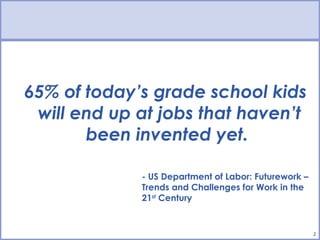
65% of today’s grade school kids
 will end up at jobs that haven’t
       been invented yet.

             - US Department of Labor: Futurework –
             Trends and Challenges for Work in the
             21st Century


                                                      2
Session Objectives


• Become familiar with the popular instructional tools available to
  support learning & engage students

• Share examples of technology practices that have worked in
  schools

• Learn how to make informed technology planning and purchasing
  decisions

• Understand technology purchasing process

• Connect with other schools on innovative uses of technology to
  support teaching and learning

                                                                      3
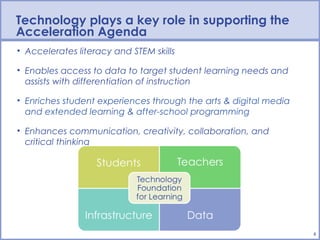
Technology plays a key role in supporting the
Acceleration Agenda
• Accelerates literacy and STEM skills

• Enables access to data to target student learning needs and
  assists with differentiation of instruction

• Enriches student experiences through the arts & digital media
  and extended learning & after-school programming

• Enhances communication, creativity, collaboration, and
  critical thinking


                                                                  4
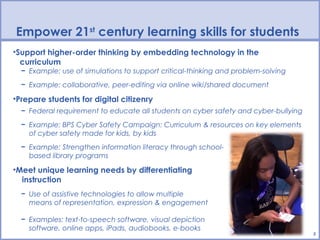
Empower 21st century learning skills for students
•Support higher-order thinking by embedding technology in the
  curriculum
  − Example: use of simulations to support critical-thinking and problem-solving
  − Example: collaborative, peer-editing via online wiki/shared document

•Prepare students for digital citizenry
  − Federal requirement to educate all students on cyber safety and cyber-bullying
  − Example: BPS Cyber Safety Campaign: Curriculum & resources on key elements
    of cyber safety made for kids, by kids
  − Example: Strengthen information literacy through school-
    based library programs

•Meet unique learning needs by differentiating
  instruction
  − Use of assistive technologies to allow multiple
    means of representation, expression & engagement

  − Examples: text-to-speech software, visual depiction
    software, online apps, iPads, audiobooks, e-books
                                                                                     5
Empower 21st century learning skills for students
• Promote self-expression & creativity
  − Example: Adobe Youth Voices, 900 students learn multimedia software & develop
    digital media projects on real-world issues impacting youth
  − Example: Use of voicethread or digital story online site to develop multi-media or
    research project


• Gain real-world, hands-on experience

  − Example: Students as publishers through blogging
  − Example: Partner with a classroom in another or bring
             experts into the classroom through video
             conference (e.g. Skype)


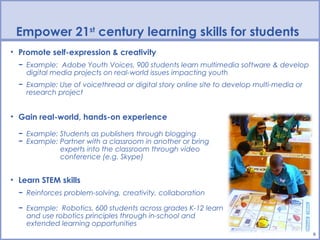
• Learn STEM skills
  − Reinforces problem-solving, creativity, collaboration

  − Example: Robotics, 600 students across grades K-12 learn
    and use robotics principles through in-school and
    extended learning opportunities
                                                                                         6
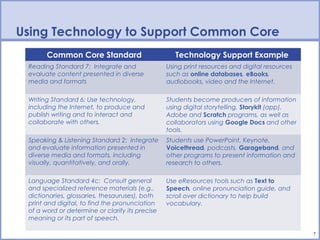
Using Technology to Support Common Core
       Common Core Standard                         Technology Support Example
 Reading Standard 7:  Integrate and              Using print resources and digital resources
 evaluate content presented in diverse           such as online databases, eBooks,
 media and formats                               audiobooks, video and the Internet.

 Writing Standard 6: Use technology,             Students become producers of information
 including the Internet, to produce and          using digital storytelling, Storykit (app),
 publish writing and to interact and             Adobe and Scratch programs, as well as
 collaborate with others.                        collaborators using Google Docs and other
                                                 tools.
 Speaking & Listening Standard 2:  Integrate     Students use PowerPoint, Keynote,
 and evaluate information presented in           Voicethread, podcasts, Garageband, and
 diverse media and formats, including            other programs to present information and
 visually, quantitatively, and orally.           research to others.

 Language Standard 4c:  Consult general          Use eResources tools such as Text to
 and specialized reference materials (e.g.,      Speech, online pronunciation guide, and
 dictionaries, glossaries, thesauruses), both    scroll over dictionary to help build
 print and digital, to find the pronunciation    vocabulary.
 of a word or determine or clarify its precise
 meaning or its part of speech.

                                                                                               7
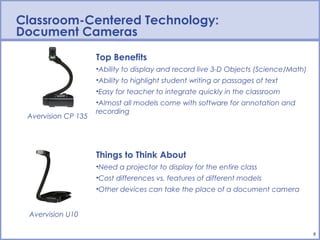
Classroom-Centered Technology:
Document Cameras
                     Top Benefits
                     •Ability to display and record live 3-D Objects (Science/Math)
                     •Ability to highlight student writing or passages of text
                     •Easy for teacher to integrate quickly in the classroom
                     •Almost all models come with software for annotation and
                     recording
 Avervision CP 135


                     Things to Think About
                     •Need a projector to display for the entire class
                     •Cost differences vs. features of different models
                     •Other devices can take the place of a document camera


 Avervision U10

                                                                                      8
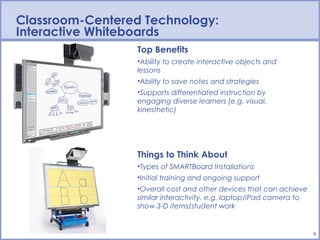
Classroom-Centered Technology:
Interactive Whiteboards
                 Top Benefits
                 •Ability to create interactive objects and
                 lessons
                 •Ability to save notes and strategies
                 •Supports differentiated instruction by
                 engaging diverse learners (e.g. visual,
                 kinesthetic)


                 Things to Think About
                 •Types of SMARTBoard Installations
                 •Initial training and ongoing support
                 •Overall cost and other devices that can achieve
                 similar interactivity, e.g. laptop/iPad camera to
                 show 3-D items/student work


                                                                     9
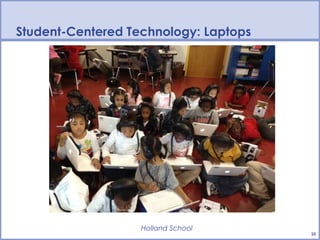
Student-Centered Technology: Laptops


                   Holland School
                                       10
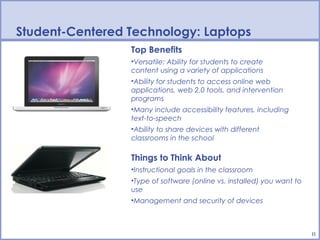
Student-Centered Technology: Laptops
                 Top Benefits
                 •Versatile: Ability for students to create
                 content using a variety of applications
                 •Ability for students to access online web
                 applications, web 2.0 tools, and intervention
                 programs
                 •Many include accessibility features, including
                 text-to-speech
                 •Ability to share devices with different
                 classrooms in the school

                 Things to Think About
                 •Instructional goals in the classroom
                 •Type of software (online vs. installed) you want to
                 use
                 •Management and security of devices


                                                                        11
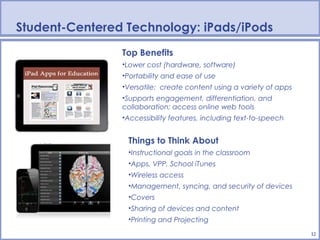
Student-Centered Technology: iPads/iPods
                Top Benefits
                •Lower cost (hardware, software)
                •Portability and ease of use
                •Versatile: create content using a variety of apps
                •Supports engagement, differentiation, and
                collaboration; access online web tools
                •Accessibility features, including text-to-speech


                 Things to Think About
                 •Instructional goals in the classroom
                 •Apps, VPP, School iTunes
                 •Wireless access
                 •Management, syncing, and security of devices
                 •Covers
                 •Sharing of devices and content
                 •Printing and Projecting
                                                                     12
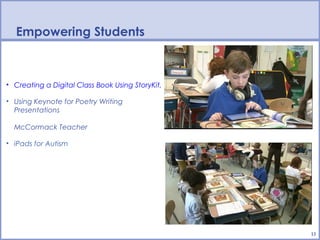
Empowering Students


• Creating a Digital Class Book Using StoryKit, Thematic Unit on Growth & Change

• Using Keynote for Poetry Writing
  Presentations

  McCormack Teacher

• iPads for Autism


                                                                                   13
Essential Conditions (iste.nets)


  Shared Vision                        Technical Support
  Empowered Leaders                    Curriculum Framework
  Implementation Planning              Student-Centered Learning
  Consistent & Adequate Funding        Assessment and Evaluation
  Equitable Access                     Engaged Communities
  Skilled Personnel                    Support Policies
  Ongoing Professional Learning        Supportive External Context


              International Society for Technology in Education
                                www.iste.org
                                                                     14
BPS Purchasing Process

• Purpose of the “Form 40”

• How the “Form 40” works

• New Quarterly Cycle for Technology Purchasing
       • Wednesday, September 12, 2012

       • Friday, December 7, 2012

       • Friday, March 8, 2013

       • Friday, May 31, 2013

• Technology Purchasing:
  www.bostonpublicschools.org/technology


                                                  15
Online Resources to Learn How to Get Started

• BPS Educational Technology Resources

• Follow #edtech on Twitter

• 10 Ed Tech Voices to Follow on Twitter

• Educational Technology and Mobile Learning

• 20 Schools Innovating with Digital

• Differentiated Instruction & Learning Styles – Online Resources


                                                                    16
e-Resources for Schools: www.bpslibraries.org
                      • Full-text reference books for the arts,
                        biography, business, the environment,
                        history, literature, medicine, multicultural
                        studies, geography, and science for
                        middle and high school students.


                       • Online collection of animated,
                         talking picture books to support literacy
                       • Includes fiction, non-fiction and foreign
                         language titles
                       • Highlights text during reading
                       • Can be searched by Lexile level


                      • Articles and images from more than
                        1,900 newspapers, magazines, and
                        documents, along with 9,000+
                        educational web links
                      • Geared to learners in grades 1-9
                      • Search by Lexile level to differentiate
                        learning
Q&A

• How do you want to use technology this year with your
  students?


• How can OIIT support you with technology planning, design &
  implementation?


• If OIIT facilitates an online PLC on educational technology,
  would you participate?
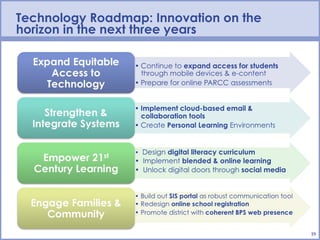
Technology Roadmap: Innovation on the
horizon in the next three years


                                        19
To Learn More:

                Melissa Dodd, Chief Information Officer
                  mdodd@bostonpublicschools.org

             Joe Kidd, Assistant Chief Information Officer
                   jkidd@bostonpublicschools.org

       Diane Hauser, Assistant Director, Instructional Technology
                 dhauser@bostonpublicschools.org

                   Amy Short, Library Media Director
                   ashort@bostonpublicschools.org

                Solimar Cruzado, Business Coordinator
                 scruzado@bostonpublicschools.org


                  Boston Public Schools Technology
              www.bostonpublicschools.org/technology
               Twitter: @BPSTechnology @MelissaPDodd
                                                                    20

Technology Tools to Support Diverse Learning Needs

  • 1.
    Technology Tools toSupport Diverse Learning Needs Office of Instructional & Information Technology Type Date Here School Leader Institute August 21 & 22, Type Presenter Name/Contact Here 2012 1
  • 2.
    65% of today’sgrade school kids will end up at jobs that haven’t been invented yet. - US Department of Labor: Futurework – Trends and Challenges for Work in the 21st Century 2
  • 3.
    Session Objectives • Becomefamiliar with the popular instructional tools available to support learning & engage students • Share examples of technology practices that have worked in schools • Learn how to make informed technology planning and purchasing decisions • Understand technology purchasing process • Connect with other schools on innovative uses of technology to support teaching and learning 3
  • 4.
    Technology plays akey role in supporting the Acceleration Agenda • Accelerates literacy and STEM skills • Enables access to data to target student learning needs and assists with differentiation of instruction • Enriches student experiences through the arts & digital media and extended learning & after-school programming • Enhances communication, creativity, collaboration, and critical thinking 4
  • 5.
    Empower 21st centurylearning skills for students •Support higher-order thinking by embedding technology in the curriculum − Example: use of simulations to support critical-thinking and problem-solving − Example: collaborative, peer-editing via online wiki/shared document •Prepare students for digital citizenry − Federal requirement to educate all students on cyber safety and cyber-bullying − Example: BPS Cyber Safety Campaign: Curriculum & resources on key elements of cyber safety made for kids, by kids − Example: Strengthen information literacy through school- based library programs •Meet unique learning needs by differentiating instruction − Use of assistive technologies to allow multiple means of representation, expression & engagement − Examples: text-to-speech software, visual depiction software, online apps, iPads, audiobooks, e-books 5
  • 6.
    Empower 21st centurylearning skills for students • Promote self-expression & creativity − Example: Adobe Youth Voices, 900 students learn multimedia software & develop digital media projects on real-world issues impacting youth − Example: Use of voicethread or digital story online site to develop multi-media or research project • Gain real-world, hands-on experience − Example: Students as publishers through blogging − Example: Partner with a classroom in another or bring experts into the classroom through video conference (e.g. Skype) • Learn STEM skills − Reinforces problem-solving, creativity, collaboration − Example: Robotics, 600 students across grades K-12 learn and use robotics principles through in-school and extended learning opportunities 6
  • 7.
    Using Technology toSupport Common Core Common Core Standard Technology Support Example Reading Standard 7:  Integrate and Using print resources and digital resources evaluate content presented in diverse such as online databases, eBooks, media and formats audiobooks, video and the Internet. Writing Standard 6: Use technology, Students become producers of information including the Internet, to produce and using digital storytelling, Storykit (app), publish writing and to interact and Adobe and Scratch programs, as well as collaborate with others. collaborators using Google Docs and other tools. Speaking & Listening Standard 2:  Integrate Students use PowerPoint, Keynote, and evaluate information presented in Voicethread, podcasts, Garageband, and diverse media and formats, including other programs to present information and visually, quantitatively, and orally. research to others. Language Standard 4c:  Consult general Use eResources tools such as Text to and specialized reference materials (e.g., Speech, online pronunciation guide, and dictionaries, glossaries, thesauruses), both scroll over dictionary to help build print and digital, to find the pronunciation vocabulary. of a word or determine or clarify its precise meaning or its part of speech. 7
  • 8.
    Classroom-Centered Technology: Document Cameras Top Benefits •Ability to display and record live 3-D Objects (Science/Math) •Ability to highlight student writing or passages of text •Easy for teacher to integrate quickly in the classroom •Almost all models come with software for annotation and recording Avervision CP 135 Things to Think About •Need a projector to display for the entire class •Cost differences vs. features of different models •Other devices can take the place of a document camera Avervision U10 8
  • 9.
    Classroom-Centered Technology: Interactive Whiteboards Top Benefits •Ability to create interactive objects and lessons •Ability to save notes and strategies •Supports differentiated instruction by engaging diverse learners (e.g. visual, kinesthetic) Things to Think About •Types of SMARTBoard Installations •Initial training and ongoing support •Overall cost and other devices that can achieve similar interactivity, e.g. laptop/iPad camera to show 3-D items/student work 9
  • 10.
  • 11.
    Student-Centered Technology: Laptops Top Benefits •Versatile: Ability for students to create content using a variety of applications •Ability for students to access online web applications, web 2.0 tools, and intervention programs •Many include accessibility features, including text-to-speech •Ability to share devices with different classrooms in the school Things to Think About •Instructional goals in the classroom •Type of software (online vs. installed) you want to use •Management and security of devices 11
  • 12.
    Student-Centered Technology: iPads/iPods Top Benefits •Lower cost (hardware, software) •Portability and ease of use •Versatile: create content using a variety of apps •Supports engagement, differentiation, and collaboration; access online web tools •Accessibility features, including text-to-speech Things to Think About •Instructional goals in the classroom •Apps, VPP, School iTunes •Wireless access •Management, syncing, and security of devices •Covers •Sharing of devices and content •Printing and Projecting 12
  • 13.
    Empowering Students • Creatinga Digital Class Book Using StoryKit, Thematic Unit on Growth & Change • Using Keynote for Poetry Writing Presentations McCormack Teacher • iPads for Autism 13
  • 14.
    Essential Conditions (iste.nets) Shared Vision Technical Support Empowered Leaders Curriculum Framework Implementation Planning Student-Centered Learning Consistent & Adequate Funding Assessment and Evaluation Equitable Access Engaged Communities Skilled Personnel Support Policies Ongoing Professional Learning Supportive External Context International Society for Technology in Education www.iste.org 14
  • 15.
    BPS Purchasing Process •Purpose of the “Form 40” • How the “Form 40” works • New Quarterly Cycle for Technology Purchasing • Wednesday, September 12, 2012 • Friday, December 7, 2012 • Friday, March 8, 2013 • Friday, May 31, 2013 • Technology Purchasing: www.bostonpublicschools.org/technology 15
  • 16.
    Online Resources toLearn How to Get Started • BPS Educational Technology Resources • Follow #edtech on Twitter • 10 Ed Tech Voices to Follow on Twitter • Educational Technology and Mobile Learning • 20 Schools Innovating with Digital • Differentiated Instruction & Learning Styles – Online Resources 16
  • 17.
    e-Resources for Schools:www.bpslibraries.org • Full-text reference books for the arts, biography, business, the environment, history, literature, medicine, multicultural studies, geography, and science for middle and high school students. • Online collection of animated, talking picture books to support literacy • Includes fiction, non-fiction and foreign language titles • Highlights text during reading • Can be searched by Lexile level • Articles and images from more than 1,900 newspapers, magazines, and documents, along with 9,000+ educational web links • Geared to learners in grades 1-9 • Search by Lexile level to differentiate learning
  • 18.
    Q&A • How doyou want to use technology this year with your students? • How can OIIT support you with technology planning, design & implementation? • If OIIT facilitates an online PLC on educational technology, would you participate?
  • 19.
    Technology Roadmap: Innovationon the horizon in the next three years 19
  • 20.
    To Learn More: Melissa Dodd, Chief Information Officer mdodd@bostonpublicschools.org Joe Kidd, Assistant Chief Information Officer jkidd@bostonpublicschools.org Diane Hauser, Assistant Director, Instructional Technology dhauser@bostonpublicschools.org Amy Short, Library Media Director ashort@bostonpublicschools.org Solimar Cruzado, Business Coordinator scruzado@bostonpublicschools.org Boston Public Schools Technology www.bostonpublicschools.org/technology Twitter: @BPSTechnology @MelissaPDodd 20

Editor's Notes

  • #2 Welcome…any special way? The capabilities of technology are quickly becoming limited only by our own creativity.
  • #3 Arrival/Introduction/Objectives (10 minutes)
  • #4 Arrival/Introduction/Objectives (10 minutes)
  • #5 Technology plays a pivotal role in helping to realize the vision of a BPS graduate and throughout this presentation I will demonstration how. Our work as a technology department is to support and develop a technology foundation for learning – that ensures the needed infrastructure, data systems, and tools & resources for teachers and students to succeed. We have had very strong IT leadership – and need to make sure I credit our past leaders specifically Kim Rice for establish a solid foundation for us to build on. To give you an idea of how our work supports these 4 quadrants, we put together an infographic, which is a visual display of complex information quickly and clearly Technology supports the Acceleration Agenda by: Helping to close access and opportunity gaps We have increased our graduation rate by 6% over the last X years due to online credit recovery Students have access to academic supports and rich, tools through sites like Khan Academy that extends their learning in an engaging way from any computer, anywhere across the city. students to compete in today’s world, they need the 2. Accelerating literacy and STEM skills We support the IT pipeline by placing over 100 students annually in paid, technology internships to explore career opportunities in industries (not just technology) Use educational apps to develop language acquisition… 3. Enabling access to data to target student learning needs and assisting with differentiation of instruction With iPads and educational apps, students on the autism spectrum learn communication skills, build self-confidence, and access the curriculum in meaningful ways Enhancing communication, creativity, collaboration, and critical thinking We strengthened arts opportunities by 900 students expressing their voice through Adobe Youth Voices Program Students in kindergarten through high school are learning engineering concepts and problem-solving skills through robotics programming
  • #6 Melissa’s notes: context as to why school leaders should bother spending money on technology – or for those who want to or their teachers want to but they haven’t fully bought into it yet. Original Slide Notes: Helping teachers use and embed technology 10,000 seats of technology professional development offered, since June 2011, focus on infusing technology into teaching & learning and using the SIS and BPS data systems to support instruction and monitor student progress 25 school-based leadership teams trained on using technology as a tool of change through 21 st century leadership cadres program Meeting unique learning needs by differentiating instruction Deployed over 200 mobile devices (iPads and iPod Touches) for English Language Learners and students on the Austism spectrum. Trained 150 teachers in integrating mobile technologies with students in the classroom
  • #7 Melissa’s notes: context as to why school leaders should bother spending money on technology – or for those who want to or their teachers want to but they haven’t fully bought into it yet. Original Slide Notes: Develop technology skills – graphic design & multimedia creation Have on the job experiences to explore IT fields Visit the Mayor’s Summer Jobs website to see a video that we developed with support from Boston Properties (insert video of 3 rd grade engineering class here) Additional Notes: Literacy & Analytical Writing Technology integration into the Common Writing Assignment Web-based interventions to support reading (e.g. SuccessMaker, Read 180, Lexia) Online resources, databases, and research tools Reading Street & Anthology online curriculum resources Online formative assessments for grades 3-12 Science, Technology, Engineering & Mathematics (STEM) Robotics in K-12 (28 schools) Computer modeling, programming & 3D gaming (Star Logo & Scratch) in middle & high schools First in Math in elementary schools Algebra 1 online course for “off-track” youth Robotics: In 28 schools K-Grade 1: Bee-Bots Teaches programming & problem-solving while reinforcing language, math & science knowledge aligned to learning standards Adapted to support literacy development & language acquisition Grades 2-8: Alpha-Robotics & Lego Robotics Interdisciplinary focus on math, science, literacy, programming, inc. problem-solving, creativity & collaboration Annual Robotics Olympics (200 students). June 2, 2012 at Wentworth Institute for Technology Grades 7-12: Programming, Electronic & Mechanical Design After-school & extended learning focus Machine Science Sumo Robot Competition Robotics School Vacation Bootcamps
  • #8 Melissa: Drive home the message that yes, we are focused on Common Core and Literacy and yes, technology can help and make a difference. What does Common Core play an emphasis on Amy: Many of the eResources on the BPS Libraries webpage offer tools such as text-to-speech, highlighted text, common core alignment, and searching by subject and Lexile level, providing a myriad of informational resources that can be differentiated to individual students learning needs reading informational texts and complex texts: Print and Digital Resources, eResources
  • #9 Top Tools Available (45 minutes) #1-Document Camera Specific BPS Uses – History department uses them for their PD – display specific paper documents and handouts without having to scan them in or use transparencies. Document Cameras are used in all subject areas to display student work, display educational content on a piece of paper, display 3D objects and manipulatives to an entire class, etc…It is the next generation overhead. Examples: Math – display problem solving strategies, display student work, display 3D Manipulatives, shapes Science – 3D manipulatives, science experiments, plants, animals, microscope attachments can look at microscope slides ELA – Collaborative writing and editing , highlight important passages of text. Display, showcase Writer ’s Workshop Notebook from notebook instead of having to make copies or transparencies – takes student modeling to a new level Benefits: -easy technology to integrate immediately in the classroom -display student work and objects -ability to save images of objects -easy to get students involved using it -can take it to the next level by using software to annotate documents -Appeals to visual learners CONS -need an LCD projector to use -Does one thing really well…but just that one thing – that can be satisfied with other devices -tethered to projector or USB cable, so you can ’t move it around all over the classroom easily Things to think about – You need to purchase a projector to show the content. Training to learn about the software that comes with the camera to annotate documents digitally. Other options for a document camera – the camera on the L4L MacBook. A camera on an iPad hooked up to a projector. Bring: 2 avervision document cameras From Robbie : use the doc camera in pretty much every PD. It serves many functions…We can toggle back and forth between the ppt and specific docs we want to highlight. We often have handouts we want teachers to use to complete specific tasks. The doc camera makes it easier to project and show these without having to scan or cut/paste these into a ppt. Also, we can use it to project teacher answers or to highlight a specific section in the textbook or teacher guide.
  • #10 Top Tools Available (45 minutes) #2-Interactive Whiteboard Projects: SMARTBoard: The SMARTBoard is a type of interactive whiteboard that uses a touch-based surface for interactivity. It allows you to control any application from the board as if you were doing it using the The Board comes with SMART Notebook software that allows you create interactive lesson plans to engage visual and kinesthetic learners. Benefits: Interactivity, Engagement, ability to save notes and share strategies iRover Cart Mention Other Boards Mimeo **You can also do this similarly with an iPad in some ways. Bring: ?
  • #11 Top Tools Available (45 minutes) #3-Laptops (Macs (airs, pros, Lenovo, Chromebook) (Engage Students) Projects: ? Air…accessibility pieces (Text to Speech) Bring: 2 airs 2 pros 2 Lenovos 2 chromebooks
  • #12 Top Tools Available (45 minutes) #3-Laptops (Macs (airs, pros, Lenovo, Chromebook) (Engage Students) MacBook Pro – Pros: great creative software included for students in iLife ’ 11. Same as teacher L4L which makes it easier for teacher to be comfortable. Great Operating system, tends to have less virus issues than Windows, great accessibility options including text to speech and other Universal Design Settings. Cons: More expensive than other laptops available. Possibility that students do not use laptops to their full capacity. Buy this laptop if you want your students to: Access the internet, access flash based content, access java based content, save work on the internal hard drive, edit and create video and other digital media using iLife software, run software that needs a powerful processeser and RAM like CAD software or Adobe Creative Suite. Be able to play and burn DVD ’s. MacBook Air – Pros: super-thin and light. Ultra portable. Great Mac OS with iLife Suite, just like MacBook Pro. Instant on and off because of Solid State Hard Drive (huge timesaver for the classroom) Fast computer. Cons: Thin and Light form factor may be more susceptible to drops and damage. Solid State HD leaves very little space for saving lots of projects, especially multimedia. No optical drive for CD ’s or DVD’s, not ethernet port, can only connect wirelessly, unless you buy an ethernet adapter. Buy this computer if you want very thin and light form-factor to easily transport from classroom to classroom, ability to surf the web, do some light multi-media work, the ability to store student work to the “cloud” or to network drives, your school has a pervasive wireless network, or you get a wireless access point to go with it. Lenovo ThinkPad Edge E430 – Standard Windows 7 laptop with intel core i3 processor. 320GB Optical drive Pros: Powerful enough to run intensive software, digital editing, Microsoft Office. Will run all types of web applications and plugins. Schools that run PC labs will have that same Windows familiarity. Cons: More susceptible to virus issues than Mac right now. Doesn’t come with creativity software out of the box like Mac. Lenovo X130 - The Lenovo X130 is a small form factor Windows 7 laptop. It a good laptop with a smaller screen for younger students. The laptop has a durable shell and screen that can withstand small drops. Boasts an all day battery life. Priced less than a MacBook. Cons: Not as powerful as the MacBook, no optical drive. Doesn ’t come with as comprehensive multimedia tools out of the box as the Mac. Screen is too small for some people’s taste. You should buy this laptop if…you want a Windows OS, you want to access any web applications no matter what browser, don ’t need an optical drive. Google Chromebook: Like the MacBook Air, a Google ChromeBook has a solid state hard-drive and has instant on/off. It has its own operating system called Chrome OS and only connects to the web. There is very little onboard storage. Pros: instant on/off…if you use Google Apps for Education or have a Google Account, it does not matter which ChromeBook you use, everything you have, files, documents, bookmarks are all stored in the cloud not the device. Google has a replacement policy, can remote wipe devices if they are stolen. Low pricing on device. All day battery device. Possible to get 3G versions. Under $500 price tag. Ability to access work easily no matter which device you use. Cons: no hard drive storage. Not a traditional OS, does not run Microsoft Office, may not run Java simulations (which has caused some problems with educational tools according to BLA) Not ethernet port…need wireless. Really need to be running Google Apps for Education to take full advantage. Bring: 2 airs 2 pros 2 Lenovos 2 chromebooks
  • #13 Top Tools Available (45 minutes) #4-iPods/iPads/Apps Projects: Special Education, Literacy, ELL Pros: -Besides it being new, cool, and fun… -Versitile, light, portable -There’s an app for that…there’s an app for everything! -Creation tool…ability to edit and create video and other digital media using iLife To Think About -Wifi -Apps (free or cost) -School VPP, iTunes Account, Sync Managers ( i.e., DIBELS Device Administrator) -Content Sharing and Storing…saving and sharing (server, bpsedmodo) -Dropbox?, bpsedmodo? BPS Connect site (not current limit) with an eventual move to a cloud solution -Printing -Projecting -Flash based content ? Feature Apps: 1 SPED, 1 ELA, 1Math Bring 5 iPads, loaded 5 iPod Touches iPad over examples
  • #14 Top Tools Available (45 minutes) #4-iPods/iPads/Apps Projects: Special Education, Literacy, ELL McCormack School Story) Henderson Phome Mini Podcast for ELL Students (?) https:// connect.mybps.org/groups/21stcenturyleadershipcadre20112012/weblog/c3e34/images/d9faa.m4a Bring 5 iPads, loaded 5 iPod Touches iPad over examples Feature Apps: 1 SPED, 1 ELA, 1Math ? VPP
  • #15 Tech Essentials in Schools (10)  Melissa Essential Conditions handout What are you looking to accomplish Classroom experience to look like Build out What is needed for support Curriculum Planning and support Policies Overall plan - We have been working on this internally...essential conditions necessary in schools to leverage technology. What should principals and teachers think about? This is an opportunity for your feedback as we develop. --Distribute Document...are these conditions you think about when you purchase technology -? Turn and Talk …how best to frame discussion and make it interactive - Discussion Questions/Points - Instructional Goals (Shared Vision) –”What’s the instructional goal? Does that piece of technology match the instructional goal? What do you want to see when you walk into a classroom?” -Compatibility (network, i.e., iPads-First In Math, age-level appropriateness) -Total Cost of Ownership of Devices (i.e., iPads and apps) -Training (Appropriate time allotted for teachers to be able to learn how to use the technology effectively in the classroom. i.e., in school, coffee hour, online tutorials, central, leveraging tech champs) -Security and Asset Management (low-jack, asset tags, locked down devices...how to secure...) -Implementation (Equitable Access...for students and teacher...how to share) -Management (Human Capital/Skilled Personnel, i.e., cart management) -Assessment (does it work, is it worth the investment) --OIIT Recommendation:  Priority List, OIIT Assistance, School Visits -- Share Out
  • #16 Process (20 minutes) (Melissa, Soli) Technology purchasing Workflow...order to delivery and set up in schools including security and storage of technology (video) Centralized Ordering -Ordering -Delivery -Installation -Wireless -Security -Training -Support -Inventory Bring: -Superintendent’s Circular -Tech Purchasing Guidelines
  • #17 Online Resources Paid Prescriptions: First in Math, Raz Kids Recommendation: purpose, student data collection for tracking purposes Free Resources: Khan Academy Where to direct ? Voicethread (Ed)
  • #20 The possibilities of educational technology are growing exponentially We want Boston to be on the cutting edge, planning is already underway: Expand Access: e-content, exploring replicating success of our 1:1 programs like TBA, and prepare for online assessments that are right around the corner Data: RFP for cloud-based email & collaboration – support going paperless and document storage. I keep everything on my laptop and phone and can pull something up through a search function; personal learning environments – rather than having to go to multiple places, how can I access everything from one entry point 21 st Cent Learning: our students need to do more than just be critical consumers of information – they need to be producers of it. Working with Academic leadership on a k12 digital literacy curriculum – technology skills & use across content areas; digital safety - expand pilots of blending and online learning to extend the school day - harness the wealth of educational content on the web, our kids live in a social, connected world. Family - While divides are diminishing, they still exist. Yet mobile access to cell & smartphones is growing. Language of common core – how to embed technology – connection to commoncore - PARCC assessments – online research integrated into response NAEP – technology based assessments Expand Access to Mobile Technology for Students Equity of access to devices in every school through cost-sharing funding model between OIIT & schools Develop and adopt e-content & e-textbooks Implement cloud-based communication & collaboration Tools Design & Implement a Digital Literacy Curriculum Across Content Areas At the core, educate all students on being digital citizens - Internet Safety & Cyber bullying Prepare students to be critical consumers & constructors of information & new ideas Align to support CommonCore By 2014, districts will need to report on internet safety and cyber-bullying education to Federal government. Federal requirement to educate all students on internet safety and cyberbullying Unlock digital doors to learning opportunities: YouTube & Social Media Leverage Blended & Virtual Learning to Extend Learning Opportunities Implement pilot program in middle grades to identify best practice for engaging students & expanding enrichment Ensure all students graduate with an online learning experience Create Personal Online Environments for Learning to Take Place Everywhere Integrate tools, resources, and content with a signal point of entry for students Empower students to construct their own learning