TECHNO RUN
Workplace Coaching and
Mentoring
Click to edit Master title style
Acknowledgement of
Traditional Owners
Presentation title
Australia Awards Scholarship
Techno Run
QUT acknowledges the Turrbal and Yugara, as the First Nations owners of
the lands where QUT now stands. We pay respect to their Elders, lores,
customs and creation spirits. We recognise that these lands have always
been places of teaching, research, and learning.
QUT acknowledges the important role the Aboriginal and Torres Strait
Islander people play within the QUT community.
Australia Awards and Alumni Engagement Program
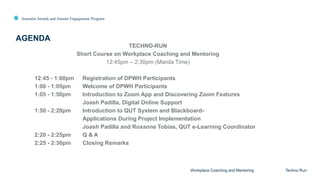
TECHNO-RUN
Short Course on Workplace Coaching and Mentoring
12:45pm – 2:30pm (Manila Time)
12:45 - 1:00pm Registration of DPWH Participants
1:00 - 1:05pm Welcome of DPWH Participants
1:05 - 1:50pm Introduction to Zoom App and Discovering Zoom Features
Joash Padilla, Digital Online Support
1:50 - 2:20pm Introduction to QUT System and Blackboard-
Applications During Project Implementation
Joash Padilla and Roxanne Tobias, QUT e-Learning Coordinator
2:20 - 2:25pm Q & A
2:25 - 2:30pm Closing Remarks
AGENDA
Workplace Coaching and Mentoring Techno Run
Click to edit Master title style
Welcome
Workplace Coaching and Mentoring
Australia Awards and Alumni Engagement Program
Techno Run
Marichu Suarez
Click to edit Master title style
Introduction to
Zoom
Workplace Coaching and Mentoring
Australia Awards and Alumni Engagement Program
Techno Run
Joash Padilla
Australia Awards Scholarship
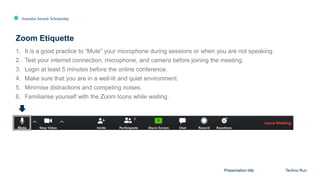
1. It is a good practice to “Mute” your microphone during sessions or when you are not speaking.
2. Test your internet connection, microphone, and camera before joining the meeting.
3. Login at least 5 minutes before the online conference.
4. Make sure that you are in a well-lit and quiet environment.
5. Minimise distractions and competing noises.
6. Familiarise yourself with the Zoom Icons while waiting.
Zoom Etiquette
Presentation title Techno Run
Click to edit Master title style
Presentation title
Australia Awards Scholarship
Techno Run
Click to edit Master title style
Presentation title
Australia Awards Scholarship
Techno Run
Australia Awards Scholarship
At the end of the training:
1. Learn the basic navigation and tools of the Zoom interface.
2. Simulate and experience the basic features of Zoom including:
• Non-verbal feedback
• Polling
• Breakout rooms
• Screen Sharing and annotations
3. Understand the application of features for learning sessions.
4. Question and Answer (Q and A)
Training Objectives
Presentation title Techno Run
Australia Awards Scholarship
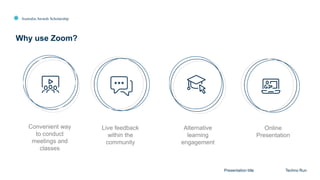
Why use Zoom?
Presentation title Techno Run
Live feedback
within the
community
Convenient way
to conduct
meetings and
classes
Alternative
learning
engagement
Online
Presentation
Australia Awards Scholarship
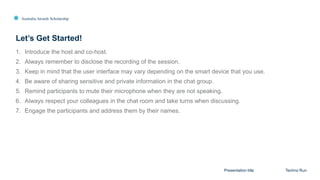
1. Introduce the host and co-host.
2. Always remember to disclose the recording of the session.
3. Keep in mind that the user interface may vary depending on the smart device that you use.
4. Be aware of sharing sensitive and private information in the chat group.
5. Remind participants to mute their microphone when they are not speaking.
6. Always respect your colleagues in the chat room and take turns when discussing.
7. Engage the participants and address them by their names.
Let’s Get Started!
Presentation title Techno Run
Australia Awards Scholarship
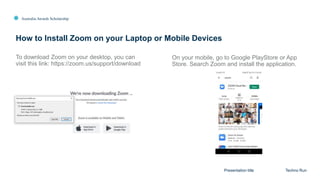
How to Install Zoom on your Laptop or Mobile Devices
Presentation title Techno Run
To download Zoom on your desktop, you can
visit this link: https://zoom.us/support/download
On your mobile, go to Google PlayStore or App
Store. Search Zoom and install the application.
Australia Awards Scholarship
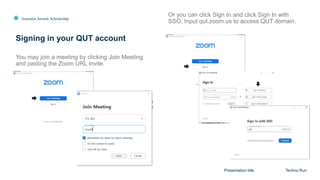
Signing in your QUT account
Presentation title Techno Run
You may join a meeting by clicking Join Meeting
and pasting the Zoom URL invite.
Or you can click Sign In and click Sign In with
SSO. Input qut.zoom.us to access QUT domain.
Australia Awards Scholarship
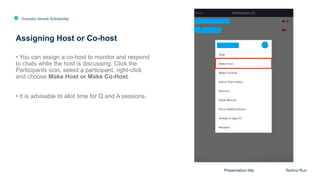
Assigning Host or Co-host
Presentation title Techno Run
• You can assign a co-host to monitor and respond
to chats while the host is discussing. Click the
Participants icon, select a participant, right-click
and choose Make Host or Make Co-Host.
• It is advisable to allot time for Q and A sessions.
Australia Awards Scholarship
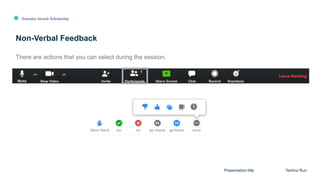
Non-Verbal Feedback
Presentation title Techno Run
There are actions that you can select during the session.
Australia Awards Scholarship
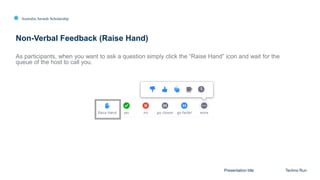
Non-Verbal Feedback (Raise Hand)
Presentation title Techno Run
As participants, when you want to ask a question simply click the “Raise Hand” icon and wait for the
queue of the host to call you.
Australia Awards Scholarship
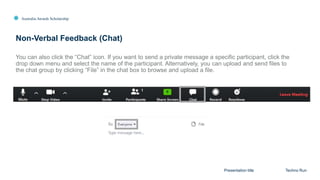
Non-Verbal Feedback (Chat)
Presentation title Techno Run
You can also click the “Chat” icon. If you want to send a private message a specific participant, click the
drop down menu and select the name of the participant. Alternatively, you can upload and send files to
the chat group by clicking “File” in the chat box to browse and upload a file.
Australia Awards Scholarship
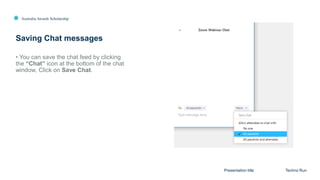
Saving Chat messages
Presentation title Techno Run
• You can save the chat feed by clicking
the “Chat” icon at the bottom of the chat
window, Click on Save Chat.
Australia Awards Scholarship
Polling
Presentation title Techno Run
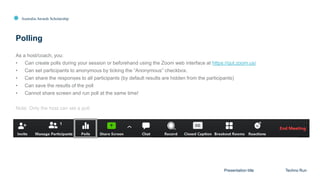
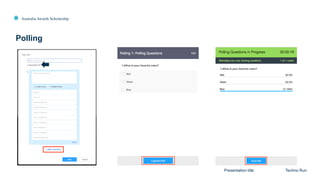
As a host/coach, you:
• Can create polls during your session or beforehand using the Zoom web interface at https://qut.zoom.us/
• Can set participants to anonymous by ticking the “Anonymous” checkbox.
• Can share the responses to all participants (by default results are hidden from the participants)
• Can save the results of the poll
• Cannot share screen and run poll at the same time!
Note: Only the host can set a poll.
Australia Awards Scholarship
Polling
Presentation title Techno Run
Australia Awards Scholarship
Screen Sharing
Presentation title Techno Run
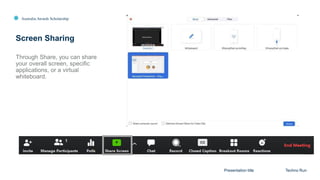
Through Share, you can share
your overall screen, specific
applications, or a virtual
whiteboard.
Australia Awards Scholarship
Screen Sharing Powerpoint
or other software
Presentation title Techno Run
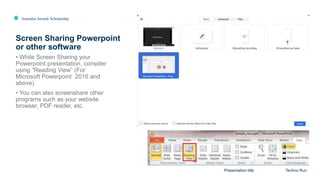
• While Screen Sharing your
Powerpoint presentation, consider
using “Reading View” (For
Microsoft Powerpoint 2016 and
above)
• You can also screenshare other
programs such as your website
browser, PDF reader, etc.
Australia Awards Scholarship
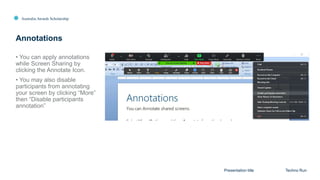
Annotations
Presentation title Techno Run
• You can apply annotations
while Screen Sharing by
clicking the Annotate Icon.
• You may also disable
participants from annotating
your screen by clicking “More”
then “Disable participants
annotation”
Australia Awards Scholarship
Breakout Room
Presentation title Techno Run
• Divide participants into smaller groups to better engage them. This can be done by manually
regrouping participants or Zoom can group the participants randomly.
• Allows your team conduct private meetings
• Be mindful that you can no longer access the main chat room when you are in a Breakout Room. Each
Breakout Room has their own chat box.
Australia Awards Scholarship
Breakout Room
Presentation title Techno Run
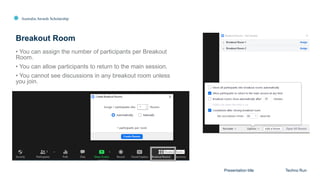
• You can assign the number of participants per Breakout
Room.
• You can allow participants to return to the main session.
• You cannot see discussions in any breakout room unless
you join.
Australia Awards Scholarship
Breakout Room
Presentation title Techno Run
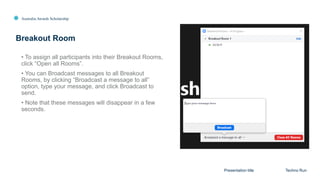
• To assign all participants into their Breakout Rooms,
click “Open all Rooms”.
• You can Broadcast messages to all Breakout
Rooms, by clicking “Broadcast a message to all”
option, type your message, and click Broadcast to
send.
• Note that these messages will disappear in a few
seconds.
Australia Awards Scholarship
Breakout Room
Presentation title Techno Run
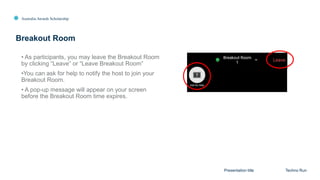
• As participants, you may leave the Breakout Room
by clicking “Leave” or “Leave Breakout Room”
•You can ask for help to notify the host to join your
Breakout Room.
• A pop-up message will appear on your screen
before the Breakout Room time expires.
Australia Awards Scholarship
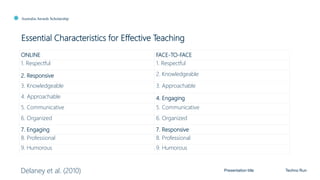
Essential Characteristics for Effective Teaching
Presentation title Techno Run
ONLINE FACE-TO-FACE
1. Respectful 1. Respectful
2. Responsive 2. Knowledgeable
3. Knowledgeable 3. Approachable
4. Approachable 4. Engaging
5. Communicative 5. Communicative
6. Organized 6. Organized
7. Engaging 7. Responsive
8. Professional 8. Professional
9. Humorous 9. Humorous
Delaney et al. (2010)
Australia Awards Scholarship
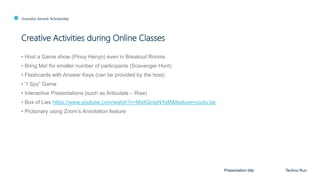
Creative Activities during Online Classes
Presentation title Techno Run
• Host a Game show (Pinoy Henyo) even in Breakout Rooms
• Bring Me! for smaller number of participants (Scavenger Hunt)
• Flashcards with Answer Keys (can be provided by the host)
• “I Spy” Game
• Interactive Presentations (such as Articulate – Rise)
• Box of Lies https://www.youtube.com/watch?v=Md4QnipNYqM&feature=youtu.be
• Pictionary using Zoom’s Annotation feature
Australia Awards Scholarship
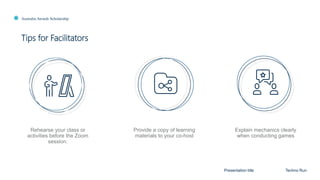
Tips for Facilitators
Presentation title Techno Run
Rehearse your class or
activities before the Zoom
session.
Provide a copy of learning
materials to your co-host
Explain mechanics clearly
when conducting games
Australia Awards Scholarship
References
Presentation title Techno Run
• Dart, Sarah (2020). Introduction to Educating on Zoom [PowerPoint slides]
• Delaney, J. G., Johnson, A., Johnson, T. D., & Treslan, D. (2010). Students’ perceptions of effective
teaching in higher education. Project Report. Memorial University of Newfoundland, St. John's,
Newfoundland.
• Mr. Hooker (2020). 25 Strategies to Engage Students on your Next Zoom Meeting. Retrieved from:
https://hookedoninnovation.com/2020/05/13/25-strategies-to-engage-
zoom/?fbclid=IwAR1X5NS59yVTwG0pZv3Q1epkl7GGWRC_peKG6eN-0kW2CmmBXJi_75sHSNU
• Zoom Helpdesk (2020). Frequently Asked Questions for Admins. Retrieved from:
https://support.zoom.us/hc/en-us
Click to edit Master title style
Introduction to
QUT System and
Blackboard
QUT Blackboard Training
Australia Awards and Alumni Engagement Program
Techno Run
Roxanne Tobias
Australia Awards and Alumni Engagement Program
Dear Roxanne,
Welcome to QUT!
You have been registered to the QUT system for the Workplace Coaching and Mentoring Short Course.
Please take note of the following details especially your username, as you will always need this in accessing the QUT system online:
FIRST_NAME...............: Roxanne
SURNAME..................: Mearns
BIRTH_DATE...............: xxxx
ACCOUNT_ID...............: xxxx
USERNAME.................: tobiasr
EMAIL....................: roxanne.tobias@qut.edu.au
START_DATE...............: xxxx
END_DATE.................: xxxx
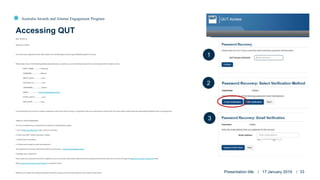
The next thing to do now is to create a password, which you will be using in conjunction with your username to access QUT services online, particularly the International Projects Unit e-Learning hub.
CREATE YOUR PASSWORD.
You can create/reset your password via email by following these steps:
1. Go to Password Recovery page. (Click on the link.)
2. Enter your QUT visitor username: tobiasr
3. Click Email verification.
4. Follow the prompts to reset the password.
Your password recovery email that needs to be entered is: roxanne.tobias@qut.edu.au
Forgotten your password?
If you reset your password but have forgotten it, you can access information about self-service password recovery and how to do this through the Recover your QUT password video.
More password self-service information is available online.
Please try to create your password today so that we can get you set up and ready for your session next week. Presentation title / 17 January 2019 / 33
Accessing QUT
1
2
3
Australia Awards and Alumni Engagement Program
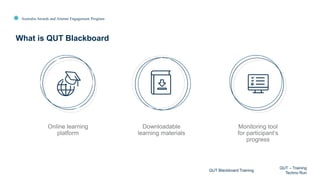
Online learning
platform
What is QUT Blackboard
QUT Blackboard Training
QUT – Training
Techno Run
Downloadable
learning materials
Monitoring tool
for participant’s
progress
Australia Awards and Alumni Engagement Program
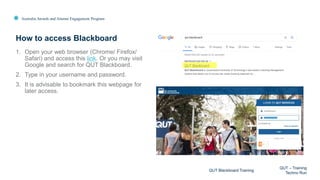
1. Open your web browser (Chrome/ Firefox/
Safari) and access this link. Or you may visit
Google and search for QUT Blackboard.
2. Type in your username and password.
3. It is advisable to bookmark this webpage for
later access.
How to access Blackboard
QUT Blackboard Training
QUT – Training
Techno Run
Australia Awards and Alumni Engagement Program
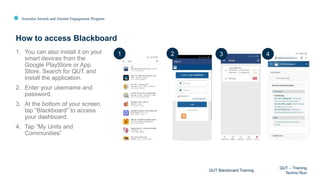
1. You can also install it on your
smart devices from the
Google PlayStore or App
Store. Search for QUT and
install the application.
2. Enter your username and
password.
3. At the bottom of your screen,
tap “Blackboard” to access
your dashboard.
4. Tap “My Units and
Communities”
How to access Blackboard
QUT Blackboard Training
QUT – Training
Techno Run
1 2 3 4
Australia Awards and Alumni Engagement Program
How to access Blackboard
QUT Blackboard Training
QUT – Training
Techno Run
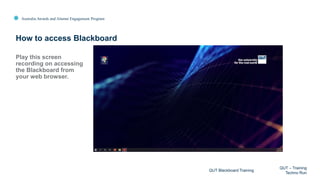
Play this screen
recording on accessing
the Blackboard from
your web browser.
Australia Awards and Alumni Engagement Program
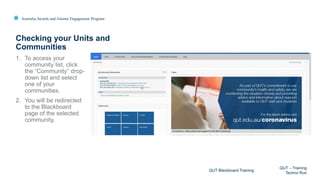
1. To access your
community list, click
the “Community” drop-
down list and select
one of your
communities.
2. You will be redirected
to the Blackboard
page of the selected
community.
Checking your Units and
Communities
QUT Blackboard Training
QUT – Training
Techno Run
Australia Awards and Alumni Engagement Program
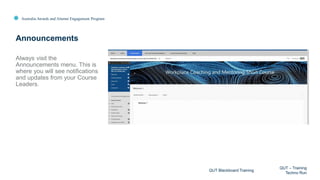
Always visit the
Announcements menu. This is
where you will see notifications
and updates from your Course
Leaders.
Announcements
QUT Blackboard Training
QUT – Training
Techno Run
Australia Awards and Alumni Engagement Program
To ensure that you receive
your email notifications, we
encourage you to set up
automatic forwarding of your
QUT emails to your
personal or work email
address.
Automatic email forwarding
QUT Blackboard Training
QUT – Training
Techno Run
1
2
3
4
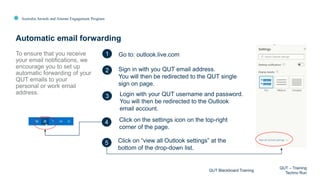
Go to: outlook.live.com
Sign in with you QUT email address.
You will then be redirected to the QUT single
sign on page.
Login with your QUT username and password.
You will then be redirected to the Outlook
email account.
Click on the settings icon on the top-right
corner of the page.
Click on “view all Outlook settings” at the
bottom of the drop-down list.
5
Australia Awards and Alumni Engagement Program
Automatic email forwarding
QUT Blackboard Training
QUT – Training
Techno Run
6
7
8
9
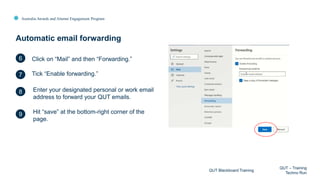
Click on “Mail” and then “Forwarding.”
Tick “Enable forwarding.”
Enter your designated personal or work email
address to forward your QUT emails.
Hit “save” at the bottom-right corner of the
page.
Australia Awards and Alumni Engagement Program
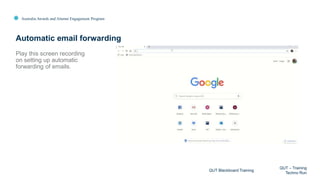
Play this screen recording
on setting up automatic
forwarding of emails.
Automatic email forwarding
QUT Blackboard Training
QUT – Training
Techno Run
Australia Awards and Alumni Engagement Program
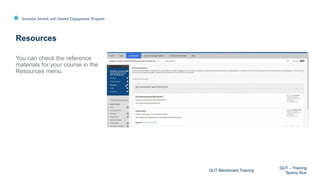
You can check the reference
materials for your course in the
Resources menu.
Resources
QUT Blackboard Training
QUT – Training
Techno Run
Australia Awards and Alumni Engagement Program
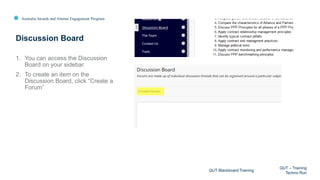
1. You can access the Discussion
Board on your sidebar.
2. To create an item on the
Discussion Board, click “Create a
Forum”
Discussion Board
QUT Blackboard Training
QUT – Training
Techno Run
Australia Awards and Alumni Engagement Program
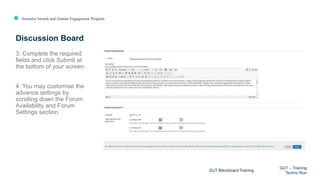
3. Complete the required
fields and click Submit at
the bottom of your screen.
4. You may customise the
advance settings by
scrolling down the Forum
Availability and Forum
Settings section.
Discussion Board
QUT Blackboard Training
QUT – Training
Techno Run
Australia Awards and Alumni Engagement Program
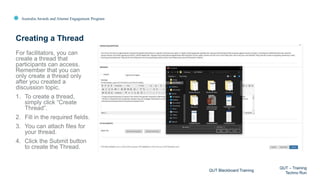
For facilitators, you can
create a thread that
participants can access.
Remember that you can
only create a thread only
after you created a
discussion topic.
1. To create a thread,
simply click “Create
Thread”.
2. Fill in the required fields.
3. You can attach files for
your thread.
4. Click the Submit button
to create the Thread.
Creating a Thread
QUT Blackboard Training
QUT – Training
Techno Run
Australia Awards and Alumni Engagement Program
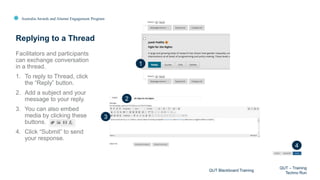
Facilitators and participants
can exchange conversation
in a thread.
1. To reply to Thread, click
the “Reply” button.
2. Add a subject and your
message to your reply.
3. You can also embed
media by clicking these
buttons.
4. Click “Submit” to send
your response.
Replying to a Thread
QUT Blackboard Training
QUT – Training
Techno Run
1
2
3
4
Click to edit Master title style
Q&A
Workplace Coaching and Mentoring
Australia Awards and Alumni Engagement Program
Techno Run
Click to edit Master title style
Closing Remarks
Workplace Coaching and Mentoring
Australia Awards and Alumni Engagement Program
Techno Run
Click to edit Master title style
Thank you
Presentation title
Australia Awards and Alumni Engagement Program
Techno Run
End of Presentation
Techno run Zoom, Blackboard and QUT access

Techno run Zoom, Blackboard and QUT access

  • 1.
  • 2.
    Click to editMaster title style Acknowledgement of Traditional Owners Presentation title Australia Awards Scholarship Techno Run QUT acknowledges the Turrbal and Yugara, as the First Nations owners of the lands where QUT now stands. We pay respect to their Elders, lores, customs and creation spirits. We recognise that these lands have always been places of teaching, research, and learning. QUT acknowledges the important role the Aboriginal and Torres Strait Islander people play within the QUT community.
  • 3.
    Australia Awards andAlumni Engagement Program TECHNO-RUN Short Course on Workplace Coaching and Mentoring 12:45pm – 2:30pm (Manila Time) 12:45 - 1:00pm Registration of DPWH Participants 1:00 - 1:05pm Welcome of DPWH Participants 1:05 - 1:50pm Introduction to Zoom App and Discovering Zoom Features Joash Padilla, Digital Online Support 1:50 - 2:20pm Introduction to QUT System and Blackboard- Applications During Project Implementation Joash Padilla and Roxanne Tobias, QUT e-Learning Coordinator 2:20 - 2:25pm Q & A 2:25 - 2:30pm Closing Remarks AGENDA Workplace Coaching and Mentoring Techno Run
  • 4.
    Click to editMaster title style Welcome Workplace Coaching and Mentoring Australia Awards and Alumni Engagement Program Techno Run Marichu Suarez
  • 5.
    Click to editMaster title style Introduction to Zoom Workplace Coaching and Mentoring Australia Awards and Alumni Engagement Program Techno Run Joash Padilla
  • 6.
    Australia Awards Scholarship 1.It is a good practice to “Mute” your microphone during sessions or when you are not speaking. 2. Test your internet connection, microphone, and camera before joining the meeting. 3. Login at least 5 minutes before the online conference. 4. Make sure that you are in a well-lit and quiet environment. 5. Minimise distractions and competing noises. 6. Familiarise yourself with the Zoom Icons while waiting. Zoom Etiquette Presentation title Techno Run
  • 7.
    Click to editMaster title style Presentation title Australia Awards Scholarship Techno Run
  • 8.
    Click to editMaster title style Presentation title Australia Awards Scholarship Techno Run
  • 9.
    Australia Awards Scholarship Atthe end of the training: 1. Learn the basic navigation and tools of the Zoom interface. 2. Simulate and experience the basic features of Zoom including: • Non-verbal feedback • Polling • Breakout rooms • Screen Sharing and annotations 3. Understand the application of features for learning sessions. 4. Question and Answer (Q and A) Training Objectives Presentation title Techno Run
  • 10.
    Australia Awards Scholarship Whyuse Zoom? Presentation title Techno Run Live feedback within the community Convenient way to conduct meetings and classes Alternative learning engagement Online Presentation
  • 11.
    Australia Awards Scholarship 1.Introduce the host and co-host. 2. Always remember to disclose the recording of the session. 3. Keep in mind that the user interface may vary depending on the smart device that you use. 4. Be aware of sharing sensitive and private information in the chat group. 5. Remind participants to mute their microphone when they are not speaking. 6. Always respect your colleagues in the chat room and take turns when discussing. 7. Engage the participants and address them by their names. Let’s Get Started! Presentation title Techno Run
  • 12.
    Australia Awards Scholarship Howto Install Zoom on your Laptop or Mobile Devices Presentation title Techno Run To download Zoom on your desktop, you can visit this link: https://zoom.us/support/download On your mobile, go to Google PlayStore or App Store. Search Zoom and install the application.
  • 13.
    Australia Awards Scholarship Signingin your QUT account Presentation title Techno Run You may join a meeting by clicking Join Meeting and pasting the Zoom URL invite. Or you can click Sign In and click Sign In with SSO. Input qut.zoom.us to access QUT domain.
  • 14.
    Australia Awards Scholarship AssigningHost or Co-host Presentation title Techno Run • You can assign a co-host to monitor and respond to chats while the host is discussing. Click the Participants icon, select a participant, right-click and choose Make Host or Make Co-Host. • It is advisable to allot time for Q and A sessions.
  • 15.
    Australia Awards Scholarship Non-VerbalFeedback Presentation title Techno Run There are actions that you can select during the session.
  • 16.
    Australia Awards Scholarship Non-VerbalFeedback (Raise Hand) Presentation title Techno Run As participants, when you want to ask a question simply click the “Raise Hand” icon and wait for the queue of the host to call you.
  • 17.
    Australia Awards Scholarship Non-VerbalFeedback (Chat) Presentation title Techno Run You can also click the “Chat” icon. If you want to send a private message a specific participant, click the drop down menu and select the name of the participant. Alternatively, you can upload and send files to the chat group by clicking “File” in the chat box to browse and upload a file.
  • 18.
    Australia Awards Scholarship SavingChat messages Presentation title Techno Run • You can save the chat feed by clicking the “Chat” icon at the bottom of the chat window, Click on Save Chat.
  • 19.
    Australia Awards Scholarship Polling Presentationtitle Techno Run As a host/coach, you: • Can create polls during your session or beforehand using the Zoom web interface at https://qut.zoom.us/ • Can set participants to anonymous by ticking the “Anonymous” checkbox. • Can share the responses to all participants (by default results are hidden from the participants) • Can save the results of the poll • Cannot share screen and run poll at the same time! Note: Only the host can set a poll.
  • 20.
  • 21.
    Australia Awards Scholarship ScreenSharing Presentation title Techno Run Through Share, you can share your overall screen, specific applications, or a virtual whiteboard.
  • 22.
    Australia Awards Scholarship ScreenSharing Powerpoint or other software Presentation title Techno Run • While Screen Sharing your Powerpoint presentation, consider using “Reading View” (For Microsoft Powerpoint 2016 and above) • You can also screenshare other programs such as your website browser, PDF reader, etc.
  • 23.
    Australia Awards Scholarship Annotations Presentationtitle Techno Run • You can apply annotations while Screen Sharing by clicking the Annotate Icon. • You may also disable participants from annotating your screen by clicking “More” then “Disable participants annotation”
  • 24.
    Australia Awards Scholarship BreakoutRoom Presentation title Techno Run • Divide participants into smaller groups to better engage them. This can be done by manually regrouping participants or Zoom can group the participants randomly. • Allows your team conduct private meetings • Be mindful that you can no longer access the main chat room when you are in a Breakout Room. Each Breakout Room has their own chat box.
  • 25.
    Australia Awards Scholarship BreakoutRoom Presentation title Techno Run • You can assign the number of participants per Breakout Room. • You can allow participants to return to the main session. • You cannot see discussions in any breakout room unless you join.
  • 26.
    Australia Awards Scholarship BreakoutRoom Presentation title Techno Run • To assign all participants into their Breakout Rooms, click “Open all Rooms”. • You can Broadcast messages to all Breakout Rooms, by clicking “Broadcast a message to all” option, type your message, and click Broadcast to send. • Note that these messages will disappear in a few seconds.
  • 27.
    Australia Awards Scholarship BreakoutRoom Presentation title Techno Run • As participants, you may leave the Breakout Room by clicking “Leave” or “Leave Breakout Room” •You can ask for help to notify the host to join your Breakout Room. • A pop-up message will appear on your screen before the Breakout Room time expires.
  • 28.
    Australia Awards Scholarship EssentialCharacteristics for Effective Teaching Presentation title Techno Run ONLINE FACE-TO-FACE 1. Respectful 1. Respectful 2. Responsive 2. Knowledgeable 3. Knowledgeable 3. Approachable 4. Approachable 4. Engaging 5. Communicative 5. Communicative 6. Organized 6. Organized 7. Engaging 7. Responsive 8. Professional 8. Professional 9. Humorous 9. Humorous Delaney et al. (2010)
  • 29.
    Australia Awards Scholarship CreativeActivities during Online Classes Presentation title Techno Run • Host a Game show (Pinoy Henyo) even in Breakout Rooms • Bring Me! for smaller number of participants (Scavenger Hunt) • Flashcards with Answer Keys (can be provided by the host) • “I Spy” Game • Interactive Presentations (such as Articulate – Rise) • Box of Lies https://www.youtube.com/watch?v=Md4QnipNYqM&feature=youtu.be • Pictionary using Zoom’s Annotation feature
  • 30.
    Australia Awards Scholarship Tipsfor Facilitators Presentation title Techno Run Rehearse your class or activities before the Zoom session. Provide a copy of learning materials to your co-host Explain mechanics clearly when conducting games
  • 31.
    Australia Awards Scholarship References Presentationtitle Techno Run • Dart, Sarah (2020). Introduction to Educating on Zoom [PowerPoint slides] • Delaney, J. G., Johnson, A., Johnson, T. D., & Treslan, D. (2010). Students’ perceptions of effective teaching in higher education. Project Report. Memorial University of Newfoundland, St. John's, Newfoundland. • Mr. Hooker (2020). 25 Strategies to Engage Students on your Next Zoom Meeting. Retrieved from: https://hookedoninnovation.com/2020/05/13/25-strategies-to-engage- zoom/?fbclid=IwAR1X5NS59yVTwG0pZv3Q1epkl7GGWRC_peKG6eN-0kW2CmmBXJi_75sHSNU • Zoom Helpdesk (2020). Frequently Asked Questions for Admins. Retrieved from: https://support.zoom.us/hc/en-us
  • 32.
    Click to editMaster title style Introduction to QUT System and Blackboard QUT Blackboard Training Australia Awards and Alumni Engagement Program Techno Run Roxanne Tobias
  • 33.
    Australia Awards andAlumni Engagement Program Dear Roxanne, Welcome to QUT! You have been registered to the QUT system for the Workplace Coaching and Mentoring Short Course. Please take note of the following details especially your username, as you will always need this in accessing the QUT system online: FIRST_NAME...............: Roxanne SURNAME..................: Mearns BIRTH_DATE...............: xxxx ACCOUNT_ID...............: xxxx USERNAME.................: tobiasr EMAIL....................: roxanne.tobias@qut.edu.au START_DATE...............: xxxx END_DATE.................: xxxx The next thing to do now is to create a password, which you will be using in conjunction with your username to access QUT services online, particularly the International Projects Unit e-Learning hub. CREATE YOUR PASSWORD. You can create/reset your password via email by following these steps: 1. Go to Password Recovery page. (Click on the link.) 2. Enter your QUT visitor username: tobiasr 3. Click Email verification. 4. Follow the prompts to reset the password. Your password recovery email that needs to be entered is: roxanne.tobias@qut.edu.au Forgotten your password? If you reset your password but have forgotten it, you can access information about self-service password recovery and how to do this through the Recover your QUT password video. More password self-service information is available online. Please try to create your password today so that we can get you set up and ready for your session next week. Presentation title / 17 January 2019 / 33 Accessing QUT 1 2 3
  • 34.
    Australia Awards andAlumni Engagement Program Online learning platform What is QUT Blackboard QUT Blackboard Training QUT – Training Techno Run Downloadable learning materials Monitoring tool for participant’s progress
  • 35.
    Australia Awards andAlumni Engagement Program 1. Open your web browser (Chrome/ Firefox/ Safari) and access this link. Or you may visit Google and search for QUT Blackboard. 2. Type in your username and password. 3. It is advisable to bookmark this webpage for later access. How to access Blackboard QUT Blackboard Training QUT – Training Techno Run
  • 36.
    Australia Awards andAlumni Engagement Program 1. You can also install it on your smart devices from the Google PlayStore or App Store. Search for QUT and install the application. 2. Enter your username and password. 3. At the bottom of your screen, tap “Blackboard” to access your dashboard. 4. Tap “My Units and Communities” How to access Blackboard QUT Blackboard Training QUT – Training Techno Run 1 2 3 4
  • 37.
    Australia Awards andAlumni Engagement Program How to access Blackboard QUT Blackboard Training QUT – Training Techno Run Play this screen recording on accessing the Blackboard from your web browser.
  • 38.
    Australia Awards andAlumni Engagement Program 1. To access your community list, click the “Community” drop- down list and select one of your communities. 2. You will be redirected to the Blackboard page of the selected community. Checking your Units and Communities QUT Blackboard Training QUT – Training Techno Run
  • 39.
    Australia Awards andAlumni Engagement Program Always visit the Announcements menu. This is where you will see notifications and updates from your Course Leaders. Announcements QUT Blackboard Training QUT – Training Techno Run
  • 40.
    Australia Awards andAlumni Engagement Program To ensure that you receive your email notifications, we encourage you to set up automatic forwarding of your QUT emails to your personal or work email address. Automatic email forwarding QUT Blackboard Training QUT – Training Techno Run 1 2 3 4 Go to: outlook.live.com Sign in with you QUT email address. You will then be redirected to the QUT single sign on page. Login with your QUT username and password. You will then be redirected to the Outlook email account. Click on the settings icon on the top-right corner of the page. Click on “view all Outlook settings” at the bottom of the drop-down list. 5
  • 41.
    Australia Awards andAlumni Engagement Program Automatic email forwarding QUT Blackboard Training QUT – Training Techno Run 6 7 8 9 Click on “Mail” and then “Forwarding.” Tick “Enable forwarding.” Enter your designated personal or work email address to forward your QUT emails. Hit “save” at the bottom-right corner of the page.
  • 42.
    Australia Awards andAlumni Engagement Program Play this screen recording on setting up automatic forwarding of emails. Automatic email forwarding QUT Blackboard Training QUT – Training Techno Run
  • 43.
    Australia Awards andAlumni Engagement Program You can check the reference materials for your course in the Resources menu. Resources QUT Blackboard Training QUT – Training Techno Run
  • 44.
    Australia Awards andAlumni Engagement Program 1. You can access the Discussion Board on your sidebar. 2. To create an item on the Discussion Board, click “Create a Forum” Discussion Board QUT Blackboard Training QUT – Training Techno Run
  • 45.
    Australia Awards andAlumni Engagement Program 3. Complete the required fields and click Submit at the bottom of your screen. 4. You may customise the advance settings by scrolling down the Forum Availability and Forum Settings section. Discussion Board QUT Blackboard Training QUT – Training Techno Run
  • 46.
    Australia Awards andAlumni Engagement Program For facilitators, you can create a thread that participants can access. Remember that you can only create a thread only after you created a discussion topic. 1. To create a thread, simply click “Create Thread”. 2. Fill in the required fields. 3. You can attach files for your thread. 4. Click the Submit button to create the Thread. Creating a Thread QUT Blackboard Training QUT – Training Techno Run
  • 47.
    Australia Awards andAlumni Engagement Program Facilitators and participants can exchange conversation in a thread. 1. To reply to Thread, click the “Reply” button. 2. Add a subject and your message to your reply. 3. You can also embed media by clicking these buttons. 4. Click “Submit” to send your response. Replying to a Thread QUT Blackboard Training QUT – Training Techno Run 1 2 3 4
  • 48.
    Click to editMaster title style Q&A Workplace Coaching and Mentoring Australia Awards and Alumni Engagement Program Techno Run
  • 49.
    Click to editMaster title style Closing Remarks Workplace Coaching and Mentoring Australia Awards and Alumni Engagement Program Techno Run
  • 50.
    Click to editMaster title style Thank you Presentation title Australia Awards and Alumni Engagement Program Techno Run End of Presentation

Editor's Notes

  • #2 Hero Graphic and Messaging
  • #3 Hero Graphic and Messaging
  • #4 Hero Graphic and Messaging
  • #5 Hero Graphic and Messaging
  • #6 Hero Graphic and Messaging
  • #7 Hero Graphic and Messaging
  • #8 Hero Graphic and Messaging
  • #9 Hero Graphic and Messaging
  • #10 Hero Graphic and Messaging
  • #11 1. Fast and convenient way to conduct meetings and classes remotely 2. Live feedback within the community (instant messaging), simulation of remote classes 3. Provides an alternative learning engagement 4. Allows the use of online presentations
  • #12 Why is it important to have host and co-host in a large-scale meeting? Inform all participants that the discussion recorded, better if you inform participants in the email invite beforehand If you have technical difficulties such as bandwidth or malfunctioning microphone cameras, direct your concerns to the chat group Such as sensitive data or personal user/pass Wait for the queue of the host before you switch on or unmute your microphone if you have anything to ask/say
  • #13 Why is it important to have host and co-host in a large-scale meeting? Inform all participants that the discussion recorded, better if you inform participants in the email invite beforehand If you have technical difficulties such as bandwidth or malfunctioning microphone cameras, direct your concerns to the chat group Such as sensitive data or personal user/pass Wait for the queue of the host before you switch on or unmute your microphone if you have anything to ask/say
  • #15 Remind them again to be aware of sensitive files If you have technical concerns, you can send your questions to our chat group. It is better to send it to our group because some participants may have the same questions
  • #16 Raise hand – if you have concerns Go Slower/Faster – this is to inform your host to speed up or slowdown his/her discussion Activity Instruct participants to click the “yes” action. Everyone can see the responses of the participants, but not recorded As a host you must engage the team to be participative You can clear responses at any time
  • #17 Raise hand – if you have concerns Go Slower/Faster – this is to inform your host to speed up or slowdown his/her discussion Activity Instruct participants to click the “yes” action. Everyone can see the responses of the participants, but not recorded As a host you must engage the team to be participative You can clear responses at any time
  • #18 Remind them again to be aware of sensitive files If you have technical concerns, you can send your questions to our chat group. It is better to send it to our group because some participants may have the same questions
  • #19 Remind them again to be aware of sensitive files If you have technical concerns, you can send your questions to our chat group. It is better to send it to our group because some participants may have the same questions
  • #20 Ask the participants if they hosted/participated/hosted and participated/neither Are you milk tea person, samgyup person, both, neither
  • #21 Ask the participants if they hosted/participated/hosted and participated/neither Are you milk tea person, samgyup person, both, neither
  • #28 Keep it simple – you don’t need to use every feature. Orientate students to the features. Segment your sessions. Give clear signposting and instructions. Shorter sessions can be better. Seek peer support – consider partnering with a colleague for your first Zoom session.
  • #29 Keep it simple – you don’t need to use every feature. Orientate students to the features. Segment your sessions. Give clear signposting and instructions. Shorter sessions can be better. Seek peer support – consider partnering with a colleague for your first Zoom session.
  • #31 Rehearse the class (if possible with other facilitators or co-host) before the actual class you can your mobile phone to conduct a mock online conference to test your materials and equipment Provide a copy of the learning materials to your co-host in case of technical issues
  • #32 Keep it simple – you don’t need to use every feature. Orientate students to the features. Segment your sessions. Give clear signposting and instructions. Shorter sessions can be better. Seek peer support – consider partnering with a colleague for your first Zoom session.
  • #33 Hero Graphic and Messaging
  • #35 QUT Blackboard allows online engagement such as survey, assignments, quizzes, discussion boards, etc. You can also download learning materials such as ebooks, presentations, recorded Zoom videos, etc.
  • #36 Actual Link: https://esoe.qut.edu.au/auth/realms/qut/protocol/openid-connect/auth?response_type=code&client_id=shibboleth-2-idp&redirect_uri=https%3A%2F%2Fidp.qut.edu.au%2Fidp%2Fprofile%2FSAML2%2FPOST%2FSSO?execution%3De1s1%26_eventId_proceed%3D1&state=21602%2Fdeed8ebe-1d74-4331-9af7-cc19643d25c6&scope=opened https://blackboard.qut.edu.au/auth-saml/saml/login?apId=_132_1&redirectUrl=https%3A%2F%2blackboard.qut.edu.au%2Fwebapps%2Fportal%2Fexecute%2FdefaultTab
  • #40 Actual Link: https://esoe.qut.edu.au/auth/realms/qut/protocol/openid-connect/auth?response_type=code&client_id=shibboleth-2-idp&redirect_uri=https%3A%2F%2Fidp.qut.edu.au%2Fidp%2Fprofile%2FSAML2%2FPOST%2FSSO?execution%3De1s1%26_eventId_proceed%3D1&state=21602%2Fdeed8ebe-1d74-4331-9af7-cc19643d25c6&scope=opened
  • #41 Actual Link: https://esoe.qut.edu.au/auth/realms/qut/protocol/openid-connect/auth?response_type=code&client_id=shibboleth-2-idp&redirect_uri=https%3A%2F%2Fidp.qut.edu.au%2Fidp%2Fprofile%2FSAML2%2FPOST%2FSSO?execution%3De1s1%26_eventId_proceed%3D1&state=21602%2Fdeed8ebe-1d74-4331-9af7-cc19643d25c6&scope=opened
  • #42 Actual Link: https://esoe.qut.edu.au/auth/realms/qut/protocol/openid-connect/auth?response_type=code&client_id=shibboleth-2-idp&redirect_uri=https%3A%2F%2Fidp.qut.edu.au%2Fidp%2Fprofile%2FSAML2%2FPOST%2FSSO?execution%3De1s1%26_eventId_proceed%3D1&state=21602%2Fdeed8ebe-1d74-4331-9af7-cc19643d25c6&scope=opened
  • #43 Actual Link: https://esoe.qut.edu.au/auth/realms/qut/protocol/openid-connect/auth?response_type=code&client_id=shibboleth-2-idp&redirect_uri=https%3A%2F%2Fidp.qut.edu.au%2Fidp%2Fprofile%2FSAML2%2FPOST%2FSSO?execution%3De1s1%26_eventId_proceed%3D1&state=21602%2Fdeed8ebe-1d74-4331-9af7-cc19643d25c6&scope=opened
  • #44 Actual Link: https://esoe.qut.edu.au/auth/realms/qut/protocol/openid-connect/auth?response_type=code&client_id=shibboleth-2-idp&redirect_uri=https%3A%2F%2Fidp.qut.edu.au%2Fidp%2Fprofile%2FSAML2%2FPOST%2FSSO?execution%3De1s1%26_eventId_proceed%3D1&state=21602%2Fdeed8ebe-1d74-4331-9af7-cc19643d25c6&scope=opened
  • #45 Actual Link: https://esoe.qut.edu.au/auth/realms/qut/protocol/openid-connect/auth?response_type=code&client_id=shibboleth-2-idp&redirect_uri=https%3A%2F%2Fidp.qut.edu.au%2Fidp%2Fprofile%2FSAML2%2FPOST%2FSSO?execution%3De1s1%26_eventId_proceed%3D1&state=21602%2Fdeed8ebe-1d74-4331-9af7-cc19643d25c6&scope=opened
  • #46 Actual Link: https://esoe.qut.edu.au/auth/realms/qut/protocol/openid-connect/auth?response_type=code&client_id=shibboleth-2-idp&redirect_uri=https%3A%2F%2Fidp.qut.edu.au%2Fidp%2Fprofile%2FSAML2%2FPOST%2FSSO?execution%3De1s1%26_eventId_proceed%3D1&state=21602%2Fdeed8ebe-1d74-4331-9af7-cc19643d25c6&scope=opened
  • #47 Actual Link: https://esoe.qut.edu.au/auth/realms/qut/protocol/openid-connect/auth?response_type=code&client_id=shibboleth-2-idp&redirect_uri=https%3A%2F%2Fidp.qut.edu.au%2Fidp%2Fprofile%2FSAML2%2FPOST%2FSSO?execution%3De1s1%26_eventId_proceed%3D1&state=21602%2Fdeed8ebe-1d74-4331-9af7-cc19643d25c6&scope=opened
  • #48 Actual Link: https://esoe.qut.edu.au/auth/realms/qut/protocol/openid-connect/auth?response_type=code&client_id=shibboleth-2-idp&redirect_uri=https%3A%2F%2Fidp.qut.edu.au%2Fidp%2Fprofile%2FSAML2%2FPOST%2FSSO?execution%3De1s1%26_eventId_proceed%3D1&state=21602%2Fdeed8ebe-1d74-4331-9af7-cc19643d25c6&scope=opened
  • #49 Hero Graphic and Messaging
  • #50 Hero Graphic and Messaging
  • #51 Hero Graphic and Messaging
  • #52 Hero Graphic and Messaging