R E S E A R C H A R T I C L E
Task 10
Analysis of Double Page Spread
How to use InDesign
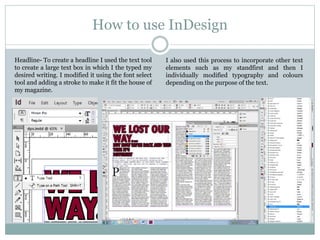
Headline- To create a headline I used the text tool
to create a large text box in which I the typed my
desired writing. I modified it using the font select
tool and adding a stroke to make it fit the house of
my magazine.
I also used this process to incorporate other text
elements such as my standfirst and then I
individually modified typography and colours
depending on the purpose of the text.
How to use InDesign
Columns- To create my columns for my
main text body I selected the
‘Paragraph Formatting Controls’
pictured below. I then inserted a
desired size text box and chose the
number of columns I wanted.
How to use InDesign
Pictures- To insert pictures I went to file, place and then opened my desired image.
The image then appeared in my document and I held Ctrl + Shift to gave me the
ability to rotate and resize this image in proportion.
How to use InDesign
Swatches- To create a swatch I used the colour picker, then clicked the colour I
wanted and selected the colour in the bottom left and this selection screen came
up. I then selected ‘add swatch’ and the colour was available for future use.
How to use InDesign
To create elements such as my standfirst, page numbers
and drop cap I used the text tool and modified the size,
colour and importantly the stroke to make it stand out
from the body text and perform it’s informative purpose.

Task 10

  • 1.
    R E SE A R C H A R T I C L E Task 10
  • 2.
    Analysis of DoublePage Spread
  • 3.
    How to useInDesign Headline- To create a headline I used the text tool to create a large text box in which I the typed my desired writing. I modified it using the font select tool and adding a stroke to make it fit the house of my magazine. I also used this process to incorporate other text elements such as my standfirst and then I individually modified typography and colours depending on the purpose of the text.
  • 4.
    How to useInDesign Columns- To create my columns for my main text body I selected the ‘Paragraph Formatting Controls’ pictured below. I then inserted a desired size text box and chose the number of columns I wanted.
  • 5.
    How to useInDesign Pictures- To insert pictures I went to file, place and then opened my desired image. The image then appeared in my document and I held Ctrl + Shift to gave me the ability to rotate and resize this image in proportion.
  • 6.
    How to useInDesign Swatches- To create a swatch I used the colour picker, then clicked the colour I wanted and selected the colour in the bottom left and this selection screen came up. I then selected ‘add swatch’ and the colour was available for future use.
  • 7.
    How to useInDesign To create elements such as my standfirst, page numbers and drop cap I used the text tool and modified the size, colour and importantly the stroke to make it stand out from the body text and perform it’s informative purpose.