Documents
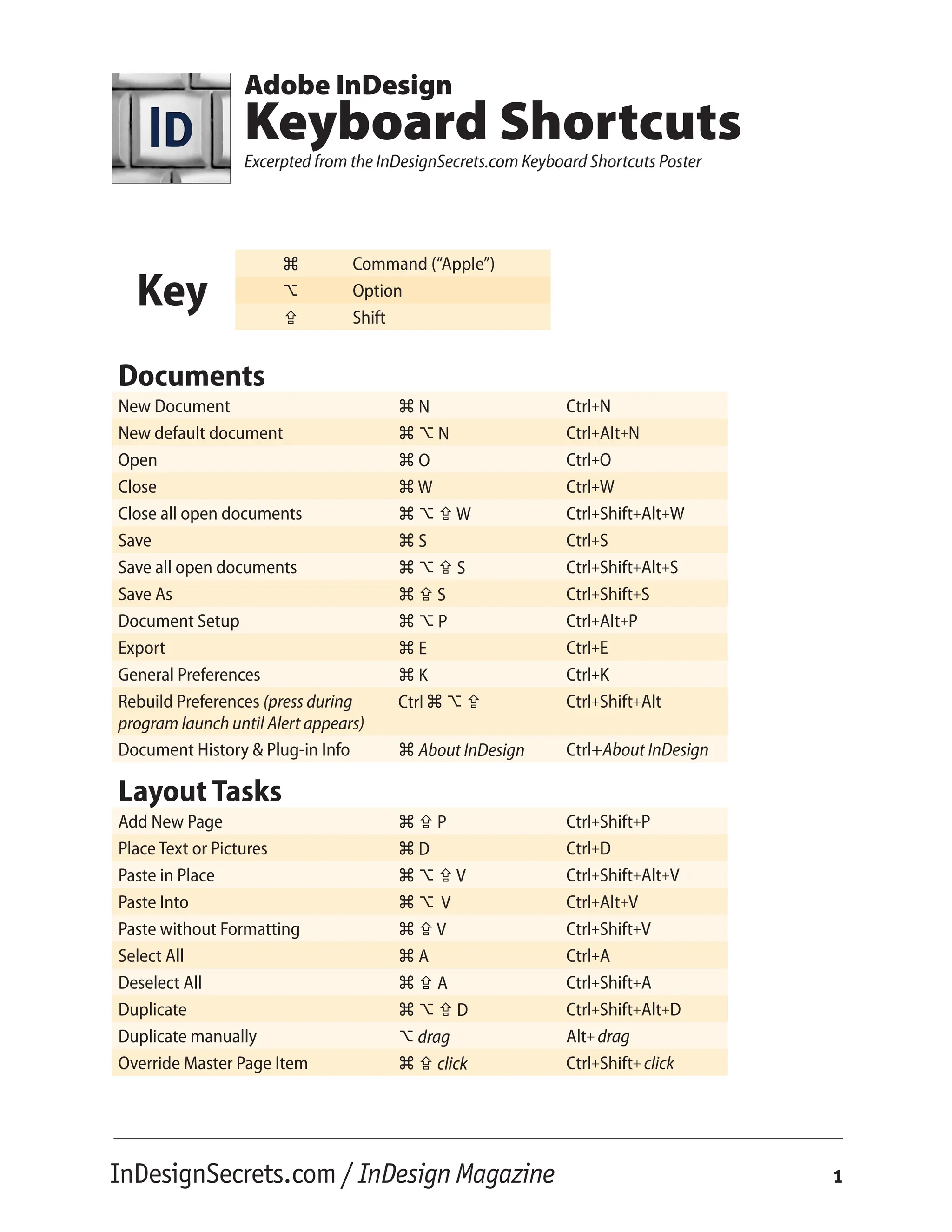
New Document z N Ctrl+N
New default document z U N Ctrl+Alt+N
Open z O Ctrl+O
Close z W Ctrl+W
Close all open documents z U X W Ctrl+Shift+Alt+W
Save z S Ctrl+S
Save all open documents z U X S Ctrl+Shift+Alt+S
Save As z X S Ctrl+Shift+S
Document Setup z U P Ctrl+Alt+P
Export z E Ctrl+E
General Preferences z K Ctrl+K
Rebuild Preferences (press during
program launch until Alert appears)
Ctrlz U X Ctrl+Shift+Alt
Document History & Plug-in Info z About InDesign Ctrl+About InDesign
Layout Tasks
Add New Page z X P Ctrl+Shift+P
Place Text or Pictures z D Ctrl+D
Paste in Place z U X V Ctrl+Shift+Alt+V
Paste Into z U V Ctrl+Alt+V
Paste without Formatting z X V Ctrl+Shift+V
Select All z A Ctrl+A
Deselect All z X A Ctrl+Shift+A
Duplicate z U X D Ctrl+Shift+Alt+D
Duplicate manually U drag Alt+ drag
Override Master Page Item z X click Ctrl+Shift+ click
Adobe InDesign
Keyboard Shortcuts
Excerpted from the InDesignSecrets.com Keyboard Shortcuts Poster
z Command (“Apple”)
U Option
X Shift
InDesignSecrets.com / InDesign Magazine 1
Tools Panel
Selection Tool V V
Direct Selection Tool A A
Pen Tool P P
Type Tool T T
Type on a Path Tool X T Shift+T
Line Tool  
Rectangle Frame Tool F F
Rectangle Tool M M
Ellipse Tool L L
Free Transform Tool E E
Temporary Hand Tool (press) U Spacebar Alt+Spacebar
Temporary Zoom Tool (press) z Spacebar Ctrl+Spacebar
Apply default fill and stroke colors D D
Swap fill and stroke activation X X
Swap fill and stroke colors X X Shift+X
Toggle color affects text/its frame J J
Apply color swatch , ,
Apply gradient swatch . .
Apply None swatch / / or Num /
Preview mode on/off W W
Object Editing
Edit Original U doubleclick Alt+doubleclick
Decrease size / scale by 1% z , Ctrl+,
Decrease size / scale by 5% z U , Ctrl+Alt+,
Increase size / scale by 1% z . Ctrl+.
Increase size / scale by 5% z U . Ctrl+Alt+.
Object Menu
Arrange: Send Backward/Forward z [ or ] Ctrl+[ or ]
Arrange: Send to Back/Front z X [ or ] Ctrl+Shift+[ or ]
Select Next Object Below z click, z U [ Ctrl+click, Ctrl+Alt+[
Group z G Ctrl+G
InDesignSecrets.com / InDesign Magazine
2
Object Menu
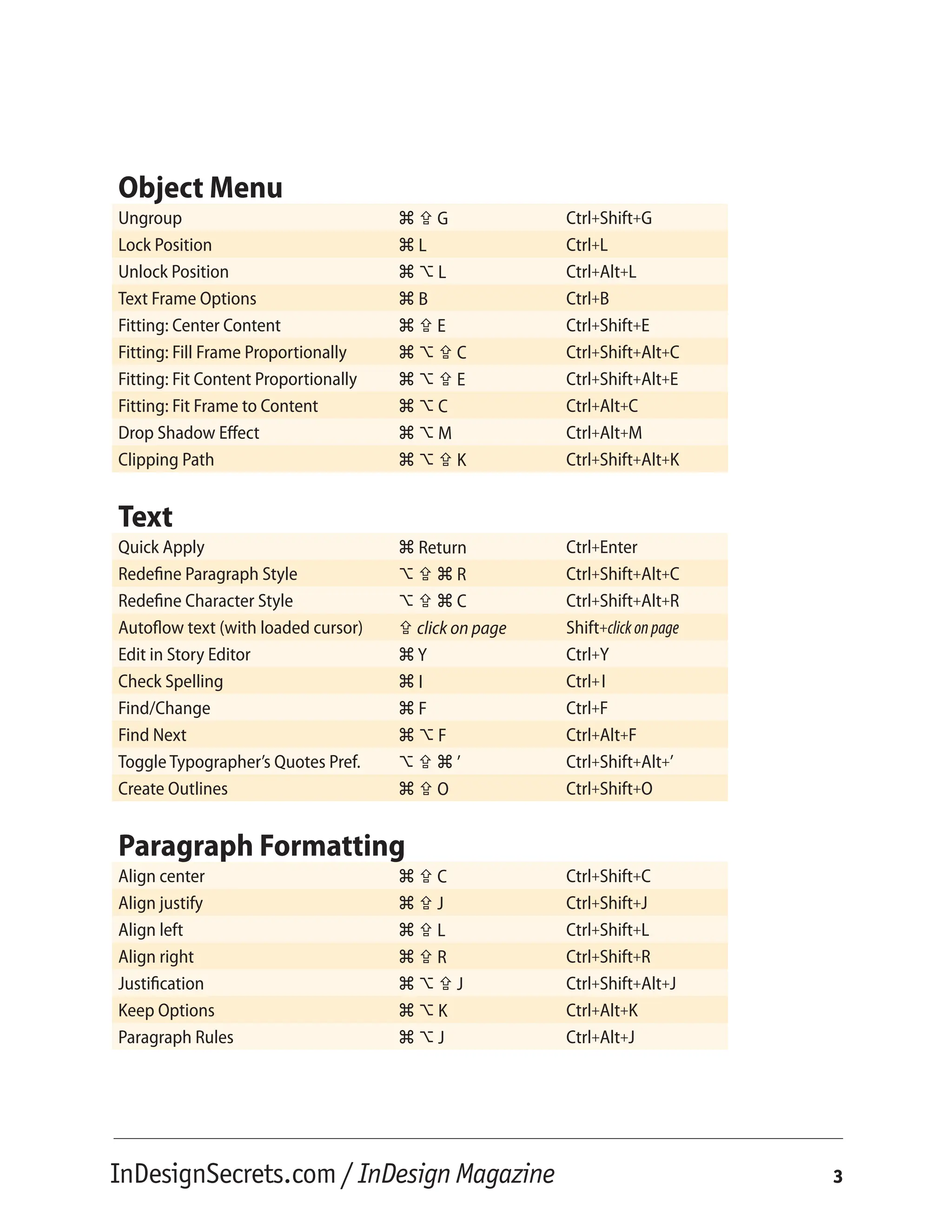
Ungroup z X G Ctrl+Shift+G
Lock Position z L Ctrl+L
Unlock Position z U L Ctrl+Alt+L
Text Frame Options z B Ctrl+B
Fitting: Center Content z X E Ctrl+Shift+E
Fitting: Fill Frame Proportionally z U X C Ctrl+Shift+Alt+C
Fitting: Fit Content Proportionally z U X E Ctrl+Shift+Alt+E
Fitting: Fit Frame to Content z U C Ctrl+Alt+C
Drop Shadow Effect z U M Ctrl+Alt+M
Clipping Path z U X K Ctrl+Shift+Alt+K
Text
Quick Apply z Return Ctrl+Enter
Redefine Paragraph Style U X z R Ctrl+Shift+Alt+C
Redefine Character Style U X z C Ctrl+Shift+Alt+R
Autoflow text (with loaded cursor) X click on page Shift+clickonpage
Edit in Story Editor z Y Ctrl+Y
Check Spelling z I Ctrl+I
Find/Change z F Ctrl+F
Find Next z U F Ctrl+Alt+F
Toggle Typographer’s Quotes Pref. U X z ’ Ctrl+Shift+Alt+’
Create Outlines z X O Ctrl+Shift+O
Paragraph Formatting
Align center z X C Ctrl+Shift+C
Align justify z X J Ctrl+Shift+J
Align left z X L Ctrl+Shift+L
Align right z X R Ctrl+Shift+R
Justification z U X J Ctrl+Shift+Alt+J
Keep Options z U K Ctrl+Alt+K
Paragraph Rules z U J Ctrl+Alt+J
InDesignSecrets.com / InDesign Magazine 3
Character Formatting
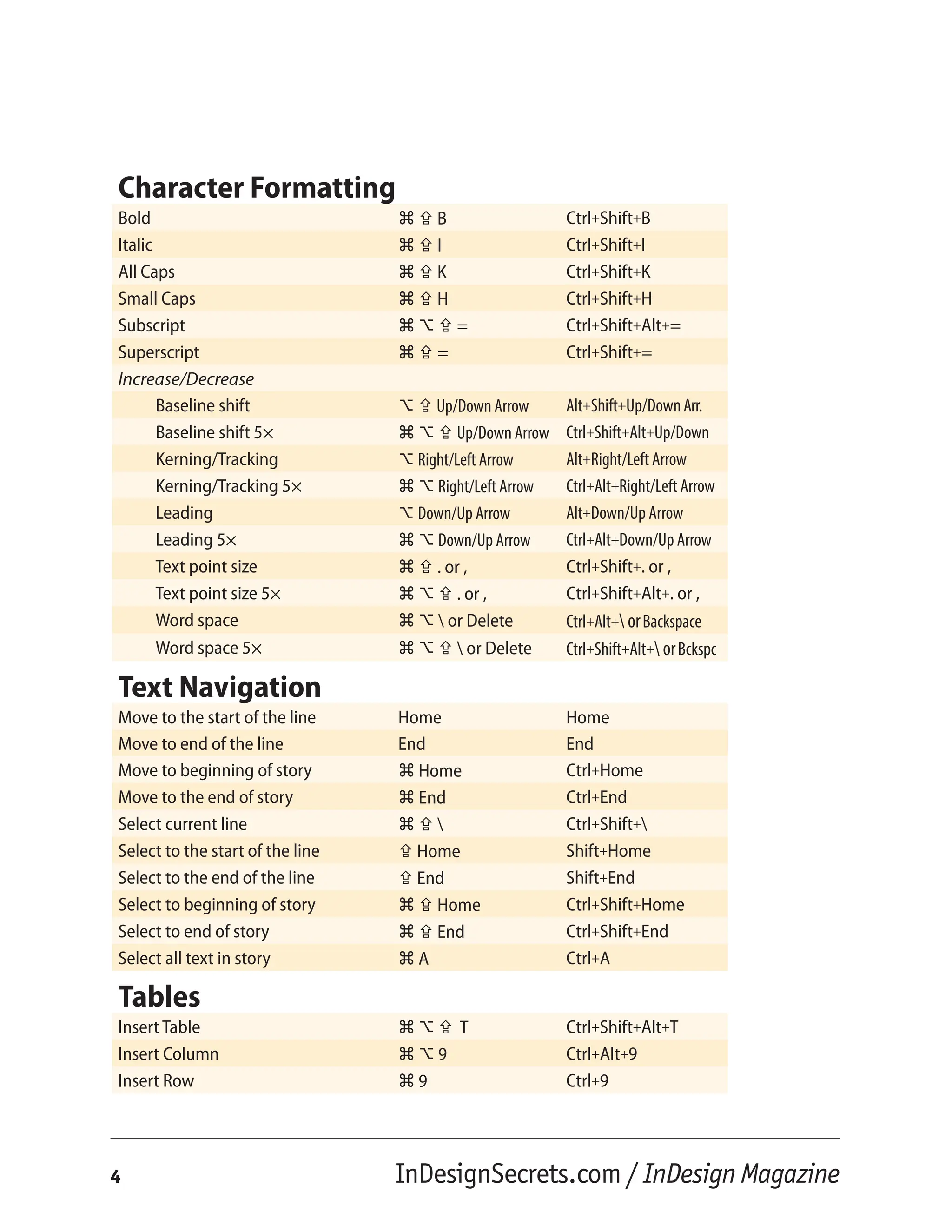
Bold z X B Ctrl+Shift+B
Italic z X I Ctrl+Shift+I
All Caps z X K Ctrl+Shift+K
Small Caps z X H Ctrl+Shift+H
Subscript z U X = Ctrl+Shift+Alt+=
Superscript z X = Ctrl+Shift+=
Increase/Decrease
Baseline shift U X Up/Down Arrow Alt+Shift+Up/DownArr.
Baseline shift 5× z U X Up/Down Arrow Ctrl+Shift+Alt+Up/Down
Kerning/Tracking U Right/Left Arrow Alt+Right/Left Arrow
Kerning/Tracking 5× z U Right/Left Arrow Ctrl+Alt+Right/Left Arrow
Leading U Down/Up Arrow Alt+Down/Up Arrow
Leading 5× z U Down/Up Arrow Ctrl+Alt+Down/Up Arrow
Text point size z X . or , Ctrl+Shift+. or ,
Text point size 5× z U X . or , Ctrl+Shift+Alt+. or ,
Word space z U  or Delete Ctrl+Alt+ orBackspace
Word space 5× z U X  or Delete Ctrl+Shift+Alt+ orBckspc
Text Navigation
Move to the start of the line Home Home
Move to end of the line End End
Move to beginning of story z Home Ctrl+Home
Move to the end of story z End Ctrl+End
Select current line z X  Ctrl+Shift+
Select to the start of the line X Home Shift+Home
Select to the end of the line X End Shift+End
Select to beginning of story z X Home Ctrl+Shift+Home
Select to end of story z X End Ctrl+Shift+End
Select all text in story z A Ctrl+A
Tables
Insert Table z U X T Ctrl+Shift+Alt+T
Insert Column z U 9 Ctrl+Alt+9
Insert Row z 9 Ctrl+9
InDesignSecrets.com / InDesign Magazine
4
Tables
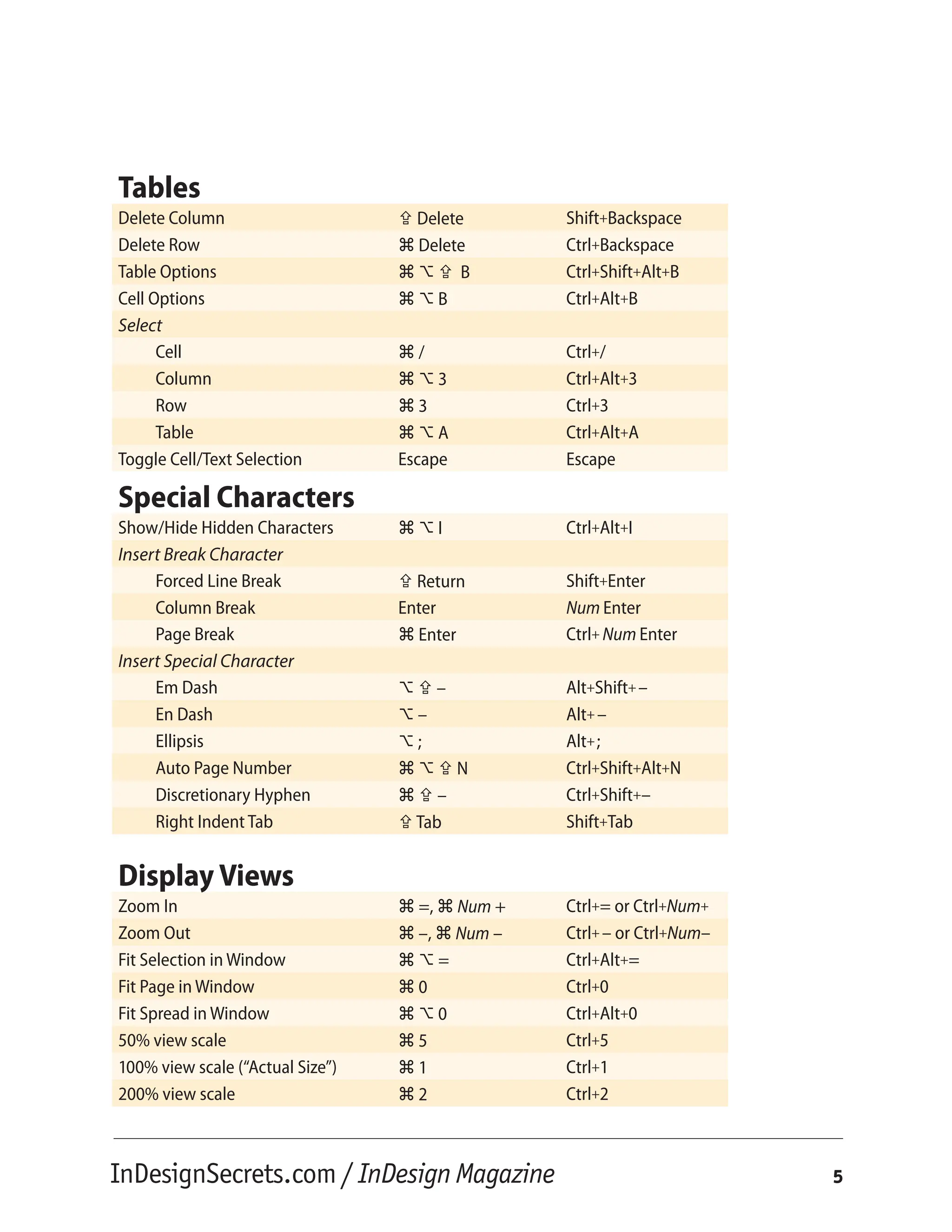
Delete Column X Delete Shift+Backspace
Delete Row z Delete Ctrl+Backspace
Table Options z U X B Ctrl+Shift+Alt+B
Cell Options z U B Ctrl+Alt+B
Select
Cell z / Ctrl+/
Column z U 3 Ctrl+Alt+3
Row z 3 Ctrl+3
Table z U A Ctrl+Alt+A
Toggle Cell/Text Selection Escape Escape
Special Characters
Show/Hide Hidden Characters z U I Ctrl+Alt+I
Insert Break Character
Forced Line Break X Return Shift+Enter
Column Break Enter Num Enter
Page Break z Enter Ctrl+ Num Enter
Insert Special Character
Em Dash U X – Alt+Shift+–
En Dash U – Alt+ –
Ellipsis U ; Alt+;
Auto Page Number z U X N Ctrl+Shift+Alt+N
Discretionary Hyphen z X – Ctrl+Shift+–
Right Indent Tab X Tab Shift+Tab
Display Views
Zoom In z =, z Num + Ctrl+= or Ctrl+Num+
Zoom Out z –, z Num – Ctrl+ – or Ctrl+Num–
Fit Selection in Window z U = Ctrl+Alt+=
Fit Page in Window z 0 Ctrl+0
Fit Spread in Window z U 0 Ctrl+Alt+0
50% view scale z 5 Ctrl+5
100% view scale (“Actual Size”) z 1 Ctrl+1
200% view scale z 2 Ctrl+2
InDesignSecrets.com / InDesign Magazine 5
Display Views
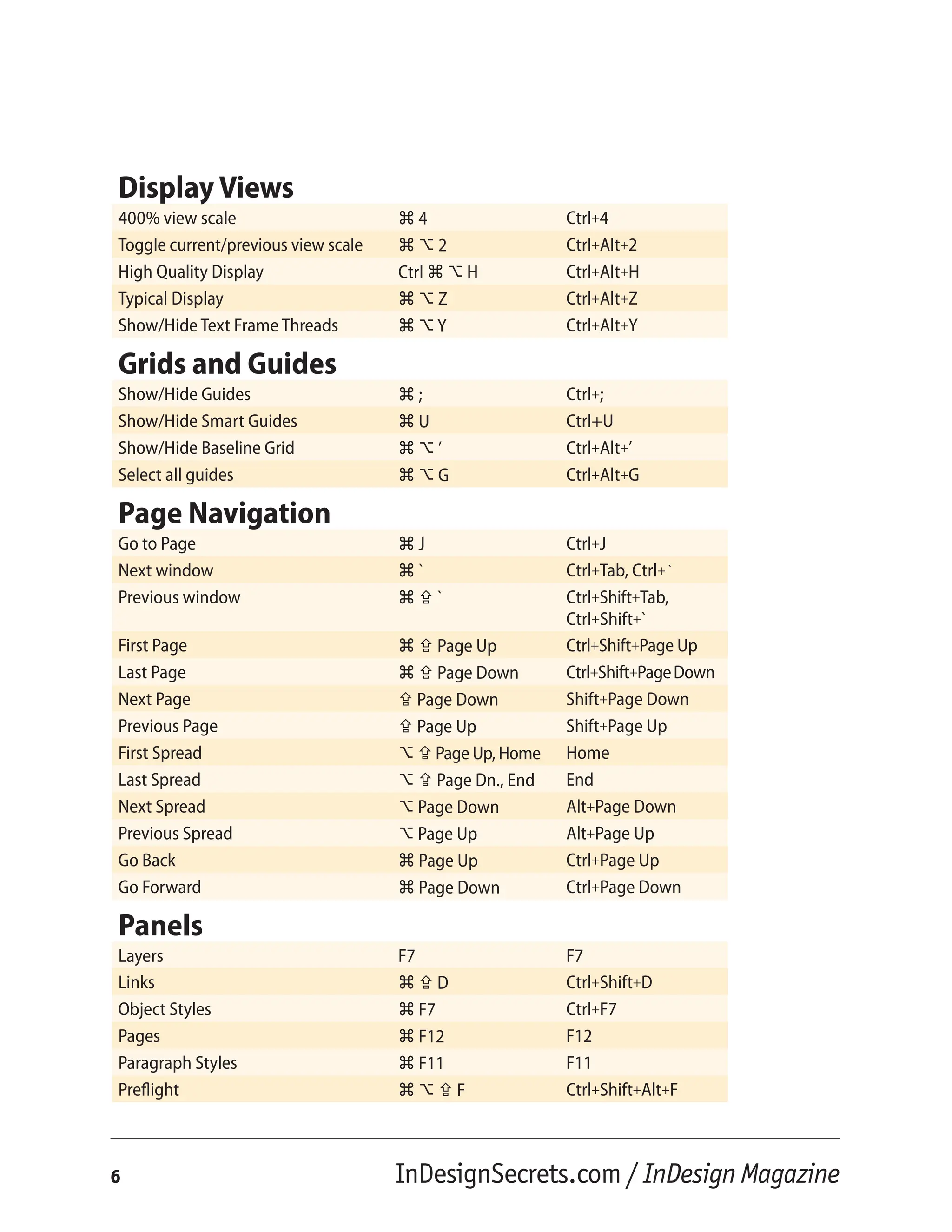
400% view scale z 4 Ctrl+4
Toggle current/previous view scale z U 2 Ctrl+Alt+2
High Quality Display Ctrl z U H Ctrl+Alt+H
Typical Display z U Z Ctrl+Alt+Z
Show/Hide Text Frame Threads z U Y Ctrl+Alt+Y
Grids and Guides
Show/Hide Guides z ; Ctrl+;
Show/Hide Smart Guides z U Ctrl+U
Show/Hide Baseline Grid z U ’ Ctrl+Alt+’
Select all guides z U G Ctrl+Alt+G
Page Navigation
Go to Page z J Ctrl+J
Next window z ` Ctrl+Tab, Ctrl+ `
Previous window z X ` Ctrl+Shift+Tab,
Ctrl+Shift+`
First Page z X Page Up Ctrl+Shift+Page Up
Last Page z X Page Down Ctrl+Shift+PageDown
Next Page X Page Down Shift+Page Down
Previous Page X Page Up Shift+Page Up
First Spread U X Page Up, Home Home
Last Spread U X Page Dn., End End
Next Spread U Page Down Alt+Page Down
Previous Spread U Page Up Alt+Page Up
Go Back z Page Up Ctrl+Page Up
Go Forward z Page Down Ctrl+Page Down
Panels
Layers F7 F7
Links z X D Ctrl+Shift+D
Object Styles z F7 Ctrl+F7
Pages z F12 F12
Paragraph Styles z F11 F11
Preflight z U X F Ctrl+Shift+Alt+F
InDesignSecrets.com / InDesign Magazine
6
Panels
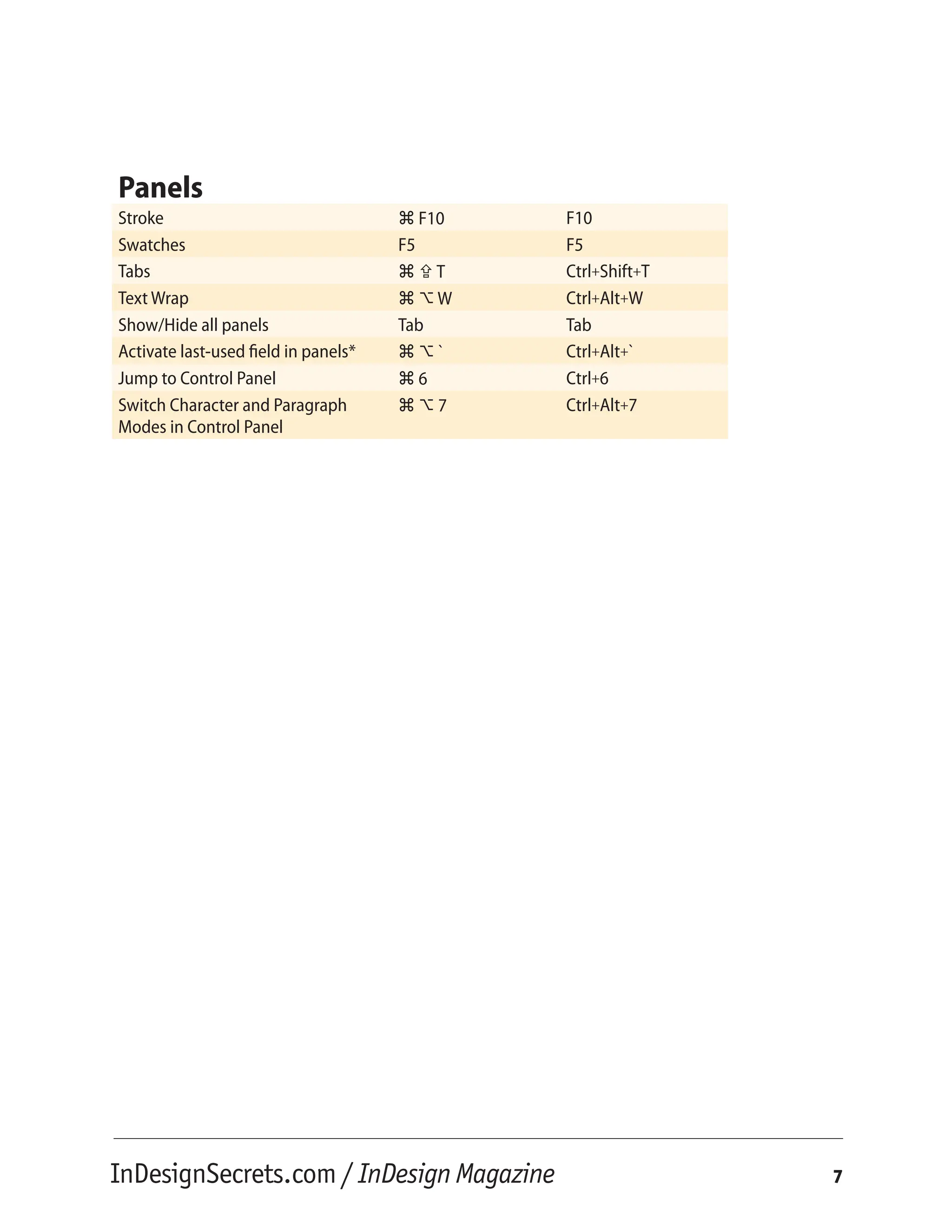
Stroke z F10 F10
Swatches F5 F5
Tabs z X T Ctrl+Shift+T
Text Wrap z U W Ctrl+Alt+W
Show/Hide all panels Tab Tab
Activate last-used field in panels* z U ` Ctrl+Alt+`
Jump to Control Panel z 6 Ctrl+6
Switch Character and Paragraph
Modes in Control Panel
z U 7 Ctrl+Alt+7
InDesignSecrets.com / InDesign Magazine 7
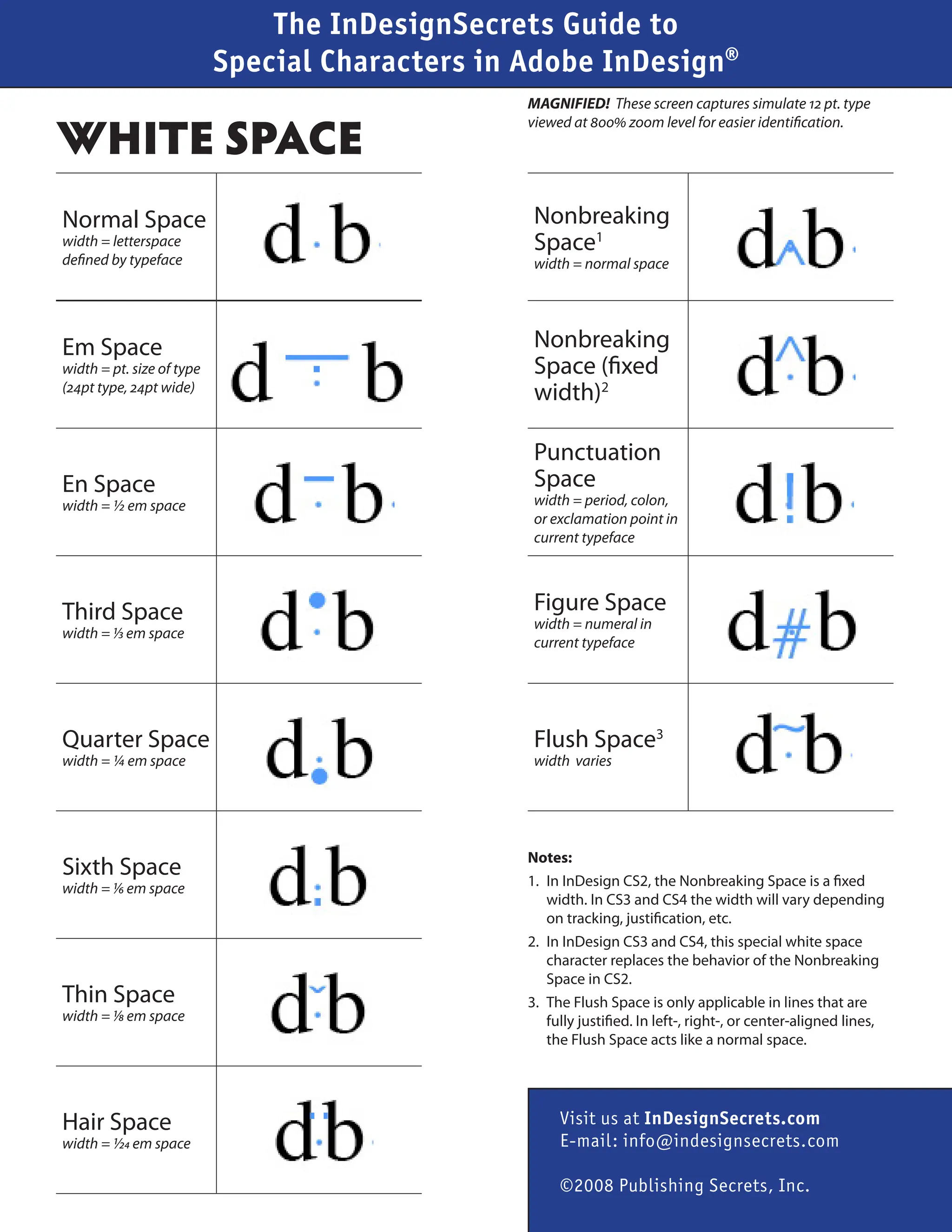
Normal Space
width = letterspace
defined by typeface
Em Space
width = pt. size of type
(24pt type, 24pt wide)
En Space
width = 1/2 em space
Third Space
width = 1/3 em space
Quarter Space
width = 1/4 em space
Sixth Space
width = 1/6 em space
Thin Space
width = 1/8 em space
Hair Space
width = 1/24 em space
Nonbreaking
Space1
width = normal space
Nonbreaking
Space (fixed
width)2
Punctuation
Space
width = period, colon,
or exclamation point in
current typeface
Figure Space
width = numeral in
current typeface
Flush Space3
width varies
Notes:
1. In InDesign CS2, the Nonbreaking Space is a fixed
width. In CS3 and CS4 the width will vary depending
on tracking, justification, etc.
2. In InDesign CS3 and CS4, this special white space
character replaces the behavior of the Nonbreaking
Space in CS2.
3. The Flush Space is only applicable in lines that are
fully justified. In left-, right-, or center-aligned lines,
the Flush Space acts like a normal space.
WHITE SPACE
The InDesignSecrets Guide to
Special Characters in Adobe InDesign®
Visit us at InDesignSecrets.com
E-mail: info@indesignsecrets.com
©2008 Publishing Secrets, Inc.
MAGNIFIED! These screen captures simulate 12 pt. type
viewed at 800% zoom level for easier identification.
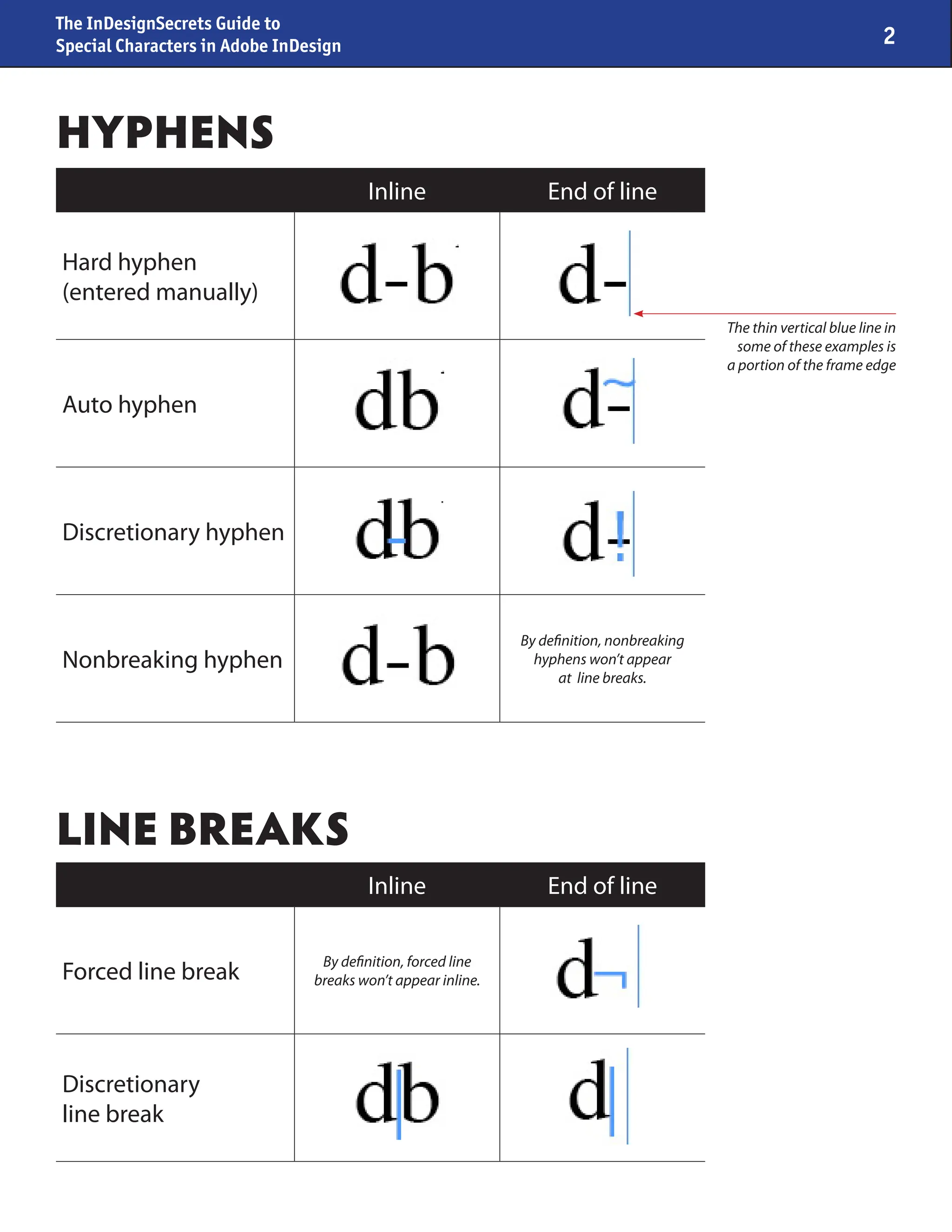
Inline End of line
Hard hyphen
(entered manually)
Auto hyphen
Discretionary hyphen
Nonbreaking hyphen
By definition, nonbreaking
hyphens won’t appear
at line breaks.
Inline End of line
Forced line break
By definition, forced line
breaks won’t appear inline.
Discretionary
line break
HYPHENS
LINE BREAKS
The thin vertical blue line in
some of these examples is
a portion of the frame edge
The InDesignSecrets Guide to
Special Characters in Adobe InDesign 2
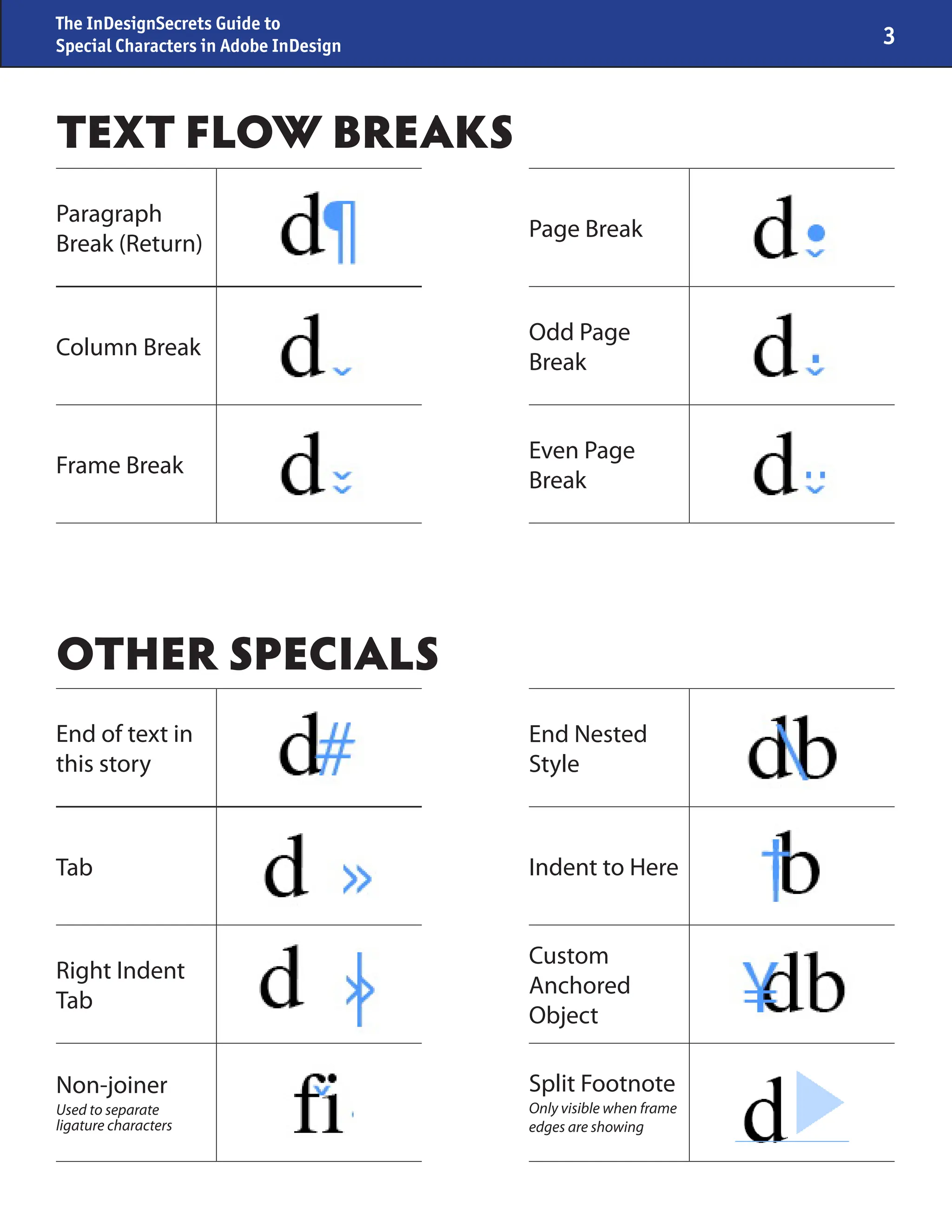
TEXT FLOW BREAKS
OTHER SPECIALS
Paragraph
Break (Return)
Column Break
Frame Break
End of text in
this story
Tab
Right Indent
Tab
Non-joiner
Used to separate
ligature characters
Page Break
Odd Page
Break
Even Page
Break
End Nested
Style
Indent to Here
Custom
Anchored
Object
Split Footnote
Only visible when frame
edges are showing
The InDesignSecrets Guide to
Special Characters in Adobe InDesign 3
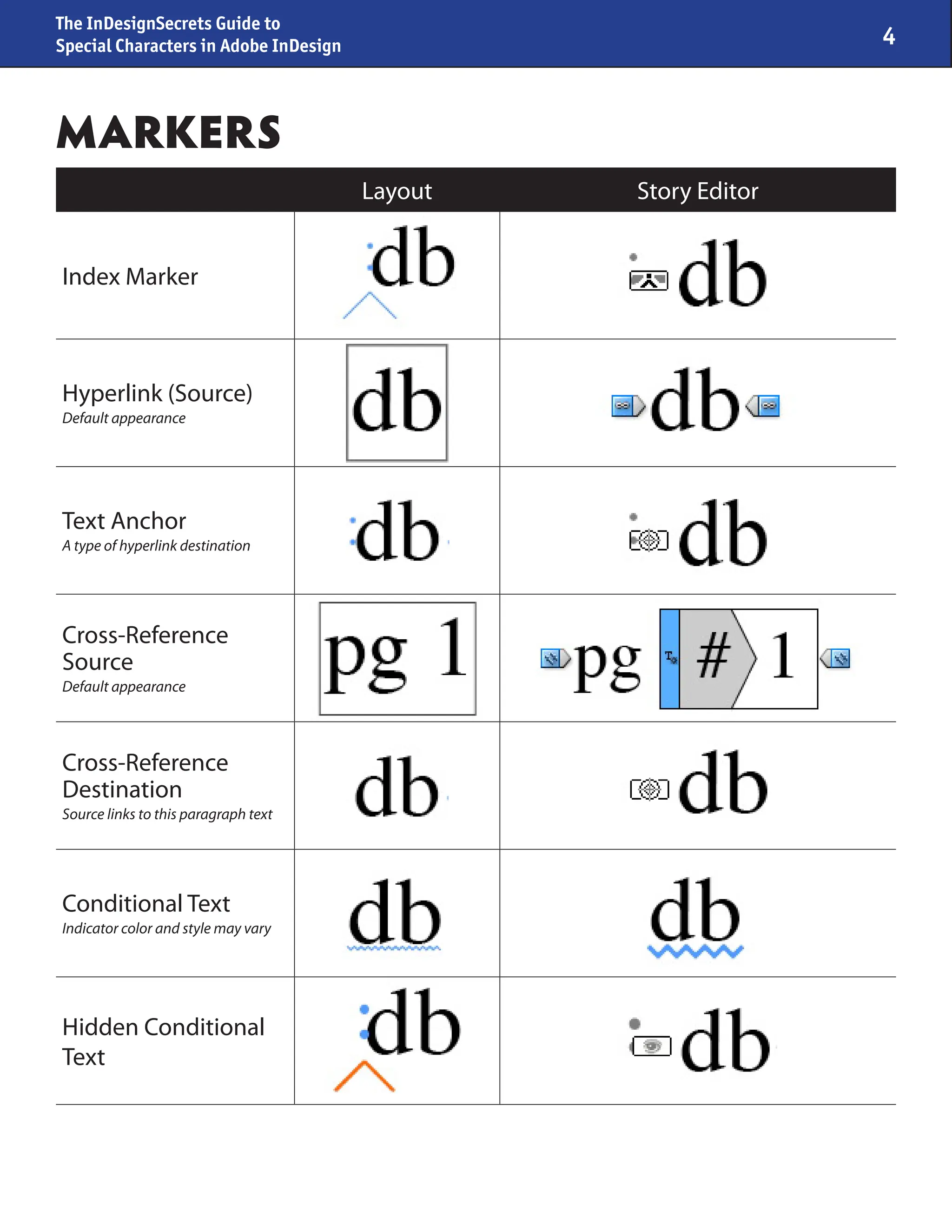
Layout Story Editor
Index Marker
Hyperlink (Source)
Default appearance
Text Anchor
A type of hyperlink destination
Cross-Reference
Source
Default appearance
Cross-Reference
Destination
Source links to this paragraph text
Conditional Text
Indicator color and style may vary
Hidden Conditional
Text
MARKERS
The InDesignSecrets Guide to
Special Characters in Adobe InDesign 4
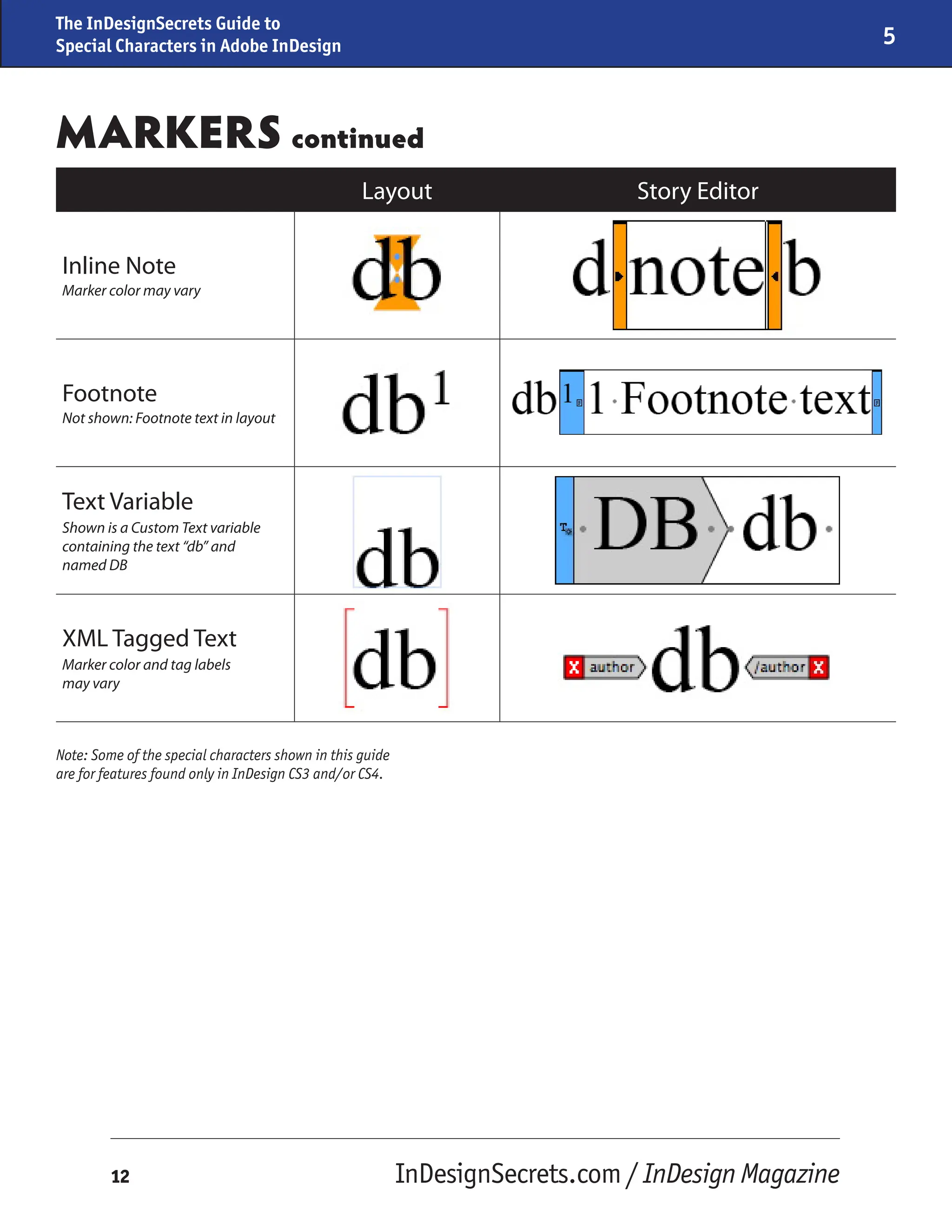
Layout Story Editor
Inline Note
Marker color may vary
Footnote
Not shown: Footnote text in layout
Text Variable
Shown is a Custom Text variable
containing the text “db” and
named DB
XML Tagged Text
Marker color and tag labels
may vary
MARKERS continued
The InDesignSecrets Guide to
Special Characters in Adobe InDesign 5
Also available from InDesignSecrets.com
Guide to OpenType Fractions InDesign Keyboard Shortcuts
Note: Some of the special characters shown in this guide
are for features found only in InDesign CS3 and/or CS4.
Which of the free OpenType fonts
that are installed with Adobe
InDesign have an “intelligent
fractions” feature? See for yourself
in this handy 4-page PDF.
Cost: Free
Get it: http://indesignsecrets.com/
download-our-guide-to-opentype-
fractions.php
All of InDesign’s keyboard
shortcuts (many of which
don’t appear in the menus)
are sorted into logical
groupings in our 18” by 26”
full-color posters. Available
for CS2, CS3, and CS4.
Cost: $15.00
Get it: http://indesignsecrets.
com/indesign-poster-details/
InDesignSecrets.com / InDesign Magazine
12

All shortcuts for Adobe indesign2023.pdf

  • 1.
    Documents New Document zN Ctrl+N New default document z U N Ctrl+Alt+N Open z O Ctrl+O Close z W Ctrl+W Close all open documents z U X W Ctrl+Shift+Alt+W Save z S Ctrl+S Save all open documents z U X S Ctrl+Shift+Alt+S Save As z X S Ctrl+Shift+S Document Setup z U P Ctrl+Alt+P Export z E Ctrl+E General Preferences z K Ctrl+K Rebuild Preferences (press during program launch until Alert appears) Ctrlz U X Ctrl+Shift+Alt Document History & Plug-in Info z About InDesign Ctrl+About InDesign Layout Tasks Add New Page z X P Ctrl+Shift+P Place Text or Pictures z D Ctrl+D Paste in Place z U X V Ctrl+Shift+Alt+V Paste Into z U V Ctrl+Alt+V Paste without Formatting z X V Ctrl+Shift+V Select All z A Ctrl+A Deselect All z X A Ctrl+Shift+A Duplicate z U X D Ctrl+Shift+Alt+D Duplicate manually U drag Alt+ drag Override Master Page Item z X click Ctrl+Shift+ click Adobe InDesign Keyboard Shortcuts Excerpted from the InDesignSecrets.com Keyboard Shortcuts Poster z Command (“Apple”) U Option X Shift InDesignSecrets.com / InDesign Magazine 1
  • 2.
    Tools Panel Selection ToolV V Direct Selection Tool A A Pen Tool P P Type Tool T T Type on a Path Tool X T Shift+T Line Tool Rectangle Frame Tool F F Rectangle Tool M M Ellipse Tool L L Free Transform Tool E E Temporary Hand Tool (press) U Spacebar Alt+Spacebar Temporary Zoom Tool (press) z Spacebar Ctrl+Spacebar Apply default fill and stroke colors D D Swap fill and stroke activation X X Swap fill and stroke colors X X Shift+X Toggle color affects text/its frame J J Apply color swatch , , Apply gradient swatch . . Apply None swatch / / or Num / Preview mode on/off W W Object Editing Edit Original U doubleclick Alt+doubleclick Decrease size / scale by 1% z , Ctrl+, Decrease size / scale by 5% z U , Ctrl+Alt+, Increase size / scale by 1% z . Ctrl+. Increase size / scale by 5% z U . Ctrl+Alt+. Object Menu Arrange: Send Backward/Forward z [ or ] Ctrl+[ or ] Arrange: Send to Back/Front z X [ or ] Ctrl+Shift+[ or ] Select Next Object Below z click, z U [ Ctrl+click, Ctrl+Alt+[ Group z G Ctrl+G InDesignSecrets.com / InDesign Magazine 2
  • 3.
    Object Menu Ungroup zX G Ctrl+Shift+G Lock Position z L Ctrl+L Unlock Position z U L Ctrl+Alt+L Text Frame Options z B Ctrl+B Fitting: Center Content z X E Ctrl+Shift+E Fitting: Fill Frame Proportionally z U X C Ctrl+Shift+Alt+C Fitting: Fit Content Proportionally z U X E Ctrl+Shift+Alt+E Fitting: Fit Frame to Content z U C Ctrl+Alt+C Drop Shadow Effect z U M Ctrl+Alt+M Clipping Path z U X K Ctrl+Shift+Alt+K Text Quick Apply z Return Ctrl+Enter Redefine Paragraph Style U X z R Ctrl+Shift+Alt+C Redefine Character Style U X z C Ctrl+Shift+Alt+R Autoflow text (with loaded cursor) X click on page Shift+clickonpage Edit in Story Editor z Y Ctrl+Y Check Spelling z I Ctrl+I Find/Change z F Ctrl+F Find Next z U F Ctrl+Alt+F Toggle Typographer’s Quotes Pref. U X z ’ Ctrl+Shift+Alt+’ Create Outlines z X O Ctrl+Shift+O Paragraph Formatting Align center z X C Ctrl+Shift+C Align justify z X J Ctrl+Shift+J Align left z X L Ctrl+Shift+L Align right z X R Ctrl+Shift+R Justification z U X J Ctrl+Shift+Alt+J Keep Options z U K Ctrl+Alt+K Paragraph Rules z U J Ctrl+Alt+J InDesignSecrets.com / InDesign Magazine 3
  • 4.
    Character Formatting Bold zX B Ctrl+Shift+B Italic z X I Ctrl+Shift+I All Caps z X K Ctrl+Shift+K Small Caps z X H Ctrl+Shift+H Subscript z U X = Ctrl+Shift+Alt+= Superscript z X = Ctrl+Shift+= Increase/Decrease Baseline shift U X Up/Down Arrow Alt+Shift+Up/DownArr. Baseline shift 5× z U X Up/Down Arrow Ctrl+Shift+Alt+Up/Down Kerning/Tracking U Right/Left Arrow Alt+Right/Left Arrow Kerning/Tracking 5× z U Right/Left Arrow Ctrl+Alt+Right/Left Arrow Leading U Down/Up Arrow Alt+Down/Up Arrow Leading 5× z U Down/Up Arrow Ctrl+Alt+Down/Up Arrow Text point size z X . or , Ctrl+Shift+. or , Text point size 5× z U X . or , Ctrl+Shift+Alt+. or , Word space z U or Delete Ctrl+Alt+ orBackspace Word space 5× z U X or Delete Ctrl+Shift+Alt+ orBckspc Text Navigation Move to the start of the line Home Home Move to end of the line End End Move to beginning of story z Home Ctrl+Home Move to the end of story z End Ctrl+End Select current line z X Ctrl+Shift+ Select to the start of the line X Home Shift+Home Select to the end of the line X End Shift+End Select to beginning of story z X Home Ctrl+Shift+Home Select to end of story z X End Ctrl+Shift+End Select all text in story z A Ctrl+A Tables Insert Table z U X T Ctrl+Shift+Alt+T Insert Column z U 9 Ctrl+Alt+9 Insert Row z 9 Ctrl+9 InDesignSecrets.com / InDesign Magazine 4
  • 5.
    Tables Delete Column XDelete Shift+Backspace Delete Row z Delete Ctrl+Backspace Table Options z U X B Ctrl+Shift+Alt+B Cell Options z U B Ctrl+Alt+B Select Cell z / Ctrl+/ Column z U 3 Ctrl+Alt+3 Row z 3 Ctrl+3 Table z U A Ctrl+Alt+A Toggle Cell/Text Selection Escape Escape Special Characters Show/Hide Hidden Characters z U I Ctrl+Alt+I Insert Break Character Forced Line Break X Return Shift+Enter Column Break Enter Num Enter Page Break z Enter Ctrl+ Num Enter Insert Special Character Em Dash U X – Alt+Shift+– En Dash U – Alt+ – Ellipsis U ; Alt+; Auto Page Number z U X N Ctrl+Shift+Alt+N Discretionary Hyphen z X – Ctrl+Shift+– Right Indent Tab X Tab Shift+Tab Display Views Zoom In z =, z Num + Ctrl+= or Ctrl+Num+ Zoom Out z –, z Num – Ctrl+ – or Ctrl+Num– Fit Selection in Window z U = Ctrl+Alt+= Fit Page in Window z 0 Ctrl+0 Fit Spread in Window z U 0 Ctrl+Alt+0 50% view scale z 5 Ctrl+5 100% view scale (“Actual Size”) z 1 Ctrl+1 200% view scale z 2 Ctrl+2 InDesignSecrets.com / InDesign Magazine 5
  • 6.
    Display Views 400% viewscale z 4 Ctrl+4 Toggle current/previous view scale z U 2 Ctrl+Alt+2 High Quality Display Ctrl z U H Ctrl+Alt+H Typical Display z U Z Ctrl+Alt+Z Show/Hide Text Frame Threads z U Y Ctrl+Alt+Y Grids and Guides Show/Hide Guides z ; Ctrl+; Show/Hide Smart Guides z U Ctrl+U Show/Hide Baseline Grid z U ’ Ctrl+Alt+’ Select all guides z U G Ctrl+Alt+G Page Navigation Go to Page z J Ctrl+J Next window z ` Ctrl+Tab, Ctrl+ ` Previous window z X ` Ctrl+Shift+Tab, Ctrl+Shift+` First Page z X Page Up Ctrl+Shift+Page Up Last Page z X Page Down Ctrl+Shift+PageDown Next Page X Page Down Shift+Page Down Previous Page X Page Up Shift+Page Up First Spread U X Page Up, Home Home Last Spread U X Page Dn., End End Next Spread U Page Down Alt+Page Down Previous Spread U Page Up Alt+Page Up Go Back z Page Up Ctrl+Page Up Go Forward z Page Down Ctrl+Page Down Panels Layers F7 F7 Links z X D Ctrl+Shift+D Object Styles z F7 Ctrl+F7 Pages z F12 F12 Paragraph Styles z F11 F11 Preflight z U X F Ctrl+Shift+Alt+F InDesignSecrets.com / InDesign Magazine 6
  • 7.
    Panels Stroke z F10F10 Swatches F5 F5 Tabs z X T Ctrl+Shift+T Text Wrap z U W Ctrl+Alt+W Show/Hide all panels Tab Tab Activate last-used field in panels* z U ` Ctrl+Alt+` Jump to Control Panel z 6 Ctrl+6 Switch Character and Paragraph Modes in Control Panel z U 7 Ctrl+Alt+7 InDesignSecrets.com / InDesign Magazine 7
  • 8.
    Normal Space width =letterspace defined by typeface Em Space width = pt. size of type (24pt type, 24pt wide) En Space width = 1/2 em space Third Space width = 1/3 em space Quarter Space width = 1/4 em space Sixth Space width = 1/6 em space Thin Space width = 1/8 em space Hair Space width = 1/24 em space Nonbreaking Space1 width = normal space Nonbreaking Space (fixed width)2 Punctuation Space width = period, colon, or exclamation point in current typeface Figure Space width = numeral in current typeface Flush Space3 width varies Notes: 1. In InDesign CS2, the Nonbreaking Space is a fixed width. In CS3 and CS4 the width will vary depending on tracking, justification, etc. 2. In InDesign CS3 and CS4, this special white space character replaces the behavior of the Nonbreaking Space in CS2. 3. The Flush Space is only applicable in lines that are fully justified. In left-, right-, or center-aligned lines, the Flush Space acts like a normal space. WHITE SPACE The InDesignSecrets Guide to Special Characters in Adobe InDesign® Visit us at InDesignSecrets.com E-mail: info@indesignsecrets.com ©2008 Publishing Secrets, Inc. MAGNIFIED! These screen captures simulate 12 pt. type viewed at 800% zoom level for easier identification.
  • 9.
    Inline End ofline Hard hyphen (entered manually) Auto hyphen Discretionary hyphen Nonbreaking hyphen By definition, nonbreaking hyphens won’t appear at line breaks. Inline End of line Forced line break By definition, forced line breaks won’t appear inline. Discretionary line break HYPHENS LINE BREAKS The thin vertical blue line in some of these examples is a portion of the frame edge The InDesignSecrets Guide to Special Characters in Adobe InDesign 2
  • 10.
    TEXT FLOW BREAKS OTHERSPECIALS Paragraph Break (Return) Column Break Frame Break End of text in this story Tab Right Indent Tab Non-joiner Used to separate ligature characters Page Break Odd Page Break Even Page Break End Nested Style Indent to Here Custom Anchored Object Split Footnote Only visible when frame edges are showing The InDesignSecrets Guide to Special Characters in Adobe InDesign 3
  • 11.
    Layout Story Editor IndexMarker Hyperlink (Source) Default appearance Text Anchor A type of hyperlink destination Cross-Reference Source Default appearance Cross-Reference Destination Source links to this paragraph text Conditional Text Indicator color and style may vary Hidden Conditional Text MARKERS The InDesignSecrets Guide to Special Characters in Adobe InDesign 4
  • 12.
    Layout Story Editor InlineNote Marker color may vary Footnote Not shown: Footnote text in layout Text Variable Shown is a Custom Text variable containing the text “db” and named DB XML Tagged Text Marker color and tag labels may vary MARKERS continued The InDesignSecrets Guide to Special Characters in Adobe InDesign 5 Also available from InDesignSecrets.com Guide to OpenType Fractions InDesign Keyboard Shortcuts Note: Some of the special characters shown in this guide are for features found only in InDesign CS3 and/or CS4. Which of the free OpenType fonts that are installed with Adobe InDesign have an “intelligent fractions” feature? See for yourself in this handy 4-page PDF. Cost: Free Get it: http://indesignsecrets.com/ download-our-guide-to-opentype- fractions.php All of InDesign’s keyboard shortcuts (many of which don’t appear in the menus) are sorted into logical groupings in our 18” by 26” full-color posters. Available for CS2, CS3, and CS4. Cost: $15.00 Get it: http://indesignsecrets. com/indesign-poster-details/ InDesignSecrets.com / InDesign Magazine 12