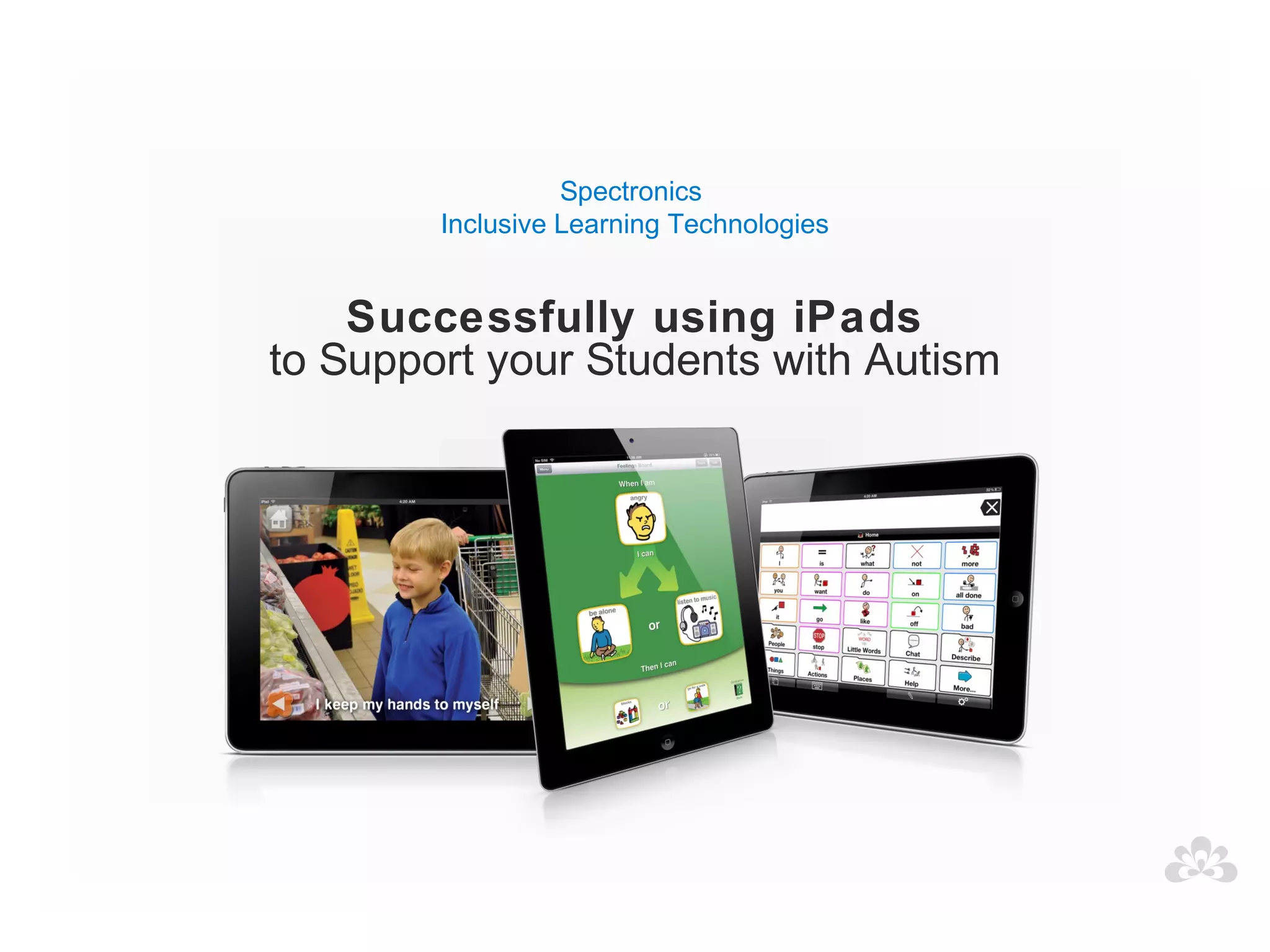












Spectronics
        Inclusive Learning Technologies


    Successfully using iPads
to Support your Students with Autism
Amanda Hartmann
Inclusive Technology Consultant
(Speech Pathologist)
OVERVIEW
• Introduction

• IPads 101

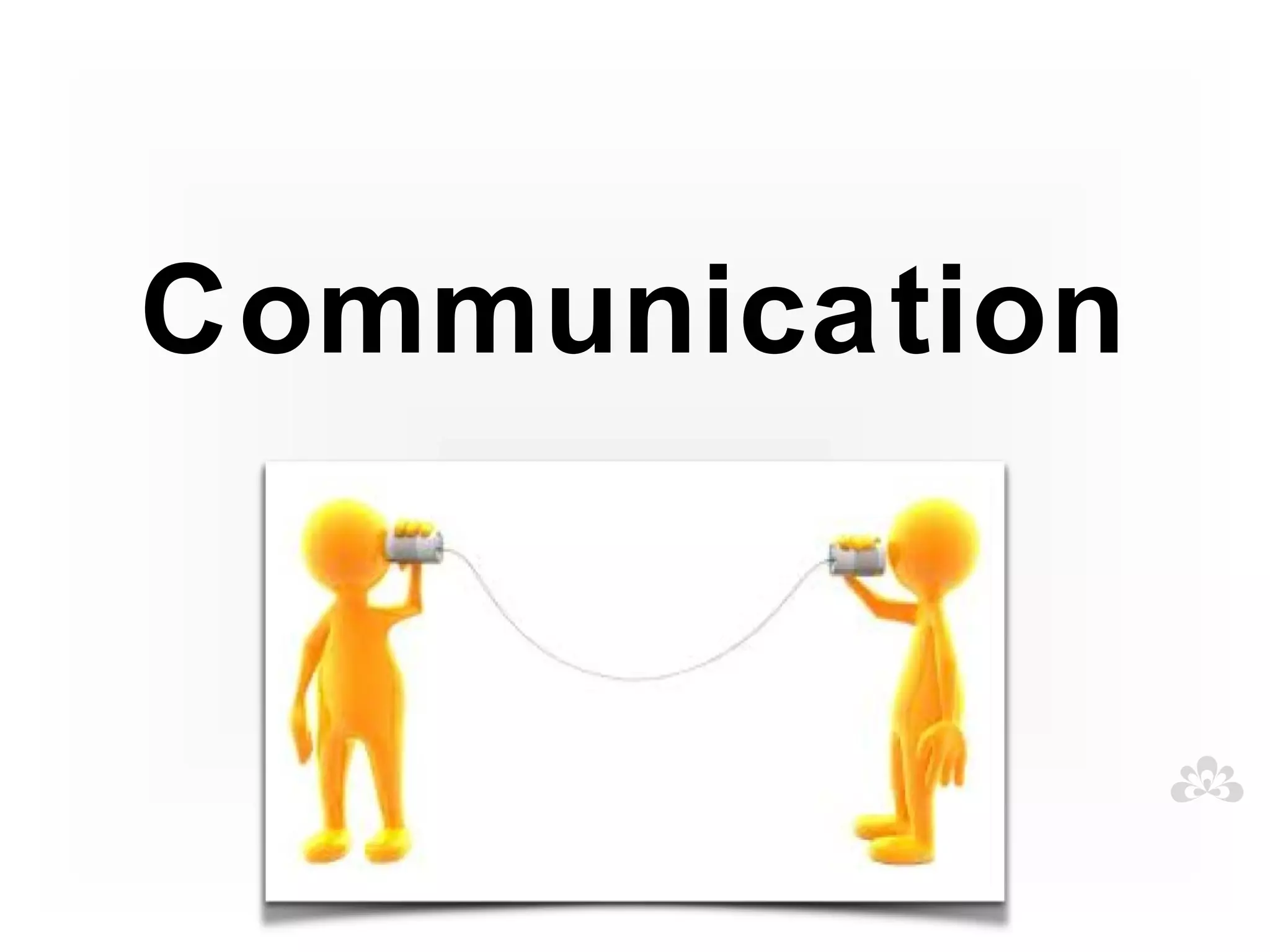
• Communication

• Behaviour

• Social development

• Literacy and learning

• Creation tools
Autism
Autism Spectrum Disorder (ASD)
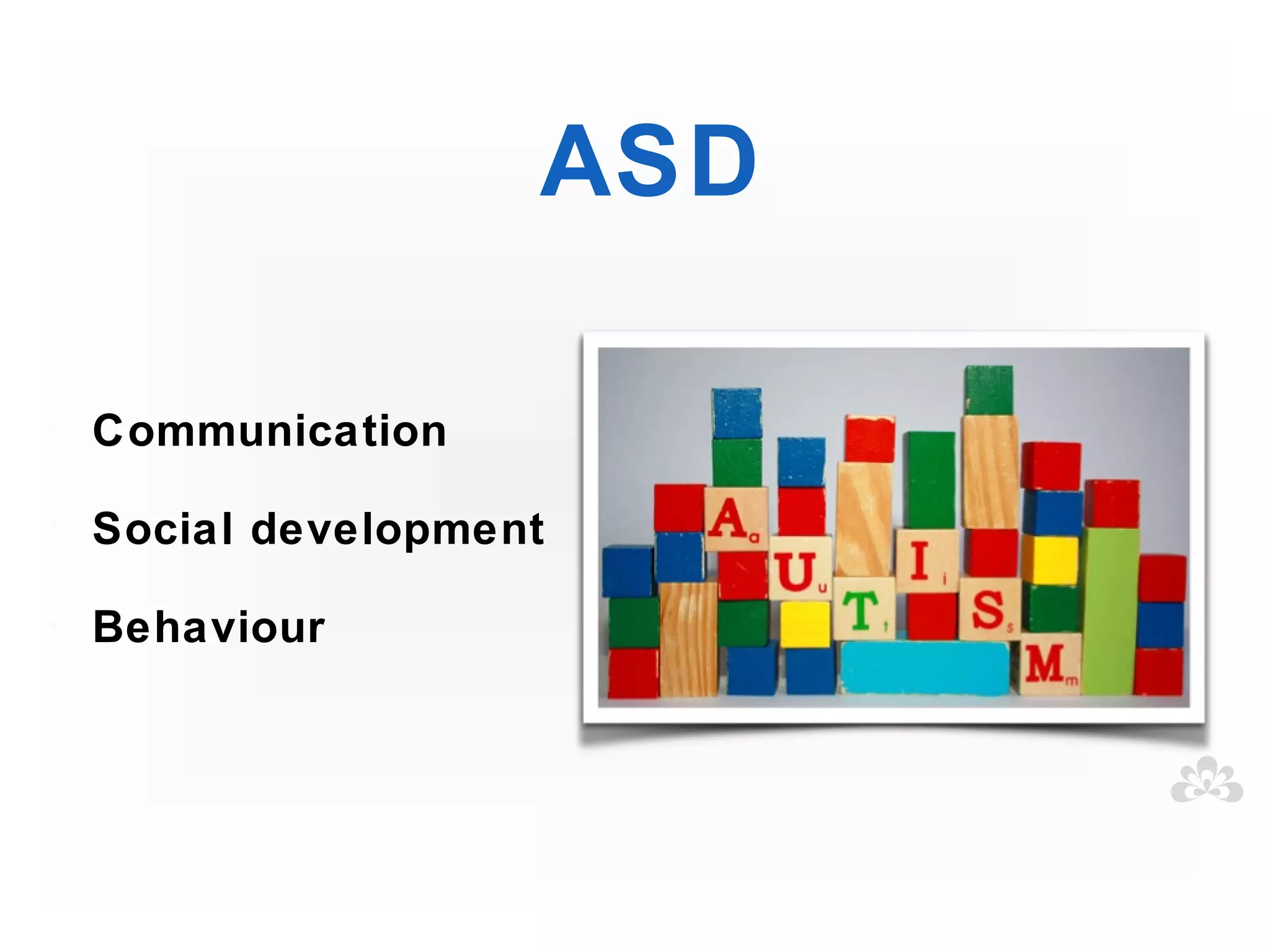
ASD

Communication

Social development

Behaviour
Don't throw the baby out with
       the bath water!

Remember that the iPad is just one tool in our arsenal
to help us successfully support students with Autism


     What other tools do we use?
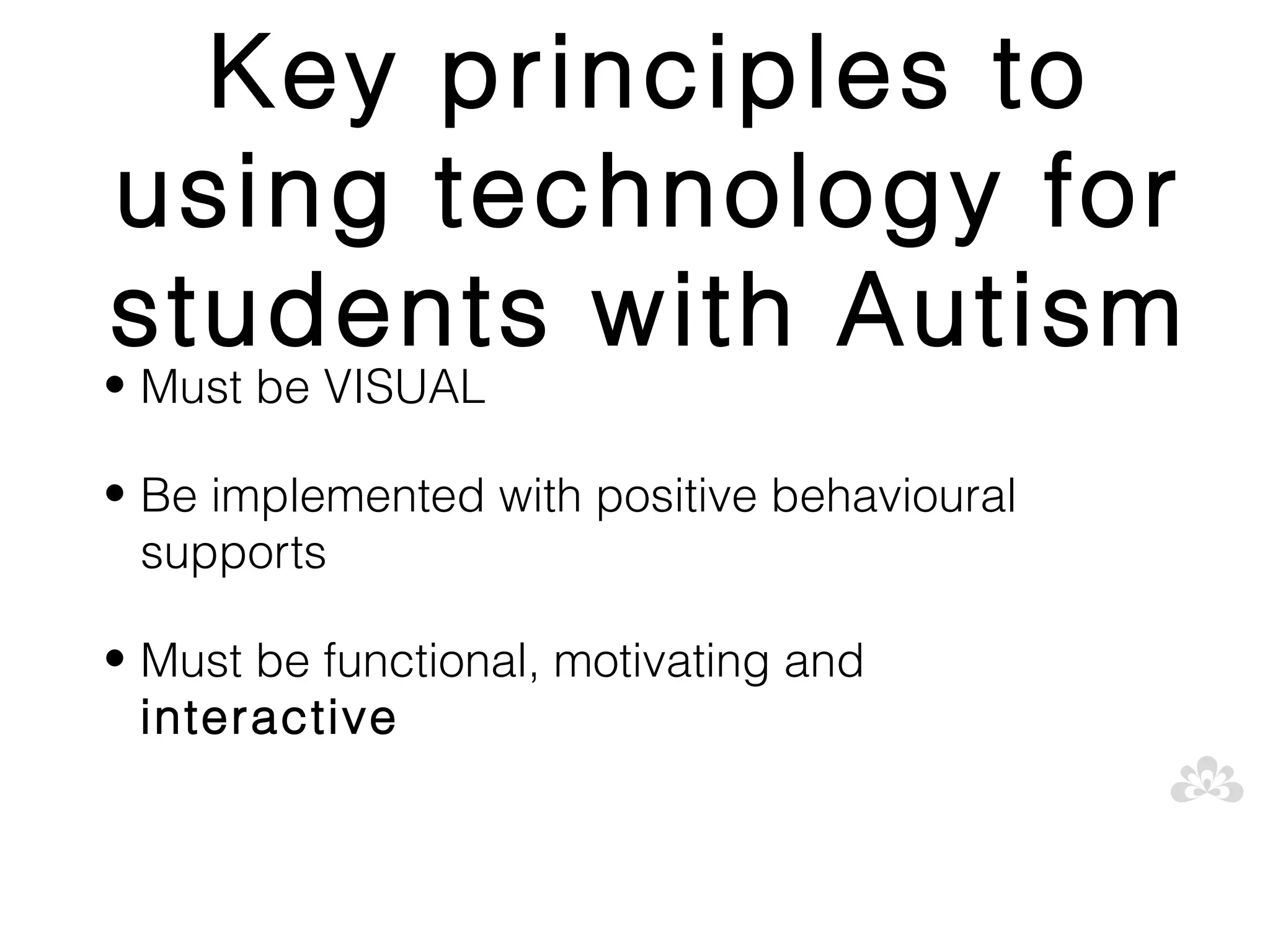
Key principles to
using technology for
students with Autism
• Must be VISUAL

• Be implemented with positive behavioural
  supports

• Must be functional, motivating and
  interactive
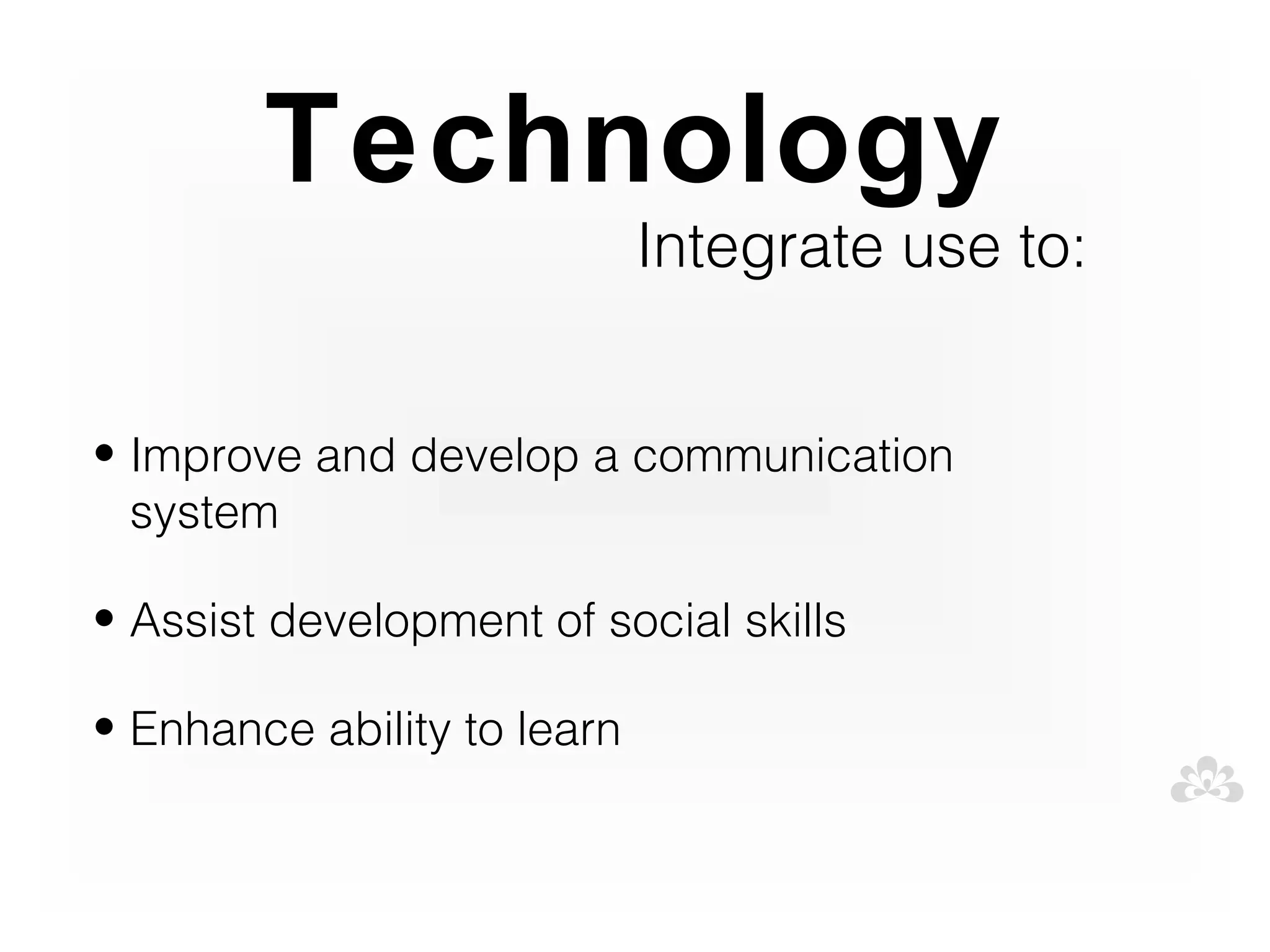
Technology
                             Integrate use to:


• Improve and develop a communication
  system

• Assist development of social skills

• Enhance ability to learn
iPad
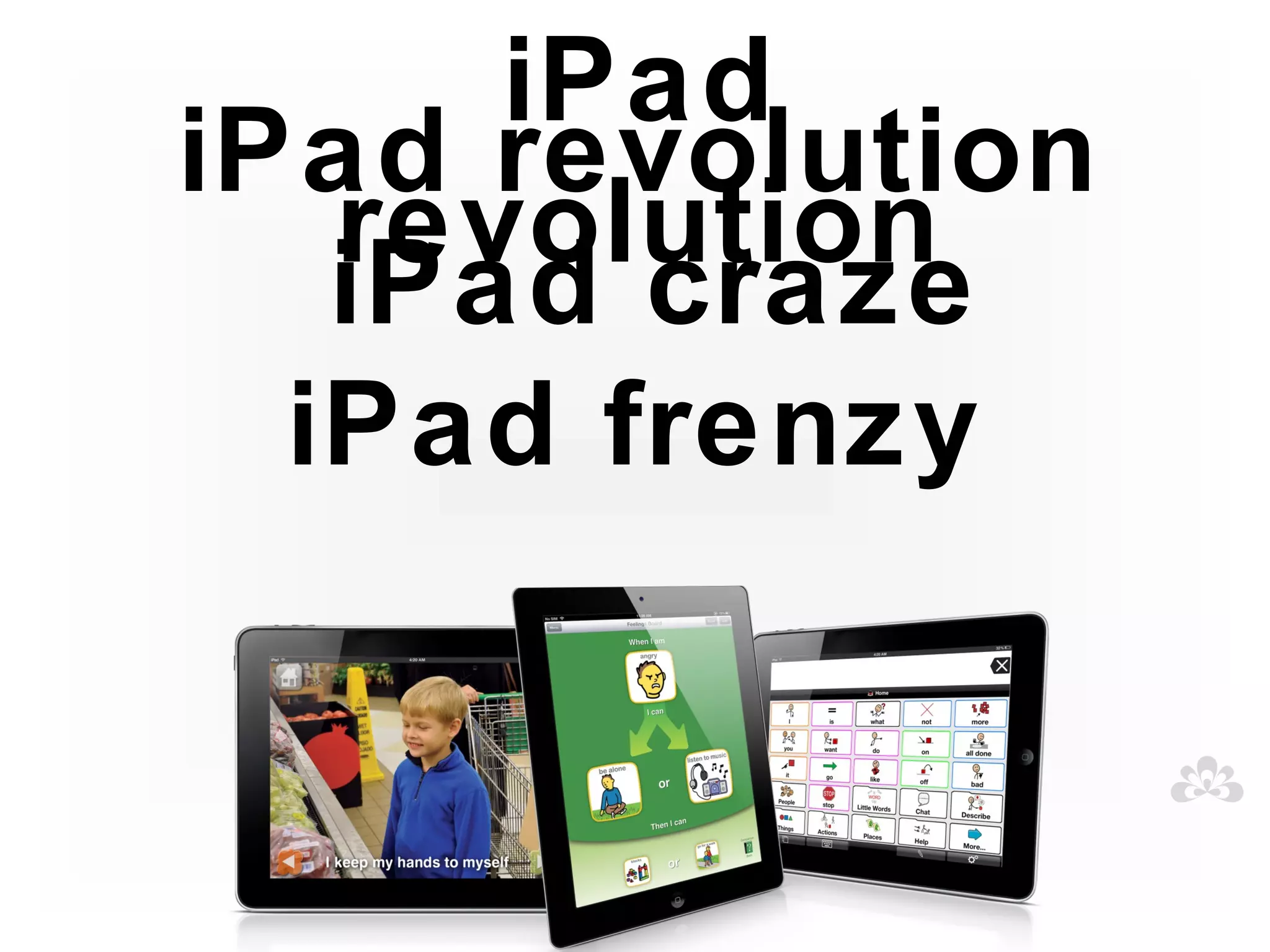
iPad revolution
   revolution
   iPad craze
  iPad frenzy
• User-friendly

• Engaging

• Multi-Functional


                  iPad
• Mobile and portable

• Easily accessed

• "Normal"

• Motivating

• Cost effective
Challenges
                           and solutions...


• Durability


        Solution: protective cases and coverings
Challenges
                            and solutions...

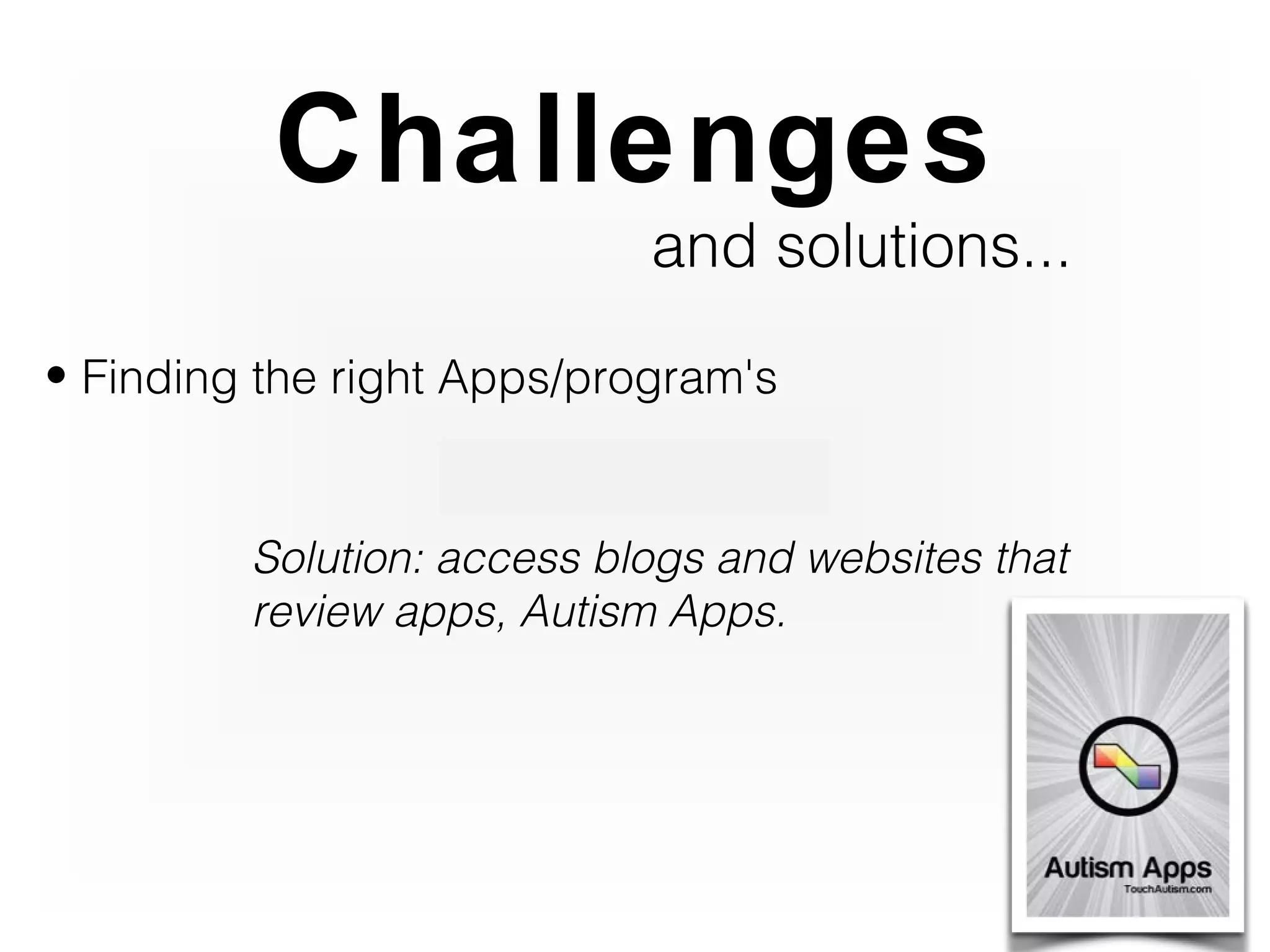
• Finding the right Apps/program's


         Solution: access blogs and websites that
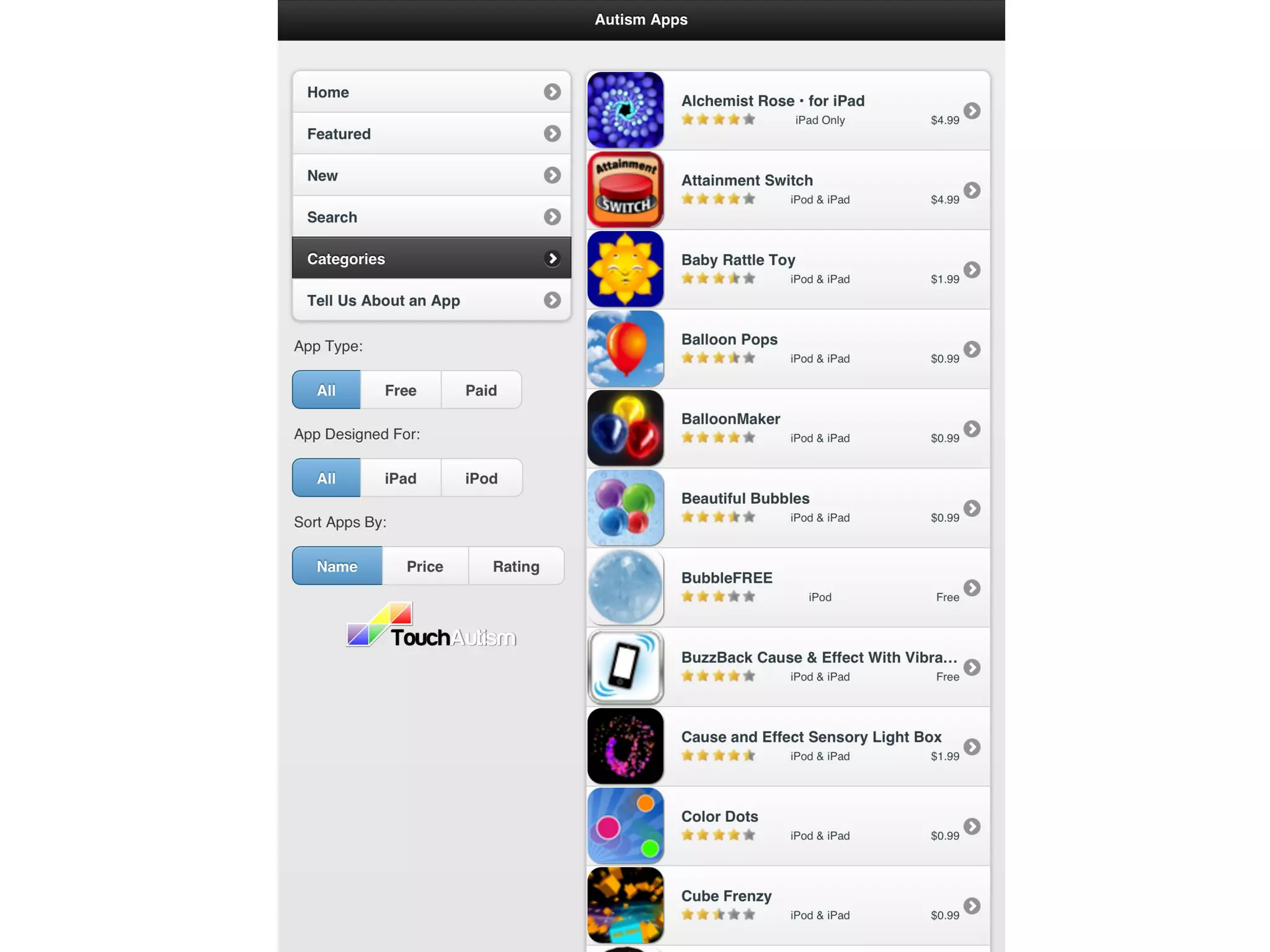
         review apps, Autism Apps.
Challenges
                             and solutions...


• One size fits all?

         Solution: no quick fix, no single solution, team
         assessment and problem solving
Challenges
                             and solutions...

• Abandonment of other valuable strategies


         Solution: don't throw the baby out with the
         bath water.. The iPad is just one tool in our
         tool kit.
Challenges
                          and solutions...

• Training and support


         Solution: funding to support ongoing and
         continuing professional development, access
         to the right training
Challenges
                          and solutions...

• Ongoing support to implement


        Solution: access to regular support services
        and therapies, collect and review data
Challenges
                           and solutions...

• iPad obsession and keeping kids on task


        Solution: Limited music, video and entertainment
        apps, Use within structured time limits, Use
        together, encouraging interaction and
        engagement, iOS 6 - Guided Access
REMEMBER....
             Continue to support students:
• With clear goals and objectives

• While continuing to collect data

• While reviewing what works and what

• Support within curriculum guidelines

• Ongoing training and support for staff

• And stay flexible and ready to make changes
  on the run
iPads 101
Quick tips out of the box
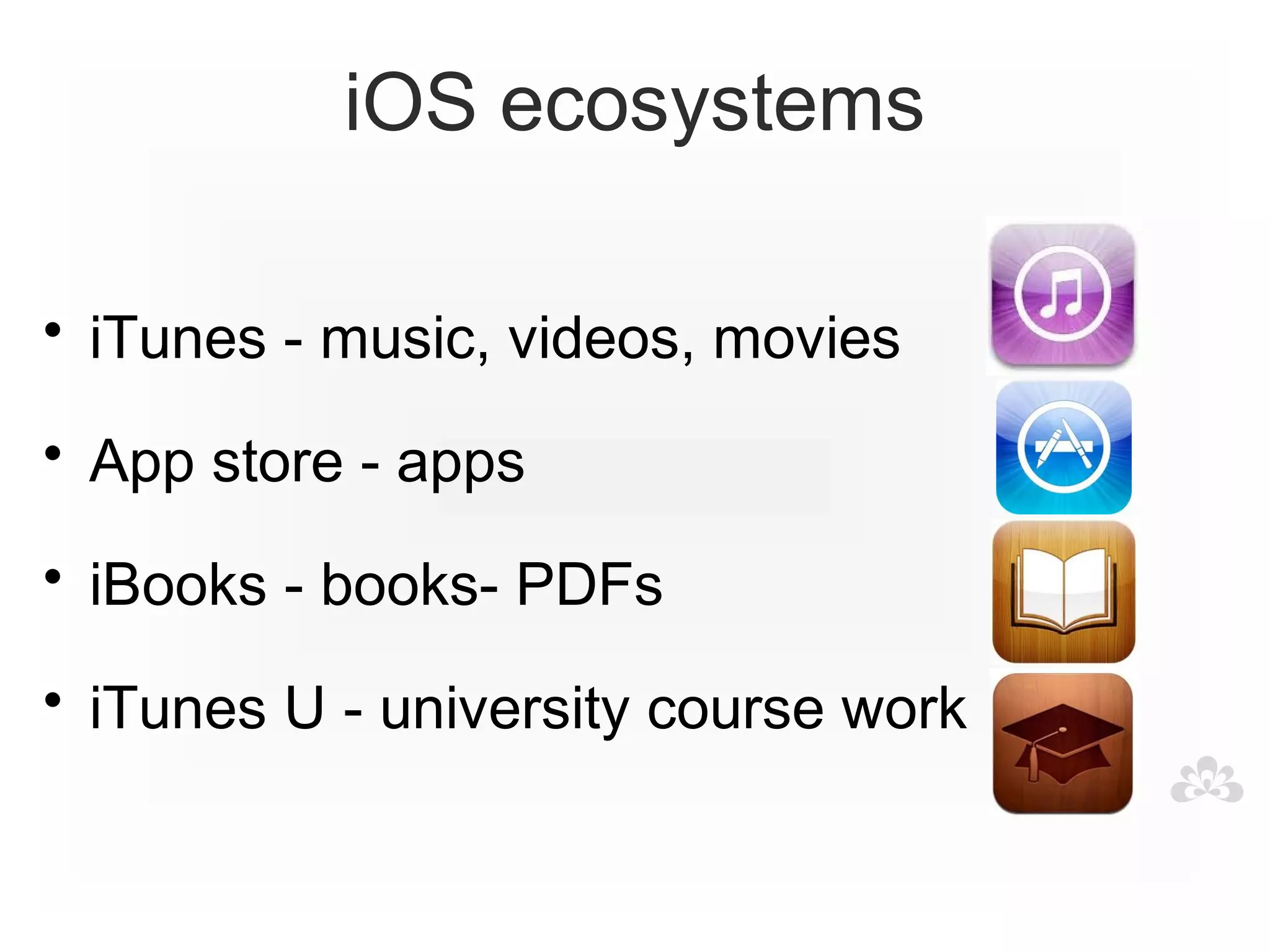
iOS ecosystems

• iTunes - music, videos, movies

• App store - apps

• iBooks - books- PDFs

• iTunes U - university course work
Discoverability


• Websites that review apps

• Apps that help us find good apps

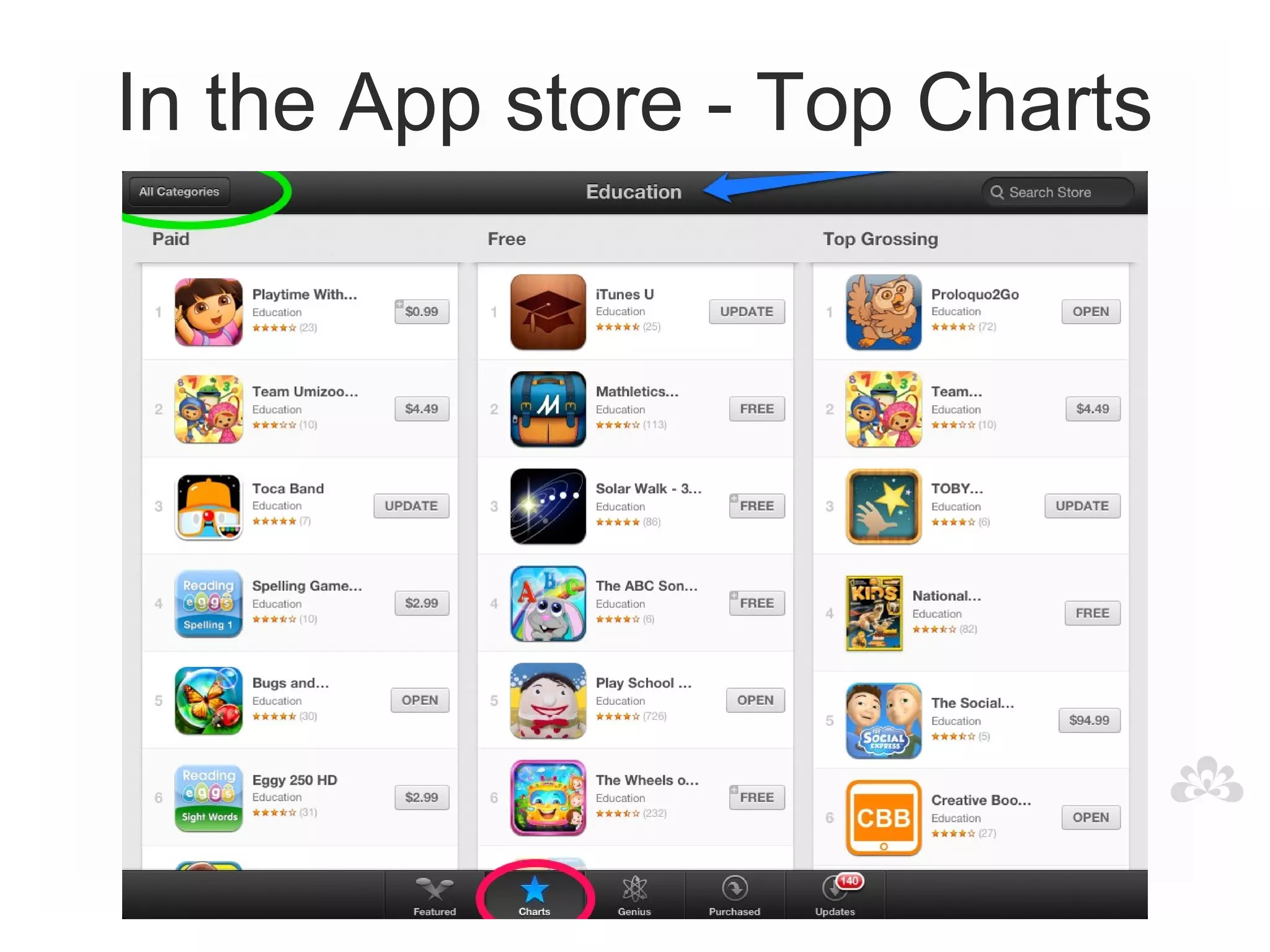
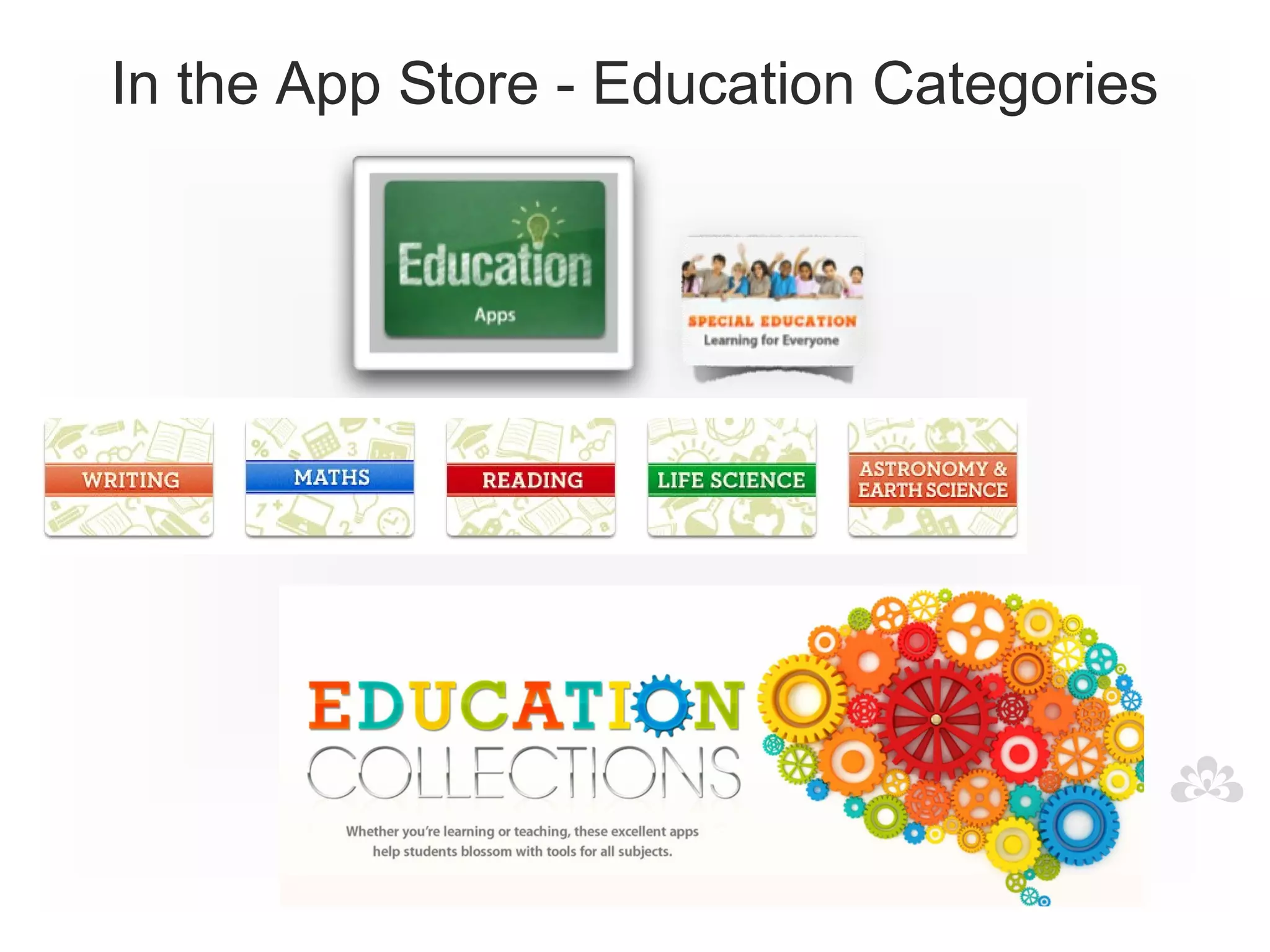
• Using the App store better
What makes a good
       app?
What do you look for?
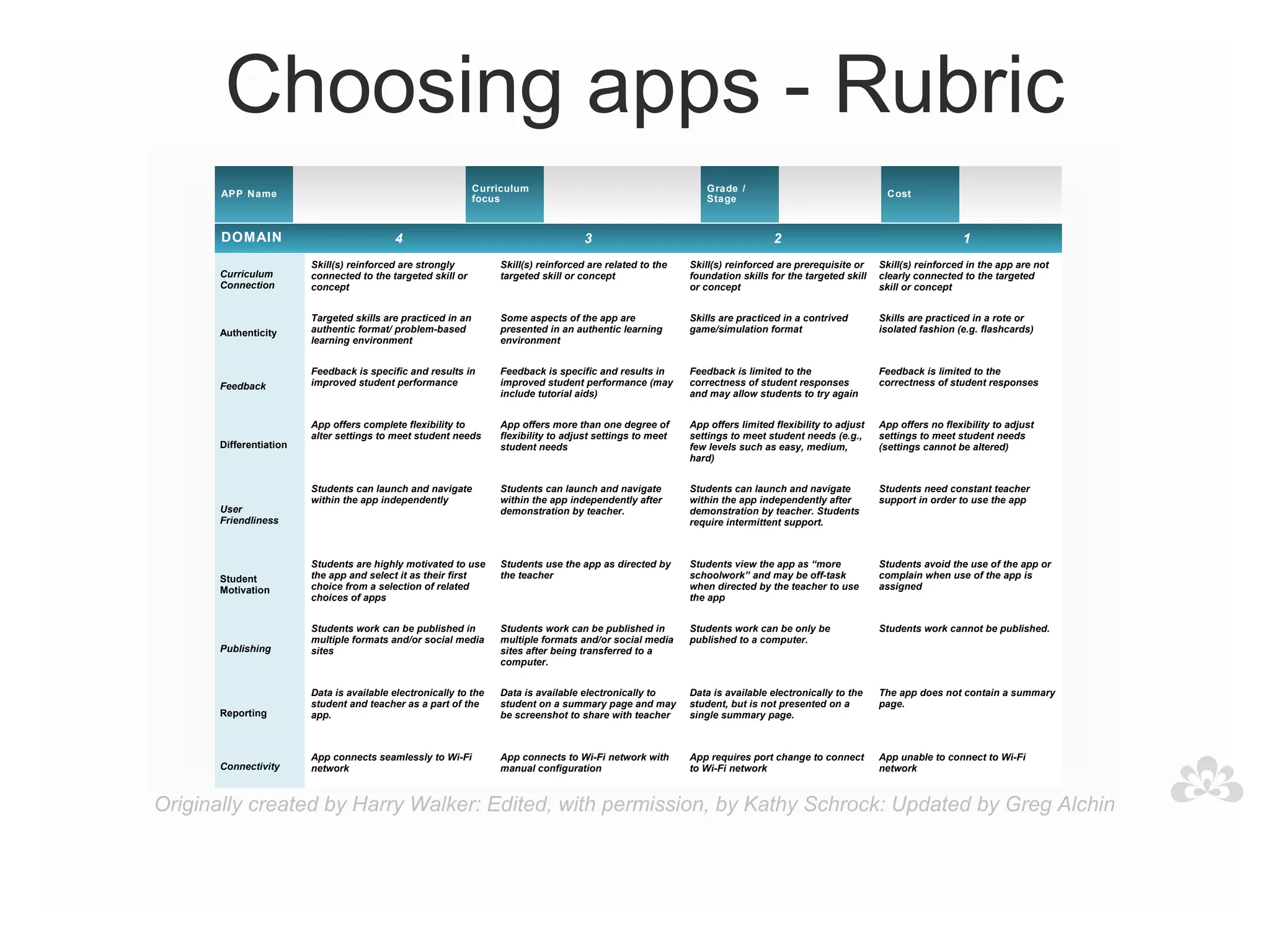
Choosing apps - Rubric
                                                              Curriculum                                      Grade /
       APP Name                                                                                                                                        Cost
                                                              focus                                           Stage


       DOMAIN                             4                                          3                                        2                                          1
                        Skill(s) reinforced are strongly          Skill(s) reinforced are related to the   Skill(s) reinforced are prerequisite or    Skill(s) reinforced in the app are not
      Curriculum        connected to the targeted skill or        targeted skill or concept                foundation skills for the targeted skill   clearly connected to the targeted
      Connection        concept                                                                            or concept                                 skill or concept


                        Targeted skills are practiced in an       Some aspects of the app are              Skills are practiced in a contrived        Skills are practiced in a rote or
      Authenticity      authentic format/ problem-based           presented in an authentic learning       game/simulation format                     isolated fashion (e.g. flashcards)
                        learning environment                      environment


                        Feedback is specific and results in       Feedback is specific and results in      Feedback is limited to the                 Feedback is limited to the
      Feedback          improved student performance              improved student performance (may        correctness of student responses           correctness of student responses
                                                                  include tutorial aids)                   and may allow students to try again


                        App offers complete flexibility to        App offers more than one degree of       App offers limited flexibility to adjust   App offers no flexibility to adjust
                        alter settings to meet student needs      flexibility to adjust settings to meet   settings to meet student needs (e.g.,      settings to meet student needs
      Differentiation                                             student needs                            few levels such as easy, medium,           (settings cannot be altered)
                                                                                                           hard)


                        Students can launch and navigate          Students can launch and navigate         Students can launch and navigate           Students need constant teacher
                        within the app independently              within the app independently after       within the app independently after         support in order to use the app
      User                                                        demonstration by teacher.                demonstration by teacher. Students
      Friendliness                                                                                         require intermittent support.


                        Students are highly motivated to use      Students use the app as directed by      Students view the app as “more             Students avoid the use of the app or
      Student           the app and select it as their first      the teacher                              schoolwork” and may be off-task            complain when use of the app is
      Motivation        choice from a selection of related                                                 when directed by the teacher to use        assigned
                        choices of apps                                                                    the app


                        Students work can be published in         Students work can be published in        Students work can be only be               Students work cannot be published.
                        multiple formats and/or social media      multiple formats and/or social media     published to a computer.
      Publishing        sites                                     sites after being transferred to a
                                                                  computer.


                        Data is available electronically to the   Data is available electronically to      Data is available electronically to the    The app does not contain a summary
                        student and teacher as a part of the      student on a summary page and may        student, but is not presented on a         page.
      Reporting         app.                                      be screenshot to share with teacher      single summary page.


                        App connects seamlessly to Wi-Fi          App connects to Wi-Fi network with       App requires port change to connect        App unable to connect to Wi-Fi
      Connectivity      network                                   manual configuration                     to Wi-Fi network                           network


Originally created by Harry Walker: Edited, with permission, by Kathy Schrock: Updated by Greg Alchin
Websites / online
• Spectronics Blog and app lists.
  http://www.spectronicsinoz.com/blog/apple/


• APPITIC.
  http://appitic.com/

• Appy Mall.
  http://www.appymall.com/

• Facebook groups/pages eg. "iTeach: Apps for
  classroom"; "Spectronics Online"; Technology
  in Education, Moms with Apps, etc.
Subscription
spectronics.com.au/online
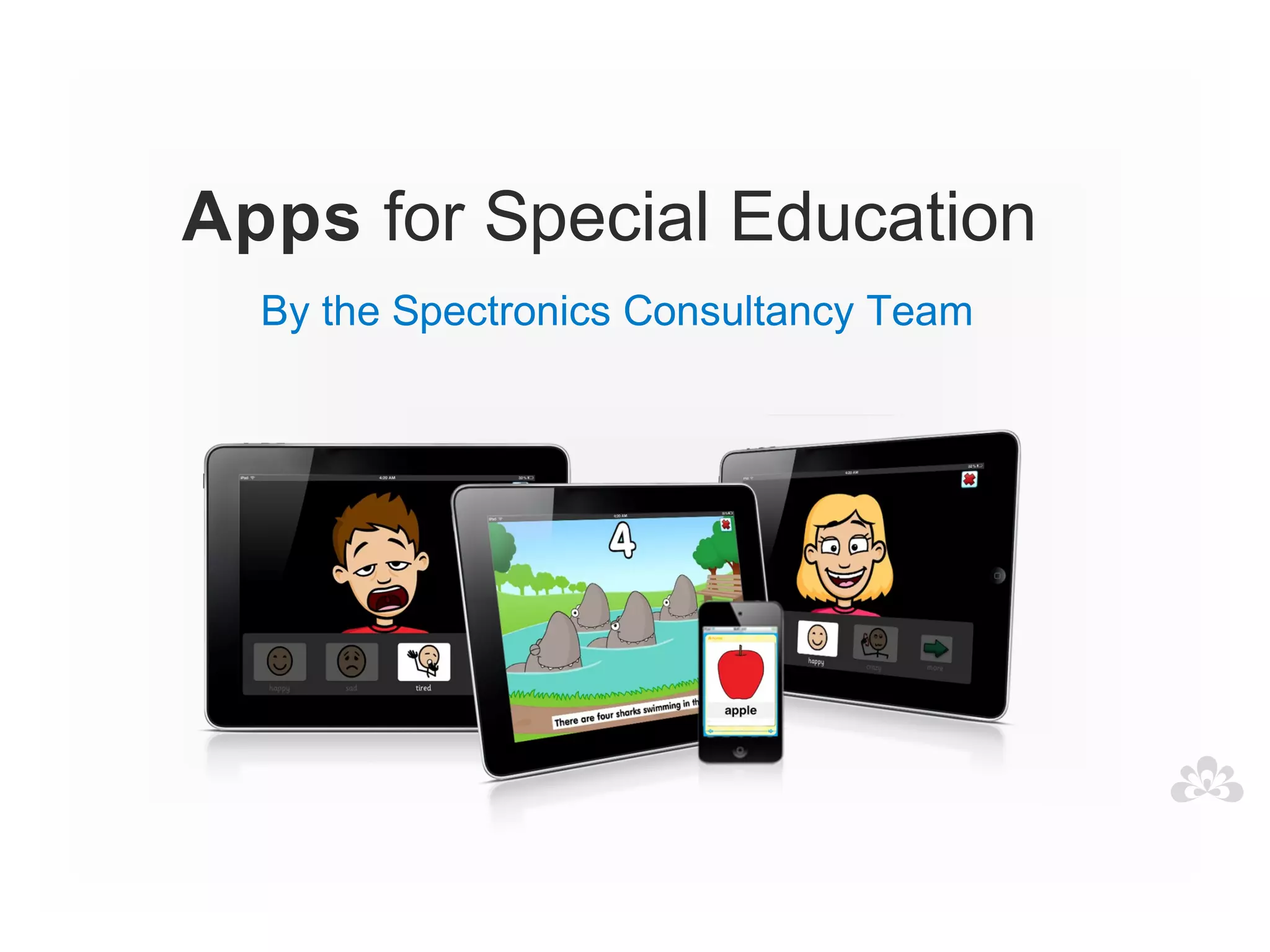
Apps for Special Education
  By the Spectronics Consultancy Team
facebook.com/Spectronics

twitter.com/Spectronics

Spectronics.com.au/Blog
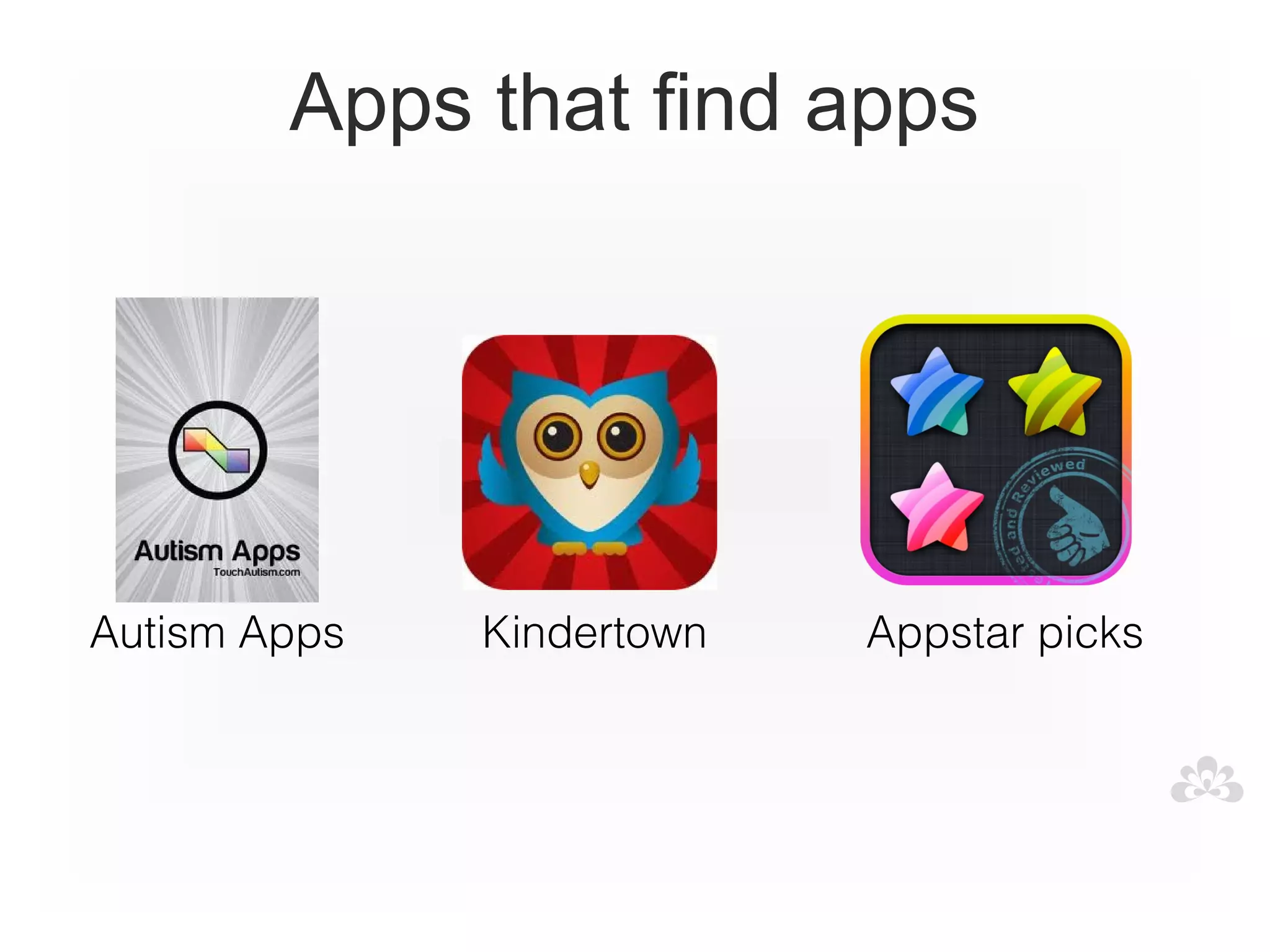
Apps that find apps


Autism Apps   Kindertown   Appstar picks
In the App store - Top Charts
In the App Store - Education Categories
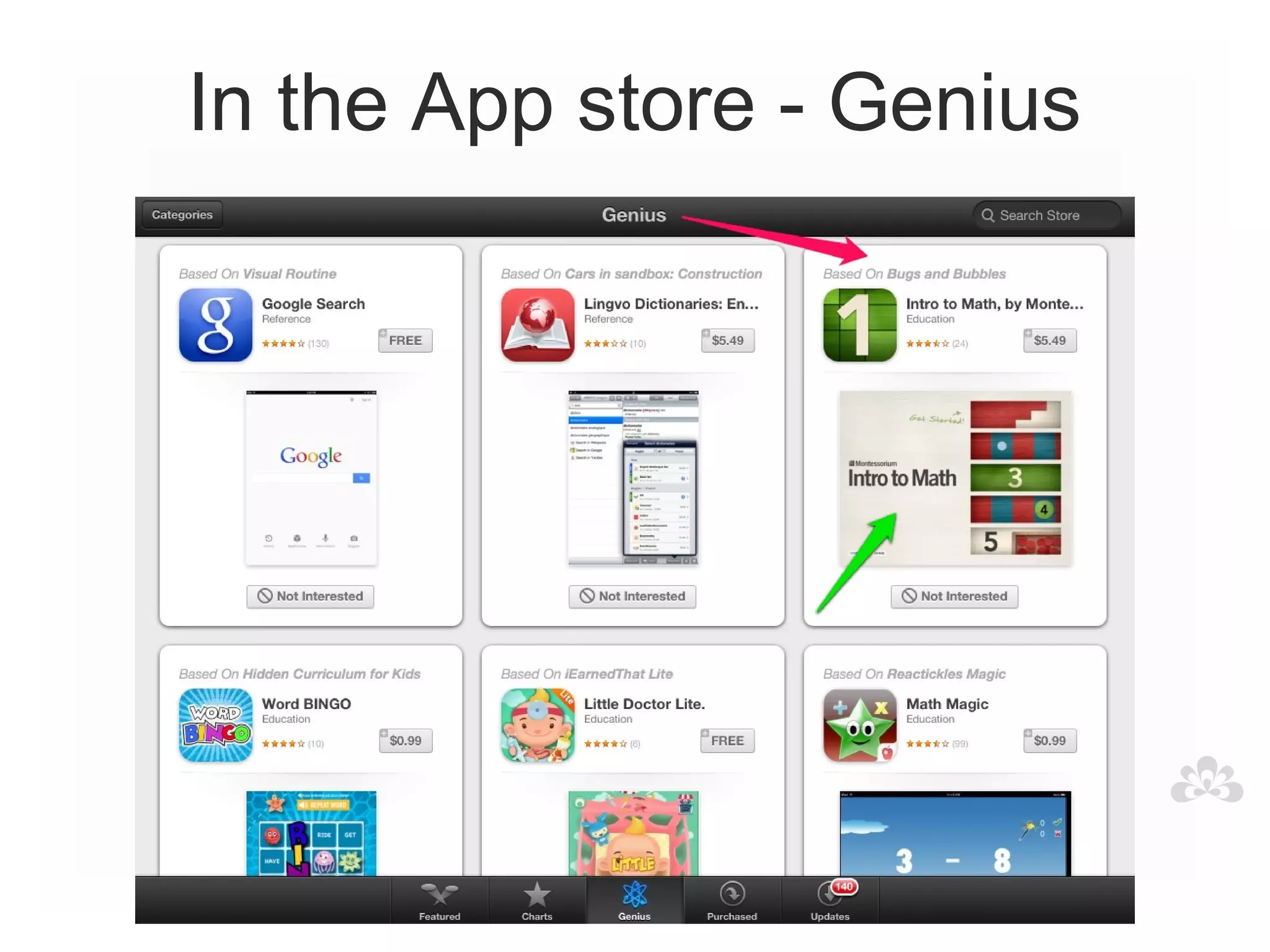
In the App store - Genius
iPad Basics
                          APP ICONS
                          APP ICONS

• Hold and jiggle

• Put into folders

• Rename folders

• Delete apps

• Lock onto bottom dock
iPad Basics
                           RESTRICTIONS
                           RESTRICTIONS


• Enable restrictions within SETTINGS - General

• Turn on and off- Installing Apps, Deleting Apps,
  Safari, Camera, In-App purchasing, password
  request etc.
iPad Basics
                    MULTI-TASKING GESTURES
                    MULTI-TASKING GESTURES


• Five finger pinch to close

• Four finger swipe up to multi-tasking dock

• Four finger swipes left and right between apps

• Turn OFF in SETTINGS-General
iPad Basics
                        MULTI-TASKING DOCK
                        MULTI-TASKING DOCK

• Four finger swipe up to multi-tasking dock

• OR double click HOME button

• Swipe left or right

• Forced close with red dash
iPad Basics
                       ACCESSIBILITY
                       ACCESSIBILITY

• Vision/hearing

• Speak selection

• Physical and Motor

• Guided access
iPad Basics
                           FILE SHARING
                           FILE SHARING

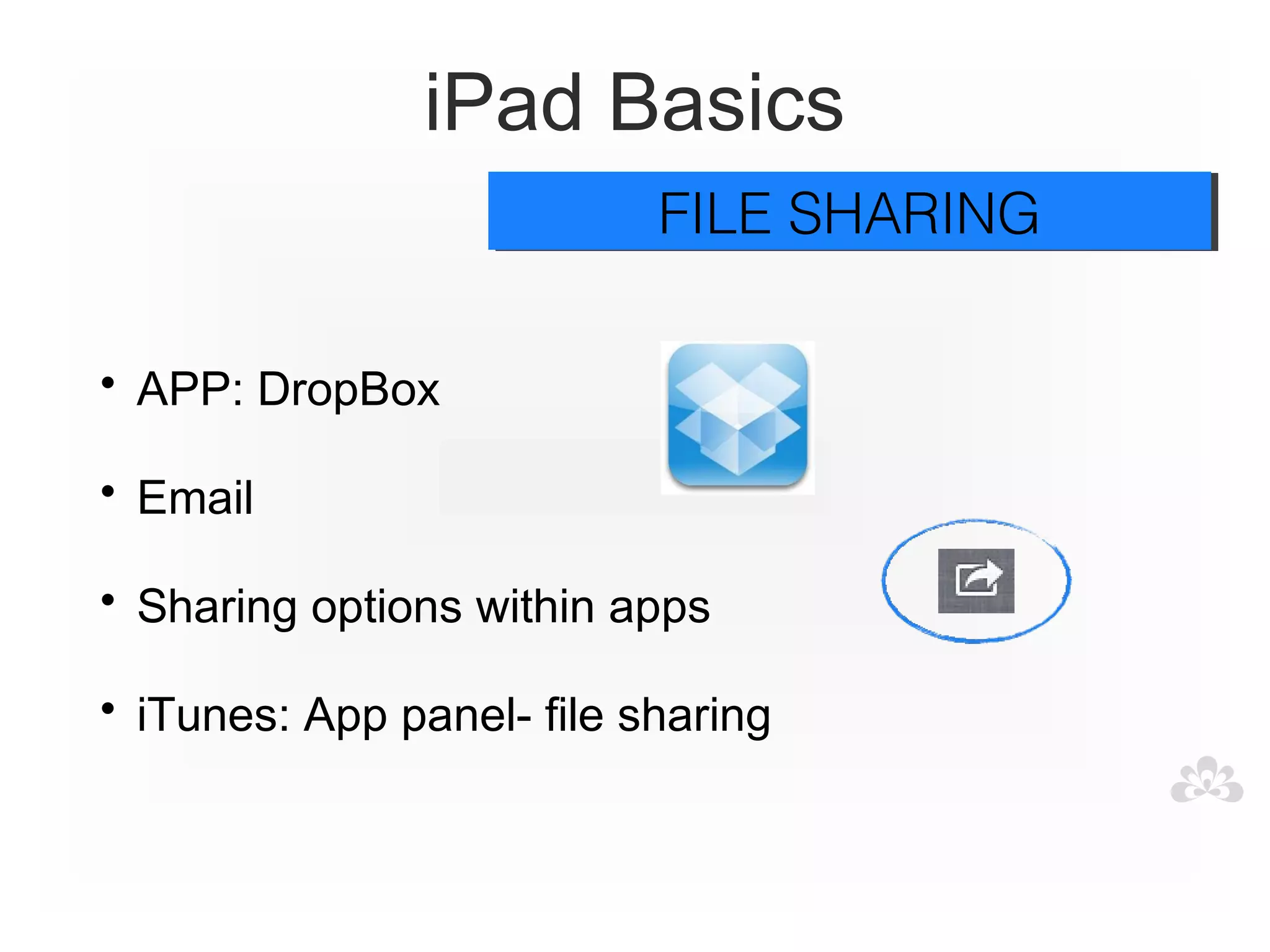
• APP: DropBox

• Email

• Sharing options within apps

• iTunes: App panel- file sharing
iPad Basics
                             EXTRA TIPS
                             EXTRA TIPS

• Screen Capture

• Make direct links to favourite websites

• Spotlight search for apps on iPad

• Side switch
Communication
Communication
                  skills
              Affected in different ways


• Significant delays in speaking, use and
  understand fewer words

• Not speaking at all (nonverbal)
Communication
          In those children who do develop
                        speech

• Copy or echo words (echolalia) with no real
  meaning attached

• Difficulty initiating communication

• Talk about their special interests

• Difficulty using language for a range of purposes

• Use and understand a limited set of vocabulary
Goals

• Increase use and understanding of words

• Improve comprehension and listening skills

• Develop and extend vocabulary

• Develop and extend spoken language skills
Apps for oral
 language
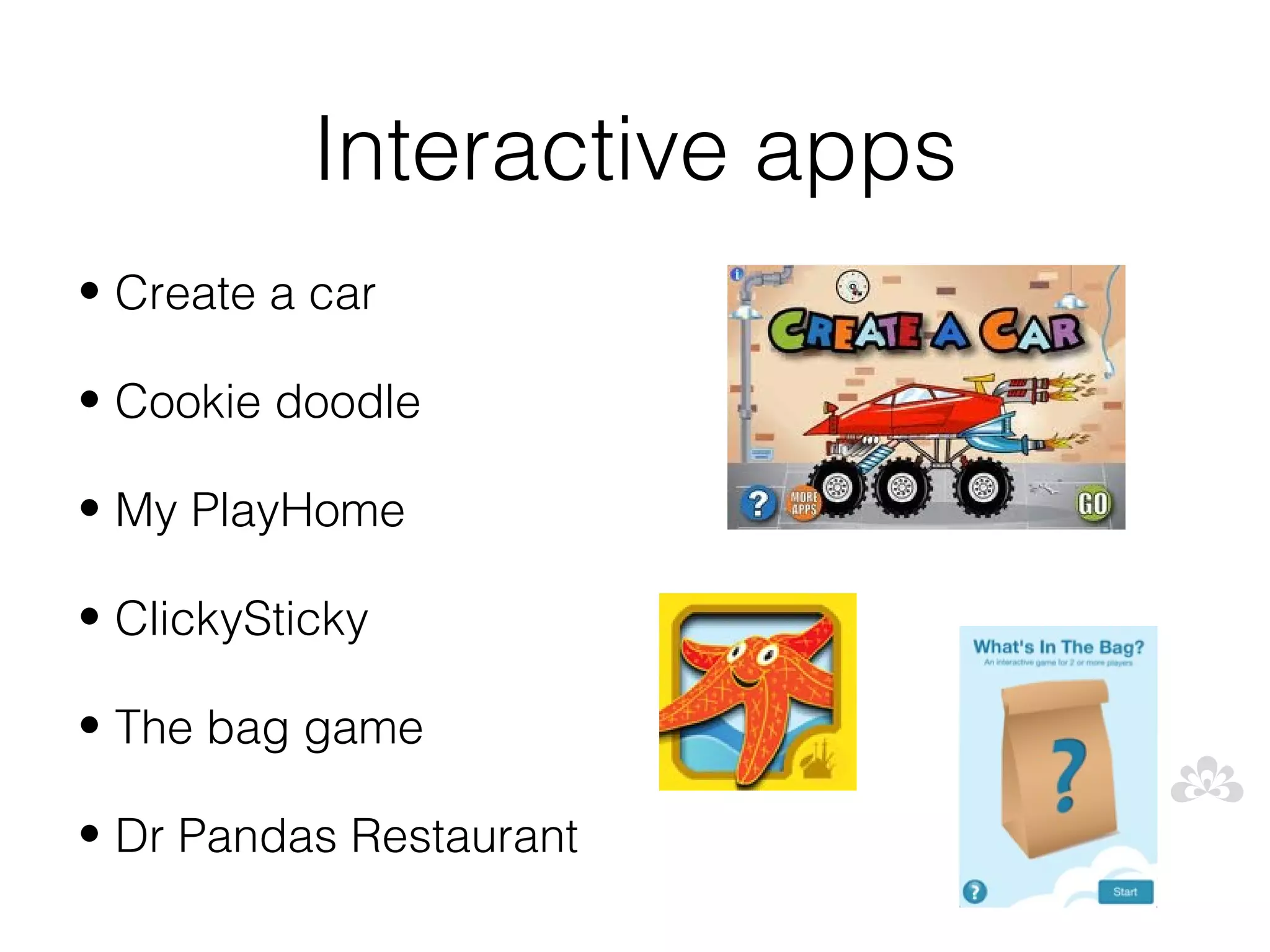
Interactive apps
• Create a car

• Cookie doodle

• My PlayHome

• ClickySticky

• The bag game

• Dr Pandas Restaurant
Toca Boca Apps
• Toca Store

• Toca doctor

• Hair salon 2

• Toca tea party

• Toca monster

• Toca tailor

• Toca fairy tales

• Toca kitchen
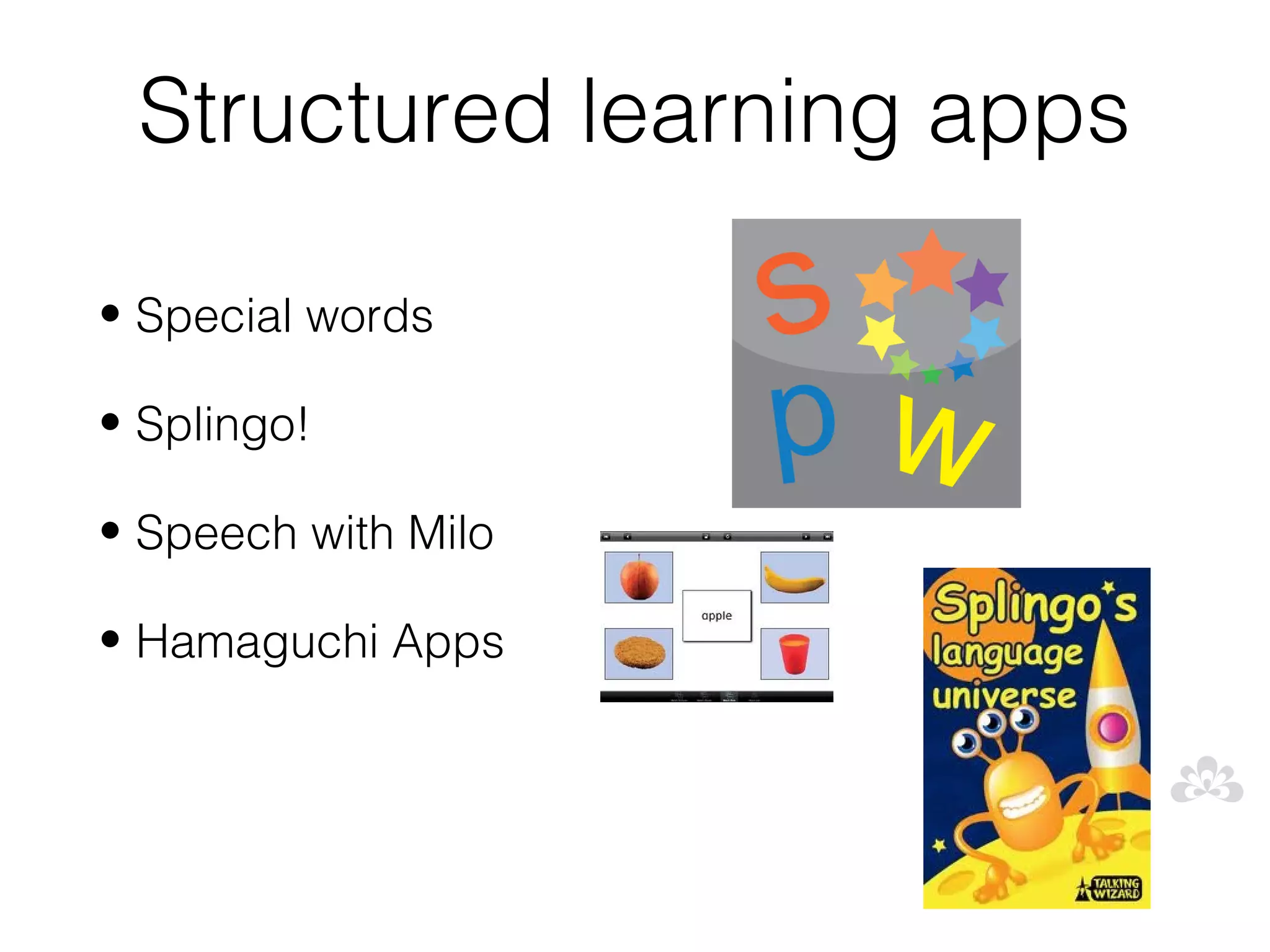
Structured learning apps

• Special words

• Splingo!

• Speech with Milo

• Hamaguchi Apps
Sentence building apps

• Sentences builder

• Rainbow sentences

• Clicker sentences
Communication
                                      Nonverbal

• Children with little or no speech

• Need to be given alternative ways to
  communicate (commonly called AAC)

• Devices and apps

• Don't forget low tech

• Multimodal approach
Alternative and augmentative
    communication (AAC)
Augmentative communication is the use of
materials or techniques that supplement
existing verbal abilities.

Alternative communication is communication
methods used by a person without any verbal
ability.

       (Vanderheiden and Yoder, 1986)
Goals

• Establish a system of communication

• Present a range of modes as the person
  selects their preferred method
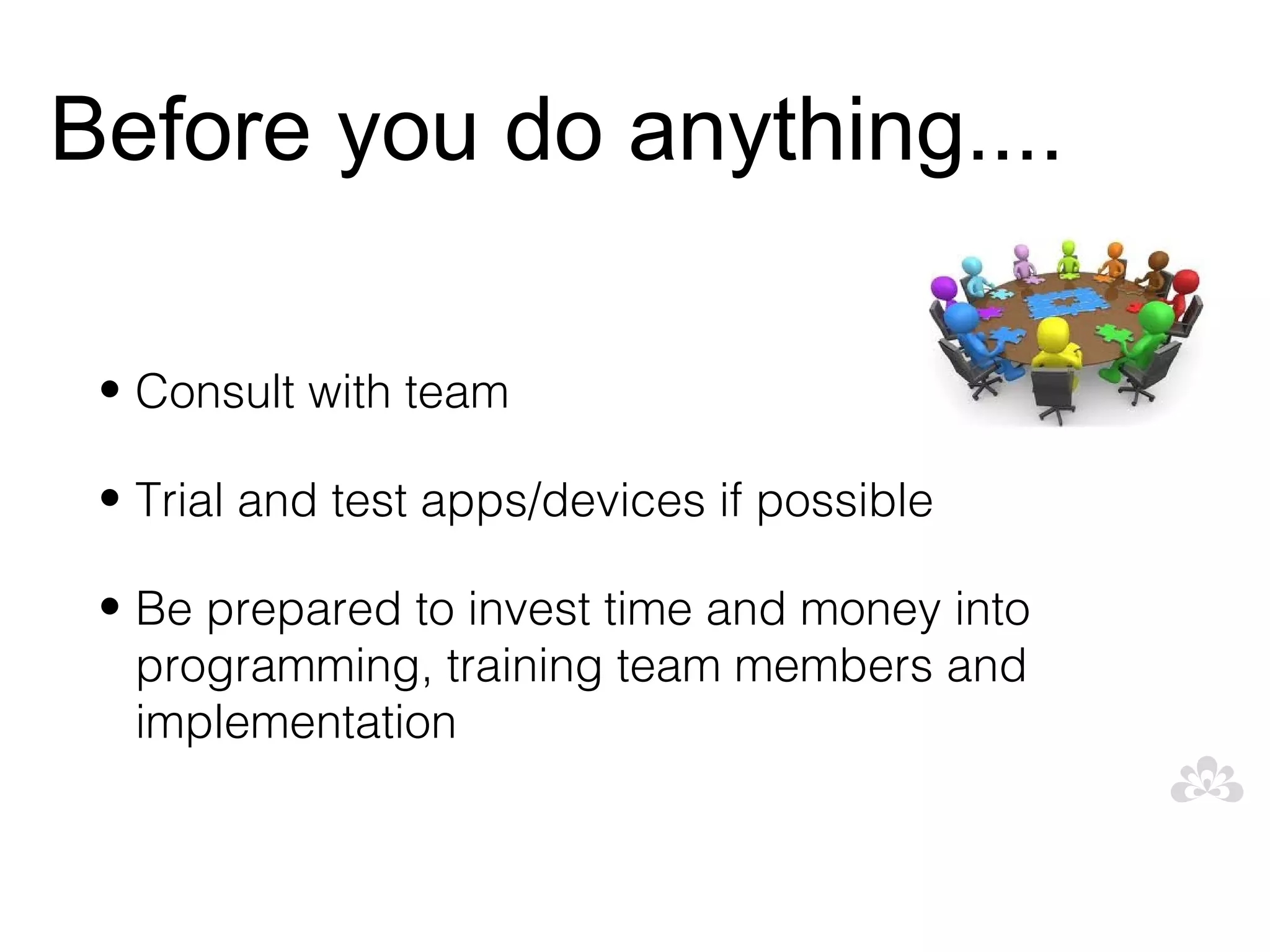
Before you do anything....

 • Consult with team

 • Trial and test apps/devices if possible

 • Be prepared to invest time and money into
   programming, training team members and
   implementation
Tips for success..

• Specific Vocabulary selection and design

• To be engaging, interactive, fun, motivating and
  purposeful

• Modelling of device/ board/ book
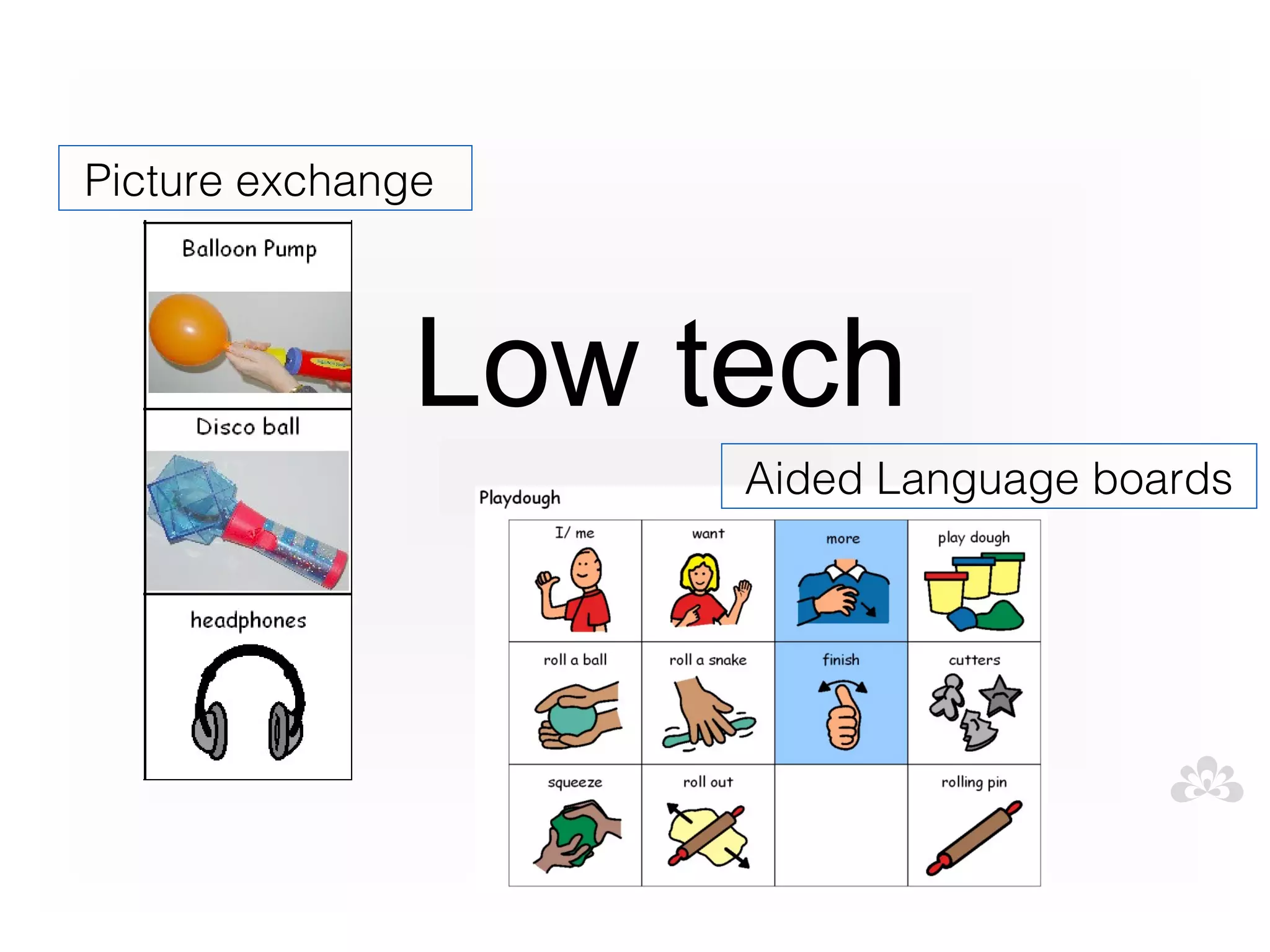
Picture exchange


               Low tech
                    Aided Language boards
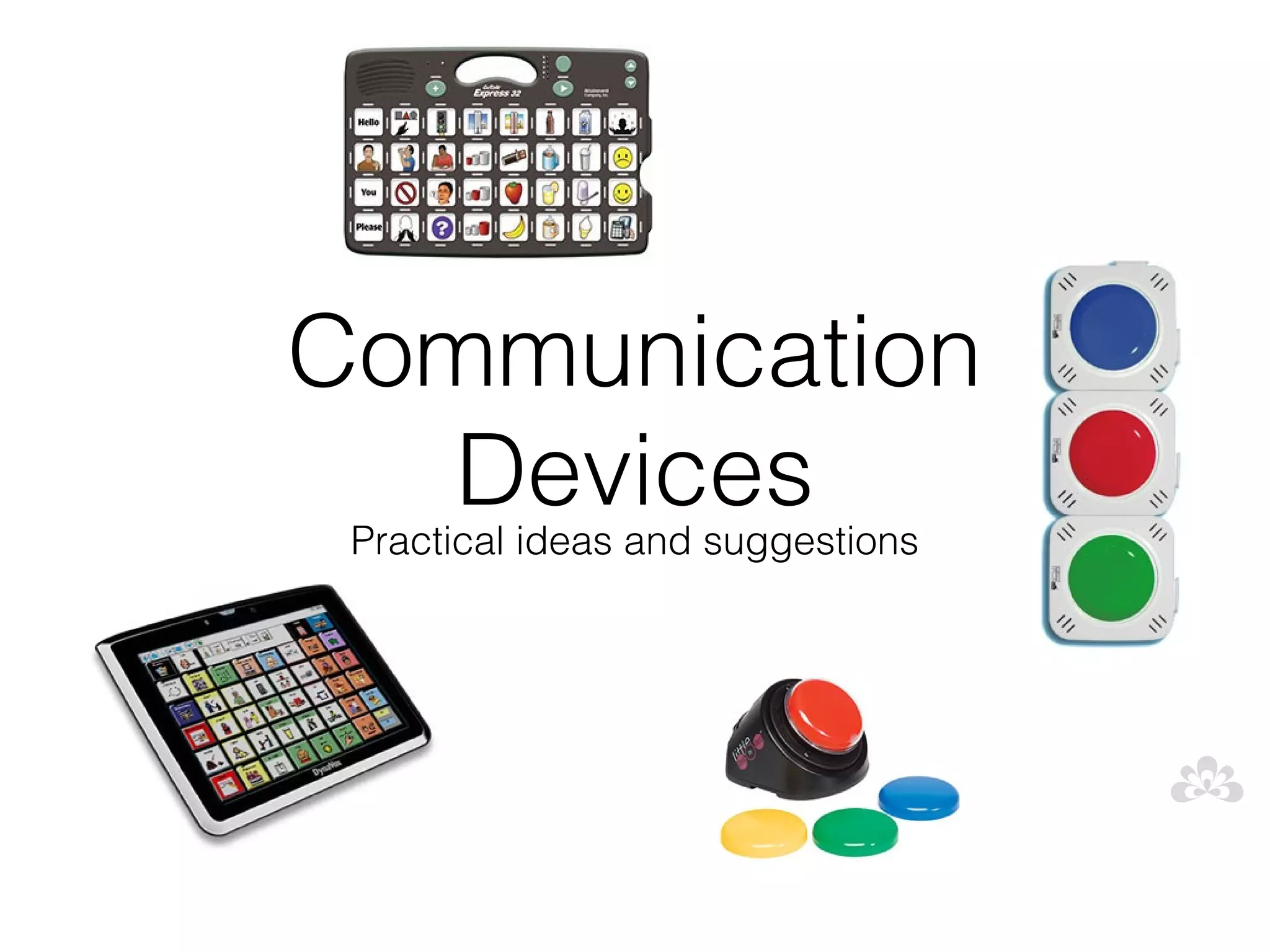
Communication
   Devices
 Practical ideas and suggestions
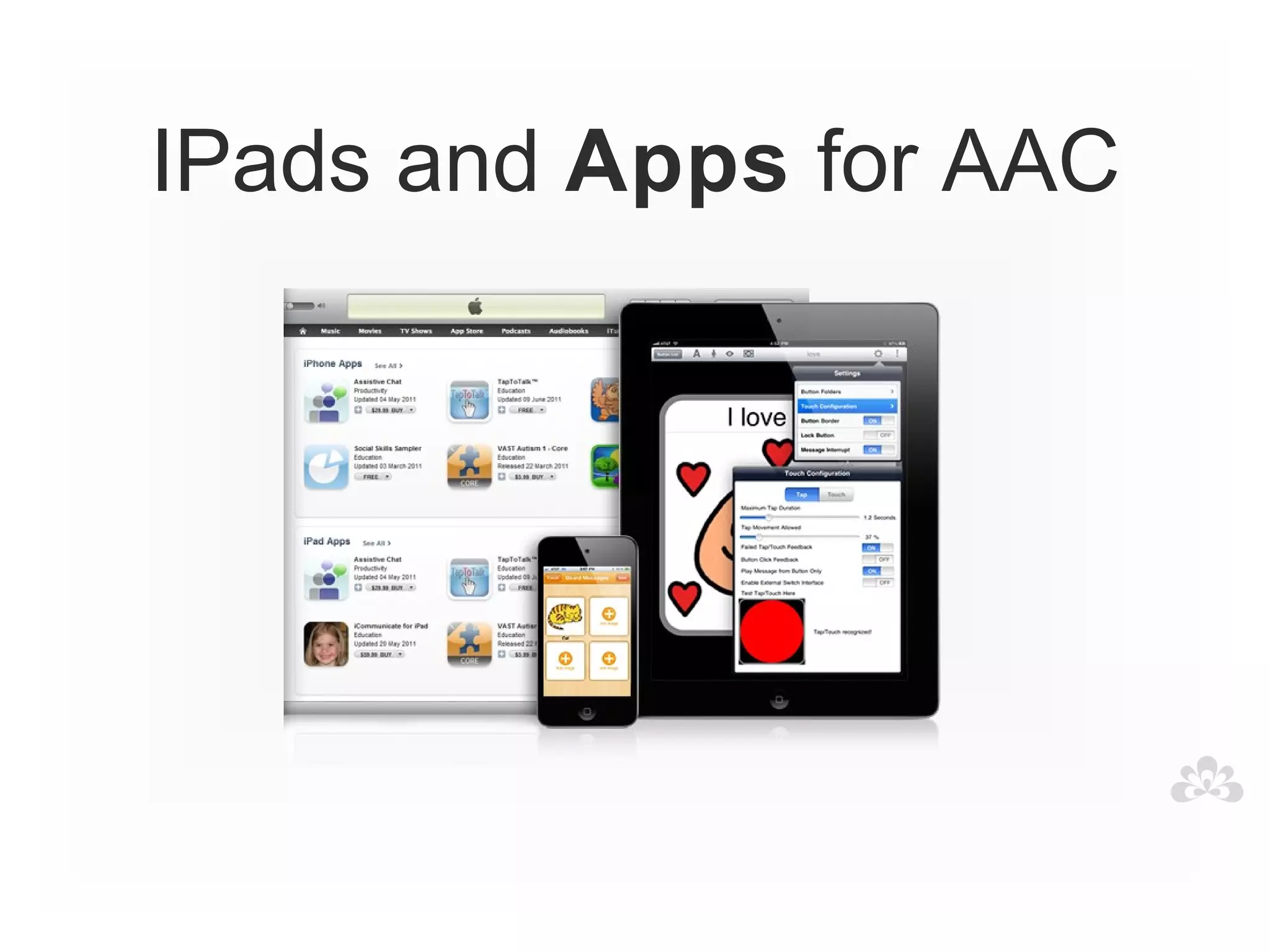
IPads and Apps for AAC
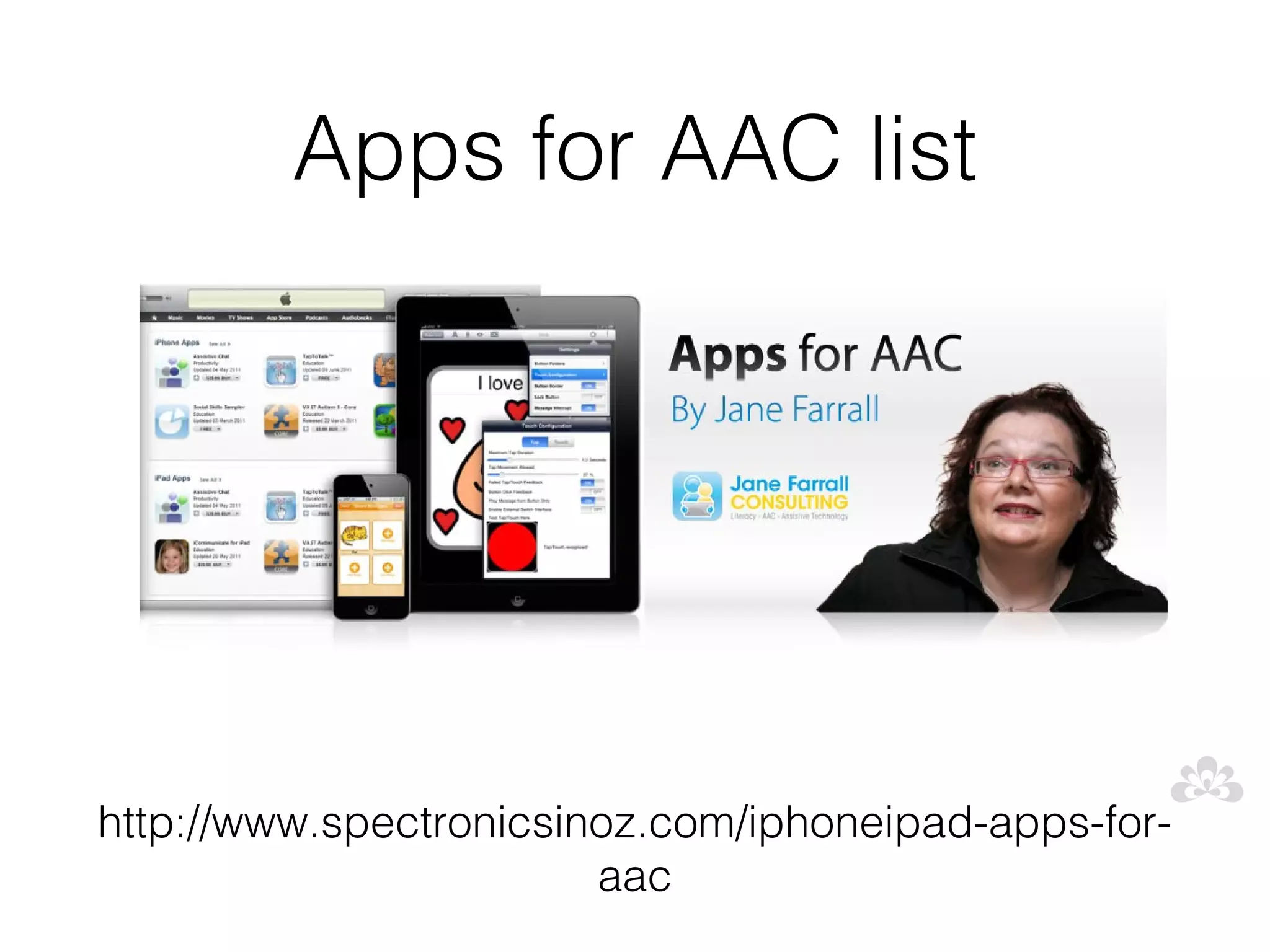
Apps for AAC list


http://www.spectronicsinoz.com/iphoneipad-apps-for-
                        aac
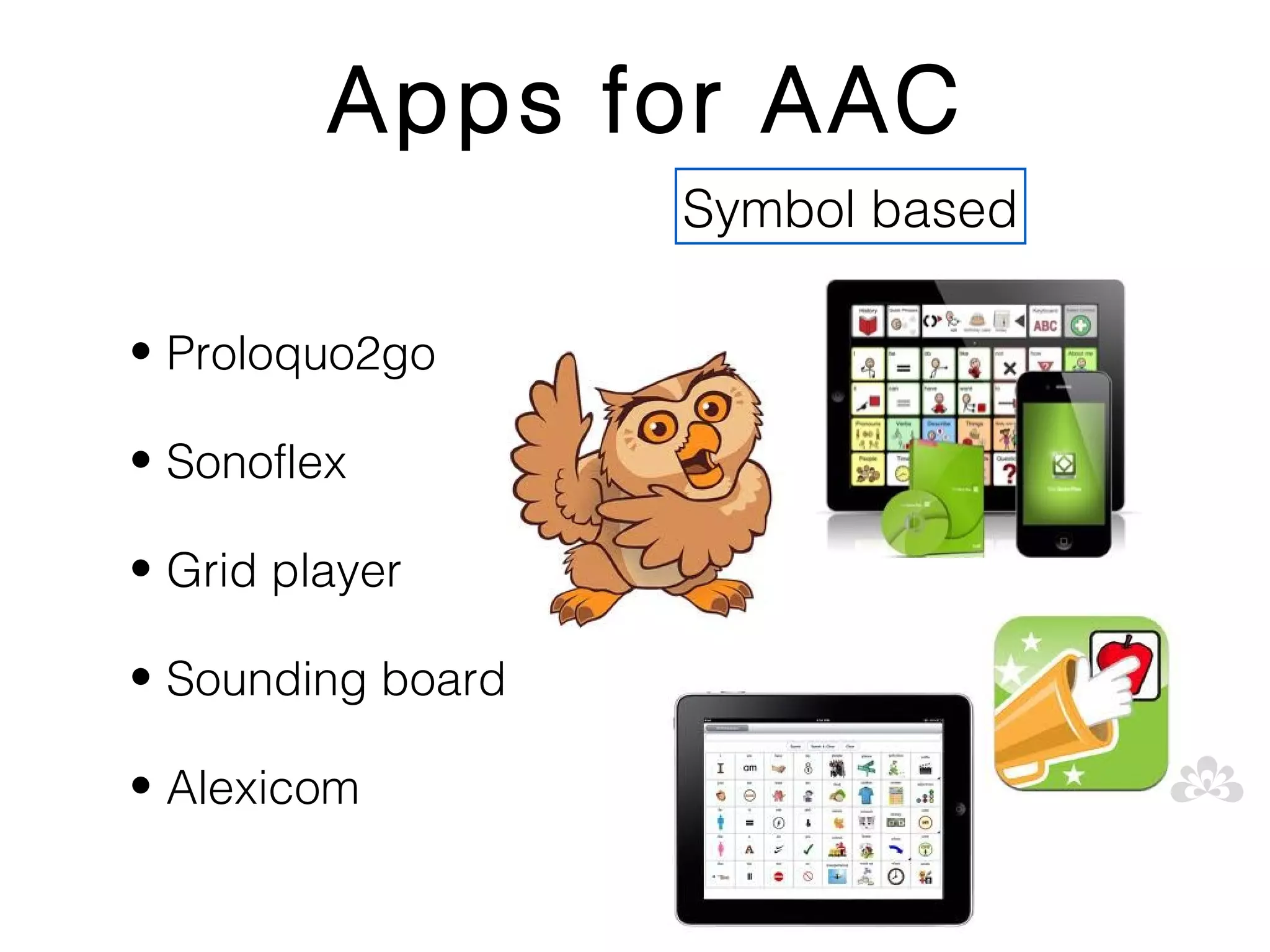
Apps for AAC
                   Symbol based

• Proloquo2go

• Sonoflex

• Grid player

• Sounding board

• Alexicom
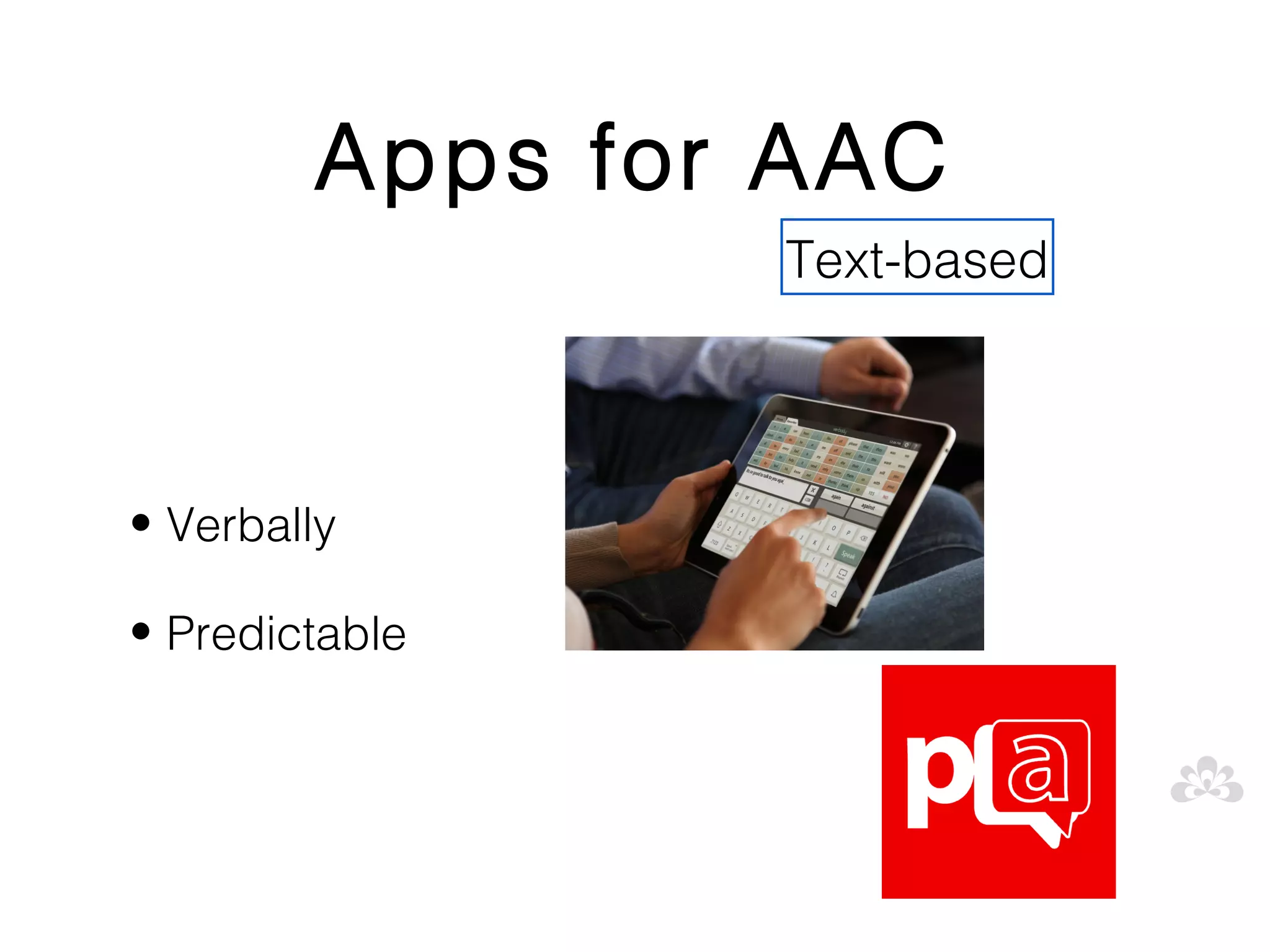
Apps for AAC
                Text-based


• Verbally

• Predictable
Behaviour
Behaviour
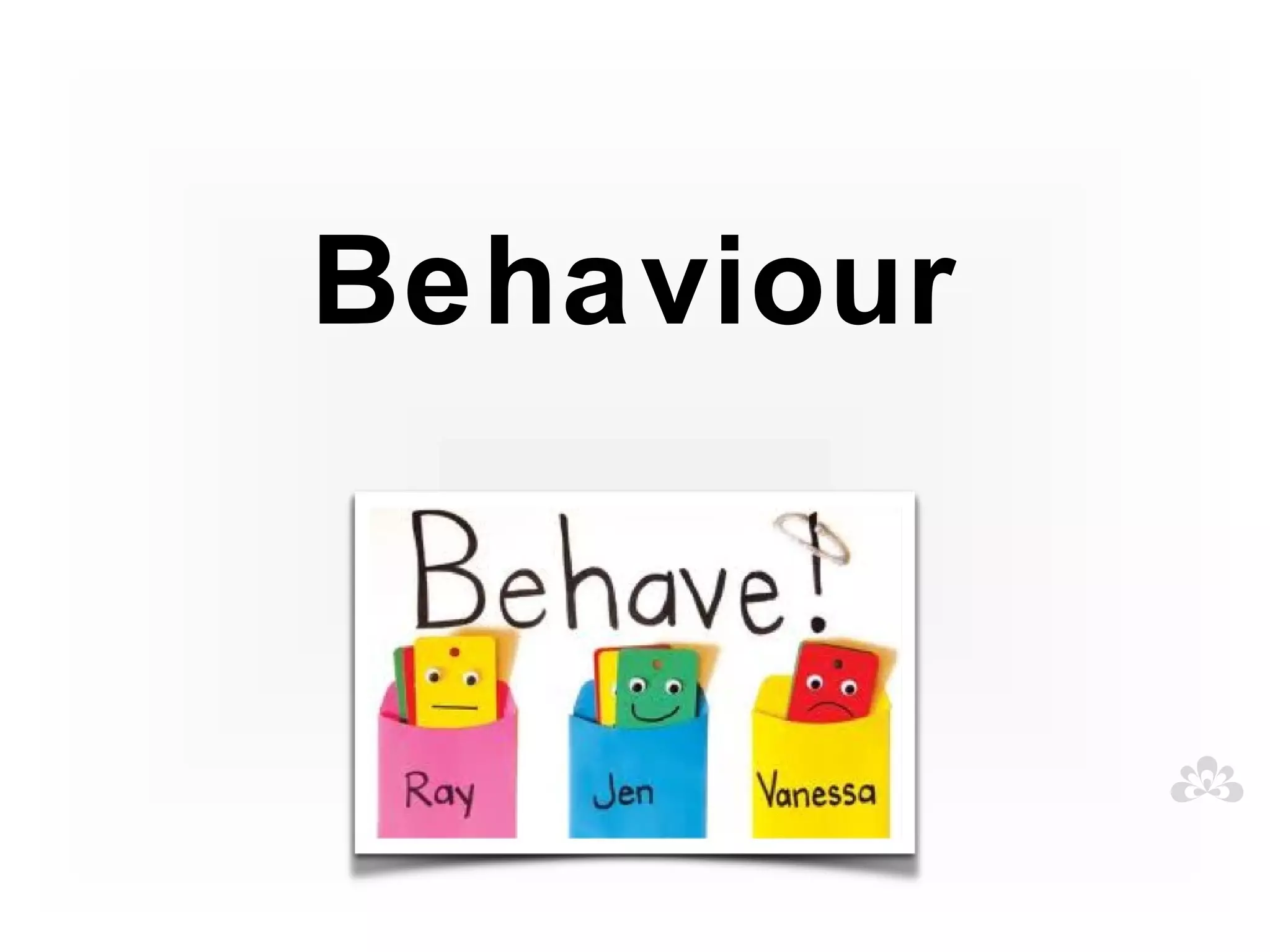
             Complex and variable

• Prefer routines and sameness and dislike change

• Meltdowns

• Repetitive behaviours

• Obsess over particular interest areas

• Sensory challenges affect behaviours

• Seek sensory stimulation
Functions of the
          behaviour...
• What is the motivation/cause of the
  behaviour?

• Escape/ avoidance of a situation

• Attention gained from the action

• Getting access to a tangible item or activity

• Automatic personal reinforcement or sensory
  input
Behaviour
supported with
  Visual tools
Benefits of visual tools
• Provides positive behaviour support

• Maintains routines and schedules but also can visually
  show when changes occur

• Provides clear expectations

• Steps within task are made clear

• Keeps student on task

• Allows team to use consistent language and provide
  consistent feedback to students
Visual tools are useful for:
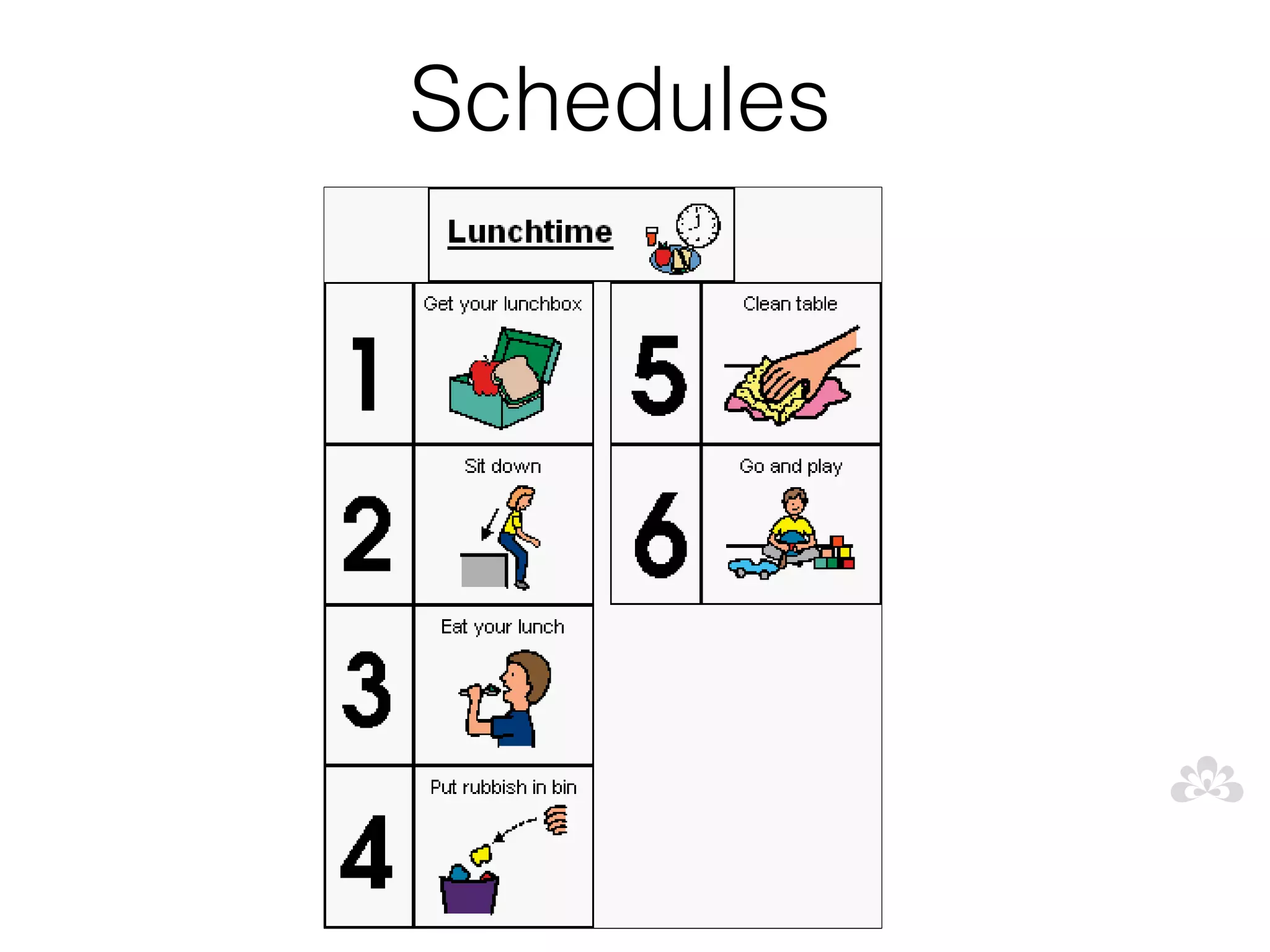
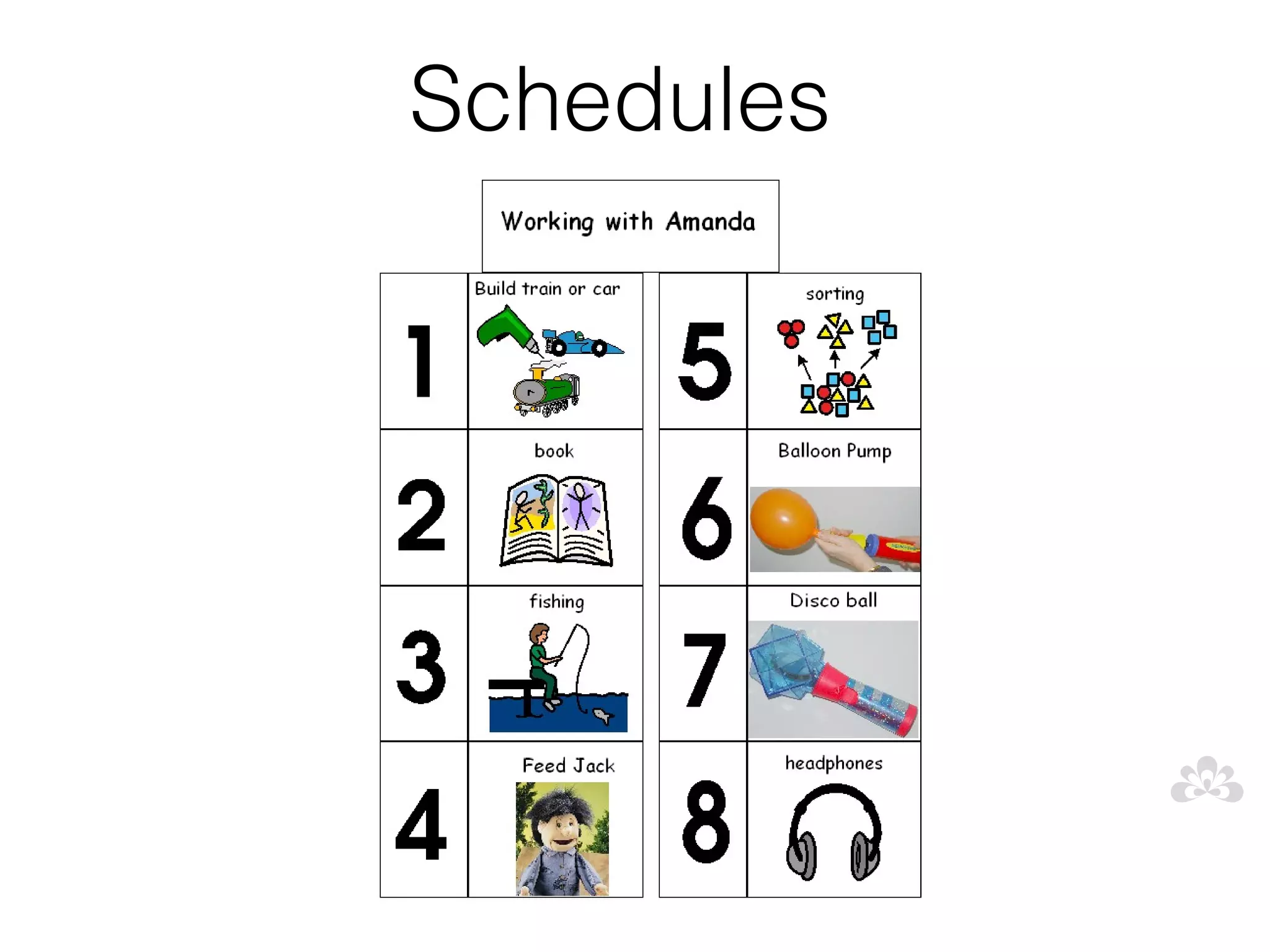
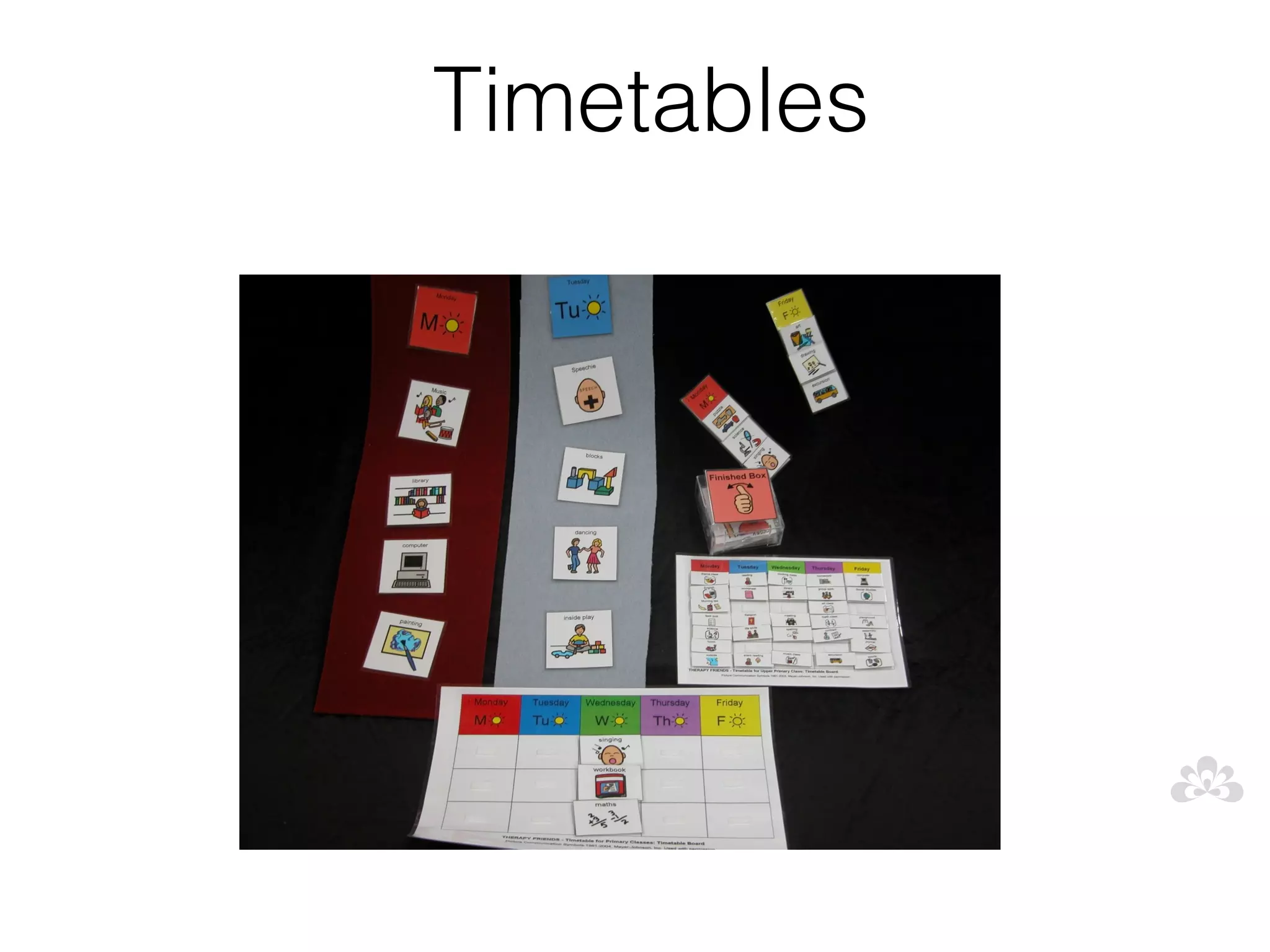
• Schedules, timetables and routines

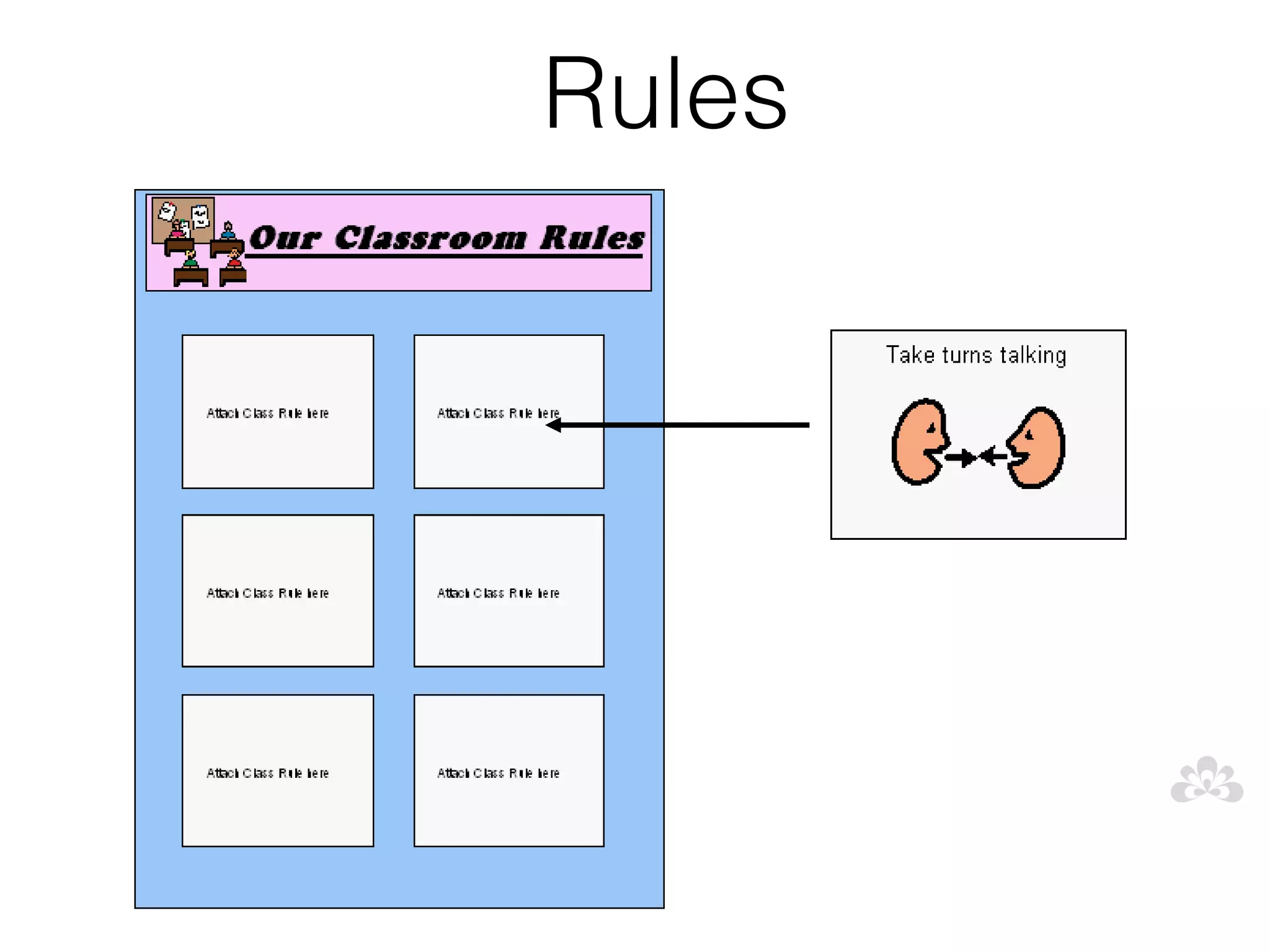
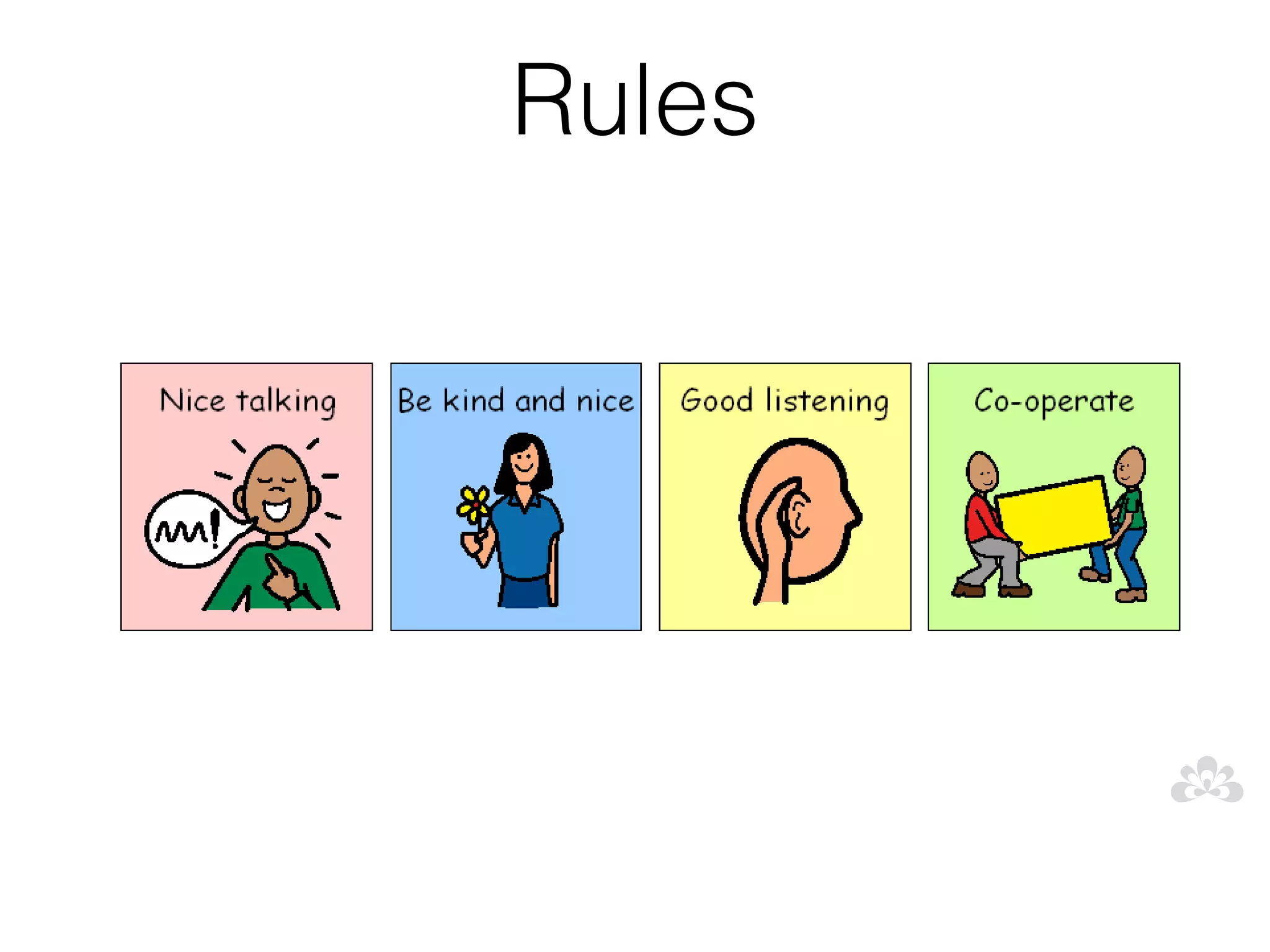
• Class rules

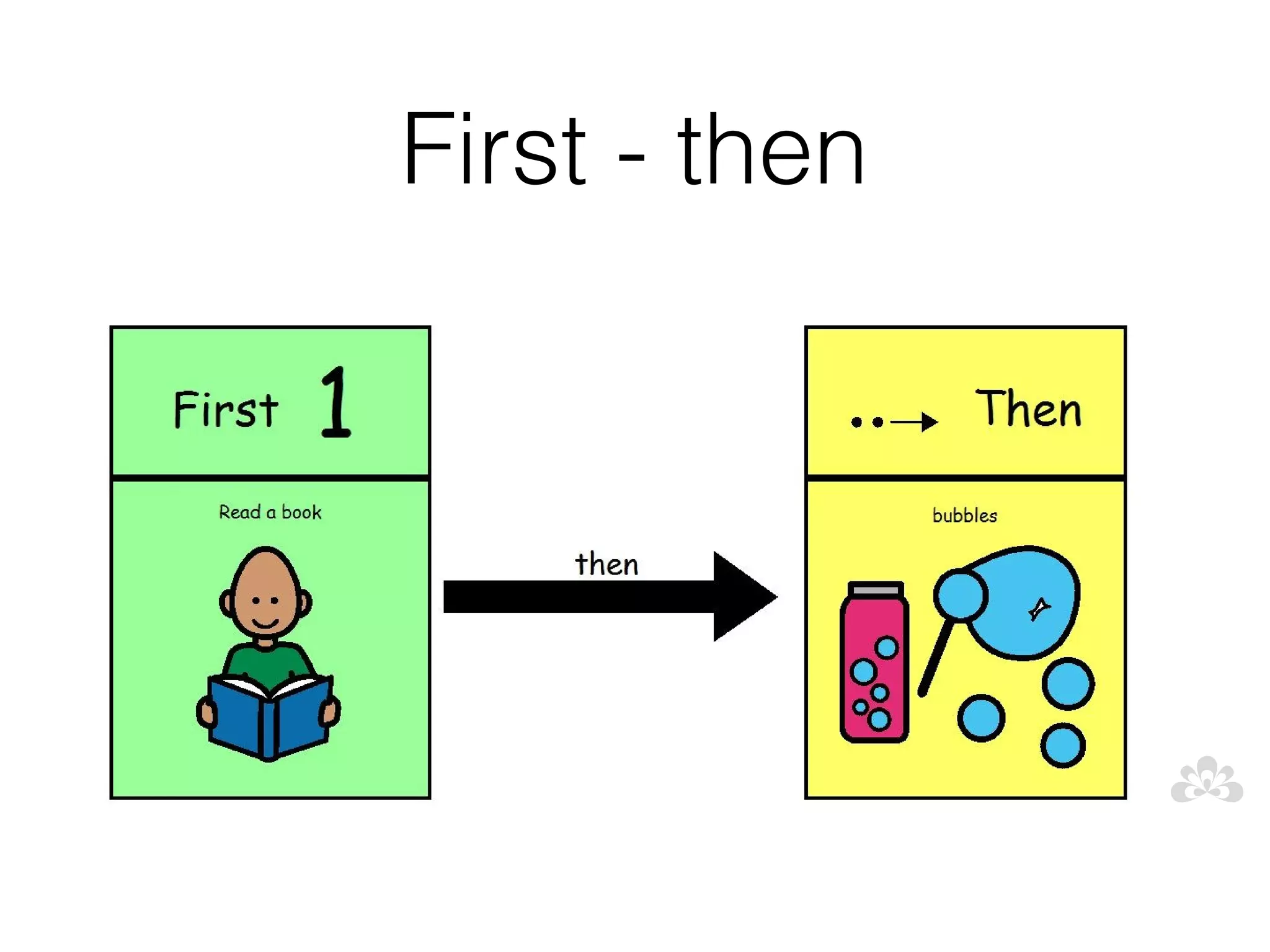
• First -then

• Visual timers

• Rewards

• Organising the environment
Created in...

• Symwriter

• Boardmaker

• On iPad using variety of apps
Schedules
Schedules
Timetables
Rules
Rules
First - then
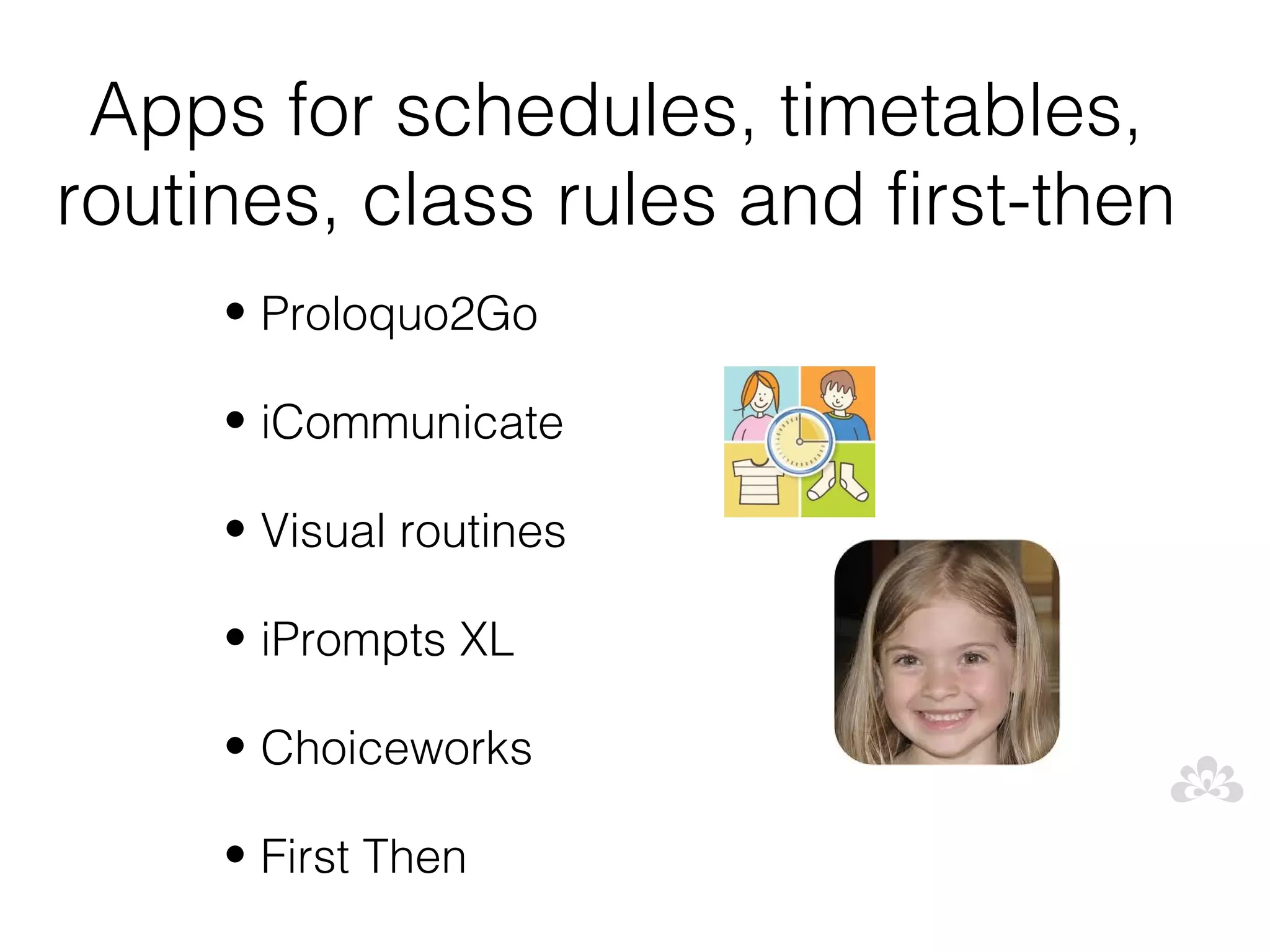
Apps for schedules, timetables,
routines, class rules and first-then
     • Proloquo2Go

     • iCommunicate

     • Visual routines

     • iPrompts XL

     • Choiceworks

     • First Then
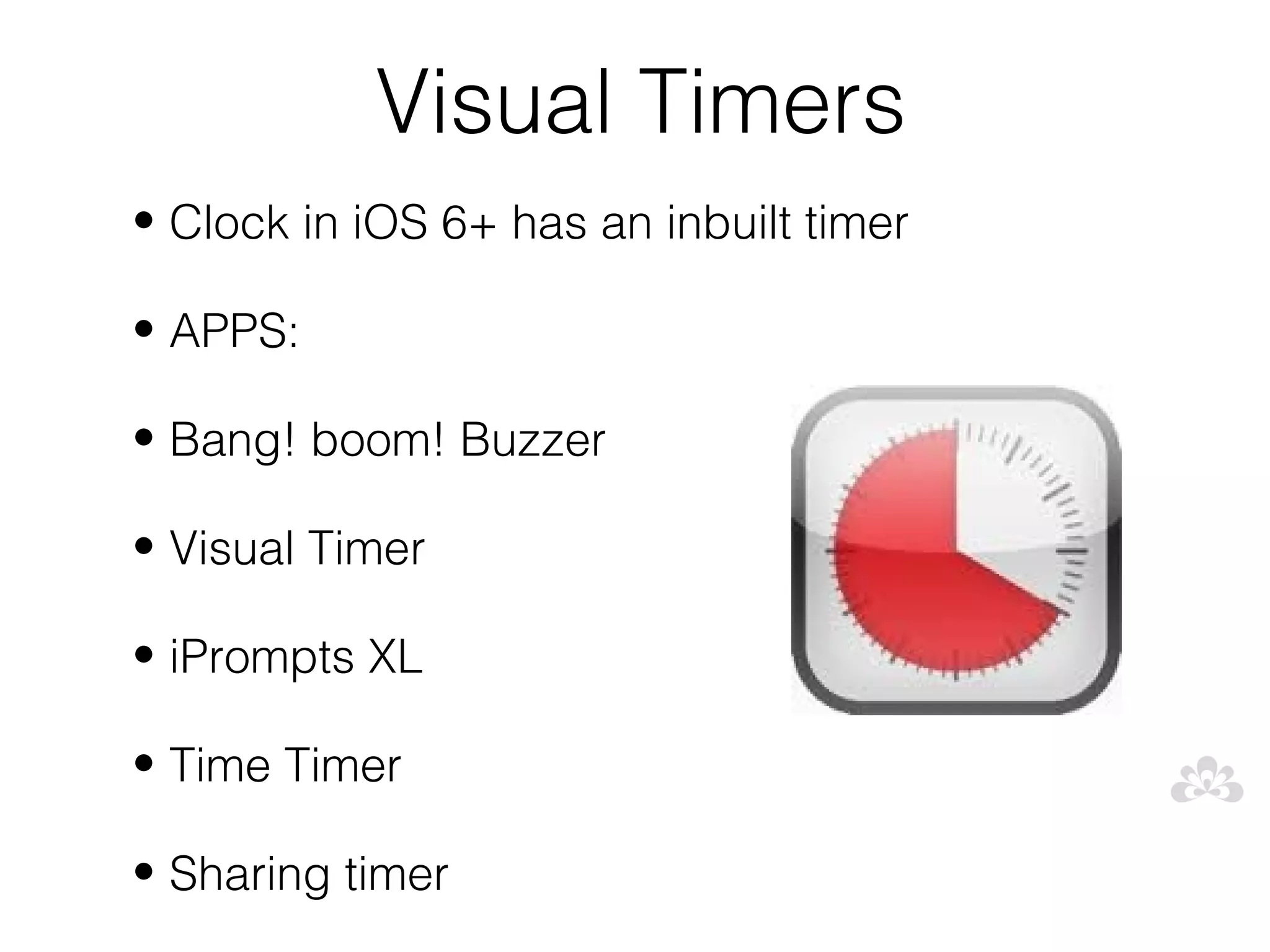
Visual Timers
• Clock in iOS 6+ has an inbuilt timer

• APPS:

• Bang! boom! Buzzer

• Visual Timer

• iPrompts XL

• Time Timer

• Sharing timer
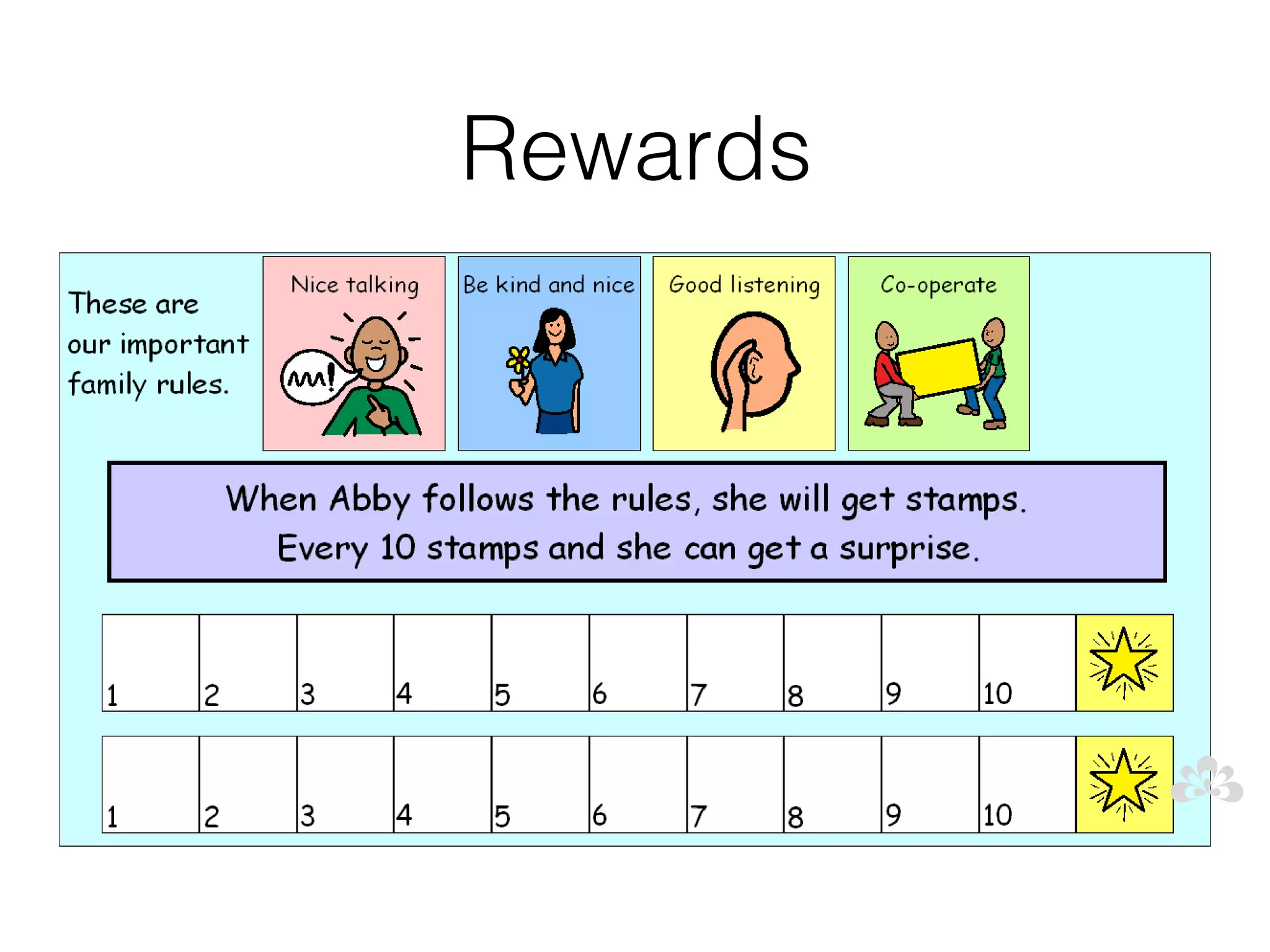
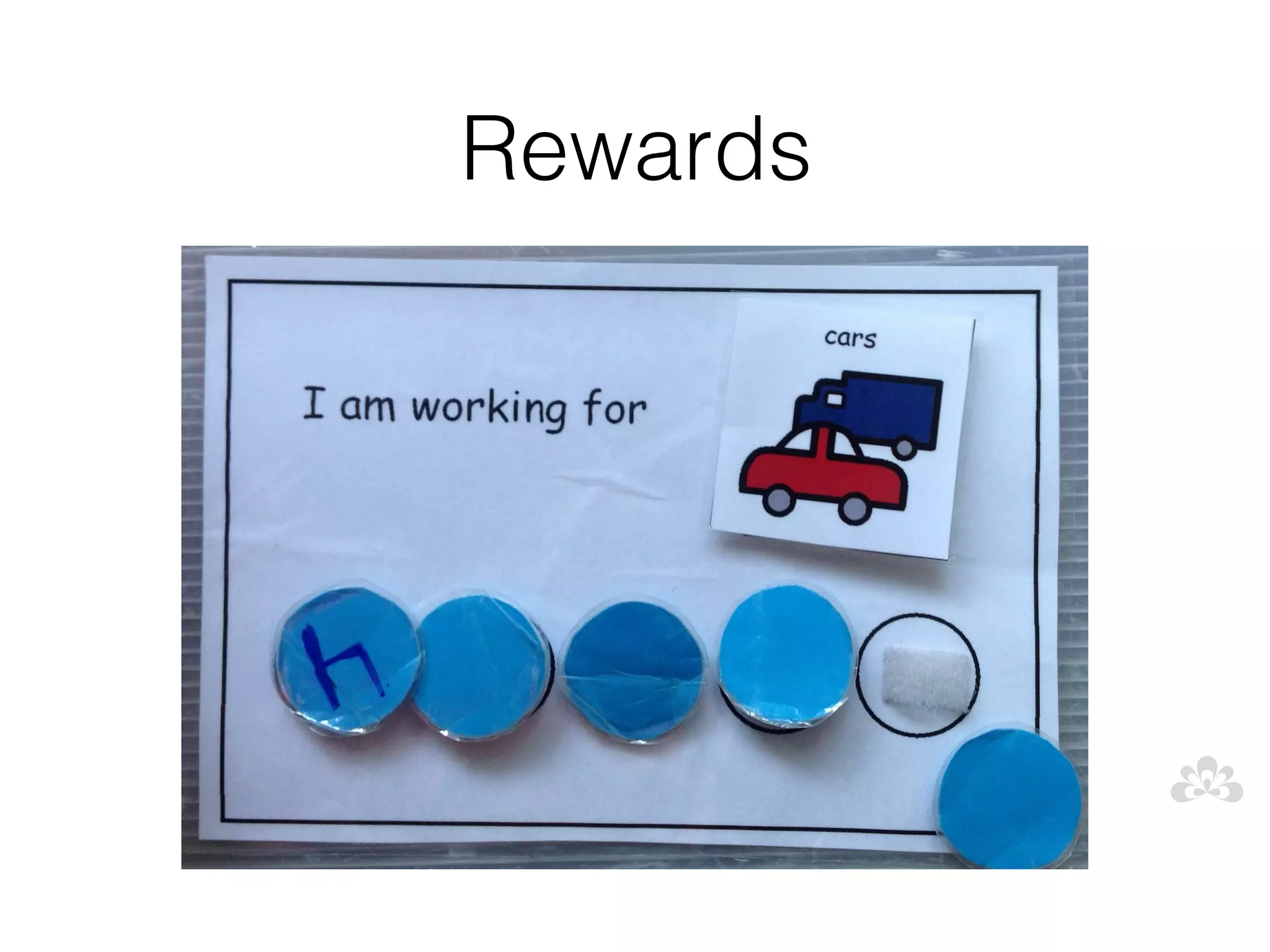
Rewards

• Low tech

• iPad as the reward

• App: iEarntThat

• App: Token board
Rewards
Rewards
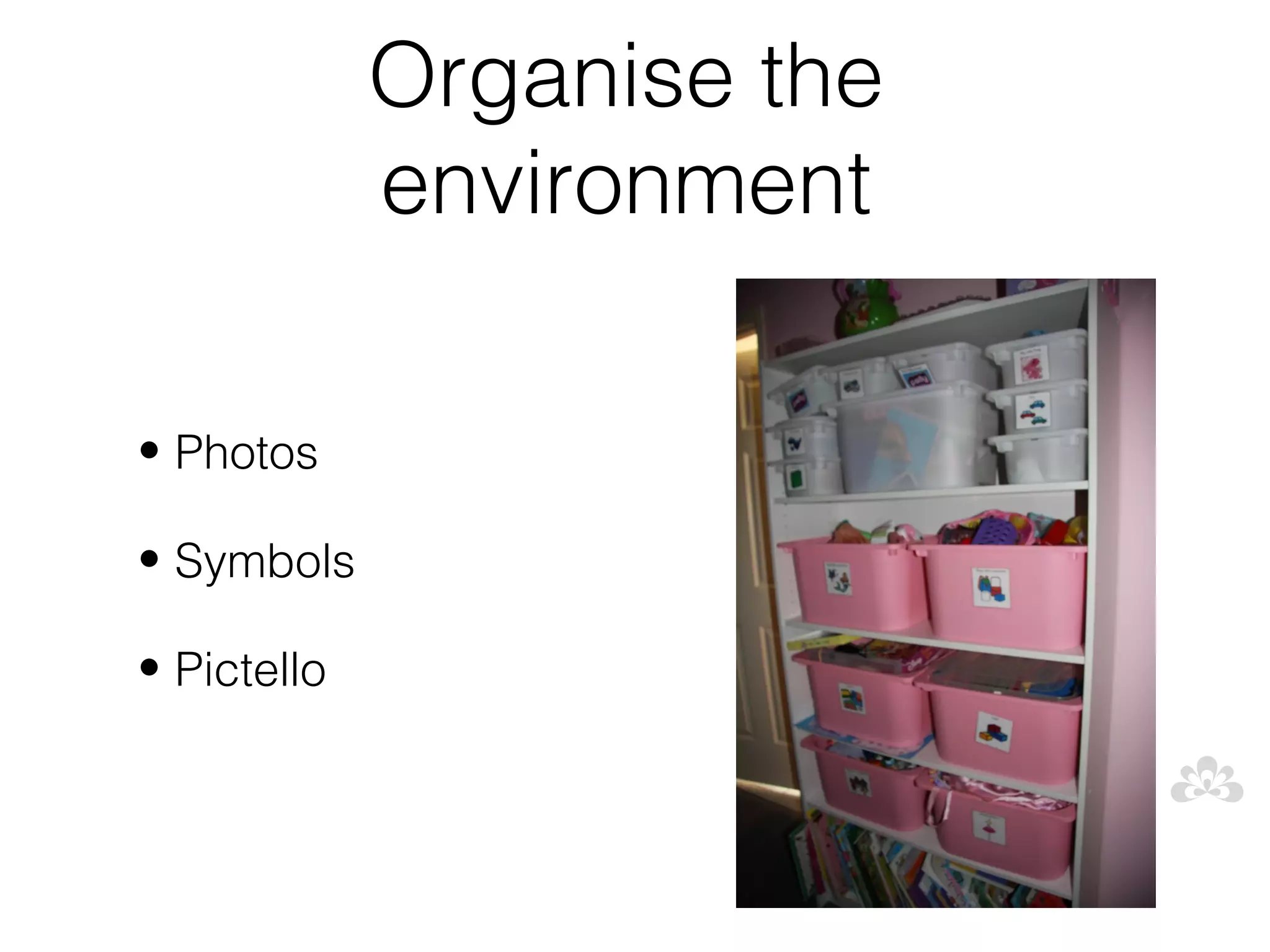
Organise the
             environment

• Photos

• Symbols

• Pictello
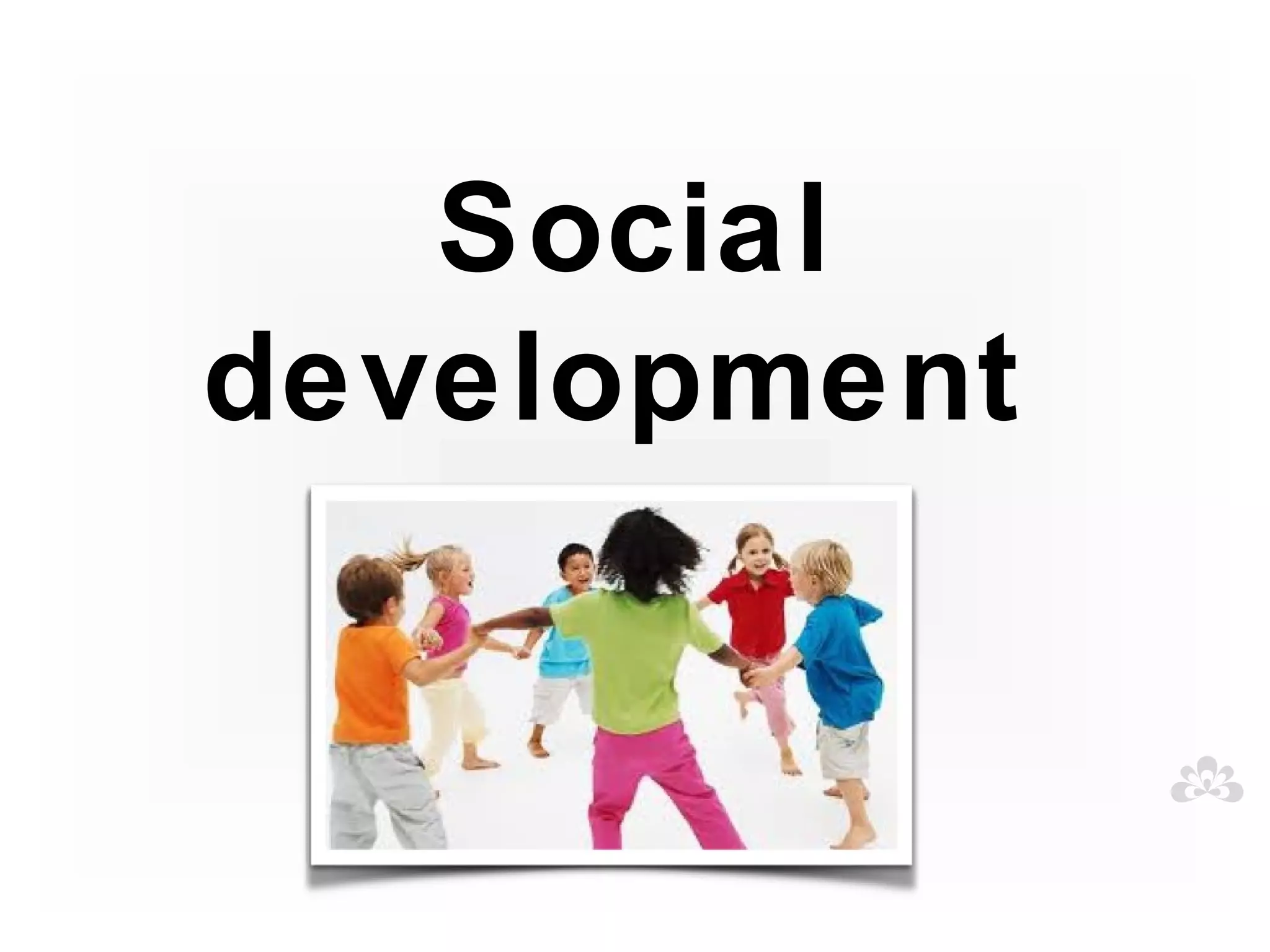
Social
development
Social
        development difficult
         Early social interaction is
• Appear uninterested in social contact

• Difficult to engage and interact with

• Rarely show interest in others

• May not respond to others

• Little eye contact

• Rarely chat or play with others
Goals for interaction
• Engagement

• Eye contact and interaction

• Turn taking

• Language stimulation

• Listening and following directions

• Requesting and commenting

• Learning in a fun way!
Low tech/ no tech

• Intensive interaction

• Imitating

• Following the child's lead

• Motivators
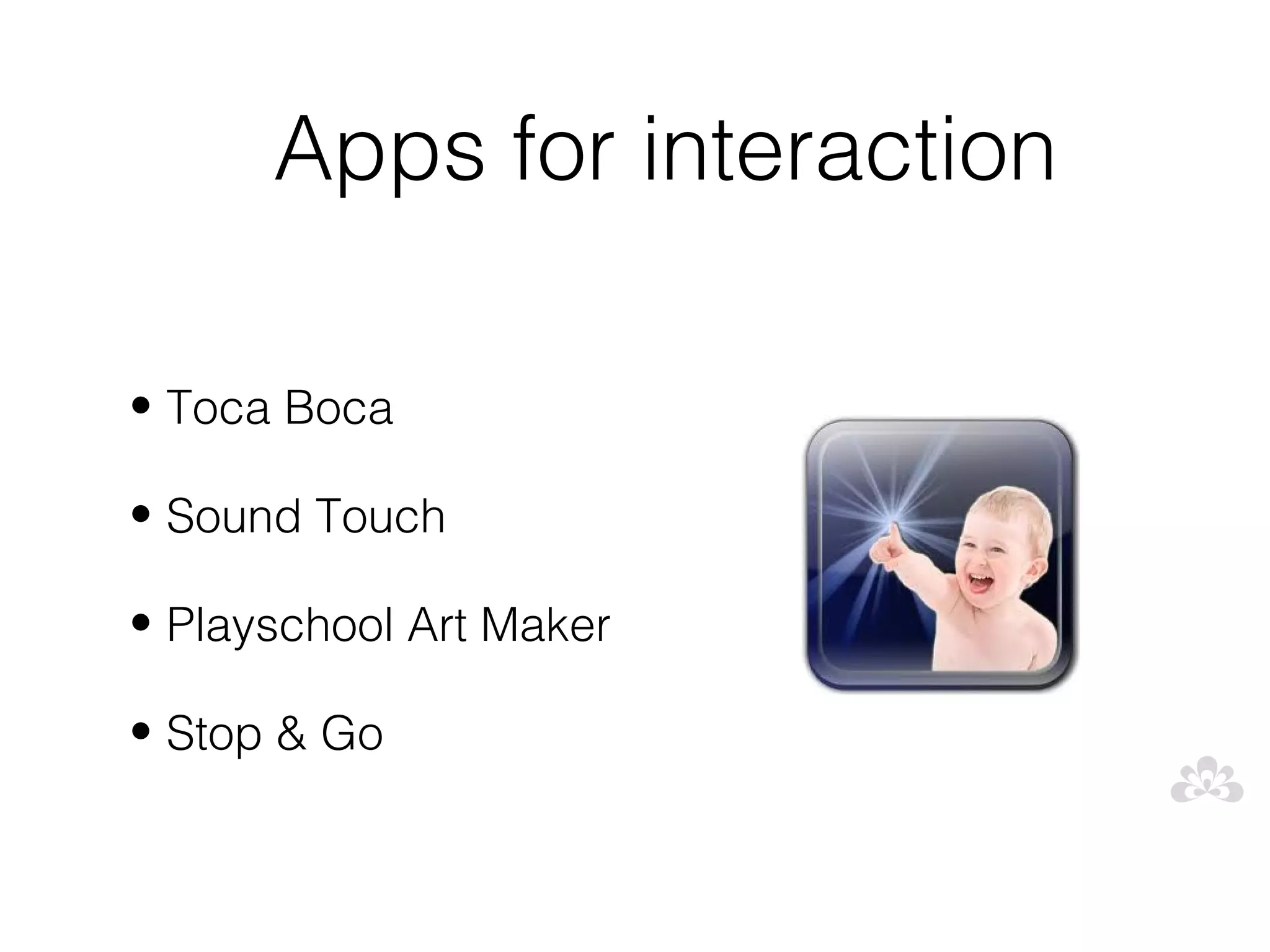
Apps for interaction

• Toca Boca

• Sound Touch

• Playschool Art Maker

• Stop & Go
Help Kidz Learn Apps
• Train tracker           • Peeping musicians

• Bumper cars             • Five little aliens

• Smarty pants            • Big Bang pictures

• Aunty Maggie's recipe   • Finger paint
Social
             development speech
              In those children who do develop
• Difficulty using language appropriately in conversations

• Difficulty understanding social rules and expected
  behaviours

• Cannot initiate and maintain conversations

• Difficulty making and keeping friends

• Unable to effectively solve social problems and
  negotiate

• Problems expressing and understanding feelings and
Teaching Social skills requires:
    • Team determining target behaviours

    • Pre teaching of social skills in small groups,
      and in natural, familiar and real settings

    • Rewarding and recognising behaviours

    • Consistent feedback about behaviours

    • Feedback can be given immediately after a
      social error

    • Then reviewed at a calm and responsive time
SEE THINK DO SAY
    Build internal dialogue
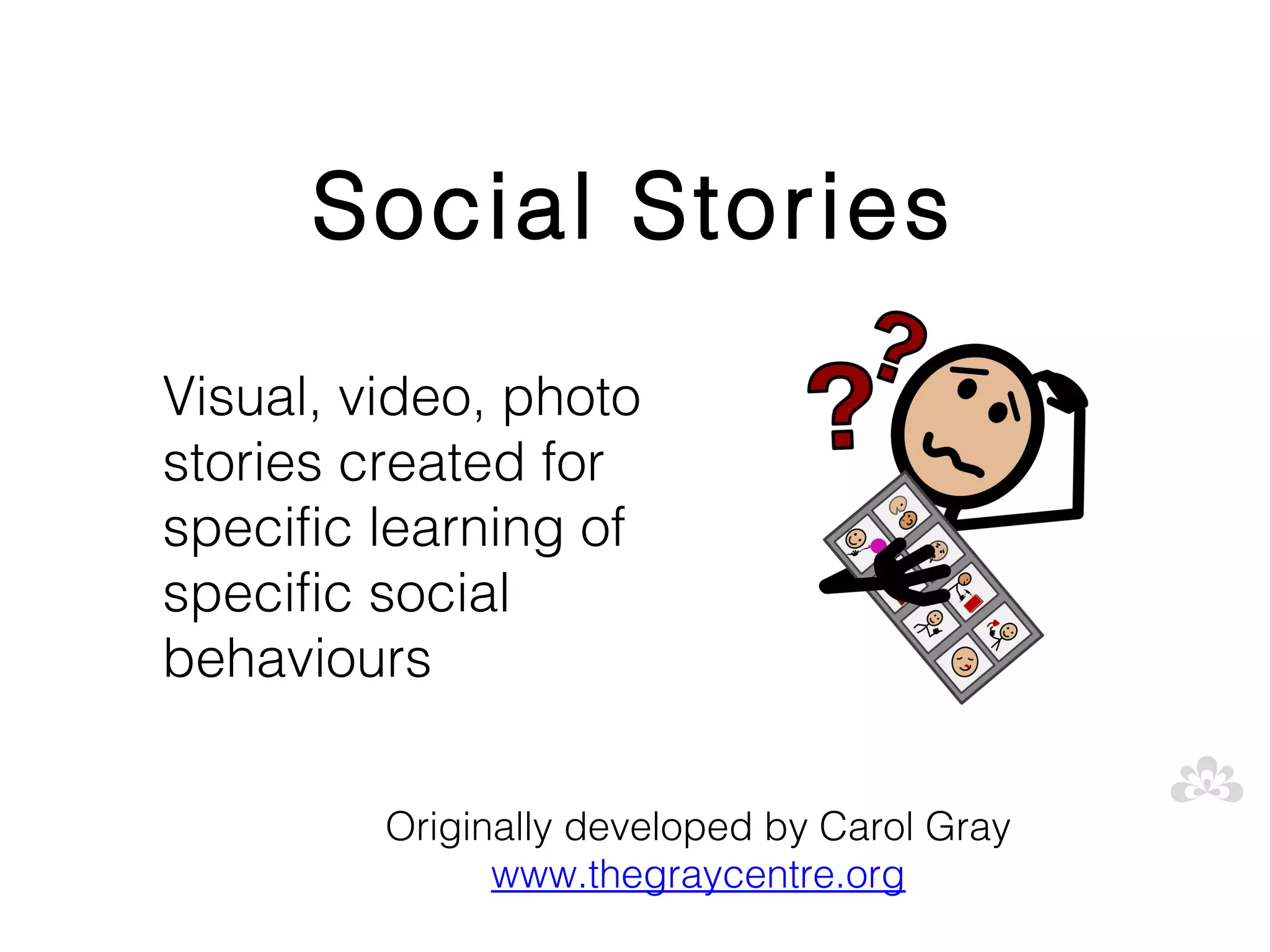
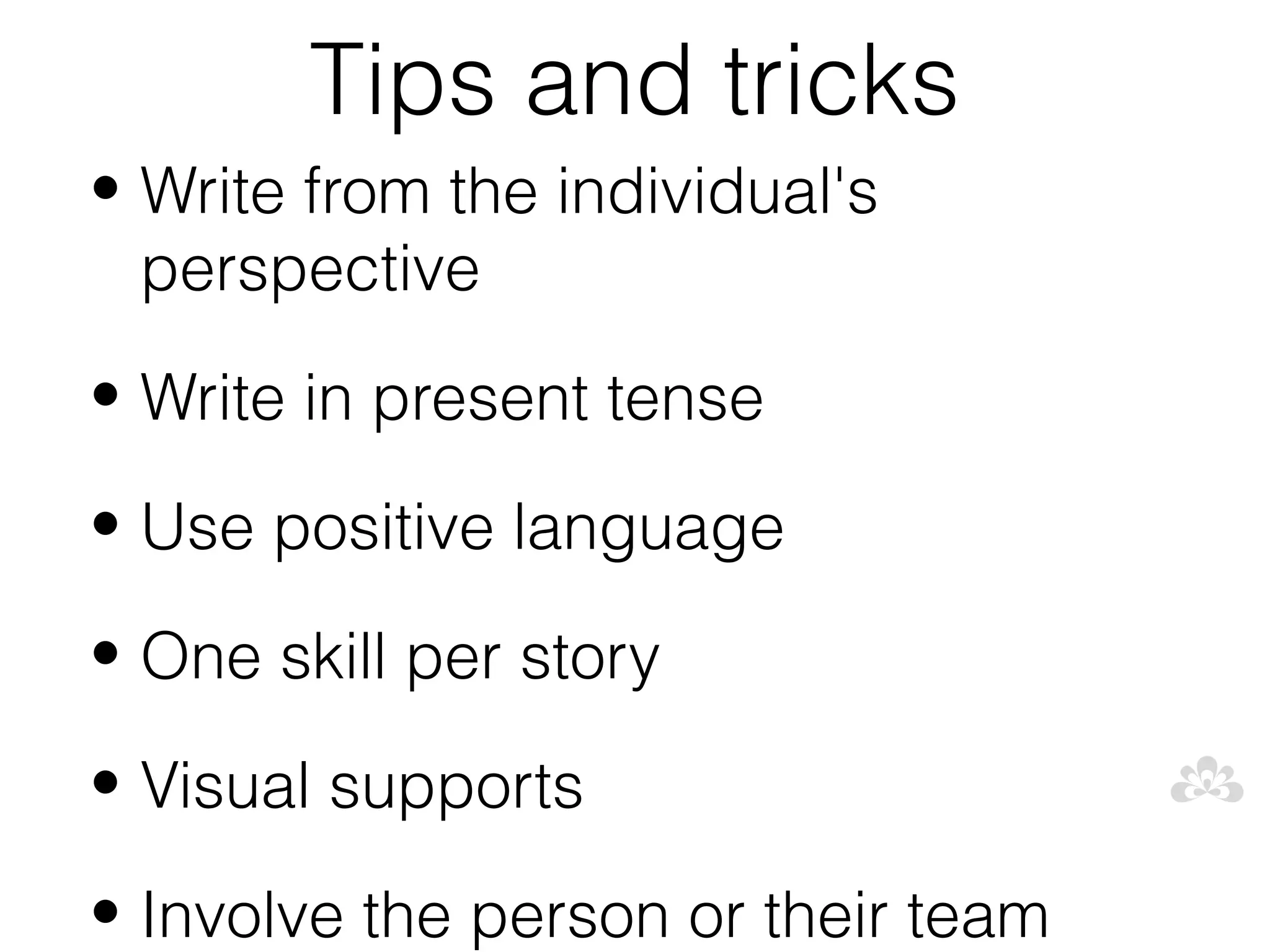
Social Stories
Visual, video, photo
stories created for
specific learning of
specific social
behaviours

         Originally developed by Carol Gray
               www.thegraycentre.org
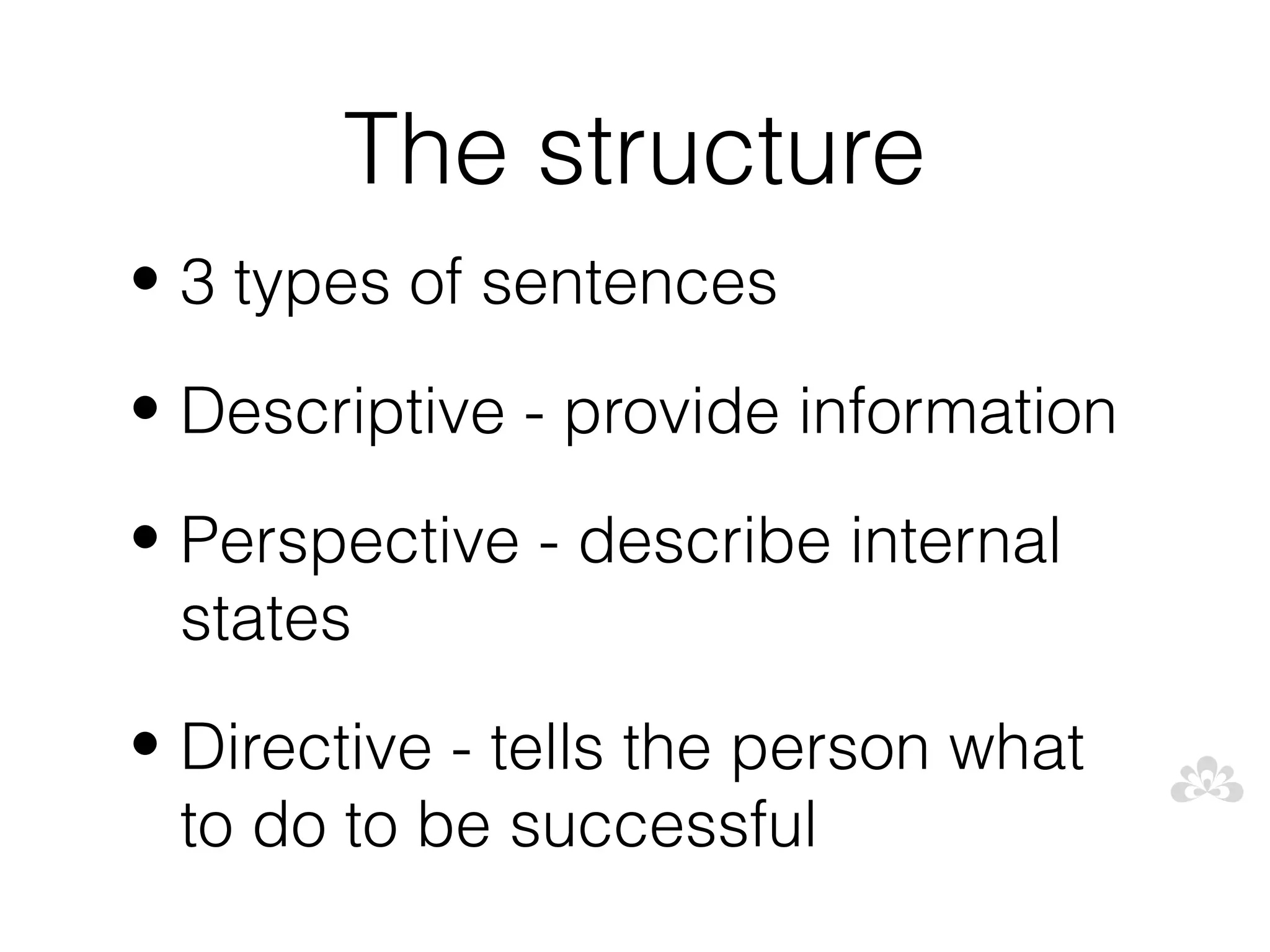
Can be used:

• To prepare someone for new
  events and experiences
• To teach positive behaviour

• To teach a new skill
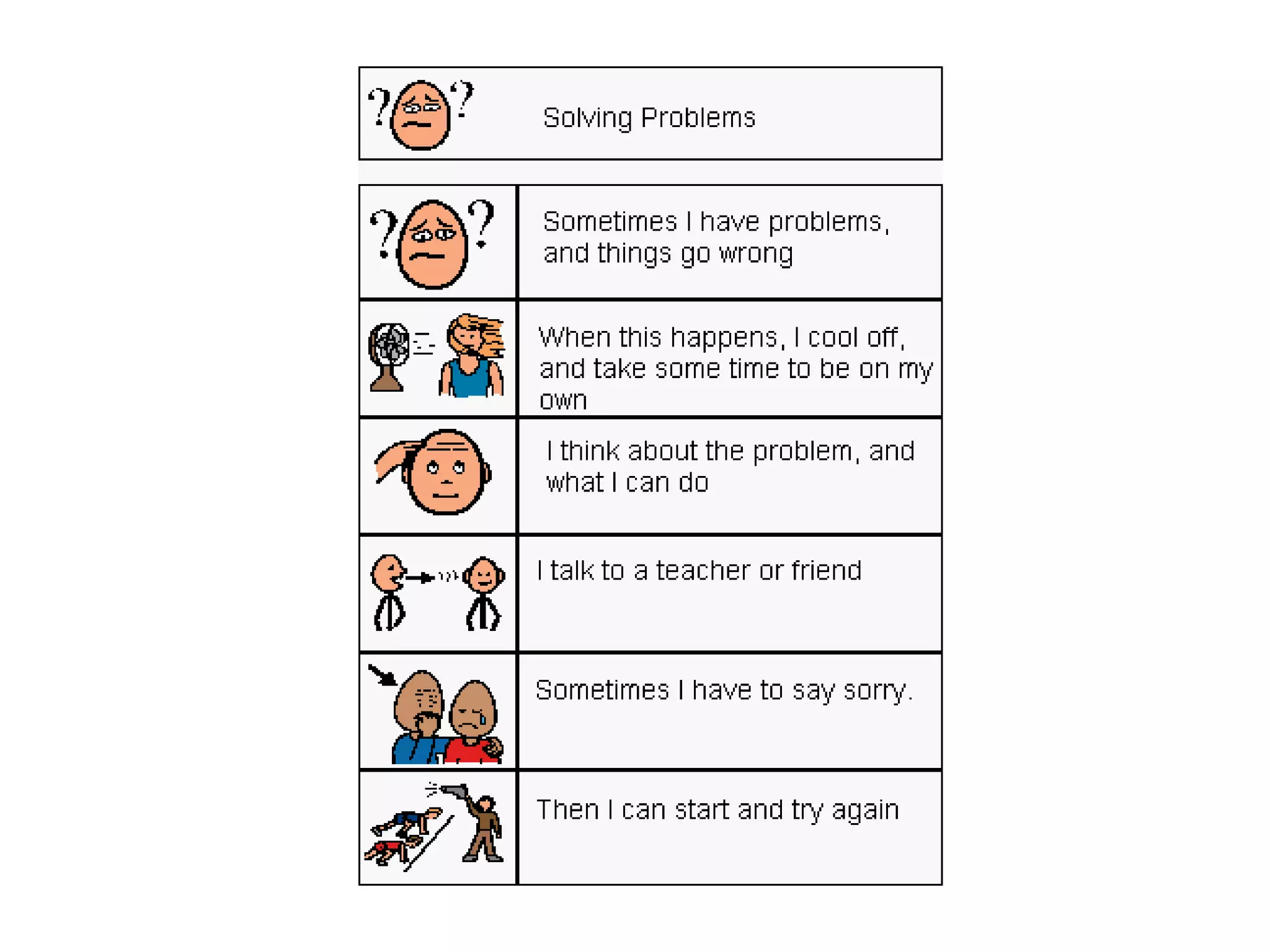
The structure
• 3 types of sentences

• Descriptive - provide information

• Perspective - describe internal
  states
• Directive - tells the person what
  to do to be successful
Tips and tricks
• Write from the individual's
  perspective
• Write in present tense

• Use positive language

• One skill per story

• Visual supports

• Involve the person or their team
Tips for implementing
• One at a time

• Practice BEFORE the
  challenging situation occurs
• Clear instructions for use

• Consistent across all support

• Review and revise
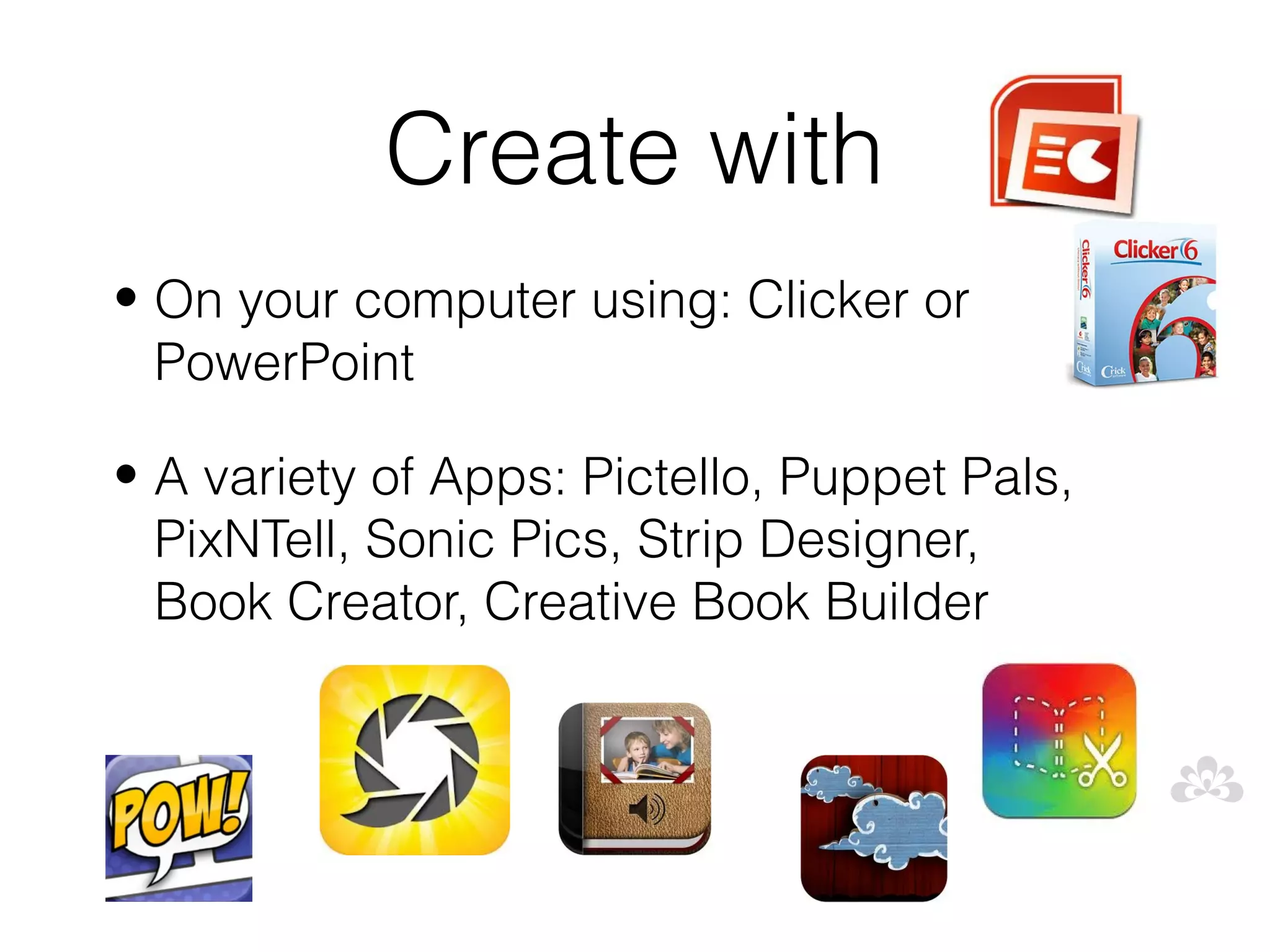
Create with
• On your computer using: Clicker or
  PowerPoint

• A variety of Apps: Pictello, Puppet Pals,
  PixNTell, Sonic Pics, Strip Designer,
  Book Creator, Creative Book Builder
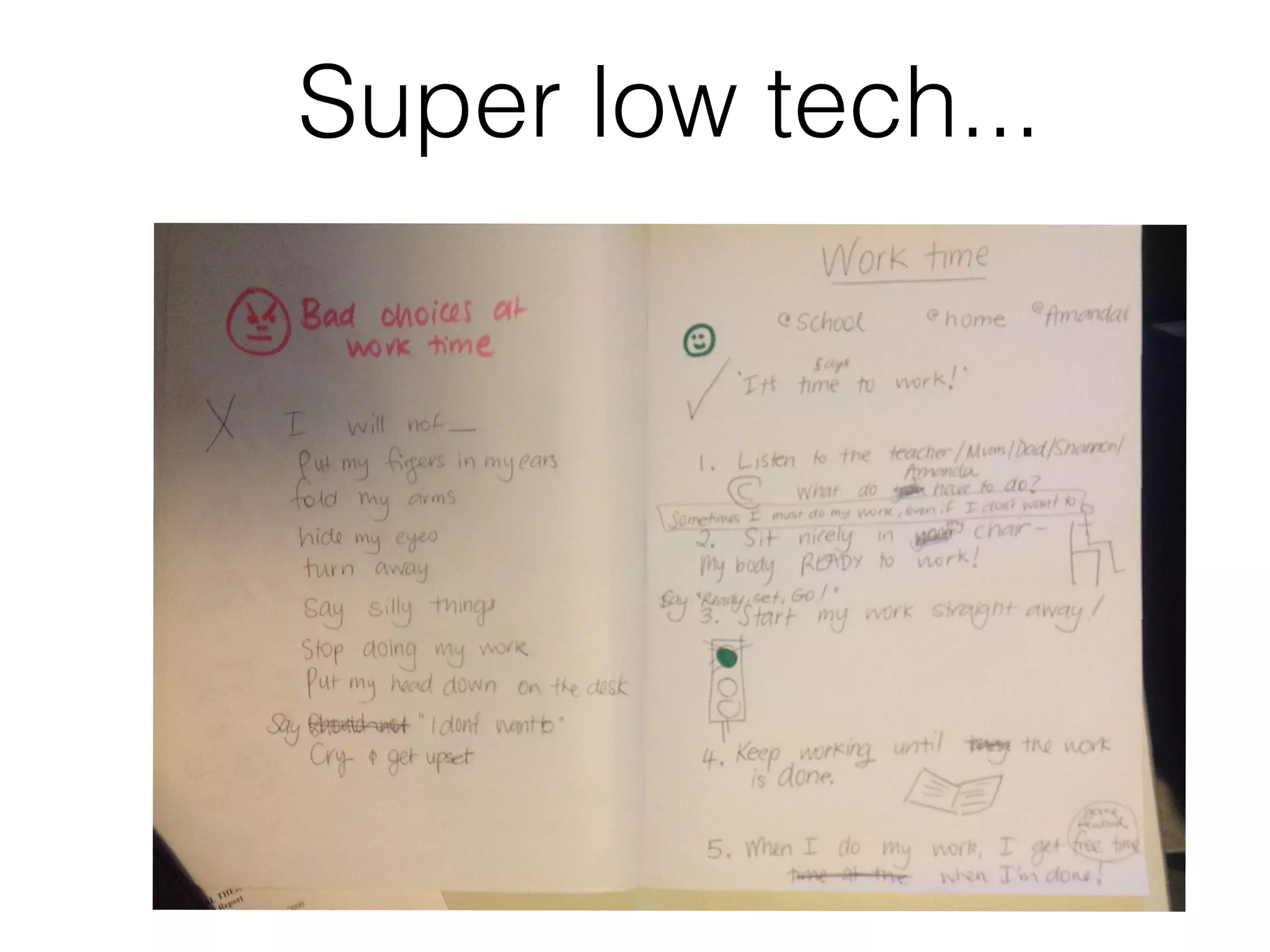
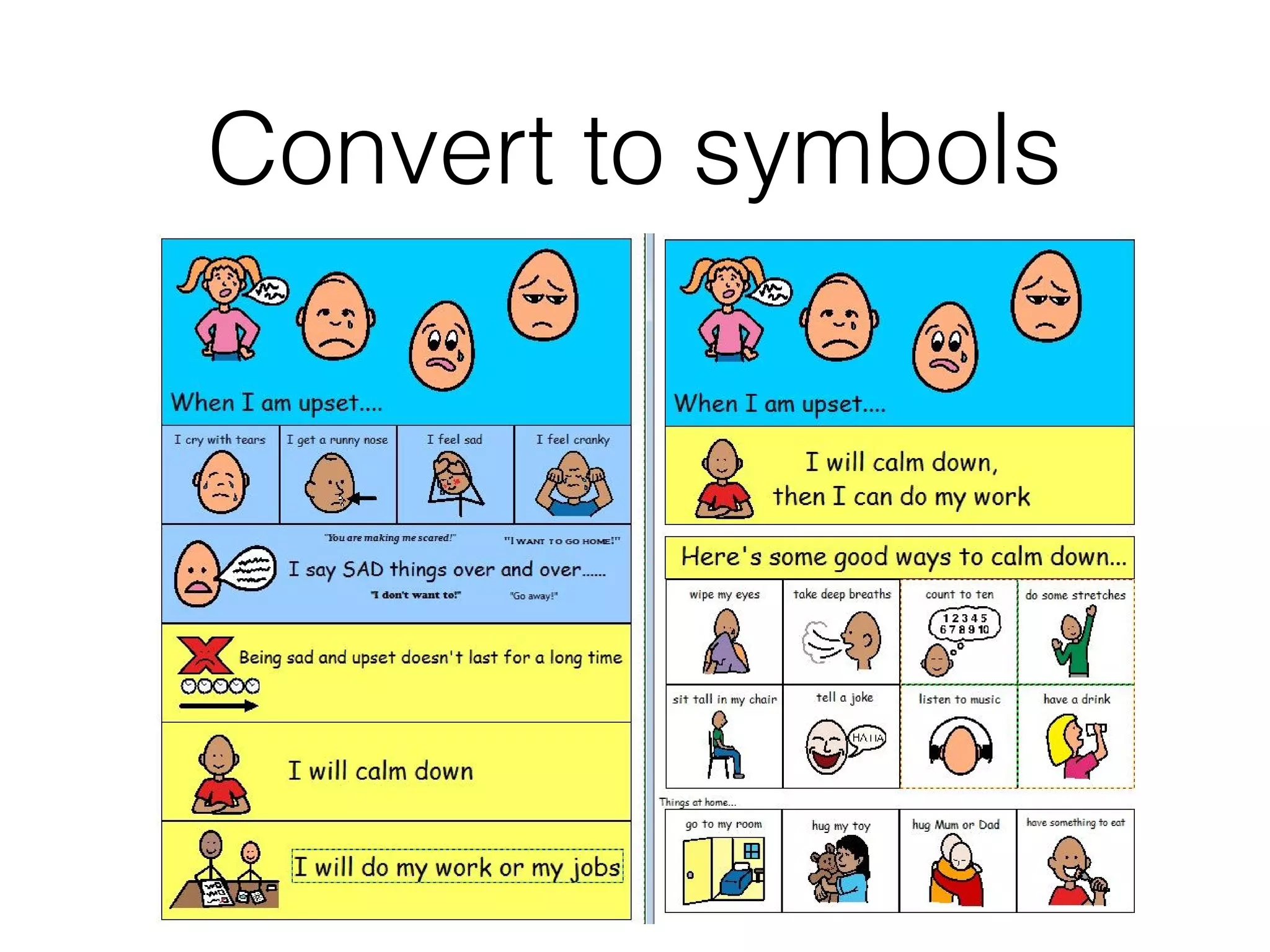
Super low tech...
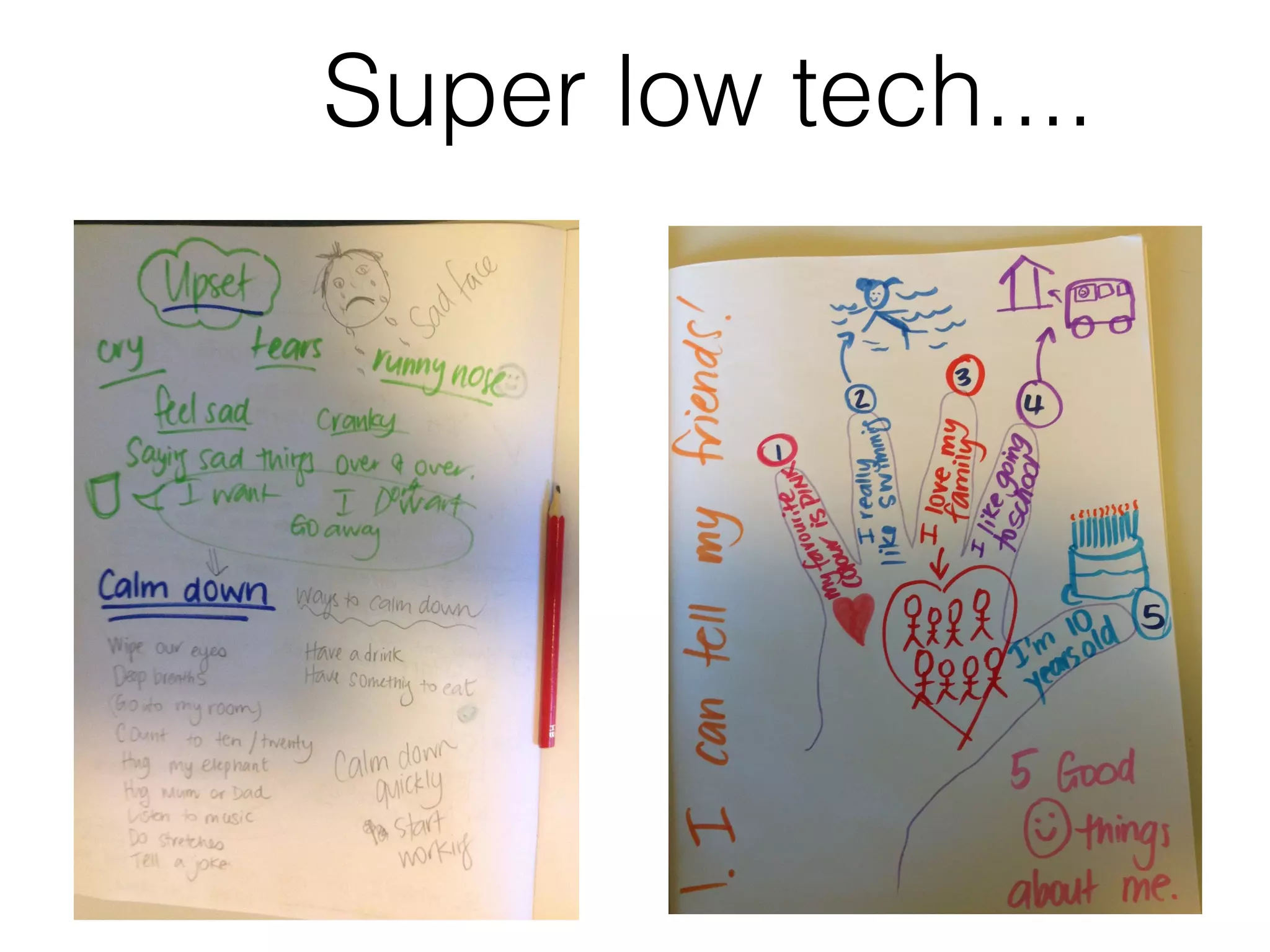
Super low tech....
Convert to symbols
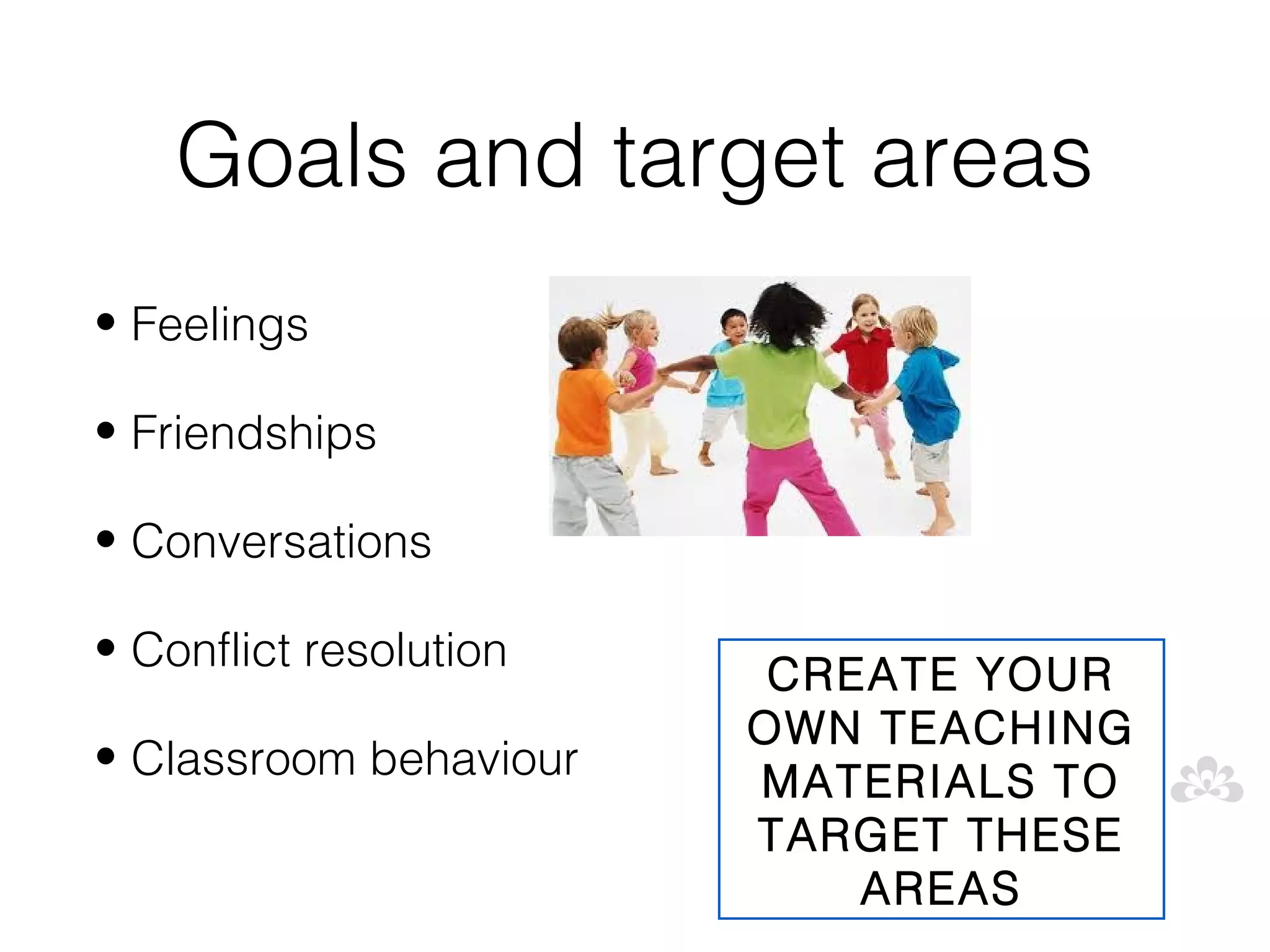
Goals and target areas
• Feelings

• Friendships

• Conversations

• Conflict resolution
                         CREATE YOUR
                        OWN TEACHING
• Classroom behaviour
                        MATERIALS TO
                        TARGET THESE
                            AREAS
Feelings

• Recognising and
  identifying feelings

• Expressing feelings

• Handling feelings of anger,
  anxiety, stress
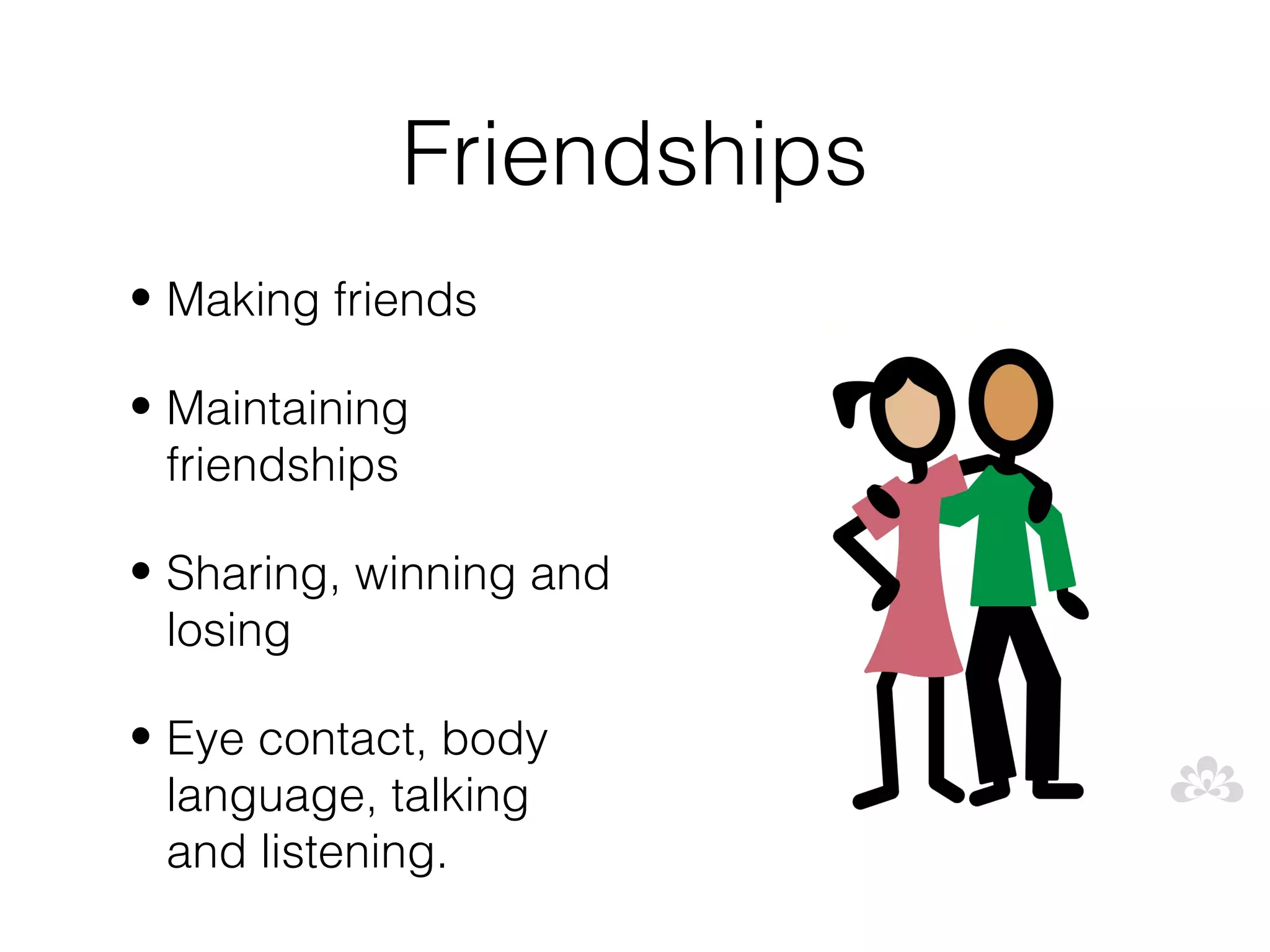
Friendships
• Making friends

• Maintaining
  friendships

• Sharing, winning and
  losing

• Eye contact, body
  language, talking
  and listening.
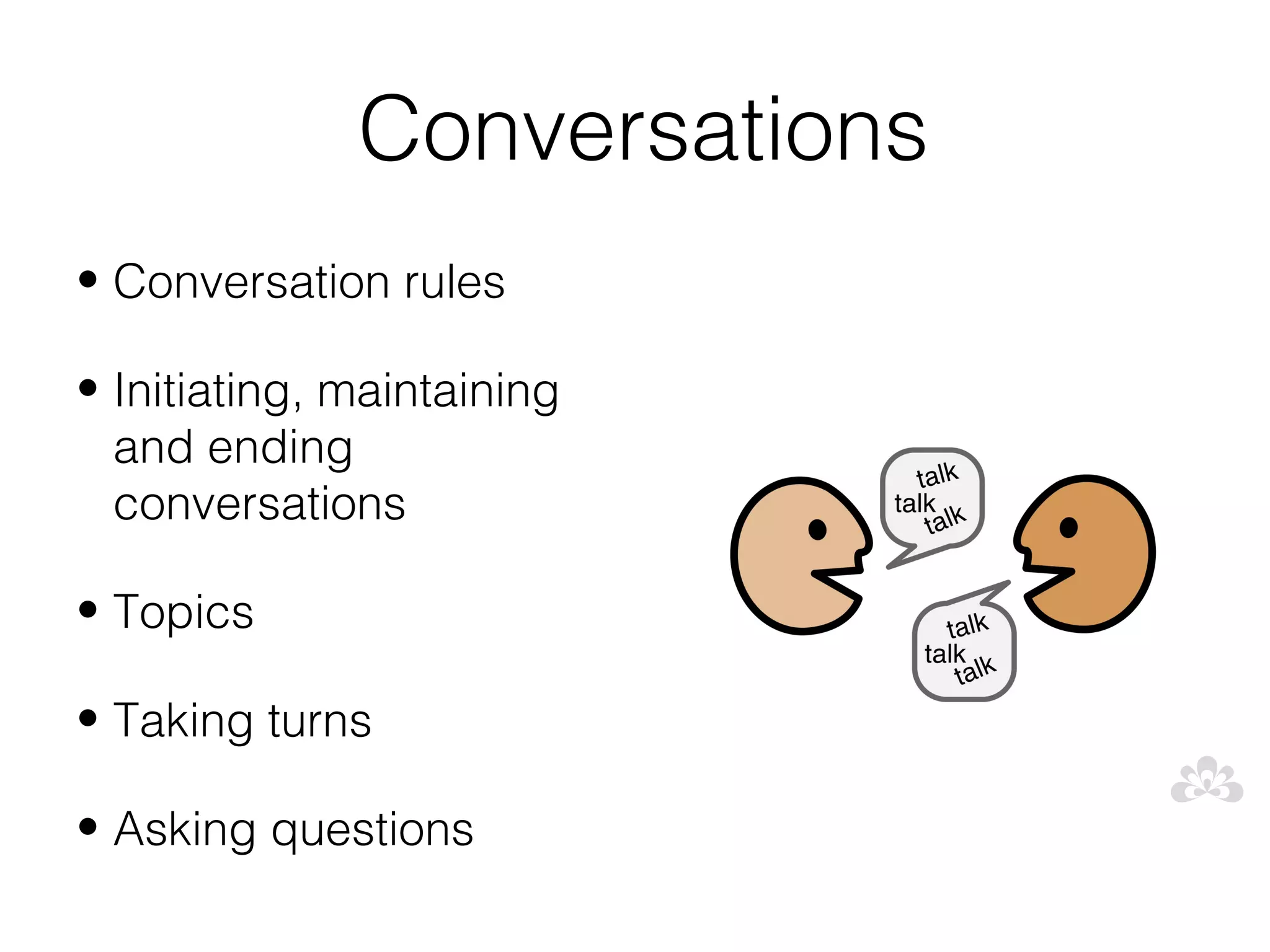
Conversations
• Conversation rules

• Initiating, maintaining
  and ending
  conversations

• Topics

• Taking turns

• Asking questions
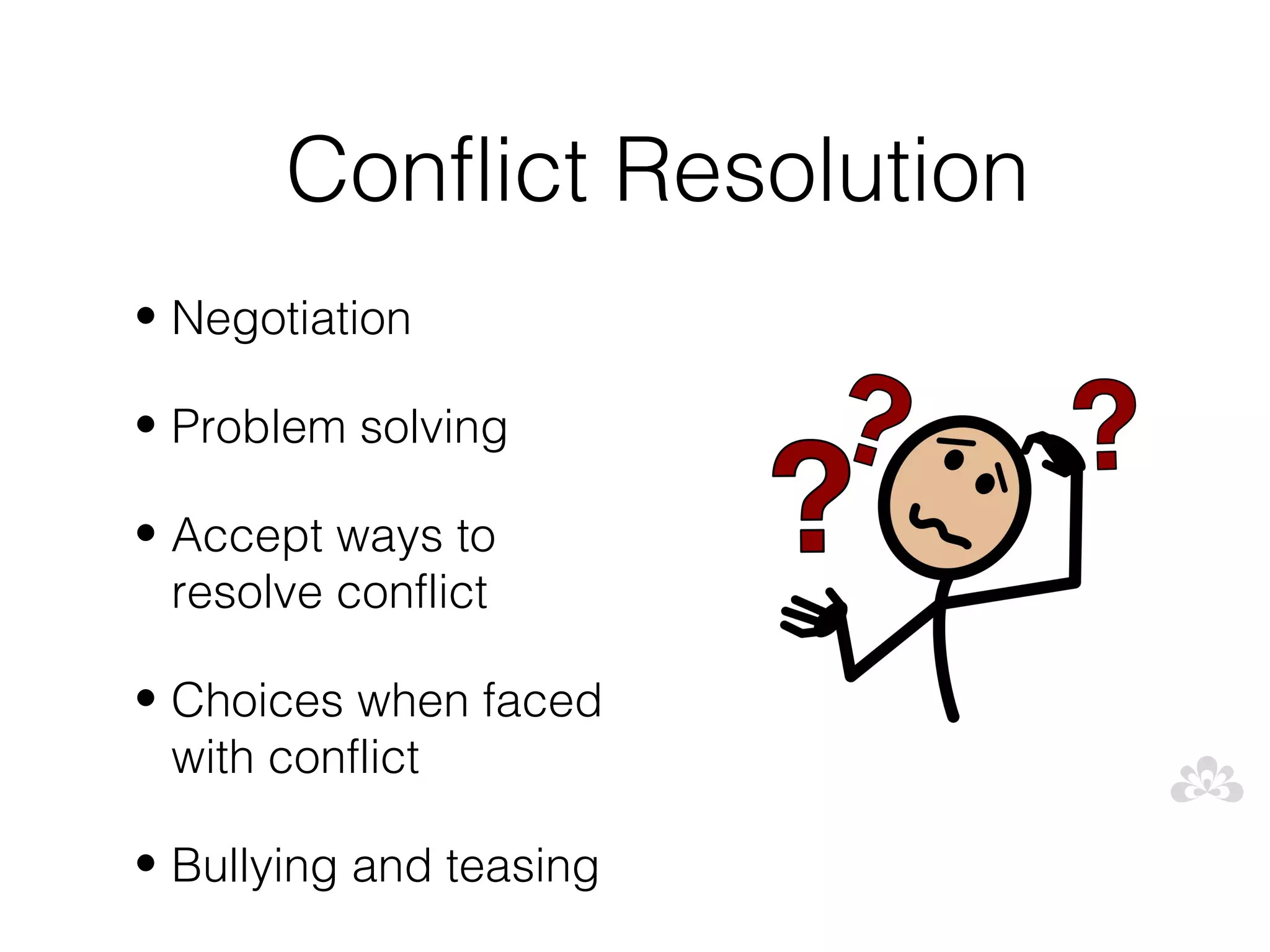
Conflict Resolution
• Negotiation

• Problem solving

• Accept ways to
  resolve conflict

• Choices when faced
  with conflict

• Bullying and teasing
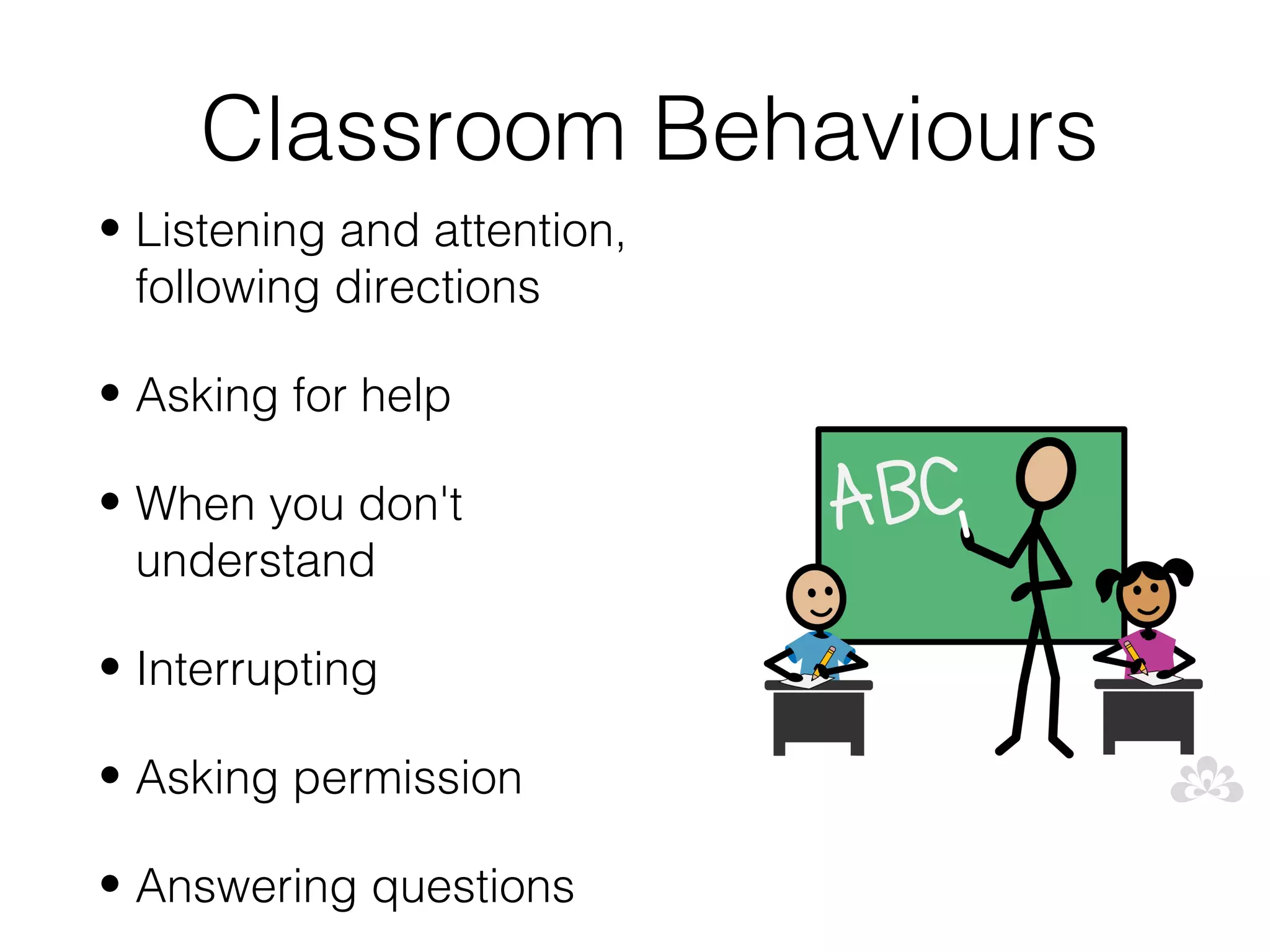
Classroom Behaviours
• Listening and attention,
  following directions

• Asking for help

• When you don't
  understand

• Interrupting

• Asking permission

• Answering questions
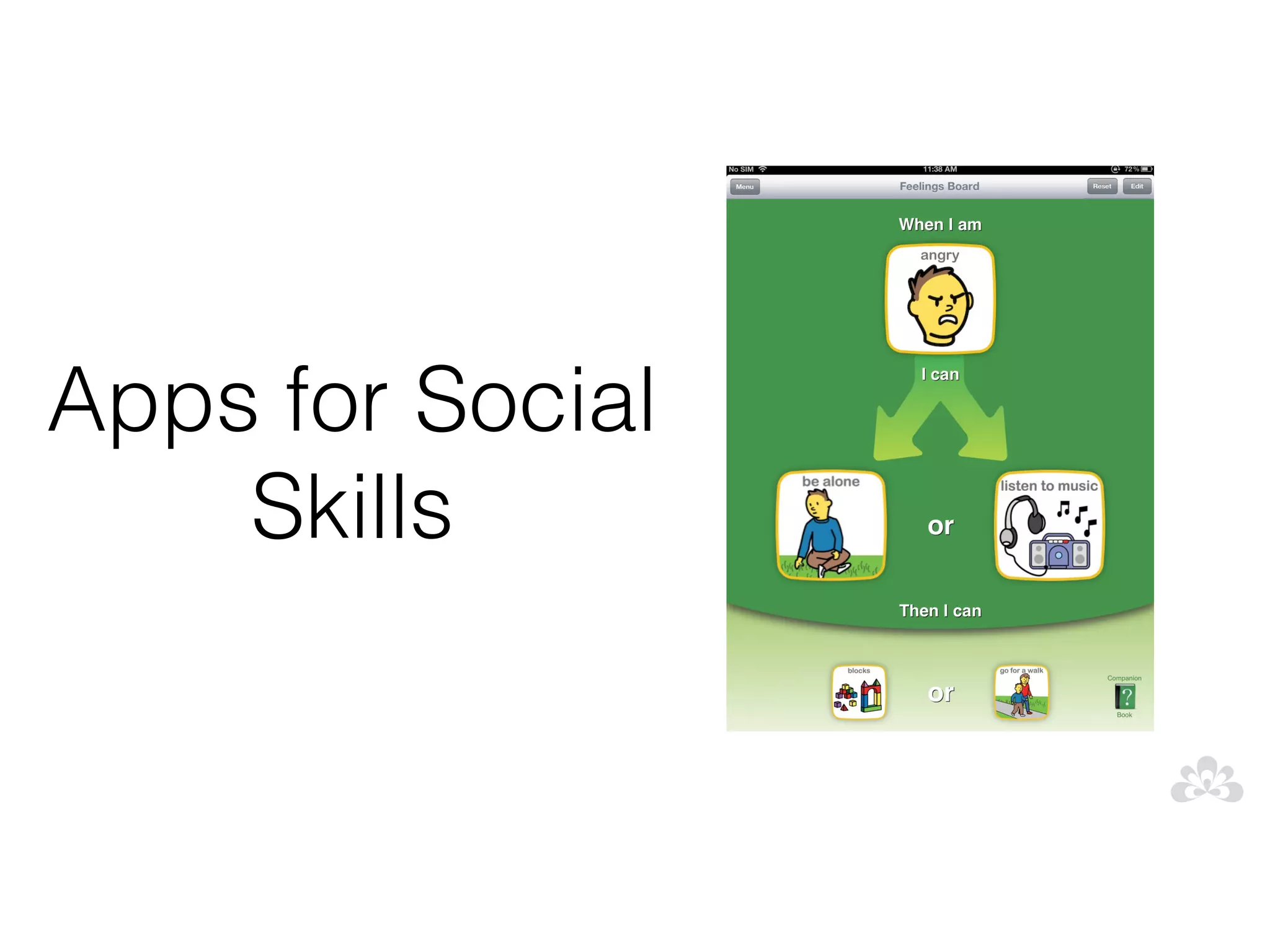
Apps for Social
    Skills
App suggestions
• Emotions                • Calm counter

• Emotion x               • Choiceworks

• Smarty Pants            • Conversation builder

• My life skills box      • Friends Book

• Social skills builder   • iPrompts XL
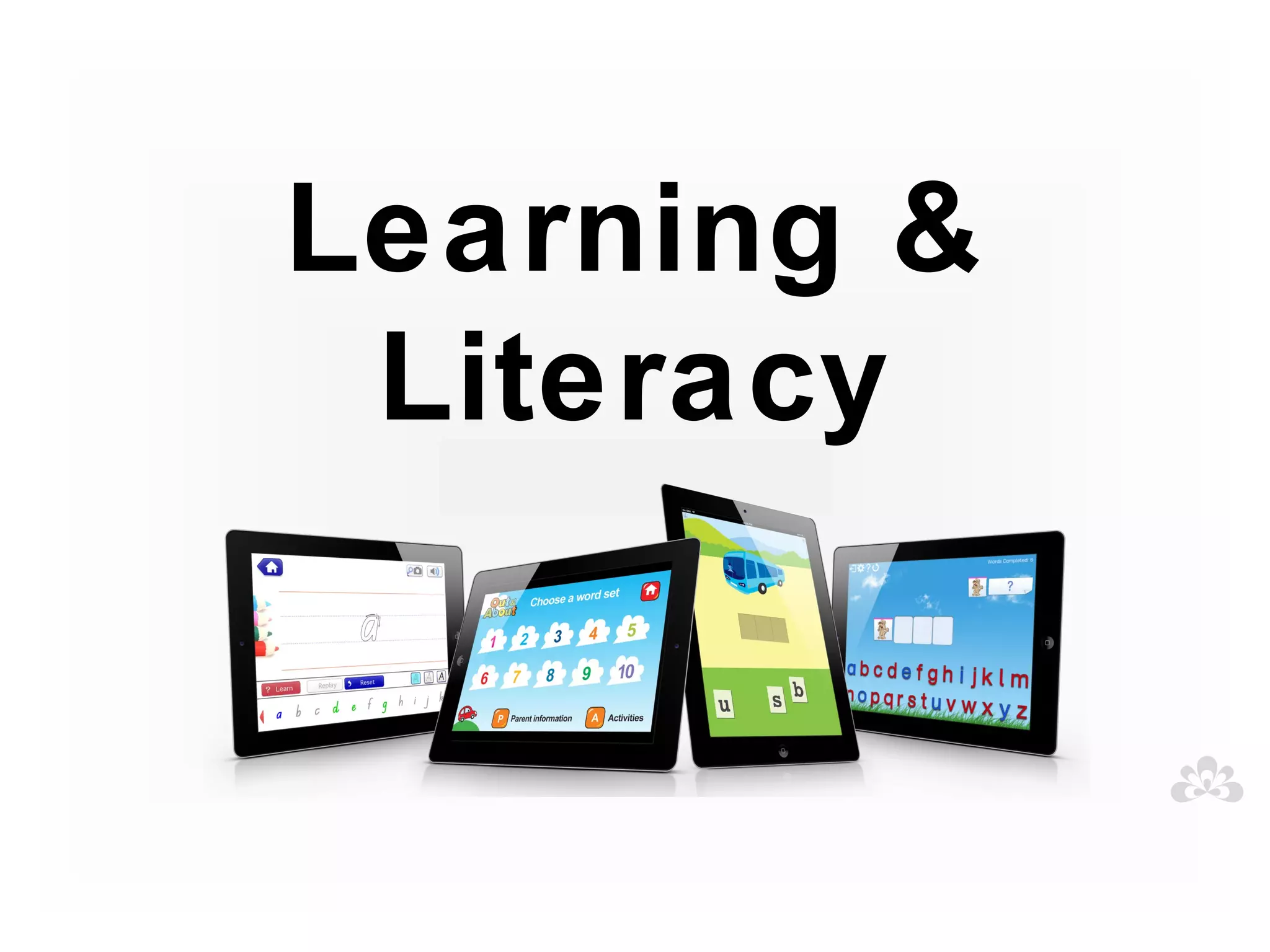
Learning &
 Literacy
Early Learning
Concepts, sorting, touch screen skills, etc.
Early Learning Apps
• Dexteria

• Monkeys lunchbox

• Bugs & bubbles

• Simple sort

• Alien buddies

• Sound touch

• Toddler teasers Preschool
  collection
Books
Book Apps
• When you grow up

• Story bots

• Monster at the end of this book

• Don't let the pigeon run this app

• Collins Big Cat

• Grasshopper App books
Story telling
Story telling Apps
• Story maker

• Toontastic

• iSequence

• Speech with Milo : Sequences

• Kids Journal

• Story Wheel
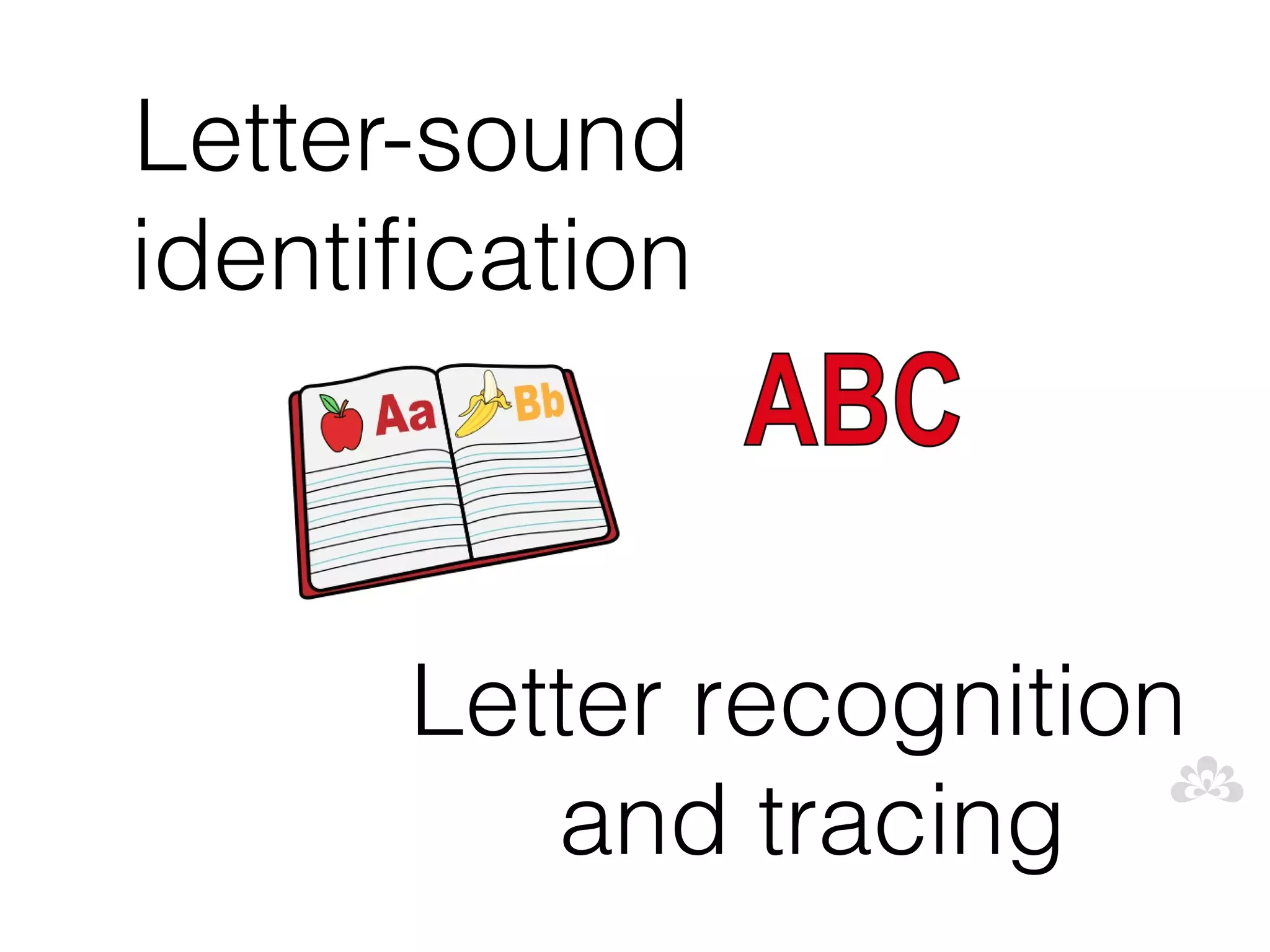
Letter-sound
identification


      Letter recognition
         and tracing
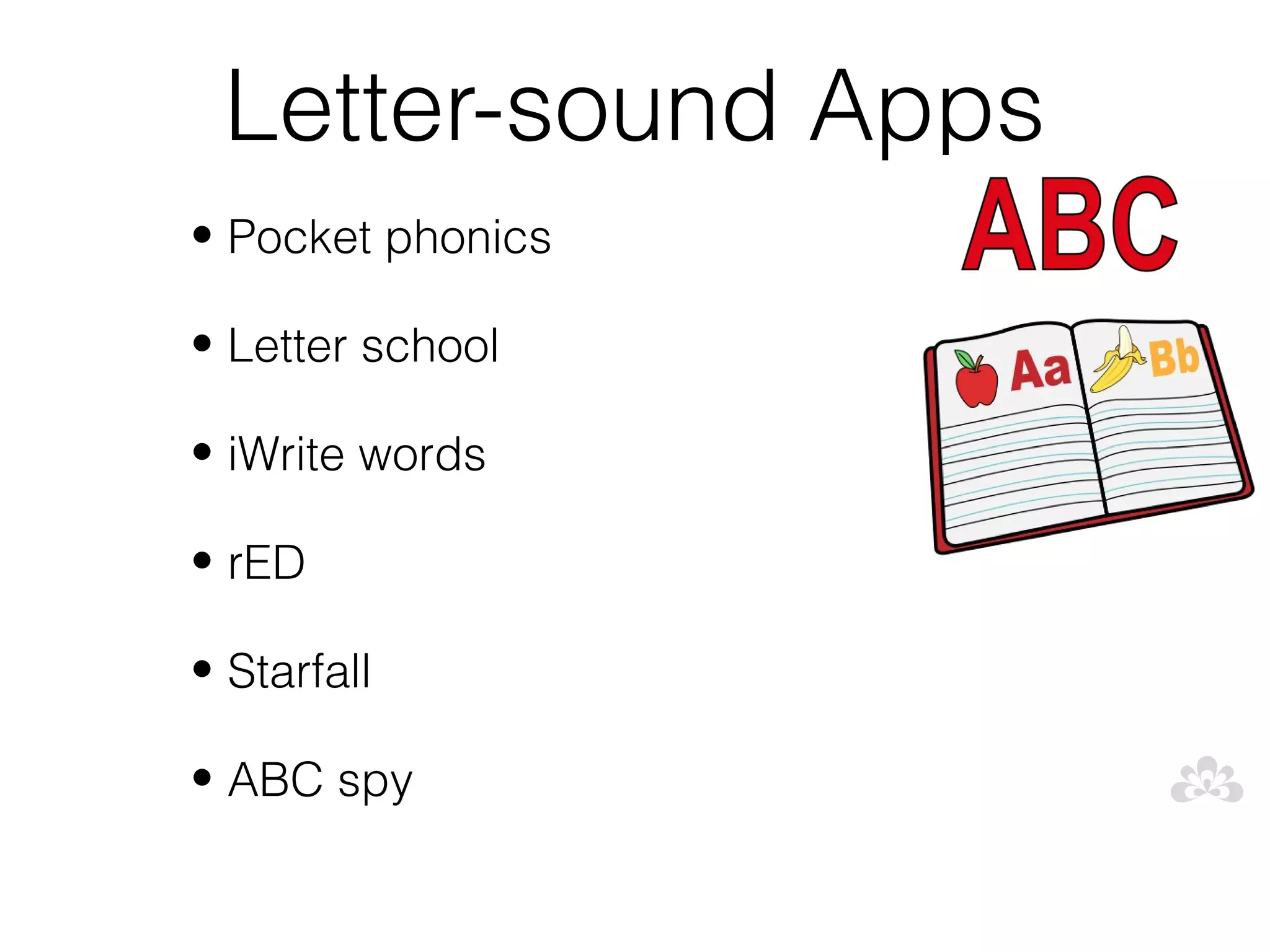
Letter-sound Apps
• Pocket phonics

• Letter school

• iWrite words

• rED

• Starfall

• ABC spy
Early reading and
     spelling
Early reading &
          spelling Apps
• firstwords apps

• Kids crosswords

• Montessori crosswords
                            Apps that use PHONICS,
• Word wizard
                               Not letter names!
• Alphawriter

• Monkey words

• Simplex spelling (older students)
Preschool University
        Apps
• FREE

• ABC Magic

• Reading Magic

• Spelling Magic

• Sentences Magic
Supported writing
Supported writing Apps

• Clicker sentences

• Clicker docs

• Apps with word prediction
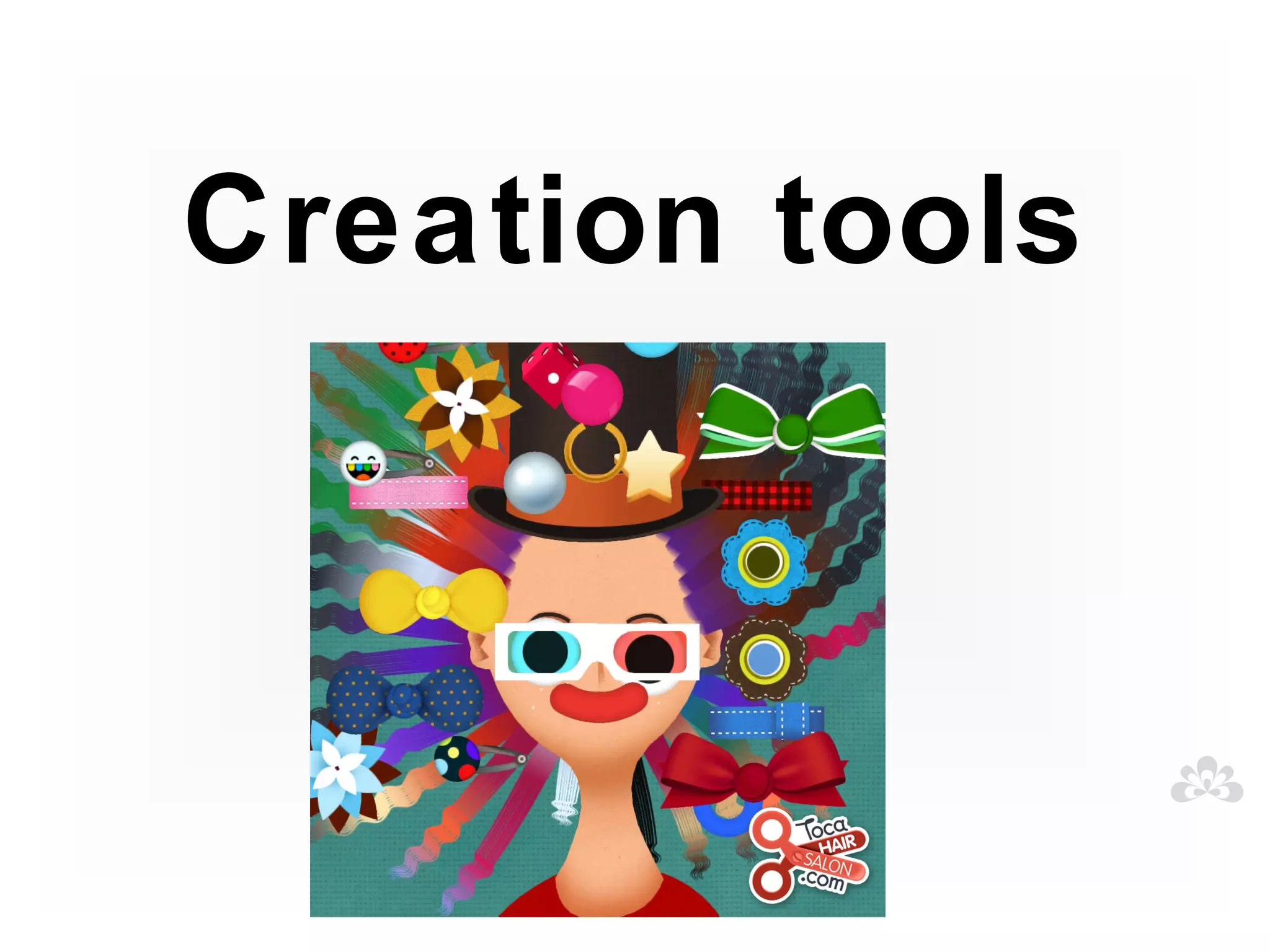
Creation tools
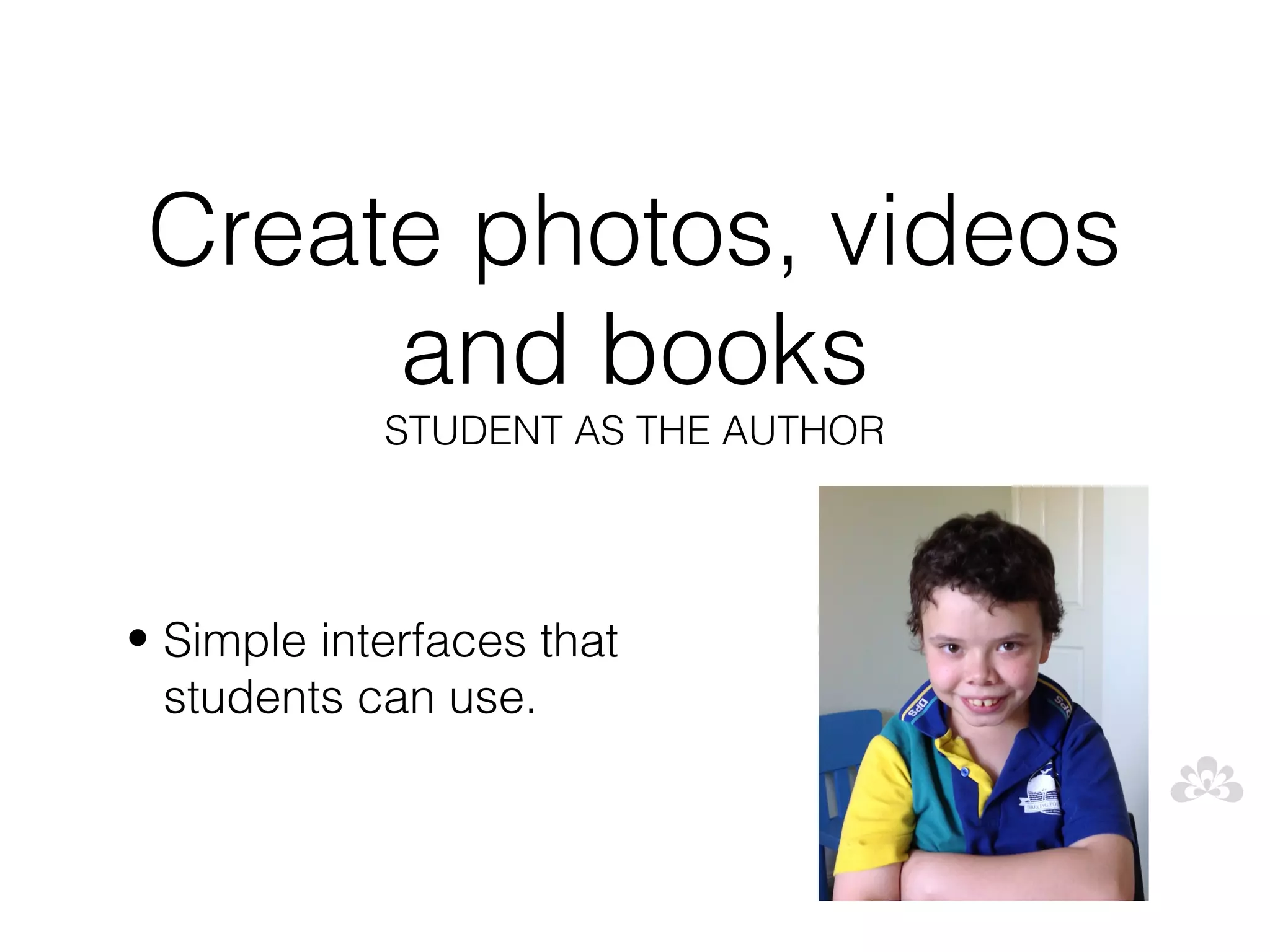
Create photos, videos
      and books
            STUDENT AS THE AUTHOR


• Simple interfaces that
  students can use.
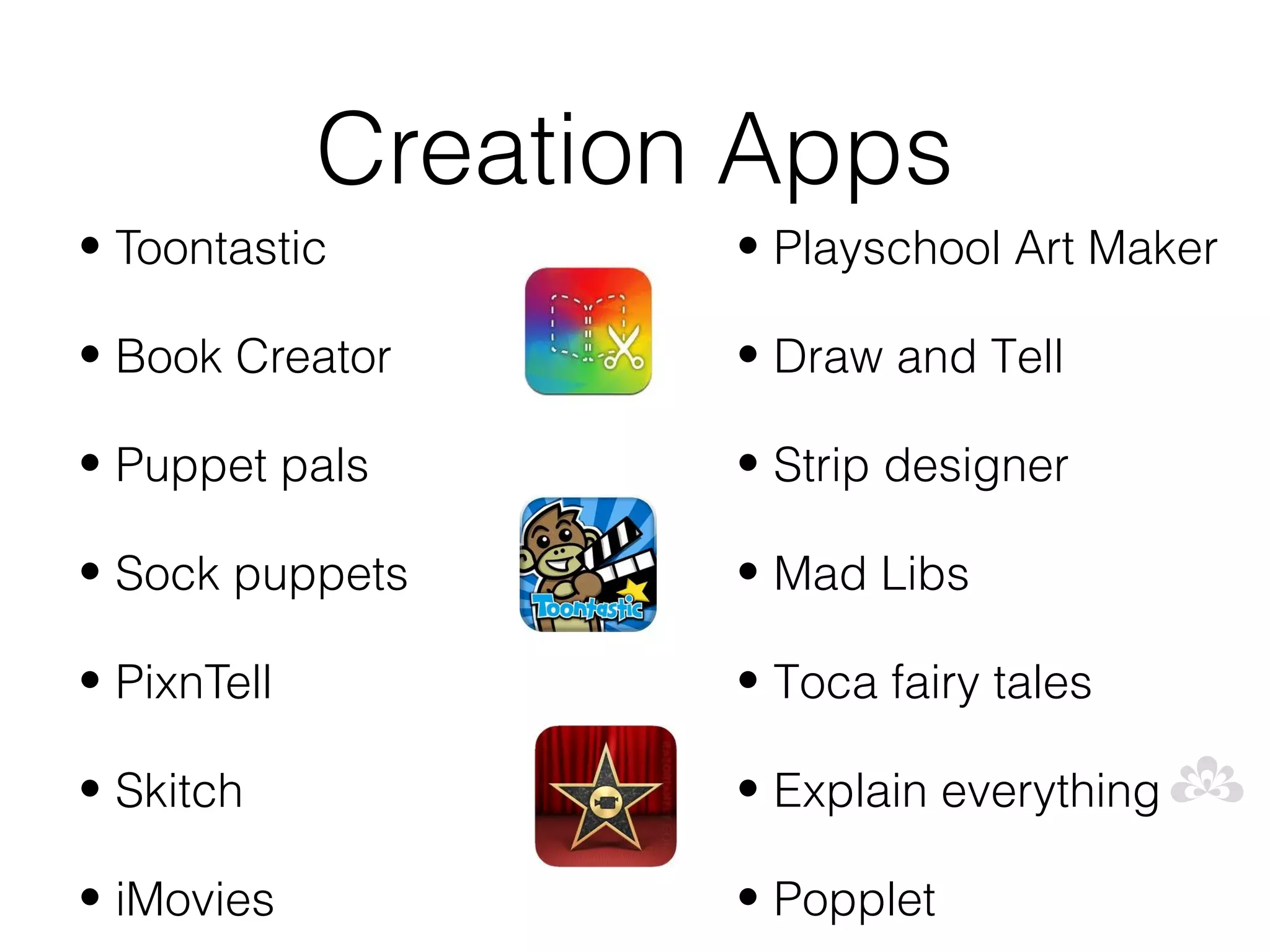
Creation Apps
• Toontastic         • Playschool Art Maker

• Book Creator       • Draw and Tell

• Puppet pals        • Strip designer

• Sock puppets       • Mad Libs

• PixnTell           • Toca fairy tales

• Skitch             • Explain everything

• iMovies            • Popplet
Publish their work
• Share via email or Dropbox?

• Photos, images and videos saved to the
  camera roll?

• Export as a PDF file?

• Export and share as an iBook?
Questions
Join the Spectronics team for four full-on days of immersion in the world of

                 technologies to support diverse learners!
Subscription
spectronics.com.au/online
facebook.com/Spectronics

twitter.com/Spectronics

Spectronics.com.au/Blog
Spectronics Consultancy Team
      consultants@spectronics.com.au

Successfully Using iPads to Support Your Students with Autism

  • 1.
    Spectronics Inclusive Learning Technologies Successfully using iPads to Support your Students with Autism
  • 2.
    Amanda Hartmann Inclusive TechnologyConsultant (Speech Pathologist)
  • 12.
    OVERVIEW • Introduction • IPads101 • Communication • Behaviour • Social development • Literacy and learning • Creation tools
  • 13.
  • 14.
  • 16.
    Don't throw thebaby out with the bath water! Remember that the iPad is just one tool in our arsenal to help us successfully support students with Autism What other tools do we use?
  • 17.
    Key principles to usingtechnology for students with Autism • Must be VISUAL • Be implemented with positive behavioural supports • Must be functional, motivating and interactive
  • 18.
    Technology Integrate use to: • Improve and develop a communication system • Assist development of social skills • Enhance ability to learn
  • 19.
    iPad iPad revolution revolution iPad craze iPad frenzy
  • 20.
    • User-friendly • Engaging •Multi-Functional iPad • Mobile and portable • Easily accessed • "Normal" • Motivating • Cost effective
  • 21.
    Challenges and solutions... • Durability Solution: protective cases and coverings
  • 22.
    Challenges and solutions... • Finding the right Apps/program's Solution: access blogs and websites that review apps, Autism Apps.
  • 23.
    Challenges and solutions... • One size fits all? Solution: no quick fix, no single solution, team assessment and problem solving
  • 24.
    Challenges and solutions... • Abandonment of other valuable strategies Solution: don't throw the baby out with the bath water.. The iPad is just one tool in our tool kit.
  • 25.
    Challenges and solutions... • Training and support Solution: funding to support ongoing and continuing professional development, access to the right training
  • 26.
    Challenges and solutions... • Ongoing support to implement Solution: access to regular support services and therapies, collect and review data
  • 27.
    Challenges and solutions... • iPad obsession and keeping kids on task Solution: Limited music, video and entertainment apps, Use within structured time limits, Use together, encouraging interaction and engagement, iOS 6 - Guided Access
  • 28.
    REMEMBER.... Continue to support students: • With clear goals and objectives • While continuing to collect data • While reviewing what works and what • Support within curriculum guidelines • Ongoing training and support for staff • And stay flexible and ready to make changes on the run
  • 29.
    iPads 101 Quick tipsout of the box
  • 30.
    iOS ecosystems • iTunes- music, videos, movies • App store - apps • iBooks - books- PDFs • iTunes U - university course work
  • 31.
    Discoverability • Websites thatreview apps • Apps that help us find good apps • Using the App store better
  • 32.
    What makes agood app? What do you look for?
  • 33.
    Choosing apps -Rubric Curriculum Grade / APP Name Cost focus Stage DOMAIN 4 3 2 1 Skill(s) reinforced are strongly Skill(s) reinforced are related to the Skill(s) reinforced are prerequisite or Skill(s) reinforced in the app are not Curriculum connected to the targeted skill or targeted skill or concept foundation skills for the targeted skill clearly connected to the targeted Connection concept or concept skill or concept Targeted skills are practiced in an Some aspects of the app are Skills are practiced in a contrived Skills are practiced in a rote or Authenticity authentic format/ problem-based presented in an authentic learning game/simulation format isolated fashion (e.g. flashcards) learning environment environment Feedback is specific and results in Feedback is specific and results in Feedback is limited to the Feedback is limited to the Feedback improved student performance improved student performance (may correctness of student responses correctness of student responses include tutorial aids) and may allow students to try again App offers complete flexibility to App offers more than one degree of App offers limited flexibility to adjust App offers no flexibility to adjust alter settings to meet student needs flexibility to adjust settings to meet settings to meet student needs (e.g., settings to meet student needs Differentiation student needs few levels such as easy, medium, (settings cannot be altered) hard) Students can launch and navigate Students can launch and navigate Students can launch and navigate Students need constant teacher within the app independently within the app independently after within the app independently after support in order to use the app User demonstration by teacher. demonstration by teacher. Students Friendliness require intermittent support. Students are highly motivated to use Students use the app as directed by Students view the app as “more Students avoid the use of the app or Student the app and select it as their first the teacher schoolwork” and may be off-task complain when use of the app is Motivation choice from a selection of related when directed by the teacher to use assigned choices of apps the app Students work can be published in Students work can be published in Students work can be only be Students work cannot be published. multiple formats and/or social media multiple formats and/or social media published to a computer. Publishing sites sites after being transferred to a computer. Data is available electronically to the Data is available electronically to Data is available electronically to the The app does not contain a summary student and teacher as a part of the student on a summary page and may student, but is not presented on a page. Reporting app. be screenshot to share with teacher single summary page. App connects seamlessly to Wi-Fi App connects to Wi-Fi network with App requires port change to connect App unable to connect to Wi-Fi Connectivity network manual configuration to Wi-Fi network network Originally created by Harry Walker: Edited, with permission, by Kathy Schrock: Updated by Greg Alchin
  • 34.
    Websites / online •Spectronics Blog and app lists. http://www.spectronicsinoz.com/blog/apple/ • APPITIC. http://appitic.com/ • Appy Mall. http://www.appymall.com/ • Facebook groups/pages eg. "iTeach: Apps for classroom"; "Spectronics Online"; Technology in Education, Moms with Apps, etc.
  • 35.
  • 36.
    Apps for SpecialEducation By the Spectronics Consultancy Team
  • 37.
  • 38.
    Apps that findapps Autism Apps Kindertown Appstar picks
  • 40.
    In the Appstore - Top Charts
  • 41.
    In the AppStore - Education Categories
  • 42.
    In the Appstore - Genius
  • 43.
    iPad Basics APP ICONS APP ICONS • Hold and jiggle • Put into folders • Rename folders • Delete apps • Lock onto bottom dock
  • 44.
    iPad Basics RESTRICTIONS RESTRICTIONS • Enable restrictions within SETTINGS - General • Turn on and off- Installing Apps, Deleting Apps, Safari, Camera, In-App purchasing, password request etc.
  • 45.
    iPad Basics MULTI-TASKING GESTURES MULTI-TASKING GESTURES • Five finger pinch to close • Four finger swipe up to multi-tasking dock • Four finger swipes left and right between apps • Turn OFF in SETTINGS-General
  • 46.
    iPad Basics MULTI-TASKING DOCK MULTI-TASKING DOCK • Four finger swipe up to multi-tasking dock • OR double click HOME button • Swipe left or right • Forced close with red dash
  • 47.
    iPad Basics ACCESSIBILITY ACCESSIBILITY • Vision/hearing • Speak selection • Physical and Motor • Guided access
  • 48.
    iPad Basics FILE SHARING FILE SHARING • APP: DropBox • Email • Sharing options within apps • iTunes: App panel- file sharing
  • 49.
    iPad Basics EXTRA TIPS EXTRA TIPS • Screen Capture • Make direct links to favourite websites • Spotlight search for apps on iPad • Side switch
  • 50.
  • 51.
    Communication skills Affected in different ways • Significant delays in speaking, use and understand fewer words • Not speaking at all (nonverbal)
  • 52.
    Communication In those children who do develop speech • Copy or echo words (echolalia) with no real meaning attached • Difficulty initiating communication • Talk about their special interests • Difficulty using language for a range of purposes • Use and understand a limited set of vocabulary
  • 53.
    Goals • Increase useand understanding of words • Improve comprehension and listening skills • Develop and extend vocabulary • Develop and extend spoken language skills
  • 54.
  • 55.
    Interactive apps • Createa car • Cookie doodle • My PlayHome • ClickySticky • The bag game • Dr Pandas Restaurant
  • 56.
    Toca Boca Apps •Toca Store • Toca doctor • Hair salon 2 • Toca tea party • Toca monster • Toca tailor • Toca fairy tales • Toca kitchen
  • 57.
    Structured learning apps •Special words • Splingo! • Speech with Milo • Hamaguchi Apps
  • 58.
    Sentence building apps •Sentences builder • Rainbow sentences • Clicker sentences
  • 59.
    Communication Nonverbal • Children with little or no speech • Need to be given alternative ways to communicate (commonly called AAC) • Devices and apps • Don't forget low tech • Multimodal approach
  • 60.
    Alternative and augmentative communication (AAC) Augmentative communication is the use of materials or techniques that supplement existing verbal abilities. Alternative communication is communication methods used by a person without any verbal ability.        (Vanderheiden and Yoder, 1986)
  • 61.
    Goals • Establish asystem of communication • Present a range of modes as the person selects their preferred method
  • 62.
    Before you doanything.... • Consult with team • Trial and test apps/devices if possible • Be prepared to invest time and money into programming, training team members and implementation
  • 63.
    Tips for success.. •Specific Vocabulary selection and design • To be engaging, interactive, fun, motivating and purposeful • Modelling of device/ board/ book
  • 64.
    Picture exchange Low tech Aided Language boards
  • 65.
    Communication Devices Practical ideas and suggestions
  • 66.
  • 67.
    Apps for AAClist http://www.spectronicsinoz.com/iphoneipad-apps-for- aac
  • 68.
    Apps for AAC Symbol based • Proloquo2go • Sonoflex • Grid player • Sounding board • Alexicom
  • 69.
    Apps for AAC Text-based • Verbally • Predictable
  • 70.
  • 71.
    Behaviour Complex and variable • Prefer routines and sameness and dislike change • Meltdowns • Repetitive behaviours • Obsess over particular interest areas • Sensory challenges affect behaviours • Seek sensory stimulation
  • 72.
    Functions of the behaviour... • What is the motivation/cause of the behaviour? • Escape/ avoidance of a situation • Attention gained from the action • Getting access to a tangible item or activity • Automatic personal reinforcement or sensory input
  • 73.
  • 74.
    Benefits of visualtools • Provides positive behaviour support • Maintains routines and schedules but also can visually show when changes occur • Provides clear expectations • Steps within task are made clear • Keeps student on task • Allows team to use consistent language and provide consistent feedback to students
  • 75.
    Visual tools areuseful for: • Schedules, timetables and routines • Class rules • First -then • Visual timers • Rewards • Organising the environment
  • 76.
    Created in... • Symwriter •Boardmaker • On iPad using variety of apps
  • 77.
  • 78.
  • 79.
  • 80.
  • 81.
  • 82.
  • 83.
    Apps for schedules,timetables, routines, class rules and first-then • Proloquo2Go • iCommunicate • Visual routines • iPrompts XL • Choiceworks • First Then
  • 84.
    Visual Timers • Clockin iOS 6+ has an inbuilt timer • APPS: • Bang! boom! Buzzer • Visual Timer • iPrompts XL • Time Timer • Sharing timer
  • 85.
    Rewards • Low tech •iPad as the reward • App: iEarntThat • App: Token board
  • 86.
  • 87.
  • 88.
    Organise the environment • Photos • Symbols • Pictello
  • 89.
  • 90.
    Social development difficult Early social interaction is • Appear uninterested in social contact • Difficult to engage and interact with • Rarely show interest in others • May not respond to others • Little eye contact • Rarely chat or play with others
  • 91.
    Goals for interaction •Engagement • Eye contact and interaction • Turn taking • Language stimulation • Listening and following directions • Requesting and commenting • Learning in a fun way!
  • 92.
    Low tech/ notech • Intensive interaction • Imitating • Following the child's lead • Motivators
  • 93.
    Apps for interaction •Toca Boca • Sound Touch • Playschool Art Maker • Stop & Go
  • 94.
    Help Kidz LearnApps • Train tracker • Peeping musicians • Bumper cars • Five little aliens • Smarty pants • Big Bang pictures • Aunty Maggie's recipe • Finger paint
  • 95.
    Social development speech In those children who do develop • Difficulty using language appropriately in conversations • Difficulty understanding social rules and expected behaviours • Cannot initiate and maintain conversations • Difficulty making and keeping friends • Unable to effectively solve social problems and negotiate • Problems expressing and understanding feelings and
  • 96.
    Teaching Social skillsrequires: • Team determining target behaviours • Pre teaching of social skills in small groups, and in natural, familiar and real settings • Rewarding and recognising behaviours • Consistent feedback about behaviours • Feedback can be given immediately after a social error • Then reviewed at a calm and responsive time
  • 97.
    SEE THINK DOSAY Build internal dialogue
  • 98.
    Social Stories Visual, video,photo stories created for specific learning of specific social behaviours Originally developed by Carol Gray www.thegraycentre.org
  • 99.
    Can be used: •To prepare someone for new events and experiences • To teach positive behaviour • To teach a new skill
  • 100.
    The structure • 3types of sentences • Descriptive - provide information • Perspective - describe internal states • Directive - tells the person what to do to be successful
  • 102.
    Tips and tricks •Write from the individual's perspective • Write in present tense • Use positive language • One skill per story • Visual supports • Involve the person or their team
  • 103.
    Tips for implementing •One at a time • Practice BEFORE the challenging situation occurs • Clear instructions for use • Consistent across all support • Review and revise
  • 104.
    Create with • Onyour computer using: Clicker or PowerPoint • A variety of Apps: Pictello, Puppet Pals, PixNTell, Sonic Pics, Strip Designer, Book Creator, Creative Book Builder
  • 105.
  • 106.
  • 107.
  • 108.
    Goals and targetareas • Feelings • Friendships • Conversations • Conflict resolution CREATE YOUR OWN TEACHING • Classroom behaviour MATERIALS TO TARGET THESE AREAS
  • 109.
    Feelings • Recognising and identifying feelings • Expressing feelings • Handling feelings of anger, anxiety, stress
  • 110.
    Friendships • Making friends •Maintaining friendships • Sharing, winning and losing • Eye contact, body language, talking and listening.
  • 111.
    Conversations • Conversation rules •Initiating, maintaining and ending conversations • Topics • Taking turns • Asking questions
  • 112.
    Conflict Resolution • Negotiation •Problem solving • Accept ways to resolve conflict • Choices when faced with conflict • Bullying and teasing
  • 113.
    Classroom Behaviours • Listeningand attention, following directions • Asking for help • When you don't understand • Interrupting • Asking permission • Answering questions
  • 114.
  • 115.
    App suggestions • Emotions • Calm counter • Emotion x • Choiceworks • Smarty Pants • Conversation builder • My life skills box • Friends Book • Social skills builder • iPrompts XL
  • 116.
  • 117.
    Early Learning Concepts, sorting,touch screen skills, etc.
  • 118.
    Early Learning Apps •Dexteria • Monkeys lunchbox • Bugs & bubbles • Simple sort • Alien buddies • Sound touch • Toddler teasers Preschool collection
  • 119.
  • 120.
    Book Apps • Whenyou grow up • Story bots • Monster at the end of this book • Don't let the pigeon run this app • Collins Big Cat • Grasshopper App books
  • 121.
  • 122.
    Story telling Apps •Story maker • Toontastic • iSequence • Speech with Milo : Sequences • Kids Journal • Story Wheel
  • 123.
    Letter-sound identification Letter recognition and tracing
  • 124.
    Letter-sound Apps • Pocketphonics • Letter school • iWrite words • rED • Starfall • ABC spy
  • 125.
  • 126.
    Early reading & spelling Apps • firstwords apps • Kids crosswords • Montessori crosswords Apps that use PHONICS, • Word wizard Not letter names! • Alphawriter • Monkey words • Simplex spelling (older students)
  • 127.
    Preschool University Apps • FREE • ABC Magic • Reading Magic • Spelling Magic • Sentences Magic
  • 128.
  • 129.
    Supported writing Apps •Clicker sentences • Clicker docs • Apps with word prediction
  • 130.
  • 131.
    Create photos, videos and books STUDENT AS THE AUTHOR • Simple interfaces that students can use.
  • 132.
    Creation Apps • Toontastic • Playschool Art Maker • Book Creator • Draw and Tell • Puppet pals • Strip designer • Sock puppets • Mad Libs • PixnTell • Toca fairy tales • Skitch • Explain everything • iMovies • Popplet
  • 133.
    Publish their work •Share via email or Dropbox? • Photos, images and videos saved to the camera roll? • Export as a PDF file? • Export and share as an iBook?
  • 134.
  • 136.
    Join the Spectronicsteam for four full-on days of immersion in the world of technologies to support diverse learners!
  • 137.
  • 138.
  • 139.
    Spectronics Consultancy Team consultants@spectronics.com.au