HOW TO USE
Style-Based
Templates
www.diannetheeditor.com
Style-based
templates
Styles are scripts built into your software
that enable you to perform actions
repeatedly. They determine more than a
font’s visual characteristics.
A style-based template is a master file that
has specific attributes that link styles to
headers, footers, cover pages, tables of
contents, figure and table captions, and
other components.
When styles are created and applied
correctly, the template is a valuable tool
that eliminates the need for time-consuming
manual adjustments during document
preparation.
www.diannetheeditor.com
Tips
Style-based templates in MS Word are
excellent tools for creating documents that
will be written or reviewed by multiple
contributors.
In a custom template, your company
branding is reflected in the document
colours, fonts and visual components, so all
your communication looks professional and
consistent.
Importance of styles
Styles are the inner workings of a template.
They limit MS Word’s infinite font type, size and
spacing possibilities to a clear set of choices to ensure
documents have the same look and feel. They specify
parameters for spacing, fonts and other text
components within the template
Styles link content to headers, footers and the TOC.
This means that if you change the title of your
document on the cover page, it will automatically
update in the headers. If you add several subheadings
as you finalize a document, you can update the TOC
with a right click. These time-saving steps are critical
when you are creating large documents.
www.diannetheeditor.com
Using styles
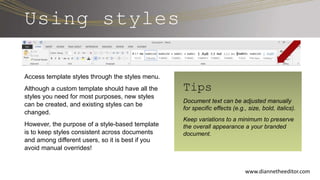
Access template styles through the styles menu.
Although a custom template should have all the
styles you need for most purposes, new styles
can be created, and existing styles can be
changed.
However, the purpose of a style-based template
is to keep styles consistent across documents
and among different users, so it is best if you
avoid manual overrides!
www.diannetheeditor.com
Tips
Document text can be adjusted manually
for specific effects (e.g., size, bold, italics).
Keep variations to a minimum to preserve
the overall appearance a your branded
document.
Style Specifics
www.diannetheeditor.com
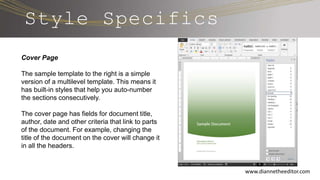
Cover Page
The sample template to the right is a simple
version of a multilevel template. This means it
has built-in styles that help you auto-number
the sections consecutively.
The cover page has fields for document title,
author, date and other criteria that link to parts
of the document. For example, changing the
title of the document on the cover will change it
in all the headers.
Style Specifics, continued
www.diannetheeditor.com
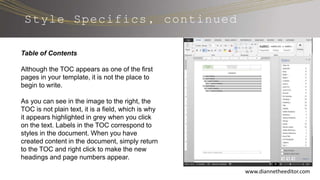
Table of Contents
Although the TOC appears as one of the first
pages in your template, it is not the place to
begin to write.
As you can see in the image to the right, the
TOC is not plain text, it is a field, which is why
it appears highlighted in grey when you click
on the text. Labels in the TOC correspond to
styles in the document. When you have
created content in the document, simply return
to the TOC and right click to make the new
headings and page numbers appear.
Style Specifics, continued
www.diannetheeditor.com
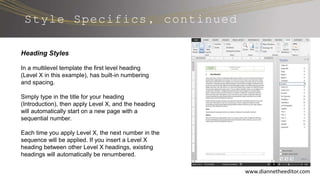
Heading Styles
In a multilevel template the first level heading
(Level X in this example), has built-in numbering
and spacing.
Simply type in the title for your heading
(Introduction), then apply Level X, and the heading
will automatically start on a new page with a
sequential number.
Each time you apply Level X, the next number in the
sequence will be applied. If you insert a Level X
heading between other Level X headings, existing
headings will automatically be renumbered.
Style Specifics, continued
www.diannetheeditor.com
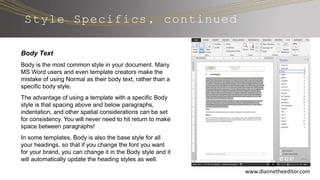
Body Text
Body is the most common style in your document. Many
MS Word users and even template creators make the
mistake of using Normal as their body text, rather than a
specific body style.
The advantage of using a template with a specific Body
style is that spacing above and below paragraphs,
indentation, and other spatial considerations can be set
for consistency. You will never need to hit return to make
space between paragraphs!
In some templates, Body is also the base style for all
your headings, so that if you change the font you want
for your brand, you can change it in the Body style and it
will automatically update the heading styles as well.
Style Specifics, continued
www.diannetheeditor.com
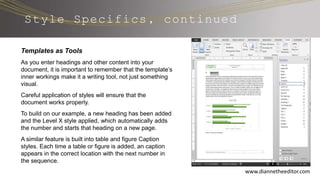
Templates as Tools
As you enter headings and other content into your
document, it is important to remember that the template’s
inner workings make it a writing tool, not just something
visual.
Careful application of styles will ensure that the
document works properly.
To build on our example, a new heading has been added
and the Level X style applied, which automatically adds
the number and starts that heading on a new page.
A similar feature is built into table and figure Caption
styles. Each time a table or figure is added, an caption
appears in the correct location with the next number in
the sequence.
Style Specifics, continued
www.diannetheeditor.com
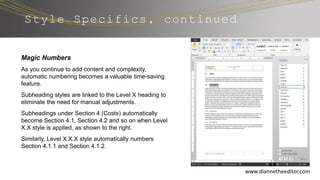
Magic Numbers
As you continue to add content and complexity,
automatic numbering becomes a valuable time-saving
feature.
Subheading styles are linked to the Level X heading to
eliminate the need for manual adjustments.
Subheadings under Section 4 (Costs) automatically
become Section 4.1, Section 4.2 and so on when Level
X.X style is applied, as shown to the right.
Similarly, Level X.X.X style automatically numbers
Section 4.1.1 and Section 4.1.2.
www.diannetheeditor.com
Style Specifics, continued
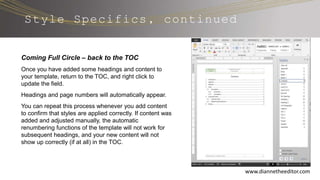
Coming Full Circle – back to the TOC
Once you have added some headings and content to
your template, return to the TOC, and right click to
update the field.
Headings and page numbers will automatically appear.
You can repeat this process whenever you add content
to confirm that styles are applied correctly. If content was
added and adjusted manually, the automatic
renumbering functions of the template will not work for
subsequent headings, and your new content will not
show up correctly (if at all) in the TOC.
www.diannetheeditor.com
Additional
Advantages
Have multiple contributors prepare separate documents
using the same template to facilitate document
compilation. All content will have been created using the
same styles, so reformatting effort is minimal.
Convert MS Word documents into bookmarked PDFs
with ease. Exporting a style-based document to PDF
creates bookmarks for all your heading styles, which
results in a sharp electronic document that is easy to
navigate.
Complementary styles (using the same style names) can
be created in Adobe InDesign templates, which means
that content can be created, edited and roughly
formatted in MS Word, then imported to InDesign when
more formal layout is required (e.g., for a business plan).
1
2
3
Questions
To learn more about editorial and production services, please contact me.
403-815-5253
info@diannetheeditor.com
www.diannetheeditor.com
Connect with me on LinkedIn or follow me on Twitter @diannetheeditor
www.diannetheeditor.com

Style based templates_demo_diannetheeditor

  • 1.
  • 2.
    Style-based templates Styles are scriptsbuilt into your software that enable you to perform actions repeatedly. They determine more than a font’s visual characteristics. A style-based template is a master file that has specific attributes that link styles to headers, footers, cover pages, tables of contents, figure and table captions, and other components. When styles are created and applied correctly, the template is a valuable tool that eliminates the need for time-consuming manual adjustments during document preparation. www.diannetheeditor.com Tips Style-based templates in MS Word are excellent tools for creating documents that will be written or reviewed by multiple contributors. In a custom template, your company branding is reflected in the document colours, fonts and visual components, so all your communication looks professional and consistent.
  • 3.
    Importance of styles Stylesare the inner workings of a template. They limit MS Word’s infinite font type, size and spacing possibilities to a clear set of choices to ensure documents have the same look and feel. They specify parameters for spacing, fonts and other text components within the template Styles link content to headers, footers and the TOC. This means that if you change the title of your document on the cover page, it will automatically update in the headers. If you add several subheadings as you finalize a document, you can update the TOC with a right click. These time-saving steps are critical when you are creating large documents. www.diannetheeditor.com
  • 4.
    Using styles Access templatestyles through the styles menu. Although a custom template should have all the styles you need for most purposes, new styles can be created, and existing styles can be changed. However, the purpose of a style-based template is to keep styles consistent across documents and among different users, so it is best if you avoid manual overrides! www.diannetheeditor.com Tips Document text can be adjusted manually for specific effects (e.g., size, bold, italics). Keep variations to a minimum to preserve the overall appearance a your branded document.
  • 5.
    Style Specifics www.diannetheeditor.com Cover Page Thesample template to the right is a simple version of a multilevel template. This means it has built-in styles that help you auto-number the sections consecutively. The cover page has fields for document title, author, date and other criteria that link to parts of the document. For example, changing the title of the document on the cover will change it in all the headers.
  • 6.
    Style Specifics, continued www.diannetheeditor.com Tableof Contents Although the TOC appears as one of the first pages in your template, it is not the place to begin to write. As you can see in the image to the right, the TOC is not plain text, it is a field, which is why it appears highlighted in grey when you click on the text. Labels in the TOC correspond to styles in the document. When you have created content in the document, simply return to the TOC and right click to make the new headings and page numbers appear.
  • 7.
    Style Specifics, continued www.diannetheeditor.com HeadingStyles In a multilevel template the first level heading (Level X in this example), has built-in numbering and spacing. Simply type in the title for your heading (Introduction), then apply Level X, and the heading will automatically start on a new page with a sequential number. Each time you apply Level X, the next number in the sequence will be applied. If you insert a Level X heading between other Level X headings, existing headings will automatically be renumbered.
  • 8.
    Style Specifics, continued www.diannetheeditor.com BodyText Body is the most common style in your document. Many MS Word users and even template creators make the mistake of using Normal as their body text, rather than a specific body style. The advantage of using a template with a specific Body style is that spacing above and below paragraphs, indentation, and other spatial considerations can be set for consistency. You will never need to hit return to make space between paragraphs! In some templates, Body is also the base style for all your headings, so that if you change the font you want for your brand, you can change it in the Body style and it will automatically update the heading styles as well.
  • 9.
    Style Specifics, continued www.diannetheeditor.com Templatesas Tools As you enter headings and other content into your document, it is important to remember that the template’s inner workings make it a writing tool, not just something visual. Careful application of styles will ensure that the document works properly. To build on our example, a new heading has been added and the Level X style applied, which automatically adds the number and starts that heading on a new page. A similar feature is built into table and figure Caption styles. Each time a table or figure is added, an caption appears in the correct location with the next number in the sequence.
  • 10.
    Style Specifics, continued www.diannetheeditor.com MagicNumbers As you continue to add content and complexity, automatic numbering becomes a valuable time-saving feature. Subheading styles are linked to the Level X heading to eliminate the need for manual adjustments. Subheadings under Section 4 (Costs) automatically become Section 4.1, Section 4.2 and so on when Level X.X style is applied, as shown to the right. Similarly, Level X.X.X style automatically numbers Section 4.1.1 and Section 4.1.2.
  • 11.
    www.diannetheeditor.com Style Specifics, continued ComingFull Circle – back to the TOC Once you have added some headings and content to your template, return to the TOC, and right click to update the field. Headings and page numbers will automatically appear. You can repeat this process whenever you add content to confirm that styles are applied correctly. If content was added and adjusted manually, the automatic renumbering functions of the template will not work for subsequent headings, and your new content will not show up correctly (if at all) in the TOC.
  • 12.
    www.diannetheeditor.com Additional Advantages Have multiple contributorsprepare separate documents using the same template to facilitate document compilation. All content will have been created using the same styles, so reformatting effort is minimal. Convert MS Word documents into bookmarked PDFs with ease. Exporting a style-based document to PDF creates bookmarks for all your heading styles, which results in a sharp electronic document that is easy to navigate. Complementary styles (using the same style names) can be created in Adobe InDesign templates, which means that content can be created, edited and roughly formatted in MS Word, then imported to InDesign when more formal layout is required (e.g., for a business plan). 1 2 3
  • 13.
    Questions To learn moreabout editorial and production services, please contact me. 403-815-5253 info@diannetheeditor.com www.diannetheeditor.com Connect with me on LinkedIn or follow me on Twitter @diannetheeditor www.diannetheeditor.com