Smart Board TrainingDigital OasisFebruary 2010
Beginners and Refresher What are the basic needs when using the interactive whiteboard?Setting it up the wires and the connectionsCalibration/OrientationAccess to the pens and erasersUsing the Tool BarMore complex skills
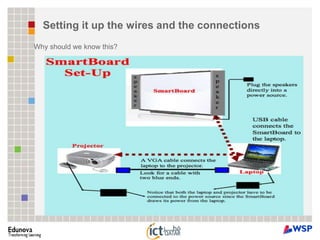
Setting it up the wires and the connectionsWhy should we know this?
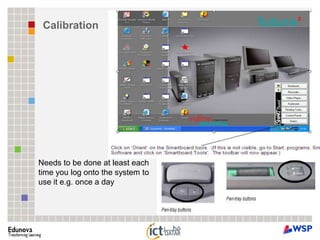
CalibrationNeeds to be done at least each time you log onto the system to use it e.g. once a day
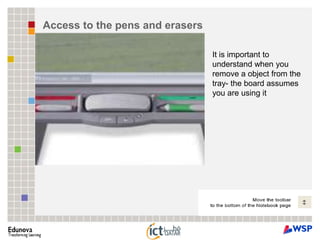
Access to the pens and erasersIt is important to understand when you remove a object from the tray- the board assumes you are using it
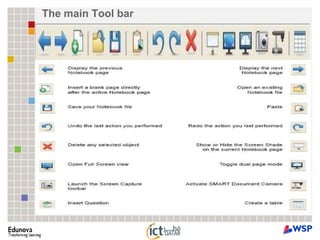
The main Tool bar
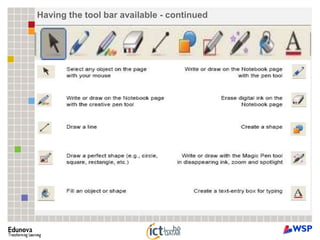
Having the tool bar available - continued
Self-training and revisionTo continue your own training it is useful if you get time to play on the Smartboard TM for yourself and this will help you get more confident.It will also help you to consider where it is appropriate to include this application in your lessonhttp://smarttech.com/trainingcenter/material.aspCheck out the Notebook software 10 dropdown to look at ‘What’s new in Notebook 10’Lesson activities - http://education.smarttech.com/ste/en-US/Ed+Resource/Lesson+activities/Notebook+Activities/default.htmhttp://education.smarttech.com/ste/en-US/Ed+Resource/Lesson+activities/Notebook+Activities/Correlated+Search+us.htm
Come up and use the toolbar to do somethingMaybe access the InternetUsing the toolsIf you make a mistake, normally you can click the undo or re-click the icon you clicked originally  Please noteSave normally,  But not to the C drive, onto school shared drive as this will back up correctly
 Ensure the file type is correct e.g. 2007
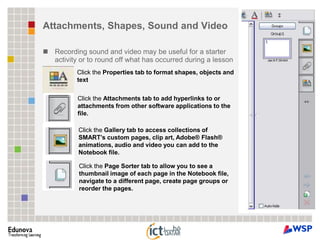
 Give it a sensible name which others can understand- so you can share resources e.g. Sm1_Gd7_PlantsAttachments, Shapes, Sound and VideoRecording sound and video may be useful for a starter activity or to round off what has occurred during a lessonClick the Properties tab to format shapes, objects and textClick the Attachments tab to add hyperlinks to or attachments from other software applications to the file.Click the Gallery tab to access collections of SMART’s custom pages, clip art, Adobe® Flash® animations, audio and video you can add to the Notebook file.Click the Page Sorter tab to allow you to see a thumbnail image of each page in the Notebook file, navigate to a different page, create page groups or reorder the pages.
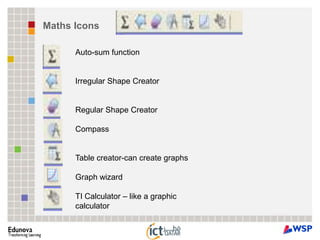
Maths IconsAuto-sum functionIrregular Shape CreatorRegular Shape CreatorCompassTable creator-can create graphsGraph wizardTI Calculator – like a graphic calculator

Smartboard: Interactive Whiteboard

  • 1.
    Smart Board TrainingDigitalOasisFebruary 2010
  • 2.
    Beginners and RefresherWhat are the basic needs when using the interactive whiteboard?Setting it up the wires and the connectionsCalibration/OrientationAccess to the pens and erasersUsing the Tool BarMore complex skills
  • 3.
    Setting it upthe wires and the connectionsWhy should we know this?
  • 4.
    CalibrationNeeds to bedone at least each time you log onto the system to use it e.g. once a day
  • 5.
    Access to thepens and erasersIt is important to understand when you remove a object from the tray- the board assumes you are using it
  • 6.
  • 7.
    Having the toolbar available - continued
  • 8.
    Self-training and revisionTocontinue your own training it is useful if you get time to play on the Smartboard TM for yourself and this will help you get more confident.It will also help you to consider where it is appropriate to include this application in your lessonhttp://smarttech.com/trainingcenter/material.aspCheck out the Notebook software 10 dropdown to look at ‘What’s new in Notebook 10’Lesson activities - http://education.smarttech.com/ste/en-US/Ed+Resource/Lesson+activities/Notebook+Activities/default.htmhttp://education.smarttech.com/ste/en-US/Ed+Resource/Lesson+activities/Notebook+Activities/Correlated+Search+us.htm
  • 9.
    Come up anduse the toolbar to do somethingMaybe access the InternetUsing the toolsIf you make a mistake, normally you can click the undo or re-click the icon you clicked originally Please noteSave normally, But not to the C drive, onto school shared drive as this will back up correctly
  • 10.
    Ensure thefile type is correct e.g. 2007
  • 11.
    Give ita sensible name which others can understand- so you can share resources e.g. Sm1_Gd7_PlantsAttachments, Shapes, Sound and VideoRecording sound and video may be useful for a starter activity or to round off what has occurred during a lessonClick the Properties tab to format shapes, objects and textClick the Attachments tab to add hyperlinks to or attachments from other software applications to the file.Click the Gallery tab to access collections of SMART’s custom pages, clip art, Adobe® Flash® animations, audio and video you can add to the Notebook file.Click the Page Sorter tab to allow you to see a thumbnail image of each page in the Notebook file, navigate to a different page, create page groups or reorder the pages.
  • 12.
    Maths IconsAuto-sum functionIrregularShape CreatorRegular Shape CreatorCompassTable creator-can create graphsGraph wizardTI Calculator – like a graphic calculator