Welcome to SMART Notebook

                                                                            TM
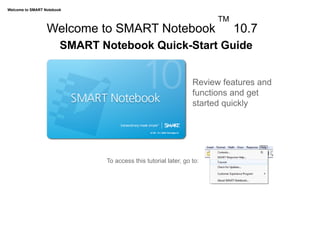
                  Welcome to SMART Notebook                                      10.7
                        SMART Notebook Quick-Start Guide


                                                                      Review features and
                                                                      functions and get
                                                                      started quickly


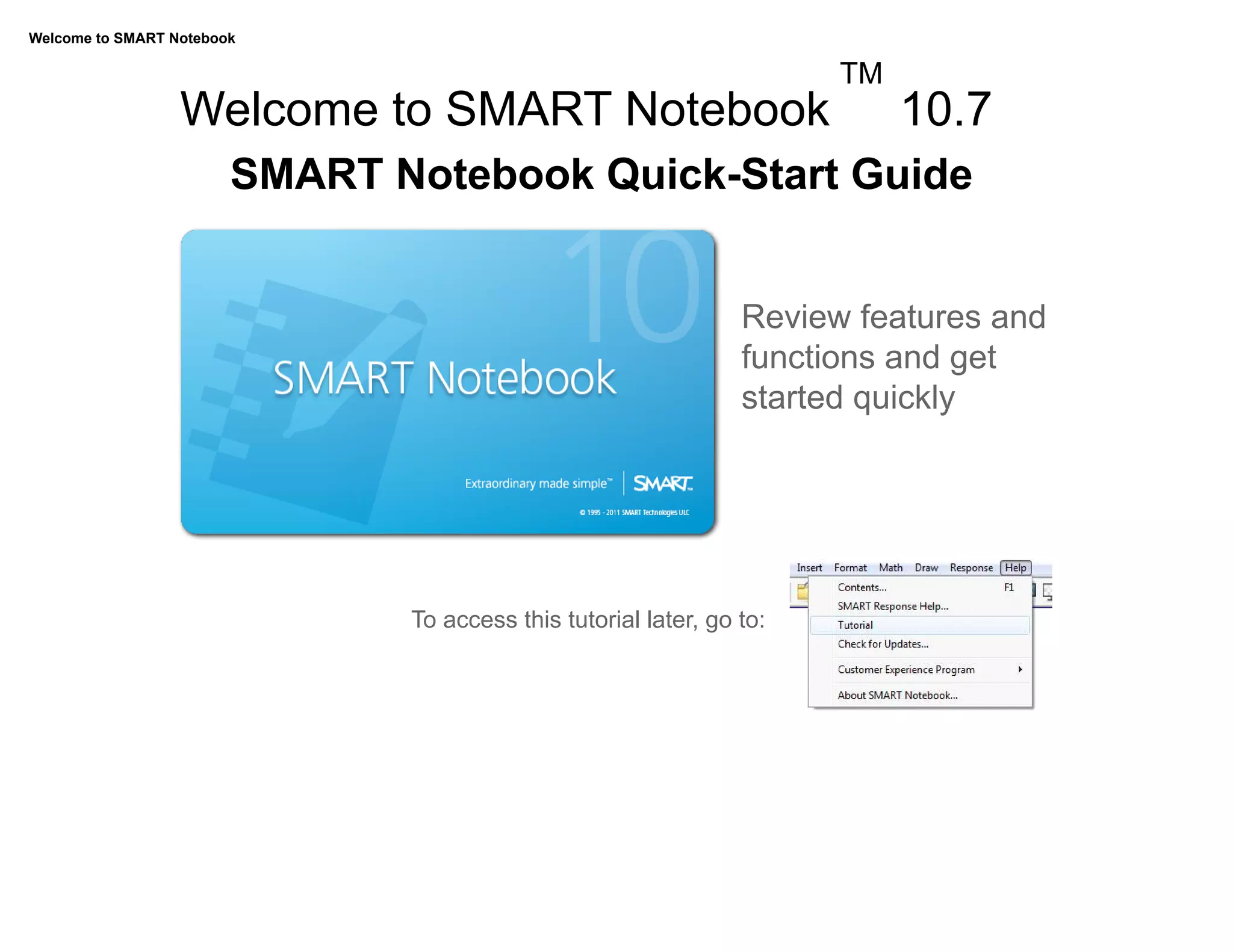
   To access this tutorial later, go to:
Welcome to SMART Notebook


           SMART Board 800 series interactive whiteboard

           This file introduces you to some of the
           features of SMART Notebook 10.7
           software.

           Several features require an 800 series
           SMART Board interactive whiteboard.
           These features are marked with this
           icon. 800


           If you're using SMART Notebook software with a different SMART
           hardware product, visit smarttech.com/us/Resources/Training for
           additional resources related to your product.
Welcome to SMART Notebook


              Pages
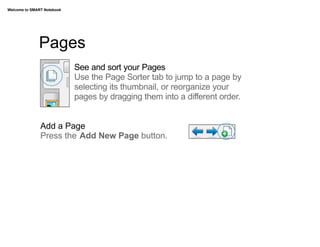
                            See and sort your Pages
                            Use the Page Sorter tab to jump to a page by
                            selecting its thumbnail, or reorganize your
                            pages by dragging them into a different order.


               Add a Page
               Press the Add New Page button.
Welcome to SMART Notebook


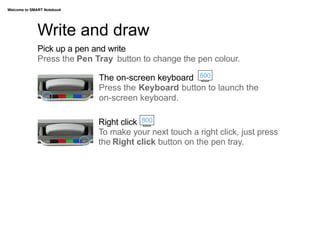
             Write and draw
             Pick up a pen and write
             Press the Pen Tray button to change the pen colour.

                            The on-screen keyboard 800
                            Press the Keyboard button to launch the
                            on-screen keyboard.

                            Right click 800
                            To make your next touch a right click, just press
                            the Right click button on the pen tray.
Welcome to SMART Notebook


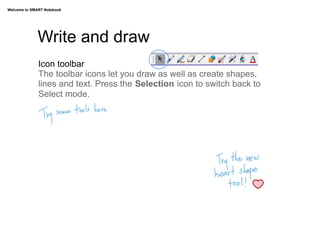
              Write and draw
              Icon toolbar
              The toolbar icons let you draw as well as create shapes,
              lines and text. Press the Selection icon to switch back to
              Select mode.
Welcome to SMART Notebook


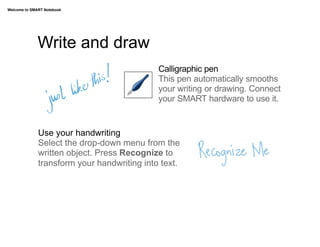
              Write and draw
                                             Calligraphic pen
                                             This pen automatically smooths
                                             your writing or drawing. Connect
                                             your SMART hardware to use it.


              Use your handwriting
              Select the drop-down menu from the
              written object. Press Recognize to
              transform your handwriting into text.
Welcome to SMART Notebook


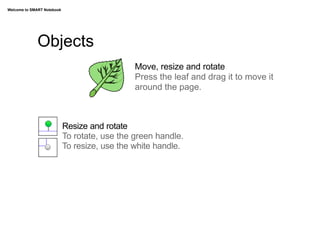
             Objects
                                               Move, resize and rotate
                                               Press the leaf and drag it to move it
                                               around the page.


                            Resize and rotate
                            To rotate, use the green handle.
                            To resize, use the white handle.
Welcome to SMART Notebook


              Objects
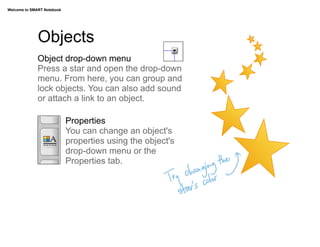
              Object drop-down menu
              Press a star and open the drop-down
              menu. From here, you can group and
              lock objects. You can also add sound
              or attach a link to an object.

                            Properties
                            You can change an object's
                            properties using the object's
                            drop-down menu or the
                            Properties tab. 	


Welcome to SMART Notebook


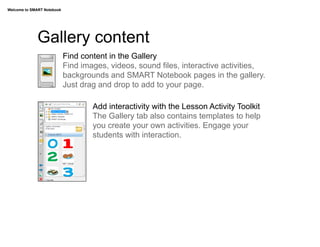
             Gallery content
                            Find content in the Gallery
                            Find images, videos, sound files, interactive activities,
                            backgrounds and SMART Notebook pages in the gallery.
                            Just drag and drop to add to your page.

                                    Add interactivity with the Lesson Activity Toolkit
                                    The Gallery tab also contains templates to help
                                    you create your own activities. Engage your
                                    students with interaction.
Welcome to SMART Notebook


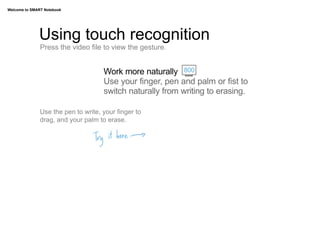
              Using touch recognition
               Press the video file to view the gesture.


                                     Work more naturally 800
                                     Use your finger, pen and palm or fist to
                                     switch naturally from writing to erasing.

               Use the pen to write, your finger to
               drag, and your palm to erase.
Welcome to SMART Notebook


               Working together                            800
               Press the video file to view the gesture.

               Collaborate more
               Students can work together on the
               interactive whiteboard by writing, moving
               objects and interacting at the same time.
Welcome to SMART Notebook


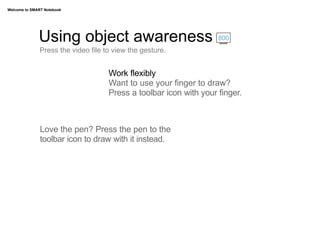
              Using object awareness                                800
               Press the video file to view the gesture.


                                     Work flexibly
                                     Want to use your finger to draw?
                                     Press a toolbar icon with your finger.


               Love the pen? Press the pen to the
               toolbar icon to draw with it instead.
Welcome to SMART Notebook


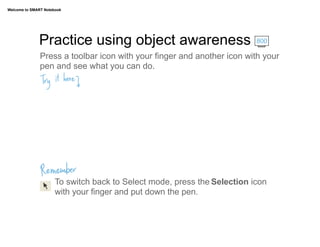
              Practice using object awareness                             800

               Press a toolbar icon with your finger and another icon with your
               pen and see what you can do. 	


                      To switch back to Select mode, press the Selection icon
                      with your finger and put down the pen.
Welcome to SMART Notebook


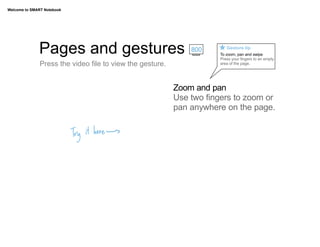
              Pages and gestures                               800       Gesture tip
                                                                      To zoom, pan and swipe
                                                                      Press your fingers to an empty
               Press the video file to view the gesture.              area of the page.


                                                           Zoom and pan
                                                           Use two fingers to zoom or
                                                           pan anywhere on the page.
Welcome to SMART Notebook


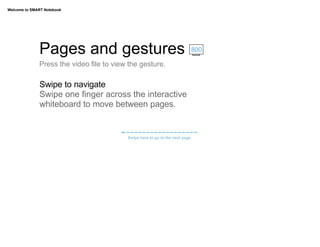
              Pages and gestures                                              800

              Press the video file to view the gesture.

              Swipe to navigate
              Swipe one finger across the interactive
              whiteboard to move between pages.


                                          Swipe here to go to the next page
Welcome to SMART Notebook


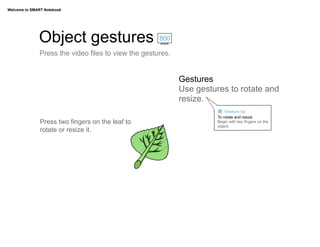
              Object gestures                        800

              Press the video files to view the gestures.


                                                            Gestures
                                                            Use gestures to rotate and
                                                            resize.
                                                                          Gesture tip
                                                                      To rotate and resize
               Press two fingers on the leaf to                       Begin with two fingers on the
                                                                      object.
               rotate or resize it.
Welcome to SMART Notebook


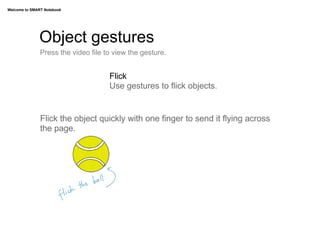
              Object gestures
               Press the video file to view the gesture.


                                     Flick
                                     Use gestures to flick objects.


               Flick the object quickly with one finger to send it flying across
               the page.
Welcome to SMART Notebook


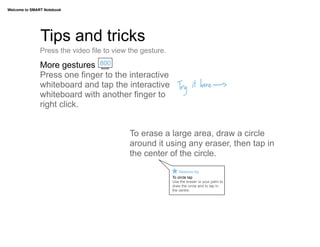
               Tips and tricks
               Press the video file to view the gesture.

               More gestures 800
               Press one finger to the interactive
               whiteboard and tap the interactive
               whiteboard with another finger to
               right click.


                                            To erase a large area, draw a circle
                                            around it using any eraser, then tap in
                                            the center of the circle.
                                                               Gesture tip
                                                           To circle tap
                                                           Use the eraser or your palm to
                                                           draw the circle and to tap in
                                                           the centre.
Welcome to SMART Notebook


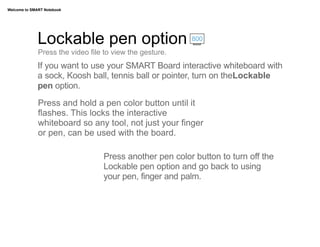
              Lockable pen option                         800

              Press the video file to view the gesture.
              If you want to use your SMART Board interactive whiteboard with
              a sock, Koosh ball, tennis ball or pointer, turn on theLockable
              pen option.
              Press and hold a pen color button until it
              flashes. This locks the interactive
              whiteboard so any tool, not just your finger
              or pen, can be used with the board.

                                  Press another pen color button to turn off the
                                  Lockable pen option and go back to using
                                  your pen, finger and palm.
Welcome to SMART Notebook


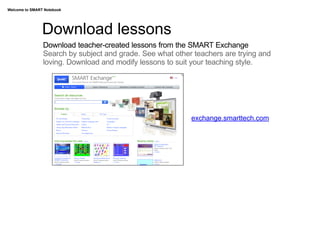
                Download lessons
                Download teacher-created lessons from the SMART Exchange
                Search by subject and grade. See what other teachers are trying and
                loving. Download and modify lessons to suit your teaching style.


                                                           exchange.smarttech.com
Welcome to SMART Notebook


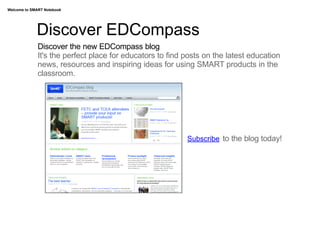
             Discover EDCompass
              Discover the new EDCompass blog
              It's the perfect place for educators to find posts on the latest education
              news, resources and inspiring ideas for using SMART products in the
              classroom.


                                                           Subscribe to the blog today!
Welcome to SMART Notebook


                                    Now try it yourself


                                        Start exploring and creating
                      For additional help, tutorials or information on training sessions, use the Help
                      menu or go to smarttech.com/us/Resources/Training

Welcome to smart notebook

  • 1.
    Welcome to SMARTNotebook TM Welcome to SMART Notebook 10.7 SMART Notebook Quick-Start Guide Review features and functions and get started quickly   To access this tutorial later, go to:
  • 2.
    Welcome to SMARTNotebook SMART Board 800 series interactive whiteboard This file introduces you to some of the features of SMART Notebook 10.7 software. Several features require an 800 series SMART Board interactive whiteboard. These features are marked with this icon. 800 If you're using SMART Notebook software with a different SMART hardware product, visit smarttech.com/us/Resources/Training for additional resources related to your product.
  • 3.
    Welcome to SMARTNotebook Pages See and sort your Pages Use the Page Sorter tab to jump to a page by selecting its thumbnail, or reorganize your pages by dragging them into a different order. Add a Page Press the Add New Page button.
  • 4.
    Welcome to SMARTNotebook Write and draw Pick up a pen and write Press the Pen Tray button to change the pen colour. The on-screen keyboard 800 Press the Keyboard button to launch the on-screen keyboard. Right click 800 To make your next touch a right click, just press the Right click button on the pen tray.
  • 5.
    Welcome to SMARTNotebook Write and draw Icon toolbar The toolbar icons let you draw as well as create shapes, lines and text. Press the Selection icon to switch back to Select mode.
  • 6.
    Welcome to SMARTNotebook Write and draw Calligraphic pen This pen automatically smooths your writing or drawing. Connect your SMART hardware to use it. Use your handwriting Select the drop-down menu from the written object. Press Recognize to transform your handwriting into text.
  • 7.
    Welcome to SMARTNotebook Objects Move, resize and rotate Press the leaf and drag it to move it around the page. Resize and rotate To rotate, use the green handle. To resize, use the white handle.
  • 8.
    Welcome to SMARTNotebook Objects Object drop-down menu Press a star and open the drop-down menu. From here, you can group and lock objects. You can also add sound or attach a link to an object. Properties You can change an object's properties using the object's drop-down menu or the Properties tab.      
  • 9.
    Welcome to SMARTNotebook Gallery content Find content in the Gallery Find images, videos, sound files, interactive activities, backgrounds and SMART Notebook pages in the gallery. Just drag and drop to add to your page. Add interactivity with the Lesson Activity Toolkit The Gallery tab also contains templates to help you create your own activities. Engage your students with interaction.
  • 10.
    Welcome to SMARTNotebook Using touch recognition Press the video file to view the gesture. Work more naturally 800 Use your finger, pen and palm or fist to switch naturally from writing to erasing. Use the pen to write, your finger to drag, and your palm to erase.
  • 11.
    Welcome to SMARTNotebook Working together 800 Press the video file to view the gesture. Collaborate more Students can work together on the interactive whiteboard by writing, moving objects and interacting at the same time.
  • 12.
    Welcome to SMARTNotebook Using object awareness 800 Press the video file to view the gesture. Work flexibly Want to use your finger to draw? Press a toolbar icon with your finger. Love the pen? Press the pen to the toolbar icon to draw with it instead.
  • 13.
    Welcome to SMARTNotebook Practice using object awareness 800 Press a toolbar icon with your finger and another icon with your pen and see what you can do.   To switch back to Select mode, press the Selection icon with your finger and put down the pen.
  • 14.
    Welcome to SMARTNotebook Pages and gestures 800 Gesture tip To zoom, pan and swipe Press your fingers to an empty Press the video file to view the gesture. area of the page. Zoom and pan Use two fingers to zoom or pan anywhere on the page.
  • 15.
    Welcome to SMARTNotebook Pages and gestures 800 Press the video file to view the gesture. Swipe to navigate Swipe one finger across the interactive whiteboard to move between pages. Swipe here to go to the next page
  • 16.
    Welcome to SMARTNotebook Object gestures 800 Press the video files to view the gestures. Gestures Use gestures to rotate and resize. Gesture tip To rotate and resize Press two fingers on the leaf to Begin with two fingers on the object. rotate or resize it.
  • 17.
    Welcome to SMARTNotebook Object gestures Press the video file to view the gesture. Flick Use gestures to flick objects. Flick the object quickly with one finger to send it flying across the page.
  • 18.
    Welcome to SMARTNotebook Tips and tricks Press the video file to view the gesture. More gestures 800 Press one finger to the interactive whiteboard and tap the interactive whiteboard with another finger to right click. To erase a large area, draw a circle around it using any eraser, then tap in the center of the circle. Gesture tip To circle tap Use the eraser or your palm to draw the circle and to tap in the centre.
  • 19.
    Welcome to SMARTNotebook Lockable pen option 800 Press the video file to view the gesture. If you want to use your SMART Board interactive whiteboard with a sock, Koosh ball, tennis ball or pointer, turn on theLockable pen option. Press and hold a pen color button until it flashes. This locks the interactive whiteboard so any tool, not just your finger or pen, can be used with the board. Press another pen color button to turn off the Lockable pen option and go back to using your pen, finger and palm.
  • 20.
    Welcome to SMARTNotebook Download lessons Download teacher-created lessons from the SMART Exchange Search by subject and grade. See what other teachers are trying and loving. Download and modify lessons to suit your teaching style. exchange.smarttech.com
  • 21.
    Welcome to SMARTNotebook Discover EDCompass Discover the new EDCompass blog It's the perfect place for educators to find posts on the latest education news, resources and inspiring ideas for using SMART products in the classroom. Subscribe to the blog today!
  • 22.
    Welcome to SMARTNotebook Now try it yourself Start exploring and creating For additional help, tutorials or information on training sessions, use the Help menu or go to smarttech.com/us/Resources/Training