SMART Notebook™ 11.2
Windows® operating systems
User’s guide
Scan the following QR code to view the SMART Notebook software Help
on your smart phone or other mobile device.
smarttech.com/kb/170497
Trademark notice
SMART Notebook, SMART Response, SMART Board, SMART Document Camera, SMART Exchange, SMART Ink, smarttech, the SMART logo and all SMART taglines
are trademarks or registered trademarks of SMART Technologies ULC in the U.S. and/or other countries. Windows, Internet Explorer and PowerPoint are either registered
trademarks or trademarks of Microsoft Corporation in the U.S. and/or other countries. Mac, Mac OS, OS X and QuickTime are trademarks of Apple Inc., registered in the
U.S. and other countries. Adobe, Flash and Reader are either registered trademarks or trademarks of Adobe Systems Incorporated in the U.S. and/or other countries. All
other third-party product and company names may be trademarks of their respective owners.
Copyright notice
© 2013 SMART Technologies ULC. All rights reserved. No part of this publication may be reproduced, transmitted, transcribed, stored in a retrieval system or translated
into any language in any form by any means without the prior written consent of SMART Technologies ULC. Information in this manual is subject to change without notice
and does not represent a commitment on the part of SMART.
This product and/or use thereof covered by one or more of the following U.S. patents.
www.smarttech.com/patents
05/2013
i smarttech.com/kb/170497
Contents
Chapter 1: Getting started with SMART Notebook software 1
About SMART Notebook software 2
About the other SMART software on your computer 2
Starting SMART Notebook software 3
Navigating the user interface 3
Using gestures 8
Undoing and redoing actions 9
Chapter 2: Creating and working with files 11
Creating files 11
Opening files 11
Saving files 12
Exporting files 13
Printing files 15
Saving files automatically 16
Attaching files to e-mail messages 20
Chapter 3: Creating and working with pages 21
Displaying pages in a file 21
Creating pages 22
Cloning pages 23
Extending pages 23
Renaming pages 24
Rearranging pages 24
Grouping pages 25
Deleting pages 26
Chapter 4: Creating basic objects 29
Writing, drawing and erasing digital ink 30
Creating shapes and lines 33
Creating text 36
Creating tables 43
Chapter 5: Working with objects 53
Selecting objects 54
Changing objects’ properties 56
Positioning objects 59
Cutting, copying and pasting objects 63
C O N T E N T S
ii smarttech.com/kb/170497
Cloning objects 64
Resizing objects 64
Rotating objects 67
Flipping objects 69
Grouping objects 69
Deleting objects 71
Chapter 6: Inserting, organizing and sharing content 73
Inserting content from the Gallery 74
Inserting content from the SMART Exchange website 76
Inserting content from other sources 77
Inserting Internet browsers 87
Attaching files and web pages 89
Organizing and sharing content using the Gallery 90
Sharing content using the SMART Exchange website 95
Chapter 7: Creating lesson activities 97
Using advanced object features 98
Using advanced page features 105
Creating example lesson activities 110
Chapter 8: Presenting lesson activities and facilitating collaboration 119
Preparing before presenting 120
Using presentation tools while presenting 128
Clearing or resetting pages after presenting 141
Enabling two people to use an interactive whiteboard 144
Chapter 9: Enhancing SMART Notebook software with add-ons 147
Installing add-ons 147
Using add-ons 148
Identifying missing add-ons 148
Disabling and removing add-ons 149
Chapter 10: Maintaining SMART Notebook software 151
Customizing the toolbar 151
Configuring SMART Notebook software 153
Setting the language 160
Removing SMART software 162
Updating and activating SMART software 163
Sending feedback to SMART 167
Chapter 11: Troubleshooting SMART Notebook software 169
Troubleshooting files 169
Troubleshooting the SMART Notebook software window and toolbar 169
Troubleshooting digital ink 170
C O N T E N T S
iii smarttech.com/kb/170497
Troubleshooting objects 171
Troubleshooting gestures 173
Index 175
Chapter 1
1 smarttech.com/kb/170497
Getting started with
SMART Notebook software
About SMART Notebook software 2
About the other SMART software on your computer 2
Starting SMART Notebook software 3
Navigating the user interface 3
Menu 3
Toolbar 3
Actions panel 3
Plug-ins panel 4
Tools panel 4
Contextual panel 4
Customizing the toolbar 4
Page Sorter 5
Opening the Page Sorter 5
Customizing the Page Sorter 5
Gallery tab 5
Opening the Gallery tab 6
Customizing the Gallery tab 6
Attachments tab 6
Opening the Attachments tab 6
Customizing the Attachments tab 6
Properties tab 6
Opening the Properties tab 7
Customizing the Properties tab 7
Add-ons tab 7
Opening the Add-ons tab 7
Customizing the Add-ons tab 7
SMART Response tab 8
Page area 8
Using gestures 8
Undoing and redoing actions 9
C H A P T E R 1
Getting started with SMART Notebook software
2 smarttech.com/kb/170497
This chapter introduces you to SMART Notebook™ collaborative learning software and explains how
to get started with the software.
About SMART Notebook software
In SMART Notebook software, you can create .notebook files that include graphics, text, tables,
lines, shapes, animations and more. Present your file and keep your class’s attention as you move
and interact with these objects. When your class provides comments and suggestions, write their
input on the page using digital ink. You can open .notebook files in SMART Notebook software on a
Windows®, Mac or Linux® computer. You can also export your file in a variety of formats, including
HTML and PDF.
You can install SMART Notebook Tools as well as third-party add-ons to add special features to
SMART Notebook software. SMART Notebook Tools include the following:
l 3D Tools for SMART Notebook software
l Mixed Reality Tools for SMART Document Camera™
l SMART Notebook Math Tools
About the other SMART software on your
computer
Your computer might include the following other SMART software.
l SMART Product Drivers
Your interactive product detects contact with its screen and sends each contact point, along
with Pen tool information, to the connected computer. SMART Product Drivers translates the
information into mouse clicks and digital ink. SMART Product Drivers enables you to perform
normal computer operations by using your finger or a pen.
l SMART Ink™
Using SMART Ink, you can write or draw on the screen in digital ink using a pen, and then save
or erase your notes.
l SMART Board® Tools
You can draw attention to specific parts of a page using SMART Board Tools, such as the
Screen Shade, Spotlight, Magnifier and Pointer.
C H A P T E R 1
Getting started with SMART Notebook software
3 smarttech.com/kb/170497
Starting SMART Notebook software
Start SMART Notebook software by double-clicking the SMART Notebook 11 icon on the desktop.
When you start SMART Notebook software the first time, a tutorial file opens automatically. You can
read the contents of this file to learn more about the software and the new features in the latest
release. When you’re done, select File > New to create a new, blank file.
N O T E
When you start the software subsequent times, a new, blank file opens automatically. To open the
tutorial file, select Help > Tutorial.
Navigating the user interface
The SMART Notebook software user interface consists of the following components:
l Menu
l Toolbar
l Tabs (Page Sorter, Gallery, Attachments, Properties, Add-ons and SMART Response™)
l Page area
Menu
The menu contains all the commands you can use to manipulate files and objects in
SMART Notebook software.
Toolbar
The toolbar enables you to select and use a variety of commands. The buttons on the toolbar are
organized in panels.
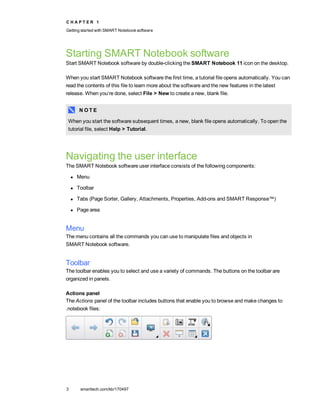
Actions panel
The Actions panel of the toolbar includes buttons that enable you to browse and make changes to
.notebook files:
C H A P T E R 1
Getting started with SMART Notebook software
4 smarttech.com/kb/170497
Plug-ins panel
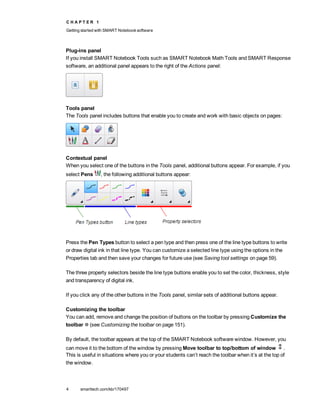
If you install SMART Notebook Tools such as SMART Notebook Math Tools and SMART Response
software, an additional panel appears to the right of the Actions panel:
Tools panel
The Tools panel includes buttons that enable you to create and work with basic objects on pages:
Contextual panel
When you select one of the buttons in the Tools panel, additional buttons appear. For example, if you
select Pens , the following additional buttons appear:
Press the Pen Types button to select a pen type and then press one of the line type buttons to write
or draw digital ink in that line type. You can customize a selected line type using the options in the
Properties tab and then save your changes for future use (see Saving tool settings on page 59).
The three property selectors beside the line type buttons enable you to set the color, thickness, style
and transparency of digital ink.
If you click any of the other buttons in the Tools panel, similar sets of additional buttons appear.
Customizing the toolbar
You can add, remove and change the position of buttons on the toolbar by pressing Customize the
toolbar (see Customizing the toolbar on page 151).
By default, the toolbar appears at the top of the SMART Notebook software window. However, you
can move it to the bottom of the window by pressing Move toolbar to top/bottom of window .
This is useful in situations where you or your students can’t reach the toolbar when it’s at the top of
the window.
C H A P T E R 1
Getting started with SMART Notebook software
5 smarttech.com/kb/170497
Page Sorter
The Page Sorter displays all of the pages in the open file as thumbnails and automatically updates
these thumbnails as you change the contents of the pages.
Using the Page Sorter, you can do the following:
l Display pages
l Create pages
l Clone pages
l Clear pages
l Delete pages
l Rename pages
l Rearrange pages
l Move objects from one page to another
l Group pages
Opening the Page Sorter
To open the Page Sorter, press Page Sorter .
Customizing the Page Sorter
You can move the Page Sorter from one side of the SMART Notebook software window to the other
by pressing Move Sidebar .
You can resize the Page Sorter by dragging its border left or right. You can also hide the Page Sorter
when you aren’t using it by selecting the Auto-hide check box. (To display the Page Sorter when it’s
hidden, press Page Sorter .)
N O T E
If you reduce the Page Sorter to its minimum size, the auto-hide feature turns on automatically.
Gallery tab
The Gallery tab contains clip art, backgrounds, multimedia content, files and pages that you can use
in your lessons, and displays preview images of this content. The Gallery tab also provides access to
other online resources. For more information, see Inserting content from the Gallery on page 74.
You can also include your own content and content from other teachers in your school in the Gallery
tab (see Organizing and sharing content using the Gallery on page 90).
C H A P T E R 1
Getting started with SMART Notebook software
6 smarttech.com/kb/170497
Opening the Gallery tab
To open the Gallery tab, press Gallery .
Customizing the Gallery tab
You can move the Gallery tab from one side of the SMART Notebook software window to the other by
pressing Move Sidebar .
You can resize the Gallery tab by dragging its border left or right. You can also hide the Gallery tab
when you aren’t using it by selecting the Auto-hide check box. (To display the Gallery tab when it’s
hidden, press Gallery .)
N O T E
If you reduce the Gallery tab to its minimum size, the auto-hide feature turns on automatically.
Attachments tab
The Attachments tab displays the files and web pages attached to the current file. For more
information, see Attaching files and web pages on page 89.
Opening the Attachments tab
To open the Attachments tab, press Attachments .
Customizing the Attachments tab
You can move the Attachments tab from one side of the SMART Notebook software window to the
other by pressing Move Sidebar .
You can resize the Attachments tab by dragging its border left or right. You can also hide the
Attachments tab when you aren’t using it by selecting the Auto-hide check box. (To display the
Attachments tab when it’s hidden, press Attachments .)
N O T E
If you reduce the Attachments tab to its minimum size, the auto-hide feature turns on automatically.
Properties tab
The Properties tab enables you to format objects on a page, including digital ink, shapes, lines, text
and tables. Depending on the object you select, you can change the following:
l The color, thickness and style of lines
l The transparency and fill effects of objects
C H A P T E R 1
Getting started with SMART Notebook software
7 smarttech.com/kb/170497
l The font type, size and style of text
l The animation of objects
The Properties tab displays only the options that are available for the object you select. For more
information on displaying and setting object properties in the Properties tab, see Changing objects’
properties on page 56.
The Properties tab also includes a Page Recording button. You can use this feature to record your
actions on the current page (see Recording pages on page 106).
Opening the Properties tab
To open the Properties tab, press Properties .
Customizing the Properties tab
You can move the Properties tab from one side of the SMART Notebook software window to the
other by pressing Move Sidebar .
You can resize the Properties tab by dragging its border left or right. You can also hide the Properties
tab when you aren’t using it by selecting the Auto-hide check box. (To display the Properties tab
when it’s hidden, press Properties .)
N O T E
If you reduce the Properties tab to its minimum size, the auto-hide feature turns on automatically.
Add-ons tab
The Add-ons tab enables you to work with SMART Notebook software add-ons (see Enhancing
SMART Notebook software with add-ons on page 147).
Opening the Add-ons tab
To open the Add-ons tab, press Add-ons .
Customizing the Add-ons tab
You can move the Add-ons tab from one side of the SMART Notebook software window to the other
by pressing Move Sidebar .
You can resize the Add-ons tab by dragging its border left or right. You can also hide the Add-ons tab
when you aren’t using it by selecting the Auto-hide check box. (To display the Add-ons tab when it’s
hidden, press Add-ons .)
C H A P T E R 1
Getting started with SMART Notebook software
8 smarttech.com/kb/170497
N O T E
If you reduce the Add-ons tab to its minimum size, the auto-hide feature turns on automatically.
SMART Response tab
The SMART Response tab is part of SMART Response software and is available only if you have
SMART Response software installed.
Page area
The page area displays the contents of a selected page in a file. This is the area of the page where
you create and work with objects (see Creating basic objects on page 29).
Using gestures
You can interact with objects in SMART Notebook software using the following gestures (if supported
by your interactive product):
Swipe (left to right) Swipe (right to left)
Pinch to zoom in / scale (enlarge) Pinch to zoom out / scale (reduce)
C H A P T E R 1
Getting started with SMART Notebook software
9 smarttech.com/kb/170497
Pan Rotate
Shake Flick
Undoing and redoing actions
When you make changes to a file, you can reverse the effects of your previous actions and
commands.
N O T E
If two people are using your interactive product, pressing Undo and Redo affects the actions of
both users.
To reverse the effect of the last action
Press Undo .
N O T E
You can undo an unlimited number of actions.
To reinstate the last action reversed with the Undo command
Press Redo .
Chapter 2
11 smarttech.com/kb/170497
Creating and working with files
Creating files 11
Opening files 11
Saving files 12
Exporting files 13
Printing files 15
Saving files automatically 16
Attaching files to e-mail messages 20
In SMART Notebook software, you can create or open SMART Notebook software (.notebook) files.
After creating or opening a .notebook file, you can save it, print it and complete other common tasks.
Creating files
When you start SMART Notebook software for the first time, a tutorial file opens automatically. When
you start the software subsequent times, a new .notebook file opens automatically. However, you
can create a new file at any time.
To create a file
Select File > New.
If you’re working on a file with unsaved changes, a dialog box appears and prompts you to save
the current file. Press Yes to save your changes, and then follow the on-screen instructions.
Opening files
With SMART Notebook 11 software, you can open the following:
l .notebook files (the default file format for SMART Notebook 9.5, 9.7, 10 and 11 software)
l .xbk files (the default file format for SMART Notebook 8.x, 9.0 and 9.1 software)
After you open a file, you can save the file as a .notebook file.
The method by which you open a file is the same for all versions of SMART Notebook software.
C H A P T E R 2
Creating and working with files
12 smarttech.com/kb/170497
To open a file
1. Press Open File .
The Open dialog box appears.
2. Browse to and select the file.
3. Press Open.
T I P
You can open a recently opened file by selecting the File menu, and then selecting the file
name.
Saving files
By default, SMART Notebook software saves your files in .notebook format. Anyone with
SMART Notebook 9.5 or later software for Windows operating systems, Mac OS X operating system
software or Linux operating systems installed on his or her computer can open a .notebook file.
To save a new file
1. Press Save .
The Save As dialog box appears.
2. Browse to where you want to save the new file.
3. Type a name for the file in the File name box.
4. Press Save.
To save an existing file
Press Save .
To save an existing file with a new name or location
1. Select File > Save As.
The Save As dialog box appears.
2. Browse to where you want to save the new file.
3. Type a name for the file in the File name box.
4. Press Save.
C H A P T E R 2
Creating and working with files
13 smarttech.com/kb/170497
Exporting files
You can export your .notebook files to the following formats:
l Web pages
l Picture formats
o BMP
o GIF
o JPEG
o PNG
l PowerPoint®
l PDF
l Interactive Whiteboard Common File Format (CFF)
N O T E S
l SMART Notebook software doesn’t include attachments when you export files as picture
files. To include attachments, you must export your file as either web pages or PDF
(Adobe® Reader® 6.0 or later).
l SMART Notebook software doesn’t export files that you attach to your .notebook file as
shortcuts. If you want to include an attachment, attach a copy of the file (see Attaching files
and web pages on page 89).
l SMART Notebook software doesn’t export some gradient, pattern and image effects. These
effects might appear as a solid fill or appear incorrectly in the exported file.
You can also set SMART Notebook software to save a .notebook file in one of the above formats
automatically when you display a different page or after a specified period of time (see Saving files
automatically on page 16).
To export a file as web pages
1. Select File > Export As > Web Page.
The Save As dialog box appears.
2. Browse to where you want to export the file.
3. Type a name for the file in the File name box.
4. Press Save.
C H A P T E R 2
Creating and working with files
14 smarttech.com/kb/170497
To export a file as picture files
1. Select File > Export As > Image Files.
The Save As dialog box appears.
2. Select a folder where you want to export the files.
3. Select a picture format in the Image Type drop-down list.
4. Select a picture size in the Size drop-down list.
5. Press OK.
To export a file as a PowerPoint file
1. Select File > Export As > PowerPoint.
The Save As dialog box appears.
2. Browse to where you want to export the file.
3. Type a name for the file in the File name box.
4. Select PowerPoint 2007 Files (*.pptx) or PowerPoint Files (*.ppt) in the Save at type
drop-down list.
5. Press Save.
N O T E
You can also import PowerPoint files (see Importing PowerPoint files on page 86).
To export a file as a PDF file
1. Select File > Export As > PDF.
The Export PDF dialog box appears.
2. Press Thumbnails, Handouts or Full Page.
3. Optionally, type header text in the Header box, footer text in the Footer box and the current date
in the Date box.
4. Optionally, select the Show page numbers check box to show a page number on each page.
5. If you pressed Thumbnails or Handouts in step 2, select a thumbnail size in the Thumbnail size
drop-down list and, optionally, select the Page borders check box to show a border around each
thumbnail and the Thumbnail titles check box to show titles under each thumbnail.
C H A P T E R 2
Creating and working with files
15 smarttech.com/kb/170497
6. Select All to include all pages.
OR
Select Pages to include select pages, and then type the page numbers in the box. Separate
individual page numbers with commas and separate page ranges with a hyphen (for example,
1,2,4-7).
7. Press Save.
The Save as PDF File dialog box appears.
8. Browse to where you want to export the file.
9. Type a name for the file in the File name box.
10. Press Save.
To export a file as a CFF file
1. Select File > Export As > CFF.
The Save As dialog box appears.
2. Browse to where you want to export the file.
3. Type a name for the file in the File name box.
4. Press Save.
N O T E
You can also import CFF files (see Importing files from other interactive whiteboard programs
on page 86).
Printing files
You can print all pages or select pages in a .notebook file. You can print the pages as thumbnails,
handouts or full pages.
To print a file
1. Select File > Print.
The Print dialog box appears.
2. Press Thumbnails, Handouts or Full Page.
C H A P T E R 2
Creating and working with files
16 smarttech.com/kb/170497
3. Optionally, type header text in the Header box, footer text in the Footer box and the current date
in the Date box.
4. Optionally, select the Show page numbers check box to show a page number on each page.
5. If you pressed Thumbnails or Handouts in step 2, select a thumbnail size in the Thumbnail size
drop-down list and, optionally, select the Page borders check box to show a border around each
thumbnail and the Thumbnail titles check box to show titles under each thumbnail.
6. Select All to include all pages.
OR
Select Pages to include select pages, and then type the page numbers in the box. Separate
individual page numbers with commas and separate page ranges with a hyphen (for example,
1,2,4-7).
7. Press the Printer Setup tab.
8. Specify other print settings, including the printer name and the number of copies.
9. Press Print.
Saving files automatically
You can manually save your .notebook files at any time (see Saving files on page 12) and export
them to a variety of formats (see Exporting files on page 13). You can also set SMART Notebook
software to save your file automatically when you display a different page or after a specified period of
time.
N O T E S
l SMART Notebook software doesn’t include attachments when you export files as picture
files. To include attachments, you must export your file as either web pages or PDF (Adobe
Reader 6.0 or later).
l SMART Notebook software doesn’t export files that you attach to your .notebook file as
shortcuts. If you want to include an attachment, attach a copy of the file (see Attaching files
and web pages on page 89).
l SMART Notebook software doesn’t export some gradient, pattern and image effects. These
effects might appear as a solid fill or appear incorrectly in the exported file.
C H A P T E R 2
Creating and working with files
17 smarttech.com/kb/170497
To save a file automatically
1. Select File > Timed Saves.
The Timed Save Wizard appears.
2. Select Every time I move to a different page to save your file automatically every time you
select a different page.
OR
Select 1 minute, 5 minutes, 15 minutes or 30 minutes to save your file automatically after a
specified period of time.
3. Press Next.
4. Select Notebook Document.
5. Press Next.
The Save As dialog box appears.
6. Browse to where you want to save the new file.
7. Type a name for the file in the File name box. SMART Notebook software automatically saves
the file with the .notebook file extension.
8. Press Save.
To save a file automatically as web pages
1. Select File > Timed Saves.
The Timed Save Wizard appears.
2. Select Every time I move to a different page to export your file automatically when you
display a different page.
OR
Select 1 minute, 5 minutes, 15 minutes or 30 minutes to export your file automatically after a
specified period of time.
3. Press Next.
4. Select Web Page (HTML).
5. Press Next.
The Save As dialog box appears.
6. Browse to where you want to export the file.
C H A P T E R 2
Creating and working with files
18 smarttech.com/kb/170497
7. Type a name for the file in the File name box.
8. Press Save.
To save a file automatically as PDF files
1. Select File > Timed Saves.
The Timed Save Wizard appears.
2. Select Every time I move to a different page to export your file automatically when you
display a different page.
OR
Select 1 minute, 5 minutes, 15 minutes or 30 minutes to export your file automatically after a
specified period of time.
3. Press Next.
4. Select PDF.
OR
Select Time Stamped PDFs, if you want the exported files’ names to include the time of the
export.
5. Press Next.
The Save As dialog box appears.
6. Browse to where you want to export the file.
7. Type a name for the file in the File name box.
8. Press Save.
To save a file automatically as picture files
1. Select File > Timed Saves.
The Timed Save Wizard appears.
2. Select Every time I move to a different page to export your file automatically when you
display a different page.
OR
Select 1 minute, 5 minutes, 15 minutes or 30 minutes to export your file automatically after a
specified period of time.
3. Press Next.
C H A P T E R 2
Creating and working with files
19 smarttech.com/kb/170497
4. Select Image Files.
5. Press Next.
6. Press Browse, browse to where you want to export the files, and then press Open.
7. Select the picture format in the Image Type drop-down list.
8. Select the picture size in the Size drop-down list.
9. Press OK.
To save a file automatically as a PowerPoint file
1. Select File > Timed Saves.
The Timed Save Wizard appears.
2. Select Every time I move to a different page to export your file automatically when you
display a different page.
OR
Select 1 minute, 5 minutes, 15 minutes or 30 minutes to export your file automatically after a
specified period of time.
3. Press Next.
4. Select PowerPoint.
5. Press Next.
The Save As dialog box appears.
6. Browse to where you want to export the file.
7. Type a name for the file in the File name box.
8. Press Save.
To cancel automatic file saving
1. Select File > Timed Saves.
The Timed Save Wizard appears.
2. Select Do not save the document automatically.
3. Press Next.
C H A P T E R 2
Creating and working with files
20 smarttech.com/kb/170497
Attaching files to e-mail messages
You can send your file to others by attaching the file, or a PDF version of the file, to an e-mail
message.
To attach a file to an e-mail message
Select File > Send To > Mail Recipient.
Your default e-mail program starts, creates a new message and attaches the current file to the
message.
If you haven’t saved the file, SMART Notebook software saves it as a temporary file called
untitled.notebook and your e-mail program attaches this temporary file to the e-mail message.
To attach a file to an e-mail message as a PDF
Select File > Send To > Mail Recipient (as PDF).
Your default e-mail program starts, creates a new message and attaches a PDF of the current
file to the message.
If you haven’t saved the file, SMART Notebook software saves the PDF file as a temporary file
called untitled.pdf and your e-mail program attaches the temporary file to the e-mail message.
Chapter 3
21 smarttech.com/kb/170497
Creating and working with pages
Displaying pages in a file 21
Creating pages 22
Cloning pages 23
Extending pages 23
Renaming pages 24
Rearranging pages 24
Grouping pages 25
Deleting pages 26
A .notebook file is composed of a series of pages, each with its own objects and properties.
A thumbnail of each page appears in the Page Sorter. Using either the Page Sorter or menu
commands, you can display an existing page, create a blank page, create a clone of an existing page
or delete an existing page.
Displaying pages in a file
You can display any page in the file using the Page Sorter. You can display the next or previous page
in the file using buttons or gestures.
To display a page
1. If the Page Sorter isn’t visible, press Page Sorter .
2. Press the thumbnail of the page you want to display.
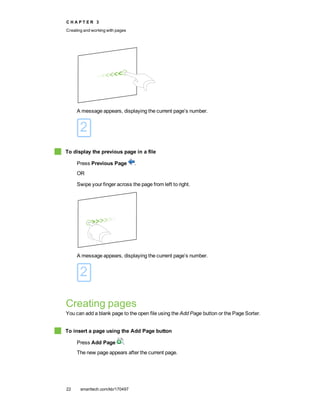
To display the next page in a file
Press Next Page .
OR
Swipe your finger across the page from right to left.
C H A P T E R 3
Creating and working with pages
22 smarttech.com/kb/170497
A message appears, displaying the current page’s number.
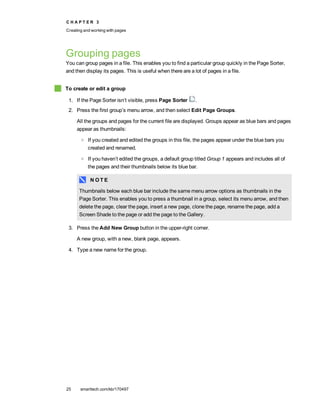
To display the previous page in a file
Press Previous Page .
OR
Swipe your finger across the page from left to right.
A message appears, displaying the current page’s number.
Creating pages
You can add a blank page to the open file using the Add Page button or the Page Sorter.
To insert a page using the Add Page button
Press Add Page .
The new page appears after the current page.
C H A P T E R 3
Creating and working with pages
23 smarttech.com/kb/170497
To insert a page using the Page Sorter
1. If the Page Sorter isn’t visible, press Page Sorter .
2. Select the thumbnail of the page you want the new page to appear after.
3. Press the thumbnail’s menu arrow, and then select Insert Blank Page.
The new page appears after the selected page.
Cloning pages
As an alternative to creating a blank page, you can create a duplicate (or “clone”) of an existing page.
N O T E
You can clone a page only if it contains content.
To clone a page
1. If the Page Sorter isn’t visible, press Page Sorter .
2. Select the thumbnail of the page you want to clone.
3. Press the thumbnail’s menu arrow, and then select Clone Page.
The cloned page appears immediately after the current page.
N O T E
You can repeat this process as many times as you want.
Extending pages
If you need more room at the bottom of a page, you can extend the page vertically without affecting
the page’s width. You can turn this feature off to prevent your pages from becoming longer.
To extend a page
1. If you’re displaying the page in Entire Page view, select a different zoom level.
2. Press the Extend Page link at the bottom of the page.
C H A P T E R 3
Creating and working with pages
24 smarttech.com/kb/170497
To turn Extend Page on or off
1. Select View > Extend Page
2. Select Off to turn the Extend Page feature off.
OR
Select On to turn the Extend Page feature on.
Renaming pages
When you create a page, SMART Notebook software automatically names the page with the date
and time of its creation. You can change this name.
To rename a page
1. If the Page Sorter isn’t visible, press Page Sorter .
2. Double-click the page’s name.
3. Type a new name for the page.
4. Press elsewhere.
Rearranging pages
If you want, you can rearrange the order of the pages in a file.
To rearrange pages
1. If the Page Sorter isn’t visible, press Page Sorter .
2. Press the thumbnail of the page you want to move in the file.
A blue border appears around the thumbnail.
3. Drag the thumbnail to its new position in the Page Sorter.
A blue line indicates the page’s new position.
4. Release the thumbnail.
C H A P T E R 3
Creating and working with pages
25 smarttech.com/kb/170497
Grouping pages
You can group pages in a file. This enables you to find a particular group quickly in the Page Sorter,
and then display its pages. This is useful when there are a lot of pages in a file.
To create or edit a group
1. If the Page Sorter isn’t visible, press Page Sorter .
2. Press the first group’s menu arrow, and then select Edit Page Groups.
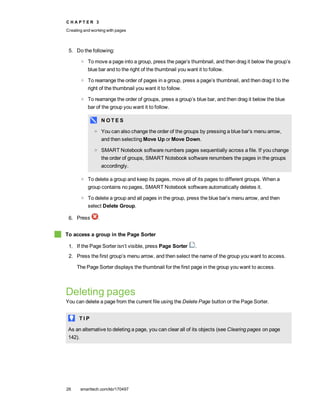
All the groups and pages for the current file are displayed. Groups appear as blue bars and pages
appear as thumbnails:
o If you created and edited the groups in this file, the pages appear under the blue bars you
created and renamed.
o If you haven’t edited the groups, a default group titled Group 1 appears and includes all of
the pages and their thumbnails below its blue bar.
N O T E
Thumbnails below each blue bar include the same menu arrow options as thumbnails in the
Page Sorter. This enables you to press a thumbnail in a group, select its menu arrow, and then
delete the page, clear the page, insert a new page, clone the page, rename the page, add a
Screen Shade to the page or add the page to the Gallery.
3. Press the Add New Group button in the upper-right corner.
A new group, with a new, blank page, appears.
4. Type a new name for the group.
C H A P T E R 3
Creating and working with pages
26 smarttech.com/kb/170497
5. Do the following:
o To move a page into a group, press the page’s thumbnail, and then drag it below the group’s
blue bar and to the right of the thumbnail you want it to follow.
o To rearrange the order of pages in a group, press a page’s thumbnail, and then drag it to the
right of the thumbnail you want it to follow.
o To rearrange the order of groups, press a group’s blue bar, and then drag it below the blue
bar of the group you want it to follow.
N O T E S
o You can also change the order of the groups by pressing a blue bar’s menu arrow,
and then selecting Move Up or Move Down.
o SMART Notebook software numbers pages sequentially across a file. If you change
the order of groups, SMART Notebook software renumbers the pages in the groups
accordingly.
o To delete a group and keep its pages, move all of its pages to different groups. When a
group contains no pages, SMART Notebook software automatically deletes it.
o To delete a group and all pages in the group, press the blue bar’s menu arrow, and then
select Delete Group.
6. Press .
To access a group in the Page Sorter
1. If the Page Sorter isn’t visible, press Page Sorter .
2. Press the first group’s menu arrow, and then select the name of the group you want to access.
The Page Sorter displays the thumbnail for the first page in the group you want to access.
Deleting pages
You can delete a page from the current file using the Delete Page button or the Page Sorter.
T I P
As an alternative to deleting a page, you can clear all of its objects (see Clearing pages on page
142).
C H A P T E R 3
Creating and working with pages
27 smarttech.com/kb/170497
To delete a page using the Delete Page button
1. If you haven’t done so already, display the page you want to delete.
2. Select Delete Page .
To delete a page using the Page Sorter
1. If the Page Sorter isn’t visible, press Page Sorter .
2. Select the thumbnail of the page you want to delete.
3. Press the thumbnail’s menu arrow, and then select Delete Page.
Chapter 4
29 smarttech.com/kb/170497
Creating basic objects
Writing, drawing and erasing digital ink 30
Writing or drawing digital ink 30
Erasing digital ink 32
Creating shapes and lines 33
Creating shapes with the Shapes tool 33
Creating shapes with the Regular Polygons tool 34
Creating shapes with the Shape Recognition Pen tool 35
Creating straight lines and arcs 35
Creating text 36
Typing text 37
Converting handwriting to typed text 37
Formatting text 38
Resizing text objects 40
Inserting mathematical symbols 40
Checking the spelling of text objects 41
Cutting and pasting text 42
Creating tables 43
Creating tables 43
Pasting tables from other programs 45
Adding objects to tables 45
Selecting tables, columns, rows or cells 46
Moving tables 47
Changing a table’s properties 47
Resizing tables, columns or rows 49
Adding or removing columns, rows or cells 50
Splitting or merging table cells 51
Deleting tables and the contents of tables 52
Objects are the building blocks of content in your .notebook files. An object is simply an item on a
page that you create or import and then work with. Basic types of objects include the following:
l Digital ink (freehand writing and drawing)
l Shapes
C H A P T E R 4
Creating basic objects
30 smarttech.com/kb/170497
l Straight lines
l Arcs
l Text
l Tables
Writing, drawing and erasing digital ink
Digital ink is freehand text or objects that you create using your interactive display’s pen or pens, or
the SMART Notebook software Pens tool. Writing or drawing digital ink enables you to quickly add
content to your SMART Notebook software files, either when creating the files or when presenting the
files to students.
After you create digital ink, you can erase it.
Writing or drawing digital ink
The easiest way to write or draw digital ink is to use your interactive display’s pen or pens.
You can also create freehand objects using the Pens tool. The Pens tool enables you to write or draw
digital ink using the following pen types:
Pen type Purpose and example Notes
Standard Write or draw digital ink in a variety of colors
and line styles.
Using the Standard pen type, you
can write or draw digital ink that
fades after a few seconds (see
Using the Standard pen type to
create fading objects on page
133).
Calligraphic Write or draw digital ink, like you do with the
Standard pen type, but with lines of varying
thickness.
The Calligraphic pen type is
useful for teaching students
handwriting.
The Calligraphic pen type is
available only if your computer is
connected to a SMART
interactive product.
Crayon Write or draw crayon-like digital ink. The Crayon pen type is intended
for artistic work such as painting,
coloring pictures and so on rather
than writing.
C H A P T E R 4
Creating basic objects
31 smarttech.com/kb/170497
Pen type Purpose and example Notes
Highlighter Highlight text and other objects.
Creative Add colorful elements to your presentations. You can create custom Creative
pen styles (see Creating custom
Creative pen styles on page 98).
Magic Write or draw digital ink that fades after a
few seconds.
You can also use the Magic Pen
to open a magnification window or
a spotlight window (see Using the
Magic Pen on page 129).
Shape
Recognition
Draw a variety of shapes with digital ink. You can draw circles, ovals,
squares, rectangles, triangles and
arcs (see Creating shapes with
the Shape Recognition Pen tool
on page 35).
To write or draw digital ink
1. Press Pens .
The Pens tool buttons appear.
2. Press Pen Types, and then select a pen type.
3. Select a line type.
C H A P T E R 4
Creating basic objects
32 smarttech.com/kb/170497
4. Optionally, customize the line type using the property selectors.
N O T E
You can also customize the line type using the Properties tab (see Changing objects’
properties on page 56).
5. Write or draw digital ink on the page.
T I P S
o Don’t rest your elbow or the palm of your hand on your interactive product’s surface while
you write or draw.
o If you write or draw multiple lines, SMART Notebook software automatically combines
the lines into a single object. For example, if you write the letters of a word,
SMART Notebook software combines the individual letters, enabling you to interact with
the whole word. If you want to write words on the same line but don’t want them
combined, leave a large gap between them, use different pens, or briefly put the pen in the
pen tray before writing another word (interactive whiteboards only).
o If you want to write diagonally, write in a straight line, and then rotate it (see Rotating
objects on page 67).
o If you want to write in small letters, write large letters, and then reduce their size (see
Resizing objects on page 64).
o You can fill areas that you’ve enclosed with digital ink (see Filling digital ink drawings on
page 58).
Erasing digital ink
You can erase digital ink from your interactive display using the eraser or the erasing gesture. If you’re
erasing digital ink from a .notebook file page, you can also erase objects using the Eraser tool.
N O T E
Although you can erase digital ink, you’re unable to erase other types of objects, including shapes,
lines, text and pictures. To remove these types of objects, you must delete them (see Deleting
objects on page 71).
To erase digital ink
1. Press Eraser , and then select an eraser type.
2. Erase the digital ink.
C H A P T E R 4
Creating basic objects
33 smarttech.com/kb/170497
Creating shapes and lines
In addition to creating freehand shapes and lines by drawing digital ink, you can create shapes and
lines using the tools in SMART Notebook software.
N O T E
To remove a shape or line from a page, you must delete it (see Deleting objects on page 71). The
Eraser tool doesn’t remove shapes.
Creating shapes with the Shapes tool
You can use the Shapes tool to create a variety of shapes, including perfect circles, perfect squares,
perfect triangles, other geometric shapes, hearts, check marks and Xs.
You can add a shape to your page, and then edit its properties. Alternatively, you can customize a
shape’s outline color, fill color and line thickness, and then add it to your page.
To create a shape
1. Press Shapes .
The Shapes tool buttons appear.
2. Select a shape on the toolbar.
OR
Press and then select a shape.
3. Optionally, customize the shape using the property selectors.
N O T E
You can also customize the shape using the Properties tab (see Changing objects’ properties
on page 56).
C H A P T E R 4
Creating basic objects
34 smarttech.com/kb/170497
4. Create a shape by pressing where you want to place the shape and dragging until the shape is
the size you want.
T I P
You can create perfect circles, squares, triangles and other shapes by holding down SHIFT as
you draw the shape.
Creating shapes with the Regular Polygons tool
In addition to creating shapes using the Shapes tool, you can create regular polygons with 3 to 15
sides using the Regular Polygons tool.
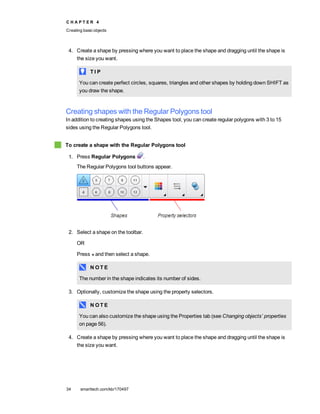
To create a shape with the Regular Polygons tool
1. Press Regular Polygons .
The Regular Polygons tool buttons appear.
2. Select a shape on the toolbar.
OR
Press and then select a shape.
N O T E
The number in the shape indicates its number of sides.
3. Optionally, customize the shape using the property selectors.
N O T E
You can also customize the shape using the Properties tab (see Changing objects’ properties
on page 56).
4. Create a shape by pressing where you want to place the shape and dragging until the shape is
the size you want.
C H A P T E R 4
Creating basic objects
35 smarttech.com/kb/170497
Creating shapes with the Shape Recognition Pen tool
You can use the Shape Recognition Pen tool to draw circles, ovals, squares, rectangles, triangles
and arcs.
N O T E
You can also create shapes using the Shapes tool (see Creating shapes with the Shapes tool on
page 33) or the Regular Polygons tool (see Creating shapes with the Regular Polygons tool on the
previous page).
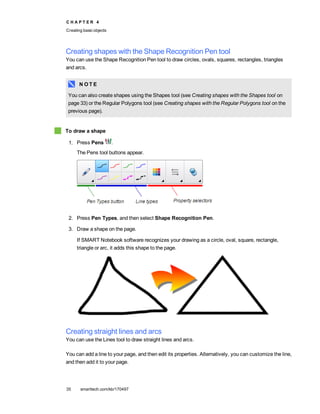
To draw a shape
1. Press Pens .
The Pens tool buttons appear.
2. Press Pen Types, and then select Shape Recognition Pen.
3. Draw a shape on the page.
If SMART Notebook software recognizes your drawing as a circle, oval, square, rectangle,
triangle or arc, it adds this shape to the page.
Creating straight lines and arcs
You can use the Lines tool to draw straight lines and arcs.
You can add a line to your page, and then edit its properties. Alternatively, you can customize the line,
and then add it to your page.
C H A P T E R 4
Creating basic objects
36 smarttech.com/kb/170497
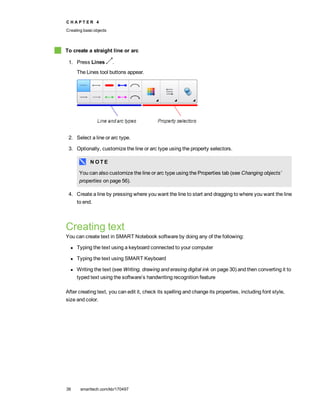
To create a straight line or arc
1. Press Lines .
The Lines tool buttons appear.
2. Select a line or arc type.
3. Optionally, customize the line or arc type using the property selectors.
N O T E
You can also customize the line or arc type using the Properties tab (see Changing objects’
properties on page 56).
4. Create a line by pressing where you want the line to start and dragging to where you want the line
to end.
Creating text
You can create text in SMART Notebook software by doing any of the following:
l Typing the text using a keyboard connected to your computer
l Typing the text using SMART Keyboard
l Writing the text (see Writing, drawing and erasing digital ink on page 30) and then converting it to
typed text using the software’s handwriting recognition feature
After creating text, you can edit it, check its spelling and change its properties, including font style,
size and color.
C H A P T E R 4
Creating basic objects
37 smarttech.com/kb/170497
Typing text
You can type new text or edit existing text.
To type new text
1. If a keyboard isn’t accessible, press the SMART Board icon in the notification area, and
then select Keyboard.
2. Press Text , and then select an available font style.
3. Optionally, customize the font style (see Formatting text on the next page).
4. Press where you want the text to start.
5. Type your text.
6. When you’re done, press outside the text object.
To edit existing text
1. Double-click the text object.
2. Edit the text.
3. When you’re done, press outside the text object.
Converting handwriting to typed text
You can write on your interactive product’s screen using the Standard or Calligraphic pen types and
convert your writing to typed text. SMART Notebook software can convert handwriting in multiple
languages.
To convert handwriting to typed text
1. Press Pens .
The Pens tool buttons appear.
2. Press Pen Types, and then select Pen or Calligraphic Pen.
C H A P T E R 4
Creating basic objects
38 smarttech.com/kb/170497
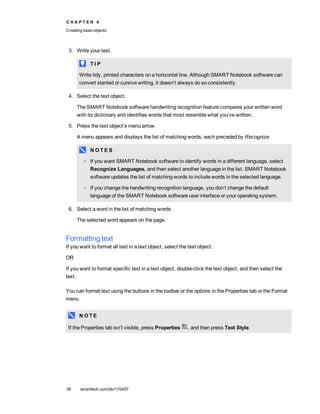
3. Write your text.
T I P
Write tidy, printed characters on a horizontal line. Although SMART Notebook software can
convert slanted or cursive writing, it doesn’t always do so consistently.
4. Select the text object.
The SMART Notebook software handwriting recognition feature compares your written word
with its dictionary and identifies words that most resemble what you’ve written.
5. Press the text object’s menu arrow.
A menu appears and displays the list of matching words, each preceded by Recognize.
N O T E S
o If you want SMART Notebook software to identify words in a different language, select
Recognize Languages, and then select another language in the list. SMART Notebook
software updates the list of matching words to include words in the selected language.
o If you change the handwriting recognition language, you don’t change the default
language of the SMART Notebook software user interface or your operating system.
6. Select a word in the list of matching words.
The selected word appears on the page.
Formatting text
If you want to format all text in a text object, select the text object.
OR
If you want to format specific text in a text object, double-click the text object, and then select the
text.
You can format text using the buttons in the toolbar or the options in the Properties tab or the Format
menu.
N O T E
If the Properties tab isn’t visible, press Properties , and then press Text Style.
C H A P T E R 4
Creating basic objects
39 smarttech.com/kb/170497
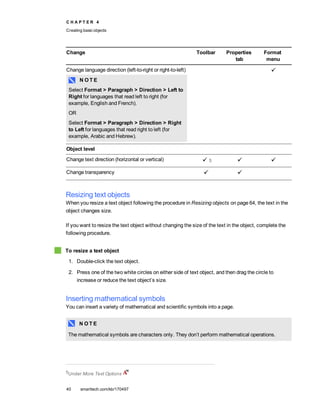
The following table presents the formatting changes that you can make using the above tools:
Change Toolbar Properties
tab
Format
menu
Character, paragraph or object level
Change the font face
Change the font size
T I P
To select a font size that doesn’t appear in the drop-
down list (including font sizes with decimal values
such as 20.5), type the font size in the Font Size
box on the toolbar.
Change the color
Bold, italicize or underline text
Strike out text 1
Superscript or subscript text 2
Paragraph or object level
Change justification (left, right or center)
Change indentation 3
Create a bulleted or numbered list 4
Change line spacing
T I P
To add spacing between paragraphs, select the
Add space after paragraphs check box in the
Properties tab or select Format > Paragraph >
Line Spacing > Add space after paragraphs.
1Under More Text Options
2Under More Text Options
3Under More Text Options
4Under More Text Options
C H A P T E R 4
Creating basic objects
40 smarttech.com/kb/170497
Change Toolbar Properties
tab
Format
menu
Change language direction (left-to-right or right-to-left)
N O T E
Select Format > Paragraph > Direction > Left to
Right for languages that read left to right (for
example, English and French).
OR
Select Format > Paragraph > Direction > Right
to Left for languages that read right to left (for
example, Arabic and Hebrew).
Object level
Change text direction (horizontal or vertical) 5
Change transparency
Resizing text objects
When you resize a text object following the procedure in Resizing objects on page 64, the text in the
object changes size.
If you want to resize the text object without changing the size of the text in the object, complete the
following procedure.
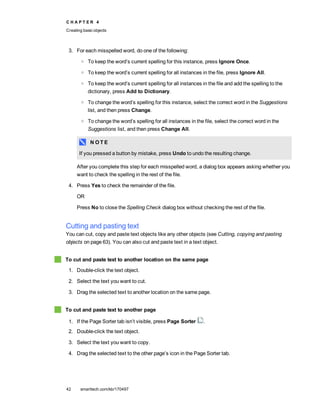
To resize a text object
1. Double-click the text object.
2. Press one of the two white circles on either side of text object, and then drag the circle to
increase or reduce the text object’s size.
Inserting mathematical symbols
You can insert a variety of mathematical and scientific symbols into a page.
N O T E
The mathematical symbols are characters only. They don’t perform mathematical operations.
5Under More Text Options
C H A P T E R 4
Creating basic objects
41 smarttech.com/kb/170497
To insert a mathematical symbol
1. Type text on a page.
2. Press More Text Options and then select Insert Symbol .
The Insert Symbols dialog box appears.
3. Press a category.
A list of symbols appears.
4. Press the symbol you want to add to the text.
5. Press Insert.
The symbol appears in the text object.
Checking the spelling of text objects
As you type text, SMART Notebook software checks the spelling. If you spell a word incorrectly,
SMART Notebook software underlines the word red. You can then right-click the word and select the
correct spelling from a list of options.
If you prefer, you can disable this feature and check the spelling using the Spelling Check dialog box.
To disable automatic spell checking
1. Press Text .
2. Press More Text Options , and then select Check Spelling .
To manually check spelling of a text object
1. Select the text object.
2. Press the object’s menu arrow, and then select Check Spelling.
If SMART Notebook software finds a misspelled word, the Spelling Check dialog box appears.
This dialog box displays the misspelled word and suggests alternatives.
C H A P T E R 4
Creating basic objects
42 smarttech.com/kb/170497
3. For each misspelled word, do one of the following:
o To keep the word’s current spelling for this instance, press Ignore Once.
o To keep the word’s current spelling for all instances in the file, press Ignore All.
o To keep the word’s current spelling for all instances in the file and add the spelling to the
dictionary, press Add to Dictionary.
o To change the word’s spelling for this instance, select the correct word in the Suggestions
list, and then press Change.
o To change the word’s spelling for all instances in the file, select the correct word in the
Suggestions list, and then press Change All.
N O T E
If you pressed a button by mistake, press Undo to undo the resulting change.
After you complete this step for each misspelled word, a dialog box appears asking whether you
want to check the spelling in the rest of the file.
4. Press Yes to check the remainder of the file.
OR
Press No to close the Spelling Check dialog box without checking the rest of the file.
Cutting and pasting text
You can cut, copy and paste text objects like any other objects (see Cutting, copying and pasting
objects on page 63). You can also cut and paste text in a text object.
To cut and paste text to another location on the same page
1. Double-click the text object.
2. Select the text you want to cut.
3. Drag the selected text to another location on the same page.
To cut and paste text to another page
1. If the Page Sorter tab isn’t visible, press Page Sorter .
2. Double-click the text object.
3. Select the text you want to copy.
4. Drag the selected text to the other page’s icon in the Page Sorter tab.
C H A P T E R 4
Creating basic objects
43 smarttech.com/kb/170497
Creating tables
You can create tables in SMART Notebook software or paste them from other programs. After you
create a table, you can insert objects into the table’s cells.
If you want to customize a table, you can select a table, column, row, cell or selection of cells, and
then do any of the following:
l Move the table
l Change line type, fill and text properties
l Resize the table, a column or a row
l Insert or remove columns, rows or cells
l Split or merge cells
l Delete the table
Creating tables
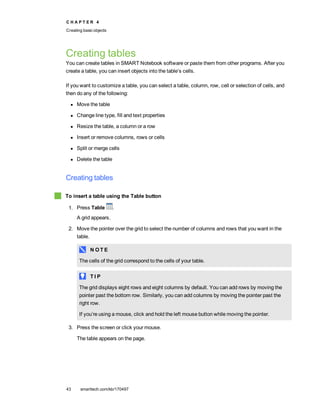
To insert a table using the Table button
1. Press Table .
A grid appears.
2. Move the pointer over the grid to select the number of columns and rows that you want in the
table.
N O T E
The cells of the grid correspond to the cells of your table.
T I P
The grid displays eight rows and eight columns by default. You can add rows by moving the
pointer past the bottom row. Similarly, you can add columns by moving the pointer past the
right row.
If you’re using a mouse, click and hold the left mouse button while moving the pointer.
3. Press the screen or click your mouse.
The table appears on the page.
C H A P T E R 4
Creating basic objects
44 smarttech.com/kb/170497
To insert a table using the Insert Table dialog box
1. Select Insert > Table.
The Insert Table dialog box appears.
2. Type the number of rows and columns in the boxes.
3. Optionally, select Make cells square to make the table cells square.
4. Optionally, select Remember dimensions for new tables to use the current table dimensions
for all future tables that you create in SMART Notebook software.
5. Press OK.
The table appears on the page.
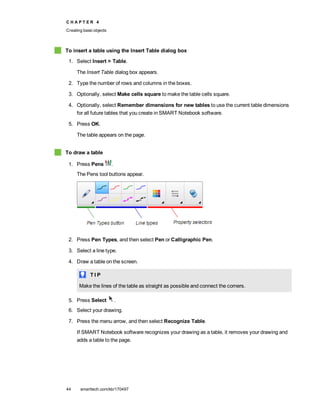
To draw a table
1. Press Pens .
The Pens tool buttons appear.
2. Press Pen Types, and then select Pen or Calligraphic Pen.
3. Select a line type.
4. Draw a table on the screen.
T I P
Make the lines of the table as straight as possible and connect the corners.
5. Press Select .
6. Select your drawing.
7. Press the menu arrow, and then select Recognize Table.
If SMART Notebook software recognizes your drawing as a table, it removes your drawing and
adds a table to the page.
C H A P T E R 4
Creating basic objects
45 smarttech.com/kb/170497
Pasting tables from other programs
You can cut or copy a table from Word or PowerPoint, and then paste it into a .notebook file. The
table’s formatting and layout can vary when the table appears in the .notebook file.
If you want to cut or copy more than one table, you must cut or copy each table individually.
N O T E
You can also cut or copy a table from a .notebook file, and then paste it into Word or PowerPoint.
However, the table’s formatting and layout can vary when the table appears in Word or PowerPoint.
If you’re pasting a table into PowerPoint which has cells that contain non-text objects, the non-text
objects appear outside of the table in PowerPoint.
Adding objects to tables
After you insert a table on a page, you can insert objects into the table’s cells.
N O T E
You can add only one object to each cell. If you want to add multiple objects to a cell, do one of the
following:
l Group the objects before adding them to the table (see Grouping objects on page 69).
l Select all of the objects at once, and then add them to the table as described in the following
procedure. SMART Notebook software automatically groups the objects in the table cell.
To add an object to a table
1. Select the object.
2. Drag the object to the table cell.
N O T E
You’re unable to move an object if it’s locked in place (see Locking objects on page 104).
The object appears in the table cell.
N O T E
If you add a text object to a table, the cell resizes to fit to the text object. If you add other object
types to the table, the object resizes to fit the cell.
C H A P T E R 4
Creating basic objects
46 smarttech.com/kb/170497
To remove an object from a table
1. Select the object.
2. Drag the object out of the table.
Selecting tables, columns, rows or cells
You can select a table, column, row, cell or selection of cells. After you select a table or part of a
table, you can do the following:
l Move the table
l Change the table’s or cells’ properties
l Resize the table, columns or rows
l Add or remove columns, rows or cells
l Split or merge cells
l Delete the table
To select a table
1. Press Select .
2. Press outside, but near to, a corner of the table, and then drag to the opposite corner.
N O T E
Don’t start dragging from inside the table. If you do, you select a table cell instead of the table.
To select a column
1. Press Select .
2. Press inside the column’s top cell, and then drag to the bottom cell.
To select a row
1. Press Select .
2. Press inside the row’s leftmost cell, and then drag to the rightmost cell.
To select a cell
1. Press Select .
2. Press inside the cell.
C H A P T E R 4
Creating basic objects
47 smarttech.com/kb/170497
To select multiple cells
1. Press Select .
2. Press inside the top and leftmost cell, and then drag to the bottom and rightmost cell.
N O T E
If you select multiple cells and drag them to a different position on the page, you create a new
table consisting of the selected cells and their contents.
Moving tables
After you create a table, you can move it on the page.
To move a table
Select the table, and then drag it to a different position on the page.
OR
Select all of the table’s cells, and then drag the cells to a different position on the page.
Changing a table’s properties
You can use the Properties tab to change the table’s properties, including its transparency, cell color
and line color.
To change a table’s fill
1. Select a table, column, row, cell or selection of cells.
2. Press the table’s, column’s, row’s or cell’s menu arrow, and then select Properties.
3. Press Fill Effects.
C H A P T E R 4
Creating basic objects
48 smarttech.com/kb/170497
4. Select a fill style:
Fill style Procedure
None (transparent) Select No fill.
Solid color a. Select Solid fill.
b. Do one of the following:
o Select one of the 40 colors in the palette.
o Press More, and then select a color in the dialog box.
o Press the eyedropper , and then select a color on the
screen.
Gradient of two colors a. Select Gradient fill.
b. For each color, do one of the following:
o Select one of the 40 colors in the palette.
o Press More, and then select a color in the dialog box.
o Press the eyedropper , and then select a color on the
screen.
c. Select an option in the Style drop-down list.
Pattern a. Select Pattern fill.
b. Select a pattern.
Picture a. Select Image fill.
b. Press Browse.
c. Browse to and select the picture you want to use as a
background, and then press Open.
N O T E
If you insert a large picture, a dialog box may appear and
prompt you to either reduce the picture’s file size or retain the
picture’s file size. For more information, see Setting image
optimization preferences on page 155.
d. Select Keep image size to keep the picture’s size, regardless of
whether the picture is larger or smaller than the object.
OR
Select Scale image to fit to resize the picture to fit the object.
5. Optionally, drag the Object transparency slider to the right to make the table transparent.
C H A P T E R 4
Creating basic objects
49 smarttech.com/kb/170497
To change a table’s line style
1. Select a table.
N O T E
You can only change the line style of an entire table, not individual cells, columns or rows.
2. Press the table’s, column’s, row’s or cell’s menu arrow, and then select Properties.
3. Press Line Style.
4. Change the table’s line style.
To change a table’s text style
1. Select a table, column, row, cell or selection of cells.
2. Press the table’s, column’s, row’s or cell’s menu arrow, and then select Properties.
3. Press Text Style.
4. Change the table’s text style (see Formatting text on page 38).
Resizing tables, columns or rows
If you want to customize a table, you can resize the table, a column or a row.
To resize a table
1. Select the table.
2. Press the table’s resize handle (the gray circle), and then drag it to increase or reduce the size of
the table.
To resize a column
1. Press Select .
2. Press the vertical border to the right of the column.
A resize pointer appears.
3. Drag the vertical border to resize the column.
C H A P T E R 4
Creating basic objects
50 smarttech.com/kb/170497
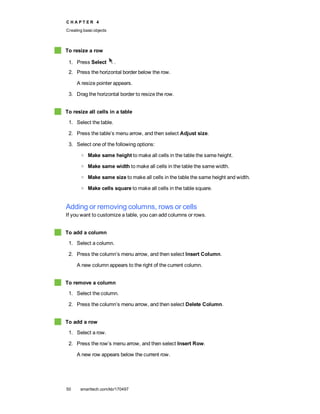
To resize a row
1. Press Select .
2. Press the horizontal border below the row.
A resize pointer appears.
3. Drag the horizontal border to resize the row.
To resize all cells in a table
1. Select the table.
2. Press the table’s menu arrow, and then select Adjust size.
3. Select one of the following options:
o Make same height to make all cells in the table the same height.
o Make same width to make all cells in the table the same width.
o Make same size to make all cells in the table the same height and width.
o Make cells square to make all cells in the table square.
Adding or removing columns, rows or cells
If you want to customize a table, you can add columns or rows.
To add a column
1. Select a column.
2. Press the column’s menu arrow, and then select Insert Column.
A new column appears to the right of the current column.
To remove a column
1. Select the column.
2. Press the column’s menu arrow, and then select Delete Column.
To add a row
1. Select a row.
2. Press the row’s menu arrow, and then select Insert Row.
A new row appears below the current row.
C H A P T E R 4
Creating basic objects
51 smarttech.com/kb/170497
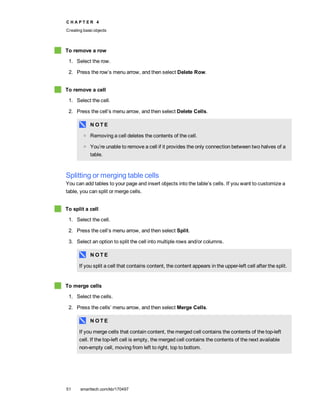
To remove a row
1. Select the row.
2. Press the row’s menu arrow, and then select Delete Row.
To remove a cell
1. Select the cell.
2. Press the cell’s menu arrow, and then select Delete Cells.
N O T E
o Removing a cell deletes the contents of the cell.
o You’re unable to remove a cell if it provides the only connection between two halves of a
table.
Splitting or merging table cells
You can add tables to your page and insert objects into the table’s cells. If you want to customize a
table, you can split or merge cells.
To split a cell
1. Select the cell.
2. Press the cell’s menu arrow, and then select Split.
3. Select an option to split the cell into multiple rows and/or columns.
N O T E
If you split a cell that contains content, the content appears in the upper-left cell after the split.
To merge cells
1. Select the cells.
2. Press the cells’ menu arrow, and then select Merge Cells.
N O T E
If you merge cells that contain content, the merged cell contains the contents of the top-left
cell. If the top-left cell is empty, the merged cell contains the contents of the next available
non-empty cell, moving from left to right, top to bottom.
C H A P T E R 4
Creating basic objects
52 smarttech.com/kb/170497
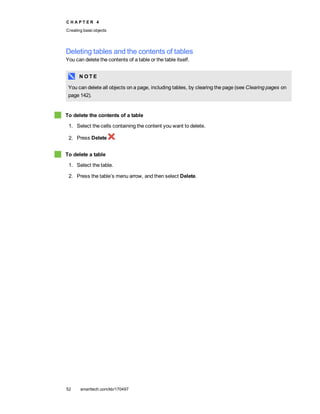
Deleting tables and the contents of tables
You can delete the contents of a table or the table itself.
N O T E
You can delete all objects on a page, including tables, by clearing the page (see Clearing pages on
page 142).
To delete the contents of a table
1. Select the cells containing the content you want to delete.
2. Press Delete .
To delete a table
1. Select the table.
2. Press the table’s menu arrow, and then select Delete.
Chapter 5
53 smarttech.com/kb/170497
Working with objects
Selecting objects 54
Changing objects’ properties 56
Changing the fill 56
Filling digital ink drawings 58
Changing other properties 59
Saving tool settings 59
Positioning objects 59
Moving objects 60
Moving objects to another page 61
Aligning objects 61
Rearranging stacked objects 62
Cutting, copying and pasting objects 63
Cloning objects 64
Resizing objects 64
Using the resize handle 65
Using the scale gesture 65
Rotating objects 67
Using the rotation handle 67
Using the rotate gesture 68
Flipping objects 69
Grouping objects 69
Grouping objects manually 69
Using the menu 69
Using the shake gesture 70
Grouping objects automatically 70
Deleting objects 71
After creating an object, you can select it and work with it as described in this chapter.
N O T E
The tasks described in this chapter are for all objects, not just basic objects.
C H A P T E R 5
Working with objects
54 smarttech.com/kb/170497
Selecting objects
Before you can work with an object, you must select it. You can select an individual object, multiple
objects or all objects on a page. When you select an object, a selection rectangle appears around it.
The gray circle in the object’s lower-right corner is a resize handle (see Resizing objects on page 64).
The green circle above the object is a rotation handle (see Rotating objects on page 67).
The downward arrow in the object’s upper-right corner is a menu arrow. Press the menu arrow to
display a menu of commands.
N O T E
Pressing an object’s menu arrow gives you access to the same menu as right-clicking the object.
To select an object
1. Press Select .
2. Press the object you want to select.
A selection rectangle appears around the object.
N O T E
If you press an object and a lock symbol appears instead of the menu arrow, the object is
locked. Depending on the type of lock, you might have to unlock the object before you can
manipulate it (see Locking objects on page 104).
C H A P T E R 5
Working with objects
55 smarttech.com/kb/170497
To select multiple objects
1. Press Select .
2. Press the interactive screen and drag until a rectangle surrounds the objects you want to select.
OR
Hold down CTRL, and then press the objects you want to select.
A selection rectangle appears around the selected objects.
N O T E
If you draw a rectangle around multiple objects and some of the objects are locked (see
Locking objects on page 104), you select only the unlocked objects.
To select all objects on a page
Select Edit > Select All.
A selection rectangle appears around all objects on the page.
N O T E
If some of the objects are locked (see Locking objects on page 104), you select only the
unlocked objects.
To select all locked objects on the page
Select Edit > Select All Locked Notes.
A selection rectangle appears around all locked objects on the page.
C H A P T E R 5
Working with objects
56 smarttech.com/kb/170497
Changing objects’ properties
You can change an object’s properties. The properties you can change depend on the object you
select. You can also select several objects and change their properties at the same time.
Changing the fill
You can change an object’s fill by selecting the object and then setting the fill in the Properties tab or
by clicking Fill , setting the fill, and then selecting the object.
To change an object’s fill by first selecting the object
1. Select the object.
2. If the Properties tab isn’t visible, press Properties .
3. Press Fill Effects.
C H A P T E R 5
Working with objects
57 smarttech.com/kb/170497
4. Select a fill style:
Fill style Procedure
None (transparent) Select No fill.
Solid color a. Select Solid fill.
b. Do one of the following:
o Select one of the 40 colors in the palette.
o Press More, and then select a color in the dialog box.
o Press the eyedropper , and then select a color on the
screen.
Gradient of two colors a. Select Gradient fill.
b. For each color, do one of the following:
o Select one of the 40 colors in the palette.
o Press More, and then select a color in the dialog box.
o Press the eyedropper , and then select a color on the
screen.
c. Select an option in the Style drop-down list.
Pattern a. Select Pattern fill.
b. Select a pattern.
Picture a. Select Image fill.
b. Press Browse.
c. Browse to and select the picture you want to use as a
background, and then press Open.
N O T E
If you insert a large picture, a dialog box may appear and
prompt you to either reduce the picture’s file size or retain the
picture’s file size. For more information, see Setting image
optimization preferences on page 155.
d. Select Keep image size to keep the picture’s size, regardless of
whether the picture is larger or smaller than the object.
OR
Select Scale image to fit to resize the picture to fit the object.
5. Optionally, drag the Object transparency slider to the right to make the object transparent.
T I P
You can also change an object’s properties using the property selectors on the toolbar.
C H A P T E R 5
Working with objects
58 smarttech.com/kb/170497
To change an object’s fill by first pressing the Fill button
1. Press Fill , and then select a color.
2. Select the object.
3. Repeat step 2 for each object you want to apply the fill to.
Filling digital ink drawings
In addition to filling shapes, regular polygons and irregular polygons, you can fill areas enclosed by
digital ink using the Fill button.
N O T E S
l To fill an area, you must enclose it with a single digital ink path.
l You’re unable to fill an enclosed area if that area is part of a group (see Grouping objects on
page 69).
l When you fill an enclosed area, the fill becomes a separate object, which you can move away
from the original enclosed area. You can fill the enclosed area and move the resulting fill object
multiple times.
C H A P T E R 5
Working with objects
59 smarttech.com/kb/170497
Changing other properties
In addition to fill, you can change objects’ line style and text style.
To change an object’s line style
1. Select the object.
2. If the Properties tab isn’t visible, press Properties .
3. Press Line Style.
4. Change the object’s line style.
To change an object’s text style
1. Select the object.
2. If the Properties tab isn’t visible, press Properties .
3. Press Text Style.
4. Change the object’s text style (see Formatting text on page 38).
Saving tool settings
When you select a tool in the toolbar, you can change its default settings using the Properties tab and
then save your changes by clicking Save Tool Properties.
When you save your changes to a tool’s default settings, the tool’s button displays those changes:
To restore the default settings, see Customizing the toolbar on page 151.
Positioning objects
You can change the position of an object by moving it to another area of the existing page or to
another page. You can also align objects and change the order of stacked objects.
C H A P T E R 5
Working with objects
60 smarttech.com/kb/170497
Moving objects
You can move objects to another position on the page. You can also flick objects.
N O T E
You’re unable to move an object if it’s locked in place (see Locking objects on page 104).
T I P
You can manipulate multiple objects by selecting them, and then creating a group (see Grouping
objects on page 69).
To move an object or objects
1. Select the object or objects.
2. Drag the object or objects to a new position on the page.
T I P
You can move an object in small increments by pressing the arrow keys on your keyboard.
To move an Adobe Flash® Player compatible file
1. Press the colored bar at the top of the Adobe Flash Player compatible file.
2. Drag the file to its new position.
To flick an object
1. Select the object.
2. Quickly flick your finger in any direction.
C H A P T E R 5
Working with objects
61 smarttech.com/kb/170497
Moving objects to another page
You can move objects to another page in a file.
To move an object or objects to another page
1. If the Page Sorter isn’t visible, press Page Sorter .
2. If you don’t see the page that you want to move the object to, scroll in the Page Sorter until you
see the page’s thumbnail.
3. Select the object or objects you want to move.
4. Drag the object or objects into the Page Sorter above the thumbnail of the page you want to
move the objects to.
To move an Adobe Flash Player compatible file to another page
1. If the Page Sorter isn’t visible, press Page Sorter .
2. If you don’t see the page that you want to move the object to, scroll in the Page Sorter until you
see the page’s thumbnail.
3. Press the colored bar at the top of the Adobe Flash Player compatible file.
4. Drag the file into the Page Sorter above the thumbnail of the page you want to move the object
to.
Aligning objects
You can move objects to another location on a page (see Moving objects on the previous page). If
you want, you can display guidelines on a page to assist you in aligning objects with other objects, as
well as the page’s vertical and horizontal centers. You can also set objects to align automatically with
these guidelines when you move the objects on a page.
To display guidelines
1. Select View > Alignment.
The Alignment dialog box appears.
C H A P T E R 5
Working with objects
62 smarttech.com/kb/170497
2. Select check boxes to specify which guidelines you want to display:
Check box Select this check box to:
Show guides for
active objects
Display a guideline when you move an object into alignment with
another object.
Show vertical page
center guide
Display a guideline when you move an object into alignment with the
page’s vertical center.
Show horizontal
page center guide
Display a guideline when you move an object into alignment with the
page’s horizontal center.
Snap objects to
guides
Automatically align objects to guidelines when you move the objects
on a page.
3. If you want to change the color of the guidelines, press the colored bar to the left of Guide color,
and then select a color.
4. Press OK.
Rearranging stacked objects
If objects overlap on a page, you can rearrange the order of the stack (that is, you can control which
objects appear in front of others).
N O T E
You’re unable to move an object in the stack if it’s locked in place (see Locking objects on page
104).
To move an object to the front of the stack
1. Select the object.
2. Press the object’s menu arrow, and then select Order > Bring to Front.
To move an object to the back of the stack
1. Select the object.
2. Press the object’s menu arrow, and then select Order > Send to Back.
To move an object one place forward in the stack
1. Select the object.
2. Press the object’s menu arrow, and then select Order > Bring Forward.
C H A P T E R 5
Working with objects
63 smarttech.com/kb/170497
To move an object one place backward in the stack
1. Select the object.
2. Select the object’s menu arrow, and then select Order > Send Backward.
Cutting, copying and pasting objects
You can cut, copy and paste objects—including text, pictures, straight lines, arcs and shapes—in a
.notebook file.
T I P S
l You can paste text from other programs into SMART Notebook software and cut text from
SMART Notebook software and paste it into other programs (see Cutting, copying and pasting
content from other programs on page 83 and Cutting and pasting text on page 42).
l You can create an exact copy of an object by cloning it (see Cloning objects on the next page).
To cut and paste an object
1. Select the object.
2. Press the object’s menu arrow, and then select Cut.
T I P
Alternatively, you can press Cut if you added this button to the toolbar (see Customizing
the toolbar on page 151).
3. If you want to paste the object onto a different page, display that page.
4. Press Paste .
To copy and paste an object
1. Select the object.
2. Press the object’s menu arrow, and then select Copy.
T I P
Alternatively, you can press Copy if you added this button to the toolbar (see Customizing
the toolbar on page 151).
3. If you want to paste the item onto a different page, display that page.
4. Press Paste .
C H A P T E R 5
Working with objects
64 smarttech.com/kb/170497
Cloning objects
You can create a duplicate of an object by using the Clone command, or you can create multiple
copies of an object using the Infinite Cloner command.
N O T E
You can also copy and paste objects, including text, images, straight lines, arcs and shapes (see
Cutting, copying and pasting objects on the previous page).
To clone an object
1. Select the object.
2. Press the object’s menu arrow, and then select Clone.
A duplicate object appears on the page.
To clone an object using the Infinite Cloner
1. Select the object.
2. Press the object’s menu arrow, and then select Infinite Cloner.
3. Select the object again.
An infinity symbol appears instead of the object’s menu arrow.
4. Drag the object to another position on the page.
5. Repeat step 4 as many times as you want.
6. When you finish cloning the object, select the original object.
7. Press the infinity symbol, and then clear the selection of Infinite Cloner.
Resizing objects
You can resize objects on a page by using the resize handle or the scale gesture (if your interactive
product supports multitouch gestures).
N O T E
You’re unable to resize an object if it’s locked in place (see Locking objects on page 104).
C H A P T E R 5
Working with objects
65 smarttech.com/kb/170497
Using the resize handle
To resize an object
1. Select the object.
2. Press the object’s resize handle (the gray circle), and then drag it to increase or reduce the
object’s size.
N O T E
To keep the shape’s original height-to-width ratio, hold down SHIFT while you drag the resize
handle.
To resize multiple objects
1. Group the objects (see Grouping objects on page 69), and then select the group.
A selection rectangle appears around the group.
2. Press the resize handle in the lower-right corner of the selection rectangle.
3. Drag the resize handle to increase or reduce the size of the objects.
Using the scale gesture
To resize an object from its center
1. Select the object.
2. Using one finger on each hand, press the screen at opposite ends of the object.
C H A P T E R 5
Working with objects
66 smarttech.com/kb/170497
3. Drag your fingers in opposite directions to increase the object’s size.
OR
Drag your fingers toward each other to decrease the object’s size.
To resize an object from its corner or side
1. Select the object.
2. Using one finger on each hand, press the screen at the corner or side you want to resize the
object from.
3. Drag your fingers in opposite directions to increase the object’s size.
OR
Drag your fingers toward each other to decrease the object’s size.
To resize multiple objects
1. Select the objects.
2. Using one finger on each hand, press the screen at opposite ends of one of the objects.
C H A P T E R 5
Working with objects
67 smarttech.com/kb/170497
3. Drag your fingers in opposite directions to increase the objects’ size.
OR
Drag your fingers toward each other to decrease the objects’ size.
N O T E
The objects resize from their centers regardless of where you press the screen.
Rotating objects
You can rotate objects on a page by using the rotation handle or the rotate gesture (if your interactive
product supports multitouch gestures).
N O T E S
l You’re unable to rotate an object if it’s locked in place (see Locking objects on page 104).
l You’re unable to rotate tables.
Using the rotation handle
To rotate an object
1. Select the object.
2. Press the object’s rotation handle (the green circle), and then drag it in the direction you want to
rotate the object.
To rotate multiple objects
1. Select the objects.
A selection rectangle appears around each object.
2. Press the rotation handle (the green circle) on any one of the selected objects, and then drag it in
the direction you want to rotate the object. When you rotate one object, all other selected objects
rotate automatically.
C H A P T E R 5
Working with objects
68 smarttech.com/kb/170497
Using the rotate gesture
To rotate an object around its center
1. Select the object.
2. Using one finger on each hand, press the screen at opposite ends of the object.
3. Move your fingers in a circle around the center of the object to rotate it.
To rotate an object around a corner
1. Select the object.
2. Using one finger on each hand, press the screen in the corner you want to rotate the object
around.
3. Move your fingers in a circle around the corner to rotate the object.
To rotate multiple objects
1. Select the objects.
2. Using one finger on each hand, press the screen at opposite ends of one of the objects.
3. Move your fingers in a circle.
N O T E
The objects rotate around their centers regardless of where you press the screen.
C H A P T E R 5
Working with objects
69 smarttech.com/kb/170497
Flipping objects
You can flip an object on a page.
N O T E
You’re unable to flip an object if it’s locked in place (see Locking objects on page 104).
To flip an object
1. Select the object.
2. Press the object’s menu arrow, and then select Flip > Up/Down or Flip > Left/Right.
To flip multiple objects
1. Select the objects.
2. Press the menu arrow on any one of the selected objects, and then select Flip > Up/Down or
Flip > Left/Right.
Grouping objects
You can create a group of objects, which lets you interact with all grouped items at the same time.
After you create a group, you can select, move, rotate or resize the group as if it were an individual
object. However, if you want to interact with an individual object in a group, you must ungroup the
objects first.
Grouping objects manually
You can group and ungroup objects manually using the menu or the shake gesture.
Using the menu
To group objects
1. Select the objects.
2. Press the menu arrow of any one of the selected objects, and then select Group > Group.
To ungroup objects
1. Select the group.
2. Press the group’s menu arrow, and then select Group > Ungroup.
C H A P T E R 5
Working with objects
70 smarttech.com/kb/170497
Using the shake gesture
N O T E S
l You’re unable to use the shake gesture with a mouse.
l The shake gesture works only when you initially contact your interactive product’s surface.
To group objects
Quickly shake your finger over the objects three times.
To ungroup objects
Quickly shake your finger over the group three times.
Grouping objects automatically
If you write or draw multiple lines, SMART Notebook software automatically combines the lines into a
single object. For example, if you write the letters of a word, SMART Notebook software combines
the individual letters, enabling you to interact with the whole word. If you want to write words on the
same line but don’t want them combined, leave a large gap between them, use different pens, or
briefly put the pen in the pen tray before writing another word (interactive whiteboards only).
If SMART Notebook software combined lines that you want to manipulate individually, ungroup the
lines as described above.
C H A P T E R 5
Working with objects
71 smarttech.com/kb/170497
Deleting objects
Although you can erase digital ink (see Erasing digital ink on page 32), you’re unable to erase some
types of objects, including text, shapes, straight lines, arcs and pictures. To remove these types of
objects from a page, you must delete them.
N O T E
You’re unable to delete an object if it’s locked in place (see Locking objects on page 104). To delete
a locked object from a page, you must unlock it.
To delete an object
1. Select the object.
2. Press the object’s menu arrow, and then select Delete.
Chapter 6
73 smarttech.com/kb/170497
Inserting, organizing and sharing
content
Inserting content from the Gallery 74
Inserting content from the SMART Exchange website 76
Inserting content from other sources 77
Inserting pictures 77
Inserting pictures from files 77
Inserting pictures from a scanner 78
Inserting pictures from a SMART Document Camera 78
Working with pictures 78
Creating transparent areas in a picture 79
Inserting multimedia files 79
Inserting Adobe Flash Player compatible files 79
Inserting Adobe Flash Player compatible video files 81
Inserting sound files 81
Working with multimedia files 82
Installing encoders for additional formats 82
Inserting content from other programs 82
Cutting, copying and pasting content from other programs 83
Importing content using SMART Notebook Print Capture 83
Importing content using SMART Notebook Document Writer 84
Importing PowerPoint files 86
Importing files from other interactive whiteboard programs 86
Inserting Internet browsers 87
Inserting an Internet browser 87
Configuring proxy servers 88
Attaching files and web pages 89
Organizing and sharing content using the Gallery 90
Adding content to the Gallery 91
Organizing content in the Gallery 92
Sharing content with other teachers 93
Connecting to Team Content categories 94
Sharing content using the SMART Exchange website 95
C H A P T E R 6
Inserting, organizing and sharing content
74 smarttech.com/kb/170497
You can insert pictures, multimedia files and other content into your .notebook files from a variety of
sources. These sources include the Gallery, the SMART Exchange™ website and the Internet.
After inserting your content, you can organize it using the Gallery and share it with other teachers
using the Gallery or the SMART Exchange website.
Inserting content from the Gallery
The Gallery is a tab in the SMART Notebook software user interface where you can browse or search
for content and then add that content to your .notebook files.
The Gallery contains Lesson Activity Examples, which includes Activity Builder examples (see
Creating a matching lesson activity on page 111), interactive techniques and 3D models to aid you in
creating lesson activities.
When your system administrator installs SMART Notebook software, he or she can install the
following additional items:
l Gallery Essentials is a collection of thousands of pictures, multimedia objects and more,
organized into subject-specific categories.
l Lesson Activity Toolkit is a collection of customizable tools and templates that you can use to
create professional-looking and interactive lessons. The toolkit helps you create engaging
content like word games, quizzes and sorting activities. It also offers Adobe Flash Player
compatible files like hide-and-reveal and drag-and-drop.
The Gallery is divided into two sections. The top section of the Gallery is the category list. When you
select a category or subcategory in the list, its contents appear in the bottom section of the Gallery.
T I P
You can change the size of the category list and content list by pressing the boundary between
them, and then dragging it up or down.
You can browse the category list to view the contents of each category. Thumbnails in the categories
provide preview images of the content.
l In Pictures, pictures appear as thumbnails.
l In Interactive and Multimedia, video objects appear as a single frame from the videos, sound
objects appear with a speaker icon in the lower-left corner, and Adobe Flash Player compatible
files appear as an Adobe Flash icon or thumbnail of the content with a small Adobe Flash icon in
the upper-left corner.
C H A P T E R 6
Inserting, organizing and sharing content
75 smarttech.com/kb/170497
l In 3D Objects, 3D models appear as thumbnails.
l In Notebook Files and Pages, files appear as binders and pages appear with a folded upper-right
corner.
l In Backgrounds and Themes, backgrounds appear as pages with a folded lower-right corner and
themes appear as thumbnails.
You can search for a Gallery item using the keyword search.
After browsing or searching for a Gallery item, you can add it to your .notebook file.
To browse the Gallery
1. If the Gallery isn’t visible, press Gallery .
2. Press a category’s plus sign to view its subcategories.
N O T E
You can close a category by pressing the category’s minus sign.
3. Select a category or subcategory to display its contents.
To search the Gallery
1. If the Gallery isn’t visible, press Gallery .
2. Type a keyword into the Type search terms here box, and then press Search .
The Gallery displays all content containing the keyword.
To add a Gallery item to your .notebook file
1. If the Gallery isn’t visible, press Gallery .
2. Browse or search for the Gallery item you want to add.
C H A P T E R 6
Inserting, organizing and sharing content
76 smarttech.com/kb/170497
3. Double-click the Gallery item’s thumbnail.
o If you add a picture, Adobe Flash Player compatible file, video file or sound file, it appears
on the current page.
o If you add a background, it replaces the page’s existing background (see Applying page
backgrounds and themes on page 107).
o If you add a page from a .notebook file, SMART Notebook software inserts it before the
current page.
o If you add a .notebook file, SMART Notebook software inserts the file’s pages before the
current page.
Inserting content from the SMART Exchange
website
The SMART Exchange website (exchange.smarttech.com) includes thousands of lesson plans,
question sets, widgets and other content that you can download and then open in SMART Notebook
software.
N O T E
You can also share your lesson plans with other teachers through the SMART Exchange website.
For more information, see Sharing content using the SMART Exchange website on page 95.
To insert content from the SMART Exchange website
1. Press SMART Exchange .
The SMART Exchange website opens in your web browser.
2. If you’re new to the SMART Exchange website, press Join for free, and then follow the on-
screen instructions to create an account.
OR
If you have an account, press Sign In, and then follow the on-screen instructions to log on to the
SMART Exchange website with your account.
3. Search or browse for content, and then download it to your computer.
4. Import content into the Gallery (see Sharing content with other teachers on page 93).
C H A P T E R 6
Inserting, organizing and sharing content
77 smarttech.com/kb/170497
Inserting content from other sources
If you or other teachers in your school have created content outside of SMART Notebook software,
you can include this content in your .notebook files. Specifically, you can do the following:
l Insert pictures, Adobe Flash Player compatible files and video files, and sound files
l Cut or copy, and then paste content from other programs
l Import content from other programs
Inserting pictures
You can insert pictures into pages from files, a scanner or a SMART Document Camera.
N O T E
You can also insert pictures from the Gallery tab. For more information, see Inserting content from
the Gallery on page 74.
After inserting a picture, you can define a transparent area in it.
Inserting pictures from files
You can insert a picture into a page.
SMART Notebook software supports BMP, GIF, JPEG, PNG, TIFF and WMF formats.
To insert a picture from a file
1. Select Insert > Picture.
The Insert Picture File dialog box appears.
2. Browse to and select the picture you want to insert.
T I P
To select more than one picture, hold down CTRL and then select the pictures.
3. Press Open.
The picture appears in the upper-left corner of the page.
C H A P T E R 6
Inserting, organizing and sharing content
78 smarttech.com/kb/170497
Inserting pictures from a scanner
If a scanner is connected to your computer, you can insert pictures from the scanner into a page.
N O T E
You must install your scanner’s driver and software on your computer before inserting pictures from
the scanner into SMART Notebook software.
To insert a picture from a scanner
1. Select Insert > Picture From Scanner.
The Insert Scanned Picture dialog box appears.
2. Select a scanner from the list.
3. Press Scan.
4. Follow the instructions included with your scanner to scan your picture.
Inserting pictures from a SMART Document Camera
You can insert pictures from a SMART Document Camera into a page.
To insert a picture from a SMART Document Camera
1. Select Insert > Picture From SMART Document Camera.
The SMART Document Camera window appears on the page.
2. Insert a picture following the instructions in the Help.
Working with pictures
When you insert a picture in a .notebook file, the picture becomes an object in the file. Therefore, you
can move, resize, rotate and make other changes to the picture like any other object.
For information on how to work with objects, including pictures, in .notebook files, see Working with
objects on page 53.
C H A P T E R 6
Inserting, organizing and sharing content
79 smarttech.com/kb/170497
Creating transparent areas in a picture
You can create transparent areas in a picture that you insert into a page. This is useful for removing
the picture’s background. You can make any color in the picture transparent.
N O T E
You can reduce the size of a large picture when you insert it in a file (see Setting image optimization
preferences on page 155). If you later create a transparent area in the picture, the picture is no
longer optimized.
To create a transparent area in a picture
1. Select the picture.
2. Press the picture’s menu arrow, and then select Set Picture Transparency.
The Picture Transparency dialog box appears.
3. Press any areas in the picture that you want to make transparent.
N O T E
Pressing an area makes only that area transparent, even if the picture includes that same color
in other areas.
4. Press OK.
Inserting multimedia files
You can insert multimedia files, including Adobe Flash Player compatible files, video files and sound
files, into pages.
N O T E
You can also insert multimedia files from the Gallery tab. For more information, see Inserting
content from the Gallery on page 74.
Inserting Adobe Flash Player compatible files
You can insert Adobe Flash Player compatible files into a page.
After you insert an Adobe Flash Player compatible file into a page, or display a page that already
contains an Adobe Flash Player compatible file, the file plays immediately. You can control the
playback of the file. If the file has buttons, you can press them on your interactive product. If the file
doesn’t have buttons, you can use the options in the file’s menu arrow.
C H A P T E R 6
Inserting, organizing and sharing content
80 smarttech.com/kb/170497
N O T E S
l Adobe Flash Player compatible files on a page must be self-extracting. You’re unable to use
Adobe Flash Player compatible files that load or rely on other Adobe Flash Player compatible
files.
l You’re unable to drag an Adobe Flash Player compatible file from an Internet browser into a
page.
l If Adobe Flash Player isn’t installed on your computer, SMART Notebook software notifies
you when you insert an Adobe Flash Player compatible file into a page.
l You can install Adobe Flash Player by visiting adobe.com, but you must use
Internet Explorer® Internet browser to install it. If you use another browser, Adobe Flash
Player compatible files don’t work in SMART Notebook software.
l To write on top of an Adobe Flash Player compatible file with a handwriting recognition
component, start writing outside the file and continue to write over the file. This enables
SMART Notebook software to recognize the digital ink as a separate object from the
Adobe Flash Player compatible file.
To insert an Adobe Flash Player compatible file
1. Select Insert > Adobe Flash Player Compatible File.
The Insert Flash File dialog box appears.
2. Browse to and select the Adobe Flash Player compatible file that you want to insert into the
page.
3. Press Open.
The Adobe Flash Player compatible file appears in the upper-left corner of the page.
C H A P T E R 6
Inserting, organizing and sharing content
81 smarttech.com/kb/170497
To control an Adobe Flash Player compatible file
1. Select the Adobe Flash Player compatible file.
2. Control the file by doing any of the following:
o To play the file, press the file’s menu arrow, and then select Flash > Play.
o To play the file from the beginning, press the file’s menu arrow, and then select Flash >
Rewind.
o To advance the file slightly and pause playback, press the file’s menu arrow, and then
select Flash > Step Forward.
o To rewind the file slightly and pause playback, press the file’s menu arrow, and then select
Flash > Step Back.
o To play the file continuously, press the file’s menu arrow, and then select Flash > Loop.
o To stop playing the file continuously, press the file’s menu arrow, and then clear the
selection of Flash > Loop.
Inserting Adobe Flash Player compatible video files
You can insert Adobe Flash Player compatible video files into a page.
N O T E
SMART Notebook software supports the Adobe Flash Player compatible video file (FLV) format. If
you want SMART Notebook software to support other file types, you can install additional encoders
(see Installing encoders for additional formats on the next page).
To insert an Adobe Flash Player compatible video file
1. Select Insert > Video.
The Insert Video File dialog box appears.
2. Browse to and select the Adobe Flash Player compatible video file that you want to insert into
the page.
3. Press Open.
Inserting sound files
You can attach a sound file to any object (except Adobe Flash Player compatible objects) in a
.notebook file. For more information, see Adding sounds to objects on page 102.
C H A P T E R 6
Inserting, organizing and sharing content
82 smarttech.com/kb/170497
Working with multimedia files
When you insert a multimedia file in a .notebook file, the multimedia file becomes an object in the file.
Therefore, you can move, resize, rotate and make other changes to the multimedia file like any other
object.
For information on how to work with objects, including multimedia files, in .notebook files, see
Working with objects on page 53.
Installing encoders for additional formats
SMART Notebook software supports the FLV and MP3 formats. If you want SMART Notebook
software to support other video and audio formats, you can install the following encoder. If you install
this encoder, SMART Notebook software automatically detects it and supports its video and audio
formats.
Encoder Video formats Audio formats Link
MediaCoder Full
Pack 0.3.9
l ASF
l AVI
l MOV
l MPEG and
MPG
l WMV
l AIF and AIFF
l WAV
mediacoderhq.com/dlfull.htm
N O T E
SMART Technologies ULC provides links to these programs as a courtesy, and makes no
representations or warranties regarding the programs or any information related thereto. Any
questions, complaints or claims regarding the programs must be directed to the appropriate
software vendor.
Inserting content from other programs
If you have content in other programs that you want to use in your .notebook files, you can move this
content to SMART Notebook software by doing one of the following:
l Cutting or copying, and then pasting the content
l Importing the content
C H A P T E R 6
Inserting, organizing and sharing content
83 smarttech.com/kb/170497
Cutting, copying and pasting content from other programs
You can cut or copy, and then paste content from other programs into SMART Notebook software.
To cut content from another program
1. In the other program, select the content you want to cut, and then select Edit > Cut.
2. In SMART Notebook software, press Paste .
To copy content from another program
1. In the other program, select the content you want to copy, and then select Edit > Copy.
2. In SMART Notebook software, press Paste .
Importing content using SMART Notebook Print Capture
When you install SMART Notebook software on a computer with Windows XP operating system, you
also install SMART Notebook Print Capture. SMART Notebook Print Capture works like any other
printer driver, except it captures output in a .notebook file, instead of printing it on paper. Each page of
an imported file appears as an object on its own page, with its original formatting and page breaks
preserved.
N O T E
If you install SMART Notebook software on a computer with Windows 7 or Windows 8 operating
system, you can import content using SMART Notebook Document Writer (see Importing content
using SMART Notebook Document Writer on the next page).
To use SMART Notebook Print Capture
1. In the source file you want to export to a .notebook file, select File > Print.
The Print dialog box appears.
2. Select SMART Notebook Print Capture in the list of printers.
3. Optionally, change the page orientation and graphics resolution (see To change the page
orientation and graphics resolution on the next page).
C H A P T E R 6
Inserting, organizing and sharing content
84 smarttech.com/kb/170497
4. Specify a page range, and then press OK or Print.
If an existing .notebook file isn’t open, a new .notebook file opens. Each page of the source file
appears on a separate page.
OR
If an existing .notebook file is open, each page of the source file appears in the .notebook file
after the current page.
N O T E
This process can take several minutes.
To change the page orientation and graphics resolution
1. Press the Properties or Preferences button.
The SMART Notebook Print Capture Properties dialog box appears.
2. Select Portrait or Landscape.
3. Select a default resolution in the Resolution drop-down list.
OR
Select CUSTOM Resolution in the Resolution drop-down list, and then type numbers in the
Horizontal Resolution and Vertical Resolution boxes.
T I P S
o Use the same value in both boxes to prevent image distortion.
o The higher the resolution, the larger the image.
o Don’t use the Draft, Low or Medium options because they might not scale the image
proportionally.
4. Press OK.
Importing content using SMART Notebook Document Writer
When you install SMART Notebook software on a computer with Windows 7 or Windows 8 operating
system, you also install SMART Notebook Document Writer. SMART Notebook Document Writer
works like any other printer driver, except it captures output in a .notebook file, instead of printing it on
paper.
C H A P T E R 6
Inserting, organizing and sharing content
85 smarttech.com/kb/170497
N O T E
If you install SMART Notebook software on a computer with Windows XP operating system, you
can import content using SMART Notebook Print Capture (see Importing content using
SMART Notebook Print Capture on page 83).
To use SMART Notebook Document Writer
1. In the source file you want to export to a .notebook file, select File > Print.
The Print dialog box appears.
2. Select SMART Notebook Document Writer in the list of printers.
3. Optionally, change the page orientation (see To change the page orientation below).
4. Specify a page range, and then press OK or Print.
A dialog box appears.
5. Select SMART Notebook pages with images to import the content of the file as pictures.
OR
Select SMART Notebook page with editable objects to import the content of the file as
editable objects.
N O T E
If you choose to import the content as editable objects, some objects may not display
correctly. You can import the content as pictures.
6. Press OK.
A new .notebook file opens. Each page of the source file appears on a separate page.
To change the page orientation
1. Press Properties or Preferences.
The Printing Preferences dialog box appears.
2. Select Landscape or Portrait in the Orientation drop-down list.
3. Press OK.
C H A P T E R 6
Inserting, organizing and sharing content
86 smarttech.com/kb/170497
Importing PowerPoint files
You can import content into a .notebook file from a variety of sources, including PowerPoint files.
N O T E
SMART Notebook software doesn’t import some gradient, pattern and picture effects. These
effects may appear incorrectly in .notebook files as a result.
T I P
You can also export .notebook files to PowerPoint (see Exporting files on page 13).
To import a PowerPoint file
1. Select File > Import.
The Open dialog box appears.
2. Select All PowerPoint Files (*.ppt;*.pptx) in the Files of type drop-down list.
3. Browse to and select the PowerPoint file you want to import.
4. Press Open.
SMART Notebook software adds the contents of the PowerPoint file to a .notebook file.
Importing files from other interactive whiteboard programs
You can import content into .notebook files from a variety of sources, including other interactive
whiteboard programs.
If the other interactive whiteboard programs support the Interactive Whiteboard Common File Format
(CFF), you can export a CFF file from those programs and then import that CFF file into
SMART Notebook software.
Otherwise, you can attempt to import the other interactive whiteboard programs’ native file formats.
N O T E
You can also export CFF files (see Exporting files on page 13).
To import CFF files
1. Select File > Import.
The Open dialog box appears.
2. Select All Common File Format Files (*.iwb) in the Files of type drop-down list.
C H A P T E R 6
Inserting, organizing and sharing content
87 smarttech.com/kb/170497
3. Browse to and select the file you want to import.
4. Press Open.
The file opens.
To import other files
1. Press Open File .
The Open dialog box appears.
2. Select All Files (*.*) in the Files of type drop-down list.
3. Browse to and select the file you want to import.
4. Press Open.
If you import a file that SMART Notebook software supports, the file opens.
OR
If you import a file that SMART Notebook software doesn’t support, SMART Notebook software
adds it to the Attachments tab. You can open these attached files using third-party software, but
you’re not able to add them to a page.
Inserting Internet browsers
You can insert an Internet browser into a .notebook page. In the Internet browser, you can browse to
and display web pages. You can modify the Internet browser like any other object in
SMART Notebook software (see Working with objects on page 53).
N O T E
When you resize an Internet browser, the Internet browser’s content scales automatically so that
you always see the entire web page that you are viewing.
Inserting an Internet browser
To insert an Internet browser
1. Select Insert > Internet Browser.
An Internet browser appears.
C H A P T E R 6
Inserting, organizing and sharing content
88 smarttech.com/kb/170497
2. Double-click the address bar, type the address of the web page you want to browse to, and then
press Go .
T I P
If there’s no keyboard connected to your computer, click SMART Keyboard to display an
on-screen keyboard.
3. Interact with the website using the buttons in the Internet browser toolbar:
Button Command Action
Back Display the previous web page.
Forward Display the next web page.
Return to Pinned
Page
Open the pinned web page.
Pin Page Pin the current web page.
When you first open the .notebook file, the pinned web page
appears in the Internet browser. You can return to the pinned page
at any time by pressing Return to Pinned Page .
Reload Reload the current web page.
Move Toolbar Change the position of the Internet browser toolbar.
Configuring proxy servers
Internet browsers in SMART Notebook software work with any proxy server that adheres to the RFC
2068 HTTP standard. If your system administrator installed SMART Notebook software behind a
proxy server, he or she must create access policy rules for inbound and outbound traffic on that proxy
server. Your system administrator can further enhance network security by enabling authentication,
such as basic or NT LAN Manager (NTLM) authentication.
N O T E
Although proxy servers protect internal networks from intruders, they unavoidably introduce
network latency.
C H A P T E R 6
Inserting, organizing and sharing content
89 smarttech.com/kb/170497
Attaching files and web pages
You can attach copies of files, shortcuts to files and links to web pages using the Attachments tab.
Attaching files or web pages enables you to find and open these items easily while presenting a
.notebook file.
N O T E S
l You can also link a file or web page to an object on a page (see Adding links to objects on page
100).
l As an alternative to attaching a link to a web page, you can also insert an Internet browser in
your .notebook file (see Inserting Internet browsers on page 87).
To attach a copy of a file
1. If the Attachments tab isn’t visible, press Attachments .
2. Press Insert at the bottom of the Attachments tab, and then select Insert Copy of File.
The Insert Copy of File dialog box appears.
3. Browse to and select the file you want to attach.
4. Press Open.
The file’s name and size appear in the Attachments tab.
N O T E
When you attach a file, the size of the .notebook file increases. Although SMART Notebook
software compresses files to conserve space, SMART Notebook software can compress
some file types more than others.
To attach a shortcut to a file
1. If the Attachments tab isn’t visible, press Attachments .
2. Press Insert at the bottom of the Attachments tab, and then select Insert Shortcut to File.
The Insert File Shortcut dialog box appears.
3. Browse to and select the file you want to attach.
C H A P T E R 6
Inserting, organizing and sharing content
90 smarttech.com/kb/170497
4. Press Open.
The file name and Shortcut appear in the Attachments tab.
N O T E S
o SMART Notebook software doesn’t export shortcuts. If you want to export file
attachments, attach a copy of your file, not a file shortcut.
o Make sure that the file is accessible on the computer you will use during the lesson.
To attach a link to a web page
1. If the Attachments tab isn’t visible, press Attachments .
2. Press Insert at the bottom of the Attachments tab, and then select Insert Hyperlink.
The Insert Hyperlink dialog box appears.
3. Type the web page’s address in the Hyperlink box.
4. Type a name for the link in the Display name box.
5. Press OK.
The display name and URL appear in the Attachments tab.
To open a file or web page from the Attachments tab
1. If the Attachments tab isn’t visible, press Attachments .
The Attachments tab lists all attachments in the open file.
o If an attached item is a copy of a file, the file’s size appears in the Size column.
o If an attached item is a shortcut to a file, Shortcut appears in the Size column.
o If an attached item is a link to a web page, URL appears in the Size column.
2. To open a file, double-click the file name or shortcut.
OR
To open a web page, double-click the link.
Organizing and sharing content using the Gallery
The Gallery is a tab in the SMART Notebook software user interface where you can browse or search
for content and then add that content to your .notebook files. The Gallery consists of a set of
categories, one of which is the My Content category.
C H A P T E R 6
Inserting, organizing and sharing content
91 smarttech.com/kb/170497
If you find you use the same content across multiple .notebook files, you can add this content to the
My Content category. You can share content from the My Content category with other teachers in
your school by importing or exporting Gallery collection files. You can also connect to a Team
Content category containing content that you and other teachers in your school contribute to.
After adding your content to the Gallery, you can insert it into .notebook files as described in Inserting
content from the Gallery on page 74.
Adding content to the Gallery
You can add SMART Notebook software objects and pages as well as supported files to the My
Content category in the Gallery.
To add an object to the Gallery
1. If the Gallery isn’t visible, press Gallery .
2. Select the object that you want to add to the Gallery.
3. Drag the object from the page to the Gallery’s My Content category or one of its subcategories.
N O T E S
o You’re unable to drag an object if it’s locked in place (see Locking objects on page 104).
o If you want to change a Gallery item’s name, select the item, press its menu arrow, and
then select Rename.
To add a page to the Gallery
1. Create and modify objects on the page until the page appears exactly as you want it to.
2. Select File > Export Page as Gallery Item.
The Save Page as Gallery Item dialog box appears.
3. Browse to the folder where you want to save the page.
4. Type a name for the page in the File name box.
5. Press Save.
6. If the Gallery isn’t visible, press Gallery .
C H A P T E R 6
Inserting, organizing and sharing content
92 smarttech.com/kb/170497
7. Select My Content (or one of its subcategories) in the Gallery’s category list, press its menu
arrow, and then select Add to My Content.
The Add to My Content dialog box appears.
8. Browse to and select the item that you saved in step 5.
9. Press Open.
To add a supported file to the Gallery
1. If the Gallery isn’t visible, press Gallery .
2. Select My Content (or one of its subcategories) in the Gallery’s category list, press its menu
arrow, and then select Add to My Content.
The Add to My Content dialog box appears.
3. Browse to and select the item you want to add to the Gallery.
4. Press Open.
N O T E
By default, SMART Notebook software names the new Gallery item based on the original file
name. If you want to change the item’s name, select the Gallery item’s thumbnail, press its
menu arrow, and then select Rename.
Organizing content in the Gallery
As you add objects, pages and supported files to the My Content category in the Gallery, you may
want to reorganize the category’s structure. You can create subcategories and move Gallery items
between subcategories.
To create a subcategory
1. If the Gallery isn’t visible, press Gallery .
2. Select My Content (or one of its subcategories) in the Gallery’s category list, press its menu
arrow, and then select New Folder.
A new subcategory appears.
3. Type a name for the new subcategory, and then press ENTER.
C H A P T E R 6
Inserting, organizing and sharing content
93 smarttech.com/kb/170497
To rename a subcategory
1. If the Gallery isn’t visible, press Gallery .
2. Select My Content in the Gallery’s category list, and then browse to the subcategory that you
want to rename.
3. Select the subcategory, press its menu arrow, and then select Rename.
4. Type a new name for the subcategory, and then press ENTER.
To move a Gallery item to a different subcategory
1. If the Gallery isn’t visible, press Gallery .
2. Browse to the category that contains the Gallery item you want to move.
The Gallery displays the contents of the category.
3. Drag the item to another subcategory.
Sharing content with other teachers
Importing and exporting collection files is an ideal way to share custom categories with other teachers
and to use categories that other teachers have created. You can use collection files to add items to
the My Content category in the Gallery. After you import a collection file, all of its items appear in the
Gallery as a new subcategory.
To import a collection file from another teacher
1. If the Gallery isn’t visible, press Gallery .
2. Select My Content (or one of its subcategories) in the Gallery’s category list, press its menu
arrow, and then select Add to My Content.
The Add to My Content dialog box appears.
3. Browse to the folder that contains the collection file you want to import.
N O T E
A collection file has a .gallery extension.
4. Select the collection file, and then press Open.
The collection appears as a new subcategory.
C H A P T E R 6
Inserting, organizing and sharing content
94 smarttech.com/kb/170497
To export a collection file to share with other teachers
1. Select the category that contains the items you want to save in a collection.
N O T E
SMART Notebook software exports the selected category but doesn’t export any of its
subcategories.
2. Press the category’s menu arrow, and then select Export as Collection File.
The Save As dialog box appears.
3. Browse to the folder where you want to save the collection file.
4. Type a name for the file in the File name box.
5. Press Save.
Connecting to Team Content categories
The Team Content categories feature enables you to connect to Gallery content in a shared location
on your school’s network. Multiple teachers can connect to the same folder. SMART Notebook
software automatically updates your changes for all other teachers.
N O T E
Your access permissions for the Team Content category are the same as your folder access
permissions on your school’s network. If you have full access to a folder on the network, you can
add or remove items in that folder’s Team Content category. However, if you have read-only
access to the folder, you can copy items from the Team Content category, but you’re unable to add,
edit or remove items.
To connect to a Team Content category
1. If the Gallery isn’t visible, press Gallery .
2. Press Show additional Gallery actions , and then select Connect to Team Content.
The Browse For Folder dialog box appears.
3. Browse to and select the folder containing the Team Content category you want to connect to,
and then press OK.
The Team Content category appears in the Gallery.
C H A P T E R 6
Inserting, organizing and sharing content
95 smarttech.com/kb/170497
To contribute to a Team Content category
Add content to a Team Content category as you do to the My Content category (see Adding
content to the Gallery on page 91).
Sharing content using the SMART Exchange
website
In addition to sharing your content with other teachers in your school (see Sharing content with other
teachers on page 93), you can share .notebook files with teachers from around the world using the
SMART Exchange website (exchange.smarttech.com).
To share a .notebook file on the SMART Exchange website
1. Open the .notebook file you want to share.
2. Select File > Share on SMART Exchange.
A dialog box appears.
3. If you’re new to the SMART Exchange website, press Not a member yet, and then follow the
on-screen instructions to create an account.
OR
If you have an account, type your e-mail address in the Email Address box and your password in
the Password box, and then press Sign In.
T I P S
o If you forgot your password, click Forgot your password, and then follow the on-screen
instructions to reset it.
o If you don’t want to log on to the SMART Exchange website each time you share content,
select the Keep me signed in check box.
C H A P T E R 6
Inserting, organizing and sharing content
96 smarttech.com/kb/170497
4. Enter the appropriate information:
Control Instructions
Enter resource details Type a title for the .notebook file.
Description Type a description of the .notebook file.
Subject(s) Select the subjects that the .notebook file is applicable to.
Grade(s) Select the grades that the .notebook file is applicable to.
Search terms Type words or phrases that other SMART Exchange users will
likely enter to search for the .notebook file. Separate the words or
phrases with commas.
5. Read the sharing agreement.
6. If you accept the sharing agreement, press Agree and Submit.
Chapter 7
97 smarttech.com/kb/170497
Creating lesson activities
Using advanced object features 98
Creating custom Creative pen styles 98
Adding links to objects 100
Adding sounds to objects 102
Animating objects 104
Locking objects 104
Using advanced page features 105
Displaying student page borders 105
Recording pages 106
Applying page backgrounds and themes 107
Applying backgrounds using the Properties tab 107
Applying backgrounds and themes using the Gallery 109
Creating themes 110
Creating example lesson activities 110
Creating a matching lesson activity 111
Creating a hide-and-show lesson activity 113
Creating a reveal lesson activity 115
Creating other types of lesson activities 117
Using SMART Notebook software, you can not only present information to students but also engage
them in interactive lesson activities.
You can create lesson activities by inserting objects such as shapes, pictures and tables, and using
features such as the Activity Builder and scaling gesture.
This section documents the advanced features you can use to create lesson activities and shows
you how to create a set of example lesson activities. You can use these example lesson activities or
develop your own. You can also use resources available to you in the Gallery and SMART Exchange
website.
C H A P T E R 7
Creating lesson activities
98 smarttech.com/kb/170497
Using advanced object features
You can use the following advanced object features when creating lesson activities:
l Custom creative pen styles
l Object links
l Object sounds
l Object animation
You can also lock any objects that you don’t want moved or otherwise modified during the
presentation of a lesson activity.
Creating custom Creative pen styles
SMART Notebook software includes eight Creative pen styles (see Writing or drawing digital ink on
page 30). In addition to these styles, you can create your own styles using pictures or objects on the
currently selected page.
To create a custom Creative pen using a picture
1. Press Pens .
The Pens tool buttons appear.
2. Press Pen Types, and then select Creative Pen.
3. Select a line type.
C H A P T E R 7
Creating lesson activities
99 smarttech.com/kb/170497
4. If the Properties tab isn’t visible, press Properties .
5. Press Line Style.
6. Select Use a custom stamp image.
7. Click Browse.
The Insert Image File dialog box appears.
8. Browse to and select the picture you want to use for the Creative pen style.
9. Press Open.
10. Write or draw digital ink on the page.
T I P
o To resume using the default line type, select Use the default pattern.
o If you want to save your custom Creative pen style for future use, press Save Tool
Properties. You can later reset the Creative pen style (see Customizing the toolbar on
page 151).
To create a custom Creative pen using an object
1. Press Pens .
The Pens tool buttons appear.
2. Press Pen Types, and then select Creative Pen.
3. If the Properties tab isn’t visible, press Properties .
4. Press Line Style.
5. Select Use a custom stamp image.
6. Press Select object, and then select an object on the page.
C H A P T E R 7
Creating lesson activities
100 smarttech.com/kb/170497
7. Write or draw digital ink on the page.
T I P
o To resume using the default line type, select Use the default pattern.
o If you want to save your custom Creative pen style for future use, press Save Tool
Properties. You can later reset the Creative pen style (see Customizing the toolbar on
page 151).
Adding links to objects
You can link any object on a page to a web page, another page in the file, a file on your computer or an
attachment. An attachment is a copy of a file, a shortcut to a file or a link to a web page that you add
to the Attachments tab.
N O T E
You can display animated link indicators around all links on a page (see Displaying links on page
126).
To add a link to a web page
1. Select the object.
2. Press the object’s menu arrow, and then select Link.
The Insert Link dialog box appears.
3. Press Web Page, and then type the web address in the Address box.
4. If you want to open the link by pressing an icon, select Corner icon.
OR
If you want to open the link by pressing anywhere in the object, select Object.
5. Press OK.
If you selected Corner icon, the icon appears in the lower-left corner of the object.
To add a link to another page in the file
1. Select the object.
2. Press the object’s menu arrow, and then select Link.
The Insert Link dialog box appears.
3. Press Page in this File, and then select an option in the Select a page area.
C H A P T E R 7
Creating lesson activities
101 smarttech.com/kb/170497
4. If you want to open the link by pressing an icon, select Corner icon.
OR
If you want to open the link by pressing anywhere in the object, select Object.
5. Press OK.
If you selected Corner icon, the icon appears in the lower-left corner of the object.
To add a link to a file on your computer
1. Select the object.
2. Press the object’s menu arrow, and then select Link.
The Insert Link dialog box appears.
3. Press File on this Computer, and then type the file’s location and name in the File box.
4. If you want to attach a copy of the file, select Copy of file.
OR
If you want to insert a shortcut to the file, select Shortcut to file.
5. If you want to open the link by pressing an icon, select Corner icon.
OR
If you want to open the link by pressing anywhere in the object, select Object.
6. Press OK.
If you selected Corner icon, the icon appears in the lower-left corner of the object.
To add a link to an attachment
1. Select the object.
2. Press the object’s menu arrow, and then select Link.
The Insert Link dialog box appears.
3. Press Current Attachments, and then select the attachment in the list.
4. If you want to open the link by pressing an icon, select Corner icon.
OR
If you want to open the link by pressing anywhere in the object, select Object.
5. Press OK.
If you selected Corner icon, the icon appears in the lower-left corner of the object.
C H A P T E R 7
Creating lesson activities
102 smarttech.com/kb/170497
To remove a link
1. Select the object.
2. Press the object’s menu arrow, and then select Link.
The Insert Link dialog box appears.
3. Press Remove Link.
Adding sounds to objects
You can add a sound to any object (except Adobe Flash Player compatible files and widgets) by
attaching a sound file or recording a sound using a computer microphone. You can play the sound
during the lesson by pressing an icon in the corner of the object or the object itself.
N O T E
SMART Notebook software supports the MP3 audio format. If you want SMART Notebook
software to support other file types, you can install additional encoders (see Installing encoders for
additional formats on page 82).
To add a sound file to an object
1. Select the object.
2. Press the object’s menu arrow, and then select Sound.
The Insert Sound dialog box appears.
3. Press Browse.
The Insert File dialog box appears.
4. Browse to and select the sound file, and then press Open.
5. Select Corner Icon if you want to play the sound file when you press an icon in the object’s
lower-left corner.
OR
Select Object if you want to play the sound file when you press anywhere on the object.
6. Press Attach Sound.
To add a recorded sound to an object
1. Connect a microphone to your computer and turn it on.
2. Select the object.
C H A P T E R 7
Creating lesson activities
103 smarttech.com/kb/170497
3. Press the object’s menu arrow, and then select Sound.
The Insert Sound dialog box appears.
4. Click Start Recording.
5. Record the sound using the microphone.
I M P O R T A N T
SMART Notebook software stops recording after one minute. Therefore, ensure the sound is
no more than one minute long.
6. Click Stop Recording.
7. Type a name for the sound in the Recording name box.
8. Optionally, click Preview Recording to hear the sound before adding it to the object.
9. Select Corner Icon if you want to play the sound file when you press an icon in the object’s
lower-left corner.
OR
Select Object if you want to play the sound file when you press anywhere on the object.
10. Press Attach Recording.
To remove a sound from an object
1. Select the object.
2. Press the object’s menu arrow, and then select Sound.
The Insert Sound dialog box appears.
3. Press Remove Sound.
C H A P T E R 7
Creating lesson activities
104 smarttech.com/kb/170497
Animating objects
You can animate an object to fly onto a page from the side, spin, fade in, shrink and more. You can
set the animation to start when you open a page or when you press the object.
To animate an object
1. Select the object.
2. If the Properties tab isn’t visible, press Properties .
3. Press Object Animation.
4. Select options in the Type, Direction, Speed, Occurs and Repeats drop-down lists.
Locking objects
You can lock an object to prevent its modification, movement or rotation. Alternatively, you can lock
an object but allow its movement or its movement and rotation.
You can remove this lock at any time.
To lock an object
1. Select the object.
2. Press the object’s menu arrow, and then select Lock > Lock in Place.
You’re unable to move, rotate or modify the object until you unlock it.
N O T E
If you press a locked object, a lock icon appears instead of a menu arrow.
To lock an object but allow its movement
1. Select the object.
2. Press the object’s menu arrow, and then select Lock > Allow Move.
You can move the object but you’re unable to rotate or modify it until you unlock it.
N O T E
If you press a locked object, a lock icon appears instead of a menu arrow.
C H A P T E R 7
Creating lesson activities
105 smarttech.com/kb/170497
To lock an object but allow its movement and rotation
1. Select the object.
2. Press the object’s menu arrow, and then select Lock > Allow Move and Rotate.
You can move and rotate the object but you’re unable to modify it until you unlock it.
N O T E
If you press a locked object, a lock icon appears instead of a menu arrow.
To unlock an object
1. Select the object.
2. Press the object’s lock icon , and then select Unlock.
Using advanced page features
You can use the following advanced page features when creating lesson activities:
l Student page borders
l Page recording
l Page backgrounds and themes
Displaying student page borders
If your students use SMART Notebook SE (Student Edition) software to answer questions and take
assessments, you might find it helpful when you create question pages to display a student page
border showing the page area that will be visible on your students’ computer screens.
N O T E
This procedure applies only if you’re using SMART Response software in CE mode.
To display a student page border
1. Select View > Alignment.
The Alignment dialog box appears.
2. Press Student Page Border.
3. Select the Show a border around the area that will be visible in SMART Notebook SE
during an assessment check box.
C H A P T E R 7
Creating lesson activities
106 smarttech.com/kb/170497
4. Select Preset value, and then select a screen resolution from the drop-down list.
OR
Select Custom value, and then type the width and height of your students’ screens in the
boxes.
5. Press OK.
A colored border appears on the page around the area your students will be able to view on their
computer screens.
Recording pages
The Page Recording options enable you to record your actions on the current page.
N O T E
SMART Recorder is a different but similar tool. Using SMART Recorder, you can record your
actions in programs other than SMART Notebook software. With SMART Recorder, you can
record a full screen, specified window or rectangular portion of the screen. If you connect a
microphone to your computer, you can also record audio.
To record a page
1. If the Properties tab isn’t visible, press Properties .
2. Press Page Recording.
3. Press Start Recording.
The Start Recording button is replaced with the Stop Recording button, the Play button is
disabled, and a red circle appears in the upper-left corner of the page.
4. Perform the actions that you want to record on the current page.
5. When you finish performing these actions, press Stop Recording.
The Stop Recording button is replaced with the Start Recording button, the Play button is
enabled, and a playback toolbar appears on the page.
C H A P T E R 7
Creating lesson activities
107 smarttech.com/kb/170497
To play a page recording
1. Display the page.
If the page includes a page recording, a playback toolbar appears on the page.
2. Press Play .
To pause the playback
Press Pause .
To stop the playback
Press Stop .
To rewind the playback
Press Rewind .
To remove a page recording
1. Display the page.
If the page includes a page recording, a playback toolbar appears on the page.
2. To remove the recording, press Close on the toolbar.
Applying page backgrounds and themes
You can define the appearance of pages’ backgrounds using the Properties tab or the Gallery.
Applying backgrounds using the Properties tab
You can set a page’s background to a solid color, a gradient of two colors, a pattern or a picture using
the Properties tab.
To apply a background
1. Select Format > Page > Set Background Fill.
The Properties tab displays Fill Effects options.
C H A P T E R 7
Creating lesson activities
108 smarttech.com/kb/170497
2. Select a fill style:
Fill style Procedure
None (transparent) Select No fill.
Solid color a. Select Solid fill.
b. Do one of the following:
o Select one of the 40 colors in the palette.
o Press More, and then select a color in the dialog box.
o Press the eyedropper , and then select a color on the
screen.
Gradient of two colors a. Select Gradient fill.
b. For each color, do one of the following:
o Select one of the 40 colors in the palette.
o Press More, and then select a color in the dialog box.
o Press the eyedropper , and then select a color on the
screen.
c. Select an option in the Style drop-down list.
Pattern a. Select Pattern fill.
b. Select a pattern.
c. Press Foreground color, select a color in the dialog box, and
then press OK.
d. Press Background color, select a color in the dialog box, and
then press OK.
Picture a. Select Image fill.
b. Press Browse.
The Insert Image File dialog box appears.
c. Browse to and select the picture you want to use as a
background, and then press Open.
N O T E
If you insert a large picture, a dialog box may appear and
prompt you to either reduce the picture’s file size or retain the
picture’s file size. For more information, see Setting image
optimization preferences on page 155.
C H A P T E R 7
Creating lesson activities
109 smarttech.com/kb/170497
To remove a background
1. Select Format > Page > Set Background Fill.
The Properties tab displays Fill Effects options.
2. Select No fill.
Applying backgrounds and themes using the Gallery
You can set a page, all the pages in a group or all the pages in a file using a background or theme from
the Gallery.
To apply a background or theme
1. If the Gallery isn’t visible, press Gallery .
2. Select My Content in the Gallery’s category list to view your own backgrounds and themes (see
Creating themes on the next page).
OR
Select Gallery Essentials to view backgrounds and themes you installed with the software.
3. Select Backgrounds and Themes.
The Gallery displays thumbnails of the available backgrounds and themes.
4. Press the thumbnail of the theme you want to apply.
5. Press the thumbnail’s menu arrow, and then select Insert in Notebook.
The Insert Theme dialog box appears.
6. Select Insert theme on all pages to apply the background or theme to all pages in a file.
OR
Select Insert theme on all pages of current group to apply the background or theme to all
pages in the current group.
OR
Select Insert theme on current page only to apply the background or theme to the current
page.
7. Press OK.
To remove a background or theme
1. Right-click the page.
2. Select Remove Theme.
C H A P T E R 7
Creating lesson activities
110 smarttech.com/kb/170497
3. Select From All Pages to remove the background or theme from all the pages to which you
applied it.
OR
Select From Page to remove the background or theme from the selected page only.
Creating themes
You can use themes to customize pages. You can create a theme and add it to the Gallery so that it’s
available in a convenient location. You can then apply this theme to a page, all pages in a group or all
pages in a file.
The Gallery also includes some themes.
To create a theme
1. Select Format > Theme > Create New Theme.
2. Type a name for the theme in the Theme name box.
3. Set the background in the same way that you would for a page (see Applying page backgrounds
and themes on page 107).
4. Add and modify objects on the theme in the same way that you would on a page (see Creating
basic objects on page 29).
5. Press Save.
The theme appears in the My Content category of the Gallery.
To create a theme based on the current page
1. Select Format > Theme > Create New Theme From Page.
2. Type a name for the theme in the Theme name box.
3. Press Save.
The theme appears in the My Content category of the Gallery.
Creating example lesson activities
This section includes example lesson activities you can create and also explains how to create other
types of lesson activities.
C H A P T E R 7
Creating lesson activities
111 smarttech.com/kb/170497
Creating a matching lesson activity
N O T E
You’ll complete the following tasks when creating matching lesson activities:
l Using the Activity Builder
l Adding sounds to objects (see Adding sounds to objects on page 102)
The Activity Builder enables you to create matching activities, sorting activities, labeling activities,
games and more using your own content.
Using the Activity Builder, you define one object on the page as an activity object. You then define
which objects on the page will be accepted and which will be rejected when you drag the objects over
the activity object.
To create a matching lesson activity
1. Create the object you want to use as the activity object and the objects you want to accept or
reject when dragged to the activity object.
2. Press Add-ons , and then press Activity Builder.
3. Select the object you want to use as the activity object, and then press Edit.
4. Drag the objects you want to accept to the Accept these objects list.
A green check mark  appears beside objects you select to accept.
5. Drag the objects you want to reject to the Reject these objects list.
A red X appears beside objects you select to reject.
N O T E S
o To quickly select any remaining objects on the page to accept or reject, press Add All
Remaining in the appropriate list.
o To remove an object from a list, drag it to the trash can icon .
6. Press Done.
C H A P T E R 7
Creating lesson activities
112 smarttech.com/kb/170497
To change a matching lesson activity’s settings
1. Press Add-ons , and then press Activity Builder.
2. Select the activity object, and then press Edit.
T I P
If you don’t know which object on the page is the activity object, click Identify. Blue diagonal
lines appear for three seconds over any activity objects on the page.
3. Press Settings.
4. Select the desired animation for accepted objects in the first Animation drop-down list.
5. Optionally, select the Also play the object’s sound check box to play sounds attached to
accepted objects when they’re dragged over the activity object (see Adding sounds to objects
on page 102).
6. Select the desired animation for rejected objects in the first Animation drop-down list.
7. Optionally, select the Also play the object’s sound check box to play sounds attached to
rejected objects when they’re dragged over the activity object (see Adding sounds to objects on
page 102).
8. Press Done.
To present a matching lesson activity
1. Drag the objects (or have students drag the objects) to the activity object.
o If the object is accepted, the accepted object animation plays (fade out by default).
o If the object is rejected, the rejected object animation plays (bounce back by default).
2. Press Add-ons , press Activity Builder, and then press Reset All when you’re done.
To remove a matching lesson activity
1. Press Add-ons , and then press Activity Builder.
2. Select the activity object, and then press Clear Properties.
C H A P T E R 7
Creating lesson activities
113 smarttech.com/kb/170497
Creating a hide-and-show lesson activity
N O T E
You’ll complete the following tasks when creating hide-and-show lesson activities:
l Moving objects (see Moving objects on page 60)
l Locking objects (see Locking objects on page 104)
l Resizing objects using the scaling gesture (see Using the scale gesture on page 65)
You can hide an object and then reveal it using several techniques:
l Add a Screen Shade to a page. During the presentation, gradually remove the shade to reveal
the underlying text and graphics when you’re ready to discuss them (see Using the Screen
Shade on page 128).
l Cover the object with digital ink and then erase the digital ink (see Writing, drawing and erasing
digital ink on page 30).
l Cover the object with another object and then change the order of the objects in the stack (see
Rearranging stacked objects on page 62).
l Use the object animation feature (see Animating objects on page 104).
Alternatively, you can hide an object behind a locked object and then use the scaling gesture to
enlarge and show the hidden object if you’re using a SMART interactive product that supports
multitouch gestures.
To create a hide-and-show lesson activity
1. Create or insert the object you want to hide.
C H A P T E R 7
Creating lesson activities
114 smarttech.com/kb/170497
2. Create or insert the object you want to lock.
3. Move the object you want to lock so that it covers the object you want to hide.
4. Select the object you want to lock, press its menu arrow, and then select Locking > Lock in
Place.
C H A P T E R 7
Creating lesson activities
115 smarttech.com/kb/170497
5. Use the scaling gesture to enlarge and show the hidden object while keeping the locked object in
place (see Using the scale gesture on page 65).
Creating a reveal lesson activity
N O T E
You’ll complete the following tasks when creating reveal lesson activities:
l Creating tables (see Creating tables on page 43)
l Resizing cells (see Resizing tables, columns or rows on page 49)
l Filling a table’s background with a picture (see Changing a table’s properties on page 47)
l Adding objects to cells (see Adding objects to tables on page 45)
l Adding and removing cell shades (see Using cell shades on page 129)
You can use tables and cell shades to create a variety of reveal lesson activities. The following are
two examples:
l A puzzle-style reveal lesson activity where you reveal parts of a picture until students can guess
what the picture is.
C H A P T E R 7
Creating lesson activities
116 smarttech.com/kb/170497
l A memory-style reveal lesson activity where you reveal the contents of the cell and then ask
students to choose other cells until they find the cell with matching contents.
To create a puzzle-style reveal lesson activity
1. Create a table with the number of cells you want to include in the reveal lesson activity (see
Creating tables on page 43).
2. Resize the cells as appropriate (see Resizing tables, columns or rows on page 49).
3. Select the table, press the table’s menu arrow, and then select Properties.
The Properties tab appears.
4. Press Fill Effects.
5. Select Image fill, press Browse, browse to and select the picture you want to use in the reveal
lesson activity, and then press Open.
6. Select Scale image to fit.
7. Press the table’s menu arrow, and then select Add Table Shade.
To create a memory-style reveal lesson activity
1. Insert the objects you want to include in the lesson activity.
2. Create a table with the number of cells you want to include in the reveal lesson activity (see
Creating tables on page 43).
3. Resize the cells as appropriate (see Resizing tables, columns or rows on page 49).
4. Drag the objects into the cells of the table.
5. Press the table’s menu arrow, and then select Add Table Shade.
To present a reveal lesson activity
Press a individual cell’s cell shade to reveal the contents of the cell.
To hide the cell behind the cell shade, press in the corner of the cell.
C H A P T E R 7
Creating lesson activities
117 smarttech.com/kb/170497
Creating other types of lesson activities
The Lesson Activity Toolkit and Lesson Activity Examples in the Gallery include interactive objects
you can use to create lesson activities. For more information on the Lesson Activity Toolkit, the
Lesson Activity Examples and the Gallery in general, see Inserting content from the Gallery on page
74.
The SMART Exchange website includes thousands of lesson plans, question sets and other content
that you can download and then open in SMART Notebook software. For more information on the
SMART Exchange website, see Inserting content from the SMART Exchange website on page 76.
Chapter 8
119 smarttech.com/kb/170497
Presenting lesson activities and
facilitating collaboration
Preparing before presenting 120
Setting the page display 120
Zooming in and out 121
Panning pages 122
Displaying pages in Full Screen view 122
Displaying pages in Transparent Background view 124
Displaying pages in Dual Page view 126
Displaying links 126
Moving windows between screens 127
Adjusting the volume 127
Using presentation tools while presenting 128
Using the Screen Shade 128
Using cell shades 129
Using the Magic Pen 129
Selecting the Magic Pen 129
Using the Magic Pen to create fading objects 130
Using the Magic Pen to open a magnification window 130
Using the Magic Pen to open a spotlight window 132
Using the Standard pen type to create fading objects 133
Using measurement tools 133
Using the ruler 133
Using the protractor 135
Using the Geodreieck protractor 138
Using the compass 140
Clearing or resetting pages after presenting 141
Clearing pages 142
Resetting pages 143
Enabling two people to use an interactive whiteboard 144
Enabling two people to use a SMART Board D600 series interactive whiteboard 145
Enabling two people to use a SMART Board 800 series interactive whiteboard 145
Selecting tools 146
C H A P T E R 8
Presenting lesson activities and facilitating collaboration
120 smarttech.com/kb/170497
After creating lesson activities in SMART Notebook software, you can present the lesson activities
to students using your interactive product and the presentation features of the software.
In addition to presenting lesson activities to students, you can facilitate collaboration in your
classroom using SMART Notebook software and your interactive product. Specifically, you can
enable two people to use your SMART Board D600 series or 800 series interactive whiteboard at the
same time.
Preparing before presenting
When you have completed your .notebook files and are ready to present them to students, save the
files on a CD, DVD or USB drive. This enables you to access and display the files by inserting the
CD, DVD or USB drive into the computer connected to the interactive product. Alternatively, make
the files accessible on your local area network, and then browse to them on the interactive product.
Next, prepare for presenting by doing the following:
l Set the page display
l Display any links in the file
l If you have multiple interactive products in your classroom, move windows to the appropriate
screens
l If you’re presenting video or sound files, adjust the volume
Setting the page display
You can zoom in and out using the View Screens button or multitouch gestures (if your interactive
product supports multitouch gestures).
In addition, SMART Notebook software includes the following views:
l Full Screen view expands the page area to fill the interactive screen by hiding the title bar,
toolbar, taskbar and sidebar.
l Transparent Background view enables you to see the desktop and windows behind the
SMART Notebook software window and continue to interact with the open, transparent page.
l Dual Page view displays two pages side-by-side.
C H A P T E R 8
Presenting lesson activities and facilitating collaboration
121 smarttech.com/kb/170497
Zooming in and out
You can zoom in and out using the View Screens button or multitouch gestures (if your interactive
product supports multitouch gestures).
To zoom in or out using the View Screens button
1. Press View Screens .
2. Select a magnification level between 50% and 300%.
OR
Select Entire Page to make the entire page fit your display.
OR
Select Page Width to set the page’s width to the same width as your display.
To zoom in or out using multitouch gestures
Drag your fingers in opposite directions to zoom in.
OR
Drag your fingers toward each other to zoom out.
C H A P T E R 8
Presenting lesson activities and facilitating collaboration
122 smarttech.com/kb/170497
A message appears, displaying the current zoom level.
Panning pages
If your interactive product supports the pan gesture, you can pan a page when zoomed in (see
Zooming in and out on the previous page).
To pan
1. Using two fingers on the same hand, press and hold the screen.
2. Keeping your fingers on the screen, move up, down, left or right.
3. When you reach the area you want to view, release your fingers.
Displaying pages in Full Screen view
In Full Screen view, SMART Notebook software expands the page to fill the screen by hiding the
other user interface elements. You can still access commonly used commands using the Full Screen
toolbar.
T I P
Before displaying a page in Full Screen view, select View > Full Screen Page Border, and then
select the appropriate aspect ratio for your interactive product. A blue line appears, indicating the
portion of the page that will appear in Full Screen view without scrolling.
This feature is useful when you’re creating content that you want to present in Full Screen view.
C H A P T E R 8
Presenting lesson activities and facilitating collaboration
123 smarttech.com/kb/170497
To display a page in Full Screen view
Press View Screens , and then select Full Screen.
The page expands to fill the screen, hiding the other user interface elements, and the Full Screen
toolbar appears.
Button Command Action
Previous Page Display the previous page in the file.
Next Page Display the next page in the file.
More Options Open a menu of options.
Page Width Change the zoom level to the page’s width.
T I P
This is useful if you’re using a widescreen interactive product
and gray bars appear on the sides of the page.
Entire Page Change the zoom level to Full Page view.
Exit Full Screen Return to the standard view.
Toolbar Options Display additional toolbar buttons.
N O T E S
o The toolbar displays the current page number and the total number of pages in the file.
o If SMART Response software is installed, additional buttons appear that enable you to
insert questions and administer assessments.
To display more toolbar buttons
Press Toolbar Options .
The toolbar expands to include the following buttons:
Button Command Action
Blank Page Insert a new, blank page in the current file.
C H A P T E R 8
Presenting lesson activities and facilitating collaboration
124 smarttech.com/kb/170497
Button Command Action
Undo Reverse the effect of the last action.
Select Select objects on the current page.
Magic Pen Create objects that slowly fade, open a magnification window or
open a spotlight window (see Using the Magic Pen on page 129).
Displaying pages in Transparent Background view
Using Transparent Background view, you can see the desktop and windows behind the
SMART Notebook software window and continue to interact with the open, transparent page. You
can draw in digital ink on a transparent page and save your notes in the file. You can also display
measurement tools, take screen captures and more. If an area of the screen doesn’t include any
SMART Notebook software objects, you can select and interact with the desktop and applications
behind the SMART Notebook software window.
To display a page in Transparent Background view
Press View Screens , and then select Transparent Background.
The background of the SMART Notebook software window becomes transparent, enabling you
to see the desktop and program behind SMART Notebook software, but any objects on the
.notebook file page remain visible.
The Transparent Background toolbar appears.
Button Command Action
Select Select objects on the current page or interact with desktop and
application objects that aren’t covered by a SMART Notebook
software object.
Pens and
Highlighters
Write or draw digital ink on the current page.
Previous Page Display the previous page in the current file.
Next Page Display the next page in the current file.
C H A P T E R 8
Presenting lesson activities and facilitating collaboration
125 smarttech.com/kb/170497
Button Command Action
More Options Open a menu of options that enable you to add a screen shade,
select different digital ink, select a Creative pen style, add
straight lines, add shapes and more.
Exit Transparent
Background
Return to the standard view.
Toolbar Options Display additional toolbar buttons.
N O T E S
o The toolbar displays the current page number and the total number of pages in the file.
o If SMART Response software is installed, additional buttons appear that enable you to
insert questions and administer assessments.
To display more toolbar buttons
Press Toolbar Options .
The toolbar expands to include the following buttons:
Button Command Action
Blank Page Insert a new, blank page in the current file.
Undo Reverse the effect of the last action.
Delete Delete all selected objects.
Clear Page Erase all digital ink and delete all objects from the page.
Screen Capture
Toolbar
Open the Screen Capture toolbar.
Insert Ruler Insert a ruler on the page (see Using the ruler on page 133).
Insert Protractor Insert a protractor on the page (see Using the protractor on page
135).
Insert
Geodreieck
Protractor
Insert a Geodreieck protractor on the page (see Using the
Geodreieck protractor on page 138).
Insert Compass Insert a compass on the page (see Using the compass on page
140).
C H A P T E R 8
Presenting lesson activities and facilitating collaboration
126 smarttech.com/kb/170497
Displaying pages in Dual Page view
You can display two pages side-by-side. You can draw, make notes, import files and add links on
either page in the same way as you would on a single page.
When you’re displaying dual pages, you can pin a page to continue displaying it in the page area while
you view other pages in the Page Sorter.
To display a page in Dual Page view
Press View Screens , and then select Dual Page Display.
A second page appears. A red border indicates the active page.
To pin a page
1. If you haven’t done so already, display dual pages.
2. Select the page you want to continue displaying.
3. Select View > Dual Page Display > Pin Page.
Pin icons appear in the top corners of the pinned page.
To unpin a page
Clear the selection of View > Dual Page Display > Pin Page.
To return to standard view
Press View Screens , and then select Single Page Display.
Displaying links
You can attach a copy of a file, a shortcut to a file, a link to a web page or a sound file to any object on
a page (see Adding links to objects on page 100). You can display an animated indicator around each
object that has a link.
To display links when a page opens
Select View > Show All Links When Page Opens.
Each time you open a page, an animated indicator appears around each object that has a link.
Depending on how you define the links, each indicator surrounds either the entire object or an
icon in the object’s lower-left corner. The indicators disappear automatically after several
seconds.
C H A P T E R 8
Presenting lesson activities and facilitating collaboration
127 smarttech.com/kb/170497
N O T E
Clear the selection of View > Show All Links When Page Opens to stop displaying links
when you open a page.
To display links on the current page
Select View > Show All Links.
An animated indicator appears around each object that has a link. Depending on how you define
the links, each indicator surrounds either the entire object or an icon in the object’s lower-left
corner. The indicators disappear automatically after several seconds.
Moving windows between screens
You can operate multiple interactive products from the same computer. You can split the computer
display over two or more screens, or you can display some programs on one screen and other
programs on another. For more information, see Connecting multiple interactive whiteboards to one
computer (smarttech.com/kb/000315).
If you connect multiple interactive products to one computer, you can move windows from one screen
to another.
To move a window from one screen to another
1. If you haven’t done so already, display the window.
N O T E
You can move a window only if it’s neither maximized nor minimized.
2. Press and hold the window on the first screen with your finger.
3. Press the second screen with a finger on your other hand.
4. Lift your finger from the first screen.
The window disappears from the first screen and appears on the second screen.
Adjusting the volume
If you’re presenting a video or sound file and want to adjust volume, you can do so pressing the
Volume Control button, and then adjusting your operating system’s volume controls.
N O T E
Ensure your speakers are turned on.
C H A P T E R 8
Presenting lesson activities and facilitating collaboration
128 smarttech.com/kb/170497
To add this button to the toolbar, see Customizing the toolbar on page 151.
Using presentation tools while presenting
While presenting lesson activities to students, you can use the following tools:
l Screen Shade
l Cell shades
l Magic Pen
l Standard pen type (to create fading objects)
l Measurement tools
o Ruler
o Protractor
o Geodreieck protractor
o Compass
Using the Screen Shade
If you want to cover information and reveal it slowly during a presentation, you can add a Screen
Shade to a page.
If you add a Screen Shade to a page and save the file, the Screen Shade appears over the page the
next time you open the file.
To add a Screen Shade to a page
Press Show/Hide Screen Shade .
A Screen Shade appears over the entire page.
To reveal part of the page
Drag one of the Screen Shade’s resize handles (the small circles at the edges of the Screen
Shade).
To remove the Screen Shade from a page
Press Show/Hide Screen Shade .
OR
C H A P T E R 8
Presenting lesson activities and facilitating collaboration
129 smarttech.com/kb/170497
Press Close in the upper-right corner of the Screen Shade.
Using cell shades
You can add a cell shade to a table cell. This enables you to reveal the information in the cells during a
presentation.
N O T E S
l You must remove the cell shade if you want to change the cell’s properties; insert columns or
rows; remove columns, rows or cells; or split or merge cells.
l You can also add a screen shade to cover an entire page (see Using the Screen Shade on the
previous page).
To add a cell shade
1. Select the cell.
2. Press the cell’s menu arrow, and then select Add Cell Shade.
To show and hide the contents of a cell
1. Press the cell shade.
The cell shade disappears, showing the contents of the cell.
2. Press in the top-left corner of the cell.
The cell shade appears, hiding the contents of the cell.
To remove a cell shade
1. Select the cell.
2. Press the cell’s menu arrow, and then select Remove Cell Shade.
Using the Magic Pen
The Magic Pen enables you to do the following:
l Create an object that slowly fades
l Open a magnification window
l Open a spotlight window
Selecting the Magic Pen
Before you can use the Magic Pen, you must select it.
C H A P T E R 8
Presenting lesson activities and facilitating collaboration
130 smarttech.com/kb/170497
To select the Magic Pen
1. Press Pens .
The Pens tool buttons appear.
2. Press Pen Types, and then select Magic Pen.
Using the Magic Pen to create fading objects
You can create an object that slowly fades using the Magic Pen.
N O T E
Fading objects are not saved in .notebook files.
To create a fading object
1. Select the Magic Pen (see Selecting the Magic Pen on the previous page).
2. Using your finger or a pen, write or draw objects on the interactive screen.
The objects slowly fade.
To set the number of seconds before the object fades
1. Select the Magic Pen (see Selecting the Magic Pen on the previous page).
2. If the Properties tab isn’t visible, press Properties .
3. Press Fill Effects.
4. Enter or select the number of seconds before the object fades in the Fade time drop-down list.
T I P
You can save your changes to the Magic Pen tool’s default settings by clicking Save Tool
Properties (see Saving tool settings on page 59).
Using the Magic Pen to open a magnification window
You can open a magnification window using the Magic Pen.
C H A P T E R 8
Presenting lesson activities and facilitating collaboration
131 smarttech.com/kb/170497
To open a magnification window
1. Select the Magic Pen (see Selecting the Magic Pen on page 129).
2. Using your finger or a pen, draw a square or rectangle on the interactive screen.
A magnification window appears.
T I P
You can draw a square but have it fade rather than open a magnification window by using the
Standard pen type (see Using the Standard pen type to create fading objects on page 133).
3. Do the following:
o To reduce the magnification window’s size, press in the middle of the window, and then
drag to the left.
o To increase the magnification window’s size, press in the middle of the window, and then
drag to the right.
o To move the magnification window, press near the edge of the window, and then drag it.
4. Press Close when you’re done.
C H A P T E R 8
Presenting lesson activities and facilitating collaboration
132 smarttech.com/kb/170497
Using the Magic Pen to open a spotlight window
You can open a spotlight window using the Magic Pen.
To open a spotlight window
1. Select the Magic Pen (see Selecting the Magic Pen on page 129).
2. Using your finger or a pen, draw a circle or ellipse on the interactive screen.
A spotlight window appears.
T I P
You can draw a circle but have it fade rather than open a magnification window by using the
Standard pen tool (see Using the Standard pen type to create fading objects on the next page).
3. Do the following:
o To reduce the spotlight window’s size, press in the middle of the window, and then drag to
the left.
o To increase the spotlight window’s size, press in the middle of the window, and then drag to
the right.
o To move the spotlight window, press near the edge of the window, and then drag it.
4. Press Close when you’re done.
C H A P T E R 8
Presenting lesson activities and facilitating collaboration
133 smarttech.com/kb/170497
Using the Standard pen type to create fading objects
You can create freehand objects that fade after a specified period of time using the Pens tool.
N O T E
You can also create freehand objects that fade after a specified period of time using the Magic Pen
tool (see Using the Magic Pen to create fading objects on page 130).
To write or draw fading digital ink
1. Press Pens .
The Pens tool buttons appear.
2. Press Pen Types, and then select Pen.
3. Select a line type.
4. If the Properties tab isn’t visible, press Properties .
5. Press Fill Effects.
6. Select the Enable ink to fade after you write it check box, and then enter or select the number
of seconds between the time you write or draw the digital ink and the time it fades in the Fade
time drop-down list.
7. Write or draw digital ink on the page.
Using measurement tools
Using the SMART Notebook software measurement tools, you can insert a ruler, protractor,
Geodreieck protractor or compass into a page.
Using the ruler
You can insert a ruler into a page, and then manipulate its size, length, rotation and location, and draw
along its edges.
C H A P T E R 8
Presenting lesson activities and facilitating collaboration
134 smarttech.com/kb/170497
To insert a ruler
Press Measurement Tools , and then select Insert Ruler .
A ruler appears.
To move the ruler
Press the middle of the ruler (displayed as a darker shade of blue), and then drag the ruler to a
different position on the page.
To resize the ruler
1. Select the ruler.
2. Drag the ruler’s resize handle (the circle in the lower-right corner) to increase or reduce the ruler’s
size.
To lengthen the ruler (without changing its scale)
Press the ruler’s far edge, between the menu arrow and the resize handle, and then drag away
from the ruler.
To shorten the ruler (without changing its scale)
Press the ruler’s far edge, between the menu arrow and the resize handle, and then drag toward
the middle of the ruler.
To rotate the ruler
Press the top or bottom edge of the ruler (displayed as a lighter shade of blue), and then drag the
ruler in the direction you want to rotate it.
The ruler displays the current rotation in degrees.
To reverse the measurements
Press the ruler’s flip symbol .
If the metric measurements appeared on the top edge of the ruler, they now appear on the bottom
edge and vice versa.
C H A P T E R 8
Presenting lesson activities and facilitating collaboration
135 smarttech.com/kb/170497
To draw using a pen and the ruler
1. Press Pens .
The Pens tool buttons appear.
2. Press Pen Types, and then select Pen or Calligraphic Pen.
3. Select a line type.
4. Draw along the edge of the ruler.
Digital ink appears in a straight line along the edge of the ruler.
To remove the ruler
1. Select the ruler.
2. Press the ruler’s menu arrow, and then select Delete.
Using the protractor
You can insert a protractor into a page, manipulate its size, rotation and location, and then draw along
its edges.
C H A P T E R 8
Presenting lesson activities and facilitating collaboration
136 smarttech.com/kb/170497
To insert a protractor
Press Measurement Tools , and then select Insert Protractor .
A protractor appears.
To move the protractor
Press the inner part of the protractor (displayed as a darker shade of blue), and then drag the
protractor to a different position on the page.
To resize the protractor
Press the inner circle of numbers, and then drag away from the protractor to enlarge it or toward
the center of the protractor to shrink it.
To rotate the protractor
Press the outer circle of numbers, and then drag the protractor in the direction you want to rotate
it.
The protractor displays the current rotation in degrees.
C H A P T E R 8
Presenting lesson activities and facilitating collaboration
137 smarttech.com/kb/170497
To display the protractor as a complete circle
1. Press the blue circle next to the 180 label on the inner circle of numbers.
2. Press the blue circle again to return to the semi-circle.
To draw using a pen and the protractor
1. Press Pens .
The Pens tool buttons appear.
2. Press Pen Types, and then select Pen or Calligraphic Pen.
3. Select a line type.
C H A P T E R 8
Presenting lesson activities and facilitating collaboration
138 smarttech.com/kb/170497
4. Draw along the edge of the protractor.
Digital ink appears in an arc along the edge of the protractor.
To display angles using the protractor
1. Select the protractor.
2. Drag the green circle until it shows the correct angle for the first of two intersecting lines.
3. Drag the white circle until it shows the correct angle for the second of two intersecting lines.
4. Press the green arrow in the bottom corner.
The lines and the angle between them appear as a separate object.
To remove the protractor
1. Select the protractor.
2. Press the protractor’s menu arrow, and then select Delete.
Using the Geodreieck protractor
You can insert a Geodreieck protractor (also known as a set square or T-square) on a page, and then
manipulate its size, rotation and location.
To insert a Geodreieck protractor
Press Measurement Tools , and then select Insert Geodreieck .
A Geodreieck protractor appears.
To move the protractor
Press the inner part of the protractor (within the semi-circle), and then drag the protractor to a
different position on the page.
C H A P T E R 8
Presenting lesson activities and facilitating collaboration
139 smarttech.com/kb/170497
To resize the protractor
Press the semi-circle, and then drag away from the center of the protractor to make it bigger or
toward the center of the protractor to make it smaller.
To rotate the protractor
Press the outer part of the protractor (outside of the semi-circle), and then drag the protractor in
the direction you want to rotate it.
The protractor displays the current rotation in degrees.
To draw using a pen and the Geodreieck protractor
1. Press Pens .
The Pens tool buttons appear.
2. Press Pen Types, and then select Pen or Calligraphic Pen.
3. Select a line type.
4. Draw along the edge of the protractor.
Digital ink appears in a straight line along the edge of the protractor.
To remove the protractor
1. Select the protractor.
2. Press the protractor’s menu arrow, and then select Delete.
C H A P T E R 8
Presenting lesson activities and facilitating collaboration
140 smarttech.com/kb/170497
Using the compass
You can insert a compass into a page, manipulate its width, rotation and location, and then use it to
draw circles and arcs.
To insert a compass
Press Measurement Tools , and then select Insert Compass .
A compass appears.
To move the compass
Press the arm of the compass that holds the spike, and then drag the compass to a different
position on the page.
To widen the compass
1. Press the arm of the compass that holds the pen.
Two blue arrows appear.
2. Drag to change the angle between the spike and the pen.
The number on the compass’s handle displays the current angle between the spike and the pen.
To flip the compass
Press the compass’s flip symbol .
The compass’s pen appears on the opposite side of the spike.
To rotate the compass (without drawing)
Press the compass’s rotation handle (the green circle), and then drag the compass in the
direction you want to rotate it.
C H A P T E R 8
Presenting lesson activities and facilitating collaboration
141 smarttech.com/kb/170497
To draw using the compass
1. Press the compass’s pen tip.
The cursor changes to a pen symbol.
2. Drag the compass in the direction you want to rotate it.
To change the color of the compass’s pen
1. Press Pens .
The Pens tool buttons appear.
2. Press Pen Types, and then select Pen.
3. Select a line type.
The color of the compass’s pen changes to display its new color.
To remove the compass
1. Select the compass.
2. Press the compass’s menu arrow, and then select Delete.
Clearing or resetting pages after presenting
After presenting a lesson activity to students, you can clear or reset the pages in your .notebook files
to use the files again for future lesson activities.
C H A P T E R 8
Presenting lesson activities and facilitating collaboration
142 smarttech.com/kb/170497
Clearing pages
You can erase digital ink and delete individual objects from a page. You can also clear all objects or all
digital ink objects from a page simultaneously.
N O T E
You’re unable to clear objects locked in place (see Locking objects on page 104) or infinitely cloned
objects (see Cloning objects on page 64). To clear all objects from a page, you must unlock all
locked objects and clear the selection of Infinite Cloner on any infinitely cloned objects.
To clear all objects from the page
1. If you haven’t done so already, display the page you want to clear.
2. Select Edit > Clear Page.
N O T E S
o This option is disabled if there are no objects on the page or if the objects are locked or
infinitely cloned.
o You can also select this option by doing one of the following:
o Right-clicking the page
o Pressing the page’s menu arrow in the Page Sorter
o Pressing the page’s menu arrow while editing page groups (see Grouping pages on
page 25)
o Pressing Clear Page if it’s included on the toolbar (see Customizing the toolbar
on page 151)
o You can clear all objects from multiple pages at the same time. Select the pages’
thumbnails in the Page Sorter, press the menu arrow, and then select Clear Page.
C H A P T E R 8
Presenting lesson activities and facilitating collaboration
143 smarttech.com/kb/170497
To clear all digital ink objects from the page
1. If you haven’t done so already, display the page you want to clear.
2. Select Edit > Clear Ink from Page.
N O T E S
o This option is disabled if there is no digital ink on the page or if the digital ink is locked or
infinitely cloned.
o You can also select this option by doing one of the following:
o Right-clicking the page
o Pressing the page’s menu arrow in the Page Sorter
o Pressing the page’s menu arrow while editing page groups (see Grouping pages on
page 25)
o Pressing Clear Ink if it’s included on the toolbar (see Customizing the toolbar on
page 151)
o You can clear all digital ink objects from multiple pages at the same time. Select the
pages’ thumbnails in the Page Sorter, press the menu arrow, and then select Clear Ink
from Page.
Resetting pages
If you make changes to a page (without saving those changes), you can reset the page to the state it
was in before you made the changes.
N O T E
Resetting a page doesn’t reset any Adobe Flash Player compatible files running on the page.
C H A P T E R 8
Presenting lesson activities and facilitating collaboration
144 smarttech.com/kb/170497
To reset a page
1. If you haven’t done so already, display the page you want to reset.
2. Select Edit > Reset Page.
A dialog box appears, prompting you to confirm the reset.
N O T E S
o This option is disabled if you haven’t made changes to the page since last saving the file.
o You can also select this option by doing one of the following:
o Right-clicking the page
o Pressing the page’s menu arrow in the Page Sorter
o Pressing the page’s menu arrow while editing page groups (see Grouping pages on
page 25)
o Pressing Reset Page if it’s included on the toolbar (see Customizing the toolbar
on page 151)
o You can reset multiple pages at the same time. Select the pages’ thumbnails in the Page
Sorter, press the menu arrow, and then select Reset Page.
3. Press Reset Page.
Enabling two people to use an
interactive whiteboard
If you have a SMART Board D600 or 800 series interactive whiteboard, two people can create and
manipulate objects in SMART Notebook software at the same time. How the two people do this
depends on whether you have a SMART Board D600 series interactive whiteboard or a
SMART Board 800 series interactive whiteboard.
Allowing two people to use an interactive whiteboard is useful in scenarios such as the following:
l Two students work on an assignment on the interactive whiteboard at the same time
l A teacher and student work on an assignment on the interactive whiteboard at the same time
l A teacher or student poses questions or problems on the interactive whiteboard, and another
student responds to these questions or problems
C H A P T E R 8
Presenting lesson activities and facilitating collaboration
145 smarttech.com/kb/170497
Enabling two people to use a SMART Board D600 series
interactive whiteboard
If you’re using a SMART Board D600 series interactive whiteboard, two users can use the interactive
whiteboard simultaneously when SMART Notebook software is in Dual-User mode. In Dual-User
mode, the screen is divided in half. Each user can press his or her half of the screen with a finger to
left-click or drag objects, write using a pen tray pen and erase digital ink using the eraser. Each user
can also access frequently used tools using his or her own Floating Tools toolbar.
You can press a toolbar button to switch between Single-User mode and Dual-User mode.
To display a file in Dual-User mode
Press View Screens , and then select Dual Write Mode.
To return to Single-User mode
Press Exit .
Enabling two people to use a SMART Board 800 series
interactive whiteboard
If you’re using a SMART Board 800 series interactive whiteboard, two people can create and
manipulate objects in SMART Notebook software at the same time. Both people can create and
manipulate objects in any area of the SMART Notebook software page. Neither user is restricted to a
particular section of the page.
Dual-user collaboration mode is enabled when you pick up a pen from the pen tray. One user creates
or manipulates objects with his or her finger (“the touch user”). The other user creates or manipulates
objects with the pen (“the pen user”).
N O T E
In addition to enabling one touch user and one pen user to use the interactive whiteboard at the
same time, you can enable two pen users or two touch users to use the interactive whiteboard at
the same time. However, the two users must use the same tool.
C H A P T E R 8
Presenting lesson activities and facilitating collaboration
146 smarttech.com/kb/170497
Selecting tools
To change tools or to set properties for touch, the touch user must press the appropriate button on the
toolbar or control in the Properties tab with his or finger. The following is an example:
To change tools or to set properties for the pen, the pen user must press the appropriate button on the
toolbar or control in the Properties tab with the pen. The following is an example:
N O T E S
l If the pen user presses a button on the toolbar or sets a property with his or finger instead of
the pen, SMART Notebook software changes the selected tool or property for the touch user
rather than the pen user.
l When both the touch user and the pen user select multiple objects on the screen, the dashed
border of the objects selected by the touch user will be a different color than the dashed border
of the object selected by the pen user.
Chapter 9
147 smarttech.com/kb/170497
Enhancing SMART Notebook
software with add-ons
Installing add-ons 147
Using add-ons 148
Identifying missing add-ons 148
Disabling and removing add-ons 149
Add-ons are extensions to SMART Notebook software created by SMART Technologies and by
third-party software developers.
SMART Notebook software includes the Activity Builder add-on (see Creating a matching lesson
activity on page 111). You can install other add-ons from the SMART Exchange website to add
specialized features to the software. In addition, you can manage all installed add-ons using the
Add-on Manager.
Installing add-ons
You can search for, browse and install add-ons from the SMART Exchange website.
To install an add-on
1. Select Add-ons > Manage Add-ons.
The Add-on Manager appears.
2. Press Find More.
The SMART Exchange website opens in your web browser.
C H A P T E R 9
Enhancing SMART Notebook software with add-ons
148 smarttech.com/kb/170497
3. If you’re new to the SMART Exchange website, press Join for free, and then follow the
on-screen instructions to create an account.
OR
If you have an account, press Sign In, and then follow the on-screen instructions to log on to the
SMART Exchange website with your account.
4. Search or browse for an add-on, and then download it to a temporary location on your computer.
5. Double-click the add-on file.
6. Follow the on-screen instructions to install the add-on.
Using add-ons
After installing an add-on, you can use the features of that add-on like any other features in
SMART Notebook software.
To view an add-on
1. Press Add-ons .
2. Press the add-on’s icon.
To view an add-on’s version and other information
1. Select Add-ons > Manage Add-ons.
The Add-on Manager appears.
2. Press the add-on’s name.
3. Press About.
Identifying missing add-ons
If you open a page in a .notebook file that requires an add-on that isn’t installed or is disabled on your
computer, a message appears at the top of the page. Press the message to open the Add-on
Manager. The Add-on Manager identifies which add-on is required. You can then install that add-on
(see Installing add-ons on the previous page) or enable it (see Disabling and removing add-ons on the
next page).
C H A P T E R 9
Enhancing SMART Notebook software with add-ons
149 smarttech.com/kb/170497
Disabling and removing add-ons
In some situations, you might want to disable or remove a previously installed add-on.
If you choose to disable an add-on, the add-on no longer appears in SMART Notebook software but is
still installed on your computer. You can subsequently enable the add-on.
If you choose to remove an add-on, the add-on no longer appears in SMART Notebook software and
is removed from your computer.
To disable an add-on
1. Select Add-ons > Manage Add-ons.
The Add-on Manager appears.
2. Press the add-on’s name.
3. Press Disable.
T I P
To enable the add-on again, press Enable.
To remove an add-on
1. Select Add-ons > Manage Add-ons.
The Add-on Manager appears.
2. Press the add-on’s name.
3. Press Remove.
N O T E
You’re unable to remove the Activity Builder add-on.
Chapter 10
151 smarttech.com/kb/170497
Maintaining SMART Notebook
software
Customizing the toolbar 151
Configuring SMART Notebook software 153
Changing the default program for .notebook files 153
Setting gesture preferences 154
Setting hardware acceleration preferences 155
Setting image optimization preferences 155
Manually reducing the size of large pictures 156
Exporting optimized files 157
Setting default background color preferences 157
Setting measurement tool preferences 158
Setting table cell padding preferences 159
Setting the language 160
Removing SMART software 162
Updating and activating SMART software 163
Updating SMART software 163
Activating SMART software 165
Purchasing a product key 165
Activating SMART software with a product key 165
Sending feedback to SMART 167
This chapter explains how to maintain SMART Notebook software.
Customizing the toolbar
The SMART Notebook software toolbar enables you to select and use a variety of commands and
tools. You can customize the toolbar so that it includes the tools you use most frequently.
After adding or removing toolbar buttons, you can restore the default set of toolbar buttons. You can
also restore the tools’ default settings if you customized and saved the settings using the Properties
tab (see Saving tool settings on page 59).
C H A P T E R 1 0
Maintaining SMART Notebook software
152 smarttech.com/kb/170497
To add or remove toolbar buttons
1. Click Customize the toolbar .
OR
Right-click the toolbar.
The Customize Toolbar dialog box appears.
2. Press Actions or Tools.
3. Do the following:
o To add a button to the toolbar, press its icon in the dialog box, and then drag it to the toolbar.
o To remove a button from the toolbar, press its icon in the toolbar, and then drag it away from
the toolbar.
o To rearrange the buttons, press an icon in the toolbar, and then drag it to a new position in
the toolbar.
N O T E S
o You can only add, remove and rearrange buttons in the panel of the toolbar you selected
in step 2. For example, if you pressed Actions in step 2, you can only add, remove and
rearrange buttons in the Actions panel.
o To span a button across rows, drag and hold it between two columns of buttons.
If you’re using a smaller screen resolution, only span one or two buttons across rows to
prevent issues when the toolbar is wider than the SMART Notebook software window.
4. Press Done.
To restore the default set of toolbar buttons
1. Click Customize the toolbar .
OR
Right-click the toolbar.
The Customize Toolbar dialog box appears.
2. Press Restore Default Toolbar.
C H A P T E R 1 0
Maintaining SMART Notebook software
153 smarttech.com/kb/170497
To restore the tools’ default settings
1. Click Customize the toolbar .
OR
Right-click the toolbar.
The Customize Toolbar dialog box appears.
2. Press Restore Default Tool Properties.
Configuring SMART Notebook software
This section explains how to configure SMART Notebook software.
Changing the default program for .notebook files
If you install a SMART program other than SMART Notebook software that can open .notebook files,
you can set that program to be the default for .notebook files. If you want, you can change the default
program back to SMART Notebook software later.
To change the default program when you open a file
1. Open a .notebook file using SMART Notebook software (see Opening files on page 11).
A message appears asking whether you want to change the default program for .notebook files
to SMART Notebook software.
2. Press Yes.
To change the default program using the Preferences dialog box
1. Select Edit > Preferences.
The SMART Notebook Preferences dialog box appears.
2. Press General.
3. Press Make Default.
4. If you want a message to appear when you open a .notebook file and your default program isn’t
SMART Notebook software, select Tell me if SMART Notebook software isn’t the default
program for .notebook files.
5. Press OK.
C H A P T E R 1 0
Maintaining SMART Notebook software
154 smarttech.com/kb/170497
Setting gesture preferences
You can interact with objects in SMART Notebook software using gestures, including the shake
gesture and the press-and-hold gesture.
Gesture Name Purpose
Shake gesture Group two or more objects.
Press-and-hold gesture Perform a right-click.
The shake and press-and-hold gestures are enabled by default. However, you can choose to disable
them if you find that you or your students frequently invoke the gestures by accident.
To disable the shake gesture
1. Select Edit > Preferences.
The SMART Notebook Preferences dialog box appears.
2. Press General.
3. Clear the Use the shake gesture to group and ungroup objects check box.
4. Press OK.
C H A P T E R 1 0
Maintaining SMART Notebook software
155 smarttech.com/kb/170497
To disable the press-and-hold gesture
1. Select Edit > Preferences.
The SMART Notebook Preferences dialog box appears.
2. Press General.
3. Clear the Press and hold to perform a right-click check box.
4. Press OK.
Setting hardware acceleration preferences
Through hardware acceleration, SMART Notebook software completes some tasks using your
computer’s graphics processing unit (GPU) rather than its central processing unit (CPU). Hardware
acceleration improves the performance of SMART Notebook software on most computers. However,
hardware acceleration can cause issues on some computers, such as content not displaying
correctly and SMART Notebook software not responding. If you are encountering these issues, you
can disable hardware acceleration.
To disable hardware acceleration
1. Select Edit > Preferences.
The SMART Notebook Preferences dialog box appears.
2. Press General.
3. Clear the Use hardware acceleration to increase the speed of SMART Notebook software
check box.
4. Press OK.
Setting image optimization preferences
If your .notebook files contain large pictures (pictures over 1 MB in file size), your files could open and
run slowly. You can reduce the pictures’ file size without noticeably reducing their quality. As a result,
your .notebook files’ overall file sizes will be smaller and the files will open and run more quickly.
To set image optimization preferences
1. Select Edit > Preferences.
The SMART Notebook Preferences dialog box appears.
2. Press Defaults.
C H A P T E R 1 0
Maintaining SMART Notebook software
156 smarttech.com/kb/170497
3. Select one of the following options in the Image optimization drop-down list:
o Ask every time I insert a large image to have the option of reducing or not reducing large
pictures’ file sizes when you insert them.
o Never change the resolution of inserted images to never reduce large pictures’ file
sizes when you insert them.
o Always change image resolution to optimize file size to always reduce large pictures’
file sizes when you insert them.
4. Press OK.
Manually reducing the size of large pictures
If you selected Ask every time I insert a large image in the Image Optimization drop-down list, you
can manually reduce the size of large pictures when you insert those pictures in your file or
afterwards.
To reduce the size of a large picture when inserting it in a file
1. Insert the picture as described in Inserting pictures on page 77.
After you press Open, the Image Optimization dialog box appears.
2. Press Optimize to reduce the picture’s file size.
OR
Press Keep Resolution to not reduce the picture’s file size.
N O T E S
o When you insert a BMP file, SMART Notebook software internally converts the file to
PNG format. This conversion reduces the size of the file. As a result, you might not need
to export an optimized version of the .notebook file (see Exporting optimized files on the
next page) even if the BMP file is over 1 MB in size.
o SMART Notebook software automatically reduces the file size of pictures over 5 MB or 5
megapixels regardless of which option you choose.
To reduce the size of a large picture after inserting it in a file
1. Select the picture.
2. Press the picture’s menu arrow, and then select Image Optimization.
The Image Optimization dialog box appears.
3. Click Optimize.
C H A P T E R 1 0
Maintaining SMART Notebook software
157 smarttech.com/kb/170497
Exporting optimized files
If you have existing files that contain large pictures or if you chose Never change the resolution of
inserted images in the Image Optimization drop-down list, you can export optimized versions of
your files that contain reduced pictures. This is particularly useful when you need to present a
.notebook file on an older or less powerful computer.
To export an optimized file
1. Select File > Export As > Optimized SMART Notebook File.
The Export Optimized File dialog box appears.
2. Browse to where you want to save the new file.
3. Type a name for the file in the File name box.
4. Press Save.
Setting default background color preferences
By default, new pages added to your file have a default white background color. You can change the
default background color.
N O T E
This setting only affects new pages, and will be overridden by any applied Themes.
To change the default background color
1. Select Edit > Preferences.
The SMART Notebook Preferences dialog box appears.
2. Press Defaults.
3. Select Change Color, and then select a color.
4. Press OK.
C H A P T E R 1 0
Maintaining SMART Notebook software
158 smarttech.com/kb/170497
Setting measurement tool preferences
By default, the ruler, protractor and Geodreieck protractor in SMART Notebook software are blue and
display best with light-colored backgrounds.
You can change these measurement tools’ color to yellow if you want to use them with dark-colored
backgrounds.
N O T E
Completing the following procedure affects the appearance of measurement tools in .notebook files
when viewed on your copy of SMART Notebook software only. If you open the same .notebook
files on another copy of SMART Notebook software, the measurement tools could display in a
different color.
To change the measurement tools’ color
1. Select Edit > Preferences.
The SMART Notebook Preferences dialog box appears.
2. Press Defaults.
C H A P T E R 1 0
Maintaining SMART Notebook software
159 smarttech.com/kb/170497
3. Select Blue tint (recommended for light backgrounds) in the Measurement tool color
drop-down list to set the measurement tools’ color to blue.
OR
Select Yellow tint (recommended for dark backgrounds) in the Measurement tool color
drop-down list to set the measurement tools’ color to yellow.
4. Press OK.
Setting table cell padding preferences
SMART Notebook 11 software adds cell padding to tables.
Complete the following procedure to remove cell padding from tables. This is particularly useful if you
created tables prior to upgrading to SMART Notebook 11 software and intended the tables’ contents
to display without cell padding.
N O T E
Completing the following procedure affects the appearance of tables in .notebook files when
viewed on your copy of SMART Notebook software only. If you open the same .notebook files on
another copy of SMART Notebook software, the tables display with cell padding (assuming the
procedure hasn’t been completed on that copy of SMART Notebook software).
To remove cell padding from tables
1. Select Edit > Preferences.
The SMART Notebook Preferences dialog box appears.
2. Press Defaults.
3. Clear the Add cell padding to table cells check box.
4. Press OK.
5. Close and restart SMART Notebook software.
New and existing tables in your .notebook files display without cell padding.
C H A P T E R 1 0
Maintaining SMART Notebook software
160 smarttech.com/kb/170497
Setting the language
The SMART Language Setup utility enables you to set the language for a specific SMART application
or all SMART applications installed on your computer.
To set the language
1. Select Options > Language Setup.
The Language Setup dialog box appears.
2. Select All Listed Applications in the first drop-down list to set the language for all applications.
OR
Select an application in the first drop-down list to set the language for only that application.
3. Select the appropriate language in the second drop-down list.
N O T E S
o If appears beside your selected language, the language is installed on your computer.
o If appears beside your selected language, the SMART Language Setup utility
downloads the language from the website after you press OK.
o By default, the SMART Language Setup utility uses Internet Explorer Internet browser’s
settings to connect to the Internet. However, you can use different settings by completing
the steps under the next procedure.
T I P
To display the languages in their native names (for example, Deutsch for German), select the
Show native names check box.
4. If you want to use different languages for handwriting recognition and spell checking, select
languages in the Handwriting recognition and Spell check drop-down lists.
N O T E
If AUTO appears in the drop-down list, the SMART Language Setup selects your chosen
language if available or a similar language if otherwise. If neither option is available, SMART
Language Setup selects the current language.
C H A P T E R 1 0
Maintaining SMART Notebook software
161 smarttech.com/kb/170497
5. If you want to use a different keyboard layout, select a layout in the Keyboard input language
drop-down list.
I M P O R T A N T
The Keyboard input language drop-down list is available only if there’s more than one
keyboard layout installed on your computer.
The keyboard layout you select in the Keyboard input language drop-down list applies to both
the on-screen keyboard and the keyboard connected to your computer when you use SMART
software.
In some situations, you might want to select a layout that is different from the layout of the
keyboard connected to your computer (for example, to teach a second language). In these
situations, the on-screen keyboard works correctly, but the keyboard connected to your
computer might not.
For best results, ensure the layout you select is identical to the layout of the keyboard
connected to your computer. For example, if an English (U.S.) keyboard is connected to your
computer, select English (United States) in this drop-down list.
For information on keyboard layouts, see
http://msdn.microsoft.com/en-us/goglobal/bb964651.
6. Press OK.
To set the connection options
1. Select Options > Language Setup.
The Language Setup dialog box appears.
2. Press Connection Options.
The Connection Options dialog box appears.
3. Select Use Internet Explorer settings.
OR
Select Use other proxy, and then type the host, user name and password in the appropriate
boxes.
4. Press OK.
C H A P T E R 1 0
Maintaining SMART Notebook software
162 smarttech.com/kb/170497
Removing SMART software
SMART Support might ask you to remove existing versions of SMART software before you install
new versions. You can do this using the SMART Uninstaller.
To remove SMART software
1. In Windows XP and Windows 7 operating systems, select Start > All Programs >
SMART Technologies > SMART Tools > SMART Uninstaller.
OR
In Windows 8 operating system, go to the Apps screen and then scroll to and
press SMART Uninstaller.
2. Press Next.
3. Select the check boxes of the SMART software and supporting packages that you want to
remove, and then press Next.
N O T E S
o Some SMART software is dependent on other SMART software. For example, if you
select the SMART Notebook check box, SMART Uninstaller selects the
SMART Response check box automatically because SMART Response software is
dependent on SMART Notebook software.
o SMART Uninstaller automatically removes any supporting packages that are no longer
being used. If you choose to remove all SMART software, SMART Uninstaller
automatically removes all supporting packages, including itself.
T I P S
o To select all software and supporting packages, press Select All.
o To clear the selection of all software and supporting packages, press Clear All.
4. Press Uninstall.
SMART Uninstaller removes the selected software and supporting packages.
5. Press Finish.
C H A P T E R 1 0
Maintaining SMART Notebook software
163 smarttech.com/kb/170497
Updating and activating SMART software
After you install SMART software, you need to activate it. After you activate the software, you need
to install updates from SMART.
I M P O R T A N T
To update and activate SMART software, you need to be connected to the Internet.
Updating SMART software
SMART periodically releases updates to its software and firmware products. (Firmware is software
installed in hardware products like the SMART Board interactive whiteboard.) You can use
SMART Product Update (SPU) to check for and install these updates.
Your system administrator can install SPU in Full mode or Dashboard mode. In Full mode, you can
view installed versions and download and install updates as documented in this section. In
Dashboard mode, you can only view installed versions.
To check for updates automatically
1. In Windows XP and Windows 7 operating systems, select Start > All Programs >
SMART Technologies > SMART Tools > SMART Product Update.
OR
In Windows 8 operating system, go to the Apps screen and then scroll to and press
SMART Product Update.
The SMART Product Update window appears.
2. Select the Check for updates automatically check box, and then type the number of days (up
to 60) between SPU checks.
3. Close the SMART Product Update window.
If an update is available the next time SPU checks, the SMART Product Update window
appears automatically and the Update button of the affected product is enabled.
To check for updates manually
1. In Windows XP and Windows 7 operating systems, select Start > All Programs >
SMART Technologies > SMART Tools > SMART Product Update.
OR
C H A P T E R 1 0
Maintaining SMART Notebook software
164 smarttech.com/kb/170497
In Windows 8 operating system, go to the Apps screen and then scroll to and press
SMART Product Update.
The SMART Product Update window appears.
2. Press Check Now.
If an update is available for a product, its Update button is enabled.
3. If an update is available, install it by following the next procedure.
To install an update
1. Open the SMART Product Update window as described in the previous procedures.
2. Press the product’s row.
Product details appear. These product details include the installed version’s number and the
update’s number, date and download size (if an update is available).
T I P
Press View release notes to view a summary of the changes in the update and the computer
requirements for the update.
3. Press Update.
4. Follow the on-screen instructions to download and install the update.
I M P O R T A N T
To install updates, you must have full administrator access.
To disable automatic checking for updates
1. In Windows XP and Windows 7 operating systems, select Start > All Programs >
SMART Technologies > SMART Tools > SMART Product Update.
OR
In Windows 8 operating system, go to the Apps screen and then scroll to and press
SMART Product Update.
The SMART Product Update window appears.
2. Clear the Check for updates automatically check box.
I M P O R T A N T
SMART recommends that you do not clear this check box.
C H A P T E R 1 0
Maintaining SMART Notebook software
165 smarttech.com/kb/170497
Activating SMART software
Typically, you activate SMART software after installing it. However, in some situations, you activate
the software later. For example, you could be evaluating the software before deciding to purchase it.
N O T E S
l As of version 11.1, you don’t need to activate SMART Notebook software or
SMART Product Drivers. SMART provides you with the right to use this software when you
purchase a SMART interactive product.
l If you want to use SMART Notebook software with a device that isn’t a SMART interactive
product, you must purchase a product key.
Purchasing a product key
For some SMART products, you must purchase a product key from your authorized SMART reseller
(smarttech.com/wheretobuy).
T I P S
l After obtaining a product key, record it in a safe place for future reference.
l If you lose your product key, go to smarttech.com/findproductkey.
Activating SMART software with a product key
After obtaining a product key, you can activate SMART software.
To activate SMART software
1. In Windows XP and Windows 7 operating systems, select Start > All Programs >
SMART Technologies > SMART Tools > SMART Product Update.
OR
In Windows 8 operating system, go to the Apps screen and then scroll to and press
SMART Product Update.
The SMART Product Update window appears.
C H A P T E R 1 0
Maintaining SMART Notebook software
166 smarttech.com/kb/170497
2. Press Activate or Manage for the software you want to activate.
The SMART Software Activation window appears.
N O T E
The value in the Status column indicates the status for each product:
Value Description
Installed The software is installed.
Activated The software is installed and activated with a perpetual or maintenance
license.
Subscription The software is installed and activated with a subscription license. The
number in parentheses indicates the days remaining in the subscription
period.
Expiring The software is installed but not yet activated. The number in parentheses
indicates the days remaining in the evaluation period.
Expired The software is installed but not yet activated. The evaluation period is over.
You’re unable to use the software until you activate it.
Unknown The software’s status is unknown.
3. Press Add.
4. Follow the on-screen instructions to activate the software using the product key.
To view product keys
1. In Windows XP and Windows 7 operating systems, select Start > All Programs >
SMART Technologies > SMART Tools > SMART Product Update.
OR
In Windows 8 operating system, go to the Apps screen and then scroll to and press
SMART Product Update.
The SMART Product Update window appears.
2. Select Tools > View Product Keys.
The Product Keys dialog box appears.
C H A P T E R 1 0
Maintaining SMART Notebook software
167 smarttech.com/kb/170497
3. Press OK when you’re done viewing the product keys.
N O T E
Alternatively, you can view the product keys for a single product by pressing the product’s
name in the SMART Product Update window, and then pressing View product key.
Sending feedback to SMART
When you start SMART software for the first time, a dialog box could appear asking whether you
want to join the SMART Customer Experience Program. If you choose to join the program, the
software sends information to SMART that helps us improve the software for future releases. After
starting the software for the first time, you can enable or disable this feature through the Help menu.
You can also send feature request e-mails to SMART.
To enable the Customer Experience Program tracking feature
Select Help > Customer Experience Program > Feedback tracking ON.
To disable the Customer Experience Program tracking feature
Select Help > Customer Experience Program > Feedback tracking OFF.
To send a feature request e-mail
1. Select Help > Submit Feature Request.
A new e-mail message appears in your default e-mail program.
2. Type your request in the new e-mail message, and then press Send.
Chapter 11
169 smarttech.com/kb/170497
Troubleshooting
SMART Notebook software
Troubleshooting files 169
Troubleshooting the SMART Notebook software window and toolbar 169
Troubleshooting digital ink 170
Troubleshooting objects 171
Troubleshooting gestures 173
This chapter explains how to troubleshoot issues with SMART Notebook software.
Troubleshooting files
Issue Recommendation
Your file contains large pictures and runs slowly
when you open it in SMART Notebook software.
Export an optimized version of the file (see
Setting image optimization preferences on page
155).
Troubleshooting the SMART Notebook software
window and toolbar
Issue Recommendation
When using SMART Notebook software on an
interactive product, you or your students can’t
reach the toolbar.
Press Move toolbar to top/bottom of window
to move the toolbar from the top of the
window to the bottom.
T I P
If you have a height-adjustable wall mount,
you can also adjust the height of your
interactive whiteboard or display so that
students can reach it.
C H A P T E R 1 1
Troubleshooting SMART Notebook software
170 smarttech.com/kb/170497
Issue Recommendation
Toolbar buttons described in this documentation
don’t appear on the toolbar.
If a down arrow appears on the right side of the
toolbar, press it to display additional toolbar
buttons.
If your desired button doesn’t appear when you
click the down arrow , you or another user
might have removed the button (see
Customizing the toolbar on page 151).
Don’t span more than a few buttons across rows
to prevent the toolbar from being wider than the
SMART Notebook software window.
There isn’t enough room on your interactive
product to display the contents of a page.
Press View Screens , and then select Full
Screen to display the page in Full Screen mode.
OR
Select the Auto-hide check box to hide the tabs
when not in use.
The Page Sorter, Gallery, Attachments,
Properties and other tabs disappear whenever
you press outside of the tabs.
Press one of the tab’s icons to display it, and
then clear the Auto-hide check box.
Two users are creating or manipulating objects
in SMART Notebook software on a
SMART Board 800 series interactive
whiteboard. One user is using his or her finger.
The other user is using a pen from the pen tray.
When the user using the pen presses a button in
the toolbar, the selected tool or option changes
for the user using his or her finger instead.
The user using the pen must press buttons in the
toolbar with the pen, not with his or her finger.
For more information, see Enabling two people
to use a SMART Board 800 series
interactive whiteboard on page 145.
Troubleshooting digital ink
Issue Recommendation
SMART Notebook software doesn’t recognize
handwriting in your language.
Install the appropriate language pack (see
Setting the language on page 160).
C H A P T E R 1 1
Troubleshooting SMART Notebook software
171 smarttech.com/kb/170497
Issue Recommendation
You want your handwriting to appear more
smooth and natural in SMART Notebook
software.
Use the Calligraphic pen type rather than the
Standard pen type (see Writing or drawing digital
ink on page 30).
N O T E
The Calligraphic pen type is available only if
your computer is connected to a SMART
interactive product.
You’re having trouble writing smoothly in
SMART Notebook software on Windows 7
operating system.
The Single Finger Panning feature is turned on.
Turn it off (see smarttech.com/kb/147470).
When you write with a pen, SMART Notebook
software on Windows 7 operating system
interprets your actions as mouse clicks.
The Flicks feature is turned on. Turn it off (see
smarttech.com/kb/144274).
Troubleshooting objects
Issue Recommendation
When you create a .notebook file on one
computer and then open it on another computer,
the objects in the file appear differently.
There are several possible causes. The
following are the most common:
l You used a font that’s installed on one
computer but not on the other.
l The two computers have different operating
systems.
l The two computers have different versions
of SMART Notebook software.
You want to move, resize or otherwise change
an object, but when you do so, you also move,
resize or otherwise change other objects.
The objects are grouped. Any changes you
make to one object affect the other objects.
Select the objects, and then select Format >
Group > Ungroup to ungroup them. You can
then move, resize or otherwise change the
individual objects.
For more information, see Grouping objects on
page 69.
C H A P T E R 1 1
Troubleshooting SMART Notebook software
172 smarttech.com/kb/170497
Issue Recommendation
You want to move, resize or otherwise change
an object but can’t. A lock icon appears
instead of a menu arrow when you select the
object.
The object is locked, which prevents you from
making changes to it. To unlock the object,
select it, press its lock icon , and then select
Unlock.
For more information, see Locking objects on
page 104.
One object on a page covers another:
You want to change this so that the second
object covers the first:
As you create objects, newer objects cover older
objects automatically if the objects are in the
same position on the page.
You can change the order of objects. For more
information, see Rearranging stacked objects
on page 62.
When you fill an object with a picture that is
larger than the object, the picture is cut off:
Conversely, when you fill an object with a
picture that is smaller than the object, the picture
is tiled:
When filling an object with a picture, select
Scale image to fit to resize the picture to fit the
object:
For more information, see Changing objects’
properties on page 56.
C H A P T E R 1 1
Troubleshooting SMART Notebook software
173 smarttech.com/kb/170497
Troubleshooting gestures
Issue Recommendation
The multitouch gestures described in this guide
aren’t working in SMART Notebook software.
Ensure that your interactive product supports
multitouch gestures and that multitouch
gestures are enabled.
Index
175 smarttech.com/kb/170497
A
activation 165
Activity Builder 111
add-ons
about 147
disabling 149
identifying missing 148
installing 147
removing 149
using 148
Adobe Flash Player compatible files 79
Adobe Flash video files 81
AIFF files 82
animation 104
arcs 35
arrows 33
ASF files 82
attachments 89
audio encoders 82
audio files See sound files
automatic tasks
grouping objects 70
saving 16
AVI files 82
B
backgrounds 107
BMP files 13, 19, 77, 156
bold text 39
C
Calligraphic pen type 30
cell padding 159
CFF files 15, 86
check marks 33
circles 33, 35
cloning
objects 64
pages 23
compasses 140
content
inserting in .notebook files 73
organizing 92
sharing with other teachers 93
CPUs 155
Crayon pen type 30
Creative pen type 31, 98
crosses 33
Customer Experience Program 167
D
default program for .notebook files 153
diamonds 33
digital ink
about 30
converting to text 37
erasing 32
troubleshooting 170
writing or drawing 30
document cameras 78
downloads 82
Dual-User mode 145
Dual Page view 126
E
e-mail 20
encoders 82
eraser 32
I N D E X
176 smarttech.com/kb/170497
Essentials for Educators See Gallery
Essentials
exports 13, 94
F
fading objects 130, 133
feature request e-mails 167
feedback 167
files
attaching to .notebook files 89
attaching to e-mail messages 20
creating 11
cutting, copying, and pasting content
from 83
displaying in Dual-User mode 145
displaying in Dual Page view 126
displaying in Full Screen view 122
displaying in Transparent Background
view 124
exporting 13
importing 83-84, 86
linking to objects 101
opening 11
printing 15
reducing size of 155
saving 12
saving automatically 16
troubleshooting 169
Flash files See Adobe Flash Player
compatible files
Flash video files See Adobe Flash video
files
footers 14, 16
freehand objects See digital ink
Full Screen view 122
G
Gallery
adding themes to 110
adding your content to 91
applying backgrounds and themes from 109
exporting content from 94
finding and working with content from 74
importing content to 93
organizing your content in 92
Gallery Essentials 74
Gallery Sampler See Lesson Activity
Examples
Geodreieck protractors 138
gestures
about 8
setting preferences for 154
troubleshooting 173
types of
flick 60
panning 122
pinch to zoom 121
rotate 68
scale 65
shake 70, 154
swipe 21
GIF files 13, 19
GPUs 155
graphics See pictures
groups
object 69, 171
pages 25
H
handouts 15
handwriting, conversion to text of 37, 160
hardware acceleration 155
headers 14, 16
heptagons 34
hexagons 33-34
highlighter 31
HTML files 13
I
images See pictures
imports 83-84, 86, 93
I N D E X
177 smarttech.com/kb/170497
Interactive Whiteboard Common File
Format 15, 86
Internet browsers 87
invisible areas See transparent areas
italicized text 39
J
JPEG files 13, 19, 77
K
keyboards 161
L
languages 37, 160
Lesson Activity Examples 74
Lesson Activity Toolkit 74
lines 35
links
adding to objects 100
showing 126
Linux operating systems 12
locked objects 104, 172
M
Mac OS X operating system software 12
Magic pen tool 31
Magic Pen tool 129
magnification 121, 130
mathematical symbols 40
measurement tools
about 133
setting preferences for 158
types of
compass 140
Geodreieck protractor 138
protractor 135
rulers 133
MediaCoder 82
menu arrows 54
MOV files 82
MP3 files See sound files
MPEG files 82
multimedia files 79
multiple interactive products 127
music files See sound files
My Content category 92, 94, See
also Team Content categories
N
names
of files 12, 157
of page groups 25
of pages 24
.notebook file format 12, 153
Notebook software See SMART Notebook
O
objects
adding links to 100
adding to tables 45
adding to the Gallery 91
aligning 61
animating 104
clearing all from a page 142
cloning 64
cutting, copying and pasting 63
deleting 71
erasing 32
fading 130, 133
flipping 69
grouping 69
locking 104
moving 60
moving to other pages 61
rearranging 62
resizing 64
resizing text 40
rotating 67
selecting 54
I N D E X
178 smarttech.com/kb/170497
setting fill and line style for 56
troubleshooting 171
octagons 34
online resources 76
ovals 35
P
padding 159
page numbers 14, 16
pages
adding to the Gallery 91
clearing 142
cloning 23
creating 22
deleting 26
displaying 21
displaying in Dual-User mode 145
displaying in Dual Page view 126
displaying in Full Screen view 122
displaying in Transparent Background
view 124
extending 23
grouping 25
hiding with Screen Shades 128
linking to objects 100
moving objects between 61
panning 122
pinning 126
printing 15
rearranging 24
recording 106
renaming 24
setting backgrounds for 107
zooming in and out 121
panning 122
parallelograms 33
PDF files
attaching to e-mail messages 20
exporting 14
pens
types of
Calligraphic 30
Crayon 30
Creative 31, 98
Highlighter 31
Magic 31, 129
Shape Recognition 31, 35
Standard 30
pentagons 33-34
performance, improving 155
photographs See pictures
pictures
about 77
creating transparent areas in 79
exporting files to 14
inserting from a scanner 78
inserting from a SMART Document
Camera 78
inserting from files 77
reducing file sizes of 155
PNG files 13, 19, 77
polygons 34
PowerPoint 14, 45, 86
preferences
gestures 154
hardware acceleration 155
image optimization 155
measurement tools 158
table cell padding 159
Preferences
new page default color 157
printers 15, 83-84
product keys 165
protractors 135
proxy servers 88
Q
QuickTime files See MOV files
R
rectangles 33, 35
regular polygons 34
resize handle 65
I N D E X
179 smarttech.com/kb/170497
rulers 133
S
scanners 78
Screen Shades 128-129
set squares See Geodreieck protractors
Shape Recognition Pen tool 31, 35
shapes
about 33
creating with the Regular Polygons tools 34
creating with the Shape Recognition Pen
tool 35
creating with the Shapes tool 33
shortcuts 89
Single-User mode 145
SMART Board 800 series interactive
whiteboards 145
SMART Board D600 series interactive
whiteboards 145
SMART Board Tools 2
SMART Document Cameras 78
SMART Exchange 76, 95, 147
SMART Ink
about 2
SMART Notebook 2
SMART Notebook Document Writer 84
SMART Notebook Print Capture 83
SMART Product Drivers 2
SMART Product Update 163
SMART Uninstaller 162
sound files 102, 127
spell checker 41, 160
spotlight 132
squares 33-35
stacks of objects 62
straight lines 35
SWF files See Adobe Flash Player
compatible files
T
T-squares See Geodreieck protractors
tables
about 43
adding cell shades to 129
adding columns, rows or cells to 50
adding objects to 45
changing properties for 47
creating 43
moving 47
removing 52
removing cell padding from 159
removing cell shades from 129
removing columns, rows or cells from 50
selecting 46
splitting or merging cells in 51
Team Content categories See also My
Content category
text
checking spelling of 41
converting handwriting to 37
cutting 42
editing 38
including mathematical symbols in 40
resizing 40
typing 37
themes
applying 109
creating 110
thumbnails
in printouts 15
in the Page Sorter 21
TIFF files 77
toolbars
Full Screen 123
SMART Notebook 151, 169
Transparent Background 124
transparent areas 79
Transparent Background view 124
trapezoids 33
triangles 33-35
troubleshooting
digital ink 170
files 169
gestures 173
objects 171
I N D E X
180 smarttech.com/kb/170497
SMART Notebook software window and
toolbar 169
U
underlined text 39
updates 163
V
video encoders 82
videos 81
volume 127
W
WAV files 82
web browsers See Internet browsers
web pages 13, 90, 100
widgets 76
Windows Media files 82
Windows operating systems 12
WMF files 77
Word 45
X
XBK files 11
Z
zooming in and out 121, 130
SMART Technologies
smarttech.com/support
smarttech.com/contactsupport
smarttech.com/kb/170497

Smart Notebook 11.2 User Guide

  • 1.
    SMART Notebook™ 11.2 Windows® operatingsystems User’s guide Scan the following QR code to view the SMART Notebook software Help on your smart phone or other mobile device.
  • 2.
    smarttech.com/kb/170497 Trademark notice SMART Notebook, SMART Response,SMART Board, SMART Document Camera, SMART Exchange, SMART Ink, smarttech, the SMART logo and all SMART taglines are trademarks or registered trademarks of SMART Technologies ULC in the U.S. and/or other countries. Windows, Internet Explorer and PowerPoint are either registered trademarks or trademarks of Microsoft Corporation in the U.S. and/or other countries. Mac, Mac OS, OS X and QuickTime are trademarks of Apple Inc., registered in the U.S. and other countries. Adobe, Flash and Reader are either registered trademarks or trademarks of Adobe Systems Incorporated in the U.S. and/or other countries. All other third-party product and company names may be trademarks of their respective owners. Copyright notice © 2013 SMART Technologies ULC. All rights reserved. No part of this publication may be reproduced, transmitted, transcribed, stored in a retrieval system or translated into any language in any form by any means without the prior written consent of SMART Technologies ULC. Information in this manual is subject to change without notice and does not represent a commitment on the part of SMART. This product and/or use thereof covered by one or more of the following U.S. patents. www.smarttech.com/patents 05/2013
  • 3.
    i smarttech.com/kb/170497 Contents Chapter 1:Getting started with SMART Notebook software 1 About SMART Notebook software 2 About the other SMART software on your computer 2 Starting SMART Notebook software 3 Navigating the user interface 3 Using gestures 8 Undoing and redoing actions 9 Chapter 2: Creating and working with files 11 Creating files 11 Opening files 11 Saving files 12 Exporting files 13 Printing files 15 Saving files automatically 16 Attaching files to e-mail messages 20 Chapter 3: Creating and working with pages 21 Displaying pages in a file 21 Creating pages 22 Cloning pages 23 Extending pages 23 Renaming pages 24 Rearranging pages 24 Grouping pages 25 Deleting pages 26 Chapter 4: Creating basic objects 29 Writing, drawing and erasing digital ink 30 Creating shapes and lines 33 Creating text 36 Creating tables 43 Chapter 5: Working with objects 53 Selecting objects 54 Changing objects’ properties 56 Positioning objects 59 Cutting, copying and pasting objects 63
  • 4.
    C O NT E N T S ii smarttech.com/kb/170497 Cloning objects 64 Resizing objects 64 Rotating objects 67 Flipping objects 69 Grouping objects 69 Deleting objects 71 Chapter 6: Inserting, organizing and sharing content 73 Inserting content from the Gallery 74 Inserting content from the SMART Exchange website 76 Inserting content from other sources 77 Inserting Internet browsers 87 Attaching files and web pages 89 Organizing and sharing content using the Gallery 90 Sharing content using the SMART Exchange website 95 Chapter 7: Creating lesson activities 97 Using advanced object features 98 Using advanced page features 105 Creating example lesson activities 110 Chapter 8: Presenting lesson activities and facilitating collaboration 119 Preparing before presenting 120 Using presentation tools while presenting 128 Clearing or resetting pages after presenting 141 Enabling two people to use an interactive whiteboard 144 Chapter 9: Enhancing SMART Notebook software with add-ons 147 Installing add-ons 147 Using add-ons 148 Identifying missing add-ons 148 Disabling and removing add-ons 149 Chapter 10: Maintaining SMART Notebook software 151 Customizing the toolbar 151 Configuring SMART Notebook software 153 Setting the language 160 Removing SMART software 162 Updating and activating SMART software 163 Sending feedback to SMART 167 Chapter 11: Troubleshooting SMART Notebook software 169 Troubleshooting files 169 Troubleshooting the SMART Notebook software window and toolbar 169 Troubleshooting digital ink 170
  • 5.
    C O NT E N T S iii smarttech.com/kb/170497 Troubleshooting objects 171 Troubleshooting gestures 173 Index 175
  • 7.
    Chapter 1 1 smarttech.com/kb/170497 Gettingstarted with SMART Notebook software About SMART Notebook software 2 About the other SMART software on your computer 2 Starting SMART Notebook software 3 Navigating the user interface 3 Menu 3 Toolbar 3 Actions panel 3 Plug-ins panel 4 Tools panel 4 Contextual panel 4 Customizing the toolbar 4 Page Sorter 5 Opening the Page Sorter 5 Customizing the Page Sorter 5 Gallery tab 5 Opening the Gallery tab 6 Customizing the Gallery tab 6 Attachments tab 6 Opening the Attachments tab 6 Customizing the Attachments tab 6 Properties tab 6 Opening the Properties tab 7 Customizing the Properties tab 7 Add-ons tab 7 Opening the Add-ons tab 7 Customizing the Add-ons tab 7 SMART Response tab 8 Page area 8 Using gestures 8 Undoing and redoing actions 9
  • 8.
    C H AP T E R 1 Getting started with SMART Notebook software 2 smarttech.com/kb/170497 This chapter introduces you to SMART Notebook™ collaborative learning software and explains how to get started with the software. About SMART Notebook software In SMART Notebook software, you can create .notebook files that include graphics, text, tables, lines, shapes, animations and more. Present your file and keep your class’s attention as you move and interact with these objects. When your class provides comments and suggestions, write their input on the page using digital ink. You can open .notebook files in SMART Notebook software on a Windows®, Mac or Linux® computer. You can also export your file in a variety of formats, including HTML and PDF. You can install SMART Notebook Tools as well as third-party add-ons to add special features to SMART Notebook software. SMART Notebook Tools include the following: l 3D Tools for SMART Notebook software l Mixed Reality Tools for SMART Document Camera™ l SMART Notebook Math Tools About the other SMART software on your computer Your computer might include the following other SMART software. l SMART Product Drivers Your interactive product detects contact with its screen and sends each contact point, along with Pen tool information, to the connected computer. SMART Product Drivers translates the information into mouse clicks and digital ink. SMART Product Drivers enables you to perform normal computer operations by using your finger or a pen. l SMART Ink™ Using SMART Ink, you can write or draw on the screen in digital ink using a pen, and then save or erase your notes. l SMART Board® Tools You can draw attention to specific parts of a page using SMART Board Tools, such as the Screen Shade, Spotlight, Magnifier and Pointer.
  • 9.
    C H AP T E R 1 Getting started with SMART Notebook software 3 smarttech.com/kb/170497 Starting SMART Notebook software Start SMART Notebook software by double-clicking the SMART Notebook 11 icon on the desktop. When you start SMART Notebook software the first time, a tutorial file opens automatically. You can read the contents of this file to learn more about the software and the new features in the latest release. When you’re done, select File > New to create a new, blank file. N O T E When you start the software subsequent times, a new, blank file opens automatically. To open the tutorial file, select Help > Tutorial. Navigating the user interface The SMART Notebook software user interface consists of the following components: l Menu l Toolbar l Tabs (Page Sorter, Gallery, Attachments, Properties, Add-ons and SMART Response™) l Page area Menu The menu contains all the commands you can use to manipulate files and objects in SMART Notebook software. Toolbar The toolbar enables you to select and use a variety of commands. The buttons on the toolbar are organized in panels. Actions panel The Actions panel of the toolbar includes buttons that enable you to browse and make changes to .notebook files:
  • 10.
    C H AP T E R 1 Getting started with SMART Notebook software 4 smarttech.com/kb/170497 Plug-ins panel If you install SMART Notebook Tools such as SMART Notebook Math Tools and SMART Response software, an additional panel appears to the right of the Actions panel: Tools panel The Tools panel includes buttons that enable you to create and work with basic objects on pages: Contextual panel When you select one of the buttons in the Tools panel, additional buttons appear. For example, if you select Pens , the following additional buttons appear: Press the Pen Types button to select a pen type and then press one of the line type buttons to write or draw digital ink in that line type. You can customize a selected line type using the options in the Properties tab and then save your changes for future use (see Saving tool settings on page 59). The three property selectors beside the line type buttons enable you to set the color, thickness, style and transparency of digital ink. If you click any of the other buttons in the Tools panel, similar sets of additional buttons appear. Customizing the toolbar You can add, remove and change the position of buttons on the toolbar by pressing Customize the toolbar (see Customizing the toolbar on page 151). By default, the toolbar appears at the top of the SMART Notebook software window. However, you can move it to the bottom of the window by pressing Move toolbar to top/bottom of window . This is useful in situations where you or your students can’t reach the toolbar when it’s at the top of the window.
  • 11.
    C H AP T E R 1 Getting started with SMART Notebook software 5 smarttech.com/kb/170497 Page Sorter The Page Sorter displays all of the pages in the open file as thumbnails and automatically updates these thumbnails as you change the contents of the pages. Using the Page Sorter, you can do the following: l Display pages l Create pages l Clone pages l Clear pages l Delete pages l Rename pages l Rearrange pages l Move objects from one page to another l Group pages Opening the Page Sorter To open the Page Sorter, press Page Sorter . Customizing the Page Sorter You can move the Page Sorter from one side of the SMART Notebook software window to the other by pressing Move Sidebar . You can resize the Page Sorter by dragging its border left or right. You can also hide the Page Sorter when you aren’t using it by selecting the Auto-hide check box. (To display the Page Sorter when it’s hidden, press Page Sorter .) N O T E If you reduce the Page Sorter to its minimum size, the auto-hide feature turns on automatically. Gallery tab The Gallery tab contains clip art, backgrounds, multimedia content, files and pages that you can use in your lessons, and displays preview images of this content. The Gallery tab also provides access to other online resources. For more information, see Inserting content from the Gallery on page 74. You can also include your own content and content from other teachers in your school in the Gallery tab (see Organizing and sharing content using the Gallery on page 90).
  • 12.
    C H AP T E R 1 Getting started with SMART Notebook software 6 smarttech.com/kb/170497 Opening the Gallery tab To open the Gallery tab, press Gallery . Customizing the Gallery tab You can move the Gallery tab from one side of the SMART Notebook software window to the other by pressing Move Sidebar . You can resize the Gallery tab by dragging its border left or right. You can also hide the Gallery tab when you aren’t using it by selecting the Auto-hide check box. (To display the Gallery tab when it’s hidden, press Gallery .) N O T E If you reduce the Gallery tab to its minimum size, the auto-hide feature turns on automatically. Attachments tab The Attachments tab displays the files and web pages attached to the current file. For more information, see Attaching files and web pages on page 89. Opening the Attachments tab To open the Attachments tab, press Attachments . Customizing the Attachments tab You can move the Attachments tab from one side of the SMART Notebook software window to the other by pressing Move Sidebar . You can resize the Attachments tab by dragging its border left or right. You can also hide the Attachments tab when you aren’t using it by selecting the Auto-hide check box. (To display the Attachments tab when it’s hidden, press Attachments .) N O T E If you reduce the Attachments tab to its minimum size, the auto-hide feature turns on automatically. Properties tab The Properties tab enables you to format objects on a page, including digital ink, shapes, lines, text and tables. Depending on the object you select, you can change the following: l The color, thickness and style of lines l The transparency and fill effects of objects
  • 13.
    C H AP T E R 1 Getting started with SMART Notebook software 7 smarttech.com/kb/170497 l The font type, size and style of text l The animation of objects The Properties tab displays only the options that are available for the object you select. For more information on displaying and setting object properties in the Properties tab, see Changing objects’ properties on page 56. The Properties tab also includes a Page Recording button. You can use this feature to record your actions on the current page (see Recording pages on page 106). Opening the Properties tab To open the Properties tab, press Properties . Customizing the Properties tab You can move the Properties tab from one side of the SMART Notebook software window to the other by pressing Move Sidebar . You can resize the Properties tab by dragging its border left or right. You can also hide the Properties tab when you aren’t using it by selecting the Auto-hide check box. (To display the Properties tab when it’s hidden, press Properties .) N O T E If you reduce the Properties tab to its minimum size, the auto-hide feature turns on automatically. Add-ons tab The Add-ons tab enables you to work with SMART Notebook software add-ons (see Enhancing SMART Notebook software with add-ons on page 147). Opening the Add-ons tab To open the Add-ons tab, press Add-ons . Customizing the Add-ons tab You can move the Add-ons tab from one side of the SMART Notebook software window to the other by pressing Move Sidebar . You can resize the Add-ons tab by dragging its border left or right. You can also hide the Add-ons tab when you aren’t using it by selecting the Auto-hide check box. (To display the Add-ons tab when it’s hidden, press Add-ons .)
  • 14.
    C H AP T E R 1 Getting started with SMART Notebook software 8 smarttech.com/kb/170497 N O T E If you reduce the Add-ons tab to its minimum size, the auto-hide feature turns on automatically. SMART Response tab The SMART Response tab is part of SMART Response software and is available only if you have SMART Response software installed. Page area The page area displays the contents of a selected page in a file. This is the area of the page where you create and work with objects (see Creating basic objects on page 29). Using gestures You can interact with objects in SMART Notebook software using the following gestures (if supported by your interactive product): Swipe (left to right) Swipe (right to left) Pinch to zoom in / scale (enlarge) Pinch to zoom out / scale (reduce)
  • 15.
    C H AP T E R 1 Getting started with SMART Notebook software 9 smarttech.com/kb/170497 Pan Rotate Shake Flick Undoing and redoing actions When you make changes to a file, you can reverse the effects of your previous actions and commands. N O T E If two people are using your interactive product, pressing Undo and Redo affects the actions of both users. To reverse the effect of the last action Press Undo . N O T E You can undo an unlimited number of actions. To reinstate the last action reversed with the Undo command Press Redo .
  • 17.
    Chapter 2 11 smarttech.com/kb/170497 Creatingand working with files Creating files 11 Opening files 11 Saving files 12 Exporting files 13 Printing files 15 Saving files automatically 16 Attaching files to e-mail messages 20 In SMART Notebook software, you can create or open SMART Notebook software (.notebook) files. After creating or opening a .notebook file, you can save it, print it and complete other common tasks. Creating files When you start SMART Notebook software for the first time, a tutorial file opens automatically. When you start the software subsequent times, a new .notebook file opens automatically. However, you can create a new file at any time. To create a file Select File > New. If you’re working on a file with unsaved changes, a dialog box appears and prompts you to save the current file. Press Yes to save your changes, and then follow the on-screen instructions. Opening files With SMART Notebook 11 software, you can open the following: l .notebook files (the default file format for SMART Notebook 9.5, 9.7, 10 and 11 software) l .xbk files (the default file format for SMART Notebook 8.x, 9.0 and 9.1 software) After you open a file, you can save the file as a .notebook file. The method by which you open a file is the same for all versions of SMART Notebook software.
  • 18.
    C H AP T E R 2 Creating and working with files 12 smarttech.com/kb/170497 To open a file 1. Press Open File . The Open dialog box appears. 2. Browse to and select the file. 3. Press Open. T I P You can open a recently opened file by selecting the File menu, and then selecting the file name. Saving files By default, SMART Notebook software saves your files in .notebook format. Anyone with SMART Notebook 9.5 or later software for Windows operating systems, Mac OS X operating system software or Linux operating systems installed on his or her computer can open a .notebook file. To save a new file 1. Press Save . The Save As dialog box appears. 2. Browse to where you want to save the new file. 3. Type a name for the file in the File name box. 4. Press Save. To save an existing file Press Save . To save an existing file with a new name or location 1. Select File > Save As. The Save As dialog box appears. 2. Browse to where you want to save the new file. 3. Type a name for the file in the File name box. 4. Press Save.
  • 19.
    C H AP T E R 2 Creating and working with files 13 smarttech.com/kb/170497 Exporting files You can export your .notebook files to the following formats: l Web pages l Picture formats o BMP o GIF o JPEG o PNG l PowerPoint® l PDF l Interactive Whiteboard Common File Format (CFF) N O T E S l SMART Notebook software doesn’t include attachments when you export files as picture files. To include attachments, you must export your file as either web pages or PDF (Adobe® Reader® 6.0 or later). l SMART Notebook software doesn’t export files that you attach to your .notebook file as shortcuts. If you want to include an attachment, attach a copy of the file (see Attaching files and web pages on page 89). l SMART Notebook software doesn’t export some gradient, pattern and image effects. These effects might appear as a solid fill or appear incorrectly in the exported file. You can also set SMART Notebook software to save a .notebook file in one of the above formats automatically when you display a different page or after a specified period of time (see Saving files automatically on page 16). To export a file as web pages 1. Select File > Export As > Web Page. The Save As dialog box appears. 2. Browse to where you want to export the file. 3. Type a name for the file in the File name box. 4. Press Save.
  • 20.
    C H AP T E R 2 Creating and working with files 14 smarttech.com/kb/170497 To export a file as picture files 1. Select File > Export As > Image Files. The Save As dialog box appears. 2. Select a folder where you want to export the files. 3. Select a picture format in the Image Type drop-down list. 4. Select a picture size in the Size drop-down list. 5. Press OK. To export a file as a PowerPoint file 1. Select File > Export As > PowerPoint. The Save As dialog box appears. 2. Browse to where you want to export the file. 3. Type a name for the file in the File name box. 4. Select PowerPoint 2007 Files (*.pptx) or PowerPoint Files (*.ppt) in the Save at type drop-down list. 5. Press Save. N O T E You can also import PowerPoint files (see Importing PowerPoint files on page 86). To export a file as a PDF file 1. Select File > Export As > PDF. The Export PDF dialog box appears. 2. Press Thumbnails, Handouts or Full Page. 3. Optionally, type header text in the Header box, footer text in the Footer box and the current date in the Date box. 4. Optionally, select the Show page numbers check box to show a page number on each page. 5. If you pressed Thumbnails or Handouts in step 2, select a thumbnail size in the Thumbnail size drop-down list and, optionally, select the Page borders check box to show a border around each thumbnail and the Thumbnail titles check box to show titles under each thumbnail.
  • 21.
    C H AP T E R 2 Creating and working with files 15 smarttech.com/kb/170497 6. Select All to include all pages. OR Select Pages to include select pages, and then type the page numbers in the box. Separate individual page numbers with commas and separate page ranges with a hyphen (for example, 1,2,4-7). 7. Press Save. The Save as PDF File dialog box appears. 8. Browse to where you want to export the file. 9. Type a name for the file in the File name box. 10. Press Save. To export a file as a CFF file 1. Select File > Export As > CFF. The Save As dialog box appears. 2. Browse to where you want to export the file. 3. Type a name for the file in the File name box. 4. Press Save. N O T E You can also import CFF files (see Importing files from other interactive whiteboard programs on page 86). Printing files You can print all pages or select pages in a .notebook file. You can print the pages as thumbnails, handouts or full pages. To print a file 1. Select File > Print. The Print dialog box appears. 2. Press Thumbnails, Handouts or Full Page.
  • 22.
    C H AP T E R 2 Creating and working with files 16 smarttech.com/kb/170497 3. Optionally, type header text in the Header box, footer text in the Footer box and the current date in the Date box. 4. Optionally, select the Show page numbers check box to show a page number on each page. 5. If you pressed Thumbnails or Handouts in step 2, select a thumbnail size in the Thumbnail size drop-down list and, optionally, select the Page borders check box to show a border around each thumbnail and the Thumbnail titles check box to show titles under each thumbnail. 6. Select All to include all pages. OR Select Pages to include select pages, and then type the page numbers in the box. Separate individual page numbers with commas and separate page ranges with a hyphen (for example, 1,2,4-7). 7. Press the Printer Setup tab. 8. Specify other print settings, including the printer name and the number of copies. 9. Press Print. Saving files automatically You can manually save your .notebook files at any time (see Saving files on page 12) and export them to a variety of formats (see Exporting files on page 13). You can also set SMART Notebook software to save your file automatically when you display a different page or after a specified period of time. N O T E S l SMART Notebook software doesn’t include attachments when you export files as picture files. To include attachments, you must export your file as either web pages or PDF (Adobe Reader 6.0 or later). l SMART Notebook software doesn’t export files that you attach to your .notebook file as shortcuts. If you want to include an attachment, attach a copy of the file (see Attaching files and web pages on page 89). l SMART Notebook software doesn’t export some gradient, pattern and image effects. These effects might appear as a solid fill or appear incorrectly in the exported file.
  • 23.
    C H AP T E R 2 Creating and working with files 17 smarttech.com/kb/170497 To save a file automatically 1. Select File > Timed Saves. The Timed Save Wizard appears. 2. Select Every time I move to a different page to save your file automatically every time you select a different page. OR Select 1 minute, 5 minutes, 15 minutes or 30 minutes to save your file automatically after a specified period of time. 3. Press Next. 4. Select Notebook Document. 5. Press Next. The Save As dialog box appears. 6. Browse to where you want to save the new file. 7. Type a name for the file in the File name box. SMART Notebook software automatically saves the file with the .notebook file extension. 8. Press Save. To save a file automatically as web pages 1. Select File > Timed Saves. The Timed Save Wizard appears. 2. Select Every time I move to a different page to export your file automatically when you display a different page. OR Select 1 minute, 5 minutes, 15 minutes or 30 minutes to export your file automatically after a specified period of time. 3. Press Next. 4. Select Web Page (HTML). 5. Press Next. The Save As dialog box appears. 6. Browse to where you want to export the file.
  • 24.
    C H AP T E R 2 Creating and working with files 18 smarttech.com/kb/170497 7. Type a name for the file in the File name box. 8. Press Save. To save a file automatically as PDF files 1. Select File > Timed Saves. The Timed Save Wizard appears. 2. Select Every time I move to a different page to export your file automatically when you display a different page. OR Select 1 minute, 5 minutes, 15 minutes or 30 minutes to export your file automatically after a specified period of time. 3. Press Next. 4. Select PDF. OR Select Time Stamped PDFs, if you want the exported files’ names to include the time of the export. 5. Press Next. The Save As dialog box appears. 6. Browse to where you want to export the file. 7. Type a name for the file in the File name box. 8. Press Save. To save a file automatically as picture files 1. Select File > Timed Saves. The Timed Save Wizard appears. 2. Select Every time I move to a different page to export your file automatically when you display a different page. OR Select 1 minute, 5 minutes, 15 minutes or 30 minutes to export your file automatically after a specified period of time. 3. Press Next.
  • 25.
    C H AP T E R 2 Creating and working with files 19 smarttech.com/kb/170497 4. Select Image Files. 5. Press Next. 6. Press Browse, browse to where you want to export the files, and then press Open. 7. Select the picture format in the Image Type drop-down list. 8. Select the picture size in the Size drop-down list. 9. Press OK. To save a file automatically as a PowerPoint file 1. Select File > Timed Saves. The Timed Save Wizard appears. 2. Select Every time I move to a different page to export your file automatically when you display a different page. OR Select 1 minute, 5 minutes, 15 minutes or 30 minutes to export your file automatically after a specified period of time. 3. Press Next. 4. Select PowerPoint. 5. Press Next. The Save As dialog box appears. 6. Browse to where you want to export the file. 7. Type a name for the file in the File name box. 8. Press Save. To cancel automatic file saving 1. Select File > Timed Saves. The Timed Save Wizard appears. 2. Select Do not save the document automatically. 3. Press Next.
  • 26.
    C H AP T E R 2 Creating and working with files 20 smarttech.com/kb/170497 Attaching files to e-mail messages You can send your file to others by attaching the file, or a PDF version of the file, to an e-mail message. To attach a file to an e-mail message Select File > Send To > Mail Recipient. Your default e-mail program starts, creates a new message and attaches the current file to the message. If you haven’t saved the file, SMART Notebook software saves it as a temporary file called untitled.notebook and your e-mail program attaches this temporary file to the e-mail message. To attach a file to an e-mail message as a PDF Select File > Send To > Mail Recipient (as PDF). Your default e-mail program starts, creates a new message and attaches a PDF of the current file to the message. If you haven’t saved the file, SMART Notebook software saves the PDF file as a temporary file called untitled.pdf and your e-mail program attaches the temporary file to the e-mail message.
  • 27.
    Chapter 3 21 smarttech.com/kb/170497 Creatingand working with pages Displaying pages in a file 21 Creating pages 22 Cloning pages 23 Extending pages 23 Renaming pages 24 Rearranging pages 24 Grouping pages 25 Deleting pages 26 A .notebook file is composed of a series of pages, each with its own objects and properties. A thumbnail of each page appears in the Page Sorter. Using either the Page Sorter or menu commands, you can display an existing page, create a blank page, create a clone of an existing page or delete an existing page. Displaying pages in a file You can display any page in the file using the Page Sorter. You can display the next or previous page in the file using buttons or gestures. To display a page 1. If the Page Sorter isn’t visible, press Page Sorter . 2. Press the thumbnail of the page you want to display. To display the next page in a file Press Next Page . OR Swipe your finger across the page from right to left.
  • 28.
    C H AP T E R 3 Creating and working with pages 22 smarttech.com/kb/170497 A message appears, displaying the current page’s number. To display the previous page in a file Press Previous Page . OR Swipe your finger across the page from left to right. A message appears, displaying the current page’s number. Creating pages You can add a blank page to the open file using the Add Page button or the Page Sorter. To insert a page using the Add Page button Press Add Page . The new page appears after the current page.
  • 29.
    C H AP T E R 3 Creating and working with pages 23 smarttech.com/kb/170497 To insert a page using the Page Sorter 1. If the Page Sorter isn’t visible, press Page Sorter . 2. Select the thumbnail of the page you want the new page to appear after. 3. Press the thumbnail’s menu arrow, and then select Insert Blank Page. The new page appears after the selected page. Cloning pages As an alternative to creating a blank page, you can create a duplicate (or “clone”) of an existing page. N O T E You can clone a page only if it contains content. To clone a page 1. If the Page Sorter isn’t visible, press Page Sorter . 2. Select the thumbnail of the page you want to clone. 3. Press the thumbnail’s menu arrow, and then select Clone Page. The cloned page appears immediately after the current page. N O T E You can repeat this process as many times as you want. Extending pages If you need more room at the bottom of a page, you can extend the page vertically without affecting the page’s width. You can turn this feature off to prevent your pages from becoming longer. To extend a page 1. If you’re displaying the page in Entire Page view, select a different zoom level. 2. Press the Extend Page link at the bottom of the page.
  • 30.
    C H AP T E R 3 Creating and working with pages 24 smarttech.com/kb/170497 To turn Extend Page on or off 1. Select View > Extend Page 2. Select Off to turn the Extend Page feature off. OR Select On to turn the Extend Page feature on. Renaming pages When you create a page, SMART Notebook software automatically names the page with the date and time of its creation. You can change this name. To rename a page 1. If the Page Sorter isn’t visible, press Page Sorter . 2. Double-click the page’s name. 3. Type a new name for the page. 4. Press elsewhere. Rearranging pages If you want, you can rearrange the order of the pages in a file. To rearrange pages 1. If the Page Sorter isn’t visible, press Page Sorter . 2. Press the thumbnail of the page you want to move in the file. A blue border appears around the thumbnail. 3. Drag the thumbnail to its new position in the Page Sorter. A blue line indicates the page’s new position. 4. Release the thumbnail.
  • 31.
    C H AP T E R 3 Creating and working with pages 25 smarttech.com/kb/170497 Grouping pages You can group pages in a file. This enables you to find a particular group quickly in the Page Sorter, and then display its pages. This is useful when there are a lot of pages in a file. To create or edit a group 1. If the Page Sorter isn’t visible, press Page Sorter . 2. Press the first group’s menu arrow, and then select Edit Page Groups. All the groups and pages for the current file are displayed. Groups appear as blue bars and pages appear as thumbnails: o If you created and edited the groups in this file, the pages appear under the blue bars you created and renamed. o If you haven’t edited the groups, a default group titled Group 1 appears and includes all of the pages and their thumbnails below its blue bar. N O T E Thumbnails below each blue bar include the same menu arrow options as thumbnails in the Page Sorter. This enables you to press a thumbnail in a group, select its menu arrow, and then delete the page, clear the page, insert a new page, clone the page, rename the page, add a Screen Shade to the page or add the page to the Gallery. 3. Press the Add New Group button in the upper-right corner. A new group, with a new, blank page, appears. 4. Type a new name for the group.
  • 32.
    C H AP T E R 3 Creating and working with pages 26 smarttech.com/kb/170497 5. Do the following: o To move a page into a group, press the page’s thumbnail, and then drag it below the group’s blue bar and to the right of the thumbnail you want it to follow. o To rearrange the order of pages in a group, press a page’s thumbnail, and then drag it to the right of the thumbnail you want it to follow. o To rearrange the order of groups, press a group’s blue bar, and then drag it below the blue bar of the group you want it to follow. N O T E S o You can also change the order of the groups by pressing a blue bar’s menu arrow, and then selecting Move Up or Move Down. o SMART Notebook software numbers pages sequentially across a file. If you change the order of groups, SMART Notebook software renumbers the pages in the groups accordingly. o To delete a group and keep its pages, move all of its pages to different groups. When a group contains no pages, SMART Notebook software automatically deletes it. o To delete a group and all pages in the group, press the blue bar’s menu arrow, and then select Delete Group. 6. Press . To access a group in the Page Sorter 1. If the Page Sorter isn’t visible, press Page Sorter . 2. Press the first group’s menu arrow, and then select the name of the group you want to access. The Page Sorter displays the thumbnail for the first page in the group you want to access. Deleting pages You can delete a page from the current file using the Delete Page button or the Page Sorter. T I P As an alternative to deleting a page, you can clear all of its objects (see Clearing pages on page 142).
  • 33.
    C H AP T E R 3 Creating and working with pages 27 smarttech.com/kb/170497 To delete a page using the Delete Page button 1. If you haven’t done so already, display the page you want to delete. 2. Select Delete Page . To delete a page using the Page Sorter 1. If the Page Sorter isn’t visible, press Page Sorter . 2. Select the thumbnail of the page you want to delete. 3. Press the thumbnail’s menu arrow, and then select Delete Page.
  • 35.
    Chapter 4 29 smarttech.com/kb/170497 Creatingbasic objects Writing, drawing and erasing digital ink 30 Writing or drawing digital ink 30 Erasing digital ink 32 Creating shapes and lines 33 Creating shapes with the Shapes tool 33 Creating shapes with the Regular Polygons tool 34 Creating shapes with the Shape Recognition Pen tool 35 Creating straight lines and arcs 35 Creating text 36 Typing text 37 Converting handwriting to typed text 37 Formatting text 38 Resizing text objects 40 Inserting mathematical symbols 40 Checking the spelling of text objects 41 Cutting and pasting text 42 Creating tables 43 Creating tables 43 Pasting tables from other programs 45 Adding objects to tables 45 Selecting tables, columns, rows or cells 46 Moving tables 47 Changing a table’s properties 47 Resizing tables, columns or rows 49 Adding or removing columns, rows or cells 50 Splitting or merging table cells 51 Deleting tables and the contents of tables 52 Objects are the building blocks of content in your .notebook files. An object is simply an item on a page that you create or import and then work with. Basic types of objects include the following: l Digital ink (freehand writing and drawing) l Shapes
  • 36.
    C H AP T E R 4 Creating basic objects 30 smarttech.com/kb/170497 l Straight lines l Arcs l Text l Tables Writing, drawing and erasing digital ink Digital ink is freehand text or objects that you create using your interactive display’s pen or pens, or the SMART Notebook software Pens tool. Writing or drawing digital ink enables you to quickly add content to your SMART Notebook software files, either when creating the files or when presenting the files to students. After you create digital ink, you can erase it. Writing or drawing digital ink The easiest way to write or draw digital ink is to use your interactive display’s pen or pens. You can also create freehand objects using the Pens tool. The Pens tool enables you to write or draw digital ink using the following pen types: Pen type Purpose and example Notes Standard Write or draw digital ink in a variety of colors and line styles. Using the Standard pen type, you can write or draw digital ink that fades after a few seconds (see Using the Standard pen type to create fading objects on page 133). Calligraphic Write or draw digital ink, like you do with the Standard pen type, but with lines of varying thickness. The Calligraphic pen type is useful for teaching students handwriting. The Calligraphic pen type is available only if your computer is connected to a SMART interactive product. Crayon Write or draw crayon-like digital ink. The Crayon pen type is intended for artistic work such as painting, coloring pictures and so on rather than writing.
  • 37.
    C H AP T E R 4 Creating basic objects 31 smarttech.com/kb/170497 Pen type Purpose and example Notes Highlighter Highlight text and other objects. Creative Add colorful elements to your presentations. You can create custom Creative pen styles (see Creating custom Creative pen styles on page 98). Magic Write or draw digital ink that fades after a few seconds. You can also use the Magic Pen to open a magnification window or a spotlight window (see Using the Magic Pen on page 129). Shape Recognition Draw a variety of shapes with digital ink. You can draw circles, ovals, squares, rectangles, triangles and arcs (see Creating shapes with the Shape Recognition Pen tool on page 35). To write or draw digital ink 1. Press Pens . The Pens tool buttons appear. 2. Press Pen Types, and then select a pen type. 3. Select a line type.
  • 38.
    C H AP T E R 4 Creating basic objects 32 smarttech.com/kb/170497 4. Optionally, customize the line type using the property selectors. N O T E You can also customize the line type using the Properties tab (see Changing objects’ properties on page 56). 5. Write or draw digital ink on the page. T I P S o Don’t rest your elbow or the palm of your hand on your interactive product’s surface while you write or draw. o If you write or draw multiple lines, SMART Notebook software automatically combines the lines into a single object. For example, if you write the letters of a word, SMART Notebook software combines the individual letters, enabling you to interact with the whole word. If you want to write words on the same line but don’t want them combined, leave a large gap between them, use different pens, or briefly put the pen in the pen tray before writing another word (interactive whiteboards only). o If you want to write diagonally, write in a straight line, and then rotate it (see Rotating objects on page 67). o If you want to write in small letters, write large letters, and then reduce their size (see Resizing objects on page 64). o You can fill areas that you’ve enclosed with digital ink (see Filling digital ink drawings on page 58). Erasing digital ink You can erase digital ink from your interactive display using the eraser or the erasing gesture. If you’re erasing digital ink from a .notebook file page, you can also erase objects using the Eraser tool. N O T E Although you can erase digital ink, you’re unable to erase other types of objects, including shapes, lines, text and pictures. To remove these types of objects, you must delete them (see Deleting objects on page 71). To erase digital ink 1. Press Eraser , and then select an eraser type. 2. Erase the digital ink.
  • 39.
    C H AP T E R 4 Creating basic objects 33 smarttech.com/kb/170497 Creating shapes and lines In addition to creating freehand shapes and lines by drawing digital ink, you can create shapes and lines using the tools in SMART Notebook software. N O T E To remove a shape or line from a page, you must delete it (see Deleting objects on page 71). The Eraser tool doesn’t remove shapes. Creating shapes with the Shapes tool You can use the Shapes tool to create a variety of shapes, including perfect circles, perfect squares, perfect triangles, other geometric shapes, hearts, check marks and Xs. You can add a shape to your page, and then edit its properties. Alternatively, you can customize a shape’s outline color, fill color and line thickness, and then add it to your page. To create a shape 1. Press Shapes . The Shapes tool buttons appear. 2. Select a shape on the toolbar. OR Press and then select a shape. 3. Optionally, customize the shape using the property selectors. N O T E You can also customize the shape using the Properties tab (see Changing objects’ properties on page 56).
  • 40.
    C H AP T E R 4 Creating basic objects 34 smarttech.com/kb/170497 4. Create a shape by pressing where you want to place the shape and dragging until the shape is the size you want. T I P You can create perfect circles, squares, triangles and other shapes by holding down SHIFT as you draw the shape. Creating shapes with the Regular Polygons tool In addition to creating shapes using the Shapes tool, you can create regular polygons with 3 to 15 sides using the Regular Polygons tool. To create a shape with the Regular Polygons tool 1. Press Regular Polygons . The Regular Polygons tool buttons appear. 2. Select a shape on the toolbar. OR Press and then select a shape. N O T E The number in the shape indicates its number of sides. 3. Optionally, customize the shape using the property selectors. N O T E You can also customize the shape using the Properties tab (see Changing objects’ properties on page 56). 4. Create a shape by pressing where you want to place the shape and dragging until the shape is the size you want.
  • 41.
    C H AP T E R 4 Creating basic objects 35 smarttech.com/kb/170497 Creating shapes with the Shape Recognition Pen tool You can use the Shape Recognition Pen tool to draw circles, ovals, squares, rectangles, triangles and arcs. N O T E You can also create shapes using the Shapes tool (see Creating shapes with the Shapes tool on page 33) or the Regular Polygons tool (see Creating shapes with the Regular Polygons tool on the previous page). To draw a shape 1. Press Pens . The Pens tool buttons appear. 2. Press Pen Types, and then select Shape Recognition Pen. 3. Draw a shape on the page. If SMART Notebook software recognizes your drawing as a circle, oval, square, rectangle, triangle or arc, it adds this shape to the page. Creating straight lines and arcs You can use the Lines tool to draw straight lines and arcs. You can add a line to your page, and then edit its properties. Alternatively, you can customize the line, and then add it to your page.
  • 42.
    C H AP T E R 4 Creating basic objects 36 smarttech.com/kb/170497 To create a straight line or arc 1. Press Lines . The Lines tool buttons appear. 2. Select a line or arc type. 3. Optionally, customize the line or arc type using the property selectors. N O T E You can also customize the line or arc type using the Properties tab (see Changing objects’ properties on page 56). 4. Create a line by pressing where you want the line to start and dragging to where you want the line to end. Creating text You can create text in SMART Notebook software by doing any of the following: l Typing the text using a keyboard connected to your computer l Typing the text using SMART Keyboard l Writing the text (see Writing, drawing and erasing digital ink on page 30) and then converting it to typed text using the software’s handwriting recognition feature After creating text, you can edit it, check its spelling and change its properties, including font style, size and color.
  • 43.
    C H AP T E R 4 Creating basic objects 37 smarttech.com/kb/170497 Typing text You can type new text or edit existing text. To type new text 1. If a keyboard isn’t accessible, press the SMART Board icon in the notification area, and then select Keyboard. 2. Press Text , and then select an available font style. 3. Optionally, customize the font style (see Formatting text on the next page). 4. Press where you want the text to start. 5. Type your text. 6. When you’re done, press outside the text object. To edit existing text 1. Double-click the text object. 2. Edit the text. 3. When you’re done, press outside the text object. Converting handwriting to typed text You can write on your interactive product’s screen using the Standard or Calligraphic pen types and convert your writing to typed text. SMART Notebook software can convert handwriting in multiple languages. To convert handwriting to typed text 1. Press Pens . The Pens tool buttons appear. 2. Press Pen Types, and then select Pen or Calligraphic Pen.
  • 44.
    C H AP T E R 4 Creating basic objects 38 smarttech.com/kb/170497 3. Write your text. T I P Write tidy, printed characters on a horizontal line. Although SMART Notebook software can convert slanted or cursive writing, it doesn’t always do so consistently. 4. Select the text object. The SMART Notebook software handwriting recognition feature compares your written word with its dictionary and identifies words that most resemble what you’ve written. 5. Press the text object’s menu arrow. A menu appears and displays the list of matching words, each preceded by Recognize. N O T E S o If you want SMART Notebook software to identify words in a different language, select Recognize Languages, and then select another language in the list. SMART Notebook software updates the list of matching words to include words in the selected language. o If you change the handwriting recognition language, you don’t change the default language of the SMART Notebook software user interface or your operating system. 6. Select a word in the list of matching words. The selected word appears on the page. Formatting text If you want to format all text in a text object, select the text object. OR If you want to format specific text in a text object, double-click the text object, and then select the text. You can format text using the buttons in the toolbar or the options in the Properties tab or the Format menu. N O T E If the Properties tab isn’t visible, press Properties , and then press Text Style.
  • 45.
    C H AP T E R 4 Creating basic objects 39 smarttech.com/kb/170497 The following table presents the formatting changes that you can make using the above tools: Change Toolbar Properties tab Format menu Character, paragraph or object level Change the font face Change the font size T I P To select a font size that doesn’t appear in the drop- down list (including font sizes with decimal values such as 20.5), type the font size in the Font Size box on the toolbar. Change the color Bold, italicize or underline text Strike out text 1 Superscript or subscript text 2 Paragraph or object level Change justification (left, right or center) Change indentation 3 Create a bulleted or numbered list 4 Change line spacing T I P To add spacing between paragraphs, select the Add space after paragraphs check box in the Properties tab or select Format > Paragraph > Line Spacing > Add space after paragraphs. 1Under More Text Options 2Under More Text Options 3Under More Text Options 4Under More Text Options
  • 46.
    C H AP T E R 4 Creating basic objects 40 smarttech.com/kb/170497 Change Toolbar Properties tab Format menu Change language direction (left-to-right or right-to-left) N O T E Select Format > Paragraph > Direction > Left to Right for languages that read left to right (for example, English and French). OR Select Format > Paragraph > Direction > Right to Left for languages that read right to left (for example, Arabic and Hebrew). Object level Change text direction (horizontal or vertical) 5 Change transparency Resizing text objects When you resize a text object following the procedure in Resizing objects on page 64, the text in the object changes size. If you want to resize the text object without changing the size of the text in the object, complete the following procedure. To resize a text object 1. Double-click the text object. 2. Press one of the two white circles on either side of text object, and then drag the circle to increase or reduce the text object’s size. Inserting mathematical symbols You can insert a variety of mathematical and scientific symbols into a page. N O T E The mathematical symbols are characters only. They don’t perform mathematical operations. 5Under More Text Options
  • 47.
    C H AP T E R 4 Creating basic objects 41 smarttech.com/kb/170497 To insert a mathematical symbol 1. Type text on a page. 2. Press More Text Options and then select Insert Symbol . The Insert Symbols dialog box appears. 3. Press a category. A list of symbols appears. 4. Press the symbol you want to add to the text. 5. Press Insert. The symbol appears in the text object. Checking the spelling of text objects As you type text, SMART Notebook software checks the spelling. If you spell a word incorrectly, SMART Notebook software underlines the word red. You can then right-click the word and select the correct spelling from a list of options. If you prefer, you can disable this feature and check the spelling using the Spelling Check dialog box. To disable automatic spell checking 1. Press Text . 2. Press More Text Options , and then select Check Spelling . To manually check spelling of a text object 1. Select the text object. 2. Press the object’s menu arrow, and then select Check Spelling. If SMART Notebook software finds a misspelled word, the Spelling Check dialog box appears. This dialog box displays the misspelled word and suggests alternatives.
  • 48.
    C H AP T E R 4 Creating basic objects 42 smarttech.com/kb/170497 3. For each misspelled word, do one of the following: o To keep the word’s current spelling for this instance, press Ignore Once. o To keep the word’s current spelling for all instances in the file, press Ignore All. o To keep the word’s current spelling for all instances in the file and add the spelling to the dictionary, press Add to Dictionary. o To change the word’s spelling for this instance, select the correct word in the Suggestions list, and then press Change. o To change the word’s spelling for all instances in the file, select the correct word in the Suggestions list, and then press Change All. N O T E If you pressed a button by mistake, press Undo to undo the resulting change. After you complete this step for each misspelled word, a dialog box appears asking whether you want to check the spelling in the rest of the file. 4. Press Yes to check the remainder of the file. OR Press No to close the Spelling Check dialog box without checking the rest of the file. Cutting and pasting text You can cut, copy and paste text objects like any other objects (see Cutting, copying and pasting objects on page 63). You can also cut and paste text in a text object. To cut and paste text to another location on the same page 1. Double-click the text object. 2. Select the text you want to cut. 3. Drag the selected text to another location on the same page. To cut and paste text to another page 1. If the Page Sorter tab isn’t visible, press Page Sorter . 2. Double-click the text object. 3. Select the text you want to copy. 4. Drag the selected text to the other page’s icon in the Page Sorter tab.
  • 49.
    C H AP T E R 4 Creating basic objects 43 smarttech.com/kb/170497 Creating tables You can create tables in SMART Notebook software or paste them from other programs. After you create a table, you can insert objects into the table’s cells. If you want to customize a table, you can select a table, column, row, cell or selection of cells, and then do any of the following: l Move the table l Change line type, fill and text properties l Resize the table, a column or a row l Insert or remove columns, rows or cells l Split or merge cells l Delete the table Creating tables To insert a table using the Table button 1. Press Table . A grid appears. 2. Move the pointer over the grid to select the number of columns and rows that you want in the table. N O T E The cells of the grid correspond to the cells of your table. T I P The grid displays eight rows and eight columns by default. You can add rows by moving the pointer past the bottom row. Similarly, you can add columns by moving the pointer past the right row. If you’re using a mouse, click and hold the left mouse button while moving the pointer. 3. Press the screen or click your mouse. The table appears on the page.
  • 50.
    C H AP T E R 4 Creating basic objects 44 smarttech.com/kb/170497 To insert a table using the Insert Table dialog box 1. Select Insert > Table. The Insert Table dialog box appears. 2. Type the number of rows and columns in the boxes. 3. Optionally, select Make cells square to make the table cells square. 4. Optionally, select Remember dimensions for new tables to use the current table dimensions for all future tables that you create in SMART Notebook software. 5. Press OK. The table appears on the page. To draw a table 1. Press Pens . The Pens tool buttons appear. 2. Press Pen Types, and then select Pen or Calligraphic Pen. 3. Select a line type. 4. Draw a table on the screen. T I P Make the lines of the table as straight as possible and connect the corners. 5. Press Select . 6. Select your drawing. 7. Press the menu arrow, and then select Recognize Table. If SMART Notebook software recognizes your drawing as a table, it removes your drawing and adds a table to the page.
  • 51.
    C H AP T E R 4 Creating basic objects 45 smarttech.com/kb/170497 Pasting tables from other programs You can cut or copy a table from Word or PowerPoint, and then paste it into a .notebook file. The table’s formatting and layout can vary when the table appears in the .notebook file. If you want to cut or copy more than one table, you must cut or copy each table individually. N O T E You can also cut or copy a table from a .notebook file, and then paste it into Word or PowerPoint. However, the table’s formatting and layout can vary when the table appears in Word or PowerPoint. If you’re pasting a table into PowerPoint which has cells that contain non-text objects, the non-text objects appear outside of the table in PowerPoint. Adding objects to tables After you insert a table on a page, you can insert objects into the table’s cells. N O T E You can add only one object to each cell. If you want to add multiple objects to a cell, do one of the following: l Group the objects before adding them to the table (see Grouping objects on page 69). l Select all of the objects at once, and then add them to the table as described in the following procedure. SMART Notebook software automatically groups the objects in the table cell. To add an object to a table 1. Select the object. 2. Drag the object to the table cell. N O T E You’re unable to move an object if it’s locked in place (see Locking objects on page 104). The object appears in the table cell. N O T E If you add a text object to a table, the cell resizes to fit to the text object. If you add other object types to the table, the object resizes to fit the cell.
  • 52.
    C H AP T E R 4 Creating basic objects 46 smarttech.com/kb/170497 To remove an object from a table 1. Select the object. 2. Drag the object out of the table. Selecting tables, columns, rows or cells You can select a table, column, row, cell or selection of cells. After you select a table or part of a table, you can do the following: l Move the table l Change the table’s or cells’ properties l Resize the table, columns or rows l Add or remove columns, rows or cells l Split or merge cells l Delete the table To select a table 1. Press Select . 2. Press outside, but near to, a corner of the table, and then drag to the opposite corner. N O T E Don’t start dragging from inside the table. If you do, you select a table cell instead of the table. To select a column 1. Press Select . 2. Press inside the column’s top cell, and then drag to the bottom cell. To select a row 1. Press Select . 2. Press inside the row’s leftmost cell, and then drag to the rightmost cell. To select a cell 1. Press Select . 2. Press inside the cell.
  • 53.
    C H AP T E R 4 Creating basic objects 47 smarttech.com/kb/170497 To select multiple cells 1. Press Select . 2. Press inside the top and leftmost cell, and then drag to the bottom and rightmost cell. N O T E If you select multiple cells and drag them to a different position on the page, you create a new table consisting of the selected cells and their contents. Moving tables After you create a table, you can move it on the page. To move a table Select the table, and then drag it to a different position on the page. OR Select all of the table’s cells, and then drag the cells to a different position on the page. Changing a table’s properties You can use the Properties tab to change the table’s properties, including its transparency, cell color and line color. To change a table’s fill 1. Select a table, column, row, cell or selection of cells. 2. Press the table’s, column’s, row’s or cell’s menu arrow, and then select Properties. 3. Press Fill Effects.
  • 54.
    C H AP T E R 4 Creating basic objects 48 smarttech.com/kb/170497 4. Select a fill style: Fill style Procedure None (transparent) Select No fill. Solid color a. Select Solid fill. b. Do one of the following: o Select one of the 40 colors in the palette. o Press More, and then select a color in the dialog box. o Press the eyedropper , and then select a color on the screen. Gradient of two colors a. Select Gradient fill. b. For each color, do one of the following: o Select one of the 40 colors in the palette. o Press More, and then select a color in the dialog box. o Press the eyedropper , and then select a color on the screen. c. Select an option in the Style drop-down list. Pattern a. Select Pattern fill. b. Select a pattern. Picture a. Select Image fill. b. Press Browse. c. Browse to and select the picture you want to use as a background, and then press Open. N O T E If you insert a large picture, a dialog box may appear and prompt you to either reduce the picture’s file size or retain the picture’s file size. For more information, see Setting image optimization preferences on page 155. d. Select Keep image size to keep the picture’s size, regardless of whether the picture is larger or smaller than the object. OR Select Scale image to fit to resize the picture to fit the object. 5. Optionally, drag the Object transparency slider to the right to make the table transparent.
  • 55.
    C H AP T E R 4 Creating basic objects 49 smarttech.com/kb/170497 To change a table’s line style 1. Select a table. N O T E You can only change the line style of an entire table, not individual cells, columns or rows. 2. Press the table’s, column’s, row’s or cell’s menu arrow, and then select Properties. 3. Press Line Style. 4. Change the table’s line style. To change a table’s text style 1. Select a table, column, row, cell or selection of cells. 2. Press the table’s, column’s, row’s or cell’s menu arrow, and then select Properties. 3. Press Text Style. 4. Change the table’s text style (see Formatting text on page 38). Resizing tables, columns or rows If you want to customize a table, you can resize the table, a column or a row. To resize a table 1. Select the table. 2. Press the table’s resize handle (the gray circle), and then drag it to increase or reduce the size of the table. To resize a column 1. Press Select . 2. Press the vertical border to the right of the column. A resize pointer appears. 3. Drag the vertical border to resize the column.
  • 56.
    C H AP T E R 4 Creating basic objects 50 smarttech.com/kb/170497 To resize a row 1. Press Select . 2. Press the horizontal border below the row. A resize pointer appears. 3. Drag the horizontal border to resize the row. To resize all cells in a table 1. Select the table. 2. Press the table’s menu arrow, and then select Adjust size. 3. Select one of the following options: o Make same height to make all cells in the table the same height. o Make same width to make all cells in the table the same width. o Make same size to make all cells in the table the same height and width. o Make cells square to make all cells in the table square. Adding or removing columns, rows or cells If you want to customize a table, you can add columns or rows. To add a column 1. Select a column. 2. Press the column’s menu arrow, and then select Insert Column. A new column appears to the right of the current column. To remove a column 1. Select the column. 2. Press the column’s menu arrow, and then select Delete Column. To add a row 1. Select a row. 2. Press the row’s menu arrow, and then select Insert Row. A new row appears below the current row.
  • 57.
    C H AP T E R 4 Creating basic objects 51 smarttech.com/kb/170497 To remove a row 1. Select the row. 2. Press the row’s menu arrow, and then select Delete Row. To remove a cell 1. Select the cell. 2. Press the cell’s menu arrow, and then select Delete Cells. N O T E o Removing a cell deletes the contents of the cell. o You’re unable to remove a cell if it provides the only connection between two halves of a table. Splitting or merging table cells You can add tables to your page and insert objects into the table’s cells. If you want to customize a table, you can split or merge cells. To split a cell 1. Select the cell. 2. Press the cell’s menu arrow, and then select Split. 3. Select an option to split the cell into multiple rows and/or columns. N O T E If you split a cell that contains content, the content appears in the upper-left cell after the split. To merge cells 1. Select the cells. 2. Press the cells’ menu arrow, and then select Merge Cells. N O T E If you merge cells that contain content, the merged cell contains the contents of the top-left cell. If the top-left cell is empty, the merged cell contains the contents of the next available non-empty cell, moving from left to right, top to bottom.
  • 58.
    C H AP T E R 4 Creating basic objects 52 smarttech.com/kb/170497 Deleting tables and the contents of tables You can delete the contents of a table or the table itself. N O T E You can delete all objects on a page, including tables, by clearing the page (see Clearing pages on page 142). To delete the contents of a table 1. Select the cells containing the content you want to delete. 2. Press Delete . To delete a table 1. Select the table. 2. Press the table’s menu arrow, and then select Delete.
  • 59.
    Chapter 5 53 smarttech.com/kb/170497 Workingwith objects Selecting objects 54 Changing objects’ properties 56 Changing the fill 56 Filling digital ink drawings 58 Changing other properties 59 Saving tool settings 59 Positioning objects 59 Moving objects 60 Moving objects to another page 61 Aligning objects 61 Rearranging stacked objects 62 Cutting, copying and pasting objects 63 Cloning objects 64 Resizing objects 64 Using the resize handle 65 Using the scale gesture 65 Rotating objects 67 Using the rotation handle 67 Using the rotate gesture 68 Flipping objects 69 Grouping objects 69 Grouping objects manually 69 Using the menu 69 Using the shake gesture 70 Grouping objects automatically 70 Deleting objects 71 After creating an object, you can select it and work with it as described in this chapter. N O T E The tasks described in this chapter are for all objects, not just basic objects.
  • 60.
    C H AP T E R 5 Working with objects 54 smarttech.com/kb/170497 Selecting objects Before you can work with an object, you must select it. You can select an individual object, multiple objects or all objects on a page. When you select an object, a selection rectangle appears around it. The gray circle in the object’s lower-right corner is a resize handle (see Resizing objects on page 64). The green circle above the object is a rotation handle (see Rotating objects on page 67). The downward arrow in the object’s upper-right corner is a menu arrow. Press the menu arrow to display a menu of commands. N O T E Pressing an object’s menu arrow gives you access to the same menu as right-clicking the object. To select an object 1. Press Select . 2. Press the object you want to select. A selection rectangle appears around the object. N O T E If you press an object and a lock symbol appears instead of the menu arrow, the object is locked. Depending on the type of lock, you might have to unlock the object before you can manipulate it (see Locking objects on page 104).
  • 61.
    C H AP T E R 5 Working with objects 55 smarttech.com/kb/170497 To select multiple objects 1. Press Select . 2. Press the interactive screen and drag until a rectangle surrounds the objects you want to select. OR Hold down CTRL, and then press the objects you want to select. A selection rectangle appears around the selected objects. N O T E If you draw a rectangle around multiple objects and some of the objects are locked (see Locking objects on page 104), you select only the unlocked objects. To select all objects on a page Select Edit > Select All. A selection rectangle appears around all objects on the page. N O T E If some of the objects are locked (see Locking objects on page 104), you select only the unlocked objects. To select all locked objects on the page Select Edit > Select All Locked Notes. A selection rectangle appears around all locked objects on the page.
  • 62.
    C H AP T E R 5 Working with objects 56 smarttech.com/kb/170497 Changing objects’ properties You can change an object’s properties. The properties you can change depend on the object you select. You can also select several objects and change their properties at the same time. Changing the fill You can change an object’s fill by selecting the object and then setting the fill in the Properties tab or by clicking Fill , setting the fill, and then selecting the object. To change an object’s fill by first selecting the object 1. Select the object. 2. If the Properties tab isn’t visible, press Properties . 3. Press Fill Effects.
  • 63.
    C H AP T E R 5 Working with objects 57 smarttech.com/kb/170497 4. Select a fill style: Fill style Procedure None (transparent) Select No fill. Solid color a. Select Solid fill. b. Do one of the following: o Select one of the 40 colors in the palette. o Press More, and then select a color in the dialog box. o Press the eyedropper , and then select a color on the screen. Gradient of two colors a. Select Gradient fill. b. For each color, do one of the following: o Select one of the 40 colors in the palette. o Press More, and then select a color in the dialog box. o Press the eyedropper , and then select a color on the screen. c. Select an option in the Style drop-down list. Pattern a. Select Pattern fill. b. Select a pattern. Picture a. Select Image fill. b. Press Browse. c. Browse to and select the picture you want to use as a background, and then press Open. N O T E If you insert a large picture, a dialog box may appear and prompt you to either reduce the picture’s file size or retain the picture’s file size. For more information, see Setting image optimization preferences on page 155. d. Select Keep image size to keep the picture’s size, regardless of whether the picture is larger or smaller than the object. OR Select Scale image to fit to resize the picture to fit the object. 5. Optionally, drag the Object transparency slider to the right to make the object transparent. T I P You can also change an object’s properties using the property selectors on the toolbar.
  • 64.
    C H AP T E R 5 Working with objects 58 smarttech.com/kb/170497 To change an object’s fill by first pressing the Fill button 1. Press Fill , and then select a color. 2. Select the object. 3. Repeat step 2 for each object you want to apply the fill to. Filling digital ink drawings In addition to filling shapes, regular polygons and irregular polygons, you can fill areas enclosed by digital ink using the Fill button. N O T E S l To fill an area, you must enclose it with a single digital ink path. l You’re unable to fill an enclosed area if that area is part of a group (see Grouping objects on page 69). l When you fill an enclosed area, the fill becomes a separate object, which you can move away from the original enclosed area. You can fill the enclosed area and move the resulting fill object multiple times.
  • 65.
    C H AP T E R 5 Working with objects 59 smarttech.com/kb/170497 Changing other properties In addition to fill, you can change objects’ line style and text style. To change an object’s line style 1. Select the object. 2. If the Properties tab isn’t visible, press Properties . 3. Press Line Style. 4. Change the object’s line style. To change an object’s text style 1. Select the object. 2. If the Properties tab isn’t visible, press Properties . 3. Press Text Style. 4. Change the object’s text style (see Formatting text on page 38). Saving tool settings When you select a tool in the toolbar, you can change its default settings using the Properties tab and then save your changes by clicking Save Tool Properties. When you save your changes to a tool’s default settings, the tool’s button displays those changes: To restore the default settings, see Customizing the toolbar on page 151. Positioning objects You can change the position of an object by moving it to another area of the existing page or to another page. You can also align objects and change the order of stacked objects.
  • 66.
    C H AP T E R 5 Working with objects 60 smarttech.com/kb/170497 Moving objects You can move objects to another position on the page. You can also flick objects. N O T E You’re unable to move an object if it’s locked in place (see Locking objects on page 104). T I P You can manipulate multiple objects by selecting them, and then creating a group (see Grouping objects on page 69). To move an object or objects 1. Select the object or objects. 2. Drag the object or objects to a new position on the page. T I P You can move an object in small increments by pressing the arrow keys on your keyboard. To move an Adobe Flash® Player compatible file 1. Press the colored bar at the top of the Adobe Flash Player compatible file. 2. Drag the file to its new position. To flick an object 1. Select the object. 2. Quickly flick your finger in any direction.
  • 67.
    C H AP T E R 5 Working with objects 61 smarttech.com/kb/170497 Moving objects to another page You can move objects to another page in a file. To move an object or objects to another page 1. If the Page Sorter isn’t visible, press Page Sorter . 2. If you don’t see the page that you want to move the object to, scroll in the Page Sorter until you see the page’s thumbnail. 3. Select the object or objects you want to move. 4. Drag the object or objects into the Page Sorter above the thumbnail of the page you want to move the objects to. To move an Adobe Flash Player compatible file to another page 1. If the Page Sorter isn’t visible, press Page Sorter . 2. If you don’t see the page that you want to move the object to, scroll in the Page Sorter until you see the page’s thumbnail. 3. Press the colored bar at the top of the Adobe Flash Player compatible file. 4. Drag the file into the Page Sorter above the thumbnail of the page you want to move the object to. Aligning objects You can move objects to another location on a page (see Moving objects on the previous page). If you want, you can display guidelines on a page to assist you in aligning objects with other objects, as well as the page’s vertical and horizontal centers. You can also set objects to align automatically with these guidelines when you move the objects on a page. To display guidelines 1. Select View > Alignment. The Alignment dialog box appears.
  • 68.
    C H AP T E R 5 Working with objects 62 smarttech.com/kb/170497 2. Select check boxes to specify which guidelines you want to display: Check box Select this check box to: Show guides for active objects Display a guideline when you move an object into alignment with another object. Show vertical page center guide Display a guideline when you move an object into alignment with the page’s vertical center. Show horizontal page center guide Display a guideline when you move an object into alignment with the page’s horizontal center. Snap objects to guides Automatically align objects to guidelines when you move the objects on a page. 3. If you want to change the color of the guidelines, press the colored bar to the left of Guide color, and then select a color. 4. Press OK. Rearranging stacked objects If objects overlap on a page, you can rearrange the order of the stack (that is, you can control which objects appear in front of others). N O T E You’re unable to move an object in the stack if it’s locked in place (see Locking objects on page 104). To move an object to the front of the stack 1. Select the object. 2. Press the object’s menu arrow, and then select Order > Bring to Front. To move an object to the back of the stack 1. Select the object. 2. Press the object’s menu arrow, and then select Order > Send to Back. To move an object one place forward in the stack 1. Select the object. 2. Press the object’s menu arrow, and then select Order > Bring Forward.
  • 69.
    C H AP T E R 5 Working with objects 63 smarttech.com/kb/170497 To move an object one place backward in the stack 1. Select the object. 2. Select the object’s menu arrow, and then select Order > Send Backward. Cutting, copying and pasting objects You can cut, copy and paste objects—including text, pictures, straight lines, arcs and shapes—in a .notebook file. T I P S l You can paste text from other programs into SMART Notebook software and cut text from SMART Notebook software and paste it into other programs (see Cutting, copying and pasting content from other programs on page 83 and Cutting and pasting text on page 42). l You can create an exact copy of an object by cloning it (see Cloning objects on the next page). To cut and paste an object 1. Select the object. 2. Press the object’s menu arrow, and then select Cut. T I P Alternatively, you can press Cut if you added this button to the toolbar (see Customizing the toolbar on page 151). 3. If you want to paste the object onto a different page, display that page. 4. Press Paste . To copy and paste an object 1. Select the object. 2. Press the object’s menu arrow, and then select Copy. T I P Alternatively, you can press Copy if you added this button to the toolbar (see Customizing the toolbar on page 151). 3. If you want to paste the item onto a different page, display that page. 4. Press Paste .
  • 70.
    C H AP T E R 5 Working with objects 64 smarttech.com/kb/170497 Cloning objects You can create a duplicate of an object by using the Clone command, or you can create multiple copies of an object using the Infinite Cloner command. N O T E You can also copy and paste objects, including text, images, straight lines, arcs and shapes (see Cutting, copying and pasting objects on the previous page). To clone an object 1. Select the object. 2. Press the object’s menu arrow, and then select Clone. A duplicate object appears on the page. To clone an object using the Infinite Cloner 1. Select the object. 2. Press the object’s menu arrow, and then select Infinite Cloner. 3. Select the object again. An infinity symbol appears instead of the object’s menu arrow. 4. Drag the object to another position on the page. 5. Repeat step 4 as many times as you want. 6. When you finish cloning the object, select the original object. 7. Press the infinity symbol, and then clear the selection of Infinite Cloner. Resizing objects You can resize objects on a page by using the resize handle or the scale gesture (if your interactive product supports multitouch gestures). N O T E You’re unable to resize an object if it’s locked in place (see Locking objects on page 104).
  • 71.
    C H AP T E R 5 Working with objects 65 smarttech.com/kb/170497 Using the resize handle To resize an object 1. Select the object. 2. Press the object’s resize handle (the gray circle), and then drag it to increase or reduce the object’s size. N O T E To keep the shape’s original height-to-width ratio, hold down SHIFT while you drag the resize handle. To resize multiple objects 1. Group the objects (see Grouping objects on page 69), and then select the group. A selection rectangle appears around the group. 2. Press the resize handle in the lower-right corner of the selection rectangle. 3. Drag the resize handle to increase or reduce the size of the objects. Using the scale gesture To resize an object from its center 1. Select the object. 2. Using one finger on each hand, press the screen at opposite ends of the object.
  • 72.
    C H AP T E R 5 Working with objects 66 smarttech.com/kb/170497 3. Drag your fingers in opposite directions to increase the object’s size. OR Drag your fingers toward each other to decrease the object’s size. To resize an object from its corner or side 1. Select the object. 2. Using one finger on each hand, press the screen at the corner or side you want to resize the object from. 3. Drag your fingers in opposite directions to increase the object’s size. OR Drag your fingers toward each other to decrease the object’s size. To resize multiple objects 1. Select the objects. 2. Using one finger on each hand, press the screen at opposite ends of one of the objects.
  • 73.
    C H AP T E R 5 Working with objects 67 smarttech.com/kb/170497 3. Drag your fingers in opposite directions to increase the objects’ size. OR Drag your fingers toward each other to decrease the objects’ size. N O T E The objects resize from their centers regardless of where you press the screen. Rotating objects You can rotate objects on a page by using the rotation handle or the rotate gesture (if your interactive product supports multitouch gestures). N O T E S l You’re unable to rotate an object if it’s locked in place (see Locking objects on page 104). l You’re unable to rotate tables. Using the rotation handle To rotate an object 1. Select the object. 2. Press the object’s rotation handle (the green circle), and then drag it in the direction you want to rotate the object. To rotate multiple objects 1. Select the objects. A selection rectangle appears around each object. 2. Press the rotation handle (the green circle) on any one of the selected objects, and then drag it in the direction you want to rotate the object. When you rotate one object, all other selected objects rotate automatically.
  • 74.
    C H AP T E R 5 Working with objects 68 smarttech.com/kb/170497 Using the rotate gesture To rotate an object around its center 1. Select the object. 2. Using one finger on each hand, press the screen at opposite ends of the object. 3. Move your fingers in a circle around the center of the object to rotate it. To rotate an object around a corner 1. Select the object. 2. Using one finger on each hand, press the screen in the corner you want to rotate the object around. 3. Move your fingers in a circle around the corner to rotate the object. To rotate multiple objects 1. Select the objects. 2. Using one finger on each hand, press the screen at opposite ends of one of the objects. 3. Move your fingers in a circle. N O T E The objects rotate around their centers regardless of where you press the screen.
  • 75.
    C H AP T E R 5 Working with objects 69 smarttech.com/kb/170497 Flipping objects You can flip an object on a page. N O T E You’re unable to flip an object if it’s locked in place (see Locking objects on page 104). To flip an object 1. Select the object. 2. Press the object’s menu arrow, and then select Flip > Up/Down or Flip > Left/Right. To flip multiple objects 1. Select the objects. 2. Press the menu arrow on any one of the selected objects, and then select Flip > Up/Down or Flip > Left/Right. Grouping objects You can create a group of objects, which lets you interact with all grouped items at the same time. After you create a group, you can select, move, rotate or resize the group as if it were an individual object. However, if you want to interact with an individual object in a group, you must ungroup the objects first. Grouping objects manually You can group and ungroup objects manually using the menu or the shake gesture. Using the menu To group objects 1. Select the objects. 2. Press the menu arrow of any one of the selected objects, and then select Group > Group. To ungroup objects 1. Select the group. 2. Press the group’s menu arrow, and then select Group > Ungroup.
  • 76.
    C H AP T E R 5 Working with objects 70 smarttech.com/kb/170497 Using the shake gesture N O T E S l You’re unable to use the shake gesture with a mouse. l The shake gesture works only when you initially contact your interactive product’s surface. To group objects Quickly shake your finger over the objects three times. To ungroup objects Quickly shake your finger over the group three times. Grouping objects automatically If you write or draw multiple lines, SMART Notebook software automatically combines the lines into a single object. For example, if you write the letters of a word, SMART Notebook software combines the individual letters, enabling you to interact with the whole word. If you want to write words on the same line but don’t want them combined, leave a large gap between them, use different pens, or briefly put the pen in the pen tray before writing another word (interactive whiteboards only). If SMART Notebook software combined lines that you want to manipulate individually, ungroup the lines as described above.
  • 77.
    C H AP T E R 5 Working with objects 71 smarttech.com/kb/170497 Deleting objects Although you can erase digital ink (see Erasing digital ink on page 32), you’re unable to erase some types of objects, including text, shapes, straight lines, arcs and pictures. To remove these types of objects from a page, you must delete them. N O T E You’re unable to delete an object if it’s locked in place (see Locking objects on page 104). To delete a locked object from a page, you must unlock it. To delete an object 1. Select the object. 2. Press the object’s menu arrow, and then select Delete.
  • 79.
    Chapter 6 73 smarttech.com/kb/170497 Inserting,organizing and sharing content Inserting content from the Gallery 74 Inserting content from the SMART Exchange website 76 Inserting content from other sources 77 Inserting pictures 77 Inserting pictures from files 77 Inserting pictures from a scanner 78 Inserting pictures from a SMART Document Camera 78 Working with pictures 78 Creating transparent areas in a picture 79 Inserting multimedia files 79 Inserting Adobe Flash Player compatible files 79 Inserting Adobe Flash Player compatible video files 81 Inserting sound files 81 Working with multimedia files 82 Installing encoders for additional formats 82 Inserting content from other programs 82 Cutting, copying and pasting content from other programs 83 Importing content using SMART Notebook Print Capture 83 Importing content using SMART Notebook Document Writer 84 Importing PowerPoint files 86 Importing files from other interactive whiteboard programs 86 Inserting Internet browsers 87 Inserting an Internet browser 87 Configuring proxy servers 88 Attaching files and web pages 89 Organizing and sharing content using the Gallery 90 Adding content to the Gallery 91 Organizing content in the Gallery 92 Sharing content with other teachers 93 Connecting to Team Content categories 94 Sharing content using the SMART Exchange website 95
  • 80.
    C H AP T E R 6 Inserting, organizing and sharing content 74 smarttech.com/kb/170497 You can insert pictures, multimedia files and other content into your .notebook files from a variety of sources. These sources include the Gallery, the SMART Exchange™ website and the Internet. After inserting your content, you can organize it using the Gallery and share it with other teachers using the Gallery or the SMART Exchange website. Inserting content from the Gallery The Gallery is a tab in the SMART Notebook software user interface where you can browse or search for content and then add that content to your .notebook files. The Gallery contains Lesson Activity Examples, which includes Activity Builder examples (see Creating a matching lesson activity on page 111), interactive techniques and 3D models to aid you in creating lesson activities. When your system administrator installs SMART Notebook software, he or she can install the following additional items: l Gallery Essentials is a collection of thousands of pictures, multimedia objects and more, organized into subject-specific categories. l Lesson Activity Toolkit is a collection of customizable tools and templates that you can use to create professional-looking and interactive lessons. The toolkit helps you create engaging content like word games, quizzes and sorting activities. It also offers Adobe Flash Player compatible files like hide-and-reveal and drag-and-drop. The Gallery is divided into two sections. The top section of the Gallery is the category list. When you select a category or subcategory in the list, its contents appear in the bottom section of the Gallery. T I P You can change the size of the category list and content list by pressing the boundary between them, and then dragging it up or down. You can browse the category list to view the contents of each category. Thumbnails in the categories provide preview images of the content. l In Pictures, pictures appear as thumbnails. l In Interactive and Multimedia, video objects appear as a single frame from the videos, sound objects appear with a speaker icon in the lower-left corner, and Adobe Flash Player compatible files appear as an Adobe Flash icon or thumbnail of the content with a small Adobe Flash icon in the upper-left corner.
  • 81.
    C H AP T E R 6 Inserting, organizing and sharing content 75 smarttech.com/kb/170497 l In 3D Objects, 3D models appear as thumbnails. l In Notebook Files and Pages, files appear as binders and pages appear with a folded upper-right corner. l In Backgrounds and Themes, backgrounds appear as pages with a folded lower-right corner and themes appear as thumbnails. You can search for a Gallery item using the keyword search. After browsing or searching for a Gallery item, you can add it to your .notebook file. To browse the Gallery 1. If the Gallery isn’t visible, press Gallery . 2. Press a category’s plus sign to view its subcategories. N O T E You can close a category by pressing the category’s minus sign. 3. Select a category or subcategory to display its contents. To search the Gallery 1. If the Gallery isn’t visible, press Gallery . 2. Type a keyword into the Type search terms here box, and then press Search . The Gallery displays all content containing the keyword. To add a Gallery item to your .notebook file 1. If the Gallery isn’t visible, press Gallery . 2. Browse or search for the Gallery item you want to add.
  • 82.
    C H AP T E R 6 Inserting, organizing and sharing content 76 smarttech.com/kb/170497 3. Double-click the Gallery item’s thumbnail. o If you add a picture, Adobe Flash Player compatible file, video file or sound file, it appears on the current page. o If you add a background, it replaces the page’s existing background (see Applying page backgrounds and themes on page 107). o If you add a page from a .notebook file, SMART Notebook software inserts it before the current page. o If you add a .notebook file, SMART Notebook software inserts the file’s pages before the current page. Inserting content from the SMART Exchange website The SMART Exchange website (exchange.smarttech.com) includes thousands of lesson plans, question sets, widgets and other content that you can download and then open in SMART Notebook software. N O T E You can also share your lesson plans with other teachers through the SMART Exchange website. For more information, see Sharing content using the SMART Exchange website on page 95. To insert content from the SMART Exchange website 1. Press SMART Exchange . The SMART Exchange website opens in your web browser. 2. If you’re new to the SMART Exchange website, press Join for free, and then follow the on- screen instructions to create an account. OR If you have an account, press Sign In, and then follow the on-screen instructions to log on to the SMART Exchange website with your account. 3. Search or browse for content, and then download it to your computer. 4. Import content into the Gallery (see Sharing content with other teachers on page 93).
  • 83.
    C H AP T E R 6 Inserting, organizing and sharing content 77 smarttech.com/kb/170497 Inserting content from other sources If you or other teachers in your school have created content outside of SMART Notebook software, you can include this content in your .notebook files. Specifically, you can do the following: l Insert pictures, Adobe Flash Player compatible files and video files, and sound files l Cut or copy, and then paste content from other programs l Import content from other programs Inserting pictures You can insert pictures into pages from files, a scanner or a SMART Document Camera. N O T E You can also insert pictures from the Gallery tab. For more information, see Inserting content from the Gallery on page 74. After inserting a picture, you can define a transparent area in it. Inserting pictures from files You can insert a picture into a page. SMART Notebook software supports BMP, GIF, JPEG, PNG, TIFF and WMF formats. To insert a picture from a file 1. Select Insert > Picture. The Insert Picture File dialog box appears. 2. Browse to and select the picture you want to insert. T I P To select more than one picture, hold down CTRL and then select the pictures. 3. Press Open. The picture appears in the upper-left corner of the page.
  • 84.
    C H AP T E R 6 Inserting, organizing and sharing content 78 smarttech.com/kb/170497 Inserting pictures from a scanner If a scanner is connected to your computer, you can insert pictures from the scanner into a page. N O T E You must install your scanner’s driver and software on your computer before inserting pictures from the scanner into SMART Notebook software. To insert a picture from a scanner 1. Select Insert > Picture From Scanner. The Insert Scanned Picture dialog box appears. 2. Select a scanner from the list. 3. Press Scan. 4. Follow the instructions included with your scanner to scan your picture. Inserting pictures from a SMART Document Camera You can insert pictures from a SMART Document Camera into a page. To insert a picture from a SMART Document Camera 1. Select Insert > Picture From SMART Document Camera. The SMART Document Camera window appears on the page. 2. Insert a picture following the instructions in the Help. Working with pictures When you insert a picture in a .notebook file, the picture becomes an object in the file. Therefore, you can move, resize, rotate and make other changes to the picture like any other object. For information on how to work with objects, including pictures, in .notebook files, see Working with objects on page 53.
  • 85.
    C H AP T E R 6 Inserting, organizing and sharing content 79 smarttech.com/kb/170497 Creating transparent areas in a picture You can create transparent areas in a picture that you insert into a page. This is useful for removing the picture’s background. You can make any color in the picture transparent. N O T E You can reduce the size of a large picture when you insert it in a file (see Setting image optimization preferences on page 155). If you later create a transparent area in the picture, the picture is no longer optimized. To create a transparent area in a picture 1. Select the picture. 2. Press the picture’s menu arrow, and then select Set Picture Transparency. The Picture Transparency dialog box appears. 3. Press any areas in the picture that you want to make transparent. N O T E Pressing an area makes only that area transparent, even if the picture includes that same color in other areas. 4. Press OK. Inserting multimedia files You can insert multimedia files, including Adobe Flash Player compatible files, video files and sound files, into pages. N O T E You can also insert multimedia files from the Gallery tab. For more information, see Inserting content from the Gallery on page 74. Inserting Adobe Flash Player compatible files You can insert Adobe Flash Player compatible files into a page. After you insert an Adobe Flash Player compatible file into a page, or display a page that already contains an Adobe Flash Player compatible file, the file plays immediately. You can control the playback of the file. If the file has buttons, you can press them on your interactive product. If the file doesn’t have buttons, you can use the options in the file’s menu arrow.
  • 86.
    C H AP T E R 6 Inserting, organizing and sharing content 80 smarttech.com/kb/170497 N O T E S l Adobe Flash Player compatible files on a page must be self-extracting. You’re unable to use Adobe Flash Player compatible files that load or rely on other Adobe Flash Player compatible files. l You’re unable to drag an Adobe Flash Player compatible file from an Internet browser into a page. l If Adobe Flash Player isn’t installed on your computer, SMART Notebook software notifies you when you insert an Adobe Flash Player compatible file into a page. l You can install Adobe Flash Player by visiting adobe.com, but you must use Internet Explorer® Internet browser to install it. If you use another browser, Adobe Flash Player compatible files don’t work in SMART Notebook software. l To write on top of an Adobe Flash Player compatible file with a handwriting recognition component, start writing outside the file and continue to write over the file. This enables SMART Notebook software to recognize the digital ink as a separate object from the Adobe Flash Player compatible file. To insert an Adobe Flash Player compatible file 1. Select Insert > Adobe Flash Player Compatible File. The Insert Flash File dialog box appears. 2. Browse to and select the Adobe Flash Player compatible file that you want to insert into the page. 3. Press Open. The Adobe Flash Player compatible file appears in the upper-left corner of the page.
  • 87.
    C H AP T E R 6 Inserting, organizing and sharing content 81 smarttech.com/kb/170497 To control an Adobe Flash Player compatible file 1. Select the Adobe Flash Player compatible file. 2. Control the file by doing any of the following: o To play the file, press the file’s menu arrow, and then select Flash > Play. o To play the file from the beginning, press the file’s menu arrow, and then select Flash > Rewind. o To advance the file slightly and pause playback, press the file’s menu arrow, and then select Flash > Step Forward. o To rewind the file slightly and pause playback, press the file’s menu arrow, and then select Flash > Step Back. o To play the file continuously, press the file’s menu arrow, and then select Flash > Loop. o To stop playing the file continuously, press the file’s menu arrow, and then clear the selection of Flash > Loop. Inserting Adobe Flash Player compatible video files You can insert Adobe Flash Player compatible video files into a page. N O T E SMART Notebook software supports the Adobe Flash Player compatible video file (FLV) format. If you want SMART Notebook software to support other file types, you can install additional encoders (see Installing encoders for additional formats on the next page). To insert an Adobe Flash Player compatible video file 1. Select Insert > Video. The Insert Video File dialog box appears. 2. Browse to and select the Adobe Flash Player compatible video file that you want to insert into the page. 3. Press Open. Inserting sound files You can attach a sound file to any object (except Adobe Flash Player compatible objects) in a .notebook file. For more information, see Adding sounds to objects on page 102.
  • 88.
    C H AP T E R 6 Inserting, organizing and sharing content 82 smarttech.com/kb/170497 Working with multimedia files When you insert a multimedia file in a .notebook file, the multimedia file becomes an object in the file. Therefore, you can move, resize, rotate and make other changes to the multimedia file like any other object. For information on how to work with objects, including multimedia files, in .notebook files, see Working with objects on page 53. Installing encoders for additional formats SMART Notebook software supports the FLV and MP3 formats. If you want SMART Notebook software to support other video and audio formats, you can install the following encoder. If you install this encoder, SMART Notebook software automatically detects it and supports its video and audio formats. Encoder Video formats Audio formats Link MediaCoder Full Pack 0.3.9 l ASF l AVI l MOV l MPEG and MPG l WMV l AIF and AIFF l WAV mediacoderhq.com/dlfull.htm N O T E SMART Technologies ULC provides links to these programs as a courtesy, and makes no representations or warranties regarding the programs or any information related thereto. Any questions, complaints or claims regarding the programs must be directed to the appropriate software vendor. Inserting content from other programs If you have content in other programs that you want to use in your .notebook files, you can move this content to SMART Notebook software by doing one of the following: l Cutting or copying, and then pasting the content l Importing the content
  • 89.
    C H AP T E R 6 Inserting, organizing and sharing content 83 smarttech.com/kb/170497 Cutting, copying and pasting content from other programs You can cut or copy, and then paste content from other programs into SMART Notebook software. To cut content from another program 1. In the other program, select the content you want to cut, and then select Edit > Cut. 2. In SMART Notebook software, press Paste . To copy content from another program 1. In the other program, select the content you want to copy, and then select Edit > Copy. 2. In SMART Notebook software, press Paste . Importing content using SMART Notebook Print Capture When you install SMART Notebook software on a computer with Windows XP operating system, you also install SMART Notebook Print Capture. SMART Notebook Print Capture works like any other printer driver, except it captures output in a .notebook file, instead of printing it on paper. Each page of an imported file appears as an object on its own page, with its original formatting and page breaks preserved. N O T E If you install SMART Notebook software on a computer with Windows 7 or Windows 8 operating system, you can import content using SMART Notebook Document Writer (see Importing content using SMART Notebook Document Writer on the next page). To use SMART Notebook Print Capture 1. In the source file you want to export to a .notebook file, select File > Print. The Print dialog box appears. 2. Select SMART Notebook Print Capture in the list of printers. 3. Optionally, change the page orientation and graphics resolution (see To change the page orientation and graphics resolution on the next page).
  • 90.
    C H AP T E R 6 Inserting, organizing and sharing content 84 smarttech.com/kb/170497 4. Specify a page range, and then press OK or Print. If an existing .notebook file isn’t open, a new .notebook file opens. Each page of the source file appears on a separate page. OR If an existing .notebook file is open, each page of the source file appears in the .notebook file after the current page. N O T E This process can take several minutes. To change the page orientation and graphics resolution 1. Press the Properties or Preferences button. The SMART Notebook Print Capture Properties dialog box appears. 2. Select Portrait or Landscape. 3. Select a default resolution in the Resolution drop-down list. OR Select CUSTOM Resolution in the Resolution drop-down list, and then type numbers in the Horizontal Resolution and Vertical Resolution boxes. T I P S o Use the same value in both boxes to prevent image distortion. o The higher the resolution, the larger the image. o Don’t use the Draft, Low or Medium options because they might not scale the image proportionally. 4. Press OK. Importing content using SMART Notebook Document Writer When you install SMART Notebook software on a computer with Windows 7 or Windows 8 operating system, you also install SMART Notebook Document Writer. SMART Notebook Document Writer works like any other printer driver, except it captures output in a .notebook file, instead of printing it on paper.
  • 91.
    C H AP T E R 6 Inserting, organizing and sharing content 85 smarttech.com/kb/170497 N O T E If you install SMART Notebook software on a computer with Windows XP operating system, you can import content using SMART Notebook Print Capture (see Importing content using SMART Notebook Print Capture on page 83). To use SMART Notebook Document Writer 1. In the source file you want to export to a .notebook file, select File > Print. The Print dialog box appears. 2. Select SMART Notebook Document Writer in the list of printers. 3. Optionally, change the page orientation (see To change the page orientation below). 4. Specify a page range, and then press OK or Print. A dialog box appears. 5. Select SMART Notebook pages with images to import the content of the file as pictures. OR Select SMART Notebook page with editable objects to import the content of the file as editable objects. N O T E If you choose to import the content as editable objects, some objects may not display correctly. You can import the content as pictures. 6. Press OK. A new .notebook file opens. Each page of the source file appears on a separate page. To change the page orientation 1. Press Properties or Preferences. The Printing Preferences dialog box appears. 2. Select Landscape or Portrait in the Orientation drop-down list. 3. Press OK.
  • 92.
    C H AP T E R 6 Inserting, organizing and sharing content 86 smarttech.com/kb/170497 Importing PowerPoint files You can import content into a .notebook file from a variety of sources, including PowerPoint files. N O T E SMART Notebook software doesn’t import some gradient, pattern and picture effects. These effects may appear incorrectly in .notebook files as a result. T I P You can also export .notebook files to PowerPoint (see Exporting files on page 13). To import a PowerPoint file 1. Select File > Import. The Open dialog box appears. 2. Select All PowerPoint Files (*.ppt;*.pptx) in the Files of type drop-down list. 3. Browse to and select the PowerPoint file you want to import. 4. Press Open. SMART Notebook software adds the contents of the PowerPoint file to a .notebook file. Importing files from other interactive whiteboard programs You can import content into .notebook files from a variety of sources, including other interactive whiteboard programs. If the other interactive whiteboard programs support the Interactive Whiteboard Common File Format (CFF), you can export a CFF file from those programs and then import that CFF file into SMART Notebook software. Otherwise, you can attempt to import the other interactive whiteboard programs’ native file formats. N O T E You can also export CFF files (see Exporting files on page 13). To import CFF files 1. Select File > Import. The Open dialog box appears. 2. Select All Common File Format Files (*.iwb) in the Files of type drop-down list.
  • 93.
    C H AP T E R 6 Inserting, organizing and sharing content 87 smarttech.com/kb/170497 3. Browse to and select the file you want to import. 4. Press Open. The file opens. To import other files 1. Press Open File . The Open dialog box appears. 2. Select All Files (*.*) in the Files of type drop-down list. 3. Browse to and select the file you want to import. 4. Press Open. If you import a file that SMART Notebook software supports, the file opens. OR If you import a file that SMART Notebook software doesn’t support, SMART Notebook software adds it to the Attachments tab. You can open these attached files using third-party software, but you’re not able to add them to a page. Inserting Internet browsers You can insert an Internet browser into a .notebook page. In the Internet browser, you can browse to and display web pages. You can modify the Internet browser like any other object in SMART Notebook software (see Working with objects on page 53). N O T E When you resize an Internet browser, the Internet browser’s content scales automatically so that you always see the entire web page that you are viewing. Inserting an Internet browser To insert an Internet browser 1. Select Insert > Internet Browser. An Internet browser appears.
  • 94.
    C H AP T E R 6 Inserting, organizing and sharing content 88 smarttech.com/kb/170497 2. Double-click the address bar, type the address of the web page you want to browse to, and then press Go . T I P If there’s no keyboard connected to your computer, click SMART Keyboard to display an on-screen keyboard. 3. Interact with the website using the buttons in the Internet browser toolbar: Button Command Action Back Display the previous web page. Forward Display the next web page. Return to Pinned Page Open the pinned web page. Pin Page Pin the current web page. When you first open the .notebook file, the pinned web page appears in the Internet browser. You can return to the pinned page at any time by pressing Return to Pinned Page . Reload Reload the current web page. Move Toolbar Change the position of the Internet browser toolbar. Configuring proxy servers Internet browsers in SMART Notebook software work with any proxy server that adheres to the RFC 2068 HTTP standard. If your system administrator installed SMART Notebook software behind a proxy server, he or she must create access policy rules for inbound and outbound traffic on that proxy server. Your system administrator can further enhance network security by enabling authentication, such as basic or NT LAN Manager (NTLM) authentication. N O T E Although proxy servers protect internal networks from intruders, they unavoidably introduce network latency.
  • 95.
    C H AP T E R 6 Inserting, organizing and sharing content 89 smarttech.com/kb/170497 Attaching files and web pages You can attach copies of files, shortcuts to files and links to web pages using the Attachments tab. Attaching files or web pages enables you to find and open these items easily while presenting a .notebook file. N O T E S l You can also link a file or web page to an object on a page (see Adding links to objects on page 100). l As an alternative to attaching a link to a web page, you can also insert an Internet browser in your .notebook file (see Inserting Internet browsers on page 87). To attach a copy of a file 1. If the Attachments tab isn’t visible, press Attachments . 2. Press Insert at the bottom of the Attachments tab, and then select Insert Copy of File. The Insert Copy of File dialog box appears. 3. Browse to and select the file you want to attach. 4. Press Open. The file’s name and size appear in the Attachments tab. N O T E When you attach a file, the size of the .notebook file increases. Although SMART Notebook software compresses files to conserve space, SMART Notebook software can compress some file types more than others. To attach a shortcut to a file 1. If the Attachments tab isn’t visible, press Attachments . 2. Press Insert at the bottom of the Attachments tab, and then select Insert Shortcut to File. The Insert File Shortcut dialog box appears. 3. Browse to and select the file you want to attach.
  • 96.
    C H AP T E R 6 Inserting, organizing and sharing content 90 smarttech.com/kb/170497 4. Press Open. The file name and Shortcut appear in the Attachments tab. N O T E S o SMART Notebook software doesn’t export shortcuts. If you want to export file attachments, attach a copy of your file, not a file shortcut. o Make sure that the file is accessible on the computer you will use during the lesson. To attach a link to a web page 1. If the Attachments tab isn’t visible, press Attachments . 2. Press Insert at the bottom of the Attachments tab, and then select Insert Hyperlink. The Insert Hyperlink dialog box appears. 3. Type the web page’s address in the Hyperlink box. 4. Type a name for the link in the Display name box. 5. Press OK. The display name and URL appear in the Attachments tab. To open a file or web page from the Attachments tab 1. If the Attachments tab isn’t visible, press Attachments . The Attachments tab lists all attachments in the open file. o If an attached item is a copy of a file, the file’s size appears in the Size column. o If an attached item is a shortcut to a file, Shortcut appears in the Size column. o If an attached item is a link to a web page, URL appears in the Size column. 2. To open a file, double-click the file name or shortcut. OR To open a web page, double-click the link. Organizing and sharing content using the Gallery The Gallery is a tab in the SMART Notebook software user interface where you can browse or search for content and then add that content to your .notebook files. The Gallery consists of a set of categories, one of which is the My Content category.
  • 97.
    C H AP T E R 6 Inserting, organizing and sharing content 91 smarttech.com/kb/170497 If you find you use the same content across multiple .notebook files, you can add this content to the My Content category. You can share content from the My Content category with other teachers in your school by importing or exporting Gallery collection files. You can also connect to a Team Content category containing content that you and other teachers in your school contribute to. After adding your content to the Gallery, you can insert it into .notebook files as described in Inserting content from the Gallery on page 74. Adding content to the Gallery You can add SMART Notebook software objects and pages as well as supported files to the My Content category in the Gallery. To add an object to the Gallery 1. If the Gallery isn’t visible, press Gallery . 2. Select the object that you want to add to the Gallery. 3. Drag the object from the page to the Gallery’s My Content category or one of its subcategories. N O T E S o You’re unable to drag an object if it’s locked in place (see Locking objects on page 104). o If you want to change a Gallery item’s name, select the item, press its menu arrow, and then select Rename. To add a page to the Gallery 1. Create and modify objects on the page until the page appears exactly as you want it to. 2. Select File > Export Page as Gallery Item. The Save Page as Gallery Item dialog box appears. 3. Browse to the folder where you want to save the page. 4. Type a name for the page in the File name box. 5. Press Save. 6. If the Gallery isn’t visible, press Gallery .
  • 98.
    C H AP T E R 6 Inserting, organizing and sharing content 92 smarttech.com/kb/170497 7. Select My Content (or one of its subcategories) in the Gallery’s category list, press its menu arrow, and then select Add to My Content. The Add to My Content dialog box appears. 8. Browse to and select the item that you saved in step 5. 9. Press Open. To add a supported file to the Gallery 1. If the Gallery isn’t visible, press Gallery . 2. Select My Content (or one of its subcategories) in the Gallery’s category list, press its menu arrow, and then select Add to My Content. The Add to My Content dialog box appears. 3. Browse to and select the item you want to add to the Gallery. 4. Press Open. N O T E By default, SMART Notebook software names the new Gallery item based on the original file name. If you want to change the item’s name, select the Gallery item’s thumbnail, press its menu arrow, and then select Rename. Organizing content in the Gallery As you add objects, pages and supported files to the My Content category in the Gallery, you may want to reorganize the category’s structure. You can create subcategories and move Gallery items between subcategories. To create a subcategory 1. If the Gallery isn’t visible, press Gallery . 2. Select My Content (or one of its subcategories) in the Gallery’s category list, press its menu arrow, and then select New Folder. A new subcategory appears. 3. Type a name for the new subcategory, and then press ENTER.
  • 99.
    C H AP T E R 6 Inserting, organizing and sharing content 93 smarttech.com/kb/170497 To rename a subcategory 1. If the Gallery isn’t visible, press Gallery . 2. Select My Content in the Gallery’s category list, and then browse to the subcategory that you want to rename. 3. Select the subcategory, press its menu arrow, and then select Rename. 4. Type a new name for the subcategory, and then press ENTER. To move a Gallery item to a different subcategory 1. If the Gallery isn’t visible, press Gallery . 2. Browse to the category that contains the Gallery item you want to move. The Gallery displays the contents of the category. 3. Drag the item to another subcategory. Sharing content with other teachers Importing and exporting collection files is an ideal way to share custom categories with other teachers and to use categories that other teachers have created. You can use collection files to add items to the My Content category in the Gallery. After you import a collection file, all of its items appear in the Gallery as a new subcategory. To import a collection file from another teacher 1. If the Gallery isn’t visible, press Gallery . 2. Select My Content (or one of its subcategories) in the Gallery’s category list, press its menu arrow, and then select Add to My Content. The Add to My Content dialog box appears. 3. Browse to the folder that contains the collection file you want to import. N O T E A collection file has a .gallery extension. 4. Select the collection file, and then press Open. The collection appears as a new subcategory.
  • 100.
    C H AP T E R 6 Inserting, organizing and sharing content 94 smarttech.com/kb/170497 To export a collection file to share with other teachers 1. Select the category that contains the items you want to save in a collection. N O T E SMART Notebook software exports the selected category but doesn’t export any of its subcategories. 2. Press the category’s menu arrow, and then select Export as Collection File. The Save As dialog box appears. 3. Browse to the folder where you want to save the collection file. 4. Type a name for the file in the File name box. 5. Press Save. Connecting to Team Content categories The Team Content categories feature enables you to connect to Gallery content in a shared location on your school’s network. Multiple teachers can connect to the same folder. SMART Notebook software automatically updates your changes for all other teachers. N O T E Your access permissions for the Team Content category are the same as your folder access permissions on your school’s network. If you have full access to a folder on the network, you can add or remove items in that folder’s Team Content category. However, if you have read-only access to the folder, you can copy items from the Team Content category, but you’re unable to add, edit or remove items. To connect to a Team Content category 1. If the Gallery isn’t visible, press Gallery . 2. Press Show additional Gallery actions , and then select Connect to Team Content. The Browse For Folder dialog box appears. 3. Browse to and select the folder containing the Team Content category you want to connect to, and then press OK. The Team Content category appears in the Gallery.
  • 101.
    C H AP T E R 6 Inserting, organizing and sharing content 95 smarttech.com/kb/170497 To contribute to a Team Content category Add content to a Team Content category as you do to the My Content category (see Adding content to the Gallery on page 91). Sharing content using the SMART Exchange website In addition to sharing your content with other teachers in your school (see Sharing content with other teachers on page 93), you can share .notebook files with teachers from around the world using the SMART Exchange website (exchange.smarttech.com). To share a .notebook file on the SMART Exchange website 1. Open the .notebook file you want to share. 2. Select File > Share on SMART Exchange. A dialog box appears. 3. If you’re new to the SMART Exchange website, press Not a member yet, and then follow the on-screen instructions to create an account. OR If you have an account, type your e-mail address in the Email Address box and your password in the Password box, and then press Sign In. T I P S o If you forgot your password, click Forgot your password, and then follow the on-screen instructions to reset it. o If you don’t want to log on to the SMART Exchange website each time you share content, select the Keep me signed in check box.
  • 102.
    C H AP T E R 6 Inserting, organizing and sharing content 96 smarttech.com/kb/170497 4. Enter the appropriate information: Control Instructions Enter resource details Type a title for the .notebook file. Description Type a description of the .notebook file. Subject(s) Select the subjects that the .notebook file is applicable to. Grade(s) Select the grades that the .notebook file is applicable to. Search terms Type words or phrases that other SMART Exchange users will likely enter to search for the .notebook file. Separate the words or phrases with commas. 5. Read the sharing agreement. 6. If you accept the sharing agreement, press Agree and Submit.
  • 103.
    Chapter 7 97 smarttech.com/kb/170497 Creatinglesson activities Using advanced object features 98 Creating custom Creative pen styles 98 Adding links to objects 100 Adding sounds to objects 102 Animating objects 104 Locking objects 104 Using advanced page features 105 Displaying student page borders 105 Recording pages 106 Applying page backgrounds and themes 107 Applying backgrounds using the Properties tab 107 Applying backgrounds and themes using the Gallery 109 Creating themes 110 Creating example lesson activities 110 Creating a matching lesson activity 111 Creating a hide-and-show lesson activity 113 Creating a reveal lesson activity 115 Creating other types of lesson activities 117 Using SMART Notebook software, you can not only present information to students but also engage them in interactive lesson activities. You can create lesson activities by inserting objects such as shapes, pictures and tables, and using features such as the Activity Builder and scaling gesture. This section documents the advanced features you can use to create lesson activities and shows you how to create a set of example lesson activities. You can use these example lesson activities or develop your own. You can also use resources available to you in the Gallery and SMART Exchange website.
  • 104.
    C H AP T E R 7 Creating lesson activities 98 smarttech.com/kb/170497 Using advanced object features You can use the following advanced object features when creating lesson activities: l Custom creative pen styles l Object links l Object sounds l Object animation You can also lock any objects that you don’t want moved or otherwise modified during the presentation of a lesson activity. Creating custom Creative pen styles SMART Notebook software includes eight Creative pen styles (see Writing or drawing digital ink on page 30). In addition to these styles, you can create your own styles using pictures or objects on the currently selected page. To create a custom Creative pen using a picture 1. Press Pens . The Pens tool buttons appear. 2. Press Pen Types, and then select Creative Pen. 3. Select a line type.
  • 105.
    C H AP T E R 7 Creating lesson activities 99 smarttech.com/kb/170497 4. If the Properties tab isn’t visible, press Properties . 5. Press Line Style. 6. Select Use a custom stamp image. 7. Click Browse. The Insert Image File dialog box appears. 8. Browse to and select the picture you want to use for the Creative pen style. 9. Press Open. 10. Write or draw digital ink on the page. T I P o To resume using the default line type, select Use the default pattern. o If you want to save your custom Creative pen style for future use, press Save Tool Properties. You can later reset the Creative pen style (see Customizing the toolbar on page 151). To create a custom Creative pen using an object 1. Press Pens . The Pens tool buttons appear. 2. Press Pen Types, and then select Creative Pen. 3. If the Properties tab isn’t visible, press Properties . 4. Press Line Style. 5. Select Use a custom stamp image. 6. Press Select object, and then select an object on the page.
  • 106.
    C H AP T E R 7 Creating lesson activities 100 smarttech.com/kb/170497 7. Write or draw digital ink on the page. T I P o To resume using the default line type, select Use the default pattern. o If you want to save your custom Creative pen style for future use, press Save Tool Properties. You can later reset the Creative pen style (see Customizing the toolbar on page 151). Adding links to objects You can link any object on a page to a web page, another page in the file, a file on your computer or an attachment. An attachment is a copy of a file, a shortcut to a file or a link to a web page that you add to the Attachments tab. N O T E You can display animated link indicators around all links on a page (see Displaying links on page 126). To add a link to a web page 1. Select the object. 2. Press the object’s menu arrow, and then select Link. The Insert Link dialog box appears. 3. Press Web Page, and then type the web address in the Address box. 4. If you want to open the link by pressing an icon, select Corner icon. OR If you want to open the link by pressing anywhere in the object, select Object. 5. Press OK. If you selected Corner icon, the icon appears in the lower-left corner of the object. To add a link to another page in the file 1. Select the object. 2. Press the object’s menu arrow, and then select Link. The Insert Link dialog box appears. 3. Press Page in this File, and then select an option in the Select a page area.
  • 107.
    C H AP T E R 7 Creating lesson activities 101 smarttech.com/kb/170497 4. If you want to open the link by pressing an icon, select Corner icon. OR If you want to open the link by pressing anywhere in the object, select Object. 5. Press OK. If you selected Corner icon, the icon appears in the lower-left corner of the object. To add a link to a file on your computer 1. Select the object. 2. Press the object’s menu arrow, and then select Link. The Insert Link dialog box appears. 3. Press File on this Computer, and then type the file’s location and name in the File box. 4. If you want to attach a copy of the file, select Copy of file. OR If you want to insert a shortcut to the file, select Shortcut to file. 5. If you want to open the link by pressing an icon, select Corner icon. OR If you want to open the link by pressing anywhere in the object, select Object. 6. Press OK. If you selected Corner icon, the icon appears in the lower-left corner of the object. To add a link to an attachment 1. Select the object. 2. Press the object’s menu arrow, and then select Link. The Insert Link dialog box appears. 3. Press Current Attachments, and then select the attachment in the list. 4. If you want to open the link by pressing an icon, select Corner icon. OR If you want to open the link by pressing anywhere in the object, select Object. 5. Press OK. If you selected Corner icon, the icon appears in the lower-left corner of the object.
  • 108.
    C H AP T E R 7 Creating lesson activities 102 smarttech.com/kb/170497 To remove a link 1. Select the object. 2. Press the object’s menu arrow, and then select Link. The Insert Link dialog box appears. 3. Press Remove Link. Adding sounds to objects You can add a sound to any object (except Adobe Flash Player compatible files and widgets) by attaching a sound file or recording a sound using a computer microphone. You can play the sound during the lesson by pressing an icon in the corner of the object or the object itself. N O T E SMART Notebook software supports the MP3 audio format. If you want SMART Notebook software to support other file types, you can install additional encoders (see Installing encoders for additional formats on page 82). To add a sound file to an object 1. Select the object. 2. Press the object’s menu arrow, and then select Sound. The Insert Sound dialog box appears. 3. Press Browse. The Insert File dialog box appears. 4. Browse to and select the sound file, and then press Open. 5. Select Corner Icon if you want to play the sound file when you press an icon in the object’s lower-left corner. OR Select Object if you want to play the sound file when you press anywhere on the object. 6. Press Attach Sound. To add a recorded sound to an object 1. Connect a microphone to your computer and turn it on. 2. Select the object.
  • 109.
    C H AP T E R 7 Creating lesson activities 103 smarttech.com/kb/170497 3. Press the object’s menu arrow, and then select Sound. The Insert Sound dialog box appears. 4. Click Start Recording. 5. Record the sound using the microphone. I M P O R T A N T SMART Notebook software stops recording after one minute. Therefore, ensure the sound is no more than one minute long. 6. Click Stop Recording. 7. Type a name for the sound in the Recording name box. 8. Optionally, click Preview Recording to hear the sound before adding it to the object. 9. Select Corner Icon if you want to play the sound file when you press an icon in the object’s lower-left corner. OR Select Object if you want to play the sound file when you press anywhere on the object. 10. Press Attach Recording. To remove a sound from an object 1. Select the object. 2. Press the object’s menu arrow, and then select Sound. The Insert Sound dialog box appears. 3. Press Remove Sound.
  • 110.
    C H AP T E R 7 Creating lesson activities 104 smarttech.com/kb/170497 Animating objects You can animate an object to fly onto a page from the side, spin, fade in, shrink and more. You can set the animation to start when you open a page or when you press the object. To animate an object 1. Select the object. 2. If the Properties tab isn’t visible, press Properties . 3. Press Object Animation. 4. Select options in the Type, Direction, Speed, Occurs and Repeats drop-down lists. Locking objects You can lock an object to prevent its modification, movement or rotation. Alternatively, you can lock an object but allow its movement or its movement and rotation. You can remove this lock at any time. To lock an object 1. Select the object. 2. Press the object’s menu arrow, and then select Lock > Lock in Place. You’re unable to move, rotate or modify the object until you unlock it. N O T E If you press a locked object, a lock icon appears instead of a menu arrow. To lock an object but allow its movement 1. Select the object. 2. Press the object’s menu arrow, and then select Lock > Allow Move. You can move the object but you’re unable to rotate or modify it until you unlock it. N O T E If you press a locked object, a lock icon appears instead of a menu arrow.
  • 111.
    C H AP T E R 7 Creating lesson activities 105 smarttech.com/kb/170497 To lock an object but allow its movement and rotation 1. Select the object. 2. Press the object’s menu arrow, and then select Lock > Allow Move and Rotate. You can move and rotate the object but you’re unable to modify it until you unlock it. N O T E If you press a locked object, a lock icon appears instead of a menu arrow. To unlock an object 1. Select the object. 2. Press the object’s lock icon , and then select Unlock. Using advanced page features You can use the following advanced page features when creating lesson activities: l Student page borders l Page recording l Page backgrounds and themes Displaying student page borders If your students use SMART Notebook SE (Student Edition) software to answer questions and take assessments, you might find it helpful when you create question pages to display a student page border showing the page area that will be visible on your students’ computer screens. N O T E This procedure applies only if you’re using SMART Response software in CE mode. To display a student page border 1. Select View > Alignment. The Alignment dialog box appears. 2. Press Student Page Border. 3. Select the Show a border around the area that will be visible in SMART Notebook SE during an assessment check box.
  • 112.
    C H AP T E R 7 Creating lesson activities 106 smarttech.com/kb/170497 4. Select Preset value, and then select a screen resolution from the drop-down list. OR Select Custom value, and then type the width and height of your students’ screens in the boxes. 5. Press OK. A colored border appears on the page around the area your students will be able to view on their computer screens. Recording pages The Page Recording options enable you to record your actions on the current page. N O T E SMART Recorder is a different but similar tool. Using SMART Recorder, you can record your actions in programs other than SMART Notebook software. With SMART Recorder, you can record a full screen, specified window or rectangular portion of the screen. If you connect a microphone to your computer, you can also record audio. To record a page 1. If the Properties tab isn’t visible, press Properties . 2. Press Page Recording. 3. Press Start Recording. The Start Recording button is replaced with the Stop Recording button, the Play button is disabled, and a red circle appears in the upper-left corner of the page. 4. Perform the actions that you want to record on the current page. 5. When you finish performing these actions, press Stop Recording. The Stop Recording button is replaced with the Start Recording button, the Play button is enabled, and a playback toolbar appears on the page.
  • 113.
    C H AP T E R 7 Creating lesson activities 107 smarttech.com/kb/170497 To play a page recording 1. Display the page. If the page includes a page recording, a playback toolbar appears on the page. 2. Press Play . To pause the playback Press Pause . To stop the playback Press Stop . To rewind the playback Press Rewind . To remove a page recording 1. Display the page. If the page includes a page recording, a playback toolbar appears on the page. 2. To remove the recording, press Close on the toolbar. Applying page backgrounds and themes You can define the appearance of pages’ backgrounds using the Properties tab or the Gallery. Applying backgrounds using the Properties tab You can set a page’s background to a solid color, a gradient of two colors, a pattern or a picture using the Properties tab. To apply a background 1. Select Format > Page > Set Background Fill. The Properties tab displays Fill Effects options.
  • 114.
    C H AP T E R 7 Creating lesson activities 108 smarttech.com/kb/170497 2. Select a fill style: Fill style Procedure None (transparent) Select No fill. Solid color a. Select Solid fill. b. Do one of the following: o Select one of the 40 colors in the palette. o Press More, and then select a color in the dialog box. o Press the eyedropper , and then select a color on the screen. Gradient of two colors a. Select Gradient fill. b. For each color, do one of the following: o Select one of the 40 colors in the palette. o Press More, and then select a color in the dialog box. o Press the eyedropper , and then select a color on the screen. c. Select an option in the Style drop-down list. Pattern a. Select Pattern fill. b. Select a pattern. c. Press Foreground color, select a color in the dialog box, and then press OK. d. Press Background color, select a color in the dialog box, and then press OK. Picture a. Select Image fill. b. Press Browse. The Insert Image File dialog box appears. c. Browse to and select the picture you want to use as a background, and then press Open. N O T E If you insert a large picture, a dialog box may appear and prompt you to either reduce the picture’s file size or retain the picture’s file size. For more information, see Setting image optimization preferences on page 155.
  • 115.
    C H AP T E R 7 Creating lesson activities 109 smarttech.com/kb/170497 To remove a background 1. Select Format > Page > Set Background Fill. The Properties tab displays Fill Effects options. 2. Select No fill. Applying backgrounds and themes using the Gallery You can set a page, all the pages in a group or all the pages in a file using a background or theme from the Gallery. To apply a background or theme 1. If the Gallery isn’t visible, press Gallery . 2. Select My Content in the Gallery’s category list to view your own backgrounds and themes (see Creating themes on the next page). OR Select Gallery Essentials to view backgrounds and themes you installed with the software. 3. Select Backgrounds and Themes. The Gallery displays thumbnails of the available backgrounds and themes. 4. Press the thumbnail of the theme you want to apply. 5. Press the thumbnail’s menu arrow, and then select Insert in Notebook. The Insert Theme dialog box appears. 6. Select Insert theme on all pages to apply the background or theme to all pages in a file. OR Select Insert theme on all pages of current group to apply the background or theme to all pages in the current group. OR Select Insert theme on current page only to apply the background or theme to the current page. 7. Press OK. To remove a background or theme 1. Right-click the page. 2. Select Remove Theme.
  • 116.
    C H AP T E R 7 Creating lesson activities 110 smarttech.com/kb/170497 3. Select From All Pages to remove the background or theme from all the pages to which you applied it. OR Select From Page to remove the background or theme from the selected page only. Creating themes You can use themes to customize pages. You can create a theme and add it to the Gallery so that it’s available in a convenient location. You can then apply this theme to a page, all pages in a group or all pages in a file. The Gallery also includes some themes. To create a theme 1. Select Format > Theme > Create New Theme. 2. Type a name for the theme in the Theme name box. 3. Set the background in the same way that you would for a page (see Applying page backgrounds and themes on page 107). 4. Add and modify objects on the theme in the same way that you would on a page (see Creating basic objects on page 29). 5. Press Save. The theme appears in the My Content category of the Gallery. To create a theme based on the current page 1. Select Format > Theme > Create New Theme From Page. 2. Type a name for the theme in the Theme name box. 3. Press Save. The theme appears in the My Content category of the Gallery. Creating example lesson activities This section includes example lesson activities you can create and also explains how to create other types of lesson activities.
  • 117.
    C H AP T E R 7 Creating lesson activities 111 smarttech.com/kb/170497 Creating a matching lesson activity N O T E You’ll complete the following tasks when creating matching lesson activities: l Using the Activity Builder l Adding sounds to objects (see Adding sounds to objects on page 102) The Activity Builder enables you to create matching activities, sorting activities, labeling activities, games and more using your own content. Using the Activity Builder, you define one object on the page as an activity object. You then define which objects on the page will be accepted and which will be rejected when you drag the objects over the activity object. To create a matching lesson activity 1. Create the object you want to use as the activity object and the objects you want to accept or reject when dragged to the activity object. 2. Press Add-ons , and then press Activity Builder. 3. Select the object you want to use as the activity object, and then press Edit. 4. Drag the objects you want to accept to the Accept these objects list. A green check mark  appears beside objects you select to accept. 5. Drag the objects you want to reject to the Reject these objects list. A red X appears beside objects you select to reject. N O T E S o To quickly select any remaining objects on the page to accept or reject, press Add All Remaining in the appropriate list. o To remove an object from a list, drag it to the trash can icon . 6. Press Done.
  • 118.
    C H AP T E R 7 Creating lesson activities 112 smarttech.com/kb/170497 To change a matching lesson activity’s settings 1. Press Add-ons , and then press Activity Builder. 2. Select the activity object, and then press Edit. T I P If you don’t know which object on the page is the activity object, click Identify. Blue diagonal lines appear for three seconds over any activity objects on the page. 3. Press Settings. 4. Select the desired animation for accepted objects in the first Animation drop-down list. 5. Optionally, select the Also play the object’s sound check box to play sounds attached to accepted objects when they’re dragged over the activity object (see Adding sounds to objects on page 102). 6. Select the desired animation for rejected objects in the first Animation drop-down list. 7. Optionally, select the Also play the object’s sound check box to play sounds attached to rejected objects when they’re dragged over the activity object (see Adding sounds to objects on page 102). 8. Press Done. To present a matching lesson activity 1. Drag the objects (or have students drag the objects) to the activity object. o If the object is accepted, the accepted object animation plays (fade out by default). o If the object is rejected, the rejected object animation plays (bounce back by default). 2. Press Add-ons , press Activity Builder, and then press Reset All when you’re done. To remove a matching lesson activity 1. Press Add-ons , and then press Activity Builder. 2. Select the activity object, and then press Clear Properties.
  • 119.
    C H AP T E R 7 Creating lesson activities 113 smarttech.com/kb/170497 Creating a hide-and-show lesson activity N O T E You’ll complete the following tasks when creating hide-and-show lesson activities: l Moving objects (see Moving objects on page 60) l Locking objects (see Locking objects on page 104) l Resizing objects using the scaling gesture (see Using the scale gesture on page 65) You can hide an object and then reveal it using several techniques: l Add a Screen Shade to a page. During the presentation, gradually remove the shade to reveal the underlying text and graphics when you’re ready to discuss them (see Using the Screen Shade on page 128). l Cover the object with digital ink and then erase the digital ink (see Writing, drawing and erasing digital ink on page 30). l Cover the object with another object and then change the order of the objects in the stack (see Rearranging stacked objects on page 62). l Use the object animation feature (see Animating objects on page 104). Alternatively, you can hide an object behind a locked object and then use the scaling gesture to enlarge and show the hidden object if you’re using a SMART interactive product that supports multitouch gestures. To create a hide-and-show lesson activity 1. Create or insert the object you want to hide.
  • 120.
    C H AP T E R 7 Creating lesson activities 114 smarttech.com/kb/170497 2. Create or insert the object you want to lock. 3. Move the object you want to lock so that it covers the object you want to hide. 4. Select the object you want to lock, press its menu arrow, and then select Locking > Lock in Place.
  • 121.
    C H AP T E R 7 Creating lesson activities 115 smarttech.com/kb/170497 5. Use the scaling gesture to enlarge and show the hidden object while keeping the locked object in place (see Using the scale gesture on page 65). Creating a reveal lesson activity N O T E You’ll complete the following tasks when creating reveal lesson activities: l Creating tables (see Creating tables on page 43) l Resizing cells (see Resizing tables, columns or rows on page 49) l Filling a table’s background with a picture (see Changing a table’s properties on page 47) l Adding objects to cells (see Adding objects to tables on page 45) l Adding and removing cell shades (see Using cell shades on page 129) You can use tables and cell shades to create a variety of reveal lesson activities. The following are two examples: l A puzzle-style reveal lesson activity where you reveal parts of a picture until students can guess what the picture is.
  • 122.
    C H AP T E R 7 Creating lesson activities 116 smarttech.com/kb/170497 l A memory-style reveal lesson activity where you reveal the contents of the cell and then ask students to choose other cells until they find the cell with matching contents. To create a puzzle-style reveal lesson activity 1. Create a table with the number of cells you want to include in the reveal lesson activity (see Creating tables on page 43). 2. Resize the cells as appropriate (see Resizing tables, columns or rows on page 49). 3. Select the table, press the table’s menu arrow, and then select Properties. The Properties tab appears. 4. Press Fill Effects. 5. Select Image fill, press Browse, browse to and select the picture you want to use in the reveal lesson activity, and then press Open. 6. Select Scale image to fit. 7. Press the table’s menu arrow, and then select Add Table Shade. To create a memory-style reveal lesson activity 1. Insert the objects you want to include in the lesson activity. 2. Create a table with the number of cells you want to include in the reveal lesson activity (see Creating tables on page 43). 3. Resize the cells as appropriate (see Resizing tables, columns or rows on page 49). 4. Drag the objects into the cells of the table. 5. Press the table’s menu arrow, and then select Add Table Shade. To present a reveal lesson activity Press a individual cell’s cell shade to reveal the contents of the cell. To hide the cell behind the cell shade, press in the corner of the cell.
  • 123.
    C H AP T E R 7 Creating lesson activities 117 smarttech.com/kb/170497 Creating other types of lesson activities The Lesson Activity Toolkit and Lesson Activity Examples in the Gallery include interactive objects you can use to create lesson activities. For more information on the Lesson Activity Toolkit, the Lesson Activity Examples and the Gallery in general, see Inserting content from the Gallery on page 74. The SMART Exchange website includes thousands of lesson plans, question sets and other content that you can download and then open in SMART Notebook software. For more information on the SMART Exchange website, see Inserting content from the SMART Exchange website on page 76.
  • 125.
    Chapter 8 119 smarttech.com/kb/170497 Presentinglesson activities and facilitating collaboration Preparing before presenting 120 Setting the page display 120 Zooming in and out 121 Panning pages 122 Displaying pages in Full Screen view 122 Displaying pages in Transparent Background view 124 Displaying pages in Dual Page view 126 Displaying links 126 Moving windows between screens 127 Adjusting the volume 127 Using presentation tools while presenting 128 Using the Screen Shade 128 Using cell shades 129 Using the Magic Pen 129 Selecting the Magic Pen 129 Using the Magic Pen to create fading objects 130 Using the Magic Pen to open a magnification window 130 Using the Magic Pen to open a spotlight window 132 Using the Standard pen type to create fading objects 133 Using measurement tools 133 Using the ruler 133 Using the protractor 135 Using the Geodreieck protractor 138 Using the compass 140 Clearing or resetting pages after presenting 141 Clearing pages 142 Resetting pages 143 Enabling two people to use an interactive whiteboard 144 Enabling two people to use a SMART Board D600 series interactive whiteboard 145 Enabling two people to use a SMART Board 800 series interactive whiteboard 145 Selecting tools 146
  • 126.
    C H AP T E R 8 Presenting lesson activities and facilitating collaboration 120 smarttech.com/kb/170497 After creating lesson activities in SMART Notebook software, you can present the lesson activities to students using your interactive product and the presentation features of the software. In addition to presenting lesson activities to students, you can facilitate collaboration in your classroom using SMART Notebook software and your interactive product. Specifically, you can enable two people to use your SMART Board D600 series or 800 series interactive whiteboard at the same time. Preparing before presenting When you have completed your .notebook files and are ready to present them to students, save the files on a CD, DVD or USB drive. This enables you to access and display the files by inserting the CD, DVD or USB drive into the computer connected to the interactive product. Alternatively, make the files accessible on your local area network, and then browse to them on the interactive product. Next, prepare for presenting by doing the following: l Set the page display l Display any links in the file l If you have multiple interactive products in your classroom, move windows to the appropriate screens l If you’re presenting video or sound files, adjust the volume Setting the page display You can zoom in and out using the View Screens button or multitouch gestures (if your interactive product supports multitouch gestures). In addition, SMART Notebook software includes the following views: l Full Screen view expands the page area to fill the interactive screen by hiding the title bar, toolbar, taskbar and sidebar. l Transparent Background view enables you to see the desktop and windows behind the SMART Notebook software window and continue to interact with the open, transparent page. l Dual Page view displays two pages side-by-side.
  • 127.
    C H AP T E R 8 Presenting lesson activities and facilitating collaboration 121 smarttech.com/kb/170497 Zooming in and out You can zoom in and out using the View Screens button or multitouch gestures (if your interactive product supports multitouch gestures). To zoom in or out using the View Screens button 1. Press View Screens . 2. Select a magnification level between 50% and 300%. OR Select Entire Page to make the entire page fit your display. OR Select Page Width to set the page’s width to the same width as your display. To zoom in or out using multitouch gestures Drag your fingers in opposite directions to zoom in. OR Drag your fingers toward each other to zoom out.
  • 128.
    C H AP T E R 8 Presenting lesson activities and facilitating collaboration 122 smarttech.com/kb/170497 A message appears, displaying the current zoom level. Panning pages If your interactive product supports the pan gesture, you can pan a page when zoomed in (see Zooming in and out on the previous page). To pan 1. Using two fingers on the same hand, press and hold the screen. 2. Keeping your fingers on the screen, move up, down, left or right. 3. When you reach the area you want to view, release your fingers. Displaying pages in Full Screen view In Full Screen view, SMART Notebook software expands the page to fill the screen by hiding the other user interface elements. You can still access commonly used commands using the Full Screen toolbar. T I P Before displaying a page in Full Screen view, select View > Full Screen Page Border, and then select the appropriate aspect ratio for your interactive product. A blue line appears, indicating the portion of the page that will appear in Full Screen view without scrolling. This feature is useful when you’re creating content that you want to present in Full Screen view.
  • 129.
    C H AP T E R 8 Presenting lesson activities and facilitating collaboration 123 smarttech.com/kb/170497 To display a page in Full Screen view Press View Screens , and then select Full Screen. The page expands to fill the screen, hiding the other user interface elements, and the Full Screen toolbar appears. Button Command Action Previous Page Display the previous page in the file. Next Page Display the next page in the file. More Options Open a menu of options. Page Width Change the zoom level to the page’s width. T I P This is useful if you’re using a widescreen interactive product and gray bars appear on the sides of the page. Entire Page Change the zoom level to Full Page view. Exit Full Screen Return to the standard view. Toolbar Options Display additional toolbar buttons. N O T E S o The toolbar displays the current page number and the total number of pages in the file. o If SMART Response software is installed, additional buttons appear that enable you to insert questions and administer assessments. To display more toolbar buttons Press Toolbar Options . The toolbar expands to include the following buttons: Button Command Action Blank Page Insert a new, blank page in the current file.
  • 130.
    C H AP T E R 8 Presenting lesson activities and facilitating collaboration 124 smarttech.com/kb/170497 Button Command Action Undo Reverse the effect of the last action. Select Select objects on the current page. Magic Pen Create objects that slowly fade, open a magnification window or open a spotlight window (see Using the Magic Pen on page 129). Displaying pages in Transparent Background view Using Transparent Background view, you can see the desktop and windows behind the SMART Notebook software window and continue to interact with the open, transparent page. You can draw in digital ink on a transparent page and save your notes in the file. You can also display measurement tools, take screen captures and more. If an area of the screen doesn’t include any SMART Notebook software objects, you can select and interact with the desktop and applications behind the SMART Notebook software window. To display a page in Transparent Background view Press View Screens , and then select Transparent Background. The background of the SMART Notebook software window becomes transparent, enabling you to see the desktop and program behind SMART Notebook software, but any objects on the .notebook file page remain visible. The Transparent Background toolbar appears. Button Command Action Select Select objects on the current page or interact with desktop and application objects that aren’t covered by a SMART Notebook software object. Pens and Highlighters Write or draw digital ink on the current page. Previous Page Display the previous page in the current file. Next Page Display the next page in the current file.
  • 131.
    C H AP T E R 8 Presenting lesson activities and facilitating collaboration 125 smarttech.com/kb/170497 Button Command Action More Options Open a menu of options that enable you to add a screen shade, select different digital ink, select a Creative pen style, add straight lines, add shapes and more. Exit Transparent Background Return to the standard view. Toolbar Options Display additional toolbar buttons. N O T E S o The toolbar displays the current page number and the total number of pages in the file. o If SMART Response software is installed, additional buttons appear that enable you to insert questions and administer assessments. To display more toolbar buttons Press Toolbar Options . The toolbar expands to include the following buttons: Button Command Action Blank Page Insert a new, blank page in the current file. Undo Reverse the effect of the last action. Delete Delete all selected objects. Clear Page Erase all digital ink and delete all objects from the page. Screen Capture Toolbar Open the Screen Capture toolbar. Insert Ruler Insert a ruler on the page (see Using the ruler on page 133). Insert Protractor Insert a protractor on the page (see Using the protractor on page 135). Insert Geodreieck Protractor Insert a Geodreieck protractor on the page (see Using the Geodreieck protractor on page 138). Insert Compass Insert a compass on the page (see Using the compass on page 140).
  • 132.
    C H AP T E R 8 Presenting lesson activities and facilitating collaboration 126 smarttech.com/kb/170497 Displaying pages in Dual Page view You can display two pages side-by-side. You can draw, make notes, import files and add links on either page in the same way as you would on a single page. When you’re displaying dual pages, you can pin a page to continue displaying it in the page area while you view other pages in the Page Sorter. To display a page in Dual Page view Press View Screens , and then select Dual Page Display. A second page appears. A red border indicates the active page. To pin a page 1. If you haven’t done so already, display dual pages. 2. Select the page you want to continue displaying. 3. Select View > Dual Page Display > Pin Page. Pin icons appear in the top corners of the pinned page. To unpin a page Clear the selection of View > Dual Page Display > Pin Page. To return to standard view Press View Screens , and then select Single Page Display. Displaying links You can attach a copy of a file, a shortcut to a file, a link to a web page or a sound file to any object on a page (see Adding links to objects on page 100). You can display an animated indicator around each object that has a link. To display links when a page opens Select View > Show All Links When Page Opens. Each time you open a page, an animated indicator appears around each object that has a link. Depending on how you define the links, each indicator surrounds either the entire object or an icon in the object’s lower-left corner. The indicators disappear automatically after several seconds.
  • 133.
    C H AP T E R 8 Presenting lesson activities and facilitating collaboration 127 smarttech.com/kb/170497 N O T E Clear the selection of View > Show All Links When Page Opens to stop displaying links when you open a page. To display links on the current page Select View > Show All Links. An animated indicator appears around each object that has a link. Depending on how you define the links, each indicator surrounds either the entire object or an icon in the object’s lower-left corner. The indicators disappear automatically after several seconds. Moving windows between screens You can operate multiple interactive products from the same computer. You can split the computer display over two or more screens, or you can display some programs on one screen and other programs on another. For more information, see Connecting multiple interactive whiteboards to one computer (smarttech.com/kb/000315). If you connect multiple interactive products to one computer, you can move windows from one screen to another. To move a window from one screen to another 1. If you haven’t done so already, display the window. N O T E You can move a window only if it’s neither maximized nor minimized. 2. Press and hold the window on the first screen with your finger. 3. Press the second screen with a finger on your other hand. 4. Lift your finger from the first screen. The window disappears from the first screen and appears on the second screen. Adjusting the volume If you’re presenting a video or sound file and want to adjust volume, you can do so pressing the Volume Control button, and then adjusting your operating system’s volume controls. N O T E Ensure your speakers are turned on.
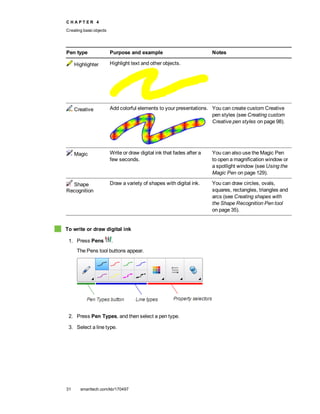
  • 134.
    C H AP T E R 8 Presenting lesson activities and facilitating collaboration 128 smarttech.com/kb/170497 To add this button to the toolbar, see Customizing the toolbar on page 151. Using presentation tools while presenting While presenting lesson activities to students, you can use the following tools: l Screen Shade l Cell shades l Magic Pen l Standard pen type (to create fading objects) l Measurement tools o Ruler o Protractor o Geodreieck protractor o Compass Using the Screen Shade If you want to cover information and reveal it slowly during a presentation, you can add a Screen Shade to a page. If you add a Screen Shade to a page and save the file, the Screen Shade appears over the page the next time you open the file. To add a Screen Shade to a page Press Show/Hide Screen Shade . A Screen Shade appears over the entire page. To reveal part of the page Drag one of the Screen Shade’s resize handles (the small circles at the edges of the Screen Shade). To remove the Screen Shade from a page Press Show/Hide Screen Shade . OR
  • 135.
    C H AP T E R 8 Presenting lesson activities and facilitating collaboration 129 smarttech.com/kb/170497 Press Close in the upper-right corner of the Screen Shade. Using cell shades You can add a cell shade to a table cell. This enables you to reveal the information in the cells during a presentation. N O T E S l You must remove the cell shade if you want to change the cell’s properties; insert columns or rows; remove columns, rows or cells; or split or merge cells. l You can also add a screen shade to cover an entire page (see Using the Screen Shade on the previous page). To add a cell shade 1. Select the cell. 2. Press the cell’s menu arrow, and then select Add Cell Shade. To show and hide the contents of a cell 1. Press the cell shade. The cell shade disappears, showing the contents of the cell. 2. Press in the top-left corner of the cell. The cell shade appears, hiding the contents of the cell. To remove a cell shade 1. Select the cell. 2. Press the cell’s menu arrow, and then select Remove Cell Shade. Using the Magic Pen The Magic Pen enables you to do the following: l Create an object that slowly fades l Open a magnification window l Open a spotlight window Selecting the Magic Pen Before you can use the Magic Pen, you must select it.
  • 136.
    C H AP T E R 8 Presenting lesson activities and facilitating collaboration 130 smarttech.com/kb/170497 To select the Magic Pen 1. Press Pens . The Pens tool buttons appear. 2. Press Pen Types, and then select Magic Pen. Using the Magic Pen to create fading objects You can create an object that slowly fades using the Magic Pen. N O T E Fading objects are not saved in .notebook files. To create a fading object 1. Select the Magic Pen (see Selecting the Magic Pen on the previous page). 2. Using your finger or a pen, write or draw objects on the interactive screen. The objects slowly fade. To set the number of seconds before the object fades 1. Select the Magic Pen (see Selecting the Magic Pen on the previous page). 2. If the Properties tab isn’t visible, press Properties . 3. Press Fill Effects. 4. Enter or select the number of seconds before the object fades in the Fade time drop-down list. T I P You can save your changes to the Magic Pen tool’s default settings by clicking Save Tool Properties (see Saving tool settings on page 59). Using the Magic Pen to open a magnification window You can open a magnification window using the Magic Pen.
  • 137.
    C H AP T E R 8 Presenting lesson activities and facilitating collaboration 131 smarttech.com/kb/170497 To open a magnification window 1. Select the Magic Pen (see Selecting the Magic Pen on page 129). 2. Using your finger or a pen, draw a square or rectangle on the interactive screen. A magnification window appears. T I P You can draw a square but have it fade rather than open a magnification window by using the Standard pen type (see Using the Standard pen type to create fading objects on page 133). 3. Do the following: o To reduce the magnification window’s size, press in the middle of the window, and then drag to the left. o To increase the magnification window’s size, press in the middle of the window, and then drag to the right. o To move the magnification window, press near the edge of the window, and then drag it. 4. Press Close when you’re done.
  • 138.
    C H AP T E R 8 Presenting lesson activities and facilitating collaboration 132 smarttech.com/kb/170497 Using the Magic Pen to open a spotlight window You can open a spotlight window using the Magic Pen. To open a spotlight window 1. Select the Magic Pen (see Selecting the Magic Pen on page 129). 2. Using your finger or a pen, draw a circle or ellipse on the interactive screen. A spotlight window appears. T I P You can draw a circle but have it fade rather than open a magnification window by using the Standard pen tool (see Using the Standard pen type to create fading objects on the next page). 3. Do the following: o To reduce the spotlight window’s size, press in the middle of the window, and then drag to the left. o To increase the spotlight window’s size, press in the middle of the window, and then drag to the right. o To move the spotlight window, press near the edge of the window, and then drag it. 4. Press Close when you’re done.
  • 139.
    C H AP T E R 8 Presenting lesson activities and facilitating collaboration 133 smarttech.com/kb/170497 Using the Standard pen type to create fading objects You can create freehand objects that fade after a specified period of time using the Pens tool. N O T E You can also create freehand objects that fade after a specified period of time using the Magic Pen tool (see Using the Magic Pen to create fading objects on page 130). To write or draw fading digital ink 1. Press Pens . The Pens tool buttons appear. 2. Press Pen Types, and then select Pen. 3. Select a line type. 4. If the Properties tab isn’t visible, press Properties . 5. Press Fill Effects. 6. Select the Enable ink to fade after you write it check box, and then enter or select the number of seconds between the time you write or draw the digital ink and the time it fades in the Fade time drop-down list. 7. Write or draw digital ink on the page. Using measurement tools Using the SMART Notebook software measurement tools, you can insert a ruler, protractor, Geodreieck protractor or compass into a page. Using the ruler You can insert a ruler into a page, and then manipulate its size, length, rotation and location, and draw along its edges.
  • 140.
    C H AP T E R 8 Presenting lesson activities and facilitating collaboration 134 smarttech.com/kb/170497 To insert a ruler Press Measurement Tools , and then select Insert Ruler . A ruler appears. To move the ruler Press the middle of the ruler (displayed as a darker shade of blue), and then drag the ruler to a different position on the page. To resize the ruler 1. Select the ruler. 2. Drag the ruler’s resize handle (the circle in the lower-right corner) to increase or reduce the ruler’s size. To lengthen the ruler (without changing its scale) Press the ruler’s far edge, between the menu arrow and the resize handle, and then drag away from the ruler. To shorten the ruler (without changing its scale) Press the ruler’s far edge, between the menu arrow and the resize handle, and then drag toward the middle of the ruler. To rotate the ruler Press the top or bottom edge of the ruler (displayed as a lighter shade of blue), and then drag the ruler in the direction you want to rotate it. The ruler displays the current rotation in degrees. To reverse the measurements Press the ruler’s flip symbol . If the metric measurements appeared on the top edge of the ruler, they now appear on the bottom edge and vice versa.
  • 141.
    C H AP T E R 8 Presenting lesson activities and facilitating collaboration 135 smarttech.com/kb/170497 To draw using a pen and the ruler 1. Press Pens . The Pens tool buttons appear. 2. Press Pen Types, and then select Pen or Calligraphic Pen. 3. Select a line type. 4. Draw along the edge of the ruler. Digital ink appears in a straight line along the edge of the ruler. To remove the ruler 1. Select the ruler. 2. Press the ruler’s menu arrow, and then select Delete. Using the protractor You can insert a protractor into a page, manipulate its size, rotation and location, and then draw along its edges.
  • 142.
    C H AP T E R 8 Presenting lesson activities and facilitating collaboration 136 smarttech.com/kb/170497 To insert a protractor Press Measurement Tools , and then select Insert Protractor . A protractor appears. To move the protractor Press the inner part of the protractor (displayed as a darker shade of blue), and then drag the protractor to a different position on the page. To resize the protractor Press the inner circle of numbers, and then drag away from the protractor to enlarge it or toward the center of the protractor to shrink it. To rotate the protractor Press the outer circle of numbers, and then drag the protractor in the direction you want to rotate it. The protractor displays the current rotation in degrees.
  • 143.
    C H AP T E R 8 Presenting lesson activities and facilitating collaboration 137 smarttech.com/kb/170497 To display the protractor as a complete circle 1. Press the blue circle next to the 180 label on the inner circle of numbers. 2. Press the blue circle again to return to the semi-circle. To draw using a pen and the protractor 1. Press Pens . The Pens tool buttons appear. 2. Press Pen Types, and then select Pen or Calligraphic Pen. 3. Select a line type.
  • 144.
    C H AP T E R 8 Presenting lesson activities and facilitating collaboration 138 smarttech.com/kb/170497 4. Draw along the edge of the protractor. Digital ink appears in an arc along the edge of the protractor. To display angles using the protractor 1. Select the protractor. 2. Drag the green circle until it shows the correct angle for the first of two intersecting lines. 3. Drag the white circle until it shows the correct angle for the second of two intersecting lines. 4. Press the green arrow in the bottom corner. The lines and the angle between them appear as a separate object. To remove the protractor 1. Select the protractor. 2. Press the protractor’s menu arrow, and then select Delete. Using the Geodreieck protractor You can insert a Geodreieck protractor (also known as a set square or T-square) on a page, and then manipulate its size, rotation and location. To insert a Geodreieck protractor Press Measurement Tools , and then select Insert Geodreieck . A Geodreieck protractor appears. To move the protractor Press the inner part of the protractor (within the semi-circle), and then drag the protractor to a different position on the page.
  • 145.
    C H AP T E R 8 Presenting lesson activities and facilitating collaboration 139 smarttech.com/kb/170497 To resize the protractor Press the semi-circle, and then drag away from the center of the protractor to make it bigger or toward the center of the protractor to make it smaller. To rotate the protractor Press the outer part of the protractor (outside of the semi-circle), and then drag the protractor in the direction you want to rotate it. The protractor displays the current rotation in degrees. To draw using a pen and the Geodreieck protractor 1. Press Pens . The Pens tool buttons appear. 2. Press Pen Types, and then select Pen or Calligraphic Pen. 3. Select a line type. 4. Draw along the edge of the protractor. Digital ink appears in a straight line along the edge of the protractor. To remove the protractor 1. Select the protractor. 2. Press the protractor’s menu arrow, and then select Delete.
  • 146.
    C H AP T E R 8 Presenting lesson activities and facilitating collaboration 140 smarttech.com/kb/170497 Using the compass You can insert a compass into a page, manipulate its width, rotation and location, and then use it to draw circles and arcs. To insert a compass Press Measurement Tools , and then select Insert Compass . A compass appears. To move the compass Press the arm of the compass that holds the spike, and then drag the compass to a different position on the page. To widen the compass 1. Press the arm of the compass that holds the pen. Two blue arrows appear. 2. Drag to change the angle between the spike and the pen. The number on the compass’s handle displays the current angle between the spike and the pen. To flip the compass Press the compass’s flip symbol . The compass’s pen appears on the opposite side of the spike. To rotate the compass (without drawing) Press the compass’s rotation handle (the green circle), and then drag the compass in the direction you want to rotate it.
  • 147.
    C H AP T E R 8 Presenting lesson activities and facilitating collaboration 141 smarttech.com/kb/170497 To draw using the compass 1. Press the compass’s pen tip. The cursor changes to a pen symbol. 2. Drag the compass in the direction you want to rotate it. To change the color of the compass’s pen 1. Press Pens . The Pens tool buttons appear. 2. Press Pen Types, and then select Pen. 3. Select a line type. The color of the compass’s pen changes to display its new color. To remove the compass 1. Select the compass. 2. Press the compass’s menu arrow, and then select Delete. Clearing or resetting pages after presenting After presenting a lesson activity to students, you can clear or reset the pages in your .notebook files to use the files again for future lesson activities.
  • 148.
    C H AP T E R 8 Presenting lesson activities and facilitating collaboration 142 smarttech.com/kb/170497 Clearing pages You can erase digital ink and delete individual objects from a page. You can also clear all objects or all digital ink objects from a page simultaneously. N O T E You’re unable to clear objects locked in place (see Locking objects on page 104) or infinitely cloned objects (see Cloning objects on page 64). To clear all objects from a page, you must unlock all locked objects and clear the selection of Infinite Cloner on any infinitely cloned objects. To clear all objects from the page 1. If you haven’t done so already, display the page you want to clear. 2. Select Edit > Clear Page. N O T E S o This option is disabled if there are no objects on the page or if the objects are locked or infinitely cloned. o You can also select this option by doing one of the following: o Right-clicking the page o Pressing the page’s menu arrow in the Page Sorter o Pressing the page’s menu arrow while editing page groups (see Grouping pages on page 25) o Pressing Clear Page if it’s included on the toolbar (see Customizing the toolbar on page 151) o You can clear all objects from multiple pages at the same time. Select the pages’ thumbnails in the Page Sorter, press the menu arrow, and then select Clear Page.
  • 149.
    C H AP T E R 8 Presenting lesson activities and facilitating collaboration 143 smarttech.com/kb/170497 To clear all digital ink objects from the page 1. If you haven’t done so already, display the page you want to clear. 2. Select Edit > Clear Ink from Page. N O T E S o This option is disabled if there is no digital ink on the page or if the digital ink is locked or infinitely cloned. o You can also select this option by doing one of the following: o Right-clicking the page o Pressing the page’s menu arrow in the Page Sorter o Pressing the page’s menu arrow while editing page groups (see Grouping pages on page 25) o Pressing Clear Ink if it’s included on the toolbar (see Customizing the toolbar on page 151) o You can clear all digital ink objects from multiple pages at the same time. Select the pages’ thumbnails in the Page Sorter, press the menu arrow, and then select Clear Ink from Page. Resetting pages If you make changes to a page (without saving those changes), you can reset the page to the state it was in before you made the changes. N O T E Resetting a page doesn’t reset any Adobe Flash Player compatible files running on the page.
  • 150.
    C H AP T E R 8 Presenting lesson activities and facilitating collaboration 144 smarttech.com/kb/170497 To reset a page 1. If you haven’t done so already, display the page you want to reset. 2. Select Edit > Reset Page. A dialog box appears, prompting you to confirm the reset. N O T E S o This option is disabled if you haven’t made changes to the page since last saving the file. o You can also select this option by doing one of the following: o Right-clicking the page o Pressing the page’s menu arrow in the Page Sorter o Pressing the page’s menu arrow while editing page groups (see Grouping pages on page 25) o Pressing Reset Page if it’s included on the toolbar (see Customizing the toolbar on page 151) o You can reset multiple pages at the same time. Select the pages’ thumbnails in the Page Sorter, press the menu arrow, and then select Reset Page. 3. Press Reset Page. Enabling two people to use an interactive whiteboard If you have a SMART Board D600 or 800 series interactive whiteboard, two people can create and manipulate objects in SMART Notebook software at the same time. How the two people do this depends on whether you have a SMART Board D600 series interactive whiteboard or a SMART Board 800 series interactive whiteboard. Allowing two people to use an interactive whiteboard is useful in scenarios such as the following: l Two students work on an assignment on the interactive whiteboard at the same time l A teacher and student work on an assignment on the interactive whiteboard at the same time l A teacher or student poses questions or problems on the interactive whiteboard, and another student responds to these questions or problems
  • 151.
    C H AP T E R 8 Presenting lesson activities and facilitating collaboration 145 smarttech.com/kb/170497 Enabling two people to use a SMART Board D600 series interactive whiteboard If you’re using a SMART Board D600 series interactive whiteboard, two users can use the interactive whiteboard simultaneously when SMART Notebook software is in Dual-User mode. In Dual-User mode, the screen is divided in half. Each user can press his or her half of the screen with a finger to left-click or drag objects, write using a pen tray pen and erase digital ink using the eraser. Each user can also access frequently used tools using his or her own Floating Tools toolbar. You can press a toolbar button to switch between Single-User mode and Dual-User mode. To display a file in Dual-User mode Press View Screens , and then select Dual Write Mode. To return to Single-User mode Press Exit . Enabling two people to use a SMART Board 800 series interactive whiteboard If you’re using a SMART Board 800 series interactive whiteboard, two people can create and manipulate objects in SMART Notebook software at the same time. Both people can create and manipulate objects in any area of the SMART Notebook software page. Neither user is restricted to a particular section of the page. Dual-user collaboration mode is enabled when you pick up a pen from the pen tray. One user creates or manipulates objects with his or her finger (“the touch user”). The other user creates or manipulates objects with the pen (“the pen user”). N O T E In addition to enabling one touch user and one pen user to use the interactive whiteboard at the same time, you can enable two pen users or two touch users to use the interactive whiteboard at the same time. However, the two users must use the same tool.
  • 152.
    C H AP T E R 8 Presenting lesson activities and facilitating collaboration 146 smarttech.com/kb/170497 Selecting tools To change tools or to set properties for touch, the touch user must press the appropriate button on the toolbar or control in the Properties tab with his or finger. The following is an example: To change tools or to set properties for the pen, the pen user must press the appropriate button on the toolbar or control in the Properties tab with the pen. The following is an example: N O T E S l If the pen user presses a button on the toolbar or sets a property with his or finger instead of the pen, SMART Notebook software changes the selected tool or property for the touch user rather than the pen user. l When both the touch user and the pen user select multiple objects on the screen, the dashed border of the objects selected by the touch user will be a different color than the dashed border of the object selected by the pen user.
  • 153.
    Chapter 9 147 smarttech.com/kb/170497 EnhancingSMART Notebook software with add-ons Installing add-ons 147 Using add-ons 148 Identifying missing add-ons 148 Disabling and removing add-ons 149 Add-ons are extensions to SMART Notebook software created by SMART Technologies and by third-party software developers. SMART Notebook software includes the Activity Builder add-on (see Creating a matching lesson activity on page 111). You can install other add-ons from the SMART Exchange website to add specialized features to the software. In addition, you can manage all installed add-ons using the Add-on Manager. Installing add-ons You can search for, browse and install add-ons from the SMART Exchange website. To install an add-on 1. Select Add-ons > Manage Add-ons. The Add-on Manager appears. 2. Press Find More. The SMART Exchange website opens in your web browser.
  • 154.
    C H AP T E R 9 Enhancing SMART Notebook software with add-ons 148 smarttech.com/kb/170497 3. If you’re new to the SMART Exchange website, press Join for free, and then follow the on-screen instructions to create an account. OR If you have an account, press Sign In, and then follow the on-screen instructions to log on to the SMART Exchange website with your account. 4. Search or browse for an add-on, and then download it to a temporary location on your computer. 5. Double-click the add-on file. 6. Follow the on-screen instructions to install the add-on. Using add-ons After installing an add-on, you can use the features of that add-on like any other features in SMART Notebook software. To view an add-on 1. Press Add-ons . 2. Press the add-on’s icon. To view an add-on’s version and other information 1. Select Add-ons > Manage Add-ons. The Add-on Manager appears. 2. Press the add-on’s name. 3. Press About. Identifying missing add-ons If you open a page in a .notebook file that requires an add-on that isn’t installed or is disabled on your computer, a message appears at the top of the page. Press the message to open the Add-on Manager. The Add-on Manager identifies which add-on is required. You can then install that add-on (see Installing add-ons on the previous page) or enable it (see Disabling and removing add-ons on the next page).
  • 155.
    C H AP T E R 9 Enhancing SMART Notebook software with add-ons 149 smarttech.com/kb/170497 Disabling and removing add-ons In some situations, you might want to disable or remove a previously installed add-on. If you choose to disable an add-on, the add-on no longer appears in SMART Notebook software but is still installed on your computer. You can subsequently enable the add-on. If you choose to remove an add-on, the add-on no longer appears in SMART Notebook software and is removed from your computer. To disable an add-on 1. Select Add-ons > Manage Add-ons. The Add-on Manager appears. 2. Press the add-on’s name. 3. Press Disable. T I P To enable the add-on again, press Enable. To remove an add-on 1. Select Add-ons > Manage Add-ons. The Add-on Manager appears. 2. Press the add-on’s name. 3. Press Remove. N O T E You’re unable to remove the Activity Builder add-on.
  • 157.
    Chapter 10 151 smarttech.com/kb/170497 MaintainingSMART Notebook software Customizing the toolbar 151 Configuring SMART Notebook software 153 Changing the default program for .notebook files 153 Setting gesture preferences 154 Setting hardware acceleration preferences 155 Setting image optimization preferences 155 Manually reducing the size of large pictures 156 Exporting optimized files 157 Setting default background color preferences 157 Setting measurement tool preferences 158 Setting table cell padding preferences 159 Setting the language 160 Removing SMART software 162 Updating and activating SMART software 163 Updating SMART software 163 Activating SMART software 165 Purchasing a product key 165 Activating SMART software with a product key 165 Sending feedback to SMART 167 This chapter explains how to maintain SMART Notebook software. Customizing the toolbar The SMART Notebook software toolbar enables you to select and use a variety of commands and tools. You can customize the toolbar so that it includes the tools you use most frequently. After adding or removing toolbar buttons, you can restore the default set of toolbar buttons. You can also restore the tools’ default settings if you customized and saved the settings using the Properties tab (see Saving tool settings on page 59).
  • 158.
    C H AP T E R 1 0 Maintaining SMART Notebook software 152 smarttech.com/kb/170497 To add or remove toolbar buttons 1. Click Customize the toolbar . OR Right-click the toolbar. The Customize Toolbar dialog box appears. 2. Press Actions or Tools. 3. Do the following: o To add a button to the toolbar, press its icon in the dialog box, and then drag it to the toolbar. o To remove a button from the toolbar, press its icon in the toolbar, and then drag it away from the toolbar. o To rearrange the buttons, press an icon in the toolbar, and then drag it to a new position in the toolbar. N O T E S o You can only add, remove and rearrange buttons in the panel of the toolbar you selected in step 2. For example, if you pressed Actions in step 2, you can only add, remove and rearrange buttons in the Actions panel. o To span a button across rows, drag and hold it between two columns of buttons. If you’re using a smaller screen resolution, only span one or two buttons across rows to prevent issues when the toolbar is wider than the SMART Notebook software window. 4. Press Done. To restore the default set of toolbar buttons 1. Click Customize the toolbar . OR Right-click the toolbar. The Customize Toolbar dialog box appears. 2. Press Restore Default Toolbar.
  • 159.
    C H AP T E R 1 0 Maintaining SMART Notebook software 153 smarttech.com/kb/170497 To restore the tools’ default settings 1. Click Customize the toolbar . OR Right-click the toolbar. The Customize Toolbar dialog box appears. 2. Press Restore Default Tool Properties. Configuring SMART Notebook software This section explains how to configure SMART Notebook software. Changing the default program for .notebook files If you install a SMART program other than SMART Notebook software that can open .notebook files, you can set that program to be the default for .notebook files. If you want, you can change the default program back to SMART Notebook software later. To change the default program when you open a file 1. Open a .notebook file using SMART Notebook software (see Opening files on page 11). A message appears asking whether you want to change the default program for .notebook files to SMART Notebook software. 2. Press Yes. To change the default program using the Preferences dialog box 1. Select Edit > Preferences. The SMART Notebook Preferences dialog box appears. 2. Press General. 3. Press Make Default. 4. If you want a message to appear when you open a .notebook file and your default program isn’t SMART Notebook software, select Tell me if SMART Notebook software isn’t the default program for .notebook files. 5. Press OK.
  • 160.
    C H AP T E R 1 0 Maintaining SMART Notebook software 154 smarttech.com/kb/170497 Setting gesture preferences You can interact with objects in SMART Notebook software using gestures, including the shake gesture and the press-and-hold gesture. Gesture Name Purpose Shake gesture Group two or more objects. Press-and-hold gesture Perform a right-click. The shake and press-and-hold gestures are enabled by default. However, you can choose to disable them if you find that you or your students frequently invoke the gestures by accident. To disable the shake gesture 1. Select Edit > Preferences. The SMART Notebook Preferences dialog box appears. 2. Press General. 3. Clear the Use the shake gesture to group and ungroup objects check box. 4. Press OK.
  • 161.
    C H AP T E R 1 0 Maintaining SMART Notebook software 155 smarttech.com/kb/170497 To disable the press-and-hold gesture 1. Select Edit > Preferences. The SMART Notebook Preferences dialog box appears. 2. Press General. 3. Clear the Press and hold to perform a right-click check box. 4. Press OK. Setting hardware acceleration preferences Through hardware acceleration, SMART Notebook software completes some tasks using your computer’s graphics processing unit (GPU) rather than its central processing unit (CPU). Hardware acceleration improves the performance of SMART Notebook software on most computers. However, hardware acceleration can cause issues on some computers, such as content not displaying correctly and SMART Notebook software not responding. If you are encountering these issues, you can disable hardware acceleration. To disable hardware acceleration 1. Select Edit > Preferences. The SMART Notebook Preferences dialog box appears. 2. Press General. 3. Clear the Use hardware acceleration to increase the speed of SMART Notebook software check box. 4. Press OK. Setting image optimization preferences If your .notebook files contain large pictures (pictures over 1 MB in file size), your files could open and run slowly. You can reduce the pictures’ file size without noticeably reducing their quality. As a result, your .notebook files’ overall file sizes will be smaller and the files will open and run more quickly. To set image optimization preferences 1. Select Edit > Preferences. The SMART Notebook Preferences dialog box appears. 2. Press Defaults.
  • 162.
    C H AP T E R 1 0 Maintaining SMART Notebook software 156 smarttech.com/kb/170497 3. Select one of the following options in the Image optimization drop-down list: o Ask every time I insert a large image to have the option of reducing or not reducing large pictures’ file sizes when you insert them. o Never change the resolution of inserted images to never reduce large pictures’ file sizes when you insert them. o Always change image resolution to optimize file size to always reduce large pictures’ file sizes when you insert them. 4. Press OK. Manually reducing the size of large pictures If you selected Ask every time I insert a large image in the Image Optimization drop-down list, you can manually reduce the size of large pictures when you insert those pictures in your file or afterwards. To reduce the size of a large picture when inserting it in a file 1. Insert the picture as described in Inserting pictures on page 77. After you press Open, the Image Optimization dialog box appears. 2. Press Optimize to reduce the picture’s file size. OR Press Keep Resolution to not reduce the picture’s file size. N O T E S o When you insert a BMP file, SMART Notebook software internally converts the file to PNG format. This conversion reduces the size of the file. As a result, you might not need to export an optimized version of the .notebook file (see Exporting optimized files on the next page) even if the BMP file is over 1 MB in size. o SMART Notebook software automatically reduces the file size of pictures over 5 MB or 5 megapixels regardless of which option you choose. To reduce the size of a large picture after inserting it in a file 1. Select the picture. 2. Press the picture’s menu arrow, and then select Image Optimization. The Image Optimization dialog box appears. 3. Click Optimize.
  • 163.
    C H AP T E R 1 0 Maintaining SMART Notebook software 157 smarttech.com/kb/170497 Exporting optimized files If you have existing files that contain large pictures or if you chose Never change the resolution of inserted images in the Image Optimization drop-down list, you can export optimized versions of your files that contain reduced pictures. This is particularly useful when you need to present a .notebook file on an older or less powerful computer. To export an optimized file 1. Select File > Export As > Optimized SMART Notebook File. The Export Optimized File dialog box appears. 2. Browse to where you want to save the new file. 3. Type a name for the file in the File name box. 4. Press Save. Setting default background color preferences By default, new pages added to your file have a default white background color. You can change the default background color. N O T E This setting only affects new pages, and will be overridden by any applied Themes. To change the default background color 1. Select Edit > Preferences. The SMART Notebook Preferences dialog box appears. 2. Press Defaults. 3. Select Change Color, and then select a color. 4. Press OK.
  • 164.
    C H AP T E R 1 0 Maintaining SMART Notebook software 158 smarttech.com/kb/170497 Setting measurement tool preferences By default, the ruler, protractor and Geodreieck protractor in SMART Notebook software are blue and display best with light-colored backgrounds. You can change these measurement tools’ color to yellow if you want to use them with dark-colored backgrounds. N O T E Completing the following procedure affects the appearance of measurement tools in .notebook files when viewed on your copy of SMART Notebook software only. If you open the same .notebook files on another copy of SMART Notebook software, the measurement tools could display in a different color. To change the measurement tools’ color 1. Select Edit > Preferences. The SMART Notebook Preferences dialog box appears. 2. Press Defaults.
  • 165.
    C H AP T E R 1 0 Maintaining SMART Notebook software 159 smarttech.com/kb/170497 3. Select Blue tint (recommended for light backgrounds) in the Measurement tool color drop-down list to set the measurement tools’ color to blue. OR Select Yellow tint (recommended for dark backgrounds) in the Measurement tool color drop-down list to set the measurement tools’ color to yellow. 4. Press OK. Setting table cell padding preferences SMART Notebook 11 software adds cell padding to tables. Complete the following procedure to remove cell padding from tables. This is particularly useful if you created tables prior to upgrading to SMART Notebook 11 software and intended the tables’ contents to display without cell padding. N O T E Completing the following procedure affects the appearance of tables in .notebook files when viewed on your copy of SMART Notebook software only. If you open the same .notebook files on another copy of SMART Notebook software, the tables display with cell padding (assuming the procedure hasn’t been completed on that copy of SMART Notebook software). To remove cell padding from tables 1. Select Edit > Preferences. The SMART Notebook Preferences dialog box appears. 2. Press Defaults. 3. Clear the Add cell padding to table cells check box. 4. Press OK. 5. Close and restart SMART Notebook software. New and existing tables in your .notebook files display without cell padding.
  • 166.
    C H AP T E R 1 0 Maintaining SMART Notebook software 160 smarttech.com/kb/170497 Setting the language The SMART Language Setup utility enables you to set the language for a specific SMART application or all SMART applications installed on your computer. To set the language 1. Select Options > Language Setup. The Language Setup dialog box appears. 2. Select All Listed Applications in the first drop-down list to set the language for all applications. OR Select an application in the first drop-down list to set the language for only that application. 3. Select the appropriate language in the second drop-down list. N O T E S o If appears beside your selected language, the language is installed on your computer. o If appears beside your selected language, the SMART Language Setup utility downloads the language from the website after you press OK. o By default, the SMART Language Setup utility uses Internet Explorer Internet browser’s settings to connect to the Internet. However, you can use different settings by completing the steps under the next procedure. T I P To display the languages in their native names (for example, Deutsch for German), select the Show native names check box. 4. If you want to use different languages for handwriting recognition and spell checking, select languages in the Handwriting recognition and Spell check drop-down lists. N O T E If AUTO appears in the drop-down list, the SMART Language Setup selects your chosen language if available or a similar language if otherwise. If neither option is available, SMART Language Setup selects the current language.
  • 167.
    C H AP T E R 1 0 Maintaining SMART Notebook software 161 smarttech.com/kb/170497 5. If you want to use a different keyboard layout, select a layout in the Keyboard input language drop-down list. I M P O R T A N T The Keyboard input language drop-down list is available only if there’s more than one keyboard layout installed on your computer. The keyboard layout you select in the Keyboard input language drop-down list applies to both the on-screen keyboard and the keyboard connected to your computer when you use SMART software. In some situations, you might want to select a layout that is different from the layout of the keyboard connected to your computer (for example, to teach a second language). In these situations, the on-screen keyboard works correctly, but the keyboard connected to your computer might not. For best results, ensure the layout you select is identical to the layout of the keyboard connected to your computer. For example, if an English (U.S.) keyboard is connected to your computer, select English (United States) in this drop-down list. For information on keyboard layouts, see http://msdn.microsoft.com/en-us/goglobal/bb964651. 6. Press OK. To set the connection options 1. Select Options > Language Setup. The Language Setup dialog box appears. 2. Press Connection Options. The Connection Options dialog box appears. 3. Select Use Internet Explorer settings. OR Select Use other proxy, and then type the host, user name and password in the appropriate boxes. 4. Press OK.
  • 168.
    C H AP T E R 1 0 Maintaining SMART Notebook software 162 smarttech.com/kb/170497 Removing SMART software SMART Support might ask you to remove existing versions of SMART software before you install new versions. You can do this using the SMART Uninstaller. To remove SMART software 1. In Windows XP and Windows 7 operating systems, select Start > All Programs > SMART Technologies > SMART Tools > SMART Uninstaller. OR In Windows 8 operating system, go to the Apps screen and then scroll to and press SMART Uninstaller. 2. Press Next. 3. Select the check boxes of the SMART software and supporting packages that you want to remove, and then press Next. N O T E S o Some SMART software is dependent on other SMART software. For example, if you select the SMART Notebook check box, SMART Uninstaller selects the SMART Response check box automatically because SMART Response software is dependent on SMART Notebook software. o SMART Uninstaller automatically removes any supporting packages that are no longer being used. If you choose to remove all SMART software, SMART Uninstaller automatically removes all supporting packages, including itself. T I P S o To select all software and supporting packages, press Select All. o To clear the selection of all software and supporting packages, press Clear All. 4. Press Uninstall. SMART Uninstaller removes the selected software and supporting packages. 5. Press Finish.
  • 169.
    C H AP T E R 1 0 Maintaining SMART Notebook software 163 smarttech.com/kb/170497 Updating and activating SMART software After you install SMART software, you need to activate it. After you activate the software, you need to install updates from SMART. I M P O R T A N T To update and activate SMART software, you need to be connected to the Internet. Updating SMART software SMART periodically releases updates to its software and firmware products. (Firmware is software installed in hardware products like the SMART Board interactive whiteboard.) You can use SMART Product Update (SPU) to check for and install these updates. Your system administrator can install SPU in Full mode or Dashboard mode. In Full mode, you can view installed versions and download and install updates as documented in this section. In Dashboard mode, you can only view installed versions. To check for updates automatically 1. In Windows XP and Windows 7 operating systems, select Start > All Programs > SMART Technologies > SMART Tools > SMART Product Update. OR In Windows 8 operating system, go to the Apps screen and then scroll to and press SMART Product Update. The SMART Product Update window appears. 2. Select the Check for updates automatically check box, and then type the number of days (up to 60) between SPU checks. 3. Close the SMART Product Update window. If an update is available the next time SPU checks, the SMART Product Update window appears automatically and the Update button of the affected product is enabled. To check for updates manually 1. In Windows XP and Windows 7 operating systems, select Start > All Programs > SMART Technologies > SMART Tools > SMART Product Update. OR
  • 170.
    C H AP T E R 1 0 Maintaining SMART Notebook software 164 smarttech.com/kb/170497 In Windows 8 operating system, go to the Apps screen and then scroll to and press SMART Product Update. The SMART Product Update window appears. 2. Press Check Now. If an update is available for a product, its Update button is enabled. 3. If an update is available, install it by following the next procedure. To install an update 1. Open the SMART Product Update window as described in the previous procedures. 2. Press the product’s row. Product details appear. These product details include the installed version’s number and the update’s number, date and download size (if an update is available). T I P Press View release notes to view a summary of the changes in the update and the computer requirements for the update. 3. Press Update. 4. Follow the on-screen instructions to download and install the update. I M P O R T A N T To install updates, you must have full administrator access. To disable automatic checking for updates 1. In Windows XP and Windows 7 operating systems, select Start > All Programs > SMART Technologies > SMART Tools > SMART Product Update. OR In Windows 8 operating system, go to the Apps screen and then scroll to and press SMART Product Update. The SMART Product Update window appears. 2. Clear the Check for updates automatically check box. I M P O R T A N T SMART recommends that you do not clear this check box.
  • 171.
    C H AP T E R 1 0 Maintaining SMART Notebook software 165 smarttech.com/kb/170497 Activating SMART software Typically, you activate SMART software after installing it. However, in some situations, you activate the software later. For example, you could be evaluating the software before deciding to purchase it. N O T E S l As of version 11.1, you don’t need to activate SMART Notebook software or SMART Product Drivers. SMART provides you with the right to use this software when you purchase a SMART interactive product. l If you want to use SMART Notebook software with a device that isn’t a SMART interactive product, you must purchase a product key. Purchasing a product key For some SMART products, you must purchase a product key from your authorized SMART reseller (smarttech.com/wheretobuy). T I P S l After obtaining a product key, record it in a safe place for future reference. l If you lose your product key, go to smarttech.com/findproductkey. Activating SMART software with a product key After obtaining a product key, you can activate SMART software. To activate SMART software 1. In Windows XP and Windows 7 operating systems, select Start > All Programs > SMART Technologies > SMART Tools > SMART Product Update. OR In Windows 8 operating system, go to the Apps screen and then scroll to and press SMART Product Update. The SMART Product Update window appears.
  • 172.
    C H AP T E R 1 0 Maintaining SMART Notebook software 166 smarttech.com/kb/170497 2. Press Activate or Manage for the software you want to activate. The SMART Software Activation window appears. N O T E The value in the Status column indicates the status for each product: Value Description Installed The software is installed. Activated The software is installed and activated with a perpetual or maintenance license. Subscription The software is installed and activated with a subscription license. The number in parentheses indicates the days remaining in the subscription period. Expiring The software is installed but not yet activated. The number in parentheses indicates the days remaining in the evaluation period. Expired The software is installed but not yet activated. The evaluation period is over. You’re unable to use the software until you activate it. Unknown The software’s status is unknown. 3. Press Add. 4. Follow the on-screen instructions to activate the software using the product key. To view product keys 1. In Windows XP and Windows 7 operating systems, select Start > All Programs > SMART Technologies > SMART Tools > SMART Product Update. OR In Windows 8 operating system, go to the Apps screen and then scroll to and press SMART Product Update. The SMART Product Update window appears. 2. Select Tools > View Product Keys. The Product Keys dialog box appears.
  • 173.
    C H AP T E R 1 0 Maintaining SMART Notebook software 167 smarttech.com/kb/170497 3. Press OK when you’re done viewing the product keys. N O T E Alternatively, you can view the product keys for a single product by pressing the product’s name in the SMART Product Update window, and then pressing View product key. Sending feedback to SMART When you start SMART software for the first time, a dialog box could appear asking whether you want to join the SMART Customer Experience Program. If you choose to join the program, the software sends information to SMART that helps us improve the software for future releases. After starting the software for the first time, you can enable or disable this feature through the Help menu. You can also send feature request e-mails to SMART. To enable the Customer Experience Program tracking feature Select Help > Customer Experience Program > Feedback tracking ON. To disable the Customer Experience Program tracking feature Select Help > Customer Experience Program > Feedback tracking OFF. To send a feature request e-mail 1. Select Help > Submit Feature Request. A new e-mail message appears in your default e-mail program. 2. Type your request in the new e-mail message, and then press Send.
  • 175.
    Chapter 11 169 smarttech.com/kb/170497 Troubleshooting SMART Notebooksoftware Troubleshooting files 169 Troubleshooting the SMART Notebook software window and toolbar 169 Troubleshooting digital ink 170 Troubleshooting objects 171 Troubleshooting gestures 173 This chapter explains how to troubleshoot issues with SMART Notebook software. Troubleshooting files Issue Recommendation Your file contains large pictures and runs slowly when you open it in SMART Notebook software. Export an optimized version of the file (see Setting image optimization preferences on page 155). Troubleshooting the SMART Notebook software window and toolbar Issue Recommendation When using SMART Notebook software on an interactive product, you or your students can’t reach the toolbar. Press Move toolbar to top/bottom of window to move the toolbar from the top of the window to the bottom. T I P If you have a height-adjustable wall mount, you can also adjust the height of your interactive whiteboard or display so that students can reach it.
  • 176.
    C H AP T E R 1 1 Troubleshooting SMART Notebook software 170 smarttech.com/kb/170497 Issue Recommendation Toolbar buttons described in this documentation don’t appear on the toolbar. If a down arrow appears on the right side of the toolbar, press it to display additional toolbar buttons. If your desired button doesn’t appear when you click the down arrow , you or another user might have removed the button (see Customizing the toolbar on page 151). Don’t span more than a few buttons across rows to prevent the toolbar from being wider than the SMART Notebook software window. There isn’t enough room on your interactive product to display the contents of a page. Press View Screens , and then select Full Screen to display the page in Full Screen mode. OR Select the Auto-hide check box to hide the tabs when not in use. The Page Sorter, Gallery, Attachments, Properties and other tabs disappear whenever you press outside of the tabs. Press one of the tab’s icons to display it, and then clear the Auto-hide check box. Two users are creating or manipulating objects in SMART Notebook software on a SMART Board 800 series interactive whiteboard. One user is using his or her finger. The other user is using a pen from the pen tray. When the user using the pen presses a button in the toolbar, the selected tool or option changes for the user using his or her finger instead. The user using the pen must press buttons in the toolbar with the pen, not with his or her finger. For more information, see Enabling two people to use a SMART Board 800 series interactive whiteboard on page 145. Troubleshooting digital ink Issue Recommendation SMART Notebook software doesn’t recognize handwriting in your language. Install the appropriate language pack (see Setting the language on page 160).
  • 177.
    C H AP T E R 1 1 Troubleshooting SMART Notebook software 171 smarttech.com/kb/170497 Issue Recommendation You want your handwriting to appear more smooth and natural in SMART Notebook software. Use the Calligraphic pen type rather than the Standard pen type (see Writing or drawing digital ink on page 30). N O T E The Calligraphic pen type is available only if your computer is connected to a SMART interactive product. You’re having trouble writing smoothly in SMART Notebook software on Windows 7 operating system. The Single Finger Panning feature is turned on. Turn it off (see smarttech.com/kb/147470). When you write with a pen, SMART Notebook software on Windows 7 operating system interprets your actions as mouse clicks. The Flicks feature is turned on. Turn it off (see smarttech.com/kb/144274). Troubleshooting objects Issue Recommendation When you create a .notebook file on one computer and then open it on another computer, the objects in the file appear differently. There are several possible causes. The following are the most common: l You used a font that’s installed on one computer but not on the other. l The two computers have different operating systems. l The two computers have different versions of SMART Notebook software. You want to move, resize or otherwise change an object, but when you do so, you also move, resize or otherwise change other objects. The objects are grouped. Any changes you make to one object affect the other objects. Select the objects, and then select Format > Group > Ungroup to ungroup them. You can then move, resize or otherwise change the individual objects. For more information, see Grouping objects on page 69.
  • 178.
    C H AP T E R 1 1 Troubleshooting SMART Notebook software 172 smarttech.com/kb/170497 Issue Recommendation You want to move, resize or otherwise change an object but can’t. A lock icon appears instead of a menu arrow when you select the object. The object is locked, which prevents you from making changes to it. To unlock the object, select it, press its lock icon , and then select Unlock. For more information, see Locking objects on page 104. One object on a page covers another: You want to change this so that the second object covers the first: As you create objects, newer objects cover older objects automatically if the objects are in the same position on the page. You can change the order of objects. For more information, see Rearranging stacked objects on page 62. When you fill an object with a picture that is larger than the object, the picture is cut off: Conversely, when you fill an object with a picture that is smaller than the object, the picture is tiled: When filling an object with a picture, select Scale image to fit to resize the picture to fit the object: For more information, see Changing objects’ properties on page 56.
  • 179.
    C H AP T E R 1 1 Troubleshooting SMART Notebook software 173 smarttech.com/kb/170497 Troubleshooting gestures Issue Recommendation The multitouch gestures described in this guide aren’t working in SMART Notebook software. Ensure that your interactive product supports multitouch gestures and that multitouch gestures are enabled.
  • 181.
    Index 175 smarttech.com/kb/170497 A activation 165 ActivityBuilder 111 add-ons about 147 disabling 149 identifying missing 148 installing 147 removing 149 using 148 Adobe Flash Player compatible files 79 Adobe Flash video files 81 AIFF files 82 animation 104 arcs 35 arrows 33 ASF files 82 attachments 89 audio encoders 82 audio files See sound files automatic tasks grouping objects 70 saving 16 AVI files 82 B backgrounds 107 BMP files 13, 19, 77, 156 bold text 39 C Calligraphic pen type 30 cell padding 159 CFF files 15, 86 check marks 33 circles 33, 35 cloning objects 64 pages 23 compasses 140 content inserting in .notebook files 73 organizing 92 sharing with other teachers 93 CPUs 155 Crayon pen type 30 Creative pen type 31, 98 crosses 33 Customer Experience Program 167 D default program for .notebook files 153 diamonds 33 digital ink about 30 converting to text 37 erasing 32 troubleshooting 170 writing or drawing 30 document cameras 78 downloads 82 Dual-User mode 145 Dual Page view 126 E e-mail 20 encoders 82 eraser 32
  • 182.
    I N DE X 176 smarttech.com/kb/170497 Essentials for Educators See Gallery Essentials exports 13, 94 F fading objects 130, 133 feature request e-mails 167 feedback 167 files attaching to .notebook files 89 attaching to e-mail messages 20 creating 11 cutting, copying, and pasting content from 83 displaying in Dual-User mode 145 displaying in Dual Page view 126 displaying in Full Screen view 122 displaying in Transparent Background view 124 exporting 13 importing 83-84, 86 linking to objects 101 opening 11 printing 15 reducing size of 155 saving 12 saving automatically 16 troubleshooting 169 Flash files See Adobe Flash Player compatible files Flash video files See Adobe Flash video files footers 14, 16 freehand objects See digital ink Full Screen view 122 G Gallery adding themes to 110 adding your content to 91 applying backgrounds and themes from 109 exporting content from 94 finding and working with content from 74 importing content to 93 organizing your content in 92 Gallery Essentials 74 Gallery Sampler See Lesson Activity Examples Geodreieck protractors 138 gestures about 8 setting preferences for 154 troubleshooting 173 types of flick 60 panning 122 pinch to zoom 121 rotate 68 scale 65 shake 70, 154 swipe 21 GIF files 13, 19 GPUs 155 graphics See pictures groups object 69, 171 pages 25 H handouts 15 handwriting, conversion to text of 37, 160 hardware acceleration 155 headers 14, 16 heptagons 34 hexagons 33-34 highlighter 31 HTML files 13 I images See pictures imports 83-84, 86, 93
  • 183.
    I N DE X 177 smarttech.com/kb/170497 Interactive Whiteboard Common File Format 15, 86 Internet browsers 87 invisible areas See transparent areas italicized text 39 J JPEG files 13, 19, 77 K keyboards 161 L languages 37, 160 Lesson Activity Examples 74 Lesson Activity Toolkit 74 lines 35 links adding to objects 100 showing 126 Linux operating systems 12 locked objects 104, 172 M Mac OS X operating system software 12 Magic pen tool 31 Magic Pen tool 129 magnification 121, 130 mathematical symbols 40 measurement tools about 133 setting preferences for 158 types of compass 140 Geodreieck protractor 138 protractor 135 rulers 133 MediaCoder 82 menu arrows 54 MOV files 82 MP3 files See sound files MPEG files 82 multimedia files 79 multiple interactive products 127 music files See sound files My Content category 92, 94, See also Team Content categories N names of files 12, 157 of page groups 25 of pages 24 .notebook file format 12, 153 Notebook software See SMART Notebook O objects adding links to 100 adding to tables 45 adding to the Gallery 91 aligning 61 animating 104 clearing all from a page 142 cloning 64 cutting, copying and pasting 63 deleting 71 erasing 32 fading 130, 133 flipping 69 grouping 69 locking 104 moving 60 moving to other pages 61 rearranging 62 resizing 64 resizing text 40 rotating 67 selecting 54
  • 184.
    I N DE X 178 smarttech.com/kb/170497 setting fill and line style for 56 troubleshooting 171 octagons 34 online resources 76 ovals 35 P padding 159 page numbers 14, 16 pages adding to the Gallery 91 clearing 142 cloning 23 creating 22 deleting 26 displaying 21 displaying in Dual-User mode 145 displaying in Dual Page view 126 displaying in Full Screen view 122 displaying in Transparent Background view 124 extending 23 grouping 25 hiding with Screen Shades 128 linking to objects 100 moving objects between 61 panning 122 pinning 126 printing 15 rearranging 24 recording 106 renaming 24 setting backgrounds for 107 zooming in and out 121 panning 122 parallelograms 33 PDF files attaching to e-mail messages 20 exporting 14 pens types of Calligraphic 30 Crayon 30 Creative 31, 98 Highlighter 31 Magic 31, 129 Shape Recognition 31, 35 Standard 30 pentagons 33-34 performance, improving 155 photographs See pictures pictures about 77 creating transparent areas in 79 exporting files to 14 inserting from a scanner 78 inserting from a SMART Document Camera 78 inserting from files 77 reducing file sizes of 155 PNG files 13, 19, 77 polygons 34 PowerPoint 14, 45, 86 preferences gestures 154 hardware acceleration 155 image optimization 155 measurement tools 158 table cell padding 159 Preferences new page default color 157 printers 15, 83-84 product keys 165 protractors 135 proxy servers 88 Q QuickTime files See MOV files R rectangles 33, 35 regular polygons 34 resize handle 65
  • 185.
    I N DE X 179 smarttech.com/kb/170497 rulers 133 S scanners 78 Screen Shades 128-129 set squares See Geodreieck protractors Shape Recognition Pen tool 31, 35 shapes about 33 creating with the Regular Polygons tools 34 creating with the Shape Recognition Pen tool 35 creating with the Shapes tool 33 shortcuts 89 Single-User mode 145 SMART Board 800 series interactive whiteboards 145 SMART Board D600 series interactive whiteboards 145 SMART Board Tools 2 SMART Document Cameras 78 SMART Exchange 76, 95, 147 SMART Ink about 2 SMART Notebook 2 SMART Notebook Document Writer 84 SMART Notebook Print Capture 83 SMART Product Drivers 2 SMART Product Update 163 SMART Uninstaller 162 sound files 102, 127 spell checker 41, 160 spotlight 132 squares 33-35 stacks of objects 62 straight lines 35 SWF files See Adobe Flash Player compatible files T T-squares See Geodreieck protractors tables about 43 adding cell shades to 129 adding columns, rows or cells to 50 adding objects to 45 changing properties for 47 creating 43 moving 47 removing 52 removing cell padding from 159 removing cell shades from 129 removing columns, rows or cells from 50 selecting 46 splitting or merging cells in 51 Team Content categories See also My Content category text checking spelling of 41 converting handwriting to 37 cutting 42 editing 38 including mathematical symbols in 40 resizing 40 typing 37 themes applying 109 creating 110 thumbnails in printouts 15 in the Page Sorter 21 TIFF files 77 toolbars Full Screen 123 SMART Notebook 151, 169 Transparent Background 124 transparent areas 79 Transparent Background view 124 trapezoids 33 triangles 33-35 troubleshooting digital ink 170 files 169 gestures 173 objects 171
  • 186.
    I N DE X 180 smarttech.com/kb/170497 SMART Notebook software window and toolbar 169 U underlined text 39 updates 163 V video encoders 82 videos 81 volume 127 W WAV files 82 web browsers See Internet browsers web pages 13, 90, 100 widgets 76 Windows Media files 82 Windows operating systems 12 WMF files 77 Word 45 X XBK files 11 Z zooming in and out 121, 130
  • 188.