Slides Introduction
How to guide
What you will need
In order to use slides effectively for our team’s recap there are a few basic
things you will need:
-Permission
If you do not have access just request it. Also remember to use that provided email address every time you are making
changes
-Drive Application
This will enable you to upload your photos or access the most recent slides document from your mobile device
-Slides Application
For mobile editing of a slides presentation you will need this app
Permission
It may be important to note that if you have multiple google accounts and are
trying to edit a slides presentation it will only let you edit from one account.
If you have multiple accounts you can look at the upper right corner of the
screen to see which account is logged in for editing.
Only the google account you are using for work should be the one logged in or
you will not be able to make any edits or changes to the drive as the other
account may not have permissions.
If you are not able to use your work preferred account you may need to log out
of the other account.
Drive Application
The drive application will work as your portal to our shared files.
This will also allow you to upload photos from a mobile device. The photos
uploaded can only be accessed and added to a presentation from the desktop
version of the slides application.
Also since mobile devices are by nature a more passive internet connection it is
important to refresh the drive each time by swiping down on the screen.
Lastly make sure to always open the slides presentation from the drive after
refreshing to help ensure you are utilizing the most updated version.
Slides Application
For our purpose Slides can be a very simple and easy to use application from
any type of device. There are only 3 basic functions that we will mostly be
using:
-Add Photos
-Add Text
-Resize/Move
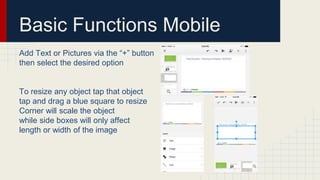
Basic Functions Mobile
Add Text or Pictures via the “+” button
then select the desired option
To resize any object tap that object
tap and drag a blue square to resize
Corner will scale the object
while side boxes will only affect
length or width of the image
Basic Functions Desktop
The basics work the same on desktop version
but look different than the mobile version
To add text click the [T] button
To add an image clike the “mountain button” next to the [T] button
Select Google Drive to add a photo previously uploaded on the drive
Be sure to choose the folder where you uploaded your photo
Advanced Functions
Sometimes you may need to duplicate or create a new slide
To duplicate a slide simply right click a slide from the slides pane then select
duplicate.
On an ios device press and hold a slide from the slides pane and select copy,
then again and select paste.
On an android device press and hold a slide then a blue menu will appear click
the paper icon to copy, then again but this time clicking the 3dot icon and then
selecting paste.
To add a slide click the plus symbol on desktop (upper left button)
On mobile device there will be a slides/+ icon on the slides pane to add a slide
Additional Notes
Formatting can be a challenge on mobile devices, so it may be preferable to
upload your photos to the drive and name them properly to add to the recap
from a desktop computer. Uploading photos when you see something
noteworthy while in store will help provide a better reminder for recaps later.
Treating our weekly recap similar to our live reporting will help ensure we all put
our best effort forward to help ensure we have a phenomenal recap!
There is no need to save as it is an automatic feature built in with the google
services we are using. There will be a notification on desktop of saves as they
happen.
Try it out!
Use this slides as a testing area to add photos, text, and new slides!
Please add and edit slides only after this slide
Test HERE
Test HERE

Slides Introduction

  • 1.
  • 2.
    What you willneed In order to use slides effectively for our team’s recap there are a few basic things you will need: -Permission If you do not have access just request it. Also remember to use that provided email address every time you are making changes -Drive Application This will enable you to upload your photos or access the most recent slides document from your mobile device -Slides Application For mobile editing of a slides presentation you will need this app
  • 3.
    Permission It may beimportant to note that if you have multiple google accounts and are trying to edit a slides presentation it will only let you edit from one account. If you have multiple accounts you can look at the upper right corner of the screen to see which account is logged in for editing. Only the google account you are using for work should be the one logged in or you will not be able to make any edits or changes to the drive as the other account may not have permissions. If you are not able to use your work preferred account you may need to log out of the other account.
  • 4.
    Drive Application The driveapplication will work as your portal to our shared files. This will also allow you to upload photos from a mobile device. The photos uploaded can only be accessed and added to a presentation from the desktop version of the slides application. Also since mobile devices are by nature a more passive internet connection it is important to refresh the drive each time by swiping down on the screen. Lastly make sure to always open the slides presentation from the drive after refreshing to help ensure you are utilizing the most updated version.
  • 5.
    Slides Application For ourpurpose Slides can be a very simple and easy to use application from any type of device. There are only 3 basic functions that we will mostly be using: -Add Photos -Add Text -Resize/Move
  • 6.
    Basic Functions Mobile AddText or Pictures via the “+” button then select the desired option To resize any object tap that object tap and drag a blue square to resize Corner will scale the object while side boxes will only affect length or width of the image
  • 7.
    Basic Functions Desktop Thebasics work the same on desktop version but look different than the mobile version To add text click the [T] button To add an image clike the “mountain button” next to the [T] button Select Google Drive to add a photo previously uploaded on the drive Be sure to choose the folder where you uploaded your photo
  • 8.
    Advanced Functions Sometimes youmay need to duplicate or create a new slide To duplicate a slide simply right click a slide from the slides pane then select duplicate. On an ios device press and hold a slide from the slides pane and select copy, then again and select paste. On an android device press and hold a slide then a blue menu will appear click the paper icon to copy, then again but this time clicking the 3dot icon and then selecting paste. To add a slide click the plus symbol on desktop (upper left button) On mobile device there will be a slides/+ icon on the slides pane to add a slide
  • 9.
    Additional Notes Formatting canbe a challenge on mobile devices, so it may be preferable to upload your photos to the drive and name them properly to add to the recap from a desktop computer. Uploading photos when you see something noteworthy while in store will help provide a better reminder for recaps later. Treating our weekly recap similar to our live reporting will help ensure we all put our best effort forward to help ensure we have a phenomenal recap! There is no need to save as it is an automatic feature built in with the google services we are using. There will be a notification on desktop of saves as they happen.
  • 10.
    Try it out! Usethis slides as a testing area to add photos, text, and new slides! Please add and edit slides only after this slide
  • 11.
  • 12.

Editor's Notes

  • #4 NOTES: if you only have one google account this should not be an issue
  • #9 Pasting will not overwrite an existing slide