9 AMAZING TIPS for Using Google Slides like a
Pro
By Alex Noudelman
Choose a Fitting
Theme
The first one on our list of Google Slides tips is Theme, it
provides a visual framework for your presentation and set
the tone for your presentation. Google Slides offers a
number of pre-designed themes to choose from, or you can
create your own custom theme. When choosing an
appropriate theme, consider the topic, audience, and overall
message of your presentation. A well-chosen theme will not
only make your presentation visually appealing but also
create a cohesive and professional look throughout.
© Alex Noudelman
Use a Consistent
Design
Consistency is key to designing a WOW and professional
presentation. Ensure that fonts, colors, and slide layouts
remain consistent throughout the slideshow. Stick to a
limited color palette that complements your theme and use
fonts that are easy to read. Consistency in design will help
your audience focus on your content without distractions.
This is one of the Google Slides Hacks that will make your
presentation stand out amongst your competitors.
© Alex Noudelman
Play Around with the
Shape of Your Images
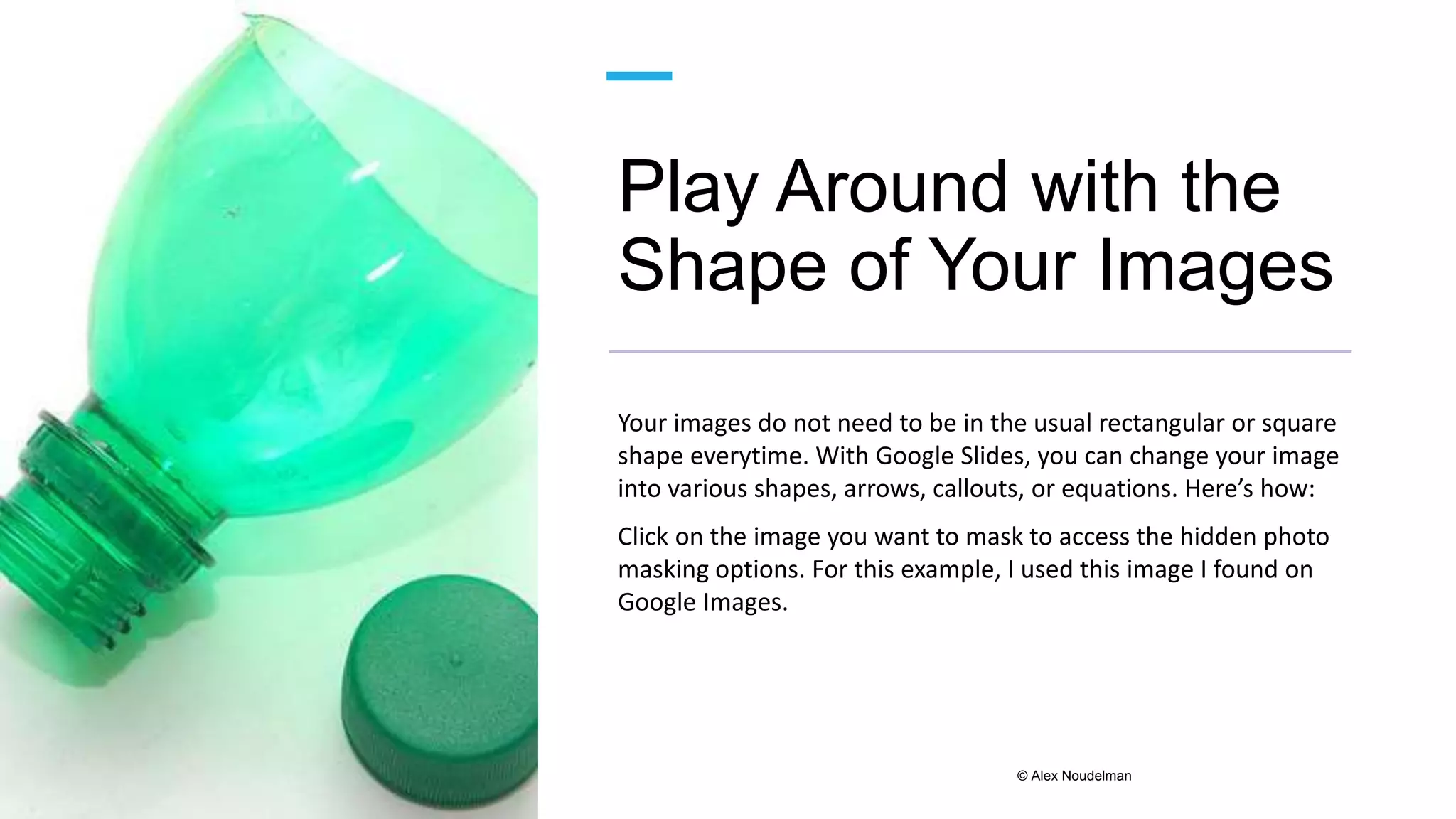
Your images do not need to be in the usual rectangular or square
shape everytime. With Google Slides, you can change your image
into various shapes, arrows, callouts, or equations. Here’s how:
Click on the image you want to mask to access the hidden photo
masking options. For this example, I used this image I found on
Google Images.
© Alex Noudelman
Add Links
With Google Slides, you’re not limited to
adding just links to websites, you can also
link to images, your files on Google Drive,
and even to other slides in your
presentation!
How do you do it? Simply highlight the text
you want to add the hyperlink to. Then
either hit CTRL+K or right-click on your
mouse and look for the Link option.
© Alex Noudelman
Merge With Other
Formats
It is not a must that all people in your
organization must switch to Google Slides
because you are making use of it. It is not a
problem if you are using PowerPoint to create
a business presentation with someone else.
Fortunately, you can read and edit your
PowerPoint documents in Google Slides very
easily without having to leave the Google app.
To get started with it, all you need to do is
open Google Slides in your Chrome browser and
install the Chrome extension of “Office
Editing” for Sheets, Docs, and Slides.
© Alex Noudelman
Bookmark Key Texts
Having a BIG presentation would require a
great deal of scrolling to find something
very particular. So do not waste all of that
time. Rather, it would be great if you
utilized the program’s bookmarking feature
in your presentation. With the help of it
you can quickly zoom to different spots or
passages within your Google Slides
presentation.
© Alex Noudelman
Dictate the Contents
of Your Presentation
For computers with a microphone, use your voice to dictate
speaker notes in your presentation. Make sure your
microphone is turned on. Click in the Speaker Notes section
of your screen. Select Tools > Voice type speaker notes.
© Alex Noudelman
Master Slide
Formatting
This is a very useful Google Slides hack if you are working on bulky
presentations with many slides. However, once you say from 10 slides
onwards, then you can use this hack. All you have to do is just go
directly to the slide master and all slides in your presentation will
automatically be updated. Slide > Edit Master. Click on the elements
you want to change.
For example, if you want all titles and subtitles to be in Roboto font,
then you can change that, or you want to add your company’s logo in
the footer or header section, you can do it here.
© Alex Noudelman
Embed on Your Website
If you think others will be interested in your amazing presentation, you
can easily embed it onto a webpage of your website. The process
works slightly differently for each site — but if you’re hosted on
WordPress, you can find detailed instructions on how to embed your
Google Slides presentation here:
https://www.wpbeginner.com/plugins/how-to-add-google-slides-
presentations-to-wordpress/

9 Useful TIPS for Using Google Slides like a Pro | Alex Noudelman

  • 1.
    9 AMAZING TIPSfor Using Google Slides like a Pro By Alex Noudelman
  • 2.
    Choose a Fitting Theme Thefirst one on our list of Google Slides tips is Theme, it provides a visual framework for your presentation and set the tone for your presentation. Google Slides offers a number of pre-designed themes to choose from, or you can create your own custom theme. When choosing an appropriate theme, consider the topic, audience, and overall message of your presentation. A well-chosen theme will not only make your presentation visually appealing but also create a cohesive and professional look throughout. © Alex Noudelman
  • 3.
    Use a Consistent Design Consistencyis key to designing a WOW and professional presentation. Ensure that fonts, colors, and slide layouts remain consistent throughout the slideshow. Stick to a limited color palette that complements your theme and use fonts that are easy to read. Consistency in design will help your audience focus on your content without distractions. This is one of the Google Slides Hacks that will make your presentation stand out amongst your competitors. © Alex Noudelman
  • 4.
    Play Around withthe Shape of Your Images Your images do not need to be in the usual rectangular or square shape everytime. With Google Slides, you can change your image into various shapes, arrows, callouts, or equations. Here’s how: Click on the image you want to mask to access the hidden photo masking options. For this example, I used this image I found on Google Images. © Alex Noudelman
  • 5.
    Add Links With GoogleSlides, you’re not limited to adding just links to websites, you can also link to images, your files on Google Drive, and even to other slides in your presentation! How do you do it? Simply highlight the text you want to add the hyperlink to. Then either hit CTRL+K or right-click on your mouse and look for the Link option. © Alex Noudelman
  • 6.
    Merge With Other Formats Itis not a must that all people in your organization must switch to Google Slides because you are making use of it. It is not a problem if you are using PowerPoint to create a business presentation with someone else. Fortunately, you can read and edit your PowerPoint documents in Google Slides very easily without having to leave the Google app. To get started with it, all you need to do is open Google Slides in your Chrome browser and install the Chrome extension of “Office Editing” for Sheets, Docs, and Slides. © Alex Noudelman
  • 7.
    Bookmark Key Texts Havinga BIG presentation would require a great deal of scrolling to find something very particular. So do not waste all of that time. Rather, it would be great if you utilized the program’s bookmarking feature in your presentation. With the help of it you can quickly zoom to different spots or passages within your Google Slides presentation. © Alex Noudelman
  • 8.
    Dictate the Contents ofYour Presentation For computers with a microphone, use your voice to dictate speaker notes in your presentation. Make sure your microphone is turned on. Click in the Speaker Notes section of your screen. Select Tools > Voice type speaker notes. © Alex Noudelman
  • 9.
    Master Slide Formatting This isa very useful Google Slides hack if you are working on bulky presentations with many slides. However, once you say from 10 slides onwards, then you can use this hack. All you have to do is just go directly to the slide master and all slides in your presentation will automatically be updated. Slide > Edit Master. Click on the elements you want to change. For example, if you want all titles and subtitles to be in Roboto font, then you can change that, or you want to add your company’s logo in the footer or header section, you can do it here. © Alex Noudelman
  • 10.
    Embed on YourWebsite If you think others will be interested in your amazing presentation, you can easily embed it onto a webpage of your website. The process works slightly differently for each site — but if you’re hosted on WordPress, you can find detailed instructions on how to embed your Google Slides presentation here: https://www.wpbeginner.com/plugins/how-to-add-google-slides- presentations-to-wordpress/