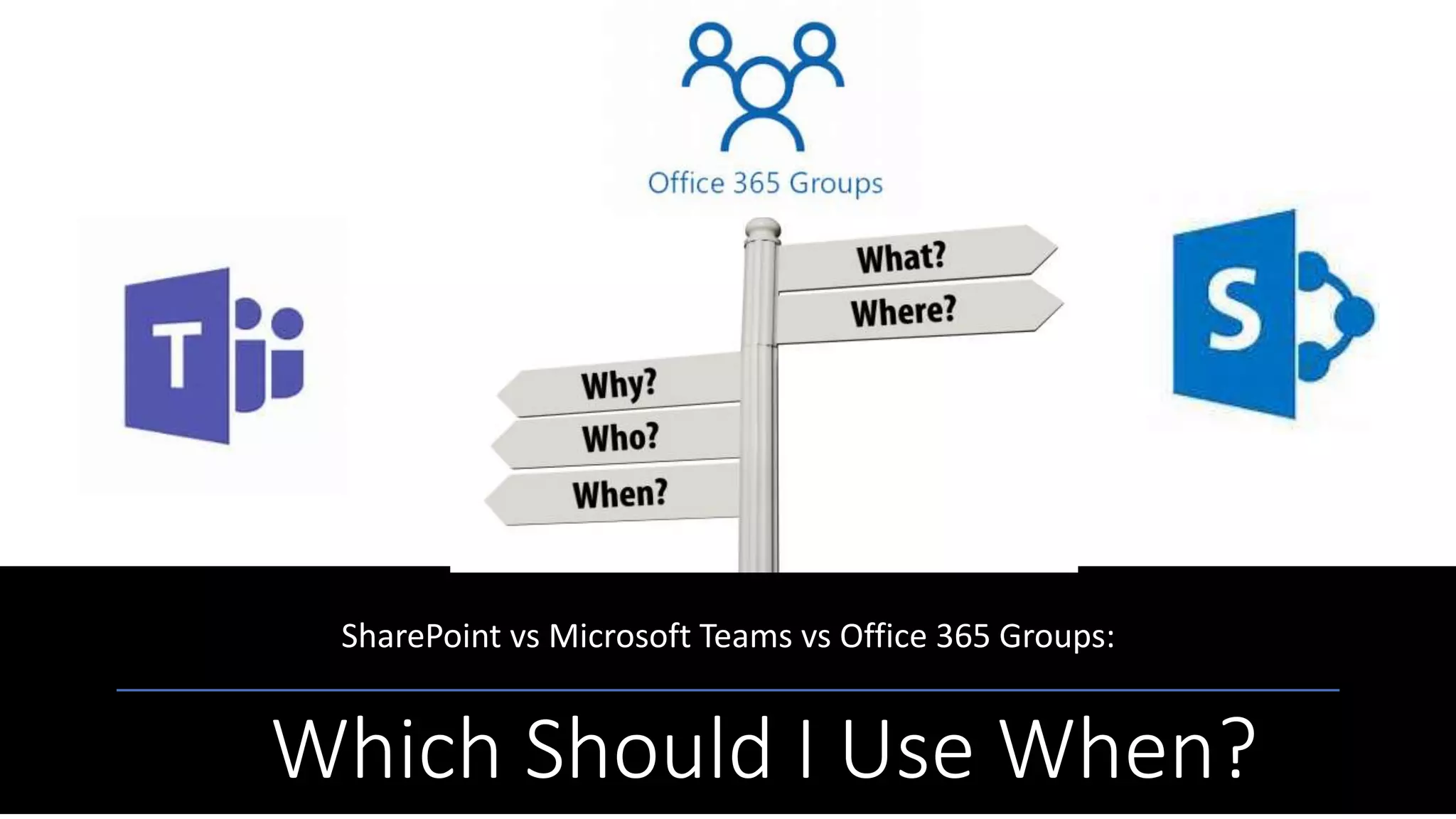








Which Should I Use When?
SharePoint vs Microsoft Teams vs Office 365 Groups:
 Microsoft Strategist | Solutions Developer | Trainer
 Specialty: Office 365, SharePoint, and Related Tech
 Applications & Intranet Developer 2001 – 2009
 SharePoint Developer 2009 - Present
 Microsoft Strategist | Trainer 2012 – Present
 CompTIA CTT | Microsoft MVP
 Published Author | Accomplished Speaker
 Other Roles: Microsoft Voices for Innovation (VFI)
Taskforce; SUGDC community lead; Tech Speaker;
Former IAMCP DC Philanthropy Chair, Board
Member, and WIT Community Leader; MFCF-DC
Founder; FEDSPUG and WSPDC Board Member;
Former Microsoft WPC/Inspire Partner Engagement
Board (PEB) Member; Tech Event Co-organizer (IT
ProCamp DC, Office 365 Ramp Up and Cloud One
Day)
Nikkia T. Carter
Feel Free to Reach Out!
Nikkia T. Carter
Microsoft Tech Strategist nikkia@nikkiatcarter.me
www.nikkiatcarter.me
(540) 369-6058 (call/text) @ladygwenavear
NikkiaTCarter
Thanks to our sponsors, hosts,
and to all of you!!!
Baltimore SharePoint User Group
SharePoint User Group of DC
FEDSPUG/Women in SharePoint DC
Flow User Group
SharePoint .NET Group
SPSEvents
SharePoint Fest
Collab365
Microsoft Tech Community
Questions?
Ask Me!
Please use the chat window.
8
Disclaimer
9
• Microsoft cloud technology is constantly being
updated.
• As such, although we try to keep up to date slides, it
is extremely difficult.
• Please excuse any inconsistencies between our slides
and the cloud.
• Also, please excuse me if I fumble around if Microsoft
added something or moved a button.
This Photo by Unknown Author is licensed under CC BY-SA
And now, the moment you
have been waiting for!
What is SharePoint?
What are Office 365
Groups?
What are Microsoft
Teams?
When would I use
each?
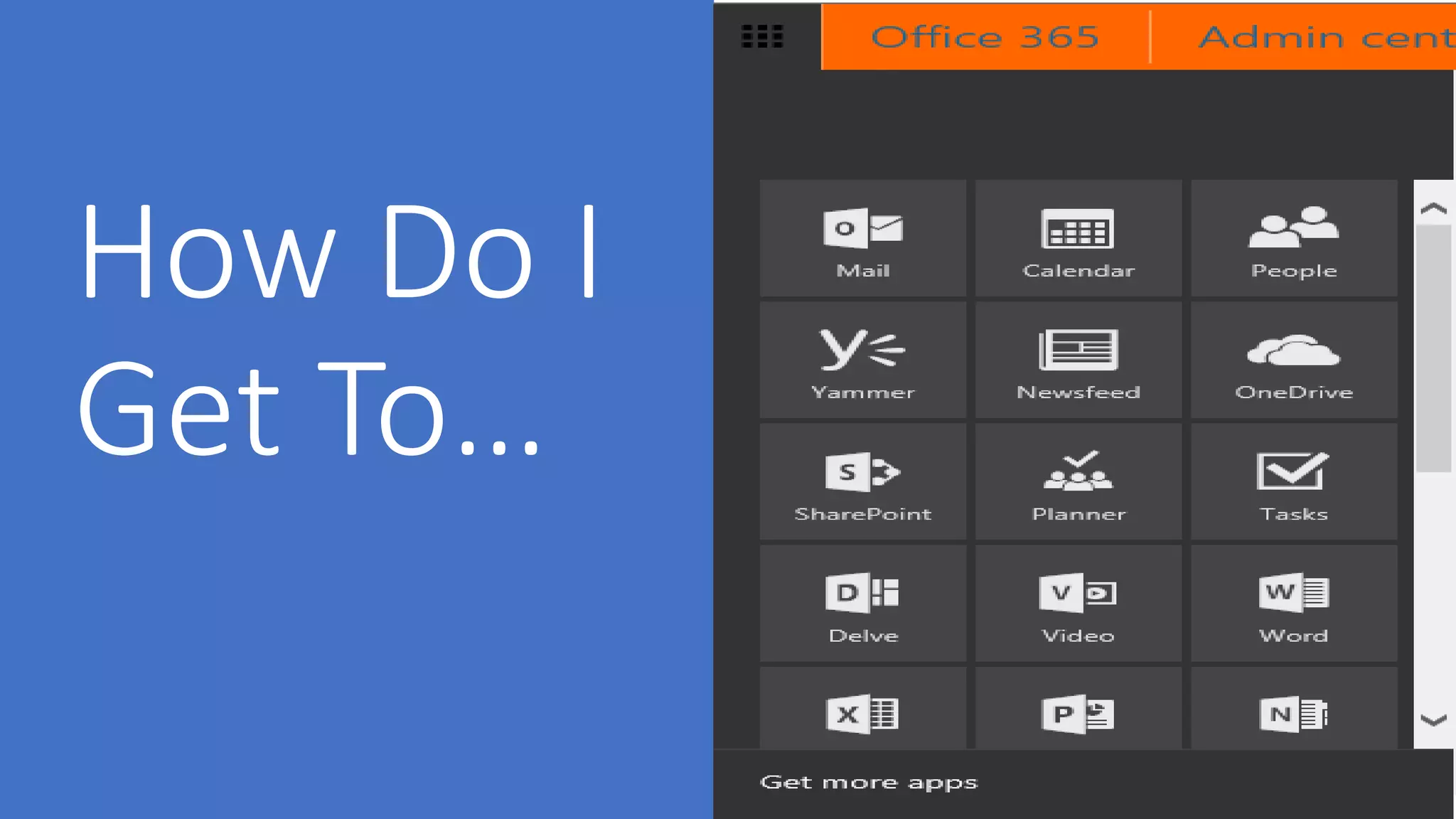
How do I get to each?
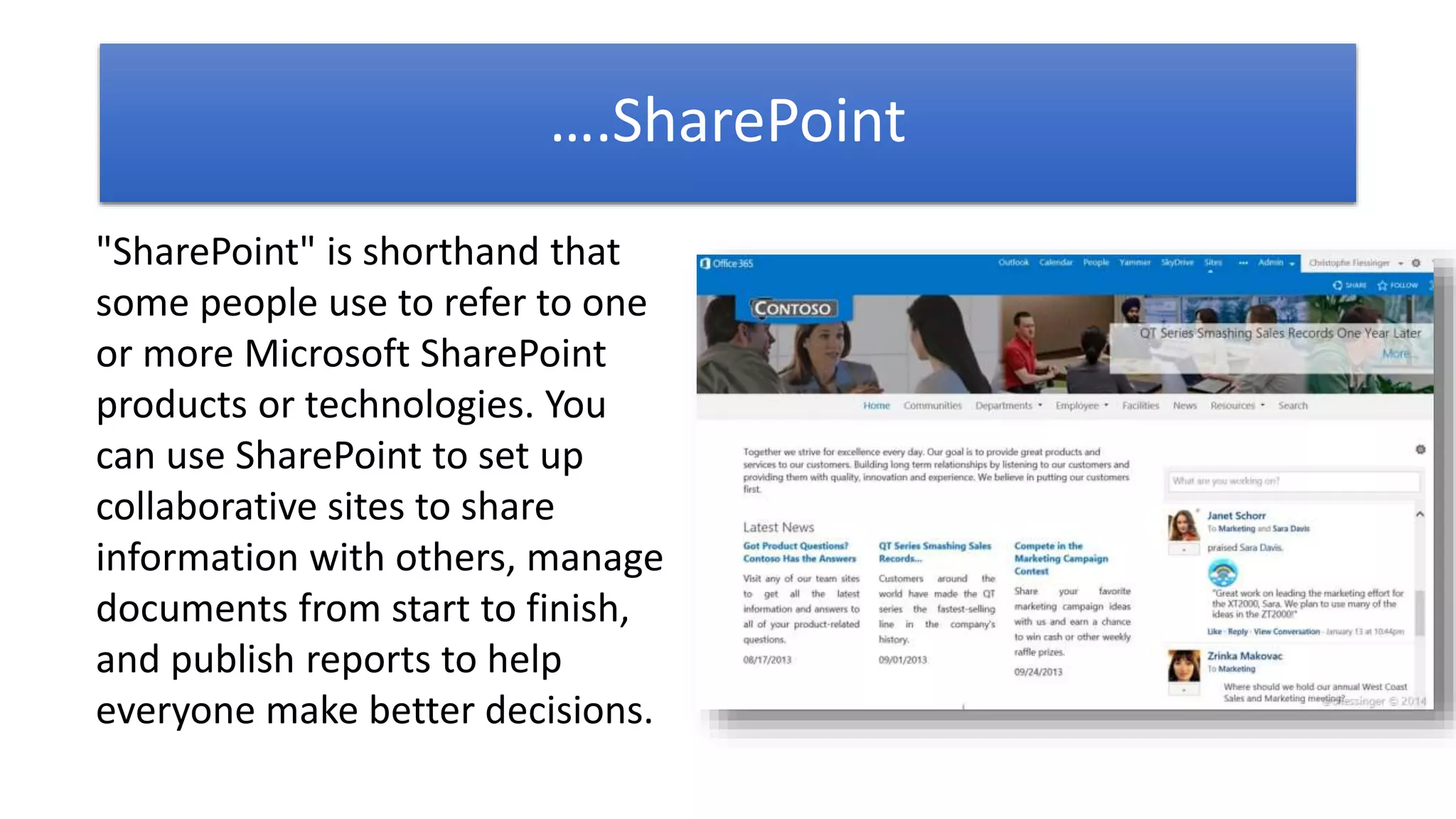
….SharePoint
"SharePoint" is shorthand that
some people use to refer to one
or more Microsoft SharePoint
products or technologies. You
can use SharePoint to set up
collaborative sites to share
information with others, manage
documents from start to finish,
and publish reports to help
everyone make better decisions.
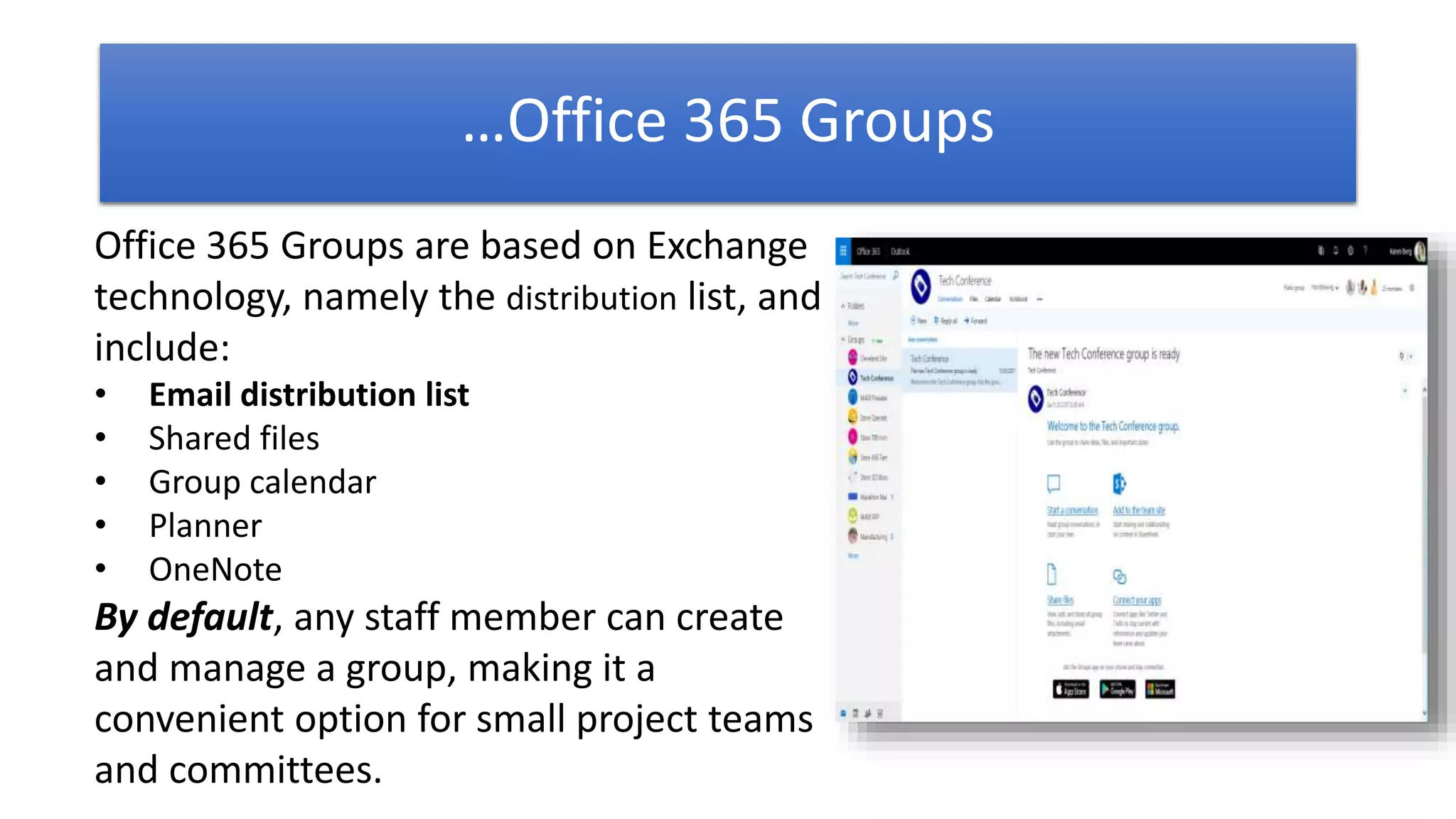
Office 365 Groups are based on Exchange
technology, namely the distribution list, and
include:
• Email distribution list
• Shared files
• Group calendar
• Planner
• OneNote
By default, any staff member can create
and manage a group, making it a
convenient option for small project teams
and committees.
…Office 365 Groups
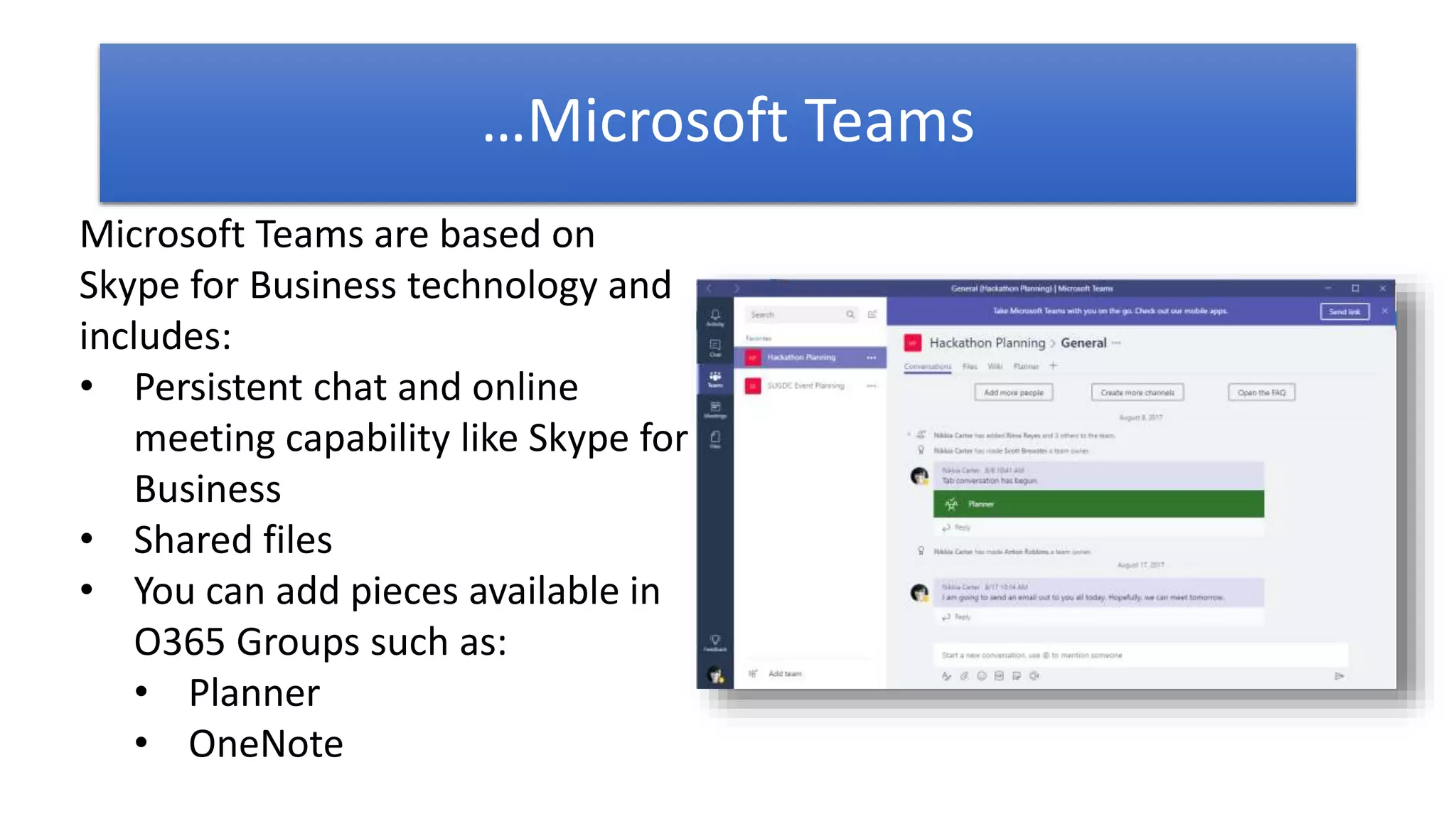
Microsoft Teams are based on
Skype for Business technology and
includes:
• Persistent chat and online
meeting capability like Skype for
Business
• Shared files
• You can add pieces available in
O365 Groups such as:
• Planner
• OneNote
…Microsoft Teams
Office 365
Groups
• Sharing with internal and external team members
• Comes with widgets for files, tasks, notes, calendar, and
emails/conversations
• Have the ability for adding other pre-fab widgets and
connectors
Good for making quick
sites for projects
(projects can be long term projects, reoccurring projects, or one offs)
Microsoft
Teams
• Conversations and Files like Office 365 Groups has except
Conversations is a persistent chat board and not a
distribution email list
• Have the ability for adding other pre-fab widgets,
connectors, and tabs for SharePoint
***My prediction: May totally replace O365 Groups at some point and O365 Groups will become a security layer only
Also good for making
quick sites for projects
Used to be only for internal teams but that has changed.
Capability to add external people as members is available now
BUT can’t add External Contacts.
SharePoint
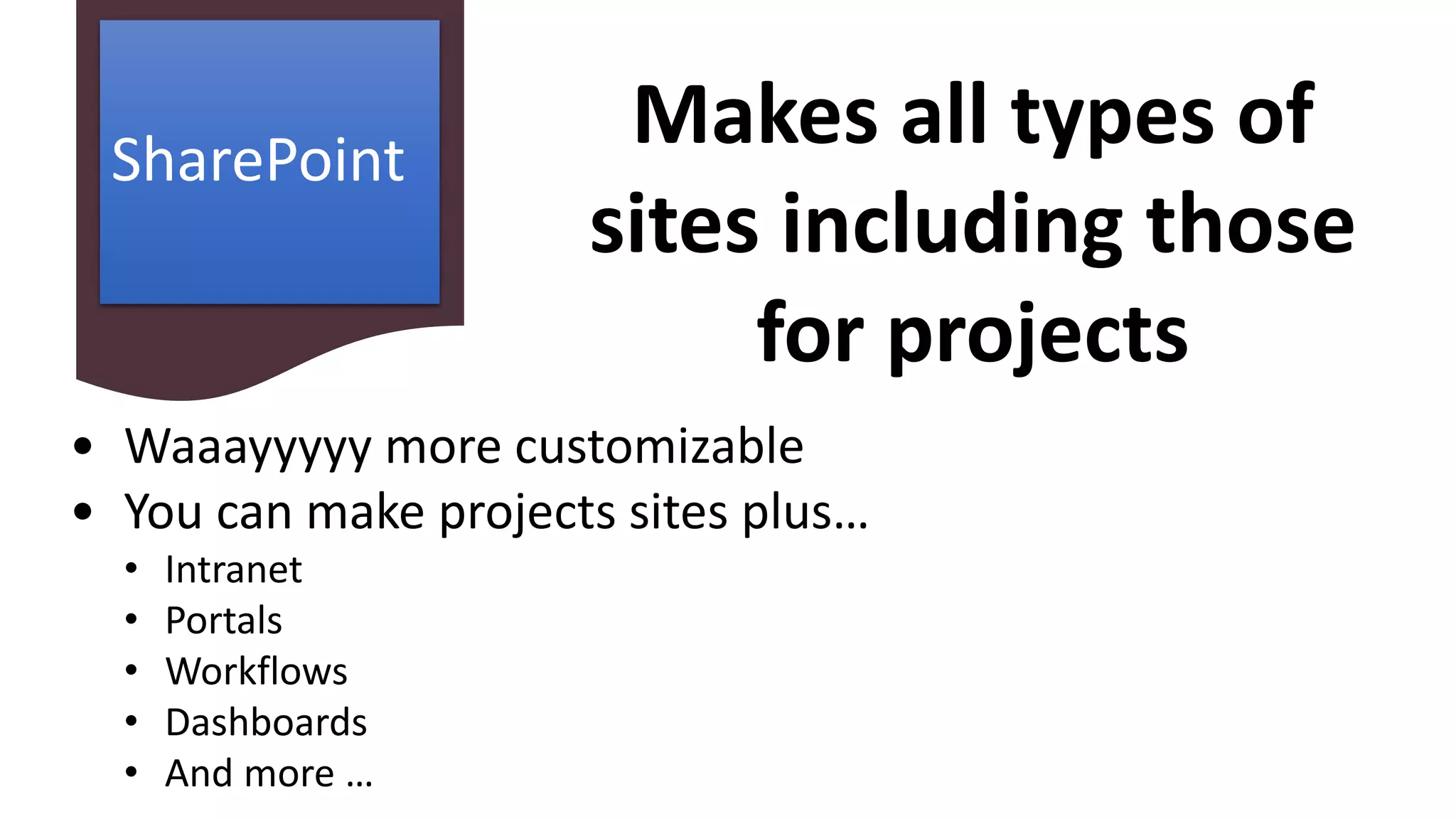
• Waaayyyyy more customizable
• You can make projects sites plus…
• Intranet
• Portals
• Workflows
• Dashboards
• And more …
Makes all types of
sites including those
for projects
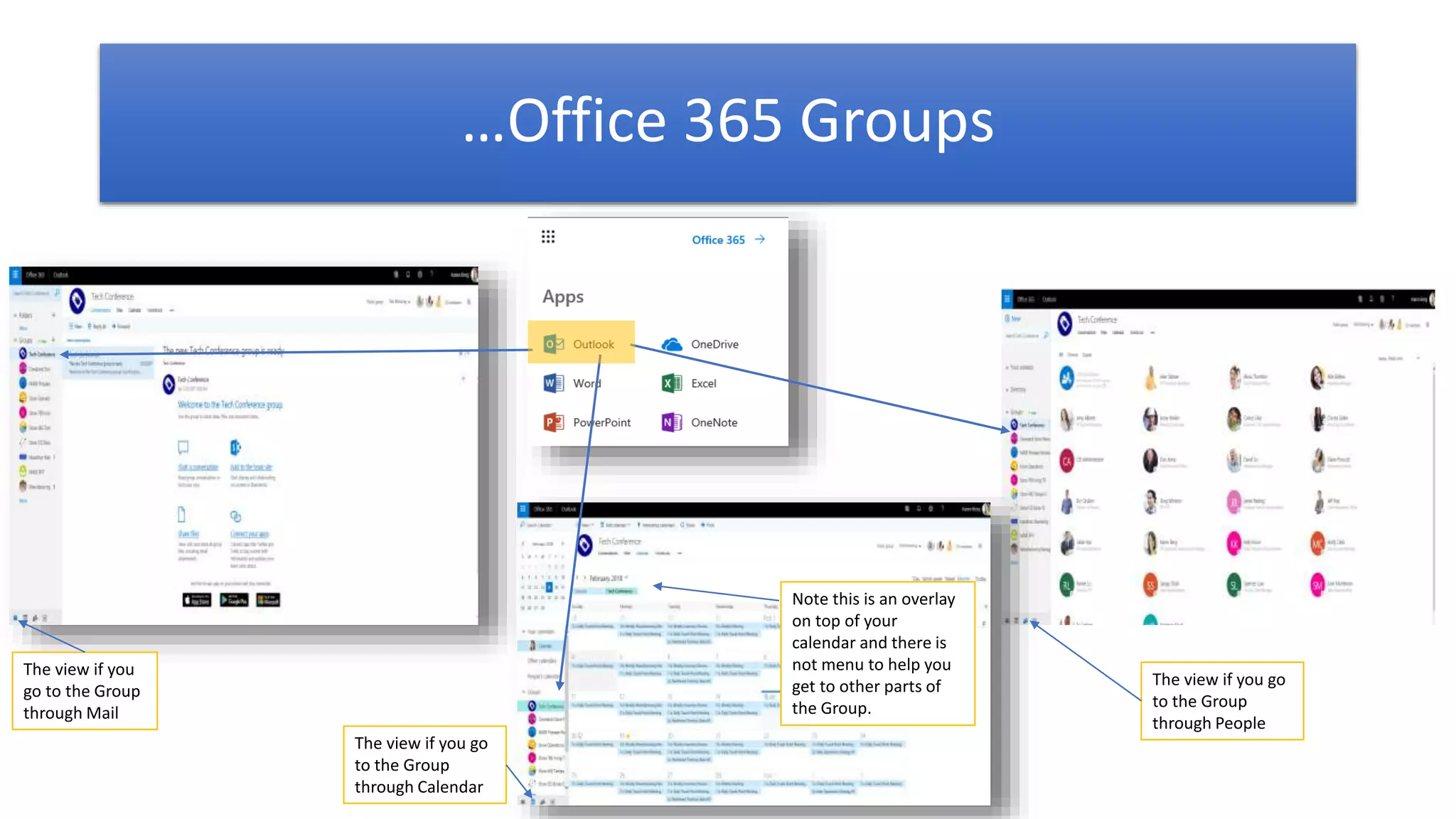
…Office 365 Groups
Note this is an overlay
on top of your
calendar and there is
not menu to help you
get to other parts of
the Group.
The view if you
go to the Group
through Mail
The view if you go
to the Group
through Calendar
The view if you go
to the Group
through People
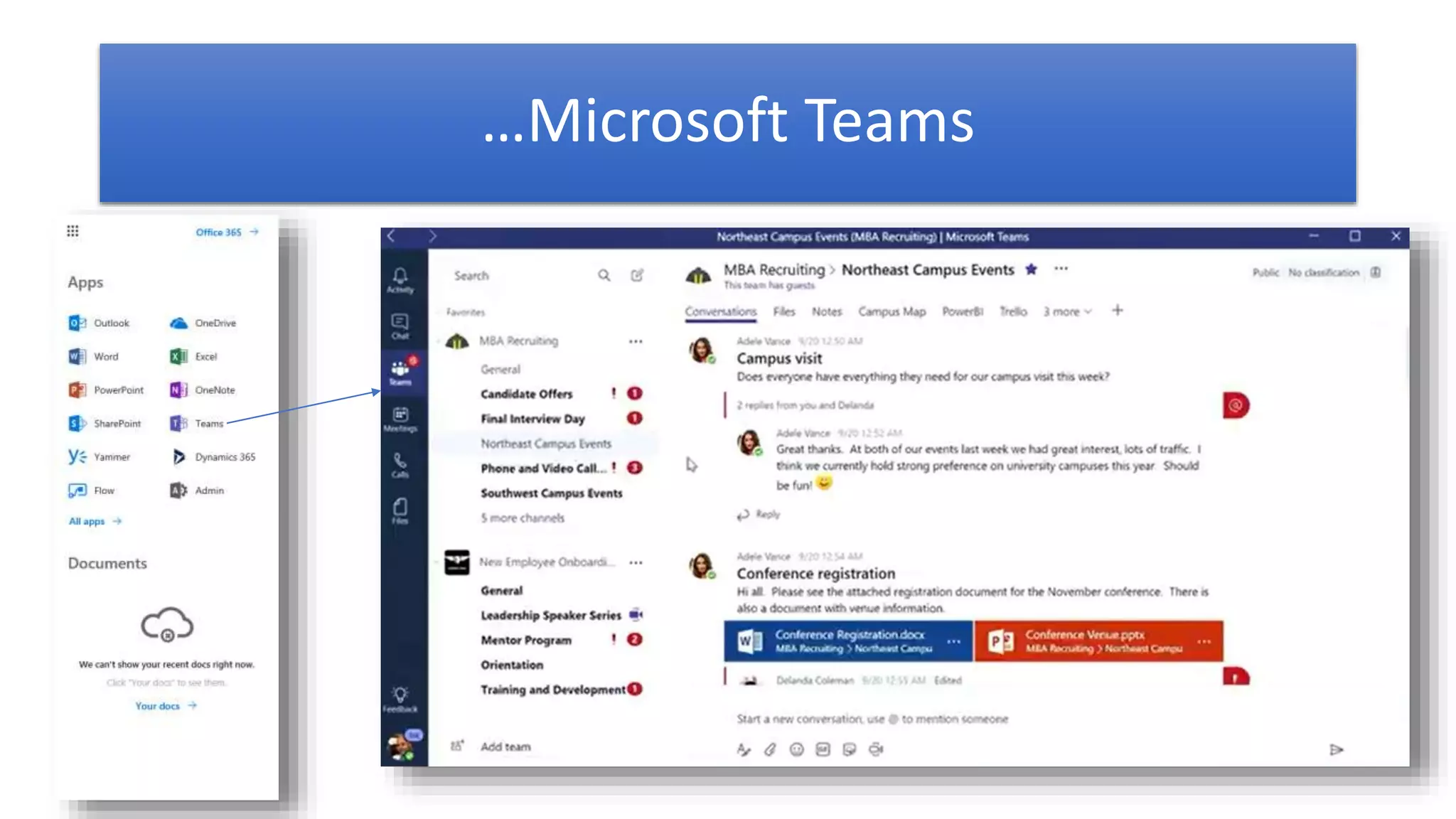
…Microsoft Teams
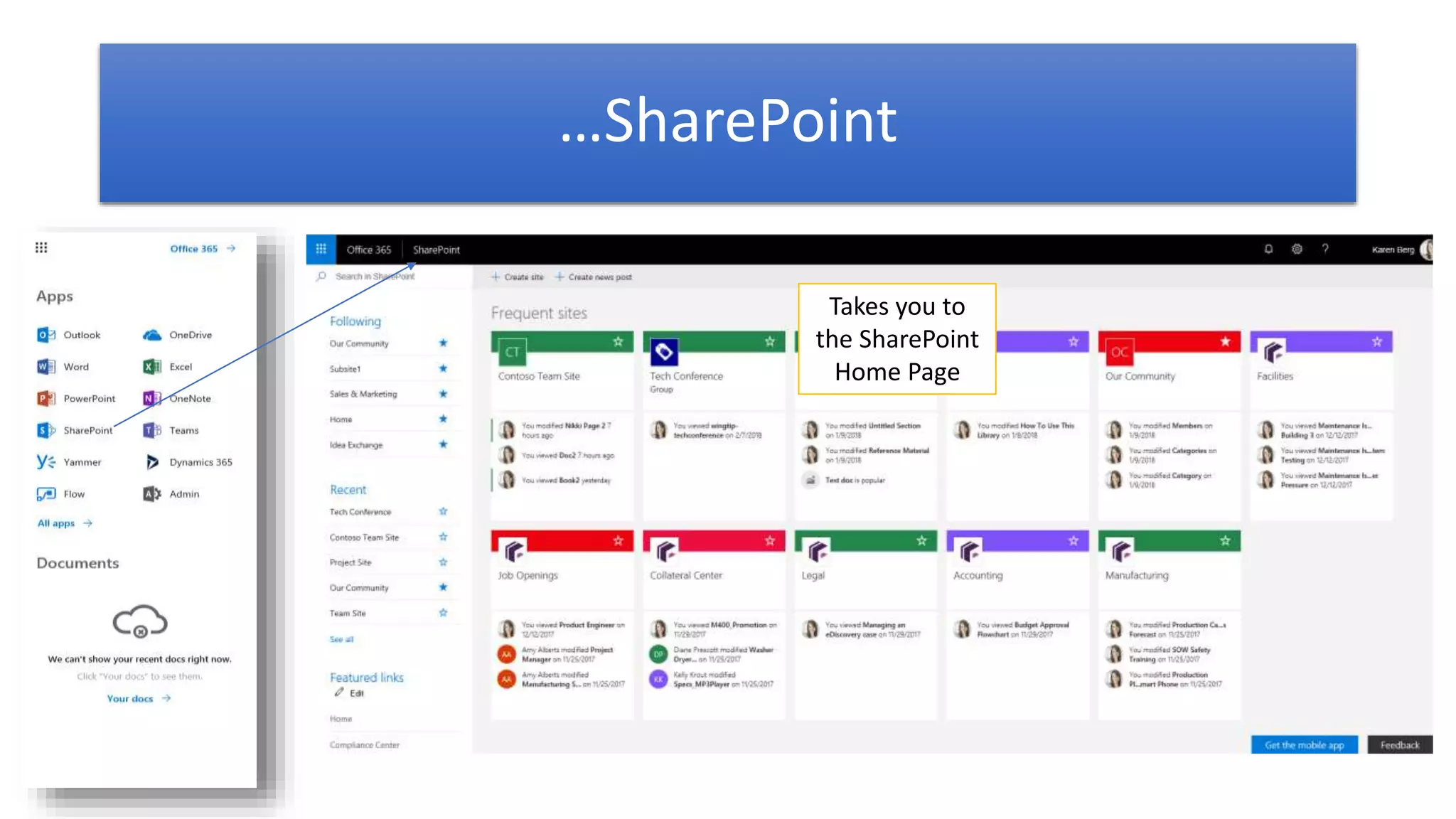
…SharePoint
Takes you to
the SharePoint
Home Page
A Few Things You Should Know…
This Photo by Unknown Author is licensed under CC BY
 When you create …
 An Office 365 Group, a corresponding SharePoint site collection is created
 A Microsoft Teams, a corresponding Office 365 Group (not easy to access anymore) and SharePoint site collection is created. The O365 Group may
not show up in the Groups section in your Outlook. A workaround is to go to the Teams, click on the … next to the Channel, choose Open in
SharePoint then click on Conversations on the left navigation (a lot, I know).
 These site collections are not seen through the old SP Admin Center but you can see through the new one (still in preview) although you may see
them on your SharePoint Home.
 You can see the distribution email list via Office 365 Groups in the Office 365 Admin Center under Groups but not the Group itself.
 Channels in Teams creates a folder in Files in the Office 365 Group (no longer true) and in the document library in the SharePoint site
 When you delete an Office 365 Group via the O365 or Exchange Admin Center, the corresponding site collection is deleted but the site collection may still
be seen in the new SP Admin Center.
 Files
 They flow up and down between the connected Groups and sites and between Team and sites (not necessarily between Groups and Teams) but not
conversations and emails.
 If you need to add content types or workflow, you need to create it in the SharePoint site. NOTE: They may only work in SharePoint, i.e. content types
only show for use in the SharePoint site but not in Files in the Group or Team.
 Conversations in Office 365 Groups is connected to an email distribution list (Exchange) as well as a discussion board and the Conversations in Microsoft
Teams is a message board (Skype for Business).
 Emails you send via the O365 Group will NOT be sent to you, even if you are Following the group, but you will be able to see the email via your Sent mail
and in the O365 Group Conversations board.
A Few Things You Should Know…
This Photo by Unknown Author is licensed under CC BY
 Sharing files in Teams via the message board goes to the “sharee”’s (person being shared with) OneDrive for Business in the Shared with Me section. The
“sharer” (person sharing the file) can share from their O4B or from SP. If the file is shared through Files in Teams then the file goes to the main Document
Library of the corresponding SP site collection. CAUTION: I would not rename or delete this library from the site collection if I were you!
 PowerApps can be embedded into Microsoft Teams (only mobile PowerApps though)
 Site collections generated by Teams or Groups is NOT a fully featured site collection as a site collection created from the SP Admin Center (this also applies
to Communication sites and the Team Site created using the Create Site button on SP home). The site collection with the most feature and functionality is
the Classic Team Site.
 Teams
 5 external members can be added per internal member with no additional fee
 Can enforce multifactor on external members
 Up to 500,000 Teams per tenant, 250 Teams per user creation
 200 channels per Team (including deleted channels)
 Members
 Limited to 2500 people
 O365 Groups can be used across site collections as a permission group BUT you can’t see the groups in SharePoint under People and Groups
 And yes, there is an app for that! (and by that, I mean an app for all: SharePoint, Microsoft Teams, and Office 365 Groups  )
26
Check out the Office 365
Roadmap and SharePoint NA
2019 Sessions
https://products.office.com/en-
us/business/office-365-roadmap
https://sharepointna.com
This Photo by Unknown Author is licensed under CC BY
Any Final
Questions?
Please use the chat window.
Feel Free to Reach Out!
Nikkia T. Carter
Microsoft Tech Strategist nikkia@nikkiatcarter.me
www.nikkiatcarter.me
(540) 369-6058 (call/text) @ladygwenavear
NikkiaTCarter
30
References
• Office Blogs: https://blogs.office.com/en-us/
• Office 365 Customer Stories: https://products.office.com/en-us/business/office-365-customer-stories-office-
testimonials
• Office 365 Success Center: https://blogs.office.com/en-us/2014/09/29/accelerate-office-365-adoption-microsoft-
introduces-office-365-customer-success-center/
• Fast Track: https://fasttrack.microsoft.com/
• SharePoint
• Overview: https://products.office.com/en-us/sharepoint/collaboration
• Help Center: https://support.office.com/en-US/SharePoint
• Microsoft Teams
• Overview: https://products.office.com/en-us/microsoft-teams/group-chat-software
• Limits and specifications for Microsoft Teams: https://docs.microsoft.com/en-us/microsoftteams/limits-
specifications-team
• Help Center: https://support.office.com/en-US/Teams
• Adoption: https://blogs.technet.microsoft.com/skypehybridguy/2017/10/27/tools-microsoft-teams-awareness-
campaign/
• Blog: https://techcommunity.microsoft.com/t5/Microsoft-Teams-Blog/bg-p/MicrosoftTeamsBlog
• News: https://news.microsoft.com/microsoft-teams/
31
References
• Office 365 Groups: https://support.office.com/en-us/article/Learn-about-Office-365-groups-b565caa1-5c40-40ef-9915-
60fdb2d97fa2
• Ignite 2017 - Matt’s List of Recommended Sessions:
https://blogs.technet.microsoft.com/skypehybridguy/2017/09/16/ignite-2017-matts-list-of-recommended-sessions/
• SharePoint Conference NA 2018 (News) - https://sharepointna.com/#!/news

SharePoint vs Microsoft Teams vs Office 365 Groups: What Should I Use When?

  • 1.
    Which Should IUse When? SharePoint vs Microsoft Teams vs Office 365 Groups:
  • 2.
     Microsoft Strategist| Solutions Developer | Trainer  Specialty: Office 365, SharePoint, and Related Tech  Applications & Intranet Developer 2001 – 2009  SharePoint Developer 2009 - Present  Microsoft Strategist | Trainer 2012 – Present  CompTIA CTT | Microsoft MVP  Published Author | Accomplished Speaker  Other Roles: Microsoft Voices for Innovation (VFI) Taskforce; SUGDC community lead; Tech Speaker; Former IAMCP DC Philanthropy Chair, Board Member, and WIT Community Leader; MFCF-DC Founder; FEDSPUG and WSPDC Board Member; Former Microsoft WPC/Inspire Partner Engagement Board (PEB) Member; Tech Event Co-organizer (IT ProCamp DC, Office 365 Ramp Up and Cloud One Day) Nikkia T. Carter
  • 3.
    Feel Free toReach Out! Nikkia T. Carter Microsoft Tech Strategist nikkia@nikkiatcarter.me www.nikkiatcarter.me (540) 369-6058 (call/text) @ladygwenavear NikkiaTCarter
  • 4.
    Thanks to oursponsors, hosts, and to all of you!!!
  • 5.
    Baltimore SharePoint UserGroup SharePoint User Group of DC FEDSPUG/Women in SharePoint DC Flow User Group SharePoint .NET Group SPSEvents SharePoint Fest Collab365 Microsoft Tech Community
  • 6.
  • 7.
  • 8.
    Disclaimer 9 • Microsoft cloudtechnology is constantly being updated. • As such, although we try to keep up to date slides, it is extremely difficult. • Please excuse any inconsistencies between our slides and the cloud. • Also, please excuse me if I fumble around if Microsoft added something or moved a button. This Photo by Unknown Author is licensed under CC BY-SA
  • 9.
    And now, themoment you have been waiting for!
  • 10.
    What is SharePoint? Whatare Office 365 Groups? What are Microsoft Teams? When would I use each? How do I get to each?
  • 12.
    ….SharePoint "SharePoint" is shorthandthat some people use to refer to one or more Microsoft SharePoint products or technologies. You can use SharePoint to set up collaborative sites to share information with others, manage documents from start to finish, and publish reports to help everyone make better decisions.
  • 13.
    Office 365 Groupsare based on Exchange technology, namely the distribution list, and include: • Email distribution list • Shared files • Group calendar • Planner • OneNote By default, any staff member can create and manage a group, making it a convenient option for small project teams and committees. …Office 365 Groups
  • 14.
    Microsoft Teams arebased on Skype for Business technology and includes: • Persistent chat and online meeting capability like Skype for Business • Shared files • You can add pieces available in O365 Groups such as: • Planner • OneNote …Microsoft Teams
  • 16.
    Office 365 Groups • Sharingwith internal and external team members • Comes with widgets for files, tasks, notes, calendar, and emails/conversations • Have the ability for adding other pre-fab widgets and connectors Good for making quick sites for projects (projects can be long term projects, reoccurring projects, or one offs)
  • 17.
    Microsoft Teams • Conversations andFiles like Office 365 Groups has except Conversations is a persistent chat board and not a distribution email list • Have the ability for adding other pre-fab widgets, connectors, and tabs for SharePoint ***My prediction: May totally replace O365 Groups at some point and O365 Groups will become a security layer only Also good for making quick sites for projects Used to be only for internal teams but that has changed. Capability to add external people as members is available now BUT can’t add External Contacts.
  • 18.
    SharePoint • Waaayyyyy morecustomizable • You can make projects sites plus… • Intranet • Portals • Workflows • Dashboards • And more … Makes all types of sites including those for projects
  • 20.
    …Office 365 Groups Notethis is an overlay on top of your calendar and there is not menu to help you get to other parts of the Group. The view if you go to the Group through Mail The view if you go to the Group through Calendar The view if you go to the Group through People
  • 21.
  • 22.
    …SharePoint Takes you to theSharePoint Home Page
  • 23.
    A Few ThingsYou Should Know… This Photo by Unknown Author is licensed under CC BY  When you create …  An Office 365 Group, a corresponding SharePoint site collection is created  A Microsoft Teams, a corresponding Office 365 Group (not easy to access anymore) and SharePoint site collection is created. The O365 Group may not show up in the Groups section in your Outlook. A workaround is to go to the Teams, click on the … next to the Channel, choose Open in SharePoint then click on Conversations on the left navigation (a lot, I know).  These site collections are not seen through the old SP Admin Center but you can see through the new one (still in preview) although you may see them on your SharePoint Home.  You can see the distribution email list via Office 365 Groups in the Office 365 Admin Center under Groups but not the Group itself.  Channels in Teams creates a folder in Files in the Office 365 Group (no longer true) and in the document library in the SharePoint site  When you delete an Office 365 Group via the O365 or Exchange Admin Center, the corresponding site collection is deleted but the site collection may still be seen in the new SP Admin Center.  Files  They flow up and down between the connected Groups and sites and between Team and sites (not necessarily between Groups and Teams) but not conversations and emails.  If you need to add content types or workflow, you need to create it in the SharePoint site. NOTE: They may only work in SharePoint, i.e. content types only show for use in the SharePoint site but not in Files in the Group or Team.  Conversations in Office 365 Groups is connected to an email distribution list (Exchange) as well as a discussion board and the Conversations in Microsoft Teams is a message board (Skype for Business).  Emails you send via the O365 Group will NOT be sent to you, even if you are Following the group, but you will be able to see the email via your Sent mail and in the O365 Group Conversations board.
  • 24.
    A Few ThingsYou Should Know… This Photo by Unknown Author is licensed under CC BY  Sharing files in Teams via the message board goes to the “sharee”’s (person being shared with) OneDrive for Business in the Shared with Me section. The “sharer” (person sharing the file) can share from their O4B or from SP. If the file is shared through Files in Teams then the file goes to the main Document Library of the corresponding SP site collection. CAUTION: I would not rename or delete this library from the site collection if I were you!  PowerApps can be embedded into Microsoft Teams (only mobile PowerApps though)  Site collections generated by Teams or Groups is NOT a fully featured site collection as a site collection created from the SP Admin Center (this also applies to Communication sites and the Team Site created using the Create Site button on SP home). The site collection with the most feature and functionality is the Classic Team Site.  Teams  5 external members can be added per internal member with no additional fee  Can enforce multifactor on external members  Up to 500,000 Teams per tenant, 250 Teams per user creation  200 channels per Team (including deleted channels)  Members  Limited to 2500 people  O365 Groups can be used across site collections as a permission group BUT you can’t see the groups in SharePoint under People and Groups  And yes, there is an app for that! (and by that, I mean an app for all: SharePoint, Microsoft Teams, and Office 365 Groups  )
  • 25.
  • 26.
    Check out theOffice 365 Roadmap and SharePoint NA 2019 Sessions https://products.office.com/en- us/business/office-365-roadmap https://sharepointna.com This Photo by Unknown Author is licensed under CC BY
  • 27.
  • 28.
    Feel Free toReach Out! Nikkia T. Carter Microsoft Tech Strategist nikkia@nikkiatcarter.me www.nikkiatcarter.me (540) 369-6058 (call/text) @ladygwenavear NikkiaTCarter
  • 29.
    30 References • Office Blogs:https://blogs.office.com/en-us/ • Office 365 Customer Stories: https://products.office.com/en-us/business/office-365-customer-stories-office- testimonials • Office 365 Success Center: https://blogs.office.com/en-us/2014/09/29/accelerate-office-365-adoption-microsoft- introduces-office-365-customer-success-center/ • Fast Track: https://fasttrack.microsoft.com/ • SharePoint • Overview: https://products.office.com/en-us/sharepoint/collaboration • Help Center: https://support.office.com/en-US/SharePoint • Microsoft Teams • Overview: https://products.office.com/en-us/microsoft-teams/group-chat-software • Limits and specifications for Microsoft Teams: https://docs.microsoft.com/en-us/microsoftteams/limits- specifications-team • Help Center: https://support.office.com/en-US/Teams • Adoption: https://blogs.technet.microsoft.com/skypehybridguy/2017/10/27/tools-microsoft-teams-awareness- campaign/ • Blog: https://techcommunity.microsoft.com/t5/Microsoft-Teams-Blog/bg-p/MicrosoftTeamsBlog • News: https://news.microsoft.com/microsoft-teams/
  • 30.
    31 References • Office 365Groups: https://support.office.com/en-us/article/Learn-about-Office-365-groups-b565caa1-5c40-40ef-9915- 60fdb2d97fa2 • Ignite 2017 - Matt’s List of Recommended Sessions: https://blogs.technet.microsoft.com/skypehybridguy/2017/09/16/ignite-2017-matts-list-of-recommended-sessions/ • SharePoint Conference NA 2018 (News) - https://sharepointna.com/#!/news

Editor's Notes

  • #6 Attend and participate