Setting up the
references within
Microsoft Word
Review Word:Chapter 3 from your Textbook for more information.
Why use MLA Format
 Microsoft Word does a great job on allowing you to set up
the citations page within an MLA formatted document.
 The key is to manage your sources, and if you set that up
correctly, you will be able to generate the bibliography very
easily.
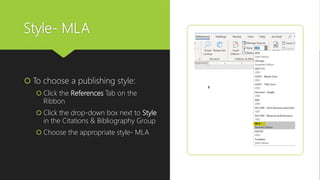
Style- MLA
 To choose a publishing style:
 Click the References Tab on the
Ribbon
 Click the drop-down box next to Style
in the Citations & Bibliography Group
 Choose the appropriate style- MLA
Managing your sources
This is where you will add the information about the book or
website. After you enter your sources, you can then insert
footnotes, and the bibliography.
Take a look at the two most common types- a book and a
website.
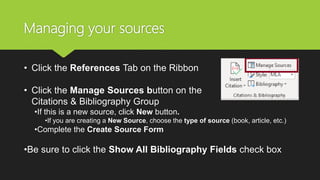
Managing your sources
• Click the References Tab on the Ribbon
• Click the Manage Sources button on the
Citations & Bibliography Group
•If this is a new source, click New button.
•If you are creating a New Source, choose the type of source (book, article, etc.)
•Complete the Create Source Form
•Be sure to click the Show All Bibliography Fields check box
Adding an author
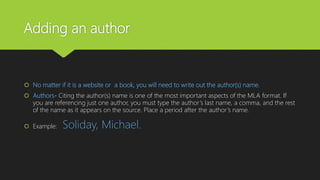
 No matter if it is a website or a book, you will need to write out the author(s) name.
 Authors- Citing the author(s) name is one of the most important aspects of the MLA format. If
you are referencing just one author, you must type the author’s last name, a comma, and the rest
of the name as it appears on the source. Place a period after the author’s name.
 Example: Soliday, Michael.
Adding an author
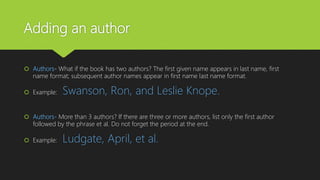
 Authors- What if the book has two authors? The first given name appears in last name, first
name format; subsequent author names appear in first name last name format.
 Example: Swanson, Ron, and Leslie Knope.
 Authors- More than 3 authors? If there are three or more authors, list only the first author
followed by the phrase et al. Do not forget the period at the end.
 Example: Ludgate, April, et al.
Completing a
Book citation
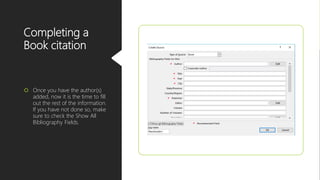
 Once you have the author(s)
added, now it is the time to fill
out the rest of the information.
If you have not done so, make
sure to check the Show All
Bibliography Fields.
Properties
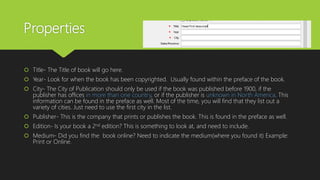
 Title- The Title of book will go here.
 Year- Look for when the book has been copyrighted. Usually found within the preface of the book.
 City- The City of Publication should only be used if the book was published before 1900, if the
publisher has offices in more than one country, or if the publisher is unknown in North America. This
information can be found in the preface as well. Most of the time, you will find that they list out a
variety of cities. Just need to use the first city in the list.
 Publisher- This is the company that prints or publishes the book. This is found in the preface as well.
 Edition- Is your book a 2nd edition? This is something to look at, and need to include.
 Medium- Did you find the book online? Need to indicate the medium(where you found it) Example:
Print or Online.
Works Cited Page
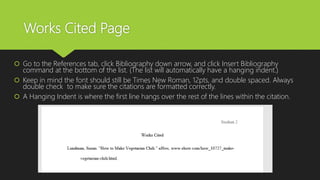
 Go to the References tab, click Bibliography down arrow, and click Insert Bibliography
command at the bottom of the list. (The list will automatically have a hanging indent.)
 Keep in mind the font should still be Times New Roman, 12pts, and double spaced. Always
double check to make sure the citations are formatted correctly.
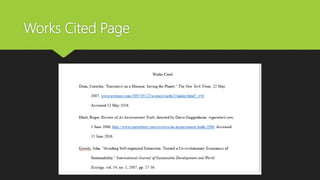
 A Hanging Indent is where the first line hangs over the rest of the lines within the citation.
Works Cited Page

Setting up the references within Microsoft Word

  • 1.
    Setting up the referenceswithin Microsoft Word Review Word:Chapter 3 from your Textbook for more information.
  • 2.
    Why use MLAFormat  Microsoft Word does a great job on allowing you to set up the citations page within an MLA formatted document.  The key is to manage your sources, and if you set that up correctly, you will be able to generate the bibliography very easily.
  • 3.
    Style- MLA  Tochoose a publishing style:  Click the References Tab on the Ribbon  Click the drop-down box next to Style in the Citations & Bibliography Group  Choose the appropriate style- MLA
  • 4.
    Managing your sources Thisis where you will add the information about the book or website. After you enter your sources, you can then insert footnotes, and the bibliography. Take a look at the two most common types- a book and a website.
  • 5.
    Managing your sources •Click the References Tab on the Ribbon • Click the Manage Sources button on the Citations & Bibliography Group •If this is a new source, click New button. •If you are creating a New Source, choose the type of source (book, article, etc.) •Complete the Create Source Form •Be sure to click the Show All Bibliography Fields check box
  • 6.
    Adding an author No matter if it is a website or a book, you will need to write out the author(s) name.  Authors- Citing the author(s) name is one of the most important aspects of the MLA format. If you are referencing just one author, you must type the author’s last name, a comma, and the rest of the name as it appears on the source. Place a period after the author’s name.  Example: Soliday, Michael.
  • 7.
    Adding an author Authors- What if the book has two authors? The first given name appears in last name, first name format; subsequent author names appear in first name last name format.  Example: Swanson, Ron, and Leslie Knope.  Authors- More than 3 authors? If there are three or more authors, list only the first author followed by the phrase et al. Do not forget the period at the end.  Example: Ludgate, April, et al.
  • 8.
    Completing a Book citation Once you have the author(s) added, now it is the time to fill out the rest of the information. If you have not done so, make sure to check the Show All Bibliography Fields.
  • 9.
    Properties  Title- TheTitle of book will go here.  Year- Look for when the book has been copyrighted. Usually found within the preface of the book.  City- The City of Publication should only be used if the book was published before 1900, if the publisher has offices in more than one country, or if the publisher is unknown in North America. This information can be found in the preface as well. Most of the time, you will find that they list out a variety of cities. Just need to use the first city in the list.  Publisher- This is the company that prints or publishes the book. This is found in the preface as well.  Edition- Is your book a 2nd edition? This is something to look at, and need to include.  Medium- Did you find the book online? Need to indicate the medium(where you found it) Example: Print or Online.
  • 10.
    Works Cited Page Go to the References tab, click Bibliography down arrow, and click Insert Bibliography command at the bottom of the list. (The list will automatically have a hanging indent.)  Keep in mind the font should still be Times New Roman, 12pts, and double spaced. Always double check to make sure the citations are formatted correctly.  A Hanging Indent is where the first line hangs over the rest of the lines within the citation.
  • 11.

Editor's Notes

  • #3 Facilitator- I use the slides as guidelines to what I will be talking about. I set up the slides so students can follow step by step without me there. Discussion- Discuss why it important to follow a format when it comes to writing.
  • #4 Facilitator- Show students how to change the margins
  • #5 Facilitator- Show students how to change the format of their document.
  • #6 Facilitator- Show students how to change the format of their document.
  • #11 Facilitator- Explain what a hanging indent is.
  • #12 Facilitator- Showing an example of what the cited page looks like.