Outline MIDP Building J2ME Apps- Tool J2ME Wireless Toolkit  Demo MIDlet Programming -- MIDlet Transition States -- Midlet Skeleton -- Two Level API -- Displaying Objects -- First Example – HelloWorld -- Event Handling with  Command s -- Command Example
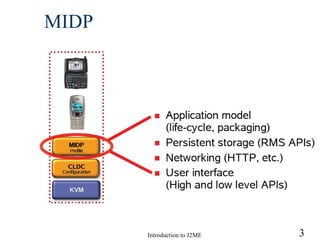
Mobile Information Device Profile (MIDP) Is a set of APIs that allow developers to control mobile device-specific problems i.e. user interfaces, local storage and client application lifecycles etc. MIDlets minimum requirements 96 x 54 pixels mono screen two-way wireless network input device (i.e. keypad) 128 KB ROM for CLDC/MIDP class and another 32 KB RAM for the KVM Midlets are the most important and popular applications in the J2ME family.
MIDP
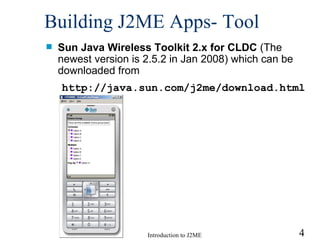
Building J2ME Apps- Tool Sun Java Wireless Toolkit 2.x for CLDC  (The newest version is 2.5.2 in Jan 2008) which can be downloaded from  http://java.sun.com/j2me/download.html
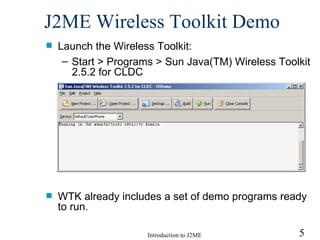
J2ME Wireless Toolkit  Demo Launch the Wireless Toolkit: Start > Programs > Sun Java(TM) Wireless Toolkit 2.5.2 for CLDC  WTK already includes a set of demo programs ready to run.
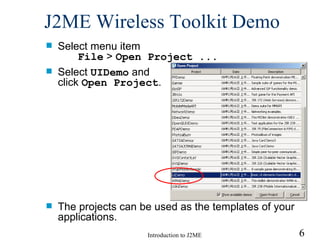
J2ME Wireless Toolkit  Demo Select menu item  File  >  Open Project ... Select  UIDemo  and  click  Open Project . The projects can be used as the templates of your applications.
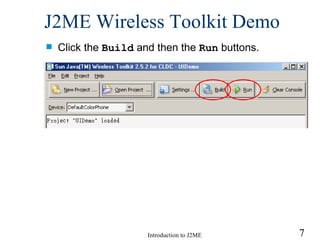
J2ME Wireless Toolkit  Demo Click the  Build  and then the  Run  buttons.
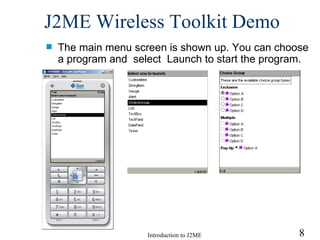
J2ME Wireless Toolkit  Demo The main menu screen is shown up. You can choose a program and  select  Launch to start the program.
MIDlet Programming Any MIDP application must extends  MIDlet   This is the MIDP equivalent of an applet, where starting/stopping is under the control of the environment  Like Java applets, MIDlets have an application life cycle while running on a mobile device.
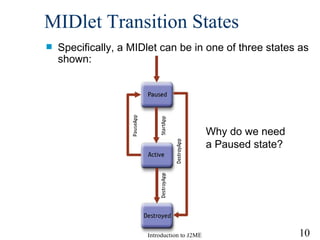
MIDlet Transition States Specifically, a MIDlet can be in one of three states as shown: Why do we need a Paused state?
Midlet Skeleton import javax.microedition.midlet.*; import javax.microedition.lcdui.*; public class  MyApp  extends MIDlet { public void startApp() { // start up code } public void pauseApp() { // we aren't showing any more } public void destroyApp(boolean unconditional) { // clean up } } Note that startApp(), pauseApp() and destroyApp() are abstract methods.  Midlet program must override these 3 methods even if not used.
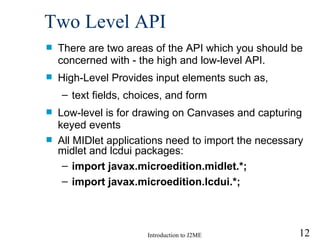
Two Level API There are two areas of the API which you should be concerned with - the high and low-level API.  High-Level Provides input elements such as,  text fields, choices, and form  Low-level is for drawing on Canvases and capturing keyed events All MIDlet applications need to import the necessary midlet and lcdui packages: import javax.microedition.midlet.*; import javax.microedition.lcdui.*;
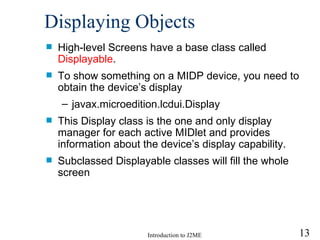
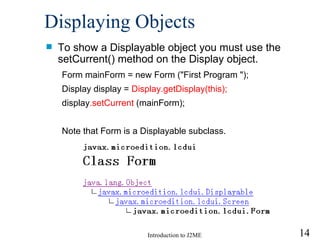
Displaying Objects High-level Screens have a base class called  Displayable . To show something on a MIDP device, you need to obtain the device’s display javax.microedition.lcdui.Display This Display class is the one and only display manager for each active MIDlet and provides information about the device’s display capability. Subclassed Displayable classes will fill the whole screen
Displaying Objects To show a Displayable object you must use the setCurrent() method on the Display object. Form mainForm = new Form (" First Program  ");   Display display =  Display.getDisplay(this);  display .setCurrent  (mainForm);   Note that Form is a Displayable subclass.
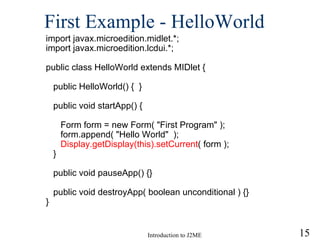
First Example - HelloWorld import javax.microedition.midlet.*; import javax.microedition.lcdui.*; public class HelloWorld extends MIDlet { public HelloWorld() {  } public void startApp() { Form form = new Form( "First Program" ); form.append( "Hello World"  ); Display.getDisplay(this).setCurrent ( form ); } public void pauseApp() {} public void destroyApp( boolean unconditional ) {} }
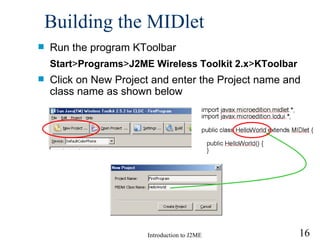
Building the MIDlet Run the program  KToolbar Start > Programs > J2ME Wireless Toolkit 2.x > KToolbar Click on New Project  and e nter the Project name and class name as shown below
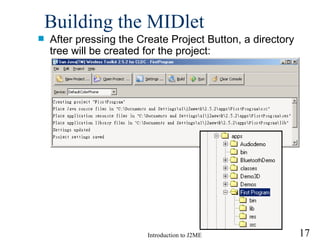
Building the MIDlet After pressing the Create Project Button, a directory tree will be created for the project:
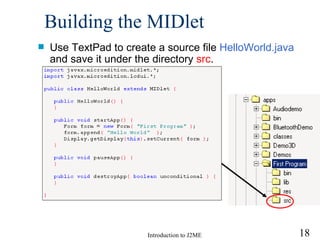
Building the MIDlet Use TextPad to create a  source  file  HelloWorld.java  and save it under the directory  src .
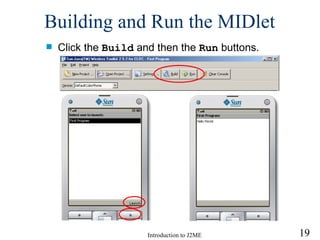
Building and Run the MIDlet Click the  Build  and then the  Run  buttons.
How can the program exit? The program can not exit unless you close the emulator. To provide a way to exit the program, you need to use Commands. A command is  l ike a button, it has a title, like "OK" or "Cancel," and your application can respond appropriately when the user invokes the command.
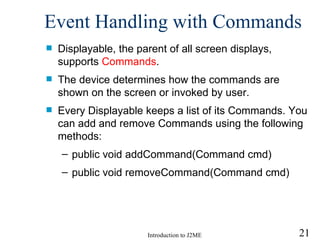
Event Handling with  Command s Displayable, the parent of all screen displays, supports  Commands .  The device determines how the commands are  shown on the screen or  invoked by  user. Every Displayable keeps a list of its Commands. You can add and remove Commands using the following methods: public void addCommand(Command cmd) public void removeCommand(Command cmd)
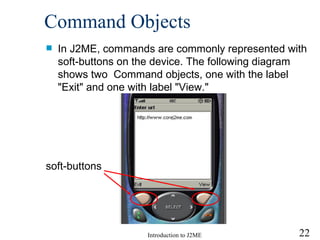
Command  O bjects In J2ME, commands are commonly represented with soft-buttons on the device.  The following diagram  shows two  Command objects, one with the label "Exit" and one with label "View." soft-buttons
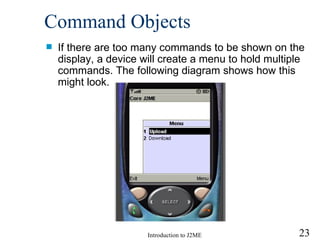
Command  O bjects If there are too many commands to be shown on the display, a device will create a menu to hold multiple commands.  The following diagram  shows how this might look.
Use Command objects The basic steps to process events with a  Command object are as follows: Create a Command object. Add the Command to a Form  (or other GUI objects  TextBox, List, or Canvas ) . Create and set a listener for the Form. Upon detection of an event, the listener will call the method commandAction().
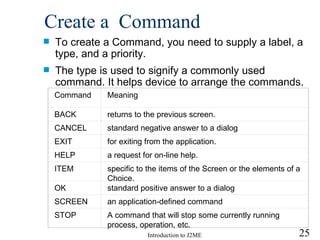
Create a  Command To create a Command,  you need   to  supply a  label , a type, and a priority.  The type  is  used to signify a commonly used command.  It helps device to arrange the commands. Command Meaning BACK  returns to the previous screen.  CANCEL  standard negative answer to a dialog EXIT  for exiting from the application.  HELP  a request for on-line help.  ITEM  specific to the items of the Screen or the elements of a Choice.  OK  standard positive answer to a dialog  SCREEN  an application-defined command  STOP  A command that will stop some currently running process, operation, etc.
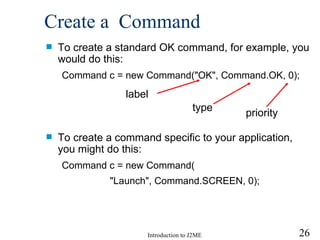
Create a  Command To create a standard OK command, for example, you would do this: Command c = new Command("OK", Command.OK, 0); To create a command specific to your application, you might do this: Command c = new Command( "Launch", Command.SCREEN, 0); label type priority
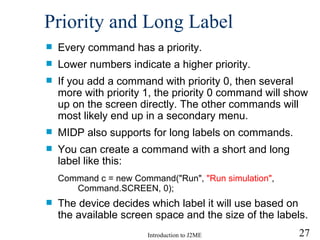
P riority  and Long Label Every command has a priority.  Lower numbers indicate a higher priority.  If you add a command with priority 0, then several more with priority 1, the priority 0 command will show up on the screen directly. The other commands will most likely end up in a secondary menu. MIDP  also  support s  for long labels on commands.  You can create a command with a short and long label like this: Command c = new Command("Run",  "Run simulation" ,  Command.SCREEN, 0); The  device  decides which label it will use based on the available screen space and the size of the labels.
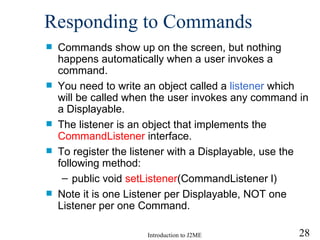
Responding to Commands Commands show up on the screen, but nothing happens automatically when a user invokes a command.  You need to write an  object called a  listener   which will be called  when the user invokes any command in a Displayable.  The listener is an object that implements the  CommandListener  interface.  To register the listener with a Displayable, use the following method: public void  setListener (CommandListener l) Note it is one Listener per Displayable, NOT one Listener per one Command.
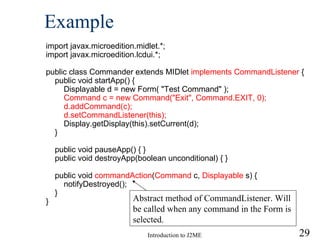
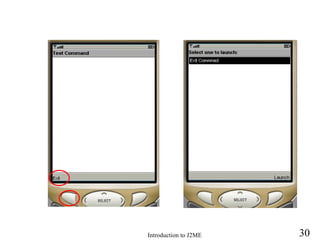
Example import javax.microedition.midlet.*; import javax.microedition.lcdui.*; public class Commander extends MIDlet  implements CommandListener  { public void startApp() { Displayable d = new Form( "Test Command" ); Command c = new Command("Exit", Command.EXIT, 0); d.addCommand(c); d.setCommandListener(this); Display.getDisplay(this).setCurrent(d); } public void pauseApp() { } public void destroyApp(boolean unconditional) { } public void  commandAction ( Command  c,  Displayable  s) { notifyDestroyed(); } } Abstract method of CommandListener. Will be called when any command in the Form is selected.
 
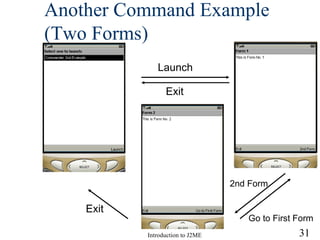
Another Command Example (Two Forms) Launch Exit Exit 2nd Form Go to First Form
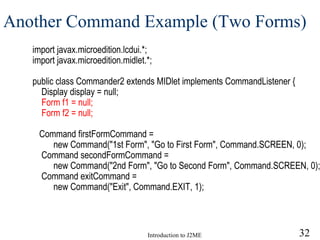
Another Command Example (Two Forms) import javax.microedition.lcdui.*; import javax.microedition.midlet.*; public class Commander2 extends MIDlet   implements CommandListener { Display display = null; Form f1 = null; Form f2 = null; Command firstFormCommand =   new Command("1st Form", "Go to First Form", Command.SCREEN, 0); Command secondFormCommand =   new Command("2nd Form", "Go to Second Form", Command.SCREEN, 0); Command exitCommand =   new Command("Exit", Command.EXIT, 1);
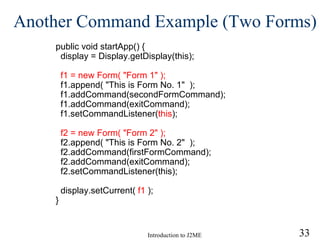
Another Command Example (Two Forms) public void startApp() { display = Display.getDisplay(this); f1 = new Form( "Form 1" ); f1.append( "This is Form No. 1"  ); f1.addCommand(secondFormCommand); f1.addCommand(exitCommand); f1.setCommandListener( this ); f2 = new Form( "Form 2" ); f2.append( "This is Form No. 2"  ); f2.addCommand(firstFormCommand); f2.addCommand(exitCommand); f2.setCommandListener(this); display.setCurrent(  f1  ); }
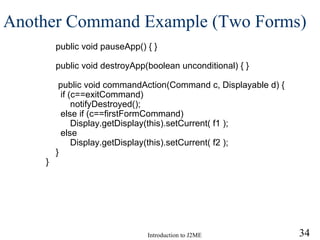
Another Command Example (Two Forms) public void pauseApp() { } public void destroyApp(boolean unconditional) { } public void commandAction(Command c, Displayable d) { if (c==exitCommand)    notifyDestroyed(); else if (c==firstFormCommand)    Display.getDisplay(this).setCurrent( f1 ); else    Display.getDisplay(this).setCurrent( f2 ); } }
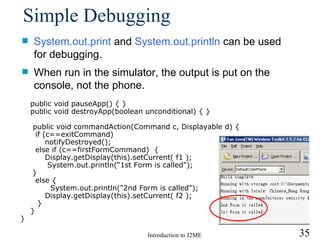
Simple Debugging System.out .print   and  System.out .println   can be used for debugging.  When run in the simulator, the output is put on the console, not the phone . public void pauseApp() { } public void destroyApp(boolean unconditional) { } public void commandAction(Command c, Displayable d) { if (c==exitCommand)    notifyDestroyed(); else if (c==firstFormCommand)  {   Display.getDisplay(this).setCurrent( f1 );   System.out.println(“1st Form is called"); } else { System.out.println("2nd Form is called");   Display.getDisplay(this).setCurrent( f2 );   } } }

Session2-J2ME development-environment

  • 1.
    Outline MIDP BuildingJ2ME Apps- Tool J2ME Wireless Toolkit Demo MIDlet Programming -- MIDlet Transition States -- Midlet Skeleton -- Two Level API -- Displaying Objects -- First Example – HelloWorld -- Event Handling with Command s -- Command Example
  • 2.
    Mobile Information DeviceProfile (MIDP) Is a set of APIs that allow developers to control mobile device-specific problems i.e. user interfaces, local storage and client application lifecycles etc. MIDlets minimum requirements 96 x 54 pixels mono screen two-way wireless network input device (i.e. keypad) 128 KB ROM for CLDC/MIDP class and another 32 KB RAM for the KVM Midlets are the most important and popular applications in the J2ME family.
  • 3.
  • 4.
    Building J2ME Apps-Tool Sun Java Wireless Toolkit 2.x for CLDC (The newest version is 2.5.2 in Jan 2008) which can be downloaded from http://java.sun.com/j2me/download.html
  • 5.
    J2ME Wireless Toolkit Demo Launch the Wireless Toolkit: Start > Programs > Sun Java(TM) Wireless Toolkit 2.5.2 for CLDC WTK already includes a set of demo programs ready to run.
  • 6.
    J2ME Wireless Toolkit Demo Select menu item File > Open Project ... Select UIDemo and click Open Project . The projects can be used as the templates of your applications.
  • 7.
    J2ME Wireless Toolkit Demo Click the Build and then the Run buttons.
  • 8.
    J2ME Wireless Toolkit Demo The main menu screen is shown up. You can choose a program and select Launch to start the program.
  • 9.
    MIDlet Programming AnyMIDP application must extends MIDlet This is the MIDP equivalent of an applet, where starting/stopping is under the control of the environment Like Java applets, MIDlets have an application life cycle while running on a mobile device.
  • 10.
    MIDlet Transition StatesSpecifically, a MIDlet can be in one of three states as shown: Why do we need a Paused state?
  • 11.
    Midlet Skeleton importjavax.microedition.midlet.*; import javax.microedition.lcdui.*; public class MyApp extends MIDlet { public void startApp() { // start up code } public void pauseApp() { // we aren't showing any more } public void destroyApp(boolean unconditional) { // clean up } } Note that startApp(), pauseApp() and destroyApp() are abstract methods. Midlet program must override these 3 methods even if not used.
  • 12.
    Two Level APIThere are two areas of the API which you should be concerned with - the high and low-level API. High-Level Provides input elements such as, text fields, choices, and form Low-level is for drawing on Canvases and capturing keyed events All MIDlet applications need to import the necessary midlet and lcdui packages: import javax.microedition.midlet.*; import javax.microedition.lcdui.*;
  • 13.
    Displaying Objects High-levelScreens have a base class called Displayable . To show something on a MIDP device, you need to obtain the device’s display javax.microedition.lcdui.Display This Display class is the one and only display manager for each active MIDlet and provides information about the device’s display capability. Subclassed Displayable classes will fill the whole screen
  • 14.
    Displaying Objects Toshow a Displayable object you must use the setCurrent() method on the Display object. Form mainForm = new Form (" First Program "); Display display = Display.getDisplay(this); display .setCurrent (mainForm); Note that Form is a Displayable subclass.
  • 15.
    First Example -HelloWorld import javax.microedition.midlet.*; import javax.microedition.lcdui.*; public class HelloWorld extends MIDlet { public HelloWorld() { } public void startApp() { Form form = new Form( "First Program" ); form.append( "Hello World" ); Display.getDisplay(this).setCurrent ( form ); } public void pauseApp() {} public void destroyApp( boolean unconditional ) {} }
  • 16.
    Building the MIDletRun the program KToolbar Start > Programs > J2ME Wireless Toolkit 2.x > KToolbar Click on New Project and e nter the Project name and class name as shown below
  • 17.
    Building the MIDletAfter pressing the Create Project Button, a directory tree will be created for the project:
  • 18.
    Building the MIDletUse TextPad to create a source file HelloWorld.java and save it under the directory src .
  • 19.
    Building and Runthe MIDlet Click the Build and then the Run buttons.
  • 20.
    How can theprogram exit? The program can not exit unless you close the emulator. To provide a way to exit the program, you need to use Commands. A command is l ike a button, it has a title, like "OK" or "Cancel," and your application can respond appropriately when the user invokes the command.
  • 21.
    Event Handling with Command s Displayable, the parent of all screen displays, supports Commands . The device determines how the commands are shown on the screen or invoked by user. Every Displayable keeps a list of its Commands. You can add and remove Commands using the following methods: public void addCommand(Command cmd) public void removeCommand(Command cmd)
  • 22.
    Command Objects In J2ME, commands are commonly represented with soft-buttons on the device. The following diagram shows two Command objects, one with the label "Exit" and one with label "View." soft-buttons
  • 23.
    Command Objects If there are too many commands to be shown on the display, a device will create a menu to hold multiple commands. The following diagram shows how this might look.
  • 24.
    Use Command objectsThe basic steps to process events with a Command object are as follows: Create a Command object. Add the Command to a Form (or other GUI objects TextBox, List, or Canvas ) . Create and set a listener for the Form. Upon detection of an event, the listener will call the method commandAction().
  • 25.
    Create a Command To create a Command, you need to supply a label , a type, and a priority. The type is used to signify a commonly used command. It helps device to arrange the commands. Command Meaning BACK returns to the previous screen. CANCEL standard negative answer to a dialog EXIT for exiting from the application. HELP a request for on-line help. ITEM specific to the items of the Screen or the elements of a Choice. OK standard positive answer to a dialog SCREEN an application-defined command STOP A command that will stop some currently running process, operation, etc.
  • 26.
    Create a Command To create a standard OK command, for example, you would do this: Command c = new Command("OK", Command.OK, 0); To create a command specific to your application, you might do this: Command c = new Command( "Launch", Command.SCREEN, 0); label type priority
  • 27.
    P riority and Long Label Every command has a priority. Lower numbers indicate a higher priority. If you add a command with priority 0, then several more with priority 1, the priority 0 command will show up on the screen directly. The other commands will most likely end up in a secondary menu. MIDP also support s for long labels on commands. You can create a command with a short and long label like this: Command c = new Command("Run", "Run simulation" , Command.SCREEN, 0); The device decides which label it will use based on the available screen space and the size of the labels.
  • 28.
    Responding to CommandsCommands show up on the screen, but nothing happens automatically when a user invokes a command. You need to write an object called a listener which will be called when the user invokes any command in a Displayable. The listener is an object that implements the CommandListener interface. To register the listener with a Displayable, use the following method: public void setListener (CommandListener l) Note it is one Listener per Displayable, NOT one Listener per one Command.
  • 29.
    Example import javax.microedition.midlet.*;import javax.microedition.lcdui.*; public class Commander extends MIDlet implements CommandListener { public void startApp() { Displayable d = new Form( "Test Command" ); Command c = new Command("Exit", Command.EXIT, 0); d.addCommand(c); d.setCommandListener(this); Display.getDisplay(this).setCurrent(d); } public void pauseApp() { } public void destroyApp(boolean unconditional) { } public void commandAction ( Command c, Displayable s) { notifyDestroyed(); } } Abstract method of CommandListener. Will be called when any command in the Form is selected.
  • 30.
  • 31.
    Another Command Example(Two Forms) Launch Exit Exit 2nd Form Go to First Form
  • 32.
    Another Command Example(Two Forms) import javax.microedition.lcdui.*; import javax.microedition.midlet.*; public class Commander2 extends MIDlet implements CommandListener { Display display = null; Form f1 = null; Form f2 = null; Command firstFormCommand = new Command("1st Form", "Go to First Form", Command.SCREEN, 0); Command secondFormCommand = new Command("2nd Form", "Go to Second Form", Command.SCREEN, 0); Command exitCommand = new Command("Exit", Command.EXIT, 1);
  • 33.
    Another Command Example(Two Forms) public void startApp() { display = Display.getDisplay(this); f1 = new Form( "Form 1" ); f1.append( "This is Form No. 1" ); f1.addCommand(secondFormCommand); f1.addCommand(exitCommand); f1.setCommandListener( this ); f2 = new Form( "Form 2" ); f2.append( "This is Form No. 2" ); f2.addCommand(firstFormCommand); f2.addCommand(exitCommand); f2.setCommandListener(this); display.setCurrent( f1 ); }
  • 34.
    Another Command Example(Two Forms) public void pauseApp() { } public void destroyApp(boolean unconditional) { } public void commandAction(Command c, Displayable d) { if (c==exitCommand) notifyDestroyed(); else if (c==firstFormCommand) Display.getDisplay(this).setCurrent( f1 ); else Display.getDisplay(this).setCurrent( f2 ); } }
  • 35.
    Simple Debugging System.out.print and System.out .println can be used for debugging. When run in the simulator, the output is put on the console, not the phone . public void pauseApp() { } public void destroyApp(boolean unconditional) { } public void commandAction(Command c, Displayable d) { if (c==exitCommand) notifyDestroyed(); else if (c==firstFormCommand) { Display.getDisplay(this).setCurrent( f1 ); System.out.println(“1st Form is called"); } else { System.out.println("2nd Form is called"); Display.getDisplay(this).setCurrent( f2 ); } } }