

(Abstract Windowing
Toolkit) AWT & Swing
Topics

 • Abstract Windowing Toolkit (AWT) vs. Swing

 • AWT GUI Components
  > Fundamental Window Classes
  > Graphics
  > More AWT Components


                                                2
Topics (Continued)

• Layout Managers
 >   The FlowLayout Manager
 >   The BorderLayout Manager
 >   The GridLayout Manager
 >   Panels and Complex Layouts


• Swing GUI Components
 > Setting Up Top-Level Containers
 > A JFrame Example
 > A JOptionPane Example

                                     3
AWT vs. Swing
Abstract Windowing Toolkit (AWT) vs.
Swing
• Similarities:
  > Tools provided by Java for developing interactive GUI
    applications
  > Provides GUI components that can be used in creating
    Java applications and applets
• Java Foundation Classes (JFCs)
  > Important part of the Java SDK
  > Collection of APIs that simplifies development Java GUI
    applications
  > Primarily consists of five APIs
     > AWT, Swing, Java2D, Accessibility, Drag and Drop


                                                              5
AWT vs. Swing
• AWT
 > Some AWT components use native code
 > Platform-dependent
• Swing
 > Written entirely using the Java programming
   language
 > Platform-independent
 > Ensures applications deployed across different
   platforms have the same appearance
 > Built around a number of APIs that implement
   various parts of the AWT
   > Can be used with AWT
 > Can be considered as a replacement of AWT
                                                    6
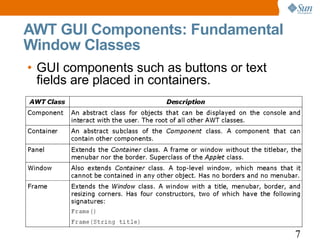
AWT GUI Components: Fundamental
Window Classes
• GUI components such as buttons or text
  fields are placed in containers.


                                           7
AWT GUI Components: Window Class
Methods
• Setting the size of the window:
  void setSize(int width, int height)
  void setSize(Dimension d)
  > Dimension d has width and height as fields


• A window by default is not visible. Setting its
  visibility:
  void setVisible(boolean b)
  > If b is true, window is set to be visible


                                                    8
AWT GUI Components: Fundamental
Window Classes
• Frame objects are usually used in designing GUI
  applications

  1   import java.awt.*;
  2   /* Try the availble buttons in the frame */
  3   public class SampleFrame extends Frame {
  4      public static void main(String args[]) {
  5         SampleFrame sf = new SampleFrame();
  6         sf.setSize(100, 100);
  7         sf.setVisible(true);
  8      }
  9   }


                                                    9
AWT GUI Components: Graphics

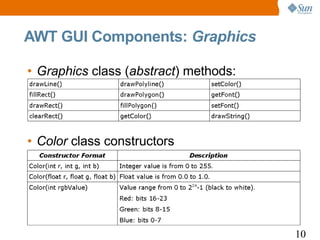
• Graphics class (abstract) methods:


• Color class constructors


                                       10
AWT GUI Components: Graphics
Example
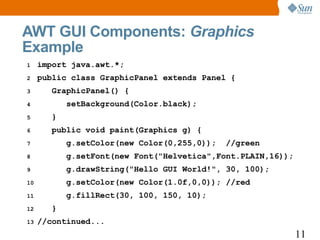
1    import java.awt.*;
2    public class GraphicPanel extends Panel {
3       GraphicPanel() {
4           setBackground(Color.black);
5       }
6       public void paint(Graphics g) {
7           g.setColor(new Color(0,255,0));   //green
8           g.setFont(new Font("Helvetica",Font.PLAIN,16));
9           g.drawString("Hello GUI World!", 30, 100);
10          g.setColor(new Color(1.0f,0,0)); //red
11          g.fillRect(30, 100, 150, 10);
12      }
13   //continued...
                                                              11
AWT GUI Components: Graphics
Example
14       /* need to place Panel in Frame or other Window */
15       public static void main(String args[]) {
16           Frame f = new Frame("Testing Graphics Panel");
17           GraphicPanel gp = new GraphicPanel();
18           f.add(gp);
19           f.setSize(600, 300);
20           f.setVisible(true);
21       }
22   }


                                                              12
More AWT Components
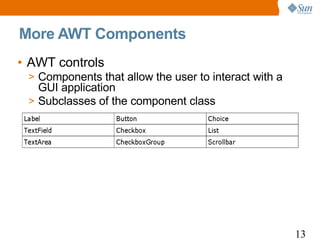
• AWT controls
 > Components that allow the user to interact with a
   GUI application
 > Subclasses of the component class


                                                       13
More AWT Components: Example
1    import java.awt.*;
2    class FrameWControls extends Frame {
3       public static void main(String args[]) {
4          FrameWControls fwc = new    FrameWControls();
5          fwc.setLayout(new FlowLayout());
6          fwc.setSize(600, 600);
7          fwc.add(new Button("Test Me!"));
8          fwc.add(new Label("Labe"));
9          fwc.add(new TextField());
10         CheckboxGroup cbg = new CheckboxGroup();
11         fwc.add(new Checkbox("chk1", cbg, true));
12         fwc.add(new Checkbox("chk2", cbg, false));
13         fwc.add(new Checkbox("chk3", cbg, false));
14   //continued...
                                                           14
More AWT Components: Example
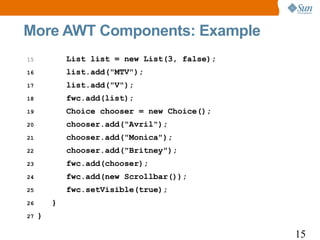
15           List list = new List(3, false);
16           list.add("MTV");
17           list.add("V");
18           fwc.add(list);
19           Choice chooser = new Choice();
20           chooser.add("Avril");
21           chooser.add("Monica");
22           chooser.add("Britney");
23           fwc.add(chooser);
24           fwc.add(new Scrollbar());
25           fwc.setVisible(true);
26       }
27   }

                                               15
Layout Managers
Layout Managers
• Definition:
  > Determines the position and size of the multiple
    components within a container
  > Governs the layout of theses components in the
    container


• Some of the layout managers in Java
  >   FlowLayout
  >   BorderLayout
  >   GridLayout
  >   GridBagLayout
  >   CardLayout
                                                       17
Layout Managers: Methods

• Setting the layout manager:
 void setLayout(LayoutManager mgr)
 > Can pass null, no layout manger in use
• If no layout manager is used, need to position
  the elements manually
 public void setBounds(int x, int y,
   int width, int height)
 > Method of the Component class
 > Quite difficult and tedious if you have several
   Component objects
    > Need to call this method for each object

                                                     18
The FlowLayout Manager

• Default manager for the Panel class and its
  subclasses
  > The Applet class is a subclass of Panel


• Positions the components in a left to right
  and top to bottom manner, starting at the
  upper-left hand corner


                                                19
The FlowLayout Manager

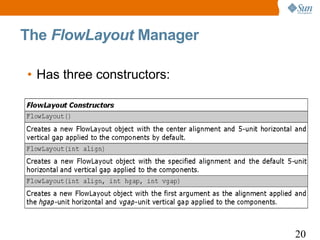
• Has three constructors:


                            20
The FlowLayout Manager

• Gap
 > Spacing between the components
 > Measured in pixels


• Possible alignment values:
 FlowLayout.LEFT
 FlowLayout.CENTER
 FlowLayout.RIGHT


                                    21
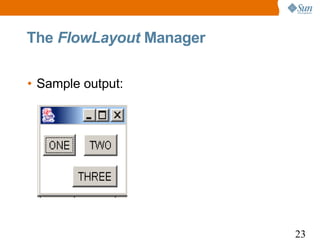
The FlowLayout Manager

1    import java.awt.*;
2    class FlowLayoutDemo extends Frame {
3        public static void main(String args[]) {
4            FlowLayoutDemo fld = new FlowLayoutDemo();
5            fld.setLayout(new FlowLayout(FlowLayout.RIGHT,
6                                            10, 10));
7            fld.add(new Button("ONE"));
8            fld.add(new Button("TWO"));
9            fld.add(new Button("THREE"));
10           fld.setSize(100, 100);
11           fld.setVisible(true);
12       }
13   }
                                                              22
The FlowLayout Manager

• Sample output:


                         23
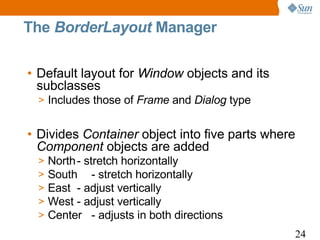
The BorderLayout Manager

• Default layout for Window objects and its
  subclasses
 > Includes those of Frame and Dialog type


• Divides Container object into five parts where
  Component objects are added
 >   North - stretch horizontally
 >   South - stretch horizontally
 >   East - adjust vertically
 >   West - adjust vertically
 >   Center - adjusts in both directions
                                               24
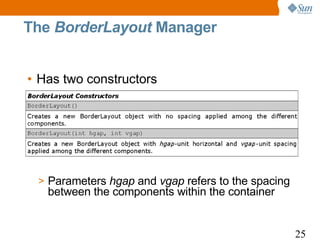
The BorderLayout Manager


• Has two constructors


 > Parameters hgap and vgap refers to the spacing
   between the components within the container


                                                    25
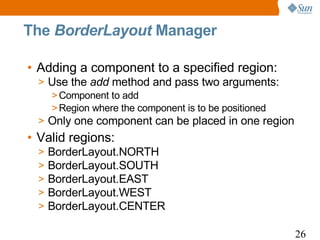
The BorderLayout Manager

• Adding a component to a specified region:
  > Use the add method and pass two arguments:
    > Component to add
    > Region where the component is to be positioned
  > Only one component can be placed in one region
• Valid regions:
  >   BorderLayout.NORTH
  >   BorderLayout.SOUTH
  >   BorderLayout.EAST
  >   BorderLayout.WEST
  >   BorderLayout.CENTER

                                                       26
The BorderLayout Manager
1    import java.awt.*;
2    class BorderLayoutDemo extends Frame {
3        public static void main(String args[]) {
4            BorderLayoutDemo bld = new BorderLayoutDemo();
5            bld.setLayout(new BorderLayout(10, 10));
6            bld.add(new Button("NORTH"), BorderLayout.NORTH);
7            bld.add(new Button("SOUTH"), BorderLayout.SOUTH);
8            bld.add(new Button("EAST"), BorderLayout.EAST);
9            bld.add(new Button("WEST"), BorderLayout.WEST);
10           bld.add(new Button("CENTER"), BorderLayout.CENTER);
11           bld.setSize(200, 200);
12           bld.setVisible(true);
13       }
14   }
                                                               27
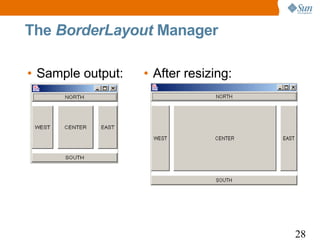
The BorderLayout Manager

• Sample output:   • After resizing:


                                       28
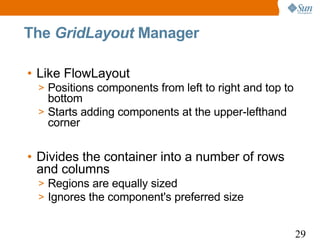
The GridLayout Manager

• Like FlowLayout
 > Positions components from left to right and top to
   bottom
 > Starts adding components at the upper-lefthand
   corner


• Divides the container into a number of rows
  and columns
 > Regions are equally sized
 > Ignores the component's preferred size


                                                        29
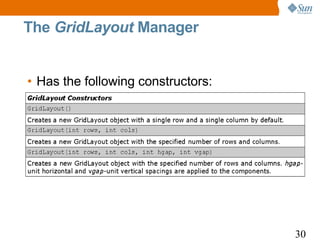
The GridLayout Manager


• Has the following constructors:


                                    30
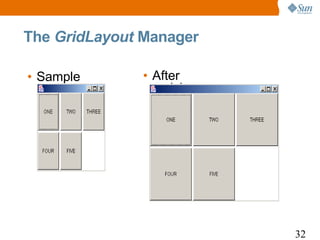
The GridLayout Manager
1    import java.awt.*;
2    class GridLayoutDemo extends Frame {
3        public static void main(String args[]) {
4            GridLayoutDemo gld = new GridLayoutDemo();
5            gld.setLayout(new GridLayout(2, 3, 4, 4));
6            gld.add(new Button("ONE"));
7            gld.add(new Button("TWO"));
8            gld.add(new Button("THREE"));
9            gld.add(new Button("FOUR"));
10           gld.add(new Button("FIVE"));
11           gld.setSize(200, 200);
12           gld.setVisible(true);
13       }
14   }
                                                          31
The GridLayout Manager

• Sample       • After
  output:        resizing:


                             32
Panels and Complex Layouts

• For more complex layouts
  > Can combine the different layout managers
  > Use of panels at the same time


• Recall:
  > A Panel is a Container and a Component
  > Can insert Components into the Panel
  > Can add Panel to a Container


                                                33
Panels and Complex Layouts
1    import java.awt.*;
2    class ComplexLayout extends Frame {
3       public static void main(String args[]) {
4          ComplexLayout cl = new ComplexLayout();
5          Panel panelNorth = new Panel();
6          Panel panelCenter = new Panel();
7          Panel panelSouth = new Panel();
8          /* North Panel */
9          //Panels use FlowLayout by default
10         panelNorth.add(new Button("ONE"));
11         panelNorth.add(new Button("TWO"));
12         panelNorth.add(new Button("THREE"));
13   //continued...

                                                     34
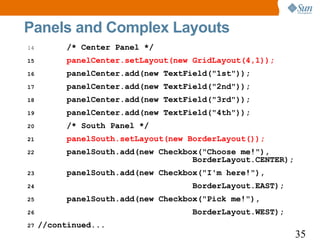
Panels and Complex Layouts
14        /* Center Panel */
15        panelCenter.setLayout(new GridLayout(4,1));
16        panelCenter.add(new TextField("1st"));
17        panelCenter.add(new TextField("2nd"));
18        panelCenter.add(new TextField("3rd"));
19        panelCenter.add(new TextField("4th"));
20        /* South Panel */
21        panelSouth.setLayout(new BorderLayout());
22        panelSouth.add(new Checkbox("Choose me!"),
                                    BorderLayout.CENTER);
23        panelSouth.add(new Checkbox("I'm here!"),
24                                 BorderLayout.EAST);
25        panelSouth.add(new Checkbox("Pick me!"),
26                                 BorderLayout.WEST);
27   //continued...
                                                            35
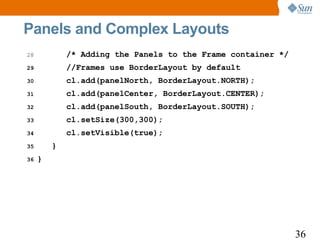
Panels and Complex Layouts
28           /* Adding the Panels to the Frame container */
29           //Frames use BorderLayout by default
30           cl.add(panelNorth, BorderLayout.NORTH);
31           cl.add(panelCenter, BorderLayout.CENTER);
32           cl.add(panelSouth, BorderLayout.SOUTH);
33           cl.setSize(300,300);
34           cl.setVisible(true);
35       }
36   }


                                                              36
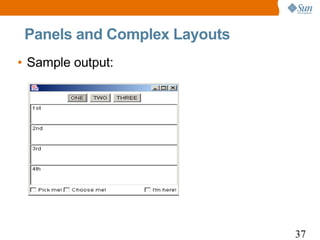
Panels and Complex Layouts
• Sample output:


                              37
Swing GUI Components

• Package is found in javax.swing

• Written entirely using Java
 > Have the same look and feel even when
   executed on different platforms


• Provides more interesting components
 > Color chooser
 > Option pane


                                           39
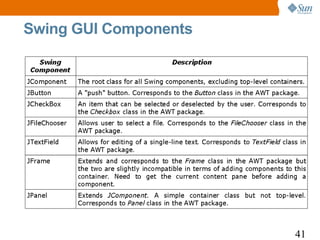
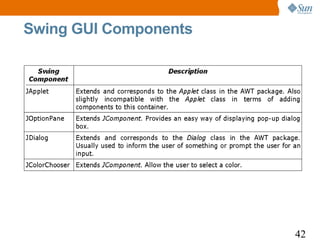
Swing GUI Components

• Names of the Swing GUI components are
  almost similar to that of AWT
 > Name of AWT components but prefixed with J
 > Example:
    > AWT: Button class
    > Corresponding Swing component: JButton class


                                                     40
Swing GUI Components


                       41
Swing GUI Components


                       42
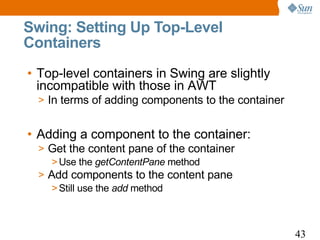
Swing: Setting Up Top-Level
Containers
• Top-level containers in Swing are slightly
  incompatible with those in AWT
  > In terms of adding components to the container


• Adding a component to the container:
  > Get the content pane of the container
     > Use the getContentPane method
  > Add components to the content pane
     > Still use the add method


                                                     43
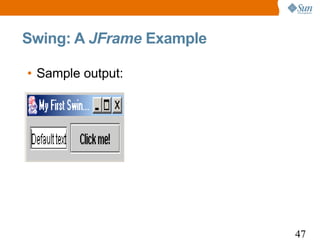
Swing: A JFrame Example
1    import javax.swing.*;
2    import java.awt.*;
3    class SwingDemo {
4       JFrame frame;
5       JPanel panel;
6       JTextField textField;
7       JButton button;
8       Container contentPane;
9       public static void main(String args[]) {
10          SwingDemo sd = new SwingDemo();
11          sd.launchFrame();
12      }
13   //continued...

                                                   44
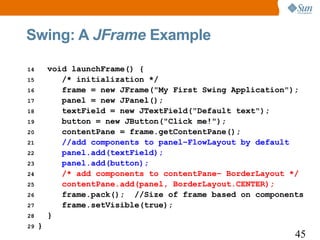
Swing: A JFrame Example

14       void launchFrame() {
15          /* initialization */
16          frame = new JFrame("My First Swing Application");
17          panel = new JPanel();
18          textField = new JTextField("Default text");
19          button = new JButton("Click me!");
20          contentPane = frame.getContentPane();
21          //add components to panel–FlowLayout by default
22          panel.add(textField);
23          panel.add(button);
24          /* add components to contentPane– BorderLayout */
25          contentPane.add(panel, BorderLayout.CENTER);
26          frame.pack(); //Size of frame based on components
27          frame.setVisible(true);
28       }
29   }
                                                           45
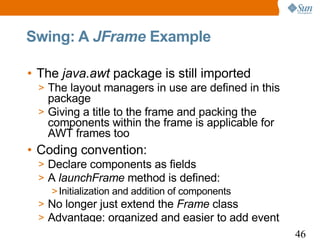
Swing: A JFrame Example

• The java.awt package is still imported
 > The layout managers in use are defined in this
   package
 > Giving a title to the frame and packing the
   components within the frame is applicable for
   AWT frames too
• Coding convention:
 > Declare components as fields
 > A launchFrame method is defined:
    > Initialization and addition of components
 > No longer just extend the Frame class
 > Advantage: organized and easier to add event
                                                    46
Swing: A JFrame Example

• Sample output:


                          47
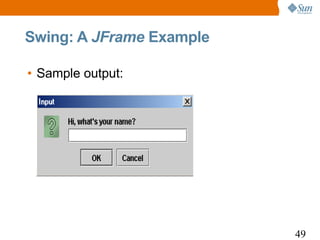
Swing: A JOptionPane Example
1    import javax.swing.*;
2    class JOptionPaneDemo {
3      JOptionPane optionPane;
4      void launchFrame() {
5          optionPane = new JOptionPane();
6          String name = optionPane.showInputDialog(
7                                "Hi, what's your name?");
8          optionPane.showMessageDialog(null,
9               "Nice to meet you, " + name + ".",
10              "Greeting...",optionPane.PLAIN_MESSAGE);
11         System.exit(0);
12     }
13     public static void main(String args[]) {
14         new JOptionPaneDemo().launchFrame();   }    }
                                                             48
Swing: A JFrame Example

• Sample output:


                          49
Summary

• Abstract Windowing Toolkit (AWT) vs. Swing
 > Similarities
 > Differences
• AWT GUI Components
 > Fundamental Window Classes
    > Component, Container, Window, Frame, Panel
 > Graphics
    > Methods and the Color class
 > More AWT Components
    > Label, TextField, TextArea, Button, Checkbox, CheckboxGroup,
      Choice, List, Scrollbar


                                                                     50
Summary
• Layout Managers
 >   The FlowLayout Manager
 >   The BorderLayout Manager
 >   The GridLayout Manager
 >   Creating Complex Layouts


• Swing GUI Components
 > Setting Up Top-Level Containers
    > Use getContentPane method
    > Use add method
 > JFrame, JOptionPane

                                     51
Thank You!

swingbasics

  • 1.
  • 2.
    Topics • AbstractWindowing Toolkit (AWT) vs. Swing • AWT GUI Components > Fundamental Window Classes > Graphics > More AWT Components 2
  • 3.
    Topics (Continued) • LayoutManagers > The FlowLayout Manager > The BorderLayout Manager > The GridLayout Manager > Panels and Complex Layouts • Swing GUI Components > Setting Up Top-Level Containers > A JFrame Example > A JOptionPane Example 3
  • 4.
  • 5.
    Abstract Windowing Toolkit(AWT) vs. Swing • Similarities: > Tools provided by Java for developing interactive GUI applications > Provides GUI components that can be used in creating Java applications and applets • Java Foundation Classes (JFCs) > Important part of the Java SDK > Collection of APIs that simplifies development Java GUI applications > Primarily consists of five APIs > AWT, Swing, Java2D, Accessibility, Drag and Drop 5
  • 6.
    AWT vs. Swing •AWT > Some AWT components use native code > Platform-dependent • Swing > Written entirely using the Java programming language > Platform-independent > Ensures applications deployed across different platforms have the same appearance > Built around a number of APIs that implement various parts of the AWT > Can be used with AWT > Can be considered as a replacement of AWT 6
  • 7.
    AWT GUI Components:Fundamental Window Classes • GUI components such as buttons or text fields are placed in containers. 7
  • 8.
    AWT GUI Components:Window Class Methods • Setting the size of the window: void setSize(int width, int height) void setSize(Dimension d) > Dimension d has width and height as fields • A window by default is not visible. Setting its visibility: void setVisible(boolean b) > If b is true, window is set to be visible 8
  • 9.
    AWT GUI Components:Fundamental Window Classes • Frame objects are usually used in designing GUI applications 1 import java.awt.*; 2 /* Try the availble buttons in the frame */ 3 public class SampleFrame extends Frame { 4 public static void main(String args[]) { 5 SampleFrame sf = new SampleFrame(); 6 sf.setSize(100, 100); 7 sf.setVisible(true); 8 } 9 } 9
  • 10.
    AWT GUI Components:Graphics • Graphics class (abstract) methods: • Color class constructors 10
  • 11.
    AWT GUI Components:Graphics Example 1 import java.awt.*; 2 public class GraphicPanel extends Panel { 3 GraphicPanel() { 4 setBackground(Color.black); 5 } 6 public void paint(Graphics g) { 7 g.setColor(new Color(0,255,0)); //green 8 g.setFont(new Font("Helvetica",Font.PLAIN,16)); 9 g.drawString("Hello GUI World!", 30, 100); 10 g.setColor(new Color(1.0f,0,0)); //red 11 g.fillRect(30, 100, 150, 10); 12 } 13 //continued... 11
  • 12.
    AWT GUI Components:Graphics Example 14 /* need to place Panel in Frame or other Window */ 15 public static void main(String args[]) { 16 Frame f = new Frame("Testing Graphics Panel"); 17 GraphicPanel gp = new GraphicPanel(); 18 f.add(gp); 19 f.setSize(600, 300); 20 f.setVisible(true); 21 } 22 } 12
  • 13.
    More AWT Components •AWT controls > Components that allow the user to interact with a GUI application > Subclasses of the component class 13
  • 14.
    More AWT Components:Example 1 import java.awt.*; 2 class FrameWControls extends Frame { 3 public static void main(String args[]) { 4 FrameWControls fwc = new FrameWControls(); 5 fwc.setLayout(new FlowLayout()); 6 fwc.setSize(600, 600); 7 fwc.add(new Button("Test Me!")); 8 fwc.add(new Label("Labe")); 9 fwc.add(new TextField()); 10 CheckboxGroup cbg = new CheckboxGroup(); 11 fwc.add(new Checkbox("chk1", cbg, true)); 12 fwc.add(new Checkbox("chk2", cbg, false)); 13 fwc.add(new Checkbox("chk3", cbg, false)); 14 //continued... 14
  • 15.
    More AWT Components:Example 15 List list = new List(3, false); 16 list.add("MTV"); 17 list.add("V"); 18 fwc.add(list); 19 Choice chooser = new Choice(); 20 chooser.add("Avril"); 21 chooser.add("Monica"); 22 chooser.add("Britney"); 23 fwc.add(chooser); 24 fwc.add(new Scrollbar()); 25 fwc.setVisible(true); 26 } 27 } 15
  • 16.
  • 17.
    Layout Managers • Definition: > Determines the position and size of the multiple components within a container > Governs the layout of theses components in the container • Some of the layout managers in Java > FlowLayout > BorderLayout > GridLayout > GridBagLayout > CardLayout 17
  • 18.
    Layout Managers: Methods •Setting the layout manager: void setLayout(LayoutManager mgr) > Can pass null, no layout manger in use • If no layout manager is used, need to position the elements manually public void setBounds(int x, int y, int width, int height) > Method of the Component class > Quite difficult and tedious if you have several Component objects > Need to call this method for each object 18
  • 19.
    The FlowLayout Manager •Default manager for the Panel class and its subclasses > The Applet class is a subclass of Panel • Positions the components in a left to right and top to bottom manner, starting at the upper-left hand corner 19
  • 20.
    The FlowLayout Manager •Has three constructors: 20
  • 21.
    The FlowLayout Manager •Gap > Spacing between the components > Measured in pixels • Possible alignment values: FlowLayout.LEFT FlowLayout.CENTER FlowLayout.RIGHT 21
  • 22.
    The FlowLayout Manager 1 import java.awt.*; 2 class FlowLayoutDemo extends Frame { 3 public static void main(String args[]) { 4 FlowLayoutDemo fld = new FlowLayoutDemo(); 5 fld.setLayout(new FlowLayout(FlowLayout.RIGHT, 6 10, 10)); 7 fld.add(new Button("ONE")); 8 fld.add(new Button("TWO")); 9 fld.add(new Button("THREE")); 10 fld.setSize(100, 100); 11 fld.setVisible(true); 12 } 13 } 22
  • 23.
    The FlowLayout Manager •Sample output: 23
  • 24.
    The BorderLayout Manager •Default layout for Window objects and its subclasses > Includes those of Frame and Dialog type • Divides Container object into five parts where Component objects are added > North - stretch horizontally > South - stretch horizontally > East - adjust vertically > West - adjust vertically > Center - adjusts in both directions 24
  • 25.
    The BorderLayout Manager •Has two constructors > Parameters hgap and vgap refers to the spacing between the components within the container 25
  • 26.
    The BorderLayout Manager •Adding a component to a specified region: > Use the add method and pass two arguments: > Component to add > Region where the component is to be positioned > Only one component can be placed in one region • Valid regions: > BorderLayout.NORTH > BorderLayout.SOUTH > BorderLayout.EAST > BorderLayout.WEST > BorderLayout.CENTER 26
  • 27.
    The BorderLayout Manager 1 import java.awt.*; 2 class BorderLayoutDemo extends Frame { 3 public static void main(String args[]) { 4 BorderLayoutDemo bld = new BorderLayoutDemo(); 5 bld.setLayout(new BorderLayout(10, 10)); 6 bld.add(new Button("NORTH"), BorderLayout.NORTH); 7 bld.add(new Button("SOUTH"), BorderLayout.SOUTH); 8 bld.add(new Button("EAST"), BorderLayout.EAST); 9 bld.add(new Button("WEST"), BorderLayout.WEST); 10 bld.add(new Button("CENTER"), BorderLayout.CENTER); 11 bld.setSize(200, 200); 12 bld.setVisible(true); 13 } 14 } 27
  • 28.
    The BorderLayout Manager •Sample output: • After resizing: 28
  • 29.
    The GridLayout Manager •Like FlowLayout > Positions components from left to right and top to bottom > Starts adding components at the upper-lefthand corner • Divides the container into a number of rows and columns > Regions are equally sized > Ignores the component's preferred size 29
  • 30.
    The GridLayout Manager •Has the following constructors: 30
  • 31.
    The GridLayout Manager 1 import java.awt.*; 2 class GridLayoutDemo extends Frame { 3 public static void main(String args[]) { 4 GridLayoutDemo gld = new GridLayoutDemo(); 5 gld.setLayout(new GridLayout(2, 3, 4, 4)); 6 gld.add(new Button("ONE")); 7 gld.add(new Button("TWO")); 8 gld.add(new Button("THREE")); 9 gld.add(new Button("FOUR")); 10 gld.add(new Button("FIVE")); 11 gld.setSize(200, 200); 12 gld.setVisible(true); 13 } 14 } 31
  • 32.
    The GridLayout Manager •Sample • After output: resizing: 32
  • 33.
    Panels and ComplexLayouts • For more complex layouts > Can combine the different layout managers > Use of panels at the same time • Recall: > A Panel is a Container and a Component > Can insert Components into the Panel > Can add Panel to a Container 33
  • 34.
    Panels and ComplexLayouts 1 import java.awt.*; 2 class ComplexLayout extends Frame { 3 public static void main(String args[]) { 4 ComplexLayout cl = new ComplexLayout(); 5 Panel panelNorth = new Panel(); 6 Panel panelCenter = new Panel(); 7 Panel panelSouth = new Panel(); 8 /* North Panel */ 9 //Panels use FlowLayout by default 10 panelNorth.add(new Button("ONE")); 11 panelNorth.add(new Button("TWO")); 12 panelNorth.add(new Button("THREE")); 13 //continued... 34
  • 35.
    Panels and ComplexLayouts 14 /* Center Panel */ 15 panelCenter.setLayout(new GridLayout(4,1)); 16 panelCenter.add(new TextField("1st")); 17 panelCenter.add(new TextField("2nd")); 18 panelCenter.add(new TextField("3rd")); 19 panelCenter.add(new TextField("4th")); 20 /* South Panel */ 21 panelSouth.setLayout(new BorderLayout()); 22 panelSouth.add(new Checkbox("Choose me!"), BorderLayout.CENTER); 23 panelSouth.add(new Checkbox("I'm here!"), 24 BorderLayout.EAST); 25 panelSouth.add(new Checkbox("Pick me!"), 26 BorderLayout.WEST); 27 //continued... 35
  • 36.
    Panels and ComplexLayouts 28 /* Adding the Panels to the Frame container */ 29 //Frames use BorderLayout by default 30 cl.add(panelNorth, BorderLayout.NORTH); 31 cl.add(panelCenter, BorderLayout.CENTER); 32 cl.add(panelSouth, BorderLayout.SOUTH); 33 cl.setSize(300,300); 34 cl.setVisible(true); 35 } 36 } 36
  • 37.
    Panels and ComplexLayouts • Sample output: 37
  • 38.
  • 39.
    Swing GUI Components •Package is found in javax.swing • Written entirely using Java > Have the same look and feel even when executed on different platforms • Provides more interesting components > Color chooser > Option pane 39
  • 40.
    Swing GUI Components •Names of the Swing GUI components are almost similar to that of AWT > Name of AWT components but prefixed with J > Example: > AWT: Button class > Corresponding Swing component: JButton class 40
  • 41.
  • 42.
  • 43.
    Swing: Setting UpTop-Level Containers • Top-level containers in Swing are slightly incompatible with those in AWT > In terms of adding components to the container • Adding a component to the container: > Get the content pane of the container > Use the getContentPane method > Add components to the content pane > Still use the add method 43
  • 44.
    Swing: A JFrameExample 1 import javax.swing.*; 2 import java.awt.*; 3 class SwingDemo { 4 JFrame frame; 5 JPanel panel; 6 JTextField textField; 7 JButton button; 8 Container contentPane; 9 public static void main(String args[]) { 10 SwingDemo sd = new SwingDemo(); 11 sd.launchFrame(); 12 } 13 //continued... 44
  • 45.
    Swing: A JFrameExample 14 void launchFrame() { 15 /* initialization */ 16 frame = new JFrame("My First Swing Application"); 17 panel = new JPanel(); 18 textField = new JTextField("Default text"); 19 button = new JButton("Click me!"); 20 contentPane = frame.getContentPane(); 21 //add components to panel–FlowLayout by default 22 panel.add(textField); 23 panel.add(button); 24 /* add components to contentPane– BorderLayout */ 25 contentPane.add(panel, BorderLayout.CENTER); 26 frame.pack(); //Size of frame based on components 27 frame.setVisible(true); 28 } 29 } 45
  • 46.
    Swing: A JFrameExample • The java.awt package is still imported > The layout managers in use are defined in this package > Giving a title to the frame and packing the components within the frame is applicable for AWT frames too • Coding convention: > Declare components as fields > A launchFrame method is defined: > Initialization and addition of components > No longer just extend the Frame class > Advantage: organized and easier to add event 46
  • 47.
    Swing: A JFrameExample • Sample output: 47
  • 48.
    Swing: A JOptionPaneExample 1 import javax.swing.*; 2 class JOptionPaneDemo { 3 JOptionPane optionPane; 4 void launchFrame() { 5 optionPane = new JOptionPane(); 6 String name = optionPane.showInputDialog( 7 "Hi, what's your name?"); 8 optionPane.showMessageDialog(null, 9 "Nice to meet you, " + name + ".", 10 "Greeting...",optionPane.PLAIN_MESSAGE); 11 System.exit(0); 12 } 13 public static void main(String args[]) { 14 new JOptionPaneDemo().launchFrame(); } } 48
  • 49.
    Swing: A JFrameExample • Sample output: 49
  • 50.
    Summary • Abstract WindowingToolkit (AWT) vs. Swing > Similarities > Differences • AWT GUI Components > Fundamental Window Classes > Component, Container, Window, Frame, Panel > Graphics > Methods and the Color class > More AWT Components > Label, TextField, TextArea, Button, Checkbox, CheckboxGroup, Choice, List, Scrollbar 50
  • 51.
    Summary • Layout Managers > The FlowLayout Manager > The BorderLayout Manager > The GridLayout Manager > Creating Complex Layouts • Swing GUI Components > Setting Up Top-Level Containers > Use getContentPane method > Use add method > JFrame, JOptionPane 51
  • 52.