INTRODUCTION TO
GRAPHICAL USER
INTERFACES (GUIS)
Lecture 10
CS2110 – Fall 2009
Announcements
2
 A3 will be posted shortly, please start early
 Prelim 1: Thursday October 14, Uris Hall G01
 We do NOT have any scheduled makeup exam
 People with conflicts can take the exam early.
 The NORMAL scheduled time is 7:30-9:00
 If you have a conflict, take it from 6:00-7:30
 Out of town conflicts: you’ll take it during one of these
two time periods, supervised by some trustworthy
person, who can receive exam/send it back
Interactive Programs
3
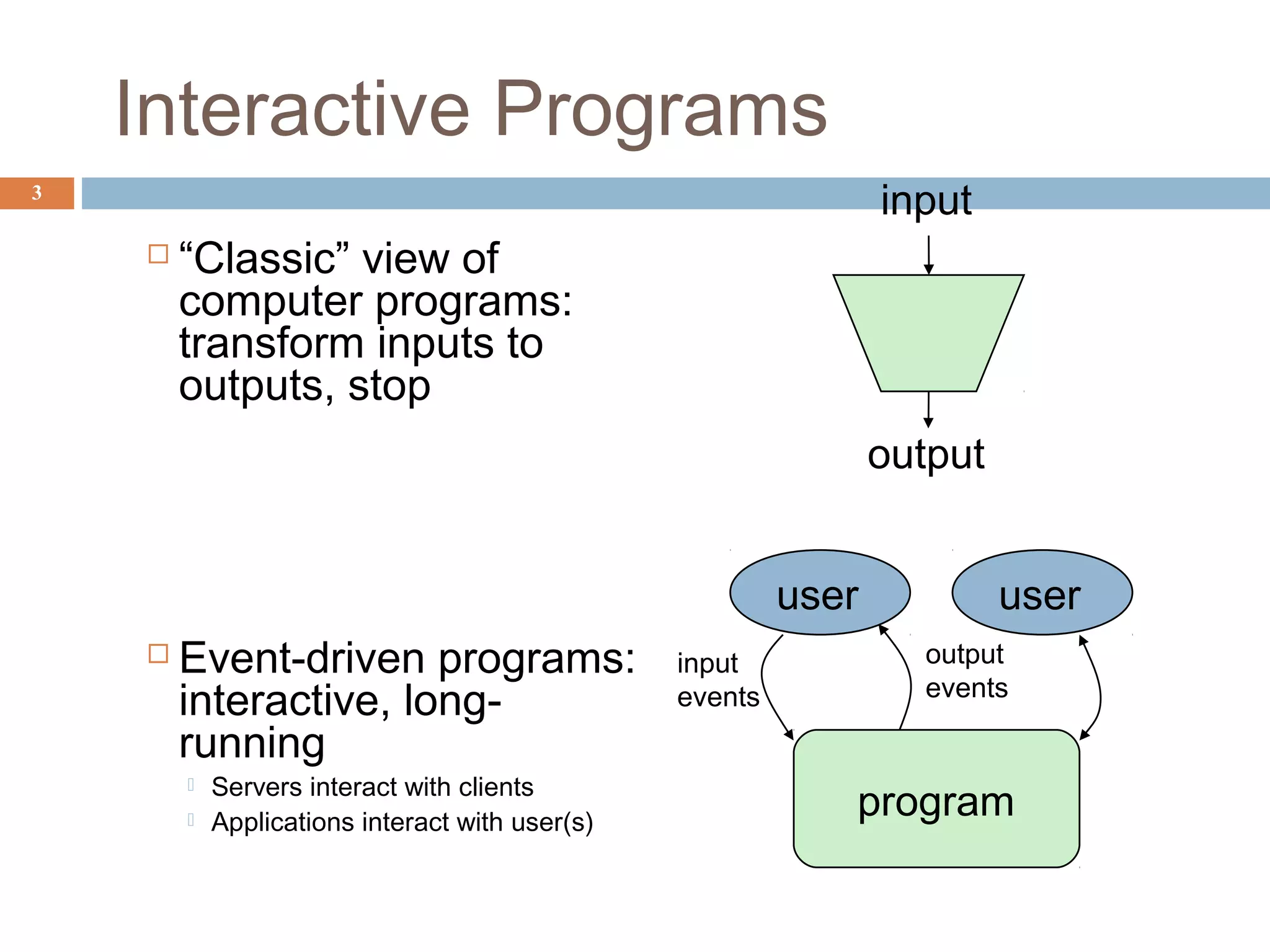
 “Classic” view of
computer programs:
transform inputs to
outputs, stop
 Event-driven programs:
interactive, long-
running
 Servers interact with clients
 Applications interact with user(s)
user user
program
input
events
output
events
input
output
GUI Motivation
Interacting with a
program
 Program-Driven = Proactive
 Statements execute in sequential,
predetermined order
 Typically use keyboard or file I/O,
but program determines when that
happens
 Usually sing le -thre ade d
 Event-Driven = Reactive
 Program waits for user input to
activate certain statements
 Typically uses a GUI (Graphical
User Interface)
 Often m ulti-thre ade d
 Design...Which to
pick?
 Program called by another
program?
 Program used at command
line?
 Program interacts often with
user?
 Program used in window
environment?
 How does Java do
GUIs?
4
Java Support for Building GUIs
Java Foundation
Classes
 Classes for building GUIs
 Major components
 awt and swing
 Pluggable look-and-feel support
 Accessibility API
 Java 2D API
 Drag-and-drop Support
 Internationalization
 Our main focus: Swing
 Building blocks of GUIs
 Windows & components
 User interactions
 Built upon the AWT (Abstract
Window Toolkit)
 Java event model
 Why Swing?
 Easier to understand than SWT
 Lonnie used SWT in A3 but you
don’t actually need to understand
the code he wrote
5
Swing versus SWT versus AWT
 AWT came first
 Swing builds on AWT
 Strives for total
portability
 Secretly seems to have
a grudge against
Windows
 Basic architecture is
pretty standard
 SWT is “new”
 Goal is best
performance
 Great fit with
Windows system
 Basic architecture is
pretty standard
6
 We use SWT in A3
Java Foundation Classes
7
Pluggable Look-and-Feel Support
 Controls look-and-feel for particular windowing environment
 E.g., Java, Windows, Mac
Accessibility API
 Supports assistive technologies such as screen readers and Braille
Java 2D
 Drawing
 Includes rectangles, lines, circles, images, ...
Drag-and-drop
 Support for drag and drop between Java application and a native
application
Internationalization
 Support for other languages
GUI Statics and GUI Dynamics
 Components
 buttons, labels, lists, sliders,
menus, ...
 Containers: components that
contain other components
 frames, panels, dialog
boxes, ...
 Layout managers: control
placement and sizing of
components
 Events
 button-press, mouse-click,
key-press, ...
 Listeners: an object that
responds to an event
 Helper classes
 Graphics, Color, Font,
FontMetrics, Dimension, ...
8
Statics: what’s drawn on the
screen
Dynamics: user interactions
Creating a Window in SWT
9
import org.eclipse.swt.*;
import org.eclipse.swt.widgets.*;
public class HelloWorld {
public static void main(String[] args) {
//create the window
Display display = new Display();
Shell shell = new Shell(display);
Label label = new Label(shell, SWT.NONE);
label.setText("Basic Test!");
label.pack();
shell.pack();
shell.open();
// quit Java after closing the window
while (!shell.isDisposed()) {
if (!display.readAndDispatch())
display.sleep();
}
display.dispose ();
}
}
Creating a Window in Swing
10
import javax.swing.*;
public class Basic1 {
public static void main(String[] args) {
//create the window
JFrame f = new JFrame("Basic Test!");
//quit Java after closing the window
f.setDefaultCloseOperation(JFrame.EXIT_ON_CLOSE);
f.setSize(200, 200); //set size in pixels
f.setVisible(true); //show the window
}
}
Things to notice
 Code style is similar
 Both are really “customizing” a prebuilt framework
 You write little bits and pieces of software that
runs in the context of the preexisting structure
 SWT oriented towards somewhat finer control
 Swing aims for a sturdy design, but can be
harder to customize.
11
Creating a Window Using a Constructor
12
 import javax.swing.*;
 public class Basic2 extends JFrame {
 public static void main(String[] args) {
 new Basic2();
 }
 public Basic2() {
 setTitle("Basic Test2!"); //set the title
 //quit Java after closing the window
 setDefaultCloseOperation(EXIT_ON_CLOSE);
 setSize(200, 200); //set size in pixels
 setVisible(true); //show the window
 }
 }
A More Extensive Example
13  import javax.swing.*;
 import java.awt.*;
 import java.awt.event.*;
 public class Intro extends JFrame {
 private int count = 0;
 private JButton myButton = new JButton("Push Me!");
 private JLabel label = new JLabel("Count: " + count);
 public Intro() {
 setDefaultCloseOperation(EXIT_ON_CLOSE);
 setLayout(new FlowLayout(FlowLayout.LEFT)); //set layout manager
 add(myButton); //add components
 add(label);
 myButton.addActionListener(new ActionListener() {
 public void actionPerformed(ActionEvent e) {
 count++;
 label.setText("Count: " + count);
 }
 });
 pack();
 setVisible(true);
 }
 public static void main(String[] args) {
 try {
 UIManager.setLookAndFeel(UIManager.getSystemLookAndFeelClassName());
 } catch (Exception exc) {}
 new Intro();
 }
 }
GUI Statics
14
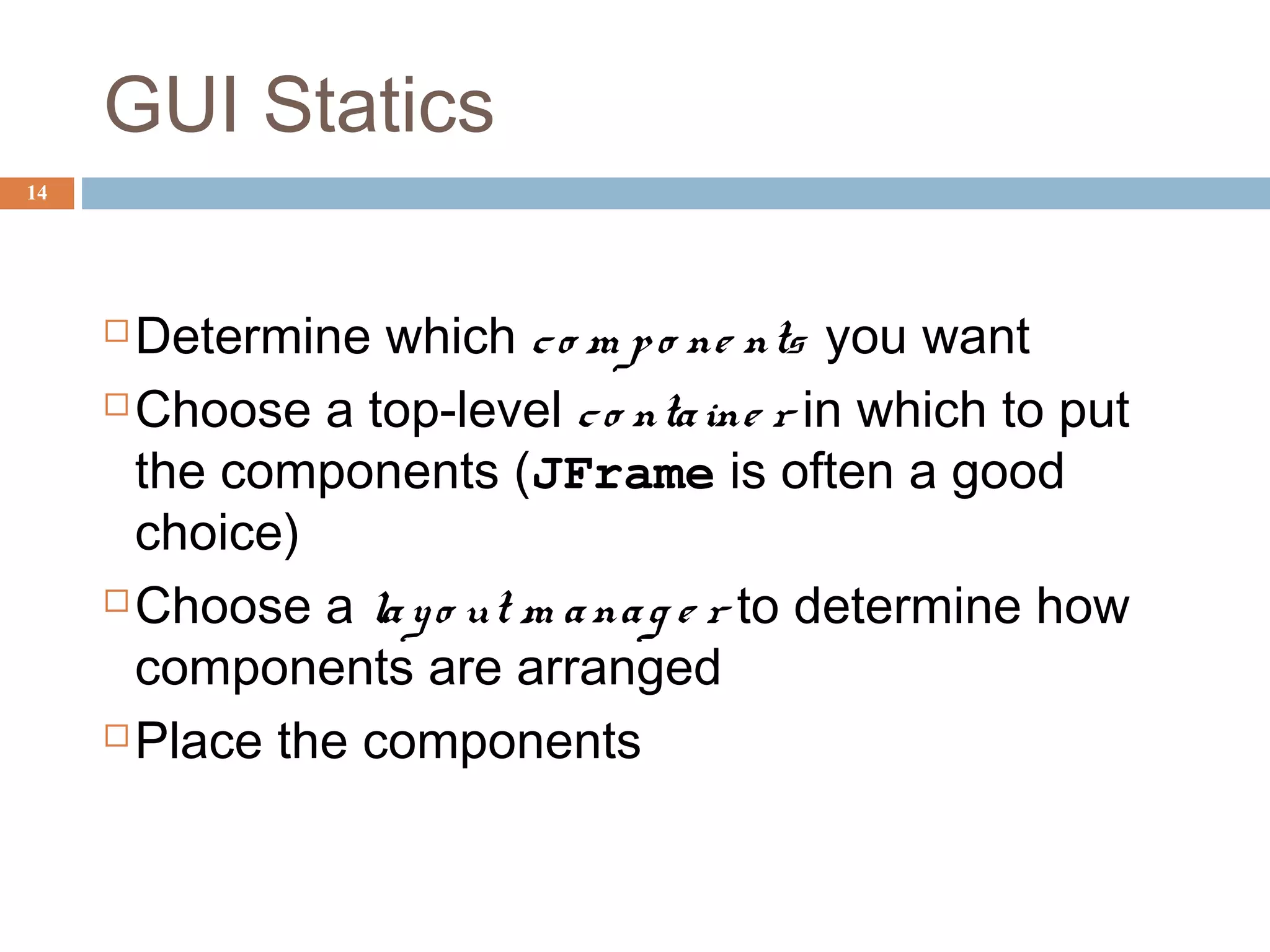
Determine which co m po ne nts you want
Choose a top-level co ntaine r in which to put
the components (JFrame is often a good
choice)
Choose a layo ut m anag e r to determine how
components are arranged
Place the components
Components = What You See
15
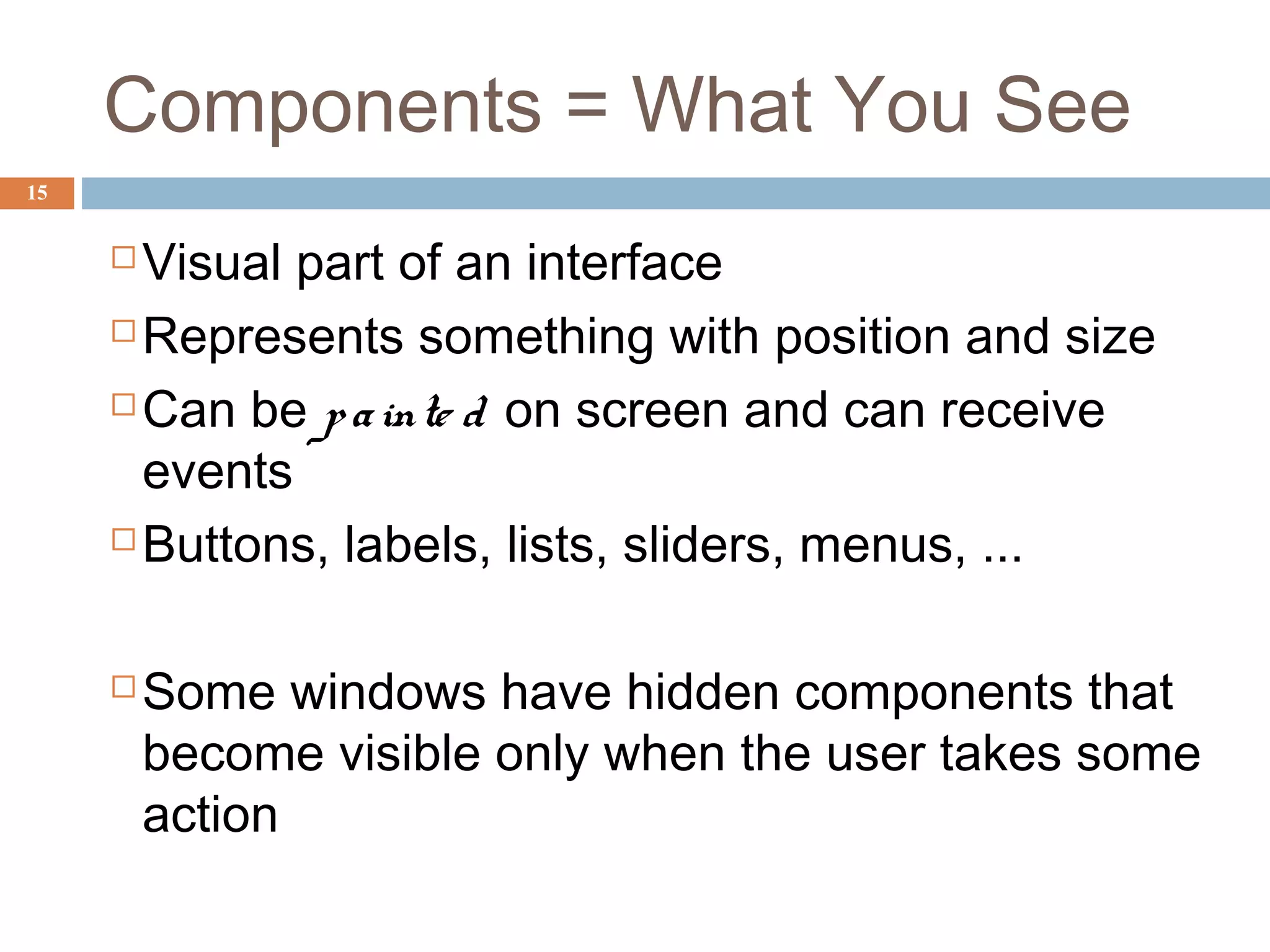
 Visual part of an interface
 Represents something with position and size
 Can be painte d on screen and can receive
events
 Buttons, labels, lists, sliders, menus, ...
 Some windows have hidden components that
become visible only when the user takes some
action
Component Examples
16
 import javax.swing.*;
 import java.awt.*;
 public class ComponentExamples extends JFrame {
 public ComponentExamples() {
 setLayout(new FlowLayout(FlowLayout.LEFT));
 add(new JButton("Button"));
 add(new JLabel("Label"));
 add(new JComboBox(new String[] { "A", "B", "C" }));
 add(new JCheckBox("JCheckBox"));
 add(new JSlider(0, 100));
 add(new JColorChooser());
 setDefaultCloseOperation(EXIT_ON_CLOSE);
 pack();
 setVisible(true);
 }
 public static void main(String[] args) {
 try {
 UIManager.setLookAndFeel(UIManager.getSystemLookAndFeelClassName());
 } catch (Exception exc) {}
 new ComponentExamples();
 }
 }
More Components
17
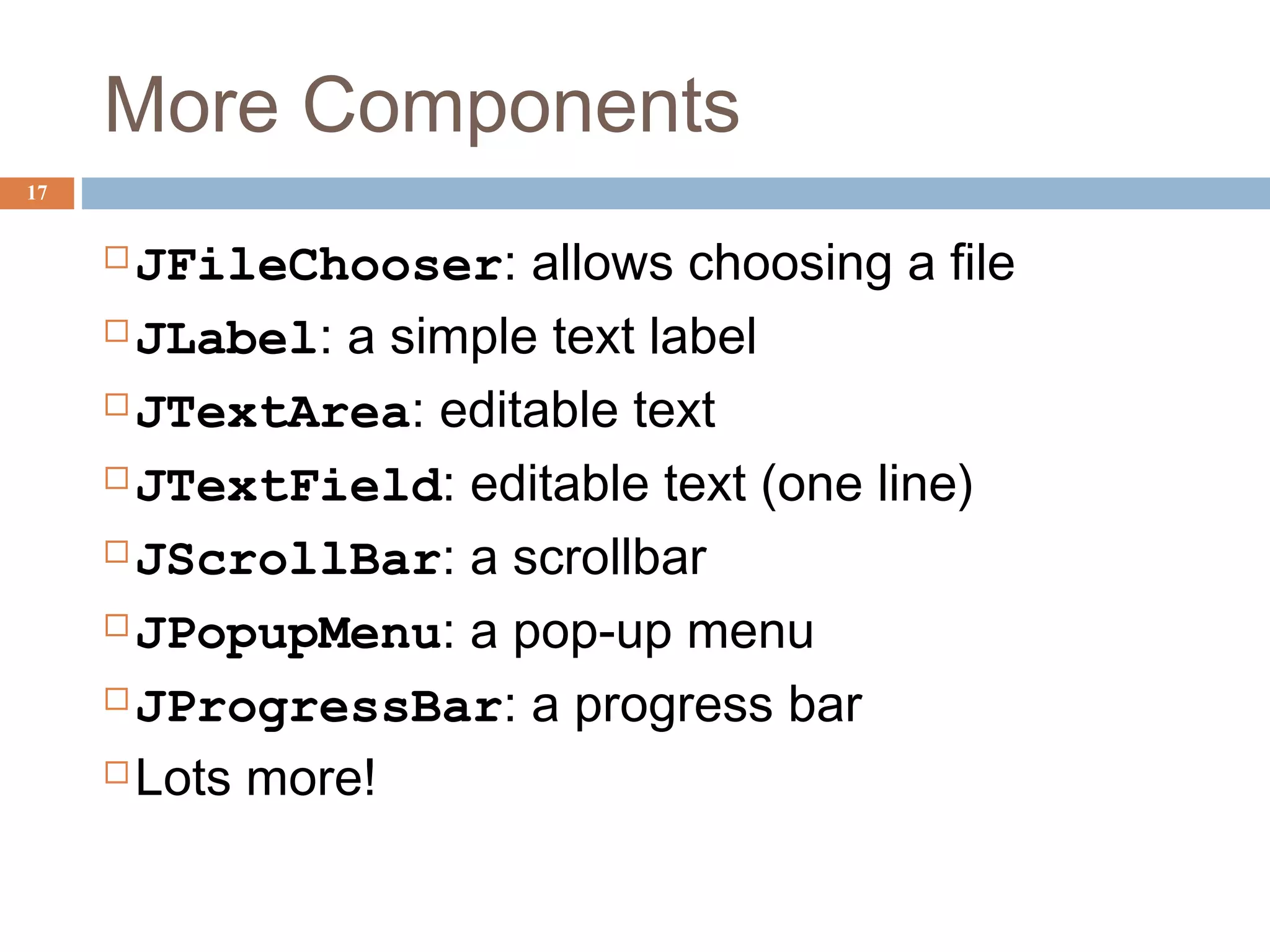
JFileChooser: allows choosing a file
JLabel: a simple text label
JTextArea: editable text
JTextField: editable text (one line)
JScrollBar: a scrollbar
JPopupMenu: a pop-up menu
JProgressBar: a progress bar
Lots more!
Layout
 Issue here concerns the way the components
are placed on the screen
 If you do it statically (and you can), the
resulting application can’t be resized easily
 So GUI builders offer a more dynamic option
18
Containers
19
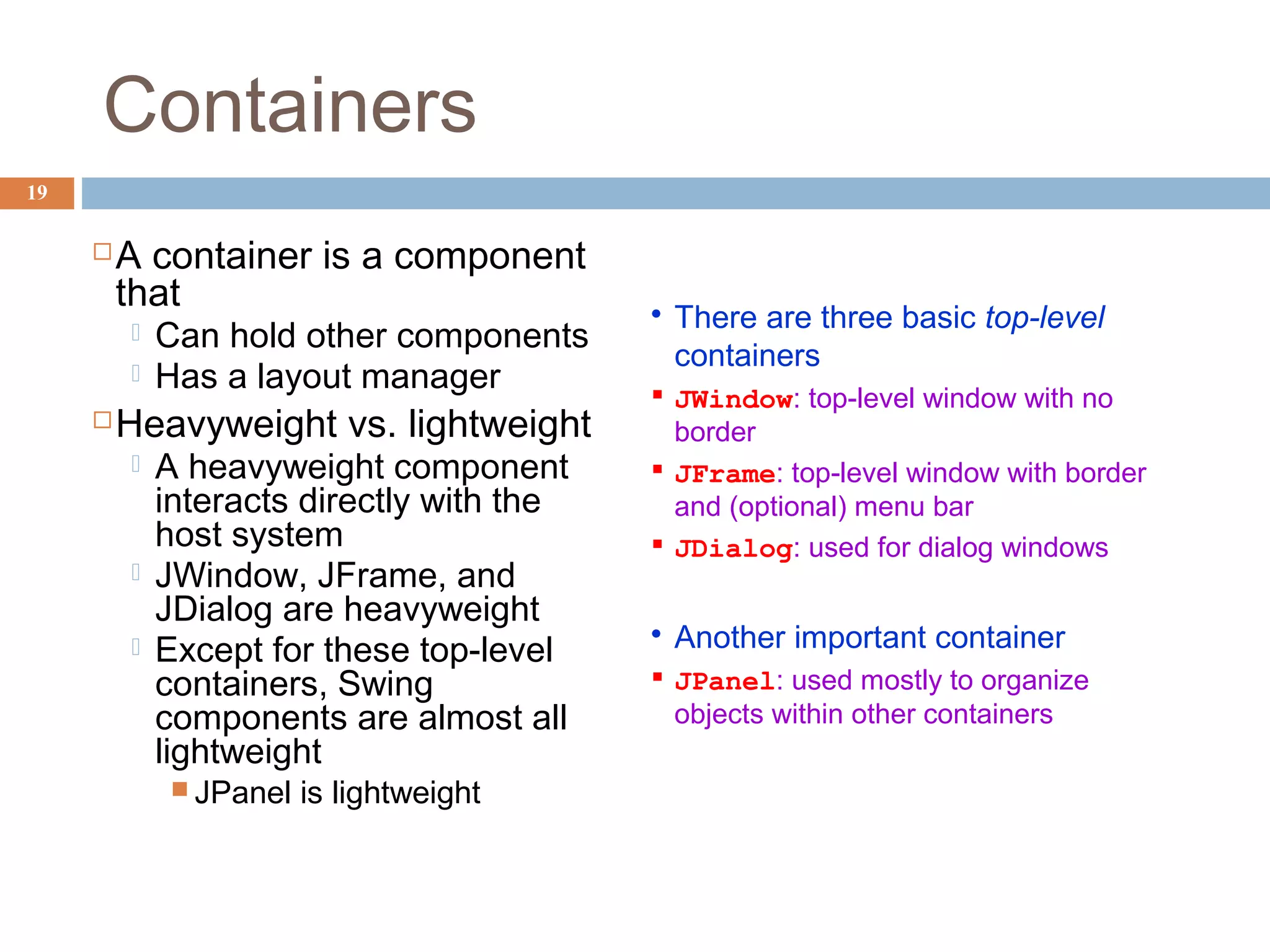
A container is a component
that
 Can hold other components
 Has a layout manager
Heavyweight vs. lightweight
 A heavyweight component
interacts directly with the
host system
 JWindow, JFrame, and
JDialog are heavyweight
 Except for these top-level
containers, Swing
components are almost all
lightweight
 JPanel is lightweight
 There are three basic top-level
containers
 JWindow: top-level window with no
border
 JFrame: top-level window with border
and (optional) menu bar
 JDialog: used for dialog windows
 Another important container
 JPanel: used mostly to organize
objects within other containers
A Component Tree
20
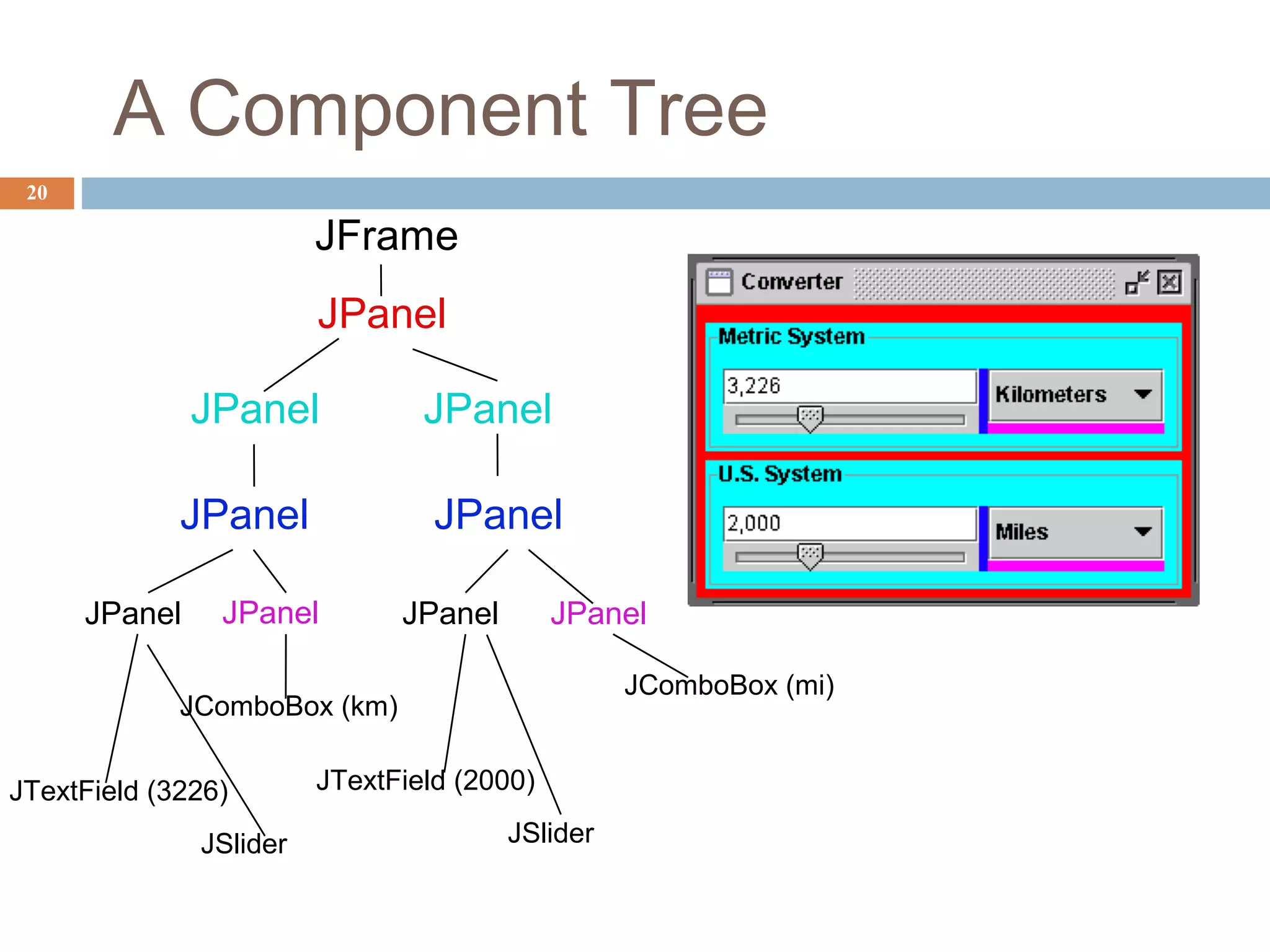
JFrame
JPanel
JPanel JPanel
JPanel JPanel
JPanel JPanel
JComboBox (mi)
JComboBox (km)
JTextField (2000)
JSlider
JTextField (3226)
JSlider
JPanelJPanel
Layout Managers
21
 A layout manager controls
placement and sizing of
components in a container
 If you do not specify a layout
manager, the container will use a
default:
 JPanel default = FlowLayout
 JFrame default = BorderLayout
 Five common layout managers:
BorderLayout, BoxLayout,
FlowLayout, GridBagLayout,
GridLayout
 General syntax
container.setLayout(new LayoutMan());
 Examples:
JPanel p1 =
new JPanel(new BorderLayout());
JPanel p2 = new JPanel();
p2.setLayout(new BorderLayout());
Some Example Layout Managers
22
 FlowLayout
 Components placed from left to
right in order added
 When a row is filled, a new row is
started
 Lines can be centered, left-justified
or right-justified (see FlowLayout
constructor)
 See also BoxLayout
 GridLayout
 Components are placed in grid
pattern
 number of rows & columns
specified in constructor
 Grid is filled left-to-right, then top-
to-bottom
 BorderLayout
 Divides window into five areas: North,
South, East, West, Center
 Adding components
 FlowLayout and GridLayout use
container.add(component)
 BorderLayout uses
container.add(component, index)
where index is one of
 BorderLayout.NORTH
 BorderLayout.SOUTH
 BorderLayout.EAST
 BorderLayout.WEST
 BorderLayout.CENTER
FlowLayout Example
23 import javax.swing.*;
import java.awt.*;
public class Statics1 {
public static void main(String[] args) {
new S1GUI();
}
}
class S1GUI {
private JFrame f;
public S1GUI() {
f = new JFrame("Statics1");
f.setDefaultCloseOperation(JFrame.EXIT_ON_CLOSE);
f.setSize(500, 200);
f.setLayout(new FlowLayout(FlowLayout.LEFT));
for (int b = 1; b < 9; b++)
f.add(new JButton("Button " + b));
f.setVisible(true);
}
}
BorderLayout Example
24 import javax.swing.*;
import java.awt.*;
public class Statics2 {
public static void main(String[] args) { new S2GUI(); }
}
class ColoredJPanel extends JPanel {
Color color;
ColoredJPanel(Color color) {
this.color = color;
}
public void paintComponent(Graphics g) {
g.setColor(color);
g.fillRect(0, 0, 400, 400);
}
}
class S2GUI extends JFrame {
public S2GUI() {
setTitle("Statics2");
setDefaultCloseOperation(JFrame.EXIT_ON_CLOSE);
setSize(400, 400);
add(new ColoredJPanel(Color.RED), BorderLayout.NORTH);
add(new ColoredJPanel(Color.GREEN), BorderLayout.SOUTH);
add(new ColoredJPanel(Color.BLUE), BorderLayout.WEST);
add(new ColoredJPanel(Color.YELLOW), BorderLayout.EAST);
add(new ColoredJPanel(Color.BLACK), BorderLayout.CENTER);
setVisible(true);
}
}
GridLayout Example
25
import javax.swing.*;
import java.awt.*;
public class Statics3 {
public static void main(String[] args) { new S3GUI(); }
}
class S3GUI extends JFrame {
static final int DIM = 25;
static final int SIZE = 12;
static final int GAP = 1;
public S3GUI() {
setTitle("Statics3");
setDefaultCloseOperation(EXIT_ON_CLOSE);
setLayout(new GridLayout(DIM, DIM, GAP, GAP));
for (int i = 0; i < DIM * DIM; i++) add(new MyPanel());
pack();
setVisible(true);
}
class MyPanel extends JPanel {
MyPanel() { setPreferredSize(new Dimension(SIZE, SIZE)); }
public void paintComponent(Graphics g) {
float gradient =
1f - ((float)Math.abs(getX() - getY()))/(float)((SIZE + GAP) * DIM);
g.setColor(new Color(0f, 0f, gradient));
g.fillRect(0, 0, getWidth(), getHeight());
}
}
}
More Layout Managers
26
 CardLayout
 Tabbed index card look from
Windows
 GridBagLayout
 Most versatile, but
complicated
 Custom
 Can define your own layout
manager
 But best to try Java's layout
managers first...
 Null
 No layout manager
 Programmer must specify absolute
locations
 Provides great control, but can be
dangerous because of platform
dependency
So what about AWT?
27
 AWT
 Initial GUI toolkit for
Java
 Provided a “Java” look
and feel
 Basic API:
java.awt.*
 Swing was built “on” AWT
 More recent (since Java 1.2) GUI
toolkit
 Added functionality (new
components)
 Supports look and feel for various
platforms (Windows, Mac)
 Basic API: javax.swing.*
 Did Swing replaced AWT?
 Not quite: both use the AWT event
model
Code Examples28
Intro.java
 Button & counter
Basic1.java
 Create a window
Basic2.java
 Create a window using a
constructor
Calculator.java
 Shows use of JOptionPane to
produce standard dialogs
 ComponentExamples.java
 Sample components
 Statics1.java
 FlowLayout example
 Statics2.java
 BorderLayout example
 Statics3.java
 GridLayout example
 LayoutDemo.java
 Multiple layouts

L11cs2110sp13

  • 1.
    INTRODUCTION TO GRAPHICAL USER INTERFACES(GUIS) Lecture 10 CS2110 – Fall 2009
  • 2.
    Announcements 2  A3 willbe posted shortly, please start early  Prelim 1: Thursday October 14, Uris Hall G01  We do NOT have any scheduled makeup exam  People with conflicts can take the exam early.  The NORMAL scheduled time is 7:30-9:00  If you have a conflict, take it from 6:00-7:30  Out of town conflicts: you’ll take it during one of these two time periods, supervised by some trustworthy person, who can receive exam/send it back
  • 3.
    Interactive Programs 3  “Classic”view of computer programs: transform inputs to outputs, stop  Event-driven programs: interactive, long- running  Servers interact with clients  Applications interact with user(s) user user program input events output events input output
  • 4.
    GUI Motivation Interacting witha program  Program-Driven = Proactive  Statements execute in sequential, predetermined order  Typically use keyboard or file I/O, but program determines when that happens  Usually sing le -thre ade d  Event-Driven = Reactive  Program waits for user input to activate certain statements  Typically uses a GUI (Graphical User Interface)  Often m ulti-thre ade d  Design...Which to pick?  Program called by another program?  Program used at command line?  Program interacts often with user?  Program used in window environment?  How does Java do GUIs? 4
  • 5.
    Java Support forBuilding GUIs Java Foundation Classes  Classes for building GUIs  Major components  awt and swing  Pluggable look-and-feel support  Accessibility API  Java 2D API  Drag-and-drop Support  Internationalization  Our main focus: Swing  Building blocks of GUIs  Windows & components  User interactions  Built upon the AWT (Abstract Window Toolkit)  Java event model  Why Swing?  Easier to understand than SWT  Lonnie used SWT in A3 but you don’t actually need to understand the code he wrote 5
  • 6.
    Swing versus SWTversus AWT  AWT came first  Swing builds on AWT  Strives for total portability  Secretly seems to have a grudge against Windows  Basic architecture is pretty standard  SWT is “new”  Goal is best performance  Great fit with Windows system  Basic architecture is pretty standard 6  We use SWT in A3
  • 7.
    Java Foundation Classes 7 PluggableLook-and-Feel Support  Controls look-and-feel for particular windowing environment  E.g., Java, Windows, Mac Accessibility API  Supports assistive technologies such as screen readers and Braille Java 2D  Drawing  Includes rectangles, lines, circles, images, ... Drag-and-drop  Support for drag and drop between Java application and a native application Internationalization  Support for other languages
  • 8.
    GUI Statics andGUI Dynamics  Components  buttons, labels, lists, sliders, menus, ...  Containers: components that contain other components  frames, panels, dialog boxes, ...  Layout managers: control placement and sizing of components  Events  button-press, mouse-click, key-press, ...  Listeners: an object that responds to an event  Helper classes  Graphics, Color, Font, FontMetrics, Dimension, ... 8 Statics: what’s drawn on the screen Dynamics: user interactions
  • 9.
    Creating a Windowin SWT 9 import org.eclipse.swt.*; import org.eclipse.swt.widgets.*; public class HelloWorld { public static void main(String[] args) { //create the window Display display = new Display(); Shell shell = new Shell(display); Label label = new Label(shell, SWT.NONE); label.setText("Basic Test!"); label.pack(); shell.pack(); shell.open(); // quit Java after closing the window while (!shell.isDisposed()) { if (!display.readAndDispatch()) display.sleep(); } display.dispose (); } }
  • 10.
    Creating a Windowin Swing 10 import javax.swing.*; public class Basic1 { public static void main(String[] args) { //create the window JFrame f = new JFrame("Basic Test!"); //quit Java after closing the window f.setDefaultCloseOperation(JFrame.EXIT_ON_CLOSE); f.setSize(200, 200); //set size in pixels f.setVisible(true); //show the window } }
  • 11.
    Things to notice Code style is similar  Both are really “customizing” a prebuilt framework  You write little bits and pieces of software that runs in the context of the preexisting structure  SWT oriented towards somewhat finer control  Swing aims for a sturdy design, but can be harder to customize. 11
  • 12.
    Creating a WindowUsing a Constructor 12  import javax.swing.*;  public class Basic2 extends JFrame {  public static void main(String[] args) {  new Basic2();  }  public Basic2() {  setTitle("Basic Test2!"); //set the title  //quit Java after closing the window  setDefaultCloseOperation(EXIT_ON_CLOSE);  setSize(200, 200); //set size in pixels  setVisible(true); //show the window  }  }
  • 13.
    A More ExtensiveExample 13  import javax.swing.*;  import java.awt.*;  import java.awt.event.*;  public class Intro extends JFrame {  private int count = 0;  private JButton myButton = new JButton("Push Me!");  private JLabel label = new JLabel("Count: " + count);  public Intro() {  setDefaultCloseOperation(EXIT_ON_CLOSE);  setLayout(new FlowLayout(FlowLayout.LEFT)); //set layout manager  add(myButton); //add components  add(label);  myButton.addActionListener(new ActionListener() {  public void actionPerformed(ActionEvent e) {  count++;  label.setText("Count: " + count);  }  });  pack();  setVisible(true);  }  public static void main(String[] args) {  try {  UIManager.setLookAndFeel(UIManager.getSystemLookAndFeelClassName());  } catch (Exception exc) {}  new Intro();  }  }
  • 14.
    GUI Statics 14 Determine whichco m po ne nts you want Choose a top-level co ntaine r in which to put the components (JFrame is often a good choice) Choose a layo ut m anag e r to determine how components are arranged Place the components
  • 15.
    Components = WhatYou See 15  Visual part of an interface  Represents something with position and size  Can be painte d on screen and can receive events  Buttons, labels, lists, sliders, menus, ...  Some windows have hidden components that become visible only when the user takes some action
  • 16.
    Component Examples 16  importjavax.swing.*;  import java.awt.*;  public class ComponentExamples extends JFrame {  public ComponentExamples() {  setLayout(new FlowLayout(FlowLayout.LEFT));  add(new JButton("Button"));  add(new JLabel("Label"));  add(new JComboBox(new String[] { "A", "B", "C" }));  add(new JCheckBox("JCheckBox"));  add(new JSlider(0, 100));  add(new JColorChooser());  setDefaultCloseOperation(EXIT_ON_CLOSE);  pack();  setVisible(true);  }  public static void main(String[] args) {  try {  UIManager.setLookAndFeel(UIManager.getSystemLookAndFeelClassName());  } catch (Exception exc) {}  new ComponentExamples();  }  }
  • 17.
    More Components 17 JFileChooser: allowschoosing a file JLabel: a simple text label JTextArea: editable text JTextField: editable text (one line) JScrollBar: a scrollbar JPopupMenu: a pop-up menu JProgressBar: a progress bar Lots more!
  • 18.
    Layout  Issue hereconcerns the way the components are placed on the screen  If you do it statically (and you can), the resulting application can’t be resized easily  So GUI builders offer a more dynamic option 18
  • 19.
    Containers 19 A container isa component that  Can hold other components  Has a layout manager Heavyweight vs. lightweight  A heavyweight component interacts directly with the host system  JWindow, JFrame, and JDialog are heavyweight  Except for these top-level containers, Swing components are almost all lightweight  JPanel is lightweight  There are three basic top-level containers  JWindow: top-level window with no border  JFrame: top-level window with border and (optional) menu bar  JDialog: used for dialog windows  Another important container  JPanel: used mostly to organize objects within other containers
  • 20.
    A Component Tree 20 JFrame JPanel JPanelJPanel JPanel JPanel JPanel JPanel JComboBox (mi) JComboBox (km) JTextField (2000) JSlider JTextField (3226) JSlider JPanelJPanel
  • 21.
    Layout Managers 21  Alayout manager controls placement and sizing of components in a container  If you do not specify a layout manager, the container will use a default:  JPanel default = FlowLayout  JFrame default = BorderLayout  Five common layout managers: BorderLayout, BoxLayout, FlowLayout, GridBagLayout, GridLayout  General syntax container.setLayout(new LayoutMan());  Examples: JPanel p1 = new JPanel(new BorderLayout()); JPanel p2 = new JPanel(); p2.setLayout(new BorderLayout());
  • 22.
    Some Example LayoutManagers 22  FlowLayout  Components placed from left to right in order added  When a row is filled, a new row is started  Lines can be centered, left-justified or right-justified (see FlowLayout constructor)  See also BoxLayout  GridLayout  Components are placed in grid pattern  number of rows & columns specified in constructor  Grid is filled left-to-right, then top- to-bottom  BorderLayout  Divides window into five areas: North, South, East, West, Center  Adding components  FlowLayout and GridLayout use container.add(component)  BorderLayout uses container.add(component, index) where index is one of  BorderLayout.NORTH  BorderLayout.SOUTH  BorderLayout.EAST  BorderLayout.WEST  BorderLayout.CENTER
  • 23.
    FlowLayout Example 23 importjavax.swing.*; import java.awt.*; public class Statics1 { public static void main(String[] args) { new S1GUI(); } } class S1GUI { private JFrame f; public S1GUI() { f = new JFrame("Statics1"); f.setDefaultCloseOperation(JFrame.EXIT_ON_CLOSE); f.setSize(500, 200); f.setLayout(new FlowLayout(FlowLayout.LEFT)); for (int b = 1; b < 9; b++) f.add(new JButton("Button " + b)); f.setVisible(true); } }
  • 24.
    BorderLayout Example 24 importjavax.swing.*; import java.awt.*; public class Statics2 { public static void main(String[] args) { new S2GUI(); } } class ColoredJPanel extends JPanel { Color color; ColoredJPanel(Color color) { this.color = color; } public void paintComponent(Graphics g) { g.setColor(color); g.fillRect(0, 0, 400, 400); } } class S2GUI extends JFrame { public S2GUI() { setTitle("Statics2"); setDefaultCloseOperation(JFrame.EXIT_ON_CLOSE); setSize(400, 400); add(new ColoredJPanel(Color.RED), BorderLayout.NORTH); add(new ColoredJPanel(Color.GREEN), BorderLayout.SOUTH); add(new ColoredJPanel(Color.BLUE), BorderLayout.WEST); add(new ColoredJPanel(Color.YELLOW), BorderLayout.EAST); add(new ColoredJPanel(Color.BLACK), BorderLayout.CENTER); setVisible(true); } }
  • 25.
    GridLayout Example 25 import javax.swing.*; importjava.awt.*; public class Statics3 { public static void main(String[] args) { new S3GUI(); } } class S3GUI extends JFrame { static final int DIM = 25; static final int SIZE = 12; static final int GAP = 1; public S3GUI() { setTitle("Statics3"); setDefaultCloseOperation(EXIT_ON_CLOSE); setLayout(new GridLayout(DIM, DIM, GAP, GAP)); for (int i = 0; i < DIM * DIM; i++) add(new MyPanel()); pack(); setVisible(true); } class MyPanel extends JPanel { MyPanel() { setPreferredSize(new Dimension(SIZE, SIZE)); } public void paintComponent(Graphics g) { float gradient = 1f - ((float)Math.abs(getX() - getY()))/(float)((SIZE + GAP) * DIM); g.setColor(new Color(0f, 0f, gradient)); g.fillRect(0, 0, getWidth(), getHeight()); } } }
  • 26.
    More Layout Managers 26 CardLayout  Tabbed index card look from Windows  GridBagLayout  Most versatile, but complicated  Custom  Can define your own layout manager  But best to try Java's layout managers first...  Null  No layout manager  Programmer must specify absolute locations  Provides great control, but can be dangerous because of platform dependency
  • 27.
    So what aboutAWT? 27  AWT  Initial GUI toolkit for Java  Provided a “Java” look and feel  Basic API: java.awt.*  Swing was built “on” AWT  More recent (since Java 1.2) GUI toolkit  Added functionality (new components)  Supports look and feel for various platforms (Windows, Mac)  Basic API: javax.swing.*  Did Swing replaced AWT?  Not quite: both use the AWT event model
  • 28.
    Code Examples28 Intro.java  Button& counter Basic1.java  Create a window Basic2.java  Create a window using a constructor Calculator.java  Shows use of JOptionPane to produce standard dialogs  ComponentExamples.java  Sample components  Statics1.java  FlowLayout example  Statics2.java  BorderLayout example  Statics3.java  GridLayout example  LayoutDemo.java  Multiple layouts