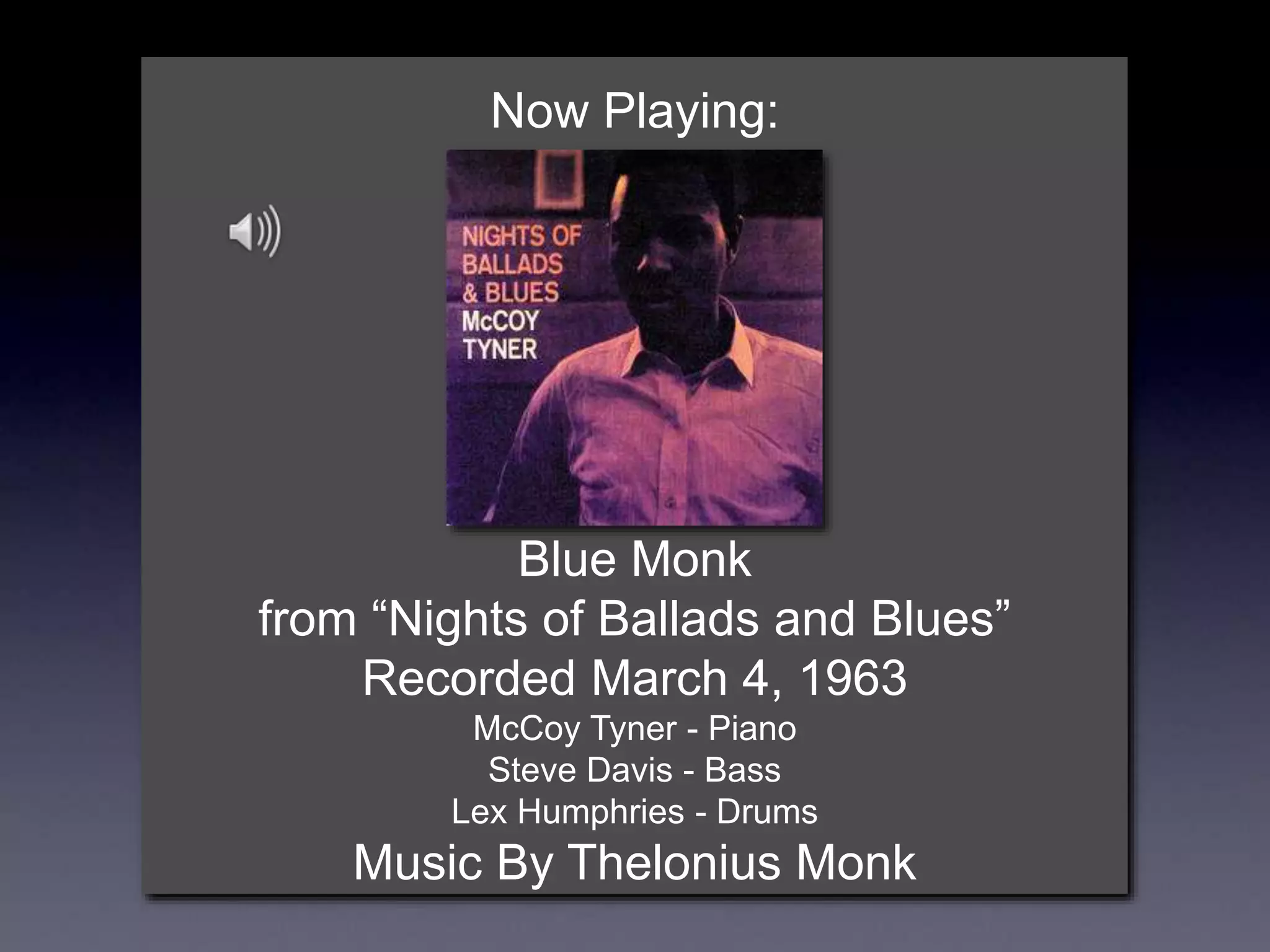
Now Playing:
Blue Monk
from “Nights of Ballads and Blues”
Recorded March 4, 1963
McCoy Tyner - Piano
Steve Davis - Bass
Lex Humphries - Drums
Music By Thelonius Monk
3D Transforms &
Computer Animation
Rick Skarbez, Instructor
COMP 575
September 6, 2007
Announcements
• Homework 1 is out today
• Due at the end of class next Thursday
• Tabitha Peck (tpeck@cs.unc.edu) is
here to ask you to participate in her
user study
• Introduced the concept of vector spaces
• Learned the basic 2D transforms
• Translation
• Scaling
• Rotation
• Shearing
• Talked about why we use homogeneous
coordinates and transform matrices
• Talked about how to compose transforms
Last Time
Today
• Discuss robot arm example from last
class
• Extend transforms to 3D
• Aside: Talk about some principles of
computer animation
Robotic Arm Example
• Fingers first
• Then wrist
• Then elbow
• Finally,
shoulder
x
y
T1
R1
R2
R3
P
Find the new location of P (P’) after some
translations T1, T2, T3, T4 and rotations R1, R2,
and R3.
Express in terms of a matrix product, i.e.
P’ = R1R2R3P
T2
T3
T4
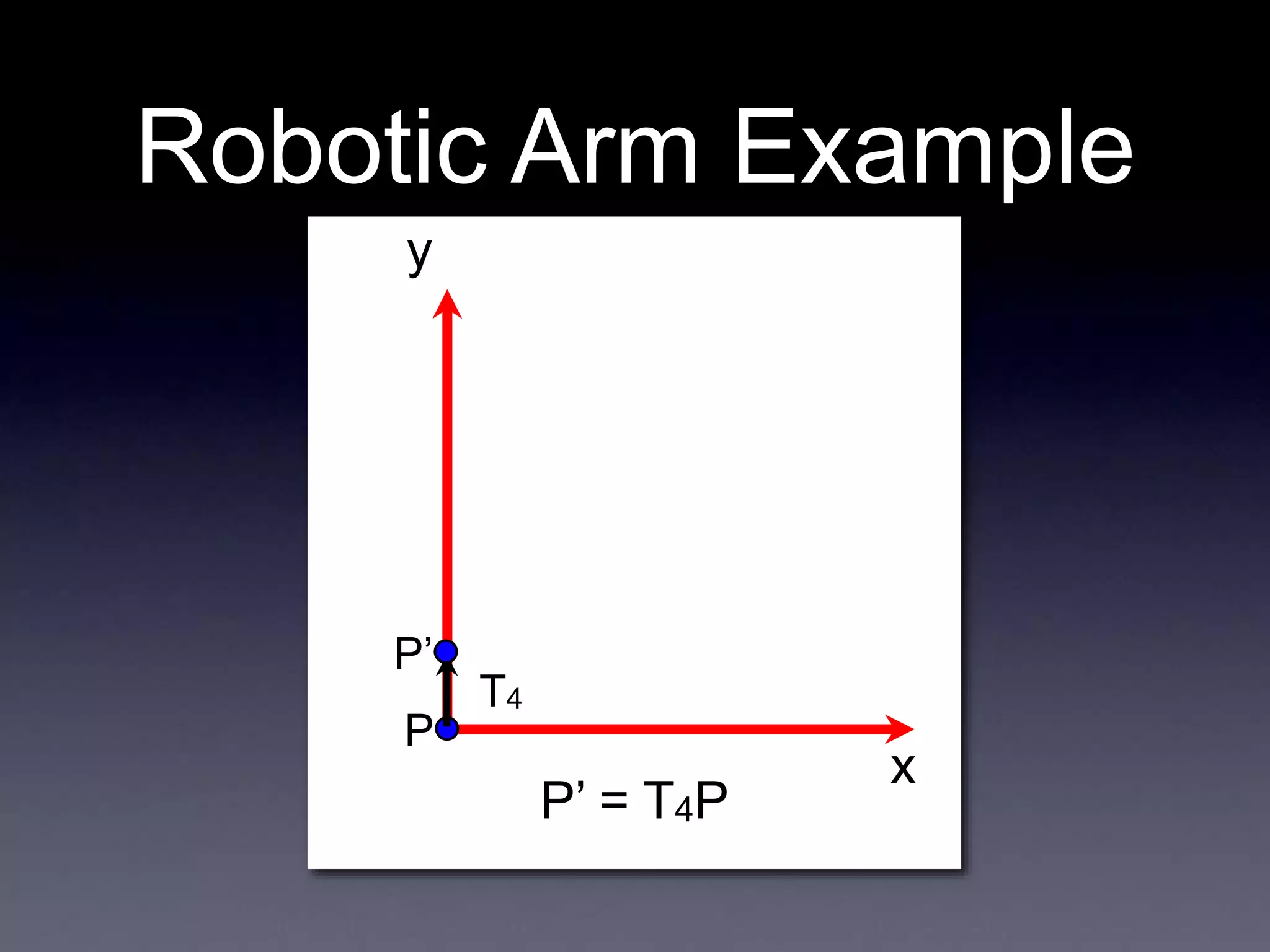
Robotic Arm Example
x
y
P
T4
Robotic Arm Example
P’
P’ = T4P
x
y
Robotic Arm Example
P’
P’’ = R3P’ = R3T4P
P’’
R3
x
y
Robotic Arm Example
P’’’ = T3P’’ = T3R3T4P
P’’
T3
P’’’
x
y
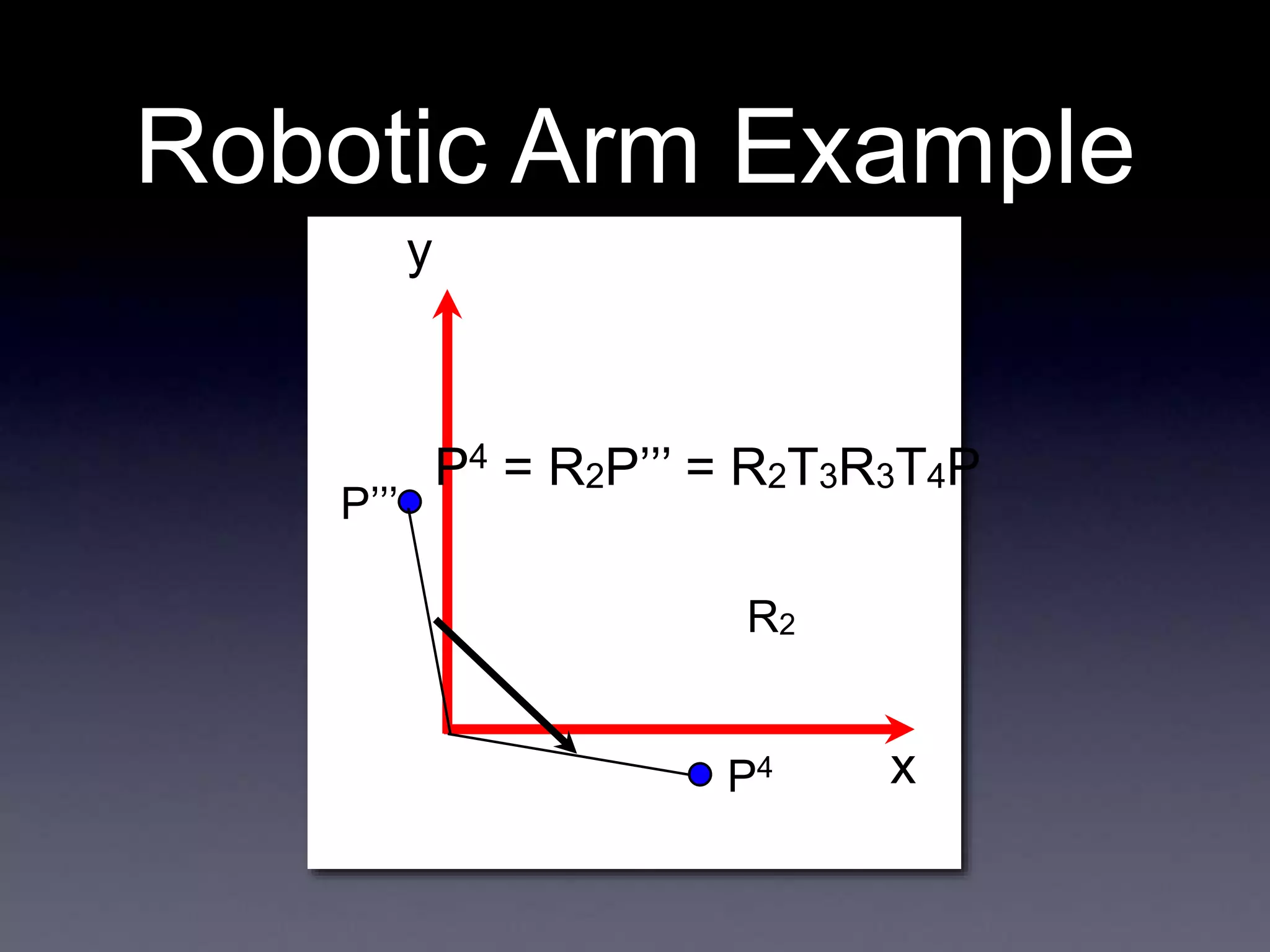
Robotic Arm Example
P4 = R2P’’’ = R2T3R3T4P
P’’’
P4
R2
x
y
Robotic Arm Example
P4
T2
P5
P5 = T2P4 = T2R2T3R3T4P
x
y
Robotic Arm Example
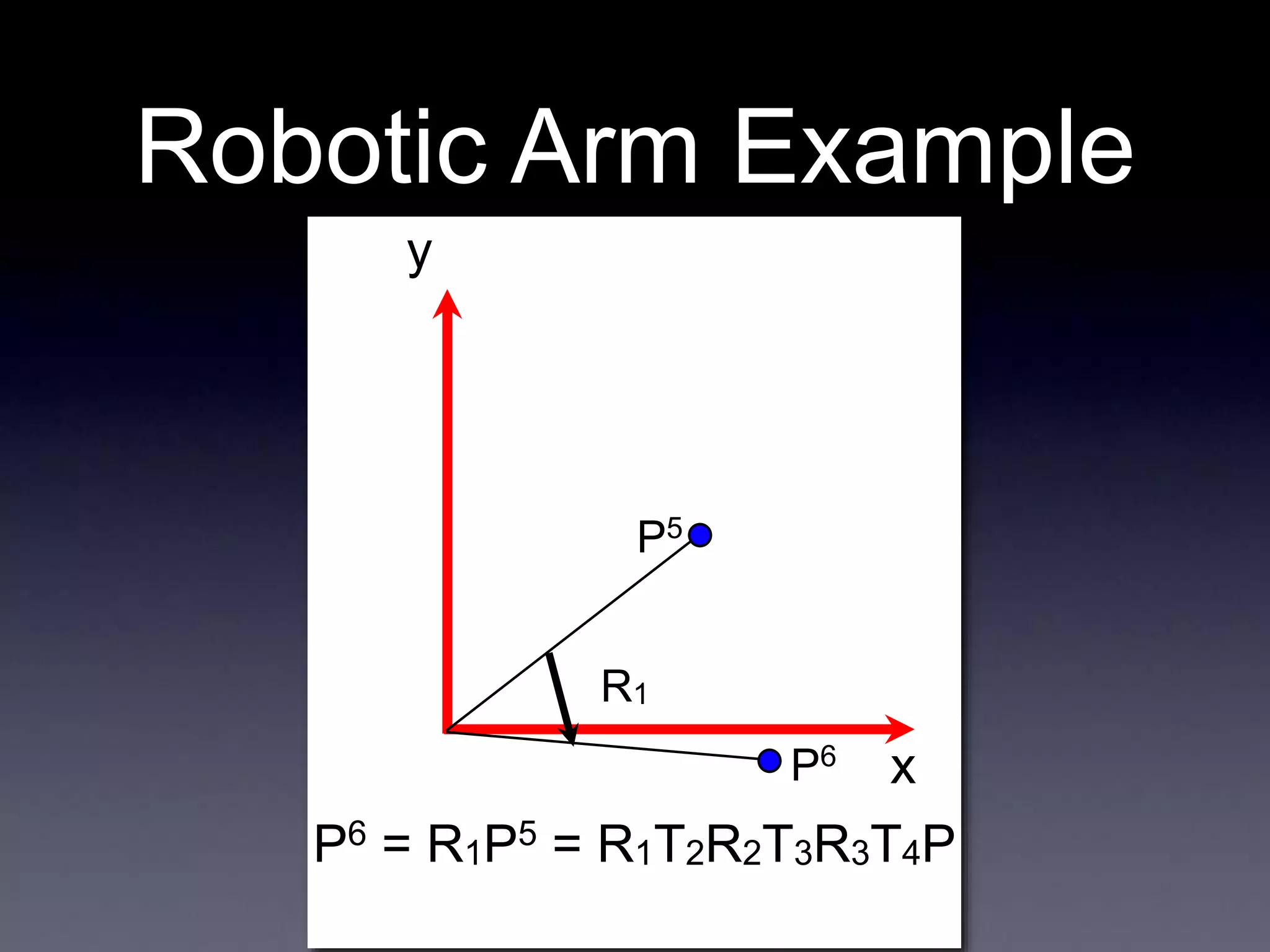
P5
P6
R1
P6 = R1P5 = R1T2R2T3R3T4P
x
y
Robotic Arm Example
P6
P7
T1
P7 = T1P6 = T1R1T2R2T3R3T4P
x
y
Robotic Arm Example
P6
P7
T1
P7 = T1P6 = T1R1T2R2T3R3T4P
T1
R1
R2
R3
T2
T3
T4
x
y
Robotic Arm Example
P7 = T1P6 = T1R1T2R2T3R3T4P
P7
T1
R1
R2
R3
T2
T3
T4
3D Transforms
x
y
T
x
y z
T
Pretty much exactly the same as
2D transforms
Homogenous
Coordinates in 3D
Reminder:
w = 1 for points
w = 0 for vectors
2D
3D
3D
2D
• Just as with 2D, need to add a w term
• Normalizing is done in the same way as
before
Cross Products
• We talked about the cross product
operator in the math lecture
• Defined as
• The cross product of 2 vectors is a
vector perpendicular to both of the other
two vectors
• Wasn’t really applicable in 2D
• Note that 2 vectors can make this true
Cross Product
Direction
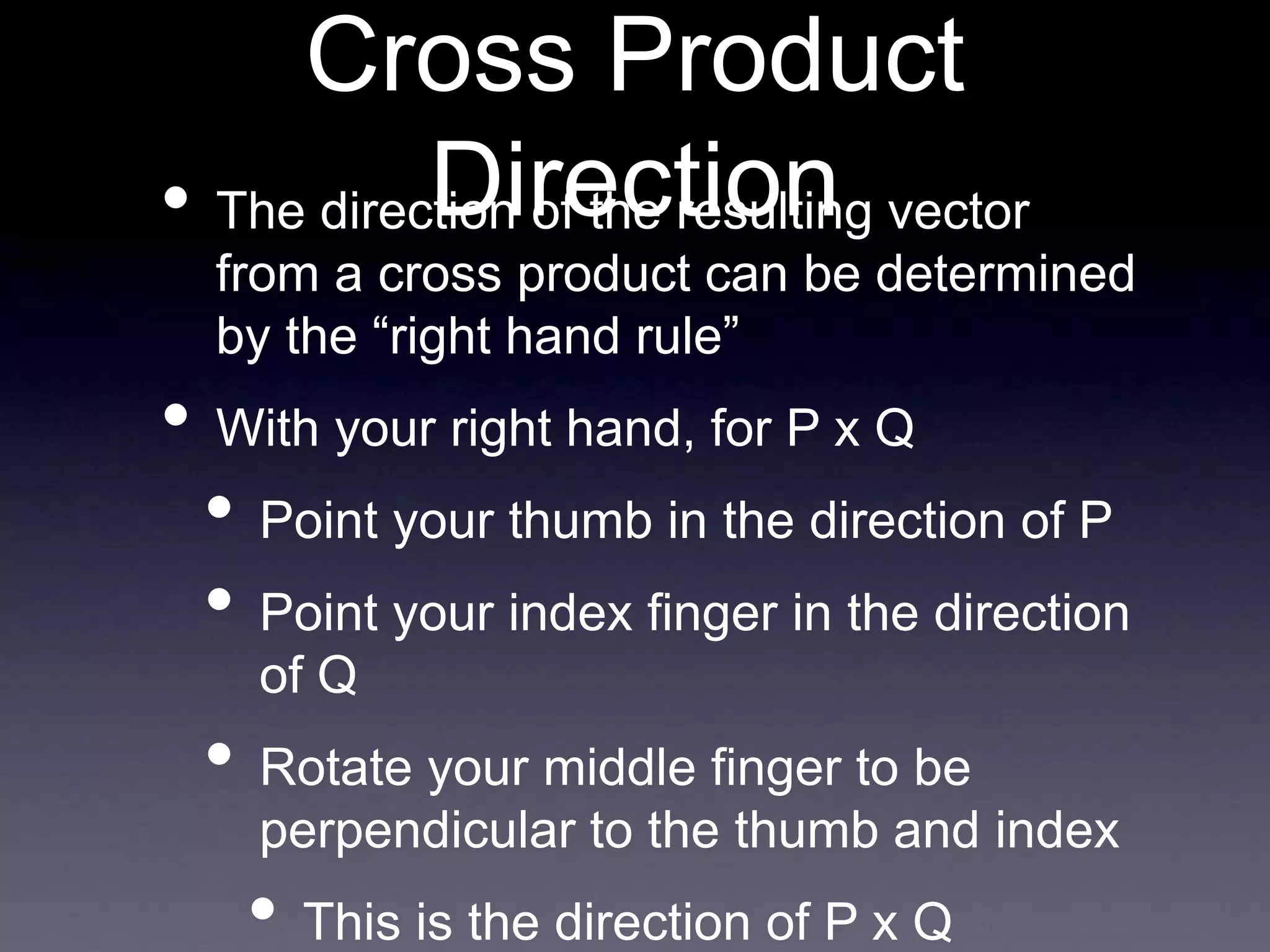
• The direction of the resulting vector
from a cross product can be determined
by the “right hand rule”
• With your right hand, for P x Q
• Point your thumb in the direction of P
• Point your index finger in the direction
of Q
• Rotate your middle finger to be
perpendicular to the thumb and index
• This is the direction of P x Q
Coordinate Systems
• This is why coordinate systems are
sometimes referred to as left or right
handed
• Given x and y vectors, the direction of
the z vector specifies its handedness
+x
+y
+z
+x
+y
+z
Left-Handed Right-Handed
Translation in 3D
• We will represent translation with a
matrix of the following form:
t is the x-offset
u is the y-offset
v is the z-offset
Scaling in 3D
• We will represent scaling with a matrix
of the following form:
α is the scale factor in the x-direction
β is the scale factor in the y-direction
γ is the scale factor in the z-direction
Rotation in 3D
• Extending rotation to 3D is somewhat
more complicated than either
translation or scaling
• In 2D, you could only rotate around 1
point
• In 3D, you can rotate around any of
the 3 axes
• Each axis produces a slightly
different rotation matrix
Rotation in 3D
• Rotation about the z-axis is most
familiar
• Essentially, this is what we already
did, in the z=0 plane
Rotation in 3D
Rotation About
The Z-Axis
Rotation About
The X-Axis
Rotation About
The Y-Axis
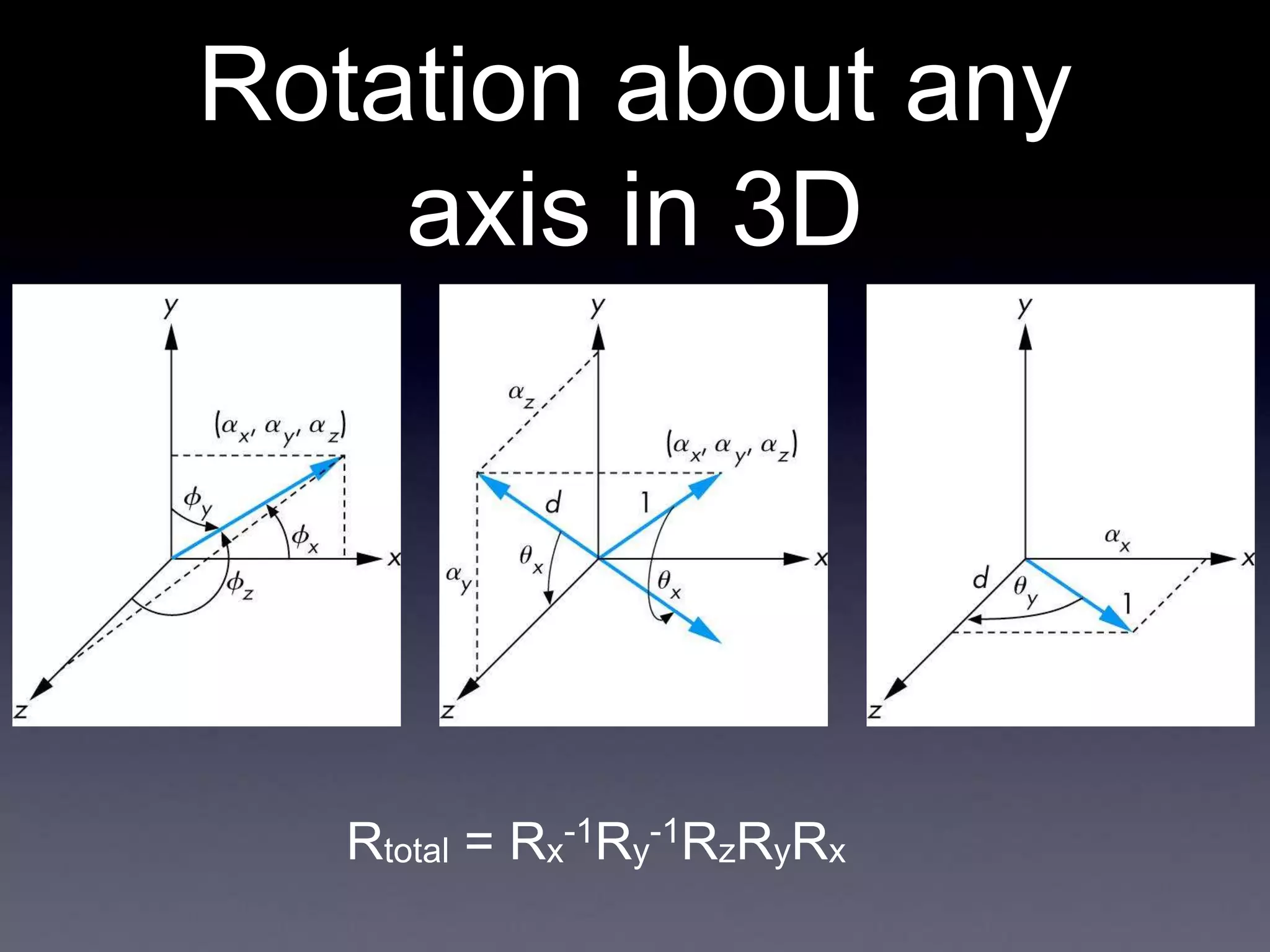
Rotation about any
axis in 3D
• How can we extend this to rotation
about any axis, not just the principle
axes?
• Need to move the axis we want to rotate
about to one of the principle axes (say, the z
axis)
• First, apply a rotation about x, to move the
axis into the yz-plane (Rx)
• Then, apply a rotation about y, to move the
axis onto the z-axis (Ry)
• Then apply your desired rotation, followed
by the inverses of the other two (to reverse
Rotation about any
axis in 3D
Rtotal = Rx
-1Ry
-1RzRyRx
Rotation about any
point and any axis in
3D
• To rotate about a non-origin point,
extend in the same way as in 2D
• First, translate to the origin (Txyz
-1)
• Then apply your rotation (in the most
general case, Rx
-1Ry
-1RzRyRx)
• Then translate back (Txyz)
Rtotal = Txyz Rx
-1Ry
-1RzRyRx Txyz
-1
Transforms Recap
• Robot Arm example
• 3D transforms
• Very similar to 2D transforms
• Rotation is a bit more complex
• Can rotate about any axis
• Cross products
• Coordinate systems
• Left vs. right handed
Computer Animation
• Can think of animation as objects being
transformed over time
• We have a “timeline” that says what
transforms are applied at what times
• Each rendered image is one frame
• The duration of each frame (say, 1/60
of a second for 60fps) is a single time
step
“Principles of Traditional
Animation Applied to 3D
Computer Graphics”
• Lasseter noticed a trend
• Computers were making animation
easier than ever before
• But animation was not getting better
• Actually, it was often worse
• Why?
John Lasseter (Pixar), SIGGRAPH 1987
The Problem with
Good Tools
• Why was there so much bad
animation?
• New tools were allowing users with no
experience to animate
The Illusion of Life
• Many of the principles behind
traditional animation were
developed by Disney
animators in the 1930s
• The Illusion of Life
• Lasseter’s talk was intended to extend
these principles to computer animation
The Principles
1. Squash and Stretch
2. Timing and Motion
3. Anticipation
4. Staging
5. Follow-through and Overlapping Action
6. Straight-ahead and Pose-to-pose Action
7. Slow In and Out
8. Arcs
9. Exaggeration
10.Secondary Action
Squash and Stretch
• In the real world, only totally rigid
objects (i.e. chairs, rocks) remain rigid
when moving
• Living things deform
• So, if you want something to look
“alive”, you can’t just rigidly slide it
around
• Squash and stretch to emphasize
motion
Squash and Stretch
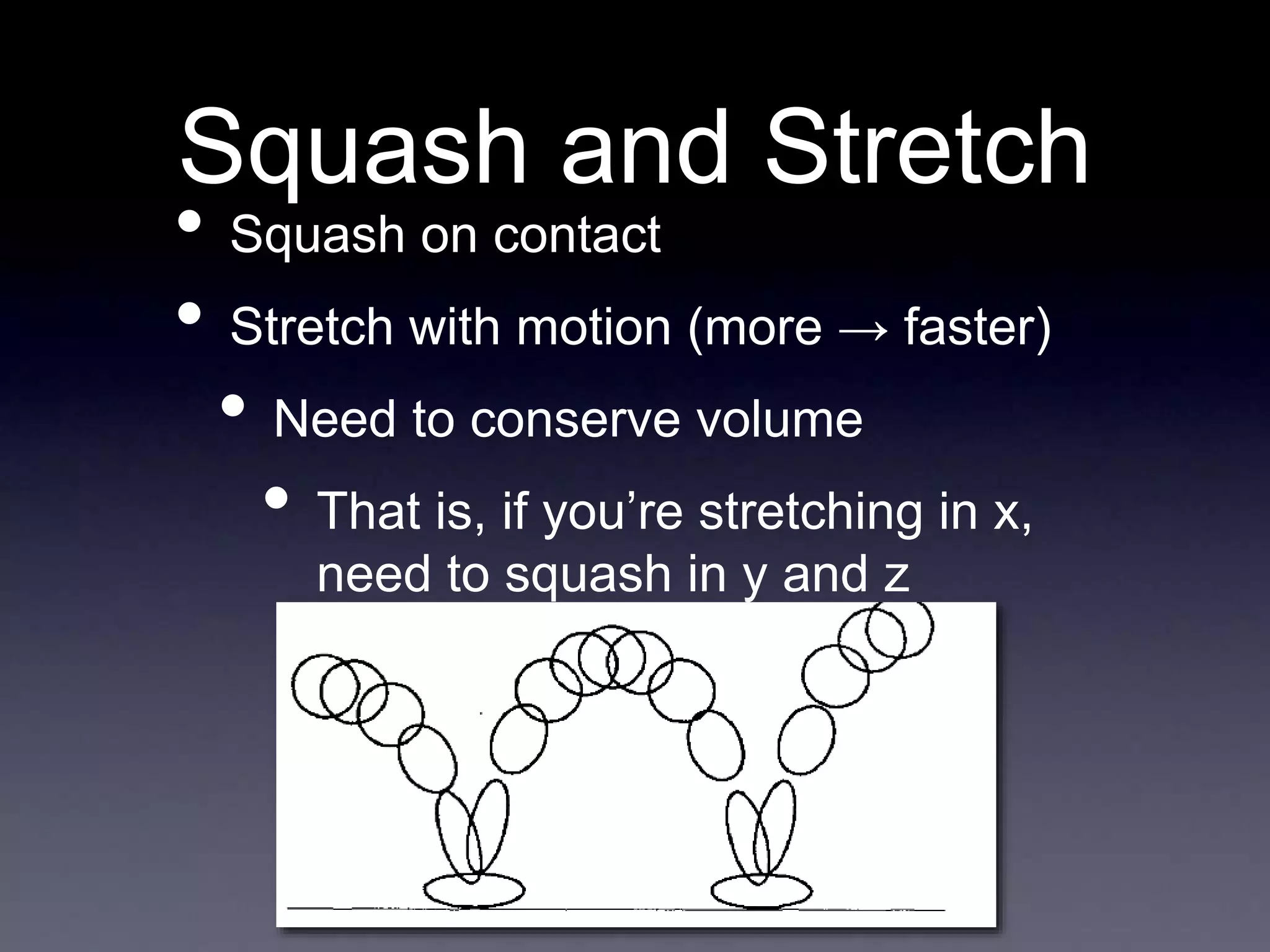
• Squash on contact
• Stretch with motion (more → faster)
• Need to conserve volume
• That is, if you’re stretching in x,
need to squash in y and z
Squash and Stretch
• Hinged objects (i.e. Luxo Jr.) can
squash and stretch without deforming
Squash and Stretch
Slow
Motion
Fast
Motion
Fast
Motion
w/S&S
If objects overlap between frames, the eye can
smooth the motion
Timing
• The speed of motion gives us cues
about
• Weight
• Size
• Meaning
• Motion must be “readable”
• Must take long enough for the viewer
to see and understand
• Must be quick enough to hold
Timing
• Small and light objects should be fast
and nimble
• Large and heavy objects should be
slow and lumbering
Keyframes and In-
Betweening
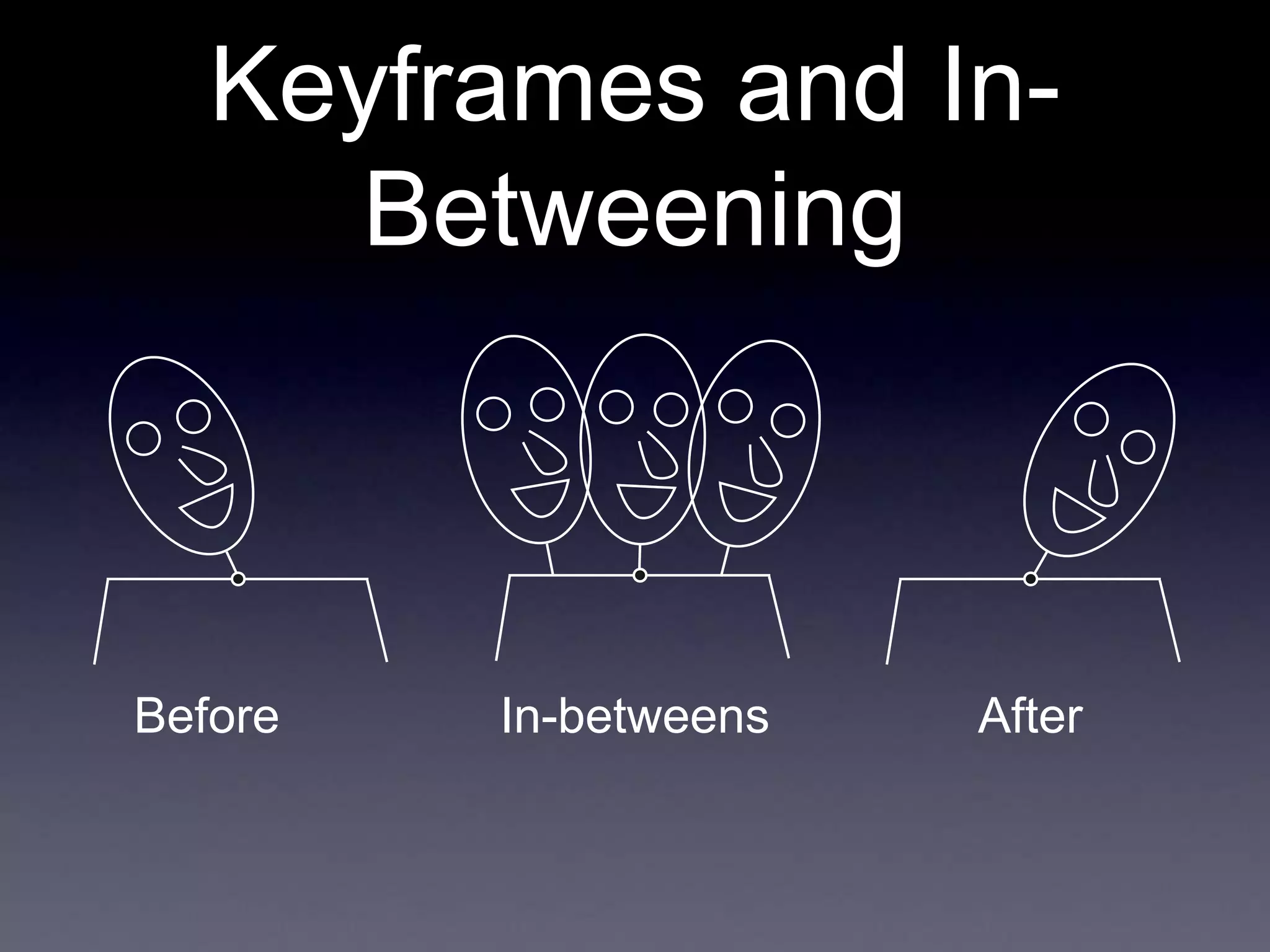
• Keyframes are frames in a sequence of
animation that mark the beginning and
end of a smooth transition
• In-Betweens are the frames between a
beginning and end keyframe
• The in-betweens make the animation
sequence appear smooth
Keyframes and In-
Betweening
Before After
In-betweens
Timing
• Imagine an animation where a person is
looking over his left shoulder, then his
right
• No in-betweens: Hit by a strong force, head nearly
snapped off
• 1 in-between: Hit by a frying pan
• 3 in-betweens: Dodging a flying object
• 5 in-betweens: Giving an order (“Come over here”)
• 7 in-betweens: Looking around for something
• 10 in-betweens: Stretching a sore neck
• All from the same 2 keyframes!
Anticipation
• There are 3 parts to any action
1. The preparation for the action (anticipation)
2. The action
3. The termination of the action (follow-
through)
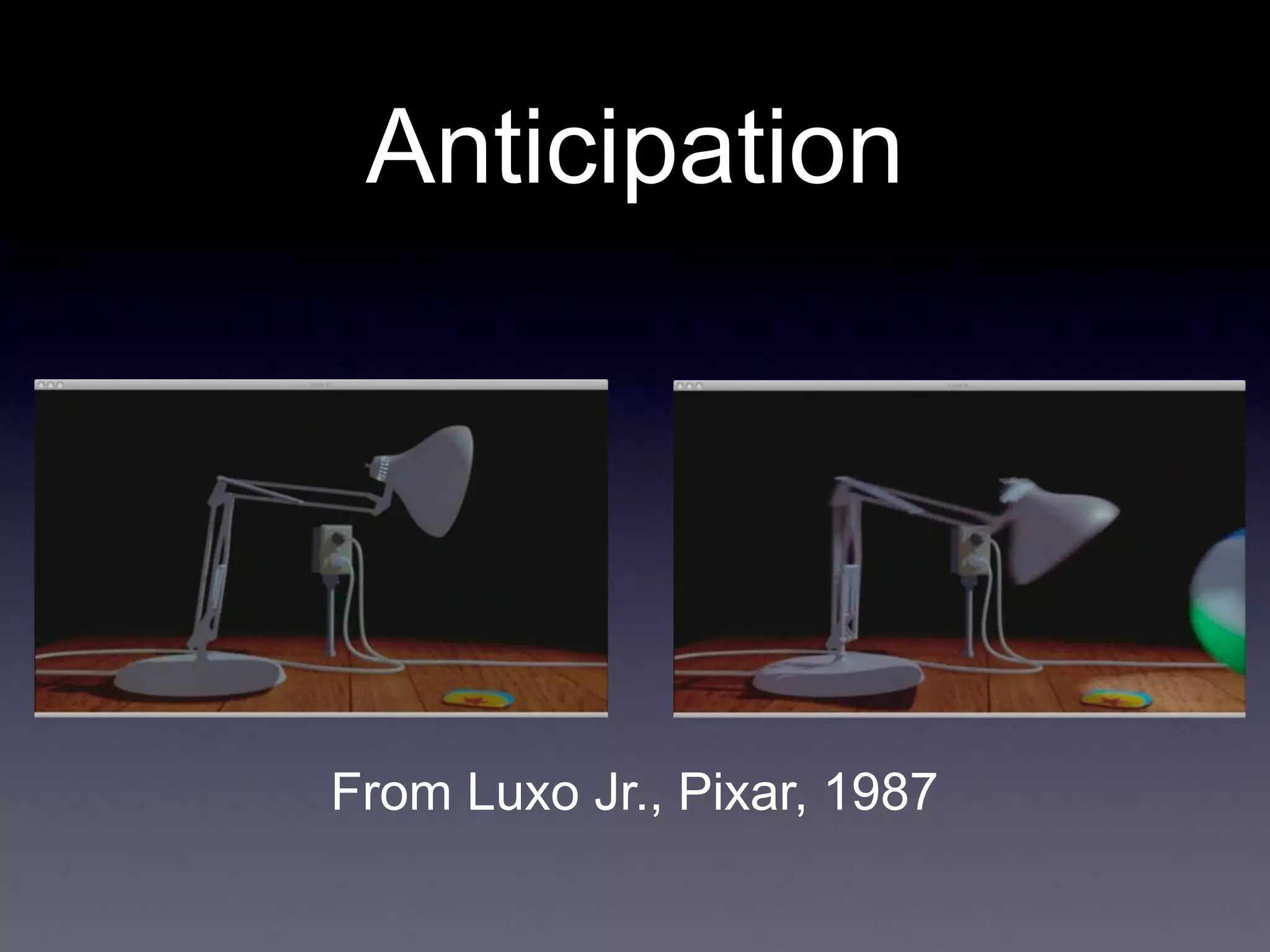
• Can be anatomical preparation
• Pulling back your foot before kicking
• Or just to draw the viewers’ attention
• A character looking at something off-
screen
Anticipation
From Andre & Wally B, Lucasfilm CG, 1984
Anticipation
From Luxo Jr., Pixar, 1987
Staging
• When an action occurs
• Make sure it is clear
• Make sure it is visible
• Only stage 1 important action at a time
• In Luxo Jr, it is always clear which
character is the center of attention
• Action is more clearly visible in
silhouette
Follow-through and
Overlapping Action
• When throwing a ball, your hand
doesn’t just stop after the ball is
released
• When a multi-part object moves, usually
one part will lead and the others will
follow
• i.e. In walking, motion starts at the
hip, then the leg moves, then finally
the foot
• Therefore, sub-objects will begin and
end their motions at different times
Follow-through and
Overlapping Action
• Overlapping means that you start a
second motion before the first has
completely finished
• Blend the follow-through of one action
into the anticipation of the next
• “When a character knows what he is going to do he
doesn’t have to stop before each individual action and
think to do it. He has planned in advance in his mind.”
- Walt Disney
Straight-Ahead and
Pose-to-Pose Action
• Straight-ahead action is when an
animator hand-composes all the frames
in a scene
• Sort of like a scene of all keyframes
• Action looks wild and out-of-control
• Pose-to-pose action is when an animator
carefully composes individual important
poses, and then tweens them
• Used when timing and smoothness
matter
Pose-to-Pose Action
• To achieve smooth motions, you would
normally work hierarchically
• First, draw the keyframes
• Then draw some inbetweens
• Finally, draw all the remaining inbetweens
Pose-to-Pose Action
• Computer animation is naturally
hierarchical, but slightly different
• Consider a jump
• Create translation keyframes for the entire
model
• Add rotation/translation keyframes for
arms
• Add rotation/translation keyframes for legs
• etc.
Slow In and Out
• Refers to the spacing of the in-
betweens
• Instead of having an object move with
constant velocity, allow the velocity to
vary
• Enforce continuity of 2nd and 3rd
Slow
Slow
Fast
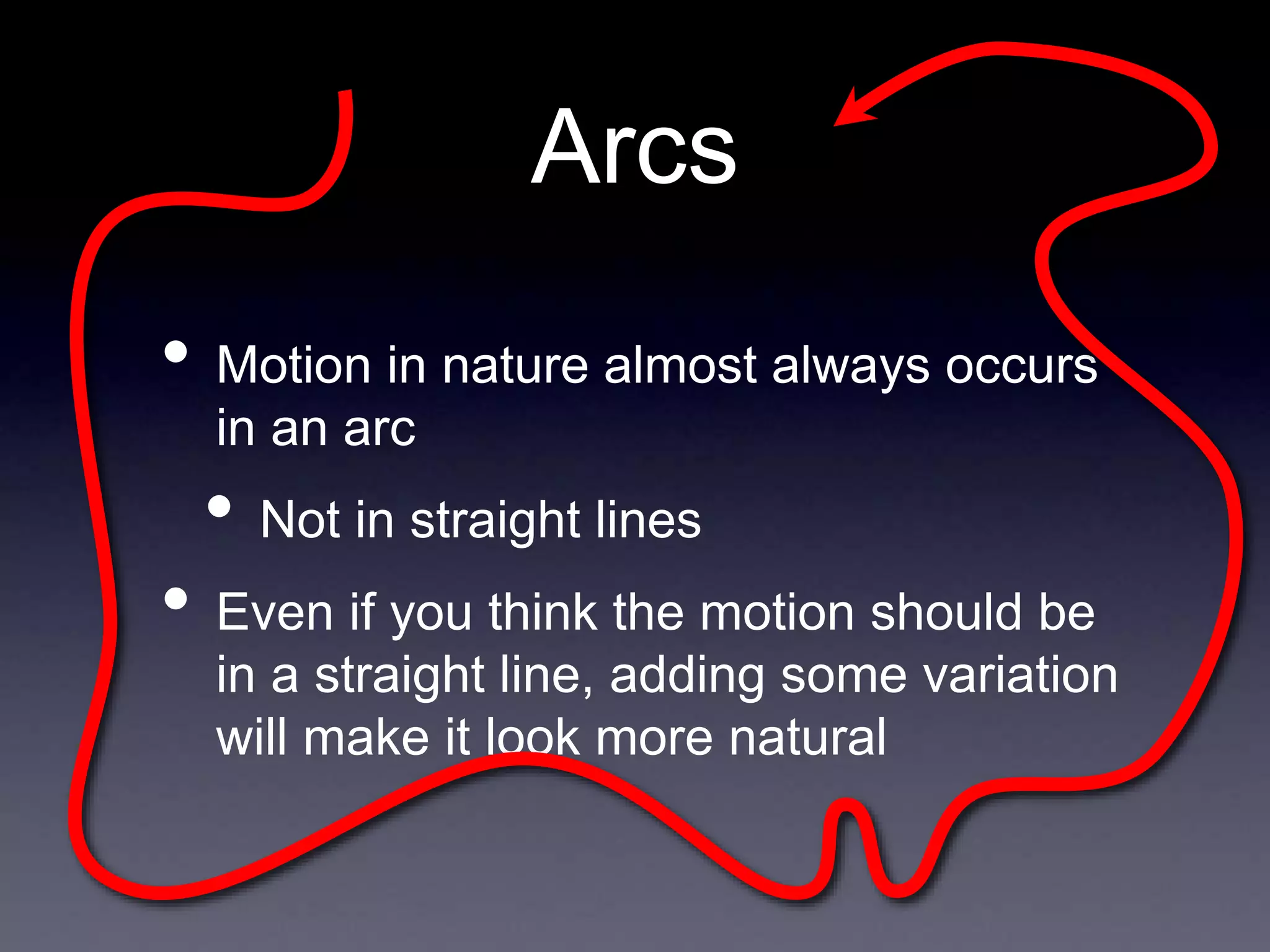
Arcs
• Motion in nature almost always occurs
in an arc
• Not in straight lines
• Even if you think the motion should be
in a straight line, adding some variation
will make it look more natural
Exaggeration
• Can exaggerate
• Shape of objects
• Motion of objects
• Sound
• Character emotions
• Exaggeration is “accentuating the
essence of an idea”
• Not just amplification, but removal of
distraction
Exaggeration
• Exaggeration should be used carefully
• Use it too little, and the exaggerated
things will stand out too much
• Use it too much, and the scene will
become unrealistic
Secondary Action
• Include the actions that happen as a
result of the primary action
• One example would be the facial
expression, while the body expresses
the primary action
• Another would be Luxo Jr.’s cord,
which moves because it is attached to
a moving body
Personality
• The sum total of all the principles
discussed before
• The goal of animation is to produce
something that a viewer wants to watch
• The animator should have a consistent
personality in mind when decided how
to apply the principles
• Need to know what you want before
you start
Personality
Simple things, like breaking symmetry
add an level of complexity (and subtlety)
to the character
Next Time
• Introduction to OpenGL programming

september6.ppt

  • 1.
    Now Playing: Blue Monk from“Nights of Ballads and Blues” Recorded March 4, 1963 McCoy Tyner - Piano Steve Davis - Bass Lex Humphries - Drums Music By Thelonius Monk
  • 2.
    3D Transforms & ComputerAnimation Rick Skarbez, Instructor COMP 575 September 6, 2007
  • 3.
    Announcements • Homework 1is out today • Due at the end of class next Thursday • Tabitha Peck (tpeck@cs.unc.edu) is here to ask you to participate in her user study
  • 4.
    • Introduced theconcept of vector spaces • Learned the basic 2D transforms • Translation • Scaling • Rotation • Shearing • Talked about why we use homogeneous coordinates and transform matrices • Talked about how to compose transforms Last Time
  • 5.
    Today • Discuss robotarm example from last class • Extend transforms to 3D • Aside: Talk about some principles of computer animation
  • 6.
    Robotic Arm Example •Fingers first • Then wrist • Then elbow • Finally, shoulder
  • 7.
    x y T1 R1 R2 R3 P Find the newlocation of P (P’) after some translations T1, T2, T3, T4 and rotations R1, R2, and R3. Express in terms of a matrix product, i.e. P’ = R1R2R3P T2 T3 T4 Robotic Arm Example
  • 8.
  • 9.
    x y Robotic Arm Example P’ P’’= R3P’ = R3T4P P’’ R3
  • 10.
    x y Robotic Arm Example P’’’= T3P’’ = T3R3T4P P’’ T3 P’’’
  • 11.
    x y Robotic Arm Example P4= R2P’’’ = R2T3R3T4P P’’’ P4 R2
  • 12.
  • 13.
  • 14.
    x y Robotic Arm Example P6 P7 T1 P7= T1P6 = T1R1T2R2T3R3T4P
  • 15.
    x y Robotic Arm Example P6 P7 T1 P7= T1P6 = T1R1T2R2T3R3T4P T1 R1 R2 R3 T2 T3 T4
  • 16.
    x y Robotic Arm Example P7= T1P6 = T1R1T2R2T3R3T4P P7 T1 R1 R2 R3 T2 T3 T4
  • 17.
    3D Transforms x y T x y z T Prettymuch exactly the same as 2D transforms
  • 18.
    Homogenous Coordinates in 3D Reminder: w= 1 for points w = 0 for vectors 2D 3D 3D 2D • Just as with 2D, need to add a w term • Normalizing is done in the same way as before
  • 19.
    Cross Products • Wetalked about the cross product operator in the math lecture • Defined as • The cross product of 2 vectors is a vector perpendicular to both of the other two vectors • Wasn’t really applicable in 2D • Note that 2 vectors can make this true
  • 20.
    Cross Product Direction • Thedirection of the resulting vector from a cross product can be determined by the “right hand rule” • With your right hand, for P x Q • Point your thumb in the direction of P • Point your index finger in the direction of Q • Rotate your middle finger to be perpendicular to the thumb and index • This is the direction of P x Q
  • 21.
    Coordinate Systems • Thisis why coordinate systems are sometimes referred to as left or right handed • Given x and y vectors, the direction of the z vector specifies its handedness +x +y +z +x +y +z Left-Handed Right-Handed
  • 22.
    Translation in 3D •We will represent translation with a matrix of the following form: t is the x-offset u is the y-offset v is the z-offset
  • 23.
    Scaling in 3D •We will represent scaling with a matrix of the following form: α is the scale factor in the x-direction β is the scale factor in the y-direction γ is the scale factor in the z-direction
  • 24.
    Rotation in 3D •Extending rotation to 3D is somewhat more complicated than either translation or scaling • In 2D, you could only rotate around 1 point • In 3D, you can rotate around any of the 3 axes • Each axis produces a slightly different rotation matrix
  • 25.
    Rotation in 3D •Rotation about the z-axis is most familiar • Essentially, this is what we already did, in the z=0 plane
  • 26.
    Rotation in 3D RotationAbout The Z-Axis Rotation About The X-Axis Rotation About The Y-Axis
  • 27.
    Rotation about any axisin 3D • How can we extend this to rotation about any axis, not just the principle axes? • Need to move the axis we want to rotate about to one of the principle axes (say, the z axis) • First, apply a rotation about x, to move the axis into the yz-plane (Rx) • Then, apply a rotation about y, to move the axis onto the z-axis (Ry) • Then apply your desired rotation, followed by the inverses of the other two (to reverse
  • 28.
    Rotation about any axisin 3D Rtotal = Rx -1Ry -1RzRyRx
  • 29.
    Rotation about any pointand any axis in 3D • To rotate about a non-origin point, extend in the same way as in 2D • First, translate to the origin (Txyz -1) • Then apply your rotation (in the most general case, Rx -1Ry -1RzRyRx) • Then translate back (Txyz) Rtotal = Txyz Rx -1Ry -1RzRyRx Txyz -1
  • 30.
    Transforms Recap • RobotArm example • 3D transforms • Very similar to 2D transforms • Rotation is a bit more complex • Can rotate about any axis • Cross products • Coordinate systems • Left vs. right handed
  • 31.
    Computer Animation • Canthink of animation as objects being transformed over time • We have a “timeline” that says what transforms are applied at what times • Each rendered image is one frame • The duration of each frame (say, 1/60 of a second for 60fps) is a single time step
  • 32.
    “Principles of Traditional AnimationApplied to 3D Computer Graphics” • Lasseter noticed a trend • Computers were making animation easier than ever before • But animation was not getting better • Actually, it was often worse • Why? John Lasseter (Pixar), SIGGRAPH 1987
  • 33.
    The Problem with GoodTools • Why was there so much bad animation? • New tools were allowing users with no experience to animate
  • 34.
    The Illusion ofLife • Many of the principles behind traditional animation were developed by Disney animators in the 1930s • The Illusion of Life • Lasseter’s talk was intended to extend these principles to computer animation
  • 35.
    The Principles 1. Squashand Stretch 2. Timing and Motion 3. Anticipation 4. Staging 5. Follow-through and Overlapping Action 6. Straight-ahead and Pose-to-pose Action 7. Slow In and Out 8. Arcs 9. Exaggeration 10.Secondary Action
  • 36.
    Squash and Stretch •In the real world, only totally rigid objects (i.e. chairs, rocks) remain rigid when moving • Living things deform • So, if you want something to look “alive”, you can’t just rigidly slide it around • Squash and stretch to emphasize motion
  • 37.
    Squash and Stretch •Squash on contact • Stretch with motion (more → faster) • Need to conserve volume • That is, if you’re stretching in x, need to squash in y and z
  • 38.
    Squash and Stretch •Hinged objects (i.e. Luxo Jr.) can squash and stretch without deforming
  • 39.
    Squash and Stretch Slow Motion Fast Motion Fast Motion w/S&S Ifobjects overlap between frames, the eye can smooth the motion
  • 40.
    Timing • The speedof motion gives us cues about • Weight • Size • Meaning • Motion must be “readable” • Must take long enough for the viewer to see and understand • Must be quick enough to hold
  • 41.
    Timing • Small andlight objects should be fast and nimble • Large and heavy objects should be slow and lumbering
  • 42.
    Keyframes and In- Betweening •Keyframes are frames in a sequence of animation that mark the beginning and end of a smooth transition • In-Betweens are the frames between a beginning and end keyframe • The in-betweens make the animation sequence appear smooth
  • 43.
  • 44.
    Timing • Imagine ananimation where a person is looking over his left shoulder, then his right • No in-betweens: Hit by a strong force, head nearly snapped off • 1 in-between: Hit by a frying pan • 3 in-betweens: Dodging a flying object • 5 in-betweens: Giving an order (“Come over here”) • 7 in-betweens: Looking around for something • 10 in-betweens: Stretching a sore neck • All from the same 2 keyframes!
  • 45.
    Anticipation • There are3 parts to any action 1. The preparation for the action (anticipation) 2. The action 3. The termination of the action (follow- through) • Can be anatomical preparation • Pulling back your foot before kicking • Or just to draw the viewers’ attention • A character looking at something off- screen
  • 46.
    Anticipation From Andre &Wally B, Lucasfilm CG, 1984
  • 47.
  • 48.
    Staging • When anaction occurs • Make sure it is clear • Make sure it is visible • Only stage 1 important action at a time • In Luxo Jr, it is always clear which character is the center of attention • Action is more clearly visible in silhouette
  • 49.
    Follow-through and Overlapping Action •When throwing a ball, your hand doesn’t just stop after the ball is released • When a multi-part object moves, usually one part will lead and the others will follow • i.e. In walking, motion starts at the hip, then the leg moves, then finally the foot • Therefore, sub-objects will begin and end their motions at different times
  • 50.
    Follow-through and Overlapping Action •Overlapping means that you start a second motion before the first has completely finished • Blend the follow-through of one action into the anticipation of the next • “When a character knows what he is going to do he doesn’t have to stop before each individual action and think to do it. He has planned in advance in his mind.” - Walt Disney
  • 51.
    Straight-Ahead and Pose-to-Pose Action •Straight-ahead action is when an animator hand-composes all the frames in a scene • Sort of like a scene of all keyframes • Action looks wild and out-of-control • Pose-to-pose action is when an animator carefully composes individual important poses, and then tweens them • Used when timing and smoothness matter
  • 52.
    Pose-to-Pose Action • Toachieve smooth motions, you would normally work hierarchically • First, draw the keyframes • Then draw some inbetweens • Finally, draw all the remaining inbetweens
  • 53.
    Pose-to-Pose Action • Computeranimation is naturally hierarchical, but slightly different • Consider a jump • Create translation keyframes for the entire model • Add rotation/translation keyframes for arms • Add rotation/translation keyframes for legs • etc.
  • 54.
    Slow In andOut • Refers to the spacing of the in- betweens • Instead of having an object move with constant velocity, allow the velocity to vary • Enforce continuity of 2nd and 3rd Slow Slow Fast
  • 55.
    Arcs • Motion innature almost always occurs in an arc • Not in straight lines • Even if you think the motion should be in a straight line, adding some variation will make it look more natural
  • 56.
    Exaggeration • Can exaggerate •Shape of objects • Motion of objects • Sound • Character emotions • Exaggeration is “accentuating the essence of an idea” • Not just amplification, but removal of distraction
  • 57.
    Exaggeration • Exaggeration shouldbe used carefully • Use it too little, and the exaggerated things will stand out too much • Use it too much, and the scene will become unrealistic
  • 58.
    Secondary Action • Includethe actions that happen as a result of the primary action • One example would be the facial expression, while the body expresses the primary action • Another would be Luxo Jr.’s cord, which moves because it is attached to a moving body
  • 59.
    Personality • The sumtotal of all the principles discussed before • The goal of animation is to produce something that a viewer wants to watch • The animator should have a consistent personality in mind when decided how to apply the principles • Need to know what you want before you start
  • 60.
    Personality Simple things, likebreaking symmetry add an level of complexity (and subtlety) to the character
  • 61.
    Next Time • Introductionto OpenGL programming