Temporary Registration ID: Temporary Registration Password:
Using ScienceDirect
http://www.sciencedirect.com/
“ScienceDirect is a leading full-text scientific database offering journal articles and book chapters from
nearly 2,500 journals and 26,000 books.” In order to access the full version of ScienceDirect, you must
first register for a free account, using a unique temporary registration ID and password provided by
Brunswick Community College Library. Please contact the library for assistance with ScienceDirect (in
person or via telephone, 910-755-7331).
Registering for ScienceDirect
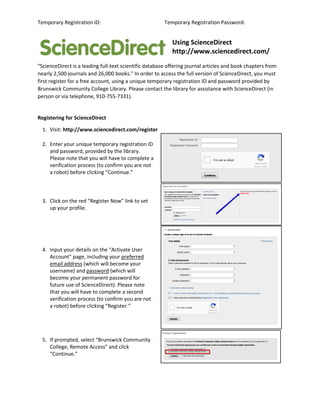
1. Visit: http://www.sciencedirect.com/register
2. Enter your unique temporary registration ID
and password, provided by the library.
Please note that you will have to complete a
verification process (to confirm you are not
a robot) before clicking “Continue.”
3. Click on the red “Register Now” link to set
up your profile.
4. Input your details on the “Activate User
Account” page, including your preferred
email address (which will become your
username) and password (which will
become your permanent password for
future use of ScienceDirect). Please note
that you will have to complete a second
verification process (to confirm you are not
a robot) before clicking “Register.”
5. If prompted, select “Brunswick Community
College, Remote Access” and click
“Continue.”
Signing in to ScienceDirect
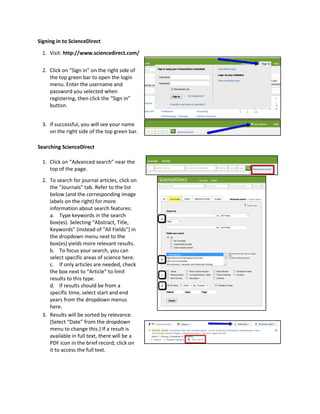
1. Visit: http://www.sciencedirect.com/
2. Click on “Sign in” on the right side of
the top green bar to open the login
menu. Enter the username and
password you selected when
registering, then click the “Sign in”
button.
3. If successful, you will see your name
on the right side of the top green bar.
Searching ScienceDirect
1. Click on “Advanced search” near the
top of the page.
2. To search for journal articles, click on
the “Journals” tab. Refer to the list
below (and the corresponding image
labels on the right) for more
information about search features:
a. Type keywords in the search
box(es). Selecting “Abstract, Title,
Keywords” (instead of “All Fields”) in
the dropdown menu next to the
box(es) yields more relevant results.
b. To focus your search, you can
select specific areas of science here.
c. If only articles are needed, check
the box next to “Article” to limit
results to this type.
d. If results should be from a
specific time, select start and end
years from the dropdown menus
here.
3. Results will be sorted by relevance.
(Select “Date” from the dropdown
menu to change this.) If a result is
available in full text, there will be a
PDF icon in the brief record; click on
it to access the full text.

Science Direct Handout

  • 1.
    Temporary Registration ID:Temporary Registration Password: Using ScienceDirect http://www.sciencedirect.com/ “ScienceDirect is a leading full-text scientific database offering journal articles and book chapters from nearly 2,500 journals and 26,000 books.” In order to access the full version of ScienceDirect, you must first register for a free account, using a unique temporary registration ID and password provided by Brunswick Community College Library. Please contact the library for assistance with ScienceDirect (in person or via telephone, 910-755-7331). Registering for ScienceDirect 1. Visit: http://www.sciencedirect.com/register 2. Enter your unique temporary registration ID and password, provided by the library. Please note that you will have to complete a verification process (to confirm you are not a robot) before clicking “Continue.” 3. Click on the red “Register Now” link to set up your profile. 4. Input your details on the “Activate User Account” page, including your preferred email address (which will become your username) and password (which will become your permanent password for future use of ScienceDirect). Please note that you will have to complete a second verification process (to confirm you are not a robot) before clicking “Register.” 5. If prompted, select “Brunswick Community College, Remote Access” and click “Continue.”
  • 2.
    Signing in toScienceDirect 1. Visit: http://www.sciencedirect.com/ 2. Click on “Sign in” on the right side of the top green bar to open the login menu. Enter the username and password you selected when registering, then click the “Sign in” button. 3. If successful, you will see your name on the right side of the top green bar. Searching ScienceDirect 1. Click on “Advanced search” near the top of the page. 2. To search for journal articles, click on the “Journals” tab. Refer to the list below (and the corresponding image labels on the right) for more information about search features: a. Type keywords in the search box(es). Selecting “Abstract, Title, Keywords” (instead of “All Fields”) in the dropdown menu next to the box(es) yields more relevant results. b. To focus your search, you can select specific areas of science here. c. If only articles are needed, check the box next to “Article” to limit results to this type. d. If results should be from a specific time, select start and end years from the dropdown menus here. 3. Results will be sorted by relevance. (Select “Date” from the dropdown menu to change this.) If a result is available in full text, there will be a PDF icon in the brief record; click on it to access the full text.