This document outlines the use of scenarios in Excel for data analysis, highlighting their function as tools for 'what-if' analysis to predict outcomes based on changing variables. It explains how to create, edit, and switch between scenarios, as well as how to generate reports from them. Additionally, it provides guidance on adding scenarios and leveraging pivot tables for further analysis.
What is aScenario?
• Scenarios are easy-to-use Data Analysis tools
• Scenarios give a snapshot of what things would be like if
certain conditions were to change.
• A scenario contains sets of values that influence an outcome
• They can be used to forecast the effects of just about
anything
• They are particularly useful in financial models
3.
Using Scenarios for“What-If” Analysis
• Scenarios can be named and saved with different sets of
figures to represent specific values.
• When several scenarios have been saved they can be viewed
to compare the different results each would bring.
• An example would be where you create a budget but are not
sure of the amount of revenue your business will generate
• A scenario can be defined for each predicted revenue figure
and then switched between to calculate “what-if” analysis.
4.
Scenario Reporting
• Youcan create a Scenario Report from the scenarios you
generate
• This report can also be turned into a Pivot Table report
• This makes it ideal for further analysis
• Scenarios are great when the data sets become large.
5.
How to Adda Scenario
• From the Data tab navigate to What-if Analysis
• Click Scenario Manager
6.
Adding a Scenario
•The Scenario Manager dialogue
box will be displayed
• Click Add to add your first set of
figures
7.
Edit the Scenario
•Select the cells that will change
• These should be value cells not
formula cells
• Click OK
8.
Change the Scenariovalues
• The Scenario Values dialogue box will be displayed:
• If necessary change the values for the changing cells
• Click OK
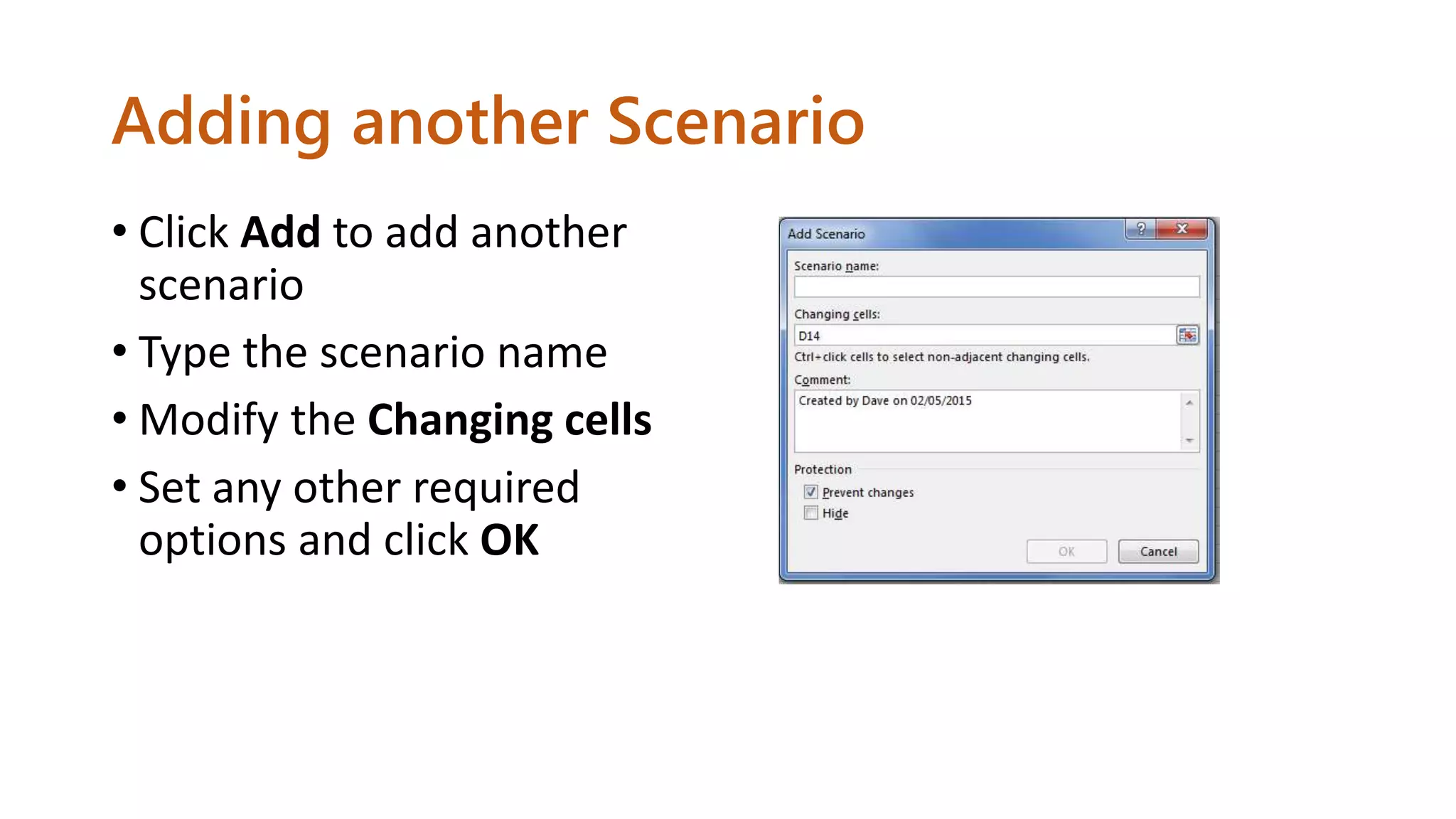
Adding another Scenario
•Click Add to add another
scenario
• Type the scenario name
• Modify the Changing cells
• Set any other required
options and click OK
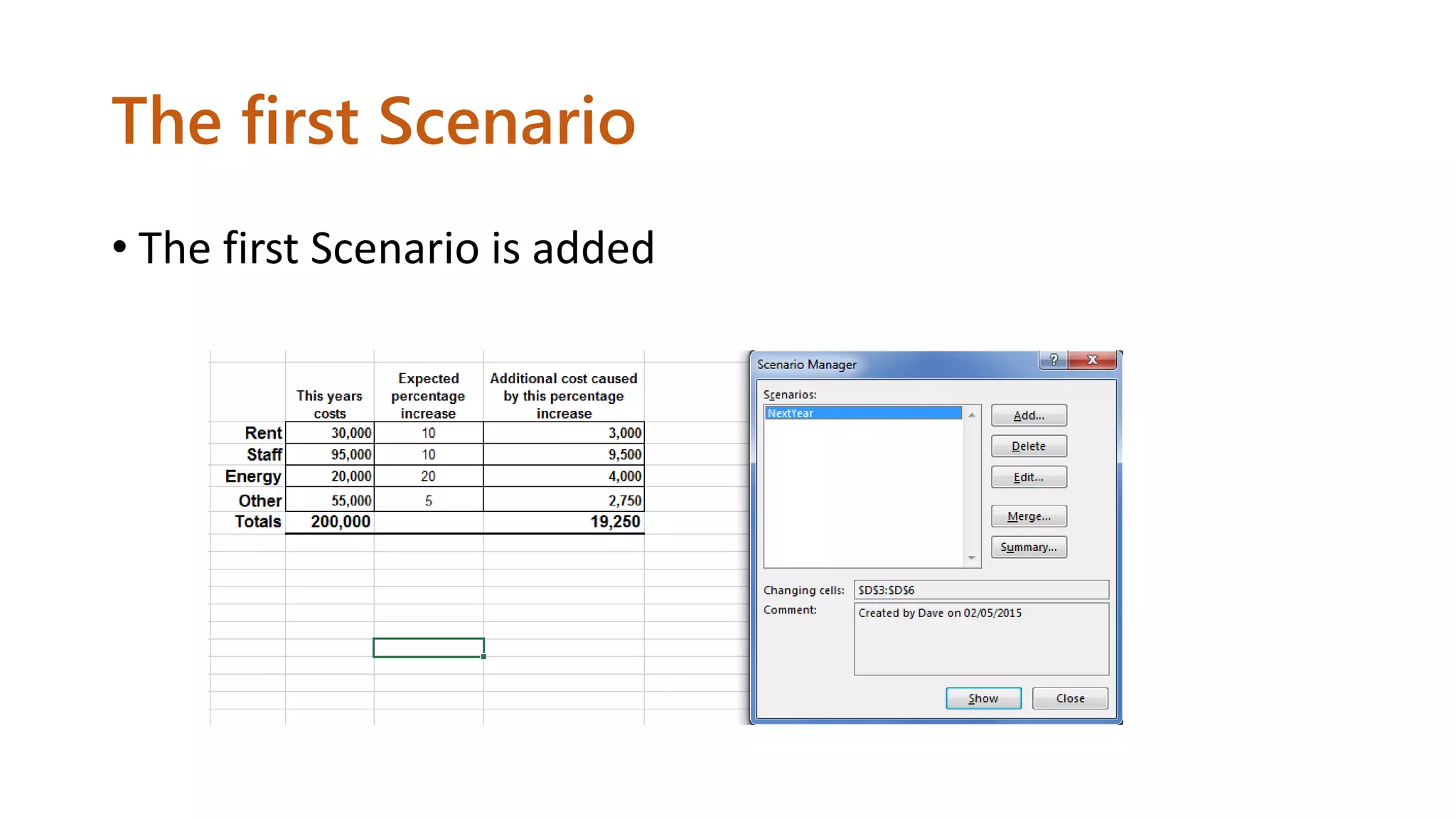
The second Scenario
•The second Scenario is added to the Scenario Manager
• Click Add to add another
13.
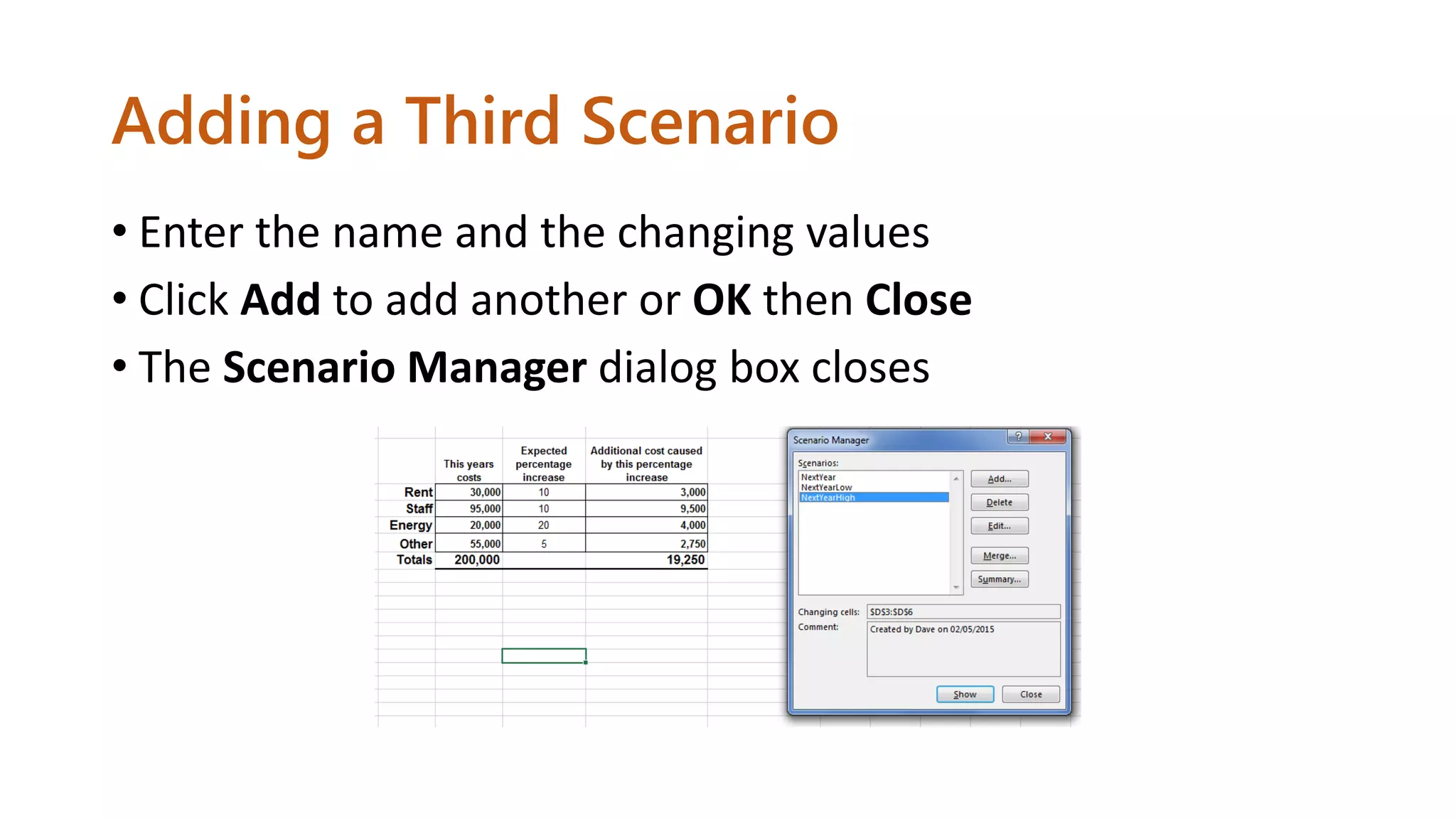
Adding a ThirdScenario
• Enter the name and the changing values
• Click Add to add another or OK then Close
• The Scenario Manager dialog box closes
14.
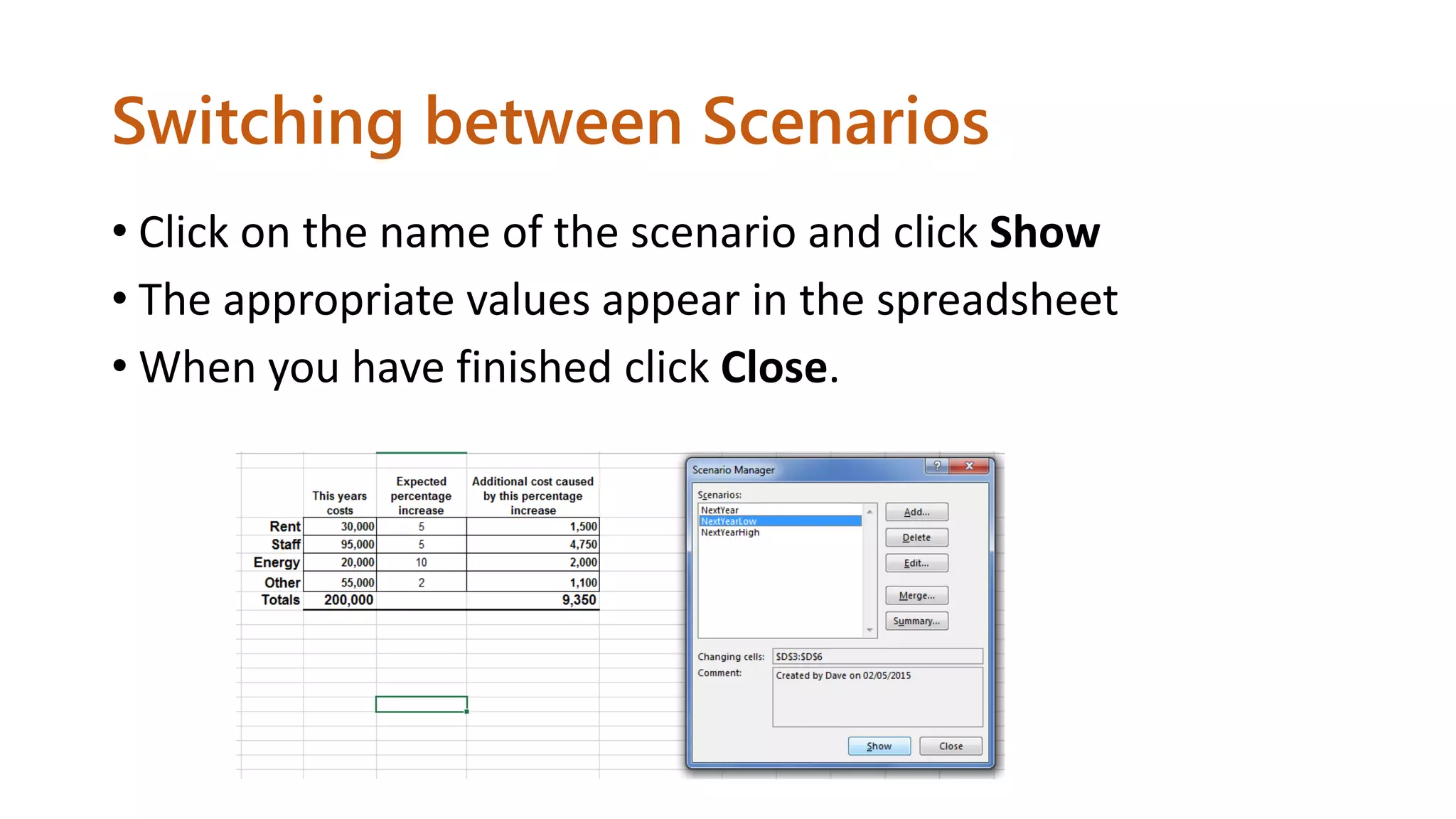
Switching between Scenarios
•Click on the name of the scenario and click Show
• The appropriate values appear in the spreadsheet
• When you have finished click Close.
15.
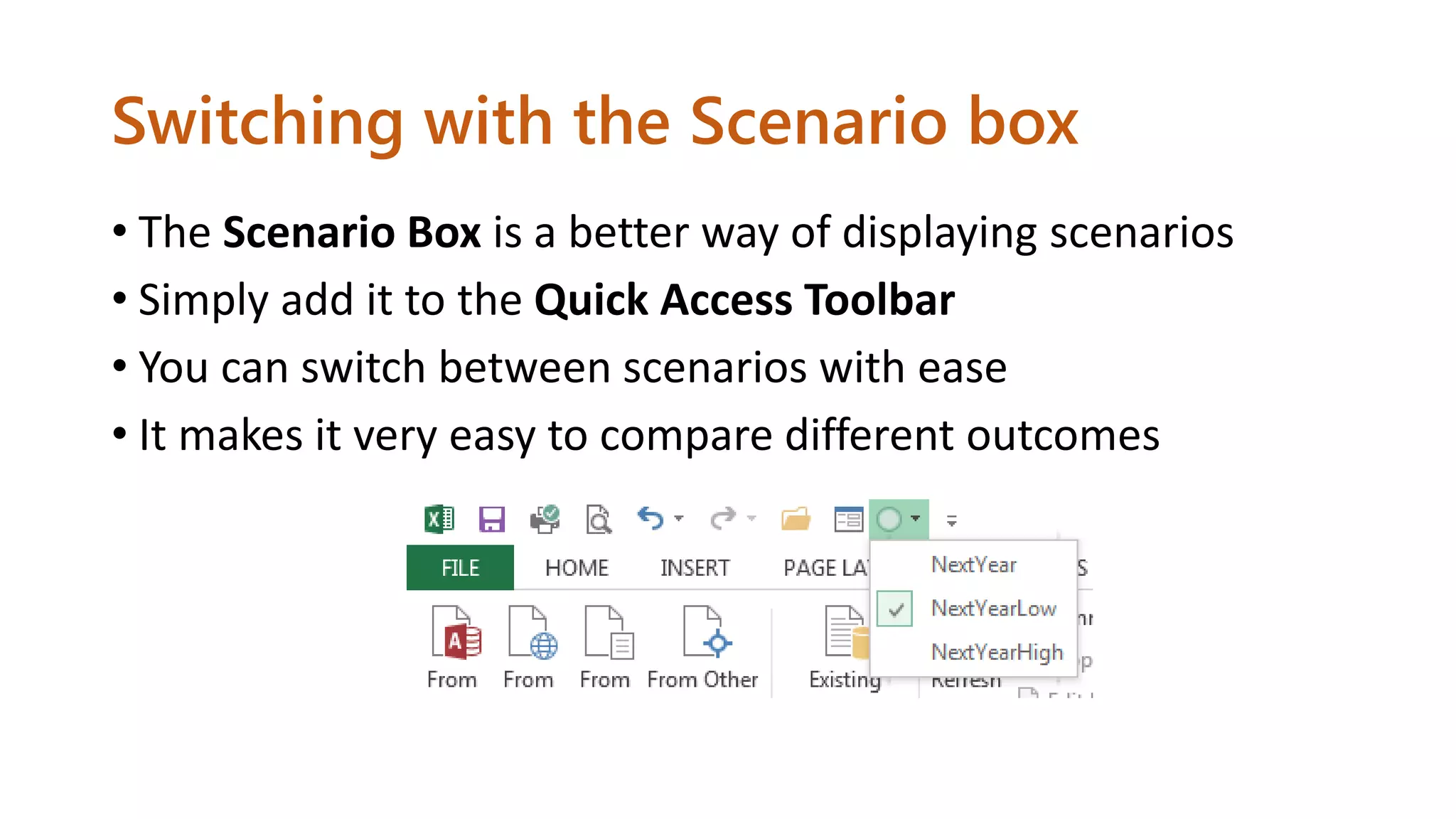
Switching with theScenario box
• The Scenario Box is a better way of displaying scenarios
• Simply add it to the Quick Access Toolbar
• You can switch between scenarios with ease
• It makes it very easy to compare different outcomes
16.
Adding the Scenariobox
• From the drop-down menu at
the right of the Quick Access
Toolbar, click Customize Quick
Access Toolbar.
• Click More Commands
17.
• Under ChooseCommands
From: pick Commands not
on the Ribbon
• Find Scenario in the list and
click Add.
Adding the Scenario box
18.
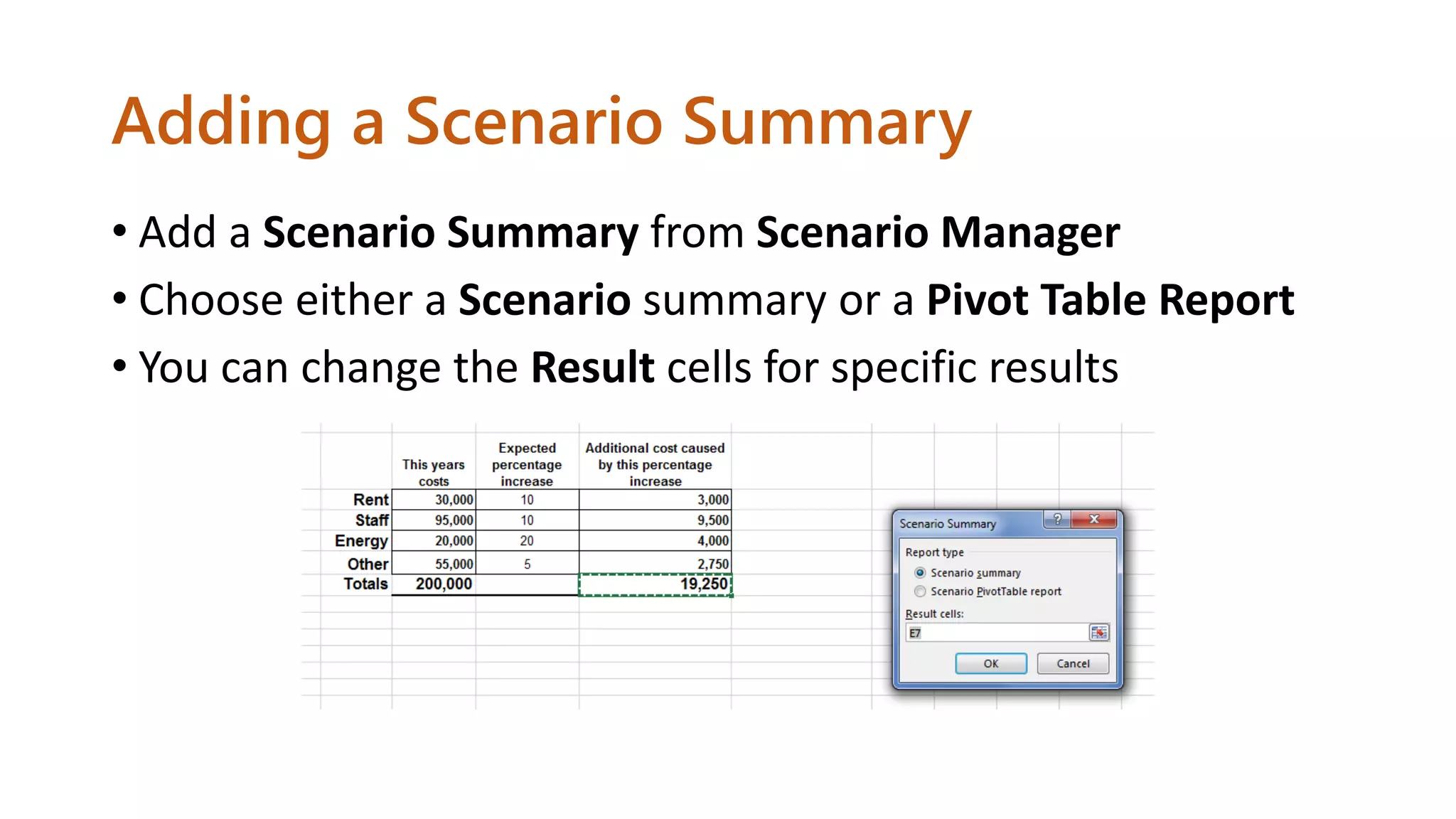
Adding a ScenarioSummary
• Add a Scenario Summary from Scenario Manager
• Choose either a Scenario summary or a Pivot Table Report
• You can change the Result cells for specific results