INTRODUCTION TO INFORMATION TECHNOLOGY
1 Course:-BBA
Section:-M2
ASSIGNMENT NUMBER 1
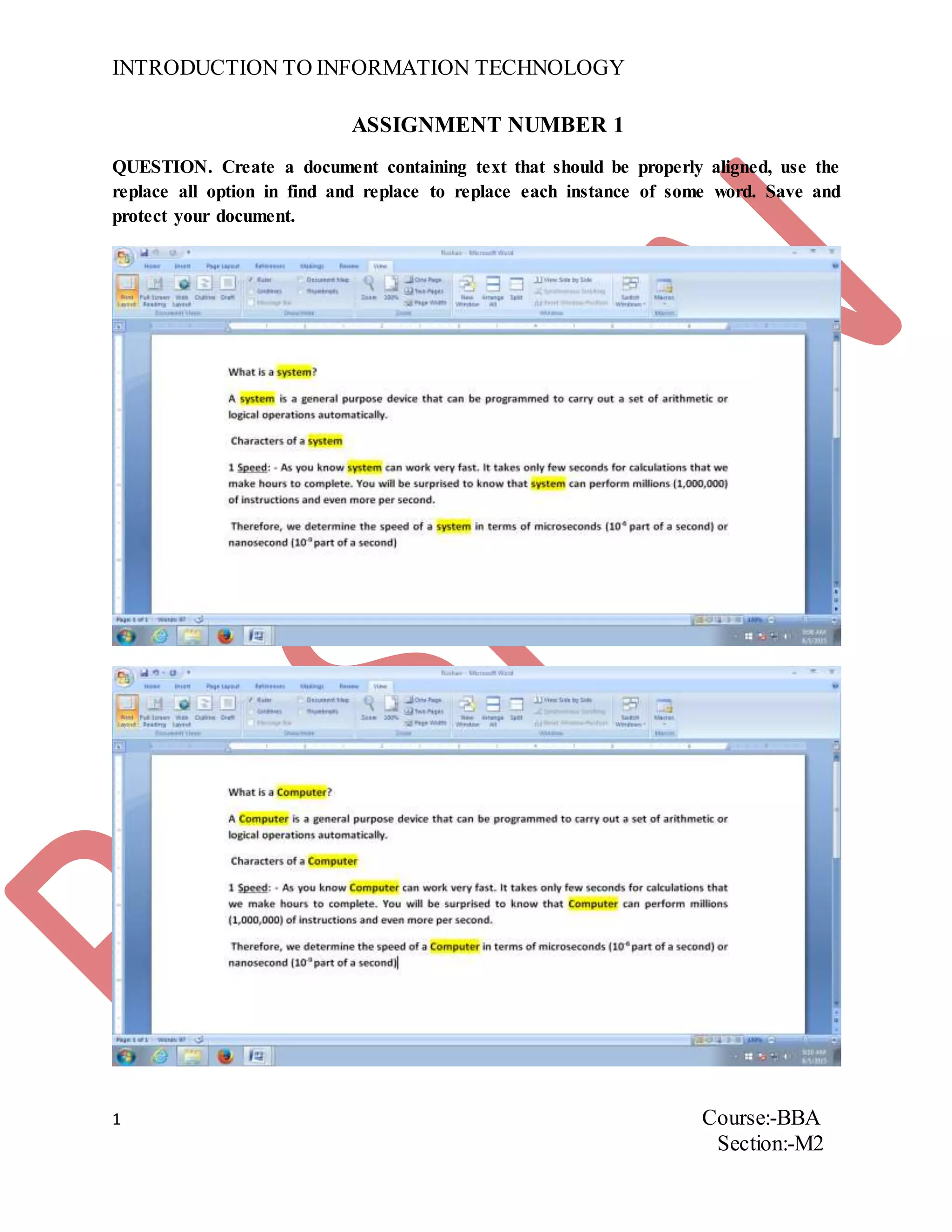
QUESTION. Create a document containing text that should be properly aligned, use the
replace all option in find and replace to replace each instance of some word. Save and
protect your document.
INTRODUCTION TO INFORMATION TECHNOLOGY
2 Course:-BBA
Section:-M2
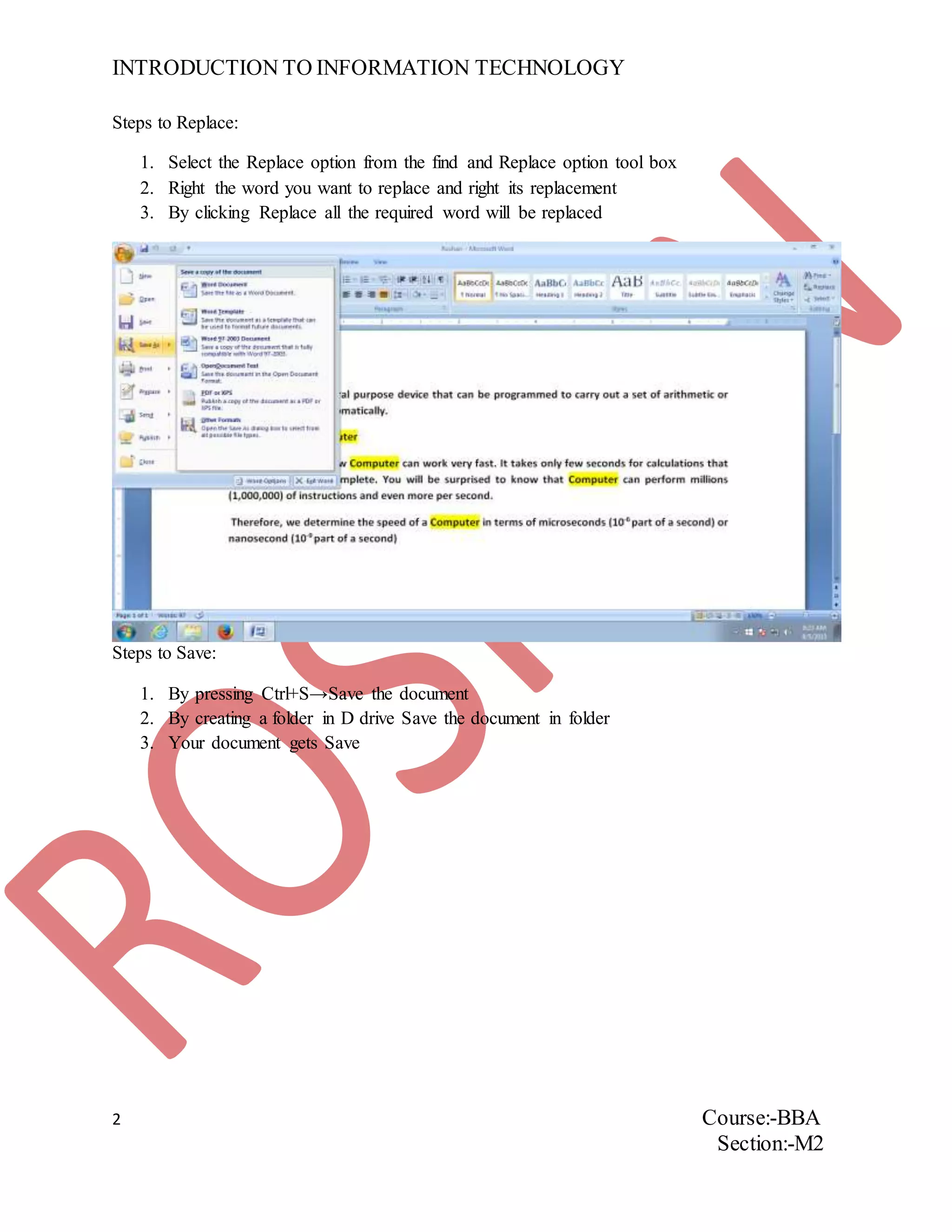
Steps to Replace:
1. Select the Replace option from the find and Replace option tool box
2. Right the word you want to replace and right its replacement
3. By clicking Replace all the required word will be replaced
Steps to Save:
1. By pressing Ctrl+S→Save the document
2. By creating a folder in D drive Save the document in folder
3. Your document gets Save
INTRODUCTION TO INFORMATION TECHNOLOGY
3 Course:-BBA
Section:-M2
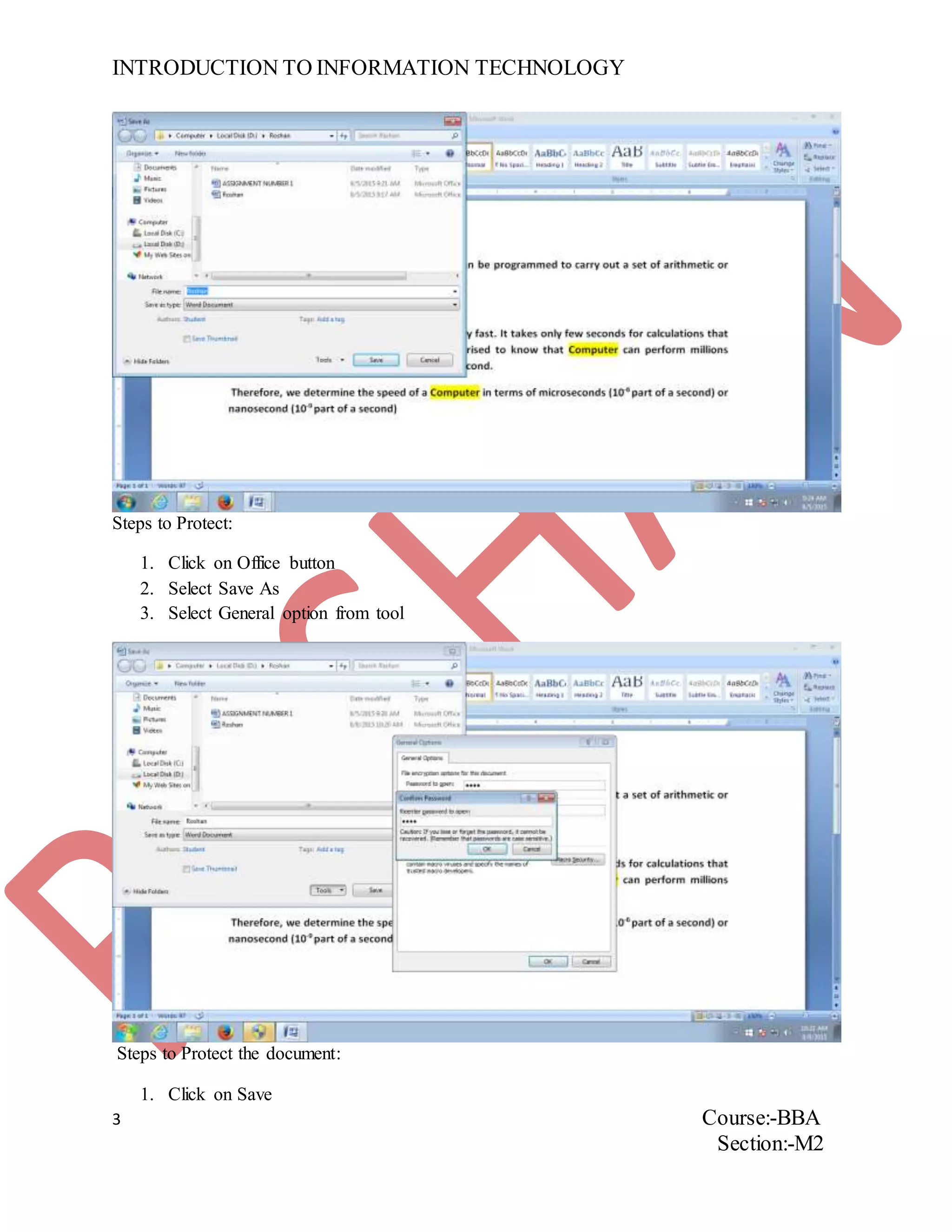
Steps to Protect:
1. Click on Office button
2. Select Save As
3. Select General option from tool
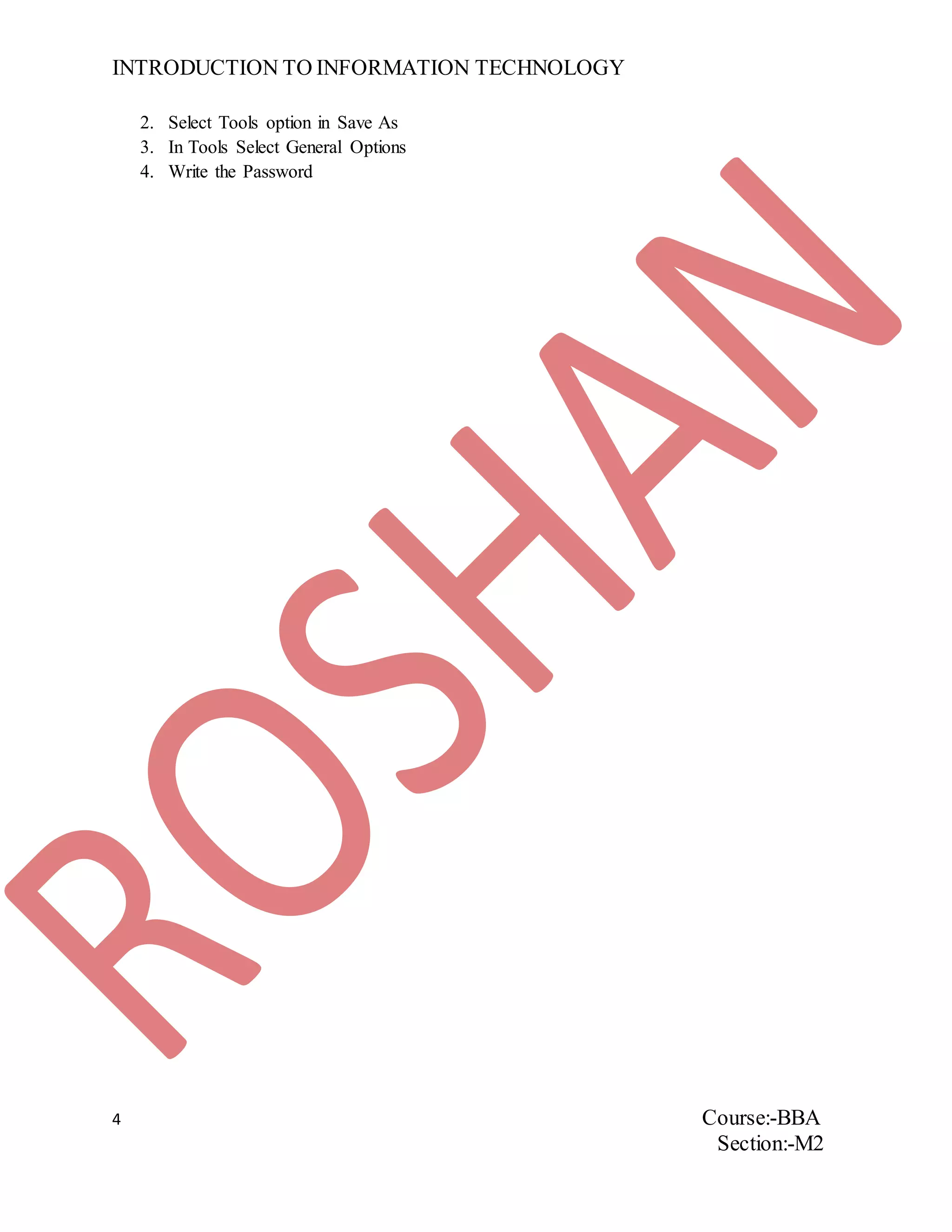
Steps to Protect the document:
1. Click on Save
INTRODUCTION TO INFORMATION TECHNOLOGY
4 Course:-BBA
Section:-M2
2. Select Tools option in Save As
3. In Tools Select General Options
4. Write the Password
INTRODUCTION TO INFORMATION TECHNOLOGY
5 Course:-BBA
Section:-M2
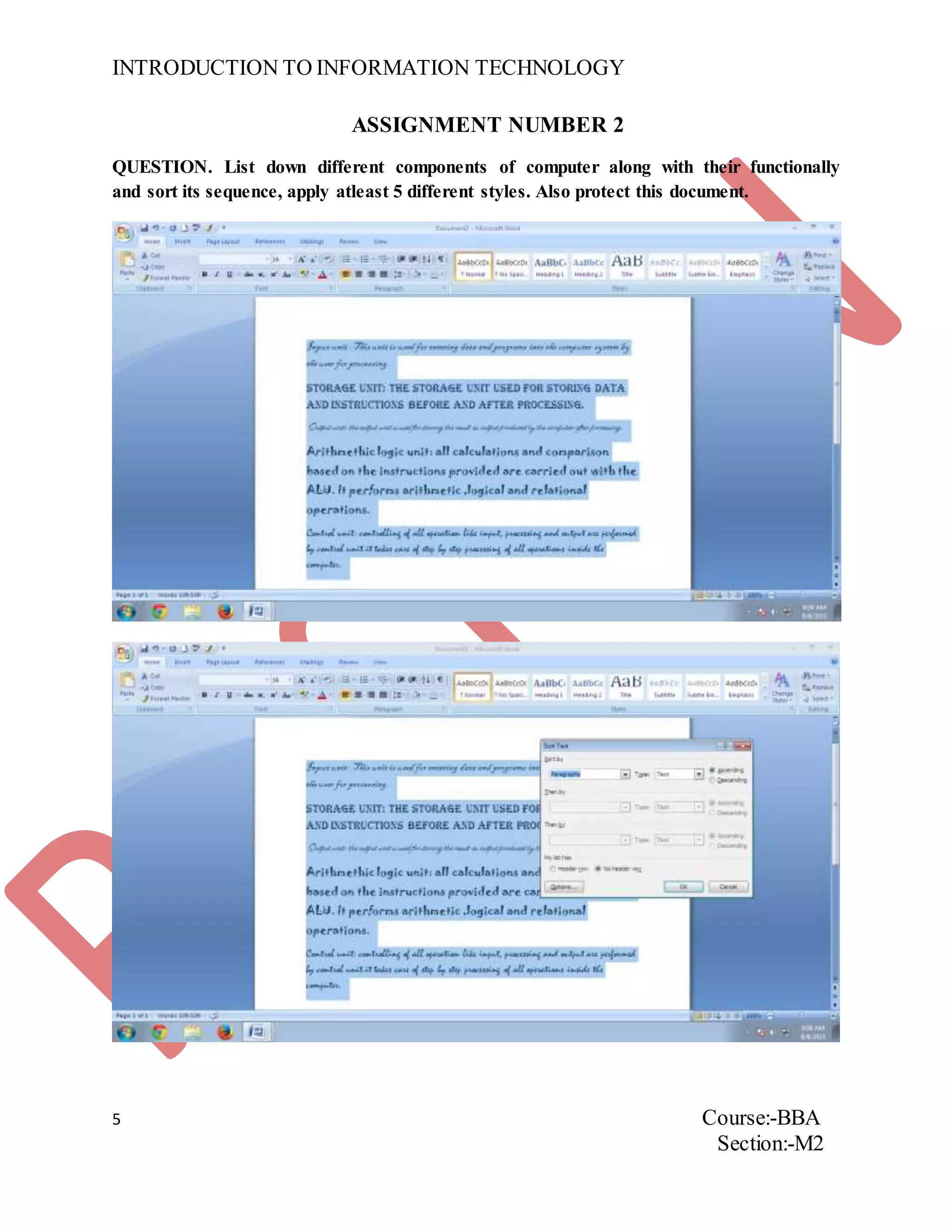
ASSIGNMENT NUMBER 2
QUESTION. List down different components of computer along with their functionally
and sort its sequence, apply atleast 5 different styles. Also protect this document.
INTRODUCTION TO INFORMATION TECHNOLOGY
6 Course:-BBA
Section:-M2
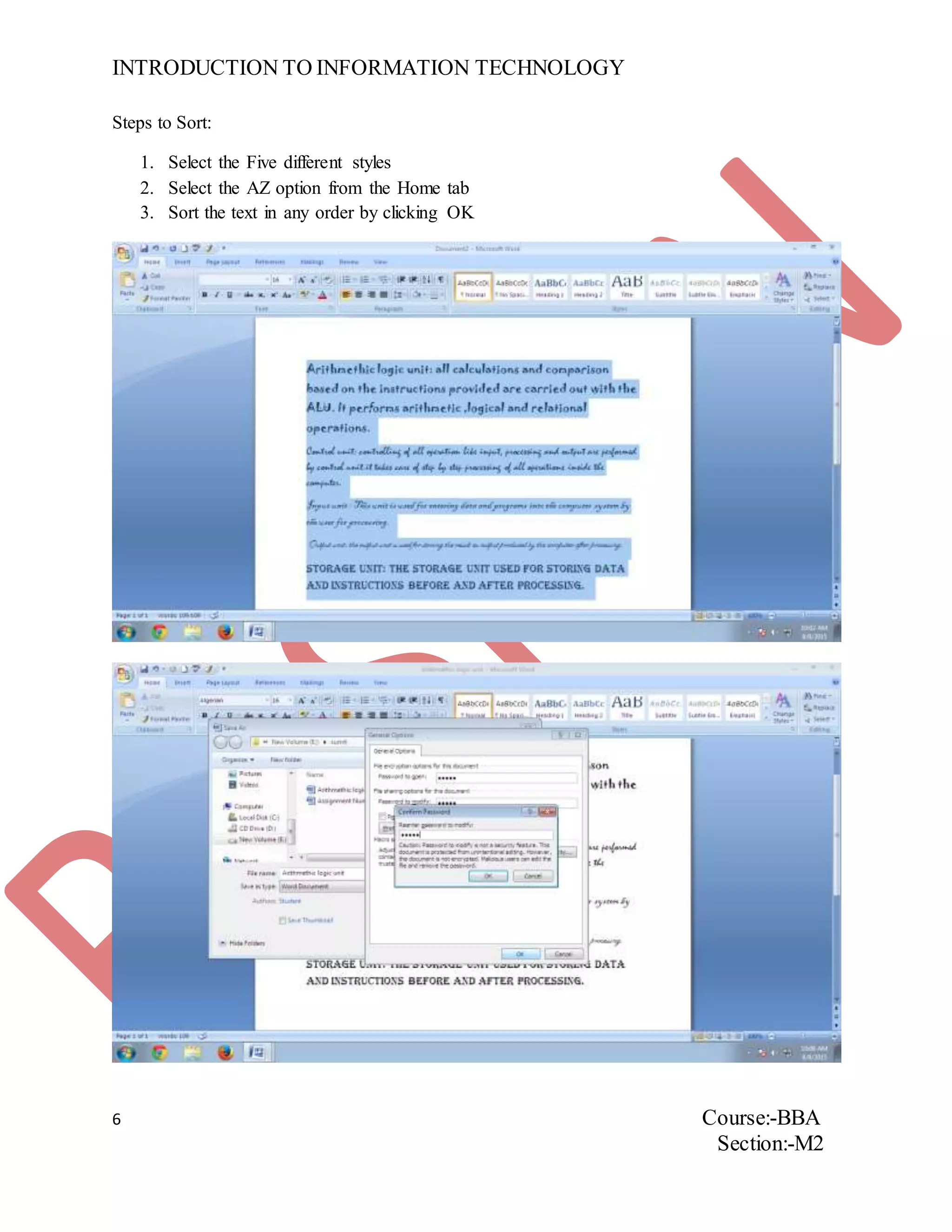
Steps to Sort:
1. Select the Five different styles
2. Select the AZ option from the Home tab
3. Sort the text in any order by clicking OK
INTRODUCTION TO INFORMATION TECHNOLOGY
7 Course:-BBA
Section:-M2
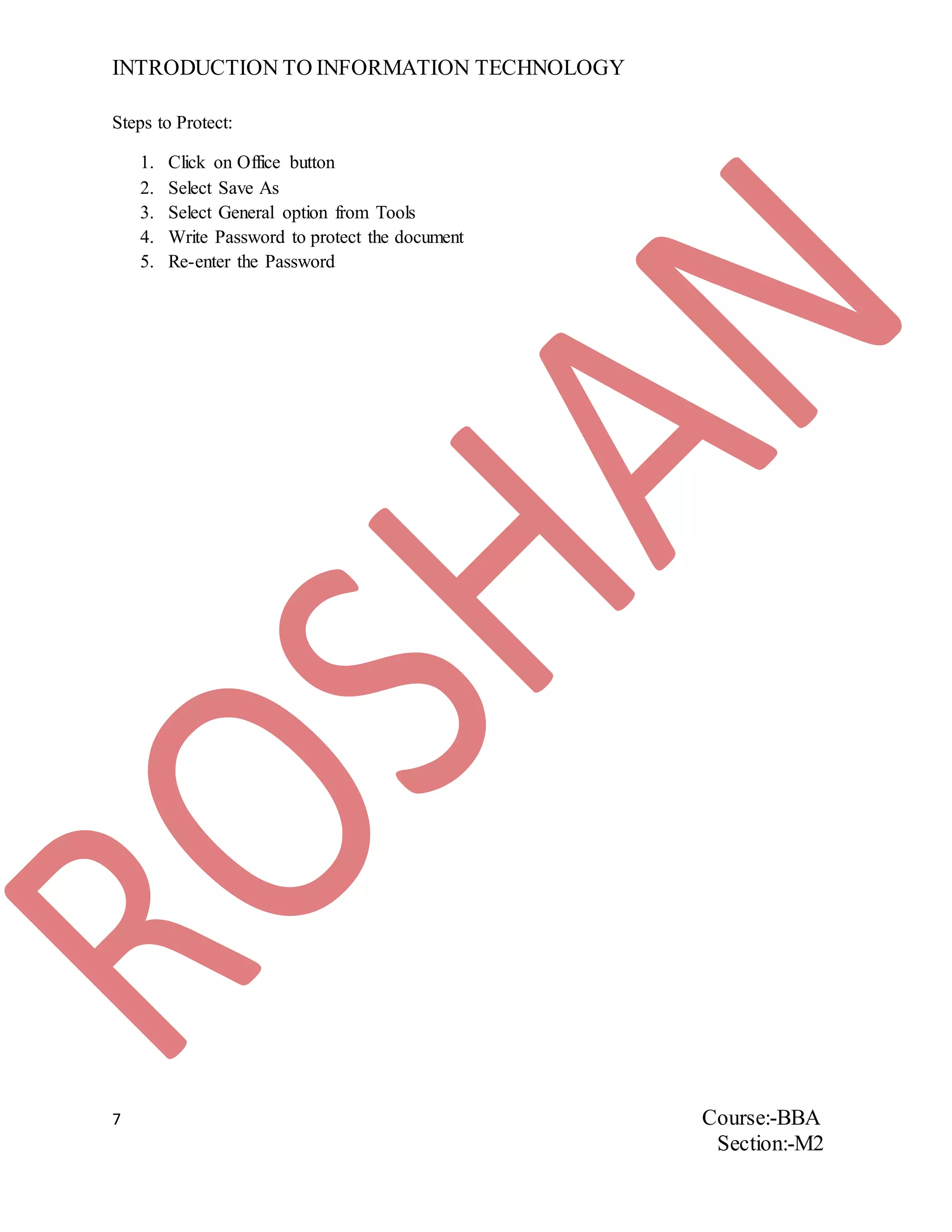
Steps to Protect:
1. Click on Office button
2. Select Save As
3. Select General option from Tools
4. Write Password to protect the document
5. Re-enter the Password
INTRODUCTION TO INFORMATION TECHNOLOGY
8 Course:-BBA
Section:-M2
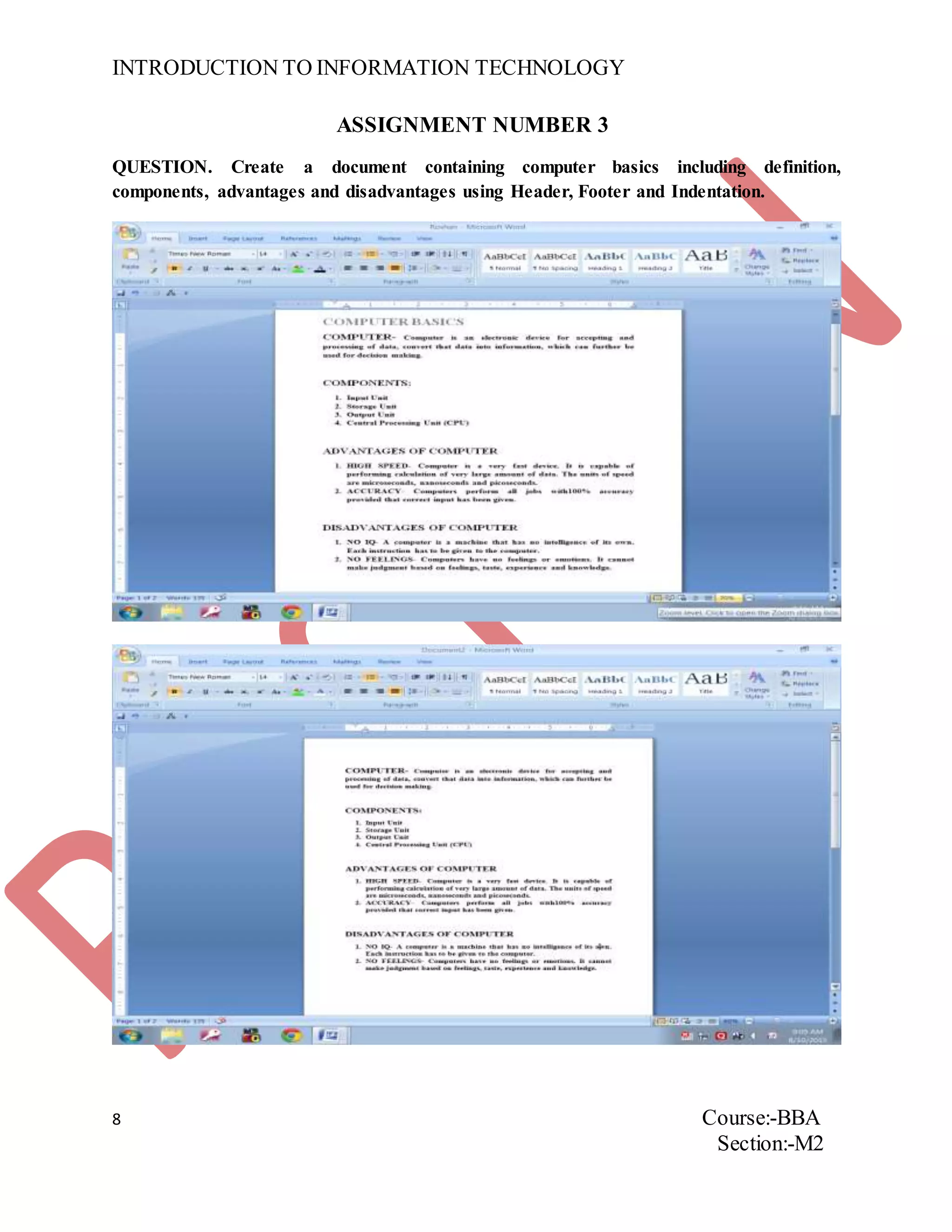
ASSIGNMENT NUMBER 3
QUESTION. Create a document containing computer basics including definition,
components, advantages and disadvantages using Header, Footer and Indentation.
INTRODUCTION TO INFORMATION TECHNOLOGY
9 Course:-BBA
Section:-M2
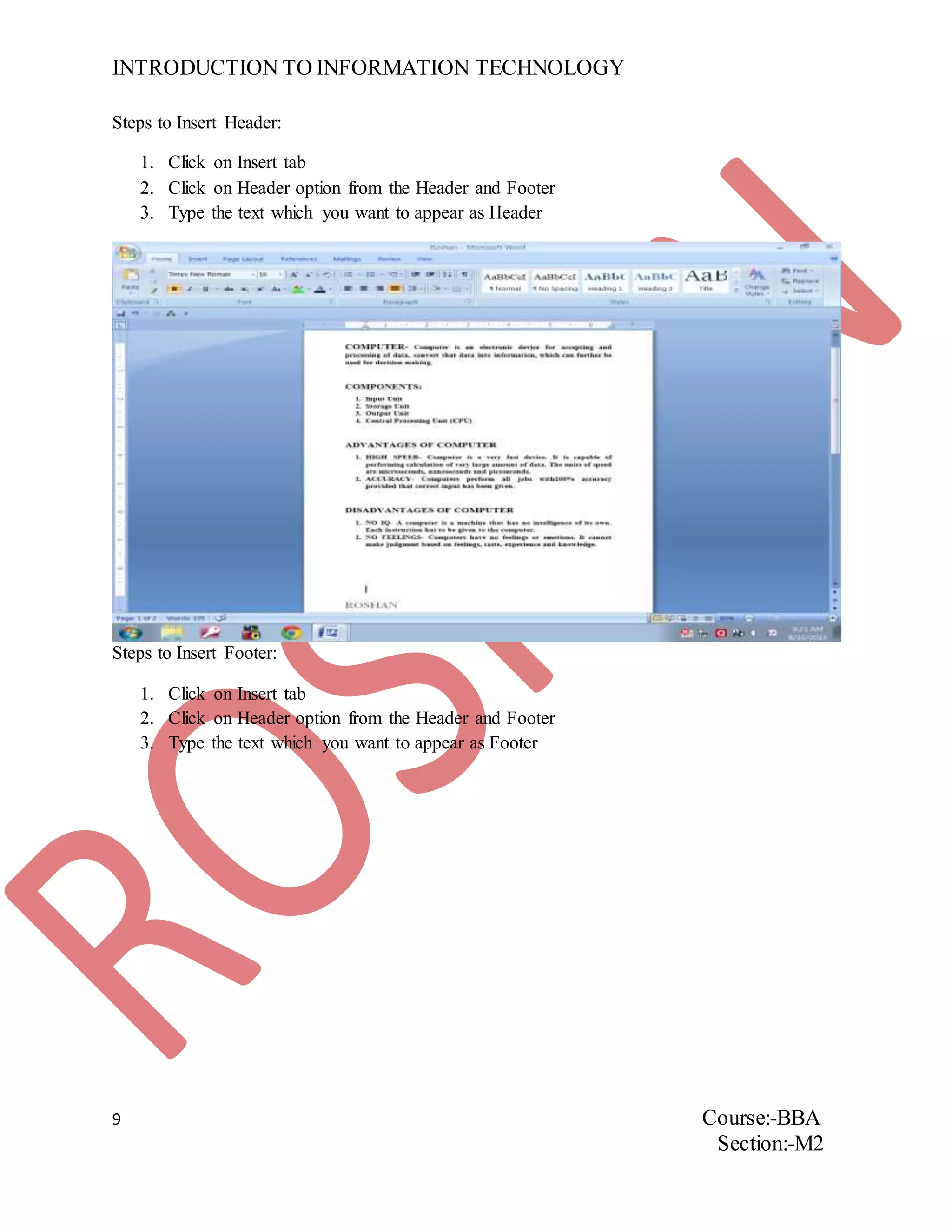
Steps to Insert Header:
1. Click on Insert tab
2. Click on Header option from the Header and Footer
3. Type the text which you want to appear as Header
Steps to Insert Footer:
1. Click on Insert tab
2. Click on Header option from the Header and Footer
3. Type the text which you want to appear as Footer
INTRODUCTION TO INFORMATION TECHNOLOGY
10 Course:-BBA
Section:-M2
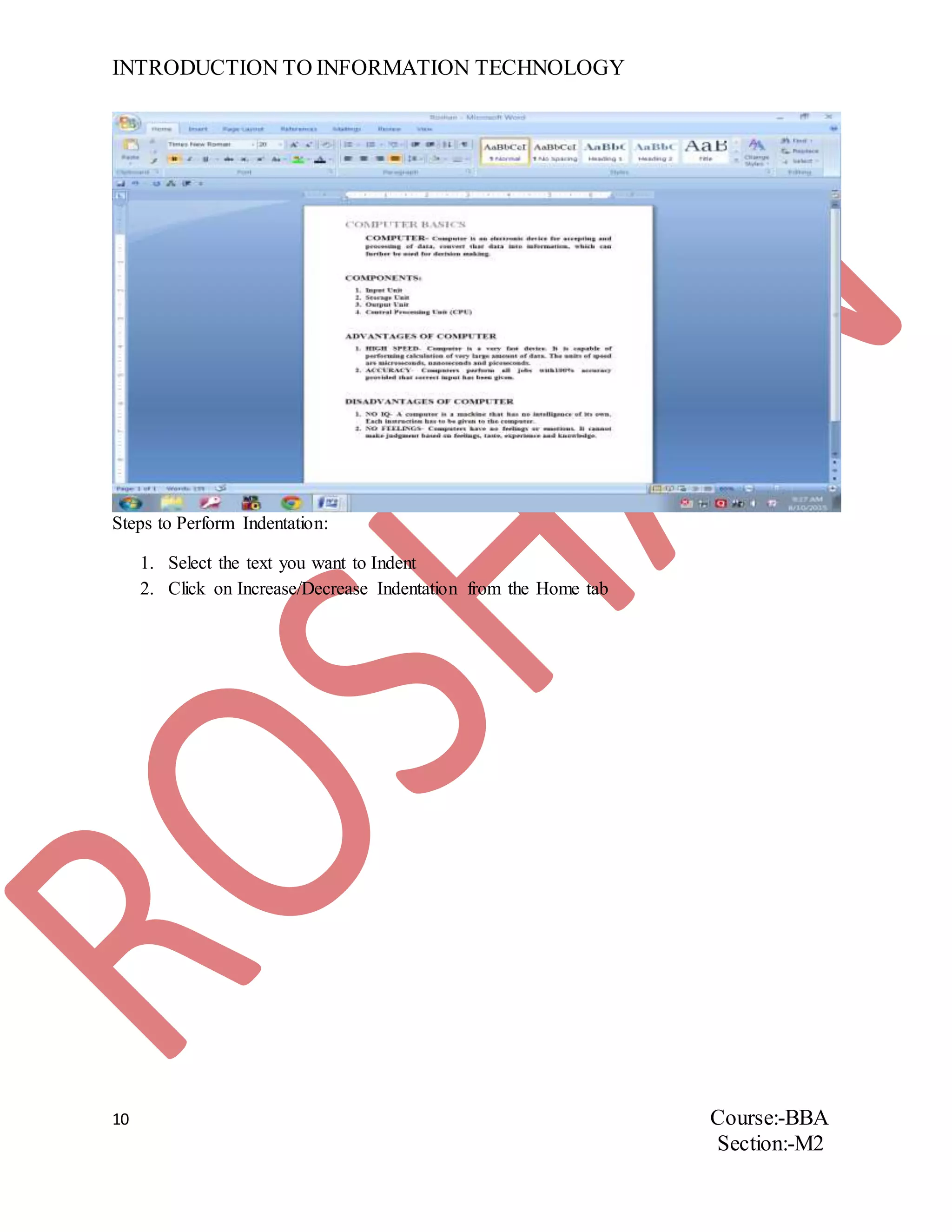
Steps to Perform Indentation:
1. Select the text you want to Indent
2. Click on Increase/Decrease Indentation from the Home tab
INTRODUCTION TO INFORMATION TECHNOLOGY
11 Course:-BBA
Section:-M2
ASSIGNGMET NUMBER 4
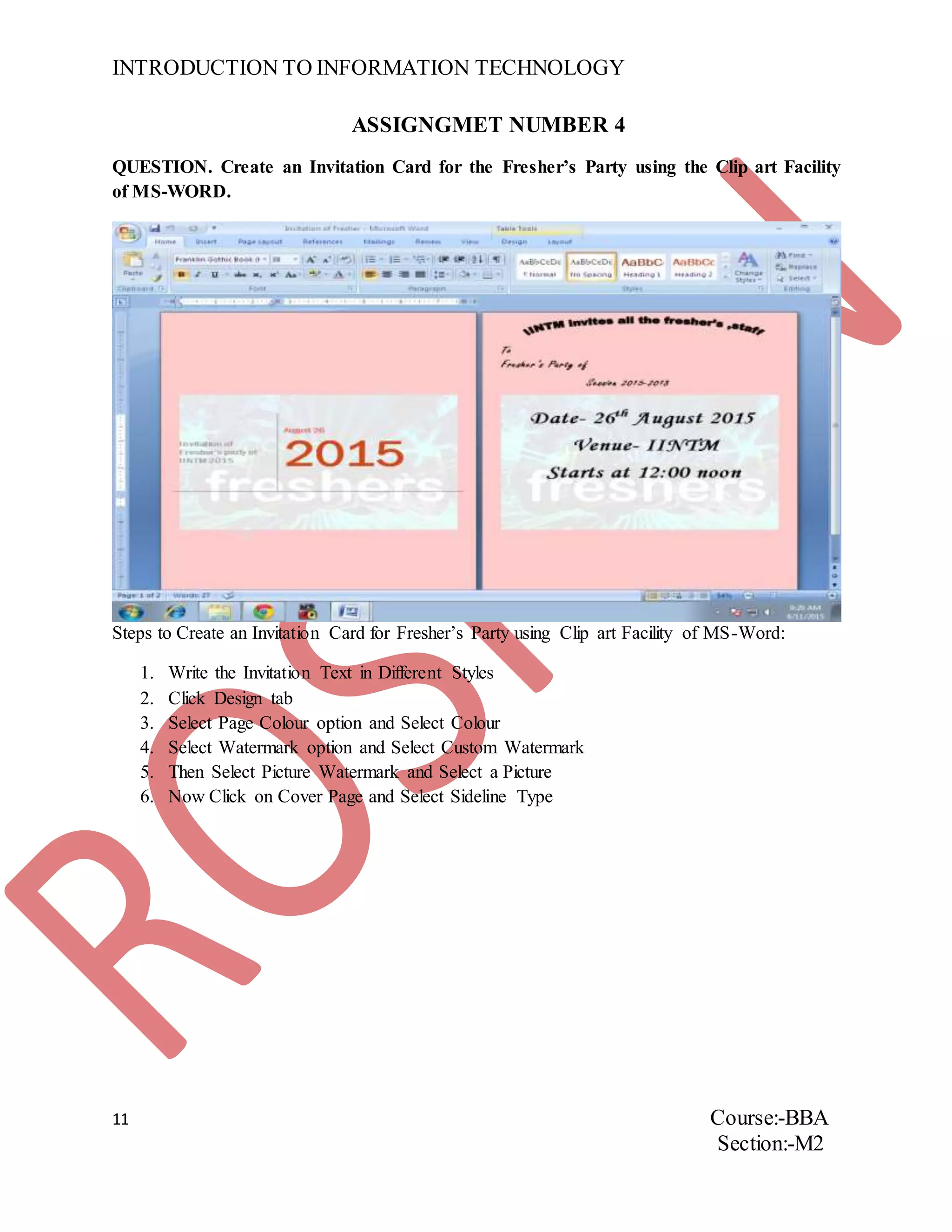
QUESTION. Create an Invitation Card for the Fresher’s Party using the Clip art Facility
of MS-WORD.
Steps to Create an Invitation Card for Fresher’s Party using Clip art Facility of MS-Word:
1. Write the Invitation Text in Different Styles
2. Click Design tab
3. Select Page Colour option and Select Colour
4. Select Watermark option and Select Custom Watermark
5. Then Select Picture Watermark and Select a Picture
6. Now Click on Cover Page and Select Sideline Type
INTRODUCTION TO INFORMATION TECHNOLOGY
12 Course:-BBA
Section:-M2
ASSIGNMENT NUMBER 5
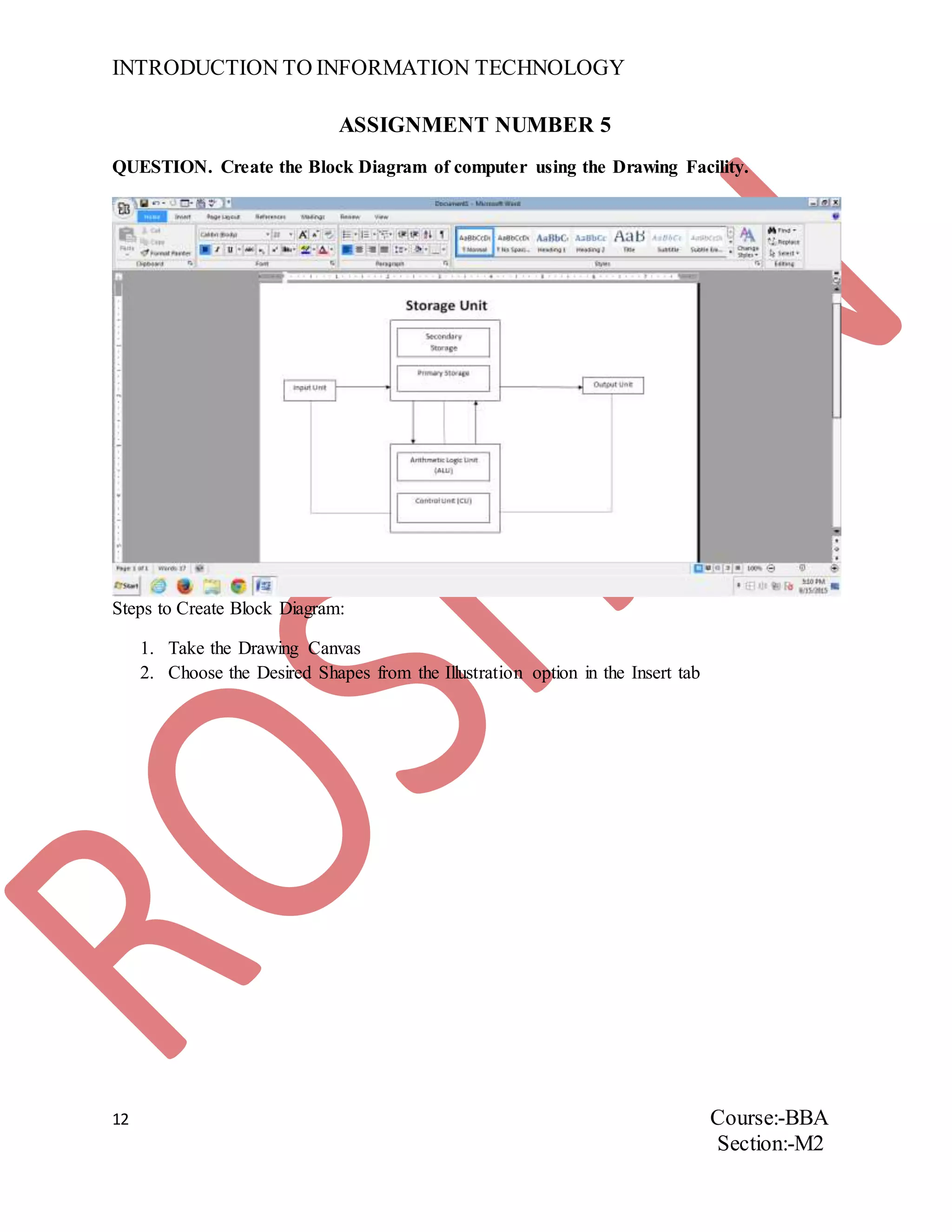
QUESTION. Create the Block Diagram of computer using the Drawing Facility.
Steps to Create Block Diagram:
1. Take the Drawing Canvas
2. Choose the Desired Shapes from the Illustration option in the Insert tab
INTRODUCTION TO INFORMATION TECHNOLOGY
13 Course:-BBA
Section:-M2
ASSIGNMENT NUMBER 6
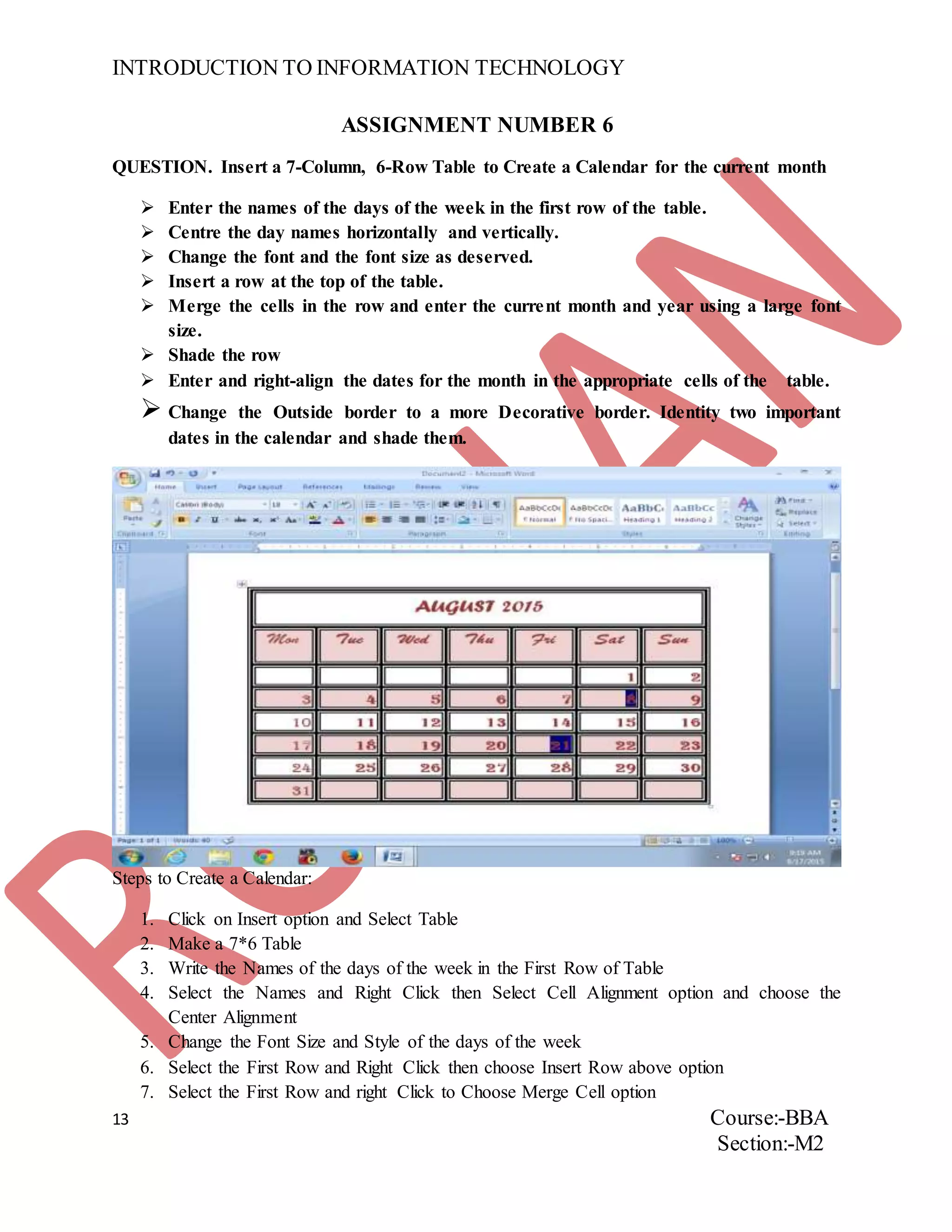
QUESTION. Insert a 7-Column, 6-Row Table to Create a Calendar for the current month
 Enter the names of the days of the week in the first row of the table.
 Centre the day names horizontally and vertically.
 Change the font and the font size as deserved.
 Insert a row at the top of the table.
 Merge the cells in the row and enter the current month and year using a large font
size.
 Shade the row
 Enter and right-align the dates for the month in the appropriate cells of the table.
 Change the Outside border to a more Decorative border. Identity two important
dates in the calendar and shade them.
Steps to Create a Calendar:
1. Click on Insert option and Select Table
2. Make a 7*6 Table
3. Write the Names of the days of the week in the First Row of Table
4. Select the Names and Right Click then Select Cell Alignment option and choose the
Center Alignment
5. Change the Font Size and Style of the days of the week
6. Select the First Row and Right Click then choose Insert Row above option
7. Select the First Row and right Click to Choose Merge Cell option
INTRODUCTION TO INFORMATION TECHNOLOGY
14 Course:-BBA
Section:-M2
8. Write the Name of the month in the First Row
9. Click on Table tools and Shade the Table as desired
10. Click on Table tools to give attractive border
11. Choose any of the Table styles to make it attractive
12. Highlight any two dates on the calendar
INTRODUCTION TO INFORMATION TECHNOLOGY
15 Course:-BBA
Section:-M2
ASSIGNMENT NUMBER 7
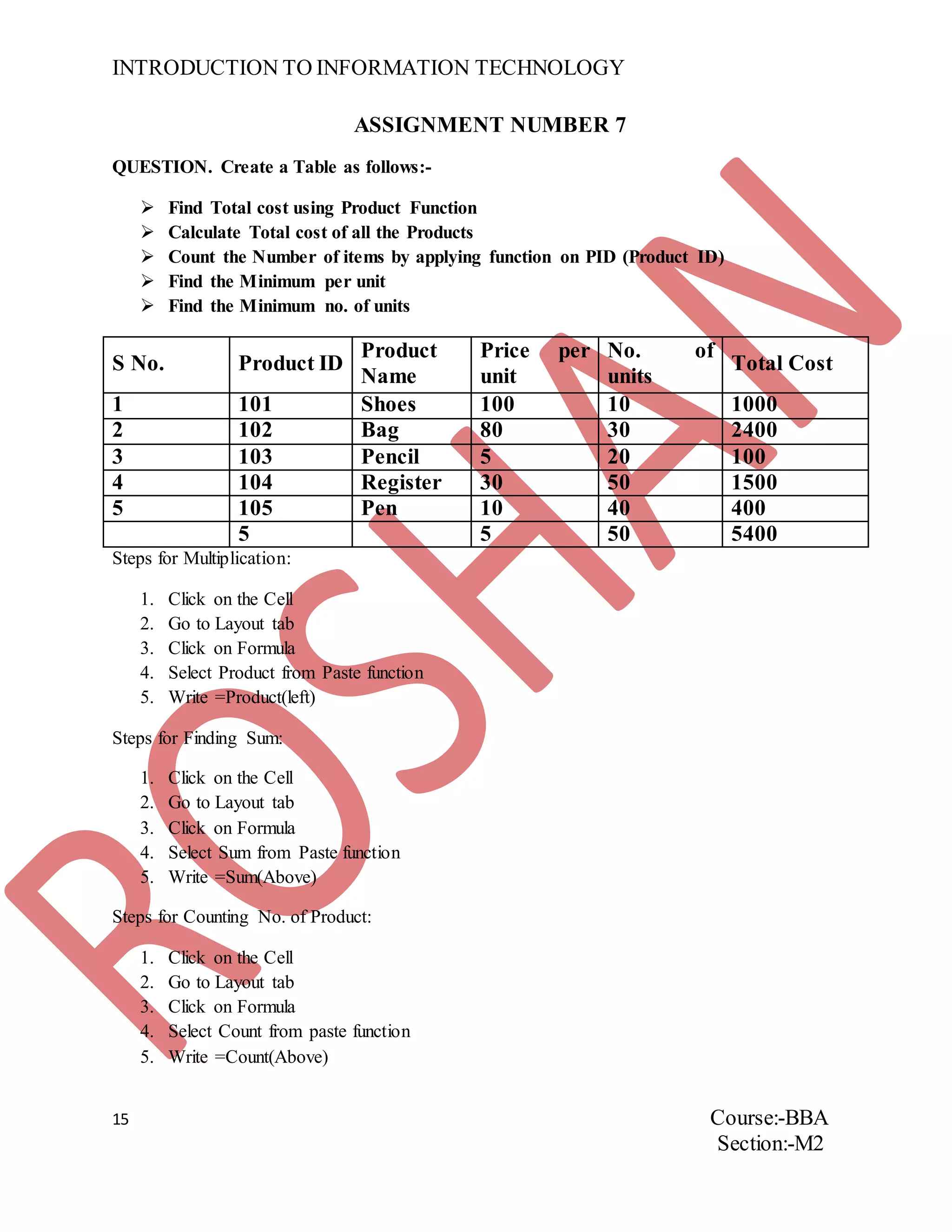
QUESTION. Create a Table as follows:-
 Find Total cost using Product Function
 Calculate Total cost of all the Products
 Count the Number of items by applying function on PID (Product ID)
 Find the Minimum per unit
 Find the Minimum no. of units
S No. Product ID
Product
Name
Price per
unit
No. of
units
Total Cost
1 101 Shoes 100 10 1000
2 102 Bag 80 30 2400
3 103 Pencil 5 20 100
4 104 Register 30 50 1500
5 105 Pen 10 40 400
5 5 50 5400
Steps for Multiplication:
1. Click on the Cell
2. Go to Layout tab
3. Click on Formula
4. Select Product from Paste function
5. Write =Product(left)
Steps for Finding Sum:
1. Click on the Cell
2. Go to Layout tab
3. Click on Formula
4. Select Sum from Paste function
5. Write =Sum(Above)
Steps for Counting No. of Product:
1. Click on the Cell
2. Go to Layout tab
3. Click on Formula
4. Select Count from paste function
5. Write =Count(Above)
INTRODUCTION TO INFORMATION TECHNOLOGY
16 Course:-BBA
Section:-M2
Steps for Finding Minimum Price per Unit:
1. Click on the Cell
2. Go to Layout tab
3. Click on Formula
4. Select Min from Paste function
5. Write =Min(Above)
Steps for Finding Maximum no. of Units:
1. Click on the Cell
2. Go to Layout tab
3. Click on Formula
4. Select Min from Paste function
5. Write =Max(Above)
ASSIGNMENT NUMBER 8
INTRODUCTION TO INFORMATION TECHNOLOGY
17 Course:-BBA
Section:-M2
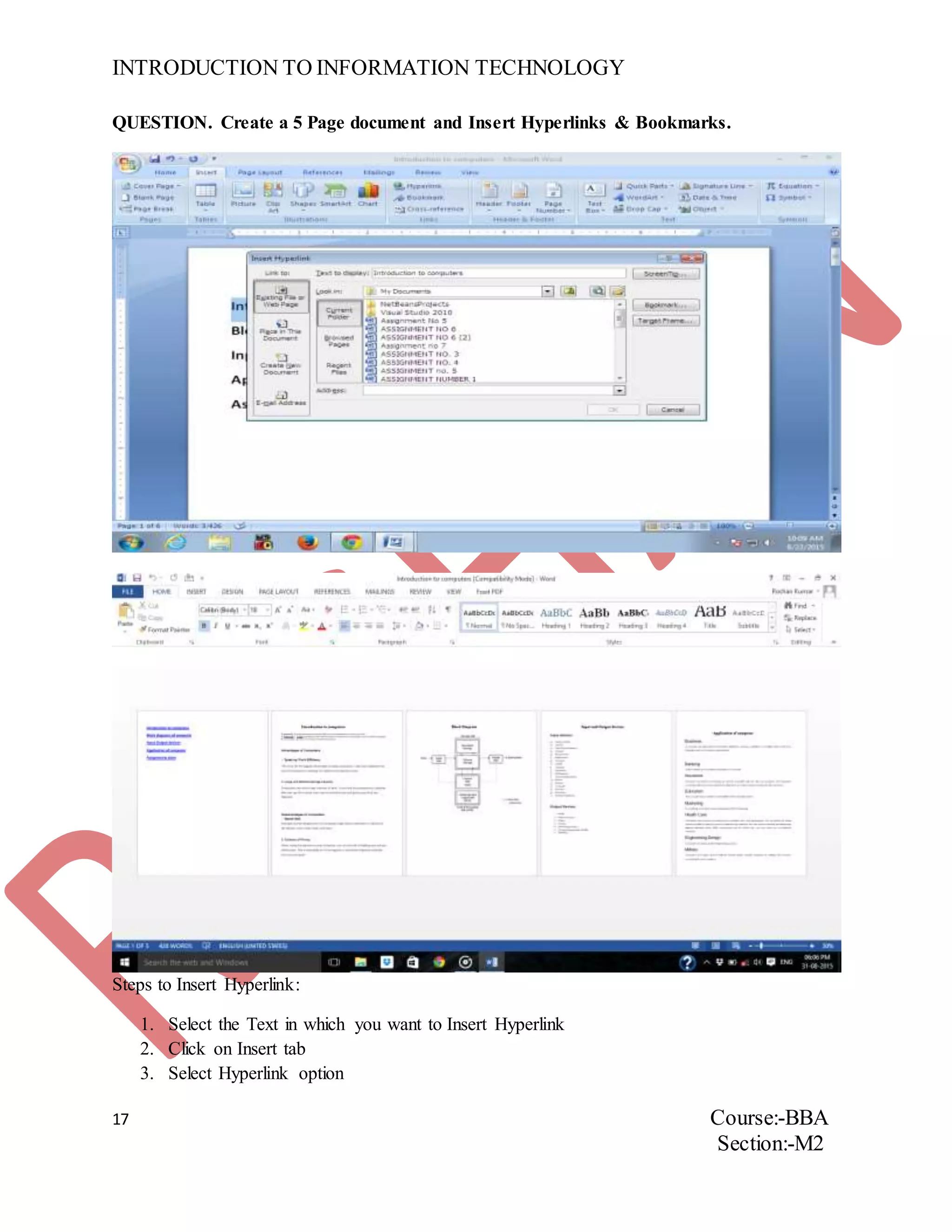
QUESTION. Create a 5 Page document and Insert Hyperlinks & Bookmarks.
Steps to Insert Hyperlink:
1. Select the Text in which you want to Insert Hyperlink
2. Click on Insert tab
3. Select Hyperlink option
INTRODUCTION TO INFORMATION TECHNOLOGY
18 Course:-BBA
Section:-M2
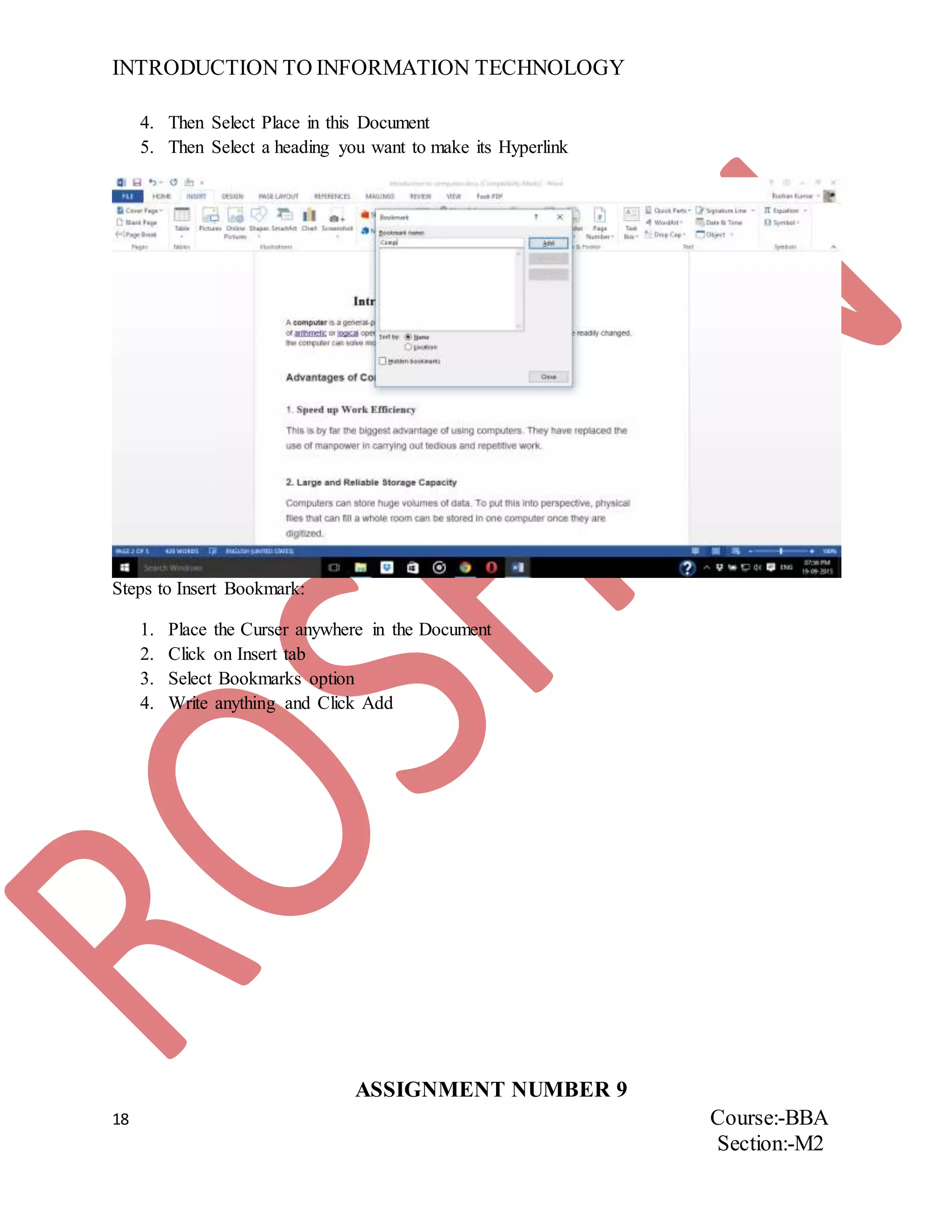
4. Then Select Place in this Document
5. Then Select a heading you want to make its Hyperlink
Steps to Insert Bookmark:
1. Place the Curser anywhere in the Document
2. Click on Insert tab
3. Select Bookmarks option
4. Write anything and Click Add
ASSIGNMENT NUMBER 9
INTRODUCTION TO INFORMATION TECHNOLOGY
19 Course:-BBA
Section:-M2
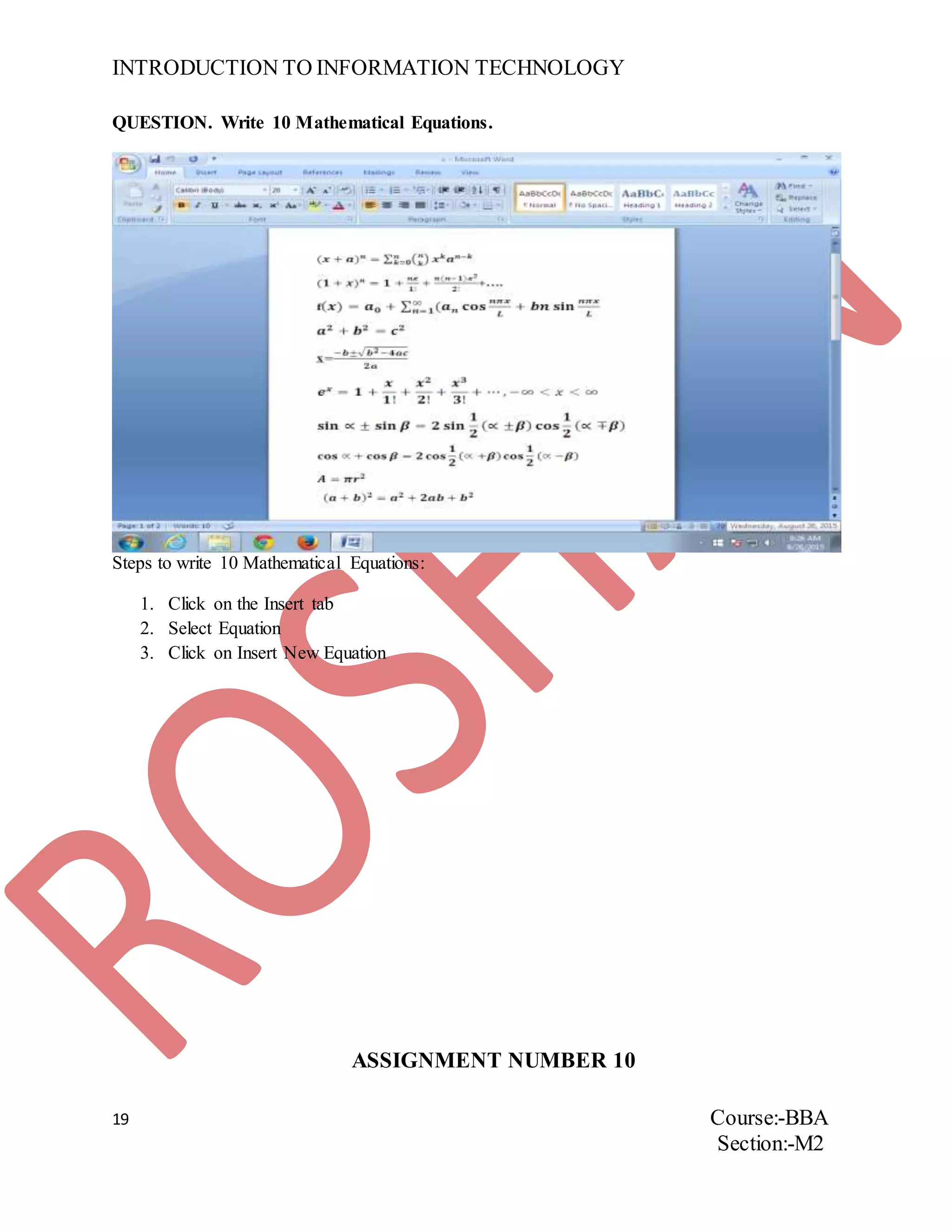
QUESTION. Write 10 Mathematical Equations.
Steps to write 10 Mathematical Equations:
1. Click on the Insert tab
2. Select Equation
3. Click on Insert New Equation
ASSIGNMENT NUMBER 10
INTRODUCTION TO INFORMATION TECHNOLOGY
20 Course:-BBA
Section:-M2
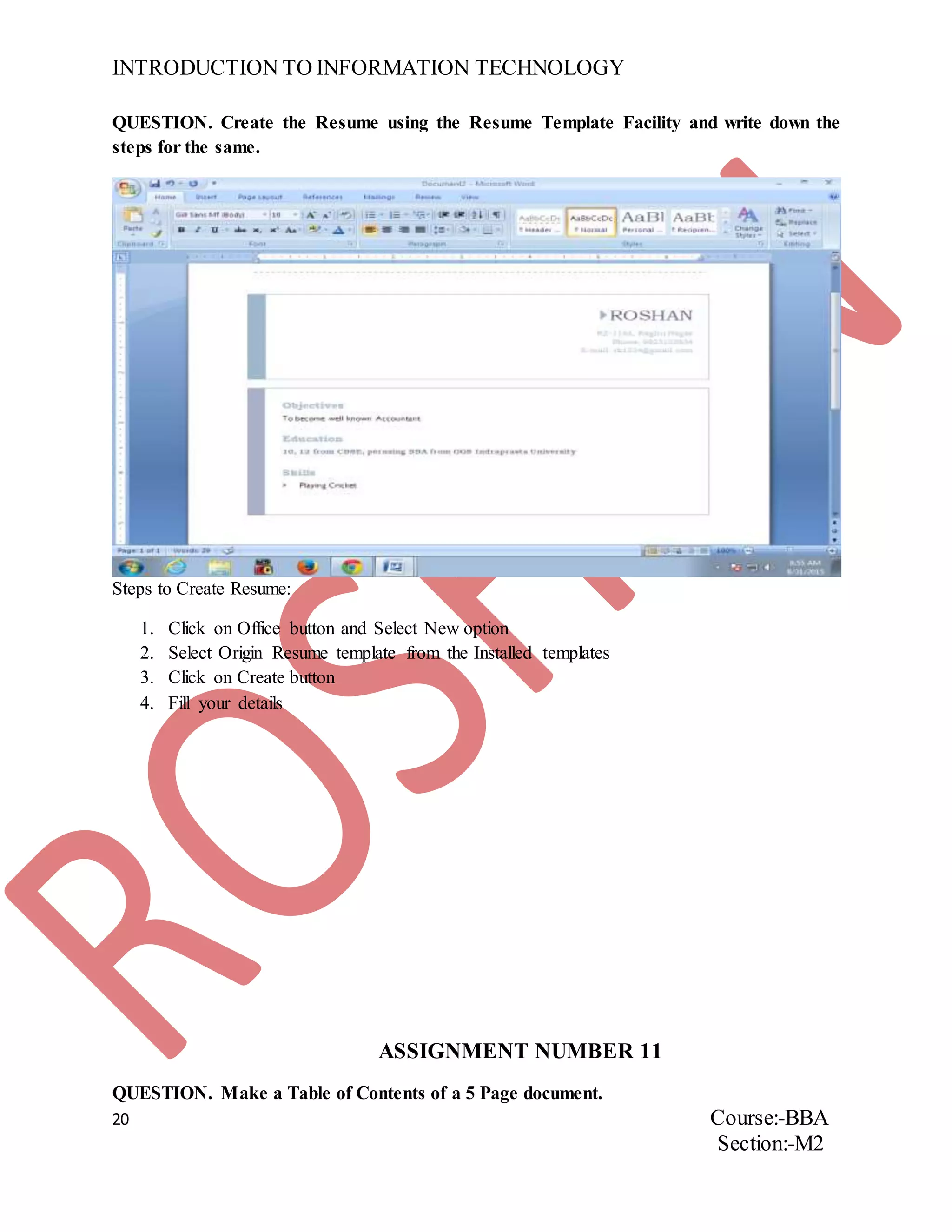
QUESTION. Create the Resume using the Resume Template Facility and write down the
steps for the same.
Steps to Create Resume:
1. Click on Office button and Select New option
2. Select Origin Resume template from the Installed templates
3. Click on Create button
4. Fill your details
ASSIGNMENT NUMBER 11
QUESTION. Make a Table of Contents of a 5 Page document.
INTRODUCTION TO INFORMATION TECHNOLOGY
21 Course:-BBA
Section:-M2
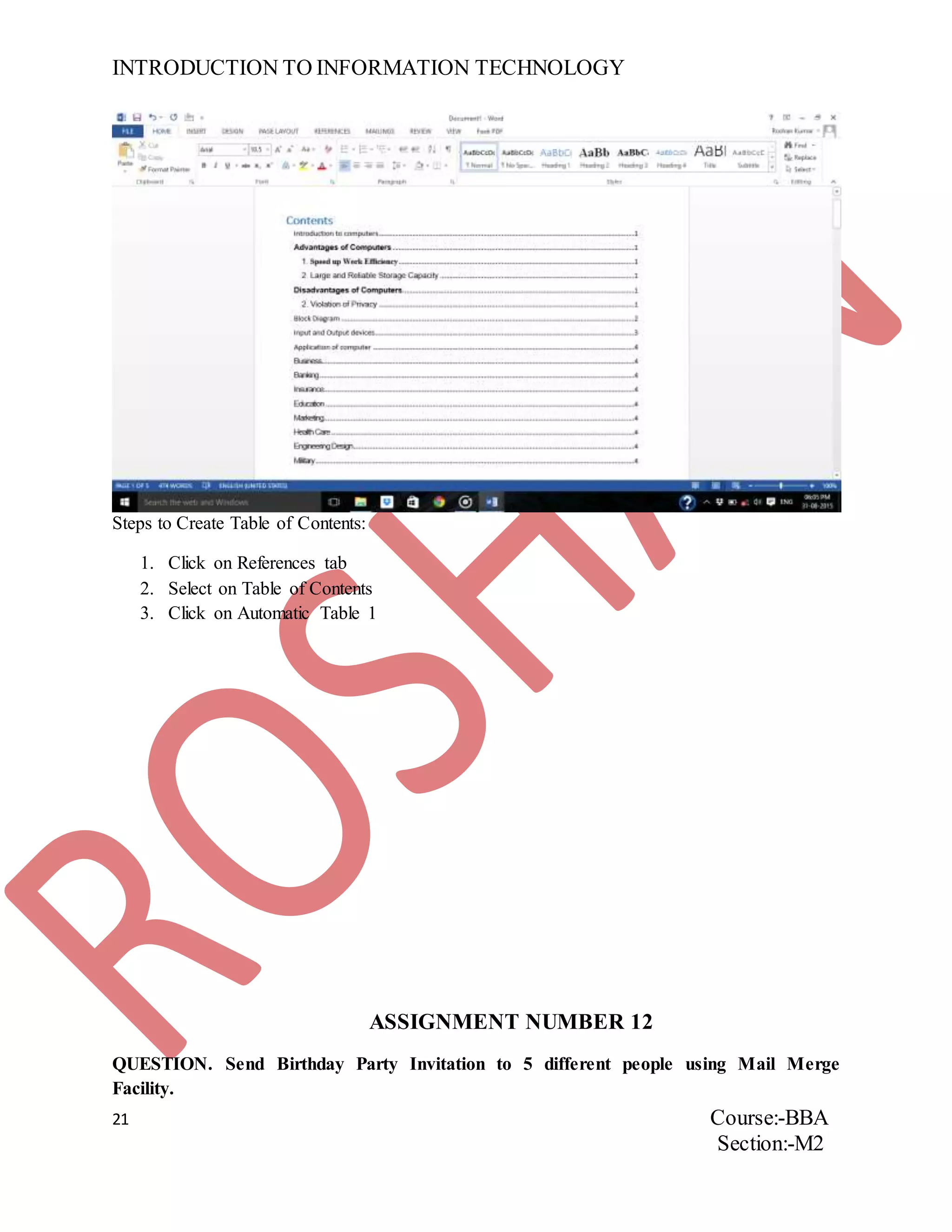
Steps to Create Table of Contents:
1. Click on References tab
2. Select on Table of Contents
3. Click on Automatic Table 1
ASSIGNMENT NUMBER 12
QUESTION. Send Birthday Party Invitation to 5 different people using Mail Merge
Facility.
INTRODUCTION TO INFORMATION TECHNOLOGY
22 Course:-BBA
Section:-M2
INTRODUCTION TO INFORMATION TECHNOLOGY
23 Course:-BBA
Section:-M2
INTRODUCTION TO INFORMATION TECHNOLOGY
24 Course:-BBA
Section:-M2
INTRODUCTION TO INFORMATION TECHNOLOGY
25 Course:-BBA
Section:-M2
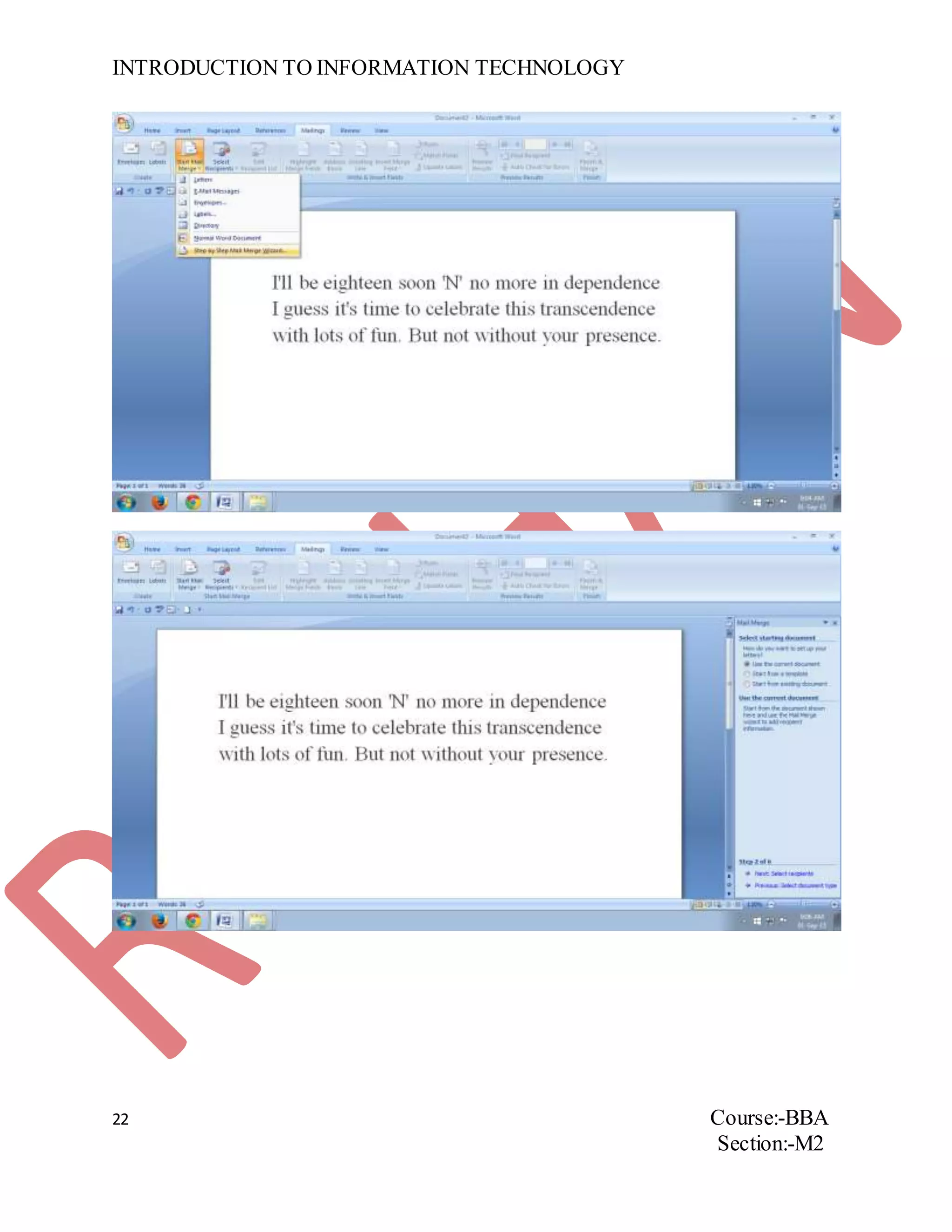
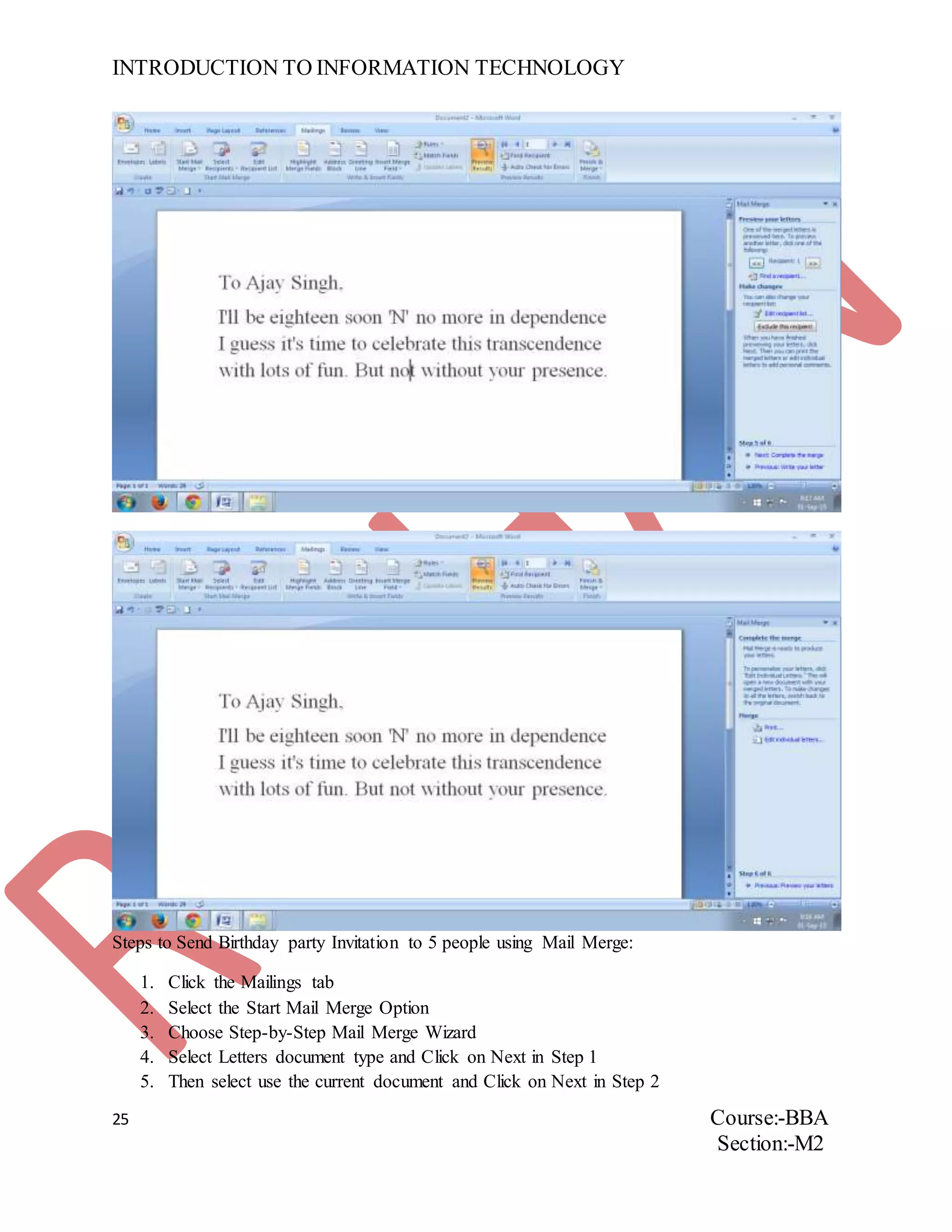
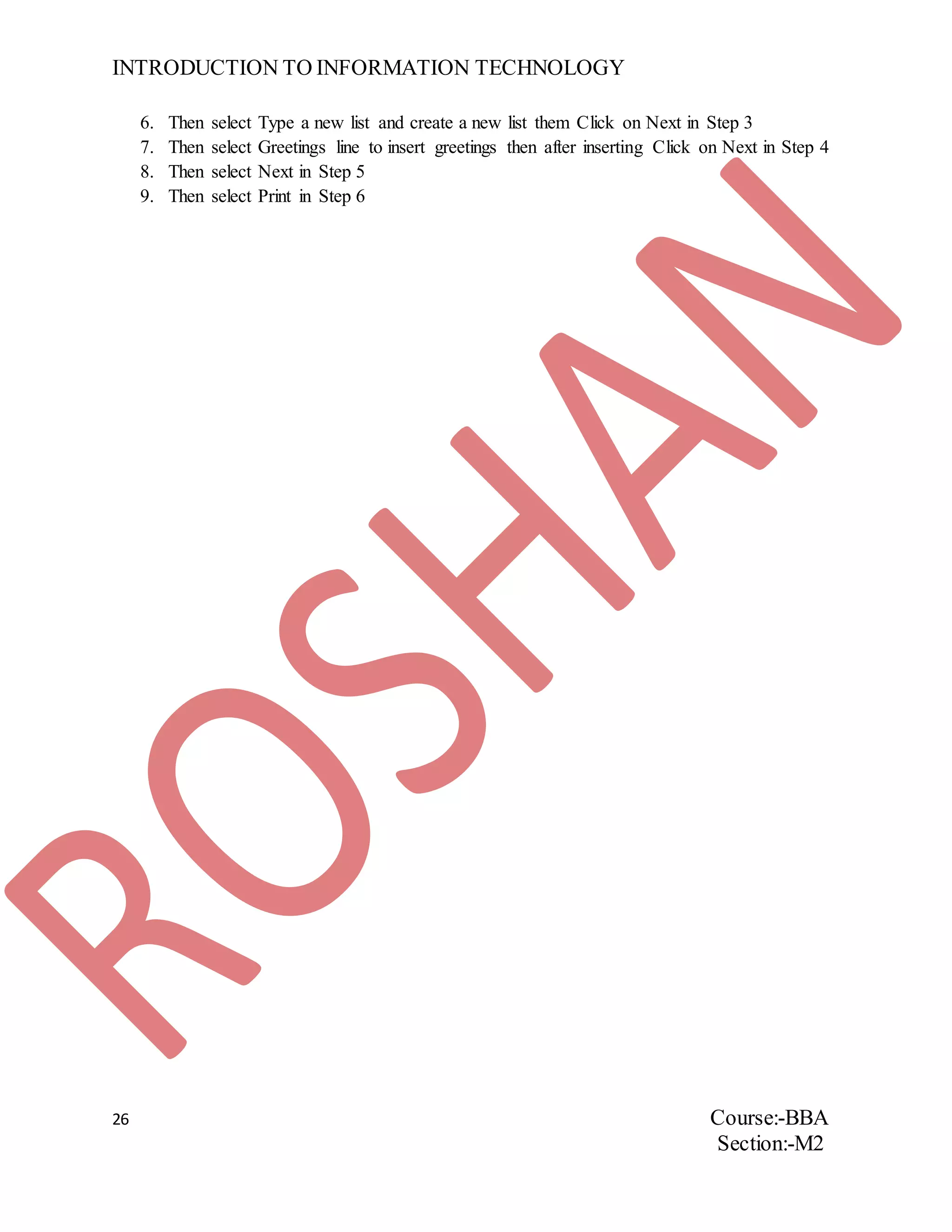
Steps to Send Birthday party Invitation to 5 people using Mail Merge:
1. Click the Mailings tab
2. Select the Start Mail Merge Option
3. Choose Step-by-Step Mail Merge Wizard
4. Select Letters document type and Click on Next in Step 1
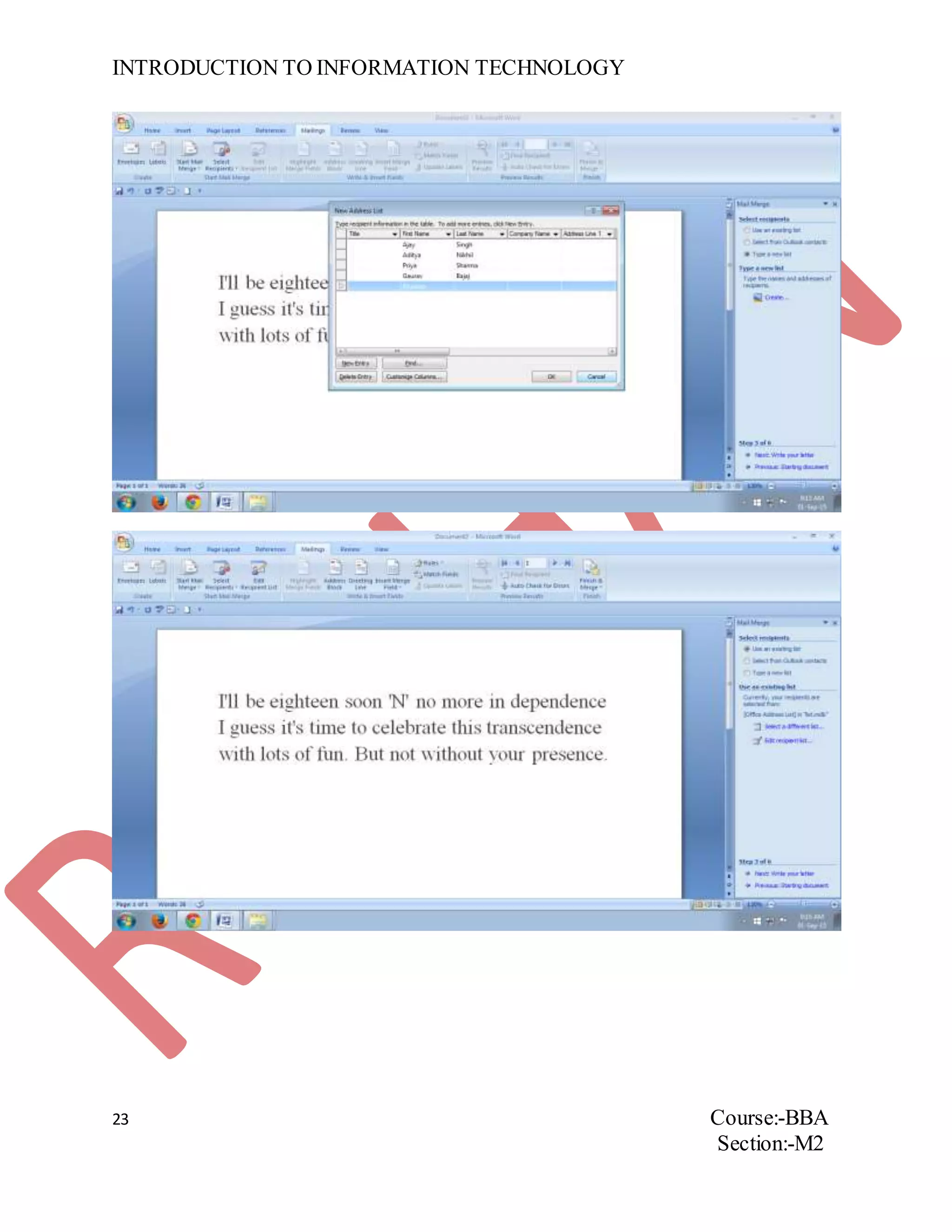
5. Then select use the current document and Click on Next in Step 2
INTRODUCTION TO INFORMATION TECHNOLOGY
26 Course:-BBA
Section:-M2
6. Then select Type a new list and create a new list them Click on Next in Step 3
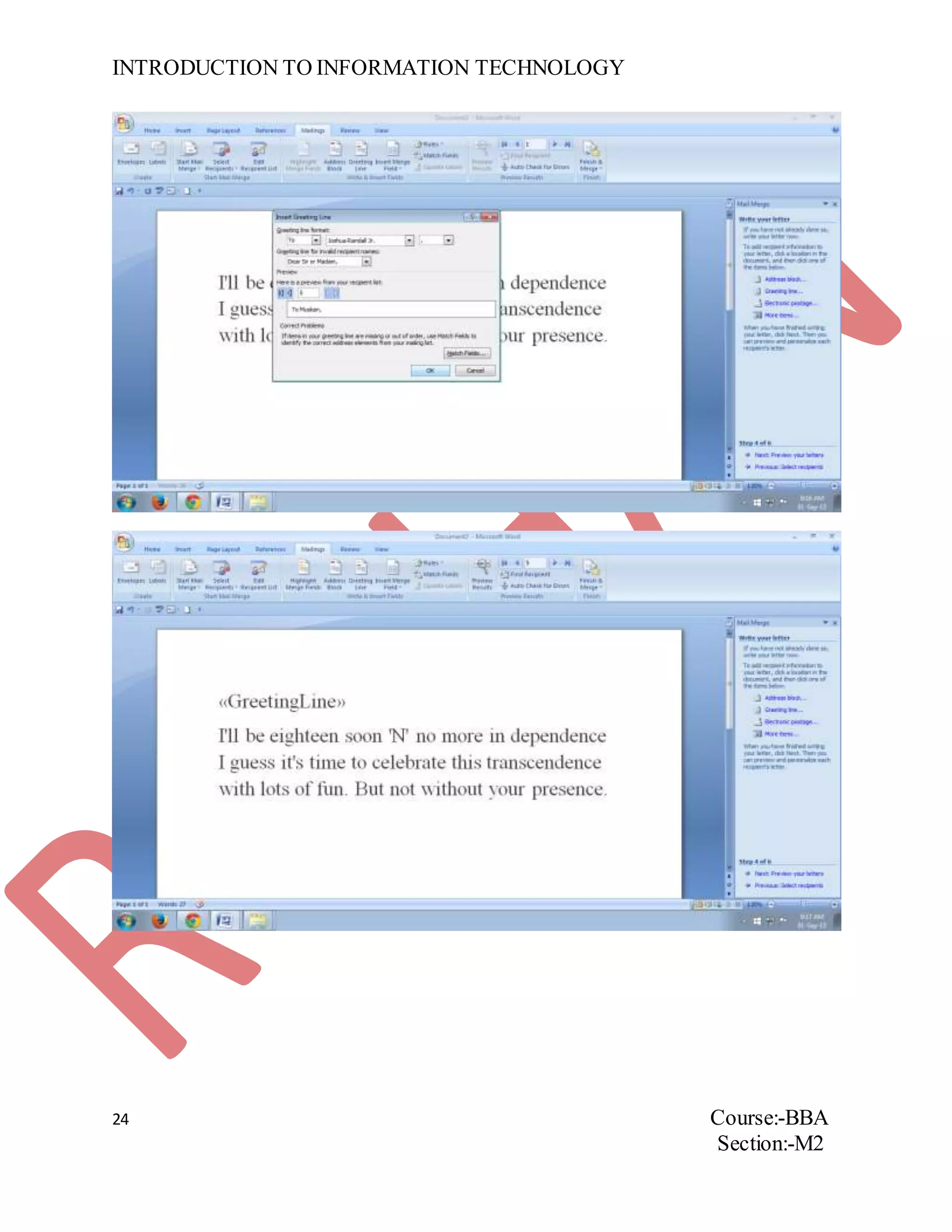
7. Then select Greetings line to insert greetings then after inserting Click on Next in Step 4
8. Then select Next in Step 5
9. Then select Print in Step 6
INTRODUCTION TO INFORMATION TECHNOLOGY
27 Course:-BBA
Section:-M2
ASSIGNMENT NUMBER 13
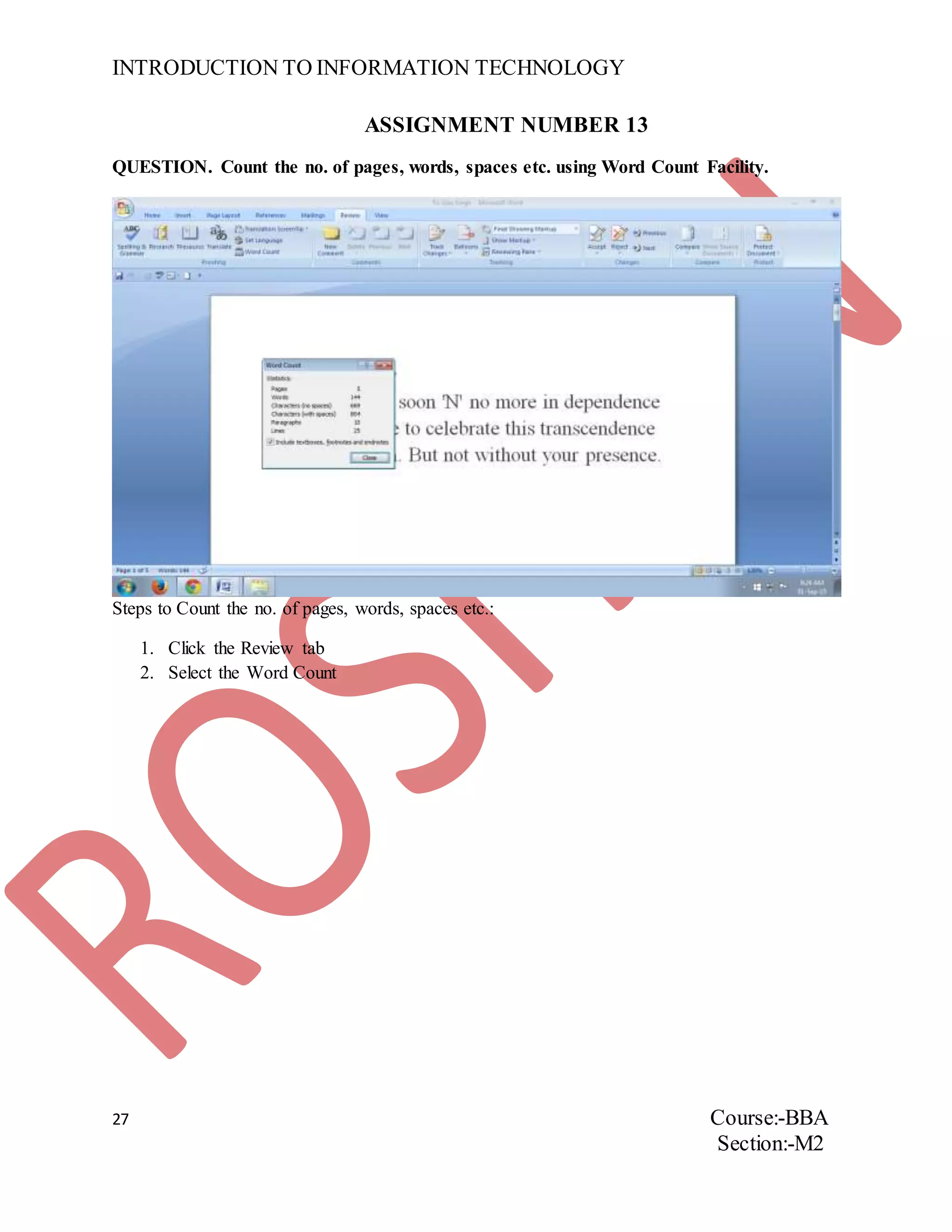
QUESTION. Count the no. of pages, words, spaces etc. using Word Count Facility.
Steps to Count the no. of pages, words, spaces etc.:
1. Click the Review tab
2. Select the Word Count
INTRODUCTION TO INFORMATION TECHNOLOGY
28 Course:-BBA
Section:-M2
ASSIGNMENT NUMBER 14
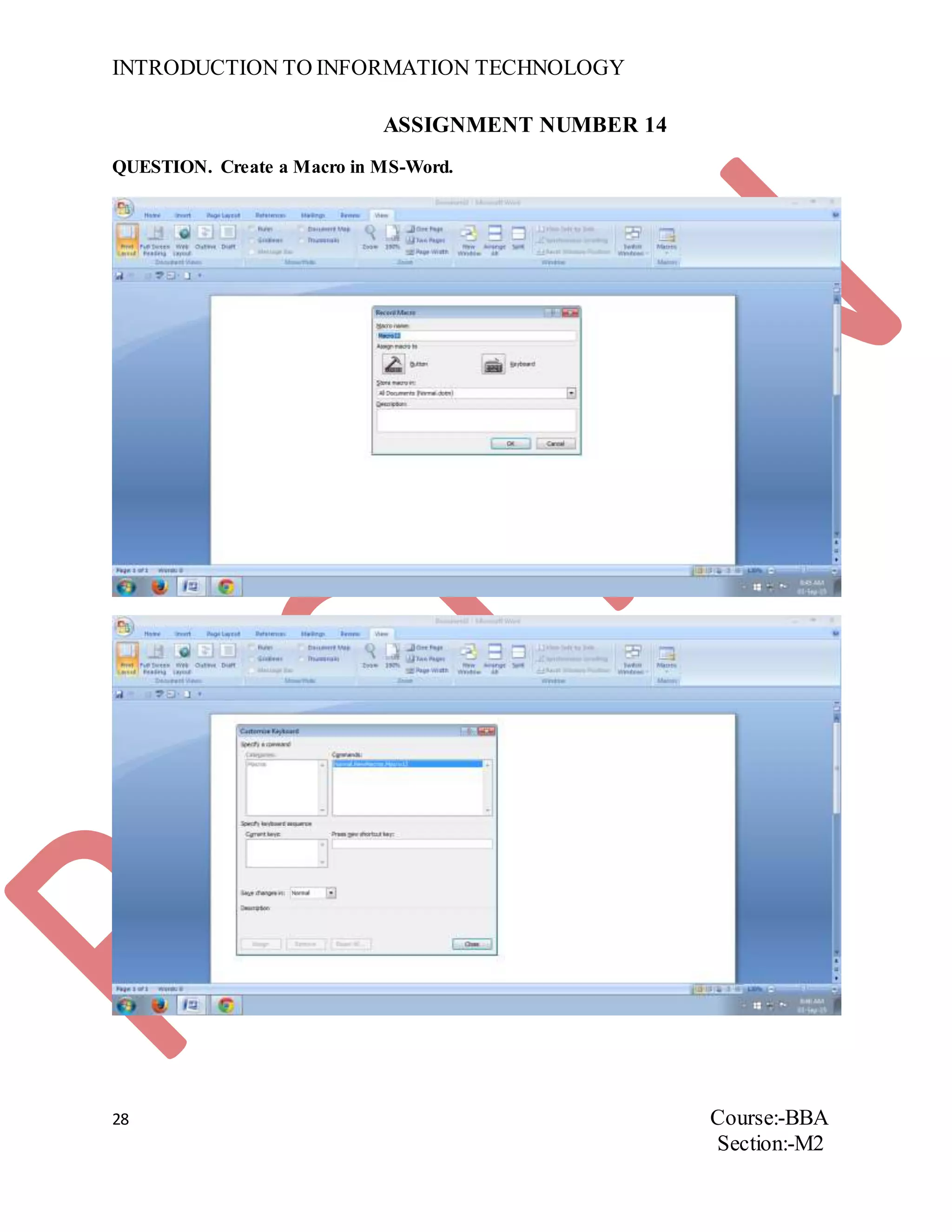
QUESTION. Create a Macro in MS-Word.
INTRODUCTION TO INFORMATION TECHNOLOGY
29 Course:-BBA
Section:-M2
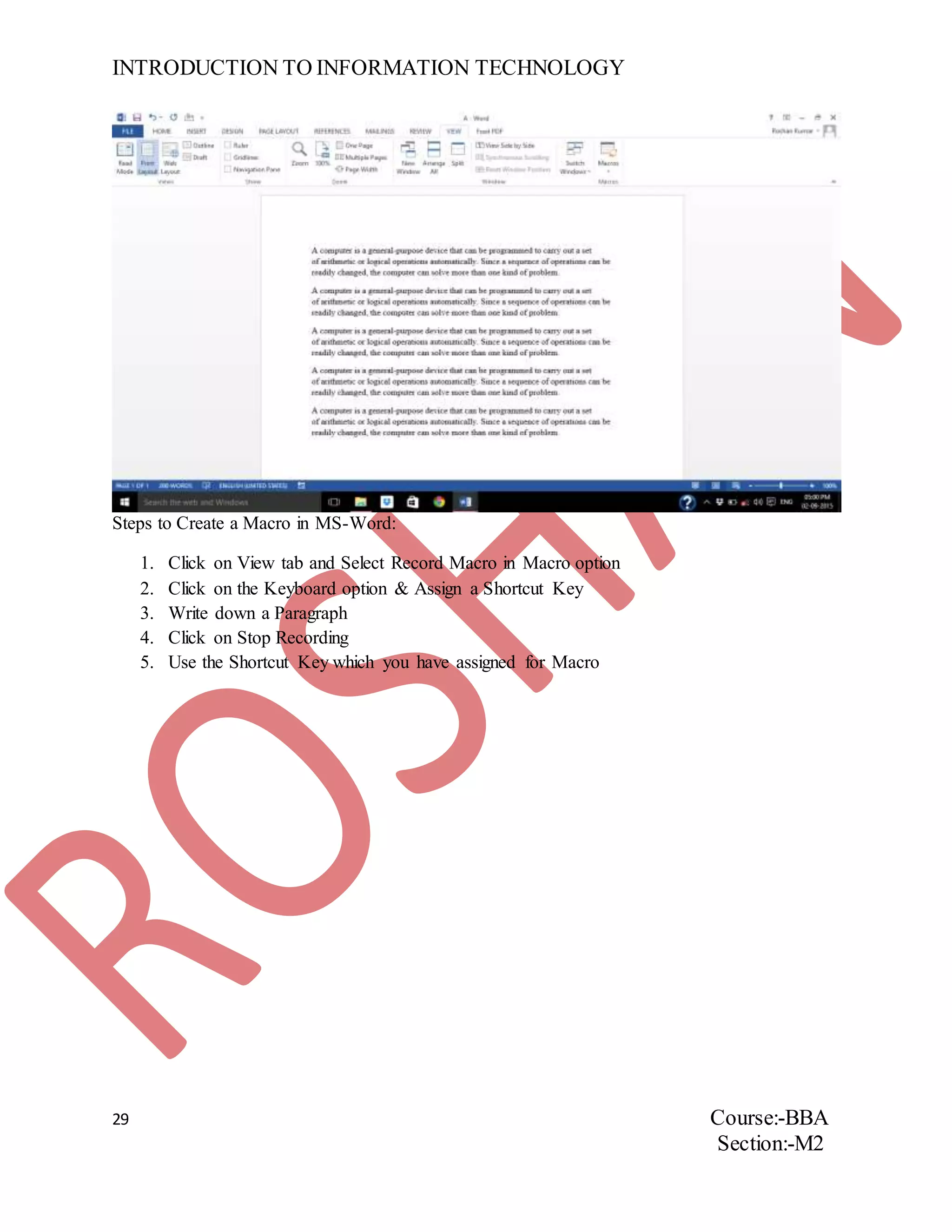
Steps to Create a Macro in MS-Word:
1. Click on View tab and Select Record Macro in Macro option
2. Click on the Keyboard option & Assign a Shortcut Key
3. Write down a Paragraph
4. Click on Stop Recording
5. Use the Shortcut Key which you have assigned for Macro
INTRODUCTION TO INFORMATION TECHNOLOGY
30 Course:-BBA
Section:-M2
ASSIGNMENT NUMBER 15
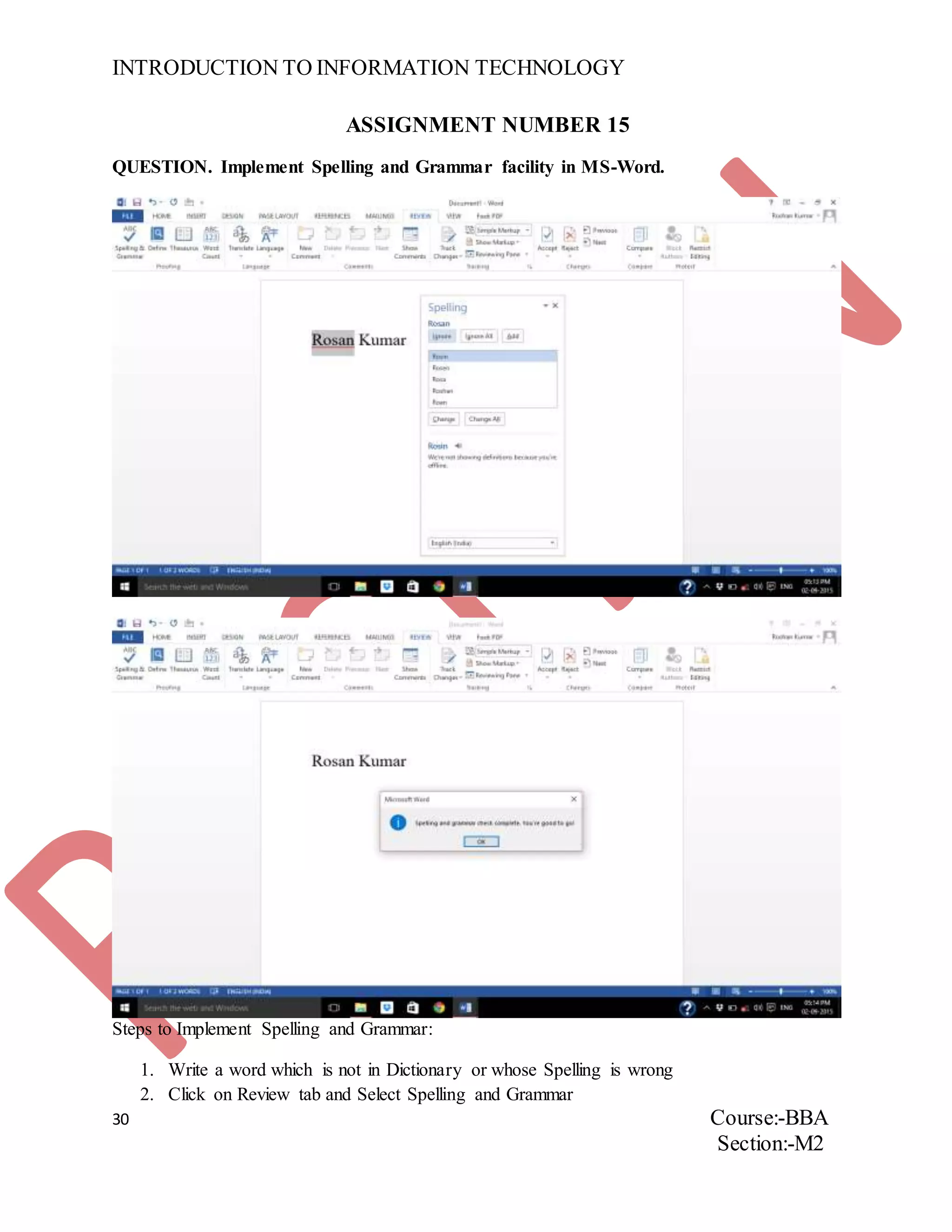
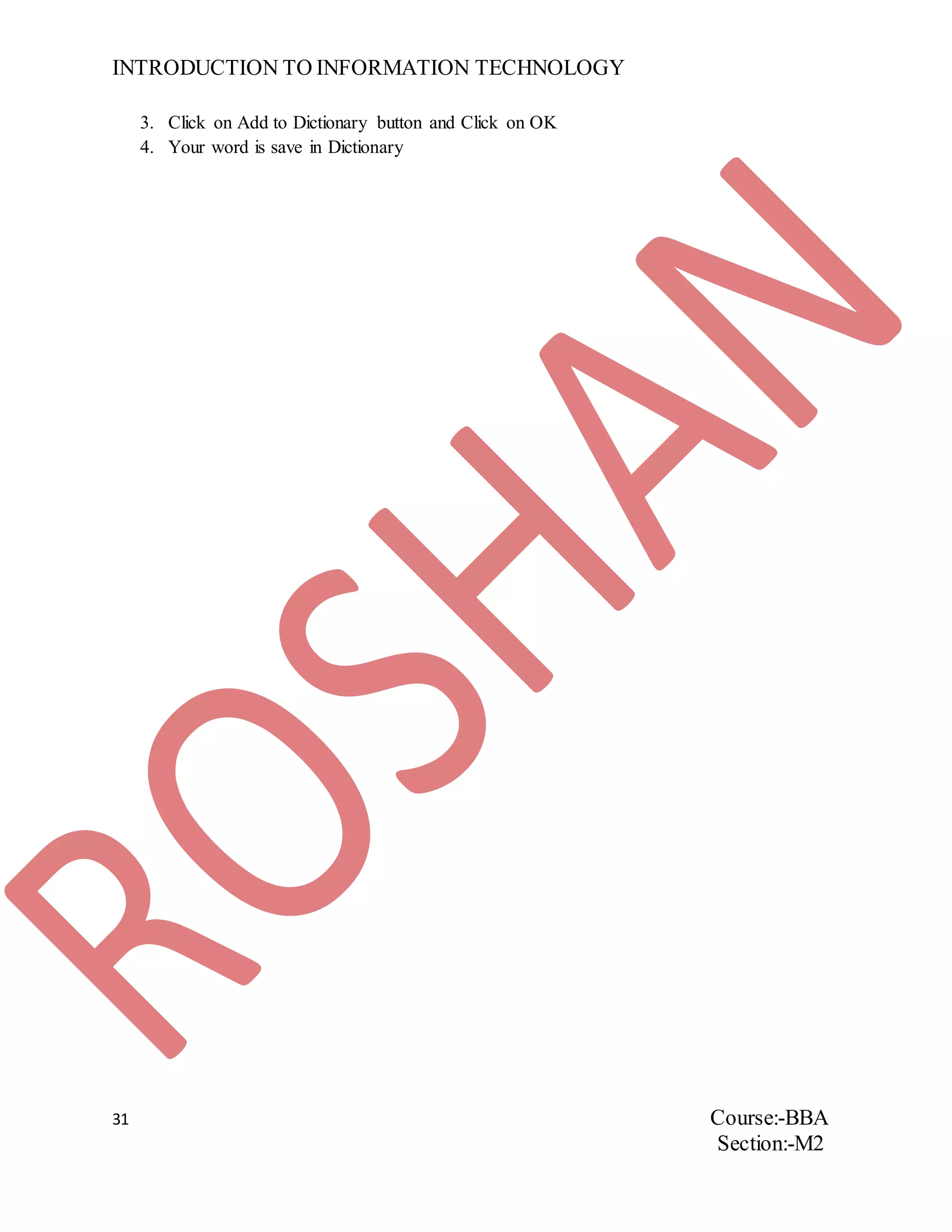
QUESTION. Implement Spelling and Grammar facility in MS-Word.
Steps to Implement Spelling and Grammar:
1. Write a word which is not in Dictionary or whose Spelling is wrong
2. Click on Review tab and Select Spelling and Grammar
INTRODUCTION TO INFORMATION TECHNOLOGY
31 Course:-BBA
Section:-M2
3. Click on Add to Dictionary button and Click on OK
4. Your word is save in Dictionary
INTRODUCTION TO INFORMATION TECHNOLOGY
32 Course:-BBA
Section:-M2
ASSIGNMENT NUMBER16
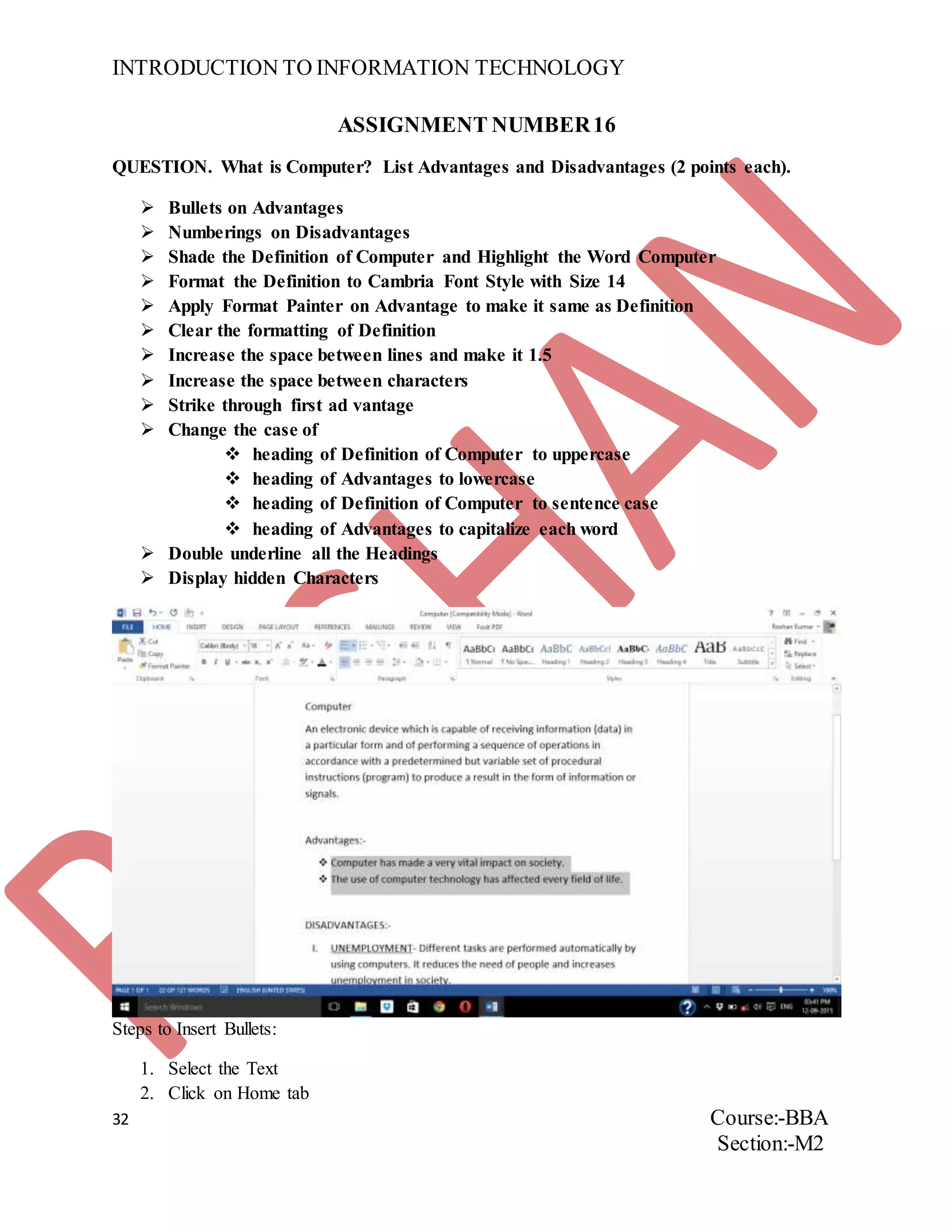
QUESTION. What is Computer? List Advantages and Disadvantages (2 points each).
 Bullets on Advantages
 Numberings on Disadvantages
 Shade the Definition of Computer and Highlight the Word Computer
 Format the Definition to Cambria Font Style with Size 14
 Apply Format Painter on Advantage to make it same as Definition
 Clear the formatting of Definition
 Increase the space between lines and make it 1.5
 Increase the space between characters
 Strike through first ad vantage
 Change the case of
 heading of Definition of Computer to uppercase
 heading of Advantages to lowercase
 heading of Definition of Computer to sentence case
 heading of Advantages to capitalize each word
 Double underline all the Headings
 Display hidden Characters
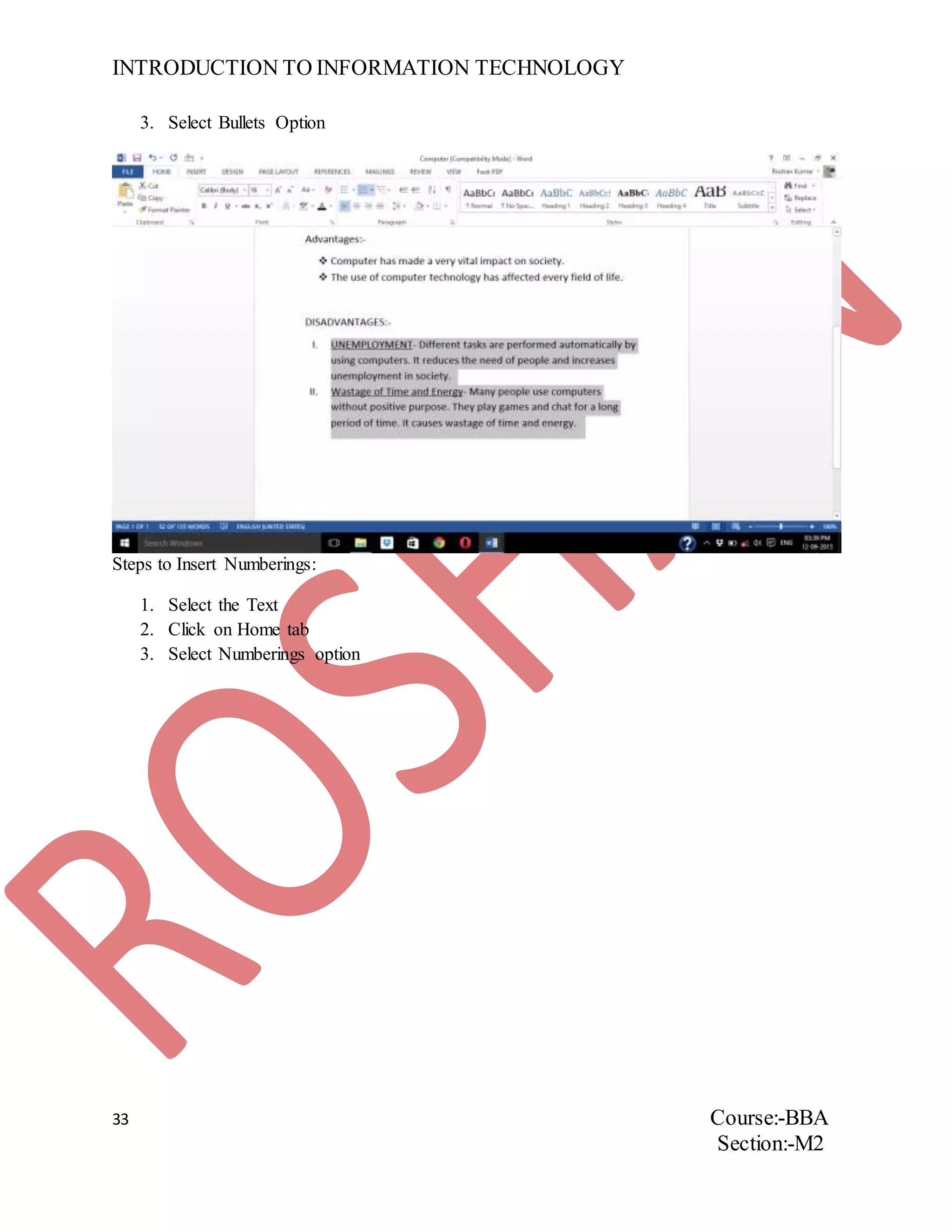
Steps to Insert Bullets:
1. Select the Text
2. Click on Home tab
INTRODUCTION TO INFORMATION TECHNOLOGY
33 Course:-BBA
Section:-M2
3. Select Bullets Option
Steps to Insert Numberings:
1. Select the Text
2. Click on Home tab
3. Select Numberings option
INTRODUCTION TO INFORMATION TECHNOLOGY
34 Course:-BBA
Section:-M2
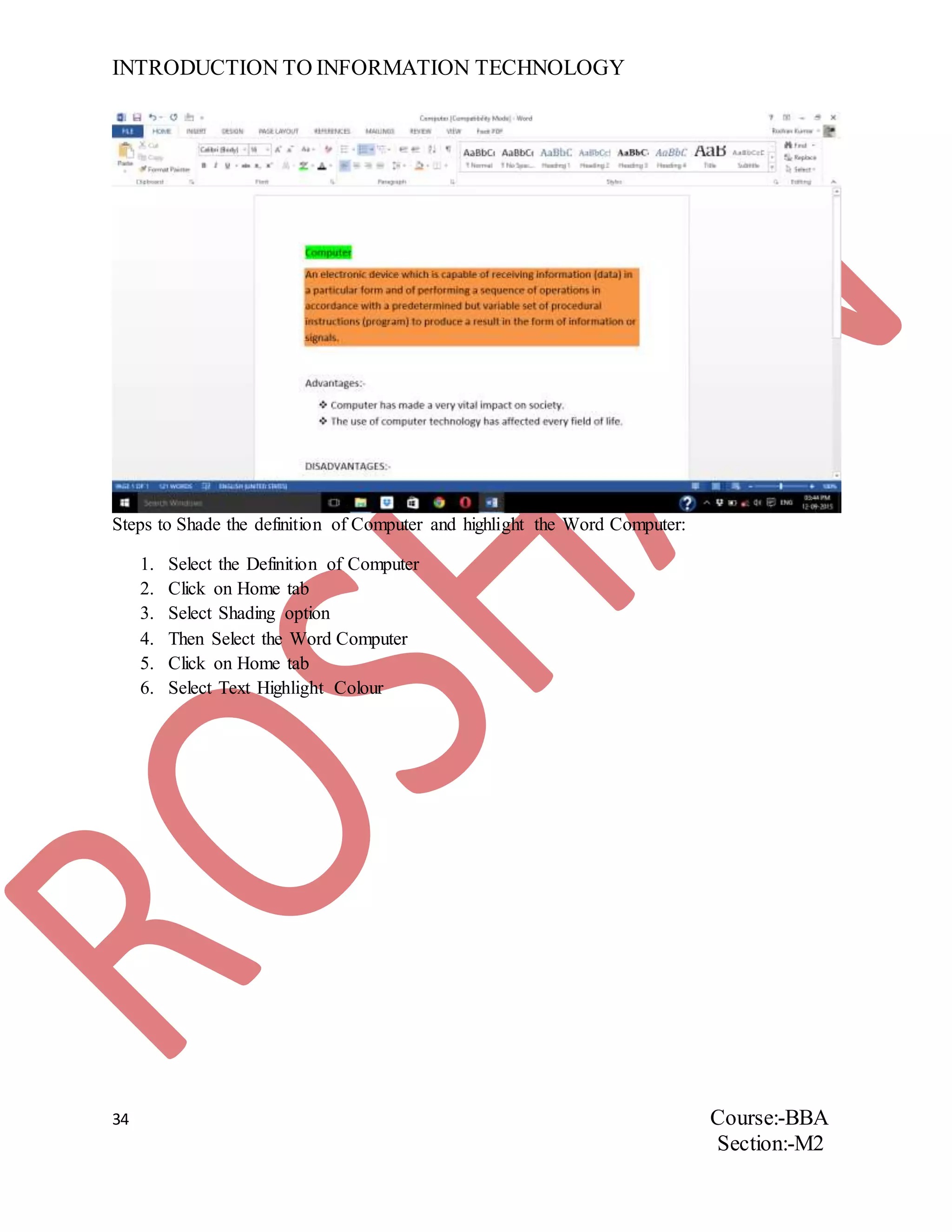
Steps to Shade the definition of Computer and highlight the Word Computer:
1. Select the Definition of Computer
2. Click on Home tab
3. Select Shading option
4. Then Select the Word Computer
5. Click on Home tab
6. Select Text Highlight Colour
INTRODUCTION TO INFORMATION TECHNOLOGY
35 Course:-BBA
Section:-M2
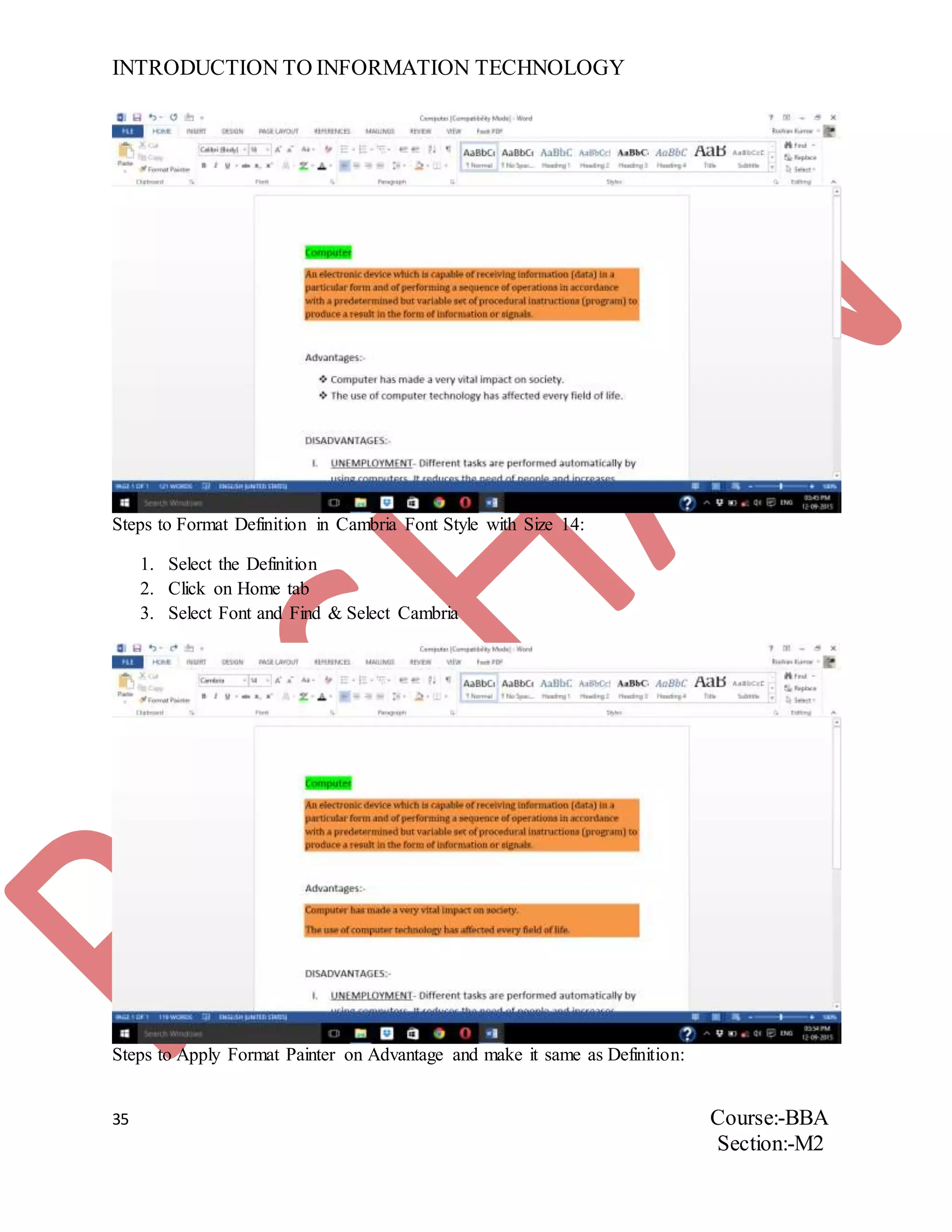
Steps to Format Definition in Cambria Font Style with Size 14:
1. Select the Definition
2. Click on Home tab
3. Select Font and Find & Select Cambria
Steps to Apply Format Painter on Advantage and make it same as Definition:
INTRODUCTION TO INFORMATION TECHNOLOGY
36 Course:-BBA
Section:-M2
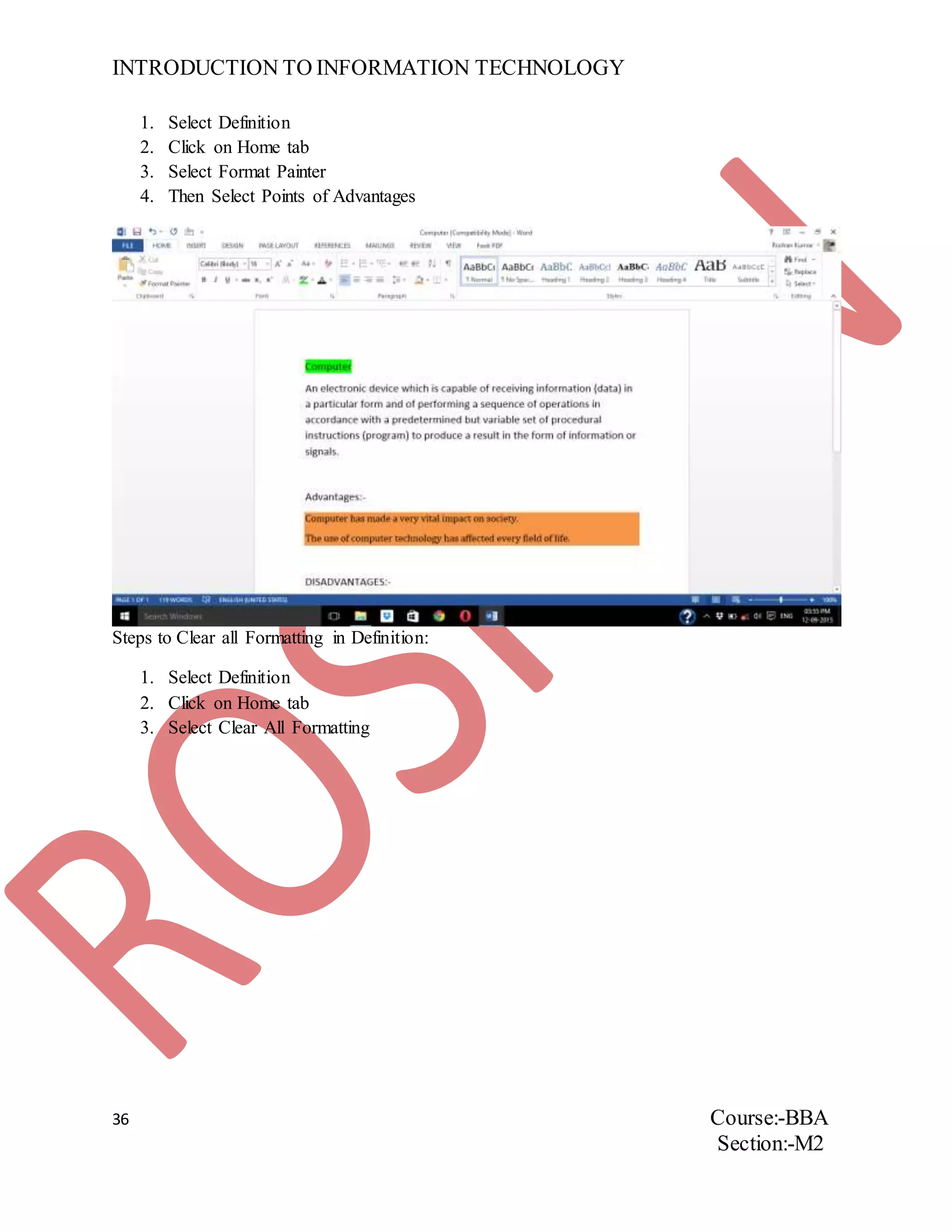
1. Select Definition
2. Click on Home tab
3. Select Format Painter
4. Then Select Points of Advantages
Steps to Clear all Formatting in Definition:
1. Select Definition
2. Click on Home tab
3. Select Clear All Formatting
INTRODUCTION TO INFORMATION TECHNOLOGY
37 Course:-BBA
Section:-M2
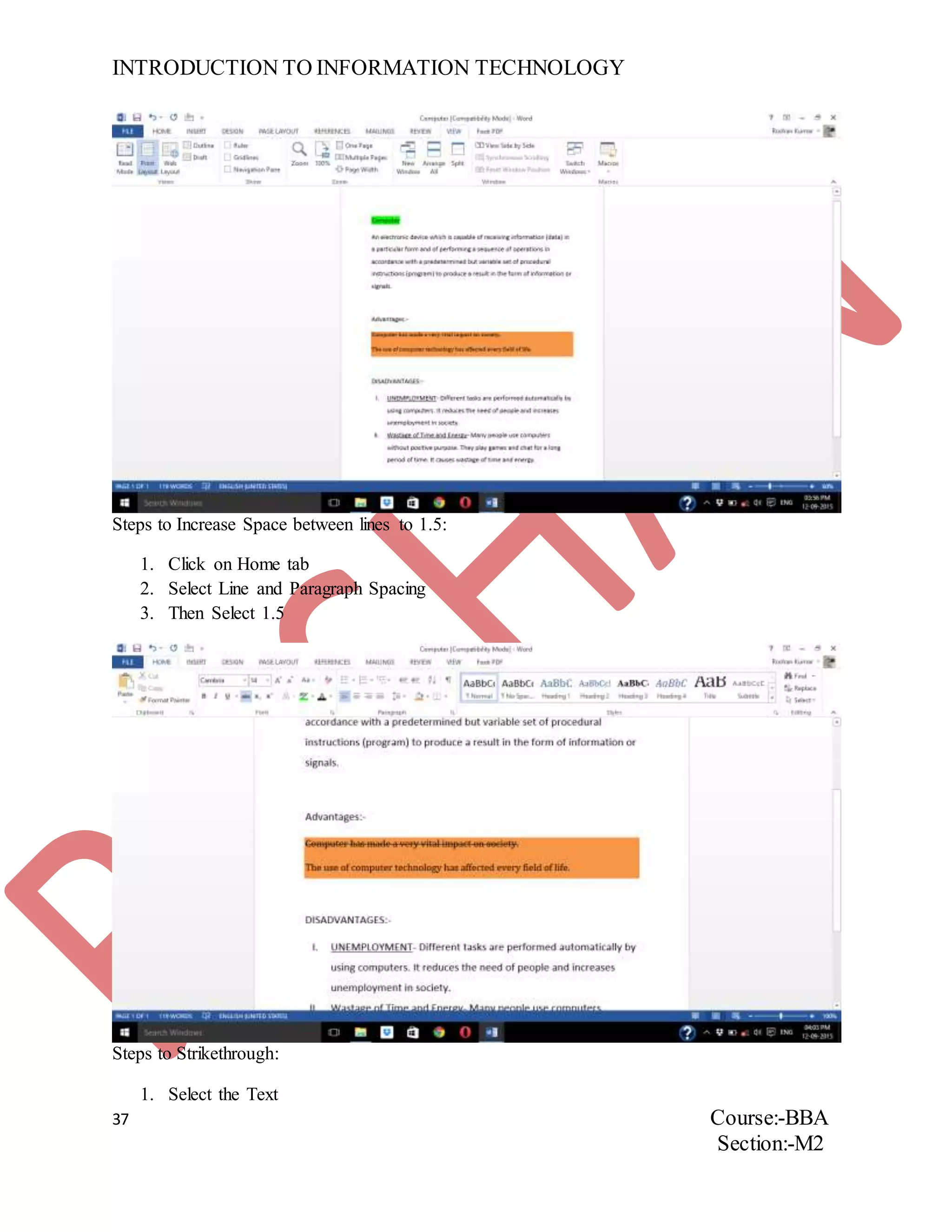
Steps to Increase Space between lines to 1.5:
1. Click on Home tab
2. Select Line and Paragraph Spacing
3. Then Select 1.5
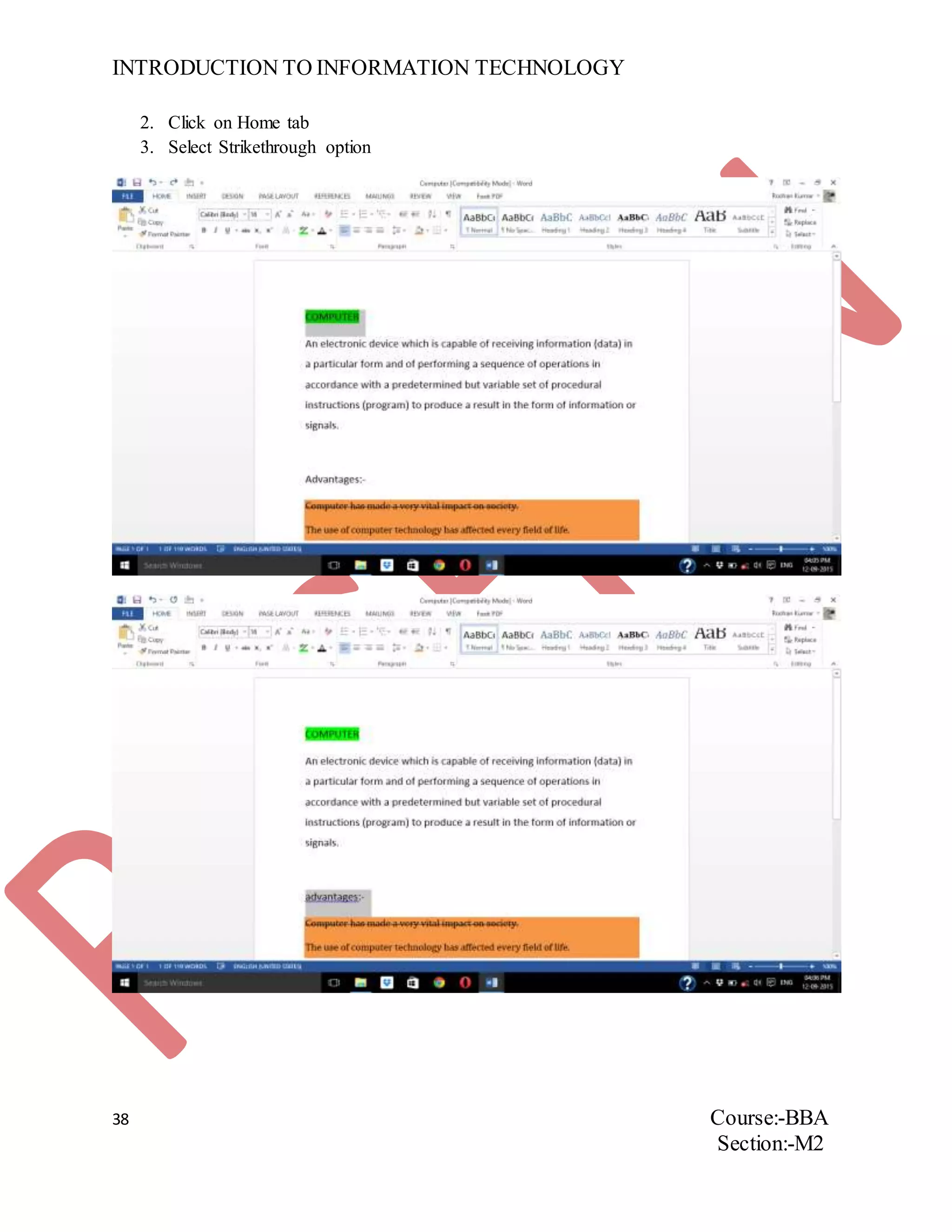
Steps to Strikethrough:
1. Select the Text
INTRODUCTION TO INFORMATION TECHNOLOGY
38 Course:-BBA
Section:-M2
2. Click on Home tab
3. Select Strikethrough option
INTRODUCTION TO INFORMATION TECHNOLOGY
39 Course:-BBA
Section:-M2
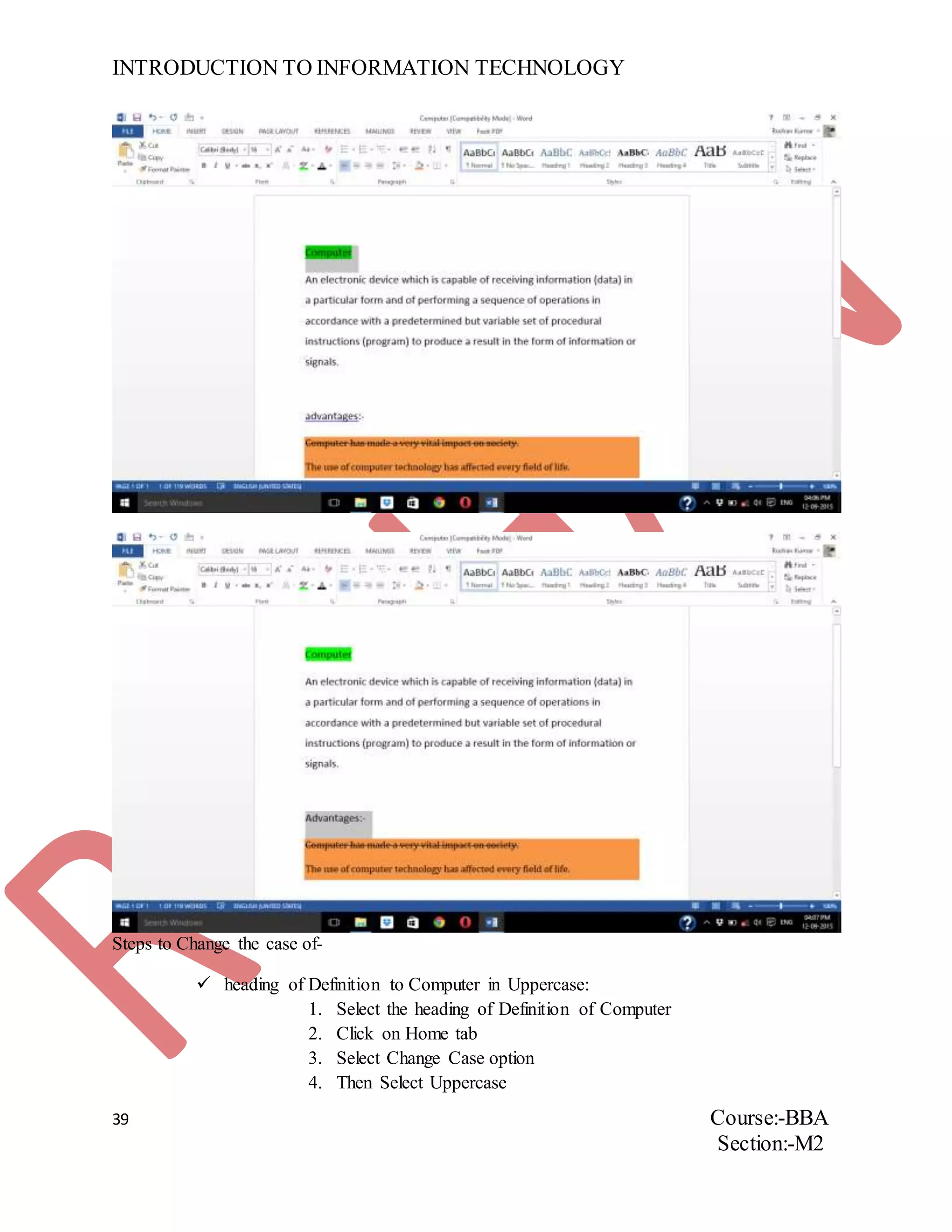
Steps to Change the case of-
 heading of Definition to Computer in Uppercase:
1. Select the heading of Definition of Computer
2. Click on Home tab
3. Select Change Case option
4. Then Select Uppercase
INTRODUCTION TO INFORMATION TECHNOLOGY
40 Course:-BBA
Section:-M2
 heading of Advantages in Lowercase:
1. Select the heading of Advantages
2. Click on Home tab
3. Select Change Case option
4. Then Select Lowercase
 heading of Definition of Computers in Sentence Case:
1. Select the heading of Definition of Computer
2. Click on Home tab
3. Select Change Case option
4. Then Select Sentence Case
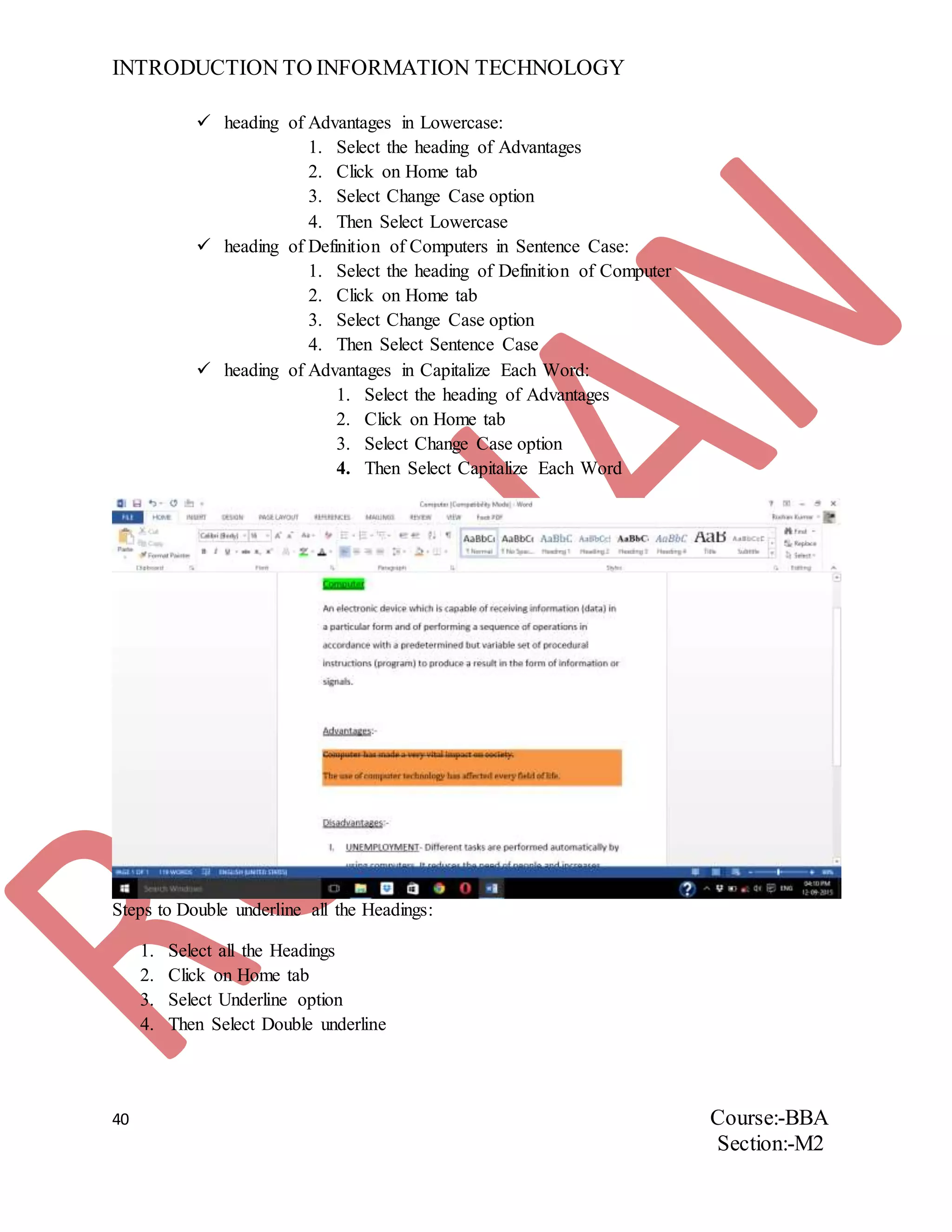
 heading of Advantages in Capitalize Each Word:
1. Select the heading of Advantages
2. Click on Home tab
3. Select Change Case option
4. Then Select Capitalize Each Word
Steps to Double underline all the Headings:
1. Select all the Headings
2. Click on Home tab
3. Select Underline option
4. Then Select Double underline
INTRODUCTION TO INFORMATION TECHNOLOGY
41 Course:-BBA
Section:-M2
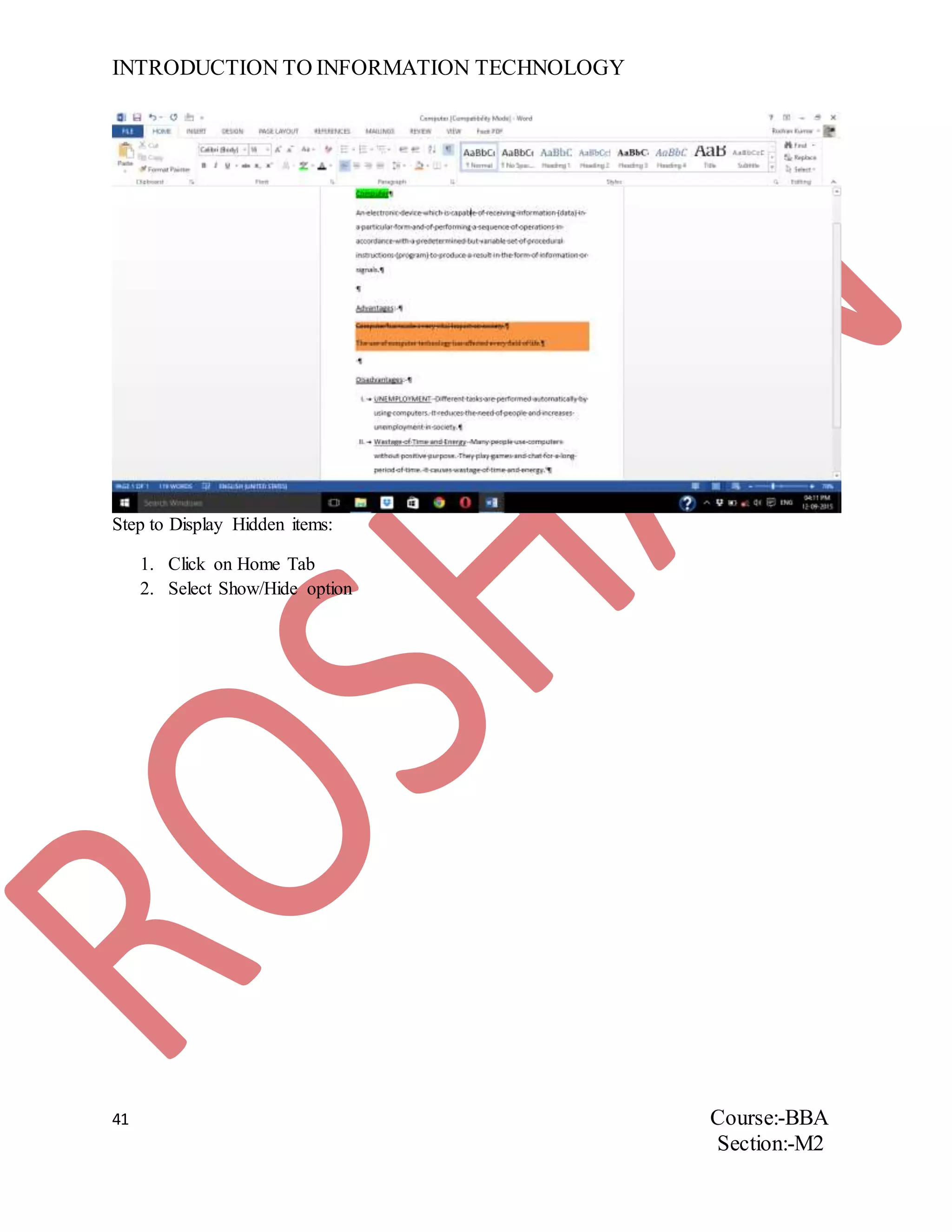
Step to Display Hidden items:
1. Click on Home Tab
2. Select Show/Hide option
INTRODUCTION TO INFORMATION TECHNOLOGY
42 Course:-BBA
Section:-M2
ASSIGNMENT NUMBER17
QUESTION. Designa page for IINTM and apply the following:-
 Designa Cover page for IINTM
 Insert Page Break after vision
 Drop cap all explanation
 Insert Date and Time in starting
 Set Margins to 1.25(all sides)
 Arrange Document in both orientations
 Provide courses in 2 columns
 Insert line number
 Insert a footnote for IINTM
 Insert end node for address
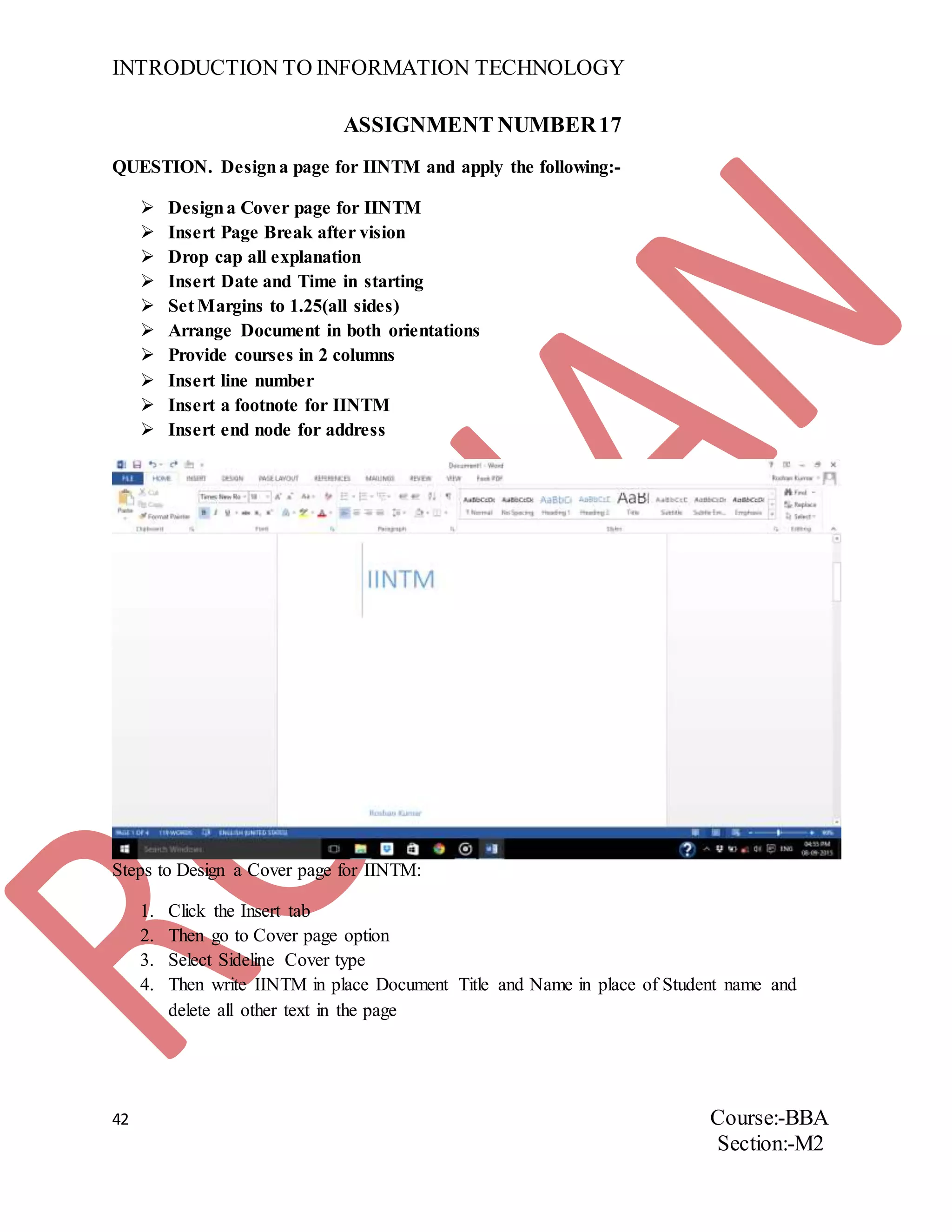
Steps to Design a Cover page for IINTM:
1. Click the Insert tab
2. Then go to Cover page option
3. Select Sideline Cover type
4. Then write IINTM in place Document Title and Name in place of Student name and
delete all other text in the page
INTRODUCTION TO INFORMATION TECHNOLOGY
43 Course:-BBA
Section:-M2
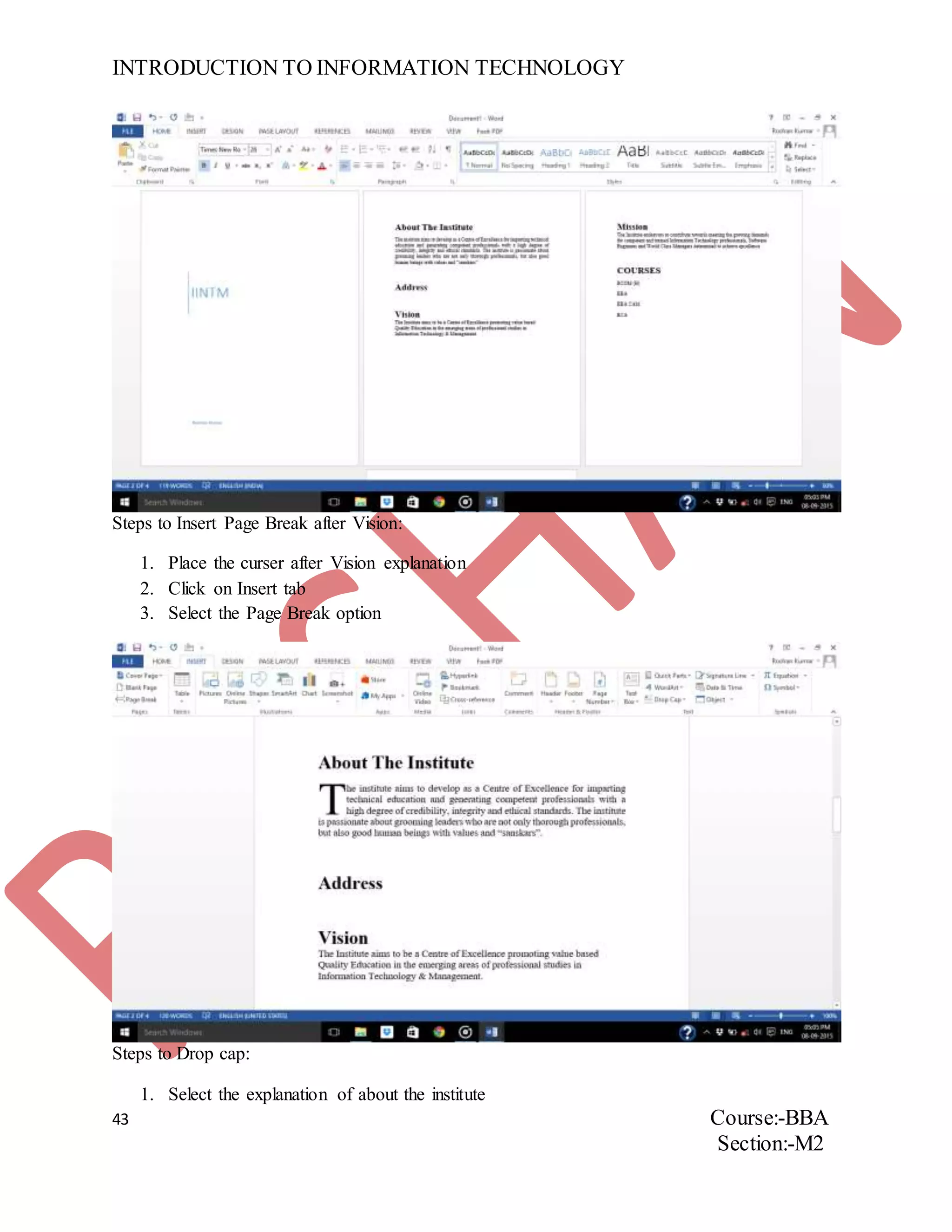
Steps to Insert Page Break after Vision:
1. Place the curser after Vision explanation
2. Click on Insert tab
3. Select the Page Break option
Steps to Drop cap:
1. Select the explanation of about the institute
INTRODUCTION TO INFORMATION TECHNOLOGY
44 Course:-BBA
Section:-M2
2. Click on Insert tab
3. Select Drop cap option
4. Click on Dropped
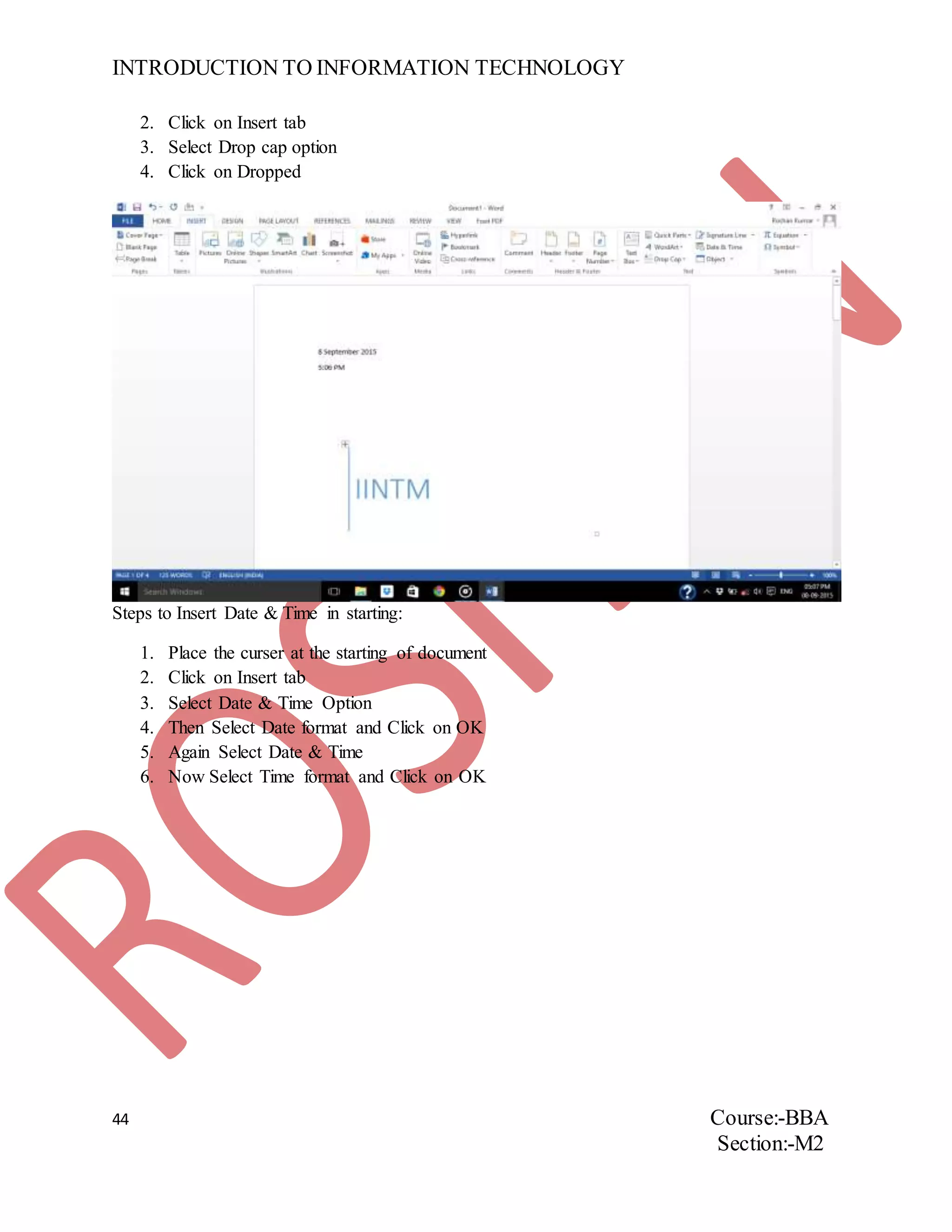
Steps to Insert Date & Time in starting:
1. Place the curser at the starting of document
2. Click on Insert tab
3. Select Date & Time Option
4. Then Select Date format and Click on OK
5. Again Select Date & Time
6. Now Select Time format and Click on OK
INTRODUCTION TO INFORMATION TECHNOLOGY
45 Course:-BBA
Section:-M2
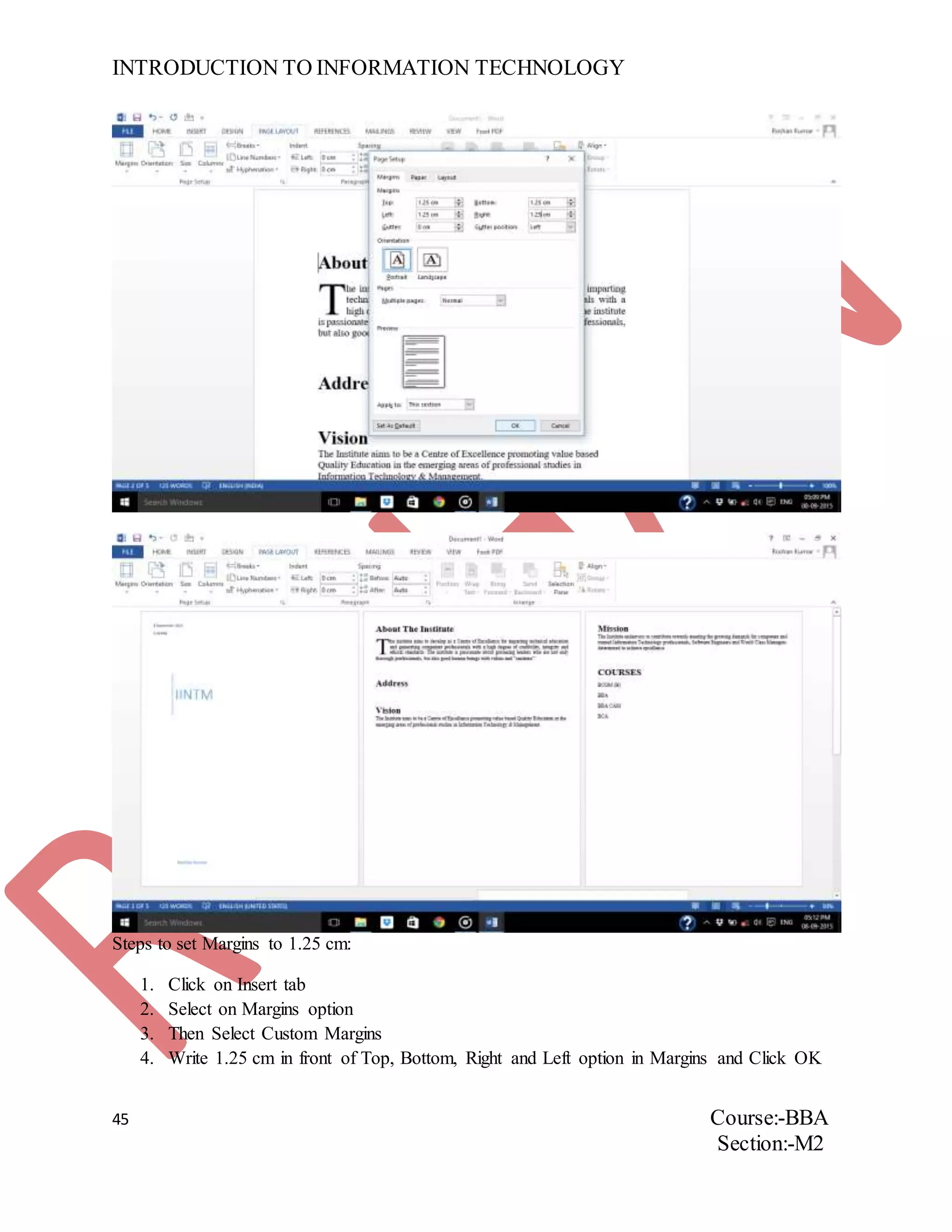
Steps to set Margins to 1.25 cm:
1. Click on Insert tab
2. Select on Margins option
3. Then Select Custom Margins
4. Write 1.25 cm in front of Top, Bottom, Right and Left option in Margins and Click OK
INTRODUCTION TO INFORMATION TECHNOLOGY
46 Course:-BBA
Section:-M2
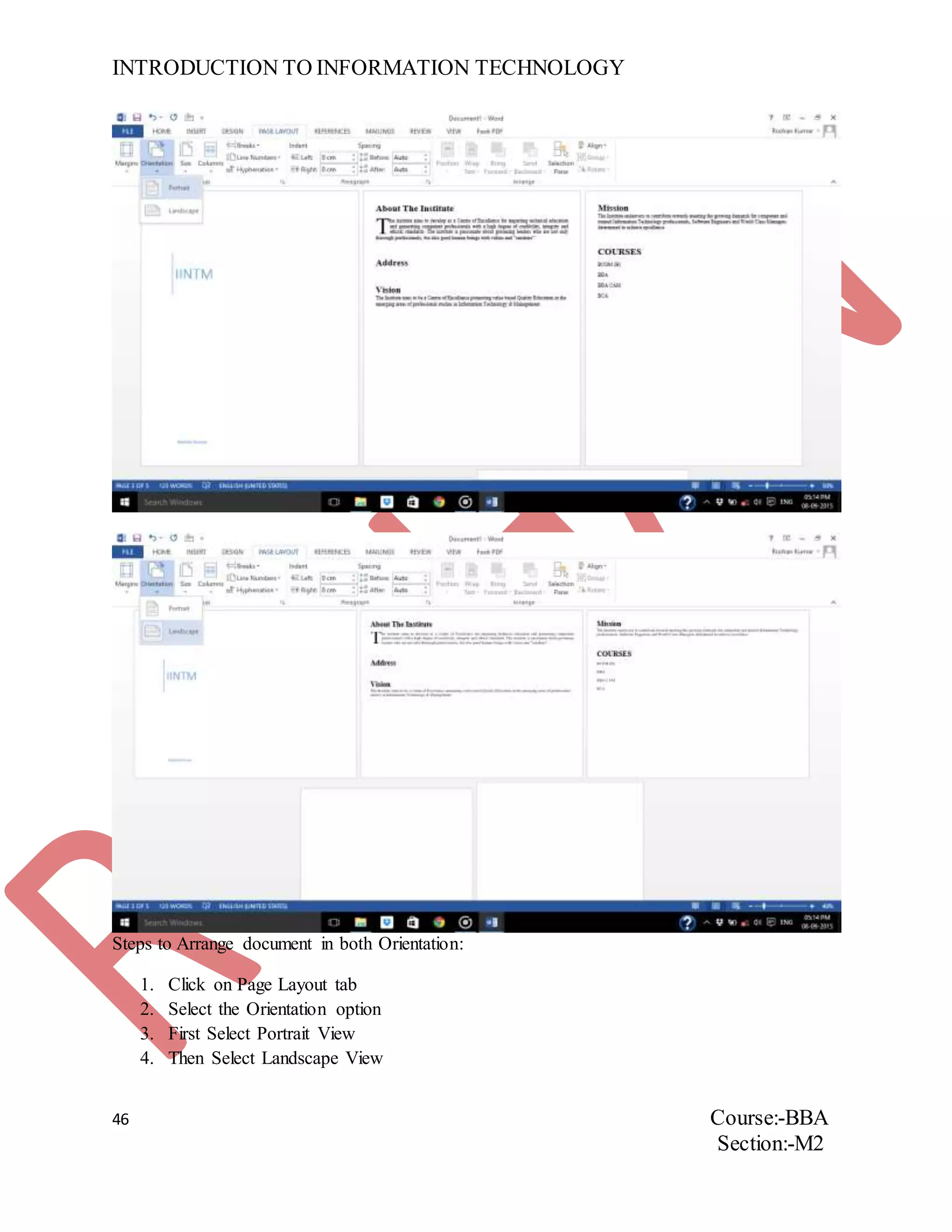
Steps to Arrange document in both Orientation:
1. Click on Page Layout tab
2. Select the Orientation option
3. First Select Portrait View
4. Then Select Landscape View
INTRODUCTION TO INFORMATION TECHNOLOGY
47 Course:-BBA
Section:-M2
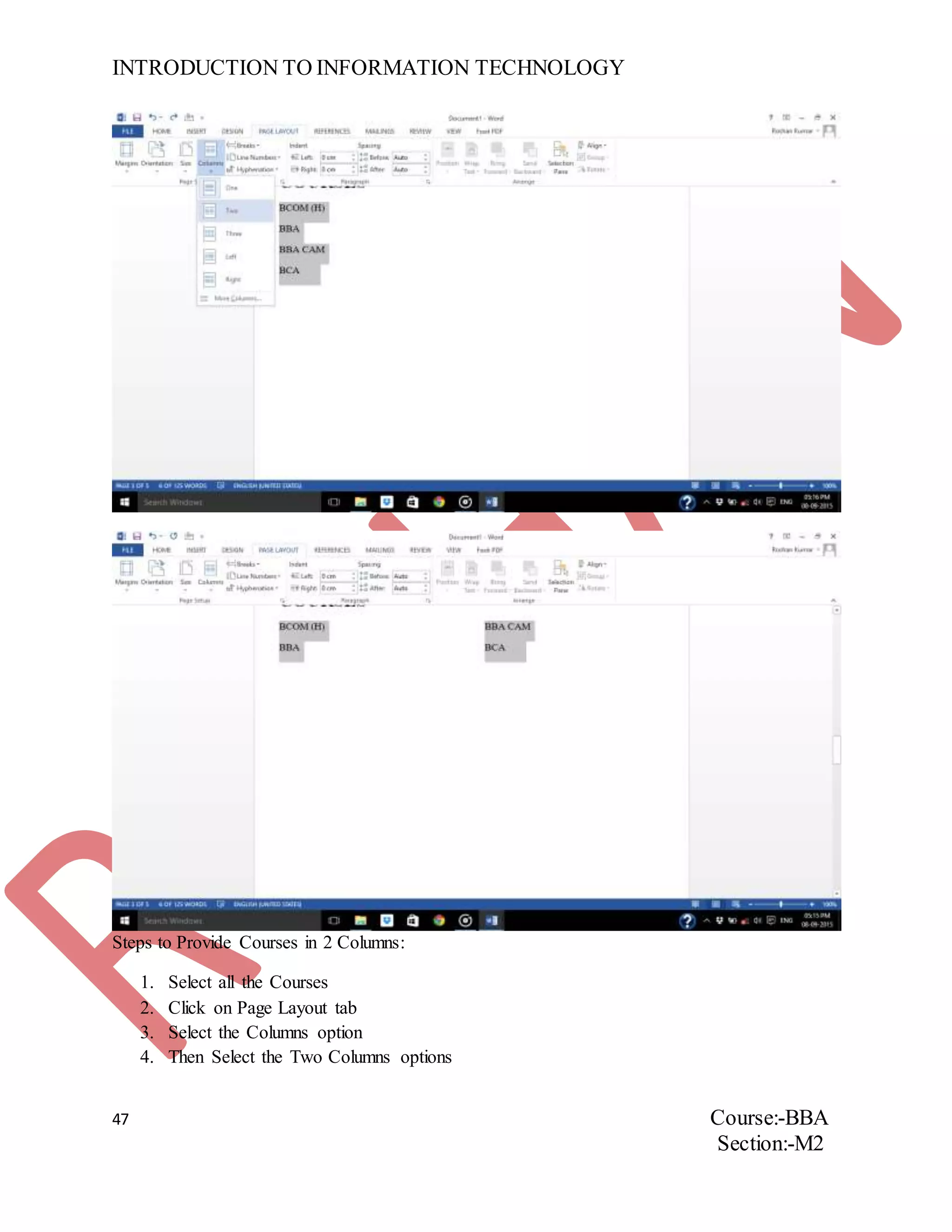
Steps to Provide Courses in 2 Columns:
1. Select all the Courses
2. Click on Page Layout tab
3. Select the Columns option
4. Then Select the Two Columns options
INTRODUCTION TO INFORMATION TECHNOLOGY
48 Course:-BBA
Section:-M2
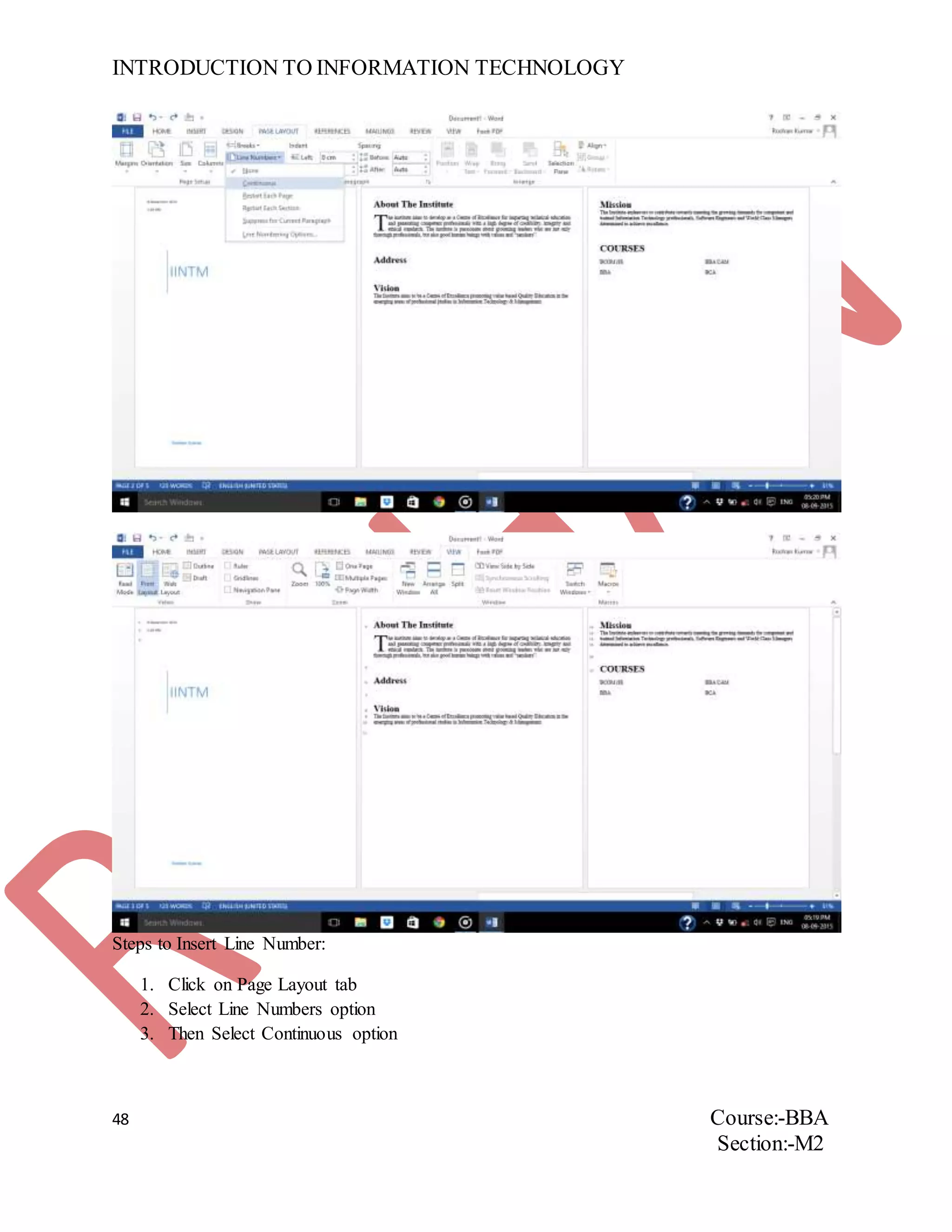
Steps to Insert Line Number:
1. Click on Page Layout tab
2. Select Line Numbers option
3. Then Select Continuous option
INTRODUCTION TO INFORMATION TECHNOLOGY
49 Course:-BBA
Section:-M2
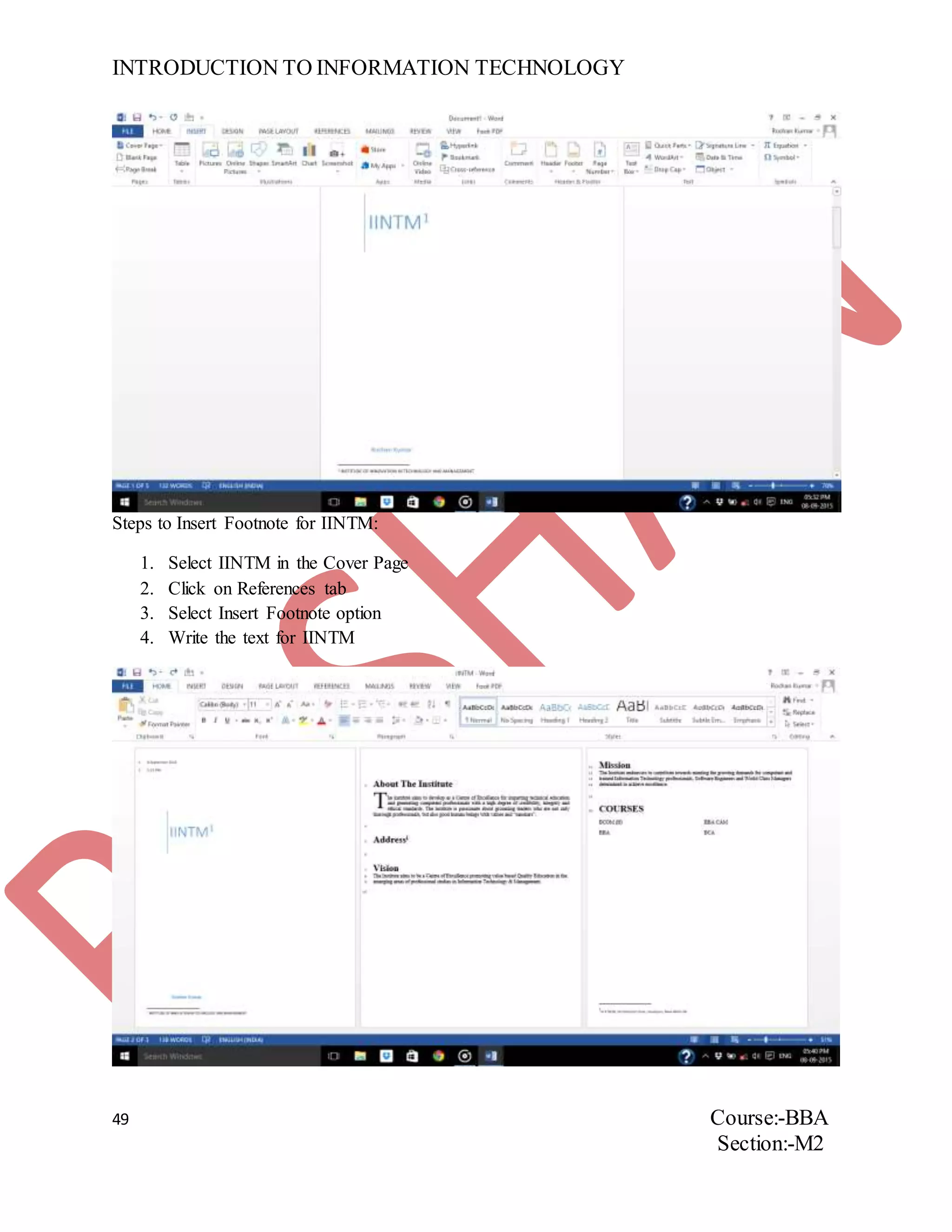
Steps to Insert Footnote for IINTM:
1. Select IINTM in the Cover Page
2. Click on References tab
3. Select Insert Footnote option
4. Write the text for IINTM
INTRODUCTION TO INFORMATION TECHNOLOGY
50 Course:-BBA
Section:-M2
Steps to Insert Endnote for Address:
1. Select the text-ADDRESS
2. Click on References tab
3. Select Insert Endnote option
4. Write the text for Address
INTRODUCTION TO INFORMATION TECHNOLOGY
51 Course:-BBA
Section:-M2
ASSIGNMENT NUMBER18
QUESTION. Perform the following:-
 Find the meaning of the word ‘Computer’ in MS-Word dictionary
 Find the synonym for ‘Organization’
 Translate ‘Organization’ to Hindi
 Add comment to the word ‘Organization’
 Implement track changes in B’day Party Invitation
 Show the changes done above in balloons & inline
 Show the use of arrange all by opening multiple windows
 Split your current working window in two parts
 Switch to another document using switch window
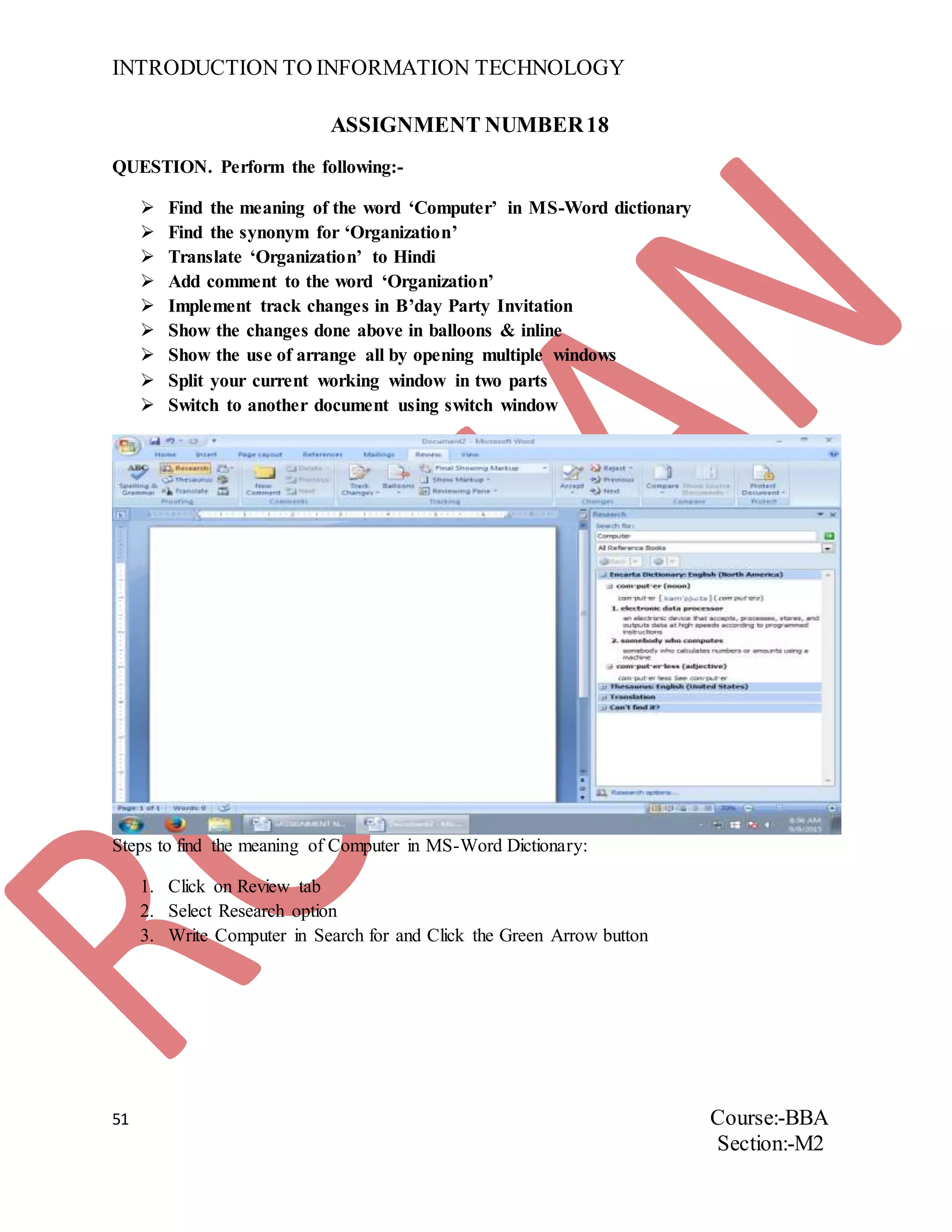
Steps to find the meaning of Computer in MS-Word Dictionary:
1. Click on Review tab
2. Select Research option
3. Write Computer in Search for and Click the Green Arrow button
INTRODUCTION TO INFORMATION TECHNOLOGY
52 Course:-BBA
Section:-M2
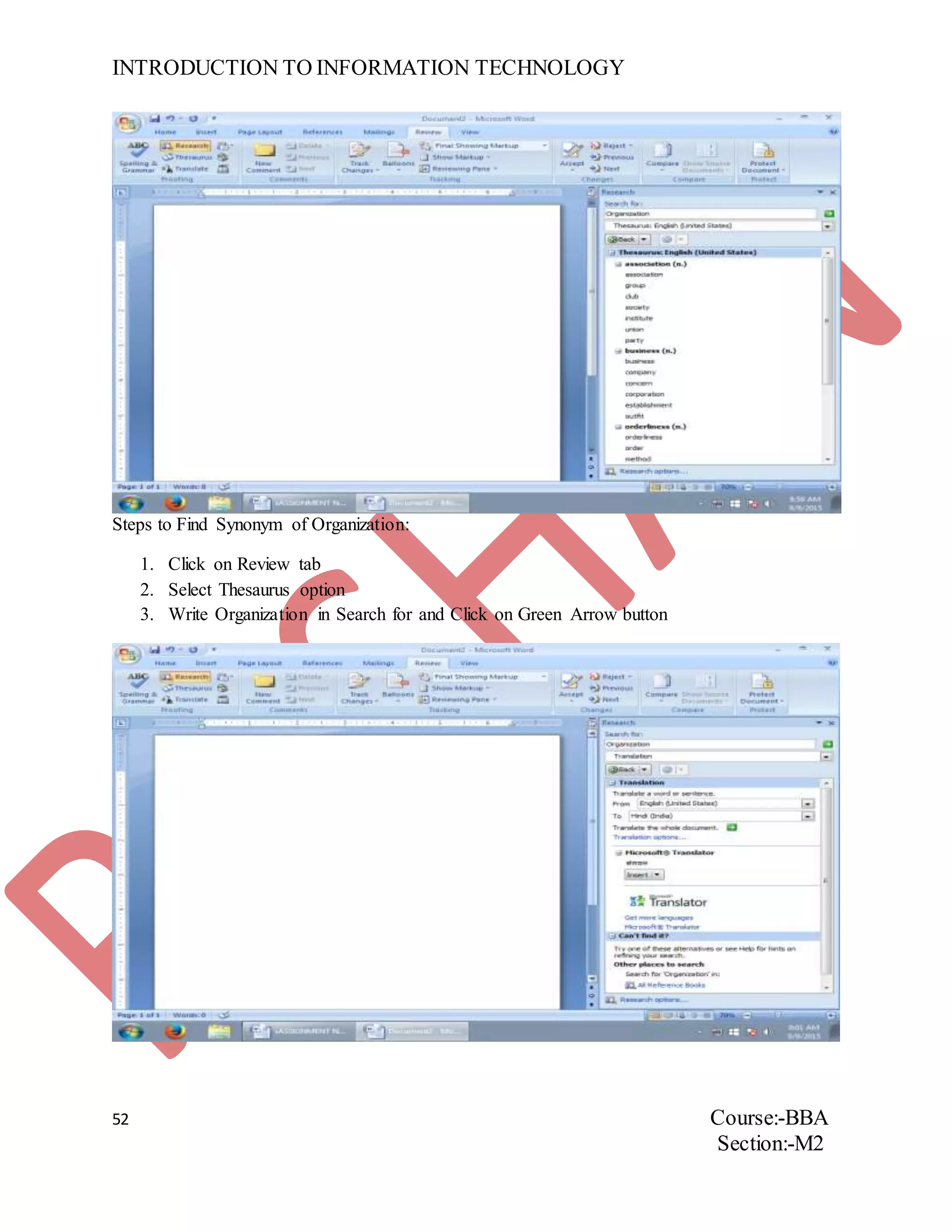
Steps to Find Synonym of Organization:
1. Click on Review tab
2. Select Thesaurus option
3. Write Organization in Search for and Click on Green Arrow button
INTRODUCTION TO INFORMATION TECHNOLOGY
53 Course:-BBA
Section:-M2
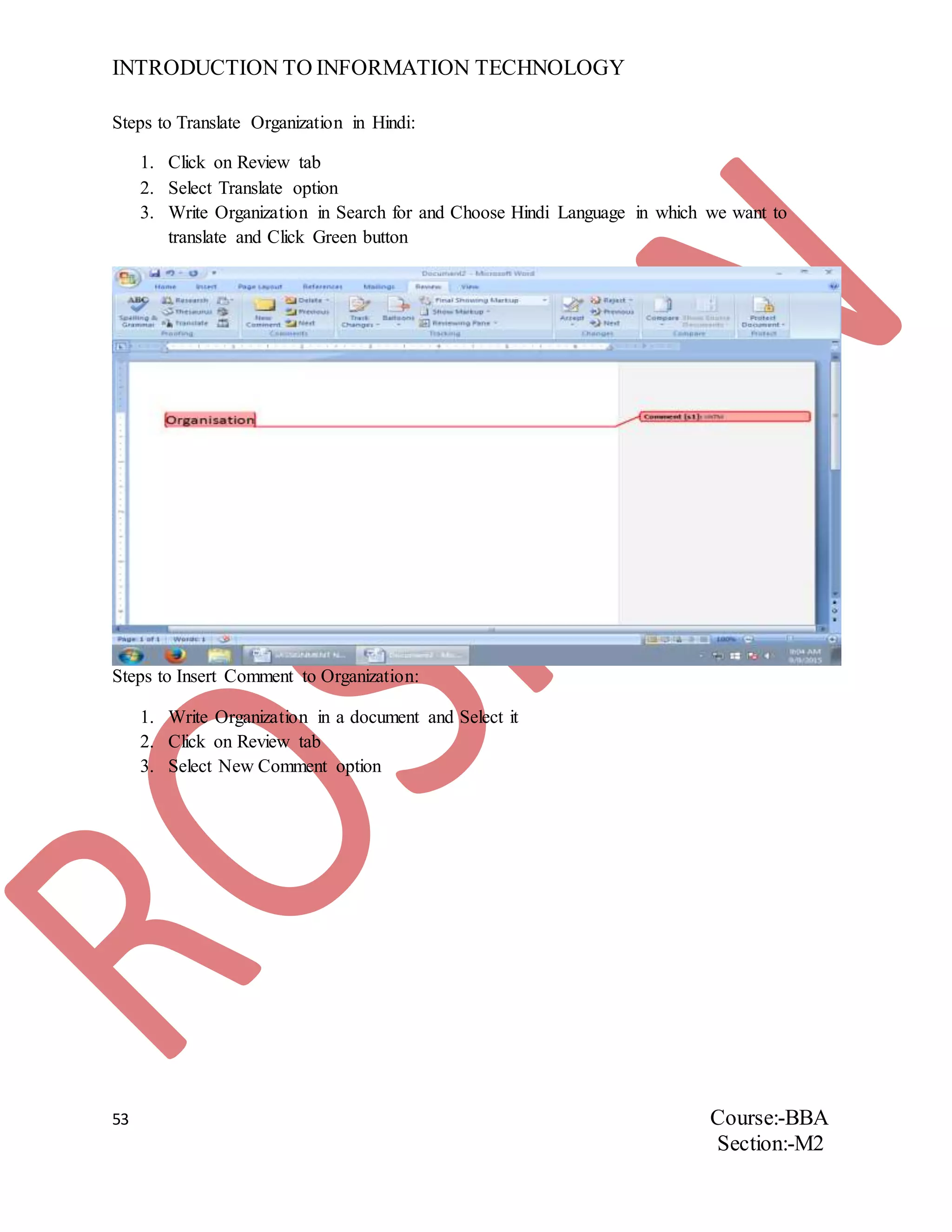
Steps to Translate Organization in Hindi:
1. Click on Review tab
2. Select Translate option
3. Write Organization in Search for and Choose Hindi Language in which we want to
translate and Click Green button
Steps to Insert Comment to Organization:
1. Write Organization in a document and Select it
2. Click on Review tab
3. Select New Comment option
INTRODUCTION TO INFORMATION TECHNOLOGY
54 Course:-BBA
Section:-M2
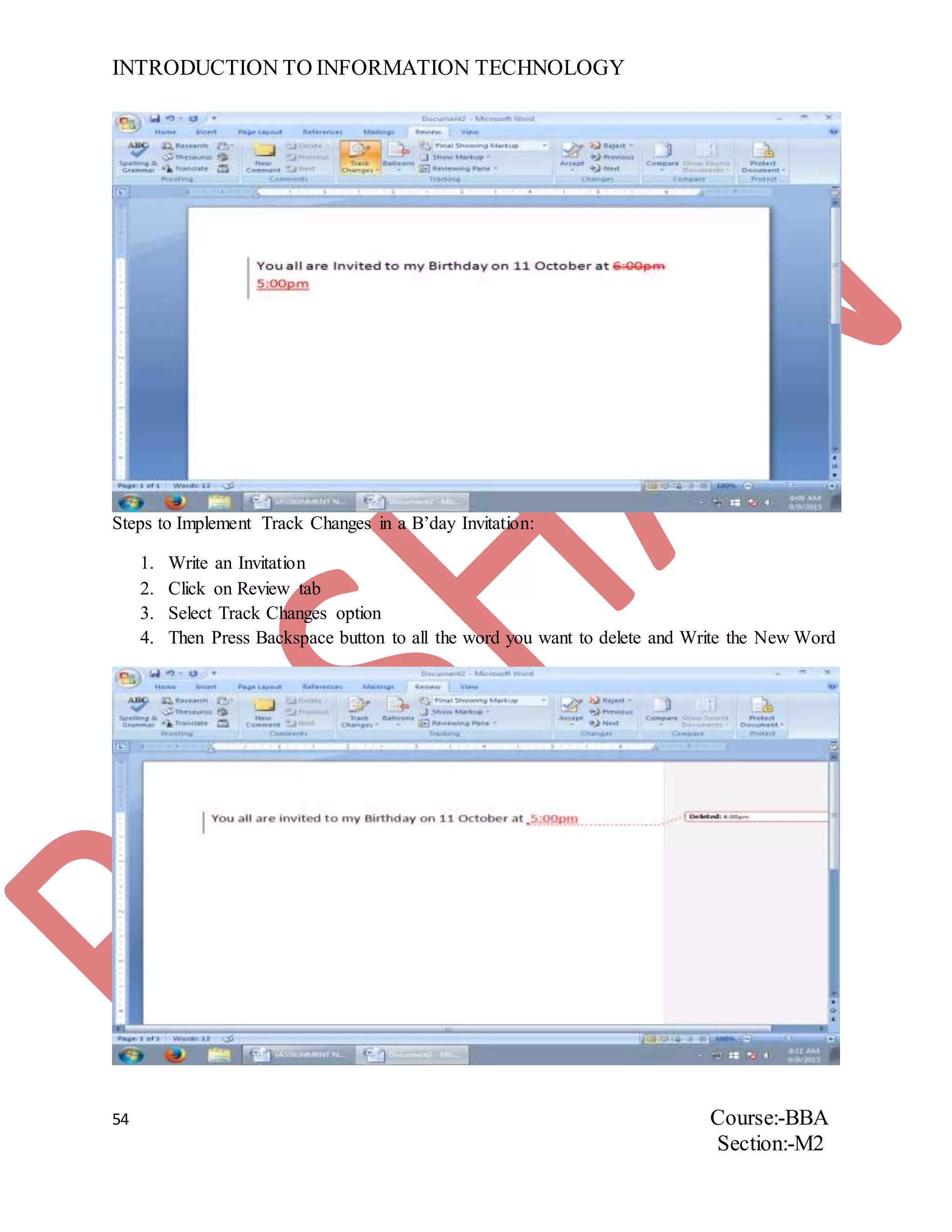
Steps to Implement Track Changes in a B’day Invitation:
1. Write an Invitation
2. Click on Review tab
3. Select Track Changes option
4. Then Press Backspace button to all the word you want to delete and Write the New Word
INTRODUCTION TO INFORMATION TECHNOLOGY
55 Course:-BBA
Section:-M2
Steps to change above in Balloons and Inline:
1. Click on Review tab
2. Select Balloons option
3. Then Select Show-Revision in Balloons
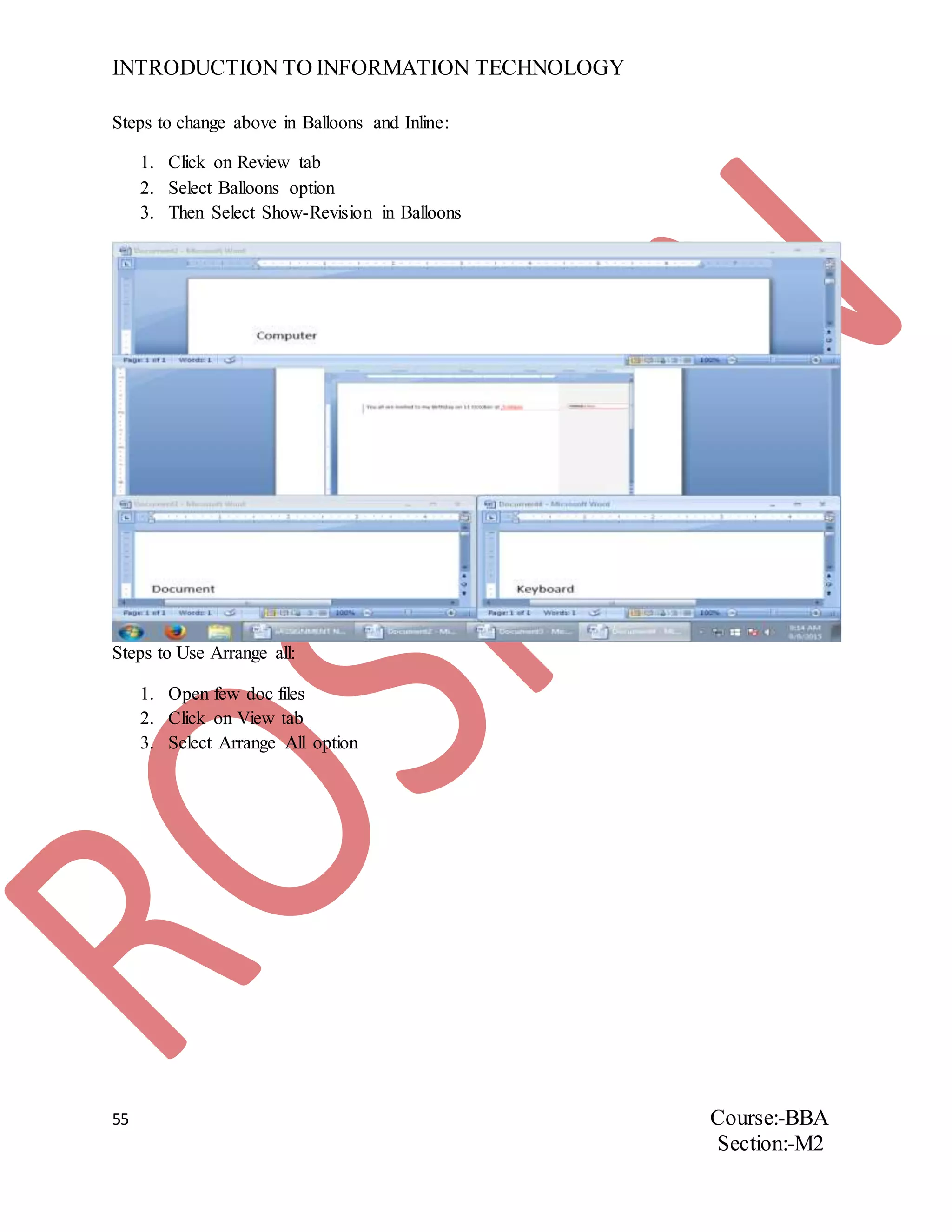
Steps to Use Arrange all:
1. Open few doc files
2. Click on View tab
3. Select Arrange All option
INTRODUCTION TO INFORMATION TECHNOLOGY
56 Course:-BBA
Section:-M2
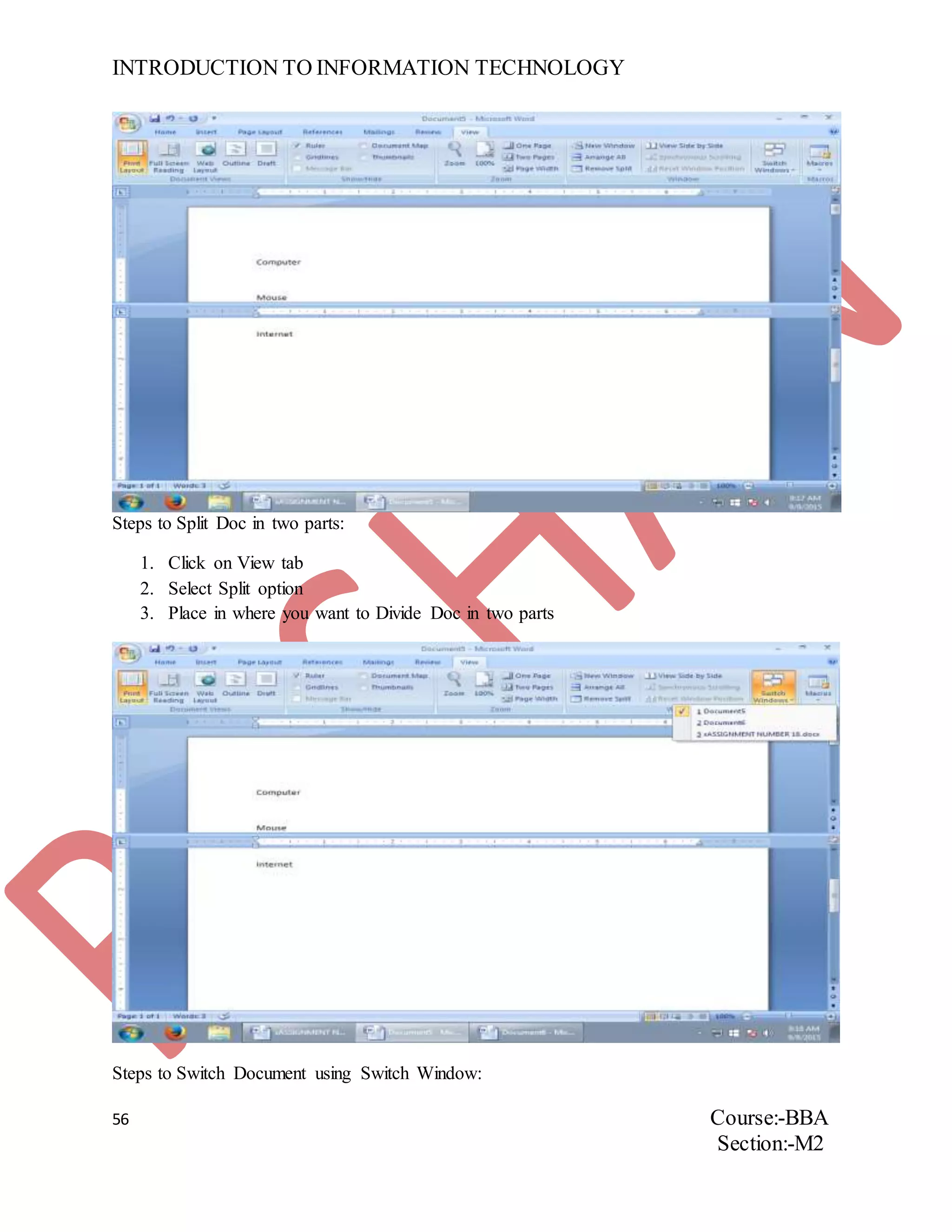
Steps to Split Doc in two parts:
1. Click on View tab
2. Select Split option
3. Place in where you want to Divide Doc in two parts
Steps to Switch Document using Switch Window:
INTRODUCTION TO INFORMATION TECHNOLOGY
57 Course:-BBA
Section:-M2
1. Click on View tab
2. Select Switch Window option
3. Select the Document you want to Switch in
INTRODUCTION TO INFORMATION TECHNOLOGY
58 Course:-BBA
Section:-M2
ASSIGNMENT NUMBER19
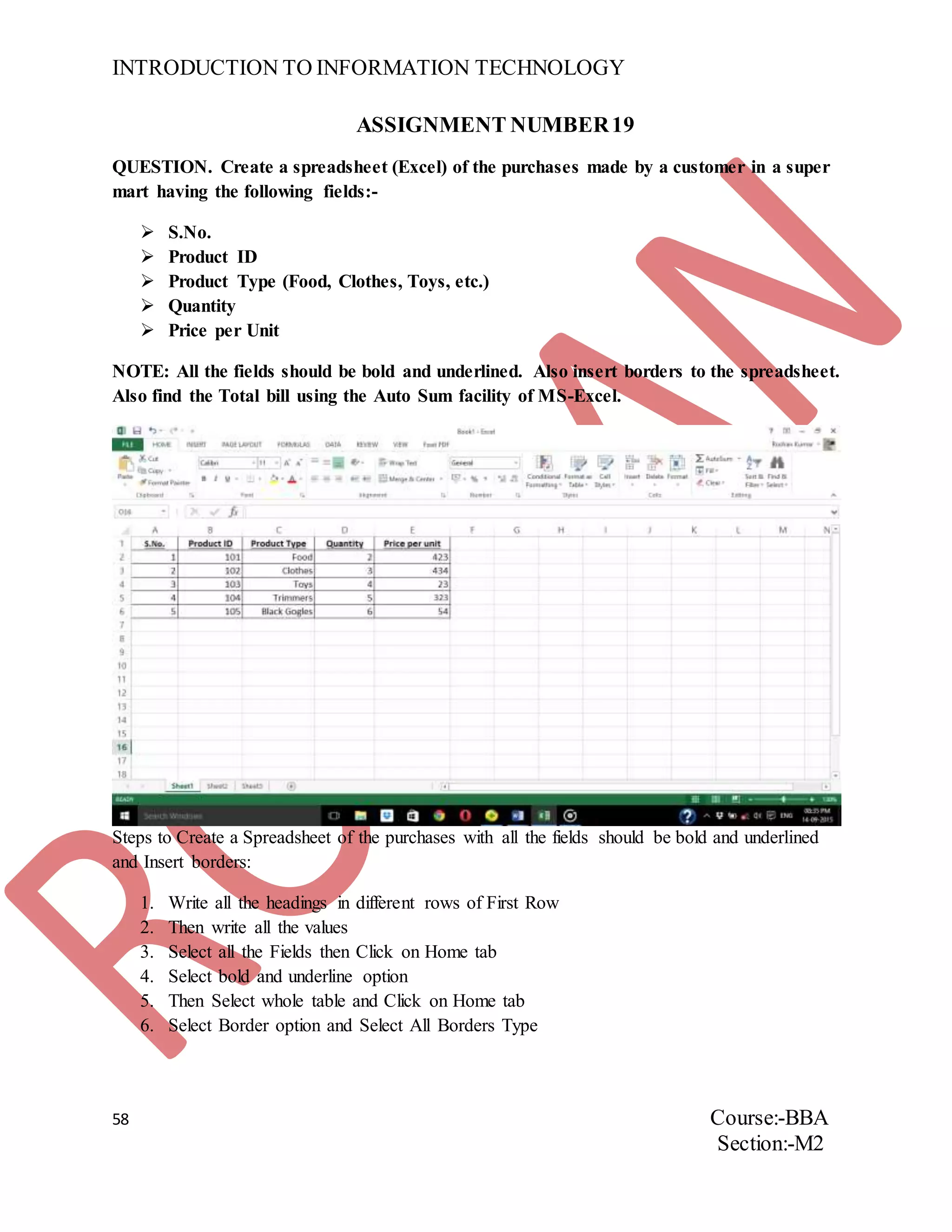
QUESTION. Create a spreadsheet (Excel) of the purchases made by a customer in a super
mart having the following fields:-
 S.No.
 Product ID
 Product Type (Food, Clothes, Toys, etc.)
 Quantity
 Price per Unit
NOTE: All the fields should be bold and underlined. Also insert borders to the spreadsheet.
Also find the Total bill using the Auto Sum facility of MS-Excel.
Steps to Create a Spreadsheet of the purchases with all the fields should be bold and underlined
and Insert borders:
1. Write all the headings in different rows of First Row
2. Then write all the values
3. Select all the Fields then Click on Home tab
4. Select bold and underline option
5. Then Select whole table and Click on Home tab
6. Select Border option and Select All Borders Type
INTRODUCTION TO INFORMATION TECHNOLOGY
59 Course:-BBA
Section:-M2
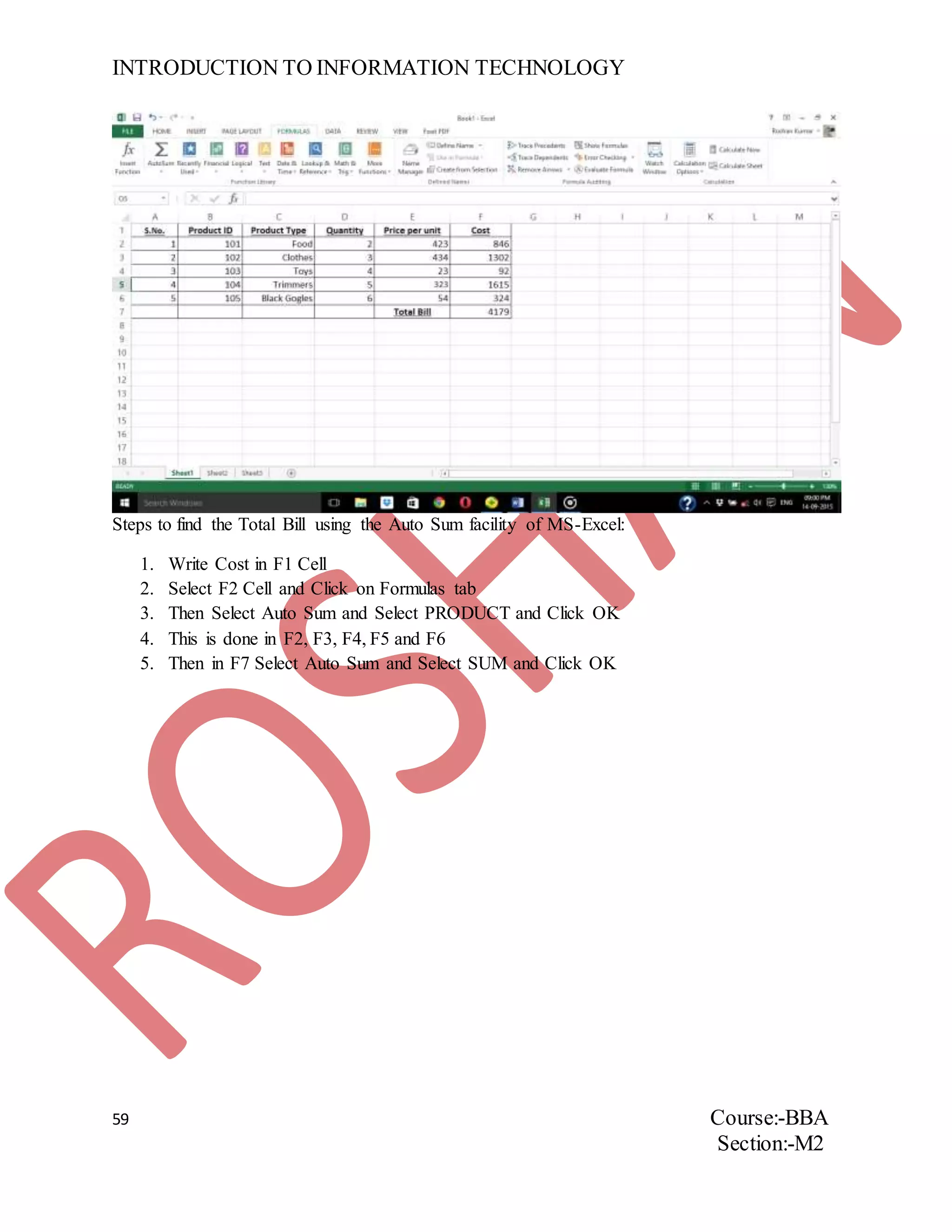
Steps to find the Total Bill using the Auto Sum facility of MS-Excel:
1. Write Cost in F1 Cell
2. Select F2 Cell and Click on Formulas tab
3. Then Select Auto Sum and Select PRODUCT and Click OK
4. This is done in F2, F3, F4, F5 and F6
5. Then in F7 Select Auto Sum and Select SUM and Click OK
INTRODUCTION TO INFORMATION TECHNOLOGY
60 Course:-BBA
Section:-M2
ASSIGNMENTNUMBER 20
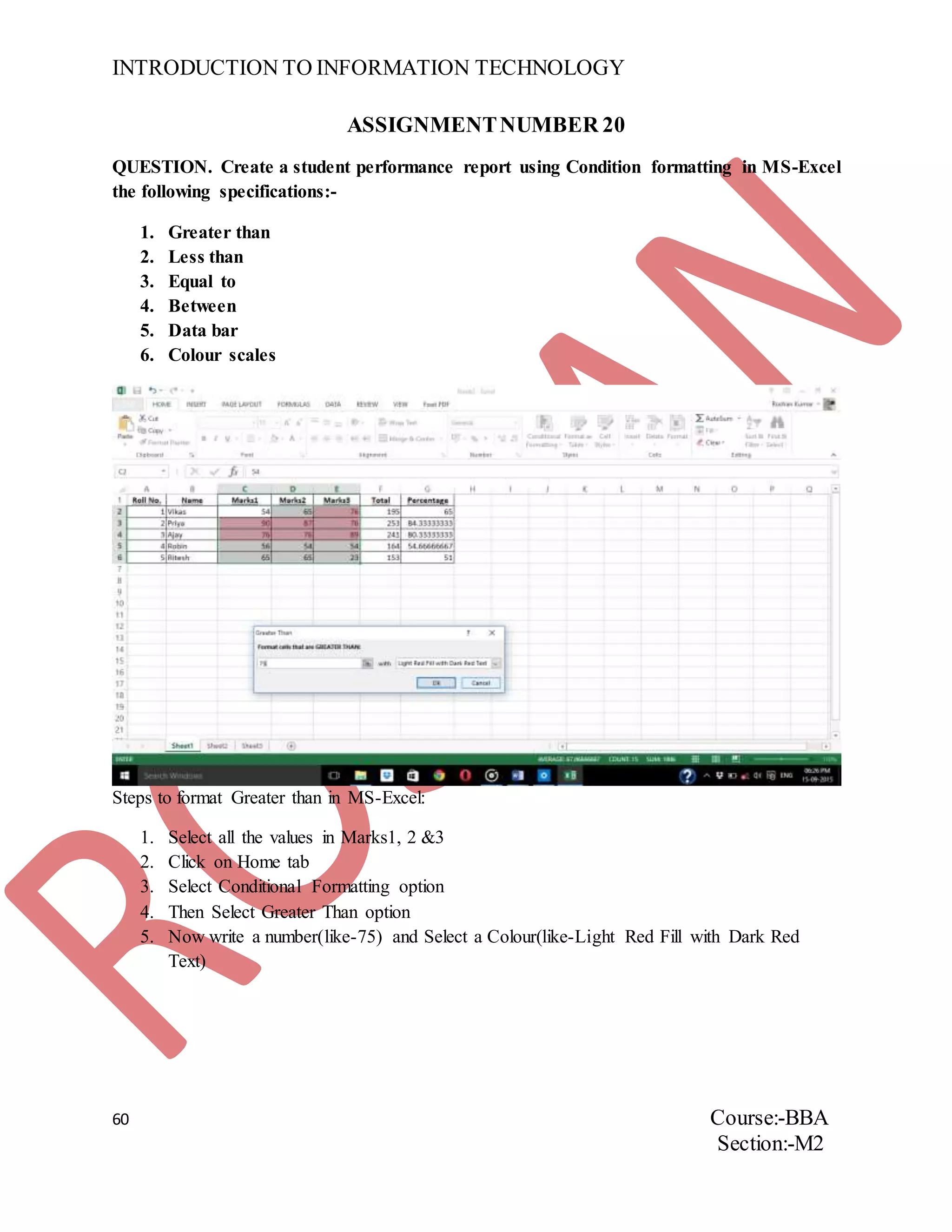
QUESTION. Create a student performance report using Condition formatting in MS-Excel
the following specifications:-
1. Greater than
2. Less than
3. Equal to
4. Between
5. Data bar
6. Colour scales
Steps to format Greater than in MS-Excel:
1. Select all the values in Marks1, 2 &3
2. Click on Home tab
3. Select Conditional Formatting option
4. Then Select Greater Than option
5. Now write a number(like-75) and Select a Colour(like-Light Red Fill with Dark Red
Text)
INTRODUCTION TO INFORMATION TECHNOLOGY
61 Course:-BBA
Section:-M2
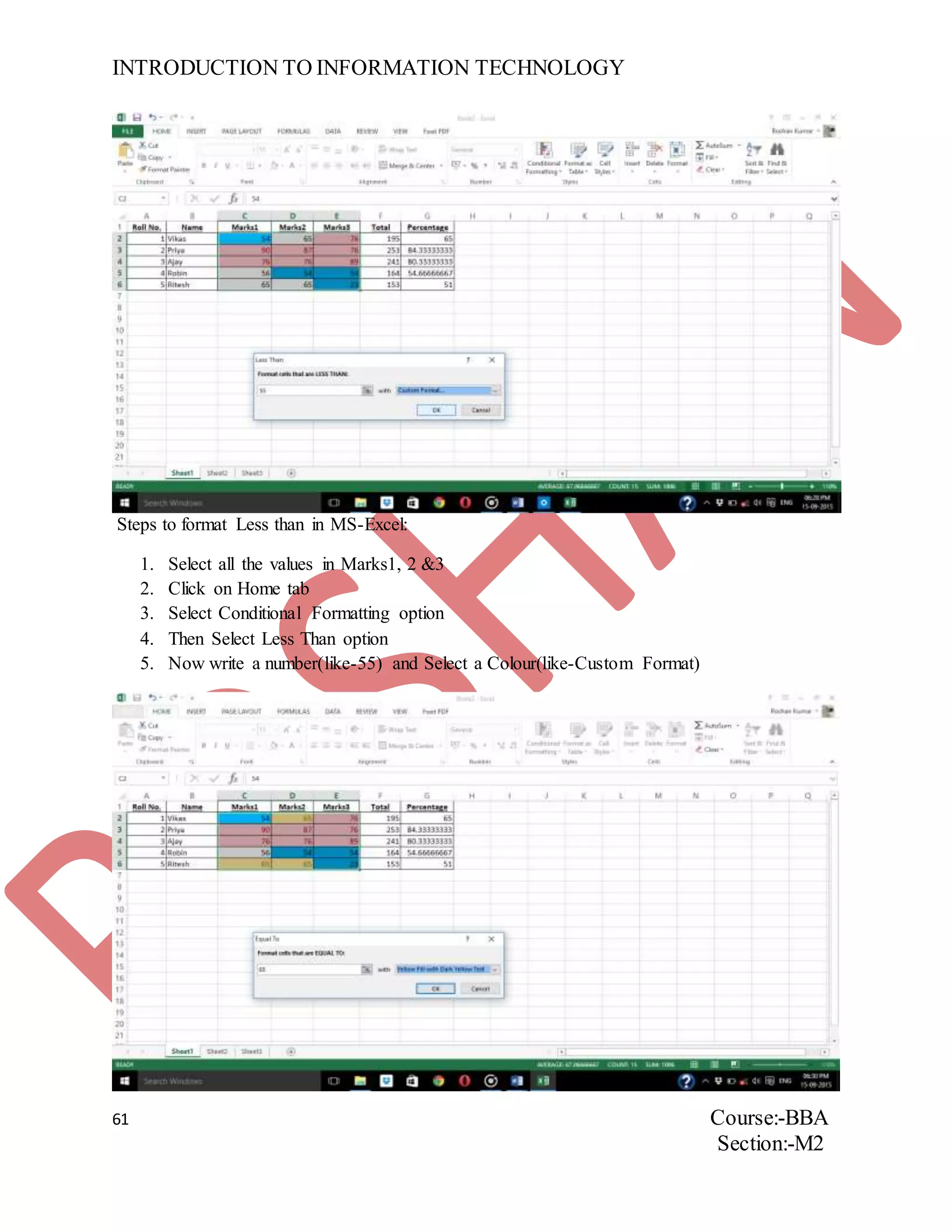
Steps to format Less than in MS-Excel:
1. Select all the values in Marks1, 2 &3
2. Click on Home tab
3. Select Conditional Formatting option
4. Then Select Less Than option
5. Now write a number(like-55) and Select a Colour(like-Custom Format)
INTRODUCTION TO INFORMATION TECHNOLOGY
62 Course:-BBA
Section:-M2
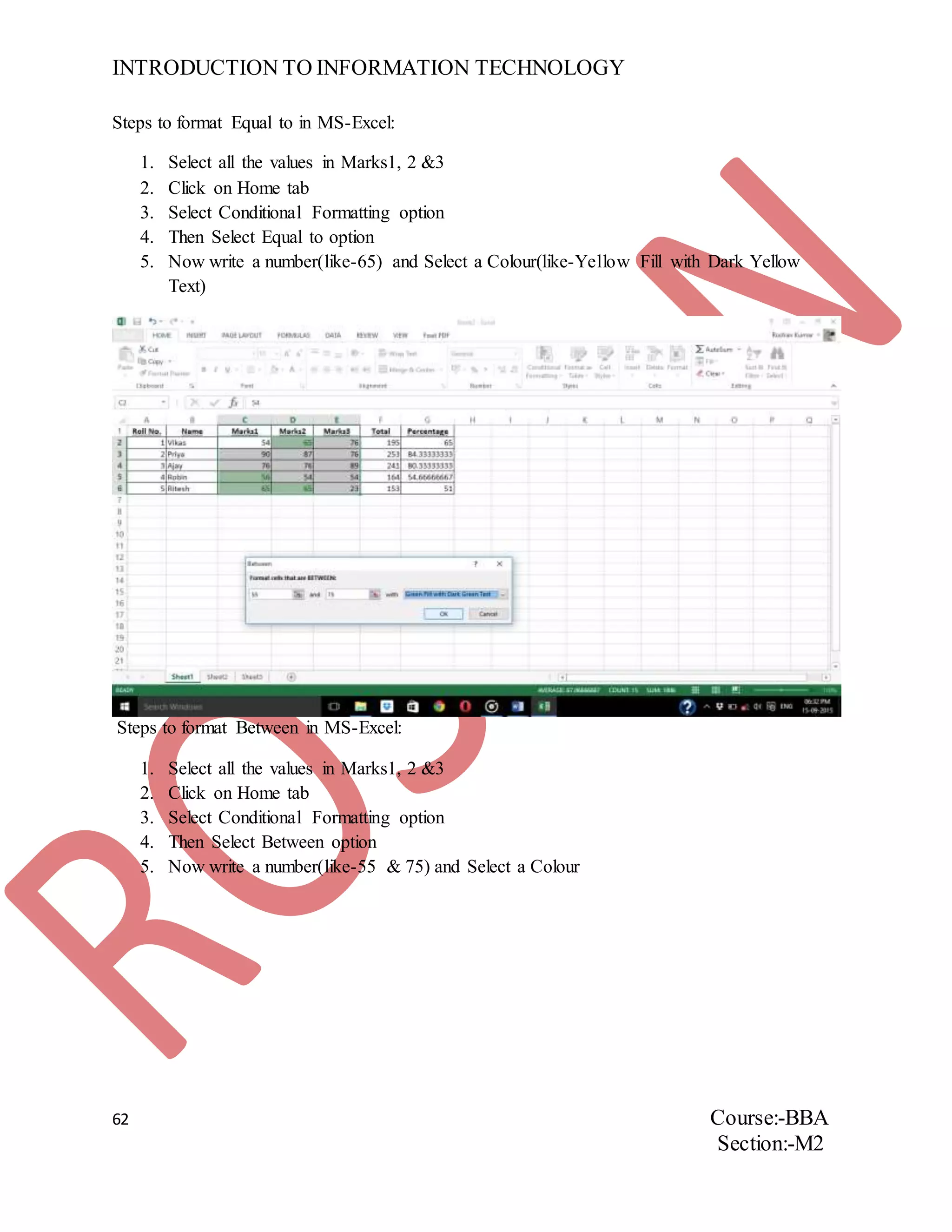
Steps to format Equal to in MS-Excel:
1. Select all the values in Marks1, 2 &3
2. Click on Home tab
3. Select Conditional Formatting option
4. Then Select Equal to option
5. Now write a number(like-65) and Select a Colour(like-Yellow Fill with Dark Yellow
Text)
Steps to format Between in MS-Excel:
1. Select all the values in Marks1, 2 &3
2. Click on Home tab
3. Select Conditional Formatting option
4. Then Select Between option
5. Now write a number(like-55 & 75) and Select a Colour
INTRODUCTION TO INFORMATION TECHNOLOGY
63 Course:-BBA
Section:-M2
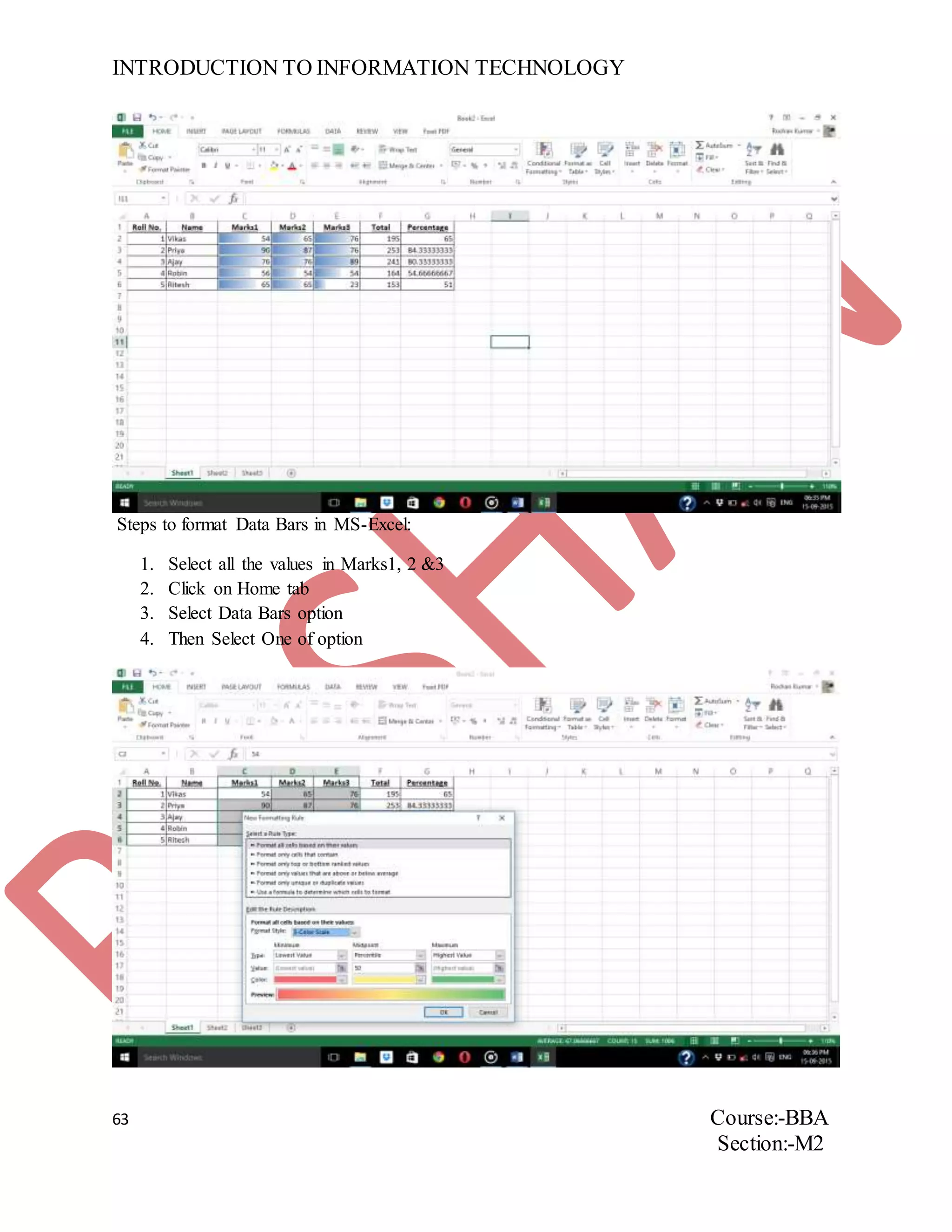
Steps to format Data Bars in MS-Excel:
1. Select all the values in Marks1, 2 &3
2. Click on Home tab
3. Select Data Bars option
4. Then Select One of option
INTRODUCTION TO INFORMATION TECHNOLOGY
64 Course:-BBA
Section:-M2
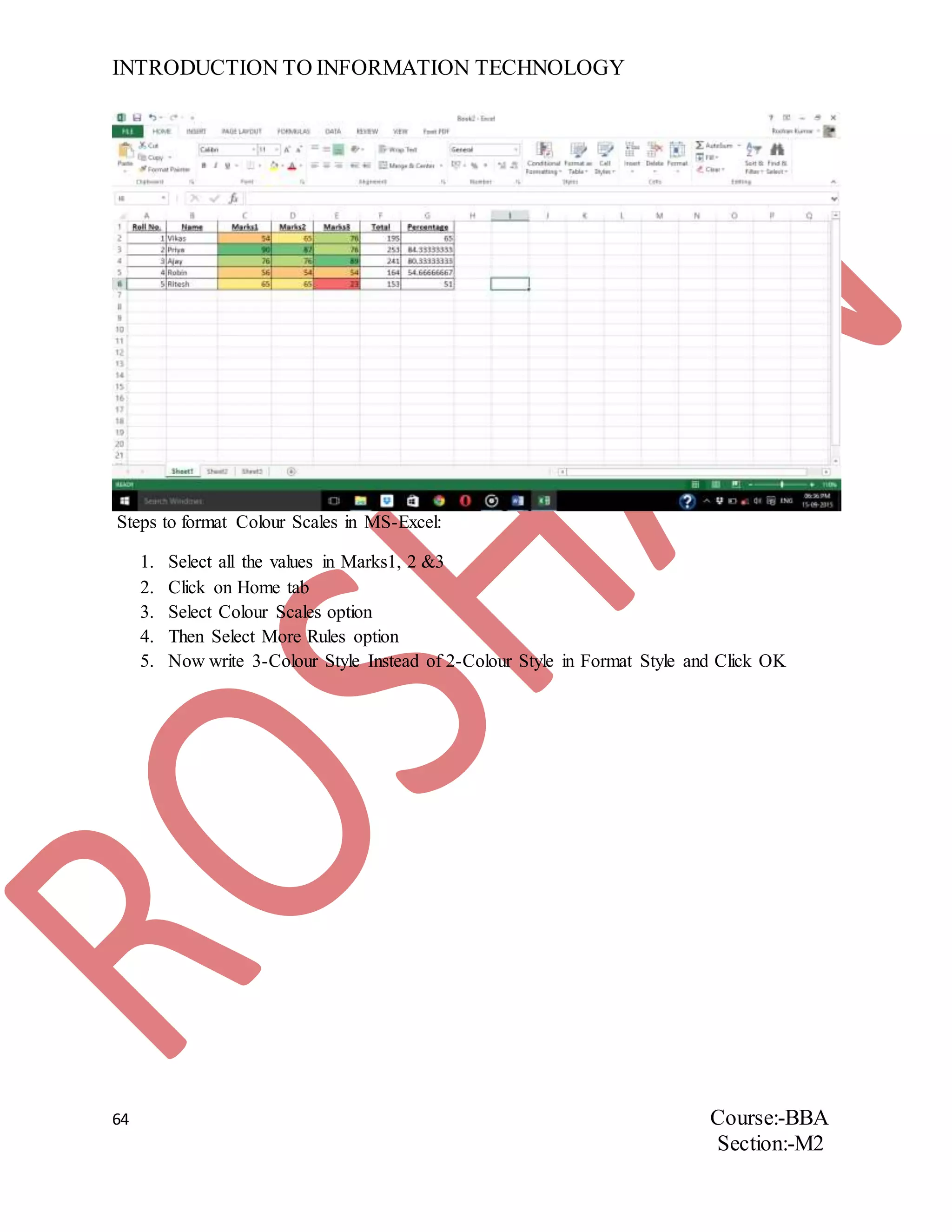
Steps to format Colour Scales in MS-Excel:
1. Select all the values in Marks1, 2 &3
2. Click on Home tab
3. Select Colour Scales option
4. Then Select More Rules option
5. Now write 3-Colour Style Instead of 2-Colour Style in Format Style and Click OK
INTRODUCTION TO INFORMATION TECHNOLOGY
65 Course:-BBA
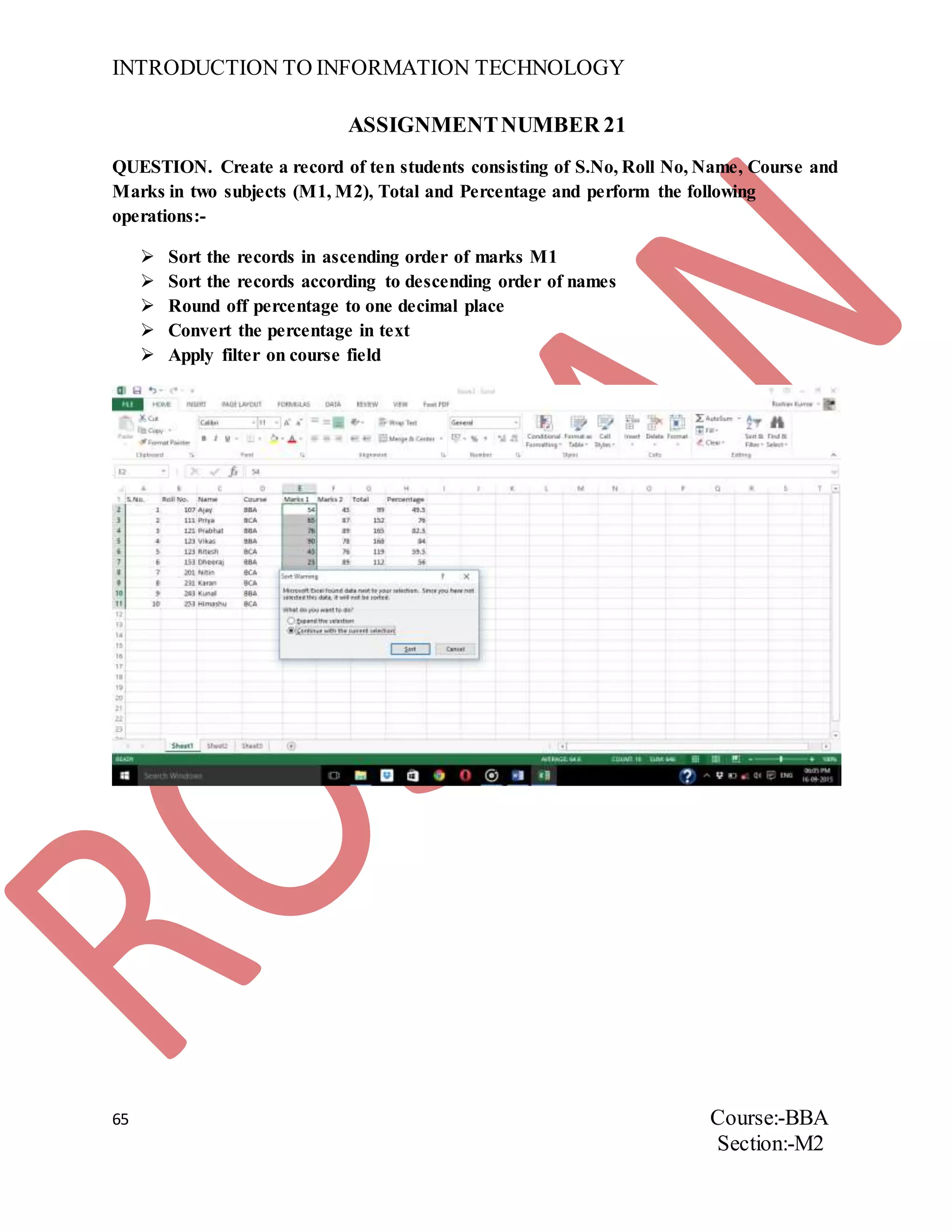
Section:-M2
ASSIGNMENTNUMBER 21
QUESTION. Create a record of ten students consisting of S.No, Roll No, Name, Course and
Marks in two subjects (M1, M2), Total and Percentage and perform the following
operations:-
 Sort the records in ascending order of marks M1
 Sort the records according to descending order of names
 Round off percentage to one decimal place
 Convert the percentage in text
 Apply filter on course field
INTRODUCTION TO INFORMATION TECHNOLOGY
66 Course:-BBA
Section:-M2
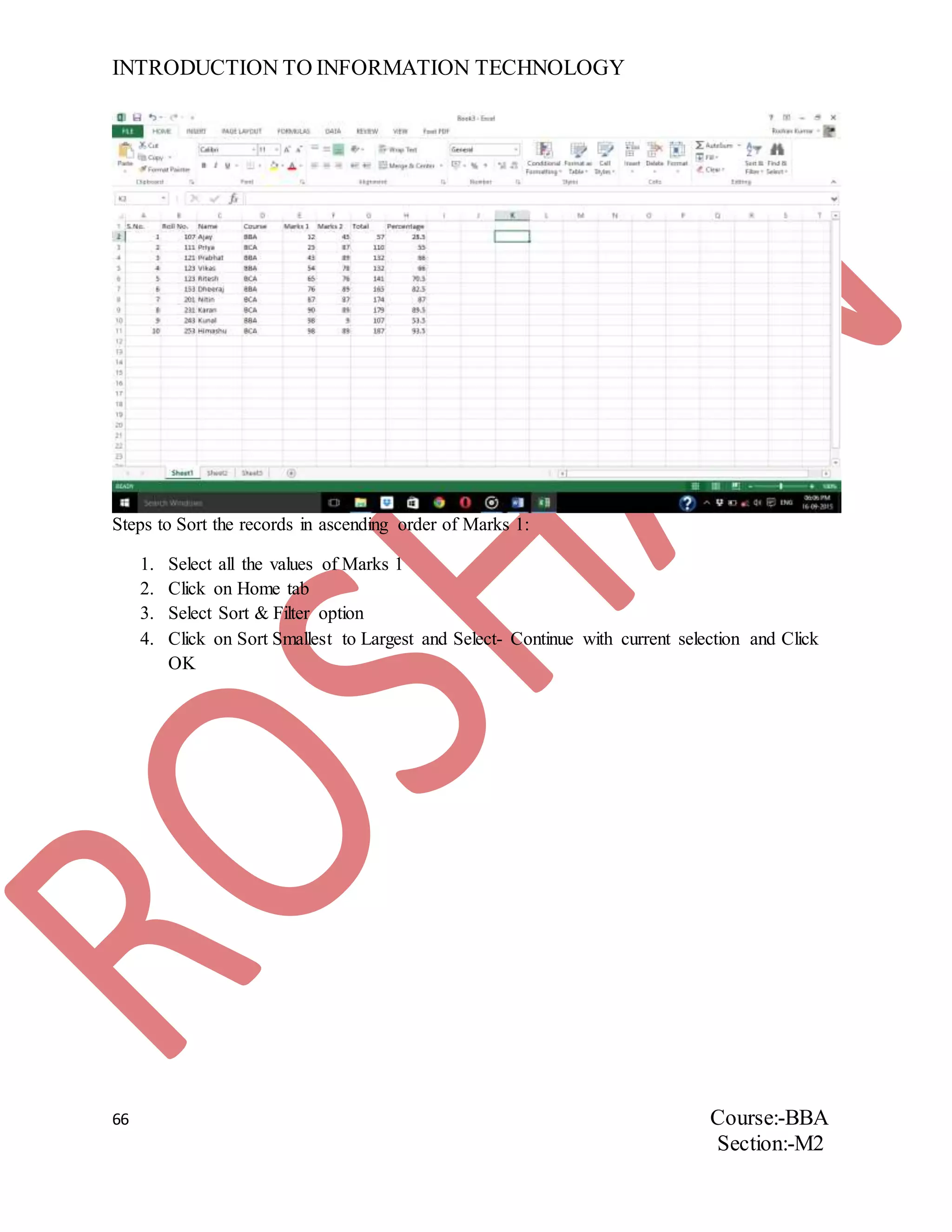
Steps to Sort the records in ascending order of Marks 1:
1. Select all the values of Marks 1
2. Click on Home tab
3. Select Sort & Filter option
4. Click on Sort Smallest to Largest and Select- Continue with current selection and Click
OK
INTRODUCTION TO INFORMATION TECHNOLOGY
67 Course:-BBA
Section:-M2
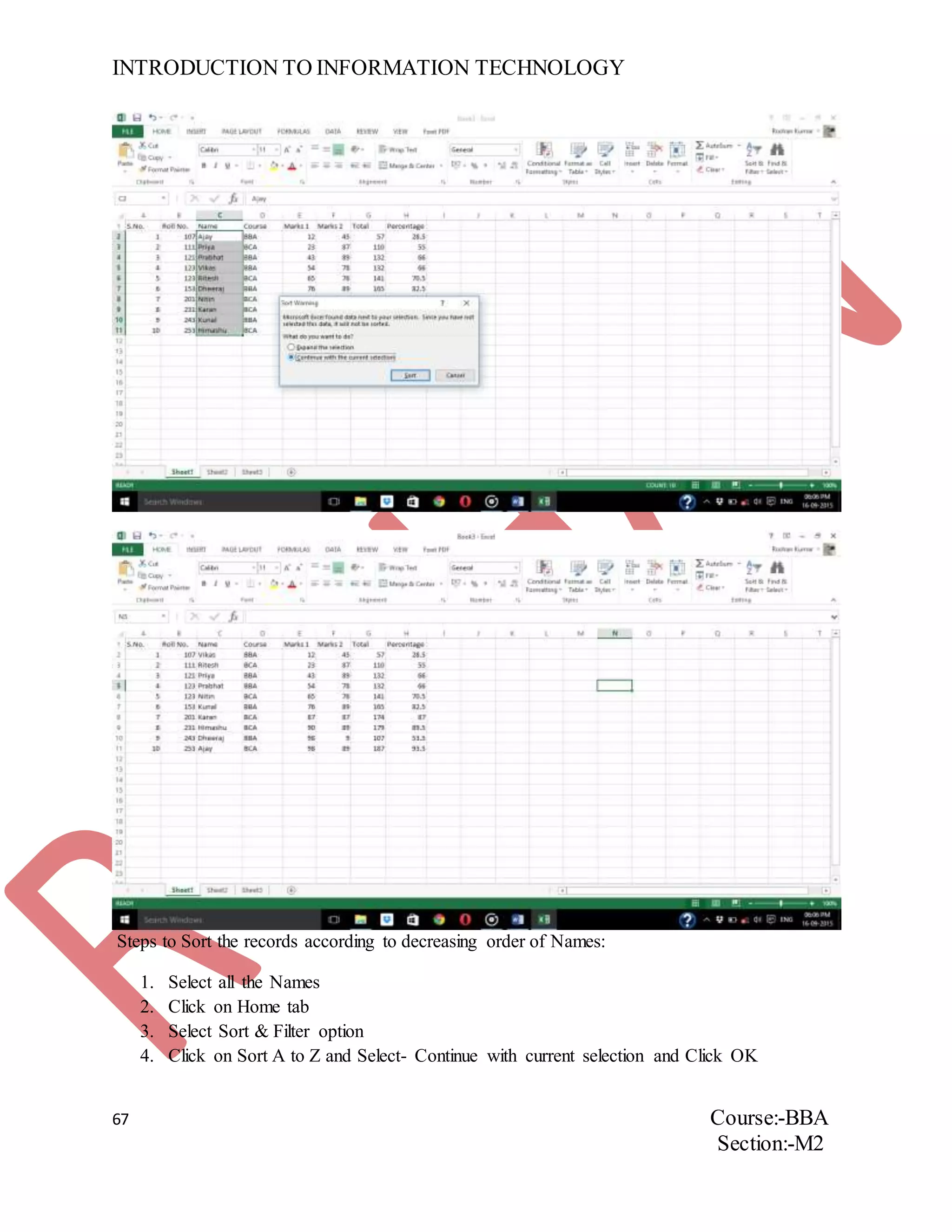
Steps to Sort the records according to decreasing order of Names:
1. Select all the Names
2. Click on Home tab
3. Select Sort & Filter option
4. Click on Sort A to Z and Select- Continue with current selection and Click OK
INTRODUCTION TO INFORMATION TECHNOLOGY
68 Course:-BBA
Section:-M2
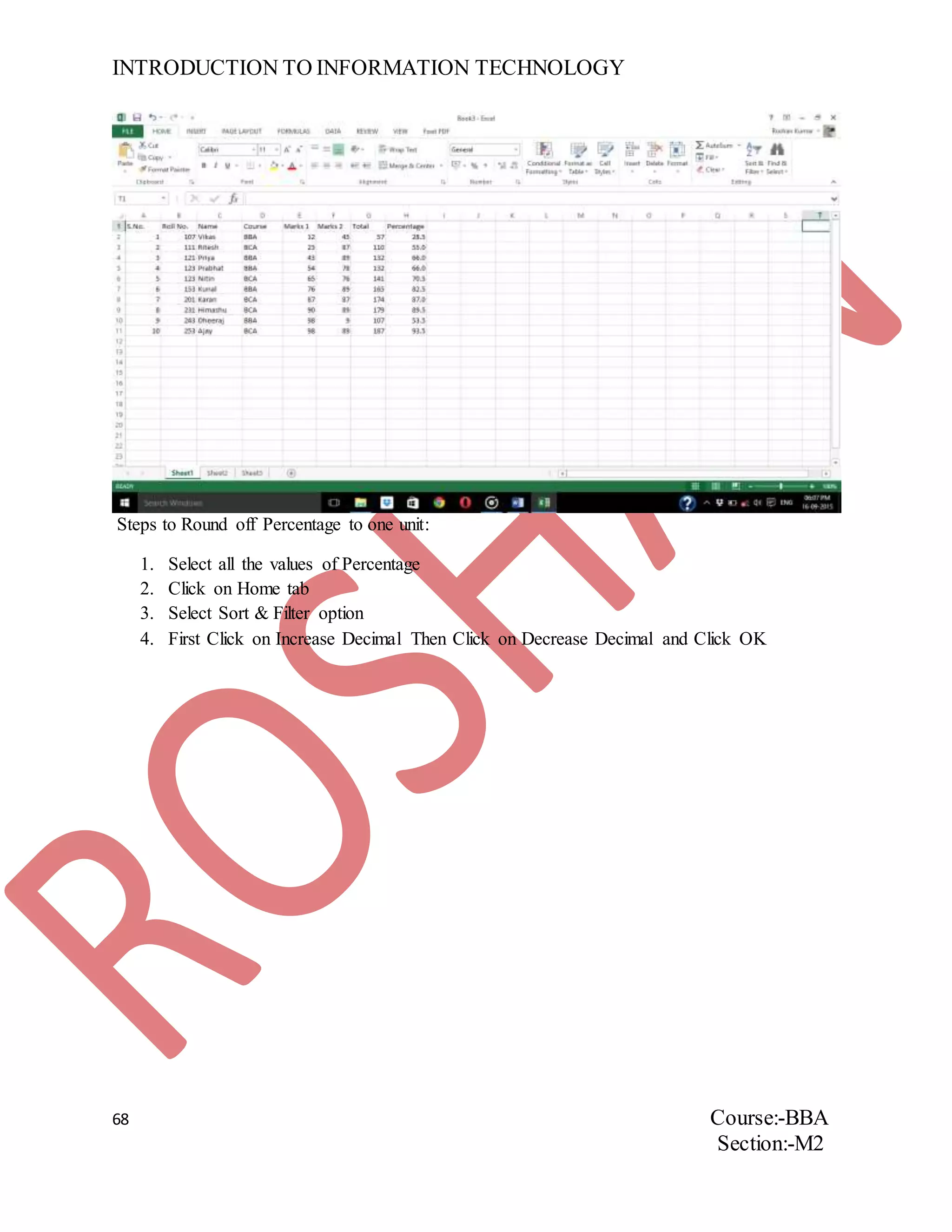
Steps to Round off Percentage to one unit:
1. Select all the values of Percentage
2. Click on Home tab
3. Select Sort & Filter option
4. First Click on Increase Decimal Then Click on Decrease Decimal and Click OK
INTRODUCTION TO INFORMATION TECHNOLOGY
69 Course:-BBA
Section:-M2
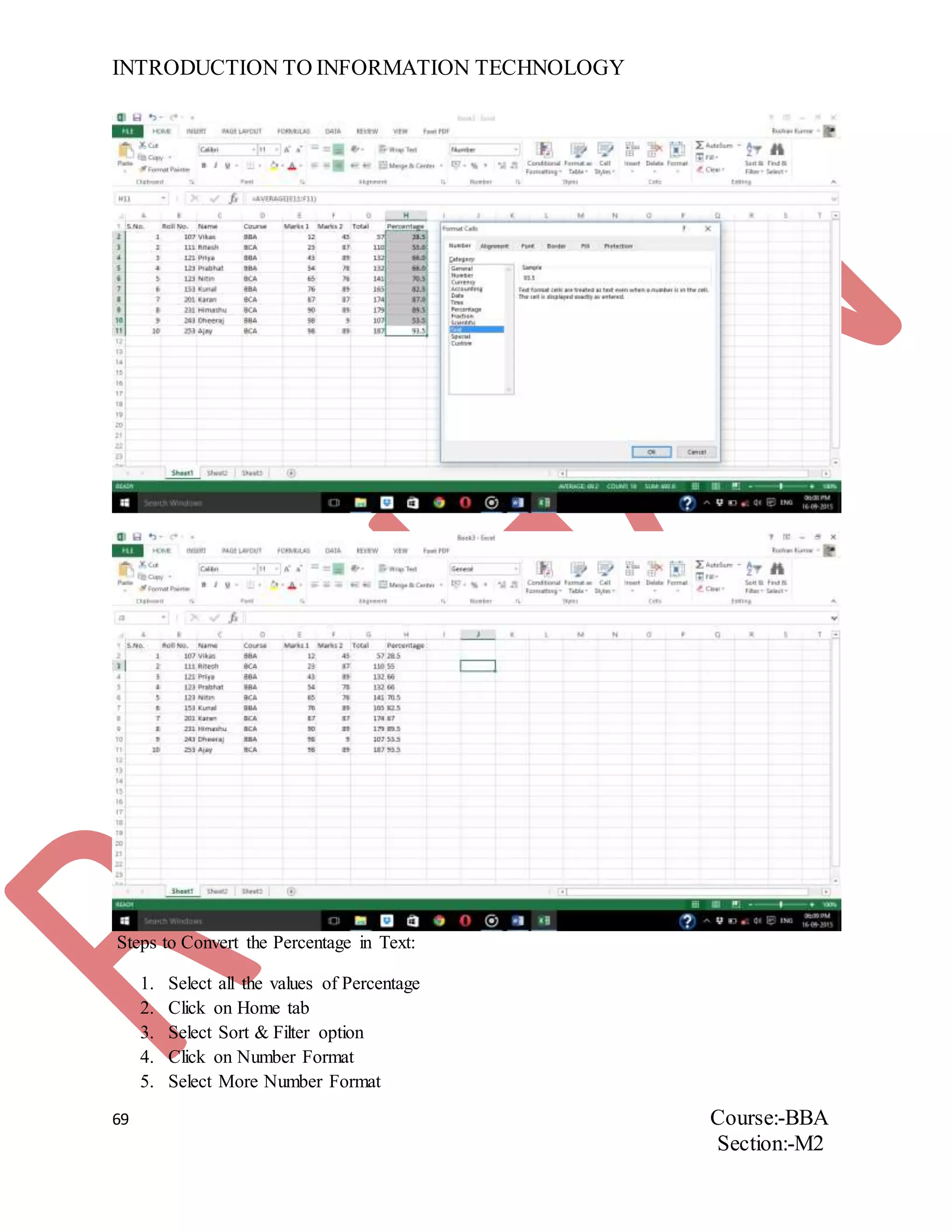
Steps to Convert the Percentage in Text:
1. Select all the values of Percentage
2. Click on Home tab
3. Select Sort & Filter option
4. Click on Number Format
5. Select More Number Format
INTRODUCTION TO INFORMATION TECHNOLOGY
70 Course:-BBA
Section:-M2
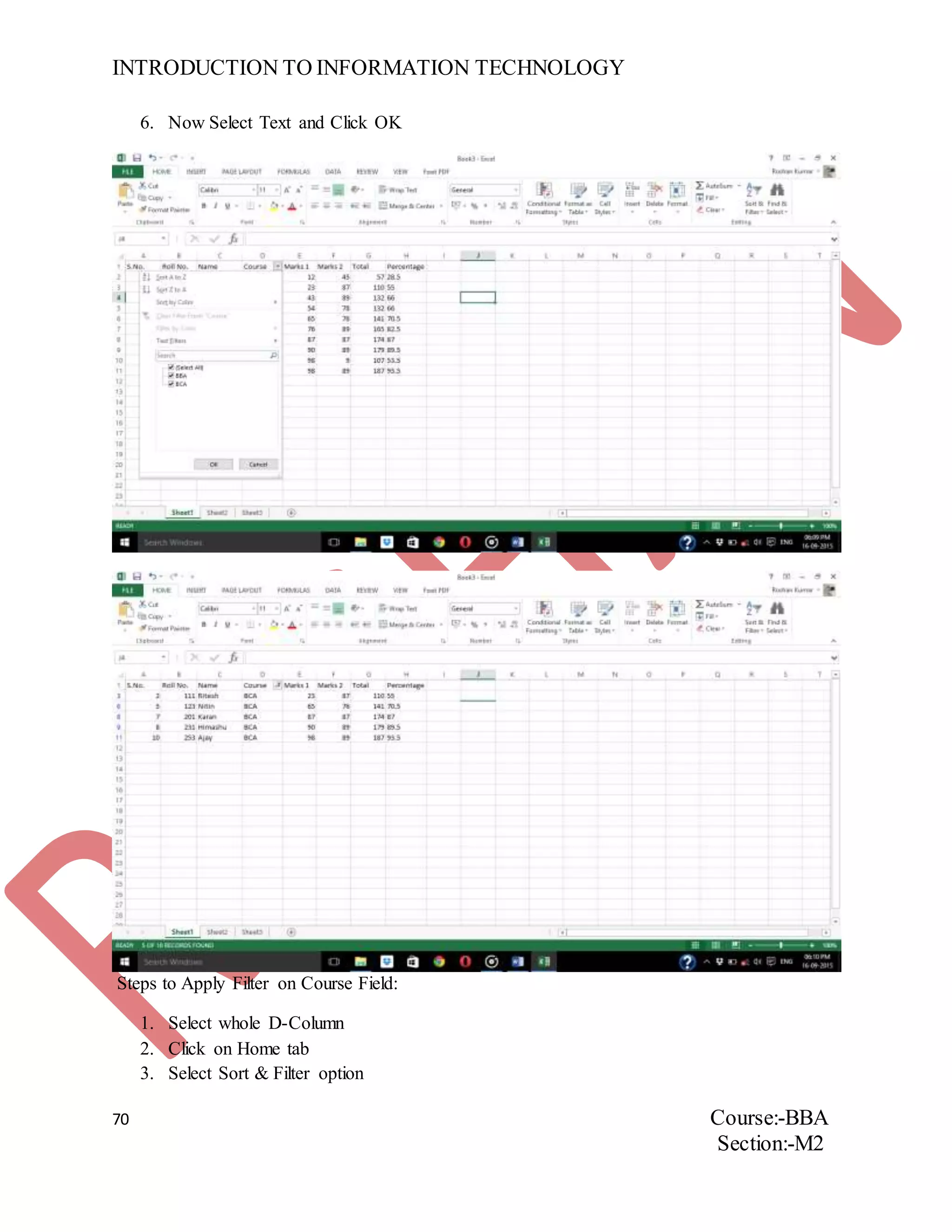
6. Now Select Text and Click OK
Steps to Apply Filter on Course Field:
1. Select whole D-Column
2. Click on Home tab
3. Select Sort & Filter option
INTRODUCTION TO INFORMATION TECHNOLOGY
71 Course:-BBA
Section:-M2
4. Click on Filter
5. Now Click on Arrow in Course Field and Unselect BBA or BCA and Click OK
INTRODUCTION TO INFORMATION TECHNOLOGY
72 Course:-BBA
Section:-M2
ASSIGNMENT NUMBER 22
QUESTION. Create a spreadsheet for student performance report of two students
containing date of exam, day of exam, subject and marks.
Subject and Marks
 Fill Date and Day using Fill series facility
Also create the column chart for above and apply:-
 Chart Title
 Axis
 Fill Colour
 Border Colour
 Shape Effects
 Size
INTRODUCTION TO INFORMATION TECHNOLOGY
73 Course:-BBA
Section:-M2
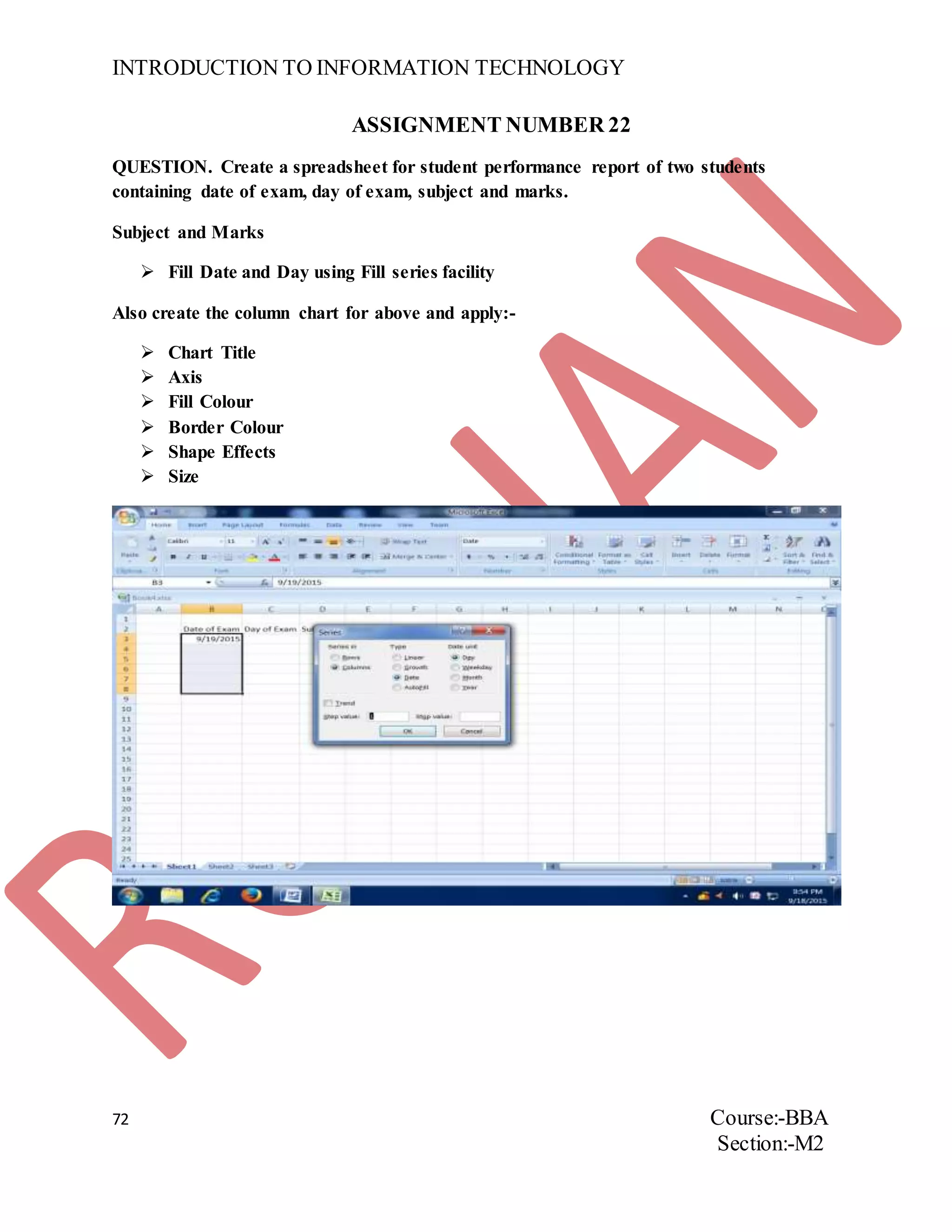
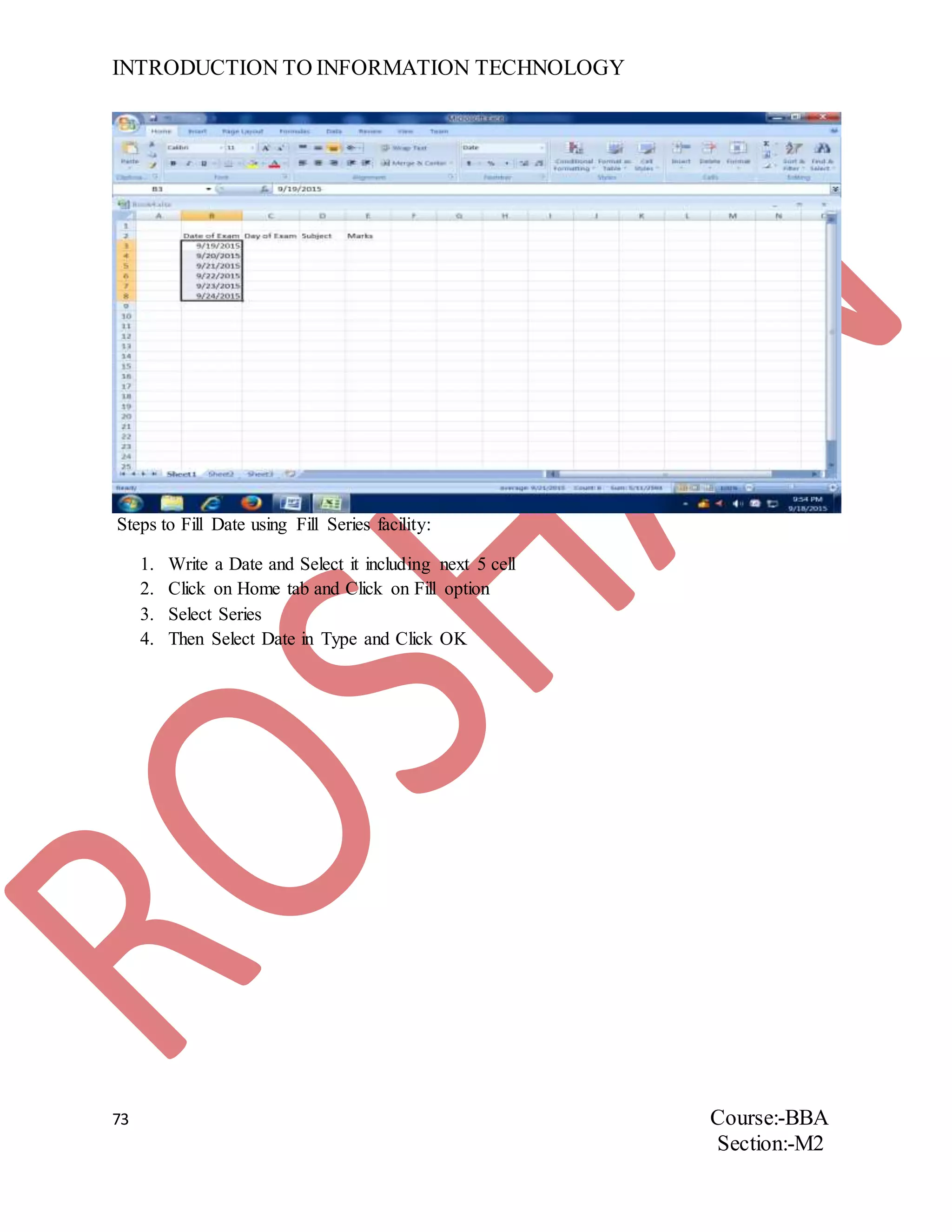
Steps to Fill Date using Fill Series facility:
1. Write a Date and Select it including next 5 cell
2. Click on Home tab and Click on Fill option
3. Select Series
4. Then Select Date in Type and Click OK
INTRODUCTION TO INFORMATION TECHNOLOGY
74 Course:-BBA
Section:-M2
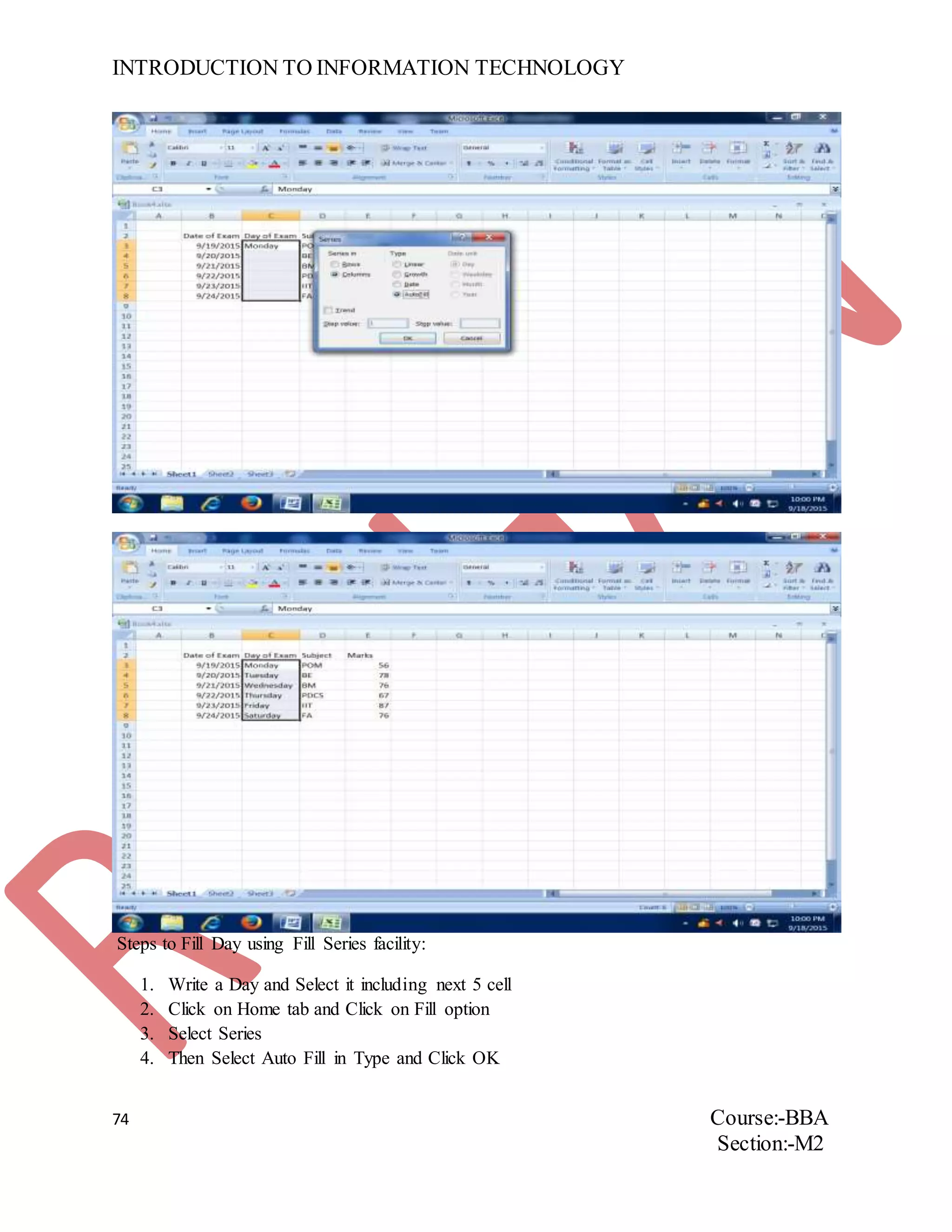
Steps to Fill Day using Fill Series facility:
1. Write a Day and Select it including next 5 cell
2. Click on Home tab and Click on Fill option
3. Select Series
4. Then Select Auto Fill in Type and Click OK
INTRODUCTION TO INFORMATION TECHNOLOGY
75 Course:-BBA
Section:-M2
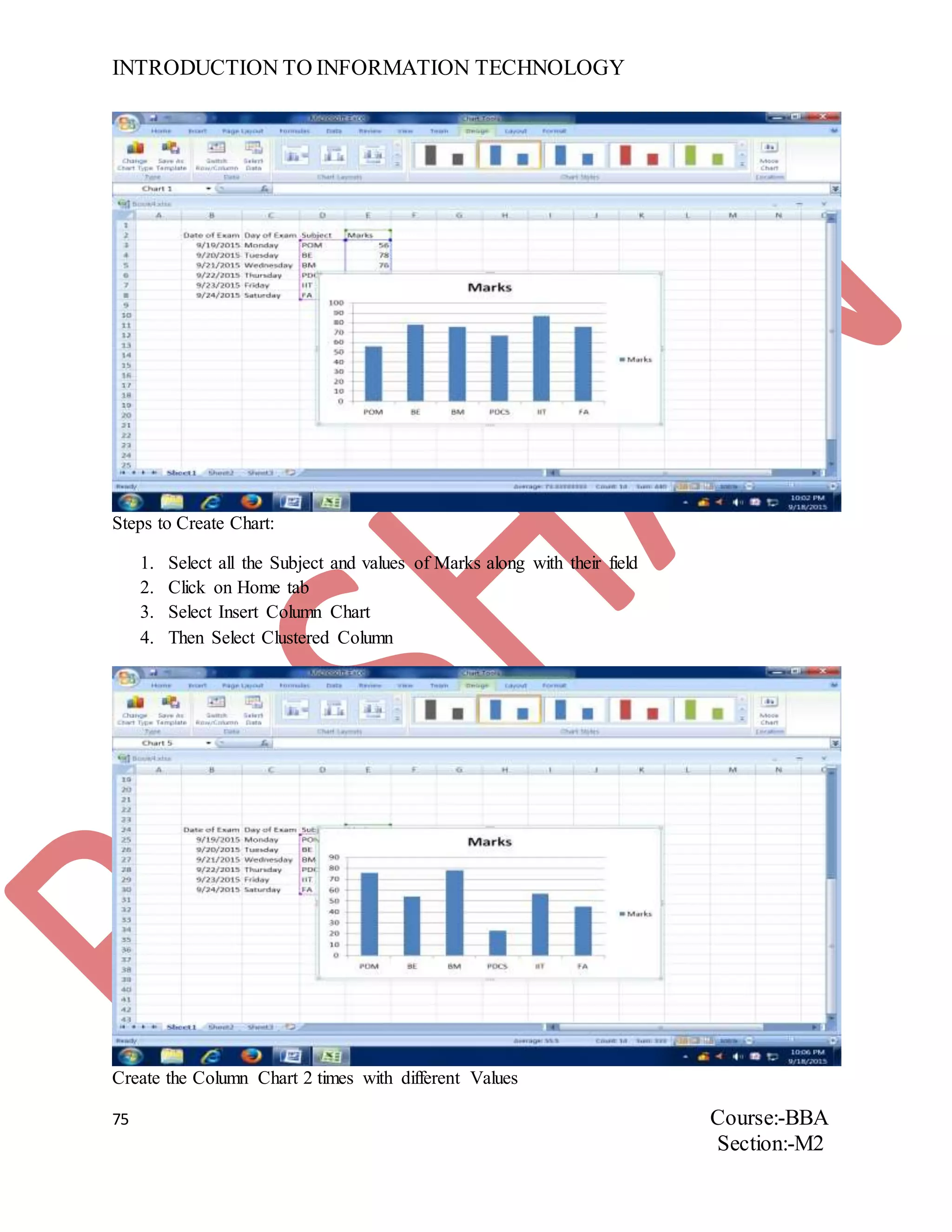
Steps to Create Chart:
1. Select all the Subject and values of Marks along with their field
2. Click on Home tab
3. Select Insert Column Chart
4. Then Select Clustered Column
Create the Column Chart 2 times with different Values
INTRODUCTION TO INFORMATION TECHNOLOGY
76 Course:-BBA
Section:-M2
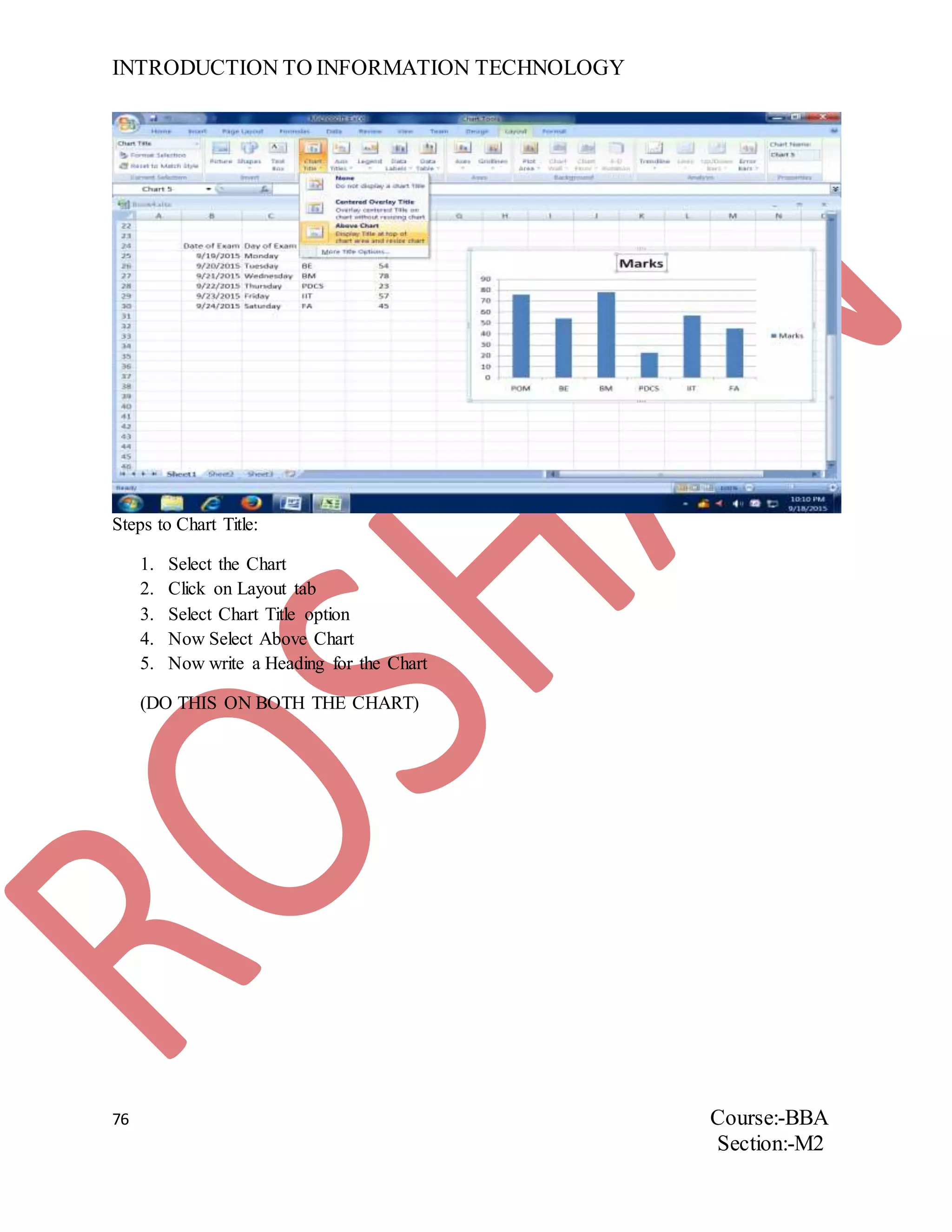
Steps to Chart Title:
1. Select the Chart
2. Click on Layout tab
3. Select Chart Title option
4. Now Select Above Chart
5. Now write a Heading for the Chart
(DO THIS ON BOTH THE CHART)
INTRODUCTION TO INFORMATION TECHNOLOGY
77 Course:-BBA
Section:-M2
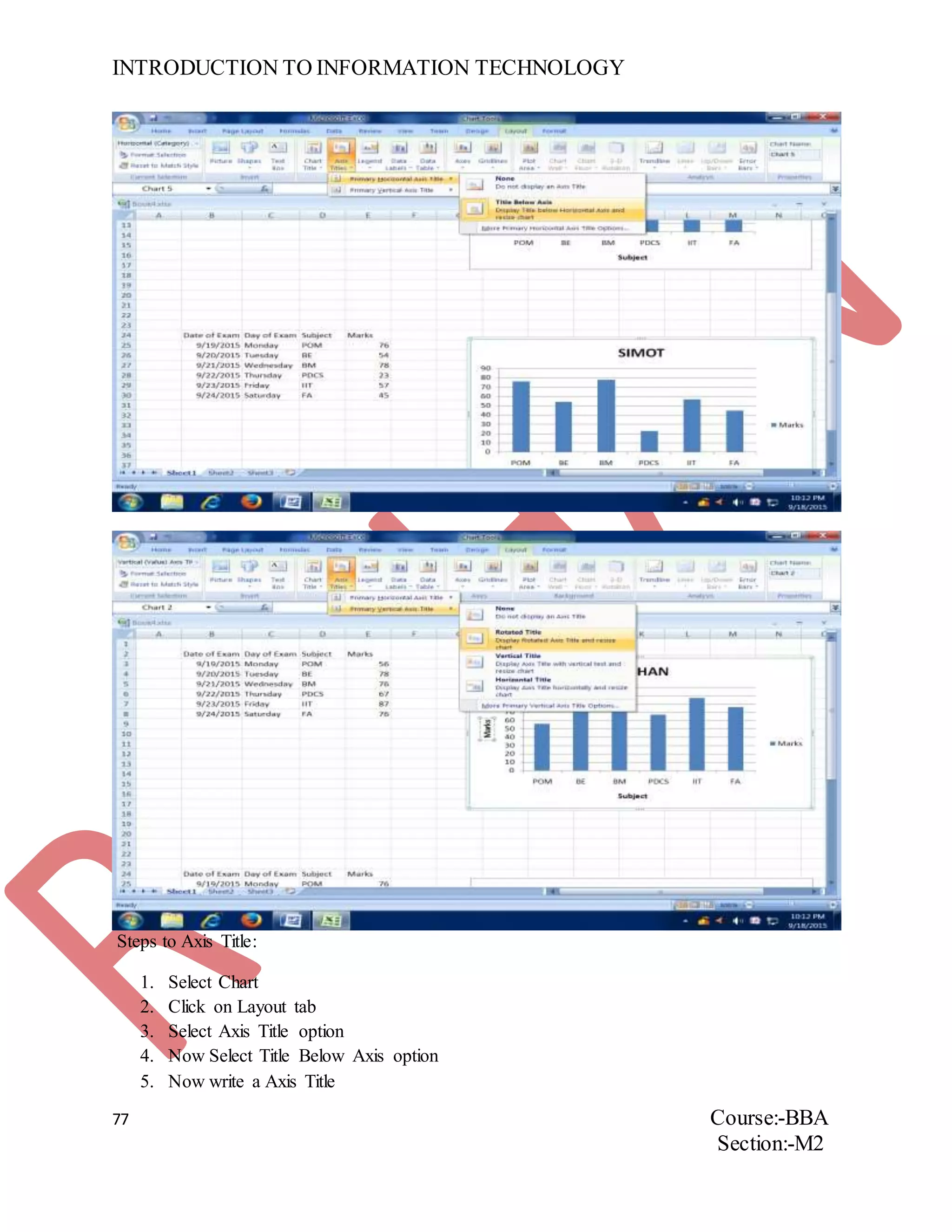
Steps to Axis Title:
1. Select Chart
2. Click on Layout tab
3. Select Axis Title option
4. Now Select Title Below Axis option
5. Now write a Axis Title
INTRODUCTION TO INFORMATION TECHNOLOGY
78 Course:-BBA
Section:-M2
(DO THIS ON BOTH THE CHART)
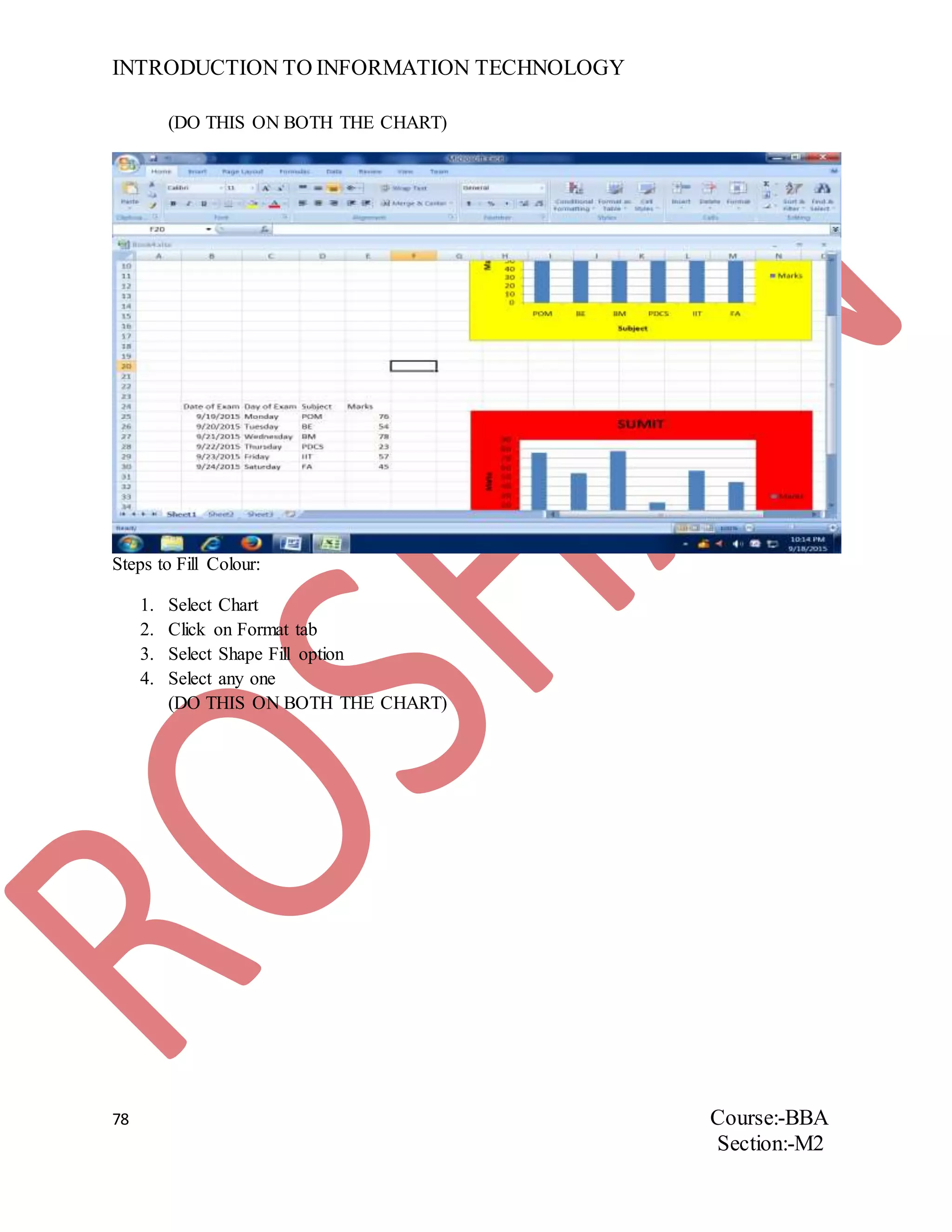
Steps to Fill Colour:
1. Select Chart
2. Click on Format tab
3. Select Shape Fill option
4. Select any one
(DO THIS ON BOTH THE CHART)
INTRODUCTION TO INFORMATION TECHNOLOGY
79 Course:-BBA
Section:-M2
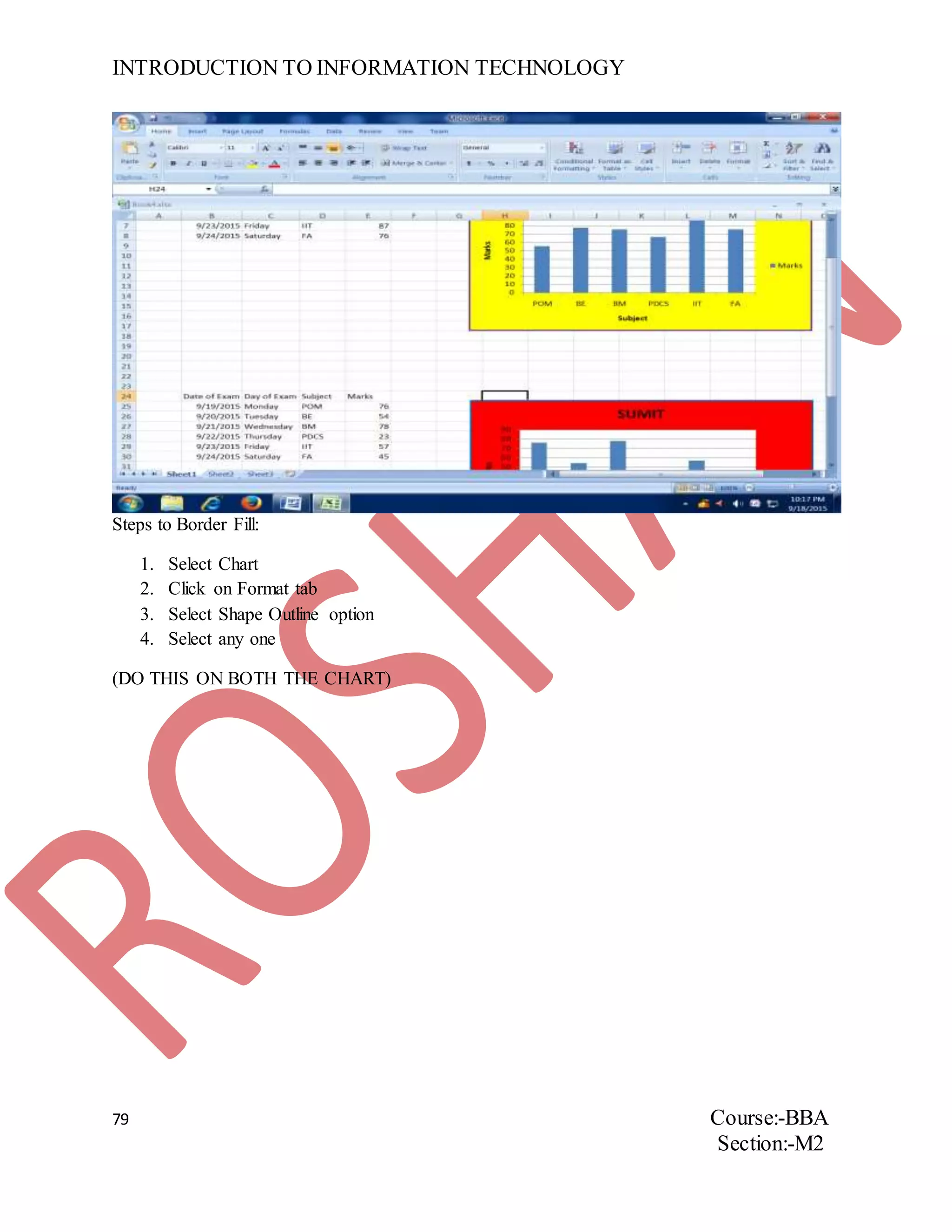
Steps to Border Fill:
1. Select Chart
2. Click on Format tab
3. Select Shape Outline option
4. Select any one
(DO THIS ON BOTH THE CHART)
INTRODUCTION TO INFORMATION TECHNOLOGY
80 Course:-BBA
Section:-M2
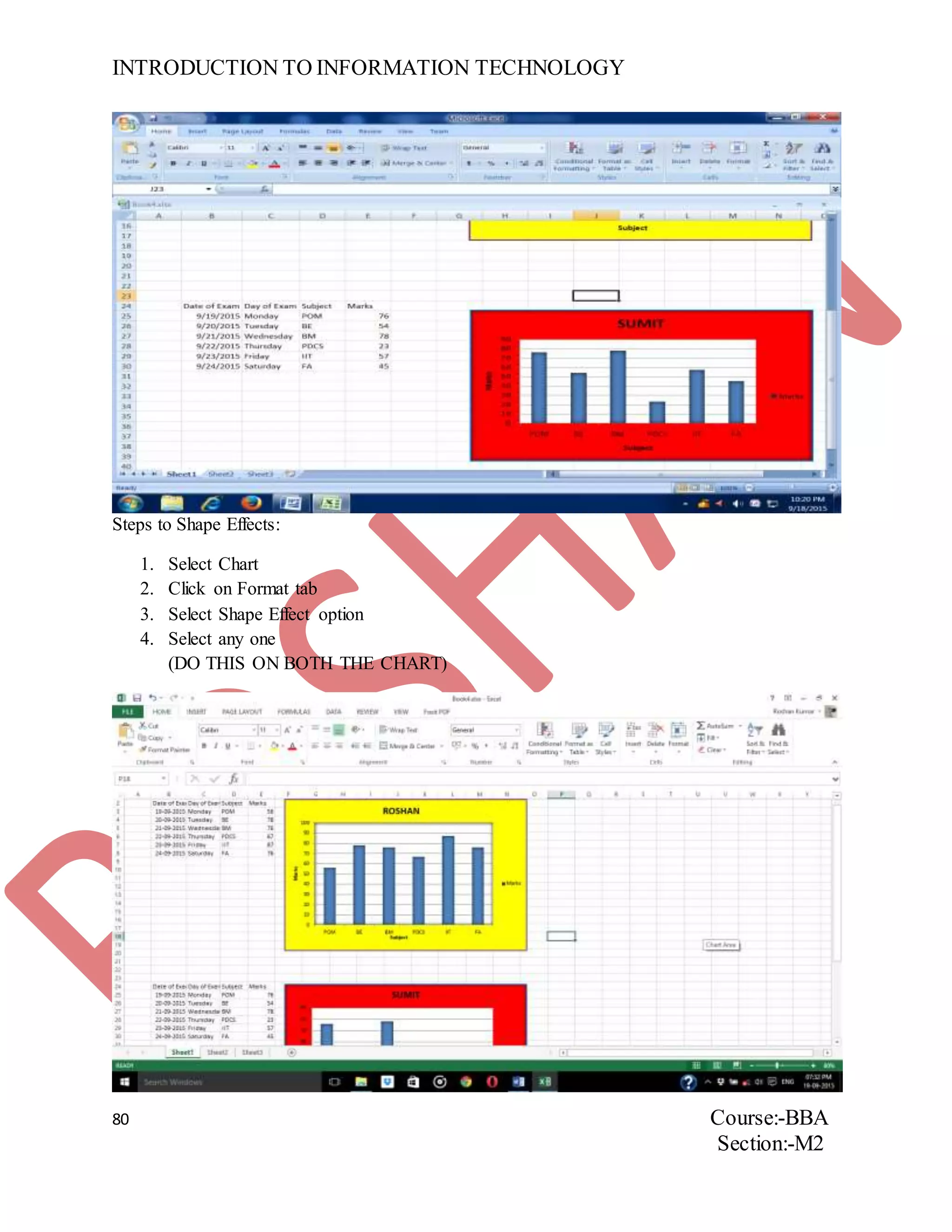
Steps to Shape Effects:
1. Select Chart
2. Click on Format tab
3. Select Shape Effect option
4. Select any one
(DO THIS ON BOTH THE CHART)
INTRODUCTION TO INFORMATION TECHNOLOGY
81 Course:-BBA
Section:-M2
Steps to Resize:
1. Select Chart
2. Click on Format tab
3. Select Shape Height/Wight
INTRODUCTION TO INFORMATION TECHNOLOGY
82 Course:-BBA
Section:-M2
ASSIGNMENT NUMBER 23
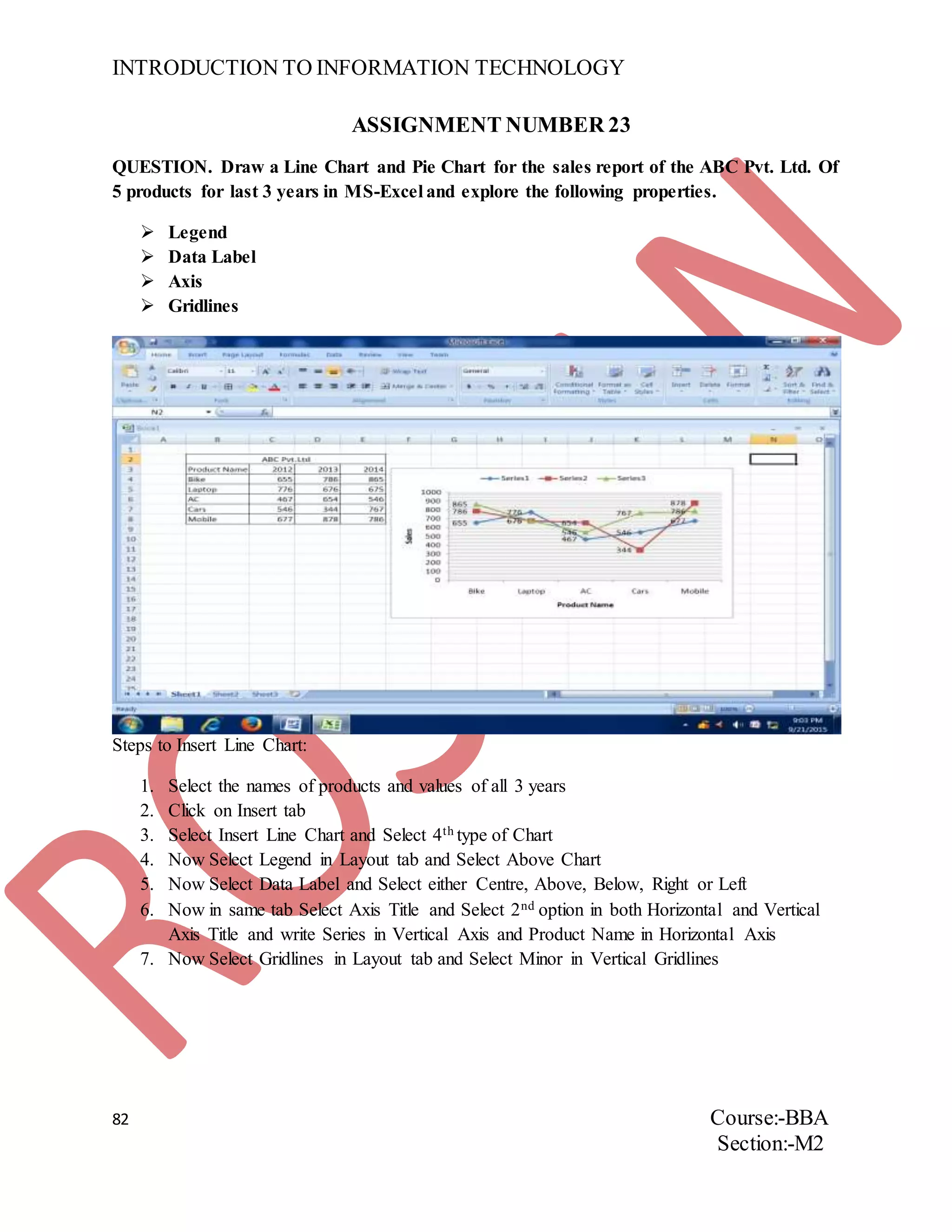
QUESTION. Draw a Line Chart and Pie Chart for the sales report of the ABC Pvt. Ltd. Of
5 products for last 3 years in MS-Excel and explore the following properties.
 Legend
 Data Label
 Axis
 Gridlines
Steps to Insert Line Chart:
1. Select the names of products and values of all 3 years
2. Click on Insert tab
3. Select Insert Line Chart and Select 4th type of Chart
4. Now Select Legend in Layout tab and Select Above Chart
5. Now Select Data Label and Select either Centre, Above, Below, Right or Left
6. Now in same tab Select Axis Title and Select 2nd option in both Horizontal and Vertical
Axis Title and write Series in Vertical Axis and Product Name in Horizontal Axis
7. Now Select Gridlines in Layout tab and Select Minor in Vertical Gridlines
INTRODUCTION TO INFORMATION TECHNOLOGY
83 Course:-BBA
Section:-M2
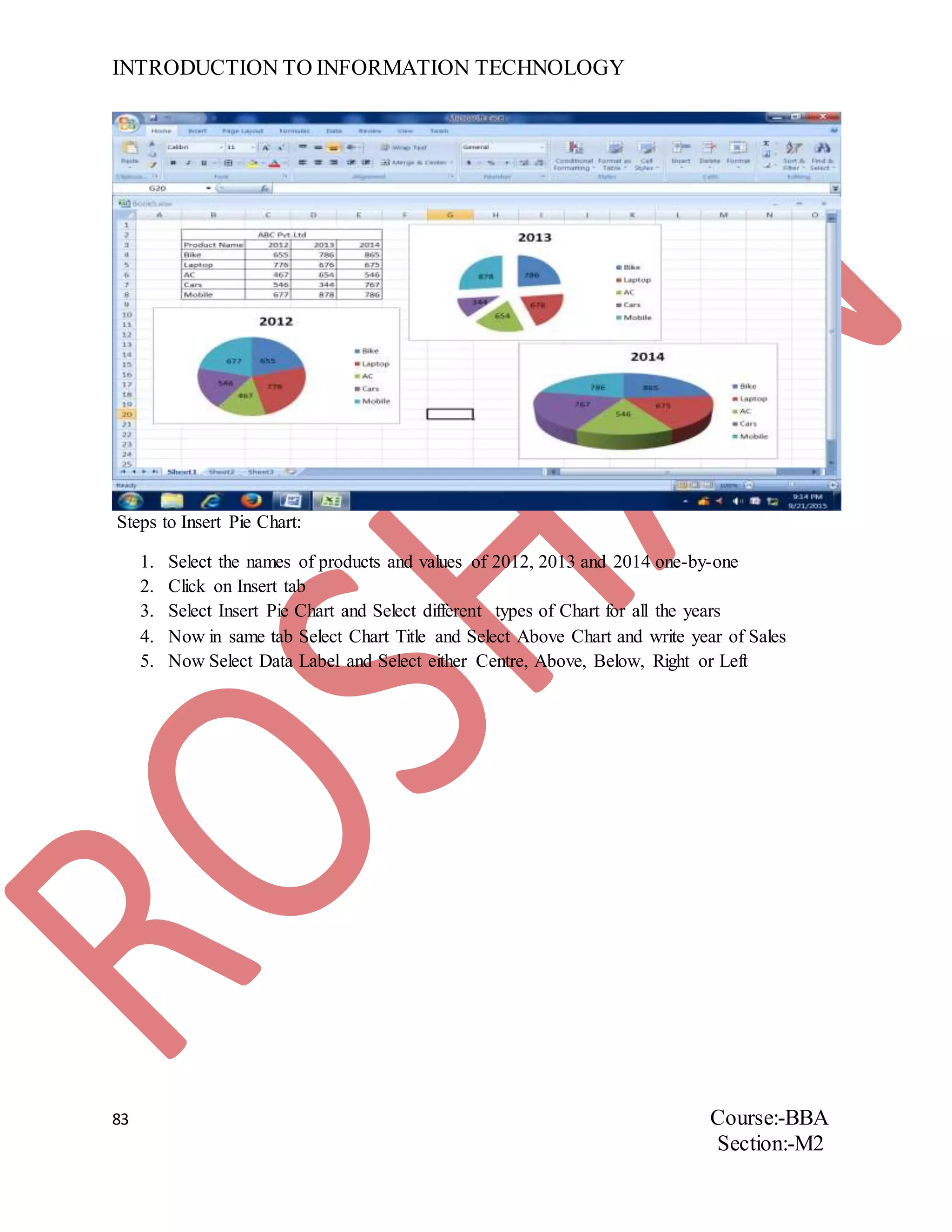
Steps to Insert Pie Chart:
1. Select the names of products and values of 2012, 2013 and 2014 one-by-one
2. Click on Insert tab
3. Select Insert Pie Chart and Select different types of Chart for all the years
4. Now in same tab Select Chart Title and Select Above Chart and write year of Sales
5. Now Select Data Label and Select either Centre, Above, Below, Right or Left
INTRODUCTION TO INFORMATION TECHNOLOGY
84 Course:-BBA
Section:-M2
ASSIGNMENT NUMBER24
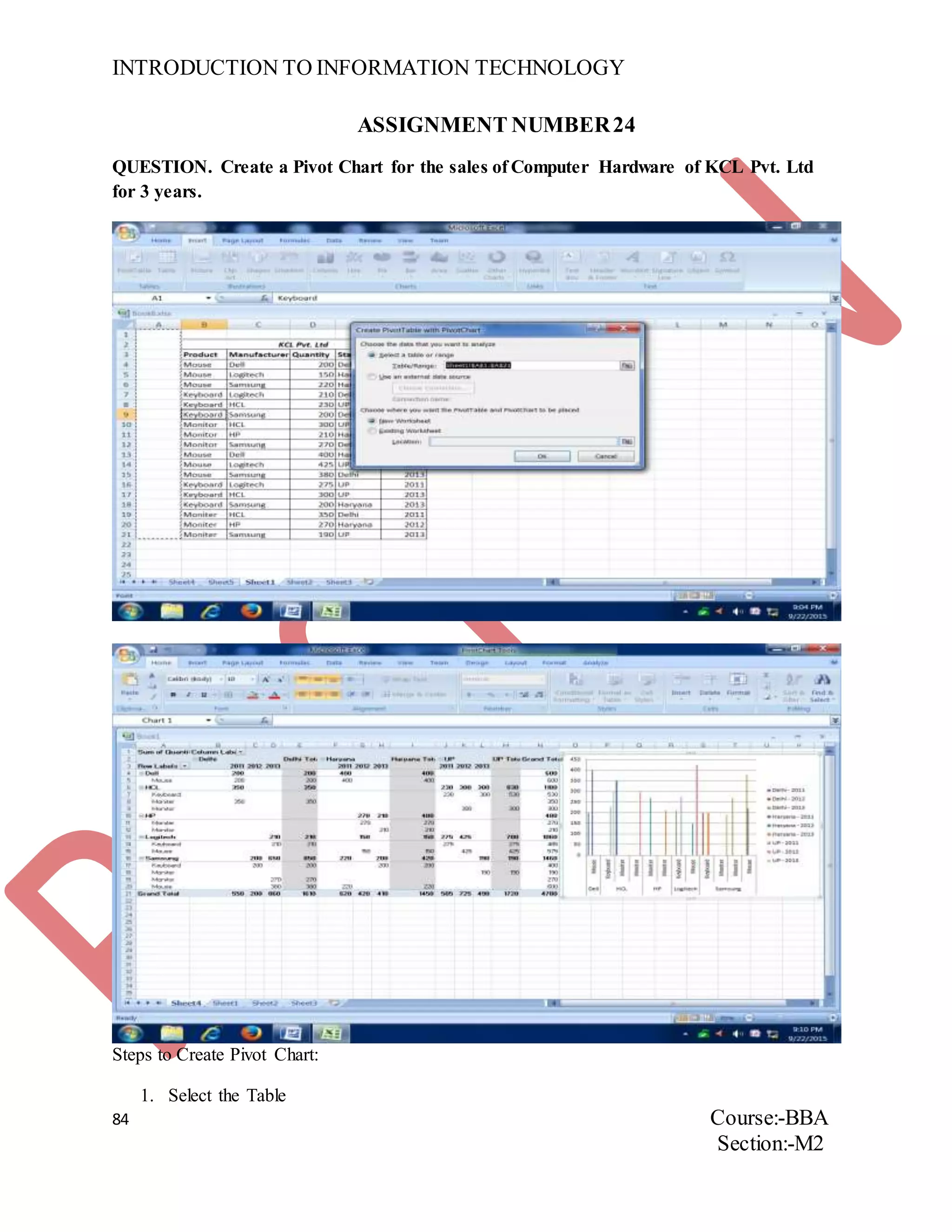
QUESTION. Create a Pivot Chart for the sales of Computer Hardware of KCL Pvt. Ltd
for 3 years.
Steps to Create Pivot Chart:
1. Select the Table
INTRODUCTION TO INFORMATION TECHNOLOGY
85 Course:-BBA
Section:-M2
2. Click on Insert tab and Select Pivot Chart option
3. Drag State and Year in Legend
4. Drag Manufacturer and Product in Axis
5. Drag Quantity in Values
INTRODUCTION TO INFORMATION TECHNOLOGY
86 Course:-BBA
Section:-M2
ASSIGNMENT NUMBER 25
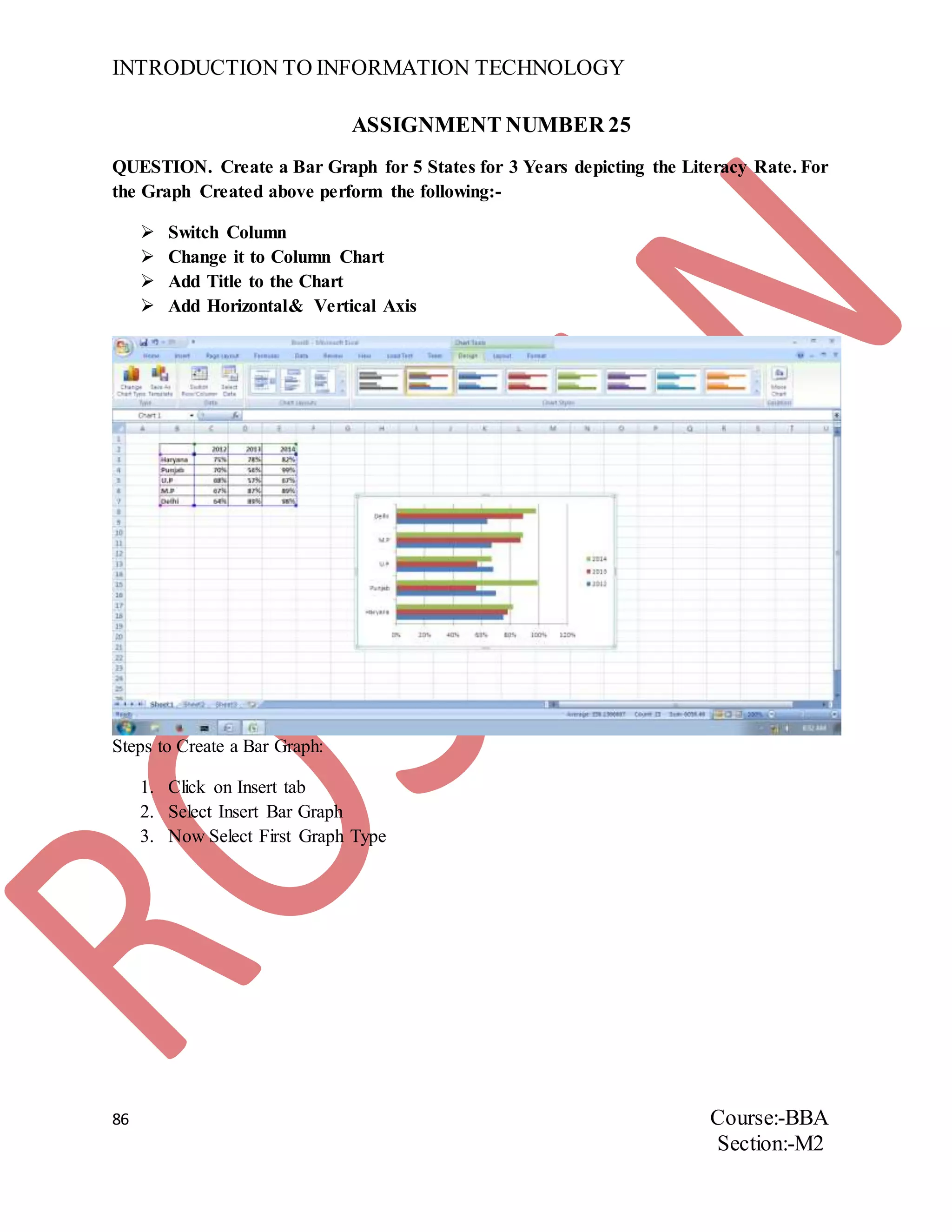
QUESTION. Create a Bar Graph for 5 States for 3 Years depicting the Literacy Rate. For
the Graph Created above perform the following:-
 Switch Column
 Change it to Column Chart
 Add Title to the Chart
 Add Horizontal& Vertical Axis
Steps to Create a Bar Graph:
1. Click on Insert tab
2. Select Insert Bar Graph
3. Now Select First Graph Type
INTRODUCTION TO INFORMATION TECHNOLOGY
87 Course:-BBA
Section:-M2
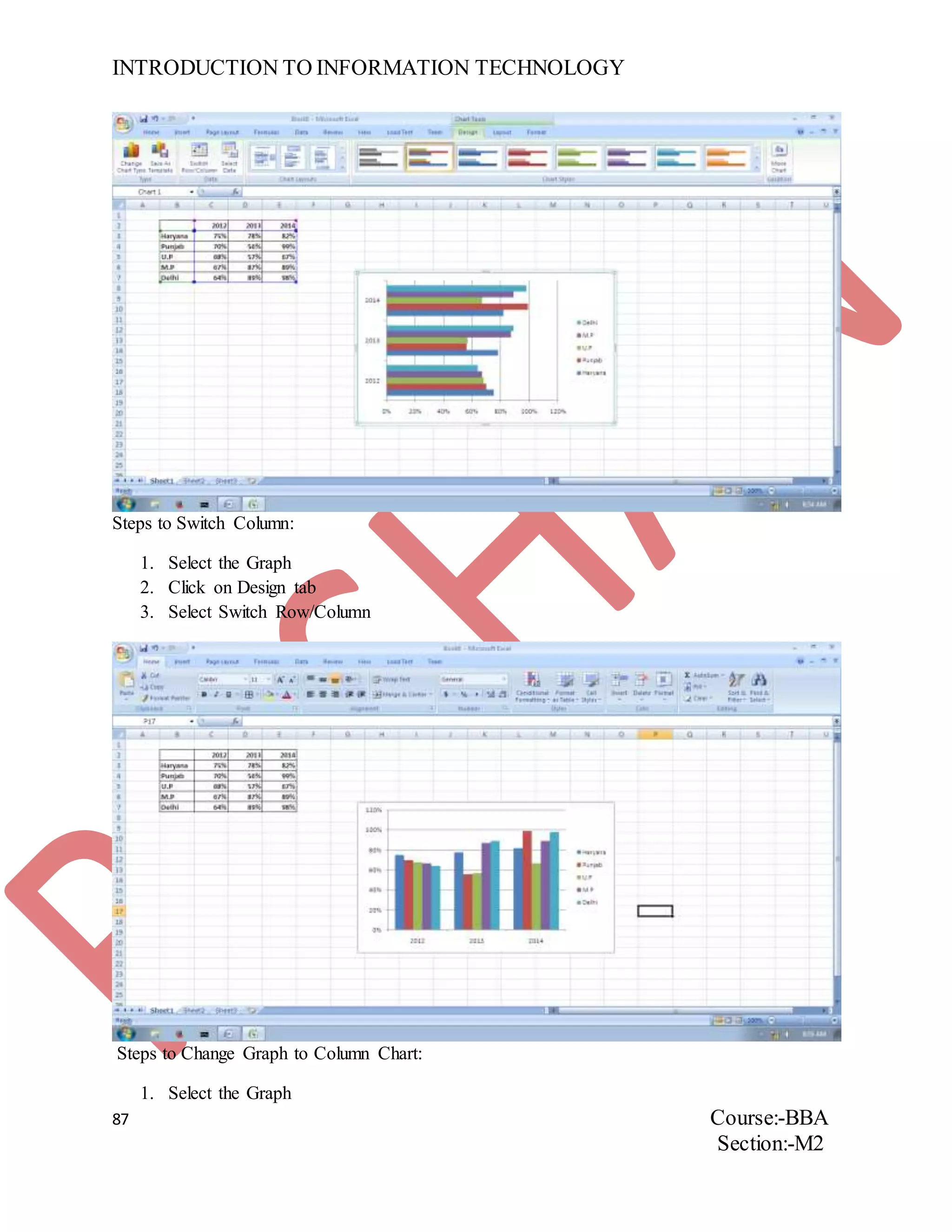
Steps to Switch Column:
1. Select the Graph
2. Click on Design tab
3. Select Switch Row/Column
Steps to Change Graph to Column Chart:
1. Select the Graph
INTRODUCTION TO INFORMATION TECHNOLOGY
88 Course:-BBA
Section:-M2
2. Click on Design tab
3. Select Change Chart Type
4. Now Select Column and in this First Chart
5. Then Click OK
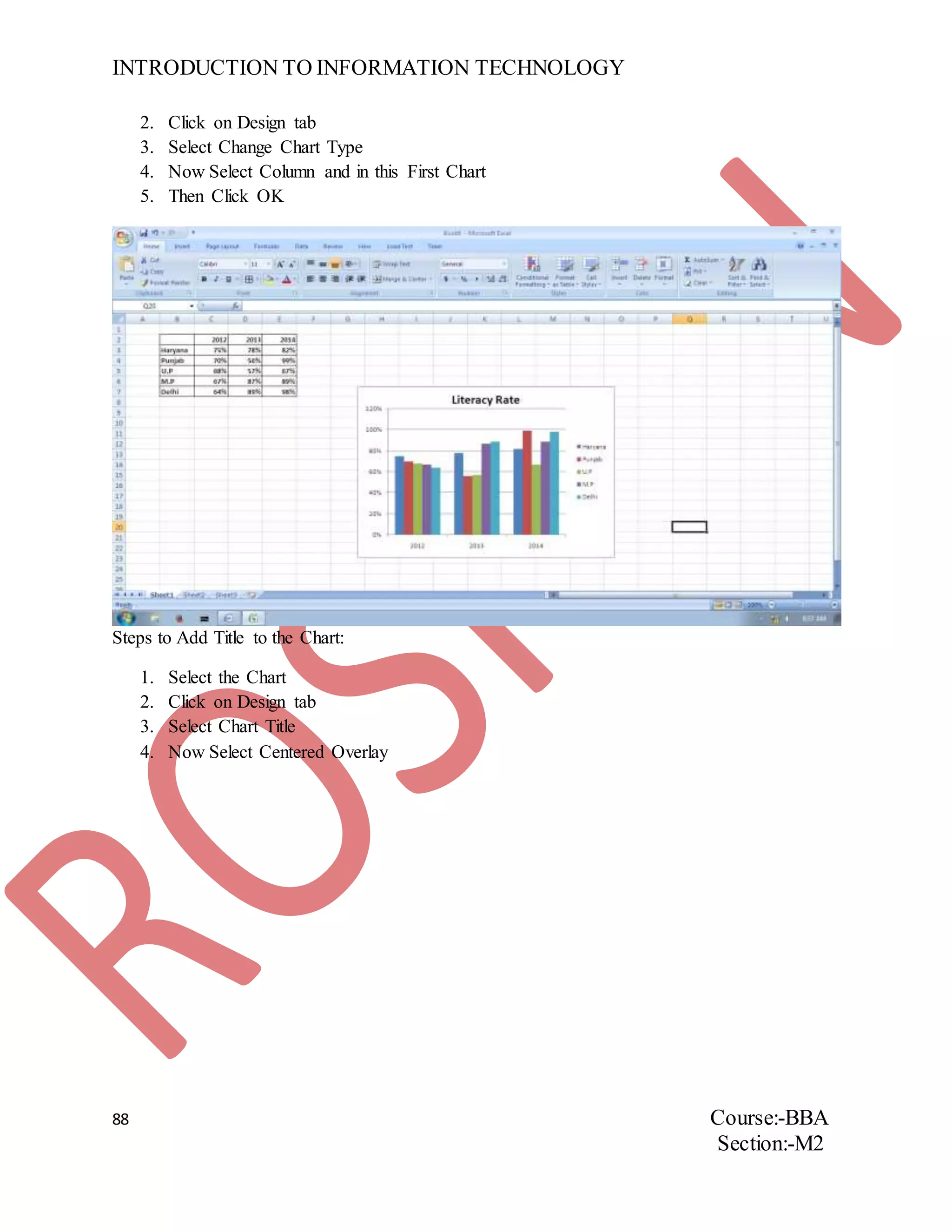
Steps to Add Title to the Chart:
1. Select the Chart
2. Click on Design tab
3. Select Chart Title
4. Now Select Centered Overlay
INTRODUCTION TO INFORMATION TECHNOLOGY
89 Course:-BBA
Section:-M2
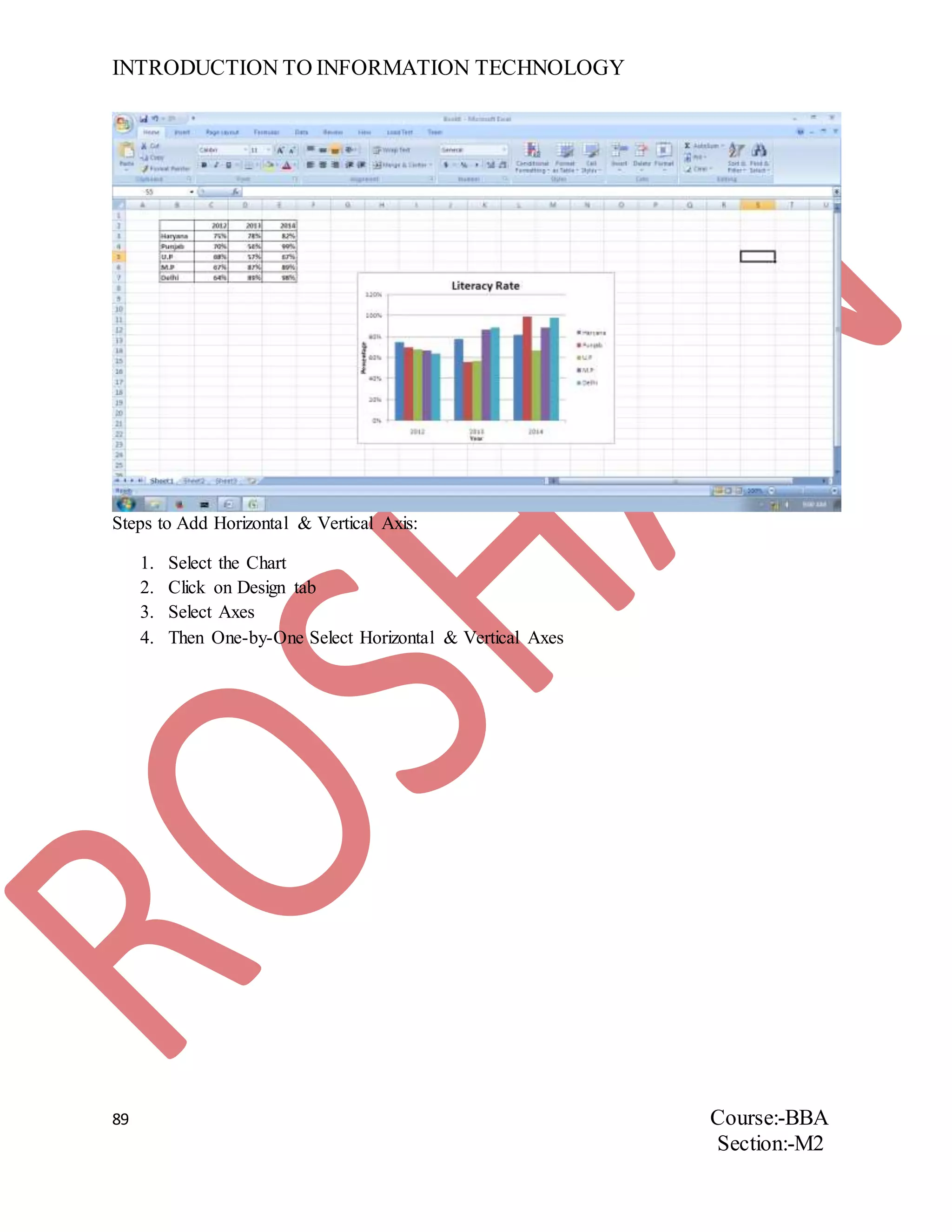
Steps to Add Horizontal & Vertical Axis:
1. Select the Chart
2. Click on Design tab
3. Select Axes
4. Then One-by-One Select Horizontal & Vertical Axes
INTRODUCTION TO INFORMATION TECHNOLOGY
90 Course:-BBA
Section:-M2
ASSIGNMENT NUMBER26
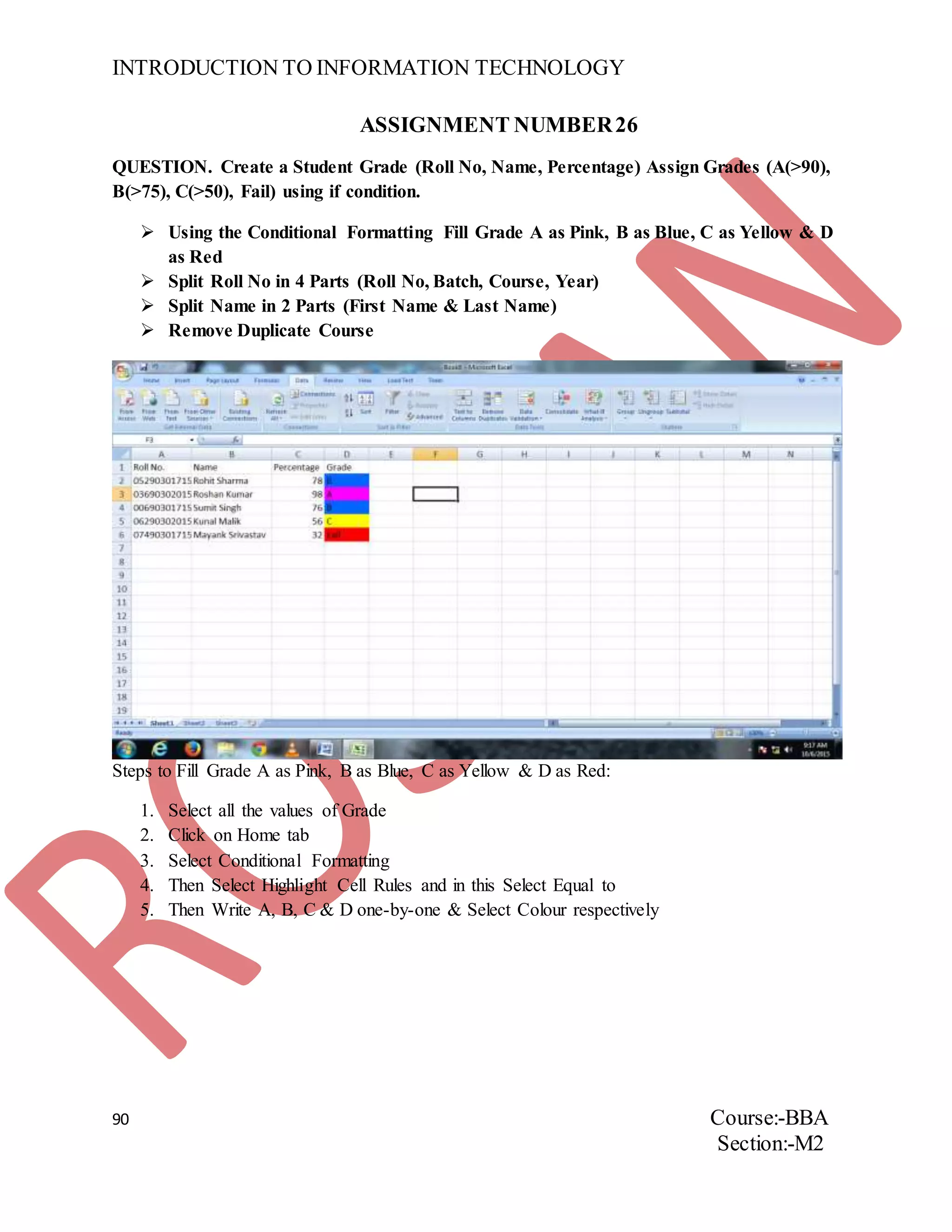
QUESTION. Create a Student Grade (Roll No, Name, Percentage) Assign Grades (A(>90),
B(>75), C(>50), Fail) using if condition.
 Using the Conditional Formatting Fill Grade A as Pink, B as Blue, C as Yellow & D
as Red
 Split Roll No in 4 Parts (Roll No, Batch, Course, Year)
 Split Name in 2 Parts (First Name & Last Name)
 Remove Duplicate Course
Steps to Fill Grade A as Pink, B as Blue, C as Yellow & D as Red:
1. Select all the values of Grade
2. Click on Home tab
3. Select Conditional Formatting
4. Then Select Highlight Cell Rules and in this Select Equal to
5. Then Write A, B, C & D one-by-one & Select Colour respectively
INTRODUCTION TO INFORMATION TECHNOLOGY
91 Course:-BBA
Section:-M2
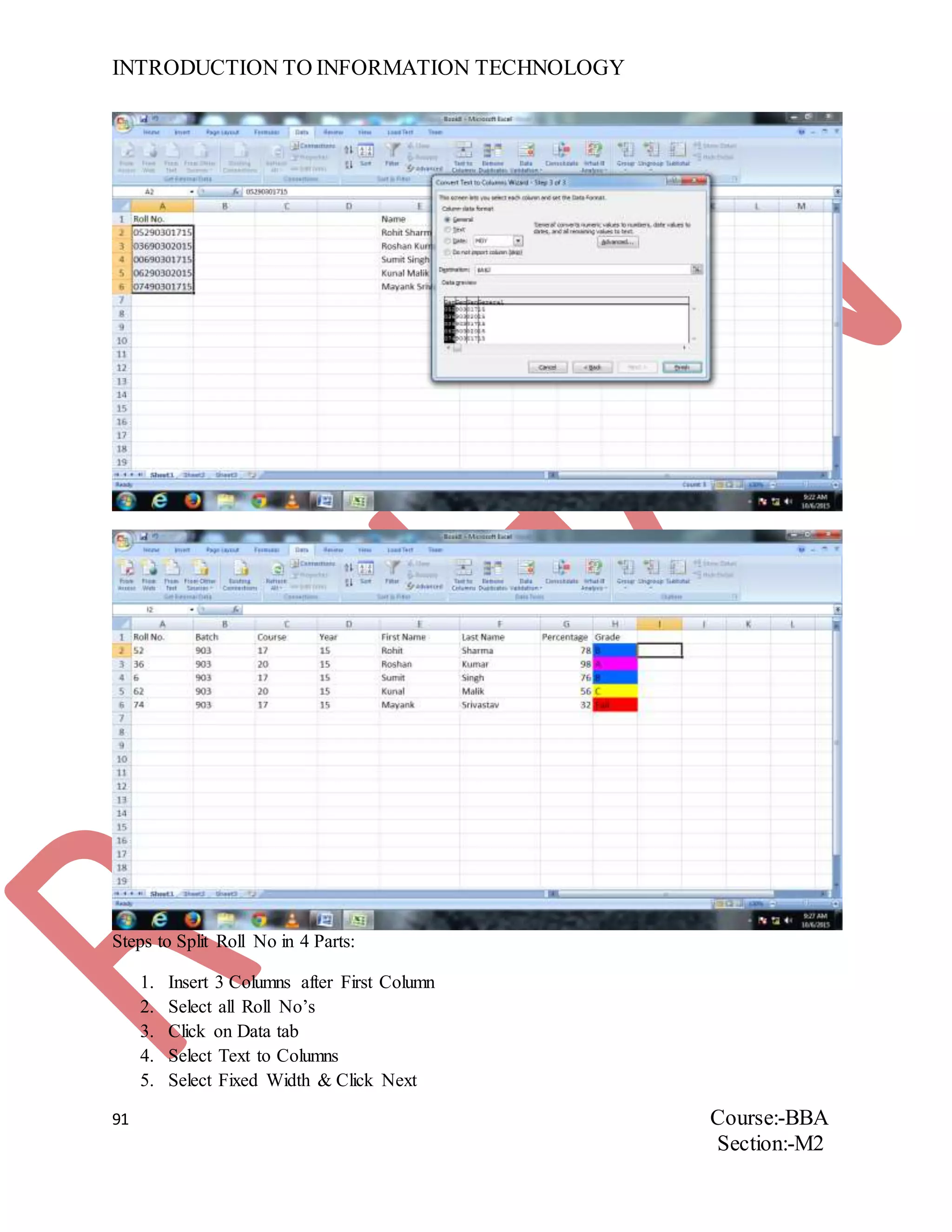
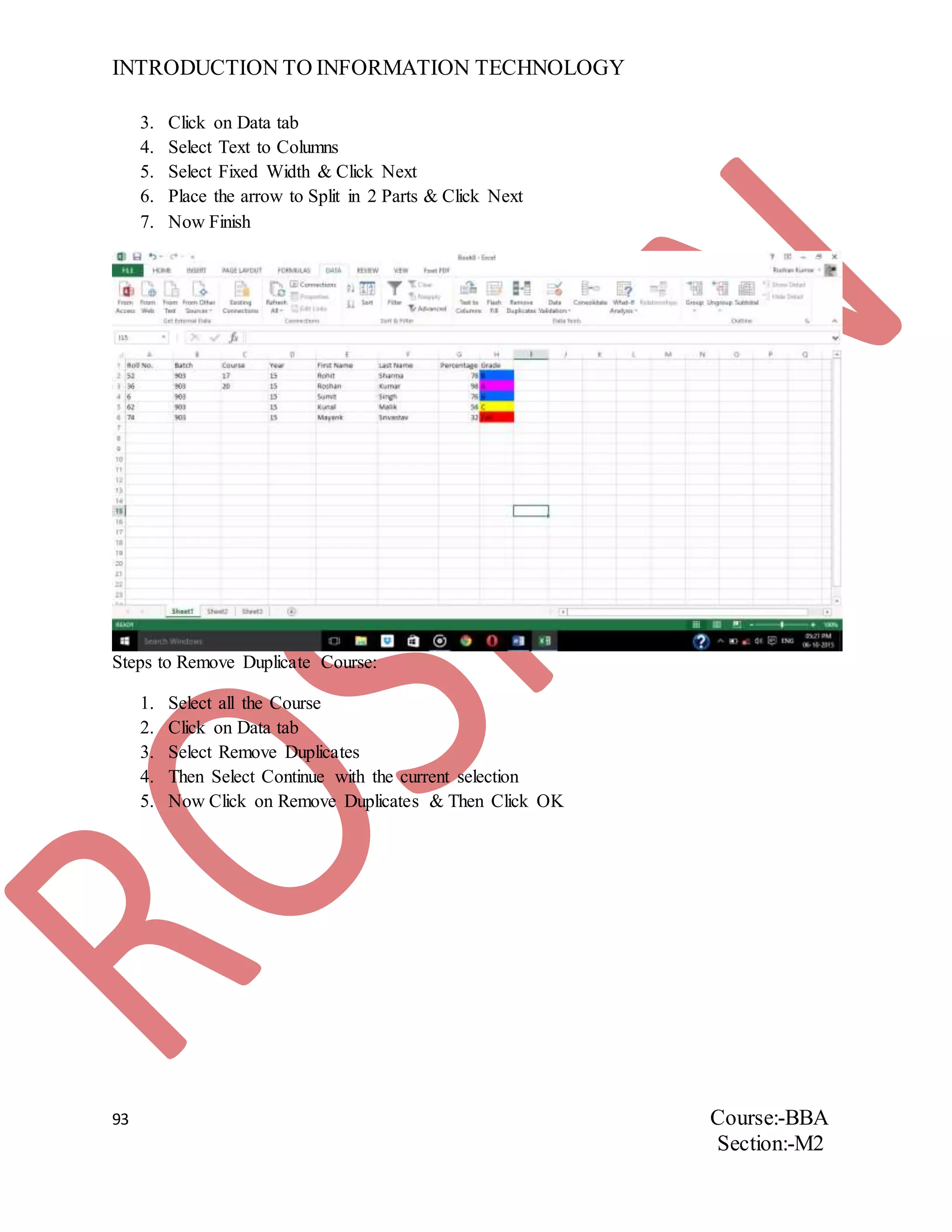
Steps to Split Roll No in 4 Parts:
1. Insert 3 Columns after First Column
2. Select all Roll No’s
3. Click on Data tab
4. Select Text to Columns
5. Select Fixed Width & Click Next
INTRODUCTION TO INFORMATION TECHNOLOGY
92 Course:-BBA
Section:-M2
6. Place the arrow to Split in 4 Parts & Click Next
7. Now Finish
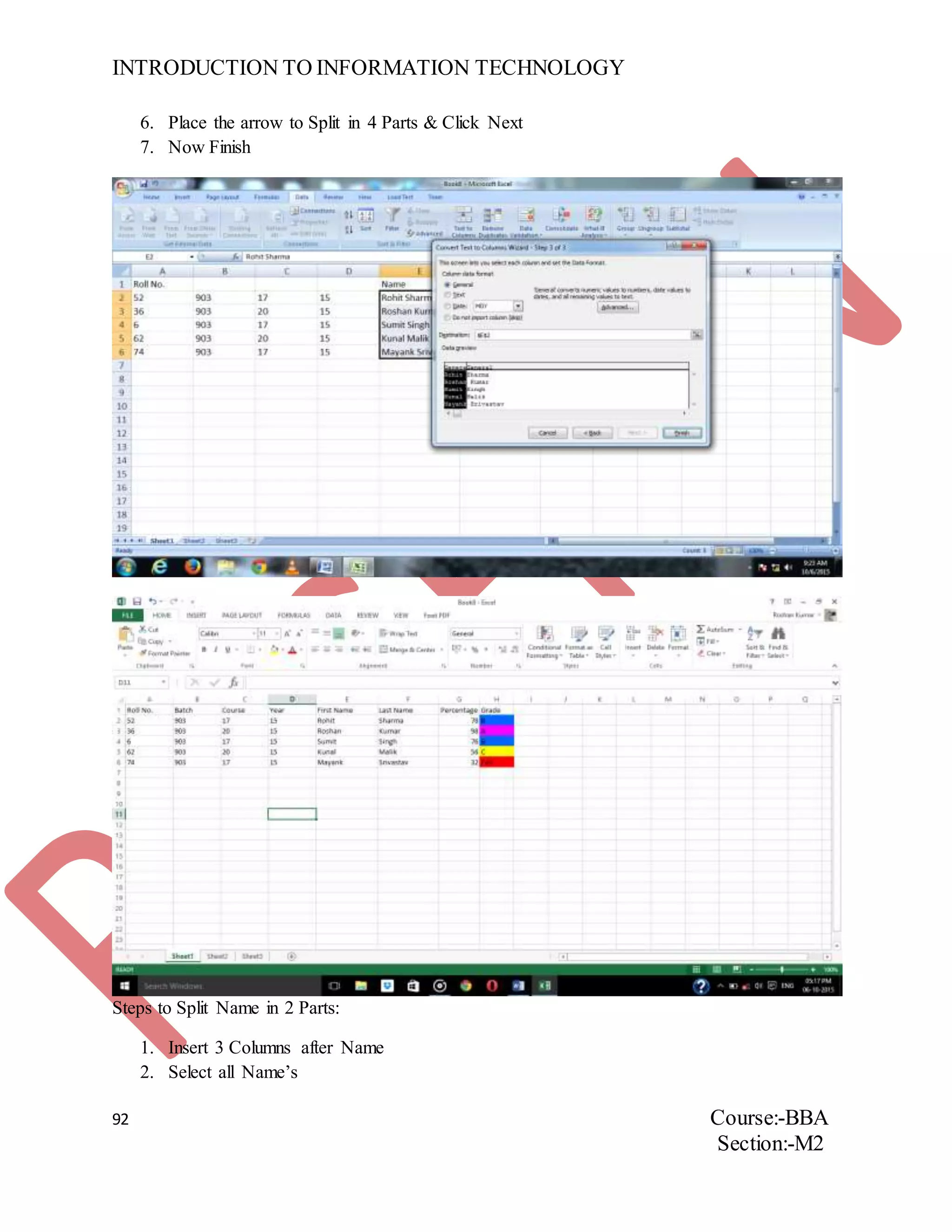
Steps to Split Name in 2 Parts:
1. Insert 3 Columns after Name
2. Select all Name’s
INTRODUCTION TO INFORMATION TECHNOLOGY
93 Course:-BBA
Section:-M2
3. Click on Data tab
4. Select Text to Columns
5. Select Fixed Width & Click Next
6. Place the arrow to Split in 2 Parts & Click Next
7. Now Finish
Steps to Remove Duplicate Course:
1. Select all the Course
2. Click on Data tab
3. Select Remove Duplicates
4. Then Select Continue with the current selection
5. Now Click on Remove Duplicates & Then Click OK
INTRODUCTION TO INFORMATION TECHNOLOGY
94 Course:-BBA
Section:-M2
ASSIGNMENT NUMBER 27
QUESTION. Create a record of Bank consisting of the following Columns:
 Customer ID
 Customer Name
 Principle Deposited
 Rate of Interest
 Time
Now for the above table:-
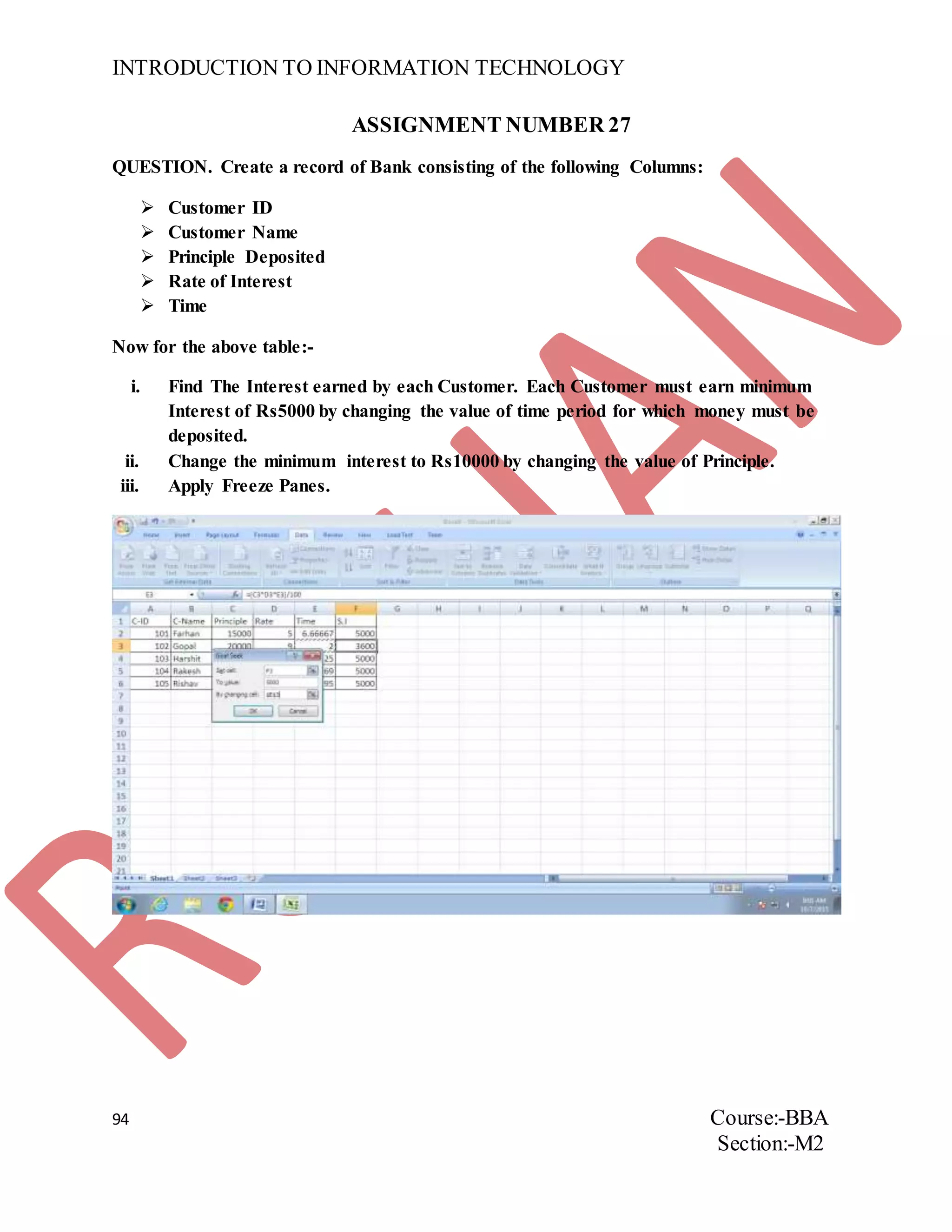
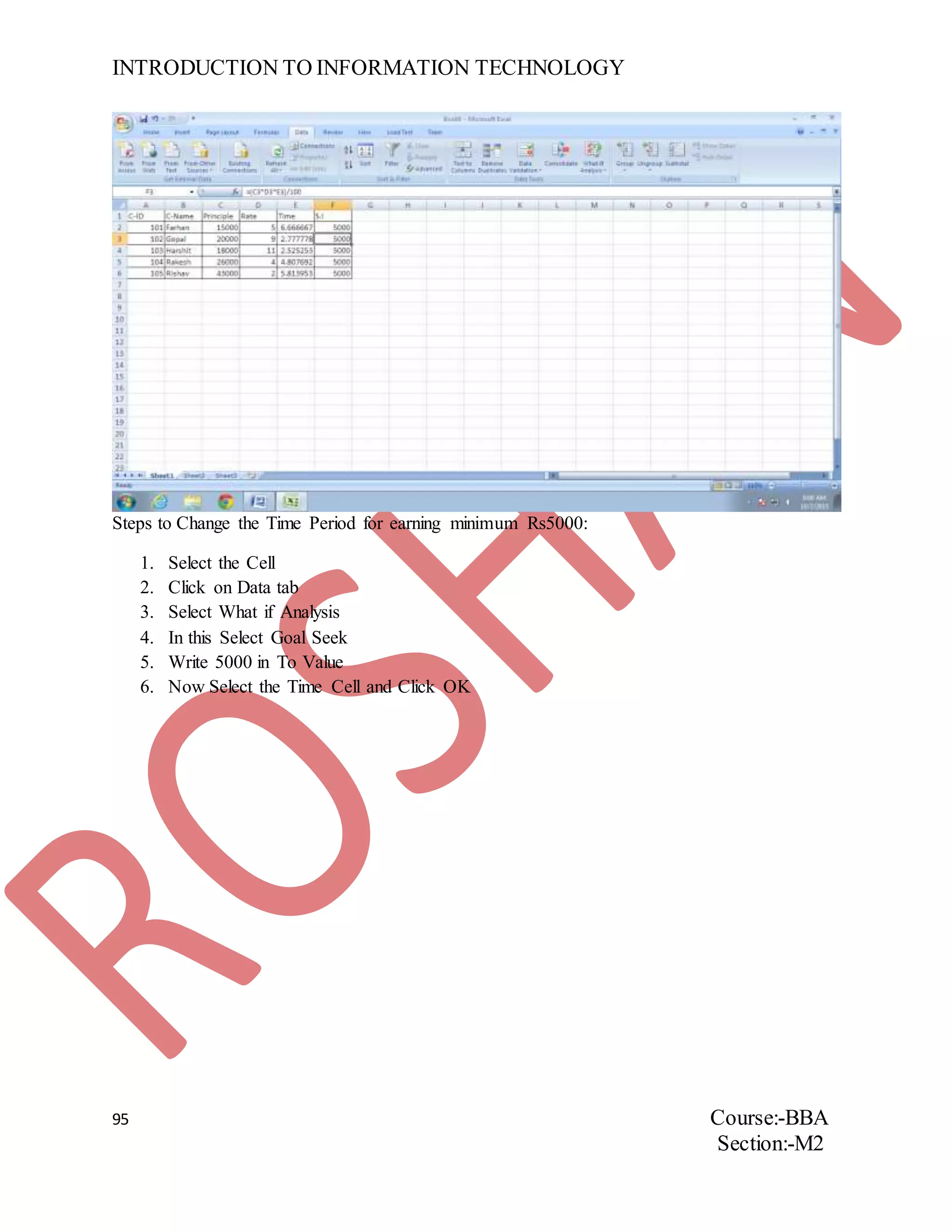
i. Find The Interest earned by each Customer. Each Customer must earn minimum
Interest of Rs5000 by changing the value of time period for which money must be
deposited.
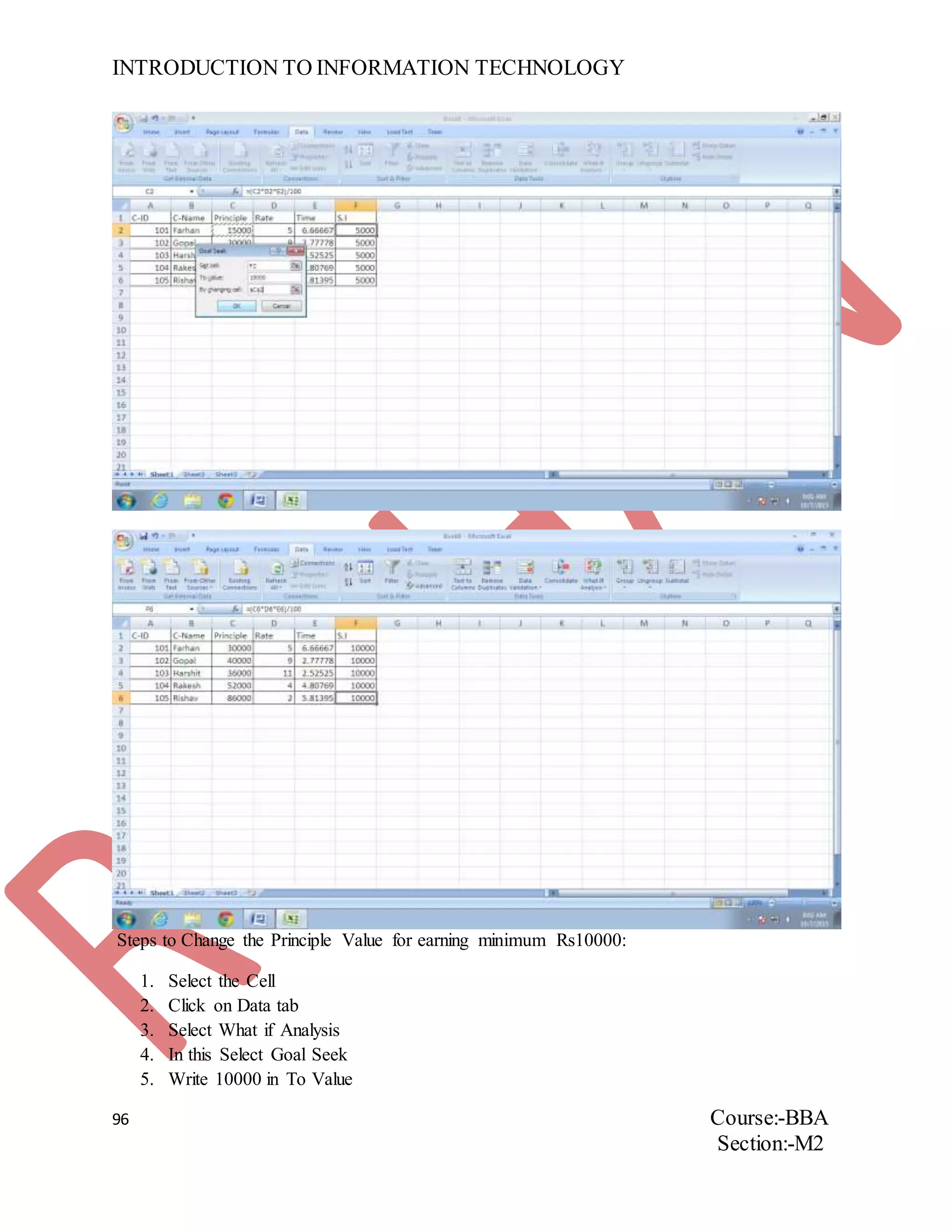
ii. Change the minimum interest to Rs10000 by changing the value of Principle.
iii. Apply Freeze Panes.
INTRODUCTION TO INFORMATION TECHNOLOGY
95 Course:-BBA
Section:-M2
Steps to Change the Time Period for earning minimum Rs5000:
1. Select the Cell
2. Click on Data tab
3. Select What if Analysis
4. In this Select Goal Seek
5. Write 5000 in To Value
6. Now Select the Time Cell and Click OK
INTRODUCTION TO INFORMATION TECHNOLOGY
96 Course:-BBA
Section:-M2
Steps to Change the Principle Value for earning minimum Rs10000:
1. Select the Cell
2. Click on Data tab
3. Select What if Analysis
4. In this Select Goal Seek
5. Write 10000 in To Value
INTRODUCTION TO INFORMATION TECHNOLOGY
97 Course:-BBA
Section:-M2
6. Now Select the Principle Cell and Click OK
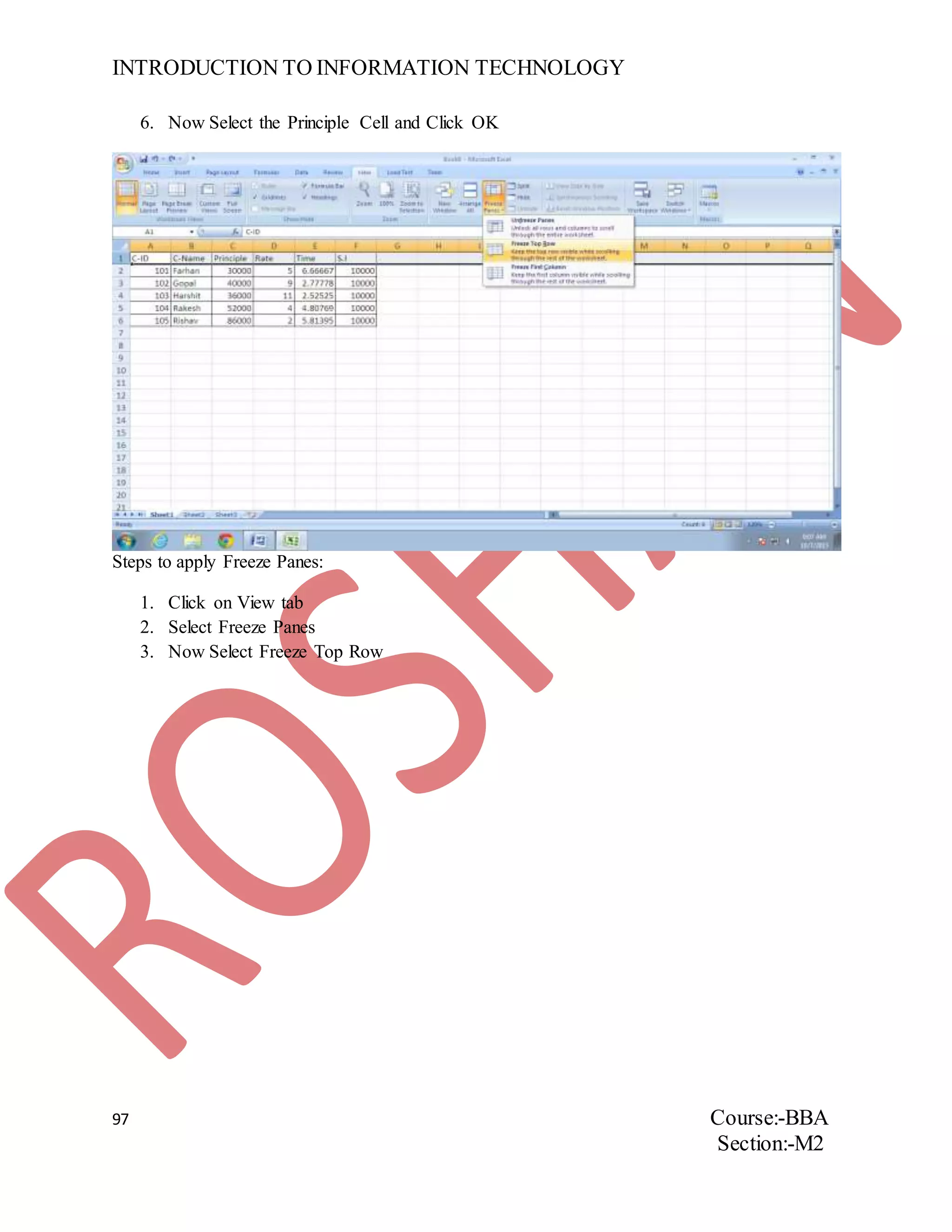
Steps to apply Freeze Panes:
1. Click on View tab
2. Select Freeze Panes
3. Now Select Freeze Top Row
INTRODUCTION TO INFORMATION TECHNOLOGY
98 Course:-BBA
Section:-M2
ASSIGNMENT NUMBER28
QUESTION. Create a Student Record with following entries:-
Roll No., Name, DOB, Marks, Remarks (Good/Average/Below Average)
 Insert a validation on Marks Field
 Hide & Unhide Rows
Also protect your Worksheet by:-
 Allow users to Sort Cells
 Don’t allow users to Delete Columns
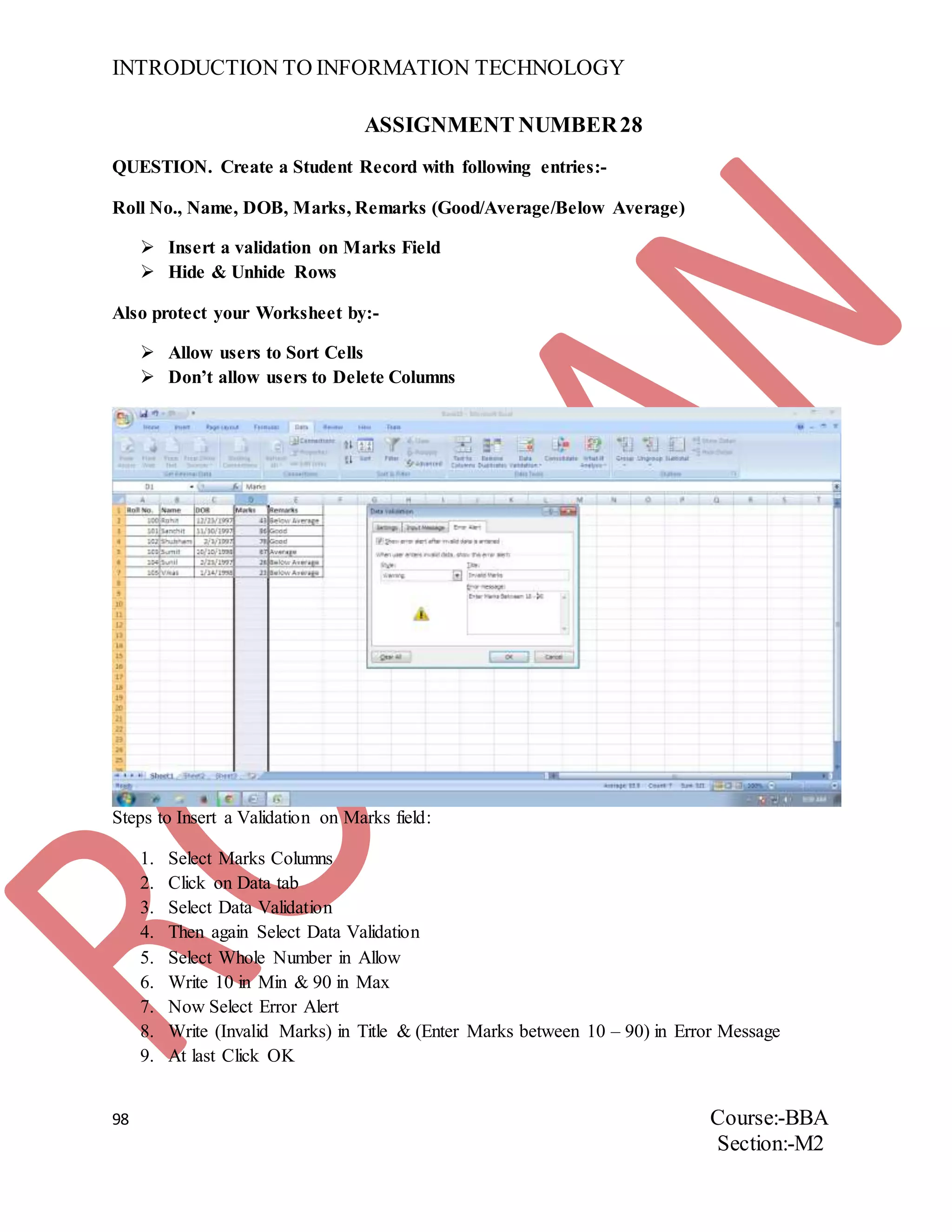
Steps to Insert a Validation on Marks field:
1. Select Marks Columns
2. Click on Data tab
3. Select Data Validation
4. Then again Select Data Validation
5. Select Whole Number in Allow
6. Write 10 in Min & 90 in Max
7. Now Select Error Alert
8. Write (Invalid Marks) in Title & (Enter Marks between 10 – 90) in Error Message
9. At last Click OK
INTRODUCTION TO INFORMATION TECHNOLOGY
99 Course:-BBA
Section:-M2
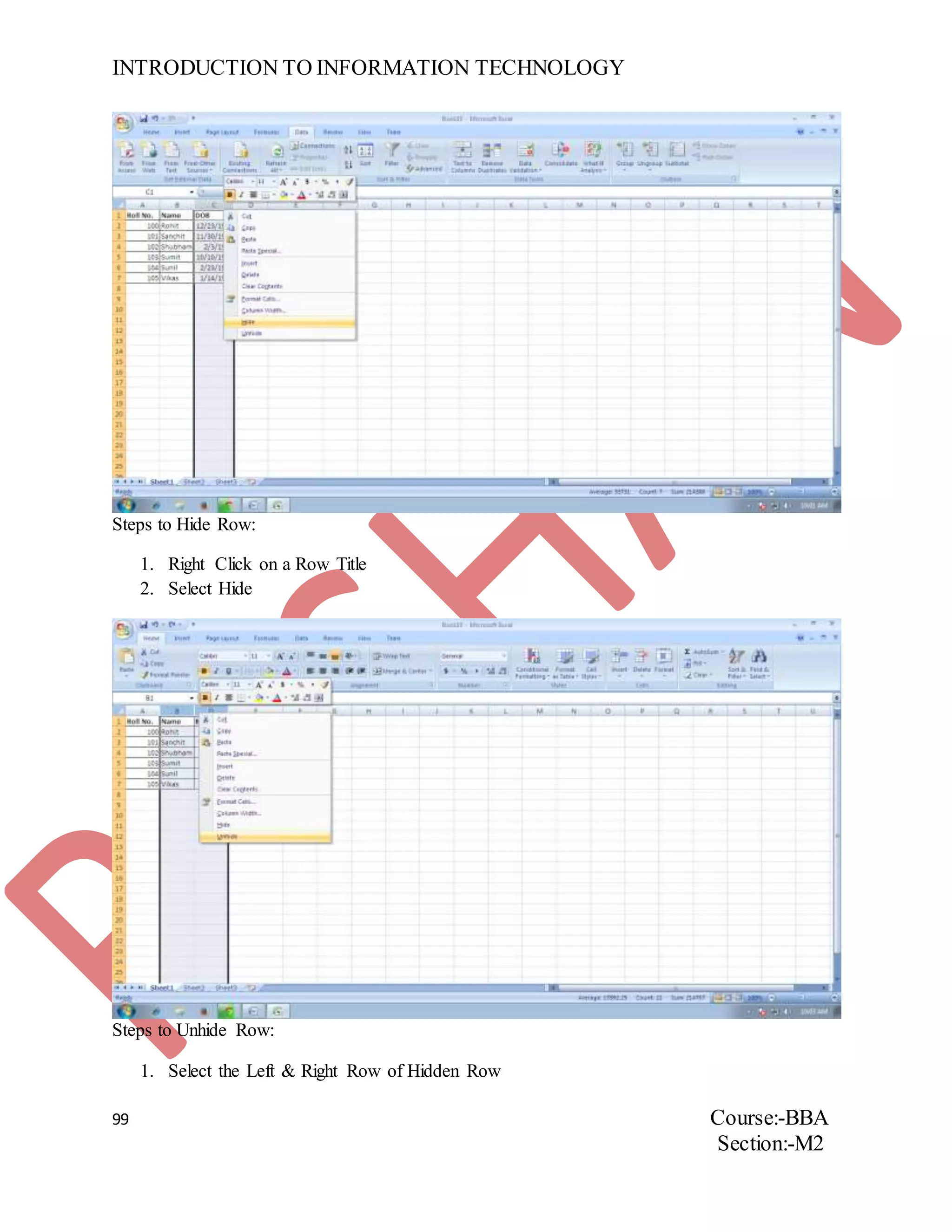
Steps to Hide Row:
1. Right Click on a Row Title
2. Select Hide
Steps to Unhide Row:
1. Select the Left & Right Row of Hidden Row
INTRODUCTION TO INFORMATION TECHNOLOGY
100 Course:-BBA
Section:-M2
2. Right Click on Row Title
3. Select Unhide
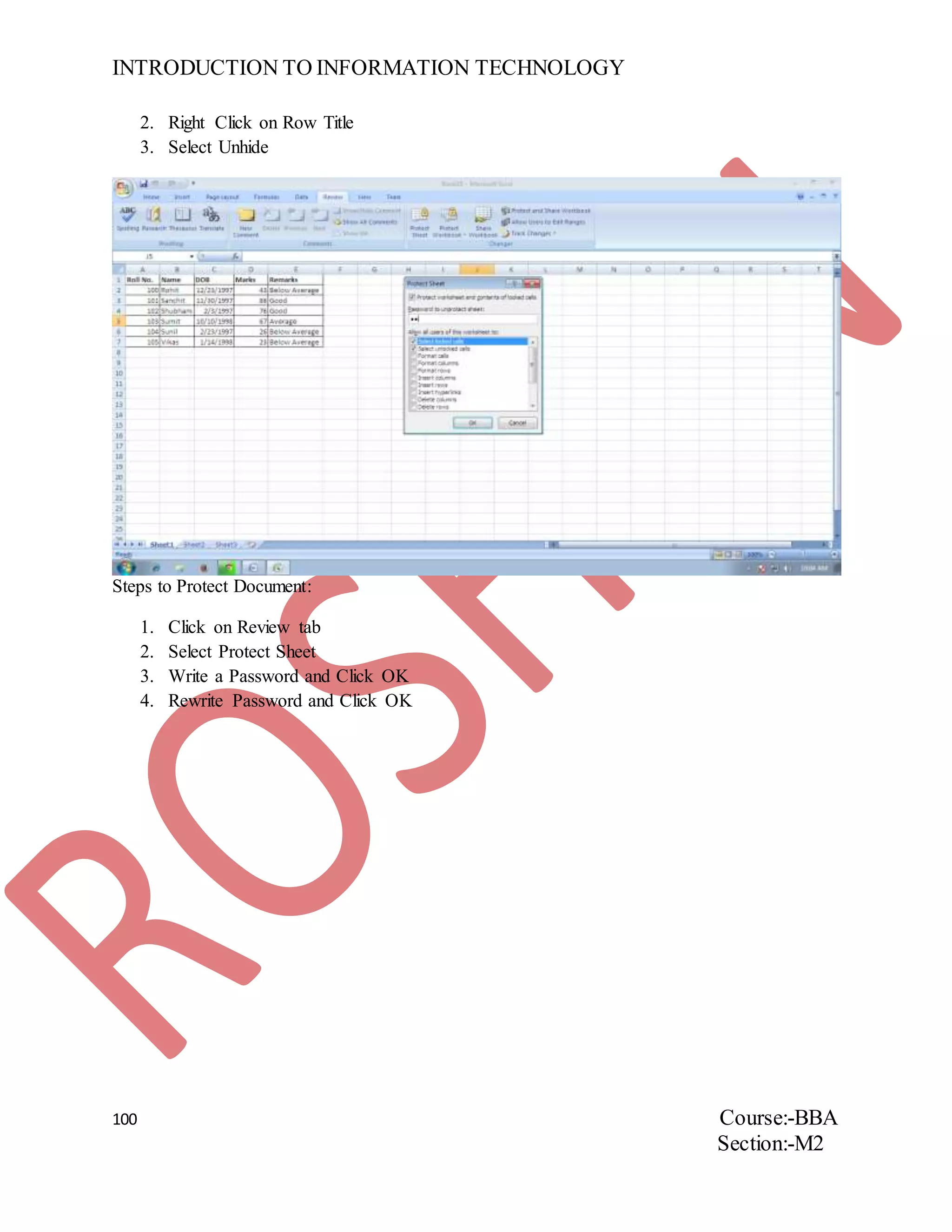
Steps to Protect Document:
1. Click on Review tab
2. Select Protect Sheet
3. Write a Password and Click OK
4. Rewrite Password and Click OK
INTRODUCTION TO INFORMATION TECHNOLOGY
101 Course:-BBA
Section:-M2
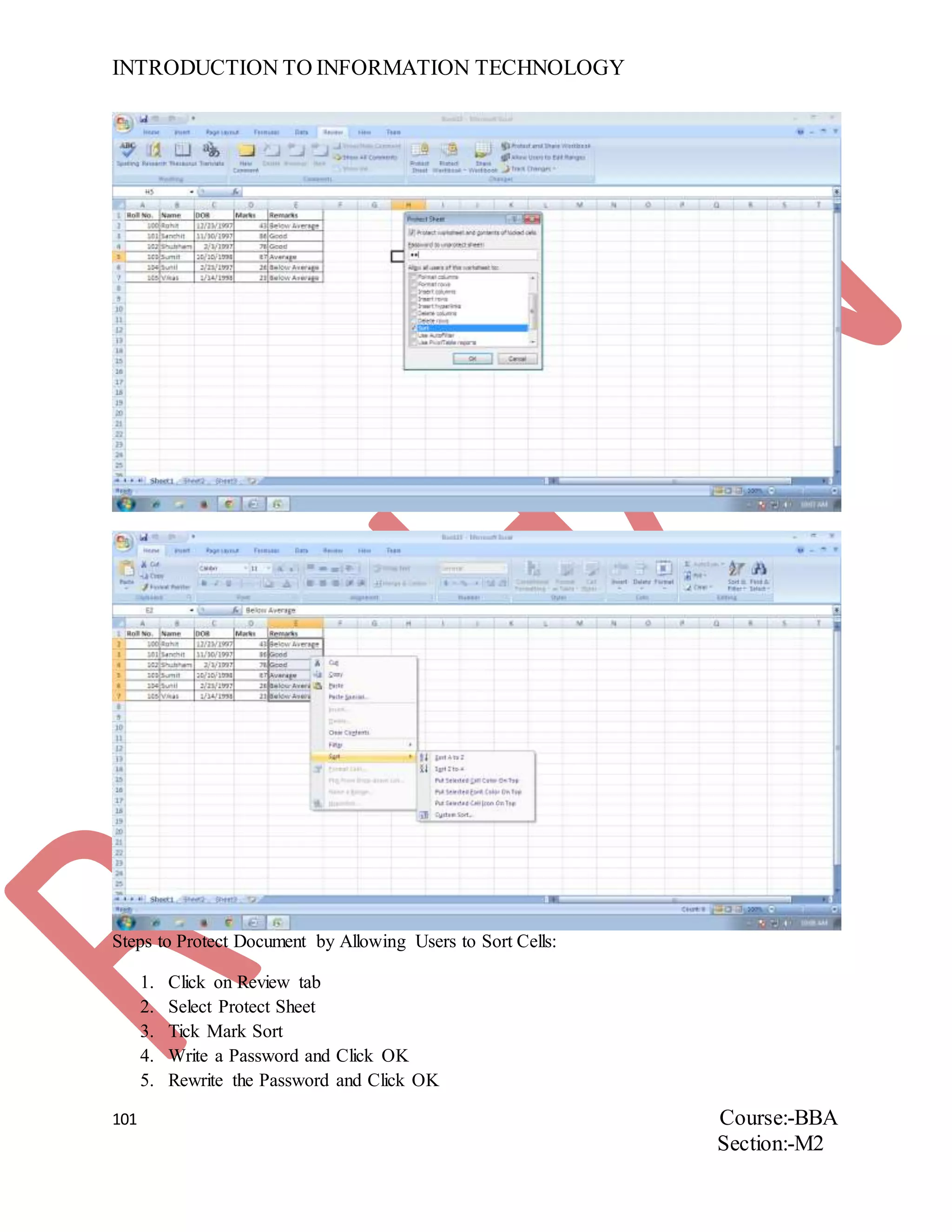
Steps to Protect Document by Allowing Users to Sort Cells:
1. Click on Review tab
2. Select Protect Sheet
3. Tick Mark Sort
4. Write a Password and Click OK
5. Rewrite the Password and Click OK
INTRODUCTION TO INFORMATION TECHNOLOGY
102 Course:-BBA
Section:-M2
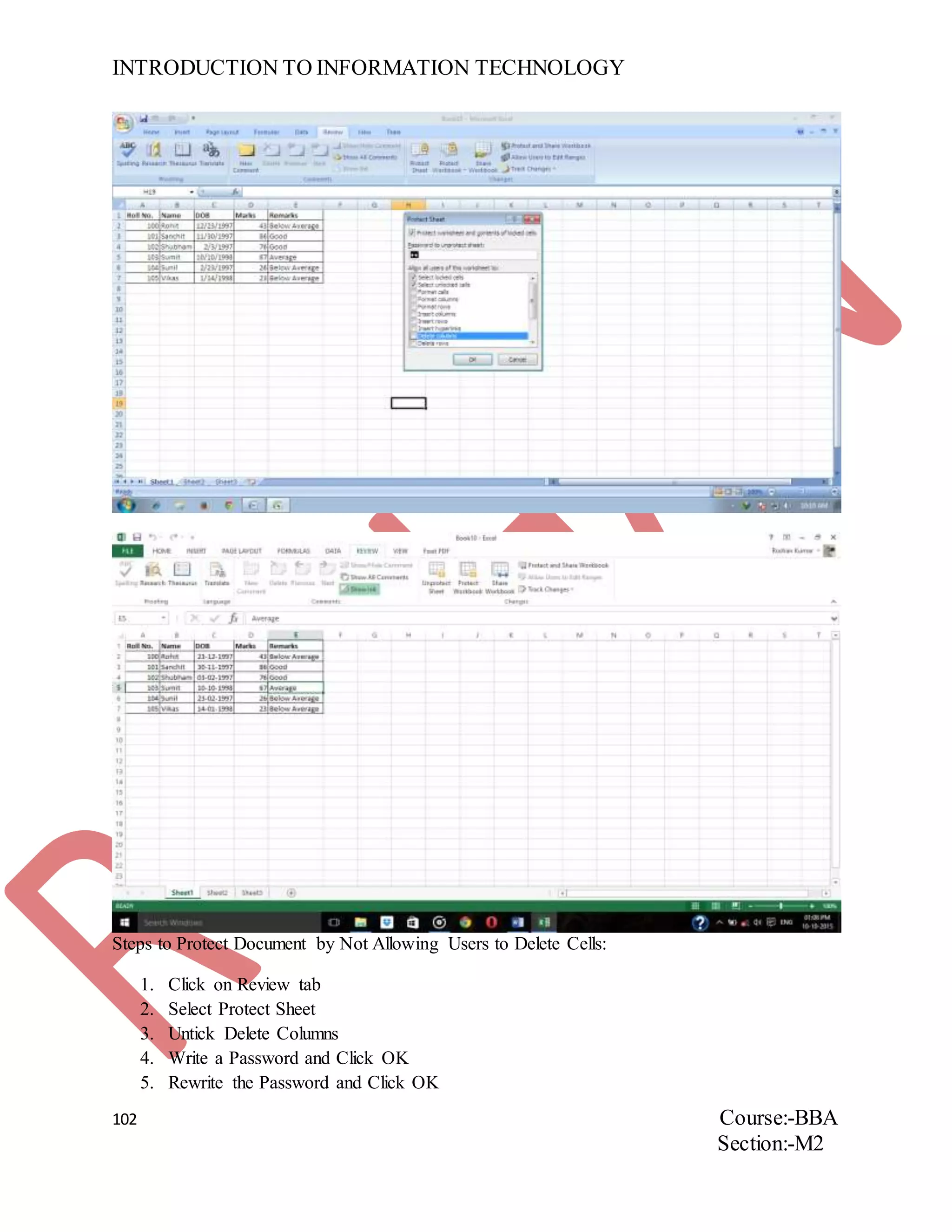
Steps to Protect Document by Not Allowing Users to Delete Cells:
1. Click on Review tab
2. Select Protect Sheet
3. Untick Delete Columns
4. Write a Password and Click OK
5. Rewrite the Password and Click OK
INTRODUCTION TO INFORMATION TECHNOLOGY
103 Course:-BBA
Section:-M2
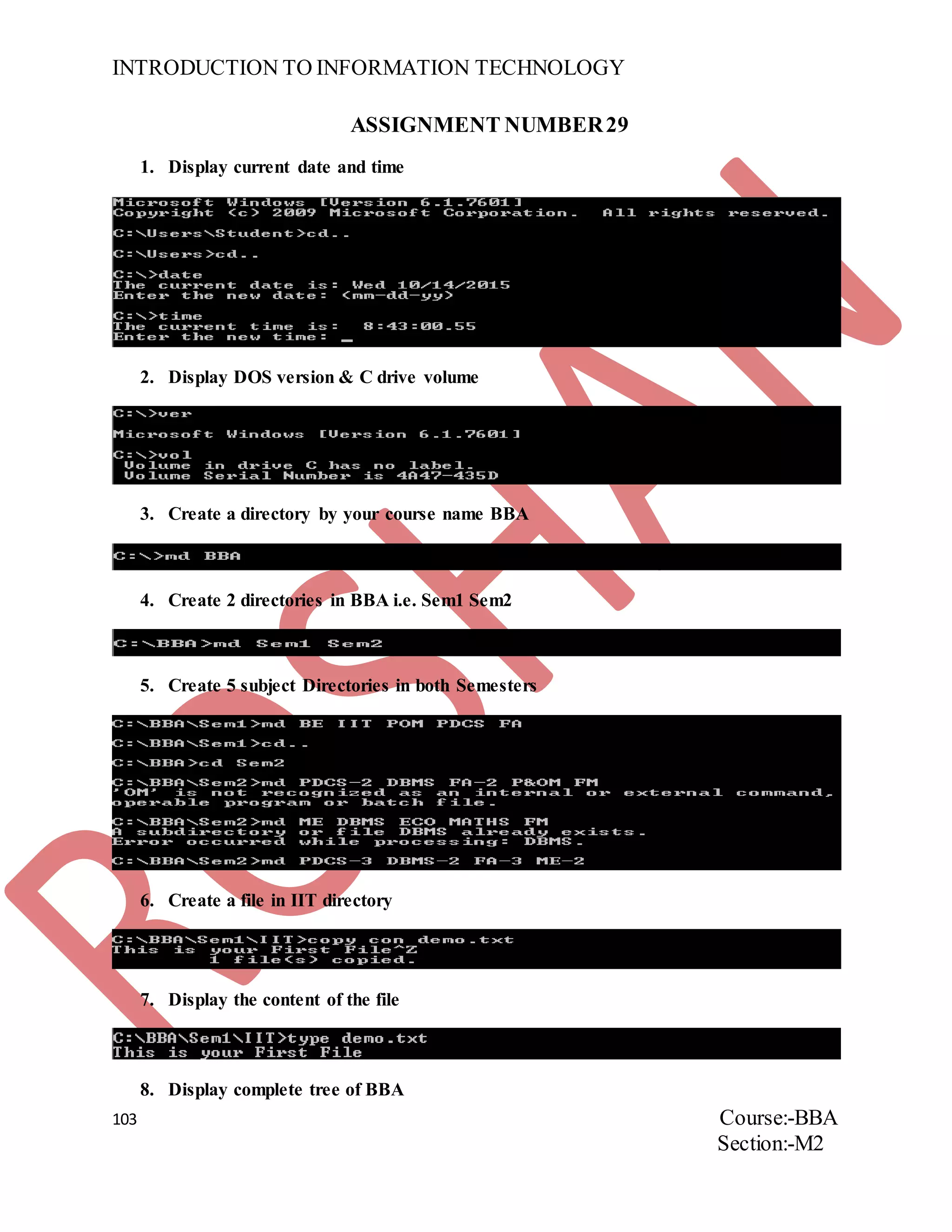
ASSIGNMENT NUMBER29
1. Display current date and time
2. Display DOS version & C drive volume
3. Create a directory by your course name BBA
4. Create 2 directories in BBA i.e. Sem1 Sem2
5. Create 5 subject Directories in both Semesters
6. Create a file in IIT directory
7. Display the content of the file
8. Display complete tree of BBA
INTRODUCTION TO INFORMATION TECHNOLOGY
104 Course:-BBA
Section:-M2
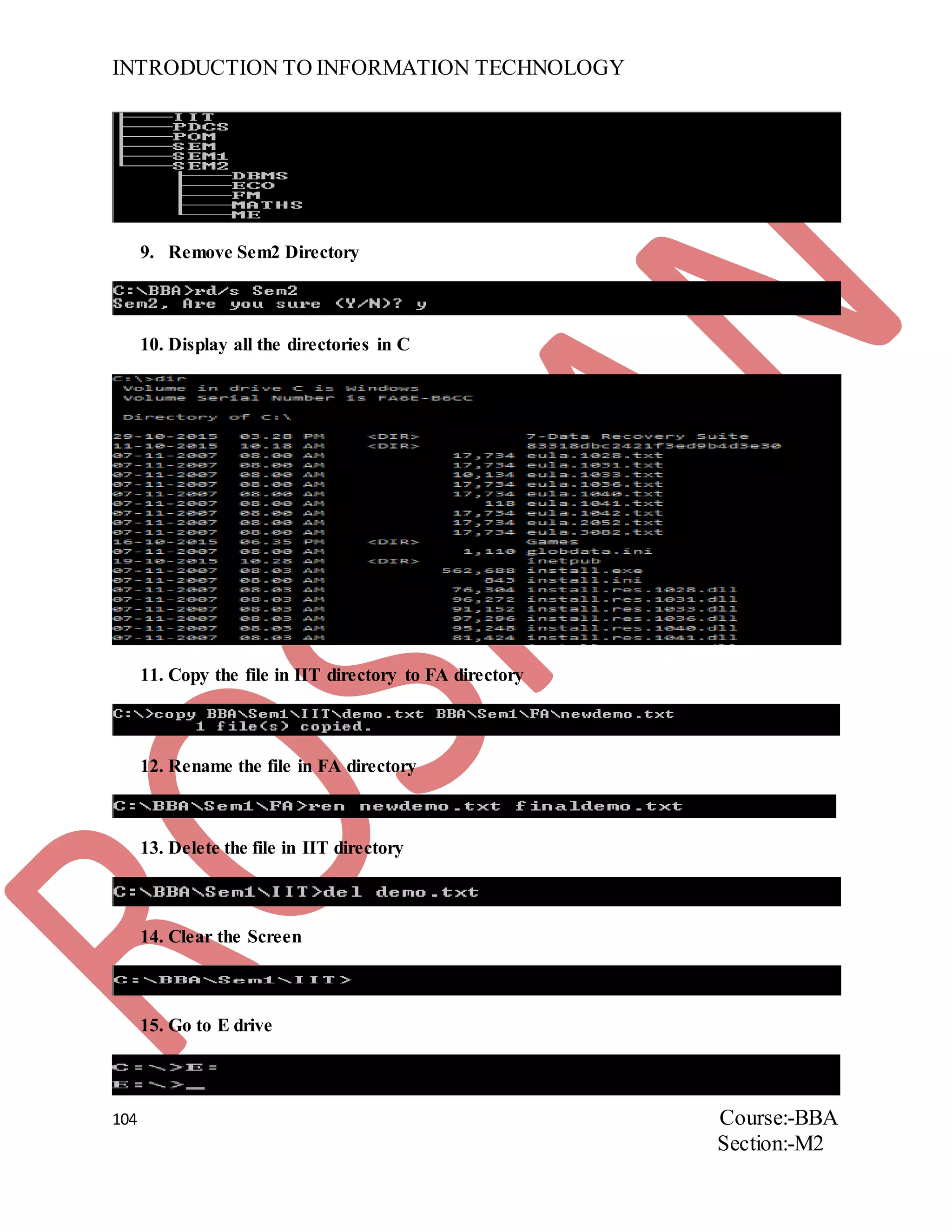
9. Remove Sem2 Directory
10. Display all the directories in C
11. Copy the file in IIT directory to FA directory
12. Rename the file in FA directory
13. Delete the file in IIT directory
14. Clear the Screen
15. Go to E drive
INTRODUCTION TO INFORMATION TECHNOLOGY
105 Course:-BBA
Section:-M2
ASSIGNMENT NUMBER30
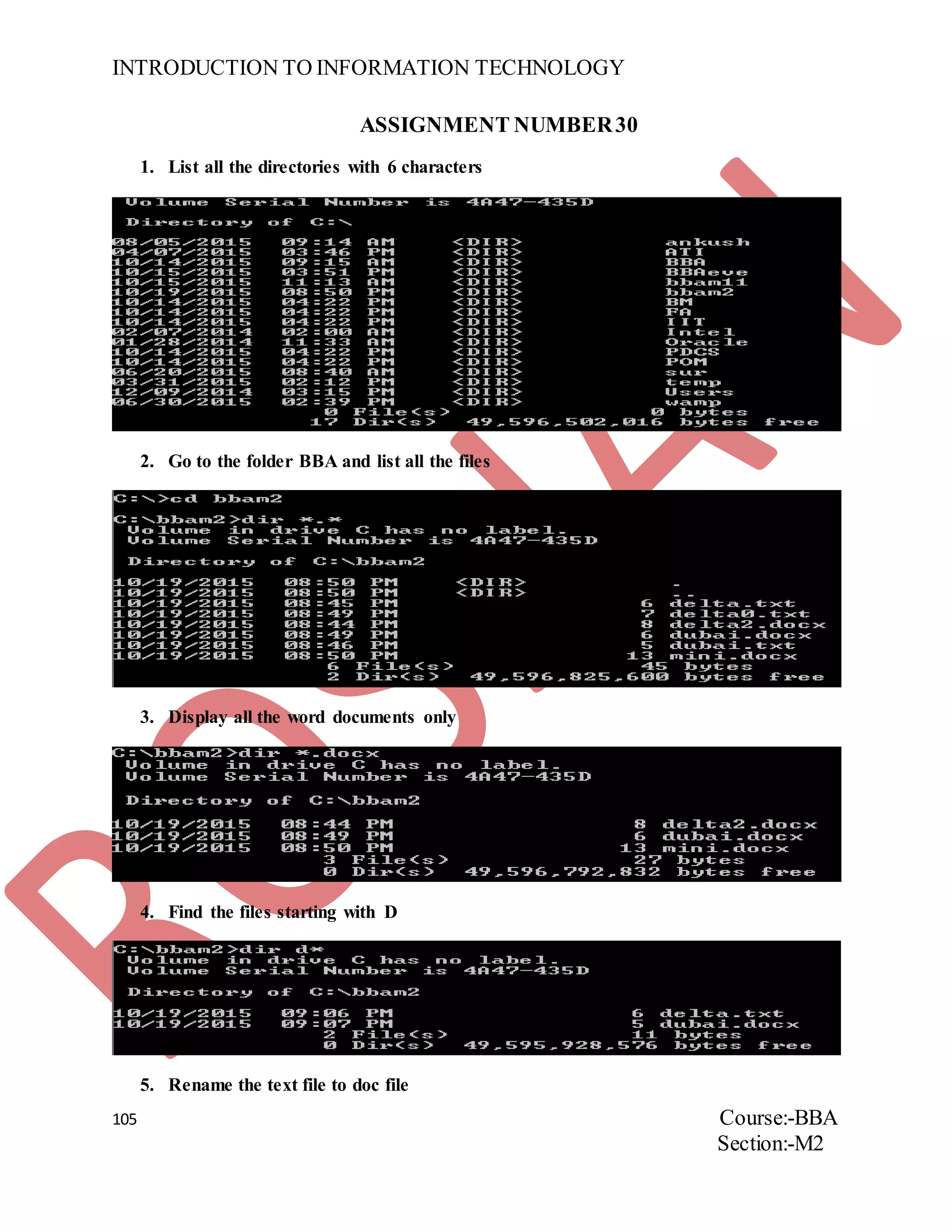
1. List all the directories with 6 characters
2. Go to the folder BBA and list all the files
3. Display all the word documents only
4. Find the files starting with D
5. Rename the text file to doc file
INTRODUCTION TO INFORMATION TECHNOLOGY
106 Course:-BBA
Section:-M2
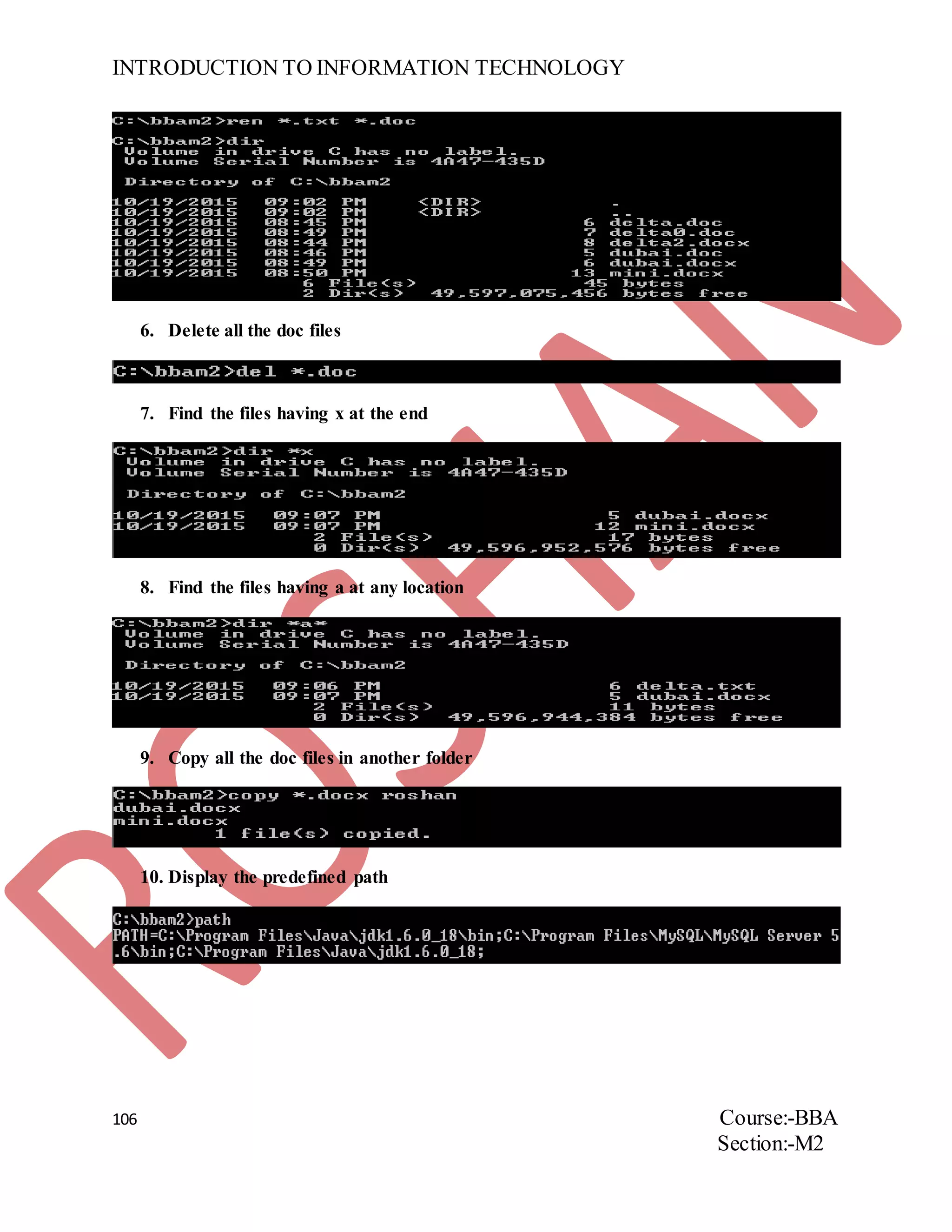
6. Delete all the doc files
7. Find the files having x at the end
8. Find the files having a at any location
9. Copy all the doc files in another folder
10. Display the predefined path
INTRODUCTION TO INFORMATION TECHNOLOGY
107 Course:-BBA
Section:-M2
ASSIGNMENT NUMBER31
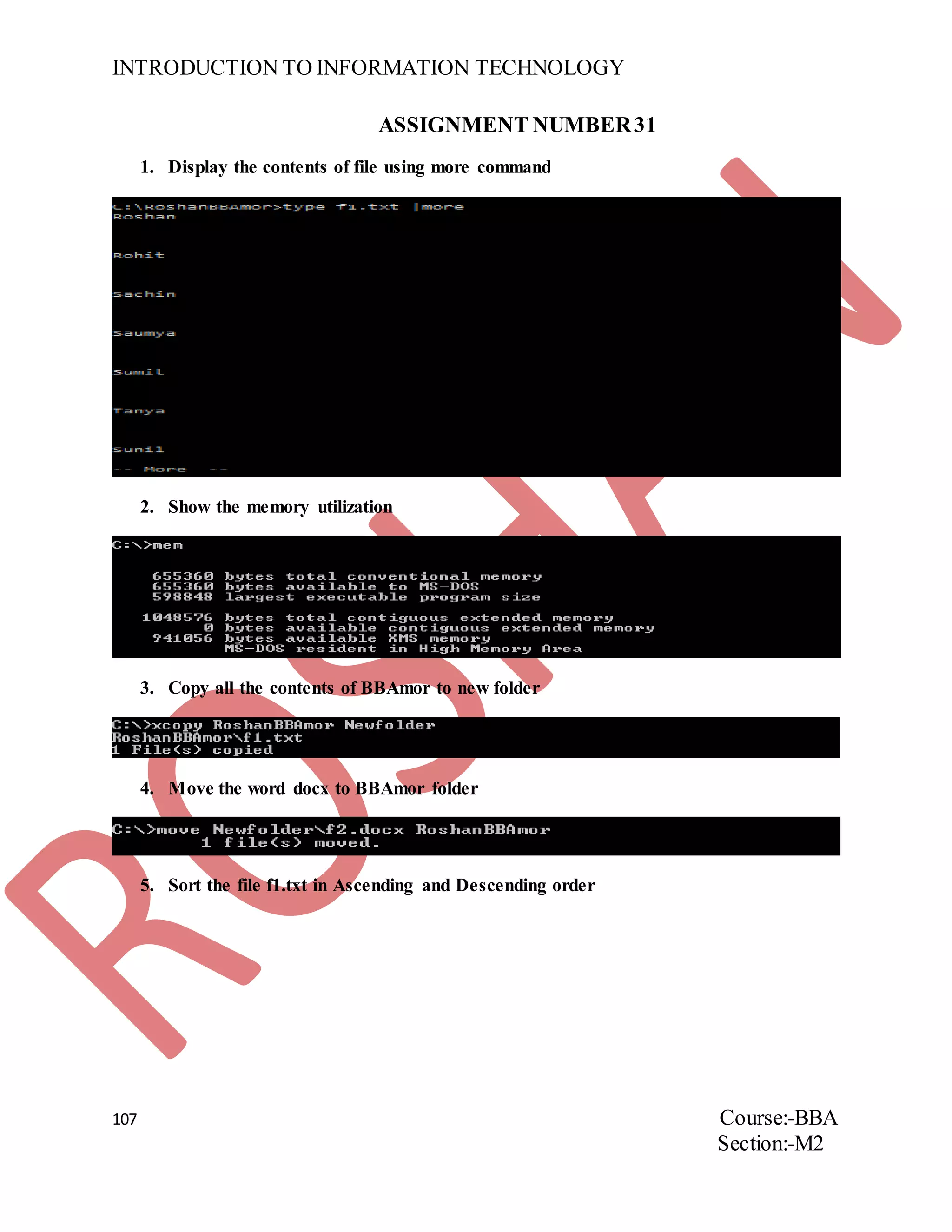
1. Display the contents of file using more command
2. Show the memory utilization
3. Copy all the contents of BBAmor to new folder
4. Move the word docx to BBAmor folder
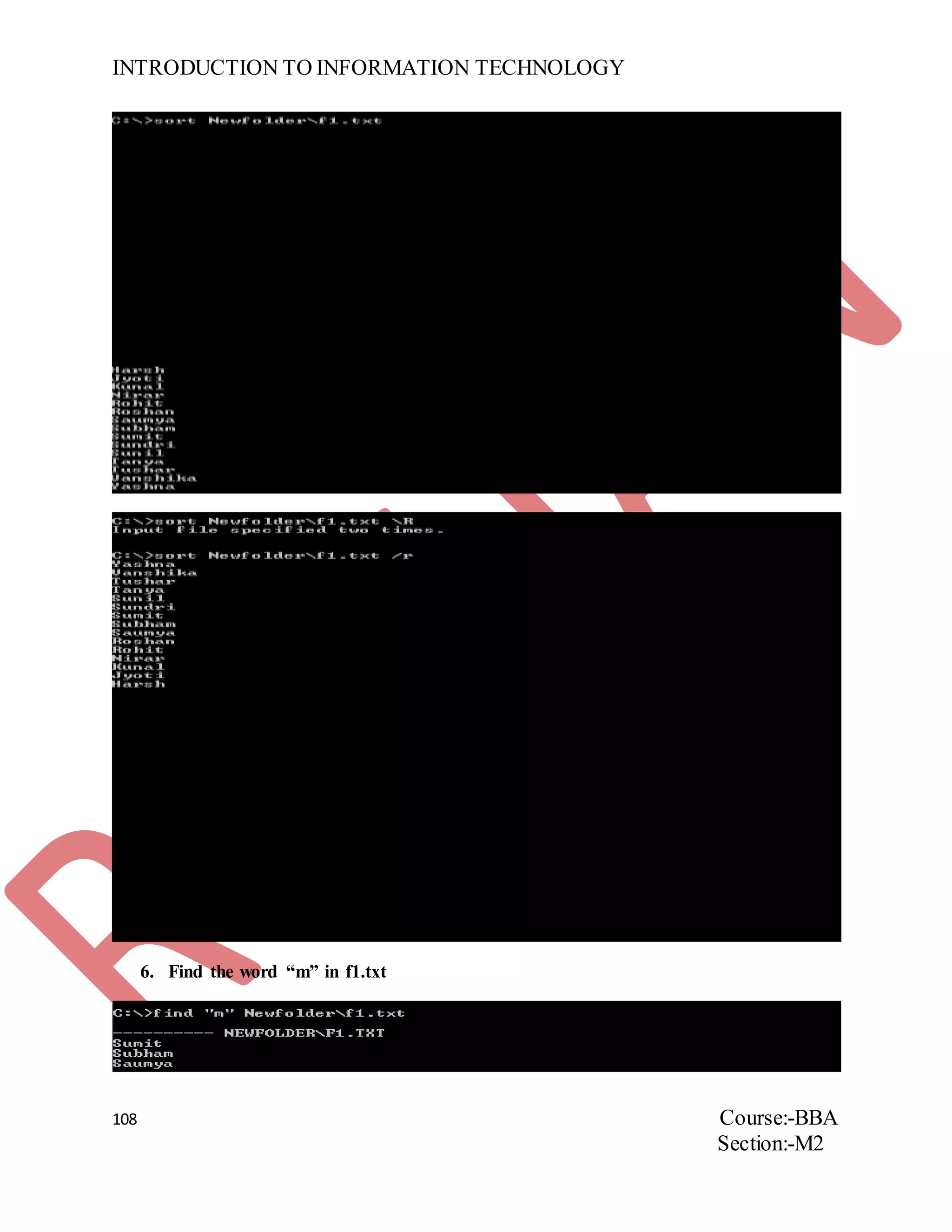
5. Sort the file f1.txt in Ascending and Descending order
INTRODUCTION TO INFORMATION TECHNOLOGY
108 Course:-BBA
Section:-M2
6. Find the word “m” in f1.txt
INTRODUCTION TO INFORMATION TECHNOLOGY
109 Course:-BBA
Section:-M2
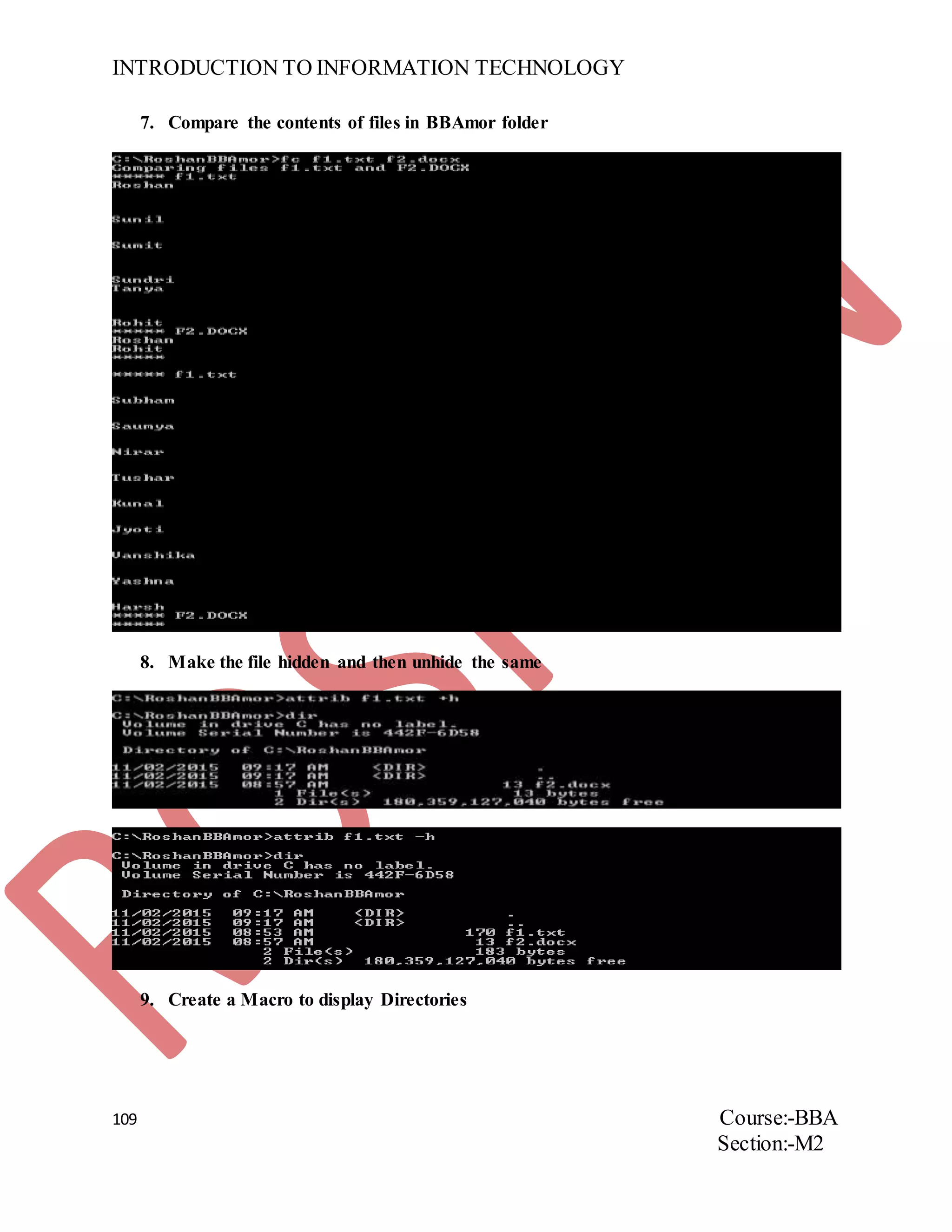
7. Compare the contents of files in BBAmor folder
8. Make the file hidden and then unhide the same
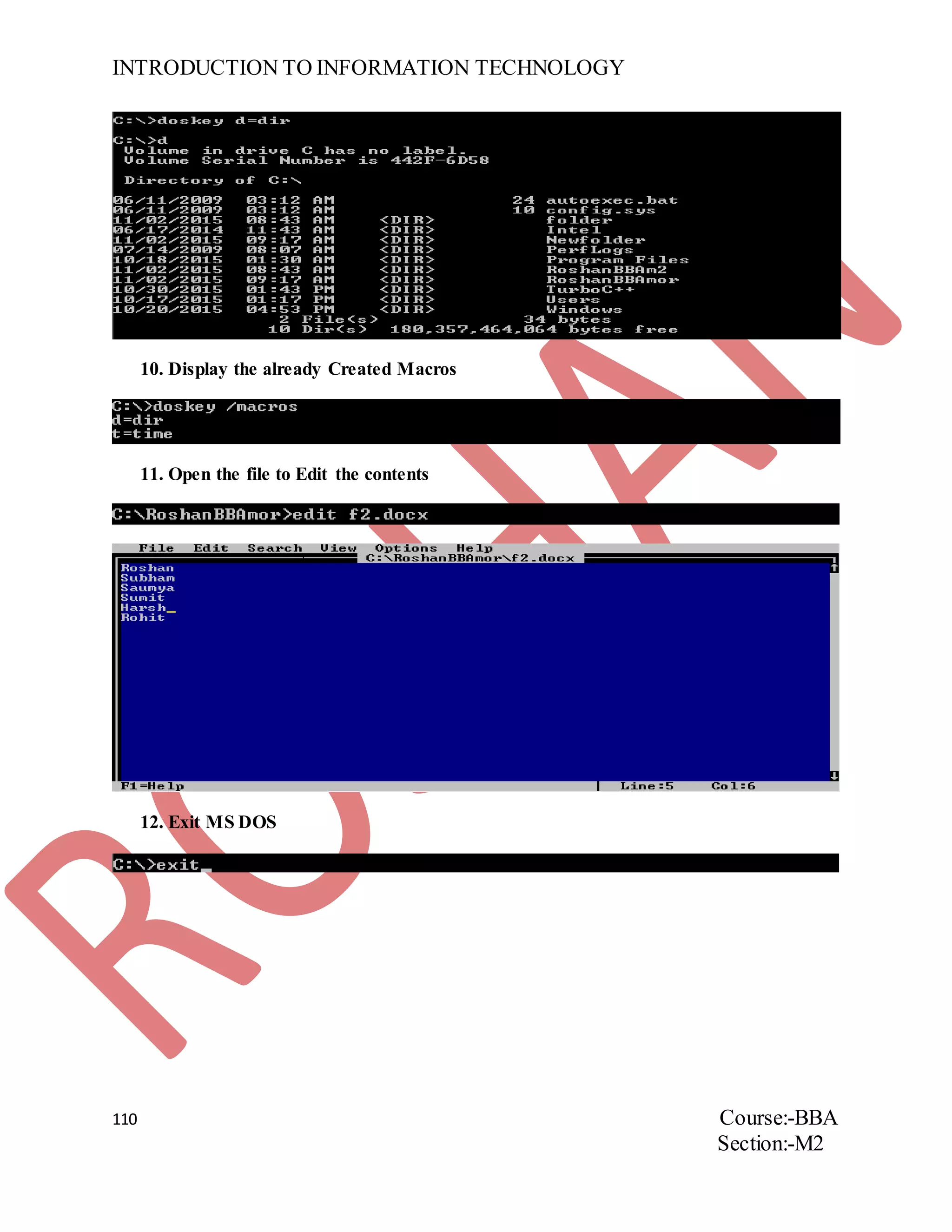
9. Create a Macro to display Directories
INTRODUCTION TO INFORMATION TECHNOLOGY
110 Course:-BBA
Section:-M2
10. Display the already Created Macros
11. Open the file to Edit the contents
12. Exit MS DOS
INTRODUCTION TO INFORMATION TECHNOLOGY
111 Course:-BBA
Section:-M2
ASSIGNMENT NUMBER32
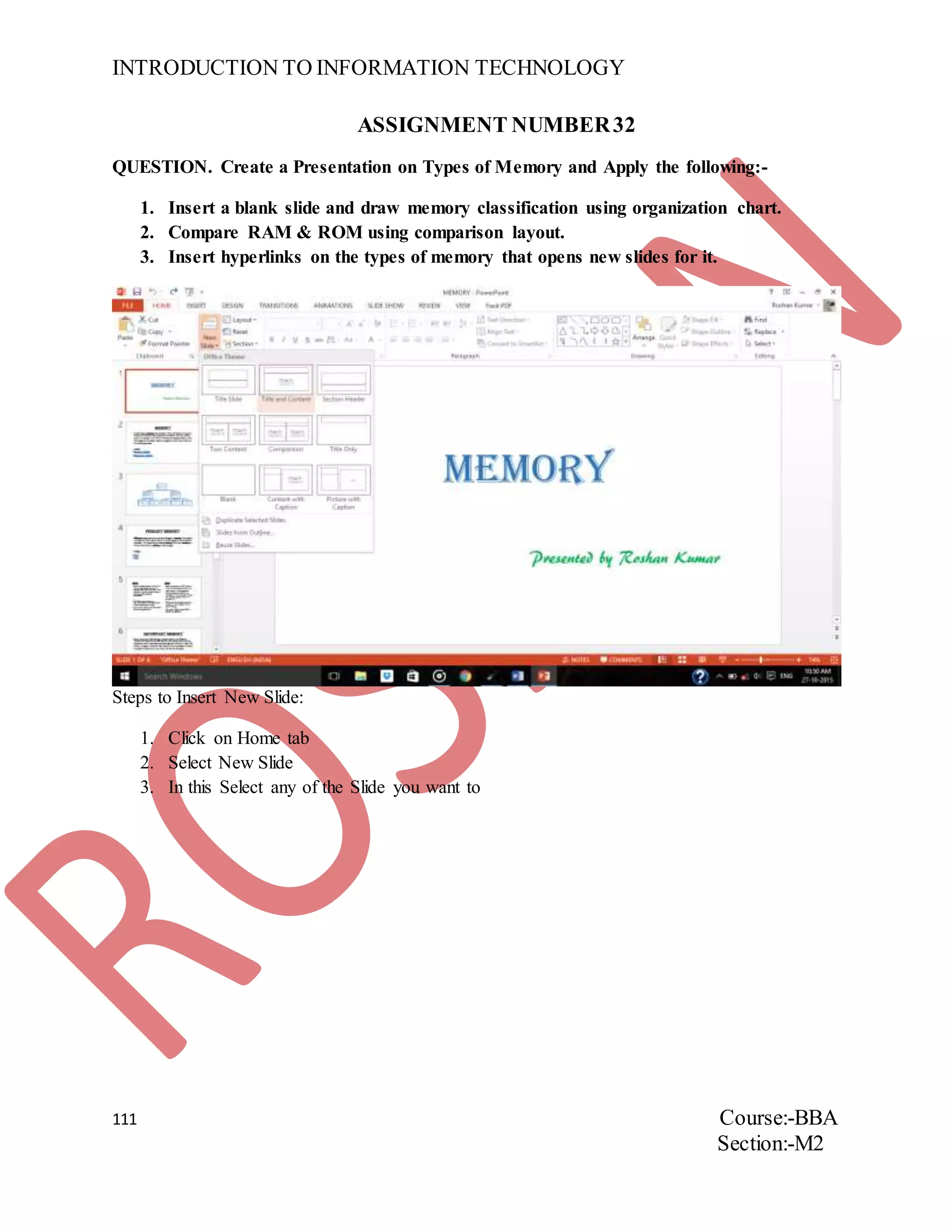
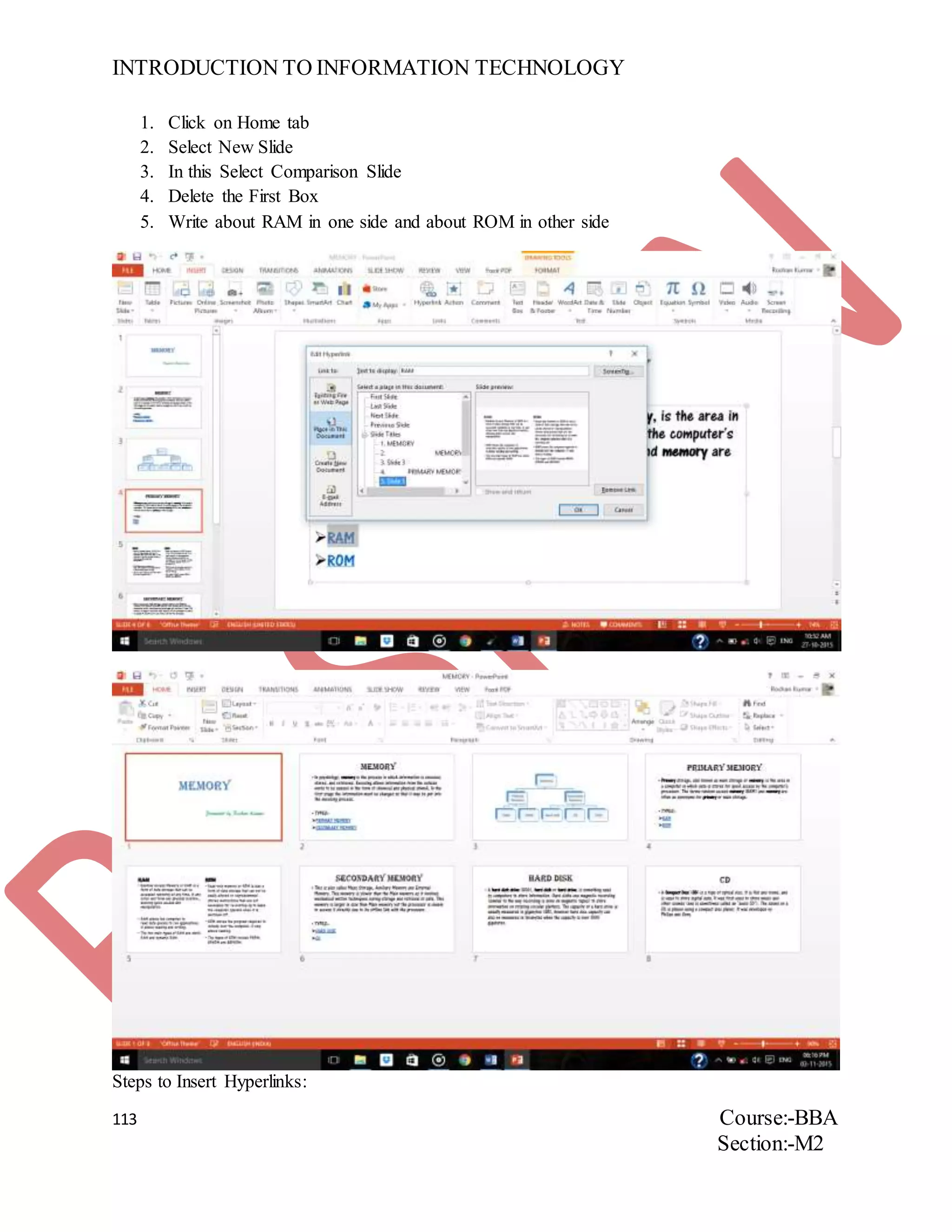
QUESTION. Create a Presentation on Types of Memory and Apply the following:-
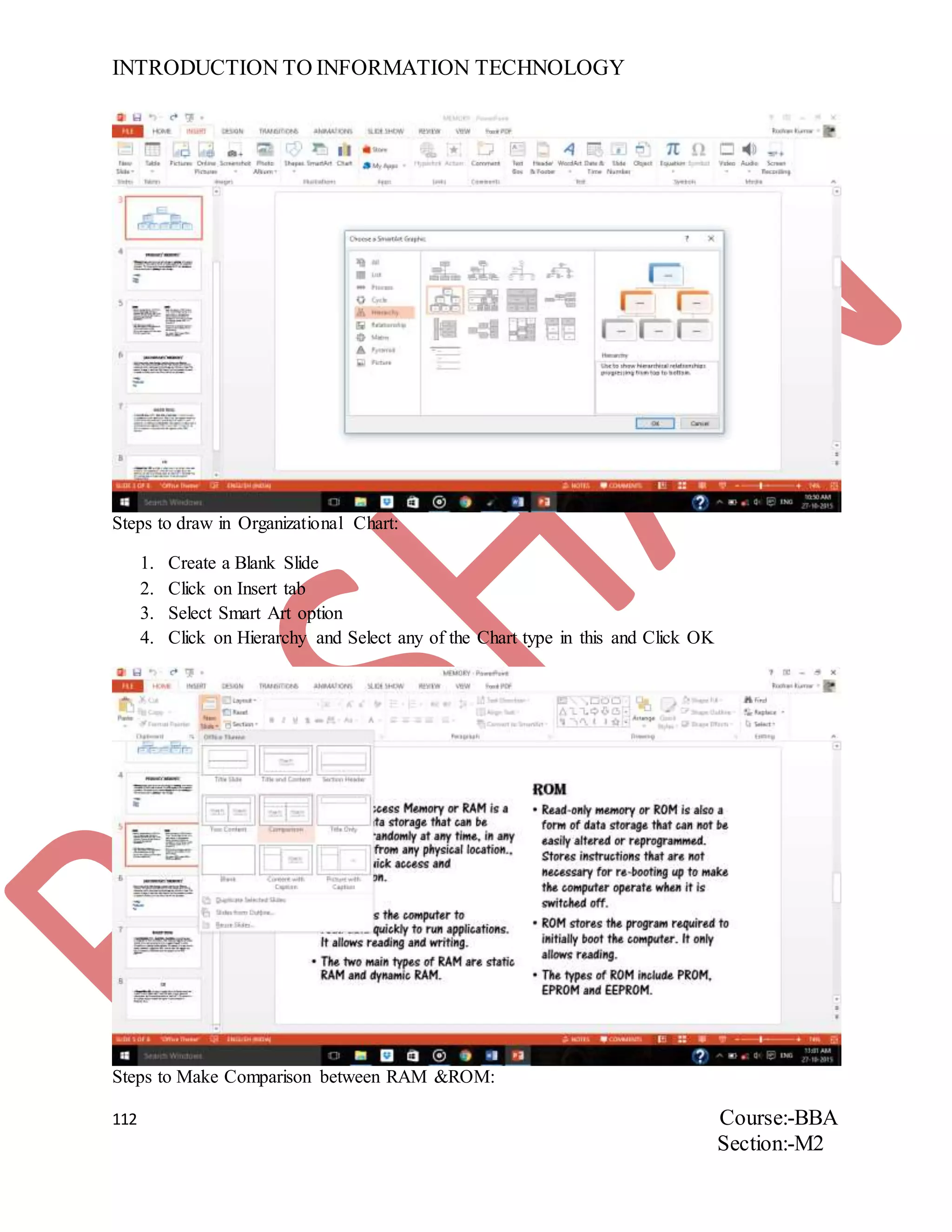
1. Insert a blank slide and draw memory classification using organization chart.
2. Compare RAM & ROM using comparison layout.
3. Insert hyperlinks on the types of memory that opens new slides for it.
Steps to Insert New Slide:
1. Click on Home tab
2. Select New Slide
3. In this Select any of the Slide you want to
INTRODUCTION TO INFORMATION TECHNOLOGY
112 Course:-BBA
Section:-M2
Steps to draw in Organizational Chart:
1. Create a Blank Slide
2. Click on Insert tab
3. Select Smart Art option
4. Click on Hierarchy and Select any of the Chart type in this and Click OK
Steps to Make Comparison between RAM &ROM:
INTRODUCTION TO INFORMATION TECHNOLOGY
113 Course:-BBA
Section:-M2
1. Click on Home tab
2. Select New Slide
3. In this Select Comparison Slide
4. Delete the First Box
5. Write about RAM in one side and about ROM in other side
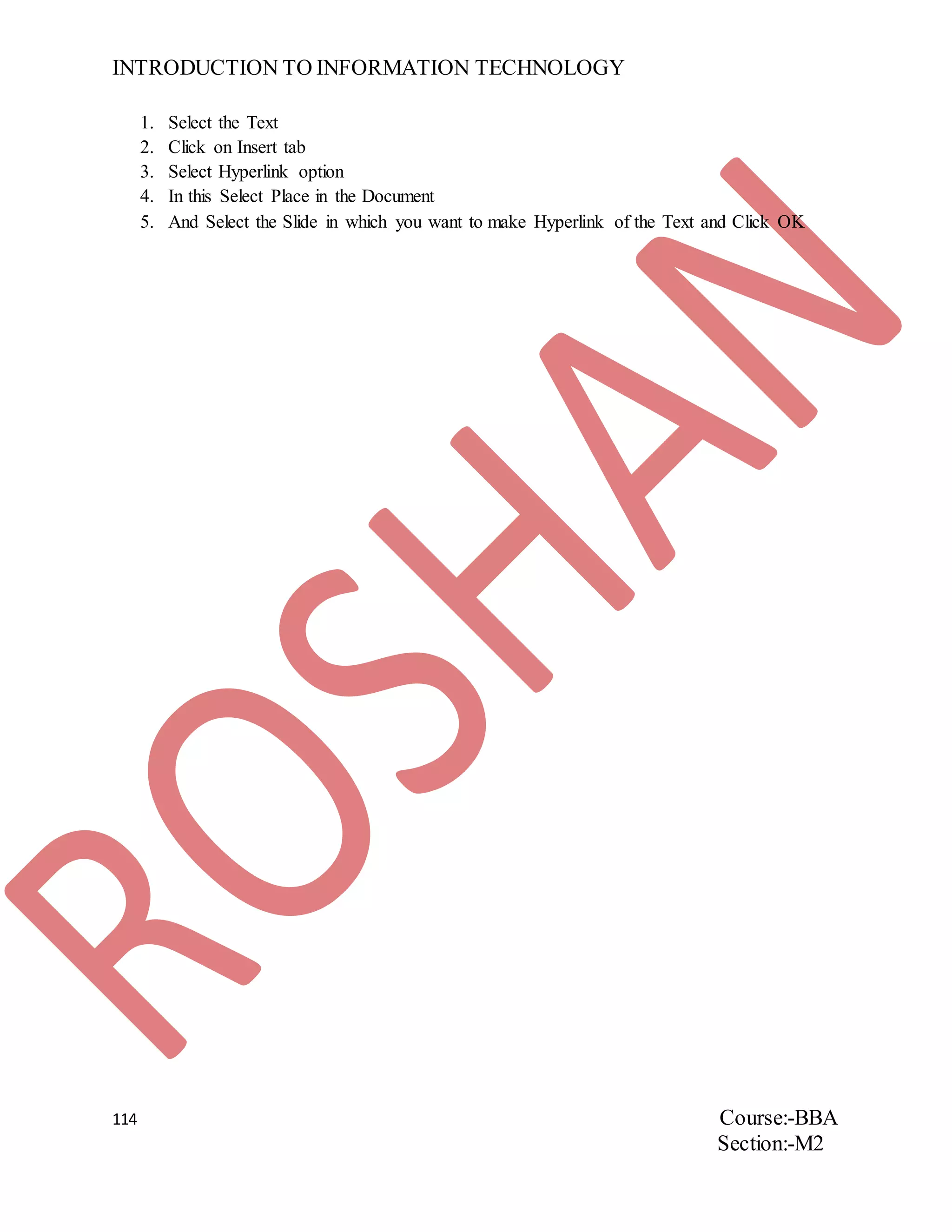
Steps to Insert Hyperlinks:
INTRODUCTION TO INFORMATION TECHNOLOGY
114 Course:-BBA
Section:-M2
1. Select the Text
2. Click on Insert tab
3. Select Hyperlink option
4. In this Select Place in the Document
5. And Select the Slide in which you want to make Hyperlink of the Text and Click OK
INTRODUCTION TO INFORMATION TECHNOLOGY
115 Course:-BBA
Section:-M2
ASSIGNMENT NUMBER33
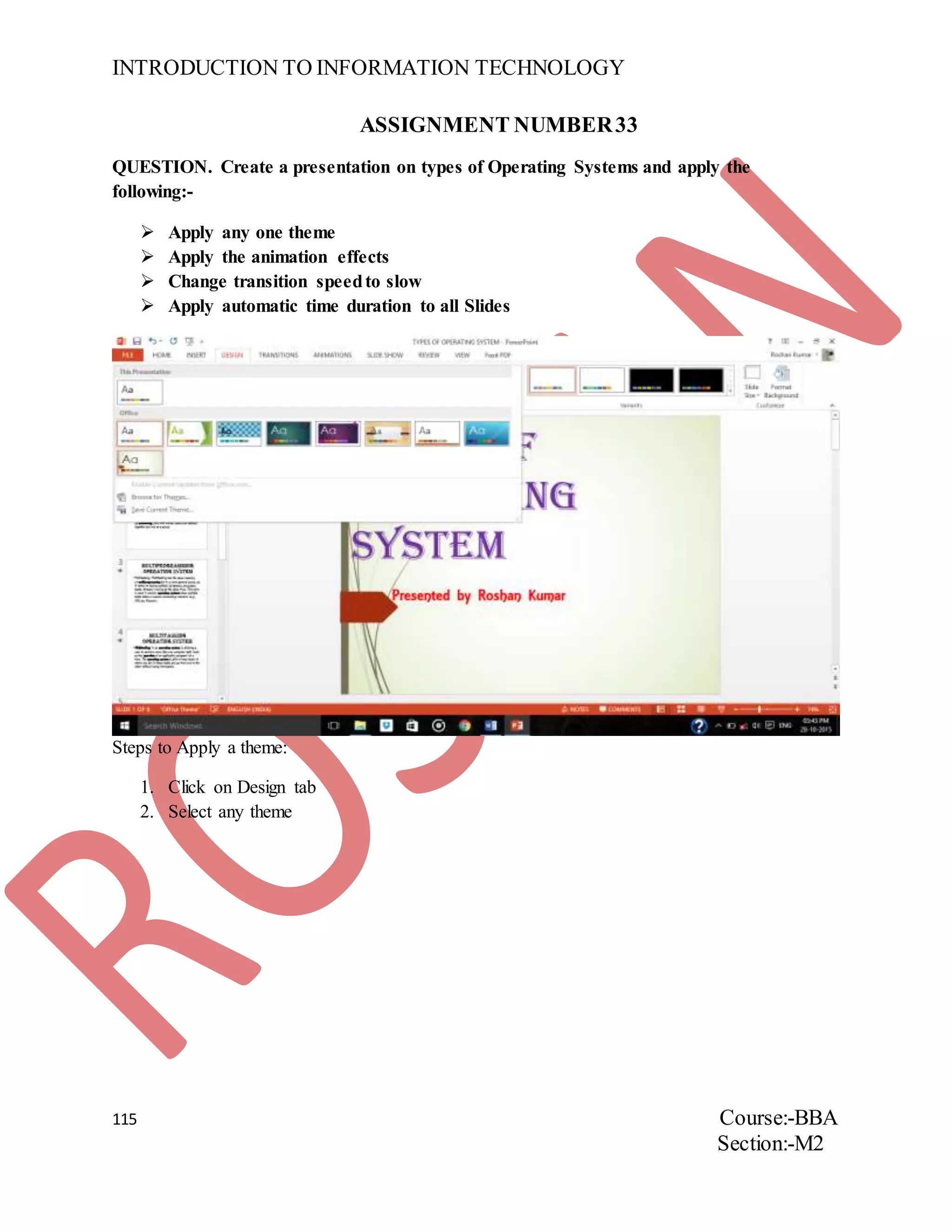
QUESTION. Create a presentation on types of Operating Systems and apply the
following:-
 Apply any one theme
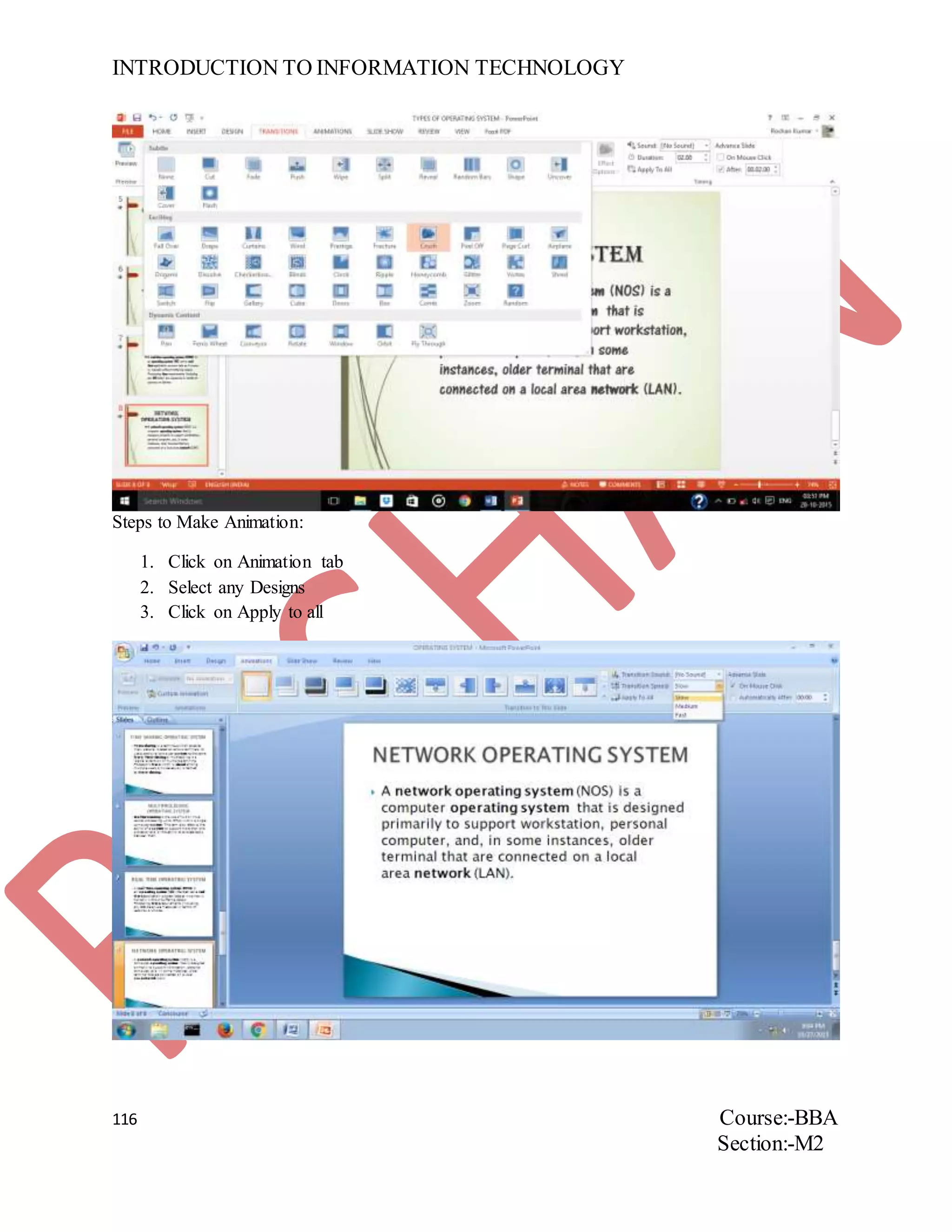
 Apply the animation effects
 Change transition speedto slow
 Apply automatic time duration to all Slides
Steps to Apply a theme:
1. Click on Design tab
2. Select any theme
INTRODUCTION TO INFORMATION TECHNOLOGY
116 Course:-BBA
Section:-M2
Steps to Make Animation:
1. Click on Animation tab
2. Select any Designs
3. Click on Apply to all
INTRODUCTION TO INFORMATION TECHNOLOGY
117 Course:-BBA
Section:-M2
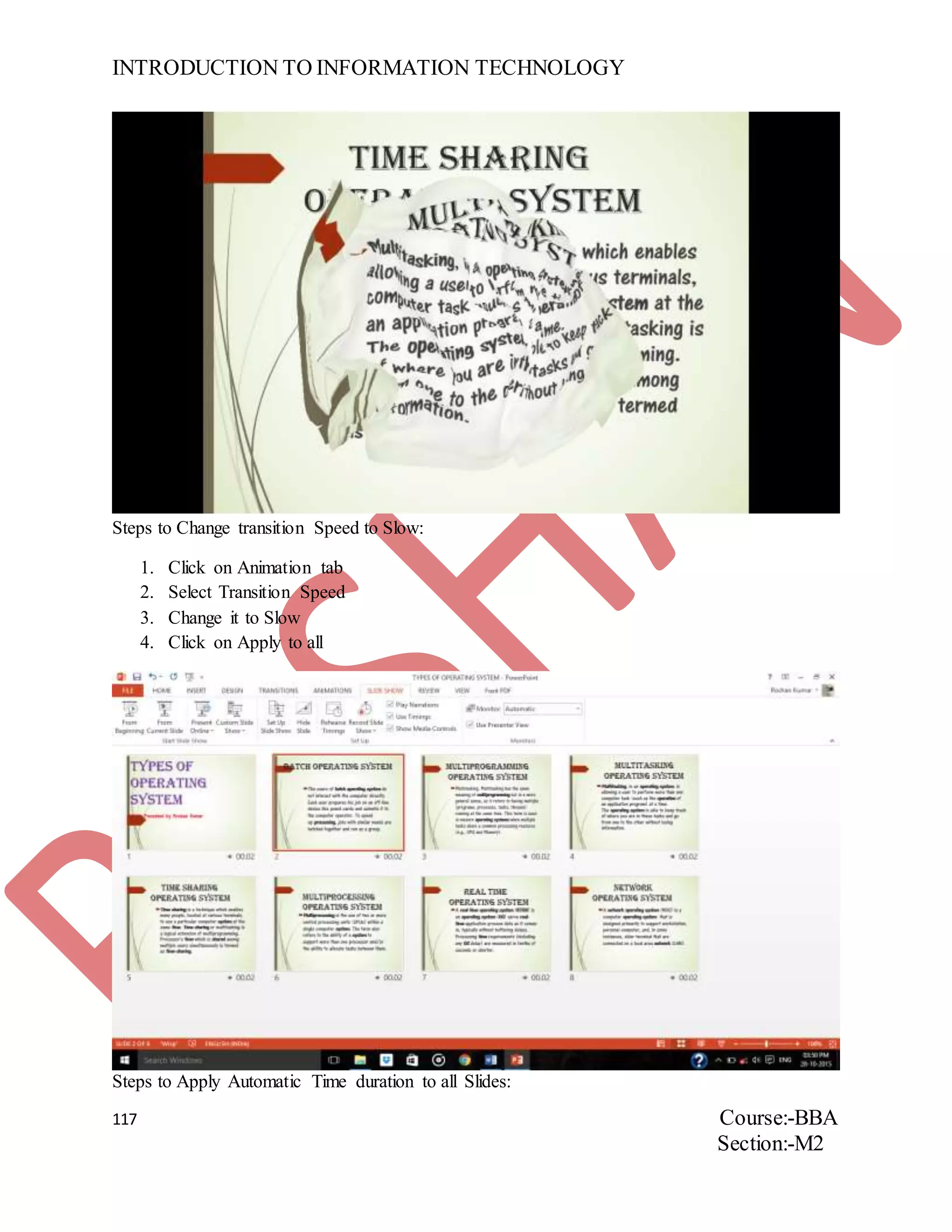
Steps to Change transition Speed to Slow:
1. Click on Animation tab
2. Select Transition Speed
3. Change it to Slow
4. Click on Apply to all
Steps to Apply Automatic Time duration to all Slides:
INTRODUCTION TO INFORMATION TECHNOLOGY
118 Course:-BBA
Section:-M2
1. Click on Animation tab
2. Click on Automatically after and Set Time
3. Click on Apply to all
INTRODUCTION TO INFORMATION TECHNOLOGY
119 Course:-BBA
Section:-M2
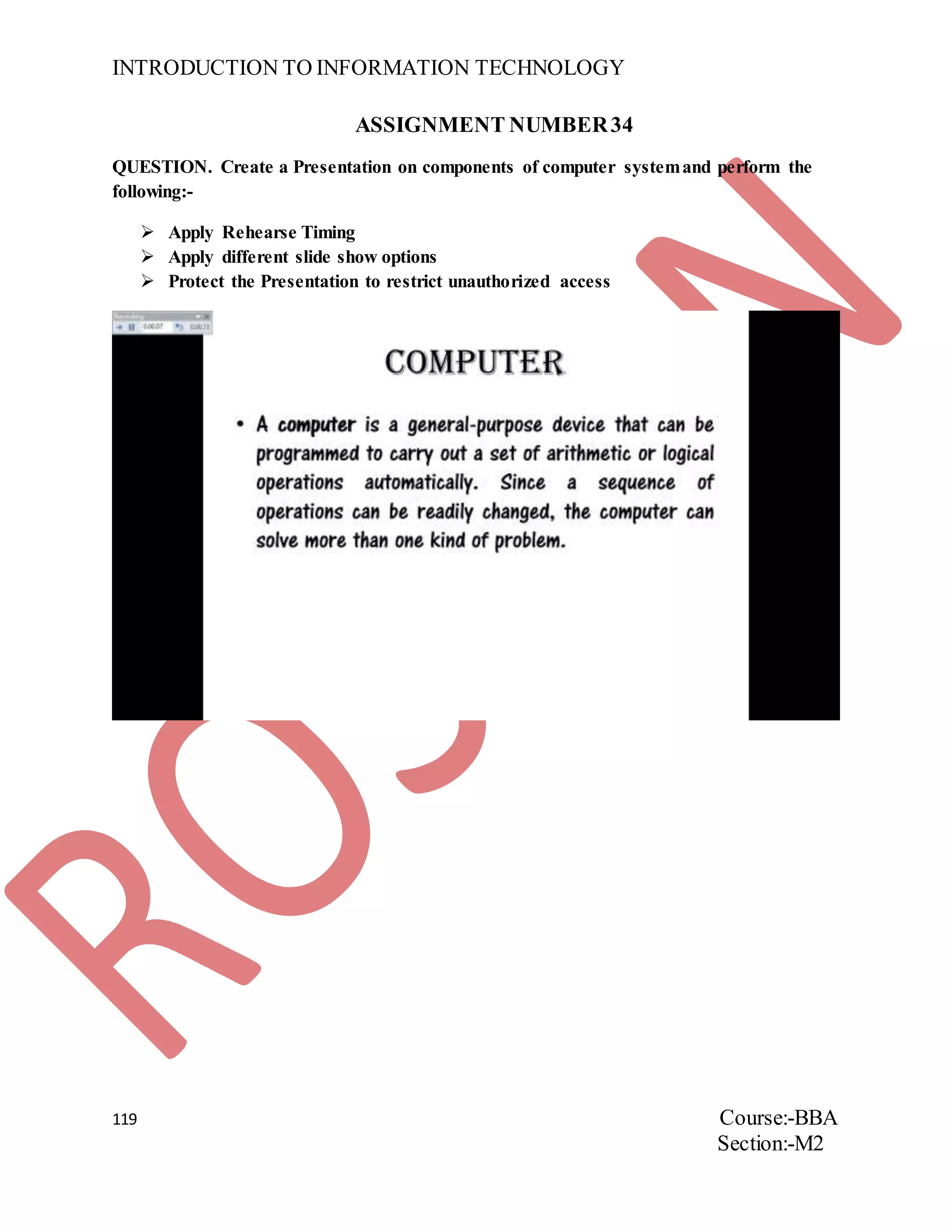
ASSIGNMENT NUMBER34
QUESTION. Create a Presentation on components of computer systemand perform the
following:-
 Apply Rehearse Timing
 Apply different slide show options
 Protect the Presentation to restrict unauthorized access
INTRODUCTION TO INFORMATION TECHNOLOGY
120 Course:-BBA
Section:-M2
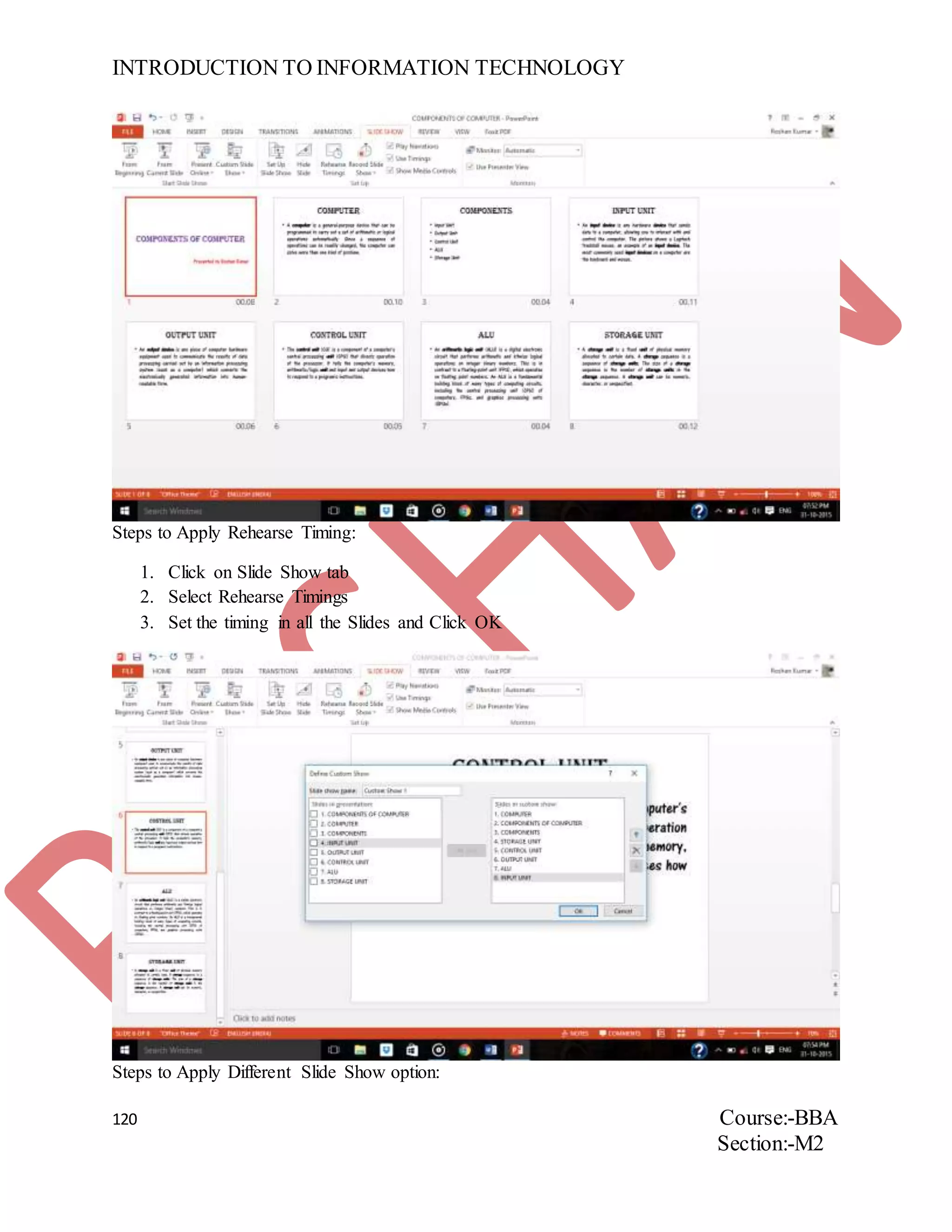
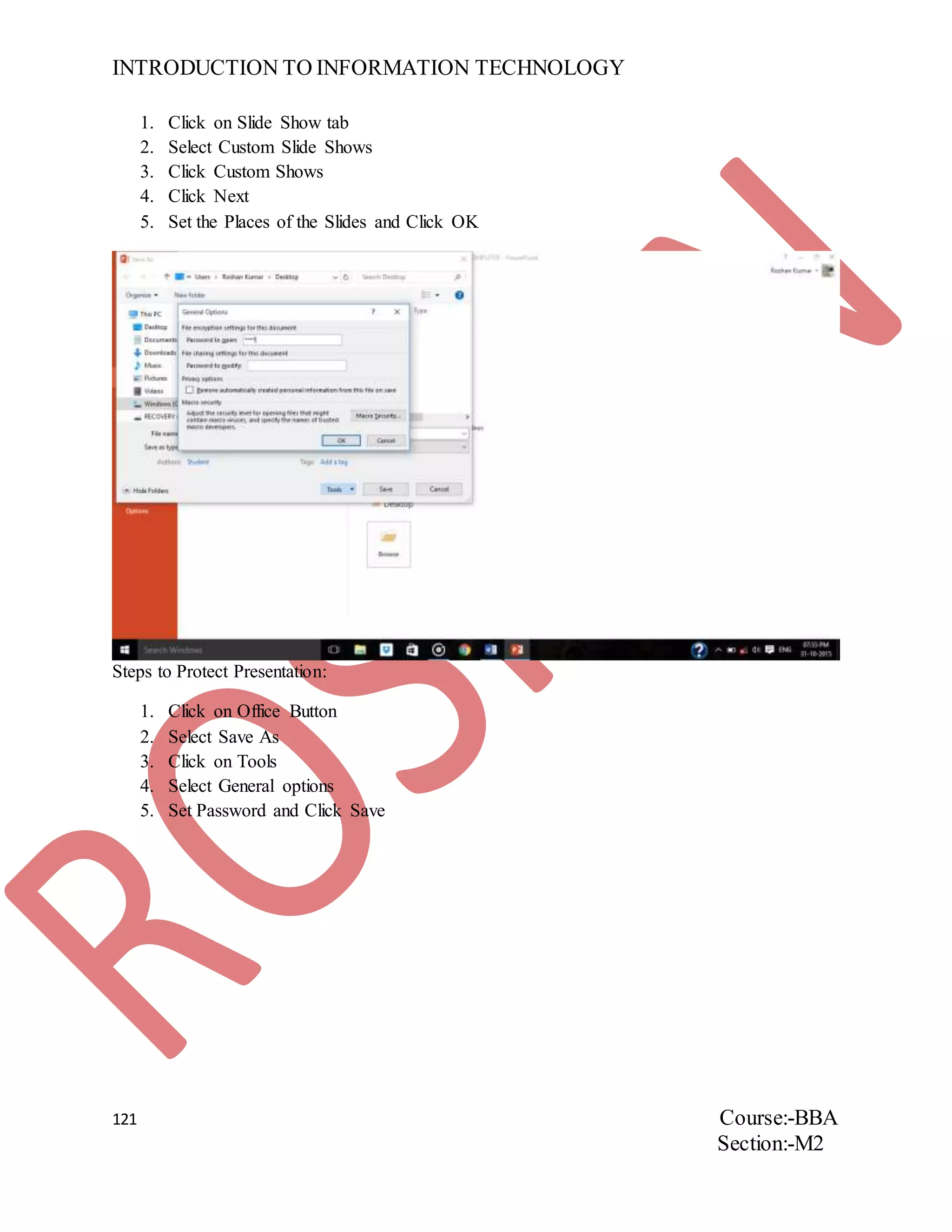
Steps to Apply Rehearse Timing:
1. Click on Slide Show tab
2. Select Rehearse Timings
3. Set the timing in all the Slides and Click OK
Steps to Apply Different Slide Show option:
INTRODUCTION TO INFORMATION TECHNOLOGY
121 Course:-BBA
Section:-M2
1. Click on Slide Show tab
2. Select Custom Slide Shows
3. Click Custom Shows
4. Click Next
5. Set the Places of the Slides and Click OK
Steps to Protect Presentation:
1. Click on Office Button
2. Select Save As
3. Click on Tools
4. Select General options
5. Set Password and Click Save
INTRODUCTION TO INFORMATION TECHNOLOGY
122 Course:-BBA
Section:-M2
ASSIGNMENT NUMBER 35
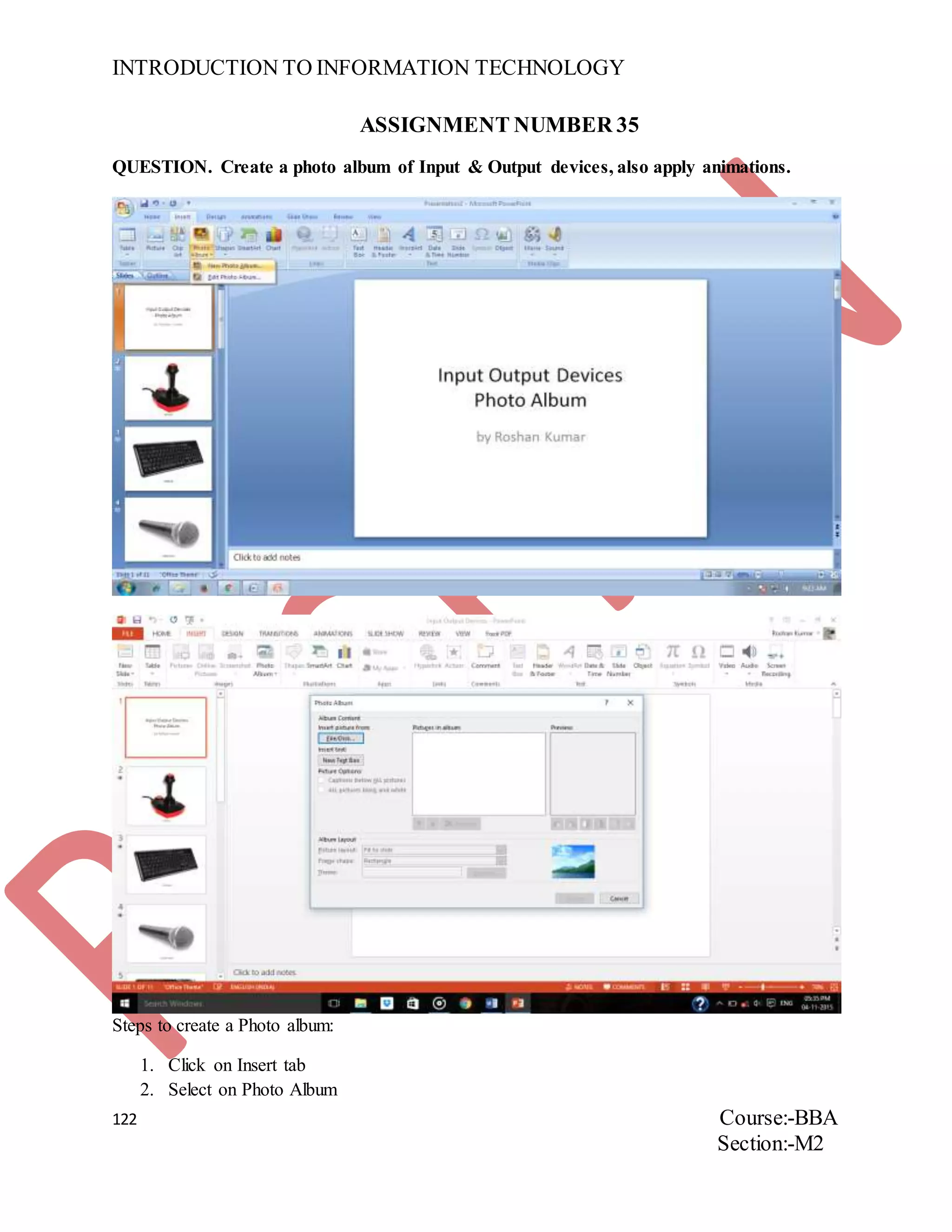
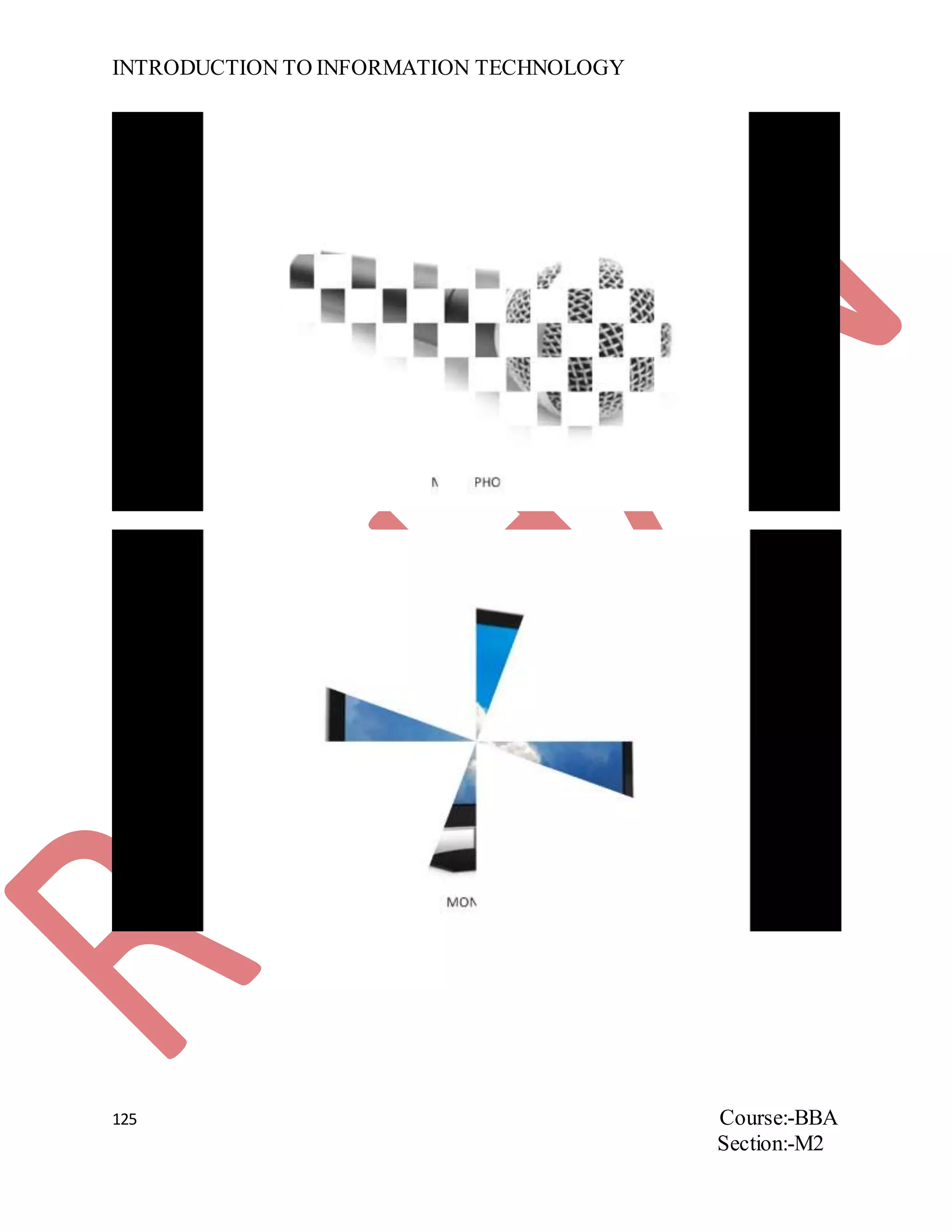
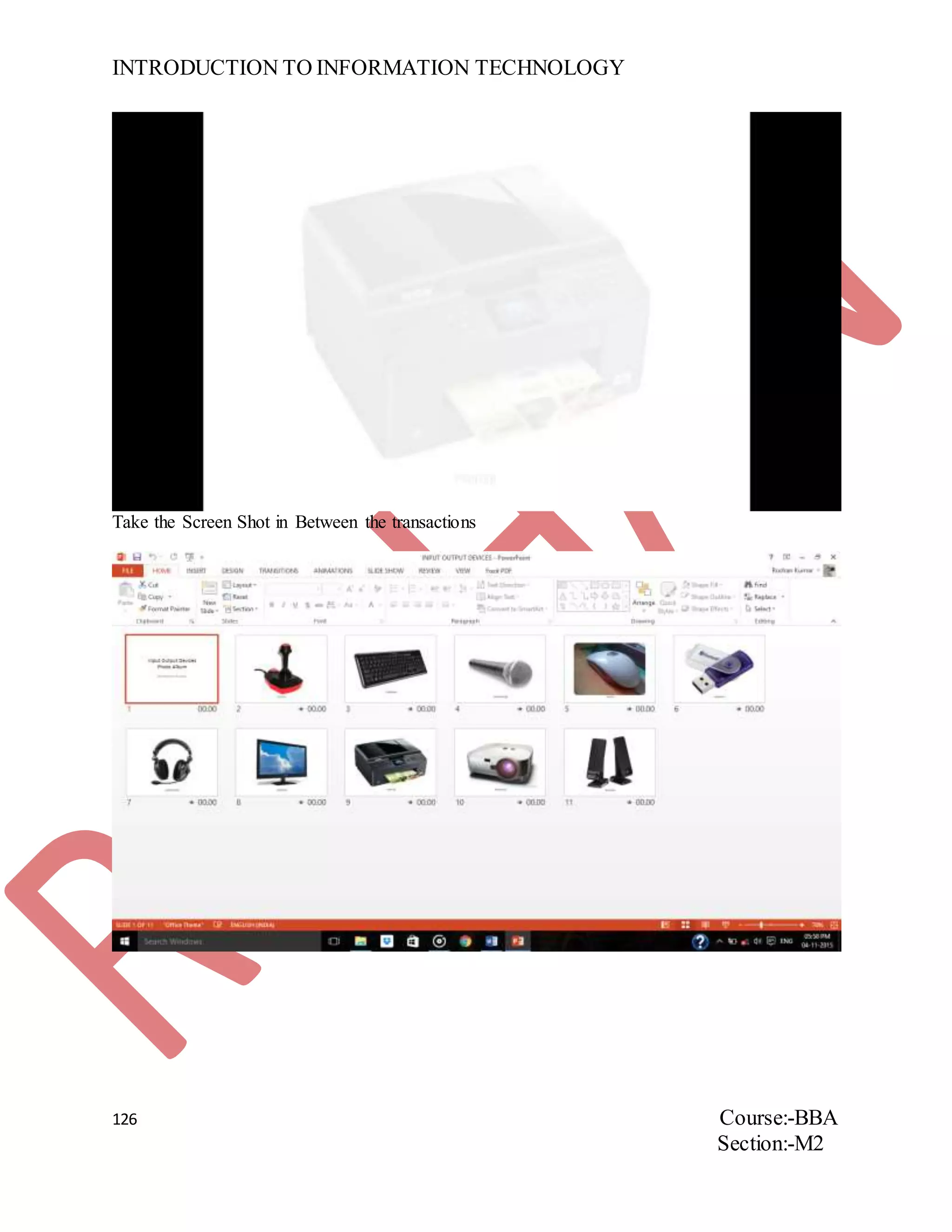
QUESTION. Create a photo album of Input & Output devices, also apply animations.
Steps to create a Photo album:
1. Click on Insert tab
2. Select on Photo Album
INTRODUCTION TO INFORMATION TECHNOLOGY
123 Course:-BBA
Section:-M2
3. Click on New photo Album
4. Insert the Pictures in Photo Album and Click Create
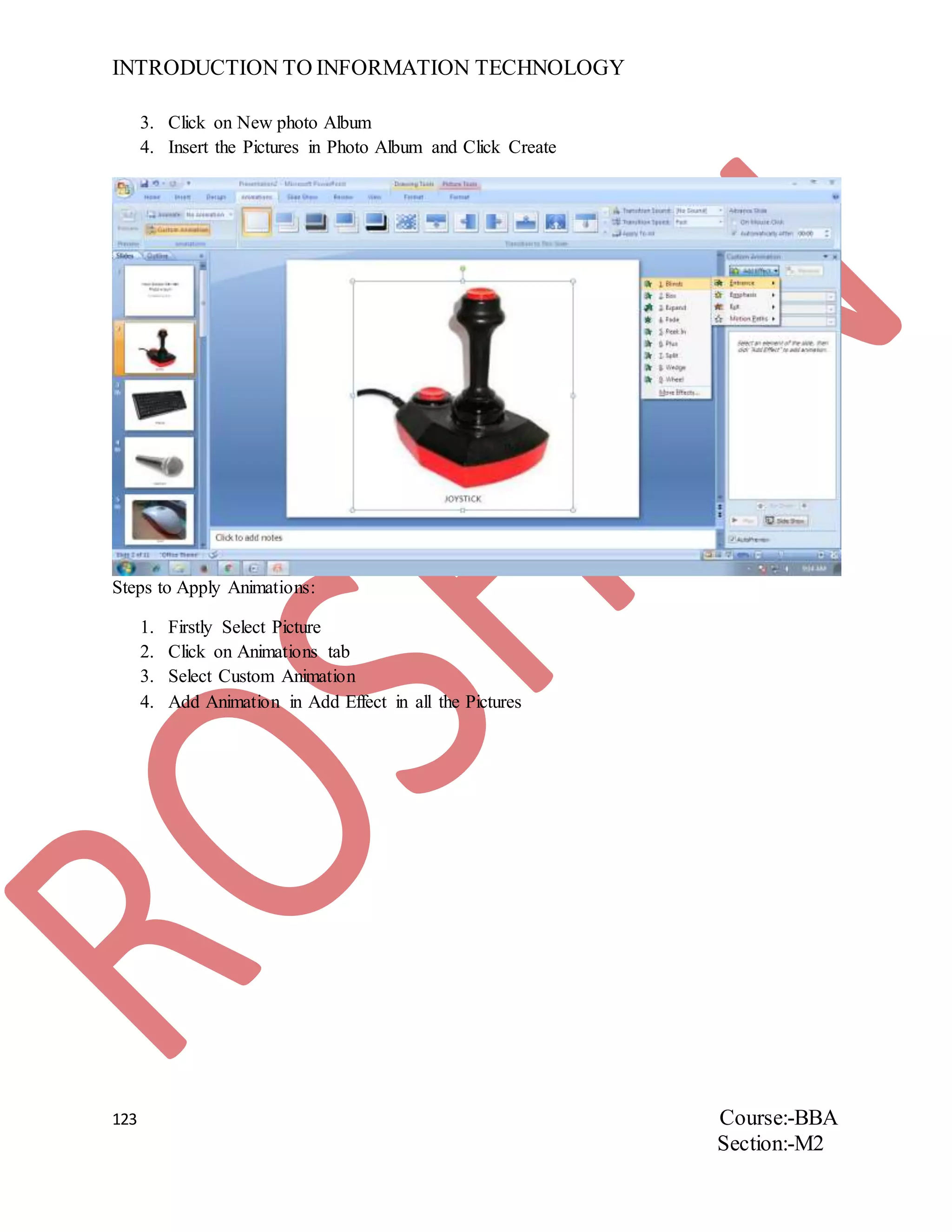
Steps to Apply Animations:
1. Firstly Select Picture
2. Click on Animations tab
3. Select Custom Animation
4. Add Animation in Add Effect in all the Pictures
INTRODUCTION TO INFORMATION TECHNOLOGY
124 Course:-BBA
Section:-M2
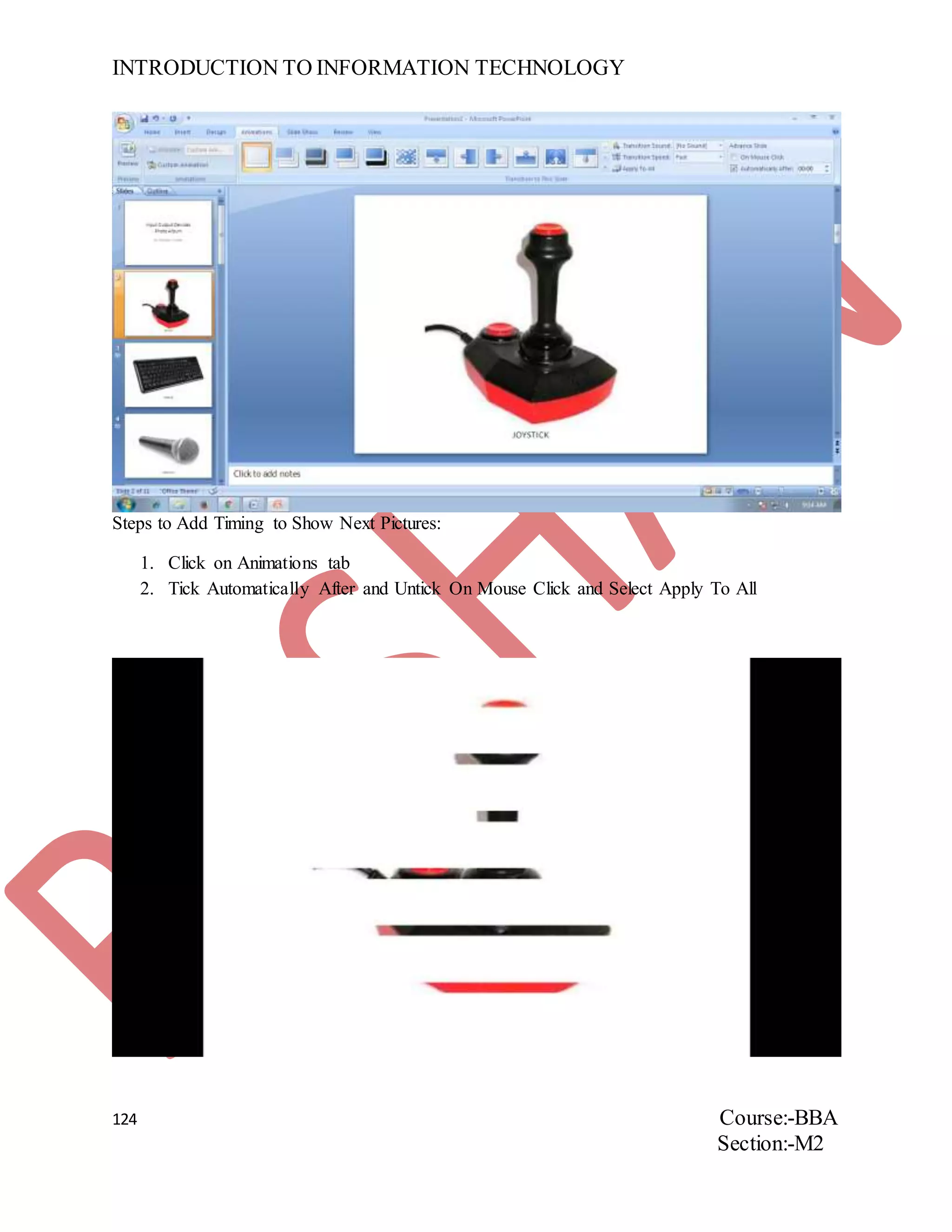
Steps to Add Timing to Show Next Pictures:
1. Click on Animations tab
2. Tick Automatically After and Untick On Mouse Click and Select Apply To All
INTRODUCTION TO INFORMATION TECHNOLOGY
125 Course:-BBA
Section:-M2
INTRODUCTION TO INFORMATION TECHNOLOGY
126 Course:-BBA
Section:-M2
Take the Screen Shot in Between the transactions
INTRODUCTION TO INFORMATION TECHNOLOGY
127 Course:-BBA
Section:-M2
ASSIGNMENT NUMBER36
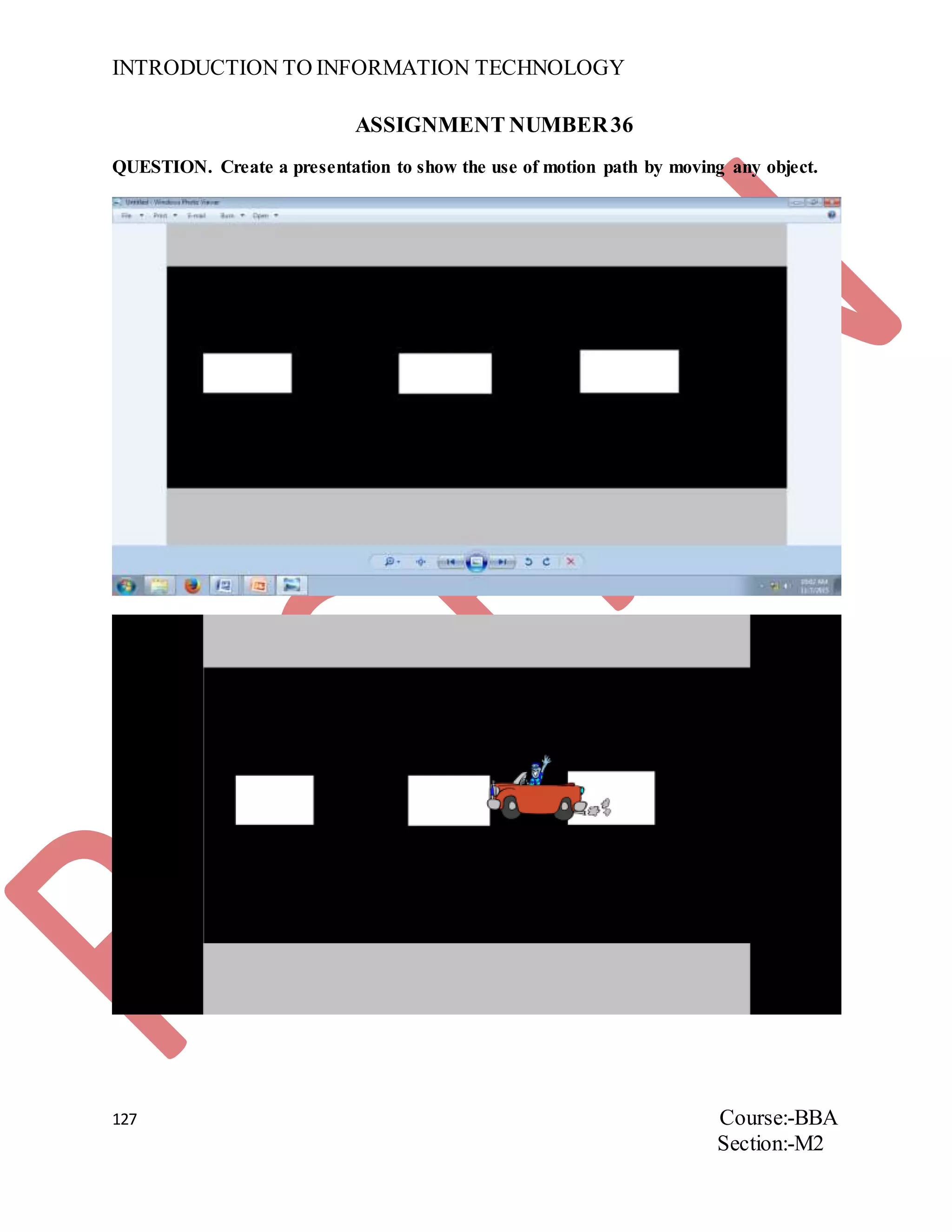
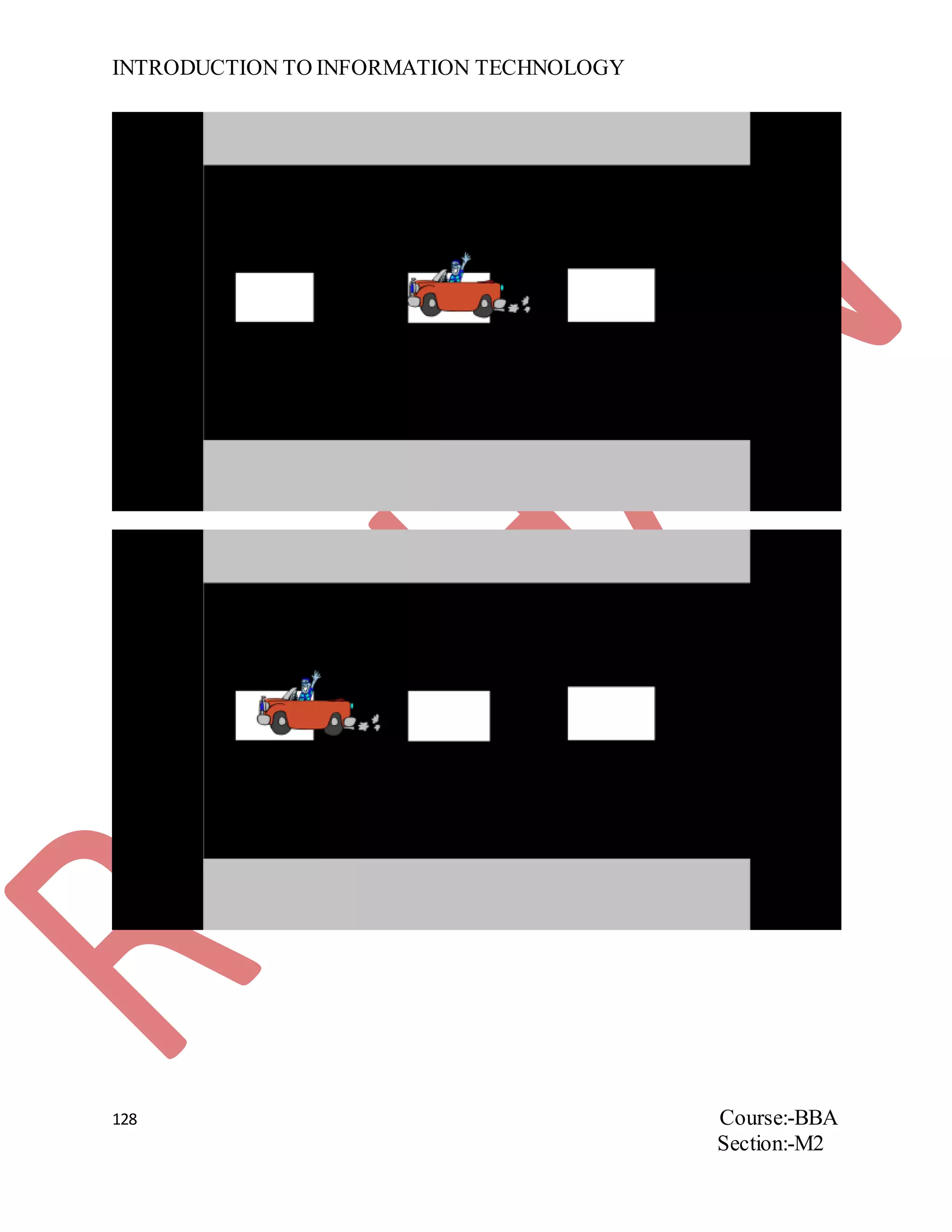
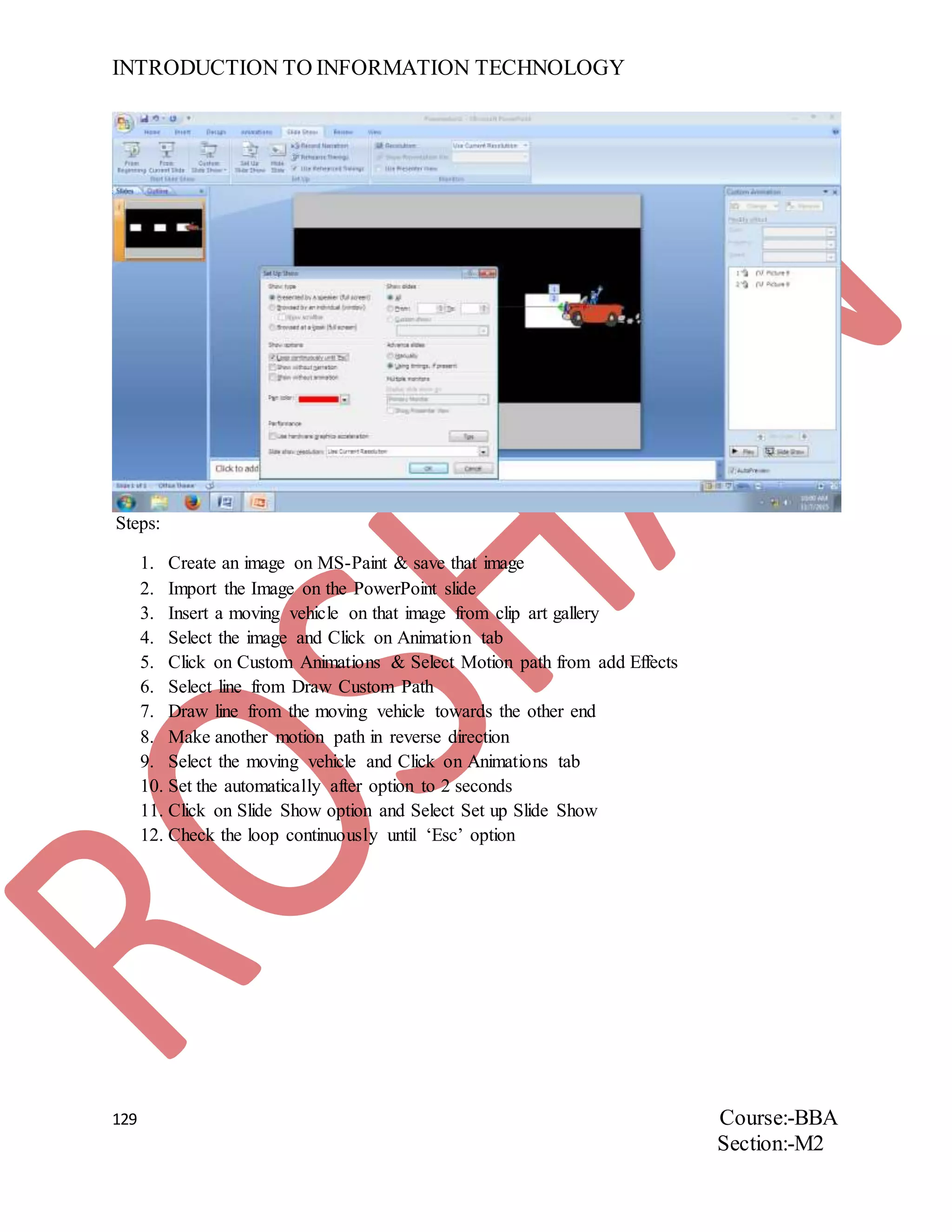
QUESTION. Create a presentation to show the use of motion path by moving any object.
INTRODUCTION TO INFORMATION TECHNOLOGY
128 Course:-BBA
Section:-M2
INTRODUCTION TO INFORMATION TECHNOLOGY
129 Course:-BBA
Section:-M2
Steps:
1. Create an image on MS-Paint & save that image
2. Import the Image on the PowerPoint slide
3. Insert a moving vehicle on that image from clip art gallery
4. Select the image and Click on Animation tab
5. Click on Custom Animations & Select Motion path from add Effects
6. Select line from Draw Custom Path
7. Draw line from the moving vehicle towards the other end
8. Make another motion path in reverse direction
9. Select the moving vehicle and Click on Animations tab
10. Set the automatically after option to 2 seconds
11. Click on Slide Show option and Select Set up Slide Show
12. Check the loop continuously until ‘Esc’ option

BBA I Semester IT All assignments

  • 1.
    INTRODUCTION TO INFORMATIONTECHNOLOGY 1 Course:-BBA Section:-M2 ASSIGNMENT NUMBER 1 QUESTION. Create a document containing text that should be properly aligned, use the replace all option in find and replace to replace each instance of some word. Save and protect your document.
  • 2.
    INTRODUCTION TO INFORMATIONTECHNOLOGY 2 Course:-BBA Section:-M2 Steps to Replace: 1. Select the Replace option from the find and Replace option tool box 2. Right the word you want to replace and right its replacement 3. By clicking Replace all the required word will be replaced Steps to Save: 1. By pressing Ctrl+S→Save the document 2. By creating a folder in D drive Save the document in folder 3. Your document gets Save
  • 3.
    INTRODUCTION TO INFORMATIONTECHNOLOGY 3 Course:-BBA Section:-M2 Steps to Protect: 1. Click on Office button 2. Select Save As 3. Select General option from tool Steps to Protect the document: 1. Click on Save
  • 4.
    INTRODUCTION TO INFORMATIONTECHNOLOGY 4 Course:-BBA Section:-M2 2. Select Tools option in Save As 3. In Tools Select General Options 4. Write the Password
  • 5.
    INTRODUCTION TO INFORMATIONTECHNOLOGY 5 Course:-BBA Section:-M2 ASSIGNMENT NUMBER 2 QUESTION. List down different components of computer along with their functionally and sort its sequence, apply atleast 5 different styles. Also protect this document.
  • 6.
    INTRODUCTION TO INFORMATIONTECHNOLOGY 6 Course:-BBA Section:-M2 Steps to Sort: 1. Select the Five different styles 2. Select the AZ option from the Home tab 3. Sort the text in any order by clicking OK
  • 7.
    INTRODUCTION TO INFORMATIONTECHNOLOGY 7 Course:-BBA Section:-M2 Steps to Protect: 1. Click on Office button 2. Select Save As 3. Select General option from Tools 4. Write Password to protect the document 5. Re-enter the Password
  • 8.
    INTRODUCTION TO INFORMATIONTECHNOLOGY 8 Course:-BBA Section:-M2 ASSIGNMENT NUMBER 3 QUESTION. Create a document containing computer basics including definition, components, advantages and disadvantages using Header, Footer and Indentation.
  • 9.
    INTRODUCTION TO INFORMATIONTECHNOLOGY 9 Course:-BBA Section:-M2 Steps to Insert Header: 1. Click on Insert tab 2. Click on Header option from the Header and Footer 3. Type the text which you want to appear as Header Steps to Insert Footer: 1. Click on Insert tab 2. Click on Header option from the Header and Footer 3. Type the text which you want to appear as Footer
  • 10.
    INTRODUCTION TO INFORMATIONTECHNOLOGY 10 Course:-BBA Section:-M2 Steps to Perform Indentation: 1. Select the text you want to Indent 2. Click on Increase/Decrease Indentation from the Home tab
  • 11.
    INTRODUCTION TO INFORMATIONTECHNOLOGY 11 Course:-BBA Section:-M2 ASSIGNGMET NUMBER 4 QUESTION. Create an Invitation Card for the Fresher’s Party using the Clip art Facility of MS-WORD. Steps to Create an Invitation Card for Fresher’s Party using Clip art Facility of MS-Word: 1. Write the Invitation Text in Different Styles 2. Click Design tab 3. Select Page Colour option and Select Colour 4. Select Watermark option and Select Custom Watermark 5. Then Select Picture Watermark and Select a Picture 6. Now Click on Cover Page and Select Sideline Type
  • 12.
    INTRODUCTION TO INFORMATIONTECHNOLOGY 12 Course:-BBA Section:-M2 ASSIGNMENT NUMBER 5 QUESTION. Create the Block Diagram of computer using the Drawing Facility. Steps to Create Block Diagram: 1. Take the Drawing Canvas 2. Choose the Desired Shapes from the Illustration option in the Insert tab
  • 13.
    INTRODUCTION TO INFORMATIONTECHNOLOGY 13 Course:-BBA Section:-M2 ASSIGNMENT NUMBER 6 QUESTION. Insert a 7-Column, 6-Row Table to Create a Calendar for the current month  Enter the names of the days of the week in the first row of the table.  Centre the day names horizontally and vertically.  Change the font and the font size as deserved.  Insert a row at the top of the table.  Merge the cells in the row and enter the current month and year using a large font size.  Shade the row  Enter and right-align the dates for the month in the appropriate cells of the table.  Change the Outside border to a more Decorative border. Identity two important dates in the calendar and shade them. Steps to Create a Calendar: 1. Click on Insert option and Select Table 2. Make a 7*6 Table 3. Write the Names of the days of the week in the First Row of Table 4. Select the Names and Right Click then Select Cell Alignment option and choose the Center Alignment 5. Change the Font Size and Style of the days of the week 6. Select the First Row and Right Click then choose Insert Row above option 7. Select the First Row and right Click to Choose Merge Cell option
  • 14.
    INTRODUCTION TO INFORMATIONTECHNOLOGY 14 Course:-BBA Section:-M2 8. Write the Name of the month in the First Row 9. Click on Table tools and Shade the Table as desired 10. Click on Table tools to give attractive border 11. Choose any of the Table styles to make it attractive 12. Highlight any two dates on the calendar
  • 15.
    INTRODUCTION TO INFORMATIONTECHNOLOGY 15 Course:-BBA Section:-M2 ASSIGNMENT NUMBER 7 QUESTION. Create a Table as follows:-  Find Total cost using Product Function  Calculate Total cost of all the Products  Count the Number of items by applying function on PID (Product ID)  Find the Minimum per unit  Find the Minimum no. of units S No. Product ID Product Name Price per unit No. of units Total Cost 1 101 Shoes 100 10 1000 2 102 Bag 80 30 2400 3 103 Pencil 5 20 100 4 104 Register 30 50 1500 5 105 Pen 10 40 400 5 5 50 5400 Steps for Multiplication: 1. Click on the Cell 2. Go to Layout tab 3. Click on Formula 4. Select Product from Paste function 5. Write =Product(left) Steps for Finding Sum: 1. Click on the Cell 2. Go to Layout tab 3. Click on Formula 4. Select Sum from Paste function 5. Write =Sum(Above) Steps for Counting No. of Product: 1. Click on the Cell 2. Go to Layout tab 3. Click on Formula 4. Select Count from paste function 5. Write =Count(Above)
  • 16.
    INTRODUCTION TO INFORMATIONTECHNOLOGY 16 Course:-BBA Section:-M2 Steps for Finding Minimum Price per Unit: 1. Click on the Cell 2. Go to Layout tab 3. Click on Formula 4. Select Min from Paste function 5. Write =Min(Above) Steps for Finding Maximum no. of Units: 1. Click on the Cell 2. Go to Layout tab 3. Click on Formula 4. Select Min from Paste function 5. Write =Max(Above) ASSIGNMENT NUMBER 8
  • 17.
    INTRODUCTION TO INFORMATIONTECHNOLOGY 17 Course:-BBA Section:-M2 QUESTION. Create a 5 Page document and Insert Hyperlinks & Bookmarks. Steps to Insert Hyperlink: 1. Select the Text in which you want to Insert Hyperlink 2. Click on Insert tab 3. Select Hyperlink option
  • 18.
    INTRODUCTION TO INFORMATIONTECHNOLOGY 18 Course:-BBA Section:-M2 4. Then Select Place in this Document 5. Then Select a heading you want to make its Hyperlink Steps to Insert Bookmark: 1. Place the Curser anywhere in the Document 2. Click on Insert tab 3. Select Bookmarks option 4. Write anything and Click Add ASSIGNMENT NUMBER 9
  • 19.
    INTRODUCTION TO INFORMATIONTECHNOLOGY 19 Course:-BBA Section:-M2 QUESTION. Write 10 Mathematical Equations. Steps to write 10 Mathematical Equations: 1. Click on the Insert tab 2. Select Equation 3. Click on Insert New Equation ASSIGNMENT NUMBER 10
  • 20.
    INTRODUCTION TO INFORMATIONTECHNOLOGY 20 Course:-BBA Section:-M2 QUESTION. Create the Resume using the Resume Template Facility and write down the steps for the same. Steps to Create Resume: 1. Click on Office button and Select New option 2. Select Origin Resume template from the Installed templates 3. Click on Create button 4. Fill your details ASSIGNMENT NUMBER 11 QUESTION. Make a Table of Contents of a 5 Page document.
  • 21.
    INTRODUCTION TO INFORMATIONTECHNOLOGY 21 Course:-BBA Section:-M2 Steps to Create Table of Contents: 1. Click on References tab 2. Select on Table of Contents 3. Click on Automatic Table 1 ASSIGNMENT NUMBER 12 QUESTION. Send Birthday Party Invitation to 5 different people using Mail Merge Facility.
  • 22.
    INTRODUCTION TO INFORMATIONTECHNOLOGY 22 Course:-BBA Section:-M2
  • 23.
    INTRODUCTION TO INFORMATIONTECHNOLOGY 23 Course:-BBA Section:-M2
  • 24.
    INTRODUCTION TO INFORMATIONTECHNOLOGY 24 Course:-BBA Section:-M2
  • 25.
    INTRODUCTION TO INFORMATIONTECHNOLOGY 25 Course:-BBA Section:-M2 Steps to Send Birthday party Invitation to 5 people using Mail Merge: 1. Click the Mailings tab 2. Select the Start Mail Merge Option 3. Choose Step-by-Step Mail Merge Wizard 4. Select Letters document type and Click on Next in Step 1 5. Then select use the current document and Click on Next in Step 2
  • 26.
    INTRODUCTION TO INFORMATIONTECHNOLOGY 26 Course:-BBA Section:-M2 6. Then select Type a new list and create a new list them Click on Next in Step 3 7. Then select Greetings line to insert greetings then after inserting Click on Next in Step 4 8. Then select Next in Step 5 9. Then select Print in Step 6
  • 27.
    INTRODUCTION TO INFORMATIONTECHNOLOGY 27 Course:-BBA Section:-M2 ASSIGNMENT NUMBER 13 QUESTION. Count the no. of pages, words, spaces etc. using Word Count Facility. Steps to Count the no. of pages, words, spaces etc.: 1. Click the Review tab 2. Select the Word Count
  • 28.
    INTRODUCTION TO INFORMATIONTECHNOLOGY 28 Course:-BBA Section:-M2 ASSIGNMENT NUMBER 14 QUESTION. Create a Macro in MS-Word.
  • 29.
    INTRODUCTION TO INFORMATIONTECHNOLOGY 29 Course:-BBA Section:-M2 Steps to Create a Macro in MS-Word: 1. Click on View tab and Select Record Macro in Macro option 2. Click on the Keyboard option & Assign a Shortcut Key 3. Write down a Paragraph 4. Click on Stop Recording 5. Use the Shortcut Key which you have assigned for Macro
  • 30.
    INTRODUCTION TO INFORMATIONTECHNOLOGY 30 Course:-BBA Section:-M2 ASSIGNMENT NUMBER 15 QUESTION. Implement Spelling and Grammar facility in MS-Word. Steps to Implement Spelling and Grammar: 1. Write a word which is not in Dictionary or whose Spelling is wrong 2. Click on Review tab and Select Spelling and Grammar
  • 31.
    INTRODUCTION TO INFORMATIONTECHNOLOGY 31 Course:-BBA Section:-M2 3. Click on Add to Dictionary button and Click on OK 4. Your word is save in Dictionary
  • 32.
    INTRODUCTION TO INFORMATIONTECHNOLOGY 32 Course:-BBA Section:-M2 ASSIGNMENT NUMBER16 QUESTION. What is Computer? List Advantages and Disadvantages (2 points each).  Bullets on Advantages  Numberings on Disadvantages  Shade the Definition of Computer and Highlight the Word Computer  Format the Definition to Cambria Font Style with Size 14  Apply Format Painter on Advantage to make it same as Definition  Clear the formatting of Definition  Increase the space between lines and make it 1.5  Increase the space between characters  Strike through first ad vantage  Change the case of  heading of Definition of Computer to uppercase  heading of Advantages to lowercase  heading of Definition of Computer to sentence case  heading of Advantages to capitalize each word  Double underline all the Headings  Display hidden Characters Steps to Insert Bullets: 1. Select the Text 2. Click on Home tab
  • 33.
    INTRODUCTION TO INFORMATIONTECHNOLOGY 33 Course:-BBA Section:-M2 3. Select Bullets Option Steps to Insert Numberings: 1. Select the Text 2. Click on Home tab 3. Select Numberings option
  • 34.
    INTRODUCTION TO INFORMATIONTECHNOLOGY 34 Course:-BBA Section:-M2 Steps to Shade the definition of Computer and highlight the Word Computer: 1. Select the Definition of Computer 2. Click on Home tab 3. Select Shading option 4. Then Select the Word Computer 5. Click on Home tab 6. Select Text Highlight Colour
  • 35.
    INTRODUCTION TO INFORMATIONTECHNOLOGY 35 Course:-BBA Section:-M2 Steps to Format Definition in Cambria Font Style with Size 14: 1. Select the Definition 2. Click on Home tab 3. Select Font and Find & Select Cambria Steps to Apply Format Painter on Advantage and make it same as Definition:
  • 36.
    INTRODUCTION TO INFORMATIONTECHNOLOGY 36 Course:-BBA Section:-M2 1. Select Definition 2. Click on Home tab 3. Select Format Painter 4. Then Select Points of Advantages Steps to Clear all Formatting in Definition: 1. Select Definition 2. Click on Home tab 3. Select Clear All Formatting
  • 37.
    INTRODUCTION TO INFORMATIONTECHNOLOGY 37 Course:-BBA Section:-M2 Steps to Increase Space between lines to 1.5: 1. Click on Home tab 2. Select Line and Paragraph Spacing 3. Then Select 1.5 Steps to Strikethrough: 1. Select the Text
  • 38.
    INTRODUCTION TO INFORMATIONTECHNOLOGY 38 Course:-BBA Section:-M2 2. Click on Home tab 3. Select Strikethrough option
  • 39.
    INTRODUCTION TO INFORMATIONTECHNOLOGY 39 Course:-BBA Section:-M2 Steps to Change the case of-  heading of Definition to Computer in Uppercase: 1. Select the heading of Definition of Computer 2. Click on Home tab 3. Select Change Case option 4. Then Select Uppercase
  • 40.
    INTRODUCTION TO INFORMATIONTECHNOLOGY 40 Course:-BBA Section:-M2  heading of Advantages in Lowercase: 1. Select the heading of Advantages 2. Click on Home tab 3. Select Change Case option 4. Then Select Lowercase  heading of Definition of Computers in Sentence Case: 1. Select the heading of Definition of Computer 2. Click on Home tab 3. Select Change Case option 4. Then Select Sentence Case  heading of Advantages in Capitalize Each Word: 1. Select the heading of Advantages 2. Click on Home tab 3. Select Change Case option 4. Then Select Capitalize Each Word Steps to Double underline all the Headings: 1. Select all the Headings 2. Click on Home tab 3. Select Underline option 4. Then Select Double underline
  • 41.
    INTRODUCTION TO INFORMATIONTECHNOLOGY 41 Course:-BBA Section:-M2 Step to Display Hidden items: 1. Click on Home Tab 2. Select Show/Hide option
  • 42.
    INTRODUCTION TO INFORMATIONTECHNOLOGY 42 Course:-BBA Section:-M2 ASSIGNMENT NUMBER17 QUESTION. Designa page for IINTM and apply the following:-  Designa Cover page for IINTM  Insert Page Break after vision  Drop cap all explanation  Insert Date and Time in starting  Set Margins to 1.25(all sides)  Arrange Document in both orientations  Provide courses in 2 columns  Insert line number  Insert a footnote for IINTM  Insert end node for address Steps to Design a Cover page for IINTM: 1. Click the Insert tab 2. Then go to Cover page option 3. Select Sideline Cover type 4. Then write IINTM in place Document Title and Name in place of Student name and delete all other text in the page
  • 43.
    INTRODUCTION TO INFORMATIONTECHNOLOGY 43 Course:-BBA Section:-M2 Steps to Insert Page Break after Vision: 1. Place the curser after Vision explanation 2. Click on Insert tab 3. Select the Page Break option Steps to Drop cap: 1. Select the explanation of about the institute
  • 44.
    INTRODUCTION TO INFORMATIONTECHNOLOGY 44 Course:-BBA Section:-M2 2. Click on Insert tab 3. Select Drop cap option 4. Click on Dropped Steps to Insert Date & Time in starting: 1. Place the curser at the starting of document 2. Click on Insert tab 3. Select Date & Time Option 4. Then Select Date format and Click on OK 5. Again Select Date & Time 6. Now Select Time format and Click on OK
  • 45.
    INTRODUCTION TO INFORMATIONTECHNOLOGY 45 Course:-BBA Section:-M2 Steps to set Margins to 1.25 cm: 1. Click on Insert tab 2. Select on Margins option 3. Then Select Custom Margins 4. Write 1.25 cm in front of Top, Bottom, Right and Left option in Margins and Click OK
  • 46.
    INTRODUCTION TO INFORMATIONTECHNOLOGY 46 Course:-BBA Section:-M2 Steps to Arrange document in both Orientation: 1. Click on Page Layout tab 2. Select the Orientation option 3. First Select Portrait View 4. Then Select Landscape View
  • 47.
    INTRODUCTION TO INFORMATIONTECHNOLOGY 47 Course:-BBA Section:-M2 Steps to Provide Courses in 2 Columns: 1. Select all the Courses 2. Click on Page Layout tab 3. Select the Columns option 4. Then Select the Two Columns options
  • 48.
    INTRODUCTION TO INFORMATIONTECHNOLOGY 48 Course:-BBA Section:-M2 Steps to Insert Line Number: 1. Click on Page Layout tab 2. Select Line Numbers option 3. Then Select Continuous option
  • 49.
    INTRODUCTION TO INFORMATIONTECHNOLOGY 49 Course:-BBA Section:-M2 Steps to Insert Footnote for IINTM: 1. Select IINTM in the Cover Page 2. Click on References tab 3. Select Insert Footnote option 4. Write the text for IINTM
  • 50.
    INTRODUCTION TO INFORMATIONTECHNOLOGY 50 Course:-BBA Section:-M2 Steps to Insert Endnote for Address: 1. Select the text-ADDRESS 2. Click on References tab 3. Select Insert Endnote option 4. Write the text for Address
  • 51.
    INTRODUCTION TO INFORMATIONTECHNOLOGY 51 Course:-BBA Section:-M2 ASSIGNMENT NUMBER18 QUESTION. Perform the following:-  Find the meaning of the word ‘Computer’ in MS-Word dictionary  Find the synonym for ‘Organization’  Translate ‘Organization’ to Hindi  Add comment to the word ‘Organization’  Implement track changes in B’day Party Invitation  Show the changes done above in balloons & inline  Show the use of arrange all by opening multiple windows  Split your current working window in two parts  Switch to another document using switch window Steps to find the meaning of Computer in MS-Word Dictionary: 1. Click on Review tab 2. Select Research option 3. Write Computer in Search for and Click the Green Arrow button
  • 52.
    INTRODUCTION TO INFORMATIONTECHNOLOGY 52 Course:-BBA Section:-M2 Steps to Find Synonym of Organization: 1. Click on Review tab 2. Select Thesaurus option 3. Write Organization in Search for and Click on Green Arrow button
  • 53.
    INTRODUCTION TO INFORMATIONTECHNOLOGY 53 Course:-BBA Section:-M2 Steps to Translate Organization in Hindi: 1. Click on Review tab 2. Select Translate option 3. Write Organization in Search for and Choose Hindi Language in which we want to translate and Click Green button Steps to Insert Comment to Organization: 1. Write Organization in a document and Select it 2. Click on Review tab 3. Select New Comment option
  • 54.
    INTRODUCTION TO INFORMATIONTECHNOLOGY 54 Course:-BBA Section:-M2 Steps to Implement Track Changes in a B’day Invitation: 1. Write an Invitation 2. Click on Review tab 3. Select Track Changes option 4. Then Press Backspace button to all the word you want to delete and Write the New Word
  • 55.
    INTRODUCTION TO INFORMATIONTECHNOLOGY 55 Course:-BBA Section:-M2 Steps to change above in Balloons and Inline: 1. Click on Review tab 2. Select Balloons option 3. Then Select Show-Revision in Balloons Steps to Use Arrange all: 1. Open few doc files 2. Click on View tab 3. Select Arrange All option
  • 56.
    INTRODUCTION TO INFORMATIONTECHNOLOGY 56 Course:-BBA Section:-M2 Steps to Split Doc in two parts: 1. Click on View tab 2. Select Split option 3. Place in where you want to Divide Doc in two parts Steps to Switch Document using Switch Window:
  • 57.
    INTRODUCTION TO INFORMATIONTECHNOLOGY 57 Course:-BBA Section:-M2 1. Click on View tab 2. Select Switch Window option 3. Select the Document you want to Switch in
  • 58.
    INTRODUCTION TO INFORMATIONTECHNOLOGY 58 Course:-BBA Section:-M2 ASSIGNMENT NUMBER19 QUESTION. Create a spreadsheet (Excel) of the purchases made by a customer in a super mart having the following fields:-  S.No.  Product ID  Product Type (Food, Clothes, Toys, etc.)  Quantity  Price per Unit NOTE: All the fields should be bold and underlined. Also insert borders to the spreadsheet. Also find the Total bill using the Auto Sum facility of MS-Excel. Steps to Create a Spreadsheet of the purchases with all the fields should be bold and underlined and Insert borders: 1. Write all the headings in different rows of First Row 2. Then write all the values 3. Select all the Fields then Click on Home tab 4. Select bold and underline option 5. Then Select whole table and Click on Home tab 6. Select Border option and Select All Borders Type
  • 59.
    INTRODUCTION TO INFORMATIONTECHNOLOGY 59 Course:-BBA Section:-M2 Steps to find the Total Bill using the Auto Sum facility of MS-Excel: 1. Write Cost in F1 Cell 2. Select F2 Cell and Click on Formulas tab 3. Then Select Auto Sum and Select PRODUCT and Click OK 4. This is done in F2, F3, F4, F5 and F6 5. Then in F7 Select Auto Sum and Select SUM and Click OK
  • 60.
    INTRODUCTION TO INFORMATIONTECHNOLOGY 60 Course:-BBA Section:-M2 ASSIGNMENTNUMBER 20 QUESTION. Create a student performance report using Condition formatting in MS-Excel the following specifications:- 1. Greater than 2. Less than 3. Equal to 4. Between 5. Data bar 6. Colour scales Steps to format Greater than in MS-Excel: 1. Select all the values in Marks1, 2 &3 2. Click on Home tab 3. Select Conditional Formatting option 4. Then Select Greater Than option 5. Now write a number(like-75) and Select a Colour(like-Light Red Fill with Dark Red Text)
  • 61.
    INTRODUCTION TO INFORMATIONTECHNOLOGY 61 Course:-BBA Section:-M2 Steps to format Less than in MS-Excel: 1. Select all the values in Marks1, 2 &3 2. Click on Home tab 3. Select Conditional Formatting option 4. Then Select Less Than option 5. Now write a number(like-55) and Select a Colour(like-Custom Format)
  • 62.
    INTRODUCTION TO INFORMATIONTECHNOLOGY 62 Course:-BBA Section:-M2 Steps to format Equal to in MS-Excel: 1. Select all the values in Marks1, 2 &3 2. Click on Home tab 3. Select Conditional Formatting option 4. Then Select Equal to option 5. Now write a number(like-65) and Select a Colour(like-Yellow Fill with Dark Yellow Text) Steps to format Between in MS-Excel: 1. Select all the values in Marks1, 2 &3 2. Click on Home tab 3. Select Conditional Formatting option 4. Then Select Between option 5. Now write a number(like-55 & 75) and Select a Colour
  • 63.
    INTRODUCTION TO INFORMATIONTECHNOLOGY 63 Course:-BBA Section:-M2 Steps to format Data Bars in MS-Excel: 1. Select all the values in Marks1, 2 &3 2. Click on Home tab 3. Select Data Bars option 4. Then Select One of option
  • 64.
    INTRODUCTION TO INFORMATIONTECHNOLOGY 64 Course:-BBA Section:-M2 Steps to format Colour Scales in MS-Excel: 1. Select all the values in Marks1, 2 &3 2. Click on Home tab 3. Select Colour Scales option 4. Then Select More Rules option 5. Now write 3-Colour Style Instead of 2-Colour Style in Format Style and Click OK
  • 65.
    INTRODUCTION TO INFORMATIONTECHNOLOGY 65 Course:-BBA Section:-M2 ASSIGNMENTNUMBER 21 QUESTION. Create a record of ten students consisting of S.No, Roll No, Name, Course and Marks in two subjects (M1, M2), Total and Percentage and perform the following operations:-  Sort the records in ascending order of marks M1  Sort the records according to descending order of names  Round off percentage to one decimal place  Convert the percentage in text  Apply filter on course field
  • 66.
    INTRODUCTION TO INFORMATIONTECHNOLOGY 66 Course:-BBA Section:-M2 Steps to Sort the records in ascending order of Marks 1: 1. Select all the values of Marks 1 2. Click on Home tab 3. Select Sort & Filter option 4. Click on Sort Smallest to Largest and Select- Continue with current selection and Click OK
  • 67.
    INTRODUCTION TO INFORMATIONTECHNOLOGY 67 Course:-BBA Section:-M2 Steps to Sort the records according to decreasing order of Names: 1. Select all the Names 2. Click on Home tab 3. Select Sort & Filter option 4. Click on Sort A to Z and Select- Continue with current selection and Click OK
  • 68.
    INTRODUCTION TO INFORMATIONTECHNOLOGY 68 Course:-BBA Section:-M2 Steps to Round off Percentage to one unit: 1. Select all the values of Percentage 2. Click on Home tab 3. Select Sort & Filter option 4. First Click on Increase Decimal Then Click on Decrease Decimal and Click OK
  • 69.
    INTRODUCTION TO INFORMATIONTECHNOLOGY 69 Course:-BBA Section:-M2 Steps to Convert the Percentage in Text: 1. Select all the values of Percentage 2. Click on Home tab 3. Select Sort & Filter option 4. Click on Number Format 5. Select More Number Format
  • 70.
    INTRODUCTION TO INFORMATIONTECHNOLOGY 70 Course:-BBA Section:-M2 6. Now Select Text and Click OK Steps to Apply Filter on Course Field: 1. Select whole D-Column 2. Click on Home tab 3. Select Sort & Filter option
  • 71.
    INTRODUCTION TO INFORMATIONTECHNOLOGY 71 Course:-BBA Section:-M2 4. Click on Filter 5. Now Click on Arrow in Course Field and Unselect BBA or BCA and Click OK
  • 72.
    INTRODUCTION TO INFORMATIONTECHNOLOGY 72 Course:-BBA Section:-M2 ASSIGNMENT NUMBER 22 QUESTION. Create a spreadsheet for student performance report of two students containing date of exam, day of exam, subject and marks. Subject and Marks  Fill Date and Day using Fill series facility Also create the column chart for above and apply:-  Chart Title  Axis  Fill Colour  Border Colour  Shape Effects  Size
  • 73.
    INTRODUCTION TO INFORMATIONTECHNOLOGY 73 Course:-BBA Section:-M2 Steps to Fill Date using Fill Series facility: 1. Write a Date and Select it including next 5 cell 2. Click on Home tab and Click on Fill option 3. Select Series 4. Then Select Date in Type and Click OK
  • 74.
    INTRODUCTION TO INFORMATIONTECHNOLOGY 74 Course:-BBA Section:-M2 Steps to Fill Day using Fill Series facility: 1. Write a Day and Select it including next 5 cell 2. Click on Home tab and Click on Fill option 3. Select Series 4. Then Select Auto Fill in Type and Click OK
  • 75.
    INTRODUCTION TO INFORMATIONTECHNOLOGY 75 Course:-BBA Section:-M2 Steps to Create Chart: 1. Select all the Subject and values of Marks along with their field 2. Click on Home tab 3. Select Insert Column Chart 4. Then Select Clustered Column Create the Column Chart 2 times with different Values
  • 76.
    INTRODUCTION TO INFORMATIONTECHNOLOGY 76 Course:-BBA Section:-M2 Steps to Chart Title: 1. Select the Chart 2. Click on Layout tab 3. Select Chart Title option 4. Now Select Above Chart 5. Now write a Heading for the Chart (DO THIS ON BOTH THE CHART)
  • 77.
    INTRODUCTION TO INFORMATIONTECHNOLOGY 77 Course:-BBA Section:-M2 Steps to Axis Title: 1. Select Chart 2. Click on Layout tab 3. Select Axis Title option 4. Now Select Title Below Axis option 5. Now write a Axis Title
  • 78.
    INTRODUCTION TO INFORMATIONTECHNOLOGY 78 Course:-BBA Section:-M2 (DO THIS ON BOTH THE CHART) Steps to Fill Colour: 1. Select Chart 2. Click on Format tab 3. Select Shape Fill option 4. Select any one (DO THIS ON BOTH THE CHART)
  • 79.
    INTRODUCTION TO INFORMATIONTECHNOLOGY 79 Course:-BBA Section:-M2 Steps to Border Fill: 1. Select Chart 2. Click on Format tab 3. Select Shape Outline option 4. Select any one (DO THIS ON BOTH THE CHART)
  • 80.
    INTRODUCTION TO INFORMATIONTECHNOLOGY 80 Course:-BBA Section:-M2 Steps to Shape Effects: 1. Select Chart 2. Click on Format tab 3. Select Shape Effect option 4. Select any one (DO THIS ON BOTH THE CHART)
  • 81.
    INTRODUCTION TO INFORMATIONTECHNOLOGY 81 Course:-BBA Section:-M2 Steps to Resize: 1. Select Chart 2. Click on Format tab 3. Select Shape Height/Wight
  • 82.
    INTRODUCTION TO INFORMATIONTECHNOLOGY 82 Course:-BBA Section:-M2 ASSIGNMENT NUMBER 23 QUESTION. Draw a Line Chart and Pie Chart for the sales report of the ABC Pvt. Ltd. Of 5 products for last 3 years in MS-Excel and explore the following properties.  Legend  Data Label  Axis  Gridlines Steps to Insert Line Chart: 1. Select the names of products and values of all 3 years 2. Click on Insert tab 3. Select Insert Line Chart and Select 4th type of Chart 4. Now Select Legend in Layout tab and Select Above Chart 5. Now Select Data Label and Select either Centre, Above, Below, Right or Left 6. Now in same tab Select Axis Title and Select 2nd option in both Horizontal and Vertical Axis Title and write Series in Vertical Axis and Product Name in Horizontal Axis 7. Now Select Gridlines in Layout tab and Select Minor in Vertical Gridlines
  • 83.
    INTRODUCTION TO INFORMATIONTECHNOLOGY 83 Course:-BBA Section:-M2 Steps to Insert Pie Chart: 1. Select the names of products and values of 2012, 2013 and 2014 one-by-one 2. Click on Insert tab 3. Select Insert Pie Chart and Select different types of Chart for all the years 4. Now in same tab Select Chart Title and Select Above Chart and write year of Sales 5. Now Select Data Label and Select either Centre, Above, Below, Right or Left
  • 84.
    INTRODUCTION TO INFORMATIONTECHNOLOGY 84 Course:-BBA Section:-M2 ASSIGNMENT NUMBER24 QUESTION. Create a Pivot Chart for the sales of Computer Hardware of KCL Pvt. Ltd for 3 years. Steps to Create Pivot Chart: 1. Select the Table
  • 85.
    INTRODUCTION TO INFORMATIONTECHNOLOGY 85 Course:-BBA Section:-M2 2. Click on Insert tab and Select Pivot Chart option 3. Drag State and Year in Legend 4. Drag Manufacturer and Product in Axis 5. Drag Quantity in Values
  • 86.
    INTRODUCTION TO INFORMATIONTECHNOLOGY 86 Course:-BBA Section:-M2 ASSIGNMENT NUMBER 25 QUESTION. Create a Bar Graph for 5 States for 3 Years depicting the Literacy Rate. For the Graph Created above perform the following:-  Switch Column  Change it to Column Chart  Add Title to the Chart  Add Horizontal& Vertical Axis Steps to Create a Bar Graph: 1. Click on Insert tab 2. Select Insert Bar Graph 3. Now Select First Graph Type
  • 87.
    INTRODUCTION TO INFORMATIONTECHNOLOGY 87 Course:-BBA Section:-M2 Steps to Switch Column: 1. Select the Graph 2. Click on Design tab 3. Select Switch Row/Column Steps to Change Graph to Column Chart: 1. Select the Graph
  • 88.
    INTRODUCTION TO INFORMATIONTECHNOLOGY 88 Course:-BBA Section:-M2 2. Click on Design tab 3. Select Change Chart Type 4. Now Select Column and in this First Chart 5. Then Click OK Steps to Add Title to the Chart: 1. Select the Chart 2. Click on Design tab 3. Select Chart Title 4. Now Select Centered Overlay
  • 89.
    INTRODUCTION TO INFORMATIONTECHNOLOGY 89 Course:-BBA Section:-M2 Steps to Add Horizontal & Vertical Axis: 1. Select the Chart 2. Click on Design tab 3. Select Axes 4. Then One-by-One Select Horizontal & Vertical Axes
  • 90.
    INTRODUCTION TO INFORMATIONTECHNOLOGY 90 Course:-BBA Section:-M2 ASSIGNMENT NUMBER26 QUESTION. Create a Student Grade (Roll No, Name, Percentage) Assign Grades (A(>90), B(>75), C(>50), Fail) using if condition.  Using the Conditional Formatting Fill Grade A as Pink, B as Blue, C as Yellow & D as Red  Split Roll No in 4 Parts (Roll No, Batch, Course, Year)  Split Name in 2 Parts (First Name & Last Name)  Remove Duplicate Course Steps to Fill Grade A as Pink, B as Blue, C as Yellow & D as Red: 1. Select all the values of Grade 2. Click on Home tab 3. Select Conditional Formatting 4. Then Select Highlight Cell Rules and in this Select Equal to 5. Then Write A, B, C & D one-by-one & Select Colour respectively
  • 91.
    INTRODUCTION TO INFORMATIONTECHNOLOGY 91 Course:-BBA Section:-M2 Steps to Split Roll No in 4 Parts: 1. Insert 3 Columns after First Column 2. Select all Roll No’s 3. Click on Data tab 4. Select Text to Columns 5. Select Fixed Width & Click Next
  • 92.
    INTRODUCTION TO INFORMATIONTECHNOLOGY 92 Course:-BBA Section:-M2 6. Place the arrow to Split in 4 Parts & Click Next 7. Now Finish Steps to Split Name in 2 Parts: 1. Insert 3 Columns after Name 2. Select all Name’s
  • 93.
    INTRODUCTION TO INFORMATIONTECHNOLOGY 93 Course:-BBA Section:-M2 3. Click on Data tab 4. Select Text to Columns 5. Select Fixed Width & Click Next 6. Place the arrow to Split in 2 Parts & Click Next 7. Now Finish Steps to Remove Duplicate Course: 1. Select all the Course 2. Click on Data tab 3. Select Remove Duplicates 4. Then Select Continue with the current selection 5. Now Click on Remove Duplicates & Then Click OK
  • 94.
    INTRODUCTION TO INFORMATIONTECHNOLOGY 94 Course:-BBA Section:-M2 ASSIGNMENT NUMBER 27 QUESTION. Create a record of Bank consisting of the following Columns:  Customer ID  Customer Name  Principle Deposited  Rate of Interest  Time Now for the above table:- i. Find The Interest earned by each Customer. Each Customer must earn minimum Interest of Rs5000 by changing the value of time period for which money must be deposited. ii. Change the minimum interest to Rs10000 by changing the value of Principle. iii. Apply Freeze Panes.
  • 95.
    INTRODUCTION TO INFORMATIONTECHNOLOGY 95 Course:-BBA Section:-M2 Steps to Change the Time Period for earning minimum Rs5000: 1. Select the Cell 2. Click on Data tab 3. Select What if Analysis 4. In this Select Goal Seek 5. Write 5000 in To Value 6. Now Select the Time Cell and Click OK
  • 96.
    INTRODUCTION TO INFORMATIONTECHNOLOGY 96 Course:-BBA Section:-M2 Steps to Change the Principle Value for earning minimum Rs10000: 1. Select the Cell 2. Click on Data tab 3. Select What if Analysis 4. In this Select Goal Seek 5. Write 10000 in To Value
  • 97.
    INTRODUCTION TO INFORMATIONTECHNOLOGY 97 Course:-BBA Section:-M2 6. Now Select the Principle Cell and Click OK Steps to apply Freeze Panes: 1. Click on View tab 2. Select Freeze Panes 3. Now Select Freeze Top Row
  • 98.
    INTRODUCTION TO INFORMATIONTECHNOLOGY 98 Course:-BBA Section:-M2 ASSIGNMENT NUMBER28 QUESTION. Create a Student Record with following entries:- Roll No., Name, DOB, Marks, Remarks (Good/Average/Below Average)  Insert a validation on Marks Field  Hide & Unhide Rows Also protect your Worksheet by:-  Allow users to Sort Cells  Don’t allow users to Delete Columns Steps to Insert a Validation on Marks field: 1. Select Marks Columns 2. Click on Data tab 3. Select Data Validation 4. Then again Select Data Validation 5. Select Whole Number in Allow 6. Write 10 in Min & 90 in Max 7. Now Select Error Alert 8. Write (Invalid Marks) in Title & (Enter Marks between 10 – 90) in Error Message 9. At last Click OK
  • 99.
    INTRODUCTION TO INFORMATIONTECHNOLOGY 99 Course:-BBA Section:-M2 Steps to Hide Row: 1. Right Click on a Row Title 2. Select Hide Steps to Unhide Row: 1. Select the Left & Right Row of Hidden Row
  • 100.
    INTRODUCTION TO INFORMATIONTECHNOLOGY 100 Course:-BBA Section:-M2 2. Right Click on Row Title 3. Select Unhide Steps to Protect Document: 1. Click on Review tab 2. Select Protect Sheet 3. Write a Password and Click OK 4. Rewrite Password and Click OK
  • 101.
    INTRODUCTION TO INFORMATIONTECHNOLOGY 101 Course:-BBA Section:-M2 Steps to Protect Document by Allowing Users to Sort Cells: 1. Click on Review tab 2. Select Protect Sheet 3. Tick Mark Sort 4. Write a Password and Click OK 5. Rewrite the Password and Click OK
  • 102.
    INTRODUCTION TO INFORMATIONTECHNOLOGY 102 Course:-BBA Section:-M2 Steps to Protect Document by Not Allowing Users to Delete Cells: 1. Click on Review tab 2. Select Protect Sheet 3. Untick Delete Columns 4. Write a Password and Click OK 5. Rewrite the Password and Click OK
  • 103.
    INTRODUCTION TO INFORMATIONTECHNOLOGY 103 Course:-BBA Section:-M2 ASSIGNMENT NUMBER29 1. Display current date and time 2. Display DOS version & C drive volume 3. Create a directory by your course name BBA 4. Create 2 directories in BBA i.e. Sem1 Sem2 5. Create 5 subject Directories in both Semesters 6. Create a file in IIT directory 7. Display the content of the file 8. Display complete tree of BBA
  • 104.
    INTRODUCTION TO INFORMATIONTECHNOLOGY 104 Course:-BBA Section:-M2 9. Remove Sem2 Directory 10. Display all the directories in C 11. Copy the file in IIT directory to FA directory 12. Rename the file in FA directory 13. Delete the file in IIT directory 14. Clear the Screen 15. Go to E drive
  • 105.
    INTRODUCTION TO INFORMATIONTECHNOLOGY 105 Course:-BBA Section:-M2 ASSIGNMENT NUMBER30 1. List all the directories with 6 characters 2. Go to the folder BBA and list all the files 3. Display all the word documents only 4. Find the files starting with D 5. Rename the text file to doc file
  • 106.
    INTRODUCTION TO INFORMATIONTECHNOLOGY 106 Course:-BBA Section:-M2 6. Delete all the doc files 7. Find the files having x at the end 8. Find the files having a at any location 9. Copy all the doc files in another folder 10. Display the predefined path
  • 107.
    INTRODUCTION TO INFORMATIONTECHNOLOGY 107 Course:-BBA Section:-M2 ASSIGNMENT NUMBER31 1. Display the contents of file using more command 2. Show the memory utilization 3. Copy all the contents of BBAmor to new folder 4. Move the word docx to BBAmor folder 5. Sort the file f1.txt in Ascending and Descending order
  • 108.
    INTRODUCTION TO INFORMATIONTECHNOLOGY 108 Course:-BBA Section:-M2 6. Find the word “m” in f1.txt
  • 109.
    INTRODUCTION TO INFORMATIONTECHNOLOGY 109 Course:-BBA Section:-M2 7. Compare the contents of files in BBAmor folder 8. Make the file hidden and then unhide the same 9. Create a Macro to display Directories
  • 110.
    INTRODUCTION TO INFORMATIONTECHNOLOGY 110 Course:-BBA Section:-M2 10. Display the already Created Macros 11. Open the file to Edit the contents 12. Exit MS DOS
  • 111.
    INTRODUCTION TO INFORMATIONTECHNOLOGY 111 Course:-BBA Section:-M2 ASSIGNMENT NUMBER32 QUESTION. Create a Presentation on Types of Memory and Apply the following:- 1. Insert a blank slide and draw memory classification using organization chart. 2. Compare RAM & ROM using comparison layout. 3. Insert hyperlinks on the types of memory that opens new slides for it. Steps to Insert New Slide: 1. Click on Home tab 2. Select New Slide 3. In this Select any of the Slide you want to
  • 112.
    INTRODUCTION TO INFORMATIONTECHNOLOGY 112 Course:-BBA Section:-M2 Steps to draw in Organizational Chart: 1. Create a Blank Slide 2. Click on Insert tab 3. Select Smart Art option 4. Click on Hierarchy and Select any of the Chart type in this and Click OK Steps to Make Comparison between RAM &ROM:
  • 113.
    INTRODUCTION TO INFORMATIONTECHNOLOGY 113 Course:-BBA Section:-M2 1. Click on Home tab 2. Select New Slide 3. In this Select Comparison Slide 4. Delete the First Box 5. Write about RAM in one side and about ROM in other side Steps to Insert Hyperlinks:
  • 114.
    INTRODUCTION TO INFORMATIONTECHNOLOGY 114 Course:-BBA Section:-M2 1. Select the Text 2. Click on Insert tab 3. Select Hyperlink option 4. In this Select Place in the Document 5. And Select the Slide in which you want to make Hyperlink of the Text and Click OK
  • 115.
    INTRODUCTION TO INFORMATIONTECHNOLOGY 115 Course:-BBA Section:-M2 ASSIGNMENT NUMBER33 QUESTION. Create a presentation on types of Operating Systems and apply the following:-  Apply any one theme  Apply the animation effects  Change transition speedto slow  Apply automatic time duration to all Slides Steps to Apply a theme: 1. Click on Design tab 2. Select any theme
  • 116.
    INTRODUCTION TO INFORMATIONTECHNOLOGY 116 Course:-BBA Section:-M2 Steps to Make Animation: 1. Click on Animation tab 2. Select any Designs 3. Click on Apply to all
  • 117.
    INTRODUCTION TO INFORMATIONTECHNOLOGY 117 Course:-BBA Section:-M2 Steps to Change transition Speed to Slow: 1. Click on Animation tab 2. Select Transition Speed 3. Change it to Slow 4. Click on Apply to all Steps to Apply Automatic Time duration to all Slides:
  • 118.
    INTRODUCTION TO INFORMATIONTECHNOLOGY 118 Course:-BBA Section:-M2 1. Click on Animation tab 2. Click on Automatically after and Set Time 3. Click on Apply to all
  • 119.
    INTRODUCTION TO INFORMATIONTECHNOLOGY 119 Course:-BBA Section:-M2 ASSIGNMENT NUMBER34 QUESTION. Create a Presentation on components of computer systemand perform the following:-  Apply Rehearse Timing  Apply different slide show options  Protect the Presentation to restrict unauthorized access
  • 120.
    INTRODUCTION TO INFORMATIONTECHNOLOGY 120 Course:-BBA Section:-M2 Steps to Apply Rehearse Timing: 1. Click on Slide Show tab 2. Select Rehearse Timings 3. Set the timing in all the Slides and Click OK Steps to Apply Different Slide Show option:
  • 121.
    INTRODUCTION TO INFORMATIONTECHNOLOGY 121 Course:-BBA Section:-M2 1. Click on Slide Show tab 2. Select Custom Slide Shows 3. Click Custom Shows 4. Click Next 5. Set the Places of the Slides and Click OK Steps to Protect Presentation: 1. Click on Office Button 2. Select Save As 3. Click on Tools 4. Select General options 5. Set Password and Click Save
  • 122.
    INTRODUCTION TO INFORMATIONTECHNOLOGY 122 Course:-BBA Section:-M2 ASSIGNMENT NUMBER 35 QUESTION. Create a photo album of Input & Output devices, also apply animations. Steps to create a Photo album: 1. Click on Insert tab 2. Select on Photo Album
  • 123.
    INTRODUCTION TO INFORMATIONTECHNOLOGY 123 Course:-BBA Section:-M2 3. Click on New photo Album 4. Insert the Pictures in Photo Album and Click Create Steps to Apply Animations: 1. Firstly Select Picture 2. Click on Animations tab 3. Select Custom Animation 4. Add Animation in Add Effect in all the Pictures
  • 124.
    INTRODUCTION TO INFORMATIONTECHNOLOGY 124 Course:-BBA Section:-M2 Steps to Add Timing to Show Next Pictures: 1. Click on Animations tab 2. Tick Automatically After and Untick On Mouse Click and Select Apply To All
  • 125.
    INTRODUCTION TO INFORMATIONTECHNOLOGY 125 Course:-BBA Section:-M2
  • 126.
    INTRODUCTION TO INFORMATIONTECHNOLOGY 126 Course:-BBA Section:-M2 Take the Screen Shot in Between the transactions
  • 127.
    INTRODUCTION TO INFORMATIONTECHNOLOGY 127 Course:-BBA Section:-M2 ASSIGNMENT NUMBER36 QUESTION. Create a presentation to show the use of motion path by moving any object.
  • 128.
    INTRODUCTION TO INFORMATIONTECHNOLOGY 128 Course:-BBA Section:-M2
  • 129.
    INTRODUCTION TO INFORMATIONTECHNOLOGY 129 Course:-BBA Section:-M2 Steps: 1. Create an image on MS-Paint & save that image 2. Import the Image on the PowerPoint slide 3. Insert a moving vehicle on that image from clip art gallery 4. Select the image and Click on Animation tab 5. Click on Custom Animations & Select Motion path from add Effects 6. Select line from Draw Custom Path 7. Draw line from the moving vehicle towards the other end 8. Make another motion path in reverse direction 9. Select the moving vehicle and Click on Animations tab 10. Set the automatically after option to 2 seconds 11. Click on Slide Show option and Select Set up Slide Show 12. Check the loop continuously until ‘Esc’ option