Empowerment Technologies
Senior High School Applied - Academic
Unit 4: Spreadsheet Skills
Lesson 1
Familiarizing with Spreadsheet
Application
ENGAGE
EXPLOR
EXPLAIN EXTEND
EVALUAT
What do you think is the
use of spreadsheets?
2
ENGAGE
EXPLOR
EXPLAIN EXTEND
EVALUAT
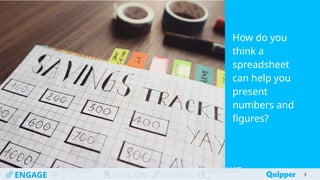
How do you
think a
spreadsheet
can help you
present
numbers and
figures?
3
Learning
Objectives
At the end of the
lesson, you should
be able to do the
following:
ENGAGE
EXPLOR
EXPLAIN EXTEND
EVALUAT 4
● Define basic terms related to
Excel.
● Identify the different parts of an
Excel document.
● Discuss the different tabs found
on the ribbon.
● Demonstrate the basics in using
cells.
● Perform basic formatting.
4
ENGAGE
EXPLOR
EXPLAIN EXTEND
EVALUAT
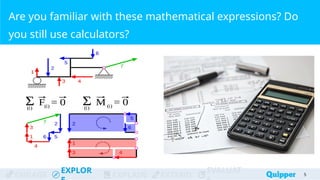
Are you familiar with these mathematical expressions? Do
you still use calculators?
5
ENGAGE
EXPLOR
EXPLAIN EXTEND
EVALUAT
Manual Computation
● essential to daily life, specifically the four
basic arithmetic operations
● used for on-the-spot computation
6
ENGAGE
EXPLOR
EXPLAIN EXTEND
EVALUAT
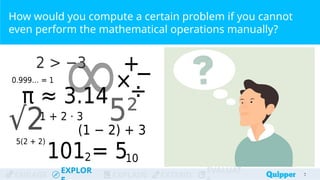
How would you compute a certain problem if you cannot
even perform the mathematical operations manually?
7
7
ENGAGE
EXPLOR
EXPLAIN EXTEND
EVALUAT
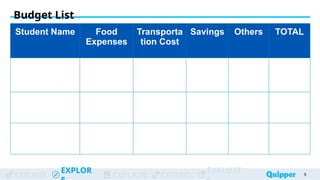
1. Form a group of three and answer the table on the next
slide.
2. Gather the data needed to show one’s daily allowance
and break it down according to the table on the next
slide.
3. Compute your daily total expenses.
4. Compare your data with the data you have gathered
from your other groupmates.
Budget List
8
ENGAGE
EXPLOR
EXPLAIN EXTEND
EVALUAT 9
Budget List
Student Name Food
Expenses
Transporta
tion Cost
Savings Others TOTAL
ENGAGE
EXPLOR
EXPLAIN EXTEND
EVALUAT 10
Budget List
● After gathering data and filling out the
table on the previous slide, create a
simple bar graph to compare your
expenses with your classmates’.
● Make sure to place proper legends to
avoid confusion.
ENGAGE
EXPLOR
EXPLAIN EXTEND
EVALUAT
1.Who among the three of you has the biggest
savings from your daily allowance? Who
among you loves to eat and thus has more
expenses on food? Who among you has the
most miscellaneous expenses?
11
Budget List
ENGAGE
EXPLOR
EXPLAIN EXTEND
EVALUAT
2.How did you compute the daily total
expenses for you and your classmates? Was
it easy? What if you need to gather and
compute the total expenses of twenty (20)
of your classmates, would it be easy? Why
or why not?
12
Budget List
ENGAGE
EXPLOR
EXPLAIN EXTEND
EVALUAT
3.Do you think the data was easier to
understand with a graph? Why or why not?
Do you think using Microsoft Excel or Google
Sheets to represent data as you did in your
activity will make any difference?
13
Budget List
ENGAGE
EXPLOR
EXPLAIN EXTEND
EVALUAT
What is Microsoft
Excel?
14
ENGAGE
EXPLOR
EXPLAIN EXTEND
EVALUAT
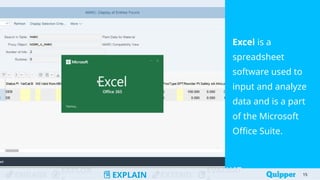
Excel is a
spreadsheet
software used to
input and analyze
data and is a part
of the Microsoft
Office Suite.
15
ENGAGE
EXPLOR
EXPLAIN EXTEND
EVALUAT
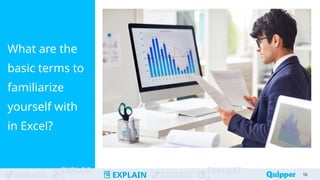
What are the
basic terms to
familiarize
yourself with
in Excel?
16
ENGAGE
EXPLOR
EXPLAIN EXTEND
EVALUAT
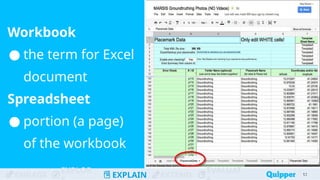
Workbook
● the term for Excel
document
Spreadsheet
● portion (a page)
of the workbook
17
17
ENGAGE
EXPLOR
EXPLAIN EXTEND
EVALUAT
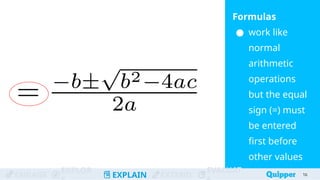
Formulas
● work like
normal
arithmetic
operations
but the equal
sign (=) must
be entered
first before
other values
18
18
ENGAGE
EXPLOR
EXPLAIN EXTEND
EVALUAT
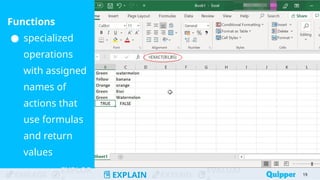
Functions
● specialized
operations
with assigned
names of
actions that
use formulas
and return
values
19
ENGAGE
EXPLOR
EXPLAIN EXTEND
EVALUAT
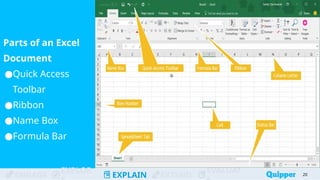
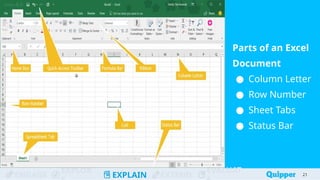
Parts of an Excel
Document
●Quick Access
Toolbar
●Ribbon
●Name Box
●Formula Bar
20
ENGAGE
EXPLOR
EXPLAIN EXTEND
EVALUAT
Parts of an Excel
Document
● Column Letter
● Row Number
● Sheet Tabs
● Status Bar
21
21
What are the different tabs found in
the ribbon of Excel documents?
22
ENGAGE
EXPLOR
EXPLAIN EXTEND
EVALUAT
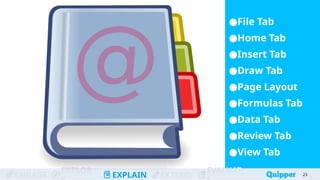
●File Tab
●Home Tab
●Insert Tab
●Draw Tab
●Page Layout
●Formulas Tab
●Data Tab
●Review Tab
●View Tab
23
What are the other spreadsheet
options?
24
ENGAGE
EXPLOR
EXPLAIN EXTEND
EVALUAT
● Add
spreadsheet
● Rearrange
spreadsheet
● Rename,
color, move,
delete
spreadsheet
● Protect
spreadsheet
25
Aside from entering data, what can
we do with cells in Excel?
26
ENGAGE
EXPLOR
EXPLAIN EXTEND
EVALUAT
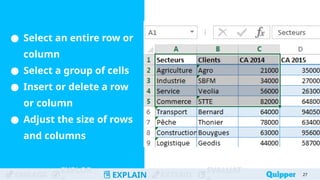
● Select an entire row or
column
● Select a group of cells
● Insert or delete a row
or column
● Adjust the size of rows
and columns
27
How can we change the format of
the data inside the cells?
28
ENGAGE
EXPLOR
EXPLAIN EXTEND
EVALUAT
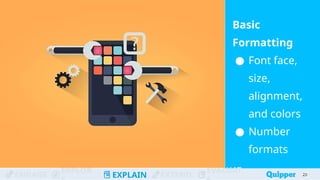
Basic
Formatting
● Font face,
size,
alignment,
and colors
● Number
formats
29
29
ENGAGE
EXPLOR
EXPLAIN EXTEND
EVALUAT
Practice 1
Open Microsoft Excel on your
computer. Check each tab on
your spreadsheet application
and find the specified tool on
the next slide. Categorize each
tool based on the tab where
you can find it. Write your
answers on the table given on
the next slide.
30
ENGAGE
EXPLOR
EXPLAIN EXTEND
EVALUAT 31
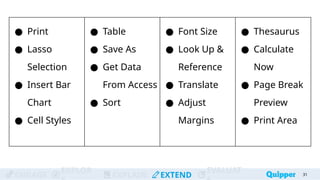
● Print
● Lasso
Selection
● Insert Bar
Chart
● Cell Styles
● Table
● Save As
● Get Data
From Access
● Sort
● Font Size
● Look Up &
Reference
● Translate
● Adjust
Margins
● Thesaurus
● Calculate
Now
● Page Break
Preview
● Print Area
ENGAGE
EXPLOR
EXPLAIN EXTEND
EVALUAT 32
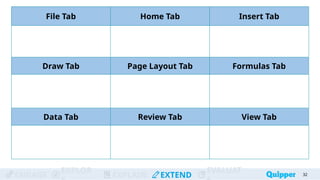
File Tab Home Tab Insert Tab
Draw Tab Page Layout Tab Formulas Tab
Data Tab Review Tab View Tab
ENGAGE
EXPLOR
EXPLAIN EXTEND
EVALUAT
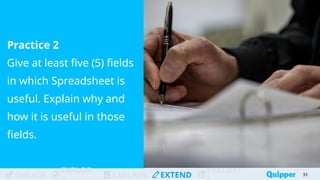
Practice 2
Give at least five (5) fields
in which Spreadsheet is
useful. Explain why and
how it is useful in those
fields.
33
ENGAGE
EXPLOR
EXPLAIN EXTEND
EVALUAT
ENGAGE
EXPLOR
EXPLAIN EXTEND
EVALUAT
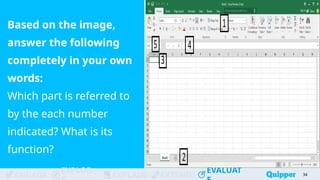
Based on the image,
answer the following
completely in your own
words:
Which part is referred to
by the each number
indicated? What is its
function?
34
ENGAGE
EXPLOR
EXPLAIN EXTEND
EVALUAT
ENGAGE
EXPLOR
EXPLAIN EXTEND
EVALUAT
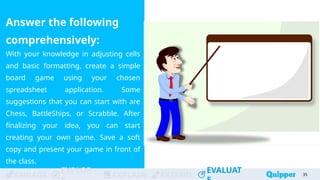
Answer the following
comprehensively:
With your knowledge in adjusting cells
and basic formatting, create a simple
board game using your chosen
spreadsheet application. Some
suggestions that you can start with are
Chess, BattleShips, or Scrabble. After
finalizing your idea, you can start
creating your own game. Save a soft
copy and present your game in front of
the class.
35
Wrap Up
A Workbook is the document itself when you open
your Excel. A Spreadsheet on the other hand is
just one portion of your document.
Formulas in Excel works as your normal arithmetic
operations but you need to place an equal sign (=)
before performing any operation between two or
more values. Functions on the other hand are
specialized operations with assigned names of
actions that use formulas and return a value. 36
Wrap Up
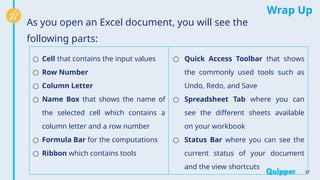
As you open an Excel document, you will see the
following parts:
37
○ Cell that contains the input values
○ Row Number
○ Column Letter
○ Name Box that shows the name of
the selected cell which contains a
column letter and a row number
○ Formula Bar for the computations
○ Ribbon which contains tools
○ Quick Access Toolbar that shows
the commonly used tools such as
Undo, Redo, and Save
○ Spreadsheet Tab where you can
see the different sheets available
on your workbook
○ Status Bar where you can see the
current status of your document
and the view shortcuts
Wrap Up
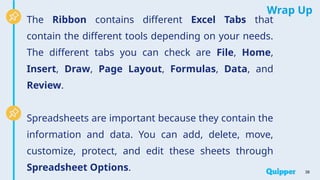
The Ribbon contains different Excel Tabs that
contain the different tools depending on your needs.
The different tabs you can check are File, Home,
Insert, Draw, Page Layout, Formulas, Data, and
Review.
Spreadsheets are important because they contain the
information and data. You can add, delete, move,
customize, protect, and edit these sheets through
Spreadsheet Options. 38
Wrap Up
Cells contain the values you have input. There are
ways to adjust, select, add, or delete cells based on
your needs.
Basic formatting allows you to change the look of
your data tables.
39
Bibliography
40
Alexander, Michael. “Working with Excel 2013's Ribbon Menus.” InformIT, June
19, 2013. https://www.informit.com/articles/article.aspx?p=2067634
“Excel: Using the Draw Tab.” GCFGlobal.org. Accessed March 30, 2020.
https://edu.gcfglobal.org/en/excel/using-the-draw-tab/1/
“Getting Started with Excel 2010.” University of Michigan Library, March 8, 2011.
https://guides.lib.umich.edu/ld.php?content_id=11412292
ScholarSpace. “Using Microsoft Excel: Getting Started.” Research Guides.
University of Michigan Library, June 17, 2019.
https://guides.lib.umich.edu/c.php?g=283162&p=1886441
Writtenhouse, Sandy. “The Beginner's Guide to Microsoft Excel.” MakeUseOf,
April 2, 2018.
https://www.makeuseof.com/tag/beginners-guide-microsoft-excel/

Q4_1. Familiarizing with Spreadsheet Application.pptx

Editor's Notes

  • #20 Prerogative of the presenter to show the actual environment of Microsoft Excel
  • #21 Prerogative of the presenter to show the actual environment of Microsoft Excel
  • #34 Sample answers: It is called the Ribbon. It is found on the top of the grid in Excel. You can find different functions and tools to edit and customize your data. There are different tools in each tab. For example, in the Home tab you can find the tools to customize the font size, font color, and the alignment It is called the Spreadsheet Tab. Spreadsheet Tab is where you can select a different sheet to look at its contents It is called a Cell. Cell, in a spreadsheet context, is a rectangular box where you can input your values. Each cell can contain texts, numbers, images, or formulas It is called the Formula Bar. Formula Bar is the long rectangle beside the name box where you can input your formulas for your data. You can also use this to input a value in a cell It is called the Name Box. Name Box shows the cell currently selected if you are selecting only one cell. It also shows the number of rows and columns if you are trying to select a big portion in your document containing several cells. The name of a cell is composed of a column letter and a row number
  • #35 Model Answer: The correctness of a student’s answer will be based on the judgment of the teacher in the application of the discussion in the “Explain and Elaborate” part as a guide and the rubric provided.