Purchase Management SystemPurchase Management System
We are here to see you grow.
We are here to change you to adopt the best business practices.
We are here to change you to be the most efficient and productive.
We are here to stretch you to the limit.
IntroductionIntroduction

Purchasing management is the management of purchasing
process, and related aspects in an organization.

OpenERP provides a complete Purchase Management
application which enables you to create and track your
purchase orders, to manage your suppliers' address book, to
control your products reception process (with the possibility to
manage partial receptions) and to check suppliers' invoices.

Customers can create their own personalized analysis with the
reporting tool.
Installation of PurchaseInstallation of Purchase
Management moduleManagement module

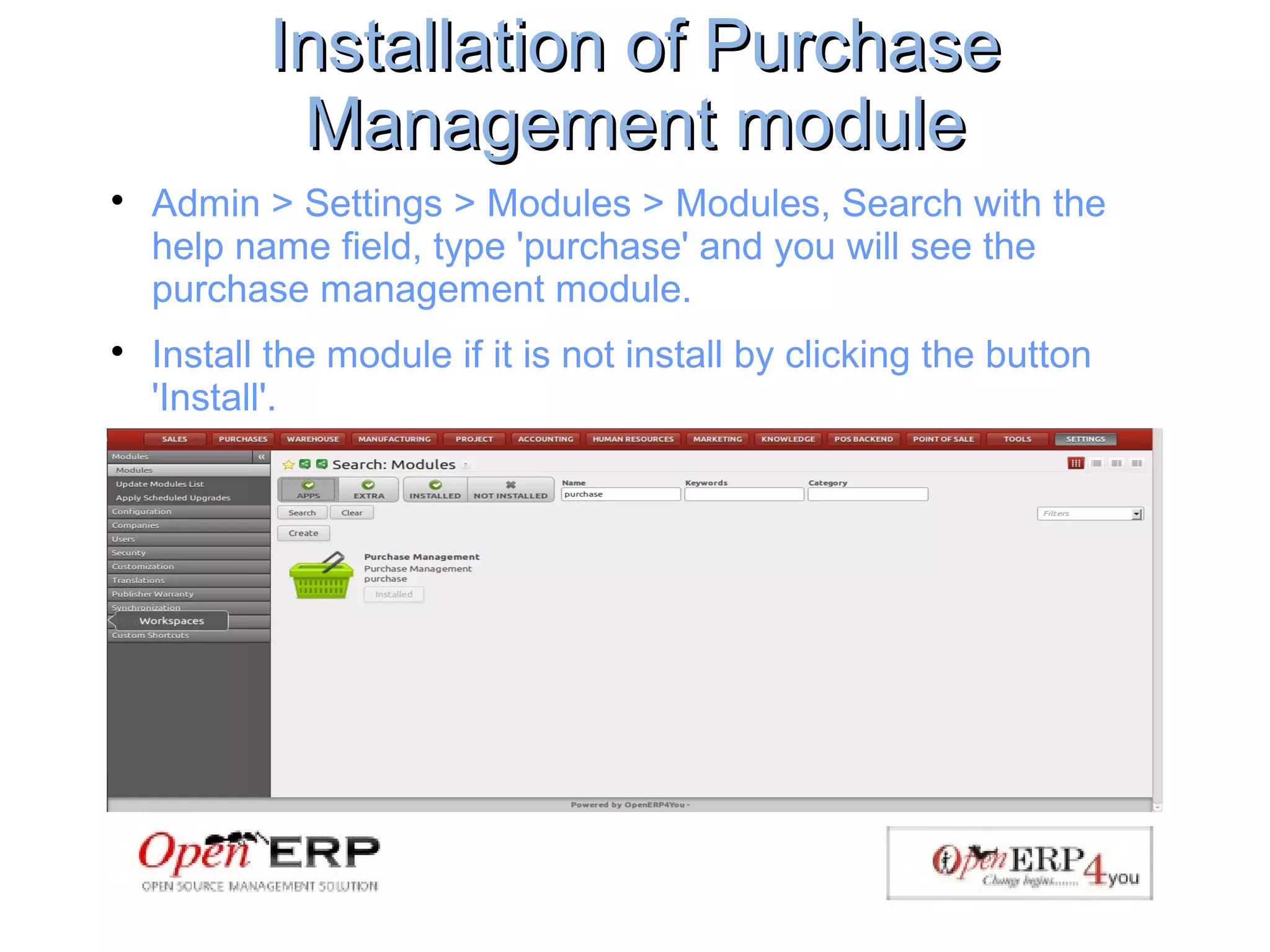
Admin > Settings > Modules > Modules, Search with the
help name field, type 'purchase' and you will see the
purchase management module.

Install the module if it is not install by clicking the button
'Install'.
Create a purchase orderCreate a purchase order

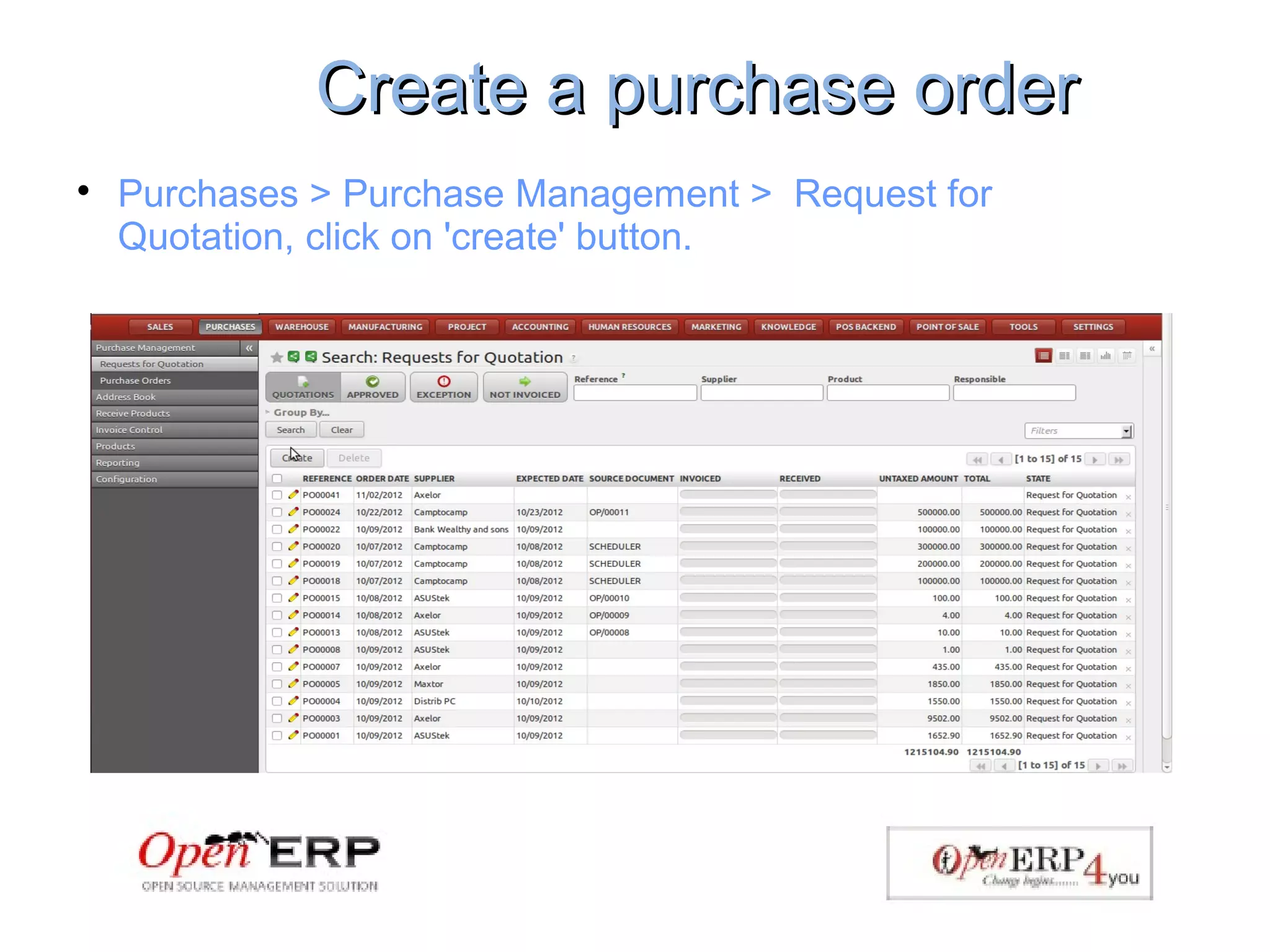
Purchases > Purchase Management > Request for
Quotation, click on 'create' button.
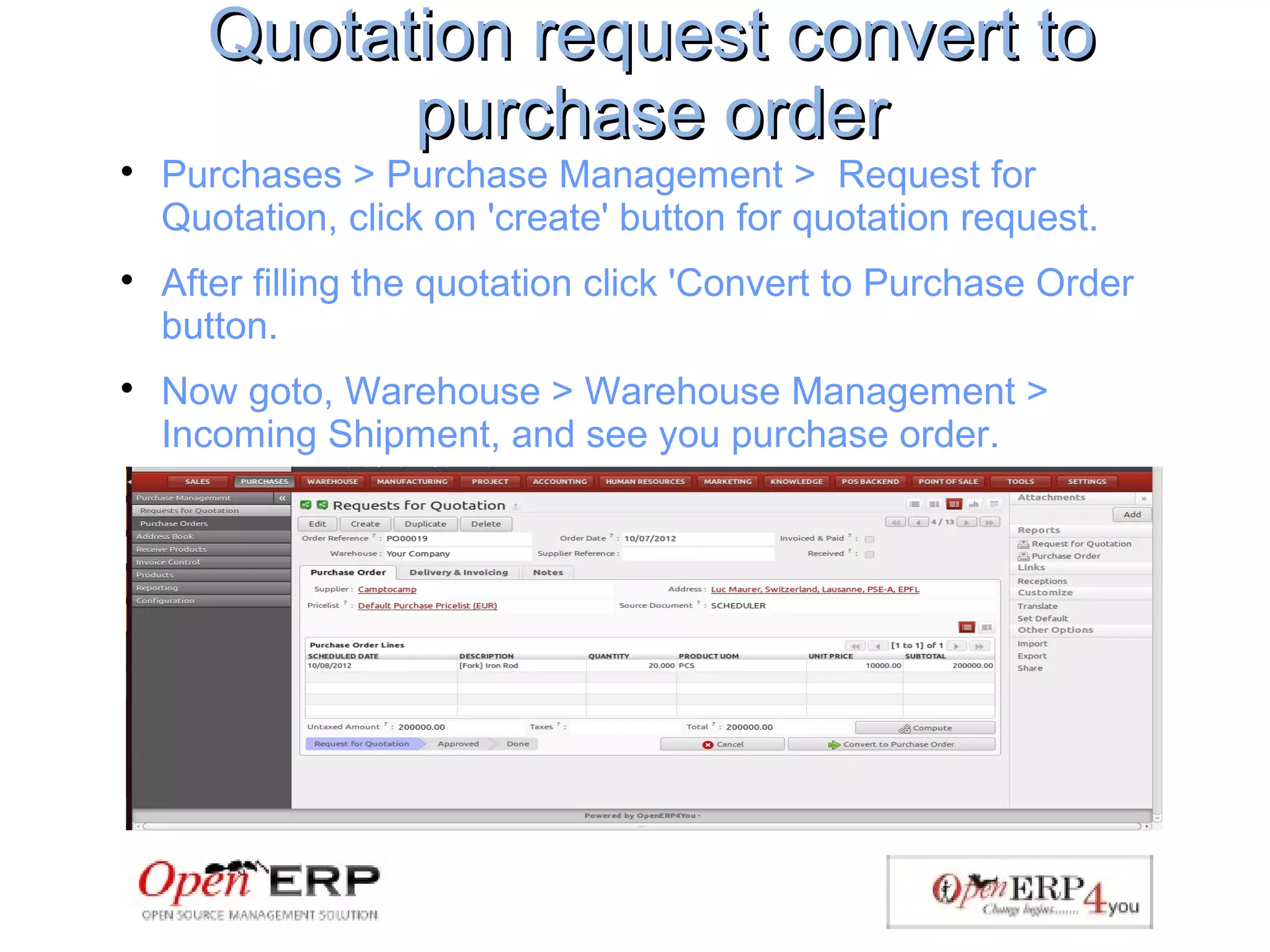
Quotation request convert toQuotation request convert to
purchase orderpurchase order

Purchases > Purchase Management > Request for
Quotation, click on 'create' button for quotation request.

After filling the quotation click 'Convert to Purchase Order
button.

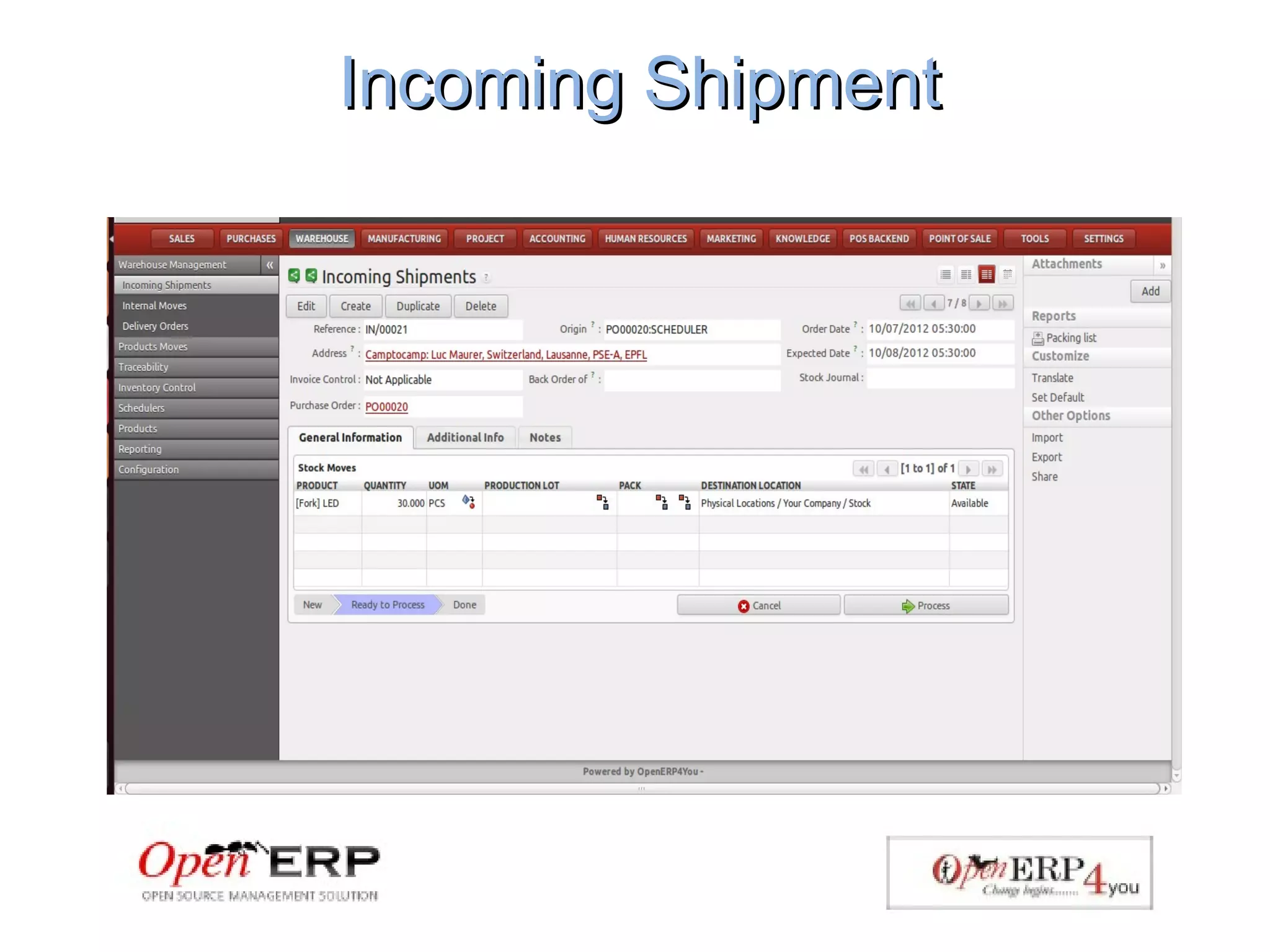
Now goto, Warehouse > Warehouse Management >
Incoming Shipment, and see you purchase order.
Incoming ShipmentIncoming Shipment
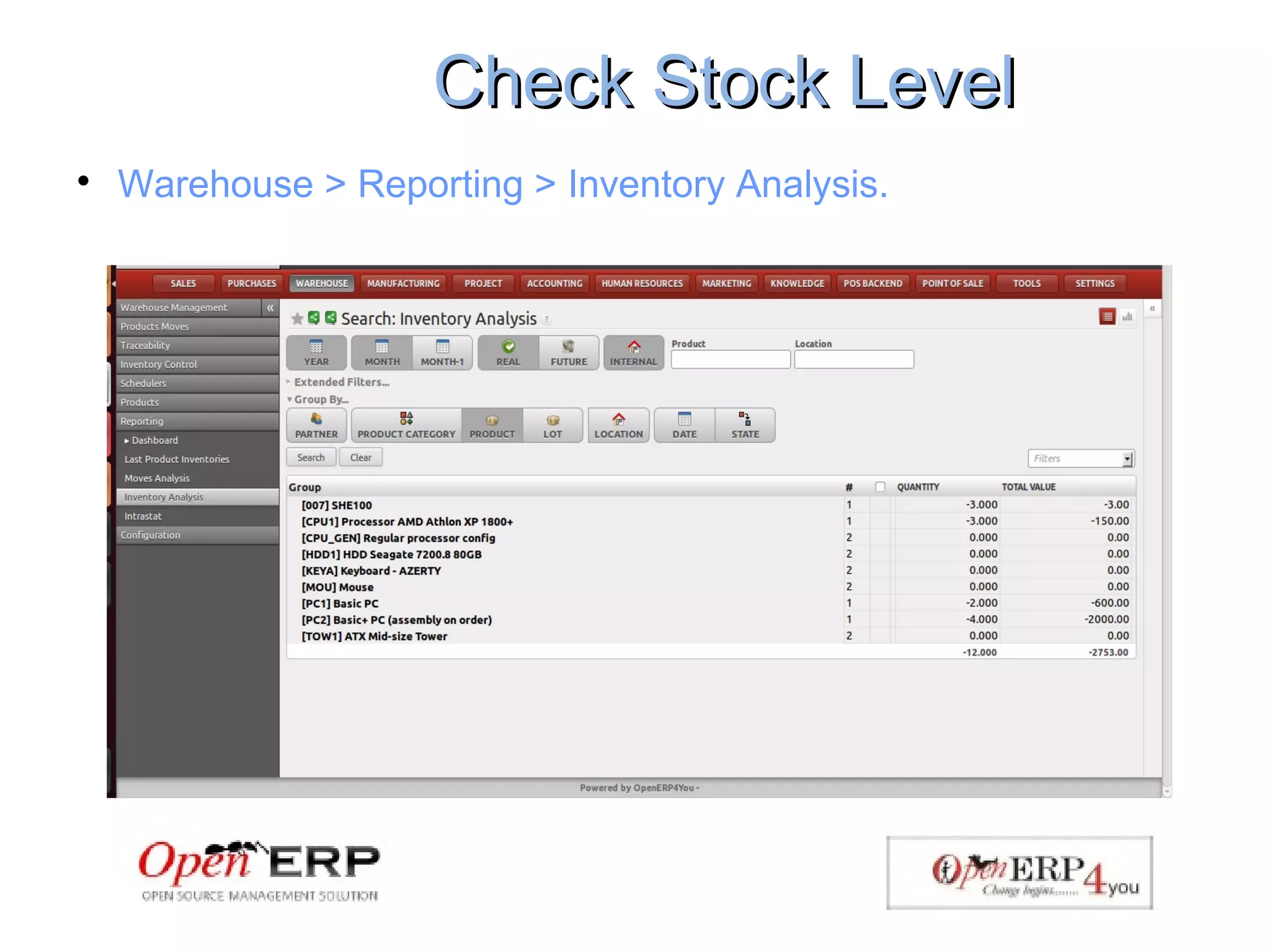
Check Stock LevelCheck Stock Level

Warehouse > Reporting > Inventory Analysis.
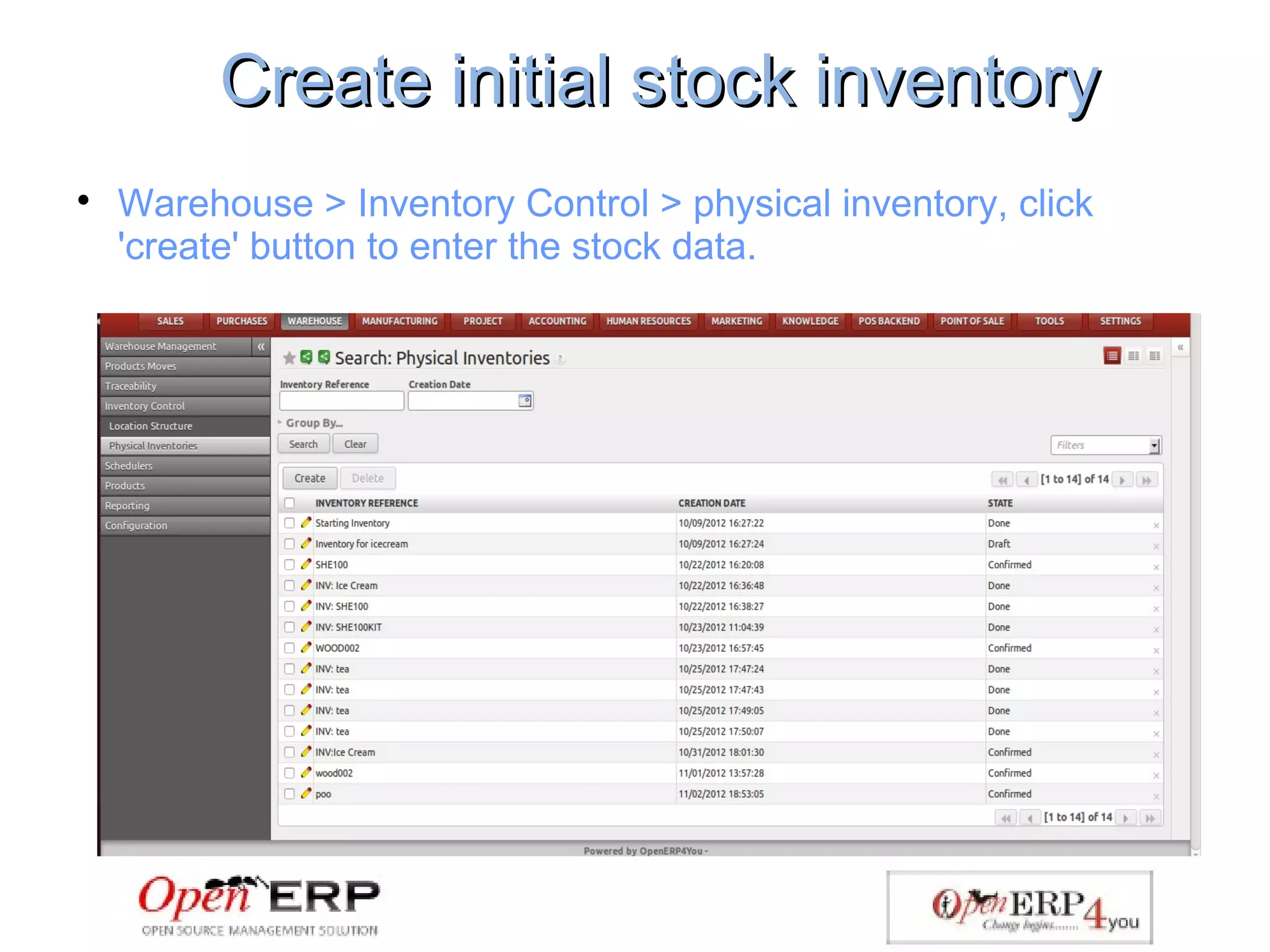
Create initial stock inventoryCreate initial stock inventory

Warehouse > Inventory Control > physical inventory, click
'create' button to enter the stock data.
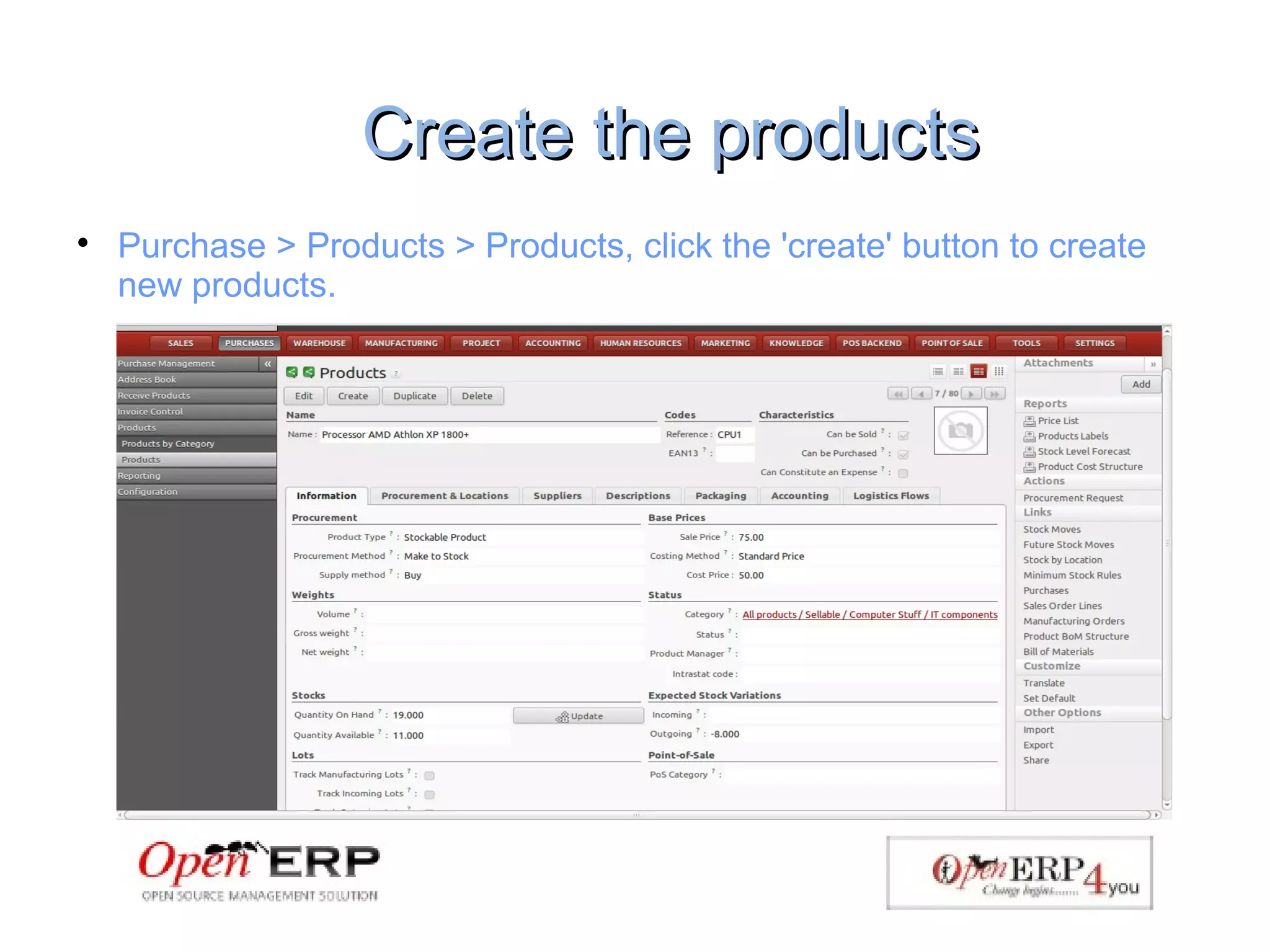
Create the productsCreate the products

Purchase > Products > Products, click the 'create' button to create
new products.
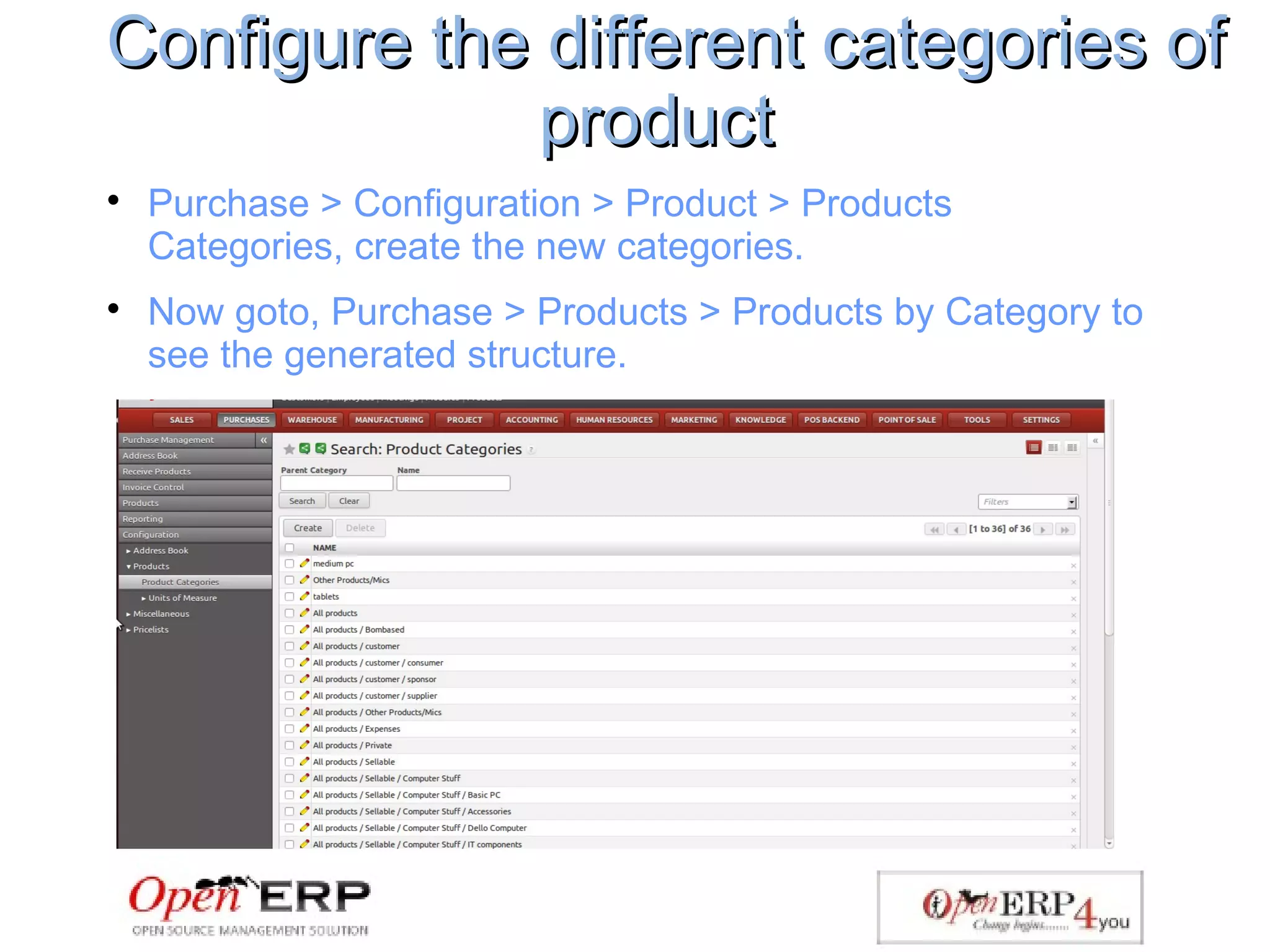
Configure the different categories ofConfigure the different categories of
productproduct

Purchase > Configuration > Product > Products
Categories, create the new categories.

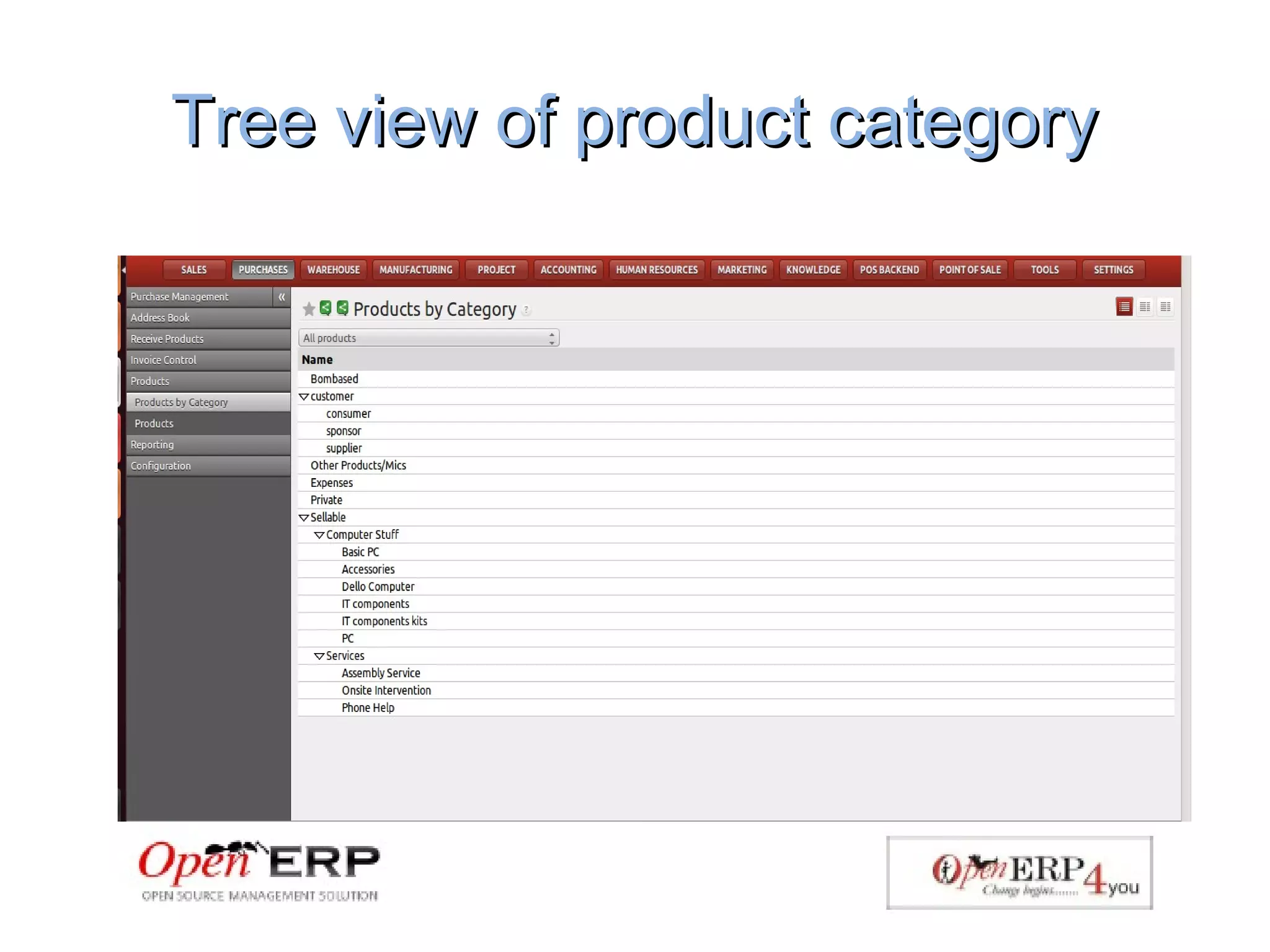
Now goto, Purchase > Products > Products by Category to
see the generated structure.
Tree view of product categoryTree view of product category
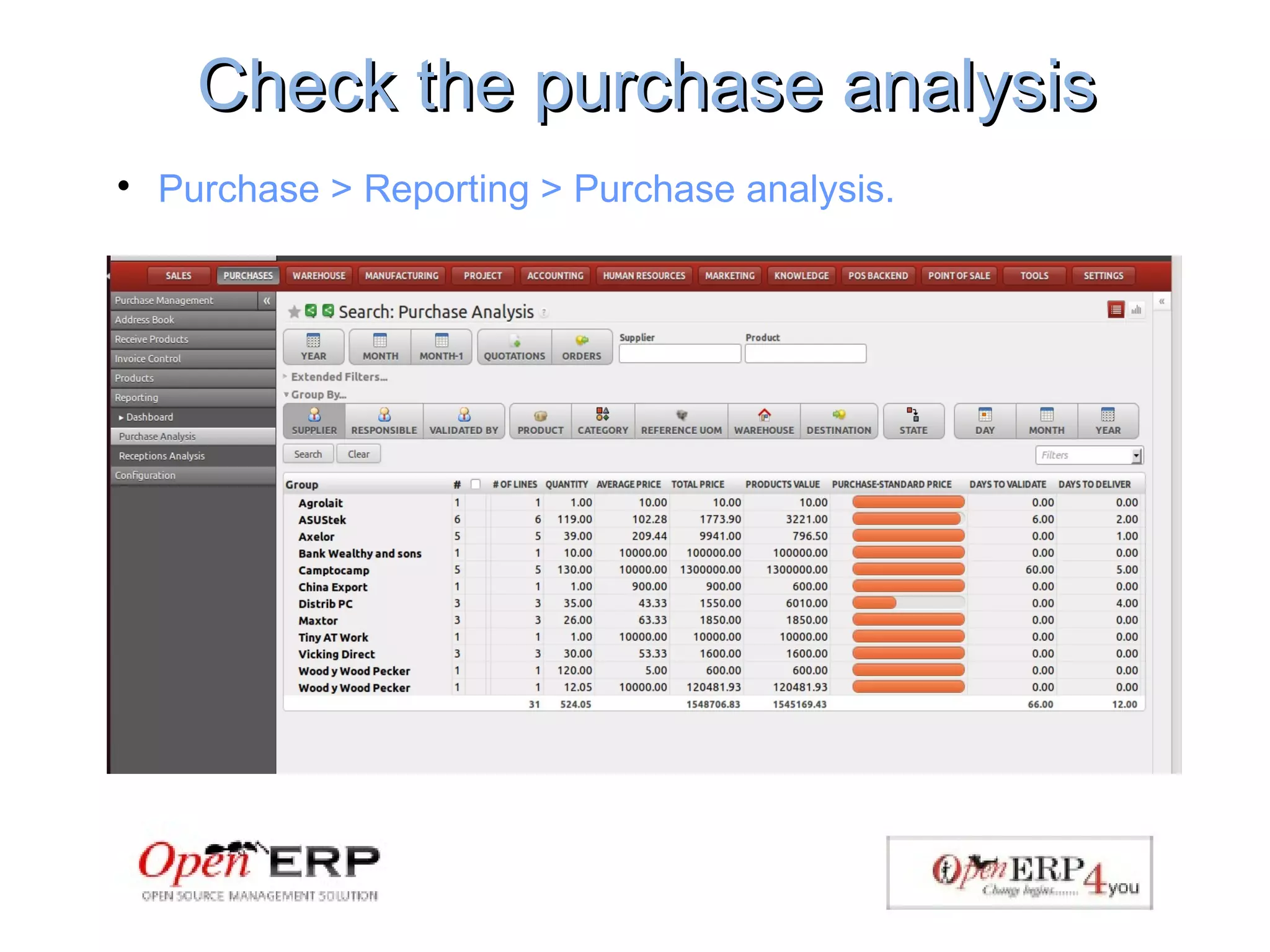
Check the purchase analysisCheck the purchase analysis

Purchase > Reporting > Purchase analysis.
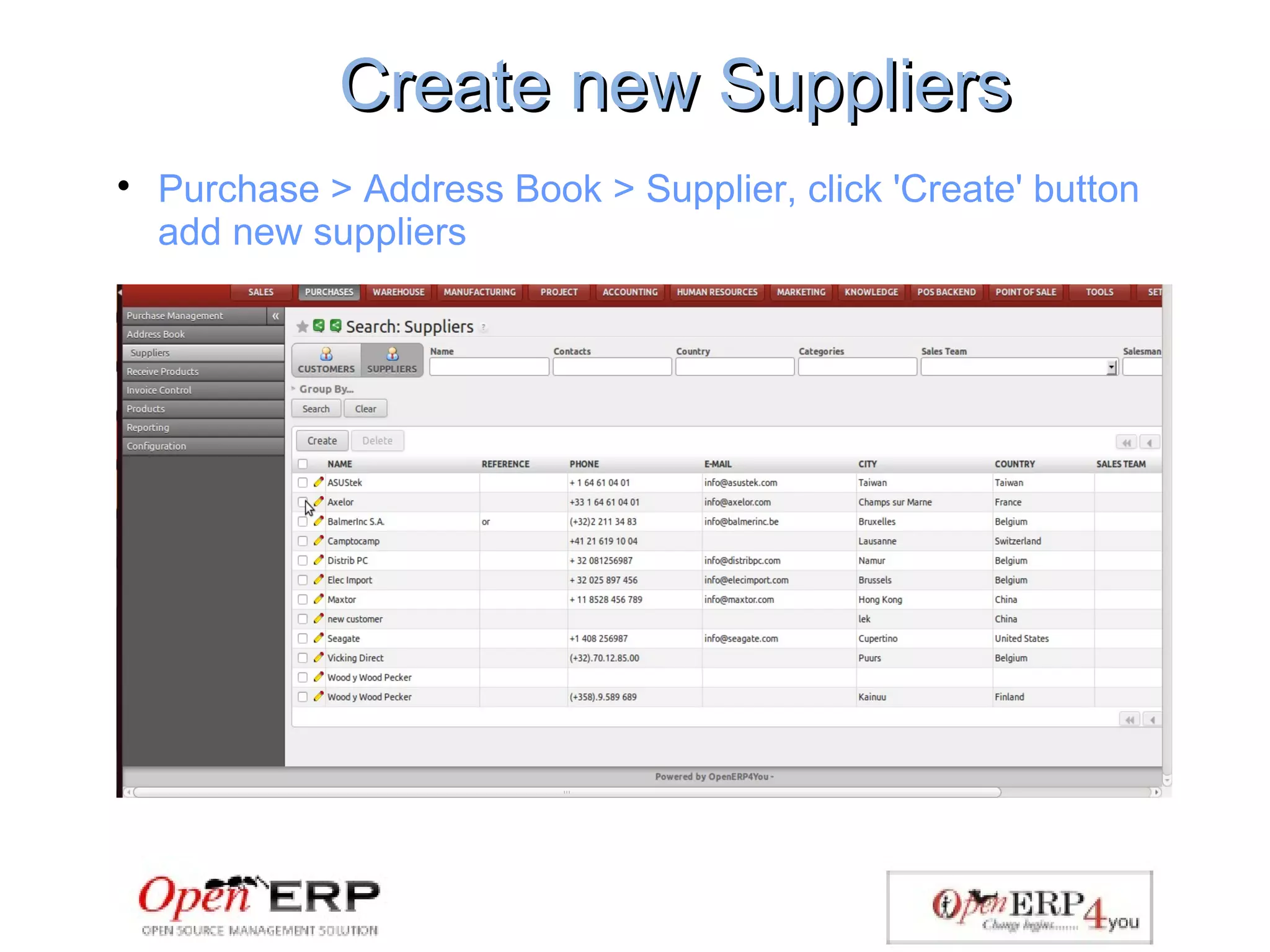
Create new SuppliersCreate new Suppliers

Purchase > Address Book > Supplier, click 'Create' button
add new suppliers
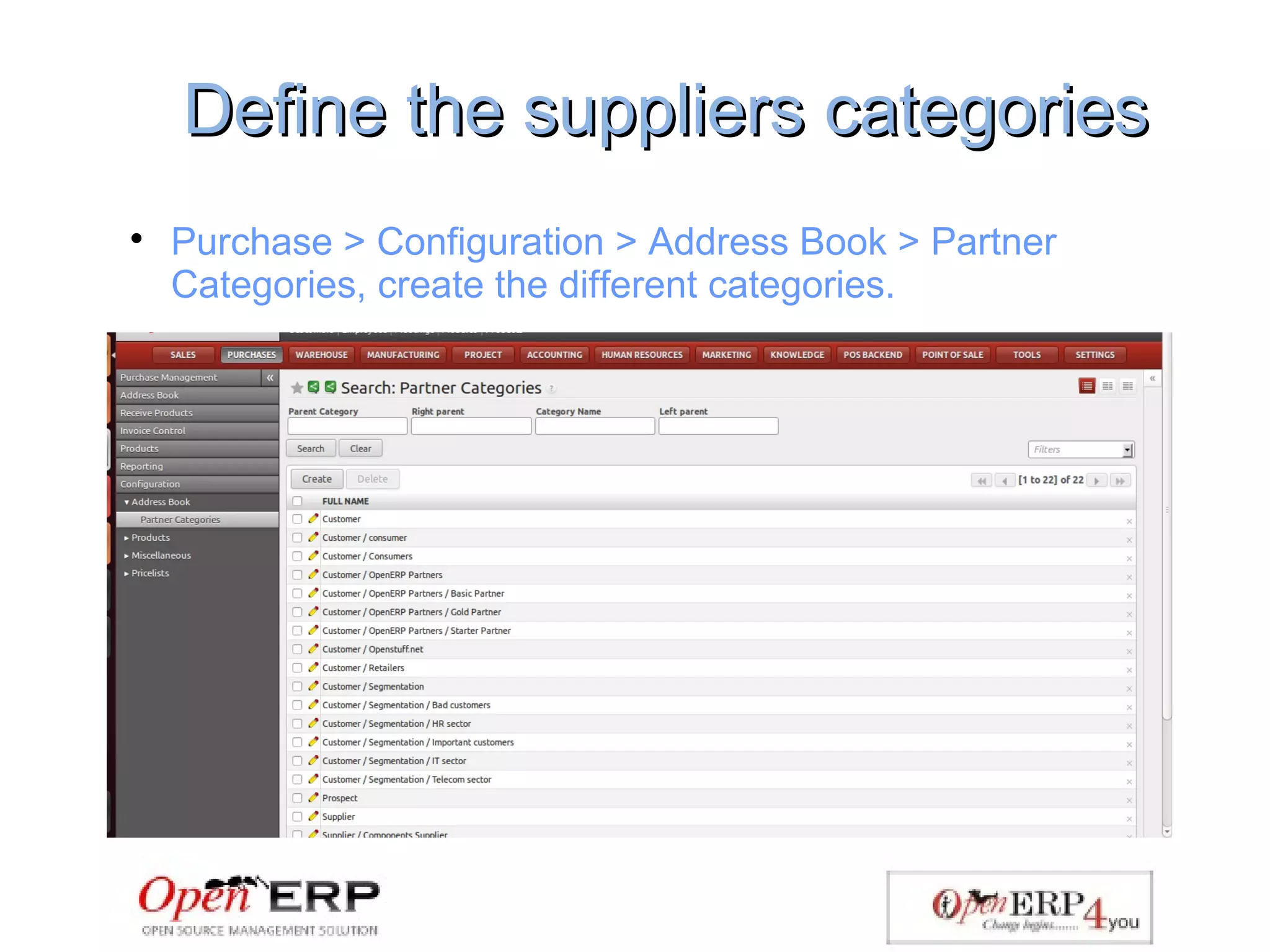
Define the suppliers categoriesDefine the suppliers categories

Purchase > Configuration > Address Book > Partner
Categories, create the different categories.
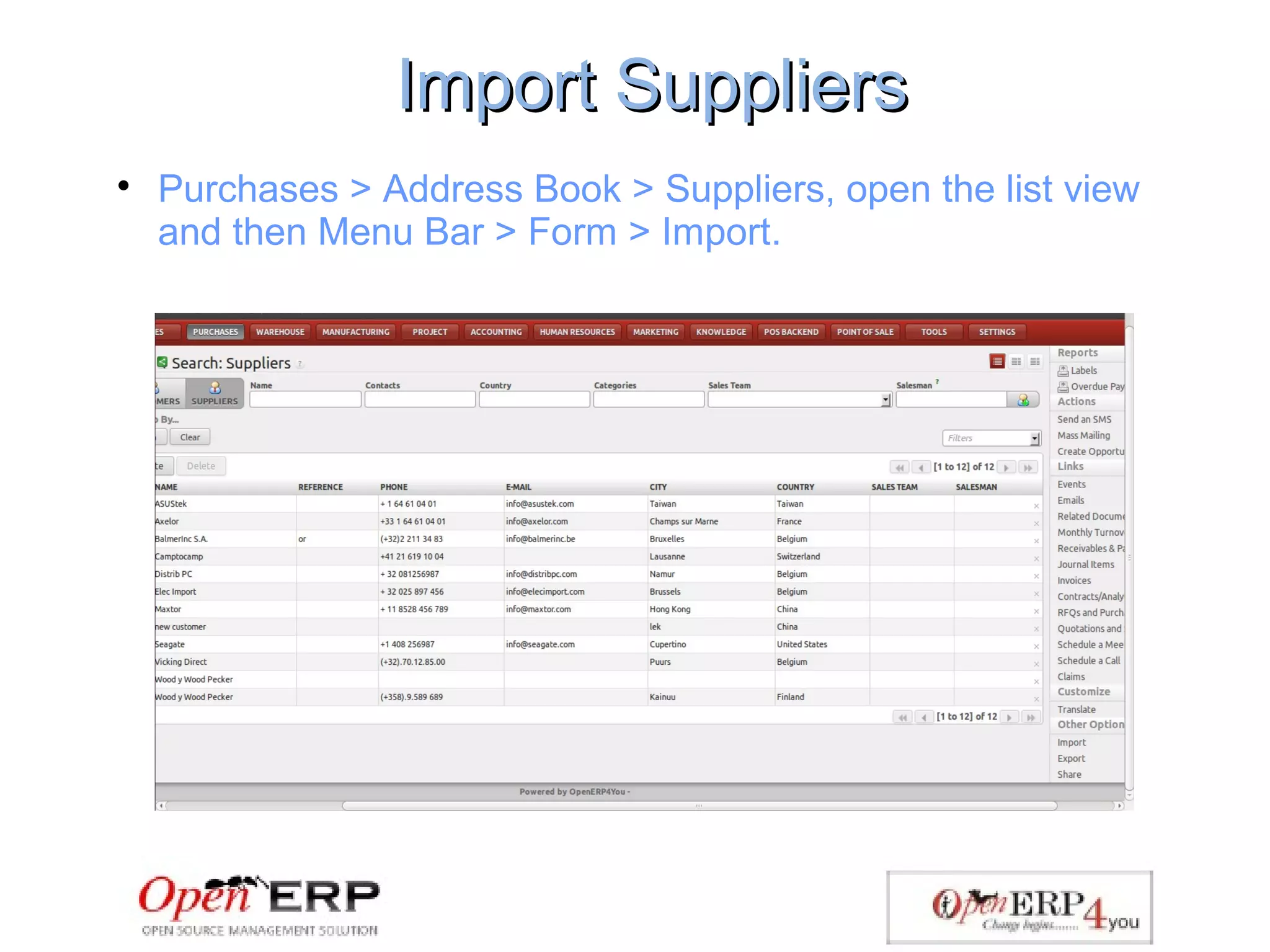
Import SuppliersImport Suppliers

Purchases > Address Book > Suppliers, open the list view
and then Menu Bar > Form > Import.
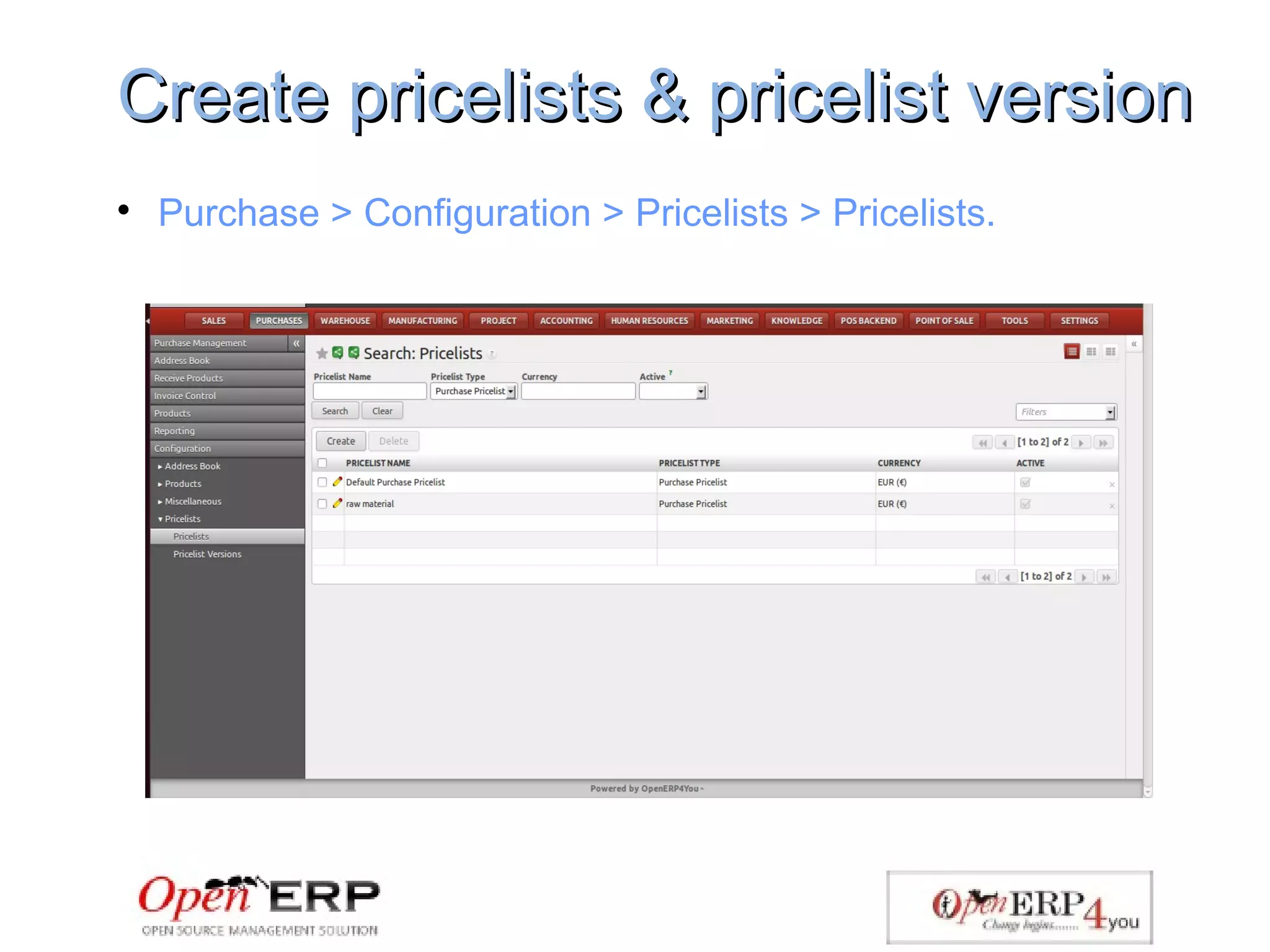
Create pricelists & pricelist versionCreate pricelists & pricelist version

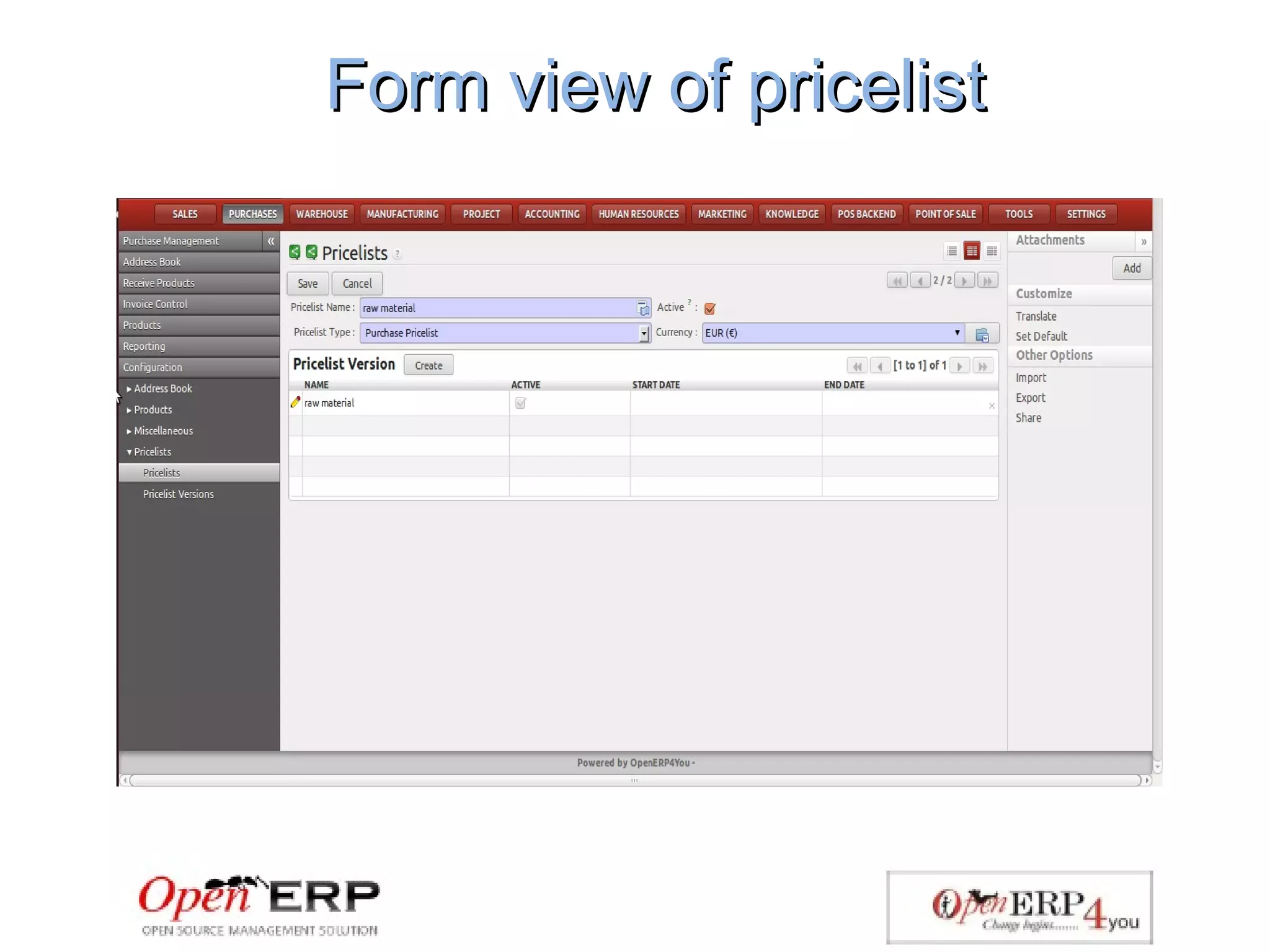
Purchase > Configuration > Pricelists > Pricelists.
Form view of pricelistForm view of pricelist
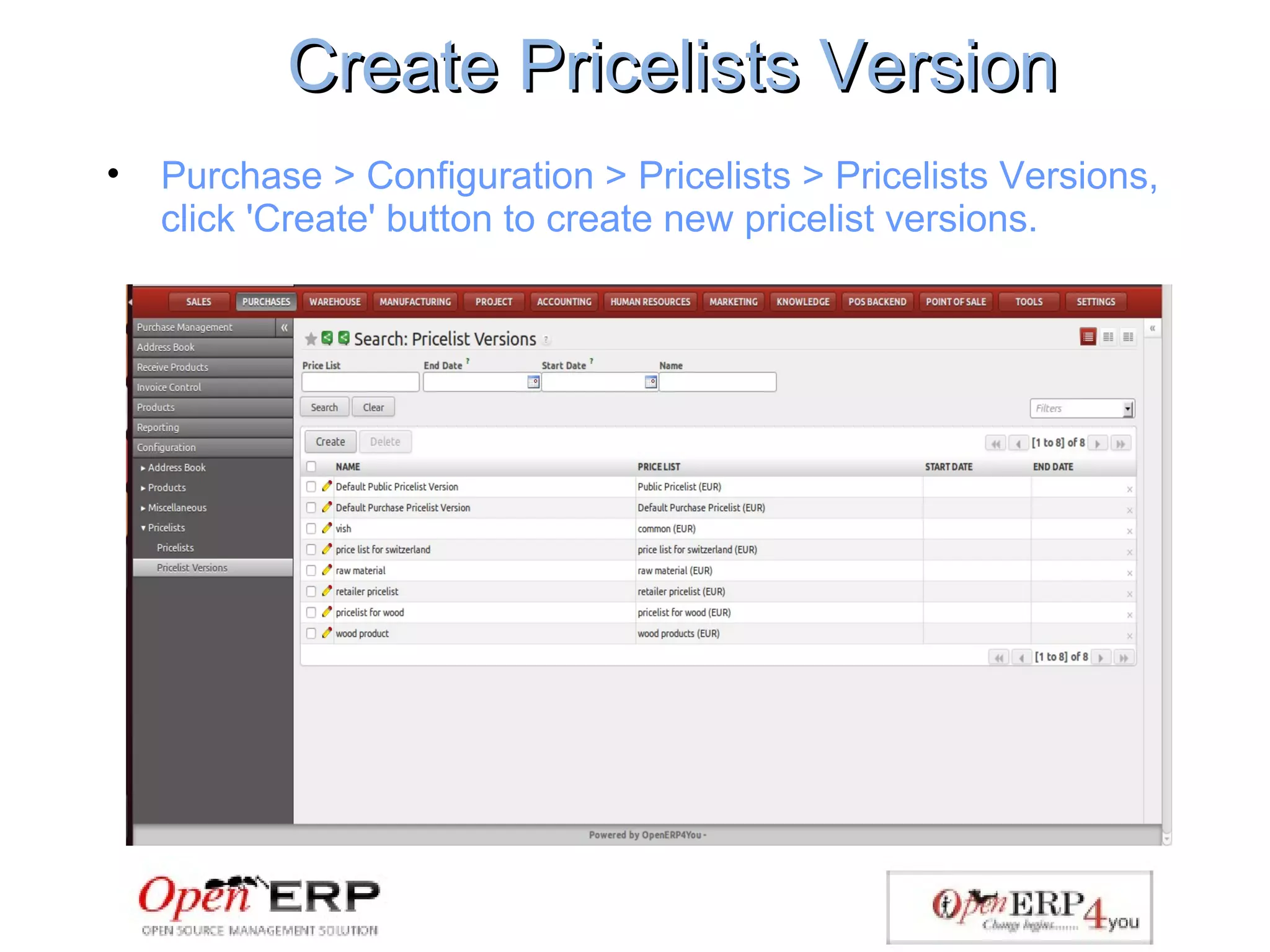
Create Pricelists VersionCreate Pricelists Version
• Purchase > Configuration > Pricelists > Pricelists Versions,
click 'Create' button to create new pricelist versions.
For Any Query
Call on:- +91 7500420005,+91 9990539414 , +91 7500440005,
+91 7500880005. Email: sales@openerp4you.in.
Visit :- www.openerp4you.in

Purchase Management through OpenERP

  • 1.
    Purchase Management SystemPurchaseManagement System We are here to see you grow. We are here to change you to adopt the best business practices. We are here to change you to be the most efficient and productive. We are here to stretch you to the limit.
  • 2.
    IntroductionIntroduction  Purchasing management isthe management of purchasing process, and related aspects in an organization.  OpenERP provides a complete Purchase Management application which enables you to create and track your purchase orders, to manage your suppliers' address book, to control your products reception process (with the possibility to manage partial receptions) and to check suppliers' invoices.  Customers can create their own personalized analysis with the reporting tool.
  • 3.
    Installation of PurchaseInstallationof Purchase Management moduleManagement module  Admin > Settings > Modules > Modules, Search with the help name field, type 'purchase' and you will see the purchase management module.  Install the module if it is not install by clicking the button 'Install'.
  • 4.
    Create a purchaseorderCreate a purchase order  Purchases > Purchase Management > Request for Quotation, click on 'create' button.
  • 5.
    Quotation request converttoQuotation request convert to purchase orderpurchase order  Purchases > Purchase Management > Request for Quotation, click on 'create' button for quotation request.  After filling the quotation click 'Convert to Purchase Order button.  Now goto, Warehouse > Warehouse Management > Incoming Shipment, and see you purchase order.
  • 6.
  • 7.
    Check Stock LevelCheckStock Level  Warehouse > Reporting > Inventory Analysis.
  • 8.
    Create initial stockinventoryCreate initial stock inventory  Warehouse > Inventory Control > physical inventory, click 'create' button to enter the stock data.
  • 9.
    Create the productsCreatethe products  Purchase > Products > Products, click the 'create' button to create new products.
  • 10.
    Configure the differentcategories ofConfigure the different categories of productproduct  Purchase > Configuration > Product > Products Categories, create the new categories.  Now goto, Purchase > Products > Products by Category to see the generated structure.
  • 11.
    Tree view ofproduct categoryTree view of product category
  • 12.
    Check the purchaseanalysisCheck the purchase analysis  Purchase > Reporting > Purchase analysis.
  • 13.
    Create new SuppliersCreatenew Suppliers  Purchase > Address Book > Supplier, click 'Create' button add new suppliers
  • 14.
    Define the supplierscategoriesDefine the suppliers categories  Purchase > Configuration > Address Book > Partner Categories, create the different categories.
  • 15.
    Import SuppliersImport Suppliers  Purchases> Address Book > Suppliers, open the list view and then Menu Bar > Form > Import.
  • 16.
    Create pricelists &pricelist versionCreate pricelists & pricelist version  Purchase > Configuration > Pricelists > Pricelists.
  • 17.
    Form view ofpricelistForm view of pricelist
  • 18.
    Create Pricelists VersionCreatePricelists Version • Purchase > Configuration > Pricelists > Pricelists Versions, click 'Create' button to create new pricelist versions.
  • 19.
    For Any Query Callon:- +91 7500420005,+91 9990539414 , +91 7500440005, +91 7500880005. Email: sales@openerp4you.in. Visit :- www.openerp4you.in