Odoo
Warehouse
Management
Matiar Rahman
Content
1. Warehouse Management Introduction
2. Understanding Double-Entry Stock Management
3. Create Stock Locations
4. Create products / components
5. How to set opening stock
6. Set minimum stock rules
7. Stock Valuation
Warehouse Management
Introduction
Warehouse Management Introduction
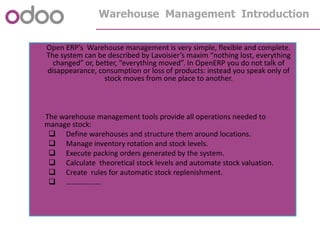
Open ERP’s Warehouse management is very simple, flexible and complete.
The system can be described by Lavoisier’s maxim “nothing lost, everything
changed” or, better, “everything moved”. In OpenERP you do not talk of
disappearance, consumption or loss of products: instead you speak only of
stock moves from one place to another.
The warehouse management tools provide all operations needed to
manage stock:
 Define warehouses and structure them around locations.
 Manage inventory rotation and stock levels.
 Execute packing orders generated by the system.
 Calculate theoretical stock levels and automate stock valuation.
 Create rules for automatic stock replenishment.
 ……………….
Warehouse Management Introduction
 Understanding Double-Entry Stock Management
 If we order 30 bicycle from a supplier:
 If we delivery 2 bicycles to an european customer:
 In each stock location, we will have:
Location Products
Partner Locations>Suppliers>Suppliers -30 bicycles
Physical Locations>NotSoTiny>Stock +30 bicycles
Location Products
Physical Locations>NotSoTiny>Stock +2bicycles
Partner Locations>Customers>European Customers +2 bicycles
Location Products
Partner Locations>Suppliers>Suppliers +30bicycles
Physical Locations>NotSoTiny>Stock +28bicycles
Partner Locations>Customers>European Customers +2bicycles
Warehouse Management Introduction
 Understanding Double-Entry Stock Management
 Inventory operation to adjust stock:
 In each stock location, we will have:
Location Products
Physical Locations>NotSoTiny -2 bicycles
Virtual Location>Inventory Loss +2 bicycles
Location Products
Partner Locations>Suppliers>Suppliers -30 bicycles
Physical Locations>NotSoTiny>Stock +26bicycles
Partner Locations>Customers>European Customers +2 bicycles
Virtual Locations>Inventory Loss +2 bicycles
Warehouse Management Introduction
Create Stock
Locations
Create
Components
Set Stock
Level
Set Minimum
Stock Rules
Chained
Locations
Traceability
Planning
Intrastate
Stock Valuation Packaging
Exercises
Exercises
 Exercise 1- Create Stock Locations
Create the following stock locations:
NotSoTiny
Output
Stock
Finished
Products
Components
Exercises
 Exercise 1- Create Stock Locations
Create the following stock locations:
::
NotSoTiny
Output
Stock
Finished
Products
Components
 Sales> Configuration>Sales>Shop, Verify that the ‘’NotSoTiny’’ shop is correctly
set up
 Warehouse>Configuration>Warehouse Management>Locations, verify the
default stock locations are defined
 Warehouse> Inventory Control> Location Structure
Exercises

Exercise 2 – Create bookshelves components
Create the list of components:
 All products are stockable products
All products belong to the Mise category
 The supplier for all products is Wood y Wood pecker
 The metal cleats are stocked per unit but are bought in boxes of 20
Description Code Supp.Math. UoM Cost Supp.LeadTime
Rear panel SHE100 PANA100 Buy PCE 10 5
Rear panel SHE200 PANA200 Buy PCE 13 5
Side panel PNLAT Buy PCE 5 5
Shelf 100 ETA1OO Buy PCE 3 8
Shelf 200 ETA200 Buy PCE 4 8
Assembly section PROFIL Produce Met
er
2 /
Wood lintel 4m LIN40 Buy PCE 8 10
Metal cleats TAQ000 Buy PCE 1 20
Exercises
Products>Products, create the 8 new products used as bookshelves components
All 8 products with the same give category and supplies
All 8 products have supply method set to Buy , except the PROFIL one which is
produce
All products have a cost price, as give n in the table, but the sales price doesn’t
matter, as they can not be sold, only Purchased(check appropriate check boxes)
The supplies delay is set when associating a supplies to the product and defining
his Delivery delay
For the metal Cleats, define a new Purchase UoM for the Cleats:
 Define a ‘’Box’’ unit which is bigger than the unit category with a ratio of
‘’20’’. Leave the rounding precision to 1 as you can not order fractions of it.
Exercises
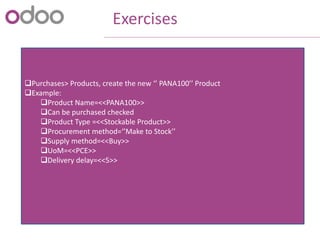
Purchases> Products, create the new ‘’ PANA100’’ Product
Example:
Product Name=<<PANA100>>
Can be purchased checked
Product Type =<<Stockable Product>>
Procurement method=‘’Make to Stock’’
Supply method=<<Buy>>
UoM=<<PCE>>
Delivery delay=<<5>>
Exercises
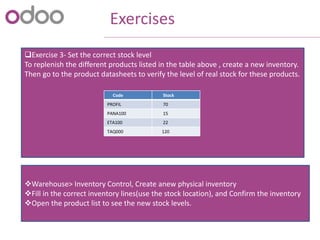
Exercise 3- Set the correct stock level
To replenish the different products listed in the table above , create a new inventory.
Then go to the product datasheets to verify the level of real stock for these products.
Code Stock
PROFIL 70
PANA100 15
ETA100 22
TAQ000 120
Exercises
Exercise 3- Set the correct stock level
To replenish the different products listed in the table above , create a new inventory.
Then go to the product datasheets to verify the level of real stock for these products.
Warehouse> Inventory Control, Create anew physical inventory
Fill in the correct inventory lines(use the stock location), and Confirm the inventory
Open the product list to see the new stock levels.
Code Stock
PROFIL 70
PANA100 15
ETA100 22
TAQ000 120
Exercises
Exercise 4- Set minimum stock rules Based on this table, create stock policies for
all components of SHE100 AND hde200 PRODUCTS. Then test the defined policies:
Run the scheduler
On the purchase order, precise the stock destination
Validate the purchase orders
Receive the products from your supplies
Code Min Qty Max Qty
PANA100 10 20
PANA200 5 10
PANLAT 20 40
ETA100 30 60
ETA200 30 60
PROFIL 40 80
LIN40 10 20
TAQ000 200 500
Exercises
Warehouse>Automatic Procurements>Minimum Stock Rules
Create new minimum tock rules according to the table
Run the Scheduler via Warehouse> Schedulers
Open the list of product, and notice that stock levels have not changed yet
Go to Purchases Purchase Management >Requests For Quotation, confirm all
order
Go Back to Purchases> Products and notice that the virtual stock level has now
changed to reflect the confirmed order
Go to Accounting> Suppliers> Suppliers Invoice, and you will see a draft invoice for
each ‘’approved’’ Purchase Order, as the ‘’ Invoicing Control’’ of the purchase order is
set to ‘’ From Order’’ by default
Now proceed to Warehouse> Receive Products> Incoming shipments, Confirm the
reception of the product and make the picking .Then go to the products to verify
that the corresponding stock moves have been generated, and that the real stock
now matches the virtual Stock.
Exercises
Exercise 5- chained locations
Install the corresponding module (stock_location) and configure it. Define
anew “Transit” location which is chained to “Stock” location. Test your configuration
by creating a purchase order for which goods will be delivered in the <<Transit>>
stock location.
Exercises
Exercise 5- chained locations
Install the corresponding module (stock_location) and configure it. Define
anew “Transit” location which is chained to “Stock” location. Test your configuration
by creating a purchase order for which goods will be delivered in the <<Transit>>
stock location.
Administration >Modules>Modules, install the module<<stock_location>>
Warehouse>Configuration>Warehouse management>locations, create a Transit
location chained to the stock location.
Simulate a purchase order with this Product and verify the Stock Moves
(Warehouse>Tracability> Stock Moves)
Exercises
Exercise 6- Traceability
Define pack lots on stock moves. Use the downstream/upstream traceability
functionality.
Exercises
Exercise 6- Traceability
Define pack lots on stock moves. Use the downstream/upstream traceability
functionality.
Warehouse> Traceability> Packs
Click on ”Upstream traceability” or “Downstream traceability” action
Exercises
Exercise 7- Stock Valuation
Display the current stock value by locations. Optionally define input or output
stock account on products or inventory account on stock locations.
Exercises
Exercise 7- Stock Valuation
Display the current stock value by locations. Optionally define input or output
stock account on products or inventory account on stock locations.
Warehouse>Reporting>Inventory Analysis
Sales>Configuration> Product>Product Categories, look at the “Stock Variation
Account” field
Purchases>Products in the Accounting tab, “Stock Input Account” and “Stock
Output Account”
Exercises
Exercise 8- Planning
Install the module stock_planning and configure it. Define the sale periods and
then set the sales and stock forecasts. Then configure the master procurement
schedule.
Exercises
Exercise 8- Planning
Install the module stock_planning and configure it. Define the sale periods and
then set the sales and stock forecasts. Then configure the master procurement
schedule.
Administration> Modules> Modules, install the module stock_planning
SALES>Configuration>Stock and Sales periods, create Sales Periods
Create Sales >Sales Forecasts
Warehouse> Stock Planning> Master Procurement Schedule, define a master
procurement schedule using the define sales periods and sales forecasts
Create a Sales periods in the past and use it when defining the master
procurement schedule.
Exercises
Exercise 9- Packaging
Define a package from the product form and then test it by creating a sales
order
Exercises
Exercise 9- Packaging
Define a package from the product form and then test it by creating a sales
order
Sales> Products, define packaging
Create a sales order and use the define packaging when selecting a product
Exercises
Exercise 10- Import/Export
Install the module report_intrastat and configure it. Configure products and
countries.
Administration>Module>Module, install the module report_intrastat
Sales> Configuration>Address Book, display the existing intrastat code used in the
product definition
Sales>Configuration>Address Book> Locations to define country which are
Instrastat members
Warehouse>Reporting, display the intrastat report available
Exercises
Exercise 10- Import/Export
Install the module report_intrastat and configure it. Configure products and
countries.
Key Points
oDefine stock locations, warehouse, minimum stock rules
oSet stock level
oDefine chained locations, MPS
oTraceability, Stock Valuation, Packaging, Import/Export,……………………
Warehouse Management
Thank You!

Odoo Warehouse

  • 1.
  • 2.
    Content 1. Warehouse ManagementIntroduction 2. Understanding Double-Entry Stock Management 3. Create Stock Locations 4. Create products / components 5. How to set opening stock 6. Set minimum stock rules 7. Stock Valuation
  • 3.
  • 4.
    Warehouse Management Introduction OpenERP’s Warehouse management is very simple, flexible and complete. The system can be described by Lavoisier’s maxim “nothing lost, everything changed” or, better, “everything moved”. In OpenERP you do not talk of disappearance, consumption or loss of products: instead you speak only of stock moves from one place to another. The warehouse management tools provide all operations needed to manage stock:  Define warehouses and structure them around locations.  Manage inventory rotation and stock levels.  Execute packing orders generated by the system.  Calculate theoretical stock levels and automate stock valuation.  Create rules for automatic stock replenishment.  ……………….
  • 5.
    Warehouse Management Introduction Understanding Double-Entry Stock Management  If we order 30 bicycle from a supplier:  If we delivery 2 bicycles to an european customer:  In each stock location, we will have: Location Products Partner Locations>Suppliers>Suppliers -30 bicycles Physical Locations>NotSoTiny>Stock +30 bicycles Location Products Physical Locations>NotSoTiny>Stock +2bicycles Partner Locations>Customers>European Customers +2 bicycles Location Products Partner Locations>Suppliers>Suppliers +30bicycles Physical Locations>NotSoTiny>Stock +28bicycles Partner Locations>Customers>European Customers +2bicycles
  • 6.
    Warehouse Management Introduction Understanding Double-Entry Stock Management  Inventory operation to adjust stock:  In each stock location, we will have: Location Products Physical Locations>NotSoTiny -2 bicycles Virtual Location>Inventory Loss +2 bicycles Location Products Partner Locations>Suppliers>Suppliers -30 bicycles Physical Locations>NotSoTiny>Stock +26bicycles Partner Locations>Customers>European Customers +2 bicycles Virtual Locations>Inventory Loss +2 bicycles
  • 7.
    Warehouse Management Introduction CreateStock Locations Create Components Set Stock Level Set Minimum Stock Rules Chained Locations Traceability Planning Intrastate Stock Valuation Packaging
  • 8.
  • 9.
    Exercises  Exercise 1-Create Stock Locations Create the following stock locations: NotSoTiny Output Stock Finished Products Components
  • 10.
    Exercises  Exercise 1-Create Stock Locations Create the following stock locations: :: NotSoTiny Output Stock Finished Products Components  Sales> Configuration>Sales>Shop, Verify that the ‘’NotSoTiny’’ shop is correctly set up  Warehouse>Configuration>Warehouse Management>Locations, verify the default stock locations are defined  Warehouse> Inventory Control> Location Structure
  • 11.
    Exercises  Exercise 2 –Create bookshelves components Create the list of components:  All products are stockable products All products belong to the Mise category  The supplier for all products is Wood y Wood pecker  The metal cleats are stocked per unit but are bought in boxes of 20 Description Code Supp.Math. UoM Cost Supp.LeadTime Rear panel SHE100 PANA100 Buy PCE 10 5 Rear panel SHE200 PANA200 Buy PCE 13 5 Side panel PNLAT Buy PCE 5 5 Shelf 100 ETA1OO Buy PCE 3 8 Shelf 200 ETA200 Buy PCE 4 8 Assembly section PROFIL Produce Met er 2 / Wood lintel 4m LIN40 Buy PCE 8 10 Metal cleats TAQ000 Buy PCE 1 20
  • 12.
    Exercises Products>Products, create the8 new products used as bookshelves components All 8 products with the same give category and supplies All 8 products have supply method set to Buy , except the PROFIL one which is produce All products have a cost price, as give n in the table, but the sales price doesn’t matter, as they can not be sold, only Purchased(check appropriate check boxes) The supplies delay is set when associating a supplies to the product and defining his Delivery delay For the metal Cleats, define a new Purchase UoM for the Cleats:  Define a ‘’Box’’ unit which is bigger than the unit category with a ratio of ‘’20’’. Leave the rounding precision to 1 as you can not order fractions of it.
  • 13.
    Exercises Purchases> Products, createthe new ‘’ PANA100’’ Product Example: Product Name=<<PANA100>> Can be purchased checked Product Type =<<Stockable Product>> Procurement method=‘’Make to Stock’’ Supply method=<<Buy>> UoM=<<PCE>> Delivery delay=<<5>>
  • 14.
    Exercises Exercise 3- Setthe correct stock level To replenish the different products listed in the table above , create a new inventory. Then go to the product datasheets to verify the level of real stock for these products. Code Stock PROFIL 70 PANA100 15 ETA100 22 TAQ000 120
  • 15.
    Exercises Exercise 3- Setthe correct stock level To replenish the different products listed in the table above , create a new inventory. Then go to the product datasheets to verify the level of real stock for these products. Warehouse> Inventory Control, Create anew physical inventory Fill in the correct inventory lines(use the stock location), and Confirm the inventory Open the product list to see the new stock levels. Code Stock PROFIL 70 PANA100 15 ETA100 22 TAQ000 120
  • 16.
    Exercises Exercise 4- Setminimum stock rules Based on this table, create stock policies for all components of SHE100 AND hde200 PRODUCTS. Then test the defined policies: Run the scheduler On the purchase order, precise the stock destination Validate the purchase orders Receive the products from your supplies Code Min Qty Max Qty PANA100 10 20 PANA200 5 10 PANLAT 20 40 ETA100 30 60 ETA200 30 60 PROFIL 40 80 LIN40 10 20 TAQ000 200 500
  • 17.
    Exercises Warehouse>Automatic Procurements>Minimum StockRules Create new minimum tock rules according to the table Run the Scheduler via Warehouse> Schedulers Open the list of product, and notice that stock levels have not changed yet Go to Purchases Purchase Management >Requests For Quotation, confirm all order Go Back to Purchases> Products and notice that the virtual stock level has now changed to reflect the confirmed order Go to Accounting> Suppliers> Suppliers Invoice, and you will see a draft invoice for each ‘’approved’’ Purchase Order, as the ‘’ Invoicing Control’’ of the purchase order is set to ‘’ From Order’’ by default Now proceed to Warehouse> Receive Products> Incoming shipments, Confirm the reception of the product and make the picking .Then go to the products to verify that the corresponding stock moves have been generated, and that the real stock now matches the virtual Stock.
  • 18.
    Exercises Exercise 5- chainedlocations Install the corresponding module (stock_location) and configure it. Define anew “Transit” location which is chained to “Stock” location. Test your configuration by creating a purchase order for which goods will be delivered in the <<Transit>> stock location.
  • 19.
    Exercises Exercise 5- chainedlocations Install the corresponding module (stock_location) and configure it. Define anew “Transit” location which is chained to “Stock” location. Test your configuration by creating a purchase order for which goods will be delivered in the <<Transit>> stock location. Administration >Modules>Modules, install the module<<stock_location>> Warehouse>Configuration>Warehouse management>locations, create a Transit location chained to the stock location. Simulate a purchase order with this Product and verify the Stock Moves (Warehouse>Tracability> Stock Moves)
  • 20.
    Exercises Exercise 6- Traceability Definepack lots on stock moves. Use the downstream/upstream traceability functionality.
  • 21.
    Exercises Exercise 6- Traceability Definepack lots on stock moves. Use the downstream/upstream traceability functionality. Warehouse> Traceability> Packs Click on ”Upstream traceability” or “Downstream traceability” action
  • 22.
    Exercises Exercise 7- StockValuation Display the current stock value by locations. Optionally define input or output stock account on products or inventory account on stock locations.
  • 23.
    Exercises Exercise 7- StockValuation Display the current stock value by locations. Optionally define input or output stock account on products or inventory account on stock locations. Warehouse>Reporting>Inventory Analysis Sales>Configuration> Product>Product Categories, look at the “Stock Variation Account” field Purchases>Products in the Accounting tab, “Stock Input Account” and “Stock Output Account”
  • 24.
    Exercises Exercise 8- Planning Installthe module stock_planning and configure it. Define the sale periods and then set the sales and stock forecasts. Then configure the master procurement schedule.
  • 25.
    Exercises Exercise 8- Planning Installthe module stock_planning and configure it. Define the sale periods and then set the sales and stock forecasts. Then configure the master procurement schedule. Administration> Modules> Modules, install the module stock_planning SALES>Configuration>Stock and Sales periods, create Sales Periods Create Sales >Sales Forecasts Warehouse> Stock Planning> Master Procurement Schedule, define a master procurement schedule using the define sales periods and sales forecasts Create a Sales periods in the past and use it when defining the master procurement schedule.
  • 26.
    Exercises Exercise 9- Packaging Definea package from the product form and then test it by creating a sales order
  • 27.
    Exercises Exercise 9- Packaging Definea package from the product form and then test it by creating a sales order Sales> Products, define packaging Create a sales order and use the define packaging when selecting a product
  • 28.
    Exercises Exercise 10- Import/Export Installthe module report_intrastat and configure it. Configure products and countries. Administration>Module>Module, install the module report_intrastat Sales> Configuration>Address Book, display the existing intrastat code used in the product definition Sales>Configuration>Address Book> Locations to define country which are Instrastat members Warehouse>Reporting, display the intrastat report available
  • 29.
    Exercises Exercise 10- Import/Export Installthe module report_intrastat and configure it. Configure products and countries.
  • 30.
    Key Points oDefine stocklocations, warehouse, minimum stock rules oSet stock level oDefine chained locations, MPS oTraceability, Stock Valuation, Packaging, Import/Export,…………………… Warehouse Management
  • 31.