
Purchase Management  in  Open ERP
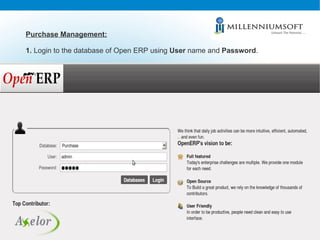
Purchase Management: 1.  Login to the database of Open ERP using  User  name and  Password .
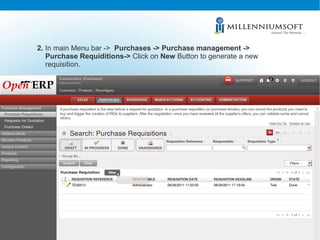
2.  In main Menu bar ->  Purchases -> Purchase management ->  Purchase Requiditions->  Click on  New  Button to generate a new requisition.
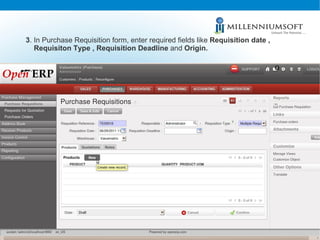
3 . In Purchase Requisition   form, enter required fields like  Requisition date , Requisiton Type , Requisition Deadline  and  Origin.
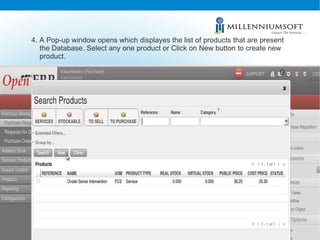
4. A Pop-up window opens which displayes the list of products that are present the Database. Select any one product or Click on New button to create new product.
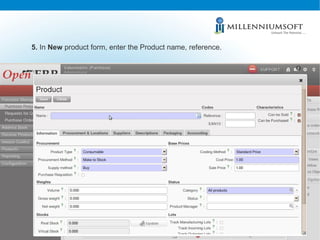
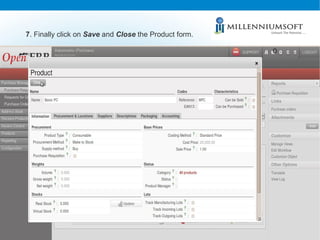
5.  In  New  product form, enter the Product name, reference.
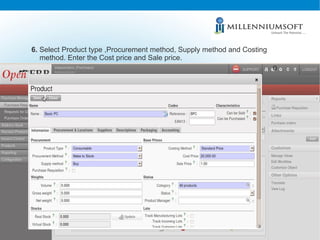
6.  Select Product type ,Procurement method, Supply method and Costing method. Enter the Cost price and Sale price.
7 . Finally click on  Save  and  Close  the Product form.
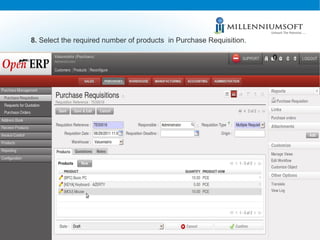
8.  Select the required number of products  in Purchase Requisition.
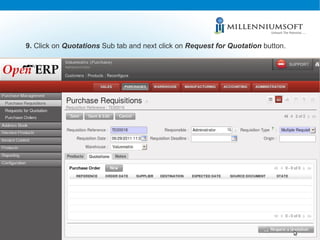
9.  Click on  Quotations  Sub tab and next click on  Request for Quotation  button.
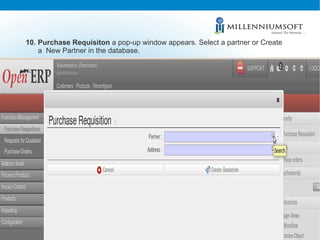
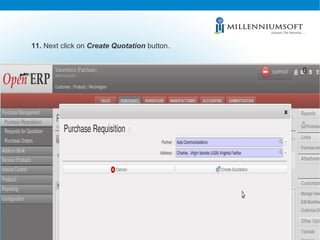
10. Purchase Requisiton  a pop-up window appears. Select a partner or Create  a  New Partner in the database.
11.  Next click on  Create Quotation  button.
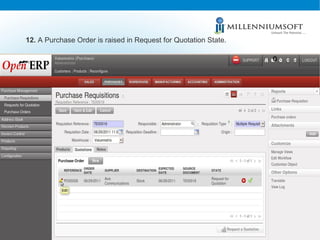
12.  A Purchase Order is raised in Request for Quotation State.
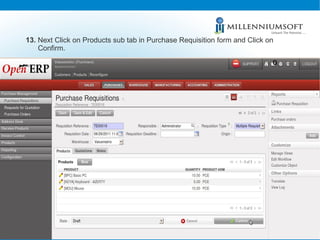
13.  Next Click on Products sub tab in Purchase Requisition form and Click on Confirm.
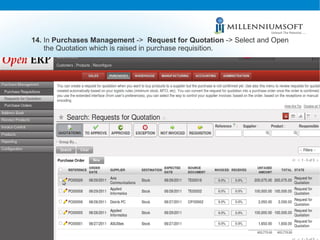
14.  In  Purchases Management  ->  Request for Quotation  -> Select and Open the Quotation which is raised in purchase requisition.
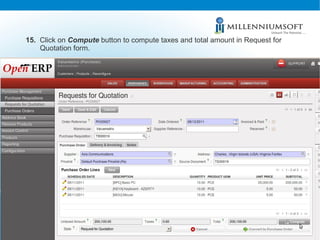
15.  Click on  Compute  button to compute taxes and total amount in Request for Quotation form.
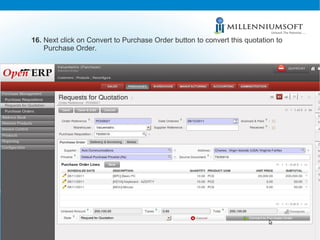
16.  Next click on Convert to Purchase Order button to convert this quotation to Purchase Order.
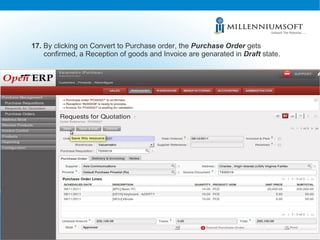
17.  By clicking on Convert to Purchase order, the  Purchase   Order   gets confirmed, a Reception of goods and Invoice are genarated in  Draft  state.
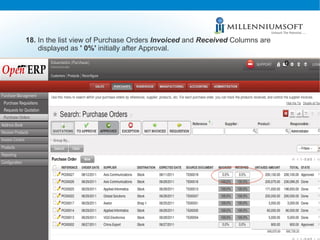
18.  In the list view of Purchase Orders  Invoiced  and  Received  Columns are displayed as  ' 0%'  initially after Approval.
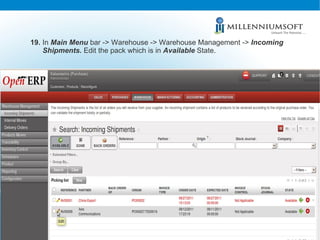
19.  In  Main Menu  bar -> Warehouse -> Warehouse Management ->  Incoming Shipments.  Edit the pack which is in  Available  State.
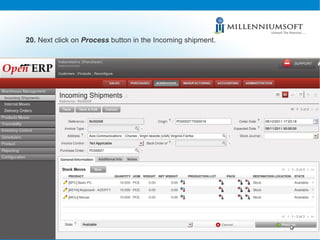
20.  Next click on  Process  button in the Incoming shipment.
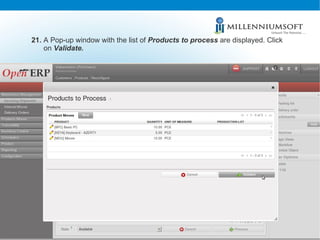
21.  A Pop-up window with the list of  Products to process  are displayed. Click on  Validate.
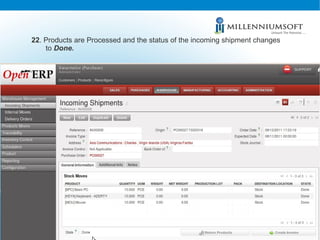
22 . Products are Processed and the status of the incoming shipment changes to  Done.
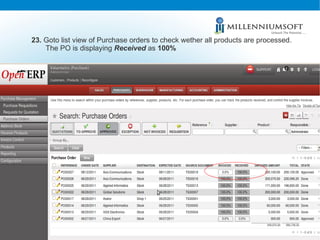
23.  Goto list view of Purchase orders to check wether all products are processed. The PO is displaying  Received  as  100%
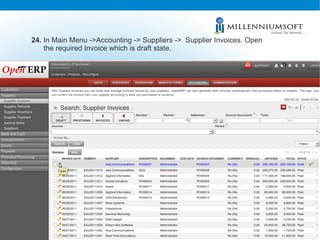
24.  In Main Menu ->Accounting -> Suppliers ->  Supplier Invoices. Open the required Invoice which is draft state.
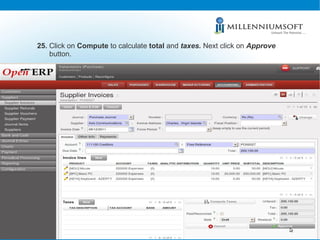
25.  Click on  Compute  to calculate  total  and  taxes.  Next click on   Approve button.
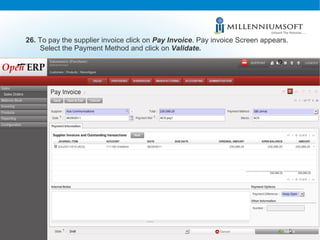
26.  To pay the supplier invoice click on  Pay Invoice . Pay invoice Screen appears. Select the Payment Method and click on  Validate.
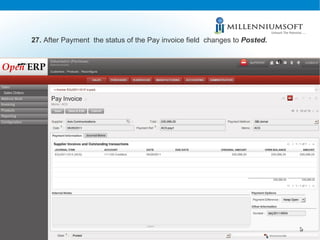
27.  After Payment  the status of the Pay invoice field  changes to  Posted.
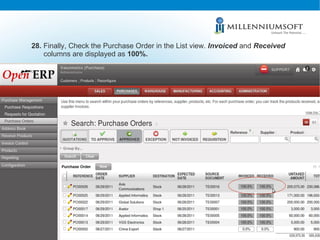
28.  Finally, Check the Purchase Order in the List view.  Invoiced  and  Received columns are displayed as  100%.
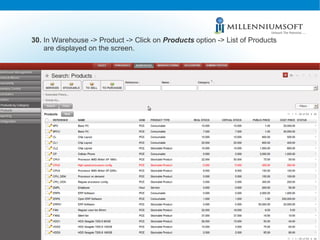
30.  In Warehouse -> Product -> Click on  Products  option -> List of Products are displayed on the screen.
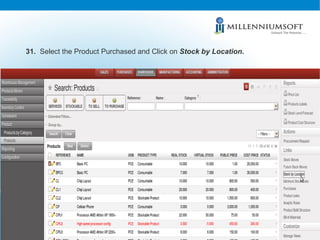
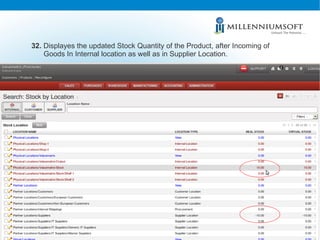
31.   Select the Product Purchased and Click on  Stock by Location.
32.  Displayes the updated Stock Quantity of the Product, after Incoming of Goods In Internal location as well as in Supplier Location.
Contact us

Purchase Management in Open ERP

  • 1.
  • 2.
    Purchase Management: 1. Login to the database of Open ERP using User name and Password .
  • 3.
    2. Inmain Menu bar -> Purchases -> Purchase management -> Purchase Requiditions-> Click on New Button to generate a new requisition.
  • 4.
    3 . InPurchase Requisition form, enter required fields like Requisition date , Requisiton Type , Requisition Deadline and Origin.
  • 5.
    4. A Pop-upwindow opens which displayes the list of products that are present the Database. Select any one product or Click on New button to create new product.
  • 6.
    5. In New product form, enter the Product name, reference.
  • 7.
    6. SelectProduct type ,Procurement method, Supply method and Costing method. Enter the Cost price and Sale price.
  • 8.
    7 . Finallyclick on Save and Close the Product form.
  • 9.
    8. Selectthe required number of products in Purchase Requisition.
  • 10.
    9. Clickon Quotations Sub tab and next click on Request for Quotation button.
  • 11.
    10. Purchase Requisiton a pop-up window appears. Select a partner or Create a New Partner in the database.
  • 12.
    11. Nextclick on Create Quotation button.
  • 13.
    12. APurchase Order is raised in Request for Quotation State.
  • 14.
    13. NextClick on Products sub tab in Purchase Requisition form and Click on Confirm.
  • 15.
    14. In Purchases Management -> Request for Quotation -> Select and Open the Quotation which is raised in purchase requisition.
  • 16.
    15. Clickon Compute button to compute taxes and total amount in Request for Quotation form.
  • 17.
    16. Nextclick on Convert to Purchase Order button to convert this quotation to Purchase Order.
  • 18.
    17. Byclicking on Convert to Purchase order, the Purchase Order gets confirmed, a Reception of goods and Invoice are genarated in Draft state.
  • 19.
    18. Inthe list view of Purchase Orders Invoiced and Received Columns are displayed as ' 0%' initially after Approval.
  • 20.
    19. In Main Menu bar -> Warehouse -> Warehouse Management -> Incoming Shipments. Edit the pack which is in Available State.
  • 21.
    20. Nextclick on Process button in the Incoming shipment.
  • 22.
    21. APop-up window with the list of Products to process are displayed. Click on Validate.
  • 23.
    22 . Productsare Processed and the status of the incoming shipment changes to Done.
  • 24.
    23. Gotolist view of Purchase orders to check wether all products are processed. The PO is displaying Received as 100%
  • 25.
    24. InMain Menu ->Accounting -> Suppliers -> Supplier Invoices. Open the required Invoice which is draft state.
  • 26.
    25. Clickon Compute to calculate total and taxes. Next click on Approve button.
  • 27.
    26. Topay the supplier invoice click on Pay Invoice . Pay invoice Screen appears. Select the Payment Method and click on Validate.
  • 28.
    27. AfterPayment the status of the Pay invoice field changes to Posted.
  • 29.
    28. Finally,Check the Purchase Order in the List view. Invoiced and Received columns are displayed as 100%.
  • 30.
    30. InWarehouse -> Product -> Click on Products option -> List of Products are displayed on the screen.
  • 31.
    31. Select the Product Purchased and Click on Stock by Location.
  • 32.
    32. Displayesthe updated Stock Quantity of the Product, after Incoming of Goods In Internal location as well as in Supplier Location.
  • 33.