Basic Introduction of Procurement and Sourcing
Module Dynamics 365 (Supply Chain Management).
• PRESENTED BY HUMA AMJAD,
• Associate Business Analyst (intern).
Outline
PURCHASE ORDERS
POSTING PROFILES
PURCHSE REQUSITION
Requests for quotations
Vendors
Catalogs
Prices and discounts
Purchase agreements
Vendor rebates
Procurement categories
Setup
P
R
E
S
E
N
T
A
T
I
O
N
T
I
T
L
E
WHAT IS PROCUERMENT AND SOURCING
• Procurement: Procurement is the comprehensive process of
acquiring goods and services that a company needs to operate. It
involves several steps:
• Identifying needs: Determining what goods or services are
required.
• Evaluating suppliers: Researching and shortlisting potential
suppliers.
• Negotiating contracts: Discussing terms and conditions to get the
best deal.
• Placing orders: Issuing purchase orders to selected suppliers.
• Receiving goods: Ensuring the ordered items are delivered as
specified.
• Payment: Processing payments to suppliers.
• Managing contracts: Overseeing supplier relation and contract
compliance.
• Sourcing :Sourcing is a subset of procurement focused
specifically on finding and vetting suppliers. It includes:
• Market research: Analyzing the market to identify
potential suppliers.
• Supplier evaluation: Assessing suppliers based on criteria
like cost, quality, and reliability.
• Negotiation: Bargaining terms and conditions to secure
favorable agreements.
SUMMARY: SOURCING IS ABOUT FINDING THE RIGHT
SUPPLIERS AND PROCUREMNT IS ABOUT THE ENTIRE
PROCESS OF AQUIRING THE GOODS AND SERVICES FROM
THOSE SUPPLIERS.
PROCUREMENT AND SOUCRING MODULE
D365
This session will give an overview of the functionality that's available in
the Procurement and sourcing module D365.
Procurement and sourcing covers all the steps from identifying a need
for product and services through procuring the product, receipt,
invoicing, and processing of payment with vendors. Procurement
processes can be configured toward specific business needs by defining
purchasing policies and workflows.
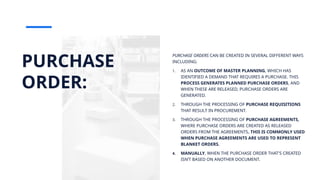
PURCHASE
ORDER:
PURCHASE ORDERS CAN BE CREATED IN SEVERAL DIFFERENT WAYS
INCLUDING:
1. AS AN OUTCOME OF MASTER PLANNING, WHICH HAS
IDENTIFIED A DEMAND THAT REQUIRES A PURCHASE. THIS
PROCESS GENERATES PLANNED PURCHASE ORDERS, AND
WHEN THESE ARE RELEASED, PURCHASE ORDERS ARE
GENERATED.
2. THROUGH THE PROCESSING OF PURCHASE REQUISITIONS
THAT RESULT IN PROCUREMENT.
3. THROUGH THE PROCESSING OF PURCHASE AGREEMENTS,
WHERE PURCHASE ORDERS ARE CREATED AS RELEASED
ORDERS FROM THE AGREEMENTS. THIS IS COMMONLY USED
WHEN PURCHASE AGREEMENTS ARE USED TO REPRESENT
BLANKET ORDERS.
4. MANUALLY, WHEN THE PURCHASE ORDER THAT'S CREATED
ISN’T BASED ON ANOTHER DOCUMENT.
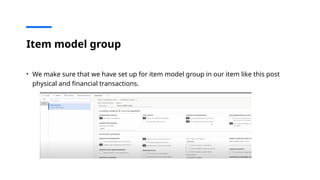
Item model group
• We make sure that we have set up for item model group in our item like this post
physical and financial transactions.
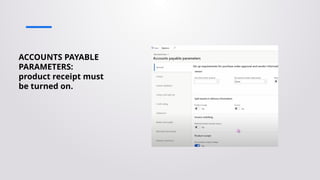
ACCOUNTS PAYABLE
PARAMETERS:
product receipt must
be turned on.
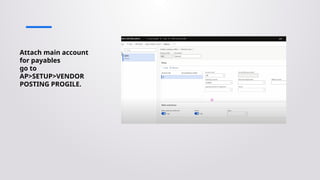
Attach main account
for payables
go to
AP>SETUP>VENDOR
POSTING PROGILE.
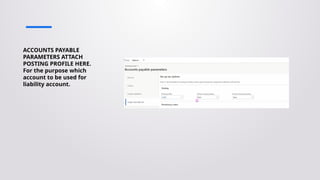
ACCOUNTS PAYABLE
PARAMETERS ATTACH
POSTING PROFILE HERE.
For the purpose which
account to be used for
liability account.
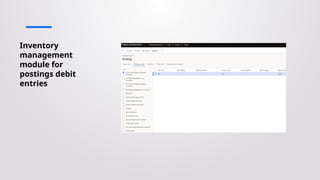
Inventory
management
module for
postings debit
entries
Planned purchase orders:
P L A N N I N G :
• Planned purchase orders are part of
master planning module we would
discuss this in detail later while
working in that module it is just for
information purpose here.
Procure to pay:
“procure to pay is process for how
an organization or company goes
about procuring goods and
services, paying the supplier and
receiving the goods”.
procure to pay
process
Identify needs:
Product catalogs can be set up to guide the selection of available products to select
from, or requests can be made for products that aren't yet made available in a
catalog.
“These details include product features, descriptions, dimensions, ingredients,
price, weight, availability, color, customer reviews, and more”.
• CREATION OF PRODUCT CATALOG AND ITS prerequisites.
 Creation of Procurement category hierarchies:
Procurement category hierarchies classify items or transactions for reporting
and analysis. By using a procurement category hierarchy, companies can
strategically manage categories, products, vendors, and other procurement
factors from a central location. One procurement category hierarchy is defined
for a whole organization. The catalog is based on the procurement category
hierarchy: the categories in the hierarchy become nodes in the catalog. The
vendors and products are included in your catalog.
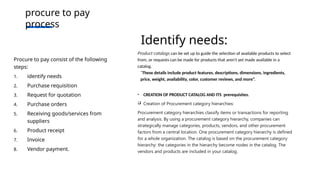
Procure to pay consist of the following
steps:
1. identify needs
2. Purchase requisition
3. Request for quotation
4. Purchase orders
5. Receiving goods/services from
suppliers
6. Product receipt
7. Invoice
8. Vendor payment.
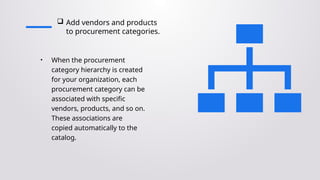
 Add vendors and products
to procurement categories.
• When the procurement
category hierarchy is created
for your organization, each
procurement category can be
associated with specific
vendors, products, and so on.
These associations are
copied automatically to the
catalog.
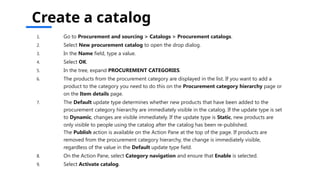
Create a catalog
1. Go to Procurement and sourcing > Catalogs > Procurement catalogs.
2. Select New procurement catalog to open the drop dialog.
3. In the Name field, type a value.
4. Select OK.
5. In the tree, expand PROCUREMENT CATEGORIES.
6. The products from the procurement category are displayed in the list. If you want to add a
product to the category you need to do this on the Procurement category hierarchy page or
on the Item details page.
7. The Default update type determines whether new products that have been added to the
procurement category hierarchy are immediately visible in the catalog. If the update type is set
to Dynamic, changes are visible immediately. If the update type is Static, new products are
only visible to people using the catalog after the catalog has been re-published.
The Publish action is available on the Action Pane at the top of the page. If products are
removed from the procurement category hierarchy, the change is immediately visible,
regardless of the value in the Default update type field.
8. On the Action Pane, select Category navigation and ensure that Enable is selected.
9. Select Activate catalog.
2. Purchase requisition
• Purchase requisition is global form it will display the form of all purchase
requisition within the company if you login from another legal entity this form will
be same and available in legal entities it is a global record and visible around the
all-legal entities within the company.
• Purchase requisition has the flexibility in the lines to select any entity in buying
legal entity.
• Purchase requisition has the mandatory workflow without approval and skipping
workflow we cannot go further.
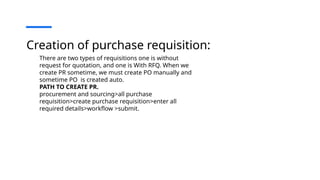
Creation of purchase requisition:
There are two types of requisitions one is without
request for quotation, and one is With RFQ. When we
create PR sometime, we must create PO manually and
sometime PO is created auto.
PATH TO CREATE PR.
procurement and sourcing>all purchase
requisition>create purchase requisition>enter all
required details>workflow >submit.
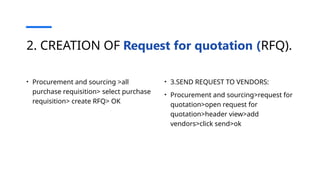
2. CREATION OF Request for quotation (RFQ).
• Procurement and sourcing >all
purchase requisition> select purchase
requisition> create RFQ> OK
• 3.SEND REQUEST TO VENDORS:
• Procurement and sourcing>request for
quotation>open request for
quotation>header view>add
vendors>click send>ok
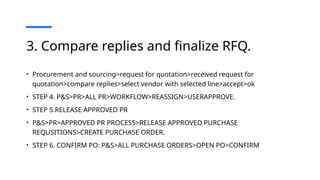
3. Compare replies and finalize RFQ.
• Procurement and sourcing>request for quotation>received request for
quotation>compare replies>select vendor with selected line>accept>ok
• STEP 4. P&S>PR>ALL PR>WORKFLOW>REASSIGN>USERAPPROVE.
• STEP 5.RELEASE APPROVED PR
• P&S>PR>APPROVED PR PROCESS>RELEASE APPROVED PURCHASE
REQUSITIONS>CREATE PURCHASE ORDER.
• STEP 6. CONFIRM PO: P&S>ALL PURCHASE ORDERS>OPEN PO>CONFIRM
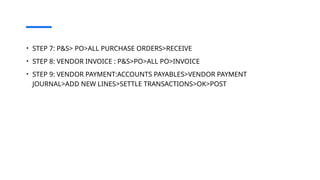
• STEP 7: P&S> PO>ALL PURCHASE ORDERS>RECEIVE
• STEP 8: VENDOR INVOICE : P&S>PO>ALL PO>INVOICE
• STEP 9: VENDOR PAYMENT:ACCOUNTS PAYABLES>VENDOR PAYMENT
JOURNAL>ADD NEW LINES>SETTLE TRANSACTIONS>OK>POST
Prices and discounts:
• Prices and discounts include information about the prices, discounts, and rebate terms that they offer. Prices and discounts can be
represented as trade agreements.
• Trade agreements represent vendor price lists with prices or discounts, and have a specific set of dates for which the agreement is valid.
• purchase agreements :
• Prices and discounts can be negotiated and represented through purchase agreements with conditions like commitments to buy certain
volumes or monetary amounts as a precondition for the negotiated terms.
• Rebate agreements:
• Rebate agreements can be created with vendors where the procurement of specific products or groups of products might trigger a
rebate from the vendor depending on the purchase amount or volume. OR company qualifies for a monetary reward in return for
achieving preset purchase targets.
•
• DEATAILS : IT’S A SPECIAL KIND OF CONTRACT BETWEEN VENDOR AND OUR COMPANY IN WHICH WE CLAIM A REBATE TO OUR
VENDOR.WHICH REDUCE OUR LIABILITY AND VENDOR BALANCE AND WE CALIM this quarterly ,annually depending upon the terms &
conditions of vendor rebate contract.
PRICES AND DISCOUNTS
• Prices and discounts include trade agreements in which we set prices, single line
discounts ,multiline discounts ,total discounts with specific vendor/ items and
group of items, group of vendors for a certain period of time.
• Setup for prices and discount
• P&S>Setup>prices and discounts>create journal names>activate prices and
discounts.
Trade agreement journals
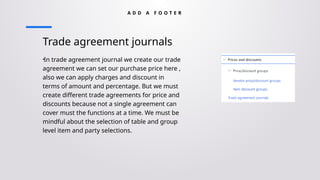
•In trade agreement journal we create our trade
agreement we can set our purchase price here ,
also we can apply charges and discount in
terms of amount and percentage. But we must
create different trade agreements for price and
discounts because not a single agreement can
cover must the functions at a time. We must be
mindful about the selection of table and group
level item and party selections.
A D D A F O O T E R
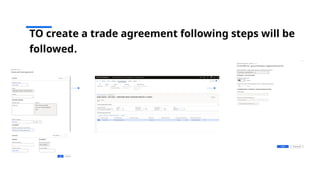
TO create a trade agreement following steps will be
followed.
A D D A F O O T E R
VENDOR REBATES:
IT’S A SPECIALL KIND OF CONTRACT BETWEEN VENDOR AND OUR COMPANY IN WHICH WE CLAIM A REBATE TO OUR VENDOR WHICH IS A
KIND OF DISCOUNT OUR VENDOR IS REIMBURSING US IT’S A CREDIT MEMO.WHICH REDUCE OUR LIABILITY AND VENDOR BALANCE AND
WE Claim this quarterly and annually depending upon the terms conditions of vendor rebate contract.
WHAT IS VENDOR REBATE AGREEMNT:
A vendor rebate agreement is a record of a contract with a vendor that specifies the negotiated terms and conditions
under which the company qualifies for a monetary reward in return for achieving preset purchase targets.
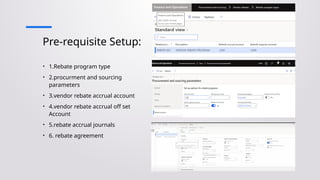
Pre-requisite Setup:
• 1.Rebate program type
• 2.procurment and sourcing
parameters
• 3.vendor rebate accrual account
• 4.vendor rebate accrual off set
Account
• 5.rebate accrual journals
• 6. rebate agreement
A D D A F O O T E R
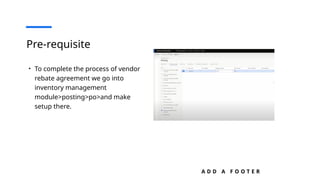
Pre-requisite
• To complete the process of vendor
rebate agreement we go into
inventory management
module>posting>po>and make
setup there.
A D D A F O O T E R
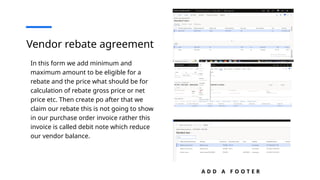
Vendor rebate agreement
In this form we add minimum and
maximum amount to be eligible for a
rebate and the price what should be for
calculation of rebate gross price or net
price etc. Then create po after that we
claim our rebate this is not going to show
in our purchase order invoice rather this
invoice is called debit note which reduce
our vendor balance.
A D D A F O O T E R
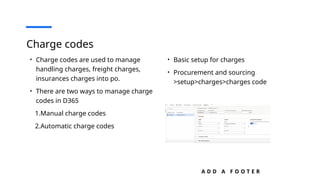
Charge codes
• Charge codes are used to manage
handling charges, freight charges,
insurances charges into po.
• There are two ways to manage charge
codes in D365
1.Manual charge codes
2.Automatic charge codes
• Basic setup for charges
• Procurement and sourcing
>setup>charges>charges code
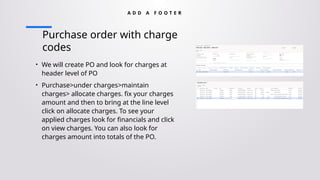
Purchase order with charge
codes
• We will create PO and look for charges at
header level of PO
• Purchase>under charges>maintain
charges> allocate charges. fix your charges
amount and then to bring at the line level
click on allocate charges. To see your
applied charges look for financials and click
on view charges. You can also look for
charges amount into totals of the PO.
A D D A F O O T E R
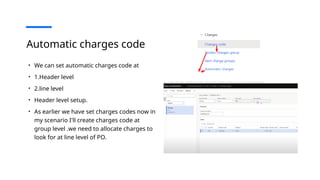
Automatic charges code
• We can set automatic charges code at
• 1.Header level
• 2.line level
• Header level setup.
• As earlier we have set charges codes now in
my scenario I'll create charges code at
group level .we need to allocate charges to
look for at line level of PO.
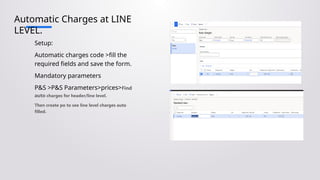
Automatic Charges at LINE
LEVEL.
Setup:
Automatic charges code >fill the
required fields and save the form.
Mandatory parameters
P&S >P&S Parameters>prices>Find
auto charges for header/line level.
Then create po to see line level charges auto
filled.
THANK YOU

Procurement and sourcing in dynamics 365 - Copy.pptx

  • 1.
    Basic Introduction ofProcurement and Sourcing Module Dynamics 365 (Supply Chain Management). • PRESENTED BY HUMA AMJAD, • Associate Business Analyst (intern).
  • 2.
    Outline PURCHASE ORDERS POSTING PROFILES PURCHSEREQUSITION Requests for quotations Vendors Catalogs Prices and discounts Purchase agreements Vendor rebates Procurement categories Setup P R E S E N T A T I O N T I T L E
  • 3.
    WHAT IS PROCUERMENTAND SOURCING • Procurement: Procurement is the comprehensive process of acquiring goods and services that a company needs to operate. It involves several steps: • Identifying needs: Determining what goods or services are required. • Evaluating suppliers: Researching and shortlisting potential suppliers. • Negotiating contracts: Discussing terms and conditions to get the best deal. • Placing orders: Issuing purchase orders to selected suppliers. • Receiving goods: Ensuring the ordered items are delivered as specified. • Payment: Processing payments to suppliers. • Managing contracts: Overseeing supplier relation and contract compliance. • Sourcing :Sourcing is a subset of procurement focused specifically on finding and vetting suppliers. It includes: • Market research: Analyzing the market to identify potential suppliers. • Supplier evaluation: Assessing suppliers based on criteria like cost, quality, and reliability. • Negotiation: Bargaining terms and conditions to secure favorable agreements. SUMMARY: SOURCING IS ABOUT FINDING THE RIGHT SUPPLIERS AND PROCUREMNT IS ABOUT THE ENTIRE PROCESS OF AQUIRING THE GOODS AND SERVICES FROM THOSE SUPPLIERS.
  • 4.
    PROCUREMENT AND SOUCRINGMODULE D365 This session will give an overview of the functionality that's available in the Procurement and sourcing module D365. Procurement and sourcing covers all the steps from identifying a need for product and services through procuring the product, receipt, invoicing, and processing of payment with vendors. Procurement processes can be configured toward specific business needs by defining purchasing policies and workflows.
  • 5.
    PURCHASE ORDER: PURCHASE ORDERS CANBE CREATED IN SEVERAL DIFFERENT WAYS INCLUDING: 1. AS AN OUTCOME OF MASTER PLANNING, WHICH HAS IDENTIFIED A DEMAND THAT REQUIRES A PURCHASE. THIS PROCESS GENERATES PLANNED PURCHASE ORDERS, AND WHEN THESE ARE RELEASED, PURCHASE ORDERS ARE GENERATED. 2. THROUGH THE PROCESSING OF PURCHASE REQUISITIONS THAT RESULT IN PROCUREMENT. 3. THROUGH THE PROCESSING OF PURCHASE AGREEMENTS, WHERE PURCHASE ORDERS ARE CREATED AS RELEASED ORDERS FROM THE AGREEMENTS. THIS IS COMMONLY USED WHEN PURCHASE AGREEMENTS ARE USED TO REPRESENT BLANKET ORDERS. 4. MANUALLY, WHEN THE PURCHASE ORDER THAT'S CREATED ISN’T BASED ON ANOTHER DOCUMENT.
  • 6.
    Item model group •We make sure that we have set up for item model group in our item like this post physical and financial transactions.
  • 7.
  • 8.
    Attach main account forpayables go to AP>SETUP>VENDOR POSTING PROGILE.
  • 9.
    ACCOUNTS PAYABLE PARAMETERS ATTACH POSTINGPROFILE HERE. For the purpose which account to be used for liability account.
  • 10.
  • 11.
    Planned purchase orders: PL A N N I N G : • Planned purchase orders are part of master planning module we would discuss this in detail later while working in that module it is just for information purpose here.
  • 12.
    Procure to pay: “procureto pay is process for how an organization or company goes about procuring goods and services, paying the supplier and receiving the goods”.
  • 13.
    procure to pay process Identifyneeds: Product catalogs can be set up to guide the selection of available products to select from, or requests can be made for products that aren't yet made available in a catalog. “These details include product features, descriptions, dimensions, ingredients, price, weight, availability, color, customer reviews, and more”. • CREATION OF PRODUCT CATALOG AND ITS prerequisites.  Creation of Procurement category hierarchies: Procurement category hierarchies classify items or transactions for reporting and analysis. By using a procurement category hierarchy, companies can strategically manage categories, products, vendors, and other procurement factors from a central location. One procurement category hierarchy is defined for a whole organization. The catalog is based on the procurement category hierarchy: the categories in the hierarchy become nodes in the catalog. The vendors and products are included in your catalog. Procure to pay consist of the following steps: 1. identify needs 2. Purchase requisition 3. Request for quotation 4. Purchase orders 5. Receiving goods/services from suppliers 6. Product receipt 7. Invoice 8. Vendor payment.
  • 14.
     Add vendorsand products to procurement categories. • When the procurement category hierarchy is created for your organization, each procurement category can be associated with specific vendors, products, and so on. These associations are copied automatically to the catalog.
  • 15.
    Create a catalog 1.Go to Procurement and sourcing > Catalogs > Procurement catalogs. 2. Select New procurement catalog to open the drop dialog. 3. In the Name field, type a value. 4. Select OK. 5. In the tree, expand PROCUREMENT CATEGORIES. 6. The products from the procurement category are displayed in the list. If you want to add a product to the category you need to do this on the Procurement category hierarchy page or on the Item details page. 7. The Default update type determines whether new products that have been added to the procurement category hierarchy are immediately visible in the catalog. If the update type is set to Dynamic, changes are visible immediately. If the update type is Static, new products are only visible to people using the catalog after the catalog has been re-published. The Publish action is available on the Action Pane at the top of the page. If products are removed from the procurement category hierarchy, the change is immediately visible, regardless of the value in the Default update type field. 8. On the Action Pane, select Category navigation and ensure that Enable is selected. 9. Select Activate catalog.
  • 16.
    2. Purchase requisition •Purchase requisition is global form it will display the form of all purchase requisition within the company if you login from another legal entity this form will be same and available in legal entities it is a global record and visible around the all-legal entities within the company. • Purchase requisition has the flexibility in the lines to select any entity in buying legal entity. • Purchase requisition has the mandatory workflow without approval and skipping workflow we cannot go further.
  • 17.
    Creation of purchaserequisition: There are two types of requisitions one is without request for quotation, and one is With RFQ. When we create PR sometime, we must create PO manually and sometime PO is created auto. PATH TO CREATE PR. procurement and sourcing>all purchase requisition>create purchase requisition>enter all required details>workflow >submit.
  • 18.
    2. CREATION OFRequest for quotation (RFQ). • Procurement and sourcing >all purchase requisition> select purchase requisition> create RFQ> OK • 3.SEND REQUEST TO VENDORS: • Procurement and sourcing>request for quotation>open request for quotation>header view>add vendors>click send>ok
  • 19.
    3. Compare repliesand finalize RFQ. • Procurement and sourcing>request for quotation>received request for quotation>compare replies>select vendor with selected line>accept>ok • STEP 4. P&S>PR>ALL PR>WORKFLOW>REASSIGN>USERAPPROVE. • STEP 5.RELEASE APPROVED PR • P&S>PR>APPROVED PR PROCESS>RELEASE APPROVED PURCHASE REQUSITIONS>CREATE PURCHASE ORDER. • STEP 6. CONFIRM PO: P&S>ALL PURCHASE ORDERS>OPEN PO>CONFIRM
  • 20.
    • STEP 7:P&S> PO>ALL PURCHASE ORDERS>RECEIVE • STEP 8: VENDOR INVOICE : P&S>PO>ALL PO>INVOICE • STEP 9: VENDOR PAYMENT:ACCOUNTS PAYABLES>VENDOR PAYMENT JOURNAL>ADD NEW LINES>SETTLE TRANSACTIONS>OK>POST
  • 21.
    Prices and discounts: •Prices and discounts include information about the prices, discounts, and rebate terms that they offer. Prices and discounts can be represented as trade agreements. • Trade agreements represent vendor price lists with prices or discounts, and have a specific set of dates for which the agreement is valid. • purchase agreements : • Prices and discounts can be negotiated and represented through purchase agreements with conditions like commitments to buy certain volumes or monetary amounts as a precondition for the negotiated terms. • Rebate agreements: • Rebate agreements can be created with vendors where the procurement of specific products or groups of products might trigger a rebate from the vendor depending on the purchase amount or volume. OR company qualifies for a monetary reward in return for achieving preset purchase targets. • • DEATAILS : IT’S A SPECIAL KIND OF CONTRACT BETWEEN VENDOR AND OUR COMPANY IN WHICH WE CLAIM A REBATE TO OUR VENDOR.WHICH REDUCE OUR LIABILITY AND VENDOR BALANCE AND WE CALIM this quarterly ,annually depending upon the terms & conditions of vendor rebate contract.
  • 22.
    PRICES AND DISCOUNTS •Prices and discounts include trade agreements in which we set prices, single line discounts ,multiline discounts ,total discounts with specific vendor/ items and group of items, group of vendors for a certain period of time. • Setup for prices and discount • P&S>Setup>prices and discounts>create journal names>activate prices and discounts.
  • 23.
    Trade agreement journals •Intrade agreement journal we create our trade agreement we can set our purchase price here , also we can apply charges and discount in terms of amount and percentage. But we must create different trade agreements for price and discounts because not a single agreement can cover must the functions at a time. We must be mindful about the selection of table and group level item and party selections. A D D A F O O T E R
  • 24.
    TO create atrade agreement following steps will be followed.
  • 25.
    A D DA F O O T E R VENDOR REBATES: IT’S A SPECIALL KIND OF CONTRACT BETWEEN VENDOR AND OUR COMPANY IN WHICH WE CLAIM A REBATE TO OUR VENDOR WHICH IS A KIND OF DISCOUNT OUR VENDOR IS REIMBURSING US IT’S A CREDIT MEMO.WHICH REDUCE OUR LIABILITY AND VENDOR BALANCE AND WE Claim this quarterly and annually depending upon the terms conditions of vendor rebate contract. WHAT IS VENDOR REBATE AGREEMNT: A vendor rebate agreement is a record of a contract with a vendor that specifies the negotiated terms and conditions under which the company qualifies for a monetary reward in return for achieving preset purchase targets.
  • 26.
    Pre-requisite Setup: • 1.Rebateprogram type • 2.procurment and sourcing parameters • 3.vendor rebate accrual account • 4.vendor rebate accrual off set Account • 5.rebate accrual journals • 6. rebate agreement
  • 27.
    A D DA F O O T E R Pre-requisite • To complete the process of vendor rebate agreement we go into inventory management module>posting>po>and make setup there.
  • 28.
    A D DA F O O T E R Vendor rebate agreement In this form we add minimum and maximum amount to be eligible for a rebate and the price what should be for calculation of rebate gross price or net price etc. Then create po after that we claim our rebate this is not going to show in our purchase order invoice rather this invoice is called debit note which reduce our vendor balance.
  • 29.
    A D DA F O O T E R Charge codes • Charge codes are used to manage handling charges, freight charges, insurances charges into po. • There are two ways to manage charge codes in D365 1.Manual charge codes 2.Automatic charge codes • Basic setup for charges • Procurement and sourcing >setup>charges>charges code
  • 30.
    Purchase order withcharge codes • We will create PO and look for charges at header level of PO • Purchase>under charges>maintain charges> allocate charges. fix your charges amount and then to bring at the line level click on allocate charges. To see your applied charges look for financials and click on view charges. You can also look for charges amount into totals of the PO. A D D A F O O T E R
  • 31.
    Automatic charges code •We can set automatic charges code at • 1.Header level • 2.line level • Header level setup. • As earlier we have set charges codes now in my scenario I'll create charges code at group level .we need to allocate charges to look for at line level of PO.
  • 32.
    Automatic Charges atLINE LEVEL. Setup: Automatic charges code >fill the required fields and save the form. Mandatory parameters P&S >P&S Parameters>prices>Find auto charges for header/line level. Then create po to see line level charges auto filled.
  • 33.