Procure to Pay Life
Cycle
End to End Process
P T P Flow
Objectives: ................................................................................................................................................ 3
Pre-Requisites: .......................................................................................................................................... 4
Process Steps: ........................................................................................................................................... 5
Create Supplier: ABC Vodafone Supplier .................................................................................................. 6
Create Supplier: ABC Idea Supplier ......................................................................................................... 15
Check the Quantity of Item in Sub Inventory ......................................................................................... 25
Stage-1: Create Requisition .................................................................................................................... 28
Stage-2: Create Purchase Order ............................................................................................................. 34
Stage-3: Receiving Items ......................................................................................................................... 39
Check the Quantity of Item in Sub Inventory after Receiving ................................................................ 43
Submit Program for Pay on Receipt Auto invoice................................................................................... 46
Stage-4: Invoice and Payment................................................................................................................ 50
Stage-5: Create Accounting for Payment and Invoice ............................................................................ 60

Page 2
Objectives: After completing the document one should be able to understand the whole
overview of Procure to Pay Process implementation.
Able to create a requisition.
Create a Purchase Order
Create a Receipt.
Create an Invoice automatically.
Able to make payment.

NOTATIONS:
(N) = Navigator
(M) = Menu
(T) = Tab
(ST)= Sub Tab

Page 3
Pre-Requisites:
1.
2.
3.
4.
5.
6.
7.
8.
9.
10.

You have a login name and password.
User has assigned Inventory, Purchasing, and Payables Modules.
User should assign employee and employee assigned as a buyer.
Employee position has the approval limit.
There should be quantity in Inventory for the item.
Supplier should have one Site with purpose Purchasing and Payment
Supplier (T)Purchasing (ST) Self Billing Pay On: Receipt and Invoice Summary: Pay Site
User should know to whom he needs to supply.
User should know from which Bank account the money has to be debited.
Payment Method is assigned at Supplier Site level

NOTE: This document is explained considering that all the basic setups are done.

Page 4
Process Steps:
1.
2.
3.
4.
5.
6.
7.
8.
9.
10.
11.
12.

Check the quantity of the item in Sub inventory.
Enter the Purchase Requisition.
Approve the Purchase Requisition.
Create the Purchase Order.
Approve the Purchase Order.
Raise a receipt on receiving the quantity.
Check the quantity in Sub inventory.
Raise an Invoice automatically.
Validate the Invoice.
Do the payment.
Create Accounting for Invoice
Create Accounting for Payment

Page 5
Create Supplier: ABC Vodafone Supplier
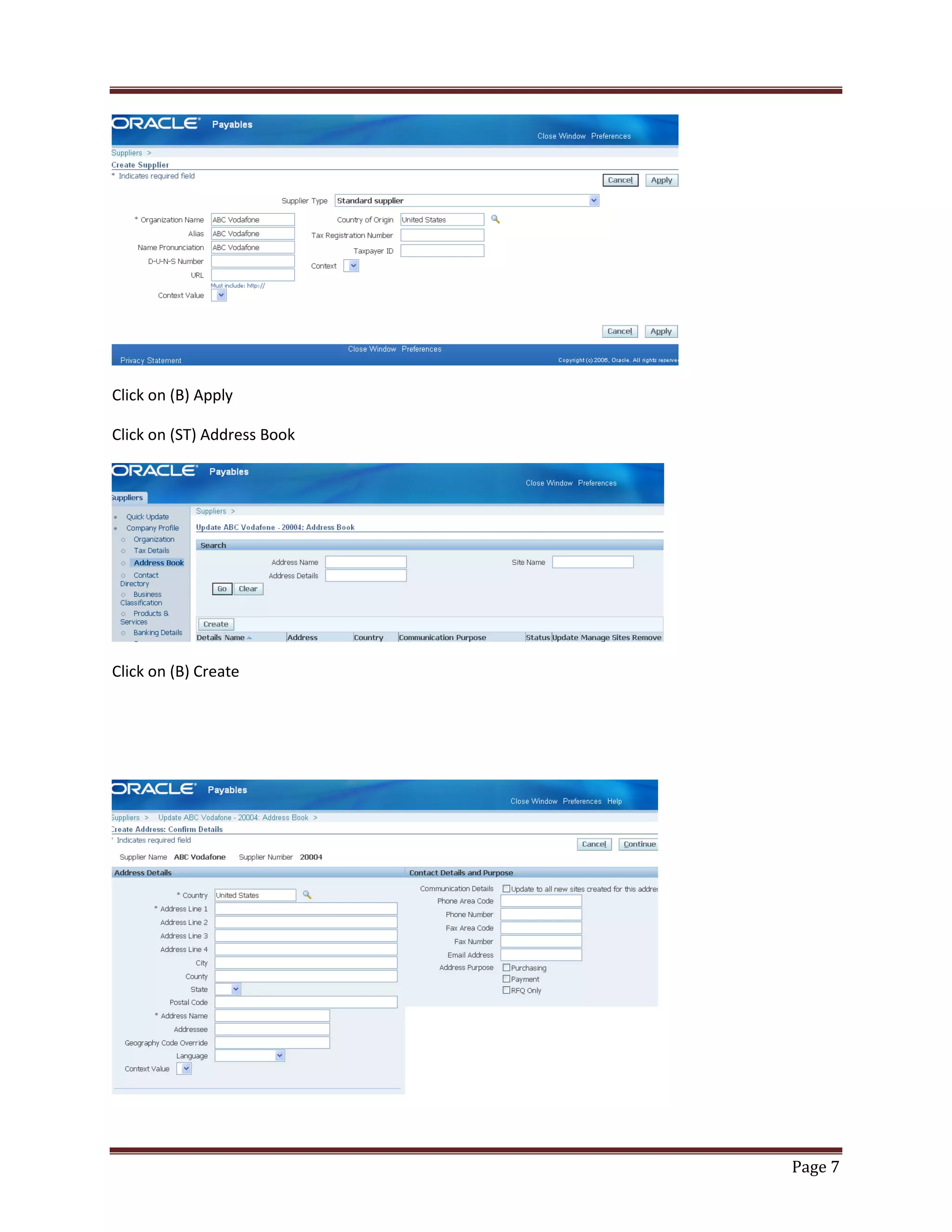
(N) Suppliers> Entry Suppliers

Click on (B) Create Supplier

Select Supplier Type: Standard Supplier
Enter Organization Name, Alias, Country

Page 6
Click on (B) Apply
Click on (ST) Address Book

Click on (B) Create

Page 7
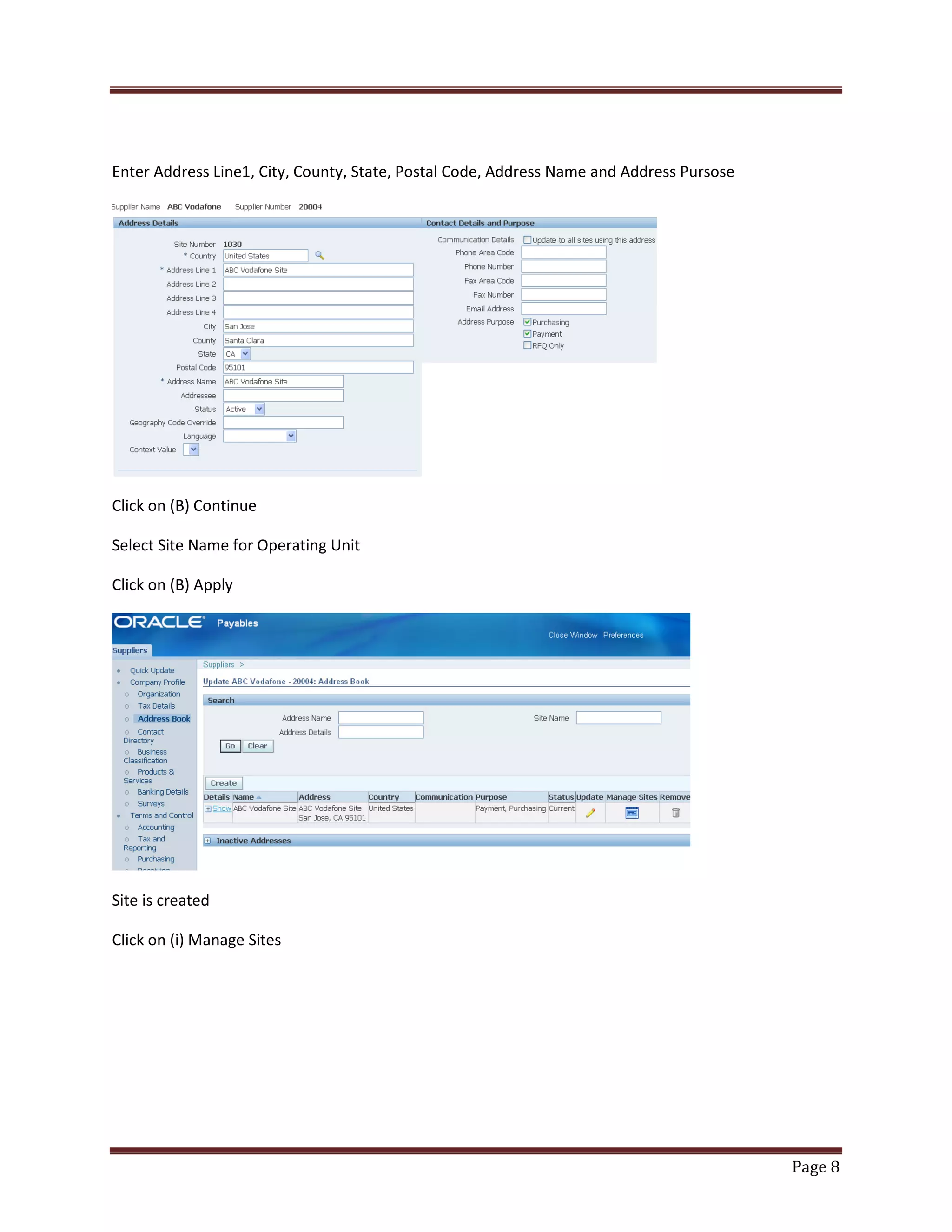
Enter Address Line1, City, County, State, Postal Code, Address Name and Address Pursose

Click on (B) Continue
Select Site Name for Operating Unit
Click on (B) Apply

Site is created
Click on (i) Manage Sites

Page 8
Enable Purchasing and Pay

Click on (B) Apply

Click on (ST) Purchasing

Page 9
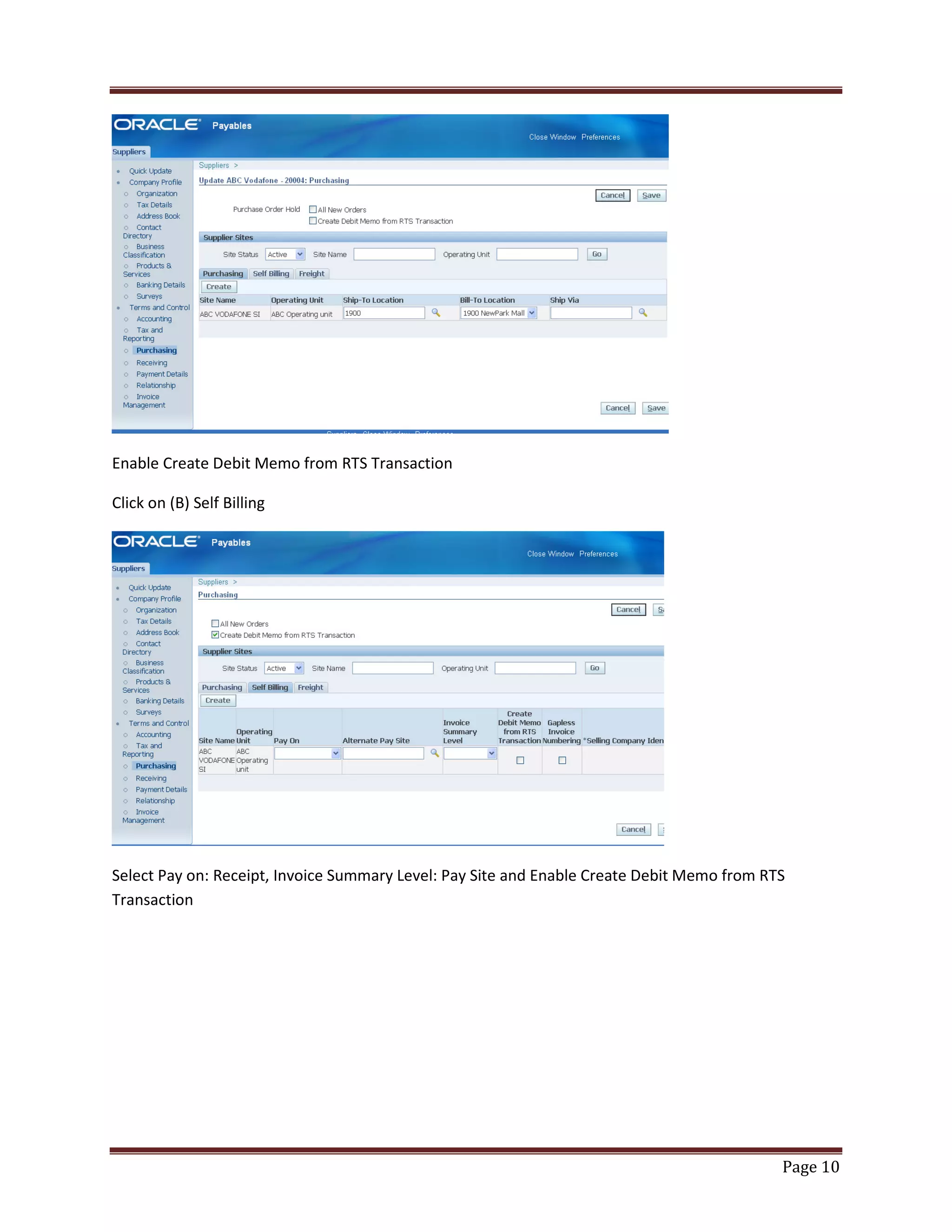
Enable Create Debit Memo from RTS Transaction
Click on (B) Self Billing

Select Pay on: Receipt, Invoice Summary Level: Pay Site and Enable Create Debit Memo from RTS
Transaction

Page 10
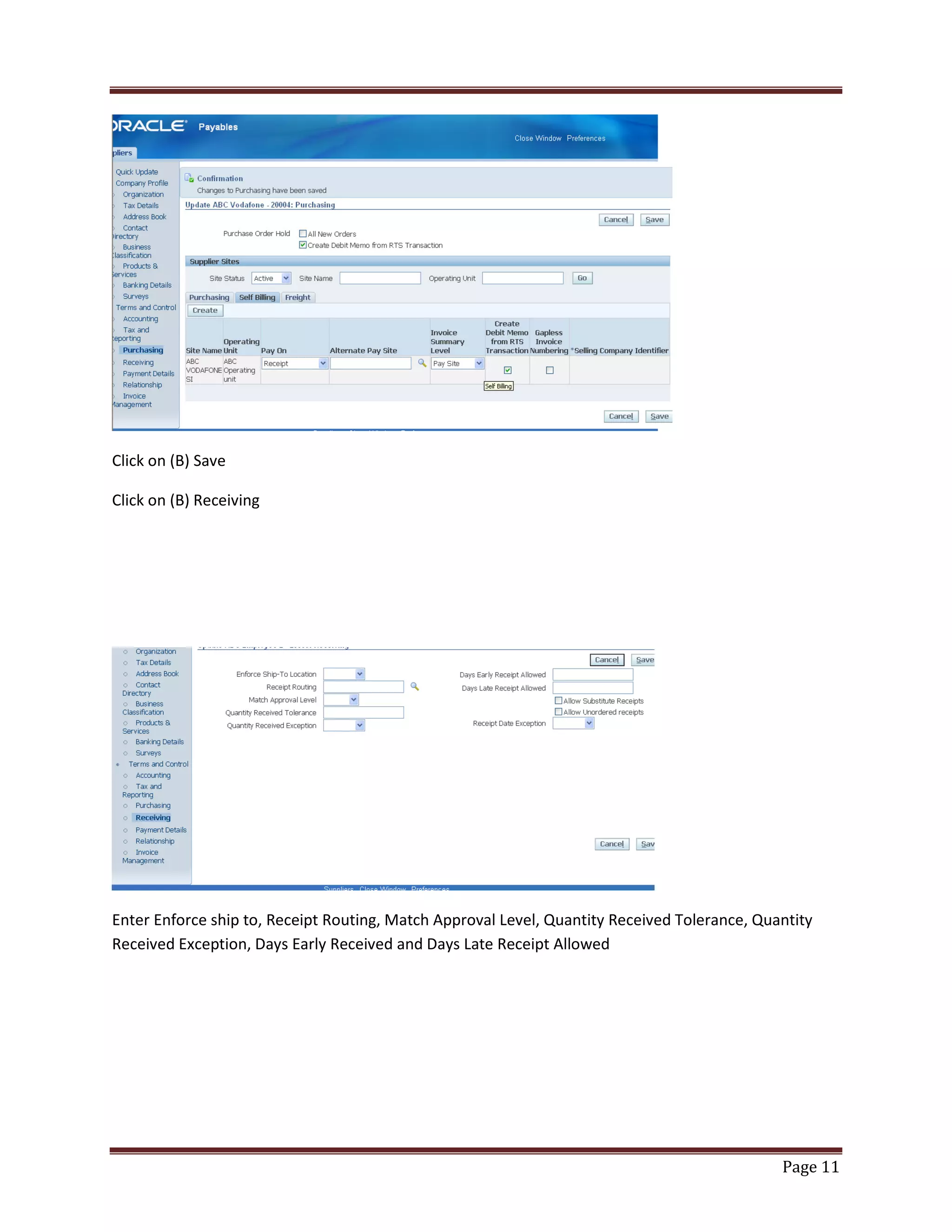
Click on (B) Save
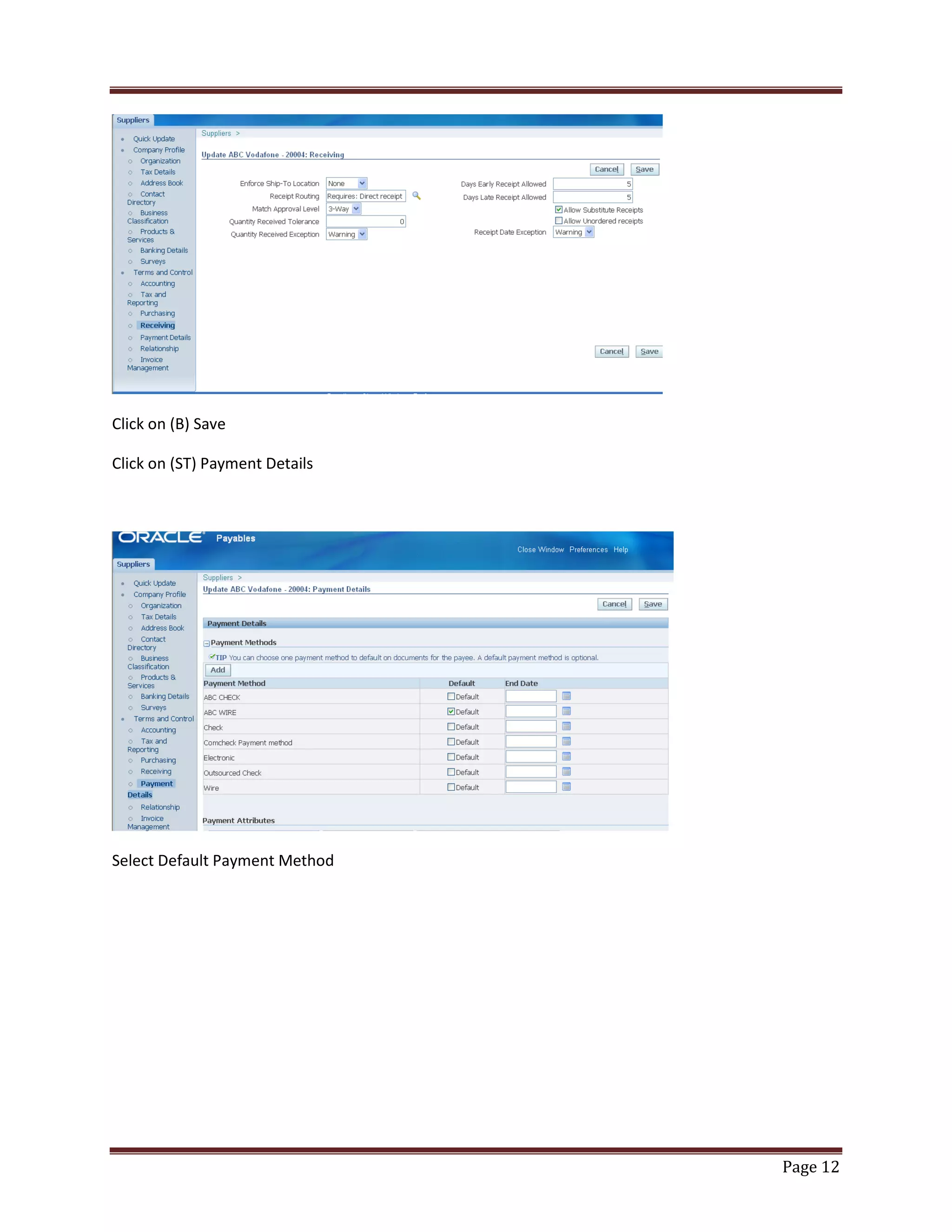
Click on (B) Receiving

Enter Enforce ship to, Receipt Routing, Match Approval Level, Quantity Received Tolerance, Quantity
Received Exception, Days Early Received and Days Late Receipt Allowed

Page 11
Click on (B) Save
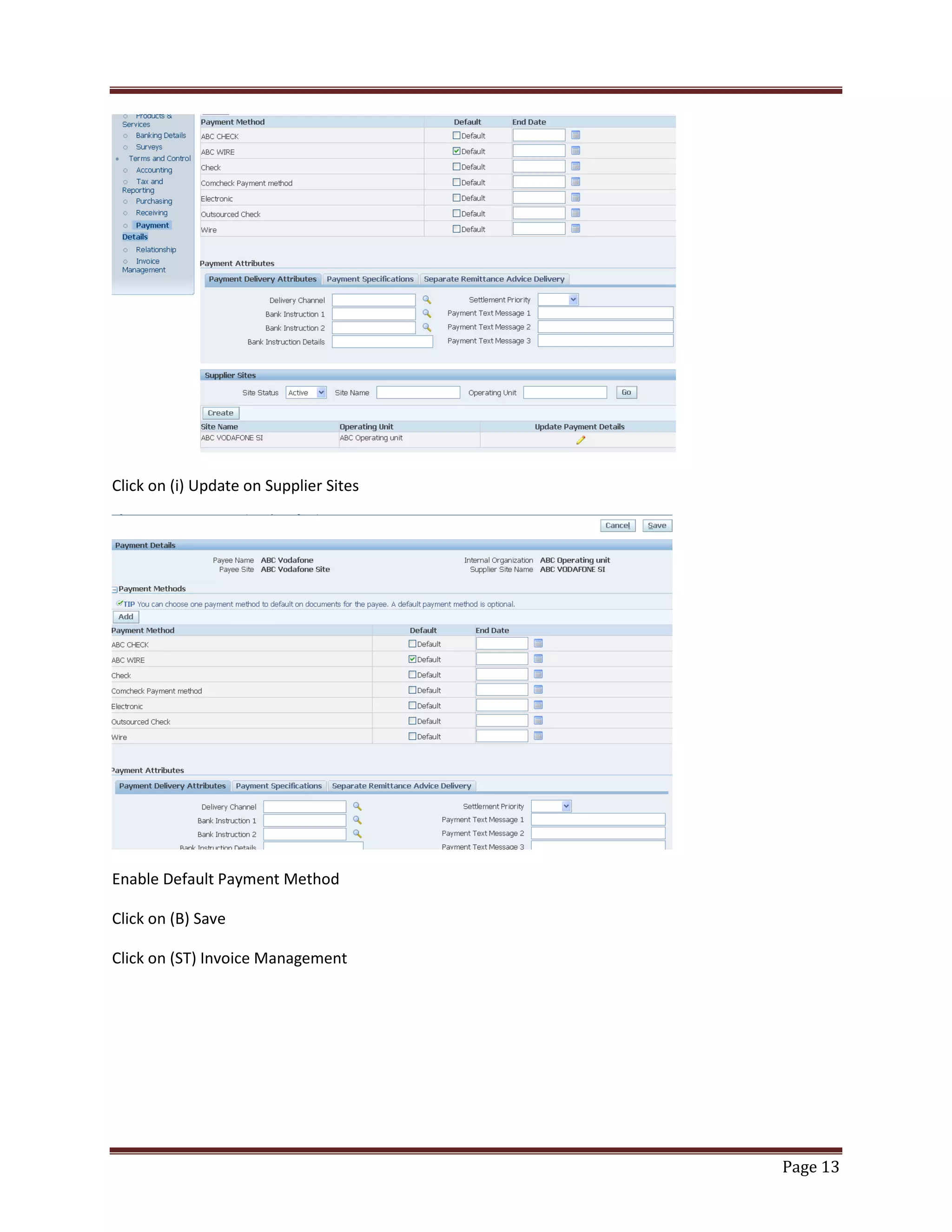
Click on (ST) Payment Details

Select Default Payment Method

Page 12
Click on (i) Update on Supplier Sites

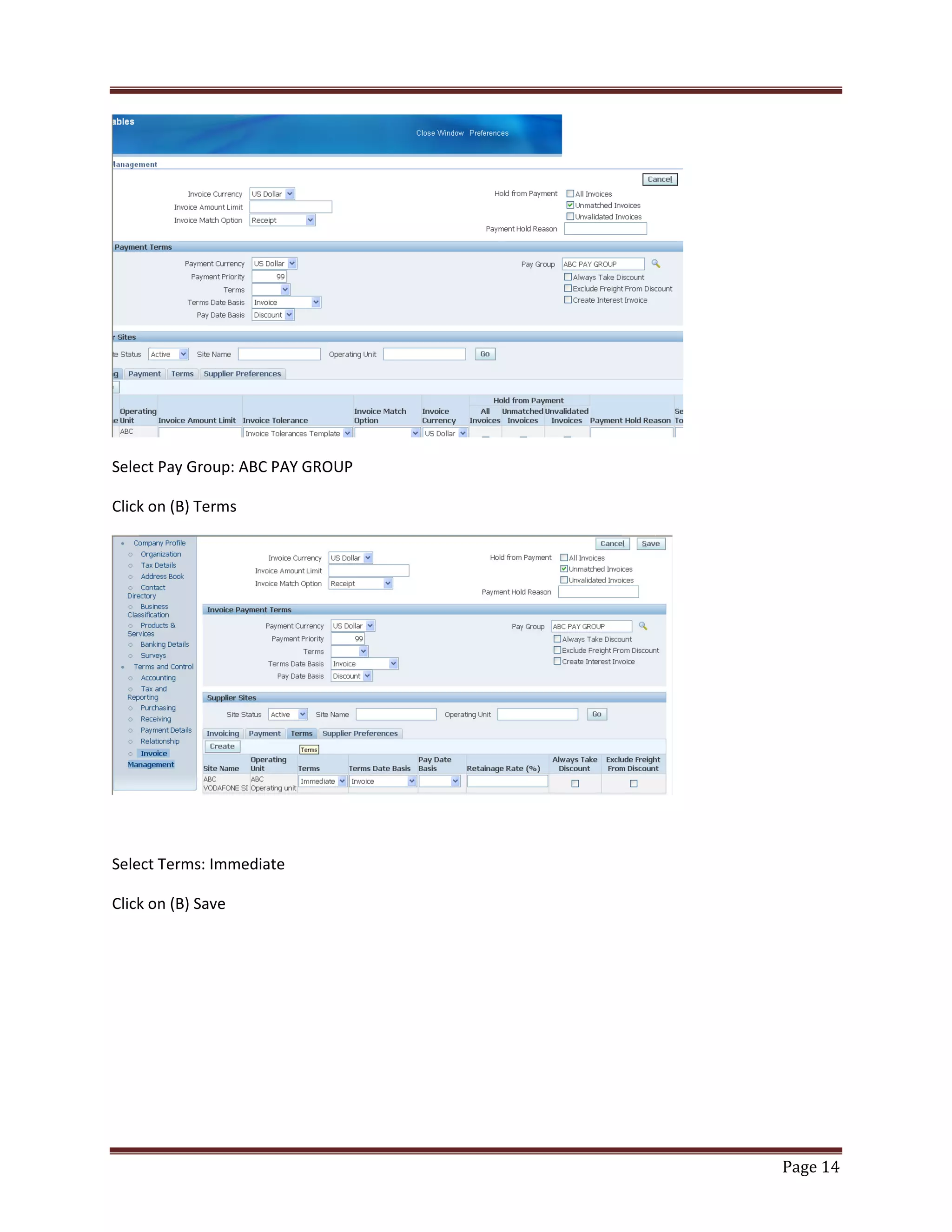
Enable Default Payment Method
Click on (B) Save
Click on (ST) Invoice Management

Page 13
Select Pay Group: ABC PAY GROUP
Click on (B) Terms

Select Terms: Immediate
Click on (B) Save

Page 14
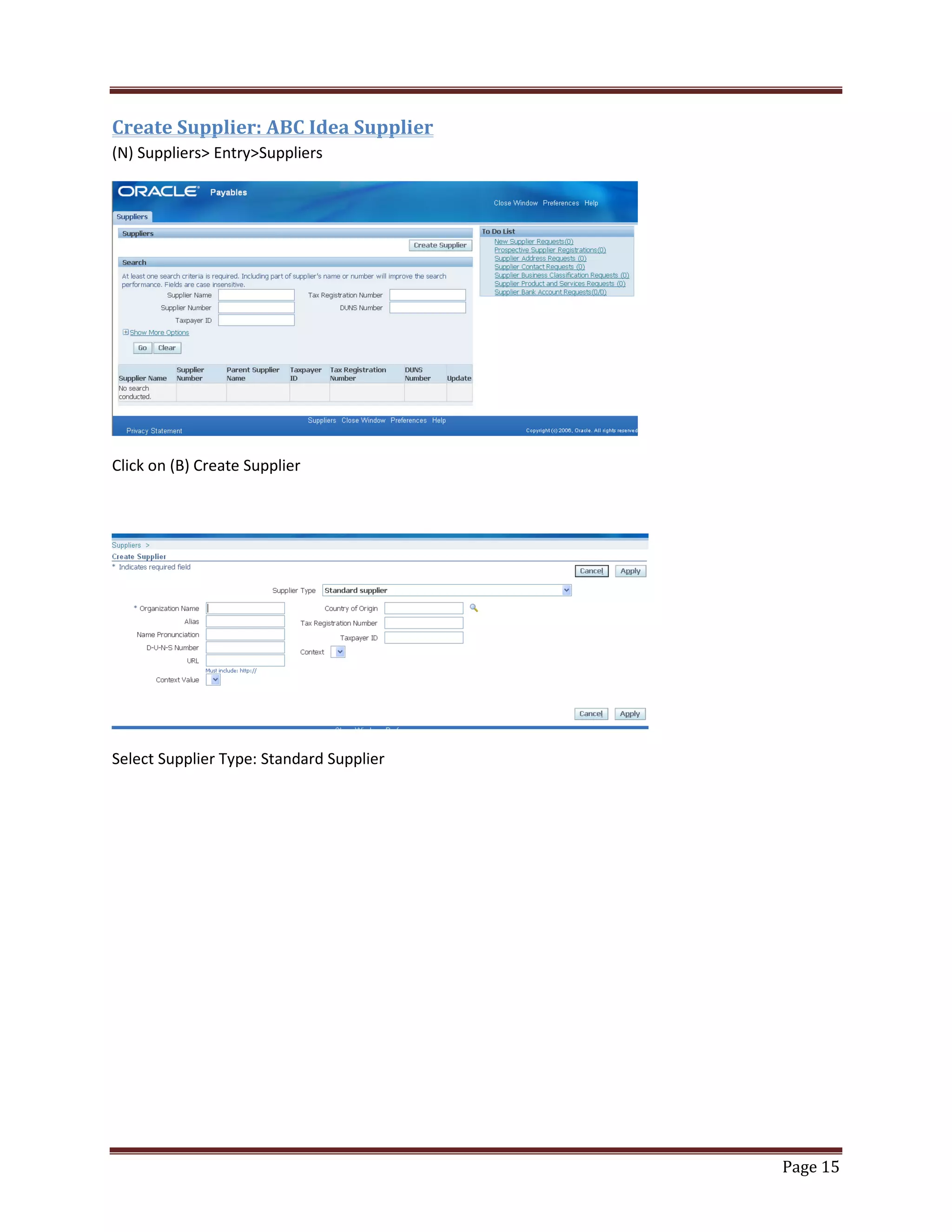
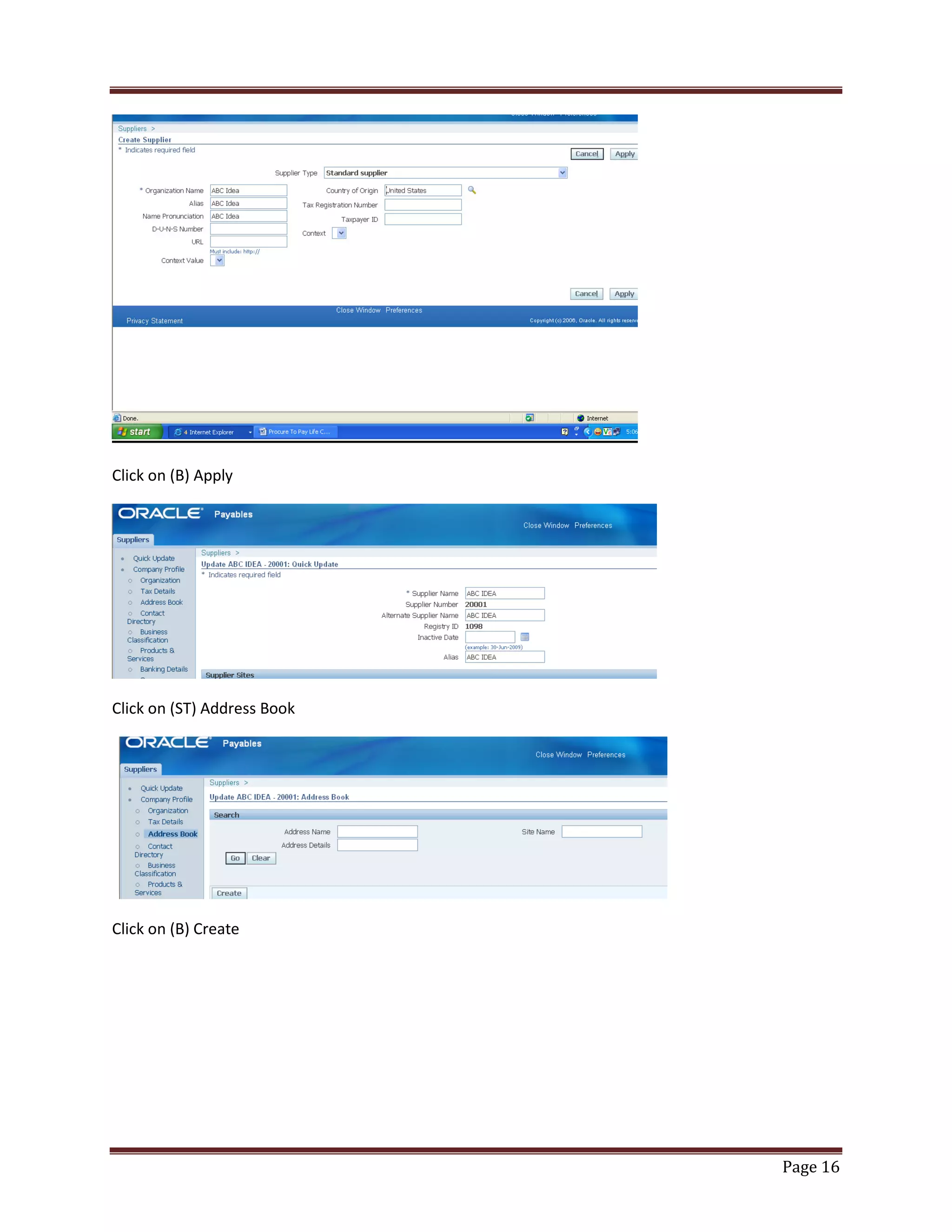
Create Supplier: ABC Idea Supplier
(N) Suppliers> Entry>Suppliers

Click on (B) Create Supplier

Select Supplier Type: Standard Supplier

Page 15
Click on (B) Apply

Click on (ST) Address Book

Click on (B) Create

Page 16
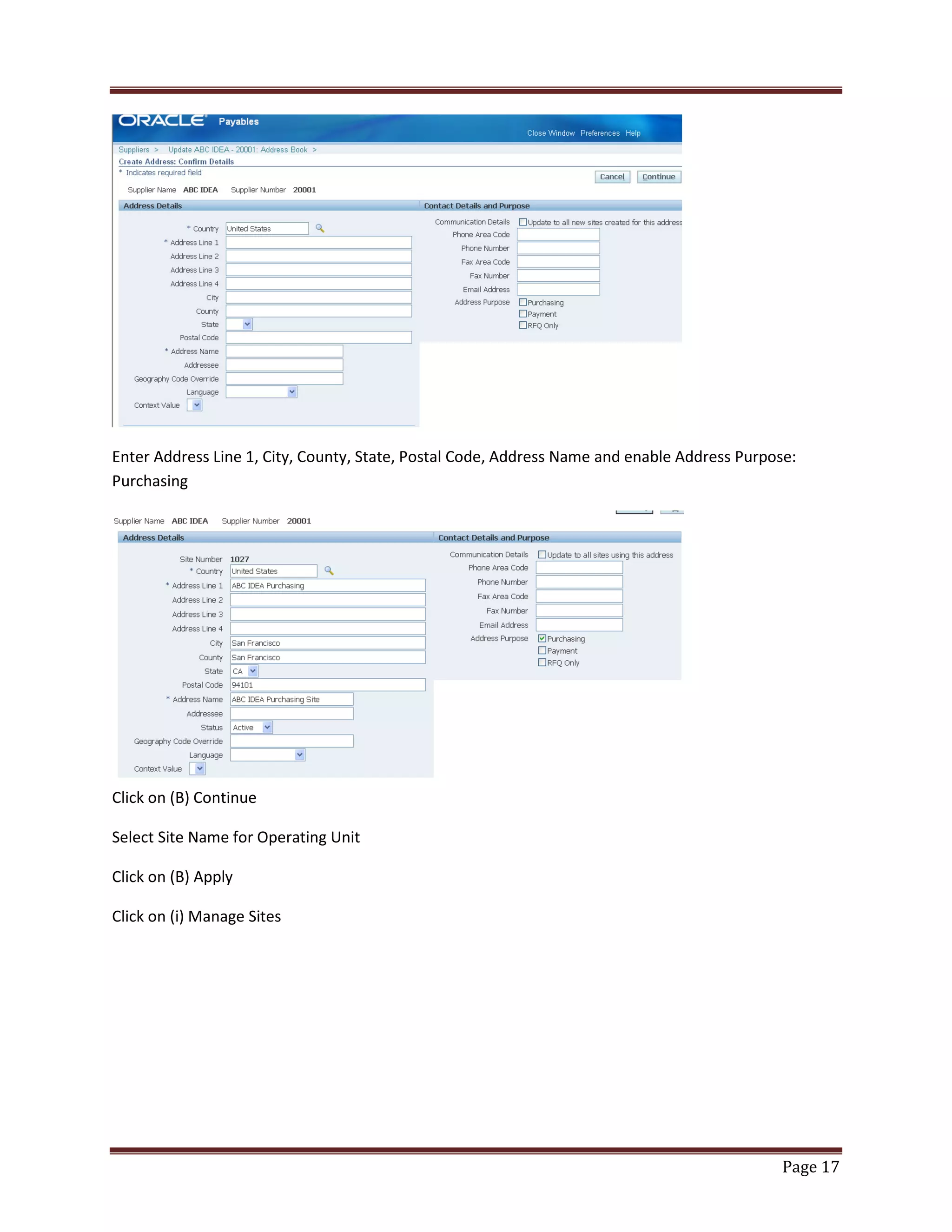
Enter Address Line 1, City, County, State, Postal Code, Address Name and enable Address Purpose:
Purchasing

Click on (B) Continue
Select Site Name for Operating Unit
Click on (B) Apply
Click on (i) Manage Sites

Page 17
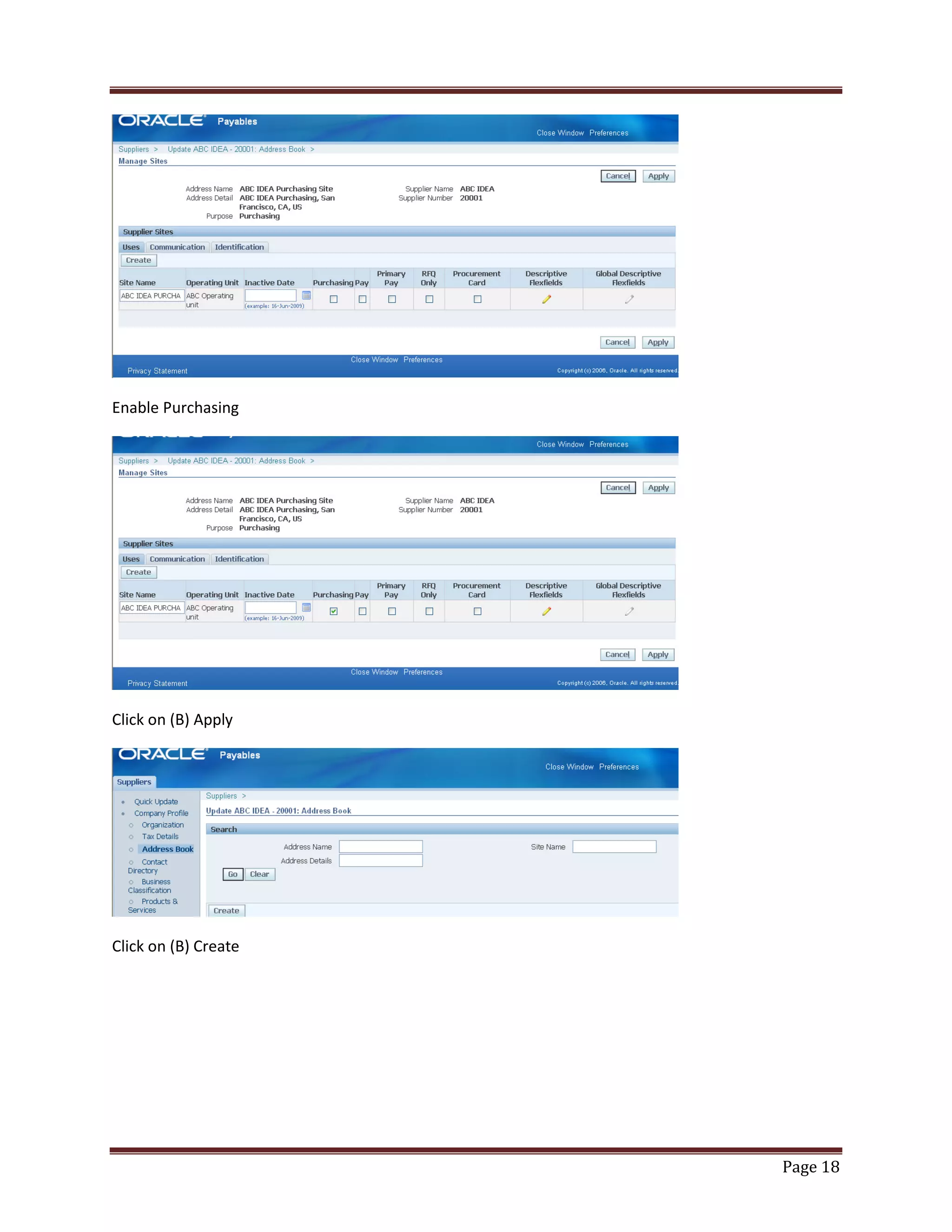
Enable Purchasing

Click on (B) Apply

Click on (B) Create

Page 18
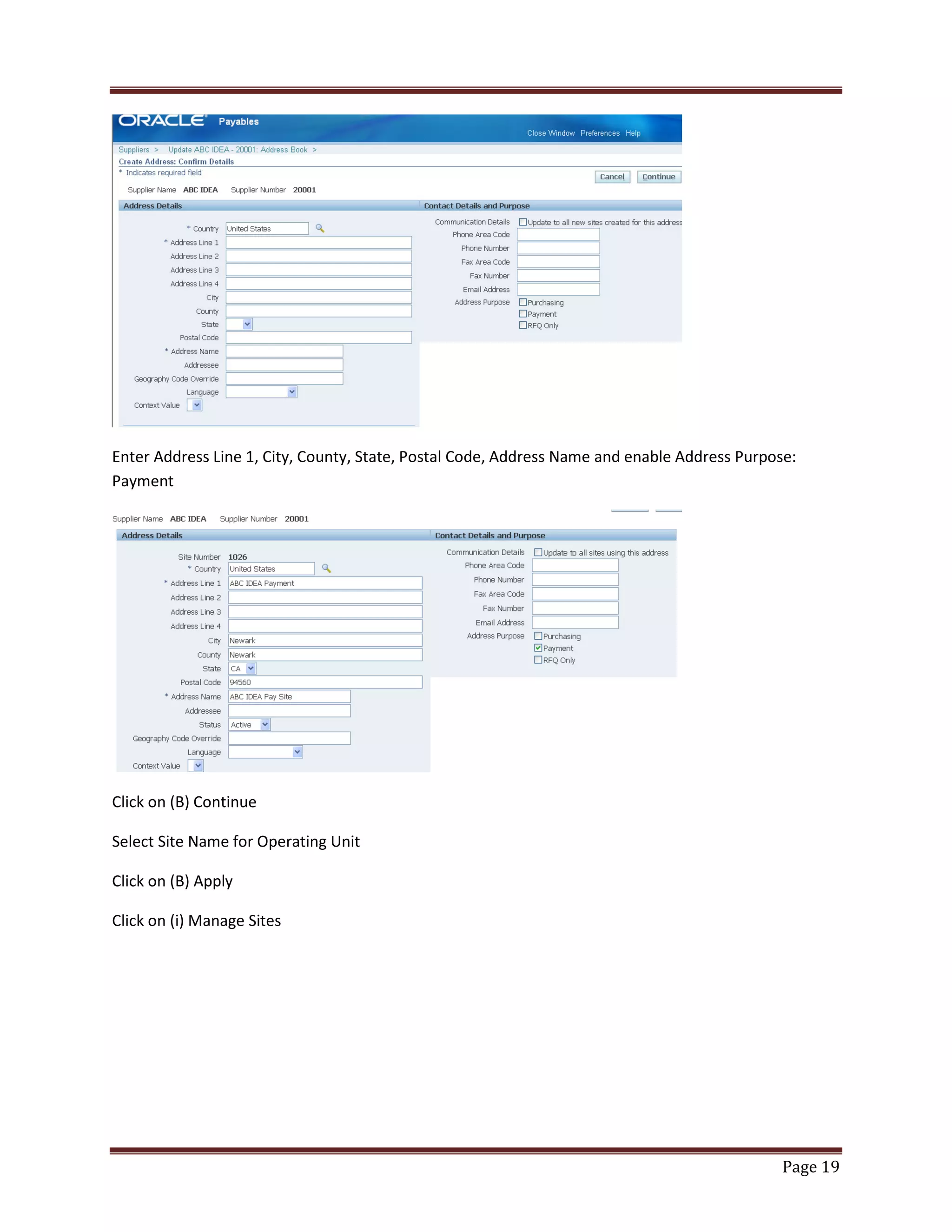
Enter Address Line 1, City, County, State, Postal Code, Address Name and enable Address Purpose:
Payment

Click on (B) Continue
Select Site Name for Operating Unit
Click on (B) Apply
Click on (i) Manage Sites

Page 19
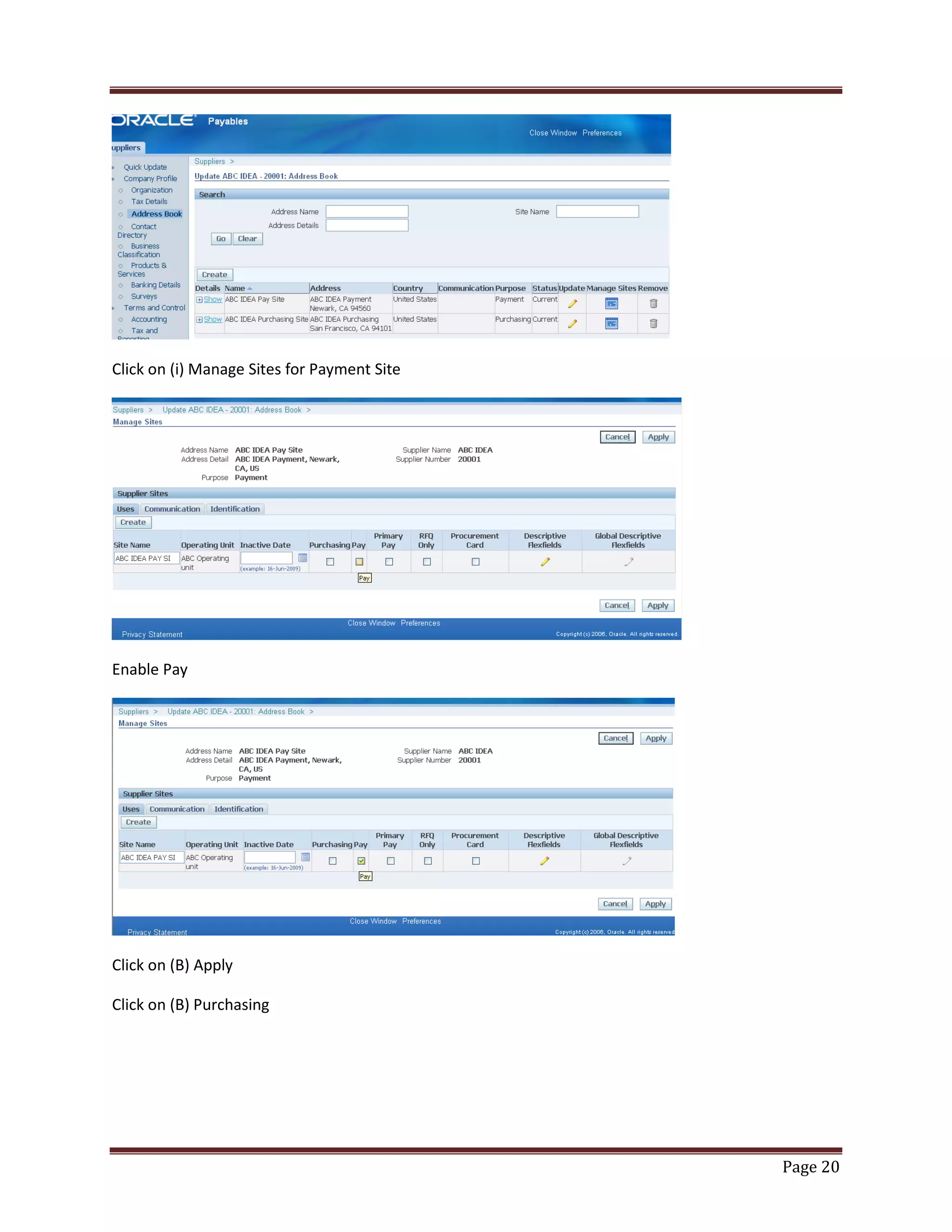
Click on (i) Manage Sites for Payment Site

Enable Pay

Click on (B) Apply
Click on (B) Purchasing

Page 20
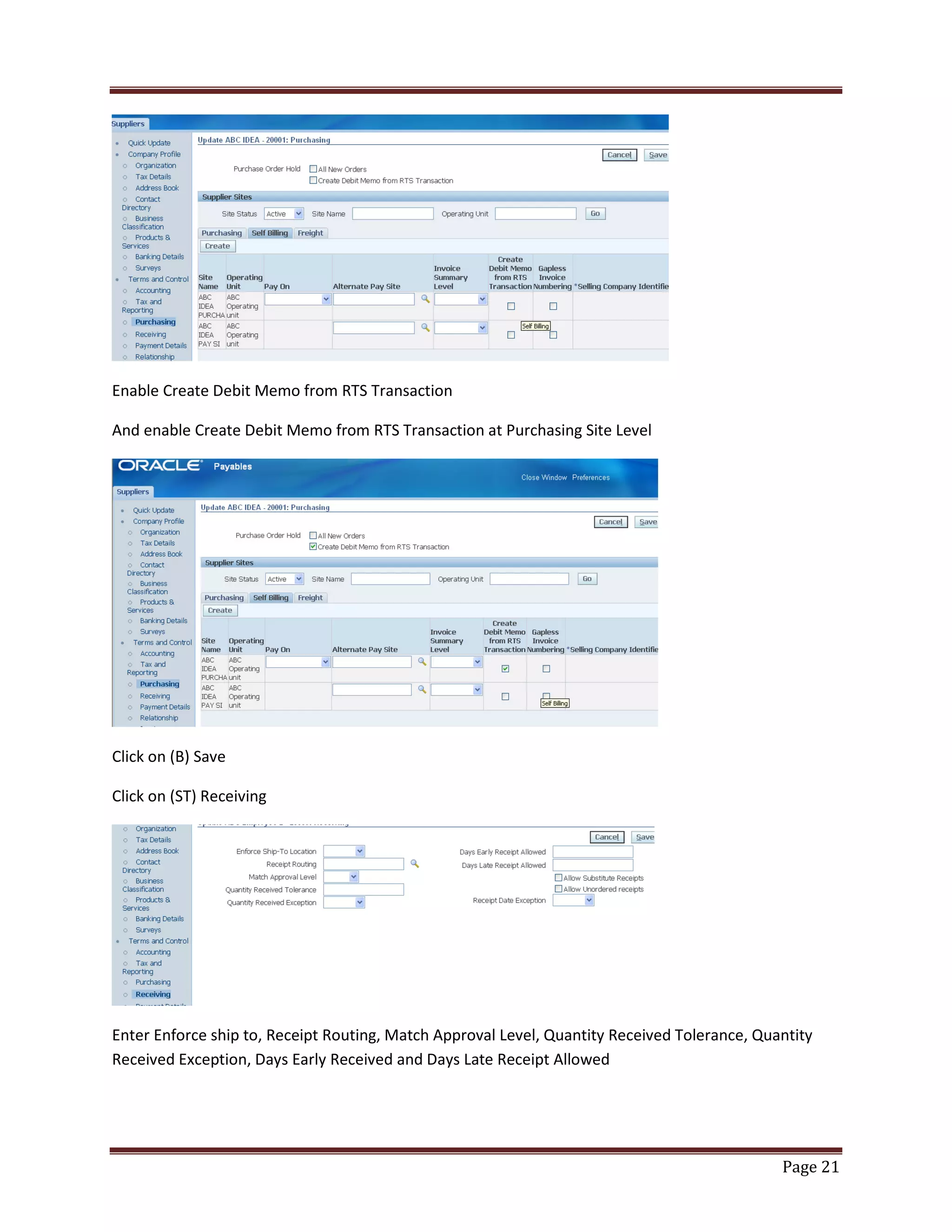
Enable Create Debit Memo from RTS Transaction
And enable Create Debit Memo from RTS Transaction at Purchasing Site Level

Click on (B) Save
Click on (ST) Receiving

Enter Enforce ship to, Receipt Routing, Match Approval Level, Quantity Received Tolerance, Quantity
Received Exception, Days Early Received and Days Late Receipt Allowed

Page 21
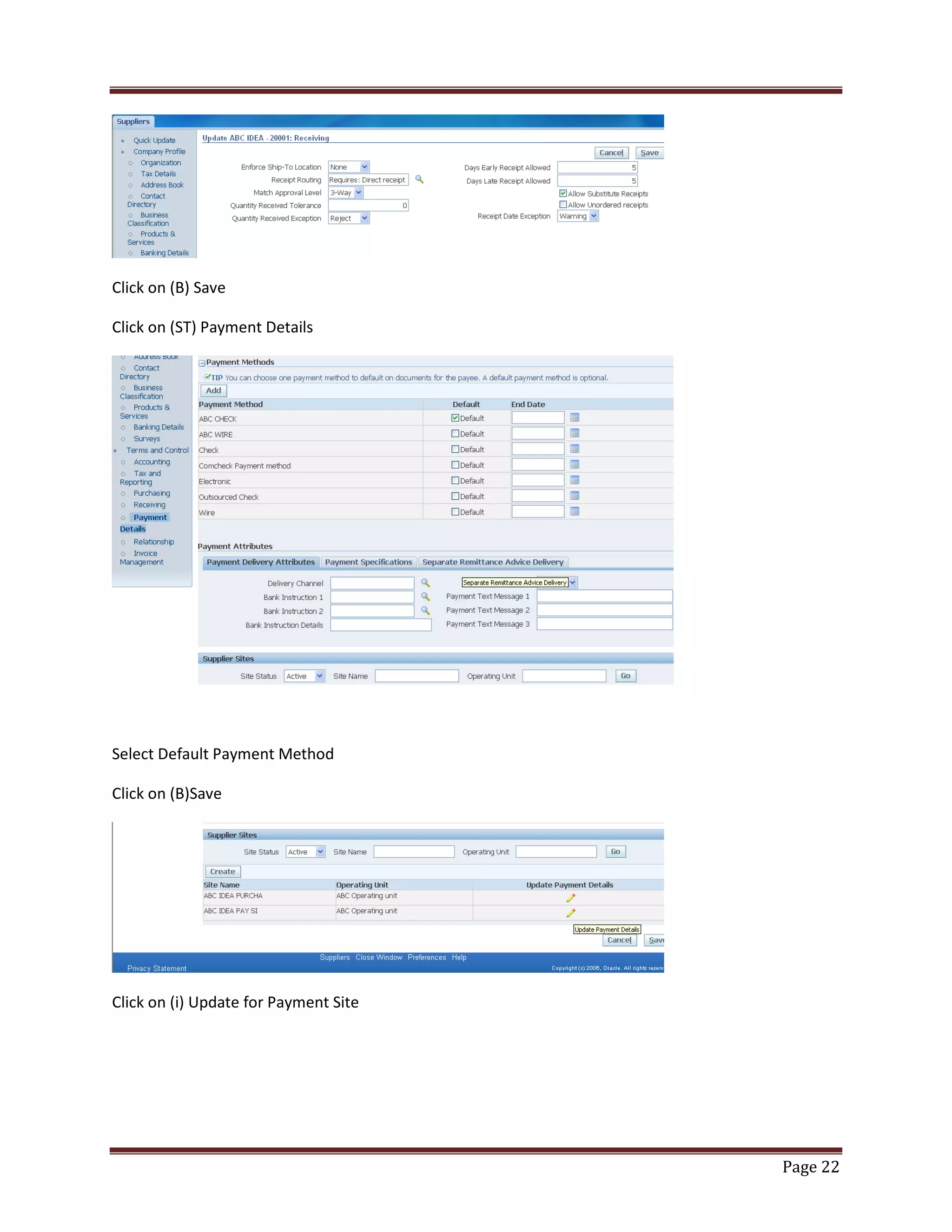
Click on (B) Save
Click on (ST) Payment Details

Select Default Payment Method
Click on (B)Save

Click on (i) Update for Payment Site

Page 22
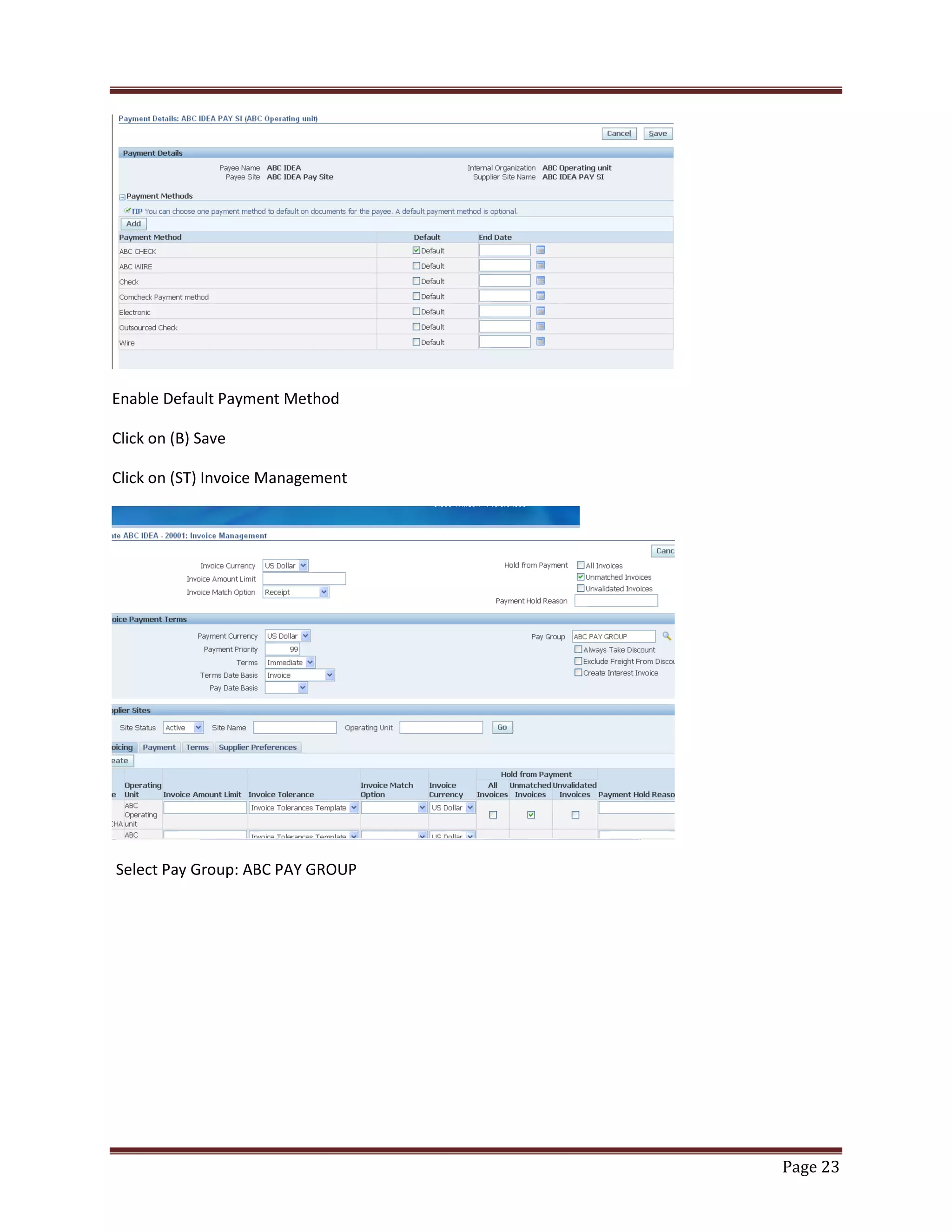
Enable Default Payment Method
Click on (B) Save
Click on (ST) Invoice Management

Select Pay Group: ABC PAY GROUP

Page 23
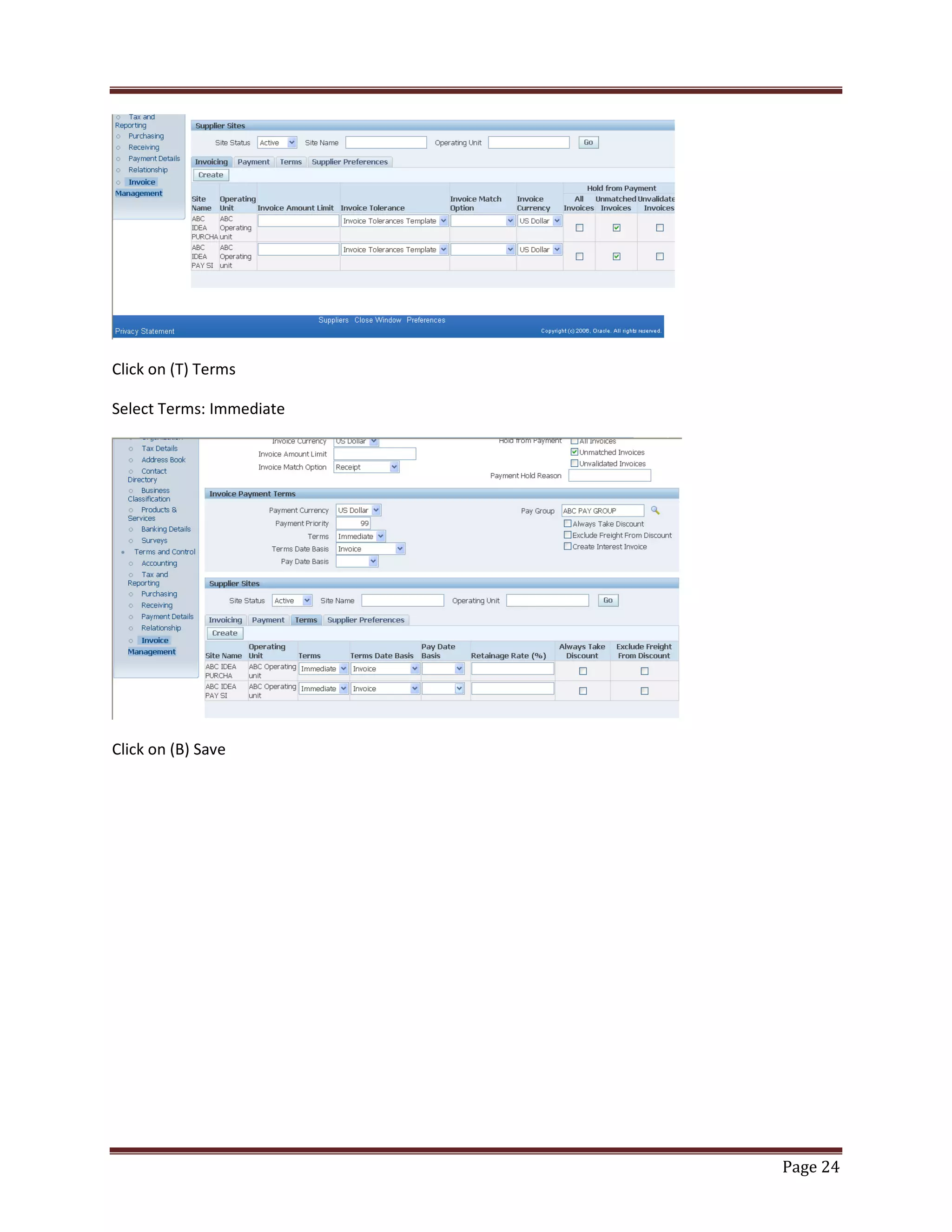
Click on (T) Terms
Select Terms: Immediate

Click on (B) Save

Page 24
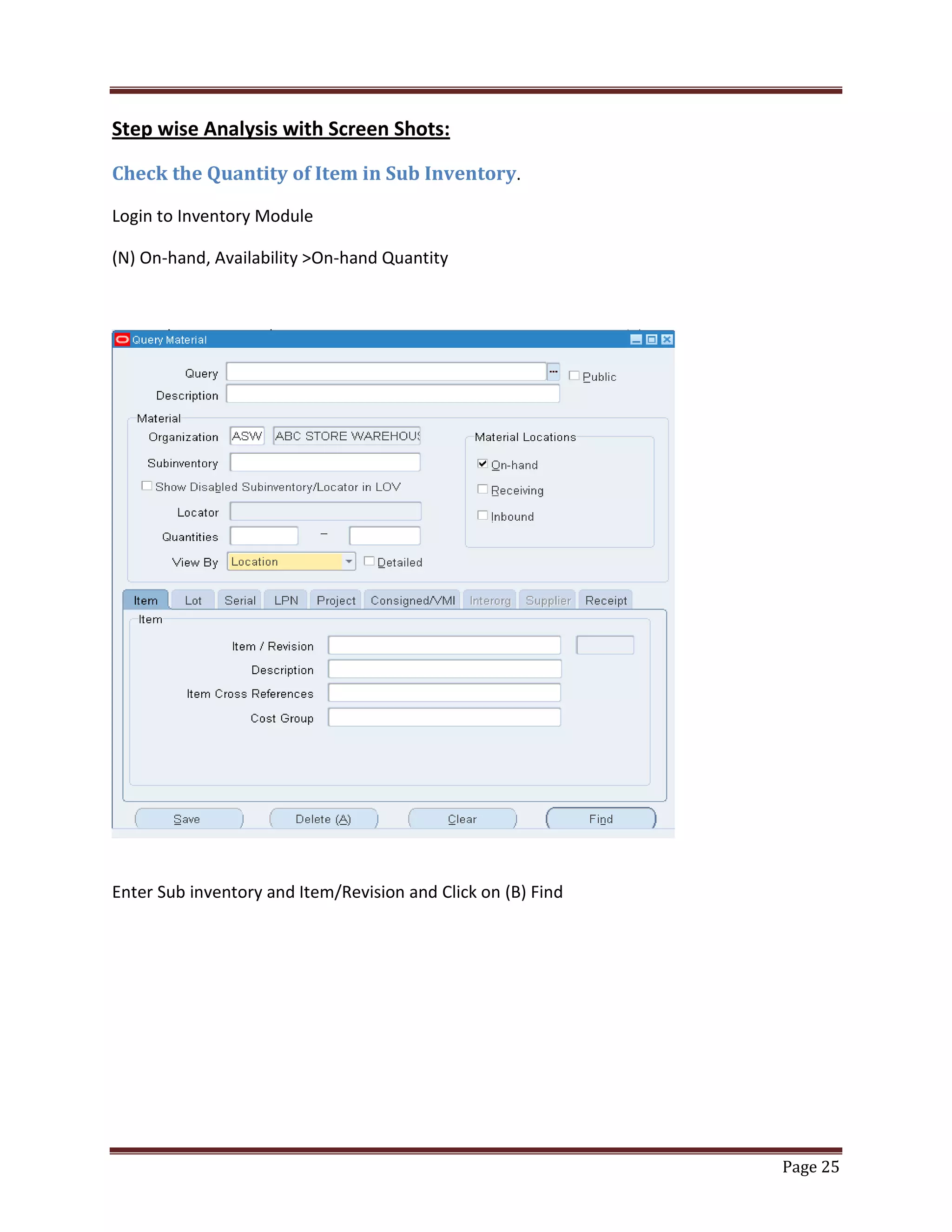
Step wise Analysis with Screen Shots:
Check the Quantity of Item in Sub Inventory.
Login to Inventory Module
(N) On-hand, Availability >On-hand Quantity

Enter Sub inventory and Item/Revision and Click on (B) Find

Page 25
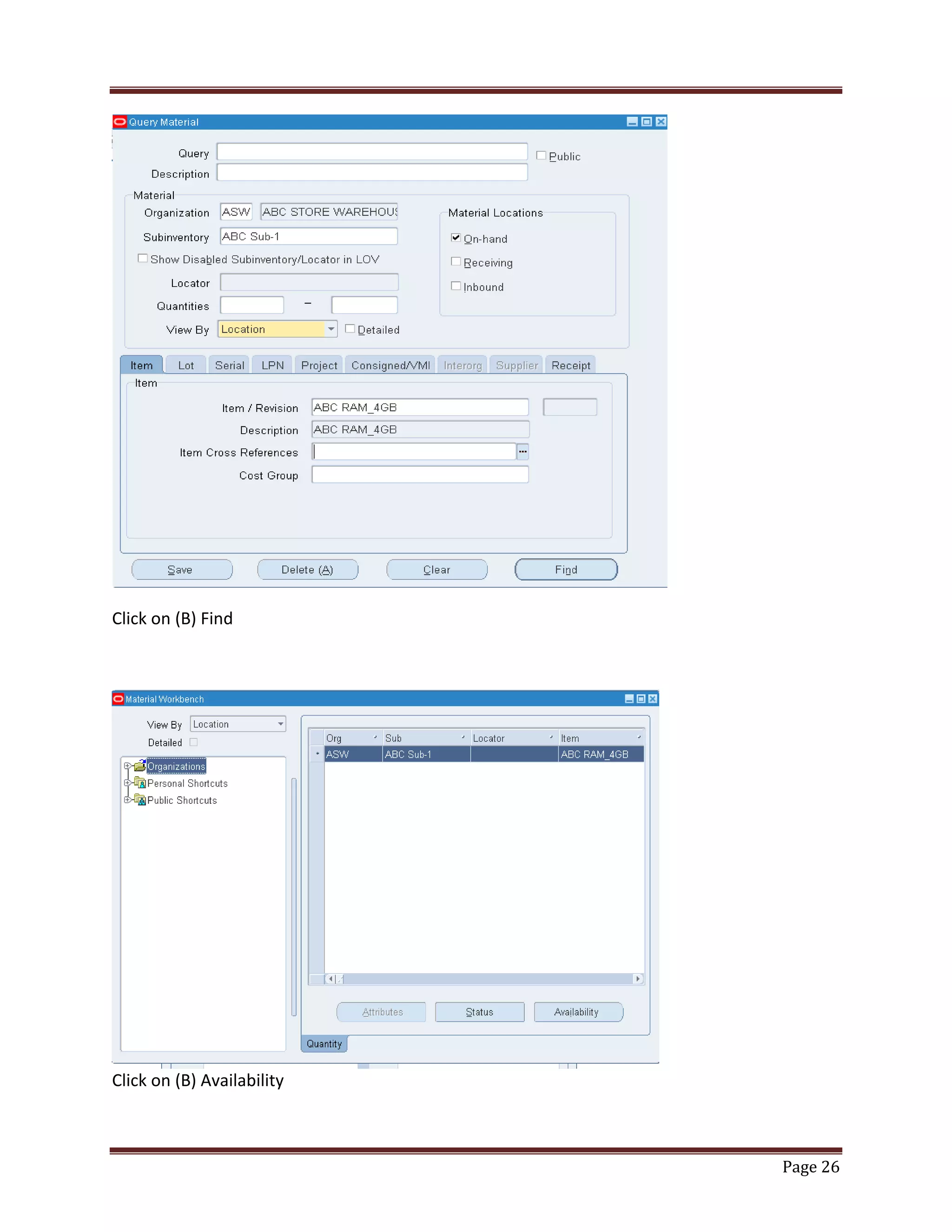
Click on (B) Find

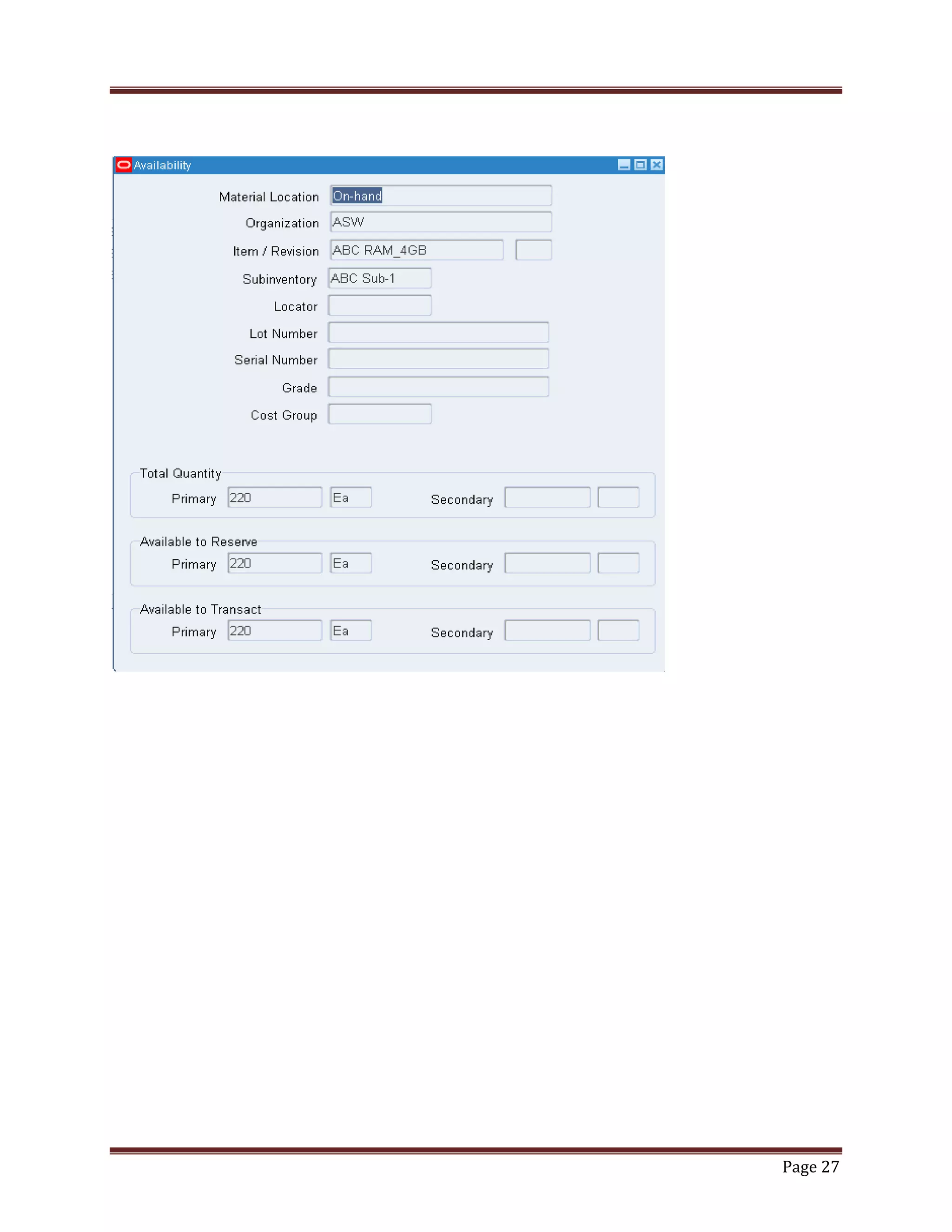
Click on (B) Availability

Page 26
Page 27
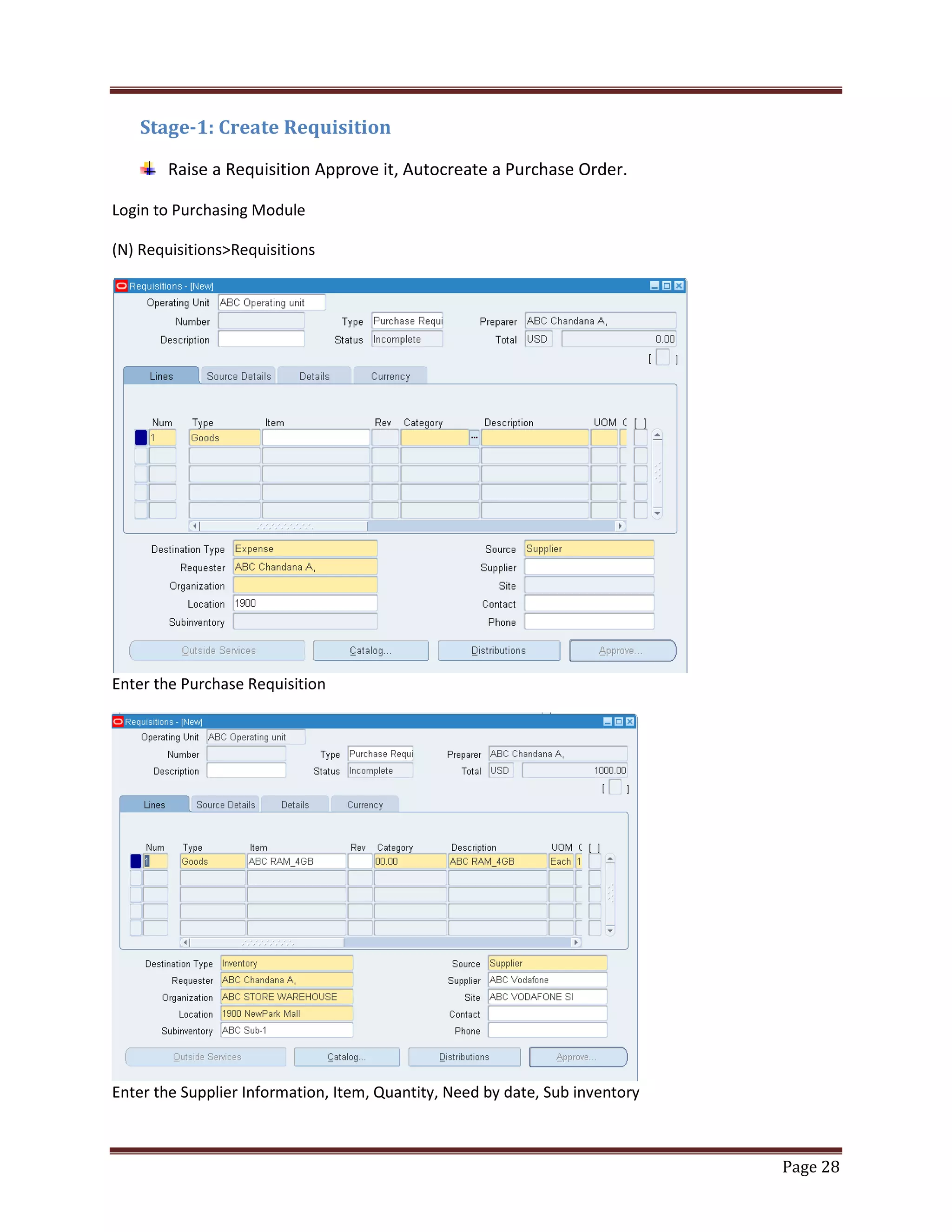
Stage-1: Create Requisition
Raise a Requisition Approve it, Autocreate a Purchase Order.
Login to Purchasing Module
(N) Requisitions>Requisitions

Enter the Purchase Requisition

Enter the Supplier Information, Item, Quantity, Need by date, Sub inventory

Page 28
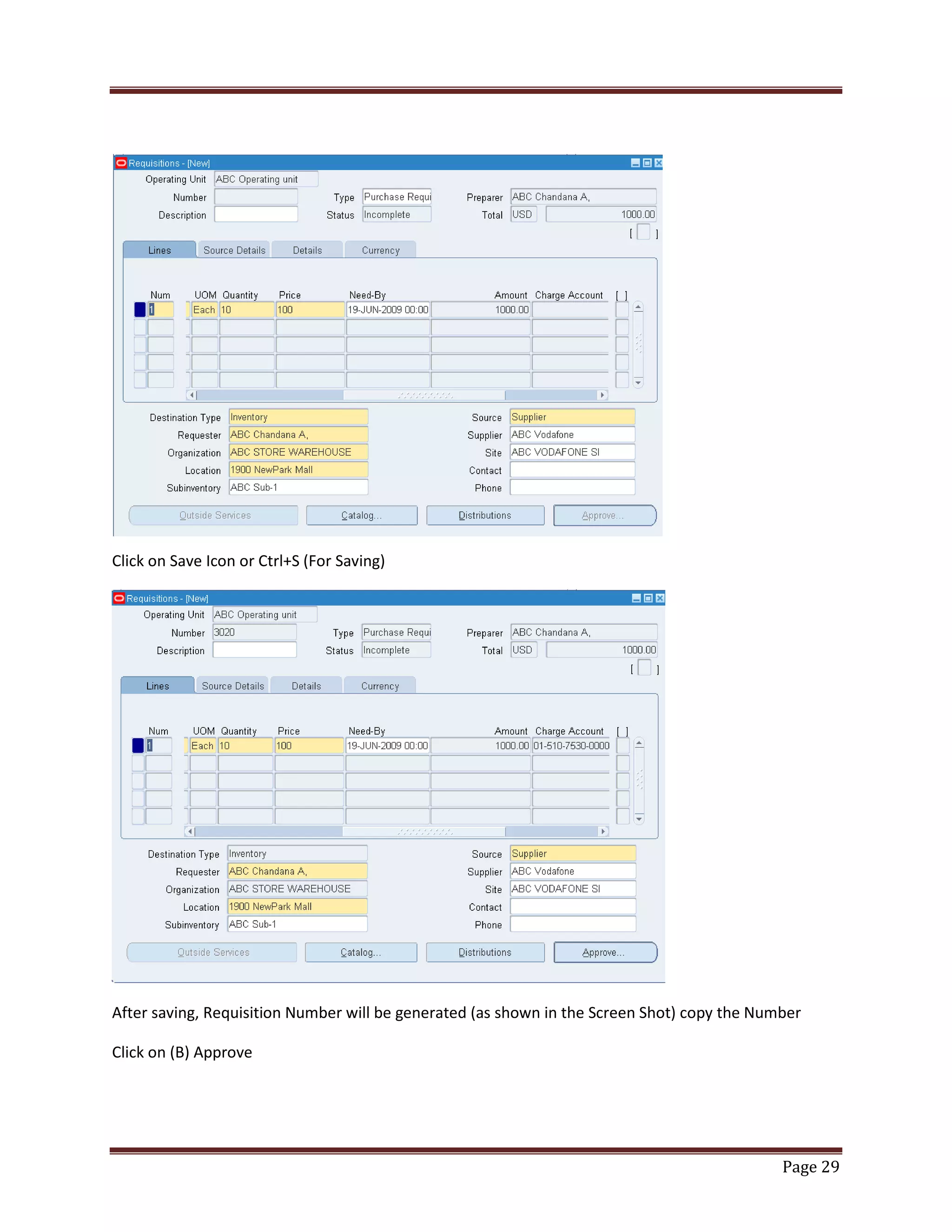
Click on Save Icon or Ctrl+S (For Saving)

After saving, Requisition Number will be generated (as shown in the Screen Shot) copy the Number
Click on (B) Approve

Page 29
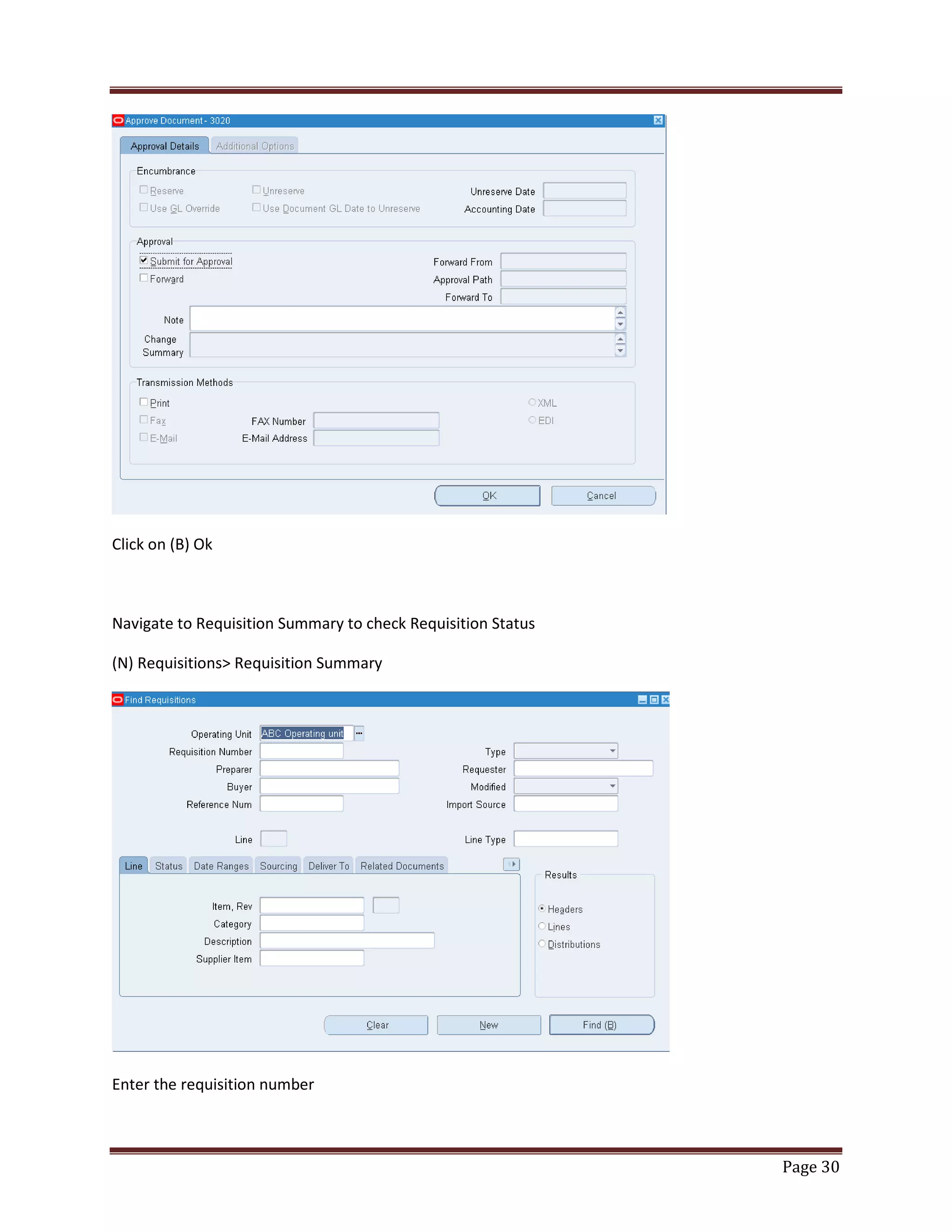
Click on (B) Ok

Navigate to Requisition Summary to check Requisition Status
(N) Requisitions> Requisition Summary

Enter the requisition number

Page 30
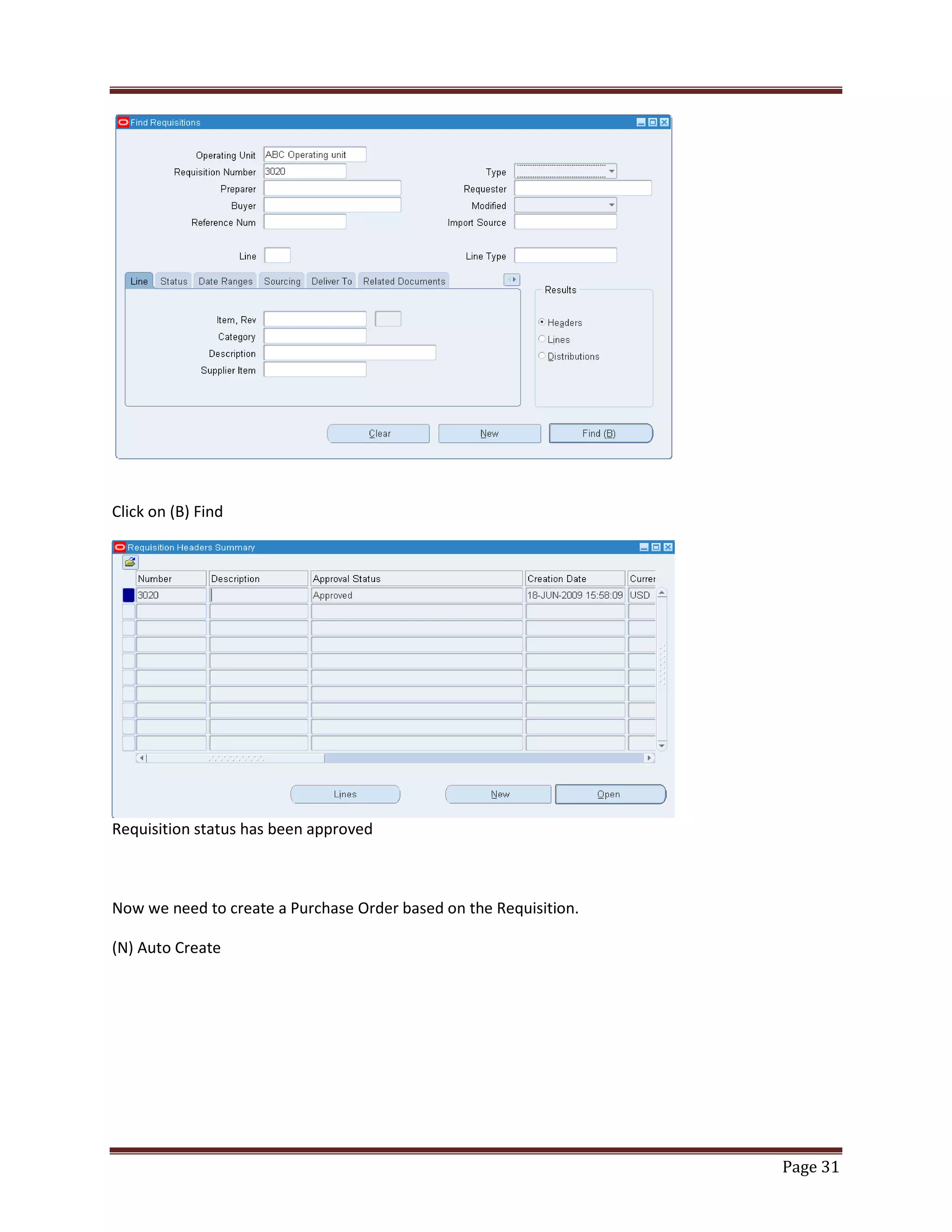
Click on (B) Find

Requisition status has been approved

Now we need to create a Purchase Order based on the Requisition.
(N) Auto Create

Page 31
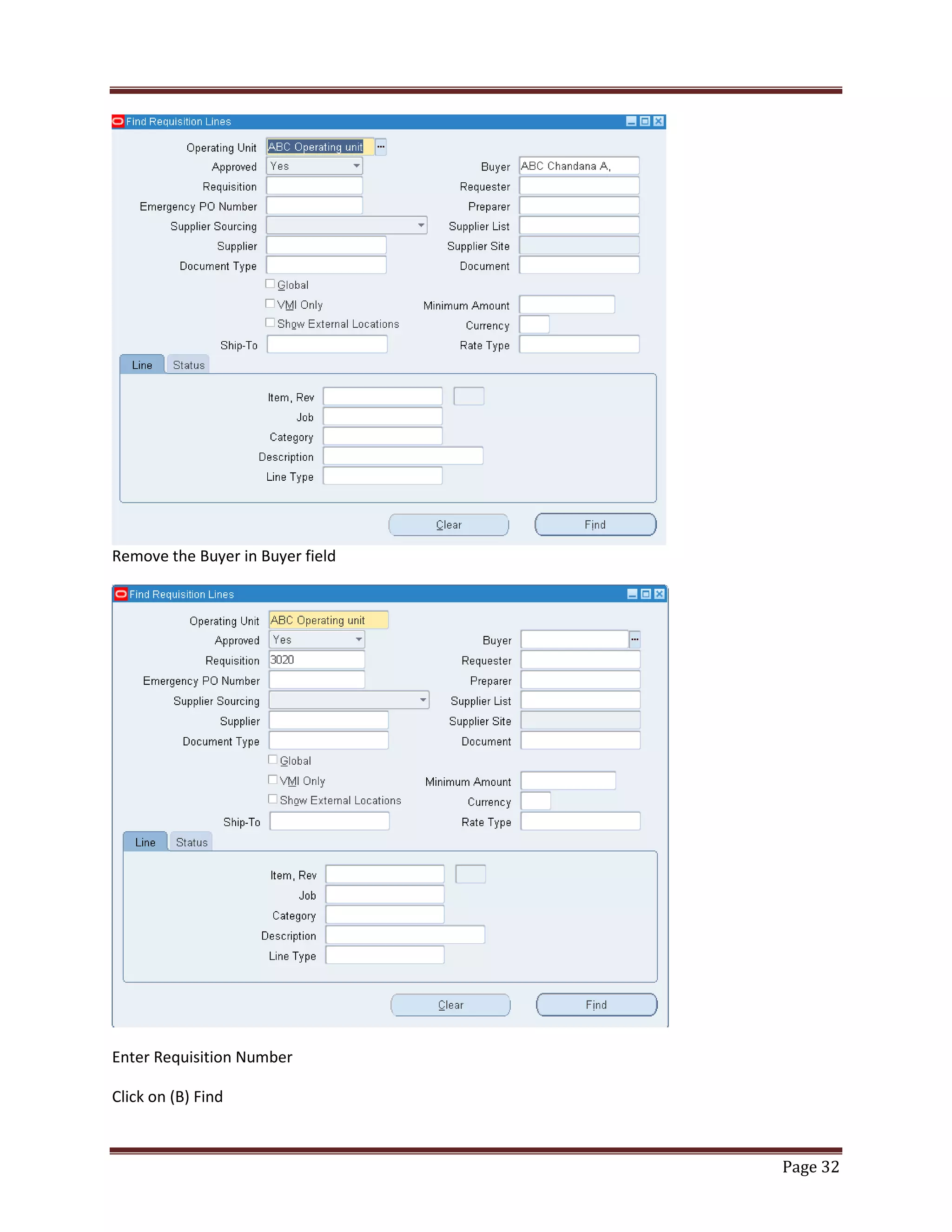
Remove the Buyer in Buyer field

Enter Requisition Number
Click on (B) Find

Page 32
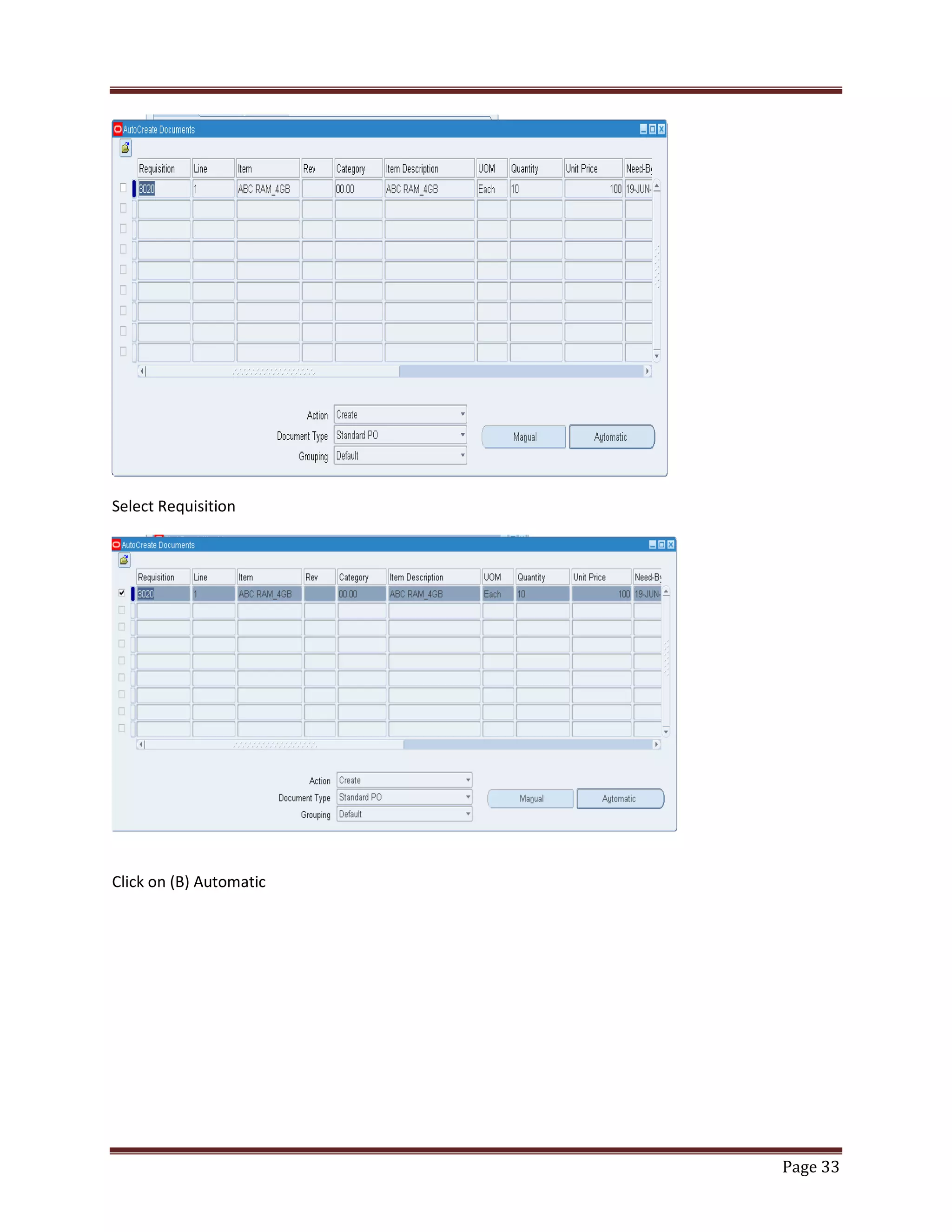
Select Requisition

Click on (B) Automatic

Page 33
Click on (B) Create

Stage-2: Create Purchase Order
Enter Purchase Order Match level, Invoice Match Option, Approve Purchase Order and
Check Purchase Order status.
Now Purchase Order is created

Click on (B) Shipments

Page 34
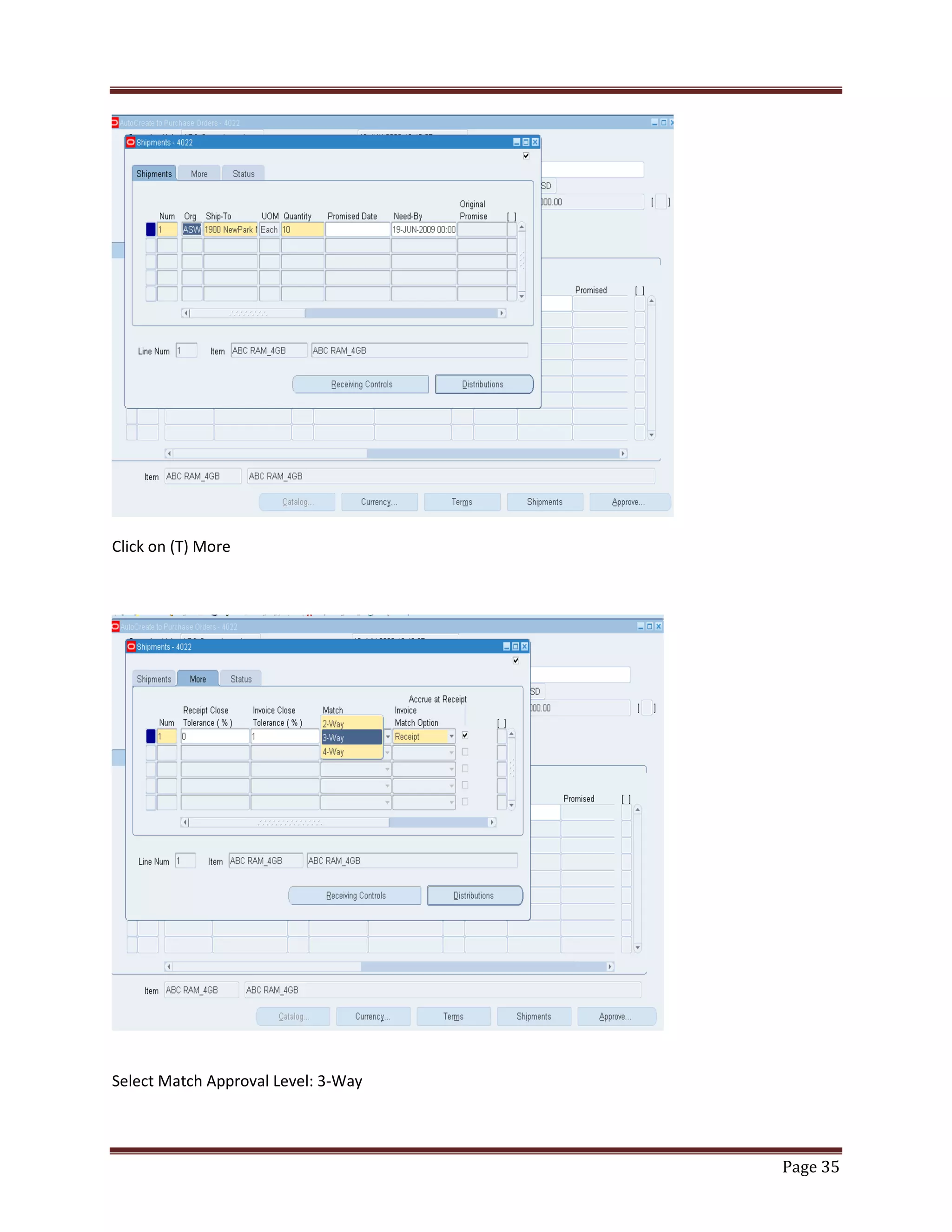
Click on (T) More

Select Match Approval Level: 3-Way

Page 35
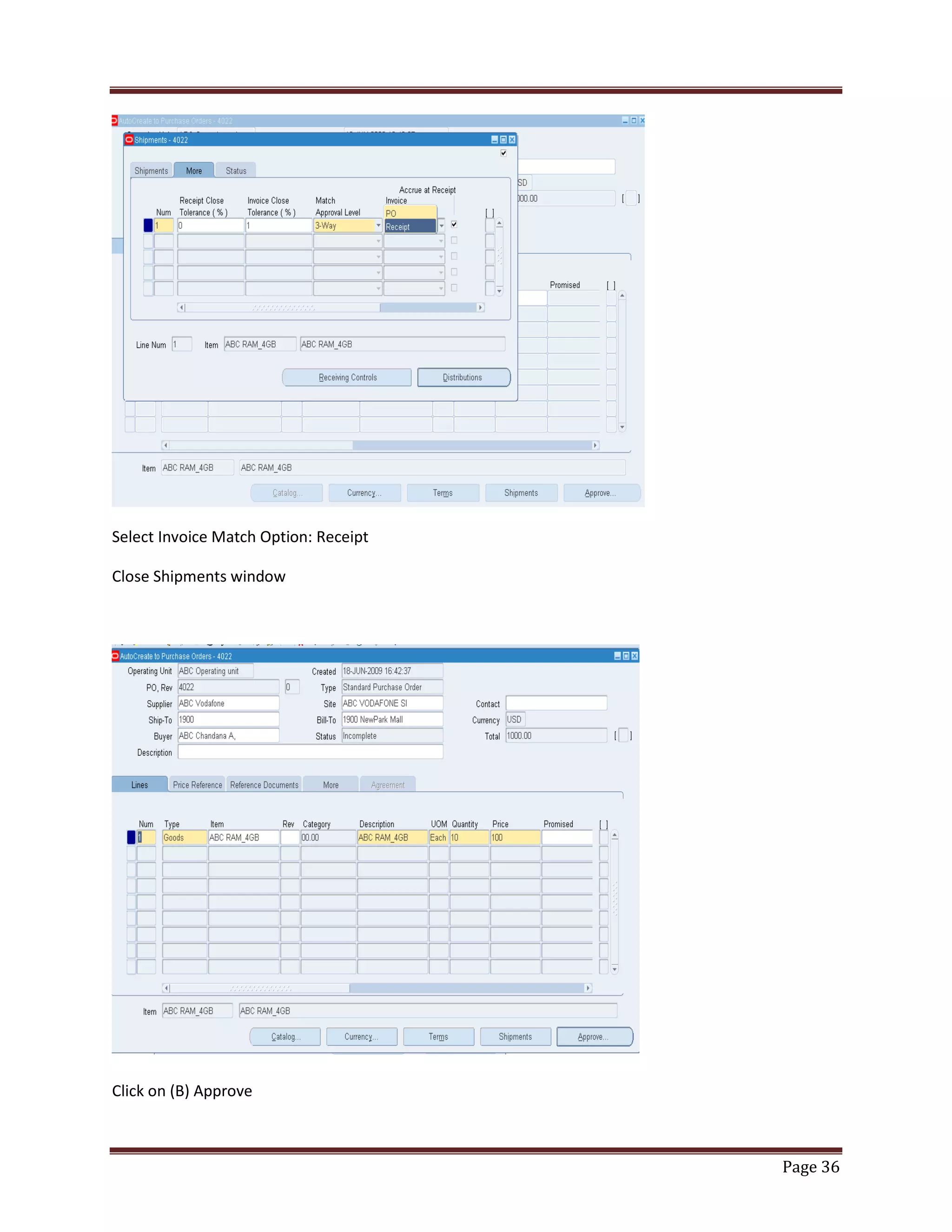
Select Invoice Match Option: Receipt
Close Shipments window

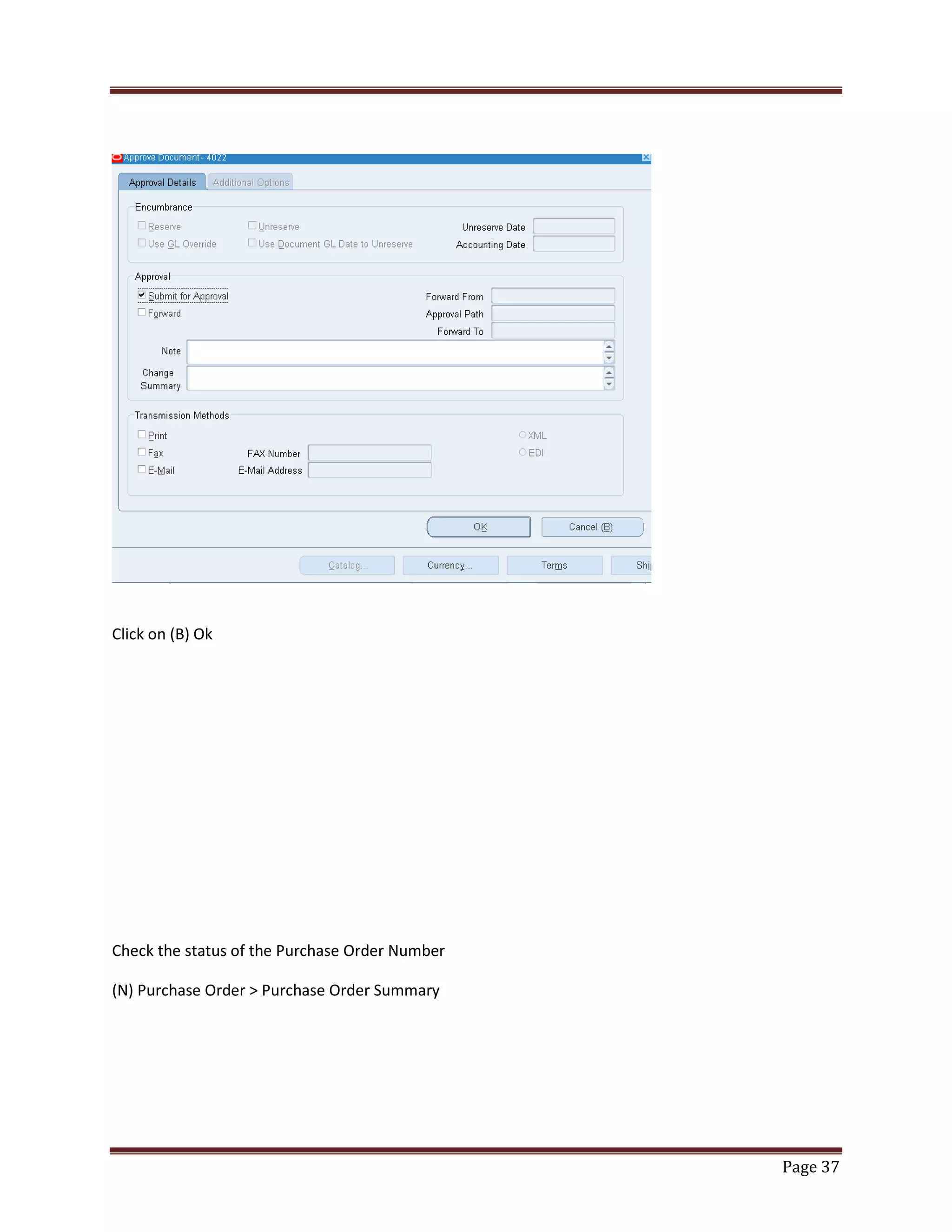
Click on (B) Approve

Page 36
Click on (B) Ok

Check the status of the Purchase Order Number
(N) Purchase Order > Purchase Order Summary

Page 37
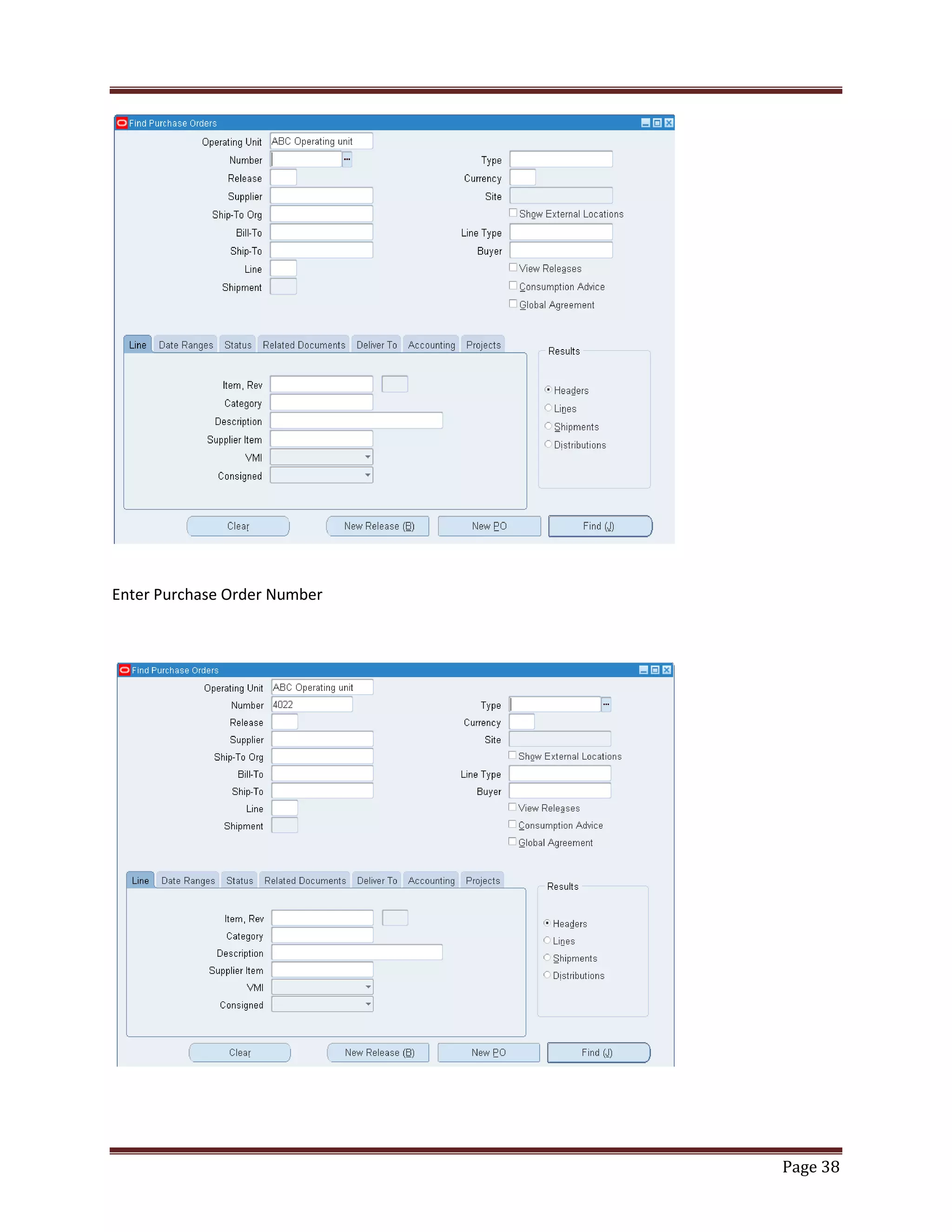
Enter Purchase Order Number

Page 38
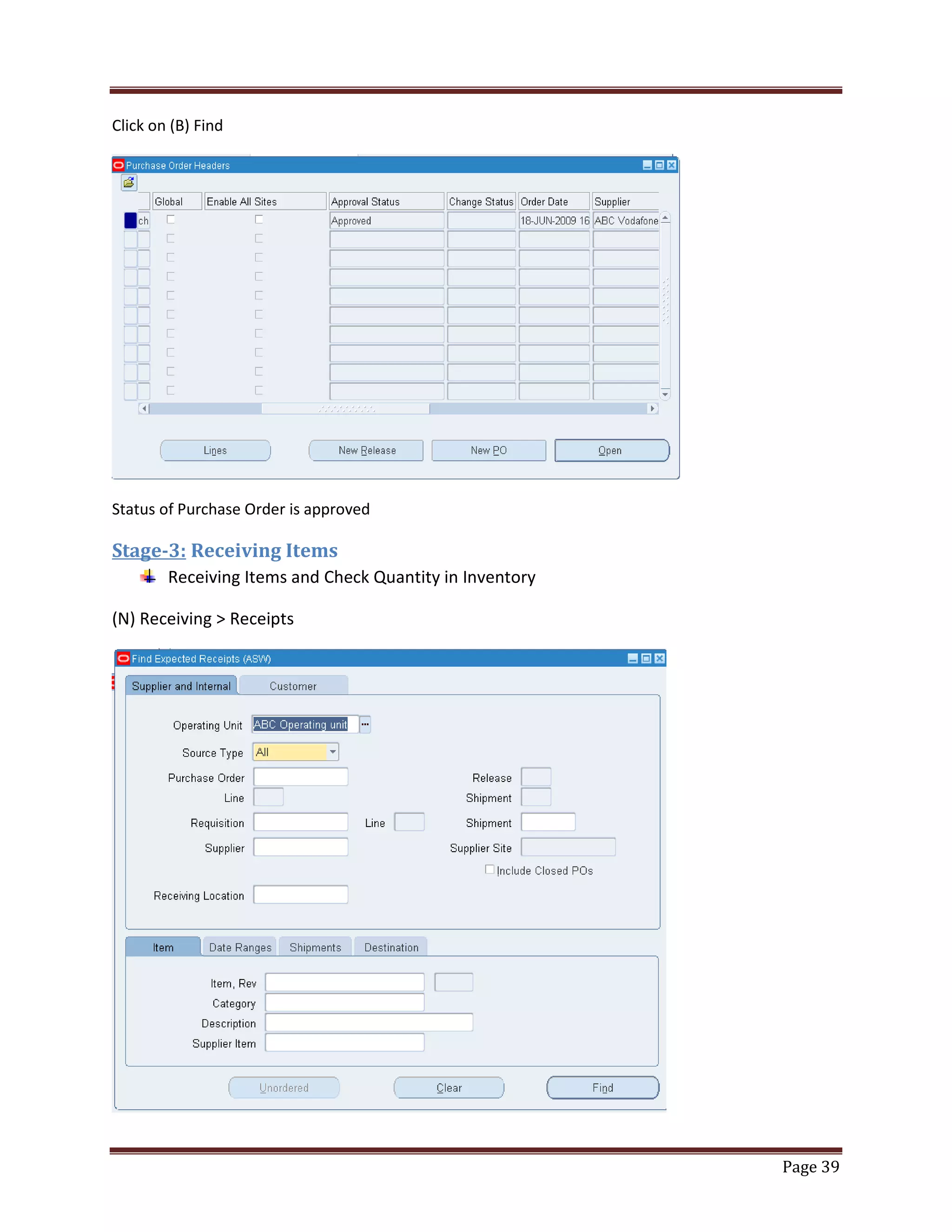
Click on (B) Find

Status of Purchase Order is approved

Stage-3: Receiving Items
Receiving Items and Check Quantity in Inventory
(N) Receiving > Receipts

Page 39
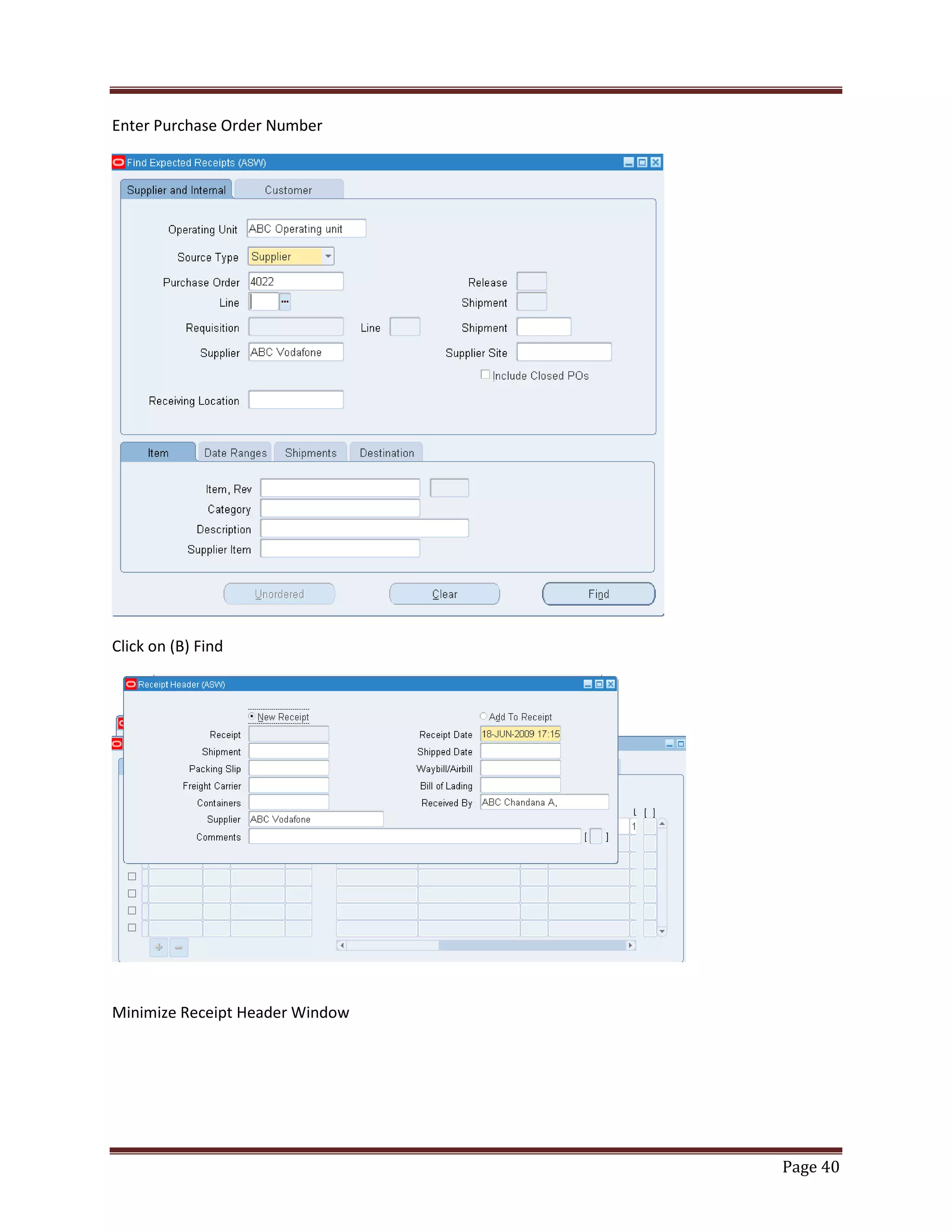
Enter Purchase Order Number

Click on (B) Find

Minimize Receipt Header Window

Page 40
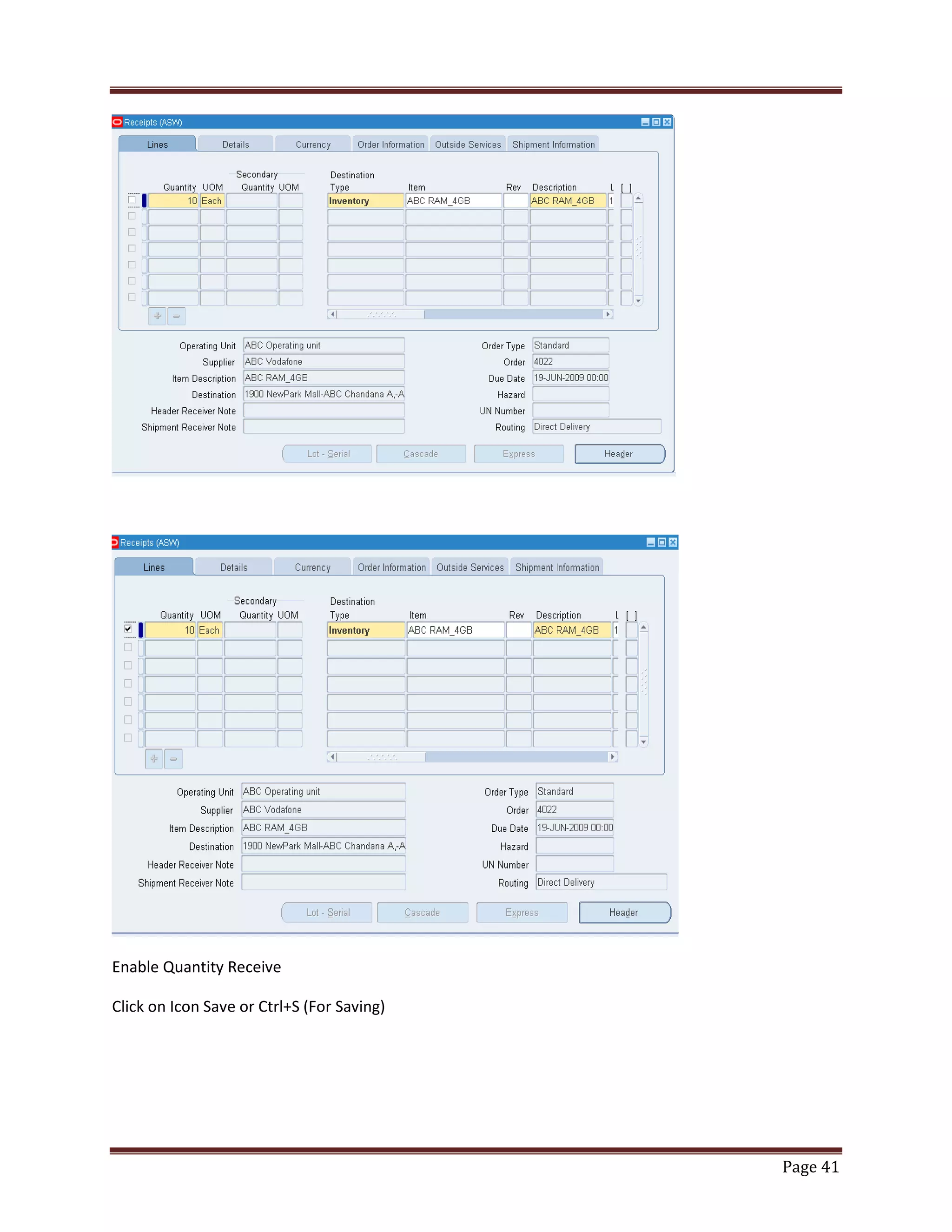
Enable Quantity Receive
Click on Icon Save or Ctrl+S (For Saving)

Page 41
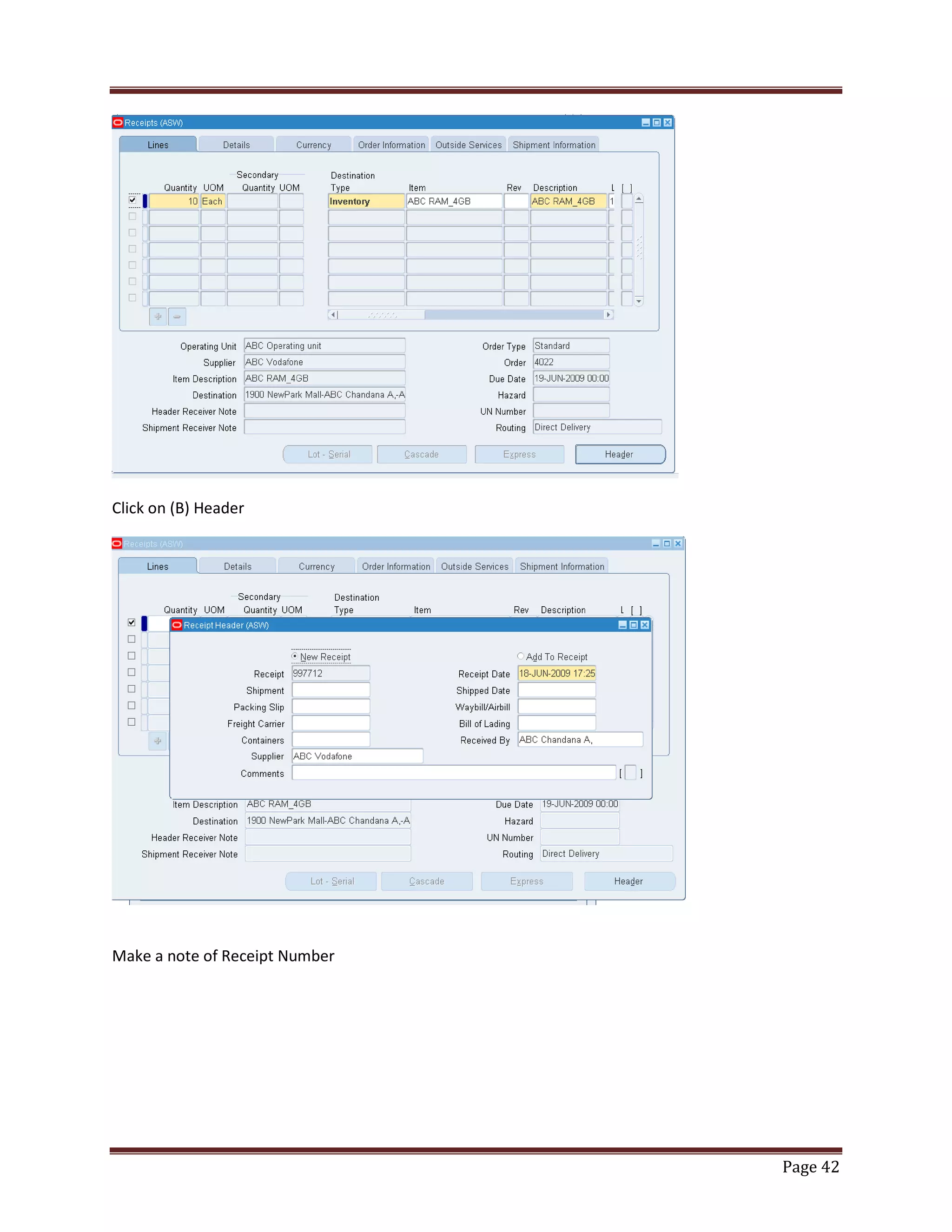
Click on (B) Header

Make a note of Receipt Number

Page 42
Check the Quantity of Item in Sub Inventory after Receiving
Login to Inventory Module
(N) On-hand , Availability> On-hand Quantity

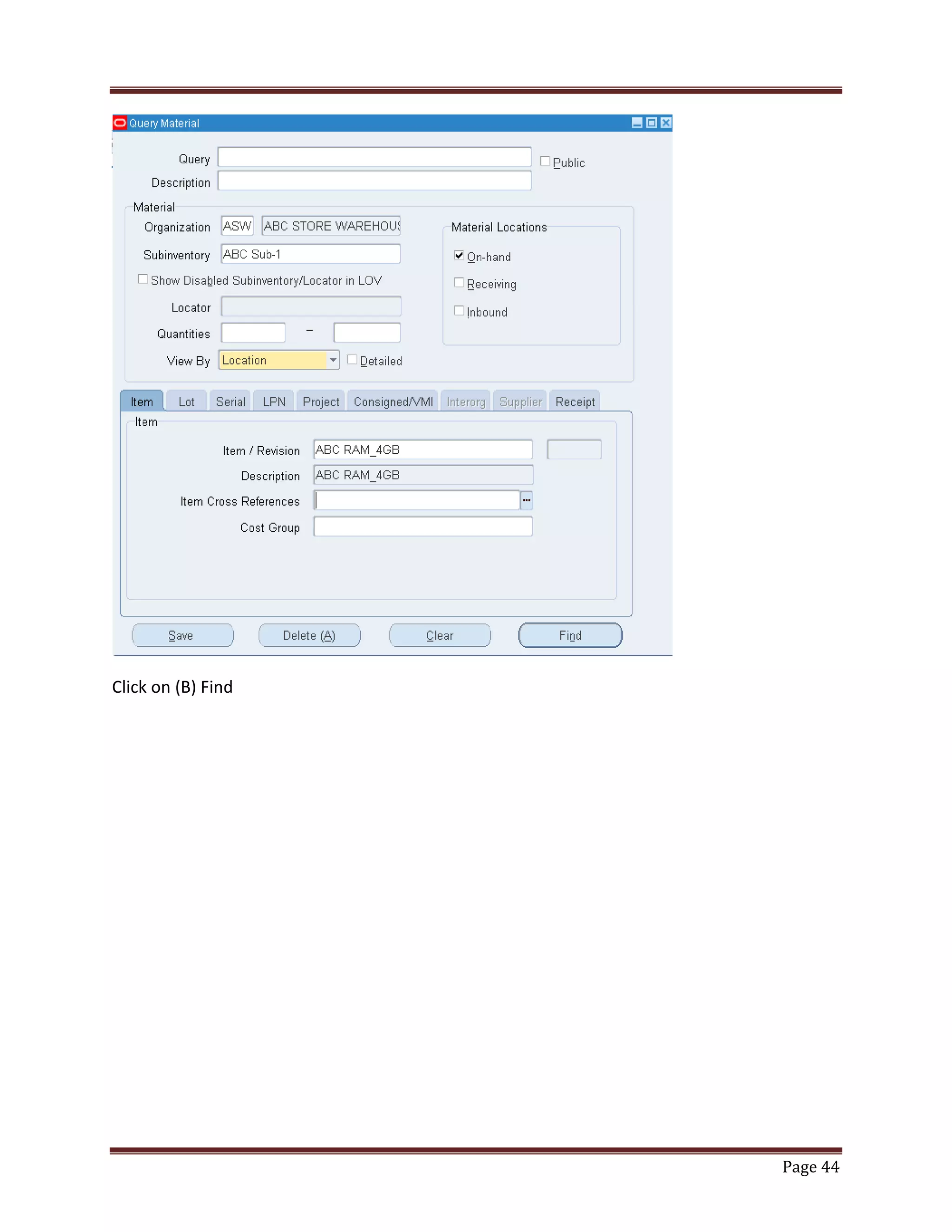
Enter Sub inventory and Item/Revision and Click on (B) Find

Page 43
Click on (B) Find

Page 44
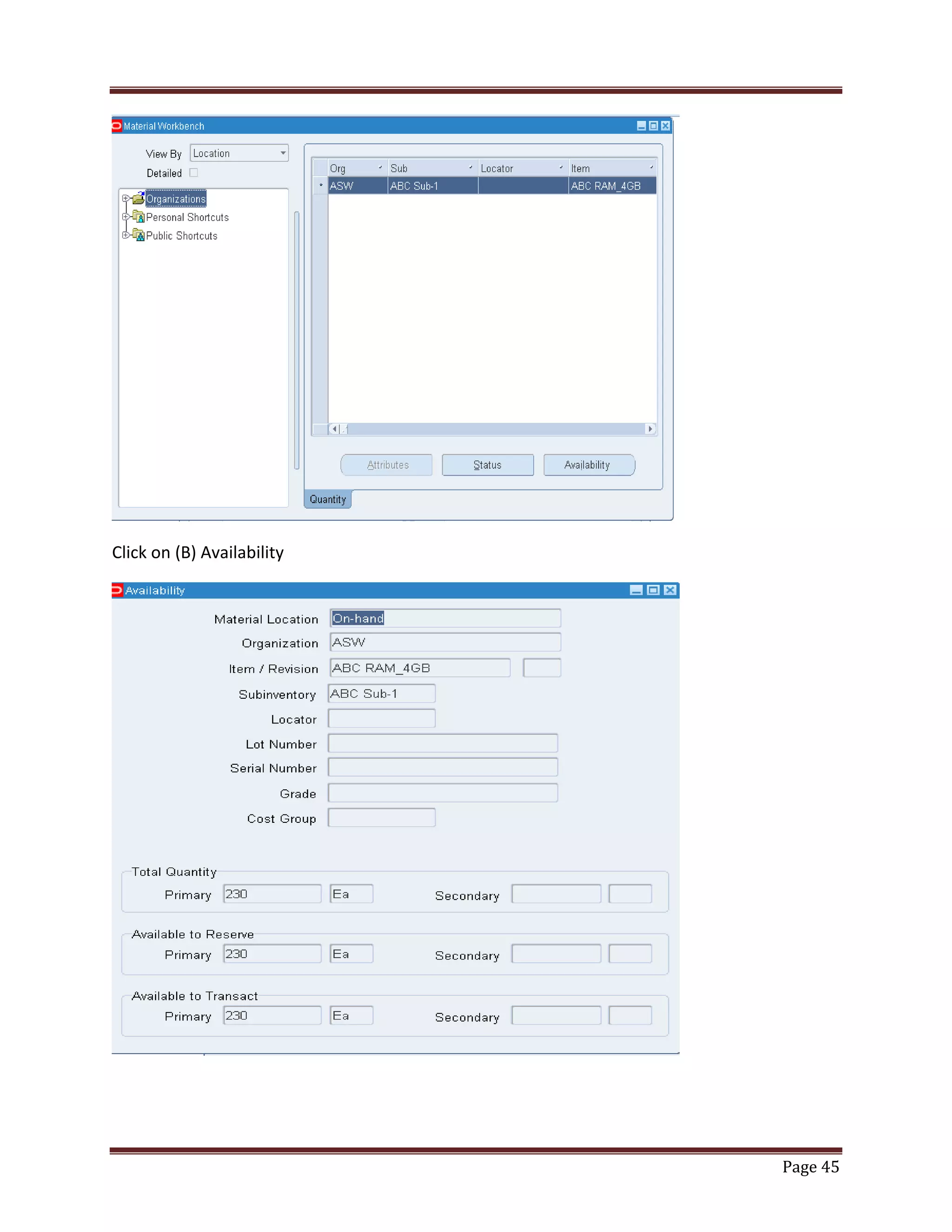
Click on (B) Availability

Page 45
Submit Program for Pay on Receipt Auto invoice
Login to Purchasing Module
(N) Reports> Run

Click on (B) Ok

Page 46
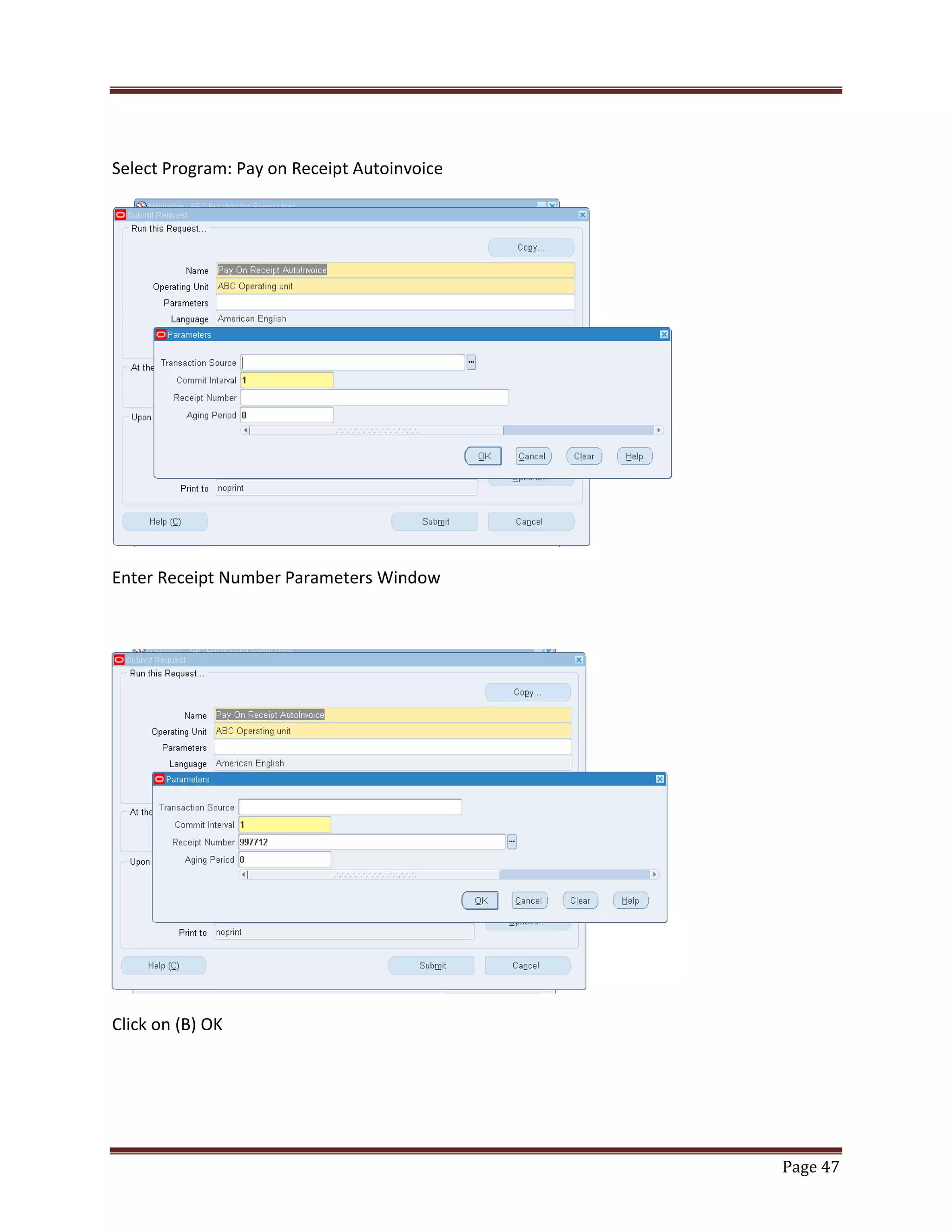
Select Program: Pay on Receipt Autoinvoice

Enter Receipt Number Parameters Window

Click on (B) OK

Page 47
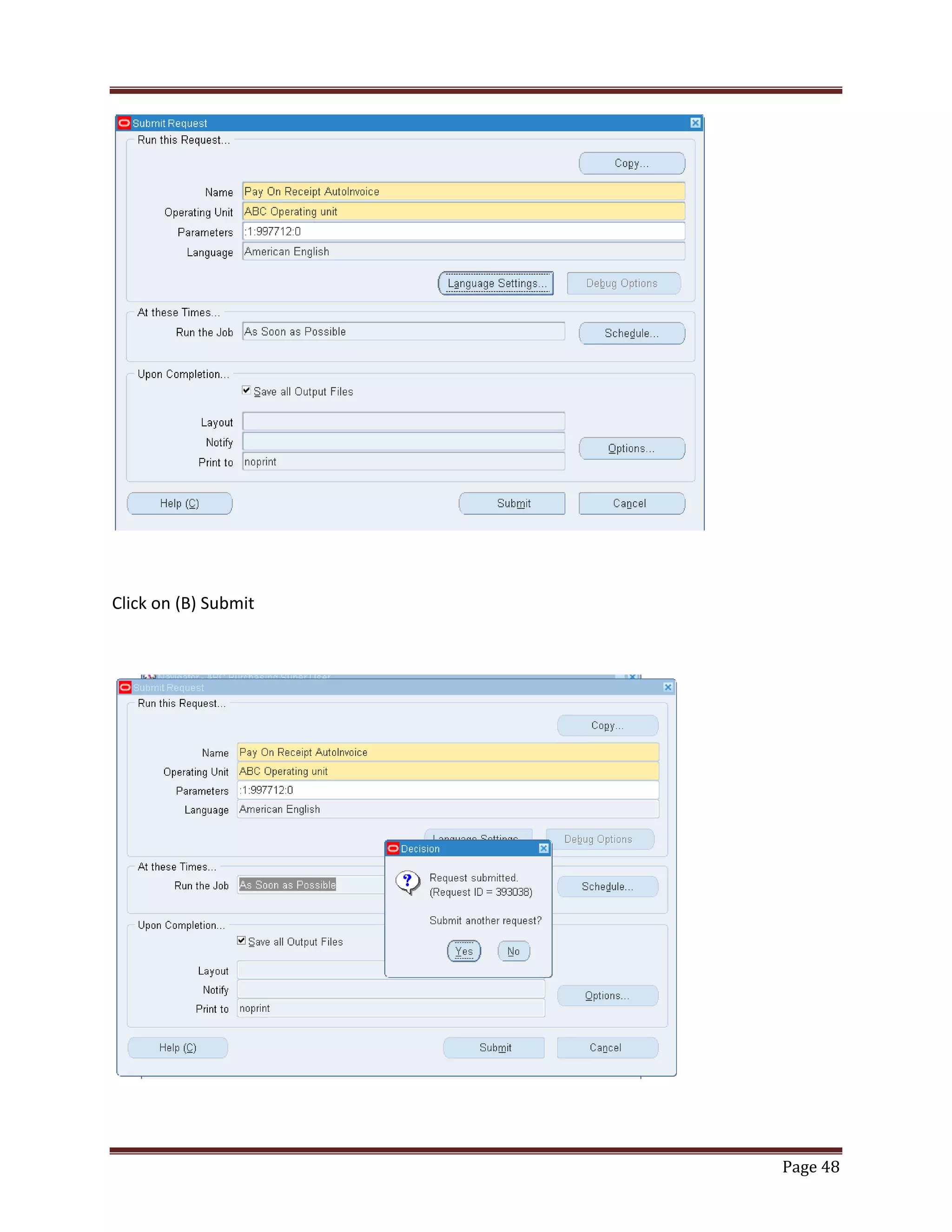
Click on (B) Submit

Page 48
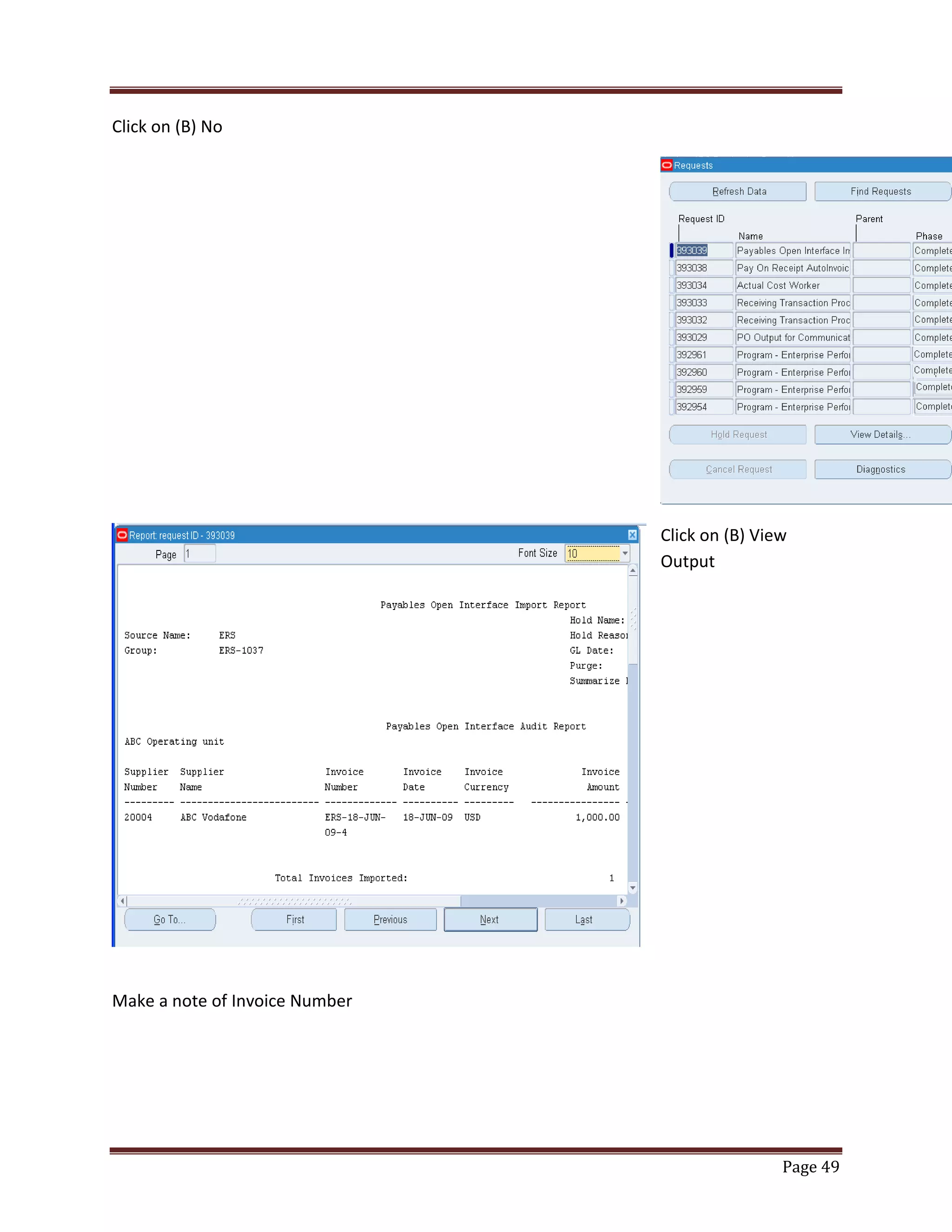
Click on (B) No

Click on (B) View
Output

Make a note of Invoice Number

Page 49
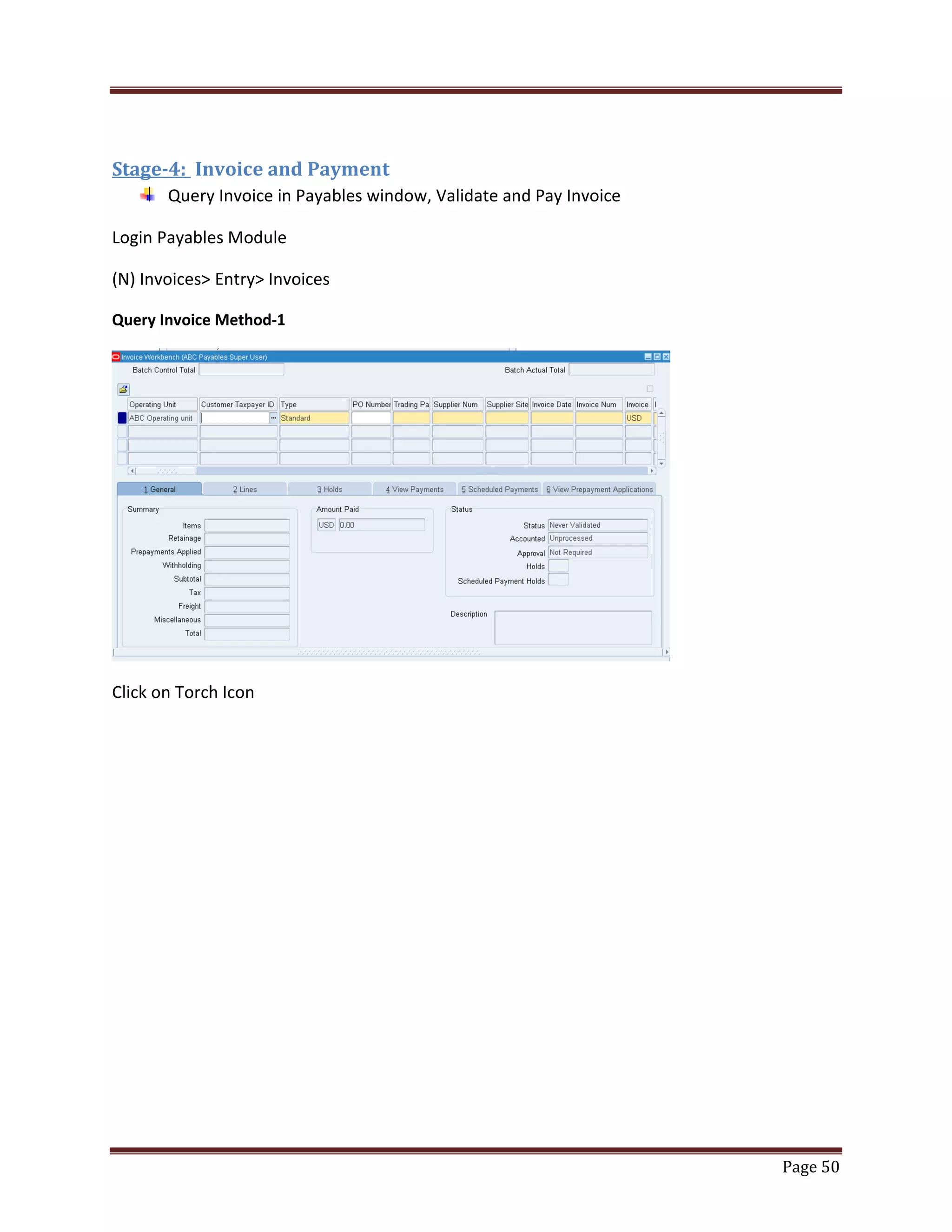
Stage-4: Invoice and Payment
Query Invoice in Payables window, Validate and Pay Invoice
Login Payables Module
(N) Invoices> Entry> Invoices
Query Invoice Method-1

Click on Torch Icon

Page 50
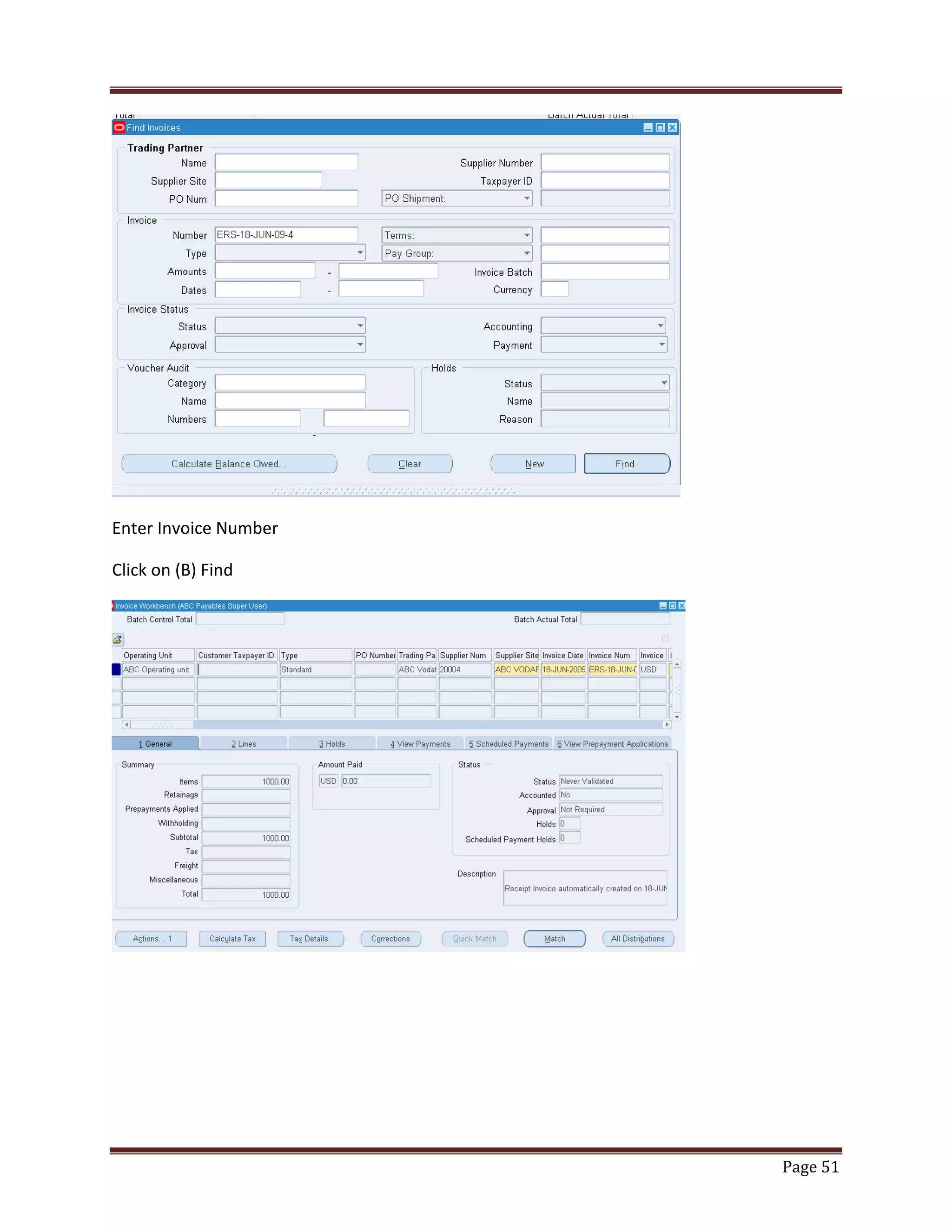
Enter Invoice Number
Click on (B) Find

Page 51
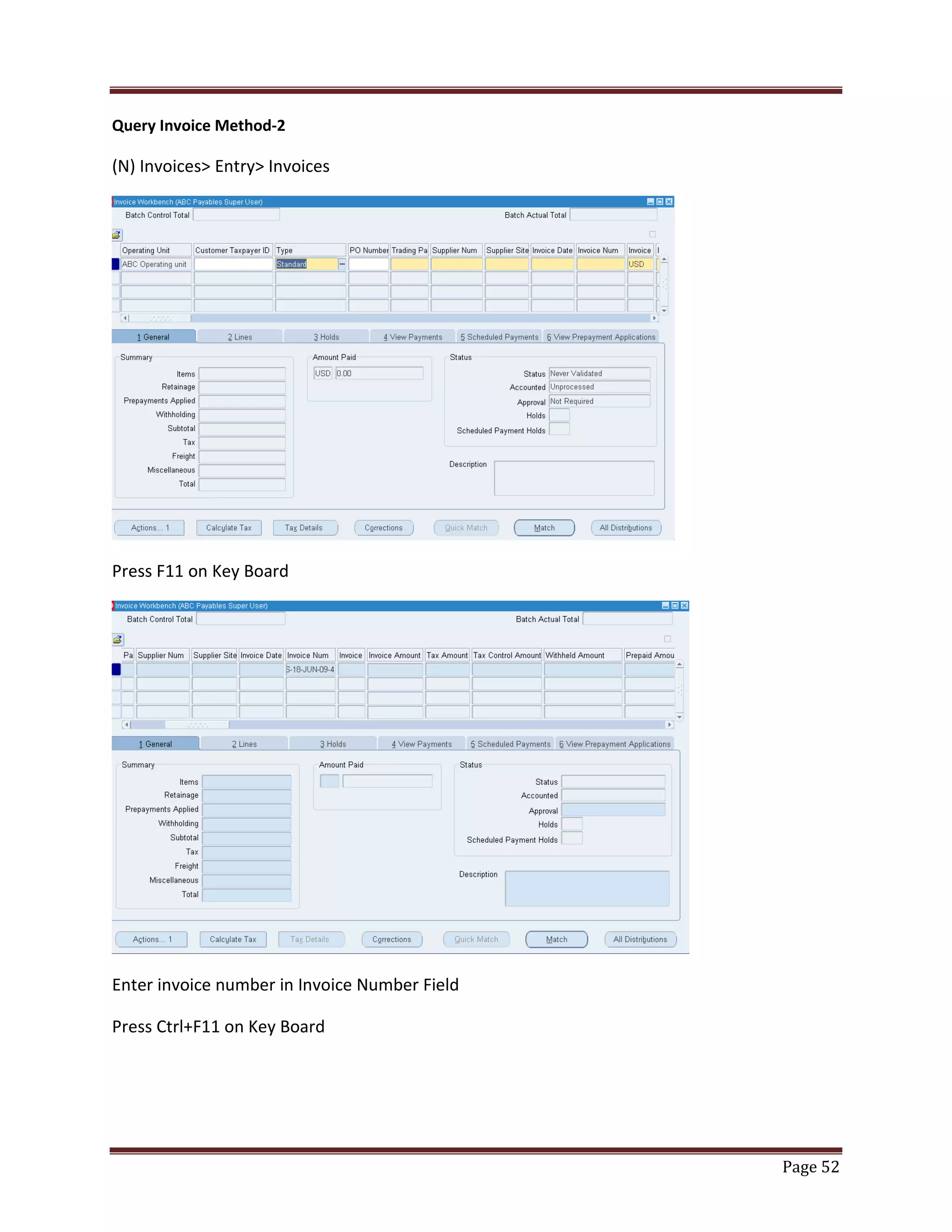
Query Invoice Method-2

(N) Invoices> Entry> Invoices

Press F11 on Key Board

Enter invoice number in Invoice Number Field
Press Ctrl+F11 on Key Board

Page 52
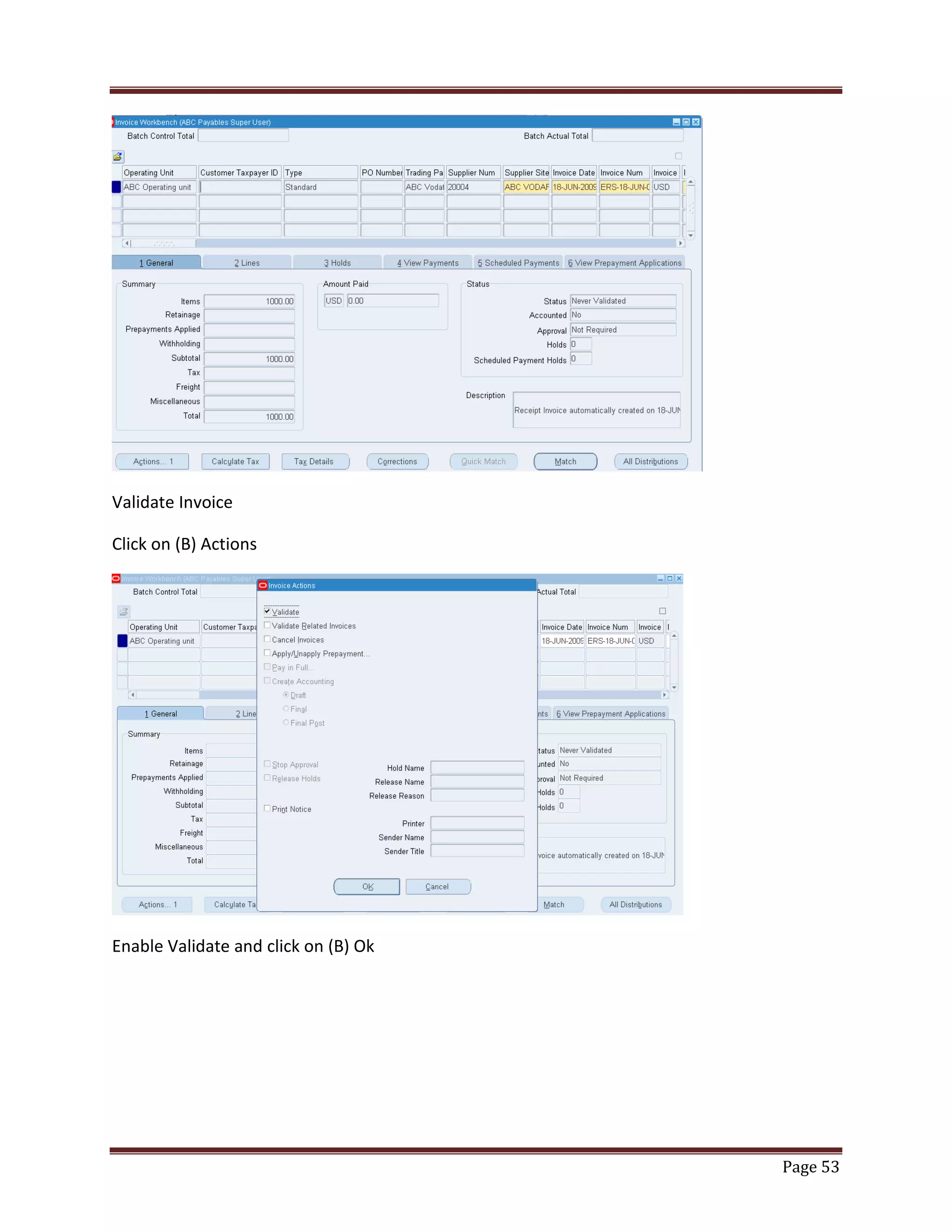
Validate Invoice
Click on (B) Actions

Enable Validate and click on (B) Ok

Page 53
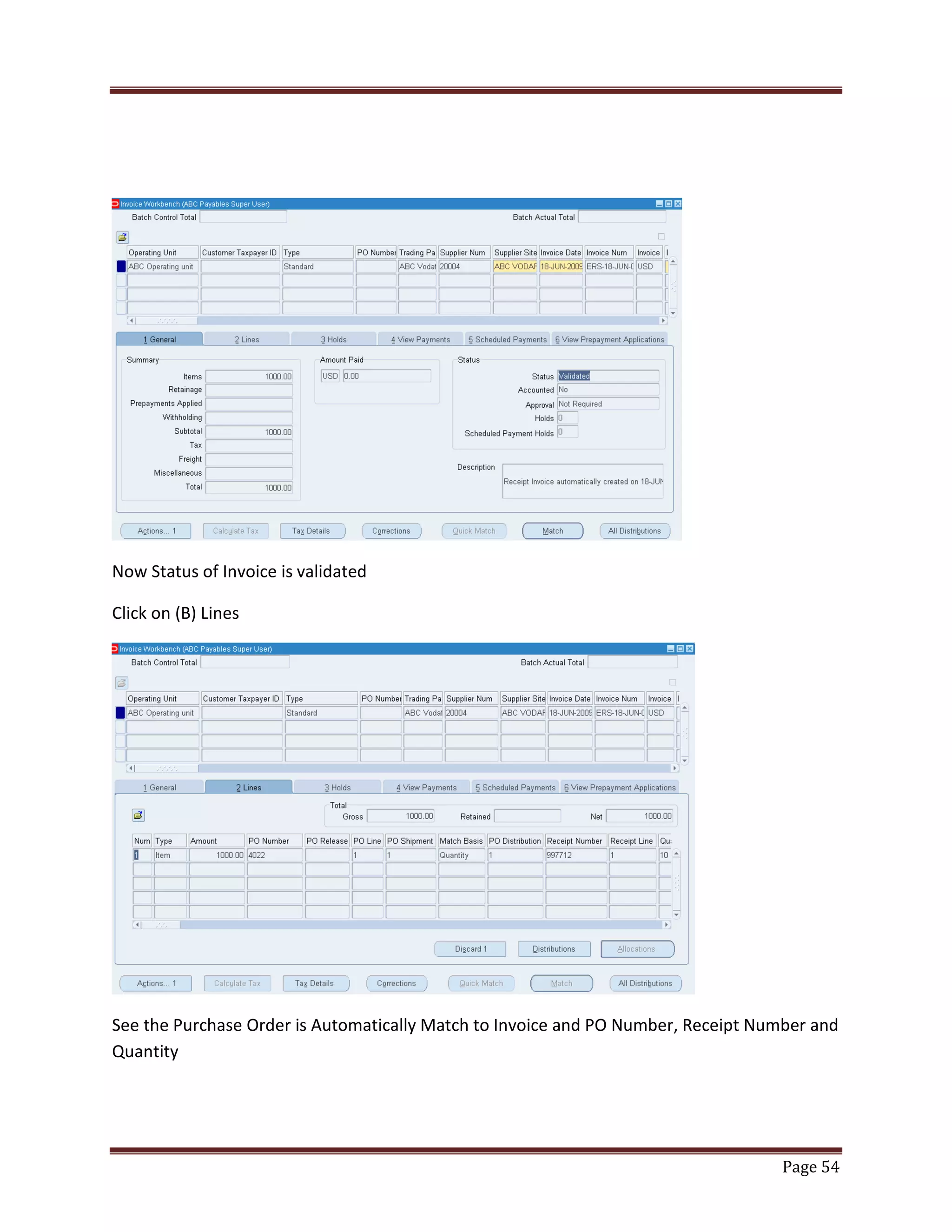
Now Status of Invoice is validated
Click on (B) Lines

See the Purchase Order is Automatically Match to Invoice and PO Number, Receipt Number and
Quantity

Page 54
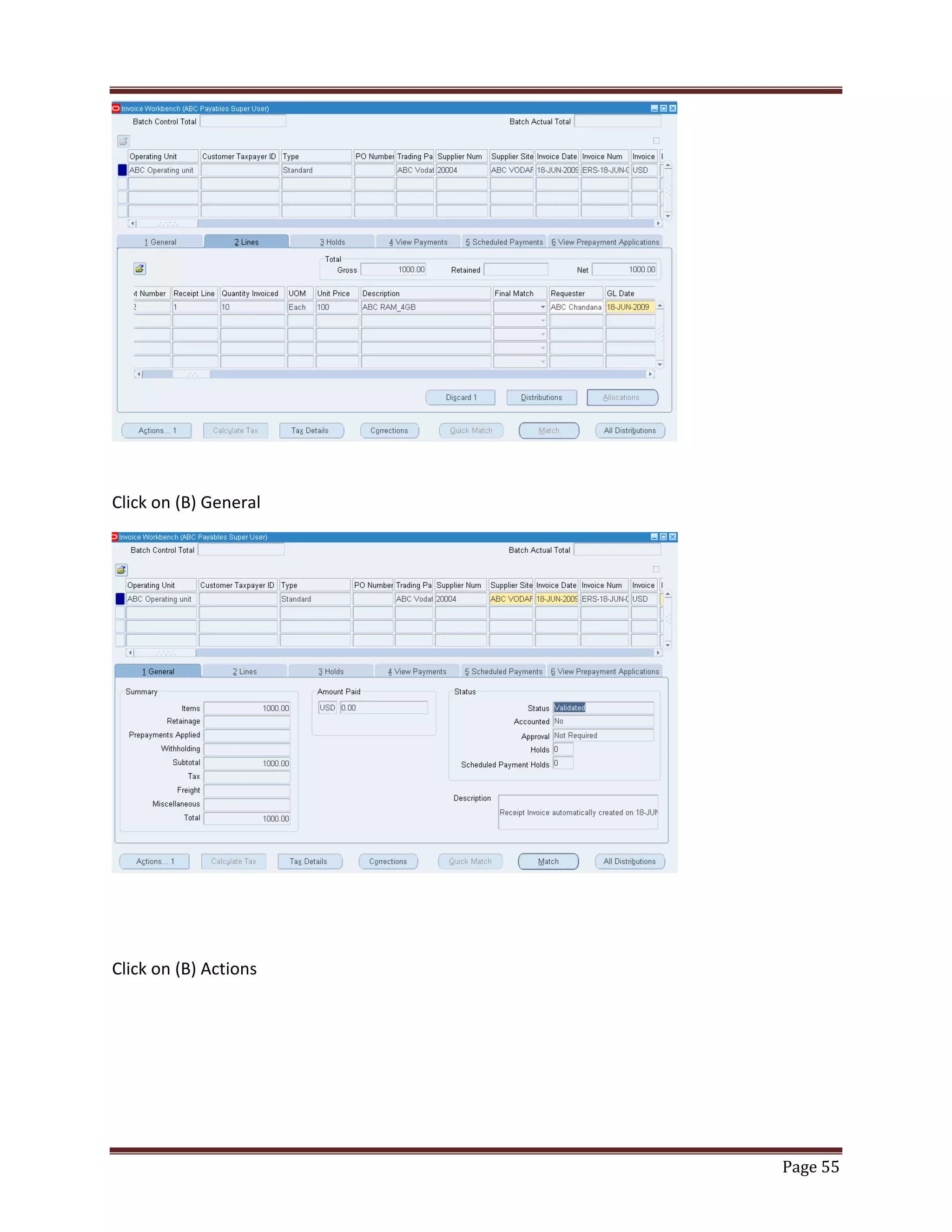
Click on (B) General

Click on (B) Actions

Page 55
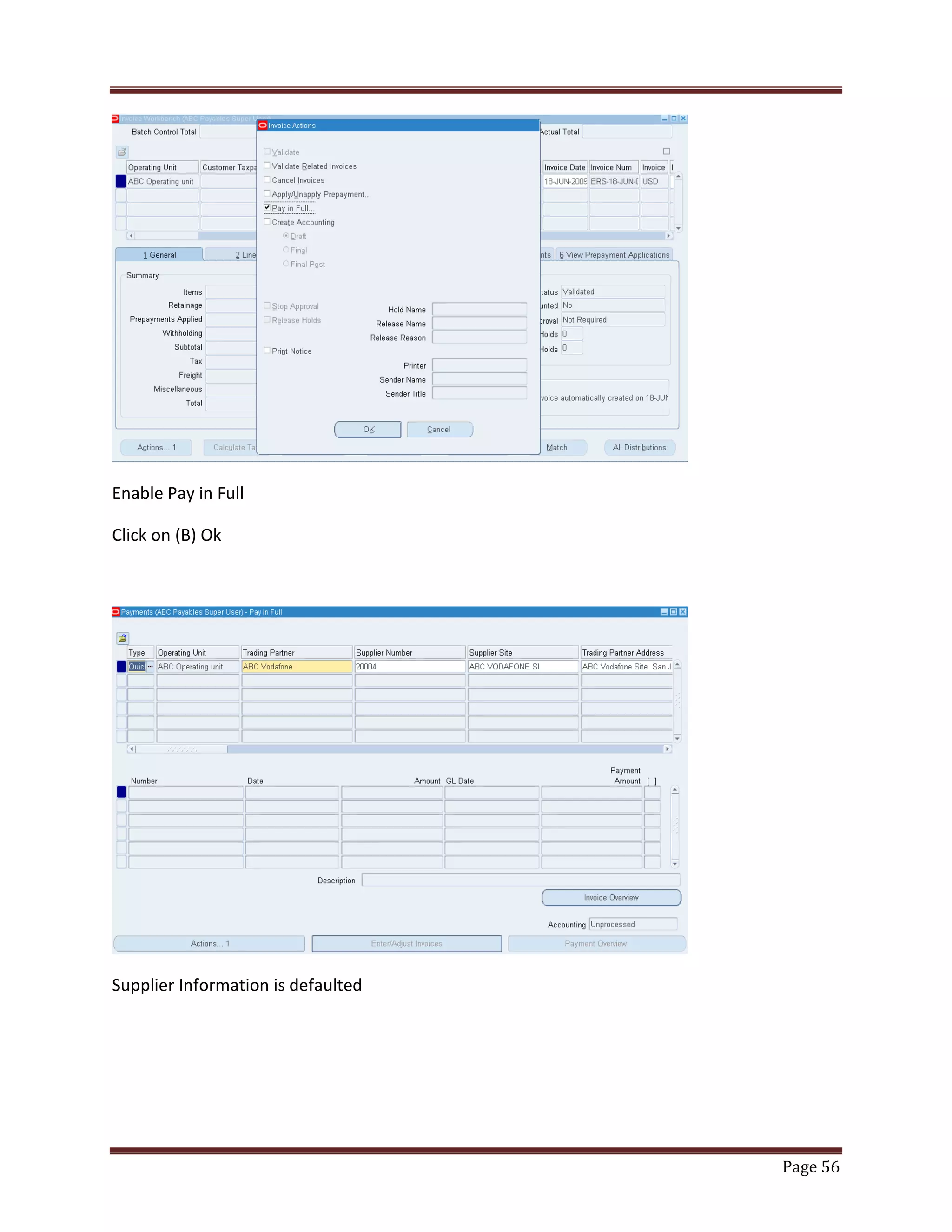
Enable Pay in Full
Click on (B) Ok

Supplier Information is defaulted

Page 56
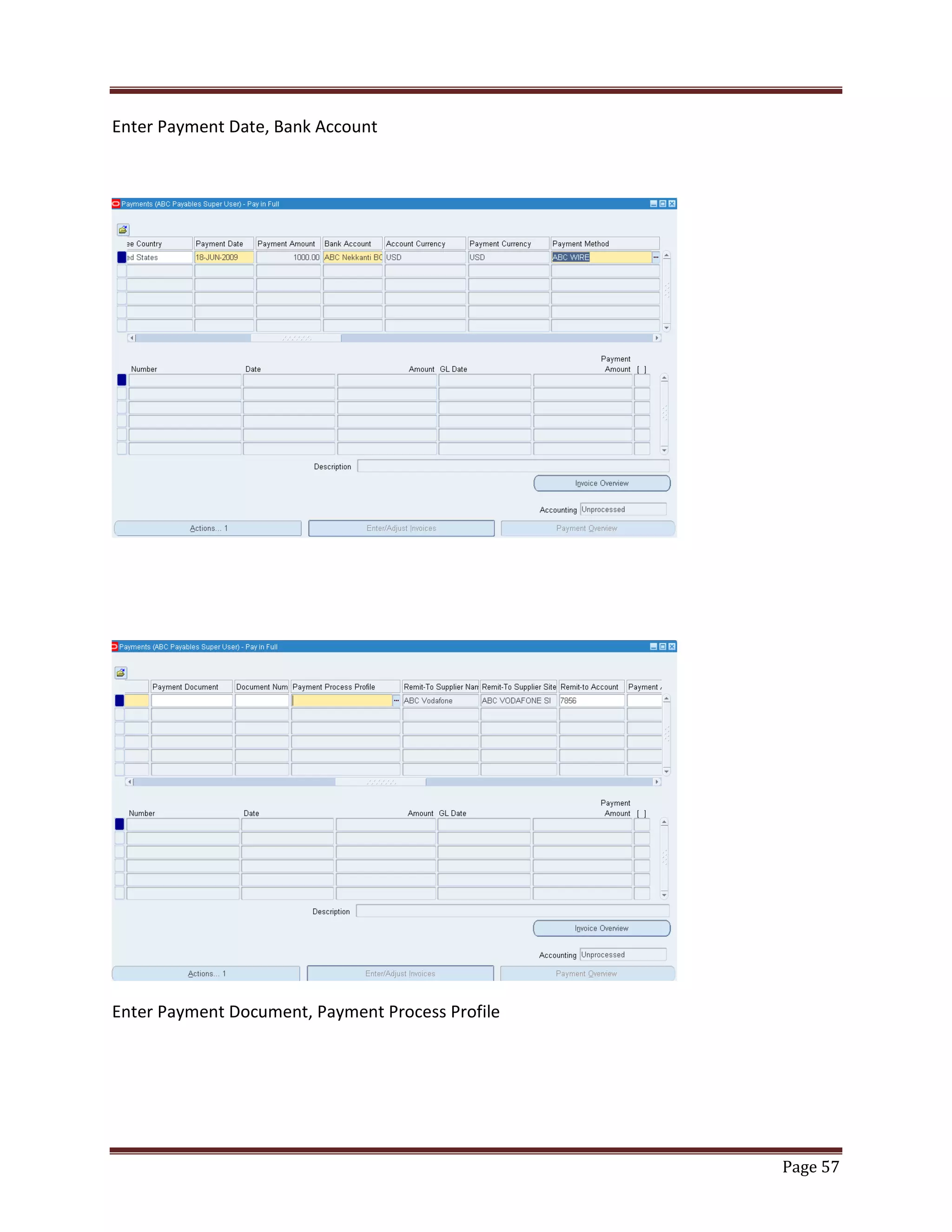
Enter Payment Date, Bank Account

Enter Payment Document, Payment Process Profile

Page 57
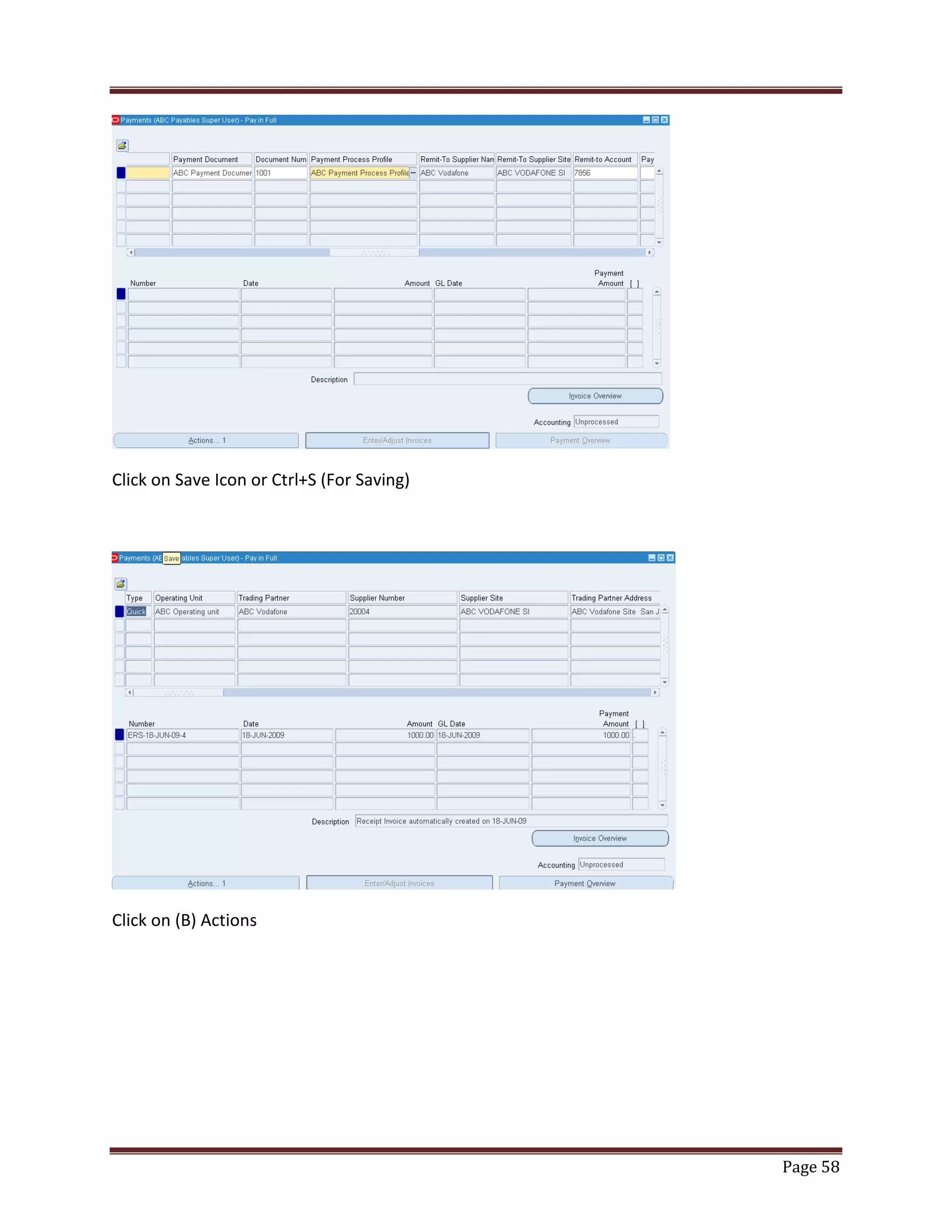
Click on Save Icon or Ctrl+S (For Saving)

Click on (B) Actions

Page 58
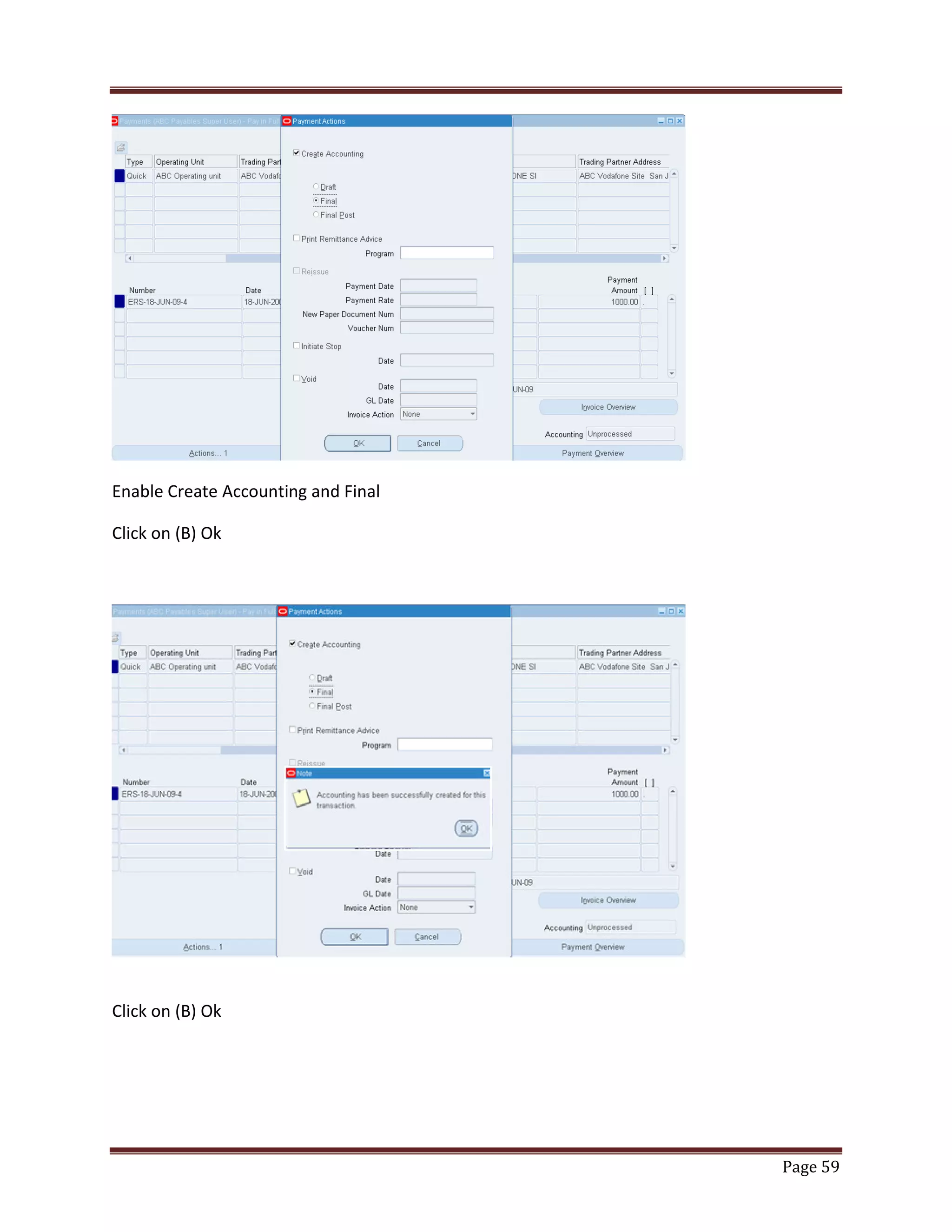
Enable Create Accounting and Final
Click on (B) Ok

Click on (B) Ok

Page 59
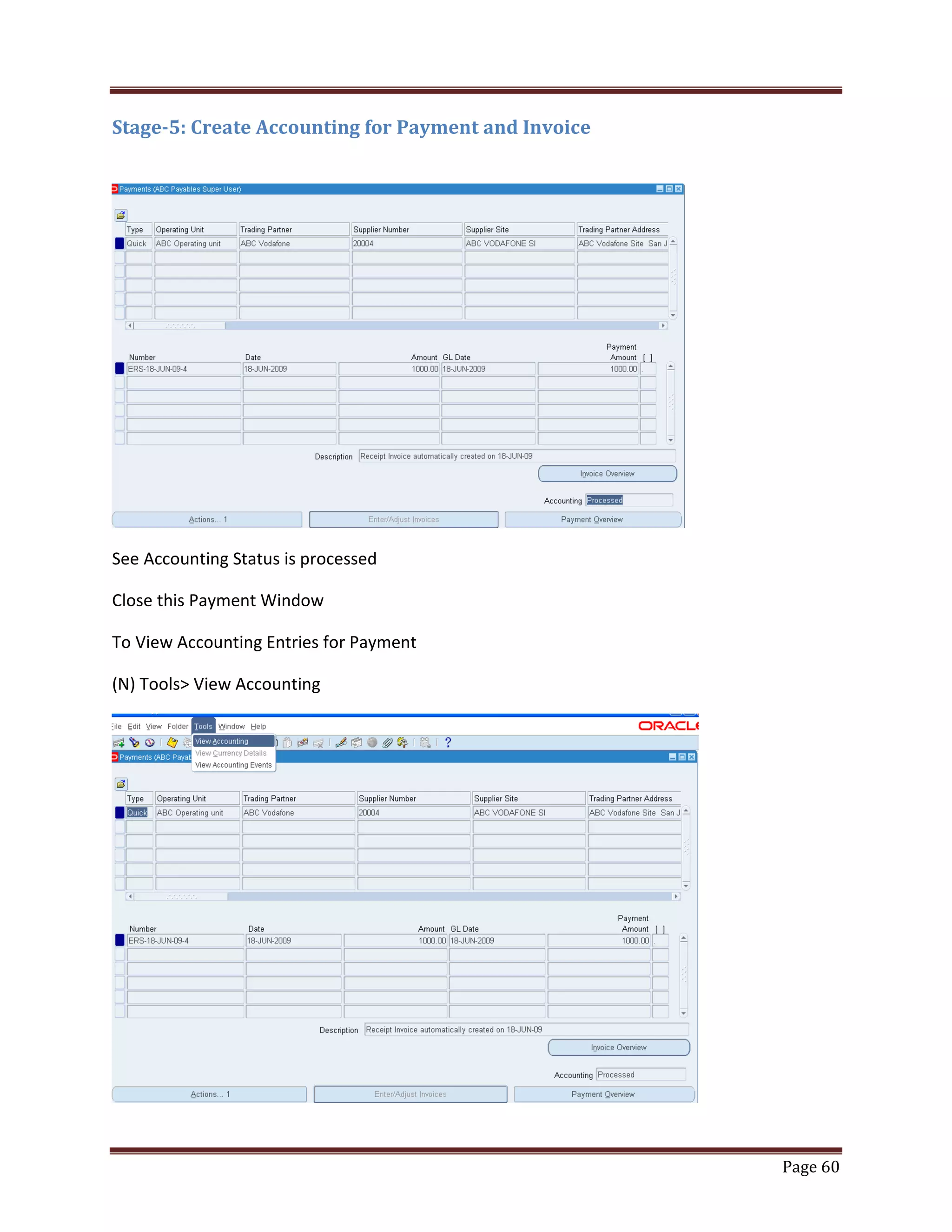
Stage-5: Create Accounting for Payment and Invoice

See Accounting Status is processed
Close this Payment Window
To View Accounting Entries for Payment
(N) Tools> View Accounting

Page 60
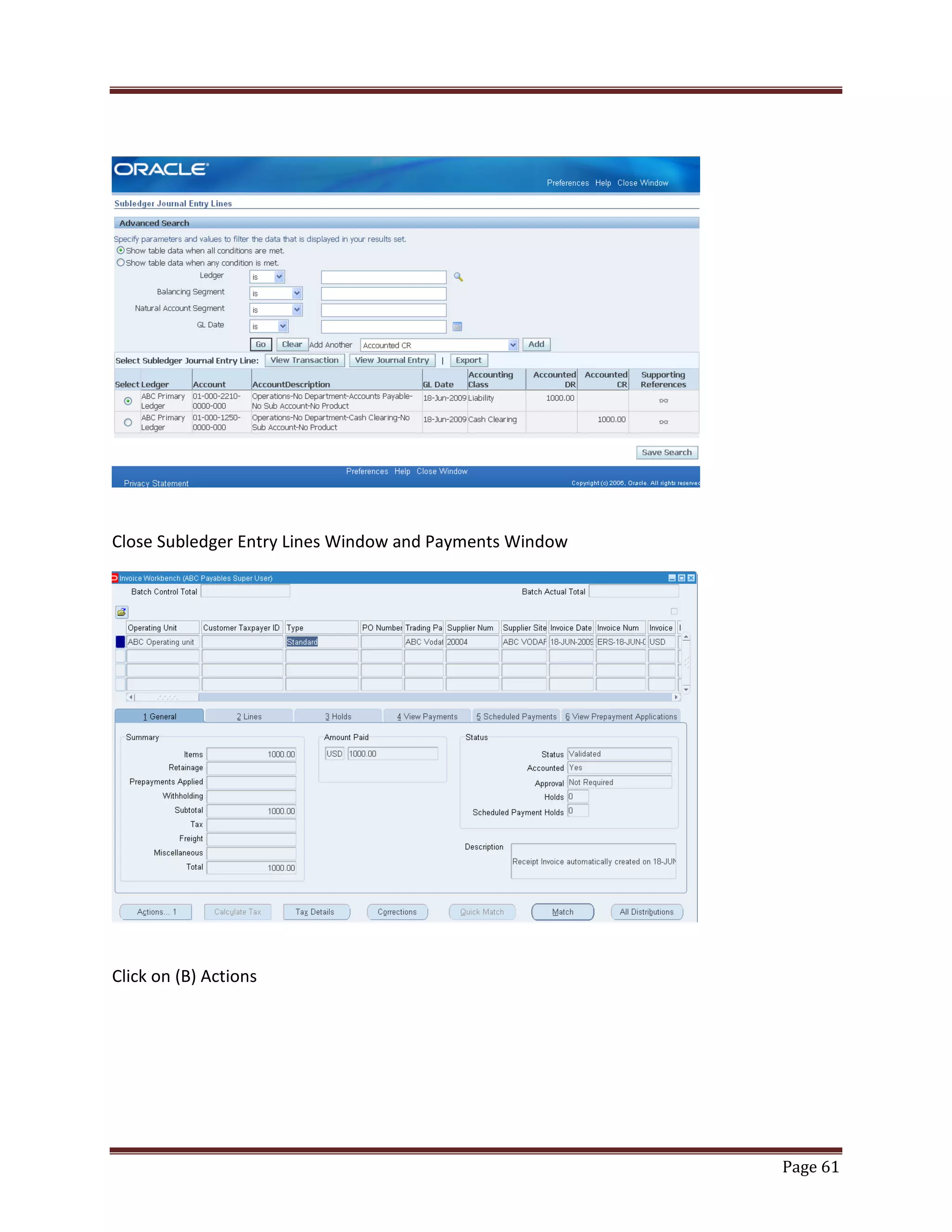
Close Subledger Entry Lines Window and Payments Window

Click on (B) Actions

Page 61
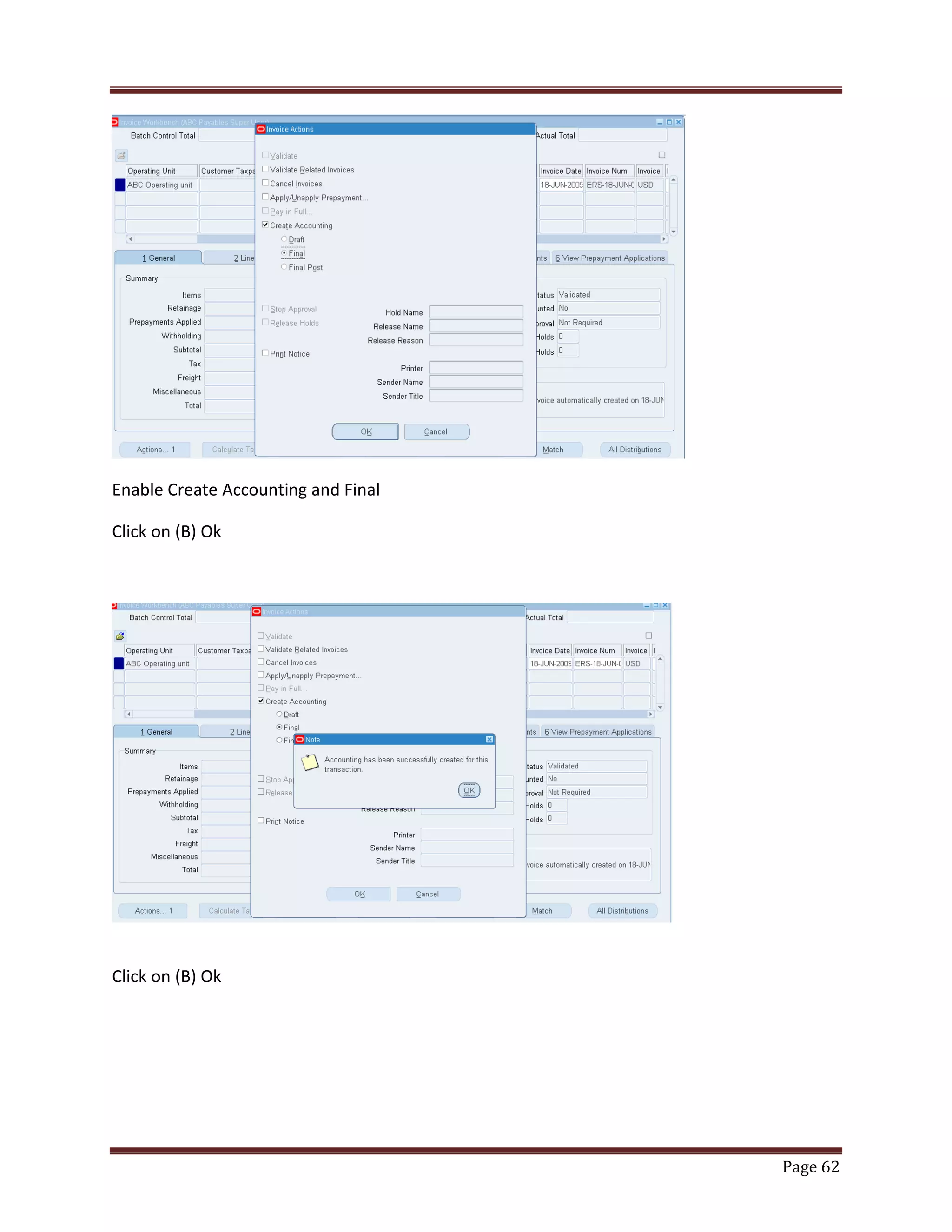
Enable Create Accounting and Final
Click on (B) Ok

Click on (B) Ok

Page 62
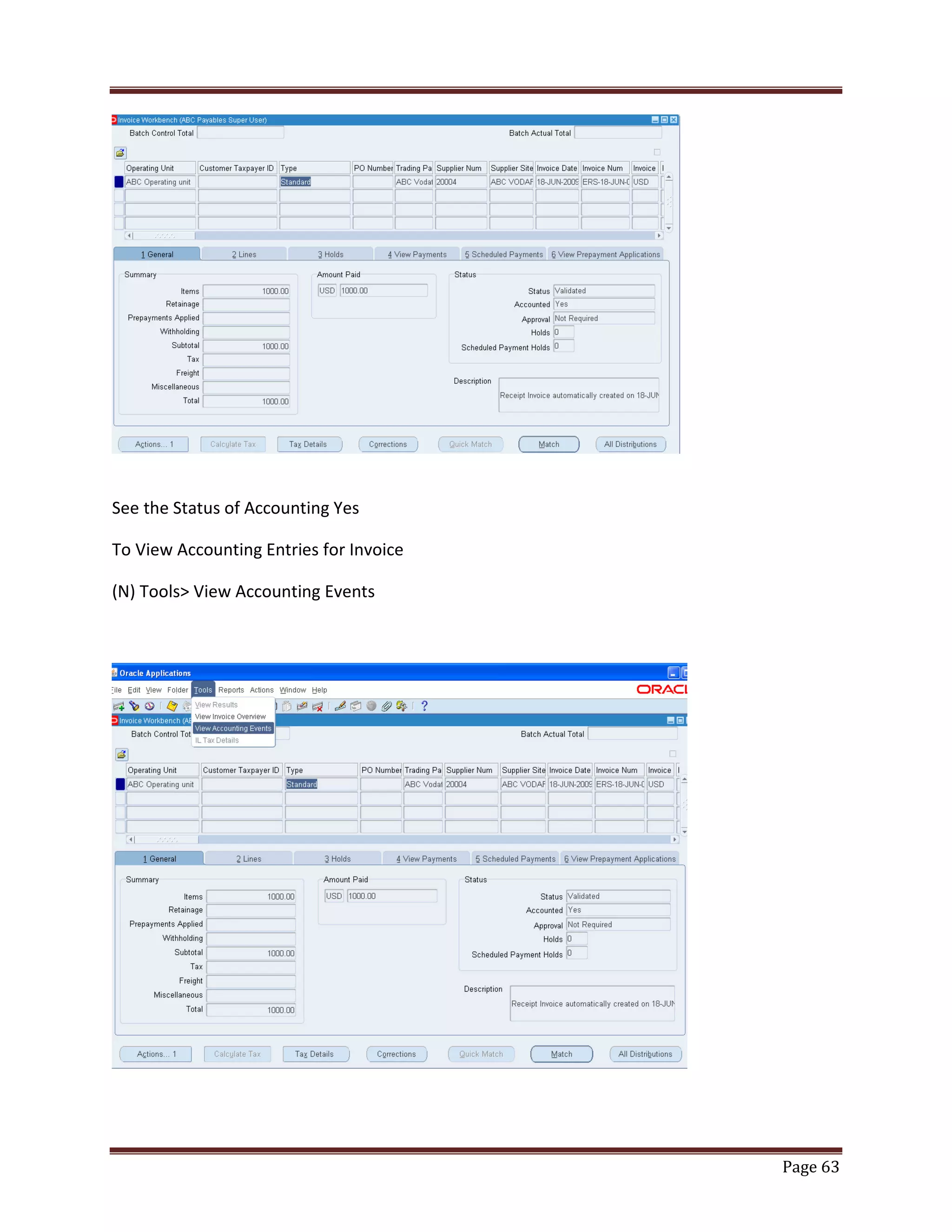
See the Status of Accounting Yes
To View Accounting Entries for Invoice
(N) Tools> View Accounting Events

Page 63
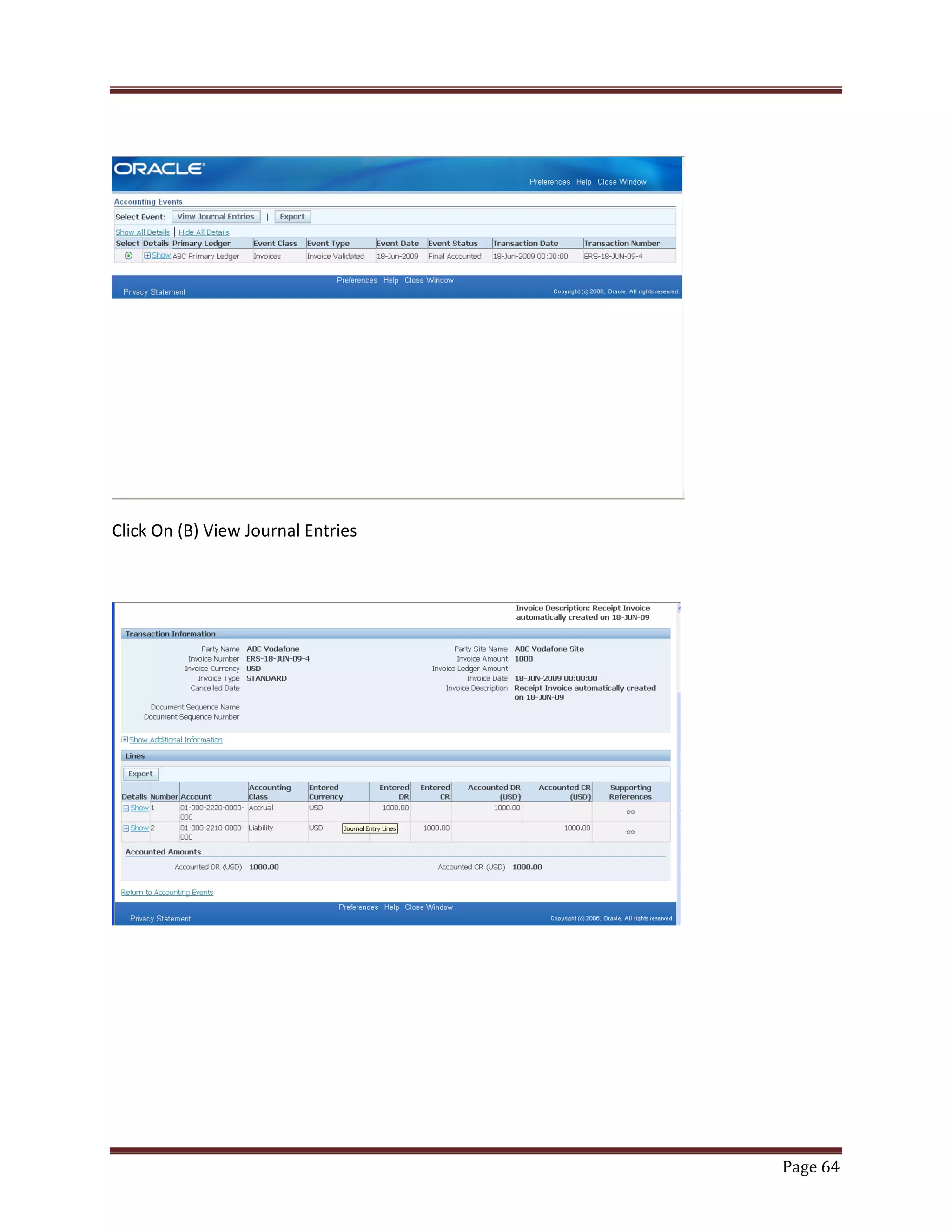
Click On (B) View Journal Entries

Page 64
Page 65

P2P Cycle -Oracle Apps

  • 1.
    Procure to PayLife Cycle End to End Process
  • 2.
    P T PFlow Objectives: ................................................................................................................................................ 3 Pre-Requisites: .......................................................................................................................................... 4 Process Steps: ........................................................................................................................................... 5 Create Supplier: ABC Vodafone Supplier .................................................................................................. 6 Create Supplier: ABC Idea Supplier ......................................................................................................... 15 Check the Quantity of Item in Sub Inventory ......................................................................................... 25 Stage-1: Create Requisition .................................................................................................................... 28 Stage-2: Create Purchase Order ............................................................................................................. 34 Stage-3: Receiving Items ......................................................................................................................... 39 Check the Quantity of Item in Sub Inventory after Receiving ................................................................ 43 Submit Program for Pay on Receipt Auto invoice................................................................................... 46 Stage-4: Invoice and Payment................................................................................................................ 50 Stage-5: Create Accounting for Payment and Invoice ............................................................................ 60 Page 2
  • 3.
    Objectives: After completingthe document one should be able to understand the whole overview of Procure to Pay Process implementation. Able to create a requisition. Create a Purchase Order Create a Receipt. Create an Invoice automatically. Able to make payment. NOTATIONS: (N) = Navigator (M) = Menu (T) = Tab (ST)= Sub Tab Page 3
  • 4.
    Pre-Requisites: 1. 2. 3. 4. 5. 6. 7. 8. 9. 10. You have alogin name and password. User has assigned Inventory, Purchasing, and Payables Modules. User should assign employee and employee assigned as a buyer. Employee position has the approval limit. There should be quantity in Inventory for the item. Supplier should have one Site with purpose Purchasing and Payment Supplier (T)Purchasing (ST) Self Billing Pay On: Receipt and Invoice Summary: Pay Site User should know to whom he needs to supply. User should know from which Bank account the money has to be debited. Payment Method is assigned at Supplier Site level NOTE: This document is explained considering that all the basic setups are done. Page 4
  • 5.
    Process Steps: 1. 2. 3. 4. 5. 6. 7. 8. 9. 10. 11. 12. Check thequantity of the item in Sub inventory. Enter the Purchase Requisition. Approve the Purchase Requisition. Create the Purchase Order. Approve the Purchase Order. Raise a receipt on receiving the quantity. Check the quantity in Sub inventory. Raise an Invoice automatically. Validate the Invoice. Do the payment. Create Accounting for Invoice Create Accounting for Payment Page 5
  • 6.
    Create Supplier: ABCVodafone Supplier (N) Suppliers> Entry Suppliers Click on (B) Create Supplier Select Supplier Type: Standard Supplier Enter Organization Name, Alias, Country Page 6
  • 7.
    Click on (B)Apply Click on (ST) Address Book Click on (B) Create Page 7
  • 8.
    Enter Address Line1,City, County, State, Postal Code, Address Name and Address Pursose Click on (B) Continue Select Site Name for Operating Unit Click on (B) Apply Site is created Click on (i) Manage Sites Page 8
  • 9.
    Enable Purchasing andPay Click on (B) Apply Click on (ST) Purchasing Page 9
  • 10.
    Enable Create DebitMemo from RTS Transaction Click on (B) Self Billing Select Pay on: Receipt, Invoice Summary Level: Pay Site and Enable Create Debit Memo from RTS Transaction Page 10
  • 11.
    Click on (B)Save Click on (B) Receiving Enter Enforce ship to, Receipt Routing, Match Approval Level, Quantity Received Tolerance, Quantity Received Exception, Days Early Received and Days Late Receipt Allowed Page 11
  • 12.
    Click on (B)Save Click on (ST) Payment Details Select Default Payment Method Page 12
  • 13.
    Click on (i)Update on Supplier Sites Enable Default Payment Method Click on (B) Save Click on (ST) Invoice Management Page 13
  • 14.
    Select Pay Group:ABC PAY GROUP Click on (B) Terms Select Terms: Immediate Click on (B) Save Page 14
  • 15.
    Create Supplier: ABCIdea Supplier (N) Suppliers> Entry>Suppliers Click on (B) Create Supplier Select Supplier Type: Standard Supplier Page 15
  • 16.
    Click on (B)Apply Click on (ST) Address Book Click on (B) Create Page 16
  • 17.
    Enter Address Line1, City, County, State, Postal Code, Address Name and enable Address Purpose: Purchasing Click on (B) Continue Select Site Name for Operating Unit Click on (B) Apply Click on (i) Manage Sites Page 17
  • 18.
    Enable Purchasing Click on(B) Apply Click on (B) Create Page 18
  • 19.
    Enter Address Line1, City, County, State, Postal Code, Address Name and enable Address Purpose: Payment Click on (B) Continue Select Site Name for Operating Unit Click on (B) Apply Click on (i) Manage Sites Page 19
  • 20.
    Click on (i)Manage Sites for Payment Site Enable Pay Click on (B) Apply Click on (B) Purchasing Page 20
  • 21.
    Enable Create DebitMemo from RTS Transaction And enable Create Debit Memo from RTS Transaction at Purchasing Site Level Click on (B) Save Click on (ST) Receiving Enter Enforce ship to, Receipt Routing, Match Approval Level, Quantity Received Tolerance, Quantity Received Exception, Days Early Received and Days Late Receipt Allowed Page 21
  • 22.
    Click on (B)Save Click on (ST) Payment Details Select Default Payment Method Click on (B)Save Click on (i) Update for Payment Site Page 22
  • 23.
    Enable Default PaymentMethod Click on (B) Save Click on (ST) Invoice Management Select Pay Group: ABC PAY GROUP Page 23
  • 24.
    Click on (T)Terms Select Terms: Immediate Click on (B) Save Page 24
  • 25.
    Step wise Analysiswith Screen Shots: Check the Quantity of Item in Sub Inventory. Login to Inventory Module (N) On-hand, Availability >On-hand Quantity Enter Sub inventory and Item/Revision and Click on (B) Find Page 25
  • 26.
    Click on (B)Find Click on (B) Availability Page 26
  • 27.
  • 28.
    Stage-1: Create Requisition Raisea Requisition Approve it, Autocreate a Purchase Order. Login to Purchasing Module (N) Requisitions>Requisitions Enter the Purchase Requisition Enter the Supplier Information, Item, Quantity, Need by date, Sub inventory Page 28
  • 29.
    Click on SaveIcon or Ctrl+S (For Saving) After saving, Requisition Number will be generated (as shown in the Screen Shot) copy the Number Click on (B) Approve Page 29
  • 30.
    Click on (B)Ok Navigate to Requisition Summary to check Requisition Status (N) Requisitions> Requisition Summary Enter the requisition number Page 30
  • 31.
    Click on (B)Find Requisition status has been approved Now we need to create a Purchase Order based on the Requisition. (N) Auto Create Page 31
  • 32.
    Remove the Buyerin Buyer field Enter Requisition Number Click on (B) Find Page 32
  • 33.
    Select Requisition Click on(B) Automatic Page 33
  • 34.
    Click on (B)Create Stage-2: Create Purchase Order Enter Purchase Order Match level, Invoice Match Option, Approve Purchase Order and Check Purchase Order status. Now Purchase Order is created Click on (B) Shipments Page 34
  • 35.
    Click on (T)More Select Match Approval Level: 3-Way Page 35
  • 36.
    Select Invoice MatchOption: Receipt Close Shipments window Click on (B) Approve Page 36
  • 37.
    Click on (B)Ok Check the status of the Purchase Order Number (N) Purchase Order > Purchase Order Summary Page 37
  • 38.
    Enter Purchase OrderNumber Page 38
  • 39.
    Click on (B)Find Status of Purchase Order is approved Stage-3: Receiving Items Receiving Items and Check Quantity in Inventory (N) Receiving > Receipts Page 39
  • 40.
    Enter Purchase OrderNumber Click on (B) Find Minimize Receipt Header Window Page 40
  • 41.
    Enable Quantity Receive Clickon Icon Save or Ctrl+S (For Saving) Page 41
  • 42.
    Click on (B)Header Make a note of Receipt Number Page 42
  • 43.
    Check the Quantityof Item in Sub Inventory after Receiving Login to Inventory Module (N) On-hand , Availability> On-hand Quantity Enter Sub inventory and Item/Revision and Click on (B) Find Page 43
  • 44.
    Click on (B)Find Page 44
  • 45.
    Click on (B)Availability Page 45
  • 46.
    Submit Program forPay on Receipt Auto invoice Login to Purchasing Module (N) Reports> Run Click on (B) Ok Page 46
  • 47.
    Select Program: Payon Receipt Autoinvoice Enter Receipt Number Parameters Window Click on (B) OK Page 47
  • 48.
    Click on (B)Submit Page 48
  • 49.
    Click on (B)No Click on (B) View Output Make a note of Invoice Number Page 49
  • 50.
    Stage-4: Invoice andPayment Query Invoice in Payables window, Validate and Pay Invoice Login Payables Module (N) Invoices> Entry> Invoices Query Invoice Method-1 Click on Torch Icon Page 50
  • 51.
    Enter Invoice Number Clickon (B) Find Page 51
  • 52.
    Query Invoice Method-2 (N)Invoices> Entry> Invoices Press F11 on Key Board Enter invoice number in Invoice Number Field Press Ctrl+F11 on Key Board Page 52
  • 53.
    Validate Invoice Click on(B) Actions Enable Validate and click on (B) Ok Page 53
  • 54.
    Now Status ofInvoice is validated Click on (B) Lines See the Purchase Order is Automatically Match to Invoice and PO Number, Receipt Number and Quantity Page 54
  • 55.
    Click on (B)General Click on (B) Actions Page 55
  • 56.
    Enable Pay inFull Click on (B) Ok Supplier Information is defaulted Page 56
  • 57.
    Enter Payment Date,Bank Account Enter Payment Document, Payment Process Profile Page 57
  • 58.
    Click on SaveIcon or Ctrl+S (For Saving) Click on (B) Actions Page 58
  • 59.
    Enable Create Accountingand Final Click on (B) Ok Click on (B) Ok Page 59
  • 60.
    Stage-5: Create Accountingfor Payment and Invoice See Accounting Status is processed Close this Payment Window To View Accounting Entries for Payment (N) Tools> View Accounting Page 60
  • 61.
    Close Subledger EntryLines Window and Payments Window Click on (B) Actions Page 61
  • 62.
    Enable Create Accountingand Final Click on (B) Ok Click on (B) Ok Page 62
  • 63.
    See the Statusof Accounting Yes To View Accounting Entries for Invoice (N) Tools> View Accounting Events Page 63
  • 64.
    Click On (B)View Journal Entries Page 64
  • 65.