prasanthictsapfico@gmail.com
FI-MM Intergration
prasanthictsapfico@gmail.com
• Company Code
• Plant
• Storage Location
prasanthictsapfico@gmail.com
Company Code The central organizational unit of external
accounting within the SAP System
Plant Plant is an independent, physical and highest
organizational unit
Eg:
Operational unit
Manufacturing unit
A sales branch of an organization
MM - plant can be defined as a location that
holds valued stock
Storage Location Storage location is a place where stock is kept
physically
Eg:
Stores
Warehouse
Godown
prasanthictsapfico@gmail.com
Company Code
Plant 1
Storage Location
1
Storage Location
2
Plant 2
Storage Location
1
Storage Location
2
Plant 3
Storage Location
1
Storage Location
2
prasanthictsapfico@gmail.com
Material
prasanthictsapfico@gmail.com
Material
• Materials in SAP have a material master
• Material master has various views (T.Code:MM03 (Dispaly))
 Basic view
 Purchasing view
 Production view
 Sales and distribution view
 Accounting view
 Controlling views.
prasanthictsapfico@gmail.com
Accounting view
• Valuation Class field
prasanthictsapfico@gmail.com
Accounting view
Valuation Class field T.Code: MM03,MM01,OMSK, OBYC
• The vital link which ensures that Accounting documents are
posted automatically.
• Every material will have a valuation class field.
prasanthictsapfico@gmail.com
Valuation Class can be T.Code: OMSK
Note: The combination of this Valuation Class+ the Movement
Typehelps in determining the Gl accounts.
prasanthictsapfico@gmail.com
Movement Type
• All Material movements in MM happen with respect to a Movement Type.
• Movement types are similar to Posting keys in FI Modules
• T.Code
 OMBS - Control Reason for Movement type
 OMBQ - Copy, Change Movement Types
• Table
 T.Name - T156T
prasanthictsapfico@gmail.com
Few Movement Types
101 Material Recipt againt the purchase Order or production Order
102/122 Reversal of 101
201 Issued to cost center
202 Reversal of 201
241 Issued to Asset
242 Reversal of 241
261 Issued to order
262 reversal of 261
301 Plant to Plant transfer
302 Reversal of 301
309 Material to Material Transfer
310 Reversal of 309
prasanthictsapfico@gmail.com
521 Production Receipt without Production Order
522 Reversal of 521
551 Scrapping of Material
552 Reversal of 551
561 Opening Stock Taking
562 reversal of 561
601 Delivery (Sales)
602 reversal of 601
prasanthictsapfico@gmail.com
Transaction Keys T.Code:OBY
BSX--> Inventory Posting
WRX--> Goods Receipt/Invoice Receipt (GR/IR) Clearing
PRD--> Price Difference/Production order difference
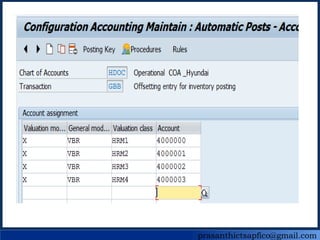
GBB-->Offsetting entry for inventory posting
VBR-->Consumption
VNG-->Scrapping
BSA-->Opening Stock
ZOF-->Production Receipt without production order
AUF-->Production Receipt with production order (Production order (PP))
VAY--> Delivery where sales account created as Revenue element (CO
Implemented)
VAX--> Delivery where sales account is not created as revenue element ( CO
not implemented)
AUA--> Production Order Difference
prasanthictsapfico@gmail.com
P2P Process ( Procure to Pay)
prasanthictsapfico@gmail.com
P2P Process ( Procure to Pay - Departments)
Factory
Purchase Department
Goods Requisition
Godown
Store Department
Purchase Requisition
HO
Purchase Department
Inviting Quatation
Vendor Quotations (Yes)
PO Create
Goods Send
Goods Receipts
GR
Booking Liability
Invoice
Payment
prasanthictsapfico@gmail.com
P2P Process ( Procure to Pay - Journal Entry)
1. Production department rises the Material
requesition as requirement to stores department
2. Stores Department rises the purchases
requesation to Purchase department
3. Purchase department invites the quotation from
various vendors, once vendor finalized,It issues the
Purchase order (PO)
4. Vendor will send the goods as per PO
5. Booking vendor Liability or Invoice verification
6. Payment to Vendor
prasanthictsapfico@gmail.com
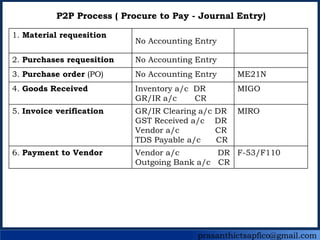
P2P Process ( Procure to Pay - Journal Entry)
1. Material requesition
No Accounting Entry
2. Purchases requesition No Accounting Entry
3. Purchase order (PO) No Accounting Entry ME21N
4. Goods Received Inventory a/c DR
GR/IR a/c CR
MIGO
5. Invoice verification GR/IR Clearing a/c DR
GST Received a/c DR
Vendor a/c CR
TDS Payable a/c CR
MIRO
6. Payment to Vendor Vendor a/c DR
Outgoing Bank a/c CR
F-53/F110
prasanthictsapfico@gmail.com
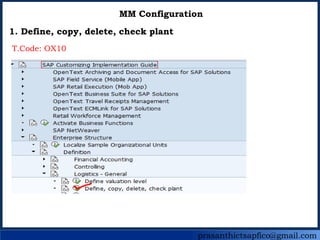
MM Configuration
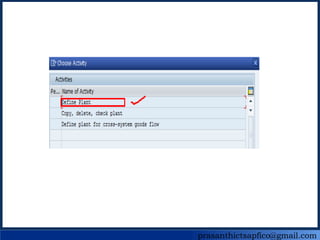
1. Define, copy, delete, check plant
T.Code: OX10
prasanthictsapfico@gmail.com
• Save - Enter
prasanthictsapfico@gmail.com
MM Configuration
2. Define valuation level
T.Code: OX14
• Specify the valuation of material is at plant level or Compnay code level
prasanthictsapfico@gmail.com
• No need to do any thing here
prasanthictsapfico@gmail.com
MM Configuration
3. Define, copy, delete, check division
T.Code: OVXB
• Product or range of products or group of products or product line in sap
prasanthictsapfico@gmail.com
• Click on new Entries
• Save - Enter
prasanthictsapfico@gmail.com
MM Configuration
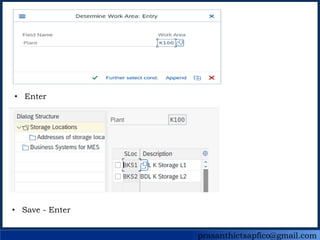
4. Maintain storage location
T.Code: OX09
prasanthictsapfico@gmail.com
• Enter
• Save - Enter
prasanthictsapfico@gmail.com
MM Configuration
5. Maintain Purchase Organization
• Organisational unit
• Created under a company code or plant.
• Responsible for procurement activities
• Can have centralised purchasing Org or Location wise or plant wise PO
prasanthictsapfico@gmail.com
MM Configuration
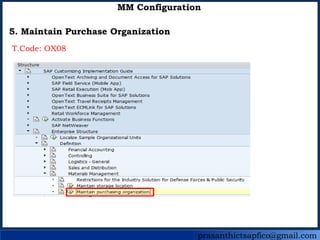
5. Maintain Purchase Organization
T.Code: OX08
prasanthictsapfico@gmail.com
• New Entries
• Save - Enter
prasanthictsapfico@gmail.com
MM Configuration
6. Assign Plant to company code
T.Code: OX18
prasanthictsapfico@gmail.com
• New Entries
• Save - enter
prasanthictsapfico@gmail.com
MM Configuration
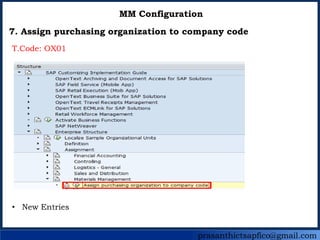
7. Assign purchasing organization to company code
T.Code: OX01
• New Entries
prasanthictsapfico@gmail.com
• Save - enter
prasanthictsapfico@gmail.com
MM Configuration
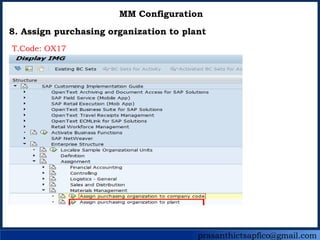
8. Assign purchasing organization to plant
T.Code: OX17
prasanthictsapfico@gmail.com
• New Entries
• Assign P Organization to Plant
• Save - Enter
prasanthictsapfico@gmail.com
MM Configuration
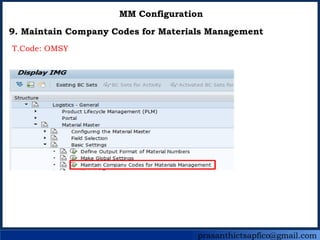
9. Maintain Company Codes for Materials Management
T.Code: OMSY
prasanthictsapfico@gmail.com
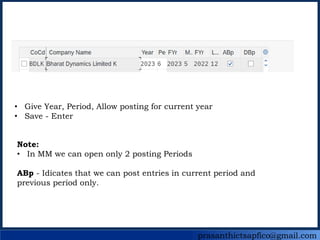
• Give Year, Period, Allow posting for current year
• Save - Enter
Note:
• In MM we can open only 2 posting Periods
ABp - Idicates that we can post entries in current period and
previous period only.
prasanthictsapfico@gmail.com
MM Configuration
10. Define Attributes of Material Types
Material Types are similar to Account groups in FI
ROH=Raw Material Types---------> Valued at Moving average price
FERT=Finished Products---------> Valued at Standard Price
ERSA=Stores and Spares---------> Valued at Moving average price
VERP=Packing Materail---------> Valued at Moving average price
HALB=Semi Finished Goods
prasanthictsapfico@gmail.com
MM Configuration
10. Define Attributes of Material Types
T.Code: OMS2
prasanthictsapfico@gmail.com
• Select Position
• Enter
prasanthictsapfico@gmail.com
• Enter
• Save - Enter
prasanthictsapfico@gmail.com
MM Configuration
11. Define Material Group
• Material with common characteristics and attributes are taken together
• They are assigned to material group
(Materail groups are created and while material master is created these
groups are used)
Eg: Raw Material, Stores Chemicales Etc….
prasanthictsapfico@gmail.com
MM Configuration
11. Define Material Group
T.Code: OMSF
prasanthictsapfico@gmail.com
• New Entries
• Save - Enter
prasanthictsapfico@gmail.com
MM Configuration
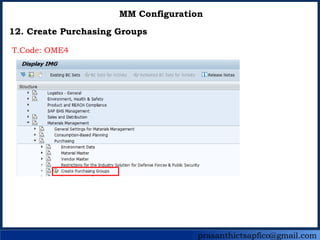
12. Create Purchasing Groups
T.Code: OME4
prasanthictsapfico@gmail.com
• New Entries
• Save - Enter
prasanthictsapfico@gmail.com
MM Configuration
13. Set Tolerance Limits for Price Variance for Purchase order
prasanthictsapfico@gmail.com
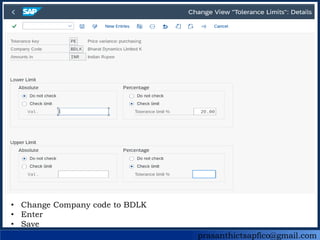
PE - Price Escalation
How much the price of a product or service can increase from the
initial purchase order price before it triggers a review or approval
process.
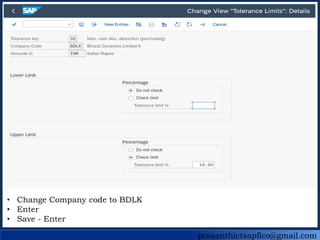
SE - Supplier Evaluation
Relate to the acceptable level of performance and adherence to agree-
upon terms by the supplier
• On-time delivery
• Quality,
• adherance to pricing agreements
prasanthictsapfico@gmail.com
• Select Tolerance Key PE & SE for company code 1000
• Select Copy Button
prasanthictsapfico@gmail.com
• Change Company code to BDLK
• Enter
• Save
prasanthictsapfico@gmail.com
• Change Company code to BDLK
• Enter
• Save - Enter
prasanthictsapfico@gmail.com
Select |Tolerance Key B1,B2 & VP for company code 1000
SelectCpoyasbutton
prasanthictsapfico@gmail.com
MM Configuration
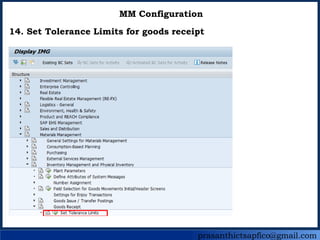
14. Set Tolerance Limits for goods receipt
prasanthictsapfico@gmail.com
MM Configuration
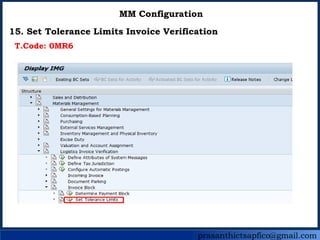
15. Set Tolerance Limits Invoice Verification
T.Code: 0MR6
prasanthictsapfico@gmail.com
• Select BD & ST Transaction Key
• Copy
prasanthictsapfico@gmail.com
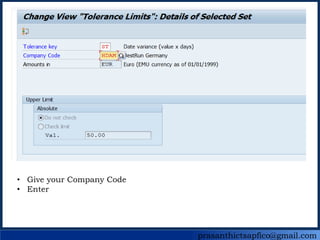
• Give your Company Code
• Enter
prasanthictsapfico@gmail.com
• Give your Company Code
• Enter
prasanthictsapfico@gmail.com
• Save
prasanthictsapfico@gmail.com
MM Configuration
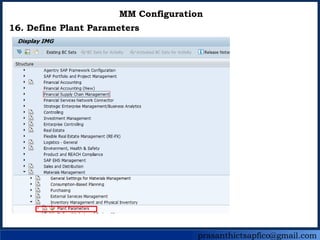
16. Define Plant Parameters
prasanthictsapfico@gmail.com
• Select Plant 1000
• Copy
prasanthictsapfico@gmail.com
• Save
prasanthictsapfico@gmail.com
MM Configuration
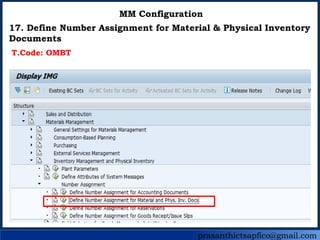
17. Define Number Assignment for Material & Physical Inventory
Documents
T.Code: OMBT
prasanthictsapfico@gmail.com
• Save
Note: NR Status will be updated automatically by system
prasanthictsapfico@gmail.com
• Enter
prasanthictsapfico@gmail.com
Note: Observe that NR 05 has came automatically
Note: In NR will be different case to case
Select Back button
prasanthictsapfico@gmail.com
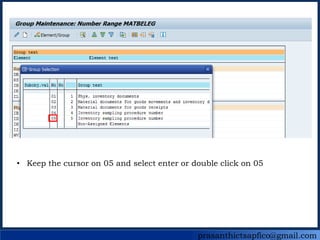
• Keep the cursor on 05 and select enter or double click on 05
prasanthictsapfico@gmail.com
Do the same procedurre for Document type WA & WL also WE
• Save
prasanthictsapfico@gmail.com
MM Configuration
18. Maintain Default Values for Tax codes
prasanthictsapfico@gmail.com
• Create New Entries
• Save
prasanthictsapfico@gmail.com
MM Configuration
19. Define Automatic Status Change
prasanthictsapfico@gmail.com
• Save
• Create New entries
prasanthictsapfico@gmail.com
MM Configuration
20. Group Together Valuation Area
T.Code: OMWD
When no of plants in a company code are using the same chart of accounts
then we can assign plant wise separete accounts with the help of valuation
grouping code/ valuation modifier
prasanthictsapfico@gmail.com
• Create New entries
• Save
Note: Varible can be any thing in Value group code
prasanthictsapfico@gmail.com
MM Configuration
21. Define Valuation Classes
• Categorizes the GL accounts on the basis of Material groups
Eg:
Local Material and Import material we can use / assign different GL
accounts
• It Defines which Raw Material account to posted automatically based on
nature of transaction
prasanthictsapfico@gmail.com
MM Configuration
21. Define Valuation Classes
T.Code: MSK
prasanthictsapfico@gmail.com
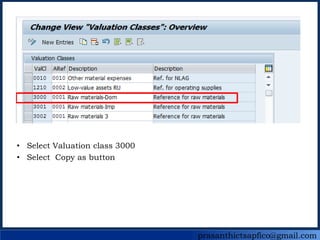
• Select Valuation class 3000
• Select Copy as button
prasanthictsapfico@gmail.com
• Give Valuation Class
• Enter
• Save
Note: Create other Valuation Classes
prasanthictsapfico@gmail.com
FI Configuration
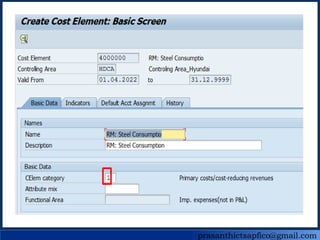
1. Creation of GL accounts
1. Raw Materials
2. GR/IR Clearing Accounts
3. Raw Material Consumption
T.Code: FS00
prasanthictsapfico@gmail.com
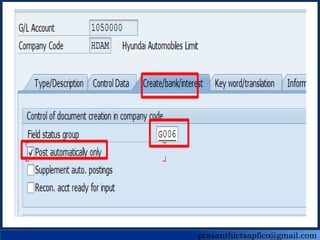
1. Raw Materials - Steel
prasanthictsapfico@gmail.com
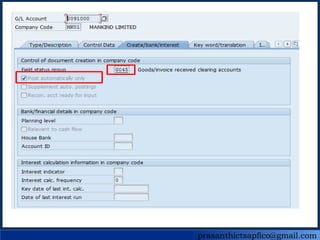
2. GR/IR Clearing Accounts
prasanthictsapfico@gmail.com
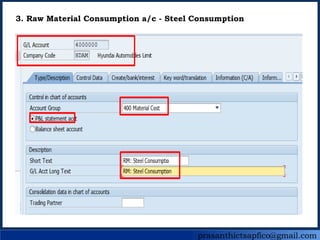
3. Raw Material Consumption a/c - Steel Consumption
prasanthictsapfico@gmail.com
MM Configuration
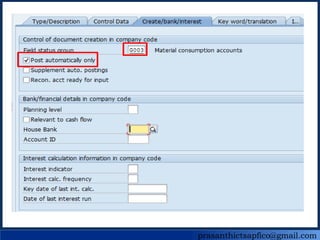
23. Assignment of accounts for Automatic Postings
prasanthictsapfico@gmail.com
MM Configuration
24. Document Types and Number Ranges
prasanthictsapfico@gmail.com
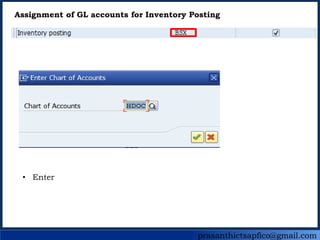
• Select Cancel button
• Select Accountant Assignment Button
• Double Click on Transaction type BSX
prasanthictsapfico@gmail.com
Assignment of GL accounts for Inventory Posting
• Enter
prasanthictsapfico@gmail.com
• Save
prasanthictsapfico@gmail.com
• Assign RM GL accounts as above
• Back
prasanthictsapfico@gmail.com
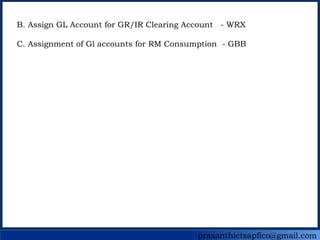
B. Assign GL Account for GR/IR Clearing Account - WRX
C. Assignment of Gl accounts for RM Consumption - GBB
prasanthictsapfico@gmail.com
B. Assign GL Account for GR/IR Clearing Account - WRX
prasanthictsapfico@gmail.com
C. Assignment of Gl accounts for RM Consumption - GBB
prasanthictsapfico@gmail.com
Document Types and Number Ranges
T.Code: OBA7, FBN1
Document Type Description Reversal
WE Goods Receipt WE
WA Goods Issue WA
RE Gross inv. Receipt RE
prasanthictsapfico@gmail.com
Basic Testing
1. Creation of Raw Material Master
prasanthictsapfico@gmail.com
• Enter
prasanthictsapfico@gmail.com
• Enter
prasanthictsapfico@gmail.com
• Save
prasanthictsapfico@gmail.com
2. MM Periods
• OMSY - Open
• MMRV - Check
• MMPV - Open & Close
• MMPI - Open the period when wrongly closed
prasanthictsapfico@gmail.com
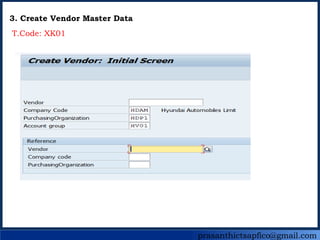
3. Create Vendor Master Data
T.Code: XK01
prasanthictsapfico@gmail.com
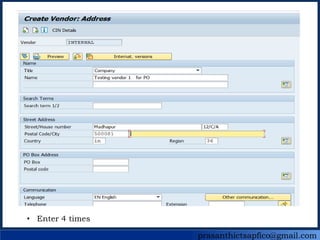
• Enter 4 times
prasanthictsapfico@gmail.com
• Enter
prasanthictsapfico@gmail.com
• Enter 3 times
prasanthictsapfico@gmail.com
• Save
prasanthictsapfico@gmail.com
4. Creation of Purchase order PO
prasanthictsapfico@gmail.com
• Save
prasanthictsapfico@gmail.com
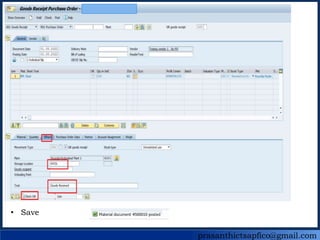
5. Goods Receipt
prasanthictsapfico@gmail.com
• Save
prasanthictsapfico@gmail.com
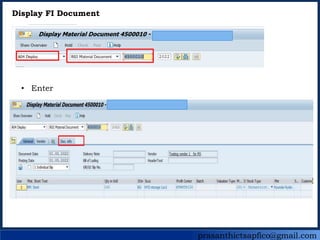
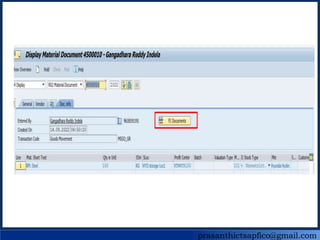
Display FI Document
• Enter
prasanthictsapfico@gmail.com
Add Different Fields from Change Layout
prasanthictsapfico@gmail.com
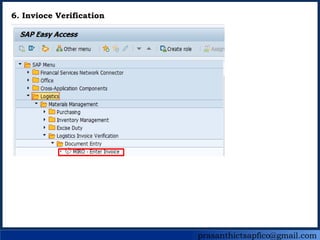
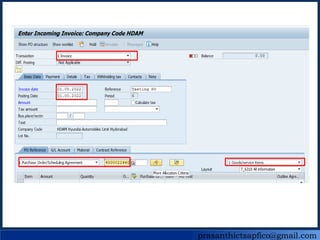
6. Invioce Verification
prasanthictsapfico@gmail.com
• Select Simulate button
prasanthictsapfico@gmail.com
• Post
prasanthictsapfico@gmail.com
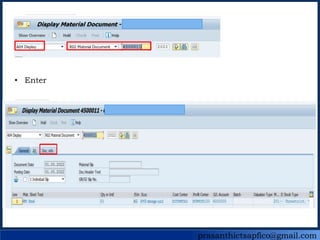
To Dispaly Document
prasanthictsapfico@gmail.com
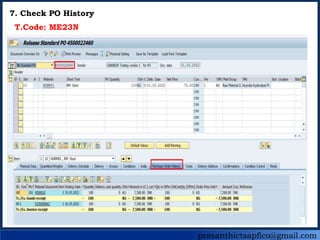
7. Check PO History
T.Code: ME23N
prasanthictsapfico@gmail.com
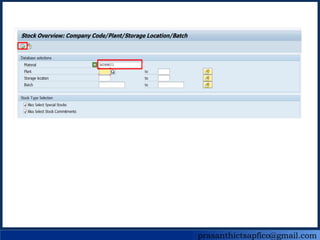
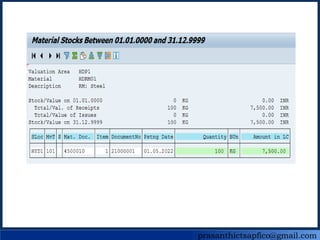
8. Dispaly Stock Register
T.Code: MMBE
prasanthictsapfico@gmail.com
9. Issue Stock for Consumption
T.Code: MIGO
prasanthictsapfico@gmail.com
• Enter
• Save
prasanthictsapfico@gmail.com
• Enter
prasanthictsapfico@gmail.com
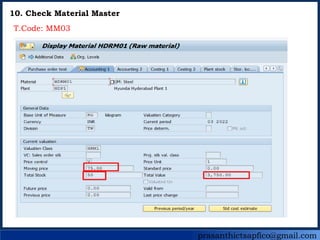
10. Check Material Master
T.Code: MM03

FI - MM.pptx

Editor's Notes

  • #51 Explanation: 1) Tolerance Key : PE In case Material Master price in RM 1 is Rs.10 We have given Toleranc eLimit is 20% i.e., Rs.12/- So Sytem will except even though price incresed to Rs.12/- In case if you buy the RM 1 for Rs 13/- Then system will give error message that Tolerance limit exceeded
  • #52 2)Tolerance Key : SE RM 1- Material Master Price is 10 Cash Discount Tolerance @10%. Ie., Rs.1/- If New purchase order for the same material (RM1) is Rs.10 New cash discount is 15% I.e., Rs.1.5/- Then system will give error message