Lecture No 2
PRODUCING A PUBLICATION
Before you create a publication, you should already have an idea
of what you want to do with it when it’s finished. Will you print
and distribute it? Will you publish it online? Knowing the answers
to these questions is essential to making decisions about how
your publication will look.
In this lesson, you'll learn about the things you need to consider
before publishing, like layout and more. You'll also learn about
printing your publication and converting it to a PDF.
INTRODUCTION
Creating a professional-looking publication takes planning. For
instance, before you even begin your publication, you should
know whether you plan to print your document or distribute it
online. Once you know how you'll present your publication, you
can start making decisions about other aspects of it, such as page
layout, paper choice, and print option.
CREATING A
PUBLICATION
Some of the first choices you need to make about your
publication involve page layout. Creating a publication from a
template takes care of most of these choices for you. However,
if you create a publication from scratch or decide to heavily
modify a template, there are three components of page layout
you’ll have to consider.
PAGE LAYOUT
Some publications, like flyers, can be large or small. However, you probably
don’t want a brochure to be giant. A standard sheet of paper is 8.5 inches
wide by 11 inches tall. Larger sheets of paper can be expensive and difficult to
print. Think carefully about your publication size before you commit to
printing in a particular format.
1. SIZE
Do you want your publication to be in landscape orientation (wider than
tall) or portrait orientation (taller than wide)? Your choice will probably be
influenced by standard design conventions. For instance, business cards are
usually printed in landscape orientation.
2. ORIENTATION
Margins are areas of blank space that line the edges of a printed
document. While professional printers can print publications where the
text and images stretch out all the way to the edge of the page, most
home and office printers require your publication to have margins, even
if they're narrow ones.
The width of your page margins can affect the look and feel of your
publication. For example, extremely wide margins, like those often
found in menus for fancy restaurants, can look sophisticated. However,
wide margins don't leave much room for images and text. In contrast,
narrow margins give you a large amount of space to work with.
3. MARGINS
MARGINS
As you plan your publication, it might help to mock up your design on paper.
You can also use an existing publication as a model.
PUBLICATION
DESIGN
If you're planning on printing your publication yourself,
your planning doesn't stop when you finish your layout.
Before you print your publication, you'll have to make
certain decisions about how you want to produce and
distribute it.
PRODUCING PRINTED
PUBLICATIONS
• Size
Your paper must be the same size as your publication layout. Keep in mind
that not all printers can handle all sizes of paper. If you don't know whether
your printer can use the desired paper size, review the manual that came with
your printer or create and print a test page with a few lines of text.
PAPER
• Type
Depending on the type of publication you're creating, you might want to
consider using something other than standard white paper. For instance,
people usually print greeting cards on a heavier type of paper called card
stock. Paper choices aren't just about paper weight, though. For example,
if you're printing business cards, you might consider buying perforated
paper to make separating the cards easier. If you're not sure which type of
paper is best for your publication, the employees at your local office supply
store may be able to help.
PRODUCING PRINTED
PUBLICATIONS
PAPER
• Color
For most publications, white or cream-colored paper is probably the best
choice. However, if you're printing in grayscale or black and white,
colored paper can make your publication more attention-grabbing and
visually appealing.
PAPER
1. Color
You have three color options for your printed publication:
 Color
 Grayscale, which prints images and details in shades of gray
 Black and white, which prints all images and text in black ink without any
shading; many photocopiers only produce black-and-white images
Out of these three options, color often looks the most polished and
professional. However, it does have its drawbacks.
PRINT QUALITY
Before you use color, consider these things first:
 Expense. Color ink cartridges are expensive, and if you're printing many
copies of a color publication the ink can run out quickly. You can avoid
some cost by using color sparingly.
CHOOSING FROM COLOR
OPTIONS
 Paper. If you're planning on using color in a double-sided publication,
you'll probably want to use slightly heavier paper to prevent the color from
showing through. Also, you'll want to stick with white or cream-colored
paper to ensure the colors show up correctly.
CHOOSING FROM COLOR
OPTIONS
2. Printer and copier capability
Make sure your printer or copier is capable of printing your publications at
the quality you want. This is especially important for professional publications.
Do the text and images come out crisp and undistorted? Are the colors
accurate? If you're planning on printing a double-sided publication, can your
printer do that automatically? If the answer to these questions is no, consider
modifying your printer or copier settings or having your publication
professionally printed.
PRINT QUALITY
Before you print your publication, take a moment to review the Publisher
printing options and settings. These options give you the ability to control
exactly how your publication prints. If you'd rather not print your publication,
Publisher also offers a way to publish electronically
PRINTING AND
PUBLISHING
Publisher offers a variety of print settings you can modify to suit your needs.
Among these are two tools for advanced printing tasks: double-sided
printing and collating.
• Double-sided printing
Double-sided printing allows you to print on both the front and back of
each sheet of paper. Publisher gives you two choices for double-sided
printing: You can flip, or turn, the page on the long side of the page or
the short side.
PRINTING SETTINGS
If you're not sure how flipping the page on each side affects your printed
publication, you can preview your double-sided printing with the transparent
view slider, which is explained in the next slides. You can also print a page of
your publication and fold, staple, or otherwise prepare it as planned. If the
reverse side of your page is upside down, choose the other option.
PRINTING SETTINGS
• Collating
The collated printing option lets you assemble copies of
your publication with all pages in the correct order. By automatically
grouping individual copies of your publication, collating can save you a
lot of time and effort.
PRINTING SETTINGS
PRINTING OPTIONS AND
SETTINGS: PAGE NUMBERS
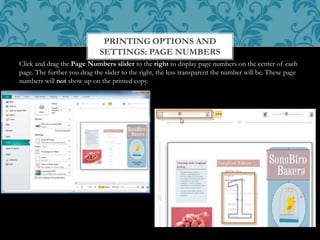
Click and drag the Page Numbers slider to the right to display page numbers on the center of each
page. The further you drag the slider to the right, the less transparent the number will be. These page
numbers will not show up on the printed copy.
PRINTING OPTIONS AND
SETTINGS: TRANSPARENT VIEW
SLIDER
If you're using double-sided printing, the Transparent View slider lets you "see through" the front of the current page
to view the reverse side. This helps you make sure that both sides of the page are lined up correctly. Click and drag the
slider to move it. The further you drag the slider to the right, the less transparent the reverse side will be.
PRINTING OPTIONS AND
SETTINGS: RULERS
Click the Rulers button to turn on and off the rulers that appear to the top and
left of the print preview.
Before you print, review your print settings and print a final test copy of your
publication. You should also consider running the Design Checker. The
Design Checker is a tool that helps you find and fix problems in your
publication that may lead to printing errors.
To run the Design Checker, go to the Info tab in Backstage view and click
the Run Design Checker button. The Design Checker pane will appear to
the right of your publication.
BEFORE YOU PRINT
Depending on the purpose of your publication, you may decide to publish it
electronically and distribute it online. Publisher offers two ways to do this.
You can either:
• Publish as a PDF and attach the file to an email or upload it to a website
• Publish as HTML, which Publisher then embeds directly into an email
Although Publisher promotes the HTML option as useful, it is almost
always better to convert your publication into a PDF. This is because the
PDF option is better at presenting your publication the way you designed it.
Publications saved as HTML can lose some of their formatting and may not
include custom fonts and images.
PUBLISHING
ELECTRONICALLY
However, PDFs aren't perfect either. Depending on the type of publication
you're working with, the PDF version may not be easy to browse and
read. For example, while you technically can convert a brochure to a PDF, the
panels will not be lined up as they would be in a printed and folded version. If
you're not sure whether or not your publication is suitable for delivery as a
PDF, publish a test copy early in the design process.
PUBLISHING
ELECTRONICALLY
1. Navigate to Backstage view, then select the Save & Send tab.
2. Select Create PDF/XPS Document, then click the Create PDF/XPS
button in the right pane.
TO PUBLISH AS A PDF
3. The Publish as PDF or XPS dialog box will open. Browse for and select
the location where you wish to save your PDF, then type a name.
4. Click Publish.
TO PUBLISH AS A PDF
5. Your PDF will be created and opened. Make sure to double-check for any
mistakes before sharing it.
TO PUBLISH AS A PDF
1. Make a list of the things you'd need to consider and plan before making a
newsletter.
2. Open an existing Publisher publication. Use the document titled
3. Review the print settings. Set the publication for double-sided printing.
4. Print the publication.
5. Publish the publication as a PDF.
CHALLENGE!

Publisher lec 2

  • 1.
  • 2.
    Before you createa publication, you should already have an idea of what you want to do with it when it’s finished. Will you print and distribute it? Will you publish it online? Knowing the answers to these questions is essential to making decisions about how your publication will look. In this lesson, you'll learn about the things you need to consider before publishing, like layout and more. You'll also learn about printing your publication and converting it to a PDF. INTRODUCTION
  • 3.
    Creating a professional-lookingpublication takes planning. For instance, before you even begin your publication, you should know whether you plan to print your document or distribute it online. Once you know how you'll present your publication, you can start making decisions about other aspects of it, such as page layout, paper choice, and print option. CREATING A PUBLICATION
  • 4.
    Some of thefirst choices you need to make about your publication involve page layout. Creating a publication from a template takes care of most of these choices for you. However, if you create a publication from scratch or decide to heavily modify a template, there are three components of page layout you’ll have to consider. PAGE LAYOUT
  • 5.
    Some publications, likeflyers, can be large or small. However, you probably don’t want a brochure to be giant. A standard sheet of paper is 8.5 inches wide by 11 inches tall. Larger sheets of paper can be expensive and difficult to print. Think carefully about your publication size before you commit to printing in a particular format. 1. SIZE
  • 6.
    Do you wantyour publication to be in landscape orientation (wider than tall) or portrait orientation (taller than wide)? Your choice will probably be influenced by standard design conventions. For instance, business cards are usually printed in landscape orientation. 2. ORIENTATION
  • 7.
    Margins are areasof blank space that line the edges of a printed document. While professional printers can print publications where the text and images stretch out all the way to the edge of the page, most home and office printers require your publication to have margins, even if they're narrow ones. The width of your page margins can affect the look and feel of your publication. For example, extremely wide margins, like those often found in menus for fancy restaurants, can look sophisticated. However, wide margins don't leave much room for images and text. In contrast, narrow margins give you a large amount of space to work with. 3. MARGINS
  • 8.
  • 9.
    As you planyour publication, it might help to mock up your design on paper. You can also use an existing publication as a model. PUBLICATION DESIGN
  • 10.
    If you're planningon printing your publication yourself, your planning doesn't stop when you finish your layout. Before you print your publication, you'll have to make certain decisions about how you want to produce and distribute it. PRODUCING PRINTED PUBLICATIONS
  • 11.
    • Size Your papermust be the same size as your publication layout. Keep in mind that not all printers can handle all sizes of paper. If you don't know whether your printer can use the desired paper size, review the manual that came with your printer or create and print a test page with a few lines of text. PAPER
  • 12.
    • Type Depending onthe type of publication you're creating, you might want to consider using something other than standard white paper. For instance, people usually print greeting cards on a heavier type of paper called card stock. Paper choices aren't just about paper weight, though. For example, if you're printing business cards, you might consider buying perforated paper to make separating the cards easier. If you're not sure which type of paper is best for your publication, the employees at your local office supply store may be able to help. PRODUCING PRINTED PUBLICATIONS PAPER
  • 13.
    • Color For mostpublications, white or cream-colored paper is probably the best choice. However, if you're printing in grayscale or black and white, colored paper can make your publication more attention-grabbing and visually appealing. PAPER
  • 14.
    1. Color You havethree color options for your printed publication:  Color  Grayscale, which prints images and details in shades of gray  Black and white, which prints all images and text in black ink without any shading; many photocopiers only produce black-and-white images Out of these three options, color often looks the most polished and professional. However, it does have its drawbacks. PRINT QUALITY
  • 15.
    Before you usecolor, consider these things first:  Expense. Color ink cartridges are expensive, and if you're printing many copies of a color publication the ink can run out quickly. You can avoid some cost by using color sparingly. CHOOSING FROM COLOR OPTIONS
  • 16.
     Paper. Ifyou're planning on using color in a double-sided publication, you'll probably want to use slightly heavier paper to prevent the color from showing through. Also, you'll want to stick with white or cream-colored paper to ensure the colors show up correctly. CHOOSING FROM COLOR OPTIONS
  • 17.
    2. Printer andcopier capability Make sure your printer or copier is capable of printing your publications at the quality you want. This is especially important for professional publications. Do the text and images come out crisp and undistorted? Are the colors accurate? If you're planning on printing a double-sided publication, can your printer do that automatically? If the answer to these questions is no, consider modifying your printer or copier settings or having your publication professionally printed. PRINT QUALITY
  • 18.
    Before you printyour publication, take a moment to review the Publisher printing options and settings. These options give you the ability to control exactly how your publication prints. If you'd rather not print your publication, Publisher also offers a way to publish electronically PRINTING AND PUBLISHING
  • 19.
    Publisher offers avariety of print settings you can modify to suit your needs. Among these are two tools for advanced printing tasks: double-sided printing and collating. • Double-sided printing Double-sided printing allows you to print on both the front and back of each sheet of paper. Publisher gives you two choices for double-sided printing: You can flip, or turn, the page on the long side of the page or the short side. PRINTING SETTINGS
  • 20.
    If you're notsure how flipping the page on each side affects your printed publication, you can preview your double-sided printing with the transparent view slider, which is explained in the next slides. You can also print a page of your publication and fold, staple, or otherwise prepare it as planned. If the reverse side of your page is upside down, choose the other option. PRINTING SETTINGS
  • 21.
    • Collating The collatedprinting option lets you assemble copies of your publication with all pages in the correct order. By automatically grouping individual copies of your publication, collating can save you a lot of time and effort. PRINTING SETTINGS
  • 22.
    PRINTING OPTIONS AND SETTINGS:PAGE NUMBERS Click and drag the Page Numbers slider to the right to display page numbers on the center of each page. The further you drag the slider to the right, the less transparent the number will be. These page numbers will not show up on the printed copy.
  • 23.
    PRINTING OPTIONS AND SETTINGS:TRANSPARENT VIEW SLIDER If you're using double-sided printing, the Transparent View slider lets you "see through" the front of the current page to view the reverse side. This helps you make sure that both sides of the page are lined up correctly. Click and drag the slider to move it. The further you drag the slider to the right, the less transparent the reverse side will be.
  • 24.
    PRINTING OPTIONS AND SETTINGS:RULERS Click the Rulers button to turn on and off the rulers that appear to the top and left of the print preview.
  • 25.
    Before you print,review your print settings and print a final test copy of your publication. You should also consider running the Design Checker. The Design Checker is a tool that helps you find and fix problems in your publication that may lead to printing errors. To run the Design Checker, go to the Info tab in Backstage view and click the Run Design Checker button. The Design Checker pane will appear to the right of your publication. BEFORE YOU PRINT
  • 26.
    Depending on thepurpose of your publication, you may decide to publish it electronically and distribute it online. Publisher offers two ways to do this. You can either: • Publish as a PDF and attach the file to an email or upload it to a website • Publish as HTML, which Publisher then embeds directly into an email Although Publisher promotes the HTML option as useful, it is almost always better to convert your publication into a PDF. This is because the PDF option is better at presenting your publication the way you designed it. Publications saved as HTML can lose some of their formatting and may not include custom fonts and images. PUBLISHING ELECTRONICALLY
  • 27.
    However, PDFs aren'tperfect either. Depending on the type of publication you're working with, the PDF version may not be easy to browse and read. For example, while you technically can convert a brochure to a PDF, the panels will not be lined up as they would be in a printed and folded version. If you're not sure whether or not your publication is suitable for delivery as a PDF, publish a test copy early in the design process. PUBLISHING ELECTRONICALLY
  • 28.
    1. Navigate toBackstage view, then select the Save & Send tab. 2. Select Create PDF/XPS Document, then click the Create PDF/XPS button in the right pane. TO PUBLISH AS A PDF
  • 29.
    3. The Publishas PDF or XPS dialog box will open. Browse for and select the location where you wish to save your PDF, then type a name. 4. Click Publish. TO PUBLISH AS A PDF
  • 30.
    5. Your PDFwill be created and opened. Make sure to double-check for any mistakes before sharing it. TO PUBLISH AS A PDF
  • 31.
    1. Make alist of the things you'd need to consider and plan before making a newsletter. 2. Open an existing Publisher publication. Use the document titled 3. Review the print settings. Set the publication for double-sided printing. 4. Print the publication. 5. Publish the publication as a PDF. CHALLENGE!