Ten Six Consulting Presents


Primavera P6 Portlet Index
  A Reference Guide to the P6 Dashboard Portlets
Primavera P6 Portlet Index

Contents
 1.1   Available Portlets .......................................................................................................................... 3
   1.1.1      Schedule Performance Portlet .............................................................................................. 3
   1.1.2      Earned Value Performance Portlet ....................................................................................... 3
   1.1.3      Index Performance Portlet .................................................................................................... 4
   1.1.4      Project Statistics Portlet ........................................................................................................ 4
   1.1.5      Project Health Portlet ........................................................................................................... 5
   1.1.6      Project Notebooks Portlet .................................................................................................... 6
   1.1.7      Project Gantt Chart Portlet ................................................................................................... 6
   1.1.8      Resource Team Summary Portlet ......................................................................................... 7
   1.1.9      Open Requests for Resources Portlet ................................................................................... 8
   1.1.10     Resource Analysis Chart Portlet .......................................................................................... 10
   1.1.11     My Projects Portlet ............................................................................................................. 11
   1.1.12     My Activities Portlet............................................................................................................ 12
   1.1.13     My Risks Portlet .................................................................................................................. 14
   1.1.14     My Issues Portlet................................................................................................................. 16
   1.1.15     Communication Center Portlet ........................................................................................... 19
   1.1.16     My calendar ........................................................................................................................ 21
   1.1.17     Portfolio Views Portlets ...................................................................................................... 23


                                                                      2
                                 Copyright© Ten Six Consulting LLC., 2012. All rights Reserved.
Primavera P6 Portlet Index

1.1 Available Portlets
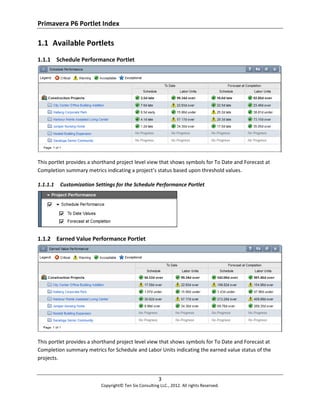
1.1.1 Schedule Performance Portlet


This portlet provides a shorthand project level view that shows symbols for To Date and Forecast at
Completion summary metrics indicating a project’s status based upon threshold values.

1.1.1.1   Customization Settings for the Schedule Performance Portlet


1.1.2 Earned Value Performance Portlet


This portlet provides a shorthand project level view that shows symbols for To Date and Forecast at
Completion summary metrics for Schedule and Labor Units indicating the earned value status of the
projects.


                                                         3
                           Copyright© Ten Six Consulting LLC., 2012. All rights Reserved.
Primavera P6 Portlet Index

1.1.2.1   Customization Settings for the Earned Value Performance Portlet


1.1.3 Index Performance Portlet


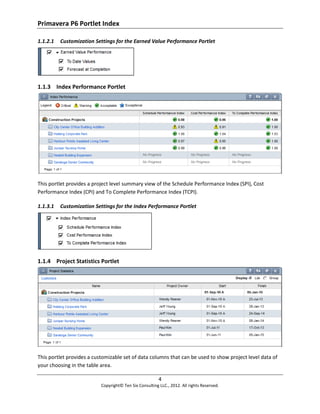
This portlet provides a project level summary view of the Schedule Performance Index (SPI), Cost
Performance Index (CPI) and To Complete Performance Index (TCPI).

1.1.3.1   Customization Settings for the Index Performance Portlet


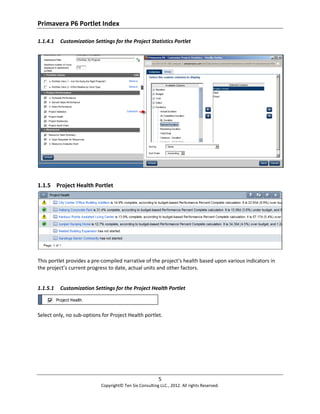
1.1.4 Project Statistics Portlet


This portlet provides a customizable set of data columns that can be used to show project level data of
your choosing in the table area.

                                                         4
                           Copyright© Ten Six Consulting LLC., 2012. All rights Reserved.
Primavera P6 Portlet Index

1.1.4.1   Customization Settings for the Project Statistics Portlet


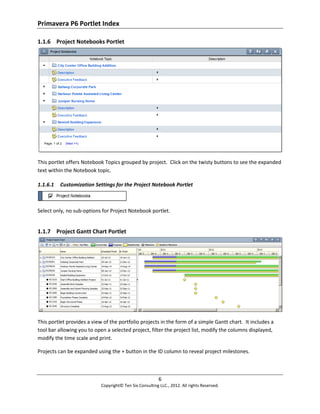
1.1.5 Project Health Portlet


This portlet provides a pre-compiled narrative of the project’s health based upon various indicators in
the project’s current progress to date, actual units and other factors.


1.1.5.1   Customization Settings for the Project Health Portlet


Select only, no sub-options for Project Health portlet.


                                                         5
                           Copyright© Ten Six Consulting LLC., 2012. All rights Reserved.
Primavera P6 Portlet Index

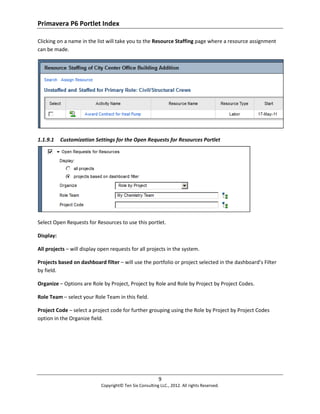
1.1.6 Project Notebooks Portlet


This portlet offers Notebook Topics grouped by project. Click on the twisty buttons to see the expanded
text within the Notebook topic.

1.1.6.1   Customization Settings for the Project Notebook Portlet


Select only, no sub-options for Project Notebook portlet.


1.1.7 Project Gantt Chart Portlet


This portlet provides a view of the portfolio projects in the form of a simple Gantt chart. It includes a
tool bar allowing you to open a selected project, filter the project list, modify the columns displayed,
modify the time scale and print.

Projects can be expanded using the + button in the ID column to reveal project milestones.


                                                          6
                            Copyright© Ten Six Consulting LLC., 2012. All rights Reserved.
Primavera P6 Portlet Index

1.1.7.1   Customization Settings for the Project Gantt Chart Portlet


Select only, no sub-options for Project Gantt Chart portlet.

1.1.8 Resource Team Summary Portlet


This portlet provides a list of the people in the selected resource team. It also lists their role and the
number of projects to which they are assigned. You can click on the resource’s name to switch to a
Usage view and see a histogram or spreadsheet of utilization.

1.1.8.1   Customization Settings for the Resource Team Summary Portlet


Select only, no sub-options for Resource Team Summary portlet.

The resources being displayed in this portlet are controlled by the selected Resource Team. To select

the team you wish to view, click on the ‘Select a resource team:’ field’s select             button.


                                                          7
                            Copyright© Ten Six Consulting LLC., 2012. All rights Reserved.
Primavera P6 Portlet Index


1.1.9 Open Requests for Resources Portlet


This portlet provides a list of open requests for resources (generated by role assignments made within
projects) that allows a functional manager to replace the request with an appropriately skilled person.


                                                         8
                           Copyright© Ten Six Consulting LLC., 2012. All rights Reserved.
Primavera P6 Portlet Index

Clicking on a name in the list will take you to the Resource Staffing page where a resource assignment
can be made.


1.1.9.1    Customization Settings for the Open Requests for Resources Portlet


Select Open Requests for Resources to use this portlet.

Display:

All projects – will display open requests for all projects in the system.

Projects based on dashboard filter – will use the portfolio or project selected in the dashboard’s Filter
by field.

Organize – Options are Role by Project, Project by Role and Role by Project by Project Codes.

Role Team – select your Role Team in this field.

Project Code – select a project code for further grouping using the Role by Project by Project Codes
option in the Organize field.


                                                          9
                            Copyright© Ten Six Consulting LLC., 2012. All rights Reserved.
Primavera P6 Portlet Index

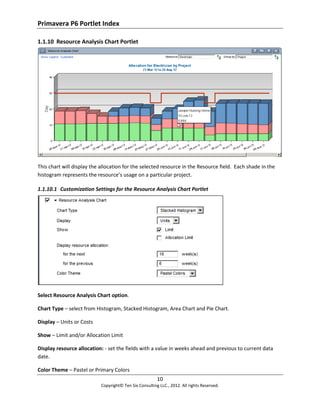
1.1.10 Resource Analysis Chart Portlet


This chart will display the allocation for the selected resource in the Resource field. Each shade in the
histogram represents the resource’s usage on a particular project.

1.1.10.1 Customization Settings for the Resource Analysis Chart Portlet


Select Resource Analysis Chart option.

Chart Type – select from Histogram, Stacked Histogram, Area Chart and Pie Chart.

Display – Units or Costs

Show – Limit and/or Allocation Limit

Display resource allocation: - set the fields with a value in weeks ahead and previous to current data
date.

Color Theme – Pastel or Primary Colors
                                                         10
                            Copyright© Ten Six Consulting LLC., 2012. All rights Reserved.
Primavera P6 Portlet Index


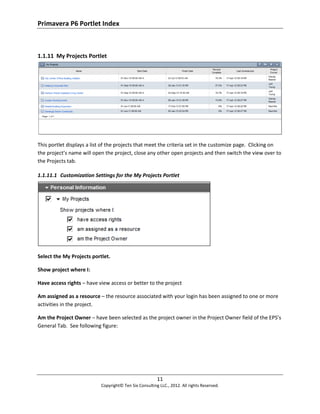
1.1.11 My Projects Portlet


This portlet displays a list of the projects that meet the criteria set in the customize page. Clicking on
the project’s name will open the project, close any other open projects and then switch the view over to
the Projects tab.

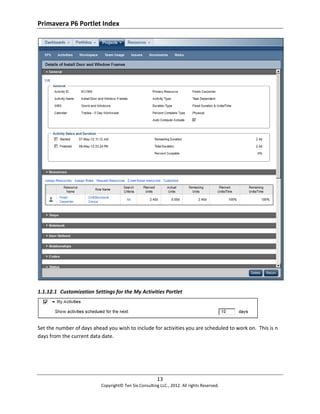
1.1.11.1 Customization Settings for the My Projects Portlet


Select the My Projects portlet.

Show project where I:

Have access rights – have view access or better to the project

Am assigned as a resource – the resource associated with your login has been assigned to one or more
activities in the project.

Am the Project Owner – have been selected as the project owner in the Project Owner field of the EPS’s
General Tab. See following figure:


                                                        11
                           Copyright© Ten Six Consulting LLC., 2012. All rights Reserved.
Primavera P6 Portlet Index


Above example: project owner has been set in the General tab’s Project Owner field.

1.1.12 My Activities Portlet


This portlet displays a list of activities you are assigned to in the system; grouped by project. Click the
twisty button to see the details below each project. Clicking on the Activity name link will switch you to
the Projects tab in a page called Details of <activity name>.


                                                         12
                            Copyright© Ten Six Consulting LLC., 2012. All rights Reserved.
Primavera P6 Portlet Index


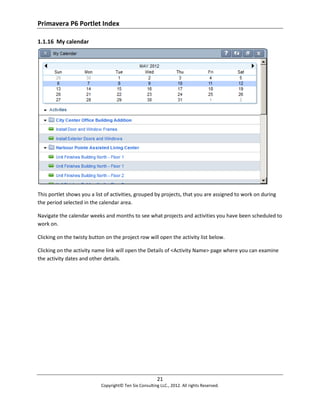
1.1.12.1 Customization Settings for the My Activities Portlet


Set the number of days ahead you wish to include for activities you are scheduled to work on. This is n
days from the current data date.


                                                        13
                           Copyright© Ten Six Consulting LLC., 2012. All rights Reserved.
Primavera P6 Portlet Index

1.1.13 My Risks Portlet


This portlet shows any risks in the project portfolio that you own or have other criteria selected for
viewing it. Risks are grouped by project.

Clicking on the risk name will open the Risks page of the Projects tab.


                                                         14
                            Copyright© Ten Six Consulting LLC., 2012. All rights Reserved.
Primavera P6 Portlet Index

1.1.13.1 Customization Settings for the My Risks Portlet


Use the Customize link to access the Customize Risks dialog. Select from columns for the table and
include risks based upon the selected criteria in the Filter tab.


                                                       15
                          Copyright© Ten Six Consulting LLC., 2012. All rights Reserved.
Primavera P6 Portlet Index

1.1.14 My Issues Portlet


This portlet displays a list of the issues available to you based upon criteria set in the Customize page.
The portlet is grouped by project. Clicking on the twisty button displays the issue name in the rows
below.

Clicking on the issue name link will open the Issues page of the Projects tab.

1.1.14.1 Customization Settings for the My Issues Portlet
Columns – choose the columns to display in the portlet.


                                                         16
                            Copyright© Ten Six Consulting LLC., 2012. All rights Reserved.
Primavera P6 Portlet Index


                                                 17
                    Copyright© Ten Six Consulting LLC., 2012. All rights Reserved.
Primavera P6 Portlet Index

Filter


Group


                                                 18
                    Copyright© Ten Six Consulting LLC., 2012. All rights Reserved.
Primavera P6 Portlet Index

Chart


1.1.15 Communication Center Portlet


This portlet shows you the resources that meet the criteria in the customization settings, and allows you
e-mail people by selecting them in the Name list.


                                                        19
                           Copyright© Ten Six Consulting LLC., 2012. All rights Reserved.
Primavera P6 Portlet Index

Selecting the check box at the project level selects all the resources working on that project.

1.1.15.1 Customization Settings for the Communication Center Portlet


                                                         20
                            Copyright© Ten Six Consulting LLC., 2012. All rights Reserved.
Primavera P6 Portlet Index

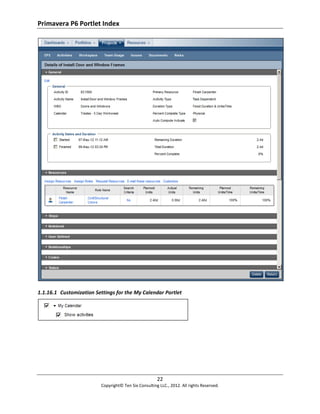
1.1.16 My calendar


This portlet shows you a list of activities, grouped by projects, that you are assigned to work on during
the period selected in the calendar area.

Navigate the calendar weeks and months to see what projects and activities you have been scheduled to
work on.

Clicking on the twisty button on the project row will open the activity list below.

Clicking on the activity name link will open the Details of <Activity Name> page where you can examine
the activity dates and other details.


                                                         21
                            Copyright© Ten Six Consulting LLC., 2012. All rights Reserved.
Primavera P6 Portlet Index


1.1.16.1 Customization Settings for the My Calendar Portlet


                                                       22
                          Copyright© Ten Six Consulting LLC., 2012. All rights Reserved.
Primavera P6 Portlet Index

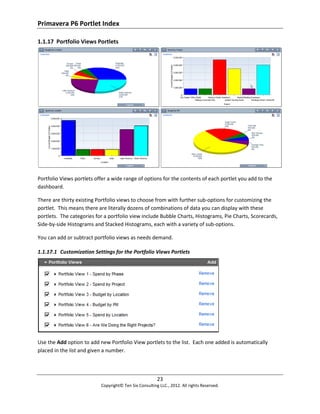
1.1.17 Portfolio Views Portlets


Portfolio Views portlets offer a wide range of options for the contents of each portlet you add to the
dashboard.

There are thirty existing Portfolio views to choose from with further sub-options for customizing the
portlet. This means there are literally dozens of combinations of data you can display with these
portlets. The categories for a portfolio view include Bubble Charts, Histograms, Pie Charts, Scorecards,
Side-by-side Histograms and Stacked Histograms, each with a variety of sub-options.

You can add or subtract portfolio views as needs demand.

1.1.17.1 Customization Settings for the Portfolio Views Portlets


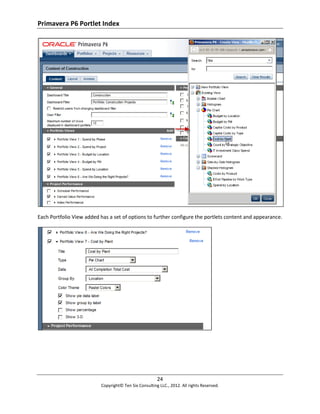
Use the Add option to add new Portfolio View portlets to the list. Each one added is automatically
placed in the list and given a number.


                                                        23
                           Copyright© Ten Six Consulting LLC., 2012. All rights Reserved.
Primavera P6 Portlet Index


Each Portfolio View added has a set of options to further configure the portlets content and appearance.


                                                       24
                          Copyright© Ten Six Consulting LLC., 2012. All rights Reserved.
Primavera P6 Portlet Index

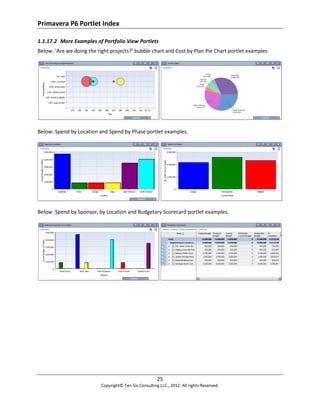
1.1.17.2 More Examples of Portfolio View Portlets
Below: ‘Are we doing the right projects?’ bubble chart and Cost by Plan Pie Chart portlet examples


Below: Spend by Location and Spend by Phase portlet examples.


Below: Spend by Sponsor, by Location and Budgetary Scorecard portlet examples.


                                                        25
                           Copyright© Ten Six Consulting LLC., 2012. All rights Reserved.

Primavera P6 EPPM Portlets Index

  • 1.
    Ten Six ConsultingPresents Primavera P6 Portlet Index A Reference Guide to the P6 Dashboard Portlets
  • 2.
    Primavera P6 PortletIndex Contents 1.1 Available Portlets .......................................................................................................................... 3 1.1.1 Schedule Performance Portlet .............................................................................................. 3 1.1.2 Earned Value Performance Portlet ....................................................................................... 3 1.1.3 Index Performance Portlet .................................................................................................... 4 1.1.4 Project Statistics Portlet ........................................................................................................ 4 1.1.5 Project Health Portlet ........................................................................................................... 5 1.1.6 Project Notebooks Portlet .................................................................................................... 6 1.1.7 Project Gantt Chart Portlet ................................................................................................... 6 1.1.8 Resource Team Summary Portlet ......................................................................................... 7 1.1.9 Open Requests for Resources Portlet ................................................................................... 8 1.1.10 Resource Analysis Chart Portlet .......................................................................................... 10 1.1.11 My Projects Portlet ............................................................................................................. 11 1.1.12 My Activities Portlet............................................................................................................ 12 1.1.13 My Risks Portlet .................................................................................................................. 14 1.1.14 My Issues Portlet................................................................................................................. 16 1.1.15 Communication Center Portlet ........................................................................................... 19 1.1.16 My calendar ........................................................................................................................ 21 1.1.17 Portfolio Views Portlets ...................................................................................................... 23 2 Copyright© Ten Six Consulting LLC., 2012. All rights Reserved.
  • 3.
    Primavera P6 PortletIndex 1.1 Available Portlets 1.1.1 Schedule Performance Portlet This portlet provides a shorthand project level view that shows symbols for To Date and Forecast at Completion summary metrics indicating a project’s status based upon threshold values. 1.1.1.1 Customization Settings for the Schedule Performance Portlet 1.1.2 Earned Value Performance Portlet This portlet provides a shorthand project level view that shows symbols for To Date and Forecast at Completion summary metrics for Schedule and Labor Units indicating the earned value status of the projects. 3 Copyright© Ten Six Consulting LLC., 2012. All rights Reserved.
  • 4.
    Primavera P6 PortletIndex 1.1.2.1 Customization Settings for the Earned Value Performance Portlet 1.1.3 Index Performance Portlet This portlet provides a project level summary view of the Schedule Performance Index (SPI), Cost Performance Index (CPI) and To Complete Performance Index (TCPI). 1.1.3.1 Customization Settings for the Index Performance Portlet 1.1.4 Project Statistics Portlet This portlet provides a customizable set of data columns that can be used to show project level data of your choosing in the table area. 4 Copyright© Ten Six Consulting LLC., 2012. All rights Reserved.
  • 5.
    Primavera P6 PortletIndex 1.1.4.1 Customization Settings for the Project Statistics Portlet 1.1.5 Project Health Portlet This portlet provides a pre-compiled narrative of the project’s health based upon various indicators in the project’s current progress to date, actual units and other factors. 1.1.5.1 Customization Settings for the Project Health Portlet Select only, no sub-options for Project Health portlet. 5 Copyright© Ten Six Consulting LLC., 2012. All rights Reserved.
  • 6.
    Primavera P6 PortletIndex 1.1.6 Project Notebooks Portlet This portlet offers Notebook Topics grouped by project. Click on the twisty buttons to see the expanded text within the Notebook topic. 1.1.6.1 Customization Settings for the Project Notebook Portlet Select only, no sub-options for Project Notebook portlet. 1.1.7 Project Gantt Chart Portlet This portlet provides a view of the portfolio projects in the form of a simple Gantt chart. It includes a tool bar allowing you to open a selected project, filter the project list, modify the columns displayed, modify the time scale and print. Projects can be expanded using the + button in the ID column to reveal project milestones. 6 Copyright© Ten Six Consulting LLC., 2012. All rights Reserved.
  • 7.
    Primavera P6 PortletIndex 1.1.7.1 Customization Settings for the Project Gantt Chart Portlet Select only, no sub-options for Project Gantt Chart portlet. 1.1.8 Resource Team Summary Portlet This portlet provides a list of the people in the selected resource team. It also lists their role and the number of projects to which they are assigned. You can click on the resource’s name to switch to a Usage view and see a histogram or spreadsheet of utilization. 1.1.8.1 Customization Settings for the Resource Team Summary Portlet Select only, no sub-options for Resource Team Summary portlet. The resources being displayed in this portlet are controlled by the selected Resource Team. To select the team you wish to view, click on the ‘Select a resource team:’ field’s select button. 7 Copyright© Ten Six Consulting LLC., 2012. All rights Reserved.
  • 8.
    Primavera P6 PortletIndex 1.1.9 Open Requests for Resources Portlet This portlet provides a list of open requests for resources (generated by role assignments made within projects) that allows a functional manager to replace the request with an appropriately skilled person. 8 Copyright© Ten Six Consulting LLC., 2012. All rights Reserved.
  • 9.
    Primavera P6 PortletIndex Clicking on a name in the list will take you to the Resource Staffing page where a resource assignment can be made. 1.1.9.1 Customization Settings for the Open Requests for Resources Portlet Select Open Requests for Resources to use this portlet. Display: All projects – will display open requests for all projects in the system. Projects based on dashboard filter – will use the portfolio or project selected in the dashboard’s Filter by field. Organize – Options are Role by Project, Project by Role and Role by Project by Project Codes. Role Team – select your Role Team in this field. Project Code – select a project code for further grouping using the Role by Project by Project Codes option in the Organize field. 9 Copyright© Ten Six Consulting LLC., 2012. All rights Reserved.
  • 10.
    Primavera P6 PortletIndex 1.1.10 Resource Analysis Chart Portlet This chart will display the allocation for the selected resource in the Resource field. Each shade in the histogram represents the resource’s usage on a particular project. 1.1.10.1 Customization Settings for the Resource Analysis Chart Portlet Select Resource Analysis Chart option. Chart Type – select from Histogram, Stacked Histogram, Area Chart and Pie Chart. Display – Units or Costs Show – Limit and/or Allocation Limit Display resource allocation: - set the fields with a value in weeks ahead and previous to current data date. Color Theme – Pastel or Primary Colors 10 Copyright© Ten Six Consulting LLC., 2012. All rights Reserved.
  • 11.
    Primavera P6 PortletIndex 1.1.11 My Projects Portlet This portlet displays a list of the projects that meet the criteria set in the customize page. Clicking on the project’s name will open the project, close any other open projects and then switch the view over to the Projects tab. 1.1.11.1 Customization Settings for the My Projects Portlet Select the My Projects portlet. Show project where I: Have access rights – have view access or better to the project Am assigned as a resource – the resource associated with your login has been assigned to one or more activities in the project. Am the Project Owner – have been selected as the project owner in the Project Owner field of the EPS’s General Tab. See following figure: 11 Copyright© Ten Six Consulting LLC., 2012. All rights Reserved.
  • 12.
    Primavera P6 PortletIndex Above example: project owner has been set in the General tab’s Project Owner field. 1.1.12 My Activities Portlet This portlet displays a list of activities you are assigned to in the system; grouped by project. Click the twisty button to see the details below each project. Clicking on the Activity name link will switch you to the Projects tab in a page called Details of <activity name>. 12 Copyright© Ten Six Consulting LLC., 2012. All rights Reserved.
  • 13.
    Primavera P6 PortletIndex 1.1.12.1 Customization Settings for the My Activities Portlet Set the number of days ahead you wish to include for activities you are scheduled to work on. This is n days from the current data date. 13 Copyright© Ten Six Consulting LLC., 2012. All rights Reserved.
  • 14.
    Primavera P6 PortletIndex 1.1.13 My Risks Portlet This portlet shows any risks in the project portfolio that you own or have other criteria selected for viewing it. Risks are grouped by project. Clicking on the risk name will open the Risks page of the Projects tab. 14 Copyright© Ten Six Consulting LLC., 2012. All rights Reserved.
  • 15.
    Primavera P6 PortletIndex 1.1.13.1 Customization Settings for the My Risks Portlet Use the Customize link to access the Customize Risks dialog. Select from columns for the table and include risks based upon the selected criteria in the Filter tab. 15 Copyright© Ten Six Consulting LLC., 2012. All rights Reserved.
  • 16.
    Primavera P6 PortletIndex 1.1.14 My Issues Portlet This portlet displays a list of the issues available to you based upon criteria set in the Customize page. The portlet is grouped by project. Clicking on the twisty button displays the issue name in the rows below. Clicking on the issue name link will open the Issues page of the Projects tab. 1.1.14.1 Customization Settings for the My Issues Portlet Columns – choose the columns to display in the portlet. 16 Copyright© Ten Six Consulting LLC., 2012. All rights Reserved.
  • 17.
    Primavera P6 PortletIndex 17 Copyright© Ten Six Consulting LLC., 2012. All rights Reserved.
  • 18.
    Primavera P6 PortletIndex Filter Group 18 Copyright© Ten Six Consulting LLC., 2012. All rights Reserved.
  • 19.
    Primavera P6 PortletIndex Chart 1.1.15 Communication Center Portlet This portlet shows you the resources that meet the criteria in the customization settings, and allows you e-mail people by selecting them in the Name list. 19 Copyright© Ten Six Consulting LLC., 2012. All rights Reserved.
  • 20.
    Primavera P6 PortletIndex Selecting the check box at the project level selects all the resources working on that project. 1.1.15.1 Customization Settings for the Communication Center Portlet 20 Copyright© Ten Six Consulting LLC., 2012. All rights Reserved.
  • 21.
    Primavera P6 PortletIndex 1.1.16 My calendar This portlet shows you a list of activities, grouped by projects, that you are assigned to work on during the period selected in the calendar area. Navigate the calendar weeks and months to see what projects and activities you have been scheduled to work on. Clicking on the twisty button on the project row will open the activity list below. Clicking on the activity name link will open the Details of <Activity Name> page where you can examine the activity dates and other details. 21 Copyright© Ten Six Consulting LLC., 2012. All rights Reserved.
  • 22.
    Primavera P6 PortletIndex 1.1.16.1 Customization Settings for the My Calendar Portlet 22 Copyright© Ten Six Consulting LLC., 2012. All rights Reserved.
  • 23.
    Primavera P6 PortletIndex 1.1.17 Portfolio Views Portlets Portfolio Views portlets offer a wide range of options for the contents of each portlet you add to the dashboard. There are thirty existing Portfolio views to choose from with further sub-options for customizing the portlet. This means there are literally dozens of combinations of data you can display with these portlets. The categories for a portfolio view include Bubble Charts, Histograms, Pie Charts, Scorecards, Side-by-side Histograms and Stacked Histograms, each with a variety of sub-options. You can add or subtract portfolio views as needs demand. 1.1.17.1 Customization Settings for the Portfolio Views Portlets Use the Add option to add new Portfolio View portlets to the list. Each one added is automatically placed in the list and given a number. 23 Copyright© Ten Six Consulting LLC., 2012. All rights Reserved.
  • 24.
    Primavera P6 PortletIndex Each Portfolio View added has a set of options to further configure the portlets content and appearance. 24 Copyright© Ten Six Consulting LLC., 2012. All rights Reserved.
  • 25.
    Primavera P6 PortletIndex 1.1.17.2 More Examples of Portfolio View Portlets Below: ‘Are we doing the right projects?’ bubble chart and Cost by Plan Pie Chart portlet examples Below: Spend by Location and Spend by Phase portlet examples. Below: Spend by Sponsor, by Location and Budgetary Scorecard portlet examples. 25 Copyright© Ten Six Consulting LLC., 2012. All rights Reserved.