Carrying out a broad search in UWA OneSearch is a good
way to begin to identify information on a given topic.
OneSearch is the main UWA Library catalogue collating all
content we provide across a wide range of resources.
These search tips show you how to:
Use OR and (parenthesis) to search for similar terms
Use AND, & “italics” to join distinct concepts together
Refine using limit filters and advanced search
Jump out to full-text databases for articles
Use a personal folder to save items and searches
University Library library.uwa.edu.au
UWA’s OneSearch
University Library library.uwa.edu.au
UWA’s OneSearch
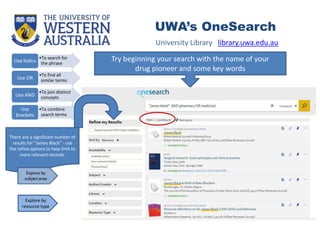
•To search for
the phraseUse Italics
•To find all
similar termsUse OR
•To join distinct
conceptsUse AND
•To combine
search terms
Use
brackets
There are a significant number of
results for “James Black” - use
the refine options to help limit to
more relevant records.
Try beginning your search with the name of your
drug pioneer and some key words
Explore by
resource type
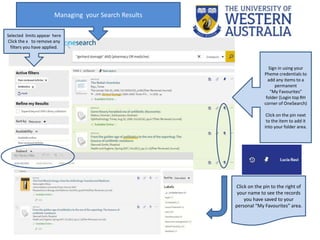
Selected limits appear here
Click the x to remove any
filters you have applied.
Managing your Search Results
Sign in using your
Pheme credentials to
add any items to a
permanent
“My Favourites”
folder (Login top RH
corner of OneSearch)
Click on the pin next
to the item to add it
into your folder area.
Click on the pin to the right of
your name to see the records
you have saved to your
personal “My Favourites” area.
UWA’s OneSearch
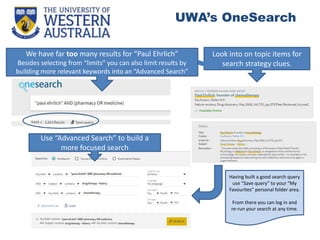
Look into on topic items for
search strategy clues.
We have far too many results for “Paul Ehrlich”
Besides selecting from “limits” you can also limit results by
building more relevant keywords into an “Advanced Search”
Use “Advanced Search” to build a
more focused search
Having built a good search query
use “Save query” to your “My
Favourites” personal folder area.
From there you can log in and
re-run your search at any time.
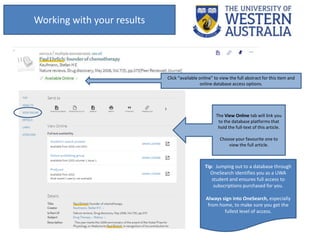
Tip: Jumping out to a database through
OneSearch identifies you as a UWA
student and ensures full access to
subscriptions purchased for you.
Always sign into OneSearch, especially
from home, to make sure you get the
fullest level of access.
Working with your results
Click “available online” to view the full abstract for this item and
online database access options.
The View Online tab will link you
to the database platforms that
hold the full-text of this article.
Choose your favourite one to
view the full article.

PHAR1101: Broadening Search in OneSearch

  • 1.
    Carrying out abroad search in UWA OneSearch is a good way to begin to identify information on a given topic. OneSearch is the main UWA Library catalogue collating all content we provide across a wide range of resources. These search tips show you how to: Use OR and (parenthesis) to search for similar terms Use AND, & “italics” to join distinct concepts together Refine using limit filters and advanced search Jump out to full-text databases for articles Use a personal folder to save items and searches University Library library.uwa.edu.au UWA’s OneSearch
  • 2.
    University Library library.uwa.edu.au UWA’sOneSearch •To search for the phraseUse Italics •To find all similar termsUse OR •To join distinct conceptsUse AND •To combine search terms Use brackets There are a significant number of results for “James Black” - use the refine options to help limit to more relevant records. Try beginning your search with the name of your drug pioneer and some key words Explore by resource type
  • 3.
    Selected limits appearhere Click the x to remove any filters you have applied. Managing your Search Results Sign in using your Pheme credentials to add any items to a permanent “My Favourites” folder (Login top RH corner of OneSearch) Click on the pin next to the item to add it into your folder area. Click on the pin to the right of your name to see the records you have saved to your personal “My Favourites” area.
  • 4.
    UWA’s OneSearch Look intoon topic items for search strategy clues. We have far too many results for “Paul Ehrlich” Besides selecting from “limits” you can also limit results by building more relevant keywords into an “Advanced Search” Use “Advanced Search” to build a more focused search Having built a good search query use “Save query” to your “My Favourites” personal folder area. From there you can log in and re-run your search at any time.
  • 5.
    Tip: Jumping outto a database through OneSearch identifies you as a UWA student and ensures full access to subscriptions purchased for you. Always sign into OneSearch, especially from home, to make sure you get the fullest level of access. Working with your results Click “available online” to view the full abstract for this item and online database access options. The View Online tab will link you to the database platforms that hold the full-text of this article. Choose your favourite one to view the full article.