Locating Information Resources through the Library Online Catalog August 2008 Prepared by:  Yesenia Hernández Santiago  Librarian Assistant II Revised and Translated by: Prof. Noraida Domínguez Flores Librarian II Information Literacy and Technologies Program University of Puerto Rico at Carolina
Objectives: At the end of the presentation, the students are going to be able to: Understand what is the library online catalog. Access and use the library online catalog. Conduct simple searches through the library online catalog. Conduct advanced searches through the library online catalog.
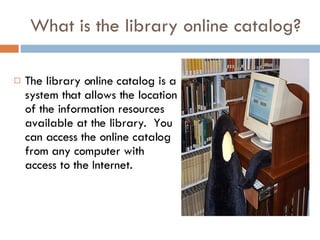
What is the library online catalog? The library online catalog is a system that allows the location of the information resources available at the library.  You can access the online catalog from any computer with access to the Internet.
The following steps are going to guide you to effectively use the online catalog and locate information resources at your library
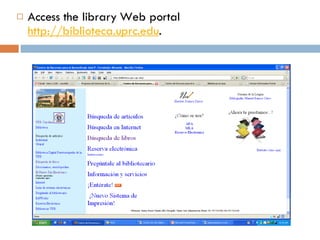
Access the library Web portal  http://biblioteca.uprc.edu .
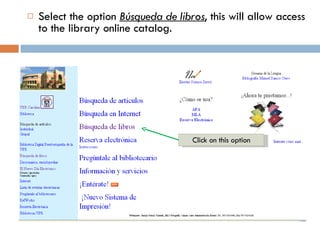
Select the option  Búsqueda de libros , this will allow access to the library online catalog. Click on this option
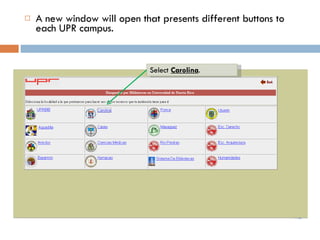
A new window will open that presents different buttons to each UPR campus. Select  Carolina .
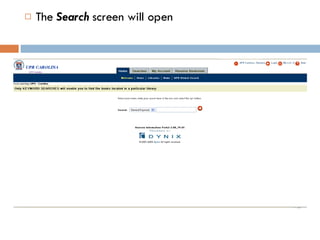
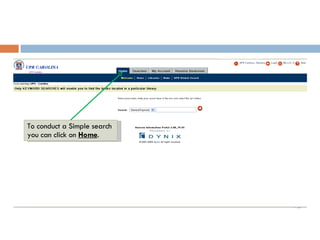
The  Search  screen will open
To conduct a Simple search you can click on  Home .
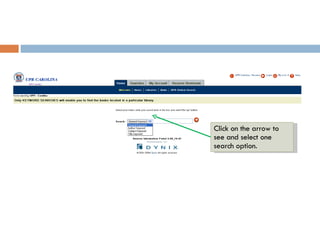
Click on the arrow to see and select one search option.
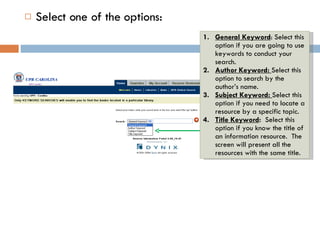
Select one of the options: General Keyword : Select this option if you are going to use keywords to conduct your search.  Author Keyword:  Select this option to search by the author’s name.  Subject Keyword:  Select this option if you need to locate a resource by a specific topic. Title Keyword :  Select this option if you know the title of an information resource.  The screen will present all the resources with the same title.
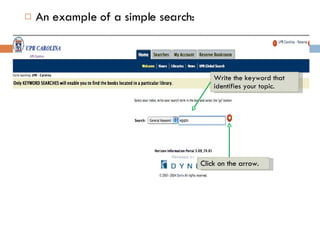
An example of a simple search: Write the keyword that identifies your topic.  Click on the arrow.
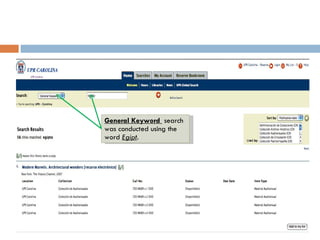
General Keyword  search was conducted using the word  Egipt .
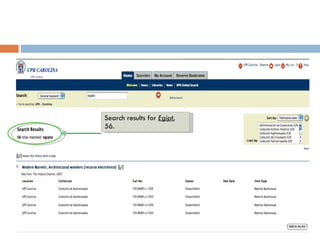
Search results for  Egipt , 56.
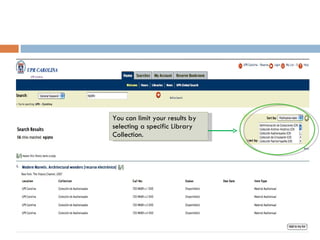
You can limit your results by selecting a specific Library Collection.
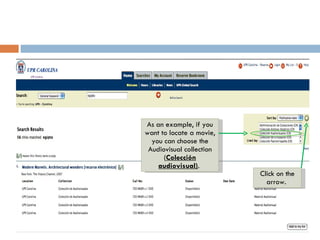
As an example, if you want to locate a movie, you can choose the Audiovisual collection ( Colección audiovisual) .  Click on the arrow.
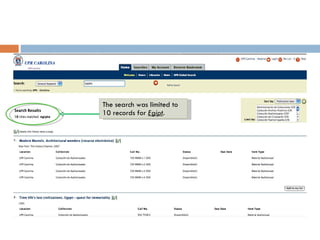
The search was limited to 10 records for  Egipt .
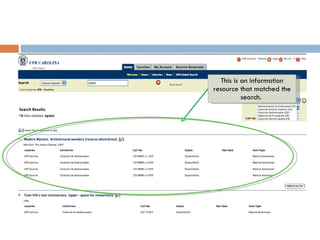
This is an information resource that matched the search.
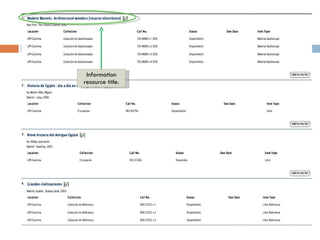
Information resource title.
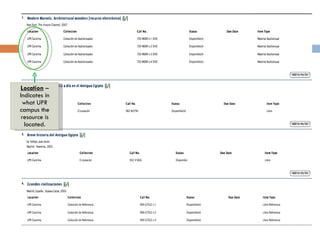
Location  – Indicates in what UPR campus the resource is located.
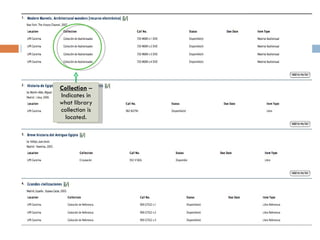
Collection  – Indicates in what library collection is located.
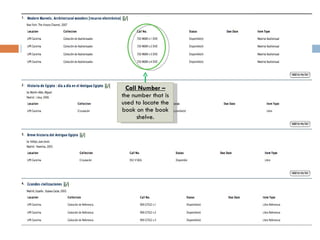
Call Number –  the number that is used to locate the book on the book shelve.
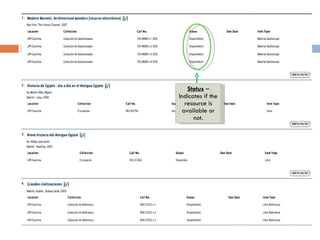
Status  – Indicates if the resource is available or not.
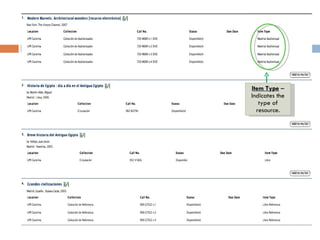
Item Type  – Indicates the type of resource.
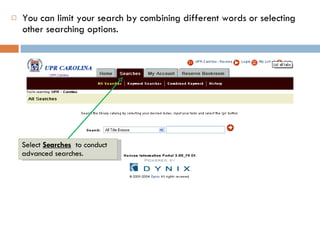
You can limit your search by combining different words or selecting other searching options. Select  Searches   to conduct advanced searches.
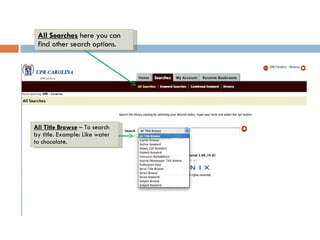
All Searches  here you can find other search options. All Title Browse   – To search by title. Example: Like water to chocolate.
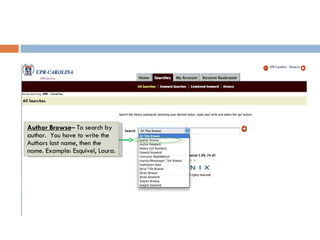
Author Browse – To search by author.  You have to write the Authors last name, then the name. Example: Esquivel, Laura.
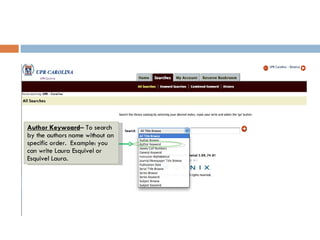
Author Keywoard – To search by the authors name without an specific order.  Example: you can write Laura Esquivel or Esquivel Laura.
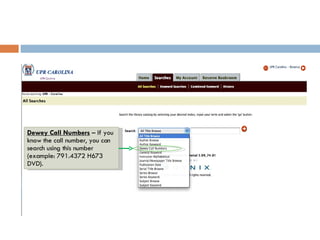
Dewey Call Numbers   – If you know the call number, you can search using this number (example: 791.4372 H673 DVD).
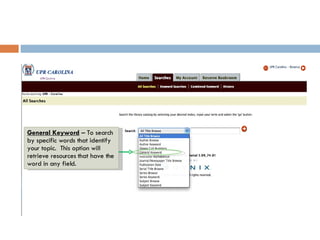
General Keyword  – To search by specific words that identify your topic.  This option will retrieve resources that have the word in any field.
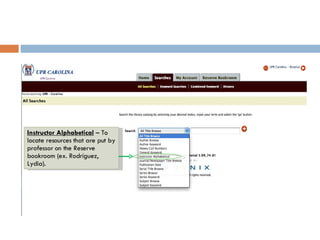
Instructor Alphabetical   – To locate resources that are put by professor on the Reserve bookroom (ex. Rodríguez, Lydia).
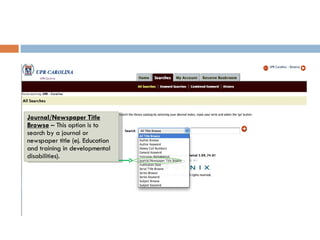
Journal/Newspaper Title Browse   – This option is to search by a journal or newspaper title (ej. Education and training in developmental disabilities).
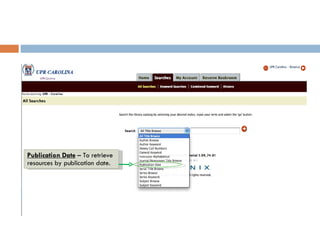
Publication Date   – To retrieve resources by publication date.
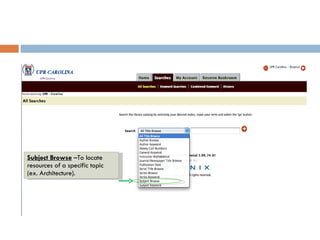
Subject Browse   –To locate resources of a specific topic (ex. Architecture).
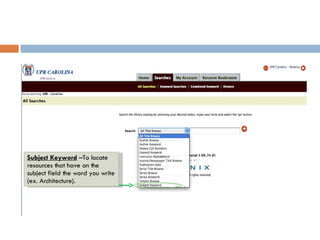
Subject Keyword   –To locate resources that have on the subject field the word you write (ex. Architecture).
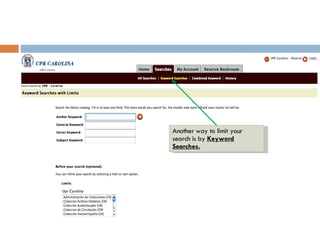
Another way to limit your search is by  Keyword Searches.
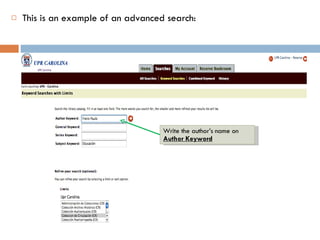
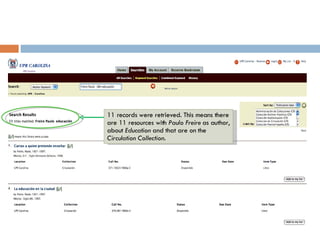
This is an example of an advanced search:  Write the author’s name on  Author Keyword
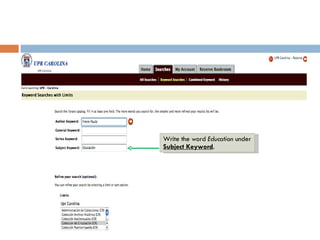
Write the word  Education  under  Subject Keyword .
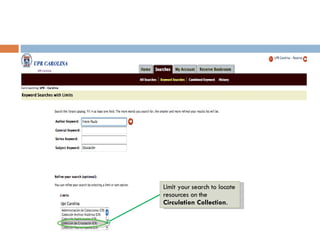
Limit your search to locate resources on the  Circulation Collection .
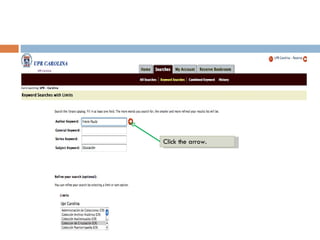
Click the arrow.
11 records were retrieved. This means there are 11 resources with  Paulo Freire  as author, about  Education  and that are on the  Circulation Collection .
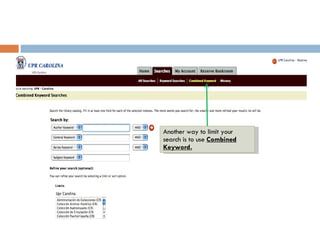
Another way to limit your search is to use  Combined Keyword.
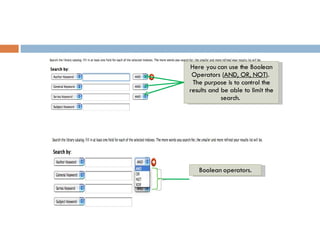
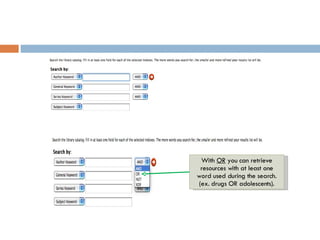
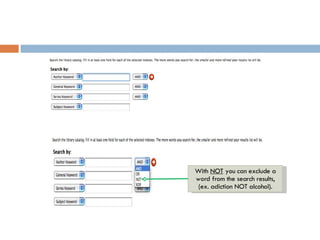
Here you can use the Boolean Operators ( AND, OR, NOT ).  The purpose is to control the results and be able to limit the search.  Boolean operators.
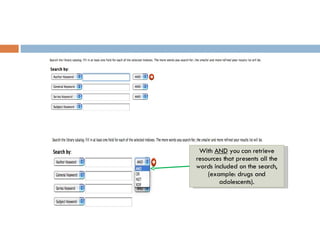
With  AND  you can retrieve resources that presents all the words included on the search, (example: drugs and adolescents).
With  OR  you can retrieve resources with at least one word used during the search. (ex. drugs OR adolescents).
With  NOT  you can exclude a word from the search results, (ex. adiction NOT alcohol).
After reading this presentation you should be able to complete the exercise.
Bibliography Colby-Sawyer College. (2007).  Public access catalog (IPAC) tips . Recuperado el 6 de septiembre de 2008, de  http://www.colby-sawyer.edu/information/library/ipactips.html .  Columbia University Libraries. (s.f.).  Keyword search . Recuperado el 6 de septiembre de 2008, de  http://www.columbia.edu/cu/lweb/help/clio/keyword.print.html .  Penn Libraries. (2007).  PORT: Penn Online Research Tutorial.  Recuperado el 6 de septiembre de 2008, de  http://gethelp.library.upenn.edu/PORT/locating/keywordvssubject.html .  Universidad de Puerto Rico en Carolina. (2008).  Catálogo en Línea . Recuperado el 6 de septiembre de 2008, de  http://biblioteca.uprc.upr.edu .  Universitat Pomeu Fabra. (s.f.).  Operadores booleanos.  Recuperado el 6 de septiembre de 2008, de  http://www.upf.edu/search/cast/aj-bool.htm .  VC/UHV Library. (2006).  How to use the library catalog.  Recuperado el 6 de septiembre de 2008, de  http://vcuhvlibrary.uhv.edu/studyguides/onlinecat.htm .

Library Online Catalog

  • 1.
    Locating Information Resourcesthrough the Library Online Catalog August 2008 Prepared by: Yesenia Hernández Santiago Librarian Assistant II Revised and Translated by: Prof. Noraida Domínguez Flores Librarian II Information Literacy and Technologies Program University of Puerto Rico at Carolina
  • 2.
    Objectives: At theend of the presentation, the students are going to be able to: Understand what is the library online catalog. Access and use the library online catalog. Conduct simple searches through the library online catalog. Conduct advanced searches through the library online catalog.
  • 3.
    What is thelibrary online catalog? The library online catalog is a system that allows the location of the information resources available at the library. You can access the online catalog from any computer with access to the Internet.
  • 4.
    The following stepsare going to guide you to effectively use the online catalog and locate information resources at your library
  • 5.
    Access the libraryWeb portal http://biblioteca.uprc.edu .
  • 6.
    Select the option Búsqueda de libros , this will allow access to the library online catalog. Click on this option
  • 7.
    A new windowwill open that presents different buttons to each UPR campus. Select Carolina .
  • 8.
    The Search screen will open
  • 9.
    To conduct aSimple search you can click on Home .
  • 10.
    Click on thearrow to see and select one search option.
  • 11.
    Select one ofthe options: General Keyword : Select this option if you are going to use keywords to conduct your search. Author Keyword: Select this option to search by the author’s name. Subject Keyword: Select this option if you need to locate a resource by a specific topic. Title Keyword : Select this option if you know the title of an information resource. The screen will present all the resources with the same title.
  • 12.
    An example ofa simple search: Write the keyword that identifies your topic. Click on the arrow.
  • 13.
    General Keyword search was conducted using the word Egipt .
  • 14.
    Search results for Egipt , 56.
  • 15.
    You can limityour results by selecting a specific Library Collection.
  • 16.
    As an example,if you want to locate a movie, you can choose the Audiovisual collection ( Colección audiovisual) . Click on the arrow.
  • 17.
    The search waslimited to 10 records for Egipt .
  • 18.
    This is aninformation resource that matched the search.
  • 19.
  • 20.
    Location –Indicates in what UPR campus the resource is located.
  • 21.
    Collection –Indicates in what library collection is located.
  • 22.
    Call Number – the number that is used to locate the book on the book shelve.
  • 23.
    Status –Indicates if the resource is available or not.
  • 24.
    Item Type – Indicates the type of resource.
  • 25.
    You can limityour search by combining different words or selecting other searching options. Select Searches to conduct advanced searches.
  • 26.
    All Searches here you can find other search options. All Title Browse – To search by title. Example: Like water to chocolate.
  • 27.
    Author Browse –To search by author. You have to write the Authors last name, then the name. Example: Esquivel, Laura.
  • 28.
    Author Keywoard –To search by the authors name without an specific order. Example: you can write Laura Esquivel or Esquivel Laura.
  • 29.
    Dewey Call Numbers – If you know the call number, you can search using this number (example: 791.4372 H673 DVD).
  • 30.
    General Keyword – To search by specific words that identify your topic. This option will retrieve resources that have the word in any field.
  • 31.
    Instructor Alphabetical – To locate resources that are put by professor on the Reserve bookroom (ex. Rodríguez, Lydia).
  • 32.
    Journal/Newspaper Title Browse – This option is to search by a journal or newspaper title (ej. Education and training in developmental disabilities).
  • 33.
    Publication Date – To retrieve resources by publication date.
  • 34.
    Subject Browse –To locate resources of a specific topic (ex. Architecture).
  • 35.
    Subject Keyword –To locate resources that have on the subject field the word you write (ex. Architecture).
  • 36.
    Another way tolimit your search is by Keyword Searches.
  • 37.
    This is anexample of an advanced search: Write the author’s name on Author Keyword
  • 38.
    Write the word Education under Subject Keyword .
  • 39.
    Limit your searchto locate resources on the Circulation Collection .
  • 40.
  • 41.
    11 records wereretrieved. This means there are 11 resources with Paulo Freire as author, about Education and that are on the Circulation Collection .
  • 42.
    Another way tolimit your search is to use Combined Keyword.
  • 43.
    Here you canuse the Boolean Operators ( AND, OR, NOT ). The purpose is to control the results and be able to limit the search. Boolean operators.
  • 44.
    With AND you can retrieve resources that presents all the words included on the search, (example: drugs and adolescents).
  • 45.
    With OR you can retrieve resources with at least one word used during the search. (ex. drugs OR adolescents).
  • 46.
    With NOT you can exclude a word from the search results, (ex. adiction NOT alcohol).
  • 47.
    After reading thispresentation you should be able to complete the exercise.
  • 48.
    Bibliography Colby-Sawyer College.(2007). Public access catalog (IPAC) tips . Recuperado el 6 de septiembre de 2008, de http://www.colby-sawyer.edu/information/library/ipactips.html . Columbia University Libraries. (s.f.). Keyword search . Recuperado el 6 de septiembre de 2008, de http://www.columbia.edu/cu/lweb/help/clio/keyword.print.html . Penn Libraries. (2007). PORT: Penn Online Research Tutorial. Recuperado el 6 de septiembre de 2008, de http://gethelp.library.upenn.edu/PORT/locating/keywordvssubject.html . Universidad de Puerto Rico en Carolina. (2008). Catálogo en Línea . Recuperado el 6 de septiembre de 2008, de http://biblioteca.uprc.upr.edu . Universitat Pomeu Fabra. (s.f.). Operadores booleanos. Recuperado el 6 de septiembre de 2008, de http://www.upf.edu/search/cast/aj-bool.htm . VC/UHV Library. (2006). How to use the library catalog. Recuperado el 6 de septiembre de 2008, de http://vcuhvlibrary.uhv.edu/studyguides/onlinecat.htm .