Part 2: Using the Online
Research Databases
This unit is designed to:
• Introduce you to the diverse array of research
  databases available at Palomar College Library.
• Understand how the databases are organized
• Choose a database appropriate for your personal
  research needs
• Help you get acquainted with three of the general
  use databases


Ready, set, go!
Whether you are doing research for a class
assignment or personal knowledge, articles from
magazines, journals and newspapers can be
valuable sources of information. To find these
articles in the Palomar College Library, start at the
library’s home page:
            http://www.palomar.edu/library
Click on either of these links: Databases/Articles
or Articles . From off campus, you can log onto all
the databases listed in this guide using your
student ID number and eServices password.
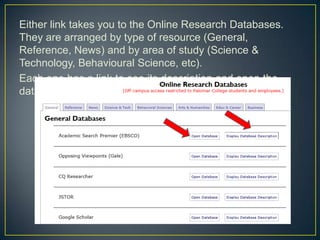
Either link takes you to the Online Research Databases.
They are arranged by type of resource (General,
Reference, News) and by area of study (Science &
Technology, Behavioural Science, etc).
Each one has a link to see its description and open the
databases.
When you start your research – think first!

• Where will you find information on your topic?
• Will there be definitions and background
  information in reference sources like
  encyclopedias and dictionaries?
• Have newspapers published information on this
  topic?
• Will it come from a specialized area of study
  like the behavioral sciences - psychology or
  sociology, for instance? From the field of
  science? Somewhere else?
• Is this a topic that’s more general in nature?
• Opposing Viewpoints
• CQ Researcher
• Academic Search Premier
• ProQuest Newspapers
• Ethnic Newswatch
Opposing Viewpoints is a good resource for controversial
issues. It contains pro and con essays on a variety of “hot
topics” like gun control, abortion, same-sex marriage and
many others.
There are two ways to search Opposing
Viewpoints. The first is a “keyword search.” As
shown below, just type your topic into the search
box and then click on Search.
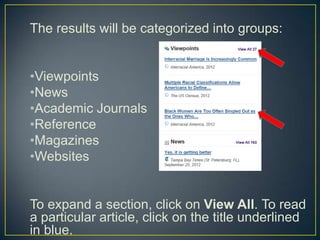
The results will be categorized into groups:


•Viewpoints
•News
•Academic Journals
•Reference
•Magazines
•Websites


To expand a section, click on View All. To read
a particular article, click on the title underlined
in blue.
If you haven’t chosen a topic yet, browse for ideas
through topics that have been widely covered. To
do this, click on Browse Issues.

From the drop-down menu,
choose a general category
or View All.

The topics that display
will range alphabetically
from Abortion to Zero
Tolerance Policies.
Next, let’s look at CQ Researcher


Every week, CQ Researcher publishes a lengthy
 report on a topic of contemporary interest.
Type your topic into the “quick search” box, then GO.
Your “search results” will include any reports
specifically about your topic.


Click on the blue report title to read its contents.
Reports are organized into segments:
• Introduction

• Overview
• Background
• Etc.
• Etc.
• Etc.
Read the entire
report, or go
directly to a
segment.
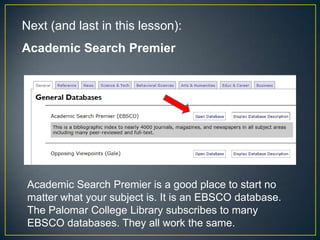
Next (and last in this lesson):
Academic Search Premier


 Academic Search Premier is a good place to start no
 matter what your subject is. It is an EBSCO database.
 The Palomar College Library subscribes to many
 EBSCO databases. They all work the same.
Like Opposing Viewpoints and CQ Researcher, start by
typing your topic into the box. You may also wish to focus
your search by selecting options from the list under “Limit
your results.”
• Check the Full Text box to insure that each of
  your search results will be linked to the whole
  article (not just some basic information about the
  article).

• Check the Scholarly Journal box if your professor
  requires you to use “scholarly sources.”

• Type the name of a publication to find only
  articles published that particular one.

• Limit by date if you are required to find material
  within a certain time range.
The results are a list of articles published on your topic.
Click the blue title of the article for a more detailed record.
Read the Abstract for a quick summary of the article. Click
the Full Text link to read the whole article.
As you begin to explore these three databases and
others, you will discover features that allow you to:


• Refine and focus your search
• Organize your results
• Print and email your results
• Create citations for the sources you decide to use.


The more you use the databases, the
more skillful you’ll become!
RECAP

Use the online research databases to find articles in:
•Magazines
•Newspapers
•Academic (scholarly) journals

Practice using these general-use databases:
•Opposing Viewpoints
•CQ Researcher
•Academic Search Premier

NOW YOU DO IT! Please proceed to Test
#2.

Unit 2: Using the Online Research Databases

  • 1.
    Part 2: Usingthe Online Research Databases
  • 2.
    This unit isdesigned to: • Introduce you to the diverse array of research databases available at Palomar College Library. • Understand how the databases are organized • Choose a database appropriate for your personal research needs • Help you get acquainted with three of the general use databases Ready, set, go!
  • 3.
    Whether you aredoing research for a class assignment or personal knowledge, articles from magazines, journals and newspapers can be valuable sources of information. To find these articles in the Palomar College Library, start at the library’s home page: http://www.palomar.edu/library Click on either of these links: Databases/Articles or Articles . From off campus, you can log onto all the databases listed in this guide using your student ID number and eServices password.
  • 5.
    Either link takesyou to the Online Research Databases. They are arranged by type of resource (General, Reference, News) and by area of study (Science & Technology, Behavioural Science, etc). Each one has a link to see its description and open the databases.
  • 6.
    When you startyour research – think first! • Where will you find information on your topic? • Will there be definitions and background information in reference sources like encyclopedias and dictionaries? • Have newspapers published information on this topic? • Will it come from a specialized area of study like the behavioral sciences - psychology or sociology, for instance? From the field of science? Somewhere else? • Is this a topic that’s more general in nature?
  • 7.
    • Opposing Viewpoints •CQ Researcher • Academic Search Premier • ProQuest Newspapers • Ethnic Newswatch
  • 8.
    Opposing Viewpoints isa good resource for controversial issues. It contains pro and con essays on a variety of “hot topics” like gun control, abortion, same-sex marriage and many others.
  • 9.
    There are twoways to search Opposing Viewpoints. The first is a “keyword search.” As shown below, just type your topic into the search box and then click on Search.
  • 10.
    The results willbe categorized into groups: •Viewpoints •News •Academic Journals •Reference •Magazines •Websites To expand a section, click on View All. To read a particular article, click on the title underlined in blue.
  • 11.
    If you haven’tchosen a topic yet, browse for ideas through topics that have been widely covered. To do this, click on Browse Issues. From the drop-down menu, choose a general category or View All. The topics that display will range alphabetically from Abortion to Zero Tolerance Policies.
  • 12.
    Next, let’s lookat CQ Researcher Every week, CQ Researcher publishes a lengthy report on a topic of contemporary interest.
  • 13.
    Type your topicinto the “quick search” box, then GO.
  • 14.
    Your “search results”will include any reports specifically about your topic. Click on the blue report title to read its contents.
  • 15.
    Reports are organizedinto segments: • Introduction • Overview • Background • Etc. • Etc. • Etc. Read the entire report, or go directly to a segment.
  • 16.
    Next (and lastin this lesson): Academic Search Premier Academic Search Premier is a good place to start no matter what your subject is. It is an EBSCO database. The Palomar College Library subscribes to many EBSCO databases. They all work the same.
  • 17.
    Like Opposing Viewpointsand CQ Researcher, start by typing your topic into the box. You may also wish to focus your search by selecting options from the list under “Limit your results.”
  • 18.
    • Check theFull Text box to insure that each of your search results will be linked to the whole article (not just some basic information about the article). • Check the Scholarly Journal box if your professor requires you to use “scholarly sources.” • Type the name of a publication to find only articles published that particular one. • Limit by date if you are required to find material within a certain time range.
  • 19.
    The results area list of articles published on your topic. Click the blue title of the article for a more detailed record.
  • 20.
    Read the Abstractfor a quick summary of the article. Click the Full Text link to read the whole article.
  • 21.
    As you beginto explore these three databases and others, you will discover features that allow you to: • Refine and focus your search • Organize your results • Print and email your results • Create citations for the sources you decide to use. The more you use the databases, the more skillful you’ll become!
  • 22.
    RECAP Use the onlineresearch databases to find articles in: •Magazines •Newspapers •Academic (scholarly) journals Practice using these general-use databases: •Opposing Viewpoints •CQ Researcher •Academic Search Premier NOW YOU DO IT! Please proceed to Test #2.