PERFORMING COMPUTER OPERATIONS
MODULE 2
AT THE END OF THIS MODULE, YOU SHOULD BE ABLE TO:
1. Determine requirements of task in accordance with required
output
2. Select appropriate hardware and software according to task
3. Plan a task to ensure that OHS guidelines and procedures are
followed
4. Follow client-specific guidelines and procedures
LESSON 1.
Plan and Prepare for Task to be
Undertaken
THE FOLLOWING ARE SOME FACTORS TO BE CONSIDERED
WHEN YOU PLAN AND PREPARE FOR THE TASKS:
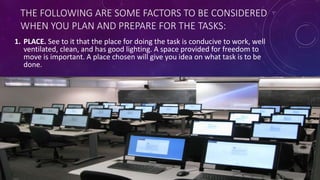
1. PLACE. See to it that the place for doing the task is conducive to work, well
ventilated, clean, and has good lighting. A space provided for freedom to
move is important. A place chosen will give you idea on what task is to be
done.
2. WASTE DISPOSAL. USED WIRE OR WIRE STRIPS OR OTHER THINGS
THAT CAN’T BE USED ANYMORE MUST BE DISPOSED IN PROPER
STORAGE BIN OR CONTAINER.
3. TOOLS/EQUIPMENT. TOOLS AND EQUIPMENT MUST MATCH WITH
THE TASK TO BE DONE. YOU SHOULD BE CAREFUL ENOUGH TO
CHOOSE TOOLS AND EQUIPMENT THAT ARE WORTHY OF USE. THEY
MUST BE IN GOOD CONDITION SO THAT IT CAN BE EASILY UTILIZED
WITHOUT DAMAGING THE PARTS.
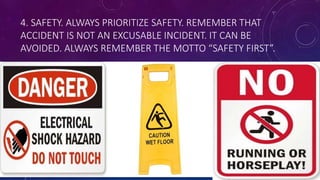
4. SAFETY. ALWAYS PRIORITIZE SAFETY. REMEMBER THAT
ACCIDENT IS NOT AN EXCUSABLE INCIDENT. IT CAN BE
AVOIDED. ALWAYS REMEMBER THE MOTTO “SAFETY FIRST”.
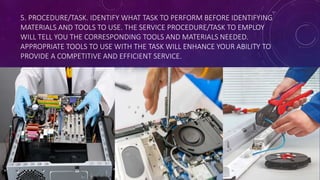
5. PROCEDURE/TASK. IDENTIFY WHAT TASK TO PERFORM BEFORE IDENTIFYING
MATERIALS AND TOOLS TO USE. THE SERVICE PROCEDURE/TASK TO EMPLOY
WILL TELL YOU THE CORRESPONDING TOOLS AND MATERIALS NEEDED.
APPROPRIATE TOOLS TO USE WITH THE TASK WILL ENHANCE YOUR ABILITY TO
PROVIDE A COMPETITIVE AND EFFICIENT SERVICE.
OCCUPATIONAL/ OPERATIONAL HEALTH AND SAFETY
(OHS)
Occupational/ Operational Health and Safety (OHS) is a
cross disciplinary area concerned with protecting the safety,
health and welfare of people engaged in work or
employment.
SAFETY PROCEDURES(OHS)
 To prevent electrical shock hazard, disconnect the power cable
from the electrical outlet before relocating the system
 When adding and removing devices to or from the system, ensure
that the power cables for the devices are unplugged before the
signal cables are connected. If possible, disconnect all power
cables from the existing system before you add a device
 To avoid short circuits, keep paper clips, screws, and staples away
from connectors, slots, and sockets.
 Avoid dust, humidity, and temperature extremes. Do not place the
product in any area where it may become wet
 Always Pull the cable connector on the handle and not on the
cable itself .
 Use only rubber shoes when standing on the ground or in a
concrete floor
 Always power off and unplug the computer before working on it.
 Take away any liquid such as mineral water or soft drinks near
your working area or near computers.
 Contingency measures during workplace accidents, fire and other
emergencies are recognized.
SAFETY PRECAUTIONS
• Do not place any combustible materials near the power outlet.
• Avoid using power cord with defects such as loose contacts and exposed
conductors.
• Avoid using connecting wires with exposed conductors.
• Do all the wiring connection inside the computer system with the power off.
• Check the proper connections before turning the circuit power on.
• Remove any jewelry, which is conductive.
• Check your measuring instruments for proper voltage, current, resistance setting
before making any measurement.
• Refer to the mother manuals for its proper jumper setting and connection.
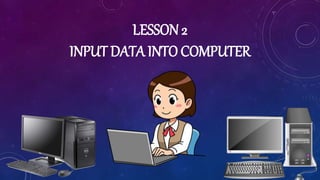
LESSON 2
INPUT DATA INTO COMPUTER
GUESS ME??
At the end of this module, you should be able to:
1.Identify the types of programs/ applications software
2.Check the accuracy of information and save the
information in accordance with standard operating
procedures
3.Classify the inputted data in storage media according to
requirements
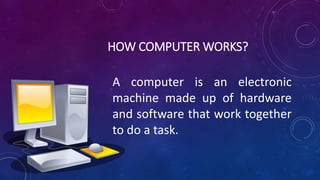
HOW COMPUTER WORKS?
A computer is an electronic
machine made up of hardware
and software that work together
to do a task.
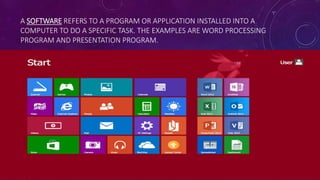
A SOFTWARE REFERS TO A PROGRAM OR APPLICATION INSTALLED INTO A
COMPUTER TO DO A SPECIFIC TASK. THE EXAMPLES ARE WORD PROCESSING
PROGRAM AND PRESENTATION PROGRAM.
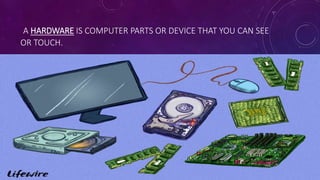
A HARDWARE IS COMPUTER PARTS OR DEVICE THAT YOU CAN SEE
OR TOUCH.
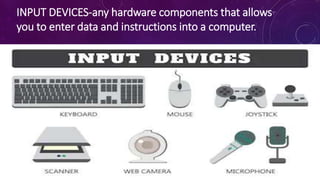
INPUT DEVICES-any hardware components that allows
you to enter data and instructions into a computer.
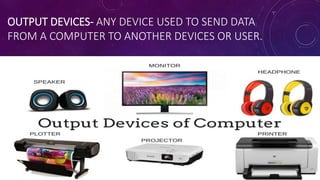
OUTPUT DEVICES- ANY DEVICE USED TO SEND DATA
FROM A COMPUTER TO ANOTHER DEVICES OR USER.
BASIC PARTS OF COMPUTER AND ITS
FUNCTIONS
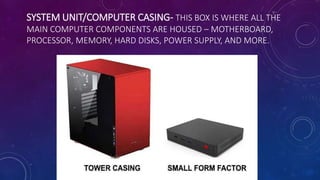
SYSTEM UNIT/COMPUTER CASING- THIS BOX IS WHERE ALL THE
MAIN COMPUTER COMPONENTS ARE HOUSED – MOTHERBOARD,
PROCESSOR, MEMORY, HARD DISKS, POWER SUPPLY, AND MORE.
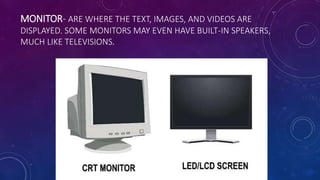
MONITOR- ARE WHERE THE TEXT, IMAGES, AND VIDEOS ARE
DISPLAYED. SOME MONITORS MAY EVEN HAVE BUILT-IN SPEAKERS,
MUCH LIKE TELEVISIONS.
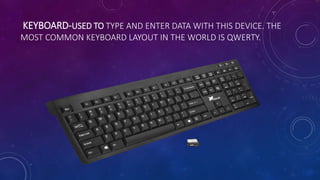
KEYBOARD-USED TO TYPE AND ENTER DATA WITH THIS DEVICE. THE
MOST COMMON KEYBOARD LAYOUT IN THE WORLD IS QWERTY.
MOUSE-A POINTING DEVICE THAT WE USE TO MOVE THE CURSOR
ON THE SCREEN, THE MOUSE BUTTONS ARE USED TO INTERACT
WITH VARIOUS ON-SCREEN ELEMENTS.
UPS (UNINTERRUPTIBLE POWER SUPPLY)-ALSO KNOWN AS A
BATTERY BACKUP, PROVIDES BACKUP POWER WHEN YOUR REGULAR
POWER SOURCE FAILS OR VOLTAGE DROPS TO AN UNACCEPTABLE
LEVEL.
INSIDE THE SYSTEM UNITS
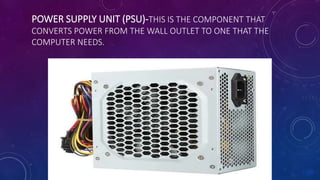
POWER SUPPLY UNIT (PSU)-THIS IS THE COMPONENT THAT
CONVERTS POWER FROM THE WALL OUTLET TO ONE THAT THE
COMPUTER NEEDS.
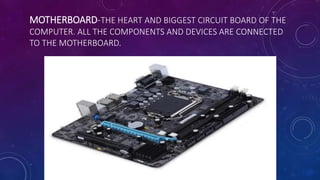
MOTHERBOARD-THE HEART AND BIGGEST CIRCUIT BOARD OF THE
COMPUTER. ALL THE COMPONENTS AND DEVICES ARE CONNECTED
TO THE MOTHERBOARD.
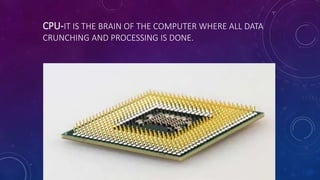
CPU-IT IS THE BRAIN OF THE COMPUTER WHERE ALL DATA
CRUNCHING AND PROCESSING IS DONE.
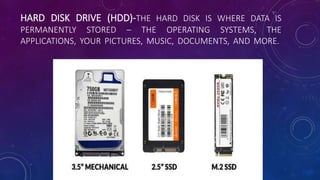
HARD DISK DRIVE (HDD)-THE HARD DISK IS WHERE DATA IS
PERMANENTLY STORED – THE OPERATING SYSTEMS, THE
APPLICATIONS, YOUR PICTURES, MUSIC, DOCUMENTS, AND MORE.
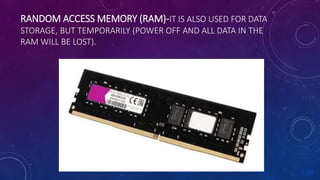
RANDOM ACCESS MEMORY (RAM)-IT IS ALSO USED FOR DATA
STORAGE, BUT TEMPORARILY (POWER OFF AND ALL DATA IN THE
RAM WILL BE LOST).
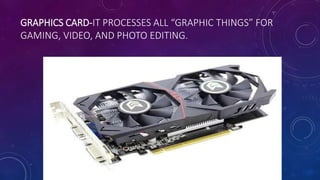
GRAPHICS CARD-IT PROCESSES ALL “GRAPHIC THINGS” FOR
GAMING, VIDEO, AND PHOTO EDITING.
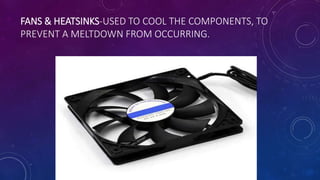
FANS & HEATSINKS-USED TO COOL THE COMPONENTS, TO
PREVENT A MELTDOWN FROM OCCURRING.

Performing Computer Operations.pptx

  • 1.
  • 2.
    AT THE ENDOF THIS MODULE, YOU SHOULD BE ABLE TO: 1. Determine requirements of task in accordance with required output 2. Select appropriate hardware and software according to task 3. Plan a task to ensure that OHS guidelines and procedures are followed 4. Follow client-specific guidelines and procedures
  • 3.
    LESSON 1. Plan andPrepare for Task to be Undertaken
  • 4.
    THE FOLLOWING ARESOME FACTORS TO BE CONSIDERED WHEN YOU PLAN AND PREPARE FOR THE TASKS: 1. PLACE. See to it that the place for doing the task is conducive to work, well ventilated, clean, and has good lighting. A space provided for freedom to move is important. A place chosen will give you idea on what task is to be done.
  • 5.
    2. WASTE DISPOSAL.USED WIRE OR WIRE STRIPS OR OTHER THINGS THAT CAN’T BE USED ANYMORE MUST BE DISPOSED IN PROPER STORAGE BIN OR CONTAINER.
  • 6.
    3. TOOLS/EQUIPMENT. TOOLSAND EQUIPMENT MUST MATCH WITH THE TASK TO BE DONE. YOU SHOULD BE CAREFUL ENOUGH TO CHOOSE TOOLS AND EQUIPMENT THAT ARE WORTHY OF USE. THEY MUST BE IN GOOD CONDITION SO THAT IT CAN BE EASILY UTILIZED WITHOUT DAMAGING THE PARTS.
  • 7.
    4. SAFETY. ALWAYSPRIORITIZE SAFETY. REMEMBER THAT ACCIDENT IS NOT AN EXCUSABLE INCIDENT. IT CAN BE AVOIDED. ALWAYS REMEMBER THE MOTTO “SAFETY FIRST”.
  • 8.
    5. PROCEDURE/TASK. IDENTIFYWHAT TASK TO PERFORM BEFORE IDENTIFYING MATERIALS AND TOOLS TO USE. THE SERVICE PROCEDURE/TASK TO EMPLOY WILL TELL YOU THE CORRESPONDING TOOLS AND MATERIALS NEEDED. APPROPRIATE TOOLS TO USE WITH THE TASK WILL ENHANCE YOUR ABILITY TO PROVIDE A COMPETITIVE AND EFFICIENT SERVICE.
  • 10.
    OCCUPATIONAL/ OPERATIONAL HEALTHAND SAFETY (OHS) Occupational/ Operational Health and Safety (OHS) is a cross disciplinary area concerned with protecting the safety, health and welfare of people engaged in work or employment.
  • 11.
    SAFETY PROCEDURES(OHS)  Toprevent electrical shock hazard, disconnect the power cable from the electrical outlet before relocating the system  When adding and removing devices to or from the system, ensure that the power cables for the devices are unplugged before the signal cables are connected. If possible, disconnect all power cables from the existing system before you add a device  To avoid short circuits, keep paper clips, screws, and staples away from connectors, slots, and sockets.  Avoid dust, humidity, and temperature extremes. Do not place the product in any area where it may become wet
  • 12.
     Always Pullthe cable connector on the handle and not on the cable itself .  Use only rubber shoes when standing on the ground or in a concrete floor  Always power off and unplug the computer before working on it.  Take away any liquid such as mineral water or soft drinks near your working area or near computers.  Contingency measures during workplace accidents, fire and other emergencies are recognized.
  • 13.
    SAFETY PRECAUTIONS • Donot place any combustible materials near the power outlet. • Avoid using power cord with defects such as loose contacts and exposed conductors. • Avoid using connecting wires with exposed conductors. • Do all the wiring connection inside the computer system with the power off. • Check the proper connections before turning the circuit power on. • Remove any jewelry, which is conductive. • Check your measuring instruments for proper voltage, current, resistance setting before making any measurement. • Refer to the mother manuals for its proper jumper setting and connection.
  • 14.
    LESSON 2 INPUT DATAINTO COMPUTER
  • 15.
  • 16.
    At the endof this module, you should be able to: 1.Identify the types of programs/ applications software 2.Check the accuracy of information and save the information in accordance with standard operating procedures 3.Classify the inputted data in storage media according to requirements
  • 17.
    HOW COMPUTER WORKS? Acomputer is an electronic machine made up of hardware and software that work together to do a task.
  • 18.
    A SOFTWARE REFERSTO A PROGRAM OR APPLICATION INSTALLED INTO A COMPUTER TO DO A SPECIFIC TASK. THE EXAMPLES ARE WORD PROCESSING PROGRAM AND PRESENTATION PROGRAM.
  • 19.
    A HARDWARE ISCOMPUTER PARTS OR DEVICE THAT YOU CAN SEE OR TOUCH.
  • 20.
    INPUT DEVICES-any hardwarecomponents that allows you to enter data and instructions into a computer.
  • 21.
    OUTPUT DEVICES- ANYDEVICE USED TO SEND DATA FROM A COMPUTER TO ANOTHER DEVICES OR USER.
  • 22.
    BASIC PARTS OFCOMPUTER AND ITS FUNCTIONS
  • 23.
    SYSTEM UNIT/COMPUTER CASING-THIS BOX IS WHERE ALL THE MAIN COMPUTER COMPONENTS ARE HOUSED – MOTHERBOARD, PROCESSOR, MEMORY, HARD DISKS, POWER SUPPLY, AND MORE.
  • 24.
    MONITOR- ARE WHERETHE TEXT, IMAGES, AND VIDEOS ARE DISPLAYED. SOME MONITORS MAY EVEN HAVE BUILT-IN SPEAKERS, MUCH LIKE TELEVISIONS.
  • 25.
    KEYBOARD-USED TO TYPEAND ENTER DATA WITH THIS DEVICE. THE MOST COMMON KEYBOARD LAYOUT IN THE WORLD IS QWERTY.
  • 26.
    MOUSE-A POINTING DEVICETHAT WE USE TO MOVE THE CURSOR ON THE SCREEN, THE MOUSE BUTTONS ARE USED TO INTERACT WITH VARIOUS ON-SCREEN ELEMENTS.
  • 27.
    UPS (UNINTERRUPTIBLE POWERSUPPLY)-ALSO KNOWN AS A BATTERY BACKUP, PROVIDES BACKUP POWER WHEN YOUR REGULAR POWER SOURCE FAILS OR VOLTAGE DROPS TO AN UNACCEPTABLE LEVEL.
  • 28.
  • 29.
    POWER SUPPLY UNIT(PSU)-THIS IS THE COMPONENT THAT CONVERTS POWER FROM THE WALL OUTLET TO ONE THAT THE COMPUTER NEEDS.
  • 30.
    MOTHERBOARD-THE HEART ANDBIGGEST CIRCUIT BOARD OF THE COMPUTER. ALL THE COMPONENTS AND DEVICES ARE CONNECTED TO THE MOTHERBOARD.
  • 31.
    CPU-IT IS THEBRAIN OF THE COMPUTER WHERE ALL DATA CRUNCHING AND PROCESSING IS DONE.
  • 32.
    HARD DISK DRIVE(HDD)-THE HARD DISK IS WHERE DATA IS PERMANENTLY STORED – THE OPERATING SYSTEMS, THE APPLICATIONS, YOUR PICTURES, MUSIC, DOCUMENTS, AND MORE.
  • 33.
    RANDOM ACCESS MEMORY(RAM)-IT IS ALSO USED FOR DATA STORAGE, BUT TEMPORARILY (POWER OFF AND ALL DATA IN THE RAM WILL BE LOST).
  • 34.
    GRAPHICS CARD-IT PROCESSESALL “GRAPHIC THINGS” FOR GAMING, VIDEO, AND PHOTO EDITING.
  • 35.
    FANS & HEATSINKS-USEDTO COOL THE COMPONENTS, TO PREVENT A MELTDOWN FROM OCCURRING.

Editor's Notes

  • #4 Planning plays the most important role of achieving a successful task. Your ability to plan properly will enable you to attain your target or purpose goal. Many successful entrepreneurs have realized their success through proper and careful planning. Likewise, aside from planning, you should also give importance to preparation. Good preparation will boost your confidence because it means that you are ready to do the task because you have sufficient knowledge about it. As a computer system servicing student, you also need to familiarize with the materials and tools involve in order to really attain the good result of the task given in avoidance of lagging when performing the task you are about to be undertaken.
  • #11 Knowing OHS is essential to minimize the hazards and risks not only to students, trainers and other people within the training institution but others who will be affected.
  • #15 Technology has become the integral part of modernization in our society. It opens door to information that will be needed by people who seeks knowledge through the use of computer. Using computer, people can search and gain information by simply accessing the internet. Just a click away, the information is being presented. The things that are presented in the computer is simply coming from people who puts information using computer. It is through the use of different programs/ applications software that could process the data being inputted by the person. In this lesson, you will learn more about how a computer works. Technology has become the integral part of modernization in our society. It opens door to information that will be needed by people who seeks knowledge through the use of computer. Using computer, people can search and gain information by simply accessing the internet. Just a click away, the information is being presented. The things that are presented in the computer is simply coming from people who puts information using computer. It is through the use of different programs/ applications software that could process the data being inputted by the person. In this lesson, you will learn more about how a computer works. Technology has become the integral part of modernization in our society. It opens door to information that will be needed by people who seeks knowledge through the use of computer. Using computer, people can search and gain information by simply accessing the internet. Just a click away, the information is being presented. The things that are presented in the computer is simply coming from people who puts information using computer. It is through the use of different programs/ applications software that could process the data being inputted by the person. In this lesson, you will learn more about how a computer works.
  • #17 As a computer system servicing student, to attain the desired goal in the task given, you must also familiarize the components of the computer and how the computer works in order to avoid confusions.
  • #20 Each hardware performs a specific function. It could be as an Input Device or as an Output Device.
  • #24 But with today’s technology, tower casings are kind of losing popularity. Most people will likely prefer to use the “integrated, lightweight, and portable computers” – All-in-one PCs, laptops, tablets, and mobile devices.
  • #30 Finally, let us take a look at the “crazy electrical stuff” inside a computer. A fair word of warning though – Switch off the power, unplug the power cord, and ground the casing safely before you decide to open up a computer. Save yourself from nasty electrical shocks.
  • #32 In the old days, a CPU used to have “only one single brain” or what we call a “single-core CPU”. But as the wise saying goes “two heads are better than one”, so smart monkeys eventually improved the design of CPUs. Even though it is one physical chip, there could multiple “brains” (or cores) within that chip. This is where the terms dual-core (2 processors in one chip), quad-core (4 processors), and multi-core (N processors) come from.
  • #34 The reason why RAM exists is that it reads and writes a lot faster than hard disks. The CPU will utilize RAM for quick calculations, and for the storage of temporary data. For example, temporarily store a text file in the RAM while the user edits it.
  • #35 A graphics card also does processing and calculations like a CPU, but it is specialized for graphical purposes. You will not see this card in some computers, as it is already built into the motherboard.