i


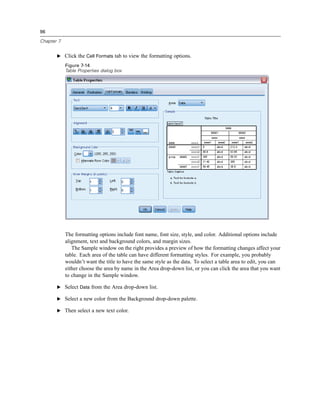
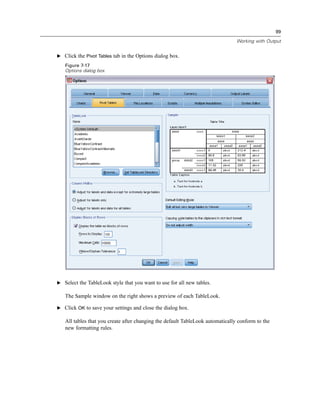
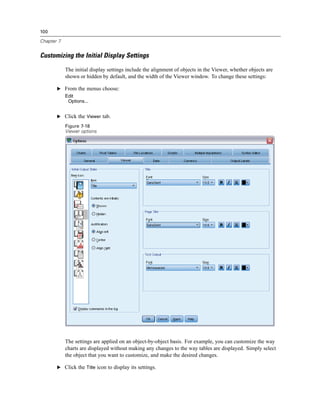
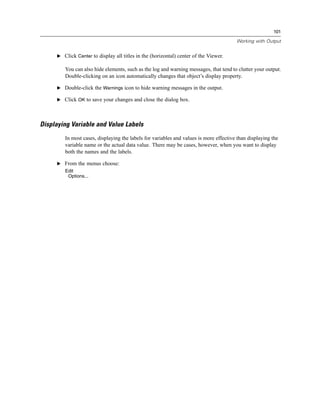
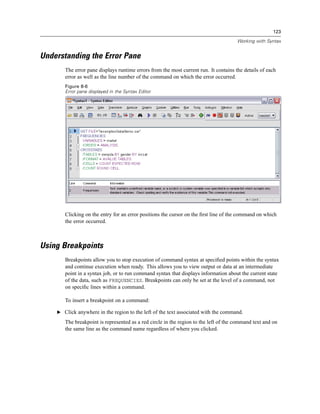
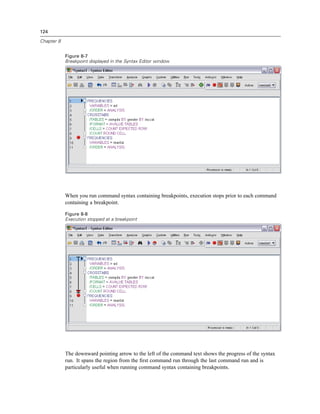
         ®
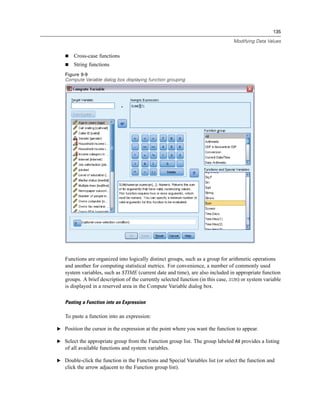
    PASW Statistics 18 Brief Guide
For more information about SPSS Inc. software products, please visit our Web site at http://www.spss.com or contact

SPSS Inc.
233 South Wacker Drive, 11th Floor Chicago, IL 60606-6412
Tel: (312) 651-3000 Fax: (312) 651-3668

SPSS is a registered trademark.

PASW is a registered trademark of SPSS Inc.

The SOFTWARE and documentation are provided with RESTRICTED RIGHTS. Use, duplication, or disclosure by the
Government is subject to restrictions as set forth in subdivision (c) (1) (ii) of The Rights in Technical Data and Computer Software
clause at 52.227-7013. Contractor/manufacturer is SPSS Inc., 233 South Wacker Drive, 11th Floor, Chicago, IL 60606-6412.
Patent No. 7,023,453

General notice: Other product names mentioned herein are used for identification purposes only and may be trademarks of
their respective companies.

Windows is a registered trademark of Microsoft Corporation.

Apple, Mac, and the Mac logo are trademarks of Apple Computer, Inc., registered in the U.S. and other countries.

This product uses WinWrap Basic, Copyright 1993-2007, Polar Engineering and Consulting, http://www.winwrap.com.

Printed in the United States of America.

No part of this publication may be reproduced, stored in a retrieval system, or transmitted, in any form or by any means,
electronic, mechanical, photocopying, recording, or otherwise, without the prior written permission of the publisher.

ISBN-13: 978-1-56827-405-8
ISBN-10: 1-56827-405-X

1234567890             12 11 10 09
Preface


         The PASW® Statistics 18 Brief Guide provides a set of tutorials designed to acquaint you with the
         various components of PASW Statistics. This guide is intended for use with all operating system
         versions of the software, including: Windows, Macintosh, and Linux. You can work through the
         tutorials in sequence or turn to the topics for which you need additional information. You can use
         this guide as a supplement to the online tutorial that is included with the PASW Statistics Base 18
         system or ignore the online tutorial and start with the tutorials found here.


PASW Statistics 18
         PASW Statistics 18 is a comprehensive system for analyzing data. PASW Statistics can take data
         from almost any type of file and use them to generate tabulated reports, charts, and plots of
         distributions and trends, descriptive statistics, and complex statistical analyses.
            PASW Statistics makes statistical analysis more accessible for the beginner and more
         convenient for the experienced user. Simple menus and dialog box selections make it possible to
         perform complex analyses without typing a single line of command syntax. The Data Editor offers
         a simple and efficient spreadsheet-like facility for entering data and browsing the working data file.


    Internet Resources

         The SPSS Inc. Web site (http://www.spss.com) offers answers to frequently asked questions and
         provides access to data files and other useful information.
            In addition, the SPSS USENET discussion group (not sponsored by SPSS Inc.) is open to
         anyone interested . The USENET address is comp.soft-sys.stat.spss.
            You can also subscribe to an e-mail message list that is gatewayed to the USENET group. To
         subscribe, send an e-mail message to listserv@listserv.uga.edu. The text of the e-mail message
         should be: subscribe SPSSX-L firstname lastname. You can then post messages to the list by
         sending an e-mail message to listserv@listserv.uga.edu.


    Additional Publications
            The SPSS Statistics Statistical Procedures Companion, by Marija Norušis, has been published
         by Prentice Hall. It contains overviews of the procedures in PASW Statistics Base, plus Logistic
         Regression and General Linear Models. The SPSS Statistics Advanced Statistical Procedures
         Companion has also been published by Prentice Hall. It includes overviews of the procedures in
         the Advanced and Regression modules.


                                                    iii
PASW Statistics Options

     The following options are available as add-on enhancements to the full (not Student Version)
     PASW Statistics Base system:

     Statistics Base gives you a wide range of statistical procedures for basic analyses and reports,
     including counts, crosstabs and descriptive statistics, OLAP Cubes and codebook reports. It also
     provides a wide variety of dimension reduction, classification and segmentation techniques such
     as factor analysis, cluster analysis, nearest neighbor analysis and discriminant function analysis.
     Additionally, PASW Statistics Base offers a broad range of algorithms for comparing means and
     predictive techniques such as t-test, analysis of variance, linear regression and ordinal regression.
     Advanced Statistics focuses on techniques often used in sophisticated experimental and biomedical
     research. It includes procedures for general linear models (GLM), linear mixed models, variance
     components analysis, loglinear analysis, ordinal regression, actuarial life tables, Kaplan-Meier
     survival analysis, and basic and extended Cox regression.
     Bootstrapping is a method for deriving robust estimates of standard errors and confidence
     intervals for estimates such as the mean, median, proportion, odds ratio, correlation coefficient or
     regression coefficient.
     Categories performs optimal scaling procedures, including correspondence analysis.
     Complex Samples allows survey, market, health, and public opinion researchers, as well as social
     scientists who use sample survey methodology, to incorporate their complex sample designs
     into data analysis.
     Conjoint provides a realistic way to measure how individual product attributes affect consumer and
     citizen preferences. With Conjoint, you can easily measure the trade-off effect of each product
     attribute in the context of a set of product attributes—as consumers do when making purchasing
     decisions.
     Custom Tables creates a variety of presentation-quality tabular reports, including complex
     stub-and-banner tables and displays of multiple response data.
     Data Preparation provides a quick visual snapshot of your data. It provides the ability to apply
     validation rules that identify invalid data values. You can create rules that flag out-of-range
     values, missing values, or blank values. You can also save variables that record individual rule
     violations and the total number of rule violations per case. A limited set of predefined rules that
     you can copy or modify is provided.
     Decision Trees creates a tree-based classification model. It classifies cases into groups or predicts
     values of a dependent (target) variable based on values of independent (predictor) variables. The
     procedure provides validation tools for exploratory and confirmatory classification analysis.
     Direct Marketing allows organizations to ensure their marketing programs are as effective as
     possible, through techniques specifically designed for direct marketing.
     Exact Tests calculates exact p values for statistical tests when small or very unevenly distributed
     samples could make the usual tests inaccurate. This option is available only on Windows
     operating systems.
     Forecasting performs comprehensive forecasting and time series analyses with multiple
     curve-fitting models, smoothing models, and methods for estimating autoregressive functions.

                                                 iv
Missing Values describes patterns of missing data, estimates means and other statistics, and
         imputes values for missing observations.
         Neural Networks can be used to make business decisions by forecasting demand for a product as a
         function of price and other variables, or by categorizing customers based on buying habits and
         demographic characteristics. Neural networks are non-linear data modeling tools. They can be
         used to model complex relationships between inputs and outputs or to find patterns in data.
         Regression provides techniques for analyzing data that do not fit traditional linear statistical
         models. It includes procedures for probit analysis, logistic regression, weight estimation,
         two-stage least-squares regression, and general nonlinear regression.
         Amos™ (analysis of moment structures) uses structural equation modeling to confirm and explain
         conceptual models that involve attitudes, perceptions, and other factors that drive behavior.

    Training Seminars

         SPSS Inc. provides both public and onsite training seminars for PASW Statistics. All seminars
         feature hands-on workshops. seminars will be offered in major U.S. and European cities on
         a regular basis. For more information on these seminars, contact your local office, listed on the
         SPSS Inc. Web site at http://www.spss.com/worldwide.

    Technical Support

         Technical Support services are available to maintenance customers of PASW Statistics. (Student
         Version customers should read the special section on technical support for the Student Version. For
         more information, see the topic Technical Support for Students on p. vi.) Customers may contact
         Technical Support for assistance in using products or for installation help for one of the supported
         hardware environments. To reach Technical Support, see the web site at http://www.spss.com, or
         contact your local office, listed on the SPSS Inc. Web site at http://www.spss.com/worldwide. Be
         prepared to identify yourself, your organization, and the serial number of your system.


PASW Statistics 18 for Windows Student Version
         The PASW Statistics 18 for Windows Student Version is a limited but still powerful version of the
         PASW Statistics Base 18 system.

    Capability

         The Student Version contains all of the important data analysis tools contained in the full PASW
         Statistics Base system, including:
             Spreadsheet-like Data Editor for entering, modifying, and viewing data files.
             Statistical procedures, including t tests, analysis of variance, and crosstabulations.
             Interactive graphics that allow you to change or add chart elements and variables dynamically;
             the changes appear as soon as they are specified.
             Standard high-resolution graphics for an extensive array of analytical and presentation charts
             and tables.

                                                     v
Limitations

     Created for classroom instruction, the Student Version is limited to use by students and instructors
     for educational purposes only. The Student Version does not contain all of the functions of the
     PASW Statistics Base 18 system. The following limitations apply to the PASW Statistics 18 for
     Windows Student Version:
         Data files cannot contain more than 50 variables.
         Data files cannot contain more than 1,500 cases. PASW Statistics add-on modules (such as
         Regression or Advanced Statistics) cannot be used with the Student Version.
         PASW Statistics command syntax is not available to the user. This means that it is not possible
         to repeat an analysis by saving a series of commands in a syntax or “job” file, as can be
         done in the full version of PASW Statistics.
         Scripting and automation are not available to the user. This means that you cannot create
         scripts that automate tasks that you repeat often, as can be done in the full version of PASW
         Statistics.


Technical Support for Students

     Students should obtain technical support from their instructors or from local support staff
     identified by their instructors. Technical support for the PASW Statistics 18 Student Version is
     provided only to instructors using the system for classroom instruction.
        Before seeking assistance from your instructor, please write down the information described
     below. Without this information, your instructor may be unable to assist you:
         The type of computer you are using, as well as the amount of RAM and free disk space
         you have.
         The operating system of your computer.
         A clear description of what happened and what you were doing when the problem occurred.
         If possible, please try to reproduce the problem with one of the sample data files provided
         with the program.
         The exact wording of any error or warning messages that appeared on your screen.
         How you tried to solve the problem on your own.


Technical Support for Instructors

     Instructors using the Student Version for classroom instruction may contact Technical Support for
     assistance. In the United States and Canada, call Technical Support at (312) 651-3410, or send an
     e-mail to support@spss.com. Please include your name, title, and academic institution.
        Instructors outside of the United States and Canada should contact your local office, listed on
     the web site at http://www.spss.com/worldwide.


                                                vi
Contents


1   Introduction                                                                                                                                    1
     Sample Files . . . . . . . . . . . . . . . . . . . . . . . . . . . . . . . . . . . . . . . . . . . . . . . . . . . . . . . . . . . . . . . . . 1
     Opening a Data File. . . . . . . . . . . . . . . . . . . . . . . . . . . . . . . . . . . . . . . . . . . . . . . . . . . . . . . . . . . . 1
     Running an Analysis . . . . . . . . . . . . . . . . . . . . . . . . . . . . . . . . . . . . . . . . . . . . . . . . . . . . . . . . . . 3
     Viewing Results . . . . . . . . . . . . . . . . . . . . . . . . . . . . . . . . . . . . . . . . . . . . . . . . . . . . . . . . . . . . . . 6
     Creating Charts. . . . . . . . . . . . . . . . . . . . . . . . . . . . . . . . . . . . . . . . . . . . . . . . . . . . . . . . . . . . . . . 7


2   Reading Data                                                                                                                                10

     Basic Structure of PASW Statistics Data Files . . . . . . . . . . . . . . . . . . . . . . . . . . . . . . . . . . . . . . . 10
     Reading PASW Statistics Data Files . . . . . . . . . . . . . . . . . . . . . . . . . . . . . . . . . . . . . . . . . . . . . . . 10
     Reading Data from Spreadsheets . . . . . . . . . . . . . . . . . . . . . . . . . . . . . . . . . . . . . . . . . . . . . . . . . 11
     Reading Data from a Database . . . . . . . . . . . . . . . . . . . . . . . . . . . . . . . . . . . . . . . . . . . . . . . . . . . 13
     Reading Data from a Text File . . . . . . . . . . . . . . . . . . . . . . . . . . . . . . . . . . . . . . . . . . . . . . . . . . . . 19


3   Using the Data Editor                                                                                                                       27

     Entering Numeric Data . . . . . . . . . . . . . . . . . . . . . . . . . . . . . . . . . . . . . . . . . . . . . . . . . . . . . . . . . 27
     Entering String Data . . . . . . . . . . . . . . . . . . . . . . . . . . . . . . . . . . . . . . . . . . . . . . . . . . . . . . . . . . . 30
     Defining Data . . . . . . . . . . . . . . . . . . . . . . . . . . . . . . . . . . . . . . . . . . . . . . . . . . . . . . . . . . . . . . . . 32
           Adding Variable Labels . . . . . . . . . . . . . . . . . . . . . . . . . .         ...   ...   ...   ...   ...   ...   ...   ...   ...   32
           Changing Variable Type and Format . . . . . . . . . . . . . . . . .                ...   ...   ...   ...   ...   ...   ...   ...   ...   33
           Adding Value Labels for Numeric Variables . . . . . . . . . . .                    ...   ...   ...   ...   ...   ...   ...   ...   ...   33
           Adding Value Labels for String Variables . . . . . . . . . . . . .                 ...   ...   ...   ...   ...   ...   ...   ...   ...   35
           Using Value Labels for Data Entry . . . . . . . . . . . . . . . . . .              ...   ...   ...   ...   ...   ...   ...   ...   ...   36
           Handling Missing Data. . . . . . . . . . . . . . . . . . . . . . . . . . .         ...   ...   ...   ...   ...   ...   ...   ...   ...   37
           Missing Values for a Numeric Variable. . . . . . . . . . . . . . .                 ...   ...   ...   ...   ...   ...   ...   ...   ...   38
           Missing Values for a String Variable. . . . . . . . . . . . . . . . .              ...   ...   ...   ...   ...   ...   ...   ...   ...   39
           Copying and Pasting Variable Attributes . . . . . . . . . . . . .                  ...   ...   ...   ...   ...   ...   ...   ...   ...   40
           Defining Variable Properties for Categorical Variables . . .                       ...   ...   ...   ...   ...   ...   ...   ...   ...   44


                                                                    vii
4   Working with Multiple Data Sources                                                                                                            51

     Basic Handling of Multiple Data Sources . . . . . . . . . . . . . . . . . . . . . . . . . . . . . . . . . . . . . . . . . . . 51
     Working with Multiple Datasets in Command Syntax. . . . . . . . . . . . . . . . . . . . . . . . . . . . . . . . . . . 52
     Copying and Pasting Information between Datasets . . . . . . . . . . . . . . . . . . . . . . . . . . . . . . . . . . . 53
     Renaming Datasets. . . . . . . . . . . . . . . . . . . . . . . . . . . . . . . . . . . . . . . . . . . . . . . . . . . . . . . . . . . . 53
     Suppressing Multiple Datasets . . . . . . . . . . . . . . . . . . . . . . . . . . . . . . . . . . . . . . . . . . . . . . . . . . . 54


5   Examining Summary Statistics for Individual Variables                                                                                         55

     Level of Measurement . . . . . . . . . . . . . . . . . . . . . . . . . . . . . . . . . . . . . . . . . . . . . . . . . . . . . . . . . 55
     Summary Measures for Categorical Data . . . . . . . . . . . . . . . . . . . . . . . . . . . . . . . . . . . . . . . . . . . 55
        Charts for Categorical Data . . . . . . . . . . . . . . . . . . . . . . . . . . . . . . . . . . . . . . . . . . . . . . . . . . 57
     Summary Measures for Scale Variables . . . . . . . . . . . . . . . . . . . . . . . . . . . . . . . . . . . . . . . . . . . . 59
           Histograms for Scale Variables . . . . . . . . . . . . . . . . . . . . . . . . . . . . . . . . . . . . . . . . . . . . . . . 61


6   Creating and Editing Charts                                                                                                                   63

     Chart Creation Basics . . . . . . . . . . . . . . . . . . . . . . . . . . . . . . . . . . . . . . . . . . . . . . . . . . . . . . . . . . 63
         Using the Chart Builder Gallery . .                ...   ...   ...   ...   ...   ...   ...   ...   ...   ...   ...   ...   ...   ...   ...   64
         Defining Variables and Statistics .                ...   ...   ...   ...   ...   ...   ...   ...   ...   ...   ...   ...   ...   ...   ...   65
         Adding Text . . . . . . . . . . . . . . . . .      ...   ...   ...   ...   ...   ...   ...   ...   ...   ...   ...   ...   ...   ...   ...   68
         Creating the Chart . . . . . . . . . . . .         ...   ...   ...   ...   ...   ...   ...   ...   ...   ...   ...   ...   ...   ...   ...   69
     Chart Editing Basics . . . . . . . . . . . . . .       ...   ...   ...   ...   ...   ...   ...   ...   ...   ...   ...   ...   ...   ...   ...   69
           Selecting Chart Elements. . . . . . . . . .            ...   ...   ...   ...   ...   ...   ...   ...   ...   ...   ...   ...   ...   ...   70
           Using the Properties Window . . . . . .                ...   ...   ...   ...   ...   ...   ...   ...   ...   ...   ...   ...   ...   ...   70
           Changing Bar Colors . . . . . . . . . . . . .          ...   ...   ...   ...   ...   ...   ...   ...   ...   ...   ...   ...   ...   ...   71
           Formatting Numbers in Tick Labels . .                  ...   ...   ...   ...   ...   ...   ...   ...   ...   ...   ...   ...   ...   ...   73
           Editing Text . . . . . . . . . . . . . . . . . . . .   ...   ...   ...   ...   ...   ...   ...   ...   ...   ...   ...   ...   ...   ...   75
           Displaying Data Value Labels . . . . . . .             ...   ...   ...   ...   ...   ...   ...   ...   ...   ...   ...   ...   ...   ...   76
           Using Templates . . . . . . . . . . . . . . . .        ...   ...   ...   ...   ...   ...   ...   ...   ...   ...   ...   ...   ...   ...   77
           Defining Chart Options . . . . . . . . . . . .         ...   ...   ...   ...   ...   ...   ...   ...   ...   ...   ...   ...   ...   ...   82


7   Working with Output                                                                                                                           86

     Using the Viewer . . . . . . . . . . . . . . . . . . . . . . . . . . . . . . . . . . . . . . . . . . . . . . . . . . . . . . . . . . . . . 86


                                                                  viii
Using the Pivot Table Editor . . . . . . . . . . . . . . . . . . . . . . . . . . . . . . . . . . . . . . . . . . . . . . . . . . . . . 87
         Accessing Output Definitions. . . .                ...   ...    ...   ...   ...   ...   ...   ...   ...   ...   ...   ...   ...   ...   ...   88
         Pivoting Tables . . . . . . . . . . . . . .        ...   ...    ...   ...   ...   ...   ...   ...   ...   ...   ...   ...   ...   ...   ...   88
         Creating and Displaying Layers . .                 ...   ...    ...   ...   ...   ...   ...   ...   ...   ...   ...   ...   ...   ...   ...   90
         Editing Tables . . . . . . . . . . . . . . .       ...   ...    ...   ...   ...   ...   ...   ...   ...   ...   ...   ...   ...   ...   ...   91
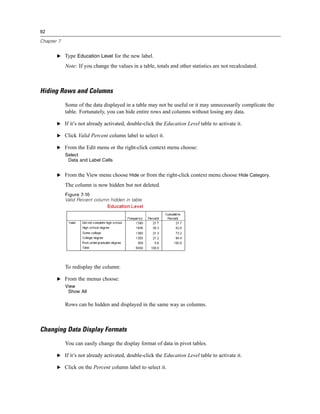
         Hiding Rows and Columns . . . . . .                ...   ...    ...   ...   ...   ...   ...   ...   ...   ...   ...   ...   ...   ...   ...   92
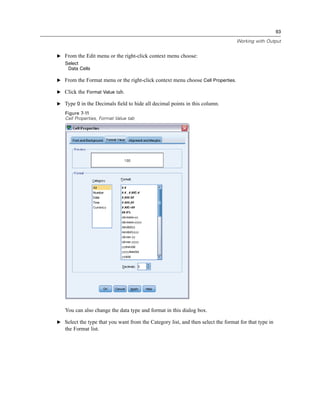
         Changing Data Display Formats . .                  ...   ...    ...   ...   ...   ...   ...   ...   ...   ...   ...   ...   ...   ...   ...   92
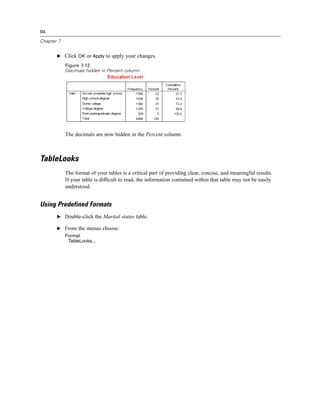
     TableLooks . . . . . . . . . . . . . . . . . . . . .   ...   ...    ...   ...   ...   ...   ...   ...   ...   ...   ...   ...   ...   ...   ...   94
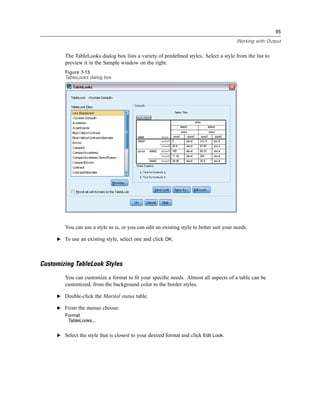
         Using Predefined Formats . . . . . . . . . . . .                ...   ...   ...   ...   ...   ...   ...   ...   ...   ...   ...   ...   . . . 94
         Customizing TableLook Styles . . . . . . . . .                  ...   ...   ...   ...   ...   ...   ...   ...   ...   ...   ...   ...   . . . 95
         Changing the Default Table Formats. . . . .                     ...   ...   ...   ...   ...   ...   ...   ...   ...   ...   ...   ...   . . . 98
         Customizing the Initial Display Settings . .                    ...   ...   ...   ...   ...   ...   ...   ...   ...   ...   ...   ...   . . 100
         Displaying Variable and Value Labels . . . .                    ...   ...   ...   ...   ...   ...   ...   ...   ...   ...   ...   ...   . . 101
     Using Results in Other Applications . . . . . . . .                 ...   ...   ...   ...   ...   ...   ...   ...   ...   ...   ...   ...   . . 103
           Pasting Results as Word Tables . . . . . . . . . . . . . . . . . . . . . . . . . . . . .                ...   ...   ...   ...   ...   ..   104
           Pasting Results as Text . . . . . . . . . . . . . . . . . . . . . . . . . . . . . . . . . . .           ...   ...   ...   ...   ...   ..   105
           Exporting Results to Microsoft Word, PowerPoint, and Excel Files . . .                                  ...   ...   ...   ...   ...   ..   106
           Exporting Results to PDF . . . . . . . . . . . . . . . . . . . . . . . . . . . . . . . . . .            ...   ...   ...   ...   ...   ..   113
           Exporting Results to HTML . . . . . . . . . . . . . . . . . . . . . . . . . . . . . . . . .             ...   ...   ...   ...   ...   ..   116


8   Working with Syntax                                                                                                                          118

     Pasting Syntax . . . . . . . . . . . . . . . . . . . . . . . . . . . . . . . . . . . . . . . . . . . . . . . . . . . . . . . . . . . . . . 118
     Editing Syntax. . . . . . . . . . . . . . . . . . . . . . . . . . . . . . . . . . . . . . . . . . . . . . . . . . . . . . . . . . . . . . . 120
     Opening and Running a Syntax File . . . . . . . . . . . . . . . . . . . . . . . . . . . . . . . . . . . . . . . . . . . . . . . 122
     Understanding the Error Pane. . . . . . . . . . . . . . . . . . . . . . . . . . . . . . . . . . . . . . . . . . . . . . . . . . . 123
     Using Breakpoints . . . . . . . . . . . . . . . . . . . . . . . . . . . . . . . . . . . . . . . . . . . . . . . . . . . . . . . . . . . 123


9   Modifying Data Values                                                                                                                        126

     Creating a Categorical Variable from a Scale Variable. . . . . . . . . . . . . . . . . . . . . . . . . . . . . . . . . 126
     Computing New Variables. . . . . . . . . . . . . . . . . . . . . . . . . . . . . . . . . . . . . . . . . . . . . . . . . . . . . . 132
        Using Functions in Expressions . . . . . . . . . . . . . . . . . . . . . . . . . . . . . . . . . . . . . . . . . . . . . . 134
        Using Conditional Expressions . . . . . . . . . . . . . . . . . . . . . . . . . . . . . . . . . . . . . . . . . . . . . . . 136
     Working with Dates and Times . . . . . . . . . . . . . . . . . . . . . . . . . . . . . . . . . . . . . . . . . . . . . . . . . . 138
           Calculating the Length of Time between Two Dates . . . . . . . . . . . . . . . . . . . . . . . . . . . . . . . 139
           Adding a Duration to a Date . . . . . . . . . . . . . . . . . . . . . . . . . . . . . . . . . . . . . . . . . . . . . . . . . 142


                                                                    ix
10 Sorting and Selecting Data                                                                                                                  145

     Sorting Data . . . . . . . . . . . . . . . . . . . . . . . . . . . . . . . . . . . . . . . . . . . . . . . . . . . . . . . . . . . . . . . . 145
     Split-File Processing . . . . . . . . . . . . . . . . . . . . . . . . . . . . . . . . . . . . . . . . . . . . . . . . . . . . . . . . . . 146
         Sorting Cases for Split-File Processing . . . . . . . . . . . . . . . . . . . . . . . . . . . . . . . . . . . . . . . . 147
         Turning Split-File Processing On and Off . . . . . . . . . . . . . . . . . . . . . . . . . . . . . . . . . . . . . . . 148
     Selecting Subsets of Cases. . . . . . . . . . . . . . . . . . . . . . . . . . . . . . . . . . . . . . . . . . . . . . . . . . . . . 148
         Selecting Cases Based on Conditional Expressions . .                            ...   ...   ...   ...   ...   ...   ...   ...   ...   ..   149
         Selecting a Random Sample . . . . . . . . . . . . . . . . . . .                 ...   ...   ...   ...   ...   ...   ...   ...   ...   ..   150
         Selecting a Time Range or Case Range . . . . . . . . . . .                      ...   ...   ...   ...   ...   ...   ...   ...   ...   ..   151
         Treatment of Unselected Cases . . . . . . . . . . . . . . . . .                 ...   ...   ...   ...   ...   ...   ...   ...   ...   ..   152
     Case Selection Status. . . . . . . . . . . . . . . . . . . . . . . . . . . .        ...   ...   ...   ...   ...   ...   ...   ...   ...   ..   152


Appendix

A Sample Files                                                                                                                                 154


   Index                                                                                                                                        164


                                                                     x
Chapter

                                                                                                  1
Introduction


       This guide provides a set of tutorials designed to enable you to perform useful analyses on your
       data. You can work through the tutorials in sequence or turn to the topics for which you need
       additional information.
          This chapter will introduce you to the basic features and demonstrate a typical session. We
       will retrieve a previously defined PASW Statistics data file and then produce a simple statistical
       summary and a chart.
          More detailed instruction about many of the topics touched upon in this chapter will follow in
       later chapters. Here, we hope to give you a basic framework for understanding later tutorials.


Sample Files
       Most of the examples that are presented here use the data file demo.sav. This data file is a fictitious
       survey of several thousand people, containing basic demographic and consumer information.

       If you are using the Student version, your version of demo.sav is a representative sample of the
       original data file, reduced to meet the 1,500-case limit. Results that you obtain using that data
       file will differ from the results shown here.

       The sample files installed with the product can be found in the Samples subdirectory of the
       installation directory. There is a separate folder within the Samples subdirectory for each of
       the following languages: English, French, German, Italian, Japanese, Korean, Polish, Russian,
       Simplified Chinese, Spanish, and Traditional Chinese.

       Not all sample files are available in all languages. If a sample file is not available in a language,
       that language folder contains an English version of the sample file.


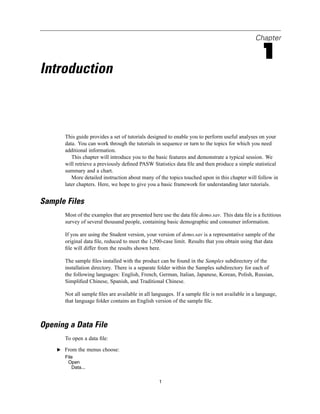
Opening a Data File
       To open a data file:

    E From the menus choose:
       File
        Open
          Data...


                                                   1
2

Chapter 1


            Alternatively, you can use the Open File button on the toolbar.
            Figure 1-1
            Open File toolbar button


            A dialog box for opening files is displayed.

            By default, PASW Statistics data files (.sav extension) are displayed.

            This example uses the file demo.sav.
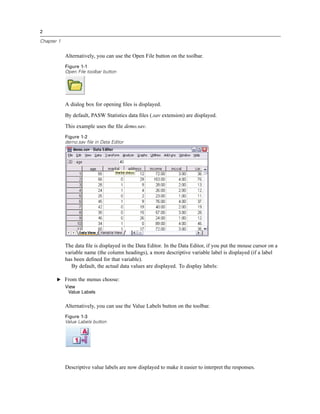
            Figure 1-2
            demo.sav file in Data Editor


            The data file is displayed in the Data Editor. In the Data Editor, if you put the mouse cursor on a
            variable name (the column headings), a more descriptive variable label is displayed (if a label
            has been defined for that variable).
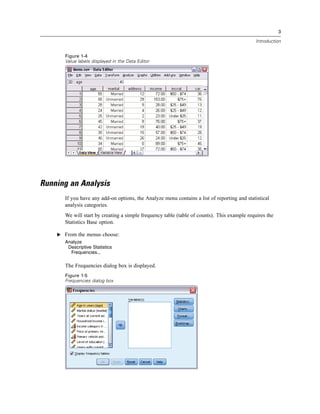
               By default, the actual data values are displayed. To display labels:

       E From the menus choose:
            View
             Value Labels


            Alternatively, you can use the Value Labels button on the toolbar.
            Figure 1-3
            Value Labels button


            Descriptive value labels are now displayed to make it easier to interpret the responses.
3

                                                                                              Introduction


       Figure 1-4
       Value labels displayed in the Data Editor


Running an Analysis
       If you have any add-on options, the Analyze menu contains a list of reporting and statistical
       analysis categories.
       We will start by creating a simple frequency table (table of counts). This example requires the
       Statistics Base option.

    E From the menus choose:
       Analyze
        Descriptive Statistics
         Frequencies...

       The Frequencies dialog box is displayed.
       Figure 1-5
       Frequencies dialog box
4

Chapter 1


            An icon next to each variable provides information about data type and level of measurement.
            Measurement                                               Data Type
            Level                Numeric             String                Date              Time
            Scale (Continuous)                       n/a


            Ordinal


            Nominal


       E Click the variable Income category in thousands [inccat].
            Figure 1-6
            Variable labels and names in the Frequencies dialog box


            If the variable label and/or name appears truncated in the list, the complete label/name is displayed
            when the cursor is positioned over it. The variable name inccat is displayed in square brackets
            after the descriptive variable label. Income category in thousands is the variable label. If there
            were no variable label, only the variable name would appear in the list box.
            You can resize dialog boxes just like windows, by clicking and dragging the outside borders or
            corners. For example, if you make the dialog box wider, the variable lists will also be wider.
5

                                                                                          Introduction


   Figure 1-7
   Resized dialog box


   In the dialog box, you choose the variables that you want to analyze from the source list on the
   left and drag and drop them into the Variable(s) list on the right. The OK button, which runs the
   analysis, is disabled until at least one variable is placed in the Variable(s) list.
      In many dialogs, you can obtain additional information by right-clicking any variable name
   in the list.

E Right-click Income category in thousands [inccat] and choose Variable Information.

E Click the down arrow on the Value labels drop-down list.

   Figure 1-8
   Defined labels for income variable


   All of the defined value labels for the variable are displayed.
6

Chapter 1


       E Click Gender [gender] in the source variable list and drag the variable into the target Variable(s)
            list.

       E Click Income category in thousands [inccat] in the source list and drag it to the target list.

            Figure 1-9
            Variables selected for analysis


       E Click OK to run the procedure.


Viewing Results
            Figure 1-10
            Viewer window


            Results are displayed in the Viewer window.
            You can quickly go to any item in the Viewer by selecting it in the outline pane.
7

                                                                                            Introduction


    E Click Income category in thousands [inccat].

       Figure 1-11
       Frequency table of income categories


       The frequency table for income categories is displayed. This frequency table shows the number
       and percentage of people in each income category.


Creating Charts
       Although some statistical procedures can create charts, you can also use the Graphs menu to
       create charts.
          For example, you can create a chart that shows the relationship between wireless telephone
       service and PDA (personal digital assistant) ownership.

    E From the menus choose:
       Graphs
        Chart Builder...


    E Click the Gallery tab (if it is not selected).

    E Click Bar (if it is not selected).

    E Drag the Clustered Bar icon onto the canvas, which is the large area above the Gallery.
8

Chapter 1


            Figure 1-12
            Chart Builder dialog box


       E Scroll down the Variables list, right-click Wireless service [wireless], and then choose Nominal
            as its measurement level.

       E Drag the Wireless service [wireless] variable to the x axis.

       E Right-click Owns PDA [ownpda] and choose Nominal as its measurement level.

       E Drag the Owns PDA [ownpda] variable to the cluster drop zone in the upper right corner of
            the canvas.

       E Click OK to create the chart.
9

                                                                                      Introduction


Figure 1-13
Bar chart displayed in Viewer window


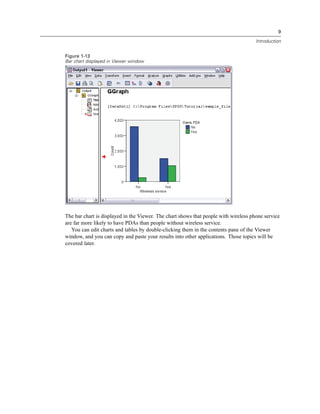
The bar chart is displayed in the Viewer. The chart shows that people with wireless phone service
are far more likely to have PDAs than people without wireless service.
   You can edit charts and tables by double-clicking them in the contents pane of the Viewer
window, and you can copy and paste your results into other applications. Those topics will be
covered later.
Chapter

                                                                                                2
Reading Data

       Data can be entered directly, or it can be imported from a number of different sources. The
       processes for reading data stored in PASW Statistics data files; spreadsheet applications, such as
       Microsoft Excel; database applications, such as Microsoft Access; and text files are all discussed
       in this chapter.


Basic Structure of PASW Statistics Data Files
       Figure 2-1
       Data Editor


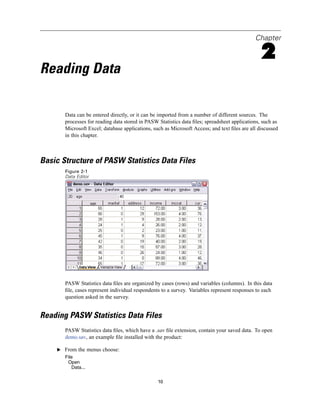
       PASW Statistics data files are organized by cases (rows) and variables (columns). In this data
       file, cases represent individual respondents to a survey. Variables represent responses to each
       question asked in the survey.


Reading PASW Statistics Data Files
       PASW Statistics data files, which have a .sav file extension, contain your saved data. To open
       demo.sav, an example file installed with the product:

    E From the menus choose:
       File
        Open
          Data...


                                                 10
11

                                                                                             Reading Data


    E Browse to and open demo.sav. For more information, see the topic Sample Files in Appendix A
       on p. 154.
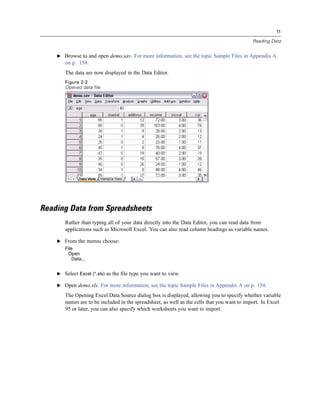
       The data are now displayed in the Data Editor.
       Figure 2-2
       Opened data file


Reading Data from Spreadsheets
       Rather than typing all of your data directly into the Data Editor, you can read data from
       applications such as Microsoft Excel. You can also read column headings as variable names.

    E From the menus choose:
       File
        Open
          Data...


    E Select Excel (*.xls) as the file type you want to view.

    E Open demo.xls. For more information, see the topic Sample Files in Appendix A on p. 154.

       The Opening Excel Data Source dialog box is displayed, allowing you to specify whether variable
       names are to be included in the spreadsheet, as well as the cells that you want to import. In Excel
       95 or later, you can also specify which worksheets you want to import.
12

Chapter 2


            Figure 2-3
            Opening Excel Data Source dialog box


       E Make sure that Read variable names from the first row of data is selected. This option reads column
            headings as variable names.
            If the column headings do not conform to the PASW Statistics variable-naming rules, they are
            converted into valid variable names and the original column headings are saved as variable labels.
            If you want to import only a portion of the spreadsheet, specify the range of cells to be imported in
            the Range text box.

       E Click OK to read the Excel file.

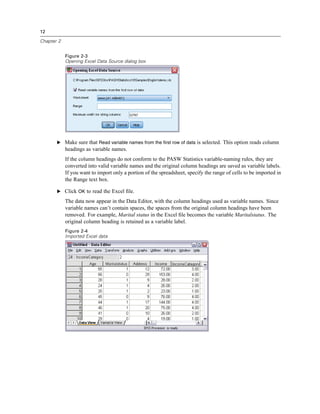
            The data now appear in the Data Editor, with the column headings used as variable names. Since
            variable names can’t contain spaces, the spaces from the original column headings have been
            removed. For example, Marital status in the Excel file becomes the variable Maritalstatus. The
            original column heading is retained as a variable label.
            Figure 2-4
            Imported Excel data
13

                                                                                          Reading Data


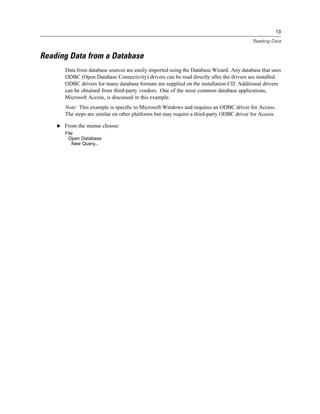
Reading Data from a Database
       Data from database sources are easily imported using the Database Wizard. Any database that uses
       ODBC (Open Database Connectivity) drivers can be read directly after the drivers are installed.
       ODBC drivers for many database formats are supplied on the installation CD. Additional drivers
       can be obtained from third-party vendors. One of the most common database applications,
       Microsoft Access, is discussed in this example.
       Note: This example is specific to Microsoft Windows and requires an ODBC driver for Access.
       The steps are similar on other platforms but may require a third-party ODBC driver for Access.

    E From the menus choose:
       File
        Open Database
          New Query...
14

Chapter 2


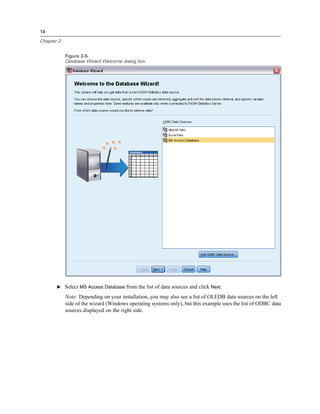
            Figure 2-5
            Database Wizard Welcome dialog box


       E Select MS Access Database from the list of data sources and click Next.

            Note: Depending on your installation, you may also see a list of OLEDB data sources on the left
            side of the wizard (Windows operating systems only), but this example uses the list of ODBC data
            sources displayed on the right side.
15

                                                                                         Reading Data


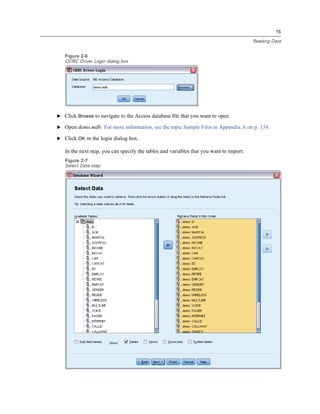
   Figure 2-6
   ODBC Driver Login dialog box


E Click Browse to navigate to the Access database file that you want to open.

E Open demo.mdb. For more information, see the topic Sample Files in Appendix A on p. 154.

E Click OK in the login dialog box.

   In the next step, you can specify the tables and variables that you want to import.
   Figure 2-7
   Select Data step
16

Chapter 2


       E Drag the entire demo table to the Retrieve Fields In This Order list.

       E Click Next.

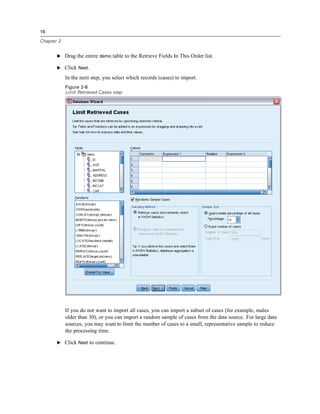
            In the next step, you select which records (cases) to import.
            Figure 2-8
            Limit Retrieved Cases step


            If you do not want to import all cases, you can import a subset of cases (for example, males
            older than 30), or you can import a random sample of cases from the data source. For large data
            sources, you may want to limit the number of cases to a small, representative sample to reduce
            the processing time.

       E Click Next to continue.
17

                                                                                           Reading Data


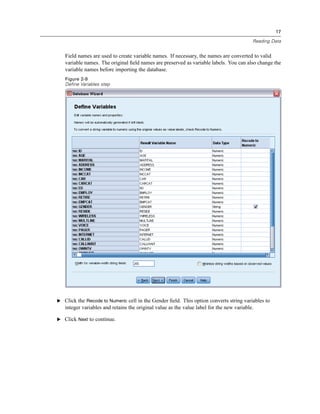
   Field names are used to create variable names. If necessary, the names are converted to valid
   variable names. The original field names are preserved as variable labels. You can also change the
   variable names before importing the database.
   Figure 2-9
   Define Variables step


E Click the Recode to Numeric cell in the Gender field. This option converts string variables to
   integer variables and retains the original value as the value label for the new variable.

E Click Next to continue.
18

Chapter 2


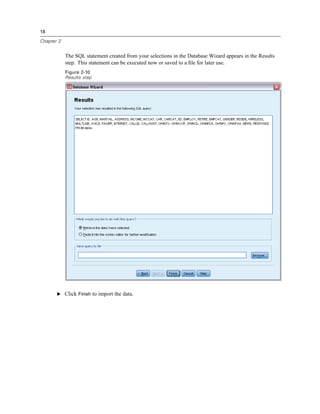
            The SQL statement created from your selections in the Database Wizard appears in the Results
            step. This statement can be executed now or saved to a file for later use.
            Figure 2-10
            Results step


       E Click Finish to import the data.
19

                                                                                            Reading Data


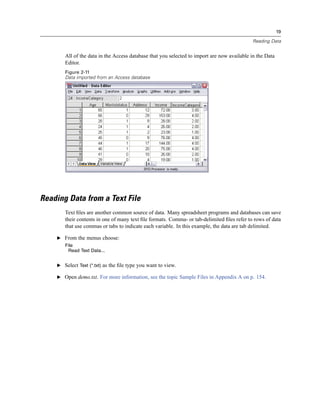
       All of the data in the Access database that you selected to import are now available in the Data
       Editor.
       Figure 2-11
       Data imported from an Access database


Reading Data from a Text File
       Text files are another common source of data. Many spreadsheet programs and databases can save
       their contents in one of many text file formats. Comma- or tab-delimited files refer to rows of data
       that use commas or tabs to indicate each variable. In this example, the data are tab delimited.

    E From the menus choose:
       File
        Read Text Data...


    E Select Text (*.txt) as the file type you want to view.

    E Open demo.txt. For more information, see the topic Sample Files in Appendix A on p. 154.
20

Chapter 2


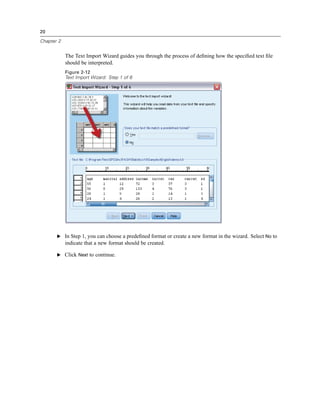
            The Text Import Wizard guides you through the process of defining how the specified text file
            should be interpreted.
            Figure 2-12
            Text Import Wizard: Step 1 of 6


       E In Step 1, you can choose a predefined format or create a new format in the wizard. Select No to
            indicate that a new format should be created.

       E Click Next to continue.
21

                                                                                        Reading Data


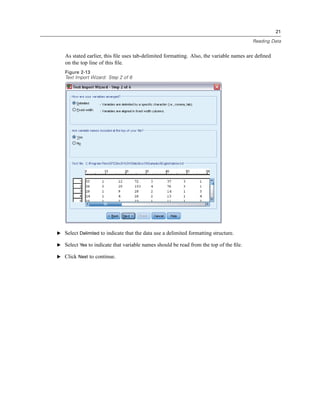
   As stated earlier, this file uses tab-delimited formatting. Also, the variable names are defined
   on the top line of this file.
   Figure 2-13
   Text Import Wizard: Step 2 of 6


E Select Delimited to indicate that the data use a delimited formatting structure.

E Select Yes to indicate that variable names should be read from the top of the file.

E Click Next to continue.
22

Chapter 2


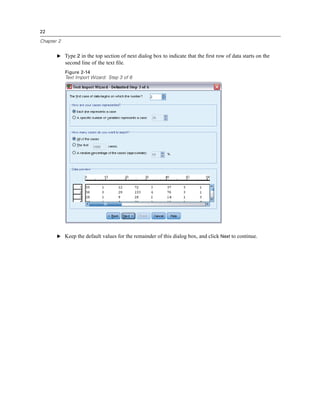
       E Type 2 in the top section of next dialog box to indicate that the first row of data starts on the
            second line of the text file.
            Figure 2-14
            Text Import Wizard: Step 3 of 6


       E Keep the default values for the remainder of this dialog box, and click Next to continue.
23

                                                                                     Reading Data


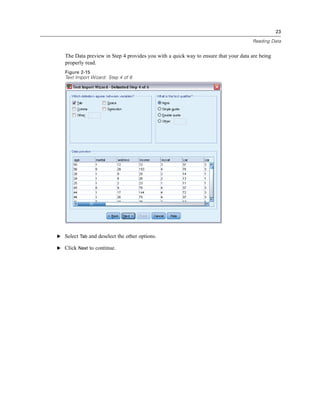
   The Data preview in Step 4 provides you with a quick way to ensure that your data are being
   properly read.
   Figure 2-15
   Text Import Wizard: Step 4 of 6


E Select Tab and deselect the other options.

E Click Next to continue.
24

Chapter 2


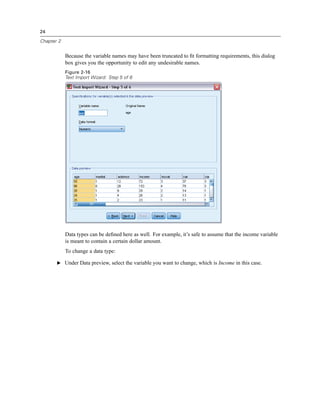
            Because the variable names may have been truncated to fit formatting requirements, this dialog
            box gives you the opportunity to edit any undesirable names.
            Figure 2-16
            Text Import Wizard: Step 5 of 6


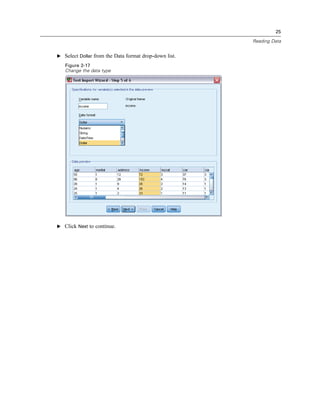
            Data types can be defined here as well. For example, it’s safe to assume that the income variable
            is meant to contain a certain dollar amount.
            To change a data type:

       E Under Data preview, select the variable you want to change, which is Income in this case.
25

                                                       Reading Data


E Select Dollar from the Data format drop-down list.

   Figure 2-17
   Change the data type


E Click Next to continue.
26

Chapter 2


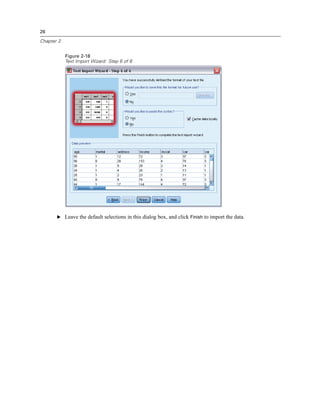
            Figure 2-18
            Text Import Wizard: Step 6 of 6


       E Leave the default selections in this dialog box, and click Finish to import the data.
Chapter

                                                                                                 3
Using the Data Editor

       The Data Editor displays the contents of the active data file. The information in the Data Editor
       consists of variables and cases.
           In Data View, columns represent variables, and rows represent cases (observations).
           In Variable View, each row is a variable, and each column is an attribute that is associated
           with that variable.
       Variables are used to represent the different types of data that you have compiled. A common
       analogy is that of a survey. The response to each question on a survey is equivalent to a variable.
       Variables come in many different types, including numbers, strings, currency, and dates.


Entering Numeric Data
       Data can be entered into the Data Editor, which may be useful for small data files or for making
       minor edits to larger data files.

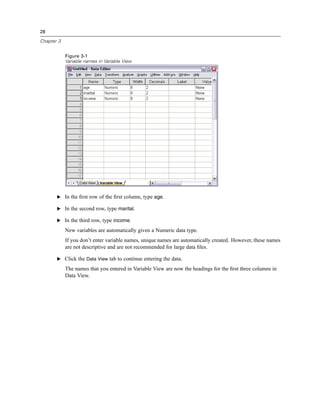
    E Click the Variable View tab at the bottom of the Data Editor window.

       You need to define the variables that will be used. In this case, only three variables are needed:
       age, marital status, and income.


                                                  27
28

Chapter 3


            Figure 3-1
            Variable names in Variable View


       E In the first row of the first column, type age.

       E In the second row, type marital.

       E In the third row, type income.

            New variables are automatically given a Numeric data type.
            If you don’t enter variable names, unique names are automatically created. However, these names
            are not descriptive and are not recommended for large data files.

       E Click the Data View tab to continue entering the data.

            The names that you entered in Variable View are now the headings for the first three columns in
            Data View.
29

                                                                               Using the Data Editor


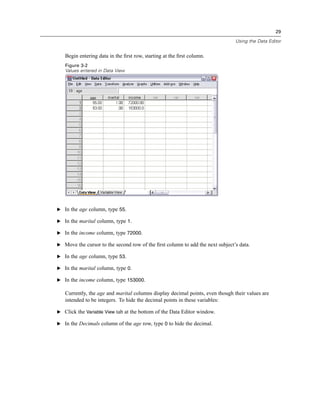
   Begin entering data in the first row, starting at the first column.
   Figure 3-2
   Values entered in Data View


E In the age column, type 55.

E In the marital column, type 1.

E In the income column, type 72000.

E Move the cursor to the second row of the first column to add the next subject’s data.

E In the age column, type 53.

E In the marital column, type 0.

E In the income column, type 153000.

   Currently, the age and marital columns display decimal points, even though their values are
   intended to be integers. To hide the decimal points in these variables:

E Click the Variable View tab at the bottom of the Data Editor window.

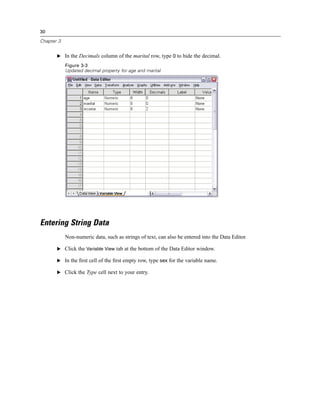
E In the Decimals column of the age row, type 0 to hide the decimal.
30

Chapter 3


       E In the Decimals column of the marital row, type 0 to hide the decimal.

            Figure 3-3
            Updated decimal property for age and marital


Entering String Data
            Non-numeric data, such as strings of text, can also be entered into the Data Editor.

       E Click the Variable View tab at the bottom of the Data Editor window.

       E In the first cell of the first empty row, type sex for the variable name.

       E Click the Type cell next to your entry.
31

                                                                                 Using the Data Editor


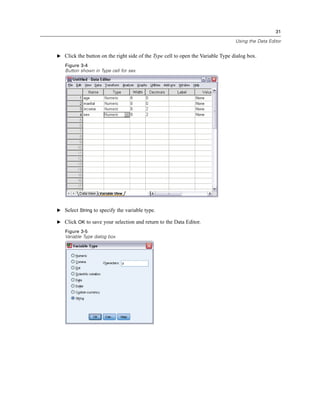
E Click the button on the right side of the Type cell to open the Variable Type dialog box.

   Figure 3-4
   Button shown in Type cell for sex


E Select String to specify the variable type.

E Click OK to save your selection and return to the Data Editor.
   Figure 3-5
   Variable Type dialog box
32

Chapter 3


Defining Data
            In addition to defining data types, you can also define descriptive variable labels and value labels
            for variable names and data values. These descriptive labels are used in statistical reports and
            charts.


Adding Variable Labels
            Labels are meant to provide descriptions of variables. These descriptions are often longer versions
            of variable names. Labels can be up to 255 bytes. These labels are used in your output to identify
            the different variables.

       E Click the Variable View tab at the bottom of the Data Editor window.

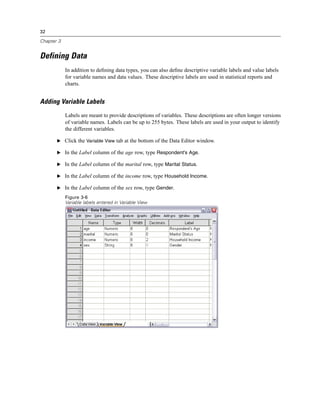
       E In the Label column of the age row, type Respondent's Age.

       E In the Label column of the marital row, type Marital Status.

       E In the Label column of the income row, type Household Income.

       E In the Label column of the sex row, type Gender.

            Figure 3-6
            Variable labels entered in Variable View
33

                                                                                        Using the Data Editor


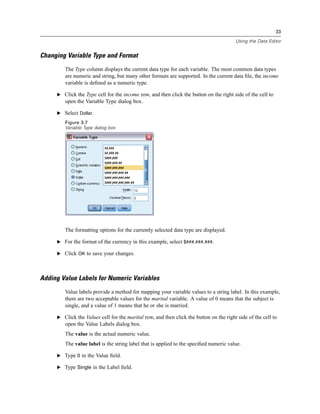
Changing Variable Type and Format
        The Type column displays the current data type for each variable. The most common data types
        are numeric and string, but many other formats are supported. In the current data file, the income
        variable is defined as a numeric type.

     E Click the Type cell for the income row, and then click the button on the right side of the cell to
        open the Variable Type dialog box.

     E Select Dollar.
        Figure 3-7
        Variable Type dialog box


        The formatting options for the currently selected data type are displayed.

     E For the format of the currency in this example, select $###,###,###.

     E Click OK to save your changes.


Adding Value Labels for Numeric Variables
        Value labels provide a method for mapping your variable values to a string label. In this example,
        there are two acceptable values for the marital variable. A value of 0 means that the subject is
        single, and a value of 1 means that he or she is married.

     E Click the Values cell for the marital row, and then click the button on the right side of the cell to
        open the Value Labels dialog box.
        The value is the actual numeric value.
        The value label is the string label that is applied to the specified numeric value.

     E Type 0 in the Value field.

     E Type Single in the Label field.
34

Chapter 3


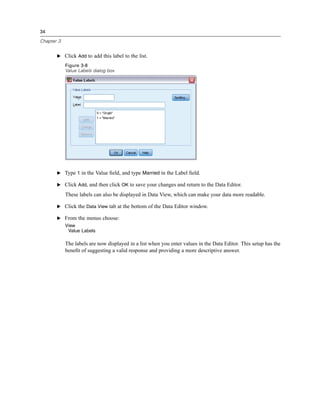
       E Click Add to add this label to the list.

            Figure 3-8
            Value Labels dialog box


       E Type 1 in the Value field, and type Married in the Label field.

       E Click Add, and then click OK to save your changes and return to the Data Editor.

            These labels can also be displayed in Data View, which can make your data more readable.

       E Click the Data View tab at the bottom of the Data Editor window.

       E From the menus choose:
            View
             Value Labels

            The labels are now displayed in a list when you enter values in the Data Editor. This setup has the
            benefit of suggesting a valid response and providing a more descriptive answer.
35

                                                                                        Using the Data Editor


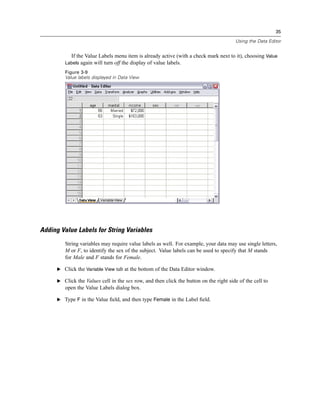
            If the Value Labels menu item is already active (with a check mark next to it), choosing Value
         Labels again will turn off the display of value labels.
         Figure 3-9
         Value labels displayed in Data View


Adding Value Labels for String Variables
         String variables may require value labels as well. For example, your data may use single letters,
         M or F, to identify the sex of the subject. Value labels can be used to specify that M stands
         for Male and F stands for Female.

      E Click the Variable View tab at the bottom of the Data Editor window.

      E Click the Values cell in the sex row, and then click the button on the right side of the cell to
         open the Value Labels dialog box.

      E Type F in the Value field, and then type Female in the Label field.
36

Chapter 3


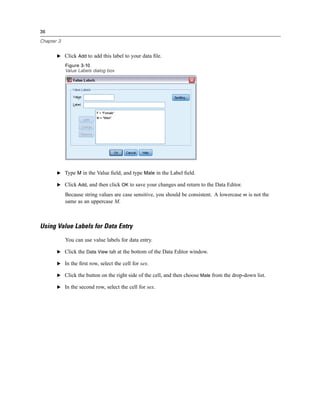
       E Click Add to add this label to your data file.

            Figure 3-10
            Value Labels dialog box


       E Type M in the Value field, and type Male in the Label field.

       E Click Add, and then click OK to save your changes and return to the Data Editor.

            Because string values are case sensitive, you should be consistent. A lowercase m is not the
            same as an uppercase M.


Using Value Labels for Data Entry
            You can use value labels for data entry.

       E Click the Data View tab at the bottom of the Data Editor window.

       E In the first row, select the cell for sex.

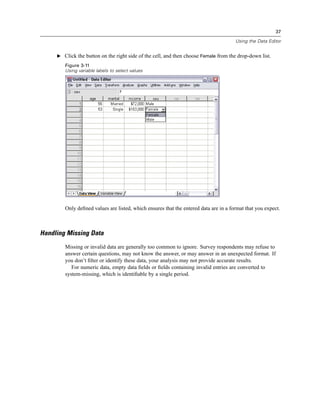
       E Click the button on the right side of the cell, and then choose Male from the drop-down list.

       E In the second row, select the cell for sex.
37

                                                                                      Using the Data Editor


     E Click the button on the right side of the cell, and then choose Female from the drop-down list.

        Figure 3-11
        Using variable labels to select values


        Only defined values are listed, which ensures that the entered data are in a format that you expect.


Handling Missing Data
        Missing or invalid data are generally too common to ignore. Survey respondents may refuse to
        answer certain questions, may not know the answer, or may answer in an unexpected format. If
        you don’t filter or identify these data, your analysis may not provide accurate results.
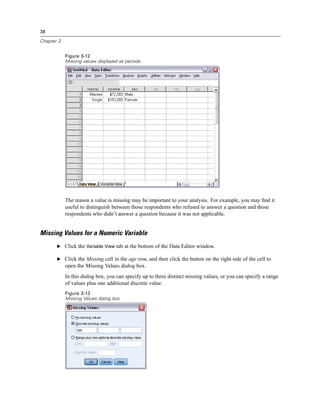
           For numeric data, empty data fields or fields containing invalid entries are converted to
        system-missing, which is identifiable by a single period.
38

Chapter 3


            Figure 3-12
            Missing values displayed as periods


            The reason a value is missing may be important to your analysis. For example, you may find it
            useful to distinguish between those respondents who refused to answer a question and those
            respondents who didn’t answer a question because it was not applicable.


Missing Values for a Numeric Variable
       E Click the Variable View tab at the bottom of the Data Editor window.

       E Click the Missing cell in the age row, and then click the button on the right side of the cell to
            open the Missing Values dialog box.
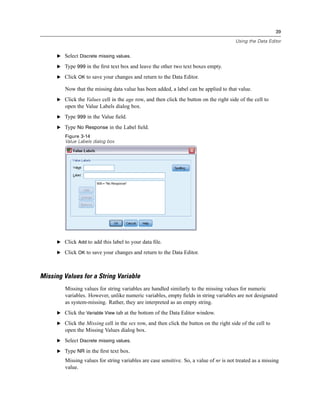
            In this dialog box, you can specify up to three distinct missing values, or you can specify a range
            of values plus one additional discrete value.
            Figure 3-13
            Missing Values dialog box
39

                                                                                         Using the Data Editor


      E Select Discrete missing values.

      E Type 999 in the first text box and leave the other two text boxes empty.

      E Click OK to save your changes and return to the Data Editor.

         Now that the missing data value has been added, a label can be applied to that value.
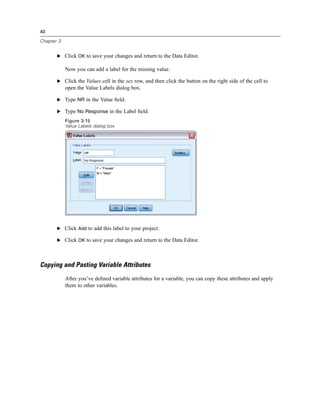
      E Click the Values cell in the age row, and then click the button on the right side of the cell to
         open the Value Labels dialog box.
      E Type 999 in the Value field.

      E Type No Response in the Label field.
         Figure 3-14
         Value Labels dialog box


      E Click Add to add this label to your data file.

      E Click OK to save your changes and return to the Data Editor.


Missing Values for a String Variable
         Missing values for string variables are handled similarly to the missing values for numeric
         variables. However, unlike numeric variables, empty fields in string variables are not designated
         as system-missing. Rather, they are interpreted as an empty string.
      E Click the Variable View tab at the bottom of the Data Editor window.

      E Click the Missing cell in the sex row, and then click the button on the right side of the cell to
         open the Missing Values dialog box.
      E Select Discrete missing values.

      E Type NR in the first text box.

         Missing values for string variables are case sensitive. So, a value of nr is not treated as a missing
         value.
40

Chapter 3


       E Click OK to save your changes and return to the Data Editor.

            Now you can add a label for the missing value.

       E Click the Values cell in the sex row, and then click the button on the right side of the cell to
            open the Value Labels dialog box.

       E Type NR in the Value field.

       E Type No Response in the Label field.

            Figure 3-15
            Value Labels dialog box


       E Click Add to add this label to your project.

       E Click OK to save your changes and return to the Data Editor.


Copying and Pasting Variable Attributes
            After you’ve defined variable attributes for a variable, you can copy these attributes and apply
            them to other variables.
41

                                                                             Using the Data Editor


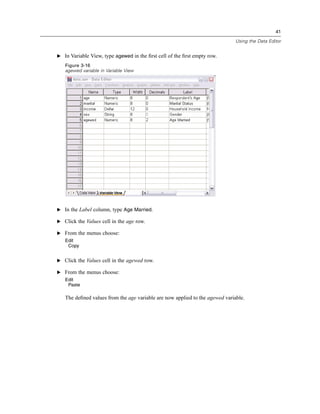
E In Variable View, type agewed in the first cell of the first empty row.

   Figure 3-16
   agewed variable in Variable View


E In the Label column, type Age Married.

E Click the Values cell in the age row.

E From the menus choose:
   Edit
    Copy


E Click the Values cell in the agewed row.

E From the menus choose:
   Edit
    Paste

   The defined values from the age variable are now applied to the agewed variable.
42

Chapter 3


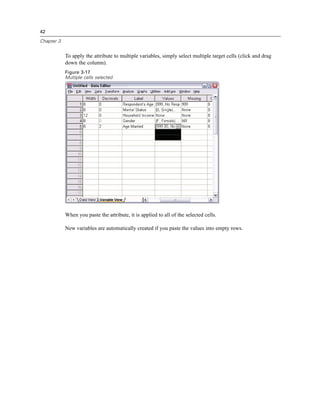
            To apply the attribute to multiple variables, simply select multiple target cells (click and drag
            down the column).
            Figure 3-17
            Multiple cells selected


            When you paste the attribute, it is applied to all of the selected cells.

            New variables are automatically created if you paste the values into empty rows.
43

                                                                   Using the Data Editor


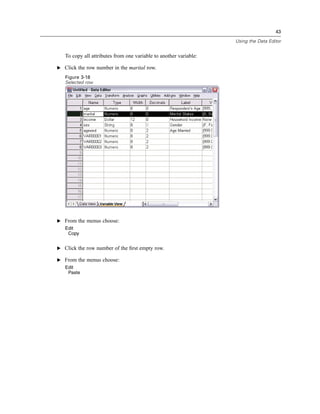
   To copy all attributes from one variable to another variable:

E Click the row number in the marital row.

   Figure 3-18
   Selected row


E From the menus choose:
   Edit
    Copy


E Click the row number of the first empty row.

E From the menus choose:
   Edit
    Paste
44

Chapter 3


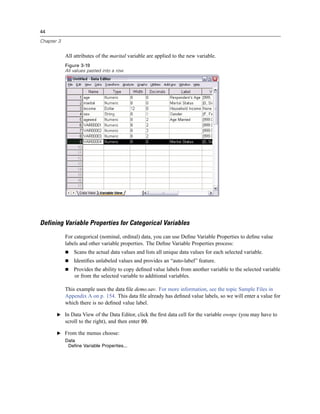
            All attributes of the marital variable are applied to the new variable.
            Figure 3-19
            All values pasted into a row


Defining Variable Properties for Categorical Variables
            For categorical (nominal, ordinal) data, you can use Define Variable Properties to define value
            labels and other variable properties. The Define Variable Properties process:
                Scans the actual data values and lists all unique data values for each selected variable.
                Identifies unlabeled values and provides an “auto-label” feature.
                Provides the ability to copy defined value labels from another variable to the selected variable
                or from the selected variable to additional variables.

            This example uses the data file demo.sav. For more information, see the topic Sample Files in
            Appendix A on p. 154. This data file already has defined value labels, so we will enter a value for
            which there is no defined value label.

       E In Data View of the Data Editor, click the first data cell for the variable ownpc (you may have to
            scroll to the right), and then enter 99.

       E From the menus choose:
            Data
             Define Variable Properties...
45

                                                                                  Using the Data Editor


   Figure 3-20
   Initial Define Variable Properties dialog box


   In the initial Define Variable Properties dialog box, you select the nominal or ordinal variables for
   which you want to define value labels and/or other properties.

E Drag and drop Owns computer [ownpc] through Owns VCR [ownvcr] into the Variables to
   Scan list.
   You might notice that the measurement level icons for all of the selected variables indicate that
   they are scale variables, not categorical variables. All of the selected variables in this example
   are really categorical variables that use the numeric values 0 and 1 to stand for No and Yes,
   respectively—and one of the variable properties that we’ll change with Define Variable Properties
   is the measurement level.

E Click Continue.
46

Chapter 3


            Figure 3-21
            Define Variable Properties main dialog box


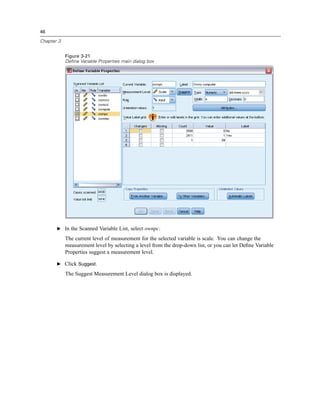
       E In the Scanned Variable List, select ownpc.

            The current level of measurement for the selected variable is scale. You can change the
            measurement level by selecting a level from the drop-down list, or you can let Define Variable
            Properties suggest a measurement level.

       E Click Suggest.

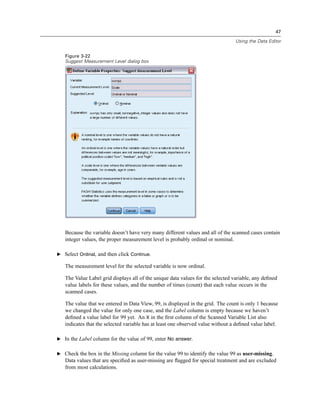
            The Suggest Measurement Level dialog box is displayed.
47

                                                                                 Using the Data Editor


   Figure 3-22
   Suggest Measurement Level dialog box


   Because the variable doesn’t have very many different values and all of the scanned cases contain
   integer values, the proper measurement level is probably ordinal or nominal.

E Select Ordinal, and then click Continue.

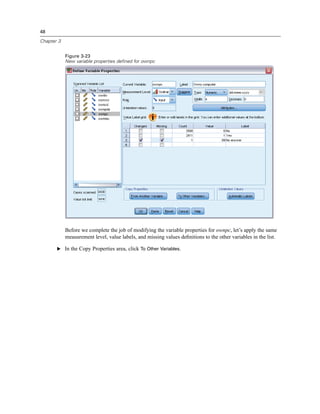
   The measurement level for the selected variable is now ordinal.

   The Value Label grid displays all of the unique data values for the selected variable, any defined
   value labels for these values, and the number of times (count) that each value occurs in the
   scanned cases.

   The value that we entered in Data View, 99, is displayed in the grid. The count is only 1 because
   we changed the value for only one case, and the Label column is empty because we haven’t
   defined a value label for 99 yet. An X in the first column of the Scanned Variable List also
   indicates that the selected variable has at least one observed value without a defined value label.

E In the Label column for the value of 99, enter No answer.


E Check the box in the Missing column for the value 99 to identify the value 99 as user-missing.
   Data values that are specified as user-missing are flagged for special treatment and are excluded
   from most calculations.
48

Chapter 3


            Figure 3-23
            New variable properties defined for ownpc


            Before we complete the job of modifying the variable properties for ownpc, let’s apply the same
            measurement level, value labels, and missing values definitions to the other variables in the list.

       E In the Copy Properties area, click To Other Variables.
49

                                                                                   Using the Data Editor


   Figure 3-24
   Apply Labels and Level dialog box


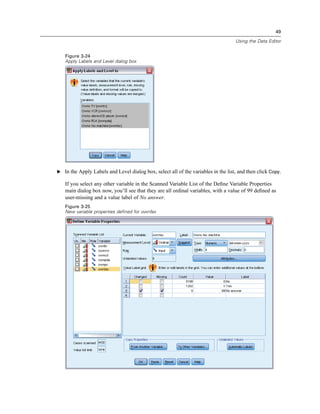
E In the Apply Labels and Level dialog box, select all of the variables in the list, and then click Copy.

   If you select any other variable in the Scanned Variable List of the Define Variable Properties
   main dialog box now, you’ll see that they are all ordinal variables, with a value of 99 defined as
   user-missing and a value label of No answer.
   Figure 3-25
   New variable properties defined for ownfax
50

Chapter 3


       E Click OK to save all of the variable properties that you have defined.
Chapter

                                                                                                 4
Working with Multiple Data Sources

       Starting with version 14.0, multiple data sources can be open at the same time, making it easier to:
           Switch back and forth between data sources.
           Compare the contents of different data sources.
           Copy and paste data between data sources.
           Create multiple subsets of cases and/or variables for analysis.
           Merge multiple data sources from various data formats (for example, spreadsheet, database,
           text data) without saving each data source first.


Basic Handling of Multiple Data Sources
       Figure 4-1
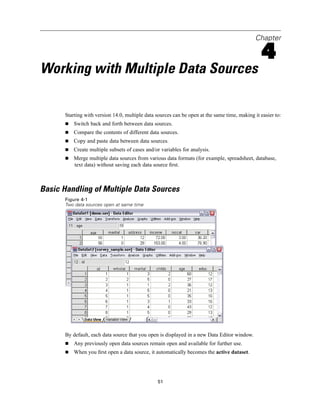
       Two data sources open at same time


       By default, each data source that you open is displayed in a new Data Editor window.
           Any previously open data sources remain open and available for further use.
           When you first open a data source, it automatically becomes the active dataset.


                                                 51
52

Chapter 4


                You can change the active dataset simply by clicking anywhere in the Data Editor window
                of the data source that you want to use or by selecting the Data Editor window for that data
                source from the Window menu.
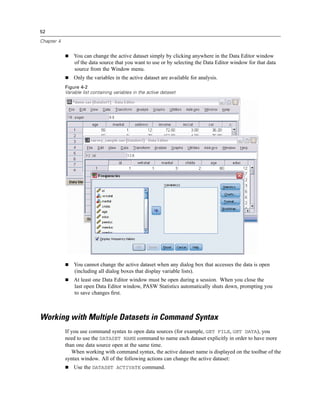
                Only the variables in the active dataset are available for analysis.
            Figure 4-2
            Variable list containing variables in the active dataset


                You cannot change the active dataset when any dialog box that accesses the data is open
                (including all dialog boxes that display variable lists).
                At least one Data Editor window must be open during a session. When you close the
                last open Data Editor window, PASW Statistics automatically shuts down, prompting you
                to save changes first.


Working with Multiple Datasets in Command Syntax
            If you use command syntax to open data sources (for example, GET FILE, GET DATA), you
            need to use the DATASET NAME command to name each dataset explicitly in order to have more
            than one data source open at the same time.
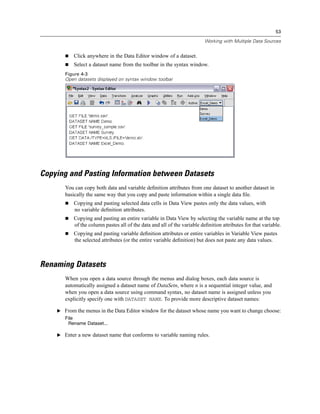
               When working with command syntax, the active dataset name is displayed on the toolbar of the
            syntax window. All of the following actions can change the active dataset:
                Use the DATASET ACTIVATE command.
53

                                                                          Working with Multiple Data Sources


           Click anywhere in the Data Editor window of a dataset.
           Select a dataset name from the toolbar in the syntax window.
       Figure 4-3
       Open datasets displayed on syntax window toolbar


Copying and Pasting Information between Datasets
       You can copy both data and variable definition attributes from one dataset to another dataset in
       basically the same way that you copy and paste information within a single data file.
           Copying and pasting selected data cells in Data View pastes only the data values, with
           no variable definition attributes.
           Copying and pasting an entire variable in Data View by selecting the variable name at the top
           of the column pastes all of the data and all of the variable definition attributes for that variable.
           Copying and pasting variable definition attributes or entire variables in Variable View pastes
           the selected attributes (or the entire variable definition) but does not paste any data values.


Renaming Datasets
       When you open a data source through the menus and dialog boxes, each data source is
       automatically assigned a dataset name of DataSetn, where n is a sequential integer value, and
       when you open a data source using command syntax, no dataset name is assigned unless you
       explicitly specify one with DATASET NAME. To provide more descriptive dataset names:

    E From the menus in the Data Editor window for the dataset whose name you want to change choose:
       File
        Rename Dataset...

    E Enter a new dataset name that conforms to variable naming rules.
54

Chapter 4


Suppressing Multiple Datasets
            If you prefer to have only one dataset available at a time and want to suppress the multiple
            dataset feature:

       E From the menus choose:
            Edit
             Options...

       E Click the General tab.

            Select (check) Open only one dataset at a time.
Chapter

                                                                                                5
Examining Summary Statistics for
Individual Variables

      This chapter discusses simple summary measures and how the level of measurement of a variable
      influences the types of statistics that should be used. We will use the data file demo.sav. For more
      information, see the topic Sample Files in Appendix A on p. 154.


Level of Measurement
      Different summary measures are appropriate for different types of data, depending on the level
      of measurement:
      Categorical. Data with a limited number of distinct values or categories (for example, gender
      or marital status). Also referred to as qualitative data. Categorical variables can be string
      (alphanumeric) data or numeric variables that use numeric codes to represent categories (for
      example, 0 = Unmarried and 1 = Married). There are two basic types of categorical data:
          Nominal. Categorical data where there is no inherent order to the categories. For example, a
          job category of sales is not higher or lower than a job category of marketing or research.
          Ordinal. Categorical data where there is a meaningful order of categories, but there is not a
          measurable distance between categories. For example, there is an order to the values high,
          medium, and low, but the “distance” between the values cannot be calculated.
      Scale. Data measured on an interval or ratio scale, where the data values indicate both the order of
      values and the distance between values. For example, a salary of $72,195 is higher than a salary of
      $52,398, and the distance between the two values is $19,797. Also referred to as quantitative
      or continuous data.


Summary Measures for Categorical Data
      For categorical data, the most typical summary measure is the number or percentage of cases in
      each category. The mode is the category with the greatest number of cases. For ordinal data, the
      median (the value at which half of the cases fall above and below) may also be a useful summary
      measure if there is a large number of categories.
         The Frequencies procedure produces frequency tables that display both the number and
      percentage of cases for each observed value of a variable.

                                                55
56

Chapter 5


       E From the menus choose:
            Analyze
             Descriptive Statistics
              Frequencies...

            Note: This feature requires the Statistics Base option.

       E Select Owns PDA [ownpda] and Owns TV [owntv] and move them into the Variable(s) list.
            Figure 5-1
            Categorical variables selected for analysis


       E Click OK to run the procedure.
57

                                                        Examining Summary Statistics for Individual Variables


         Figure 5-2
         Frequency tables


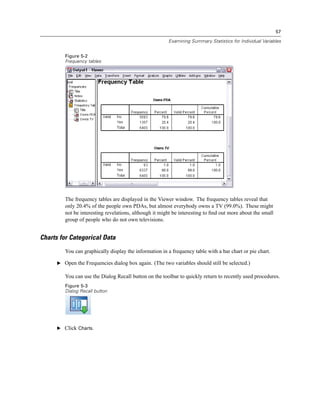
         The frequency tables are displayed in the Viewer window. The frequency tables reveal that
         only 20.4% of the people own PDAs, but almost everybody owns a TV (99.0%). These might
         not be interesting revelations, although it might be interesting to find out more about the small
         group of people who do not own televisions.


Charts for Categorical Data
         You can graphically display the information in a frequency table with a bar chart or pie chart.

      E Open the Frequencies dialog box again. (The two variables should still be selected.)

         You can use the Dialog Recall button on the toolbar to quickly return to recently used procedures.
         Figure 5-3
         Dialog Recall button


      E Click Charts.
58

Chapter 5


       E Select Bar charts and then click Continue.

            Figure 5-4
            Frequencies Charts dialog box


       E Click OK in the main dialog box to run the procedure.
            Figure 5-5
            Bar chart


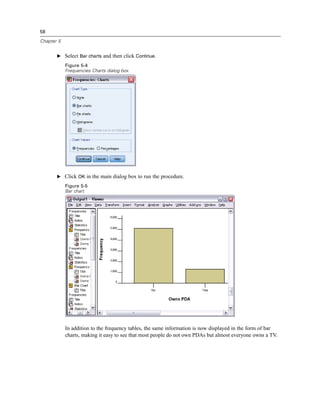
            In addition to the frequency tables, the same information is now displayed in the form of bar
            charts, making it easy to see that most people do not own PDAs but almost everyone owns a TV.
59

                                                      Examining Summary Statistics for Individual Variables


Summary Measures for Scale Variables
       There are many summary measures available for scale variables, including:
           Measures of central tendency. The most common measures of central tendency are the mean
            (arithmetic average) and median (value at which half the cases fall above and below).
           Measures of dispersion. Statistics that measure the amount of variation or spread in the data
            include the standard deviation, minimum, and maximum.

    E Open the Frequencies dialog box again.

    E Click Reset to clear any previous settings.

    E Select Household income in thousands [income] and move it into the Variable(s) list.
       Figure 5-6
       Scale variable selected for analysis


    E Click Statistics.
60

Chapter 5


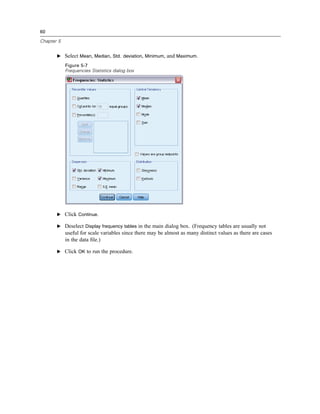
       E Select Mean, Median, Std. deviation, Minimum, and Maximum.

            Figure 5-7
            Frequencies Statistics dialog box


       E Click Continue.

       E Deselect Display frequency tables in the main dialog box. (Frequency tables are usually not
            useful for scale variables since there may be almost as many distinct values as there are cases
            in the data file.)

       E Click OK to run the procedure.
61

                                                      Examining Summary Statistics for Individual Variables


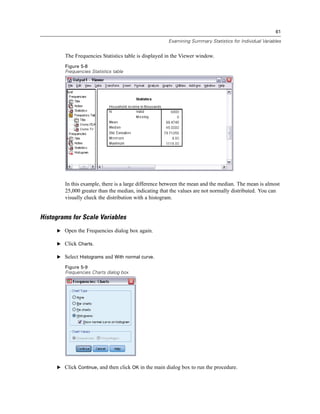
        The Frequencies Statistics table is displayed in the Viewer window.
        Figure 5-8
        Frequencies Statistics table


        In this example, there is a large difference between the mean and the median. The mean is almost
        25,000 greater than the median, indicating that the values are not normally distributed. You can
        visually check the distribution with a histogram.


Histograms for Scale Variables
     E Open the Frequencies dialog box again.

     E Click Charts.

     E Select Histograms and With normal curve.

        Figure 5-9
        Frequencies Charts dialog box


     E Click Continue, and then click OK in the main dialog box to run the procedure.
62

Chapter 5


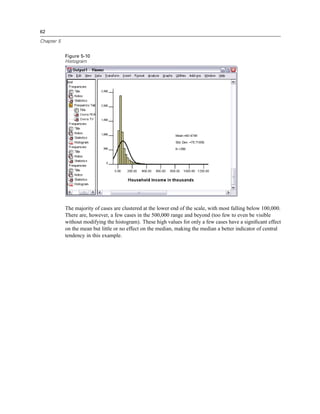
            Figure 5-10
            Histogram


            The majority of cases are clustered at the lower end of the scale, with most falling below 100,000.
            There are, however, a few cases in the 500,000 range and beyond (too few to even be visible
            without modifying the histogram). These high values for only a few cases have a significant effect
            on the mean but little or no effect on the median, making the median a better indicator of central
            tendency in this example.
Chapter

                                                                                                  6
Creating and Editing Charts

       You can create and edit a wide variety of chart types. In this chapter, we will create and edit bar
       charts. You can apply the principles to any chart type.


Chart Creation Basics
       To demonstrate the basics of chart creation, we will create a bar chart of mean income for different
       levels of job satisfaction. This example uses the data file demo.sav. For more information, see the
       topic Sample Files in Appendix A on p. 154.

    E From the menus choose:
       Graphs
        Chart Builder...


                                                  63
64

Chapter 6


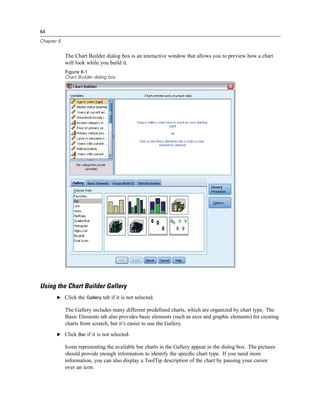
            The Chart Builder dialog box is an interactive window that allows you to preview how a chart
            will look while you build it.
            Figure 6-1
            Chart Builder dialog box


Using the Chart Builder Gallery
       E Click the Gallery tab if it is not selected.

            The Gallery includes many different predefined charts, which are organized by chart type. The
            Basic Elements tab also provides basic elements (such as axes and graphic elements) for creating
            charts from scratch, but it’s easier to use the Gallery.
       E Click Bar if it is not selected.

            Icons representing the available bar charts in the Gallery appear in the dialog box. The pictures
            should provide enough information to identify the specific chart type. If you need more
            information, you can also display a ToolTip description of the chart by pausing your cursor
            over an icon.
65

                                                                                   Creating and Editing Charts


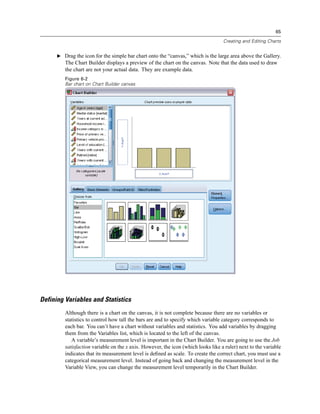
      E Drag the icon for the simple bar chart onto the “canvas,” which is the large area above the Gallery.
         The Chart Builder displays a preview of the chart on the canvas. Note that the data used to draw
         the chart are not your actual data. They are example data.
         Figure 6-2
         Bar chart on Chart Builder canvas


Defining Variables and Statistics
         Although there is a chart on the canvas, it is not complete because there are no variables or
         statistics to control how tall the bars are and to specify which variable category corresponds to
         each bar. You can’t have a chart without variables and statistics. You add variables by dragging
         them from the Variables list, which is located to the left of the canvas.
            A variable’s measurement level is important in the Chart Builder. You are going to use the Job
         satisfaction variable on the x axis. However, the icon (which looks like a ruler) next to the variable
         indicates that its measurement level is defined as scale. To create the correct chart, you must use a
         categorical measurement level. Instead of going back and changing the measurement level in the
         Variable View, you can change the measurement level temporarily in the Chart Builder.
66

Chapter 6


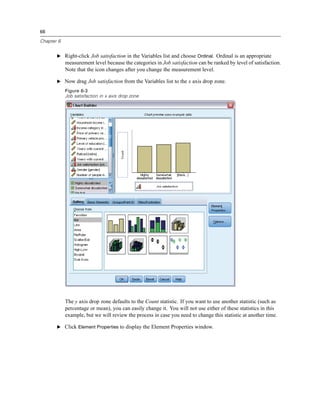
       E Right-click Job satisfaction in the Variables list and choose Ordinal. Ordinal is an appropriate
            measurement level because the categories in Job satisfaction can be ranked by level of satisfaction.
            Note that the icon changes after you change the measurement level.

       E Now drag Job satisfaction from the Variables list to the x axis drop zone.

            Figure 6-3
            Job satisfaction in x axis drop zone


            The y axis drop zone defaults to the Count statistic. If you want to use another statistic (such as
            percentage or mean), you can easily change it. You will not use either of these statistics in this
            example, but we will review the process in case you need to change this statistic at another time.

       E Click Element Properties to display the Element Properties window.
67

                                                                             Creating and Editing Charts


   Figure 6-4
   Element Properties window


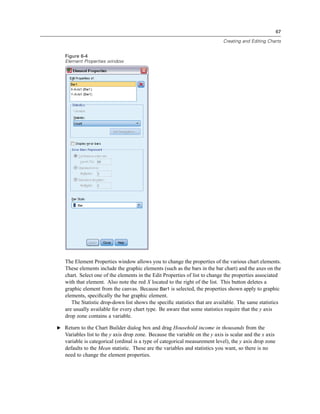
   The Element Properties window allows you to change the properties of the various chart elements.
   These elements include the graphic elements (such as the bars in the bar chart) and the axes on the
   chart. Select one of the elements in the Edit Properties of list to change the properties associated
   with that element. Also note the red X located to the right of the list. This button deletes a
   graphic element from the canvas. Because Bar1 is selected, the properties shown apply to graphic
   elements, specifically the bar graphic element.
      The Statistic drop-down list shows the specific statistics that are available. The same statistics
   are usually available for every chart type. Be aware that some statistics require that the y axis
   drop zone contains a variable.

E Return to the Chart Builder dialog box and drag Household income in thousands from the
   Variables list to the y axis drop zone. Because the variable on the y axis is scalar and the x axis
   variable is categorical (ordinal is a type of categorical measurement level), the y axis drop zone
   defaults to the Mean statistic. These are the variables and statistics you want, so there is no
   need to change the element properties.
68

Chapter 6


Adding Text

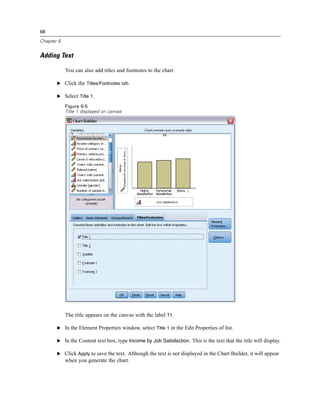
            You can also add titles and footnotes to the chart.

       E Click the Titles/Footnotes tab.

       E Select Title 1.

            Figure 6-5
            Title 1 displayed on canvas


            The title appears on the canvas with the label T1.

       E In the Element Properties window, select Title 1 in the Edit Properties of list.

       E In the Content text box, type Income by Job Satisfaction. This is the text that the title will display.

       E Click Apply to save the text. Although the text is not displayed in the Chart Builder, it will appear
            when you generate the chart.
69

                                                                                  Creating and Editing Charts


Creating the Chart
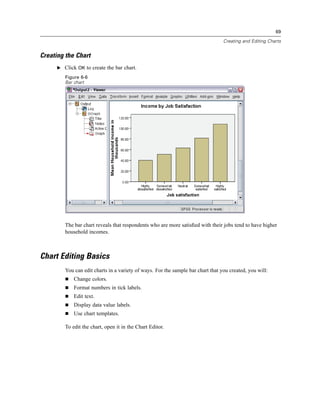
      E Click OK to create the bar chart.

         Figure 6-6
         Bar chart


         The bar chart reveals that respondents who are more satisfied with their jobs tend to have higher
         household incomes.


Chart Editing Basics
         You can edit charts in a variety of ways. For the sample bar chart that you created, you will:
             Change colors.
             Format numbers in tick labels.
             Edit text.
             Display data value labels.
             Use chart templates.

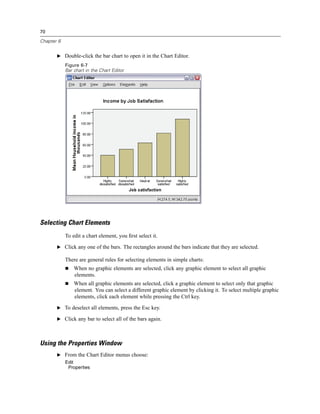
         To edit the chart, open it in the Chart Editor.
70

Chapter 6


       E Double-click the bar chart to open it in the Chart Editor.
            Figure 6-7
            Bar chart in the Chart Editor


Selecting Chart Elements
            To edit a chart element, you first select it.

       E Click any one of the bars. The rectangles around the bars indicate that they are selected.

            There are general rules for selecting elements in simple charts:
                When no graphic elements are selected, click any graphic element to select all graphic
                elements.
                When all graphic elements are selected, click a graphic element to select only that graphic
                element. You can select a different graphic element by clicking it. To select multiple graphic
                elements, click each element while pressing the Ctrl key.

       E To deselect all elements, press the Esc key.

       E Click any bar to select all of the bars again.


Using the Properties Window
       E From the Chart Editor menus choose:
            Edit
             Properties
71

                                                                                Creating and Editing Charts


        This opens the Properties window, showing the tabs that apply to the bars you selected. These tabs
        change depending on what chart element you select in the Chart Editor. For example, if you had
        selected a text frame instead of bars, different tabs would appear in the Properties window. You
        will use these tabs to do most chart editing.
        Figure 6-8
        Properties window


Changing Bar Colors
        First, you will change the color of the bars. You specify color attributes of graphic elements
        (excluding lines and markers) on the Fill & Border tab.

     E Click the Fill & Border tab.

     E Click the swatch next to Fill to indicate that you want to change the fill color of the bars. The
        numbers below the swatch specify the red, green, and blue settings for the current color.

     E Click the light blue color, which is second from the left in the second row from the bottom.
72

Chapter 6


            Figure 6-9
            Fill & Border tab


       E Click Apply.

            The bars in the chart are now light blue.
            Figure 6-10
            Edited bar chart showing blue bars
73

                                                                                Creating and Editing Charts


Formatting Numbers in Tick Labels
        Notice that the numbers on the y axis are scaled in thousands. To make the chart more attractive
        and easier to interpret, we will change the number format in the tick labels and then edit the
        axis title appropriately.

     E Select the y axis tick labels by clicking any one of them.

     E To reopen the Properties window (if you closed it previously), from the menus choose:
        Edit
         Properties

        Note: From here on, we assume that the Properties window is open. If you have closed the
        Properties window, follow the previous step to reopen it. You can also use the keyboard shortcut
        Ctrl+T to reopen the window.

     E Click the Number Format tab.

     E You do not want the tick labels to display decimal places, so type 0 in the Decimal Places text box.

     E Type 0.001 in the Scaling Factor text box. The scaling factor is the number by which the Chart
        Editor divides the displayed number. Because 0.001 is a fraction, dividing by it will increase the
        numbers in the tick labels by 1,000. Thus, the numbers will no longer be in thousands; they
        will be unscaled.

     E Select Display Digit Grouping. Digit grouping uses a character (specified by your computer’s locale)
        to mark each thousandth place in the number.
74

Chapter 6


            Figure 6-11
            Number Format tab


       E Click Apply.
75

                                                                                  Creating and Editing Charts


         The tick labels reflect the new number formatting: There are no decimal places, the numbers are
         no longer scaled, and each thousandth place is specified with a character.
         Figure 6-12
         Edited bar chart showing new number format


Editing Text
         Now that you have changed the number format of the tick labels, the axis title is no longer
         accurate. Next, you will change the axis title to reflect the new number format.
         Note: You do not need to open the Properties window to edit text. You can edit text directly on
         the chart.

      E Click the y axis title to select it.

      E Click the axis title again to start edit mode. While in edit mode, the Chart Editor positions any
         rotated text horizontally. It also displays a flashing red bar cursor (not shown in the example).
76

Chapter 6


       E Delete the following text:

            in thousands

       E Press Enter to exit edit mode and update the axis title. The axis title now accurately describes the
            contents of the tick labels.
            Figure 6-13
            Bar chart showing edited y axis title


Displaying Data Value Labels
            Another common task is to show the exact values associated with the graphic elements (which are
            bars in this example). These values are displayed in data labels.

       E From the Chart Editor menus choose:
            Elements
             Show Data Labels
77

                                                                                    Creating and Editing Charts


        Figure 6-14
        Bar chart showing data value labels


        Each bar in the chart now displays the exact mean household income. Notice that the units are in
        thousands, so you could use the Number Format tab again to change the scaling factor.


Using Templates
        If you make a number of routine changes to your charts, you can use a chart template to reduce the
        time needed to create and edit charts. A chart template saves the attributes of a specific chart. You
        can then apply the template when creating or editing a chart.
           We will save the current chart as a template and then apply that template while creating a
        new chart.

     E From the menus choose:
        File
         Save Chart Template...


        The Save Chart Template dialog box allows you to specify which chart attributes you want to
        include in the template.
           If you expand any of the items in the tree view, you can see which specific attributes can be
        saved with the chart. For example, if you expand the Scale axes portion of the tree, you can see all
        of the attributes of data value labels that the template will include. You can select any attribute to
        include it in the template.

     E Select All settings to include all of the available chart attributes in the template.
78

Chapter 6


            You can also enter a description of the template. This description will be visible when you apply
            the template.
            Figure 6-15
            Save Chart Template dialog box


       E Click Continue.

       E In the Save Template dialog box, specify a location and filename for the template.

       E When you are finished, click Save.

            You can apply the template when you create a chart or in the Chart Editor. In the following
            example, we will apply it while creating a chart.
79

                                                                             Creating and Editing Charts


E Close the Chart Editor. The updated bar chart is shown in the Viewer.
   Figure 6-16
   Updated bar chart in Viewer


E From the Viewer menus choose:
   Graphs
    Chart Builder...


   The Chart Builder dialog box “remembers” the variables that you entered when you created
   the original chart. However, here you will create a slightly different chart to see how applying
   a template formats a chart.

E Remove Job satisfaction from the x axis by dragging it from the drop zone back to the Variables
   list. You can also click the drop zone and press Delete.

E Right-click Level of education in the Variables list and choose Ordinal.

E Drag Level of education from the Variables list to the x axis drop zone.

   Because the title is now inaccurate, we are going to delete it.

E On the Titles/Footnotes tab, deselect Title 1.

   Now we are going to specify the template to apply to the new chart.

E Click Options.

E In the Templates group in the Options dialog box, click Add.

E In the Find Template Files dialog box, locate the template file that you previously saved using
   the Save Chart Template dialog box.
80

Chapter 6


       E Select that file and click Open.

            Figure 6-17
            Options dialog box with template


            The Options dialog box displays the file path of the template you selected.

       E Click OK to close the Options dialog box.
81

                                                                           Creating and Editing Charts


   Figure 6-18
   Chart Builder with completed drop zones


E Click OK on the Chart Builder dialog box to create the chart and apply the template.

   The formatting in the new chart matches the formatting in the chart that you previously created
   and edited. Although the variables on the x axis are different, the charts otherwise resemble each
   other. Notice that the title from the previous chart was preserved in the template, even though you
   deleted the title in the Chart Builder.
82

Chapter 6


               If you want to apply templates after you’ve created a chart, you can do it in the Chart Editor
            (from the File menu, choose Apply Chart Template).
            Figure 6-19
            Updated bar chart in Viewer


Defining Chart Options
            In addition to using templates to format charts, you can use the Options to control various aspects
            of how charts are created.

       E From the Data Editor or Viewer menus choose:
            Edit
             Options...
83

                                                                             Creating and Editing Charts


   The Options dialog box contains many configuration settings. Click the Charts tab to see the
   available options.
   Figure 6-20
   Charts tab in Options dialog box


   The options control how a chart is created. For each new chart, you can specify:
       Whether to use the current settings or a template.
       The width-to-height ratio (aspect ratio).
       If you’re not using a template, the settings to use for formatting.
       The style cycles for graphic elements.

   Style cycles allow you to specify the style of graphic elements in new charts. In this example,
   we’ll look at the details for the color style cycle.

E Click Colors to open the Data Element Colors dialog box.
84

Chapter 6


            For a simple chart, the Chart Editor uses one style that you specify. For grouped charts, the Chart
            Editor uses a set of styles that it cycles through for each group (category) in the chart.

       E Select Simple Charts.

       E Select the light green color, which is third from the right in the second row from the bottom.

            Figure 6-21
            Data Element Colors dialog box


       E Click Continue.

       E In the Options dialog box, click OK to save the color style cycle changes.


            The graphic elements in any new simple charts will now be light green.

       E From the Data Editor or Viewer menus choose:
            Graphs
             Chart Builder...


            The Chart Builder displays the last chart you created. Remember that this chart had a template
            associated with it. We no longer want to use that template.

       E Click Options.

       E Deselect (uncheck) the template that you added previously. Note that you could also click the red
            X to delete the template. By deselecting rather than deleting, you keep the template available to
            use at another time.

       E Click OK to create the chart.
85

                                                                         Creating and Editing Charts


The bars in the new chart are light green. This chart also differs from the last one in other ways.
There is no title; the axis labels are in thousands; and there are no data labels. The differences
occurred because the template wasn’t applied to this chart.
Figure 6-22
Updated bar chart in Viewer
Chapter

                                                                                                 7
Working with Output

       The results from running a statistical procedure are displayed in the Viewer. The output produced
       can be statistical tables, charts, graphs, or text, depending on the choices you make when you run
       the procedure. This section uses the files viewertut.spv and demo.sav. For more information, see
       the topic Sample Files in Appendix A on p. 154.


Using the Viewer
       Figure 7-1
       Viewer


       The Viewer window is divided into two panes. The outline pane contains an outline of all of
       the information stored in the Viewer. The contents pane contains statistical tables, charts, and
       text output.
          Use the scroll bars to navigate through the window’s contents, both vertically and horizontally.
       For easier navigation, click an item in the outline pane to display it in the contents pane.
          If you find that there isn’t enough room in the Viewer to see an entire table or that the outline
       view is too narrow, you can easily resize the window.

    E Click and drag the right border of the outline pane to change its width.


                                                 86
87

                                                                                         Working with Output


        An open book icon in the outline pane indicates that it is currently visible in the Viewer, although
        it may not currently be in the visible portion of the contents pane.

     E To hide a table or chart, double-click its book icon in the outline pane.

        The open book icon changes to a closed book icon, signifying that the information associated
        with it is now hidden.

     E To redisplay the hidden output, double-click the closed book icon.

        You can also hide all of the output from a particular statistical procedure or all of the output
        in the Viewer.

     E Click the box with the minus sign (−) to the left of the procedure whose results you want to hide,
        or click the box next to the topmost item in the outline pane to hide all of the output.
        The outline collapses, visually indicating that these results are hidden.

        You can also change the order in which the output is displayed.

     E In the outline pane, click on the items that you want to move.

     E Drag the selected items to a new location in the outline and release the mouse button.

        Figure 7-2
        Reordered output in the Viewer


        You can also move output items by clicking and dragging them in the contents pane.


Using the Pivot Table Editor
        The results from most statistical procedures are displayed in pivot tables.
88

Chapter 7


Accessing Output Definitions
            Many statistical terms are displayed in the output. Definitions of these terms can be accessed
            directly in the Viewer.

       E Double-click the Owns PDA * Gender * Internet Crosstabulation table.

       E Right-click Expected Count and choose What’s This? from the pop-up context menu.

            The definition is displayed in a pop-up window.
            Figure 7-3
            Pop-up definition


Pivoting Tables
            The default tables produced may not display information as neatly or as clearly as you would like.
            With pivot tables, you can transpose rows and columns (“flip” the table), adjust the order of
            data in a table, and modify the table in many other ways. For example, you can change a short,
            wide table into a long, thin one by transposing rows and columns. Changing the layout of the
            table does not affect the results. Instead, it’s a way to display your information in a different
            or more desirable manner.

       E If it’s not already activated, double-click the Owns PDA * Gender * Internet Crosstabulation
            table to activate it.

       E If the Pivoting Trays window is not visible, from the menus choose:
            Pivot
             Pivoting Trays
89

                                                                                   Working with Output


   Pivoting trays provide a way to move data between columns, rows, and layers.
   Figure 7-4
   Pivoting trays


E Drag the Statistics element from the Row dimension to the Column dimension, below Gender.
   The table is immediately reconfigured to reflect your changes.
   Figure 7-5
   Moving rows to columns


   The order of the elements in the pivoting tray reflects the order of the elements in the table.
90

Chapter 7


       E Drag and drop the Owns PDA element before the Internet element in the row dimension to reverse
            the order of these two rows.
            Figure 7-6
            Swap rows


Creating and Displaying Layers
            Layers can be useful for large tables with nested categories of information. By creating layers,
            you simplify the look of the table, making it easier to read.

       E Drag the Gender element from the Column dimension to the Layer dimension.

            Figure 7-7
            Gender pivot icon in the Layer dimension
91

                                                                                          Working with Output


         To display a different layer, select a category from the drop-down list in the table.
         Figure 7-8
         Choosing a layer


Editing Tables
         Unless you’ve taken the time to create a custom TableLook, pivot tables are created with standard
         formatting. You can change the formatting of any text within a table. Formats that you can change
         include font name, font size, font style (bold or italic), and color.

      E Double-click the Level of education table.

      E If the Formatting toolbar is not visible, from the menus choose:
         View
          Toolbar


      E Click the title text, Level of education.

      E From the drop-down list of font sizes on the toolbar, choose 12.

      E To change the color of the title text, click the text color tool and choose a new color.
         Figure 7-9
         Reformatted title text in the pivot table


         You can also edit the contents of tables and labels. For example, you can change the title of
         this table.

      E Double-click the title.
92

Chapter 7


       E Type Education Level for the new label.

            Note: If you change the values in a table, totals and other statistics are not recalculated.


Hiding Rows and Columns
            Some of the data displayed in a table may not be useful or it may unnecessarily complicate the
            table. Fortunately, you can hide entire rows and columns without losing any data.

       E If it’s not already activated, double-click the Education Level table to activate it.

       E Click Valid Percent column label to select it.

       E From the Edit menu or the right-click context menu choose:
            Select
             Data and Label Cells


       E From the View menu choose Hide or from the right-click context menu choose Hide Category.

            The column is now hidden but not deleted.
            Figure 7-10
            Valid Percent column hidden in table


            To redisplay the column:

       E From the menus choose:
            View
             Show All

            Rows can be hidden and displayed in the same way as columns.


Changing Data Display Formats
            You can easily change the display format of data in pivot tables.

       E If it’s not already activated, double-click the Education Level table to activate it.

       E Click on the Percent column label to select it.
93

                                                                                  Working with Output


E From the Edit menu or the right-click context menu choose:
   Select
    Data Cells

E From the Format menu or the right-click context menu choose Cell Properties.

E Click the Format Value tab.

E Type 0 in the Decimals field to hide all decimal points in this column.
   Figure 7-11
   Cell Properties, Format Value tab


   You can also change the data type and format in this dialog box.

E Select the type that you want from the Category list, and then select the format for that type in
   the Format list.
94

Chapter 7


       E Click OK or Apply to apply your changes.

            Figure 7-12
            Decimals hidden in Percent column


            The decimals are now hidden in the Percent column.


TableLooks
            The format of your tables is a critical part of providing clear, concise, and meaningful results.
            If your table is difficult to read, the information contained within that table may not be easily
            understood.


Using Predefined Formats
       E Double-click the Marital status table.

       E From the menus choose:
            Format
             TableLooks...
95

                                                                                         Working with Output


        The TableLooks dialog box lists a variety of predefined styles. Select a style from the list to
        preview it in the Sample window on the right.
        Figure 7-13
        TableLooks dialog box


        You can use a style as is, or you can edit an existing style to better suit your needs.

     E To use an existing style, select one and click OK.


Customizing TableLook Styles
        You can customize a format to fit your specific needs. Almost all aspects of a table can be
        customized, from the background color to the border styles.

     E Double-click the Marital status table.

     E From the menus choose:
        Format
         TableLooks...


     E Select the style that is closest to your desired format and click Edit Look.
96

Chapter 7


       E Click the Cell Formats tab to view the formatting options.

            Figure 7-14
            Table Properties dialog box


            The formatting options include font name, font size, style, and color. Additional options include
            alignment, text and background colors, and margin sizes.
               The Sample window on the right provides a preview of how the formatting changes affect your
            table. Each area of the table can have different formatting styles. For example, you probably
            wouldn’t want the title to have the same style as the data. To select a table area to edit, you can
            either choose the area by name in the Area drop-down list, or you can click the area that you want
            to change in the Sample window.

       E Select Data from the Area drop-down list.

       E Select a new color from the Background drop-down palette.

       E Then select a new text color.
97

                                                                                 Working with Output


   The Sample window shows the new style.
   Figure 7-15
   Changing table cell formats


E Click OK to return to the TableLooks dialog box.

   You can save your new style, which allows you to apply it to future tables easily.

E Click Save As.

E Navigate to the desired target directory and enter a name for your new style in the File Name
   text box.

E Click Save.

E Click OK to apply your changes and return to the Viewer.
98

Chapter 7


            The table now contains the custom formatting that you specified.
            Figure 7-16
            Custom TableLook


Changing the Default Table Formats
            Although you can change the format of a table after it has been created, it may be more efficient
            to change the default TableLook so that you do not have to change the format every time you
            create a table.

            To change the default TableLook style for your pivot tables, from the menus choose:
            Edit
             Options...
99

                                                                                Working with Output


E Click the Pivot Tables tab in the Options dialog box.

   Figure 7-17
   Options dialog box


E Select the TableLook style that you want to use for all new tables.

   The Sample window on the right shows a preview of each TableLook.

E Click OK to save your settings and close the dialog box.

   All tables that you create after changing the default TableLook automatically conform to the
   new formatting rules.
100

Chapter 7


Customizing the Initial Display Settings

            The initial display settings include the alignment of objects in the Viewer, whether objects are
            shown or hidden by default, and the width of the Viewer window. To change these settings:

       E From the menus choose:
            Edit
             Options...


       E Click the Viewer tab.

            Figure 7-18
            Viewer options


            The settings are applied on an object-by-object basis. For example, you can customize the way
            charts are displayed without making any changes to the way tables are displayed. Simply select
            the object that you want to customize, and make the desired changes.

       E Click the Title icon to display its settings.
101

                                                                                       Working with Output


     E Click Center to display all titles in the (horizontal) center of the Viewer.

        You can also hide elements, such as the log and warning messages, that tend to clutter your output.
        Double-clicking on an icon automatically changes that object’s display property.

     E Double-click the Warnings icon to hide warning messages in the output.

     E Click OK to save your changes and close the dialog box.


Displaying Variable and Value Labels
        In most cases, displaying the labels for variables and values is more effective than displaying the
        variable name or the actual data value. There may be cases, however, when you want to display
        both the names and the labels.

     E From the menus choose:
        Edit
         Options...
102

Chapter 7


       E Click the Output Labels tab.

            Figure 7-19
            Output Labels options


            You can specify different settings for the outline and contents panes. For example, to show labels
            in the outline and variable names and data values in the contents:

       E In the Pivot Table Labeling group, select Names from the Variables in Labels drop-down list to
            show variable names instead of labels.
103

                                                                                   Working with Output


    E Then, select Values from the Variable Values in Labels drop-down list to show data values instead
       of labels.
       Figure 7-20
       Pivot Table Labeling settings


       Subsequent tables produced in the session will reflect these changes.
       Figure 7-21
       Variable names and values displayed


Using Results in Other Applications
       Your results can be used in many applications. For example, you may want to include a table
       or chart in a presentation or report.
104

Chapter 7


              The following examples are specific to Microsoft Word, but they may work similarly in other
            word processing applications.


Pasting Results as Word Tables
            You can paste pivot tables into Word as native Word tables. All table attributes, such as font
            sizes and colors, are retained. Because the table is pasted in the Word table format, you can edit
            it in Word just like any other table.

       E Click the Marital status table in the Viewer.

       E From the menus choose:
            Edit
             Copy


       E Open your word processing application.

       E From the word processor’s menus choose:
            Edit
             Paste Special...


       E Select Formatted Text (RTF) in the Paste Special dialog box.

            Figure 7-22
            Paste Special dialog box


       E Click OK to paste your results into the current document.
105

                                                                                         Working with Output


         Figure 7-23
         Pivot table displayed in Word


         The table is now displayed in your document. You can apply custom formatting, edit the data,
         and resize the table to fit your needs.


Pasting Results as Text
         Pivot tables can be copied to other applications as plain text. Formatting styles are not retained in
         this method, but you can edit the table data after you paste it into the target application.

      E Click the Marital status table in the Viewer.

      E From the menus choose:
         Edit
          Copy


      E Open your word processing application.

      E From the word processor’s menus choose:
         Edit
          Paste Special...
106

Chapter 7


       E Select Unformatted Text in the Paste Special dialog box.

            Figure 7-24
            Paste Special dialog box


       E Click OK to paste your results into the current document.

            Figure 7-25
            Pivot table displayed in Word


            Each column of the table is separated by tabs. You can change the column widths by adjusting the
            tab stops in your word processing application.


Exporting Results to Microsoft Word, PowerPoint, and Excel Files

            You can export results to a Microsoft Word , PowerPoint, or Excel file. You can export selected
            items or all items in the Viewer. This section uses the files msouttut.spv and demo.sav. For more
            information, see the topic Sample Files in Appendix A on p. 154.
107

                                                                                    Working with Output


   Note: Export to PowerPoint is available only on Windows operating systems and is not available
   with the Student Version.
      In the Viewer’s outline pane, you can select specific items that you want to export. You do not
   have to select specific items.

E From the Viewer menus choose:
   File
    Export...

      Instead of exporting all objects in the Viewer, you can choose to export only visible objects
   (open books in the outline pane) or those that you selected in the outline pane. If you did not select
   any items in the outline pane, you do not have the option to export selected objects.
   Figure 7-26
   Export Output dialog box


E In the Objects to Export group, select All.
108

Chapter 7


       E From the Type drop-down list select Word/RTF file (*.doc).

       E Click OK to generate the Word file.

            When you open the resulting file in Word, you can see how the results are exported. Notes, which
            are not visible objects, appear in Word because you chose to export all objects.
            Figure 7-27
            Output.doc in Word
109

                                                                               Working with Output


Pivot tables become Word tables, with all of the formatting of the original pivot table retained,
including fonts, colors, borders, and so on.
Figure 7-28
Pivot tables in Word


Charts are included in the Word document as graphic images.
Figure 7-29
Charts in Word
110

Chapter 7


            Text output is displayed in the same font used for the text object in the Viewer. For proper
            alignment, text output should use a fixed-pitch (monospaced) font.
            Figure 7-30
            Text output in Word
111

                                                                              Working with Output


If you export to a PowerPoint file, each exported item is placed on a separate slide. Pivot tables
exported to PowerPoint become Word tables, with all of the formatting of the original pivot
table, including fonts, colors, borders, and so on.
Figure 7-31
Pivot tables in PowerPoint
112

Chapter 7


            Charts selected for export to PowerPoint are embedded in the PowerPoint file.

            Figure 7-32
            Charts in PowerPoint


            If you export to an Excel file, results are exported differently.

            Figure 7-33
            Output.xls in Excel
113

                                                                                         Working with Output


        Pivot table rows, columns, and cells become Excel rows, columns, and cells.
        Each line in the text output is a row in the Excel file, with the entire contents of the line contained
        in a single cell.
        Figure 7-34
        Text output in Excel


Exporting Results to PDF
        You can export all or selected items in the Viewer to a PDF (portable document format) file.

     E From the menus in the Viewer window that contains the result you want to export to PDF choose:
        File
         Export...
114

Chapter 7


       E In the Export Output dialog box, from the Export Format File Type drop-down list choose
         Portable Document Format.

            Figure 7-35
            Export Output dialog box


               The outline pane of the Viewer document is converted to bookmarks in the PDF file for
               easy navigation.
                Page size, orientation, margins, content and display of page headers and footers, and printed
                chart size in PDF documents are controlled by page setup options (File menu, Page Setup in
                the Viewer window).
                The resolution (DPI) of the PDF document is the current resolution setting for the default
                or currently selected printer (which can be changed using Page Setup). The maximum
                resolution is 1200 DPI. If the printer setting is higher, the PDF document resolution will
115

                                                                         Working with Output


    be 1200 DPI. Note: High-resolution documents may yield poor results when printed on
    lower-resolution printers.
Figure 7-36
PDF file with bookmarks
116

Chapter 7


Exporting Results to HTML
            You can also export results to HTML (hypertext markup language). When saving as HTML, all
            non-graphic output is exported into a single HTML file.
            Figure 7-37
            Output.htm in Web browser


            When you export to HTML, charts can be exported as well, but not to a single file.
117

                                                                               Working with Output


Each chart will be saved as a file in a format that you specify, and references to these graphics
files will be placed in the HTML. There is also an option to export all charts (or selected charts)
in separate graphics files.
Figure 7-38
References to graphics in HTML output
Chapter

                                                                                                   8
Working with Syntax

       You can save and automate many common tasks by using the powerful command language. It
       also provides some functionality not found in the menus and dialog boxes. Most commands are
       accessible from the menus and dialog boxes. However, some commands and options are available
       only by using the command language. The command language also allows you to save your jobs
       in a syntax file so that you can repeat your analysis at a later date.
          A command syntax file is simply a text file that contains PASW Statistics syntax commands.
       You can open a syntax window and type commands directly, but it is often easier to let the dialog
       boxes do some or all of the work for you.
          The examples in this chapter use the data file demo.sav. For more information, see the topic
       Sample Files in Appendix A on p. 154.
       Note: Command syntax is not available with the Student Version.


Pasting Syntax
       The easiest way to create syntax is to use the Paste button located on most dialog boxes.

    E Open the data file demo.sav. For more information, see the topic Sample Files in Appendix A
       on p. 154.

    E From the menus choose:
       Analyze
        Descriptive Statistics
         Frequencies...


                                                 118
119

                                                                                   Working with Syntax


   The Frequencies dialog box opens.
   Figure 8-1
   Frequencies dialog box


E Select Marital status [marital] and move it into the Variable(s) list.

E Click Charts.

E In the Charts dialog box, select Bar charts.

E In the Chart Values group, select Percentages.

E Click Continue.

E Click Paste to copy the syntax created as a result of the dialog box selections to the Syntax Editor.

   Figure 8-2
   Frequencies syntax


E To run the syntax currently displayed, from the menus choose:
   Run
    Selection
120

Chapter 8


Editing Syntax
            In the syntax window, you can edit the syntax. For example, you could change the subcommand
            /BARCHART to display frequencies instead of percentages. (A subcommand is indicated by a
            slash.) If you know the keyword for displaying frequencies you can enter it directly. If you
            don’t know the keyword, you can obtain a list of the available keywords for the subcommand by
            positioning the cursor anywhere following the subcommand name and pressing Ctrl+Spacebar.
            This displays the auto-completion control for the subcommand.
            Figure 8-3
            Auto-completion control displaying keywords


       E Click on the item labelled FREQ for frequencies. Clicking on an item in the auto-completion
            control will insert it at the current cursor position (the original PERCENT keyword was manually
            deleted).

            By default, the auto-completion control will prompt you with a list of available terms as you type.
            For example, you’d like to include a pie chart along with the bar chart. The pie chart is specified
            with a separate subcommand.

       E Press Enter after the FREQ keyword and type a forward slash to indicate the start of a subcommand.
121

                                                                              Working with Syntax


The Syntax Editor prompts you with the list of subcommands for the current command.
Figure 8-4
Auto-completion control displaying subcommands


To obtain more detailed help for the current command, press the F1 key. This takes you directly to
the command syntax reference information for the current command.
Figure 8-5
FREQUENCIES syntax help
122

Chapter 8


            You may have noticed that text displayed in the syntax window is colored. Color coding allows
            you to quickly identify unrecognized terms, since only recognized terms are colored. For example,
            you misspell the FORMAT subcommand as FRMAT. Subcommands are colored green by default, but
            the text FRMAT will appear uncolored since it is not recognized.


Opening and Running a Syntax File
       E To open a saved syntax file, from the menus choose:
            File
             Open
               Syntax...


            A standard dialog box for opening files is displayed.

       E Select a syntax file. If no syntax files are displayed, make sure Syntax (*.sps) is selected as the
            file type you want to view.

       E Click Open.

       E Use the Run menu in the syntax window to run the commands.

            If the commands apply to a specific data file, the data file must be opened before running the
            commands, or you must include a command that opens the data file. You can paste this type of
            command from the dialog boxes that open data files.
123

                                                                                      Working with Syntax


Understanding the Error Pane
       The error pane displays runtime errors from the most current run. It contains the details of each
       error as well as the line number of the command on which the error occurred.
       Figure 8-6
       Error pane displayed in the Syntax Editor


       Clicking on the entry for an error positions the cursor on the first line of the command on which
       the error occurred.


Using Breakpoints
       Breakpoints allow you to stop execution of command syntax at specified points within the syntax
       and continue execution when ready. This allows you to view output or data at an intermediate
       point in a syntax job, or to run command syntax that displays information about the current state
       of the data, such as FREQUENCIES. Breakpoints can only be set at the level of a command, not
       on specific lines within a command.

       To insert a breakpoint on a command:

    E Click anywhere in the region to the left of the text associated with the command.

       The breakpoint is represented as a red circle in the region to the left of the command text and on
       the same line as the command name regardless of where you clicked.
124

Chapter 8


            Figure 8-7
            Breakpoint displayed in the Syntax Editor window


            When you run command syntax containing breakpoints, execution stops prior to each command
            containing a breakpoint.

            Figure 8-8
            Execution stopped at a breakpoint


            The downward pointing arrow to the left of the command text shows the progress of the syntax
            run. It spans the region from the first command run through the last command run and is
            particularly useful when running command syntax containing breakpoints.
125

                                                 Working with Syntax


   To resume execution following a breakpoint:

E From the menus in the Syntax Editor choose:
   Run
    Continue
Chapter

                                                                                                 9
Modifying Data Values

       The data you start with may not always be organized in the most useful manner for your analysis
       or reporting needs. For example, you may want to:
           Create a categorical variable from a scale variable.
           Combine several response categories into a single category.
           Create a new variable that is the computed difference between two existing variables.
           Calculate the length of time between two dates.

       This chapter uses the data file demo.sav. For more information, see the topic Sample Files
       in Appendix A on p. 154.


Creating a Categorical Variable from a Scale Variable
       Several categorical variables in the data file demo.sav are, in fact, derived from scale variables in
       that data file. For example, the variable inccat is simply income grouped into four categories. This
       categorical variable uses the integer values 1–4 to represent the following income categories (in
       thousands): less than $25, $25–$49, $50–$74, and $75 or higher.

       To create the categorical variable inccat:

    E From the menus in the Data Editor window choose:
       Transform
         Visual Binning...


                                                    126
127

                                                                                 Modifying Data Values


   Figure 9-1
   Initial Visual Binning dialog box


   In the initial Visual Binning dialog box, you select the scale and/or ordinal variables for which you
   want to create new, binned variables. Binning means taking two or more contiguous values and
   grouping them into the same category.
      Since Visual Binning relies on actual values in the data file to help you make good binning
   choices, it needs to read the data file first. Since this can take some time if your data file contains
   a large number of cases, this initial dialog box also allows you to limit the number of cases to
   read (“scan”). This is not necessary for our sample data file. Even though it contains more than
   6,000 cases, it does not take long to scan that number of cases.

E Drag and drop Household income in thousands [income] from the Variables list into the Variables
  to Bin list, and then click Continue.
128

Chapter 9


            Figure 9-2
            Main Visual Binning dialog box


       E In the main Visual Binning dialog box, select Household income in thousands [income] in the
            Scanned Variable List.
            A histogram displays the distribution of the selected variable (which in this case is highly skewed).

       E Enter inccat2 for the new binned variable name and Income category [in thousands] for the
            variable label.

       E Click Make Cutpoints.
129

                                                                                 Modifying Data Values


   Figure 9-3
   Visual Binning Cutpoints dialog box


E Select Equal Width Intervals.

E Enter 25 for the first cutpoint location, 3 for the number of cutpoints, and 25 for the width.

   The number of binned categories is one greater than the number of cutpoints. So in this example,
   the new binned variable will have four categories, with the first three categories each containing
   ranges of 25 (thousand) and the last one containing all values above the highest cutpoint value of
   75 (thousand).

E Click Apply.
130

Chapter 9


            Figure 9-4
            Main Visual Binning dialog box with defined cutpoints


            The values now displayed in the grid represent the defined cutpoints, which are the upper endpoints
            of each category. Vertical lines in the histogram also indicate the locations of the cutpoints.
               By default, these cutpoint values are included in the corresponding categories. For example,
            the first value of 25 would include all values less than or equal to 25. But in this example, we want
            categories that correspond to less than 25, 25–49, 50–74, and 75 or higher.

       E In the Upper Endpoints group, select Excluded (<).

       E Then click Make Labels.
131

                                                                                Modifying Data Values


   Figure 9-5
   Automatically generated value labels


   This automatically generates descriptive value labels for each category. Since the actual values
   assigned to the new binned variable are simply sequential integers starting with 1, the value
   labels can be very useful.
      You can also manually enter or change cutpoints and labels in the grid, change cutpoint
   locations by dragging and dropping the cutpoint lines in the histogram, and delete cutpoints by
   dragging cutpoint lines off of the histogram.

E Click OK to create the new, binned variable.
132

Chapter 9


            The new variable is displayed in the Data Editor. Since the variable is added to the end of the file,
            it is displayed in the far right column in Data View and in the last row in Variable View.
            Figure 9-6
            New variable displayed in Data Editor


Computing New Variables
            Using a wide variety of mathematical functions, you can compute new variables based on highly
            complex equations. In this example, however, we will simply compute a new variable that is the
            difference between the values of two existing variables.
               The data file demo.sav contains a variable for the respondent’s current age and a variable for the
            number of years at current job. It does not, however, contain a variable for the respondent’s age at
            the time he or she started that job. We can create a new variable that is the computed difference
            between current age and number of years at current job, which should be the approximate age at
            which the respondent started that job.

       E From the menus in the Data Editor window choose:
            Transform
              Compute Variable...


       E For Target Variable, enter jobstart.

       E Select Age in years [age] in the source variable list and click the arrow button to copy it to the
            Numeric Expression text box.

       E Click the minus (–) button on the calculator pad in the dialog box (or press the minus key on
            the keyboard).
133

                                                                                Modifying Data Values


E Select Years with current employer [employ] and click the arrow button to copy it to the expression.

   Figure 9-7
   Compute Variable dialog box


   Note: Be careful to select the correct employment variable. There is also a recoded categorical
   version of the variable, which is not what you want. The numeric expression should be
   age–employ, not age–empcat.

E Click OK to compute the new variable.
134

Chapter 9


            The new variable is displayed in the Data Editor. Since the variable is added to the end of the file,
            it is displayed in the far right column in Data View and in the last row in Variable View.
            Figure 9-8
            New variable displayed in Data Editor


Using Functions in Expressions
            You can also use predefined functions in expressions. More than 70 built-in functions are
            available, including:
                Arithmetic functions
                Statistical functions
                Distribution functions
                Logical functions
                Date and time aggregation and extraction functions
                Missing-value functions
135

                                                                                 Modifying Data Values


       Cross-case functions
       String functions
   Figure 9-9
   Compute Variable dialog box displaying function grouping


   Functions are organized into logically distinct groups, such as a group for arithmetic operations
   and another for computing statistical metrics. For convenience, a number of commonly used
   system variables, such as $TIME (current date and time), are also included in appropriate function
   groups. A brief description of the currently selected function (in this case, SUM) or system variable
   is displayed in a reserved area in the Compute Variable dialog box.

   Pasting a Function into an Expression

   To paste a function into an expression:

E Position the cursor in the expression at the point where you want the function to appear.

E Select the appropriate group from the Function group list. The group labeled All provides a listing
   of all available functions and system variables.

E Double-click the function in the Functions and Special Variables list (or select the function and
   click the arrow adjacent to the Function group list).
136

Chapter 9


            The function is inserted into the expression. If you highlight part of the expression and then insert
            the function, the highlighted portion of the expression is used as the first argument in the function.

            Editing a Function in an Expression

            The function is not complete until you enter the arguments, represented by question marks in the
            pasted function. The number of question marks indicates the minimum number of arguments
            required to complete the function.

       E Highlight the question mark(s) in the pasted function.

       E Enter the arguments. If the arguments are variable names, you can paste them from the variable list.


Using Conditional Expressions
            You can use conditional expressions (also called logical expressions) to apply transformations to
            selected subsets of cases. A conditional expression returns a value of true, false, or missing for
            each case. If the result of a conditional expression is true, the transformation is applied to that
            case. If the result is false or missing, the transformation is not applied to the case.

            To specify a conditional expression:

       E Click If in the Compute Variable dialog box. This opens the If Cases dialog box.
137

                                                                                   Modifying Data Values


   Figure 9-10
   If Cases dialog box


E Select Include if case satisfies condition.

E Enter the conditional expression.

   Most conditional expressions contain at least one relational operator, as in:
   age>=21
   or
   income*3<100

   In the first example, only cases with a value of 21 or greater for Age [age] are selected. In the
   second example, Household income in thousands [income] multiplied by 3 must be less than
   100 for a case to be selected.

   You can also link two or more conditional expressions using logical operators, as in:
   age>=21 | ed>=4
   or
   income*3<100 & ed=5

   In the first example, cases that meet either the Age [age] condition or the Level of education [ed]
   condition are selected. In the second example, both the Household income in thousands [income]
   and Level of education [ed] conditions must be met for a case to be selected.
138

Chapter 9


Working with Dates and Times
            A number of tasks commonly performed with dates and times can be easily accomplished using
            the Date and Time Wizard. Using this wizard, you can:
                Create a date/time variable from a string variable containing a date or time.
                Construct a date/time variable by merging variables containing different parts of the date or
                time.
                Add or subtract values from date/time variables, including adding or subtracting two date/time
                variables.
                Extract a part of a date or time variable; for example, the day of month from a date/time
                variable which has the form mm/dd/yyyy.
            The examples in this section use the data file upgrade.sav. For more information, see the topic
            Sample Files in Appendix A on p. 154.

            To use the Date and Time Wizard:

       E From the menus choose:
            Transform
              Date and Time Wizard...

            Figure 9-11
            Date and Time Wizard introduction screen


            The introduction screen of the Date and Time Wizard presents you with a set of general tasks.
            Tasks that do not apply to the current data are disabled. For example, the data file upgrade.sav
            doesn’t contain any string variables, so the task to create a date variable from a string is disabled.
139

                                                                                       Modifying Data Values


           If you’re new to dates and times in PASW Statistics, you can select Learn how dates and times
        are represented and click Next. This leads to a screen that provides a brief overview of date/time
        variables and a link, through the Help button, to more detailed information.


Calculating the Length of Time between Two Dates
        One of the most common tasks involving dates is calculating the length of time between two
        dates. As an example, consider a software company interested in analyzing purchases of upgrade
        licenses by determining the number of years since each customer last purchased an upgrade. The
        data file upgrade.sav contains a variable for the date on which each customer last purchased an
        upgrade but not the number of years since that purchase. A new variable that is the length of
        time in years between the date of the last upgrade and the date of the next product release will
        provide a measure of this quantity.

        To calculate the length of time between two dates:

     E Select Calculate with dates and times on the introduction screen of the Date and Time Wizard
       and click Next.
        Figure 9-12
        Calculating the length of time between two dates: Step 1


     E Select Calculate the number of time units between two dates and click Next.
140

Chapter 9


            Figure 9-13
            Calculating the length of time between two dates: Step 2


       E Select Date of next release for Date1.

       E Select Date of last upgrade for Date2.

       E Select Years for the Unit and Truncate to Integer for the Result Treatment. (These are the default
            selections.)

       E Click Next.
141

                                                                                 Modifying Data Values


   Figure 9-14
   Calculating the length of time between two dates: Step 3


E Enter YearsLastUp for the name of the result variable. Result variables cannot have the same
   name as an existing variable.

E Enter Years since last upgrade as the label for the result variable. Variable labels for result
   variables are optional.

E Leave the default selection of Create the variable now, and click Finish to create the new variable.

   The new variable, YearsLastUp, displayed in the Data Editor is the integer number of years
   between the two dates. Fractional parts of a year have been truncated.
   Figure 9-15
   New variable displayed in Data Editor
142

Chapter 9


Adding a Duration to a Date
            You can add or subtract durations, such as 10 days or 12 months, to a date. Continuing with the
            example of the software company from the previous section, consider determining the date on
            which each customer’s initial tech support contract ends. The data file upgrade.sav contains a
            variable for the number of years of contracted support and a variable for the initial purchase date.
            You can then determine the end date of the initial support by adding years of support to the
            purchase date.

            To add a duration to a date:

       E Select Calculate with dates and times on the introduction screen of the Date and Time Wizard
         and click Next.

       E Select Add or subtract a duration from a date and click Next.
            Figure 9-16
            Adding a duration to a date: Step 2


       E Select Date of initial product license for Date.

       E Select Years of tech support for the Duration Variable.

            Since Years of tech support is simply a numeric variable, you need to indicate the units to use
            when adding this variable as a duration.

       E Select Years from the Units drop-down list.

       E Click Next.
143

                                                                                  Modifying Data Values


   Figure 9-17
   Adding a duration to a date: Step 3


E Enter SupEndDate for the name of the result variable. Result variables cannot have the same
   name as an existing variable.

E Enter End date for support as the label for the result variable. Variable labels for result variables
   are optional.

E Click Finish to create the new variable.

   The new variable is displayed in the Data Editor.
   Figure 9-18
   New variable displayed in Data Editor
Chapter

                                                                                            10
Sorting and Selecting Data

       Data files are not always organized in the ideal form for your specific needs. To prepare data for
       analysis, you can select from a wide range of file transformations, including the ability to:
           Sort data. You can sort cases based on the value of one or more variables.
           Select subsets of cases. You can restrict your analysis to a subset of cases or perform
           simultaneous analyses on different subsets.
       The examples in this chapter use the data file demo.sav. For more information, see the topic
       Sample Files in Appendix A on p. 154.


Sorting Data
       Sorting cases (sorting rows of the data file) is often useful and sometimes necessary for certain
       types of analysis.
          To reorder the sequence of cases in the data file based on the value of one or more sorting
       variables:
    E From the menus choose:
       Data
        Sort Cases...

       The Sort Cases dialog box is displayed.
       Figure 10-1
       Sort Cases dialog box


    E Add the Age in years [age] and Household income in thousands [income] variables to the Sort
       by list.

                                                 145
146

Chapter 10


             If you select multiple sort variables, the order in which they appear on the Sort by list determines
             the order in which cases are sorted. In this example, based on the entries in the Sort by list, cases
             will be sorted by the value of Household income in thousands [income] within categories of Age
             in years [age]. For string variables, uppercase letters precede their lowercase counterparts in sort
             order (for example, the string value Yes comes before yes in the sort order).


Split-File Processing
             To split your data file into separate groups for analysis:

       E From the menus choose:
             Data
              Split File...


             The Split File dialog box is displayed.
             Figure 10-2
             Split File dialog box


       E Select Compare groups or Organize output by groups. (The examples following these steps show
             the differences between these two options.)

       E Select Gender [gender] to split the file into separate groups for these variables.

             You can use numeric, short string, and long string variables as grouping variables. A separate
             analysis is performed for each subgroup that is defined by the grouping variables. If you
             select multiple grouping variables, the order in which they appear on the Groups Based on list
             determines the manner in which cases are grouped.
147

                                                                                  Sorting and Selecting Data


            If you select Compare groups, results from all split-file groups will be included in the same
         table(s), as shown in the following table of summary statistics that is generated by the Frequencies
         procedure.
         Figure 10-3
         Split-file output with single pivot table


         If you select Organize output by groups and run the Frequencies procedure, two pivot tables are
         created: one table for females and one table for males.
         Figure 10-4
         Split-file output with pivot table for females


         Figure 10-5
         Split-file output with pivot table for males


Sorting Cases for Split-File Processing
         The Split File procedure creates a new subgroup each time it encounters a different value for one
         of the grouping variables. Therefore, it is important to sort cases based on the values of the
         grouping variables before invoking split-file processing.
148

Chapter 10


                By default, Split File automatically sorts the data file based on the values of the grouping
             variables. If the file is already sorted in the proper order, you can save processing time if you
             select File is already sorted.


Turning Split-File Processing On and Off
             After you invoke split-file processing, it remains in effect for the rest of the session unless you
             turn it off.
                 Analyze all cases. This option turns split-file processing off.
                 Compare groups and Organize output by groups. This option turns split-file processing on.
             If split-file processing is in effect, the message Split File on appears on the status bar at the bottom
             of the application window.


Selecting Subsets of Cases
             You can restrict your analysis to a specific subgroup based on criteria that include variables and
             complex expressions. You can also select a random sample of cases. The criteria used to define a
             subgroup can include:
                 Variable values and ranges
                 Date and time ranges
                 Case (row) numbers
                 Arithmetic expressions
                 Logical expressions
                 Functions

             To select a subset of cases for analysis:

       E From the menus choose:
             Data
              Select Cases...

             This opens the Select Cases dialog box.
149

                                                                                       Sorting and Selecting Data


        Figure 10-6
        Select Cases dialog box


Selecting Cases Based on Conditional Expressions
        To select cases based on a conditional expression:

     E Select If condition is satisfied and click If in the Select Cases dialog box.

        This opens the Select Cases If dialog box.
150

Chapter 10


             Figure 10-7
             Select Cases If dialog box


             The conditional expression can use existing variable names, constants, arithmetic operators,
             logical operators, relational operators, and functions. You can type and edit the expression in the
             text box just like text in an output window. You can also use the calculator pad, variable list, and
             function list to paste elements into the expression. For more information, see the topic Using
             Conditional Expressions in Chapter 9 on p. 136.


Selecting a Random Sample
             To obtain a random sample:

       E Select Random sample of cases in the Select Cases dialog box.

       E Click Sample.

             This opens the Select Cases Random Sample dialog box.
151

                                                                                   Sorting and Selecting Data


        Figure 10-8
        Select Cases Random Sample dialog box


        You can select one of the following alternatives for sample size:
            Approximately. A user-specified percentage. This option generates a random sample of
            approximately the specified percentage of cases.
            Exactly. A user-specified number of cases. You must also specify the number of cases from
            which to generate the sample. This second number should be less than or equal to the total
            number of cases in the data file. If the number exceeds the total number of cases in the data
            file, the sample will contain proportionally fewer cases than the requested number.


Selecting a Time Range or Case Range
        To select a range of cases based on dates, times, or observation (row) numbers:

     E Select Based on time or case range and click Range in the Select Cases dialog box.

        This opens the Select Cases Range dialog box, in which you can select a range of observation
        (row) numbers.
        Figure 10-9
        Select Cases Range dialog box


            First Case. Enter the starting date and/or time values for the range. If no date variables are
            defined, enter the starting observation number (row number in the Data Editor, unless Split
            File is on). If you do not specify a Last Case value, all cases from the starting date/time to the
            end of the time series are selected.
            Last Case. Enter the ending date and/or time values for the range. If no date variables are
            defined, enter the ending observation number (row number in the Data Editor, unless Split
            File is on). If you do not specify a First Case value, all cases from the beginning of the time
            series up to the ending date/time are selected.
        For time series data with defined date variables, you can select a range of dates and/or times based
        on the defined date variables. Each case represents observations at a different time, and the
        file is sorted in chronological order.
152

Chapter 10


             Figure 10-10
             Select Cases Range dialog box (time series)


             To generate date variables for time series data:

       E From the menus choose:
             Data
              Define Dates...


Treatment of Unselected Cases
             You can choose one of the following alternatives for the treatment of unselected cases:
                 Filter out unselected cases. Unselected cases are not included in the analysis but remain in
                 the dataset. You can use the unselected cases later in the session if you turn filtering off. If
                 you select a random sample or if you select cases based on a conditional expression, this
                 generates a variable named filter_$ with a value of 1 for selected cases and a value of 0
                 for unselected cases.
                 Copy selected cases to a new dataset. Selected cases are copied to a new dataset, leaving the
                 original dataset unaffected. Unselected cases are not included in the new dataset and are left
                 in their original state in the original dataset.
                 Delete unselected cases. Unselected cases are deleted from the dataset. Deleted cases can be
                 recovered only by exiting from the file without saving any changes and then reopening the
                 file. The deletion of cases is permanent if you save the changes to the data file.
             Note: If you delete unselected cases and save the file, the cases cannot be recovered.


Case Selection Status
             If you have selected a subset of cases but have not discarded unselected cases, unselected cases
             are marked in the Data Editor with a diagonal line through the row number.
153

                        Sorting and Selecting Data


Figure 10-11
Case selection status
Appendix

                                                                                              A
Sample Files

   The sample files installed with the product can be found in the Samples subdirectory of the
   installation directory. There is a separate folder within the Samples subdirectory for each of
   the following languages: English, French, German, Italian, Japanese, Korean, Polish, Russian,
   Simplified Chinese, Spanish, and Traditional Chinese.

   Not all sample files are available in all languages. If a sample file is not available in a language,
   that language folder contains an English version of the sample file.

   Descriptions

   Following are brief descriptions of the sample files used in various examples throughout the
   documentation.
       accidents.sav. This is a hypothetical data file that concerns an insurance company that is
       studying age and gender risk factors for automobile accidents in a given region. Each case
       corresponds to a cross-classification of age category and gender.
       adl.sav. This is a hypothetical data file that concerns efforts to determine the benefits of a
       proposed type of therapy for stroke patients. Physicians randomly assigned female stroke
       patients to one of two groups. The first received the standard physical therapy, and the second
       received an additional emotional therapy. Three months following the treatments, each
       patient’s abilities to perform common activities of daily life were scored as ordinal variables.
       advert.sav. This is a hypothetical data file that concerns a retailer’s efforts to examine the
       relationship between money spent on advertising and the resulting sales. To this end, they
       have collected past sales figures and the associated advertising costs..
       aflatoxin.sav. This is a hypothetical data file that concerns the testing of corn crops for
       aflatoxin, a poison whose concentration varies widely between and within crop yields. A grain
       processor has received 16 samples from each of 8 crop yields and measured the alfatoxin
       levels in parts per billion (PPB).
       aflatoxin20.sav. This data file contains the aflatoxin measurements from each of the 16 samples
       from yields 4 and 8 from the aflatoxin.sav data file.
       anorectic.sav. While working toward a standardized symptomatology of anorectic/bulimic
       behavior, researchers made a study of 55 adolescents with known eating disorders. Each
       patient was seen four times over four years, for a total of 220 observations. At each
       observation, the patients were scored for each of 16 symptoms. Symptom scores are missing
       for patient 71 at time 2, patient 76 at time 2, and patient 47 at time 3, leaving 217 valid
       observations.


                                              154
155

                                                                                    Sample Files


autoaccidents.sav. This is a hypothetical data file that concerns the efforts of an insurance
analyst to model the number of automobile accidents per driver while also accounting for
driver age and gender. Each case represents a separate driver and records the driver’s gender,
age in years, and number of automobile accidents in the last five years.
band.sav. This data file contains hypothetical weekly sales figures of music CDs for a band.
Data for three possible predictor variables are also included.
bankloan.sav. This is a hypothetical data file that concerns a bank’s efforts to reduce the
rate of loan defaults. The file contains financial and demographic information on 850 past
and prospective customers. The first 700 cases are customers who were previously given
loans. The last 150 cases are prospective customers that the bank needs to classify as good
or bad credit risks.
bankloan_binning.sav. This is a hypothetical data file containing financial and demographic
information on 5,000 past customers.
behavior.sav. In a classic example , 52 students were asked to rate the combinations of 15
situations and 15 behaviors on a 10-point scale ranging from 0=“extremely appropriate”
to 9=“extremely inappropriate.” Averaged over individuals, the values are taken as
dissimilarities.
behavior_ini.sav. This data file contains an initial configuration for a two-dimensional solution
for behavior.sav.
brakes.sav. This is a hypothetical data file that concerns quality control at a factory that
produces disc brakes for high-performance automobiles. The data file contains diameter
measurements of 16 discs from each of 8 production machines. The target diameter for the
brakes is 322 millimeters.
breakfast.sav. In a classic study , 21 Wharton School MBA students and their spouses were
asked to rank 15 breakfast items in order of preference with 1=“most preferred” to 15=“least
preferred.” Their preferences were recorded under six different scenarios, from “Overall
preference” to “Snack, with beverage only.”
breakfast-overall.sav. This data file contains the breakfast item preferences for the first
scenario, “Overall preference,” only.
broadband_1.sav. This is a hypothetical data file containing the number of subscribers, by
region, to a national broadband service. The data file contains monthly subscriber numbers
for 85 regions over a four-year period.
broadband_2.sav. This data file is identical to broadband_1.sav but contains data for three
additional months.
car_insurance_claims.sav. A dataset presented and analyzed elsewhere concerns damage
claims for cars. The average claim amount can be modeled as having a gamma distribution,
using an inverse link function to relate the mean of the dependent variable to a linear
combination of the policyholder age, vehicle type, and vehicle age. The number of claims
filed can be used as a scaling weight.
car_sales.sav. This data file contains hypothetical sales estimates, list prices, and physical
specifications for various makes and models of vehicles. The list prices and physical
specifications were obtained alternately from edmunds.com and manufacturer sites.
car_sales_uprepared.sav. This is a modified version of car_sales.sav that does not include any
transformed versions of the fields.
156

Appendix A


             carpet.sav. In a popular example , a company interested in marketing a new carpet cleaner
             wants to examine the influence of five factors on consumer preference—package design,
             brand name, price, a Good Housekeeping seal, and a money-back guarantee. There are three
             factor levels for package design, each one differing in the location of the applicator brush;
             three brand names (K2R, Glory, and Bissell); three price levels; and two levels (either no
             or yes) for each of the last two factors. Ten consumers rank 22 profiles defined by these
             factors. The variable Preference contains the rank of the average rankings for each profile.
             Low rankings correspond to high preference. This variable reflects an overall measure of
             preference for each profile.
             carpet_prefs.sav. This data file is based on the same example as described for carpet.sav, but it
             contains the actual rankings collected from each of the 10 consumers. The consumers were
             asked to rank the 22 product profiles from the most to the least preferred. The variables
             PREF1 through PREF22 contain the identifiers of the associated profiles, as defined in
             carpet_plan.sav.
             catalog.sav. This data file contains hypothetical monthly sales figures for three products sold
             by a catalog company. Data for five possible predictor variables are also included.
             catalog_seasfac.sav. This data file is the same as catalog.sav except for the addition of a set
             of seasonal factors calculated from the Seasonal Decomposition procedure along with the
             accompanying date variables.
             cellular.sav. This is a hypothetical data file that concerns a cellular phone company’s efforts
             to reduce churn. Churn propensity scores are applied to accounts, ranging from 0 to 100.
             Accounts scoring 50 or above may be looking to change providers.
             ceramics.sav. This is a hypothetical data file that concerns a manufacturer’s efforts to
             determine whether a new premium alloy has a greater heat resistance than a standard alloy.
             Each case represents a separate test of one of the alloys; the heat at which the bearing failed is
             recorded.
             cereal.sav. This is a hypothetical data file that concerns a poll of 880 people about their
             breakfast preferences, also noting their age, gender, marital status, and whether or not they
             have an active lifestyle (based on whether they exercise at least twice a week). Each case
             represents a separate respondent.
             clothing_defects.sav. This is a hypothetical data file that concerns the quality control process
             at a clothing factory. From each lot produced at the factory, the inspectors take a sample of
             clothes and count the number of clothes that are unacceptable.
             coffee.sav. This data file pertains to perceived images of six iced-coffee brands . For each of
             23 iced-coffee image attributes, people selected all brands that were described by the attribute.
             The six brands are denoted AA, BB, CC, DD, EE, and FF to preserve confidentiality.
             contacts.sav. This is a hypothetical data file that concerns the contact lists for a group of
             corporate computer sales representatives. Each contact is categorized by the department of
             the company in which they work and their company ranks. Also recorded are the amount of
             the last sale made, the time since the last sale, and the size of the contact’s company.
             creditpromo.sav. This is a hypothetical data file that concerns a department store’s efforts to
             evaluate the effectiveness of a recent credit card promotion. To this end, 500 cardholders were
             randomly selected. Half received an ad promoting a reduced interest rate on purchases made
             over the next three months. Half received a standard seasonal ad.
157

                                                                                      Sample Files


customer_dbase.sav. This is a hypothetical data file that concerns a company’s efforts to use
the information in its data warehouse to make special offers to customers who are most
likely to reply. A subset of the customer base was selected at random and given the special
offers, and their responses were recorded.
customer_information.sav. A hypothetical data file containing customer mailing information,
such as name and address.
customers_model.sav. This file contains hypothetical data on individuals targeted by a
marketing campaign. These data include demographic information, a summary of purchasing
history, and whether or not each individual responded to the campaign. Each case represents a
separate individual.
customers_new.sav. This file contains hypothetical data on individuals who are potential
candidates for a marketing campaign. These data include demographic information and a
summary of purchasing history for each individual. Each case represents a separate individual.
debate.sav. This is a hypothetical data file that concerns paired responses to a survey from
attendees of a political debate before and after the debate. Each case corresponds to a separate
respondent.
debate_aggregate.sav. This is a hypothetical data file that aggregates the responses in
debate.sav. Each case corresponds to a cross-classification of preference before and after
the debate.
demo.sav. This is a hypothetical data file that concerns a purchased customer database, for
the purpose of mailing monthly offers. Whether or not the customer responded to the offer
is recorded, along with various demographic information.
demo_cs_1.sav. This is a hypothetical data file that concerns the first step of a company’s
efforts to compile a database of survey information. Each case corresponds to a different city,
and the region, province, district, and city identification are recorded.
demo_cs_2.sav. This is a hypothetical data file that concerns the second step of a company’s
efforts to compile a database of survey information. Each case corresponds to a different
household unit from cities selected in the first step, and the region, province, district, city,
subdivision, and unit identification are recorded. The sampling information from the first
two stages of the design is also included.
demo_cs.sav. This is a hypothetical data file that contains survey information collected using a
complex sampling design. Each case corresponds to a different household unit, and various
demographic and sampling information is recorded.
dmdata.sav. This is a hypothetical data file that contains demographic and purchasing
information for a direct marketing company.
dietstudy.sav. This hypothetical data file contains the results of a study of the “Stillman diet” .
Each case corresponds to a separate subject and records his or her pre- and post-diet weights
in pounds and triglyceride levels in mg/100 ml.
dischargedata.sav. This is a data file concerning Seasonal Patterns of Winnipeg Hospital Use,
from the Manitoba Centre for Health Policy.
dvdplayer.sav. This is a hypothetical data file that concerns the development of a new DVD
player. Using a prototype, the marketing team has collected focus group data. Each case
corresponds to a separate surveyed user and records some demographic information about
them and their responses to questions about the prototype.
158

Appendix A


             flying.sav. This data file contains the flying mileages between 10 American cities.
             german_credit.sav. This data file is taken from the “German credit” dataset in the Repository
             of Machine Learning Databases at the University of California, Irvine.
             grocery_1month.sav. This hypothetical data file is the grocery_coupons.sav data file with the
             weekly purchases “rolled-up” so that each case corresponds to a separate customer. Some of
             the variables that changed weekly disappear as a result, and the amount spent recorded is now
             the sum of the amounts spent during the four weeks of the study.
             grocery_coupons.sav. This is a hypothetical data file that contains survey data collected by
             a grocery store chain interested in the purchasing habits of their customers. Each customer
             is followed for four weeks, and each case corresponds to a separate customer-week and
             records information about where and how the customer shops, including how much was
             spent on groceries during that week.
             guttman.sav. Bell presented a table to illustrate possible social groups. Guttman used a portion
             of this table, in which five variables describing such things as social interaction, feelings
             of belonging to a group, physical proximity of members, and formality of the relationship
             were crossed with seven theoretical social groups, including crowds (for example, people at
             a football game), audiences (for example, people at a theater or classroom lecture), public
             (for example, newspaper or television audiences), mobs (like a crowd but with much more
             intense interaction), primary groups (intimate), secondary groups (voluntary), and the modern
             community (loose confederation resulting from close physical proximity and a need for
             specialized services).
             healthplans.sav. This is a hypothetical data file that concerns an insurance group’s efforts to
             evaluate four different health care plans for small employers. Twelve employers are recruited
             to rank the plans by how much they would prefer to offer them to their employees. Each case
             corresponds to a separate employer and records the reactions to each plan.
             health_funding.sav. This is a hypothetical data file that contains data on health care funding
             (amount per 100 population), disease rates (rate per 10,000 population), and visits to health
             care providers (rate per 10,000 population). Each case represents a different city.
             hivassay.sav. This is a hypothetical data file that concerns the efforts of a pharmaceutical
             lab to develop a rapid assay for detecting HIV infection. The results of the assay are eight
             deepening shades of red, with deeper shades indicating greater likelihood of infection. A
             laboratory trial was conducted on 2,000 blood samples, half of which were infected with
             HIV and half of which were clean.
             hourlywagedata.sav. This is a hypothetical data file that concerns the hourly wages of nurses
             from office and hospital positions and with varying levels of experience.
             insurance_claims.sav. This is a hypothetical data file that concerns an insurance company that
             wants to build a model for flagging suspicious, potentially fraudulent claims. Each case
             represents a separate claim.
             insure.sav. This is a hypothetical data file that concerns an insurance company that is studying
             the risk factors that indicate whether a client will have to make a claim on a 10-year term
             life insurance contract. Each case in the data file represents a pair of contracts, one of which
             recorded a claim and the other didn’t, matched on age and gender.
             judges.sav. This is a hypothetical data file that concerns the scores given by trained judges
             (plus one enthusiast) to 300 gymnastics performances. Each row represents a separate
             performance; the judges viewed the same performances.
159

                                                                                    Sample Files


kinship_dat.sav. Rosenberg and Kim set out to analyze 15 kinship terms (aunt, brother, cousin,
daughter, father, granddaughter, grandfather, grandmother, grandson, mother, nephew, niece,
sister, son, uncle). They asked four groups of college students (two female, two male) to sort
these terms on the basis of similarities. Two groups (one female, one male) were asked to
sort twice, with the second sorting based on a different criterion from the first sort. Thus, a
total of six “sources” were obtained. Each source corresponds to a           proximity matrix,
whose cells are equal to the number of people in a source minus the number of times the
objects were partitioned together in that source.
kinship_ini.sav. This data file contains an initial configuration for a three-dimensional solution
for kinship_dat.sav.
kinship_var.sav. This data file contains independent variables gender, gener(ation), and degree
(of separation) that can be used to interpret the dimensions of a solution for kinship_dat.sav.
Specifically, they can be used to restrict the space of the solution to a linear combination of
these variables.
mailresponse.sav. This is a hypothetical data file that concerns the efforts of a clothing
manufacturer to determine whether using first class postage for direct mailings results in
faster responses than bulk mail. Order-takers record how many weeks after the mailing
each order is taken.
marketvalues.sav. This data file concerns home sales in a new housing development in
Algonquin, Ill., during the years from 1999–2000. These sales are a matter of public record.
mutualfund.sav. This data file concerns stock market information for various tech stocks listed
on the S&P 500. Each case corresponds to a separate company.
nhis2000_subset.sav. The National Health Interview Survey (NHIS) is a large, population-based
survey of the U.S. civilian population. Interviews are carried out face-to-face in a nationally
representative sample of households. Demographic information and observations about
health behaviors and status are obtained for members of each household. This data
file contains a subset of information from the 2000 survey. National Center for Health
Statistics. National Health Interview Survey, 2000. Public-use data file and documentation.
ftp://ftp.cdc.gov/pub/Health_Statistics/NCHS/Datasets/NHIS/2000/. Accessed 2003.
ozone.sav. The data include 330 observations on six meteorological variables for predicting
ozone concentration from the remaining variables. Previous researchers , , among others
found nonlinearities among these variables, which hinder standard regression approaches.
pain_medication.sav. This hypothetical data file contains the results of a clinical trial for
anti-inflammatory medication for treating chronic arthritic pain. Of particular interest is the
time it takes for the drug to take effect and how it compares to an existing medication.
patient_los.sav. This hypothetical data file contains the treatment records of patients who were
admitted to the hospital for suspected myocardial infarction (MI, or “heart attack”). Each case
corresponds to a separate patient and records many variables related to their hospital stay.
patlos_sample.sav. This hypothetical data file contains the treatment records of a sample
of patients who received thrombolytics during treatment for myocardial infarction (MI, or
“heart attack”). Each case corresponds to a separate patient and records many variables
related to their hospital stay.
160

Appendix A


             polishing.sav. This is the “Nambeware Polishing Times” data file from the Data and Story
             Library. It concerns the efforts of a metal tableware manufacturer (Nambe Mills, Santa Fe, N.
             M.) to plan its production schedule. Each case represents a different item in the product line.
             The diameter, polishing time, price, and product type are recorded for each item.
             poll_cs.sav. This is a hypothetical data file that concerns pollsters’ efforts to determine the
             level of public support for a bill before the legislature. The cases correspond to registered
             voters. Each case records the county, township, and neighborhood in which the voter lives.
             poll_cs_sample.sav. This hypothetical data file contains a sample of the voters listed in
             poll_cs.sav. The sample was taken according to the design specified in the poll.csplan plan
             file, and this data file records the inclusion probabilities and sample weights. Note, however,
             that because the sampling plan makes use of a probability-proportional-to-size (PPS) method,
             there is also a file containing the joint selection probabilities (poll_jointprob.sav). The
             additional variables corresponding to voter demographics and their opinion on the proposed
             bill were collected and added the data file after the sample as taken.
             property_assess.sav. This is a hypothetical data file that concerns a county assessor’s efforts to
             keep property value assessments up to date on limited resources. The cases correspond to
             properties sold in the county in the past year. Each case in the data file records the township
             in which the property lies, the assessor who last visited the property, the time since that
             assessment, the valuation made at that time, and the sale value of the property.
             property_assess_cs.sav. This is a hypothetical data file that concerns a state assessor’s efforts
             to keep property value assessments up to date on limited resources. The cases correspond
             to properties in the state. Each case in the data file records the county, township, and
             neighborhood in which the property lies, the time since the last assessment, and the valuation
             made at that time.
             property_assess_cs_sample.sav. This hypothetical data file contains a sample of the properties
             listed in property_assess_cs.sav. The sample was taken according to the design specified in
             the property_assess.csplan plan file, and this data file records the inclusion probabilities
             and sample weights. The additional variable Current value was collected and added to the
             data file after the sample was taken.
             recidivism.sav. This is a hypothetical data file that concerns a government law enforcement
             agency’s efforts to understand recidivism rates in their area of jurisdiction. Each case
             corresponds to a previous offender and records their demographic information, some details
             of their first crime, and then the time until their second arrest, if it occurred within two years
             of the first arrest.
             recidivism_cs_sample.sav. This is a hypothetical data file that concerns a government law
             enforcement agency’s efforts to understand recidivism rates in their area of jurisdiction. Each
             case corresponds to a previous offender, released from their first arrest during the month of
             June, 2003, and records their demographic information, some details of their first crime, and
             the data of their second arrest, if it occurred by the end of June, 2006. Offenders were selected
             from sampled departments according to the sampling plan specified in recidivism_cs.csplan;
             because it makes use of a probability-proportional-to-size (PPS) method, there is also a file
             containing the joint selection probabilities (recidivism_cs_jointprob.sav).
             rfm_transactions.sav. A hypothetical data file containing purchase transaction data, including
             date of purchase, item(s) purchased, and monetary amount of each transaction.
161

                                                                                    Sample Files


salesperformance.sav. This is a hypothetical data file that concerns the evaluation of two
new sales training courses. Sixty employees, divided into three groups, all receive standard
training. In addition, group 2 gets technical training; group 3, a hands-on tutorial. Each
employee was tested at the end of the training course and their score recorded. Each case in
the data file represents a separate trainee and records the group to which they were assigned
and the score they received on the exam.
satisf.sav. This is a hypothetical data file that concerns a satisfaction survey conducted by
a retail company at 4 store locations. 582 customers were surveyed in all, and each case
represents the responses from a single customer.
screws.sav. This data file contains information on the characteristics of screws, bolts, nuts,
and tacks .
shampoo_ph.sav. This is a hypothetical data file that concerns the quality control at a factory
for hair products. At regular time intervals, six separate output batches are measured and their
pH recorded. The target range is 4.5–5.5.
ships.sav. A dataset presented and analyzed elsewhere that concerns damage to cargo ships
caused by waves. The incident counts can be modeled as occurring at a Poisson rate given
the ship type, construction period, and service period. The aggregate months of service
for each cell of the table formed by the cross-classification of factors provides values for
the exposure to risk.
site.sav. This is a hypothetical data file that concerns a company’s efforts to choose new
sites for their expanding business. They have hired two consultants to separately evaluate
the sites, who, in addition to an extended report, summarized each site as a “good,” “fair,”
or “poor” prospect.
siteratings.sav. This is a hypothetical data file that concerns the beta testing of an e-commerce
firm’s new Web site. Each case represents a separate beta tester, who scored the usability
of the site on a scale from 0–20.
smokers.sav. This data file is abstracted from the 1998 National Household Survey of Drug
Abuse and is a probability sample of American households. Thus, the first step in an analysis
of this data file should be to weight the data to reflect population trends.
smoking.sav. This is a hypothetical table introduced by Greenacre . The table of interest is
formed by the crosstabulation of smoking behavior by job category. The variable Staff Group
contains the job categories Sr Managers, Jr Managers, Sr Employees, Jr Employees, and
Secretaries, plus the category National Average, which can be used as supplementary to an
analysis. The variable Smoking contains the behaviors None, Light, Medium, and Heavy, plus
the categories No Alcohol and Alcohol, which can be used as supplementary to an analysis.
storebrand.sav. This is a hypothetical data file that concerns a grocery store manager’s efforts
to increase sales of the store brand detergent relative to other brands. She puts together an
in-store promotion and talks with customers at check-out. Each case represents a separate
customer.
stores.sav. This data file contains hypothetical monthly market share data for two competing
grocery stores. Each case represents the market share data for a given month.
stroke_clean.sav. This hypothetical data file contains the state of a medical database after it
has been cleaned using procedures in the Data Preparation option.
162

Appendix A


             stroke_invalid.sav. This hypothetical data file contains the initial state of a medical database
             and contains several data entry errors.
             stroke_survival. This hypothetical data file concerns survival times for patients exiting a
             rehabilitation program post-ischemic stroke face a number of challenges. Post-stroke, the
             occurrence of myocardial infarction, ischemic stroke, or hemorrhagic stroke is noted and the
             time of the event recorded. The sample is left-truncated because it only includes patients who
             survived through the end of the rehabilitation program administered post-stroke.
             stroke_valid.sav. This hypothetical data file contains the state of a medical database after the
             values have been checked using the Validate Data procedure. It still contains potentially
             anomalous cases.
             survey_sample.sav. This hypothetical data file contains survey data, including demographic
             data and various attitude measures.
             tastetest.sav. This is a hypothetical data file that concerns the effect of mulch color on the
             taste of crops. Strawberries grown in red, blue, and black mulch were rated by taste-testers on
             an ordinal scale of 1 to 5 (far below to far above average). Each case represents a separate
             taste-tester.
             telco.sav. This is a hypothetical data file that concerns a telecommunications company’s
             efforts to reduce churn in their customer base. Each case corresponds to a separate customer
             and records various demographic and service usage information.
             telco_extra.sav. This data file is similar to the telco.sav data file, but the “tenure” and
             log-transformed customer spending variables have been removed and replaced by
             standardized log-transformed customer spending variables.
             telco_missing.sav. This data file is a subset of the telco.sav data file, but some of the
             demographic data values have been replaced with missing values.
             testmarket.sav. This hypothetical data file concerns a fast food chain’s plans to add a new item
             to its menu. There are three possible campaigns for promoting the new product, so the new
             item is introduced at locations in several randomly selected markets. A different promotion
             is used at each location, and the weekly sales of the new item are recorded for the first four
             weeks. Each case corresponds to a separate location-week.
             testmarket_1month.sav. This hypothetical data file is the testmarket.sav data file with the
             weekly sales “rolled-up” so that each case corresponds to a separate location. Some of the
             variables that changed weekly disappear as a result, and the sales recorded is now the sum of
             the sales during the four weeks of the study.
             tree_car.sav. This is a hypothetical data file containing demographic and vehicle purchase
             price data.
             tree_credit.sav. This is a hypothetical data file containing demographic and bank loan history
             data.
             tree_missing_data.sav This is a hypothetical data file containing demographic and bank loan
             history data with a large number of missing values.
             tree_score_car.sav. This is a hypothetical data file containing demographic and vehicle
             purchase price data.
             tree_textdata.sav. A simple data file with only two variables intended primarily to show the
             default state of variables prior to assignment of measurement level and value labels.
163

                                                                                     Sample Files


tv-survey.sav. This is a hypothetical data file that concerns a survey conducted by a TV studio
that is considering whether to extend the run of a successful program. 906 respondents were
asked whether they would watch the program under various conditions. Each row represents a
separate respondent; each column is a separate condition.
ulcer_recurrence.sav. This file contains partial information from a study designed to compare
the efficacy of two therapies for preventing the recurrence of ulcers. It provides a good
example of interval-censored data and has been presented and analyzed elsewhere .
ulcer_recurrence_recoded.sav. This file reorganizes the information in ulcer_recurrence.sav to
allow you model the event probability for each interval of the study rather than simply the
end-of-study event probability. It has been presented and analyzed elsewhere .
verd1985.sav. This data file concerns a survey . The responses of 15 subjects to 8 variables
were recorded. The variables of interest are divided into three sets. Set 1 includes age and
marital, set 2 includes pet and news, and set 3 includes music and live. Pet is scaled as multiple
nominal and age is scaled as ordinal; all of the other variables are scaled as single nominal.
virus.sav. This is a hypothetical data file that concerns the efforts of an Internet service
provider (ISP) to determine the effects of a virus on its networks. They have tracked the
(approximate) percentage of infected e-mail traffic on its networks over time, from the
moment of discovery until the threat was contained.
waittimes.sav. This is a hypothetical data file that concerns customer waiting times for service
at three different branches of a local bank. Each case corresponds to a separate customer and
records the time spent waiting and the branch at which they were conducting their business.
webusability.sav. This is a hypothetical data file that concerns usability testing of a new
e-store. Each case corresponds to one of five usability testers and records whether or not the
tester succeeded at each of six separate tasks.
wheeze_steubenville.sav. This is a subset from a longitudinal study of the health effects of air
pollution on children . The data contain repeated binary measures of the wheezing status for
children from Steubenville, Ohio, at ages 7, 8, 9 and 10 years, along with a fixed recording of
whether or not the mother was a smoker during the first year of the study.
workprog.sav. This is a hypothetical data file that concerns a government works program
that tries to place disadvantaged people into better jobs. A sample of potential program
participants were followed, some of whom were randomly selected for enrollment in the
program, while others were not. Each case represents a separate program participant.
Index

Access (Microsoft), 13              exporting results
                                      HTML, 116
                                      to Excel, 106
bar charts, 57                        to PowerPoint, 106
                                      to Word, 106
cases
  selecting, 148                    frequency tables, 55
  sorting, 145, 148                 functions in expressions, 134
categorical data, 55
  summary measures, 55
charts                              graphs
  bar, 57, 63                         bar, 63
  chart options, 82                   chart options, 82
  creating charts, 63                 creating graphs, 63
  editing charts, 69                  editing graphs, 69
  histograms, 61                      templates, 77
  templates, 77
computing new variables, 132
conditional expressions, 136        hiding rows and columns in pivot tables, 92
continuous data, 55                 histograms, 61
copying variable attributes, 40     HTML
counts                                 exporting results, 116
  tables of counts, 55
create variable labels, 32
                                    interval data, 55

Data Editor
  entering non-numeric data, 30     layers
  entering numeric data, 27            creating in pivot tables, 90
  multiple open data files, 51       level of measurement, 55
data entry, 27, 30
data files                           measurement level, 55
  multiple open data files, 51       missing values
data types                            for non-numeric variables, 39
  for variables, 33                   for numeric variables, 38
database files                         system-missing, 37
  reading, 13                       moving
Database Wizard, 13                   elements in pivot tables, 88
datasets                              items in the Viewer, 86
  renaming, 53                      multiple open data files, 51
date and time variables, 138          suppressing, 54
Date and Time Wizard, 138

                                    nominal data, 55
editing pivot tables, 91            numeric data, 27
entering data
  non-numeric, 30
  numeric, 27                       ordinal data, 55
Excel (Microsoft)
  exporting results to, 106
Excel files                          pasting syntax
  reading, 11                         from a dialog box, 118

                                  164
165

                                                                                         Index


pivot tables                         system-missing values , 37
  accessing definitions, 88
  cell data types, 92
  cell formats, 92                   text data files
  editing, 91                           reading, 19
  formatting, 91                     Text Import Wizard, 19
  hiding decimal points, 92          transposing (flipping) rows and columns in pivot tables, 88
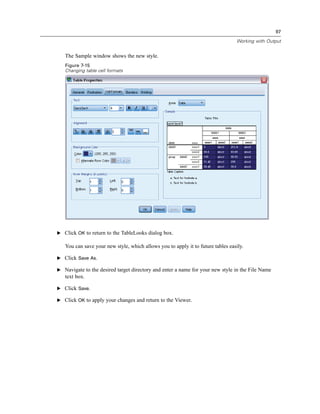
  hiding rows and columns, 92
  layers, 90                         value labels
  pivoting trays, 88                   assigning, 33, 35
  transposing rows and columns, 88     controlling display in Viewer, 33, 35
PowerPoint (Microsoft)                 non-numeric variables, 35
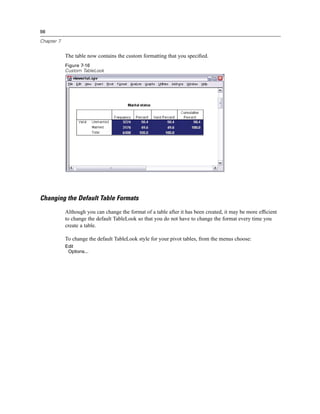
  exporting results to, 106            numeric variables, 33
                                     variable attributes
qualitative data, 55                   reuse, 40
quantitative data, 55                variable labels
                                       creating, 32
                                     variables, 27
ratio data, 55                         data types, 33
recoding values, 126                   labels, 32
renaming datasets, 53                Viewer
                                       hiding and showing output, 86
                                       moving output, 86
sample files
   location, 154
scale data, 55                       Word (Microsoft)
scale variables                       exporting results to, 106
   summary measures, 59
selecting cases, 148
sorting cases, 145
split-file processing, 146
spreadsheet files
   reading, 11
   reading variable names, 11
string data
   entering data, 30
subsets of cases
   based on dates and times, 151
   conditional expressions, 149
   deleting unselected cases, 152
   filtering unselected cases, 152
   if condition is satisfied, 149
   random sample, 150
   selecting, 148
summary measures
   categorical data, 55
   scale variables, 59
syntax, 118
syntax files
   opening, 122
Syntax Help tool, 122
syntax windows
   auto-completion, 120
   breakpoints, 123
   color coding, 122
   editing commands, 120
   pasting commands, 118
   running commands, 119, 122

Pasw statistics 18 brief guide

  • 1.
    i ® PASW Statistics 18 Brief Guide
  • 2.
    For more informationabout SPSS Inc. software products, please visit our Web site at http://www.spss.com or contact SPSS Inc. 233 South Wacker Drive, 11th Floor Chicago, IL 60606-6412 Tel: (312) 651-3000 Fax: (312) 651-3668 SPSS is a registered trademark. PASW is a registered trademark of SPSS Inc. The SOFTWARE and documentation are provided with RESTRICTED RIGHTS. Use, duplication, or disclosure by the Government is subject to restrictions as set forth in subdivision (c) (1) (ii) of The Rights in Technical Data and Computer Software clause at 52.227-7013. Contractor/manufacturer is SPSS Inc., 233 South Wacker Drive, 11th Floor, Chicago, IL 60606-6412. Patent No. 7,023,453 General notice: Other product names mentioned herein are used for identification purposes only and may be trademarks of their respective companies. Windows is a registered trademark of Microsoft Corporation. Apple, Mac, and the Mac logo are trademarks of Apple Computer, Inc., registered in the U.S. and other countries. This product uses WinWrap Basic, Copyright 1993-2007, Polar Engineering and Consulting, http://www.winwrap.com. Printed in the United States of America. No part of this publication may be reproduced, stored in a retrieval system, or transmitted, in any form or by any means, electronic, mechanical, photocopying, recording, or otherwise, without the prior written permission of the publisher. ISBN-13: 978-1-56827-405-8 ISBN-10: 1-56827-405-X 1234567890 12 11 10 09
  • 3.
    Preface The PASW® Statistics 18 Brief Guide provides a set of tutorials designed to acquaint you with the various components of PASW Statistics. This guide is intended for use with all operating system versions of the software, including: Windows, Macintosh, and Linux. You can work through the tutorials in sequence or turn to the topics for which you need additional information. You can use this guide as a supplement to the online tutorial that is included with the PASW Statistics Base 18 system or ignore the online tutorial and start with the tutorials found here. PASW Statistics 18 PASW Statistics 18 is a comprehensive system for analyzing data. PASW Statistics can take data from almost any type of file and use them to generate tabulated reports, charts, and plots of distributions and trends, descriptive statistics, and complex statistical analyses. PASW Statistics makes statistical analysis more accessible for the beginner and more convenient for the experienced user. Simple menus and dialog box selections make it possible to perform complex analyses without typing a single line of command syntax. The Data Editor offers a simple and efficient spreadsheet-like facility for entering data and browsing the working data file. Internet Resources The SPSS Inc. Web site (http://www.spss.com) offers answers to frequently asked questions and provides access to data files and other useful information. In addition, the SPSS USENET discussion group (not sponsored by SPSS Inc.) is open to anyone interested . The USENET address is comp.soft-sys.stat.spss. You can also subscribe to an e-mail message list that is gatewayed to the USENET group. To subscribe, send an e-mail message to listserv@listserv.uga.edu. The text of the e-mail message should be: subscribe SPSSX-L firstname lastname. You can then post messages to the list by sending an e-mail message to listserv@listserv.uga.edu. Additional Publications The SPSS Statistics Statistical Procedures Companion, by Marija Norušis, has been published by Prentice Hall. It contains overviews of the procedures in PASW Statistics Base, plus Logistic Regression and General Linear Models. The SPSS Statistics Advanced Statistical Procedures Companion has also been published by Prentice Hall. It includes overviews of the procedures in the Advanced and Regression modules. iii
  • 4.
    PASW Statistics Options The following options are available as add-on enhancements to the full (not Student Version) PASW Statistics Base system: Statistics Base gives you a wide range of statistical procedures for basic analyses and reports, including counts, crosstabs and descriptive statistics, OLAP Cubes and codebook reports. It also provides a wide variety of dimension reduction, classification and segmentation techniques such as factor analysis, cluster analysis, nearest neighbor analysis and discriminant function analysis. Additionally, PASW Statistics Base offers a broad range of algorithms for comparing means and predictive techniques such as t-test, analysis of variance, linear regression and ordinal regression. Advanced Statistics focuses on techniques often used in sophisticated experimental and biomedical research. It includes procedures for general linear models (GLM), linear mixed models, variance components analysis, loglinear analysis, ordinal regression, actuarial life tables, Kaplan-Meier survival analysis, and basic and extended Cox regression. Bootstrapping is a method for deriving robust estimates of standard errors and confidence intervals for estimates such as the mean, median, proportion, odds ratio, correlation coefficient or regression coefficient. Categories performs optimal scaling procedures, including correspondence analysis. Complex Samples allows survey, market, health, and public opinion researchers, as well as social scientists who use sample survey methodology, to incorporate their complex sample designs into data analysis. Conjoint provides a realistic way to measure how individual product attributes affect consumer and citizen preferences. With Conjoint, you can easily measure the trade-off effect of each product attribute in the context of a set of product attributes—as consumers do when making purchasing decisions. Custom Tables creates a variety of presentation-quality tabular reports, including complex stub-and-banner tables and displays of multiple response data. Data Preparation provides a quick visual snapshot of your data. It provides the ability to apply validation rules that identify invalid data values. You can create rules that flag out-of-range values, missing values, or blank values. You can also save variables that record individual rule violations and the total number of rule violations per case. A limited set of predefined rules that you can copy or modify is provided. Decision Trees creates a tree-based classification model. It classifies cases into groups or predicts values of a dependent (target) variable based on values of independent (predictor) variables. The procedure provides validation tools for exploratory and confirmatory classification analysis. Direct Marketing allows organizations to ensure their marketing programs are as effective as possible, through techniques specifically designed for direct marketing. Exact Tests calculates exact p values for statistical tests when small or very unevenly distributed samples could make the usual tests inaccurate. This option is available only on Windows operating systems. Forecasting performs comprehensive forecasting and time series analyses with multiple curve-fitting models, smoothing models, and methods for estimating autoregressive functions. iv
  • 5.
    Missing Values describespatterns of missing data, estimates means and other statistics, and imputes values for missing observations. Neural Networks can be used to make business decisions by forecasting demand for a product as a function of price and other variables, or by categorizing customers based on buying habits and demographic characteristics. Neural networks are non-linear data modeling tools. They can be used to model complex relationships between inputs and outputs or to find patterns in data. Regression provides techniques for analyzing data that do not fit traditional linear statistical models. It includes procedures for probit analysis, logistic regression, weight estimation, two-stage least-squares regression, and general nonlinear regression. Amos™ (analysis of moment structures) uses structural equation modeling to confirm and explain conceptual models that involve attitudes, perceptions, and other factors that drive behavior. Training Seminars SPSS Inc. provides both public and onsite training seminars for PASW Statistics. All seminars feature hands-on workshops. seminars will be offered in major U.S. and European cities on a regular basis. For more information on these seminars, contact your local office, listed on the SPSS Inc. Web site at http://www.spss.com/worldwide. Technical Support Technical Support services are available to maintenance customers of PASW Statistics. (Student Version customers should read the special section on technical support for the Student Version. For more information, see the topic Technical Support for Students on p. vi.) Customers may contact Technical Support for assistance in using products or for installation help for one of the supported hardware environments. To reach Technical Support, see the web site at http://www.spss.com, or contact your local office, listed on the SPSS Inc. Web site at http://www.spss.com/worldwide. Be prepared to identify yourself, your organization, and the serial number of your system. PASW Statistics 18 for Windows Student Version The PASW Statistics 18 for Windows Student Version is a limited but still powerful version of the PASW Statistics Base 18 system. Capability The Student Version contains all of the important data analysis tools contained in the full PASW Statistics Base system, including: Spreadsheet-like Data Editor for entering, modifying, and viewing data files. Statistical procedures, including t tests, analysis of variance, and crosstabulations. Interactive graphics that allow you to change or add chart elements and variables dynamically; the changes appear as soon as they are specified. Standard high-resolution graphics for an extensive array of analytical and presentation charts and tables. v
  • 6.
    Limitations Created for classroom instruction, the Student Version is limited to use by students and instructors for educational purposes only. The Student Version does not contain all of the functions of the PASW Statistics Base 18 system. The following limitations apply to the PASW Statistics 18 for Windows Student Version: Data files cannot contain more than 50 variables. Data files cannot contain more than 1,500 cases. PASW Statistics add-on modules (such as Regression or Advanced Statistics) cannot be used with the Student Version. PASW Statistics command syntax is not available to the user. This means that it is not possible to repeat an analysis by saving a series of commands in a syntax or “job” file, as can be done in the full version of PASW Statistics. Scripting and automation are not available to the user. This means that you cannot create scripts that automate tasks that you repeat often, as can be done in the full version of PASW Statistics. Technical Support for Students Students should obtain technical support from their instructors or from local support staff identified by their instructors. Technical support for the PASW Statistics 18 Student Version is provided only to instructors using the system for classroom instruction. Before seeking assistance from your instructor, please write down the information described below. Without this information, your instructor may be unable to assist you: The type of computer you are using, as well as the amount of RAM and free disk space you have. The operating system of your computer. A clear description of what happened and what you were doing when the problem occurred. If possible, please try to reproduce the problem with one of the sample data files provided with the program. The exact wording of any error or warning messages that appeared on your screen. How you tried to solve the problem on your own. Technical Support for Instructors Instructors using the Student Version for classroom instruction may contact Technical Support for assistance. In the United States and Canada, call Technical Support at (312) 651-3410, or send an e-mail to support@spss.com. Please include your name, title, and academic institution. Instructors outside of the United States and Canada should contact your local office, listed on the web site at http://www.spss.com/worldwide. vi
  • 7.
    Contents 1 Introduction 1 Sample Files . . . . . . . . . . . . . . . . . . . . . . . . . . . . . . . . . . . . . . . . . . . . . . . . . . . . . . . . . . . . . . . . . 1 Opening a Data File. . . . . . . . . . . . . . . . . . . . . . . . . . . . . . . . . . . . . . . . . . . . . . . . . . . . . . . . . . . . 1 Running an Analysis . . . . . . . . . . . . . . . . . . . . . . . . . . . . . . . . . . . . . . . . . . . . . . . . . . . . . . . . . . 3 Viewing Results . . . . . . . . . . . . . . . . . . . . . . . . . . . . . . . . . . . . . . . . . . . . . . . . . . . . . . . . . . . . . . 6 Creating Charts. . . . . . . . . . . . . . . . . . . . . . . . . . . . . . . . . . . . . . . . . . . . . . . . . . . . . . . . . . . . . . . 7 2 Reading Data 10 Basic Structure of PASW Statistics Data Files . . . . . . . . . . . . . . . . . . . . . . . . . . . . . . . . . . . . . . . 10 Reading PASW Statistics Data Files . . . . . . . . . . . . . . . . . . . . . . . . . . . . . . . . . . . . . . . . . . . . . . . 10 Reading Data from Spreadsheets . . . . . . . . . . . . . . . . . . . . . . . . . . . . . . . . . . . . . . . . . . . . . . . . . 11 Reading Data from a Database . . . . . . . . . . . . . . . . . . . . . . . . . . . . . . . . . . . . . . . . . . . . . . . . . . . 13 Reading Data from a Text File . . . . . . . . . . . . . . . . . . . . . . . . . . . . . . . . . . . . . . . . . . . . . . . . . . . . 19 3 Using the Data Editor 27 Entering Numeric Data . . . . . . . . . . . . . . . . . . . . . . . . . . . . . . . . . . . . . . . . . . . . . . . . . . . . . . . . . 27 Entering String Data . . . . . . . . . . . . . . . . . . . . . . . . . . . . . . . . . . . . . . . . . . . . . . . . . . . . . . . . . . . 30 Defining Data . . . . . . . . . . . . . . . . . . . . . . . . . . . . . . . . . . . . . . . . . . . . . . . . . . . . . . . . . . . . . . . . 32 Adding Variable Labels . . . . . . . . . . . . . . . . . . . . . . . . . . ... ... ... ... ... ... ... ... ... 32 Changing Variable Type and Format . . . . . . . . . . . . . . . . . ... ... ... ... ... ... ... ... ... 33 Adding Value Labels for Numeric Variables . . . . . . . . . . . ... ... ... ... ... ... ... ... ... 33 Adding Value Labels for String Variables . . . . . . . . . . . . . ... ... ... ... ... ... ... ... ... 35 Using Value Labels for Data Entry . . . . . . . . . . . . . . . . . . ... ... ... ... ... ... ... ... ... 36 Handling Missing Data. . . . . . . . . . . . . . . . . . . . . . . . . . . ... ... ... ... ... ... ... ... ... 37 Missing Values for a Numeric Variable. . . . . . . . . . . . . . . ... ... ... ... ... ... ... ... ... 38 Missing Values for a String Variable. . . . . . . . . . . . . . . . . ... ... ... ... ... ... ... ... ... 39 Copying and Pasting Variable Attributes . . . . . . . . . . . . . ... ... ... ... ... ... ... ... ... 40 Defining Variable Properties for Categorical Variables . . . ... ... ... ... ... ... ... ... ... 44 vii
  • 8.
    4 Working with Multiple Data Sources 51 Basic Handling of Multiple Data Sources . . . . . . . . . . . . . . . . . . . . . . . . . . . . . . . . . . . . . . . . . . . 51 Working with Multiple Datasets in Command Syntax. . . . . . . . . . . . . . . . . . . . . . . . . . . . . . . . . . . 52 Copying and Pasting Information between Datasets . . . . . . . . . . . . . . . . . . . . . . . . . . . . . . . . . . . 53 Renaming Datasets. . . . . . . . . . . . . . . . . . . . . . . . . . . . . . . . . . . . . . . . . . . . . . . . . . . . . . . . . . . . 53 Suppressing Multiple Datasets . . . . . . . . . . . . . . . . . . . . . . . . . . . . . . . . . . . . . . . . . . . . . . . . . . . 54 5 Examining Summary Statistics for Individual Variables 55 Level of Measurement . . . . . . . . . . . . . . . . . . . . . . . . . . . . . . . . . . . . . . . . . . . . . . . . . . . . . . . . . 55 Summary Measures for Categorical Data . . . . . . . . . . . . . . . . . . . . . . . . . . . . . . . . . . . . . . . . . . . 55 Charts for Categorical Data . . . . . . . . . . . . . . . . . . . . . . . . . . . . . . . . . . . . . . . . . . . . . . . . . . 57 Summary Measures for Scale Variables . . . . . . . . . . . . . . . . . . . . . . . . . . . . . . . . . . . . . . . . . . . . 59 Histograms for Scale Variables . . . . . . . . . . . . . . . . . . . . . . . . . . . . . . . . . . . . . . . . . . . . . . . 61 6 Creating and Editing Charts 63 Chart Creation Basics . . . . . . . . . . . . . . . . . . . . . . . . . . . . . . . . . . . . . . . . . . . . . . . . . . . . . . . . . . 63 Using the Chart Builder Gallery . . ... ... ... ... ... ... ... ... ... ... ... ... ... ... ... 64 Defining Variables and Statistics . ... ... ... ... ... ... ... ... ... ... ... ... ... ... ... 65 Adding Text . . . . . . . . . . . . . . . . . ... ... ... ... ... ... ... ... ... ... ... ... ... ... ... 68 Creating the Chart . . . . . . . . . . . . ... ... ... ... ... ... ... ... ... ... ... ... ... ... ... 69 Chart Editing Basics . . . . . . . . . . . . . . ... ... ... ... ... ... ... ... ... ... ... ... ... ... ... 69 Selecting Chart Elements. . . . . . . . . . ... ... ... ... ... ... ... ... ... ... ... ... ... ... 70 Using the Properties Window . . . . . . ... ... ... ... ... ... ... ... ... ... ... ... ... ... 70 Changing Bar Colors . . . . . . . . . . . . . ... ... ... ... ... ... ... ... ... ... ... ... ... ... 71 Formatting Numbers in Tick Labels . . ... ... ... ... ... ... ... ... ... ... ... ... ... ... 73 Editing Text . . . . . . . . . . . . . . . . . . . . ... ... ... ... ... ... ... ... ... ... ... ... ... ... 75 Displaying Data Value Labels . . . . . . . ... ... ... ... ... ... ... ... ... ... ... ... ... ... 76 Using Templates . . . . . . . . . . . . . . . . ... ... ... ... ... ... ... ... ... ... ... ... ... ... 77 Defining Chart Options . . . . . . . . . . . . ... ... ... ... ... ... ... ... ... ... ... ... ... ... 82 7 Working with Output 86 Using the Viewer . . . . . . . . . . . . . . . . . . . . . . . . . . . . . . . . . . . . . . . . . . . . . . . . . . . . . . . . . . . . . 86 viii
  • 9.
    Using the PivotTable Editor . . . . . . . . . . . . . . . . . . . . . . . . . . . . . . . . . . . . . . . . . . . . . . . . . . . . . 87 Accessing Output Definitions. . . . ... ... ... ... ... ... ... ... ... ... ... ... ... ... ... 88 Pivoting Tables . . . . . . . . . . . . . . ... ... ... ... ... ... ... ... ... ... ... ... ... ... ... 88 Creating and Displaying Layers . . ... ... ... ... ... ... ... ... ... ... ... ... ... ... ... 90 Editing Tables . . . . . . . . . . . . . . . ... ... ... ... ... ... ... ... ... ... ... ... ... ... ... 91 Hiding Rows and Columns . . . . . . ... ... ... ... ... ... ... ... ... ... ... ... ... ... ... 92 Changing Data Display Formats . . ... ... ... ... ... ... ... ... ... ... ... ... ... ... ... 92 TableLooks . . . . . . . . . . . . . . . . . . . . . ... ... ... ... ... ... ... ... ... ... ... ... ... ... ... 94 Using Predefined Formats . . . . . . . . . . . . ... ... ... ... ... ... ... ... ... ... ... ... . . . 94 Customizing TableLook Styles . . . . . . . . . ... ... ... ... ... ... ... ... ... ... ... ... . . . 95 Changing the Default Table Formats. . . . . ... ... ... ... ... ... ... ... ... ... ... ... . . . 98 Customizing the Initial Display Settings . . ... ... ... ... ... ... ... ... ... ... ... ... . . 100 Displaying Variable and Value Labels . . . . ... ... ... ... ... ... ... ... ... ... ... ... . . 101 Using Results in Other Applications . . . . . . . . ... ... ... ... ... ... ... ... ... ... ... ... . . 103 Pasting Results as Word Tables . . . . . . . . . . . . . . . . . . . . . . . . . . . . . ... ... ... ... ... .. 104 Pasting Results as Text . . . . . . . . . . . . . . . . . . . . . . . . . . . . . . . . . . . ... ... ... ... ... .. 105 Exporting Results to Microsoft Word, PowerPoint, and Excel Files . . . ... ... ... ... ... .. 106 Exporting Results to PDF . . . . . . . . . . . . . . . . . . . . . . . . . . . . . . . . . . ... ... ... ... ... .. 113 Exporting Results to HTML . . . . . . . . . . . . . . . . . . . . . . . . . . . . . . . . . ... ... ... ... ... .. 116 8 Working with Syntax 118 Pasting Syntax . . . . . . . . . . . . . . . . . . . . . . . . . . . . . . . . . . . . . . . . . . . . . . . . . . . . . . . . . . . . . . 118 Editing Syntax. . . . . . . . . . . . . . . . . . . . . . . . . . . . . . . . . . . . . . . . . . . . . . . . . . . . . . . . . . . . . . . 120 Opening and Running a Syntax File . . . . . . . . . . . . . . . . . . . . . . . . . . . . . . . . . . . . . . . . . . . . . . . 122 Understanding the Error Pane. . . . . . . . . . . . . . . . . . . . . . . . . . . . . . . . . . . . . . . . . . . . . . . . . . . 123 Using Breakpoints . . . . . . . . . . . . . . . . . . . . . . . . . . . . . . . . . . . . . . . . . . . . . . . . . . . . . . . . . . . 123 9 Modifying Data Values 126 Creating a Categorical Variable from a Scale Variable. . . . . . . . . . . . . . . . . . . . . . . . . . . . . . . . . 126 Computing New Variables. . . . . . . . . . . . . . . . . . . . . . . . . . . . . . . . . . . . . . . . . . . . . . . . . . . . . . 132 Using Functions in Expressions . . . . . . . . . . . . . . . . . . . . . . . . . . . . . . . . . . . . . . . . . . . . . . 134 Using Conditional Expressions . . . . . . . . . . . . . . . . . . . . . . . . . . . . . . . . . . . . . . . . . . . . . . . 136 Working with Dates and Times . . . . . . . . . . . . . . . . . . . . . . . . . . . . . . . . . . . . . . . . . . . . . . . . . . 138 Calculating the Length of Time between Two Dates . . . . . . . . . . . . . . . . . . . . . . . . . . . . . . . 139 Adding a Duration to a Date . . . . . . . . . . . . . . . . . . . . . . . . . . . . . . . . . . . . . . . . . . . . . . . . . 142 ix
  • 10.
    10 Sorting andSelecting Data 145 Sorting Data . . . . . . . . . . . . . . . . . . . . . . . . . . . . . . . . . . . . . . . . . . . . . . . . . . . . . . . . . . . . . . . . 145 Split-File Processing . . . . . . . . . . . . . . . . . . . . . . . . . . . . . . . . . . . . . . . . . . . . . . . . . . . . . . . . . . 146 Sorting Cases for Split-File Processing . . . . . . . . . . . . . . . . . . . . . . . . . . . . . . . . . . . . . . . . 147 Turning Split-File Processing On and Off . . . . . . . . . . . . . . . . . . . . . . . . . . . . . . . . . . . . . . . 148 Selecting Subsets of Cases. . . . . . . . . . . . . . . . . . . . . . . . . . . . . . . . . . . . . . . . . . . . . . . . . . . . . 148 Selecting Cases Based on Conditional Expressions . . ... ... ... ... ... ... ... ... ... .. 149 Selecting a Random Sample . . . . . . . . . . . . . . . . . . . ... ... ... ... ... ... ... ... ... .. 150 Selecting a Time Range or Case Range . . . . . . . . . . . ... ... ... ... ... ... ... ... ... .. 151 Treatment of Unselected Cases . . . . . . . . . . . . . . . . . ... ... ... ... ... ... ... ... ... .. 152 Case Selection Status. . . . . . . . . . . . . . . . . . . . . . . . . . . . ... ... ... ... ... ... ... ... ... .. 152 Appendix A Sample Files 154 Index 164 x
  • 11.
    Chapter 1 Introduction This guide provides a set of tutorials designed to enable you to perform useful analyses on your data. You can work through the tutorials in sequence or turn to the topics for which you need additional information. This chapter will introduce you to the basic features and demonstrate a typical session. We will retrieve a previously defined PASW Statistics data file and then produce a simple statistical summary and a chart. More detailed instruction about many of the topics touched upon in this chapter will follow in later chapters. Here, we hope to give you a basic framework for understanding later tutorials. Sample Files Most of the examples that are presented here use the data file demo.sav. This data file is a fictitious survey of several thousand people, containing basic demographic and consumer information. If you are using the Student version, your version of demo.sav is a representative sample of the original data file, reduced to meet the 1,500-case limit. Results that you obtain using that data file will differ from the results shown here. The sample files installed with the product can be found in the Samples subdirectory of the installation directory. There is a separate folder within the Samples subdirectory for each of the following languages: English, French, German, Italian, Japanese, Korean, Polish, Russian, Simplified Chinese, Spanish, and Traditional Chinese. Not all sample files are available in all languages. If a sample file is not available in a language, that language folder contains an English version of the sample file. Opening a Data File To open a data file: E From the menus choose: File Open Data... 1
  • 12.
    2 Chapter 1 Alternatively, you can use the Open File button on the toolbar. Figure 1-1 Open File toolbar button A dialog box for opening files is displayed. By default, PASW Statistics data files (.sav extension) are displayed. This example uses the file demo.sav. Figure 1-2 demo.sav file in Data Editor The data file is displayed in the Data Editor. In the Data Editor, if you put the mouse cursor on a variable name (the column headings), a more descriptive variable label is displayed (if a label has been defined for that variable). By default, the actual data values are displayed. To display labels: E From the menus choose: View Value Labels Alternatively, you can use the Value Labels button on the toolbar. Figure 1-3 Value Labels button Descriptive value labels are now displayed to make it easier to interpret the responses.
  • 13.
    3 Introduction Figure 1-4 Value labels displayed in the Data Editor Running an Analysis If you have any add-on options, the Analyze menu contains a list of reporting and statistical analysis categories. We will start by creating a simple frequency table (table of counts). This example requires the Statistics Base option. E From the menus choose: Analyze Descriptive Statistics Frequencies... The Frequencies dialog box is displayed. Figure 1-5 Frequencies dialog box
  • 14.
    4 Chapter 1 An icon next to each variable provides information about data type and level of measurement. Measurement Data Type Level Numeric String Date Time Scale (Continuous) n/a Ordinal Nominal E Click the variable Income category in thousands [inccat]. Figure 1-6 Variable labels and names in the Frequencies dialog box If the variable label and/or name appears truncated in the list, the complete label/name is displayed when the cursor is positioned over it. The variable name inccat is displayed in square brackets after the descriptive variable label. Income category in thousands is the variable label. If there were no variable label, only the variable name would appear in the list box. You can resize dialog boxes just like windows, by clicking and dragging the outside borders or corners. For example, if you make the dialog box wider, the variable lists will also be wider.
  • 15.
    5 Introduction Figure 1-7 Resized dialog box In the dialog box, you choose the variables that you want to analyze from the source list on the left and drag and drop them into the Variable(s) list on the right. The OK button, which runs the analysis, is disabled until at least one variable is placed in the Variable(s) list. In many dialogs, you can obtain additional information by right-clicking any variable name in the list. E Right-click Income category in thousands [inccat] and choose Variable Information. E Click the down arrow on the Value labels drop-down list. Figure 1-8 Defined labels for income variable All of the defined value labels for the variable are displayed.
  • 16.
    6 Chapter 1 E Click Gender [gender] in the source variable list and drag the variable into the target Variable(s) list. E Click Income category in thousands [inccat] in the source list and drag it to the target list. Figure 1-9 Variables selected for analysis E Click OK to run the procedure. Viewing Results Figure 1-10 Viewer window Results are displayed in the Viewer window. You can quickly go to any item in the Viewer by selecting it in the outline pane.
  • 17.
    7 Introduction E Click Income category in thousands [inccat]. Figure 1-11 Frequency table of income categories The frequency table for income categories is displayed. This frequency table shows the number and percentage of people in each income category. Creating Charts Although some statistical procedures can create charts, you can also use the Graphs menu to create charts. For example, you can create a chart that shows the relationship between wireless telephone service and PDA (personal digital assistant) ownership. E From the menus choose: Graphs Chart Builder... E Click the Gallery tab (if it is not selected). E Click Bar (if it is not selected). E Drag the Clustered Bar icon onto the canvas, which is the large area above the Gallery.
  • 18.
    8 Chapter 1 Figure 1-12 Chart Builder dialog box E Scroll down the Variables list, right-click Wireless service [wireless], and then choose Nominal as its measurement level. E Drag the Wireless service [wireless] variable to the x axis. E Right-click Owns PDA [ownpda] and choose Nominal as its measurement level. E Drag the Owns PDA [ownpda] variable to the cluster drop zone in the upper right corner of the canvas. E Click OK to create the chart.
  • 19.
    9 Introduction Figure 1-13 Bar chart displayed in Viewer window The bar chart is displayed in the Viewer. The chart shows that people with wireless phone service are far more likely to have PDAs than people without wireless service. You can edit charts and tables by double-clicking them in the contents pane of the Viewer window, and you can copy and paste your results into other applications. Those topics will be covered later.
  • 20.
    Chapter 2 Reading Data Data can be entered directly, or it can be imported from a number of different sources. The processes for reading data stored in PASW Statistics data files; spreadsheet applications, such as Microsoft Excel; database applications, such as Microsoft Access; and text files are all discussed in this chapter. Basic Structure of PASW Statistics Data Files Figure 2-1 Data Editor PASW Statistics data files are organized by cases (rows) and variables (columns). In this data file, cases represent individual respondents to a survey. Variables represent responses to each question asked in the survey. Reading PASW Statistics Data Files PASW Statistics data files, which have a .sav file extension, contain your saved data. To open demo.sav, an example file installed with the product: E From the menus choose: File Open Data... 10
  • 21.
    11 Reading Data E Browse to and open demo.sav. For more information, see the topic Sample Files in Appendix A on p. 154. The data are now displayed in the Data Editor. Figure 2-2 Opened data file Reading Data from Spreadsheets Rather than typing all of your data directly into the Data Editor, you can read data from applications such as Microsoft Excel. You can also read column headings as variable names. E From the menus choose: File Open Data... E Select Excel (*.xls) as the file type you want to view. E Open demo.xls. For more information, see the topic Sample Files in Appendix A on p. 154. The Opening Excel Data Source dialog box is displayed, allowing you to specify whether variable names are to be included in the spreadsheet, as well as the cells that you want to import. In Excel 95 or later, you can also specify which worksheets you want to import.
  • 22.
    12 Chapter 2 Figure 2-3 Opening Excel Data Source dialog box E Make sure that Read variable names from the first row of data is selected. This option reads column headings as variable names. If the column headings do not conform to the PASW Statistics variable-naming rules, they are converted into valid variable names and the original column headings are saved as variable labels. If you want to import only a portion of the spreadsheet, specify the range of cells to be imported in the Range text box. E Click OK to read the Excel file. The data now appear in the Data Editor, with the column headings used as variable names. Since variable names can’t contain spaces, the spaces from the original column headings have been removed. For example, Marital status in the Excel file becomes the variable Maritalstatus. The original column heading is retained as a variable label. Figure 2-4 Imported Excel data
  • 23.
    13 Reading Data Reading Data from a Database Data from database sources are easily imported using the Database Wizard. Any database that uses ODBC (Open Database Connectivity) drivers can be read directly after the drivers are installed. ODBC drivers for many database formats are supplied on the installation CD. Additional drivers can be obtained from third-party vendors. One of the most common database applications, Microsoft Access, is discussed in this example. Note: This example is specific to Microsoft Windows and requires an ODBC driver for Access. The steps are similar on other platforms but may require a third-party ODBC driver for Access. E From the menus choose: File Open Database New Query...
  • 24.
    14 Chapter 2 Figure 2-5 Database Wizard Welcome dialog box E Select MS Access Database from the list of data sources and click Next. Note: Depending on your installation, you may also see a list of OLEDB data sources on the left side of the wizard (Windows operating systems only), but this example uses the list of ODBC data sources displayed on the right side.
  • 25.
    15 Reading Data Figure 2-6 ODBC Driver Login dialog box E Click Browse to navigate to the Access database file that you want to open. E Open demo.mdb. For more information, see the topic Sample Files in Appendix A on p. 154. E Click OK in the login dialog box. In the next step, you can specify the tables and variables that you want to import. Figure 2-7 Select Data step
  • 26.
    16 Chapter 2 E Drag the entire demo table to the Retrieve Fields In This Order list. E Click Next. In the next step, you select which records (cases) to import. Figure 2-8 Limit Retrieved Cases step If you do not want to import all cases, you can import a subset of cases (for example, males older than 30), or you can import a random sample of cases from the data source. For large data sources, you may want to limit the number of cases to a small, representative sample to reduce the processing time. E Click Next to continue.
  • 27.
    17 Reading Data Field names are used to create variable names. If necessary, the names are converted to valid variable names. The original field names are preserved as variable labels. You can also change the variable names before importing the database. Figure 2-9 Define Variables step E Click the Recode to Numeric cell in the Gender field. This option converts string variables to integer variables and retains the original value as the value label for the new variable. E Click Next to continue.
  • 28.
    18 Chapter 2 The SQL statement created from your selections in the Database Wizard appears in the Results step. This statement can be executed now or saved to a file for later use. Figure 2-10 Results step E Click Finish to import the data.
  • 29.
    19 Reading Data All of the data in the Access database that you selected to import are now available in the Data Editor. Figure 2-11 Data imported from an Access database Reading Data from a Text File Text files are another common source of data. Many spreadsheet programs and databases can save their contents in one of many text file formats. Comma- or tab-delimited files refer to rows of data that use commas or tabs to indicate each variable. In this example, the data are tab delimited. E From the menus choose: File Read Text Data... E Select Text (*.txt) as the file type you want to view. E Open demo.txt. For more information, see the topic Sample Files in Appendix A on p. 154.
  • 30.
    20 Chapter 2 The Text Import Wizard guides you through the process of defining how the specified text file should be interpreted. Figure 2-12 Text Import Wizard: Step 1 of 6 E In Step 1, you can choose a predefined format or create a new format in the wizard. Select No to indicate that a new format should be created. E Click Next to continue.
  • 31.
    21 Reading Data As stated earlier, this file uses tab-delimited formatting. Also, the variable names are defined on the top line of this file. Figure 2-13 Text Import Wizard: Step 2 of 6 E Select Delimited to indicate that the data use a delimited formatting structure. E Select Yes to indicate that variable names should be read from the top of the file. E Click Next to continue.
  • 32.
    22 Chapter 2 E Type 2 in the top section of next dialog box to indicate that the first row of data starts on the second line of the text file. Figure 2-14 Text Import Wizard: Step 3 of 6 E Keep the default values for the remainder of this dialog box, and click Next to continue.
  • 33.
    23 Reading Data The Data preview in Step 4 provides you with a quick way to ensure that your data are being properly read. Figure 2-15 Text Import Wizard: Step 4 of 6 E Select Tab and deselect the other options. E Click Next to continue.
  • 34.
    24 Chapter 2 Because the variable names may have been truncated to fit formatting requirements, this dialog box gives you the opportunity to edit any undesirable names. Figure 2-16 Text Import Wizard: Step 5 of 6 Data types can be defined here as well. For example, it’s safe to assume that the income variable is meant to contain a certain dollar amount. To change a data type: E Under Data preview, select the variable you want to change, which is Income in this case.
  • 35.
    25 Reading Data E Select Dollar from the Data format drop-down list. Figure 2-17 Change the data type E Click Next to continue.
  • 36.
    26 Chapter 2 Figure 2-18 Text Import Wizard: Step 6 of 6 E Leave the default selections in this dialog box, and click Finish to import the data.
  • 37.
    Chapter 3 Using the Data Editor The Data Editor displays the contents of the active data file. The information in the Data Editor consists of variables and cases. In Data View, columns represent variables, and rows represent cases (observations). In Variable View, each row is a variable, and each column is an attribute that is associated with that variable. Variables are used to represent the different types of data that you have compiled. A common analogy is that of a survey. The response to each question on a survey is equivalent to a variable. Variables come in many different types, including numbers, strings, currency, and dates. Entering Numeric Data Data can be entered into the Data Editor, which may be useful for small data files or for making minor edits to larger data files. E Click the Variable View tab at the bottom of the Data Editor window. You need to define the variables that will be used. In this case, only three variables are needed: age, marital status, and income. 27
  • 38.
    28 Chapter 3 Figure 3-1 Variable names in Variable View E In the first row of the first column, type age. E In the second row, type marital. E In the third row, type income. New variables are automatically given a Numeric data type. If you don’t enter variable names, unique names are automatically created. However, these names are not descriptive and are not recommended for large data files. E Click the Data View tab to continue entering the data. The names that you entered in Variable View are now the headings for the first three columns in Data View.
  • 39.
    29 Using the Data Editor Begin entering data in the first row, starting at the first column. Figure 3-2 Values entered in Data View E In the age column, type 55. E In the marital column, type 1. E In the income column, type 72000. E Move the cursor to the second row of the first column to add the next subject’s data. E In the age column, type 53. E In the marital column, type 0. E In the income column, type 153000. Currently, the age and marital columns display decimal points, even though their values are intended to be integers. To hide the decimal points in these variables: E Click the Variable View tab at the bottom of the Data Editor window. E In the Decimals column of the age row, type 0 to hide the decimal.
  • 40.
    30 Chapter 3 E In the Decimals column of the marital row, type 0 to hide the decimal. Figure 3-3 Updated decimal property for age and marital Entering String Data Non-numeric data, such as strings of text, can also be entered into the Data Editor. E Click the Variable View tab at the bottom of the Data Editor window. E In the first cell of the first empty row, type sex for the variable name. E Click the Type cell next to your entry.
  • 41.
    31 Using the Data Editor E Click the button on the right side of the Type cell to open the Variable Type dialog box. Figure 3-4 Button shown in Type cell for sex E Select String to specify the variable type. E Click OK to save your selection and return to the Data Editor. Figure 3-5 Variable Type dialog box
  • 42.
    32 Chapter 3 Defining Data In addition to defining data types, you can also define descriptive variable labels and value labels for variable names and data values. These descriptive labels are used in statistical reports and charts. Adding Variable Labels Labels are meant to provide descriptions of variables. These descriptions are often longer versions of variable names. Labels can be up to 255 bytes. These labels are used in your output to identify the different variables. E Click the Variable View tab at the bottom of the Data Editor window. E In the Label column of the age row, type Respondent's Age. E In the Label column of the marital row, type Marital Status. E In the Label column of the income row, type Household Income. E In the Label column of the sex row, type Gender. Figure 3-6 Variable labels entered in Variable View
  • 43.
    33 Using the Data Editor Changing Variable Type and Format The Type column displays the current data type for each variable. The most common data types are numeric and string, but many other formats are supported. In the current data file, the income variable is defined as a numeric type. E Click the Type cell for the income row, and then click the button on the right side of the cell to open the Variable Type dialog box. E Select Dollar. Figure 3-7 Variable Type dialog box The formatting options for the currently selected data type are displayed. E For the format of the currency in this example, select $###,###,###. E Click OK to save your changes. Adding Value Labels for Numeric Variables Value labels provide a method for mapping your variable values to a string label. In this example, there are two acceptable values for the marital variable. A value of 0 means that the subject is single, and a value of 1 means that he or she is married. E Click the Values cell for the marital row, and then click the button on the right side of the cell to open the Value Labels dialog box. The value is the actual numeric value. The value label is the string label that is applied to the specified numeric value. E Type 0 in the Value field. E Type Single in the Label field.
  • 44.
    34 Chapter 3 E Click Add to add this label to the list. Figure 3-8 Value Labels dialog box E Type 1 in the Value field, and type Married in the Label field. E Click Add, and then click OK to save your changes and return to the Data Editor. These labels can also be displayed in Data View, which can make your data more readable. E Click the Data View tab at the bottom of the Data Editor window. E From the menus choose: View Value Labels The labels are now displayed in a list when you enter values in the Data Editor. This setup has the benefit of suggesting a valid response and providing a more descriptive answer.
  • 45.
    35 Using the Data Editor If the Value Labels menu item is already active (with a check mark next to it), choosing Value Labels again will turn off the display of value labels. Figure 3-9 Value labels displayed in Data View Adding Value Labels for String Variables String variables may require value labels as well. For example, your data may use single letters, M or F, to identify the sex of the subject. Value labels can be used to specify that M stands for Male and F stands for Female. E Click the Variable View tab at the bottom of the Data Editor window. E Click the Values cell in the sex row, and then click the button on the right side of the cell to open the Value Labels dialog box. E Type F in the Value field, and then type Female in the Label field.
  • 46.
    36 Chapter 3 E Click Add to add this label to your data file. Figure 3-10 Value Labels dialog box E Type M in the Value field, and type Male in the Label field. E Click Add, and then click OK to save your changes and return to the Data Editor. Because string values are case sensitive, you should be consistent. A lowercase m is not the same as an uppercase M. Using Value Labels for Data Entry You can use value labels for data entry. E Click the Data View tab at the bottom of the Data Editor window. E In the first row, select the cell for sex. E Click the button on the right side of the cell, and then choose Male from the drop-down list. E In the second row, select the cell for sex.
  • 47.
    37 Using the Data Editor E Click the button on the right side of the cell, and then choose Female from the drop-down list. Figure 3-11 Using variable labels to select values Only defined values are listed, which ensures that the entered data are in a format that you expect. Handling Missing Data Missing or invalid data are generally too common to ignore. Survey respondents may refuse to answer certain questions, may not know the answer, or may answer in an unexpected format. If you don’t filter or identify these data, your analysis may not provide accurate results. For numeric data, empty data fields or fields containing invalid entries are converted to system-missing, which is identifiable by a single period.
  • 48.
    38 Chapter 3 Figure 3-12 Missing values displayed as periods The reason a value is missing may be important to your analysis. For example, you may find it useful to distinguish between those respondents who refused to answer a question and those respondents who didn’t answer a question because it was not applicable. Missing Values for a Numeric Variable E Click the Variable View tab at the bottom of the Data Editor window. E Click the Missing cell in the age row, and then click the button on the right side of the cell to open the Missing Values dialog box. In this dialog box, you can specify up to three distinct missing values, or you can specify a range of values plus one additional discrete value. Figure 3-13 Missing Values dialog box
  • 49.
    39 Using the Data Editor E Select Discrete missing values. E Type 999 in the first text box and leave the other two text boxes empty. E Click OK to save your changes and return to the Data Editor. Now that the missing data value has been added, a label can be applied to that value. E Click the Values cell in the age row, and then click the button on the right side of the cell to open the Value Labels dialog box. E Type 999 in the Value field. E Type No Response in the Label field. Figure 3-14 Value Labels dialog box E Click Add to add this label to your data file. E Click OK to save your changes and return to the Data Editor. Missing Values for a String Variable Missing values for string variables are handled similarly to the missing values for numeric variables. However, unlike numeric variables, empty fields in string variables are not designated as system-missing. Rather, they are interpreted as an empty string. E Click the Variable View tab at the bottom of the Data Editor window. E Click the Missing cell in the sex row, and then click the button on the right side of the cell to open the Missing Values dialog box. E Select Discrete missing values. E Type NR in the first text box. Missing values for string variables are case sensitive. So, a value of nr is not treated as a missing value.
  • 50.
    40 Chapter 3 E Click OK to save your changes and return to the Data Editor. Now you can add a label for the missing value. E Click the Values cell in the sex row, and then click the button on the right side of the cell to open the Value Labels dialog box. E Type NR in the Value field. E Type No Response in the Label field. Figure 3-15 Value Labels dialog box E Click Add to add this label to your project. E Click OK to save your changes and return to the Data Editor. Copying and Pasting Variable Attributes After you’ve defined variable attributes for a variable, you can copy these attributes and apply them to other variables.
  • 51.
    41 Using the Data Editor E In Variable View, type agewed in the first cell of the first empty row. Figure 3-16 agewed variable in Variable View E In the Label column, type Age Married. E Click the Values cell in the age row. E From the menus choose: Edit Copy E Click the Values cell in the agewed row. E From the menus choose: Edit Paste The defined values from the age variable are now applied to the agewed variable.
  • 52.
    42 Chapter 3 To apply the attribute to multiple variables, simply select multiple target cells (click and drag down the column). Figure 3-17 Multiple cells selected When you paste the attribute, it is applied to all of the selected cells. New variables are automatically created if you paste the values into empty rows.
  • 53.
    43 Using the Data Editor To copy all attributes from one variable to another variable: E Click the row number in the marital row. Figure 3-18 Selected row E From the menus choose: Edit Copy E Click the row number of the first empty row. E From the menus choose: Edit Paste
  • 54.
    44 Chapter 3 All attributes of the marital variable are applied to the new variable. Figure 3-19 All values pasted into a row Defining Variable Properties for Categorical Variables For categorical (nominal, ordinal) data, you can use Define Variable Properties to define value labels and other variable properties. The Define Variable Properties process: Scans the actual data values and lists all unique data values for each selected variable. Identifies unlabeled values and provides an “auto-label” feature. Provides the ability to copy defined value labels from another variable to the selected variable or from the selected variable to additional variables. This example uses the data file demo.sav. For more information, see the topic Sample Files in Appendix A on p. 154. This data file already has defined value labels, so we will enter a value for which there is no defined value label. E In Data View of the Data Editor, click the first data cell for the variable ownpc (you may have to scroll to the right), and then enter 99. E From the menus choose: Data Define Variable Properties...
  • 55.
    45 Using the Data Editor Figure 3-20 Initial Define Variable Properties dialog box In the initial Define Variable Properties dialog box, you select the nominal or ordinal variables for which you want to define value labels and/or other properties. E Drag and drop Owns computer [ownpc] through Owns VCR [ownvcr] into the Variables to Scan list. You might notice that the measurement level icons for all of the selected variables indicate that they are scale variables, not categorical variables. All of the selected variables in this example are really categorical variables that use the numeric values 0 and 1 to stand for No and Yes, respectively—and one of the variable properties that we’ll change with Define Variable Properties is the measurement level. E Click Continue.
  • 56.
    46 Chapter 3 Figure 3-21 Define Variable Properties main dialog box E In the Scanned Variable List, select ownpc. The current level of measurement for the selected variable is scale. You can change the measurement level by selecting a level from the drop-down list, or you can let Define Variable Properties suggest a measurement level. E Click Suggest. The Suggest Measurement Level dialog box is displayed.
  • 57.
    47 Using the Data Editor Figure 3-22 Suggest Measurement Level dialog box Because the variable doesn’t have very many different values and all of the scanned cases contain integer values, the proper measurement level is probably ordinal or nominal. E Select Ordinal, and then click Continue. The measurement level for the selected variable is now ordinal. The Value Label grid displays all of the unique data values for the selected variable, any defined value labels for these values, and the number of times (count) that each value occurs in the scanned cases. The value that we entered in Data View, 99, is displayed in the grid. The count is only 1 because we changed the value for only one case, and the Label column is empty because we haven’t defined a value label for 99 yet. An X in the first column of the Scanned Variable List also indicates that the selected variable has at least one observed value without a defined value label. E In the Label column for the value of 99, enter No answer. E Check the box in the Missing column for the value 99 to identify the value 99 as user-missing. Data values that are specified as user-missing are flagged for special treatment and are excluded from most calculations.
  • 58.
    48 Chapter 3 Figure 3-23 New variable properties defined for ownpc Before we complete the job of modifying the variable properties for ownpc, let’s apply the same measurement level, value labels, and missing values definitions to the other variables in the list. E In the Copy Properties area, click To Other Variables.
  • 59.
    49 Using the Data Editor Figure 3-24 Apply Labels and Level dialog box E In the Apply Labels and Level dialog box, select all of the variables in the list, and then click Copy. If you select any other variable in the Scanned Variable List of the Define Variable Properties main dialog box now, you’ll see that they are all ordinal variables, with a value of 99 defined as user-missing and a value label of No answer. Figure 3-25 New variable properties defined for ownfax
  • 60.
    50 Chapter 3 E Click OK to save all of the variable properties that you have defined.
  • 61.
    Chapter 4 Working with Multiple Data Sources Starting with version 14.0, multiple data sources can be open at the same time, making it easier to: Switch back and forth between data sources. Compare the contents of different data sources. Copy and paste data between data sources. Create multiple subsets of cases and/or variables for analysis. Merge multiple data sources from various data formats (for example, spreadsheet, database, text data) without saving each data source first. Basic Handling of Multiple Data Sources Figure 4-1 Two data sources open at same time By default, each data source that you open is displayed in a new Data Editor window. Any previously open data sources remain open and available for further use. When you first open a data source, it automatically becomes the active dataset. 51
  • 62.
    52 Chapter 4 You can change the active dataset simply by clicking anywhere in the Data Editor window of the data source that you want to use or by selecting the Data Editor window for that data source from the Window menu. Only the variables in the active dataset are available for analysis. Figure 4-2 Variable list containing variables in the active dataset You cannot change the active dataset when any dialog box that accesses the data is open (including all dialog boxes that display variable lists). At least one Data Editor window must be open during a session. When you close the last open Data Editor window, PASW Statistics automatically shuts down, prompting you to save changes first. Working with Multiple Datasets in Command Syntax If you use command syntax to open data sources (for example, GET FILE, GET DATA), you need to use the DATASET NAME command to name each dataset explicitly in order to have more than one data source open at the same time. When working with command syntax, the active dataset name is displayed on the toolbar of the syntax window. All of the following actions can change the active dataset: Use the DATASET ACTIVATE command.
  • 63.
    53 Working with Multiple Data Sources Click anywhere in the Data Editor window of a dataset. Select a dataset name from the toolbar in the syntax window. Figure 4-3 Open datasets displayed on syntax window toolbar Copying and Pasting Information between Datasets You can copy both data and variable definition attributes from one dataset to another dataset in basically the same way that you copy and paste information within a single data file. Copying and pasting selected data cells in Data View pastes only the data values, with no variable definition attributes. Copying and pasting an entire variable in Data View by selecting the variable name at the top of the column pastes all of the data and all of the variable definition attributes for that variable. Copying and pasting variable definition attributes or entire variables in Variable View pastes the selected attributes (or the entire variable definition) but does not paste any data values. Renaming Datasets When you open a data source through the menus and dialog boxes, each data source is automatically assigned a dataset name of DataSetn, where n is a sequential integer value, and when you open a data source using command syntax, no dataset name is assigned unless you explicitly specify one with DATASET NAME. To provide more descriptive dataset names: E From the menus in the Data Editor window for the dataset whose name you want to change choose: File Rename Dataset... E Enter a new dataset name that conforms to variable naming rules.
  • 64.
    54 Chapter 4 Suppressing MultipleDatasets If you prefer to have only one dataset available at a time and want to suppress the multiple dataset feature: E From the menus choose: Edit Options... E Click the General tab. Select (check) Open only one dataset at a time.
  • 65.
    Chapter 5 Examining Summary Statistics for Individual Variables This chapter discusses simple summary measures and how the level of measurement of a variable influences the types of statistics that should be used. We will use the data file demo.sav. For more information, see the topic Sample Files in Appendix A on p. 154. Level of Measurement Different summary measures are appropriate for different types of data, depending on the level of measurement: Categorical. Data with a limited number of distinct values or categories (for example, gender or marital status). Also referred to as qualitative data. Categorical variables can be string (alphanumeric) data or numeric variables that use numeric codes to represent categories (for example, 0 = Unmarried and 1 = Married). There are two basic types of categorical data: Nominal. Categorical data where there is no inherent order to the categories. For example, a job category of sales is not higher or lower than a job category of marketing or research. Ordinal. Categorical data where there is a meaningful order of categories, but there is not a measurable distance between categories. For example, there is an order to the values high, medium, and low, but the “distance” between the values cannot be calculated. Scale. Data measured on an interval or ratio scale, where the data values indicate both the order of values and the distance between values. For example, a salary of $72,195 is higher than a salary of $52,398, and the distance between the two values is $19,797. Also referred to as quantitative or continuous data. Summary Measures for Categorical Data For categorical data, the most typical summary measure is the number or percentage of cases in each category. The mode is the category with the greatest number of cases. For ordinal data, the median (the value at which half of the cases fall above and below) may also be a useful summary measure if there is a large number of categories. The Frequencies procedure produces frequency tables that display both the number and percentage of cases for each observed value of a variable. 55
  • 66.
    56 Chapter 5 E From the menus choose: Analyze Descriptive Statistics Frequencies... Note: This feature requires the Statistics Base option. E Select Owns PDA [ownpda] and Owns TV [owntv] and move them into the Variable(s) list. Figure 5-1 Categorical variables selected for analysis E Click OK to run the procedure.
  • 67.
    57 Examining Summary Statistics for Individual Variables Figure 5-2 Frequency tables The frequency tables are displayed in the Viewer window. The frequency tables reveal that only 20.4% of the people own PDAs, but almost everybody owns a TV (99.0%). These might not be interesting revelations, although it might be interesting to find out more about the small group of people who do not own televisions. Charts for Categorical Data You can graphically display the information in a frequency table with a bar chart or pie chart. E Open the Frequencies dialog box again. (The two variables should still be selected.) You can use the Dialog Recall button on the toolbar to quickly return to recently used procedures. Figure 5-3 Dialog Recall button E Click Charts.
  • 68.
    58 Chapter 5 E Select Bar charts and then click Continue. Figure 5-4 Frequencies Charts dialog box E Click OK in the main dialog box to run the procedure. Figure 5-5 Bar chart In addition to the frequency tables, the same information is now displayed in the form of bar charts, making it easy to see that most people do not own PDAs but almost everyone owns a TV.
  • 69.
    59 Examining Summary Statistics for Individual Variables Summary Measures for Scale Variables There are many summary measures available for scale variables, including: Measures of central tendency. The most common measures of central tendency are the mean (arithmetic average) and median (value at which half the cases fall above and below). Measures of dispersion. Statistics that measure the amount of variation or spread in the data include the standard deviation, minimum, and maximum. E Open the Frequencies dialog box again. E Click Reset to clear any previous settings. E Select Household income in thousands [income] and move it into the Variable(s) list. Figure 5-6 Scale variable selected for analysis E Click Statistics.
  • 70.
    60 Chapter 5 E Select Mean, Median, Std. deviation, Minimum, and Maximum. Figure 5-7 Frequencies Statistics dialog box E Click Continue. E Deselect Display frequency tables in the main dialog box. (Frequency tables are usually not useful for scale variables since there may be almost as many distinct values as there are cases in the data file.) E Click OK to run the procedure.
  • 71.
    61 Examining Summary Statistics for Individual Variables The Frequencies Statistics table is displayed in the Viewer window. Figure 5-8 Frequencies Statistics table In this example, there is a large difference between the mean and the median. The mean is almost 25,000 greater than the median, indicating that the values are not normally distributed. You can visually check the distribution with a histogram. Histograms for Scale Variables E Open the Frequencies dialog box again. E Click Charts. E Select Histograms and With normal curve. Figure 5-9 Frequencies Charts dialog box E Click Continue, and then click OK in the main dialog box to run the procedure.
  • 72.
    62 Chapter 5 Figure 5-10 Histogram The majority of cases are clustered at the lower end of the scale, with most falling below 100,000. There are, however, a few cases in the 500,000 range and beyond (too few to even be visible without modifying the histogram). These high values for only a few cases have a significant effect on the mean but little or no effect on the median, making the median a better indicator of central tendency in this example.
  • 73.
    Chapter 6 Creating and Editing Charts You can create and edit a wide variety of chart types. In this chapter, we will create and edit bar charts. You can apply the principles to any chart type. Chart Creation Basics To demonstrate the basics of chart creation, we will create a bar chart of mean income for different levels of job satisfaction. This example uses the data file demo.sav. For more information, see the topic Sample Files in Appendix A on p. 154. E From the menus choose: Graphs Chart Builder... 63
  • 74.
    64 Chapter 6 The Chart Builder dialog box is an interactive window that allows you to preview how a chart will look while you build it. Figure 6-1 Chart Builder dialog box Using the Chart Builder Gallery E Click the Gallery tab if it is not selected. The Gallery includes many different predefined charts, which are organized by chart type. The Basic Elements tab also provides basic elements (such as axes and graphic elements) for creating charts from scratch, but it’s easier to use the Gallery. E Click Bar if it is not selected. Icons representing the available bar charts in the Gallery appear in the dialog box. The pictures should provide enough information to identify the specific chart type. If you need more information, you can also display a ToolTip description of the chart by pausing your cursor over an icon.
  • 75.
    65 Creating and Editing Charts E Drag the icon for the simple bar chart onto the “canvas,” which is the large area above the Gallery. The Chart Builder displays a preview of the chart on the canvas. Note that the data used to draw the chart are not your actual data. They are example data. Figure 6-2 Bar chart on Chart Builder canvas Defining Variables and Statistics Although there is a chart on the canvas, it is not complete because there are no variables or statistics to control how tall the bars are and to specify which variable category corresponds to each bar. You can’t have a chart without variables and statistics. You add variables by dragging them from the Variables list, which is located to the left of the canvas. A variable’s measurement level is important in the Chart Builder. You are going to use the Job satisfaction variable on the x axis. However, the icon (which looks like a ruler) next to the variable indicates that its measurement level is defined as scale. To create the correct chart, you must use a categorical measurement level. Instead of going back and changing the measurement level in the Variable View, you can change the measurement level temporarily in the Chart Builder.
  • 76.
    66 Chapter 6 E Right-click Job satisfaction in the Variables list and choose Ordinal. Ordinal is an appropriate measurement level because the categories in Job satisfaction can be ranked by level of satisfaction. Note that the icon changes after you change the measurement level. E Now drag Job satisfaction from the Variables list to the x axis drop zone. Figure 6-3 Job satisfaction in x axis drop zone The y axis drop zone defaults to the Count statistic. If you want to use another statistic (such as percentage or mean), you can easily change it. You will not use either of these statistics in this example, but we will review the process in case you need to change this statistic at another time. E Click Element Properties to display the Element Properties window.
  • 77.
    67 Creating and Editing Charts Figure 6-4 Element Properties window The Element Properties window allows you to change the properties of the various chart elements. These elements include the graphic elements (such as the bars in the bar chart) and the axes on the chart. Select one of the elements in the Edit Properties of list to change the properties associated with that element. Also note the red X located to the right of the list. This button deletes a graphic element from the canvas. Because Bar1 is selected, the properties shown apply to graphic elements, specifically the bar graphic element. The Statistic drop-down list shows the specific statistics that are available. The same statistics are usually available for every chart type. Be aware that some statistics require that the y axis drop zone contains a variable. E Return to the Chart Builder dialog box and drag Household income in thousands from the Variables list to the y axis drop zone. Because the variable on the y axis is scalar and the x axis variable is categorical (ordinal is a type of categorical measurement level), the y axis drop zone defaults to the Mean statistic. These are the variables and statistics you want, so there is no need to change the element properties.
  • 78.
    68 Chapter 6 Adding Text You can also add titles and footnotes to the chart. E Click the Titles/Footnotes tab. E Select Title 1. Figure 6-5 Title 1 displayed on canvas The title appears on the canvas with the label T1. E In the Element Properties window, select Title 1 in the Edit Properties of list. E In the Content text box, type Income by Job Satisfaction. This is the text that the title will display. E Click Apply to save the text. Although the text is not displayed in the Chart Builder, it will appear when you generate the chart.
  • 79.
    69 Creating and Editing Charts Creating the Chart E Click OK to create the bar chart. Figure 6-6 Bar chart The bar chart reveals that respondents who are more satisfied with their jobs tend to have higher household incomes. Chart Editing Basics You can edit charts in a variety of ways. For the sample bar chart that you created, you will: Change colors. Format numbers in tick labels. Edit text. Display data value labels. Use chart templates. To edit the chart, open it in the Chart Editor.
  • 80.
    70 Chapter 6 E Double-click the bar chart to open it in the Chart Editor. Figure 6-7 Bar chart in the Chart Editor Selecting Chart Elements To edit a chart element, you first select it. E Click any one of the bars. The rectangles around the bars indicate that they are selected. There are general rules for selecting elements in simple charts: When no graphic elements are selected, click any graphic element to select all graphic elements. When all graphic elements are selected, click a graphic element to select only that graphic element. You can select a different graphic element by clicking it. To select multiple graphic elements, click each element while pressing the Ctrl key. E To deselect all elements, press the Esc key. E Click any bar to select all of the bars again. Using the Properties Window E From the Chart Editor menus choose: Edit Properties
  • 81.
    71 Creating and Editing Charts This opens the Properties window, showing the tabs that apply to the bars you selected. These tabs change depending on what chart element you select in the Chart Editor. For example, if you had selected a text frame instead of bars, different tabs would appear in the Properties window. You will use these tabs to do most chart editing. Figure 6-8 Properties window Changing Bar Colors First, you will change the color of the bars. You specify color attributes of graphic elements (excluding lines and markers) on the Fill & Border tab. E Click the Fill & Border tab. E Click the swatch next to Fill to indicate that you want to change the fill color of the bars. The numbers below the swatch specify the red, green, and blue settings for the current color. E Click the light blue color, which is second from the left in the second row from the bottom.
  • 82.
    72 Chapter 6 Figure 6-9 Fill & Border tab E Click Apply. The bars in the chart are now light blue. Figure 6-10 Edited bar chart showing blue bars
  • 83.
    73 Creating and Editing Charts Formatting Numbers in Tick Labels Notice that the numbers on the y axis are scaled in thousands. To make the chart more attractive and easier to interpret, we will change the number format in the tick labels and then edit the axis title appropriately. E Select the y axis tick labels by clicking any one of them. E To reopen the Properties window (if you closed it previously), from the menus choose: Edit Properties Note: From here on, we assume that the Properties window is open. If you have closed the Properties window, follow the previous step to reopen it. You can also use the keyboard shortcut Ctrl+T to reopen the window. E Click the Number Format tab. E You do not want the tick labels to display decimal places, so type 0 in the Decimal Places text box. E Type 0.001 in the Scaling Factor text box. The scaling factor is the number by which the Chart Editor divides the displayed number. Because 0.001 is a fraction, dividing by it will increase the numbers in the tick labels by 1,000. Thus, the numbers will no longer be in thousands; they will be unscaled. E Select Display Digit Grouping. Digit grouping uses a character (specified by your computer’s locale) to mark each thousandth place in the number.
  • 84.
    74 Chapter 6 Figure 6-11 Number Format tab E Click Apply.
  • 85.
    75 Creating and Editing Charts The tick labels reflect the new number formatting: There are no decimal places, the numbers are no longer scaled, and each thousandth place is specified with a character. Figure 6-12 Edited bar chart showing new number format Editing Text Now that you have changed the number format of the tick labels, the axis title is no longer accurate. Next, you will change the axis title to reflect the new number format. Note: You do not need to open the Properties window to edit text. You can edit text directly on the chart. E Click the y axis title to select it. E Click the axis title again to start edit mode. While in edit mode, the Chart Editor positions any rotated text horizontally. It also displays a flashing red bar cursor (not shown in the example).
  • 86.
    76 Chapter 6 E Delete the following text: in thousands E Press Enter to exit edit mode and update the axis title. The axis title now accurately describes the contents of the tick labels. Figure 6-13 Bar chart showing edited y axis title Displaying Data Value Labels Another common task is to show the exact values associated with the graphic elements (which are bars in this example). These values are displayed in data labels. E From the Chart Editor menus choose: Elements Show Data Labels
  • 87.
    77 Creating and Editing Charts Figure 6-14 Bar chart showing data value labels Each bar in the chart now displays the exact mean household income. Notice that the units are in thousands, so you could use the Number Format tab again to change the scaling factor. Using Templates If you make a number of routine changes to your charts, you can use a chart template to reduce the time needed to create and edit charts. A chart template saves the attributes of a specific chart. You can then apply the template when creating or editing a chart. We will save the current chart as a template and then apply that template while creating a new chart. E From the menus choose: File Save Chart Template... The Save Chart Template dialog box allows you to specify which chart attributes you want to include in the template. If you expand any of the items in the tree view, you can see which specific attributes can be saved with the chart. For example, if you expand the Scale axes portion of the tree, you can see all of the attributes of data value labels that the template will include. You can select any attribute to include it in the template. E Select All settings to include all of the available chart attributes in the template.
  • 88.
    78 Chapter 6 You can also enter a description of the template. This description will be visible when you apply the template. Figure 6-15 Save Chart Template dialog box E Click Continue. E In the Save Template dialog box, specify a location and filename for the template. E When you are finished, click Save. You can apply the template when you create a chart or in the Chart Editor. In the following example, we will apply it while creating a chart.
  • 89.
    79 Creating and Editing Charts E Close the Chart Editor. The updated bar chart is shown in the Viewer. Figure 6-16 Updated bar chart in Viewer E From the Viewer menus choose: Graphs Chart Builder... The Chart Builder dialog box “remembers” the variables that you entered when you created the original chart. However, here you will create a slightly different chart to see how applying a template formats a chart. E Remove Job satisfaction from the x axis by dragging it from the drop zone back to the Variables list. You can also click the drop zone and press Delete. E Right-click Level of education in the Variables list and choose Ordinal. E Drag Level of education from the Variables list to the x axis drop zone. Because the title is now inaccurate, we are going to delete it. E On the Titles/Footnotes tab, deselect Title 1. Now we are going to specify the template to apply to the new chart. E Click Options. E In the Templates group in the Options dialog box, click Add. E In the Find Template Files dialog box, locate the template file that you previously saved using the Save Chart Template dialog box.
  • 90.
    80 Chapter 6 E Select that file and click Open. Figure 6-17 Options dialog box with template The Options dialog box displays the file path of the template you selected. E Click OK to close the Options dialog box.
  • 91.
    81 Creating and Editing Charts Figure 6-18 Chart Builder with completed drop zones E Click OK on the Chart Builder dialog box to create the chart and apply the template. The formatting in the new chart matches the formatting in the chart that you previously created and edited. Although the variables on the x axis are different, the charts otherwise resemble each other. Notice that the title from the previous chart was preserved in the template, even though you deleted the title in the Chart Builder.
  • 92.
    82 Chapter 6 If you want to apply templates after you’ve created a chart, you can do it in the Chart Editor (from the File menu, choose Apply Chart Template). Figure 6-19 Updated bar chart in Viewer Defining Chart Options In addition to using templates to format charts, you can use the Options to control various aspects of how charts are created. E From the Data Editor or Viewer menus choose: Edit Options...
  • 93.
    83 Creating and Editing Charts The Options dialog box contains many configuration settings. Click the Charts tab to see the available options. Figure 6-20 Charts tab in Options dialog box The options control how a chart is created. For each new chart, you can specify: Whether to use the current settings or a template. The width-to-height ratio (aspect ratio). If you’re not using a template, the settings to use for formatting. The style cycles for graphic elements. Style cycles allow you to specify the style of graphic elements in new charts. In this example, we’ll look at the details for the color style cycle. E Click Colors to open the Data Element Colors dialog box.
  • 94.
    84 Chapter 6 For a simple chart, the Chart Editor uses one style that you specify. For grouped charts, the Chart Editor uses a set of styles that it cycles through for each group (category) in the chart. E Select Simple Charts. E Select the light green color, which is third from the right in the second row from the bottom. Figure 6-21 Data Element Colors dialog box E Click Continue. E In the Options dialog box, click OK to save the color style cycle changes. The graphic elements in any new simple charts will now be light green. E From the Data Editor or Viewer menus choose: Graphs Chart Builder... The Chart Builder displays the last chart you created. Remember that this chart had a template associated with it. We no longer want to use that template. E Click Options. E Deselect (uncheck) the template that you added previously. Note that you could also click the red X to delete the template. By deselecting rather than deleting, you keep the template available to use at another time. E Click OK to create the chart.
  • 95.
    85 Creating and Editing Charts The bars in the new chart are light green. This chart also differs from the last one in other ways. There is no title; the axis labels are in thousands; and there are no data labels. The differences occurred because the template wasn’t applied to this chart. Figure 6-22 Updated bar chart in Viewer
  • 96.
    Chapter 7 Working with Output The results from running a statistical procedure are displayed in the Viewer. The output produced can be statistical tables, charts, graphs, or text, depending on the choices you make when you run the procedure. This section uses the files viewertut.spv and demo.sav. For more information, see the topic Sample Files in Appendix A on p. 154. Using the Viewer Figure 7-1 Viewer The Viewer window is divided into two panes. The outline pane contains an outline of all of the information stored in the Viewer. The contents pane contains statistical tables, charts, and text output. Use the scroll bars to navigate through the window’s contents, both vertically and horizontally. For easier navigation, click an item in the outline pane to display it in the contents pane. If you find that there isn’t enough room in the Viewer to see an entire table or that the outline view is too narrow, you can easily resize the window. E Click and drag the right border of the outline pane to change its width. 86
  • 97.
    87 Working with Output An open book icon in the outline pane indicates that it is currently visible in the Viewer, although it may not currently be in the visible portion of the contents pane. E To hide a table or chart, double-click its book icon in the outline pane. The open book icon changes to a closed book icon, signifying that the information associated with it is now hidden. E To redisplay the hidden output, double-click the closed book icon. You can also hide all of the output from a particular statistical procedure or all of the output in the Viewer. E Click the box with the minus sign (−) to the left of the procedure whose results you want to hide, or click the box next to the topmost item in the outline pane to hide all of the output. The outline collapses, visually indicating that these results are hidden. You can also change the order in which the output is displayed. E In the outline pane, click on the items that you want to move. E Drag the selected items to a new location in the outline and release the mouse button. Figure 7-2 Reordered output in the Viewer You can also move output items by clicking and dragging them in the contents pane. Using the Pivot Table Editor The results from most statistical procedures are displayed in pivot tables.
  • 98.
    88 Chapter 7 Accessing OutputDefinitions Many statistical terms are displayed in the output. Definitions of these terms can be accessed directly in the Viewer. E Double-click the Owns PDA * Gender * Internet Crosstabulation table. E Right-click Expected Count and choose What’s This? from the pop-up context menu. The definition is displayed in a pop-up window. Figure 7-3 Pop-up definition Pivoting Tables The default tables produced may not display information as neatly or as clearly as you would like. With pivot tables, you can transpose rows and columns (“flip” the table), adjust the order of data in a table, and modify the table in many other ways. For example, you can change a short, wide table into a long, thin one by transposing rows and columns. Changing the layout of the table does not affect the results. Instead, it’s a way to display your information in a different or more desirable manner. E If it’s not already activated, double-click the Owns PDA * Gender * Internet Crosstabulation table to activate it. E If the Pivoting Trays window is not visible, from the menus choose: Pivot Pivoting Trays
  • 99.
    89 Working with Output Pivoting trays provide a way to move data between columns, rows, and layers. Figure 7-4 Pivoting trays E Drag the Statistics element from the Row dimension to the Column dimension, below Gender. The table is immediately reconfigured to reflect your changes. Figure 7-5 Moving rows to columns The order of the elements in the pivoting tray reflects the order of the elements in the table.
  • 100.
    90 Chapter 7 E Drag and drop the Owns PDA element before the Internet element in the row dimension to reverse the order of these two rows. Figure 7-6 Swap rows Creating and Displaying Layers Layers can be useful for large tables with nested categories of information. By creating layers, you simplify the look of the table, making it easier to read. E Drag the Gender element from the Column dimension to the Layer dimension. Figure 7-7 Gender pivot icon in the Layer dimension
  • 101.
    91 Working with Output To display a different layer, select a category from the drop-down list in the table. Figure 7-8 Choosing a layer Editing Tables Unless you’ve taken the time to create a custom TableLook, pivot tables are created with standard formatting. You can change the formatting of any text within a table. Formats that you can change include font name, font size, font style (bold or italic), and color. E Double-click the Level of education table. E If the Formatting toolbar is not visible, from the menus choose: View Toolbar E Click the title text, Level of education. E From the drop-down list of font sizes on the toolbar, choose 12. E To change the color of the title text, click the text color tool and choose a new color. Figure 7-9 Reformatted title text in the pivot table You can also edit the contents of tables and labels. For example, you can change the title of this table. E Double-click the title.
  • 102.
    92 Chapter 7 E Type Education Level for the new label. Note: If you change the values in a table, totals and other statistics are not recalculated. Hiding Rows and Columns Some of the data displayed in a table may not be useful or it may unnecessarily complicate the table. Fortunately, you can hide entire rows and columns without losing any data. E If it’s not already activated, double-click the Education Level table to activate it. E Click Valid Percent column label to select it. E From the Edit menu or the right-click context menu choose: Select Data and Label Cells E From the View menu choose Hide or from the right-click context menu choose Hide Category. The column is now hidden but not deleted. Figure 7-10 Valid Percent column hidden in table To redisplay the column: E From the menus choose: View Show All Rows can be hidden and displayed in the same way as columns. Changing Data Display Formats You can easily change the display format of data in pivot tables. E If it’s not already activated, double-click the Education Level table to activate it. E Click on the Percent column label to select it.
  • 103.
    93 Working with Output E From the Edit menu or the right-click context menu choose: Select Data Cells E From the Format menu or the right-click context menu choose Cell Properties. E Click the Format Value tab. E Type 0 in the Decimals field to hide all decimal points in this column. Figure 7-11 Cell Properties, Format Value tab You can also change the data type and format in this dialog box. E Select the type that you want from the Category list, and then select the format for that type in the Format list.
  • 104.
    94 Chapter 7 E Click OK or Apply to apply your changes. Figure 7-12 Decimals hidden in Percent column The decimals are now hidden in the Percent column. TableLooks The format of your tables is a critical part of providing clear, concise, and meaningful results. If your table is difficult to read, the information contained within that table may not be easily understood. Using Predefined Formats E Double-click the Marital status table. E From the menus choose: Format TableLooks...
  • 105.
    95 Working with Output The TableLooks dialog box lists a variety of predefined styles. Select a style from the list to preview it in the Sample window on the right. Figure 7-13 TableLooks dialog box You can use a style as is, or you can edit an existing style to better suit your needs. E To use an existing style, select one and click OK. Customizing TableLook Styles You can customize a format to fit your specific needs. Almost all aspects of a table can be customized, from the background color to the border styles. E Double-click the Marital status table. E From the menus choose: Format TableLooks... E Select the style that is closest to your desired format and click Edit Look.
  • 106.
    96 Chapter 7 E Click the Cell Formats tab to view the formatting options. Figure 7-14 Table Properties dialog box The formatting options include font name, font size, style, and color. Additional options include alignment, text and background colors, and margin sizes. The Sample window on the right provides a preview of how the formatting changes affect your table. Each area of the table can have different formatting styles. For example, you probably wouldn’t want the title to have the same style as the data. To select a table area to edit, you can either choose the area by name in the Area drop-down list, or you can click the area that you want to change in the Sample window. E Select Data from the Area drop-down list. E Select a new color from the Background drop-down palette. E Then select a new text color.
  • 107.
    97 Working with Output The Sample window shows the new style. Figure 7-15 Changing table cell formats E Click OK to return to the TableLooks dialog box. You can save your new style, which allows you to apply it to future tables easily. E Click Save As. E Navigate to the desired target directory and enter a name for your new style in the File Name text box. E Click Save. E Click OK to apply your changes and return to the Viewer.
  • 108.
    98 Chapter 7 The table now contains the custom formatting that you specified. Figure 7-16 Custom TableLook Changing the Default Table Formats Although you can change the format of a table after it has been created, it may be more efficient to change the default TableLook so that you do not have to change the format every time you create a table. To change the default TableLook style for your pivot tables, from the menus choose: Edit Options...
  • 109.
    99 Working with Output E Click the Pivot Tables tab in the Options dialog box. Figure 7-17 Options dialog box E Select the TableLook style that you want to use for all new tables. The Sample window on the right shows a preview of each TableLook. E Click OK to save your settings and close the dialog box. All tables that you create after changing the default TableLook automatically conform to the new formatting rules.
  • 110.
    100 Chapter 7 Customizing theInitial Display Settings The initial display settings include the alignment of objects in the Viewer, whether objects are shown or hidden by default, and the width of the Viewer window. To change these settings: E From the menus choose: Edit Options... E Click the Viewer tab. Figure 7-18 Viewer options The settings are applied on an object-by-object basis. For example, you can customize the way charts are displayed without making any changes to the way tables are displayed. Simply select the object that you want to customize, and make the desired changes. E Click the Title icon to display its settings.
  • 111.
    101 Working with Output E Click Center to display all titles in the (horizontal) center of the Viewer. You can also hide elements, such as the log and warning messages, that tend to clutter your output. Double-clicking on an icon automatically changes that object’s display property. E Double-click the Warnings icon to hide warning messages in the output. E Click OK to save your changes and close the dialog box. Displaying Variable and Value Labels In most cases, displaying the labels for variables and values is more effective than displaying the variable name or the actual data value. There may be cases, however, when you want to display both the names and the labels. E From the menus choose: Edit Options...
  • 112.
    102 Chapter 7 E Click the Output Labels tab. Figure 7-19 Output Labels options You can specify different settings for the outline and contents panes. For example, to show labels in the outline and variable names and data values in the contents: E In the Pivot Table Labeling group, select Names from the Variables in Labels drop-down list to show variable names instead of labels.
  • 113.
    103 Working with Output E Then, select Values from the Variable Values in Labels drop-down list to show data values instead of labels. Figure 7-20 Pivot Table Labeling settings Subsequent tables produced in the session will reflect these changes. Figure 7-21 Variable names and values displayed Using Results in Other Applications Your results can be used in many applications. For example, you may want to include a table or chart in a presentation or report.
  • 114.
    104 Chapter 7 The following examples are specific to Microsoft Word, but they may work similarly in other word processing applications. Pasting Results as Word Tables You can paste pivot tables into Word as native Word tables. All table attributes, such as font sizes and colors, are retained. Because the table is pasted in the Word table format, you can edit it in Word just like any other table. E Click the Marital status table in the Viewer. E From the menus choose: Edit Copy E Open your word processing application. E From the word processor’s menus choose: Edit Paste Special... E Select Formatted Text (RTF) in the Paste Special dialog box. Figure 7-22 Paste Special dialog box E Click OK to paste your results into the current document.
  • 115.
    105 Working with Output Figure 7-23 Pivot table displayed in Word The table is now displayed in your document. You can apply custom formatting, edit the data, and resize the table to fit your needs. Pasting Results as Text Pivot tables can be copied to other applications as plain text. Formatting styles are not retained in this method, but you can edit the table data after you paste it into the target application. E Click the Marital status table in the Viewer. E From the menus choose: Edit Copy E Open your word processing application. E From the word processor’s menus choose: Edit Paste Special...
  • 116.
    106 Chapter 7 E Select Unformatted Text in the Paste Special dialog box. Figure 7-24 Paste Special dialog box E Click OK to paste your results into the current document. Figure 7-25 Pivot table displayed in Word Each column of the table is separated by tabs. You can change the column widths by adjusting the tab stops in your word processing application. Exporting Results to Microsoft Word, PowerPoint, and Excel Files You can export results to a Microsoft Word , PowerPoint, or Excel file. You can export selected items or all items in the Viewer. This section uses the files msouttut.spv and demo.sav. For more information, see the topic Sample Files in Appendix A on p. 154.
  • 117.
    107 Working with Output Note: Export to PowerPoint is available only on Windows operating systems and is not available with the Student Version. In the Viewer’s outline pane, you can select specific items that you want to export. You do not have to select specific items. E From the Viewer menus choose: File Export... Instead of exporting all objects in the Viewer, you can choose to export only visible objects (open books in the outline pane) or those that you selected in the outline pane. If you did not select any items in the outline pane, you do not have the option to export selected objects. Figure 7-26 Export Output dialog box E In the Objects to Export group, select All.
  • 118.
    108 Chapter 7 E From the Type drop-down list select Word/RTF file (*.doc). E Click OK to generate the Word file. When you open the resulting file in Word, you can see how the results are exported. Notes, which are not visible objects, appear in Word because you chose to export all objects. Figure 7-27 Output.doc in Word
  • 119.
    109 Working with Output Pivot tables become Word tables, with all of the formatting of the original pivot table retained, including fonts, colors, borders, and so on. Figure 7-28 Pivot tables in Word Charts are included in the Word document as graphic images. Figure 7-29 Charts in Word
  • 120.
    110 Chapter 7 Text output is displayed in the same font used for the text object in the Viewer. For proper alignment, text output should use a fixed-pitch (monospaced) font. Figure 7-30 Text output in Word
  • 121.
    111 Working with Output If you export to a PowerPoint file, each exported item is placed on a separate slide. Pivot tables exported to PowerPoint become Word tables, with all of the formatting of the original pivot table, including fonts, colors, borders, and so on. Figure 7-31 Pivot tables in PowerPoint
  • 122.
    112 Chapter 7 Charts selected for export to PowerPoint are embedded in the PowerPoint file. Figure 7-32 Charts in PowerPoint If you export to an Excel file, results are exported differently. Figure 7-33 Output.xls in Excel
  • 123.
    113 Working with Output Pivot table rows, columns, and cells become Excel rows, columns, and cells. Each line in the text output is a row in the Excel file, with the entire contents of the line contained in a single cell. Figure 7-34 Text output in Excel Exporting Results to PDF You can export all or selected items in the Viewer to a PDF (portable document format) file. E From the menus in the Viewer window that contains the result you want to export to PDF choose: File Export...
  • 124.
    114 Chapter 7 E In the Export Output dialog box, from the Export Format File Type drop-down list choose Portable Document Format. Figure 7-35 Export Output dialog box The outline pane of the Viewer document is converted to bookmarks in the PDF file for easy navigation. Page size, orientation, margins, content and display of page headers and footers, and printed chart size in PDF documents are controlled by page setup options (File menu, Page Setup in the Viewer window). The resolution (DPI) of the PDF document is the current resolution setting for the default or currently selected printer (which can be changed using Page Setup). The maximum resolution is 1200 DPI. If the printer setting is higher, the PDF document resolution will
  • 125.
    115 Working with Output be 1200 DPI. Note: High-resolution documents may yield poor results when printed on lower-resolution printers. Figure 7-36 PDF file with bookmarks
  • 126.
    116 Chapter 7 Exporting Resultsto HTML You can also export results to HTML (hypertext markup language). When saving as HTML, all non-graphic output is exported into a single HTML file. Figure 7-37 Output.htm in Web browser When you export to HTML, charts can be exported as well, but not to a single file.
  • 127.
    117 Working with Output Each chart will be saved as a file in a format that you specify, and references to these graphics files will be placed in the HTML. There is also an option to export all charts (or selected charts) in separate graphics files. Figure 7-38 References to graphics in HTML output
  • 128.
    Chapter 8 Working with Syntax You can save and automate many common tasks by using the powerful command language. It also provides some functionality not found in the menus and dialog boxes. Most commands are accessible from the menus and dialog boxes. However, some commands and options are available only by using the command language. The command language also allows you to save your jobs in a syntax file so that you can repeat your analysis at a later date. A command syntax file is simply a text file that contains PASW Statistics syntax commands. You can open a syntax window and type commands directly, but it is often easier to let the dialog boxes do some or all of the work for you. The examples in this chapter use the data file demo.sav. For more information, see the topic Sample Files in Appendix A on p. 154. Note: Command syntax is not available with the Student Version. Pasting Syntax The easiest way to create syntax is to use the Paste button located on most dialog boxes. E Open the data file demo.sav. For more information, see the topic Sample Files in Appendix A on p. 154. E From the menus choose: Analyze Descriptive Statistics Frequencies... 118
  • 129.
    119 Working with Syntax The Frequencies dialog box opens. Figure 8-1 Frequencies dialog box E Select Marital status [marital] and move it into the Variable(s) list. E Click Charts. E In the Charts dialog box, select Bar charts. E In the Chart Values group, select Percentages. E Click Continue. E Click Paste to copy the syntax created as a result of the dialog box selections to the Syntax Editor. Figure 8-2 Frequencies syntax E To run the syntax currently displayed, from the menus choose: Run Selection
  • 130.
    120 Chapter 8 Editing Syntax In the syntax window, you can edit the syntax. For example, you could change the subcommand /BARCHART to display frequencies instead of percentages. (A subcommand is indicated by a slash.) If you know the keyword for displaying frequencies you can enter it directly. If you don’t know the keyword, you can obtain a list of the available keywords for the subcommand by positioning the cursor anywhere following the subcommand name and pressing Ctrl+Spacebar. This displays the auto-completion control for the subcommand. Figure 8-3 Auto-completion control displaying keywords E Click on the item labelled FREQ for frequencies. Clicking on an item in the auto-completion control will insert it at the current cursor position (the original PERCENT keyword was manually deleted). By default, the auto-completion control will prompt you with a list of available terms as you type. For example, you’d like to include a pie chart along with the bar chart. The pie chart is specified with a separate subcommand. E Press Enter after the FREQ keyword and type a forward slash to indicate the start of a subcommand.
  • 131.
    121 Working with Syntax The Syntax Editor prompts you with the list of subcommands for the current command. Figure 8-4 Auto-completion control displaying subcommands To obtain more detailed help for the current command, press the F1 key. This takes you directly to the command syntax reference information for the current command. Figure 8-5 FREQUENCIES syntax help
  • 132.
    122 Chapter 8 You may have noticed that text displayed in the syntax window is colored. Color coding allows you to quickly identify unrecognized terms, since only recognized terms are colored. For example, you misspell the FORMAT subcommand as FRMAT. Subcommands are colored green by default, but the text FRMAT will appear uncolored since it is not recognized. Opening and Running a Syntax File E To open a saved syntax file, from the menus choose: File Open Syntax... A standard dialog box for opening files is displayed. E Select a syntax file. If no syntax files are displayed, make sure Syntax (*.sps) is selected as the file type you want to view. E Click Open. E Use the Run menu in the syntax window to run the commands. If the commands apply to a specific data file, the data file must be opened before running the commands, or you must include a command that opens the data file. You can paste this type of command from the dialog boxes that open data files.
  • 133.
    123 Working with Syntax Understanding the Error Pane The error pane displays runtime errors from the most current run. It contains the details of each error as well as the line number of the command on which the error occurred. Figure 8-6 Error pane displayed in the Syntax Editor Clicking on the entry for an error positions the cursor on the first line of the command on which the error occurred. Using Breakpoints Breakpoints allow you to stop execution of command syntax at specified points within the syntax and continue execution when ready. This allows you to view output or data at an intermediate point in a syntax job, or to run command syntax that displays information about the current state of the data, such as FREQUENCIES. Breakpoints can only be set at the level of a command, not on specific lines within a command. To insert a breakpoint on a command: E Click anywhere in the region to the left of the text associated with the command. The breakpoint is represented as a red circle in the region to the left of the command text and on the same line as the command name regardless of where you clicked.
  • 134.
    124 Chapter 8 Figure 8-7 Breakpoint displayed in the Syntax Editor window When you run command syntax containing breakpoints, execution stops prior to each command containing a breakpoint. Figure 8-8 Execution stopped at a breakpoint The downward pointing arrow to the left of the command text shows the progress of the syntax run. It spans the region from the first command run through the last command run and is particularly useful when running command syntax containing breakpoints.
  • 135.
    125 Working with Syntax To resume execution following a breakpoint: E From the menus in the Syntax Editor choose: Run Continue
  • 136.
    Chapter 9 Modifying Data Values The data you start with may not always be organized in the most useful manner for your analysis or reporting needs. For example, you may want to: Create a categorical variable from a scale variable. Combine several response categories into a single category. Create a new variable that is the computed difference between two existing variables. Calculate the length of time between two dates. This chapter uses the data file demo.sav. For more information, see the topic Sample Files in Appendix A on p. 154. Creating a Categorical Variable from a Scale Variable Several categorical variables in the data file demo.sav are, in fact, derived from scale variables in that data file. For example, the variable inccat is simply income grouped into four categories. This categorical variable uses the integer values 1–4 to represent the following income categories (in thousands): less than $25, $25–$49, $50–$74, and $75 or higher. To create the categorical variable inccat: E From the menus in the Data Editor window choose: Transform Visual Binning... 126
  • 137.
    127 Modifying Data Values Figure 9-1 Initial Visual Binning dialog box In the initial Visual Binning dialog box, you select the scale and/or ordinal variables for which you want to create new, binned variables. Binning means taking two or more contiguous values and grouping them into the same category. Since Visual Binning relies on actual values in the data file to help you make good binning choices, it needs to read the data file first. Since this can take some time if your data file contains a large number of cases, this initial dialog box also allows you to limit the number of cases to read (“scan”). This is not necessary for our sample data file. Even though it contains more than 6,000 cases, it does not take long to scan that number of cases. E Drag and drop Household income in thousands [income] from the Variables list into the Variables to Bin list, and then click Continue.
  • 138.
    128 Chapter 9 Figure 9-2 Main Visual Binning dialog box E In the main Visual Binning dialog box, select Household income in thousands [income] in the Scanned Variable List. A histogram displays the distribution of the selected variable (which in this case is highly skewed). E Enter inccat2 for the new binned variable name and Income category [in thousands] for the variable label. E Click Make Cutpoints.
  • 139.
    129 Modifying Data Values Figure 9-3 Visual Binning Cutpoints dialog box E Select Equal Width Intervals. E Enter 25 for the first cutpoint location, 3 for the number of cutpoints, and 25 for the width. The number of binned categories is one greater than the number of cutpoints. So in this example, the new binned variable will have four categories, with the first three categories each containing ranges of 25 (thousand) and the last one containing all values above the highest cutpoint value of 75 (thousand). E Click Apply.
  • 140.
    130 Chapter 9 Figure 9-4 Main Visual Binning dialog box with defined cutpoints The values now displayed in the grid represent the defined cutpoints, which are the upper endpoints of each category. Vertical lines in the histogram also indicate the locations of the cutpoints. By default, these cutpoint values are included in the corresponding categories. For example, the first value of 25 would include all values less than or equal to 25. But in this example, we want categories that correspond to less than 25, 25–49, 50–74, and 75 or higher. E In the Upper Endpoints group, select Excluded (<). E Then click Make Labels.
  • 141.
    131 Modifying Data Values Figure 9-5 Automatically generated value labels This automatically generates descriptive value labels for each category. Since the actual values assigned to the new binned variable are simply sequential integers starting with 1, the value labels can be very useful. You can also manually enter or change cutpoints and labels in the grid, change cutpoint locations by dragging and dropping the cutpoint lines in the histogram, and delete cutpoints by dragging cutpoint lines off of the histogram. E Click OK to create the new, binned variable.
  • 142.
    132 Chapter 9 The new variable is displayed in the Data Editor. Since the variable is added to the end of the file, it is displayed in the far right column in Data View and in the last row in Variable View. Figure 9-6 New variable displayed in Data Editor Computing New Variables Using a wide variety of mathematical functions, you can compute new variables based on highly complex equations. In this example, however, we will simply compute a new variable that is the difference between the values of two existing variables. The data file demo.sav contains a variable for the respondent’s current age and a variable for the number of years at current job. It does not, however, contain a variable for the respondent’s age at the time he or she started that job. We can create a new variable that is the computed difference between current age and number of years at current job, which should be the approximate age at which the respondent started that job. E From the menus in the Data Editor window choose: Transform Compute Variable... E For Target Variable, enter jobstart. E Select Age in years [age] in the source variable list and click the arrow button to copy it to the Numeric Expression text box. E Click the minus (–) button on the calculator pad in the dialog box (or press the minus key on the keyboard).
  • 143.
    133 Modifying Data Values E Select Years with current employer [employ] and click the arrow button to copy it to the expression. Figure 9-7 Compute Variable dialog box Note: Be careful to select the correct employment variable. There is also a recoded categorical version of the variable, which is not what you want. The numeric expression should be age–employ, not age–empcat. E Click OK to compute the new variable.
  • 144.
    134 Chapter 9 The new variable is displayed in the Data Editor. Since the variable is added to the end of the file, it is displayed in the far right column in Data View and in the last row in Variable View. Figure 9-8 New variable displayed in Data Editor Using Functions in Expressions You can also use predefined functions in expressions. More than 70 built-in functions are available, including: Arithmetic functions Statistical functions Distribution functions Logical functions Date and time aggregation and extraction functions Missing-value functions
  • 145.
    135 Modifying Data Values Cross-case functions String functions Figure 9-9 Compute Variable dialog box displaying function grouping Functions are organized into logically distinct groups, such as a group for arithmetic operations and another for computing statistical metrics. For convenience, a number of commonly used system variables, such as $TIME (current date and time), are also included in appropriate function groups. A brief description of the currently selected function (in this case, SUM) or system variable is displayed in a reserved area in the Compute Variable dialog box. Pasting a Function into an Expression To paste a function into an expression: E Position the cursor in the expression at the point where you want the function to appear. E Select the appropriate group from the Function group list. The group labeled All provides a listing of all available functions and system variables. E Double-click the function in the Functions and Special Variables list (or select the function and click the arrow adjacent to the Function group list).
  • 146.
    136 Chapter 9 The function is inserted into the expression. If you highlight part of the expression and then insert the function, the highlighted portion of the expression is used as the first argument in the function. Editing a Function in an Expression The function is not complete until you enter the arguments, represented by question marks in the pasted function. The number of question marks indicates the minimum number of arguments required to complete the function. E Highlight the question mark(s) in the pasted function. E Enter the arguments. If the arguments are variable names, you can paste them from the variable list. Using Conditional Expressions You can use conditional expressions (also called logical expressions) to apply transformations to selected subsets of cases. A conditional expression returns a value of true, false, or missing for each case. If the result of a conditional expression is true, the transformation is applied to that case. If the result is false or missing, the transformation is not applied to the case. To specify a conditional expression: E Click If in the Compute Variable dialog box. This opens the If Cases dialog box.
  • 147.
    137 Modifying Data Values Figure 9-10 If Cases dialog box E Select Include if case satisfies condition. E Enter the conditional expression. Most conditional expressions contain at least one relational operator, as in: age>=21 or income*3<100 In the first example, only cases with a value of 21 or greater for Age [age] are selected. In the second example, Household income in thousands [income] multiplied by 3 must be less than 100 for a case to be selected. You can also link two or more conditional expressions using logical operators, as in: age>=21 | ed>=4 or income*3<100 & ed=5 In the first example, cases that meet either the Age [age] condition or the Level of education [ed] condition are selected. In the second example, both the Household income in thousands [income] and Level of education [ed] conditions must be met for a case to be selected.
  • 148.
    138 Chapter 9 Working withDates and Times A number of tasks commonly performed with dates and times can be easily accomplished using the Date and Time Wizard. Using this wizard, you can: Create a date/time variable from a string variable containing a date or time. Construct a date/time variable by merging variables containing different parts of the date or time. Add or subtract values from date/time variables, including adding or subtracting two date/time variables. Extract a part of a date or time variable; for example, the day of month from a date/time variable which has the form mm/dd/yyyy. The examples in this section use the data file upgrade.sav. For more information, see the topic Sample Files in Appendix A on p. 154. To use the Date and Time Wizard: E From the menus choose: Transform Date and Time Wizard... Figure 9-11 Date and Time Wizard introduction screen The introduction screen of the Date and Time Wizard presents you with a set of general tasks. Tasks that do not apply to the current data are disabled. For example, the data file upgrade.sav doesn’t contain any string variables, so the task to create a date variable from a string is disabled.
  • 149.
    139 Modifying Data Values If you’re new to dates and times in PASW Statistics, you can select Learn how dates and times are represented and click Next. This leads to a screen that provides a brief overview of date/time variables and a link, through the Help button, to more detailed information. Calculating the Length of Time between Two Dates One of the most common tasks involving dates is calculating the length of time between two dates. As an example, consider a software company interested in analyzing purchases of upgrade licenses by determining the number of years since each customer last purchased an upgrade. The data file upgrade.sav contains a variable for the date on which each customer last purchased an upgrade but not the number of years since that purchase. A new variable that is the length of time in years between the date of the last upgrade and the date of the next product release will provide a measure of this quantity. To calculate the length of time between two dates: E Select Calculate with dates and times on the introduction screen of the Date and Time Wizard and click Next. Figure 9-12 Calculating the length of time between two dates: Step 1 E Select Calculate the number of time units between two dates and click Next.
  • 150.
    140 Chapter 9 Figure 9-13 Calculating the length of time between two dates: Step 2 E Select Date of next release for Date1. E Select Date of last upgrade for Date2. E Select Years for the Unit and Truncate to Integer for the Result Treatment. (These are the default selections.) E Click Next.
  • 151.
    141 Modifying Data Values Figure 9-14 Calculating the length of time between two dates: Step 3 E Enter YearsLastUp for the name of the result variable. Result variables cannot have the same name as an existing variable. E Enter Years since last upgrade as the label for the result variable. Variable labels for result variables are optional. E Leave the default selection of Create the variable now, and click Finish to create the new variable. The new variable, YearsLastUp, displayed in the Data Editor is the integer number of years between the two dates. Fractional parts of a year have been truncated. Figure 9-15 New variable displayed in Data Editor
  • 152.
    142 Chapter 9 Adding aDuration to a Date You can add or subtract durations, such as 10 days or 12 months, to a date. Continuing with the example of the software company from the previous section, consider determining the date on which each customer’s initial tech support contract ends. The data file upgrade.sav contains a variable for the number of years of contracted support and a variable for the initial purchase date. You can then determine the end date of the initial support by adding years of support to the purchase date. To add a duration to a date: E Select Calculate with dates and times on the introduction screen of the Date and Time Wizard and click Next. E Select Add or subtract a duration from a date and click Next. Figure 9-16 Adding a duration to a date: Step 2 E Select Date of initial product license for Date. E Select Years of tech support for the Duration Variable. Since Years of tech support is simply a numeric variable, you need to indicate the units to use when adding this variable as a duration. E Select Years from the Units drop-down list. E Click Next.
  • 153.
    143 Modifying Data Values Figure 9-17 Adding a duration to a date: Step 3 E Enter SupEndDate for the name of the result variable. Result variables cannot have the same name as an existing variable. E Enter End date for support as the label for the result variable. Variable labels for result variables are optional. E Click Finish to create the new variable. The new variable is displayed in the Data Editor. Figure 9-18 New variable displayed in Data Editor
  • 155.
    Chapter 10 Sorting and Selecting Data Data files are not always organized in the ideal form for your specific needs. To prepare data for analysis, you can select from a wide range of file transformations, including the ability to: Sort data. You can sort cases based on the value of one or more variables. Select subsets of cases. You can restrict your analysis to a subset of cases or perform simultaneous analyses on different subsets. The examples in this chapter use the data file demo.sav. For more information, see the topic Sample Files in Appendix A on p. 154. Sorting Data Sorting cases (sorting rows of the data file) is often useful and sometimes necessary for certain types of analysis. To reorder the sequence of cases in the data file based on the value of one or more sorting variables: E From the menus choose: Data Sort Cases... The Sort Cases dialog box is displayed. Figure 10-1 Sort Cases dialog box E Add the Age in years [age] and Household income in thousands [income] variables to the Sort by list. 145
  • 156.
    146 Chapter 10 If you select multiple sort variables, the order in which they appear on the Sort by list determines the order in which cases are sorted. In this example, based on the entries in the Sort by list, cases will be sorted by the value of Household income in thousands [income] within categories of Age in years [age]. For string variables, uppercase letters precede their lowercase counterparts in sort order (for example, the string value Yes comes before yes in the sort order). Split-File Processing To split your data file into separate groups for analysis: E From the menus choose: Data Split File... The Split File dialog box is displayed. Figure 10-2 Split File dialog box E Select Compare groups or Organize output by groups. (The examples following these steps show the differences between these two options.) E Select Gender [gender] to split the file into separate groups for these variables. You can use numeric, short string, and long string variables as grouping variables. A separate analysis is performed for each subgroup that is defined by the grouping variables. If you select multiple grouping variables, the order in which they appear on the Groups Based on list determines the manner in which cases are grouped.
  • 157.
    147 Sorting and Selecting Data If you select Compare groups, results from all split-file groups will be included in the same table(s), as shown in the following table of summary statistics that is generated by the Frequencies procedure. Figure 10-3 Split-file output with single pivot table If you select Organize output by groups and run the Frequencies procedure, two pivot tables are created: one table for females and one table for males. Figure 10-4 Split-file output with pivot table for females Figure 10-5 Split-file output with pivot table for males Sorting Cases for Split-File Processing The Split File procedure creates a new subgroup each time it encounters a different value for one of the grouping variables. Therefore, it is important to sort cases based on the values of the grouping variables before invoking split-file processing.
  • 158.
    148 Chapter 10 By default, Split File automatically sorts the data file based on the values of the grouping variables. If the file is already sorted in the proper order, you can save processing time if you select File is already sorted. Turning Split-File Processing On and Off After you invoke split-file processing, it remains in effect for the rest of the session unless you turn it off. Analyze all cases. This option turns split-file processing off. Compare groups and Organize output by groups. This option turns split-file processing on. If split-file processing is in effect, the message Split File on appears on the status bar at the bottom of the application window. Selecting Subsets of Cases You can restrict your analysis to a specific subgroup based on criteria that include variables and complex expressions. You can also select a random sample of cases. The criteria used to define a subgroup can include: Variable values and ranges Date and time ranges Case (row) numbers Arithmetic expressions Logical expressions Functions To select a subset of cases for analysis: E From the menus choose: Data Select Cases... This opens the Select Cases dialog box.
  • 159.
    149 Sorting and Selecting Data Figure 10-6 Select Cases dialog box Selecting Cases Based on Conditional Expressions To select cases based on a conditional expression: E Select If condition is satisfied and click If in the Select Cases dialog box. This opens the Select Cases If dialog box.
  • 160.
    150 Chapter 10 Figure 10-7 Select Cases If dialog box The conditional expression can use existing variable names, constants, arithmetic operators, logical operators, relational operators, and functions. You can type and edit the expression in the text box just like text in an output window. You can also use the calculator pad, variable list, and function list to paste elements into the expression. For more information, see the topic Using Conditional Expressions in Chapter 9 on p. 136. Selecting a Random Sample To obtain a random sample: E Select Random sample of cases in the Select Cases dialog box. E Click Sample. This opens the Select Cases Random Sample dialog box.
  • 161.
    151 Sorting and Selecting Data Figure 10-8 Select Cases Random Sample dialog box You can select one of the following alternatives for sample size: Approximately. A user-specified percentage. This option generates a random sample of approximately the specified percentage of cases. Exactly. A user-specified number of cases. You must also specify the number of cases from which to generate the sample. This second number should be less than or equal to the total number of cases in the data file. If the number exceeds the total number of cases in the data file, the sample will contain proportionally fewer cases than the requested number. Selecting a Time Range or Case Range To select a range of cases based on dates, times, or observation (row) numbers: E Select Based on time or case range and click Range in the Select Cases dialog box. This opens the Select Cases Range dialog box, in which you can select a range of observation (row) numbers. Figure 10-9 Select Cases Range dialog box First Case. Enter the starting date and/or time values for the range. If no date variables are defined, enter the starting observation number (row number in the Data Editor, unless Split File is on). If you do not specify a Last Case value, all cases from the starting date/time to the end of the time series are selected. Last Case. Enter the ending date and/or time values for the range. If no date variables are defined, enter the ending observation number (row number in the Data Editor, unless Split File is on). If you do not specify a First Case value, all cases from the beginning of the time series up to the ending date/time are selected. For time series data with defined date variables, you can select a range of dates and/or times based on the defined date variables. Each case represents observations at a different time, and the file is sorted in chronological order.
  • 162.
    152 Chapter 10 Figure 10-10 Select Cases Range dialog box (time series) To generate date variables for time series data: E From the menus choose: Data Define Dates... Treatment of Unselected Cases You can choose one of the following alternatives for the treatment of unselected cases: Filter out unselected cases. Unselected cases are not included in the analysis but remain in the dataset. You can use the unselected cases later in the session if you turn filtering off. If you select a random sample or if you select cases based on a conditional expression, this generates a variable named filter_$ with a value of 1 for selected cases and a value of 0 for unselected cases. Copy selected cases to a new dataset. Selected cases are copied to a new dataset, leaving the original dataset unaffected. Unselected cases are not included in the new dataset and are left in their original state in the original dataset. Delete unselected cases. Unselected cases are deleted from the dataset. Deleted cases can be recovered only by exiting from the file without saving any changes and then reopening the file. The deletion of cases is permanent if you save the changes to the data file. Note: If you delete unselected cases and save the file, the cases cannot be recovered. Case Selection Status If you have selected a subset of cases but have not discarded unselected cases, unselected cases are marked in the Data Editor with a diagonal line through the row number.
  • 163.
    153 Sorting and Selecting Data Figure 10-11 Case selection status
  • 164.
    Appendix A Sample Files The sample files installed with the product can be found in the Samples subdirectory of the installation directory. There is a separate folder within the Samples subdirectory for each of the following languages: English, French, German, Italian, Japanese, Korean, Polish, Russian, Simplified Chinese, Spanish, and Traditional Chinese. Not all sample files are available in all languages. If a sample file is not available in a language, that language folder contains an English version of the sample file. Descriptions Following are brief descriptions of the sample files used in various examples throughout the documentation. accidents.sav. This is a hypothetical data file that concerns an insurance company that is studying age and gender risk factors for automobile accidents in a given region. Each case corresponds to a cross-classification of age category and gender. adl.sav. This is a hypothetical data file that concerns efforts to determine the benefits of a proposed type of therapy for stroke patients. Physicians randomly assigned female stroke patients to one of two groups. The first received the standard physical therapy, and the second received an additional emotional therapy. Three months following the treatments, each patient’s abilities to perform common activities of daily life were scored as ordinal variables. advert.sav. This is a hypothetical data file that concerns a retailer’s efforts to examine the relationship between money spent on advertising and the resulting sales. To this end, they have collected past sales figures and the associated advertising costs.. aflatoxin.sav. This is a hypothetical data file that concerns the testing of corn crops for aflatoxin, a poison whose concentration varies widely between and within crop yields. A grain processor has received 16 samples from each of 8 crop yields and measured the alfatoxin levels in parts per billion (PPB). aflatoxin20.sav. This data file contains the aflatoxin measurements from each of the 16 samples from yields 4 and 8 from the aflatoxin.sav data file. anorectic.sav. While working toward a standardized symptomatology of anorectic/bulimic behavior, researchers made a study of 55 adolescents with known eating disorders. Each patient was seen four times over four years, for a total of 220 observations. At each observation, the patients were scored for each of 16 symptoms. Symptom scores are missing for patient 71 at time 2, patient 76 at time 2, and patient 47 at time 3, leaving 217 valid observations. 154
  • 165.
    155 Sample Files autoaccidents.sav. This is a hypothetical data file that concerns the efforts of an insurance analyst to model the number of automobile accidents per driver while also accounting for driver age and gender. Each case represents a separate driver and records the driver’s gender, age in years, and number of automobile accidents in the last five years. band.sav. This data file contains hypothetical weekly sales figures of music CDs for a band. Data for three possible predictor variables are also included. bankloan.sav. This is a hypothetical data file that concerns a bank’s efforts to reduce the rate of loan defaults. The file contains financial and demographic information on 850 past and prospective customers. The first 700 cases are customers who were previously given loans. The last 150 cases are prospective customers that the bank needs to classify as good or bad credit risks. bankloan_binning.sav. This is a hypothetical data file containing financial and demographic information on 5,000 past customers. behavior.sav. In a classic example , 52 students were asked to rate the combinations of 15 situations and 15 behaviors on a 10-point scale ranging from 0=“extremely appropriate” to 9=“extremely inappropriate.” Averaged over individuals, the values are taken as dissimilarities. behavior_ini.sav. This data file contains an initial configuration for a two-dimensional solution for behavior.sav. brakes.sav. This is a hypothetical data file that concerns quality control at a factory that produces disc brakes for high-performance automobiles. The data file contains diameter measurements of 16 discs from each of 8 production machines. The target diameter for the brakes is 322 millimeters. breakfast.sav. In a classic study , 21 Wharton School MBA students and their spouses were asked to rank 15 breakfast items in order of preference with 1=“most preferred” to 15=“least preferred.” Their preferences were recorded under six different scenarios, from “Overall preference” to “Snack, with beverage only.” breakfast-overall.sav. This data file contains the breakfast item preferences for the first scenario, “Overall preference,” only. broadband_1.sav. This is a hypothetical data file containing the number of subscribers, by region, to a national broadband service. The data file contains monthly subscriber numbers for 85 regions over a four-year period. broadband_2.sav. This data file is identical to broadband_1.sav but contains data for three additional months. car_insurance_claims.sav. A dataset presented and analyzed elsewhere concerns damage claims for cars. The average claim amount can be modeled as having a gamma distribution, using an inverse link function to relate the mean of the dependent variable to a linear combination of the policyholder age, vehicle type, and vehicle age. The number of claims filed can be used as a scaling weight. car_sales.sav. This data file contains hypothetical sales estimates, list prices, and physical specifications for various makes and models of vehicles. The list prices and physical specifications were obtained alternately from edmunds.com and manufacturer sites. car_sales_uprepared.sav. This is a modified version of car_sales.sav that does not include any transformed versions of the fields.
  • 166.
    156 Appendix A carpet.sav. In a popular example , a company interested in marketing a new carpet cleaner wants to examine the influence of five factors on consumer preference—package design, brand name, price, a Good Housekeeping seal, and a money-back guarantee. There are three factor levels for package design, each one differing in the location of the applicator brush; three brand names (K2R, Glory, and Bissell); three price levels; and two levels (either no or yes) for each of the last two factors. Ten consumers rank 22 profiles defined by these factors. The variable Preference contains the rank of the average rankings for each profile. Low rankings correspond to high preference. This variable reflects an overall measure of preference for each profile. carpet_prefs.sav. This data file is based on the same example as described for carpet.sav, but it contains the actual rankings collected from each of the 10 consumers. The consumers were asked to rank the 22 product profiles from the most to the least preferred. The variables PREF1 through PREF22 contain the identifiers of the associated profiles, as defined in carpet_plan.sav. catalog.sav. This data file contains hypothetical monthly sales figures for three products sold by a catalog company. Data for five possible predictor variables are also included. catalog_seasfac.sav. This data file is the same as catalog.sav except for the addition of a set of seasonal factors calculated from the Seasonal Decomposition procedure along with the accompanying date variables. cellular.sav. This is a hypothetical data file that concerns a cellular phone company’s efforts to reduce churn. Churn propensity scores are applied to accounts, ranging from 0 to 100. Accounts scoring 50 or above may be looking to change providers. ceramics.sav. This is a hypothetical data file that concerns a manufacturer’s efforts to determine whether a new premium alloy has a greater heat resistance than a standard alloy. Each case represents a separate test of one of the alloys; the heat at which the bearing failed is recorded. cereal.sav. This is a hypothetical data file that concerns a poll of 880 people about their breakfast preferences, also noting their age, gender, marital status, and whether or not they have an active lifestyle (based on whether they exercise at least twice a week). Each case represents a separate respondent. clothing_defects.sav. This is a hypothetical data file that concerns the quality control process at a clothing factory. From each lot produced at the factory, the inspectors take a sample of clothes and count the number of clothes that are unacceptable. coffee.sav. This data file pertains to perceived images of six iced-coffee brands . For each of 23 iced-coffee image attributes, people selected all brands that were described by the attribute. The six brands are denoted AA, BB, CC, DD, EE, and FF to preserve confidentiality. contacts.sav. This is a hypothetical data file that concerns the contact lists for a group of corporate computer sales representatives. Each contact is categorized by the department of the company in which they work and their company ranks. Also recorded are the amount of the last sale made, the time since the last sale, and the size of the contact’s company. creditpromo.sav. This is a hypothetical data file that concerns a department store’s efforts to evaluate the effectiveness of a recent credit card promotion. To this end, 500 cardholders were randomly selected. Half received an ad promoting a reduced interest rate on purchases made over the next three months. Half received a standard seasonal ad.
  • 167.
    157 Sample Files customer_dbase.sav. This is a hypothetical data file that concerns a company’s efforts to use the information in its data warehouse to make special offers to customers who are most likely to reply. A subset of the customer base was selected at random and given the special offers, and their responses were recorded. customer_information.sav. A hypothetical data file containing customer mailing information, such as name and address. customers_model.sav. This file contains hypothetical data on individuals targeted by a marketing campaign. These data include demographic information, a summary of purchasing history, and whether or not each individual responded to the campaign. Each case represents a separate individual. customers_new.sav. This file contains hypothetical data on individuals who are potential candidates for a marketing campaign. These data include demographic information and a summary of purchasing history for each individual. Each case represents a separate individual. debate.sav. This is a hypothetical data file that concerns paired responses to a survey from attendees of a political debate before and after the debate. Each case corresponds to a separate respondent. debate_aggregate.sav. This is a hypothetical data file that aggregates the responses in debate.sav. Each case corresponds to a cross-classification of preference before and after the debate. demo.sav. This is a hypothetical data file that concerns a purchased customer database, for the purpose of mailing monthly offers. Whether or not the customer responded to the offer is recorded, along with various demographic information. demo_cs_1.sav. This is a hypothetical data file that concerns the first step of a company’s efforts to compile a database of survey information. Each case corresponds to a different city, and the region, province, district, and city identification are recorded. demo_cs_2.sav. This is a hypothetical data file that concerns the second step of a company’s efforts to compile a database of survey information. Each case corresponds to a different household unit from cities selected in the first step, and the region, province, district, city, subdivision, and unit identification are recorded. The sampling information from the first two stages of the design is also included. demo_cs.sav. This is a hypothetical data file that contains survey information collected using a complex sampling design. Each case corresponds to a different household unit, and various demographic and sampling information is recorded. dmdata.sav. This is a hypothetical data file that contains demographic and purchasing information for a direct marketing company. dietstudy.sav. This hypothetical data file contains the results of a study of the “Stillman diet” . Each case corresponds to a separate subject and records his or her pre- and post-diet weights in pounds and triglyceride levels in mg/100 ml. dischargedata.sav. This is a data file concerning Seasonal Patterns of Winnipeg Hospital Use, from the Manitoba Centre for Health Policy. dvdplayer.sav. This is a hypothetical data file that concerns the development of a new DVD player. Using a prototype, the marketing team has collected focus group data. Each case corresponds to a separate surveyed user and records some demographic information about them and their responses to questions about the prototype.
  • 168.
    158 Appendix A flying.sav. This data file contains the flying mileages between 10 American cities. german_credit.sav. This data file is taken from the “German credit” dataset in the Repository of Machine Learning Databases at the University of California, Irvine. grocery_1month.sav. This hypothetical data file is the grocery_coupons.sav data file with the weekly purchases “rolled-up” so that each case corresponds to a separate customer. Some of the variables that changed weekly disappear as a result, and the amount spent recorded is now the sum of the amounts spent during the four weeks of the study. grocery_coupons.sav. This is a hypothetical data file that contains survey data collected by a grocery store chain interested in the purchasing habits of their customers. Each customer is followed for four weeks, and each case corresponds to a separate customer-week and records information about where and how the customer shops, including how much was spent on groceries during that week. guttman.sav. Bell presented a table to illustrate possible social groups. Guttman used a portion of this table, in which five variables describing such things as social interaction, feelings of belonging to a group, physical proximity of members, and formality of the relationship were crossed with seven theoretical social groups, including crowds (for example, people at a football game), audiences (for example, people at a theater or classroom lecture), public (for example, newspaper or television audiences), mobs (like a crowd but with much more intense interaction), primary groups (intimate), secondary groups (voluntary), and the modern community (loose confederation resulting from close physical proximity and a need for specialized services). healthplans.sav. This is a hypothetical data file that concerns an insurance group’s efforts to evaluate four different health care plans for small employers. Twelve employers are recruited to rank the plans by how much they would prefer to offer them to their employees. Each case corresponds to a separate employer and records the reactions to each plan. health_funding.sav. This is a hypothetical data file that contains data on health care funding (amount per 100 population), disease rates (rate per 10,000 population), and visits to health care providers (rate per 10,000 population). Each case represents a different city. hivassay.sav. This is a hypothetical data file that concerns the efforts of a pharmaceutical lab to develop a rapid assay for detecting HIV infection. The results of the assay are eight deepening shades of red, with deeper shades indicating greater likelihood of infection. A laboratory trial was conducted on 2,000 blood samples, half of which were infected with HIV and half of which were clean. hourlywagedata.sav. This is a hypothetical data file that concerns the hourly wages of nurses from office and hospital positions and with varying levels of experience. insurance_claims.sav. This is a hypothetical data file that concerns an insurance company that wants to build a model for flagging suspicious, potentially fraudulent claims. Each case represents a separate claim. insure.sav. This is a hypothetical data file that concerns an insurance company that is studying the risk factors that indicate whether a client will have to make a claim on a 10-year term life insurance contract. Each case in the data file represents a pair of contracts, one of which recorded a claim and the other didn’t, matched on age and gender. judges.sav. This is a hypothetical data file that concerns the scores given by trained judges (plus one enthusiast) to 300 gymnastics performances. Each row represents a separate performance; the judges viewed the same performances.
  • 169.
    159 Sample Files kinship_dat.sav. Rosenberg and Kim set out to analyze 15 kinship terms (aunt, brother, cousin, daughter, father, granddaughter, grandfather, grandmother, grandson, mother, nephew, niece, sister, son, uncle). They asked four groups of college students (two female, two male) to sort these terms on the basis of similarities. Two groups (one female, one male) were asked to sort twice, with the second sorting based on a different criterion from the first sort. Thus, a total of six “sources” were obtained. Each source corresponds to a proximity matrix, whose cells are equal to the number of people in a source minus the number of times the objects were partitioned together in that source. kinship_ini.sav. This data file contains an initial configuration for a three-dimensional solution for kinship_dat.sav. kinship_var.sav. This data file contains independent variables gender, gener(ation), and degree (of separation) that can be used to interpret the dimensions of a solution for kinship_dat.sav. Specifically, they can be used to restrict the space of the solution to a linear combination of these variables. mailresponse.sav. This is a hypothetical data file that concerns the efforts of a clothing manufacturer to determine whether using first class postage for direct mailings results in faster responses than bulk mail. Order-takers record how many weeks after the mailing each order is taken. marketvalues.sav. This data file concerns home sales in a new housing development in Algonquin, Ill., during the years from 1999–2000. These sales are a matter of public record. mutualfund.sav. This data file concerns stock market information for various tech stocks listed on the S&P 500. Each case corresponds to a separate company. nhis2000_subset.sav. The National Health Interview Survey (NHIS) is a large, population-based survey of the U.S. civilian population. Interviews are carried out face-to-face in a nationally representative sample of households. Demographic information and observations about health behaviors and status are obtained for members of each household. This data file contains a subset of information from the 2000 survey. National Center for Health Statistics. National Health Interview Survey, 2000. Public-use data file and documentation. ftp://ftp.cdc.gov/pub/Health_Statistics/NCHS/Datasets/NHIS/2000/. Accessed 2003. ozone.sav. The data include 330 observations on six meteorological variables for predicting ozone concentration from the remaining variables. Previous researchers , , among others found nonlinearities among these variables, which hinder standard regression approaches. pain_medication.sav. This hypothetical data file contains the results of a clinical trial for anti-inflammatory medication for treating chronic arthritic pain. Of particular interest is the time it takes for the drug to take effect and how it compares to an existing medication. patient_los.sav. This hypothetical data file contains the treatment records of patients who were admitted to the hospital for suspected myocardial infarction (MI, or “heart attack”). Each case corresponds to a separate patient and records many variables related to their hospital stay. patlos_sample.sav. This hypothetical data file contains the treatment records of a sample of patients who received thrombolytics during treatment for myocardial infarction (MI, or “heart attack”). Each case corresponds to a separate patient and records many variables related to their hospital stay.
  • 170.
    160 Appendix A polishing.sav. This is the “Nambeware Polishing Times” data file from the Data and Story Library. It concerns the efforts of a metal tableware manufacturer (Nambe Mills, Santa Fe, N. M.) to plan its production schedule. Each case represents a different item in the product line. The diameter, polishing time, price, and product type are recorded for each item. poll_cs.sav. This is a hypothetical data file that concerns pollsters’ efforts to determine the level of public support for a bill before the legislature. The cases correspond to registered voters. Each case records the county, township, and neighborhood in which the voter lives. poll_cs_sample.sav. This hypothetical data file contains a sample of the voters listed in poll_cs.sav. The sample was taken according to the design specified in the poll.csplan plan file, and this data file records the inclusion probabilities and sample weights. Note, however, that because the sampling plan makes use of a probability-proportional-to-size (PPS) method, there is also a file containing the joint selection probabilities (poll_jointprob.sav). The additional variables corresponding to voter demographics and their opinion on the proposed bill were collected and added the data file after the sample as taken. property_assess.sav. This is a hypothetical data file that concerns a county assessor’s efforts to keep property value assessments up to date on limited resources. The cases correspond to properties sold in the county in the past year. Each case in the data file records the township in which the property lies, the assessor who last visited the property, the time since that assessment, the valuation made at that time, and the sale value of the property. property_assess_cs.sav. This is a hypothetical data file that concerns a state assessor’s efforts to keep property value assessments up to date on limited resources. The cases correspond to properties in the state. Each case in the data file records the county, township, and neighborhood in which the property lies, the time since the last assessment, and the valuation made at that time. property_assess_cs_sample.sav. This hypothetical data file contains a sample of the properties listed in property_assess_cs.sav. The sample was taken according to the design specified in the property_assess.csplan plan file, and this data file records the inclusion probabilities and sample weights. The additional variable Current value was collected and added to the data file after the sample was taken. recidivism.sav. This is a hypothetical data file that concerns a government law enforcement agency’s efforts to understand recidivism rates in their area of jurisdiction. Each case corresponds to a previous offender and records their demographic information, some details of their first crime, and then the time until their second arrest, if it occurred within two years of the first arrest. recidivism_cs_sample.sav. This is a hypothetical data file that concerns a government law enforcement agency’s efforts to understand recidivism rates in their area of jurisdiction. Each case corresponds to a previous offender, released from their first arrest during the month of June, 2003, and records their demographic information, some details of their first crime, and the data of their second arrest, if it occurred by the end of June, 2006. Offenders were selected from sampled departments according to the sampling plan specified in recidivism_cs.csplan; because it makes use of a probability-proportional-to-size (PPS) method, there is also a file containing the joint selection probabilities (recidivism_cs_jointprob.sav). rfm_transactions.sav. A hypothetical data file containing purchase transaction data, including date of purchase, item(s) purchased, and monetary amount of each transaction.
  • 171.
    161 Sample Files salesperformance.sav. This is a hypothetical data file that concerns the evaluation of two new sales training courses. Sixty employees, divided into three groups, all receive standard training. In addition, group 2 gets technical training; group 3, a hands-on tutorial. Each employee was tested at the end of the training course and their score recorded. Each case in the data file represents a separate trainee and records the group to which they were assigned and the score they received on the exam. satisf.sav. This is a hypothetical data file that concerns a satisfaction survey conducted by a retail company at 4 store locations. 582 customers were surveyed in all, and each case represents the responses from a single customer. screws.sav. This data file contains information on the characteristics of screws, bolts, nuts, and tacks . shampoo_ph.sav. This is a hypothetical data file that concerns the quality control at a factory for hair products. At regular time intervals, six separate output batches are measured and their pH recorded. The target range is 4.5–5.5. ships.sav. A dataset presented and analyzed elsewhere that concerns damage to cargo ships caused by waves. The incident counts can be modeled as occurring at a Poisson rate given the ship type, construction period, and service period. The aggregate months of service for each cell of the table formed by the cross-classification of factors provides values for the exposure to risk. site.sav. This is a hypothetical data file that concerns a company’s efforts to choose new sites for their expanding business. They have hired two consultants to separately evaluate the sites, who, in addition to an extended report, summarized each site as a “good,” “fair,” or “poor” prospect. siteratings.sav. This is a hypothetical data file that concerns the beta testing of an e-commerce firm’s new Web site. Each case represents a separate beta tester, who scored the usability of the site on a scale from 0–20. smokers.sav. This data file is abstracted from the 1998 National Household Survey of Drug Abuse and is a probability sample of American households. Thus, the first step in an analysis of this data file should be to weight the data to reflect population trends. smoking.sav. This is a hypothetical table introduced by Greenacre . The table of interest is formed by the crosstabulation of smoking behavior by job category. The variable Staff Group contains the job categories Sr Managers, Jr Managers, Sr Employees, Jr Employees, and Secretaries, plus the category National Average, which can be used as supplementary to an analysis. The variable Smoking contains the behaviors None, Light, Medium, and Heavy, plus the categories No Alcohol and Alcohol, which can be used as supplementary to an analysis. storebrand.sav. This is a hypothetical data file that concerns a grocery store manager’s efforts to increase sales of the store brand detergent relative to other brands. She puts together an in-store promotion and talks with customers at check-out. Each case represents a separate customer. stores.sav. This data file contains hypothetical monthly market share data for two competing grocery stores. Each case represents the market share data for a given month. stroke_clean.sav. This hypothetical data file contains the state of a medical database after it has been cleaned using procedures in the Data Preparation option.
  • 172.
    162 Appendix A stroke_invalid.sav. This hypothetical data file contains the initial state of a medical database and contains several data entry errors. stroke_survival. This hypothetical data file concerns survival times for patients exiting a rehabilitation program post-ischemic stroke face a number of challenges. Post-stroke, the occurrence of myocardial infarction, ischemic stroke, or hemorrhagic stroke is noted and the time of the event recorded. The sample is left-truncated because it only includes patients who survived through the end of the rehabilitation program administered post-stroke. stroke_valid.sav. This hypothetical data file contains the state of a medical database after the values have been checked using the Validate Data procedure. It still contains potentially anomalous cases. survey_sample.sav. This hypothetical data file contains survey data, including demographic data and various attitude measures. tastetest.sav. This is a hypothetical data file that concerns the effect of mulch color on the taste of crops. Strawberries grown in red, blue, and black mulch were rated by taste-testers on an ordinal scale of 1 to 5 (far below to far above average). Each case represents a separate taste-tester. telco.sav. This is a hypothetical data file that concerns a telecommunications company’s efforts to reduce churn in their customer base. Each case corresponds to a separate customer and records various demographic and service usage information. telco_extra.sav. This data file is similar to the telco.sav data file, but the “tenure” and log-transformed customer spending variables have been removed and replaced by standardized log-transformed customer spending variables. telco_missing.sav. This data file is a subset of the telco.sav data file, but some of the demographic data values have been replaced with missing values. testmarket.sav. This hypothetical data file concerns a fast food chain’s plans to add a new item to its menu. There are three possible campaigns for promoting the new product, so the new item is introduced at locations in several randomly selected markets. A different promotion is used at each location, and the weekly sales of the new item are recorded for the first four weeks. Each case corresponds to a separate location-week. testmarket_1month.sav. This hypothetical data file is the testmarket.sav data file with the weekly sales “rolled-up” so that each case corresponds to a separate location. Some of the variables that changed weekly disappear as a result, and the sales recorded is now the sum of the sales during the four weeks of the study. tree_car.sav. This is a hypothetical data file containing demographic and vehicle purchase price data. tree_credit.sav. This is a hypothetical data file containing demographic and bank loan history data. tree_missing_data.sav This is a hypothetical data file containing demographic and bank loan history data with a large number of missing values. tree_score_car.sav. This is a hypothetical data file containing demographic and vehicle purchase price data. tree_textdata.sav. A simple data file with only two variables intended primarily to show the default state of variables prior to assignment of measurement level and value labels.
  • 173.
    163 Sample Files tv-survey.sav. This is a hypothetical data file that concerns a survey conducted by a TV studio that is considering whether to extend the run of a successful program. 906 respondents were asked whether they would watch the program under various conditions. Each row represents a separate respondent; each column is a separate condition. ulcer_recurrence.sav. This file contains partial information from a study designed to compare the efficacy of two therapies for preventing the recurrence of ulcers. It provides a good example of interval-censored data and has been presented and analyzed elsewhere . ulcer_recurrence_recoded.sav. This file reorganizes the information in ulcer_recurrence.sav to allow you model the event probability for each interval of the study rather than simply the end-of-study event probability. It has been presented and analyzed elsewhere . verd1985.sav. This data file concerns a survey . The responses of 15 subjects to 8 variables were recorded. The variables of interest are divided into three sets. Set 1 includes age and marital, set 2 includes pet and news, and set 3 includes music and live. Pet is scaled as multiple nominal and age is scaled as ordinal; all of the other variables are scaled as single nominal. virus.sav. This is a hypothetical data file that concerns the efforts of an Internet service provider (ISP) to determine the effects of a virus on its networks. They have tracked the (approximate) percentage of infected e-mail traffic on its networks over time, from the moment of discovery until the threat was contained. waittimes.sav. This is a hypothetical data file that concerns customer waiting times for service at three different branches of a local bank. Each case corresponds to a separate customer and records the time spent waiting and the branch at which they were conducting their business. webusability.sav. This is a hypothetical data file that concerns usability testing of a new e-store. Each case corresponds to one of five usability testers and records whether or not the tester succeeded at each of six separate tasks. wheeze_steubenville.sav. This is a subset from a longitudinal study of the health effects of air pollution on children . The data contain repeated binary measures of the wheezing status for children from Steubenville, Ohio, at ages 7, 8, 9 and 10 years, along with a fixed recording of whether or not the mother was a smoker during the first year of the study. workprog.sav. This is a hypothetical data file that concerns a government works program that tries to place disadvantaged people into better jobs. A sample of potential program participants were followed, some of whom were randomly selected for enrollment in the program, while others were not. Each case represents a separate program participant.
  • 174.
    Index Access (Microsoft), 13 exporting results HTML, 116 to Excel, 106 bar charts, 57 to PowerPoint, 106 to Word, 106 cases selecting, 148 frequency tables, 55 sorting, 145, 148 functions in expressions, 134 categorical data, 55 summary measures, 55 charts graphs bar, 57, 63 bar, 63 chart options, 82 chart options, 82 creating charts, 63 creating graphs, 63 editing charts, 69 editing graphs, 69 histograms, 61 templates, 77 templates, 77 computing new variables, 132 conditional expressions, 136 hiding rows and columns in pivot tables, 92 continuous data, 55 histograms, 61 copying variable attributes, 40 HTML counts exporting results, 116 tables of counts, 55 create variable labels, 32 interval data, 55 Data Editor entering non-numeric data, 30 layers entering numeric data, 27 creating in pivot tables, 90 multiple open data files, 51 level of measurement, 55 data entry, 27, 30 data files measurement level, 55 multiple open data files, 51 missing values data types for non-numeric variables, 39 for variables, 33 for numeric variables, 38 database files system-missing, 37 reading, 13 moving Database Wizard, 13 elements in pivot tables, 88 datasets items in the Viewer, 86 renaming, 53 multiple open data files, 51 date and time variables, 138 suppressing, 54 Date and Time Wizard, 138 nominal data, 55 editing pivot tables, 91 numeric data, 27 entering data non-numeric, 30 numeric, 27 ordinal data, 55 Excel (Microsoft) exporting results to, 106 Excel files pasting syntax reading, 11 from a dialog box, 118 164
  • 175.
    165 Index pivot tables system-missing values , 37 accessing definitions, 88 cell data types, 92 cell formats, 92 text data files editing, 91 reading, 19 formatting, 91 Text Import Wizard, 19 hiding decimal points, 92 transposing (flipping) rows and columns in pivot tables, 88 hiding rows and columns, 92 layers, 90 value labels pivoting trays, 88 assigning, 33, 35 transposing rows and columns, 88 controlling display in Viewer, 33, 35 PowerPoint (Microsoft) non-numeric variables, 35 exporting results to, 106 numeric variables, 33 variable attributes qualitative data, 55 reuse, 40 quantitative data, 55 variable labels creating, 32 variables, 27 ratio data, 55 data types, 33 recoding values, 126 labels, 32 renaming datasets, 53 Viewer hiding and showing output, 86 moving output, 86 sample files location, 154 scale data, 55 Word (Microsoft) scale variables exporting results to, 106 summary measures, 59 selecting cases, 148 sorting cases, 145 split-file processing, 146 spreadsheet files reading, 11 reading variable names, 11 string data entering data, 30 subsets of cases based on dates and times, 151 conditional expressions, 149 deleting unselected cases, 152 filtering unselected cases, 152 if condition is satisfied, 149 random sample, 150 selecting, 148 summary measures categorical data, 55 scale variables, 59 syntax, 118 syntax files opening, 122 Syntax Help tool, 122 syntax windows auto-completion, 120 breakpoints, 123 color coding, 122 editing commands, 120 pasting commands, 118 running commands, 119, 122