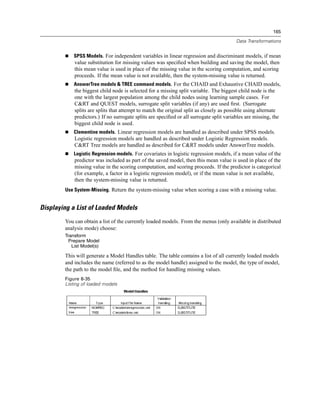
SPSS Base 16.0 User’s Guide
For more information about SPSS® software products, please visit our Web site at http://www.spss.com or contact

SPSS Inc.
233 South Wacker Drive, 11th Floor
Chicago, IL 60606-6412
Tel: (312) 651-3000
Fax: (312) 651-3668

SPSS is a registered trademark and the other product names are the trademarks of SPSS Inc. for its proprietary computer
software. No material describing such software may be produced or distributed without the written permission of the owners of
the trademark and license rights in the software and the copyrights in the published materials.

The SOFTWARE and documentation are provided with RESTRICTED RIGHTS. Use, duplication, or disclosure by the
Government is subject to restrictions as set forth in subdivision (c) (1) (ii) of The Rights in Technical Data and Computer Software
clause at 52.227-7013. Contractor/manufacturer is SPSS Inc., 233 South Wacker Drive, 11th Floor, Chicago, IL 60606-6412.
Patent No. 7,023,453

General notice: Other product names mentioned herein are used for identification purposes only and may be trademarks of
their respective companies.

Windows is a registered trademark of Microsoft Corporation.

Apple, Mac, and the Mac logo are trademarks of Apple Computer, Inc., registered in the U.S. and other countries.

This product uses WinWrap Basic, Copyright 1993-2007, Polar Engineering and Consulting, http://www.winwrap.com.

SPSS Base 16.0 User’s Guide
Copyright © 2007 by SPSS Inc.
All rights reserved.
Printed in the United States of America.

No part of this publication may be reproduced, stored in a retrieval system, or transmitted, in any form or by any means,
electronic, mechanical, photocopying, recording, or otherwise, without the prior written permission of the publisher.

ISBN-13: 978-0-13-603600-5
ISBN-10: 0-13-603600-7

1234567890             10 09 08 07
Preface


SPSS 16.0

       SPSS 16.0 is a comprehensive system for analyzing data. SPSS can take data from almost any
       type of file and use them to generate tabulated reports, charts and plots of distributions and trends,
       descriptive statistics, and complex statistical analyses.
          This manual, the SPSS Base 16.0 User’s Guide, documents the graphical user interface of
       SPSS. Examples using the statistical procedures found in SPSS Base 16.0 are provided in the
       Help system, installed with the software. Algorithms used in the statistical procedures are
       provided in PDF form and are available from the Help menu.
          In addition, beneath the menus and dialog boxes, SPSS uses a command language. Some
       extended features of the system can be accessed only via command syntax. (Those features are
       not available in the Student Version.) Detailed command syntax reference information is available
       in two forms: integrated into the overall Help system and as a separate document in PDF form in
       the SPSS 16.0 Command Syntax Reference, also available from the Help menu.


SPSS Options

       The following options are available as add-on enhancements to the full (not Student Version)
       SPSS Base system:
       SPSS Regression Models™ provides techniques for analyzing data that do not fit traditional
       linear statistical models. It includes procedures for probit analysis, logistic regression, weight
       estimation, two-stage least-squares regression, and general nonlinear regression.
       SPSS Advanced Models™ focuses on techniques often used in sophisticated experimental and
       biomedical research. It includes procedures for general linear models (GLM), linear mixed
       models, generalized linear models (GZLM), generalized estimating equations (GEE), variance
       components analysis, loglinear analysis, actuarial life tables, Kaplan-Meier survival analysis, and
       basic and extended Cox regression.
       SPSS Tables™ creates a variety of presentation-quality tabular reports, including complex
       stub-and-banner tables and displays of multiple-response data.
       SPSS Trends™ performs comprehensive forecasting and time series analyses with multiple
       curve-fitting models, smoothing models, and methods for estimating autoregressive functions.
       SPSS Categories® performs optimal scaling procedures, including correspondence analysis.
       SPSS Conjoint™ provides a realistic way to measure how individual product attributes affect
       consumer and citizen preferences. With SPSS Conjoint, you can easily measure the trade-off
       effect of each product attribute in the context of a set of product attributes—as consumers do
       when making purchasing decisions.

                                                   iii
SPSS Exact Tests™ calculates exact p values for statistical tests when small or very unevenly
distributed samples could make the usual tests inaccurate.

SPSS Missing Value Analysis™ describes patterns of missing data, estimates means and other
statistics, and imputes values for missing observations.

SPSS Maps™ turns your geographically distributed data into high-quality maps with symbols,
colors, bar charts, pie charts, and combinations of themes to present not only what is happening
but where it is happening.

SPSS Complex Samples™ allows survey, market, health, and public opinion researchers, as well
as social scientists who use sample survey methodology, to incorporate their complex sample
designs into data analysis.

SPSS Classification Trees™ creates a tree-based classification model. It classifies cases into groups
or predicts values of a dependent (target) variable based on values of independent (predictor)
variables. The procedure provides validation tools for exploratory and confirmatory classification
analysis.

SPSS Data Preparation™ provides a quick visual snapshot of your data. It provides the ability to
apply validation rules that identify invalid data values. You can create rules that flag out-of-range
values, missing values, or blank values. You can also save variables that record individual rule
violations and the total number of rule violations per case. A limited set of predefined rules that
you can copy or modify is provided.

Amos™ (analysis of moment structures) uses structural equation modeling to confirm and explain
conceptual models that involve attitudes, perceptions, and other factors that drive behavior.

The SPSS family of products also includes applications for data entry, text analysis, classification,
neural networks, and predictive enterprise services.


Installation

To install the SPSS Base system, run the License Authorization Wizard using the authorization
code that you received from SPSS Inc. For more information, see the installation instructions
supplied with the SPSS Base system.


Compatibility

SPSS is designed to run on many computer systems. See the installation instructions that came
with your system for specific information on minimum and recommended requirements.


Serial Numbers

Your serial number is your identification number with SPSS Inc. You will need this serial number
when you contact SPSS Inc. for information regarding support, payment, or an upgraded system.
The serial number was provided with your Base system.

                                           iv
Customer Service

If you have any questions concerning your shipment or account, contact your local office, listed
on the SPSS Web site at http://www.spss.com/worldwide. Please have your serial number ready
for identification.

Training Seminars

SPSS Inc. provides both public and onsite training seminars. All seminars feature
hands-on workshops. Seminars will be offered in major cities on a regular basis. For more
information on these seminars, contact your local office, listed on the SPSS Web site at
http://www.spss.com/worldwide.

Technical Support

The services of SPSS Technical Support are available to maintenance customers. Customers
may contact Technical Support for assistance in using SPSS or for installation help for one
of the supported hardware environments. To reach Technical Support, see the SPSS Web
site at http://www.spss.com, or contact your local office, listed on the SPSS Web site at
http://www.spss.com/worldwide. Be prepared to identify yourself, your organization, and the
serial number of your system.

Additional Publications

Additional copies of product manuals may be purchased directly from SPSS Inc. Visit the SPSS
Web Store at http://www.spss.com/estore, or contact your local SPSS office, listed on the SPSS
Web site at http://www.spss.com/worldwide. For telephone orders in the United States and
Canada, call SPSS Inc. at 800-543-2185. For telephone orders outside of North America, contact
your local office, listed on the SPSS Web site.
   The SPSS Statistical Procedures Companion, by Marija Norušis, has been published by
Prentice Hall. A new version of this book, updated for SPSS 16.0, is planned. The SPSS
Advanced Statistical Procedures Companion, also based on SPSS 16.0, is forthcoming. The
SPSS Guide to Data Analysis for SPSS 16.0 is also in development. Announcements of
publications available exclusively through Prentice Hall will be available on the SPSS Web site at
http://www.spss.com/estore (select your home country, and then click Books).

Tell Us Your Thoughts

Your comments are important. Please let us know about your experiences with SPSS products. We
especially like to hear about new and interesting applications using the SPSS Base system. Please
send e-mail to suggest@spss.com or write to SPSS Inc., Attn.: Director of Product Planning, 233
South Wacker Drive, 11th Floor, Chicago, IL 60606-6412.

About This Manual

This manual documents the graphical user interface for the procedures included in the SPSS
Base system. Illustrations of dialog boxes are taken from SPSS. Detailed information about the
command syntax for features in the SPSS Base system is available in two forms: integrated into

                                          v
the overall Help system and as a separate document in PDF form in the SPSS 16.0 Command
Syntax Reference, available from the Help menu.

Contacting SPSS

If you would like to be on our mailing list, contact one of our offices, listed on our Web site
at http://www.spss.com/worldwide.


                                           vi
Contents


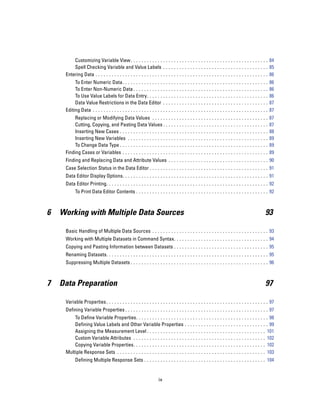
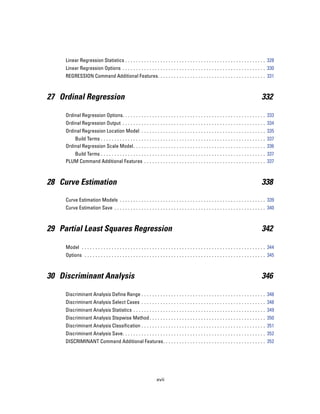
1   Overview                                                                                                                                         1

     What’s New in Version 16.0? . . . . . . . . . . . . . . . . . . . . . . . . . . . . . . . . . . . . . . . . . . . . . . . . . . . . . 2
     Windows . . . . . . . . . . . . . . . . . . . . . . . . . . . . . . . . . . . . . . . . . . . . . . . . . . . . . . . . . . . . . . . . . . . 4
         Designated Window versus Active Window. . . . . . . . . . . . . . . . . . . . . . . . . . . . . . . . . . . . . . 5
     Status Bar . . . . . . . . . . . . . . . . . . . . . . . . . . . . . . . . . . . . . . . . . . . . . . . . . . . . . . . . . . . . . . . . . . 6
     Dialog Boxes . . . . . . . . . . . . . . . . . . . . . . . . . . . . . . . . . . . . . . . . . . . . . . . . . . . . . . . . . . . . . . . . 6
     Variable Names and Variable Labels in Dialog Box Lists . . . . . . . . . . . . . . . . . . . . . . . . . . . . . . . . 6
     Resizing Dialog Boxes. . . . . . . . . . . . . . . . . . . . . . . . . . . . . . . . . . . . . . . . . . . . . . . . . . . . . . . . . . 7
     Dialog Box Controls . . . . . . . . . . . . . . . . . . . . . . . . . . . . . . . . . . . . . . . . . . . . . . . . . . . . . . . . . . . 7
     Selecting Variables. . . . . . . . . . . . . . . . . . . . . . . . . . . . . . . . . . . . . . . . . . . . . . . . . . . . . . . . . . . . 8
     Data Type, Measurement Level, and Variable List Icons . . . . . . . . . . . . . . . . . . . . . . . . . . . . . . . . 8
     Getting Information about Variables in Dialog Boxes . . . . . . . . . . . . . . . . . . . . . . . . . . . . . . . . . . . 8
     Basic Steps in Data Analysis . . . . . . . . . . . . . . . . . . . . . . . . . . . . . . . . . . . . . . . . . . . . . . . . . . . . 9
     Statistics Coach . . . . . . . . . . . . . . . . . . . . . . . . . . . . . . . . . . . . . . . . . . . . . . . . . . . . . . . . . . . . . . 9
     Finding Out More . . . . . . . . . . . . . . . . . . . . . . . . . . . . . . . . . . . . . . . . . . . . . . . . . . . . . . . . . . . . . 10


2   Getting Help                                                                                                                                 11

     Getting Help on Output Terms . . . . . . . . . . . . . . . . . . . . . . . . . . . . . . . . . . . . . . . . . . . . . . . . . . . . 12


3   Data Files                                                                                                                                   13

     Opening Data Files . . . . . . . . . . . . . . . . . . . . . . . . . . . . . . . . . . . . . . . . . . . . . . . . . . . . . . . . . . . . 13
           To Open Data Files . . . . . . . . . . . . . . . . . . . . . . . . . . .      ...   ...   ...   ...   ...   ...   ...   ...   ...   ...   13
           Data File Types . . . . . . . . . . . . . . . . . . . . . . . . . . . . .     ...   ...   ...   ...   ...   ...   ...   ...   ...   ...   14
           Opening File Options . . . . . . . . . . . . . . . . . . . . . . . . .        ...   ...   ...   ...   ...   ...   ...   ...   ...   ...   14
           Reading Excel 95 or Later Files. . . . . . . . . . . . . . . . . .            ...   ...   ...   ...   ...   ...   ...   ...   ...   ...   15
           Reading Older Excel Files and Other Spreadsheets . .                          ...   ...   ...   ...   ...   ...   ...   ...   ...   ...   15
           Reading dBASE Files . . . . . . . . . . . . . . . . . . . . . . . . .         ...   ...   ...   ...   ...   ...   ...   ...   ...   ...   15
           Reading Stata Files . . . . . . . . . . . . . . . . . . . . . . . . . .       ...   ...   ...   ...   ...   ...   ...   ...   ...   ...   16
           Reading Database Files . . . . . . . . . . . . . . . . . . . . . . .          ...   ...   ...   ...   ...   ...   ...   ...   ...   ...   16
           Text Wizard . . . . . . . . . . . . . . . . . . . . . . . . . . . . . . . .   ...   ...   ...   ...   ...   ...   ...   ...   ...   ...   29
           Reading Dimensions Data . . . . . . . . . . . . . . . . . . . . .             ...   ...   ...   ...   ...   ...   ...   ...   ...   ...   38
     File Information. . . . . . . . . . . . . . . . . . . . . . . . . . . . . . . . .   ...   ...   ...   ...   ...   ...   ...   ...   ...   ...   41


                                                                    vii
Saving Data Files . . . . . . . . . . . . . . . . . . . . . . . . . . . . . . . . . . . . . . . . . . . . . . . . . . . . . . . . . . . . . 42
         To Save Modified Data Files . . . . . . . .               ...   ...   ...   ...   ...   ...   ...   ...   ...   ...   ...   ...   ...   ...   42
         Saving Data Files in External Formats.                    ...   ...   ...   ...   ...   ...   ...   ...   ...   ...   ...   ...   ...   ...   42
         Saving Data Files in Excel Format. . . .                  ...   ...   ...   ...   ...   ...   ...   ...   ...   ...   ...   ...   ...   ...   45
         Saving Data Files in SAS Format . . . .                   ...   ...   ...   ...   ...   ...   ...   ...   ...   ...   ...   ...   ...   ...   45
         Saving Data Files in Stata Format. . . .                  ...   ...   ...   ...   ...   ...   ...   ...   ...   ...   ...   ...   ...   ...   47
         Saving Subsets of Variables. . . . . . . .                ...   ...   ...   ...   ...   ...   ...   ...   ...   ...   ...   ...   ...   ...   48
         Exporting to a Database. . . . . . . . . . .              ...   ...   ...   ...   ...   ...   ...   ...   ...   ...   ...   ...   ...   ...   48
         Exporting to Dimensions . . . . . . . . . .               ...   ...   ...   ...   ...   ...   ...   ...   ...   ...   ...   ...   ...   ...   60
     Protecting Original Data . . . . . . . . . . . . . .          ...   ...   ...   ...   ...   ...   ...   ...   ...   ...   ...   ...   ...   ...   61
     Virtual Active File . . . . . . . . . . . . . . . . . . . . . . . . . . . . . . . . . . . . . . . . . . . . . . . . . . . . . . . . . . . . . 61
           Creating a Data Cache . . . . . . . . . . . . . . . . . . . . . . . . . . . . . . . . . . . . . . . . . . . . . . . . . . . . . . 63


4   Distributed Analysis Mode                                                                                                                      65

     Server Login . . . . . . . . . . . . . . . . . . . . . . . . . . . . . . . . . . . . . . . . . . . . . . . . . . . . . . . . . . . . . . . . . 65
        Adding and Editing Server Login Settings.                        ...   ...   ...   ...   ...   ...   ...   ...   ...   ...   ...   ...   ...   66
        To Select, Switch, or Add Servers . . . . . .                    ...   ...   ...   ...   ...   ...   ...   ...   ...   ...   ...   ...   ...   67
        Searching for Available Servers. . . . . . . .                   ...   ...   ...   ...   ...   ...   ...   ...   ...   ...   ...   ...   ...   68
     Opening Data Files from a Remote Server . . . .                     ...   ...   ...   ...   ...   ...   ...   ...   ...   ...   ...   ...   ...   69
     File Access in Local and Distributed Analysis Mode . . . . . . . . . . . . . . . . . . . . . . . . . . . . . . . . . . . 69
     Availability of Procedures in Distributed Analysis Mode . . . . . . . . . . . . . . . . . . . . . . . . . . . . . . . . 70
     Absolute versus Relative Path Specifications . . . . . . . . . . . . . . . . . . . . . . . . . . . . . . . . . . . . . . . . 71


5   Data Editor                                                                                                                                    72

     Data View. . . . . . . . . . . . . . . . . . . . . . . . . . . . . . . . . . . . . . . . . . . . . . . . . . . . . . . . . . . . . . . . . . . 72
     Variable View . . . . . . . . . . . . . . . . . . . . . . . . . . . . . . . . . . . . . . . . . . . . . . . . . . . . . . . . . . . . . . . . 73
           To Display or Define Variable Attributes . . . . . . . . . . . . . . . . .                  ...   ...   ...   ...   ...   ...   ...   ...   74
           Variable Names . . . . . . . . . . . . . . . . . . . . . . . . . . . . . . . . . . .        ...   ...   ...   ...   ...   ...   ...   ...   74
           Variable Measurement Level . . . . . . . . . . . . . . . . . . . . . . . . .                ...   ...   ...   ...   ...   ...   ...   ...   75
           Variable Type. . . . . . . . . . . . . . . . . . . . . . . . . . . . . . . . . . . . .      ...   ...   ...   ...   ...   ...   ...   ...   76
           Variable Labels . . . . . . . . . . . . . . . . . . . . . . . . . . . . . . . . . . .       ...   ...   ...   ...   ...   ...   ...   ...   78
           Value Labels . . . . . . . . . . . . . . . . . . . . . . . . . . . . . . . . . . . . .      ...   ...   ...   ...   ...   ...   ...   ...   78
           Inserting Line Breaks in Labels . . . . . . . . . . . . . . . . . . . . . . .               ...   ...   ...   ...   ...   ...   ...   ...   79
           Missing Values . . . . . . . . . . . . . . . . . . . . . . . . . . . . . . . . . . .        ...   ...   ...   ...   ...   ...   ...   ...   79
           Column Width . . . . . . . . . . . . . . . . . . . . . . . . . . . . . . . . . . . .        ...   ...   ...   ...   ...   ...   ...   ...   80
           Variable Alignment . . . . . . . . . . . . . . . . . . . . . . . . . . . . . . . .          ...   ...   ...   ...   ...   ...   ...   ...   80
           Applying Variable Definition Attributes to Multiple Variables .                             ...   ...   ...   ...   ...   ...   ...   ...   80
           Custom Variable Attributes . . . . . . . . . . . . . . . . . . . . . . . . . .              ...   ...   ...   ...   ...   ...   ...   ...   82


                                                                    viii
Customizing Variable View . . . . . . . . . . . . . . . . . . . . . . . . . . . . . . . . . . . . . . . . . . . . . . . . . . . 84
         Spell Checking Variable and Value Labels . . . . . . . . . . . . . . . . . . . . . . . . . . . . . . . . . . . . . . . 85
     Entering Data . . . . . . . . . . . . . . . . . . . . . . . . . . . . . . . . . . . . . . . . . . . . . . . . . . . . . . . . . . . . . . . . 86
          To Enter Numeric Data. . . . . . . . . . . . . . .              ...   ...   ...   ...   ...   ...   ...   ...   ...   ...   ...   ...   ...   86
          To Enter Non-Numeric Data . . . . . . . . . . .                 ...   ...   ...   ...   ...   ...   ...   ...   ...   ...   ...   ...   ...   86
          To Use Value Labels for Data Entry. . . . . .                   ...   ...   ...   ...   ...   ...   ...   ...   ...   ...   ...   ...   ...   86
          Data Value Restrictions in the Data Editor                      ...   ...   ...   ...   ...   ...   ...   ...   ...   ...   ...   ...   ...   87
     Editing Data . . . . . . . . . . . . . . . . . . . . . . . . . .     ...   ...   ...   ...   ...   ...   ...   ...   ...   ...   ...   ...   ...   87
          Replacing or Modifying Data Values . . . . . . .                      ...   ...   ...   ...   ...   ...   ...   ...   ...   ...   ...   ...   87
          Cutting, Copying, and Pasting Data Values . . .                       ...   ...   ...   ...   ...   ...   ...   ...   ...   ...   ...   ...   87
          Inserting New Cases . . . . . . . . . . . . . . . . . . .             ...   ...   ...   ...   ...   ...   ...   ...   ...   ...   ...   ...   88
          Inserting New Variables . . . . . . . . . . . . . . . .               ...   ...   ...   ...   ...   ...   ...   ...   ...   ...   ...   ...   89
          To Change Data Type . . . . . . . . . . . . . . . . . . .             ...   ...   ...   ...   ...   ...   ...   ...   ...   ...   ...   ...   89
     Finding Cases or Variables . . . . . . . . . . . . . . . . . .             ...   ...   ...   ...   ...   ...   ...   ...   ...   ...   ...   ...   89
     Finding and Replacing Data and Attribute Values . . . . . . . . . . . . . . . . . . . . . . . . . . . . . . . . . . . . . 90
     Case Selection Status in the Data Editor . . . . . . . . . . . . . . . . . . . . . . . . . . . . . . . . . . . . . . . . . . . . 91
     Data Editor Display Options. . . . . . . . . . . . . . . . . . . . . . . . . . . . . . . . . . . . . . . . . . . . . . . . . . . . . . 91
     Data Editor Printing. . . . . . . . . . . . . . . . . . . . . . . . . . . . . . . . . . . . . . . . . . . . . . . . . . . . . . . . . . . . 92
           To Print Data Editor Contents . . . . . . . . . . . . . . . . . . . . . . . . . . . . . . . . . . . . . . . . . . . . . . . . . 92


6   Working with Multiple Data Sources                                                                                                              93

     Basic Handling of Multiple Data Sources . . . . . . . . . . . . . . . . . . . . . . . . . . . . . . . . . . . . . . . . . . . 93
     Working with Multiple Datasets in Command Syntax. . . . . . . . . . . . . . . . . . . . . . . . . . . . . . . . . . . 94
     Copying and Pasting Information between Datasets . . . . . . . . . . . . . . . . . . . . . . . . . . . . . . . . . . . 95
     Renaming Datasets. . . . . . . . . . . . . . . . . . . . . . . . . . . . . . . . . . . . . . . . . . . . . . . . . . . . . . . . . . . . 95
     Suppressing Multiple Datasets . . . . . . . . . . . . . . . . . . . . . . . . . . . . . . . . . . . . . . . . . . . . . . . . . . . 96


7   Data Preparation                                                                                                                                97

     Variable Properties . . . . . . . . . . . . . . . . . . . . . . . . . . . . . . . . . . . . . . . . . . . . . . . . . . . . . . . . . . . . 97
     Defining Variable Properties . . . . . . . . . . . . . . . . . . . . . . . . . . . . . . . . . . . . . . . . . . . . . . . . . . . . . 97
         To Define Variable Properties. . . . . . . . . . . . . . . . . . .                 ...   ...   ...   ...   ...   ...   ...   ...   ...   . . . 98
         Defining Value Labels and Other Variable Properties .                              ...   ...   ...   ...   ...   ...   ...   ...   ...   . . . 99
         Assigning the Measurement Level . . . . . . . . . . . . . . .                      ...   ...   ...   ...   ...   ...   ...   ...   ...   . . 101
         Custom Variable Attributes . . . . . . . . . . . . . . . . . . . .                 ...   ...   ...   ...   ...   ...   ...   ...   ...   . . 102
         Copying Variable Properties. . . . . . . . . . . . . . . . . . . .                 ...   ...   ...   ...   ...   ...   ...   ...   ...   . . 102
     Multiple Response Sets . . . . . . . . . . . . . . . . . . . . . . . . . .             ...   ...   ...   ...   ...   ...   ...   ...   ...   . . 103
           Defining Multiple Response Sets . . . . . . . . . . . . . . . . . . . . . . . . . . . . . . . . . . . . . . . . . . . . . 104


                                                                     ix
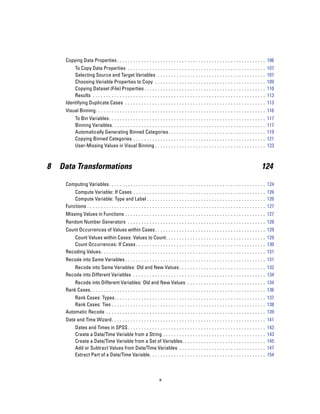
Copying Data Properties . . . . . . . . . . . . . . . . . . . . . . . . . . . . . . . . . . . . . . . . . . . . . . . . . . . . . . . 106
         To Copy Data Properties . . . . . . . . . . . . .                ...   ...   ...   ...   ...   ...   ...   ...   ...   ...   ...   ...   ..   107
         Selecting Source and Target Variables . .                        ...   ...   ...   ...   ...   ...   ...   ...   ...   ...   ...   ...   ..   107
         Choosing Variable Properties to Copy . . .                       ...   ...   ...   ...   ...   ...   ...   ...   ...   ...   ...   ...   ..   109
         Copying Dataset (File) Properties . . . . . . .                  ...   ...   ...   ...   ...   ...   ...   ...   ...   ...   ...   ...   ..   110
         Results . . . . . . . . . . . . . . . . . . . . . . . . . .      ...   ...   ...   ...   ...   ...   ...   ...   ...   ...   ...   ...   ..   113
     Identifying Duplicate Cases . . . . . . . . . . . . . .              ...   ...   ...   ...   ...   ...   ...   ...   ...   ...   ...   ...   ..   113
     Visual Binning. . . . . . . . . . . . . . . . . . . . . . . . . . . . . . . . . . . . . . . . . . . . . . . . . . . . . . . . . . . . . . . 116
           To Bin Variables. . . . . . . . . . . . . . . . . . . . . . .        ...   ...   ...   ...   ...   ...   ...   ...   ...   ...   ...   ..   117
           Binning Variables. . . . . . . . . . . . . . . . . . . . . .         ...   ...   ...   ...   ...   ...   ...   ...   ...   ...   ...   ..   117
           Automatically Generating Binned Categories .                         ...   ...   ...   ...   ...   ...   ...   ...   ...   ...   ...   ..   119
           Copying Binned Categories . . . . . . . . . . . . . .                ...   ...   ...   ...   ...   ...   ...   ...   ...   ...   ...   ..   121
           User-Missing Values in Visual Binning . . . . . .                    ...   ...   ...   ...   ...   ...   ...   ...   ...   ...   ...   ..   123


8   Data Transformations                                                                                                                          124

     Computing Variables. . . . . . . . . . . . . . . . . . . . . . . . . . . . . . . . . . . . . . . . . . . . . . . . . . . . . . . . . . 124
         Compute Variable: If Cases . . . . . . . . . . . . . . . . . . . . . . . . . . . . . . . . . . . . . . . . . . . . . . . . . 126
         Compute Variable: Type and Label . . . . . . . . . . . . . . . . . . . . . . . . . . . . . . . . . . . . . . . . . . . . 126
     Functions . . . . . . . . . . . . . . . . . . . . . . . . . . . . . . . . . . . . . . . . . . . . . . . . . . . . . . . . . . . . . . . . . . 127
     Missing Values in Functions . . . . . . . . . . . . . . . . . . . . . . . . . . . . . . . . . . . . . . . . . . . . . . . . . . . . 127
     Random Number Generators . . . . . . . . . . . . . . . . . . . . . . . . . . . . . . . . . . . . . . . . . . . . . . . . . . . 128
     Count Occurrences of Values within Cases . . . . . . . . . . . . . . . . . . . . . . . . . . . . . . . . . . . . . . . . . 129
        Count Values within Cases: Values to Count. . . . . . . . . . . . . . . . . . . . . . . . . . . . . . . . . . . . . 129
        Count Occurrences: If Cases . . . . . . . . . . . . . . . . . . . . . . . . . . . . . . . . . . . . . . . . . . . . . . . . 130
     Recoding Values. . . . . . . . . . . . . . . . . . . . . . . . . . . . . . . . . . . . . . . . . . . . . . . . . . . . . . . . . . . . . 131
     Recode into Same Variables . . . . . . . . . . . . . . . . . . . . . . . . . . . . . . . . . . . . . . . . . . . . . . . . . . . . 131
        Recode into Same Variables: Old and New Values . . . . . . . . . . . . . . . . . . . . . . . . . . . . . . . . 132
     Recode into Different Variables . . . . . . . . . . . . . . . . . . . . . . . . . . . . . . . . . . . . . . . . . . . . . . . . . 134
         Recode into Different Variables: Old and New Values . . . . . . . . . . . . . . . . . . . . . . . . . . . . . 134
     Rank Cases. . . . . . . . . . . . . . . . . . . . . . . . . . . . . . . . . . . . . . . . . . . . . . . . . . . . . . . . . . . . . . . . . 136
         Rank Cases: Types. . . . . . . . . . . . . . . . . . . . . . . . . . . . . . . . . . . . . . . . . . . . . . . . . . . . . . . . 137
         Rank Cases: Ties . . . . . . . . . . . . . . . . . . . . . . . . . . . . . . . . . . . . . . . . . . . . . . . . . . . . . . . . . 138
     Automatic Recode . . . . . . . . . . . . . . . . . . . . . . . . . . . . . . . . . . . . . . . . . . . . . . . . . . . . . . . . . . . 139
     Date and Time Wizard. . . . . . . . . . . . . . . . . . . . . . . . . . . . . . . . . . . . . . . . . . . . . . . . . . . . . . . . . 141
           Dates and Times in SPSS . . . . . . . . . . . . . . . . . . . . . .              ...   ...   ...   ...   ...   ...   ...   ...   ...   ..   143
           Create a Date/Time Variable from a String . . . . . . . . .                      ...   ...   ...   ...   ...   ...   ...   ...   ...   ..   143
           Create a Date/Time Variable from a Set of Variables. .                           ...   ...   ...   ...   ...   ...   ...   ...   ...   ..   145
           Add or Subtract Values from Date/Time Variables . . .                            ...   ...   ...   ...   ...   ...   ...   ...   ...   ..   147
           Extract Part of a Date/Time Variable. . . . . . . . . . . . . .                  ...   ...   ...   ...   ...   ...   ...   ...   ...   ..   154


                                                                      x
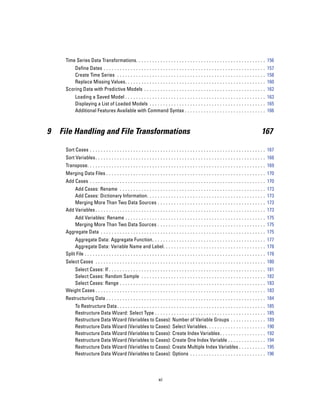
Time Series Data Transformations. . . . . . . . . . . . . . . . . . . . . . . . . . . . . . . . . . . . . . . . . . . . . . . . 156
         Define Dates . . . . . . . . . . . . . . . .         ...   ...    ...   ...   ...   ...   ...   ...   ...   ...   ...   ...   ...   ...   ..   157
         Create Time Series . . . . . . . . . . .             ...   ...    ...   ...   ...   ...   ...   ...   ...   ...   ...   ...   ...   ...   ..   158
         Replace Missing Values. . . . . . . .                ...   ...    ...   ...   ...   ...   ...   ...   ...   ...   ...   ...   ...   ...   ..   160
     Scoring Data with Predictive Models .                    ...   ...    ...   ...   ...   ...   ...   ...   ...   ...   ...   ...   ...   ...   ..   162
           Loading a Saved Model . . . . . . . . . . . . . . . . . . . . . . . . . . . . . . . . . . . . . . . . . . . . . . . . . . . . 163
           Displaying a List of Loaded Models . . . . . . . . . . . . . . . . . . . . . . . . . . . . . . . . . . . . . . . . . . . 165
           Additional Features Available with Command Syntax . . . . . . . . . . . . . . . . . . . . . . . . . . . . . . 166


9   File Handling and File Transformations                                                                                                         167

     Sort Cases . . . . . . . . . . . . . . . . . . . . . . . . . . . . . . . . . . . . . . . . . . . . . . . . . . . . . . . . . . . . . . . . . 167
     Sort Variables. . . . . . . . . . . . . . . . . . . . . . . . . . . . . . . . . . . . . . . . . . . . . . . . . . . . . . . . . . . . . . . 168
     Transpose. . . . . . . . . . . . . . . . . . . . . . . . . . . . . . . . . . . . . . . . . . . . . . . . . . . . . . . . . . . . . . . . . . 169
     Merging Data Files . . . . . . . . . . . . . . . . . . . . . . . . . . . . . . . . . . . . . . . . . . . . . . . . . . . . . . . . . . . 170
     Add Cases . . . . . . . . . . . . . . . . . . . . . . . . . . . . . . . . . . . . . . . . . . . . . . . . . . . . . . . . . . . . . . . . . 170
         Add Cases: Rename . . . . . . . . . . . . . . . .                 ...   ...   ...   ...   ...   ...   ...   ...   ...   ...   ...   ...   ..   173
         Add Cases: Dictionary Information. . . . . .                      ...   ...   ...   ...   ...   ...   ...   ...   ...   ...   ...   ...   ..   173
         Merging More Than Two Data Sources . .                            ...   ...   ...   ...   ...   ...   ...   ...   ...   ...   ...   ...   ..   173
     Add Variables . . . . . . . . . . . . . . . . . . . . . . . . .       ...   ...   ...   ...   ...   ...   ...   ...   ...   ...   ...   ...   ..   173
         Add Variables: Rename . . . . . . . . . . . . . . . . . . . . . . . . . . . . . . . . . . . . . . . . . . . . . . . . . . . . 175
         Merging More Than Two Data Sources . . . . . . . . . . . . . . . . . . . . . . . . . . . . . . . . . . . . . . . . 175
     Aggregate Data . . . . . . . . . . . . . . . . . . . . . . . . . . . . . . . . . . . . . . . . . . . . . . . . . . . . . . . . . . . . . 175
          Aggregate Data: Aggregate Function. . . . . . . . . . . . . . . . . . . . . . . . . . . . . . . . . . . . . . . . . . 177
          Aggregate Data: Variable Name and Label. . . . . . . . . . . . . . . . . . . . . . . . . . . . . . . . . . . . . . 178
     Split File . . . . . . . . . . . . . . . . . . . . . . . . . . . . . . . . . . . . . . . . . . . . . . . . . . . . . . . . . . . . . . . . . . . 178
     Select Cases . . . . . . . . . . . . . . . . . . . . . . . . . . . . . . . . . . . . . . . . . . . . . . . . . . . . . . . . . . . . . . . 180
        Select Cases: If . . . . . . . . . . . . . .          ...   ...    ...   ...   ...   ...   ...   ...   ...   ...   ...   ...   ...   ...   ..   181
        Select Cases: Random Sample . .                       ...   ...    ...   ...   ...   ...   ...   ...   ...   ...   ...   ...   ...   ...   ..   182
        Select Cases: Range . . . . . . . . . .               ...   ...    ...   ...   ...   ...   ...   ...   ...   ...   ...   ...   ...   ...   ..   183
     Weight Cases . . . . . . . . . . . . . . . . . . .       ...   ...    ...   ...   ...   ...   ...   ...   ...   ...   ...   ...   ...   ...   ..   183
     Restructuring Data . . . . . . . . . . . . . . . . . . . . . . . . . . . . . . . . . . . . . . . . . . . . . . . . . . . . . . . . . . . 184
           To Restructure Data . . . . . . . . . . . . . . . . . . . . . . . . . . . . . . . . . . . . . . . . . . . . . . .           ...   ...   ..   185
           Restructure Data Wizard: Select Type . . . . . . . . . . . . . . . . . . . . . . . . . . . . . . . . .                      ...   ...   ..   185
           Restructure Data Wizard (Variables to Cases): Number of Variable Groups . . . . .                                           ...   ...   ..   189
           Restructure Data Wizard (Variables to Cases): Select Variables. . . . . . . . . . . . . .                                   ...   ...   ..   190
           Restructure Data Wizard (Variables to Cases): Create Index Variables. . . . . . . . .                                       ...   ...   ..   192
           Restructure Data Wizard (Variables to Cases): Create One Index Variable . . . . . .                                         ...   ...   ..   194
           Restructure Data Wizard (Variables to Cases): Create Multiple Index Variables . .                                           ...   ...   ..   195
           Restructure Data Wizard (Variables to Cases): Options . . . . . . . . . . . . . . . . . . . .                               ...   ...   ..   196


                                                                      xi
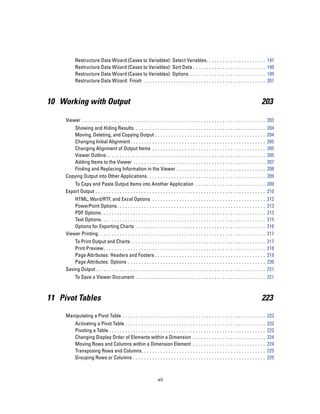
Restructure Data Wizard (Cases to Variables): Select Variables. .                                   ...   ...   ...   ...   ...   ...   ..   197
           Restructure Data Wizard (Cases to Variables): Sort Data . . . . . . .                               ...   ...   ...   ...   ...   ...   ..   199
           Restructure Data Wizard (Cases to Variables): Options . . . . . . . .                               ...   ...   ...   ...   ...   ...   ..   199
           Restructure Data Wizard: Finish . . . . . . . . . . . . . . . . . . . . . . . . .                   ...   ...   ...   ...   ...   ...   ..   201


10 Working with Output                                                                                                                             203

     Viewer . . . . . . . . . . . . . . . . . . . . . . . . . . . . . . . . . . . . . . . . . . . . . . . . . . . . . . . . . . . . . . . . . . . . 203
         Showing and Hiding Results. . . . . . . . . . . . . . . . .                   ...   ...   ...   ...   ...   ...   ...   ...   ...   ...   ..   204
         Moving, Deleting, and Copying Output . . . . . . . . .                        ...   ...   ...   ...   ...   ...   ...   ...   ...   ...   ..   204
         Changing Initial Alignment . . . . . . . . . . . . . . . . . .                ...   ...   ...   ...   ...   ...   ...   ...   ...   ...   ..   205
         Changing Alignment of Output Items . . . . . . . . . .                        ...   ...   ...   ...   ...   ...   ...   ...   ...   ...   ..   205
         Viewer Outline . . . . . . . . . . . . . . . . . . . . . . . . . . .          ...   ...   ...   ...   ...   ...   ...   ...   ...   ...   ..   205
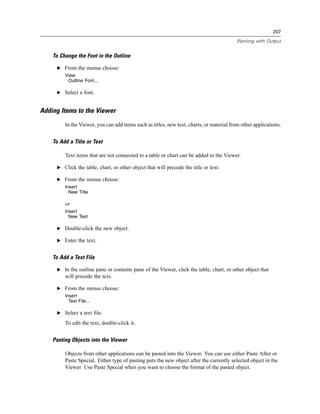
         Adding Items to the Viewer . . . . . . . . . . . . . . . . .                  ...   ...   ...   ...   ...   ...   ...   ...   ...   ...   ..   207
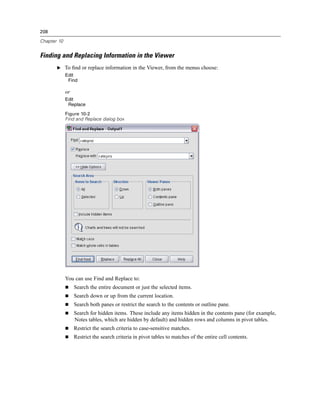
         Finding and Replacing Information in the Viewer .                             ...   ...   ...   ...   ...   ...   ...   ...   ...   ...   ..   208
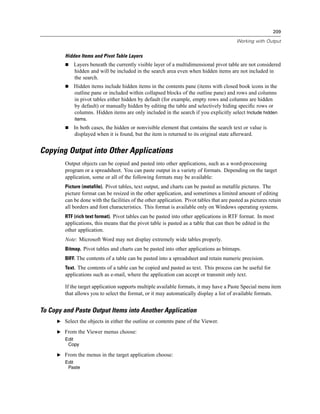
     Copying Output into Other Applications. . . . . . . . . . . .                     ...   ...   ...   ...   ...   ...   ...   ...   ...   ...   ..   209
         To Copy and Paste Output Items into Another Application . . . . . . . . . . . . . . . . . . . . . . . . . . 209
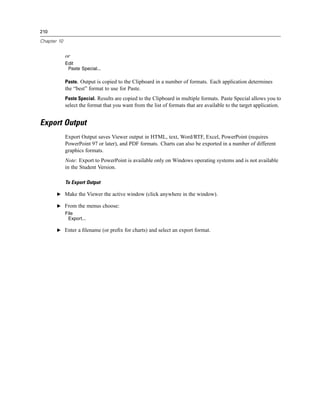
     Export Output . . . . . . . . . . . . . . . . . . . . . . . . . . . . . . . . . . . . . . . . . . . . . . . . . . . . . . . . . . . . . . . 210
         HTML, Word/RTF, and Excel Options .                       ...     ...   ...   ...   ...   ...   ...   ...   ...   ...   ...   ...   ...   ..   212
         PowerPoint Options . . . . . . . . . . . . . .            ...     ...   ...   ...   ...   ...   ...   ...   ...   ...   ...   ...   ...   ..   213
         PDF Options. . . . . . . . . . . . . . . . . . . .        ...     ...   ...   ...   ...   ...   ...   ...   ...   ...   ...   ...   ...   ..   213
         Text Options. . . . . . . . . . . . . . . . . . . .       ...     ...   ...   ...   ...   ...   ...   ...   ...   ...   ...   ...   ...   ..   215
         Options for Exporting Charts . . . . . . .                ...     ...   ...   ...   ...   ...   ...   ...   ...   ...   ...   ...   ...   ..   216
     Viewer Printing . . . . . . . . . . . . . . . . . . . . .     ...     ...   ...   ...   ...   ...   ...   ...   ...   ...   ...   ...   ...   ..   217
         To Print Output and Charts . . . . . . . . . . . .                ...   ...   ...   ...   ...   ...   ...   ...   ...   ...   ...   ...   ..   217
         Print Preview. . . . . . . . . . . . . . . . . . . . . .          ...   ...   ...   ...   ...   ...   ...   ...   ...   ...   ...   ...   ..   218
         Page Attributes: Headers and Footers . . .                        ...   ...   ...   ...   ...   ...   ...   ...   ...   ...   ...   ...   ..   219
         Page Attributes: Options . . . . . . . . . . . . .                ...   ...   ...   ...   ...   ...   ...   ...   ...   ...   ...   ...   ..   220
     Saving Output . . . . . . . . . . . . . . . . . . . . . . . . .       ...   ...   ...   ...   ...   ...   ...   ...   ...   ...   ...   ...   ..   221
           To Save a Viewer Document . . . . . . . . . . . . . . . . . . . . . . . . . . . . . . . . . . . . . . . . . . . . . . . . 221


11 Pivot Tables                                                                                                                                    223

     Manipulating a Pivot Table . . . . . . . . . . . . . . . . . . . . . . . . . . . . . . . . . . . . . . . . . . . . . . . . . . . . . 223
           Activating a Pivot Table . . . . . . . . . . . . . . . . . . . . . . . . . .            ...   ...   ...   ...   ...   ...   ...   ...   ..   223
           Pivoting a Table . . . . . . . . . . . . . . . . . . . . . . . . . . . . . . . .        ...   ...   ...   ...   ...   ...   ...   ...   ..   223
           Changing Display Order of Elements within a Dimension .                                 ...   ...   ...   ...   ...   ...   ...   ...   ..   224
           Moving Rows and Columns within a Dimension Element .                                    ...   ...   ...   ...   ...   ...   ...   ...   ..   224
           Transposing Rows and Columns. . . . . . . . . . . . . . . . . . . .                     ...   ...   ...   ...   ...   ...   ...   ...   ..   225
           Grouping Rows or Columns . . . . . . . . . . . . . . . . . . . . . . .                  ...   ...   ...   ...   ...   ...   ...   ...   ..   225


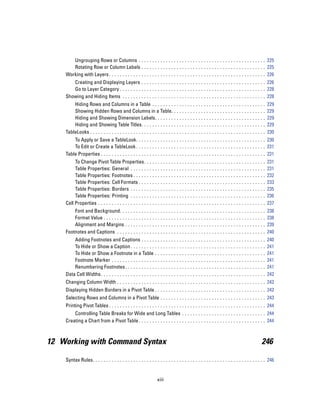
                                                                     xii
Ungrouping Rows or Columns . . . . . . . . . . . . . . . . . . . . . . . . . . . . . . . . . . . . . . . . . . . . . . . 225
       Rotating Row or Column Labels . . . . . . . . . . . . . . . . . . . . . . . . . . . . . . . . . . . . . . . . . . . . . . 225
    Working with Layers . . . . . . . . . . . . . . . . . . . . . . . . . . . . . . . . . . . . . . . . . . . . . . . . . . . . . . . . . . 226
       Creating and Displaying Layers . . . . . . . . . . . . . . . . . . . . . . . . . . . . . . . . . . . . . . . . . . . . . . 226
       Go to Layer Category . . . . . . . . . . . . . . . . . . . . . . . . . . . . . . . . . . . . . . . . . . . . . . . . . . . . . . 228
    Showing and Hiding Items . . . . . . . . . . . . . . . . . . . . . . . . . . . . . . . . . . . . . . . . . . . . . . . . . . . . . 228
        Hiding Rows and Columns in a Table . . . . . . . . . .                      ...   ...   ...   ...   ...   ...   ...   ...   ...   ...   ..   229
        Showing Hidden Rows and Columns in a Table. . .                             ...   ...   ...   ...   ...   ...   ...   ...   ...   ...   ..   229
        Hiding and Showing Dimension Labels. . . . . . . . .                        ...   ...   ...   ...   ...   ...   ...   ...   ...   ...   ..   229
        Hiding and Showing Table Titles. . . . . . . . . . . . . .                  ...   ...   ...   ...   ...   ...   ...   ...   ...   ...   ..   229
    TableLooks . . . . . . . . . . . . . . . . . . . . . . . . . . . . . . . . .    ...   ...   ...   ...   ...   ...   ...   ...   ...   ...   ..   230
        To Apply or Save a TableLook. . . . . . . . . . . . . . . . . . . . . . . . . . . . . . . . . . . . . . . . . . . . . . . . 230
        To Edit or Create a TableLook . . . . . . . . . . . . . . . . . . . . . . . . . . . . . . . . . . . . . . . . . . . . . . . . 231
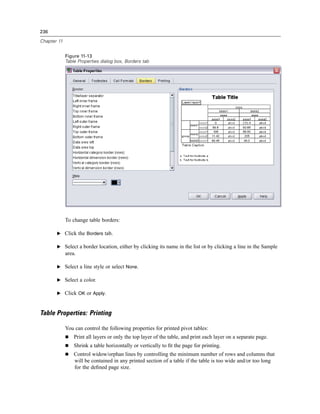
    Table Properties . . . . . . . . . . . . . . . . . . . . . . . . . . . . . . . . . . . . . . . . . . . . . . . . . . . . . . . . . . . . . 231
         To Change Pivot Table Properties.                  ...   ...   ...   ...   ...   ...   ...   ...   ...   ...   ...   ...   ...   ...   ..   231
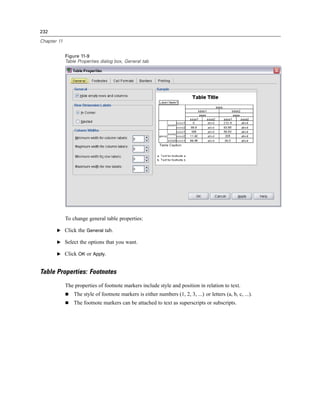
         Table Properties: General . . . . . .              ...   ...   ...   ...   ...   ...   ...   ...   ...   ...   ...   ...   ...   ...   ..   231
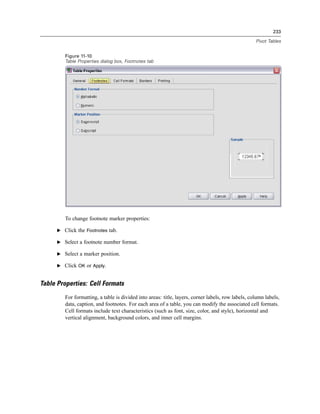
         Table Properties: Footnotes . . . . .              ...   ...   ...   ...   ...   ...   ...   ...   ...   ...   ...   ...   ...   ...   ..   232
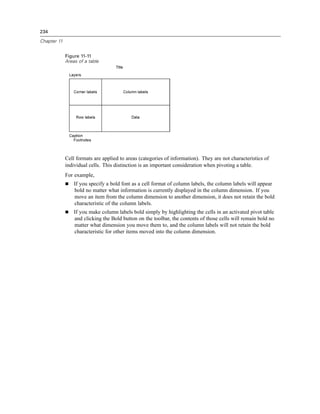
         Table Properties: Cell Formats . . .               ...   ...   ...   ...   ...   ...   ...   ...   ...   ...   ...   ...   ...   ...   ..   233
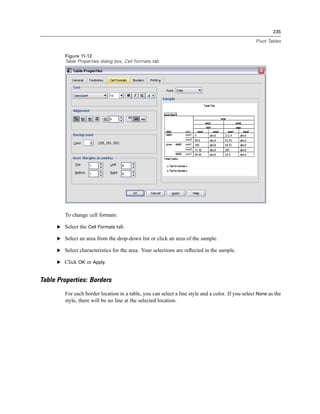
         Table Properties: Borders . . . . . .              ...   ...   ...   ...   ...   ...   ...   ...   ...   ...   ...   ...   ...   ...   ..   235
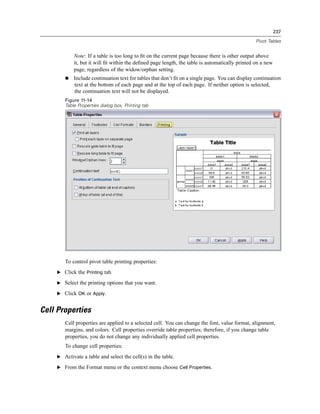
         Table Properties: Printing . . . . . .             ...   ...   ...   ...   ...   ...   ...   ...   ...   ...   ...   ...   ...   ...   ..   236
    Cell Properties . . . . . . . . . . . . . . . . . .     ...   ...   ...   ...   ...   ...   ...   ...   ...   ...   ...   ...   ...   ...   ..   237
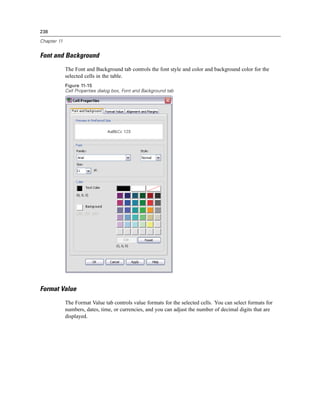
        Font and Background. . . .              ...   ...   ...   ...   ...   ...   ...   ...   ...   ...   ...   ...   ...   ...   ...   ...   ..   238
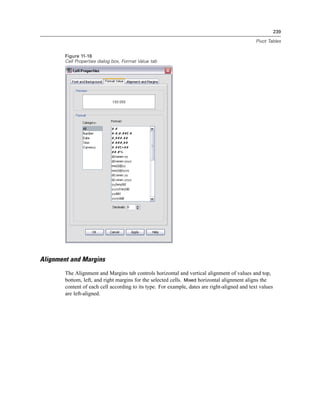
        Format Value . . . . . . . . . .        ...   ...   ...   ...   ...   ...   ...   ...   ...   ...   ...   ...   ...   ...   ...   ...   ..   238
        Alignment and Margins . .               ...   ...   ...   ...   ...   ...   ...   ...   ...   ...   ...   ...   ...   ...   ...   ...   ..   239
    Footnotes and Captions . . . . .            ...   ...   ...   ...   ...   ...   ...   ...   ...   ...   ...   ...   ...   ...   ...   ...   ..   240
        Adding Footnotes and Captions . . . . .                   ...   ...   ...   ...   ...   ...   ...   ...   ...   ...   ...   ...   ...   ..   240
        To Hide or Show a Caption . . . . . . . . .               ...   ...   ...   ...   ...   ...   ...   ...   ...   ...   ...   ...   ...   ..   241
        To Hide or Show a Footnote in a Table                     ...   ...   ...   ...   ...   ...   ...   ...   ...   ...   ...   ...   ...   ..   241
        Footnote Marker . . . . . . . . . . . . . . . .           ...   ...   ...   ...   ...   ...   ...   ...   ...   ...   ...   ...   ...   ..   241
        Renumbering Footnotes . . . . . . . . . . .               ...   ...   ...   ...   ...   ...   ...   ...   ...   ...   ...   ...   ...   ..   241
    Data Cell Widths . . . . . . . . . . . . . . . . . . . .      ...   ...   ...   ...   ...   ...   ...   ...   ...   ...   ...   ...   ...   ..   242
    Changing Column Width . . . . . . . . . . . . . . . . . . . . . . . . . . . . . . . . . . . . . . . . . . . . . . . . . . . . . . . 242
    Displaying Hidden Borders in a Pivot Table . . . . . . . . . . . . . . . . . . . . . . . . . . . . . . . . . . . . . . . . . 242
    Selecting Rows and Columns in a Pivot Table . . . . . . . . . . . . . . . . . . . . . . . . . . . . . . . . . . . . . . . 243
    Printing Pivot Tables . . . . . . . . . . . . . . . . . . . . . . . . . . . . . . . . . . . . . . . . . . . . . . . . . . . . . . . . . . 244
        Controlling Table Breaks for Wide and Long Tables . . . . . . . . . . . . . . . . . . . . . . . . . . . . . . . 244
    Creating a Chart from a Pivot Table . . . . . . . . . . . . . . . . . . . . . . . . . . . . . . . . . . . . . . . . . . . . . . . 244


12 Working with Command Syntax                                                                                                                  246

    Syntax Rules. . . . . . . . . . . . . . . . . . . . . . . . . . . . . . . . . . . . . . . . . . . . . . . . . . . . . . . . . . . . . . . . 246


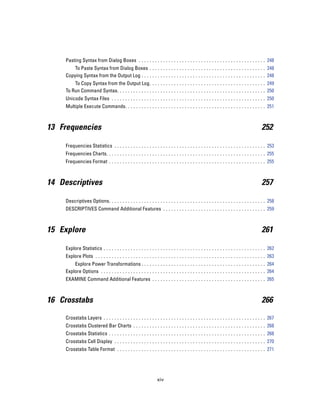
                                                                  xiii
Pasting Syntax from Dialog Boxes . . . . . . . . . . . . . . . . . . . . . . . . . . . . . . . . . . . . . . . . . . . . . . . 248
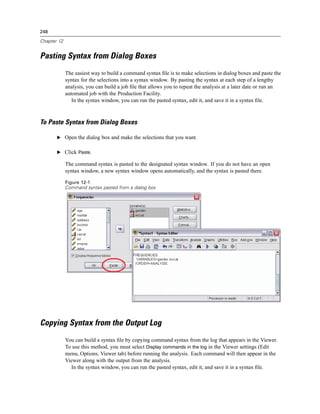
         To Paste Syntax from Dialog Boxes . . . . . . . . . . . . . . . . . . . . . . . . . . . . . . . . . . . . . . . . . . . 248
     Copying Syntax from the Output Log . . . . . . . . . . . . . . . . . . . . . . . . . . . . . . . . . . . . . . . . . . . . . . 248
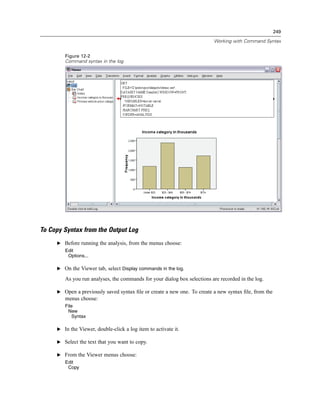
         To Copy Syntax from the Output Log . . . . . . . . . . . . . . . . . . . . . . . . . . . . . . . . . . . . . . . . . . . 249
     To Run Command Syntax. . . . . . . . . . . . . . . . . . . . . . . . . . . . . . . . . . . . . . . . . . . . . . . . . . . . . . . 250
     Unicode Syntax Files . . . . . . . . . . . . . . . . . . . . . . . . . . . . . . . . . . . . . . . . . . . . . . . . . . . . . . . . . 250
     Multiple Execute Commands. . . . . . . . . . . . . . . . . . . . . . . . . . . . . . . . . . . . . . . . . . . . . . . . . . . . 251


13 Frequencies                                                                                                                             252

     Frequencies Statistics . . . . . . . . . . . . . . . . . . . . . . . . . . . . . . . . . . . . . . . . . . . . . . . . . . . . . . . . 253
     Frequencies Charts. . . . . . . . . . . . . . . . . . . . . . . . . . . . . . . . . . . . . . . . . . . . . . . . . . . . . . . . . . . 255
     Frequencies Format . . . . . . . . . . . . . . . . . . . . . . . . . . . . . . . . . . . . . . . . . . . . . . . . . . . . . . . . . . 255


14 Descriptives                                                                                                                            257

     Descriptives Options. . . . . . . . . . . . . . . . . . . . . . . . . . . . . . . . . . . . . . . . . . . . . . . . . . . . . . . . . . 258
     DESCRIPTIVES Command Additional Features . . . . . . . . . . . . . . . . . . . . . . . . . . . . . . . . . . . . . . 259


15 Explore                                                                                                                                 261

     Explore Statistics . . . . . . . . . . . . . . . . . . . . . . . . . . . . . . . . . . . . . . . . . . . . . . . . . . . . . . . . . . . . 262
     Explore Plots . . . . . . . . . . . . . . . . . . . . . . . . . . . . . . . . . . . . . . . . . . . . . . . . . . . . . . . . . . . . . . . 263
         Explore Power Transformations . . . . . . . . . . . . . . . . . . . . . . . . . . . . . . . . . . . . . . . . . . . . . . 264
     Explore Options . . . . . . . . . . . . . . . . . . . . . . . . . . . . . . . . . . . . . . . . . . . . . . . . . . . . . . . . . . . . . 264
     EXAMINE Command Additional Features . . . . . . . . . . . . . . . . . . . . . . . . . . . . . . . . . . . . . . . . . . 265


16 Crosstabs                                                                                                                               266

     Crosstabs Layers . . . . . . . . . . . . . . . . . . . . . . . . . . . . . . . . . . . . . . . . . . . . . . . . . . . . . . . . . . . . 267
     Crosstabs Clustered Bar Charts . . . . . . . . . . . . . . . . . . . . . . . . . . . . . . . . . . . . . . . . . . . . . . . . . 268
     Crosstabs Statistics . . . . . . . . . . . . . . . . . . . . . . . . . . . . . . . . . . . . . . . . . . . . . . . . . . . . . . . . . . 268
     Crosstabs Cell Display . . . . . . . . . . . . . . . . . . . . . . . . . . . . . . . . . . . . . . . . . . . . . . . . . . . . . . . . 270
     Crosstabs Table Format . . . . . . . . . . . . . . . . . . . . . . . . . . . . . . . . . . . . . . . . . . . . . . . . . . . . . . . 271


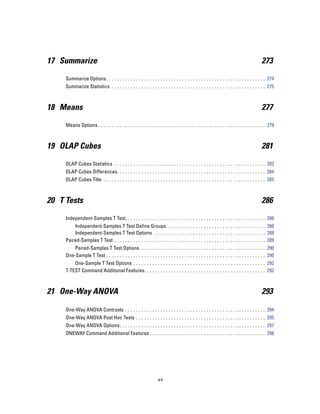
                                                                   xiv
17 Summarize                                                                                                                             273

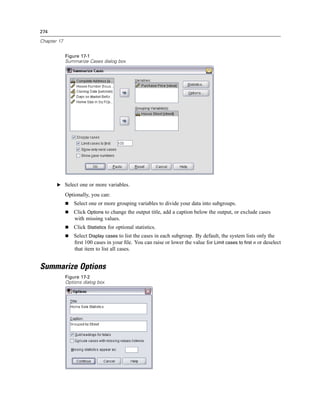
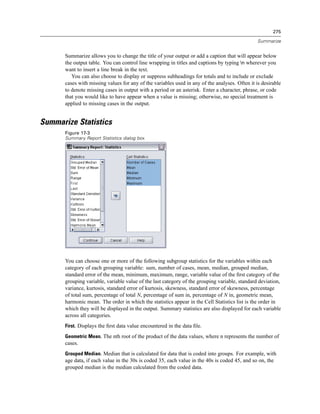
     Summarize Options. . . . . . . . . . . . . . . . . . . . . . . . . . . . . . . . . . . . . . . . . . . . . . . . . . . . . . . . . . . 274
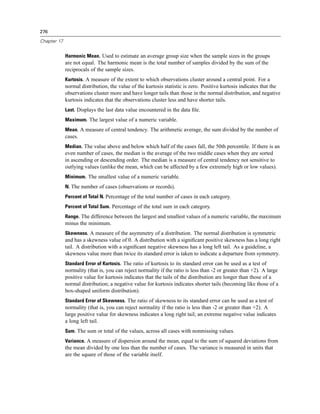
     Summarize Statistics . . . . . . . . . . . . . . . . . . . . . . . . . . . . . . . . . . . . . . . . . . . . . . . . . . . . . . . . . 275


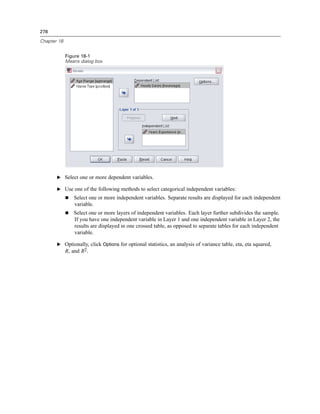
18 Means                                                                                                                                 277

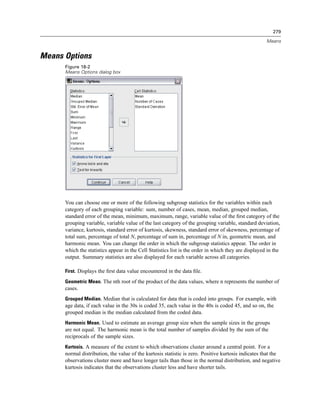
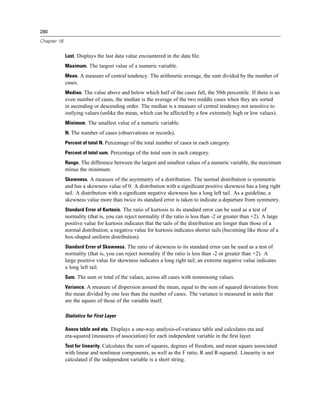
     Means Options . . . . . . . . . . . . . . . . . . . . . . . . . . . . . . . . . . . . . . . . . . . . . . . . . . . . . . . . . . . . . . 279


19 OLAP Cubes                                                                                                                            281

     OLAP Cubes Statistics . . . . . . . . . . . . . . . . . . . . . . . . . . . . . . . . . . . . . . . . . . . . . . . . . . . . . . . . 282
     OLAP Cubes Differences. . . . . . . . . . . . . . . . . . . . . . . . . . . . . . . . . . . . . . . . . . . . . . . . . . . . . . . 284
     OLAP Cubes Title . . . . . . . . . . . . . . . . . . . . . . . . . . . . . . . . . . . . . . . . . . . . . . . . . . . . . . . . . . . . 285


20 T Tests                                                                                                                               286

     Independent-Samples T Test. . . . . . . . . . . . . . . . . . . . . . . . . . . . . . . . . . . . . . . . . . . . . . . . . . . . 286
         Independent-Samples T Test Define Groups. . . . . . . . . . . . . . . . . . . . . . . . . . . . . . . . . . . . . 288
         Independent-Samples T Test Options . . . . . . . . . . . . . . . . . . . . . . . . . . . . . . . . . . . . . . . . . 288
     Paired-Samples T Test . . . . . . . . . . . . . . . . . . . . . . . . . . . . . . . . . . . . . . . . . . . . . . . . . . . . . . . . 289
         Paired-Samples T Test Options . . . . . . . . . . . . . . . . . . . . . . . . . . . . . . . . . . . . . . . . . . . . . . 290
     One-Sample T Test . . . . . . . . . . . . . . . . . . . . . . . . . . . . . . . . . . . . . . . . . . . . . . . . . . . . . . . . . . . 290
         One-Sample T Test Options . . . . . . . . . . . . . . . . . . . . . . . . . . . . . . . . . . . . . . . . . . . . . . . . . 292
     T-TEST Command Additional Features. . . . . . . . . . . . . . . . . . . . . . . . . . . . . . . . . . . . . . . . . . . . . 292


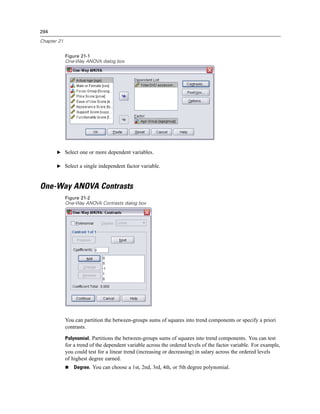
21 One-Way ANOVA                                                                                                                         293

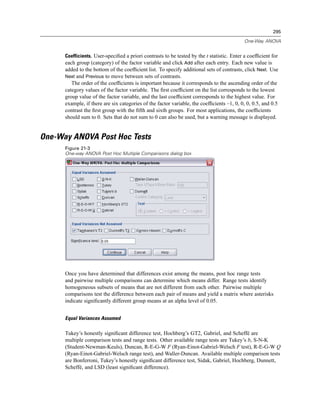
     One-Way ANOVA Contrasts . . . . . . . . . . . . . . . . . . . . . . . . . . . . . . . . . . . . . . . . . . . . . . . . . . . . 294
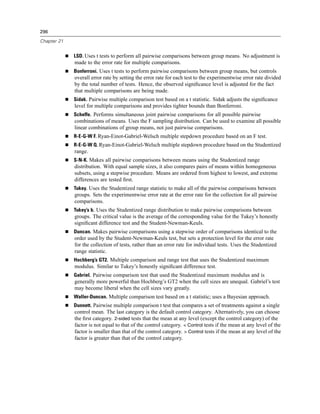
     One-Way ANOVA Post Hoc Tests . . . . . . . . . . . . . . . . . . . . . . . . . . . . . . . . . . . . . . . . . . . . . . . . 295
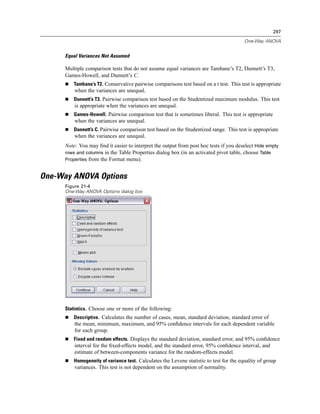
     One-Way ANOVA Options . . . . . . . . . . . . . . . . . . . . . . . . . . . . . . . . . . . . . . . . . . . . . . . . . . . . . . 297
     ONEWAY Command Additional Features . . . . . . . . . . . . . . . . . . . . . . . . . . . . . . . . . . . . . . . . . . . 298


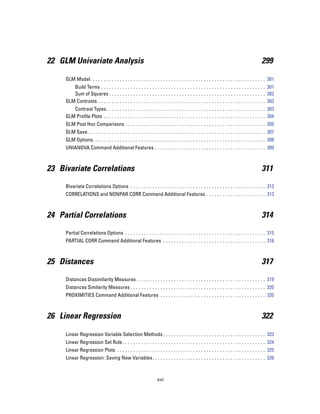
                                                                   xv
22 GLM Univariate Analysis                                                                                                                 299

     GLM Model. . . . . . . . . . . . . . . . . . . . . . . . . . . . . . . . . . . . . . . . . . . . . . . . . . . . . . . . . . . . . . . . . 301
        Build Terms . . . . . . . . . . . . . . . . . . . . . . . . . . . . . . . . . . . . . . . . . . . . . . . . . . . . . . . . . . . . . 301
        Sum of Squares . . . . . . . . . . . . . . . . . . . . . . . . . . . . . . . . . . . . . . . . . . . . . . . . . . . . . . . . . . 302
     GLM Contrasts . . . . . . . . . . . . . . . . . . . . . . . . . . . . . . . . . . . . . . . . . . . . . . . . . . . . . . . . . . . . . . 303
        Contrast Types. . . . . . . . . . . . . . . . . . . . . . . . . . . . . . . . . . . . . . . . . . . . . . . . . . . . . . . . . . . 303
     GLM Profile Plots . . . . . . . . . . . . . . . . . . . . . . . . . . . . . . . . . . . . . . . . . . . . . . . . . . . . . . . . . . . . 304
     GLM Post Hoc Comparisons . . . . . . . . . . . . . . . . . . . . . . . . . . . . . . . . . . . . . . . . . . . . . . . . . . . . 305
     GLM Save. . . . . . . . . . . . . . . . . . . . . . . . . . . . . . . . . . . . . . . . . . . . . . . . . . . . . . . . . . . . . . . . . . 307
     GLM Options. . . . . . . . . . . . . . . . . . . . . . . . . . . . . . . . . . . . . . . . . . . . . . . . . . . . . . . . . . . . . . . . 308
     UNIANOVA Command Additional Features . . . . . . . . . . . . . . . . . . . . . . . . . . . . . . . . . . . . . . . . . 309


23 Bivariate Correlations                                                                                                                  311

     Bivariate Correlations Options . . . . . . . . . . . . . . . . . . . . . . . . . . . . . . . . . . . . . . . . . . . . . . . . . . 313
     CORRELATIONS and NONPAR CORR Command Additional Features . . . . . . . . . . . . . . . . . . . . . . 313


24 Partial Correlations                                                                                                                    314

     Partial Correlations Options . . . . . . . . . . . . . . . . . . . . . . . . . . . . . . . . . . . . . . . . . . . . . . . . . . . . 315
     PARTIAL CORR Command Additional Features . . . . . . . . . . . . . . . . . . . . . . . . . . . . . . . . . . . . . . 316


25 Distances                                                                                                                               317

     Distances Dissimilarity Measures . . . . . . . . . . . . . . . . . . . . . . . . . . . . . . . . . . . . . . . . . . . . . . . . 319
     Distances Similarity Measures . . . . . . . . . . . . . . . . . . . . . . . . . . . . . . . . . . . . . . . . . . . . . . . . . . 320
     PROXIMITIES Command Additional Features . . . . . . . . . . . . . . . . . . . . . . . . . . . . . . . . . . . . . . . 320


26 Linear Regression                                                                                                                       322

     Linear Regression Variable Selection Methods . . . . . . . . . . . . . . . . . . . . . . . . . . . . . . . . . . . . . . 323
     Linear Regression Set Rule . . . . . . . . . . . . . . . . . . . . . . . . . . . . . . . . . . . . . . . . . . . . . . . . . . . . . 324
     Linear Regression Plots . . . . . . . . . . . . . . . . . . . . . . . . . . . . . . . . . . . . . . . . . . . . . . . . . . . . . . . 325
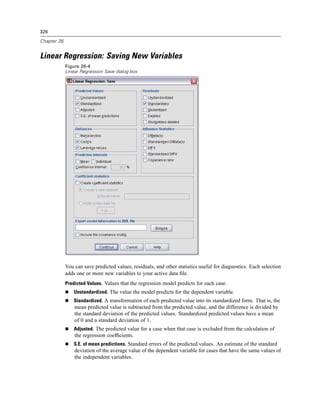
     Linear Regression: Saving New Variables. . . . . . . . . . . . . . . . . . . . . . . . . . . . . . . . . . . . . . . . . . 326


                                                                   xvi
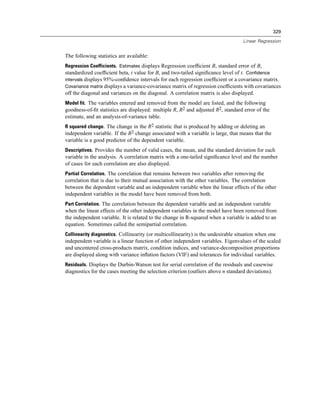
Linear Regression Statistics . . . . . . . . . . . . . . . . . . . . . . . . . . . . . . . . . . . . . . . . . . . . . . . . . . . . 328
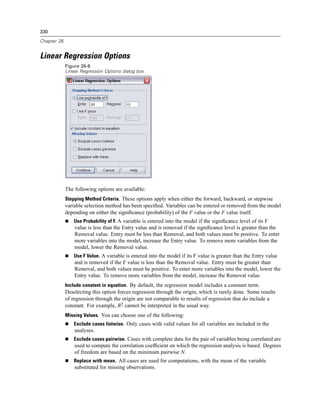
     Linear Regression Options . . . . . . . . . . . . . . . . . . . . . . . . . . . . . . . . . . . . . . . . . . . . . . . . . . . . . 330
     REGRESSION Command Additional Features. . . . . . . . . . . . . . . . . . . . . . . . . . . . . . . . . . . . . . . . 331


27 Ordinal Regression                                                                                                                        332

     Ordinal Regression Options. . . . . . . . . . . . . . . . . . . . . . . . . . . . . . . . . . . . . . . . . . . . . . . . . . . . . 333
     Ordinal Regression Output . . . . . . . . . . . . . . . . . . . . . . . . . . . . . . . . . . . . . . . . . . . . . . . . . . . . . 334
     Ordinal Regression Location Model . . . . . . . . . . . . . . . . . . . . . . . . . . . . . . . . . . . . . . . . . . . . . . 335
         Build Terms . . . . . . . . . . . . . . . . . . . . . . . . . . . . . . . . . . . . . . . . . . . . . . . . . . . . . . . . . . . . . 337
     Ordinal Regression Scale Model. . . . . . . . . . . . . . . . . . . . . . . . . . . . . . . . . . . . . . . . . . . . . . . . . 336
        Build Terms . . . . . . . . . . . . . . . . . . . . . . . . . . . . . . . . . . . . . . . . . . . . . . . . . . . . . . . . . . . . . 337
     PLUM Command Additional Features . . . . . . . . . . . . . . . . . . . . . . . . . . . . . . . . . . . . . . . . . . . . . 337


28 Curve Estimation                                                                                                                          338

     Curve Estimation Models . . . . . . . . . . . . . . . . . . . . . . . . . . . . . . . . . . . . . . . . . . . . . . . . . . . . . . 339
     Curve Estimation Save . . . . . . . . . . . . . . . . . . . . . . . . . . . . . . . . . . . . . . . . . . . . . . . . . . . . . . . . 340


29 Partial Least Squares Regression                                                                                                          342

     Model . . . . . . . . . . . . . . . . . . . . . . . . . . . . . . . . . . . . . . . . . . . . . . . . . . . . . . . . . . . . . . . . . . . . 344
     Options . . . . . . . . . . . . . . . . . . . . . . . . . . . . . . . . . . . . . . . . . . . . . . . . . . . . . . . . . . . . . . . . . . . 345


30 Discriminant Analysis                                                                                                                     346

     Discriminant Analysis Define Range . . . . . . . . . . . . . . . . . . . . . . . . . . . . . . . . . . . . . . . . . . . . . . 348
     Discriminant Analysis Select Cases . . . . . . . . . . . . . . . . . . . . . . . . . . . . . . . . . . . . . . . . . . . . . . 348
     Discriminant Analysis Statistics . . . . . . . . . . . . . . . . . . . . . . . . . . . . . . . . . . . . . . . . . . . . . . . . . 349
     Discriminant Analysis Stepwise Method . . . . . . . . . . . . . . . . . . . . . . . . . . . . . . . . . . . . . . . . . . . 350
     Discriminant Analysis Classification . . . . . . . . . . . . . . . . . . . . . . . . . . . . . . . . . . . . . . . . . . . . . . 351
     Discriminant Analysis Save. . . . . . . . . . . . . . . . . . . . . . . . . . . . . . . . . . . . . . . . . . . . . . . . . . . . . 352
     DISCRIMINANT Command Additional Features. . . . . . . . . . . . . . . . . . . . . . . . . . . . . . . . . . . . . . 352


                                                                    xvii
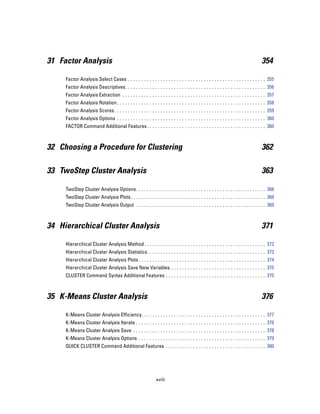
31 Factor Analysis                                                                                                                    354

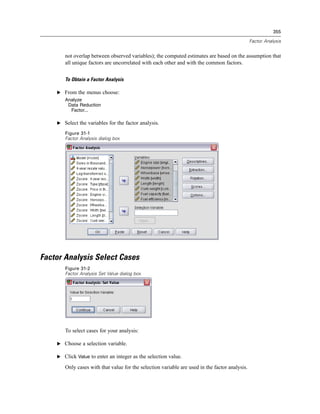
     Factor Analysis Select Cases . . . . . . . . . . . . . . . . . . . . . . . . . . . . . . . . . . . . . . . . . . . . . . . . . . . 355
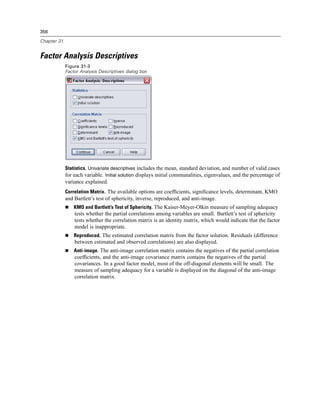
     Factor Analysis Descriptives. . . . . . . . . . . . . . . . . . . . . . . . . . . . . . . . . . . . . . . . . . . . . . . . . . . . 356
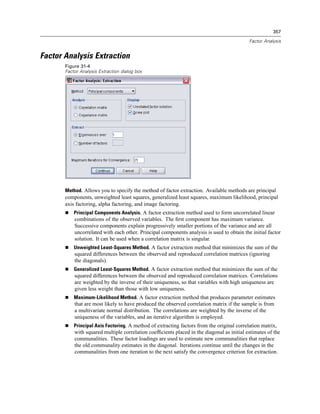
     Factor Analysis Extraction . . . . . . . . . . . . . . . . . . . . . . . . . . . . . . . . . . . . . . . . . . . . . . . . . . . . . 357
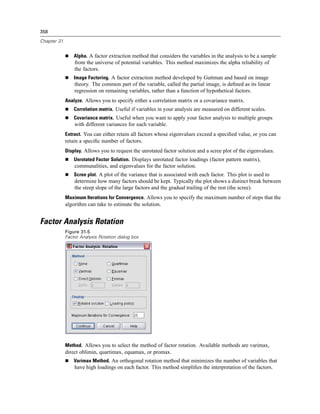
     Factor Analysis Rotation . . . . . . . . . . . . . . . . . . . . . . . . . . . . . . . . . . . . . . . . . . . . . . . . . . . . . . . 358
     Factor Analysis Scores . . . . . . . . . . . . . . . . . . . . . . . . . . . . . . . . . . . . . . . . . . . . . . . . . . . . . . . . 359
     Factor Analysis Options . . . . . . . . . . . . . . . . . . . . . . . . . . . . . . . . . . . . . . . . . . . . . . . . . . . . . . . 360
     FACTOR Command Additional Features . . . . . . . . . . . . . . . . . . . . . . . . . . . . . . . . . . . . . . . . . . . . 360


32 Choosing a Procedure for Clustering                                                                                                362

33 TwoStep Cluster Analysis                                                                                                           363

     TwoStep Cluster Analysis Options. . . . . . . . . . . . . . . . . . . . . . . . . . . . . . . . . . . . . . . . . . . . . . . . 366
     TwoStep Cluster Analysis Plots. . . . . . . . . . . . . . . . . . . . . . . . . . . . . . . . . . . . . . . . . . . . . . . . . . 368
     TwoStep Cluster Analysis Output . . . . . . . . . . . . . . . . . . . . . . . . . . . . . . . . . . . . . . . . . . . . . . . . 369


34 Hierarchical Cluster Analysis                                                                                                      371

     Hierarchical Cluster Analysis Method . . . . . . . . . . . . . . . . . . . . . . . . . . . . . . . . . . . . . . . . . . . . . 372
     Hierarchical Cluster Analysis Statistics. . . . . . . . . . . . . . . . . . . . . . . . . . . . . . . . . . . . . . . . . . . . 373
     Hierarchical Cluster Analysis Plots . . . . . . . . . . . . . . . . . . . . . . . . . . . . . . . . . . . . . . . . . . . . . . . 374
     Hierarchical Cluster Analysis Save New Variables . . . . . . . . . . . . . . . . . . . . . . . . . . . . . . . . . . . 375
     CLUSTER Command Syntax Additional Features . . . . . . . . . . . . . . . . . . . . . . . . . . . . . . . . . . . . . 375


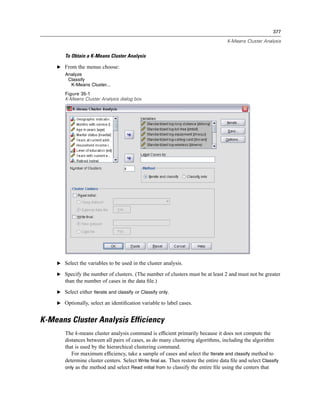
35 K-Means Cluster Analysis                                                                                                           376

     K-Means Cluster Analysis Efficiency. . . . . . . . . . . . . . . . . . . . . . . . . . . . . . . . . . . . . . . . . . . . . . 377
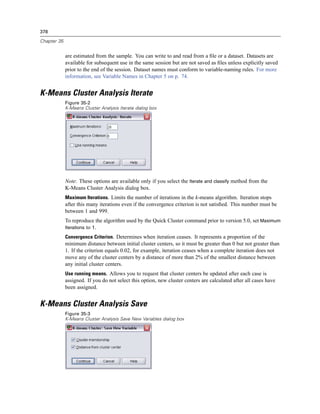
     K-Means Cluster Analysis Iterate . . . . . . . . . . . . . . . . . . . . . . . . . . . . . . . . . . . . . . . . . . . . . . . . 378
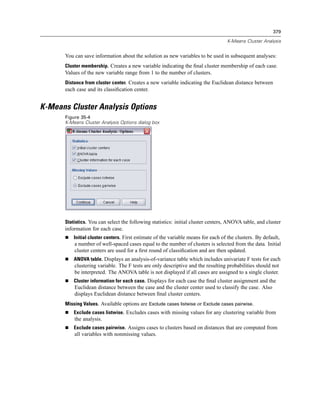
     K-Means Cluster Analysis Save . . . . . . . . . . . . . . . . . . . . . . . . . . . . . . . . . . . . . . . . . . . . . . . . . 378
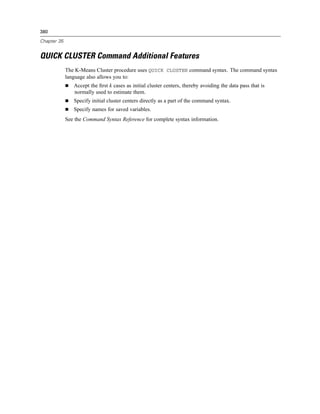
     K-Means Cluster Analysis Options . . . . . . . . . . . . . . . . . . . . . . . . . . . . . . . . . . . . . . . . . . . . . . . 379
     QUICK CLUSTER Command Additional Features . . . . . . . . . . . . . . . . . . . . . . . . . . . . . . . . . . . . . 380


                                                                xviii
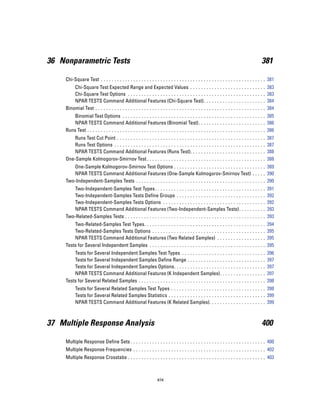
36 Nonparametric Tests                                                                                                                         381

     Chi-Square Test . . . . . . . . . . . . . . . . . . . . . . . . . . . . . . . . . . . . . . . . . . . . . . . . . . . . . . . . . . . . . 381
         Chi-Square Test Expected Range and Expected Values . . . . . . . .                                ...   ...   ...   ...   ...   ...   ..   383
         Chi-Square Test Options . . . . . . . . . . . . . . . . . . . . . . . . . . . . . . .             ...   ...   ...   ...   ...   ...   ..   383
         NPAR TESTS Command Additional Features (Chi-Square Test) . . .                                    ...   ...   ...   ...   ...   ...   ..   384
     Binomial Test . . . . . . . . . . . . . . . . . . . . . . . . . . . . . . . . . . . . . . . . . . .   ...   ...   ...   ...   ...   ...   ..   384
         Binomial Test Options . . . . . . . . . . . . . . . . . . . . . . . . . . . . . . . . . . . . . . . . . . . . . . . . . . . . . 385
         NPAR TESTS Command Additional Features (Binomial Test). . . . . . . . . . . . . . . . . . . . . . . . . 386
     Runs Test . . . . . . . . . . . . . . . . . . . . . . . . . . . . . . . . . . . . . . . . . . . . . . . . . . . . . . . . . . . . . . . . . . 386
         Runs Test Cut Point . . . . . . . . . . . . . . . . . . . . . . . . . . . . .         ...   ...   ...   ...   ...   ...   ...   ...   ..   387
         Runs Test Options . . . . . . . . . . . . . . . . . . . . . . . . . . . . . .         ...   ...   ...   ...   ...   ...   ...   ...   ..   387
         NPAR TESTS Command Additional Features (Runs Test). .                                 ...   ...   ...   ...   ...   ...   ...   ...   ..   388
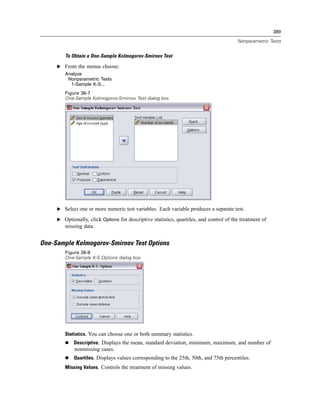
     One-Sample Kolmogorov-Smirnov Test . . . . . . . . . . . . . . . . . .                    ...   ...   ...   ...   ...   ...   ...   ...   ..   388
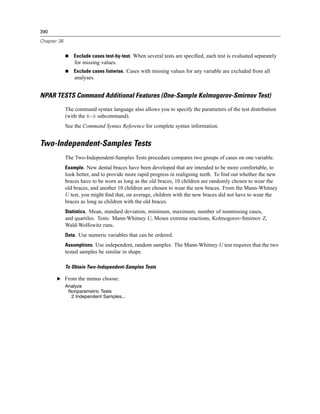
        One-Sample Kolmogorov-Smirnov Test Options . . . . . . . . . . . . . . . . . . . . . . . . . . . . . . . . . . 389
        NPAR TESTS Command Additional Features (One-Sample Kolmogorov-Smirnov Test) . . . . . 390
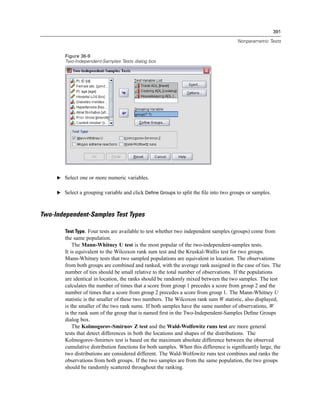
     Two-Independent-Samples Tests . . . . . . . . . . . . . . . . . . . . . . . . . . . . . . . . . . . . . . . . . . . . . . . . 390
        Two-Independent-Samples Test Types . . . . . . . . . . . . . . . . . . . . . . . . . . . . . . . . .                       ...   ...   ..   391
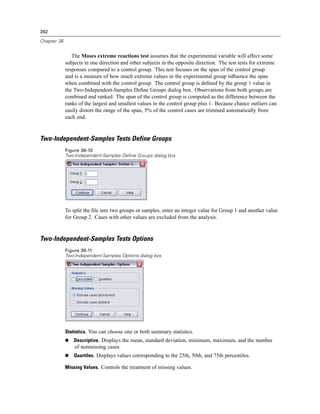
        Two-Independent-Samples Tests Define Groups . . . . . . . . . . . . . . . . . . . . . . . . .                              ...   ...   ..   392
        Two-Independent-Samples Tests Options . . . . . . . . . . . . . . . . . . . . . . . . . . . . . .                          ...   ...   ..   392
        NPAR TESTS Command Additional Features (Two-Independent-Samples Tests). .                                                  ...   ...   ..   393
     Two-Related-Samples Tests . . . . . . . . . . . . . . . . . . . . . . . . . . . . . . . . . . . . . . . . . . . .             ...   ...   ..   393
         Two-Related-Samples Test Types. . . . . . . . . . . . . . . . . . . . . . . . . . . .                   ...   ...   ...   ...   ...   ..   394
         Two-Related-Samples Tests Options . . . . . . . . . . . . . . . . . . . . . . . . .                     ...   ...   ...   ...   ...   ..   395
         NPAR TESTS Command Additional Features (Two Related Samples) .                                          ...   ...   ...   ...   ...   ..   395
     Tests for Several Independent Samples . . . . . . . . . . . . . . . . . . . . . . . . . .                   ...   ...   ...   ...   ...   ..   395
         Tests for Several Independent Samples Test Types . . . . . . . . . . . . . . . . .                            ...   ...   ...   ...   ..   396
         Tests for Several Independent Samples Define Range . . . . . . . . . . . . . . .                              ...   ...   ...   ...   ..   397
         Tests for Several Independent Samples Options. . . . . . . . . . . . . . . . . . . .                          ...   ...   ...   ...   ..   397
         NPAR TESTS Command Additional Features (K Independent Samples). . .                                           ...   ...   ...   ...   ..   397
     Tests for Several Related Samples . . . . . . . . . . . . . . . . . . . . . . . . . . . . . . . . .               ...   ...   ...   ...   ..   398
           Tests for Several Related Samples Test Types . . . . . . . . . . . . . . . . . . . . . . . . . . . . . . . . . . . 398
           Tests for Several Related Samples Statistics . . . . . . . . . . . . . . . . . . . . . . . . . . . . . . . . . . . . 399
           NPAR TESTS Command Additional Features (K Related Samples). . . . . . . . . . . . . . . . . . . . . 399


37 Multiple Response Analysis                                                                                                                  400

     Multiple Response Define Sets . . . . . . . . . . . . . . . . . . . . . . . . . . . . . . . . . . . . . . . . . . . . . . . . . . 400
     Multiple Response Frequencies . . . . . . . . . . . . . . . . . . . . . . . . . . . . . . . . . . . . . . . . . . . . . . . . . 402
     Multiple Response Crosstabs . . . . . . . . . . . . . . . . . . . . . . . . . . . . . . . . . . . . . . . . . . . . . . . . . . . 403


                                                                    xix
Multiple Response Crosstabs Define Ranges . . . . . . . . . . . . . . . . . . . . . . . . . . . . . . . . . . . . . . . 405
     Multiple Response Crosstabs Options . . . . . . . . . . . . . . . . . . . . . . . . . . . . . . . . . . . . . . . . . . . . . 405
     MULT RESPONSE Command Additional Features . . . . . . . . . . . . . . . . . . . . . . . . . . . . . . . . . . . . 406


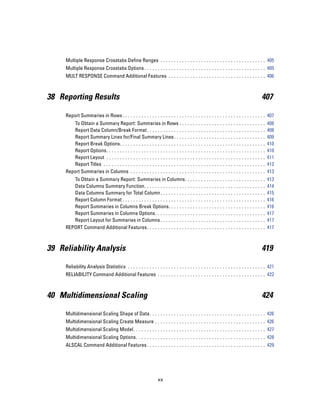
38 Reporting Results                                                                                                                        407

     Report Summaries in Rows . . . . . . . . . . . . . . . . . . . . . . . . . . . . . . . . . . . . . . . . . . . . . . . . . . . . . 407
        To Obtain a Summary Report: Summaries in Rows . . .                           ...   ...   ...   ...   ...   ...   ...   ...   ...   ..   408
        Report Data Column/Break Format . . . . . . . . . . . . . . .                 ...   ...   ...   ...   ...   ...   ...   ...   ...   ..   408
        Report Summary Lines for/Final Summary Lines . . . . .                        ...   ...   ...   ...   ...   ...   ...   ...   ...   ..   409
        Report Break Options. . . . . . . . . . . . . . . . . . . . . . . . .         ...   ...   ...   ...   ...   ...   ...   ...   ...   ..   410
        Report Options. . . . . . . . . . . . . . . . . . . . . . . . . . . . . .     ...   ...   ...   ...   ...   ...   ...   ...   ...   ..   410
        Report Layout . . . . . . . . . . . . . . . . . . . . . . . . . . . . . .     ...   ...   ...   ...   ...   ...   ...   ...   ...   ..   411
        Report Titles . . . . . . . . . . . . . . . . . . . . . . . . . . . . . . .   ...   ...   ...   ...   ...   ...   ...   ...   ...   ..   412
     Report Summaries in Columns . . . . . . . . . . . . . . . . . . . . .            ...   ...   ...   ...   ...   ...   ...   ...   ...   ..   413
        To Obtain a Summary Report: Summaries in Columns.                             ...   ...   ...   ...   ...   ...   ...   ...   ...   ..   413
        Data Columns Summary Function. . . . . . . . . . . . . . . .                  ...   ...   ...   ...   ...   ...   ...   ...   ...   ..   414
        Data Columns Summary for Total Column . . . . . . . . . .                     ...   ...   ...   ...   ...   ...   ...   ...   ...   ..   415
        Report Column Format . . . . . . . . . . . . . . . . . . . . . . . .          ...   ...   ...   ...   ...   ...   ...   ...   ...   ..   416
        Report Summaries in Columns Break Options. . . . . . .                        ...   ...   ...   ...   ...   ...   ...   ...   ...   ..   416
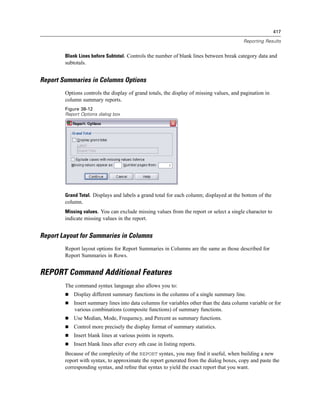
        Report Summaries in Columns Options. . . . . . . . . . . .                    ...   ...   ...   ...   ...   ...   ...   ...   ...   ..   417
        Report Layout for Summaries in Columns . . . . . . . . . .                    ...   ...   ...   ...   ...   ...   ...   ...   ...   ..   417
     REPORT Command Additional Features. . . . . . . . . . . . . . .                  ...   ...   ...   ...   ...   ...   ...   ...   ...   ..   417


39 Reliability Analysis                                                                                                                     419

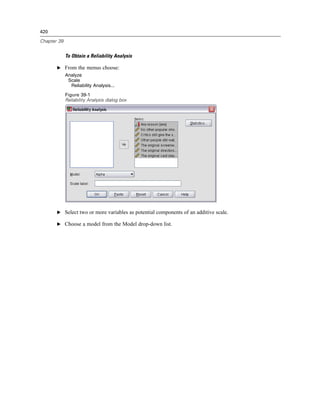
     Reliability Analysis Statistics . . . . . . . . . . . . . . . . . . . . . . . . . . . . . . . . . . . . . . . . . . . . . . . . . . . 421
     RELIABILITY Command Additional Features . . . . . . . . . . . . . . . . . . . . . . . . . . . . . . . . . . . . . . . . 422


40 Multidimensional Scaling                                                                                                                 424

     Multidimensional Scaling Shape of Data. . . . . . . . . . . . . . . . . . . . . . . . . . . . . . . . . . . . . . . . . . . 426
     Multidimensional Scaling Create Measure . . . . . . . . . . . . . . . . . . . . . . . . . . . . . . . . . . . . . . . . . 426
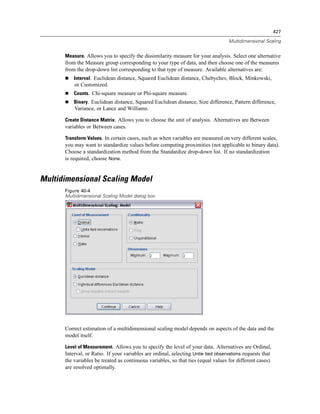
     Multidimensional Scaling Model. . . . . . . . . . . . . . . . . . . . . . . . . . . . . . . . . . . . . . . . . . . . . . . . . 427
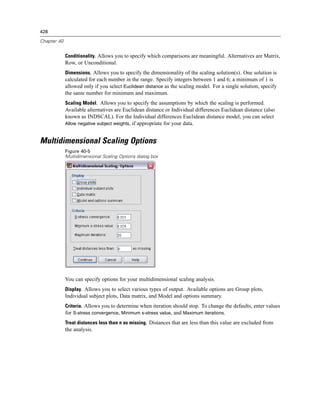
     Multidimensional Scaling Options . . . . . . . . . . . . . . . . . . . . . . . . . . . . . . . . . . . . . . . . . . . . . . . . 428
     ALSCAL Command Additional Features . . . . . . . . . . . . . . . . . . . . . . . . . . . . . . . . . . . . . . . . . . . . 429


                                                                 xx
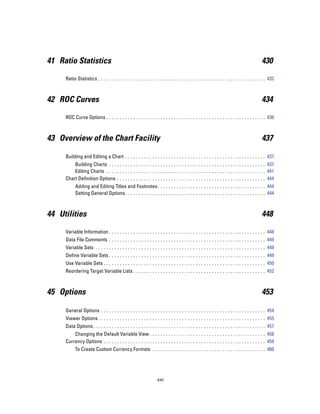
41 Ratio Statistics                                                                                                                         430

     Ratio Statistics . . . . . . . . . . . . . . . . . . . . . . . . . . . . . . . . . . . . . . . . . . . . . . . . . . . . . . . . . . . . . . 432


42 ROC Curves                                                                                                                               434

     ROC Curve Options . . . . . . . . . . . . . . . . . . . . . . . . . . . . . . . . . . . . . . . . . . . . . . . . . . . . . . . . . . . 436


43 Overview of the Chart Facility                                                                                                           437

     Building and Editing a Chart . . . . . . . . . . . . . . . . . . . . . . . . . . . . . . . . . . . . . . . . . . . . . . . . . . . . 437
         Building Charts . . . . . . . . . . . . . . . . . . . . . . . . . . . . . . . . . . . . . . . . . . . . . . . . . . . . . . . . . . 437
         Editing Charts . . . . . . . . . . . . . . . . . . . . . . . . . . . . . . . . . . . . . . . . . . . . . . . . . . . . . . . . . . . 441
     Chart Definition Options . . . . . . . . . . . . . . . . . . . . . . . . . . . . . . . . . . . . . . . . . . . . . . . . . . . . . . . 444
           Adding and Editing Titles and Footnotes . . . . . . . . . . . . . . . . . . . . . . . . . . . . . . . . . . . . . . . . 444
           Setting General Options . . . . . . . . . . . . . . . . . . . . . . . . . . . . . . . . . . . . . . . . . . . . . . . . . . . . 444


44 Utilities                                                                                                                                448

     Variable Information . . . . . . . . . . . . . . . . . . . . . . . . . . . . . . . . . . . . . . . . . . . . . . . . . . . . . . . . . . 448
     Data File Comments . . . . . . . . . . . . . . . . . . . . . . . . . . . . . . . . . . . . . . . . . . . . . . . . . . . . . . . . . . 449
     Variable Sets . . . . . . . . . . . . . . . . . . . . . . . . . . . . . . . . . . . . . . . . . . . . . . . . . . . . . . . . . . . . . . . 449
     Define Variable Sets . . . . . . . . . . . . . . . . . . . . . . . . . . . . . . . . . . . . . . . . . . . . . . . . . . . . . . . . . . 449
     Use Variable Sets . . . . . . . . . . . . . . . . . . . . . . . . . . . . . . . . . . . . . . . . . . . . . . . . . . . . . . . . . . . . 450
     Reordering Target Variable Lists . . . . . . . . . . . . . . . . . . . . . . . . . . . . . . . . . . . . . . . . . . . . . . . . . 452


45 Options                                                                                                                                  453

     General Options . . . . . . . . . . . . . . . . . . . . . . . . . . . . . . . . . . . . . . . . . . . . . . . . . . . . . . . . . . . . . 454
     Viewer Options . . . . . . . . . . . . . . . . . . . . . . . . . . . . . . . . . . . . . . . . . . . . . . . . . . . . . . . . . . . . . . 455
     Data Options. . . . . . . . . . . . . . . . . . . . . . . . . . . . . . . . . . . . . . . . . . . . . . . . . . . . . . . . . . . . . . . . 457
         Changing the Default Variable View . . . . . . . . . . . . . . . . . . . . . . . . . . . . . . . . . . . . . . . . . . . 458
     Currency Options . . . . . . . . . . . . . . . . . . . . . . . . . . . . . . . . . . . . . . . . . . . . . . . . . . . . . . . . . . . . 459
           To Create Custom Currency Formats . . . . . . . . . . . . . . . . . . . . . . . . . . . . . . . . . . . . . . . . . . 460


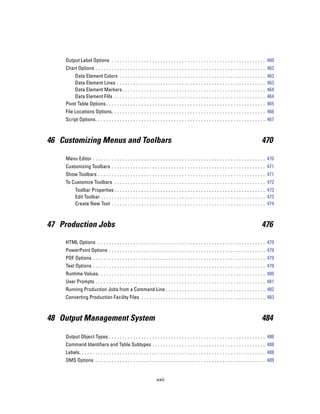
                                                                    xxi
Output Label Options . . . . . . . . . . . . . . . . . . . . . . . . . . . . . . . . . . . . . . . . . . . . . . . . . . . . . . . . . 460
    Chart Options . . . . . . . . . . . . . . . . . . . . . . . . . . . . . . . . . . . . . . . . . . . . . . . . . . . . . . . . . . . . . . . 462
        Data Element Colors . . . .              ...   ...   ...   ...   ...   ...   ...   ...   ...   ...   ...   ...   ...   ...   ...   ...   ..   463
        Data Element Lines . . . . .             ...   ...   ...   ...   ...   ...   ...   ...   ...   ...   ...   ...   ...   ...   ...   ...   ..   463
        Data Element Markers . . .               ...   ...   ...   ...   ...   ...   ...   ...   ...   ...   ...   ...   ...   ...   ...   ...   ..   464
        Data Element Fills . . . . . .           ...   ...   ...   ...   ...   ...   ...   ...   ...   ...   ...   ...   ...   ...   ...   ...   ..   464
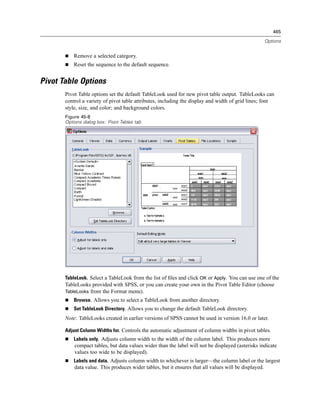
    Pivot Table Options . . . . . . . . .        ...   ...   ...   ...   ...   ...   ...   ...   ...   ...   ...   ...   ...   ...   ...   ...   ..   465
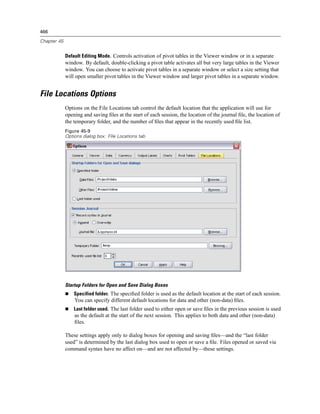
    File Locations Options. . . . . . . . . . . . . . . . . . . . . . . . . . . . . . . . . . . . . . . . . . . . . . . . . . . . . . . . . 466
    Script Options. . . . . . . . . . . . . . . . . . . . . . . . . . . . . . . . . . . . . . . . . . . . . . . . . . . . . . . . . . . . . . . 467


46 Customizing Menus and Toolbars                                                                                                                470

    Menu Editor . . . . . . . . . . . . . . . . . . . . . . . . . . . . . . . . . . . . . . . . . . . . . . . . . . . . . . . . . . . . . . . . 470
    Customizing Toolbars . . . . . . . . . . . . . . . . . . . . . . . . . . . . . . . . . . . . . . . . . . . . . . . . . . . . . . . . . 471
    Show Toolbars . . . . . . . . . . . . . . . . . . . . . . . . . . . . . . . . . . . . . . . . . . . . . . . . . . . . . . . . . . . . . . 471
    To Customize Toolbars . . . . . . . . . . . . . . . . . . . . . . . . . . . . . . . . . . . . . . . . . . . . . . . . . . . . . . . . 472
          Toolbar Properties . . . . . . . . . . . . . . . . . . . . . . . . . . . . . . . . . . . . . . . . . . . . . . . . . . . . . . . . 473
          Edit Toolbar . . . . . . . . . . . . . . . . . . . . . . . . . . . . . . . . . . . . . . . . . . . . . . . . . . . . . . . . . . . . . 473
          Create New Tool . . . . . . . . . . . . . . . . . . . . . . . . . . . . . . . . . . . . . . . . . . . . . . . . . . . . . . . . . 474


47 Production Jobs                                                                                                                               476

    HTML Options . . . . . . . . . . . . . . . . . . . . . . . . . . . . . . . . . . . . . . . . . . . . . . . . . . . . . . . . . . . . . . 479
    PowerPoint Options . . . . . . . . . . . . . . . . . . . . . . . . . . . . . . . . . . . . . . . . . . . . . . . . . . . . . . . . . . 479
    PDF Options . . . . . . . . . . . . . . . . . . . . . . . . . . . . . . . . . . . . . . . . . . . . . . . . . . . . . . . . . . . . . . . . 479
    Text Options . . . . . . . . . . . . . . . . . . . . . . . . . . . . . . . . . . . . . . . . . . . . . . . . . . . . . . . . . . . . . . . . 479
    Runtime Values. . . . . . . . . . . . . . . . . . . . . . . . . . . . . . . . . . . . . . . . . . . . . . . . . . . . . . . . . . . . . . 480
    User Prompts . . . . . . . . . . . . . . . . . . . . . . . . . . . . . . . . . . . . . . . . . . . . . . . . . . . . . . . . . . . . . . . 481
    Running Production Jobs from a Command Line . . . . . . . . . . . . . . . . . . . . . . . . . . . . . . . . . . . . . 482
    Converting Production Facility Files . . . . . . . . . . . . . . . . . . . . . . . . . . . . . . . . . . . . . . . . . . . . . . 483


48 Output Management System                                                                                                                      484

    Output Object Types . . . . . . . . . . . . . . . . . . . . . . . . . . . . . . . . . . . . . . . . . . . . . . . . . . . . . . . . . . 486
    Command Identifiers and Table Subtypes . . . . . . . . . . . . . . . . . . . . . . . . . . . . . . . . . . . . . . . . . . 488
    Labels. . . . . . . . . . . . . . . . . . . . . . . . . . . . . . . . . . . . . . . . . . . . . . . . . . . . . . . . . . . . . . . . . . . . . 488
    OMS Options . . . . . . . . . . . . . . . . . . . . . . . . . . . . . . . . . . . . . . . . . . . . . . . . . . . . . . . . . . . . . . . 489


                                                                    xxii
Logging . . . . . . . . . . . . . . . . . . . . . . . . . . . . . . . . . . . . . . . . . . . . . . . . . . . . . . . . . . . . . . . . . . . 493
    Excluding Output Display from the Viewer. . . . . . . . . . . . . . . . . . . . . . . . . . . . . . . . . . . . . . . . . . 494
    Routing Output to SPSS Data Files . . . . . . . . . . . . . . . . . . . . . . . . . . . . . . . . . . . . . . . . . . . . . . . 494
       Example: Single Two-Dimensional Table . . . . . . . . . . . . . . . . . . .                       ...   ...   ...   ...   ...   ...   ..   494
       Example: Tables with Layers . . . . . . . . . . . . . . . . . . . . . . . . . . . .               ...   ...   ...   ...   ...   ...   ..   495
       Data Files Created from Multiple Tables . . . . . . . . . . . . . . . . . . . .                   ...   ...   ...   ...   ...   ...   ..   496
       Controlling Column Elements to Control Variables in the Data File                                 ...   ...   ...   ...   ...   ...   ..   499
       Variable Names in OMS-Generated Data Files . . . . . . . . . . . . . . .                          ...   ...   ...   ...   ...   ...   ..   501
    OXML Table Structure. . . . . . . . . . . . . . . . . . . . . . . . . . . . . . . . . . . . .        ...   ...   ...   ...   ...   ...   ..   501
    OMS Identifiers . . . . . . . . . . . . . . . . . . . . . . . . . . . . . . . . . . . . . . . . . . . . . . . . . . . . . . . . . . . . . 505
          Copying OMS Identifiers from the Viewer Outline . . . . . . . . . . . . . . . . . . . . . . . . . . . . . . . . . 506


Appendices

   Index                                                                                                                                      508


                                                                  xxiii
Chapter

                                                                                                  1
Overview

   SPSS provides a powerful statistical-analysis and data-management system in a graphical
   environment, using descriptive menus and simple dialog boxes to do most of the work for you.
   Most tasks can be accomplished simply by pointing and clicking the mouse.
   In addition to the simple point-and-click interface for statistical analysis, SPSS provides:
   Data Editor. The Data Editor is a versatile spreadsheet-like system for defining, entering, editing,
   and displaying data.
   Viewer. The Viewer makes it easy to browse your results, selectively show and hide output,
   change the display order results, and move presentation-quality tables and charts to and from
   other applications.
   Multidimensional pivot tables. Your results come alive with multidimensional pivot tables. Explore
   your tables by rearranging rows, columns, and layers. Uncover important findings that can get
   lost in standard reports. Compare groups easily by splitting your table so that only one group is
   displayed at a time.
   High-resolution graphics. High-resolution, full-color pie charts, bar charts, histograms, scatterplots,
   3-D graphics, and more are included as standard features.
   Database access. Retrieve information from databases by using the Database Wizard instead of
   complicated SQL queries.
   Data transformations. Transformation features help get your data ready for analysis. You can easily
   subset data; combine categories; add, aggregate, merge, split, and transpose files; and more.
   Online Help. Detailed tutorials provide a comprehensive overview; context-sensitive Help topics in
   dialog boxes guide you through specific tasks; pop-up definitions in pivot table results explain
   statistical terms; the Statistics Coach helps you find the procedures that you need; Case Studies
   provide hands-on examples of how to use statistical procedures and interpret the results.
   Command language. Although most tasks can be accomplished with simple point-and-click
   gestures, SPSS also provides a powerful command language that allows you to save and automate
   many common tasks. The command language also provides some functionality that is not found
   in the menus and dialog boxes.
      Complete command syntax documentation is integrated into the overall Help system and is
   available as a separate PDF document, Command Syntax Reference, which is also available
   from the Help menu.


                                               1
2

Chapter 1


What’s New in Version 16.0?
            User interface enhancements. Enhancements to the point-and-click interface include:
               All dialog boxes are now resizable. The ability to make a dialog box wider makes variable
               lists wider so that you can see more of the variable names and/or descriptive labels. The
               ability to make a dialog box longer makes variable lists longer so that you can see more
               variables without scrolling.
               Drag-and-drop variable selection is now supported in all dialog boxes.
               Variable list display order and display characteristics can be changed on the fly in all dialog
               boxes. Change the sort order (alphabetic, file order, measurement level) and/or switch between
               display of variable names or variable labels whenever you want. For more information, see
               Variable Names and Variable Labels in Dialog Box Lists on p. 6.

            Data and output management. Data and output management enhancements include:
               Read and write Excel 2007 files.
               Choose between working with multiple datasets or one dataset at a time. For more
               information, see General Options in Chapter 45 on p. 454.
               Search and replace information in Viewer documents, including hidden items and layers in
               multidimensional pivot tables. For more information, see Finding and Replacing Information
               in the Viewer in Chapter 10 on p. 208.
               Assign missing values and value labels to any string variable, regardless of the defined string
               width (previously limited to strings with a defined width of 8 or less bytes).
               New character-based string functions.
               Output Management System (OMS) support for Viewer file format (.spv) and VML-format
               charts and image maps with pop-up chart information for HTML documents. For more
               information, see Output Management System in Chapter 48 on p. 484.
               Customize Variable View in the Data Editor. Change the display order of the attribute
               columns, and control which attribute columns are displayed. For more information, see
               Customizing Variable View in Chapter 5 on p. 84.
               Sort variables in the active dataset alphabetically or by attribute (dictionary) values. For more
               information, see Sort Variables in Chapter 9 on p. 168.
               Spell check variable labels and value labels in Variable View. For more information, see Spell
               Checking Variable and Value Labels in Chapter 5 on p. 85.
               Change basic variable type (string, numeric), change the defined width of string variables, and
               automatically set the width of string variables to the longest observed value for each variable.
               Read and write Unicode data and syntax files. For more information, see General Options
               in Chapter 45 on p. 454.
               Control the default directory location to look for and save files. For more information, see File
               Locations Options in Chapter 45 on p. 466.

            Performance. For computers with multiple processors or processors with multiple cores,
            multithreading for faster performance is now available for some procedures.
3

                                                                                         Overview


Statistical enhancements. Statistical enhancements include:
   Partial Least Squares (PLS). A predictive technique that is an alternative to ordinary least
   squares (OLS) regression, canonical correlation, or structural equation modeling, and it is
   particularly useful when predictor variables are highly correlated or when the number of
   predictors exceeds the number of cases. For more information, see Partial Least Squares
   Regression in Chapter 29 on p. 342.
   Multilayer perceptron (MLP). The MLP procedure fits a particular kind of neural network
   called a multilayer perceptron. The multilayer perceptron uses a feed-forward architecture
   and can have multiple hidden layers. The multilayer perceptron is very flexible in the types of
   models it can fit. It is one of the most commonly used neural network architectures. This
   procedure is available in the new Neural Networks option.
   Radial basis function (RBF). A Radial basis function (RBF) network is a feed-forward,
   supervised learning network with only one hidden layer, called the radial basis function layer.
   Like the multilayer perceptron (MLP) network, the RBF network can do both prediction and
   classification. It can be much faster than MLP, however it is not as flexible in the types of
   models it can fit. This procedure is available in the new Neural Networks option.
   Generalized Linear Models supports numerous new features, including ordinal multinomial
   and Tweedie distributions, maximum likelihood estimation of the negative binomial ancillary
   parameter, and likelihood-ratio statistics. This procedure is available in the Advanced Models
   option.
   Cox Regression now provides the ability to export model information to an XML (PMML)
   file. This procedure is available in the Advanced Models option.
   Complex Samples Cox Regression. Apply Cox proportional hazards regression to analysis
   of survival times—that is, the length of time before the occurrence of an event for samples
   drawn by complex sampling methods. This procedure supports continuous and categorical
   predictors, which can be time-dependent. This procedure provides an easy way of considering
   differences in subgroups as well as analyzing effects of a set of predictors. The procedure
   estimates variances by taking into account the sample design used to select the sample,
   including equal probability and probability proportional to size (PPS) methods and with
   replacement (WR) and without replacement (WOR) sampling procedures. This procedure is
   available in the Complex Samples option.

Programmability extension. Programmability extension enhancements include:
   R-Plugin. Combine the power of SPSS with the ability to write your own statistical routines
   with R. This plug-in is available only as a download from www.spss.com/devcentral
   (http://www.spss.com/devcentral).
   Nested Begin Program-End Program command structures.
   Ability to create and manage multiple datasets.

Command syntax. For a complete list of command syntax additions and changes, see the Release
History section of the Introduction chapter in the Command Syntax Reference (available on the
Help menu).
4

Chapter 1


            Features No Longer Supported
                There is no longer a separate chart editor for “interactive” charts. Charts created from the
                legacy “interactive” chart dialog boxes and from IGRAPH command syntax are created in the
                same format as all other charts and edited in the same chart editor.
                Some features provided in the legacy “interactive” chart dialog boxes and IGRAPH command
                syntax are no longer available.
                The Draft Viewer is no longer available.
                You cannot open Viewer files created in previous versions of SPSS (.spo files) in SPSS 16.0.
                For Windows operating systems, the installation CD includes a Legacy Viewer that you can
                install to view and edit Viewer files created in previous releases.
                The Maps option is no longer available.
                Dialog box interfaces for the legacy procedures in the Trends and Tables options are no
                longer available. For Trends, this includes the following commands: AREG, ARIMA, and
                EXSMOOTH. For Tables, this includes the TABLES command. If you have a license for either of
                these options that includes the legacy procedures, command syntax for these commands is
                still supported.


Windows
            There are a number of different types of windows in SPSS:
            Data Editor. The Data Editor displays the contents of the data file. You can create new data files or
            modify existing data files with the Data Editor. If you have more than one data file open, there is a
            separate Data Editor window for each data file.
            Viewer. All statistical results, tables, and charts are displayed in the Viewer. You can edit the
            output and save it for later use. A Viewer window opens automatically the first time you run
            a procedure that generates output.
            Pivot Table Editor. Output that is displayed in pivot tables can be modified in many ways with
            the Pivot Table Editor. You can edit text, swap data in rows and columns, add color, create
            multidimensional tables, and selectively hide and show results.
            Chart Editor. You can modify high-resolution charts and plots in chart windows. You can change
            the colors, select different type fonts or sizes, switch the horizontal and vertical axes, rotate 3-D
            scatterplots, and even change the chart type.
            Text Output Editor. Text output that is not displayed in pivot tables can be modified with the Text
            Output Editor. You can edit the output and change font characteristics (type, style, color, size).
            Syntax Editor. You can paste your dialog box choices into a syntax window, where your selections
            appear in the form of command syntax. You can then edit the command syntax to use special
            features that are not available through dialog boxes. You can save these commands in a file for
            use in subsequent sessions.
5

                                                                                               Overview


        Figure 1-1
        Data Editor and Viewer


Designated Window versus Active Window
        If you have more than one open Viewer window, output is routed to the designated Viewer
        window. If you have more than one open Syntax Editor window, command syntax is pasted into
        the designated Syntax Editor window. The designated windows are indicated by a plus sign in the
        icon in the title bar. You can change the designated windows at any time.
           The designated window should not be confused with the active window, which is the currently
        selected window. If you have overlapping windows, the active window appears in the foreground.
        If you open a window, that window automatically becomes the active window and the designated
        window.

   Changing the Designated Window
     E Make the window that you want to designate the active window (click anywhere in the window).

     E Click the Designate Window button on the toolbar (the plus sign icon).

        or

     E From the menus choose:
        Utilities
         Designate Window

        Note: For Data Editor windows, the active Data Editor window determines the dataset that is used
        in subsequent calculations or analyses. There is no “designated” Data Editor window. For more
        information, see Basic Handling of Multiple Data Sources in Chapter 6 on p. 93.
6

Chapter 1


Status Bar
            The status bar at the bottom of each SPSS window provides the following information:

            Command status. For each procedure or command that you run, a case counter indicates the
            number of cases processed so far. For statistical procedures that require iterative processing, the
            number of iterations is displayed.

            Filter status. If you have selected a random sample or a subset of cases for analysis, the message
            Filter on indicates that some type of case filtering is currently in effect and not all cases in the
            data file are included in the analysis.

            Weight status. The message Weight on indicates that a weight variable is being used to weight
            cases for analysis.

            Split File status. The message Split File on indicates that the data file has been split into separate
            groups for analysis, based on the values of one or more grouping variables.


Dialog Boxes
            Most menu selections open dialog boxes. You use dialog boxes to select variables and options
            for analysis.

            Dialog boxes for statistical procedures and charts typically have two basic components:

            Source variable list. A list of variables in the active dataset. Only variable types that are allowed
            by the selected procedure are displayed in the source list. Use of short string and long string
            variables is restricted in many procedures.

            Target variable list(s). One or more lists indicating the variables that you have chosen for the
            analysis, such as dependent and independent variable lists.


Variable Names and Variable Labels in Dialog Box Lists
            You can display either variable names or variable labels in dialog box lists, and you can control
            the sort order of variables in source variable lists.
                To control the default display attributes of variables in source lists, choose Options on the Edit
                menu. For more information, see General Options in Chapter 45 on p. 454.
                To change the source variable list display attributes within a dialog box, right-click on any
                variable in the source list and select the display attributes from the context menu. You can
                display either variable names or variable labels (names are displayed for any variables
                without defined labels), and you can sort the source list by file order, alphabetical order, or
                measurement level. For more information on measurement level, see Data Type, Measurement
                Level, and Variable List Icons on p. 8.
7

                                                                                             Overview


      Figure 1-2
      Variable labels displayed in a dialog box


Resizing Dialog Boxes
      You can resize dialog boxes just like windows, by clicking and dragging the outside borders or
      corners. For example, if you make the dialog box wider, the variable lists will also be wider.
      Figure 1-3
      Resized dialog box


Dialog Box Controls
      There are five standard controls in most dialog boxes:
      OK. Runs the procedure. After you select your variables and choose any additional specifications,
      click OK to run the procedure and close the dialog box.
      Paste. Generates command syntax from the dialog box selections and pastes the syntax into a
      syntax window. You can then customize the commands with additional features that are not
      available from dialog boxes.
8

Chapter 1


            Reset. Deselects any variables in the selected variable list(s) and resets all specifications in the
            dialog box and any subdialog boxes to the default state.
            Cancel. Cancels any changes that were made in the dialog box settings since the last time it was
            opened and closes the dialog box. Within a session, dialog box settings are persistent. A dialog
            box retains your last set of specifications until you override them.
            Help. Provides context-sensitive Help. This control takes you to a Help window that contains
            information about the current dialog box.


Selecting Variables
            To select a single variable, simply select it in the source variable list and drag and drop it into the
            target variable list. You can also use arrow button to move variables from the source list to the
            target lists. If there is only one target variable list, you can double-click individual variables to
            move them from the source list to the target list.

            You can also select multiple variables:
                To select multiple variables that are grouped together in the variable list, click the first variable
                and then Shift-click the last variable in the group.
                To select multiple variables that are not grouped together in the variable list, click the first
                variable, then Ctrl-click the next variable, and so on (Macintosh: Command-click).


Data Type, Measurement Level, and Variable List Icons
            The icons that are displayed next to variables in dialog box lists provide information about the
            variable type and measurement level.
            Measurement                                             Data Type
            Level
                                 Numeric              String               Date                Time
            Scale                                     n/a


            Ordinal


            Nominal


                For more information on measurement level, see Variable Measurement Level on p. 75.
                For more information on numeric, string, date, and time data types, see Variable Type on p. 76.


Getting Information about Variables in Dialog Boxes
       E Right-click a variable in the source or target variable list.

       E Choose Variable Information.
9

                                                                                                    Overview


       Figure 1-4
       Variable information


Basic Steps in Data Analysis
       Analyzing data with SPSS is easy. All you have to do is:

       Get your data into SPSS. You can open a previously saved SPSS data file, you can read a
       spreadsheet, database, or text data file, or you can enter your data directly in the Data Editor.

       Select a procedure. Select a procedure from the menus to calculate statistics or to create a chart.

       Select the variables for the analysis. The variables in the data file are displayed in a dialog box for
       the procedure.

       Run the procedure and look at the results. Results are displayed in the Viewer.


Statistics Coach
       If you are unfamiliar with SPSS or with the available statistical procedures, the Statistics Coach
       can help you get started by prompting you with simple questions, nontechnical language, and
       visual examples that help you select the basic statistical and charting features that are best
       suited for your data.

       To use the Statistics Coach, from the menus in any SPSS window choose:
       Help
        Statistics Coach

       The Statistics Coach covers only a selected subset of procedures in the Base system. It is designed
       to provide general assistance for many of the basic, commonly used statistical techniques.
10

Chapter 1


Finding Out More
            For a comprehensive overview of the basics, see the online tutorial. From any SPSS menu choose:
            Help
             Tutorial
Chapter

                                                                                               2
Getting Help

    Help is provided in many different forms:

    Help menu. The Help menu in most SPSS windows provides access to the main Help system,
    plus tutorials and technical reference material.
        Topics. Provides access to the Contents, Index, and Search tabs, which you can use to find
        specific Help topics.
        Tutorial. Illustrated, step-by-step instructions on how to use many of the basic features in
        SPSS. You don’t have to view the whole tutorial from start to finish. You can choose the
        topics you want to view, skip around and view topics in any order, and use the index or table
        of contents to find specific topics.
        Case Studies. Hands-on examples of how to create various types of statistical analyses and
        how to interpret the results. The sample data files used in the examples are also provided so
        that you can work through the examples to see exactly how the results were produced. You
        can choose the specific procedure(s) that you want to learn about from the table of contents
        or search for relevant topics in the index.
        Statistics Coach. A wizard-like approach to guide you through the process of finding the
        procedure that you want to use. After you make a series of selections, the Statistics Coach
        opens the dialog box for the statistical, reporting, or charting procedure that meets your
        selected criteria. The Statistics Coach provides access to most statistical and reporting
        procedures in the Base system and many charting procedures.
        Command Syntax Reference. Detailed command syntax reference information is available in
        two forms: integrated into the overall Help system and as a separate document in PDF form in
        the SPSS Command Syntax Reference, available from the Help menu.
        Statistical Algorithms. The algorithms used for most statistical procedures are available in two
        forms: integrated into the overall Help system and as a separate document in PDF form in
        SPSS Algorithms, available on the manuals CD. For links to specific algorithms in the Help
        system, choose Algorithms from the Help menu.

    Context-sensitive Help. In many places in the user interface, you can get context-sensitive Help.
        Dialog box Help buttons. Most dialog boxes have a Help button that takes you directly to a
        Help topic for that dialog box. The Help topic provides general information and links to
        related topics.


                                                11
12

Chapter 2


                Pivot table context menu Help. Right-click on terms in an activated pivot table in the Viewer
                and choose What’s This? from the context menu to display definitions of the terms.
                Command syntax. In a command syntax window, position the cursor anywhere within a syntax
                block for a command and press F1 on the keyboard. A complete command syntax chart for
                that command will be displayed. Complete command syntax documentation is available from
                the links in the list of related topics and from the Help Contents tab.

            Other Resources

            Technical Support Web site. Answers to many common problems can be found at
            http://support.spss.com. (The Technical Support Web site requires a login ID and password.
            Information on how to obtain an ID and password is provided at the URL listed above.)
            SPSS Developer Central. Developer Central has resources for all levels of SPSS users and SPSS
            application developers. Download utilities, graphics examples, new statistical modules, and
            articles on SPSS technology. Use the forums to interact with SPSS and the SPSS user community.
            Visit SPSS Developer Central at http://www.spss.com/devcentral.


Getting Help on Output Terms
            To see a definition for a term in pivot table output in the Viewer:

       E Double-click the pivot table to activate it.

       E Right-click on the term that you want explained.

       E Choose What’s This? from the context menu.

            A definition of the term is displayed in a pop-up window.
            Figure 2-1
            Activated pivot table glossary Help with right mouse button
Chapter

                                                                                                 3
Data Files

        Data files come in a wide variety of formats, and this software is designed to handle many of
        them, including:
            Spreadsheets created with Excel and Lotus
            Database tables from many database sources, including Oracle, SQLServer, Access, dBASE,
            and others
            Tab-delimited and other types of simple text files
            Data files in SPSS format created on other operating systems
            SYSTAT data files
            SAS data files
            Stata data files


Opening Data Files
        In addition to files saved in SPSS format, you can open Excel, SAS, Stata, tab-delimited, and other
        files without converting the files to an intermediate format or entering data definition information.
            Opening a data file makes it the active dataset. If you already have one or more open data
            files, they remain open and available for subsequent use in the session. Clicking anywhere
            in the Data Editor window for an open data file will make it the active dataset. For more
            information, see Working with Multiple Data Sources in Chapter 6 on p. 93.
            In distributed analysis mode using a remote server to process commands and run procedures,
            the available data files, folders, and drives are dependent on what is available on or from the
            remote server. The current server name is indicated at the top of the dialog box. You will
            not have access to data files on your local computer unless you specify the drive as a shared
            device and the folders containing your data files as shared folders. For more information, see
            Distributed Analysis Mode in Chapter 4 on p. 65.


To Open Data Files
     E From the menus choose:
        File
         Open
           Data...

     E In the Open Data dialog box, select the file that you want to open.

     E Click Open.


                                                  13
14

Chapter 3


            Optionally, you can:
                Automatically set the width of each string variable to the longest observed value for that
                variable using Minimize string widths based on observed values. This is particularly useful
                when reading code page data files in Unicode mode. For more information, see General
                Options in Chapter 45 on p. 454.
                Read variable names from the first row of spreadsheet files.
                Specify a range of cells to read from spreadsheet files.
                Specify a worksheet within an Excel file to read (Excel 95 or later).

            For information on reading data from databases, see Reading Database Files on p. 16. For
            information on reading data from text data files, see Text Wizard on p. 29.


Data File Types

            SPSS. Opens data files saved in SPSS format and also the DOS product SPSS/PC+.
            SPSS/PC+. Opens SPSS/PC+ data files.
            SYSTAT. Opens SYSTAT data files.
            SPSS Portable. Opens data files saved in portable format. Saving a file in portable format takes
            considerably longer than saving the file in SPSS format.
            Excel. Opens Excel files.
            Lotus 1-2-3. Opens data files saved in 1-2-3 format for release 3.0, 2.0, or 1A of Lotus.
            SYLK. Opens data files saved in SYLK (symbolic link) format, a format used by some spreadsheet
            applications.
            dBASE. Opens dBASE-format files for either dBASE IV, dBASE III or III PLUS, or dBASE II.
            Each case is a record. Variable and value labels and missing-value specifications are lost when
            you save a file in this format.
            SAS. SAS versions 6–9 and SAS transport files.
            Stata. Stata versions 4–8.


Opening File Options

            Read variable names. For spreadsheets, you can read variable names from the first row of the file
            or the first row of the defined range. The values are converted as necessary to create valid variable
            names, including converting spaces to underscores.
            Worksheet. Excel 95 or later files can contain multiple worksheets. By default, the Data Editor
            reads the first worksheet. To read a different worksheet, select the worksheet from the drop-down
            list.
            Range. For spreadsheet data files, you can also read a range of cells. Use the same method for
            specifying cell ranges as you would with the spreadsheet application.
15

                                                                                                    Data Files


Reading Excel 95 or Later Files

         The following rules apply to reading Excel 95 or later files:

         Data type and width. Each column is a variable. The data type and width for each variable are
         determined by the data type and width in the Excel file. If the column contains more than one
         data type (for example, date and numeric), the data type is set to string, and all values are read
         as valid string values.

         Blank cells. For numeric variables, blank cells are converted to the system-missing value,
         indicated by a period. For string variables, a blank is a valid string value, and blank cells are
         treated as valid string values.

         Variable names. If you read the first row of the Excel file (or the first row of the specified range) as
         variable names, values that don’t conform to variable naming rules are converted to valid variable
         names, and the original names are used as variable labels. If you do not read variable names from
         the Excel file, default variable names are assigned.


Reading Older Excel Files and Other Spreadsheets

         The following rules apply to reading Excel files prior to Excel 95 and other spreadsheet data:

         Data type and width. The data type and width for each variable are determined by the column
         width and data type of the first data cell in the column. Values of other types are converted to the
         system-missing value. If the first data cell in the column is blank, the global default data type
         for the spreadsheet (usually numeric) is used.

         Blank cells. For numeric variables, blank cells are converted to the system-missing value,
         indicated by a period. For string variables, a blank is a valid string value, and blank cells are
         treated as valid string values.

         Variable names. If you do not read variable names from the spreadsheet, the column letters (A,
         B, C, ...) are used for variable names for Excel and Lotus files. For SYLK files and Excel files
         saved in R1C1 display format, the software uses the column number preceded by the letter C
         for variable names (C1, C2, C3, ...).


Reading dBASE Files

         Database files are logically very similar to SPSS-format data files. The following general rules
         apply to dBASE files:
             Field names are converted to valid variable names.
             Colons used in dBASE field names are translated to underscores.
             Records marked for deletion but not actually purged are included. The software creates a new
             string variable, D_R, which contains an asterisk for cases marked for deletion.
16

Chapter 3


Reading Stata Files

            The following general rules apply to Stata data files:
               Variable names. Stata variable names are converted to SPSS variable names in case-sensitive
                form. Stata variable names that are identical except for case are converted to valid variable
                names by appending an underscore and a sequential letter (_A, _B, _C, ..., _Z, _AA, _AB, ...,
                etc.).
               Variable labels. Stata variable labels are converted to SPSS variable labels.
               Value labels. Stata value labels are converted to SPSS value labels, except for Stata value
                labels assigned to “extended” missing values.
               Missing values. Stata “extended” missing values are converted to system-missing values.
               Date conversion. Stata date format values are converted to SPSS DATE format (d-m-y) values.
                Stata “time-series” date format values (weeks, months, quarters, etc.) are converted to simple
                numeric (F) format, preserving the original, internal integer value, which is the number of
                weeks, months, quarters, etc., since the start of 1960.


Reading Database Files

            You can read data from any database format for which you have a database driver. In local analysis
            mode, the necessary drivers must be installed on your local computer. In distributed analysis
            mode (available with SPSS Server), the drivers must be installed on the remote server. For more
            information, see Distributed Analysis Mode in Chapter 4 on p. 65.


     To Read Database Files

       E From the menus choose:
            File
             Open Database
               New Query...

       E Select the data source.

       E If necessary (depending on the data source), select the database file and/or enter a login name,
            password, and other information.

       E Select the table(s) and fields. For OLE DB data sources (available only on Windows operating
            systems), you can only select one table.

       E Specify any relationships between your tables.

       E Optionally:
               Specify any selection criteria for your data.
               Add a prompt for user input to create a parameter query.
               Save your constructed query before running it.
17

                                                                                              Data Files


To Edit Saved Database Queries

 E From the menus choose:
     File
      Open Database
        Edit Query...


 E Select the query file (*.spq) that you want to edit.


 E Follow the instructions for creating a new query.


To Read Database Files with Saved Queries

 E From the menus choose:
     File
      Open Database
        Run Query...


 E Select the query file (*.spq) that you want to run.


 E If necessary (depending on the database file), enter a login name and password.


 E If the query has an embedded prompt, enter other information if necessary (for example, the
     quarter for which you want to retrieve sales figures).


Selecting a Data Source

     Use the first screen of the Database Wizard to select the type of data source to read.


     ODBC Data Sources


     If you do not have any ODBC data sources configured, or if you want to add a new data source,
     click Add ODBC Data Source.
         On Linux operating systems, this button is not available. ODBC data sources are specified in
         odbc.ini, and the ODBCINI environment variables must be set to the location of that file. For
         more information, see the documentation for your database drivers.
         In distributed analysis mode (available with SPSS Server), this button is not available. To add
         data sources in distributed analysis mode, see your system administrator.

     An ODBC data source consists of two essential pieces of information: the driver that will be used
     to access the data and the location of the database you want to access. To specify data sources,
     you must have the appropriate drivers installed. For local analysis mode, you can install drivers
     for a variety of database formats from the SPSS installation CD.
18

Chapter 3


            Figure 3-1
            Database Wizard


            OLE DB Data Sources

            To access OLE DB data sources (available only on Microsoft Windows operating systems),
            you must have the following items installed:
               .NET framework
               Dimensions Data Model and OLE DB Access

            Versions of these components that are compatible with this release can be installed from the
            installation CD and are available on the AutoPlay menu.
               Table joins are not available for OLE DB data sources. You can read only one table at a time.
               You can add OLE DB data sources only in local analysis mode. To add OLE DB data sources
               in distributed analysis mode on a Windows server, consult your system administrator.
               In distributed analysis mode (available with SPSS Server), OLE DB data sources are available
               only on Windows servers, and both .NET and the Dimensions Data Model and OLE DB
               Access must be installed on the server.
19

                                                                                           Data Files


   Figure 3-2
   Database Wizard with access to OLE DB data sources


   To add an OLE DB data source:

E Click Add OLE DB Data Source.

E In Data Link Properties, click the Provider tab and select the OLE DB provider.

E Click Next or click the Connection tab.

E Select the database by entering the directory location and database name or by clicking the button
   to browse to a database. (A user name and password may also be required.)

E Click OK after entering all necessary information. (You can make sure the specified database is
  available by clicking the Test Connection button.)

E Enter a name for the database connection information. (This name will be displayed in the list
   of available OLE DB data sources.)
   Figure 3-3
   Save OLE DB Connection Information As dialog box


E Click OK.
20

Chapter 3


            This takes you back to the first screen of the Database Wizard, where you can select the saved
            name from the list of OLE DB data sources and continue to the next step of the wizard.

            Deleting OLE DB Data Sources

            To delete data source names from the list of OLE DB data sources, delete the UDL file with the
            name of the data source in:
            [drive]:Documents and Settings[user login]Local SettingsApplication DataSPSSUDL

     Selecting Data Fields

            The Select Data step controls which tables and fields are read. Database fields (columns) are
            read as variables.
               If a table has any field(s) selected, all of its fields will be visible in the following Database
            Wizard windows, but only fields that are selected in this step will be imported as variables. This
            enables you to create table joins and to specify criteria by using fields that you are not importing.
            Figure 3-4
            Database Wizard, selecting data


            Displaying field names. To list the fields in a table, click the plus sign (+) to the left of a table name.
            To hide the fields, click the minus sign (–) to the left of a table name.
21

                                                                                                  Data Files


     To add a field. Double-click any field in the Available Tables list, or drag it to the Retrieve Fields In
     This Order list. Fields can be reordered by dragging and dropping them within the fields list.
     To remove a field. Double-click any field in the Retrieve Fields In This Order list, or drag it to the
     Available Tables list.
     Sort field names. If this check box is selected, the Database Wizard will display your available
     fields in alphabetical order.

     By default, the list of available tables displays only standard database tables. You can control
     the type of items that are displayed in the list:
         Tables. Standard database tables.
         Views. Views are virtual or dynamic “tables” defined by queries. These can include joins of
         multiple tables and/or fields derived from calculations based on the values of other fields.
         Synonyms. A synonym is an alias for a table or view, typically defined in a query.
         System tables. System tables define database properties. In some cases, standard database
         tables may be classified as system tables and will only be displayed if you select this option.
         Access to real system tables is often restricted to database administrators.

     Note: For OLE DB data sources (available only on Windows operating systems), you can select
     fields only from a single table. Multiple table joins are not supported for OLE DB data sources.


Creating a Relationship between Tables

     The Specify Relationships step allows you to define the relationships between the tables for ODBC
     data sources. If fields from more than one table are selected, you must define at least one join.
22

Chapter 3


            Figure 3-5
            Database Wizard, specifying relationships


            Establishing relationships. To create a relationship, drag a field from any table onto the field to
            which you want to join it. The Database Wizard will draw a join line between the two fields,
            indicating their relationship. These fields must be of the same data type.
            Auto Join Tables. Attempts to automatically join tables based on primary/foreign keys or matching
            field names and data type.
            Join Type. If outer joins are supported by your driver, you can specify inner joins, left outer
            joins, or right outer joins.
                Inner joins. An inner join includes only rows where the related fields are equal. In this
                example, all rows with matching ID values in the two tables will be included.
                Outer joins. In addition to one-to-one matching with inner joins, you can also use outer joins to
                merge tables with a one-to-many matching scheme. For example, you could match a table
                in which there are only a few records representing data values and associated descriptive
                labels with values in a table containing hundreds or thousands of records representing survey
                respondents. A left outer join includes all records from the table on the left and, from the table
                on the right, includes only those records in which the related fields are equal. In a right outer
                join, the join imports all records from the table on the right and, from the table on the left,
                imports only those records in which the related fields are equal.
23

                                                                                               Data Files


Limiting Retrieved Cases

     The Limit Retrieved Cases step allows you to specify the criteria to select subsets of cases (rows).
     Limiting cases generally consists of filling the criteria grid with criteria. Criteria consist of two
     expressions and some relation between them. The expressions return a value of true, false, or
     missing for each case.
         If the result is true, the case is selected.
         If the result is false or missing, the case is not selected.
         Most criteria use one or more of the six relational operators (<, >, <=, >=, =, and <>).
         Expressions can include field names, constants, arithmetic operators, numeric and other
         functions, and logical variables. You can use fields that you do not plan to import as variables.
     Figure 3-6
     Database Wizard, limiting retrieved cases


     To build your criteria, you need at least two expressions and a relation to connect the expressions.

 E To build an expression, choose one of the following methods:
         In an Expression cell, type field names, constants, arithmetic operators, numeric and other
         functions, or logical variables.
         Double-click the field in the Fields list.
24

Chapter 3


                Drag the field from the Fields list to an Expression cell.
                Choose a field from the drop-down menu in any active Expression cell.

       E To choose the relational operator (such as = or >), put your cursor in the Relation cell and either
            type the operator or choose it from the drop-down menu.

            If the SQL contains WHERE clauses with expressions for case selection, dates and times in
            expressions need to be specified in a special manner (including the curly braces shown in the
            examples):
                Date literals should be specified using the general form {d 'yyyy-mm-dd'}.
                Time literals should be specified using the general form {t 'hh:mm:ss'}.
                Date/time literals (timestamps) should be specified using the general form {ts 'yyyy-mm-dd
                hh:mm:ss'}.
                The entire date and/or time value must be enclosed in single quotes. Years must be expressed
                in four-digit form, and dates and times must contain two digits for each portion of the value.
                For example January 1, 2005, 1:05 AM would be expressed as:
                {ts '2005-01-01 01:05:00'}

            Functions. A selection of built-in arithmetic, logical, string, date, and time SQL functions is
            provided. You can drag a function from the list into the expression, or you can enter any valid
            SQL function. See your database documentation for valid SQL functions. A list of standard
            functions is available at:
            http://msdn2.microsoft.com/en-us/library/ms711813.aspx

            Use Random Sampling. This option selects a random sample of cases from the data source. For
            large data sources, you may want to limit the number of cases to a small, representative sample,
            which can significantly reduce the time that it takes to run procedures. Native random sampling,
            if available for the data source, is faster than SPSS random sampling, because SPSS random
            sampling must still read the entire data source to extract a random sample.
                Approximately. Generates a random sample of approximately the specified percentage of cases.
                Since this routine makes an independent pseudorandom decision for each case, the percentage
                of cases selected can only approximate the specified percentage. The more cases there are in
                the data file, the closer the percentage of cases selected is to the specified percentage.
                Exactly. Selects a random sample of the specified number of cases from the specified total
                number of cases. If the total number of cases specified exceeds the total number of cases in
                the data file, the sample will contain proportionally fewer cases than the requested number.
            Note: If you use random sampling, aggregation (available in distributed mode with SPSS Server)
            is not available.
            Prompt For Value. You can embed a prompt in your query to create a parameter query. When
            users run the query, they will be asked to enter information (based on what is specified here). You
            might want to do this if you need to see different views of the same data. For example, you may
            want to run the same query to see sales figures for different fiscal quarters.

       E Place your cursor in any Expression cell, and click Prompt For Value to create a prompt.
25

                                                                                                   Data Files


Creating a Parameter Query

     Use the Prompt for Value step to create a dialog box that solicits information from users each
     time someone runs your query. This feature is useful if you want to query the same data source
     by using different criteria.
     Figure 3-7
     Prompt for Value


     To build a prompt, enter a prompt string and a default value. The prompt string is displayed each
     time a user runs your query. The string should specify the kind of information to enter. If the user
     is not selecting from a list, the string should give hints about how the input should be formatted.
     An example is as follows: Enter a Quarter (Q1, Q2, Q3, ...).
     Allow user to select value from list. If this check box is selected, you can limit the user to the values
     that you place here. Ensure that your values are separated by returns.
     Data type. Choose the data type here (Number, String, or Date).

     The final result looks like this:
     Figure 3-8
     User-defined prompt


Aggregating Data

     If you are in distributed mode, connected to a remote server (available with SPSS Server), you can
     aggregate the data before reading it into SPSS .
26

Chapter 3


            Figure 3-9
            Database Wizard, aggregating data


            You can also aggregate data after reading it into SPSS , but preaggregating may save time for
            large data sources.

       E To create aggregated data, select one or more break variables that define how cases are grouped.

       E Select one or more aggregated variables.

       E Select an aggregate function for each aggregate variable.

       E Optionally, create a variable that contains the number of cases in each break group.

            Note: If you use SPSS random sampling, aggregation is not available.


     Defining Variables

            Variable names and labels. The complete database field (column) name is used as the variable
            label. Unless you modify the variable name, the Database Wizard assigns variable names to each
            column from the database in one of two ways:
                If the name of the database field forms a valid, unique variable name, the name is used as
                the variable name.
                If the name of the database field does not form a valid, unique variable name, a new, unique
                name is automatically generated.
            Click any cell to edit the variable name.
27

                                                                                                Data Files


     Converting strings to numeric values. Select the Recode to Numeric box for a string variable if you
     want to automatically convert it to a numeric variable. String values are converted to consecutive
     integer values based on alphabetical order of the original values. The original values are retained
     as value labels for the new variables.

     Width for variable-width string fields. This option controls the width of variable-width string
     values. By default, the width is 255 bytes, and only the first 255 bytes (typically 255 characters in
     single-byte languages) will be read. The width can be up to 32,767 bytes. Although you probably
     don’t want to truncate string values, you also don’t want to specify an unnecessarily large value,
     which will cause processing to be inefficient.

     Minimize string widths based on observed values. Automatically set the width of each string
     variable to the longest observed value.

     Figure 3-10
     Database Wizard, defining variables


Sorting Cases

     If you are in distributed mode, connected to a remote server (available with SPSS Server), you
     can sort the data before reading it into SPSS .
28

Chapter 3


            Figure 3-11
            Database Wizard, sorting cases


            You can also sort data after reading it into SPSS , but presorting may save time for large data
            sources.


     Results

            The Results step displays the SQL Select statement for your query.
                You can edit the SQL Select statement before you run the query, but if you click the Back
                button to make changes in previous steps, the changes to the Select statement will be lost.
                To save the query for future use, use the Save query to file section.
                To paste complete GET DATA syntax into a syntax window, select Paste it into the syntax editor
                for further modification. Copying and pasting the Select statement from the Results window
                will not paste the necessary command syntax.
            Note: The pasted syntax contains a blank space before the closing quote on each line of SQL that
            is generated by the wizard. These blanks are not superfluous. When the command is processed, all
            lines of the SQL statement are merged together in a very literal fashion. Without the space, there
            would be no space between the last character on one line and first character on the next line.
29

                                                                                                 Data Files


         Figure 3-12
         Database Wizard, results panel


Text Wizard

         The Text Wizard can read text data files formatted in a variety of ways:
              Tab-delimited files
              Space-delimited files
              Comma-delimited files
              Fixed-field format files

         For delimited files, you can also specify other characters as delimiters between values, and you
         can specify multiple delimiters.


    To Read Text Data Files

     E From the menus choose:
         File
          Read Text Data...


     E Select the text file in the Open Data dialog box.


     E Follow the steps in the Text Wizard to define how to read the data file.
30

Chapter 3


     Text Wizard: Step 1
            Figure 3-13
            Text Wizard: Step 1


            The text file is displayed in a preview window. You can apply a predefined format (previously
            saved from the Text Wizard) or follow the steps in the Text Wizard to specify how the data
            should be read.
31

                                                                                               Data Files


Text Wizard: Step 2
     Figure 3-14
     Text Wizard: Step 2


     This step provides information about variables. A variable is similar to a field in a database. For
     example, each item in a questionnaire is a variable.
     How are your variables arranged? To read your data properly, the Text Wizard needs to know how
     to determine where the data value for one variable ends and the data value for the next variable
     begins. The arrangement of variables defines the method used to differentiate one variable
     from the next.
         Delimited. Spaces, commas, tabs, or other characters are used to separate variables. The
         variables are recorded in the same order for each case but not necessarily in the same column
         locations.
         Fixed width. Each variable is recorded in the same column location on the same record (line)
         for each case in the data file. No delimiter is required between variables. In fact, in many text
         data files generated by computer programs, data values may appear to run together without
         even spaces separating them. The column location determines which variable is being read.
     Are variable names included at the top of your file? If the first row of the data file contains
     descriptive labels for each variable, you can use these labels as variable names. Values that don’t
     conform to variable naming rules are converted to valid variable names.
32

Chapter 3


     Text Wizard: Step 3 (Delimited Files)
            Figure 3-15
            Text Wizard: Step 3 (for delimited files)


            This step provides information about cases. A case is similar to a record in a database. For
            example, each respondent to a questionnaire is a case.
            The first case of data begins on which line number? Indicates the first line of the data file that
            contains data values. If the top line(s) of the data file contain descriptive labels or other text that
            does not represent data values, this will not be line 1.
            How are your cases represented? Controls how the Text Wizard determines where each case
            ends and the next one begins.
                Each line represents a case. Each line contains only one case. It is fairly common for each case
                to be contained on a single line (row), even though this can be a very long line for data files
                with a large number of variables. If not all lines contain the same number of data values, the
                number of variables for each case is determined by the line with the greatest number of data
                values. Cases with fewer data values are assigned missing values for the additional variables.
                A specific number of variables represents a case. The specified number of variables for each
                case tells the Text Wizard where to stop reading one case and start reading the next. Multiple
                cases can be contained on the same line, and cases can start in the middle of one line and
                be continued on the next line. The Text Wizard determines the end of each case based on
                the number of values read, regardless of the number of lines. Each case must contain data
                values (or missing values indicated by delimiters) for all variables, or the data file will be
                read incorrectly.
33

                                                                                                  Data Files


     How many cases do you want to import? You can import all cases in the data file, the first n cases
     (n is a number you specify), or a random sample of a specified percentage. Since the random
     sampling routine makes an independent pseudo-random decision for each case, the percentage of
     cases selected can only approximate the specified percentage. The more cases there are in the data
     file, the closer the percentage of cases selected is to the specified percentage.


Text Wizard: Step 3 (Fixed-Width Files)
     Figure 3-16
     Text Wizard: Step 3 (for fixed-width files)


     This step provides information about cases. A case is similar to a record in a database. For
     example, each respondent to questionnaire is a case.

     The first case of data begins on which line number? Indicates the first line of the data file that
     contains data values. If the top line(s) of the data file contain descriptive labels or other text that
     does not represent data values, this will not be line 1.

     How many lines represent a case? Controls how the Text Wizard determines where each case ends
     and the next one begins. Each variable is defined by its line number within the case and its column
     location. You need to specify the number of lines for each case to read the data correctly.

     How many cases do you want to import? You can import all cases in the data file, the first n cases
     (n is a number you specify), or a random sample of a specified percentage. Since the random
     sampling routine makes an independent pseudo-random decision for each case, the percentage of
     cases selected can only approximate the specified percentage. The more cases there are in the data
     file, the closer the percentage of cases selected is to the specified percentage.
34

Chapter 3


     Text Wizard: Step 4 (Delimited Files)
            Figure 3-17
            Text Wizard: Step 4 (for delimited files)


            This step displays the Text Wizard’s best guess on how to read the data file and allows you to
            modify how the Text Wizard will read variables from the data file.
            Which delimiters appear between variables? Indicates the characters or symbols that separate data
            values. You can select any combination of spaces, commas, semicolons, tabs, or other characters.
            Multiple, consecutive delimiters without intervening data values are treated as missing values.
            What is the text qualifier? Characters used to enclose values that contain delimiter characters.
            For example, if a comma is the delimiter, values that contain commas will be read incorrectly
            unless there is a text qualifier enclosing the value, preventing the commas in the value from being
            interpreted as delimiters between values. CSV-format data files exported from Excel use a double
            quotation mark (“) as a text qualifier. The text qualifier appears at both the beginning and the
            end of the value, enclosing the entire value.
35

                                                                                                 Data Files


Text Wizard: Step 4 (Fixed-Width Files)
     Figure 3-18
     Text Wizard: Step 4 (for fixed-width files)


     This step displays the Text Wizard’s best guess on how to read the data file and allows you to
     modify how the Text Wizard will read variables from the data file. Vertical lines in the preview
     window indicate where the Text Wizard currently thinks each variable begins in the file.
        Insert, move, and delete variable break lines as necessary to separate variables. If multiple lines
     are used for each case, the data will be displayed as one line for each case, with subsequent
     lines appended to the end of the line.

     Notes:
     For computer-generated data files that produce a continuous stream of data values with no
     intervening spaces or other distinguishing characteristics, it may be difficult to determine where
     each variable begins. Such data files usually rely on a data definition file or some other written
     description that specifies the line and column location for each variable.
36

Chapter 3


     Text Wizard: Step 5
            Figure 3-19
            Text Wizard: Step 5


            This steps controls the variable name and the data format that the Text Wizard will use to read
            each variable and which variables will be included in the final data file.
            Variable name. You can overwrite the default variable names with your own variable names. If
            you read variable names from the data file, the Text Wizard will automatically modify variable
            names that don’t conform to variable naming rules. Select a variable in the preview window and
            then enter a variable name.
            Data format. Select a variable in the preview window and then select a format from the
            drop-down list. Shift-click to select multiple contiguous variables or Ctrl-click to select multiple
            noncontiguous variables.


     Text Wizard Formatting Options

            Formatting options for reading variables with the Text Wizard include:
            Do not import. Omit the selected variable(s) from the imported data file.
            Numeric. Valid values include numbers, a leading plus or minus sign, and a decimal indicator.
            String. Valid values include virtually any keyboard characters and embedded blanks. For delimited
            files, you can specify the number of characters in the value, up to a maximum of 32,767. By
            default, the Text Wizard sets the number of characters to the longest string value encountered for
            the selected variable(s). For fixed-width files, the number of characters in string values is defined
            by the placement of variable break lines in step 4.
37

                                                                                               Data Files


     Date/Time. Valid values include dates of the general format dd-mm-yyyy, mm/dd/yyyy, dd.mm.yyyy,
     yyyy/mm/dd, hh:mm:ss, and a variety of other date and time formats. Months can be represented
     in digits, Roman numerals, or three-letter abbreviations, or they can be fully spelled out. Select a
     date format from the list.
     Dollar. Valid values are numbers with an optional leading dollar sign and optional commas as
     thousands separators.
     Comma. Valid values include numbers that use a period as a decimal indicator and commas as
     thousands separators.
     Dot. Valid values include numbers that use a comma as a decimal indicator and periods as
     thousands separators.
     Note: Values that contain invalid characters for the selected format will be treated as missing.
     Values that contain any of the specified delimiters will be treated as multiple values.


Text Wizard: Step 6
     Figure 3-20
     Text Wizard: Step 6


     This is the final step of the Text Wizard. You can save your specifications in a file for use when
     importing similar text data files. You can also paste the syntax generated by the Text Wizard
     into a syntax window. You can then customize and/or save the syntax for use in other sessions
     or in production jobs.

     Cache data locally. A data cache is a complete copy of the data file, stored in temporary disk space.
     Caching the data file can improve performance.
38

Chapter 3


Reading Dimensions Data

            On Microsoft Windows operating systems, you can read data from SPSS Dimensions products,
            including Quanvert, Quancept, and mrInterview. (Note: This feature is only available with SPSS
            installed on Microsoft Windows operating systems.)

            To read Dimensions data sources, you must have the following items installed:
                .NET framework
                Dimensions Data Model and OLE DB Access

            Versions of these components that are compatible with this release can be installed from the
            installation CD and are available on the AutoPlay menu. You can read Dimensions data sources
            only in local analysis mode. This feature is not available in distributed analysis mode using
            SPSS Server.

            To read data from a Dimensions data source:

       E In any open SPSS window, from the menus choose:
            File
             Open Dimensions Data

       E On the Connection tab of Data Link Properties, specify the metadata file, the case data type,
            and the case data file.

       E Click OK.

       E In the Dimensions Data Import dialog box, select the variables that you want to include and select
            any case selection criteria.

       E Click OK to read the data.


     Data Link Properties Connection Tab

            To read a Dimensions data source, you need to specify:
            Metadata Location. The metadata document file (.mdd) that contains questionnaire definition
            information.
            Case Data Type. The format of the case data file. Available formats include:
                Quancept Data File (DRS). Case data in a Quancept .drs, .drz, or .dru file.
                Quanvert Database. Case data in a Quanvert database.
                Dimensions Database (MS SQL Server). Case data in an SPSS MR relational database in SQL
                Server. This option can be used to read data that are collected by using mrInterview.
                Dimensions XML Data File. Case data in an XML file.
            Case Data Location. The file that contains the case data. The format of this file must be consistent
            with the selected case data type.
39

                                                                                                Data Files


     Figure 3-21
     Data Link Properties: Connection tab


     Note: The extent to which other settings on the Connection tab or any settings on the other Data
     Link Properties tabs may or may not affect reading Dimensions data into SPSS is not known, so
     we recommend that you do not change any of them.


Select Variables Tab

     You can select a subset of variables to read. By default, all standard variables in the data source
     are displayed and selected.
         Show System variables. Displays any “system” variables, including variables that indicate
         interview status (in progress, completed, finish date, and so on). You can then select any
         system variables that you want to include. By default, all system variables are excluded.
         Show Codes variables. Displays any variables that represent codes that are used for open-ended
         “Other” responses for categorical variables. You can then select any Codes variables that you
         want to include. By default, all Codes variables are excluded.
         Show SourceFile variables. Displays any variables that contain filenames of images of scanned
         responses. You can then select any SourceFile variables that you want to include. By default,
         all SourceFile variables are excluded.
40

Chapter 3


            Figure 3-22
            Dimensions Data Import: Select Variables tab


     Case Selection Tab

            For Dimensions data sources that contain system variables, you can select cases based on a
            number of system variable criteria. You do not need to include the corresponding system variables
            in the list of variables to read, but the necessary system variables must exist in the source data to
            apply the selection criteria. If the necessary system variables do not exist in the source data, the
            corresponding selection criteria are ignored.

            Data collection status. You can select respondent data, test data, or both. You can also select cases
            based on any combination of the following interview status parameters:
                Completed successfully
                Active/in progress
                Timed out
                Stopped by script
                Stopped by respondent
                Interview system shutdown
                Signal (terminated by a signal statement in the script)

            Data collection finish date. You can select cases based on the data collection finish date.
                Start Date. Cases for which data collection finished on or after the specified date are included.
41

                                                                                                 Data Files


            End Date. Cases for which data collection finished before the specified date are included. This
             does not include cases for which data collection finished on the end date.
            If you specify both a start date and end date, this defines a range of finish dates from the
            start date to (but not including) the end date.
        Figure 3-23
        Dimensions Data Import: Case Selection tab


File Information
        A data file contains much more than raw data. It also contains any variable definition information,
        including:
            Variable names
            Variable formats
            Descriptive variable and value labels
        This information is stored in the dictionary portion of the data file. The Data Editor provides
        one way to view the variable definition information. You can also display complete dictionary
        information for the active dataset or any other data file.

        To Display Data File Information

     E From the menus in the Data Editor window choose:
        File
         Display Data File Information

     E For the currently open data file, choose Working File.

     E For other data files, choose External File, and then select the data file.
42

Chapter 3


            The data file information is displayed in the Viewer.


Saving Data Files
            In addition to saving data files in SPSS format, you can save data in a wide variety of external
            formats, including:
                Excel and other spreadsheet formats
                Tab-delimited and CSV text files
                SAS
                Stata
                Database tables


To Save Modified Data Files
       E Make the Data Editor the active window (click anywhere in the window to make it active).

       E From the menus choose:
            File
             Save

            The modified data file is saved, overwriting the previous version of the file.

            Note: A data file saved in Unicode mode cannot be read by versions of SPSS prior to 16.0. To
            save a Unicode data file in a format that can be read by earlier releases, open the file in code page
            mode and re-save it. The file will be saved in the encoding based on the current locale. Some data
            loss may occur if the file contains characters not recognized by the current locale. For information
            on switching between Unicode mode and code page mode, see General Options on p. 454.


Saving Data Files in External Formats
       E Make the Data Editor the active window (click anywhere in the window to make it active).

       E From the menus choose:
            File
             Save As...

       E Select a file type from the drop-down list.

       E Enter a filename for the new data file.


            To write variable names to the first row of a spreadsheet or tab-delimited data file:

       E Click Write variable names to spreadsheet in the Save Data As dialog box.


            To save value labels instead of data values in Excel files:

       E Click Save value labels where defined instead of data values in the Save Data As dialog box.
43

                                                                                                 Data Files


     To save value labels to a SAS syntax file (active only when a SAS file type is selected):

 E Click Save value labels into a .sas file in the Save Data As dialog box.

     For information on exporting data to database tables, see Exporting to a Database on p. 48.

     For information on exporting data for use in Dimensions applications, see Exporting to
     Dimensions on p. 60.


Saving Data: Data File Types

     You can save data in the following formats:

     SPSS (*.sav). SPSS format.
         Data files saved in SPSS format cannot be read by versions of the software prior to version
         7.5. Data files saved in Unicode mode cannot be read by releases of SPSS prior to SPSS 16.0
         For more information, see General Options in Chapter 45 on p. 454.
         When using data files with variable names longer than eight bytes in version 10.x or 11.x,
         unique, eight-byte versions of variable names are used—but the original variable names are
         preserved for use in release 12.0 or later. In releases prior to 10.0, the original long variable
         names are lost if you save the data file.
         When using data files with string variables longer than 255 bytes in versions prior to release
         13.0, those string variables are broken up into multiple 255-byte string variables.
     Version 7.0 (*.sav). Version 7.0 format. Data files saved in version 7.0 format can be read by
     version 7.0 and earlier versions but do not include defined multiple response sets or Data Entry
     for Windows information.
     SPSS/PC+ (*.sys). SPSS/PC+ format. If the data file contains more than 500 variables, only the
     first 500 will be saved. For variables with more than one defined user-missing value, additional
     user-missing values will be recoded into the first defined user-missing value.
     SPSS Portable (*.por). Portable format that can be read by other versions of SPSS and versions on
     other operating systems. Variable names are limited to eight bytes and are automatically converted
     to unique eight-byte names if necessary. In most cases, saving data in portable format is no
     longer necessary, since SPSS-format data files should be platform/operating system independent.
     You cannot save data files in portable file in Unicode mode. For more information, see General
     Options in Chapter 45 on p. 454.
     Tab-delimited (*.dat). Text files with values separated by tabs. (Note: Tab characters embedded
     in string values are preserved as tab characters in the tab-delimited file. No distinction is made
     between tab characters embedded in values and tab characters that separate values.)
     Comma-delimited (*.csv). Text files with values separated by commas or semicolons. If the current
     SPSS decimal indicator is a period, values are separated by commas. If the current decimal
     indicator is a comma, values are separated by semicolons.
     Fixed ASCII (*.dat). Text file in fixed format, using the default write formats for all variables. There
     are no tabs or spaces between variable fields.
44

Chapter 3


            Excel 2007 (*.xlsx). Microsoft Excel 2007 XLSX-format workbook. The maximum number of
            variables is 16,000; any additional variables beyond the first 16,000 are dropped. If the dataset
            contains more than one million cases, multiple sheets are created in the workbook.
            Excel 97 through 2003 (*.xls). Microsoft Excel 97 workbook. The maximum number of variables
            is 256; any additional variables beyond the first 256 are dropped. If the dataset contains more
            than 65,356 cases, multiple sheets are created in the workbook.
            Excel 2.1 (*.xls). Microsoft Excel 2.1 spreadsheet file. The maximum number of variables is 256,
            and the maximum number of rows is 16,384.
            1-2-3 Release 3.0 (*.wk3). Lotus 1-2-3 spreadsheet file, release 3.0. The maximum number of
            variables that you can save is 256.
            1-2-3 Release 2.0 (*.wk1). Lotus 1-2-3 spreadsheet file, release 2.0. The maximum number of
            variables that you can save is 256.
            1-2-3 Release 1.0 (*.wks). Lotus 1-2-3 spreadsheet file, release 1A. The maximum number of
            variables that you can save is 256.
            SYLK (*.slk). Symbolic link format for Microsoft Excel and Multiplan spreadsheet files. The
            maximum number of variables that you can save is 256.
            dBASE IV (*.dbf). dBASE IV format.
            dBASE III (*.dbf). dBASE III format.
            dBASE II (*.dbf). dBASE II format.
            SAS v7+ Windows short extension (*.sd7). SAS versions 7–8 for Windows short filename format.
            SAS v7+ Windows long extension (*.sas7bdat). SAS versions 7–8 for Windows long filename
            format.
            SAS v7+ for UNIX (*.ssd01). SAS v8 for UNIX.
            SAS v6 for Windows (*.sd2). SAS v6 file format for Windows/OS2.
            SAS v6 for UNIX (*.ssd01). SAS v6 file format for UNIX (Sun, HP, IBM).
            SAS v6 for Alpha/OSF (*.ssd04). SAS v6 file format for Alpha/OSF (DEC UNIX).
            SAS Transport (*.xpt). SAS transport file.
            Stata Version 8 Intercooled (*.dta).
            Stata Version 8 SE (*.dta).
            Stata Version 7 Intercooled (*.dta).
            Stata Version 7 SE (*.dta).
            Stata Version 6 (*.dta).
            Stata Versions 4–5 (*.dta).


     Saving File Options

            For spreadsheet, tab-delimited files, and comma-delimited files, you can write variable names
            to the first row of the file.
45

                                                                                                 Data Files


Saving Data Files in Excel Format
        You can save your data in one of three Microsoft Excel file formats. Excel 2.1, Excel 97, and
        Excel 2007.
            Excel 2.1 and Excel 97 are limited to 256 columns; so only the first 256 variables are included.
            Excel 2007 is limited to 16,000 columns; so only the first 16,000 variables are included.
            Excel 2.1 is limited to 16,384 rows; so only the first 16,384 cases are included.
            Excel 97 and Excel 2007 also have limits on the number of rows per sheet, but workbooks can
            have multiple sheets, and multiple sheets are created if the single-sheet maximum is exceeded.

        Variable Types

        The following table shows the variable type matching between the original data in SPSS and
        the exported data in Excel.
         SPSS Variable Type                       Excel Data Format
         Numeric                                  0.00; #,##0.00; ...
         Comma                                    0.00; #,##0.00; ...
         Dollar                                   $#,##0_); ...
         Date                                     d-mmm-yyyy
         Time                                     hh:mm:ss
         String                                   General


Saving Data Files in SAS Format
        Special handling is given to various aspects of your data when saved as a SAS file. These cases
        include:
            Certain characters that are allowed in SPSS variable names are not valid in SAS, such as @, #,
            and $. These illegal characters are replaced with an underscore when the data are exported.
            SPSS variable names that contain multibyte characters (for example, Japanese or Chinese
            characters) are converted to variables names of the general form Vnnn, where nnn is an
            integer value.
            SPSS variable labels containing more than 40 characters are truncated when exported to
            a SAS v6 file.
            Where they exist, SPSS variable labels are mapped to the SAS variable labels. If no variable
            label exists in the SPSS data, the variable name is mapped to the SAS variable label.
            SAS allows only one value for system-missing, whereas SPSS allows numerous
            system-missing values. As a result, all system-missing values in SPSS are mapped to a
            single system-missing value in the SAS file.
46

Chapter 3


            Save Value Labels

            You have the option of saving the values and value labels associated with your data file to a
            SAS syntax file. For example, when the value labels for the cars.sav data file are exported,
            the generated syntax file contains:

            libname library 'spss' ;


            proc format library = library ;

               value ORIGIN /* Country of Origin */

                    1 = 'American'

                    2 = 'European'

                    3 = 'Japanese' ;

               value CYLINDER /* Number of Cylinders */

                    3 = '3 Cylinders'

                    4 = '4 Cylinders'

                    5 = '5 Cylinders'

                    6 = '6 Cylinders'

                    8 = '8 Cylinders' ;

               value FILTER__ /* cylrec = 1 | cylrec = 2 (FILTER) */

                    0 = 'Not Selected'

                    1 = 'Selected' ;


            proc datasets library = library ;

            modify cars;

               format        ORIGIN ORIGIN.;

               format    CYLINDER CYLINDER.;

               format    FILTER__ FILTER__.;

            quit;


            This feature is not supported for the SAS transport file.

            Variable Types

            The following table shows the variable type matching between the original data in SPSS and
            the exported data in SAS.
            SPSS Variable Type                 SAS Variable Type             SAS Data Format
            Numeric                            Numeric                       12
            Comma                              Numeric                       12
            Dot                                Numeric                       12
            Scientific Notation                 Numeric                       12
47

                                                                                                  Data Files


         SPSS Variable Type                SAS Variable Type                SAS Data Format
         Date                              Numeric                          (Date) for example,
                                                                            MMDDYY10, ...
         Date (Time)                       Numeric                          Time18
         Dollar                            Numeric                          12
         Custom Currency                   Numeric                          12
         String                            Character                        $8


Saving Data Files in Stata Format
            Data can be written in Stata 5–8 format and in both Intercooled and SE format (versions
            7 and 8 only).
            Data files that are saved in Stata 5 format can be read by Stata 4.
            The first 80 bytes of variable labels are saved as Stata variable labels.
            For numeric variables, the first 80 bytes of value labels are saved as Stata value labels. For
            string variables, value labels are dropped.
            For versions 7 and 8, the first 32 bytes of variable names in case-sensitive form are saved as
            Stata variable names. For earlier versions, the first eight bytes of variable names are saved
            as Stata variable names. Any characters other than letters, numbers, and underscores are
            converted to underscores.
            SPSS variable names that contain multibyte characters (for example, Japanese or Chinese
            characters) are converted to variable names of the general form Vnnn, where nnn is an
            integer value.
            For versions 5–6 and Intercooled versions 7–8, the first 80 bytes of string values are saved.
            For Stata SE 7–8, the first 244 bytes of string values are saved.
            For versions 5–6 and Intercooled versions 7–8, only the first 2,047 variables are saved. For
            Stata SE 7–8, only the first 32,767 variables are saved.
         SPSS Variable Type       Stata Variable Type      Stata Data Format
         Numeric                  Numeric                  g
         Comma                    Numeric                  g
         Dot                      Numeric                  g
         Scientific Notation       Numeric                  g
         Date*, Datetime          Numeric                  D_m_Y
         Time, DTime              Numeric                  g (number of seconds)
         Wkday                    Numeric                  g (1–7)
         Month                    Numeric                  g (1–12)
         Dollar                   Numeric                  g
         Custom Currency          Numeric                  g
         String                   String                   s


        *Date, Adate, Edate, SDate, Jdate, Qyr, Moyr, Wkyr
48

Chapter 3


Saving Subsets of Variables
            Figure 3-24
            Save Data As Variables dialog box


            The Save Data As Variables dialog box allows you to select the variables that you want saved in
            the new data file. By default, all variables will be saved. Deselect the variables that you don’t
            want to save, or click Drop All and then select the variables that you want to save.

            Visible Only. Selects only variables in variable sets currently in use. For more information, see
            Use Variable Sets in Chapter 44 on p. 450.


            To Save a Subset of Variables

       E Make the Data Editor the active window (click anywhere in the window to make it active).

       E From the menus choose:
            File
             Save As...

       E Click Variables.

       E Select the variables that you want to save.


Exporting to a Database

            You can use the Export to Database Wizard to:
                Replace values in existing database table fields (columns) or add new fields to a table.
                Append new records (rows) to a database table.
                Completely replace a database table or create a new table.
49

                                                                                               Data Files


   To export data to a database:

E From the menus in the Data Editor window for the dataset that contains the data you want to
   export, choose:
   File
    Export to Database

E Select the database source.

E Follow the instructions in the export wizard to export the data.


   Creating Database Fields from SPSS Variables

   When creating new fields (adding fields to an existing database table, creating a new table,
   replacing a table), you can specify field names, data type, and width (where applicable).

   Field name. The default field names are the same as the SPSS variable names. You can change the
   field names to any names allowed by the database format. For example, many databases allow
   characters in field names that aren’t allowed in variable names, including spaces. Therefore, a
   variable name like CallWaiting could be changed to the field name Call Waiting.
   Type. The export wizard makes initial data type assignments based on the standard ODBC data
   types or data types allowed by the selected database format that most closely matches the defined
   SPSS data format—but databases can make type distinctions that have no direct equivalent in
   SPSS, and vice versa. For example, most numeric values in SPSS are stored as double-precision
   floating-point values, whereas database numeric data types include float (double), integer, real,
   and so on. In addition, many databases don’t have equivalents to SPSS time formats. You can
   change the data type to any type available in the drop-down list.
       As a general rule, the basic data type (string or numeric) for the variable should match the basic
   data type of the database field. If there is a data type mismatch that cannot be resolved by the
   database, an error results and no data are exported to the database. For example, if you export a
   string variable to a database field with a numeric data type, an error will result if any values of the
   string variable contain non-numeric characters.
   Width. You can change the defined width for string (char, varchar) field types. Numeric field
   widths are defined by the data type.

   By default, SPSS variable formats are mapped to database field types based on the following
   general scheme. Actual database field types may vary, depending on the database.
    SPSS Variable Format                           Database Field Type
    Numeric                                        Float or Double
    Comma                                          Float or Double
    Dot                                            Float or Double
    Scientific Notation                             Float or Double
    Date                                           Date or Datetime or Timestamp
    Datetime                                       Datetime or Timestamp
    Time, DTime                                    Float or Double (number of seconds)
50

Chapter 3


            SPSS Variable Format                            Database Field Type
            Wkday                                           Integer (1–7)
            Month                                           Integer (1–12)
            Dollar                                          Float or Double
            Custom Currency                                 Float or Double
            String                                          Char or Varchar


            User-Missing Values

            There are two options for the treatment of user-missing values when data from variables are
            exported to database fields:
                Export as valid values. User-missing values are treated as regular, valid, nonmissing values.
                Export numeric user-missing as nulls and export string user-missing values as blank spaces.
                Numeric user-missing values are treated the same as system-missing values. String
                user-missing values are converted to blank spaces (strings cannot be system-missing).

     Selecting a Data Source

            In the first panel of the Export to Database Wizard, you select the data source to which you
            want to export data.
            Figure 3-25
            Export to Database Wizard, selecting a data source


            You can export data to any database source for which you have the appropriate ODBC driver.
            (Note: Exporting data to OLE DB data sources is not supported.)
51

                                                                                               Data Files


     If you do not have any ODBC data sources configured, or if you want to add a new data source,
     click Add ODBC Data Source.
        On Linux operating systems, this button is not available. ODBC data sources are specified in
        odbc.ini, and the ODBCINI environment variables must be set to the location of that file. For
        more information, see the documentation for your database drivers.
        In distributed analysis mode (available with SPSS Server), this button is not available. To add
        data sources in distributed analysis mode, see your system administrator.

     An ODBC data source consists of two essential pieces of information: the driver that will be used
     to access the data and the location of the database you want to access. To specify data sources,
     you must have the appropriate drivers installed. For local analysis mode, you can install drivers
     for a variety of database formats from the SPSS installation CD.

     Some data sources may require a login ID and password before you can proceed to the next step.


Choosing How to Export the Data

     After you select the data source, you indicate the manner in which you want to export the data.
     Figure 3-26
     Export to Database Wizard, choosing how to export


     The following choices are available for exporting data to a database:
        Replace values in existing fields. Replaces values of selected fields in an existing table with
         values from the selected variables in the active dataset. For more information, see Replacing
         Values in Existing Fields on p. 55.
52

Chapter 3


                Add new fields to an existing table. Creates new fields in an existing table that contain the
                values of selected variables in the active dataset. For more information, see Adding New
                Fields on p. 56. This option is not available for Excel files.
                Append new records to an existing table. Adds new records (rows) to an existing table
                containing the values from cases in the active dataset. For more information, see Appending
                New Records (Cases) on p. 57.
                Drop an existing table and create a new table of the same name. Deletes the specified table
                and creates a new table of the same name that contains selected variables from the active
                dataset. All information from the original table, including definitions of field properties
                (for example, primary keys, data types) is lost. For more information, see Creating a New
                Table or Replacing a Table on p. 58.
                Create a new table. Creates a new table in the database containing data from selected variables
                in the active dataset. The name can be any value that is allowed as a table name by the data
                source. The name cannot duplicate the name of an existing table or view in the database. For
                more information, see Creating a New Table or Replacing a Table on p. 58.


     Selecting a Table

            When modifying or replacing a table in the database, you need to select the table to modify or
            replace. This panel in the Export to Database Wizard displays a list of tables and views in the
            selected database.
            Figure 3-27
            Export to Database Wizard, selecting a table or view
53

                                                                                                Data Files


     By default, the list displays only standard database tables. You can control the type of items
     that are displayed in the list:
         Tables. Standard database tables.
         Views. Views are virtual or dynamic “tables” defined by queries. These can include joins of
         multiple tables and/or fields derived from calculations based on the values of other fields. You
         can append records or replace values of existing fields in views, but the fields that you can
         modify may be restricted, depending on how the view is structured. For example, you cannot
         modify a derived field, add fields to a view, or replace a view.
         Synonyms. A synonym is an alias for a table or view, typically defined in a query.
         System tables. System tables define database properties. In some cases, standard database
         tables may be classified as system tables and will be displayed only if you select this option.
         Access to real system tables is often restricted to database administrators.


Selecting Cases to Export

     Case selection in the Export to Database Wizard is limited either to all cases or to cases selected
     using a previously defined filter condition. If no case filtering is in effect, this panel will not
     appear, and all cases in the active dataset will be exported.
     Figure 3-28
     Export to Database Wizard, selecting cases to export


     For information on defining a filter condition for case selection, see Select Cases on p. 180.
54

Chapter 3


     Matching Cases to Records

            When adding fields (columns) to an existing table or replacing the values of existing fields,
            you need to make sure that each case (row) in the active dataset is correctly matched to the
            corresponding record in the database.
                 In the database, the field or set of fields that uniquely identifies each record is often designated
                 as the primary key.
                 You need to identify which variable(s) correspond to the primary key field(s) or other fields
                 that uniquely identify each record.
                 The fields don’t have to be the primary key in the database, but the field value or combination
                 of field values must be unique for each case.

            To match variables with fields in the database that uniquely identify each record:

       E Drag and drop the variable(s) onto the corresponding database fields.

            or

       E Select a variable from the list of variables, select the corresponding field in the database table, and
         click Connect.
            To delete a connection line:

       E Select the connection line and press the Delete key.

            Figure 3-29
            Export to Database Wizard, matching cases to records
55

                                                                                              Data Files


     Note: The variable names and database field names may not be identical (since database field
     names may contain characters not allowed in SPSS variable names), but if the active dataset was
     created from the database table you are modifying, either the variable names or the variable labels
     will usually be at least similar to the database field names.


Replacing Values in Existing Fields

     To replace values of existing fields in a database:

 E In the Choose how to export the data panel of the Export to Database Wizard, select Replace
   values in existing fields.

 E In the Select a table or view panel, select the database table.

 E In the Match cases to records panel, match the variables that uniquely identify each case to the
     corresponding database field names.

 E For each field for which you want to replace values, drag and drop the variable that contains the
   new values into the Source of values column, next to the corresponding database field name.
     Figure 3-30
     Export to Database Wizard, replacing values of existing fields


         As a general rule, the basic data type (string or numeric) for the variable should match the
         basic data type of the database field. If there is a data type mismatch that cannot be resolved
         by the database, an error results and no data is exported to the database. For example, if you
         export a string variable to a database field with a numeric data type (for example, double,
56

Chapter 3


                real, integer), an error will result if any values of the string variable contain non-numeric
                characters. The letter a in the icon next to a variable denotes a string variable.
                You cannot modify the field name, type, or width. The original database field attributes are
                preserved; only the values are replaced.

     Adding New Fields

            To add new fields to an existing database table:

       E In the Choose how to export the data panel of the Export to Database Wizard, select Add new
         fields to an existing table.

       E In the Select a table or view panel, select the database table.

       E In the Match cases to records panel, match the variables that uniquely identify each case to the
            corresponding database field names.

       E Drag and drop the variables that you want to add as new fields to the Source of values column.
            Figure 3-31
            Export to Database Wizard, adding new fields to an existing table


            For information on field names and data types, see the section on creating database fields from
            SPSS variables in Exporting to a Database on p. 48.

            Show existing fields. Select this option to display a list of existing fields. You cannot use this panel
            in the Export to Database Wizard to replace existing fields, but it may be helpful to know what
            fields are already present in the table. If you want to replace the values of existing fields, see
            Replacing Values in Existing Fields on p. 55.
57

                                                                                               Data Files


Appending New Records (Cases)

    To append new records (cases) to a database table:

 E In the Choose how to export the data panel of the Export to Database Wizard, select Append new
   records to an existing table.


 E In the Select a table or view panel, select the database table.


 E Match variables in the active dataset to table fields by dragging and dropping variables to the
   Source of values column.

    Figure 3-32
    Export to Database Wizard, adding records (cases) to a table


    The Export to Database Wizard will automatically select all variables that match existing fields,
    based on information about the original database table stored in the active dataset (if available)
    and/or variable names that are the same as field names. This initial automatic matching is intended
    only as a guide and does not prevent you from changing the way in which variables are matched
    with database fields.

    When adding new records to an existing table, the following basic rules/limitations apply:
        All cases (or all selected cases) in the active dataset are added to the table. If any of these
        cases duplicate existing records in the database, an error may result if a duplicate key value
        is encountered. For information on exporting only selected cases, see Selecting Cases to
        Export on p. 53.
58

Chapter 3


                You can use the values of new variables created in the session as the values for existing fields,
                but you cannot add new fields or change the names of existing fields. To add new fields to a
                database table, see Adding New Fields on p. 56.
                Any excluded database fields or fields not matched to a variable will have no values for the
                added records in the database table. (If the Source of values cell is empty, there is no variable
                matched to the field.)


     Creating a New Table or Replacing a Table

            To create a new database table or replace an existing database table:

       E In the Choose how to export the data panel of the export wizard, select Drop an existing table and
         create a new table of the same name or select Create a new table and enter a name for the new table.

       E If you are replacing an existing table, in the Select a table or view panel, select the database table.

       E Drag and drop variables into the Variables to save column.

       E Optionally, you can designate variables/fields that define the primary key, change field names,
            and change the data type.
            Figure 3-33
            Export to Database Wizard, selecting variables for a new table


            Primary key. To designate variables as the primary key in the database table, select the box in the
            column identified with the key icon.
                All values of the primary key must be unique or an error will result.
59

                                                                                               Data Files


        If you select a single variable as the primary key, every record (case) must have a unique
        value for that variable.
        If you select multiple variables as the primary key, this defines a composite primary key, and
        the combination of values for the selected variables must be unique for each case.

    For information on field names and data types, see the section on creating database fields from
    SPSS variables in Exporting to a Database on p. 48.


Completing the Database Export Wizard

    The last panel of the Export to Database Wizard provides a summary that indicates what data will
    be exported and how it will be exported. It also gives you the option of either exporting the data or
    pasting the underlying command syntax to a syntax window.
    Figure 3-34
    Export to Database Wizard, finish panel


    Summary Information
        Dataset. The SPSS session name for the dataset that will be used to export data. This
        information is primarily useful if you have multiple open data sources. Data sources opened
        using the graphical user interface (for example, the Database Wizard) are automatically
        assigned names such as DataSet1, DataSet2, etc. A data source opened using command
        syntax will have a dataset name only if one is explicitly assigned.
        Table. The name of the table to be modified or created.
        Cases to Export. Either all cases are exported or cases selected by a previously defined filter
        condition are exported. For more information, see Selecting Cases to Export on p. 53.
60

Chapter 3


               Action. Indicates how the database will be modified (for example, create a new table, add
                fields or records to an existing table).
               User-Missing Values. User-missing values can be exported as valid values or treated the same
                as system-missing for numeric variables and converted to blank spaces for string variables.
                This setting is controlled in the panel in which you select the variables to export.


Exporting to Dimensions

            The Export to Dimensions dialog box creates an SPSS data file and a Dimensions metadata file
            that you can use to read the data into Dimensions applications such as mrInterview and mrTables.
            This is particularly useful when “roundtripping” data between SPSS and Dimensions applications.
            For example, you can read an mrInterview data source into SPSS, calculate some new variables,
            and then save the data in a form that can be read by mrTables, without loss of any of the original
            metadata attributes.

            To export data for use in Dimensions applications:

       E From the menus in the Data Editor window that contains the data you want to export, choose:
            File
             Export to Dimensions


       E Click Data File to specify the name and location of the SPSS data file.


       E Click Metadata File to specify the name and location of the Dimensions metadata file.

            Figure 3-35
            Export to Dimensions dialog box


            For new variables and datasets not created from Dimensions data sources, SPSS variable attributes
            are mapped to Dimensions metadata attributes in the metadata file according to the methods
            described in the SPSS SAV DSC documentation in the Dimensions Development Library.
61

                                                                                                   Data Files


        If the active dataset was created from a Dimensions data source:
            The new metadata file is created by merging the original metadata attributes with metadata
            attributes for any new variables, plus any changes to original variables that might affect their
            metadata attributes (for example, addition of, or changes to, value labels).
            For original variables read from the Dimensions data source, any metadata attributes not
            recognized by SPSS are preserved in their original state. For example, SPSS converts grid
            variables to regular SPSS variables, but the metadata that defines these grid variables is
            preserved when you save the new metadata file.
            If any Dimensions variables were automatically renamed to conform to SPSS variable naming
            rules, the metadata file maps the converted names back to the original Dimensions variable
            names.

        The presence or absence of value labels can affect the metadata attributes of variables and
        consequently the way those variables are read by Dimensions applications. If value labels have
        been defined for any nonmissing values of a variable, they should be defined for all nonmissing
        values of that variable; otherwise, the unlabeled values will be dropped when the data file is
        read by Dimensions.


Protecting Original Data
        To prevent the accidental modification or deletion of your original data, you can mark the file as
        read-only.

     E From the Data Editor menus choose:
        File
         Mark File Read Only

        If you make subsequent modifications to the data and then try to save the data file, you can save
        the data only with a different filename, so the original data are not affected.
           You can change the file permissions back to read-write by choosing Mark File Read Write
        from the File menu.


Virtual Active File
        The virtual active file enables you to work with large data files without requiring equally large (or
        larger) amounts of temporary disk space. For most analysis and charting procedures, the original
        data source is reread each time you run a different procedure. Procedures that modify the data
        require a certain amount of temporary disk space to keep track of the changes, and some actions
        always require enough disk space for at least one entire copy of the data file.
62

Chapter 3


            Figure 3-36
            Temporary disk space requirements
                                                                  C O M P U T E v6 = …
                                                                  R E C O D E v4…                        S O RT C A S E S B Y …
               A ction    G E T F ILE = 'v1-5 .sav'.              R E G R E S S IO N …                               or
                          F R E Q U E N C IE S …                   /S AV E Z P R E D.                             C AC H E

                           v1    v2     v3    v4   v5   v1   v2    v3    v4    v5        v6 zpre   v1   v2   v3     v4       v5   v6 zp re
                           11    12     13    14   15   11   12    13    14    15        16   1    11   12   13     14       15   16   1
               Virtual     21    22     23    24   25   21   22    23    24    25        26   2    21   22   23     24       25   26   2
               A ctive     31    32     33    34   35   31   32    33    34    35        36   3    31   32   33     34       35   36   3
                File       41    42     43    44   45   41   42    43    44    45        46   4    41   42   43     44       45   46   4
                           51    52     53    54   55   51   52    53    54    55        56   5    51   52   53     54       55   56   5
                           61    62     63    64   65   61   62    63    64    65        66   6    61   62   63     64       65   66   6


                D ata                                              v4    v6 zpre                   v1   v2   v3     v4       v5   v6 zp re
               Stored                                              14    16     1                  11   12   13     14       15   16   1
                 in                                                24    26     2                  21   22   23     24       25   26   2
             Tem porary               N one                        34    36     3                  31   32   33     34       35   36   3
                D isk                                              44    46     4                  41   42   43     44       45   46   4
               Space                                               54    56     5                  51   52   53     54       55   56   5
                                                                   64    66     6                  61   62   63     64       65   66   6


            Actions that don’t require any temporary disk space include:
                Reading SPSS data files
                Merging two or more SPSS data files
                Reading database tables with the Database Wizard
                Merging an SPSS data file with a database table
                Running procedures that read data (for example, Frequencies, Crosstabs, Explore)

            Actions that create one or more columns of data in temporary disk space include:
                Computing new variables
                Recoding existing variables
                Running procedures that create or modify variables (for example, saving predicted values in
                Linear Regression)

            Actions that create an entire copy of the data file in temporary disk space include:
                Reading Excel files
                Running procedures that sort data (for example, Sort Cases, Split File)
                Reading data with GET TRANSLATE or DATA LIST commands
                Using the Cache Data facility or the CACHE command
                Launching other applications from SPSS that read the data file (for example, AnswerTree,
                DecisionTime)
            Note: The GET DATA command provides functionality comparable to DATA LIST without
            creating an entire copy of the data file in temporary disk space. The SPLIT FILE command in
            command syntax does not sort the data file and therefore does not create a copy of the data file.
            This command, however, requires sorted data for proper operation, and the dialog box interface
63

                                                                                                     Data Files


         for this procedure will automatically sort the data file, resulting in a complete copy of the data file.
         (Command syntax is not available with the Student Version.)

         Actions that create an entire copy of the data file by default:
             Reading databases with the Database Wizard
             Reading text files with the Text Wizard
         The Text Wizard provides an optional setting to automatically cache the data. By default, this
         option is selected. You can turn it off by deselecting Cache data locally. For the Database Wizard,
         you can paste the generated command syntax and delete the CACHE command.


Creating a Data Cache
         Although the virtual active file can vastly reduce the amount of temporary disk space required, the
         absence of a temporary copy of the “active” file means that the original data source has to be reread
         for each procedure. For large data files read from an external source, creating a temporary copy of
         the data may improve performance. For example, for data tables read from a database source, the
         SQL query that reads the information from the database must be reexecuted for any command or
         procedure that needs to read the data. Since virtually all statistical analysis procedures and charting
         procedures need to read the data, the SQL query is reexecuted for each procedure you run, which
         can result in a significant increase in processing time if you run a large number of procedures.
            If you have sufficient disk space on the computer performing the analysis (either your local
         computer or a remote server), you can eliminate multiple SQL queries and improve processing
         time by creating a data cache of the active file. The data cache is a temporary copy of the
         complete data.
         Note: By default, the Database Wizard automatically creates a data cache, but if you use the GET
         DATA command in command syntax to read a database, a data cache is not automatically created.
         (Command syntax is not available with the Student Version.)


    To Create a Data Cache

     E From the menus choose:
         File
          Cache Data...

     E Click OK or Cache Now.

         OK creates a data cache the next time the program reads the data (for example, the next time you
         run a statistical procedure), which is usually what you want because it doesn’t require an extra
         data pass. Cache Now creates a data cache immediately, which shouldn’t be necessary under most
         circumstances. Cache Now is useful primarily for two reasons:
             A data source is “locked” and can’t be updated by anyone until you end your session, open
             a different data source, or cache the data.
             For large data sources, scrolling through the contents of the Data View tab in the Data Editor
             will be much faster if you cache the data.
64

Chapter 3


     To Cache Data Automatically

            You can use the SET command to automatically create a data cache after a specified number of
            changes in the active data file. By default, the active data file is automatically cached after 20
            changes in the active data file.

       E From the menus choose:
            File
             New
               Syntax

       E In the syntax window, type SET CACHE n (where n represents the number of changes in the
            active data file before the data file is cached).

       E From the menus in the syntax window choose:
            Run
             All

            Note: The cache setting is not persistent across sessions. Each time you start a new session, the
            value is reset to the default of 20.
Chapter

                                                                                                  4
Distributed Analysis Mode

      Distributed analysis mode allows you to use a computer other than your local (or desktop)
      computer for memory-intensive work. Because remote servers that are used for distributed
      analysis are typically more powerful and faster than your local computer, distributed analysis
      mode can significantly reduce computer processing time. Distributed analysis with a remote
      server can be useful if your work involves:
          Large data files, particularly data read from database sources.
          Memory-intensive tasks. Any task that takes a long time in local analysis mode may be
          a good candidate for distributed analysis.
      Distributed analysis affects only data-related tasks, such as reading data, transforming data,
      computing new variables, and calculating statistics. Distributed analysis has no effect on tasks
      related to editing output, such as manipulating pivot tables or modifying charts.
      Note: Distributed analysis is available only if you have both a local version and access to a
      licensed server version of the software that is installed on a remote server. Furthermore, distributed
      analysis is available only for Windows desktop computers. It is not available for Mac and Linux.


Server Login
      The Server Login dialog box allows you to select the computer that processes commands and runs
      procedures. You can select your local computer or a remote server.


                                                 65
66

Chapter 4


            Figure 4-1
            Server Login dialog box


            You can add, modify, or delete remote servers in the list. Remote servers usually require a user
            ID and password, and a domain name may also be necessary. Contact your system administrator
            for information about available servers, a user ID and password, domain names, and other
            connection information.
               You can select a default server and save the user ID, domain name, and password that are
            associated with any server. You are automatically connected to the default server when you
            start a new session.
               If you are licensed to use the SPSS Adaptor for Predictive Enterprise Services and your site is
            running SPSS Predictive Enterprise Services 3.5 or later, you can click Search... to view a list of
            servers that are available on your network. If you are not logged on to a Predictive Enterprise
            Repository, you will be prompted to enter connection information before you can view the list
            of servers.


Adding and Editing Server Login Settings
            Use the Server Login Settings dialog box to add or edit connection information for remote servers
            for use in distributed analysis mode.
67

                                                                                      Distributed Analysis Mode


         Figure 4-2
         Server Login Settings dialog box


         Contact your system administrator for a list of available servers, port numbers for the servers, and
         additional connection information. Do not use the Secure Socket Layer unless instructed to do
         so by your administrator.
         Server Name. A server “name” can be an alphanumeric name that is assigned to a computer (for
         example, NetworkServer) or a unique IP address that is assigned to a computer (for example,
         202.123.456.78).
         Port Number. The port number is the port that the server software uses for communications.
         Description. You can enter an optional description to display in the servers list.
         Connect with Secure Socket Layer. Secure Socket Layer (SSL) encrypts requests for distributed
         analysis when they are sent to the remote SPSS server. Before you use SSL, check with your
         administrator. For this option to be enabled, SSL must be configured on your desktop computer
         and the server.


To Select, Switch, or Add Servers
      E From the menus choose:
         File
          Switch Server...

         To select a default server:

      E In the server list, select the box next to the server that you want to use.

      E Enter the user ID, domain name, and password that were provided by your administrator.

         Note: You are automatically connected to the default server when you start a new session.

         To switch to another server:

      E Select the server from the list.

      E Enter your user ID, domain name, and password (if necessary).

         Note: When you switch servers during a session, all open windows are closed. You will be
         prompted to save changes before the windows are closed.
68

Chapter 4


            To add a server:

       E Get the server connection information from your administrator.

       E Click Add to open the Server Login Settings dialog box.

       E Enter the connection information and optional settings, and then click OK.

            To edit a server:

       E Get the revised connection information from your administrator.

       E Click Edit to open the Server Login Settings dialog box.

       E Enter the changes and click OK.

            To search for available servers:
            Note: The ability to search for available servers is available only if you are licensed to use
            the SPSS Adaptor for Predictive Enterprise Services and your site is running SPSS Predictive
            Enterprise Services 3.5 or later.
       E Click Search... to open the Search for Servers dialog box. If you are not logged on to a Predictive
            Enterprise Repository, you will be prompted for connection information.
       E Select one or more available servers and click OK. The servers will now appear in the Server
            Login dialog box.
       E To connect to one of the servers, follow the instructions “To switch to another server.”


Searching for Available Servers
            Use the Search for Servers dialog box to select one or more servers that are available on your
            network. This dialog box appears when you click Search... on the Server Login dialog box.
            Figure 4-3
            Search for Servers dialog box


            Select one or more servers and click OK to add them to the Server Login dialog box. Although
            you can manually add servers in the Server Login dialog box, searching for available servers
            lets you connect to servers without requiring that you know the correct server name and port
            number. This information is automatically provided. However, you still need the correct logon
            information, such as user name, domain, and password.
69

                                                                                 Distributed Analysis Mode


Opening Data Files from a Remote Server
       In distributed analysis mode, the Open Remote File dialog box replaces the standard Open File
       dialog box.
           The contents of the list of available files, folders, and drives depends on what is available on
           or from the remote server. The current server name is indicated at the top of the dialog box.
           In distributed analysis mode, you will not have access to files on your local computer unless
           you specify the drive as a shared device or specify the folders containing your data files as
           shared folders. Consult the documentation for your operating system for information on how
           to “share” folders on your local computer with the server network.
           If the server is running a different operating system (for example, you are running Windows
           and the server is running UNIX), you probably won’t have access to local data files in
           distributed analysis mode even if they are in shared folders.


File Access in Local and Distributed Analysis Mode
       The view of data folders (directories) and drives for both your local computer and the
       network is based on the computer that you are currently using to process commands and run
       procedures—which is not necessarily the computer in front of you.
       Local analysis mode. When you use your local computer as your “server,” the view of data files,
       folders, and drives in the file access dialog box (for opening data files) is similar to what you see
       in other applications or in Windows Explorer. You can see all of the data files and folders on your
       computer and any files and folders on mounted network drives.
       Distributed analysis mode. When you use another computer as a “remote server” to run commands
       and procedures, the view of data files, folders, and drives represents the view from the remote
       server computer. Although you may see familiar folder names (such as Program Files) and drives
       (such as C), these items are not the folders and drives on your computer; they are the folders and
       drives on the remote server.
70

Chapter 4


            Figure 4-4
            Local and remote views
                  Local View


                Remote View


            In distributed analysis mode, you will not have access to data files on your local computer unless
            you specify the drive as a shared device or specify the folders containing your data files as shared
            folders. If the server is running a different operating system (for example, you are running
            Windows and the server is running UNIX), you probably won’t have access to local data files
            in distributed analysis mode even if they are in shared folders.
                Distributed analysis mode is not the same as accessing data files that reside on another
            computer on your network. You can access data files on other network devices in local analysis
            mode or in distributed analysis mode. In local mode, you access other devices from your local
            computer. In distributed mode, you access other network devices from the remote server.
                If you’re not sure if you’re using local analysis mode or distributed analysis mode, look at the
            title bar in the dialog box for accessing data files. If the title of the dialog box contains the word
            Remote (as in Open Remote File), or if the text Remote Server: [server name] appears at the top of
            the dialog box, you’re using distributed analysis mode.
            Note: This situation affects only dialog boxes for accessing data files (for example, Open Data,
            Save Data, Open Database, and Apply Data Dictionary). For all other file types (for example,
            Viewer files, syntax files, and script files), the local view is always used.


Availability of Procedures in Distributed Analysis Mode
            In distributed analysis mode, procedures are available for use only if they are installed on both
            your local version and the version on the remote server.
               If you have optional components installed locally that are not available on the remote server
            and you switch from your local computer to a remote server, the affected procedures will be
            removed from the menus and the corresponding command syntax will result in errors. Switching
            back to local mode will restore all affected procedures.
71

                                                                                  Distributed Analysis Mode


Absolute versus Relative Path Specifications
       In distributed analysis mode, relative path specifications for data files and command syntax files
       are relative to the current server, not relative to your local computer. A relative path specification
       such as /mydocs/mydata.sav does not point to a directory and file on your local drive; it points to a
       directory and file on the remote server’s hard drive.

       Windows UNC Path Specifications
       If you are using a Windows server version, you can use universal naming convention (UNC)
       specifications when accessing data and syntax files with command syntax. The general form
       of a UNC specification is:
       servernamesharenamepathfilename
           Servername is the name of the computer that contains the data file.
           Sharename is the folder (directory) on that computer that is designated as a shared folder.
           Path is any additional folder (subdirectory) path below the shared folder.
           Filename is the name of the data file.
       An example is as follows:
       GET FILE='hqdev001publicjulysales.sav'.

       If the computer does not have a name assigned to it, you can use its IP address, as in:
       GET FILE='204.125.125.53publicjulysales.sav'.
       Even with UNC path specifications, you can access data and syntax files only from devices and
       folders that are designated as shared. When you use distributed analysis mode, this situation
       includes data and syntax files on your local computer.

       UNIX Absolute Path Specifications
       For UNIX server versions, there is no equivalent to the UNC path, and all directory paths must
       be absolute paths that start at the root of the server; relative paths are not allowed. For example,
       if the data file is located in /bin/spss/data and the current directory is also /bin/spss/data, GET
       FILE='sales.sav' is not valid; you must specify the entire path, as in:

       GET FILE='/bin/spss/sales.sav'.
       INSERT FILE='/bin/spss/salesjob.sps'.
Chapter

                                                                                                5
Data Editor

      The Data Editor provides a convenient, spreadsheet-like method for creating and editing data files.
      The Data Editor window opens automatically when you start a session.
      The Data Editor provides two views of your data:
          Data View. This view displays the actual data values or defined value labels.
          Variable View. This view displays variable definition information, including defined variable
          and value labels, data type (for example, string, date, or numeric), measurement level
          (nominal, ordinal, or scale), and user-defined missing values.
      In both views, you can add, change, and delete information that is contained in the data file.


Data View
      Figure 5-1
      Data View


      Many of the features of Data View are similar to the features that are found in spreadsheet
      applications. There are, however, several important distinctions:
          Rows are cases. Each row represents a case or an observation. For example, each individual
          respondent to a questionnaire is a case.
          Columns are variables. Each column represents a variable or characteristic that is being
          measured. For example, each item on a questionnaire is a variable.


                                                72
73

                                                                                               Data Editor


          Cells contain values. Each cell contains a single value of a variable for a case. The cell is
          where the case and the variable intersect. Cells contain only data values. Unlike spreadsheet
          programs, cells in the Data Editor cannot contain formulas.
          The data file is rectangular. The dimensions of the data file are determined by the number
          of cases and variables. You can enter data in any cell. If you enter data in a cell outside
          the boundaries of the defined data file, the data rectangle is extended to include any rows
          and/or columns between that cell and the file boundaries. There are no “empty” cells within
          the boundaries of the data file. For numeric variables, blank cells are converted to the
          system-missing value. For string variables, a blank is considered a valid value.


Variable View
      Figure 5-2
      Variable View


      Variable View contains descriptions of the attributes of each variable in the data file. In Variable
      View:
          Rows are variables.
          Columns are variable attributes.

      You can add or delete variables and modify attributes of variables, including the following
      attributes:
          Variable name
          Data type
          Number of digits or characters
          Number of decimal places
          Descriptive variable and value labels
74

Chapter 5


                User-defined missing values
                Column width
                Measurement level
            All of these attributes are saved when you save the data file.

            In addition to defining variable properties in Variable View, there are two other methods for
            defining variable properties:
                The Copy Data Properties Wizard provides the ability to use an external SPSS data file or
                another dataset that is available in the current session as a template for defining file and
                variable properties in the active dataset. You can also use variables in the active dataset as
                templates for other variables in the active dataset. Copy Data Properties is available on
                the Data menu in the Data Editor window.
                Define Variable Properties (also available on the Data menu in the Data Editor window) scans
                your data and lists all unique data values for any selected variables, identifies unlabeled
                values, and provides an auto-label feature. This method is particularly useful for categorical
                variables that use numeric codes to represent categories—for example, 0 = Male, 1 = Female.


To Display or Define Variable Attributes
       E Make the Data Editor the active window.

       E Double-click a variable name at the top of the column in Data View, or click the Variable View tab.

       E To define new variables, enter a variable name in any blank row.

       E Select the attribute(s) that you want to define or modify.


Variable Names

            The following rules apply to variable names:
                Each variable name must be unique; duplication is not allowed.
                Variable names can be up to 64 bytes long, and the first character must be a letter or one of
                the characters @, #, or $. Subsequent characters can be any combination of letters, numbers,
                nonpunctuation characters, and a period (.). In code page mode, sixty-four bytes typically
                means 64 characters in single-byte languages (for example, English, French, German,
                Spanish, Italian, Hebrew, Russian, Greek, Arabic, and Thai) and 32 characters in double-byte
                languages (for example, Japanese, Chinese, and Korean). Many string characters that only
                take one byte in code page mode take two or more bytes in Unicode mode. For example, é is
                one byte in code page format but is two bytes in Unicode format; so résumé is six bytes in a
                code page file and eight bytes in Unicode mode.
                Note: Letters include any nonpunctuation characters used in writing ordinary words in the
                languages supported in the platform’s character set.
                Variable names cannot contain spaces.
75

                                                                                                   Data Editor


            A # character in the first position of a variable name defines a scratch variable. You can only
            create scratch variables with command syntax. You cannot specify a # as the first character of
            a variable in dialog boxes that create new variables.
            A $ sign in the first position indicates that the variable is a system variable. The $ sign is not
            allowed as the initial character of a user-defined variable.
            The period, the underscore, and the characters $, #, and @ can be used within variable names.
            For example, A._$@#1 is a valid variable name.
            Variable names ending with a period should be avoided, since the period may be interpreted
            as a command terminator. You can only create variables that end with a period in command
            syntax. You cannot create variables that end with a period in dialog boxes that create new
            variables.
            Variable names ending in underscores should be avoided, since such names may conflict with
            names of variables automatically created by commands and procedures.
            Reserved keywords cannot be used as variable names. Reserved keywords are ALL, AND,
            BY, EQ, GE, GT, LE, LT, NE, NOT, OR, TO, and WITH.
            Variable names can be defined with any mixture of uppercase and lowercase characters,
            and case is preserved for display purposes.
            When long variable names need to wrap onto multiple lines in output, lines are broken at
            underscores, periods, and points where content changes from lower case to upper case.


Variable Measurement Level
        You can specify the level of measurement as scale (numeric data on an interval or ratio scale),
        ordinal, or nominal. Nominal and ordinal data can be either string (alphanumeric) or numeric.
            Nominal. A variable can be treated as nominal when its values represent categories with no
            intrinsic ranking (for example, the department of the company in which an employee works).
            Examples of nominal variables include region, zip code, and religious affiliation.
            Ordinal. A variable can be treated as ordinal when its values represent categories with some
            intrinsic ranking (for example, levels of service satisfaction from highly dissatisfied to
            highly satisfied). Examples of ordinal variables include attitude scores representing degree
            of satisfaction or confidence and preference rating scores.
            Scale. A variable can be treated as scale when its values represent ordered categories with a
            meaningful metric, so that distance comparisons between values are appropriate. Examples of
            scale variables include age in years and income in thousands of dollars.
        Note: For ordinal string variables, the alphabetic order of string values is assumed to reflect the
        true order of the categories. For example, for a string variable with the values of low, medium,
        high, the order of the categories is interpreted as high, low, medium, which is not the correct order.
        In general, it is more reliable to use numeric codes to represent ordinal data.
76

Chapter 5


            New numeric variables created during a session are assigned the scale measurement level. For
            data read from external file formats and SPSS data files that were created prior to version 8.0,
            default assignment of measurement level is based on the following rules:
                Numeric variables with fewer than 24 unique values and string variables are set to nominal.
                Numeric variables with 24 or more unique values are set to scale.

            You can change the scale/nominal cutoff value for numeric variables in the Options dialog box.
            For more information, see Data Options in Chapter 45 on p. 457.
               The Define Variable Properties dialog box, available from the Data menu, can help you assign
            the correct measurement level. For more information, see Assigning the Measurement Level in
            Chapter 7 on p. 101.


Variable Type

            Variable Type specifies the data type for each variable. By default, all new variables are assumed
            to be numeric. You can use Variable Type to change the data type. The contents of the Variable
            Type dialog box depend on the selected data type. For some data types, there are text boxes
            for width and number of decimals; for other data types, you can simply select a format from a
            scrollable list of examples.

            Figure 5-3
            Variable Type dialog box


            The available data types are as follows:

            Numeric. A variable whose values are numbers. Values are displayed in standard numeric format.
            The Data Editor accepts numeric values in standard format or in scientific notation.

            Comma. A numeric variable whose values are displayed with commas delimiting every three
            places and displayed with the period as a decimal delimiter. The Data Editor accepts numeric
            values for comma variables with or without commas or in scientific notation. Values cannot
            contain commas to the right of the decimal indicator.
77

                                                                                             Data Editor


     Dot. A numeric variable whose values are displayed with periods delimiting every three places
     and with the comma as a decimal delimiter. The Data Editor accepts numeric values for dot
     variables with or without periods or in scientific notation. Values cannot contain periods to the
     right of the decimal indicator.
     Scientific notation. A numeric variable whose values are displayed with an embedded E and a
     signed power-of-10 exponent. The Data Editor accepts numeric values for such variables with or
     without an exponent. The exponent can be preceded by E or D with an optional sign or by the sign
     alone—for example, 123, 1.23E2, 1.23D2, 1.23E+2, and 1.23+2.
     Date. A numeric variable whose values are displayed in one of several calendar-date or clock-time
     formats. Select a format from the list. You can enter dates with slashes, hyphens, periods,
     commas, or blank spaces as delimiters. The century range for two-digit year values is determined
     by your Options settings (from the Edit menu, choose Options, and then click the Data tab).
     Dollar. A numeric variable displayed with a leading dollar sign ($), commas delimiting every three
     places, and a period as the decimal delimiter. You can enter data values with or without the
     leading dollar sign.
     Custom currency. A numeric variable whose values are displayed in one of the custom currency
     formats that you have defined on the Currency tab of the Options dialog box. Defined custom
     currency characters cannot be used in data entry but are displayed in the Data Editor.
     String. A variable whose values are not numeric and therefore are not used in calculations. The
     values can contain any characters up to the defined length. Uppercase and lowercase letters are
     considered distinct. This type is also known as an alphanumeric variable.

To Define Variable Type
 E Click the button in the Type cell for the variable that you want to define.

 E Select the data type in the Variable Type dialog box.

 E Click OK.


Input versus Display Formats

     Depending on the format, the display of values in Data View may differ from the actual value as
     entered and stored internally. Following are some general guidelines:
         For numeric, comma, and dot formats, you can enter values with any number of decimal
         positions (up to 16), and the entire value is stored internally. The Data View displays only
         the defined number of decimal places and rounds values with more decimals. However, the
         complete value is used in all computations.
         For string variables, all values are right-padded to the maximum width. For a string variable
         with a maximum width of three, a value of No is stored internally as 'No ' and is not
         equivalent to ' No'.
         For date formats, you can use slashes, dashes, spaces, commas, or periods as delimiters
         between day, month, and year values, and you can enter numbers, three-letter abbreviations,
         or complete names for month values. Dates of the general format dd-mmm-yy are displayed
         with dashes as delimiters and three-letter abbreviations for the month. Dates of the general
78

Chapter 5


                format dd/mm/yy and mm/dd/yy are displayed with slashes for delimiters and numbers for the
                month. Internally, dates are stored as the number of seconds from October 14, 1582. The
                century range for dates with two-digit years is determined by your Options settings (from
                the Edit menu, choose Options, and then click the Data tab).
                For time formats, you can use colons, periods, or spaces as delimiters between hours, minutes,
                and seconds. Times are displayed with colons as delimiters. Internally, times are stored as a
                number of seconds that represents a time interval. For example, 10:00:00 is stored internally
                as 36000, which is 60 (seconds per minute) x 60 (minutes per hour) x 10 (hours).


Variable Labels

            You can assign descriptive variable labels up to 256 characters (128 characters in double-byte
            languages). Variable labels can contain spaces and reserved characters that are not allowed in
            variable names.


     To Specify Variable Labels

       E Make the Data Editor the active window.

       E Double-click a variable name at the top of the column in Data View, or click the Variable View tab.

       E In the Label cell for the variable, enter the descriptive variable label.


Value Labels

            You can assign descriptive value labels for each value of a variable. This process is particularly
            useful if your data file uses numeric codes to represent non-numeric categories (for example,
            codes of 1 and 2 for male and female).
                Value labels can be up to 120 bytes.
            Figure 5-4
            Value Labels dialog box
79

                                                                                                      Data Editor


    To Specify Value Labels
      E Click the button in the Values cell for the variable that you want to define.

      E For each value, enter the value and a label.

      E Click Add to enter the value label.

      E Click OK.


Inserting Line Breaks in Labels
         Variable labels and value labels automatically wrap to multiple lines in pivot tables and charts if
         the cell or area isn’t wide enough to display the entire label on one line, and you can edit results to
         insert manual line breaks if you want the label to wrap at a different point. You can also create
         variable labels and value labels that will always wrap at specified points and be displayed on
         multiple lines.
      E For variable labels, select the Label cell for the variable in Variable View in the Data Editor.

      E For value labels, select the Values cell for the variable in Variable View in the Data Editor, click
         the button in the cell, and select the label that you want to modify in the Value Labels dialog box.
      E At the place in the label where you want the label to wrap, type n.

         The n is not displayed in pivot tables or charts; it is interpreted as a line break character.


Missing Values
         Missing Values defines specified data values as user-missing. For example, you might want to
         distinguish between data that are missing because a respondent refused to answer and data that are
         missing because the question didn’t apply to that respondent. Data values that are specified as
         user-missing are flagged for special treatment and are excluded from most calculations.
         Figure 5-5
         Missing Values dialog box


             You can enter up to three discrete (individual) missing values, a range of missing values,
             or a range plus one discrete value.
             Ranges can be specified only for numeric variables.
80

Chapter 5


                All string values, including null or blank values, are considered to be valid unless you
                explicitly define them as missing.
                Missing values for string variables cannot exceed eight bytes. (There is no limit on the defined
                width of the string variable, but defined missing values cannot exceed eight bytes.)
                To define null or blank values as missing for a string variable, enter a single space in one of
                the fields under the Discrete missing values selection.

     To Define Missing Values
       E Click the button in the Missing cell for the variable that you want to define.

       E Enter the values or range of values that represent missing data.


Column Width
            You can specify a number of characters for the column width. Column widths can also be changed
            in Data View by clicking and dragging the column borders.
               Column formats affect only the display of values in the Data Editor. Changing the column
            width does not change the defined width of a variable.


Variable Alignment
            Alignment controls the display of data values and/or value labels in Data View. The default
            alignment is right for numeric variables and left for string variables. This setting affects only
            the display in Data View.


Applying Variable Definition Attributes to Multiple Variables
            After you have defined variable definition attributes for a variable, you can copy one or more
            attributes and apply them to one or more variables.
            Basic copy and paste operations are used to apply variable definition attributes. You can:
                Copy a single attribute (for example, value labels) and paste it to the same attribute cell(s)
                for one or more variables.
                Copy all attributes from one variable and paste them to one or more other variables.
                Create multiple new variables with all the attributes of a copied variable.

     Applying Variable Definition Attributes to Other Variables

            To Apply Individual Attributes from a Defined Variable

       E In Variable View, select the attribute cell that you want to apply to other variables.

       E From the menus choose:
            Edit
             Copy
81

                                                                                                Data Editor


 E Select the attribute cell(s) to which you want to apply the attribute. (You can select multiple
     target variables.)

 E From the menus choose:
     Edit
      Paste

     If you paste the attribute to blank rows, new variables are created with default attributes for all
     attributes except the selected attribute.

     To Apply All Attributes from a Defined Variable

 E In Variable View, select the row number for the variable with the attributes that you want to
     use. (The entire row is highlighted.)

 E From the menus choose:
     Edit
      Copy

 E Select the row number(s) for the variable(s) to which you want to apply the attributes. (You
     can select multiple target variables.)

 E From the menus choose:
     Edit
      Paste


Generating Multiple New Variables with the Same Attributes

 E In Variable View, click the row number for the variable that has the attributes that you want to use
     for the new variable. (The entire row is highlighted.)

 E From the menus choose:
     Edit
      Copy

 E Click the empty row number beneath the last defined variable in the data file.

 E From the menus choose:
     Edit
      Paste Variables...

 E In the Paste Variables dialog box, enter the number of variables that you want to create.

 E Enter a prefix and starting number for the new variables.

 E Click OK.

     The new variable names will consist of the specified prefix plus a sequential number starting
     with the specified number.
82

Chapter 5


Custom Variable Attributes

            In addition to the standard variable attributes (for example, value labels, missing values,
            measurement level), you can create your own custom variable attributes. Like standard variable
            attributes, these custom attributes are saved with SPSS-format data files. Therefore, you could
            create a variable attribute that identifies the type of response for survey questions (for example,
            single selection, multiple selection, fill-in-the-blank) or the formulas used for computed variables.


     Creating Custom Variable Attributes

            To create new custom attributes:

       E In Variable View, from the menus choose:
            Data
             New Custom Attribute...

       E Drag and drop the variables to which you want to assign the new attribute to the Selected
            Variables list.

       E Enter a name for the attribute. Attribute names must follow the same rules as variable names. For
            more information, see Variable Names on p. 74.

       E Enter an optional value for the attribute. If you select multiple variables, the value is assigned
            to all selected variables. You can leave this blank and then enter values for each variable in
            Variable View.
            Figure 5-6
            New Custom Attribute dialog box
83

                                                                                                 Data Editor


     Display attribute in the Data Editor. Displays the attribute in Variable View of the Data Editor. For
     information on controlling the display of custom attributes, see Displaying and Editing Custom
     Variable Attributes below.

     Display Defined List of Attributes. Displays a list of custom attributes already defined for the dataset.
     Attribute names that begin with a dollar sign ($) are reserved attributes that cannot be modified.


Displaying and Editing Custom Variable Attributes

     Custom variable attributes can be displayed and edited in the Data Editor in Variable View.

     Figure 5-7
     Custom variable attributes displayed in Variable View


         Custom variable attribute names are enclosed in square brackets.
         Attribute names that begin with a dollar sign are reserved and cannot be modified.
         A blank cell indicates that the attribute does not exist for that variable; the text Empty
         displayed in a cell indicates that the attribute exists for that variable but no value has been
         assigned to the attribute for that variable. Once you enter text in the cell, the attribute exists
         for that variable with the value you enter.
         The text Array... displayed in a cell indicates that this is an attribute array—an attribute that
         contains multiple values. Click the button in the cell to display the list of values.


     To Display and Edit Custom Variable Attributes

 E In Variable View, from the menus choose:
     View
      Customize Variable View...


 E Select (check) the custom variable attributes you want to display. (The custom variable attributes
     are the ones enclosed in square brackets.)
84

Chapter 5


            Figure 5-8
            Customize Variable View


            Once the attributes are displayed in Variable View, you can edit them directly in the Data Editor.


     Variable Attribute Arrays

            The text Array... (displayed in a cell for a custom variable attribute in Variable View or in the
            Custom Variable Properties dialog box in Define Variable Properties) indicates that this is an
            attribute array, an attribute that contains multiple values. For example, you could have an
            attribute array that identifies all of the source variables used to compute a derived variable. Click
            the button in the cell to display and edit the list of values.
            Figure 5-9
            Custom Attribute Array dialog box


Customizing Variable View

            You can use Customize Variable View to control which attributes are displayed in Variable View
            (for example, name, type, label) and the order in which they are displayed.
85

                                                                                                 Data Editor


             Any custom variable attributes associated with the dataset are enclosed in square brackets. For
             more information, see Creating Custom Variable Attributes on p. 82.
             Customized display settings are saved with SPSS-format data files.
             You can also control the default display and order of attributes in Variable View. For more
             information, see Changing the Default Variable View in Chapter 45 on p. 458.

        To Customize Variable View

     E In Variable View, from the menus choose:
        View
         Customize Variable View...

     E Select (check) the variable attributes you want to display.

     E Use the up and down arrow buttons to change the display order of the attributes.
        Figure 5-10
        Customize Variable View dialog box


        Restore Defaults. Apply the default display and order settings.


Spell Checking Variable and Value Labels
        To check the spelling of variable labels and value labels:
     E In Variable View, right-click on the Labels or Values column and from the context menu choose:
        Spelling

        or
     E In Variable View, from the menus choose:
        Utilities
         Spelling
86

Chapter 5


            or
       E In the Value Labels dialog box, click Spelling. (This limits the spell checking to the value labels
            for a particular variable.)
            Spell checking is limited to variable labels and value labels in Variable View of the Data Editor.


Entering Data
            In Data View, you can enter data directly in the Data Editor. You can enter data in any order. You
            can enter data by case or by variable, for selected areas or for individual cells.
                 The active cell is highlighted.
                 The variable name and row number of the active cell are displayed in the top left corner
                 of the Data Editor.
                 When you select a cell and enter a data value, the value is displayed in the cell editor at
                 the top of the Data Editor.
                 Data values are not recorded until you press Enter or select another cell.
                 To enter anything other than simple numeric data, you must define the variable type first.
            If you enter a value in an empty column, the Data Editor automatically creates a new variable
            and assigns a variable name.


To Enter Numeric Data
       E Select a cell in Data View.

       E Enter the data value. (The value is displayed in the cell editor at the top of the Data Editor.)

       E To record the value, press Enter or select another cell.


To Enter Non-Numeric Data
       E Double-click a variable name at the top of the column in Data View or click the Variable View tab.

       E Click the button in the Type cell for the variable.

       E Select the data type in the Variable Type dialog box.

       E Click OK.

       E Double-click the row number or click the Data View tab.

       E Enter the data in the column for the newly defined variable.


To Use Value Labels for Data Entry
       E If value labels aren’t currently displayed in Data View, from the menus choose:
            View
             Value Labels
87

                                                                                                   Data Editor


      E Click the cell in which you want to enter the value.

      E Choose a value label from the drop-down list.

         The value is entered, and the value label is displayed in the cell.
         Note: This process works only if you have defined value labels for the variable.


Data Value Restrictions in the Data Editor
         The defined variable type and width determine the type of value that can be entered in the cell in
         Data View.
              If you type a character that is not allowed by the defined variable type, the character is not
              entered.
              For string variables, characters beyond the defined width are not allowed.
              For numeric variables, integer values that exceed the defined width can be entered, but the
              Data Editor displays either scientific notation or a portion of the value followed by an ellipsis
              (...) to indicate that the value is wider than the defined width. To display the value in the
              cell, change the defined width of the variable.
              Note: Changing the column width does not affect the variable width.


Editing Data
         With the Data Editor, you can modify data values in Data View in many ways. You can:
              Change data values
              Cut, copy, and paste data values
              Add and delete cases
              Add and delete variables
              Change the order of variables


Replacing or Modifying Data Values

         To Delete the Old Value and Enter a New Value

      E In Data View, double-click the cell. (The cell value is displayed in the cell editor.)

      E Edit the value directly in the cell or in the cell editor.

      E Press Enter or select another cell to record the new value.


Cutting, Copying, and Pasting Data Values
         You can cut, copy, and paste individual cell values or groups of values in the Data Editor. You can:
              Move or copy a single cell value to another cell
              Move or copy a single cell value to a group of cells
88

Chapter 5


                Move or copy the values for a single case (row) to multiple cases
                Move or copy the values for a single variable (column) to multiple variables
                Move or copy a group of cell values to another group of cells

     Data Conversion for Pasted Values in the Data Editor

            If the defined variable types of the source and target cells are not the same, the Data Editor
            attempts to convert the value. If no conversion is possible, the system-missing value is inserted in
            the target cell.
            Converting numeric or date into string. Numeric (for example, numeric, dollar, dot, or comma) and
            date formats are converted to strings if they are pasted into a string variable cell. The string
            value is the numeric value as displayed in the cell. For example, for a dollar format variable, the
            displayed dollar sign becomes part of the string value. Values that exceed the defined string
            variable width are truncated.
            Converting string into numeric or date. String values that contain acceptable characters for the
            numeric or date format of the target cell are converted to the equivalent numeric or date value. For
            example, a string value of 25/12/91 is converted to a valid date if the format type of the target cell
            is one of the day-month-year formats, but the value is converted to system-missing if the format
            type of the target cell is one of the month-day-year formats.
            Converting date into numeric. Date and time values are converted to a number of seconds if the
            target cell is one of the numeric formats (for example, numeric, dollar, dot, or comma). Because
            dates are stored internally as the number of seconds since October 14, 1582, converting dates to
            numeric values can yield some extremely large numbers. For example, the date 10/29/91 is
            converted to a numeric value of 12,908,073,600.
            Converting numeric into date or time. Numeric values are converted to dates or times if the value
            represents a number of seconds that can produce a valid date or time. For dates, numeric values
            that are less than 86,400 are converted to the system-missing value.


Inserting New Cases
            Entering data in a cell in a blank row automatically creates a new case. The Data Editor inserts the
            system-missing value for all other variables for that case. If there are any blank rows between the
            new case and the existing cases, the blank rows become new cases with the system-missing value
            for all variables. You can also insert new cases between existing cases.

     To Insert New Cases between Existing Cases
       E In Data View, select any cell in the case (row) below the position where you want to insert the
            new case.

       E From the menus choose:
            Edit
             Insert Cases

            A new row is inserted for the case, and all variables receive the system-missing value.
89

                                                                                                 Data Editor


Inserting New Variables
         Entering data in an empty column in Data View or in an empty row in Variable View automatically
         creates a new variable with a default variable name (the prefix var and a sequential number)
         and a default data format type (numeric). The Data Editor inserts the system-missing value for
         all cases for the new variable. If there are any empty columns in Data View or empty rows in
         Variable View between the new variable and the existing variables, these rows or columns also
         become new variables with the system-missing value for all cases. You can also insert new
         variables between existing variables.

    To Insert New Variables between Existing Variables
     E Select any cell in the variable to the right of (Data View) or below (Variable View) the position
         where you want to insert the new variable.
     E From the menus choose:
         Edit
          Insert Variable

         A new variable is inserted with the system-missing value for all cases.

    To Move Variables
     E To select the variable, click the variable name in Data View or the row number for the variable in
         Variable View.
     E Drag and drop the variable to the new location.

     E If you want to place the variable between two existing variables: In Data View, drop the variable
         on the variable column to the right of where you want to place the variable, or in Variable View,
         drop the variable on the variable row below where you want to place the variable.


To Change Data Type
         You can change the data type for a variable at any time by using the Variable Type dialog box
         in Variable View. The Data Editor will attempt to convert existing values to the new type. If no
         conversion is possible, the system-missing value is assigned. The conversion rules are the same as
         the rules for pasting data values to a variable with a different format type. If the change in data
         format may result in the loss of missing-value specifications or value labels, the Data Editor
         displays an alert box and asks whether you want to proceed with the change or cancel it.


Finding Cases or Variables
         The Go To Case/Variable dialog box finds the specified case (row) number or variable name in
         the Data Editor.
     E From the menus choose:
         Edit
          Go to Case
90

Chapter 5


            or
            Edit
             Go to Variable

       E For cases, enter an integer value that represents the current row number in Data View.

            Note: The current row number for a particular case can change due to sorting and other actions.
            or
       E For variables, enter the variable name or select the variable from the drop-down list.
            Figure 5-11
            Go To dialog box


Finding and Replacing Data and Attribute Values
            To find and/or replace data values in Data View or attribute values in Variable View:
       E Click a cell in the column you want to search. (Finding and replacing values is restricted to a
            single column.)
       E From the menus choose:
            Edit
             Find

            or
            Edit
             Replace


            Data View
                 You cannot search up in Data View. The search direction is always down.
                 For dates and times, the formatted values as displayed in Data View are searched. For example,
                 a date displayed as 10/28/2007 will not be found by a search for a date of 10-28-2007.
                 For other numeric variables, Contains, Begins with, and Ends with search formatted values. For
                 example, with the Begins with option, a search value of $123 for a Dollar format variable will
                 find both $123.00 and $123.40 but not $1,234. With the Entire cell option, the search value
                 can be formatted or unformatted (simple F numeric format), but only exact numeric values
                 (to the precision displayed in the Data Editor) are matched.
                 If value labels are displayed for the selected variable column, the label text is searched, not the
                 underlying data value, and you cannot replace the label text.
91

                                                                                               Data Editor


       Variable View
           Find is only available for the Name, Label, Values, Missing, and custom variable attribute
           columns.
           Replace is only available for the Label, Values, and custom attribute columns.
           In the Values (value labels) column, the search string can match either the data value or a
           value label.
           Note: Replacing the data value will delete any previous value label associated with that value.


Case Selection Status in the Data Editor
       If you have selected a subset of cases but have not discarded unselected cases, unselected cases
       are marked in the Data Editor with a diagonal line (slash) through the row number.
       Figure 5-12
       Filtered cases in the Data Editor


Data Editor Display Options
       The View menu provides several display options for the Data Editor:

       Fonts. This option controls the font characteristics of the data display.

       Grid Lines. This option toggles the display of grid lines.

       Value Labels. This option toggles between the display of actual data values and user-defined
       descriptive value labels. This option is available only in Data View.
92

Chapter 5


            Using Multiple Views

            In Data View, you can create multiple views (panes) by using the splitters that are located below
            the horizontal scroll bar and to the right of the vertical scroll bar.
            You can also use the Window menu to insert and remove pane splitters. To insert splitters:

       E In Data View, from the menus choose:
            Window
             Split

            Splitters are inserted above and to the left of the selected cell.
                If the top left cell is selected, splitters are inserted to divide the current view approximately in
                half, both horizontally and vertically.
                If any cell other than the top cell in the first column is selected, a horizontal pane splitter is
                inserted above the selected cell.
                If any cell other than the first cell in the top row is selected, a vertical pane splitter is inserted
                to the left of the selected cell.


Data Editor Printing
            A data file is printed as it appears on the screen.
                The information in the currently displayed view is printed. In Data View, the data are printed.
                In Variable View, data definition information is printed.
                Grid lines are printed if they are currently displayed in the selected view.
                Value labels are printed in Data View if they are currently displayed. Otherwise, the actual
                data values are printed.
            Use the View menu in the Data Editor window to display or hide grid lines and toggle between
            the display of data values and value labels.


To Print Data Editor Contents
       E Make the Data Editor the active window.

       E Click the tab for the view that you want to print.

       E From the menus choose:
            File
             Print...
Chapter

                                                                                                 6
Working with Multiple Data Sources

       Starting with version 14.0, multiple data sources can be open at the same time, making it easier to:
           Switch back and forth between data sources.
           Compare the contents of different data sources.
           Copy and paste data between data sources.
           Create multiple subsets of cases and/or variables for analysis.
           Merge multiple data sources from various data formats (for example, spreadsheet, database,
           text data) without saving each data source first.


Basic Handling of Multiple Data Sources
       Figure 6-1
       Two data sources open at same time


       By default, each data source that you open is displayed in a new Data Editor window. (See
       General Options for information on changing the default behavior to only display one dataset at a
       time, in a single Data Editor window.)
           Any previously open data sources remain open and available for further use.
           When you first open a data source, it automatically becomes the active dataset.

                                                 93
94

Chapter 6


                You can change the active dataset simply by clicking anywhere in the Data Editor window
                of the data source that you want to use or by selecting the Data Editor window for that data
                source from the Window menu.
                Only the variables in the active dataset are available for analysis.
            Figure 6-2
            Variable list containing variables in the active dataset


                You cannot change the active dataset when any dialog box that accesses the data is open
                (including all dialog boxes that display variable lists).
                At least one Data Editor window must be open during a session. When you close the last open
                Data Editor window, SPSS automatically shuts down, prompting you to save changes first.


Working with Multiple Datasets in Command Syntax
            If you use command syntax to open data sources (for example, GET FILE, GET DATA), you
            need to use the DATASET NAME command to name each dataset explicitly in order to have more
            than one data source open at the same time.
               When working with command syntax, the active dataset name is displayed on the toolbar of the
            syntax window. All of the following actions can change the active dataset:
                Use the DATASET ACTIVATE command.
95

                                                                          Working with Multiple Data Sources


           Click anywhere in the Data Editor window of a dataset.
           Select a dataset name from the toolbar in the syntax window.
       Figure 6-3
       Open datasets displayed on syntax window toolbar


Copying and Pasting Information between Datasets
       You can copy both data and variable definition attributes from one dataset to another dataset in
       basically the same way that you copy and paste information within a single data file.
           Copying and pasting selected data cells in Data View pastes only the data values, with
           no variable definition attributes.
           Copying and pasting an entire variable in Data View by selecting the variable name at the top
           of the column pastes all of the data and all of the variable definition attributes for that variable.
           Copying and pasting variable definition attributes or entire variables in Variable View pastes
           the selected attributes (or the entire variable definition) but does not paste any data values.


Renaming Datasets
       When you open a data source through the menus and dialog boxes, each data source is
       automatically assigned a dataset name of DataSetn, where n is a sequential integer value, and
       when you open a data source using command syntax, no dataset name is assigned unless you
       explicitly specify one with DATASET NAME. To provide more descriptive dataset names:

    E From the menus in the Data Editor window for the dataset whose name you want to change choose:
       File
        Rename Dataset...

    E Enter a new dataset name that conforms to variable naming rules. For more information, see
       Variable Names in Chapter 5 on p. 74.
96

Chapter 6


Suppressing Multiple Datasets
            If you prefer to have only one dataset available at a time and want to suppress the multiple
            dataset feature:

       E From the menus choose:
            Edit
             Options...

       E Click the General tab.

            Select (check) Open only one dataset at a time.

            For more information, see General Options in Chapter 45 on p. 454.
Chapter

                                                                                                   7
Data Preparation

       Once you’ve opened a data file or entered data in the Data Editor, you can start creating reports,
       charts, and analyses without any additional preliminary work. However, there are some additional
       data preparation features that you may find useful, including the ability to:
           Assign variable properties that describe the data and determine how certain values should
           be treated.
           Identify cases that may contain duplicate information and exclude those cases from analyses
           or delete them from the data file.
           Create new variables with a few distinct categories that represent ranges of values from
           variables with a large number of possible values.


Variable Properties
       Data entered in the Data Editor in Data View or read from an external file format (such as an
       Excel spreadsheet or a text data file) lack certain variable properties that you may find very
       useful, including:
           Definition of descriptive value labels for numeric codes (for example, 0 = Male and 1 =
           Female).
           Identification of missing values codes (for example, 99 = Not applicable).
           Assignment of measurement level (nominal, ordinal, or scale).

       All of these variable properties (and others) can be assigned in Variable View in the Data Editor.
       There are also several utilities that can assist you in this process:
           Define Variable Properties can help you define descriptive value labels and missing values.
           This is particularly useful for categorical data with numeric codes used for category values.
           Copy Data Properties provides the ability to use an existing SPSS-format data file as a
           template for file and variable properties in the current data file. This is particularly useful if
           you frequently use external-format data files that contain similar content (such as monthly
           reports in Excel format).


Defining Variable Properties
       Define Variable Properties is designed to assist you in the process of creating descriptive value
       labels for categorical (nominal, ordinal) variables. Define Variable Properties:
           Scans the actual data values and lists all unique data values for each selected variable.

                                                  97
98

Chapter 7


                Identifies unlabeled values and provides an “auto-label” feature.
                Provides the ability to copy defined value labels from another variable to the selected variable
                or from the selected variable to multiple additional variables.
            Note: To use Define Variable Properties without first scanning cases, enter 0 for the number
            of cases to scan.


To Define Variable Properties
       E From the menus choose:
            Data
             Define Variable Properties...
            Figure 7-1
            Initial dialog box for selecting variables to define


       E Select the numeric or string variables for which you want to create value labels or define or change
            other variable properties, such as missing values or descriptive variable labels.
       E Specify the number of cases to scan to generate the list of unique values. This is particularly
            useful for data files with a large number of cases for which a scan of the complete data file might
            take a significant amount of time.
       E Specify an upper limit for the number of unique values to display. This is primarily useful to
            prevent listing hundreds, thousands, or even millions of values for scale (continuous interval,
            ratio) variables.
       E Click Continue to open the main Define Variable Properties dialog box.

       E Select a variable for which you want to create value labels or define or change other variable
            properties.
       E Enter the label text for any unlabeled values that are displayed in the Value Label grid.
99

                                                                                                Data Preparation


     E If there are values for which you want to create value labels but those values are not displayed,
        you can enter values in the Value column below the last scanned value.

     E Repeat this process for each listed variable for which you want to create value labels.

     E Click OK to apply the value labels and other variable properties.


Defining Value Labels and Other Variable Properties
        Figure 7-2
        Define Variable Properties, main dialog box


        The Define Variable Properties main dialog box provides the following information for the
        scanned variables:
        Scanned Variable List. For each scanned variable, a check mark in the Unlabeled (U.) column
        indicates that the variable contains values without assigned value labels.

        To sort the variable list to display all variables with unlabeled values at the top of the list:

     E Click the Unlabeled column heading under Scanned Variable List.

        You can also sort by variable name or measurement level by clicking the corresponding column
        heading under Scanned Variable List.

        Value Label Grid
            Label. Displays any value labels that have already been defined. You can add or change
            labels in this column.
            Value. Unique values for each selected variable. This list of unique values is based on the
            number of scanned cases. For example, if you scanned only the first 100 cases in the data file,
            then the list reflects only the unique values present in those cases. If the data file has already
100

Chapter 7


                been sorted by the variable for which you want to assign value labels, the list may display
                far fewer unique values than are actually present in the data.
                Count. The number of times each value occurs in the scanned cases.
                Missing. Values defined as representing missing data. You can change the missing values
                designation of the category by clicking the check box. A check indicates that the category
                is defined as a user-missing category. If a variable already has a range of values defined as
                user-missing (for example, 90-99), you cannot add or delete missing values categories for
                that variable with Define Variable Properties. You can use Variable View in the Data Editor
                to modify the missing values categories for variables with missing values ranges. For more
                information, see Missing Values in Chapter 5 on p. 79.
                Changed. Indicates that you have added or changed a value label.
            Note: If you specified 0 for the number of cases to scan in the initial dialog box, the Value Label
            grid will initially be blank, except for any preexisting value labels and/or defined missing values
            categories for the selected variable. In addition, the Suggest button for the measurement level
            will be disabled.
            Measurement Level. Value labels are primarily useful for categorical (nominal and ordinal)
            variables, and some procedures treat categorical and scale variables differently; so it is sometimes
            important to assign the correct measurement level. However, by default, all new numeric variables
            are assigned the scale measurement level. Thus, many variables that are in fact categorical may
            initially be displayed as scale.
            If you are unsure of what measurement level to assign to a variable, click Suggest.
            Copy Properties. You can copy value labels and other variable properties from another variable
            to the currently selected variable or from the currently selected variable to one or more other
            variables.
            Unlabeled Values. To create labels for unlabeled values automatically, click Automatic Labels.

            Variable Label and Display Format

            You can change the descriptive variable label and the display format.
                You cannot change the variable’s fundamental type (string or numeric).
                For string variables, you can change only the variable label, not the display format.
                For numeric variables, you can change the numeric type (such as numeric, date, dollar, or
                custom currency), width (maximum number of digits, including any decimal and/or grouping
                indicators), and number of decimal positions.
                For numeric date format, you can select a specific date format (such as dd-mm-yyyy,
                mm/dd/yy, and yyyyddd)
                For numeric custom format, you can select one of five custom currency formats (CCA through
                CCE). For more information, see Currency Options in Chapter 45 on p. 459.
101

                                                                                           Data Preparation


            An asterisk is displayed in the Value column if the specified width is less than the width of
            the scanned values or the displayed values for preexisting defined value labels or missing
            values categories.
            A period (.) is displayed if the scanned values or the displayed values for preexisting defined
            value labels or missing values categories are invalid for the selected display format type. For
            example, an internal numeric value of less than 86,400 is invalid for a date format variable.


Assigning the Measurement Level
        When you click Suggest for the measurement level in the Define Variable Properties main dialog
        box, the current variable is evaluated based on the scanned cases and defined value labels, and
        a measurement level is suggested in the Suggest Measurement Level dialog box that opens.
        The Explanation area provides a brief description of the criteria used to provide the suggested
        measurement level.
        Figure 7-3
        Suggest Measurement Level dialog box


        Note: Values defined as representing missing values are not included in the evaluation for
        measurement level. For example, the explanation for the suggested measurement level may
        indicate that the suggestion is in part based on the fact that the variable contains no negative
        values, whereas it may in fact contain negative values—but those values are already defined as
        missing values.
     E Click Continue to accept the suggested level of measurement or Cancel to leave the measurement
        level unchanged.
102

Chapter 7


Custom Variable Attributes
            The Attributes button in Define Variable Properties opens the Custom Variable Attributes dialog
            box. In addition to the standard variable attributes, such as value labels, missing values, and
            measurement level, you can create your own custom variable attributes. Like standard variable
            attributes, these custom attributes are saved with SPSS-format data files.
            Figure 7-4
            Custom Variable Attributes


            Name. Attribute names must follow the same rules as variable names. For more information, see
            Variable Names in Chapter 5 on p. 74.
            Value. The value assigned to the attribute for the selected variable.
                Attribute names that begin with a dollar sign are reserved and cannot be modified.
                The text Array..., displayed in a Value cell, indicates that this is an attribute array, an
                attribute that contains multiple values. Click the button in the cell to display the list of values.


Copying Variable Properties
            The Apply Labels and Level dialog box is displayed when you click From Another Variable or To
            Other Variables in the Define Variable Properties main dialog box. It displays all of the scanned
            variables that match the current variable’s type (numeric or string). For string variables, the
            defined width must also match.
103

                                                                                            Data Preparation


       Figure 7-5
       Apply Labels and Level dialog box


    E Select a single variable from which to copy value labels and other variable properties (except
       variable label).
       or
    E Select one or more variables to which to copy value labels and other variable properties.

    E Click Copy to copy the value labels and the measurement level.
            Existing value labels and missing value categories for target variable(s) are not replaced.
            Value labels and missing value categories for values not already defined for the target
            variable(s) are added to the set of value labels and missing value categories for the target
            variable(s).
            The measurement level for the target variable(s) is always replaced.
            If either the source or target variable has a defined range of missing values, missing values
            definitions are not copied.


Multiple Response Sets
       Custom Tables and the Chart Builder support a special kind of “variable” called a multiple
       response set. Multiple response sets aren’t really “variables” in the normal sense. You can’t see
       them in the Data Editor, and other procedures don’t recognize them. Multiple response sets use
       multiple variables to record responses to questions where the respondent can give more than one
       answer. Multiple response sets are treated like categorical variables, and most of the things you
       can do with categorical variables, you can also do with multiple response sets.
          Multiple response sets are constructed from multiple variables in the data file. A multiple
       response set is a special construct within an SPSS-format data file. You can define and save
       multiple response sets in an SPSS-format data file, but you cannot import or export multiple
       response sets from/to other file formats. You can copy multiple response sets from other SPSS
104

Chapter 7


            data files using Copy Data Properties, which is accessed from the Data menu in the Data Editor
            window. For more information, see Copying Data Properties on p. 106.


Defining Multiple Response Sets

            To define multiple response sets:

       E From the menus, choose:
            Data
             Define Multiple Response Sets...

            Figure 7-6
            Define Multiple Response Sets dialog box


       E Select two or more variables. If your variables are coded as dichotomies, indicate which value
            you want to have counted.

       E Enter a unique name for each multiple response set. The name can be up to 63 bytes long. A dollar
            sign is automatically added to the beginning of the set name.

       E Enter a descriptive label for the set. (This is optional.)

       E Click Add to add the multiple response set to the list of defined sets.


            Dichotomies

            A multiple dichotomy set typically consists of multiple dichotomous variables: variables with
            only two possible values of a yes/no, present/absent, checked/not checked nature. Although the
            variables may not be strictly dichotomous, all of the variables in the set are coded the same way,
            and the Counted Value represents the positive/present/checked condition.
105

                                                                                        Data Preparation


      For example, a survey asks the question, “Which of the following sources do you rely on
   for news?” and provides five possible responses. The respondent can indicate multiple choices
   by checking a box next to each choice. The five responses become five variables in the data
   file, coded 0 for No (not checked) and 1 for Yes (checked). In the multiple dichotomy set, the
   Counted Value is 1.
      The sample data file survey_sample.sav already has three defined multiple response sets.
   $mltnews is a multiple dichotomy set.

E Select (click) $mltnews in the Mult. Response Sets list.

   This displays the variables and settings used to define this multiple response set.
       The Variables in Set list displays the five variables used to construct the multiple response set.
       The Variable Coding group indicates that the variables are dichotomous.
       The Counted Value is 1.

E Select (click) one of the variables in the Variables in Set list.

E Right-click the variable and select Variable Information from the pop-up context menu.

E In the Variable Information window, click the arrow on the Value Labels drop-down list to display
   the entire list of defined value labels.
   Figure 7-7
   Variable information for multiple dichotomy source variable


   The value labels indicate that the variable is a dichotomy with values of 0 and 1, representing No
   and Yes, respectively. All five variables in the list are coded the same way, and the value of 1 (the
   code for Yes) is the counted value for the multiple dichotomy set.


   Categories

   A multiple category set consists of multiple variables, all coded the same way, often with many
   possible response categories. For example, a survey item states, “Name up to three nationalities
   that best describe your ethnic heritage.” There may be hundreds of possible responses, but for
   coding purposes the list is limited to the 40 most common nationalities, with everything else
   relegated to an “other” category. In the data file, the three choices become three variables, each
   with 41 categories (40 coded nationalities and one “other” category).
      In the sample data file, $ethmult and $mltcars are multiple category sets.
106

Chapter 7


            Category Label Source

            For multiple dichotomies, you can control how sets are labeled.
                Variable labels. Uses the defined variable labels (or variable names for variables without
                defined variable labels) as the set category labels. For example, if all of the variables in the set
                have the same value label (or no defined value labels) for the counted value (for example,
                Yes), then you should use the variable labels as the set category labels.
                Labels of counted values. Uses the defined value labels of the counted values as set category
                labels. Select this option only if all variables have a defined value label for the counted value
                and the value label for the counted value is different for each variable.
                Use variable label as set label. If you select Label of counted values, you can also use the
                variable label for the first variable in the set with a defined variable label as the set label. If
                none of the variables in the set have defined variable labels, the name of the first variable
                in the set is used as the set label.


Copying Data Properties
            The Copy Data Properties Wizard provides the ability to use an external SPSS data file as a
            template for defining file and variable properties in the active dataset. You can also use variables
            in the active dataset as templates for other variables in the active dataset. You can:
                Copy selected file properties from an external data file or open dataset to the active dataset. File
                properties include documents, file labels, multiple response sets, variable sets, and weighting.
                Copy selected variable properties from an external data file or open dataset to matching
                variables in the active dataset. Variable properties include value labels, missing values, level
                of measurement, variable labels, print and write formats, alignment, and column width (in
                the Data Editor).
                Copy selected variable properties from one variable in either an external data file, open
                dataset, or the active dataset to many variables in the active dataset.
                Create new variables in the active dataset based on selected variables in an external data
                file or open dataset.

            When copying data properties, the following general rules apply:
                If you use an external data file as the source data file, it must be an SPSS-format data file.
                If you use the active dataset as the source data file, it must contain at least one variable. You
                cannot use a completely blank active dataset as the source data file.
                Undefined (empty) properties in the source dataset do not overwrite defined properties in the
                active dataset.
                Variable properties are copied from the source variable only to target variables of a matching
                type—string (alphanumeric) or numeric (including numeric, date, and currency).
            Note: Copy Data Properties replaces Apply Data Dictionary, formerly available on the File menu.
107

                                                                                           Data Preparation


To Copy Data Properties
     E From the menus in the Data Editor window choose:
        Data
         Copy Data Properties...
        Figure 7-8
        Copy Data Properties Wizard: Step 1


     E Select the data file with the file and/or variable properties that you want to copy. This can be a
        currently open dataset, an external SPSS-format data file, or the active dataset.

     E Follow the step-by-step instructions in the Copy Data Properties Wizard.


Selecting Source and Target Variables
        In this step, you can specify the source variables containing the variable properties that you want
        to copy and the target variables that will receive those variable properties.
108

Chapter 7


            Figure 7-9
            Copy Data Properties Wizard: Step 2


            Apply properties from selected source dataset variables to matching active dataset variables.
            Variable properties are copied from one or more selected source variables to matching variables in
            the active dataset. Variables “match” if both the variable name and type (string or numeric) are the
            same. For string variables, the defined length must also be the same. By default, only matching
            variables are displayed in the two variable lists.
                Create matching variables in the active dataset if they do not already exist. This updates the
                source list to display all variables in the source data file. If you select source variables that do
                not exist in the active dataset (based on variable name), new variables will be created in the
                active dataset with the variable names and properties from the source data file.

            If the active dataset contains no variables (a blank, new dataset), all variables in the source data
            file are displayed and new variables based on the selected source variables are automatically
            created in the active dataset.

            Apply properties from a single source variable to selected active dataset variables of the same type.
            Variable properties from a single selected variable in the source list can be applied to one or more
            selected variables in the active dataset list. Only variables of the same type (numeric or string) as
            the selected variable in the source list are displayed in the active dataset list. For string variables,
            only strings of the same defined length as the source variable are displayed. This option is not
            available if the active dataset contains no variables.
109

                                                                                             Data Preparation


        Note: You cannot create new variables in the active dataset with this option.
        Apply dataset properties only—no variable selection. Only file properties (for example, documents,
        file label, weight) will be applied to the active dataset. No variable properties will be applied. This
        option is not available if the active dataset is also the source data file.


Choosing Variable Properties to Copy
        You can copy selected variable properties from the source variables to the target variables.
        Undefined (empty) properties in the source variables do not overwrite defined properties in the
        target variables.
        Figure 7-10
        Copy Data Properties Wizard: Step 3


        Value Labels. Value labels are descriptive labels associated with data values. Value labels are often
        used when numeric data values are used to represent non-numeric categories (for example, codes
        of 1 and 2 for Male and Female). You can replace or merge value labels in the target variables.
            Replace deletes any defined value labels for the target variable and replaces them with the
            defined value labels from the source variable.
            Merge merges the defined value labels from the source variable with any existing defined value
            label for the target variable. If the same value has a defined value label in both the source and
            target variables, the value label in the target variable is unchanged.
110

Chapter 7


            Custom Attributes. User-defined custom variable attributes. For more information, see Custom
            Variable Attributes in Chapter 5 on p. 82.
                Replace deletes any custom attributes for the target variable and replaces them with the
                defined attributes from the source variable.
                Merge merges the defined attributes from the source variable with any existing defined
                attributes for the target variable.
            Missing Values. Missing values are values identified as representing missing data (for example, 98
            for Do not know and 99 for Not applicable). Typically, these values also have defined value labels
            that describe what the missing value codes stand for. Any existing defined missing values for the
            target variable are deleted and replaced with the defined missing values from the source variable.
            Variable Label. Descriptive variable labels can contain spaces and reserved characters not allowed
            in variable names. If you’re copying variable properties from a single source variable to multiple
            target variables, you might want to think twice before selecting this option.
            Measurement Level. The measurement level can be nominal, ordinal, or scale. For those
            procedures that distinguish between different measurement levels, nominal and ordinal are both
            considered categorical.
            Formats. For numeric variables, this controls numeric type (such as numeric, date, or currency),
            width (total number of displayed characters, including leading and trailing characters and decimal
            indicator), and number of decimal places displayed. This option is ignored for string variables.
            Alignment. This affects only alignment (left, right, center) in Data View in the Data Editor.
            Data Editor Column Width. This affects only column width in Data View in the Data Editor.


Copying Dataset (File) Properties
            You can apply selected, global dataset properties from the source data file to the active dataset.
            (This is not available if the active dataset is the source data file.)
111

                                                                                      Data Preparation


Figure 7-11
Copy Data Properties Wizard: Step 4


Multiple Response Sets. Applies multiple response set definitions from the source data file to the
active dataset. (Note: Multiple response sets are currently used only by the Chart Builder and the
Tables add-on component.)
    Multiple response sets in the source data file that contain variables that do not exist in the
    active dataset are ignored unless those variables will be created based on specifications in step
    2 (Selecting Source and Target Variables) in the Copy Data Properties Wizard.
    Replace deletes all multiple response sets in the active dataset and replaces them with the
    multiple response sets from the source data file.
    Merge adds multiple response sets from the source data file to the collection of multiple
    response sets in the active dataset. If a set with the same name exists in both files, the existing
    set in the active dataset is unchanged.

Variable Sets. Variable sets are used to control the list of variables that are displayed in dialog
boxes. Variable sets are defined by selecting Define Sets from the Utilities menu.
    Sets in the source data file that contain variables that do not exist in the active dataset are
    ignored unless those variables will be created based on specifications in step 2 (Selecting
    Source and Target Variables) in the Copy Data Properties Wizard.
112

Chapter 7


                Replace deletes any existing variable sets in the active dataset, replacing them with variable
                sets from the source data file.
                Merge adds variable sets from the source data file to the collection of variable sets in the
                active dataset. If a set with the same name exists in both files, the existing set in the active
                dataset is unchanged.

            Documents. Notes appended to the data file via the DOCUMENT command.
                Replace deletes any existing documents in the active dataset, replacing them with the
                documents from the source data file.
                Merge combines documents from the source and active dataset. Unique documents in the
                source file that do not exist in the active dataset are added to the active dataset. All documents
                are then sorted by date.

            Custom Attributes. Custom data file attributes, typically created with the DATAFILE ATTRIBUTE
            command in command syntax.
                Replace deletes any existing custom data file attributes in the active dataset, replacing them
                with the data file attributes from the source data file.
                Merge combines data file attributes from the source and active dataset. Unique attribute names
                in the source file that do not exist in the active dataset are added to the active dataset. If
                the same attribute name exists in both data files, the named attribute in the active dataset
                is unchanged.

            Weight Specification. Weights cases by the current weight variable in the source data file if there
            is a matching variable in the active dataset. This overrides any weighting currently in effect
            in the active dataset.
            File Label. Descriptive label applied to a data file with the FILE LABEL command.
113

                                                                                            Data Preparation


Results
          Figure 7-12
          Copy Data Properties Wizard: Step 5


          The last step in the Copy Data Properties Wizard provides information on the number of variables
          for which variable properties will be copied from the source data file, the number of new variables
          that will be created, and the number of dataset (file) properties that will be copied.
             You can also choose to paste the generated command syntax into a syntax window and save the
          syntax for later use.


Identifying Duplicate Cases
          “Duplicate” cases may occur in your data for many reasons, including:
             Data entry errors in which the same case is accidentally entered more than once.
             Multiple cases share a common primary ID value but have different secondary ID values, such
             as family members who all live in the same house.
             Multiple cases represent the same case but with different values for variables other than those
             that identify the case, such as multiple purchases made by the same person or company
             for different products or at different times.
114

Chapter 7


            Identify Duplicate Cases allows you to define duplicate almost any way that you want and
            provides some control over the automatic determination of primary versus duplicate cases.

            To Identify and Flag Duplicate Cases

       E From the menus choose:
            Data
             Identify Duplicate Cases...

       E Select one or more variables that identify matching cases.

       E Select one or more of the options in the Variables to Create group.

            Optionally, you can:
       E Select one or more variables to sort cases within groups defined by the selected matching cases
            variables. The sort order defined by these variables determines the “first” and “last” case in each
            group. Otherwise, the original file order is used.
       E Automatically filter duplicate cases so that they won’t be included in reports, charts, or calculations
            of statistics.
            Figure 7-13
            Identify Duplicate Cases dialog box
115

                                                                                     Data Preparation


Define matching cases by. Cases are considered duplicates if their values match for all selected
variables. If you want to identify only cases that are a 100% match in all respects, select all
of the variables.

Sort within matching groups by. Cases are automatically sorted by the variables that define
matching cases. You can select additional sorting variables that will determine the sequential
order of cases in each matching group.
    For each sort variable, you can sort in ascending or descending order.
    If you select multiple sort variables, cases are sorted by each variable within categories of the
    preceding variable in the list. For example, if you select date as the first sorting variable and
    amount as the second sorting variable, cases will be sorted by amount within each date.
    Use the up and down arrow buttons to the right of the list to change the sort order of the
    variables.
    The sort order determines the “first” and “last” case within each matching group, which
    determines the value of the optional primary indicator variable. For example, if you want
    to filter out all but the most recent case in each matching group, you could sort cases within
    the group in ascending order of a date variable, which would make the most recent date
    the last date in the group.

Indicator of primary cases. Creates a variable with a value of 1 for all unique cases and the case
identified as the primary case in each group of matching cases and a value of 0 for the nonprimary
duplicates in each group.
    The primary case can be either the last or first case in each matching group, as determined by
    the sort order within the matching group. If you don’t specify any sort variables, the original
    file order determines the order of cases within each group.
    You can use the indicator variable as a filter variable to exclude nonprimary duplicates from
    reports and analyses without deleting those cases from the data file.

Sequential count of matching cases in each group. Creates a variable with a sequential value from 1
to n for cases in each matching group. The sequence is based on the current order of cases in each
group, which is either the original file order or the order determined by any specified sort variables.

Move matching cases to the top. Sorts the data file so that all groups of matching cases are at the
top of the data file, making it easy to visually inspect the matching cases in the Data Editor.

Display frequencies for created variables. Frequency tables containing counts for each value of
the created variables. For example, for the primary indicator variable, the table would show the
number of cases with a value 0 for that variable, which indicates the number of duplicates, and the
number of cases with a value of 1 for that variable, which indicates the number of unique and
primary cases.

Missing Values. For numeric variables, the system-missing value is treated like any other
value—cases with the system-missing value for an identifier variable are treated as having
matching values for that variable. For string variables, cases with no value for an identifier
variable are treated as having matching values for that variable.
116

Chapter 7


Visual Binning
            Visual Binning is designed to assist you in the process of creating new variables based on
            grouping contiguous values of existing variables into a limited number of distinct categories. You
            can use Visual Binning to:
                Create categorical variables from continuous scale variables. For example, you could use a
                scale income variable to create a new categorical variable that contains income ranges.
                Collapse a large number of ordinal categories into a smaller set of categories. For example,
                you could collapse a rating scale of nine down to three categories representing low, medium,
                and high.

            In the first step, you:

       E Select the numeric scale and/or ordinal variables for which you want to create new categorical
            (binned) variables.
            Figure 7-14
            Initial dialog box for selecting variables to bin


            Optionally, you can limit the number of cases to scan. For data files with a large number of cases,
            limiting the number of cases scanned can save time, but you should avoid this if possible because
            it will affect the distribution of values used in subsequent calculations in Visual Binning.
            Note: String variables and nominal numeric variables are not displayed in the source variable list.
            Visual Binning requires numeric variables, measured on either a scale or ordinal level, since it
            assumes that the data values represent some logical order that can be used to group values in a
            meaningful fashion. You can change the defined measurement level of a variable in Variable View
            in the Data Editor. For more information, see Variable Measurement Level in Chapter 5 on p. 75.
117

                                                                                           Data Preparation


To Bin Variables
     E From the menus in the Data Editor window choose:
        Transform
          Visual Binning...

     E Select the numeric scale and/or ordinal variables for which you want to create new categorical
        (binned) variables.

     E Select a variable in the Scanned Variable List.

     E Enter a name for the new binned variable. Variable names must be unique and must follow
        variable naming rules. For more information, see Variable Names in Chapter 5 on p. 74.

     E Define the binning criteria for the new variable. For more information, see Binning Variables
        on p. 117.

     E Click OK.


Binning Variables
        Figure 7-15
        Visual Binning, main dialog box


        The Visual Binning main dialog box provides the following information for the scanned variables:
        Scanned Variable List. Displays the variables you selected in the initial dialog box. You can
        sort the list by measurement level (scale or ordinal) or by variable label or name by clicking on
        the column headings.
118

Chapter 7


            Cases Scanned. Indicates the number of cases scanned. All scanned cases without user-missing
            or system-missing values for the selected variable are used to generate the distribution of values
            used in calculations in Visual Binning, including the histogram displayed in the main dialog box
            and cutpoints based on percentiles or standard deviation units.
            Missing Values. Indicates the number of scanned cases with user-missing or system-missing
            values. Missing values are not included in any of the binned categories. For more information, see
            User-Missing Values in Visual Binning on p. 123.
            Current Variable. The name and variable label (if any) for the currently selected variable that will
            be used as the basis for the new, binned variable.

            Binned Variable. Name and optional variable label for the new, binned variable.
                Name. You must enter a name for the new variable. Variable names must be unique and
                must follow variable naming rules. For more information, see Variable Names in Chapter 5
                on p. 74.
                Label. You can enter a descriptive variable label up to 255 characters long. The default
                variable label is the variable label (if any) or variable name of the source variable with
                (Binned) appended to the end of the label.

            Minimum and Maximum. Minimum and maximum values for the currently selected variable, based
            on the scanned cases and not including values defined as user-missing.

            Nonmissing Values. The histogram displays the distribution of nonmissing values for the currently
            selected variable, based on the scanned cases.
                After you define bins for the new variable, vertical lines on the histogram are displayed to
                indicate the cutpoints that define bins.
                You can click and drag the cutpoint lines to different locations on the histogram, changing
                the bin ranges.
                You can remove bins by dragging cutpoint lines off the histogram.
            Note: The histogram (displaying nonmissing values), the minimum, and the maximum are based
            on the scanned values. If you do not include all cases in the scan, the true distribution may not be
            accurately reflected, particularly if the data file has been sorted by the selected variable. If you
            scan zero cases, no information about the distribution of values is available.

            Grid. Displays the values that define the upper endpoints of each bin and optional value labels for
            each bin.
                Value. The values that define the upper endpoints of each bin. You can enter values or use
                Make Cutpoints to automatically create bins based on selected criteria. By default, a cutpoint
                with a value of HIGH is automatically included. This bin will contain any nonmissing values
                above the other cutpoints. The bin defined by the lowest cutpoint will include all nonmissing
                values lower than or equal to that value (or simply lower than that value, depending on how
                you define upper endpoints).
                Label. Optional, descriptive labels for the values of the new, binned variable. Since the
                values of the new variable will simply be sequential integers from 1 to n, labels that describe
                what the values represent can be very useful. You can enter labels or use Make Labels to
                automatically create value labels.
119

                                                                                               Data Preparation


        To Delete a Bin from the Grid

     E Right-click on the either the Value or Label cell for the bin.

     E From the pop-up context menu, select Delete Row.

        Note: If you delete the HIGH bin, any cases with values higher than the last specified cutpoint
        value will be assigned the system-missing value for the new variable.

        To Delete All Labels or Delete All Defined Bins

     E Right-click anywhere in the grid.

     E From the pop-up context menu select either Delete All Labels or Delete All Cutpoints.

        Upper Endpoints. Controls treatment of upper endpoint values entered in the Value column of the
        grid.
            Included (<=). Cases with the value specified in the Value cell are included in the binned
             category. For example, if you specify values of 25, 50, and 75, cases with a value of exactly
             25 will go in the first bin, since this will include all cases with values less than or equal to 25.
            Excluded (<). Cases with the value specified in the Value cell are not included in the binned
             category. Instead, they are included in the next bin. For example, if you specify values of 25,
             50, and 75, cases with a value of exactly 25 will go in the second bin rather than the first,
             since the first bin will contain only cases with values less than 25.

        Make Cutpoints. Generates binned categories automatically for equal width intervals, intervals
        with the same number of cases, or intervals based on standard deviations. This is not available if
        you scanned zero cases. For more information, see Automatically Generating Binned Categories
        on p. 119.
        Make Labels. Generates descriptive labels for the sequential integer values of the new, binned
        variable, based on the values in the grid and the specified treatment of upper endpoints (included
        or excluded).
        Reverse scale. By default, values of the new, binned variable are ascending sequential integers
        from 1 to n. Reversing the scale makes the values descending sequential integers from n to 1.
        Copy Bins. You can copy the binning specifications from another variable to the currently selected
        variable or from the selected variable to multiple other variables. For more information, see
        Copying Binned Categories on p. 121.


Automatically Generating Binned Categories
        The Make Cutpoints dialog box allows you to auto-generate binned categories based on selected
        criteria.

        To Use the Make Cutpoints Dialog Box

     E Select (click) a variable in the Scanned Variable List.

     E Click Make Cutpoints.
120

Chapter 7


       E Select the criteria for generating cutpoints that will define the binned categories.

       E Click Apply.

            Figure 7-16
            Make Cutpoints dialog box


            Note: The Make Cutpoints dialog box is not available if you scanned zero cases.

            Equal Width Intervals. Generates binned categories of equal width (for example, 1–10, 11–20, and
            21–30) based on any two of the following three criteria:
               First Cutpoint Location. The value that defines the upper end of the lowest binned category (for
                example, a value of 10 indicates a range that includes all values up to 10).
               Number of Cutpoints. The number of binned categories is the number of cutpoints plus one. For
                example, 9 cutpoints generate 10 binned categories.
               Width. The width of each interval. For example, a value of 10 would bin age in years into
                10-year intervals.
121

                                                                                              Data Preparation


        Equal Percentiles Based on Scanned Cases. Generates binned categories with an equal number
        of cases in each bin (using the aempirical algorithm for percentiles), based on either of the
        following criteria:
            Number of Cutpoints. The number of binned categories is the number of cutpoints plus one. For
            example, three cutpoints generate four percentile bins (quartiles), each containing 25% of
            the cases.
            Width (%). Width of each interval, expressed as a percentage of the total number of cases.
            For example, a value of 33.3 would produce three binned categories (two cutpoints), each
            containing 33.3% of the cases.
        If the source variable contains a relatively small number of distinct values or a large number
        of cases with the same value, you may get fewer bins than requested. If there are multiple
        identical values at a cutpoint, they will all go into the same interval; so the actual percentages
        may not always be exactly equal.

        Cutpoints at Mean and Selected Standard Deviations Based on Scanned Cases. Generates binned
        categories based on the values of the mean and standard deviation of the distribution of the
        variable.
            If you don’t select any of the standard deviation intervals, two binned categories will be
            created, with the mean as the cutpoint dividing the bins.
            You can select any combination of standard deviation intervals based on one, two, and/or
            three standard deviations. For example, selecting all three would result in eight binned
            categories—six bins in one standard deviation intervals and two bins for cases more than three
            standard deviations above and below the mean.

        In a normal distribution, 68% of the cases fall within one standard deviation of the mean; 95%,
        within two standard deviations; and 99%, within three standard deviations. Creating binned
        categories based on standard deviations may result in some defined bins outside of the actual data
        range and even outside of the range of possible data values (for example, a negative salary range).
        Note: Calculations of percentiles and standard deviations are based on the scanned cases. If you
        limit the number of cases scanned, the resulting bins may not contain the proportion of cases that
        you wanted in those bins, particularly if the data file is sorted by the source variable. For example,
        if you limit the scan to the first 100 cases of a data file with 1000 cases and the data file is sorted in
        ascending order of age of respondent, instead of four percentile age bins each containing 25% of
        the cases, you may find that the first three bins each contain only about 3.3% of the cases, and the
        last bin contains 90% of the cases.


Copying Binned Categories
        When creating binned categories for one or more variables, you can copy the binning
        specifications from another variable to the currently selected variable or from the selected variable
        to multiple other variables.
122

Chapter 7


            Figure 7-17
            Copying bins to or from the current variable


            To Copy Binning Specifications

       E Define binned categories for at least one variable—but do not click OK or Paste.

       E Select (click) a variable in the Scanned Variable List for which you have defined binned categories.

       E Click To Other Variables.

       E Select the variables for which you want to create new variables with the same binned categories.

       E Click Copy.

            or

       E Select (click) a variable in the Scanned Variable List to which you want to copy defined binned
            categories.

       E Click From Another Variable.

       E Select the variable with the defined binned categories that you want to copy.

       E Click Copy.


            If you have specified value labels for the variable from which you are copying the binning
            specifications, those are also copied.

            Note: Once you click OK in the Visual Binning main dialog box to create new binned variables
            (or close the dialog box in any other way), you cannot use Visual Binning to copy those binned
            categories to other variables.
123

                                                                                           Data Preparation


User-Missing Values in Visual Binning
        Values defined as user-missing (values identified as codes for missing data) for the source variable
        are not included in the binned categories for the new variable. User-missing values for the source
        variables are copied as user-missing values for the new variable, and any defined value labels for
        missing value codes are also copied.
           If a missing value code conflicts with one of the binned category values for the new variable,
        the missing value code for the new variable is recoded to a nonconflicting value by adding 100 to
        the highest binned category value. For example, if a value of 1 is defined as user-missing for the
        source variable and the new variable will have six binned categories, any cases with a value of 1
        for the source variable will have a value of 106 for the new variable, and 106 will be defined as
        user-missing. If the user-missing value for the source variable had a defined value label, that label
        will be retained as the value label for the recoded value of the new variable.
        Note: If the source variable has a defined range of user-missing values of the form LO-n, where n
        is a positive number, the corresponding user-missing values for the new variable will be negative
        numbers.
Chapter

                                                                                               8
Data Transformations

      In an ideal situation, your raw data are perfectly suitable for the type of analysis you want
      to perform, and any relationships between variables are either conveniently linear or neatly
      orthogonal. Unfortunately, this is rarely the case. Preliminary analysis may reveal inconvenient
      coding schemes or coding errors, or data transformations may be required in order to expose the
      true relationship between variables.
         You can perform data transformations ranging from simple tasks, such as collapsing categories
      for analysis, to more advanced tasks, such as creating new variables based on complex equations
      and conditional statements.


Computing Variables
      Use the Compute dialog box to compute values for a variable based on numeric transformations of
      other variables.
         You can compute values for numeric or string (alphanumeric) variables.
         You can create new variables or replace the values of existing variables. For new variables,
         you can also specify the variable type and label.
         You can compute values selectively for subsets of data based on logical conditions.
         You can use more than 70 built-in functions, including arithmetic functions, statistical
         functions, distribution functions, and string functions.


                                               124
125

                                                                                  Data Transformations


   Figure 8-1
   Compute Variable dialog box


   To Compute Variables

E From the menus choose:
   Transform
     Compute Variable...

E Type the name of a single target variable. It can be an existing variable or a new variable to be
   added to the active dataset.

E To build an expression, either paste components into the Expression field or type directly in
   the Expression field.
       You can paste functions or commonly used system variables by selecting a group from the
       Function group list and double-clicking the function or variable in the Functions and Special
       Variables list (or select the function or variable and click the arrow adjacent to the Function
       group list). Fill in any parameters indicated by question marks (only applies to functions).
       The function group labeled All provides a listing of all available functions and system
       variables. A brief description of the currently selected function or variable is displayed in
       a reserved area in the dialog box.
       String constants must be enclosed in quotation marks or apostrophes.
       If values contain decimals, a period (.) must be used as the decimal indicator.
       For new string variables, you must also select Type & Label to specify the data type.
126

Chapter 8


Compute Variable: If Cases
            The If Cases dialog box allows you to apply data transformations to selected subsets of cases,
            using conditional expressions. A conditional expression returns a value of true, false, or missing
            for each case.
            Figure 8-2
            Compute Variable If Cases dialog box


                If the result of a conditional expression is true, the case is included in the selected subset.
                If the result of a conditional expression is false or missing, the case is not included in the
                selected subset.
                Most conditional expressions use one or more of the six relational operators (<, >, <=, >=,
                =, and ~=) on the calculator pad.
                Conditional expressions can include variable names, constants, arithmetic operators, numeric
                (and other) functions, logical variables, and relational operators.


Compute Variable: Type and Label
            By default, new computed variables are numeric. To compute a new string variable, you must
            specify the data type and width.
            Label. Optional, descriptive variable label up to 255 bytes long. You can enter a label or use the
            first 110 characters of the compute expression as the label.
            Type. Computed variables can be numeric or string (alphanumeric). String variables cannot be
            used in calculations.
127

                                                                                        Data Transformations


       Figure 8-3
       Type and Label dialog box


Functions
       Many types of functions are supported, including:
            Arithmetic functions
            Statistical functions
            String functions
            Date and time functions
            Distribution functions
            Random variable functions
            Missing value functions
            Scoring functions (SPSS Server only)

       For more information and a detailed description of each function, type functions on the Index tab
       of the Help system.


Missing Values in Functions
       Functions and simple arithmetic expressions treat missing values in different ways. In the
       expression:
       (var1+var2+var3)/3

       the result is missing if a case has a missing value for any of the three variables.

       In the expression:
       MEAN(var1, var2, var3)

       the result is missing only if the case has missing values for all three variables.
128

Chapter 8


            For statistical functions, you can specify the minimum number of arguments that must have
            nonmissing values. To do so, type a period and the minimum number after the function name, as in:
            MEAN.2(var1, var2, var3)


Random Number Generators
            The Random Number Generators dialog box allows you to select the random number generator
            and set the starting sequence value so you can reproduce a sequence of random numbers.

            Active Generator. Two different random number generators are available:
               Version 12 Compatible. The random number generator used in version 12 and previous releases.
                If you need to reproduce randomized results generated in previous releases based on a
                specified seed value, use this random number generator.
               Mersenne Twister. A newer random number generator that is more reliable for simulation
                purposes. If reproducing randomized results from version 12 or earlier is not an issue, use this
                random number generator.

            Active Generator Initialization. The random number seed changes each time a random number is
            generated for use in transformations (such as random distribution functions), random sampling, or
            case weighting. To replicate a sequence of random numbers, set the initialization starting point
            value prior to each analysis that uses the random numbers. The value must be a positive integer.
            Figure 8-4
            Random Number Generators dialog box
129

                                                                                        Data Transformations


        To select the random number generator and/or set the initialization value:

     E From the menus choose:
        Transform
          Random Number Generators


Count Occurrences of Values within Cases
        This dialog box creates a variable that counts the occurrences of the same value(s) in a list of
        variables for each case. For example, a survey might contain a list of magazines with yes/no
        check boxes to indicate which magazines each respondent reads. You could count the number
        of yes responses for each respondent to create a new variable that contains the total number of
        magazines read.
        Figure 8-5
        Count Occurrences of Values within Cases dialog box


        To Count Occurrences of Values within Cases

     E From the menus choose:
        Transform
          Count Values within Cases...

     E Enter a target variable name.

     E Select two or more variables of the same type (numeric or string).

     E Click Define Values and specify which value or values should be counted.

        Optionally, you can define a subset of cases for which to count occurrences of values.


Count Values within Cases: Values to Count
        The value of the target variable (on the main dialog box) is incremented by 1 each time one of the
        selected variables matches a specification in the Values to Count list here. If a case matches several
        specifications for any variable, the target variable is incremented several times for that variable.
130

Chapter 8


               Value specifications can include individual values, missing or system-missing values, and
            ranges. Ranges include their endpoints and any user-missing values that fall within the range.
            Figure 8-6
            Values to Count dialog box


Count Occurrences: If Cases
            The If Cases dialog box allows you to count occurrences of values for a selected subset of
            cases, using conditional expressions. A conditional expression returns a value of true, false, or
            missing for each case.
131

                                                                                   Data Transformations


      Figure 8-7
      Count Occurrences If Cases dialog box


      For general considerations on using the If Cases dialog box, see Compute Variable: If Cases
      on p. 126.


Recoding Values
      You can modify data values by recoding them. This is particularly useful for collapsing or
      combining categories. You can recode the values within existing variables, or you can create new
      variables based on the recoded values of existing variables.


Recode into Same Variables
      The Recode into Same Variables dialog box allows you to reassign the values of existing variables
      or collapse ranges of existing values into new values. For example, you could collapse salaries
      into salary range categories.
         You can recode numeric and string variables. If you select multiple variables, they must all be
      the same type. You cannot recode numeric and string variables together.
132

Chapter 8


            Figure 8-8
            Recode into Same Variables dialog box


            To Recode Values of a Variable

       E From the menus choose:
            Transform
              Recode into Same Variables...

       E Select the variables you want to recode. If you select multiple variables, they must be the same
            type (numeric or string).

       E Click Old and New Values and specify how to recode values.

            Optionally, you can define a subset of cases to recode. The If Cases dialog box for doing this is the
            same as the one described for Count Occurrences.


Recode into Same Variables: Old and New Values

            You can define values to recode in this dialog box. All value specifications must be the same data
            type (numeric or string) as the variables selected in the main dialog box.

            Old Value. The value(s) to be recoded. You can recode single values, ranges of values, and missing
            values. System-missing values and ranges cannot be selected for string variables because neither
            concept applies to string variables. Ranges include their endpoints and any user-missing values
            that fall within the range.
                Value. Individual old value to be recoded into a new value. The value must be the same data
                type (numeric or string) as the variable(s) being recoded.
                System-missing. Values assigned by the program when values in your data are undefined
                according to the format type you have specified, when a numeric field is blank, or when
                a value resulting from a transformation command is undefined. Numeric system-missing
                values are displayed as periods. String variables cannot have system-missing values, since
                any character is legal in a string variable.
133

                                                                               Data Transformations


    System- or user-missing. Observations with values that either have been defined as user-missing
    values or are unknown and have been assigned the system-missing value, which is indicated
    with a period (.).
    Range. Inclusive range of values. Not available for string variables. Any user-missing values
    within the range are included.
    All other values. Any remaining values not included in one of the specifications on the
    Old-New list. This appears as ELSE on the Old-New list.
New Value. The single value into which each old value or range of values is recoded. You can
enter a value or assign the system-missing value.
    Value. Value into which one or more old values will be recoded. The value must be the same
    data type (numeric or string) as the old value.
    System-missing. Recodes specified old values into the system-missing value. The
    system-missing value is not used in calculations, and cases with the system-missing value are
    excluded from many procedures. Not available for string variables.
Old–>New. The list of specifications that will be used to recode the variable(s). You can add,
change, and remove specifications from the list. The list is automatically sorted, based on the
old value specification, using the following order: single values, missing values, ranges, and all
other values. If you change a recode specification on the list, the procedure automatically re-sorts
the list, if necessary, to maintain this order.
Figure 8-9
Old and New Values dialog box
134

Chapter 8


Recode into Different Variables
            The Recode into Different Variables dialog box allows you to reassign the values of existing
            variables or collapse ranges of existing values into new values for a new variable. For example,
            you could collapse salaries into a new variable containing salary-range categories.
                You can recode numeric and string variables.
                You can recode numeric variables into string variables and vice versa.
                If you select multiple variables, they must all be the same type. You cannot recode numeric
                and string variables together.
            Figure 8-10
            Recode into Different Variables dialog box


            To Recode Values of a Variable into a New Variable

       E From the menus choose:
            Transform
              Recode into Different Variables...

       E Select the variables you want to recode. If you select multiple variables, they must be the same
            type (numeric or string).

       E Enter an output (new) variable name for each new variable and click Change.

       E Click Old and New Values and specify how to recode values.

            Optionally, you can define a subset of cases to recode. The If Cases dialog box for doing this is the
            same as the one described for Count Occurrences.


Recode into Different Variables: Old and New Values
            You can define values to recode in this dialog box.
135

                                                                                Data Transformations


Old Value. The value(s) to be recoded. You can recode single values, ranges of values, and
missing values. System-missing values and ranges cannot be selected for string variables because
neither concept applies to string variables. Old values must be the same data type (numeric or
string) as the original variable. Ranges include their endpoints and any user-missing values
that fall within the range.
    Value. Individual old value to be recoded into a new value. The value must be the same data
    type (numeric or string) as the variable(s) being recoded.
    System-missing. Values assigned by the program when values in your data are undefined
    according to the format type you have specified, when a numeric field is blank, or when
    a value resulting from a transformation command is undefined. Numeric system-missing
    values are displayed as periods. String variables cannot have system-missing values, since
    any character is legal in a string variable.
    System- or user-missing. Observations with values that either have been defined as user-missing
    values or are unknown and have been assigned the system-missing value, which is indicated
    with a period (.).
    Range. Inclusive range of values. Not available for string variables. Any user-missing values
    within the range are included.
    All other values. Any remaining values not included in one of the specifications on the
    Old-New list. This appears as ELSE on the Old-New list.
New Value. The single value into which each old value or range of values is recoded. New values
can be numeric or string.
    Value. Value into which one or more old values will be recoded. The value must be the same
    data type (numeric or string) as the old value.
    System-missing. Recodes specified old values into the system-missing value. The
    system-missing value is not used in calculations, and cases with the system-missing value are
    excluded from many procedures. Not available for string variables.
    Copy old values. Retains the old value. If some values don’t require recoding, use this to include
    the old values. Any old values that are not specified are not included in the new variable, and
    cases with those values will be assigned the system-missing value for the new variable.
Output variables are strings. Defines the new, recoded variable as a string (alphanumeric) variable.
The old variable can be numeric or string.
Convert numeric strings to numbers. Converts string values containing numbers to numeric values.
Strings containing anything other than numbers and an optional sign (+ or -) are assigned the
system-missing value.
Old–>New. The list of specifications that will be used to recode the variable(s). You can add,
change, and remove specifications from the list. The list is automatically sorted, based on the
old value specification, using the following order: single values, missing values, ranges, and all
other values. If you change a recode specification on the list, the procedure automatically re-sorts
the list, if necessary, to maintain this order.
136

Chapter 8


            Figure 8-11
            Old and New Values dialog box


Rank Cases
            The Rank Cases dialog box allows you to create new variables containing ranks, normal and
            Savage scores, and percentile values for numeric variables.
               New variable names and descriptive variable labels are automatically generated, based on the
            original variable name and the selected measure(s). A summary table lists the original variables,
            the new variables, and the variable labels.
            Optionally, you can:
               Rank cases in ascending or descending order.
               Organize rankings into subgroups by selecting one or more grouping variables for the By list.
               Ranks are computed within each group. Groups are defined by the combination of values of
               the grouping variables. For example, if you select gender and minority as grouping variables,
               ranks are computed for each combination of gender and minority.
137

                                                                                      Data Transformations


        Figure 8-12
        Rank Cases dialog box


        To Rank Cases

     E From the menus choose:
        Transform
          Rank Cases...

     E Select one or more variables to rank. You can rank only numeric variables.

        Optionally, you can rank cases in ascending or descending order and organize ranks into subgroups.


Rank Cases: Types
        You can select multiple ranking methods. A separate ranking variable is created for each method.
        Ranking methods include simple ranks, Savage scores, fractional ranks, and percentiles. You can
        also create rankings based on proportion estimates and normal scores.
        Rank. Simple rank. The value of the new variable equals its rank.
        Savage score. The new variable contains Savage scores based on an exponential distribution.
        Fractional rank. The value of the new variable equals rank divided by the sum of the weights of
        the nonmissing cases.
        Fractional rank as percent. Each rank is divided by the number of cases with valid values and
        multiplied by 100.
        Sum of case weights. The value of the new variable equals the sum of case weights. The new
        variable is a constant for all cases in the same group.
        Ntiles. Ranks are based on percentile groups, with each group containing approximately the
        same number of cases. For example, 4 Ntiles would assign a rank of 1 to cases below the 25th
        percentile, 2 to cases between the 25th and 50th percentile, 3 to cases between the 50th and 75th
        percentile, and 4 to cases above the 75th percentile.
138

Chapter 8


            Proportion estimates. Estimates of the cumulative proportion of the distribution corresponding
            to a particular rank.
            Normal scores. The z scores corresponding to the estimated cumulative proportion.
            Proportion Estimation Formula. For proportion estimates and normal scores, you can select the
            proportion estimation formula: Blom, Tukey, Rankit, or Van der Waerden.
                Blom. Creates new ranking variable based on proportion estimates that uses the formula (r-3/8)
                / (w+1/4), where w is the sum of the case weights and r is the rank.
                Tukey. Uses the formula (r-1/3) / (w+1/3), where r is the rank and w is the sum of the case
                weights.
                Rankit. Uses the formula (r-1/2) / w, where w is the number of observations and r is the rank,
                ranging from 1 to w.
                Van der Waerden. Van der Waerden’s transformation, defined by the formula r/(w+1), where w
                is the sum of the case weights and r is the rank, ranging from 1 to w.
            Figure 8-13
            Rank Cases Types dialog box


Rank Cases: Ties
            This dialog box controls the method for assigning rankings to cases with the same value on
            the original variable.
            Figure 8-14
            Rank Cases Ties dialog box
139

                                                                                  Data Transformations


      The following table shows how the different methods assign ranks to tied values:
            Value             Mean             Low            High                Sequential
             10                 1                1              1                        1
             15                 3                2              4                        2
             15                 3                2              4                        2
             15                 3                2              4                        2
             16                 5                5              5                        3
             20                 6                6              6                        4


Automatic Recode
      The Automatic Recode dialog box allows you to convert string and numeric values into
      consecutive integers. When category codes are not sequential, the resulting empty cells reduce
      performance and increase memory requirements for many procedures. Additionally, some
      procedures cannot use string variables, and some require consecutive integer values for factor
      levels.
      Figure 8-15
      Automatic Recode dialog box


         The new variable(s) created by Automatic Recode retain any defined variable and value labels
         from the old variable. For any values without a defined value label, the original value is used
         as the label for the recoded value. A table displays the old and new values and value labels.
140

Chapter 8


                   String values are recoded in alphabetical order, with uppercase letters preceding their
                   lowercase counterparts.
                   Missing values are recoded into missing values higher than any nonmissing values, with their
                   order preserved. For example, if the original variable has 10 nonmissing values, the lowest
                   missing value would be recoded to 11, and the value 11 would be a missing value for the
                   new variable.

            Use the same recoding scheme for all variables. This option allows you to apply a single
            autorecoding scheme to all the selected variables, yielding a consistent coding scheme for all the
            new variables.

            If you select this option, the following rules and limitations apply:
                   All variables must be of the same type (numeric or string).
                   All observed values for all selected variables are used to create a sorted order of values to
                   recode into sequential integers.
                   User-missing values for the new variables are based on the first variable in the list with
                   defined user-missing values. All other values from other original variables, except for
                   system-missing, are treated as valid.

            Treat blank string values as user-missing. For string variables, blank or null values are not treated
            as system-missing. This option will autorecode blank strings into a user-missing value higher
            than the highest nonmissing value.

            Templates

            You can save the autorecoding scheme in a template file and then apply it to other variables
            and other data files.
               For example, you may have a large number of alphanumeric product codes that you autorecode
            into integers every month, but some months new product codes are added that change the original
            autorecoding scheme. If you save the original scheme in a template and then apply it to the new
            data that contain the new set of codes, any new codes encountered in the data are autorecoded into
            values higher than the last value in the template, preserving the original autorecode scheme of
            the original product codes.

            Save template as. Saves the autorecode scheme for the selected variables in an external template
            file.
                   The template contains information that maps the original nonmissing values to the recoded
                   values.
                   Only information for nonmissing values is saved in the template. User-missing value
                   information is not retained.
                   If you have selected multiple variables for recoding but you have not selected to use the same
                   autorecoding scheme for all variables or you are not applying an existing template as part of
                   the autorecoding, the template will be based on the first variable in the list.
                   If you have selected multiple variables for recoding and you have also selected Use the same
                   recoding scheme for all variables and/or you have selected Apply template, then the template
                   will contain the combined autorecoding scheme for all variables.
141

                                                                                      Data Transformations


       Apply template from. Applies a previously saved autorecode template to variables selected for
       recoding, appending any additional values found in the variables to the end of the scheme and
       preserving the relationship between the original and autorecoded values stored in the saved
       scheme.
           All variables selected for recoding must be the same type (numeric or string), and that type
           must match the type defined in the template.
           Templates do not contain any information on user-missing values. User-missing values for
           the target variables are based on the first variable in the original variable list with defined
           user-missing values. All other values from other original variables, except for system-missing,
           are treated as valid.
           Value mappings from the template are applied first. All remaining values are recoded into
           values higher than the last value in the template, with user-missing values (based on the
           first variable in the list with defined user-missing values) recoded into values higher than
           the last valid value.
           If you have selected multiple variables for autorecoding, the template is applied first, followed
           by a common, combined autorecoding for all additional values found in the selected variables,
           resulting in a single, common autorecoding scheme for all selected variables.

       To Recode String or Numeric Values into Consecutive Integers

    E From the menus choose:
       Transform
         Automatic Recode...

    E Select one or more variables to recode.

    E For each selected variable, enter a name for the new variable and click New Name.


Date and Time Wizard
       The Date and Time Wizard simplifies a number of common tasks associated with date and time
       variables.

       To Use the Date and Time Wizard

    E From the menus choose:
       Transform
         Date and Time Wizard...

    E Select the task you wish to accomplish and follow the steps to define the task.
142

Chapter 8


            Figure 8-16
            Date and Time Wizard introduction screen


                Learn how dates and times are represented. This choice leads to a screen that provides a brief
                overview of date/time variables in SPSS. By clicking on the Help button, it also provides a
                link to more detailed information.
                Create a date/time variable from a string containing a date or time. Use this option to create a
                date/time variable from a string variable. For example, you have a string variable representing
                dates in the form mm/dd/yyyy and want to create a date/time variable from this.
                Create a date/time variable from variables holding parts of dates or times. This choice allows
                you to construct a date/time variable from a set of existing variables. For example, you have
                a variable that represents the month (as an integer), a second that represents the day of the
                month, and a third that represents the year. You can combine these three variables into a
                single date/time variable.
                Calculate with dates and times. Use this option to add or subtract values from date/time
                variables. For example, you can calculate the duration of a process by subtracting a variable
                representing the start time of the process from another variable representing the end time
                of the process.
                Extract a part of a date or time variable. This option allows you to extract part of a date/time
                variable, such as the day of the month from a date/time variable, which has the form
                mm/dd/yyyy.
                Assign periodicity to a dataset. This choice takes you to the Define Dates dialog box, used to
                create date/time variables that consist of a set of sequential dates. This feature is typically
                used to associate dates with time series data.
            Note: Tasks are disabled when the dataset lacks the types of variables required to accomplish the
            task. For instance, if the dataset contains no string variables, then the task to create a date/time
            variable from a string does not apply and is disabled.
143

                                                                                          Data Transformations


Dates and Times in SPSS
         Variables that represent dates and times in SPSS have a variable type of numeric, with display
         formats that correspond to the specific date/time formats. These variables are generally referred to
         as date/time variables. Date/time variables that actually represent dates are distinguished from
         those that represent a time duration that is independent of any date, such as 20 hours, 10 minutes,
         and 15 seconds. The latter are referred to as duration variables and the former as date or date/time
         variables. For a complete list of display formats, see “Date and Time” in the “Universals” section
         of the Command Syntax Reference.

         Date and date/time variables. Date variables have a format representing a date, such as mm/dd/yyyy.
         Date/time variables have a format representing a date and time, such as dd-mmm-yyyy hh:mm:ss.
         Internally, date and date/time variables are stored as the number of seconds from October 14,
         1582. Date and date/time variables are sometimes referred to as date-format variables.
              Both two- and four-digit year specifications are recognized. By default, two-digit years
              represent a range beginning 69 years prior to the current date and ending 30 years after the
              current date. This range is determined by your Options settings and is configurable (from the
              Edit menu, choose Options and click the Data tab).
              Dashes, periods, commas, slashes, or blanks can be used as delimiters in day-month-year
              formats.
              Months can be represented in digits, Roman numerals, or three-character abbreviations, and
              they can be fully spelled out. Three-letter abbreviations and fully spelled-out month names
              must be in English; month names in other languages are not recognized.

         Duration variables. Duration variables have a format representing a time duration, such as hh:mm.
         They are stored internally as seconds without reference to a particular date.
              In time specifications (applies to date/time and duration variables), colons can be used as
              delimiters between hours, minutes, and seconds. Hours and minutes are required, but seconds
              are optional. A period is required to separate seconds from fractional seconds. Hours can be
              of unlimited magnitude, but the maximum value for minutes is 59 and for seconds is 59.999....

         Current date and time. The system variable $TIME holds the current date and time. It represents
         the number of seconds from October 14, 1582, to the date and time when the transformation
         command that uses it is executed.


Create a Date/Time Variable from a String
         To create a date/time variable from a string variable:

      E Select Create a date/time variable from a string containing a date or time on the introduction screen of
         the Date and Time Wizard.
144

Chapter 8


      Select String Variable to Convert to Date/Time Variable
            Figure 8-17
            Create date/time variable from string variable, step 1


       E Select the string variable to convert in the Variables list. Note that the list displays only string
            variables.

       E Select the pattern from the Patterns list that matches how dates are represented by the string
            variable. The Sample Values list displays actual values of the selected variable in the data file.
            Values of the string variable that do not fit the selected pattern result in a value of system-missing
            for the new variable.
145

                                                                                          Data Transformations


    Specify Result of Converting String Variable to Date/Time Variable
         Figure 8-18
         Create date/time variable from string variable, step 2


      E Enter a name for the Result Variable. This cannot be the name of an existing variable.

         Optionally, you can:
             Select a date/time format for the new variable from the Output Format list.
             Assign a descriptive variable label to the new variable.


Create a Date/Time Variable from a Set of Variables
         To merge a set of existing variables into a single date/time variable:

      E Select Create a date/time variable from variables holding parts of dates or times on the introduction
         screen of the Date and Time Wizard.
146

Chapter 8


      Select Variables to Merge into Single Date/Time Variable
            Figure 8-19
            Create date/time variable from variable set, step 1


       E Select the variables that represent the different parts of the date/time.
                Some combinations of selections are not allowed. For instance, creating a date/time variable
                from Year and Day of Month is invalid because once Year is chosen, a full date is required.
                You cannot use an existing date/time variable as one of the parts of the final date/time variable
                you’re creating. Variables that make up the parts of the new date/time variable must be
                integers. The exception is the allowed use of an existing date/time variable as the Seconds
                part of the new variable. Since fractional seconds are allowed, the variable used for Seconds
                is not required to be an integer.
                Values, for any part of the new variable, that are not within the allowed range result in a value
                of system-missing for the new variable. For instance, if you inadvertently use a variable
                representing day of month for Month, any cases with day of month values in the range 14–31
                will be assigned the system-missing value for the new variable since the valid range for
                months in SPSS is 1–13.
147

                                                                                     Data Transformations


    Specify Date/Time Variable Created by Merging Variables
         Figure 8-20
         Create date/time variable from variable set, step 2


     E Enter a name for the Result Variable. This cannot be the name of an existing variable.

     E Select a date/time format from the Output Format list.

         Optionally, you can:
             Assign a descriptive variable label to the new variable.


Add or Subtract Values from Date/Time Variables
         To add or subtract values from date/time variables:

     E Select Calculate with dates and times on the introduction screen of the Date and Time Wizard.
148

Chapter 8


      Select Type of Calculation to Perform with Date/Time Variables
            Figure 8-21
            Add or subtract values from date/time variables, step 1


                Add or subtract a duration from a date. Use this option to add to or subtract from a date-format
                variable. You can add or subtract durations that are fixed values, such as 10 days, or the values
                from a numeric variable, such as a variable that represents years.
                Calculate the number of time units between two dates. Use this option to obtain the difference
                between two dates as measured in a chosen unit. For example, you can obtain the number of
                years or the number of days separating two dates.
                Subtract two durations. Use this option to obtain the difference between two variables that
                have formats of durations, such as hh:mm or hh:mm:ss.
            Note: Tasks are disabled when the dataset lacks the types of variables required to accomplish the
            task. For instance, if the dataset lacks two variables with formats of durations, then the task to
            subtract two durations does not apply and is disabled.


      Add or Subtract a Duration from a Date

            To add or subtract a duration from a date-format variable:

       E Select Add or subtract a duration from a date on the screen of the Date and Time Wizard labeled
            Do Calculations on Dates.
149

                                                                                   Data Transformations


Select Date/Time Variable and Duration to Add or Subtract
     Figure 8-22
     Add or subtract duration, step 2


 E Select a date (or time) variable.

 E Select a duration variable or enter a value for Duration Constant. Variables used for durations
     cannot be date or date/time variables. They can be duration variables or simple numeric variables.

 E Select the unit that the duration represents from the drop-down list. Select Duration if using a
     variable and the variable is in the form of a duration, such as hh:mm or hh:mm:ss.
150

Chapter 8


      Specify Result of Adding or Subtracting a Duration from a Date/Time Variable
            Figure 8-23
            Add or subtract duration, step 3


       E Enter a name for Result Variable. This cannot be the name of an existing variable.

            Optionally, you can:
                Assign a descriptive variable label to the new variable.


      Subtract Date-Format Variables

            To subtract two date-format variables:

       E Select Calculate the number of time units between two dates on the screen of the Date and Time
            Wizard labeled Do Calculations on Dates.
151

                                                                                    Data Transformations


Select Date-Format Variables to Subtract
     Figure 8-24
     Subtract dates, step 2


 E Select the variables to subtract.

 E Select the unit for the result from the drop-down list.

 E Select how the result should be calculated (Result Treatment).


     Result Treatment

     The following options are available for how the result is calculated:
         Truncate to integer. Any fractional portion of the result is ignored. For example, subtracting
         10/28/2006 from 10/21/2007 returns a result of 0 for years and 11 for months.
         Round to integer. The result is rounded to the closest integer. For example, subtracting
         10/28/2006 from 10/21/2007 returns a result of 1 for years and 12 for months.
         Retain fractional part. The complete value is retained; no rounding or truncation is applied.
         For example, subtracting 10/28/2006 from 10/21/2007 returns a result of 0.98 for years and
         11.76 for months.

     For rounding and fractional retention, the result for years is based on average number of days
     in a year (365.25), and the result for months is based on the average number of days in a month
     (30.4375). For example, subtracting 2/1/2007 from 3/1/2007 (m/d/y format) returns a fractional
     result of 0.92 months, whereas subtracting 3/1/2007 from 2/1/2007 returns a fractional difference
     of 1.02 months. This also affects values calculated on time spans that include leap years. For
152

Chapter 8


            example, subtracting 2/1/2008 from 3/1/2008 returns a fractional difference of 0.95 months,
            compared to 0.92 for the same time span in a non-leap year.
            Date 1           Date 2                          Years                       Months
                                              Truncate Round         Fraction   Truncate Round    Fraction
            10/21/2006       10/28/2007       1          1           1.02       12      12        12.22
            10/28/2006       10/21/2007       0          1           .98        11      12        11.76
            2/1/2007         3/1/2007         0          0           .08        1       1         .92
            2/1/2008         3/1/2008         0          0           .08        1       1         .95
            3/1/2007         4/1/2007         0          0           .08        1       1         1.02
            4/1/2007         5/1/2007         0          0           .08        1       1         .99


      Specify Result of Subtracting Two Date-Format Variables
            Figure 8-25
            Subtract dates, step 3


       E Enter a name for Result Variable. This cannot be the name of an existing variable.

            Optionally, you can:
                Assign a descriptive variable label to the new variable.


      Subtract Duration Variables

            To subtract two duration variables:

       E Select Subtract two durations on the screen of the Date and Time Wizard labeled Do Calculations
            on Dates.
153

                                        Data Transformations


Select Duration Variables to Subtract
     Figure 8-26
     Subtract two durations, step 2


 E Select the variables to subtract.
154

Chapter 8


      Specify Result of Subtracting Two Duration Variables
            Figure 8-27
            Subtract two durations, step 3


       E Enter a name for Result Variable. This cannot be the name of an existing variable.

       E Select a duration format from the Output Format list.

            Optionally, you can:
                Assign a descriptive variable label to the new variable.


Extract Part of a Date/Time Variable
            To extract a component—such as the year—from a date/time variable:

       E Select Extract a part of a date or time variable on the introduction screen of the Date and Time
            Wizard.
155

                                                                                     Data Transformations


Select Component to Extract from Date/Time Variable
     Figure 8-28
     Get part of a date/time variable, step 1


 E Select the variable containing the date or time part to extract.

 E Select the part of the variable to extract, from the drop-down list. You can extract information
     from dates that is not explicitly part of the display date, such as day of the week.
156

Chapter 8


      Specify Result of Extracting Component from Date/Time Variable
            Figure 8-29
            Get part of a date/time variable, step 2


       E Enter a name for Result Variable. This cannot be the name of an existing variable.

       E If you’re extracting the date or time part of a date/time variable, then you must select a format
            from the Output Format list. In cases where the output format is not required, the Output Format
            list will be disabled.
            Optionally, you can:
                Assign a descriptive variable label to the new variable.


Time Series Data Transformations
            Several data transformations that are useful in time series analysis are provided:
                Generate date variables to establish periodicity and to distinguish between historical,
                validation, and forecasting periods.
                Create new time series variables as functions of existing time series variables.
                Replace system- and user-missing values with estimates based on one of several methods.
            A time series is obtained by measuring a variable (or set of variables) regularly over a period
            of time. Time series data transformations assume a data file structure in which each case (row)
            represents a set of observations at a different time, and the length of time between cases is uniform.
157

                                                                                        Data Transformations


Define Dates
        The Define Dates dialog box allows you to generate date variables that can be used to establish the
        periodicity of a time series and to label output from time series analysis.
        Figure 8-30
        Define Dates dialog box


        Cases Are. Defines the time interval used to generate dates.
            Not dated removes any previously defined date variables. Any variables with the following
            names are deleted: year_, quarter_, month_, week_, day_, hour_, minute_, second_, and
            date_.
            Custom indicates the presence of custom date variables created with command syntax (for
            example, a four-day workweek). This item merely reflects the current state of the active
            dataset. Selecting it from the list has no effect.
        First Case Is. Defines the starting date value, which is assigned to the first case. Sequential values,
        based on the time interval, are assigned to subsequent cases.
        Periodicity at higher level. Indicates the repetitive cyclical variation, such as the number of
        months in a year or the number of days in a week. The value displayed indicates the maximum
        value you can enter.

        A new numeric variable is created for each component that is used to define the date. The new
        variable names end with an underscore. A descriptive string variable, date_, is also created
        from the components. For example, if you selected Weeks, days, hours, four new variables are
        created: week_, day_, hour_, and date_.
           If date variables have already been defined, they are replaced when you define new date
        variables that will have the same names as the existing date variables.

        To Define Dates for Time Series Data

     E From the menus choose:
        Data
         Define Dates...
158

Chapter 8


       E Select a time interval from the Cases Are list.

       E Enter the value(s) that define the starting date for First Case Is, which determines the date assigned
            to the first case.


      Date Variables versus Date Format Variables

            Date variables created with Define Dates should not be confused with date format variables
            defined in the Variable View of the Data Editor. Date variables are used to establish periodicity for
            time series data. Date format variables represent dates and/or times displayed in various date/time
            formats. Date variables are simple integers representing the number of days, weeks, hours, and so
            on, from a user-specified starting point. Internally, most date format variables are stored as the
            number of seconds from October 14, 1582.


Create Time Series

            The Create Time Series dialog box allows you to create new variables based on functions of
            existing numeric time series variables. These transformed values are useful in many time series
            analysis procedures.
                Default new variable names are the first six characters of the existing variable used to create
            it, followed by an underscore and a sequential number. For example, for the variable price, the
            new variable name would be price_1. The new variables retain any defined value labels from
            the original variables.
                Available functions for creating time series variables include differences, moving averages,
            running medians, lag, and lead functions.
            Figure 8-31
            Create Time Series dialog box
159

                                                                                      Data Transformations


     To Create New Time Series Variables

 E From the menus choose:
     Transform
       Create Time Series...

 E Select the time series function that you want to use to transform the original variable(s).

 E Select the variable(s) from which you want to create new time series variables. Only numeric
     variables can be used.
     Optionally, you can:
         Enter variable names to override the default new variable names.
         Change the function for a selected variable.


Time Series Transformation Functions

     Difference. Nonseasonal difference between successive values in the series. The order is the
     number of previous values used to calculate the difference. Because one observation is lost
     for each order of difference, system-missing values appear at the beginning of the series. For
     example, if the difference order is 2, the first two cases will have the system-missing value for
     the new variable.
     Seasonal difference. Difference between series values a constant span apart. The span is based on
     the currently defined periodicity. To compute seasonal differences, you must have defined date
     variables (Data menu, Define Dates) that include a periodic component (such as months of the
     year). The order is the number of seasonal periods used to compute the difference. The number
     of cases with the system-missing value at the beginning of the series is equal to the periodicity
     multiplied by the order. For example, if the current periodicity is 12 and the order is 2, the first 24
     cases will have the system-missing value for the new variable.
     Centered moving average. Average of a span of series values surrounding and including the current
     value. The span is the number of series values used to compute the average. If the span is even, the
     moving average is computed by averaging each pair of uncentered means. The number of cases
     with the system-missing value at the beginning and at the end of the series for a span of n is equal
     to n/2 for even span values and (n–1)/2 for odd span values. For example, if the span is 5, the
     number of cases with the system-missing value at the beginning and at the end of the series is 2.
     Prior moving average. Average of the span of series values preceding the current value. The span is
     the number of preceding series values used to compute the average. The number of cases with the
     system-missing value at the beginning of the series is equal to the span value.
     Running medians. Median of a span of series values surrounding and including the current value.
     The span is the number of series values used to compute the median. If the span is even, the
     median is computed by averaging each pair of uncentered medians. The number of cases with the
     system-missing value at the beginning and at the end of the series for a span of n is equal to n/2 for
     even span values and (n–1)/2 for odd span values. For example, if the span is 5, the number of
     cases with the system-missing value at the beginning and at the end of the series is 2.
     Cumulative sum. Cumulative sum of series values up to and including the current value.
160

Chapter 8


            Lag. Value of a previous case, based on the specified lag order. The order is the number of
            cases prior to the current case from which the value is obtained. The number of cases with the
            system-missing value at the beginning of the series is equal to the order value.
            Lead. Value of a subsequent case, based on the specified lead order. The order is the number of
            cases after the current case from which the value is obtained. The number of cases with the
            system-missing value at the end of the series is equal to the order value.
            Smoothing. New series values based on a compound data smoother. The smoother starts with
            a running median of 4, which is centered by a running median of 2. It then resmoothes these
            values by applying a running median of 5, a running median of 3, and hanning (running weighted
            averages). Residuals are computed by subtracting the smoothed series from the original series.
            This whole process is then repeated on the computed residuals. Finally, the smoothed residuals are
            computed by subtracting the smoothed values obtained the first time through the process. This is
            sometimes referred to as T4253H smoothing.


Replace Missing Values
            Missing observations can be problematic in analysis, and some time series measures cannot
            be computed if there are missing values in the series. Sometimes the value for a particular
            observation is simply not known. In addition, missing data can result from any of the following:
                Each degree of differencing reduces the length of a series by 1.
                Each degree of seasonal differencing reduces the length of a series by one season.
                If you create new series that contain forecasts beyond the end of the existing series (by
                clicking a Save button and making suitable choices), the original series and the generated
                residual series will have missing data for the new observations.
                Some transformations (for example, the log transformation) produce missing data for certain
                values of the original series.
            Missing data at the beginning or end of a series pose no particular problem; they simply shorten
            the useful length of the series. Gaps in the middle of a series (embedded missing data) can be
            a much more serious problem. The extent of the problem depends on the analytical procedure
            you are using.
               The Replace Missing Values dialog box allows you to create new time series variables from
            existing ones, replacing missing values with estimates computed with one of several methods.
            Default new variable names are the first six characters of the existing variable used to create it,
            followed by an underscore and a sequential number. For example, for the variable price, the
            new variable name would be price_1. The new variables retain any defined value labels from
            the original variables.
161

                                                                                      Data Transformations


     Figure 8-32
     Replace Missing Values dialog box


     To Replace Missing Values for Time Series Variables

 E From the menus choose:
     Transform
       Replace Missing Values...

 E Select the estimation method you want to use to replace missing values.

 E Select the variable(s) for which you want to replace missing values.

     Optionally, you can:
         Enter variable names to override the default new variable names.
         Change the estimation method for a selected variable.


Estimation Methods for Replacing Missing Values

     Series mean. Replaces missing values with the mean for the entire series.

     Mean of nearby points. Replaces missing values with the mean of valid surrounding values. The
     span of nearby points is the number of valid values above and below the missing value used
     to compute the mean.
     Median of nearby points. Replaces missing values with the median of valid surrounding values.
     The span of nearby points is the number of valid values above and below the missing value
     used to compute the median.
     Linear interpolation. Replaces missing values using a linear interpolation. The last valid value
     before the missing value and the first valid value after the missing value are used for the
     interpolation. If the first or last case in the series has a missing value, the missing value is not
     replaced.
162

Chapter 8


            Linear trend at point. Replaces missing values with the linear trend for that point. The existing
            series is regressed on an index variable scaled 1 to n. Missing values are replaced with their
            predicted values.


Scoring Data with Predictive Models
            The process of applying a predictive model to a set of data is referred to as scoring the data.
            SPSS, Clementine, and AnswerTree have procedures for building predictive models such as
            regression, clustering, tree, and neural network models. Once a model has been built, the model
            specifications can be saved as an XML file containing all of the information necessary to
            reconstruct the model. The SPSS Server product then provides the means to read an XML model
            file and apply the model to a dataset.
            Example. A credit application is rated for risk based on various aspects of the applicant and
            the loan in question. The credit score obtained from the risk model is used to accept or reject
            the loan application.
            Scoring is treated as a transformation of the data. The model is expressed internally as a set
            of numeric transformations to be applied to a given set of variables—the predictor variables
            specified in the model—in order to obtain a predicted result. In this sense, the process of scoring
            data with a given model is inherently the same as applying any function, such as a square root
            function, to a set of data.
               Scoring is only available with SPSS Server and can be done interactively by users working
            in distributed analysis mode. For scoring large data files, you’ll probably want to make use of
            the SPSS Batch Facility, a separate executable provided with SPSS Server. For information
            about using the SPSS Batch Facility, see the SPSS Batch Facility User’s Guide, provided as
            a PDF file on the SPSS Server product CD.

            The scoring process consists of the following:

       E Loading a model from a file in XML (PMML) format.

       E Computing your scores as a new variable, using the ApplyModel or StrApplyModel function
            available in the Compute Variable dialog box.
            For details concerning the ApplyModel or StrApplyModel function, see Scoring Expressions
            in the Transformation Expressions section of the Command Syntax Reference.

            The following table lists the procedures that support the export of model specifications to XML.
            The exported models can be used with SPSS Server to score new data as described above. The
            full list of model types that can be scored with SPSS Server is provided in the description of
            the ApplyModel function.
            Procedure name                           Command name                          Option
            Discriminant                             DISCRIMINANT                          Base
            Linear Regression                        REGRESSION                            Base
            TwoStep Cluster                          TWOSTEP CLUSTER                       Base
            Generalized Linear Models                GENLIN                                Advanced Models
163

                                                                                  Data Transformations

        Procedure name                         Command name                       Option
        Complex Samples General Linear Model   CSGLM                              Complex Samples
        Complex Samples Logistic Regression    CSLOGISTIC                         Complex Samples
        Complex Samples Ordinal Regression     CSORDINAL                          Complex Samples
        Logistic Regression                    LOGISTIC REGRESSION                Regression
        Multinomial Logistic Regression        NOMREG                             Regression
        Classification Tree                     TREE                               Tree


Loading a Saved Model
        The Load Model dialog box allows you to load predictive models saved in XML (PMML) format
        and is only available when working in distributed analysis mode. Loading models is a necessary
        first step to scoring data with them.
        Figure 8-33
        Load Model output


        To Load a Model

     E From the menus choose:
        Transform
          Prepare Model
           Load Model...
164

Chapter 8


            Figure 8-34
            Prepare Model Load Model dialog box


       E Enter a name to associate with this model. Each loaded model must have a unique name.

       E Click File and select a model file. The resulting Open File dialog box displays the files that are
            available in distributed analysis mode. This includes files on the machine where SPSS Server is
            installed and files on your local computer that reside in shared folders or on shared drives.

            Note: When you score data, the model will be applied to variables in the active dataset with the
            same names as the variables from the model file. You can map variables in the original model
            to different variables in the active dataset with the use of command syntax (see the MODEL
            HANDLE command).

            Name. A name used to identify this model. The rules for valid model names are the same as for
            variable names (see Variable Names in Chapter 5 on p. 74), with the addition of the $ character as
            an allowed first character. You will use this name to specify the model when scoring data with
            the ApplyModel or StrApplyModel functions.
            File. The XML (PMML) file containing the model specifications.


            Missing Values

            This group of options controls the treatment of missing values, encountered during the scoring
            process, for the predictor variables defined in the model. A missing value in the context of scoring
            refers to one of the following:
                A predictor variable contains no value. For numeric variables, this means the system-missing
                value. For string variables, this means a null string.
                The value has been defined as user-missing, in the model, for the given predictor. Values
                defined as user-missing in the active dataset, but not in the model, are not treated as missing
                values in the scoring process.
                The predictor variable is categorical and the value is not one of the categories defined in
                the model.
            Use Value Substitution. Attempt to use value substitution when scoring cases with missing values.
            The method for determining a value to substitute for a missing value depends on the type of
            predictive model.
165

                                                                                         Data Transformations


            SPSS Models. For independent variables in linear regression and discriminant models, if mean
            value substitution for missing values was specified when building and saving the model, then
            this mean value is used in place of the missing value in the scoring computation, and scoring
            proceeds. If the mean value is not available, then the system-missing value is returned.
            AnswerTree models & TREE command models. For the CHAID and Exhaustive CHAID models,
            the biggest child node is selected for a missing split variable. The biggest child node is the
            one with the largest population among the child nodes using learning sample cases. For
            C&RT and QUEST models, surrogate split variables (if any) are used first. (Surrogate
            splits are splits that attempt to match the original split as closely as possible using alternate
            predictors.) If no surrogate splits are specified or all surrogate split variables are missing, the
            biggest child node is used.
            Clementine models. Linear regression models are handled as described under SPSS models.
            Logistic regression models are handled as described under Logistic Regression models.
            C&RT Tree models are handled as described for C&RT models under AnswerTree models.
            Logistic Regression models. For covariates in logistic regression models, if a mean value of the
            predictor was included as part of the saved model, then this mean value is used in place of the
            missing value in the scoring computation, and scoring proceeds. If the predictor is categorical
            (for example, a factor in a logistic regression model), or if the mean value is not available,
            then the system-missing value is returned.
        Use System-Missing. Return the system-missing value when scoring a case with a missing value.


Displaying a List of Loaded Models
        You can obtain a list of the currently loaded models. From the menus (only available in distributed
        analysis mode) choose:
        Transform
          Prepare Model
           List Model(s)

        This will generate a Model Handles table. The table contains a list of all currently loaded models
        and includes the name (referred to as the model handle) assigned to the model, the type of model,
        the path to the model file, and the method for handling missing values.
        Figure 8-35
        Listing of loaded models
166

Chapter 8


Additional Features Available with Command Syntax
            From the Load Model dialog box, you can paste your selections into a syntax window and edit the
            resulting MODEL HANDLE command syntax. This allows you to:
               Map variables in the original model to different variables in the active dataset (with the MAP
               subcommand). By default, the model is applied to variables in the active dataset with the
               same names as the variables from the model file.
            See the Command Syntax Reference for complete syntax information.
Chapter

                                                                                                 9
File Handling and File Transformations

      Data files are not always organized in the ideal form for your specific needs. You may want
      to combine data files, sort the data in a different order, select a subset of cases, or change the
      unit of analysis by grouping cases together. A wide range of file transformation capabilities is
      available, including the ability to:
      Sort data. You can sort cases based on the value of one or more variables.
      Transpose cases and variables. The SPSS data file format reads rows as cases and columns as
      variables. For data files in which this order is reversed, you can switch the rows and columns and
      read the data in the correct format.
      Merge files. You can merge two or more data files. You can combine files with the same variables
      but different cases or the same cases but different variables.
      Select subsets of cases. You can restrict your analysis to a subset of cases or perform simultaneous
      analyses on different subsets.
      Aggregate data. You can change the unit of analysis by aggregating cases based on the value
      of one or more grouping variables.
      Weight data. You can weight cases for analysis based on the value of a weight variable.
      Restructure data. You can restructure data to create a single case (record) from multiple cases
      or create multiple cases from a single case.


Sort Cases
      This dialog box sorts cases (rows) of the data file based on the values of one or more sorting
      variables. You can sort cases in ascending or descending order.
          If you select multiple sort variables, cases are sorted by each variable within categories
          of the preceding variable on the Sort list. For example, if you select gender as the first
          sorting variable and minority as the second sorting variable, cases will be sorted by minority
          classification within each gender category.
          The sort sequence is based on the locale-defined order (and is not necessarily the same as the
          numerical order of the character codes). The default locale is the operating system locale.
          You can control the locale with the Language setting on the General tab of the Options dialog
          box (Edit menu).


                                                167
168

Chapter 9


            Figure 9-1
            Sort Cases dialog box


            To Sort Cases

       E From the menus choose:
            Data
             Sort Cases...

       E Select one or more sorting variables.


Sort Variables
            You can sort the variables in the active dataset based on the values of any of the variable attributes
            (e.g., variable name, data type, measurement level), including custom variable attributes.
                 Values can be sorted in ascending or descending order.
                 You can save the original (pre-sorted) variable order in a custom variable attribute.
                 Sorting by values of custom variable attributes is limited to custom variable attributes that are
                 currently visible in Variable View.

            For more information on custom variable attributes, see Custom Variable Attributes.

            To Sort Variables

            In Variable View of the Data Editor:
       E Right-click on the attribute column heading and from the context menu choose Sort Ascending
         or Sort Descending.
            or
       E From the menus in any window, choose:
            Data
             Sort Variables

       E Select the attribute you want to use to sort variables.

       E Select the sort order (ascending or descending).
169

                                                                        File Handling and File Transformations


      Figure 9-2
      Sort Variables dialog


          The list of variable attributes matches the attribute column names displayed in Variable View
          of the Data Editor.
          You can save the original (pre-sorted) variable order in a custom variable attribute. For each
          variable, the value of the attribute is an integer value indicating its position prior to sorting; so
          by sorting variables based on the value of that custom attribute you can restore the original
          variable order.


Transpose
      Transpose creates a new data file in which the rows and columns in the original data file are
      transposed so that cases (rows) become variables and variables (columns) become cases.
      Transpose automatically creates new variable names and displays a list of the new variable names.
          A new string variable that contains the original variable name, case_lbl, is automatically
          created.
          If the active dataset contains an ID or name variable with unique values, you can use it as the
          name variable, and its values will be used as variable names in the transposed data file. If it is
          a numeric variable, the variable names start with the letter V, followed by the numeric value.
          User-missing values are converted to the system-missing value in the transposed data file.
          To retain any of these values, change the definition of missing values in the Variable View
          in the Data Editor.
170

Chapter 9


            To Transpose Variables and Cases

       E From the menus choose:
            Data
             Transpose...

       E Select one or more variables to transpose into cases.


Merging Data Files
            You can merge data from two files in two different ways. You can:
                Merge the active dataset with another open dataset or SPSS-format data file containing the
                same variables but different cases.
                Merge the active dataset with another open dataset or SPSS-format data file containing the
                same cases but different variables.

            To Merge Files

       E From the menus choose:
            Data
             Merge Files

       E Select Add Cases or Add Variables.
            Figure 9-3
            Selecting files to merge


Add Cases
            Add Cases merges the active dataset with a second dataset or SPSS-format data file that contains
            the same variables (columns) but different cases (rows). For example, you might record the same
            information for customers in two different sales regions and maintain the data for each region in
            separate files. The second dataset can be an external SPSS-format data file or a dataset available in
            the current session.
171

                                                                  File Handling and File Transformations


   Figure 9-4
   Add Cases dialog box


   Unpaired Variables. Variables to be excluded from the new, merged data file. Variables from the
   active dataset are identified with an asterisk (*). Variables from the other dataset are identified
   with a plus sign (+). By default, this list contains:
       Variables from either data file that do not match a variable name in the other file. You can
       create pairs from unpaired variables and include them in the new, merged file.
       Variables defined as numeric data in one file and string data in the other file. Numeric
       variables cannot be merged with string variables.
       String variables of unequal width. The defined width of a string variable must be the same in
       both data files.
   Variables in New Active Dataset. Variables to be included in the new, merged data file. By default,
   all of the variables that match both the name and the data type (numeric or string) are included
   on the list.
       You can remove variables from the list if you do not want them to be included in the merged
       file.
       Any unpaired variables included in the merged file will contain missing data for cases from
       the file that does not contain that variable.
   Indicate case source as variable. Indicates the source data file for each case. This variable has a
   value of 0 for cases from the active dataset and a value of 1 for cases from the external data file.

   To Merge Data Files with the Same Variables and Different Cases

E Open at least one of the data files that you want to merge. If you have multiple datasets open,
   make one of the datasets that you want to merge the active dataset. The cases from this file
   will appear first in the new, merged data file.

E From the menus choose:
   Data
    Merge Files
     Add Cases...
172

Chapter 9


       E Select the dataset or SPSS-format data file to merge with the active dataset.

       E Remove any variables that you do not want from the Variables in New Active Dataset list.

       E Add any variable pairs from the Unpaired Variables list that represent the same information
            recorded under different variable names in the two files. For example, date of birth might have the
            variable name brthdate in one file and datebrth in the other file.

            To Select a Pair of Unpaired Variables

       E Click one of the variables on the Unpaired Variables list.

       E Ctrl-click the other variable on the list. (Press the Ctrl key and click the left mouse button at
            the same time.)

       E Click Pair to move the variable pair to the Variables in New Active Dataset list. (The variable
            name from the active dataset is used as the variable name in the merged file.)
            Figure 9-5
            Selecting pairs of variables with Ctrl-click
173

                                                                        File Handling and File Transformations


Add Cases: Rename
        You can rename variables from either the active dataset or the other dataset before moving them
        from the unpaired list to the list of variables to be included in the merged data file. Renaming
        variables enables you to:
            Use the variable name from the other dataset rather than the name from the active dataset for
            variable pairs.
            Include two variables with the same name but of unmatched types or different string widths.
            For example, to include both the numeric variable sex from the active dataset and the string
            variable sex from the other dataset, one of them must be renamed first.


Add Cases: Dictionary Information
        Any existing dictionary information (variable and value labels, user-missing values, display
        formats) in the active dataset is applied to the merged data file.
            If any dictionary information for a variable is undefined in the active dataset, dictionary
            information from the other dataset is used.
            If the active dataset contains any defined value labels or user-missing values for a variable, any
            additional value labels or user-missing values for that variable in the other dataset are ignored.


Merging More Than Two Data Sources
        Using command syntax, you can merge up to 50 datasets and/or data files. For more information,
        see the ADD FILES command in the Command Syntax Reference (available from the Help menu).


Add Variables
        Add Variables merges the active dataset with another open dataset or SPSS-format data file that
        contains the same cases (rows) but different variables (columns). For example, you might want to
        merge a data file that contains pre-test results with one that contains post-test results.
            Cases must be sorted in the same order in both datasets.
            If one or more key variables are used to match cases, the two datasets must be sorted by
            ascending order of the key variable(s).
            Variable names in the second data file that duplicate variable names in the active dataset are
            excluded by default because Add Variables assumes that these variables contain duplicate
            information.
        Indicate case source as variable. Indicates the source data file for each case. This variable has a
        value of 0 for cases from the active dataset and a value of 1 for cases from the external data file.
174

Chapter 9


            Figure 9-6
            Add Variables dialog box


            Excluded Variables. Variables to be excluded from the new, merged data file. By default, this list
            contains any variable names from the other dataset that duplicate variable names in the active
            dataset. Variables from the active dataset are identified with an asterisk (*). Variables from the
            other dataset are identified with a plus sign (+). If you want to include an excluded variable
            with a duplicate name in the merged file, you can rename it and add it to the list of variables
            to be included.

            New Active Dataset. Variables to be included in the new, merged dataset. By default, all unique
            variable names in both datasets are included on the list.

            Key Variables. If some cases in one dataset do not have matching cases in the other dataset (that is,
            some cases are missing in one dataset), use key variables to identify and correctly match cases
            from the two datasets. You can also use key variables with table lookup files.
                The key variables must have the same names in both datasets.
                Both datasets must be sorted by ascending order of the key variables, and the order of variables
                on the Key Variables list must be the same as their sort sequence.
                Cases that do not match on the key variables are included in the merged file but are not merged
                with cases from the other file. Unmatched cases contain values for only the variables in the
                file from which they are taken; variables from the other file contain the system-missing value.

            Non-active or active dataset is keyed table. A keyed table, or table lookup file, is a file in which
            data for each “case” can be applied to multiple cases in the other data file. For example, if one
            file contains information on individual family members (such as sex, age, education) and the
            other file contains overall family information (such as total income, family size, location), you
            can use the file of family data as a table lookup file and apply the common family data to each
            individual family member in the merged data file.
175

                                                                       File Handling and File Transformations


        To Merge Files with the Same Cases but Different Variables

     E Open at least one of the data files that you want to merge. If you have multiple datasets open,
        make one of the datasets that you want to merge the active dataset.

     E From the menus choose:
        Data
         Merge Files
          Add Variables...

     E Select the dataset or SPSS-format data file to merge with the active dataset.


        To Select Key Variables

     E Select the variables from the external file variables (+) on the Excluded Variables list.

     E Select Match cases on key variables in sorted files.

     E Add the variables to the Key Variables list.

        The key variables must exist in both the active dataset and the other dataset. Both datasets must be
        sorted by ascending order of the key variables, and the order of variables on the Key Variables
        list must be the same as their sort sequence.


Add Variables: Rename
        You can rename variables from either the active dataset or the other dataset before moving them to
        the list of variables to be included in the merged data file. This is primarily useful if you want to
        include two variables with the same name that contain different information in the two files.


Merging More Than Two Data Sources
        Using command syntax, you can merge up to 50 datasets and/or data files. For more information,
        see the MATCH FILES command in the Command Syntax Reference (available from the Help
        menu).


Aggregate Data
        Aggregate Data aggregates groups of cases in the active dataset into single cases and creates a
        new, aggregated file or creates new variables in the active dataset that contain aggregated data.
        Cases are aggregated based on the value of one or more break (grouping) variables.
            If you create a new, aggregated data file, the new data file contains one case for each group
            defined by the break variables. For example, if there is one break variable with two values,
            the new data file will contain only two cases.
            If you add aggregate variables to the active dataset, the data file itself is not aggregated.
            Each case with the same value(s) of the break variable(s) receives the same values for the
            new aggregate variables. For example, if gender is the only break variable, all males would
            receive the same value for a new aggregate variable that represents average age.
176

Chapter 9


            Figure 9-7
            Aggregate Data dialog box


            Break Variable(s). Cases are grouped together based on the values of the break variables. Each
            unique combination of break variable values defines a group. When creating a new, aggregated
            data file, all break variables are saved in the new file with their existing names and dictionary
            information. The break variable can be either numeric or string.
            Aggregated Variables. Source variables are used with aggregate functions to create new aggregate
            variables. The aggregate variable name is followed by an optional variable label, the name of the
            aggregate function, and the source variable name in parentheses.
            You can override the default aggregate variable names with new variable names, provide
            descriptive variable labels, and change the functions used to compute the aggregated data values.
            You can also create a variable that contains the number of cases in each break group.

            To Aggregate a Data File

       E From the menus choose:
            Data
             Aggregate...
177

                                                                         File Handling and File Transformations


     E Select one or more break variables that define how cases are grouped to create aggregated data.

     E Select one or more aggregate variables.

     E Select an aggregate function for each aggregate variable.


        Saving Aggregated Results

        You can add aggregate variables to the active dataset or create a new, aggregated data file.
            Add aggregated variables to active dataset. New variables based on aggregate functions are
            added to the active dataset. The data file itself is not aggregated. Each case with the same
            value(s) of the break variable(s) receives the same values for the new aggregate variables.
            Create a new dataset containing only the aggregated variables. Saves aggregated data to a
            new dataset in the current session. The dataset includes the break variables that define the
            aggregated cases and all aggregate variables defined by aggregate functions. The active
            dataset is unaffected.
            Write a new data file containing only the aggregated variables. Saves aggregated data to an
            external data file. The file includes the break variables that define the aggregated cases and all
            aggregate variables defined by aggregate functions. The active dataset is unaffected.

        Sorting Options for Large Data Files

        For very large data files, it may be more efficient to aggregate presorted data.
        File is already sorted on break variable(s). If the data have already been sorted by values of the
        break variables, this option enables the procedure to run more quickly and use less memory.
        Use this option with caution.
            Data must by sorted by values of the break variables in the same order as the break variables
            specified for the Aggregate Data procedure.
            If you are adding variables to the active dataset, select this option only if the data are sorted
            by ascending values of the break variables.
        Sort file before aggregating. In very rare instances with large data files, you may find it necessary
        to sort the data file by values of the break variables prior to aggregating. This option is not
        recommended unless you encounter memory or performance problems.


Aggregate Data: Aggregate Function
        This dialog box specifies the function to use to calculate aggregated data values for selected
        variables on the Aggregate Variables list in the Aggregate Data dialog box. Aggregate functions
        include:
            Summary functions for numeric variables, including mean, median, standard deviation, and
            sum
            Number of cases, including unweighted, weighted, nonmissing, and missing
            Percentage or fraction of values above or below a specified value
            Percentage or fraction of values inside or outside of a specified range
178

Chapter 9


            Figure 9-8
            Aggregate Function dialog box


Aggregate Data: Variable Name and Label

            Aggregate Data assigns default variable names for the aggregated variables in the new data
            file. This dialog box enables you to change the variable name for the selected variable on the
            Aggregate Variables list and provide a descriptive variable label. For more information, see
            Variable Names in Chapter 5 on p. 74.
            Figure 9-9
            Variable Name and Label dialog box


Split File
            Split File splits the data file into separate groups for analysis based on the values of one or more
            grouping variables. If you select multiple grouping variables, cases are grouped by each variable
            within categories of the preceding variable on the Groups Based On list. For example, if you
179

                                                                  File Handling and File Transformations


   select gender as the first grouping variable and minority as the second grouping variable, cases
   will be grouped by minority classification within each gender category.
       You can specify up to eight grouping variables.
       Each eight bytes of a long string variable (string variables longer than eight bytes) counts as a
       variable toward the limit of eight grouping variables.
       Cases should be sorted by values of the grouping variables and in the same order that variables
       are listed in the Groups Based On list. If the data file isn’t already sorted, select Sort the
       file by grouping variables.
   Figure 9-10
   Split File dialog box


   Compare groups. Split-file groups are presented together for comparison purposes. For pivot
   tables, a single pivot table is created and each split-file variable can be moved between table
   dimensions. For charts, a separate chart is created for each split-file group and the charts are
   displayed together in the Viewer.
   Organize output by groups. All results from each procedure are displayed separately for each
   split-file group.

   To Split a Data File for Analysis

E From the menus choose:
   Data
    Split File...

E Select Compare groups or Organize output by groups.

E Select one or more grouping variables.
180

Chapter 9


Select Cases
            Select Cases provides several methods for selecting a subgroup of cases based on criteria that
            include variables and complex expressions. You can also select a random sample of cases. The
            criteria used to define a subgroup can include:
                Variable values and ranges
                Date and time ranges
                Case (row) numbers
                Arithmetic expressions
                Logical expressions
                Functions
            Figure 9-11
            Select Cases dialog box


            All cases. Turns case filtering off and uses all cases.

            If condition is satisfied. Use a conditional expression to select cases. If the result of the conditional
            expression is true, the case is selected. If the result is false or missing, the case is not selected.
            Random sample of cases. Selects a random sample based on an approximate percentage or an
            exact number of cases.
            Based on time or case range. Selects cases based on a range of case numbers or a range of
            dates/times.
            Use filter variable. Use the selected numeric variable from the data file as the filter variable. Cases
            with any value other than 0 or missing for the filter variable are selected.
181

                                                                         File Handling and File Transformations


         Output

         This section controls the treatment of unselected cases. You can choose one of the following
         alternatives for the treatment of unselected cases:
             Filter out unselected cases. Unselected cases are not included in the analysis but remain in
              the dataset. You can use the unselected cases later in the session if you turn filtering off. If
              you select a random sample or if you select cases based on a conditional expression, this
              generates a variable named filter_$ with a value of 1 for selected cases and a value of 0
              for unselected cases.
             Copy selected cases to a new dataset. Selected cases are copied to a new dataset, leaving the
              original dataset unaffected. Unselected cases are not included in the new dataset and are left
              in their original state in the original dataset.
             Delete unselected cases. Unselected cases are deleted from the dataset. Deleted cases can be
              recovered only by exiting from the file without saving any changes and then reopening the
              file. The deletion of cases is permanent if you save the changes to the data file.
         Note: If you delete unselected cases and save the file, the cases cannot be recovered.

         To Select a Subset of Cases

      E From the menus choose:
         Data
          Select Cases...

      E Select one of the methods for selecting cases.

      E Specify the criteria for selecting cases.


Select Cases: If
         This dialog box allows you to select subsets of cases using conditional expressions. A conditional
         expression returns a value of true, false, or missing for each case.
182

Chapter 9


            Figure 9-12
            Select Cases If dialog box


                If the result of a conditional expression is true, the case is included in the selected subset.
                If the result of a conditional expression is false or missing, the case is not included in the
                selected subset.
                Most conditional expressions use one or more of the six relational operators (<, >, <=, >=,
                =, and ~=) on the calculator pad.
                Conditional expressions can include variable names, constants, arithmetic operators, numeric
                (and other) functions, logical variables, and relational operators.


Select Cases: Random Sample
            This dialog box allows you to select a random sample based on an approximate percentage or an
            exact number of cases. Sampling is performed without replacement; so, the same case cannot
            be selected more than once.
            Figure 9-13
            Select Cases Random Sample dialog box
183

                                                                        File Handling and File Transformations


        Approximately. Generates a random sample of approximately the specified percentage of cases.
        Since this routine makes an independent pseudo-random decision for each case, the percentage of
        cases selected can only approximate the specified percentage. The more cases there are in the data
        file, the closer the percentage of cases selected is to the specified percentage.
        Exactly. A user-specified number of cases. You must also specify the number of cases from which
        to generate the sample. This second number should be less than or equal to the total number of
        cases in the data file. If the number exceeds the total number of cases in the data file, the sample
        will contain proportionally fewer cases than the requested number.


Select Cases: Range

        This dialog box selects cases based on a range of case numbers or a range of dates or times.
            Case ranges are based on row number as displayed in the Data Editor.
            Date and time ranges are available only for time series data with defined date variables
            (Data menu, Define Dates).
        Figure 9-14
        Select Cases Range dialog box for range of cases (no defined date variables)


        Figure 9-15
        Select Cases Range dialog box for time series data with defined date variables


Weight Cases
        Weight Cases gives cases different weights (by simulated replication) for statistical analysis.
            The values of the weighting variable should indicate the number of observations represented
            by single cases in your data file.
            Cases with zero, negative, or missing values for the weighting variable are excluded from
            analysis.
            Fractional values are valid; they are used exactly where this is meaningful and most likely
            where cases are tabulated.
184

Chapter 9


            Figure 9-16
            Weight Cases dialog box


            Once you apply a weight variable, it remains in effect until you select another weight variable or
            turn off weighting. If you save a weighted data file, weighting information is saved with the data
            file. You can turn off weighting at any time, even after the file has been saved in weighted form.
            Weights in Crosstabs. The Crosstabs procedure has several options for handling case weights. For
            more information, see Crosstabs Cell Display in Chapter 16 on p. 270.
            Weights in scatterplots and histograms. Scatterplots and histograms have an option for turning
            case weights on and off, but this does not affect cases with a zero, negative, or missing value for
            the weight variable. These cases remain excluded from the chart even if you turn weighting
            off from within the chart.


            To Weight Cases

       E From the menus choose:
            Data
             Weight Cases...

       E Select Weight cases by.

       E Select a frequency variable.

            The values of the frequency variable are used as case weights. For example, a case with a value of
            3 for the frequency variable will represent three cases in the weighted data file.


Restructuring Data
            Use the Restructure Data Wizard to restructure your data for the procedure that you want to use.
            The wizard replaces the current file with a new, restructured file. The wizard can:
                Restructure selected variables into cases
                Restructure selected cases into variables
                Transpose all data
185

                                                                       File Handling and File Transformations


To Restructure Data
     E From the menus choose:
        Data
         Restructure...

     E Select the type of restructuring that you want to do.

     E Select the data to restructure.

        Optionally, you can:
            Create identification variables, which allow you to trace a value in the new file back to a
            value in the original file
            Sort the data prior to restructuring
            Define options for the new file
            Paste the command syntax into a syntax window


Restructure Data Wizard: Select Type
        Use the Restructure Data Wizard to restructure your data. In the first dialog box, select the type of
        restructuring that you want to do.
186

Chapter 9


            Figure 9-17
            Restructure Data Wizard


                Restructure selected variables into cases. Choose this when you have groups of related
                columns in your data and you want them to appear in groups of rows in the new data file. If
                you choose this, the wizard will display the steps for Variables to Cases.
                Restructure selected cases into variables. Choose this when you have groups of related rows
                in your data and you want them to appear in groups of columns in the new data file. If you
                choose this, the wizard will display the steps for Cases to Variables.
                Transpose all data. Choose this when you want to transpose your data. All rows will become
                columns and all columns will become rows in the new data. This choice closes the Restructure
                Data Wizard and opens the Transpose Data dialog box.

            Deciding How to Restructure the Data

            A variable contains information that you want to analyze—for example, a measurement or a
            score. A case is an observation—for example, an individual. In a simple data structure, each
            variable is a single column in your data and each case is a single row. So, for example, if you were
187

                                                               File Handling and File Transformations


measuring test scores for all students in a class, all score values would appear in only one column,
and there would be a row for each student.
   When you analyze data, you are often analyzing how a variable varies according to some
condition. The condition can be a specific experimental treatment, a demographic, a point in
time, or something else. In data analysis, conditions of interest are often referred to as factors.
When you analyze factors, you have a complex data structure. You may have information about a
variable in more than one column in your data (for example, a column for each level of a factor), or
you may have information about a case in more than one row (for example, a row for each level of
a factor). The Restructure Data Wizard helps you to restructure files with a complex data structure.
   The structure of the current file and the structure that you want in the new file determine the
choices that you make in the wizard.

How are the data arranged in the current file? The current data may be arranged so that factors are
recorded in a separate variable (in groups of cases) or with the variable (in groups of variables).
    Groups of cases. Does the current file have variables and conditions recorded in separate
    columns? For example:
    var       factor
     8           1
     9           1
     3           2
     1           2


In this example, the first two rows are a case group because they are related. They contain data
for the same factor level. In SPSS data analysis, the factor is often referred to as a grouping
variable when the data are structured this way.
    Groups of columns. Does the current file have variables and conditions recorded in the same
    column? For example:

  var_1       var_2
     8           3
     9           1


In this example, the two columns are a variable group because they are related. They contain data
for the same variable—var_1 for factor level 1 and var_2 for factor level 2. In SPSS data analysis,
the factor is often referred to as a repeated measure when the data are structured this way.

How should the data be arranged in the new file? This is usually determined by the procedure that
you want to use to analyze your data.
    Procedures that require groups of cases. Your data must be structured in case groups to do
    analyses that require a grouping variable. Examples are univariate, multivariate, and variance
    components with General Linear Model, Mixed Models, and OLAP Cubes and independent
188

Chapter 9


                samples with T Test or Nonparametric Tests. If your current data structure is variable groups
                and you want to do these analyses, select Restructure selected variables into cases.
                Procedures that require groups of variables. Your data must be structured in variable groups to
                analyze repeated measures. Examples are repeated measures with General Linear Model,
                time-dependent covariate analysis with Cox Regression Analysis, paired samples with T Test,
                or related samples with Nonparametric Tests. If your current data structure is case groups and
                you want to do these analyses, select Restructure selected cases into variables.


      Example of Variables to Cases

            In this example, test scores are recorded in separate columns for each factor, A and B.
            Figure 9-18
            Current data for variables to cases


            You want to do an independent-samples t test. You have a column group consisting of score_a
            and score_b, but you don’t have the grouping variable that the procedure requires. Select
            Restructure selected variables into cases in the Restructure Data Wizard, restructure one variable
            group into a new variable named score, and create an index named group. The new data file is
            shown in the following figure.
            Figure 9-19
            New, restructured data for variables to cases


            When you run the independent-samples t test, you can now use group as the grouping variable.


      Example of Cases to Variables

            In this example, test scores are recorded twice for each subject—before and after a treatment.
            Figure 9-20
            Current data for cases to variables
189

                                                                       File Handling and File Transformations


        You want to do a paired-samples t test. Your data structure is case groups, but you don’t have
        the repeated measures for the paired variables that the procedure requires. Select Restructure
        selected cases into variables in the Restructure Data Wizard, use id to identify the row groups in
        the current data, and use time to create the variable group in the new file.
        Figure 9-21
        New, restructured data for cases to variables


        When you run the paired-samples t test, you can now use bef and aft as the variable pair.


Restructure Data Wizard (Variables to Cases): Number of Variable Groups
        Note: The wizard presents this step if you choose to restructure variable groups into rows.

        In this step, decide how many variable groups in the current file that you want to restructure
        in the new file.
        How many variable groups are in the current file? Think about how many variable groups exist in
        the current data. A group of related columns, called a variable group, records repeated measures
        of the same variable in separate columns. For example, if you have three columns in the current
        data—w1, w2, and w3—that record width, you have one variable group. If you have an additional
        three columns—h1, h2, and h3—that record height, you have two variable groups.
        How many variable groups should be in the new file? Consider how many variable groups you
        want to have represented in the new data file. You do not have to restructure all variable groups
        into the new file.
190

Chapter 9


            Figure 9-22
            Restructure Data Wizard: Number of Variable Groups, Step 2


                One. The wizard will create a single restructured variable in the new file from one variable
                group in the current file.
                More than one. The wizard will create multiple restructured variables in the new file. The
                number that you specify affects the next step, in which the wizard automatically creates the
                specified number of new variables.


Restructure Data Wizard (Variables to Cases): Select Variables
            Note: The wizard presents this step if you choose to restructure variable groups into rows.

            In this step, provide information about how the variables in the current file should be used in the
            new file. You can also create a variable that identifies the rows in the new file.
191

                                                                 File Handling and File Transformations


   Figure 9-23
   Restructure Data Wizard: Select Variables, Step 3


   How should the new rows be identified? You can create a variable in the new data file that identifies
   the row in the current data file that was used to create a group of new rows. The identifier can be a
   sequential case number or it can be the values of the variable. Use the controls in Case Group
   Identification to define the identification variable in the new file. Click a cell to change the default
   variable name and provide a descriptive variable label for the identification variable.
   What should be restructured in the new file? In the previous step, you told the wizard how many
   variable groups you want to restructure. The wizard created one new variable for each group.
   The values for the variable group will appear in that variable in the new file. Use the controls in
   Variable to be Transposed to define the restructured variable in the new file.


   To Specify One Restructured Variable

E Put the variables that make up the variable group that you want to transform into the Variable to be
   Transposed list. All of the variables in the group must be of the same type (numeric or string).
   You can include the same variable more than once in the variable group (variables are copied
   rather than moved from the source variable list); its values are repeated in the new file.


   To Specify Multiple Restructured Variables

E Select the first target variable that you want to define from the Target Variable drop-down list.
192

Chapter 9


       E Put the variables that make up the variable group that you want to transform into the Variable to be
            Transposed list. All of the variables in the group must be of the same type (numeric or string).
            You can include the same variable more than once in the variable group. (A variable is copied
            rather than moved from the source variable list, and its values are repeated in the new file.)

       E Select the next target variable that you want to define, and repeat the variable selection process for
            all available target variables.
                Although you can include the same variable more than once in the same target variable group,
                you cannot include the same variable in more than one target variable group.
                Each target variable group list must contain the same number of variables. (Variables that are
                listed more than once are included in the count.)
                The number of target variable groups is determined by the number of variable groups that you
                specified in the previous step. You can change the default variable names here, but you must
                return to the previous step to change the number of variable groups to restructure.
                You must define variable groups (by selecting variables in the source list) for all available
                target variables before you can proceed to the next step.

            What should be copied into the new file? Variables that aren’t restructured can be copied into the
            new file. Their values will be propagated in the new rows. Move variables that you want to copy
            into the new file into the Fixed Variable(s) list.


Restructure Data Wizard (Variables to Cases): Create Index Variables
            Note: The wizard presents this step if you choose to restructure variable groups into rows.

            In this step, decide whether to create index variables. An index is a new variable that sequentially
            identifies a row group based on the original variable from which the new row was created.
193

                                                                     File Handling and File Transformations


     Figure 9-24
     Restructure Data Wizard: Create Index Variables, Step 4


     How many index variables should be in the new file? Index variables can be used as grouping
     variables in procedures. In most cases, a single index variable is sufficient; however, if the variable
     groups in your current file reflect multiple factor levels, multiple indices may be appropriate.
         One. The wizard will create a single index variable.
         More than one. The wizard will create multiple indices and enter the number of indices that
         you want to create. The number that you specify affects the next step, in which the wizard
         automatically creates the specified number of indices.
         None. Select this if you do not want to create index variables in the new file.


Example of One Index for Variables to Cases

     In the current data, there is one variable group, width, and one factor, time. Width was measured
     three times and recorded in w1, w2, and w3.
     Figure 9-25
     Current data for one index


     We’ll restructure the variable group into a single variable, width, and create a single numeric
     index. The new data are shown in the following table.
194

Chapter 9


            Figure 9-26
            New, restructured data with one index


            Index starts with 1 and increments for each variable in the group. It restarts each time a new row
            is encountered in the original file. We can now use index in procedures that require a grouping
            variable.

      Example of Two Indices for Variables to Cases

            When a variable group records more than one factor, you can create more than one index;
            however, the current data must be arranged so that the levels of the first factor are a primary
            index within which the levels of subsequent factors cycle. In the current data, there is one
            variable group, width, and two factors, A and B. The data are arranged so that levels of factor B
            cycle within levels of factor A.
            Figure 9-27
            Current data for two indices


            We’ll restructure the variable group into a single variable, width, and create two indices. The new
            data are shown in the following table.
            Figure 9-28
            New, restructured data with two indices


Restructure Data Wizard (Variables to Cases): Create One Index Variable
            Note: The wizard presents this step if you choose to restructure variable groups into rows and
            create one index variable.

            In this step, decide what values you want for the index variable. The values can be sequential
            numbers or the names of the variables in an original variable group. You can also specify a
            name and a label for the new index variable.
195

                                                                      File Handling and File Transformations


        Figure 9-29
        Restructure Data Wizard: Create One Index Variable, Step 5


        For more information, see Example of One Index for Variables to Cases on p. 193.
            Sequential numbers. The wizard will automatically assign sequential numbers as index values.
            Variable names. The wizard will use the names of the selected variable group as index values.
            Choose a variable group from the list.
            Names and labels. Click a cell to change the default variable name and provide a descriptive
            variable label for the index variable.


Restructure Data Wizard (Variables to Cases): Create Multiple Index Variables
        Note: The wizard presents this step if you choose to restructure variable groups into rows and
        create multiple index variables.

        In this step, specify the number of levels for each index variable. You can also specify a name and
        a label for the new index variable.
196

Chapter 9


            Figure 9-30
            Restructure Data Wizard: Create Multiple Index Variables, Step 5


            For more information, see Example of Two Indices for Variables to Cases on p. 194.

            How many levels are recorded in the current file? Consider how many factor levels are recorded in
            the current data. A level defines a group of cases that experienced identical conditions. If there
            are multiple factors, the current data must be arranged so that the levels of the first factor are a
            primary index within which the levels of subsequent factors cycle.
            How many levels should be in the new file? Enter the number of levels for each index. The values
            for multiple index variables are always sequential numbers. The values start at 1 and increment
            for each level. The first index increments the slowest, and the last index increments the fastest.
            Total combined levels. You cannot create more levels than exist in the current data. Because the
            restructured data will contain one row for each combination of treatments, the wizard checks the
            number of levels that you create. It will compare the product of the levels that you create to the
            number of variables in your variable groups. They must match.
            Names and labels. Click a cell to change the default variable name and provide a descriptive
            variable label for the index variables.


Restructure Data Wizard (Variables to Cases): Options
            Note: The wizard presents this step if you choose to restructure variable groups into rows.

            In this step, specify options for the new, restructured file.
197

                                                                       File Handling and File Transformations


        Figure 9-31
        Restructure Data Wizard: Options, Step 6


        Drop unselected variables? In the Select Variables step (step 3), you selected variable groups to be
        restructured, variables to be copied, and an identification variable from the current data. The data
        from the selected variables will appear in the new file. If there are other variables in the current
        data, you can choose to discard or keep them.
        Keep missing data? The wizard checks each potential new row for null values. A null value is a
        system-missing or blank value. You can choose to keep or discard rows that contain only null
        values.
        Create a count variable? The wizard can create a count variable in the new file. It contains the
        number of new rows generated by a row in the current data. A count variable may be useful if
        you choose to discard null values from the new file because that makes it possible to generate a
        different number of new rows for a given row in the current data. Click a cell to change the default
        variable name and provide a descriptive variable label for the count variable.


Restructure Data Wizard (Cases to Variables): Select Variables

        Note: The wizard presents this step if you choose to restructure case groups into columns.

        In this step, provide information about how the variables in the current file should be used
        in the new file.
198

Chapter 9


            Figure 9-32
            Restructure Data Wizard: Select Variables, Step 2


            What identifies case groups in the current data? A case group is a group of rows that are related
            because they measure the same observational unit—for example, an individual or an institution.
            The wizard needs to know which variables in the current file identify the case groups so that it can
            consolidate each group into a single row in the new file. Move variables that identify case groups
            in the current file into the Identifier Variable(s) list. Variables that are used to split the current data
            file are automatically used to identify case groups. Each time a new combination of identification
            values is encountered, the wizard will create a new row, so cases in the current file should be
            sorted by values of the identification variables in the same order that variables are listed in the
            Identifier Variable(s) list. If the current data file isn’t already sorted, you can sort it in the next step.
            How should the new variable groups be created in the new file? In the original data, a variable
            appears in a single column. In the new data file, that variable will appear in multiple new
            columns. Index variables are variables in the current data that the wizard should use to create
            the new columns. The restructured data will contain one new variable for each unique value in
            these columns. Move the variables that should be used to form the new variable groups to the
            Index Variable(s) list. When the wizard presents options, you can also choose to order the new
            columns by index.
            What happens to the other columns? The wizard automatically decides what to do with the
            variables that remain in the Current File list. It checks each variable to see if the data values vary
            within a case group. If they do, the wizard restructures the values into a variable group in the new
            file. If they don’t, the wizard copies the values into the new file.
199

                                                                          File Handling and File Transformations


Restructure Data Wizard (Cases to Variables): Sort Data

        Note: The wizard presents this step if you choose to restructure case groups into columns.

        In this step, decide whether to sort the current file before restructuring it. Each time the wizard
        encounters a new combination of identification values, a new row is created, so it is important that
        the data are sorted by the variables that identify case groups.
        Figure 9-33
        Restructure Data Wizard: Sorting Data, Step 3


        How are the rows ordered in the current file? Consider how the current data are sorted and which
        variables you are using to identify case groups (specified in the previous step).
            Yes. The wizard will automatically sort the current data by the identification variables in
            the same order that variables are listed in the Identifier Variable(s) list in the previous step.
            Choose this when the data aren’t sorted by the identification variables or when you aren’t
            sure. This choice requires a separate pass of the data, but it guarantees that the rows are
            correctly ordered for restructuring.
            No. The wizard will not sort the current data. Choose this when you are sure that the current
            data are sorted by the variables that identify case groups.


Restructure Data Wizard (Cases to Variables): Options

        Note: The wizard presents this step if you choose to restructure case groups into columns.
200

Chapter 9


            In this step, specify options for the new, restructured file.

            Figure 9-34
            Restructure Data Wizard: Options, Step 4


            How should the new variable groups be ordered in the new file?
                By variable. The wizard groups the new variables created from an original variable together.
                By index. The wizard groups the variables according to the values of the index variables.

            Example. The variables to be restructured are w and h, and the index is month:
            w              h            month


            Grouping by variable results in:
            w.jan           w.feb           h.jan


            Grouping by index results in:
            w.jan              h.jan      w.feb


            Create a count variable? The wizard can create a count variable in the new file. It contains the
            number of rows in the current data that were used to create a row in the new data file.
201

                                                                       File Handling and File Transformations


        Create indicator variables? The wizard can use the index variables to create indicator variables in
        the new data file. It creates one new variable for each unique value of the index variable. The
        indicator variables signal the presence or absence of a value for a case. An indicator variable has
        the value of 1 if the case has a value; otherwise, it is 0.
        Example. The index variable is product. It records the products that a customer purchased. The
        original data are:
             customer                   product
                    1                    chick
                    1                    eggs
                    2                    eggs
                    3                    chick


        Creating an indicator variable results in one new variable for each unique value of product.
        The restructured data are:
            customer         indchick             indeggs
                1               1                   1
                2               0                   1
                3               1                   0


        In this example, the restructured data could be used to get frequency counts of the products
        that customers buy.


Restructure Data Wizard: Finish
        This is the final step of the Restructure Data Wizard. Decide what to do with your specifications.
202

Chapter 9


            Figure 9-35
            Restructure Data Wizard: Finish


                Restructure now. The wizard will create the new, restructured file. Choose this if you want to
                replace the current file immediately.
            Note: If original data are weighted, the new data will be weighted unless the variable that is used
            as the weight is restructured or dropped from the new file.
                Paste syntax. The wizard will paste the syntax it generates into a syntax window. Choose this
                when you are not ready to replace the current file, when you want to modify the syntax,
                or when you want to save it for future use.
Chapter

                                                                                               10
Working with Output

         When you run a procedure, the results are displayed in a window called the Viewer. In this
         window, you can easily navigate to the output that you want to see. You can also manipulate the
         output and create a document that contains precisely the output that you want.


Viewer
         Results are displayed in the Viewer. You can use the Viewer to:
             Browse results
             Show or hide selected tables and charts
             Change the display order of results by moving selected items
             Move items between the Viewer and other applications
         Figure 10-1
         Viewer


         The Viewer is divided into two panes:
             The left pane contains an outline view of the contents.
             The right pane contains statistical tables, charts, and text output.
         You can click an item in the outline to go directly to the corresponding table or chart. You can
         click and drag the right border of the outline pane to change the width of the outline pane.

                                                    203
204

Chapter 10


Showing and Hiding Results
             In the Viewer, you can selectively show and hide individual tables or results from an entire
             procedure. This process is useful when you want to shorten the amount of visible output in the
             contents pane.

      To Hide Tables and Charts
       E Double-click the item’s book icon in the outline pane of the Viewer.

             or

       E Click the item to select it.

       E From the menus choose:
             View
              Hide

             or

       E Click the closed book (Hide) icon on the Outlining toolbar.

             The open book (Show) icon becomes the active icon, indicating that the item is now hidden.

      To Hide Procedure Results
       E Click the box to the left of the procedure name in the outline pane.

             This hides all results from the procedure and collapses the outline view.


Moving, Deleting, and Copying Output
             You can rearrange the results by copying, moving, or deleting an item or a group of items.

      To Move Output in the Viewer
       E Select the items in the outline or contents pane.

       E Drag and drop the selected items into a different location.


      To Delete Output in the Viewer
       E Select the items in the outline or contents pane.

       E Press the Delete key.

             or

       E From the menus choose:
             Edit
              Delete
205

                                                                                          Working with Output


Changing Initial Alignment

        By default, all results are initially left-aligned. To change the initial alignment of new output items:

     E From the menus choose:
        Edit
         Options

     E Click the Viewer tab.

     E In the Initial Output State group, select the item type (for example, pivot table, chart, text output).

     E Select the alignment option you want.


Changing Alignment of Output Items
     E In the outline or contents pane, select the items that you want to align.

     E From the menus choose:
        Format
         Align Left

        or
        Format
         Center

        or
        Format
         Align Right


Viewer Outline

        The outline pane provides a table of contents of the Viewer document. You can use the outline
        pane to navigate through your results and control the display. Most actions in the outline pane
        have a corresponding effect on the contents pane.
             Selecting an item in the outline pane displays the corresponding item in the contents pane.
             Moving an item in the outline pane moves the corresponding item in the contents pane.
             Collapsing the outline view hides the results from all items in the collapsed levels.
        Controlling the outline display. To control the outline display, you can:
             Expand and collapse the outline view
             Change the outline level for selected items
             Change the size of items in the outline display
             Change the font that is used in the outline display
206

Chapter 10


      To Collapse and Expand the Outline View

       E Click the box to the left of the outline item that you want to collapse or expand.

             or

       E Click the item in the outline.

       E From the menus choose:
             View
              Collapse

             or
             View
              Expand


      To Change the Outline Level

       E Click the item in the outline pane.

       E Click the left arrow on the Outlining toolbar to promote the item (move the item to the left).

             or

             Click the right arrow on the Outlining toolbar to demote the item (move the item to the right).
             or

       E From the menus choose:
             Edit
              Outline
               Promote

             or
             Edit
              Outline
               Demote


             Changing the outline level is particularly useful after you move items in the outline level. Moving
             items can change the outline level of the items, and you can use the left- and right-arrow buttons
             on the Outlining toolbar to restore the original outline level.


      To Change the Size of Outline Items

       E From the menus choose:
             View
              Outline Size

       E Select the outline size (Small, Medium, or Large).
207

                                                                                          Working with Output


    To Change the Font in the Outline

     E From the menus choose:
         View
          Outline Font...

     E Select a font.


Adding Items to the Viewer

         In the Viewer, you can add items such as titles, new text, charts, or material from other applications.


    To Add a Title or Text

         Text items that are not connected to a table or chart can be added to the Viewer.

     E Click the table, chart, or other object that will precede the title or text.

     E From the menus choose:
         Insert
           New Title

         or
         Insert
           New Text

     E Double-click the new object.

     E Enter the text.


    To Add a Text File

     E In the outline pane or contents pane of the Viewer, click the table, chart, or other object that
         will precede the text.

     E From the menus choose:
         Insert
           Text File...

     E Select a text file.

         To edit the text, double-click it.


    Pasting Objects into the Viewer

         Objects from other applications can be pasted into the Viewer. You can use either Paste After or
         Paste Special. Either type of pasting puts the new object after the currently selected object in the
         Viewer. Use Paste Special when you want to choose the format of the pasted object.
208

Chapter 10


Finding and Replacing Information in the Viewer
       E To find or replace information in the Viewer, from the menus choose:
             Edit
              Find

             or
             Edit
              Replace
             Figure 10-2
             Find and Replace dialog box


             You can use Find and Replace to:
                  Search the entire document or just the selected items.
                  Search down or up from the current location.
                  Search both panes or restrict the search to the contents or outline pane.
                  Search for hidden items. These include any items hidden in the contents pane (for example,
                  Notes tables, which are hidden by default) and hidden rows and columns in pivot tables.
                  Restrict the search criteria to case-sensitive matches.
                  Restrict the search criteria in pivot tables to matches of the entire cell contents.
209

                                                                                           Working with Output


        Hidden Items and Pivot Table Layers
            Layers beneath the currently visible layer of a multidimensional pivot table are not considered
            hidden and will be included in the search area even when hidden items are not included in
            the search.
            Hidden items include hidden items in the contents pane (items with closed book icons in the
            outline pane or included within collapsed blocks of the outline pane) and rows and columns
            in pivot tables either hidden by default (for example, empty rows and columns are hidden
            by default) or manually hidden by editing the table and selectively hiding specific rows or
            columns. Hidden items are only included in the search if you explicitly select Include hidden
            items.
            In both cases, the hidden or nonvisible element that contains the search text or value is
            displayed when it is found, but the item is returned to its original state afterward.


Copying Output into Other Applications
        Output objects can be copied and pasted into other applications, such as a word-processing
        program or a spreadsheet. You can paste output in a variety of formats. Depending on the target
        application, some or all of the following formats may be available:
        Picture (metafile). Pivot tables, text output, and charts can be pasted as metafile pictures. The
        picture format can be resized in the other application, and sometimes a limited amount of editing
        can be done with the facilities of the other application. Pivot tables that are pasted as pictures retain
        all borders and font characteristics. This format is available only on Windows operating systems.
        RTF (rich text format). Pivot tables can be pasted into other applications in RTF format. In most
        applications, this means that the pivot table is pasted as a table that can then be edited in the
        other application.
        Note: Microsoft Word may not display extremely wide tables properly.
        Bitmap. Pivot tables and charts can be pasted into other applications as bitmaps.
        BIFF. The contents of a table can be pasted into a spreadsheet and retain numeric precision.
        Text. The contents of a table can be copied and pasted as text. This process can be useful for
        applications such as e-mail, where the application can accept or transmit only text.

        If the target application supports multiple available formats, it may have a Paste Special menu item
        that allows you to select the format, or it may automatically display a list of available formats.


To Copy and Paste Output Items into Another Application
     E Select the objects in either the outline or contents pane of the Viewer.

     E From the Viewer menus choose:
        Edit
         Copy

     E From the menus in the target application choose:
        Edit
         Paste
210

Chapter 10


             or
             Edit
              Paste Special...

             Paste. Output is copied to the Clipboard in a number of formats. Each application determines
             the “best” format to use for Paste.
             Paste Special. Results are copied to the Clipboard in multiple formats. Paste Special allows you to
             select the format that you want from the list of formats that are available to the target application.


Export Output
             Export Output saves Viewer output in HTML, text, Word/RTF, Excel, PowerPoint (requires
             PowerPoint 97 or later), and PDF formats. Charts can also be exported in a number of different
             graphics formats.
             Note: Export to PowerPoint is available only on Windows operating systems and is not available
             in the Student Version.

             To Export Output

       E Make the Viewer the active window (click anywhere in the window).

       E From the menus choose:
             File
              Export...

       E Enter a filename (or prefix for charts) and select an export format.
211

                                                                                 Working with Output


Figure 10-3
Export Output dialog box


Objects to Export. You can export all objects in the Viewer, all visible objects, or only selected
objects.
Document Type. The available options are:
    Word/RTF (*.doc). Pivot tables are exported as Word tables with all formatting attributes
    intact—for example, cell borders, font styles, and background colors. Text output is exported
    as formatted RTF. On Windows operating systems, charts are included in the document
    in EMF (enhanced metafile) format. On other operating systems, charts are included in
    PNG format. Text output is always displayed in a fixed-pitch (monospaced) font and is
    exported with the same font attributes. A fixed-pitch font is required for proper alignment of
    space-separated text output.
    Note: Microsoft Word may not display extremely wide tables properly.
    Excel (*.xls). Pivot table rows, columns, and cells are exported as Excel rows, columns,
    and cells, with all formatting attributes intact—for example, cell borders, font styles, and
    background colors. Text output is exported with all font attributes intact. Each line in the
    text output is a row in the Excel file, with the entire contents of the line contained in a single
    cell. Charts are not included.
    HTML (*.htm). Pivot tables are exported as HTML tables. Text output is exported as
    preformatted HTML. Charts are embedded by reference, and you should export charts in a
    suitable format for inclusion in HTML documents (for example, PNG and JPEG).
212

Chapter 10


                Portable Document Format (*.pdf). All output is exported as it appears in Print Preview, with all
                 formatting attributes intact.
                PowerPoint file (*.ppt). Pivot tables are exported as Word tables and are embedded on separate
                 slides in the PowerPoint file, with one slide for each pivot table. All formatting attributes of the
                 pivot table are retained—for example, cell borders, font styles, and background colors. Text
                 output is exported as formatted RTF. Charts are exported in TIFF format. Text output in SPSS
                 is always displayed in a fixed-pitch (monospaced) font and is exported with the same font
                 attributes. A fixed-pitch font is required for proper alignment of space-separated text output.
                Note: Export to PowerPoint is available only on Windows operating systems and is not
                available in the Student Version.
                Text (*.txt). Text output formats include plain text, UTF-8, and UTF-16. Pivot tables can
                 be exported in tab-separated or space-separated format. All text output is exported in
                 space-separated format. For charts, a line is inserted in the text file for each chart, indicating
                 the filename of the exported chart.
                None (Graphics Only). Available export formats include: EPS, JPEG, TIFF, PNG, and BMP.
                 On Windows operating systems, EMF (enhanced metafile) format is also available.
             Output Management System. You can also automatically export all output or user-specified types
             of output as text, HTML, XML, or SPSS-format data files. For more information, see Output
             Management System in Chapter 48 on p. 484.


HTML, Word/RTF, and Excel Options
             The following options are available for exporting pivot tables to Word/RTF, Excel, and HTML:
                Layers in pivot tables. By default, inclusion or exclusion of pivot table layers is controlled by
                 the table properties for each pivot table. You can override this setting and include all layers
                 or exclude all but the currently visible layer. For more information, see Table Properties:
                 Printing in Chapter 11 on p. 236.
                Include footnotes and captions. Controls the inclusion or exclusion of all pivot table footnotes
                 and captions.
             Note: For HTML, you can also control the image file format for exported charts. For more
             information, see Options for Exporting Charts on p. 216.

             To Set HTML, Word/RTF, and Excel Export Options

       E Select HTML or Word/RTF or Excel as the export format.

       E Click Change Options.
213

                                                                                           Working with Output


        Figure 10-4
        HTML, Word/RTF and Excel Export Output Options
                      ,


PowerPoint Options

        The following options are available for PowerPoint:
            Layers in pivot tables. By default, inclusion or exclusion of pivot table layers is controlled by
              the table properties for each pivot table. You can override this setting and include all layers
              or exclude all but the currently visible layer. For more information, see Table Properties:
              Printing in Chapter 11 on p. 236.
            Include footnotes and captions. Controls the inclusion or exclusion of all pivot table footnotes
              and captions.
            Use Viewer outline entries as slide titles. Includes a title on each slide that is created by the
              export. Each slide contains a single item that is exported from the Viewer. The title is formed
              from the outline entry for the item in the outline pane of the Viewer.


        To Set PowerPoint Export Options

     E Select PowerPoint as the export format.

     E Click Change Options.

        Note: Export to PowerPoint is available only on Windows operating systems.


PDF Options

        The following options are available for PDF:
        Embed bookmarks. This option includes bookmarks in the PDF document that correspond to
        the Viewer outline entries. Like the Viewer outline pane, bookmarks can make it much easier
        to navigate documents with a large number of output objects.
        Embed fonts. Embedding fonts ensures that the PDF document will look the same on all computers.
        Otherwise, if some fonts used in the document are not available on the computer being used to
        view (or print) the PDF document, font substitution may yield suboptimal results.
214

Chapter 10


             Layers in pivot tables. By default, inclusion or exclusion of pivot table layers is controlled by
             the table properties for each pivot table. You can override this setting and include all layers or
             exclude all but the currently visible layer. For more information, see Table Properties: Printing in
             Chapter 11 on p. 236.


             To Set PDF Export Options

       E Select Portable Document Format as the export format.


       E Click Change Options.

             Figure 10-5
             PDF Options dialog box


             Other Settings That Affect PDF Output


             Page Setup/Page Attributes. Page size, orientation, margins, content and display of page headers
             and footers, and printed chart size in PDF documents are controlled by page setup and page
             attribute options.

             Table Properties/TableLooks. Scaling of wide and/or long tables and printing of table layers are
             controlled by table properties for each table. These properties can also be saved in TableLooks.
             For more information, see Table Properties: Printing in Chapter 11 on p. 236.

             Default/Current Printer. The resolution (DPI) of the PDF document is the current resolution setting
             for the default or currently selected printer (which can be changed using Page Setup). The
             maximum resolution is 1200 DPI. If the printer setting is higher, the PDF document resolution
             will be 1200 DPI.

             Note: High-resolution documents may yield poor results when printed on lower-resolution printers.
215

                                                                                        Working with Output


Text Options
        The following options are available for text export:
        Pivot Table Format. Pivot tables can be exported in tab-separated or space-separated format. For
        space-separated format, you can also control:
            Column Width. Autofit does not wrap any column contents, and each column is as wide as the
            widest label or value in that column. Custom sets a maximum column width that is applied
            to all columns in the table, and values that exceed that width wrap onto the next line in that
            column.
            Row/Column Border Character. Controls the characters used to create row and column borders.
            To suppress display of row and column borders, enter blank spaces for the values.
        Layers in Pivot Tables. By default, inclusion or exclusion of pivot table layers is controlled by
        the table properties for each pivot table. You can override this setting and include all layers or
        exclude all but the currently visible layer. For more information, see Table Properties: Printing in
        Chapter 11 on p. 236.
        Include footnotes and captions. Controls the inclusion or exclusion of all pivot table footnotes and
        captions.
        Insert page break between tables. Inserts a form feed/page break between each table. For
        multilayer pivot tables, this option inserts a page break between each layer.

        To Set Text Export Options

     E Select Text as the export format.

     E Click Change Options.
216

Chapter 10


             Figure 10-6
             Text Options dialog box


Options for Exporting Charts
             For HTML and text documents and for exporting charts only, you can select the graphic format,
             and for each graphic format you can control various optional settings.
             To select the graphic format and options for exported charts:

       E Select HTML, Text, or None (Graphics only) as the document type.

       E Select the graphic file format from the drop-down list.

       E Click Change Options to change the options for the selected graphic file format.


      JPEG Chart Export Options
                 Image size. Percentage of original chart size, up to 200 percent.
                 Convert to grayscale. Converts colors to shades of gray.


      BMP Chart Export Options
                 Image size. Percentage of original chart size, up to 200 percent.
                 Compress image to reduce file size. A lossless compression technique that creates smaller files
                 without affecting image quality.
217

                                                                                          Working with Output


    PNG Chart Export Options

         Image size. Percentage of original chart size, up to 200 percent.
         Color Depth. Determines the number of colors in the exported chart. A chart that is saved under
         any depth will have a minimum of the number of colors that are actually used and a maximum
         of the number of colors that are allowed by the depth. For example, if the chart contains three
         colors—red, white, and black—and you save it as 16 colors, the chart will remain as three colors.
             If the number of colors in the chart exceeds the number of colors for that depth, the colors will
             be dithered to replicate the colors in the chart.
             Current screen depth is the number of colors currently displayed on your computer monitor.


    EMF and TIFF Chart Export Options

         Image size. Percentage of original chart size, up to 200 percent.
         Note: EMF (enhanced metafile) format is available only on Windows operating systems.


    EPS Chart Export Options

         Image size. You can specify the size as a percentage of the original image size (up to 200 percent),
         or you can specify an image width in pixels (with height determined by the width value and the
         aspect ratio). The exported image is always proportional to the original.
         Include TIFF preview image. Saves a preview with the EPS image in TIFF format for display in
         applications that cannot display EPS images on screen.
         Fonts. Controls the treatment of fonts in EPS images.
             Use font references. If the fonts that are used in the chart are available on the output device,
             the fonts are used. Otherwise, the output device uses alternate fonts.
             Replace fonts with curves. Turns fonts into PostScript curve data. The text itself is no longer
             editable as text in applications that can edit EPS graphics. This option is useful if the fonts
             that are used in the chart are not available on the output device.


Viewer Printing
         There are two options for printing the contents of the Viewer window:
         All visible output. Prints only items that are currently displayed in the contents pane. Hidden
         items (items with a closed book icon in the outline pane or hidden in collapsed outline layers)
         are not printed.
         Selection. Prints only items that are currently selected in the outline and/or contents panes.


To Print Output and Charts
      E Make the Viewer the active window (click anywhere in the window).
218

Chapter 10


       E From the menus choose:
             File
              Print...

       E Select the print settings that you want.

       E Click OK to print.


Print Preview

             Print Preview shows you what will print on each page for Viewer documents. It is a good idea to
             check Print Preview before actually printing a Viewer document, because Print Preview shows
             you items that may not be visible by looking at the contents pane of the Viewer, including:
                 Page breaks
                 Hidden layers of pivot tables
                 Breaks in wide tables
                 Headers and footers that are printed on each page
             Figure 10-7
             Print Preview


             If any output is currently selected in the Viewer, the preview displays only the selected output. To
             view a preview for all output, make sure nothing is selected in the Viewer.
219

                                                                                        Working with Output


Page Attributes: Headers and Footers
        Headers and footers are the information that is printed at the top and bottom of each page. You
        can enter any text that you want to use as headers and footers. You can also use the toolbar in the
        middle of the dialog box to insert:
            Date and time
            Page numbers
            Viewer filename
            Outline heading labels
            Page titles and subtitles
        Figure 10-8
        Page Attributes dialog box, Header/Footer tab


            Make Default uses the settings specified here as the default settings for new Viewer documents.
            Outline heading labels indicate the first-, second-, third-, and/or fourth-level outline heading
            for the first item on each page.
            Page titles and subtitles print the current page titles and subtitles. These can be created with
            New Page Title on the Viewer Insert menu or with the TITLE and SUBTITLE commands. If
            you have not specified any page titles or subtitles, this setting is ignored.
            Note: Font characteristics for new page titles and subtitles are controlled on the Viewer tab of
            the Options dialog box (accessed by choosing Options on the Edit menu). Font characteristics
            for existing page titles and subtitles can be changed by editing the titles in the Viewer.
220

Chapter 10


             To see how your headers and footers will look on the printed page, choose Print Preview from
             the File menu.


      To Insert Page Headers and Footers

       E Make the Viewer the active window (click anywhere in the window).

       E From the menus choose:
             File
              Page Attributes...

       E Click the Header/Footer tab.

       E Enter the header and/or footer that you want to appear on each page.


Page Attributes: Options
             This dialog box controls the printed chart size, the space between printed output items, and page
             numbering.
                 Printed Chart Size. Controls the size of the printed chart relative to the defined page size. The
                 chart’s aspect ratio (width-to-height ratio) is not affected by the printed chart size. The overall
                 printed size of a chart is limited by both its height and width. When the outer borders of a
                 chart reach the left and right borders of the page, the chart size cannot increase further to
                 fill additional page height.
                 Space between items. Controls the space between printed items. Each pivot table, chart, and
                 text object is a separate item. This setting does not affect the display of items in the Viewer.
                 Number pages starting with. Numbers pages sequentially, starting with the specified number.
                 Make Default. This option uses the settings specified here as the default settings for new
                 Viewer documents.
221

                                                                                  Working with Output


         Figure 10-9
         Page Attributes dialog box, Options tab


    To Change Printed Chart Size, Page Numbering, and Space between Printed Items
     E Make the Viewer the active window (click anywhere in the window).

     E From the menus choose:
         File
          Page Attributes...

     E Click the Options tab.

     E Change the settings and click OK.


Saving Output
         The contents of the Viewer can be saved to a Viewer document. The saved document includes
         both panes of the Viewer window (the outline and the contents).


To Save a Viewer Document
     E From the Viewer window menus choose:
         File
          Save

     E Enter the name of the document, and then click Save.
222

Chapter 10


             To save results in external formats (for example, HTML or text), use Export on the File menu.
Chapter

                                                                                                   11
Pivot Tables

         Many results are presented in tables that can be pivoted interactively. That is, you can rearrange
         the rows, columns, and layers.


Manipulating a Pivot Table
         Options for manipulating a pivot table include:
              Transposing rows and columns
              Moving rows and columns
              Creating multidimensional layers
              Grouping and ungrouping rows and columns
              Showing and hiding rows, columns, and other information
              Rotating row and column labels
              Finding definitions of terms


Activating a Pivot Table

         Before you can manipulate or modify a pivot table, you need to activate the table. To activate a
         table:

      E Double-click the table.

         or

      E Right-click the table and from the context menu choose Edit Content.

      E From the sub-menu choose either In Viewer or In Separate Window.
              By default, activating the table by double-clicking will activate all but very large tables in the
              Viewer window. For more information, see Pivot Table Options in Chapter 45 on p. 465.
              If you want to have more than one pivot table activated at the same time, you must activate the
              tables in separate windows.


Pivoting a Table
      E Activate the pivot table.


                                                     223
224

Chapter 11


       E From the menus choose:
             Pivot
              Pivoting Trays

             Figure 11-1
             Pivoting trays


             A table has three dimensions: rows, columns, and layers. A dimension can contain multiple
             elements (or none at all). You can change the organization of the table by moving elements
             between or within dimensions. To move an element, just drag and drop it where you want it.


Changing Display Order of Elements within a Dimension

             To change the display order of elements within a table dimension (row, column, or layer):

       E If pivoting trays are not already on, from the Pivot Table menu choose:
             Pivot
              Pivoting Trays


       E Drag and drop the elements within the dimension in the pivoting tray.


Moving Rows and Columns within a Dimension Element

       E In the table itself (not the pivoting trays), click the label for the row or column you want to move.


       E Drag the label to the new position.


       E From the context menu choose Insert Before or Swap.

             Note: Make sure that Drag to Copy on the Edit menu is not enabled (checked). If Drag to Copy is
             enabled, deselect it.
225

                                                                                                 Pivot Tables


Transposing Rows and Columns
        If you just want to flip the rows and columns, there’s a simple alternative to using the pivoting
        trays:
     E From the menus choose:
        Pivot
         Transpose Rows and Columns

        This has the same effect as dragging all of the row elements into the column dimension and
        dragging all of the column elements into the row dimension.


Grouping Rows or Columns
     E Select the labels for the rows or columns that you want to group together (click and drag or
        Shift+click to select multiple labels).
     E From the menus choose:
        Edit
         Group

        A group label is automatically inserted. Double-click the group label to edit the label text.
        Figure 11-2
        Row and column groups and labels
                                Column Group Label
                                 Female    Male      Total
            Row     Clerical       206      157        363
           Group    Custodial                27         27
           Label    Manager         10       74         84


        Note: To add rows or columns to an existing group, you must first ungroup the items that are
        currently in the group. Then you can create a new group that includes the additional items.


Ungrouping Rows or Columns
     E Click anywhere in the group label for the rows or columns that you want to ungroup.

     E From the menus choose:
        Edit
         Ungroup

        Ungrouping automatically deletes the group label.


Rotating Row or Column Labels
        You can rotate labels between horizontal and vertical display for the innermost column labels and
        the outermost column row labels in a table.
     E From the menus choose:
        Format
         Rotate Inner Column Labels
226

Chapter 11


             or
             Format
              Rotate Outer Row Labels
             Figure 11-3
             Rotated column labels


             Only the innermost column labels and the outermost row labels can be rotated.


Working with Layers
             You can display a separate two-dimensional table for each category or combination of categories.
             The table can be thought of as stacked in layers, with only the top layer visible.


Creating and Displaying Layers
             To create layers:

       E Activate the pivot table.

       E If pivoting trays are not already on, from the Pivot Table menu choose:
             Pivot
              Pivoting Trays

       E Drag an element from the row or column dimension into the layer dimension.
227

                                                                                             Pivot Tables


   Figure 11-4
   Moving categories into layers


   Moving elements to the layer dimension creates a multidimensional table, but only a single
   two-dimensional “slice” is displayed. The visible table is the table for the top layer. For example,
   if a yes/no categorical variable is in the layer dimension, then the multidimensional table has two
   layers: one for the yes category and one for the no category.
   Figure 11-5
   Categories in separate layers


   Changing the Displayed Layer

E Choose a category from the drop-down list of layers (in the pivot table itself, not the pivoting tray).
228

Chapter 11


             Figure 11-6
             Selecting layers from drop-down lists


Go to Layer Category
             Go to Layer Category allows you to change layers in a pivot table. This dialog box is particularly
             useful when there are many layers or the selected layer has many categories.
       E From the menus choose:
             Pivot
              Go to Layer...
             Figure 11-7
             Go to Layer Category dialog box


       E In the Visible Category list, select a layer dimension. The Categories list will display all categories
             for the selected dimension.
       E In the Categories list, select the category that you want, and then click OK or Apply.


Showing and Hiding Items
             Many types of cells can be hidden, including:
                 Dimension labels
229

                                                                                               Pivot Tables


             Categories, including the label cell and data cells in a row or column
             Category labels (without hiding the data cells)
             Footnotes, titles, and captions


Hiding Rows and Columns in a Table
     E Right-click the category label for the row or column you want to hide.

     E From the context menu choose:
        Select
         Data and Label Cells

     E Right-click the category label again and from the context menu choose Hide Category.

        or
     E From the View menu choose Hide.


Showing Hidden Rows and Columns in a Table
     E Right-click another row or column label in the same dimension as the hidden row or column.

     E From the context menu choose:
        Select
         Data and Label Cells

     E From the menus choose:
        View
         Show All Categories in [dimension name]

        or
     E To display all hidden rows and columns in an activated pivot table, from the menus choose:
        View
         Show All

        This displays all hidden rows and columns in the table. (If Hide empty rows and columns is selected
        in Table Properties for this table, a completely empty row or column remains hidden.)


Hiding and Showing Dimension Labels
     E Select the dimension label or any category label within the dimension.

     E From the View menu or the context menu choose Hide Dimension Label or Show Dimension Label.


Hiding and Showing Table Titles
        To hide a title:
     E Select the title.

     E From the View menu choose Hide.
230

Chapter 11


             To show hidden titles:

       E From the View menu choose Show All.


TableLooks
             A TableLook is a set of properties that define the appearance of a table. You can select a
             previously defined TableLook or create your own TableLook.
                Before or after a TableLook is applied, you can change cell formats for individual cells or
                groups of cells by using cell properties. The edited cell formats will remain intact, even when
                you apply a new TableLook. For more information, see Cell Properties on p. 237.
                Optionally, you can reset all cells to the cell formats that are defined by the current TableLook.
                This resets any cells that have been edited. If As Displayed is selected in the TableLook Files
                list, any edited cells are reset to the current table properties.
             Note: TableLooks created in earlier versions of SPSS cannot be used in version 16.0 or later.


To Apply or Save a TableLook
       E Activate a pivot table.

       E From the menus choose:
             Format
              TableLooks...

             Figure 11-8
             TableLooks dialog box


       E Select a TableLook from the list of files. To select a file from another directory, click Browse.

       E Click OK to apply the TableLook to the selected pivot table.
231

                                                                                                    Pivot Tables


To Edit or Create a TableLook
      E In the TableLooks dialog box, select a TableLook from the list of files.

      E Click Edit Look.

      E Adjust the table properties for the attributes that you want, and then click OK.

      E Click Save Look to save the edited TableLook, or click Save As to save it as a new TableLook.

         Editing a TableLook affects only the selected pivot table. An edited TableLook is not applied to
         any other tables that uses that TableLook unless you select those tables and reapply the TableLook.


Table Properties
         Table Properties allows you to set general properties of a table, set cell styles for various parts of a
         table, and save a set of those properties as a TableLook. You can:
             Control general properties, such as hiding empty rows or columns and adjusting printing
             properties.
             Control the format and position of footnote markers.
             Determine specific formats for cells in the data area, for row and column labels, and for
             other areas of the table.
             Control the width and color of the lines that form the borders of each area of the table.


To Change Pivot Table Properties
      E Activate the pivot table.

      E From the menus choose:
         Format
          Table Properties...

      E Select a tab (General, Footnotes, Cell Formats, Borders, or Printing).

      E Select the options that you want.

      E Click OK or Apply.

         The new properties are applied to the selected pivot table. To apply new table properties to a
         TableLook instead of just the selected table, edit the TableLook (Format menu, TableLooks).


Table Properties: General
         Several properties apply to the table as a whole. You can:
             Show or hide empty rows and columns. (An empty row or column has nothing in any of
             the data cells.)
             Control the placement of row labels, which can be in the upper left corner or nested.
             Control maximum and minimum column width (expressed in points).
232

Chapter 11


             Figure 11-9
             Table Properties dialog box, General tab


             To change general table properties:

       E Click the General tab.

       E Select the options that you want.

       E Click OK or Apply.


Table Properties: Footnotes
             The properties of footnote markers include style and position in relation to text.
                 The style of footnote markers is either numbers (1, 2, 3, ...) or letters (a, b, c, ...).
                 The footnote markers can be attached to text as superscripts or subscripts.
233

                                                                                                    Pivot Tables


         Figure 11-10
         Table Properties dialog box, Footnotes tab


         To change footnote marker properties:

      E Click the Footnotes tab.

      E Select a footnote number format.

      E Select a marker position.

      E Click OK or Apply.


Table Properties: Cell Formats
         For formatting, a table is divided into areas: title, layers, corner labels, row labels, column labels,
         data, caption, and footnotes. For each area of a table, you can modify the associated cell formats.
         Cell formats include text characteristics (such as font, size, color, and style), horizontal and
         vertical alignment, background colors, and inner cell margins.
234

Chapter 11


             Figure 11-11
             Areas of a table


             Cell formats are applied to areas (categories of information). They are not characteristics of
             individual cells. This distinction is an important consideration when pivoting a table.
             For example,
                 If you specify a bold font as a cell format of column labels, the column labels will appear
                 bold no matter what information is currently displayed in the column dimension. If you
                 move an item from the column dimension to another dimension, it does not retain the bold
                 characteristic of the column labels.
                 If you make column labels bold simply by highlighting the cells in an activated pivot table
                 and clicking the Bold button on the toolbar, the contents of those cells will remain bold no
                 matter what dimension you move them to, and the column labels will not retain the bold
                 characteristic for other items moved into the column dimension.
235

                                                                                                   Pivot Tables


        Figure 11-12
        Table Properties dialog box, Cell Formats tab


        To change cell formats:

     E Select the Cell Formats tab.

     E Select an area from the drop-down list or click an area of the sample.

     E Select characteristics for the area. Your selections are reflected in the sample.

     E Click OK or Apply.


Table Properties: Borders
        For each border location in a table, you can select a line style and a color. If you select None as the
        style, there will be no line at the selected location.
236

Chapter 11


             Figure 11-13
             Table Properties dialog box, Borders tab


             To change table borders:

       E Click the Borders tab.

       E Select a border location, either by clicking its name in the list or by clicking a line in the Sample
             area.

       E Select a line style or select None.

       E Select a color.

       E Click OK or Apply.


Table Properties: Printing

             You can control the following properties for printed pivot tables:
                 Print all layers or only the top layer of the table, and print each layer on a separate page.
                 Shrink a table horizontally or vertically to fit the page for printing.
                 Control widow/orphan lines by controlling the minimum number of rows and columns that
                 will be contained in any printed section of a table if the table is too wide and/or too long
                 for the defined page size.
237

                                                                                                Pivot Tables


           Note: If a table is too long to fit on the current page because there is other output above
           it, but it will fit within the defined page length, the table is automatically printed on a new
           page, regardless of the widow/orphan setting.
           Include continuation text for tables that don’t fit on a single page. You can display continuation
           text at the bottom of each page and at the top of each page. If neither option is selected,
           the continuation text will not be displayed.
       Figure 11-14
       Table Properties dialog box, Printing tab


       To control pivot table printing properties:
    E Click the Printing tab.

    E Select the printing options that you want.

    E Click OK or Apply.


Cell Properties
       Cell properties are applied to a selected cell. You can change the font, value format, alignment,
       margins, and colors. Cell properties override table properties; therefore, if you change table
       properties, you do not change any individually applied cell properties.
       To change cell properties:
    E Activate a table and select the cell(s) in the table.

    E From the Format menu or the context menu choose Cell Properties.
238

Chapter 11


Font and Background
             The Font and Background tab controls the font style and color and background color for the
             selected cells in the table.
             Figure 11-15
             Cell Properties dialog box, Font and Background tab


Format Value
             The Format Value tab controls value formats for the selected cells. You can select formats for
             numbers, dates, time, or currencies, and you can adjust the number of decimal digits that are
             displayed.
239

                                                                                                Pivot Tables


        Figure 11-16
        Cell Properties dialog box, Format Value tab


Alignment and Margins
        The Alignment and Margins tab controls horizontal and vertical alignment of values and top,
        bottom, left, and right margins for the selected cells. Mixed horizontal alignment aligns the
        content of each cell according to its type. For example, dates are right-aligned and text values
        are left-aligned.
240

Chapter 11


             Figure 11-17
             Cell Properties dialog box, Alignment and Margins tab


Footnotes and Captions
             You can add footnotes and captions to a table. You can also hide footnotes or captions, change
             footnote markers, and renumber footnotes.
             Some footnote attributes are controlled by table properties. For more information, see Table
             Properties: Footnotes on p. 232.


Adding Footnotes and Captions
             To add a caption to a table:
       E From the Insert menu choose Caption.

             A footnote can be attached to any item in a table. To add a footnote:
       E Click a title, cell, or caption within an activated pivot table.

       E From the Insert menu choose Footnote.
241

                                                                                           Pivot Tables


To Hide or Show a Caption
        To hide a caption:
     E Select the caption.

     E From the View menu choose Hide.

        To show hidden captions:
     E From the View menu choose Show All.


To Hide or Show a Footnote in a Table
        To hide a footnote:
     E Select the footnote.

     E From the View menu choose Hide or from the context menu choose Hide Footnote.

        To show hidden footnotes:
     E From the View menu choose Show All Footnotes.


Footnote Marker
        Footnote Marker changes the character(s) that can be used to mark a footnote.
        Figure 11-18
        Footnote Marker dialog box


        To change footnote markers:
     E Select a footnote.

     E From the Format menu choose Footnote Marker.

     E Enter one or two characters.


Renumbering Footnotes
        When you have pivoted a table by switching rows, columns, and layers, the footnotes may be out
        of order. To renumber the footnotes:
     E From the Format menu choose Renumber Footnotes.
242

Chapter 11


Data Cell Widths
             Set Data Cell Width is used to set all data cells to the same width.
             Figure 11-19
             Set Data Cell Width dialog box


             To set the width for all data cells:

       E From the menus choose:
             Format
              Set Data Cell Widths...

       E Enter a value for the cell width.


Changing Column Width
       E Click and drag the column border.


Displaying Hidden Borders in a Pivot Table
             For tables without many visible borders, you can display the hidden borders. This can simplify
             tasks like changing column widths.

       E From the View menu choose Gridlines.
243

                                                                                             Pivot Tables


       Figure 11-20
       Gridlines displayed for hidden borders


Selecting Rows and Columns in a Pivot Table
       In pivot tables, there are some constraints on how you select entire rows and columns, and the
       visual highlight that indicates the selected row or column may span noncontiguous areas of
       the table. To select an entire row or column:

    E Click a row or column label.

    E From the menus choose:
       Edit
        Select
         Data and Label Cells

       or

    E Right-click the category label for the row or column.

    E From the context menu choose:
       Select
        Data and Label Cells

       or

    E Ctrl+Alt+click the row or column label.
244

Chapter 11


Printing Pivot Tables
             Several factors can affect the way that printed pivot tables look, and these factors can be controlled
             by changing pivot table attributes.
                 For multidimensional pivot tables (tables with layers), you can either print all layers or print
                 only the top (visible) layer. For more information, see Table Properties: Printing on p. 236.
                 For long or wide pivot tables, you can automatically resize the table to fit the page or control
                 the location of table breaks and page breaks. For more information, see Table Properties:
                 Printing on p. 236.
                 For tables that are too wide or too long for a single page, you can control the location of
                 table breaks between pages.
             Use Print Preview on the File menu to see how printed pivot tables will look.


Controlling Table Breaks for Wide and Long Tables
             Pivot tables that are either too wide or too long to print within the defined page size are
             automatically split and printed in multiple sections. (For wide tables, multiple sections will print
             on the same page if there is room.) You can:
                 Control the row and column locations where large tables are split.
                 Specify rows and columns that should be kept together when tables are split.
                 Rescale large tables to fit the defined page size.

             To Specify Row and Column Breaks for Printed Pivot Tables

       E Click the column label to the left of where you want to insert the break, or click the row label
             above where you want to insert the break.
       E From the menus choose:
             Format
              Break Here


             To Specify Rows or Columns to Keep Together

       E Select the labels of the rows or columns that you want to keep together. (Click and drag or
             Shift+click to select multiple row or column labels.)
       E From the menus choose:
             Format
              Keep Together


Creating a Chart from a Pivot Table
       E Double-click the pivot table to activate it.

       E Select the rows, columns, or cells you want to display in the chart.

       E Right-click anywhere in the selected area.
245

                                                                       Pivot Tables


E Choose Create Graph from the context menu and select a chart type.
Chapter

                                                                                             12
Working with Command Syntax

      The powerful command language allows you to save and automate many common tasks. It also
      provides some functionality not found in the menus and dialog boxes.
         Most commands are accessible from the menus and dialog boxes. However, some commands
      and options are available only by using the command language. The command language also
      allows you to save your jobs in a syntax file so that you can repeat your analysis at a later date or
      run it in an automated job with the a production job.
         A syntax file is simply a text file that contains commands. While it is possible to open a syntax
      window and type in commands, it is often easier if you let the software help you build your
      syntax file using one of the following methods:
          Pasting command syntax from dialog boxes
          Copying syntax from the output log
          Copying syntax from the journal file
      Detailed command syntax reference information is available in two forms: integrated into the
      overall Help system and as a separate PDF file, called the Command Syntax Reference, also
      available from the Help menu.
         Context-sensitive Help for the current command in a syntax window is available by pressing
      the F1 key.


Syntax Rules
      When you run commands from a command syntax window during a session, you are running
      commands in interactive mode.

      The following rules apply to command specifications in interactive mode:
          Each command must start on a new line. Commands can begin in any column of a command
          line and continue for as many lines as needed. The exception is the END DATA command,
          which must begin in the first column of the first line after the end of data.
          Each command should end with a period as a command terminator. It is best to omit the
          terminator on BEGIN DATA, however, so that inline data are treated as one continuous
          specification.
          The command terminator must be the last nonblank character in a command.
          In the absence of a period as the command terminator, a blank line is interpreted as a
          command terminator.


                                                246
247

                                                                       Working with Command Syntax


Note: For compatibility with other modes of command execution (including command files run
with INSERT or INCLUDE commands in an interactive session), each line of command syntax
should not exceed 256 bytes.
      Most subcommands are separated by slashes (/). The slash before the first subcommand
      on a command is usually optional.
      Variable names must be spelled out fully.
      Text included within apostrophes or quotation marks must be contained on a single line.
      A period (.) must be used to indicate decimals, regardless of your regional or locale settings.
      Variable names ending in a period can cause errors in commands created by the dialog boxes.
      You cannot create such variable names in the dialog boxes, and you should generally avoid
      them.

Command syntax is case insensitive, and three- or four-letter abbreviations can be used for many
command specifications. You can use as many lines as you want to specify a single command.
You can add space or break lines at almost any point where a single blank is allowed, such as
around slashes, parentheses, arithmetic operators, or between variable names. For example,

FREQUENCIES
  VARIABLES=JOBCAT GENDER
  /PERCENTILES=25 50 75
  /BARCHART.


and

freq var=jobcat gender /percent=25 50 75 /bar.


are both acceptable alternatives that generate the same results.


INCLUDE Files

For command files run via the INCLUDE command, batch mode syntax rules apply.

The following rules apply to command specifications in batch mode:
      All commands in the command file must begin in column 1. You can use plus (+) or minus
      (–) signs in the first column if you want to indent the command specification to make the
      command file more readable.
      If multiple lines are used for a command, column 1 of each continuation line must be blank.
      Command terminators are optional.
      A line cannot exceed 256 bytes; any additional characters are truncated.
Unless you have existing command files that already use the INCLUDE command, you should
probably use the INSERT command instead, since it can accommodate command files that
conform to either set of rules. If you generate command syntax by pasting dialog box choices
into a syntax window, the format of the commands is suitable for any mode of operation. See the
Command Syntax Reference (available in PDF format from the Help menu) for more information.
248

Chapter 12


Pasting Syntax from Dialog Boxes
             The easiest way to build a command syntax file is to make selections in dialog boxes and paste the
             syntax for the selections into a syntax window. By pasting the syntax at each step of a lengthy
             analysis, you can build a job file that allows you to repeat the analysis at a later date or run an
             automated job with the Production Facility.
                In the syntax window, you can run the pasted syntax, edit it, and save it in a syntax file.


To Paste Syntax from Dialog Boxes

       E Open the dialog box and make the selections that you want.


       E Click Paste.

             The command syntax is pasted to the designated syntax window. If you do not have an open
             syntax window, a new syntax window opens automatically, and the syntax is pasted there.

             Figure 12-1
             Command syntax pasted from a dialog box


Copying Syntax from the Output Log
             You can build a syntax file by copying command syntax from the log that appears in the Viewer.
             To use this method, you must select Display commands in the log in the Viewer settings (Edit
             menu, Options, Viewer tab) before running the analysis. Each command will then appear in the
             Viewer along with the output from the analysis.
               In the syntax window, you can run the pasted syntax, edit it, and save it in a syntax file.
249

                                                                          Working with Command Syntax


        Figure 12-2
        Command syntax in the log


To Copy Syntax from the Output Log
     E Before running the analysis, from the menus choose:
        Edit
         Options...

     E On the Viewer tab, select Display commands in the log.

        As you run analyses, the commands for your dialog box selections are recorded in the log.

     E Open a previously saved syntax file or create a new one. To create a new syntax file, from the
        menus choose:
        File
         New
           Syntax

     E In the Viewer, double-click a log item to activate it.

     E Select the text that you want to copy.

     E From the Viewer menus choose:
        Edit
         Copy
250

Chapter 12


       E In a syntax window, from the menus choose:
             Edit
              Paste


To Run Command Syntax
       E Highlight the commands that you want to run in the syntax window.


       E Click the Run button (the right-pointing triangle) on the Syntax Editor toolbar.

             or

       E Select one of the choices from the Run menu.
                  All. Runs all commands in the syntax window.
                  Selection. Runs the currently selected commands. This includes any commands partially
                  highlighted. If there is no selection, it runs the command where the cursor is currently located.
                  Current. Runs the command where the cursor is currently located.
                  To End. Runs all commands from the current cursor location to the end of the command
                  syntax file.

             The Run button on the Syntax Editor toolbar runs the selected commands or the command where
             the cursor is located if there is no selection.
             Figure 12-3
             Run button


Unicode Syntax Files
             In Unicode mode, the default format for saving command syntax files created or modified during
             the session is also Unicode (UTF-8). Unicode-format command syntax files cannot be read by
             versions of SPSS prior to 16.0. For more information on Unicode mode, see General Options
             on p. 454.

             To save a syntax file in a format compatible with earlier releases:

       E From the syntax window menus, choose:
             File
              Save As


       E In the Save As dialog, from the Encoding drop-down list, choose Local Encoding. The local
             encoding is determined by the current locale.
251

                                                                           Working with Command Syntax


Multiple Execute Commands
      Syntax pasted from dialog boxes or copied from the log or the journal may contain EXECUTE
      commands. When you run commands from a syntax window, EXECUTE commands are generally
      unnecessary and may slow performance, particularly with larger data files, because each EXECUTE
      command reads the entire data file. For more information, see the EXECUTE command in the
      Command Syntax Reference (available from the Help menu in any SPSS window).

      Lag Functions

      One notable exception is transformation commands that contain lag functions. In a series of
      transformation commands without any intervening EXECUTE commands or other commands that
      read the data, lag functions are calculated after all other transformations, regardless of command
      order. For example,

      COMPUTE lagvar=LAG(var1).
      COMPUTE var1=var1*2.


      and

      COMPUTE lagvar=LAG(var1).
      EXECUTE.
      COMPUTE var1=var1*2.


      yield very different results for the value of lagvar, since the former uses the transformed value of
      var1 while the latter uses the original value.
Chapter

                                                                                           13
Frequencies

     The Frequencies procedure provides statistics and graphical displays that are useful for describing
     many types of variables. The Frequencies procedure is a good place to start looking at your data.
        For a frequency report and bar chart, you can arrange the distinct values in ascending or
     descending order, or you can order the categories by their frequencies. The frequencies report can
     be suppressed when a variable has many distinct values. You can label charts with frequencies
     (the default) or percentages.
     Example. What is the distribution of a company’s customers by industry type? From the output,
     you might learn that 37.5% of your customers are in government agencies, 24.9% are in
     corporations, 28.1% are in academic institutions, and 9.4% are in the healthcare industry. For
     continuous, quantitative data, such as sales revenue, you might learn that the average product sale
     is $3,576, with a standard deviation of $1,078.
     Statistics and plots. Frequency counts, percentages, cumulative percentages, mean, median, mode,
     sum, standard deviation, variance, range, minimum and maximum values, standard error of the
     mean, skewness and kurtosis (both with standard errors), quartiles, user-specified percentiles, bar
     charts, pie charts, and histograms.
     Data. Use numeric codes or strings to code categorical variables (nominal or ordinal level
     measurements).
     Assumptions. The tabulations and percentages provide a useful description for data from any
     distribution, especially for variables with ordered or unordered categories. Most of the optional
     summary statistics, such as the mean and standard deviation, are based on normal theory and
     are appropriate for quantitative variables with symmetric distributions. Robust statistics, such
     as the median, quartiles, and percentiles, are appropriate for quantitative variables that may or
     may not meet the assumption of normality.

     To Obtain Frequency Tables

  E From the menus choose:
     Analyze
      Descriptive Statistics
       Frequencies...


                                               252
253

                                                                                                Frequencies


       Figure 13-1
       Frequencies main dialog box


    E Select one or more categorical or quantitative variables.

       Optionally, you can:
           Click Statistics for descriptive statistics for quantitative variables.
           Click Charts for bar charts, pie charts, and histograms.
           Click Format for the order in which results are displayed.


Frequencies Statistics
       Figure 13-2
       Frequencies Statistics dialog box


       Percentile Values. Values of a quantitative variable that divide the ordered data into groups so that
       a certain percentage is above and another percentage is below. Quartiles (the 25th, 50th, and 75th
       percentiles) divide the observations into four groups of equal size. If you want an equal number
254

Chapter 13


             of groups other than four, select Cut points for n equal groups. You can also specify individual
             percentiles (for example, the 95th percentile, the value below which 95% of the observations fall).
             Central Tendency. Statistics that describe the location of the distribution include the mean, median,
             mode, and sum of all the values.
                 Mean. A measure of central tendency. The arithmetic average, the sum divided by the number
                 of cases.
                 Median. The value above and below which half of the cases fall, the 50th percentile. If there is
                 an even number of cases, the median is the average of the two middle cases when they are
                 sorted in ascending or descending order. The median is a measure of central tendency not
                 sensitive to outlying values (unlike the mean, which can be affected by a few extremely
                 high or low values).
                 Mode. The most frequently occurring value. If several values share the greatest frequency of
                 occurrence, each of them is a mode. The Frequencies procedure reports only the smallest
                 of such multiple modes.
                 Sum. The sum or total of the values, across all cases with nonmissing values.
             Dispersion. Statistics that measure the amount of variation or spread in the data include the
             standard deviation, variance, range, minimum, maximum, and standard error of the mean.
                 Std. deviation. A measure of dispersion around the mean. In a normal distribution, 68% of
                 cases fall within one standard deviation of the mean and 95% of cases fall within two standard
                 deviations. For example, if the mean age is 45, with a standard deviation of 10, 95% of the
                 cases would be between 25 and 65 in a normal distribution.
                 Variance. A measure of dispersion around the mean, equal to the sum of squared deviations
                 from the mean divided by one less than the number of cases. The variance is measured in
                 units that are the square of those of the variable itself.
                 Range. The difference between the largest and smallest values of a numeric variable, the
                 maximum minus the minimum.
                 Minimum. The smallest value of a numeric variable.
                 Maximum. The largest value of a numeric variable.
                 S. E. mean. A measure of how much the value of the mean may vary from sample to sample
                 taken from the same distribution. It can be used to roughly compare the observed mean to a
                 hypothesized value (that is, you can conclude the two values are different if the ratio of the
                 difference to the standard error is less than -2 or greater than +2).
             Distribution. Skewness and kurtosis are statistics that describe the shape and symmetry of the
             distribution. These statistics are displayed with their standard errors.
                 Skewness. A measure of the asymmetry of a distribution. The normal distribution is
                 symmetric and has a skewness value of 0. A distribution with a significant positive skewness
                 has a long right tail. A distribution with a significant negative skewness has a long left tail.
                 As a guideline, a skewness value more than twice its standard error is taken to indicate a
                 departure from symmetry.
                 Kurtosis. A measure of the extent to which observations cluster around a central point. For a
                 normal distribution, the value of the kurtosis statistic is zero. Positive kurtosis indicates that
                 the observations cluster more and have longer tails than those in the normal distribution, and
                 negative kurtosis indicates that the observations cluster less and have shorter tails.
255

                                                                                                Frequencies


      Values are group midpoints. If the values in your data are midpoints of groups (for example,
      ages of all people in their thirties are coded as 35), select this option to estimate the median and
      percentiles for the original, ungrouped data.


Frequencies Charts
      Figure 13-3
      Frequencies Charts dialog box


      Chart Type. A pie chart displays the contribution of parts to a whole. Each slice of a pie chart
      corresponds to a group that is defined by a single grouping variable. A bar chart displays the count
      for each distinct value or category as a separate bar, allowing you to compare categories visually.
      A histogram also has bars, but they are plotted along an equal interval scale. The height of each
      bar is the count of values of a quantitative variable falling within the interval. A histogram shows
      the shape, center, and spread of the distribution. A normal curve superimposed on a histogram
      helps you judge whether the data are normally distributed.
      Chart Values. For bar charts, the scale axis can be labeled by frequency counts or percentages.


Frequencies Format
      Figure 13-4
      Frequencies Format dialog box
256

Chapter 13


             Order by. The frequency table can be arranged according to the actual values in the data or
             according to the count (frequency of occurrence) of those values, and the table can be arranged
             in either ascending or descending order. However, if you request a histogram or percentiles,
             Frequencies assumes that the variable is quantitative and displays its values in ascending order.
             Multiple Variables. If you produce statistics tables for multiple variables, you can either display
             all variables in a single table (Compare variables) or display a separate statistics table for each
             variable (Organize output by variables).
             Suppress tables with more than n categories. This option prevents the display of tables with more
             than the specified number of values.
Chapter

                                                                                            14
Descriptives

     The Descriptives procedure displays univariate summary statistics for several variables in a single
     table and calculates standardized values (z scores). Variables can be ordered by the size of their
     means (in ascending or descending order), alphabetically, or by the order in which you select
     the variables (the default).
        When z scores are saved, they are added to the data in the Data Editor and are available for
     charts, data listings, and analyses. When variables are recorded in different units (for example,
     gross domestic product per capita and percentage literate), a z-score transformation places
     variables on a common scale for easier visual comparison.
     Example. If each case in your data contains the daily sales totals for each member of the sales staff
     (for example, one entry for Bob, one entry for Kim, and one entry for Brian) collected each day
     for several months, the Descriptives procedure can compute the average daily sales for each staff
     member and can order the results from highest average sales to lowest average sales.
     Statistics. Sample size, mean, minimum, maximum, standard deviation, variance, range, sum,
     standard error of the mean, and kurtosis and skewness with their standard errors.
     Data. Use numeric variables after you have screened them graphically for recording errors,
     outliers, and distributional anomalies. The Descriptives procedure is very efficient for large
     files (thousands of cases).
     Assumptions. Most of the available statistics (including z scores) are based on normal theory and
     are appropriate for quantitative variables (interval- or ratio-level measurements) with symmetric
     distributions. Avoid variables with unordered categories or skewed distributions. The distribution
     of z scores has the same shape as that of the original data; therefore, calculating z scores is not a
     remedy for problem data.

     To Obtain Descriptive Statistics

  E From the menus choose:
     Analyze
      Descriptive Statistics
       Descriptives...


                                               257
258

Chapter 14


             Figure 14-1
             Descriptives dialog box


       E Select one or more variables.

             Optionally, you can:
                 Select Save standardized values as variables to save z scores as new variables.
                 Click Options for optional statistics and display order.


Descriptives Options
             Figure 14-2
             Descriptives Options dialog box


             Mean and Sum. The mean, or arithmetic average, is displayed by default.
259

                                                                                                Descriptives


      Dispersion. Statistics that measure the spread or variation in the data include the standard
      deviation, variance, range, minimum, maximum, and standard error of the mean.
          Std. deviation. A measure of dispersion around the mean. In a normal distribution, 68% of
          cases fall within one standard deviation of the mean and 95% of cases fall within two standard
          deviations. For example, if the mean age is 45, with a standard deviation of 10, 95% of the
          cases would be between 25 and 65 in a normal distribution.
          Variance. A measure of dispersion around the mean, equal to the sum of squared deviations
          from the mean divided by one less than the number of cases. The variance is measured in
          units that are the square of those of the variable itself.
          Range. The difference between the largest and smallest values of a numeric variable, the
          maximum minus the minimum.
          Minimum. The smallest value of a numeric variable.
          Maximum. The largest value of a numeric variable.
          S.E. mean. A measure of how much the value of the mean may vary from sample to sample
          taken from the same distribution. It can be used to roughly compare the observed mean to a
          hypothesized value (that is, you can conclude the two values are different if the ratio of the
          difference to the standard error is less than -2 or greater than +2).
      Distribution. Kurtosis and skewness are statistics that characterize the shape and symmetry of the
      distribution. These statistics are displayed with their standard errors.
          Kurtosis. A measure of the extent to which observations cluster around a central point. For a
          normal distribution, the value of the kurtosis statistic is zero. Positive kurtosis indicates that
          the observations cluster more and have longer tails than those in the normal distribution, and
          negative kurtosis indicates that the observations cluster less and have shorter tails.
          Skewness. A measure of the asymmetry of a distribution. The normal distribution is
          symmetric and has a skewness value of 0. A distribution with a significant positive skewness
          has a long right tail. A distribution with a significant negative skewness has a long left tail.
          As a guideline, a skewness value more than twice its standard error is taken to indicate a
          departure from symmetry.
      Display Order. By default, the variables are displayed in the order in which you selected them.
      Optionally, you can display variables alphabetically, by ascending means, or by descending means.


DESCRIPTIVES Command Additional Features
      The command syntax language also allows you to:
          Save standardized scores (z scores) for some but not all variables (with the VARIABLES
          subcommand).
          Specify names for new variables that contain standardized scores (with the VARIABLES
          subcommand).
          Exclude from the analysis cases with missing values for any variable (with the MISSING
          subcommand).
          Sort the variables in the display by the value of any statistic, not just the mean (with the
          SORT subcommand).
260

Chapter 14


             See the Command Syntax Reference for complete syntax information.
Chapter

                                                                                            15
Explore

     The Explore procedure produces summary statistics and graphical displays, either for all of
     your cases or separately for groups of cases. There are many reasons for using the Explore
     procedure—data screening, outlier identification, description, assumption checking, and
     characterizing differences among subpopulations (groups of cases). Data screening may show
     that you have unusual values, extreme values, gaps in the data, or other peculiarities. Exploring
     the data can help to determine whether the statistical techniques that you are considering for data
     analysis are appropriate. The exploration may indicate that you need to transform the data if the
     technique requires a normal distribution. Or you may decide that you need nonparametric tests.
     Example. Look at the distribution of maze-learning times for rats under four different
     reinforcement schedules. For each of the four groups, you can see if the distribution of times is
     approximately normal and whether the four variances are equal. You can also identify the cases
     with the five largest and five smallest times. The boxplots and stem-and-leaf plots graphically
     summarize the distribution of learning times for each of the groups.
     Statistics and plots. Mean, median, 5% trimmed mean, standard error, variance, standard
     deviation, minimum, maximum, range, interquartile range, skewness and kurtosis and their
     standard errors, confidence interval for the mean (and specified confidence level), percentiles,
     Huber’s M-estimator, Andrews’ wave estimator, Hampel’s redescending M-estimator, Tukey’s
     biweight estimator, the five largest and five smallest values, the Kolmogorov-Smirnov statistic
     with a Lilliefors significance level for testing normality, and the Shapiro-Wilk statistic. Boxplots,
     stem-and-leaf plots, histograms, normality plots, and spread-versus-level plots with Levene tests
     and transformations.
     Data. The Explore procedure can be used for quantitative variables (interval- or ratio-level
     measurements). A factor variable (used to break the data into groups of cases) should have a
     reasonable number of distinct values (categories). These values may be short string or numeric.
     The case label variable, used to label outliers in boxplots, can be short string, long string (first
     15 bytes), or numeric.
     Assumptions. The distribution of your data does not have to be symmetric or normal.

     To Explore Your Data

  E From the menus choose:
     Analyze
      Descriptive Statistics
       Explore...


                                               261
262

Chapter 15


             Figure 15-1
             Explore dialog box


       E Select one or more dependent variables.

             Optionally, you can:
                 Select one or more factor variables, whose values will define groups of cases.
                 Select an identification variable to label cases.
                 Click Statistics for robust estimators, outliers, percentiles, and frequency tables.
                 Click Plots for histograms, normal probability plots and tests, and spread-versus-level plots
                 with Levene’s statistics.
                 Click Options for the treatment of missing values.


Explore Statistics
             Figure 15-2
             Explore Statistics dialog box


             Descriptives. These measures of central tendency and dispersion are displayed by default.
             Measures of central tendency indicate the location of the distribution; they include the mean,
             median, and 5% trimmed mean. Measures of dispersion show the dissimilarity of the values; these
263

                                                                                                     Explore


       include standard error, variance, standard deviation, minimum, maximum, range, and interquartile
       range. The descriptive statistics also include measures of the shape of the distribution; skewness
       and kurtosis are displayed with their standard errors. The 95% level confidence interval for the
       mean is also displayed; you can specify a different confidence level.
       M-estimators. Robust alternatives to the sample mean and median for estimating the location.
       The estimators calculated differ in the weights they apply to cases. Huber’s M-estimator,
       Andrews’ wave estimator, Hampel’s redescending M-estimator, and Tukey’s biweight estimator
       are displayed.
       Outliers. Displays the five largest and five smallest values with case labels.

       Percentiles. Displays the values for the 5th, 10th, 25th, 50th, 75th, 90th, and 95th percentiles.


Explore Plots
       Figure 15-3
       Explore Plots dialog box


       Boxplots. These alternatives control the display of boxplots when you have more than one
       dependent variable. Factor levels together generates a separate display for each dependent
       variable. Within a display, boxplots are shown for each of the groups defined by a factor variable.
       Dependents together generates a separate display for each group defined by a factor variable.
       Within a display, boxplots are shown side by side for each dependent variable. This display is
       particularly useful when the different variables represent a single characteristic measured at
       different times.
       Descriptive. The Descriptive group allows you to choose stem-and-leaf plots and histograms.

       Normality plots with tests. Displays normal probability and detrended normal probability plots.
       The Kolmogorov-Smirnov statistic, with a Lilliefors significance level for testing normality, is
       displayed. If non-integer weights are specified, the Shapiro-Wilk statistic is calculated when the
264

Chapter 15


             weighted sample size lies between 3 and 50. For no weights or integer weights, the statistic is
             calculated when the weighted sample size lies between 3 and 5,000.
             Spread vs. Level with Levene Test. Controls data transformation for spread-versus-level plots.
             For all spread-versus-level plots, the slope of the regression line and Levene’s robust tests for
             homogeneity of variance are displayed. If you select a transformation, Levene’s tests are based
             on the transformed data. If no factor variable is selected, spread-versus-level plots are not
             produced. Power estimation produces a plot of the natural logs of the interquartile ranges against
             the natural logs of the medians for all cells, as well as an estimate of the power transformation for
             achieving equal variances in the cells. A spread-versus-level plot helps to determine the power
             for a transformation to stabilize (make more equal) variances across groups. Transformed allows
             you to select one of the power alternatives, perhaps following the recommendation from power
             estimation, and produces plots of transformed data. The interquartile range and median of the
             transformed data are plotted. Untransformed produces plots of the raw data. This is equivalent to a
             transformation with a power of 1.


Explore Power Transformations

             These are the power transformations for spread-versus-level plots. To transform data, you must
             select a power for the transformation. You can choose one of the following alternatives:
                 Natural log. Natural log transformation. This is the default.
                 1/square root. For each data value, the reciprocal of the square root is calculated.
                 Reciprocal. The reciprocal of each data value is calculated.
                 Square root. The square root of each data value is calculated.
                 Square. Each data value is squared.
                 Cube. Each data value is cubed.


Explore Options
             Figure 15-4
             Explore Options dialog box


             Missing Values. Controls the treatment of missing values.
                 Exclude cases listwise. Cases with missing values for any dependent or factor variable are
                 excluded from all analyses. This is the default.
265

                                                                                                  Explore


         Exclude cases pairwise. Cases with no missing values for variables in a group (cell) are
         included in the analysis of that group. The case may have missing values for variables used
         in other groups.
         Report values. Missing values for factor variables are treated as a separate category. All output
         is produced for this additional category. Frequency tables include categories for missing
         values. Missing values for a factor variable are included but labeled as missing.


EXAMINE Command Additional Features
      The Explore procedure uses EXAMINE command syntax. The command syntax language also
      allows you to:
         Request total output and plots in addition to output and plots for groups defined by the factor
         variables (with the TOTAL subcommand).
         Specify a common scale for a group of boxplots (with the SCALE subcommand).
         Specify interactions of the factor variables (with the VARIABLES subcommand).
         Specify percentiles other than the defaults (with the PERCENTILES subcommand).
         Calculate percentiles according to any of five methods (with the PERCENTILES subcommand).
         Specify any power transformation for spread-versus-level plots (with the PLOT subcommand).
         Specify the number of extreme values to be displayed (with the STATISTICS subcommand).
         Specify parameters for the M-estimators, robust estimators of location (with the
         MESTIMATORS subcommand).
      See the Command Syntax Reference for complete syntax information.
Chapter

                                                                                              16
Crosstabs

   The Crosstabs procedure forms two-way and multiway tables and provides a variety of tests and
   measures of association for two-way tables. The structure of the table and whether categories are
   ordered determine what test or measure to use.
      Crosstabs’ statistics and measures of association are computed for two-way tables only. If you
   specify a row, a column, and a layer factor (control variable), the Crosstabs procedure forms one
   panel of associated statistics and measures for each value of the layer factor (or a combination of
   values for two or more control variables). For example, if gender is a layer factor for a table of
   married (yes, no) against life (is life exciting, routine, or dull), the results for a two-way table for
   the females are computed separately from those for the males and printed as panels following
   one another.
   Example. Are customers from small companies more likely to be profitable in sales of services
   (for example, training and consulting) than those from larger companies? From a crosstabulation,
   you might learn that the majority of small companies (fewer than 500 employees) yield high
   service profits, while the majority of large companies (more than 2,500 employees) yield low
   service profits.
   Statistics and measures of association. Pearson chi-square, likelihood-ratio chi-square,
   linear-by-linear association test, Fisher’s exact test, Yates’ corrected chi-square, Pearson’s r,
   Spearman’s rho, contingency coefficient, phi, Cramér’s V, symmetric and asymmetric lambdas,
   Goodman and Kruskal’s tau, uncertainty coefficient, gamma, Somers’ d, Kendall’s tau-b,
   Kendall’s tau-c, eta coefficient, Cohen’s kappa, relative risk estimate, odds ratio, McNemar test,
   and Cochran’s and Mantel-Haenszel statistics.
   Data. To define the categories of each table variable, use values of a numeric or string (eight or
   fewer bytes) variable. For example, for gender, you could code the data as 1 and 2 or as male
   and female.
   Assumptions. Some statistics and measures assume ordered categories (ordinal data) or
   quantitative values (interval or ratio data), as discussed in the section on statistics. Others are valid
   when the table variables have unordered categories (nominal data). For the chi-square-based
   statistics (phi, Cramér’s V, and contingency coefficient), the data should be a random sample from
   a multinomial distribution.
   Note: Ordinal variables can be either numeric codes that represent categories (for example, 1 =
   low, 2 = medium, 3 = high) or string values. However, the alphabetic order of string values is
   assumed to reflect the true order of the categories. For example, for a string variable with the values
   of low, medium, high, the order of the categories is interpreted as high, low, medium—which is
   not the correct order. In general, it is more reliable to use numeric codes to represent ordinal data.


                                               266
267

                                                                                                     Crosstabs


       To Obtain Crosstabulations

    E From the menus choose:
       Analyze
        Descriptive Statistics
         Crosstabs...

       Figure 16-1
       Crosstabs dialog box


    E Select one or more row variables and one or more column variables.

       Optionally, you can:
           Select one or more control variables.
           Click Statistics for tests and measures of association for two-way tables or subtables.
           Click Cells for observed and expected values, percentages, and residuals.
           Click Format for controlling the order of categories.


Crosstabs Layers
       If you select one or more layer variables, a separate crosstabulation is produced for each category
       of each layer variable (control variable). For example, if you have one row variable, one column
       variable, and one layer variable with two categories, you get a two-way table for each category of
       the layer variable. To make another layer of control variables, click Next. Subtables are produced
       for each combination of categories for each first-layer variable, each second-layer variable, and so
       on. If statistics and measures of association are requested, they apply to two-way subtables only.
268

Chapter 16


Crosstabs Clustered Bar Charts
             Display clustered bar charts. A clustered bar chart helps summarize your data for groups of cases.
             There is one cluster of bars for each value of the variable you specified under Rows. The variable
             that defines the bars within each cluster is the variable you specified under Columns. There is one
             set of differently colored or patterned bars for each value of this variable. If you specify more
             than one variable under Columns or Rows, a clustered bar chart is produced for each combination
             of two variables.


Crosstabs Statistics
             Figure 16-2
             Crosstabs Statistics dialog box


             Chi-square. For tables with two rows and two columns, select Chi-square to calculate the Pearson
             chi-square, the likelihood-ratio chi-square, Fisher’s exact test, and Yates’ corrected chi-square
             (continuity correction). For 2 × 2 tables, Fisher’s exact test is computed when a table that does
             not result from missing rows or columns in a larger table has a cell with an expected frequency
             of less than 5. Yates’ corrected chi-square is computed for all other 2 × 2 tables. For tables
             with any number of rows and columns, select Chi-square to calculate the Pearson chi-square and
             the likelihood-ratio chi-square. When both table variables are quantitative, Chi-square yields
             the linear-by-linear association test.
             Correlations. For tables in which both rows and columns contain ordered values, Correlations
             yields Spearman’s correlation coefficient, rho (numeric data only). Spearman’s rho is a measure of
             association between rank orders. When both table variables (factors) are quantitative, Correlations
             yields the Pearson correlation coefficient, r, a measure of linear association between the variables.
             Nominal. For nominal data (no intrinsic order, such as Catholic, Protestant, and Jewish), you can
             select Contingency coefficient, Phi (coefficient) and Cramér’s V, Lambda (symmetric and asymmetric
             lambdas and Goodman and Kruskal’s tau), and Uncertainty coefficient.
269

                                                                                           Crosstabs


    Contingency coefficient. A measure of association based on chi-square. The value ranges
    between 0 and 1, with 0 indicating no association between the row and column variables and
    values close to 1 indicating a high degree of association between the variables. The maximum
    value possible depends on the number of rows and columns in a table.
    Phi and Cramer’s V. Phi is a chi-square-based measure of association that involves dividing the
    chi-square statistic by the sample size and taking the square root of the result. Cramer’s V is a
    measure of association based on chi-square.
    Lambda. A measure of association that reflects the proportional reduction in error when values
    of the independent variable are used to predict values of the dependent variable. A value of 1
    means that the independent variable perfectly predicts the dependent variable. A value of 0
    means that the independent variable is no help in predicting the dependent variable.
    Uncertainty coefficient. A measure of association that indicates the proportional reduction
    in error when values of one variable are used to predict values of the other variable. For
    example, a value of 0.83 indicates that knowledge of one variable reduces error in predicting
    values of the other variable by 83%. The program calculates both symmetric and asymmetric
    versions of the uncertainty coefficient.
Ordinal. For tables in which both rows and columns contain ordered values, select Gamma
(zero-order for 2-way tables and conditional for 3-way to 10-way tables), Kendall’s tau-b, and
Kendall’s tau-c. For predicting column categories from row categories, select Somers’ d.
    Gamma. A symmetric measure of association between two ordinal variables that ranges
    between -1 and 1. Values close to an absolute value of 1 indicate a strong relationship
    between the two variables. Values close to 0 indicate little or no relationship. For 2-way
    tables, zero-order gammas are displayed. For 3-way to n-way tables, conditional gammas
    are displayed.
    Somers’ d. A measure of association between two ordinal variables that ranges from -1 to 1.
    Values close to an absolute value of 1 indicate a strong relationship between the two variables,
    and values close to 0 indicate little or no relationship between the variables. Somers’ d is an
    asymmetric extension of gamma that differs only in the inclusion of the number of pairs not
    tied on the independent variable. A symmetric version of this statistic is also calculated.
    Kendall’s tau-b. A nonparametric measure of correlation for ordinal or ranked variables that
    take ties into account. The sign of the coefficient indicates the direction of the relationship,
    and its absolute value indicates the strength, with larger absolute values indicating stronger
    relationships. Possible values range from -1 to 1, but a value of -1 or +1 can be obtained
    only from square tables.
    Kendall’s tau-c. A nonparametric measure of association for ordinal variables that ignores ties.
    The sign of the coefficient indicates the direction of the relationship, and its absolute value
    indicates the strength, with larger absolute values indicating stronger relationships. Possible
    values range from -1 to 1, but a value of -1 or +1 can be obtained only from square tables.
Nominal by Interval. When one variable is categorical and the other is quantitative, select Eta. The
categorical variable must be coded numerically.
    Eta. A measure of association that ranges from 0 to 1, with 0 indicating no association between
    the row and column variables and values close to 1 indicating a high degree of association.
    Eta is appropriate for a dependent variable measured on an interval scale (for example,
    income) and an independent variable with a limited number of categories (for example,
270

Chapter 16


                 gender). Two eta values are computed: one treats the row variable as the interval variable, and
                 the other treats the column variable as the interval variable.
             Kappa. Cohen’s kappa measures the agreement between the evaluations of two raters when both
             are rating the same object. A value of 1 indicates perfect agreement. A value of 0 indicates that
             agreement is no better than chance. Kappa is available only for tables in which both variables use
             the same category values and both variables have the same number of categories.
             Risk. For 2 x 2 tables, a measure of the strength of the association between the presence of a factor
             and the occurrence of an event. If the confidence interval for the statistic includes a value of 1,
             you cannot assume that the factor is associated with the event. The odds ratio can be used as an
             estimate or relative risk when the occurrence of the factor is rare.
             McNemar. A nonparametric test for two related dichotomous variables. Tests for changes
             in responses using the chi-square distribution. Useful for detecting changes in responses
             due to experimental intervention in "before-and-after" designs. For larger square tables, the
             McNemar-Bowker test of symmetry is reported.
             Cochran’s and Mantel-Haenszel statistics. Cochran’s and Mantel-Haenszel statistics can be used
             to test for independence between a dichotomous factor variable and a dichotomous response
             variable, conditional upon covariate patterns defined by one or more layer (control) variables.
             Note that while other statistics are computed layer by layer, the Cochran’s and Mantel-Haenszel
             statistics are computed once for all layers.


Crosstabs Cell Display
             Figure 16-3
             Crosstabs Cell Display dialog box


             To help you uncover patterns in the data that contribute to a significant chi-square test, the
             Crosstabs procedure displays expected frequencies and three types of residuals (deviates) that
             measure the difference between observed and expected frequencies. Each cell of the table can
             contain any combination of counts, percentages, and residuals selected.
271

                                                                                                   Crosstabs


      Counts. The number of cases actually observed and the number of cases expected if the row and
      column variables are independent of each other.
      Percentages. The percentages can add up across the rows or down the columns. The percentages
      of the total number of cases represented in the table (one layer) are also available.
      Residuals. Raw unstandardized residuals give the difference between the observed and expected
      values. Standardized and adjusted standardized residuals are also available.
          Unstandardized. The difference between an observed value and the expected value. The
          expected value is the number of cases you would expect in the cell if there were no
          relationship between the two variables. A positive residual indicates that there are more cases
          in the cell than there would be if the row and column variables were independent.
          Standardized. The residual divided by an estimate of its standard deviation. Standardized
          residuals, which are also known as Pearson residuals, have a mean of 0 and a standard
          deviation of 1.
          Adjusted standardized. The residual for a cell (observed minus expected value) divided by an
          estimate of its standard error. The resulting standardized residual is expressed in standard
          deviation units above or below the mean.
      Noninteger Weights. Cell counts are normally integer values, since they represent the number of
      cases in each cell. But if the data file is currently weighted by a weight variable with fractional
      values (for example, 1.25), cell counts can also be fractional values. You can truncate or round
      either before or after calculating the cell counts or use fractional cell counts for both table display
      and statistical calculations.
          Round cell counts. Case weights are used as is but the accumulated weights in the cells are
          rounded before computing any statistics.
          Truncate cell counts. Case weights are used as is but the accumulated weights in the cells are
          truncated before computing any statistics.
          Round case weights. Case weights are rounded before use.
          Truncate case weights. Case weights are truncated before use.
          No adjustments. Case weights are used as is and fractional cell counts are used. However, when
          Exact Statistics (available only with the Exact Tests option) are requested, the accumulated
          weights in the cells are either truncated or rounded before computing the Exact test statistics.


Crosstabs Table Format
      Figure 16-4
      Crosstabs Table Format dialog box
272

Chapter 16


             You can arrange rows in ascending or descending order of the values of the row variable.
Chapter

                                                                                            17
Summarize

     The Summarize procedure calculates subgroup statistics for variables within categories of one or
     more grouping variables. All levels of the grouping variable are crosstabulated. You can choose
     the order in which the statistics are displayed. Summary statistics for each variable across all
     categories are also displayed. Data values in each category can be listed or suppressed. With large
     datasets, you can choose to list only the first n cases.
     Example. What is the average product sales amount by region and customer industry? You might
     discover that the average sales amount is slightly higher in the western region than in other
     regions, with corporate customers in the western region yielding the highest average sales amount.
     Statistics. Sum, number of cases, mean, median, grouped median, standard error of the mean,
     minimum, maximum, range, variable value of the first category of the grouping variable, variable
     value of the last category of the grouping variable, standard deviation, variance, kurtosis, standard
     error of kurtosis, skewness, standard error of skewness, percentage of total sum, percentage of
     total N, percentage of sum in, percentage of N in, geometric mean, and harmonic mean.
     Data. Grouping variables are categorical variables whose values can be numeric or string. The
     number of categories should be reasonably small. The other variables should be able to be ranked.
     Assumptions. Some of the optional subgroup statistics, such as the mean and standard deviation,
     are based on normal theory and are appropriate for quantitative variables with symmetric
     distributions. Robust statistics, such as the median and the range, are appropriate for quantitative
     variables that may or may not meet the assumption of normality.

     To Obtain Case Summaries

  E From the menus choose:
     Analyze
      Reports
       Case Summaries...


                                               273
274

Chapter 17


             Figure 17-1
             Summarize Cases dialog box


       E Select one or more variables.

             Optionally, you can:
                 Select one or more grouping variables to divide your data into subgroups.
                 Click Options to change the output title, add a caption below the output, or exclude cases
                 with missing values.
                 Click Statistics for optional statistics.
                 Select Display cases to list the cases in each subgroup. By default, the system lists only the
                 first 100 cases in your file. You can raise or lower the value for Limit cases to first n or deselect
                 that item to list all cases.


Summarize Options
             Figure 17-2
             Options dialog box
275

                                                                                                Summarize


      Summarize allows you to change the title of your output or add a caption that will appear below
      the output table. You can control line wrapping in titles and captions by typing n wherever you
      want to insert a line break in the text.
         You can also choose to display or suppress subheadings for totals and to include or exclude
      cases with missing values for any of the variables used in any of the analyses. Often it is desirable
      to denote missing cases in output with a period or an asterisk. Enter a character, phrase, or code
      that you would like to have appear when a value is missing; otherwise, no special treatment is
      applied to missing cases in the output.


Summarize Statistics
      Figure 17-3
      Summary Report Statistics dialog box


      You can choose one or more of the following subgroup statistics for the variables within each
      category of each grouping variable: sum, number of cases, mean, median, grouped median,
      standard error of the mean, minimum, maximum, range, variable value of the first category of the
      grouping variable, variable value of the last category of the grouping variable, standard deviation,
      variance, kurtosis, standard error of kurtosis, skewness, standard error of skewness, percentage
      of total sum, percentage of total N, percentage of sum in, percentage of N in, geometric mean,
      harmonic mean. The order in which the statistics appear in the Cell Statistics list is the order in
      which they will be displayed in the output. Summary statistics are also displayed for each variable
      across all categories.
      First. Displays the first data value encountered in the data file.

      Geometric Mean. The nth root of the product of the data values, where n represents the number of
      cases.
      Grouped Median. Median that is calculated for data that is coded into groups. For example, with
      age data, if each value in the 30s is coded 35, each value in the 40s is coded 45, and so on, the
      grouped median is the median calculated from the coded data.
276

Chapter 17


             Harmonic Mean. Used to estimate an average group size when the sample sizes in the groups
             are not equal. The harmonic mean is the total number of samples divided by the sum of the
             reciprocals of the sample sizes.
             Kurtosis. A measure of the extent to which observations cluster around a central point. For a
             normal distribution, the value of the kurtosis statistic is zero. Positive kurtosis indicates that the
             observations cluster more and have longer tails than those in the normal distribution, and negative
             kurtosis indicates that the observations cluster less and have shorter tails.
             Last. Displays the last data value encountered in the data file.
             Maximum. The largest value of a numeric variable.
             Mean. A measure of central tendency. The arithmetic average, the sum divided by the number of
             cases.
             Median. The value above and below which half of the cases fall, the 50th percentile. If there is an
             even number of cases, the median is the average of the two middle cases when they are sorted
             in ascending or descending order. The median is a measure of central tendency not sensitive to
             outlying values (unlike the mean, which can be affected by a few extremely high or low values).
             Minimum. The smallest value of a numeric variable.
             N. The number of cases (observations or records).
             Percent of Total N. Percentage of the total number of cases in each category.
             Percent of Total Sum. Percentage of the total sum in each category.
             Range. The difference between the largest and smallest values of a numeric variable, the maximum
             minus the minimum.
             Skewness. A measure of the asymmetry of a distribution. The normal distribution is symmetric
             and has a skewness value of 0. A distribution with a significant positive skewness has a long right
             tail. A distribution with a significant negative skewness has a long left tail. As a guideline, a
             skewness value more than twice its standard error is taken to indicate a departure from symmetry.
             Standard Error of Kurtosis. The ratio of kurtosis to its standard error can be used as a test of
             normality (that is, you can reject normality if the ratio is less than -2 or greater than +2). A large
             positive value for kurtosis indicates that the tails of the distribution are longer than those of a
             normal distribution; a negative value for kurtosis indicates shorter tails (becoming like those of a
             box-shaped uniform distribution).
             Standard Error of Skewness. The ratio of skewness to its standard error can be used as a test of
             normality (that is, you can reject normality if the ratio is less than -2 or greater than +2). A
             large positive value for skewness indicates a long right tail; an extreme negative value indicates
             a long left tail.
             Sum. The sum or total of the values, across all cases with nonmissing values.
             Variance. A measure of dispersion around the mean, equal to the sum of squared deviations from
             the mean divided by one less than the number of cases. The variance is measured in units that
             are the square of those of the variable itself.
Chapter

                                                                                            18
Means

     The Means procedure calculates subgroup means and related univariate statistics for dependent
     variables within categories of one or more independent variables. Optionally, you can obtain a
     one-way analysis of variance, eta, and tests for linearity.
     Example. Measure the average amount of fat absorbed by three different types of cooking oil, and
     perform a one-way analysis of variance to see whether the means differ.
     Statistics. Sum, number of cases, mean, median, grouped median, standard error of the mean,
     minimum, maximum, range, variable value of the first category of the grouping variable, variable
     value of the last category of the grouping variable, standard deviation, variance, kurtosis, standard
     error of kurtosis, skewness, standard error of skewness, percentage of total sum, percentage of
     total N, percentage of sum in, percentage of N in, geometric mean, and harmonic mean. Options
     include analysis of variance, eta, eta squared, and tests for linearity R and R2.
     Data. The dependent variables are quantitative, and the independent variables are categorical. The
     values of categorical variables can be numeric or string.
     Assumptions. Some of the optional subgroup statistics, such as the mean and standard deviation,
     are based on normal theory and are appropriate for quantitative variables with symmetric
     distributions. Robust statistics, such as the median, are appropriate for quantitative variables that
     may or may not meet the assumption of normality. Analysis of variance is robust to departures
     from normality, but the data in each cell should be symmetric. Analysis of variance also assumes
     that the groups come from populations with equal variances. To test this assumption, use Levene’s
     homogeneity-of-variance test, available in the One-Way ANOVA procedure.

     To Obtain Subgroup Means

  E From the menus choose:
     Analyze
      Compare Means
       Means...


                                               277
278

Chapter 18


             Figure 18-1
             Means dialog box


       E Select one or more dependent variables.

       E Use one of the following methods to select categorical independent variables:
                Select one or more independent variables. Separate results are displayed for each independent
                variable.
                Select one or more layers of independent variables. Each layer further subdivides the sample.
                If you have one independent variable in Layer 1 and one independent variable in Layer 2, the
                results are displayed in one crossed table, as opposed to separate tables for each independent
                variable.

       E Optionally, click Options for optional statistics, an analysis of variance table, eta, eta squared,
         R, and R2.
279

                                                                                                      Means


Means Options
      Figure 18-2
      Means Options dialog box


      You can choose one or more of the following subgroup statistics for the variables within each
      category of each grouping variable: sum, number of cases, mean, median, grouped median,
      standard error of the mean, minimum, maximum, range, variable value of the first category of the
      grouping variable, variable value of the last category of the grouping variable, standard deviation,
      variance, kurtosis, standard error of kurtosis, skewness, standard error of skewness, percentage of
      total sum, percentage of total N, percentage of sum in, percentage of N in, geometric mean, and
      harmonic mean. You can change the order in which the subgroup statistics appear. The order in
      which the statistics appear in the Cell Statistics list is the order in which they are displayed in the
      output. Summary statistics are also displayed for each variable across all categories.

      First. Displays the first data value encountered in the data file.

      Geometric Mean. The nth root of the product of the data values, where n represents the number of
      cases.
      Grouped Median. Median that is calculated for data that is coded into groups. For example, with
      age data, if each value in the 30s is coded 35, each value in the 40s is coded 45, and so on, the
      grouped median is the median calculated from the coded data.
      Harmonic Mean. Used to estimate an average group size when the sample sizes in the groups
      are not equal. The harmonic mean is the total number of samples divided by the sum of the
      reciprocals of the sample sizes.
      Kurtosis. A measure of the extent to which observations cluster around a central point. For a
      normal distribution, the value of the kurtosis statistic is zero. Positive kurtosis indicates that the
      observations cluster more and have longer tails than those in the normal distribution, and negative
      kurtosis indicates that the observations cluster less and have shorter tails.
280

Chapter 18


             Last. Displays the last data value encountered in the data file.
             Maximum. The largest value of a numeric variable.
             Mean. A measure of central tendency. The arithmetic average, the sum divided by the number of
             cases.
             Median. The value above and below which half of the cases fall, the 50th percentile. If there is an
             even number of cases, the median is the average of the two middle cases when they are sorted
             in ascending or descending order. The median is a measure of central tendency not sensitive to
             outlying values (unlike the mean, which can be affected by a few extremely high or low values).
             Minimum. The smallest value of a numeric variable.
             N. The number of cases (observations or records).
             Percent of total N. Percentage of the total number of cases in each category.
             Percent of total sum. Percentage of the total sum in each category.
             Range. The difference between the largest and smallest values of a numeric variable, the maximum
             minus the minimum.
             Skewness. A measure of the asymmetry of a distribution. The normal distribution is symmetric
             and has a skewness value of 0. A distribution with a significant positive skewness has a long right
             tail. A distribution with a significant negative skewness has a long left tail. As a guideline, a
             skewness value more than twice its standard error is taken to indicate a departure from symmetry.
             Standard Error of Kurtosis. The ratio of kurtosis to its standard error can be used as a test of
             normality (that is, you can reject normality if the ratio is less than -2 or greater than +2). A large
             positive value for kurtosis indicates that the tails of the distribution are longer than those of a
             normal distribution; a negative value for kurtosis indicates shorter tails (becoming like those of a
             box-shaped uniform distribution).
             Standard Error of Skewness. The ratio of skewness to its standard error can be used as a test of
             normality (that is, you can reject normality if the ratio is less than -2 or greater than +2). A
             large positive value for skewness indicates a long right tail; an extreme negative value indicates
             a long left tail.
             Sum. The sum or total of the values, across all cases with nonmissing values.
             Variance. A measure of dispersion around the mean, equal to the sum of squared deviations from
             the mean divided by one less than the number of cases. The variance is measured in units that
             are the square of those of the variable itself.

             Statistics for First Layer

             Anova table and eta. Displays a one-way analysis-of-variance table and calculates eta and
             eta-squared (measures of association) for each independent variable in the first layer.
             Test for linearity. Calculates the sum of squares, degrees of freedom, and mean square associated
             with linear and nonlinear components, as well as the F ratio, R and R-squared. Linearity is not
             calculated if the independent variable is a short string.
Chapter

                                                                                            19
OLAP Cubes

     The OLAP (Online Analytical Processing) Cubes procedure calculates totals, means, and other
     univariate statistics for continuous summary variables within categories of one or more categorical
     grouping variables. A separate layer in the table is created for each category of each grouping
     variable.
     Example. Total and average sales for different regions and product lines within regions.
     Statistics. Sum, number of cases, mean, median, grouped median, standard error of the mean,
     minimum, maximum, range, variable value of the first category of the grouping variable, variable
     value of the last category of the grouping variable, standard deviation, variance, kurtosis, standard
     error of kurtosis, skewness, standard error of skewness, percentage of total cases, percentage of
     total sum, percentage of total cases within grouping variables, percentage of total sum within
     grouping variables, geometric mean, and harmonic mean.
     Data. The summary variables are quantitative (continuous variables measured on an interval or
     ratio scale), and the grouping variables are categorical. The values of categorical variables can
     be numeric or string.
     Assumptions. Some of the optional subgroup statistics, such as the mean and standard deviation,
     are based on normal theory and are appropriate for quantitative variables with symmetric
     distributions. Robust statistics, such as the median and range, are appropriate for quantitative
     variables that may or may not meet the assumption of normality.

     To Obtain OLAP Cubes

  E From the menus choose:
     Analyze
      Reports
       OLAP Cubes...


                                               281
282

Chapter 19


             Figure 19-1
             OLAP Cubes dialog box


       E Select one or more continuous summary variables.

       E Select one or more categorical grouping variables.

             Optionally:
                 Select different summary statistics (click Statistics). You must select one or more grouping
                 variables before you can select summary statistics.
                 Calculate differences between pairs of variables and pairs of groups that are defined by a
                 grouping variable (click Differences).
                 Create custom table titles (click Title).


OLAP Cubes Statistics
             Figure 19-2
             OLAP Cubes Statistics dialog box


             You can choose one or more of the following subgroup statistics for the summary variables within
             each category of each grouping variable: sum, number of cases, mean, median, grouped median,
             standard error of the mean, minimum, maximum, range, variable value of the first category of the
             grouping variable, variable value of the last category of the grouping variable, standard deviation,
             variance, kurtosis, standard error of kurtosis, skewness, standard error of skewness, percentage
283

                                                                                           OLAP Cubes


of total cases, percentage of total sum, percentage of total cases within grouping variables,
percentage of total sum within grouping variables, geometric mean, and harmonic mean.
   You can change the order in which the subgroup statistics appear. The order in which the
statistics appear in the Cell Statistics list is the order in which they are displayed in the output.
Summary statistics are also displayed for each variable across all categories.
First. Displays the first data value encountered in the data file.

Geometric Mean. The nth root of the product of the data values, where n represents the number of
cases.
Grouped Median. Median that is calculated for data that is coded into groups. For example, with
age data, if each value in the 30s is coded 35, each value in the 40s is coded 45, and so on, the
grouped median is the median calculated from the coded data.
Harmonic Mean. Used to estimate an average group size when the sample sizes in the groups
are not equal. The harmonic mean is the total number of samples divided by the sum of the
reciprocals of the sample sizes.
Kurtosis. A measure of the extent to which observations cluster around a central point. For a
normal distribution, the value of the kurtosis statistic is zero. Positive kurtosis indicates that the
observations cluster more and have longer tails than those in the normal distribution, and negative
kurtosis indicates that the observations cluster less and have shorter tails.
Last. Displays the last data value encountered in the data file.

Maximum. The largest value of a numeric variable.

Mean. A measure of central tendency. The arithmetic average, the sum divided by the number of
cases.
Median. The value above and below which half of the cases fall, the 50th percentile. If there is an
even number of cases, the median is the average of the two middle cases when they are sorted
in ascending or descending order. The median is a measure of central tendency not sensitive to
outlying values (unlike the mean, which can be affected by a few extremely high or low values).
Minimum. The smallest value of a numeric variable.

N. The number of cases (observations or records).

Percent of N in. Percentage of the number of cases for the specified grouping variable within
categories of other grouping variables. If you only have one grouping variable, this value is
identical to percentage of total number of cases.
Percent of Sum in. Percentage of the sum for the specified grouping variable within categories
of other grouping variables. If you only have one grouping variable, this value is identical
to percentage of total sum.
Percent of Total N. Percentage of the total number of cases in each category.

Percent of Total Sum. Percentage of the total sum in each category.

Range. The difference between the largest and smallest values of a numeric variable, the maximum
minus the minimum.
284

Chapter 19


             Skewness. A measure of the asymmetry of a distribution. The normal distribution is symmetric
             and has a skewness value of 0. A distribution with a significant positive skewness has a long right
             tail. A distribution with a significant negative skewness has a long left tail. As a guideline, a
             skewness value more than twice its standard error is taken to indicate a departure from symmetry.
             Standard Error of Kurtosis. The ratio of kurtosis to its standard error can be used as a test of
             normality (that is, you can reject normality if the ratio is less than -2 or greater than +2). A large
             positive value for kurtosis indicates that the tails of the distribution are longer than those of a
             normal distribution; a negative value for kurtosis indicates shorter tails (becoming like those of a
             box-shaped uniform distribution).
             Standard Error of Skewness. The ratio of skewness to its standard error can be used as a test of
             normality (that is, you can reject normality if the ratio is less than -2 or greater than +2). A
             large positive value for skewness indicates a long right tail; an extreme negative value indicates
             a long left tail.
             Sum. The sum or total of the values, across all cases with nonmissing values.
             Variance. A measure of dispersion around the mean, equal to the sum of squared deviations from
             the mean divided by one less than the number of cases. The variance is measured in units that
             are the square of those of the variable itself.


OLAP Cubes Differences
             Figure 19-3
             OLAP Cubes Differences dialog box
285

                                                                                             OLAP Cubes


      This dialog box allows you to calculate percentage and arithmetic differences between summary
      variables or between groups that are defined by a grouping variable. Differences are calculated for
      all measures that are selected in the OLAP Cubes Statistics dialog box.
      Differences between Variables. Calculates differences between pairs of variables. Summary
      statistics values for the second variable (the Minus variable) in each pair are subtracted from
      summary statistics values for the first variable in the pair. For percentage differences, the value
      of the summary variable for the Minus variable is used as the denominator. You must select at
      least two summary variables in the main dialog box before you can specify differences between
      variables.
      Differences between Groups of Cases. Calculates differences between pairs of groups defined
      by a grouping variable. Summary statistics values for the second category in each pair (the
      Minus category) are subtracted from summary statistics values for the first category in the pair.
      Percentage differences use the value of the summary statistic for the Minus category as the
      denominator. You must select one or more grouping variables in the main dialog box before
      you can specify differences between groups.


OLAP Cubes Title
      Figure 19-4
      OLAP Cubes Title dialog box


      You can change the title of your output or add a caption that will appear below the output table.
      You can also control line wrapping of titles and captions by typing n wherever you want to
      insert a line break in the text.
Chapter

                                                                                                 20
T Tests

      Three types of t tests are available:
      Independent-samples t test (two-sample t test). Compares the means of one variable for two groups
      of cases. Descriptive statistics for each group and Levene’s test for equality of variances are
      provided, as well as both equal- and unequal-variance t values and a 95% confidence interval
      for the difference in means.
      Paired-samples t test (dependent t test). Compares the means of two variables for a single group.
      This test is also for matched pairs or case-control study designs. The output includes descriptive
      statistics for the test variables, the correlation between the variables, descriptive statistics for the
      paired differences, the t test, and a 95% confidence interval.
      One-sample t test. Compares the mean of one variable with a known or hypothesized value.
      Descriptive statistics for the test variables are displayed along with the t test. A 95% confidence
      interval for the difference between the mean of the test variable and the hypothesized test value is
      part of the default output.


Independent-Samples T Test
      The Independent-Samples T Test procedure compares means for two groups of cases. Ideally,
      for this test, the subjects should be randomly assigned to two groups, so that any difference in
      response is due to the treatment (or lack of treatment) and not to other factors. This is not the case
      if you compare average income for males and females. A person is not randomly assigned to be
      a male or female. In such situations, you should ensure that differences in other factors are not
      masking or enhancing a significant difference in means. Differences in average income may be
      influenced by factors such as education (and not by sex alone).
      Example. Patients with high blood pressure are randomly assigned to a placebo group and a
      treatment group. The placebo subjects receive an inactive pill, and the treatment subjects receive a
      new drug that is expected to lower blood pressure. After the subjects are treated for two months,
      the two-sample t test is used to compare the average blood pressures for the placebo group and the
      treatment group. Each patient is measured once and belongs to one group.
      Statistics. For each variable: sample size, mean, standard deviation, and standard error of the
      mean. For the difference in means: mean, standard error, and confidence interval (you can specify
      the confidence level). Tests: Levene’s test for equality of variances and both pooled-variances and
      separate-variances t tests for equality of means.
      Data. The values of the quantitative variable of interest are in a single column in the data file.
      The procedure uses a grouping variable with two values to separate the cases into two groups.
      The grouping variable can be numeric (values such as 1 and 2 or 6.25 and 12.5) or short string

                                                  286
287

                                                                                                T Tests


   (such as yes and no). As an alternative, you can use a quantitative variable, such as age, to split
   the cases into two groups by specifying a cutpoint (cutpoint 21 splits age into an under-21 group
   and a 21-and-over group).
   Assumptions. For the equal-variance t test, the observations should be independent, random
   samples from normal distributions with the same population variance. For the unequal-variance t
   test, the observations should be independent, random samples from normal distributions. The
   two-sample t test is fairly robust to departures from normality. When checking distributions
   graphically, look to see that they are symmetric and have no outliers.

   To Obtain an Independent-Samples T Test

E From the menus choose:
   Analyze
    Compare Means
     Independent-Samples T Test...
   Figure 20-1
   Independent-Samples T Test dialog box


E Select one or more quantitative test variables. A separate t test is computed for each variable.

E Select a single grouping variable, and then click Define Groups to specify two codes for the groups
   that you want to compare.

E Optionally, click Options to control the treatment of missing data and the level of the confidence
   interval.
288

Chapter 20


Independent-Samples T Test Define Groups
             Figure 20-2
             Define Groups dialog box for numeric variables


             For numeric grouping variables, define the two groups for the t test by specifying two values or
             a cutpoint:
                 Use specified values. Enter a value for Group 1 and another value for Group 2. Cases with
                 any other values are excluded from the analysis. Numbers need not be integers (for example,
                 6.25 and 12.5 are valid).
                 Cutpoint. Enter a number that splits the values of the grouping variable into two sets. All cases
                 with values that are less than the cutpoint form one group, and cases with values that are
                 greater than or equal to the cutpoint form the other group.
             Figure 20-3
             Define Groups dialog box for string variables


             For string grouping variables, enter a string for Group 1 and another value for Group 2, such as
             yes and no. Cases with other strings are excluded from the analysis.


Independent-Samples T Test Options
             Figure 20-4
             Independent-Samples T Test Options dialog box
289

                                                                                                      T Tests


       Confidence Interval. By default, a 95% confidence interval for the difference in means is displayed.
       Enter a value between 1 and 99 to request a different confidence level.
       Missing Values. When you test several variables, and data are missing for one or more variables,
       you can tell the procedure which cases to include (or exclude).
           Exclude cases analysis by analysis. Each t test uses all cases that have valid data for the tested
           variables. Sample sizes may vary from test to test.
           Exclude cases listwise. Each t test uses only cases that have valid data for all variables that are
           used in the requested t tests. The sample size is constant across tests.


Paired-Samples T Test
       The Paired-Samples T Test procedure compares the means of two variables for a single group.
       The procedure computes the differences between values of the two variables for each case and
       tests whether the average differs from 0.
       Example. In a study on high blood pressure, all patients are measured at the beginning of the
       study, given a treatment, and measured again. Thus, each subject has two measures, often called
       before and after measures. An alternative design for which this test is used is a matched-pairs or
       case-control study, in which each record in the data file contains the response for the patient and
       also for his or her matched control subject. In a blood pressure study, patients and controls might
       be matched by age (a 75-year-old patient with a 75-year-old control group member).
       Statistics. For each variable: mean, sample size, standard deviation, and standard error of the
       mean. For each pair of variables: correlation, average difference in means, t test, and confidence
       interval for mean difference (you can specify the confidence level). Standard deviation and
       standard error of the mean difference.
       Data. For each paired test, specify two quantitative variables (interval level of measurement or
       ratio level of measurement). For a matched-pairs or case-control study, the response for each test
       subject and its matched control subject must be in the same case in the data file.
       Assumptions. Observations for each pair should be made under the same conditions. The mean
       differences should be normally distributed. Variances of each variable can be equal or unequal.

       To Obtain a Paired-Samples T Test

    E From the menus choose:
       Analyze
        Compare Means
         Paired-Samples T Test...
290

Chapter 20


             Figure 20-5
             Paired-Samples T Test dialog box


       E Select one or more pairs of variables

       E Optionally, click Options to control the treatment of missing data and the level of the confidence
             interval.


Paired-Samples T Test Options
             Figure 20-6
             Paired-Samples T Test Options dialog box


             Confidence Interval. By default, a 95% confidence interval for the difference in means is displayed.
             Enter a value between 1 and 99 to request a different confidence level.
             Missing Values. When you test several variables, and data are missing for one or more variables,
             you can tell the procedure which cases to include (or exclude):
                 Exclude cases analysis by analysis. Each t test uses all cases that have valid data for the tested
                 pair of variables. Sample sizes may vary from test to test.
                 Exclude cases listwise. Each t test uses only cases that have valid data for all pairs of tested
                 variables. The sample size is constant across tests.


One-Sample T Test
             The One-Sample T Test procedure tests whether the mean of a single variable differs from
             a specified constant.
291

                                                                                                 T Tests


   Examples. A researcher might want to test whether the average IQ score for a group of students
   differs from 100. Or a cereal manufacturer can take a sample of boxes from the production line and
   check whether the mean weight of the samples differs from 1.3 pounds at the 95% confidence level.
   Statistics. For each test variable: mean, standard deviation, and standard error of the mean.
   The average difference between each data value and the hypothesized test value, a t test that
   tests that this difference is 0, and a confidence interval for this difference (you can specify the
   confidence level).
   Data. To test the values of a quantitative variable against a hypothesized test value, choose a
   quantitative variable and enter a hypothesized test value.
   Assumptions. This test assumes that the data are normally distributed; however, this test is fairly
   robust to departures from normality.

   To Obtain a One-Sample T Test

E From the menus choose:
   Analyze
    Compare Means
     One-Sample T Test...
   Figure 20-7
   One-Sample T Test dialog box


E Select one or more variables to be tested against the same hypothesized value.

E Enter a numeric test value against which each sample mean is compared.

E Optionally, click Options to control the treatment of missing data and the level of the confidence
   interval.
292

Chapter 20


One-Sample T Test Options
             Figure 20-8
             One-Sample T Test Options dialog box


             Confidence Interval. By default, a 95% confidence interval for the difference between the mean
             and the hypothesized test value is displayed. Enter a value between 1 and 99 to request a different
             confidence level.
             Missing Values. When you test several variables, and data are missing for one or more variables,
             you can tell the procedure which cases to include (or exclude).
                 Exclude cases analysis by analysis. Each t test uses all cases that have valid data for the tested
                 variable. Sample sizes may vary from test to test.
                 Exclude cases listwise. Each t test uses only cases that have valid data for all variables that are
                 used in any of the requested t tests. The sample size is constant across tests.


T-TEST Command Additional Features
             The command syntax language also allows you to:
                 Produce both one-sample and independent-samples t tests by running a single command.
                 Test a variable against each variable on a list in a paired t test (with the PAIRS subcommand).
             See the Command Syntax Reference for complete syntax information.
Chapter

                                                                                            21
One-Way ANOVA

     The One-Way ANOVA procedure produces a one-way analysis of variance for a quantitative
     dependent variable by a single factor (independent) variable. Analysis of variance is used to test
     the hypothesis that several means are equal. This technique is an extension of the two-sample t test.
        In addition to determining that differences exist among the means, you may want to know
     which means differ. There are two types of tests for comparing means: a priori contrasts and post
     hoc tests. Contrasts are tests set up before running the experiment, and post hoc tests are run after
     the experiment has been conducted. You can also test for trends across categories.
     Example. Doughnuts absorb fat in various amounts when they are cooked. An experiment is set up
     involving three types of fat: peanut oil, corn oil, and lard. Peanut oil and corn oil are unsaturated
     fats, and lard is a saturated fat. Along with determining whether the amount of fat absorbed
     depends on the type of fat used, you could set up an a priori contrast to determine whether the
     amount of fat absorption differs for saturated and unsaturated fats.
     Statistics. For each group: number of cases, mean, standard deviation, standard error of the
     mean, minimum, maximum, and 95% confidence interval for the mean. Levene’s test for
     homogeneity of variance, analysis-of-variance table and robust tests of the equality of means for
     each dependent variable, user-specified a priori contrasts, and post hoc range tests and multiple
     comparisons: Bonferroni, Sidak, Tukey’s honestly significant difference, Hochberg’s GT2,
     Gabriel, Dunnett, Ryan-Einot-Gabriel-Welsch F test (R-E-G-W F), Ryan-Einot-Gabriel-Welsch
     range test (R-E-G-W Q), Tamhane’s T2, Dunnett’s T3, Games-Howell, Dunnett’s C, Duncan’s
     multiple range test, Student-Newman-Keuls (S-N-K), Tukey’s b, Waller-Duncan, Scheffé, and
     least-significant difference.
     Data. Factor variable values should be integers, and the dependent variable should be quantitative
     (interval level of measurement).
     Assumptions. Each group is an independent random sample from a normal population. Analysis
     of variance is robust to departures from normality, although the data should be symmetric. The
     groups should come from populations with equal variances. To test this assumption, use Levene’s
     homogeneity-of-variance test.

     To Obtain a One-Way Analysis of Variance

  E From the menus choose:
     Analyze
      Compare Means
       One-Way ANOVA...


                                                293
294

Chapter 21


             Figure 21-1
             One-Way ANOVA dialog box


       E Select one or more dependent variables.

       E Select a single independent factor variable.


One-Way ANOVA Contrasts
             Figure 21-2
             One-Way ANOVA Contrasts dialog box


             You can partition the between-groups sums of squares into trend components or specify a priori
             contrasts.

             Polynomial. Partitions the between-groups sums of squares into trend components. You can test
             for a trend of the dependent variable across the ordered levels of the factor variable. For example,
             you could test for a linear trend (increasing or decreasing) in salary across the ordered levels
             of highest degree earned.
                 Degree. You can choose a 1st, 2nd, 3rd, 4th, or 5th degree polynomial.
295

                                                                                           One-Way ANOVA


      Coefficients. User-specified a priori contrasts to be tested by the t statistic. Enter a coefficient for
      each group (category) of the factor variable and click Add after each entry. Each new value is
      added to the bottom of the coefficient list. To specify additional sets of contrasts, click Next. Use
      Next and Previous to move between sets of contrasts.
         The order of the coefficients is important because it corresponds to the ascending order of the
      category values of the factor variable. The first coefficient on the list corresponds to the lowest
      group value of the factor variable, and the last coefficient corresponds to the highest value. For
      example, if there are six categories of the factor variable, the coefficients –1, 0, 0, 0, 0.5, and 0.5
      contrast the first group with the fifth and sixth groups. For most applications, the coefficients
      should sum to 0. Sets that do not sum to 0 can also be used, but a warning message is displayed.


One-Way ANOVA Post Hoc Tests
      Figure 21-3
      One-way ANOVA Post Hoc Multiple Comparisons dialog box


      Once you have determined that differences exist among the means, post hoc range tests
      and pairwise multiple comparisons can determine which means differ. Range tests identify
      homogeneous subsets of means that are not different from each other. Pairwise multiple
      comparisons test the difference between each pair of means and yield a matrix where asterisks
      indicate significantly different group means at an alpha level of 0.05.


      Equal Variances Assumed

      Tukey’s honestly significant difference test, Hochberg’s GT2, Gabriel, and Scheffé are
      multiple comparison tests and range tests. Other available range tests are Tukey’s b, S-N-K
      (Student-Newman-Keuls), Duncan, R-E-G-W F (Ryan-Einot-Gabriel-Welsch F test), R-E-G-W Q
      (Ryan-Einot-Gabriel-Welsch range test), and Waller-Duncan. Available multiple comparison tests
      are Bonferroni, Tukey’s honestly significant difference test, Sidak, Gabriel, Hochberg, Dunnett,
      Scheffé, and LSD (least significant difference).
296

Chapter 21


             LSD. Uses t tests to perform all pairwise comparisons between group means. No adjustment is
             made to the error rate for multiple comparisons.
             Bonferroni. Uses t tests to perform pairwise comparisons between group means, but controls
             overall error rate by setting the error rate for each test to the experimentwise error rate divided
             by the total number of tests. Hence, the observed significance level is adjusted for the fact
             that multiple comparisons are being made.
             Sidak. Pairwise multiple comparison test based on a t statistic. Sidak adjusts the significance
             level for multiple comparisons and provides tighter bounds than Bonferroni.
             Scheffe. Performs simultaneous joint pairwise comparisons for all possible pairwise
             combinations of means. Uses the F sampling distribution. Can be used to examine all possible
             linear combinations of group means, not just pairwise comparisons.
             R-E-G-W F. Ryan-Einot-Gabriel-Welsch multiple stepdown procedure based on an F test.
             R-E-G-W Q. Ryan-Einot-Gabriel-Welsch multiple stepdown procedure based on the Studentized
             range.
             S-N-K. Makes all pairwise comparisons between means using the Studentized range
             distribution. With equal sample sizes, it also compares pairs of means within homogeneous
             subsets, using a stepwise procedure. Means are ordered from highest to lowest, and extreme
             differences are tested first.
             Tukey. Uses the Studentized range statistic to make all of the pairwise comparisons between
             groups. Sets the experimentwise error rate at the error rate for the collection for all pairwise
             comparisons.
             Tukey’s b. Uses the Studentized range distribution to make pairwise comparisons between
             groups. The critical value is the average of the corresponding value for the Tukey’s honestly
             significant difference test and the Student-Newman-Keuls.
             Duncan. Makes pairwise comparisons using a stepwise order of comparisons identical to the
             order used by the Student-Newman-Keuls test, but sets a protection level for the error rate
             for the collection of tests, rather than an error rate for individual tests. Uses the Studentized
             range statistic.
             Hochberg’s GT2. Multiple comparison and range test that uses the Studentized maximum
             modulus. Similar to Tukey’s honestly significant difference test.
             Gabriel. Pairwise comparison test that used the Studentized maximum modulus and is
             generally more powerful than Hochberg’s GT2 when the cell sizes are unequal. Gabriel’s test
             may become liberal when the cell sizes vary greatly.
             Waller-Duncan. Multiple comparison test based on a t statistic; uses a Bayesian approach.
             Dunnett. Pairwise multiple comparison t test that compares a set of treatments against a single
             control mean. The last category is the default control category. Alternatively, you can choose
             the first category. 2-sided tests that the mean at any level (except the control category) of the
             factor is not equal to that of the control category. < Control tests if the mean at any level of the
             factor is smaller than that of the control category. > Control tests if the mean at any level of the
             factor is greater than that of the control category.
297

                                                                                          One-Way ANOVA


      Equal Variances Not Assumed

      Multiple comparison tests that do not assume equal variances are Tamhane’s T2, Dunnett’s T3,
      Games-Howell, and Dunnett’s C.
          Tamhane’s T2. Conservative pairwise comparisons test based on a t test. This test is appropriate
          when the variances are unequal.
          Dunnett’s T3. Pairwise comparison test based on the Studentized maximum modulus. This test
          is appropriate when the variances are unequal.
          Games-Howell. Pairwise comparison test that is sometimes liberal. This test is appropriate
          when the variances are unequal.
          Dunnett’s C. Pairwise comparison test based on the Studentized range. This test is appropriate
          when the variances are unequal.
      Note: You may find it easier to interpret the output from post hoc tests if you deselect Hide empty
      rows and columns in the Table Properties dialog box (in an activated pivot table, choose Table
      Properties from the Format menu).


One-Way ANOVA Options
      Figure 21-4
      One-Way ANOVA Options dialog box


      Statistics. Choose one or more of the following:
          Descriptive. Calculates the number of cases, mean, standard deviation, standard error of
          the mean, minimum, maximum, and 95% confidence intervals for each dependent variable
          for each group.
          Fixed and random effects. Displays the standard deviation, standard error, and 95% confidence
          interval for the fixed-effects model, and the standard error, 95% confidence interval, and
          estimate of between-components variance for the random-effects model.
          Homogeneity of variance test. Calculates the Levene statistic to test for the equality of group
          variances. This test is not dependent on the assumption of normality.
298

Chapter 21


                 Brown-Forsythe. Calculates the Brown-Forsythe statistic to test for the equality of group
                 means. This statistic is preferable to the F statistic when the assumption of equal variances
                 does not hold.
                 Welch. Calculates the Welch statistic to test for the equality of group means. This statistic is
                 preferable to the F statistic when the assumption of equal variances does not hold.
             Means plot. Displays a chart that plots the subgroup means (the means for each group defined by
             values of the factor variable).
             Missing Values. Controls the treatment of missing values.
                 Exclude cases analysis by analysis. A case with a missing value for either the dependent or the
                 factor variable for a given analysis is not used in that analysis. Also, a case outside the range
                 specified for the factor variable is not used.
                 Exclude cases listwise. Cases with missing values for the factor variable or for any dependent
                 variable included on the dependent list in the main dialog box are excluded from all analyses.
                 If you have not specified multiple dependent variables, this has no effect.


ONEWAY Command Additional Features
             The command syntax language also allows you to:
                 Obtain fixed- and random-effects statistics. Standard deviation, standard error of the mean,
                 and 95% confidence intervals for the fixed-effects model. Standard error, 95% confidence
                 intervals, and estimate of between-components variance for random-effects model (using
                 STATISTICS=EFFECTS).
                 Specify alpha levels for the least significance difference, Bonferroni, Duncan, and Scheffé
                 multiple comparison tests (with the RANGES subcommand).
                 Write a matrix of means, standard deviations, and frequencies, or read a matrix of means,
                 frequencies, pooled variances, and degrees of freedom for the pooled variances. These
                 matrices can be used in place of raw data to obtain a one-way analysis of variance (with
                 the MATRIX subcommand).
             See the Command Syntax Reference for complete syntax information.
Chapter

                                                                                          22
GLM Univariate Analysis

   The GLM Univariate procedure provides regression analysis and analysis of variance for one
   dependent variable by one or more factors and/or variables. The factor variables divide the
   population into groups. Using this General Linear Model procedure, you can test null hypotheses
   about the effects of other variables on the means of various groupings of a single dependent
   variable. You can investigate interactions between factors as well as the effects of individual
   factors, some of which may be random. In addition, the effects of covariates and covariate
   interactions with factors can be included. For regression analysis, the independent (predictor)
   variables are specified as covariates.
      Both balanced and unbalanced models can be tested. A design is balanced if each cell in the
   model contains the same number of cases. In addition to testing hypotheses, GLM Univariate
   produces estimates of parameters.
      Commonly used a priori contrasts are available to perform hypothesis testing. Additionally,
   after an overall F test has shown significance, you can use post hoc tests to evaluate differences
   among specific means. Estimated marginal means give estimates of predicted mean values for
   the cells in the model, and profile plots (interaction plots) of these means allow you to easily
   visualize some of the relationships.
      Residuals, predicted values, Cook’s distance, and leverage values can be saved as new variables
   in your data file for checking assumptions.
      WLS Weight allows you to specify a variable used to give observations different weights
   for a weighted least-squares (WLS) analysis, perhaps to compensate for a different precision
   of measurement.
   Example. Data are gathered for individual runners in the Chicago marathon for several years. The
   time in which each runner finishes is the dependent variable. Other factors include weather (cold,
   pleasant, or hot), number of months of training, number of previous marathons, and gender. Age
   is considered a covariate. You might find that gender is a significant effect and that the interaction
   of gender with weather is significant.
   Methods. Type I, Type II, Type III, and Type IV sums of squares can be used to evaluate different
   hypotheses. Type III is the default.
   Statistics. Post hoc range tests and multiple comparisons: least significant difference, Bonferroni,
   Sidak, Scheffé, Ryan-Einot-Gabriel-Welsch multiple F, Ryan-Einot-Gabriel-Welsch multiple
   range, Student-Newman-Keuls, Tukey’s honestly significant difference, Tukey’s b, Duncan,
   Hochberg’s GT2, Gabriel, Waller-Duncan t test, Dunnett (one-sided and two-sided), Tamhane’s
   T2, Dunnett’s T3, Games-Howell, and Dunnett’s C. Descriptive statistics: observed means,
   standard deviations, and counts for all of the dependent variables in all cells. The Levene test for
   homogeneity of variance.
   Plots. Spread-versus-level, residual, and profile (interaction).

                                             299
300

Chapter 22


             Data. The dependent variable is quantitative. Factors are categorical. They can have numeric
             values or string values of up to eight characters. Covariates are quantitative variables that are
             related to the dependent variable.

             Assumptions. The data are a random sample from a normal population; in the population, all cell
             variances are the same. Analysis of variance is robust to departures from normality, although the
             data should be symmetric. To check assumptions, you can use homogeneity of variances tests and
             spread-versus-level plots. You can also examine residuals and residual plots.


             To Obtain GLM Univariate Tables

       E From the menus choose:
             Analyze
              General Linear Model
               Univariate...

             Figure 22-1
             GLM Univariate dialog box


       E Select a dependent variable.

       E Select variables for Fixed Factor(s), Random Factor(s), and Covariate(s), as appropriate for your
             data.

       E Optionally, you can use WLS Weight to specify a weight variable for weighted least-squares
             analysis. If the value of the weighting variable is zero, negative, or missing, the case is excluded
             from the analysis. A variable already used in the model cannot be used as a weighting variable.
301

                                                                                       GLM Univariate Analysis


GLM Model
        Figure 22-2
        Univariate Model dialog box


        Specify Model. A full factorial model contains all factor main effects, all covariate main effects,
        and all factor-by-factor interactions. It does not contain covariate interactions. Select Custom to
        specify only a subset of interactions or to specify factor-by-covariate interactions. You must
        indicate all of the terms to be included in the model.
        Factors and Covariates. The factors and covariates are listed.
        Model. The model depends on the nature of your data. After selecting Custom, you can select the
        main effects and interactions that are of interest in your analysis.
        Sum of squares. The method of calculating the sums of squares. For balanced or unbalanced
        models with no missing cells, the Type III sum-of-squares method is most commonly used.
        Include intercept in model. The intercept is usually included in the model. If you can assume that
        the data pass through the origin, you can exclude the intercept.


Build Terms
        For the selected factors and covariates:
        Interaction. Creates the highest-level interaction term of all selected variables. This is the default.
        Main effects. Creates a main-effects term for each variable selected.
        All 2-way. Creates all possible two-way interactions of the selected variables.
        All 3-way. Creates all possible three-way interactions of the selected variables.
        All 4-way. Creates all possible four-way interactions of the selected variables.
302

Chapter 22


             All 5-way. Creates all possible five-way interactions of the selected variables.


Sum of Squares

             For the model, you can choose a type of sums of squares. Type III is the most commonly used
             and is the default.

             Type I. This method is also known as the hierarchical decomposition of the sum-of-squares
             method. Each term is adjusted for only the term that precedes it in the model. Type I sums of
             squares are commonly used for:
                 A balanced ANOVA model in which any main effects are specified before any first-order
                 interaction effects, any first-order interaction effects are specified before any second-order
                 interaction effects, and so on.
                 A polynomial regression model in which any lower-order terms are specified before any
                 higher-order terms.
                 A purely nested model in which the first-specified effect is nested within the second-specified
                 effect, the second-specified effect is nested within the third, and so on. (This form of nesting
                 can be specified only by using syntax.)

             Type II. This method calculates the sums of squares of an effect in the model adjusted for all other
             “appropriate” effects. An appropriate effect is one that corresponds to all effects that do not
             contain the effect being examined. The Type II sum-of-squares method is commonly used for:
                 A balanced ANOVA model.
                 Any model that has main factor effects only.
                 Any regression model.
                 A purely nested design. (This form of nesting can be specified by using syntax.)

             Type III. The default. This method calculates the sums of squares of an effect in the design as
             the sums of squares adjusted for any other effects that do not contain it and orthogonal to any
             effects (if any) that contain it. The Type III sums of squares have one major advantage in that
             they are invariant with respect to the cell frequencies as long as the general form of estimability
             remains constant. Hence, this type of sums of squares is often considered useful for an unbalanced
             model with no missing cells. In a factorial design with no missing cells, this method is equivalent
             to the Yates’ weighted-squares-of-means technique. The Type III sum-of-squares method is
             commonly used for:
                 Any models listed in Type I and Type II.
                 Any balanced or unbalanced model with no empty cells.

             Type IV. This method is designed for a situation in which there are missing cells. For any effect F in
             the design, if F is not contained in any other effect, then Type IV = Type III = Type II. When F is
             contained in other effects, Type IV distributes the contrasts being made among the parameters in F
             to all higher-level effects equitably. The Type IV sum-of-squares method is commonly used for:
                 Any models listed in Type I and Type II.
                 Any balanced model or unbalanced model with empty cells.
303

                                                                                    GLM Univariate Analysis


GLM Contrasts
        Figure 22-3
        Univariate Contrasts dialog box


        Contrasts are used to test for differences among the levels of a factor. You can specify a contrast
        for each factor in the model (in a repeated measures model, for each between-subjects factor).
        Contrasts represent linear combinations of the parameters.
           Hypothesis testing is based on the null hypothesis LB = 0, where L is the contrast coefficients
        matrix and B is the parameter vector. When a contrast is specified, an L matrix is created. The
        columns of the L matrix corresponding to the factor match the contrast. The remaining columns
        are adjusted so that the L matrix is estimable.
           The output includes an F statistic for each set of contrasts. Also displayed for the contrast
        differences are Bonferroni-type simultaneous confidence intervals based on Student’s t
        distribution.

        Available Contrasts

        Available contrasts are deviation, simple, difference, Helmert, repeated, and polynomial. For
        deviation contrasts and simple contrasts, you can choose whether the reference category is the
        last or first category.


Contrast Types
        Deviation. Compares the mean of each level (except a reference category) to the mean of all of the
        levels (grand mean). The levels of the factor can be in any order.
        Simple. Compares the mean of each level to the mean of a specified level. This type of contrast is
        useful when there is a control group. You can choose the first or last category as the reference.
        Difference. Compares the mean of each level (except the first) to the mean of previous levels.
        (Sometimes called reverse Helmert contrasts.)
        Helmert. Compares the mean of each level of the factor (except the last) to the mean of subsequent
        levels.
        Repeated. Compares the mean of each level (except the last) to the mean of the subsequent level.
304

Chapter 22


             Polynomial. Compares the linear effect, quadratic effect, cubic effect, and so on. The first degree
             of freedom contains the linear effect across all categories; the second degree of freedom, the
             quadratic effect; and so on. These contrasts are often used to estimate polynomial trends.


GLM Profile Plots
             Figure 22-4
             Univariate Profile Plots dialog box


             Profile plots (interaction plots) are useful for comparing marginal means in your model. A profile
             plot is a line plot in which each point indicates the estimated marginal mean of a dependent
             variable (adjusted for any covariates) at one level of a factor. The levels of a second factor can be
             used to make separate lines. Each level in a third factor can be used to create a separate plot. All
             fixed and random factors, if any, are available for plots. For multivariate analyses, profile plots
             are created for each dependent variable. In a repeated measures analysis, both between-subjects
             factors and within-subjects factors can be used in profile plots. GLM Multivariate and GLM
             Repeated Measures are available only if you have the Advanced Models option installed.
                A profile plot of one factor shows whether the estimated marginal means are increasing or
             decreasing across levels. For two or more factors, parallel lines indicate that there is no interaction
             between factors, which means that you can investigate the levels of only one factor. Nonparallel
             lines indicate an interaction.
             Figure 22-5
             Nonparallel plot (left) and parallel plot (right)
305

                                                                                    GLM Univariate Analysis


      After a plot is specified by selecting factors for the horizontal axis and, optionally, factors for
      separate lines and separate plots, the plot must be added to the Plots list.


GLM Post Hoc Comparisons
      Figure 22-6
      Post Hoc dialog box


      Post hoc multiple comparison tests. Once you have determined that differences exist among
      the means, post hoc range tests and pairwise multiple comparisons can determine which
      means differ. Comparisons are made on unadjusted values. These tests are used for fixed
      between-subjects factors only. In GLM Repeated Measures, these tests are not available if there
      are no between-subjects factors, and the post hoc multiple comparison tests are performed for the
      average across the levels of the within-subjects factors. For GLM Multivariate, the post hoc tests
      are performed for each dependent variable separately. GLM Multivariate and GLM Repeated
      Measures are available only if you have the Advanced Models option installed.
          The Bonferroni and Tukey’s honestly significant difference tests are commonly used multiple
      comparison tests. The Bonferroni test, based on Student’s t statistic, adjusts the observed
      significance level for the fact that multiple comparisons are made. Sidak’s t test also adjusts
      the significance level and provides tighter bounds than the Bonferroni test. Tukey’s honestly
      significant difference test uses the Studentized range statistic to make all pairwise comparisons
      between groups and sets the experimentwise error rate to the error rate for the collection for
      all pairwise comparisons. When testing a large number of pairs of means, Tukey’s honestly
      significant difference test is more powerful than the Bonferroni test. For a small number of
      pairs, Bonferroni is more powerful.
306

Chapter 22


                 Hochberg’s GT2 is similar to Tukey’s honestly significant difference test, but the Studentized
             maximum modulus is used. Usually, Tukey’s test is more powerful. Gabriel’s pairwise
             comparisons test also uses the Studentized maximum modulus and is generally more powerful
             than Hochberg’s GT2 when the cell sizes are unequal. Gabriel’s test may become liberal when
             the cell sizes vary greatly.
                 Dunnett’s pairwise multiple comparison t test compares a set of treatments against a single
             control mean. The last category is the default control category. Alternatively, you can choose the
             first category. You can also choose a two-sided or one-sided test. To test that the mean at any
             level (except the control category) of the factor is not equal to that of the control category, use
             a two-sided test. To test whether the mean at any level of the factor is smaller than that of the
             control category, select < Control. Likewise, to test whether the mean at any level of the factor is
             larger than that of the control category, select > Control.
                 Ryan, Einot, Gabriel, and Welsch (R-E-G-W) developed two multiple step-down range tests.
             Multiple step-down procedures first test whether all means are equal. If all means are not equal,
             subsets of means are tested for equality. R-E-G-W F is based on an F test and R-E-G-W Q is
             based on the Studentized range. These tests are more powerful than Duncan’s multiple range test
             and Student-Newman-Keuls (which are also multiple step-down procedures), but they are not
             recommended for unequal cell sizes.
                 When the variances are unequal, use Tamhane’s T2 (conservative pairwise comparisons test
             based on a t test), Dunnett’s T3 (pairwise comparison test based on the Studentized maximum
             modulus), Games-Howell pairwise comparison test (sometimes liberal), or Dunnett’s C
             (pairwise comparison test based on the Studentized range).
                 Duncan’s multiple range test, Student-Newman-Keuls (S-N-K), and Tukey’s b are range
             tests that rank group means and compute a range value. These tests are not used as frequently as
             the tests previously discussed.
                 The Waller-Duncan t test uses a Bayesian approach. This range test uses the harmonic mean
             of the sample size when the sample sizes are unequal.
                 The significance level of the Scheffé test is designed to allow all possible linear combinations
             of group means to be tested, not just pairwise comparisons available in this feature. The result
             is that the Scheffé test is often more conservative than other tests, which means that a larger
             difference between means is required for significance.
                 The least significant difference (LSD) pairwise multiple comparison test is equivalent to
             multiple individual t tests between all pairs of groups. The disadvantage of this test is that no
             attempt is made to adjust the observed significance level for multiple comparisons.
             Tests displayed. Pairwise comparisons are provided for LSD, Sidak, Bonferroni, Games-Howell,
             Tamhane’s T2 and T3, Dunnett’s C, and Dunnett’s T3. Homogeneous subsets for range tests are
             provided for S-N-K, Tukey’s b, Duncan, R-E-G-W F, R-E-G-W Q, and Waller. Tukey’s honestly
             significant difference test, Hochberg’s GT2, Gabriel’s test, and Scheffé’s test are both multiple
             comparison tests and range tests.
307

                                                                                GLM Univariate Analysis


GLM Save
     Figure 22-7
     Save dialog box


     You can save values predicted by the model, residuals, and related measures as new variables in
     the Data Editor. Many of these variables can be used for examining assumptions about the data.
     To save the values for use in another SPSS session, you must save the current data file.
     Predicted Values. The values that the model predicts for each case.
         Unstandardized. The value the model predicts for the dependent variable.
         Weighted. Weighted unstandardized predicted values. Available only if a WLS variable was
         previously selected.
         Standard error. An estimate of the standard deviation of the average value of the dependent
         variable for cases that have the same values of the independent variables.
     Diagnostics. Measures to identify cases with unusual combinations of values for the independent
     variables and cases that may have a large impact on the model.
         Cook’s distance. A measure of how much the residuals of all cases would change if a particular
         case were excluded from the calculation of the regression coefficients. A large Cook’s D
         indicates that excluding a case from computation of the regression statistics changes the
         coefficients substantially.
         Leverage values. Uncentered leverage values. The relative influence of each observation on
         the model’s fit.
     Residuals. An unstandardized residual is the actual value of the dependent variable minus the
     value predicted by the model. Standardized, Studentized, and deleted residuals are also available.
     If a WLS variable was chosen, weighted unstandardized residuals are available.
         Unstandardized. The difference between an observed value and the value predicted by the
         model.
308

Chapter 22


                 Weighted. Weighted unstandardized residuals. Available only if a WLS variable was
                 previously selected.
                 Standardized. The residual divided by an estimate of its standard deviation. Standardized
                 residuals, which are also known as Pearson residuals, have a mean of 0 and a standard
                 deviation of 1.
                 Studentized. The residual divided by an estimate of its standard deviation that varies from
                 case to case, depending on the distance of each case’s values on the independent variables
                 from the means of the independent variables.
                 Deleted. The residual for a case when that case is excluded from the calculation of the
                 regression coefficients. It is the difference between the value of the dependent variable and
                 the adjusted predicted value.
             Coefficient Statistics. Writes a variance-covariance matrix of the parameter estimates in the model
             to a new dataset in the current session or an external SPSS-format data file. Also, for each
             dependent variable, there will be a row of parameter estimates, a row of significance values for the
             t statistics corresponding to the parameter estimates, and a row of residual degrees of freedom.
             For a multivariate model, there are similar rows for each dependent variable. You can use this
             matrix file in other procedures that read matrix files.


GLM Options
             Figure 22-8
             Options dialog box


             Optional statistics are available from this dialog box. Statistics are calculated using a fixed-effects
             model.
309

                                                                                    GLM Univariate Analysis


      Estimated Marginal Means. Select the factors and interactions for which you want estimates of the
      population marginal means in the cells. These means are adjusted for the covariates, if any.
          Compare main effects. Provides uncorrected pairwise comparisons among estimated marginal
          means for any main effect in the model, for both between- and within-subjects factors. This
          item is available only if main effects are selected under the Display Means For list.
          Confidence interval adjustment. Select least significant difference (LSD), Bonferroni, or
          Sidak adjustment to the confidence intervals and significance. This item is available only if
          Compare main effects is selected.

      Display. Select Descriptive statistics to produce observed means, standard deviations, and counts for
      all of the dependent variables in all cells. Estimates of effect size gives a partial eta-squared value
      for each effect and each parameter estimate. The eta-squared statistic describes the proportion
      of total variability attributable to a factor. Select Observed power to obtain the power of the test
      when the alternative hypothesis is set based on the observed value. Select Parameter estimates to
      produce the parameter estimates, standard errors, t tests, confidence intervals, and the observed
      power for each test. Select Contrast coefficient matrix to obtain the L matrix.
          Homogeneity tests produces the Levene test of the homogeneity of variance for each dependent
      variable across all level combinations of the between-subjects factors, for between-subjects factors
      only. The spread-versus-level and residual plots options are useful for checking assumptions
      about the data. This item is disabled if there are no factors. Select Residual plot to produce an
      observed-by-predicted-by-standardized residual plot for each dependent variable. These plots
      are useful for investigating the assumption of equal variance. Select Lack of fit to check if the
      relationship between the dependent variable and the independent variables can be adequately
      described by the model. General estimable function allows you to construct custom hypothesis
      tests based on the general estimable function. Rows in any contrast coefficient matrix are linear
      combinations of the general estimable function.
      Significance level. You might want to adjust the significance level used in post hoc tests and the
      confidence level used for constructing confidence intervals. The specified value is also used to
      calculate the observed power for the test. When you specify a significance level, the associated
      level of the confidence intervals is displayed in the dialog box.


UNIANOVA Command Additional Features
      The command syntax language also allows you to:
          Specify nested effects in the design (using the DESIGN subcommand).
          Specify tests of effects versus a linear combination of effects or a value (using the TEST
          subcommand).
          Specify multiple contrasts (using the CONTRAST subcommand).
          Include user-missing values (using the MISSING subcommand).
          Specify EPS criteria (using the CRITERIA subcommand).
          Construct a custom L matrix, M matrix, or K matrix (using the LMATRIX, MMATRIX, and
          KMATRIX subcommands).
          For deviation or simple contrasts, specify an intermediate reference category (using the
          CONTRAST subcommand).
310

Chapter 22


                Specify metrics for polynomial contrasts (using the CONTRAST subcommand).
                Specify error terms for post hoc comparisons (using the POSTHOC subcommand).
                Compute estimated marginal means for any factor or factor interaction among the factors in
                the factor list (using the EMMEANS subcommand).
                Specify names for temporary variables (using the SAVE subcommand).
                Construct a correlation matrix data file (using the OUTFILE subcommand).
                Construct a matrix data file that contains statistics from the between-subjects ANOVA table
                (using the OUTFILE subcommand).
                Save the design matrix to a new data file (using the OUTFILE subcommand).
             See the Command Syntax Reference for complete syntax information.
Chapter

                                                                                           23
Bivariate Correlations

    The Bivariate Correlations procedure computes Pearson’s correlation coefficient, Spearman’s
    rho, and Kendall’s tau-b with their significance levels. Correlations measure how variables or
    rank orders are related. Before calculating a correlation coefficient, screen your data for outliers
    (which can cause misleading results) and evidence of a linear relationship. Pearson’s correlation
    coefficient is a measure of linear association. Two variables can be perfectly related, but if the
    relationship is not linear, Pearson’s correlation coefficient is not an appropriate statistic for
    measuring their association.
    Example. Is the number of games won by a basketball team correlated with the average number of
    points scored per game? A scatterplot indicates that there is a linear relationship. Analyzing data
    from the 1994–1995 NBA season yields that Pearson’s correlation coefficient (0.581) is significant
    at the 0.01 level. You might suspect that the more games won per season, the fewer points the
    opponents scored. These variables are negatively correlated (–0.401), and the correlation is
    significant at the 0.05 level.
    Statistics. For each variable: number of cases with nonmissing values, mean, and standard
    deviation. For each pair of variables: Pearson’s correlation coefficient, Spearman’s rho, Kendall’s
    tau-b, cross-product of deviations, and covariance.
    Data. Use symmetric quantitative variables for Pearson’s correlation coefficient and quantitative
    variables or variables with ordered categories for Spearman’s rho and Kendall’s tau-b.
    Assumptions. Pearson’s correlation coefficient assumes that each pair of variables is bivariate
    normal.

    To Obtain Bivariate Correlations

    From the menus choose:
    Analyze
     Correlate
      Bivariate...


                                              311
312

Chapter 23


             Figure 23-1
             Bivariate Correlations dialog box


       E Select two or more numeric variables.

             The following options are also available:
                 Correlation Coefficients. For quantitative, normally distributed variables, choose the Pearson
                 correlation coefficient. If your data are not normally distributed or have ordered categories,
                 choose Kendall’s tau-b or Spearman, which measure the association between rank orders.
                 Correlation coefficients range in value from –1 (a perfect negative relationship) and +1 (a
                 perfect positive relationship). A value of 0 indicates no linear relationship. When interpreting
                 your results, be careful not to draw any cause-and-effect conclusions due to a significant
                 correlation.
                 Test of Significance. You can select two-tailed or one-tailed probabilities. If the direction of
                 association is known in advance, select One-tailed. Otherwise, select Two-tailed.
                 Flag significant correlations. Correlation coefficients significant at the 0.05 level are identified
                 with a single asterisk, and those significant at the 0.01 level are identified with two asterisks.
313

                                                                                      Bivariate Correlations


Bivariate Correlations Options
       Figure 23-2
       Bivariate Correlations Options dialog box


       Statistics. For Pearson correlations, you can choose one or both of the following:
           Means and standard deviations. Displayed for each variable. The number of cases with
           nonmissing values is also shown. Missing values are handled on a variable-by-variable basis
           regardless of your missing values setting.
           Cross-product deviations and covariances. Displayed for each pair of variables. The
           cross-product of deviations is equal to the sum of the products of mean-corrected variables.
           This is the numerator of the Pearson correlation coefficient. The covariance is an
           unstandardized measure of the relationship between two variables, equal to the cross-product
           deviation divided by N–1.
       Missing Values. You can choose one of the following:
           Exclude cases pairwise. Cases with missing values for one or both of a pair of variables for
           a correlation coefficient are excluded from the analysis. Since each coefficient is based on
           all cases that have valid codes on that particular pair of variables, the maximum information
           available is used in every calculation. This can result in a set of coefficients based on a
           varying number of cases.
           Exclude cases listwise. Cases with missing values for any variable are excluded from all
           correlations.


CORRELATIONS and NONPAR CORR Command Additional Features
       The command syntax language also allows you to:
           Write a correlation matrix for Pearson correlations that can be used in place of raw data to
           obtain other analyses such as factor analysis (with the MATRIX subcommand).
           Obtain correlations of each variable on a list with each variable on a second list (using the
           keyword WITH on the VARIABLES subcommand).
       See the Command Syntax Reference for complete syntax information.
Chapter

                                                                                            24
Partial Correlations

     The Partial Correlations procedure computes partial correlation coefficients that describe the linear
     relationship between two variables while controlling for the effects of one or more additional
     variables. Correlations are measures of linear association. Two variables can be perfectly related,
     but if the relationship is not linear, a correlation coefficient is not an appropriate statistic for
     measuring their association.
     Example. Is there a relationship between healthcare funding and disease rates? Although you might
     expect any such relationship to be a negative one, a study reports a significant positive correlation:
     as healthcare funding increases, disease rates appear to increase. Controlling for the rate of visits
     to healthcare providers, however, virtually eliminates the observed positive correlation. Healthcare
     funding and disease rates only appear to be positively related because more people have access to
     healthcare when funding increases, which leads to more reported diseases by doctors and hospitals.
     Statistics. For each variable: number of cases with nonmissing values, mean, and standard
     deviation. Partial and zero-order correlation matrices, with degrees of freedom and significance
     levels.
     Data. Use symmetric, quantitative variables.
     Assumptions. The Partial Correlations procedure assumes that each pair of variables is bivariate
     normal.

     To Obtain Partial Correlations

  E From the menus choose:
     Analyze
      Correlate
       Partial...


                                               314
315

                                                                                           Partial Correlations


       Figure 24-1
       Partial Correlations dialog box


    E Select two or more numeric variables for which partial correlations are to be computed.

    E Select one or more numeric control variables.

       The following options are also available:
           Test of Significance. You can select two-tailed or one-tailed probabilities. If the direction of
           association is known in advance, select One-tailed. Otherwise, select Two-tailed.
           Display actual significance level. By default, the probability and degrees of freedom are shown
           for each correlation coefficient. If you deselect this item, coefficients significant at the 0.05
           level are identified with a single asterisk, coefficients significant at the 0.01 level are identified
           with a double asterisk, and degrees of freedom are suppressed. This setting affects both
           partial and zero-order correlation matrices.


Partial Correlations Options
       Figure 24-2
       Partial Correlations Options dialog box
316

Chapter 24


             Statistics. You can choose one or both of the following:
                Means and standard deviations. Displayed for each variable. The number of cases with
                 nonmissing values is also shown.
                Zero-order correlations. A matrix of simple correlations between all variables, including
                 control variables, is displayed.
             Missing Values. You can choose one of the following alternatives:
                Exclude cases listwise. Cases having missing values for any variable, including a control
                 variable, are excluded from all computations.
                Exclude cases pairwise. For computation of the zero-order correlations on which the partial
                 correlations are based, a case having missing values for both or one of a pair of variables is
                 not used. Pairwise deletion uses as much of the data as possible. However, the number
                 of cases may differ across coefficients. When pairwise deletion is in effect, the degrees of
                 freedom for a particular partial coefficient are based on the smallest number of cases used in
                 the calculation of any of the zero-order correlations.


PARTIAL CORR Command Additional Features
             The command syntax language also allows you to:
                Read a zero-order correlation matrix or write a partial correlation matrix (with the MATRIX
                subcommand).
                Obtain partial correlations between two lists of variables (using the keyword WITH on the
                VARIABLES subcommand).
                Obtain multiple analyses (with multiple VARIABLES subcommands).
                Specify order values to request (for example, both first- and second-order partial correlations)
                when you have two control variables (with the VARIABLES subcommand).
                Suppress redundant coefficients (with the FORMAT subcommand).
                Display a matrix of simple correlations when some coefficients cannot be computed (with
                the STATISTICS subcommand).
             See the Command Syntax Reference for complete syntax information.
Chapter

                                                                                          25
Distances

     This procedure calculates any of a wide variety of statistics measuring either similarities or
     dissimilarities (distances), either between pairs of variables or between pairs of cases. These
     similarity or distance measures can then be used with other procedures, such as factor analysis,
     cluster analysis, or multidimensional scaling, to help analyze complex datasets.
     Example. Is it possible to measure similarities between pairs of automobiles based on certain
     characteristics, such as engine size, MPG, and horsepower? By computing similarities between
     autos, you can gain a sense of which autos are similar to each other and which are different from
     each other. For a more formal analysis, you might consider applying a hierarchical cluster analysis
     or multidimensional scaling to the similarities to explore the underlying structure.
     Statistics. Dissimilarity (distance) measures for interval data are Euclidean distance, squared
     Euclidean distance, Chebychev, block, Minkowski, or customized; for count data, chi-square or
     phi-square; for binary data, Euclidean distance, squared Euclidean distance, size difference,
     pattern difference, variance, shape, or Lance and Williams. Similarity measures for interval data
     are Pearson correlation or cosine; for binary data, Russel and Rao, simple matching, Jaccard, dice,
     Rogers and Tanimoto, Sokal and Sneath 1, Sokal and Sneath 2, Sokal and Sneath 3, Kulczynski 1,
     Kulczynski 2, Sokal and Sneath 4, Hamann, Lambda, Anderberg’s D, Yule’s Y, Yule’s Q, Ochiai,
     Sokal and Sneath 5, phi 4-point correlation, or dispersion.

     To Obtain Distance Matrices

  E From the menus choose:
     Analyze
      Correlate
       Distances...


                                              317
318

Chapter 25


             Figure 25-1
             Distances dialog box


       E Select at least one numeric variable to compute distances between cases, or select at least two
             numeric variables to compute distances between variables.

       E Select an alternative in the Compute Distances group to calculate proximities either between
             cases or between variables.
319

                                                                                               Distances


Distances Dissimilarity Measures
      Figure 25-2
      Distances Dissimilarity Measures dialog box


      From the Measure group, select the alternative that corresponds to your type of data (interval,
      count, or binary); then, from the drop-down list, select one of the measures that corresponds to
      that type of data. Available measures, by data type, are:
          Interval data. Euclidean distance, squared Euclidean distance, Chebychev, block, Minkowski,
          or customized.
          Count data. Chi-square measure or phi-square measure.
          Binary data. Euclidean distance, squared Euclidean distance, size difference, pattern
          difference, variance, shape, or Lance and Williams. (Enter values for Present and Absent to
          specify which two values are meaningful; Distances will ignore all other values.)
      The Transform Values group allows you to standardize data values for either cases or variables
      before computing proximities. These transformations are not applicable to binary data. Available
      standardization methods are z scores, range –1 to 1, range 0 to 1, maximum magnitude of 1,
      mean of 1, or standard deviation of 1.
         The Transform Measures group allows you to transform the values generated by the distance
      measure. They are applied after the distance measure has been computed. Available options are
      absolute values, change sign, and rescale to 0–1 range.
320

Chapter 25


Distances Similarity Measures
             Figure 25-3
             Distances Similarity Measures dialog box


             From the Measure group, select the alternative that corresponds to your type of data (interval or
             binary); then, from the drop-down list, select one of the measures that corresponds to that type of
             data. Available measures, by data type, are:
                 Interval data. Pearson correlation or cosine.
                 Binary data. Russell and Rao, simple matching, Jaccard, Dice, Rogers and Tanimoto, Sokal
                 and Sneath 1, Sokal and Sneath 2, Sokal and Sneath 3, Kulczynski 1, Kulczynski 2, Sokal and
                 Sneath 4, Hamann, Lambda, Anderberg’s D, Yule’s Y, Yule’s Q, Ochiai, Sokal and Sneath 5,
                 phi 4-point correlation, or dispersion. (Enter values for Present and Absent to specify which
                 two values are meaningful; Distances will ignore all other values.)
             The Transform Values group allows you to standardize data values for either cases or variables
             before computing proximities. These transformations are not applicable to binary data. Available
             standardization methods are z scores, range –1 to 1, range 0 to 1, maximum magnitude of 1, mean
             of 1, and standard deviation of 1.
                The Transform Measures group allows you to transform the values generated by the distance
             measure. They are applied after the distance measure has been computed. Available options are
             absolute values, change sign, and rescale to 0–1 range.


PROXIMITIES Command Additional Features
             The Distances procedure uses PROXIMITIES command syntax. The command syntax language
             also allows you to:
                 Specify any integer as the power for the Minkowski distance measure.
                 Specify any integers as the power and root for a customized distance measure.
321

                                                                    Distances


See the Command Syntax Reference for complete syntax information.
Chapter

                                                                                             26
Linear Regression

     Linear Regression estimates the coefficients of the linear equation, involving one or more
     independent variables, that best predict the value of the dependent variable. For example, you can
     try to predict a salesperson’s total yearly sales (the dependent variable) from independent variables
     such as age, education, and years of experience.
     Example. Is the number of games won by a basketball team in a season related to the average
     number of points the team scores per game? A scatterplot indicates that these variables are
     linearly related. The number of games won and the average number of points scored by the
     opponent are also linearly related. These variables have a negative relationship. As the number
     of games won increases, the average number of points scored by the opponent decreases. With
     linear regression, you can model the relationship of these variables. A good model can be used
     to predict how many games teams will win.
     Statistics. For each variable: number of valid cases, mean, and standard deviation. For each
     model: regression coefficients, correlation matrix, part and partial correlations, multiple R,
     R2, adjusted R2, change in R2, standard error of the estimate, analysis-of-variance table,
     predicted values, and residuals. Also, 95%-confidence intervals for each regression coefficient,
     variance-covariance matrix, variance inflation factor, tolerance, Durbin-Watson test, distance
     measures (Mahalanobis, Cook, and leverage values), DfBeta, DfFit, prediction intervals, and
     casewise diagnostics. Plots: scatterplots, partial plots, histograms, and normal probability plots.
     Data. The dependent and independent variables should be quantitative. Categorical variables, such
     as religion, major field of study, or region of residence, need to be recoded to binary (dummy)
     variables or other types of contrast variables.
     Assumptions. For each value of the independent variable, the distribution of the dependent variable
     must be normal. The variance of the distribution of the dependent variable should be constant for
     all values of the independent variable. The relationship between the dependent variable and each
     independent variable should be linear, and all observations should be independent.

     To Obtain a Linear Regression Analysis

  E From the menus choose:
     Analyze
      Regression
       Linear...


                                                322
323

                                                                                         Linear Regression


       Figure 26-1
       Linear Regression dialog box


    E In the Linear Regression dialog box, select a numeric dependent variable.

    E Select one or more numeric independent variables.

       Optionally, you can:
           Group independent variables into blocks and specify different entry methods for different
           subsets of variables.
           Choose a selection variable to limit the analysis to a subset of cases having a particular
           value(s) for this variable.
           Select a case identification variable for identifying points on plots.
           Select a numeric WLS Weight variable for a weighted least squares analysis.

       WLS. Allows you to obtain a weighted least-squares model. Data points are weighted by the
       reciprocal of their variances. This means that observations with large variances have less impact
       on the analysis than observations associated with small variances. If the value of the weighting
       variable is zero, negative, or missing, the case is excluded from the analysis.


Linear Regression Variable Selection Methods
       Method selection allows you to specify how independent variables are entered into the analysis.
       Using different methods, you can construct a variety of regression models from the same set of
       variables.
           Enter (Regression). A procedure for variable selection in which all variables in a block are
           entered in a single step.
324

Chapter 26


                 Stepwise. At each step, the independent variable not in the equation that has the smallest
                 probability of F is entered, if that probability is sufficiently small. Variables already in the
                 regression equation are removed if their probability of F becomes sufficiently large. The
                 method terminates when no more variables are eligible for inclusion or removal.
                 Remove. A procedure for variable selection in which all variables in a block are removed
                 in a single step.
                 Backward Elimination. A variable selection procedure in which all variables are entered into
                 the equation and then sequentially removed. The variable with the smallest partial correlation
                 with the dependent variable is considered first for removal. If it meets the criterion for
                 elimination, it is removed. After the first variable is removed, the variable remaining in the
                 equation with the smallest partial correlation is considered next. The procedure stops when
                 there are no variables in the equation that satisfy the removal criteria.
                 Forward Selection. A stepwise variable selection procedure in which variables are sequentially
                 entered into the model. The first variable considered for entry into the equation is the one
                 with the largest positive or negative correlation with the dependent variable. This variable
                 is entered into the equation only if it satisfies the criterion for entry. If the first variable is
                 entered, the independent variable not in the equation that has the largest partial correlation is
                 considered next. The procedure stops when there are no variables that meet the entry criterion.

             The significance values in your output are based on fitting a single model. Therefore, the
             significance values are generally invalid when a stepwise method (stepwise, forward, or
             backward) is used.
                All variables must pass the tolerance criterion to be entered in the equation, regardless of the
             entry method specified. The default tolerance level is 0.0001. Also, a variable is not entered if it
             would cause the tolerance of another variable already in the model to drop below the tolerance
             criterion.
                All independent variables selected are added to a single regression model. However, you can
             specify different entry methods for different subsets of variables. For example, you can enter one
             block of variables into the regression model using stepwise selection and a second block using
             forward selection. To add a second block of variables to the regression model, click Next.


Linear Regression Set Rule
             Figure 26-2
             Linear Regression Set Rule dialog box


             Cases defined by the selection rule are included in the analysis. For example, if you select a
             variable, choose equals, and type 5 for the value, then only cases for which the selected variable
             has a value equal to 5 are included in the analysis. A string value is also permitted.
325

                                                                                           Linear Regression


Linear Regression Plots
       Figure 26-3
       Linear Regression Plots dialog box


       Plots can aid in the validation of the assumptions of normality, linearity, and equality of variances.
       Plots are also useful for detecting outliers, unusual observations, and influential cases. After saving
       them as new variables, predicted values, residuals, and other diagnostics are available in the Data
       Editor for constructing plots with the independent variables. The following plots are available:
       Scatterplots. You can plot any two of the following: the dependent variable, standardized
       predicted values, standardized residuals, deleted residuals, adjusted predicted values, Studentized
       residuals, or Studentized deleted residuals. Plot the standardized residuals against the standardized
       predicted values to check for linearity and equality of variances.
       Source variable list. Lists the dependent variable (DEPENDNT) and the following predicted and
       residual variables: Standardized predicted values (*ZPRED), Standardized residuals (*ZRESID),
       Deleted residuals (*DRESID), Adjusted predicted values (*ADJPRED), Studentized residuals
       (*SRESID), Studentized deleted residuals (*SDRESID).
       Produce all partial plots. Displays scatterplots of residuals of each independent variable and the
       residuals of the dependent variable when both variables are regressed separately on the rest
       of the independent variables. At least two independent variables must be in the equation for a
       partial plot to be produced.
       Standardized Residual Plots. You can obtain histograms of standardized residuals and normal
       probability plots comparing the distribution of standardized residuals to a normal distribution.
       If any plots are requested, summary statistics are displayed for standardized predicted values and
       standardized residuals (*ZPRED and *ZRESID).
326

Chapter 26


Linear Regression: Saving New Variables
             Figure 26-4
             Linear Regression Save dialog box


             You can save predicted values, residuals, and other statistics useful for diagnostics. Each selection
             adds one or more new variables to your active data file.
             Predicted Values. Values that the regression model predicts for each case.
                 Unstandardized. The value the model predicts for the dependent variable.
                 Standardized. A transformation of each predicted value into its standardized form. That is, the
                 mean predicted value is subtracted from the predicted value, and the difference is divided by
                 the standard deviation of the predicted values. Standardized predicted values have a mean
                 of 0 and a standard deviation of 1.
                 Adjusted. The predicted value for a case when that case is excluded from the calculation of
                 the regression coefficients.
                 S.E. of mean predictions. Standard errors of the predicted values. An estimate of the standard
                 deviation of the average value of the dependent variable for cases that have the same values of
                 the independent variables.
327

                                                                                   Linear Regression


Distances. Measures to identify cases with unusual combinations of values for the independent
variables and cases that may have a large impact on the regression model.
    Mahalanobis. A measure of how much a case’s values on the independent variables differ from
    the average of all cases. A large Mahalanobis distance identifies a case as having extreme
    values on one or more of the independent variables.
    Cook’s. A measure of how much the residuals of all cases would change if a particular case
    were excluded from the calculation of the regression coefficients. A large Cook’s D indicates
    that excluding a case from computation of the regression statistics changes the coefficients
    substantially.
    Leverage values. Measures the influence of a point on the fit of the regression. The centered
    leverage ranges from 0 (no influence on the fit) to (N-1)/N.
Prediction Intervals. The upper and lower bounds for both mean and individual prediction intervals.
    Mean. Lower and upper bounds (two variables) for the prediction interval of the mean
    predicted response.
    Individual. Lower and upper bounds (two variables) for the prediction interval of the dependent
    variable for a single case.
    Confidence Interval. Enter a value between 1 and 99.99 to specify the confidence level for the
    two Prediction Intervals. Mean or Individual must be selected before entering this value.
    Typical confidence interval values are 90, 95, and 99.
Residuals. The actual value of the dependent variable minus the value predicted by the regression
equation.
    Unstandardized. The difference between an observed value and the value predicted by the
    model.
    Standardized. The residual divided by an estimate of its standard deviation. Standardized
    residuals, which are also known as Pearson residuals, have a mean of 0 and a standard
    deviation of 1.
    Studentized. The residual divided by an estimate of its standard deviation that varies from
    case to case, depending on the distance of each case’s values on the independent variables
    from the means of the independent variables.
    Deleted. The residual for a case when that case is excluded from the calculation of the
    regression coefficients. It is the difference between the value of the dependent variable and
    the adjusted predicted value.
    Studentized deleted. The deleted residual for a case divided by its standard error. The
    difference between a Studentized deleted residual and its associated Studentized residual
    indicates how much difference eliminating a case makes on its own prediction.
Influence Statistics. The change in the regression coefficients (DfBeta[s]) and predicted values
(DfFit) that results from the exclusion of a particular case. Standardized DfBetas and DfFit values
are also available along with the covariance ratio.
    DfBeta(s). The difference in beta value is the change in the regression coefficient that results
    from the exclusion of a particular case. A value is computed for each term in the model,
    including the constant.
328

Chapter 26


                 Standardized DfBeta. Standardized difference in beta value. The change in the regression
                 coefficient that results from the exclusion of a particular case. You may want to examine cases
                 with absolute values greater than 2 divided by the square root of N, where N is the number of
                 cases. A value is computed for each term in the model, including the constant.
                 DfFit. The difference in fit value is the change in the predicted value that results from the
                 exclusion of a particular case.
                 Standardized DfFit. Standardized difference in fit value. The change in the predicted value that
                 results from the exclusion of a particular case. You may want to examine standardized values
                 which in absolute value exceed 2 times the square root of p/N, where p is the number of
                 parameters in the model and N is the number of cases.
                 Covariance ratio. The ratio of the determinant of the covariance matrix with a particular
                 case excluded from the calculation of the regression coefficients to the determinant of
                 the covariance matrix with all cases included. If the ratio is close to 1, the case does not
                 significantly alter the covariance matrix.
             Coefficient Statistics. Saves regression coefficients to a dataset or a data file. Datasets are available
             for subsequent use in the same session but are not saved as files unless explicitly saved prior to the
             end of the session. Dataset names must conform to variable naming rules. For more information,
             see Variable Names in Chapter 5 on p. 74.
             Export model information to XML file. Parameter estimates and (optionally) their covariances are
             exported to the specified file in XML (PMML) format. SmartScore and SPSS Server (a separate
             product) can use this model file to apply the model information to other data files for scoring
             purposes.


Linear Regression Statistics
             Figure 26-5
             Statistics dialog box
329

                                                                                   Linear Regression


The following statistics are available:
Regression Coefficients. Estimates displays Regression coefficient B, standard error of B,
standardized coefficient beta, t value for B, and two-tailed significance level of t. Confidence
intervals displays 95%-confidence intervals for each regression coefficient or a covariance matrix.
Covariance matrix displays a variance-covariance matrix of regression coefficients with covariances
off the diagonal and variances on the diagonal. A correlation matrix is also displayed.
Model fit. The variables entered and removed from the model are listed, and the following
goodness-of-fit statistics are displayed: multiple R, R2 and adjusted R2, standard error of the
estimate, and an analysis-of-variance table.
R squared change. The change in the R2 statistic that is produced by adding or deleting an
independent variable. If the R2 change associated with a variable is large, that means that the
variable is a good predictor of the dependent variable.
Descriptives. Provides the number of valid cases, the mean, and the standard deviation for each
variable in the analysis. A correlation matrix with a one-tailed significance level and the number
of cases for each correlation are also displayed.
Partial Correlation. The correlation that remains between two variables after removing the
correlation that is due to their mutual association with the other variables. The correlation
between the dependent variable and an independent variable when the linear effects of the other
independent variables in the model have been removed from both.
Part Correlation. The correlation between the dependent variable and an independent variable
when the linear effects of the other independent variables in the model have been removed from
the independent variable. It is related to the change in R-squared when a variable is added to an
equation. Sometimes called the semipartial correlation.
Collinearity diagnostics. Collinearity (or multicollinearity) is the undesirable situation when one
independent variable is a linear function of other independent variables. Eigenvalues of the scaled
and uncentered cross-products matrix, condition indices, and variance-decomposition proportions
are displayed along with variance inflation factors (VIF) and tolerances for individual variables.
Residuals. Displays the Durbin-Watson test for serial correlation of the residuals and casewise
diagnostics for the cases meeting the selection criterion (outliers above n standard deviations).
330

Chapter 26


Linear Regression Options
             Figure 26-6
             Linear Regression Options dialog box


             The following options are available:
             Stepping Method Criteria. These options apply when either the forward, backward, or stepwise
             variable selection method has been specified. Variables can be entered or removed from the model
             depending on either the significance (probability) of the F value or the F value itself.
                 Use Probability of F. A variable is entered into the model if the significance level of its F
                 value is less than the Entry value and is removed if the significance level is greater than the
                 Removal value. Entry must be less than Removal, and both values must be positive. To enter
                 more variables into the model, increase the Entry value. To remove more variables from the
                 model, lower the Removal value.
                 Use F Value. A variable is entered into the model if its F value is greater than the Entry value
                 and is removed if the F value is less than the Removal value. Entry must be greater than
                 Removal, and both values must be positive. To enter more variables into the model, lower the
                 Entry value. To remove more variables from the model, increase the Removal value.
             Include constant in equation. By default, the regression model includes a constant term.
             Deselecting this option forces regression through the origin, which is rarely done. Some results
             of regression through the origin are not comparable to results of regression that do include a
             constant. For example, R2 cannot be interpreted in the usual way.
             Missing Values. You can choose one of the following:
                 Exclude cases listwise. Only cases with valid values for all variables are included in the
                 analyses.
                 Exclude cases pairwise. Cases with complete data for the pair of variables being correlated are
                 used to compute the correlation coefficient on which the regression analysis is based. Degrees
                 of freedom are based on the minimum pairwise N.
                 Replace with mean. All cases are used for computations, with the mean of the variable
                 substituted for missing observations.
331

                                                                                      Linear Regression


REGRESSION Command Additional Features
      The command syntax language also allows you to:
         Write a correlation matrix or read a matrix in place of raw data to obtain your regression
         analysis (with the MATRIX subcommand).
         Specify tolerance levels (with the CRITERIA subcommand).
         Obtain multiple models for the same or different dependent variables (with the METHOD
         and DEPENDENT subcommands).
         Obtain additional statistics (with the DESCRIPTIVES and STATISTICS subcommands).
      See the Command Syntax Reference for complete syntax information.
Chapter

                                                                                            27
Ordinal Regression

   Ordinal Regression allows you to model the dependence of a polytomous ordinal response on a set
   of predictors, which can be factors or covariates. The design of Ordinal Regression is based on the
   methodology of McCullagh (1980, 1998), and the procedure is referred to as PLUM in the syntax.
      Standard linear regression analysis involves minimizing the sum-of-squared differences
   between a response (dependent) variable and a weighted combination of predictor (independent)
   variables. The estimated coefficients reflect how changes in the predictors affect the response.
   The response is assumed to be numerical, in the sense that changes in the level of the response are
   equivalent throughout the range of the response. For example, the difference in height between a
   person who is 150 cm tall and a person who is 140 cm tall is 10 cm, which has the same meaning
   as the difference in height between a person who is 210 cm tall and a person who is 200 cm tall.
   These relationships do not necessarily hold for ordinal variables, in which the choice and number
   of response categories can be quite arbitrary.
   Example. Ordinal Regression could be used to study patient reaction to drug dosage. The possible
   reactions may be classified as none, mild, moderate, or severe. The difference between a mild and
   moderate reaction is difficult or impossible to quantify and is based on perception. Moreover,
   the difference between a mild and moderate response may be greater or less than the difference
   between a moderate and severe response.
   Statistics and plots. Observed and expected frequencies and cumulative frequencies, Pearson
   residuals for frequencies and cumulative frequencies, observed and expected probabilities,
   observed and expected cumulative probabilities of each response category by covariate pattern,
   asymptotic correlation and covariance matrices of parameter estimates, Pearson’s chi-square
   and likelihood-ratio chi-square, goodness-of-fit statistics, iteration history, test of parallel lines
   assumption, parameter estimates, standard errors, confidence intervals, and Cox and Snell’s,
   Nagelkerke’s, and McFadden’s R2 statistics.
   Data. The dependent variable is assumed to be ordinal and can be numeric or string. The ordering
   is determined by sorting the values of the dependent variable in ascending order. The lowest value
   defines the first category. Factor variables are assumed to be categorical. Covariate variables must
   be numeric. Note that using more than one continuous covariate can easily result in the creation of
   a very large cell probabilities table.
   Assumptions. Only one response variable is allowed, and it must be specified. Also, for each
   distinct pattern of values across the independent variables, the responses are assumed to be
   independent multinomial variables.
   Related procedures. Nominal logistic regression uses similar models for nominal dependent
   variables.


                                              332
333

                                                                                      Ordinal Regression


       Obtaining an Ordinal Regression

    E From the menus choose:
       Analyze
        Regression
         Ordinal...
       Figure 27-1
       Ordinal Regression dialog box


    E Select one dependent variable.

    E Click OK.


Ordinal Regression Options
       The Options dialog box allows you to adjust parameters used in the iterative estimation algorithm,
       choose a level of confidence for your parameter estimates, and select a link function.
       Figure 27-2
       Ordinal Regression Options dialog box
334

Chapter 27


             Iterations. You can customize the iterative algorithm.
                 Maximum iterations. Specify a non-negative integer. If 0 is specified, the procedure returns
                 the initial estimates.
                 Maximum step-halving. Specify a positive integer.
                 Log-likelihood convergence. The algorithm stops if the absolute or relative change in the
                 log-likelihood is less than this value. The criterion is not used if 0 is specified.
                 Parameter convergence. The algorithm stops if the absolute or relative change in each of the
                 parameter estimates is less than this value. The criterion is not used if 0 is specified.
             Confidence interval. Specify a value greater than or equal to 0 and less than 100.
             Delta. The value added to zero cell frequencies. Specify a non-negative value less than 1.
             Singularity tolerance. Used for checking for highly dependent predictors. Select a value from the
             list of options.
             Link function. The link function is a transformation of the cumulative probabilities that allows
             estimation of the model. Five link functions are available, summarized in the following table.
             Function                               Form                         Typical application
             Logit                                  log( ξ / (1−ξ) )             Evenly distributed categories
             Complementary log-log                  log(−log(1−ξ))               Higher categories more probable
             Negative log-log                       −log(−log(ξ))                Lower categories more probable
             Probit                                 Φ−1(ξ)                       Latent variable is normally
                                                                                 distributed
             Cauchit (inverse Cauchy)               tan(π(ξ−0.5))                Latent variable has many extreme
                                                                                 values


Ordinal Regression Output
             The Output dialog box allows you to produce tables for display in the Viewer and save variables
             to the working file.
             Figure 27-3
             Ordinal Regression Output dialog box
335

                                                                                         Ordinal Regression


      Display. Produces tables for:
          Print iteration history. The log-likelihood and parameter estimates are printed for the print
          iteration frequency specified. The first and last iterations are always printed.
          Goodness-of-fit statistics. The Pearson and likelihood-ratio chi-square statistics. They are
          computed based on the classification specified in the variable list.
          Summary statistics. Cox and Snell’s, Nagelkerke’s, and McFadden’s R2 statistics.
          Parameter estimates. Parameter estimates, standard errors, and confidence intervals.
          Asymptotic correlation of parameter estimates. Matrix of parameter estimate correlations.
          Asymptotic covariance of parameter estimates. Matrix of parameter estimate covariances.
          Cell information. Observed and expected frequencies and cumulative frequencies, Pearson
          residuals for frequencies and cumulative frequencies, observed and expected probabilities,
          and observed and expected cumulative probabilities of each response category by covariate
          pattern. Note that for models with many covariate patterns (for example, models with
          continuous covariates), this option can generate a very large, unwieldy table.
          Test of parallel lines. Test of the hypothesis that the location parameters are equivalent across
          the levels of the dependent variable. This is available only for the location-only model.

      Saved variables. Saves the following variables to the working file:
          Estimated response probabilities. Model-estimated probabilities of classifying a
          factor/covariate pattern into the response categories. There are as many probabilities as
          the number of response categories.
          Predicted category. The response category that has the maximum estimated probability for
          a factor/covariate pattern.
          Predicted category probability. Estimated probability of classifying a factor/covariate
          pattern into the predicted category. This probability is also the maximum of the estimated
          probabilities of the factor/covariate pattern.
          Actual category probability. Estimated probability of classifying a factor/covariate pattern into
          the actual category.

      Print log-likelihood. Controls the display of the log-likelihood. Including multinomial constant
      gives you the full value of the likelihood. To compare your results across products that do not
      include the constant, you can choose to exclude it.


Ordinal Regression Location Model
      The Location dialog box allows you to specify the location model for your analysis.
336

Chapter 27


             Figure 27-4
             Ordinal Regression Location dialog box


             Specify model. A main-effects model contains the covariate and factor main effects but no
             interaction effects. You can create a custom model to specify subsets of factor interactions or
             covariate interactions.

             Factors/covariates. The factors and covariates are listed.

             Location model. The model depends on the main effects and interaction effects that you select.


Build Terms

             For the selected factors and covariates:

             Interaction. Creates the highest-level interaction term of all selected variables. This is the default.

             Main effects. Creates a main-effects term for each variable selected.

             All 2-way. Creates all possible two-way interactions of the selected variables.

             All 3-way. Creates all possible three-way interactions of the selected variables.

             All 4-way. Creates all possible four-way interactions of the selected variables.

             All 5-way. Creates all possible five-way interactions of the selected variables.


Ordinal Regression Scale Model
             The Scale dialog box allows you to specify the scale model for your analysis.
337

                                                                                            Ordinal Regression


        Figure 27-5
        Ordinal Regression Scale dialog box


        Factors/covariates. The factors and covariates are listed.
        Scale model. The model depends on the main and interaction effects that you select.


Build Terms
        For the selected factors and covariates:
        Interaction. Creates the highest-level interaction term of all selected variables. This is the default.
        Main effects. Creates a main-effects term for each variable selected.
        All 2-way. Creates all possible two-way interactions of the selected variables.
        All 3-way. Creates all possible three-way interactions of the selected variables.
        All 4-way. Creates all possible four-way interactions of the selected variables.
        All 5-way. Creates all possible five-way interactions of the selected variables.


PLUM Command Additional Features
        You can customize your Ordinal Regression if you paste your selections into a syntax window and
        edit the resulting PLUM command syntax. The command syntax language also allows you to:
              Create customized hypothesis tests by specifying null hypotheses as linear combinations
              of parameters.
        See the Command Syntax Reference for complete syntax information.
Chapter

                                                                                             28
Curve Estimation

     The Curve Estimation procedure produces curve estimation regression statistics and related plots
     for 11 different curve estimation regression models. A separate model is produced for each
     dependent variable. You can also save predicted values, residuals, and prediction intervals as
     new variables.
     Example. An Internet service provider tracks the percentage of virus-infected e-mail traffic on
     its networks over time. A scatterplot reveals that the relationship is nonlinear. You might fit a
     quadratic or cubic model to the data and check the validity of assumptions and the goodness of
     fit of the model.
     Statistics. For each model: regression coefficients, multiple R, R2, adjusted R2, standard error
     of the estimate, analysis-of-variance table, predicted values, residuals, and prediction intervals.
     Models: linear, logarithmic, inverse, quadratic, cubic, power, compound, S-curve, logistic,
     growth, and exponential.
     Data. The dependent and independent variables should be quantitative. If you select Time from the
     active dataset as the independent variable (instead of selecting a variable), the Curve Estimation
     procedure generates a time variable where the length of time between cases is uniform. If Time is
     selected, the dependent variable should be a time-series measure. Time-series analysis requires a
     data file structure in which each case (row) represents a set of observations at a different time and
     the length of time between cases is uniform.
     Assumptions. Screen your data graphically to determine how the independent and dependent
     variables are related (linearly, exponentially, etc.). The residuals of a good model should be
     randomly distributed and normal. If a linear model is used, the following assumptions should
     be met: For each value of the independent variable, the distribution of the dependent variable
     must be normal. The variance of the distribution of the dependent variable should be constant for
     all values of the independent variable. The relationship between the dependent variable and the
     independent variable should be linear, and all observations should be independent.

     To Obtain a Curve Estimation

  E From the menus choose:
     Analyze
      Regression
       Curve Estimation...


                                                338
339

                                                                                            Curve Estimation


       Figure 28-1
       Curve Estimation dialog box


    E Select one or more dependent variables. A separate model is produced for each dependent variable.

    E Select an independent variable (either select a variable in the active dataset or select Time).

    E Optionally:
           Select a variable for labeling cases in scatterplots. For each point in the scatterplot, you can
           use the Point Selection tool to display the value of the Case Label variable.
           Click Save to save predicted values, residuals, and prediction intervals as new variables.

       The following options are also available:
           Include constant in equation. Estimates a constant term in the regression equation. The
            constant is included by default.
           Plot models. Plots the values of the dependent variable and each selected model against the
            independent variable. A separate chart is produced for each dependent variable.
           Display ANOVA table. Displays a summary analysis-of-variance table for each selected model.


Curve Estimation Models
       You can choose one or more curve estimation regression models. To determine which model to
       use, plot your data. If your variables appear to be related linearly, use a simple linear regression
       model. When your variables are not linearly related, try transforming your data. When a
       transformation does not help, you may need a more complicated model. View a scatterplot of your
       data; if the plot resembles a mathematical function you recognize, fit your data to that type of
       model. For example, if your data resemble an exponential function, use an exponential model.
340

Chapter 28


             Linear. Model whose equation is Y = b0 + (b1 * t). The series values are modeled as a linear
             function of time.
             Logarithmic. Model whose equation is Y = b0 + (b1 * ln(t)).
             Inverse. Model whose equation is Y = b0 + (b1 / t).
             Quadratic. Model whose equation is Y = b0 + (b1 * t) + (b2 * t**2). The quadratic model can be
             used to model a series that "takes off" or a series that dampens.
             Cubic. Model that is defined by the equation Y = b0 + (b1 * t) + (b2 * t**2) + (b3 * t**3).
             Power. Model whose equation is Y = b0 * (t**b1) or ln(Y) = ln(b0) + (b1 * ln(t)).
             Compound. Model whose equation is Y = b0 * (b1**t) or ln(Y) = ln(b0) + (ln(b1) * t).
             S-curve. Model whose equation is Y = e**(b0 + (b1/t)) or ln(Y) = b0 + (b1/t).
             Logistic. Model whose equation is Y = 1 / (1/u + (b0 * (b1**t))) or ln(1/y-1/u) = ln (b0) + (ln(b1)
             * t) where u is the upper boundary value. After selecting Logistic, specify the upper boundary
             value to use in the regression equation. The value must be a positive number that is greater than
             the largest dependent variable value.
             Growth. Model whose equation is Y = e**(b0 + (b1 * t)) or ln(Y) = b0 + (b1 * t).
             Exponential. Model whose equation is Y = b0 * (e**(b1 * t)) or ln(Y) = ln(b0) + (b1 * t).


Curve Estimation Save
             Figure 28-2
             Curve Estimation Save dialog box


             Save Variables. For each selected model, you can save predicted values, residuals (observed value
             of the dependent variable minus the model predicted value), and prediction intervals (upper
             and lower bounds). The new variable names and descriptive labels are displayed in a table in
             the output window.
341

                                                                                     Curve Estimation


Predict Cases. In the active dataset, if you select Time instead of a variable as the independent
variable, you can specify a forecast period beyond the end of the time series. You can choose
one of the following alternatives:
    Predict from estimation period through last case. Predicts values for all cases in the file, based
    on the cases in the estimation period. The estimation period, displayed at the bottom of the
    dialog box, is defined with the Range subdialog box of the Select Cases option on the Data
    menu. If no estimation period has been defined, all cases are used to predict values.
    Predict through. Predicts values through the specified date, time, or observation number, based
    on the cases in the estimation period. This feature can be used to forecast values beyond the
    last case in the time series. The currently defined date variables determine what text boxes are
    available for specifying the end of the prediction period. If there are no defined date variables,
    you can specify the ending observation (case) number.
Use the Define Dates option on the Data menu to create date variables.
Chapter

                                                                                              29
Partial Least Squares Regression

    The Partial Least Squares Regression procedure estimates partial least squares (PLS, also known
    as “projection to latent structure”) regression models. PLS is a predictive technique that is an
    alternative to ordinary least squares (OLS) regression, canonical correlation, or structural equation
    modeling, and it is particularly useful when predictor variables are highly correlated or when the
    number of predictors exceeds the number of cases.
       PLS combines features of principal components analysis and multiple regression. It first
    extracts a set of latent factors that explain as much of the covariance as possible between the
    independent and dependent variables. Then a regression step predicts values of the dependent
    variables using the decomposition of the independent variables.
    Availability. PLS is an extension command that requires the Python Extension Module to be
    installed on the system where you plan to run PLS. The PLS Extension Module must be installed
    separately, and the installer can be downloaded from http://www.spss.com/devcentral.
    Note: The PLS Extension Module is dependent upon Python software. SPSS is not the owner
    or licensor of the Python software. Any user of Python must agree to the terms of the Python
    license agreement located on the Python Web site. SPSS is not making any statement about the
    quality of the Python program. SPSS fully disclaims all liability associated with your use of
    the Python program.
    Tables. Proportion of variance explained (by latent factor), latent factor weights, latent factor
    loadings, independent variable importance in projection (VIP), and regression parameter estimates
    (by dependent variable) are all produced by default.
    Charts. Variable importance in projection (VIP), factor scores, factor weights for the first three
    latent factors, and distance to the model are all produced from the Options tab.
    Measurement level. The dependent and independent (predictor) variables can be scale, nominal,
    or ordinal. The procedure assumes that the appropriate measurement level has been assigned
    to all variables, although you can temporarily change the measurement level for a variable by
    right-clicking the variable in the source variable list and selecting a measurement level from the
    context menu. Categorical (nominal or ordinal) variables are treated equivalently by the procedure.
    Categorical variable coding. The procedure temporarily recodes categorical dependent variables
    using one-of-c coding for the duration of the procedure. If there are c categories of a variable,
    then the variable is stored as c vectors, with the first category denoted (1,0,...,0), the next category
    (0,1,0,...,0), ..., and the final category (0,0,...,0,1). Categorical dependent variables are represented
    using dummy coding; that is, simply omit the indicator corresponding to the reference category.
    Frequency weights. Weight values are rounded to the nearest whole number before use. Cases with
    missing weights or weights less than 0.5 are not used in the analyses.
    Missing values. User- and system-missing values are treated as invalid.

                                                342
343

                                                                      Partial Least Squares Regression


   Rescaling. All model variables are centered and standardized, including indicator variables
   representing categorical variables.

   To Obtain Partial Least Squares Regression

   From the menus choose:
   Analyze
    Regression
     Partial Least Squares...
   Figure 29-1
   Partial Least Squares Regression Variables tab


E Select at least one dependent variable.

E Select at least one independent variable.

   Optionally, you can:
       Specify a reference category for categorical (nominal or ordinal) dependent variables.
       Specify a variable to be used as a unique identifier for casewise output and saved datasets.
       Specify an upper limit on the number of latent factors to be extracted.
344

Chapter 29


Model
             Figure 29-2
             Partial Least Squares Regression Model tab


             Specify Model Effects. A main-effects model contains all factor and covariate main effects. Select
             Custom to specify interactions. You must indicate all of the terms to be included in the model.

             Factors and Covariates. The factors and covariates are listed.

             Model. The model depends on the nature of your data. After selecting Custom, you can select the
             main effects and interactions that are of interest in your analysis.


             Build Terms


             For the selected factors and covariates:

             Interaction. Creates the highest-level interaction term of all selected variables. This is the default.

             Main effects. Creates a main-effects term for each variable selected.

             All 2-way. Creates all possible two-way interactions of the selected variables.

             All 3-way. Creates all possible three-way interactions of the selected variables.

             All 4-way. Creates all possible four-way interactions of the selected variables.

             All 5-way. Creates all possible five-way interactions of the selected variables.
345

                                                                            Partial Least Squares Regression


Options
      Figure 29-3
      Partial Least Squares Regression Options tab


      The Options tab allows the user to save and plot model estimates for individual cases, latent
      factors, and predictors.
         For each type of data, specify the name of an SPSS dataset. The dataset names must be unique.
      If you specify the name of an existing dataset, its contents are replaced; otherwise, a new dataset
      is created.
          Save estimates for individual cases.Saves the following casewise model estimates: predicted
          values, residuals, distance to latent factor model, and latent factor scores. It also plots latent
          factor scores.
          Save estimates for latent factors. Saves latent factor loadings and latent factor weights. It also
          plots latent factor weights.
          Save estimates for independent variables. Saves regression parameter estimates and variable
          importance to projection (VIP). It also plots VIP by latent factor.
Chapter

                                                                                           30
Discriminant Analysis

    Discriminant analysis builds a predictive model for group membership. The model is composed
    of a discriminant function (or, for more than two groups, a set of discriminant functions) based
    on linear combinations of the predictor variables that provide the best discrimination between
    the groups. The functions are generated from a sample of cases for which group membership is
    known; the functions can then be applied to new cases that have measurements for the predictor
    variables but have unknown group membership.
    Note: The grouping variable can have more than two values. The codes for the grouping variable
    must be integers, however, and you need to specify their minimum and maximum values. Cases
    with values outside of these bounds are excluded from the analysis.
    Example. On average, people in temperate zone countries consume more calories per day than
    people in the tropics, and a greater proportion of the people in the temperate zones are city
    dwellers. A researcher wants to combine this information into a function to determine how well
    an individual can discriminate between the two groups of countries. The researcher thinks that
    population size and economic information may also be important. Discriminant analysis allows
    you to estimate coefficients of the linear discriminant function, which looks like the right side of a
    multiple linear regression equation. That is, using coefficients a, b, c, and d, the function is:


    D = a * climate + b * urban + c * population + d * gross domestic product per capita


    If these variables are useful for discriminating between the two climate zones, the values of D will
    differ for the temperate and tropic countries. If you use a stepwise variable selection method, you
    may find that you do not need to include all four variables in the function.
    Statistics. For each variable: means, standard deviations, univariate ANOVA. For each analysis:
    Box’s M, within-groups correlation matrix, within-groups covariance matrix, separate-groups
    covariance matrix, total covariance matrix. For each canonical discriminant function: eigenvalue,
    percentage of variance, canonical correlation, Wilks’ lambda, chi-square. For each step: prior
    probabilities, Fisher’s function coefficients, unstandardized function coefficients, Wilks’ lambda
    for each canonical function.
    Data. The grouping variable must have a limited number of distinct categories, coded as integers.
    Independent variables that are nominal must be recoded to dummy or contrast variables.
    Assumptions. Cases should be independent. Predictor variables should have a multivariate normal
    distribution, and within-group variance-covariance matrices should be equal across groups. Group
    membership is assumed to be mutually exclusive (that is, no case belongs to more than one
    group) and collectively exhaustive (that is, all cases are members of a group). The procedure is
    most effective when group membership is a truly categorical variable; if group membership is

                                                     346
347

                                                                                 Discriminant Analysis


   based on values of a continuous variable (for example, high IQ versus low IQ), consider using
   linear regression to take advantage of the richer information that is offered by the continuous
   variable itself.

   To Obtain a Discriminant Analysis

E From the menus choose:
   Analyze
    Classify
     Discriminant...
   Figure 30-1
   Discriminant Analysis dialog box


E Select an integer-valued grouping variable and click Define Range to specify the categories
   of interest.

E Select the independent, or predictor, variables. (If your grouping variable does not have integer
   values, Automatic Recode on the Transform menu will create a variable that does.)

E Select the method for entering the independent variables.
       Enter independents together. Simultaneously enters all independent variables that satisfy
       tolerance criteria.
       Use stepwise method. Uses stepwise analysis to control variable entry and removal.

E Optionally, select cases with a selection variable.
348

Chapter 30


Discriminant Analysis Define Range
             Figure 30-2
             Discriminant Analysis Define Range dialog box


             Specify the minimum and maximum value of the grouping variable for the analysis. Cases with
             values outside of this range are not used in the discriminant analysis but are classified into one
             of the existing groups based on the results of the analysis. The minimum and maximum values
             must be integers.


Discriminant Analysis Select Cases
             Figure 30-3
             Discriminant Analysis Set Value dialog box


             To select cases for your analysis:

       E In the Discriminant Analysis dialog box, choose a selection variable.

       E Click Value to enter an integer as the selection value.

             Only cases with the specified value for the selection variable are used to derive the discriminant
             functions. Statistics and classification results are generated for both selected and unselected
             cases. This process provides a mechanism for classifying new cases based on previously existing
             data or for partitioning your data into training and testing subsets to perform validation on the
             model generated.
349

                                                                                      Discriminant Analysis


Discriminant Analysis Statistics
       Figure 30-4
       Discriminant Analysis Statistics dialog box


       Descriptives. Available options are means (including standard deviations), univariate ANOVAs,
       and Box’s M test.
           Means. Displays total and group means, as well as standard deviations for the independent
           variables.
           Univariate ANOVAs. Performs a one-way analysis-of-variance test for equality of group means
           for each independent variable.
           Box’s M. A test for the equality of the group covariance matrices. For sufficiently large
           samples, a nonsignificant p value means there is insufficient evidence that the matrices differ.
           The test is sensitive to departures from multivariate normality.
       Function Coefficients. Available options are Fisher’s classification coefficients and unstandardized
       coefficients.
           Fisher’s. Displays Fisher’s classification function coefficients that can be used directly for
           classification. A set of coefficients is obtained for each group, and a case is assigned to the
           group for which it has the largest discriminant score.
           Unstandardized. Displays the unstandardized discriminant function coefficients.
       Matrices. Available matrices of coefficients for independent variables are within-groups
       correlation matrix, within-groups covariance matrix, separate-groups covariance matrix, and
       total covariance matrix.
           Within-groups correlation. Displays a pooled within-groups correlation matrix that is obtained
           by averaging the separate covariance matrices for all groups before computing the correlations.
           Within-groups covariance. Displays a pooled within-groups covariance matrix, which may
           differ from the total covariance matrix. The matrix is obtained by averaging the separate
           covariance matrices for all groups.
           Separate-groups covariance. Displays separate covariance matrices for each group.
           Total covariance. Displays a covariance matrix from all cases as if they were from a single
           sample.
350

Chapter 30


Discriminant Analysis Stepwise Method
             Figure 30-5
             Discriminant Analysis Stepwise Method dialog box


             Method. Select the statistic to be used for entering or removing new variables. Available
             alternatives are Wilks’ lambda, unexplained variance, Mahalanobis distance, smallest F ratio, and
             Rao’s V. With Rao’s V, you can specify the minimum increase in V for a variable to enter.
                 Wilks’ lambda. A variable selection method for stepwise discriminant analysis that chooses
                 variables for entry into the equation on the basis of how much they lower Wilks’ lambda. At
                 each step, the variable that minimizes the overall Wilks’ lambda is entered.
                 Unexplained variance. At each step, the variable that minimizes the sum of the unexplained
                 variation between groups is entered.
                 Mahalanobis distance. A measure of how much a case’s values on the independent variables
                 differ from the average of all cases. A large Mahalanobis distance identifies a case as having
                 extreme values on one or more of the independent variables.
                 Smallest F ratio. A method of variable selection in stepwise analysis based on maximizing an F
                 ratio computed from the Mahalanobis distance between groups.
                 Rao’s V. A measure of the differences between group means. Also called the Lawley-Hotelling
                 trace. At each step, the variable that maximizes the increase in Rao’s V is entered. After
                 selecting this option, enter the minimum value a variable must have to enter the analysis.
             Criteria. Available alternatives are Use F value and Use probability of F. Enter values for entering
             and removing variables.
                 Use F value. A variable is entered into the model if its F value is greater than the Entry value
                 and is removed if the F value is less than the Removal value. Entry must be greater than
                 Removal, and both values must be positive. To enter more variables into the model, lower the
                 Entry value. To remove more variables from the model, increase the Removal value.
                 Use probability of F. A variable is entered into the model if the significance level of its F
                 value is less than the Entry value and is removed if the significance level is greater than the
                 Removal value. Entry must be less than Removal, and both values must be positive. To enter
351

                                                                                          Discriminant Analysis


           more variables into the model, increase the Entry value. To remove more variables from the
           model, lower the Removal value.
       Display. Summary of steps displays statistics for all variables after each step; F for pairwise distances
       displays a matrix of pairwise F ratios for each pair of groups.


Discriminant Analysis Classification
       Figure 30-6
       Discriminant Analysis Classify dialog box


       Prior Probabilities. This option determines whether the classification coefficients are adjusted
       for a priori knowledge of group membership.
           All groups equal. Equal prior probabilities are assumed for all groups; this has no effect on
           the coefficients.
           Compute from group sizes. The observed group sizes in your sample determine the prior
           probabilities of group membership. For example, if 50% of the observations included in the
           analysis fall into the first group, 25% in the second, and 25% in the third, the classification
           coefficients are adjusted to increase the likelihood of membership in the first group relative to
           the other two.
       Display. Available display options are casewise results, summary table, and leave-one-out
       classification.
           Casewise results. Codes for actual group, predicted group, posterior probabilities, and
           discriminant scores are displayed for each case.
           Summary table. The number of cases correctly and incorrectly assigned to each of the groups
           based on the discriminant analysis. Sometimes called the "Confusion Matrix."
           Leave-one-out classification. Each case in the analysis is classified by the functions derived
           from all cases other than that case. It is also known as the "U-method."
       Replace missing values with mean. Select this option to substitute the mean of an independent
       variable for a missing value during the classification phase only.
352

Chapter 30


             Use Covariance Matrix. You can choose to classify cases using a within-groups covariance matrix
             or a separate-groups covariance matrix.
                 Within-groups. The pooled within-groups covariance matrix is used to classify cases.
                 Separate-groups. Separate-groups covariance matrices are used for classification. Because
                 classification is based on the discriminant functions (not based on the original variables), this
                 option is not always equivalent to quadratic discrimination.
             Plots. Available plot options are combined-groups, separate-groups, and territorial map.
                 Combined-groups. Creates an all-groups scatterplot of the first two discriminant function
                 values. If there is only one function, a histogram is displayed instead.
                 Separate-groups. Creates separate-group scatterplots of the first two discriminant function
                 values. If there is only one function, histograms are displayed instead.
                 Territorial map. A plot of the boundaries used to classify cases into groups based on function
                 values. The numbers correspond to groups into which cases are classified. The mean for each
                 group is indicated by an asterisk within its boundaries. The map is not displayed if there
                 is only one discriminant function.


Discriminant Analysis Save
             Figure 30-7
             Discriminant Analysis Save dialog box


             You can add new variables to your active data file. Available options are predicted group
             membership (a single variable), discriminant scores (one variable for each discriminant function
             in the solution), and probabilities of group membership given the discriminant scores (one
             variable for each group).
                You can also export model information to the specified file in XML (PMML) format.
             SmartScore and SPSS Server (a separate product) can use this model file to apply the model
             information to other data files for scoring purposes.


DISCRIMINANT Command Additional Features
             The command syntax language also allows you to:
                 Perform multiple discriminant analyses (with one command) and control the order in which
                 variables are entered (with the ANALYSIS subcommand).
353

                                                                               Discriminant Analysis


   Specify prior probabilities for classification (with the PRIORS subcommand).
   Display rotated pattern and structure matrices (with the ROTATE subcommand).
   Limit the number of extracted discriminant functions (with the FUNCTIONS subcommand).
   Restrict classification to the cases that are selected (or unselected) for the analysis (with
   the SELECT subcommand).
   Read and analyze a correlation matrix (with the MATRIX subcommand).
   Write a correlation matrix for later analysis (with the MATRIX subcommand).
See the Command Syntax Reference for complete syntax information.
Chapter

                                                                                           31
Factor Analysis

    Factor analysis attempts to identify underlying variables, or factors, that explain the pattern of
    correlations within a set of observed variables. Factor analysis is often used in data reduction to
    identify a small number of factors that explain most of the variance that is observed in a much
    larger number of manifest variables. Factor analysis can also be used to generate hypotheses
    regarding causal mechanisms or to screen variables for subsequent analysis (for example, to
    identify collinearity prior to performing a linear regression analysis).

    The factor analysis procedure offers a high degree of flexibility:
        Seven methods of factor extraction are available.
        Five methods of rotation are available, including direct oblimin and promax for nonorthogonal
        rotations.
        Three methods of computing factor scores are available, and scores can be saved as variables
        for further analysis.

    Example. What underlying attitudes lead people to respond to the questions on a political survey
    as they do? Examining the correlations among the survey items reveals that there is significant
    overlap among various subgroups of items—questions about taxes tend to correlate with each
    other, questions about military issues correlate with each other, and so on. With factor analysis,
    you can investigate the number of underlying factors and, in many cases, identify what the factors
    represent conceptually. Additionally, you can compute factor scores for each respondent, which
    can then be used in subsequent analyses. For example, you might build a logistic regression model
    to predict voting behavior based on factor scores.

    Statistics. For each variable: number of valid cases, mean, and standard deviation. For each factor
    analysis: correlation matrix of variables, including significance levels, determinant, and inverse;
    reproduced correlation matrix, including anti-image; initial solution (communalities, eigenvalues,
    and percentage of variance explained); Kaiser-Meyer-Olkin measure of sampling adequacy and
    Bartlett’s test of sphericity; unrotated solution, including factor loadings, communalities, and
    eigenvalues; and rotated solution, including rotated pattern matrix and transformation matrix. For
    oblique rotations: rotated pattern and structure matrices; factor score coefficient matrix and factor
    covariance matrix. Plots: scree plot of eigenvalues and loading plot of first two or three factors.

    Data. The variables should be quantitative at the interval or ratio level. Categorical data (such
    as religion or country of origin) are not suitable for factor analysis. Data for which Pearson
    correlation coefficients can sensibly be calculated should be suitable for factor analysis.

    Assumptions. The data should have a bivariate normal distribution for each pair of variables,
    and observations should be independent. The factor analysis model specifies that variables are
    determined by common factors (the factors estimated by the model) and unique factors (which do

                                              354
355

                                                                                                Factor Analysis


       not overlap between observed variables); the computed estimates are based on the assumption that
       all unique factors are uncorrelated with each other and with the common factors.


       To Obtain a Factor Analysis

    E From the menus choose:
       Analyze
        Data Reduction
         Factor...

    E Select the variables for the factor analysis.

       Figure 31-1
       Factor Analysis dialog box


Factor Analysis Select Cases
       Figure 31-2
       Factor Analysis Set Value dialog box


       To select cases for your analysis:

    E Choose a selection variable.

    E Click Value to enter an integer as the selection value.

       Only cases with that value for the selection variable are used in the factor analysis.
356

Chapter 31


Factor Analysis Descriptives
             Figure 31-3
             Factor Analysis Descriptives dialog box


             Statistics. Univariate descriptives includes the mean, standard deviation, and number of valid cases
             for each variable. Initial solution displays initial communalities, eigenvalues, and the percentage of
             variance explained.
             Correlation Matrix. The available options are coefficients, significance levels, determinant, KMO
             and Bartlett’s test of sphericity, inverse, reproduced, and anti-image.
                 KMO and Bartlett’s Test of Sphericity. The Kaiser-Meyer-Olkin measure of sampling adequacy
                 tests whether the partial correlations among variables are small. Bartlett’s test of sphericity
                 tests whether the correlation matrix is an identity matrix, which would indicate that the factor
                 model is inappropriate.
                 Reproduced. The estimated correlation matrix from the factor solution. Residuals (difference
                 between estimated and observed correlations) are also displayed.
                 Anti-image. The anti-image correlation matrix contains the negatives of the partial correlation
                 coefficients, and the anti-image covariance matrix contains the negatives of the partial
                 covariances. In a good factor model, most of the off-diagonal elements will be small. The
                 measure of sampling adequacy for a variable is displayed on the diagonal of the anti-image
                 correlation matrix.
357

                                                                                            Factor Analysis


Factor Analysis Extraction
       Figure 31-4
       Factor Analysis Extraction dialog box


       Method. Allows you to specify the method of factor extraction. Available methods are principal
       components, unweighted least squares, generalized least squares, maximum likelihood, principal
       axis factoring, alpha factoring, and image factoring.
           Principal Components Analysis. A factor extraction method used to form uncorrelated linear
           combinations of the observed variables. The first component has maximum variance.
           Successive components explain progressively smaller portions of the variance and are all
           uncorrelated with each other. Principal components analysis is used to obtain the initial factor
           solution. It can be used when a correlation matrix is singular.
           Unweighted Least-Squares Method. A factor extraction method that minimizes the sum of the
           squared differences between the observed and reproduced correlation matrices (ignoring
           the diagonals).
           Generalized Least-Squares Method. A factor extraction method that minimizes the sum of the
           squared differences between the observed and reproduced correlation matrices. Correlations
           are weighted by the inverse of their uniqueness, so that variables with high uniqueness are
           given less weight than those with low uniqueness.
           Maximum-Likelihood Method. A factor extraction method that produces parameter estimates
           that are most likely to have produced the observed correlation matrix if the sample is from
           a multivariate normal distribution. The correlations are weighted by the inverse of the
           uniqueness of the variables, and an iterative algorithm is employed.
           Principal Axis Factoring. A method of extracting factors from the original correlation matrix,
           with squared multiple correlation coefficients placed in the diagonal as initial estimates of the
           communalities. These factor loadings are used to estimate new communalities that replace
           the old communality estimates in the diagonal. Iterations continue until the changes in the
           communalities from one iteration to the next satisfy the convergence criterion for extraction.
358

Chapter 31


                 Alpha. A factor extraction method that considers the variables in the analysis to be a sample
                 from the universe of potential variables. This method maximizes the alpha reliability of
                 the factors.
                 Image Factoring. A factor extraction method developed by Guttman and based on image
                 theory. The common part of the variable, called the partial image, is defined as its linear
                 regression on remaining variables, rather than a function of hypothetical factors.
             Analyze. Allows you to specify either a correlation matrix or a covariance matrix.
                 Correlation matrix. Useful if variables in your analysis are measured on different scales.
                 Covariance matrix. Useful when you want to apply your factor analysis to multiple groups
                 with different variances for each variable.
             Extract. You can either retain all factors whose eigenvalues exceed a specified value, or you can
             retain a specific number of factors.
             Display. Allows you to request the unrotated factor solution and a scree plot of the eigenvalues.
                 Unrotated Factor Solution. Displays unrotated factor loadings (factor pattern matrix),
                 communalities, and eigenvalues for the factor solution.
                 Scree plot. A plot of the variance that is associated with each factor. This plot is used to
                 determine how many factors should be kept. Typically the plot shows a distinct break between
                 the steep slope of the large factors and the gradual trailing of the rest (the scree).
             Maximum Iterations for Convergence. Allows you to specify the maximum number of steps that the
             algorithm can take to estimate the solution.


Factor Analysis Rotation
             Figure 31-5
             Factor Analysis Rotation dialog box


             Method. Allows you to select the method of factor rotation. Available methods are varimax,
             direct oblimin, quartimax, equamax, or promax.
                 Varimax Method. An orthogonal rotation method that minimizes the number of variables that
                 have high loadings on each factor. This method simplifies the interpretation of the factors.
359

                                                                                              Factor Analysis


           Direct Oblimin Method. A method for oblique (nonorthogonal) rotation. When delta equals 0
           (the default), solutions are most oblique. As delta becomes more negative, the factors become
           less oblique. To override the default delta of 0, enter a number less than or equal to 0.8.
           Quartimax Method. A rotation method that minimizes the number of factors needed to explain
           each variable. This method simplifies the interpretation of the observed variables.
           Equamax Method. A rotation method that is a combination of the varimax method, which
           simplifies the factors, and the quartimax method, which simplifies the variables. The number
           of variables that load highly on a factor and the number of factors needed to explain a variable
           are minimized.
           Promax Rotation. An oblique rotation, which allows factors to be correlated. This rotation can
           be calculated more quickly than a direct oblimin rotation, so it is useful for large datasets.
       Display. Allows you to include output on the rotated solution, as well as loading plots for the first
       two or three factors.
           Rotated Solution. A rotation method must be selected to obtain a rotated solution. For
           orthogonal rotations, the rotated pattern matrix and factor transformation matrix are displayed.
           For oblique rotations, the pattern, structure, and factor correlation matrices are displayed.
           Factor Loading Plot. Three-dimensional factor loading plot of the first three factors. For a
           two-factor solution, a two-dimensional plot is shown. The plot is not displayed if only one
           factor is extracted. Plots display rotated solutions if rotation is requested.
       Maximum Iterations for Convergence. Allows you to specify the maximum number of steps that
       the algorithm can take to perform the rotation.


Factor Analysis Scores
       Figure 31-6
       Factor Analysis Factor Scores dialog box


       Save as variables. Creates one new variable for each factor in the final solution.
       Method. The alternative methods for calculating factor scores are regression, Bartlett, and
       Anderson-Rubin.
360

Chapter 31


                 Regression Method. A method for estimating factor score coefficients. The scores that are
                 produced have a mean of 0 and a variance equal to the squared multiple correlation between
                 the estimated factor scores and the true factor values. The scores may be correlated even
                 when factors are orthogonal.
                 Bartlett Scores. A method of estimating factor score coefficients. The scores that are produced
                 have a mean of 0. The sum of squares of the unique factors over the range of variables
                 is minimized.
                 Anderson-Rubin Method. A method of estimating factor score coefficients; a modification of
                 the Bartlett method which ensures orthogonality of the estimated factors. The scores that are
                 produced have a mean of 0, have a standard deviation of 1, and are uncorrelated.
             Display factor score coefficient matrix. Shows the coefficients by which variables are multiplied to
             obtain factor scores. Also shows the correlations between factor scores.


Factor Analysis Options
             Figure 31-7
             Factor Analysis Options dialog box


             Missing Values. Allows you to specify how missing values are handled. The available choices are
             to exclude cases listwise, exclude cases pairwise, or replace with mean.
             Coefficient Display Format. Allows you to control aspects of the output matrices. You sort
             coefficients by size and suppress coefficients with absolute values that are less than the specified
             value.


FACTOR Command Additional Features
             The command syntax language also allows you to:
                 Specify convergence criteria for iteration during extraction and rotation.
                 Specify individual rotated-factor plots.
                 Specify how many factor scores to save.
                 Specify diagonal values for the principal axis factoring method.
361

                                                                                       Factor Analysis


   Write correlation matrices or factor-loading matrices to disk for later analysis.
   Read and analyze correlation matrices or factor-loading matrices.
See the Command Syntax Reference for complete syntax information.
Chapter

                                                                                             32
Choosing a Procedure for Clustering

    Cluster analyses can be performed using the TwoStep, Hierarchical, or K-Means Cluster Analysis
    procedure. Each procedure employs a different algorithm for creating clusters, and each has
    options not available in the others.
    TwoStep Cluster Analysis. For many applications, the TwoStep Cluster Analysis procedure will be
    the method of choice. It provides the following unique features:
        Automatic selection of the best number of clusters, in addition to measures for choosing
        between cluster models.
        Ability to create cluster models simultaneously based on categorical and continuous variables.
        Ability to save the cluster model to an external XML file and then read that file and update the
        cluster model using newer data.
    Additionally, the TwoStep Cluster Analysis procedure can analyze large data files.
    Hierarchical Cluster Analysis. The Hierarchical Cluster Analysis procedure is limited to smaller
    data files (hundreds of objects to be clustered) but has the following unique features:
        Ability to cluster cases or variables.
        Ability to compute a range of possible solutions and save cluster memberships for each of
        those solutions.
        Several methods for cluster formation, variable transformation, and measuring the
        dissimilarity between clusters.
    As long as all the variables are of the same type, the Hierarchical Cluster Analysis procedure can
    analyze interval (continuous), count, or binary variables.
    K-Means Cluster Analysis. The K-Means Cluster Analysis procedure is limited to continuous data
    and requires you to specify the number of clusters in advance, but it has the following unique
    features:
        Ability to save distances from cluster centers for each object.
        Ability to read initial cluster centers from and save final cluster centers to an external SPSS file.
    Additionally, the K-Means Cluster Analysis procedure can analyze large data files.


                                                 362
Chapter

                                                                                            33
TwoStep Cluster Analysis

   The TwoStep Cluster Analysis procedure is an exploratory tool designed to reveal natural
   groupings (or clusters) within a dataset that would otherwise not be apparent. The algorithm
   employed by this procedure has several desirable features that differentiate it from traditional
   clustering techniques:
       Handling of categorical and continuous variables. By assuming variables to be independent, a
       joint multinomial-normal distribution can be placed on categorical and continuous variables.
       Automatic selection of number of clusters. By comparing the values of a model-choice criterion
       across different clustering solutions, the procedure can automatically determine the optimal
       number of clusters.
       Scalability. By constructing a cluster features (CF) tree that summarizes the records, the
       TwoStep algorithm allows you to analyze large data files.
   Example. Retail and consumer product companies regularly apply clustering techniques to data
   that describe their customers’ buying habits, gender, age, income level, etc. These companies
   tailor their marketing and product development strategies to each consumer group to increase
   sales and build brand loyalty.
   Statistics. The procedure produces information criteria (AIC or BIC) by number of clusters in
   the solution, cluster frequencies for the final clustering, and descriptive statistics by cluster for
   the final clustering.
   Plots. The procedure produces bar charts of cluster frequencies, pie charts of cluster frequencies,
   and variable importance charts.


                                              363
364

Chapter 33


             Figure 33-1
             TwoStep Cluster Analysis dialog box


             Distance Measure. This selection determines how the similarity between two clusters is computed.
                 Log-likelihood. The likelihood measure places a probability distribution on the variables.
                 Continuous variables are assumed to be normally distributed, while categorical variables are
                 assumed to be multinomial. All variables are assumed to be independent.
                 Euclidean. The Euclidean measure is the “straight line” distance between two clusters. It can
                 be used only when all of the variables are continuous.
             Number of Clusters. This selection allows you to specify how the number of clusters is to be
             determined.
                 Determine automatically. The procedure will automatically determine the “best” number of
                 clusters, using the criterion specified in the Clustering Criterion group. Optionally, enter
                 a positive integer specifying the maximum number of clusters that the procedure should
                 consider.
                 Specify fixed. Allows you to fix the number of clusters in the solution. Enter a positive integer.

             Count of Continuous Variables. This group provides a summary of the continuous variable
             standardization specifications made in the Options dialog box. For more information, see TwoStep
             Cluster Analysis Options on p. 366.
             Clustering Criterion. This selection determines how the automatic clustering algorithm determines
             the number of clusters. Either the Bayesian Information Criterion (BIC) or the Akaike Information
             Criterion (AIC) can be specified.
365

                                                                               TwoStep Cluster Analysis


   Data. This procedure works with both continuous and categorical variables. Cases represent
   objects to be clustered, and the variables represent attributes upon which the clustering is based.
   Case Order. Note that the cluster features tree and the final solution may depend on the order of
   cases. To minimize order effects, randomly order the cases. You may want to obtain several
   different solutions with cases sorted in different random orders to verify the stability of a given
   solution. In situations where this is difficult due to extremely large file sizes, multiple runs with a
   sample of cases sorted in different random orders might be substituted.
   Assumptions. The likelihood distance measure assumes that variables in the cluster model
   are independent. Further, each continuous variable is assumed to have a normal (Gaussian)
   distribution, and each categorical variable is assumed to have a multinomial distribution.
   Empirical internal testing indicates that the procedure is fairly robust to violations of both the
   assumption of independence and the distributional assumptions, but you should try to be aware of
   how well these assumptions are met.
   Use the Bivariate Correlations procedure to test the independence of two continuous variables.
   Use the Crosstabs procedure to test the independence of two categorical variables. Use the Means
   procedure to test the independence between a continuous variable and categorical variable. Use
   the Explore procedure to test the normality of a continuous variable. Use the Chi-Square Test
   procedure to test whether a categorical variable has a specified multinomial distribution.

   To Obtain a TwoStep Cluster Analysis

E From the menus choose:
   Analyze
    Classify
     TwoStep Cluster...

E Select one or more categorical or continuous variables.

   Optionally, you can:
       Adjust the criteria by which clusters are constructed.
       Select settings for noise handling, memory allocation, variable standardization, and cluster
       model input.
       Request optional tables and plots.
       Save model results to the working file or to an external XML file.
366

Chapter 33


TwoStep Cluster Analysis Options
             Figure 33-2
             TwoStep Cluster Options dialog box


             Outlier Treatment. This group allows you to treat outliers specially during clustering if the cluster
             features (CF) tree fills. The CF tree is full if it cannot accept any more cases in a leaf node and
             no leaf node can be split.
                 If you select noise handling and the CF tree fills, it will be regrown after placing cases in
                 sparse leaves into a “noise” leaf. A leaf is considered sparse if it contains fewer than the
                 specified percentage of cases of the maximum leaf size. After the tree is regrown, the outliers
                 will be placed in the CF tree if possible. If not, the outliers are discarded.
                 If you do not select noise handling and the CF tree fills, it will be regrown using a larger
                 distance change threshold. After final clustering, values that cannot be assigned to a cluster
                 are labeled outliers. The outlier cluster is given an identification number of –1 and is not
                 included in the count of the number of clusters.
             Memory Allocation. This group allows you to specify the maximum amount of memory in
             megabytes (MB) that the cluster algorithm should use. If the procedure exceeds this maximum,
             it will use the disk to store information that will not fit in memory. Specify a number greater
             than or equal to 4.
                 Consult your system administrator for the largest value that you can specify on your system.
                 The algorithm may fail to find the correct or desired number of clusters if this value is too low.
             Variable standardization. The clustering algorithm works with standardized continuous variables.
             Any continuous variables that are not standardized should be left as variables in the To be
             Standardized list. To save some time and computational effort, you can select any continuous
             variables that you have already standardized as variables in the Assumed Standardized list.
367

                                                                            TwoStep Cluster Analysis


Advanced Options

CF Tree Tuning Criteria. The following clustering algorithm settings apply specifically to the cluster
features (CF) tree and should be changed with care:
    Initial Distance Change Threshold. This is the initial threshold used to grow the CF tree. If
    inserting a given case into a leaf of the CF tree would yield tightness less than the threshold,
    the leaf is not split. If the tightness exceeds the threshold, the leaf is split.
    Maximum Branches (per leaf node). The maximum number of child nodes that a leaf node
    can have.
    Maximum Tree Depth. The maximum number of levels that the CF tree can have.
    Maximum Number of Nodes Possible. This indicates the maximum number of CF tree nodes
    that could potentially be generated by the procedure, based on the function (bd+1 – 1) / (b – 1),
    where b is the maximum branches and d is the maximum tree depth. Be aware that an overly
    large CF tree can be a drain on system resources and can adversely affect the performance of
    the procedure. At a minimum, each node requires 16 bytes.
Cluster Model Update. This group allows you to import and update a cluster model generated in
a prior analysis. The input file contains the CF tree in XML format. The model will then be
updated with the data in the active file. You must select the variable names in the main dialog
box in the same order in which they were specified in the prior analysis. The XML file remains
unaltered, unless you specifically write the new model information to the same filename. For more
information, see TwoStep Cluster Analysis Output on p. 369.
   If a cluster model update is specified, the options pertaining to generation of the CF tree that
were specified for the original model are used. More specifically, the distance measure, noise
handling, memory allocation, or CF tree tuning criteria settings for the saved model are used, and
any settings for these options in the dialog boxes are ignored.
Note: When performing a cluster model update, the procedure assumes that none of the selected
cases in the active dataset were used to create the original cluster model. The procedure also
assumes that the cases used in the model update come from the same population as the cases used
to create the original model; that is, the means and variances of continuous variables and levels
of categorical variables are assumed to be the same across both sets of cases. If your “new” and
“old” sets of cases come from heterogeneous populations, you should run the TwoStep Cluster
Analysis procedure on the combined sets of cases for the best results.
368

Chapter 33


TwoStep Cluster Analysis Plots
             Figure 33-3
             TwoStep Cluster Plots dialog box


             Within cluster percentage chart. Displays charts showing the within-cluster variation of each
             variable. For each categorical variable, a clustered bar chart is produced, showing the category
             frequency by cluster ID. For each continuous variable, an error bar chart is produced, showing
             error bars by cluster ID.
             Cluster pie chart. Displays a pie chart showing the percentage and counts of observations within
             each cluster.
             Variable Importance Plot. Displays several different charts showing the importance of each variable
             within each cluster. The output is sorted by the importance rank of each variable.
                 Rank Variables. This option determines whether plots will be created for each cluster (By
                 variable) or for each variable (By cluster).
                 Importance Measure. This option allows you to select which measure of variable importance to
                 plot. Chi-square or t-test of significance reports a Pearson chi-square statistic as the importance
                 of a categorical variable and a t statistic as the importance of a continuous variable.
                 Significance reports one minus the p value for the test of equality of means for a continuous
                 variable and the expected frequency with the overall dataset for a categorical variable.
                 Confidence level. This option allows you to set the confidence level for the test of equality of a
                 variable’s distribution within a cluster versus the variable’s overall distribution. Specify a
                 number less than 100 and greater than or equal to 50. The value of the confidence level is
369

                                                                                  TwoStep Cluster Analysis


          shown as a vertical line in the variable importance plots, if the plots are created by variable or
          if the significance measure is plotted.
          Omit insignificant variables. Variables that are not significant at the specified confidence level
          are not displayed in the variable importance plots.


TwoStep Cluster Analysis Output
      Figure 33-4
      TwoStep Cluster Output dialog box


      Statistics. This group provides options for displaying tables of the clustering results. The
      descriptive statistics and cluster frequencies are produced for the final cluster model, while the
      information criterion table displays results for a range of cluster solutions.
          Descriptives by cluster. Displays two tables that describe the variables in each cluster. In one
          table, means and standard deviations are reported for continuous variables by cluster. The
          other table reports frequencies of categorical variables by cluster.
          Cluster frequencies. Displays a table that reports the number of observations in each cluster.
          Information criterion (AIC or BIC). Displays a table containing the values of the AIC or BIC,
          depending on the criterion chosen in the main dialog box, for different numbers of clusters.
          This table is provided only when the number of clusters is being determined automatically. If
          the number of clusters is fixed, this setting is ignored, and the table is not provided.

      Working Data File. This group allows you to save variables to the active dataset.
          Create cluster membership variable. This variable contains a cluster identification number for
          each case. The name of this variable is tsc_n, where n is a positive integer indicating the
          ordinal of the active dataset save operation completed by this procedure in a given session.

      XML Files. The final cluster model and CF tree are two types of output files that can be exported
      in XML format.
370

Chapter 33


             Export final model. The final cluster model is exported to the specified file in XML (PMML)
             format. SmartScore and SPSS Server (a separate product) can use this model file to apply the
             model information to other data files for scoring purposes.
             Export CF tree. This option allows you to save the current state of the cluster tree and update
             it later using newer data.
Chapter

                                                                                             34
Hierarchical Cluster Analysis

     This procedure attempts to identify relatively homogeneous groups of cases (or variables) based
     on selected characteristics, using an algorithm that starts with each case (or variable) in a separate
     cluster and combines clusters until only one is left. You can analyze raw variables, or you can
     choose from a variety of standardizing transformations. Distance or similarity measures are
     generated by the Proximities procedure. Statistics are displayed at each stage to help you select
     the best solution.

     Example. Are there identifiable groups of television shows that attract similar audiences within
     each group? With hierarchical cluster analysis, you could cluster television shows (cases) into
     homogeneous groups based on viewer characteristics. This can be used to identify segments for
     marketing. Or you can cluster cities (cases) into homogeneous groups so that comparable cities
     can be selected to test various marketing strategies.

     Statistics. Agglomeration schedule, distance (or similarity) matrix, and cluster membership for a
     single solution or a range of solutions. Plots: dendrograms and icicle plots.

     Data. The variables can be quantitative, binary, or count data. Scaling of variables is an important
     issue—differences in scaling may affect your cluster solution(s). If your variables have large
     differences in scaling (for example, one variable is measured in dollars and the other is measured
     in years), you should consider standardizing them (this can be done automatically by the
     Hierarchical Cluster Analysis procedure).

     Case order. If tied distances or similarities exist in the input data or occur among updated clusters
     during joining, the resulting cluster solution may depend on the order of cases in the file. You
     may want to obtain several different solutions with cases sorted in different random orders to
     verify the stability of a given solution.

     Assumptions. The distance or similarity measures used should be appropriate for the data analyzed
     (see the Proximities procedure for more information on choices of distance and similarity
     measures). Also, you should include all relevant variables in your analysis. Omission of influential
     variables can result in a misleading solution. Because hierarchical cluster analysis is an exploratory
     method, results should be treated as tentative until they are confirmed with an independent sample.


     To Obtain a Hierarchical Cluster Analysis

  E From the menus choose:
     Analyze
      Classify
       Hierarchical Cluster...


                                                 371
372

Chapter 34


             Figure 34-1
             Hierarchical Cluster Analysis dialog box


       E If you are clustering cases, select at least one numeric variable. If you are clustering variables,
             select at least three numeric variables.
             Optionally, you can select an identification variable to label cases.


Hierarchical Cluster Analysis Method
             Figure 34-2
             Hierarchical Cluster Analysis Method dialog box
373

                                                                               Hierarchical Cluster Analysis


       Cluster Method. Available alternatives are between-groups linkage, within-groups linkage, nearest
       neighbor, furthest neighbor, centroid clustering, median clustering, and Ward’s method.
       Measure. Allows you to specify the distance or similarity measure to be used in clustering. Select
       the type of data and the appropriate distance or similarity measure:
           Interval. Available alternatives are Euclidean distance, squared Euclidean distance, cosine,
           Pearson correlation, Chebychev, block, Minkowski, and customized.
           Counts. Available alternatives are chi-square measure and phi-square measure.
           Binary. Available alternatives are Euclidean distance, squared Euclidean distance, size
           difference, pattern difference, variance, dispersion, shape, simple matching, phi 4-point
           correlation, lambda, Anderberg’s D, dice, Hamann, Jaccard, Kulczynski 1, Kulczynski 2,
           Lance and Williams, Ochiai, Rogers and Tanimoto, Russel and Rao, Sokal and Sneath 1,
           Sokal and Sneath 2, Sokal and Sneath 3, Sokal and Sneath 4, Sokal and Sneath 5, Yule’s Y,
           and Yule’s Q.
       Transform Values. Allows you to standardize data values for either cases or values before computing
       proximities (not available for binary data). Available standardization methods are z scores, range
       −1 to 1, range 0 to 1, maximum magnitude of 1, mean of 1, and standard deviation of 1.
       Transform Measures. Allows you to transform the values generated by the distance measure. They
       are applied after the distance measure has been computed. Available alternatives are absolute
       values, change sign, and rescale to 0–1 range.


Hierarchical Cluster Analysis Statistics
       Figure 34-3
       Hierarchical Cluster Analysis Statistics dialog box


       Agglomeration schedule. Displays the cases or clusters combined at each stage, the distances
       between the cases or clusters being combined, and the last cluster level at which a case (or
       variable) joined the cluster.
       Proximity matrix. Gives the distances or similarities between items.
374

Chapter 34


             Cluster Membership. Displays the cluster to which each case is assigned at one or more stages in
             the combination of clusters. Available options are single solution and range of solutions.


Hierarchical Cluster Analysis Plots
             Figure 34-4
             Hierarchical Cluster Analysis Plots dialog box


             Dendrogram. Displays a dendrogram. Dendrograms can be used to assess the cohesiveness of the
             clusters formed and can provide information about the appropriate number of clusters to keep.
             Icicle. Displays an icicle plot, including all clusters or a specified range of clusters. Icicle plots
             display information about how cases are combined into clusters at each iteration of the analysis.
             Orientation allows you to select a vertical or horizontal plot.
375

                                                                             Hierarchical Cluster Analysis


Hierarchical Cluster Analysis Save New Variables
       Figure 34-5
       Hierarchical Cluster Analysis Save dialog box


       Cluster Membership. Allows you to save cluster memberships for a single solution or a range of
       solutions. Saved variables can then be used in subsequent analyses to explore other differences
       between groups.


CLUSTER Command Syntax Additional Features
       The Hierarchical Cluster procedure uses CLUSTER command syntax. The command syntax
       language also allows you to:
           Use several clustering methods in a single analysis.
           Read and analyze a proximity matrix.
           Write a proximity matrix to disk for later analysis.
           Specify any values for power and root in the customized (Power) distance measure.
           Specify names for saved variables.
       See the Command Syntax Reference for complete syntax information.
Chapter

                                                                                            35
K-Means Cluster Analysis

   This procedure attempts to identify relatively homogeneous groups of cases based on selected
   characteristics, using an algorithm that can handle large numbers of cases. However, the algorithm
   requires you to specify the number of clusters. You can specify initial cluster centers if you know
   this information. You can select one of two methods for classifying cases, either updating cluster
   centers iteratively or classifying only. You can save cluster membership, distance information,
   and final cluster centers. Optionally, you can specify a variable whose values are used to label
   casewise output. You can also request analysis of variance F statistics. While these statistics are
   opportunistic (the procedure tries to form groups that do differ), the relative size of the statistics
   provides information about each variable’s contribution to the separation of the groups.
   Example. What are some identifiable groups of television shows that attract similar audiences
   within each group? With k-means cluster analysis, you could cluster television shows (cases) into
   k homogeneous groups based on viewer characteristics. This process can be used to identify
   segments for marketing. Or you can cluster cities (cases) into homogeneous groups so that
   comparable cities can be selected to test various marketing strategies.
   Statistics. Complete solution: initial cluster centers, ANOVA table. Each case: cluster
   information, distance from cluster center.
   Data. Variables should be quantitative at the interval or ratio level. If your variables are binary or
   counts, use the Hierarchical Cluster Analysis procedure.
   Case and initial cluster center order. The default algorithm for choosing initial cluster centers is
   not invariant to case ordering. The Use running means option in the Iterate dialog box makes the
   resulting solution potentially dependent on case order, regardless of how initial cluster centers
   are chosen. If you are using either of these methods, you may want to obtain several different
   solutions with cases sorted in different random orders to verify the stability of a given solution.
   Specifying initial cluster centers and not using the Use running means option will avoid issues
   related to case order. However, ordering of the initial cluster centers may affect the solution if
   there are tied distances from cases to cluster centers. To assess the stability of a given solution,
   you can compare results from analyses with different permutations of the initial center values.
   Assumptions. Distances are computed using simple Euclidean distance. If you want to use another
   distance or similarity measure, use the Hierarchical Cluster Analysis procedure. Scaling of
   variables is an important consideration. If your variables are measured on different scales (for
   example, one variable is expressed in dollars and another variable is expressed in years), your
   results may be misleading. In such cases, you should consider standardizing your variables before
   you perform the k-means cluster analysis (this task can be done in the Descriptives procedure).
   The procedure assumes that you have selected the appropriate number of clusters and that you
   have included all relevant variables. If you have chosen an inappropriate number of clusters or
   omitted important variables, your results may be misleading.

                                                376
377

                                                                                    K-Means Cluster Analysis


       To Obtain a K-Means Cluster Analysis

    E From the menus choose:
       Analyze
        Classify
         K-Means Cluster...
       Figure 35-1
       K-Means Cluster Analysis dialog box


    E Select the variables to be used in the cluster analysis.

    E Specify the number of clusters. (The number of clusters must be at least 2 and must not be greater
       than the number of cases in the data file.)

    E Select either Iterate and classify or Classify only.

    E Optionally, select an identification variable to label cases.


K-Means Cluster Analysis Efficiency
       The k-means cluster analysis command is efficient primarily because it does not compute the
       distances between all pairs of cases, as do many clustering algorithms, including the algorithm
       that is used by the hierarchical clustering command.
          For maximum efficiency, take a sample of cases and select the Iterate and classify method to
       determine cluster centers. Select Write final as. Then restore the entire data file and select Classify
       only as the method and select Read initial from to classify the entire file using the centers that
378

Chapter 35


             are estimated from the sample. You can write to and read from a file or a dataset. Datasets are
             available for subsequent use in the same session but are not saved as files unless explicitly saved
             prior to the end of the session. Dataset names must conform to variable-naming rules. For more
             information, see Variable Names in Chapter 5 on p. 74.


K-Means Cluster Analysis Iterate
             Figure 35-2
             K-Means Cluster Analysis Iterate dialog box


             Note: These options are available only if you select the Iterate and classify method from the
             K-Means Cluster Analysis dialog box.
             Maximum Iterations. Limits the number of iterations in the k-means algorithm. Iteration stops
             after this many iterations even if the convergence criterion is not satisfied. This number must be
             between 1 and 999.
             To reproduce the algorithm used by the Quick Cluster command prior to version 5.0, set Maximum
             Iterations to 1.

             Convergence Criterion. Determines when iteration ceases. It represents a proportion of the
             minimum distance between initial cluster centers, so it must be greater than 0 but not greater than
             1. If the criterion equals 0.02, for example, iteration ceases when a complete iteration does not
             move any of the cluster centers by a distance of more than 2% of the smallest distance between
             any initial cluster centers.
             Use running means. Allows you to request that cluster centers be updated after each case is
             assigned. If you do not select this option, new cluster centers are calculated after all cases have
             been assigned.


K-Means Cluster Analysis Save
             Figure 35-3
             K-Means Cluster Analysis Save New Variables dialog box
379

                                                                                   K-Means Cluster Analysis


      You can save information about the solution as new variables to be used in subsequent analyses:
      Cluster membership. Creates a new variable indicating the final cluster membership of each case.
      Values of the new variable range from 1 to the number of clusters.
      Distance from cluster center. Creates a new variable indicating the Euclidean distance between
      each case and its classification center.


K-Means Cluster Analysis Options
      Figure 35-4
      K-Means Cluster Analysis Options dialog box


      Statistics. You can select the following statistics: initial cluster centers, ANOVA table, and cluster
      information for each case.
          Initial cluster centers. First estimate of the variable means for each of the clusters. By default,
          a number of well-spaced cases equal to the number of clusters is selected from the data. Initial
          cluster centers are used for a first round of classification and are then updated.
          ANOVA table. Displays an analysis-of-variance table which includes univariate F tests for each
          clustering variable. The F tests are only descriptive and the resulting probabilities should not
          be interpreted. The ANOVA table is not displayed if all cases are assigned to a single cluster.
          Cluster information for each case. Displays for each case the final cluster assignment and the
          Euclidean distance between the case and the cluster center used to classify the case. Also
          displays Euclidean distance between final cluster centers.
      Missing Values. Available options are Exclude cases listwise or Exclude cases pairwise.
          Exclude cases listwise. Excludes cases with missing values for any clustering variable from
          the analysis.
          Exclude cases pairwise. Assigns cases to clusters based on distances that are computed from
          all variables with nonmissing values.
380

Chapter 35


QUICK CLUSTER Command Additional Features
             The K-Means Cluster procedure uses QUICK CLUSTER command syntax. The command syntax
             language also allows you to:
                Accept the first k cases as initial cluster centers, thereby avoiding the data pass that is
                normally used to estimate them.
                Specify initial cluster centers directly as a part of the command syntax.
                Specify names for saved variables.
             See the Command Syntax Reference for complete syntax information.
Chapter

                                                                                              36
Nonparametric Tests

      The Nonparametric Tests procedure provides several tests that do not require assumptions about
      the shape of the underlying distribution.
      Chi-Square Test. Tabulates a variable into categories and computes a chi-square statistic based
      on the differences between observed and expected frequencies.
      Binomial Test. Compares the observed frequency in each category of a dichotomous variable with
      expected frequencies from the binomial distribution.
      Runs Test. Tests whether the order of occurrence of two values of a variable is random.

      One-Sample Kolmogorov-Smirnov Test. Compares the observed cumulative distribution function for
      a variable with a specified theoretical distribution, which may be normal, uniform, exponential,
      or Poisson.
      Two-Independent-Samples Tests. Compares two groups of cases on one variable. The
      Mann-Whitney U test, two-sample Kolmogorov-Smirnov test, Moses test of extreme reactions,
      and Wald-Wolfowitz runs test are available.
      Two-Related-Samples Tests. Compares the distributions of two variables. The Wilcoxon
      signed-rank test, the sign test, and the McNemar test are available.
      Tests for Several Independent Samples. Compares two or more groups of cases on one variable.
      The Kruskal-Wallis test, the Median test, and the Jonckheere-Terpstra test are available.
      Tests for Several Related Samples. Compares the distributions of two or more variables. Friedman’s
      test, Kendall’s W, and Cochran’s Q are available.
      Quartiles and the mean, standard deviation, minimum, maximum, and number of nonmissing
      cases are available for all of the above tests.


Chi-Square Test
      The Chi-Square Test procedure tabulates a variable into categories and computes a chi-square
      statistic. This goodness-of-fit test compares the observed and expected frequencies in each
      category to test that all categories contain the same proportion of values or test that each category
      contains a user-specified proportion of values.
      Examples. The chi-square test could be used to determine whether a bag of jelly beans contains
      equal proportions of blue, brown, green, orange, red, and yellow candies. You could also test to
      see whether a bag of jelly beans contains 5% blue, 30% brown, 10% green, 20% orange, 15%
      red, and 15% yellow candies.

                                                 381
382

Chapter 36


             Statistics. Mean, standard deviation, minimum, maximum, and quartiles. The number and the
             percentage of nonmissing and missing cases; the number of cases observed and expected for each
             category; residuals; and the chi-square statistic.

             Data. Use ordered or unordered numeric categorical variables (ordinal or nominal levels of
             measurement). To convert string variables to numeric variables, use the Automatic Recode
             procedure, which is available on the Transform menu.

             Assumptions. Nonparametric tests do not require assumptions about the shape of the underlying
             distribution. The data are assumed to be a random sample. The expected frequencies for each
             category should be at least 1. No more than 20% of the categories should have expected
             frequencies of less than 5.


             To Obtain a Chi-Square Test

       E From the menus choose:
             Analyze
              Nonparametric Tests
               Chi-Square...

             Figure 36-1
             Chi-Square Test dialog box


       E Select one or more test variables. Each variable produces a separate test.


       E Optionally, click Options for descriptive statistics, quartiles, and control of the treatment of
             missing data.
383

                                                                                        Nonparametric Tests


Chi-Square Test Expected Range and Expected Values
        Expected Range. By default, each distinct value of the variable is defined as a category. To
        establish categories within a specific range, select Use specified range and enter integer values for
        lower and upper bounds. Categories are established for each integer value within the inclusive
        range, and cases with values outside of the bounds are excluded. For example, if you specify a
        value of 1 for Lower and a value of 4 for Upper, only the integer values of 1 through 4 are used
        for the chi-square test.
        Expected Values. By default, all categories have equal expected values. Categories can have
        user-specified expected proportions. Select Values, enter a value that is greater than 0 for each
        category of the test variable, and then click Add. Each time you add a value, it appears at the
        bottom of the value list. The order of the values is important; it corresponds to the ascending order
        of the category values of the test variable. The first value of the list corresponds to the lowest
        group value of the test variable, and the last value corresponds to the highest value. Elements of
        the value list are summed, and then each value is divided by this sum to calculate the proportion
        of cases expected in the corresponding category. For example, a value list of 3, 4, 5, 4 specifies
        expected proportions of 3/16, 4/16, 5/16, and 4/16.


Chi-Square Test Options
        Figure 36-2
        Chi-Square Test Options dialog box


        Statistics. You can choose one or both summary statistics.
            Descriptive. Displays the mean, standard deviation, minimum, maximum, and number of
            nonmissing cases.
            Quartiles. Displays values corresponding to the 25th, 50th, and 75th percentiles.

        Missing Values. Controls the treatment of missing values.
            Exclude cases test-by-test. When several tests are specified, each test is evaluated separately
            for missing values.
            Exclude cases listwise. Cases with missing values for any variable are excluded from all
            analyses.
384

Chapter 36


NPAR TESTS Command Additional Features (Chi-Square Test)
             The command syntax language also allows you to:
                 Specify different minimum and maximum values or expected frequencies for different
                 variables (with the CHISQUARE subcommand).
                 Test the same variable against different expected frequencies or use different ranges (with the
                 EXPECTED subcommand).
             See the Command Syntax Reference for complete syntax information.


Binomial Test
             The Binomial Test procedure compares the observed frequencies of the two categories of a
             dichotomous variable to the frequencies that are expected under a binomial distribution with a
             specified probability parameter. By default, the probability parameter for both groups is 0.5. To
             change the probabilities, you can enter a test proportion for the first group. The probability for the
             second group will be 1 minus the specified probability for the first group.
             Example. When you toss a dime, the probability of a head equals 1/2. Based on this hypothesis, a
             dime is tossed 40 times, and the outcomes are recorded (heads or tails). From the binomial test,
             you might find that 3/4 of the tosses were heads and that the observed significance level is small
             (0.0027). These results indicate that it is not likely that the probability of a head equals 1/2;
             the coin is probably biased.
             Statistics. Mean, standard deviation, minimum, maximum, number of nonmissing cases, and
             quartiles.
             Data. The variables that are tested should be numeric and dichotomous. To convert string variables
             to numeric variables, use the Automatic Recode procedure, which is available on the Transform
             menu. A dichotomous variable is a variable that can take only two possible values: yes or no,
             true or false, 0 or 1, and so on. If the variables are not dichotomous, you must specify a cut
             point. The cut point assigns cases with values that are greater than the cut point to one group and
             assigns the rest of the cases to another group.
             Assumptions. Nonparametric tests do not require assumptions about the shape of the underlying
             distribution. The data are assumed to be a random sample.

             To Obtain a Binomial Test

       E From the menus choose:
             Analyze
              Nonparametric Tests
               Binomial...
385

                                                                                         Nonparametric Tests


        Figure 36-3
        Binomial Test dialog box


     E Select one or more numeric test variables.

     E Optionally, click Options for descriptive statistics, quartiles, and control of the treatment of
        missing data.


Binomial Test Options
        Figure 36-4
        Binomial Test Options dialog box


        Statistics. You can choose one or both summary statistics.
            Descriptive. Displays the mean, standard deviation, minimum, maximum, and number of
             nonmissing cases.
            Quartiles. Displays values corresponding to the 25th, 50th, and 75th percentiles.
        Missing Values. Controls the treatment of missing values.
            Exclude cases test-by-test. When several tests are specified, each test is evaluated separately
             for missing values.
            Exclude cases listwise. Cases with missing values for any variable that is tested are excluded
             from all analyses.
386

Chapter 36


NPAR TESTS Command Additional Features (Binomial Test)
             The command syntax language also allows you to:
                 Select specific groups (and exclude other groups) when a variable has more than two
                 categories (with the BINOMIAL subcommand).
                 Specify different cut points or probabilities for different variables (with the BINOMIAL
                 subcommand).
                 Test the same variable against different cut points or probabilities (with the EXPECTED
                 subcommand).
             See the Command Syntax Reference for complete syntax information.


Runs Test
             The Runs Test procedure tests whether the order of occurrence of two values of a variable is
             random. A run is a sequence of like observations. A sample with too many or too few runs
             suggests that the sample is not random.
             Examples. Suppose that 20 people are polled to find out whether they would purchase a product.
             The assumed randomness of the sample would be seriously questioned if all 20 people were of the
             same gender. The runs test can be used to determine whether the sample was drawn at random.
             Statistics. Mean, standard deviation, minimum, maximum, number of nonmissing cases, and
             quartiles.
             Data. The variables must be numeric. To convert string variables to numeric variables, use the
             Automatic Recode procedure, which is available on the Transform menu.
             Assumptions. Nonparametric tests do not require assumptions about the shape of the underlying
             distribution. Use samples from continuous probability distributions.

             To Obtain a Runs Test

       E From the menus choose:
             Analyze
              Nonparametric Tests
               Runs...
387

                                                                                          Nonparametric Tests


         Figure 36-5
         Adding a custom cut point


      E Select one or more numeric test variables.

      E Optionally, click Options for descriptive statistics, quartiles, and control of the treatment of
         missing data.


Runs Test Cut Point

         Cut Point. Specifies a cut point to dichotomize the variables that you have chosen. You can use
         the observed mean, median, or mode, or you can use a specified value as a cut point. Cases
         with values that are less than the cut point are assigned to one group, and cases with values that
         are greater than or equal to the cut point are assigned to another group. One test is performed
         for each chosen cut point.


Runs Test Options
         Figure 36-6
         Runs Test Options dialog box


         Statistics. You can choose one or both summary statistics.
388

Chapter 36


                 Descriptive. Displays the mean, standard deviation, minimum, maximum, and number of
                 nonmissing cases.
                 Quartiles. Displays values corresponding to the 25th, 50th, and 75th percentiles.

             Missing Values. Controls the treatment of missing values.
                 Exclude cases test-by-test. When several tests are specified, each test is evaluated separately
                 for missing values.
                 Exclude cases listwise. Cases with missing values for any variable are excluded from all
                 analyses.


NPAR TESTS Command Additional Features (Runs Test)

             The command syntax language also allows you to:
                 Specify different cut points for different variables (with the RUNS subcommand).
                 Test the same variable against different custom cut points (with the RUNS subcommand).

             See the Command Syntax Reference for complete syntax information.


One-Sample Kolmogorov-Smirnov Test
             The One-Sample Kolmogorov-Smirnov Test procedure compares the observed cumulative
             distribution function for a variable with a specified theoretical distribution, which may be normal,
             uniform, Poisson, or exponential. The Kolmogorov-Smirnov Z is computed from the largest
             difference (in absolute value) between the observed and theoretical cumulative distribution
             functions. This goodness-of-fit test tests whether the observations could reasonably have come
             from the specified distribution.

             Example. Many parametric tests require normally distributed variables. The one-sample
             Kolmogorov-Smirnov test can be used to test that a variable (for example, income) is normally
             distributed.

             Statistics. Mean, standard deviation, minimum, maximum, number of nonmissing cases, and
             quartiles.

             Data. Use quantitative variables (interval or ratio level of measurement).

             Assumptions. The Kolmogorov-Smirnov test assumes that the parameters of the test distribution
             are specified in advance. This procedure estimates the parameters from the sample. The sample
             mean and sample standard deviation are the parameters for a normal distribution, the sample
             minimum and maximum values define the range of the uniform distribution, the sample mean
             is the parameter for the Poisson distribution, and the sample mean is the parameter for the
             exponential distribution. The power of the test to detect departures from the hypothesized
             distribution may be seriously diminished. For testing against a normal distribution with estimated
             parameters, consider the adjusted K-S Lilliefors test (available in the Explore procedure).
389

                                                                                         Nonparametric Tests


        To Obtain a One-Sample Kolmogorov-Smirnov Test

     E From the menus choose:
        Analyze
         Nonparametric Tests
          1-Sample K-S...
        Figure 36-7
        One-Sample Kolmogorov-Smirnov Test dialog box


     E Select one or more numeric test variables. Each variable produces a separate test.

     E Optionally, click Options for descriptive statistics, quartiles, and control of the treatment of
        missing data.


One-Sample Kolmogorov-Smirnov Test Options
        Figure 36-8
        One-Sample K-S Options dialog box


        Statistics. You can choose one or both summary statistics.
            Descriptive. Displays the mean, standard deviation, minimum, maximum, and number of
             nonmissing cases.
            Quartiles. Displays values corresponding to the 25th, 50th, and 75th percentiles.
        Missing Values. Controls the treatment of missing values.
390

Chapter 36


                Exclude cases test-by-test. When several tests are specified, each test is evaluated separately
                 for missing values.
                Exclude cases listwise. Cases with missing values for any variable are excluded from all
                 analyses.


NPAR TESTS Command Additional Features (One-Sample Kolmogorov-Smirnov Test)
             The command syntax language also allows you to specify the parameters of the test distribution
             (with the K-S subcommand).
             See the Command Syntax Reference for complete syntax information.


Two-Independent-Samples Tests
             The Two-Independent-Samples Tests procedure compares two groups of cases on one variable.
             Example. New dental braces have been developed that are intended to be more comfortable, to
             look better, and to provide more rapid progress in realigning teeth. To find out whether the new
             braces have to be worn as long as the old braces, 10 children are randomly chosen to wear the
             old braces, and another 10 children are chosen to wear the new braces. From the Mann-Whitney
             U test, you might find that, on average, children with the new braces did not have to wear the
             braces as long as children with the old braces.
             Statistics. Mean, standard deviation, minimum, maximum, number of nonmissing cases,
             and quartiles. Tests: Mann-Whitney U, Moses extreme reactions, Kolmogorov-Smirnov Z,
             Wald-Wolfowitz runs.
             Data. Use numeric variables that can be ordered.
             Assumptions. Use independent, random samples. The Mann-Whitney U test requires that the two
             tested samples be similar in shape.

             To Obtain Two-Independent-Samples Tests

       E From the menus choose:
             Analyze
              Nonparametric Tests
               2 Independent Samples...
391

                                                                                       Nonparametric Tests


        Figure 36-9
        Two-Independent-Samples Tests dialog box


     E Select one or more numeric variables.


     E Select a grouping variable and click Define Groups to split the file into two groups or samples.


Two-Independent-Samples Test Types

        Test Type. Four tests are available to test whether two independent samples (groups) come from
        the same population.
            The Mann-Whitney U test is the most popular of the two-independent-samples tests.
        It is equivalent to the Wilcoxon rank sum test and the Kruskal-Wallis test for two groups.
        Mann-Whitney tests that two sampled populations are equivalent in location. The observations
        from both groups are combined and ranked, with the average rank assigned in the case of ties. The
        number of ties should be small relative to the total number of observations. If the populations
        are identical in location, the ranks should be randomly mixed between the two samples. The test
        calculates the number of times that a score from group 1 precedes a score from group 2 and the
        number of times that a score from group 2 precedes a score from group 1. The Mann-Whitney U
        statistic is the smaller of these two numbers. The Wilcoxon rank sum W statistic, also displayed,
        is the smaller of the two rank sums. If both samples have the same number of observations, W
        is the rank sum of the group that is named first in the Two-Independent-Samples Define Groups
        dialog box.
            The Kolmogorov-Smirnov Z test and the Wald-Wolfowitz runs test are more general
        tests that detect differences in both the locations and shapes of the distributions. The
        Kolmogorov-Smirnov test is based on the maximum absolute difference between the observed
        cumulative distribution functions for both samples. When this difference is significantly large, the
        two distributions are considered different. The Wald-Wolfowitz runs test combines and ranks the
        observations from both groups. If the two samples are from the same population, the two groups
        should be randomly scattered throughout the ranking.
392

Chapter 36


                The Moses extreme reactions test assumes that the experimental variable will affect some
             subjects in one direction and other subjects in the opposite direction. The test tests for extreme
             responses compared to a control group. This test focuses on the span of the control group
             and is a measure of how much extreme values in the experimental group influence the span
             when combined with the control group. The control group is defined by the group 1 value in
             the Two-Independent-Samples Define Groups dialog box. Observations from both groups are
             combined and ranked. The span of the control group is computed as the difference between the
             ranks of the largest and smallest values in the control group plus 1. Because chance outliers can
             easily distort the range of the span, 5% of the control cases are trimmed automatically from
             each end.


Two-Independent-Samples Tests Define Groups
             Figure 36-10
             Two-Independent-Samples Define Groups dialog box


             To split the file into two groups or samples, enter an integer value for Group 1 and another value
             for Group 2. Cases with other values are excluded from the analysis.


Two-Independent-Samples Tests Options
             Figure 36-11
             Two-Independent-Samples Options dialog box


             Statistics. You can choose one or both summary statistics.
                 Descriptive. Displays the mean, standard deviation, minimum, maximum, and the number
                 of nonmissing cases.
                 Quartiles. Displays values corresponding to the 25th, 50th, and 75th percentiles.

             Missing Values. Controls the treatment of missing values.
393

                                                                                      Nonparametric Tests


           Exclude cases test-by-test. When several tests are specified, each test is evaluated separately
            for missing values.
           Exclude cases listwise. Cases with missing values for any variable are excluded from all
            analyses.


NPAR TESTS Command Additional Features (Two-Independent-Samples Tests)
        The command syntax language also allows you to specify the number of cases to be trimmed for
        the Moses test (with the MOSES subcommand).
        See the Command Syntax Reference for complete syntax information.


Two-Related-Samples Tests
        The Two-Related-Samples Tests procedure compares the distributions of two variables.
        Example. In general, do families receive the asking price when they sell their homes? By applying
        the Wilcoxon signed-rank test to data for 10 homes, you might learn that seven families receive
        less than the asking price, one family receives more than the asking price, and two families
        receive the asking price.
        Statistics. Mean, standard deviation, minimum, maximum, number of nonmissing cases, and
        quartiles. Tests: Wilcoxon signed-rank, sign, McNemar. If the Exact Tests option is installed
        (available only on Windows operating systems), the marginal homogeneity test is also available.
        Data. Use numeric variables that can be ordered.
        Assumptions. Although no particular distributions are assumed for the two variables, the
        population distribution of the paired differences is assumed to be symmetric.

        To Obtain Two-Related-Samples Tests

     E From the menus choose:
        Analyze
         Nonparametric Tests
          2 Related Samples...
394

Chapter 36


             Figure 36-12
             Two-Related-Samples Tests dialog box


       E Select one or more pairs of variables.


Two-Related-Samples Test Types
             The tests in this section compare the distributions of two related variables. The appropriate test
             to use depends on the type of data.
                If your data are continuous, use the sign test or the Wilcoxon signed-rank test. The sign test
             computes the differences between the two variables for all cases and classifies the differences as
             positive, negative, or tied. If the two variables are similarly distributed, the number of positive
             and negative differences will not differ significantly. The Wilcoxon signed-rank test considers
             information about both the sign of the differences and the magnitude of the differences between
             pairs. Because the Wilcoxon signed-rank test incorporates more information about the data, it
             is more powerful than the sign test.
                If your data are binary, use the McNemar test. This test is typically used in a repeated
             measures situation, in which each subject’s response is elicited twice, once before and once after a
             specified event occurs. The McNemar test determines whether the initial response rate (before the
             event) equals the final response rate (after the event). This test is useful for detecting changes in
             responses due to experimental intervention in before-and-after designs.
                If your data are categorical, use the marginal homogeneity test. This test is an extension
             of the McNemar test from binary response to multinomial response. It tests for changes in
             response (using the chi-square distribution) and is useful for detecting response changes due to
             experimental intervention in before-and-after designs. The marginal homogeneity test is available
             only if you have installed Exact Tests.
395

                                                                                      Nonparametric Tests


Two-Related-Samples Tests Options
        Figure 36-13
        Two-Related-Samples Options dialog box


        Statistics. You can choose one or both summary statistics.
           Descriptive. Displays the mean, standard deviation, minimum, maximum, and the number
            of nonmissing cases.
           Quartiles. Displays values corresponding to the 25th, 50th, and 75th percentiles.

        Missing Values. Controls the treatment of missing values.
           Exclude cases test-by-test. When several tests are specified, each test is evaluated separately
            for missing values.
           Exclude cases listwise. Cases with missing values for any variable are excluded from all
            analyses.


NPAR TESTS Command Additional Features (Two Related Samples)

        The command syntax language also allows you to test a variable with each variable on a list.
        See the Command Syntax Reference for complete syntax information.


Tests for Several Independent Samples
        The Tests for Several Independent Samples procedure compares two or more groups of cases
        on one variable.
        Example. Do three brands of 100-watt lightbulbs differ in the average time that the bulbs will
        burn? From the Kruskal-Wallis one-way analysis of variance, you might learn that the three
        brands do differ in average lifetime.
        Statistics. Mean, standard deviation, minimum, maximum, number of nonmissing cases, and
        quartiles. Tests: Kruskal-Wallis H, median.
        Data. Use numeric variables that can be ordered.

        Assumptions. Use independent, random samples. The Kruskal-Wallis H test requires that the
        tested samples be similar in shape.
396

Chapter 36


             To Obtain Tests for Several Independent Samples

       E From the menus choose:
             Analyze
              Nonparametric Tests
               K Independent Samples...

             Figure 36-14
             Defining the median test


       E Select one or more numeric variables.

       E Select a grouping variable and click Define Range to specify minimum and maximum integer
             values for the grouping variable.


Tests for Several Independent Samples Test Types

             Three tests are available to determine if several independent samples come from the same
             population. The Kruskal-Wallis H test, the median test, and the Jonckheere-Terpstra test all test
             whether several independent samples are from the same population.
                 The Kruskal-Wallis H test, an extension of the Mann-Whitney U test, is the nonparametric
             analog of one-way analysis of variance and detects differences in distribution location. The
             median test, which is a more general test (but not as powerful), detects distributional differences
             in location and shape. The Kruskal-Wallis H test and the median test assume that there is no a
             priori ordering of the k populations from which the samples are drawn.
                 When there is a natural a priori ordering (ascending or descending) of the k populations, the
             Jonckheere-Terpstra test is more powerful. For example, the k populations might represent k
             increasing temperatures. The hypothesis that different temperatures produce the same response
             distribution is tested against the alternative that as the temperature increases, the magnitude of the
             response increases. Here, the alternative hypothesis is ordered; therefore, Jonckheere-Terpstra
             is the most appropriate test to use. The Jonckheere-Terpstra test is available only if you have
             installed the Exact Tests add-on module.
397

                                                                                      Nonparametric Tests


Tests for Several Independent Samples Define Range
        Figure 36-15
        Several Independent Samples Define Range dialog box


        To define the range, enter integer values for Minimum and Maximum that correspond to the lowest
        and highest categories of the grouping variable. Cases with values outside of the bounds are
        excluded. For example, if you specify a minimum value of 1 and a maximum value of 3, only the
        integer values of 1 through 3 are used. The minimum value must be less than the maximum value,
        and both values must be specified.


Tests for Several Independent Samples Options
        Figure 36-16
        Several Independent Samples Options dialog box


        Statistics. You can choose one or both summary statistics.
           Descriptive. Displays the mean, standard deviation, minimum, maximum, and the number
            of nonmissing cases.
           Quartiles. Displays values corresponding to the 25th, 50th, and 75th percentiles.
        Missing Values. Controls the treatment of missing values.
           Exclude cases test-by-test. When several tests are specified, each test is evaluated separately
            for missing values.
           Exclude cases listwise. Cases with missing values for any variable are excluded from all
            analyses.


NPAR TESTS Command Additional Features (K Independent Samples)
        The command syntax language also allows you to specify a value other than the observed median
        for the median test (with the MEDIAN subcommand).
398

Chapter 36


             See the Command Syntax Reference for complete syntax information.


Tests for Several Related Samples
             The Tests for Several Related Samples procedure compares the distributions of two or more
             variables.
             Example. Does the public associate different amounts of prestige with a doctor, a lawyer, a police
             officer, and a teacher? Ten people are asked to rank these four occupations in order of prestige.
             Friedman’s test indicates that the public does associate different amounts of prestige with these
             four professions.
             Statistics. Mean, standard deviation, minimum, maximum, number of nonmissing cases, and
             quartiles. Tests: Friedman, Kendall’s W, and Cochran’s Q.
             Data. Use numeric variables that can be ordered.
             Assumptions. Nonparametric tests do not require assumptions about the shape of the underlying
             distribution. Use dependent, random samples.

             To Obtain Tests for Several Related Samples

       E From the menus choose:
             Analyze
              Nonparametric Tests
               K Related Samples...

             Figure 36-17
             Selecting Cochran as the test type


       E Select two or more numeric test variables.


Tests for Several Related Samples Test Types
             Three tests are available to compare the distributions of several related variables.
399

                                                                                        Nonparametric Tests


            The Friedman test is the nonparametric equivalent of a one-sample repeated measures design
         or a two-way analysis of variance with one observation per cell. Friedman tests the null hypothesis
         that k related variables come from the same population. For each case, the k variables are ranked
         from 1 to k. The test statistic is based on these ranks.
            Kendall’s W is a normalization of the Friedman statistic. Kendall’s W is interpretable as the
         coefficient of concordance, which is a measure of agreement among raters. Each case is a judge or
         rater, and each variable is an item or person being judged. For each variable, the sum of ranks is
         computed. Kendall’s W ranges between 0 (no agreement) and 1 (complete agreement).
            Cochran’s Q is identical to the Friedman test but is applicable when all responses are binary.
         This test is an extension of the McNemar test to the k-sample situation. Cochran’s Q tests the
         hypothesis that several related dichotomous variables have the same mean. The variables are
         measured on the same individual or on matched individuals.


Tests for Several Related Samples Statistics
         Figure 36-18
         Several Related Samples Statistics dialog box


         You can choose statistics.
             Descriptive. Displays the mean, standard deviation, minimum, maximum, and the number
             of nonmissing cases.
             Quartiles. Displays values corresponding to the 25th, 50th, and 75th percentiles.


NPAR TESTS Command Additional Features (K Related Samples)
         See the Command Syntax Reference for complete syntax information.
Chapter

                                                                                             37
Multiple Response Analysis

      Two procedures are available for analyzing multiple dichotomy and multiple category sets. The
      Multiple Response Frequencies procedure displays frequency tables. The Multiple Response
      Crosstabs procedure displays two- and three-dimensional crosstabulations. Before using either
      procedure, you must define multiple response sets.

      Example. This example illustrates the use of multiple response items in a market research survey.
      The data are fictitious and should not be interpreted as real. An airline might survey passengers
      flying a particular route to evaluate competing carriers. In this example, American Airlines
      wants to know about its passengers’ use of other airlines on the Chicago-New York route and
      the relative importance of schedule and service in selecting an airline. The flight attendant hands
      each passenger a brief questionnaire upon boarding. The first question reads: Circle all airlines
      you have flown at least once in the last six months on this route—American, United, TWA,
      USAir, Other. This is a multiple response question, since the passenger can circle more than one
      response. However, this question cannot be coded directly because a variable can have only one
      value for each case. You must use several variables to map responses to each question. There
      are two ways to do this. One is to define a variable corresponding to each of the choices (for
      example, American, United, TWA, USAir, and Other). If the passenger circles United, the variable
      united is assigned a code of 1, otherwise 0. This is a multiple dichotomy method of mapping
      variables. The other way to map responses is the multiple category method, in which you
      estimate the maximum number of possible responses to the question and set up the same number
      of variables, with codes used to specify the airline flown. By perusing a sample of questionnaires,
      you might discover that no user has flown more than three different airlines on this route in
      the last six months. Further, you find that due to the deregulation of airlines, 10 other airlines
      are named in the Other category. Using the multiple response method, you would define three
      variables, each coded as 1 = american, 2 = united, 3 = twa, 4 = usair, 5 = delta, and so on. If a
      given passenger circles American and TWA, the first variable has a code of 1, the second has a
      code of 3, and the third has a missing-value code. Another passenger might have circled American
      and entered Delta. Thus, the first variable has a code of 1, the second has a code of 5, and the third
      a missing-value code. If you use the multiple dichotomy method, on the other hand, you end up
      with 14 separate variables. Although either method of mapping is feasible for this survey, the
      method you choose depends on the distribution of responses.


Multiple Response Define Sets
      The Define Multiple Response Sets procedure groups elementary variables into multiple
      dichotomy and multiple category sets, for which you can obtain frequency tables and
      crosstabulations. You can define up to 20 multiple response sets. Each set must have a unique

                                                400
401

                                                                            Multiple Response Analysis


   name. To remove a set, highlight it on the list of multiple response sets and click Remove. To
   change a set, highlight it on the list, modify any set definition characteristics, and click Change.
      You can code your elementary variables as dichotomies or categories. To use dichotomous
   variables, select Dichotomies to create a multiple dichotomy set. Enter an integer value for Counted
   value. Each variable having at least one occurrence of the counted value becomes a category of the
   multiple dichotomy set. Select Categories to create a multiple category set having the same range
   of values as the component variables. Enter integer values for the minimum and maximum values
   of the range for categories of the multiple category set. The procedure totals each distinct integer
   value in the inclusive range across all component variables. Empty categories are not tabulated.
      Each multiple response set must be assigned a unique name of up to seven characters. The
   procedure prefixes a dollar sign ($) to the name you assign. You cannot use the following reserved
   names: casenum, sysmis, jdate, date, time, length, and width. The name of the multiple response
   set exists only for use in multiple response procedures. You cannot refer to multiple response set
   names in other procedures. Optionally, you can enter a descriptive variable label for the multiple
   response set. The label can be up to 40 characters long.

   To Define Multiple Response Sets

E From the menus choose:
   Analyze
    Multiple Response
     Define Sets...
   Figure 37-1
   Define Multiple Response Sets dialog box


E Select two or more variables.

E If your variables are coded as dichotomies, indicate which value you want to have counted. If your
   variables are coded as categories, define the range of the categories.
402

Chapter 37


       E Enter a unique name for each multiple response set.

       E Click Add to add the multiple response set to the list of defined sets.


Multiple Response Frequencies
             The Multiple Response Frequencies procedure produces frequency tables for multiple response
             sets. You must first define one or more multiple response sets (see “Multiple Response Define
             Sets”).
                For multiple dichotomy sets, category names shown in the output come from variable labels
             defined for elementary variables in the group. If the variable labels are not defined, variable names
             are used as labels. For multiple category sets, category labels come from the value labels of the
             first variable in the group. If categories missing for the first variable are present for other variables
             in the group, define a value label for the missing categories.
             Missing Values. Cases with missing values are excluded on a table-by-table basis. Alternatively,
             you can choose one or both of the following:
                 Exclude cases listwise within dichotomies. Excludes cases with missing values for any variable
                 from the tabulation of the multiple dichotomy set. This applies only to multiple response sets
                 defined as dichotomy sets. By default, a case is considered missing for a multiple dichotomy
                 set if none of its component variables contains the counted value. Cases with missing values
                 for some (but not all variables) are included in the tabulations of the group if at least one
                 variable contains the counted value.
                 Exclude cases listwise within categories. Excludes cases with missing values for any variable
                 from tabulation of the multiple category set. This applies only to multiple response sets
                 defined as category sets. By default, a case is considered missing for a multiple category set
                 only if none of its components has valid values within the defined range.
             Example. Each variable created from a survey question is an elementary variable. To analyze a
             multiple response item, you must combine the variables into one of two types of multiple response
             sets: a multiple dichotomy set or a multiple category set. For example, if an airline survey asked
             which of three airlines (American, United, TWA) you have flown in the last six months and you
             used dichotomous variables and defined a multiple dichotomy set, each of the three variables
             in the set would become a category of the group variable. The counts and percentages for the
             three airlines are displayed in one frequency table. If you discover that no respondent mentioned
             more than two airlines, you could create two variables, each having three codes, one for each
             airline. If you define a multiple category set, the values are tabulated by adding the same codes
             in the elementary variables together. The resulting set of values is the same as those for each of
             the elementary variables. For example, 30 responses for United are the sum of the five United
             responses for airline 1 and the 25 United responses for airline 2. The counts and percentages for
             the three airlines are displayed in one frequency table.
             Statistics. Frequency tables displaying counts, percentages of responses, percentages of cases,
             number of valid cases, and number of missing cases.
             Data. Use multiple response sets.
             Assumptions. The counts and percentages provide a useful description for data from any
             distribution.
403

                                                                                 Multiple Response Analysis


       Related procedures. The Multiple Response Define Sets procedure allows you to define multiple
       response sets.

       To Obtain Multiple Response Frequencies

    E From the menus choose:
       Analyze
        Multiple Response
         Frequencies...
       Figure 37-2
       Multiple Response Frequencies dialog box


    E Select one or more multiple response sets.


Multiple Response Crosstabs
       The Multiple Response Crosstabs procedure crosstabulates defined multiple response sets,
       elementary variables, or a combination. You can also obtain cell percentages based on cases or
       responses, modify the handling of missing values, or get paired crosstabulations. You must first
       define one or more multiple response sets (see “To Define Multiple Response Sets”).
          For multiple dichotomy sets, category names shown in the output come from variable labels
       defined for elementary variables in the group. If the variable labels are not defined, variable
       names are used as labels. For multiple category sets, category labels come from the value labels
       of the first variable in the group. If categories missing for the first variable are present for other
       variables in the group, define a value label for the missing categories. The procedure displays
       category labels for columns on three lines, with up to eight characters per line. To avoid splitting
       words, you can reverse row and column items or redefine labels.
       Example. Both multiple dichotomy and multiple category sets can be crosstabulated with other
       variables in this procedure. An airline passenger survey asks passengers for the following
       information: Circle all of the following airlines you have flown at least once in the last six months
       (American, United, TWA). Which is more important in selecting a flight—schedule or service?
       Select only one. After entering the data as dichotomies or multiple categories and combining them
       into a set, you can crosstabulate the airline choices with the question involving service or schedule.
404

Chapter 37


             Statistics. Crosstabulation with cell, row, column, and total counts, and cell, row, column, and
             total percentages. The cell percentages can be based on cases or responses.
             Data. Use multiple response sets or numeric categorical variables.
             Assumptions. The counts and percentages provide a useful description of data from any
             distribution.
             Related procedures. The Multiple Response Define Sets procedure allows you to define multiple
             response sets.

             To Obtain Multiple Response Crosstabs

       E From the menus choose:
             Analyze
              Multiple Response
               Crosstabs...

             Figure 37-3
             Multiple Response Crosstabs dialog box


       E Select one or more numeric variables or multiple response sets for each dimension of the
             crosstabulation.

       E Define the range of each elementary variable.

             Optionally, you can obtain a two-way crosstabulation for each category of a control variable or
             multiple response set. Select one or more items for the Layer(s) list.
405

                                                                               Multiple Response Analysis


Multiple Response Crosstabs Define Ranges
      Figure 37-4
      Multiple Response Crosstabs Define Variable Range dialog box


      Value ranges must be defined for any elementary variable in the crosstabulation. Enter the integer
      minimum and maximum category values that you want to tabulate. Categories outside the
      range are excluded from analysis. Values within the inclusive range are assumed to be integers
      (non-integers are truncated).


Multiple Response Crosstabs Options
      Figure 37-5
      Multiple Response Crosstabs Options dialog box


      Cell Percentages. Cell counts are always displayed. You can choose to display row percentages,
      column percentages, and two-way table (total) percentages.

      Percentages Based on. You can base cell percentages on cases (or respondents). This is not
      available if you select matching of variables across multiple category sets. You can also base cell
      percentages on responses. For multiple dichotomy sets, the number of responses is equal to the
      number of counted values across cases. For multiple category sets, the number of responses
      is the number of values in the defined range.
      Missing Values. You can choose one or both of the following:
          Exclude cases listwise within dichotomies. Excludes cases with missing values for any variable
          from the tabulation of the multiple dichotomy set. This applies only to multiple response sets
          defined as dichotomy sets. By default, a case is considered missing for a multiple dichotomy
          set if none of its component variables contains the counted value. Cases with missing values
406

Chapter 37


                 for some, but not all, variables are included in the tabulations of the group if at least one
                 variable contains the counted value.
                 Exclude cases listwise within categories. Excludes cases with missing values for any variable
                 from tabulation of the multiple category set. This applies only to multiple response sets
                 defined as category sets. By default, a case is considered missing for a multiple category set
                 only if none of its components has valid values within the defined range.
             By default, when crosstabulating two multiple category sets, the procedure tabulates each variable
             in the first group with each variable in the second group and sums the counts for each cell;
             therefore, some responses can appear more than once in a table. You can choose the following
             option:
             Match variables across response sets. Pairs the first variable in the first group with the first variable
             in the second group, and so on. If you select this option, the procedure bases cell percentages
             on responses rather than respondents. Pairing is not available for multiple dichotomy sets or
             elementary variables.


MULT RESPONSE Command Additional Features
             The command syntax language also allows you to:
                 Obtain crosstabulation tables with up to five dimensions (with the BY subcommand).
                 Change output formatting options, including suppression of value labels (with the FORMAT
                 subcommand).
             See the Command Syntax Reference for complete syntax information.
Chapter

                                                                                              38
Reporting Results

      Case listings and descriptive statistics are basic tools for studying and presenting data. You can
      obtain case listings with the Data Editor or the Summarize procedure, frequency counts and
      descriptive statistics with the Frequencies procedure, and subpopulation statistics with the Means
      procedure. Each of these uses a format designed to make information clear. If you want to display
      the information in a different format, Report Summaries in Rows and Report Summaries in
      Columns give you the control you need over data presentation.


Report Summaries in Rows
      Report Summaries in Rows produces reports in which different summary statistics are laid out in
      rows. Case listings are also available, with or without summary statistics.
      Example. A company with a chain of retail stores keeps records of employee information,
      including salary, job tenure, and the store and division in which each employee works. You
      could generate a report that provides individual employee information (listing) broken down by
      store and division (break variables), with summary statistics (for example, mean salary) for each
      store, division, and division within each store.
      Data Columns. Lists the report variables for which you want case listings or summary statistics and
      controls the display format of data columns.
      Break Columns. Lists optional break variables that divide the report into groups and controls the
      summary statistics and display formats of break columns. For multiple break variables, there will
      be a separate group for each category of each break variable within categories of the preceding
      break variable in the list. Break variables should be discrete categorical variables that divide cases
      into a limited number of meaningful categories. Individual values of each break variable appear,
      sorted, in a separate column to the left of all data columns.
      Report. Controls overall report characteristics, including overall summary statistics, display of
      missing values, page numbering, and titles.
      Display cases. Displays the actual values (or value labels) of the data-column variables for every
      case. This produces a listing report, which can be much longer than a summary report.
      Preview. Displays only the first page of the report. This option is useful for previewing the format
      of your report without processing the whole report.
      Data are already sorted. For reports with break variables, the data file must be sorted by break
      variable values before generating the report. If your data file is already sorted by values of the
      break variables, you can save processing time by selecting this option. This option is particularly
      useful after running a preview report.

                                                 407
408

Chapter 38


To Obtain a Summary Report: Summaries in Rows
       E From the menus choose:
             Analyze
              Reports
               Report Summaries in Rows...

       E Select one or more variables for Data Columns. One column in the report is generated for each
             variable selected.

       E For reports sorted and displayed by subgroups, select one or more variables for Break Columns.

       E For reports with summary statistics for subgroups defined by break variables, select the break
         variable in the Break Column Variables list and click Summary in the Break Columns group
             to specify the summary measure(s).

       E For reports with overall summary statistics, click Summary to specify the summary measure(s).

             Figure 38-1
             Report Summaries in Rows dialog box


Report Data Column/Break Format

             The Format dialog boxes control column titles, column width, text alignment, and the display of
             data values or value labels. Data Column Format controls the format of data columns on the right
             side of the report page. Break Format controls the format of break columns on the left side.
409

                                                                                           Reporting Results


        Figure 38-2
        Report Data Column Format dialog box


        Column Title. For the selected variable, controls the column title. Long titles are automatically
        wrapped within the column. Use the Enter key to manually insert line breaks where you want
        titles to wrap.
        Value Position within Column. For the selected variable, controls the alignment of data values or
        value labels within the column. Alignment of values or labels does not affect alignment of column
        headings. You can either indent the column contents by a specified number of characters or
        center the contents.
        Column Content. For the selected variable, controls the display of either data values or defined
        value labels. Data values are always displayed for any values that do not have defined value
        labels. (Not available for data columns in column summary reports.)


Report Summary Lines for/Final Summary Lines
        The two Summary Lines dialog boxes control the display of summary statistics for break groups
        and for the entire report. Summary Lines controls subgroup statistics for each category defined
        by the break variable(s). Final Summary Lines controls overall statistics, displayed at the end of
        the report.
410

Chapter 38


             Figure 38-3
             Report Summary Lines dialog box


             Available summary statistics are sum, mean, minimum, maximum, number of cases, percentage of
             cases above or below a specified value, percentage of cases within a specified range of values,
             standard deviation, kurtosis, variance, and skewness.


Report Break Options
             Break Options controls spacing and pagination of break category information.
             Figure 38-4
             Report Break Options dialog box


             Page Control. Controls spacing and pagination for categories of the selected break variable. You
             can specify a number of blank lines between break categories or start each break category on a
             new page.
             Blank Lines before Summaries. Controls the number of blank lines between break category labels
             or data and summary statistics. This is particularly useful for combined reports that include both
             individual case listings and summary statistics for break categories; in these reports, you can insert
             space between the case listings and the summary statistics.


Report Options
             Report Options controls the treatment and display of missing values and report page numbering.
411

                                                                                          Reporting Results


        Figure 38-5
        Report Options dialog box


        Exclude cases with missing values listwise. Eliminates (from the report) any case with missing
        values for any of the report variables.
        Missing Values Appear as. Allows you to specify the symbol that represents missing values in the
        data file. The symbol can be only one character and is used to represent both system-missing
        and user-missing values.
        Number Pages from. Allows you to specify a page number for the first page of the report.


Report Layout
        Report Layout controls the width and length of each report page, placement of the report on the
        page, and the insertion of blank lines and labels.
        Figure 38-6
        Report Layout dialog box


        Page Layout. Controls the page margins expressed in lines (top and bottom) and characters (left
        and right) and reports alignment within the margins.
        Page Titles and Footers. Controls the number of lines that separate page titles and footers from
        the body of the report.
412

Chapter 38


             Break Columns. Controls the display of break columns. If multiple break variables are specified,
             they can be in separate columns or in the first column. Placing all break variables in the first
             column produces a narrower report.
             Column Titles. Controls the display of column titles, including title underlining, space between
             titles and the body of the report, and vertical alignment of column titles.
             Data Column Rows and Break Labels. Controls the placement of data column information (data
             values and/or summary statistics) in relation to the break labels at the start of each break category.
             The first row of data column information can start either on the same line as the break category
             label or on a specified number of lines after the break category label. (Not available for column
             summary reports.)


Report Titles

             Report Titles controls the content and placement of report titles and footers. You can specify up
             to 10 lines of page titles and up to 10 lines of page footers, with left-justified, centered, and
             right-justified components on each line.
             Figure 38-7
             Report Titles dialog box


             If you insert variables into titles or footers, the current value label or value of the variable is
             displayed in the title or footer. In titles, the value label corresponding to the value of the variable at
             the beginning of the page is displayed. In footers, the value label corresponding to the value of the
             variable at the end of the page is displayed. If there is no value label, the actual value is displayed.
             Special Variables. The special variables DATE and PAGE allow you to insert the current date or
             the page number into any line of a report header or footer. If your data file contains variables
             named DATE or PAGE, you cannot use these variables in report titles or footers.
413

                                                                                          Reporting Results


Report Summaries in Columns
        Report Summaries in Columns produces summary reports in which different summary statistics
        appear in separate columns.
        Example. A company with a chain of retail stores keeps records of employee information,
        including salary, job tenure, and the division in which each employee works. You could generate
        a report that provides summary salary statistics (for example, mean, minimum, and maximum)
        for each division.
        Data Columns. Lists the report variables for which you want summary statistics and controls the
        display format and summary statistics displayed for each variable.
        Break Columns. Lists optional break variables that divide the report into groups and controls the
        display formats of break columns. For multiple break variables, there will be a separate group
        for each category of each break variable within categories of the preceding break variable in the
        list. Break variables should be discrete categorical variables that divide cases into a limited
        number of meaningful categories.
        Report. Controls overall report characteristics, including display of missing values, page
        numbering, and titles.
        Preview. Displays only the first page of the report. This option is useful for previewing the format
        of your report without processing the whole report.
        Data are already sorted. For reports with break variables, the data file must be sorted by break
        variable values before generating the report. If your data file is already sorted by values of the
        break variables, you can save processing time by selecting this option. This option is particularly
        useful after running a preview report.


To Obtain a Summary Report: Summaries in Columns
     E From the menus choose:
        Analyze
         Reports
          Report Summaries in Columns...

     E Select one or more variables for Data Columns. One column in the report is generated for each
        variable selected.

     E To change the summary measure for a variable, select the variable in the Data Column Variables
       list and click Summary.

     E To obtain more than one summary measure for a variable, select the variable in the source list
        and move it into the Data Column Variables list multiple times, one for each summary measure
        you want.

     E To display a column containing the sum, mean, ratio, or other function of existing columns, click
       Insert Total. This places a variable called total into the Data Columns list.

     E For reports sorted and displayed by subgroups, select one or more variables for Break Columns.
414

Chapter 38


             Figure 38-8
             Report Summaries in Columns dialog box


Data Columns Summary Function
             Summary Lines controls the summary statistic displayed for the selected data column variable.
415

                                                                                      Reporting Results


        Figure 38-9
        Report Summary Lines dialog box


        Available summary statistics are sum, mean, minimum, maximum, number of cases, percentage of
        cases above or below a specified value, percentage of cases within a specified range of values,
        standard deviation, variance, kurtosis, and skewness.


Data Columns Summary for Total Column
        Summary Column controls the total summary statistics that summarize two or more data columns.
           Available total summary statistics are sum of columns, mean of columns, minimum, maximum,
        difference between values in two columns, quotient of values in one column divided by values in
        another column, and product of columns values multiplied together.
        Figure 38-10
        Report Summary Column dialog box


        Sum of columns. The total column is the sum of the columns in the Summary Column list.
416

Chapter 38


             Mean of columns. The total column is the average of the columns in the Summary Column list.
             Minimum of columns. The total column is the minimum of the columns in the Summary Column
             list.
             Maximum of columns. The total column is the maximum of the columns in the Summary Column
             list.
             1st column – 2nd column. The total column is the difference of the columns in the Summary
             Column list. The Summary Column list must contain exactly two columns.
             1st column / 2nd column. The total column is the quotient of the columns in the Summary Column
             list. The Summary Column list must contain exactly two columns.
             % 1st column / 2nd column. The total column is the first column’s percentage of the second column
             in the Summary Column list. The Summary Column list must contain exactly two columns.
             Product of columns. The total column is the product of the columns in the Summary Column list.


Report Column Format
             Data and break column formatting options for Report Summaries in Columns are the same as
             those described for Report Summaries in Rows.


Report Summaries in Columns Break Options
             Break Options controls subtotal display, spacing, and pagination for break categories.
             Figure 38-11
             Report Break Options dialog box


             Subtotal. Controls the display subtotals for break categories.
             Page Control. Controls spacing and pagination for categories of the selected break variable. You
             can specify a number of blank lines between break categories or start each break category on a
             new page.
417

                                                                                          Reporting Results


        Blank Lines before Subtotal. Controls the number of blank lines between break category data and
        subtotals.


Report Summaries in Columns Options
        Options controls the display of grand totals, the display of missing values, and pagination in
        column summary reports.
        Figure 38-12
        Report Options dialog box


        Grand Total. Displays and labels a grand total for each column; displayed at the bottom of the
        column.
        Missing values. You can exclude missing values from the report or select a single character to
        indicate missing values in the report.


Report Layout for Summaries in Columns
        Report layout options for Report Summaries in Columns are the same as those described for
        Report Summaries in Rows.


REPORT Command Additional Features
        The command syntax language also allows you to:
            Display different summary functions in the columns of a single summary line.
            Insert summary lines into data columns for variables other than the data column variable or for
            various combinations (composite functions) of summary functions.
            Use Median, Mode, Frequency, and Percent as summary functions.
            Control more precisely the display format of summary statistics.
            Insert blank lines at various points in reports.
            Insert blank lines after every nth case in listing reports.
        Because of the complexity of the REPORT syntax, you may find it useful, when building a new
        report with syntax, to approximate the report generated from the dialog boxes, copy and paste the
        corresponding syntax, and refine that syntax to yield the exact report that you want.
418

Chapter 38


             See the Command Syntax Reference for complete syntax information.
Chapter

                                                                                           39
Reliability Analysis

    Reliability analysis allows you to study the properties of measurement scales and the items that
    compose the scales. The Reliability Analysis procedure calculates a number of commonly used
    measures of scale reliability and also provides information about the relationships between
    individual items in the scale. Intraclass correlation coefficients can be used to compute inter-rater
    reliability estimates.
    Example. Does my questionnaire measure customer satisfaction in a useful way? Using reliability
    analysis, you can determine the extent to which the items in your questionnaire are related to each
    other, you can get an overall index of the repeatability or internal consistency of the scale as a
    whole, and you can identify problem items that should be excluded from the scale.
    Statistics. Descriptives for each variable and for the scale, summary statistics across items,
    inter-item correlations and covariances, reliability estimates, ANOVA table, intraclass correlation
    coefficients, Hotelling’s T2, and Tukey’s test of additivity.
    Models. The following models of reliability are available:
        Alpha (Cronbach). This model is a model of internal consistency, based on the average
        inter-item correlation.
        Split-half. This model splits the scale into two parts and examines the correlation between
        the parts.
        Guttman. This model computes Guttman’s lower bounds for true reliability.
        Parallel. This model assumes that all items have equal variances and equal error variances
        across replications.
        Strict parallel. This model makes the assumptions of the Parallel model and also assumes
        equal means across items.
    Data. Data can be dichotomous, ordinal, or interval, but the data should be coded numerically.
    Assumptions. Observations should be independent, and errors should be uncorrelated between
    items. Each pair of items should have a bivariate normal distribution. Scales should be additive,
    so that each item is linearly related to the total score.
    Related procedures. If you want to explore the dimensionality of your scale items (to see whether
    more than one construct is needed to account for the pattern of item scores), use factor analysis
    or multidimensional scaling. To identify homogeneous groups of variables, use hierarchical
    cluster analysis to cluster variables.


                                              419
420

Chapter 39


             To Obtain a Reliability Analysis

       E From the menus choose:
             Analyze
              Scale
               Reliability Analysis...
             Figure 39-1
             Reliability Analysis dialog box


       E Select two or more variables as potential components of an additive scale.

       E Choose a model from the Model drop-down list.
421

                                                                                             Reliability Analysis


Reliability Analysis Statistics
       Figure 39-2
       Reliability Analysis Statistics dialog box


       You can select various statistics that describe your scale and items. Statistics that are reported by
       default include the number of cases, the number of items, and reliability estimates as follows:
           Alpha models. Coefficient alpha; for dichotomous data, this is equivalent to the
           Kuder-Richardson 20 (KR20) coefficient.
           Split-half models. Correlation between forms, Guttman split-half reliability, Spearman-Brown
           reliability (equal and unequal length), and coefficient alpha for each half.
           Guttman models. Reliability coefficients lambda 1 through lambda 6.
           Parallel and Strict parallel models. Test for goodness of fit of model; estimates of error
           variance, common variance, and true variance; estimated common inter-item correlation;
           estimated reliability; and unbiased estimate of reliability.
       Descriptives for. Produces descriptive statistics for scales or items across cases.
           Item. Produces descriptive statistics for items across cases.
           Scale. Produces descriptive statistics for scales.
           Scale if item deleted. Displays summary statistics comparing each item to the scale that is
           composed of the other items. Statistics include scale mean and variance if the item were to be
           deleted from the scale, correlation between the item and the scale that is composed of other
           items, and Cronbach’s alpha if the item were to be deleted from the scale.
       Summaries. Provides descriptive statistics of item distributions across all items in the scale.
422

Chapter 39


                 Means. Summary statistics for item means. The smallest, largest, and average item means,
                 the range and variance of item means, and the ratio of the largest to the smallest item means
                 are displayed.
                 Variances. Summary statistics for item variances. The smallest, largest, and average item
                 variances, the range and variance of item variances, and the ratio of the largest to the smallest
                 item variances are displayed.
                 Covariances. Summary statistics for inter-item covariances. The smallest, largest, and average
                 inter-item covariances, the range and variance of inter-item covariances, and the ratio of the
                 largest to the smallest inter-item covariances are displayed.
                 Correlations. Summary statistics for inter-item correlations. The smallest, largest, and average
                 inter-item correlations, the range and variance of inter-item correlations, and the ratio of the
                 largest to the smallest inter-item correlations are displayed.

             Inter-Item. Produces matrices of correlations or covariances between items.

             ANOVA Table. Produces tests of equal means.
                 F test. Displays a repeated measures analysis-of-variance table.
                 Friedman chi-square. Displays Friedman’s chi-square and Kendall’s coefficient of concordance.
                 This option is appropriate for data that are in the form of ranks. The chi-square test replaces
                 the usual F test in the ANOVA table.
                 Cochran chi-square. Displays Cochran’s Q. This option is appropriate for data that are
                 dichotomous. The Q statistic replaces the usual F statistic in the ANOVA table.

             Hotelling’s T-square. Produces a multivariate test of the null hypothesis that all items on the scale
             have the same mean.

             Tukey’s test of additivity. Produces a test of the assumption that there is no multiplicative interaction
             among the items.

             Intraclass correlation coefficient. Produces measures of consistency or agreement of values within
             cases.
                 Model. Select the model for calculating the intraclass correlation coefficient. Available models
                 are Two-Way Mixed, Two-Way Random, and One-Way Random. Select Two-Way Mixed
                 when people effects are random and the item effects are fixed, select Two-Way Random when
                 people effects and the item effects are random, or select One-Way Random when people
                 effects are random.
                 Type. Select the type of index. Available types are Consistency and Absolute Agreement.
                 Confidence interval. Specify the level for the confidence interval. The default is 95%.
                 Test value. Specify the hypothesized value of the coefficient for the hypothesis test. This value
                 is the value to which the observed value is compared. The default value is 0.


RELIABILITY Command Additional Features
             The command syntax language also allows you to:
                 Read and analyze a correlation matrix.
423

                                                                       Reliability Analysis


   Write a correlation matrix for later analysis.
   Specify splits other than equal halves for the split-half method.
See the Command Syntax Reference for complete syntax information.
Chapter

                                                                                           40
Multidimensional Scaling

   Multidimensional scaling attempts to find the structure in a set of distance measures between
   objects or cases. This task is accomplished by assigning observations to specific locations in a
   conceptual space (usually two- or three-dimensional) such that the distances between points in the
   space match the given dissimilarities as closely as possible. In many cases, the dimensions of this
   conceptual space can be interpreted and used to further understand your data.
      If you have objectively measured variables, you can use multidimensional scaling as a data
   reduction technique (the Multidimensional Scaling procedure will compute distances from
   multivariate data for you, if necessary). Multidimensional scaling can also be applied to subjective
   ratings of dissimilarity between objects or concepts. Additionally, the Multidimensional Scaling
   procedure can handle dissimilarity data from multiple sources, as you might have with multiple
   raters or questionnaire respondents.

   Example. How do people perceive relationships between different cars? If you have data
   from respondents indicating similarity ratings between different makes and models of cars,
   multidimensional scaling can be used to identify dimensions that describe consumers’ perceptions.
   You might find, for example, that the price and size of a vehicle define a two-dimensional space,
   which accounts for the similarities that are reported by your respondents.

   Statistics. For each model: data matrix, optimally scaled data matrix, S-stress (Young’s), stress
   (Kruskal’s), RSQ, stimulus coordinates, average stress and RSQ for each stimulus (RMDS
   models). For individual difference (INDSCAL) models: subject weights and weirdness index
   for each subject. For each matrix in replicated multidimensional scaling models: stress and
   RSQ for each stimulus. Plots: stimulus coordinates (two- or three-dimensional), scatterplot of
   disparities versus distances.

   Data. If your data are dissimilarity data, all dissimilarities should be quantitative and should be
   measured in the same metric. If your data are multivariate data, variables can be quantitative,
   binary, or count data. Scaling of variables is an important issue—differences in scaling may affect
   your solution. If your variables have large differences in scaling (for example, one variable is
   measured in dollars and the other variable is measured in years), consider standardizing them (this
   process can be done automatically by the Multidimensional Scaling procedure).

   Assumptions. The Multidimensional Scaling procedure is relatively free of distributional
   assumptions. Be sure to select the appropriate measurement level (ordinal, interval, or ratio) in the
   Multidimensional Scaling Options dialog box so that the results are computed correctly.

   Related procedures. If your goal is data reduction, an alternative method to consider is factor
   analysis, particularly if your variables are quantitative. If you want to identify groups of similar
   cases, consider supplementing your multidimensional scaling analysis with a hierarchical or
   k-means cluster analysis.

                                              424
425

                                                                                  Multidimensional Scaling


   To Obtain a Multidimensional Scaling Analysis

E From the menus choose:
   Analyze
    Scale
     Multidimensional Scaling...
   Figure 40-1
   Multidimensional Scaling dialog box


E In Distances, select either Data are distances or Create distances from data.

E If your data are distances, select at least four numeric variables for analysis. (You can also click
  Shape to indicate the shape of the distance matrix.)

E If you want to create the distances before analyzing them, select at least one numeric variable.
  (You can also click Measure to specify the type of distance measure that you want.) Each grouping
   variable can be either numeric or string, and you can create separate matrices for each category of
   a grouping variable by moving that variable into the Individual Matrices For list.
426

Chapter 40


Multidimensional Scaling Shape of Data
             Figure 40-2
             Multidimensional Scaling Shape dialog box


             If your active dataset represents distances among a set of objects or represents distances between
             two sets of objects, specify the shape of your data matrix in order to get the correct results.

             Note: You cannot select Square symmetric if the Model dialog box specifies row conditionality.


Multidimensional Scaling Create Measure
             Figure 40-3
             Multidimensional Scaling Create Measure from Data dialog box


             Multidimensional scaling uses dissimilarity data to create a scaling solution. If your data are
             multivariate data (values of measured variables), you must create dissimilarity data in order to
             compute a multidimensional scaling solution. You can specify the details of creating dissimilarity
             measures from your data.
427

                                                                                   Multidimensional Scaling


      Measure. Allows you to specify the dissimilarity measure for your analysis. Select one alternative
      from the Measure group corresponding to your type of data, and then choose one of the measures
      from the drop-down list corresponding to that type of measure. Available alternatives are:
          Interval. Euclidean distance, Squared Euclidean distance, Chebychev, Block, Minkowski,
          or Customized.
          Counts. Chi-square measure or Phi-square measure.
          Binary. Euclidean distance, Squared Euclidean distance, Size difference, Pattern difference,
          Variance, or Lance and Williams.

      Create Distance Matrix. Allows you to choose the unit of analysis. Alternatives are Between
      variables or Between cases.

      Transform Values. In certain cases, such as when variables are measured on very different scales,
      you may want to standardize values before computing proximities (not applicable to binary data).
      Choose a standardization method from the Standardize drop-down list. If no standardization
      is required, choose None.


Multidimensional Scaling Model
      Figure 40-4
      Multidimensional Scaling Model dialog box


      Correct estimation of a multidimensional scaling model depends on aspects of the data and the
      model itself.

      Level of Measurement. Allows you to specify the level of your data. Alternatives are Ordinal,
      Interval, or Ratio. If your variables are ordinal, selecting Untie tied observations requests that
      the variables be treated as continuous variables, so that ties (equal values for different cases)
      are resolved optimally.
428

Chapter 40


             Conditionality. Allows you to specify which comparisons are meaningful. Alternatives are Matrix,
             Row, or Unconditional.
             Dimensions. Allows you to specify the dimensionality of the scaling solution(s). One solution is
             calculated for each number in the range. Specify integers between 1 and 6; a minimum of 1 is
             allowed only if you select Euclidean distance as the scaling model. For a single solution, specify
             the same number for minimum and maximum.
             Scaling Model. Allows you to specify the assumptions by which the scaling is performed.
             Available alternatives are Euclidean distance or Individual differences Euclidean distance (also
             known as INDSCAL). For the Individual differences Euclidean distance model, you can select
             Allow negative subject weights, if appropriate for your data.


Multidimensional Scaling Options
             Figure 40-5
             Multidimensional Scaling Options dialog box


             You can specify options for your multidimensional scaling analysis.
             Display. Allows you to select various types of output. Available options are Group plots,
             Individual subject plots, Data matrix, and Model and options summary.
             Criteria. Allows you to determine when iteration should stop. To change the defaults, enter values
             for S-stress convergence, Minimum s-stress value, and Maximum iterations.
             Treat distances less than n as missing. Distances that are less than this value are excluded from
             the analysis.
429

                                                                              Multidimensional Scaling


ALSCAL Command Additional Features
      The command syntax language also allows you to:
         Use three additional model types, known as ASCAL, AINDS, and GEMSCAL in the literature
         about multidimensional scaling.
         Carry out polynomial transformations on interval and ratio data.
         Analyze similarities (rather than distances) with ordinal data.
         Analyze nominal data.
         Save various coordinate and weight matrices into files and read them back in for analysis.
         Constrain multidimensional unfolding.
      See the Command Syntax Reference for complete syntax information.
Chapter

                                                                                                41
Ratio Statistics

     The Ratio Statistics procedure provides a comprehensive list of summary statistics for describing
     the ratio between two scale variables.
        You can sort the output by values of a grouping variable in ascending or descending order. The
     ratio statistics report can be suppressed in the output, and the results can be saved to an external file.
     Example. Is there good uniformity in the ratio between the appraisal price and sale price of homes
     in each of five counties? From the output, you might learn that the distribution of ratios varies
     considerably from county to county.
     Statistics. Median, mean, weighted mean, confidence intervals, coefficient of dispersion (COD),
     median-centered coefficient of variation, mean-centered coefficient of variation, price-related
     differential (PRD), standard deviation, average absolute deviation (AAD), range, minimum and
     maximum values, and the concentration index computed for a user-specified range or percentage
     within the median ratio.
     Data. Use numeric codes or strings to code grouping variables (nominal or ordinal level
     measurements).
     Assumptions. The variables that define the numerator and denominator of the ratio should be scale
     variables that take positive values.

     To Obtain Ratio Statistics

  E From the menus choose:
     Analyze
      Descriptive Statistics
       Ratio...


                                                 430
431

                                                                                           Ratio Statistics


   Figure 41-1
   Ratio Statistics dialog box


E Select a numerator variable.

E Select a denominator variable.

   Optionally:
       Select a grouping variable and specify the ordering of the groups in the results.
       Choose whether to display the results in the Viewer.
       Choose whether to save the results to an external file for later use, and specify the name of the
       file to which the results are saved.
432

Chapter 41


Ratio Statistics
             Figure 41-2
             Ratio Statistics dialog box


             Central Tendency. Measures of central tendency are statistics that describe the distribution of ratios.
                 Median. The value such that the number of ratios that are less than this value and the number
                 of ratios that are greater than this value are the same.
                 Mean. The result of summing the ratios and dividing the result by the total number of ratios.
                 Weighted Mean. The result of dividing the mean of the numerator by the mean of the
                 denominator. Weighted mean is also the mean of the ratios weighted by the denominator.
                 Confidence Intervals. Displays confidence intervals for the mean, the median, and the weighted
                 mean (if requested). Specify a value that is greater than or equal to 0 and less than 100 as
                 the confidence level.

             Dispersion. These statistics measure the amount of variation, or spread, in the observed values.
                 AAD. The average absolute deviation is the result of summing the absolute deviations of the
                 ratios about the median and dividing the result by the total number of ratios.
                 COD. The coefficient of dispersion is the result of expressing the average absolute deviation as
                 a percentage of the median.
                 PRD. The price-related differential, also known as the index of regressivity, is the result of
                 dividing the mean by the weighted mean.
                 Median Centered COV. The median-centered coefficient of variation is the result of expressing
                 the root mean squares of deviation from the median as a percentage of the median.
                 Mean Centered COV. The mean-centered coefficient of variation is the result of expressing the
                 standard deviation as a percentage of the mean.
433

                                                                                    Ratio Statistics


    Standard deviation. The standard deviation is the result of summing the squared deviations
    of the ratios about the mean, dividing the result by the total number of ratios minus one,
    and taking the positive square root.
    Range. The range is the result of subtracting the minimum ratio from the maximum ratio.
    Minimum. The minimum is the smallest ratio.
    Maximum. The maximum is the largest ratio.
Concentration Index. The coefficient of concentration measures the percentage of ratios that fall
within an interval. It can be computed in two different ways:
    Ratios Between. Here the interval is defined explicitly by specifying the low and high values
    of the interval. Enter values for the low proportion and high proportion, and click Add
    to obtain an interval.
    Ratios Within. Here the interval is defined implicitly by specifying the percentage of the
    median. Enter a value between 0 and 100, and click Add. The lower end of the interval is equal
    to (1 – 0.01 × value) × median, and the upper end is equal to (1 + 0.01 × value) × median.
Chapter

                                                                                           42
ROC Curves

     This procedure is a useful way to evaluate the performance of classification schemes in which
     there is one variable with two categories by which subjects are classified.
     Example. It is in a bank’s interest to correctly classify customers into those customers who will
     and will not default on their loans, so special methods are developed for making these decisions.
     ROC curves can be used to evaluate how well these methods perform.
     Statistics. Area under the ROC curve with confidence interval and coordinate points of the ROC
     curve. Plots: ROC curve.
     Methods. The estimate of the area under the ROC curve can be computed either nonparametrically
     or parametrically using a binegative exponential model.
     Data. Test variables are quantitative. Test variables are often composed of probabilities from
     discriminant analysis or logistic regression or composed of scores on an arbitrary scale indicating
     a rater’s “strength of conviction” that a subject falls into one category or another category. The
     state variable can be of any type and indicates the true category to which a subject belongs. The
     value of the state variable indicates which category should be considered positive.
     Assumptions. It is assumed that increasing numbers on the rater scale represent the increasing
     belief that the subject belongs to one category, while decreasing numbers on the scale represent
     the increasing belief that the subject belongs to the other category. The user must choose which
     direction is positive. It is also assumed that the true category to which each subject belongs
     is known.

     To Obtain an ROC Curve

  E From the menus choose:
     Analyze
      ROC Curve...


                                               434
435

                                                        ROC Curves


   Figure 42-1
   ROC Curve dialog box


E Select one or more test probability variables.

E Select one state variable.

E Identify the positive value for the state variable.
436

Chapter 42


ROC Curve Options
             Figure 42-2
             ROC Curve Options dialog box


             You can specify the following options for your ROC analysis:
             Classification. Allows you to specify whether the cutoff value should be included or excluded
             when making a positive classification. This setting currently has no effect on the output.
             Test Direction. Allows you to specify the direction of the scale in relation to the positive category.
             Parameters for Standard Error of Area. Allows you to specify the method of estimating the standard
             error of the area under the curve. Available methods are nonparametric and binegative exponential.
             Also allows you to set the level for the confidence interval. The available range is 50.1% to 99.9%.
             Missing Values. Allows you to specify how missing values are handled.
Chapter

                                                                                              43
Overview of the Chart Facility

        High-resolution charts and plots are created by the procedures on the Graphs menu and by many
        of the procedures on the Analyze menu. This chapter provides an overview of the chart facility.


Building and Editing a Chart
        Before you can create a chart, you need to have your data in the Data Editor. You can enter
        the data directly into the Data Editor; open a previously saved data file; or read a spreadsheet,
        tab-delimited data file, or database file. The Tutorial selection on the Help menu has online
        examples of creating and modifying a chart, and the online Help system provides information
        about creating and modifying all chart types.


Building Charts
        The Chart Builder allows you to build charts from predefined gallery charts or from the individual
        parts (for example, axes and bars). You build a chart by dragging and dropping the gallery charts
        or basic elements onto the canvas, which is the large area to the right of the Variables list in the
        Chart Builder dialog box.
            As you are building the chart, the canvas displays a preview of the chart. Although the preview
        uses defined variable labels and measurement levels, it does not display your actual data. Instead,
        it uses randomly generated data to provide a rough sketch of how the chart will look.
            Using the gallery is the preferred method for new users. For information about using the
        gallery, see Building a Chart from the Gallery on p. 438.

        How to Start the Chart Builder

     E From the menus choose:
        Graphs
         Chart Builder

        This opens the Chart Builder dialog box.


                                                   437
438

Chapter 43


             Figure 43-1
             Chart Builder dialog box


      Building a Chart from the Gallery

             The easiest method for building charts is to use the gallery. Following are general steps for
             building a chart from the gallery.

       E Click the Gallery tab if it is not already displayed.

       E In the Choose From list, select a category of charts. Each category offers several types.

       E Drag the picture of the desired chart onto the canvas. You can also double-click the picture. If the
             canvas already displays a chart, the gallery chart replaces the axis set and graphic elements on
             the chart.

       E Drag variables from the Variables list and drop them into the axis drop zones and, if available,
             the grouping drop zone. If an axis drop zone already displays a statistic and you want to use that
             statistic, you do not have to drag a variable into the drop zone. You need to add a variable to a
             zone only when the text in the zone is blue. If the text is black, the zone already contains a
             variable or statistic.
439

                                                                         Overview of the Chart Facility


   Note: The measurement level of your variables is important. The Chart Builder sets defaults based
   on the measurement level while you are building the chart. Furthermore, the resulting chart may
   also look different for different measurement levels. You can temporarily change a variable’s
   measurement level by right-clicking the variable and choosing an option.
   Figure 43-2
   Chart Builder dialog box with completed drop zones


E If you need to change statistics or modify attributes of the axes or legends (such as the scale
  range), click Element Properties.
440

Chapter 43


             Figure 43-3
             Element Properties dialog box


       E In the Edit Properties Of list, select the item you want to change. (For information about the
         specific properties, click Help.)

       E After making any changes, click Apply.

       E If you need to add more variables to the chart (for example, for clustering or paneling), click the
         Groups/Point ID tab in the Chart Builder dialog box and select one or more options. Then drag
             categorical variables to the new drop zones that appear on the canvas.

       E If you want to transpose the chart (for example, to make the bars horizontal), click the Basic
         Elements tab and then click Transpose.

       E Click OK to create the chart. The chart is displayed in the Viewer.
441

                                                                                 Overview of the Chart Facility


         Figure 43-4
         Bar chart displayed in Viewer window


Editing Charts

         The Chart Editor provides a powerful, easy-to-use environment where you can customize your
         charts and explore your data. The Chart Editor features:
             Simple, intuitive user interface. You can quickly select and edit parts of the chart using menus,
             context menus, and toolbars. You can also enter text directly on a chart.
             Wide range of formatting and statistical options. You can choose from a full range of styles
             and statistical options.
             Powerful exploratory tools. You can explore your data in various ways, such as by labeling,
             reordering, and rotating it. You can change chart types and the roles of variables in the chart.
             You can also add distribution curves and fit, interpolation, and reference lines.
             Flexible templates for consistent look and behavior. You can create customized templates and
             use them to easily create charts with the look and options that you want. For example, if
             you always want a specific orientation for axis labels, you can specify the orientation in a
             template and apply the template to other charts.


         How to View the Chart Editor

      E Create a chart in SPSS, or open a Viewer file with charts.

      E Double-click a chart in the Viewer.

         The chart is displayed in the Chart Editor.
442

Chapter 43


             Figure 43-5
             Chart displayed in the Chart Editor


      Chart Editor Fundamentals

             The Chart Editor provides various methods for manipulating charts.

             Menus

             Many actions that you can perform in the Chart Editor are done with the menus, especially
             when you are adding an item to the chart. For example, you use the menus to add a fit line to a
             scatterplot. After adding an item to the chart, you often use the Properties dialog box to specify
             options for the added item.

             Properties Dialog Box

             Options for the chart and its chart elements can be found in the Properties dialog box.

             To view the Properties dialog box, you can:

       E Double-click a chart element.

             or

       E Select a chart element, and then from the menus choose:
             Edit
              Properties

             Additionally, the Properties dialog box automatically appears when you add an item to the chart.
443

                                                                       Overview of the Chart Facility


Figure 43-6
Properties dialog box, Fill & Border tab


The Properties dialog box has tabs that allow you to set the options and make other changes to a
chart. The tabs that you see in the Properties dialog box are based on your current selection.
   Some tabs include a preview to give you an idea of how the changes will affect the selection
when you apply them. However, the chart itself does not reflect your changes until you click
Apply. You can make changes on more than one tab before you click Apply. If you have to change
the selection to modify a different element on the chart, click Apply before changing the selection.
If you do not click Apply before changing the selection, clicking Apply at a later point will apply
changes only to the element or elements currently selected.
   Depending on your selection, only certain settings will be available. The help for the individual
tabs specifies what you need to select to view the tabs. If multiple elements are selected, you can
change only those settings that are common to all the elements.

Toolbars

The toolbars provide a shortcut for some of the functionality in the Properties dialog box. For
example, instead of using the Text tab in the Properties dialog box, you can use the Edit toolbar to
change the font and style of the text.
444

Chapter 43


             Saving the Changes

             Chart modifications are saved when you close the Chart Editor. The modified chart is subsequently
             displayed in the Viewer.


Chart Definition Options
             When you are defining a chart in the Chart Builder, you can add titles and change options for the
             chart creation.


Adding and Editing Titles and Footnotes
             You can add titles and footnotes to the chart to help a viewer interpret it. The Chart Builder also
             automatically displays error bar information in the footnotes.

             How to Add Titles and Footnotes

       E Click the Titles/Footnotes tab.

       E Select one or more titles and footnotes. The canvas displays some text to indicate that these
             were added to the chart.
       E Use the Element Properties dialog box to edit the title/footnote text.


             How to Remove a Title or Footnote

       E Click the Titles/Footnotes tab.

       E Deselect the title or footnote that you want to remove.


             How to Edit the Title or Footnote Text

             When you add titles and footnotes, you cannot edit their associated text directly on the chart. As
             with other items in the Chart Builder, you edit them using the Element Properties dialog box.
       E Click Element Properties if the Element Properties dialog box is not displayed.

       E In the Edit Properties Of list, select a title, subtitle, or footnote (for example, Title 1).

       E In the content box, type the text associated with the title, subtitle, or footnote.

       E Click Apply.


Setting General Options
             The Chart Builder offers general options for the chart. These are options that apply to the overall
             chart, rather than a specific item on the chart. General options include missing value handling,
             templates, chart size, and panel wrapping.
       E Click Options.
445

                                                                            Overview of the Chart Facility


E Modify the general options. Details about these follow.

E Click Apply.


   User-Missing Values

   Break Variables. If there are missing values for the variables used to define categories or
   subgroups, select Include so that the category or categories of user-missing values (values
   identified as missing by the user) are included in the chart. These “missing” categories also act as
   break variables in calculating the statistic. The “missing” category or categories are displayed on
   the category axis or in the legend, adding, for example, an extra bar or a slice to a pie chart. If
   there are no missing values, the “missing” categories are not displayed.
       If you select this option and want to suppress display after the chart is drawn, open the chart in
   the Chart Editor and choose Properties from the Edit menu. Use the Categories tab to move the
   categories that you want to suppress to the Excluded list. Note, however, that the statistics are not
   recalculated if you hide the “missing” categories. Therefore, something like a percent statistic will
   still take the “missing” categories into account.
   Note: This control does not affect system-missing values. These are always excluded from the
   chart.
   Summary Statistics and Case Values. You can choose one of the following alternatives for exclusion
   of cases having missing values:
       Exclude listwise to obtain a consistent base for the chart. If any of the variables in the chart has
       a missing value for a given case, the whole case is excluded from the chart.
       Exclude variable-by-variable to maximize the use of the data. If a selected variable has any
       missing values, the cases having those missing values are excluded when the variable is
       analyzed.

   To see the difference between listwise and variable-by-variable exclusion of missing values,
   consider the following figures, which show a bar chart for each of the two options.
   Figure 43-7
   Listwise exclusion of missing values
446

Chapter 43


             Figure 43-8
             Variable-by-variable exclusion of missing values


             The charts were created from a version of the Employee data.sav file that was edited to have some
             system-missing (blank) values in the variables for current salary and job category. In some other
             cases, the value 0 was entered and defined as missing. For both charts, the option Display groups
             defined by missing values is selected, which adds the category Missing to the other displayed job
             categories. In each chart, the values of the summary function, Number of cases, are displayed in
             the bar labels.
                In both charts, 26 cases have a system-missing value for the job category, and 13 cases have the
             user-missing value (0). In the listwise chart, the number of cases is the same for both variables in
             each bar cluster because whenever a value was missing, the case was excluded for all variables. In
             the variable-by-variable chart, the number of nonmissing cases for each variable in a category
             is plotted without regard to missing values in other variables.


             Templates

             A chart template allows you to apply the attributes of one chart to another. When you open a chart
             in the Chart Editor, you can save it as a template. You can then apply that template by specifying
             it at creation or later by applying it in the Chart Editor.

             Default Template. This is the template specified by the Options. You can access these by choosing
             Options from the Edit menu in the Data Editor and then clicking the Charts tab. The default
             template is applied first, which means that the other templates can override it.

             Template Files. Click Add to specify one or more templates with the standard file selection dialog
             box. These are applied in the order in which they appear. Therefore, templates at the end of the
             list can override templates at the beginning of the list.


             Chart Size and Panels

             Chart Size. Specify a percentage greater than 100 to enlarge the chart or less than 100 to shrink it.
             The percentage is relative to the default chart size.
447

                                                                       Overview of the Chart Facility


Panels. When there are many panel columns, select Wrap Panels to allow panels to wrap across
rows rather than being forced to fit in a specific row. Unless this option is selected, the panels are
shrunk to force them to fit in a row.
Chapter

                                                                                                 44
Utilities

       This chapter describes the functions found on the Utilities menu and the ability to reorder target
       variable lists.


Variable Information
       The Variables dialog box displays variable definition information for the currently selected
       variable, including:
           Variable label
           Data format
           User-missing values
           Value labels
           Measurement level
       Figure 44-1
       Variables dialog box


       Visible. The Visible column in the variable list indicates if the variable is currently visible in the
       Data Editor and in dialog box variable lists. Visibility is controlled by variable sets. For more
       information, see Variable Sets on p. 449.
       Go To. Goes to the selected variable in the Data Editor window.
       Paste. Pastes the selected variables into the designated syntax window at the cursor location.
       To modify variable definitions, use the Variable view in the Data Editor.

                                                   448
449

                                                                                                    Utilities


       To Obtain Variable Information

    E From the menus choose:
       Utilities
        Variables...

    E Select the variable for which you want to display variable definition information.


Data File Comments
       You can include descriptive comments with a data file. For SPSS-format data files, these
       comments are saved with the data file.

       To Add, Modify, Delete, or Display Data File Comments

    E From the menus choose:
       Utilities
        Data File Comments...

    E To display the comments in the Viewer, select Display comments in output.

       Comments can be any length but are limited to 80 bytes (typically 80 characters in single-byte
       languages) per line; lines will automatically wrap at 80 characters. Comments are displayed in the
       same font as text output to accurately reflect how they will appear when displayed in the Viewer.
           A date stamp (the current date in parentheses) is automatically appended to the end of the
       list of comments whenever you add or modify comments. This may lead to some ambiguity
       concerning the dates associated with comments if you modify an existing comment or insert a
       new comment between existing comments.


Variable Sets
       You can restrict the variables that are displayed in the Data Editor and in dialog box variable lists
       by defining and using variable sets. This is particularly useful for data files with a large number of
       variables. Small variable sets make it easier to find and select the variables for your analysis.


Define Variable Sets
       Define Variable Sets creates subsets of variables to display in the Data Editor and in dialog box
       variable lists. Defined variable sets are saved with SPSS-format data files.
450

Chapter 44


             Figure 44-2
             Define Variable Sets dialog box


             Set Name. Set names can be up to 64 bytes. Any characters, including blanks, can be used.

             Variables in Set. Any combination of numeric and string variables can be included in a set. The
             order of variables in the set has no effect on the display order of the variables in the Data Editor or
             in dialog box variable lists. A variable can belong to multiple sets.


             To Define Variable Sets

       E From the menus choose:
             Utilities
              Define Variable Sets...


       E Select the variables that you want to include in the set.


       E Enter a name for the set (up to 64 bytes).


       E Click Add Set.


Use Variable Sets
             Use Variable Sets restricts the variables displayed in the Data Editor and in dialog box variable
             lists to the variables in the selected (checked) sets.
451

                                                                                                 Utilities


   Figure 44-3
   Use Variable Sets dialog box


       The set of variables displayed in the Data Editor and in dialog box variable lists is the union
       of all selected sets.
       A variable can be included in multiple selected sets.
       The order of variables in the selected sets and the order of selected sets have no effect on the
       display order of variables in the Data Editor or in dialog box variable lists.
       Although the defined variable sets are saved with SPSS-format data files, the list of currently
       selected sets is reset to the default, built-in sets each time you open the data file.

   The list of available variable sets includes any variable sets defined for the active dataset, plus
   two built-in sets:
       ALLVARIABLES. This set contains all variables in the data file, including new variables created
       during a session.
       NEWVARIABLES. This set contains only new variables created during the session.
       Note: Even if you save the data file after creating new variables, the new variables are still
       included in the NEWVARIABLES set until you close and reopen the data file.

   At least one variable set must be selected. If ALLVARIABLES is selected, any other selected sets
   will not have any visible effect, since this set contains all variables.


   To Select Variable Sets to Display

E From the menus choose:
   Utilities
    Use Variable Sets...


E Select the defined variable sets that contain the variables that you want to appear in the Data
   Editor and in dialog box variable lists.
452

Chapter 44


             To Display All Variables

       E From the menus choose:
             Utilities
              Show All Variables


Reordering Target Variable Lists
             Variables appear on dialog box target lists in the order in which they are selected from the source
             list. If you want to change the order of variables on a target list—but you don’t want to deselect all
             of the variables and reselect them in the new order—you can move variables up and down on
             the target list using the Ctrl key (Macintosh: Command key) with the up and down arrow keys.
             You can move multiple variables simultaneously if they are contiguous (grouped together). You
             cannot move noncontiguous groups of variables.
Chapter

                                                                                      45
Options

     Options control a wide variety of settings, including:
         Session journal, which keeps a record of all commands run in every session
         Display order for variables in dialog box source lists
         Items displayed and hidden in new output results
         TableLook for new pivot tables
         Custom currency formats

     To Change Options Settings

  E From the menus choose:
     Edit
      Options...

  E Click the tabs for the settings that you want to change.

  E Change the settings.

  E Click OK or Apply.


                                               453
454

Chapter 45


General Options
             Figure 45-1
             Options dialog box: General tab


             Variable Lists

             These settings control the display of variables in dialog box lists. You can display variable names
             or variable labels. Names or labels can be displayed in alphabetical or file order or grouped by
             measurement level. Display order affects only source variable lists. Target variable lists always
             reflect the order in which variables were selected.


             WIndows

             Look and feel. Controls the basic appearance of windows and dialog boxes.

             Open syntax window at startup. Syntax windows are text file windows used to enter, edit, and run
             commands. If you frequently work with command syntax, select this option to automatically open
             a syntax window at the beginning of each session. This is useful primarily for experienced users
             who prefer to work with command syntax instead of dialog boxes.
             Open only one dataset at a time. Closes the currently open data source each time you open a
             different data source using the menus and dialog boxes. By default, every time you use the menus
             and dialog boxes to open a new data source, that data source opens in a new Data Editor window,
             and any other data sources open in other Data Editor windows remain open and available during
             the session until explicitly closed.
455

                                                                                                    Options


      When you select this option, it takes effect immediately but does not close any datasets that were
      open at the time the setting was changed. This setting has no effect on data sources opened using
      command syntax, which relies on DATASET commands to control multiple datasets.For more
      information, see Working with Multiple Data Sources in Chapter 6 on p. 93.

      Character Encoding for Data Files and Syntax Files

      This controls the default behavior for determining the encoding for reading and writing data files
      and syntax files. You can change this setting only when there are no open data sources, and the
      setting remains in effect for subsequent sessions until explicitly changed.
          Locale’s writing system. Use the current locale setting to determine the encoding for reading
          and writing files. This is referred to as code page mode.
          Unicode (universal character set). Use Unicode encoding (UTF-8) for reading and writing
          files. This is referred to as Unicode mode.

      There are a number of important implications regarding Unicode mode and Unicode files:
          SPSS-format data files and syntax files saved in Unicode encoding should not be used in
          releases of SPSS prior to 16.0. For syntax files, you can specify the encoding when you save
          the file. For data files, you should open the data file in code page mode and then resave it if
          you want to read the file with earlier versions.
          When code page data files are read in Unicode mode, the defined width of all string variables
          is tripled. To automatically set the width of each string variable to the longest observed
          value for that variable, select Minimize string widths based on observed values in the Open
          Data dialog box.

      Output

      No scientific notation for small numbers in tables. Suppresses the display of scientific notation for
      small decimal values in output. Very small decimal values will be displayed as 0 (or 0.000).
      Measurement System. The measurement system used (points, inches, or centimeters) for specifying
      attributes such as pivot table cell margins, cell widths, and space between tables for printing.
      Language. Controls the language used in the output. Does not apply to simple text output. The list
      of available languages depends on the currently installed language files.
      Note: Custom scripts that rely on language-specific text strings in the output may not run correctly
      when you change the output language. For more information, see Script Options on p. 467.
      Notification. Controls the manner in which the program notifies you that it has finished running a
      procedure and that the results are available in the Viewer.


Viewer Options
      Viewer output display options affect only new output produced after you change the settings.
      Output already displayed in the Viewer is not affected by changes in these settings.
456

Chapter 45


             Figure 45-2
             Options dialog box: Viewer tab


             Initial Output State. Controls which items are automatically displayed or hidden each time you
             run a procedure and how items are initially aligned. You can control the display of the following
             items: log, warnings, notes, titles, pivot tables, charts, tree diagrams, and text output. You can
             also turn the display of commands in the log on or off. You can copy command syntax from
             the log and save it in a syntax file.
             Note: All output items are displayed left-aligned in the Viewer. Only the alignment of printed
             output is affected by the justification settings. Centered and right-aligned items are identified by a
             small symbol above and to the left of the item.
             Title. Controls the font style, size, and color for new output titles.
             Page Title. Controls the font style, size, and color for new page titles and page titles generated by
             TITLE and SUBTITLE command syntax or created by New Page Title on the Insert menu.
             Text Output Font used for text output. Text output is designed for use with a monospaced
             (fixed-pitch) font. If you select a proportional font, tabular output will not align properly.
457

                                                                                                  Options


Data Options
      Figure 45-3
      Options dialog box: Data tab


      Transformation and Merge Options. Each time the program executes a command, it reads the data
      file. Some data transformations (such as Compute and Recode) and file transformations (such as
      Add Variables and Add Cases) do not require a separate pass of the data, and execution of these
      commands can be delayed until the program reads the data to execute another command, such as
      a statistical or charting procedure.
          For large data files, where reading the data can take some time, you may want to select
          Calculate values before used to delay execution and save processing time. When this option is
          selected, the results of transformations you make using dialog boxes such as Compute Variable
          will not appear immediately in the Data Editor; new variables created by transformations will
          be displayed without any data values; and data values in the Data Editor cannot be changed
          while there are pending transformations. Any command that reads the data, such as a statistical
          or charting procedure, will execute the pending transformations and update the data displayed
          in the Data Editor. Alternatively, you can use Run Pending Transforms on the Transform menu.
          With the default setting of Calculate values immediately, when you paste command syntax from
          dialogs, an EXECUTE command is pasted after each transformation command. For more
          information, see Multiple Execute Commands in Chapter 12 on p. 251.

      Display Format for New Numeric Variables. Controls the default display width and number of
      decimal places for new numeric variables. There is no default display format for new string
      variables. If a value is too large for the specified display format, first decimal places are rounded
      and then values are converted to scientific notation. Display formats do not affect internal data
458

Chapter 45


             values. For example, the value 123456.78 may be rounded to 123457 for display, but the original
             unrounded value is used in any calculations.

             Set Century Range for 2-Digit Years. Defines the range of years for date-format variables entered
             and/or displayed with a two-digit year (for example, 10/28/86, 29-OCT-87). The automatic range
             setting is based on the current year, beginning 69 years prior to and ending 30 years after the
             current year (adding the current year makes a total range of 100 years). For a custom range, the
             ending year is automatically determined based on the value that you enter for the beginning year.

             Random Number Generator. Two different random number generators are available:
                 Version 12 Compatible. The random number generator used in version 12 and previous releases.
                 If you need to reproduce randomized results generated in previous releases based on a
                 specified seed value, use this random number generator.
                 Mersenne Twister. A newer random number generator that is more reliable for simulation
                 purposes. If reproducing randomized results from version 12 or earlier is not an issue, use this
                 random number generator.
             Reading External Data For data read from external file formats and older SPSS-format data files
             (prior to release 8.0), you can specify the minimum number of data values for a numeric variable
             used to classify the variable as scale or nominal. Variables with fewer than the specified number
             of unique values are classified as nominal.

             Customize Variable View. Controls the default display and order of attributes in Variable View. For
             more information, see Changing the Default Variable View on p. 458.

             Change Dictionary. Controls the language version of the dictionary used for checking the spelling
             of items in Variable View. For more information, see Spell Checking Variable and Value Labels in
             Chapter 5 on p. 85.


Changing the Default Variable View
             You can use Customize Variable View to control which attributes are displayed by default in
             Variable View (for example, name, type, label) and the order in which they are displayed.

             Click Customize Variable View.
459

                                                                                             Options


       Figure 45-4
       Customize Variable View (default)


    E Select (check) the variable attributes you want to display.

    E Use the up and down arrow buttons to change the display order of the attributes.


Currency Options
       You can create up to five custom currency display formats that can include special prefix and
       suffix characters and special treatment for negative values.
          The five custom currency format names are CCA, CCB, CCC, CCD, and CCE. You cannot
       change the format names or add new ones. To modify a custom currency format, select the format
       name from the source list and make the changes that you want.
460

Chapter 45


             Figure 45-5
             Options dialog box: Currency tab


             Prefixes, suffixes, and decimal indicators defined for custom currency formats are for display
             purposes only. You cannot enter values in the Data Editor using custom currency characters.


To Create Custom Currency Formats
       E Click the Currency tab.

       E Select one of the currency formats from the list (CCA, CCB, CCC, CCD, and CCE).

       E Enter the prefix, suffix, and decimal indicator values.

       E Click OK or Apply.


Output Label Options
             Output label options control the display of variable and data value information in the outline and
             pivot tables. You can display variable names, defined variable labels and actual data values,
             defined value labels, or a combination.
                Descriptive variable and value labels (Variable view in the Data Editor, Label and Values
             columns) often make it easier to interpret your results. However, long labels can be awkward
             in some tables.
461

                                                                                            Options


Figure 45-6
Options dialog box: Output Labels tab


Output label options affect only new output produced after you change the settings. Output
already displayed in the Viewer is not affected by changes in these settings. These settings affect
only pivot table output. Text output is not affected by these settings.
462

Chapter 45


Chart Options
             Figure 45-7
             Options dialog box: Charts tab


             Chart Template. New charts can use either the settings selected here or the settings from a chart
             template file. Click Browse to select a chart template file. To create a chart template file, create
             a chart with the attributes that you want and save it as a template (choose Save Chart Template
             from the File menu).
             Chart Aspect Ratio. The width-to-height ratio of the outer frame of new charts. You can specify a
             width-to-height ratio from 0.1 to 10.0. Values less than 1 make charts that are taller than they are
             wide. Values greater than 1 make charts that are wider than they are tall. A value of 1 produces a
             square chart. Once a chart is created, its aspect ratio cannot be changed.
             Current Settings. Available settings include:
                 Font. Font used for all text in new charts.
                 Style Cycle Preference. The initial assignment of colors and patterns for new charts. Cycle
                 through colors only uses only colors to differentiate chart elements and does not use patterns.
                 Cycle through patterns only uses only line styles, marker symbols, or fill patterns to differentiate
                 chart elements and does not use color.
                 Frame. Controls the display of inner and outer frames on new charts.
                 Grid Lines. Controls the display of scale and category axis grid lines on new charts.
463

                                                                                                        Options


        Style Cycles. Customizes the colors, line styles, marker symbols, and fill patterns for new charts.
        You can change the order of the colors and patterns that are used when a new chart is created.


Data Element Colors
        Specify the order in which colors should be used for the data elements (such as bars and markers)
        in your new chart. Colors are used whenever you select a choice that includes color in the Style
        Cycle Preference group in the main Chart Options dialog box.
           For example, if you create a clustered bar chart with two groups and you select Cycle through
        colors, then patterns in the main Chart Options dialog box, the first two colors in the Grouped
        Charts list are used as the bar colors on the new chart.

        To Change the Order in Which Colors Are Used

     E Select Simple Charts and then select a color that is used for charts without categories.

     E Select Grouped Charts to change the color cycle for charts with categories. To change a category’s
        color, select a category and then select a color for that category from the palette.

        Optionally, you can:
            Insert a new category above the selected category.
            Move a selected category.
            Remove a selected category.
            Reset the sequence to the default sequence.
            Edit a color by selecting its well and then clicking Edit.


Data Element Lines
        Specify the order in which styles should be used for the line data elements in your new chart. Line
        styles are used whenever your chart includes line data elements and you select a choice that
        includes patterns in the Style Cycle Preference group in the main Chart Options dialog box.
           For example, if you create a line chart with two groups and you select Cycle through patterns
        only in the main Chart Options dialog box, the first two styles in the Grouped Charts list are used
        as the line patterns on the new chart.

        To Change the Order in Which Line Styles Are Used

     E Select Simple Charts and then select a line style that is used for line charts without categories.

     E Select Grouped Charts to change the pattern cycle for line charts with categories. To change a
        category’s line style, select a category and then select a line style for that category from the palette.

        Optionally, you can:
            Insert a new category above the selected category.
            Move a selected category.
464

Chapter 45


                 Remove a selected category.
                 Reset the sequence to the default sequence.


Data Element Markers
             Specify the order in which symbols should be used for the marker data elements in your new chart.
             Marker styles are used whenever your chart includes marker data elements and you select a choice
             that includes patterns in the Style Cycle Preference group in the main Chart Options dialog box.
                 For example, if you create a scatterplot chart with two groups and you select Cycle through
             patterns only in the main Chart Options dialog box, the first two symbols in the Grouped Charts
             list are used as the markers on the new chart.

             To Change the Order in Which Marker Styles Are Used

       E Select Simple Charts and then select a marker symbol that is used for charts without categories.

       E Select Grouped Charts to change the pattern cycle for charts with categories. To change a category’s
             marker symbol, select a category and then select a symbol for that category from the palette.

             Optionally, you can:
                 Insert a new category above the selected category.
                 Move a selected category.
                 Remove a selected category.
                 Reset the sequence to the default sequence.


Data Element Fills
             Specify the order in which fill styles should be used for the bar and area data elements in your
             new chart. Fill styles are used whenever your chart includes bar or area data elements, and you
             select a choice that includes patterns in the Style Cycle Preference group in the main Chart
             Options dialog box.
                For example, if you create a clustered bar chart with two groups and you select Cycle through
             patterns only in the main Chart Options dialog box, the first two styles in the Grouped Charts list
             are used as the bar fill patterns on the new chart.

             To Change the Order in Which Fill Styles Are Used

       E Select Simple Charts and then select a fill pattern that is used for charts without categories.

       E Select Grouped Charts to change the pattern cycle for charts with categories. To change a category’s
             fill pattern, select a category and then select a fill pattern for that category from the palette.

             Optionally, you can:
                 Insert a new category above the selected category.
                 Move a selected category.
465

                                                                                                       Options


           Remove a selected category.
           Reset the sequence to the default sequence.


Pivot Table Options
       Pivot Table options set the default TableLook used for new pivot table output. TableLooks can
       control a variety of pivot table attributes, including the display and width of grid lines; font
       style, size, and color; and background colors.
       Figure 45-8
       Options dialog box: Pivot Tables tab


       TableLook. Select a TableLook from the list of files and click OK or Apply. You can use one of the
       TableLooks provided with SPSS, or you can create your own in the Pivot Table Editor (choose
       TableLooks from the Format menu).
           Browse. Allows you to select a TableLook from another directory.
           Set TableLook Directory. Allows you to change the default TableLook directory.
       Note: TableLooks created in earlier versions of SPSS cannot be used in version 16.0 or later.

       Adjust Column Widths for. Controls the automatic adjustment of column widths in pivot tables.
           Labels only. Adjusts column width to the width of the column label. This produces more
           compact tables, but data values wider than the label will not be displayed (asterisks indicate
           values too wide to be displayed).
           Labels and data. Adjusts column width to whichever is larger—the column label or the largest
           data value. This produces wider tables, but it ensures that all values will be displayed.
466

Chapter 45


             Default Editing Mode. Controls activation of pivot tables in the Viewer window or in a separate
             window. By default, double-clicking a pivot table activates all but very large tables in the Viewer
             window. You can choose to activate pivot tables in a separate window or select a size setting that
             will open smaller pivot tables in the Viewer window and larger pivot tables in a separate window.


File Locations Options
             Options on the File Locations tab control the default location that the application will use for
             opening and saving files at the start of each session, the location of the journal file, the location of
             the temporary folder, and the number of files that appear in the recently used file list.
             Figure 45-9
             Options dialog box: FIle Locations tab


             Startup Folders for Open and Save Dialog Boxes
                 Specified folder. The specified folder is used as the default location at the start of each session.
                 You can specify different default locations for data and other (non-data) files.
                 Last folder used. The last folder used to either open or save files in the previous session is used
                 as the default at the start of the next session. This applies to both data and other (non-data)
                 files.

             These settings apply only to dialog boxes for opening and saving files—and the “last folder
             used” is determined by the last dialog box used to open or save a file. Files opened or saved via
             command syntax have no affect on—and are not affected by—these settings.
467

                                                                                                  Options


       Session Journal

       You can use the session journal to automatically record commands run in a session. This includes
       commands entered and run in syntax windows and commands generated by dialog box choices.
       You can edit the journal file and use the commands again in other sessions. You can turn
       journaling off and on, append or overwrite the journal file, and select the journal filename and
       location. You can copy command syntax from the journal file and save it in a syntax file.

       Temporary Folder

       This specifies the location of temporary files created during a session. In distributed mode
       (available with the server version), this does not affect the location of temporary data files. In
       distributed mode, the location of temporary data files is controlled by the environment variable
       SPSSTMPDIR, which can be set only on the computer running the server version of the software.
       If you need to change the location of the temporary directory, contact your system administrator.

       Recently Used File List

       This controls the number of recently used files that appear on the File menu.


Script Options
       Use the Scripts tab to specify the default script language and any autoscripts you want to use. You
       can use scripts to automate many functions, including customizing pivot tables.
       Figure 45-10
       Options dialog box: Scripts tab
468

Chapter 45


             Note: Legacy Sax Basic users must manually convert any custom autoscripts. The autoscripts
             installed with pre-16.0 versions are available as a set of separate script files located in the Samples
             subdirectory of the directory where SPSS is installed. By default, no output items are associated
             with autoscripts. You must manually associate all autoscripts with the desired output items,
             as described below.

             Default script language. The default script language determines the script editor that is launched
             when new scripts are created. It also specifies the default language whose executable will be used
             to run autoscripts. The available scripting languages depend on your platform. For Windows,
             the available scripting languages are Basic, which is installed with the Base system, and the
             Python programming language. For all other platforms, scripting is available with the Python
             programming language.
             Note: To enable scripting with the Python programming language, you must separately install
             Python and the SPSS-Python Integration Plug-in. The Python programming language is not
             installed with the Base system, but is available from the installation CD for Windows. The
             SPSS-Python Integration Plug-in is available from the installation CD for all platforms..
             Enable Autoscripting. This check box allows you to enable or disable autoscripting. By default,
             autoscripting is enabled.
             Base Autoscript. An optional script that is applied to all new Viewer objects before any other
             autoscripts are applied. Specify the script file to be used as the base autoscript as well as the
             language whose executable will be used to run the script.

             To Apply Autoscripts to Output Items

       E In the Command Identifiers grid, select a command that generates output items to which
             autoscripts will be applied.
             The Objects column, in the Objects and Scripts grid, displays a list of the objects associated with
             the selected command. The Script column displays any existing script for the selected command.

       E Specify a script for any of the items shown in the Objects column. Click on the corresponding
             Script cell. Enter the path to the script or click the ellipsis (...) button to browse for the script.

       E Specify the language whose executable will be used to run the script. Note: The selected language
             is not affected by changing the default script language.

       E Click Apply or OK.


             To Remove Autoscript Associations

       E In the Objects and Scripts grid, click on the cell in the Script column corresponding to the
             script to dissociate.

       E Delete the path to the script and then click on any other cell in the Objects and Scripts grid.

       E Click Apply or OK.
469

                                 Options


   To Set Script Options

   From the menus, choose:
   Edit
    Options

E Click the Scripts tab.

E Select the desired settings.

E Click Apply or OK.
Chapter

                                                                                            46
Customizing Menus and Toolbars


Menu Editor
       You can use the Menu Editor to customize your menus. With the Menu Editor you can:
           Add menu items that run customized scripts.
           Add menu items that run command syntax files.
           Add menu items that launch other applications and automatically send data to other
           applications.

       You can send data to other applications in the following formats: SPSS, Excel, Lotus 1-2-3,
       tab-delimited, and dBASE IV.

       To Add Items to Menus

    E From the menus choose:
       View
        Menu Editor...

    E In the Menu Editor dialog box, double-click the menu (or click the plus sign icon) to which
       you want to add a new item.

    E Select the menu item above which you want the new item to appear.

    E Click Insert Item to insert a new menu item.

    E Select the file type for the new item (script file, command syntax file, or external application).

    E Click Browse to select a file to attach to the menu item.


                                                 470
471

                                                                         Customizing Menus and Toolbars


      Figure 46-1
      Menu Editor dialog box


      You can also add entirely new menus and separators between menu items. Optionally, you can
      automatically send the contents of the Data Editor to another application when you select that
      application on the menu.


Customizing Toolbars
      You can customize toolbars and create new toolbars. Toolbars can contain any of the available
      tools, including tools for all menu actions. They can also contain custom tools that launch other
      applications, run command syntax files, or run script files.


Show Toolbars
      Use Show Toolbars to show or hide toolbars, customize toolbars, and create new toolbars.
      Toolbars can contain any of the available tools, including tools for all menu actions. They can also
      contain custom tools that launch other applications, run command syntax files, or run script files.
472

Chapter 46


             Figure 46-2
             Show Toolbars dialog box


To Customize Toolbars
       E From the menus choose:
             View
              Toolbars
                Customize

       E Select the toolbar you want to customize and click Edit, or click New to create a new toolbar.

       E For new toolbars, enter a name for the toolbar, select the windows in which you want the toolbar
         to appear, and click Edit.

       E Select an item in the Categories list to display available tools in that category.

       E Drag and drop the tools you want onto the toolbar displayed in the dialog box.

       E To remove a tool from the toolbar, drag it anywhere off the toolbar displayed in the dialog box.

             To create a custom tool to open a file, to run a command syntax file, or to run a script:

       E Click New Tool in the Edit Toolbar dialog box.

       E Enter a descriptive label for the tool.

       E Select the action you want for the tool (open a file, run a command syntax file, or run a script).

       E Click Browse to select a file or application to associate with the tool.

             New tools are displayed in the User-Defined category, which also contains user-defined menu
             items.
473

                                                                             Customizing Menus and Toolbars


Toolbar Properties
         Use Toolbar Properties to select the window types in which you want the selected toolbar to
         appear. This dialog box is also used for creating names for new toolbars.
         Figure 46-3
         Toolbar Properties dialog box


         To Set Toolbar Properties

      E From the menus choose:
         View
          Toolbars
            Customize

      E For existing toolbars, click Edit, and then click Properties in the Edit Toolbar dialog box.

      E For new toolbars, click New Tool.

      E Select the window types in which you want the toolbar to appear. For new toolbars, also enter
         a toolbar name.


Edit Toolbar
         Use the Edit Toolbar dialog box to customize existing toolbars and create new toolbars. Toolbars
         can contain any of the available tools, including tools for all menu actions. They can also contain
         custom tools that launch other applications, run command syntax files, or run script files.
474

Chapter 46


             Figure 46-4
             Customize Toolbar dialog box


             To Change Toolbar Images

       E Select the tool for which you want to change the image on the toolbar display.

       E Click Change Image.

       E Select the image file that you want to use for the tool. The following image formats are supported:
             BMP, PNG, GIF, JPG.
                Images should be square. Images that are not square are clipped to a square area.
                Images are automatically scaled to fit. For optimal display, use 16x16 pixel images for small
                toolbar images or 32x32 pixel images for large toolbar images.


Create New Tool
             Use the Create New Tool dialog box to create custom tools to launch other applications, run
             command syntax files, and run script files.
475

                             Customizing Menus and Toolbars


Figure 46-5
Create New Tool dialog box
Chapter

                                                                                          47
Production Jobs

     Production jobs provide the ability to run SPSS in an automated fashion. The program runs
     unattended and terminates after executing the last command, so you can perform other tasks while
     it runs or schedule the production job to run automatically at scheduled times. Production jobs are
     useful if you often run the same set of time-consuming analyses, such as weekly reports.
         Production jobs use command syntax files to tell SPSS what to do. A command syntax file
     is a simple text file containing command syntax. You can use any text editor to create the file.
     You can also generate command syntax by pasting dialog box selections into a syntax window
     or by editing the journal file. For more information, see Working with Command Syntax in
     Chapter 12 on p. 246.

     To create a production job:

  E From the menus in any window choose:
     Utilities
      Production Job

     Figure 47-1
     Production Job dialog box


                                              476
477

                                                                                        Production Jobs


E Click New to create a new production job or Open to open an existing production job.

   Note: Production Facility job files (.spp) created in releases prior to 16.0 will not run in release
   16.0 or later. A conversion utility is available to convert Windows and Macintosh Production
   Facility job files to production jobs (.spj). For more information, see Converting Production
   Facility Files on p. 483.

E Select one or more command syntax files.

   Note: In distributed analysis mode, syntax file locations must be entered manually and relative
   paths are relative to the remote server. For more information, see Absolute versus Relative Path
   Specifications in Chapter 4 on p. 71.

E Select the output file name, location, and format.

E Click Save or Save As to save the production job.

   Syntax format. Controls the form of the syntax rules used for the job.
       Interactive. Each command must end with a period. Periods can appear anywhere within the
       command, and commands can continue on multiple lines, but a period as the last nonblank
       character on a line is interpreted as the end of the command. Continuation lines and new
       commands can start anywhere on a new line. These are the “interactive” rules in effect when
       you select and run commands in a syntax window.
       Batch. Each command must start at the beginning of a new line (no blank spaces before the
       start of the command), and continuation lines must be indented at least one space. If you want
       to indent new commands, you can use a plus sign, dash, or period as the first character at the
       start of the line and then indent the actual command. The period at the end of the command is
       optional. This setting is compatible with the syntax rules for command files included with
       the INCLUDE command.
       Note: Do not use the Batch option if your syntax files contain GGRAPH command syntax that
       includes GPL statements. GPL statements will only run under interactive rules.
   Error Processing. Controls the treatment of error conditions in the job.
       Continue processing after errors. Errors in the job do not automatically stop command
       processing. The commands in the production job files are treated as part of the normal
       command stream, and command processing continues in the normal fashion.
       Stop processing immediately. Command processing stops when the first error in a production
       job file is encountered. This is compatible with the behavior of command files included with
       the INCLUDE command.
   Output. Controls the name, location, and format of the production job results. The following
   format options are available:
       Viewer file to disk (.spv). Results are saved in SPSS Viewer format in the specified file location.
       Viewer file (.spv) to PES Repository. This requires the SPSS Adaptor for Enterprise Services
       option.
478

Chapter 47


                 Web Reports (.spw) to PES Repository. This requires the SPSS Adaptor for Enterprise Services
                 option.
                 Word/RTF (*.doc). Pivot tables are exported as Word tables with all formatting attributes
                 intact—for example, cell borders, font styles, and background colors. Text output is exported
                 as formatted RTF. On Windows operating systems, charts are included in the document
                 in EMF (enhanced metafile) format. On other operating systems, charts are included in
                 PNG format. Text output is always displayed in a fixed-pitch (monospaced) font and is
                 exported with the same font attributes. A fixed-pitch font is required for proper alignment of
                 space-separated text output.
                 Note: Microsoft Word may not display extremely wide tables properly.
                 Excel (*.xls). Pivot table rows, columns, and cells are exported as Excel rows, columns,
                 and cells, with all formatting attributes intact—for example, cell borders, font styles, and
                 background colors. Text output is exported with all font attributes intact. Each line in the
                 text output is a row in the Excel file, with the entire contents of the line contained in a single
                 cell. Charts are not included.
                 HTML (*.htm). Pivot tables are exported as HTML tables. Text output is exported as
                 preformatted HTML. Charts are embedded by reference, and you should export charts in a
                 suitable format for inclusion in HTML documents (for example, PNG and JPEG).
                 Portable Document Format (*.pdf). All output is exported as it appears in Print Preview, with all
                 formatting attributes intact.
                 PowerPoint file (*.ppt). Pivot tables are exported as Word tables and are embedded on separate
                 slides in the PowerPoint file, with one slide for each pivot table. All formatting attributes of the
                 pivot table are retained—for example, cell borders, font styles, and background colors. Text
                 output is exported as formatted RTF. Charts are exported in TIFF format. Text output in SPSS
                 is always displayed in a fixed-pitch (monospaced) font and is exported with the same font
                 attributes. A fixed-pitch font is required for proper alignment of space-separated text output.
                 Note: Export to PowerPoint is available only on Windows operating systems and is not
                 available in the Student Version.
                 Text (*.txt). Text output formats include plain text, UTF-8, and UTF-16. Pivot tables can
                 be exported in tab-separated or space-separated format. All text output is exported in
                 space-separated format. For charts, a line is inserted in the text file for each chart, indicating
                 the filename of the exported chart.
             Print SPSS Viewer file on completion. Sends the final Viewer output file to the printer on completion
             of the production job.
             Run Job. This runs the production job in a separate session. This is particularly useful for testing
             new production jobs before deploying them.

             Production Jobs with OUTPUT Commands

             Production jobs honor SPSS OUTPUT commands, such as OUTPUT SAVE, OUTPUT ACTIVATE,
             and OUTPUT NEW. OUTPUT SAVE commands executed during the course of a production job will
             write the contents of the specified output documents to the specified locations. This is in addition
             to the output file created by the production job. When using OUTPUT NEW to create a new output
             document, it is recommended that you explicitly save it with the OUTPUT SAVE command.
479

                                                                                             Production Jobs


          A production job output file consists of the contents of the active output document as of the
       end of the job. For jobs containing OUTPUT commands, the output file may not contain all output
       created in the session. For example, suppose the production job consists of a number of SPSS
       procedures followed by an OUTPUT NEW command, followed by more SPSS procedures but no
       more OUTPUT commands. The OUTPUT NEW command defines a new active output document.
       At the end of the production job, it will contain output from only the procedures executed after
       the OUTPUT NEW command.


HTML Options
       Table Options. No table options are available for HTML format. All pivot tables are converted to
       HTML tables.
       Image Options. The available image types are: EPS, JPEG, TIFF, PNG, and BMP. On Windows
       operating systems, EMF (enhanced metafile) format is also available. You can also scale the
       image size from 1% to 200%.


PowerPoint Options
       Table Options. You can use the Viewer outline entries as slide titles. Each slide contains a single
       output item. The title is formed from the outline entry for the item in the outline pane of the Viewer.
       Image Options. You can scale the image size from 1% to 200%. (All images are exported to
       PowerPoint in TIFF format.)
       Note: PowerPoint format is only available on Windows operating systems and requires
       PowerPoint 97 or later.


PDF Options
       Embed bookmarks. This option includes bookmarks in the PDF document that correspond to
       the Viewer outline entries. Like the Viewer outline pane, bookmarks can make it much easier
       to navigate documents with a large number of output objects.
       Embed fonts. Embedding fonts ensures that the PDF document will look the same on all computers.
       Otherwise, if some fonts used in the document are not available on the computer being used to
       view (or print) the PDF document, font substitution may yield suboptimal results.


Text Options
       Table Options. Pivot tables can be exported in tab-separated or space-separated format. For
       space-separated format, you can also control:
           Column Width. Autofit does not wrap any column contents, and each column is as wide as the
           widest label or value in that column. Custom sets a maximum column width that is applied
           to all columns in the table, and values that exceed that width wrap onto the next line in that
           column.
           Row/Column Border Character. Controls the characters used to create row and column borders.
           To suppress display of row and column borders, enter blank spaces for the values.
480

Chapter 47


             Image Options. The available image types are: EPS, JPEG, TIFF, PNG, and BMP. On Windows
             operating systems, EMF (enhanced metafile) format is also available. You can also scale the
             image size from 1% to 200%.


Runtime Values
             Runtime values defined in a production job file and used in a command syntax file simplify tasks
             such as running the same analysis for different data files or running the same set of commands for
             different sets of variables. For example, you could define the runtime value @datafile to prompt
             you for a data filename each time you run a production job that uses the string @datafile in
             place of a filename in the command syntax file.

             Figure 47-2
             Production Job dialog box, Runtime Values tab


             Symbol. The string in the command syntax file that triggers the production job to prompt the user
             for a value. The symbol name must begin with an @ sign and must conform to variable naming
             rules. For more information, see Variable Names in Chapter 5 on p. 74.

             Default Value. The value that the production job supplies by default if you don’t enter a different
             value. This value is displayed when the production job prompts you for information. You can
             replace or modify the value at runtime. If you don’t provide a default value, don’t use the silent
             keyword when running the production job with command line switches, unless you also use the
             -symbol switch to specify runtime values. For more information, see Running Production Jobs
             from a Command Line on p. 482.
481

                                                                                        Production Jobs


      User Prompt. The descriptive label that is displayed when the production job prompts you to enter
      information. For example, you could use the phrase “What data file do you want to use?” to
      identify a field that requires a data filename.
      Quote Value. Encloses the default value or the value entered by the user in quotes. For example,
      file specifications should be enclosed in quotes.
      Figure 47-3
      Runtime symbols in a command syntax file


User Prompts
      A production job prompts you for values whenever you run a production job that contains defined
      runtime symbols. You can replace or modify the default values that are displayed. Those values
      are then substituted for the runtime symbols in all command syntax files associated with the
      production job.
      Figure 47-4
      Production User Prompts dialog box
482

Chapter 47


Running Production Jobs from a Command Line
             Command line switches enable you to schedule production jobs to run automatically at certain
             times, using scheduling utilities available on your operating system. The basic form of the
             command line argument is:

             spss filename.spj -production

             Depending on how you invoke the production job, you may need to include directory paths for
             the spss executable file (located in the directory in which the application is installed) and/or
             the production job file.
             You can run production jobs from a command line with the following switches:
             -production [prompt|silent]. Start the application in production mode. The prompt and silent
             keywords specify whether to display the dialog box that prompts for runtime values if they are
             specified in the job. The prompt keyword is the default and shows the dialog box. The silent
             keyword suppresses the dialog box. If you use the silent keyword, you can define the runtime
             symbols with the -symbol switch. Otherwise, the default value is used. The -switchserver
             and -singleseat switches are ignored when using the -production switch.
             -symbol <values>. List of symbol-value pairs used in the production job. Each symbol name
             starts with @. Values that contain spaces should be enclosed in quotes. Rules for including
             quotes or apostrophes in string literals may vary across operating systems, but enclosing a
             string that includes single quotes or apostrophes in double quotes usually works (for example,
             “'a quoted value'”).
             To run production jobs on a remote server in distributed analysis mode, you also need to specify
             the server login information:
             -server <inet:hostname:port>. The name or IP address and port number of the server. Windows only.
             -user <name>. A valid user name. If a domain name is required, precede the user name with the
             domain name and a backslash (). Windows only.
             -password <password>. The user’s password. Windows only.

             Example

             spss production_jobsprodjob1.spj -production silent -symbol @datafile /data/July_data.sav

                 This example assumes that you are running the command line from the installation directory,
                 so no path is required for the spss executable file.
                 This example also assumes that the production job specifies that the value for @datafile should
                 be quoted (Quote Value checkbox on the Runtime Values tab), so no quotes are necessary
                 when specifying the data file on the command line. Otherwise, you would need to specify
                 something like "'/data/July_data.sav'" to include quotes with the data file specification, since
                 file specifications should be quoted in command syntax.
                 The directory path for the location of the production job uses the Windows back slash
                 convention. On Macintosh and Linux, use forward slashes. The forward slashes in the quoted
                 data file specification will work on all operating systems since this quoted string is inserted
483

                                                                                            Production Jobs


           into the command syntax file and forward slashes are acceptable in commands that include
           file specifications (for example, GET FILE, GET DATA, SAVE) on all operating systems.
           The silent keyword suppresses any user prompts in the production job, and the -symbol
           switch inserts the quoted data file name and location wherever the runtime symbol @datafile
           appears in the command syntax files included in the production job.


Converting Production Facility Files
       Production Facility job files (.spp) created in releases prior to 16.0 will not run in release 16.0 or
       later. For Windows and Macintosh Production Facility job files created in earlier releases, you can
       use prodconvert, located in the installation directory, to convert those files to new production job
       files (.spj). The basic (and only) specification is:

       prodconvert filename.spp

       A new file with the same name but with the extension .spj is created in the same directory as
       the original file.

       Limitations
           WMF and EMF chart formats are not supported. PNG format is used in place of these formats.
           The export options Output Document (No Charts), Charts Only, and Nothing are not supported.
           All output objects supported by the selected format are included.
           The option to Show SPSS and leave open at completion of job is not supported. The production
           session always closes after completion of the job.
           Remote server settings are ignored. To specify remote server settings for distributed analysis,
           you need to run the production job from a command line, using command line switches
           to specify the server settings. For more information, see Running Production Jobs from a
           Command Line on p. 482.
           Publish to Web settings are ignored.
Chapter

                                                                                            48
Output Management System

     The Output Management System (OMS) provides the ability to automatically write selected
     categories of output to different output files in different formats. Formats include: SPSS data file
     format (.sav), SPSS Viewer file format (.spv), XML, HTML, and text. For more information, see
     OMS Options on p. 489.


     To Use the Output Management System Control Panel

  E From the menus choose:
     Utilities
      OMS Control Panel...

     Figure 48-1
     Output Management System Control Panel


     You can use the control panel to start and stop the routing of output to various destinations.
         Each OMS request remains active until explicitly ended or until the end of the session.
         A destination file that is specified on an OMS request is unavailable to other procedures and
         other applications until the OMS request is ended.

                                               484
485

                                                                             Output Management System


       While an OMS request is active, the specified destination files are stored in memory (RAM),
       so active OMS requests that write a large amount of output to external files may consume a
       large amount of memory.
       Multiple OMS requests are independent of each other. The same output can be routed to
       different locations in different formats, based on the specifications in different OMS requests.
       The order of the output objects in any particular destination is the order in which they were
       created, which is determined by the order and operation of the procedures that generate
       the output.


   To Add New OMS Requests

E Select the output types (tables, charts, etc.) that you want to include. For more information,
   see Output Object Types on p. 486.

E Select the commands to include. If you want to include all output, select all items in the list. For
   more information, see Command Identifiers and Table Subtypes on p. 488.

E For commands that produce pivot table output, select the specific table types to include.

   The list displays only the tables that are available in the selected commands; any table type that
   is available in one or more of the selected commands is displayed in the list. If no commands
   are selected, all table types are displayed. For more information, see Command Identifiers and
   Table Subtypes on p. 488.

E To select tables based on text labels instead of subtypes, click Labels. For more information,
   see Labels on p. 488.

E Click Options to specify the output format (for example, SPSS data file, XML, or HTML). By
   default, Output XML format is used. For more information, see OMS Options on p. 489.

E Specify an output destination:
       File. All selected output is routed to a single file.
       Based on object names. Output is routed to multiple destination files based on object names. A
        separate file is created for each output object, with a filename based on either table subtype
        names or table labels. Enter the destination folder name.
       New dataset. For SPSS data file format output, you can route the output to a dataset. The
        dataset is available for subsequent use in the same session but is not saved unless you
        explicitly save it as a file prior to the end of the session. This option is available only for
        SPSS data file format output. Dataset names must conform to variable-naming rules. For
        more information, see Variable Names in Chapter 5 on p. 74.

E Optionally:
       Exclude the selected output from the Viewer. If you select Exclude from Viewer, the output
       types in the OMS request will not be displayed in the Viewer window. If multiple active
       OMS requests include the same output types, the display of those output types in the Viewer
486

Chapter 48


                 is determined by the most recent OMS request that contains those output types. For more
                 information, see Excluding Output Display from the Viewer on p. 494.
                 Assign an ID string to the request. All requests are automatically assigned an ID value, and
                 you can override the system default ID string with a descriptive ID, which can be useful if
                 you have multiple active requests that you want to identify easily. ID values that you assign
                 cannot start with a dollar sign ($).

             The following tips are for selecting multiple items in a list:
                 Press Ctrl+A to select all items in a list.
                 Use Shift+click to select multiple contiguous items.
                 Use Ctrl+click to select multiple noncontiguous items.

             To End and Delete OMS Requests

             Active and new OMS requests are displayed in the Requests list, with the most recent request
             at the top. You can change the widths of the information columns by clicking and dragging the
             borders, and you can scroll the list horizontally to see more information about a particular request.
                 An asterisk (*) after the word Active in the Status column indicates an OMS request that was
             created with command syntax that includes features that are not available in the Control Panel.

             To end a specific, active OMS request:

       E In the Requests list, click any cell in the row for the request.

       E Click End.

             To end all active OMS requests:

       E Click End All.

             To delete a new request (a request that has been added but is not yet active):

       E In the Requests list, click any cell in the row for the request.

       E Click Delete.

             Note: Active OMS requests are not ended until you click OK.


Output Object Types
             There are seven different types of output objects:
             Charts. Chart objects are included only with XML and HTML destination formats. For HTML
             format, the chart image files are saved in a separate subdirectory (folder).
             Logs. Log text objects. Log objects contain certain types of error and warning messages.
             Depending on your Options settings (Edit menu, Options, Viewer tab), log objects may also
             contain the command syntax that is executed during the session. Log objects are labeled Log
             in the outline pane of the Viewer.
487

                                                                         Output Management System


Tables. Output objects that are pivot tables in the Viewer (includes Notes tables). Tables are the
only output objects that can be routed to SPSS data file (.sav) format.
Texts. Text objects that aren’t logs or headings (includes objects labeled Text Output in the outline
pane of the Viewer).
Headings. Text objects that are labeled Title in the outline pane of the Viewer. Heading text objects
are not included with Output XML format.
Warnings. Warnings objects contain certain types of error and warning messages.
Trees. Tree model diagrams that are produced by the Classification Tree option. Tree objects are
included only with XML and HTML destination formats.
Figure 48-2
Output object types
488

Chapter 48


Command Identifiers and Table Subtypes
             Command Identifiers

             Command identifiers are available for all statistical and charting procedures and any other
             commands that produce blocks of output with their own identifiable heading in the outline pane of
             the Viewer. These identifiers are usually (but not always) the same or similar to the procedure
             names on the menus and dialog box titles, which are usually (but not always) similar to the
             underlying command names. For example, the command identifier for the Frequencies procedure
             is “Frequencies,” and the underlying command name is also the same.
                There are, however, some cases where the procedure name and the command identifier
             and/or the command name are not all that similar. For example, all of the procedures on the
             Nonparametric Tests submenu (from the Analyze menu) use the same underlying command, and
             the command identifier is the same as the underlying command name: Npar Tests.

             Table Subtypes

             Table subtypes are the different types of pivot tables that can be produced. Some subtypes are
             produced by only one command; other subtypes can be produced by multiple commands (although
             the tables may not look similar). Although table subtype names are generally descriptive, there can
             be many names to choose from (particularly if you have selected a large number of commands);
             also, two subtypes may have very similar names.

             To Find Command Identifiers and Table Subtypes

             When in doubt, you can find command identifiers and table subtype names in the Viewer window:

       E Run the procedure to generate some output in the Viewer.

       E Right-click the item in the outline pane of the Viewer.

       E Choose Copy OMS Command Identifier or Copy OMS Table Subtype.

       E Paste the copied command identifier or table subtype name into any text editor (such as a Syntax
             Editor window).


Labels
             As an alternative to table subtype names, you can select tables based on the text that is displayed
             in the outline pane of the Viewer. You can also select other object types based on their labels.
             Labels are useful for differentiating between multiple tables of the same type in which the outline
             text reflects some attribute of the particular output object, such as the variable names or labels.
             There are, however, a number of factors that can affect the label text:
                 If split-file processing is on, split-file group identification may be appended to the label.
                 Labels that include information about variables or values are affected by your current output
                 label options settings (Edit menu, Options, Output Labels tab).
                 Labels are affected by the current output language setting (Edit menu, Options, General tab).
489

                                                                              Output Management System


       To Specify Labels to Use to Identify Output Objects

    E In the Output Management System Control Panel, select one or more output types and then select
       one or more commands.

    E Click Labels.
       Figure 48-3
       OMS Labels dialog box


    E Enter the label exactly as it appears in the outline pane of the Viewer window. (You can also
      right-click the item in the outline, choose Copy OMS Label, and paste the copied label into the
       Label text field.)

    E Click Add.

    E Repeat the process for each label that you want to include.

    E Click Continue.


       Wildcards

       You can use an asterisk (*) as the last character of the label string as a wildcard character. All
       labels that begin with the specified string (except for the asterisk) will be selected. This process
       works only when the asterisk is the last character, because asterisks can appear as valid characters
       inside a label.


OMS Options
       You can use the OMS Options dialog box to:
           Specify the output format.
           Specify the image format (for HTML and Output XML output formats).
           Specify what table dimension elements should go into the row dimension.
           Include a variable that identifies the sequential table number that is the source for each case
           (for SPSS data file format).
490

Chapter 48


             To Specify OMS Options

       E Click Options in the Output Management System Control Panel.

             Figure 48-4
             OMS Options dialog box


             Format

             Output XML. XML that conforms to the spss-output schema. Charts are included as XML that
             conforms to the vizml schema (xml.spss.com/spss/visualization). Tree diagrams are included as
             XML that conforms to the pmml schema (www.dmg.org). Instead of including charts and tree
             diagrams in XML format, you can save them as separate files in the selected graphics format.

             HTML. Output objects that would be pivot tables in the Viewer are converted to simple HTML
             tables. No TableLook attributes (font characteristics, border styles, colors, etc.) are supported.
             Text output objects are tagged <PRE> in the HTML. If you choose to include charts, they are
             exported as separate files in the selected graphics format and are embedded by reference.

             SPSS Data File. This format is a binary file format. All output object types other than tables are
             excluded. Each column of a table becomes a variable in the data file. To use a data file that is
             created with OMS in the same session, you must end the active OMS request before you can open
             the data file. For more information, see Routing Output to SPSS Data Files on p. 494.

             SPV. SPSS Viewer file format. This is the same format used when you save the contents of a
             Viewer window.

             Text. Space-separated text. Output is written as text, with tabular output aligned with spaces
             for fixed-pitch fonts. All charts are excluded.
491

                                                                       Output Management System


Tabbed Text. Tab-delimited text. For output that is displayed as pivot tables in the Viewer, tabs
delimit table column elements. Text block lines are written as is; no attempt is made to divide
them with tabs at useful places. All charts are excluded.

Graphics Images

For HTML and Output XML formats, you can include charts and tree model diagrams as image
files. A separate image file is created for each chart and/or tree.
    For HTML document format, standard <IMG SRC='filename'> tags are included in the
    HTML document for each image file.
    For Output XML document format, the XML file contains a chart element with an
    ImageFile attribute of the general form <chart imageFile="filepath/filename"/>
    for each image file.
    Image files are saved in a separate subdirectory (folder). The subdirectory name is the name of
    the destination file, without any extension and with _files appended to the end. For example,
    if the destination file is julydata.htm, the images subdirectory will be named julydata_files.
Format. The available image formats are PNG, JPG, EMF, BMP, and VML.
    EMF (enhanced metafile) format is available only on Windows operating systems.
    VML image format is available only for HTML document format.
    VML image format does not create separate image files. The VML code that renders the
    image is embedded in the HTML.
    VML image format does not include tree diagrams.
Size. You can scale the image size from 10% to 200%.
Include Imagemaps. For HTML document format, this option creates image map ToolTips that
display information for some chart elements, such as the value of the selected point on a line
chart or bar on a bar chart.

Table Pivots

For pivot table output, you can specify the dimension element(s) that should appear in the
columns. All other dimension elements appear in the rows. For SPSS data file format, table
columns become variables, and rows become cases.
    If you specify multiple dimension elements for the columns, they are nested in the columns in
    the order in which they are listed. For SPSS data file format, variable names are constructed
    by nested column elements. For more information, see Variable Names in OMS-Generated
    Data Files on p. 501.
    If a table doesn’t contain any of the listed dimension elements, all dimension elements for
    that table will appear in the rows.
    Table pivots that are specified here have no effect on tables that are displayed in the Viewer.

Each dimension of a table—row, column, layer—may contain zero or more elements. For
example, a simple two-dimensional crosstabulation contains a single row dimension element and a
single column dimension element, each of which contains one of the variables that are used in
492

Chapter 48


             the table. You can use either positional arguments or dimension element “names” to specify the
             dimension elements that you want to put into the column dimension.
             All dimensions in rows. Creates a single row for each table. For SPSS format data files, this means
             each table is a single case, and all the table elements are variables.
             List of positions. The general form of a positional argument is a letter indicating the default
             position of the element—C for column, R for row, or L for layer—followed by a positive integer
             indicating the default position within that dimension. For example, R1 would indicate the
             outermost row dimension element.
                 To specify multiple elements from multiple dimensions, separate each dimension with a
                 space—for example, R1 C2.
                 The dimension letter followed by ALL indicates all elements in that dimension in their default
                 order. For example, CALL is the same as the default behavior (using all column elements in
                 their default order to create columns).
                 CALL RALL LALL (or RALL CALL LALL, and so on) will put all dimension elements into
                 the columns. For SPSS data file format, this creates one row/case per table in the data file.
             Figure 48-5
             Row and column positional arguments


             List of dimension names. As an alternative to positional arguments, you can use dimension element
             “names,” which are the text labels that appear in the table. For example, a simple two-dimensional
             crosstabulation contains a single row dimension element and a single column dimension element,
             each with labels based on the variables in those dimensions, plus a single layer dimension element
             labeled Statistics (if English is the output language).
                 Dimension element names may vary, based on the output language and/or settings that affect
                 the display of variable names and/or labels in tables.
                 Each dimension element name must be enclosed in single or double quotation marks. To
                 specify multiple dimension element names, include a space between each quoted name.

             The labels that are associated with the dimension elements may not always be obvious.

             To See All Dimension Elements and Their Labels for a Pivot Table

       E Activate (double-click) the table in the Viewer.
493

                                                                            Output Management System


    E From the menus choose:
       View
        Show All

       and/or

    E If the pivoting trays aren’t displayed, from the menus choose:
       Pivot
        Pivoting Trays

       The element labels are dispalyed in the pivoting trays.
       Figure 48-6
       Dimension element names displayed in table and pivoting trays


Logging
       You can record OMS activity in a log in XML or text format.
           The log tracks all new OMS requests for the session but does not include OMS requests that
           were already active before you requested a log.
           The current log file ends if you specify a new log file or if you deselect (uncheck) Log OMS
           activity.
494

Chapter 48


             To specify OMS logging:

       E Click Logging in the Output Management System Control Panel.


Excluding Output Display from the Viewer
             The Exclude from Viewer check box affects all output that is selected in the OMS request by
             suppressing the display of that output in the Viewer window. This process is often useful for
             production jobs that generate a lot of output and when you don’t need the results in the form of
             a Viewer document (.spv file). You can also use this functionality to suppress the display of
             particular output objects that you simply never want to see, without routing any other output to
             some external file and format.

             To suppress the display of certain output objects without routing other output to an external file:

       E Create an OMS request that identifies the unwanted output.

       E Select Exclude from Viewer.

       E For the output destination, select File—but leave the File field blank.

       E Click Add.

             The selected output will be excluded from the Viewer while all other output will be displayed in
             the Viewer in the normal fashion.


Routing Output to SPSS Data Files
             An SPSS data file consists of variables in the columns and cases in the rows, which is essentially
             the format in which pivot tables are converted to data files:
                 Columns in the table are variables in the data file. Valid variable names are constructed
                 from the column labels.
                 Row labels in the table become variables with generic variable names (Var1, Var2, Var3, and
                 so on) in the data file. The values of these variables are the row labels in the table.
                 Three table-identifier variables are automatically included in the data file: Command_,
                 Subtype_, and Label_. All three are string variables. The first two variables correspond to
                 the command and subtype identifiers. For more information, see Command Identifiers and
                 Table Subtypes on p. 488. Label_ contains the table title text.
                 Rows in the table become cases in the data file.


Example: Single Two-Dimensional Table

             In the simplest case—a single two-dimensional table—the table columns become variables,
             and the rows become cases in the data file.
495

                                                                                Output Management System


        Figure 48-7
        Single two-dimensional table


            The first three variables identify the source table by command, subtype, and label.
            The two elements that defined the rows in the table—values of the variable Gender and
            statistical measures—are assigned the generic variable names Var1 and Var2. These variables
            are both string variables.
            The column labels from the table are used to create valid variable names. In this case,
            those variable names are based on the variable labels of the three scale variables that are
            summarized in the table. If the variables didn’t have defined variable labels, or you chose to
            display variable names instead of variable labels as the column labels in the table, the variable
            names in the new data file would be the same as in the source data file.


Example: Tables with Layers
        In addition to rows and columns, a table can also contain a third dimension: the layer dimension.
496

Chapter 48


             Figure 48-8
             Table with layers


                 In the table, the variable labeled Minority Classification defines the layers. In the data file,
                 two additional variables are created: one variable that identifies the layer element and one
                 variable that identifies the categories of the layer element.
                 As with the variables that are created from the row elements, the variables that are created
                 from the layer elements are string variables with generic variable names (the prefix Var
                 followed by a sequential number).


Data Files Created from Multiple Tables

             When multiple tables are routed to the same data file, each table is added to the data file in a
             fashion that is similar to merging data files by adding cases from one data file to another data file
             (Data menu, Merge Files, Add Cases).
                 Each subsequent table will always add cases to the data file.
                 If column labels in the tables differ, each table may also add variables to the data file, with
                 missing values for cases from other tables that don’t have an identically labeled column.


             Example: Multiple Tables with the Same Column Labels


             Multiple tables that contain the same column labels will typically produce the most immediately
             useful data files (data files that don’t require additional manipulation). For example, two or more
             frequency tables from the Frequencies procedure will all have identical column labels.
497

                                                                       Output Management System


Figure 48-9
Two tables with identical column labels


    The second table contributes additional cases (rows) to the data file but contributes no new
    variables because the column labels are exactly the same, so there are no large patches
    of missing data.
    Although the values for Command_ and Subtype_ are the same, the Label_ value identifies the
    source table for each group of cases because the two frequency tables have different titles.

Example: Multiple Tables with Different Column Labels

A new variable is created in the data file for each unique column label in the tables that are routed
to the data file. This process results in blocks of missing values if the tables contain different
column labels.
498

Chapter 48


             Figure 48-10
             Two tables with different column labels


                 The first table has columns labeled Beginning Salary and Current Salary, which are not
                 present in the second table, resulting in missing values for those variables for cases from
                 the second table.
                 Conversely, the second table has columns labeled Education level and Months since Hire,
                 which are not present in the first table, resulting in missing values for those variables for
                 cases from the first table.
                 Mismatched variables like the variables in this example can occur even with tables of the same
                 subtype. In this example, both tables are the same subtype.

             Example: Data Files Not Created from Multiple Tables

             If any tables do not have the same number of row elements as the other tables, no data file will be
             created. The number of rows doesn’t have to be the same; the number of row elements that become
             variables in the data file must be the same. For example, a two-variable crosstabulation and a
             three-variable crosstabulation contain different numbers of row elements, because the “layer”
             variable is actually nested within the row variable in the default three-variable crosstabulation
             display.
499

                                                                                Output Management System


         Figure 48-11
         Tables with different numbers of row elements


Controlling Column Elements to Control Variables in the Data File
         In the Options dialog box of the Output Management System Control Panel, you can specify
         which dimension elements should be in the columns and therefore will be used to create variables
         in the generated data file. This process is equivalent to pivoting the table in the Viewer.
            For example, the Frequencies procedure produces a descriptive statistics table with statistics in
         the rows, while the Descriptives procedure produces a descriptive statistics table with statistics
         in the columns. To include both table types in the same data file in a meaningful fashion, you
         need to change the column dimension for one of the table types.
            Because both table types use the element name “Statistics” for the statistics dimension, we
         can put the statistics from the Frequencies statistics table in the columns simply by specifying
         “Statistics” (in quotation marks) in the list of dimension names in the OMS Options dialog box.
500

Chapter 48


             Figure 48-12
             OMS Options dialog box


             Figure 48-13
             Combining different table types in a data file by pivoting dimension elements
501

                                                                                Output Management System


        Some of the variables will have missing values, because the table structures still aren’t exactly the
        same with statistics in the columns.


Variable Names in OMS-Generated Data Files

        OMS constructs valid, unique variable names from column labels:
            Row and layer elements are assigned generic variable names—the prefix Var followed by a
            sequential number.
            Characters that aren’t allowed in variable names (spaces, parentheses, etc.) are removed. For
            example, “This (Column) Label” would become a variable named ThisColumnLabel.
            If the label begins with a character that is allowed in variable names but not allowed as the
            first character (for example, a number), “@” is inserted as a prefix. For example, “2nd” would
            become a variable named @2nd.
            Underscores or periods at the end of labels are removed from the resulting variable names.
            The underscores at the end of the automatically generated variables Command_, Subtype_,
            and Label_ are not removed.
            If more than one element is in the column dimension, variable names are constructed by
            combining category labels with underscores between category labels. Group labels are not
            included. For example, if VarB is nested under VarA in the columns, you would get variables
            like CatA1_CatB1, not VarA_CatA1_VarB_CatB1.
        Figure 48-14
        Variable names constructed from table elements


OXML Table Structure
        Output XML (OXML) is XML that conforms to the spss-output schema. For a detailed description
        of the schema, see the Output Schema section of the Help system.
502

Chapter 48


                  OMS command and subtype identifiers are used as values of the command and subType
                  attributes in OXML. An example is as follows:


             <command text="Frequencies" command="Frequencies"...>
              <pivotTable text="Gender" label="Gender" subType="Frequencies"...>


                  OMS command and subType attribute values are not affected by output language or display
                  settings for variable names/labels or values/value labels.
                  XML is case sensitive. A subType attribute value of “frequencies” is not the same as a
                  subType attribute value of “Frequencies.”
                  All information that is displayed in a table is contained in attribute values in OXML. At the
                  individual cell level, OXML consists of “empty” elements that contain attributes but no
                  “content” other than the content that is contained in attribute values.
                  Table structure in OXML is represented row by row; elements that represent columns are
                  nested within the rows, and individual cells are nested within the column elements:


             <pivotTable...>
             <dimension axis='row'...>
              <dimension axis='column'...>
                <category...>
                   <cell text='...' number='...' decimals='...'/>
                </category>
                <category...>
                   <cell text='...' number='...' decimals='...'/>
                </category>
              </dimension>
             </dimension>
               ...
             </pivotTable>


             The preceding example is a simplified representation of the structure that shows the
             descendant/ancestor relationships of these elements. However, the example does not necessarily
             show the parent/child relationships, because there are typically intervening nested element levels.
                The following figure shows a simple frequency table and the complete output XML
             representation of that table.
             Figure 48-15
             Simple frequency table
503

                                                                     Output Management System


Figure 48-16
Output XML for the simple frequency table


<?xml version="1.0" encoding="UTF-8" ?>
<outputTreeoutputTree xmlns="http://xml.spss.com/spss/oms"
 xmlns:xsi="http://www.w3.org/2001/XMLSchema-instance"
 xsi:schemaLocation="http://xml.spss.com/spss/oms
 http://xml.spss.com/spss/oms/spss-output-1.0.xsd">
<command text="Frequencies" command="Frequencies"
 displayTableValues="label" displayOutlineValues="label"
 displayTableVariables="label" displayOutlineVariables="label">
 <pivotTable text="Gender" label="Gender" subType="Frequencies"
 varName="gender" variable="true">
 <dimension axis="row" text="Gender" label="Gender"
  varName="gender" variable="true">
  <group text="Valid">
   <group hide="true" text="Dummy">
   <category text="Female" label="Female" string="f"
    varName="gender">
    <dimension axis="column" text="Statistics">
     <category text="Frequency">
     <cell text="216" number="216"/>
     </category>
     <category text="Percent">
     <cell text="45.6" number="45.569620253165" decimals="1"/>
     </category>
     <category text="Valid Percent">
     <cell text="45.6" number="45.569620253165" decimals="1"/>
     </category>
     <category text="Cumulative Percent">
     <cell text="45.6" number="45.569620253165" decimals="1"/>
     </category>
    </dimension>
   </category>
   <category text="Male" label="Male" string="m" varName="gender">
    <dimension axis="column" text="Statistics">
     <category text="Frequency">
     <cell text="258" number="258"/>
     </category>
     <category text="Percent">
     <cell text="54.4" number="54.430379746835" decimals="1"/>
     </category>
     <category text="Valid Percent">
     <cell text="54.4" number="54.430379746835" decimals="1"/>
     </category>
     <category text="Cumulative Percent">
     <cell text="100.0" number="100" decimals="1"/>
     </category>
    </dimension>
   </category>
   </group>
   <category text="Total">
504

Chapter 48


                 <dimension axis="column" text="Statistics">
                 <category text="Frequency">
                  <cell text="474" number="474"/>
                 </category>
                 <category text="Percent">
                  <cell text="100.0" number="100" decimals="1"/>
                 </category>
                 <category text="Valid Percent">
                  <cell text="100.0" number="100" decimals="1"/>
                 </category>
                 </dimension>
                </category>
               </group>
               </dimension>
              </pivotTable>
             </command>
             </outputTree>


             As you may notice, a simple, small table produces a substantial amount of XML. That’s partly
             because the XML contains some information that is not readily apparent in the original table,
             some information that might not even be available in the original table, and a certain amount
             of redundancy.
                 The table contents as they are (or would be) displayed in a pivot table in the Viewer are
                 contained in text attributes. An example is as follows:


             <command text="Frequencies" command="Frequencies"...>


                 Text attributes can be affected by both output language and settings that affect the display of
                 variable names/labels and values/value labels. In this example, the text attribute value will
                 differ, depending on the output language, whereas the command attribute value remains the
                 same, regardless of output language.
                 Wherever variables or values of variables are used in row or column labels, the XML will
                 contain a text attribute and one or more additional attribute values. An example is as follows:


             <dimension axis="row" text="Gender" label="Gender" varName="gender">
               ...<category text="Female" label="Female" string="f" varName="gender">


                 For a numeric variable, there would be a number attribute instead of a string attribute. The
                 label attribute is present only if the variable or values have defined labels.
                 The <cell> elements that contain cell values for numbers will contain the text attribute and one
                 or more additional attribute values. An example is as follows:


             <cell text="45.6" number="45.569620253165" decimals="1"/>
505

                                                                             Output Management System


       The number attribute is the actual, unrounded numeric value, and the decimals attribute indicates
       the number of decimal positions that are displayed in the table.
           Because columns are nested within rows, the category element that identifies each column is
           repeated for each row. For example, because the statistics are displayed in the columns, the
           element <category text="Frequency"> appears three times in the XML: once for the male row,
           once for the female row, and once for the total row.


OMS Identifiers
       The OMS Identifiers dialog box is designed to assist you in writing OMS command syntax.
       You can use this dialog box to paste selected command and subtype identifiers into a command
       syntax window.
       Figure 48-17
       OMS Identifiers dialog box


       To Use the OMS Identifiers Dialog Box

    E From the menus choose:
       Utilities
        OMS Identifiers...
506

Chapter 48


       E Select one or more command or subtype identifiers. (Use Ctrl+click to select multiple identifiers
             in each list.)

       E Click Paste Commands and/or Paste Subtypes.
                 The list of available subtypes is based on the currently selected command(s). If multiple
                 commands are selected, the list of available subtypes is the union of all subtypes that are
                 available for any of the selected commands. If no commands are selected, all subtypes are
                 listed.
                 The identifiers are pasted into the designated command syntax window at the current
                 cursor location. If there are no open command syntax windows, a new syntax window
                 is automatically opened.
                 Each command and/or subtype identifier is enclosed in quotation marks when pasted, because
                 OMS command syntax requires these quotation marks.
                 Identifier lists for the COMMANDS and SUBTYPES keywords must be enclosed in brackets, as in:


               /IF COMMANDS=['Crosstabs' 'Descriptives']
                   SUBTYPES=['Crosstabulation' 'Descriptive Statistics']


Copying OMS Identifiers from the Viewer Outline

             You can copy and paste OMS command and subtype identifiers from the Viewer outline pane.

       E In the outline pane, right-click the outline entry for the item.

       E Choose Copy OMS Command Identifier or Copy OMS Table Subtype.

             This method differs from the OMS Identifiers dialog box method in one respect: The copied
             identifier is not automatically pasted into a command syntax window. The identifier is simply
             copied to the clipboard, and you can then paste it anywhere you want. Because command and
             subtype identifier values are identical to the corresponding command and subtype attribute values
             in Output XML format (OXML), you might find this copy/paste method useful if you write
             XSLT transformations.

             Copying OMS Labels

             Instead of identifiers, you can copy labels for use with the LABELS keyword. Labels can be used
             to differentiate between multiple graphs or multiple tables of the same type in which the outline
             text reflects some attribute of the particular output object, such as the variable names or labels.
             There are, however, a number of factors that can affect the label text:
                 If split-file processing is on, split-file group identification may be appended to the label.
                 Labels that include information about variables or values are affected by the settings for the
                 display of variable names/labels and values/value labels in the outline pane (Edit menu,
                 Options, Output Labels tab).
                 Labels are affected by the current output language setting (Edit menu, Options, General tab).
507

                                                                       Output Management System


   To copy OMS labels

E In the outline pane, right-click the outline entry for the item.

E Choose Copy OMS Label.

   As with command and subtype identifiers, the labels must be in quotation marks, and the entire
   list must be enclosed in square brackets, as in:

      /IF LABELS=['Employment Category' 'Education Level']
Index

Access (Microsoft), 17                     beta coefficients
active file, 61, 63                           in Linear Regression, 328
   caching, 63                             binning, 116
   creating a temporary active file, 63     Binomial Test, 384
   virtual active file, 61                    command additional features, 386
active window, 5                             dichotomies, 384
adding group labels, 225                     missing values, 385
adjusted R2                                  options, 385
   in Linear Regression, 328                 statistics, 385
aggregating data, 175                      Bivariate Correlations
   aggregate functions, 177                  command additional features, 313
   variable names and labels, 178            correlation coefficients, 311
algorithms, 11                               missing values, 313
alignment, 80, 205, 455                      options, 313
   in Data Editor, 80                        significance level, 311
   output, 205, 455                          statistics, 313
alpha coefficient                           block distance
   in Reliability Analysis, 419, 421         in Distances, 319
alpha factoring, 357                       Blom estimates, 137
analysis of variance                       BMP files, 210, 216
   in Curve Estimation, 338                  exporting charts, 210, 216
   in Linear Regression, 328               Bonferroni
   in Means, 279                             in GLM, 305
   in One-Way ANOVA, 293                     in One-Way ANOVA, 295
Anderson-Rubin factor scores, 359          borders, 235, 242
Andrews’ wave estimator                      displaying hidden borders, 242
   in Explore, 262                         boxplots
ANOVA                                        comparing factor levels, 263
   in GLM Univariate, 299                    comparing variables, 263
   in Means, 279                             in Explore, 263
   in One-Way ANOVA, 293                   Box’s M test
   model, 301                                in Discriminant Analysis, 349
aspect ratio, 462                          break variables
attributes                                   in Aggregate Data, 175
   custom variable attributes, 82          Brown-Forsythe statistic
automated production, 476                    in One-Way ANOVA, 297
autoscripts, 467                           build terms, 301, 337
average absolute deviation (AAD)
   in Ratio Statistics, 432
                                           caching, 63
                                             active file, 63
background color, 238                      Cancel button, 7
backward elimination                       captions, 240–241
  in Linear Regression, 323                case-control study
banding, 116                                 Paired-Samples T Test, 289
bar charts                                 cases, 88, 185
  in Frequencies, 255                        finding duplicates, 113
Bartlett factor scores, 359                  finding in Data Editor, 89
Bartlett’s test of sphericity                inserting new cases, 88
  in Factor Analysis, 356                    restructuring into variables, 185
basic steps, 9                               selecting subsets, 180–181, 183
                                             sorting, 167


                                         508
509

                                                                                                           Index


   weighting, 183                                            Hierarchical Cluster Analysis, 371
casewise diagnostics                                         K-Means Cluster Analysis, 376
   in Linear Regression, 328                              cluster frequencies
categorical data, 101                                        in TwoStep Cluster Analysis, 369
   converting interval data to discrete categories, 116   clustering
cell properties, 238–239                                     choosing a procedure, 362
cells in pivot tables, 233, 241–242                       Cochran’s Q
   formats, 233                                              in Tests for Several Related Samples, 398
   hiding, 228                                            Cochran’s statistic
   showing, 228                                              in Crosstabs, 268
   widths, 242                                            coefficient of dispersion (COD)
centered moving average function, 159                        in Ratio Statistics, 432
centering output, 205, 455                                coefficient of variation (COV)
Chart Builder, 437                                           in Ratio Statistics, 432
   gallery, 438                                           Cohen’s kappa
chart creation, 437                                          in Crosstabs, 268
Chart Editor, 441                                         collapsing categories, 116
   properties, 442                                        collinearity diagnostics
chart options, 462                                           in Linear Regression, 328
charts, 204, 210, 244, 437, 462                           colors in pivot tables, 235
   aspect ratio, 462                                         borders, 235
   case labels, 338                                       column percentages
   Chart Builder, 437                                        in Crosstabs, 270
   copying into other applications, 209                   column summary reports, 413
   creating, 437                                          column width, 80, 231, 242, 465
   creating from pivot tables, 244                           controlling default width, 465
   exporting, 210                                            controlling maximum width, 231
   hiding, 204                                               controlling width for wrapped text, 231
   in ROC Curve, 434                                         in Data Editor, 80
   missing values, 444                                       pivot tables, 242
   overview, 437                                          columns, 242–243
   size, 444                                                 changing width in pivot tables, 242
   templates, 444, 462                                       selecting in pivot tables, 243
   wrapping panels, 444                                   COMMA format, 76–77
chartsoutput, 209                                         comma-delimited files, 29
Chebychev distance                                        command identifiers, 488
   in Distances, 319                                      command language, 246
chi-square, 381                                           command line switches, 482
   expected range, 383                                       Production jobs, 482
   expected values, 383                                   command syntax, 246, 250, 470, 474, 476
   Fisher’s exact test, 268                                  accessing SPSS Command Syntax Reference, 11
   for independence, 268                                     adding to menus, 470
   in Crosstabs, 268                                         journal file, 251
   likelihood-ratio, 268                                     output log, 248
   linear-by-linear association, 268                         pasting, 248
   missing values, 383                                       Production jobs rules, 476
   one-sample test, 381                                      running, 250
   options, 383                                              running with toolbar buttons, 474
   Pearson, 268                                              syntax rules, 246
   statistics, 383                                        command syntax files, 250
   Yates’ correction for continuity, 268                  comparing groups
chi-square distance                                          in OLAP Cubes, 284
   in Distances, 319                                      comparing variables
classification                                                in OLAP Cubes, 284
   in ROC Curve, 434                                      compound model
cluster analysis                                             in Curve Estimation, 339
   efficiency, 377
510

Index


computing variables, 124                Crosstabs, 266
  computing new string variables, 126     cell display, 270
concentration index                       clustered bar charts, 268
  in Ratio Statistics, 432                control variables, 267
conditional transformations, 126          formats, 271
confidence intervals                       fractional weights, 183
  in Explore, 262                         layers, 267
  in GLM, 303, 308                        statistics, 268
  in Independent-Samples T Test, 288      suppressing tables, 266
  in Linear Regression, 328             crosstabulation
  in One-Sample T Test, 292               in Crosstabs, 266
  in One-Way ANOVA, 297                   multiple response, 403
  in Paired-Samples T Test, 290         CSV format
  in ROC Curve, 436                       reading data, 29
  saving in Linear Regression, 326        saving data, 43
contingency coefficient                  cubic model
  in Crosstabs, 268                       in Curve Estimation, 339
contingency tables, 266                 cumulative frequencies
continuation text, 236                    in Ordinal Regression, 334
  for pivot tables, 236                 cumulative sum function, 159
contrasts                               currency formats, 459
  in GLM, 303                           Curve Estimation, 338
  in One-Way ANOVA, 294                   analysis of variance, 338
control variables                         forecast, 340
  in Crosstabs, 267                       including constant, 338
convergence                               models, 339
  in Factor Analysis, 357–358             saving predicted values, 340
  in K-Means Cluster Analysis, 378        saving prediction intervals, 340
Cook’s distance                           saving residuals, 340
  in GLM, 307                           custom attributes, 82
  in Linear Regression, 326             custom currency formats, 76, 459
correlation matrix                      custom models
  in Discriminant Analysis, 349           in GLM, 301
  in Factor Analysis, 354, 356          custom variable attributes, 82
  in Ordinal Regression, 334
correlations
  in Bivariate Correlations, 311        d
  in Crosstabs, 268                       in Crosstabs, 268
  in Partial Correlations, 314          data analysis, 9
  zero-order, 315                         basic steps, 9
counting occurrences, 129               data dictionary
covariance matrix                         applying from another file, 106
  in Discriminant Analysis, 349, 351    Data Editor, 72, 74, 80, 86–89, 91–92, 470
  in GLM, 307                             alignment, 80
  in Linear Regression, 328               changing data type, 89
  in Ordinal Regression, 334              column width, 80
covariance ratio                          data value restrictions, 87
  in Linear Regression, 326               Data View, 72
Cox and Snell R2                          defining variables, 74
  in Ordinal Regression, 334              display options, 91
Cramér’s V                                editing data, 87–88
  in Crosstabs, 268                       entering data, 86
Cronbach’s alpha                          entering non-numeric data, 86
  in Reliability Analysis, 421            entering numeric data, 86
Cronbach’s alpha                          filtered cases, 91
  in Reliability Analysis, 419            inserting new cases, 88
                                          inserting new variables, 89
                                          moving variables, 89
511

                                                                                                     Index


  multiple open data files, 93, 454                replacing a table, 58
  multiple views/panes, 91                        replacing values in existing fields, 55
  printing, 92                                    saving, 48
  sending data to other applications, 470         saving queries, 28
  Variable View, 73                               selecting a data source, 17
data entry, 86                                    selecting data fields, 20
data files, 13–14, 29, 41–43, 48, 63, 69, 185      specifying criteria, 23
  adding comments, 449                            SQL syntax, 28
  dictionary information, 41                      table joins, 21
  Dimensions, 38                                  updating, 48
  file information, 41                             verifying results, 28
  flipping, 169                                    Where clause, 23
  improving performance for large files, 63      datasets
  mrInterview, 38                                 renaming, 95
  multiple open data files, 93, 454              date format variables, 76–77, 457
  opening, 13–14                                  add or subtract from date/time variables, 141
  protecting, 61                                  create date/time variable from set of variables, 141
  Quancept, 38                                    create date/time variable from string, 141
  Quanvert, 38                                    extract part of date/time variable, 141
  remote servers, 69                            date formats
  restructuring, 185                              two-digit years, 457
  saving, 42–43                                 date variables
  saving output as SPSS-format data files, 484     defining for time series data, 157
  saving subsets of variables, 48               dBASE files, 13, 15, 42–43
  text, 29                                        reading, 13, 15
  transposing, 169                                saving, 42–43
DATA LIST, 61                                   default file locations, 466
  versus GET DATA command, 61                   Define Multiple Response Sets, 400
data transformations, 457                         categories, 400
  computing variables, 124                        dichotomies, 400
  conditional transformations, 126                set labels, 400
  delaying execution, 457                         set names, 400
  functions, 127                                defining variables, 74, 76, 78–81, 97
  ranking cases, 136                              applying a data dictionary, 106
  recoding values, 131–132, 134, 139              copying and pasting attributes, 80–81
  string variables, 126                           data types, 76
  time series, 156, 158                           missing values, 79
data types, 76–77, 89, 459                        templates, 80–81
  changing, 89                                    value labels, 78, 97
  custom currency, 76, 459                        variable labels, 78
  defining, 76                                   deleted residuals
  display formats, 77                             in GLM, 307
  input formats, 77                               in Linear Regression, 326
Data View, 72                                   deleting multiple EXECUTES in syntax files, 251
databases, 16–17, 20–21, 23, 25–26, 28          deleting output, 204
  adding new fields to a table, 56               dendrograms
  appending records (cases) to a table, 57        in Hierarchical Cluster Analysis, 374
  conditional expressions, 23                   dependent t test
  converting strings to numeric variables, 26     in Paired-Samples T Test, 289
  creating a new table, 58                      descriptive statistics
  creating relationships, 21                      in Descriptives, 257
  defining variables, 26                           in Explore, 262
  Microsoft Access, 17                            in Frequencies, 253
  parameter queries, 23, 25                       in GLM Univariate, 308
  Prompt for Value, 25                            in Ratio Statistics, 432
  random sampling, 23                             in Summarize, 275
  reading, 16–17, 20                              in TwoStep Cluster Analysis, 369
512

Index


Descriptives, 257                          saving classification variables, 352
   command additional features, 259        selecting cases, 348
   display order, 258                      statistics, 346, 349
   saving z scores, 257                    stepwise methods, 346
   statistics, 258                         Wilks’ lambda, 350
designated window, 5                    disk space, 61, 63
detrended normal plots                     temporary, 61, 63
   in Explore, 263                      display formats, 77
deviation contrasts                     display order, 224
   in GLM, 303                          distance measures
DfBeta                                     in Distances, 319
   in Linear Regression, 326               in Hierarchical Cluster Analysis, 372
DfFit                                   Distances, 317
   in Linear Regression, 326               command additional features, 320
dialog boxes, 8, 449–450, 454              computing distances between cases, 317
   controls, 7                             computing distances between variables, 317
   defining variable sets, 449              dissimilarity measures, 319
   displaying variable labels, 6, 454      example, 317
   displaying variable names, 6, 454       similarity measures, 320
   reordering target lists, 452            statistics, 317
   selecting variables, 8                  transforming measures, 319–320
   using variable sets, 450                transforming values, 319–320
   variable display order, 454          distributed mode, 65–66, 69–71
   variable icons, 8                       available procedures, 70
   variable information, 8                 data file access, 69
   variables, 6                            relative paths, 71
dictionary, 41                          division
difference contrasts                       dividing across report columns, 415
   in GLM, 303                          DOLLAR format, 76–77
difference function, 159                DOT format, 76–77
differences between groups              Duncan’s multiple range test
   in OLAP Cubes, 284                      in GLM, 305
differences between variables              in One-Way ANOVA, 295
   in OLAP Cubes, 284                   Dunnett’s C
Dimensions data, 38                        in GLM, 305
   saving, 60                           Dunnett’s C
direct oblimin rotation                    in One-Way ANOVA, 295
   in Factor Analysis, 358              Dunnett’s t test
Discriminant Analysis, 346                 in GLM, 305
   command additional features, 352     Dunnett’s t test
   covariance matrix, 351                  in One-Way ANOVA, 295
   criteria, 350                        Dunnett’s T3
   defining ranges, 348                     in GLM, 305
   descriptive statistics, 349          Dunnett’s T3
   discriminant methods, 350               in One-Way ANOVA, 295
   display options, 350–351             duplicate cases (records)
   example, 346                            finding and filtering, 113
   exporting model information, 352     Durbin-Watson statistic
   function coefficients, 349               in Linear Regression, 328
   grouping variables, 346
   independent variables, 346
   Mahalanobis distance, 350            editing data, 87–88
   matrices, 349                        effect-size estimates
   missing values, 351                     in GLM Univariate, 308
   plots, 351                           eigenvalues
   prior probabilities, 351                in Factor Analysis, 356–357
   Rao’s V, 350                            in Linear Regression, 328
513

                                                                                             Index


entering data, 86                                extreme values
   non-numeric, 86                                 in Explore, 262
   numeric, 86
   using value labels, 86
environment variables, 466                       Factor Analysis, 354
   SPSSTMPDIR, 466                                  coefficient display format, 360
EPS files, 210, 217                                  command additional features, 360
   exporting charts, 210, 217                       convergence, 357–358
equamax rotation                                    descriptives, 356
   in Factor Analysis, 358                          example, 354
estimated marginal means                            extraction methods, 357
   in GLM Univariate, 308                           factor scores, 359
eta                                                 loading plots, 358
   in Crosstabs, 268                                missing values, 360
   in Means, 279                                    overview, 354
eta-squared                                         rotation methods, 358
   in GLM Univariate, 308                           selecting cases, 355
   in Means, 279                                    statistics, 354, 356
Euclidean distance                               factor scores, 359
   in Distances, 319                             file information, 41
Excel files, 13, 15, 43, 470                      file locations
   adding menu item to send data to Excel, 470      controlling default file locations, 466
   opening, 13, 15                               file transformations, 185
   saving, 42–43                                    aggregating data, 175
   saving value labels instead of values, 42        merging data files, 170, 173
Excel format                                        restructuring data, 185
   exporting output, 210, 212                       sorting cases, 167
excluding output from Viewer with OMS, 494          split-file processing, 178
EXECUTE (command)                                   transposing variables and cases, 169
   pasted from dialog boxes, 251                    weighting cases, 183
expected count                                   files, 207
   in Crosstabs, 270                                adding a text file to the Viewer, 207
expected frequencies                                opening, 13
   in Ordinal Regression, 334                    filtered cases, 91
Explore, 261                                        in Data Editor, 91
   command additional features, 265              find and replace
   missing values, 264                              viewer documents, 208
   options, 264                                  first
   plots, 263                                       in Means, 279
   power transformations, 264                       in OLAP Cubes, 282
   statistics, 262                                  in Summarize, 275
exponential model                                Fisher’s exact test
   in Curve Estimation, 339                         in Crosstabs, 268
export data, 42                                  Fisher’s LSD
exporting charts, 210, 216–217, 476                 in GLM, 305
   automated production, 476                     fixed format, 29
exporting data, 470                              fonts, 91, 207, 238
   adding menu items to export data, 470            in Data Editor, 91
exporting output, 210, 213, 215                     in the outline pane, 207
   Excel format, 210, 212                        footers, 219
   HTML, 212                                     footnotes, 232, 240–241
   HTML format, 210                                 charts, 444
   OMS, 484                                         markers, 232, 241
   PDF format, 210, 213                             renumbering, 241
   PowerPoint format, 210                        forecast
   Word format, 210, 212                            in Curve Estimation, 340
                                                 formatting
                                                    columns in reports, 408
514

Index


forward selection                              grand totals
   in Linear Regression, 323                      in column summary reports, 417
freefield format, 29                            grid lines, 242
Frequencies, 252                                  pivot tables, 242
   charts, 255                                 group labels, 225
   display order, 255                          group means, 277, 281
   formats, 255                                grouped median
   statistics, 253                                in Means, 279
   suppressing tables, 255                        in OLAP Cubes, 282
frequency tables                                  in Summarize, 275
   in Explore, 262                             grouping rows or columns, 225
   in Frequencies, 252                         grouping variables, 185
Friedman test                                     creating, 185
   in Tests for Several Related Samples, 398   growth model
full factorial models                             in Curve Estimation, 339
   in GLM, 301                                 Guttman model
functions, 127                                    in Reliability Analysis, 419, 421
   missing value treatment, 127

                                               Hampel’s redescending M-estimator
Gabriel’s pairwise comparisons test              in Explore, 262
  in GLM, 305                                  harmonic mean
  in One-Way ANOVA, 295                          in Means, 279
Games and Howell’s pairwise comparisons test     in OLAP Cubes, 282
  in GLM, 305                                    in Summarize, 275
  in One-Way ANOVA, 295                        headers, 219
gamma                                          Helmert contrasts
  in Crosstabs, 268                              in GLM, 303
generalized least squares                      Help button, 7
  in Factor Analysis, 357                      Help windows, 11
geometric mean                                 hiding, 204, 229, 241, 471
  in Means, 279                                  captions, 241
  in OLAP Cubes, 282                             dimension labels, 229
  in Summarize, 275                              footnotes, 241
GET DATA, 61                                     procedure results, 204
  versus DATA LIST command, 61                   rows and columns, 229
  versus GET CAPTURE command, 61                 titles, 229
GLM                                              toolbars, 471
  model, 301                                   hiding (excluding) output from the Viewer with OMS, 494
  post hoc tests, 305                          Hierarchical Cluster Analysis, 371
  profile plots, 304                              agglomeration schedules, 373
  saving matrices, 307                           cluster membership, 373, 375
  saving variables, 307                          clustering cases, 371
  sum of squares, 301                            clustering methods, 372
GLM Univariate, 299, 309                         clustering variables, 371
  contrasts, 303                                 command additional features, 375
  diagnostics, 308                               dendrograms, 374
  display, 308                                   distance matrices, 373
  estimated marginal means, 308                  distance measures, 372
  options, 308                                   example, 371
Goodman and Kruskal’s gamma                      icicle plots, 374
  in Crosstabs, 268                              plot orientation, 374
Goodman and Kruskal’s lambda                     saving new variables, 375
  in Crosstabs, 268                              similarity measures, 372
Goodman and Kruskal’s tau                        statistics, 371, 373
  in Crosstabs, 268                              transforming measures, 372
goodness of fit                                   transforming values, 372
  in Ordinal Regression, 334                   hierarchical decomposition, 302
515

                                                                                                  Index


histograms                                        K-Means Cluster Analysis
   in Explore, 263                                  cluster distances, 378
   in Frequencies, 255                              cluster membership, 378
   in Linear Regression, 325                        command additional features, 380
Hochberg’s GT2                                      convergence criteria, 378
   in GLM, 305                                      efficiency, 377
   in One-Way ANOVA, 295                            examples, 376
homogeneity-of-variance tests                       iterations, 378
   in GLM Univariate, 308                           methods, 376
   in One-Way ANOVA, 297                            missing values, 379
Hotelling’s T2                                      overview, 376
   in Reliability Analysis, 419, 421                saving cluster information, 378
HTML, 210, 212                                      statistics, 376, 379
   exporting output, 210, 212                     kappa
Huber’s M-estimator                                 in Crosstabs, 268
   in Explore, 262                                Kendall’s tau-b
                                                    in Bivariate Correlations, 311
                                                    in Crosstabs, 268
ICC. See intraclass correlation coefficient, 421   Kendall’s tau-c, 268
icicle plots                                        in Crosstabs, 268
   in Hierarchical Cluster Analysis, 374          Kendall’s W
icons                                               in Tests for Several Related Samples, 398
   in dialog boxes, 8                             keyed table, 173
image factoring, 357                              Kolmogorov-Smirnov Z
import data, 13, 16                                 in One-Sample Kolmogorov-Smirnov Test, 388
importance chart                                    in Two-Independent-Samples Tests, 391
   in TwoStep Cluster Analysis, 368               KR20
Independent-Samples T Test, 286                     in Reliability Analysis, 421
   confidence intervals, 288                       Kruskal-Wallis H
   defining groups, 288                              in Two-Independent-Samples Tests, 395
   grouping variables, 288                        Kruskal’s tau
   missing values, 288                              in Crosstabs, 268
   options, 288                                   Kuder-Richardson 20 (KR20)
   string variables, 288                            in Reliability Analysis, 421
initial threshold                                 kurtosis
   in TwoStep Cluster Analysis, 366                 in Descriptives, 258
inner join, 21                                      in Explore, 262
input formats, 77                                   in Frequencies, 253
inserting group labels, 225                         in Means, 279
interaction terms, 301, 337                         in OLAP Cubes, 282
interactive charts, 209                             in Report Summaries in Columns, 414
   copying into other applications, 209             in Report Summaries in Rows, 409
intraclass correlation coefficient (ICC)             in Summarize, 275
   in Reliability Analysis, 421
inverse model
   in Curve Estimation, 339                       labels, 225
iteration history                                    deleting, 225
   in Ordinal Regression, 334                        inserting group labels, 225
iterations                                           vs. subtype names in OMS, 488
   in Factor Analysis, 357–358                    LAG (function), 159
   in K-Means Cluster Analysis, 378               lambda
                                                     in Crosstabs, 268
                                                  Lance and Williams dissimilarity measure, 319
journal file, 466                                     in Distances, 319
JPEG files, 210, 216                               language
   exporting charts, 210, 216                        changing output language, 454
justification, 205, 455                            last
   output, 205, 455                                  in Means, 279
516

Index


   in OLAP Cubes, 282                     Lotus 1-2-3 files, 13, 42–43, 470
   in Summarize, 275                        adding menu item to send data to Lotus, 470
layers, 217, 226, 228, 231, 236             opening, 13
   creating, 226                            saving, 42–43
   displaying, 226, 228
   in Crosstabs, 267
   in pivot tables, 226                   M-estimators
   printing, 217, 231, 236                  in Explore, 262
lead function, 159                        Mahalanobis distance
least significant difference                 in Discriminant Analysis, 350
   in GLM, 305                              in Linear Regression, 326
   in One-Way ANOVA, 295                  Mann-Whitney U
level of measurement, 75, 101               in Two-Independent-Samples Tests, 391
   defining, 75                            Mantel-Haenszel statistic
Levene test                                 in Crosstabs, 268
   in Explore, 263                        marginal homogeneity test
   in GLM Univariate, 308                   in Two-Related-Samples Tests, 393
   in One-Way ANOVA, 297                  matched-pairs study
leverage values                             in Paired-Samples T Test, 289
   in GLM, 307                            maximum
   in Linear Regression, 326                comparing report columns, 415
likelihood-ratio chi-square                 in Descriptives, 258
   in Crosstabs, 268                        in Explore, 262
   in Ordinal Regression, 334               in Frequencies, 253
Lilliefors test                             in Means, 279
   in Explore, 263                          in OLAP Cubes, 282
line breaks                                 in Ratio Statistics, 432
   variable and value labels, 79            in Summarize, 275
linear model                              maximum branches
   in Curve Estimation, 339                 in TwoStep Cluster Analysis, 366
Linear Regression, 322                    maximum likelihood
   blocks, 322                              in Factor Analysis, 357
   command additional features, 331       McFadden R2
   exporting model information, 326         in Ordinal Regression, 334
   missing values, 330                    McNemar test
   plots, 325                               in Crosstabs, 268
   residuals, 326                           in Two-Related-Samples Tests, 393
   saving new variables, 326              mean
   selection variable, 324                  in Descriptives, 258
   statistics, 328                          in Explore, 262
   variable selection methods, 323, 330     in Frequencies, 253
   weights, 322                             in Means, 279
linear-by-linear association                in OLAP Cubes, 282
   in Crosstabs, 268                        in One-Way ANOVA, 297
link                                        in Ratio Statistics, 432
   in Ordinal Regression, 333               in Report Summaries in Columns, 414
listing cases, 273                          in Report Summaries in Rows, 409
loading plots                               in Summarize, 275
   in Factor Analysis, 358                  of multiple report columns, 415
local encoding, 250                         subgroup, 277, 281
location model                            Means, 277
   in Ordinal Regression, 335               options, 279
logarithmic model                           statistics, 279
   in Curve Estimation, 339               measurement level, 75, 101
logging in to a server, 65                  defining, 75
logistic model                              icons in dialog boxes, 8
   in Curve Estimation, 339               measurement system, 454
517

                                                                                            Index


measures of central tendency                in Multiple Response Crosstabs, 405
  in Explore, 262                           in Multiple Response Frequencies, 402
  in Frequencies, 253                       in One-Sample Kolmogorov-Smirnov Test, 389
  in Ratio Statistics, 432                  in One-Sample T Test, 292
measures of dispersion                      in One-Way ANOVA, 297
  in Descriptives, 258                      in Paired-Samples T Test, 290
  in Explore, 262                           in Partial Correlations, 315
  in Frequencies, 253                       in Report Summaries in Rows, 410
  in Ratio Statistics, 432                  in ROC Curve, 436
measures of distribution                    in Runs Test, 387
  in Descriptives, 258                      in Tests for Several Independent Samples, 397
  in Frequencies, 253                       in Two-Independent-Samples Tests, 392
median                                      in Two-Related-Samples Tests, 395
  in Explore, 262                           replacing in time series data, 160
  in Frequencies, 253                       string variables, 79
  in Means, 279                           mode
  in OLAP Cubes, 282                        in Frequencies, 253
  in Ratio Statistics, 432                model file
  in Summarize, 275                         loading saved models to score data, 163
median test                               Moses extreme reaction test
  in Two-Independent-Samples Tests, 395     in Two-Independent-Samples Tests, 391
memory, 454                               moving rows and columns, 224
memory allocation                         mrInterview, 38
  in TwoStep Cluster Analysis, 366        Multidimensional Scaling, 424
menus, 470                                  command additional features, 429
  customizing, 470                          conditionality, 427
merging data files                           creating distance matrices, 426
  dictionary information, 173               criteria, 428
  files with different cases, 170            defining data shape, 426
  files with different variables, 173        dimensions, 427
  renaming variables, 173                   display options, 428
metafiles, 210                               distance measures, 426
  exporting charts, 210                     example, 424
Microsoft Access, 17                        levels of measurement, 427
minimum                                     scaling models, 427
  comparing report columns, 415             statistics, 424
  in Descriptives, 258                      transforming values, 426
  in Explore, 262                         multiple comparisons
  in Frequencies, 253                       in One-Way ANOVA, 295
  in Means, 279                           multiple open data files, 93, 454
  in OLAP Cubes, 282                        suppressing, 96
  in Ratio Statistics, 432                multiple R
  in Summarize, 275                         in Linear Regression, 328
Minkowski distance                        multiple regression
  in Distances, 319                         in Linear Regression, 322
missing values, 79, 444                   Multiple Response
  charts, 444                               command additional features, 406
  defining, 79                             multiple response analysis
  in Binomial Test, 385                     crosstabulation, 403
  in Bivariate Correlations, 313            frequency tables, 402
  in Chi-Square Test, 383                   Multiple Response Crosstabs, 403
  in column summary reports, 417            Multiple Response Frequencies, 402
  in Explore, 264                         Multiple Response Crosstabs, 403
  in Factor Analysis, 360                   cell percentages, 405
  in functions, 127                         defining value ranges, 405
  in Independent-Samples T Test, 288        matching variables across response sets, 405
  in Linear Regression, 330                 missing values, 405
518

Index


 percentages based on cases, 405                 SAV file format, 489, 494
 percentages based on responses, 405             SPSS data file format, 489, 494
Multiple Response Frequencies, 402               table subtypes, 488
 missing values, 402                             text format, 489
multiple response sets                           using XSLT with OXML, 506
 defining, 104                                    variable names in SAV files, 501
 multiple categories, 104                        XML, 489, 501
 multiple dichotomies, 104                     One-Sample Kolmogorov-Smirnov Test, 388
multiple views/panes                             command additional features, 390
 Data Editor, 91                                 missing values, 389
multiplication                                   options, 389
 multiplying across report columns, 415          statistics, 389
                                                 test distribution, 388
                                               One-Sample T Test, 290
Nagelkerke R2
                                                 command additional features, 292
  in Ordinal Regression, 334
                                                 confidence intervals, 292
Newman-Keuls
                                                 missing values, 292
  in GLM, 305
                                                 options, 292
noise handling
                                               One-Way ANOVA, 293
  in TwoStep Cluster Analysis, 366
                                                 command additional features, 298
nominal, 75
                                                 contrasts, 294
  measurement level, 75, 101
                                                 factor variables, 293
nonparametric tests
                                                 missing values, 297
  chi-square, 381
                                                 multiple comparisons, 295
  One-Sample Kolmogorov-Smirnov Test, 388
                                                 options, 297
  Runs Test, 386
                                                 polynomial contrasts, 294
  Tests for Several Independent Samples, 395
                                                 post hoc tests, 295
  Tests for Several Related Samples, 398
                                                 statistics, 297
  Two-Independent-Samples Tests, 390
                                               online Help, 11
  Two-Related-Samples Tests, 393
                                                 Statistics Coach, 9
normal probability plots
                                               opening files, 13–17, 29
  in Explore, 263
                                                 controlling default file locations, 466
  in Linear Regression, 325
                                                 data files, 13–14
normal scores
                                                 dBASE files, 13, 15
  in Rank Cases, 137
                                                 Excel files, 13, 15
normality tests
                                                 Lotus 1-2-3 files, 13
  in Explore, 263
                                                 spreadsheet files, 13, 15
number of cases
                                                 Stata files, 16
  in Means, 279
                                                 SYSTAT files, 13
  in OLAP Cubes, 282
                                                 tab-delimited files, 13
  in Summarize, 275
                                                 text data files, 29
numeric format, 76–77
                                               options, 454–455, 457, 459–460, 462, 465–467
                                                 charts, 462
observed count                                   currency, 459
  in Crosstabs, 270                              data, 457
observed frequencies                             general, 454
  in Ordinal Regression, 334                     output labels, 460
observed means                                   pivot table look, 465
  in GLM Univariate, 308                         scripts, 467
OK button, 7                                     temporary directory, 466
OLAP Cubes, 281                                  two-digit years, 457
  statistics, 282                                Variable View, 458
  titles, 285                                    Viewer, 455
OMS, 484, 505                                  ordinal, 75
  command identifiers, 488                        measurement level, 75, 101
  controlling table pivots, 489, 499           Ordinal Regression , 332
  excluding output from the Viewer, 494          command additional features, 337
  output object types, 486
519

                                                                                             Index


  link, 333                                   missing values, 315
  location model, 335                         options, 315
  options, 333                                statistics, 315
  scale model, 336                            zero-order correlations, 315
  statistics, 332                          Partial Least Squares Regression, 342
outer join, 21                                export variables, 345
outliers                                      model, 344
  in Explore, 262                          partial plots
  in Linear Regression, 325                   in Linear Regression, 325
  in TwoStep Cluster Analysis, 366         Paste button, 7
outline, 205–206                           pattern difference measure
  changing levels, 206                        in Distances, 319
  collapsing, 206                          pattern matrix
  expanding, 206                              in Factor Analysis, 354
  in Viewer, 205                           PDF
output, 203–205, 209–210, 221, 455            exporting output, 210, 213
  alignment, 205, 455                      Pearson chi-square
  centering, 205, 455                         in Crosstabs, 268
  changing output language, 454               in Ordinal Regression, 334
  copying, 204                             Pearson correlation
  copying into other applications, 209        in Bivariate Correlations, 311
  deleting, 204                               in Crosstabs, 268
  exporting, 210                           Pearson residuals
  hiding, 204                                 in Ordinal Regression, 334
  moving, 204                              percentages
  pasting into other applications, 209        in Crosstabs, 270
  saving, 221                              percentiles
  showing, 204                                in Explore, 262
  Viewer, 203                                 in Frequencies, 253
Output Management System (OMS), 484, 505   performance, 63
output object types                           caching data, 63
  in OMS, 486                              phi
OXML, 506                                     in Crosstabs, 268
                                           phi-square distance measure
                                              in Distances, 319
page control                               pie charts
  in column summary reports, 416              in Frequencies, 255
  in row summary reports, 410              pivot tables, 204, 209–210, 217, 223–226, 228, 230–233,
page numbering, 220                         235–236, 242–244, 465
  in column summary reports, 417              alignment, 239
  in row summary reports, 410                 background color, 238
page setup, 219–220                           borders, 235
  chart size, 220                             captions, 240–241
  headers and footers, 219                    cell formats, 233
Paired-Samples T Test, 289                    cell properties, 238–239
  missing values, 290                         cell widths, 242
  options, 290                                changing display order, 224
  selecting paired variables, 289             changing the look, 230
pane splitter                                 continuation text, 236
  Data Editor, 91                             controlling table breaks, 244
parallel model                                copying into other applications, 209
  in Reliability Analysis, 419, 421           creating charts from tables, 244
parameter estimates                           default column width adjustment, 465
  in GLM Univariate, 308                      default look for new tables, 465
  in Ordinal Regression, 334                  deleting group labels, 225
Partial Correlations, 314                     displaying hidden borders, 242
  command additional features, 316            editing, 223
  in Linear Regression, 328
520

Index


   exporting as HTML, 210                          principal axis factoring, 357
   fonts, 238                                      principal components analysis, 354, 357
   footnote properties, 232                        printing, 92, 217–220, 231, 236, 244
   footnotes, 240–241                                 chart size, 220
   general properties, 231                            charts, 217
   grid lines, 242                                    controlling table breaks, 244
   grouping rows or columns, 225                      data, 92
   hiding, 204                                        headers and footers, 219
   inserting group labels, 225                        layers, 217, 231, 236
   layers, 226                                        page numbers, 220
   manipulating, 223                                  pivot tables, 217
   margins, 239                                       print preview, 218
   moving rows and columns, 224                       scaling tables, 231, 236
   pasting as tables, 209                             space between output items, 220
   pasting into other applications, 209               text output, 217
   pivoting, 223                                   prior moving average function, 159
   printing large tables, 244                      Production Facility, 454
   printing layers, 217                               converting files to production jobs, 483
   properties, 231                                    using command syntax from journal file, 454
   rotating labels, 225                            Production jobs, 476, 480–482
   scaling to fit page, 231, 236                       command line switches, 482
   selecting rows and columns, 243                    converting Production Facility files, 483
   showing and hiding cells, 228                      exporting charts, 476
   transposing rows and columns, 225                  output files, 476
   ungrouping rows or columns, 225                    running multiple production jobs, 482
   using icons, 223                                   scheduling production jobs, 482
pivoting                                              substituting values in syntax files, 480
   controlling with OMS for exported output, 499      syntax rules, 476
PLUM                                               profile plots
   in Ordinal Regression, 332                         in GLM, 304
PNG files, 210, 217                                 programming with command language, 246
   exporting charts, 210, 217                      properties, 231
polynomial contrasts                                  pivot tables, 231
   in GLM, 303                                        tables, 231
   in One-Way ANOVA, 294                           proportion estimates
port numbers, 66                                      in Rank Cases, 137
portable files                                      Proximities
   variable names, 43                                 in Hierarchical Cluster Analysis, 371
post hoc multiple comparisons, 295
PostScript files (encapsulated), 210, 217
                                                   quadratic model
   exporting charts, 210, 217
                                                     in Curve Estimation, 339
power estimates
                                                   Quancept, 38
   in GLM Univariate, 308
                                                   Quanvert, 38
power model
                                                   quartiles
   in Curve Estimation, 339
                                                     in Frequencies, 253
PowerPoint, 213
                                                   quartimax rotation
   exporting output as PowerPoint, 213
                                                     in Factor Analysis, 358
PowerPoint format
   exporting output, 210
predicted values                                   r correlation coefficient
   saving in Curve Estimation, 340                    in Bivariate Correlations, 311
   saving in Linear Regression, 326                   in Crosstabs, 268
prediction intervals                               R statistic
   saving in Curve Estimation, 340                    in Linear Regression, 328
   saving in Linear Regression, 326                   in Means, 279
price-related differential (PRD)                   R-E-G-W F
   in Ratio Statistics, 432                           in GLM, 305
                                                      in One-Way ANOVA, 295
521

                                                                                                    Index


R-E-G-W Q                                            data file access, 69
   in GLM, 305                                       editing, 66
   in One-Way ANOVA, 295                             logging in, 65
R2                                                   relative paths, 71
   in Linear Regression, 328                      removing group labels, 225
   in Means, 279                                  renaming datasets, 95
   R2 change, 328                                 reordering rows and columns, 224
random number seed, 128                           repeated contrasts
random sample, 23                                    in GLM, 303
   databases, 23                                  replacing missing values
   random number seed, 128                           linear interpolation, 161
   selecting, 182                                    linear trend, 161
range                                                mean of nearby points, 161
   in Descriptives, 258                              median of nearby points, 161
   in Frequencies, 253                               series mean, 161
   in Means, 279                                  Report Summaries in Columns, 413
   in OLAP Cubes, 282                                column format, 408
   in Ratio Statistics, 432                          command additional features, 417
   in Summarize, 275                                 grand total, 417
rank correlation coefficient                          missing values, 417
   in Bivariate Correlations, 311                    page control, 416
ranking cases, 136                                   page layout, 411
   fractional ranks, 137                             page numbering, 417
   percentiles, 137                                  subtotals, 416
   Savage scores, 137                                total columns, 415
   tied values, 138                               Report Summaries in Rows, 407
Rankit estimates, 137                                break columns, 407
Rao’s V                                              break spacing, 410
   in Discriminant Analysis, 350                     column format, 408
Ratio Statistics, 430                                command additional features, 417
   statistics, 432                                   data columns, 407
recoding values, 116, 131–132, 134, 139              footers, 412
reference category                                   missing values, 410
   in GLM, 303                                       page control, 410
regression                                           page layout, 411
   Linear Regression, 322                            page numbering, 410
   multiple regression, 322                          sorting sequences, 407
   plots, 325                                        titles, 412
regression coefficients                               variables in titles, 412
   in Linear Regression, 328                      reports
related samples, 393, 398                            column summary reports, 413
relative risk                                        comparing columns, 415
   in Crosstabs, 268                                 composite totals, 415
Reliability Analysis, 419                            dividing column values, 415
   ANOVA table, 421                                  multiplying column values, 415
   command additional features, 422                  row summary reports, 407
   descriptives, 421                                 total columns, 415
   example, 419                                   Reset button, 7
   Hotelling’s T2, 421                            residual plots
   inter-item correlations and covariances, 421      in GLM Univariate, 308
   intraclass correlation coefficient, 421         residuals
   Kuder-Richardson 20, 421                          in Crosstabs, 270
   statistics, 419, 421                              saving in Curve Estimation, 340
   Tukey’s test of additivity, 421                   saving in Linear Regression, 326
remote servers, 65–66, 69–71                      restructuring data, 184–185, 188–190, 192–197, 199, 201
   adding, 66                                        and weighted data, 201
   available procedures, 70
522

Index


   creating a single index variable for variables to cases,       EMF files, 210
     194                                                          EPS files, 210, 217
   creating index variables for variables to cases, 192           JPEG files, 210, 216
   creating multiple index variables for variables to cases,      metafiles, 210
     195                                                          PICT files, 210
   example of cases to variables, 188                             PNG files, 217
   example of one index for variables to cases, 193               PostScript files, 217
   example of two indices for variables to cases, 194             TIFF files, 217
   example of variables to cases, 188                          saving files, 42–43
   options for cases to variables, 199                            controlling default file locations, 466
   options for variables to cases, 196                            data files, 42–43
   overview, 184                                                  database file queries, 28
   selecting data for cases to variables, 197                     SPSS data files, 42
   selecting data for variables to cases, 190                  saving output, 210, 213, 215
   sorting data for cases to variables, 199                       Excel format, 210, 212
   types of restructuring, 185                                    HTML, 210, 212
   variable groups for variables to cases, 189                    HTML format, 210
rho                                                               PDF format, 210, 213
   in Bivariate Correlations, 311                                 PowerPoint format, 210, 213
   in Crosstabs, 268                                              text format, 210, 215
risk                                                              Word format, 210, 212
   in Crosstabs, 268                                           scale, 75
ROC Curve, 434                                                    in Multidimensional Scaling, 424
   statistics and plots, 436                                      in Reliability Analysis, 419
rotating labels, 225                                              measurement level, 75, 101
row percentages                                                scale model
   in Crosstabs, 270                                              in Ordinal Regression, 336
rows, 243                                                      scale variables
   selecting in pivot tables, 243                                 binning to create categorical variables, 116
running median function, 159                                   scaling
Runs Test                                                         pivot tables, 231, 236
   command additional features, 388                            scatterplots
   cut points, 386–387                                            in Linear Regression, 325
   missing values, 387                                         Scheffé test
   options, 387                                                   in GLM, 305
   statistics, 387                                                in One-Way ANOVA, 295
Ryan-Einot-Gabriel-Welsch multiple F                           scientific notation, 76, 454
   in GLM, 305                                                    suppressing in output, 454
   in One-Way ANOVA, 295                                       scoring
Ryan-Einot-Gabriel-Welsch multiple range                          displaying loaded models, 165
   in GLM, 305                                                    loading saved models, 163
   in One-Way ANOVA, 295                                          models supported for export and scoring, 162
                                                               scripts, 470, 474
                                                                  adding to menus, 470
S model                                                           default language, 467
  in Curve Estimation, 339                                        running with toolbar buttons, 474
S-stress                                                       search and replace
  in Multidimensional Scaling, 424                                viewer documents, 208
sampling                                                       seasonal difference function, 159
  random sample, 182                                           select cases, 180
SAS files                                                       selecting cases, 180
  opening, 13                                                     based on selection criteria, 181
  saving, 42                                                      date range, 183
SAV file format                                                    random sample, 182
  routing output to an SPSS data file, 489, 494                    range of cases, 183
Savage scores, 137                                                time range, 183
saving charts, 210, 216–217
  BMP files, 210, 216
523

                                                                                                 Index


selection methods, 243                               speed, 63
   selecting rows and columns in pivot tables, 243      caching data, 63
selection variable                                   spelling, 85
   in Linear Regression, 324                            dictionary, 457
servers, 65–66                                       split-file processing, 178
   adding, 66                                        split-half reliability
   editing, 66                                          in Reliability Analysis, 419, 421
   logging in, 65                                    splitting tables, 244
   names, 66                                            controlling table breaks, 244
   port numbers, 66                                  spp files
session journal, 466                                    converting to spj files, 483
Shapiro-Wilk’s test                                  spread-versus-level plots
   in Explore, 263                                      in Explore, 263
showing, 204, 229, 241, 471                             in GLM Univariate, 308
   captions, 241                                     spreadsheet files, 13–15, 44
   dimension labels, 229                                opening, 15
   footnotes, 241                                       reading ranges, 14
   results, 204                                         reading variable names, 14
   rows or columns, 229                                 writing variable names, 44
   titles, 229                                       SPSS data file format
   toolbars, 471                                        routing output to a data file, 489, 494
Sidak’s t test                                       SPSSTMPDIR environment variable, 466
   in GLM, 305                                       squared Euclidean distance
   in One-Way ANOVA, 295                                in Distances, 319
sign test                                            standard deviation
   in Two-Related-Samples Tests, 393                    in Descriptives, 258
similarity measures                                     in Explore, 262
   in Distances, 320                                    in Frequencies, 253
   in Hierarchical Cluster Analysis, 372                in GLM Univariate, 308
simple contrasts                                        in Means, 279
   in GLM, 303                                          in OLAP Cubes, 282
size difference measure                                 in Ratio Statistics, 432
   in Distances, 319                                    in Report Summaries in Columns, 414
sizes, 206                                              in Report Summaries in Rows, 409
   in outline, 206                                      in Summarize, 275
skewness                                             standard error
   in Descriptives, 258                                 in Descriptives, 258
   in Explore, 262                                      in Explore, 262
   in Frequencies, 253                                  in Frequencies, 253
   in Means, 279                                        in GLM, 307–308
   in OLAP Cubes, 282                                   in ROC Curve, 436
   in Report Summaries in Columns, 414               standard error of kurtosis
   in Report Summaries in Rows, 409                     in Means, 279
   in Summarize, 275                                    in OLAP Cubes, 282
smoothing function, 159                                 in Summarize, 275
Somers’ d                                            standard error of skewness
   in Crosstabs, 268                                    in Means, 279
sorting                                                 in OLAP Cubes, 282
   variables, 168                                       in Summarize, 275
sorting cases, 167                                   standard error of the mean
sorting variables, 168                                  in Means, 279
space-delimited data, 29                                in OLAP Cubes, 282
Spearman correlation coefficient                         in Summarize, 275
   in Bivariate Correlations, 311                    standardization
   in Crosstabs, 268                                    in TwoStep Cluster Analysis, 366
Spearman-Brown reliability                           standardized residuals
   in Reliability Analysis, 421                         in GLM, 307
524

Index


   in Linear Regression, 326                            Production jobs rules, 476
standardized values                                     running, 250
   in Descriptives, 257                                 running command syntax with toolbar buttons, 473
Stata files, 16                                          syntax rules, 246
   opening, 16                                          Unicode command syntax files, 250
   reading, 13                                        SYSTAT files, 13
   saving, 42                                           opening, 13
Statistics Coach, 9
status bar, 6
stem-and-leaf plots                                   t test
   in Explore, 263                                       in GLM Univariate, 308
stepwise selection                                       in Independent-Samples T Test, 286
   in Linear Regression, 323                             in One-Sample T Test, 290
stress                                                   in Paired-Samples T Test, 289
   in Multidimensional Scaling, 424                   T4253H smoothing, 159
strictly parallel model                               tab-delimited files, 13–14, 29, 42–44
   in Reliability Analysis, 419, 421                     opening, 13
string format, 76                                        reading variable names, 14
string variables, 79, 86                                 saving, 42–43
   breaking up long strings in earlier releases, 43      writing variable names, 44
   computing new string variables, 126                table breaks, 244
   entering data, 86                                  table chart, 244
   in dialog boxes, 6                                 table subtypes, 488
   missing values, 79                                    vs. labels, 488
   recoding into consecutive integers, 139            TableLooks, 230–231
Student-Newman-Keuls                                     applying, 230
   in GLM, 305                                           creating, 231
   in One-Way ANOVA, 295                              tables, 244
Studentized residuals                                    alignment, 239
   in Linear Regression, 326                             background color, 238
Student’s t test, 286                                    cell properties, 238–239
subgroup means, 277, 281                                 controlling table breaks, 244
subsets of cases                                         fonts, 238
   random sample, 182                                    margins, 239
   selecting, 180–181, 183                            Tamhane’s T2
subtitles                                                in GLM, 305
   charts, 444                                        Tamhane’s T2
subtotals                                                in One-Way ANOVA, 295
   in column summary reports, 416                     target lists, 452
subtypes, 488                                         tau-b
   vs. labels, 488                                       in Crosstabs, 268
sum                                                   tau-c
   in Descriptives, 258                                  in Crosstabs, 268
   in Frequencies, 253                                templates, 80–81, 444, 462
   in Means, 279                                         charts, 444
   in OLAP Cubes, 282                                    in charts, 462
   in Summarize, 275                                     using an external data file as a template, 106
sum of squares, 302                                      variable definition, 80–81
   in GLM, 301                                        temporary active file, 63
Summarize, 273                                        temporary directory, 466
   options, 274                                          setting location in local mode, 466
   statistics, 275                                       SPSSTMPDIR environment variable, 466
syntax, 246, 250, 473, 476                            temporary disk space, 61, 63
   accessing SPSS Command Syntax Reference, 11        test of parallel lines
   journal file, 251                                      in Ordinal Regression, 334
   output log, 248                                    tests for independence
   pasting, 248                                          chi-square, 268
525

                                                                                       Index


tests for linearity                             in One-Way ANOVA, 295
    in Means, 279                             Tukey’s biweight estimator
Tests for Several Independent Samples, 395      in Explore, 262
    command additional features, 397          Tukey’s honestly significant difference
    defining range, 397                          in GLM, 305
    grouping variables, 397                     in One-Way ANOVA, 295
    missing values, 397                       Tukey’s test of additivity
    options, 397                                in Reliability Analysis, 419, 421
    statistics, 397                           Two-Independent-Samples Tests, 390
    test types, 396                             command additional features, 393
Tests for Several Related Samples, 398          defining groups, 392
    command additional features, 399            grouping variables, 392
    statistics, 399                             missing values, 392
    test types, 398                             options, 392
text, 29, 207, 210, 215                         statistics, 392
    adding a text file to the Viewer, 207        test types, 391
    adding to Viewer, 207                     Two-Related-Samples Tests, 393
    data files, 29                               command additional features, 395
    exporting output as text, 210, 215          missing values, 395
TIFF files, 217                                  options, 395
    exporting charts, 210, 217                  statistics, 395
time series analysis                            test types, 394
    forecast, 340                             two-sample t test
    predicting cases, 340                       in Independent-Samples T Test, 286
time series data                              TwoStep Cluster Analysis, 363
    creating new time series variables, 158     options, 366
    data transformations, 156                   plots, 368
    defining date variables, 157                 save to external file, 369
    replacing missing values, 160               save to working file, 369
    transformation functions, 159               statistics, 369
titles, 207
    adding to Viewer, 207
                                              uncertainty coefficient
    charts, 444
                                                in Crosstabs, 268
    in OLAP Cubes, 285
                                              Unicode, 13, 42
tolerance
                                              Unicode command syntax files, 250
    in Linear Regression, 328
                                              unstandardized residuals
toolbars, 471, 473–474
                                                in GLM, 307
    creating, 471, 473
                                              unweighted least squares
    creating new tools, 474
                                                in Factor Analysis, 357
    customizing, 471, 473
                                              user-missing values, 79
    displaying in different windows, 473
    showing and hiding, 471
total column                                  V
    in reports, 415                             in Crosstabs, 268
total percentages                             value labels, 78, 86, 91, 97, 460
    in Crosstabs, 270                           applying to multiple variables, 102
transformation matrix                           copying, 102
    in Factor Analysis, 354                     in Data Editor, 91
transposing rows and columns, 225               in merged data files, 173
transposing variables and cases, 169            in outline pane, 460
tree depth                                      in pivot tables, 460
    in TwoStep Cluster Analysis, 366            inserting line breaks, 79
trimmed mean                                    saving in Excel files, 42
    in Explore, 262                             using for data entry, 86
Tukey estimates, 137                          Van der Waerden estimates, 137
Tukey’s b test                                variable attributes, 80–81
    in GLM, 305                                 copying and pasting, 80–81
                                                custom, 82
526

Index


variable importance plots                                      search and replace information, 208
   in TwoStep Cluster Analysis, 368                         Viewer, 203–207, 220–221, 455, 460
variable information, 448                                      changing outline font, 207
variable labels, 78, 454, 460                                  changing outline levels, 206
   in dialog boxes, 6, 454                                     changing outline sizes, 206
   in merged data files, 173                                    collapsing outline, 206
   in outline pane, 460                                        deleting output, 204
   in pivot tables, 460                                        display options, 455
   inserting line breaks, 79                                   displaying data values, 460
variable lists, 452                                            displaying value labels, 460
   reordering target lists, 452                                displaying variable labels, 460
variable names, 74, 454                                        displaying variable names, 460
   generated by OMS, 501                                       excluding output types with OMS, 494
   in dialog boxes, 6, 454                                     expanding outline, 206
   mixed case variable names, 74                               hiding results, 204
   portable files, 43                                           moving output, 204
   rules, 74                                                   outline, 205
   truncating long variable names in earlier releases, 43      outline pane, 203
   wrapping long variable names in output, 74                  results pane, 203
variable pairs, 185                                            saving document, 221
   creating, 185                                               space between output items, 220
variable sets, 449–450                                      virtual active file, 61
   defining, 449                                             Visual Bander, 116
   using, 450
Variable View, 73
   customizing, 84, 458                                     Wald-Wolfowitz runs
variables, 8, 74, 89, 185, 448–449, 454                       in Two-Independent-Samples Tests, 391
   defining, 74                                              Waller-Duncan t test
   defining variable sets, 449                                 in GLM, 305
   definition information, 448                                 in One-Way ANOVA, 295
   display order in dialog boxes, 454                       weighted data, 201
   finding in Data Editor, 89                                  and restructured data files, 201
   in dialog boxes, 6                                       weighted least squares
   inserting new variables, 89                                in Linear Regression, 322
   moving, 89                                               weighted mean
   recoding, 131–132, 134, 139                                in Ratio Statistics, 432
   renaming for merged data files, 173                       weighted predicted values
   restructuring into cases, 185                              in GLM, 307
   selecting in dialog boxes, 8                             weighting cases, 183
   sorting, 168                                               fractional weights in Crosstabs, 183
   variable information in dialog boxes, 8                  Welch statistic
variance                                                      in One-Way ANOVA, 297
   in Descriptives, 258                                     wide tables
   in Explore, 262                                            pasting into Microsoft Word, 209
   in Frequencies, 253                                      Wilcoxon signed-rank test
   in Means, 279                                              in Two-Related-Samples Tests, 393
   in OLAP Cubes, 282                                       Wilks’ lambda
   in Report Summaries in Columns, 414                        in Discriminant Analysis, 350
   in Report Summaries in Rows, 409                         window splitter
   in Summarize, 275                                          Data Editor, 91
variance inflation factor                                    windows, 4
   in Linear Regression, 328                                  active window, 5
varimax rotation                                              designated window, 5
   in Factor Analysis, 358                                  Word format
vertical label text, 225                                      exporting output, 210, 212
viewer                                                        wide tables, 210
   find and replace information, 208                         wrapping, 231
                                                              controlling column width for wrapped text, 231
527

                                   Index


  variable and value labels, 79


XML
  OXML output from OMS, 506
  routing output to XML, 489
  saving output as XML, 484
  table structure in OXML, 501
XSLT
  using with OXML, 506


Yates’ correction for continuity
  in Crosstabs, 268
years, 457
  two-digit values, 457


z scores
   in Descriptives, 257
   in Rank Cases, 137
   saving as variables, 257
zero-order correlations
   in Partial Correlations, 315

Spss base users guide160

  • 1.
    SPSS Base 16.0User’s Guide
  • 2.
    For more informationabout SPSS® software products, please visit our Web site at http://www.spss.com or contact SPSS Inc. 233 South Wacker Drive, 11th Floor Chicago, IL 60606-6412 Tel: (312) 651-3000 Fax: (312) 651-3668 SPSS is a registered trademark and the other product names are the trademarks of SPSS Inc. for its proprietary computer software. No material describing such software may be produced or distributed without the written permission of the owners of the trademark and license rights in the software and the copyrights in the published materials. The SOFTWARE and documentation are provided with RESTRICTED RIGHTS. Use, duplication, or disclosure by the Government is subject to restrictions as set forth in subdivision (c) (1) (ii) of The Rights in Technical Data and Computer Software clause at 52.227-7013. Contractor/manufacturer is SPSS Inc., 233 South Wacker Drive, 11th Floor, Chicago, IL 60606-6412. Patent No. 7,023,453 General notice: Other product names mentioned herein are used for identification purposes only and may be trademarks of their respective companies. Windows is a registered trademark of Microsoft Corporation. Apple, Mac, and the Mac logo are trademarks of Apple Computer, Inc., registered in the U.S. and other countries. This product uses WinWrap Basic, Copyright 1993-2007, Polar Engineering and Consulting, http://www.winwrap.com. SPSS Base 16.0 User’s Guide Copyright © 2007 by SPSS Inc. All rights reserved. Printed in the United States of America. No part of this publication may be reproduced, stored in a retrieval system, or transmitted, in any form or by any means, electronic, mechanical, photocopying, recording, or otherwise, without the prior written permission of the publisher. ISBN-13: 978-0-13-603600-5 ISBN-10: 0-13-603600-7 1234567890 10 09 08 07
  • 3.
    Preface SPSS 16.0 SPSS 16.0 is a comprehensive system for analyzing data. SPSS can take data from almost any type of file and use them to generate tabulated reports, charts and plots of distributions and trends, descriptive statistics, and complex statistical analyses. This manual, the SPSS Base 16.0 User’s Guide, documents the graphical user interface of SPSS. Examples using the statistical procedures found in SPSS Base 16.0 are provided in the Help system, installed with the software. Algorithms used in the statistical procedures are provided in PDF form and are available from the Help menu. In addition, beneath the menus and dialog boxes, SPSS uses a command language. Some extended features of the system can be accessed only via command syntax. (Those features are not available in the Student Version.) Detailed command syntax reference information is available in two forms: integrated into the overall Help system and as a separate document in PDF form in the SPSS 16.0 Command Syntax Reference, also available from the Help menu. SPSS Options The following options are available as add-on enhancements to the full (not Student Version) SPSS Base system: SPSS Regression Models™ provides techniques for analyzing data that do not fit traditional linear statistical models. It includes procedures for probit analysis, logistic regression, weight estimation, two-stage least-squares regression, and general nonlinear regression. SPSS Advanced Models™ focuses on techniques often used in sophisticated experimental and biomedical research. It includes procedures for general linear models (GLM), linear mixed models, generalized linear models (GZLM), generalized estimating equations (GEE), variance components analysis, loglinear analysis, actuarial life tables, Kaplan-Meier survival analysis, and basic and extended Cox regression. SPSS Tables™ creates a variety of presentation-quality tabular reports, including complex stub-and-banner tables and displays of multiple-response data. SPSS Trends™ performs comprehensive forecasting and time series analyses with multiple curve-fitting models, smoothing models, and methods for estimating autoregressive functions. SPSS Categories® performs optimal scaling procedures, including correspondence analysis. SPSS Conjoint™ provides a realistic way to measure how individual product attributes affect consumer and citizen preferences. With SPSS Conjoint, you can easily measure the trade-off effect of each product attribute in the context of a set of product attributes—as consumers do when making purchasing decisions. iii
  • 4.
    SPSS Exact Tests™calculates exact p values for statistical tests when small or very unevenly distributed samples could make the usual tests inaccurate. SPSS Missing Value Analysis™ describes patterns of missing data, estimates means and other statistics, and imputes values for missing observations. SPSS Maps™ turns your geographically distributed data into high-quality maps with symbols, colors, bar charts, pie charts, and combinations of themes to present not only what is happening but where it is happening. SPSS Complex Samples™ allows survey, market, health, and public opinion researchers, as well as social scientists who use sample survey methodology, to incorporate their complex sample designs into data analysis. SPSS Classification Trees™ creates a tree-based classification model. It classifies cases into groups or predicts values of a dependent (target) variable based on values of independent (predictor) variables. The procedure provides validation tools for exploratory and confirmatory classification analysis. SPSS Data Preparation™ provides a quick visual snapshot of your data. It provides the ability to apply validation rules that identify invalid data values. You can create rules that flag out-of-range values, missing values, or blank values. You can also save variables that record individual rule violations and the total number of rule violations per case. A limited set of predefined rules that you can copy or modify is provided. Amos™ (analysis of moment structures) uses structural equation modeling to confirm and explain conceptual models that involve attitudes, perceptions, and other factors that drive behavior. The SPSS family of products also includes applications for data entry, text analysis, classification, neural networks, and predictive enterprise services. Installation To install the SPSS Base system, run the License Authorization Wizard using the authorization code that you received from SPSS Inc. For more information, see the installation instructions supplied with the SPSS Base system. Compatibility SPSS is designed to run on many computer systems. See the installation instructions that came with your system for specific information on minimum and recommended requirements. Serial Numbers Your serial number is your identification number with SPSS Inc. You will need this serial number when you contact SPSS Inc. for information regarding support, payment, or an upgraded system. The serial number was provided with your Base system. iv
  • 5.
    Customer Service If youhave any questions concerning your shipment or account, contact your local office, listed on the SPSS Web site at http://www.spss.com/worldwide. Please have your serial number ready for identification. Training Seminars SPSS Inc. provides both public and onsite training seminars. All seminars feature hands-on workshops. Seminars will be offered in major cities on a regular basis. For more information on these seminars, contact your local office, listed on the SPSS Web site at http://www.spss.com/worldwide. Technical Support The services of SPSS Technical Support are available to maintenance customers. Customers may contact Technical Support for assistance in using SPSS or for installation help for one of the supported hardware environments. To reach Technical Support, see the SPSS Web site at http://www.spss.com, or contact your local office, listed on the SPSS Web site at http://www.spss.com/worldwide. Be prepared to identify yourself, your organization, and the serial number of your system. Additional Publications Additional copies of product manuals may be purchased directly from SPSS Inc. Visit the SPSS Web Store at http://www.spss.com/estore, or contact your local SPSS office, listed on the SPSS Web site at http://www.spss.com/worldwide. For telephone orders in the United States and Canada, call SPSS Inc. at 800-543-2185. For telephone orders outside of North America, contact your local office, listed on the SPSS Web site. The SPSS Statistical Procedures Companion, by Marija Norušis, has been published by Prentice Hall. A new version of this book, updated for SPSS 16.0, is planned. The SPSS Advanced Statistical Procedures Companion, also based on SPSS 16.0, is forthcoming. The SPSS Guide to Data Analysis for SPSS 16.0 is also in development. Announcements of publications available exclusively through Prentice Hall will be available on the SPSS Web site at http://www.spss.com/estore (select your home country, and then click Books). Tell Us Your Thoughts Your comments are important. Please let us know about your experiences with SPSS products. We especially like to hear about new and interesting applications using the SPSS Base system. Please send e-mail to suggest@spss.com or write to SPSS Inc., Attn.: Director of Product Planning, 233 South Wacker Drive, 11th Floor, Chicago, IL 60606-6412. About This Manual This manual documents the graphical user interface for the procedures included in the SPSS Base system. Illustrations of dialog boxes are taken from SPSS. Detailed information about the command syntax for features in the SPSS Base system is available in two forms: integrated into v
  • 6.
    the overall Helpsystem and as a separate document in PDF form in the SPSS 16.0 Command Syntax Reference, available from the Help menu. Contacting SPSS If you would like to be on our mailing list, contact one of our offices, listed on our Web site at http://www.spss.com/worldwide. vi
  • 7.
    Contents 1 Overview 1 What’s New in Version 16.0? . . . . . . . . . . . . . . . . . . . . . . . . . . . . . . . . . . . . . . . . . . . . . . . . . . . . . 2 Windows . . . . . . . . . . . . . . . . . . . . . . . . . . . . . . . . . . . . . . . . . . . . . . . . . . . . . . . . . . . . . . . . . . . 4 Designated Window versus Active Window. . . . . . . . . . . . . . . . . . . . . . . . . . . . . . . . . . . . . . 5 Status Bar . . . . . . . . . . . . . . . . . . . . . . . . . . . . . . . . . . . . . . . . . . . . . . . . . . . . . . . . . . . . . . . . . . 6 Dialog Boxes . . . . . . . . . . . . . . . . . . . . . . . . . . . . . . . . . . . . . . . . . . . . . . . . . . . . . . . . . . . . . . . . 6 Variable Names and Variable Labels in Dialog Box Lists . . . . . . . . . . . . . . . . . . . . . . . . . . . . . . . . 6 Resizing Dialog Boxes. . . . . . . . . . . . . . . . . . . . . . . . . . . . . . . . . . . . . . . . . . . . . . . . . . . . . . . . . . 7 Dialog Box Controls . . . . . . . . . . . . . . . . . . . . . . . . . . . . . . . . . . . . . . . . . . . . . . . . . . . . . . . . . . . 7 Selecting Variables. . . . . . . . . . . . . . . . . . . . . . . . . . . . . . . . . . . . . . . . . . . . . . . . . . . . . . . . . . . . 8 Data Type, Measurement Level, and Variable List Icons . . . . . . . . . . . . . . . . . . . . . . . . . . . . . . . . 8 Getting Information about Variables in Dialog Boxes . . . . . . . . . . . . . . . . . . . . . . . . . . . . . . . . . . . 8 Basic Steps in Data Analysis . . . . . . . . . . . . . . . . . . . . . . . . . . . . . . . . . . . . . . . . . . . . . . . . . . . . 9 Statistics Coach . . . . . . . . . . . . . . . . . . . . . . . . . . . . . . . . . . . . . . . . . . . . . . . . . . . . . . . . . . . . . . 9 Finding Out More . . . . . . . . . . . . . . . . . . . . . . . . . . . . . . . . . . . . . . . . . . . . . . . . . . . . . . . . . . . . . 10 2 Getting Help 11 Getting Help on Output Terms . . . . . . . . . . . . . . . . . . . . . . . . . . . . . . . . . . . . . . . . . . . . . . . . . . . . 12 3 Data Files 13 Opening Data Files . . . . . . . . . . . . . . . . . . . . . . . . . . . . . . . . . . . . . . . . . . . . . . . . . . . . . . . . . . . . 13 To Open Data Files . . . . . . . . . . . . . . . . . . . . . . . . . . . ... ... ... ... ... ... ... ... ... ... 13 Data File Types . . . . . . . . . . . . . . . . . . . . . . . . . . . . . ... ... ... ... ... ... ... ... ... ... 14 Opening File Options . . . . . . . . . . . . . . . . . . . . . . . . . ... ... ... ... ... ... ... ... ... ... 14 Reading Excel 95 or Later Files. . . . . . . . . . . . . . . . . . ... ... ... ... ... ... ... ... ... ... 15 Reading Older Excel Files and Other Spreadsheets . . ... ... ... ... ... ... ... ... ... ... 15 Reading dBASE Files . . . . . . . . . . . . . . . . . . . . . . . . . ... ... ... ... ... ... ... ... ... ... 15 Reading Stata Files . . . . . . . . . . . . . . . . . . . . . . . . . . ... ... ... ... ... ... ... ... ... ... 16 Reading Database Files . . . . . . . . . . . . . . . . . . . . . . . ... ... ... ... ... ... ... ... ... ... 16 Text Wizard . . . . . . . . . . . . . . . . . . . . . . . . . . . . . . . . ... ... ... ... ... ... ... ... ... ... 29 Reading Dimensions Data . . . . . . . . . . . . . . . . . . . . . ... ... ... ... ... ... ... ... ... ... 38 File Information. . . . . . . . . . . . . . . . . . . . . . . . . . . . . . . . . ... ... ... ... ... ... ... ... ... ... 41 vii
  • 8.
    Saving Data Files. . . . . . . . . . . . . . . . . . . . . . . . . . . . . . . . . . . . . . . . . . . . . . . . . . . . . . . . . . . . . 42 To Save Modified Data Files . . . . . . . . ... ... ... ... ... ... ... ... ... ... ... ... ... ... 42 Saving Data Files in External Formats. ... ... ... ... ... ... ... ... ... ... ... ... ... ... 42 Saving Data Files in Excel Format. . . . ... ... ... ... ... ... ... ... ... ... ... ... ... ... 45 Saving Data Files in SAS Format . . . . ... ... ... ... ... ... ... ... ... ... ... ... ... ... 45 Saving Data Files in Stata Format. . . . ... ... ... ... ... ... ... ... ... ... ... ... ... ... 47 Saving Subsets of Variables. . . . . . . . ... ... ... ... ... ... ... ... ... ... ... ... ... ... 48 Exporting to a Database. . . . . . . . . . . ... ... ... ... ... ... ... ... ... ... ... ... ... ... 48 Exporting to Dimensions . . . . . . . . . . ... ... ... ... ... ... ... ... ... ... ... ... ... ... 60 Protecting Original Data . . . . . . . . . . . . . . ... ... ... ... ... ... ... ... ... ... ... ... ... ... 61 Virtual Active File . . . . . . . . . . . . . . . . . . . . . . . . . . . . . . . . . . . . . . . . . . . . . . . . . . . . . . . . . . . . . 61 Creating a Data Cache . . . . . . . . . . . . . . . . . . . . . . . . . . . . . . . . . . . . . . . . . . . . . . . . . . . . . . 63 4 Distributed Analysis Mode 65 Server Login . . . . . . . . . . . . . . . . . . . . . . . . . . . . . . . . . . . . . . . . . . . . . . . . . . . . . . . . . . . . . . . . . 65 Adding and Editing Server Login Settings. ... ... ... ... ... ... ... ... ... ... ... ... ... 66 To Select, Switch, or Add Servers . . . . . . ... ... ... ... ... ... ... ... ... ... ... ... ... 67 Searching for Available Servers. . . . . . . . ... ... ... ... ... ... ... ... ... ... ... ... ... 68 Opening Data Files from a Remote Server . . . . ... ... ... ... ... ... ... ... ... ... ... ... ... 69 File Access in Local and Distributed Analysis Mode . . . . . . . . . . . . . . . . . . . . . . . . . . . . . . . . . . . 69 Availability of Procedures in Distributed Analysis Mode . . . . . . . . . . . . . . . . . . . . . . . . . . . . . . . . 70 Absolute versus Relative Path Specifications . . . . . . . . . . . . . . . . . . . . . . . . . . . . . . . . . . . . . . . . 71 5 Data Editor 72 Data View. . . . . . . . . . . . . . . . . . . . . . . . . . . . . . . . . . . . . . . . . . . . . . . . . . . . . . . . . . . . . . . . . . . 72 Variable View . . . . . . . . . . . . . . . . . . . . . . . . . . . . . . . . . . . . . . . . . . . . . . . . . . . . . . . . . . . . . . . . 73 To Display or Define Variable Attributes . . . . . . . . . . . . . . . . . ... ... ... ... ... ... ... ... 74 Variable Names . . . . . . . . . . . . . . . . . . . . . . . . . . . . . . . . . . . ... ... ... ... ... ... ... ... 74 Variable Measurement Level . . . . . . . . . . . . . . . . . . . . . . . . . ... ... ... ... ... ... ... ... 75 Variable Type. . . . . . . . . . . . . . . . . . . . . . . . . . . . . . . . . . . . . ... ... ... ... ... ... ... ... 76 Variable Labels . . . . . . . . . . . . . . . . . . . . . . . . . . . . . . . . . . . ... ... ... ... ... ... ... ... 78 Value Labels . . . . . . . . . . . . . . . . . . . . . . . . . . . . . . . . . . . . . ... ... ... ... ... ... ... ... 78 Inserting Line Breaks in Labels . . . . . . . . . . . . . . . . . . . . . . . ... ... ... ... ... ... ... ... 79 Missing Values . . . . . . . . . . . . . . . . . . . . . . . . . . . . . . . . . . . ... ... ... ... ... ... ... ... 79 Column Width . . . . . . . . . . . . . . . . . . . . . . . . . . . . . . . . . . . . ... ... ... ... ... ... ... ... 80 Variable Alignment . . . . . . . . . . . . . . . . . . . . . . . . . . . . . . . . ... ... ... ... ... ... ... ... 80 Applying Variable Definition Attributes to Multiple Variables . ... ... ... ... ... ... ... ... 80 Custom Variable Attributes . . . . . . . . . . . . . . . . . . . . . . . . . . ... ... ... ... ... ... ... ... 82 viii
  • 9.
    Customizing Variable View. . . . . . . . . . . . . . . . . . . . . . . . . . . . . . . . . . . . . . . . . . . . . . . . . . . 84 Spell Checking Variable and Value Labels . . . . . . . . . . . . . . . . . . . . . . . . . . . . . . . . . . . . . . . 85 Entering Data . . . . . . . . . . . . . . . . . . . . . . . . . . . . . . . . . . . . . . . . . . . . . . . . . . . . . . . . . . . . . . . . 86 To Enter Numeric Data. . . . . . . . . . . . . . . ... ... ... ... ... ... ... ... ... ... ... ... ... 86 To Enter Non-Numeric Data . . . . . . . . . . . ... ... ... ... ... ... ... ... ... ... ... ... ... 86 To Use Value Labels for Data Entry. . . . . . ... ... ... ... ... ... ... ... ... ... ... ... ... 86 Data Value Restrictions in the Data Editor ... ... ... ... ... ... ... ... ... ... ... ... ... 87 Editing Data . . . . . . . . . . . . . . . . . . . . . . . . . . ... ... ... ... ... ... ... ... ... ... ... ... ... 87 Replacing or Modifying Data Values . . . . . . . ... ... ... ... ... ... ... ... ... ... ... ... 87 Cutting, Copying, and Pasting Data Values . . . ... ... ... ... ... ... ... ... ... ... ... ... 87 Inserting New Cases . . . . . . . . . . . . . . . . . . . ... ... ... ... ... ... ... ... ... ... ... ... 88 Inserting New Variables . . . . . . . . . . . . . . . . ... ... ... ... ... ... ... ... ... ... ... ... 89 To Change Data Type . . . . . . . . . . . . . . . . . . . ... ... ... ... ... ... ... ... ... ... ... ... 89 Finding Cases or Variables . . . . . . . . . . . . . . . . . . ... ... ... ... ... ... ... ... ... ... ... ... 89 Finding and Replacing Data and Attribute Values . . . . . . . . . . . . . . . . . . . . . . . . . . . . . . . . . . . . . 90 Case Selection Status in the Data Editor . . . . . . . . . . . . . . . . . . . . . . . . . . . . . . . . . . . . . . . . . . . . 91 Data Editor Display Options. . . . . . . . . . . . . . . . . . . . . . . . . . . . . . . . . . . . . . . . . . . . . . . . . . . . . . 91 Data Editor Printing. . . . . . . . . . . . . . . . . . . . . . . . . . . . . . . . . . . . . . . . . . . . . . . . . . . . . . . . . . . . 92 To Print Data Editor Contents . . . . . . . . . . . . . . . . . . . . . . . . . . . . . . . . . . . . . . . . . . . . . . . . . 92 6 Working with Multiple Data Sources 93 Basic Handling of Multiple Data Sources . . . . . . . . . . . . . . . . . . . . . . . . . . . . . . . . . . . . . . . . . . . 93 Working with Multiple Datasets in Command Syntax. . . . . . . . . . . . . . . . . . . . . . . . . . . . . . . . . . . 94 Copying and Pasting Information between Datasets . . . . . . . . . . . . . . . . . . . . . . . . . . . . . . . . . . . 95 Renaming Datasets. . . . . . . . . . . . . . . . . . . . . . . . . . . . . . . . . . . . . . . . . . . . . . . . . . . . . . . . . . . . 95 Suppressing Multiple Datasets . . . . . . . . . . . . . . . . . . . . . . . . . . . . . . . . . . . . . . . . . . . . . . . . . . . 96 7 Data Preparation 97 Variable Properties . . . . . . . . . . . . . . . . . . . . . . . . . . . . . . . . . . . . . . . . . . . . . . . . . . . . . . . . . . . . 97 Defining Variable Properties . . . . . . . . . . . . . . . . . . . . . . . . . . . . . . . . . . . . . . . . . . . . . . . . . . . . . 97 To Define Variable Properties. . . . . . . . . . . . . . . . . . . ... ... ... ... ... ... ... ... ... . . . 98 Defining Value Labels and Other Variable Properties . ... ... ... ... ... ... ... ... ... . . . 99 Assigning the Measurement Level . . . . . . . . . . . . . . . ... ... ... ... ... ... ... ... ... . . 101 Custom Variable Attributes . . . . . . . . . . . . . . . . . . . . ... ... ... ... ... ... ... ... ... . . 102 Copying Variable Properties. . . . . . . . . . . . . . . . . . . . ... ... ... ... ... ... ... ... ... . . 102 Multiple Response Sets . . . . . . . . . . . . . . . . . . . . . . . . . . ... ... ... ... ... ... ... ... ... . . 103 Defining Multiple Response Sets . . . . . . . . . . . . . . . . . . . . . . . . . . . . . . . . . . . . . . . . . . . . . 104 ix
  • 10.
    Copying Data Properties. . . . . . . . . . . . . . . . . . . . . . . . . . . . . . . . . . . . . . . . . . . . . . . . . . . . . . . 106 To Copy Data Properties . . . . . . . . . . . . . ... ... ... ... ... ... ... ... ... ... ... ... .. 107 Selecting Source and Target Variables . . ... ... ... ... ... ... ... ... ... ... ... ... .. 107 Choosing Variable Properties to Copy . . . ... ... ... ... ... ... ... ... ... ... ... ... .. 109 Copying Dataset (File) Properties . . . . . . . ... ... ... ... ... ... ... ... ... ... ... ... .. 110 Results . . . . . . . . . . . . . . . . . . . . . . . . . . ... ... ... ... ... ... ... ... ... ... ... ... .. 113 Identifying Duplicate Cases . . . . . . . . . . . . . . ... ... ... ... ... ... ... ... ... ... ... ... .. 113 Visual Binning. . . . . . . . . . . . . . . . . . . . . . . . . . . . . . . . . . . . . . . . . . . . . . . . . . . . . . . . . . . . . . . 116 To Bin Variables. . . . . . . . . . . . . . . . . . . . . . . ... ... ... ... ... ... ... ... ... ... ... .. 117 Binning Variables. . . . . . . . . . . . . . . . . . . . . . ... ... ... ... ... ... ... ... ... ... ... .. 117 Automatically Generating Binned Categories . ... ... ... ... ... ... ... ... ... ... ... .. 119 Copying Binned Categories . . . . . . . . . . . . . . ... ... ... ... ... ... ... ... ... ... ... .. 121 User-Missing Values in Visual Binning . . . . . . ... ... ... ... ... ... ... ... ... ... ... .. 123 8 Data Transformations 124 Computing Variables. . . . . . . . . . . . . . . . . . . . . . . . . . . . . . . . . . . . . . . . . . . . . . . . . . . . . . . . . . 124 Compute Variable: If Cases . . . . . . . . . . . . . . . . . . . . . . . . . . . . . . . . . . . . . . . . . . . . . . . . . 126 Compute Variable: Type and Label . . . . . . . . . . . . . . . . . . . . . . . . . . . . . . . . . . . . . . . . . . . . 126 Functions . . . . . . . . . . . . . . . . . . . . . . . . . . . . . . . . . . . . . . . . . . . . . . . . . . . . . . . . . . . . . . . . . . 127 Missing Values in Functions . . . . . . . . . . . . . . . . . . . . . . . . . . . . . . . . . . . . . . . . . . . . . . . . . . . . 127 Random Number Generators . . . . . . . . . . . . . . . . . . . . . . . . . . . . . . . . . . . . . . . . . . . . . . . . . . . 128 Count Occurrences of Values within Cases . . . . . . . . . . . . . . . . . . . . . . . . . . . . . . . . . . . . . . . . . 129 Count Values within Cases: Values to Count. . . . . . . . . . . . . . . . . . . . . . . . . . . . . . . . . . . . . 129 Count Occurrences: If Cases . . . . . . . . . . . . . . . . . . . . . . . . . . . . . . . . . . . . . . . . . . . . . . . . 130 Recoding Values. . . . . . . . . . . . . . . . . . . . . . . . . . . . . . . . . . . . . . . . . . . . . . . . . . . . . . . . . . . . . 131 Recode into Same Variables . . . . . . . . . . . . . . . . . . . . . . . . . . . . . . . . . . . . . . . . . . . . . . . . . . . . 131 Recode into Same Variables: Old and New Values . . . . . . . . . . . . . . . . . . . . . . . . . . . . . . . . 132 Recode into Different Variables . . . . . . . . . . . . . . . . . . . . . . . . . . . . . . . . . . . . . . . . . . . . . . . . . 134 Recode into Different Variables: Old and New Values . . . . . . . . . . . . . . . . . . . . . . . . . . . . . 134 Rank Cases. . . . . . . . . . . . . . . . . . . . . . . . . . . . . . . . . . . . . . . . . . . . . . . . . . . . . . . . . . . . . . . . . 136 Rank Cases: Types. . . . . . . . . . . . . . . . . . . . . . . . . . . . . . . . . . . . . . . . . . . . . . . . . . . . . . . . 137 Rank Cases: Ties . . . . . . . . . . . . . . . . . . . . . . . . . . . . . . . . . . . . . . . . . . . . . . . . . . . . . . . . . 138 Automatic Recode . . . . . . . . . . . . . . . . . . . . . . . . . . . . . . . . . . . . . . . . . . . . . . . . . . . . . . . . . . . 139 Date and Time Wizard. . . . . . . . . . . . . . . . . . . . . . . . . . . . . . . . . . . . . . . . . . . . . . . . . . . . . . . . . 141 Dates and Times in SPSS . . . . . . . . . . . . . . . . . . . . . . ... ... ... ... ... ... ... ... ... .. 143 Create a Date/Time Variable from a String . . . . . . . . . ... ... ... ... ... ... ... ... ... .. 143 Create a Date/Time Variable from a Set of Variables. . ... ... ... ... ... ... ... ... ... .. 145 Add or Subtract Values from Date/Time Variables . . . ... ... ... ... ... ... ... ... ... .. 147 Extract Part of a Date/Time Variable. . . . . . . . . . . . . . ... ... ... ... ... ... ... ... ... .. 154 x
  • 11.
    Time Series DataTransformations. . . . . . . . . . . . . . . . . . . . . . . . . . . . . . . . . . . . . . . . . . . . . . . . 156 Define Dates . . . . . . . . . . . . . . . . ... ... ... ... ... ... ... ... ... ... ... ... ... ... .. 157 Create Time Series . . . . . . . . . . . ... ... ... ... ... ... ... ... ... ... ... ... ... ... .. 158 Replace Missing Values. . . . . . . . ... ... ... ... ... ... ... ... ... ... ... ... ... ... .. 160 Scoring Data with Predictive Models . ... ... ... ... ... ... ... ... ... ... ... ... ... ... .. 162 Loading a Saved Model . . . . . . . . . . . . . . . . . . . . . . . . . . . . . . . . . . . . . . . . . . . . . . . . . . . . 163 Displaying a List of Loaded Models . . . . . . . . . . . . . . . . . . . . . . . . . . . . . . . . . . . . . . . . . . . 165 Additional Features Available with Command Syntax . . . . . . . . . . . . . . . . . . . . . . . . . . . . . . 166 9 File Handling and File Transformations 167 Sort Cases . . . . . . . . . . . . . . . . . . . . . . . . . . . . . . . . . . . . . . . . . . . . . . . . . . . . . . . . . . . . . . . . . 167 Sort Variables. . . . . . . . . . . . . . . . . . . . . . . . . . . . . . . . . . . . . . . . . . . . . . . . . . . . . . . . . . . . . . . 168 Transpose. . . . . . . . . . . . . . . . . . . . . . . . . . . . . . . . . . . . . . . . . . . . . . . . . . . . . . . . . . . . . . . . . . 169 Merging Data Files . . . . . . . . . . . . . . . . . . . . . . . . . . . . . . . . . . . . . . . . . . . . . . . . . . . . . . . . . . . 170 Add Cases . . . . . . . . . . . . . . . . . . . . . . . . . . . . . . . . . . . . . . . . . . . . . . . . . . . . . . . . . . . . . . . . . 170 Add Cases: Rename . . . . . . . . . . . . . . . . ... ... ... ... ... ... ... ... ... ... ... ... .. 173 Add Cases: Dictionary Information. . . . . . ... ... ... ... ... ... ... ... ... ... ... ... .. 173 Merging More Than Two Data Sources . . ... ... ... ... ... ... ... ... ... ... ... ... .. 173 Add Variables . . . . . . . . . . . . . . . . . . . . . . . . . ... ... ... ... ... ... ... ... ... ... ... ... .. 173 Add Variables: Rename . . . . . . . . . . . . . . . . . . . . . . . . . . . . . . . . . . . . . . . . . . . . . . . . . . . . 175 Merging More Than Two Data Sources . . . . . . . . . . . . . . . . . . . . . . . . . . . . . . . . . . . . . . . . 175 Aggregate Data . . . . . . . . . . . . . . . . . . . . . . . . . . . . . . . . . . . . . . . . . . . . . . . . . . . . . . . . . . . . . 175 Aggregate Data: Aggregate Function. . . . . . . . . . . . . . . . . . . . . . . . . . . . . . . . . . . . . . . . . . 177 Aggregate Data: Variable Name and Label. . . . . . . . . . . . . . . . . . . . . . . . . . . . . . . . . . . . . . 178 Split File . . . . . . . . . . . . . . . . . . . . . . . . . . . . . . . . . . . . . . . . . . . . . . . . . . . . . . . . . . . . . . . . . . . 178 Select Cases . . . . . . . . . . . . . . . . . . . . . . . . . . . . . . . . . . . . . . . . . . . . . . . . . . . . . . . . . . . . . . . 180 Select Cases: If . . . . . . . . . . . . . . ... ... ... ... ... ... ... ... ... ... ... ... ... ... .. 181 Select Cases: Random Sample . . ... ... ... ... ... ... ... ... ... ... ... ... ... ... .. 182 Select Cases: Range . . . . . . . . . . ... ... ... ... ... ... ... ... ... ... ... ... ... ... .. 183 Weight Cases . . . . . . . . . . . . . . . . . . . ... ... ... ... ... ... ... ... ... ... ... ... ... ... .. 183 Restructuring Data . . . . . . . . . . . . . . . . . . . . . . . . . . . . . . . . . . . . . . . . . . . . . . . . . . . . . . . . . . . 184 To Restructure Data . . . . . . . . . . . . . . . . . . . . . . . . . . . . . . . . . . . . . . . . . . . . . . . ... ... .. 185 Restructure Data Wizard: Select Type . . . . . . . . . . . . . . . . . . . . . . . . . . . . . . . . . ... ... .. 185 Restructure Data Wizard (Variables to Cases): Number of Variable Groups . . . . . ... ... .. 189 Restructure Data Wizard (Variables to Cases): Select Variables. . . . . . . . . . . . . . ... ... .. 190 Restructure Data Wizard (Variables to Cases): Create Index Variables. . . . . . . . . ... ... .. 192 Restructure Data Wizard (Variables to Cases): Create One Index Variable . . . . . . ... ... .. 194 Restructure Data Wizard (Variables to Cases): Create Multiple Index Variables . . ... ... .. 195 Restructure Data Wizard (Variables to Cases): Options . . . . . . . . . . . . . . . . . . . . ... ... .. 196 xi
  • 12.
    Restructure Data Wizard(Cases to Variables): Select Variables. . ... ... ... ... ... ... .. 197 Restructure Data Wizard (Cases to Variables): Sort Data . . . . . . . ... ... ... ... ... ... .. 199 Restructure Data Wizard (Cases to Variables): Options . . . . . . . . ... ... ... ... ... ... .. 199 Restructure Data Wizard: Finish . . . . . . . . . . . . . . . . . . . . . . . . . ... ... ... ... ... ... .. 201 10 Working with Output 203 Viewer . . . . . . . . . . . . . . . . . . . . . . . . . . . . . . . . . . . . . . . . . . . . . . . . . . . . . . . . . . . . . . . . . . . . 203 Showing and Hiding Results. . . . . . . . . . . . . . . . . ... ... ... ... ... ... ... ... ... ... .. 204 Moving, Deleting, and Copying Output . . . . . . . . . ... ... ... ... ... ... ... ... ... ... .. 204 Changing Initial Alignment . . . . . . . . . . . . . . . . . . ... ... ... ... ... ... ... ... ... ... .. 205 Changing Alignment of Output Items . . . . . . . . . . ... ... ... ... ... ... ... ... ... ... .. 205 Viewer Outline . . . . . . . . . . . . . . . . . . . . . . . . . . . ... ... ... ... ... ... ... ... ... ... .. 205 Adding Items to the Viewer . . . . . . . . . . . . . . . . . ... ... ... ... ... ... ... ... ... ... .. 207 Finding and Replacing Information in the Viewer . ... ... ... ... ... ... ... ... ... ... .. 208 Copying Output into Other Applications. . . . . . . . . . . . ... ... ... ... ... ... ... ... ... ... .. 209 To Copy and Paste Output Items into Another Application . . . . . . . . . . . . . . . . . . . . . . . . . . 209 Export Output . . . . . . . . . . . . . . . . . . . . . . . . . . . . . . . . . . . . . . . . . . . . . . . . . . . . . . . . . . . . . . . 210 HTML, Word/RTF, and Excel Options . ... ... ... ... ... ... ... ... ... ... ... ... ... .. 212 PowerPoint Options . . . . . . . . . . . . . . ... ... ... ... ... ... ... ... ... ... ... ... ... .. 213 PDF Options. . . . . . . . . . . . . . . . . . . . ... ... ... ... ... ... ... ... ... ... ... ... ... .. 213 Text Options. . . . . . . . . . . . . . . . . . . . ... ... ... ... ... ... ... ... ... ... ... ... ... .. 215 Options for Exporting Charts . . . . . . . ... ... ... ... ... ... ... ... ... ... ... ... ... .. 216 Viewer Printing . . . . . . . . . . . . . . . . . . . . . ... ... ... ... ... ... ... ... ... ... ... ... ... .. 217 To Print Output and Charts . . . . . . . . . . . . ... ... ... ... ... ... ... ... ... ... ... ... .. 217 Print Preview. . . . . . . . . . . . . . . . . . . . . . ... ... ... ... ... ... ... ... ... ... ... ... .. 218 Page Attributes: Headers and Footers . . . ... ... ... ... ... ... ... ... ... ... ... ... .. 219 Page Attributes: Options . . . . . . . . . . . . . ... ... ... ... ... ... ... ... ... ... ... ... .. 220 Saving Output . . . . . . . . . . . . . . . . . . . . . . . . . ... ... ... ... ... ... ... ... ... ... ... ... .. 221 To Save a Viewer Document . . . . . . . . . . . . . . . . . . . . . . . . . . . . . . . . . . . . . . . . . . . . . . . . 221 11 Pivot Tables 223 Manipulating a Pivot Table . . . . . . . . . . . . . . . . . . . . . . . . . . . . . . . . . . . . . . . . . . . . . . . . . . . . . 223 Activating a Pivot Table . . . . . . . . . . . . . . . . . . . . . . . . . . ... ... ... ... ... ... ... ... .. 223 Pivoting a Table . . . . . . . . . . . . . . . . . . . . . . . . . . . . . . . . ... ... ... ... ... ... ... ... .. 223 Changing Display Order of Elements within a Dimension . ... ... ... ... ... ... ... ... .. 224 Moving Rows and Columns within a Dimension Element . ... ... ... ... ... ... ... ... .. 224 Transposing Rows and Columns. . . . . . . . . . . . . . . . . . . . ... ... ... ... ... ... ... ... .. 225 Grouping Rows or Columns . . . . . . . . . . . . . . . . . . . . . . . ... ... ... ... ... ... ... ... .. 225 xii
  • 13.
    Ungrouping Rows orColumns . . . . . . . . . . . . . . . . . . . . . . . . . . . . . . . . . . . . . . . . . . . . . . . 225 Rotating Row or Column Labels . . . . . . . . . . . . . . . . . . . . . . . . . . . . . . . . . . . . . . . . . . . . . . 225 Working with Layers . . . . . . . . . . . . . . . . . . . . . . . . . . . . . . . . . . . . . . . . . . . . . . . . . . . . . . . . . . 226 Creating and Displaying Layers . . . . . . . . . . . . . . . . . . . . . . . . . . . . . . . . . . . . . . . . . . . . . . 226 Go to Layer Category . . . . . . . . . . . . . . . . . . . . . . . . . . . . . . . . . . . . . . . . . . . . . . . . . . . . . . 228 Showing and Hiding Items . . . . . . . . . . . . . . . . . . . . . . . . . . . . . . . . . . . . . . . . . . . . . . . . . . . . . 228 Hiding Rows and Columns in a Table . . . . . . . . . . ... ... ... ... ... ... ... ... ... ... .. 229 Showing Hidden Rows and Columns in a Table. . . ... ... ... ... ... ... ... ... ... ... .. 229 Hiding and Showing Dimension Labels. . . . . . . . . ... ... ... ... ... ... ... ... ... ... .. 229 Hiding and Showing Table Titles. . . . . . . . . . . . . . ... ... ... ... ... ... ... ... ... ... .. 229 TableLooks . . . . . . . . . . . . . . . . . . . . . . . . . . . . . . . . . ... ... ... ... ... ... ... ... ... ... .. 230 To Apply or Save a TableLook. . . . . . . . . . . . . . . . . . . . . . . . . . . . . . . . . . . . . . . . . . . . . . . . 230 To Edit or Create a TableLook . . . . . . . . . . . . . . . . . . . . . . . . . . . . . . . . . . . . . . . . . . . . . . . . 231 Table Properties . . . . . . . . . . . . . . . . . . . . . . . . . . . . . . . . . . . . . . . . . . . . . . . . . . . . . . . . . . . . . 231 To Change Pivot Table Properties. ... ... ... ... ... ... ... ... ... ... ... ... ... ... .. 231 Table Properties: General . . . . . . ... ... ... ... ... ... ... ... ... ... ... ... ... ... .. 231 Table Properties: Footnotes . . . . . ... ... ... ... ... ... ... ... ... ... ... ... ... ... .. 232 Table Properties: Cell Formats . . . ... ... ... ... ... ... ... ... ... ... ... ... ... ... .. 233 Table Properties: Borders . . . . . . ... ... ... ... ... ... ... ... ... ... ... ... ... ... .. 235 Table Properties: Printing . . . . . . ... ... ... ... ... ... ... ... ... ... ... ... ... ... .. 236 Cell Properties . . . . . . . . . . . . . . . . . . ... ... ... ... ... ... ... ... ... ... ... ... ... ... .. 237 Font and Background. . . . ... ... ... ... ... ... ... ... ... ... ... ... ... ... ... ... .. 238 Format Value . . . . . . . . . . ... ... ... ... ... ... ... ... ... ... ... ... ... ... ... ... .. 238 Alignment and Margins . . ... ... ... ... ... ... ... ... ... ... ... ... ... ... ... ... .. 239 Footnotes and Captions . . . . . ... ... ... ... ... ... ... ... ... ... ... ... ... ... ... ... .. 240 Adding Footnotes and Captions . . . . . ... ... ... ... ... ... ... ... ... ... ... ... ... .. 240 To Hide or Show a Caption . . . . . . . . . ... ... ... ... ... ... ... ... ... ... ... ... ... .. 241 To Hide or Show a Footnote in a Table ... ... ... ... ... ... ... ... ... ... ... ... ... .. 241 Footnote Marker . . . . . . . . . . . . . . . . ... ... ... ... ... ... ... ... ... ... ... ... ... .. 241 Renumbering Footnotes . . . . . . . . . . . ... ... ... ... ... ... ... ... ... ... ... ... ... .. 241 Data Cell Widths . . . . . . . . . . . . . . . . . . . . ... ... ... ... ... ... ... ... ... ... ... ... ... .. 242 Changing Column Width . . . . . . . . . . . . . . . . . . . . . . . . . . . . . . . . . . . . . . . . . . . . . . . . . . . . . . . 242 Displaying Hidden Borders in a Pivot Table . . . . . . . . . . . . . . . . . . . . . . . . . . . . . . . . . . . . . . . . . 242 Selecting Rows and Columns in a Pivot Table . . . . . . . . . . . . . . . . . . . . . . . . . . . . . . . . . . . . . . . 243 Printing Pivot Tables . . . . . . . . . . . . . . . . . . . . . . . . . . . . . . . . . . . . . . . . . . . . . . . . . . . . . . . . . . 244 Controlling Table Breaks for Wide and Long Tables . . . . . . . . . . . . . . . . . . . . . . . . . . . . . . . 244 Creating a Chart from a Pivot Table . . . . . . . . . . . . . . . . . . . . . . . . . . . . . . . . . . . . . . . . . . . . . . . 244 12 Working with Command Syntax 246 Syntax Rules. . . . . . . . . . . . . . . . . . . . . . . . . . . . . . . . . . . . . . . . . . . . . . . . . . . . . . . . . . . . . . . . 246 xiii
  • 14.
    Pasting Syntax fromDialog Boxes . . . . . . . . . . . . . . . . . . . . . . . . . . . . . . . . . . . . . . . . . . . . . . . 248 To Paste Syntax from Dialog Boxes . . . . . . . . . . . . . . . . . . . . . . . . . . . . . . . . . . . . . . . . . . . 248 Copying Syntax from the Output Log . . . . . . . . . . . . . . . . . . . . . . . . . . . . . . . . . . . . . . . . . . . . . . 248 To Copy Syntax from the Output Log . . . . . . . . . . . . . . . . . . . . . . . . . . . . . . . . . . . . . . . . . . . 249 To Run Command Syntax. . . . . . . . . . . . . . . . . . . . . . . . . . . . . . . . . . . . . . . . . . . . . . . . . . . . . . . 250 Unicode Syntax Files . . . . . . . . . . . . . . . . . . . . . . . . . . . . . . . . . . . . . . . . . . . . . . . . . . . . . . . . . 250 Multiple Execute Commands. . . . . . . . . . . . . . . . . . . . . . . . . . . . . . . . . . . . . . . . . . . . . . . . . . . . 251 13 Frequencies 252 Frequencies Statistics . . . . . . . . . . . . . . . . . . . . . . . . . . . . . . . . . . . . . . . . . . . . . . . . . . . . . . . . 253 Frequencies Charts. . . . . . . . . . . . . . . . . . . . . . . . . . . . . . . . . . . . . . . . . . . . . . . . . . . . . . . . . . . 255 Frequencies Format . . . . . . . . . . . . . . . . . . . . . . . . . . . . . . . . . . . . . . . . . . . . . . . . . . . . . . . . . . 255 14 Descriptives 257 Descriptives Options. . . . . . . . . . . . . . . . . . . . . . . . . . . . . . . . . . . . . . . . . . . . . . . . . . . . . . . . . . 258 DESCRIPTIVES Command Additional Features . . . . . . . . . . . . . . . . . . . . . . . . . . . . . . . . . . . . . . 259 15 Explore 261 Explore Statistics . . . . . . . . . . . . . . . . . . . . . . . . . . . . . . . . . . . . . . . . . . . . . . . . . . . . . . . . . . . . 262 Explore Plots . . . . . . . . . . . . . . . . . . . . . . . . . . . . . . . . . . . . . . . . . . . . . . . . . . . . . . . . . . . . . . . 263 Explore Power Transformations . . . . . . . . . . . . . . . . . . . . . . . . . . . . . . . . . . . . . . . . . . . . . . 264 Explore Options . . . . . . . . . . . . . . . . . . . . . . . . . . . . . . . . . . . . . . . . . . . . . . . . . . . . . . . . . . . . . 264 EXAMINE Command Additional Features . . . . . . . . . . . . . . . . . . . . . . . . . . . . . . . . . . . . . . . . . . 265 16 Crosstabs 266 Crosstabs Layers . . . . . . . . . . . . . . . . . . . . . . . . . . . . . . . . . . . . . . . . . . . . . . . . . . . . . . . . . . . . 267 Crosstabs Clustered Bar Charts . . . . . . . . . . . . . . . . . . . . . . . . . . . . . . . . . . . . . . . . . . . . . . . . . 268 Crosstabs Statistics . . . . . . . . . . . . . . . . . . . . . . . . . . . . . . . . . . . . . . . . . . . . . . . . . . . . . . . . . . 268 Crosstabs Cell Display . . . . . . . . . . . . . . . . . . . . . . . . . . . . . . . . . . . . . . . . . . . . . . . . . . . . . . . . 270 Crosstabs Table Format . . . . . . . . . . . . . . . . . . . . . . . . . . . . . . . . . . . . . . . . . . . . . . . . . . . . . . . 271 xiv
  • 15.
    17 Summarize 273 Summarize Options. . . . . . . . . . . . . . . . . . . . . . . . . . . . . . . . . . . . . . . . . . . . . . . . . . . . . . . . . . . 274 Summarize Statistics . . . . . . . . . . . . . . . . . . . . . . . . . . . . . . . . . . . . . . . . . . . . . . . . . . . . . . . . . 275 18 Means 277 Means Options . . . . . . . . . . . . . . . . . . . . . . . . . . . . . . . . . . . . . . . . . . . . . . . . . . . . . . . . . . . . . . 279 19 OLAP Cubes 281 OLAP Cubes Statistics . . . . . . . . . . . . . . . . . . . . . . . . . . . . . . . . . . . . . . . . . . . . . . . . . . . . . . . . 282 OLAP Cubes Differences. . . . . . . . . . . . . . . . . . . . . . . . . . . . . . . . . . . . . . . . . . . . . . . . . . . . . . . 284 OLAP Cubes Title . . . . . . . . . . . . . . . . . . . . . . . . . . . . . . . . . . . . . . . . . . . . . . . . . . . . . . . . . . . . 285 20 T Tests 286 Independent-Samples T Test. . . . . . . . . . . . . . . . . . . . . . . . . . . . . . . . . . . . . . . . . . . . . . . . . . . . 286 Independent-Samples T Test Define Groups. . . . . . . . . . . . . . . . . . . . . . . . . . . . . . . . . . . . . 288 Independent-Samples T Test Options . . . . . . . . . . . . . . . . . . . . . . . . . . . . . . . . . . . . . . . . . 288 Paired-Samples T Test . . . . . . . . . . . . . . . . . . . . . . . . . . . . . . . . . . . . . . . . . . . . . . . . . . . . . . . . 289 Paired-Samples T Test Options . . . . . . . . . . . . . . . . . . . . . . . . . . . . . . . . . . . . . . . . . . . . . . 290 One-Sample T Test . . . . . . . . . . . . . . . . . . . . . . . . . . . . . . . . . . . . . . . . . . . . . . . . . . . . . . . . . . . 290 One-Sample T Test Options . . . . . . . . . . . . . . . . . . . . . . . . . . . . . . . . . . . . . . . . . . . . . . . . . 292 T-TEST Command Additional Features. . . . . . . . . . . . . . . . . . . . . . . . . . . . . . . . . . . . . . . . . . . . . 292 21 One-Way ANOVA 293 One-Way ANOVA Contrasts . . . . . . . . . . . . . . . . . . . . . . . . . . . . . . . . . . . . . . . . . . . . . . . . . . . . 294 One-Way ANOVA Post Hoc Tests . . . . . . . . . . . . . . . . . . . . . . . . . . . . . . . . . . . . . . . . . . . . . . . . 295 One-Way ANOVA Options . . . . . . . . . . . . . . . . . . . . . . . . . . . . . . . . . . . . . . . . . . . . . . . . . . . . . . 297 ONEWAY Command Additional Features . . . . . . . . . . . . . . . . . . . . . . . . . . . . . . . . . . . . . . . . . . . 298 xv
  • 16.
    22 GLM UnivariateAnalysis 299 GLM Model. . . . . . . . . . . . . . . . . . . . . . . . . . . . . . . . . . . . . . . . . . . . . . . . . . . . . . . . . . . . . . . . . 301 Build Terms . . . . . . . . . . . . . . . . . . . . . . . . . . . . . . . . . . . . . . . . . . . . . . . . . . . . . . . . . . . . . 301 Sum of Squares . . . . . . . . . . . . . . . . . . . . . . . . . . . . . . . . . . . . . . . . . . . . . . . . . . . . . . . . . . 302 GLM Contrasts . . . . . . . . . . . . . . . . . . . . . . . . . . . . . . . . . . . . . . . . . . . . . . . . . . . . . . . . . . . . . . 303 Contrast Types. . . . . . . . . . . . . . . . . . . . . . . . . . . . . . . . . . . . . . . . . . . . . . . . . . . . . . . . . . . 303 GLM Profile Plots . . . . . . . . . . . . . . . . . . . . . . . . . . . . . . . . . . . . . . . . . . . . . . . . . . . . . . . . . . . . 304 GLM Post Hoc Comparisons . . . . . . . . . . . . . . . . . . . . . . . . . . . . . . . . . . . . . . . . . . . . . . . . . . . . 305 GLM Save. . . . . . . . . . . . . . . . . . . . . . . . . . . . . . . . . . . . . . . . . . . . . . . . . . . . . . . . . . . . . . . . . . 307 GLM Options. . . . . . . . . . . . . . . . . . . . . . . . . . . . . . . . . . . . . . . . . . . . . . . . . . . . . . . . . . . . . . . . 308 UNIANOVA Command Additional Features . . . . . . . . . . . . . . . . . . . . . . . . . . . . . . . . . . . . . . . . . 309 23 Bivariate Correlations 311 Bivariate Correlations Options . . . . . . . . . . . . . . . . . . . . . . . . . . . . . . . . . . . . . . . . . . . . . . . . . . 313 CORRELATIONS and NONPAR CORR Command Additional Features . . . . . . . . . . . . . . . . . . . . . . 313 24 Partial Correlations 314 Partial Correlations Options . . . . . . . . . . . . . . . . . . . . . . . . . . . . . . . . . . . . . . . . . . . . . . . . . . . . 315 PARTIAL CORR Command Additional Features . . . . . . . . . . . . . . . . . . . . . . . . . . . . . . . . . . . . . . 316 25 Distances 317 Distances Dissimilarity Measures . . . . . . . . . . . . . . . . . . . . . . . . . . . . . . . . . . . . . . . . . . . . . . . . 319 Distances Similarity Measures . . . . . . . . . . . . . . . . . . . . . . . . . . . . . . . . . . . . . . . . . . . . . . . . . . 320 PROXIMITIES Command Additional Features . . . . . . . . . . . . . . . . . . . . . . . . . . . . . . . . . . . . . . . 320 26 Linear Regression 322 Linear Regression Variable Selection Methods . . . . . . . . . . . . . . . . . . . . . . . . . . . . . . . . . . . . . . 323 Linear Regression Set Rule . . . . . . . . . . . . . . . . . . . . . . . . . . . . . . . . . . . . . . . . . . . . . . . . . . . . . 324 Linear Regression Plots . . . . . . . . . . . . . . . . . . . . . . . . . . . . . . . . . . . . . . . . . . . . . . . . . . . . . . . 325 Linear Regression: Saving New Variables. . . . . . . . . . . . . . . . . . . . . . . . . . . . . . . . . . . . . . . . . . 326 xvi
  • 17.
    Linear Regression Statistics. . . . . . . . . . . . . . . . . . . . . . . . . . . . . . . . . . . . . . . . . . . . . . . . . . . . 328 Linear Regression Options . . . . . . . . . . . . . . . . . . . . . . . . . . . . . . . . . . . . . . . . . . . . . . . . . . . . . 330 REGRESSION Command Additional Features. . . . . . . . . . . . . . . . . . . . . . . . . . . . . . . . . . . . . . . . 331 27 Ordinal Regression 332 Ordinal Regression Options. . . . . . . . . . . . . . . . . . . . . . . . . . . . . . . . . . . . . . . . . . . . . . . . . . . . . 333 Ordinal Regression Output . . . . . . . . . . . . . . . . . . . . . . . . . . . . . . . . . . . . . . . . . . . . . . . . . . . . . 334 Ordinal Regression Location Model . . . . . . . . . . . . . . . . . . . . . . . . . . . . . . . . . . . . . . . . . . . . . . 335 Build Terms . . . . . . . . . . . . . . . . . . . . . . . . . . . . . . . . . . . . . . . . . . . . . . . . . . . . . . . . . . . . . 337 Ordinal Regression Scale Model. . . . . . . . . . . . . . . . . . . . . . . . . . . . . . . . . . . . . . . . . . . . . . . . . 336 Build Terms . . . . . . . . . . . . . . . . . . . . . . . . . . . . . . . . . . . . . . . . . . . . . . . . . . . . . . . . . . . . . 337 PLUM Command Additional Features . . . . . . . . . . . . . . . . . . . . . . . . . . . . . . . . . . . . . . . . . . . . . 337 28 Curve Estimation 338 Curve Estimation Models . . . . . . . . . . . . . . . . . . . . . . . . . . . . . . . . . . . . . . . . . . . . . . . . . . . . . . 339 Curve Estimation Save . . . . . . . . . . . . . . . . . . . . . . . . . . . . . . . . . . . . . . . . . . . . . . . . . . . . . . . . 340 29 Partial Least Squares Regression 342 Model . . . . . . . . . . . . . . . . . . . . . . . . . . . . . . . . . . . . . . . . . . . . . . . . . . . . . . . . . . . . . . . . . . . . 344 Options . . . . . . . . . . . . . . . . . . . . . . . . . . . . . . . . . . . . . . . . . . . . . . . . . . . . . . . . . . . . . . . . . . . 345 30 Discriminant Analysis 346 Discriminant Analysis Define Range . . . . . . . . . . . . . . . . . . . . . . . . . . . . . . . . . . . . . . . . . . . . . . 348 Discriminant Analysis Select Cases . . . . . . . . . . . . . . . . . . . . . . . . . . . . . . . . . . . . . . . . . . . . . . 348 Discriminant Analysis Statistics . . . . . . . . . . . . . . . . . . . . . . . . . . . . . . . . . . . . . . . . . . . . . . . . . 349 Discriminant Analysis Stepwise Method . . . . . . . . . . . . . . . . . . . . . . . . . . . . . . . . . . . . . . . . . . . 350 Discriminant Analysis Classification . . . . . . . . . . . . . . . . . . . . . . . . . . . . . . . . . . . . . . . . . . . . . . 351 Discriminant Analysis Save. . . . . . . . . . . . . . . . . . . . . . . . . . . . . . . . . . . . . . . . . . . . . . . . . . . . . 352 DISCRIMINANT Command Additional Features. . . . . . . . . . . . . . . . . . . . . . . . . . . . . . . . . . . . . . 352 xvii
  • 18.
    31 Factor Analysis 354 Factor Analysis Select Cases . . . . . . . . . . . . . . . . . . . . . . . . . . . . . . . . . . . . . . . . . . . . . . . . . . . 355 Factor Analysis Descriptives. . . . . . . . . . . . . . . . . . . . . . . . . . . . . . . . . . . . . . . . . . . . . . . . . . . . 356 Factor Analysis Extraction . . . . . . . . . . . . . . . . . . . . . . . . . . . . . . . . . . . . . . . . . . . . . . . . . . . . . 357 Factor Analysis Rotation . . . . . . . . . . . . . . . . . . . . . . . . . . . . . . . . . . . . . . . . . . . . . . . . . . . . . . . 358 Factor Analysis Scores . . . . . . . . . . . . . . . . . . . . . . . . . . . . . . . . . . . . . . . . . . . . . . . . . . . . . . . . 359 Factor Analysis Options . . . . . . . . . . . . . . . . . . . . . . . . . . . . . . . . . . . . . . . . . . . . . . . . . . . . . . . 360 FACTOR Command Additional Features . . . . . . . . . . . . . . . . . . . . . . . . . . . . . . . . . . . . . . . . . . . . 360 32 Choosing a Procedure for Clustering 362 33 TwoStep Cluster Analysis 363 TwoStep Cluster Analysis Options. . . . . . . . . . . . . . . . . . . . . . . . . . . . . . . . . . . . . . . . . . . . . . . . 366 TwoStep Cluster Analysis Plots. . . . . . . . . . . . . . . . . . . . . . . . . . . . . . . . . . . . . . . . . . . . . . . . . . 368 TwoStep Cluster Analysis Output . . . . . . . . . . . . . . . . . . . . . . . . . . . . . . . . . . . . . . . . . . . . . . . . 369 34 Hierarchical Cluster Analysis 371 Hierarchical Cluster Analysis Method . . . . . . . . . . . . . . . . . . . . . . . . . . . . . . . . . . . . . . . . . . . . . 372 Hierarchical Cluster Analysis Statistics. . . . . . . . . . . . . . . . . . . . . . . . . . . . . . . . . . . . . . . . . . . . 373 Hierarchical Cluster Analysis Plots . . . . . . . . . . . . . . . . . . . . . . . . . . . . . . . . . . . . . . . . . . . . . . . 374 Hierarchical Cluster Analysis Save New Variables . . . . . . . . . . . . . . . . . . . . . . . . . . . . . . . . . . . 375 CLUSTER Command Syntax Additional Features . . . . . . . . . . . . . . . . . . . . . . . . . . . . . . . . . . . . . 375 35 K-Means Cluster Analysis 376 K-Means Cluster Analysis Efficiency. . . . . . . . . . . . . . . . . . . . . . . . . . . . . . . . . . . . . . . . . . . . . . 377 K-Means Cluster Analysis Iterate . . . . . . . . . . . . . . . . . . . . . . . . . . . . . . . . . . . . . . . . . . . . . . . . 378 K-Means Cluster Analysis Save . . . . . . . . . . . . . . . . . . . . . . . . . . . . . . . . . . . . . . . . . . . . . . . . . 378 K-Means Cluster Analysis Options . . . . . . . . . . . . . . . . . . . . . . . . . . . . . . . . . . . . . . . . . . . . . . . 379 QUICK CLUSTER Command Additional Features . . . . . . . . . . . . . . . . . . . . . . . . . . . . . . . . . . . . . 380 xviii
  • 19.
    36 Nonparametric Tests 381 Chi-Square Test . . . . . . . . . . . . . . . . . . . . . . . . . . . . . . . . . . . . . . . . . . . . . . . . . . . . . . . . . . . . . 381 Chi-Square Test Expected Range and Expected Values . . . . . . . . ... ... ... ... ... ... .. 383 Chi-Square Test Options . . . . . . . . . . . . . . . . . . . . . . . . . . . . . . . ... ... ... ... ... ... .. 383 NPAR TESTS Command Additional Features (Chi-Square Test) . . . ... ... ... ... ... ... .. 384 Binomial Test . . . . . . . . . . . . . . . . . . . . . . . . . . . . . . . . . . . . . . . . . . . ... ... ... ... ... ... .. 384 Binomial Test Options . . . . . . . . . . . . . . . . . . . . . . . . . . . . . . . . . . . . . . . . . . . . . . . . . . . . . 385 NPAR TESTS Command Additional Features (Binomial Test). . . . . . . . . . . . . . . . . . . . . . . . . 386 Runs Test . . . . . . . . . . . . . . . . . . . . . . . . . . . . . . . . . . . . . . . . . . . . . . . . . . . . . . . . . . . . . . . . . . 386 Runs Test Cut Point . . . . . . . . . . . . . . . . . . . . . . . . . . . . . ... ... ... ... ... ... ... ... .. 387 Runs Test Options . . . . . . . . . . . . . . . . . . . . . . . . . . . . . . ... ... ... ... ... ... ... ... .. 387 NPAR TESTS Command Additional Features (Runs Test). . ... ... ... ... ... ... ... ... .. 388 One-Sample Kolmogorov-Smirnov Test . . . . . . . . . . . . . . . . . . ... ... ... ... ... ... ... ... .. 388 One-Sample Kolmogorov-Smirnov Test Options . . . . . . . . . . . . . . . . . . . . . . . . . . . . . . . . . . 389 NPAR TESTS Command Additional Features (One-Sample Kolmogorov-Smirnov Test) . . . . . 390 Two-Independent-Samples Tests . . . . . . . . . . . . . . . . . . . . . . . . . . . . . . . . . . . . . . . . . . . . . . . . 390 Two-Independent-Samples Test Types . . . . . . . . . . . . . . . . . . . . . . . . . . . . . . . . . ... ... .. 391 Two-Independent-Samples Tests Define Groups . . . . . . . . . . . . . . . . . . . . . . . . . ... ... .. 392 Two-Independent-Samples Tests Options . . . . . . . . . . . . . . . . . . . . . . . . . . . . . . ... ... .. 392 NPAR TESTS Command Additional Features (Two-Independent-Samples Tests). . ... ... .. 393 Two-Related-Samples Tests . . . . . . . . . . . . . . . . . . . . . . . . . . . . . . . . . . . . . . . . . . . . ... ... .. 393 Two-Related-Samples Test Types. . . . . . . . . . . . . . . . . . . . . . . . . . . . ... ... ... ... ... .. 394 Two-Related-Samples Tests Options . . . . . . . . . . . . . . . . . . . . . . . . . ... ... ... ... ... .. 395 NPAR TESTS Command Additional Features (Two Related Samples) . ... ... ... ... ... .. 395 Tests for Several Independent Samples . . . . . . . . . . . . . . . . . . . . . . . . . . ... ... ... ... ... .. 395 Tests for Several Independent Samples Test Types . . . . . . . . . . . . . . . . . ... ... ... ... .. 396 Tests for Several Independent Samples Define Range . . . . . . . . . . . . . . . ... ... ... ... .. 397 Tests for Several Independent Samples Options. . . . . . . . . . . . . . . . . . . . ... ... ... ... .. 397 NPAR TESTS Command Additional Features (K Independent Samples). . . ... ... ... ... .. 397 Tests for Several Related Samples . . . . . . . . . . . . . . . . . . . . . . . . . . . . . . . . . ... ... ... ... .. 398 Tests for Several Related Samples Test Types . . . . . . . . . . . . . . . . . . . . . . . . . . . . . . . . . . . 398 Tests for Several Related Samples Statistics . . . . . . . . . . . . . . . . . . . . . . . . . . . . . . . . . . . . 399 NPAR TESTS Command Additional Features (K Related Samples). . . . . . . . . . . . . . . . . . . . . 399 37 Multiple Response Analysis 400 Multiple Response Define Sets . . . . . . . . . . . . . . . . . . . . . . . . . . . . . . . . . . . . . . . . . . . . . . . . . . 400 Multiple Response Frequencies . . . . . . . . . . . . . . . . . . . . . . . . . . . . . . . . . . . . . . . . . . . . . . . . . 402 Multiple Response Crosstabs . . . . . . . . . . . . . . . . . . . . . . . . . . . . . . . . . . . . . . . . . . . . . . . . . . . 403 xix
  • 20.
    Multiple Response CrosstabsDefine Ranges . . . . . . . . . . . . . . . . . . . . . . . . . . . . . . . . . . . . . . . 405 Multiple Response Crosstabs Options . . . . . . . . . . . . . . . . . . . . . . . . . . . . . . . . . . . . . . . . . . . . . 405 MULT RESPONSE Command Additional Features . . . . . . . . . . . . . . . . . . . . . . . . . . . . . . . . . . . . 406 38 Reporting Results 407 Report Summaries in Rows . . . . . . . . . . . . . . . . . . . . . . . . . . . . . . . . . . . . . . . . . . . . . . . . . . . . . 407 To Obtain a Summary Report: Summaries in Rows . . . ... ... ... ... ... ... ... ... ... .. 408 Report Data Column/Break Format . . . . . . . . . . . . . . . ... ... ... ... ... ... ... ... ... .. 408 Report Summary Lines for/Final Summary Lines . . . . . ... ... ... ... ... ... ... ... ... .. 409 Report Break Options. . . . . . . . . . . . . . . . . . . . . . . . . ... ... ... ... ... ... ... ... ... .. 410 Report Options. . . . . . . . . . . . . . . . . . . . . . . . . . . . . . ... ... ... ... ... ... ... ... ... .. 410 Report Layout . . . . . . . . . . . . . . . . . . . . . . . . . . . . . . ... ... ... ... ... ... ... ... ... .. 411 Report Titles . . . . . . . . . . . . . . . . . . . . . . . . . . . . . . . ... ... ... ... ... ... ... ... ... .. 412 Report Summaries in Columns . . . . . . . . . . . . . . . . . . . . . ... ... ... ... ... ... ... ... ... .. 413 To Obtain a Summary Report: Summaries in Columns. ... ... ... ... ... ... ... ... ... .. 413 Data Columns Summary Function. . . . . . . . . . . . . . . . ... ... ... ... ... ... ... ... ... .. 414 Data Columns Summary for Total Column . . . . . . . . . . ... ... ... ... ... ... ... ... ... .. 415 Report Column Format . . . . . . . . . . . . . . . . . . . . . . . . ... ... ... ... ... ... ... ... ... .. 416 Report Summaries in Columns Break Options. . . . . . . ... ... ... ... ... ... ... ... ... .. 416 Report Summaries in Columns Options. . . . . . . . . . . . ... ... ... ... ... ... ... ... ... .. 417 Report Layout for Summaries in Columns . . . . . . . . . . ... ... ... ... ... ... ... ... ... .. 417 REPORT Command Additional Features. . . . . . . . . . . . . . . ... ... ... ... ... ... ... ... ... .. 417 39 Reliability Analysis 419 Reliability Analysis Statistics . . . . . . . . . . . . . . . . . . . . . . . . . . . . . . . . . . . . . . . . . . . . . . . . . . . 421 RELIABILITY Command Additional Features . . . . . . . . . . . . . . . . . . . . . . . . . . . . . . . . . . . . . . . . 422 40 Multidimensional Scaling 424 Multidimensional Scaling Shape of Data. . . . . . . . . . . . . . . . . . . . . . . . . . . . . . . . . . . . . . . . . . . 426 Multidimensional Scaling Create Measure . . . . . . . . . . . . . . . . . . . . . . . . . . . . . . . . . . . . . . . . . 426 Multidimensional Scaling Model. . . . . . . . . . . . . . . . . . . . . . . . . . . . . . . . . . . . . . . . . . . . . . . . . 427 Multidimensional Scaling Options . . . . . . . . . . . . . . . . . . . . . . . . . . . . . . . . . . . . . . . . . . . . . . . . 428 ALSCAL Command Additional Features . . . . . . . . . . . . . . . . . . . . . . . . . . . . . . . . . . . . . . . . . . . . 429 xx
  • 21.
    41 Ratio Statistics 430 Ratio Statistics . . . . . . . . . . . . . . . . . . . . . . . . . . . . . . . . . . . . . . . . . . . . . . . . . . . . . . . . . . . . . . 432 42 ROC Curves 434 ROC Curve Options . . . . . . . . . . . . . . . . . . . . . . . . . . . . . . . . . . . . . . . . . . . . . . . . . . . . . . . . . . . 436 43 Overview of the Chart Facility 437 Building and Editing a Chart . . . . . . . . . . . . . . . . . . . . . . . . . . . . . . . . . . . . . . . . . . . . . . . . . . . . 437 Building Charts . . . . . . . . . . . . . . . . . . . . . . . . . . . . . . . . . . . . . . . . . . . . . . . . . . . . . . . . . . 437 Editing Charts . . . . . . . . . . . . . . . . . . . . . . . . . . . . . . . . . . . . . . . . . . . . . . . . . . . . . . . . . . . 441 Chart Definition Options . . . . . . . . . . . . . . . . . . . . . . . . . . . . . . . . . . . . . . . . . . . . . . . . . . . . . . . 444 Adding and Editing Titles and Footnotes . . . . . . . . . . . . . . . . . . . . . . . . . . . . . . . . . . . . . . . . 444 Setting General Options . . . . . . . . . . . . . . . . . . . . . . . . . . . . . . . . . . . . . . . . . . . . . . . . . . . . 444 44 Utilities 448 Variable Information . . . . . . . . . . . . . . . . . . . . . . . . . . . . . . . . . . . . . . . . . . . . . . . . . . . . . . . . . . 448 Data File Comments . . . . . . . . . . . . . . . . . . . . . . . . . . . . . . . . . . . . . . . . . . . . . . . . . . . . . . . . . . 449 Variable Sets . . . . . . . . . . . . . . . . . . . . . . . . . . . . . . . . . . . . . . . . . . . . . . . . . . . . . . . . . . . . . . . 449 Define Variable Sets . . . . . . . . . . . . . . . . . . . . . . . . . . . . . . . . . . . . . . . . . . . . . . . . . . . . . . . . . . 449 Use Variable Sets . . . . . . . . . . . . . . . . . . . . . . . . . . . . . . . . . . . . . . . . . . . . . . . . . . . . . . . . . . . . 450 Reordering Target Variable Lists . . . . . . . . . . . . . . . . . . . . . . . . . . . . . . . . . . . . . . . . . . . . . . . . . 452 45 Options 453 General Options . . . . . . . . . . . . . . . . . . . . . . . . . . . . . . . . . . . . . . . . . . . . . . . . . . . . . . . . . . . . . 454 Viewer Options . . . . . . . . . . . . . . . . . . . . . . . . . . . . . . . . . . . . . . . . . . . . . . . . . . . . . . . . . . . . . . 455 Data Options. . . . . . . . . . . . . . . . . . . . . . . . . . . . . . . . . . . . . . . . . . . . . . . . . . . . . . . . . . . . . . . . 457 Changing the Default Variable View . . . . . . . . . . . . . . . . . . . . . . . . . . . . . . . . . . . . . . . . . . . 458 Currency Options . . . . . . . . . . . . . . . . . . . . . . . . . . . . . . . . . . . . . . . . . . . . . . . . . . . . . . . . . . . . 459 To Create Custom Currency Formats . . . . . . . . . . . . . . . . . . . . . . . . . . . . . . . . . . . . . . . . . . 460 xxi
  • 22.
    Output Label Options. . . . . . . . . . . . . . . . . . . . . . . . . . . . . . . . . . . . . . . . . . . . . . . . . . . . . . . . . 460 Chart Options . . . . . . . . . . . . . . . . . . . . . . . . . . . . . . . . . . . . . . . . . . . . . . . . . . . . . . . . . . . . . . . 462 Data Element Colors . . . . ... ... ... ... ... ... ... ... ... ... ... ... ... ... ... ... .. 463 Data Element Lines . . . . . ... ... ... ... ... ... ... ... ... ... ... ... ... ... ... ... .. 463 Data Element Markers . . . ... ... ... ... ... ... ... ... ... ... ... ... ... ... ... ... .. 464 Data Element Fills . . . . . . ... ... ... ... ... ... ... ... ... ... ... ... ... ... ... ... .. 464 Pivot Table Options . . . . . . . . . ... ... ... ... ... ... ... ... ... ... ... ... ... ... ... ... .. 465 File Locations Options. . . . . . . . . . . . . . . . . . . . . . . . . . . . . . . . . . . . . . . . . . . . . . . . . . . . . . . . . 466 Script Options. . . . . . . . . . . . . . . . . . . . . . . . . . . . . . . . . . . . . . . . . . . . . . . . . . . . . . . . . . . . . . . 467 46 Customizing Menus and Toolbars 470 Menu Editor . . . . . . . . . . . . . . . . . . . . . . . . . . . . . . . . . . . . . . . . . . . . . . . . . . . . . . . . . . . . . . . . 470 Customizing Toolbars . . . . . . . . . . . . . . . . . . . . . . . . . . . . . . . . . . . . . . . . . . . . . . . . . . . . . . . . . 471 Show Toolbars . . . . . . . . . . . . . . . . . . . . . . . . . . . . . . . . . . . . . . . . . . . . . . . . . . . . . . . . . . . . . . 471 To Customize Toolbars . . . . . . . . . . . . . . . . . . . . . . . . . . . . . . . . . . . . . . . . . . . . . . . . . . . . . . . . 472 Toolbar Properties . . . . . . . . . . . . . . . . . . . . . . . . . . . . . . . . . . . . . . . . . . . . . . . . . . . . . . . . 473 Edit Toolbar . . . . . . . . . . . . . . . . . . . . . . . . . . . . . . . . . . . . . . . . . . . . . . . . . . . . . . . . . . . . . 473 Create New Tool . . . . . . . . . . . . . . . . . . . . . . . . . . . . . . . . . . . . . . . . . . . . . . . . . . . . . . . . . 474 47 Production Jobs 476 HTML Options . . . . . . . . . . . . . . . . . . . . . . . . . . . . . . . . . . . . . . . . . . . . . . . . . . . . . . . . . . . . . . 479 PowerPoint Options . . . . . . . . . . . . . . . . . . . . . . . . . . . . . . . . . . . . . . . . . . . . . . . . . . . . . . . . . . 479 PDF Options . . . . . . . . . . . . . . . . . . . . . . . . . . . . . . . . . . . . . . . . . . . . . . . . . . . . . . . . . . . . . . . . 479 Text Options . . . . . . . . . . . . . . . . . . . . . . . . . . . . . . . . . . . . . . . . . . . . . . . . . . . . . . . . . . . . . . . . 479 Runtime Values. . . . . . . . . . . . . . . . . . . . . . . . . . . . . . . . . . . . . . . . . . . . . . . . . . . . . . . . . . . . . . 480 User Prompts . . . . . . . . . . . . . . . . . . . . . . . . . . . . . . . . . . . . . . . . . . . . . . . . . . . . . . . . . . . . . . . 481 Running Production Jobs from a Command Line . . . . . . . . . . . . . . . . . . . . . . . . . . . . . . . . . . . . . 482 Converting Production Facility Files . . . . . . . . . . . . . . . . . . . . . . . . . . . . . . . . . . . . . . . . . . . . . . 483 48 Output Management System 484 Output Object Types . . . . . . . . . . . . . . . . . . . . . . . . . . . . . . . . . . . . . . . . . . . . . . . . . . . . . . . . . . 486 Command Identifiers and Table Subtypes . . . . . . . . . . . . . . . . . . . . . . . . . . . . . . . . . . . . . . . . . . 488 Labels. . . . . . . . . . . . . . . . . . . . . . . . . . . . . . . . . . . . . . . . . . . . . . . . . . . . . . . . . . . . . . . . . . . . . 488 OMS Options . . . . . . . . . . . . . . . . . . . . . . . . . . . . . . . . . . . . . . . . . . . . . . . . . . . . . . . . . . . . . . . 489 xxii
  • 23.
    Logging . .. . . . . . . . . . . . . . . . . . . . . . . . . . . . . . . . . . . . . . . . . . . . . . . . . . . . . . . . . . . . . . . . . 493 Excluding Output Display from the Viewer. . . . . . . . . . . . . . . . . . . . . . . . . . . . . . . . . . . . . . . . . . 494 Routing Output to SPSS Data Files . . . . . . . . . . . . . . . . . . . . . . . . . . . . . . . . . . . . . . . . . . . . . . . 494 Example: Single Two-Dimensional Table . . . . . . . . . . . . . . . . . . . ... ... ... ... ... ... .. 494 Example: Tables with Layers . . . . . . . . . . . . . . . . . . . . . . . . . . . . ... ... ... ... ... ... .. 495 Data Files Created from Multiple Tables . . . . . . . . . . . . . . . . . . . . ... ... ... ... ... ... .. 496 Controlling Column Elements to Control Variables in the Data File ... ... ... ... ... ... .. 499 Variable Names in OMS-Generated Data Files . . . . . . . . . . . . . . . ... ... ... ... ... ... .. 501 OXML Table Structure. . . . . . . . . . . . . . . . . . . . . . . . . . . . . . . . . . . . . ... ... ... ... ... ... .. 501 OMS Identifiers . . . . . . . . . . . . . . . . . . . . . . . . . . . . . . . . . . . . . . . . . . . . . . . . . . . . . . . . . . . . . 505 Copying OMS Identifiers from the Viewer Outline . . . . . . . . . . . . . . . . . . . . . . . . . . . . . . . . . 506 Appendices Index 508 xxiii
  • 25.
    Chapter 1 Overview SPSS provides a powerful statistical-analysis and data-management system in a graphical environment, using descriptive menus and simple dialog boxes to do most of the work for you. Most tasks can be accomplished simply by pointing and clicking the mouse. In addition to the simple point-and-click interface for statistical analysis, SPSS provides: Data Editor. The Data Editor is a versatile spreadsheet-like system for defining, entering, editing, and displaying data. Viewer. The Viewer makes it easy to browse your results, selectively show and hide output, change the display order results, and move presentation-quality tables and charts to and from other applications. Multidimensional pivot tables. Your results come alive with multidimensional pivot tables. Explore your tables by rearranging rows, columns, and layers. Uncover important findings that can get lost in standard reports. Compare groups easily by splitting your table so that only one group is displayed at a time. High-resolution graphics. High-resolution, full-color pie charts, bar charts, histograms, scatterplots, 3-D graphics, and more are included as standard features. Database access. Retrieve information from databases by using the Database Wizard instead of complicated SQL queries. Data transformations. Transformation features help get your data ready for analysis. You can easily subset data; combine categories; add, aggregate, merge, split, and transpose files; and more. Online Help. Detailed tutorials provide a comprehensive overview; context-sensitive Help topics in dialog boxes guide you through specific tasks; pop-up definitions in pivot table results explain statistical terms; the Statistics Coach helps you find the procedures that you need; Case Studies provide hands-on examples of how to use statistical procedures and interpret the results. Command language. Although most tasks can be accomplished with simple point-and-click gestures, SPSS also provides a powerful command language that allows you to save and automate many common tasks. The command language also provides some functionality that is not found in the menus and dialog boxes. Complete command syntax documentation is integrated into the overall Help system and is available as a separate PDF document, Command Syntax Reference, which is also available from the Help menu. 1
  • 26.
    2 Chapter 1 What’s Newin Version 16.0? User interface enhancements. Enhancements to the point-and-click interface include: All dialog boxes are now resizable. The ability to make a dialog box wider makes variable lists wider so that you can see more of the variable names and/or descriptive labels. The ability to make a dialog box longer makes variable lists longer so that you can see more variables without scrolling. Drag-and-drop variable selection is now supported in all dialog boxes. Variable list display order and display characteristics can be changed on the fly in all dialog boxes. Change the sort order (alphabetic, file order, measurement level) and/or switch between display of variable names or variable labels whenever you want. For more information, see Variable Names and Variable Labels in Dialog Box Lists on p. 6. Data and output management. Data and output management enhancements include: Read and write Excel 2007 files. Choose between working with multiple datasets or one dataset at a time. For more information, see General Options in Chapter 45 on p. 454. Search and replace information in Viewer documents, including hidden items and layers in multidimensional pivot tables. For more information, see Finding and Replacing Information in the Viewer in Chapter 10 on p. 208. Assign missing values and value labels to any string variable, regardless of the defined string width (previously limited to strings with a defined width of 8 or less bytes). New character-based string functions. Output Management System (OMS) support for Viewer file format (.spv) and VML-format charts and image maps with pop-up chart information for HTML documents. For more information, see Output Management System in Chapter 48 on p. 484. Customize Variable View in the Data Editor. Change the display order of the attribute columns, and control which attribute columns are displayed. For more information, see Customizing Variable View in Chapter 5 on p. 84. Sort variables in the active dataset alphabetically or by attribute (dictionary) values. For more information, see Sort Variables in Chapter 9 on p. 168. Spell check variable labels and value labels in Variable View. For more information, see Spell Checking Variable and Value Labels in Chapter 5 on p. 85. Change basic variable type (string, numeric), change the defined width of string variables, and automatically set the width of string variables to the longest observed value for each variable. Read and write Unicode data and syntax files. For more information, see General Options in Chapter 45 on p. 454. Control the default directory location to look for and save files. For more information, see File Locations Options in Chapter 45 on p. 466. Performance. For computers with multiple processors or processors with multiple cores, multithreading for faster performance is now available for some procedures.
  • 27.
    3 Overview Statistical enhancements. Statistical enhancements include: Partial Least Squares (PLS). A predictive technique that is an alternative to ordinary least squares (OLS) regression, canonical correlation, or structural equation modeling, and it is particularly useful when predictor variables are highly correlated or when the number of predictors exceeds the number of cases. For more information, see Partial Least Squares Regression in Chapter 29 on p. 342. Multilayer perceptron (MLP). The MLP procedure fits a particular kind of neural network called a multilayer perceptron. The multilayer perceptron uses a feed-forward architecture and can have multiple hidden layers. The multilayer perceptron is very flexible in the types of models it can fit. It is one of the most commonly used neural network architectures. This procedure is available in the new Neural Networks option. Radial basis function (RBF). A Radial basis function (RBF) network is a feed-forward, supervised learning network with only one hidden layer, called the radial basis function layer. Like the multilayer perceptron (MLP) network, the RBF network can do both prediction and classification. It can be much faster than MLP, however it is not as flexible in the types of models it can fit. This procedure is available in the new Neural Networks option. Generalized Linear Models supports numerous new features, including ordinal multinomial and Tweedie distributions, maximum likelihood estimation of the negative binomial ancillary parameter, and likelihood-ratio statistics. This procedure is available in the Advanced Models option. Cox Regression now provides the ability to export model information to an XML (PMML) file. This procedure is available in the Advanced Models option. Complex Samples Cox Regression. Apply Cox proportional hazards regression to analysis of survival times—that is, the length of time before the occurrence of an event for samples drawn by complex sampling methods. This procedure supports continuous and categorical predictors, which can be time-dependent. This procedure provides an easy way of considering differences in subgroups as well as analyzing effects of a set of predictors. The procedure estimates variances by taking into account the sample design used to select the sample, including equal probability and probability proportional to size (PPS) methods and with replacement (WR) and without replacement (WOR) sampling procedures. This procedure is available in the Complex Samples option. Programmability extension. Programmability extension enhancements include: R-Plugin. Combine the power of SPSS with the ability to write your own statistical routines with R. This plug-in is available only as a download from www.spss.com/devcentral (http://www.spss.com/devcentral). Nested Begin Program-End Program command structures. Ability to create and manage multiple datasets. Command syntax. For a complete list of command syntax additions and changes, see the Release History section of the Introduction chapter in the Command Syntax Reference (available on the Help menu).
  • 28.
    4 Chapter 1 Features No Longer Supported There is no longer a separate chart editor for “interactive” charts. Charts created from the legacy “interactive” chart dialog boxes and from IGRAPH command syntax are created in the same format as all other charts and edited in the same chart editor. Some features provided in the legacy “interactive” chart dialog boxes and IGRAPH command syntax are no longer available. The Draft Viewer is no longer available. You cannot open Viewer files created in previous versions of SPSS (.spo files) in SPSS 16.0. For Windows operating systems, the installation CD includes a Legacy Viewer that you can install to view and edit Viewer files created in previous releases. The Maps option is no longer available. Dialog box interfaces for the legacy procedures in the Trends and Tables options are no longer available. For Trends, this includes the following commands: AREG, ARIMA, and EXSMOOTH. For Tables, this includes the TABLES command. If you have a license for either of these options that includes the legacy procedures, command syntax for these commands is still supported. Windows There are a number of different types of windows in SPSS: Data Editor. The Data Editor displays the contents of the data file. You can create new data files or modify existing data files with the Data Editor. If you have more than one data file open, there is a separate Data Editor window for each data file. Viewer. All statistical results, tables, and charts are displayed in the Viewer. You can edit the output and save it for later use. A Viewer window opens automatically the first time you run a procedure that generates output. Pivot Table Editor. Output that is displayed in pivot tables can be modified in many ways with the Pivot Table Editor. You can edit text, swap data in rows and columns, add color, create multidimensional tables, and selectively hide and show results. Chart Editor. You can modify high-resolution charts and plots in chart windows. You can change the colors, select different type fonts or sizes, switch the horizontal and vertical axes, rotate 3-D scatterplots, and even change the chart type. Text Output Editor. Text output that is not displayed in pivot tables can be modified with the Text Output Editor. You can edit the output and change font characteristics (type, style, color, size). Syntax Editor. You can paste your dialog box choices into a syntax window, where your selections appear in the form of command syntax. You can then edit the command syntax to use special features that are not available through dialog boxes. You can save these commands in a file for use in subsequent sessions.
  • 29.
    5 Overview Figure 1-1 Data Editor and Viewer Designated Window versus Active Window If you have more than one open Viewer window, output is routed to the designated Viewer window. If you have more than one open Syntax Editor window, command syntax is pasted into the designated Syntax Editor window. The designated windows are indicated by a plus sign in the icon in the title bar. You can change the designated windows at any time. The designated window should not be confused with the active window, which is the currently selected window. If you have overlapping windows, the active window appears in the foreground. If you open a window, that window automatically becomes the active window and the designated window. Changing the Designated Window E Make the window that you want to designate the active window (click anywhere in the window). E Click the Designate Window button on the toolbar (the plus sign icon). or E From the menus choose: Utilities Designate Window Note: For Data Editor windows, the active Data Editor window determines the dataset that is used in subsequent calculations or analyses. There is no “designated” Data Editor window. For more information, see Basic Handling of Multiple Data Sources in Chapter 6 on p. 93.
  • 30.
    6 Chapter 1 Status Bar The status bar at the bottom of each SPSS window provides the following information: Command status. For each procedure or command that you run, a case counter indicates the number of cases processed so far. For statistical procedures that require iterative processing, the number of iterations is displayed. Filter status. If you have selected a random sample or a subset of cases for analysis, the message Filter on indicates that some type of case filtering is currently in effect and not all cases in the data file are included in the analysis. Weight status. The message Weight on indicates that a weight variable is being used to weight cases for analysis. Split File status. The message Split File on indicates that the data file has been split into separate groups for analysis, based on the values of one or more grouping variables. Dialog Boxes Most menu selections open dialog boxes. You use dialog boxes to select variables and options for analysis. Dialog boxes for statistical procedures and charts typically have two basic components: Source variable list. A list of variables in the active dataset. Only variable types that are allowed by the selected procedure are displayed in the source list. Use of short string and long string variables is restricted in many procedures. Target variable list(s). One or more lists indicating the variables that you have chosen for the analysis, such as dependent and independent variable lists. Variable Names and Variable Labels in Dialog Box Lists You can display either variable names or variable labels in dialog box lists, and you can control the sort order of variables in source variable lists. To control the default display attributes of variables in source lists, choose Options on the Edit menu. For more information, see General Options in Chapter 45 on p. 454. To change the source variable list display attributes within a dialog box, right-click on any variable in the source list and select the display attributes from the context menu. You can display either variable names or variable labels (names are displayed for any variables without defined labels), and you can sort the source list by file order, alphabetical order, or measurement level. For more information on measurement level, see Data Type, Measurement Level, and Variable List Icons on p. 8.
  • 31.
    7 Overview Figure 1-2 Variable labels displayed in a dialog box Resizing Dialog Boxes You can resize dialog boxes just like windows, by clicking and dragging the outside borders or corners. For example, if you make the dialog box wider, the variable lists will also be wider. Figure 1-3 Resized dialog box Dialog Box Controls There are five standard controls in most dialog boxes: OK. Runs the procedure. After you select your variables and choose any additional specifications, click OK to run the procedure and close the dialog box. Paste. Generates command syntax from the dialog box selections and pastes the syntax into a syntax window. You can then customize the commands with additional features that are not available from dialog boxes.
  • 32.
    8 Chapter 1 Reset. Deselects any variables in the selected variable list(s) and resets all specifications in the dialog box and any subdialog boxes to the default state. Cancel. Cancels any changes that were made in the dialog box settings since the last time it was opened and closes the dialog box. Within a session, dialog box settings are persistent. A dialog box retains your last set of specifications until you override them. Help. Provides context-sensitive Help. This control takes you to a Help window that contains information about the current dialog box. Selecting Variables To select a single variable, simply select it in the source variable list and drag and drop it into the target variable list. You can also use arrow button to move variables from the source list to the target lists. If there is only one target variable list, you can double-click individual variables to move them from the source list to the target list. You can also select multiple variables: To select multiple variables that are grouped together in the variable list, click the first variable and then Shift-click the last variable in the group. To select multiple variables that are not grouped together in the variable list, click the first variable, then Ctrl-click the next variable, and so on (Macintosh: Command-click). Data Type, Measurement Level, and Variable List Icons The icons that are displayed next to variables in dialog box lists provide information about the variable type and measurement level. Measurement Data Type Level Numeric String Date Time Scale n/a Ordinal Nominal For more information on measurement level, see Variable Measurement Level on p. 75. For more information on numeric, string, date, and time data types, see Variable Type on p. 76. Getting Information about Variables in Dialog Boxes E Right-click a variable in the source or target variable list. E Choose Variable Information.
  • 33.
    9 Overview Figure 1-4 Variable information Basic Steps in Data Analysis Analyzing data with SPSS is easy. All you have to do is: Get your data into SPSS. You can open a previously saved SPSS data file, you can read a spreadsheet, database, or text data file, or you can enter your data directly in the Data Editor. Select a procedure. Select a procedure from the menus to calculate statistics or to create a chart. Select the variables for the analysis. The variables in the data file are displayed in a dialog box for the procedure. Run the procedure and look at the results. Results are displayed in the Viewer. Statistics Coach If you are unfamiliar with SPSS or with the available statistical procedures, the Statistics Coach can help you get started by prompting you with simple questions, nontechnical language, and visual examples that help you select the basic statistical and charting features that are best suited for your data. To use the Statistics Coach, from the menus in any SPSS window choose: Help Statistics Coach The Statistics Coach covers only a selected subset of procedures in the Base system. It is designed to provide general assistance for many of the basic, commonly used statistical techniques.
  • 34.
    10 Chapter 1 Finding OutMore For a comprehensive overview of the basics, see the online tutorial. From any SPSS menu choose: Help Tutorial
  • 35.
    Chapter 2 Getting Help Help is provided in many different forms: Help menu. The Help menu in most SPSS windows provides access to the main Help system, plus tutorials and technical reference material. Topics. Provides access to the Contents, Index, and Search tabs, which you can use to find specific Help topics. Tutorial. Illustrated, step-by-step instructions on how to use many of the basic features in SPSS. You don’t have to view the whole tutorial from start to finish. You can choose the topics you want to view, skip around and view topics in any order, and use the index or table of contents to find specific topics. Case Studies. Hands-on examples of how to create various types of statistical analyses and how to interpret the results. The sample data files used in the examples are also provided so that you can work through the examples to see exactly how the results were produced. You can choose the specific procedure(s) that you want to learn about from the table of contents or search for relevant topics in the index. Statistics Coach. A wizard-like approach to guide you through the process of finding the procedure that you want to use. After you make a series of selections, the Statistics Coach opens the dialog box for the statistical, reporting, or charting procedure that meets your selected criteria. The Statistics Coach provides access to most statistical and reporting procedures in the Base system and many charting procedures. Command Syntax Reference. Detailed command syntax reference information is available in two forms: integrated into the overall Help system and as a separate document in PDF form in the SPSS Command Syntax Reference, available from the Help menu. Statistical Algorithms. The algorithms used for most statistical procedures are available in two forms: integrated into the overall Help system and as a separate document in PDF form in SPSS Algorithms, available on the manuals CD. For links to specific algorithms in the Help system, choose Algorithms from the Help menu. Context-sensitive Help. In many places in the user interface, you can get context-sensitive Help. Dialog box Help buttons. Most dialog boxes have a Help button that takes you directly to a Help topic for that dialog box. The Help topic provides general information and links to related topics. 11
  • 36.
    12 Chapter 2 Pivot table context menu Help. Right-click on terms in an activated pivot table in the Viewer and choose What’s This? from the context menu to display definitions of the terms. Command syntax. In a command syntax window, position the cursor anywhere within a syntax block for a command and press F1 on the keyboard. A complete command syntax chart for that command will be displayed. Complete command syntax documentation is available from the links in the list of related topics and from the Help Contents tab. Other Resources Technical Support Web site. Answers to many common problems can be found at http://support.spss.com. (The Technical Support Web site requires a login ID and password. Information on how to obtain an ID and password is provided at the URL listed above.) SPSS Developer Central. Developer Central has resources for all levels of SPSS users and SPSS application developers. Download utilities, graphics examples, new statistical modules, and articles on SPSS technology. Use the forums to interact with SPSS and the SPSS user community. Visit SPSS Developer Central at http://www.spss.com/devcentral. Getting Help on Output Terms To see a definition for a term in pivot table output in the Viewer: E Double-click the pivot table to activate it. E Right-click on the term that you want explained. E Choose What’s This? from the context menu. A definition of the term is displayed in a pop-up window. Figure 2-1 Activated pivot table glossary Help with right mouse button
  • 37.
    Chapter 3 Data Files Data files come in a wide variety of formats, and this software is designed to handle many of them, including: Spreadsheets created with Excel and Lotus Database tables from many database sources, including Oracle, SQLServer, Access, dBASE, and others Tab-delimited and other types of simple text files Data files in SPSS format created on other operating systems SYSTAT data files SAS data files Stata data files Opening Data Files In addition to files saved in SPSS format, you can open Excel, SAS, Stata, tab-delimited, and other files without converting the files to an intermediate format or entering data definition information. Opening a data file makes it the active dataset. If you already have one or more open data files, they remain open and available for subsequent use in the session. Clicking anywhere in the Data Editor window for an open data file will make it the active dataset. For more information, see Working with Multiple Data Sources in Chapter 6 on p. 93. In distributed analysis mode using a remote server to process commands and run procedures, the available data files, folders, and drives are dependent on what is available on or from the remote server. The current server name is indicated at the top of the dialog box. You will not have access to data files on your local computer unless you specify the drive as a shared device and the folders containing your data files as shared folders. For more information, see Distributed Analysis Mode in Chapter 4 on p. 65. To Open Data Files E From the menus choose: File Open Data... E In the Open Data dialog box, select the file that you want to open. E Click Open. 13
  • 38.
    14 Chapter 3 Optionally, you can: Automatically set the width of each string variable to the longest observed value for that variable using Minimize string widths based on observed values. This is particularly useful when reading code page data files in Unicode mode. For more information, see General Options in Chapter 45 on p. 454. Read variable names from the first row of spreadsheet files. Specify a range of cells to read from spreadsheet files. Specify a worksheet within an Excel file to read (Excel 95 or later). For information on reading data from databases, see Reading Database Files on p. 16. For information on reading data from text data files, see Text Wizard on p. 29. Data File Types SPSS. Opens data files saved in SPSS format and also the DOS product SPSS/PC+. SPSS/PC+. Opens SPSS/PC+ data files. SYSTAT. Opens SYSTAT data files. SPSS Portable. Opens data files saved in portable format. Saving a file in portable format takes considerably longer than saving the file in SPSS format. Excel. Opens Excel files. Lotus 1-2-3. Opens data files saved in 1-2-3 format for release 3.0, 2.0, or 1A of Lotus. SYLK. Opens data files saved in SYLK (symbolic link) format, a format used by some spreadsheet applications. dBASE. Opens dBASE-format files for either dBASE IV, dBASE III or III PLUS, or dBASE II. Each case is a record. Variable and value labels and missing-value specifications are lost when you save a file in this format. SAS. SAS versions 6–9 and SAS transport files. Stata. Stata versions 4–8. Opening File Options Read variable names. For spreadsheets, you can read variable names from the first row of the file or the first row of the defined range. The values are converted as necessary to create valid variable names, including converting spaces to underscores. Worksheet. Excel 95 or later files can contain multiple worksheets. By default, the Data Editor reads the first worksheet. To read a different worksheet, select the worksheet from the drop-down list. Range. For spreadsheet data files, you can also read a range of cells. Use the same method for specifying cell ranges as you would with the spreadsheet application.
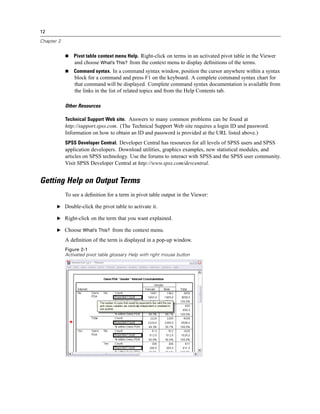
  • 39.
    15 Data Files Reading Excel 95 or Later Files The following rules apply to reading Excel 95 or later files: Data type and width. Each column is a variable. The data type and width for each variable are determined by the data type and width in the Excel file. If the column contains more than one data type (for example, date and numeric), the data type is set to string, and all values are read as valid string values. Blank cells. For numeric variables, blank cells are converted to the system-missing value, indicated by a period. For string variables, a blank is a valid string value, and blank cells are treated as valid string values. Variable names. If you read the first row of the Excel file (or the first row of the specified range) as variable names, values that don’t conform to variable naming rules are converted to valid variable names, and the original names are used as variable labels. If you do not read variable names from the Excel file, default variable names are assigned. Reading Older Excel Files and Other Spreadsheets The following rules apply to reading Excel files prior to Excel 95 and other spreadsheet data: Data type and width. The data type and width for each variable are determined by the column width and data type of the first data cell in the column. Values of other types are converted to the system-missing value. If the first data cell in the column is blank, the global default data type for the spreadsheet (usually numeric) is used. Blank cells. For numeric variables, blank cells are converted to the system-missing value, indicated by a period. For string variables, a blank is a valid string value, and blank cells are treated as valid string values. Variable names. If you do not read variable names from the spreadsheet, the column letters (A, B, C, ...) are used for variable names for Excel and Lotus files. For SYLK files and Excel files saved in R1C1 display format, the software uses the column number preceded by the letter C for variable names (C1, C2, C3, ...). Reading dBASE Files Database files are logically very similar to SPSS-format data files. The following general rules apply to dBASE files: Field names are converted to valid variable names. Colons used in dBASE field names are translated to underscores. Records marked for deletion but not actually purged are included. The software creates a new string variable, D_R, which contains an asterisk for cases marked for deletion.
  • 40.
    16 Chapter 3 Reading StataFiles The following general rules apply to Stata data files: Variable names. Stata variable names are converted to SPSS variable names in case-sensitive form. Stata variable names that are identical except for case are converted to valid variable names by appending an underscore and a sequential letter (_A, _B, _C, ..., _Z, _AA, _AB, ..., etc.). Variable labels. Stata variable labels are converted to SPSS variable labels. Value labels. Stata value labels are converted to SPSS value labels, except for Stata value labels assigned to “extended” missing values. Missing values. Stata “extended” missing values are converted to system-missing values. Date conversion. Stata date format values are converted to SPSS DATE format (d-m-y) values. Stata “time-series” date format values (weeks, months, quarters, etc.) are converted to simple numeric (F) format, preserving the original, internal integer value, which is the number of weeks, months, quarters, etc., since the start of 1960. Reading Database Files You can read data from any database format for which you have a database driver. In local analysis mode, the necessary drivers must be installed on your local computer. In distributed analysis mode (available with SPSS Server), the drivers must be installed on the remote server. For more information, see Distributed Analysis Mode in Chapter 4 on p. 65. To Read Database Files E From the menus choose: File Open Database New Query... E Select the data source. E If necessary (depending on the data source), select the database file and/or enter a login name, password, and other information. E Select the table(s) and fields. For OLE DB data sources (available only on Windows operating systems), you can only select one table. E Specify any relationships between your tables. E Optionally: Specify any selection criteria for your data. Add a prompt for user input to create a parameter query. Save your constructed query before running it.
  • 41.
    17 Data Files To Edit Saved Database Queries E From the menus choose: File Open Database Edit Query... E Select the query file (*.spq) that you want to edit. E Follow the instructions for creating a new query. To Read Database Files with Saved Queries E From the menus choose: File Open Database Run Query... E Select the query file (*.spq) that you want to run. E If necessary (depending on the database file), enter a login name and password. E If the query has an embedded prompt, enter other information if necessary (for example, the quarter for which you want to retrieve sales figures). Selecting a Data Source Use the first screen of the Database Wizard to select the type of data source to read. ODBC Data Sources If you do not have any ODBC data sources configured, or if you want to add a new data source, click Add ODBC Data Source. On Linux operating systems, this button is not available. ODBC data sources are specified in odbc.ini, and the ODBCINI environment variables must be set to the location of that file. For more information, see the documentation for your database drivers. In distributed analysis mode (available with SPSS Server), this button is not available. To add data sources in distributed analysis mode, see your system administrator. An ODBC data source consists of two essential pieces of information: the driver that will be used to access the data and the location of the database you want to access. To specify data sources, you must have the appropriate drivers installed. For local analysis mode, you can install drivers for a variety of database formats from the SPSS installation CD.
  • 42.
    18 Chapter 3 Figure 3-1 Database Wizard OLE DB Data Sources To access OLE DB data sources (available only on Microsoft Windows operating systems), you must have the following items installed: .NET framework Dimensions Data Model and OLE DB Access Versions of these components that are compatible with this release can be installed from the installation CD and are available on the AutoPlay menu. Table joins are not available for OLE DB data sources. You can read only one table at a time. You can add OLE DB data sources only in local analysis mode. To add OLE DB data sources in distributed analysis mode on a Windows server, consult your system administrator. In distributed analysis mode (available with SPSS Server), OLE DB data sources are available only on Windows servers, and both .NET and the Dimensions Data Model and OLE DB Access must be installed on the server.
  • 43.
    19 Data Files Figure 3-2 Database Wizard with access to OLE DB data sources To add an OLE DB data source: E Click Add OLE DB Data Source. E In Data Link Properties, click the Provider tab and select the OLE DB provider. E Click Next or click the Connection tab. E Select the database by entering the directory location and database name or by clicking the button to browse to a database. (A user name and password may also be required.) E Click OK after entering all necessary information. (You can make sure the specified database is available by clicking the Test Connection button.) E Enter a name for the database connection information. (This name will be displayed in the list of available OLE DB data sources.) Figure 3-3 Save OLE DB Connection Information As dialog box E Click OK.
  • 44.
    20 Chapter 3 This takes you back to the first screen of the Database Wizard, where you can select the saved name from the list of OLE DB data sources and continue to the next step of the wizard. Deleting OLE DB Data Sources To delete data source names from the list of OLE DB data sources, delete the UDL file with the name of the data source in: [drive]:Documents and Settings[user login]Local SettingsApplication DataSPSSUDL Selecting Data Fields The Select Data step controls which tables and fields are read. Database fields (columns) are read as variables. If a table has any field(s) selected, all of its fields will be visible in the following Database Wizard windows, but only fields that are selected in this step will be imported as variables. This enables you to create table joins and to specify criteria by using fields that you are not importing. Figure 3-4 Database Wizard, selecting data Displaying field names. To list the fields in a table, click the plus sign (+) to the left of a table name. To hide the fields, click the minus sign (–) to the left of a table name.
  • 45.
    21 Data Files To add a field. Double-click any field in the Available Tables list, or drag it to the Retrieve Fields In This Order list. Fields can be reordered by dragging and dropping them within the fields list. To remove a field. Double-click any field in the Retrieve Fields In This Order list, or drag it to the Available Tables list. Sort field names. If this check box is selected, the Database Wizard will display your available fields in alphabetical order. By default, the list of available tables displays only standard database tables. You can control the type of items that are displayed in the list: Tables. Standard database tables. Views. Views are virtual or dynamic “tables” defined by queries. These can include joins of multiple tables and/or fields derived from calculations based on the values of other fields. Synonyms. A synonym is an alias for a table or view, typically defined in a query. System tables. System tables define database properties. In some cases, standard database tables may be classified as system tables and will only be displayed if you select this option. Access to real system tables is often restricted to database administrators. Note: For OLE DB data sources (available only on Windows operating systems), you can select fields only from a single table. Multiple table joins are not supported for OLE DB data sources. Creating a Relationship between Tables The Specify Relationships step allows you to define the relationships between the tables for ODBC data sources. If fields from more than one table are selected, you must define at least one join.
  • 46.
    22 Chapter 3 Figure 3-5 Database Wizard, specifying relationships Establishing relationships. To create a relationship, drag a field from any table onto the field to which you want to join it. The Database Wizard will draw a join line between the two fields, indicating their relationship. These fields must be of the same data type. Auto Join Tables. Attempts to automatically join tables based on primary/foreign keys or matching field names and data type. Join Type. If outer joins are supported by your driver, you can specify inner joins, left outer joins, or right outer joins. Inner joins. An inner join includes only rows where the related fields are equal. In this example, all rows with matching ID values in the two tables will be included. Outer joins. In addition to one-to-one matching with inner joins, you can also use outer joins to merge tables with a one-to-many matching scheme. For example, you could match a table in which there are only a few records representing data values and associated descriptive labels with values in a table containing hundreds or thousands of records representing survey respondents. A left outer join includes all records from the table on the left and, from the table on the right, includes only those records in which the related fields are equal. In a right outer join, the join imports all records from the table on the right and, from the table on the left, imports only those records in which the related fields are equal.
  • 47.
    23 Data Files Limiting Retrieved Cases The Limit Retrieved Cases step allows you to specify the criteria to select subsets of cases (rows). Limiting cases generally consists of filling the criteria grid with criteria. Criteria consist of two expressions and some relation between them. The expressions return a value of true, false, or missing for each case. If the result is true, the case is selected. If the result is false or missing, the case is not selected. Most criteria use one or more of the six relational operators (<, >, <=, >=, =, and <>). Expressions can include field names, constants, arithmetic operators, numeric and other functions, and logical variables. You can use fields that you do not plan to import as variables. Figure 3-6 Database Wizard, limiting retrieved cases To build your criteria, you need at least two expressions and a relation to connect the expressions. E To build an expression, choose one of the following methods: In an Expression cell, type field names, constants, arithmetic operators, numeric and other functions, or logical variables. Double-click the field in the Fields list.
  • 48.
    24 Chapter 3 Drag the field from the Fields list to an Expression cell. Choose a field from the drop-down menu in any active Expression cell. E To choose the relational operator (such as = or >), put your cursor in the Relation cell and either type the operator or choose it from the drop-down menu. If the SQL contains WHERE clauses with expressions for case selection, dates and times in expressions need to be specified in a special manner (including the curly braces shown in the examples): Date literals should be specified using the general form {d 'yyyy-mm-dd'}. Time literals should be specified using the general form {t 'hh:mm:ss'}. Date/time literals (timestamps) should be specified using the general form {ts 'yyyy-mm-dd hh:mm:ss'}. The entire date and/or time value must be enclosed in single quotes. Years must be expressed in four-digit form, and dates and times must contain two digits for each portion of the value. For example January 1, 2005, 1:05 AM would be expressed as: {ts '2005-01-01 01:05:00'} Functions. A selection of built-in arithmetic, logical, string, date, and time SQL functions is provided. You can drag a function from the list into the expression, or you can enter any valid SQL function. See your database documentation for valid SQL functions. A list of standard functions is available at: http://msdn2.microsoft.com/en-us/library/ms711813.aspx Use Random Sampling. This option selects a random sample of cases from the data source. For large data sources, you may want to limit the number of cases to a small, representative sample, which can significantly reduce the time that it takes to run procedures. Native random sampling, if available for the data source, is faster than SPSS random sampling, because SPSS random sampling must still read the entire data source to extract a random sample. Approximately. Generates a random sample of approximately the specified percentage of cases. Since this routine makes an independent pseudorandom decision for each case, the percentage of cases selected can only approximate the specified percentage. The more cases there are in the data file, the closer the percentage of cases selected is to the specified percentage. Exactly. Selects a random sample of the specified number of cases from the specified total number of cases. If the total number of cases specified exceeds the total number of cases in the data file, the sample will contain proportionally fewer cases than the requested number. Note: If you use random sampling, aggregation (available in distributed mode with SPSS Server) is not available. Prompt For Value. You can embed a prompt in your query to create a parameter query. When users run the query, they will be asked to enter information (based on what is specified here). You might want to do this if you need to see different views of the same data. For example, you may want to run the same query to see sales figures for different fiscal quarters. E Place your cursor in any Expression cell, and click Prompt For Value to create a prompt.
  • 49.
    25 Data Files Creating a Parameter Query Use the Prompt for Value step to create a dialog box that solicits information from users each time someone runs your query. This feature is useful if you want to query the same data source by using different criteria. Figure 3-7 Prompt for Value To build a prompt, enter a prompt string and a default value. The prompt string is displayed each time a user runs your query. The string should specify the kind of information to enter. If the user is not selecting from a list, the string should give hints about how the input should be formatted. An example is as follows: Enter a Quarter (Q1, Q2, Q3, ...). Allow user to select value from list. If this check box is selected, you can limit the user to the values that you place here. Ensure that your values are separated by returns. Data type. Choose the data type here (Number, String, or Date). The final result looks like this: Figure 3-8 User-defined prompt Aggregating Data If you are in distributed mode, connected to a remote server (available with SPSS Server), you can aggregate the data before reading it into SPSS .
  • 50.
    26 Chapter 3 Figure 3-9 Database Wizard, aggregating data You can also aggregate data after reading it into SPSS , but preaggregating may save time for large data sources. E To create aggregated data, select one or more break variables that define how cases are grouped. E Select one or more aggregated variables. E Select an aggregate function for each aggregate variable. E Optionally, create a variable that contains the number of cases in each break group. Note: If you use SPSS random sampling, aggregation is not available. Defining Variables Variable names and labels. The complete database field (column) name is used as the variable label. Unless you modify the variable name, the Database Wizard assigns variable names to each column from the database in one of two ways: If the name of the database field forms a valid, unique variable name, the name is used as the variable name. If the name of the database field does not form a valid, unique variable name, a new, unique name is automatically generated. Click any cell to edit the variable name.
  • 51.
    27 Data Files Converting strings to numeric values. Select the Recode to Numeric box for a string variable if you want to automatically convert it to a numeric variable. String values are converted to consecutive integer values based on alphabetical order of the original values. The original values are retained as value labels for the new variables. Width for variable-width string fields. This option controls the width of variable-width string values. By default, the width is 255 bytes, and only the first 255 bytes (typically 255 characters in single-byte languages) will be read. The width can be up to 32,767 bytes. Although you probably don’t want to truncate string values, you also don’t want to specify an unnecessarily large value, which will cause processing to be inefficient. Minimize string widths based on observed values. Automatically set the width of each string variable to the longest observed value. Figure 3-10 Database Wizard, defining variables Sorting Cases If you are in distributed mode, connected to a remote server (available with SPSS Server), you can sort the data before reading it into SPSS .
  • 52.
    28 Chapter 3 Figure 3-11 Database Wizard, sorting cases You can also sort data after reading it into SPSS , but presorting may save time for large data sources. Results The Results step displays the SQL Select statement for your query. You can edit the SQL Select statement before you run the query, but if you click the Back button to make changes in previous steps, the changes to the Select statement will be lost. To save the query for future use, use the Save query to file section. To paste complete GET DATA syntax into a syntax window, select Paste it into the syntax editor for further modification. Copying and pasting the Select statement from the Results window will not paste the necessary command syntax. Note: The pasted syntax contains a blank space before the closing quote on each line of SQL that is generated by the wizard. These blanks are not superfluous. When the command is processed, all lines of the SQL statement are merged together in a very literal fashion. Without the space, there would be no space between the last character on one line and first character on the next line.
  • 53.
    29 Data Files Figure 3-12 Database Wizard, results panel Text Wizard The Text Wizard can read text data files formatted in a variety of ways: Tab-delimited files Space-delimited files Comma-delimited files Fixed-field format files For delimited files, you can also specify other characters as delimiters between values, and you can specify multiple delimiters. To Read Text Data Files E From the menus choose: File Read Text Data... E Select the text file in the Open Data dialog box. E Follow the steps in the Text Wizard to define how to read the data file.
  • 54.
    30 Chapter 3 Text Wizard: Step 1 Figure 3-13 Text Wizard: Step 1 The text file is displayed in a preview window. You can apply a predefined format (previously saved from the Text Wizard) or follow the steps in the Text Wizard to specify how the data should be read.
  • 55.
    31 Data Files Text Wizard: Step 2 Figure 3-14 Text Wizard: Step 2 This step provides information about variables. A variable is similar to a field in a database. For example, each item in a questionnaire is a variable. How are your variables arranged? To read your data properly, the Text Wizard needs to know how to determine where the data value for one variable ends and the data value for the next variable begins. The arrangement of variables defines the method used to differentiate one variable from the next. Delimited. Spaces, commas, tabs, or other characters are used to separate variables. The variables are recorded in the same order for each case but not necessarily in the same column locations. Fixed width. Each variable is recorded in the same column location on the same record (line) for each case in the data file. No delimiter is required between variables. In fact, in many text data files generated by computer programs, data values may appear to run together without even spaces separating them. The column location determines which variable is being read. Are variable names included at the top of your file? If the first row of the data file contains descriptive labels for each variable, you can use these labels as variable names. Values that don’t conform to variable naming rules are converted to valid variable names.
  • 56.
    32 Chapter 3 Text Wizard: Step 3 (Delimited Files) Figure 3-15 Text Wizard: Step 3 (for delimited files) This step provides information about cases. A case is similar to a record in a database. For example, each respondent to a questionnaire is a case. The first case of data begins on which line number? Indicates the first line of the data file that contains data values. If the top line(s) of the data file contain descriptive labels or other text that does not represent data values, this will not be line 1. How are your cases represented? Controls how the Text Wizard determines where each case ends and the next one begins. Each line represents a case. Each line contains only one case. It is fairly common for each case to be contained on a single line (row), even though this can be a very long line for data files with a large number of variables. If not all lines contain the same number of data values, the number of variables for each case is determined by the line with the greatest number of data values. Cases with fewer data values are assigned missing values for the additional variables. A specific number of variables represents a case. The specified number of variables for each case tells the Text Wizard where to stop reading one case and start reading the next. Multiple cases can be contained on the same line, and cases can start in the middle of one line and be continued on the next line. The Text Wizard determines the end of each case based on the number of values read, regardless of the number of lines. Each case must contain data values (or missing values indicated by delimiters) for all variables, or the data file will be read incorrectly.
  • 57.
    33 Data Files How many cases do you want to import? You can import all cases in the data file, the first n cases (n is a number you specify), or a random sample of a specified percentage. Since the random sampling routine makes an independent pseudo-random decision for each case, the percentage of cases selected can only approximate the specified percentage. The more cases there are in the data file, the closer the percentage of cases selected is to the specified percentage. Text Wizard: Step 3 (Fixed-Width Files) Figure 3-16 Text Wizard: Step 3 (for fixed-width files) This step provides information about cases. A case is similar to a record in a database. For example, each respondent to questionnaire is a case. The first case of data begins on which line number? Indicates the first line of the data file that contains data values. If the top line(s) of the data file contain descriptive labels or other text that does not represent data values, this will not be line 1. How many lines represent a case? Controls how the Text Wizard determines where each case ends and the next one begins. Each variable is defined by its line number within the case and its column location. You need to specify the number of lines for each case to read the data correctly. How many cases do you want to import? You can import all cases in the data file, the first n cases (n is a number you specify), or a random sample of a specified percentage. Since the random sampling routine makes an independent pseudo-random decision for each case, the percentage of cases selected can only approximate the specified percentage. The more cases there are in the data file, the closer the percentage of cases selected is to the specified percentage.
  • 58.
    34 Chapter 3 Text Wizard: Step 4 (Delimited Files) Figure 3-17 Text Wizard: Step 4 (for delimited files) This step displays the Text Wizard’s best guess on how to read the data file and allows you to modify how the Text Wizard will read variables from the data file. Which delimiters appear between variables? Indicates the characters or symbols that separate data values. You can select any combination of spaces, commas, semicolons, tabs, or other characters. Multiple, consecutive delimiters without intervening data values are treated as missing values. What is the text qualifier? Characters used to enclose values that contain delimiter characters. For example, if a comma is the delimiter, values that contain commas will be read incorrectly unless there is a text qualifier enclosing the value, preventing the commas in the value from being interpreted as delimiters between values. CSV-format data files exported from Excel use a double quotation mark (“) as a text qualifier. The text qualifier appears at both the beginning and the end of the value, enclosing the entire value.
  • 59.
    35 Data Files Text Wizard: Step 4 (Fixed-Width Files) Figure 3-18 Text Wizard: Step 4 (for fixed-width files) This step displays the Text Wizard’s best guess on how to read the data file and allows you to modify how the Text Wizard will read variables from the data file. Vertical lines in the preview window indicate where the Text Wizard currently thinks each variable begins in the file. Insert, move, and delete variable break lines as necessary to separate variables. If multiple lines are used for each case, the data will be displayed as one line for each case, with subsequent lines appended to the end of the line. Notes: For computer-generated data files that produce a continuous stream of data values with no intervening spaces or other distinguishing characteristics, it may be difficult to determine where each variable begins. Such data files usually rely on a data definition file or some other written description that specifies the line and column location for each variable.
  • 60.
    36 Chapter 3 Text Wizard: Step 5 Figure 3-19 Text Wizard: Step 5 This steps controls the variable name and the data format that the Text Wizard will use to read each variable and which variables will be included in the final data file. Variable name. You can overwrite the default variable names with your own variable names. If you read variable names from the data file, the Text Wizard will automatically modify variable names that don’t conform to variable naming rules. Select a variable in the preview window and then enter a variable name. Data format. Select a variable in the preview window and then select a format from the drop-down list. Shift-click to select multiple contiguous variables or Ctrl-click to select multiple noncontiguous variables. Text Wizard Formatting Options Formatting options for reading variables with the Text Wizard include: Do not import. Omit the selected variable(s) from the imported data file. Numeric. Valid values include numbers, a leading plus or minus sign, and a decimal indicator. String. Valid values include virtually any keyboard characters and embedded blanks. For delimited files, you can specify the number of characters in the value, up to a maximum of 32,767. By default, the Text Wizard sets the number of characters to the longest string value encountered for the selected variable(s). For fixed-width files, the number of characters in string values is defined by the placement of variable break lines in step 4.
  • 61.
    37 Data Files Date/Time. Valid values include dates of the general format dd-mm-yyyy, mm/dd/yyyy, dd.mm.yyyy, yyyy/mm/dd, hh:mm:ss, and a variety of other date and time formats. Months can be represented in digits, Roman numerals, or three-letter abbreviations, or they can be fully spelled out. Select a date format from the list. Dollar. Valid values are numbers with an optional leading dollar sign and optional commas as thousands separators. Comma. Valid values include numbers that use a period as a decimal indicator and commas as thousands separators. Dot. Valid values include numbers that use a comma as a decimal indicator and periods as thousands separators. Note: Values that contain invalid characters for the selected format will be treated as missing. Values that contain any of the specified delimiters will be treated as multiple values. Text Wizard: Step 6 Figure 3-20 Text Wizard: Step 6 This is the final step of the Text Wizard. You can save your specifications in a file for use when importing similar text data files. You can also paste the syntax generated by the Text Wizard into a syntax window. You can then customize and/or save the syntax for use in other sessions or in production jobs. Cache data locally. A data cache is a complete copy of the data file, stored in temporary disk space. Caching the data file can improve performance.
  • 62.
    38 Chapter 3 Reading DimensionsData On Microsoft Windows operating systems, you can read data from SPSS Dimensions products, including Quanvert, Quancept, and mrInterview. (Note: This feature is only available with SPSS installed on Microsoft Windows operating systems.) To read Dimensions data sources, you must have the following items installed: .NET framework Dimensions Data Model and OLE DB Access Versions of these components that are compatible with this release can be installed from the installation CD and are available on the AutoPlay menu. You can read Dimensions data sources only in local analysis mode. This feature is not available in distributed analysis mode using SPSS Server. To read data from a Dimensions data source: E In any open SPSS window, from the menus choose: File Open Dimensions Data E On the Connection tab of Data Link Properties, specify the metadata file, the case data type, and the case data file. E Click OK. E In the Dimensions Data Import dialog box, select the variables that you want to include and select any case selection criteria. E Click OK to read the data. Data Link Properties Connection Tab To read a Dimensions data source, you need to specify: Metadata Location. The metadata document file (.mdd) that contains questionnaire definition information. Case Data Type. The format of the case data file. Available formats include: Quancept Data File (DRS). Case data in a Quancept .drs, .drz, or .dru file. Quanvert Database. Case data in a Quanvert database. Dimensions Database (MS SQL Server). Case data in an SPSS MR relational database in SQL Server. This option can be used to read data that are collected by using mrInterview. Dimensions XML Data File. Case data in an XML file. Case Data Location. The file that contains the case data. The format of this file must be consistent with the selected case data type.
  • 63.
    39 Data Files Figure 3-21 Data Link Properties: Connection tab Note: The extent to which other settings on the Connection tab or any settings on the other Data Link Properties tabs may or may not affect reading Dimensions data into SPSS is not known, so we recommend that you do not change any of them. Select Variables Tab You can select a subset of variables to read. By default, all standard variables in the data source are displayed and selected. Show System variables. Displays any “system” variables, including variables that indicate interview status (in progress, completed, finish date, and so on). You can then select any system variables that you want to include. By default, all system variables are excluded. Show Codes variables. Displays any variables that represent codes that are used for open-ended “Other” responses for categorical variables. You can then select any Codes variables that you want to include. By default, all Codes variables are excluded. Show SourceFile variables. Displays any variables that contain filenames of images of scanned responses. You can then select any SourceFile variables that you want to include. By default, all SourceFile variables are excluded.
  • 64.
    40 Chapter 3 Figure 3-22 Dimensions Data Import: Select Variables tab Case Selection Tab For Dimensions data sources that contain system variables, you can select cases based on a number of system variable criteria. You do not need to include the corresponding system variables in the list of variables to read, but the necessary system variables must exist in the source data to apply the selection criteria. If the necessary system variables do not exist in the source data, the corresponding selection criteria are ignored. Data collection status. You can select respondent data, test data, or both. You can also select cases based on any combination of the following interview status parameters: Completed successfully Active/in progress Timed out Stopped by script Stopped by respondent Interview system shutdown Signal (terminated by a signal statement in the script) Data collection finish date. You can select cases based on the data collection finish date. Start Date. Cases for which data collection finished on or after the specified date are included.
  • 65.
    41 Data Files End Date. Cases for which data collection finished before the specified date are included. This does not include cases for which data collection finished on the end date. If you specify both a start date and end date, this defines a range of finish dates from the start date to (but not including) the end date. Figure 3-23 Dimensions Data Import: Case Selection tab File Information A data file contains much more than raw data. It also contains any variable definition information, including: Variable names Variable formats Descriptive variable and value labels This information is stored in the dictionary portion of the data file. The Data Editor provides one way to view the variable definition information. You can also display complete dictionary information for the active dataset or any other data file. To Display Data File Information E From the menus in the Data Editor window choose: File Display Data File Information E For the currently open data file, choose Working File. E For other data files, choose External File, and then select the data file.
  • 66.
    42 Chapter 3 The data file information is displayed in the Viewer. Saving Data Files In addition to saving data files in SPSS format, you can save data in a wide variety of external formats, including: Excel and other spreadsheet formats Tab-delimited and CSV text files SAS Stata Database tables To Save Modified Data Files E Make the Data Editor the active window (click anywhere in the window to make it active). E From the menus choose: File Save The modified data file is saved, overwriting the previous version of the file. Note: A data file saved in Unicode mode cannot be read by versions of SPSS prior to 16.0. To save a Unicode data file in a format that can be read by earlier releases, open the file in code page mode and re-save it. The file will be saved in the encoding based on the current locale. Some data loss may occur if the file contains characters not recognized by the current locale. For information on switching between Unicode mode and code page mode, see General Options on p. 454. Saving Data Files in External Formats E Make the Data Editor the active window (click anywhere in the window to make it active). E From the menus choose: File Save As... E Select a file type from the drop-down list. E Enter a filename for the new data file. To write variable names to the first row of a spreadsheet or tab-delimited data file: E Click Write variable names to spreadsheet in the Save Data As dialog box. To save value labels instead of data values in Excel files: E Click Save value labels where defined instead of data values in the Save Data As dialog box.
  • 67.
    43 Data Files To save value labels to a SAS syntax file (active only when a SAS file type is selected): E Click Save value labels into a .sas file in the Save Data As dialog box. For information on exporting data to database tables, see Exporting to a Database on p. 48. For information on exporting data for use in Dimensions applications, see Exporting to Dimensions on p. 60. Saving Data: Data File Types You can save data in the following formats: SPSS (*.sav). SPSS format. Data files saved in SPSS format cannot be read by versions of the software prior to version 7.5. Data files saved in Unicode mode cannot be read by releases of SPSS prior to SPSS 16.0 For more information, see General Options in Chapter 45 on p. 454. When using data files with variable names longer than eight bytes in version 10.x or 11.x, unique, eight-byte versions of variable names are used—but the original variable names are preserved for use in release 12.0 or later. In releases prior to 10.0, the original long variable names are lost if you save the data file. When using data files with string variables longer than 255 bytes in versions prior to release 13.0, those string variables are broken up into multiple 255-byte string variables. Version 7.0 (*.sav). Version 7.0 format. Data files saved in version 7.0 format can be read by version 7.0 and earlier versions but do not include defined multiple response sets or Data Entry for Windows information. SPSS/PC+ (*.sys). SPSS/PC+ format. If the data file contains more than 500 variables, only the first 500 will be saved. For variables with more than one defined user-missing value, additional user-missing values will be recoded into the first defined user-missing value. SPSS Portable (*.por). Portable format that can be read by other versions of SPSS and versions on other operating systems. Variable names are limited to eight bytes and are automatically converted to unique eight-byte names if necessary. In most cases, saving data in portable format is no longer necessary, since SPSS-format data files should be platform/operating system independent. You cannot save data files in portable file in Unicode mode. For more information, see General Options in Chapter 45 on p. 454. Tab-delimited (*.dat). Text files with values separated by tabs. (Note: Tab characters embedded in string values are preserved as tab characters in the tab-delimited file. No distinction is made between tab characters embedded in values and tab characters that separate values.) Comma-delimited (*.csv). Text files with values separated by commas or semicolons. If the current SPSS decimal indicator is a period, values are separated by commas. If the current decimal indicator is a comma, values are separated by semicolons. Fixed ASCII (*.dat). Text file in fixed format, using the default write formats for all variables. There are no tabs or spaces between variable fields.
  • 68.
    44 Chapter 3 Excel 2007 (*.xlsx). Microsoft Excel 2007 XLSX-format workbook. The maximum number of variables is 16,000; any additional variables beyond the first 16,000 are dropped. If the dataset contains more than one million cases, multiple sheets are created in the workbook. Excel 97 through 2003 (*.xls). Microsoft Excel 97 workbook. The maximum number of variables is 256; any additional variables beyond the first 256 are dropped. If the dataset contains more than 65,356 cases, multiple sheets are created in the workbook. Excel 2.1 (*.xls). Microsoft Excel 2.1 spreadsheet file. The maximum number of variables is 256, and the maximum number of rows is 16,384. 1-2-3 Release 3.0 (*.wk3). Lotus 1-2-3 spreadsheet file, release 3.0. The maximum number of variables that you can save is 256. 1-2-3 Release 2.0 (*.wk1). Lotus 1-2-3 spreadsheet file, release 2.0. The maximum number of variables that you can save is 256. 1-2-3 Release 1.0 (*.wks). Lotus 1-2-3 spreadsheet file, release 1A. The maximum number of variables that you can save is 256. SYLK (*.slk). Symbolic link format for Microsoft Excel and Multiplan spreadsheet files. The maximum number of variables that you can save is 256. dBASE IV (*.dbf). dBASE IV format. dBASE III (*.dbf). dBASE III format. dBASE II (*.dbf). dBASE II format. SAS v7+ Windows short extension (*.sd7). SAS versions 7–8 for Windows short filename format. SAS v7+ Windows long extension (*.sas7bdat). SAS versions 7–8 for Windows long filename format. SAS v7+ for UNIX (*.ssd01). SAS v8 for UNIX. SAS v6 for Windows (*.sd2). SAS v6 file format for Windows/OS2. SAS v6 for UNIX (*.ssd01). SAS v6 file format for UNIX (Sun, HP, IBM). SAS v6 for Alpha/OSF (*.ssd04). SAS v6 file format for Alpha/OSF (DEC UNIX). SAS Transport (*.xpt). SAS transport file. Stata Version 8 Intercooled (*.dta). Stata Version 8 SE (*.dta). Stata Version 7 Intercooled (*.dta). Stata Version 7 SE (*.dta). Stata Version 6 (*.dta). Stata Versions 4–5 (*.dta). Saving File Options For spreadsheet, tab-delimited files, and comma-delimited files, you can write variable names to the first row of the file.
  • 69.
    45 Data Files Saving Data Files in Excel Format You can save your data in one of three Microsoft Excel file formats. Excel 2.1, Excel 97, and Excel 2007. Excel 2.1 and Excel 97 are limited to 256 columns; so only the first 256 variables are included. Excel 2007 is limited to 16,000 columns; so only the first 16,000 variables are included. Excel 2.1 is limited to 16,384 rows; so only the first 16,384 cases are included. Excel 97 and Excel 2007 also have limits on the number of rows per sheet, but workbooks can have multiple sheets, and multiple sheets are created if the single-sheet maximum is exceeded. Variable Types The following table shows the variable type matching between the original data in SPSS and the exported data in Excel. SPSS Variable Type Excel Data Format Numeric 0.00; #,##0.00; ... Comma 0.00; #,##0.00; ... Dollar $#,##0_); ... Date d-mmm-yyyy Time hh:mm:ss String General Saving Data Files in SAS Format Special handling is given to various aspects of your data when saved as a SAS file. These cases include: Certain characters that are allowed in SPSS variable names are not valid in SAS, such as @, #, and $. These illegal characters are replaced with an underscore when the data are exported. SPSS variable names that contain multibyte characters (for example, Japanese or Chinese characters) are converted to variables names of the general form Vnnn, where nnn is an integer value. SPSS variable labels containing more than 40 characters are truncated when exported to a SAS v6 file. Where they exist, SPSS variable labels are mapped to the SAS variable labels. If no variable label exists in the SPSS data, the variable name is mapped to the SAS variable label. SAS allows only one value for system-missing, whereas SPSS allows numerous system-missing values. As a result, all system-missing values in SPSS are mapped to a single system-missing value in the SAS file.
  • 70.
    46 Chapter 3 Save Value Labels You have the option of saving the values and value labels associated with your data file to a SAS syntax file. For example, when the value labels for the cars.sav data file are exported, the generated syntax file contains: libname library 'spss' ; proc format library = library ; value ORIGIN /* Country of Origin */ 1 = 'American' 2 = 'European' 3 = 'Japanese' ; value CYLINDER /* Number of Cylinders */ 3 = '3 Cylinders' 4 = '4 Cylinders' 5 = '5 Cylinders' 6 = '6 Cylinders' 8 = '8 Cylinders' ; value FILTER__ /* cylrec = 1 | cylrec = 2 (FILTER) */ 0 = 'Not Selected' 1 = 'Selected' ; proc datasets library = library ; modify cars; format ORIGIN ORIGIN.; format CYLINDER CYLINDER.; format FILTER__ FILTER__.; quit; This feature is not supported for the SAS transport file. Variable Types The following table shows the variable type matching between the original data in SPSS and the exported data in SAS. SPSS Variable Type SAS Variable Type SAS Data Format Numeric Numeric 12 Comma Numeric 12 Dot Numeric 12 Scientific Notation Numeric 12
  • 71.
    47 Data Files SPSS Variable Type SAS Variable Type SAS Data Format Date Numeric (Date) for example, MMDDYY10, ... Date (Time) Numeric Time18 Dollar Numeric 12 Custom Currency Numeric 12 String Character $8 Saving Data Files in Stata Format Data can be written in Stata 5–8 format and in both Intercooled and SE format (versions 7 and 8 only). Data files that are saved in Stata 5 format can be read by Stata 4. The first 80 bytes of variable labels are saved as Stata variable labels. For numeric variables, the first 80 bytes of value labels are saved as Stata value labels. For string variables, value labels are dropped. For versions 7 and 8, the first 32 bytes of variable names in case-sensitive form are saved as Stata variable names. For earlier versions, the first eight bytes of variable names are saved as Stata variable names. Any characters other than letters, numbers, and underscores are converted to underscores. SPSS variable names that contain multibyte characters (for example, Japanese or Chinese characters) are converted to variable names of the general form Vnnn, where nnn is an integer value. For versions 5–6 and Intercooled versions 7–8, the first 80 bytes of string values are saved. For Stata SE 7–8, the first 244 bytes of string values are saved. For versions 5–6 and Intercooled versions 7–8, only the first 2,047 variables are saved. For Stata SE 7–8, only the first 32,767 variables are saved. SPSS Variable Type Stata Variable Type Stata Data Format Numeric Numeric g Comma Numeric g Dot Numeric g Scientific Notation Numeric g Date*, Datetime Numeric D_m_Y Time, DTime Numeric g (number of seconds) Wkday Numeric g (1–7) Month Numeric g (1–12) Dollar Numeric g Custom Currency Numeric g String String s *Date, Adate, Edate, SDate, Jdate, Qyr, Moyr, Wkyr
  • 72.
    48 Chapter 3 Saving Subsetsof Variables Figure 3-24 Save Data As Variables dialog box The Save Data As Variables dialog box allows you to select the variables that you want saved in the new data file. By default, all variables will be saved. Deselect the variables that you don’t want to save, or click Drop All and then select the variables that you want to save. Visible Only. Selects only variables in variable sets currently in use. For more information, see Use Variable Sets in Chapter 44 on p. 450. To Save a Subset of Variables E Make the Data Editor the active window (click anywhere in the window to make it active). E From the menus choose: File Save As... E Click Variables. E Select the variables that you want to save. Exporting to a Database You can use the Export to Database Wizard to: Replace values in existing database table fields (columns) or add new fields to a table. Append new records (rows) to a database table. Completely replace a database table or create a new table.
  • 73.
    49 Data Files To export data to a database: E From the menus in the Data Editor window for the dataset that contains the data you want to export, choose: File Export to Database E Select the database source. E Follow the instructions in the export wizard to export the data. Creating Database Fields from SPSS Variables When creating new fields (adding fields to an existing database table, creating a new table, replacing a table), you can specify field names, data type, and width (where applicable). Field name. The default field names are the same as the SPSS variable names. You can change the field names to any names allowed by the database format. For example, many databases allow characters in field names that aren’t allowed in variable names, including spaces. Therefore, a variable name like CallWaiting could be changed to the field name Call Waiting. Type. The export wizard makes initial data type assignments based on the standard ODBC data types or data types allowed by the selected database format that most closely matches the defined SPSS data format—but databases can make type distinctions that have no direct equivalent in SPSS, and vice versa. For example, most numeric values in SPSS are stored as double-precision floating-point values, whereas database numeric data types include float (double), integer, real, and so on. In addition, many databases don’t have equivalents to SPSS time formats. You can change the data type to any type available in the drop-down list. As a general rule, the basic data type (string or numeric) for the variable should match the basic data type of the database field. If there is a data type mismatch that cannot be resolved by the database, an error results and no data are exported to the database. For example, if you export a string variable to a database field with a numeric data type, an error will result if any values of the string variable contain non-numeric characters. Width. You can change the defined width for string (char, varchar) field types. Numeric field widths are defined by the data type. By default, SPSS variable formats are mapped to database field types based on the following general scheme. Actual database field types may vary, depending on the database. SPSS Variable Format Database Field Type Numeric Float or Double Comma Float or Double Dot Float or Double Scientific Notation Float or Double Date Date or Datetime or Timestamp Datetime Datetime or Timestamp Time, DTime Float or Double (number of seconds)
  • 74.
    50 Chapter 3 SPSS Variable Format Database Field Type Wkday Integer (1–7) Month Integer (1–12) Dollar Float or Double Custom Currency Float or Double String Char or Varchar User-Missing Values There are two options for the treatment of user-missing values when data from variables are exported to database fields: Export as valid values. User-missing values are treated as regular, valid, nonmissing values. Export numeric user-missing as nulls and export string user-missing values as blank spaces. Numeric user-missing values are treated the same as system-missing values. String user-missing values are converted to blank spaces (strings cannot be system-missing). Selecting a Data Source In the first panel of the Export to Database Wizard, you select the data source to which you want to export data. Figure 3-25 Export to Database Wizard, selecting a data source You can export data to any database source for which you have the appropriate ODBC driver. (Note: Exporting data to OLE DB data sources is not supported.)
  • 75.
    51 Data Files If you do not have any ODBC data sources configured, or if you want to add a new data source, click Add ODBC Data Source. On Linux operating systems, this button is not available. ODBC data sources are specified in odbc.ini, and the ODBCINI environment variables must be set to the location of that file. For more information, see the documentation for your database drivers. In distributed analysis mode (available with SPSS Server), this button is not available. To add data sources in distributed analysis mode, see your system administrator. An ODBC data source consists of two essential pieces of information: the driver that will be used to access the data and the location of the database you want to access. To specify data sources, you must have the appropriate drivers installed. For local analysis mode, you can install drivers for a variety of database formats from the SPSS installation CD. Some data sources may require a login ID and password before you can proceed to the next step. Choosing How to Export the Data After you select the data source, you indicate the manner in which you want to export the data. Figure 3-26 Export to Database Wizard, choosing how to export The following choices are available for exporting data to a database: Replace values in existing fields. Replaces values of selected fields in an existing table with values from the selected variables in the active dataset. For more information, see Replacing Values in Existing Fields on p. 55.
  • 76.
    52 Chapter 3 Add new fields to an existing table. Creates new fields in an existing table that contain the values of selected variables in the active dataset. For more information, see Adding New Fields on p. 56. This option is not available for Excel files. Append new records to an existing table. Adds new records (rows) to an existing table containing the values from cases in the active dataset. For more information, see Appending New Records (Cases) on p. 57. Drop an existing table and create a new table of the same name. Deletes the specified table and creates a new table of the same name that contains selected variables from the active dataset. All information from the original table, including definitions of field properties (for example, primary keys, data types) is lost. For more information, see Creating a New Table or Replacing a Table on p. 58. Create a new table. Creates a new table in the database containing data from selected variables in the active dataset. The name can be any value that is allowed as a table name by the data source. The name cannot duplicate the name of an existing table or view in the database. For more information, see Creating a New Table or Replacing a Table on p. 58. Selecting a Table When modifying or replacing a table in the database, you need to select the table to modify or replace. This panel in the Export to Database Wizard displays a list of tables and views in the selected database. Figure 3-27 Export to Database Wizard, selecting a table or view
  • 77.
    53 Data Files By default, the list displays only standard database tables. You can control the type of items that are displayed in the list: Tables. Standard database tables. Views. Views are virtual or dynamic “tables” defined by queries. These can include joins of multiple tables and/or fields derived from calculations based on the values of other fields. You can append records or replace values of existing fields in views, but the fields that you can modify may be restricted, depending on how the view is structured. For example, you cannot modify a derived field, add fields to a view, or replace a view. Synonyms. A synonym is an alias for a table or view, typically defined in a query. System tables. System tables define database properties. In some cases, standard database tables may be classified as system tables and will be displayed only if you select this option. Access to real system tables is often restricted to database administrators. Selecting Cases to Export Case selection in the Export to Database Wizard is limited either to all cases or to cases selected using a previously defined filter condition. If no case filtering is in effect, this panel will not appear, and all cases in the active dataset will be exported. Figure 3-28 Export to Database Wizard, selecting cases to export For information on defining a filter condition for case selection, see Select Cases on p. 180.
  • 78.
    54 Chapter 3 Matching Cases to Records When adding fields (columns) to an existing table or replacing the values of existing fields, you need to make sure that each case (row) in the active dataset is correctly matched to the corresponding record in the database. In the database, the field or set of fields that uniquely identifies each record is often designated as the primary key. You need to identify which variable(s) correspond to the primary key field(s) or other fields that uniquely identify each record. The fields don’t have to be the primary key in the database, but the field value or combination of field values must be unique for each case. To match variables with fields in the database that uniquely identify each record: E Drag and drop the variable(s) onto the corresponding database fields. or E Select a variable from the list of variables, select the corresponding field in the database table, and click Connect. To delete a connection line: E Select the connection line and press the Delete key. Figure 3-29 Export to Database Wizard, matching cases to records
  • 79.
    55 Data Files Note: The variable names and database field names may not be identical (since database field names may contain characters not allowed in SPSS variable names), but if the active dataset was created from the database table you are modifying, either the variable names or the variable labels will usually be at least similar to the database field names. Replacing Values in Existing Fields To replace values of existing fields in a database: E In the Choose how to export the data panel of the Export to Database Wizard, select Replace values in existing fields. E In the Select a table or view panel, select the database table. E In the Match cases to records panel, match the variables that uniquely identify each case to the corresponding database field names. E For each field for which you want to replace values, drag and drop the variable that contains the new values into the Source of values column, next to the corresponding database field name. Figure 3-30 Export to Database Wizard, replacing values of existing fields As a general rule, the basic data type (string or numeric) for the variable should match the basic data type of the database field. If there is a data type mismatch that cannot be resolved by the database, an error results and no data is exported to the database. For example, if you export a string variable to a database field with a numeric data type (for example, double,
  • 80.
    56 Chapter 3 real, integer), an error will result if any values of the string variable contain non-numeric characters. The letter a in the icon next to a variable denotes a string variable. You cannot modify the field name, type, or width. The original database field attributes are preserved; only the values are replaced. Adding New Fields To add new fields to an existing database table: E In the Choose how to export the data panel of the Export to Database Wizard, select Add new fields to an existing table. E In the Select a table or view panel, select the database table. E In the Match cases to records panel, match the variables that uniquely identify each case to the corresponding database field names. E Drag and drop the variables that you want to add as new fields to the Source of values column. Figure 3-31 Export to Database Wizard, adding new fields to an existing table For information on field names and data types, see the section on creating database fields from SPSS variables in Exporting to a Database on p. 48. Show existing fields. Select this option to display a list of existing fields. You cannot use this panel in the Export to Database Wizard to replace existing fields, but it may be helpful to know what fields are already present in the table. If you want to replace the values of existing fields, see Replacing Values in Existing Fields on p. 55.
  • 81.
    57 Data Files Appending New Records (Cases) To append new records (cases) to a database table: E In the Choose how to export the data panel of the Export to Database Wizard, select Append new records to an existing table. E In the Select a table or view panel, select the database table. E Match variables in the active dataset to table fields by dragging and dropping variables to the Source of values column. Figure 3-32 Export to Database Wizard, adding records (cases) to a table The Export to Database Wizard will automatically select all variables that match existing fields, based on information about the original database table stored in the active dataset (if available) and/or variable names that are the same as field names. This initial automatic matching is intended only as a guide and does not prevent you from changing the way in which variables are matched with database fields. When adding new records to an existing table, the following basic rules/limitations apply: All cases (or all selected cases) in the active dataset are added to the table. If any of these cases duplicate existing records in the database, an error may result if a duplicate key value is encountered. For information on exporting only selected cases, see Selecting Cases to Export on p. 53.
  • 82.
    58 Chapter 3 You can use the values of new variables created in the session as the values for existing fields, but you cannot add new fields or change the names of existing fields. To add new fields to a database table, see Adding New Fields on p. 56. Any excluded database fields or fields not matched to a variable will have no values for the added records in the database table. (If the Source of values cell is empty, there is no variable matched to the field.) Creating a New Table or Replacing a Table To create a new database table or replace an existing database table: E In the Choose how to export the data panel of the export wizard, select Drop an existing table and create a new table of the same name or select Create a new table and enter a name for the new table. E If you are replacing an existing table, in the Select a table or view panel, select the database table. E Drag and drop variables into the Variables to save column. E Optionally, you can designate variables/fields that define the primary key, change field names, and change the data type. Figure 3-33 Export to Database Wizard, selecting variables for a new table Primary key. To designate variables as the primary key in the database table, select the box in the column identified with the key icon. All values of the primary key must be unique or an error will result.
  • 83.
    59 Data Files If you select a single variable as the primary key, every record (case) must have a unique value for that variable. If you select multiple variables as the primary key, this defines a composite primary key, and the combination of values for the selected variables must be unique for each case. For information on field names and data types, see the section on creating database fields from SPSS variables in Exporting to a Database on p. 48. Completing the Database Export Wizard The last panel of the Export to Database Wizard provides a summary that indicates what data will be exported and how it will be exported. It also gives you the option of either exporting the data or pasting the underlying command syntax to a syntax window. Figure 3-34 Export to Database Wizard, finish panel Summary Information Dataset. The SPSS session name for the dataset that will be used to export data. This information is primarily useful if you have multiple open data sources. Data sources opened using the graphical user interface (for example, the Database Wizard) are automatically assigned names such as DataSet1, DataSet2, etc. A data source opened using command syntax will have a dataset name only if one is explicitly assigned. Table. The name of the table to be modified or created. Cases to Export. Either all cases are exported or cases selected by a previously defined filter condition are exported. For more information, see Selecting Cases to Export on p. 53.
  • 84.
    60 Chapter 3 Action. Indicates how the database will be modified (for example, create a new table, add fields or records to an existing table). User-Missing Values. User-missing values can be exported as valid values or treated the same as system-missing for numeric variables and converted to blank spaces for string variables. This setting is controlled in the panel in which you select the variables to export. Exporting to Dimensions The Export to Dimensions dialog box creates an SPSS data file and a Dimensions metadata file that you can use to read the data into Dimensions applications such as mrInterview and mrTables. This is particularly useful when “roundtripping” data between SPSS and Dimensions applications. For example, you can read an mrInterview data source into SPSS, calculate some new variables, and then save the data in a form that can be read by mrTables, without loss of any of the original metadata attributes. To export data for use in Dimensions applications: E From the menus in the Data Editor window that contains the data you want to export, choose: File Export to Dimensions E Click Data File to specify the name and location of the SPSS data file. E Click Metadata File to specify the name and location of the Dimensions metadata file. Figure 3-35 Export to Dimensions dialog box For new variables and datasets not created from Dimensions data sources, SPSS variable attributes are mapped to Dimensions metadata attributes in the metadata file according to the methods described in the SPSS SAV DSC documentation in the Dimensions Development Library.
  • 85.
    61 Data Files If the active dataset was created from a Dimensions data source: The new metadata file is created by merging the original metadata attributes with metadata attributes for any new variables, plus any changes to original variables that might affect their metadata attributes (for example, addition of, or changes to, value labels). For original variables read from the Dimensions data source, any metadata attributes not recognized by SPSS are preserved in their original state. For example, SPSS converts grid variables to regular SPSS variables, but the metadata that defines these grid variables is preserved when you save the new metadata file. If any Dimensions variables were automatically renamed to conform to SPSS variable naming rules, the metadata file maps the converted names back to the original Dimensions variable names. The presence or absence of value labels can affect the metadata attributes of variables and consequently the way those variables are read by Dimensions applications. If value labels have been defined for any nonmissing values of a variable, they should be defined for all nonmissing values of that variable; otherwise, the unlabeled values will be dropped when the data file is read by Dimensions. Protecting Original Data To prevent the accidental modification or deletion of your original data, you can mark the file as read-only. E From the Data Editor menus choose: File Mark File Read Only If you make subsequent modifications to the data and then try to save the data file, you can save the data only with a different filename, so the original data are not affected. You can change the file permissions back to read-write by choosing Mark File Read Write from the File menu. Virtual Active File The virtual active file enables you to work with large data files without requiring equally large (or larger) amounts of temporary disk space. For most analysis and charting procedures, the original data source is reread each time you run a different procedure. Procedures that modify the data require a certain amount of temporary disk space to keep track of the changes, and some actions always require enough disk space for at least one entire copy of the data file.
  • 86.
    62 Chapter 3 Figure 3-36 Temporary disk space requirements C O M P U T E v6 = … R E C O D E v4… S O RT C A S E S B Y … A ction G E T F ILE = 'v1-5 .sav'. R E G R E S S IO N … or F R E Q U E N C IE S … /S AV E Z P R E D. C AC H E v1 v2 v3 v4 v5 v1 v2 v3 v4 v5 v6 zpre v1 v2 v3 v4 v5 v6 zp re 11 12 13 14 15 11 12 13 14 15 16 1 11 12 13 14 15 16 1 Virtual 21 22 23 24 25 21 22 23 24 25 26 2 21 22 23 24 25 26 2 A ctive 31 32 33 34 35 31 32 33 34 35 36 3 31 32 33 34 35 36 3 File 41 42 43 44 45 41 42 43 44 45 46 4 41 42 43 44 45 46 4 51 52 53 54 55 51 52 53 54 55 56 5 51 52 53 54 55 56 5 61 62 63 64 65 61 62 63 64 65 66 6 61 62 63 64 65 66 6 D ata v4 v6 zpre v1 v2 v3 v4 v5 v6 zp re Stored 14 16 1 11 12 13 14 15 16 1 in 24 26 2 21 22 23 24 25 26 2 Tem porary N one 34 36 3 31 32 33 34 35 36 3 D isk 44 46 4 41 42 43 44 45 46 4 Space 54 56 5 51 52 53 54 55 56 5 64 66 6 61 62 63 64 65 66 6 Actions that don’t require any temporary disk space include: Reading SPSS data files Merging two or more SPSS data files Reading database tables with the Database Wizard Merging an SPSS data file with a database table Running procedures that read data (for example, Frequencies, Crosstabs, Explore) Actions that create one or more columns of data in temporary disk space include: Computing new variables Recoding existing variables Running procedures that create or modify variables (for example, saving predicted values in Linear Regression) Actions that create an entire copy of the data file in temporary disk space include: Reading Excel files Running procedures that sort data (for example, Sort Cases, Split File) Reading data with GET TRANSLATE or DATA LIST commands Using the Cache Data facility or the CACHE command Launching other applications from SPSS that read the data file (for example, AnswerTree, DecisionTime) Note: The GET DATA command provides functionality comparable to DATA LIST without creating an entire copy of the data file in temporary disk space. The SPLIT FILE command in command syntax does not sort the data file and therefore does not create a copy of the data file. This command, however, requires sorted data for proper operation, and the dialog box interface
  • 87.
    63 Data Files for this procedure will automatically sort the data file, resulting in a complete copy of the data file. (Command syntax is not available with the Student Version.) Actions that create an entire copy of the data file by default: Reading databases with the Database Wizard Reading text files with the Text Wizard The Text Wizard provides an optional setting to automatically cache the data. By default, this option is selected. You can turn it off by deselecting Cache data locally. For the Database Wizard, you can paste the generated command syntax and delete the CACHE command. Creating a Data Cache Although the virtual active file can vastly reduce the amount of temporary disk space required, the absence of a temporary copy of the “active” file means that the original data source has to be reread for each procedure. For large data files read from an external source, creating a temporary copy of the data may improve performance. For example, for data tables read from a database source, the SQL query that reads the information from the database must be reexecuted for any command or procedure that needs to read the data. Since virtually all statistical analysis procedures and charting procedures need to read the data, the SQL query is reexecuted for each procedure you run, which can result in a significant increase in processing time if you run a large number of procedures. If you have sufficient disk space on the computer performing the analysis (either your local computer or a remote server), you can eliminate multiple SQL queries and improve processing time by creating a data cache of the active file. The data cache is a temporary copy of the complete data. Note: By default, the Database Wizard automatically creates a data cache, but if you use the GET DATA command in command syntax to read a database, a data cache is not automatically created. (Command syntax is not available with the Student Version.) To Create a Data Cache E From the menus choose: File Cache Data... E Click OK or Cache Now. OK creates a data cache the next time the program reads the data (for example, the next time you run a statistical procedure), which is usually what you want because it doesn’t require an extra data pass. Cache Now creates a data cache immediately, which shouldn’t be necessary under most circumstances. Cache Now is useful primarily for two reasons: A data source is “locked” and can’t be updated by anyone until you end your session, open a different data source, or cache the data. For large data sources, scrolling through the contents of the Data View tab in the Data Editor will be much faster if you cache the data.
  • 88.
    64 Chapter 3 To Cache Data Automatically You can use the SET command to automatically create a data cache after a specified number of changes in the active data file. By default, the active data file is automatically cached after 20 changes in the active data file. E From the menus choose: File New Syntax E In the syntax window, type SET CACHE n (where n represents the number of changes in the active data file before the data file is cached). E From the menus in the syntax window choose: Run All Note: The cache setting is not persistent across sessions. Each time you start a new session, the value is reset to the default of 20.
  • 89.
    Chapter 4 Distributed Analysis Mode Distributed analysis mode allows you to use a computer other than your local (or desktop) computer for memory-intensive work. Because remote servers that are used for distributed analysis are typically more powerful and faster than your local computer, distributed analysis mode can significantly reduce computer processing time. Distributed analysis with a remote server can be useful if your work involves: Large data files, particularly data read from database sources. Memory-intensive tasks. Any task that takes a long time in local analysis mode may be a good candidate for distributed analysis. Distributed analysis affects only data-related tasks, such as reading data, transforming data, computing new variables, and calculating statistics. Distributed analysis has no effect on tasks related to editing output, such as manipulating pivot tables or modifying charts. Note: Distributed analysis is available only if you have both a local version and access to a licensed server version of the software that is installed on a remote server. Furthermore, distributed analysis is available only for Windows desktop computers. It is not available for Mac and Linux. Server Login The Server Login dialog box allows you to select the computer that processes commands and runs procedures. You can select your local computer or a remote server. 65
  • 90.
    66 Chapter 4 Figure 4-1 Server Login dialog box You can add, modify, or delete remote servers in the list. Remote servers usually require a user ID and password, and a domain name may also be necessary. Contact your system administrator for information about available servers, a user ID and password, domain names, and other connection information. You can select a default server and save the user ID, domain name, and password that are associated with any server. You are automatically connected to the default server when you start a new session. If you are licensed to use the SPSS Adaptor for Predictive Enterprise Services and your site is running SPSS Predictive Enterprise Services 3.5 or later, you can click Search... to view a list of servers that are available on your network. If you are not logged on to a Predictive Enterprise Repository, you will be prompted to enter connection information before you can view the list of servers. Adding and Editing Server Login Settings Use the Server Login Settings dialog box to add or edit connection information for remote servers for use in distributed analysis mode.
  • 91.
    67 Distributed Analysis Mode Figure 4-2 Server Login Settings dialog box Contact your system administrator for a list of available servers, port numbers for the servers, and additional connection information. Do not use the Secure Socket Layer unless instructed to do so by your administrator. Server Name. A server “name” can be an alphanumeric name that is assigned to a computer (for example, NetworkServer) or a unique IP address that is assigned to a computer (for example, 202.123.456.78). Port Number. The port number is the port that the server software uses for communications. Description. You can enter an optional description to display in the servers list. Connect with Secure Socket Layer. Secure Socket Layer (SSL) encrypts requests for distributed analysis when they are sent to the remote SPSS server. Before you use SSL, check with your administrator. For this option to be enabled, SSL must be configured on your desktop computer and the server. To Select, Switch, or Add Servers E From the menus choose: File Switch Server... To select a default server: E In the server list, select the box next to the server that you want to use. E Enter the user ID, domain name, and password that were provided by your administrator. Note: You are automatically connected to the default server when you start a new session. To switch to another server: E Select the server from the list. E Enter your user ID, domain name, and password (if necessary). Note: When you switch servers during a session, all open windows are closed. You will be prompted to save changes before the windows are closed.
  • 92.
    68 Chapter 4 To add a server: E Get the server connection information from your administrator. E Click Add to open the Server Login Settings dialog box. E Enter the connection information and optional settings, and then click OK. To edit a server: E Get the revised connection information from your administrator. E Click Edit to open the Server Login Settings dialog box. E Enter the changes and click OK. To search for available servers: Note: The ability to search for available servers is available only if you are licensed to use the SPSS Adaptor for Predictive Enterprise Services and your site is running SPSS Predictive Enterprise Services 3.5 or later. E Click Search... to open the Search for Servers dialog box. If you are not logged on to a Predictive Enterprise Repository, you will be prompted for connection information. E Select one or more available servers and click OK. The servers will now appear in the Server Login dialog box. E To connect to one of the servers, follow the instructions “To switch to another server.” Searching for Available Servers Use the Search for Servers dialog box to select one or more servers that are available on your network. This dialog box appears when you click Search... on the Server Login dialog box. Figure 4-3 Search for Servers dialog box Select one or more servers and click OK to add them to the Server Login dialog box. Although you can manually add servers in the Server Login dialog box, searching for available servers lets you connect to servers without requiring that you know the correct server name and port number. This information is automatically provided. However, you still need the correct logon information, such as user name, domain, and password.
  • 93.
    69 Distributed Analysis Mode Opening Data Files from a Remote Server In distributed analysis mode, the Open Remote File dialog box replaces the standard Open File dialog box. The contents of the list of available files, folders, and drives depends on what is available on or from the remote server. The current server name is indicated at the top of the dialog box. In distributed analysis mode, you will not have access to files on your local computer unless you specify the drive as a shared device or specify the folders containing your data files as shared folders. Consult the documentation for your operating system for information on how to “share” folders on your local computer with the server network. If the server is running a different operating system (for example, you are running Windows and the server is running UNIX), you probably won’t have access to local data files in distributed analysis mode even if they are in shared folders. File Access in Local and Distributed Analysis Mode The view of data folders (directories) and drives for both your local computer and the network is based on the computer that you are currently using to process commands and run procedures—which is not necessarily the computer in front of you. Local analysis mode. When you use your local computer as your “server,” the view of data files, folders, and drives in the file access dialog box (for opening data files) is similar to what you see in other applications or in Windows Explorer. You can see all of the data files and folders on your computer and any files and folders on mounted network drives. Distributed analysis mode. When you use another computer as a “remote server” to run commands and procedures, the view of data files, folders, and drives represents the view from the remote server computer. Although you may see familiar folder names (such as Program Files) and drives (such as C), these items are not the folders and drives on your computer; they are the folders and drives on the remote server.
  • 94.
    70 Chapter 4 Figure 4-4 Local and remote views Local View Remote View In distributed analysis mode, you will not have access to data files on your local computer unless you specify the drive as a shared device or specify the folders containing your data files as shared folders. If the server is running a different operating system (for example, you are running Windows and the server is running UNIX), you probably won’t have access to local data files in distributed analysis mode even if they are in shared folders. Distributed analysis mode is not the same as accessing data files that reside on another computer on your network. You can access data files on other network devices in local analysis mode or in distributed analysis mode. In local mode, you access other devices from your local computer. In distributed mode, you access other network devices from the remote server. If you’re not sure if you’re using local analysis mode or distributed analysis mode, look at the title bar in the dialog box for accessing data files. If the title of the dialog box contains the word Remote (as in Open Remote File), or if the text Remote Server: [server name] appears at the top of the dialog box, you’re using distributed analysis mode. Note: This situation affects only dialog boxes for accessing data files (for example, Open Data, Save Data, Open Database, and Apply Data Dictionary). For all other file types (for example, Viewer files, syntax files, and script files), the local view is always used. Availability of Procedures in Distributed Analysis Mode In distributed analysis mode, procedures are available for use only if they are installed on both your local version and the version on the remote server. If you have optional components installed locally that are not available on the remote server and you switch from your local computer to a remote server, the affected procedures will be removed from the menus and the corresponding command syntax will result in errors. Switching back to local mode will restore all affected procedures.
  • 95.
    71 Distributed Analysis Mode Absolute versus Relative Path Specifications In distributed analysis mode, relative path specifications for data files and command syntax files are relative to the current server, not relative to your local computer. A relative path specification such as /mydocs/mydata.sav does not point to a directory and file on your local drive; it points to a directory and file on the remote server’s hard drive. Windows UNC Path Specifications If you are using a Windows server version, you can use universal naming convention (UNC) specifications when accessing data and syntax files with command syntax. The general form of a UNC specification is: servernamesharenamepathfilename Servername is the name of the computer that contains the data file. Sharename is the folder (directory) on that computer that is designated as a shared folder. Path is any additional folder (subdirectory) path below the shared folder. Filename is the name of the data file. An example is as follows: GET FILE='hqdev001publicjulysales.sav'. If the computer does not have a name assigned to it, you can use its IP address, as in: GET FILE='204.125.125.53publicjulysales.sav'. Even with UNC path specifications, you can access data and syntax files only from devices and folders that are designated as shared. When you use distributed analysis mode, this situation includes data and syntax files on your local computer. UNIX Absolute Path Specifications For UNIX server versions, there is no equivalent to the UNC path, and all directory paths must be absolute paths that start at the root of the server; relative paths are not allowed. For example, if the data file is located in /bin/spss/data and the current directory is also /bin/spss/data, GET FILE='sales.sav' is not valid; you must specify the entire path, as in: GET FILE='/bin/spss/sales.sav'. INSERT FILE='/bin/spss/salesjob.sps'.
  • 96.
    Chapter 5 Data Editor The Data Editor provides a convenient, spreadsheet-like method for creating and editing data files. The Data Editor window opens automatically when you start a session. The Data Editor provides two views of your data: Data View. This view displays the actual data values or defined value labels. Variable View. This view displays variable definition information, including defined variable and value labels, data type (for example, string, date, or numeric), measurement level (nominal, ordinal, or scale), and user-defined missing values. In both views, you can add, change, and delete information that is contained in the data file. Data View Figure 5-1 Data View Many of the features of Data View are similar to the features that are found in spreadsheet applications. There are, however, several important distinctions: Rows are cases. Each row represents a case or an observation. For example, each individual respondent to a questionnaire is a case. Columns are variables. Each column represents a variable or characteristic that is being measured. For example, each item on a questionnaire is a variable. 72
  • 97.
    73 Data Editor Cells contain values. Each cell contains a single value of a variable for a case. The cell is where the case and the variable intersect. Cells contain only data values. Unlike spreadsheet programs, cells in the Data Editor cannot contain formulas. The data file is rectangular. The dimensions of the data file are determined by the number of cases and variables. You can enter data in any cell. If you enter data in a cell outside the boundaries of the defined data file, the data rectangle is extended to include any rows and/or columns between that cell and the file boundaries. There are no “empty” cells within the boundaries of the data file. For numeric variables, blank cells are converted to the system-missing value. For string variables, a blank is considered a valid value. Variable View Figure 5-2 Variable View Variable View contains descriptions of the attributes of each variable in the data file. In Variable View: Rows are variables. Columns are variable attributes. You can add or delete variables and modify attributes of variables, including the following attributes: Variable name Data type Number of digits or characters Number of decimal places Descriptive variable and value labels
  • 98.
    74 Chapter 5 User-defined missing values Column width Measurement level All of these attributes are saved when you save the data file. In addition to defining variable properties in Variable View, there are two other methods for defining variable properties: The Copy Data Properties Wizard provides the ability to use an external SPSS data file or another dataset that is available in the current session as a template for defining file and variable properties in the active dataset. You can also use variables in the active dataset as templates for other variables in the active dataset. Copy Data Properties is available on the Data menu in the Data Editor window. Define Variable Properties (also available on the Data menu in the Data Editor window) scans your data and lists all unique data values for any selected variables, identifies unlabeled values, and provides an auto-label feature. This method is particularly useful for categorical variables that use numeric codes to represent categories—for example, 0 = Male, 1 = Female. To Display or Define Variable Attributes E Make the Data Editor the active window. E Double-click a variable name at the top of the column in Data View, or click the Variable View tab. E To define new variables, enter a variable name in any blank row. E Select the attribute(s) that you want to define or modify. Variable Names The following rules apply to variable names: Each variable name must be unique; duplication is not allowed. Variable names can be up to 64 bytes long, and the first character must be a letter or one of the characters @, #, or $. Subsequent characters can be any combination of letters, numbers, nonpunctuation characters, and a period (.). In code page mode, sixty-four bytes typically means 64 characters in single-byte languages (for example, English, French, German, Spanish, Italian, Hebrew, Russian, Greek, Arabic, and Thai) and 32 characters in double-byte languages (for example, Japanese, Chinese, and Korean). Many string characters that only take one byte in code page mode take two or more bytes in Unicode mode. For example, é is one byte in code page format but is two bytes in Unicode format; so résumé is six bytes in a code page file and eight bytes in Unicode mode. Note: Letters include any nonpunctuation characters used in writing ordinary words in the languages supported in the platform’s character set. Variable names cannot contain spaces.
  • 99.
    75 Data Editor A # character in the first position of a variable name defines a scratch variable. You can only create scratch variables with command syntax. You cannot specify a # as the first character of a variable in dialog boxes that create new variables. A $ sign in the first position indicates that the variable is a system variable. The $ sign is not allowed as the initial character of a user-defined variable. The period, the underscore, and the characters $, #, and @ can be used within variable names. For example, A._$@#1 is a valid variable name. Variable names ending with a period should be avoided, since the period may be interpreted as a command terminator. You can only create variables that end with a period in command syntax. You cannot create variables that end with a period in dialog boxes that create new variables. Variable names ending in underscores should be avoided, since such names may conflict with names of variables automatically created by commands and procedures. Reserved keywords cannot be used as variable names. Reserved keywords are ALL, AND, BY, EQ, GE, GT, LE, LT, NE, NOT, OR, TO, and WITH. Variable names can be defined with any mixture of uppercase and lowercase characters, and case is preserved for display purposes. When long variable names need to wrap onto multiple lines in output, lines are broken at underscores, periods, and points where content changes from lower case to upper case. Variable Measurement Level You can specify the level of measurement as scale (numeric data on an interval or ratio scale), ordinal, or nominal. Nominal and ordinal data can be either string (alphanumeric) or numeric. Nominal. A variable can be treated as nominal when its values represent categories with no intrinsic ranking (for example, the department of the company in which an employee works). Examples of nominal variables include region, zip code, and religious affiliation. Ordinal. A variable can be treated as ordinal when its values represent categories with some intrinsic ranking (for example, levels of service satisfaction from highly dissatisfied to highly satisfied). Examples of ordinal variables include attitude scores representing degree of satisfaction or confidence and preference rating scores. Scale. A variable can be treated as scale when its values represent ordered categories with a meaningful metric, so that distance comparisons between values are appropriate. Examples of scale variables include age in years and income in thousands of dollars. Note: For ordinal string variables, the alphabetic order of string values is assumed to reflect the true order of the categories. For example, for a string variable with the values of low, medium, high, the order of the categories is interpreted as high, low, medium, which is not the correct order. In general, it is more reliable to use numeric codes to represent ordinal data.
  • 100.
    76 Chapter 5 New numeric variables created during a session are assigned the scale measurement level. For data read from external file formats and SPSS data files that were created prior to version 8.0, default assignment of measurement level is based on the following rules: Numeric variables with fewer than 24 unique values and string variables are set to nominal. Numeric variables with 24 or more unique values are set to scale. You can change the scale/nominal cutoff value for numeric variables in the Options dialog box. For more information, see Data Options in Chapter 45 on p. 457. The Define Variable Properties dialog box, available from the Data menu, can help you assign the correct measurement level. For more information, see Assigning the Measurement Level in Chapter 7 on p. 101. Variable Type Variable Type specifies the data type for each variable. By default, all new variables are assumed to be numeric. You can use Variable Type to change the data type. The contents of the Variable Type dialog box depend on the selected data type. For some data types, there are text boxes for width and number of decimals; for other data types, you can simply select a format from a scrollable list of examples. Figure 5-3 Variable Type dialog box The available data types are as follows: Numeric. A variable whose values are numbers. Values are displayed in standard numeric format. The Data Editor accepts numeric values in standard format or in scientific notation. Comma. A numeric variable whose values are displayed with commas delimiting every three places and displayed with the period as a decimal delimiter. The Data Editor accepts numeric values for comma variables with or without commas or in scientific notation. Values cannot contain commas to the right of the decimal indicator.
  • 101.
    77 Data Editor Dot. A numeric variable whose values are displayed with periods delimiting every three places and with the comma as a decimal delimiter. The Data Editor accepts numeric values for dot variables with or without periods or in scientific notation. Values cannot contain periods to the right of the decimal indicator. Scientific notation. A numeric variable whose values are displayed with an embedded E and a signed power-of-10 exponent. The Data Editor accepts numeric values for such variables with or without an exponent. The exponent can be preceded by E or D with an optional sign or by the sign alone—for example, 123, 1.23E2, 1.23D2, 1.23E+2, and 1.23+2. Date. A numeric variable whose values are displayed in one of several calendar-date or clock-time formats. Select a format from the list. You can enter dates with slashes, hyphens, periods, commas, or blank spaces as delimiters. The century range for two-digit year values is determined by your Options settings (from the Edit menu, choose Options, and then click the Data tab). Dollar. A numeric variable displayed with a leading dollar sign ($), commas delimiting every three places, and a period as the decimal delimiter. You can enter data values with or without the leading dollar sign. Custom currency. A numeric variable whose values are displayed in one of the custom currency formats that you have defined on the Currency tab of the Options dialog box. Defined custom currency characters cannot be used in data entry but are displayed in the Data Editor. String. A variable whose values are not numeric and therefore are not used in calculations. The values can contain any characters up to the defined length. Uppercase and lowercase letters are considered distinct. This type is also known as an alphanumeric variable. To Define Variable Type E Click the button in the Type cell for the variable that you want to define. E Select the data type in the Variable Type dialog box. E Click OK. Input versus Display Formats Depending on the format, the display of values in Data View may differ from the actual value as entered and stored internally. Following are some general guidelines: For numeric, comma, and dot formats, you can enter values with any number of decimal positions (up to 16), and the entire value is stored internally. The Data View displays only the defined number of decimal places and rounds values with more decimals. However, the complete value is used in all computations. For string variables, all values are right-padded to the maximum width. For a string variable with a maximum width of three, a value of No is stored internally as 'No ' and is not equivalent to ' No'. For date formats, you can use slashes, dashes, spaces, commas, or periods as delimiters between day, month, and year values, and you can enter numbers, three-letter abbreviations, or complete names for month values. Dates of the general format dd-mmm-yy are displayed with dashes as delimiters and three-letter abbreviations for the month. Dates of the general
  • 102.
    78 Chapter 5 format dd/mm/yy and mm/dd/yy are displayed with slashes for delimiters and numbers for the month. Internally, dates are stored as the number of seconds from October 14, 1582. The century range for dates with two-digit years is determined by your Options settings (from the Edit menu, choose Options, and then click the Data tab). For time formats, you can use colons, periods, or spaces as delimiters between hours, minutes, and seconds. Times are displayed with colons as delimiters. Internally, times are stored as a number of seconds that represents a time interval. For example, 10:00:00 is stored internally as 36000, which is 60 (seconds per minute) x 60 (minutes per hour) x 10 (hours). Variable Labels You can assign descriptive variable labels up to 256 characters (128 characters in double-byte languages). Variable labels can contain spaces and reserved characters that are not allowed in variable names. To Specify Variable Labels E Make the Data Editor the active window. E Double-click a variable name at the top of the column in Data View, or click the Variable View tab. E In the Label cell for the variable, enter the descriptive variable label. Value Labels You can assign descriptive value labels for each value of a variable. This process is particularly useful if your data file uses numeric codes to represent non-numeric categories (for example, codes of 1 and 2 for male and female). Value labels can be up to 120 bytes. Figure 5-4 Value Labels dialog box
  • 103.
    79 Data Editor To Specify Value Labels E Click the button in the Values cell for the variable that you want to define. E For each value, enter the value and a label. E Click Add to enter the value label. E Click OK. Inserting Line Breaks in Labels Variable labels and value labels automatically wrap to multiple lines in pivot tables and charts if the cell or area isn’t wide enough to display the entire label on one line, and you can edit results to insert manual line breaks if you want the label to wrap at a different point. You can also create variable labels and value labels that will always wrap at specified points and be displayed on multiple lines. E For variable labels, select the Label cell for the variable in Variable View in the Data Editor. E For value labels, select the Values cell for the variable in Variable View in the Data Editor, click the button in the cell, and select the label that you want to modify in the Value Labels dialog box. E At the place in the label where you want the label to wrap, type n. The n is not displayed in pivot tables or charts; it is interpreted as a line break character. Missing Values Missing Values defines specified data values as user-missing. For example, you might want to distinguish between data that are missing because a respondent refused to answer and data that are missing because the question didn’t apply to that respondent. Data values that are specified as user-missing are flagged for special treatment and are excluded from most calculations. Figure 5-5 Missing Values dialog box You can enter up to three discrete (individual) missing values, a range of missing values, or a range plus one discrete value. Ranges can be specified only for numeric variables.
  • 104.
    80 Chapter 5 All string values, including null or blank values, are considered to be valid unless you explicitly define them as missing. Missing values for string variables cannot exceed eight bytes. (There is no limit on the defined width of the string variable, but defined missing values cannot exceed eight bytes.) To define null or blank values as missing for a string variable, enter a single space in one of the fields under the Discrete missing values selection. To Define Missing Values E Click the button in the Missing cell for the variable that you want to define. E Enter the values or range of values that represent missing data. Column Width You can specify a number of characters for the column width. Column widths can also be changed in Data View by clicking and dragging the column borders. Column formats affect only the display of values in the Data Editor. Changing the column width does not change the defined width of a variable. Variable Alignment Alignment controls the display of data values and/or value labels in Data View. The default alignment is right for numeric variables and left for string variables. This setting affects only the display in Data View. Applying Variable Definition Attributes to Multiple Variables After you have defined variable definition attributes for a variable, you can copy one or more attributes and apply them to one or more variables. Basic copy and paste operations are used to apply variable definition attributes. You can: Copy a single attribute (for example, value labels) and paste it to the same attribute cell(s) for one or more variables. Copy all attributes from one variable and paste them to one or more other variables. Create multiple new variables with all the attributes of a copied variable. Applying Variable Definition Attributes to Other Variables To Apply Individual Attributes from a Defined Variable E In Variable View, select the attribute cell that you want to apply to other variables. E From the menus choose: Edit Copy
  • 105.
    81 Data Editor E Select the attribute cell(s) to which you want to apply the attribute. (You can select multiple target variables.) E From the menus choose: Edit Paste If you paste the attribute to blank rows, new variables are created with default attributes for all attributes except the selected attribute. To Apply All Attributes from a Defined Variable E In Variable View, select the row number for the variable with the attributes that you want to use. (The entire row is highlighted.) E From the menus choose: Edit Copy E Select the row number(s) for the variable(s) to which you want to apply the attributes. (You can select multiple target variables.) E From the menus choose: Edit Paste Generating Multiple New Variables with the Same Attributes E In Variable View, click the row number for the variable that has the attributes that you want to use for the new variable. (The entire row is highlighted.) E From the menus choose: Edit Copy E Click the empty row number beneath the last defined variable in the data file. E From the menus choose: Edit Paste Variables... E In the Paste Variables dialog box, enter the number of variables that you want to create. E Enter a prefix and starting number for the new variables. E Click OK. The new variable names will consist of the specified prefix plus a sequential number starting with the specified number.
  • 106.
    82 Chapter 5 Custom VariableAttributes In addition to the standard variable attributes (for example, value labels, missing values, measurement level), you can create your own custom variable attributes. Like standard variable attributes, these custom attributes are saved with SPSS-format data files. Therefore, you could create a variable attribute that identifies the type of response for survey questions (for example, single selection, multiple selection, fill-in-the-blank) or the formulas used for computed variables. Creating Custom Variable Attributes To create new custom attributes: E In Variable View, from the menus choose: Data New Custom Attribute... E Drag and drop the variables to which you want to assign the new attribute to the Selected Variables list. E Enter a name for the attribute. Attribute names must follow the same rules as variable names. For more information, see Variable Names on p. 74. E Enter an optional value for the attribute. If you select multiple variables, the value is assigned to all selected variables. You can leave this blank and then enter values for each variable in Variable View. Figure 5-6 New Custom Attribute dialog box
  • 107.
    83 Data Editor Display attribute in the Data Editor. Displays the attribute in Variable View of the Data Editor. For information on controlling the display of custom attributes, see Displaying and Editing Custom Variable Attributes below. Display Defined List of Attributes. Displays a list of custom attributes already defined for the dataset. Attribute names that begin with a dollar sign ($) are reserved attributes that cannot be modified. Displaying and Editing Custom Variable Attributes Custom variable attributes can be displayed and edited in the Data Editor in Variable View. Figure 5-7 Custom variable attributes displayed in Variable View Custom variable attribute names are enclosed in square brackets. Attribute names that begin with a dollar sign are reserved and cannot be modified. A blank cell indicates that the attribute does not exist for that variable; the text Empty displayed in a cell indicates that the attribute exists for that variable but no value has been assigned to the attribute for that variable. Once you enter text in the cell, the attribute exists for that variable with the value you enter. The text Array... displayed in a cell indicates that this is an attribute array—an attribute that contains multiple values. Click the button in the cell to display the list of values. To Display and Edit Custom Variable Attributes E In Variable View, from the menus choose: View Customize Variable View... E Select (check) the custom variable attributes you want to display. (The custom variable attributes are the ones enclosed in square brackets.)
  • 108.
    84 Chapter 5 Figure 5-8 Customize Variable View Once the attributes are displayed in Variable View, you can edit them directly in the Data Editor. Variable Attribute Arrays The text Array... (displayed in a cell for a custom variable attribute in Variable View or in the Custom Variable Properties dialog box in Define Variable Properties) indicates that this is an attribute array, an attribute that contains multiple values. For example, you could have an attribute array that identifies all of the source variables used to compute a derived variable. Click the button in the cell to display and edit the list of values. Figure 5-9 Custom Attribute Array dialog box Customizing Variable View You can use Customize Variable View to control which attributes are displayed in Variable View (for example, name, type, label) and the order in which they are displayed.
  • 109.
    85 Data Editor Any custom variable attributes associated with the dataset are enclosed in square brackets. For more information, see Creating Custom Variable Attributes on p. 82. Customized display settings are saved with SPSS-format data files. You can also control the default display and order of attributes in Variable View. For more information, see Changing the Default Variable View in Chapter 45 on p. 458. To Customize Variable View E In Variable View, from the menus choose: View Customize Variable View... E Select (check) the variable attributes you want to display. E Use the up and down arrow buttons to change the display order of the attributes. Figure 5-10 Customize Variable View dialog box Restore Defaults. Apply the default display and order settings. Spell Checking Variable and Value Labels To check the spelling of variable labels and value labels: E In Variable View, right-click on the Labels or Values column and from the context menu choose: Spelling or E In Variable View, from the menus choose: Utilities Spelling
  • 110.
    86 Chapter 5 or E In the Value Labels dialog box, click Spelling. (This limits the spell checking to the value labels for a particular variable.) Spell checking is limited to variable labels and value labels in Variable View of the Data Editor. Entering Data In Data View, you can enter data directly in the Data Editor. You can enter data in any order. You can enter data by case or by variable, for selected areas or for individual cells. The active cell is highlighted. The variable name and row number of the active cell are displayed in the top left corner of the Data Editor. When you select a cell and enter a data value, the value is displayed in the cell editor at the top of the Data Editor. Data values are not recorded until you press Enter or select another cell. To enter anything other than simple numeric data, you must define the variable type first. If you enter a value in an empty column, the Data Editor automatically creates a new variable and assigns a variable name. To Enter Numeric Data E Select a cell in Data View. E Enter the data value. (The value is displayed in the cell editor at the top of the Data Editor.) E To record the value, press Enter or select another cell. To Enter Non-Numeric Data E Double-click a variable name at the top of the column in Data View or click the Variable View tab. E Click the button in the Type cell for the variable. E Select the data type in the Variable Type dialog box. E Click OK. E Double-click the row number or click the Data View tab. E Enter the data in the column for the newly defined variable. To Use Value Labels for Data Entry E If value labels aren’t currently displayed in Data View, from the menus choose: View Value Labels
  • 111.
    87 Data Editor E Click the cell in which you want to enter the value. E Choose a value label from the drop-down list. The value is entered, and the value label is displayed in the cell. Note: This process works only if you have defined value labels for the variable. Data Value Restrictions in the Data Editor The defined variable type and width determine the type of value that can be entered in the cell in Data View. If you type a character that is not allowed by the defined variable type, the character is not entered. For string variables, characters beyond the defined width are not allowed. For numeric variables, integer values that exceed the defined width can be entered, but the Data Editor displays either scientific notation or a portion of the value followed by an ellipsis (...) to indicate that the value is wider than the defined width. To display the value in the cell, change the defined width of the variable. Note: Changing the column width does not affect the variable width. Editing Data With the Data Editor, you can modify data values in Data View in many ways. You can: Change data values Cut, copy, and paste data values Add and delete cases Add and delete variables Change the order of variables Replacing or Modifying Data Values To Delete the Old Value and Enter a New Value E In Data View, double-click the cell. (The cell value is displayed in the cell editor.) E Edit the value directly in the cell or in the cell editor. E Press Enter or select another cell to record the new value. Cutting, Copying, and Pasting Data Values You can cut, copy, and paste individual cell values or groups of values in the Data Editor. You can: Move or copy a single cell value to another cell Move or copy a single cell value to a group of cells
  • 112.
    88 Chapter 5 Move or copy the values for a single case (row) to multiple cases Move or copy the values for a single variable (column) to multiple variables Move or copy a group of cell values to another group of cells Data Conversion for Pasted Values in the Data Editor If the defined variable types of the source and target cells are not the same, the Data Editor attempts to convert the value. If no conversion is possible, the system-missing value is inserted in the target cell. Converting numeric or date into string. Numeric (for example, numeric, dollar, dot, or comma) and date formats are converted to strings if they are pasted into a string variable cell. The string value is the numeric value as displayed in the cell. For example, for a dollar format variable, the displayed dollar sign becomes part of the string value. Values that exceed the defined string variable width are truncated. Converting string into numeric or date. String values that contain acceptable characters for the numeric or date format of the target cell are converted to the equivalent numeric or date value. For example, a string value of 25/12/91 is converted to a valid date if the format type of the target cell is one of the day-month-year formats, but the value is converted to system-missing if the format type of the target cell is one of the month-day-year formats. Converting date into numeric. Date and time values are converted to a number of seconds if the target cell is one of the numeric formats (for example, numeric, dollar, dot, or comma). Because dates are stored internally as the number of seconds since October 14, 1582, converting dates to numeric values can yield some extremely large numbers. For example, the date 10/29/91 is converted to a numeric value of 12,908,073,600. Converting numeric into date or time. Numeric values are converted to dates or times if the value represents a number of seconds that can produce a valid date or time. For dates, numeric values that are less than 86,400 are converted to the system-missing value. Inserting New Cases Entering data in a cell in a blank row automatically creates a new case. The Data Editor inserts the system-missing value for all other variables for that case. If there are any blank rows between the new case and the existing cases, the blank rows become new cases with the system-missing value for all variables. You can also insert new cases between existing cases. To Insert New Cases between Existing Cases E In Data View, select any cell in the case (row) below the position where you want to insert the new case. E From the menus choose: Edit Insert Cases A new row is inserted for the case, and all variables receive the system-missing value.
  • 113.
    89 Data Editor Inserting New Variables Entering data in an empty column in Data View or in an empty row in Variable View automatically creates a new variable with a default variable name (the prefix var and a sequential number) and a default data format type (numeric). The Data Editor inserts the system-missing value for all cases for the new variable. If there are any empty columns in Data View or empty rows in Variable View between the new variable and the existing variables, these rows or columns also become new variables with the system-missing value for all cases. You can also insert new variables between existing variables. To Insert New Variables between Existing Variables E Select any cell in the variable to the right of (Data View) or below (Variable View) the position where you want to insert the new variable. E From the menus choose: Edit Insert Variable A new variable is inserted with the system-missing value for all cases. To Move Variables E To select the variable, click the variable name in Data View or the row number for the variable in Variable View. E Drag and drop the variable to the new location. E If you want to place the variable between two existing variables: In Data View, drop the variable on the variable column to the right of where you want to place the variable, or in Variable View, drop the variable on the variable row below where you want to place the variable. To Change Data Type You can change the data type for a variable at any time by using the Variable Type dialog box in Variable View. The Data Editor will attempt to convert existing values to the new type. If no conversion is possible, the system-missing value is assigned. The conversion rules are the same as the rules for pasting data values to a variable with a different format type. If the change in data format may result in the loss of missing-value specifications or value labels, the Data Editor displays an alert box and asks whether you want to proceed with the change or cancel it. Finding Cases or Variables The Go To Case/Variable dialog box finds the specified case (row) number or variable name in the Data Editor. E From the menus choose: Edit Go to Case
  • 114.
    90 Chapter 5 or Edit Go to Variable E For cases, enter an integer value that represents the current row number in Data View. Note: The current row number for a particular case can change due to sorting and other actions. or E For variables, enter the variable name or select the variable from the drop-down list. Figure 5-11 Go To dialog box Finding and Replacing Data and Attribute Values To find and/or replace data values in Data View or attribute values in Variable View: E Click a cell in the column you want to search. (Finding and replacing values is restricted to a single column.) E From the menus choose: Edit Find or Edit Replace Data View You cannot search up in Data View. The search direction is always down. For dates and times, the formatted values as displayed in Data View are searched. For example, a date displayed as 10/28/2007 will not be found by a search for a date of 10-28-2007. For other numeric variables, Contains, Begins with, and Ends with search formatted values. For example, with the Begins with option, a search value of $123 for a Dollar format variable will find both $123.00 and $123.40 but not $1,234. With the Entire cell option, the search value can be formatted or unformatted (simple F numeric format), but only exact numeric values (to the precision displayed in the Data Editor) are matched. If value labels are displayed for the selected variable column, the label text is searched, not the underlying data value, and you cannot replace the label text.
  • 115.
    91 Data Editor Variable View Find is only available for the Name, Label, Values, Missing, and custom variable attribute columns. Replace is only available for the Label, Values, and custom attribute columns. In the Values (value labels) column, the search string can match either the data value or a value label. Note: Replacing the data value will delete any previous value label associated with that value. Case Selection Status in the Data Editor If you have selected a subset of cases but have not discarded unselected cases, unselected cases are marked in the Data Editor with a diagonal line (slash) through the row number. Figure 5-12 Filtered cases in the Data Editor Data Editor Display Options The View menu provides several display options for the Data Editor: Fonts. This option controls the font characteristics of the data display. Grid Lines. This option toggles the display of grid lines. Value Labels. This option toggles between the display of actual data values and user-defined descriptive value labels. This option is available only in Data View.
  • 116.
    92 Chapter 5 Using Multiple Views In Data View, you can create multiple views (panes) by using the splitters that are located below the horizontal scroll bar and to the right of the vertical scroll bar. You can also use the Window menu to insert and remove pane splitters. To insert splitters: E In Data View, from the menus choose: Window Split Splitters are inserted above and to the left of the selected cell. If the top left cell is selected, splitters are inserted to divide the current view approximately in half, both horizontally and vertically. If any cell other than the top cell in the first column is selected, a horizontal pane splitter is inserted above the selected cell. If any cell other than the first cell in the top row is selected, a vertical pane splitter is inserted to the left of the selected cell. Data Editor Printing A data file is printed as it appears on the screen. The information in the currently displayed view is printed. In Data View, the data are printed. In Variable View, data definition information is printed. Grid lines are printed if they are currently displayed in the selected view. Value labels are printed in Data View if they are currently displayed. Otherwise, the actual data values are printed. Use the View menu in the Data Editor window to display or hide grid lines and toggle between the display of data values and value labels. To Print Data Editor Contents E Make the Data Editor the active window. E Click the tab for the view that you want to print. E From the menus choose: File Print...
  • 117.
    Chapter 6 Working with Multiple Data Sources Starting with version 14.0, multiple data sources can be open at the same time, making it easier to: Switch back and forth between data sources. Compare the contents of different data sources. Copy and paste data between data sources. Create multiple subsets of cases and/or variables for analysis. Merge multiple data sources from various data formats (for example, spreadsheet, database, text data) without saving each data source first. Basic Handling of Multiple Data Sources Figure 6-1 Two data sources open at same time By default, each data source that you open is displayed in a new Data Editor window. (See General Options for information on changing the default behavior to only display one dataset at a time, in a single Data Editor window.) Any previously open data sources remain open and available for further use. When you first open a data source, it automatically becomes the active dataset. 93
  • 118.
    94 Chapter 6 You can change the active dataset simply by clicking anywhere in the Data Editor window of the data source that you want to use or by selecting the Data Editor window for that data source from the Window menu. Only the variables in the active dataset are available for analysis. Figure 6-2 Variable list containing variables in the active dataset You cannot change the active dataset when any dialog box that accesses the data is open (including all dialog boxes that display variable lists). At least one Data Editor window must be open during a session. When you close the last open Data Editor window, SPSS automatically shuts down, prompting you to save changes first. Working with Multiple Datasets in Command Syntax If you use command syntax to open data sources (for example, GET FILE, GET DATA), you need to use the DATASET NAME command to name each dataset explicitly in order to have more than one data source open at the same time. When working with command syntax, the active dataset name is displayed on the toolbar of the syntax window. All of the following actions can change the active dataset: Use the DATASET ACTIVATE command.
  • 119.
    95 Working with Multiple Data Sources Click anywhere in the Data Editor window of a dataset. Select a dataset name from the toolbar in the syntax window. Figure 6-3 Open datasets displayed on syntax window toolbar Copying and Pasting Information between Datasets You can copy both data and variable definition attributes from one dataset to another dataset in basically the same way that you copy and paste information within a single data file. Copying and pasting selected data cells in Data View pastes only the data values, with no variable definition attributes. Copying and pasting an entire variable in Data View by selecting the variable name at the top of the column pastes all of the data and all of the variable definition attributes for that variable. Copying and pasting variable definition attributes or entire variables in Variable View pastes the selected attributes (or the entire variable definition) but does not paste any data values. Renaming Datasets When you open a data source through the menus and dialog boxes, each data source is automatically assigned a dataset name of DataSetn, where n is a sequential integer value, and when you open a data source using command syntax, no dataset name is assigned unless you explicitly specify one with DATASET NAME. To provide more descriptive dataset names: E From the menus in the Data Editor window for the dataset whose name you want to change choose: File Rename Dataset... E Enter a new dataset name that conforms to variable naming rules. For more information, see Variable Names in Chapter 5 on p. 74.
  • 120.
    96 Chapter 6 Suppressing MultipleDatasets If you prefer to have only one dataset available at a time and want to suppress the multiple dataset feature: E From the menus choose: Edit Options... E Click the General tab. Select (check) Open only one dataset at a time. For more information, see General Options in Chapter 45 on p. 454.
  • 121.
    Chapter 7 Data Preparation Once you’ve opened a data file or entered data in the Data Editor, you can start creating reports, charts, and analyses without any additional preliminary work. However, there are some additional data preparation features that you may find useful, including the ability to: Assign variable properties that describe the data and determine how certain values should be treated. Identify cases that may contain duplicate information and exclude those cases from analyses or delete them from the data file. Create new variables with a few distinct categories that represent ranges of values from variables with a large number of possible values. Variable Properties Data entered in the Data Editor in Data View or read from an external file format (such as an Excel spreadsheet or a text data file) lack certain variable properties that you may find very useful, including: Definition of descriptive value labels for numeric codes (for example, 0 = Male and 1 = Female). Identification of missing values codes (for example, 99 = Not applicable). Assignment of measurement level (nominal, ordinal, or scale). All of these variable properties (and others) can be assigned in Variable View in the Data Editor. There are also several utilities that can assist you in this process: Define Variable Properties can help you define descriptive value labels and missing values. This is particularly useful for categorical data with numeric codes used for category values. Copy Data Properties provides the ability to use an existing SPSS-format data file as a template for file and variable properties in the current data file. This is particularly useful if you frequently use external-format data files that contain similar content (such as monthly reports in Excel format). Defining Variable Properties Define Variable Properties is designed to assist you in the process of creating descriptive value labels for categorical (nominal, ordinal) variables. Define Variable Properties: Scans the actual data values and lists all unique data values for each selected variable. 97
  • 122.
    98 Chapter 7 Identifies unlabeled values and provides an “auto-label” feature. Provides the ability to copy defined value labels from another variable to the selected variable or from the selected variable to multiple additional variables. Note: To use Define Variable Properties without first scanning cases, enter 0 for the number of cases to scan. To Define Variable Properties E From the menus choose: Data Define Variable Properties... Figure 7-1 Initial dialog box for selecting variables to define E Select the numeric or string variables for which you want to create value labels or define or change other variable properties, such as missing values or descriptive variable labels. E Specify the number of cases to scan to generate the list of unique values. This is particularly useful for data files with a large number of cases for which a scan of the complete data file might take a significant amount of time. E Specify an upper limit for the number of unique values to display. This is primarily useful to prevent listing hundreds, thousands, or even millions of values for scale (continuous interval, ratio) variables. E Click Continue to open the main Define Variable Properties dialog box. E Select a variable for which you want to create value labels or define or change other variable properties. E Enter the label text for any unlabeled values that are displayed in the Value Label grid.
  • 123.
    99 Data Preparation E If there are values for which you want to create value labels but those values are not displayed, you can enter values in the Value column below the last scanned value. E Repeat this process for each listed variable for which you want to create value labels. E Click OK to apply the value labels and other variable properties. Defining Value Labels and Other Variable Properties Figure 7-2 Define Variable Properties, main dialog box The Define Variable Properties main dialog box provides the following information for the scanned variables: Scanned Variable List. For each scanned variable, a check mark in the Unlabeled (U.) column indicates that the variable contains values without assigned value labels. To sort the variable list to display all variables with unlabeled values at the top of the list: E Click the Unlabeled column heading under Scanned Variable List. You can also sort by variable name or measurement level by clicking the corresponding column heading under Scanned Variable List. Value Label Grid Label. Displays any value labels that have already been defined. You can add or change labels in this column. Value. Unique values for each selected variable. This list of unique values is based on the number of scanned cases. For example, if you scanned only the first 100 cases in the data file, then the list reflects only the unique values present in those cases. If the data file has already
  • 124.
    100 Chapter 7 been sorted by the variable for which you want to assign value labels, the list may display far fewer unique values than are actually present in the data. Count. The number of times each value occurs in the scanned cases. Missing. Values defined as representing missing data. You can change the missing values designation of the category by clicking the check box. A check indicates that the category is defined as a user-missing category. If a variable already has a range of values defined as user-missing (for example, 90-99), you cannot add or delete missing values categories for that variable with Define Variable Properties. You can use Variable View in the Data Editor to modify the missing values categories for variables with missing values ranges. For more information, see Missing Values in Chapter 5 on p. 79. Changed. Indicates that you have added or changed a value label. Note: If you specified 0 for the number of cases to scan in the initial dialog box, the Value Label grid will initially be blank, except for any preexisting value labels and/or defined missing values categories for the selected variable. In addition, the Suggest button for the measurement level will be disabled. Measurement Level. Value labels are primarily useful for categorical (nominal and ordinal) variables, and some procedures treat categorical and scale variables differently; so it is sometimes important to assign the correct measurement level. However, by default, all new numeric variables are assigned the scale measurement level. Thus, many variables that are in fact categorical may initially be displayed as scale. If you are unsure of what measurement level to assign to a variable, click Suggest. Copy Properties. You can copy value labels and other variable properties from another variable to the currently selected variable or from the currently selected variable to one or more other variables. Unlabeled Values. To create labels for unlabeled values automatically, click Automatic Labels. Variable Label and Display Format You can change the descriptive variable label and the display format. You cannot change the variable’s fundamental type (string or numeric). For string variables, you can change only the variable label, not the display format. For numeric variables, you can change the numeric type (such as numeric, date, dollar, or custom currency), width (maximum number of digits, including any decimal and/or grouping indicators), and number of decimal positions. For numeric date format, you can select a specific date format (such as dd-mm-yyyy, mm/dd/yy, and yyyyddd) For numeric custom format, you can select one of five custom currency formats (CCA through CCE). For more information, see Currency Options in Chapter 45 on p. 459.
  • 125.
    101 Data Preparation An asterisk is displayed in the Value column if the specified width is less than the width of the scanned values or the displayed values for preexisting defined value labels or missing values categories. A period (.) is displayed if the scanned values or the displayed values for preexisting defined value labels or missing values categories are invalid for the selected display format type. For example, an internal numeric value of less than 86,400 is invalid for a date format variable. Assigning the Measurement Level When you click Suggest for the measurement level in the Define Variable Properties main dialog box, the current variable is evaluated based on the scanned cases and defined value labels, and a measurement level is suggested in the Suggest Measurement Level dialog box that opens. The Explanation area provides a brief description of the criteria used to provide the suggested measurement level. Figure 7-3 Suggest Measurement Level dialog box Note: Values defined as representing missing values are not included in the evaluation for measurement level. For example, the explanation for the suggested measurement level may indicate that the suggestion is in part based on the fact that the variable contains no negative values, whereas it may in fact contain negative values—but those values are already defined as missing values. E Click Continue to accept the suggested level of measurement or Cancel to leave the measurement level unchanged.
  • 126.
    102 Chapter 7 Custom VariableAttributes The Attributes button in Define Variable Properties opens the Custom Variable Attributes dialog box. In addition to the standard variable attributes, such as value labels, missing values, and measurement level, you can create your own custom variable attributes. Like standard variable attributes, these custom attributes are saved with SPSS-format data files. Figure 7-4 Custom Variable Attributes Name. Attribute names must follow the same rules as variable names. For more information, see Variable Names in Chapter 5 on p. 74. Value. The value assigned to the attribute for the selected variable. Attribute names that begin with a dollar sign are reserved and cannot be modified. The text Array..., displayed in a Value cell, indicates that this is an attribute array, an attribute that contains multiple values. Click the button in the cell to display the list of values. Copying Variable Properties The Apply Labels and Level dialog box is displayed when you click From Another Variable or To Other Variables in the Define Variable Properties main dialog box. It displays all of the scanned variables that match the current variable’s type (numeric or string). For string variables, the defined width must also match.
  • 127.
    103 Data Preparation Figure 7-5 Apply Labels and Level dialog box E Select a single variable from which to copy value labels and other variable properties (except variable label). or E Select one or more variables to which to copy value labels and other variable properties. E Click Copy to copy the value labels and the measurement level. Existing value labels and missing value categories for target variable(s) are not replaced. Value labels and missing value categories for values not already defined for the target variable(s) are added to the set of value labels and missing value categories for the target variable(s). The measurement level for the target variable(s) is always replaced. If either the source or target variable has a defined range of missing values, missing values definitions are not copied. Multiple Response Sets Custom Tables and the Chart Builder support a special kind of “variable” called a multiple response set. Multiple response sets aren’t really “variables” in the normal sense. You can’t see them in the Data Editor, and other procedures don’t recognize them. Multiple response sets use multiple variables to record responses to questions where the respondent can give more than one answer. Multiple response sets are treated like categorical variables, and most of the things you can do with categorical variables, you can also do with multiple response sets. Multiple response sets are constructed from multiple variables in the data file. A multiple response set is a special construct within an SPSS-format data file. You can define and save multiple response sets in an SPSS-format data file, but you cannot import or export multiple response sets from/to other file formats. You can copy multiple response sets from other SPSS
  • 128.
    104 Chapter 7 data files using Copy Data Properties, which is accessed from the Data menu in the Data Editor window. For more information, see Copying Data Properties on p. 106. Defining Multiple Response Sets To define multiple response sets: E From the menus, choose: Data Define Multiple Response Sets... Figure 7-6 Define Multiple Response Sets dialog box E Select two or more variables. If your variables are coded as dichotomies, indicate which value you want to have counted. E Enter a unique name for each multiple response set. The name can be up to 63 bytes long. A dollar sign is automatically added to the beginning of the set name. E Enter a descriptive label for the set. (This is optional.) E Click Add to add the multiple response set to the list of defined sets. Dichotomies A multiple dichotomy set typically consists of multiple dichotomous variables: variables with only two possible values of a yes/no, present/absent, checked/not checked nature. Although the variables may not be strictly dichotomous, all of the variables in the set are coded the same way, and the Counted Value represents the positive/present/checked condition.
  • 129.
    105 Data Preparation For example, a survey asks the question, “Which of the following sources do you rely on for news?” and provides five possible responses. The respondent can indicate multiple choices by checking a box next to each choice. The five responses become five variables in the data file, coded 0 for No (not checked) and 1 for Yes (checked). In the multiple dichotomy set, the Counted Value is 1. The sample data file survey_sample.sav already has three defined multiple response sets. $mltnews is a multiple dichotomy set. E Select (click) $mltnews in the Mult. Response Sets list. This displays the variables and settings used to define this multiple response set. The Variables in Set list displays the five variables used to construct the multiple response set. The Variable Coding group indicates that the variables are dichotomous. The Counted Value is 1. E Select (click) one of the variables in the Variables in Set list. E Right-click the variable and select Variable Information from the pop-up context menu. E In the Variable Information window, click the arrow on the Value Labels drop-down list to display the entire list of defined value labels. Figure 7-7 Variable information for multiple dichotomy source variable The value labels indicate that the variable is a dichotomy with values of 0 and 1, representing No and Yes, respectively. All five variables in the list are coded the same way, and the value of 1 (the code for Yes) is the counted value for the multiple dichotomy set. Categories A multiple category set consists of multiple variables, all coded the same way, often with many possible response categories. For example, a survey item states, “Name up to three nationalities that best describe your ethnic heritage.” There may be hundreds of possible responses, but for coding purposes the list is limited to the 40 most common nationalities, with everything else relegated to an “other” category. In the data file, the three choices become three variables, each with 41 categories (40 coded nationalities and one “other” category). In the sample data file, $ethmult and $mltcars are multiple category sets.
  • 130.
    106 Chapter 7 Category Label Source For multiple dichotomies, you can control how sets are labeled. Variable labels. Uses the defined variable labels (or variable names for variables without defined variable labels) as the set category labels. For example, if all of the variables in the set have the same value label (or no defined value labels) for the counted value (for example, Yes), then you should use the variable labels as the set category labels. Labels of counted values. Uses the defined value labels of the counted values as set category labels. Select this option only if all variables have a defined value label for the counted value and the value label for the counted value is different for each variable. Use variable label as set label. If you select Label of counted values, you can also use the variable label for the first variable in the set with a defined variable label as the set label. If none of the variables in the set have defined variable labels, the name of the first variable in the set is used as the set label. Copying Data Properties The Copy Data Properties Wizard provides the ability to use an external SPSS data file as a template for defining file and variable properties in the active dataset. You can also use variables in the active dataset as templates for other variables in the active dataset. You can: Copy selected file properties from an external data file or open dataset to the active dataset. File properties include documents, file labels, multiple response sets, variable sets, and weighting. Copy selected variable properties from an external data file or open dataset to matching variables in the active dataset. Variable properties include value labels, missing values, level of measurement, variable labels, print and write formats, alignment, and column width (in the Data Editor). Copy selected variable properties from one variable in either an external data file, open dataset, or the active dataset to many variables in the active dataset. Create new variables in the active dataset based on selected variables in an external data file or open dataset. When copying data properties, the following general rules apply: If you use an external data file as the source data file, it must be an SPSS-format data file. If you use the active dataset as the source data file, it must contain at least one variable. You cannot use a completely blank active dataset as the source data file. Undefined (empty) properties in the source dataset do not overwrite defined properties in the active dataset. Variable properties are copied from the source variable only to target variables of a matching type—string (alphanumeric) or numeric (including numeric, date, and currency). Note: Copy Data Properties replaces Apply Data Dictionary, formerly available on the File menu.
  • 131.
    107 Data Preparation To Copy Data Properties E From the menus in the Data Editor window choose: Data Copy Data Properties... Figure 7-8 Copy Data Properties Wizard: Step 1 E Select the data file with the file and/or variable properties that you want to copy. This can be a currently open dataset, an external SPSS-format data file, or the active dataset. E Follow the step-by-step instructions in the Copy Data Properties Wizard. Selecting Source and Target Variables In this step, you can specify the source variables containing the variable properties that you want to copy and the target variables that will receive those variable properties.
  • 132.
    108 Chapter 7 Figure 7-9 Copy Data Properties Wizard: Step 2 Apply properties from selected source dataset variables to matching active dataset variables. Variable properties are copied from one or more selected source variables to matching variables in the active dataset. Variables “match” if both the variable name and type (string or numeric) are the same. For string variables, the defined length must also be the same. By default, only matching variables are displayed in the two variable lists. Create matching variables in the active dataset if they do not already exist. This updates the source list to display all variables in the source data file. If you select source variables that do not exist in the active dataset (based on variable name), new variables will be created in the active dataset with the variable names and properties from the source data file. If the active dataset contains no variables (a blank, new dataset), all variables in the source data file are displayed and new variables based on the selected source variables are automatically created in the active dataset. Apply properties from a single source variable to selected active dataset variables of the same type. Variable properties from a single selected variable in the source list can be applied to one or more selected variables in the active dataset list. Only variables of the same type (numeric or string) as the selected variable in the source list are displayed in the active dataset list. For string variables, only strings of the same defined length as the source variable are displayed. This option is not available if the active dataset contains no variables.
  • 133.
    109 Data Preparation Note: You cannot create new variables in the active dataset with this option. Apply dataset properties only—no variable selection. Only file properties (for example, documents, file label, weight) will be applied to the active dataset. No variable properties will be applied. This option is not available if the active dataset is also the source data file. Choosing Variable Properties to Copy You can copy selected variable properties from the source variables to the target variables. Undefined (empty) properties in the source variables do not overwrite defined properties in the target variables. Figure 7-10 Copy Data Properties Wizard: Step 3 Value Labels. Value labels are descriptive labels associated with data values. Value labels are often used when numeric data values are used to represent non-numeric categories (for example, codes of 1 and 2 for Male and Female). You can replace or merge value labels in the target variables. Replace deletes any defined value labels for the target variable and replaces them with the defined value labels from the source variable. Merge merges the defined value labels from the source variable with any existing defined value label for the target variable. If the same value has a defined value label in both the source and target variables, the value label in the target variable is unchanged.
  • 134.
    110 Chapter 7 Custom Attributes. User-defined custom variable attributes. For more information, see Custom Variable Attributes in Chapter 5 on p. 82. Replace deletes any custom attributes for the target variable and replaces them with the defined attributes from the source variable. Merge merges the defined attributes from the source variable with any existing defined attributes for the target variable. Missing Values. Missing values are values identified as representing missing data (for example, 98 for Do not know and 99 for Not applicable). Typically, these values also have defined value labels that describe what the missing value codes stand for. Any existing defined missing values for the target variable are deleted and replaced with the defined missing values from the source variable. Variable Label. Descriptive variable labels can contain spaces and reserved characters not allowed in variable names. If you’re copying variable properties from a single source variable to multiple target variables, you might want to think twice before selecting this option. Measurement Level. The measurement level can be nominal, ordinal, or scale. For those procedures that distinguish between different measurement levels, nominal and ordinal are both considered categorical. Formats. For numeric variables, this controls numeric type (such as numeric, date, or currency), width (total number of displayed characters, including leading and trailing characters and decimal indicator), and number of decimal places displayed. This option is ignored for string variables. Alignment. This affects only alignment (left, right, center) in Data View in the Data Editor. Data Editor Column Width. This affects only column width in Data View in the Data Editor. Copying Dataset (File) Properties You can apply selected, global dataset properties from the source data file to the active dataset. (This is not available if the active dataset is the source data file.)
  • 135.
    111 Data Preparation Figure 7-11 Copy Data Properties Wizard: Step 4 Multiple Response Sets. Applies multiple response set definitions from the source data file to the active dataset. (Note: Multiple response sets are currently used only by the Chart Builder and the Tables add-on component.) Multiple response sets in the source data file that contain variables that do not exist in the active dataset are ignored unless those variables will be created based on specifications in step 2 (Selecting Source and Target Variables) in the Copy Data Properties Wizard. Replace deletes all multiple response sets in the active dataset and replaces them with the multiple response sets from the source data file. Merge adds multiple response sets from the source data file to the collection of multiple response sets in the active dataset. If a set with the same name exists in both files, the existing set in the active dataset is unchanged. Variable Sets. Variable sets are used to control the list of variables that are displayed in dialog boxes. Variable sets are defined by selecting Define Sets from the Utilities menu. Sets in the source data file that contain variables that do not exist in the active dataset are ignored unless those variables will be created based on specifications in step 2 (Selecting Source and Target Variables) in the Copy Data Properties Wizard.
  • 136.
    112 Chapter 7 Replace deletes any existing variable sets in the active dataset, replacing them with variable sets from the source data file. Merge adds variable sets from the source data file to the collection of variable sets in the active dataset. If a set with the same name exists in both files, the existing set in the active dataset is unchanged. Documents. Notes appended to the data file via the DOCUMENT command. Replace deletes any existing documents in the active dataset, replacing them with the documents from the source data file. Merge combines documents from the source and active dataset. Unique documents in the source file that do not exist in the active dataset are added to the active dataset. All documents are then sorted by date. Custom Attributes. Custom data file attributes, typically created with the DATAFILE ATTRIBUTE command in command syntax. Replace deletes any existing custom data file attributes in the active dataset, replacing them with the data file attributes from the source data file. Merge combines data file attributes from the source and active dataset. Unique attribute names in the source file that do not exist in the active dataset are added to the active dataset. If the same attribute name exists in both data files, the named attribute in the active dataset is unchanged. Weight Specification. Weights cases by the current weight variable in the source data file if there is a matching variable in the active dataset. This overrides any weighting currently in effect in the active dataset. File Label. Descriptive label applied to a data file with the FILE LABEL command.
  • 137.
    113 Data Preparation Results Figure 7-12 Copy Data Properties Wizard: Step 5 The last step in the Copy Data Properties Wizard provides information on the number of variables for which variable properties will be copied from the source data file, the number of new variables that will be created, and the number of dataset (file) properties that will be copied. You can also choose to paste the generated command syntax into a syntax window and save the syntax for later use. Identifying Duplicate Cases “Duplicate” cases may occur in your data for many reasons, including: Data entry errors in which the same case is accidentally entered more than once. Multiple cases share a common primary ID value but have different secondary ID values, such as family members who all live in the same house. Multiple cases represent the same case but with different values for variables other than those that identify the case, such as multiple purchases made by the same person or company for different products or at different times.
  • 138.
    114 Chapter 7 Identify Duplicate Cases allows you to define duplicate almost any way that you want and provides some control over the automatic determination of primary versus duplicate cases. To Identify and Flag Duplicate Cases E From the menus choose: Data Identify Duplicate Cases... E Select one or more variables that identify matching cases. E Select one or more of the options in the Variables to Create group. Optionally, you can: E Select one or more variables to sort cases within groups defined by the selected matching cases variables. The sort order defined by these variables determines the “first” and “last” case in each group. Otherwise, the original file order is used. E Automatically filter duplicate cases so that they won’t be included in reports, charts, or calculations of statistics. Figure 7-13 Identify Duplicate Cases dialog box
  • 139.
    115 Data Preparation Define matching cases by. Cases are considered duplicates if their values match for all selected variables. If you want to identify only cases that are a 100% match in all respects, select all of the variables. Sort within matching groups by. Cases are automatically sorted by the variables that define matching cases. You can select additional sorting variables that will determine the sequential order of cases in each matching group. For each sort variable, you can sort in ascending or descending order. If you select multiple sort variables, cases are sorted by each variable within categories of the preceding variable in the list. For example, if you select date as the first sorting variable and amount as the second sorting variable, cases will be sorted by amount within each date. Use the up and down arrow buttons to the right of the list to change the sort order of the variables. The sort order determines the “first” and “last” case within each matching group, which determines the value of the optional primary indicator variable. For example, if you want to filter out all but the most recent case in each matching group, you could sort cases within the group in ascending order of a date variable, which would make the most recent date the last date in the group. Indicator of primary cases. Creates a variable with a value of 1 for all unique cases and the case identified as the primary case in each group of matching cases and a value of 0 for the nonprimary duplicates in each group. The primary case can be either the last or first case in each matching group, as determined by the sort order within the matching group. If you don’t specify any sort variables, the original file order determines the order of cases within each group. You can use the indicator variable as a filter variable to exclude nonprimary duplicates from reports and analyses without deleting those cases from the data file. Sequential count of matching cases in each group. Creates a variable with a sequential value from 1 to n for cases in each matching group. The sequence is based on the current order of cases in each group, which is either the original file order or the order determined by any specified sort variables. Move matching cases to the top. Sorts the data file so that all groups of matching cases are at the top of the data file, making it easy to visually inspect the matching cases in the Data Editor. Display frequencies for created variables. Frequency tables containing counts for each value of the created variables. For example, for the primary indicator variable, the table would show the number of cases with a value 0 for that variable, which indicates the number of duplicates, and the number of cases with a value of 1 for that variable, which indicates the number of unique and primary cases. Missing Values. For numeric variables, the system-missing value is treated like any other value—cases with the system-missing value for an identifier variable are treated as having matching values for that variable. For string variables, cases with no value for an identifier variable are treated as having matching values for that variable.
  • 140.
    116 Chapter 7 Visual Binning Visual Binning is designed to assist you in the process of creating new variables based on grouping contiguous values of existing variables into a limited number of distinct categories. You can use Visual Binning to: Create categorical variables from continuous scale variables. For example, you could use a scale income variable to create a new categorical variable that contains income ranges. Collapse a large number of ordinal categories into a smaller set of categories. For example, you could collapse a rating scale of nine down to three categories representing low, medium, and high. In the first step, you: E Select the numeric scale and/or ordinal variables for which you want to create new categorical (binned) variables. Figure 7-14 Initial dialog box for selecting variables to bin Optionally, you can limit the number of cases to scan. For data files with a large number of cases, limiting the number of cases scanned can save time, but you should avoid this if possible because it will affect the distribution of values used in subsequent calculations in Visual Binning. Note: String variables and nominal numeric variables are not displayed in the source variable list. Visual Binning requires numeric variables, measured on either a scale or ordinal level, since it assumes that the data values represent some logical order that can be used to group values in a meaningful fashion. You can change the defined measurement level of a variable in Variable View in the Data Editor. For more information, see Variable Measurement Level in Chapter 5 on p. 75.
  • 141.
    117 Data Preparation To Bin Variables E From the menus in the Data Editor window choose: Transform Visual Binning... E Select the numeric scale and/or ordinal variables for which you want to create new categorical (binned) variables. E Select a variable in the Scanned Variable List. E Enter a name for the new binned variable. Variable names must be unique and must follow variable naming rules. For more information, see Variable Names in Chapter 5 on p. 74. E Define the binning criteria for the new variable. For more information, see Binning Variables on p. 117. E Click OK. Binning Variables Figure 7-15 Visual Binning, main dialog box The Visual Binning main dialog box provides the following information for the scanned variables: Scanned Variable List. Displays the variables you selected in the initial dialog box. You can sort the list by measurement level (scale or ordinal) or by variable label or name by clicking on the column headings.
  • 142.
    118 Chapter 7 Cases Scanned. Indicates the number of cases scanned. All scanned cases without user-missing or system-missing values for the selected variable are used to generate the distribution of values used in calculations in Visual Binning, including the histogram displayed in the main dialog box and cutpoints based on percentiles or standard deviation units. Missing Values. Indicates the number of scanned cases with user-missing or system-missing values. Missing values are not included in any of the binned categories. For more information, see User-Missing Values in Visual Binning on p. 123. Current Variable. The name and variable label (if any) for the currently selected variable that will be used as the basis for the new, binned variable. Binned Variable. Name and optional variable label for the new, binned variable. Name. You must enter a name for the new variable. Variable names must be unique and must follow variable naming rules. For more information, see Variable Names in Chapter 5 on p. 74. Label. You can enter a descriptive variable label up to 255 characters long. The default variable label is the variable label (if any) or variable name of the source variable with (Binned) appended to the end of the label. Minimum and Maximum. Minimum and maximum values for the currently selected variable, based on the scanned cases and not including values defined as user-missing. Nonmissing Values. The histogram displays the distribution of nonmissing values for the currently selected variable, based on the scanned cases. After you define bins for the new variable, vertical lines on the histogram are displayed to indicate the cutpoints that define bins. You can click and drag the cutpoint lines to different locations on the histogram, changing the bin ranges. You can remove bins by dragging cutpoint lines off the histogram. Note: The histogram (displaying nonmissing values), the minimum, and the maximum are based on the scanned values. If you do not include all cases in the scan, the true distribution may not be accurately reflected, particularly if the data file has been sorted by the selected variable. If you scan zero cases, no information about the distribution of values is available. Grid. Displays the values that define the upper endpoints of each bin and optional value labels for each bin. Value. The values that define the upper endpoints of each bin. You can enter values or use Make Cutpoints to automatically create bins based on selected criteria. By default, a cutpoint with a value of HIGH is automatically included. This bin will contain any nonmissing values above the other cutpoints. The bin defined by the lowest cutpoint will include all nonmissing values lower than or equal to that value (or simply lower than that value, depending on how you define upper endpoints). Label. Optional, descriptive labels for the values of the new, binned variable. Since the values of the new variable will simply be sequential integers from 1 to n, labels that describe what the values represent can be very useful. You can enter labels or use Make Labels to automatically create value labels.
  • 143.
    119 Data Preparation To Delete a Bin from the Grid E Right-click on the either the Value or Label cell for the bin. E From the pop-up context menu, select Delete Row. Note: If you delete the HIGH bin, any cases with values higher than the last specified cutpoint value will be assigned the system-missing value for the new variable. To Delete All Labels or Delete All Defined Bins E Right-click anywhere in the grid. E From the pop-up context menu select either Delete All Labels or Delete All Cutpoints. Upper Endpoints. Controls treatment of upper endpoint values entered in the Value column of the grid. Included (<=). Cases with the value specified in the Value cell are included in the binned category. For example, if you specify values of 25, 50, and 75, cases with a value of exactly 25 will go in the first bin, since this will include all cases with values less than or equal to 25. Excluded (<). Cases with the value specified in the Value cell are not included in the binned category. Instead, they are included in the next bin. For example, if you specify values of 25, 50, and 75, cases with a value of exactly 25 will go in the second bin rather than the first, since the first bin will contain only cases with values less than 25. Make Cutpoints. Generates binned categories automatically for equal width intervals, intervals with the same number of cases, or intervals based on standard deviations. This is not available if you scanned zero cases. For more information, see Automatically Generating Binned Categories on p. 119. Make Labels. Generates descriptive labels for the sequential integer values of the new, binned variable, based on the values in the grid and the specified treatment of upper endpoints (included or excluded). Reverse scale. By default, values of the new, binned variable are ascending sequential integers from 1 to n. Reversing the scale makes the values descending sequential integers from n to 1. Copy Bins. You can copy the binning specifications from another variable to the currently selected variable or from the selected variable to multiple other variables. For more information, see Copying Binned Categories on p. 121. Automatically Generating Binned Categories The Make Cutpoints dialog box allows you to auto-generate binned categories based on selected criteria. To Use the Make Cutpoints Dialog Box E Select (click) a variable in the Scanned Variable List. E Click Make Cutpoints.
  • 144.
    120 Chapter 7 E Select the criteria for generating cutpoints that will define the binned categories. E Click Apply. Figure 7-16 Make Cutpoints dialog box Note: The Make Cutpoints dialog box is not available if you scanned zero cases. Equal Width Intervals. Generates binned categories of equal width (for example, 1–10, 11–20, and 21–30) based on any two of the following three criteria: First Cutpoint Location. The value that defines the upper end of the lowest binned category (for example, a value of 10 indicates a range that includes all values up to 10). Number of Cutpoints. The number of binned categories is the number of cutpoints plus one. For example, 9 cutpoints generate 10 binned categories. Width. The width of each interval. For example, a value of 10 would bin age in years into 10-year intervals.
  • 145.
    121 Data Preparation Equal Percentiles Based on Scanned Cases. Generates binned categories with an equal number of cases in each bin (using the aempirical algorithm for percentiles), based on either of the following criteria: Number of Cutpoints. The number of binned categories is the number of cutpoints plus one. For example, three cutpoints generate four percentile bins (quartiles), each containing 25% of the cases. Width (%). Width of each interval, expressed as a percentage of the total number of cases. For example, a value of 33.3 would produce three binned categories (two cutpoints), each containing 33.3% of the cases. If the source variable contains a relatively small number of distinct values or a large number of cases with the same value, you may get fewer bins than requested. If there are multiple identical values at a cutpoint, they will all go into the same interval; so the actual percentages may not always be exactly equal. Cutpoints at Mean and Selected Standard Deviations Based on Scanned Cases. Generates binned categories based on the values of the mean and standard deviation of the distribution of the variable. If you don’t select any of the standard deviation intervals, two binned categories will be created, with the mean as the cutpoint dividing the bins. You can select any combination of standard deviation intervals based on one, two, and/or three standard deviations. For example, selecting all three would result in eight binned categories—six bins in one standard deviation intervals and two bins for cases more than three standard deviations above and below the mean. In a normal distribution, 68% of the cases fall within one standard deviation of the mean; 95%, within two standard deviations; and 99%, within three standard deviations. Creating binned categories based on standard deviations may result in some defined bins outside of the actual data range and even outside of the range of possible data values (for example, a negative salary range). Note: Calculations of percentiles and standard deviations are based on the scanned cases. If you limit the number of cases scanned, the resulting bins may not contain the proportion of cases that you wanted in those bins, particularly if the data file is sorted by the source variable. For example, if you limit the scan to the first 100 cases of a data file with 1000 cases and the data file is sorted in ascending order of age of respondent, instead of four percentile age bins each containing 25% of the cases, you may find that the first three bins each contain only about 3.3% of the cases, and the last bin contains 90% of the cases. Copying Binned Categories When creating binned categories for one or more variables, you can copy the binning specifications from another variable to the currently selected variable or from the selected variable to multiple other variables.
  • 146.
    122 Chapter 7 Figure 7-17 Copying bins to or from the current variable To Copy Binning Specifications E Define binned categories for at least one variable—but do not click OK or Paste. E Select (click) a variable in the Scanned Variable List for which you have defined binned categories. E Click To Other Variables. E Select the variables for which you want to create new variables with the same binned categories. E Click Copy. or E Select (click) a variable in the Scanned Variable List to which you want to copy defined binned categories. E Click From Another Variable. E Select the variable with the defined binned categories that you want to copy. E Click Copy. If you have specified value labels for the variable from which you are copying the binning specifications, those are also copied. Note: Once you click OK in the Visual Binning main dialog box to create new binned variables (or close the dialog box in any other way), you cannot use Visual Binning to copy those binned categories to other variables.
  • 147.
    123 Data Preparation User-Missing Values in Visual Binning Values defined as user-missing (values identified as codes for missing data) for the source variable are not included in the binned categories for the new variable. User-missing values for the source variables are copied as user-missing values for the new variable, and any defined value labels for missing value codes are also copied. If a missing value code conflicts with one of the binned category values for the new variable, the missing value code for the new variable is recoded to a nonconflicting value by adding 100 to the highest binned category value. For example, if a value of 1 is defined as user-missing for the source variable and the new variable will have six binned categories, any cases with a value of 1 for the source variable will have a value of 106 for the new variable, and 106 will be defined as user-missing. If the user-missing value for the source variable had a defined value label, that label will be retained as the value label for the recoded value of the new variable. Note: If the source variable has a defined range of user-missing values of the form LO-n, where n is a positive number, the corresponding user-missing values for the new variable will be negative numbers.
  • 148.
    Chapter 8 Data Transformations In an ideal situation, your raw data are perfectly suitable for the type of analysis you want to perform, and any relationships between variables are either conveniently linear or neatly orthogonal. Unfortunately, this is rarely the case. Preliminary analysis may reveal inconvenient coding schemes or coding errors, or data transformations may be required in order to expose the true relationship between variables. You can perform data transformations ranging from simple tasks, such as collapsing categories for analysis, to more advanced tasks, such as creating new variables based on complex equations and conditional statements. Computing Variables Use the Compute dialog box to compute values for a variable based on numeric transformations of other variables. You can compute values for numeric or string (alphanumeric) variables. You can create new variables or replace the values of existing variables. For new variables, you can also specify the variable type and label. You can compute values selectively for subsets of data based on logical conditions. You can use more than 70 built-in functions, including arithmetic functions, statistical functions, distribution functions, and string functions. 124
  • 149.
    125 Data Transformations Figure 8-1 Compute Variable dialog box To Compute Variables E From the menus choose: Transform Compute Variable... E Type the name of a single target variable. It can be an existing variable or a new variable to be added to the active dataset. E To build an expression, either paste components into the Expression field or type directly in the Expression field. You can paste functions or commonly used system variables by selecting a group from the Function group list and double-clicking the function or variable in the Functions and Special Variables list (or select the function or variable and click the arrow adjacent to the Function group list). Fill in any parameters indicated by question marks (only applies to functions). The function group labeled All provides a listing of all available functions and system variables. A brief description of the currently selected function or variable is displayed in a reserved area in the dialog box. String constants must be enclosed in quotation marks or apostrophes. If values contain decimals, a period (.) must be used as the decimal indicator. For new string variables, you must also select Type & Label to specify the data type.
  • 150.
    126 Chapter 8 Compute Variable:If Cases The If Cases dialog box allows you to apply data transformations to selected subsets of cases, using conditional expressions. A conditional expression returns a value of true, false, or missing for each case. Figure 8-2 Compute Variable If Cases dialog box If the result of a conditional expression is true, the case is included in the selected subset. If the result of a conditional expression is false or missing, the case is not included in the selected subset. Most conditional expressions use one or more of the six relational operators (<, >, <=, >=, =, and ~=) on the calculator pad. Conditional expressions can include variable names, constants, arithmetic operators, numeric (and other) functions, logical variables, and relational operators. Compute Variable: Type and Label By default, new computed variables are numeric. To compute a new string variable, you must specify the data type and width. Label. Optional, descriptive variable label up to 255 bytes long. You can enter a label or use the first 110 characters of the compute expression as the label. Type. Computed variables can be numeric or string (alphanumeric). String variables cannot be used in calculations.
  • 151.
    127 Data Transformations Figure 8-3 Type and Label dialog box Functions Many types of functions are supported, including: Arithmetic functions Statistical functions String functions Date and time functions Distribution functions Random variable functions Missing value functions Scoring functions (SPSS Server only) For more information and a detailed description of each function, type functions on the Index tab of the Help system. Missing Values in Functions Functions and simple arithmetic expressions treat missing values in different ways. In the expression: (var1+var2+var3)/3 the result is missing if a case has a missing value for any of the three variables. In the expression: MEAN(var1, var2, var3) the result is missing only if the case has missing values for all three variables.
  • 152.
    128 Chapter 8 For statistical functions, you can specify the minimum number of arguments that must have nonmissing values. To do so, type a period and the minimum number after the function name, as in: MEAN.2(var1, var2, var3) Random Number Generators The Random Number Generators dialog box allows you to select the random number generator and set the starting sequence value so you can reproduce a sequence of random numbers. Active Generator. Two different random number generators are available: Version 12 Compatible. The random number generator used in version 12 and previous releases. If you need to reproduce randomized results generated in previous releases based on a specified seed value, use this random number generator. Mersenne Twister. A newer random number generator that is more reliable for simulation purposes. If reproducing randomized results from version 12 or earlier is not an issue, use this random number generator. Active Generator Initialization. The random number seed changes each time a random number is generated for use in transformations (such as random distribution functions), random sampling, or case weighting. To replicate a sequence of random numbers, set the initialization starting point value prior to each analysis that uses the random numbers. The value must be a positive integer. Figure 8-4 Random Number Generators dialog box
  • 153.
    129 Data Transformations To select the random number generator and/or set the initialization value: E From the menus choose: Transform Random Number Generators Count Occurrences of Values within Cases This dialog box creates a variable that counts the occurrences of the same value(s) in a list of variables for each case. For example, a survey might contain a list of magazines with yes/no check boxes to indicate which magazines each respondent reads. You could count the number of yes responses for each respondent to create a new variable that contains the total number of magazines read. Figure 8-5 Count Occurrences of Values within Cases dialog box To Count Occurrences of Values within Cases E From the menus choose: Transform Count Values within Cases... E Enter a target variable name. E Select two or more variables of the same type (numeric or string). E Click Define Values and specify which value or values should be counted. Optionally, you can define a subset of cases for which to count occurrences of values. Count Values within Cases: Values to Count The value of the target variable (on the main dialog box) is incremented by 1 each time one of the selected variables matches a specification in the Values to Count list here. If a case matches several specifications for any variable, the target variable is incremented several times for that variable.
  • 154.
    130 Chapter 8 Value specifications can include individual values, missing or system-missing values, and ranges. Ranges include their endpoints and any user-missing values that fall within the range. Figure 8-6 Values to Count dialog box Count Occurrences: If Cases The If Cases dialog box allows you to count occurrences of values for a selected subset of cases, using conditional expressions. A conditional expression returns a value of true, false, or missing for each case.
  • 155.
    131 Data Transformations Figure 8-7 Count Occurrences If Cases dialog box For general considerations on using the If Cases dialog box, see Compute Variable: If Cases on p. 126. Recoding Values You can modify data values by recoding them. This is particularly useful for collapsing or combining categories. You can recode the values within existing variables, or you can create new variables based on the recoded values of existing variables. Recode into Same Variables The Recode into Same Variables dialog box allows you to reassign the values of existing variables or collapse ranges of existing values into new values. For example, you could collapse salaries into salary range categories. You can recode numeric and string variables. If you select multiple variables, they must all be the same type. You cannot recode numeric and string variables together.
  • 156.
    132 Chapter 8 Figure 8-8 Recode into Same Variables dialog box To Recode Values of a Variable E From the menus choose: Transform Recode into Same Variables... E Select the variables you want to recode. If you select multiple variables, they must be the same type (numeric or string). E Click Old and New Values and specify how to recode values. Optionally, you can define a subset of cases to recode. The If Cases dialog box for doing this is the same as the one described for Count Occurrences. Recode into Same Variables: Old and New Values You can define values to recode in this dialog box. All value specifications must be the same data type (numeric or string) as the variables selected in the main dialog box. Old Value. The value(s) to be recoded. You can recode single values, ranges of values, and missing values. System-missing values and ranges cannot be selected for string variables because neither concept applies to string variables. Ranges include their endpoints and any user-missing values that fall within the range. Value. Individual old value to be recoded into a new value. The value must be the same data type (numeric or string) as the variable(s) being recoded. System-missing. Values assigned by the program when values in your data are undefined according to the format type you have specified, when a numeric field is blank, or when a value resulting from a transformation command is undefined. Numeric system-missing values are displayed as periods. String variables cannot have system-missing values, since any character is legal in a string variable.
  • 157.
    133 Data Transformations System- or user-missing. Observations with values that either have been defined as user-missing values or are unknown and have been assigned the system-missing value, which is indicated with a period (.). Range. Inclusive range of values. Not available for string variables. Any user-missing values within the range are included. All other values. Any remaining values not included in one of the specifications on the Old-New list. This appears as ELSE on the Old-New list. New Value. The single value into which each old value or range of values is recoded. You can enter a value or assign the system-missing value. Value. Value into which one or more old values will be recoded. The value must be the same data type (numeric or string) as the old value. System-missing. Recodes specified old values into the system-missing value. The system-missing value is not used in calculations, and cases with the system-missing value are excluded from many procedures. Not available for string variables. Old–>New. The list of specifications that will be used to recode the variable(s). You can add, change, and remove specifications from the list. The list is automatically sorted, based on the old value specification, using the following order: single values, missing values, ranges, and all other values. If you change a recode specification on the list, the procedure automatically re-sorts the list, if necessary, to maintain this order. Figure 8-9 Old and New Values dialog box
  • 158.
    134 Chapter 8 Recode intoDifferent Variables The Recode into Different Variables dialog box allows you to reassign the values of existing variables or collapse ranges of existing values into new values for a new variable. For example, you could collapse salaries into a new variable containing salary-range categories. You can recode numeric and string variables. You can recode numeric variables into string variables and vice versa. If you select multiple variables, they must all be the same type. You cannot recode numeric and string variables together. Figure 8-10 Recode into Different Variables dialog box To Recode Values of a Variable into a New Variable E From the menus choose: Transform Recode into Different Variables... E Select the variables you want to recode. If you select multiple variables, they must be the same type (numeric or string). E Enter an output (new) variable name for each new variable and click Change. E Click Old and New Values and specify how to recode values. Optionally, you can define a subset of cases to recode. The If Cases dialog box for doing this is the same as the one described for Count Occurrences. Recode into Different Variables: Old and New Values You can define values to recode in this dialog box.
  • 159.
    135 Data Transformations Old Value. The value(s) to be recoded. You can recode single values, ranges of values, and missing values. System-missing values and ranges cannot be selected for string variables because neither concept applies to string variables. Old values must be the same data type (numeric or string) as the original variable. Ranges include their endpoints and any user-missing values that fall within the range. Value. Individual old value to be recoded into a new value. The value must be the same data type (numeric or string) as the variable(s) being recoded. System-missing. Values assigned by the program when values in your data are undefined according to the format type you have specified, when a numeric field is blank, or when a value resulting from a transformation command is undefined. Numeric system-missing values are displayed as periods. String variables cannot have system-missing values, since any character is legal in a string variable. System- or user-missing. Observations with values that either have been defined as user-missing values or are unknown and have been assigned the system-missing value, which is indicated with a period (.). Range. Inclusive range of values. Not available for string variables. Any user-missing values within the range are included. All other values. Any remaining values not included in one of the specifications on the Old-New list. This appears as ELSE on the Old-New list. New Value. The single value into which each old value or range of values is recoded. New values can be numeric or string. Value. Value into which one or more old values will be recoded. The value must be the same data type (numeric or string) as the old value. System-missing. Recodes specified old values into the system-missing value. The system-missing value is not used in calculations, and cases with the system-missing value are excluded from many procedures. Not available for string variables. Copy old values. Retains the old value. If some values don’t require recoding, use this to include the old values. Any old values that are not specified are not included in the new variable, and cases with those values will be assigned the system-missing value for the new variable. Output variables are strings. Defines the new, recoded variable as a string (alphanumeric) variable. The old variable can be numeric or string. Convert numeric strings to numbers. Converts string values containing numbers to numeric values. Strings containing anything other than numbers and an optional sign (+ or -) are assigned the system-missing value. Old–>New. The list of specifications that will be used to recode the variable(s). You can add, change, and remove specifications from the list. The list is automatically sorted, based on the old value specification, using the following order: single values, missing values, ranges, and all other values. If you change a recode specification on the list, the procedure automatically re-sorts the list, if necessary, to maintain this order.
  • 160.
    136 Chapter 8 Figure 8-11 Old and New Values dialog box Rank Cases The Rank Cases dialog box allows you to create new variables containing ranks, normal and Savage scores, and percentile values for numeric variables. New variable names and descriptive variable labels are automatically generated, based on the original variable name and the selected measure(s). A summary table lists the original variables, the new variables, and the variable labels. Optionally, you can: Rank cases in ascending or descending order. Organize rankings into subgroups by selecting one or more grouping variables for the By list. Ranks are computed within each group. Groups are defined by the combination of values of the grouping variables. For example, if you select gender and minority as grouping variables, ranks are computed for each combination of gender and minority.
  • 161.
    137 Data Transformations Figure 8-12 Rank Cases dialog box To Rank Cases E From the menus choose: Transform Rank Cases... E Select one or more variables to rank. You can rank only numeric variables. Optionally, you can rank cases in ascending or descending order and organize ranks into subgroups. Rank Cases: Types You can select multiple ranking methods. A separate ranking variable is created for each method. Ranking methods include simple ranks, Savage scores, fractional ranks, and percentiles. You can also create rankings based on proportion estimates and normal scores. Rank. Simple rank. The value of the new variable equals its rank. Savage score. The new variable contains Savage scores based on an exponential distribution. Fractional rank. The value of the new variable equals rank divided by the sum of the weights of the nonmissing cases. Fractional rank as percent. Each rank is divided by the number of cases with valid values and multiplied by 100. Sum of case weights. The value of the new variable equals the sum of case weights. The new variable is a constant for all cases in the same group. Ntiles. Ranks are based on percentile groups, with each group containing approximately the same number of cases. For example, 4 Ntiles would assign a rank of 1 to cases below the 25th percentile, 2 to cases between the 25th and 50th percentile, 3 to cases between the 50th and 75th percentile, and 4 to cases above the 75th percentile.
  • 162.
    138 Chapter 8 Proportion estimates. Estimates of the cumulative proportion of the distribution corresponding to a particular rank. Normal scores. The z scores corresponding to the estimated cumulative proportion. Proportion Estimation Formula. For proportion estimates and normal scores, you can select the proportion estimation formula: Blom, Tukey, Rankit, or Van der Waerden. Blom. Creates new ranking variable based on proportion estimates that uses the formula (r-3/8) / (w+1/4), where w is the sum of the case weights and r is the rank. Tukey. Uses the formula (r-1/3) / (w+1/3), where r is the rank and w is the sum of the case weights. Rankit. Uses the formula (r-1/2) / w, where w is the number of observations and r is the rank, ranging from 1 to w. Van der Waerden. Van der Waerden’s transformation, defined by the formula r/(w+1), where w is the sum of the case weights and r is the rank, ranging from 1 to w. Figure 8-13 Rank Cases Types dialog box Rank Cases: Ties This dialog box controls the method for assigning rankings to cases with the same value on the original variable. Figure 8-14 Rank Cases Ties dialog box
  • 163.
    139 Data Transformations The following table shows how the different methods assign ranks to tied values: Value Mean Low High Sequential 10 1 1 1 1 15 3 2 4 2 15 3 2 4 2 15 3 2 4 2 16 5 5 5 3 20 6 6 6 4 Automatic Recode The Automatic Recode dialog box allows you to convert string and numeric values into consecutive integers. When category codes are not sequential, the resulting empty cells reduce performance and increase memory requirements for many procedures. Additionally, some procedures cannot use string variables, and some require consecutive integer values for factor levels. Figure 8-15 Automatic Recode dialog box The new variable(s) created by Automatic Recode retain any defined variable and value labels from the old variable. For any values without a defined value label, the original value is used as the label for the recoded value. A table displays the old and new values and value labels.
  • 164.
    140 Chapter 8 String values are recoded in alphabetical order, with uppercase letters preceding their lowercase counterparts. Missing values are recoded into missing values higher than any nonmissing values, with their order preserved. For example, if the original variable has 10 nonmissing values, the lowest missing value would be recoded to 11, and the value 11 would be a missing value for the new variable. Use the same recoding scheme for all variables. This option allows you to apply a single autorecoding scheme to all the selected variables, yielding a consistent coding scheme for all the new variables. If you select this option, the following rules and limitations apply: All variables must be of the same type (numeric or string). All observed values for all selected variables are used to create a sorted order of values to recode into sequential integers. User-missing values for the new variables are based on the first variable in the list with defined user-missing values. All other values from other original variables, except for system-missing, are treated as valid. Treat blank string values as user-missing. For string variables, blank or null values are not treated as system-missing. This option will autorecode blank strings into a user-missing value higher than the highest nonmissing value. Templates You can save the autorecoding scheme in a template file and then apply it to other variables and other data files. For example, you may have a large number of alphanumeric product codes that you autorecode into integers every month, but some months new product codes are added that change the original autorecoding scheme. If you save the original scheme in a template and then apply it to the new data that contain the new set of codes, any new codes encountered in the data are autorecoded into values higher than the last value in the template, preserving the original autorecode scheme of the original product codes. Save template as. Saves the autorecode scheme for the selected variables in an external template file. The template contains information that maps the original nonmissing values to the recoded values. Only information for nonmissing values is saved in the template. User-missing value information is not retained. If you have selected multiple variables for recoding but you have not selected to use the same autorecoding scheme for all variables or you are not applying an existing template as part of the autorecoding, the template will be based on the first variable in the list. If you have selected multiple variables for recoding and you have also selected Use the same recoding scheme for all variables and/or you have selected Apply template, then the template will contain the combined autorecoding scheme for all variables.
  • 165.
    141 Data Transformations Apply template from. Applies a previously saved autorecode template to variables selected for recoding, appending any additional values found in the variables to the end of the scheme and preserving the relationship between the original and autorecoded values stored in the saved scheme. All variables selected for recoding must be the same type (numeric or string), and that type must match the type defined in the template. Templates do not contain any information on user-missing values. User-missing values for the target variables are based on the first variable in the original variable list with defined user-missing values. All other values from other original variables, except for system-missing, are treated as valid. Value mappings from the template are applied first. All remaining values are recoded into values higher than the last value in the template, with user-missing values (based on the first variable in the list with defined user-missing values) recoded into values higher than the last valid value. If you have selected multiple variables for autorecoding, the template is applied first, followed by a common, combined autorecoding for all additional values found in the selected variables, resulting in a single, common autorecoding scheme for all selected variables. To Recode String or Numeric Values into Consecutive Integers E From the menus choose: Transform Automatic Recode... E Select one or more variables to recode. E For each selected variable, enter a name for the new variable and click New Name. Date and Time Wizard The Date and Time Wizard simplifies a number of common tasks associated with date and time variables. To Use the Date and Time Wizard E From the menus choose: Transform Date and Time Wizard... E Select the task you wish to accomplish and follow the steps to define the task.
  • 166.
    142 Chapter 8 Figure 8-16 Date and Time Wizard introduction screen Learn how dates and times are represented. This choice leads to a screen that provides a brief overview of date/time variables in SPSS. By clicking on the Help button, it also provides a link to more detailed information. Create a date/time variable from a string containing a date or time. Use this option to create a date/time variable from a string variable. For example, you have a string variable representing dates in the form mm/dd/yyyy and want to create a date/time variable from this. Create a date/time variable from variables holding parts of dates or times. This choice allows you to construct a date/time variable from a set of existing variables. For example, you have a variable that represents the month (as an integer), a second that represents the day of the month, and a third that represents the year. You can combine these three variables into a single date/time variable. Calculate with dates and times. Use this option to add or subtract values from date/time variables. For example, you can calculate the duration of a process by subtracting a variable representing the start time of the process from another variable representing the end time of the process. Extract a part of a date or time variable. This option allows you to extract part of a date/time variable, such as the day of the month from a date/time variable, which has the form mm/dd/yyyy. Assign periodicity to a dataset. This choice takes you to the Define Dates dialog box, used to create date/time variables that consist of a set of sequential dates. This feature is typically used to associate dates with time series data. Note: Tasks are disabled when the dataset lacks the types of variables required to accomplish the task. For instance, if the dataset contains no string variables, then the task to create a date/time variable from a string does not apply and is disabled.
  • 167.
    143 Data Transformations Dates and Times in SPSS Variables that represent dates and times in SPSS have a variable type of numeric, with display formats that correspond to the specific date/time formats. These variables are generally referred to as date/time variables. Date/time variables that actually represent dates are distinguished from those that represent a time duration that is independent of any date, such as 20 hours, 10 minutes, and 15 seconds. The latter are referred to as duration variables and the former as date or date/time variables. For a complete list of display formats, see “Date and Time” in the “Universals” section of the Command Syntax Reference. Date and date/time variables. Date variables have a format representing a date, such as mm/dd/yyyy. Date/time variables have a format representing a date and time, such as dd-mmm-yyyy hh:mm:ss. Internally, date and date/time variables are stored as the number of seconds from October 14, 1582. Date and date/time variables are sometimes referred to as date-format variables. Both two- and four-digit year specifications are recognized. By default, two-digit years represent a range beginning 69 years prior to the current date and ending 30 years after the current date. This range is determined by your Options settings and is configurable (from the Edit menu, choose Options and click the Data tab). Dashes, periods, commas, slashes, or blanks can be used as delimiters in day-month-year formats. Months can be represented in digits, Roman numerals, or three-character abbreviations, and they can be fully spelled out. Three-letter abbreviations and fully spelled-out month names must be in English; month names in other languages are not recognized. Duration variables. Duration variables have a format representing a time duration, such as hh:mm. They are stored internally as seconds without reference to a particular date. In time specifications (applies to date/time and duration variables), colons can be used as delimiters between hours, minutes, and seconds. Hours and minutes are required, but seconds are optional. A period is required to separate seconds from fractional seconds. Hours can be of unlimited magnitude, but the maximum value for minutes is 59 and for seconds is 59.999.... Current date and time. The system variable $TIME holds the current date and time. It represents the number of seconds from October 14, 1582, to the date and time when the transformation command that uses it is executed. Create a Date/Time Variable from a String To create a date/time variable from a string variable: E Select Create a date/time variable from a string containing a date or time on the introduction screen of the Date and Time Wizard.
  • 168.
    144 Chapter 8 Select String Variable to Convert to Date/Time Variable Figure 8-17 Create date/time variable from string variable, step 1 E Select the string variable to convert in the Variables list. Note that the list displays only string variables. E Select the pattern from the Patterns list that matches how dates are represented by the string variable. The Sample Values list displays actual values of the selected variable in the data file. Values of the string variable that do not fit the selected pattern result in a value of system-missing for the new variable.
  • 169.
    145 Data Transformations Specify Result of Converting String Variable to Date/Time Variable Figure 8-18 Create date/time variable from string variable, step 2 E Enter a name for the Result Variable. This cannot be the name of an existing variable. Optionally, you can: Select a date/time format for the new variable from the Output Format list. Assign a descriptive variable label to the new variable. Create a Date/Time Variable from a Set of Variables To merge a set of existing variables into a single date/time variable: E Select Create a date/time variable from variables holding parts of dates or times on the introduction screen of the Date and Time Wizard.
  • 170.
    146 Chapter 8 Select Variables to Merge into Single Date/Time Variable Figure 8-19 Create date/time variable from variable set, step 1 E Select the variables that represent the different parts of the date/time. Some combinations of selections are not allowed. For instance, creating a date/time variable from Year and Day of Month is invalid because once Year is chosen, a full date is required. You cannot use an existing date/time variable as one of the parts of the final date/time variable you’re creating. Variables that make up the parts of the new date/time variable must be integers. The exception is the allowed use of an existing date/time variable as the Seconds part of the new variable. Since fractional seconds are allowed, the variable used for Seconds is not required to be an integer. Values, for any part of the new variable, that are not within the allowed range result in a value of system-missing for the new variable. For instance, if you inadvertently use a variable representing day of month for Month, any cases with day of month values in the range 14–31 will be assigned the system-missing value for the new variable since the valid range for months in SPSS is 1–13.
  • 171.
    147 Data Transformations Specify Date/Time Variable Created by Merging Variables Figure 8-20 Create date/time variable from variable set, step 2 E Enter a name for the Result Variable. This cannot be the name of an existing variable. E Select a date/time format from the Output Format list. Optionally, you can: Assign a descriptive variable label to the new variable. Add or Subtract Values from Date/Time Variables To add or subtract values from date/time variables: E Select Calculate with dates and times on the introduction screen of the Date and Time Wizard.
  • 172.
    148 Chapter 8 Select Type of Calculation to Perform with Date/Time Variables Figure 8-21 Add or subtract values from date/time variables, step 1 Add or subtract a duration from a date. Use this option to add to or subtract from a date-format variable. You can add or subtract durations that are fixed values, such as 10 days, or the values from a numeric variable, such as a variable that represents years. Calculate the number of time units between two dates. Use this option to obtain the difference between two dates as measured in a chosen unit. For example, you can obtain the number of years or the number of days separating two dates. Subtract two durations. Use this option to obtain the difference between two variables that have formats of durations, such as hh:mm or hh:mm:ss. Note: Tasks are disabled when the dataset lacks the types of variables required to accomplish the task. For instance, if the dataset lacks two variables with formats of durations, then the task to subtract two durations does not apply and is disabled. Add or Subtract a Duration from a Date To add or subtract a duration from a date-format variable: E Select Add or subtract a duration from a date on the screen of the Date and Time Wizard labeled Do Calculations on Dates.
  • 173.
    149 Data Transformations Select Date/Time Variable and Duration to Add or Subtract Figure 8-22 Add or subtract duration, step 2 E Select a date (or time) variable. E Select a duration variable or enter a value for Duration Constant. Variables used for durations cannot be date or date/time variables. They can be duration variables or simple numeric variables. E Select the unit that the duration represents from the drop-down list. Select Duration if using a variable and the variable is in the form of a duration, such as hh:mm or hh:mm:ss.
  • 174.
    150 Chapter 8 Specify Result of Adding or Subtracting a Duration from a Date/Time Variable Figure 8-23 Add or subtract duration, step 3 E Enter a name for Result Variable. This cannot be the name of an existing variable. Optionally, you can: Assign a descriptive variable label to the new variable. Subtract Date-Format Variables To subtract two date-format variables: E Select Calculate the number of time units between two dates on the screen of the Date and Time Wizard labeled Do Calculations on Dates.
  • 175.
    151 Data Transformations Select Date-Format Variables to Subtract Figure 8-24 Subtract dates, step 2 E Select the variables to subtract. E Select the unit for the result from the drop-down list. E Select how the result should be calculated (Result Treatment). Result Treatment The following options are available for how the result is calculated: Truncate to integer. Any fractional portion of the result is ignored. For example, subtracting 10/28/2006 from 10/21/2007 returns a result of 0 for years and 11 for months. Round to integer. The result is rounded to the closest integer. For example, subtracting 10/28/2006 from 10/21/2007 returns a result of 1 for years and 12 for months. Retain fractional part. The complete value is retained; no rounding or truncation is applied. For example, subtracting 10/28/2006 from 10/21/2007 returns a result of 0.98 for years and 11.76 for months. For rounding and fractional retention, the result for years is based on average number of days in a year (365.25), and the result for months is based on the average number of days in a month (30.4375). For example, subtracting 2/1/2007 from 3/1/2007 (m/d/y format) returns a fractional result of 0.92 months, whereas subtracting 3/1/2007 from 2/1/2007 returns a fractional difference of 1.02 months. This also affects values calculated on time spans that include leap years. For
  • 176.
    152 Chapter 8 example, subtracting 2/1/2008 from 3/1/2008 returns a fractional difference of 0.95 months, compared to 0.92 for the same time span in a non-leap year. Date 1 Date 2 Years Months Truncate Round Fraction Truncate Round Fraction 10/21/2006 10/28/2007 1 1 1.02 12 12 12.22 10/28/2006 10/21/2007 0 1 .98 11 12 11.76 2/1/2007 3/1/2007 0 0 .08 1 1 .92 2/1/2008 3/1/2008 0 0 .08 1 1 .95 3/1/2007 4/1/2007 0 0 .08 1 1 1.02 4/1/2007 5/1/2007 0 0 .08 1 1 .99 Specify Result of Subtracting Two Date-Format Variables Figure 8-25 Subtract dates, step 3 E Enter a name for Result Variable. This cannot be the name of an existing variable. Optionally, you can: Assign a descriptive variable label to the new variable. Subtract Duration Variables To subtract two duration variables: E Select Subtract two durations on the screen of the Date and Time Wizard labeled Do Calculations on Dates.
  • 177.
    153 Data Transformations Select Duration Variables to Subtract Figure 8-26 Subtract two durations, step 2 E Select the variables to subtract.
  • 178.
    154 Chapter 8 Specify Result of Subtracting Two Duration Variables Figure 8-27 Subtract two durations, step 3 E Enter a name for Result Variable. This cannot be the name of an existing variable. E Select a duration format from the Output Format list. Optionally, you can: Assign a descriptive variable label to the new variable. Extract Part of a Date/Time Variable To extract a component—such as the year—from a date/time variable: E Select Extract a part of a date or time variable on the introduction screen of the Date and Time Wizard.
  • 179.
    155 Data Transformations Select Component to Extract from Date/Time Variable Figure 8-28 Get part of a date/time variable, step 1 E Select the variable containing the date or time part to extract. E Select the part of the variable to extract, from the drop-down list. You can extract information from dates that is not explicitly part of the display date, such as day of the week.
  • 180.
    156 Chapter 8 Specify Result of Extracting Component from Date/Time Variable Figure 8-29 Get part of a date/time variable, step 2 E Enter a name for Result Variable. This cannot be the name of an existing variable. E If you’re extracting the date or time part of a date/time variable, then you must select a format from the Output Format list. In cases where the output format is not required, the Output Format list will be disabled. Optionally, you can: Assign a descriptive variable label to the new variable. Time Series Data Transformations Several data transformations that are useful in time series analysis are provided: Generate date variables to establish periodicity and to distinguish between historical, validation, and forecasting periods. Create new time series variables as functions of existing time series variables. Replace system- and user-missing values with estimates based on one of several methods. A time series is obtained by measuring a variable (or set of variables) regularly over a period of time. Time series data transformations assume a data file structure in which each case (row) represents a set of observations at a different time, and the length of time between cases is uniform.
  • 181.
    157 Data Transformations Define Dates The Define Dates dialog box allows you to generate date variables that can be used to establish the periodicity of a time series and to label output from time series analysis. Figure 8-30 Define Dates dialog box Cases Are. Defines the time interval used to generate dates. Not dated removes any previously defined date variables. Any variables with the following names are deleted: year_, quarter_, month_, week_, day_, hour_, minute_, second_, and date_. Custom indicates the presence of custom date variables created with command syntax (for example, a four-day workweek). This item merely reflects the current state of the active dataset. Selecting it from the list has no effect. First Case Is. Defines the starting date value, which is assigned to the first case. Sequential values, based on the time interval, are assigned to subsequent cases. Periodicity at higher level. Indicates the repetitive cyclical variation, such as the number of months in a year or the number of days in a week. The value displayed indicates the maximum value you can enter. A new numeric variable is created for each component that is used to define the date. The new variable names end with an underscore. A descriptive string variable, date_, is also created from the components. For example, if you selected Weeks, days, hours, four new variables are created: week_, day_, hour_, and date_. If date variables have already been defined, they are replaced when you define new date variables that will have the same names as the existing date variables. To Define Dates for Time Series Data E From the menus choose: Data Define Dates...
  • 182.
    158 Chapter 8 E Select a time interval from the Cases Are list. E Enter the value(s) that define the starting date for First Case Is, which determines the date assigned to the first case. Date Variables versus Date Format Variables Date variables created with Define Dates should not be confused with date format variables defined in the Variable View of the Data Editor. Date variables are used to establish periodicity for time series data. Date format variables represent dates and/or times displayed in various date/time formats. Date variables are simple integers representing the number of days, weeks, hours, and so on, from a user-specified starting point. Internally, most date format variables are stored as the number of seconds from October 14, 1582. Create Time Series The Create Time Series dialog box allows you to create new variables based on functions of existing numeric time series variables. These transformed values are useful in many time series analysis procedures. Default new variable names are the first six characters of the existing variable used to create it, followed by an underscore and a sequential number. For example, for the variable price, the new variable name would be price_1. The new variables retain any defined value labels from the original variables. Available functions for creating time series variables include differences, moving averages, running medians, lag, and lead functions. Figure 8-31 Create Time Series dialog box
  • 183.
    159 Data Transformations To Create New Time Series Variables E From the menus choose: Transform Create Time Series... E Select the time series function that you want to use to transform the original variable(s). E Select the variable(s) from which you want to create new time series variables. Only numeric variables can be used. Optionally, you can: Enter variable names to override the default new variable names. Change the function for a selected variable. Time Series Transformation Functions Difference. Nonseasonal difference between successive values in the series. The order is the number of previous values used to calculate the difference. Because one observation is lost for each order of difference, system-missing values appear at the beginning of the series. For example, if the difference order is 2, the first two cases will have the system-missing value for the new variable. Seasonal difference. Difference between series values a constant span apart. The span is based on the currently defined periodicity. To compute seasonal differences, you must have defined date variables (Data menu, Define Dates) that include a periodic component (such as months of the year). The order is the number of seasonal periods used to compute the difference. The number of cases with the system-missing value at the beginning of the series is equal to the periodicity multiplied by the order. For example, if the current periodicity is 12 and the order is 2, the first 24 cases will have the system-missing value for the new variable. Centered moving average. Average of a span of series values surrounding and including the current value. The span is the number of series values used to compute the average. If the span is even, the moving average is computed by averaging each pair of uncentered means. The number of cases with the system-missing value at the beginning and at the end of the series for a span of n is equal to n/2 for even span values and (n–1)/2 for odd span values. For example, if the span is 5, the number of cases with the system-missing value at the beginning and at the end of the series is 2. Prior moving average. Average of the span of series values preceding the current value. The span is the number of preceding series values used to compute the average. The number of cases with the system-missing value at the beginning of the series is equal to the span value. Running medians. Median of a span of series values surrounding and including the current value. The span is the number of series values used to compute the median. If the span is even, the median is computed by averaging each pair of uncentered medians. The number of cases with the system-missing value at the beginning and at the end of the series for a span of n is equal to n/2 for even span values and (n–1)/2 for odd span values. For example, if the span is 5, the number of cases with the system-missing value at the beginning and at the end of the series is 2. Cumulative sum. Cumulative sum of series values up to and including the current value.
  • 184.
    160 Chapter 8 Lag. Value of a previous case, based on the specified lag order. The order is the number of cases prior to the current case from which the value is obtained. The number of cases with the system-missing value at the beginning of the series is equal to the order value. Lead. Value of a subsequent case, based on the specified lead order. The order is the number of cases after the current case from which the value is obtained. The number of cases with the system-missing value at the end of the series is equal to the order value. Smoothing. New series values based on a compound data smoother. The smoother starts with a running median of 4, which is centered by a running median of 2. It then resmoothes these values by applying a running median of 5, a running median of 3, and hanning (running weighted averages). Residuals are computed by subtracting the smoothed series from the original series. This whole process is then repeated on the computed residuals. Finally, the smoothed residuals are computed by subtracting the smoothed values obtained the first time through the process. This is sometimes referred to as T4253H smoothing. Replace Missing Values Missing observations can be problematic in analysis, and some time series measures cannot be computed if there are missing values in the series. Sometimes the value for a particular observation is simply not known. In addition, missing data can result from any of the following: Each degree of differencing reduces the length of a series by 1. Each degree of seasonal differencing reduces the length of a series by one season. If you create new series that contain forecasts beyond the end of the existing series (by clicking a Save button and making suitable choices), the original series and the generated residual series will have missing data for the new observations. Some transformations (for example, the log transformation) produce missing data for certain values of the original series. Missing data at the beginning or end of a series pose no particular problem; they simply shorten the useful length of the series. Gaps in the middle of a series (embedded missing data) can be a much more serious problem. The extent of the problem depends on the analytical procedure you are using. The Replace Missing Values dialog box allows you to create new time series variables from existing ones, replacing missing values with estimates computed with one of several methods. Default new variable names are the first six characters of the existing variable used to create it, followed by an underscore and a sequential number. For example, for the variable price, the new variable name would be price_1. The new variables retain any defined value labels from the original variables.
  • 185.
    161 Data Transformations Figure 8-32 Replace Missing Values dialog box To Replace Missing Values for Time Series Variables E From the menus choose: Transform Replace Missing Values... E Select the estimation method you want to use to replace missing values. E Select the variable(s) for which you want to replace missing values. Optionally, you can: Enter variable names to override the default new variable names. Change the estimation method for a selected variable. Estimation Methods for Replacing Missing Values Series mean. Replaces missing values with the mean for the entire series. Mean of nearby points. Replaces missing values with the mean of valid surrounding values. The span of nearby points is the number of valid values above and below the missing value used to compute the mean. Median of nearby points. Replaces missing values with the median of valid surrounding values. The span of nearby points is the number of valid values above and below the missing value used to compute the median. Linear interpolation. Replaces missing values using a linear interpolation. The last valid value before the missing value and the first valid value after the missing value are used for the interpolation. If the first or last case in the series has a missing value, the missing value is not replaced.
  • 186.
    162 Chapter 8 Linear trend at point. Replaces missing values with the linear trend for that point. The existing series is regressed on an index variable scaled 1 to n. Missing values are replaced with their predicted values. Scoring Data with Predictive Models The process of applying a predictive model to a set of data is referred to as scoring the data. SPSS, Clementine, and AnswerTree have procedures for building predictive models such as regression, clustering, tree, and neural network models. Once a model has been built, the model specifications can be saved as an XML file containing all of the information necessary to reconstruct the model. The SPSS Server product then provides the means to read an XML model file and apply the model to a dataset. Example. A credit application is rated for risk based on various aspects of the applicant and the loan in question. The credit score obtained from the risk model is used to accept or reject the loan application. Scoring is treated as a transformation of the data. The model is expressed internally as a set of numeric transformations to be applied to a given set of variables—the predictor variables specified in the model—in order to obtain a predicted result. In this sense, the process of scoring data with a given model is inherently the same as applying any function, such as a square root function, to a set of data. Scoring is only available with SPSS Server and can be done interactively by users working in distributed analysis mode. For scoring large data files, you’ll probably want to make use of the SPSS Batch Facility, a separate executable provided with SPSS Server. For information about using the SPSS Batch Facility, see the SPSS Batch Facility User’s Guide, provided as a PDF file on the SPSS Server product CD. The scoring process consists of the following: E Loading a model from a file in XML (PMML) format. E Computing your scores as a new variable, using the ApplyModel or StrApplyModel function available in the Compute Variable dialog box. For details concerning the ApplyModel or StrApplyModel function, see Scoring Expressions in the Transformation Expressions section of the Command Syntax Reference. The following table lists the procedures that support the export of model specifications to XML. The exported models can be used with SPSS Server to score new data as described above. The full list of model types that can be scored with SPSS Server is provided in the description of the ApplyModel function. Procedure name Command name Option Discriminant DISCRIMINANT Base Linear Regression REGRESSION Base TwoStep Cluster TWOSTEP CLUSTER Base Generalized Linear Models GENLIN Advanced Models
  • 187.
    163 Data Transformations Procedure name Command name Option Complex Samples General Linear Model CSGLM Complex Samples Complex Samples Logistic Regression CSLOGISTIC Complex Samples Complex Samples Ordinal Regression CSORDINAL Complex Samples Logistic Regression LOGISTIC REGRESSION Regression Multinomial Logistic Regression NOMREG Regression Classification Tree TREE Tree Loading a Saved Model The Load Model dialog box allows you to load predictive models saved in XML (PMML) format and is only available when working in distributed analysis mode. Loading models is a necessary first step to scoring data with them. Figure 8-33 Load Model output To Load a Model E From the menus choose: Transform Prepare Model Load Model...
  • 188.
    164 Chapter 8 Figure 8-34 Prepare Model Load Model dialog box E Enter a name to associate with this model. Each loaded model must have a unique name. E Click File and select a model file. The resulting Open File dialog box displays the files that are available in distributed analysis mode. This includes files on the machine where SPSS Server is installed and files on your local computer that reside in shared folders or on shared drives. Note: When you score data, the model will be applied to variables in the active dataset with the same names as the variables from the model file. You can map variables in the original model to different variables in the active dataset with the use of command syntax (see the MODEL HANDLE command). Name. A name used to identify this model. The rules for valid model names are the same as for variable names (see Variable Names in Chapter 5 on p. 74), with the addition of the $ character as an allowed first character. You will use this name to specify the model when scoring data with the ApplyModel or StrApplyModel functions. File. The XML (PMML) file containing the model specifications. Missing Values This group of options controls the treatment of missing values, encountered during the scoring process, for the predictor variables defined in the model. A missing value in the context of scoring refers to one of the following: A predictor variable contains no value. For numeric variables, this means the system-missing value. For string variables, this means a null string. The value has been defined as user-missing, in the model, for the given predictor. Values defined as user-missing in the active dataset, but not in the model, are not treated as missing values in the scoring process. The predictor variable is categorical and the value is not one of the categories defined in the model. Use Value Substitution. Attempt to use value substitution when scoring cases with missing values. The method for determining a value to substitute for a missing value depends on the type of predictive model.
  • 189.
    165 Data Transformations SPSS Models. For independent variables in linear regression and discriminant models, if mean value substitution for missing values was specified when building and saving the model, then this mean value is used in place of the missing value in the scoring computation, and scoring proceeds. If the mean value is not available, then the system-missing value is returned. AnswerTree models & TREE command models. For the CHAID and Exhaustive CHAID models, the biggest child node is selected for a missing split variable. The biggest child node is the one with the largest population among the child nodes using learning sample cases. For C&RT and QUEST models, surrogate split variables (if any) are used first. (Surrogate splits are splits that attempt to match the original split as closely as possible using alternate predictors.) If no surrogate splits are specified or all surrogate split variables are missing, the biggest child node is used. Clementine models. Linear regression models are handled as described under SPSS models. Logistic regression models are handled as described under Logistic Regression models. C&RT Tree models are handled as described for C&RT models under AnswerTree models. Logistic Regression models. For covariates in logistic regression models, if a mean value of the predictor was included as part of the saved model, then this mean value is used in place of the missing value in the scoring computation, and scoring proceeds. If the predictor is categorical (for example, a factor in a logistic regression model), or if the mean value is not available, then the system-missing value is returned. Use System-Missing. Return the system-missing value when scoring a case with a missing value. Displaying a List of Loaded Models You can obtain a list of the currently loaded models. From the menus (only available in distributed analysis mode) choose: Transform Prepare Model List Model(s) This will generate a Model Handles table. The table contains a list of all currently loaded models and includes the name (referred to as the model handle) assigned to the model, the type of model, the path to the model file, and the method for handling missing values. Figure 8-35 Listing of loaded models
  • 190.
    166 Chapter 8 Additional FeaturesAvailable with Command Syntax From the Load Model dialog box, you can paste your selections into a syntax window and edit the resulting MODEL HANDLE command syntax. This allows you to: Map variables in the original model to different variables in the active dataset (with the MAP subcommand). By default, the model is applied to variables in the active dataset with the same names as the variables from the model file. See the Command Syntax Reference for complete syntax information.
  • 191.
    Chapter 9 File Handling and File Transformations Data files are not always organized in the ideal form for your specific needs. You may want to combine data files, sort the data in a different order, select a subset of cases, or change the unit of analysis by grouping cases together. A wide range of file transformation capabilities is available, including the ability to: Sort data. You can sort cases based on the value of one or more variables. Transpose cases and variables. The SPSS data file format reads rows as cases and columns as variables. For data files in which this order is reversed, you can switch the rows and columns and read the data in the correct format. Merge files. You can merge two or more data files. You can combine files with the same variables but different cases or the same cases but different variables. Select subsets of cases. You can restrict your analysis to a subset of cases or perform simultaneous analyses on different subsets. Aggregate data. You can change the unit of analysis by aggregating cases based on the value of one or more grouping variables. Weight data. You can weight cases for analysis based on the value of a weight variable. Restructure data. You can restructure data to create a single case (record) from multiple cases or create multiple cases from a single case. Sort Cases This dialog box sorts cases (rows) of the data file based on the values of one or more sorting variables. You can sort cases in ascending or descending order. If you select multiple sort variables, cases are sorted by each variable within categories of the preceding variable on the Sort list. For example, if you select gender as the first sorting variable and minority as the second sorting variable, cases will be sorted by minority classification within each gender category. The sort sequence is based on the locale-defined order (and is not necessarily the same as the numerical order of the character codes). The default locale is the operating system locale. You can control the locale with the Language setting on the General tab of the Options dialog box (Edit menu). 167
  • 192.
    168 Chapter 9 Figure 9-1 Sort Cases dialog box To Sort Cases E From the menus choose: Data Sort Cases... E Select one or more sorting variables. Sort Variables You can sort the variables in the active dataset based on the values of any of the variable attributes (e.g., variable name, data type, measurement level), including custom variable attributes. Values can be sorted in ascending or descending order. You can save the original (pre-sorted) variable order in a custom variable attribute. Sorting by values of custom variable attributes is limited to custom variable attributes that are currently visible in Variable View. For more information on custom variable attributes, see Custom Variable Attributes. To Sort Variables In Variable View of the Data Editor: E Right-click on the attribute column heading and from the context menu choose Sort Ascending or Sort Descending. or E From the menus in any window, choose: Data Sort Variables E Select the attribute you want to use to sort variables. E Select the sort order (ascending or descending).
  • 193.
    169 File Handling and File Transformations Figure 9-2 Sort Variables dialog The list of variable attributes matches the attribute column names displayed in Variable View of the Data Editor. You can save the original (pre-sorted) variable order in a custom variable attribute. For each variable, the value of the attribute is an integer value indicating its position prior to sorting; so by sorting variables based on the value of that custom attribute you can restore the original variable order. Transpose Transpose creates a new data file in which the rows and columns in the original data file are transposed so that cases (rows) become variables and variables (columns) become cases. Transpose automatically creates new variable names and displays a list of the new variable names. A new string variable that contains the original variable name, case_lbl, is automatically created. If the active dataset contains an ID or name variable with unique values, you can use it as the name variable, and its values will be used as variable names in the transposed data file. If it is a numeric variable, the variable names start with the letter V, followed by the numeric value. User-missing values are converted to the system-missing value in the transposed data file. To retain any of these values, change the definition of missing values in the Variable View in the Data Editor.
  • 194.
    170 Chapter 9 To Transpose Variables and Cases E From the menus choose: Data Transpose... E Select one or more variables to transpose into cases. Merging Data Files You can merge data from two files in two different ways. You can: Merge the active dataset with another open dataset or SPSS-format data file containing the same variables but different cases. Merge the active dataset with another open dataset or SPSS-format data file containing the same cases but different variables. To Merge Files E From the menus choose: Data Merge Files E Select Add Cases or Add Variables. Figure 9-3 Selecting files to merge Add Cases Add Cases merges the active dataset with a second dataset or SPSS-format data file that contains the same variables (columns) but different cases (rows). For example, you might record the same information for customers in two different sales regions and maintain the data for each region in separate files. The second dataset can be an external SPSS-format data file or a dataset available in the current session.
  • 195.
    171 File Handling and File Transformations Figure 9-4 Add Cases dialog box Unpaired Variables. Variables to be excluded from the new, merged data file. Variables from the active dataset are identified with an asterisk (*). Variables from the other dataset are identified with a plus sign (+). By default, this list contains: Variables from either data file that do not match a variable name in the other file. You can create pairs from unpaired variables and include them in the new, merged file. Variables defined as numeric data in one file and string data in the other file. Numeric variables cannot be merged with string variables. String variables of unequal width. The defined width of a string variable must be the same in both data files. Variables in New Active Dataset. Variables to be included in the new, merged data file. By default, all of the variables that match both the name and the data type (numeric or string) are included on the list. You can remove variables from the list if you do not want them to be included in the merged file. Any unpaired variables included in the merged file will contain missing data for cases from the file that does not contain that variable. Indicate case source as variable. Indicates the source data file for each case. This variable has a value of 0 for cases from the active dataset and a value of 1 for cases from the external data file. To Merge Data Files with the Same Variables and Different Cases E Open at least one of the data files that you want to merge. If you have multiple datasets open, make one of the datasets that you want to merge the active dataset. The cases from this file will appear first in the new, merged data file. E From the menus choose: Data Merge Files Add Cases...
  • 196.
    172 Chapter 9 E Select the dataset or SPSS-format data file to merge with the active dataset. E Remove any variables that you do not want from the Variables in New Active Dataset list. E Add any variable pairs from the Unpaired Variables list that represent the same information recorded under different variable names in the two files. For example, date of birth might have the variable name brthdate in one file and datebrth in the other file. To Select a Pair of Unpaired Variables E Click one of the variables on the Unpaired Variables list. E Ctrl-click the other variable on the list. (Press the Ctrl key and click the left mouse button at the same time.) E Click Pair to move the variable pair to the Variables in New Active Dataset list. (The variable name from the active dataset is used as the variable name in the merged file.) Figure 9-5 Selecting pairs of variables with Ctrl-click
  • 197.
    173 File Handling and File Transformations Add Cases: Rename You can rename variables from either the active dataset or the other dataset before moving them from the unpaired list to the list of variables to be included in the merged data file. Renaming variables enables you to: Use the variable name from the other dataset rather than the name from the active dataset for variable pairs. Include two variables with the same name but of unmatched types or different string widths. For example, to include both the numeric variable sex from the active dataset and the string variable sex from the other dataset, one of them must be renamed first. Add Cases: Dictionary Information Any existing dictionary information (variable and value labels, user-missing values, display formats) in the active dataset is applied to the merged data file. If any dictionary information for a variable is undefined in the active dataset, dictionary information from the other dataset is used. If the active dataset contains any defined value labels or user-missing values for a variable, any additional value labels or user-missing values for that variable in the other dataset are ignored. Merging More Than Two Data Sources Using command syntax, you can merge up to 50 datasets and/or data files. For more information, see the ADD FILES command in the Command Syntax Reference (available from the Help menu). Add Variables Add Variables merges the active dataset with another open dataset or SPSS-format data file that contains the same cases (rows) but different variables (columns). For example, you might want to merge a data file that contains pre-test results with one that contains post-test results. Cases must be sorted in the same order in both datasets. If one or more key variables are used to match cases, the two datasets must be sorted by ascending order of the key variable(s). Variable names in the second data file that duplicate variable names in the active dataset are excluded by default because Add Variables assumes that these variables contain duplicate information. Indicate case source as variable. Indicates the source data file for each case. This variable has a value of 0 for cases from the active dataset and a value of 1 for cases from the external data file.
  • 198.
    174 Chapter 9 Figure 9-6 Add Variables dialog box Excluded Variables. Variables to be excluded from the new, merged data file. By default, this list contains any variable names from the other dataset that duplicate variable names in the active dataset. Variables from the active dataset are identified with an asterisk (*). Variables from the other dataset are identified with a plus sign (+). If you want to include an excluded variable with a duplicate name in the merged file, you can rename it and add it to the list of variables to be included. New Active Dataset. Variables to be included in the new, merged dataset. By default, all unique variable names in both datasets are included on the list. Key Variables. If some cases in one dataset do not have matching cases in the other dataset (that is, some cases are missing in one dataset), use key variables to identify and correctly match cases from the two datasets. You can also use key variables with table lookup files. The key variables must have the same names in both datasets. Both datasets must be sorted by ascending order of the key variables, and the order of variables on the Key Variables list must be the same as their sort sequence. Cases that do not match on the key variables are included in the merged file but are not merged with cases from the other file. Unmatched cases contain values for only the variables in the file from which they are taken; variables from the other file contain the system-missing value. Non-active or active dataset is keyed table. A keyed table, or table lookup file, is a file in which data for each “case” can be applied to multiple cases in the other data file. For example, if one file contains information on individual family members (such as sex, age, education) and the other file contains overall family information (such as total income, family size, location), you can use the file of family data as a table lookup file and apply the common family data to each individual family member in the merged data file.
  • 199.
    175 File Handling and File Transformations To Merge Files with the Same Cases but Different Variables E Open at least one of the data files that you want to merge. If you have multiple datasets open, make one of the datasets that you want to merge the active dataset. E From the menus choose: Data Merge Files Add Variables... E Select the dataset or SPSS-format data file to merge with the active dataset. To Select Key Variables E Select the variables from the external file variables (+) on the Excluded Variables list. E Select Match cases on key variables in sorted files. E Add the variables to the Key Variables list. The key variables must exist in both the active dataset and the other dataset. Both datasets must be sorted by ascending order of the key variables, and the order of variables on the Key Variables list must be the same as their sort sequence. Add Variables: Rename You can rename variables from either the active dataset or the other dataset before moving them to the list of variables to be included in the merged data file. This is primarily useful if you want to include two variables with the same name that contain different information in the two files. Merging More Than Two Data Sources Using command syntax, you can merge up to 50 datasets and/or data files. For more information, see the MATCH FILES command in the Command Syntax Reference (available from the Help menu). Aggregate Data Aggregate Data aggregates groups of cases in the active dataset into single cases and creates a new, aggregated file or creates new variables in the active dataset that contain aggregated data. Cases are aggregated based on the value of one or more break (grouping) variables. If you create a new, aggregated data file, the new data file contains one case for each group defined by the break variables. For example, if there is one break variable with two values, the new data file will contain only two cases. If you add aggregate variables to the active dataset, the data file itself is not aggregated. Each case with the same value(s) of the break variable(s) receives the same values for the new aggregate variables. For example, if gender is the only break variable, all males would receive the same value for a new aggregate variable that represents average age.
  • 200.
    176 Chapter 9 Figure 9-7 Aggregate Data dialog box Break Variable(s). Cases are grouped together based on the values of the break variables. Each unique combination of break variable values defines a group. When creating a new, aggregated data file, all break variables are saved in the new file with their existing names and dictionary information. The break variable can be either numeric or string. Aggregated Variables. Source variables are used with aggregate functions to create new aggregate variables. The aggregate variable name is followed by an optional variable label, the name of the aggregate function, and the source variable name in parentheses. You can override the default aggregate variable names with new variable names, provide descriptive variable labels, and change the functions used to compute the aggregated data values. You can also create a variable that contains the number of cases in each break group. To Aggregate a Data File E From the menus choose: Data Aggregate...
  • 201.
    177 File Handling and File Transformations E Select one or more break variables that define how cases are grouped to create aggregated data. E Select one or more aggregate variables. E Select an aggregate function for each aggregate variable. Saving Aggregated Results You can add aggregate variables to the active dataset or create a new, aggregated data file. Add aggregated variables to active dataset. New variables based on aggregate functions are added to the active dataset. The data file itself is not aggregated. Each case with the same value(s) of the break variable(s) receives the same values for the new aggregate variables. Create a new dataset containing only the aggregated variables. Saves aggregated data to a new dataset in the current session. The dataset includes the break variables that define the aggregated cases and all aggregate variables defined by aggregate functions. The active dataset is unaffected. Write a new data file containing only the aggregated variables. Saves aggregated data to an external data file. The file includes the break variables that define the aggregated cases and all aggregate variables defined by aggregate functions. The active dataset is unaffected. Sorting Options for Large Data Files For very large data files, it may be more efficient to aggregate presorted data. File is already sorted on break variable(s). If the data have already been sorted by values of the break variables, this option enables the procedure to run more quickly and use less memory. Use this option with caution. Data must by sorted by values of the break variables in the same order as the break variables specified for the Aggregate Data procedure. If you are adding variables to the active dataset, select this option only if the data are sorted by ascending values of the break variables. Sort file before aggregating. In very rare instances with large data files, you may find it necessary to sort the data file by values of the break variables prior to aggregating. This option is not recommended unless you encounter memory or performance problems. Aggregate Data: Aggregate Function This dialog box specifies the function to use to calculate aggregated data values for selected variables on the Aggregate Variables list in the Aggregate Data dialog box. Aggregate functions include: Summary functions for numeric variables, including mean, median, standard deviation, and sum Number of cases, including unweighted, weighted, nonmissing, and missing Percentage or fraction of values above or below a specified value Percentage or fraction of values inside or outside of a specified range
  • 202.
    178 Chapter 9 Figure 9-8 Aggregate Function dialog box Aggregate Data: Variable Name and Label Aggregate Data assigns default variable names for the aggregated variables in the new data file. This dialog box enables you to change the variable name for the selected variable on the Aggregate Variables list and provide a descriptive variable label. For more information, see Variable Names in Chapter 5 on p. 74. Figure 9-9 Variable Name and Label dialog box Split File Split File splits the data file into separate groups for analysis based on the values of one or more grouping variables. If you select multiple grouping variables, cases are grouped by each variable within categories of the preceding variable on the Groups Based On list. For example, if you
  • 203.
    179 File Handling and File Transformations select gender as the first grouping variable and minority as the second grouping variable, cases will be grouped by minority classification within each gender category. You can specify up to eight grouping variables. Each eight bytes of a long string variable (string variables longer than eight bytes) counts as a variable toward the limit of eight grouping variables. Cases should be sorted by values of the grouping variables and in the same order that variables are listed in the Groups Based On list. If the data file isn’t already sorted, select Sort the file by grouping variables. Figure 9-10 Split File dialog box Compare groups. Split-file groups are presented together for comparison purposes. For pivot tables, a single pivot table is created and each split-file variable can be moved between table dimensions. For charts, a separate chart is created for each split-file group and the charts are displayed together in the Viewer. Organize output by groups. All results from each procedure are displayed separately for each split-file group. To Split a Data File for Analysis E From the menus choose: Data Split File... E Select Compare groups or Organize output by groups. E Select one or more grouping variables.
  • 204.
    180 Chapter 9 Select Cases Select Cases provides several methods for selecting a subgroup of cases based on criteria that include variables and complex expressions. You can also select a random sample of cases. The criteria used to define a subgroup can include: Variable values and ranges Date and time ranges Case (row) numbers Arithmetic expressions Logical expressions Functions Figure 9-11 Select Cases dialog box All cases. Turns case filtering off and uses all cases. If condition is satisfied. Use a conditional expression to select cases. If the result of the conditional expression is true, the case is selected. If the result is false or missing, the case is not selected. Random sample of cases. Selects a random sample based on an approximate percentage or an exact number of cases. Based on time or case range. Selects cases based on a range of case numbers or a range of dates/times. Use filter variable. Use the selected numeric variable from the data file as the filter variable. Cases with any value other than 0 or missing for the filter variable are selected.
  • 205.
    181 File Handling and File Transformations Output This section controls the treatment of unselected cases. You can choose one of the following alternatives for the treatment of unselected cases: Filter out unselected cases. Unselected cases are not included in the analysis but remain in the dataset. You can use the unselected cases later in the session if you turn filtering off. If you select a random sample or if you select cases based on a conditional expression, this generates a variable named filter_$ with a value of 1 for selected cases and a value of 0 for unselected cases. Copy selected cases to a new dataset. Selected cases are copied to a new dataset, leaving the original dataset unaffected. Unselected cases are not included in the new dataset and are left in their original state in the original dataset. Delete unselected cases. Unselected cases are deleted from the dataset. Deleted cases can be recovered only by exiting from the file without saving any changes and then reopening the file. The deletion of cases is permanent if you save the changes to the data file. Note: If you delete unselected cases and save the file, the cases cannot be recovered. To Select a Subset of Cases E From the menus choose: Data Select Cases... E Select one of the methods for selecting cases. E Specify the criteria for selecting cases. Select Cases: If This dialog box allows you to select subsets of cases using conditional expressions. A conditional expression returns a value of true, false, or missing for each case.
  • 206.
    182 Chapter 9 Figure 9-12 Select Cases If dialog box If the result of a conditional expression is true, the case is included in the selected subset. If the result of a conditional expression is false or missing, the case is not included in the selected subset. Most conditional expressions use one or more of the six relational operators (<, >, <=, >=, =, and ~=) on the calculator pad. Conditional expressions can include variable names, constants, arithmetic operators, numeric (and other) functions, logical variables, and relational operators. Select Cases: Random Sample This dialog box allows you to select a random sample based on an approximate percentage or an exact number of cases. Sampling is performed without replacement; so, the same case cannot be selected more than once. Figure 9-13 Select Cases Random Sample dialog box
  • 207.
    183 File Handling and File Transformations Approximately. Generates a random sample of approximately the specified percentage of cases. Since this routine makes an independent pseudo-random decision for each case, the percentage of cases selected can only approximate the specified percentage. The more cases there are in the data file, the closer the percentage of cases selected is to the specified percentage. Exactly. A user-specified number of cases. You must also specify the number of cases from which to generate the sample. This second number should be less than or equal to the total number of cases in the data file. If the number exceeds the total number of cases in the data file, the sample will contain proportionally fewer cases than the requested number. Select Cases: Range This dialog box selects cases based on a range of case numbers or a range of dates or times. Case ranges are based on row number as displayed in the Data Editor. Date and time ranges are available only for time series data with defined date variables (Data menu, Define Dates). Figure 9-14 Select Cases Range dialog box for range of cases (no defined date variables) Figure 9-15 Select Cases Range dialog box for time series data with defined date variables Weight Cases Weight Cases gives cases different weights (by simulated replication) for statistical analysis. The values of the weighting variable should indicate the number of observations represented by single cases in your data file. Cases with zero, negative, or missing values for the weighting variable are excluded from analysis. Fractional values are valid; they are used exactly where this is meaningful and most likely where cases are tabulated.
  • 208.
    184 Chapter 9 Figure 9-16 Weight Cases dialog box Once you apply a weight variable, it remains in effect until you select another weight variable or turn off weighting. If you save a weighted data file, weighting information is saved with the data file. You can turn off weighting at any time, even after the file has been saved in weighted form. Weights in Crosstabs. The Crosstabs procedure has several options for handling case weights. For more information, see Crosstabs Cell Display in Chapter 16 on p. 270. Weights in scatterplots and histograms. Scatterplots and histograms have an option for turning case weights on and off, but this does not affect cases with a zero, negative, or missing value for the weight variable. These cases remain excluded from the chart even if you turn weighting off from within the chart. To Weight Cases E From the menus choose: Data Weight Cases... E Select Weight cases by. E Select a frequency variable. The values of the frequency variable are used as case weights. For example, a case with a value of 3 for the frequency variable will represent three cases in the weighted data file. Restructuring Data Use the Restructure Data Wizard to restructure your data for the procedure that you want to use. The wizard replaces the current file with a new, restructured file. The wizard can: Restructure selected variables into cases Restructure selected cases into variables Transpose all data
  • 209.
    185 File Handling and File Transformations To Restructure Data E From the menus choose: Data Restructure... E Select the type of restructuring that you want to do. E Select the data to restructure. Optionally, you can: Create identification variables, which allow you to trace a value in the new file back to a value in the original file Sort the data prior to restructuring Define options for the new file Paste the command syntax into a syntax window Restructure Data Wizard: Select Type Use the Restructure Data Wizard to restructure your data. In the first dialog box, select the type of restructuring that you want to do.
  • 210.
    186 Chapter 9 Figure 9-17 Restructure Data Wizard Restructure selected variables into cases. Choose this when you have groups of related columns in your data and you want them to appear in groups of rows in the new data file. If you choose this, the wizard will display the steps for Variables to Cases. Restructure selected cases into variables. Choose this when you have groups of related rows in your data and you want them to appear in groups of columns in the new data file. If you choose this, the wizard will display the steps for Cases to Variables. Transpose all data. Choose this when you want to transpose your data. All rows will become columns and all columns will become rows in the new data. This choice closes the Restructure Data Wizard and opens the Transpose Data dialog box. Deciding How to Restructure the Data A variable contains information that you want to analyze—for example, a measurement or a score. A case is an observation—for example, an individual. In a simple data structure, each variable is a single column in your data and each case is a single row. So, for example, if you were
  • 211.
    187 File Handling and File Transformations measuring test scores for all students in a class, all score values would appear in only one column, and there would be a row for each student. When you analyze data, you are often analyzing how a variable varies according to some condition. The condition can be a specific experimental treatment, a demographic, a point in time, or something else. In data analysis, conditions of interest are often referred to as factors. When you analyze factors, you have a complex data structure. You may have information about a variable in more than one column in your data (for example, a column for each level of a factor), or you may have information about a case in more than one row (for example, a row for each level of a factor). The Restructure Data Wizard helps you to restructure files with a complex data structure. The structure of the current file and the structure that you want in the new file determine the choices that you make in the wizard. How are the data arranged in the current file? The current data may be arranged so that factors are recorded in a separate variable (in groups of cases) or with the variable (in groups of variables). Groups of cases. Does the current file have variables and conditions recorded in separate columns? For example: var factor 8 1 9 1 3 2 1 2 In this example, the first two rows are a case group because they are related. They contain data for the same factor level. In SPSS data analysis, the factor is often referred to as a grouping variable when the data are structured this way. Groups of columns. Does the current file have variables and conditions recorded in the same column? For example: var_1 var_2 8 3 9 1 In this example, the two columns are a variable group because they are related. They contain data for the same variable—var_1 for factor level 1 and var_2 for factor level 2. In SPSS data analysis, the factor is often referred to as a repeated measure when the data are structured this way. How should the data be arranged in the new file? This is usually determined by the procedure that you want to use to analyze your data. Procedures that require groups of cases. Your data must be structured in case groups to do analyses that require a grouping variable. Examples are univariate, multivariate, and variance components with General Linear Model, Mixed Models, and OLAP Cubes and independent
  • 212.
    188 Chapter 9 samples with T Test or Nonparametric Tests. If your current data structure is variable groups and you want to do these analyses, select Restructure selected variables into cases. Procedures that require groups of variables. Your data must be structured in variable groups to analyze repeated measures. Examples are repeated measures with General Linear Model, time-dependent covariate analysis with Cox Regression Analysis, paired samples with T Test, or related samples with Nonparametric Tests. If your current data structure is case groups and you want to do these analyses, select Restructure selected cases into variables. Example of Variables to Cases In this example, test scores are recorded in separate columns for each factor, A and B. Figure 9-18 Current data for variables to cases You want to do an independent-samples t test. You have a column group consisting of score_a and score_b, but you don’t have the grouping variable that the procedure requires. Select Restructure selected variables into cases in the Restructure Data Wizard, restructure one variable group into a new variable named score, and create an index named group. The new data file is shown in the following figure. Figure 9-19 New, restructured data for variables to cases When you run the independent-samples t test, you can now use group as the grouping variable. Example of Cases to Variables In this example, test scores are recorded twice for each subject—before and after a treatment. Figure 9-20 Current data for cases to variables
  • 213.
    189 File Handling and File Transformations You want to do a paired-samples t test. Your data structure is case groups, but you don’t have the repeated measures for the paired variables that the procedure requires. Select Restructure selected cases into variables in the Restructure Data Wizard, use id to identify the row groups in the current data, and use time to create the variable group in the new file. Figure 9-21 New, restructured data for cases to variables When you run the paired-samples t test, you can now use bef and aft as the variable pair. Restructure Data Wizard (Variables to Cases): Number of Variable Groups Note: The wizard presents this step if you choose to restructure variable groups into rows. In this step, decide how many variable groups in the current file that you want to restructure in the new file. How many variable groups are in the current file? Think about how many variable groups exist in the current data. A group of related columns, called a variable group, records repeated measures of the same variable in separate columns. For example, if you have three columns in the current data—w1, w2, and w3—that record width, you have one variable group. If you have an additional three columns—h1, h2, and h3—that record height, you have two variable groups. How many variable groups should be in the new file? Consider how many variable groups you want to have represented in the new data file. You do not have to restructure all variable groups into the new file.
  • 214.
    190 Chapter 9 Figure 9-22 Restructure Data Wizard: Number of Variable Groups, Step 2 One. The wizard will create a single restructured variable in the new file from one variable group in the current file. More than one. The wizard will create multiple restructured variables in the new file. The number that you specify affects the next step, in which the wizard automatically creates the specified number of new variables. Restructure Data Wizard (Variables to Cases): Select Variables Note: The wizard presents this step if you choose to restructure variable groups into rows. In this step, provide information about how the variables in the current file should be used in the new file. You can also create a variable that identifies the rows in the new file.
  • 215.
    191 File Handling and File Transformations Figure 9-23 Restructure Data Wizard: Select Variables, Step 3 How should the new rows be identified? You can create a variable in the new data file that identifies the row in the current data file that was used to create a group of new rows. The identifier can be a sequential case number or it can be the values of the variable. Use the controls in Case Group Identification to define the identification variable in the new file. Click a cell to change the default variable name and provide a descriptive variable label for the identification variable. What should be restructured in the new file? In the previous step, you told the wizard how many variable groups you want to restructure. The wizard created one new variable for each group. The values for the variable group will appear in that variable in the new file. Use the controls in Variable to be Transposed to define the restructured variable in the new file. To Specify One Restructured Variable E Put the variables that make up the variable group that you want to transform into the Variable to be Transposed list. All of the variables in the group must be of the same type (numeric or string). You can include the same variable more than once in the variable group (variables are copied rather than moved from the source variable list); its values are repeated in the new file. To Specify Multiple Restructured Variables E Select the first target variable that you want to define from the Target Variable drop-down list.
  • 216.
    192 Chapter 9 E Put the variables that make up the variable group that you want to transform into the Variable to be Transposed list. All of the variables in the group must be of the same type (numeric or string). You can include the same variable more than once in the variable group. (A variable is copied rather than moved from the source variable list, and its values are repeated in the new file.) E Select the next target variable that you want to define, and repeat the variable selection process for all available target variables. Although you can include the same variable more than once in the same target variable group, you cannot include the same variable in more than one target variable group. Each target variable group list must contain the same number of variables. (Variables that are listed more than once are included in the count.) The number of target variable groups is determined by the number of variable groups that you specified in the previous step. You can change the default variable names here, but you must return to the previous step to change the number of variable groups to restructure. You must define variable groups (by selecting variables in the source list) for all available target variables before you can proceed to the next step. What should be copied into the new file? Variables that aren’t restructured can be copied into the new file. Their values will be propagated in the new rows. Move variables that you want to copy into the new file into the Fixed Variable(s) list. Restructure Data Wizard (Variables to Cases): Create Index Variables Note: The wizard presents this step if you choose to restructure variable groups into rows. In this step, decide whether to create index variables. An index is a new variable that sequentially identifies a row group based on the original variable from which the new row was created.
  • 217.
    193 File Handling and File Transformations Figure 9-24 Restructure Data Wizard: Create Index Variables, Step 4 How many index variables should be in the new file? Index variables can be used as grouping variables in procedures. In most cases, a single index variable is sufficient; however, if the variable groups in your current file reflect multiple factor levels, multiple indices may be appropriate. One. The wizard will create a single index variable. More than one. The wizard will create multiple indices and enter the number of indices that you want to create. The number that you specify affects the next step, in which the wizard automatically creates the specified number of indices. None. Select this if you do not want to create index variables in the new file. Example of One Index for Variables to Cases In the current data, there is one variable group, width, and one factor, time. Width was measured three times and recorded in w1, w2, and w3. Figure 9-25 Current data for one index We’ll restructure the variable group into a single variable, width, and create a single numeric index. The new data are shown in the following table.
  • 218.
    194 Chapter 9 Figure 9-26 New, restructured data with one index Index starts with 1 and increments for each variable in the group. It restarts each time a new row is encountered in the original file. We can now use index in procedures that require a grouping variable. Example of Two Indices for Variables to Cases When a variable group records more than one factor, you can create more than one index; however, the current data must be arranged so that the levels of the first factor are a primary index within which the levels of subsequent factors cycle. In the current data, there is one variable group, width, and two factors, A and B. The data are arranged so that levels of factor B cycle within levels of factor A. Figure 9-27 Current data for two indices We’ll restructure the variable group into a single variable, width, and create two indices. The new data are shown in the following table. Figure 9-28 New, restructured data with two indices Restructure Data Wizard (Variables to Cases): Create One Index Variable Note: The wizard presents this step if you choose to restructure variable groups into rows and create one index variable. In this step, decide what values you want for the index variable. The values can be sequential numbers or the names of the variables in an original variable group. You can also specify a name and a label for the new index variable.
  • 219.
    195 File Handling and File Transformations Figure 9-29 Restructure Data Wizard: Create One Index Variable, Step 5 For more information, see Example of One Index for Variables to Cases on p. 193. Sequential numbers. The wizard will automatically assign sequential numbers as index values. Variable names. The wizard will use the names of the selected variable group as index values. Choose a variable group from the list. Names and labels. Click a cell to change the default variable name and provide a descriptive variable label for the index variable. Restructure Data Wizard (Variables to Cases): Create Multiple Index Variables Note: The wizard presents this step if you choose to restructure variable groups into rows and create multiple index variables. In this step, specify the number of levels for each index variable. You can also specify a name and a label for the new index variable.
  • 220.
    196 Chapter 9 Figure 9-30 Restructure Data Wizard: Create Multiple Index Variables, Step 5 For more information, see Example of Two Indices for Variables to Cases on p. 194. How many levels are recorded in the current file? Consider how many factor levels are recorded in the current data. A level defines a group of cases that experienced identical conditions. If there are multiple factors, the current data must be arranged so that the levels of the first factor are a primary index within which the levels of subsequent factors cycle. How many levels should be in the new file? Enter the number of levels for each index. The values for multiple index variables are always sequential numbers. The values start at 1 and increment for each level. The first index increments the slowest, and the last index increments the fastest. Total combined levels. You cannot create more levels than exist in the current data. Because the restructured data will contain one row for each combination of treatments, the wizard checks the number of levels that you create. It will compare the product of the levels that you create to the number of variables in your variable groups. They must match. Names and labels. Click a cell to change the default variable name and provide a descriptive variable label for the index variables. Restructure Data Wizard (Variables to Cases): Options Note: The wizard presents this step if you choose to restructure variable groups into rows. In this step, specify options for the new, restructured file.
  • 221.
    197 File Handling and File Transformations Figure 9-31 Restructure Data Wizard: Options, Step 6 Drop unselected variables? In the Select Variables step (step 3), you selected variable groups to be restructured, variables to be copied, and an identification variable from the current data. The data from the selected variables will appear in the new file. If there are other variables in the current data, you can choose to discard or keep them. Keep missing data? The wizard checks each potential new row for null values. A null value is a system-missing or blank value. You can choose to keep or discard rows that contain only null values. Create a count variable? The wizard can create a count variable in the new file. It contains the number of new rows generated by a row in the current data. A count variable may be useful if you choose to discard null values from the new file because that makes it possible to generate a different number of new rows for a given row in the current data. Click a cell to change the default variable name and provide a descriptive variable label for the count variable. Restructure Data Wizard (Cases to Variables): Select Variables Note: The wizard presents this step if you choose to restructure case groups into columns. In this step, provide information about how the variables in the current file should be used in the new file.
  • 222.
    198 Chapter 9 Figure 9-32 Restructure Data Wizard: Select Variables, Step 2 What identifies case groups in the current data? A case group is a group of rows that are related because they measure the same observational unit—for example, an individual or an institution. The wizard needs to know which variables in the current file identify the case groups so that it can consolidate each group into a single row in the new file. Move variables that identify case groups in the current file into the Identifier Variable(s) list. Variables that are used to split the current data file are automatically used to identify case groups. Each time a new combination of identification values is encountered, the wizard will create a new row, so cases in the current file should be sorted by values of the identification variables in the same order that variables are listed in the Identifier Variable(s) list. If the current data file isn’t already sorted, you can sort it in the next step. How should the new variable groups be created in the new file? In the original data, a variable appears in a single column. In the new data file, that variable will appear in multiple new columns. Index variables are variables in the current data that the wizard should use to create the new columns. The restructured data will contain one new variable for each unique value in these columns. Move the variables that should be used to form the new variable groups to the Index Variable(s) list. When the wizard presents options, you can also choose to order the new columns by index. What happens to the other columns? The wizard automatically decides what to do with the variables that remain in the Current File list. It checks each variable to see if the data values vary within a case group. If they do, the wizard restructures the values into a variable group in the new file. If they don’t, the wizard copies the values into the new file.
  • 223.
    199 File Handling and File Transformations Restructure Data Wizard (Cases to Variables): Sort Data Note: The wizard presents this step if you choose to restructure case groups into columns. In this step, decide whether to sort the current file before restructuring it. Each time the wizard encounters a new combination of identification values, a new row is created, so it is important that the data are sorted by the variables that identify case groups. Figure 9-33 Restructure Data Wizard: Sorting Data, Step 3 How are the rows ordered in the current file? Consider how the current data are sorted and which variables you are using to identify case groups (specified in the previous step). Yes. The wizard will automatically sort the current data by the identification variables in the same order that variables are listed in the Identifier Variable(s) list in the previous step. Choose this when the data aren’t sorted by the identification variables or when you aren’t sure. This choice requires a separate pass of the data, but it guarantees that the rows are correctly ordered for restructuring. No. The wizard will not sort the current data. Choose this when you are sure that the current data are sorted by the variables that identify case groups. Restructure Data Wizard (Cases to Variables): Options Note: The wizard presents this step if you choose to restructure case groups into columns.
  • 224.
    200 Chapter 9 In this step, specify options for the new, restructured file. Figure 9-34 Restructure Data Wizard: Options, Step 4 How should the new variable groups be ordered in the new file? By variable. The wizard groups the new variables created from an original variable together. By index. The wizard groups the variables according to the values of the index variables. Example. The variables to be restructured are w and h, and the index is month: w h month Grouping by variable results in: w.jan w.feb h.jan Grouping by index results in: w.jan h.jan w.feb Create a count variable? The wizard can create a count variable in the new file. It contains the number of rows in the current data that were used to create a row in the new data file.
  • 225.
    201 File Handling and File Transformations Create indicator variables? The wizard can use the index variables to create indicator variables in the new data file. It creates one new variable for each unique value of the index variable. The indicator variables signal the presence or absence of a value for a case. An indicator variable has the value of 1 if the case has a value; otherwise, it is 0. Example. The index variable is product. It records the products that a customer purchased. The original data are: customer product 1 chick 1 eggs 2 eggs 3 chick Creating an indicator variable results in one new variable for each unique value of product. The restructured data are: customer indchick indeggs 1 1 1 2 0 1 3 1 0 In this example, the restructured data could be used to get frequency counts of the products that customers buy. Restructure Data Wizard: Finish This is the final step of the Restructure Data Wizard. Decide what to do with your specifications.
  • 226.
    202 Chapter 9 Figure 9-35 Restructure Data Wizard: Finish Restructure now. The wizard will create the new, restructured file. Choose this if you want to replace the current file immediately. Note: If original data are weighted, the new data will be weighted unless the variable that is used as the weight is restructured or dropped from the new file. Paste syntax. The wizard will paste the syntax it generates into a syntax window. Choose this when you are not ready to replace the current file, when you want to modify the syntax, or when you want to save it for future use.
  • 227.
    Chapter 10 Working with Output When you run a procedure, the results are displayed in a window called the Viewer. In this window, you can easily navigate to the output that you want to see. You can also manipulate the output and create a document that contains precisely the output that you want. Viewer Results are displayed in the Viewer. You can use the Viewer to: Browse results Show or hide selected tables and charts Change the display order of results by moving selected items Move items between the Viewer and other applications Figure 10-1 Viewer The Viewer is divided into two panes: The left pane contains an outline view of the contents. The right pane contains statistical tables, charts, and text output. You can click an item in the outline to go directly to the corresponding table or chart. You can click and drag the right border of the outline pane to change the width of the outline pane. 203
  • 228.
    204 Chapter 10 Showing andHiding Results In the Viewer, you can selectively show and hide individual tables or results from an entire procedure. This process is useful when you want to shorten the amount of visible output in the contents pane. To Hide Tables and Charts E Double-click the item’s book icon in the outline pane of the Viewer. or E Click the item to select it. E From the menus choose: View Hide or E Click the closed book (Hide) icon on the Outlining toolbar. The open book (Show) icon becomes the active icon, indicating that the item is now hidden. To Hide Procedure Results E Click the box to the left of the procedure name in the outline pane. This hides all results from the procedure and collapses the outline view. Moving, Deleting, and Copying Output You can rearrange the results by copying, moving, or deleting an item or a group of items. To Move Output in the Viewer E Select the items in the outline or contents pane. E Drag and drop the selected items into a different location. To Delete Output in the Viewer E Select the items in the outline or contents pane. E Press the Delete key. or E From the menus choose: Edit Delete
  • 229.
    205 Working with Output Changing Initial Alignment By default, all results are initially left-aligned. To change the initial alignment of new output items: E From the menus choose: Edit Options E Click the Viewer tab. E In the Initial Output State group, select the item type (for example, pivot table, chart, text output). E Select the alignment option you want. Changing Alignment of Output Items E In the outline or contents pane, select the items that you want to align. E From the menus choose: Format Align Left or Format Center or Format Align Right Viewer Outline The outline pane provides a table of contents of the Viewer document. You can use the outline pane to navigate through your results and control the display. Most actions in the outline pane have a corresponding effect on the contents pane. Selecting an item in the outline pane displays the corresponding item in the contents pane. Moving an item in the outline pane moves the corresponding item in the contents pane. Collapsing the outline view hides the results from all items in the collapsed levels. Controlling the outline display. To control the outline display, you can: Expand and collapse the outline view Change the outline level for selected items Change the size of items in the outline display Change the font that is used in the outline display
  • 230.
    206 Chapter 10 To Collapse and Expand the Outline View E Click the box to the left of the outline item that you want to collapse or expand. or E Click the item in the outline. E From the menus choose: View Collapse or View Expand To Change the Outline Level E Click the item in the outline pane. E Click the left arrow on the Outlining toolbar to promote the item (move the item to the left). or Click the right arrow on the Outlining toolbar to demote the item (move the item to the right). or E From the menus choose: Edit Outline Promote or Edit Outline Demote Changing the outline level is particularly useful after you move items in the outline level. Moving items can change the outline level of the items, and you can use the left- and right-arrow buttons on the Outlining toolbar to restore the original outline level. To Change the Size of Outline Items E From the menus choose: View Outline Size E Select the outline size (Small, Medium, or Large).
  • 231.
    207 Working with Output To Change the Font in the Outline E From the menus choose: View Outline Font... E Select a font. Adding Items to the Viewer In the Viewer, you can add items such as titles, new text, charts, or material from other applications. To Add a Title or Text Text items that are not connected to a table or chart can be added to the Viewer. E Click the table, chart, or other object that will precede the title or text. E From the menus choose: Insert New Title or Insert New Text E Double-click the new object. E Enter the text. To Add a Text File E In the outline pane or contents pane of the Viewer, click the table, chart, or other object that will precede the text. E From the menus choose: Insert Text File... E Select a text file. To edit the text, double-click it. Pasting Objects into the Viewer Objects from other applications can be pasted into the Viewer. You can use either Paste After or Paste Special. Either type of pasting puts the new object after the currently selected object in the Viewer. Use Paste Special when you want to choose the format of the pasted object.
  • 232.
    208 Chapter 10 Finding andReplacing Information in the Viewer E To find or replace information in the Viewer, from the menus choose: Edit Find or Edit Replace Figure 10-2 Find and Replace dialog box You can use Find and Replace to: Search the entire document or just the selected items. Search down or up from the current location. Search both panes or restrict the search to the contents or outline pane. Search for hidden items. These include any items hidden in the contents pane (for example, Notes tables, which are hidden by default) and hidden rows and columns in pivot tables. Restrict the search criteria to case-sensitive matches. Restrict the search criteria in pivot tables to matches of the entire cell contents.
  • 233.
    209 Working with Output Hidden Items and Pivot Table Layers Layers beneath the currently visible layer of a multidimensional pivot table are not considered hidden and will be included in the search area even when hidden items are not included in the search. Hidden items include hidden items in the contents pane (items with closed book icons in the outline pane or included within collapsed blocks of the outline pane) and rows and columns in pivot tables either hidden by default (for example, empty rows and columns are hidden by default) or manually hidden by editing the table and selectively hiding specific rows or columns. Hidden items are only included in the search if you explicitly select Include hidden items. In both cases, the hidden or nonvisible element that contains the search text or value is displayed when it is found, but the item is returned to its original state afterward. Copying Output into Other Applications Output objects can be copied and pasted into other applications, such as a word-processing program or a spreadsheet. You can paste output in a variety of formats. Depending on the target application, some or all of the following formats may be available: Picture (metafile). Pivot tables, text output, and charts can be pasted as metafile pictures. The picture format can be resized in the other application, and sometimes a limited amount of editing can be done with the facilities of the other application. Pivot tables that are pasted as pictures retain all borders and font characteristics. This format is available only on Windows operating systems. RTF (rich text format). Pivot tables can be pasted into other applications in RTF format. In most applications, this means that the pivot table is pasted as a table that can then be edited in the other application. Note: Microsoft Word may not display extremely wide tables properly. Bitmap. Pivot tables and charts can be pasted into other applications as bitmaps. BIFF. The contents of a table can be pasted into a spreadsheet and retain numeric precision. Text. The contents of a table can be copied and pasted as text. This process can be useful for applications such as e-mail, where the application can accept or transmit only text. If the target application supports multiple available formats, it may have a Paste Special menu item that allows you to select the format, or it may automatically display a list of available formats. To Copy and Paste Output Items into Another Application E Select the objects in either the outline or contents pane of the Viewer. E From the Viewer menus choose: Edit Copy E From the menus in the target application choose: Edit Paste
  • 234.
    210 Chapter 10 or Edit Paste Special... Paste. Output is copied to the Clipboard in a number of formats. Each application determines the “best” format to use for Paste. Paste Special. Results are copied to the Clipboard in multiple formats. Paste Special allows you to select the format that you want from the list of formats that are available to the target application. Export Output Export Output saves Viewer output in HTML, text, Word/RTF, Excel, PowerPoint (requires PowerPoint 97 or later), and PDF formats. Charts can also be exported in a number of different graphics formats. Note: Export to PowerPoint is available only on Windows operating systems and is not available in the Student Version. To Export Output E Make the Viewer the active window (click anywhere in the window). E From the menus choose: File Export... E Enter a filename (or prefix for charts) and select an export format.
  • 235.
    211 Working with Output Figure 10-3 Export Output dialog box Objects to Export. You can export all objects in the Viewer, all visible objects, or only selected objects. Document Type. The available options are: Word/RTF (*.doc). Pivot tables are exported as Word tables with all formatting attributes intact—for example, cell borders, font styles, and background colors. Text output is exported as formatted RTF. On Windows operating systems, charts are included in the document in EMF (enhanced metafile) format. On other operating systems, charts are included in PNG format. Text output is always displayed in a fixed-pitch (monospaced) font and is exported with the same font attributes. A fixed-pitch font is required for proper alignment of space-separated text output. Note: Microsoft Word may not display extremely wide tables properly. Excel (*.xls). Pivot table rows, columns, and cells are exported as Excel rows, columns, and cells, with all formatting attributes intact—for example, cell borders, font styles, and background colors. Text output is exported with all font attributes intact. Each line in the text output is a row in the Excel file, with the entire contents of the line contained in a single cell. Charts are not included. HTML (*.htm). Pivot tables are exported as HTML tables. Text output is exported as preformatted HTML. Charts are embedded by reference, and you should export charts in a suitable format for inclusion in HTML documents (for example, PNG and JPEG).
  • 236.
    212 Chapter 10 Portable Document Format (*.pdf). All output is exported as it appears in Print Preview, with all formatting attributes intact. PowerPoint file (*.ppt). Pivot tables are exported as Word tables and are embedded on separate slides in the PowerPoint file, with one slide for each pivot table. All formatting attributes of the pivot table are retained—for example, cell borders, font styles, and background colors. Text output is exported as formatted RTF. Charts are exported in TIFF format. Text output in SPSS is always displayed in a fixed-pitch (monospaced) font and is exported with the same font attributes. A fixed-pitch font is required for proper alignment of space-separated text output. Note: Export to PowerPoint is available only on Windows operating systems and is not available in the Student Version. Text (*.txt). Text output formats include plain text, UTF-8, and UTF-16. Pivot tables can be exported in tab-separated or space-separated format. All text output is exported in space-separated format. For charts, a line is inserted in the text file for each chart, indicating the filename of the exported chart. None (Graphics Only). Available export formats include: EPS, JPEG, TIFF, PNG, and BMP. On Windows operating systems, EMF (enhanced metafile) format is also available. Output Management System. You can also automatically export all output or user-specified types of output as text, HTML, XML, or SPSS-format data files. For more information, see Output Management System in Chapter 48 on p. 484. HTML, Word/RTF, and Excel Options The following options are available for exporting pivot tables to Word/RTF, Excel, and HTML: Layers in pivot tables. By default, inclusion or exclusion of pivot table layers is controlled by the table properties for each pivot table. You can override this setting and include all layers or exclude all but the currently visible layer. For more information, see Table Properties: Printing in Chapter 11 on p. 236. Include footnotes and captions. Controls the inclusion or exclusion of all pivot table footnotes and captions. Note: For HTML, you can also control the image file format for exported charts. For more information, see Options for Exporting Charts on p. 216. To Set HTML, Word/RTF, and Excel Export Options E Select HTML or Word/RTF or Excel as the export format. E Click Change Options.
  • 237.
    213 Working with Output Figure 10-4 HTML, Word/RTF and Excel Export Output Options , PowerPoint Options The following options are available for PowerPoint: Layers in pivot tables. By default, inclusion or exclusion of pivot table layers is controlled by the table properties for each pivot table. You can override this setting and include all layers or exclude all but the currently visible layer. For more information, see Table Properties: Printing in Chapter 11 on p. 236. Include footnotes and captions. Controls the inclusion or exclusion of all pivot table footnotes and captions. Use Viewer outline entries as slide titles. Includes a title on each slide that is created by the export. Each slide contains a single item that is exported from the Viewer. The title is formed from the outline entry for the item in the outline pane of the Viewer. To Set PowerPoint Export Options E Select PowerPoint as the export format. E Click Change Options. Note: Export to PowerPoint is available only on Windows operating systems. PDF Options The following options are available for PDF: Embed bookmarks. This option includes bookmarks in the PDF document that correspond to the Viewer outline entries. Like the Viewer outline pane, bookmarks can make it much easier to navigate documents with a large number of output objects. Embed fonts. Embedding fonts ensures that the PDF document will look the same on all computers. Otherwise, if some fonts used in the document are not available on the computer being used to view (or print) the PDF document, font substitution may yield suboptimal results.
  • 238.
    214 Chapter 10 Layers in pivot tables. By default, inclusion or exclusion of pivot table layers is controlled by the table properties for each pivot table. You can override this setting and include all layers or exclude all but the currently visible layer. For more information, see Table Properties: Printing in Chapter 11 on p. 236. To Set PDF Export Options E Select Portable Document Format as the export format. E Click Change Options. Figure 10-5 PDF Options dialog box Other Settings That Affect PDF Output Page Setup/Page Attributes. Page size, orientation, margins, content and display of page headers and footers, and printed chart size in PDF documents are controlled by page setup and page attribute options. Table Properties/TableLooks. Scaling of wide and/or long tables and printing of table layers are controlled by table properties for each table. These properties can also be saved in TableLooks. For more information, see Table Properties: Printing in Chapter 11 on p. 236. Default/Current Printer. The resolution (DPI) of the PDF document is the current resolution setting for the default or currently selected printer (which can be changed using Page Setup). The maximum resolution is 1200 DPI. If the printer setting is higher, the PDF document resolution will be 1200 DPI. Note: High-resolution documents may yield poor results when printed on lower-resolution printers.
  • 239.
    215 Working with Output Text Options The following options are available for text export: Pivot Table Format. Pivot tables can be exported in tab-separated or space-separated format. For space-separated format, you can also control: Column Width. Autofit does not wrap any column contents, and each column is as wide as the widest label or value in that column. Custom sets a maximum column width that is applied to all columns in the table, and values that exceed that width wrap onto the next line in that column. Row/Column Border Character. Controls the characters used to create row and column borders. To suppress display of row and column borders, enter blank spaces for the values. Layers in Pivot Tables. By default, inclusion or exclusion of pivot table layers is controlled by the table properties for each pivot table. You can override this setting and include all layers or exclude all but the currently visible layer. For more information, see Table Properties: Printing in Chapter 11 on p. 236. Include footnotes and captions. Controls the inclusion or exclusion of all pivot table footnotes and captions. Insert page break between tables. Inserts a form feed/page break between each table. For multilayer pivot tables, this option inserts a page break between each layer. To Set Text Export Options E Select Text as the export format. E Click Change Options.
  • 240.
    216 Chapter 10 Figure 10-6 Text Options dialog box Options for Exporting Charts For HTML and text documents and for exporting charts only, you can select the graphic format, and for each graphic format you can control various optional settings. To select the graphic format and options for exported charts: E Select HTML, Text, or None (Graphics only) as the document type. E Select the graphic file format from the drop-down list. E Click Change Options to change the options for the selected graphic file format. JPEG Chart Export Options Image size. Percentage of original chart size, up to 200 percent. Convert to grayscale. Converts colors to shades of gray. BMP Chart Export Options Image size. Percentage of original chart size, up to 200 percent. Compress image to reduce file size. A lossless compression technique that creates smaller files without affecting image quality.
  • 241.
    217 Working with Output PNG Chart Export Options Image size. Percentage of original chart size, up to 200 percent. Color Depth. Determines the number of colors in the exported chart. A chart that is saved under any depth will have a minimum of the number of colors that are actually used and a maximum of the number of colors that are allowed by the depth. For example, if the chart contains three colors—red, white, and black—and you save it as 16 colors, the chart will remain as three colors. If the number of colors in the chart exceeds the number of colors for that depth, the colors will be dithered to replicate the colors in the chart. Current screen depth is the number of colors currently displayed on your computer monitor. EMF and TIFF Chart Export Options Image size. Percentage of original chart size, up to 200 percent. Note: EMF (enhanced metafile) format is available only on Windows operating systems. EPS Chart Export Options Image size. You can specify the size as a percentage of the original image size (up to 200 percent), or you can specify an image width in pixels (with height determined by the width value and the aspect ratio). The exported image is always proportional to the original. Include TIFF preview image. Saves a preview with the EPS image in TIFF format for display in applications that cannot display EPS images on screen. Fonts. Controls the treatment of fonts in EPS images. Use font references. If the fonts that are used in the chart are available on the output device, the fonts are used. Otherwise, the output device uses alternate fonts. Replace fonts with curves. Turns fonts into PostScript curve data. The text itself is no longer editable as text in applications that can edit EPS graphics. This option is useful if the fonts that are used in the chart are not available on the output device. Viewer Printing There are two options for printing the contents of the Viewer window: All visible output. Prints only items that are currently displayed in the contents pane. Hidden items (items with a closed book icon in the outline pane or hidden in collapsed outline layers) are not printed. Selection. Prints only items that are currently selected in the outline and/or contents panes. To Print Output and Charts E Make the Viewer the active window (click anywhere in the window).
  • 242.
    218 Chapter 10 E From the menus choose: File Print... E Select the print settings that you want. E Click OK to print. Print Preview Print Preview shows you what will print on each page for Viewer documents. It is a good idea to check Print Preview before actually printing a Viewer document, because Print Preview shows you items that may not be visible by looking at the contents pane of the Viewer, including: Page breaks Hidden layers of pivot tables Breaks in wide tables Headers and footers that are printed on each page Figure 10-7 Print Preview If any output is currently selected in the Viewer, the preview displays only the selected output. To view a preview for all output, make sure nothing is selected in the Viewer.
  • 243.
    219 Working with Output Page Attributes: Headers and Footers Headers and footers are the information that is printed at the top and bottom of each page. You can enter any text that you want to use as headers and footers. You can also use the toolbar in the middle of the dialog box to insert: Date and time Page numbers Viewer filename Outline heading labels Page titles and subtitles Figure 10-8 Page Attributes dialog box, Header/Footer tab Make Default uses the settings specified here as the default settings for new Viewer documents. Outline heading labels indicate the first-, second-, third-, and/or fourth-level outline heading for the first item on each page. Page titles and subtitles print the current page titles and subtitles. These can be created with New Page Title on the Viewer Insert menu or with the TITLE and SUBTITLE commands. If you have not specified any page titles or subtitles, this setting is ignored. Note: Font characteristics for new page titles and subtitles are controlled on the Viewer tab of the Options dialog box (accessed by choosing Options on the Edit menu). Font characteristics for existing page titles and subtitles can be changed by editing the titles in the Viewer.
  • 244.
    220 Chapter 10 To see how your headers and footers will look on the printed page, choose Print Preview from the File menu. To Insert Page Headers and Footers E Make the Viewer the active window (click anywhere in the window). E From the menus choose: File Page Attributes... E Click the Header/Footer tab. E Enter the header and/or footer that you want to appear on each page. Page Attributes: Options This dialog box controls the printed chart size, the space between printed output items, and page numbering. Printed Chart Size. Controls the size of the printed chart relative to the defined page size. The chart’s aspect ratio (width-to-height ratio) is not affected by the printed chart size. The overall printed size of a chart is limited by both its height and width. When the outer borders of a chart reach the left and right borders of the page, the chart size cannot increase further to fill additional page height. Space between items. Controls the space between printed items. Each pivot table, chart, and text object is a separate item. This setting does not affect the display of items in the Viewer. Number pages starting with. Numbers pages sequentially, starting with the specified number. Make Default. This option uses the settings specified here as the default settings for new Viewer documents.
  • 245.
    221 Working with Output Figure 10-9 Page Attributes dialog box, Options tab To Change Printed Chart Size, Page Numbering, and Space between Printed Items E Make the Viewer the active window (click anywhere in the window). E From the menus choose: File Page Attributes... E Click the Options tab. E Change the settings and click OK. Saving Output The contents of the Viewer can be saved to a Viewer document. The saved document includes both panes of the Viewer window (the outline and the contents). To Save a Viewer Document E From the Viewer window menus choose: File Save E Enter the name of the document, and then click Save.
  • 246.
    222 Chapter 10 To save results in external formats (for example, HTML or text), use Export on the File menu.
  • 247.
    Chapter 11 Pivot Tables Many results are presented in tables that can be pivoted interactively. That is, you can rearrange the rows, columns, and layers. Manipulating a Pivot Table Options for manipulating a pivot table include: Transposing rows and columns Moving rows and columns Creating multidimensional layers Grouping and ungrouping rows and columns Showing and hiding rows, columns, and other information Rotating row and column labels Finding definitions of terms Activating a Pivot Table Before you can manipulate or modify a pivot table, you need to activate the table. To activate a table: E Double-click the table. or E Right-click the table and from the context menu choose Edit Content. E From the sub-menu choose either In Viewer or In Separate Window. By default, activating the table by double-clicking will activate all but very large tables in the Viewer window. For more information, see Pivot Table Options in Chapter 45 on p. 465. If you want to have more than one pivot table activated at the same time, you must activate the tables in separate windows. Pivoting a Table E Activate the pivot table. 223
  • 248.
    224 Chapter 11 E From the menus choose: Pivot Pivoting Trays Figure 11-1 Pivoting trays A table has three dimensions: rows, columns, and layers. A dimension can contain multiple elements (or none at all). You can change the organization of the table by moving elements between or within dimensions. To move an element, just drag and drop it where you want it. Changing Display Order of Elements within a Dimension To change the display order of elements within a table dimension (row, column, or layer): E If pivoting trays are not already on, from the Pivot Table menu choose: Pivot Pivoting Trays E Drag and drop the elements within the dimension in the pivoting tray. Moving Rows and Columns within a Dimension Element E In the table itself (not the pivoting trays), click the label for the row or column you want to move. E Drag the label to the new position. E From the context menu choose Insert Before or Swap. Note: Make sure that Drag to Copy on the Edit menu is not enabled (checked). If Drag to Copy is enabled, deselect it.
  • 249.
    225 Pivot Tables Transposing Rows and Columns If you just want to flip the rows and columns, there’s a simple alternative to using the pivoting trays: E From the menus choose: Pivot Transpose Rows and Columns This has the same effect as dragging all of the row elements into the column dimension and dragging all of the column elements into the row dimension. Grouping Rows or Columns E Select the labels for the rows or columns that you want to group together (click and drag or Shift+click to select multiple labels). E From the menus choose: Edit Group A group label is automatically inserted. Double-click the group label to edit the label text. Figure 11-2 Row and column groups and labels Column Group Label Female Male Total Row Clerical 206 157 363 Group Custodial 27 27 Label Manager 10 74 84 Note: To add rows or columns to an existing group, you must first ungroup the items that are currently in the group. Then you can create a new group that includes the additional items. Ungrouping Rows or Columns E Click anywhere in the group label for the rows or columns that you want to ungroup. E From the menus choose: Edit Ungroup Ungrouping automatically deletes the group label. Rotating Row or Column Labels You can rotate labels between horizontal and vertical display for the innermost column labels and the outermost column row labels in a table. E From the menus choose: Format Rotate Inner Column Labels
  • 250.
    226 Chapter 11 or Format Rotate Outer Row Labels Figure 11-3 Rotated column labels Only the innermost column labels and the outermost row labels can be rotated. Working with Layers You can display a separate two-dimensional table for each category or combination of categories. The table can be thought of as stacked in layers, with only the top layer visible. Creating and Displaying Layers To create layers: E Activate the pivot table. E If pivoting trays are not already on, from the Pivot Table menu choose: Pivot Pivoting Trays E Drag an element from the row or column dimension into the layer dimension.
  • 251.
    227 Pivot Tables Figure 11-4 Moving categories into layers Moving elements to the layer dimension creates a multidimensional table, but only a single two-dimensional “slice” is displayed. The visible table is the table for the top layer. For example, if a yes/no categorical variable is in the layer dimension, then the multidimensional table has two layers: one for the yes category and one for the no category. Figure 11-5 Categories in separate layers Changing the Displayed Layer E Choose a category from the drop-down list of layers (in the pivot table itself, not the pivoting tray).
  • 252.
    228 Chapter 11 Figure 11-6 Selecting layers from drop-down lists Go to Layer Category Go to Layer Category allows you to change layers in a pivot table. This dialog box is particularly useful when there are many layers or the selected layer has many categories. E From the menus choose: Pivot Go to Layer... Figure 11-7 Go to Layer Category dialog box E In the Visible Category list, select a layer dimension. The Categories list will display all categories for the selected dimension. E In the Categories list, select the category that you want, and then click OK or Apply. Showing and Hiding Items Many types of cells can be hidden, including: Dimension labels
  • 253.
    229 Pivot Tables Categories, including the label cell and data cells in a row or column Category labels (without hiding the data cells) Footnotes, titles, and captions Hiding Rows and Columns in a Table E Right-click the category label for the row or column you want to hide. E From the context menu choose: Select Data and Label Cells E Right-click the category label again and from the context menu choose Hide Category. or E From the View menu choose Hide. Showing Hidden Rows and Columns in a Table E Right-click another row or column label in the same dimension as the hidden row or column. E From the context menu choose: Select Data and Label Cells E From the menus choose: View Show All Categories in [dimension name] or E To display all hidden rows and columns in an activated pivot table, from the menus choose: View Show All This displays all hidden rows and columns in the table. (If Hide empty rows and columns is selected in Table Properties for this table, a completely empty row or column remains hidden.) Hiding and Showing Dimension Labels E Select the dimension label or any category label within the dimension. E From the View menu or the context menu choose Hide Dimension Label or Show Dimension Label. Hiding and Showing Table Titles To hide a title: E Select the title. E From the View menu choose Hide.
  • 254.
    230 Chapter 11 To show hidden titles: E From the View menu choose Show All. TableLooks A TableLook is a set of properties that define the appearance of a table. You can select a previously defined TableLook or create your own TableLook. Before or after a TableLook is applied, you can change cell formats for individual cells or groups of cells by using cell properties. The edited cell formats will remain intact, even when you apply a new TableLook. For more information, see Cell Properties on p. 237. Optionally, you can reset all cells to the cell formats that are defined by the current TableLook. This resets any cells that have been edited. If As Displayed is selected in the TableLook Files list, any edited cells are reset to the current table properties. Note: TableLooks created in earlier versions of SPSS cannot be used in version 16.0 or later. To Apply or Save a TableLook E Activate a pivot table. E From the menus choose: Format TableLooks... Figure 11-8 TableLooks dialog box E Select a TableLook from the list of files. To select a file from another directory, click Browse. E Click OK to apply the TableLook to the selected pivot table.
  • 255.
    231 Pivot Tables To Edit or Create a TableLook E In the TableLooks dialog box, select a TableLook from the list of files. E Click Edit Look. E Adjust the table properties for the attributes that you want, and then click OK. E Click Save Look to save the edited TableLook, or click Save As to save it as a new TableLook. Editing a TableLook affects only the selected pivot table. An edited TableLook is not applied to any other tables that uses that TableLook unless you select those tables and reapply the TableLook. Table Properties Table Properties allows you to set general properties of a table, set cell styles for various parts of a table, and save a set of those properties as a TableLook. You can: Control general properties, such as hiding empty rows or columns and adjusting printing properties. Control the format and position of footnote markers. Determine specific formats for cells in the data area, for row and column labels, and for other areas of the table. Control the width and color of the lines that form the borders of each area of the table. To Change Pivot Table Properties E Activate the pivot table. E From the menus choose: Format Table Properties... E Select a tab (General, Footnotes, Cell Formats, Borders, or Printing). E Select the options that you want. E Click OK or Apply. The new properties are applied to the selected pivot table. To apply new table properties to a TableLook instead of just the selected table, edit the TableLook (Format menu, TableLooks). Table Properties: General Several properties apply to the table as a whole. You can: Show or hide empty rows and columns. (An empty row or column has nothing in any of the data cells.) Control the placement of row labels, which can be in the upper left corner or nested. Control maximum and minimum column width (expressed in points).
  • 256.
    232 Chapter 11 Figure 11-9 Table Properties dialog box, General tab To change general table properties: E Click the General tab. E Select the options that you want. E Click OK or Apply. Table Properties: Footnotes The properties of footnote markers include style and position in relation to text. The style of footnote markers is either numbers (1, 2, 3, ...) or letters (a, b, c, ...). The footnote markers can be attached to text as superscripts or subscripts.
  • 257.
    233 Pivot Tables Figure 11-10 Table Properties dialog box, Footnotes tab To change footnote marker properties: E Click the Footnotes tab. E Select a footnote number format. E Select a marker position. E Click OK or Apply. Table Properties: Cell Formats For formatting, a table is divided into areas: title, layers, corner labels, row labels, column labels, data, caption, and footnotes. For each area of a table, you can modify the associated cell formats. Cell formats include text characteristics (such as font, size, color, and style), horizontal and vertical alignment, background colors, and inner cell margins.
  • 258.
    234 Chapter 11 Figure 11-11 Areas of a table Cell formats are applied to areas (categories of information). They are not characteristics of individual cells. This distinction is an important consideration when pivoting a table. For example, If you specify a bold font as a cell format of column labels, the column labels will appear bold no matter what information is currently displayed in the column dimension. If you move an item from the column dimension to another dimension, it does not retain the bold characteristic of the column labels. If you make column labels bold simply by highlighting the cells in an activated pivot table and clicking the Bold button on the toolbar, the contents of those cells will remain bold no matter what dimension you move them to, and the column labels will not retain the bold characteristic for other items moved into the column dimension.
  • 259.
    235 Pivot Tables Figure 11-12 Table Properties dialog box, Cell Formats tab To change cell formats: E Select the Cell Formats tab. E Select an area from the drop-down list or click an area of the sample. E Select characteristics for the area. Your selections are reflected in the sample. E Click OK or Apply. Table Properties: Borders For each border location in a table, you can select a line style and a color. If you select None as the style, there will be no line at the selected location.
  • 260.
    236 Chapter 11 Figure 11-13 Table Properties dialog box, Borders tab To change table borders: E Click the Borders tab. E Select a border location, either by clicking its name in the list or by clicking a line in the Sample area. E Select a line style or select None. E Select a color. E Click OK or Apply. Table Properties: Printing You can control the following properties for printed pivot tables: Print all layers or only the top layer of the table, and print each layer on a separate page. Shrink a table horizontally or vertically to fit the page for printing. Control widow/orphan lines by controlling the minimum number of rows and columns that will be contained in any printed section of a table if the table is too wide and/or too long for the defined page size.
  • 261.
    237 Pivot Tables Note: If a table is too long to fit on the current page because there is other output above it, but it will fit within the defined page length, the table is automatically printed on a new page, regardless of the widow/orphan setting. Include continuation text for tables that don’t fit on a single page. You can display continuation text at the bottom of each page and at the top of each page. If neither option is selected, the continuation text will not be displayed. Figure 11-14 Table Properties dialog box, Printing tab To control pivot table printing properties: E Click the Printing tab. E Select the printing options that you want. E Click OK or Apply. Cell Properties Cell properties are applied to a selected cell. You can change the font, value format, alignment, margins, and colors. Cell properties override table properties; therefore, if you change table properties, you do not change any individually applied cell properties. To change cell properties: E Activate a table and select the cell(s) in the table. E From the Format menu or the context menu choose Cell Properties.
  • 262.
    238 Chapter 11 Font andBackground The Font and Background tab controls the font style and color and background color for the selected cells in the table. Figure 11-15 Cell Properties dialog box, Font and Background tab Format Value The Format Value tab controls value formats for the selected cells. You can select formats for numbers, dates, time, or currencies, and you can adjust the number of decimal digits that are displayed.
  • 263.
    239 Pivot Tables Figure 11-16 Cell Properties dialog box, Format Value tab Alignment and Margins The Alignment and Margins tab controls horizontal and vertical alignment of values and top, bottom, left, and right margins for the selected cells. Mixed horizontal alignment aligns the content of each cell according to its type. For example, dates are right-aligned and text values are left-aligned.
  • 264.
    240 Chapter 11 Figure 11-17 Cell Properties dialog box, Alignment and Margins tab Footnotes and Captions You can add footnotes and captions to a table. You can also hide footnotes or captions, change footnote markers, and renumber footnotes. Some footnote attributes are controlled by table properties. For more information, see Table Properties: Footnotes on p. 232. Adding Footnotes and Captions To add a caption to a table: E From the Insert menu choose Caption. A footnote can be attached to any item in a table. To add a footnote: E Click a title, cell, or caption within an activated pivot table. E From the Insert menu choose Footnote.
  • 265.
    241 Pivot Tables To Hide or Show a Caption To hide a caption: E Select the caption. E From the View menu choose Hide. To show hidden captions: E From the View menu choose Show All. To Hide or Show a Footnote in a Table To hide a footnote: E Select the footnote. E From the View menu choose Hide or from the context menu choose Hide Footnote. To show hidden footnotes: E From the View menu choose Show All Footnotes. Footnote Marker Footnote Marker changes the character(s) that can be used to mark a footnote. Figure 11-18 Footnote Marker dialog box To change footnote markers: E Select a footnote. E From the Format menu choose Footnote Marker. E Enter one or two characters. Renumbering Footnotes When you have pivoted a table by switching rows, columns, and layers, the footnotes may be out of order. To renumber the footnotes: E From the Format menu choose Renumber Footnotes.
  • 266.
    242 Chapter 11 Data CellWidths Set Data Cell Width is used to set all data cells to the same width. Figure 11-19 Set Data Cell Width dialog box To set the width for all data cells: E From the menus choose: Format Set Data Cell Widths... E Enter a value for the cell width. Changing Column Width E Click and drag the column border. Displaying Hidden Borders in a Pivot Table For tables without many visible borders, you can display the hidden borders. This can simplify tasks like changing column widths. E From the View menu choose Gridlines.
  • 267.
    243 Pivot Tables Figure 11-20 Gridlines displayed for hidden borders Selecting Rows and Columns in a Pivot Table In pivot tables, there are some constraints on how you select entire rows and columns, and the visual highlight that indicates the selected row or column may span noncontiguous areas of the table. To select an entire row or column: E Click a row or column label. E From the menus choose: Edit Select Data and Label Cells or E Right-click the category label for the row or column. E From the context menu choose: Select Data and Label Cells or E Ctrl+Alt+click the row or column label.
  • 268.
    244 Chapter 11 Printing PivotTables Several factors can affect the way that printed pivot tables look, and these factors can be controlled by changing pivot table attributes. For multidimensional pivot tables (tables with layers), you can either print all layers or print only the top (visible) layer. For more information, see Table Properties: Printing on p. 236. For long or wide pivot tables, you can automatically resize the table to fit the page or control the location of table breaks and page breaks. For more information, see Table Properties: Printing on p. 236. For tables that are too wide or too long for a single page, you can control the location of table breaks between pages. Use Print Preview on the File menu to see how printed pivot tables will look. Controlling Table Breaks for Wide and Long Tables Pivot tables that are either too wide or too long to print within the defined page size are automatically split and printed in multiple sections. (For wide tables, multiple sections will print on the same page if there is room.) You can: Control the row and column locations where large tables are split. Specify rows and columns that should be kept together when tables are split. Rescale large tables to fit the defined page size. To Specify Row and Column Breaks for Printed Pivot Tables E Click the column label to the left of where you want to insert the break, or click the row label above where you want to insert the break. E From the menus choose: Format Break Here To Specify Rows or Columns to Keep Together E Select the labels of the rows or columns that you want to keep together. (Click and drag or Shift+click to select multiple row or column labels.) E From the menus choose: Format Keep Together Creating a Chart from a Pivot Table E Double-click the pivot table to activate it. E Select the rows, columns, or cells you want to display in the chart. E Right-click anywhere in the selected area.
  • 269.
    245 Pivot Tables E Choose Create Graph from the context menu and select a chart type.
  • 270.
    Chapter 12 Working with Command Syntax The powerful command language allows you to save and automate many common tasks. It also provides some functionality not found in the menus and dialog boxes. Most commands are accessible from the menus and dialog boxes. However, some commands and options are available only by using the command language. The command language also allows you to save your jobs in a syntax file so that you can repeat your analysis at a later date or run it in an automated job with the a production job. A syntax file is simply a text file that contains commands. While it is possible to open a syntax window and type in commands, it is often easier if you let the software help you build your syntax file using one of the following methods: Pasting command syntax from dialog boxes Copying syntax from the output log Copying syntax from the journal file Detailed command syntax reference information is available in two forms: integrated into the overall Help system and as a separate PDF file, called the Command Syntax Reference, also available from the Help menu. Context-sensitive Help for the current command in a syntax window is available by pressing the F1 key. Syntax Rules When you run commands from a command syntax window during a session, you are running commands in interactive mode. The following rules apply to command specifications in interactive mode: Each command must start on a new line. Commands can begin in any column of a command line and continue for as many lines as needed. The exception is the END DATA command, which must begin in the first column of the first line after the end of data. Each command should end with a period as a command terminator. It is best to omit the terminator on BEGIN DATA, however, so that inline data are treated as one continuous specification. The command terminator must be the last nonblank character in a command. In the absence of a period as the command terminator, a blank line is interpreted as a command terminator. 246
  • 271.
    247 Working with Command Syntax Note: For compatibility with other modes of command execution (including command files run with INSERT or INCLUDE commands in an interactive session), each line of command syntax should not exceed 256 bytes. Most subcommands are separated by slashes (/). The slash before the first subcommand on a command is usually optional. Variable names must be spelled out fully. Text included within apostrophes or quotation marks must be contained on a single line. A period (.) must be used to indicate decimals, regardless of your regional or locale settings. Variable names ending in a period can cause errors in commands created by the dialog boxes. You cannot create such variable names in the dialog boxes, and you should generally avoid them. Command syntax is case insensitive, and three- or four-letter abbreviations can be used for many command specifications. You can use as many lines as you want to specify a single command. You can add space or break lines at almost any point where a single blank is allowed, such as around slashes, parentheses, arithmetic operators, or between variable names. For example, FREQUENCIES VARIABLES=JOBCAT GENDER /PERCENTILES=25 50 75 /BARCHART. and freq var=jobcat gender /percent=25 50 75 /bar. are both acceptable alternatives that generate the same results. INCLUDE Files For command files run via the INCLUDE command, batch mode syntax rules apply. The following rules apply to command specifications in batch mode: All commands in the command file must begin in column 1. You can use plus (+) or minus (–) signs in the first column if you want to indent the command specification to make the command file more readable. If multiple lines are used for a command, column 1 of each continuation line must be blank. Command terminators are optional. A line cannot exceed 256 bytes; any additional characters are truncated. Unless you have existing command files that already use the INCLUDE command, you should probably use the INSERT command instead, since it can accommodate command files that conform to either set of rules. If you generate command syntax by pasting dialog box choices into a syntax window, the format of the commands is suitable for any mode of operation. See the Command Syntax Reference (available in PDF format from the Help menu) for more information.
  • 272.
    248 Chapter 12 Pasting Syntaxfrom Dialog Boxes The easiest way to build a command syntax file is to make selections in dialog boxes and paste the syntax for the selections into a syntax window. By pasting the syntax at each step of a lengthy analysis, you can build a job file that allows you to repeat the analysis at a later date or run an automated job with the Production Facility. In the syntax window, you can run the pasted syntax, edit it, and save it in a syntax file. To Paste Syntax from Dialog Boxes E Open the dialog box and make the selections that you want. E Click Paste. The command syntax is pasted to the designated syntax window. If you do not have an open syntax window, a new syntax window opens automatically, and the syntax is pasted there. Figure 12-1 Command syntax pasted from a dialog box Copying Syntax from the Output Log You can build a syntax file by copying command syntax from the log that appears in the Viewer. To use this method, you must select Display commands in the log in the Viewer settings (Edit menu, Options, Viewer tab) before running the analysis. Each command will then appear in the Viewer along with the output from the analysis. In the syntax window, you can run the pasted syntax, edit it, and save it in a syntax file.
  • 273.
    249 Working with Command Syntax Figure 12-2 Command syntax in the log To Copy Syntax from the Output Log E Before running the analysis, from the menus choose: Edit Options... E On the Viewer tab, select Display commands in the log. As you run analyses, the commands for your dialog box selections are recorded in the log. E Open a previously saved syntax file or create a new one. To create a new syntax file, from the menus choose: File New Syntax E In the Viewer, double-click a log item to activate it. E Select the text that you want to copy. E From the Viewer menus choose: Edit Copy
  • 274.
    250 Chapter 12 E In a syntax window, from the menus choose: Edit Paste To Run Command Syntax E Highlight the commands that you want to run in the syntax window. E Click the Run button (the right-pointing triangle) on the Syntax Editor toolbar. or E Select one of the choices from the Run menu. All. Runs all commands in the syntax window. Selection. Runs the currently selected commands. This includes any commands partially highlighted. If there is no selection, it runs the command where the cursor is currently located. Current. Runs the command where the cursor is currently located. To End. Runs all commands from the current cursor location to the end of the command syntax file. The Run button on the Syntax Editor toolbar runs the selected commands or the command where the cursor is located if there is no selection. Figure 12-3 Run button Unicode Syntax Files In Unicode mode, the default format for saving command syntax files created or modified during the session is also Unicode (UTF-8). Unicode-format command syntax files cannot be read by versions of SPSS prior to 16.0. For more information on Unicode mode, see General Options on p. 454. To save a syntax file in a format compatible with earlier releases: E From the syntax window menus, choose: File Save As E In the Save As dialog, from the Encoding drop-down list, choose Local Encoding. The local encoding is determined by the current locale.
  • 275.
    251 Working with Command Syntax Multiple Execute Commands Syntax pasted from dialog boxes or copied from the log or the journal may contain EXECUTE commands. When you run commands from a syntax window, EXECUTE commands are generally unnecessary and may slow performance, particularly with larger data files, because each EXECUTE command reads the entire data file. For more information, see the EXECUTE command in the Command Syntax Reference (available from the Help menu in any SPSS window). Lag Functions One notable exception is transformation commands that contain lag functions. In a series of transformation commands without any intervening EXECUTE commands or other commands that read the data, lag functions are calculated after all other transformations, regardless of command order. For example, COMPUTE lagvar=LAG(var1). COMPUTE var1=var1*2. and COMPUTE lagvar=LAG(var1). EXECUTE. COMPUTE var1=var1*2. yield very different results for the value of lagvar, since the former uses the transformed value of var1 while the latter uses the original value.
  • 276.
    Chapter 13 Frequencies The Frequencies procedure provides statistics and graphical displays that are useful for describing many types of variables. The Frequencies procedure is a good place to start looking at your data. For a frequency report and bar chart, you can arrange the distinct values in ascending or descending order, or you can order the categories by their frequencies. The frequencies report can be suppressed when a variable has many distinct values. You can label charts with frequencies (the default) or percentages. Example. What is the distribution of a company’s customers by industry type? From the output, you might learn that 37.5% of your customers are in government agencies, 24.9% are in corporations, 28.1% are in academic institutions, and 9.4% are in the healthcare industry. For continuous, quantitative data, such as sales revenue, you might learn that the average product sale is $3,576, with a standard deviation of $1,078. Statistics and plots. Frequency counts, percentages, cumulative percentages, mean, median, mode, sum, standard deviation, variance, range, minimum and maximum values, standard error of the mean, skewness and kurtosis (both with standard errors), quartiles, user-specified percentiles, bar charts, pie charts, and histograms. Data. Use numeric codes or strings to code categorical variables (nominal or ordinal level measurements). Assumptions. The tabulations and percentages provide a useful description for data from any distribution, especially for variables with ordered or unordered categories. Most of the optional summary statistics, such as the mean and standard deviation, are based on normal theory and are appropriate for quantitative variables with symmetric distributions. Robust statistics, such as the median, quartiles, and percentiles, are appropriate for quantitative variables that may or may not meet the assumption of normality. To Obtain Frequency Tables E From the menus choose: Analyze Descriptive Statistics Frequencies... 252
  • 277.
    253 Frequencies Figure 13-1 Frequencies main dialog box E Select one or more categorical or quantitative variables. Optionally, you can: Click Statistics for descriptive statistics for quantitative variables. Click Charts for bar charts, pie charts, and histograms. Click Format for the order in which results are displayed. Frequencies Statistics Figure 13-2 Frequencies Statistics dialog box Percentile Values. Values of a quantitative variable that divide the ordered data into groups so that a certain percentage is above and another percentage is below. Quartiles (the 25th, 50th, and 75th percentiles) divide the observations into four groups of equal size. If you want an equal number
  • 278.
    254 Chapter 13 of groups other than four, select Cut points for n equal groups. You can also specify individual percentiles (for example, the 95th percentile, the value below which 95% of the observations fall). Central Tendency. Statistics that describe the location of the distribution include the mean, median, mode, and sum of all the values. Mean. A measure of central tendency. The arithmetic average, the sum divided by the number of cases. Median. The value above and below which half of the cases fall, the 50th percentile. If there is an even number of cases, the median is the average of the two middle cases when they are sorted in ascending or descending order. The median is a measure of central tendency not sensitive to outlying values (unlike the mean, which can be affected by a few extremely high or low values). Mode. The most frequently occurring value. If several values share the greatest frequency of occurrence, each of them is a mode. The Frequencies procedure reports only the smallest of such multiple modes. Sum. The sum or total of the values, across all cases with nonmissing values. Dispersion. Statistics that measure the amount of variation or spread in the data include the standard deviation, variance, range, minimum, maximum, and standard error of the mean. Std. deviation. A measure of dispersion around the mean. In a normal distribution, 68% of cases fall within one standard deviation of the mean and 95% of cases fall within two standard deviations. For example, if the mean age is 45, with a standard deviation of 10, 95% of the cases would be between 25 and 65 in a normal distribution. Variance. A measure of dispersion around the mean, equal to the sum of squared deviations from the mean divided by one less than the number of cases. The variance is measured in units that are the square of those of the variable itself. Range. The difference between the largest and smallest values of a numeric variable, the maximum minus the minimum. Minimum. The smallest value of a numeric variable. Maximum. The largest value of a numeric variable. S. E. mean. A measure of how much the value of the mean may vary from sample to sample taken from the same distribution. It can be used to roughly compare the observed mean to a hypothesized value (that is, you can conclude the two values are different if the ratio of the difference to the standard error is less than -2 or greater than +2). Distribution. Skewness and kurtosis are statistics that describe the shape and symmetry of the distribution. These statistics are displayed with their standard errors. Skewness. A measure of the asymmetry of a distribution. The normal distribution is symmetric and has a skewness value of 0. A distribution with a significant positive skewness has a long right tail. A distribution with a significant negative skewness has a long left tail. As a guideline, a skewness value more than twice its standard error is taken to indicate a departure from symmetry. Kurtosis. A measure of the extent to which observations cluster around a central point. For a normal distribution, the value of the kurtosis statistic is zero. Positive kurtosis indicates that the observations cluster more and have longer tails than those in the normal distribution, and negative kurtosis indicates that the observations cluster less and have shorter tails.
  • 279.
    255 Frequencies Values are group midpoints. If the values in your data are midpoints of groups (for example, ages of all people in their thirties are coded as 35), select this option to estimate the median and percentiles for the original, ungrouped data. Frequencies Charts Figure 13-3 Frequencies Charts dialog box Chart Type. A pie chart displays the contribution of parts to a whole. Each slice of a pie chart corresponds to a group that is defined by a single grouping variable. A bar chart displays the count for each distinct value or category as a separate bar, allowing you to compare categories visually. A histogram also has bars, but they are plotted along an equal interval scale. The height of each bar is the count of values of a quantitative variable falling within the interval. A histogram shows the shape, center, and spread of the distribution. A normal curve superimposed on a histogram helps you judge whether the data are normally distributed. Chart Values. For bar charts, the scale axis can be labeled by frequency counts or percentages. Frequencies Format Figure 13-4 Frequencies Format dialog box
  • 280.
    256 Chapter 13 Order by. The frequency table can be arranged according to the actual values in the data or according to the count (frequency of occurrence) of those values, and the table can be arranged in either ascending or descending order. However, if you request a histogram or percentiles, Frequencies assumes that the variable is quantitative and displays its values in ascending order. Multiple Variables. If you produce statistics tables for multiple variables, you can either display all variables in a single table (Compare variables) or display a separate statistics table for each variable (Organize output by variables). Suppress tables with more than n categories. This option prevents the display of tables with more than the specified number of values.
  • 281.
    Chapter 14 Descriptives The Descriptives procedure displays univariate summary statistics for several variables in a single table and calculates standardized values (z scores). Variables can be ordered by the size of their means (in ascending or descending order), alphabetically, or by the order in which you select the variables (the default). When z scores are saved, they are added to the data in the Data Editor and are available for charts, data listings, and analyses. When variables are recorded in different units (for example, gross domestic product per capita and percentage literate), a z-score transformation places variables on a common scale for easier visual comparison. Example. If each case in your data contains the daily sales totals for each member of the sales staff (for example, one entry for Bob, one entry for Kim, and one entry for Brian) collected each day for several months, the Descriptives procedure can compute the average daily sales for each staff member and can order the results from highest average sales to lowest average sales. Statistics. Sample size, mean, minimum, maximum, standard deviation, variance, range, sum, standard error of the mean, and kurtosis and skewness with their standard errors. Data. Use numeric variables after you have screened them graphically for recording errors, outliers, and distributional anomalies. The Descriptives procedure is very efficient for large files (thousands of cases). Assumptions. Most of the available statistics (including z scores) are based on normal theory and are appropriate for quantitative variables (interval- or ratio-level measurements) with symmetric distributions. Avoid variables with unordered categories or skewed distributions. The distribution of z scores has the same shape as that of the original data; therefore, calculating z scores is not a remedy for problem data. To Obtain Descriptive Statistics E From the menus choose: Analyze Descriptive Statistics Descriptives... 257
  • 282.
    258 Chapter 14 Figure 14-1 Descriptives dialog box E Select one or more variables. Optionally, you can: Select Save standardized values as variables to save z scores as new variables. Click Options for optional statistics and display order. Descriptives Options Figure 14-2 Descriptives Options dialog box Mean and Sum. The mean, or arithmetic average, is displayed by default.
  • 283.
    259 Descriptives Dispersion. Statistics that measure the spread or variation in the data include the standard deviation, variance, range, minimum, maximum, and standard error of the mean. Std. deviation. A measure of dispersion around the mean. In a normal distribution, 68% of cases fall within one standard deviation of the mean and 95% of cases fall within two standard deviations. For example, if the mean age is 45, with a standard deviation of 10, 95% of the cases would be between 25 and 65 in a normal distribution. Variance. A measure of dispersion around the mean, equal to the sum of squared deviations from the mean divided by one less than the number of cases. The variance is measured in units that are the square of those of the variable itself. Range. The difference between the largest and smallest values of a numeric variable, the maximum minus the minimum. Minimum. The smallest value of a numeric variable. Maximum. The largest value of a numeric variable. S.E. mean. A measure of how much the value of the mean may vary from sample to sample taken from the same distribution. It can be used to roughly compare the observed mean to a hypothesized value (that is, you can conclude the two values are different if the ratio of the difference to the standard error is less than -2 or greater than +2). Distribution. Kurtosis and skewness are statistics that characterize the shape and symmetry of the distribution. These statistics are displayed with their standard errors. Kurtosis. A measure of the extent to which observations cluster around a central point. For a normal distribution, the value of the kurtosis statistic is zero. Positive kurtosis indicates that the observations cluster more and have longer tails than those in the normal distribution, and negative kurtosis indicates that the observations cluster less and have shorter tails. Skewness. A measure of the asymmetry of a distribution. The normal distribution is symmetric and has a skewness value of 0. A distribution with a significant positive skewness has a long right tail. A distribution with a significant negative skewness has a long left tail. As a guideline, a skewness value more than twice its standard error is taken to indicate a departure from symmetry. Display Order. By default, the variables are displayed in the order in which you selected them. Optionally, you can display variables alphabetically, by ascending means, or by descending means. DESCRIPTIVES Command Additional Features The command syntax language also allows you to: Save standardized scores (z scores) for some but not all variables (with the VARIABLES subcommand). Specify names for new variables that contain standardized scores (with the VARIABLES subcommand). Exclude from the analysis cases with missing values for any variable (with the MISSING subcommand). Sort the variables in the display by the value of any statistic, not just the mean (with the SORT subcommand).
  • 284.
    260 Chapter 14 See the Command Syntax Reference for complete syntax information.
  • 285.
    Chapter 15 Explore The Explore procedure produces summary statistics and graphical displays, either for all of your cases or separately for groups of cases. There are many reasons for using the Explore procedure—data screening, outlier identification, description, assumption checking, and characterizing differences among subpopulations (groups of cases). Data screening may show that you have unusual values, extreme values, gaps in the data, or other peculiarities. Exploring the data can help to determine whether the statistical techniques that you are considering for data analysis are appropriate. The exploration may indicate that you need to transform the data if the technique requires a normal distribution. Or you may decide that you need nonparametric tests. Example. Look at the distribution of maze-learning times for rats under four different reinforcement schedules. For each of the four groups, you can see if the distribution of times is approximately normal and whether the four variances are equal. You can also identify the cases with the five largest and five smallest times. The boxplots and stem-and-leaf plots graphically summarize the distribution of learning times for each of the groups. Statistics and plots. Mean, median, 5% trimmed mean, standard error, variance, standard deviation, minimum, maximum, range, interquartile range, skewness and kurtosis and their standard errors, confidence interval for the mean (and specified confidence level), percentiles, Huber’s M-estimator, Andrews’ wave estimator, Hampel’s redescending M-estimator, Tukey’s biweight estimator, the five largest and five smallest values, the Kolmogorov-Smirnov statistic with a Lilliefors significance level for testing normality, and the Shapiro-Wilk statistic. Boxplots, stem-and-leaf plots, histograms, normality plots, and spread-versus-level plots with Levene tests and transformations. Data. The Explore procedure can be used for quantitative variables (interval- or ratio-level measurements). A factor variable (used to break the data into groups of cases) should have a reasonable number of distinct values (categories). These values may be short string or numeric. The case label variable, used to label outliers in boxplots, can be short string, long string (first 15 bytes), or numeric. Assumptions. The distribution of your data does not have to be symmetric or normal. To Explore Your Data E From the menus choose: Analyze Descriptive Statistics Explore... 261
  • 286.
    262 Chapter 15 Figure 15-1 Explore dialog box E Select one or more dependent variables. Optionally, you can: Select one or more factor variables, whose values will define groups of cases. Select an identification variable to label cases. Click Statistics for robust estimators, outliers, percentiles, and frequency tables. Click Plots for histograms, normal probability plots and tests, and spread-versus-level plots with Levene’s statistics. Click Options for the treatment of missing values. Explore Statistics Figure 15-2 Explore Statistics dialog box Descriptives. These measures of central tendency and dispersion are displayed by default. Measures of central tendency indicate the location of the distribution; they include the mean, median, and 5% trimmed mean. Measures of dispersion show the dissimilarity of the values; these
  • 287.
    263 Explore include standard error, variance, standard deviation, minimum, maximum, range, and interquartile range. The descriptive statistics also include measures of the shape of the distribution; skewness and kurtosis are displayed with their standard errors. The 95% level confidence interval for the mean is also displayed; you can specify a different confidence level. M-estimators. Robust alternatives to the sample mean and median for estimating the location. The estimators calculated differ in the weights they apply to cases. Huber’s M-estimator, Andrews’ wave estimator, Hampel’s redescending M-estimator, and Tukey’s biweight estimator are displayed. Outliers. Displays the five largest and five smallest values with case labels. Percentiles. Displays the values for the 5th, 10th, 25th, 50th, 75th, 90th, and 95th percentiles. Explore Plots Figure 15-3 Explore Plots dialog box Boxplots. These alternatives control the display of boxplots when you have more than one dependent variable. Factor levels together generates a separate display for each dependent variable. Within a display, boxplots are shown for each of the groups defined by a factor variable. Dependents together generates a separate display for each group defined by a factor variable. Within a display, boxplots are shown side by side for each dependent variable. This display is particularly useful when the different variables represent a single characteristic measured at different times. Descriptive. The Descriptive group allows you to choose stem-and-leaf plots and histograms. Normality plots with tests. Displays normal probability and detrended normal probability plots. The Kolmogorov-Smirnov statistic, with a Lilliefors significance level for testing normality, is displayed. If non-integer weights are specified, the Shapiro-Wilk statistic is calculated when the
  • 288.
    264 Chapter 15 weighted sample size lies between 3 and 50. For no weights or integer weights, the statistic is calculated when the weighted sample size lies between 3 and 5,000. Spread vs. Level with Levene Test. Controls data transformation for spread-versus-level plots. For all spread-versus-level plots, the slope of the regression line and Levene’s robust tests for homogeneity of variance are displayed. If you select a transformation, Levene’s tests are based on the transformed data. If no factor variable is selected, spread-versus-level plots are not produced. Power estimation produces a plot of the natural logs of the interquartile ranges against the natural logs of the medians for all cells, as well as an estimate of the power transformation for achieving equal variances in the cells. A spread-versus-level plot helps to determine the power for a transformation to stabilize (make more equal) variances across groups. Transformed allows you to select one of the power alternatives, perhaps following the recommendation from power estimation, and produces plots of transformed data. The interquartile range and median of the transformed data are plotted. Untransformed produces plots of the raw data. This is equivalent to a transformation with a power of 1. Explore Power Transformations These are the power transformations for spread-versus-level plots. To transform data, you must select a power for the transformation. You can choose one of the following alternatives: Natural log. Natural log transformation. This is the default. 1/square root. For each data value, the reciprocal of the square root is calculated. Reciprocal. The reciprocal of each data value is calculated. Square root. The square root of each data value is calculated. Square. Each data value is squared. Cube. Each data value is cubed. Explore Options Figure 15-4 Explore Options dialog box Missing Values. Controls the treatment of missing values. Exclude cases listwise. Cases with missing values for any dependent or factor variable are excluded from all analyses. This is the default.
  • 289.
    265 Explore Exclude cases pairwise. Cases with no missing values for variables in a group (cell) are included in the analysis of that group. The case may have missing values for variables used in other groups. Report values. Missing values for factor variables are treated as a separate category. All output is produced for this additional category. Frequency tables include categories for missing values. Missing values for a factor variable are included but labeled as missing. EXAMINE Command Additional Features The Explore procedure uses EXAMINE command syntax. The command syntax language also allows you to: Request total output and plots in addition to output and plots for groups defined by the factor variables (with the TOTAL subcommand). Specify a common scale for a group of boxplots (with the SCALE subcommand). Specify interactions of the factor variables (with the VARIABLES subcommand). Specify percentiles other than the defaults (with the PERCENTILES subcommand). Calculate percentiles according to any of five methods (with the PERCENTILES subcommand). Specify any power transformation for spread-versus-level plots (with the PLOT subcommand). Specify the number of extreme values to be displayed (with the STATISTICS subcommand). Specify parameters for the M-estimators, robust estimators of location (with the MESTIMATORS subcommand). See the Command Syntax Reference for complete syntax information.
  • 290.
    Chapter 16 Crosstabs The Crosstabs procedure forms two-way and multiway tables and provides a variety of tests and measures of association for two-way tables. The structure of the table and whether categories are ordered determine what test or measure to use. Crosstabs’ statistics and measures of association are computed for two-way tables only. If you specify a row, a column, and a layer factor (control variable), the Crosstabs procedure forms one panel of associated statistics and measures for each value of the layer factor (or a combination of values for two or more control variables). For example, if gender is a layer factor for a table of married (yes, no) against life (is life exciting, routine, or dull), the results for a two-way table for the females are computed separately from those for the males and printed as panels following one another. Example. Are customers from small companies more likely to be profitable in sales of services (for example, training and consulting) than those from larger companies? From a crosstabulation, you might learn that the majority of small companies (fewer than 500 employees) yield high service profits, while the majority of large companies (more than 2,500 employees) yield low service profits. Statistics and measures of association. Pearson chi-square, likelihood-ratio chi-square, linear-by-linear association test, Fisher’s exact test, Yates’ corrected chi-square, Pearson’s r, Spearman’s rho, contingency coefficient, phi, Cramér’s V, symmetric and asymmetric lambdas, Goodman and Kruskal’s tau, uncertainty coefficient, gamma, Somers’ d, Kendall’s tau-b, Kendall’s tau-c, eta coefficient, Cohen’s kappa, relative risk estimate, odds ratio, McNemar test, and Cochran’s and Mantel-Haenszel statistics. Data. To define the categories of each table variable, use values of a numeric or string (eight or fewer bytes) variable. For example, for gender, you could code the data as 1 and 2 or as male and female. Assumptions. Some statistics and measures assume ordered categories (ordinal data) or quantitative values (interval or ratio data), as discussed in the section on statistics. Others are valid when the table variables have unordered categories (nominal data). For the chi-square-based statistics (phi, Cramér’s V, and contingency coefficient), the data should be a random sample from a multinomial distribution. Note: Ordinal variables can be either numeric codes that represent categories (for example, 1 = low, 2 = medium, 3 = high) or string values. However, the alphabetic order of string values is assumed to reflect the true order of the categories. For example, for a string variable with the values of low, medium, high, the order of the categories is interpreted as high, low, medium—which is not the correct order. In general, it is more reliable to use numeric codes to represent ordinal data. 266
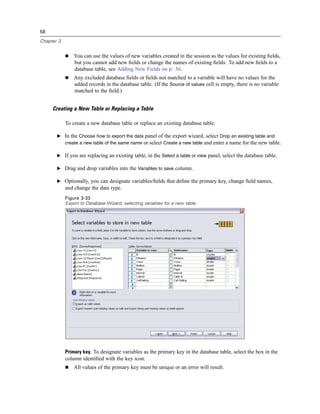
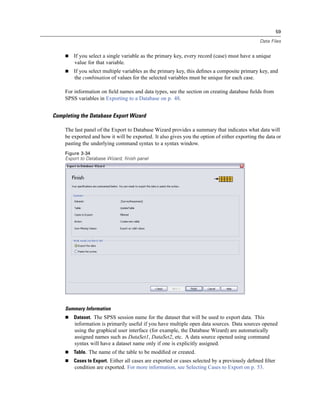
  • 291.
    267 Crosstabs To Obtain Crosstabulations E From the menus choose: Analyze Descriptive Statistics Crosstabs... Figure 16-1 Crosstabs dialog box E Select one or more row variables and one or more column variables. Optionally, you can: Select one or more control variables. Click Statistics for tests and measures of association for two-way tables or subtables. Click Cells for observed and expected values, percentages, and residuals. Click Format for controlling the order of categories. Crosstabs Layers If you select one or more layer variables, a separate crosstabulation is produced for each category of each layer variable (control variable). For example, if you have one row variable, one column variable, and one layer variable with two categories, you get a two-way table for each category of the layer variable. To make another layer of control variables, click Next. Subtables are produced for each combination of categories for each first-layer variable, each second-layer variable, and so on. If statistics and measures of association are requested, they apply to two-way subtables only.
  • 292.
    268 Chapter 16 Crosstabs ClusteredBar Charts Display clustered bar charts. A clustered bar chart helps summarize your data for groups of cases. There is one cluster of bars for each value of the variable you specified under Rows. The variable that defines the bars within each cluster is the variable you specified under Columns. There is one set of differently colored or patterned bars for each value of this variable. If you specify more than one variable under Columns or Rows, a clustered bar chart is produced for each combination of two variables. Crosstabs Statistics Figure 16-2 Crosstabs Statistics dialog box Chi-square. For tables with two rows and two columns, select Chi-square to calculate the Pearson chi-square, the likelihood-ratio chi-square, Fisher’s exact test, and Yates’ corrected chi-square (continuity correction). For 2 × 2 tables, Fisher’s exact test is computed when a table that does not result from missing rows or columns in a larger table has a cell with an expected frequency of less than 5. Yates’ corrected chi-square is computed for all other 2 × 2 tables. For tables with any number of rows and columns, select Chi-square to calculate the Pearson chi-square and the likelihood-ratio chi-square. When both table variables are quantitative, Chi-square yields the linear-by-linear association test. Correlations. For tables in which both rows and columns contain ordered values, Correlations yields Spearman’s correlation coefficient, rho (numeric data only). Spearman’s rho is a measure of association between rank orders. When both table variables (factors) are quantitative, Correlations yields the Pearson correlation coefficient, r, a measure of linear association between the variables. Nominal. For nominal data (no intrinsic order, such as Catholic, Protestant, and Jewish), you can select Contingency coefficient, Phi (coefficient) and Cramér’s V, Lambda (symmetric and asymmetric lambdas and Goodman and Kruskal’s tau), and Uncertainty coefficient.
  • 293.
    269 Crosstabs Contingency coefficient. A measure of association based on chi-square. The value ranges between 0 and 1, with 0 indicating no association between the row and column variables and values close to 1 indicating a high degree of association between the variables. The maximum value possible depends on the number of rows and columns in a table. Phi and Cramer’s V. Phi is a chi-square-based measure of association that involves dividing the chi-square statistic by the sample size and taking the square root of the result. Cramer’s V is a measure of association based on chi-square. Lambda. A measure of association that reflects the proportional reduction in error when values of the independent variable are used to predict values of the dependent variable. A value of 1 means that the independent variable perfectly predicts the dependent variable. A value of 0 means that the independent variable is no help in predicting the dependent variable. Uncertainty coefficient. A measure of association that indicates the proportional reduction in error when values of one variable are used to predict values of the other variable. For example, a value of 0.83 indicates that knowledge of one variable reduces error in predicting values of the other variable by 83%. The program calculates both symmetric and asymmetric versions of the uncertainty coefficient. Ordinal. For tables in which both rows and columns contain ordered values, select Gamma (zero-order for 2-way tables and conditional for 3-way to 10-way tables), Kendall’s tau-b, and Kendall’s tau-c. For predicting column categories from row categories, select Somers’ d. Gamma. A symmetric measure of association between two ordinal variables that ranges between -1 and 1. Values close to an absolute value of 1 indicate a strong relationship between the two variables. Values close to 0 indicate little or no relationship. For 2-way tables, zero-order gammas are displayed. For 3-way to n-way tables, conditional gammas are displayed. Somers’ d. A measure of association between two ordinal variables that ranges from -1 to 1. Values close to an absolute value of 1 indicate a strong relationship between the two variables, and values close to 0 indicate little or no relationship between the variables. Somers’ d is an asymmetric extension of gamma that differs only in the inclusion of the number of pairs not tied on the independent variable. A symmetric version of this statistic is also calculated. Kendall’s tau-b. A nonparametric measure of correlation for ordinal or ranked variables that take ties into account. The sign of the coefficient indicates the direction of the relationship, and its absolute value indicates the strength, with larger absolute values indicating stronger relationships. Possible values range from -1 to 1, but a value of -1 or +1 can be obtained only from square tables. Kendall’s tau-c. A nonparametric measure of association for ordinal variables that ignores ties. The sign of the coefficient indicates the direction of the relationship, and its absolute value indicates the strength, with larger absolute values indicating stronger relationships. Possible values range from -1 to 1, but a value of -1 or +1 can be obtained only from square tables. Nominal by Interval. When one variable is categorical and the other is quantitative, select Eta. The categorical variable must be coded numerically. Eta. A measure of association that ranges from 0 to 1, with 0 indicating no association between the row and column variables and values close to 1 indicating a high degree of association. Eta is appropriate for a dependent variable measured on an interval scale (for example, income) and an independent variable with a limited number of categories (for example,
  • 294.
    270 Chapter 16 gender). Two eta values are computed: one treats the row variable as the interval variable, and the other treats the column variable as the interval variable. Kappa. Cohen’s kappa measures the agreement between the evaluations of two raters when both are rating the same object. A value of 1 indicates perfect agreement. A value of 0 indicates that agreement is no better than chance. Kappa is available only for tables in which both variables use the same category values and both variables have the same number of categories. Risk. For 2 x 2 tables, a measure of the strength of the association between the presence of a factor and the occurrence of an event. If the confidence interval for the statistic includes a value of 1, you cannot assume that the factor is associated with the event. The odds ratio can be used as an estimate or relative risk when the occurrence of the factor is rare. McNemar. A nonparametric test for two related dichotomous variables. Tests for changes in responses using the chi-square distribution. Useful for detecting changes in responses due to experimental intervention in "before-and-after" designs. For larger square tables, the McNemar-Bowker test of symmetry is reported. Cochran’s and Mantel-Haenszel statistics. Cochran’s and Mantel-Haenszel statistics can be used to test for independence between a dichotomous factor variable and a dichotomous response variable, conditional upon covariate patterns defined by one or more layer (control) variables. Note that while other statistics are computed layer by layer, the Cochran’s and Mantel-Haenszel statistics are computed once for all layers. Crosstabs Cell Display Figure 16-3 Crosstabs Cell Display dialog box To help you uncover patterns in the data that contribute to a significant chi-square test, the Crosstabs procedure displays expected frequencies and three types of residuals (deviates) that measure the difference between observed and expected frequencies. Each cell of the table can contain any combination of counts, percentages, and residuals selected.
  • 295.
    271 Crosstabs Counts. The number of cases actually observed and the number of cases expected if the row and column variables are independent of each other. Percentages. The percentages can add up across the rows or down the columns. The percentages of the total number of cases represented in the table (one layer) are also available. Residuals. Raw unstandardized residuals give the difference between the observed and expected values. Standardized and adjusted standardized residuals are also available. Unstandardized. The difference between an observed value and the expected value. The expected value is the number of cases you would expect in the cell if there were no relationship between the two variables. A positive residual indicates that there are more cases in the cell than there would be if the row and column variables were independent. Standardized. The residual divided by an estimate of its standard deviation. Standardized residuals, which are also known as Pearson residuals, have a mean of 0 and a standard deviation of 1. Adjusted standardized. The residual for a cell (observed minus expected value) divided by an estimate of its standard error. The resulting standardized residual is expressed in standard deviation units above or below the mean. Noninteger Weights. Cell counts are normally integer values, since they represent the number of cases in each cell. But if the data file is currently weighted by a weight variable with fractional values (for example, 1.25), cell counts can also be fractional values. You can truncate or round either before or after calculating the cell counts or use fractional cell counts for both table display and statistical calculations. Round cell counts. Case weights are used as is but the accumulated weights in the cells are rounded before computing any statistics. Truncate cell counts. Case weights are used as is but the accumulated weights in the cells are truncated before computing any statistics. Round case weights. Case weights are rounded before use. Truncate case weights. Case weights are truncated before use. No adjustments. Case weights are used as is and fractional cell counts are used. However, when Exact Statistics (available only with the Exact Tests option) are requested, the accumulated weights in the cells are either truncated or rounded before computing the Exact test statistics. Crosstabs Table Format Figure 16-4 Crosstabs Table Format dialog box
  • 296.
    272 Chapter 16 You can arrange rows in ascending or descending order of the values of the row variable.
  • 297.
    Chapter 17 Summarize The Summarize procedure calculates subgroup statistics for variables within categories of one or more grouping variables. All levels of the grouping variable are crosstabulated. You can choose the order in which the statistics are displayed. Summary statistics for each variable across all categories are also displayed. Data values in each category can be listed or suppressed. With large datasets, you can choose to list only the first n cases. Example. What is the average product sales amount by region and customer industry? You might discover that the average sales amount is slightly higher in the western region than in other regions, with corporate customers in the western region yielding the highest average sales amount. Statistics. Sum, number of cases, mean, median, grouped median, standard error of the mean, minimum, maximum, range, variable value of the first category of the grouping variable, variable value of the last category of the grouping variable, standard deviation, variance, kurtosis, standard error of kurtosis, skewness, standard error of skewness, percentage of total sum, percentage of total N, percentage of sum in, percentage of N in, geometric mean, and harmonic mean. Data. Grouping variables are categorical variables whose values can be numeric or string. The number of categories should be reasonably small. The other variables should be able to be ranked. Assumptions. Some of the optional subgroup statistics, such as the mean and standard deviation, are based on normal theory and are appropriate for quantitative variables with symmetric distributions. Robust statistics, such as the median and the range, are appropriate for quantitative variables that may or may not meet the assumption of normality. To Obtain Case Summaries E From the menus choose: Analyze Reports Case Summaries... 273
  • 298.
    274 Chapter 17 Figure 17-1 Summarize Cases dialog box E Select one or more variables. Optionally, you can: Select one or more grouping variables to divide your data into subgroups. Click Options to change the output title, add a caption below the output, or exclude cases with missing values. Click Statistics for optional statistics. Select Display cases to list the cases in each subgroup. By default, the system lists only the first 100 cases in your file. You can raise or lower the value for Limit cases to first n or deselect that item to list all cases. Summarize Options Figure 17-2 Options dialog box
  • 299.
    275 Summarize Summarize allows you to change the title of your output or add a caption that will appear below the output table. You can control line wrapping in titles and captions by typing n wherever you want to insert a line break in the text. You can also choose to display or suppress subheadings for totals and to include or exclude cases with missing values for any of the variables used in any of the analyses. Often it is desirable to denote missing cases in output with a period or an asterisk. Enter a character, phrase, or code that you would like to have appear when a value is missing; otherwise, no special treatment is applied to missing cases in the output. Summarize Statistics Figure 17-3 Summary Report Statistics dialog box You can choose one or more of the following subgroup statistics for the variables within each category of each grouping variable: sum, number of cases, mean, median, grouped median, standard error of the mean, minimum, maximum, range, variable value of the first category of the grouping variable, variable value of the last category of the grouping variable, standard deviation, variance, kurtosis, standard error of kurtosis, skewness, standard error of skewness, percentage of total sum, percentage of total N, percentage of sum in, percentage of N in, geometric mean, harmonic mean. The order in which the statistics appear in the Cell Statistics list is the order in which they will be displayed in the output. Summary statistics are also displayed for each variable across all categories. First. Displays the first data value encountered in the data file. Geometric Mean. The nth root of the product of the data values, where n represents the number of cases. Grouped Median. Median that is calculated for data that is coded into groups. For example, with age data, if each value in the 30s is coded 35, each value in the 40s is coded 45, and so on, the grouped median is the median calculated from the coded data.
  • 300.
    276 Chapter 17 Harmonic Mean. Used to estimate an average group size when the sample sizes in the groups are not equal. The harmonic mean is the total number of samples divided by the sum of the reciprocals of the sample sizes. Kurtosis. A measure of the extent to which observations cluster around a central point. For a normal distribution, the value of the kurtosis statistic is zero. Positive kurtosis indicates that the observations cluster more and have longer tails than those in the normal distribution, and negative kurtosis indicates that the observations cluster less and have shorter tails. Last. Displays the last data value encountered in the data file. Maximum. The largest value of a numeric variable. Mean. A measure of central tendency. The arithmetic average, the sum divided by the number of cases. Median. The value above and below which half of the cases fall, the 50th percentile. If there is an even number of cases, the median is the average of the two middle cases when they are sorted in ascending or descending order. The median is a measure of central tendency not sensitive to outlying values (unlike the mean, which can be affected by a few extremely high or low values). Minimum. The smallest value of a numeric variable. N. The number of cases (observations or records). Percent of Total N. Percentage of the total number of cases in each category. Percent of Total Sum. Percentage of the total sum in each category. Range. The difference between the largest and smallest values of a numeric variable, the maximum minus the minimum. Skewness. A measure of the asymmetry of a distribution. The normal distribution is symmetric and has a skewness value of 0. A distribution with a significant positive skewness has a long right tail. A distribution with a significant negative skewness has a long left tail. As a guideline, a skewness value more than twice its standard error is taken to indicate a departure from symmetry. Standard Error of Kurtosis. The ratio of kurtosis to its standard error can be used as a test of normality (that is, you can reject normality if the ratio is less than -2 or greater than +2). A large positive value for kurtosis indicates that the tails of the distribution are longer than those of a normal distribution; a negative value for kurtosis indicates shorter tails (becoming like those of a box-shaped uniform distribution). Standard Error of Skewness. The ratio of skewness to its standard error can be used as a test of normality (that is, you can reject normality if the ratio is less than -2 or greater than +2). A large positive value for skewness indicates a long right tail; an extreme negative value indicates a long left tail. Sum. The sum or total of the values, across all cases with nonmissing values. Variance. A measure of dispersion around the mean, equal to the sum of squared deviations from the mean divided by one less than the number of cases. The variance is measured in units that are the square of those of the variable itself.
  • 301.
    Chapter 18 Means The Means procedure calculates subgroup means and related univariate statistics for dependent variables within categories of one or more independent variables. Optionally, you can obtain a one-way analysis of variance, eta, and tests for linearity. Example. Measure the average amount of fat absorbed by three different types of cooking oil, and perform a one-way analysis of variance to see whether the means differ. Statistics. Sum, number of cases, mean, median, grouped median, standard error of the mean, minimum, maximum, range, variable value of the first category of the grouping variable, variable value of the last category of the grouping variable, standard deviation, variance, kurtosis, standard error of kurtosis, skewness, standard error of skewness, percentage of total sum, percentage of total N, percentage of sum in, percentage of N in, geometric mean, and harmonic mean. Options include analysis of variance, eta, eta squared, and tests for linearity R and R2. Data. The dependent variables are quantitative, and the independent variables are categorical. The values of categorical variables can be numeric or string. Assumptions. Some of the optional subgroup statistics, such as the mean and standard deviation, are based on normal theory and are appropriate for quantitative variables with symmetric distributions. Robust statistics, such as the median, are appropriate for quantitative variables that may or may not meet the assumption of normality. Analysis of variance is robust to departures from normality, but the data in each cell should be symmetric. Analysis of variance also assumes that the groups come from populations with equal variances. To test this assumption, use Levene’s homogeneity-of-variance test, available in the One-Way ANOVA procedure. To Obtain Subgroup Means E From the menus choose: Analyze Compare Means Means... 277
  • 302.
    278 Chapter 18 Figure 18-1 Means dialog box E Select one or more dependent variables. E Use one of the following methods to select categorical independent variables: Select one or more independent variables. Separate results are displayed for each independent variable. Select one or more layers of independent variables. Each layer further subdivides the sample. If you have one independent variable in Layer 1 and one independent variable in Layer 2, the results are displayed in one crossed table, as opposed to separate tables for each independent variable. E Optionally, click Options for optional statistics, an analysis of variance table, eta, eta squared, R, and R2.
  • 303.
    279 Means Means Options Figure 18-2 Means Options dialog box You can choose one or more of the following subgroup statistics for the variables within each category of each grouping variable: sum, number of cases, mean, median, grouped median, standard error of the mean, minimum, maximum, range, variable value of the first category of the grouping variable, variable value of the last category of the grouping variable, standard deviation, variance, kurtosis, standard error of kurtosis, skewness, standard error of skewness, percentage of total sum, percentage of total N, percentage of sum in, percentage of N in, geometric mean, and harmonic mean. You can change the order in which the subgroup statistics appear. The order in which the statistics appear in the Cell Statistics list is the order in which they are displayed in the output. Summary statistics are also displayed for each variable across all categories. First. Displays the first data value encountered in the data file. Geometric Mean. The nth root of the product of the data values, where n represents the number of cases. Grouped Median. Median that is calculated for data that is coded into groups. For example, with age data, if each value in the 30s is coded 35, each value in the 40s is coded 45, and so on, the grouped median is the median calculated from the coded data. Harmonic Mean. Used to estimate an average group size when the sample sizes in the groups are not equal. The harmonic mean is the total number of samples divided by the sum of the reciprocals of the sample sizes. Kurtosis. A measure of the extent to which observations cluster around a central point. For a normal distribution, the value of the kurtosis statistic is zero. Positive kurtosis indicates that the observations cluster more and have longer tails than those in the normal distribution, and negative kurtosis indicates that the observations cluster less and have shorter tails.
  • 304.
    280 Chapter 18 Last. Displays the last data value encountered in the data file. Maximum. The largest value of a numeric variable. Mean. A measure of central tendency. The arithmetic average, the sum divided by the number of cases. Median. The value above and below which half of the cases fall, the 50th percentile. If there is an even number of cases, the median is the average of the two middle cases when they are sorted in ascending or descending order. The median is a measure of central tendency not sensitive to outlying values (unlike the mean, which can be affected by a few extremely high or low values). Minimum. The smallest value of a numeric variable. N. The number of cases (observations or records). Percent of total N. Percentage of the total number of cases in each category. Percent of total sum. Percentage of the total sum in each category. Range. The difference between the largest and smallest values of a numeric variable, the maximum minus the minimum. Skewness. A measure of the asymmetry of a distribution. The normal distribution is symmetric and has a skewness value of 0. A distribution with a significant positive skewness has a long right tail. A distribution with a significant negative skewness has a long left tail. As a guideline, a skewness value more than twice its standard error is taken to indicate a departure from symmetry. Standard Error of Kurtosis. The ratio of kurtosis to its standard error can be used as a test of normality (that is, you can reject normality if the ratio is less than -2 or greater than +2). A large positive value for kurtosis indicates that the tails of the distribution are longer than those of a normal distribution; a negative value for kurtosis indicates shorter tails (becoming like those of a box-shaped uniform distribution). Standard Error of Skewness. The ratio of skewness to its standard error can be used as a test of normality (that is, you can reject normality if the ratio is less than -2 or greater than +2). A large positive value for skewness indicates a long right tail; an extreme negative value indicates a long left tail. Sum. The sum or total of the values, across all cases with nonmissing values. Variance. A measure of dispersion around the mean, equal to the sum of squared deviations from the mean divided by one less than the number of cases. The variance is measured in units that are the square of those of the variable itself. Statistics for First Layer Anova table and eta. Displays a one-way analysis-of-variance table and calculates eta and eta-squared (measures of association) for each independent variable in the first layer. Test for linearity. Calculates the sum of squares, degrees of freedom, and mean square associated with linear and nonlinear components, as well as the F ratio, R and R-squared. Linearity is not calculated if the independent variable is a short string.
  • 305.
    Chapter 19 OLAP Cubes The OLAP (Online Analytical Processing) Cubes procedure calculates totals, means, and other univariate statistics for continuous summary variables within categories of one or more categorical grouping variables. A separate layer in the table is created for each category of each grouping variable. Example. Total and average sales for different regions and product lines within regions. Statistics. Sum, number of cases, mean, median, grouped median, standard error of the mean, minimum, maximum, range, variable value of the first category of the grouping variable, variable value of the last category of the grouping variable, standard deviation, variance, kurtosis, standard error of kurtosis, skewness, standard error of skewness, percentage of total cases, percentage of total sum, percentage of total cases within grouping variables, percentage of total sum within grouping variables, geometric mean, and harmonic mean. Data. The summary variables are quantitative (continuous variables measured on an interval or ratio scale), and the grouping variables are categorical. The values of categorical variables can be numeric or string. Assumptions. Some of the optional subgroup statistics, such as the mean and standard deviation, are based on normal theory and are appropriate for quantitative variables with symmetric distributions. Robust statistics, such as the median and range, are appropriate for quantitative variables that may or may not meet the assumption of normality. To Obtain OLAP Cubes E From the menus choose: Analyze Reports OLAP Cubes... 281
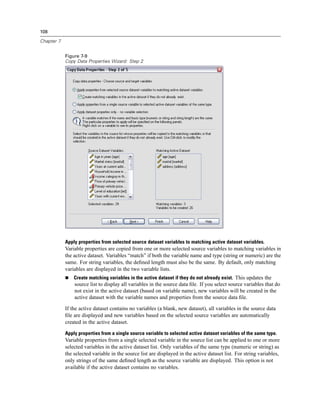
  • 306.
    282 Chapter 19 Figure 19-1 OLAP Cubes dialog box E Select one or more continuous summary variables. E Select one or more categorical grouping variables. Optionally: Select different summary statistics (click Statistics). You must select one or more grouping variables before you can select summary statistics. Calculate differences between pairs of variables and pairs of groups that are defined by a grouping variable (click Differences). Create custom table titles (click Title). OLAP Cubes Statistics Figure 19-2 OLAP Cubes Statistics dialog box You can choose one or more of the following subgroup statistics for the summary variables within each category of each grouping variable: sum, number of cases, mean, median, grouped median, standard error of the mean, minimum, maximum, range, variable value of the first category of the grouping variable, variable value of the last category of the grouping variable, standard deviation, variance, kurtosis, standard error of kurtosis, skewness, standard error of skewness, percentage
  • 307.
    283 OLAP Cubes of total cases, percentage of total sum, percentage of total cases within grouping variables, percentage of total sum within grouping variables, geometric mean, and harmonic mean. You can change the order in which the subgroup statistics appear. The order in which the statistics appear in the Cell Statistics list is the order in which they are displayed in the output. Summary statistics are also displayed for each variable across all categories. First. Displays the first data value encountered in the data file. Geometric Mean. The nth root of the product of the data values, where n represents the number of cases. Grouped Median. Median that is calculated for data that is coded into groups. For example, with age data, if each value in the 30s is coded 35, each value in the 40s is coded 45, and so on, the grouped median is the median calculated from the coded data. Harmonic Mean. Used to estimate an average group size when the sample sizes in the groups are not equal. The harmonic mean is the total number of samples divided by the sum of the reciprocals of the sample sizes. Kurtosis. A measure of the extent to which observations cluster around a central point. For a normal distribution, the value of the kurtosis statistic is zero. Positive kurtosis indicates that the observations cluster more and have longer tails than those in the normal distribution, and negative kurtosis indicates that the observations cluster less and have shorter tails. Last. Displays the last data value encountered in the data file. Maximum. The largest value of a numeric variable. Mean. A measure of central tendency. The arithmetic average, the sum divided by the number of cases. Median. The value above and below which half of the cases fall, the 50th percentile. If there is an even number of cases, the median is the average of the two middle cases when they are sorted in ascending or descending order. The median is a measure of central tendency not sensitive to outlying values (unlike the mean, which can be affected by a few extremely high or low values). Minimum. The smallest value of a numeric variable. N. The number of cases (observations or records). Percent of N in. Percentage of the number of cases for the specified grouping variable within categories of other grouping variables. If you only have one grouping variable, this value is identical to percentage of total number of cases. Percent of Sum in. Percentage of the sum for the specified grouping variable within categories of other grouping variables. If you only have one grouping variable, this value is identical to percentage of total sum. Percent of Total N. Percentage of the total number of cases in each category. Percent of Total Sum. Percentage of the total sum in each category. Range. The difference between the largest and smallest values of a numeric variable, the maximum minus the minimum.
  • 308.
    284 Chapter 19 Skewness. A measure of the asymmetry of a distribution. The normal distribution is symmetric and has a skewness value of 0. A distribution with a significant positive skewness has a long right tail. A distribution with a significant negative skewness has a long left tail. As a guideline, a skewness value more than twice its standard error is taken to indicate a departure from symmetry. Standard Error of Kurtosis. The ratio of kurtosis to its standard error can be used as a test of normality (that is, you can reject normality if the ratio is less than -2 or greater than +2). A large positive value for kurtosis indicates that the tails of the distribution are longer than those of a normal distribution; a negative value for kurtosis indicates shorter tails (becoming like those of a box-shaped uniform distribution). Standard Error of Skewness. The ratio of skewness to its standard error can be used as a test of normality (that is, you can reject normality if the ratio is less than -2 or greater than +2). A large positive value for skewness indicates a long right tail; an extreme negative value indicates a long left tail. Sum. The sum or total of the values, across all cases with nonmissing values. Variance. A measure of dispersion around the mean, equal to the sum of squared deviations from the mean divided by one less than the number of cases. The variance is measured in units that are the square of those of the variable itself. OLAP Cubes Differences Figure 19-3 OLAP Cubes Differences dialog box
  • 309.
    285 OLAP Cubes This dialog box allows you to calculate percentage and arithmetic differences between summary variables or between groups that are defined by a grouping variable. Differences are calculated for all measures that are selected in the OLAP Cubes Statistics dialog box. Differences between Variables. Calculates differences between pairs of variables. Summary statistics values for the second variable (the Minus variable) in each pair are subtracted from summary statistics values for the first variable in the pair. For percentage differences, the value of the summary variable for the Minus variable is used as the denominator. You must select at least two summary variables in the main dialog box before you can specify differences between variables. Differences between Groups of Cases. Calculates differences between pairs of groups defined by a grouping variable. Summary statistics values for the second category in each pair (the Minus category) are subtracted from summary statistics values for the first category in the pair. Percentage differences use the value of the summary statistic for the Minus category as the denominator. You must select one or more grouping variables in the main dialog box before you can specify differences between groups. OLAP Cubes Title Figure 19-4 OLAP Cubes Title dialog box You can change the title of your output or add a caption that will appear below the output table. You can also control line wrapping of titles and captions by typing n wherever you want to insert a line break in the text.
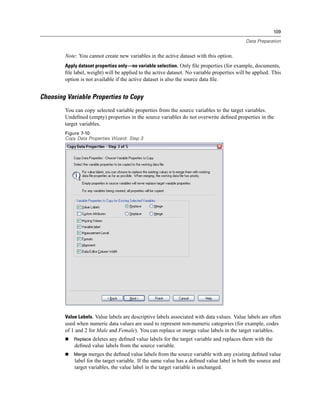
  • 310.
    Chapter 20 T Tests Three types of t tests are available: Independent-samples t test (two-sample t test). Compares the means of one variable for two groups of cases. Descriptive statistics for each group and Levene’s test for equality of variances are provided, as well as both equal- and unequal-variance t values and a 95% confidence interval for the difference in means. Paired-samples t test (dependent t test). Compares the means of two variables for a single group. This test is also for matched pairs or case-control study designs. The output includes descriptive statistics for the test variables, the correlation between the variables, descriptive statistics for the paired differences, the t test, and a 95% confidence interval. One-sample t test. Compares the mean of one variable with a known or hypothesized value. Descriptive statistics for the test variables are displayed along with the t test. A 95% confidence interval for the difference between the mean of the test variable and the hypothesized test value is part of the default output. Independent-Samples T Test The Independent-Samples T Test procedure compares means for two groups of cases. Ideally, for this test, the subjects should be randomly assigned to two groups, so that any difference in response is due to the treatment (or lack of treatment) and not to other factors. This is not the case if you compare average income for males and females. A person is not randomly assigned to be a male or female. In such situations, you should ensure that differences in other factors are not masking or enhancing a significant difference in means. Differences in average income may be influenced by factors such as education (and not by sex alone). Example. Patients with high blood pressure are randomly assigned to a placebo group and a treatment group. The placebo subjects receive an inactive pill, and the treatment subjects receive a new drug that is expected to lower blood pressure. After the subjects are treated for two months, the two-sample t test is used to compare the average blood pressures for the placebo group and the treatment group. Each patient is measured once and belongs to one group. Statistics. For each variable: sample size, mean, standard deviation, and standard error of the mean. For the difference in means: mean, standard error, and confidence interval (you can specify the confidence level). Tests: Levene’s test for equality of variances and both pooled-variances and separate-variances t tests for equality of means. Data. The values of the quantitative variable of interest are in a single column in the data file. The procedure uses a grouping variable with two values to separate the cases into two groups. The grouping variable can be numeric (values such as 1 and 2 or 6.25 and 12.5) or short string 286
  • 311.
    287 T Tests (such as yes and no). As an alternative, you can use a quantitative variable, such as age, to split the cases into two groups by specifying a cutpoint (cutpoint 21 splits age into an under-21 group and a 21-and-over group). Assumptions. For the equal-variance t test, the observations should be independent, random samples from normal distributions with the same population variance. For the unequal-variance t test, the observations should be independent, random samples from normal distributions. The two-sample t test is fairly robust to departures from normality. When checking distributions graphically, look to see that they are symmetric and have no outliers. To Obtain an Independent-Samples T Test E From the menus choose: Analyze Compare Means Independent-Samples T Test... Figure 20-1 Independent-Samples T Test dialog box E Select one or more quantitative test variables. A separate t test is computed for each variable. E Select a single grouping variable, and then click Define Groups to specify two codes for the groups that you want to compare. E Optionally, click Options to control the treatment of missing data and the level of the confidence interval.
  • 312.
    288 Chapter 20 Independent-Samples TTest Define Groups Figure 20-2 Define Groups dialog box for numeric variables For numeric grouping variables, define the two groups for the t test by specifying two values or a cutpoint: Use specified values. Enter a value for Group 1 and another value for Group 2. Cases with any other values are excluded from the analysis. Numbers need not be integers (for example, 6.25 and 12.5 are valid). Cutpoint. Enter a number that splits the values of the grouping variable into two sets. All cases with values that are less than the cutpoint form one group, and cases with values that are greater than or equal to the cutpoint form the other group. Figure 20-3 Define Groups dialog box for string variables For string grouping variables, enter a string for Group 1 and another value for Group 2, such as yes and no. Cases with other strings are excluded from the analysis. Independent-Samples T Test Options Figure 20-4 Independent-Samples T Test Options dialog box
  • 313.
    289 T Tests Confidence Interval. By default, a 95% confidence interval for the difference in means is displayed. Enter a value between 1 and 99 to request a different confidence level. Missing Values. When you test several variables, and data are missing for one or more variables, you can tell the procedure which cases to include (or exclude). Exclude cases analysis by analysis. Each t test uses all cases that have valid data for the tested variables. Sample sizes may vary from test to test. Exclude cases listwise. Each t test uses only cases that have valid data for all variables that are used in the requested t tests. The sample size is constant across tests. Paired-Samples T Test The Paired-Samples T Test procedure compares the means of two variables for a single group. The procedure computes the differences between values of the two variables for each case and tests whether the average differs from 0. Example. In a study on high blood pressure, all patients are measured at the beginning of the study, given a treatment, and measured again. Thus, each subject has two measures, often called before and after measures. An alternative design for which this test is used is a matched-pairs or case-control study, in which each record in the data file contains the response for the patient and also for his or her matched control subject. In a blood pressure study, patients and controls might be matched by age (a 75-year-old patient with a 75-year-old control group member). Statistics. For each variable: mean, sample size, standard deviation, and standard error of the mean. For each pair of variables: correlation, average difference in means, t test, and confidence interval for mean difference (you can specify the confidence level). Standard deviation and standard error of the mean difference. Data. For each paired test, specify two quantitative variables (interval level of measurement or ratio level of measurement). For a matched-pairs or case-control study, the response for each test subject and its matched control subject must be in the same case in the data file. Assumptions. Observations for each pair should be made under the same conditions. The mean differences should be normally distributed. Variances of each variable can be equal or unequal. To Obtain a Paired-Samples T Test E From the menus choose: Analyze Compare Means Paired-Samples T Test...
  • 314.
    290 Chapter 20 Figure 20-5 Paired-Samples T Test dialog box E Select one or more pairs of variables E Optionally, click Options to control the treatment of missing data and the level of the confidence interval. Paired-Samples T Test Options Figure 20-6 Paired-Samples T Test Options dialog box Confidence Interval. By default, a 95% confidence interval for the difference in means is displayed. Enter a value between 1 and 99 to request a different confidence level. Missing Values. When you test several variables, and data are missing for one or more variables, you can tell the procedure which cases to include (or exclude): Exclude cases analysis by analysis. Each t test uses all cases that have valid data for the tested pair of variables. Sample sizes may vary from test to test. Exclude cases listwise. Each t test uses only cases that have valid data for all pairs of tested variables. The sample size is constant across tests. One-Sample T Test The One-Sample T Test procedure tests whether the mean of a single variable differs from a specified constant.
  • 315.
    291 T Tests Examples. A researcher might want to test whether the average IQ score for a group of students differs from 100. Or a cereal manufacturer can take a sample of boxes from the production line and check whether the mean weight of the samples differs from 1.3 pounds at the 95% confidence level. Statistics. For each test variable: mean, standard deviation, and standard error of the mean. The average difference between each data value and the hypothesized test value, a t test that tests that this difference is 0, and a confidence interval for this difference (you can specify the confidence level). Data. To test the values of a quantitative variable against a hypothesized test value, choose a quantitative variable and enter a hypothesized test value. Assumptions. This test assumes that the data are normally distributed; however, this test is fairly robust to departures from normality. To Obtain a One-Sample T Test E From the menus choose: Analyze Compare Means One-Sample T Test... Figure 20-7 One-Sample T Test dialog box E Select one or more variables to be tested against the same hypothesized value. E Enter a numeric test value against which each sample mean is compared. E Optionally, click Options to control the treatment of missing data and the level of the confidence interval.
  • 316.
    292 Chapter 20 One-Sample TTest Options Figure 20-8 One-Sample T Test Options dialog box Confidence Interval. By default, a 95% confidence interval for the difference between the mean and the hypothesized test value is displayed. Enter a value between 1 and 99 to request a different confidence level. Missing Values. When you test several variables, and data are missing for one or more variables, you can tell the procedure which cases to include (or exclude). Exclude cases analysis by analysis. Each t test uses all cases that have valid data for the tested variable. Sample sizes may vary from test to test. Exclude cases listwise. Each t test uses only cases that have valid data for all variables that are used in any of the requested t tests. The sample size is constant across tests. T-TEST Command Additional Features The command syntax language also allows you to: Produce both one-sample and independent-samples t tests by running a single command. Test a variable against each variable on a list in a paired t test (with the PAIRS subcommand). See the Command Syntax Reference for complete syntax information.
  • 317.
    Chapter 21 One-Way ANOVA The One-Way ANOVA procedure produces a one-way analysis of variance for a quantitative dependent variable by a single factor (independent) variable. Analysis of variance is used to test the hypothesis that several means are equal. This technique is an extension of the two-sample t test. In addition to determining that differences exist among the means, you may want to know which means differ. There are two types of tests for comparing means: a priori contrasts and post hoc tests. Contrasts are tests set up before running the experiment, and post hoc tests are run after the experiment has been conducted. You can also test for trends across categories. Example. Doughnuts absorb fat in various amounts when they are cooked. An experiment is set up involving three types of fat: peanut oil, corn oil, and lard. Peanut oil and corn oil are unsaturated fats, and lard is a saturated fat. Along with determining whether the amount of fat absorbed depends on the type of fat used, you could set up an a priori contrast to determine whether the amount of fat absorption differs for saturated and unsaturated fats. Statistics. For each group: number of cases, mean, standard deviation, standard error of the mean, minimum, maximum, and 95% confidence interval for the mean. Levene’s test for homogeneity of variance, analysis-of-variance table and robust tests of the equality of means for each dependent variable, user-specified a priori contrasts, and post hoc range tests and multiple comparisons: Bonferroni, Sidak, Tukey’s honestly significant difference, Hochberg’s GT2, Gabriel, Dunnett, Ryan-Einot-Gabriel-Welsch F test (R-E-G-W F), Ryan-Einot-Gabriel-Welsch range test (R-E-G-W Q), Tamhane’s T2, Dunnett’s T3, Games-Howell, Dunnett’s C, Duncan’s multiple range test, Student-Newman-Keuls (S-N-K), Tukey’s b, Waller-Duncan, Scheffé, and least-significant difference. Data. Factor variable values should be integers, and the dependent variable should be quantitative (interval level of measurement). Assumptions. Each group is an independent random sample from a normal population. Analysis of variance is robust to departures from normality, although the data should be symmetric. The groups should come from populations with equal variances. To test this assumption, use Levene’s homogeneity-of-variance test. To Obtain a One-Way Analysis of Variance E From the menus choose: Analyze Compare Means One-Way ANOVA... 293
  • 318.
    294 Chapter 21 Figure 21-1 One-Way ANOVA dialog box E Select one or more dependent variables. E Select a single independent factor variable. One-Way ANOVA Contrasts Figure 21-2 One-Way ANOVA Contrasts dialog box You can partition the between-groups sums of squares into trend components or specify a priori contrasts. Polynomial. Partitions the between-groups sums of squares into trend components. You can test for a trend of the dependent variable across the ordered levels of the factor variable. For example, you could test for a linear trend (increasing or decreasing) in salary across the ordered levels of highest degree earned. Degree. You can choose a 1st, 2nd, 3rd, 4th, or 5th degree polynomial.
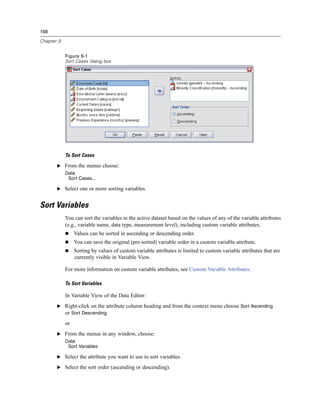
  • 319.
    295 One-Way ANOVA Coefficients. User-specified a priori contrasts to be tested by the t statistic. Enter a coefficient for each group (category) of the factor variable and click Add after each entry. Each new value is added to the bottom of the coefficient list. To specify additional sets of contrasts, click Next. Use Next and Previous to move between sets of contrasts. The order of the coefficients is important because it corresponds to the ascending order of the category values of the factor variable. The first coefficient on the list corresponds to the lowest group value of the factor variable, and the last coefficient corresponds to the highest value. For example, if there are six categories of the factor variable, the coefficients –1, 0, 0, 0, 0.5, and 0.5 contrast the first group with the fifth and sixth groups. For most applications, the coefficients should sum to 0. Sets that do not sum to 0 can also be used, but a warning message is displayed. One-Way ANOVA Post Hoc Tests Figure 21-3 One-way ANOVA Post Hoc Multiple Comparisons dialog box Once you have determined that differences exist among the means, post hoc range tests and pairwise multiple comparisons can determine which means differ. Range tests identify homogeneous subsets of means that are not different from each other. Pairwise multiple comparisons test the difference between each pair of means and yield a matrix where asterisks indicate significantly different group means at an alpha level of 0.05. Equal Variances Assumed Tukey’s honestly significant difference test, Hochberg’s GT2, Gabriel, and Scheffé are multiple comparison tests and range tests. Other available range tests are Tukey’s b, S-N-K (Student-Newman-Keuls), Duncan, R-E-G-W F (Ryan-Einot-Gabriel-Welsch F test), R-E-G-W Q (Ryan-Einot-Gabriel-Welsch range test), and Waller-Duncan. Available multiple comparison tests are Bonferroni, Tukey’s honestly significant difference test, Sidak, Gabriel, Hochberg, Dunnett, Scheffé, and LSD (least significant difference).
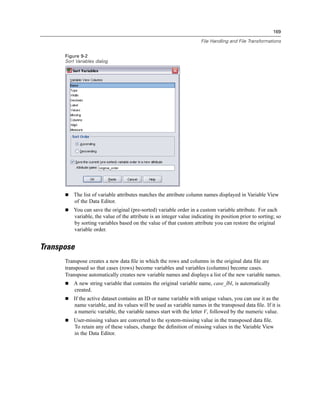
  • 320.
    296 Chapter 21 LSD. Uses t tests to perform all pairwise comparisons between group means. No adjustment is made to the error rate for multiple comparisons. Bonferroni. Uses t tests to perform pairwise comparisons between group means, but controls overall error rate by setting the error rate for each test to the experimentwise error rate divided by the total number of tests. Hence, the observed significance level is adjusted for the fact that multiple comparisons are being made. Sidak. Pairwise multiple comparison test based on a t statistic. Sidak adjusts the significance level for multiple comparisons and provides tighter bounds than Bonferroni. Scheffe. Performs simultaneous joint pairwise comparisons for all possible pairwise combinations of means. Uses the F sampling distribution. Can be used to examine all possible linear combinations of group means, not just pairwise comparisons. R-E-G-W F. Ryan-Einot-Gabriel-Welsch multiple stepdown procedure based on an F test. R-E-G-W Q. Ryan-Einot-Gabriel-Welsch multiple stepdown procedure based on the Studentized range. S-N-K. Makes all pairwise comparisons between means using the Studentized range distribution. With equal sample sizes, it also compares pairs of means within homogeneous subsets, using a stepwise procedure. Means are ordered from highest to lowest, and extreme differences are tested first. Tukey. Uses the Studentized range statistic to make all of the pairwise comparisons between groups. Sets the experimentwise error rate at the error rate for the collection for all pairwise comparisons. Tukey’s b. Uses the Studentized range distribution to make pairwise comparisons between groups. The critical value is the average of the corresponding value for the Tukey’s honestly significant difference test and the Student-Newman-Keuls. Duncan. Makes pairwise comparisons using a stepwise order of comparisons identical to the order used by the Student-Newman-Keuls test, but sets a protection level for the error rate for the collection of tests, rather than an error rate for individual tests. Uses the Studentized range statistic. Hochberg’s GT2. Multiple comparison and range test that uses the Studentized maximum modulus. Similar to Tukey’s honestly significant difference test. Gabriel. Pairwise comparison test that used the Studentized maximum modulus and is generally more powerful than Hochberg’s GT2 when the cell sizes are unequal. Gabriel’s test may become liberal when the cell sizes vary greatly. Waller-Duncan. Multiple comparison test based on a t statistic; uses a Bayesian approach. Dunnett. Pairwise multiple comparison t test that compares a set of treatments against a single control mean. The last category is the default control category. Alternatively, you can choose the first category. 2-sided tests that the mean at any level (except the control category) of the factor is not equal to that of the control category. < Control tests if the mean at any level of the factor is smaller than that of the control category. > Control tests if the mean at any level of the factor is greater than that of the control category.
  • 321.
    297 One-Way ANOVA Equal Variances Not Assumed Multiple comparison tests that do not assume equal variances are Tamhane’s T2, Dunnett’s T3, Games-Howell, and Dunnett’s C. Tamhane’s T2. Conservative pairwise comparisons test based on a t test. This test is appropriate when the variances are unequal. Dunnett’s T3. Pairwise comparison test based on the Studentized maximum modulus. This test is appropriate when the variances are unequal. Games-Howell. Pairwise comparison test that is sometimes liberal. This test is appropriate when the variances are unequal. Dunnett’s C. Pairwise comparison test based on the Studentized range. This test is appropriate when the variances are unequal. Note: You may find it easier to interpret the output from post hoc tests if you deselect Hide empty rows and columns in the Table Properties dialog box (in an activated pivot table, choose Table Properties from the Format menu). One-Way ANOVA Options Figure 21-4 One-Way ANOVA Options dialog box Statistics. Choose one or more of the following: Descriptive. Calculates the number of cases, mean, standard deviation, standard error of the mean, minimum, maximum, and 95% confidence intervals for each dependent variable for each group. Fixed and random effects. Displays the standard deviation, standard error, and 95% confidence interval for the fixed-effects model, and the standard error, 95% confidence interval, and estimate of between-components variance for the random-effects model. Homogeneity of variance test. Calculates the Levene statistic to test for the equality of group variances. This test is not dependent on the assumption of normality.
  • 322.
    298 Chapter 21 Brown-Forsythe. Calculates the Brown-Forsythe statistic to test for the equality of group means. This statistic is preferable to the F statistic when the assumption of equal variances does not hold. Welch. Calculates the Welch statistic to test for the equality of group means. This statistic is preferable to the F statistic when the assumption of equal variances does not hold. Means plot. Displays a chart that plots the subgroup means (the means for each group defined by values of the factor variable). Missing Values. Controls the treatment of missing values. Exclude cases analysis by analysis. A case with a missing value for either the dependent or the factor variable for a given analysis is not used in that analysis. Also, a case outside the range specified for the factor variable is not used. Exclude cases listwise. Cases with missing values for the factor variable or for any dependent variable included on the dependent list in the main dialog box are excluded from all analyses. If you have not specified multiple dependent variables, this has no effect. ONEWAY Command Additional Features The command syntax language also allows you to: Obtain fixed- and random-effects statistics. Standard deviation, standard error of the mean, and 95% confidence intervals for the fixed-effects model. Standard error, 95% confidence intervals, and estimate of between-components variance for random-effects model (using STATISTICS=EFFECTS). Specify alpha levels for the least significance difference, Bonferroni, Duncan, and Scheffé multiple comparison tests (with the RANGES subcommand). Write a matrix of means, standard deviations, and frequencies, or read a matrix of means, frequencies, pooled variances, and degrees of freedom for the pooled variances. These matrices can be used in place of raw data to obtain a one-way analysis of variance (with the MATRIX subcommand). See the Command Syntax Reference for complete syntax information.
  • 323.
    Chapter 22 GLM Univariate Analysis The GLM Univariate procedure provides regression analysis and analysis of variance for one dependent variable by one or more factors and/or variables. The factor variables divide the population into groups. Using this General Linear Model procedure, you can test null hypotheses about the effects of other variables on the means of various groupings of a single dependent variable. You can investigate interactions between factors as well as the effects of individual factors, some of which may be random. In addition, the effects of covariates and covariate interactions with factors can be included. For regression analysis, the independent (predictor) variables are specified as covariates. Both balanced and unbalanced models can be tested. A design is balanced if each cell in the model contains the same number of cases. In addition to testing hypotheses, GLM Univariate produces estimates of parameters. Commonly used a priori contrasts are available to perform hypothesis testing. Additionally, after an overall F test has shown significance, you can use post hoc tests to evaluate differences among specific means. Estimated marginal means give estimates of predicted mean values for the cells in the model, and profile plots (interaction plots) of these means allow you to easily visualize some of the relationships. Residuals, predicted values, Cook’s distance, and leverage values can be saved as new variables in your data file for checking assumptions. WLS Weight allows you to specify a variable used to give observations different weights for a weighted least-squares (WLS) analysis, perhaps to compensate for a different precision of measurement. Example. Data are gathered for individual runners in the Chicago marathon for several years. The time in which each runner finishes is the dependent variable. Other factors include weather (cold, pleasant, or hot), number of months of training, number of previous marathons, and gender. Age is considered a covariate. You might find that gender is a significant effect and that the interaction of gender with weather is significant. Methods. Type I, Type II, Type III, and Type IV sums of squares can be used to evaluate different hypotheses. Type III is the default. Statistics. Post hoc range tests and multiple comparisons: least significant difference, Bonferroni, Sidak, Scheffé, Ryan-Einot-Gabriel-Welsch multiple F, Ryan-Einot-Gabriel-Welsch multiple range, Student-Newman-Keuls, Tukey’s honestly significant difference, Tukey’s b, Duncan, Hochberg’s GT2, Gabriel, Waller-Duncan t test, Dunnett (one-sided and two-sided), Tamhane’s T2, Dunnett’s T3, Games-Howell, and Dunnett’s C. Descriptive statistics: observed means, standard deviations, and counts for all of the dependent variables in all cells. The Levene test for homogeneity of variance. Plots. Spread-versus-level, residual, and profile (interaction). 299
  • 324.
    300 Chapter 22 Data. The dependent variable is quantitative. Factors are categorical. They can have numeric values or string values of up to eight characters. Covariates are quantitative variables that are related to the dependent variable. Assumptions. The data are a random sample from a normal population; in the population, all cell variances are the same. Analysis of variance is robust to departures from normality, although the data should be symmetric. To check assumptions, you can use homogeneity of variances tests and spread-versus-level plots. You can also examine residuals and residual plots. To Obtain GLM Univariate Tables E From the menus choose: Analyze General Linear Model Univariate... Figure 22-1 GLM Univariate dialog box E Select a dependent variable. E Select variables for Fixed Factor(s), Random Factor(s), and Covariate(s), as appropriate for your data. E Optionally, you can use WLS Weight to specify a weight variable for weighted least-squares analysis. If the value of the weighting variable is zero, negative, or missing, the case is excluded from the analysis. A variable already used in the model cannot be used as a weighting variable.
  • 325.
    301 GLM Univariate Analysis GLM Model Figure 22-2 Univariate Model dialog box Specify Model. A full factorial model contains all factor main effects, all covariate main effects, and all factor-by-factor interactions. It does not contain covariate interactions. Select Custom to specify only a subset of interactions or to specify factor-by-covariate interactions. You must indicate all of the terms to be included in the model. Factors and Covariates. The factors and covariates are listed. Model. The model depends on the nature of your data. After selecting Custom, you can select the main effects and interactions that are of interest in your analysis. Sum of squares. The method of calculating the sums of squares. For balanced or unbalanced models with no missing cells, the Type III sum-of-squares method is most commonly used. Include intercept in model. The intercept is usually included in the model. If you can assume that the data pass through the origin, you can exclude the intercept. Build Terms For the selected factors and covariates: Interaction. Creates the highest-level interaction term of all selected variables. This is the default. Main effects. Creates a main-effects term for each variable selected. All 2-way. Creates all possible two-way interactions of the selected variables. All 3-way. Creates all possible three-way interactions of the selected variables. All 4-way. Creates all possible four-way interactions of the selected variables.
  • 326.
    302 Chapter 22 All 5-way. Creates all possible five-way interactions of the selected variables. Sum of Squares For the model, you can choose a type of sums of squares. Type III is the most commonly used and is the default. Type I. This method is also known as the hierarchical decomposition of the sum-of-squares method. Each term is adjusted for only the term that precedes it in the model. Type I sums of squares are commonly used for: A balanced ANOVA model in which any main effects are specified before any first-order interaction effects, any first-order interaction effects are specified before any second-order interaction effects, and so on. A polynomial regression model in which any lower-order terms are specified before any higher-order terms. A purely nested model in which the first-specified effect is nested within the second-specified effect, the second-specified effect is nested within the third, and so on. (This form of nesting can be specified only by using syntax.) Type II. This method calculates the sums of squares of an effect in the model adjusted for all other “appropriate” effects. An appropriate effect is one that corresponds to all effects that do not contain the effect being examined. The Type II sum-of-squares method is commonly used for: A balanced ANOVA model. Any model that has main factor effects only. Any regression model. A purely nested design. (This form of nesting can be specified by using syntax.) Type III. The default. This method calculates the sums of squares of an effect in the design as the sums of squares adjusted for any other effects that do not contain it and orthogonal to any effects (if any) that contain it. The Type III sums of squares have one major advantage in that they are invariant with respect to the cell frequencies as long as the general form of estimability remains constant. Hence, this type of sums of squares is often considered useful for an unbalanced model with no missing cells. In a factorial design with no missing cells, this method is equivalent to the Yates’ weighted-squares-of-means technique. The Type III sum-of-squares method is commonly used for: Any models listed in Type I and Type II. Any balanced or unbalanced model with no empty cells. Type IV. This method is designed for a situation in which there are missing cells. For any effect F in the design, if F is not contained in any other effect, then Type IV = Type III = Type II. When F is contained in other effects, Type IV distributes the contrasts being made among the parameters in F to all higher-level effects equitably. The Type IV sum-of-squares method is commonly used for: Any models listed in Type I and Type II. Any balanced model or unbalanced model with empty cells.
  • 327.
    303 GLM Univariate Analysis GLM Contrasts Figure 22-3 Univariate Contrasts dialog box Contrasts are used to test for differences among the levels of a factor. You can specify a contrast for each factor in the model (in a repeated measures model, for each between-subjects factor). Contrasts represent linear combinations of the parameters. Hypothesis testing is based on the null hypothesis LB = 0, where L is the contrast coefficients matrix and B is the parameter vector. When a contrast is specified, an L matrix is created. The columns of the L matrix corresponding to the factor match the contrast. The remaining columns are adjusted so that the L matrix is estimable. The output includes an F statistic for each set of contrasts. Also displayed for the contrast differences are Bonferroni-type simultaneous confidence intervals based on Student’s t distribution. Available Contrasts Available contrasts are deviation, simple, difference, Helmert, repeated, and polynomial. For deviation contrasts and simple contrasts, you can choose whether the reference category is the last or first category. Contrast Types Deviation. Compares the mean of each level (except a reference category) to the mean of all of the levels (grand mean). The levels of the factor can be in any order. Simple. Compares the mean of each level to the mean of a specified level. This type of contrast is useful when there is a control group. You can choose the first or last category as the reference. Difference. Compares the mean of each level (except the first) to the mean of previous levels. (Sometimes called reverse Helmert contrasts.) Helmert. Compares the mean of each level of the factor (except the last) to the mean of subsequent levels. Repeated. Compares the mean of each level (except the last) to the mean of the subsequent level.
  • 328.
    304 Chapter 22 Polynomial. Compares the linear effect, quadratic effect, cubic effect, and so on. The first degree of freedom contains the linear effect across all categories; the second degree of freedom, the quadratic effect; and so on. These contrasts are often used to estimate polynomial trends. GLM Profile Plots Figure 22-4 Univariate Profile Plots dialog box Profile plots (interaction plots) are useful for comparing marginal means in your model. A profile plot is a line plot in which each point indicates the estimated marginal mean of a dependent variable (adjusted for any covariates) at one level of a factor. The levels of a second factor can be used to make separate lines. Each level in a third factor can be used to create a separate plot. All fixed and random factors, if any, are available for plots. For multivariate analyses, profile plots are created for each dependent variable. In a repeated measures analysis, both between-subjects factors and within-subjects factors can be used in profile plots. GLM Multivariate and GLM Repeated Measures are available only if you have the Advanced Models option installed. A profile plot of one factor shows whether the estimated marginal means are increasing or decreasing across levels. For two or more factors, parallel lines indicate that there is no interaction between factors, which means that you can investigate the levels of only one factor. Nonparallel lines indicate an interaction. Figure 22-5 Nonparallel plot (left) and parallel plot (right)
  • 329.
    305 GLM Univariate Analysis After a plot is specified by selecting factors for the horizontal axis and, optionally, factors for separate lines and separate plots, the plot must be added to the Plots list. GLM Post Hoc Comparisons Figure 22-6 Post Hoc dialog box Post hoc multiple comparison tests. Once you have determined that differences exist among the means, post hoc range tests and pairwise multiple comparisons can determine which means differ. Comparisons are made on unadjusted values. These tests are used for fixed between-subjects factors only. In GLM Repeated Measures, these tests are not available if there are no between-subjects factors, and the post hoc multiple comparison tests are performed for the average across the levels of the within-subjects factors. For GLM Multivariate, the post hoc tests are performed for each dependent variable separately. GLM Multivariate and GLM Repeated Measures are available only if you have the Advanced Models option installed. The Bonferroni and Tukey’s honestly significant difference tests are commonly used multiple comparison tests. The Bonferroni test, based on Student’s t statistic, adjusts the observed significance level for the fact that multiple comparisons are made. Sidak’s t test also adjusts the significance level and provides tighter bounds than the Bonferroni test. Tukey’s honestly significant difference test uses the Studentized range statistic to make all pairwise comparisons between groups and sets the experimentwise error rate to the error rate for the collection for all pairwise comparisons. When testing a large number of pairs of means, Tukey’s honestly significant difference test is more powerful than the Bonferroni test. For a small number of pairs, Bonferroni is more powerful.
  • 330.
    306 Chapter 22 Hochberg’s GT2 is similar to Tukey’s honestly significant difference test, but the Studentized maximum modulus is used. Usually, Tukey’s test is more powerful. Gabriel’s pairwise comparisons test also uses the Studentized maximum modulus and is generally more powerful than Hochberg’s GT2 when the cell sizes are unequal. Gabriel’s test may become liberal when the cell sizes vary greatly. Dunnett’s pairwise multiple comparison t test compares a set of treatments against a single control mean. The last category is the default control category. Alternatively, you can choose the first category. You can also choose a two-sided or one-sided test. To test that the mean at any level (except the control category) of the factor is not equal to that of the control category, use a two-sided test. To test whether the mean at any level of the factor is smaller than that of the control category, select < Control. Likewise, to test whether the mean at any level of the factor is larger than that of the control category, select > Control. Ryan, Einot, Gabriel, and Welsch (R-E-G-W) developed two multiple step-down range tests. Multiple step-down procedures first test whether all means are equal. If all means are not equal, subsets of means are tested for equality. R-E-G-W F is based on an F test and R-E-G-W Q is based on the Studentized range. These tests are more powerful than Duncan’s multiple range test and Student-Newman-Keuls (which are also multiple step-down procedures), but they are not recommended for unequal cell sizes. When the variances are unequal, use Tamhane’s T2 (conservative pairwise comparisons test based on a t test), Dunnett’s T3 (pairwise comparison test based on the Studentized maximum modulus), Games-Howell pairwise comparison test (sometimes liberal), or Dunnett’s C (pairwise comparison test based on the Studentized range). Duncan’s multiple range test, Student-Newman-Keuls (S-N-K), and Tukey’s b are range tests that rank group means and compute a range value. These tests are not used as frequently as the tests previously discussed. The Waller-Duncan t test uses a Bayesian approach. This range test uses the harmonic mean of the sample size when the sample sizes are unequal. The significance level of the Scheffé test is designed to allow all possible linear combinations of group means to be tested, not just pairwise comparisons available in this feature. The result is that the Scheffé test is often more conservative than other tests, which means that a larger difference between means is required for significance. The least significant difference (LSD) pairwise multiple comparison test is equivalent to multiple individual t tests between all pairs of groups. The disadvantage of this test is that no attempt is made to adjust the observed significance level for multiple comparisons. Tests displayed. Pairwise comparisons are provided for LSD, Sidak, Bonferroni, Games-Howell, Tamhane’s T2 and T3, Dunnett’s C, and Dunnett’s T3. Homogeneous subsets for range tests are provided for S-N-K, Tukey’s b, Duncan, R-E-G-W F, R-E-G-W Q, and Waller. Tukey’s honestly significant difference test, Hochberg’s GT2, Gabriel’s test, and Scheffé’s test are both multiple comparison tests and range tests.
  • 331.
    307 GLM Univariate Analysis GLM Save Figure 22-7 Save dialog box You can save values predicted by the model, residuals, and related measures as new variables in the Data Editor. Many of these variables can be used for examining assumptions about the data. To save the values for use in another SPSS session, you must save the current data file. Predicted Values. The values that the model predicts for each case. Unstandardized. The value the model predicts for the dependent variable. Weighted. Weighted unstandardized predicted values. Available only if a WLS variable was previously selected. Standard error. An estimate of the standard deviation of the average value of the dependent variable for cases that have the same values of the independent variables. Diagnostics. Measures to identify cases with unusual combinations of values for the independent variables and cases that may have a large impact on the model. Cook’s distance. A measure of how much the residuals of all cases would change if a particular case were excluded from the calculation of the regression coefficients. A large Cook’s D indicates that excluding a case from computation of the regression statistics changes the coefficients substantially. Leverage values. Uncentered leverage values. The relative influence of each observation on the model’s fit. Residuals. An unstandardized residual is the actual value of the dependent variable minus the value predicted by the model. Standardized, Studentized, and deleted residuals are also available. If a WLS variable was chosen, weighted unstandardized residuals are available. Unstandardized. The difference between an observed value and the value predicted by the model.
  • 332.
    308 Chapter 22 Weighted. Weighted unstandardized residuals. Available only if a WLS variable was previously selected. Standardized. The residual divided by an estimate of its standard deviation. Standardized residuals, which are also known as Pearson residuals, have a mean of 0 and a standard deviation of 1. Studentized. The residual divided by an estimate of its standard deviation that varies from case to case, depending on the distance of each case’s values on the independent variables from the means of the independent variables. Deleted. The residual for a case when that case is excluded from the calculation of the regression coefficients. It is the difference between the value of the dependent variable and the adjusted predicted value. Coefficient Statistics. Writes a variance-covariance matrix of the parameter estimates in the model to a new dataset in the current session or an external SPSS-format data file. Also, for each dependent variable, there will be a row of parameter estimates, a row of significance values for the t statistics corresponding to the parameter estimates, and a row of residual degrees of freedom. For a multivariate model, there are similar rows for each dependent variable. You can use this matrix file in other procedures that read matrix files. GLM Options Figure 22-8 Options dialog box Optional statistics are available from this dialog box. Statistics are calculated using a fixed-effects model.
  • 333.
    309 GLM Univariate Analysis Estimated Marginal Means. Select the factors and interactions for which you want estimates of the population marginal means in the cells. These means are adjusted for the covariates, if any. Compare main effects. Provides uncorrected pairwise comparisons among estimated marginal means for any main effect in the model, for both between- and within-subjects factors. This item is available only if main effects are selected under the Display Means For list. Confidence interval adjustment. Select least significant difference (LSD), Bonferroni, or Sidak adjustment to the confidence intervals and significance. This item is available only if Compare main effects is selected. Display. Select Descriptive statistics to produce observed means, standard deviations, and counts for all of the dependent variables in all cells. Estimates of effect size gives a partial eta-squared value for each effect and each parameter estimate. The eta-squared statistic describes the proportion of total variability attributable to a factor. Select Observed power to obtain the power of the test when the alternative hypothesis is set based on the observed value. Select Parameter estimates to produce the parameter estimates, standard errors, t tests, confidence intervals, and the observed power for each test. Select Contrast coefficient matrix to obtain the L matrix. Homogeneity tests produces the Levene test of the homogeneity of variance for each dependent variable across all level combinations of the between-subjects factors, for between-subjects factors only. The spread-versus-level and residual plots options are useful for checking assumptions about the data. This item is disabled if there are no factors. Select Residual plot to produce an observed-by-predicted-by-standardized residual plot for each dependent variable. These plots are useful for investigating the assumption of equal variance. Select Lack of fit to check if the relationship between the dependent variable and the independent variables can be adequately described by the model. General estimable function allows you to construct custom hypothesis tests based on the general estimable function. Rows in any contrast coefficient matrix are linear combinations of the general estimable function. Significance level. You might want to adjust the significance level used in post hoc tests and the confidence level used for constructing confidence intervals. The specified value is also used to calculate the observed power for the test. When you specify a significance level, the associated level of the confidence intervals is displayed in the dialog box. UNIANOVA Command Additional Features The command syntax language also allows you to: Specify nested effects in the design (using the DESIGN subcommand). Specify tests of effects versus a linear combination of effects or a value (using the TEST subcommand). Specify multiple contrasts (using the CONTRAST subcommand). Include user-missing values (using the MISSING subcommand). Specify EPS criteria (using the CRITERIA subcommand). Construct a custom L matrix, M matrix, or K matrix (using the LMATRIX, MMATRIX, and KMATRIX subcommands). For deviation or simple contrasts, specify an intermediate reference category (using the CONTRAST subcommand).
  • 334.
    310 Chapter 22 Specify metrics for polynomial contrasts (using the CONTRAST subcommand). Specify error terms for post hoc comparisons (using the POSTHOC subcommand). Compute estimated marginal means for any factor or factor interaction among the factors in the factor list (using the EMMEANS subcommand). Specify names for temporary variables (using the SAVE subcommand). Construct a correlation matrix data file (using the OUTFILE subcommand). Construct a matrix data file that contains statistics from the between-subjects ANOVA table (using the OUTFILE subcommand). Save the design matrix to a new data file (using the OUTFILE subcommand). See the Command Syntax Reference for complete syntax information.
  • 335.
    Chapter 23 Bivariate Correlations The Bivariate Correlations procedure computes Pearson’s correlation coefficient, Spearman’s rho, and Kendall’s tau-b with their significance levels. Correlations measure how variables or rank orders are related. Before calculating a correlation coefficient, screen your data for outliers (which can cause misleading results) and evidence of a linear relationship. Pearson’s correlation coefficient is a measure of linear association. Two variables can be perfectly related, but if the relationship is not linear, Pearson’s correlation coefficient is not an appropriate statistic for measuring their association. Example. Is the number of games won by a basketball team correlated with the average number of points scored per game? A scatterplot indicates that there is a linear relationship. Analyzing data from the 1994–1995 NBA season yields that Pearson’s correlation coefficient (0.581) is significant at the 0.01 level. You might suspect that the more games won per season, the fewer points the opponents scored. These variables are negatively correlated (–0.401), and the correlation is significant at the 0.05 level. Statistics. For each variable: number of cases with nonmissing values, mean, and standard deviation. For each pair of variables: Pearson’s correlation coefficient, Spearman’s rho, Kendall’s tau-b, cross-product of deviations, and covariance. Data. Use symmetric quantitative variables for Pearson’s correlation coefficient and quantitative variables or variables with ordered categories for Spearman’s rho and Kendall’s tau-b. Assumptions. Pearson’s correlation coefficient assumes that each pair of variables is bivariate normal. To Obtain Bivariate Correlations From the menus choose: Analyze Correlate Bivariate... 311
  • 336.
    312 Chapter 23 Figure 23-1 Bivariate Correlations dialog box E Select two or more numeric variables. The following options are also available: Correlation Coefficients. For quantitative, normally distributed variables, choose the Pearson correlation coefficient. If your data are not normally distributed or have ordered categories, choose Kendall’s tau-b or Spearman, which measure the association between rank orders. Correlation coefficients range in value from –1 (a perfect negative relationship) and +1 (a perfect positive relationship). A value of 0 indicates no linear relationship. When interpreting your results, be careful not to draw any cause-and-effect conclusions due to a significant correlation. Test of Significance. You can select two-tailed or one-tailed probabilities. If the direction of association is known in advance, select One-tailed. Otherwise, select Two-tailed. Flag significant correlations. Correlation coefficients significant at the 0.05 level are identified with a single asterisk, and those significant at the 0.01 level are identified with two asterisks.
  • 337.
    313 Bivariate Correlations Bivariate Correlations Options Figure 23-2 Bivariate Correlations Options dialog box Statistics. For Pearson correlations, you can choose one or both of the following: Means and standard deviations. Displayed for each variable. The number of cases with nonmissing values is also shown. Missing values are handled on a variable-by-variable basis regardless of your missing values setting. Cross-product deviations and covariances. Displayed for each pair of variables. The cross-product of deviations is equal to the sum of the products of mean-corrected variables. This is the numerator of the Pearson correlation coefficient. The covariance is an unstandardized measure of the relationship between two variables, equal to the cross-product deviation divided by N–1. Missing Values. You can choose one of the following: Exclude cases pairwise. Cases with missing values for one or both of a pair of variables for a correlation coefficient are excluded from the analysis. Since each coefficient is based on all cases that have valid codes on that particular pair of variables, the maximum information available is used in every calculation. This can result in a set of coefficients based on a varying number of cases. Exclude cases listwise. Cases with missing values for any variable are excluded from all correlations. CORRELATIONS and NONPAR CORR Command Additional Features The command syntax language also allows you to: Write a correlation matrix for Pearson correlations that can be used in place of raw data to obtain other analyses such as factor analysis (with the MATRIX subcommand). Obtain correlations of each variable on a list with each variable on a second list (using the keyword WITH on the VARIABLES subcommand). See the Command Syntax Reference for complete syntax information.
  • 338.
    Chapter 24 Partial Correlations The Partial Correlations procedure computes partial correlation coefficients that describe the linear relationship between two variables while controlling for the effects of one or more additional variables. Correlations are measures of linear association. Two variables can be perfectly related, but if the relationship is not linear, a correlation coefficient is not an appropriate statistic for measuring their association. Example. Is there a relationship between healthcare funding and disease rates? Although you might expect any such relationship to be a negative one, a study reports a significant positive correlation: as healthcare funding increases, disease rates appear to increase. Controlling for the rate of visits to healthcare providers, however, virtually eliminates the observed positive correlation. Healthcare funding and disease rates only appear to be positively related because more people have access to healthcare when funding increases, which leads to more reported diseases by doctors and hospitals. Statistics. For each variable: number of cases with nonmissing values, mean, and standard deviation. Partial and zero-order correlation matrices, with degrees of freedom and significance levels. Data. Use symmetric, quantitative variables. Assumptions. The Partial Correlations procedure assumes that each pair of variables is bivariate normal. To Obtain Partial Correlations E From the menus choose: Analyze Correlate Partial... 314
  • 339.
    315 Partial Correlations Figure 24-1 Partial Correlations dialog box E Select two or more numeric variables for which partial correlations are to be computed. E Select one or more numeric control variables. The following options are also available: Test of Significance. You can select two-tailed or one-tailed probabilities. If the direction of association is known in advance, select One-tailed. Otherwise, select Two-tailed. Display actual significance level. By default, the probability and degrees of freedom are shown for each correlation coefficient. If you deselect this item, coefficients significant at the 0.05 level are identified with a single asterisk, coefficients significant at the 0.01 level are identified with a double asterisk, and degrees of freedom are suppressed. This setting affects both partial and zero-order correlation matrices. Partial Correlations Options Figure 24-2 Partial Correlations Options dialog box
  • 340.
    316 Chapter 24 Statistics. You can choose one or both of the following: Means and standard deviations. Displayed for each variable. The number of cases with nonmissing values is also shown. Zero-order correlations. A matrix of simple correlations between all variables, including control variables, is displayed. Missing Values. You can choose one of the following alternatives: Exclude cases listwise. Cases having missing values for any variable, including a control variable, are excluded from all computations. Exclude cases pairwise. For computation of the zero-order correlations on which the partial correlations are based, a case having missing values for both or one of a pair of variables is not used. Pairwise deletion uses as much of the data as possible. However, the number of cases may differ across coefficients. When pairwise deletion is in effect, the degrees of freedom for a particular partial coefficient are based on the smallest number of cases used in the calculation of any of the zero-order correlations. PARTIAL CORR Command Additional Features The command syntax language also allows you to: Read a zero-order correlation matrix or write a partial correlation matrix (with the MATRIX subcommand). Obtain partial correlations between two lists of variables (using the keyword WITH on the VARIABLES subcommand). Obtain multiple analyses (with multiple VARIABLES subcommands). Specify order values to request (for example, both first- and second-order partial correlations) when you have two control variables (with the VARIABLES subcommand). Suppress redundant coefficients (with the FORMAT subcommand). Display a matrix of simple correlations when some coefficients cannot be computed (with the STATISTICS subcommand). See the Command Syntax Reference for complete syntax information.
  • 341.
    Chapter 25 Distances This procedure calculates any of a wide variety of statistics measuring either similarities or dissimilarities (distances), either between pairs of variables or between pairs of cases. These similarity or distance measures can then be used with other procedures, such as factor analysis, cluster analysis, or multidimensional scaling, to help analyze complex datasets. Example. Is it possible to measure similarities between pairs of automobiles based on certain characteristics, such as engine size, MPG, and horsepower? By computing similarities between autos, you can gain a sense of which autos are similar to each other and which are different from each other. For a more formal analysis, you might consider applying a hierarchical cluster analysis or multidimensional scaling to the similarities to explore the underlying structure. Statistics. Dissimilarity (distance) measures for interval data are Euclidean distance, squared Euclidean distance, Chebychev, block, Minkowski, or customized; for count data, chi-square or phi-square; for binary data, Euclidean distance, squared Euclidean distance, size difference, pattern difference, variance, shape, or Lance and Williams. Similarity measures for interval data are Pearson correlation or cosine; for binary data, Russel and Rao, simple matching, Jaccard, dice, Rogers and Tanimoto, Sokal and Sneath 1, Sokal and Sneath 2, Sokal and Sneath 3, Kulczynski 1, Kulczynski 2, Sokal and Sneath 4, Hamann, Lambda, Anderberg’s D, Yule’s Y, Yule’s Q, Ochiai, Sokal and Sneath 5, phi 4-point correlation, or dispersion. To Obtain Distance Matrices E From the menus choose: Analyze Correlate Distances... 317
  • 342.
    318 Chapter 25 Figure 25-1 Distances dialog box E Select at least one numeric variable to compute distances between cases, or select at least two numeric variables to compute distances between variables. E Select an alternative in the Compute Distances group to calculate proximities either between cases or between variables.
  • 343.
    319 Distances Distances Dissimilarity Measures Figure 25-2 Distances Dissimilarity Measures dialog box From the Measure group, select the alternative that corresponds to your type of data (interval, count, or binary); then, from the drop-down list, select one of the measures that corresponds to that type of data. Available measures, by data type, are: Interval data. Euclidean distance, squared Euclidean distance, Chebychev, block, Minkowski, or customized. Count data. Chi-square measure or phi-square measure. Binary data. Euclidean distance, squared Euclidean distance, size difference, pattern difference, variance, shape, or Lance and Williams. (Enter values for Present and Absent to specify which two values are meaningful; Distances will ignore all other values.) The Transform Values group allows you to standardize data values for either cases or variables before computing proximities. These transformations are not applicable to binary data. Available standardization methods are z scores, range –1 to 1, range 0 to 1, maximum magnitude of 1, mean of 1, or standard deviation of 1. The Transform Measures group allows you to transform the values generated by the distance measure. They are applied after the distance measure has been computed. Available options are absolute values, change sign, and rescale to 0–1 range.
  • 344.
    320 Chapter 25 Distances SimilarityMeasures Figure 25-3 Distances Similarity Measures dialog box From the Measure group, select the alternative that corresponds to your type of data (interval or binary); then, from the drop-down list, select one of the measures that corresponds to that type of data. Available measures, by data type, are: Interval data. Pearson correlation or cosine. Binary data. Russell and Rao, simple matching, Jaccard, Dice, Rogers and Tanimoto, Sokal and Sneath 1, Sokal and Sneath 2, Sokal and Sneath 3, Kulczynski 1, Kulczynski 2, Sokal and Sneath 4, Hamann, Lambda, Anderberg’s D, Yule’s Y, Yule’s Q, Ochiai, Sokal and Sneath 5, phi 4-point correlation, or dispersion. (Enter values for Present and Absent to specify which two values are meaningful; Distances will ignore all other values.) The Transform Values group allows you to standardize data values for either cases or variables before computing proximities. These transformations are not applicable to binary data. Available standardization methods are z scores, range –1 to 1, range 0 to 1, maximum magnitude of 1, mean of 1, and standard deviation of 1. The Transform Measures group allows you to transform the values generated by the distance measure. They are applied after the distance measure has been computed. Available options are absolute values, change sign, and rescale to 0–1 range. PROXIMITIES Command Additional Features The Distances procedure uses PROXIMITIES command syntax. The command syntax language also allows you to: Specify any integer as the power for the Minkowski distance measure. Specify any integers as the power and root for a customized distance measure.
  • 345.
    321 Distances See the Command Syntax Reference for complete syntax information.
  • 346.
    Chapter 26 Linear Regression Linear Regression estimates the coefficients of the linear equation, involving one or more independent variables, that best predict the value of the dependent variable. For example, you can try to predict a salesperson’s total yearly sales (the dependent variable) from independent variables such as age, education, and years of experience. Example. Is the number of games won by a basketball team in a season related to the average number of points the team scores per game? A scatterplot indicates that these variables are linearly related. The number of games won and the average number of points scored by the opponent are also linearly related. These variables have a negative relationship. As the number of games won increases, the average number of points scored by the opponent decreases. With linear regression, you can model the relationship of these variables. A good model can be used to predict how many games teams will win. Statistics. For each variable: number of valid cases, mean, and standard deviation. For each model: regression coefficients, correlation matrix, part and partial correlations, multiple R, R2, adjusted R2, change in R2, standard error of the estimate, analysis-of-variance table, predicted values, and residuals. Also, 95%-confidence intervals for each regression coefficient, variance-covariance matrix, variance inflation factor, tolerance, Durbin-Watson test, distance measures (Mahalanobis, Cook, and leverage values), DfBeta, DfFit, prediction intervals, and casewise diagnostics. Plots: scatterplots, partial plots, histograms, and normal probability plots. Data. The dependent and independent variables should be quantitative. Categorical variables, such as religion, major field of study, or region of residence, need to be recoded to binary (dummy) variables or other types of contrast variables. Assumptions. For each value of the independent variable, the distribution of the dependent variable must be normal. The variance of the distribution of the dependent variable should be constant for all values of the independent variable. The relationship between the dependent variable and each independent variable should be linear, and all observations should be independent. To Obtain a Linear Regression Analysis E From the menus choose: Analyze Regression Linear... 322
  • 347.
    323 Linear Regression Figure 26-1 Linear Regression dialog box E In the Linear Regression dialog box, select a numeric dependent variable. E Select one or more numeric independent variables. Optionally, you can: Group independent variables into blocks and specify different entry methods for different subsets of variables. Choose a selection variable to limit the analysis to a subset of cases having a particular value(s) for this variable. Select a case identification variable for identifying points on plots. Select a numeric WLS Weight variable for a weighted least squares analysis. WLS. Allows you to obtain a weighted least-squares model. Data points are weighted by the reciprocal of their variances. This means that observations with large variances have less impact on the analysis than observations associated with small variances. If the value of the weighting variable is zero, negative, or missing, the case is excluded from the analysis. Linear Regression Variable Selection Methods Method selection allows you to specify how independent variables are entered into the analysis. Using different methods, you can construct a variety of regression models from the same set of variables. Enter (Regression). A procedure for variable selection in which all variables in a block are entered in a single step.
  • 348.
    324 Chapter 26 Stepwise. At each step, the independent variable not in the equation that has the smallest probability of F is entered, if that probability is sufficiently small. Variables already in the regression equation are removed if their probability of F becomes sufficiently large. The method terminates when no more variables are eligible for inclusion or removal. Remove. A procedure for variable selection in which all variables in a block are removed in a single step. Backward Elimination. A variable selection procedure in which all variables are entered into the equation and then sequentially removed. The variable with the smallest partial correlation with the dependent variable is considered first for removal. If it meets the criterion for elimination, it is removed. After the first variable is removed, the variable remaining in the equation with the smallest partial correlation is considered next. The procedure stops when there are no variables in the equation that satisfy the removal criteria. Forward Selection. A stepwise variable selection procedure in which variables are sequentially entered into the model. The first variable considered for entry into the equation is the one with the largest positive or negative correlation with the dependent variable. This variable is entered into the equation only if it satisfies the criterion for entry. If the first variable is entered, the independent variable not in the equation that has the largest partial correlation is considered next. The procedure stops when there are no variables that meet the entry criterion. The significance values in your output are based on fitting a single model. Therefore, the significance values are generally invalid when a stepwise method (stepwise, forward, or backward) is used. All variables must pass the tolerance criterion to be entered in the equation, regardless of the entry method specified. The default tolerance level is 0.0001. Also, a variable is not entered if it would cause the tolerance of another variable already in the model to drop below the tolerance criterion. All independent variables selected are added to a single regression model. However, you can specify different entry methods for different subsets of variables. For example, you can enter one block of variables into the regression model using stepwise selection and a second block using forward selection. To add a second block of variables to the regression model, click Next. Linear Regression Set Rule Figure 26-2 Linear Regression Set Rule dialog box Cases defined by the selection rule are included in the analysis. For example, if you select a variable, choose equals, and type 5 for the value, then only cases for which the selected variable has a value equal to 5 are included in the analysis. A string value is also permitted.
  • 349.
    325 Linear Regression Linear Regression Plots Figure 26-3 Linear Regression Plots dialog box Plots can aid in the validation of the assumptions of normality, linearity, and equality of variances. Plots are also useful for detecting outliers, unusual observations, and influential cases. After saving them as new variables, predicted values, residuals, and other diagnostics are available in the Data Editor for constructing plots with the independent variables. The following plots are available: Scatterplots. You can plot any two of the following: the dependent variable, standardized predicted values, standardized residuals, deleted residuals, adjusted predicted values, Studentized residuals, or Studentized deleted residuals. Plot the standardized residuals against the standardized predicted values to check for linearity and equality of variances. Source variable list. Lists the dependent variable (DEPENDNT) and the following predicted and residual variables: Standardized predicted values (*ZPRED), Standardized residuals (*ZRESID), Deleted residuals (*DRESID), Adjusted predicted values (*ADJPRED), Studentized residuals (*SRESID), Studentized deleted residuals (*SDRESID). Produce all partial plots. Displays scatterplots of residuals of each independent variable and the residuals of the dependent variable when both variables are regressed separately on the rest of the independent variables. At least two independent variables must be in the equation for a partial plot to be produced. Standardized Residual Plots. You can obtain histograms of standardized residuals and normal probability plots comparing the distribution of standardized residuals to a normal distribution. If any plots are requested, summary statistics are displayed for standardized predicted values and standardized residuals (*ZPRED and *ZRESID).
  • 350.
    326 Chapter 26 Linear Regression:Saving New Variables Figure 26-4 Linear Regression Save dialog box You can save predicted values, residuals, and other statistics useful for diagnostics. Each selection adds one or more new variables to your active data file. Predicted Values. Values that the regression model predicts for each case. Unstandardized. The value the model predicts for the dependent variable. Standardized. A transformation of each predicted value into its standardized form. That is, the mean predicted value is subtracted from the predicted value, and the difference is divided by the standard deviation of the predicted values. Standardized predicted values have a mean of 0 and a standard deviation of 1. Adjusted. The predicted value for a case when that case is excluded from the calculation of the regression coefficients. S.E. of mean predictions. Standard errors of the predicted values. An estimate of the standard deviation of the average value of the dependent variable for cases that have the same values of the independent variables.
  • 351.
    327 Linear Regression Distances. Measures to identify cases with unusual combinations of values for the independent variables and cases that may have a large impact on the regression model. Mahalanobis. A measure of how much a case’s values on the independent variables differ from the average of all cases. A large Mahalanobis distance identifies a case as having extreme values on one or more of the independent variables. Cook’s. A measure of how much the residuals of all cases would change if a particular case were excluded from the calculation of the regression coefficients. A large Cook’s D indicates that excluding a case from computation of the regression statistics changes the coefficients substantially. Leverage values. Measures the influence of a point on the fit of the regression. The centered leverage ranges from 0 (no influence on the fit) to (N-1)/N. Prediction Intervals. The upper and lower bounds for both mean and individual prediction intervals. Mean. Lower and upper bounds (two variables) for the prediction interval of the mean predicted response. Individual. Lower and upper bounds (two variables) for the prediction interval of the dependent variable for a single case. Confidence Interval. Enter a value between 1 and 99.99 to specify the confidence level for the two Prediction Intervals. Mean or Individual must be selected before entering this value. Typical confidence interval values are 90, 95, and 99. Residuals. The actual value of the dependent variable minus the value predicted by the regression equation. Unstandardized. The difference between an observed value and the value predicted by the model. Standardized. The residual divided by an estimate of its standard deviation. Standardized residuals, which are also known as Pearson residuals, have a mean of 0 and a standard deviation of 1. Studentized. The residual divided by an estimate of its standard deviation that varies from case to case, depending on the distance of each case’s values on the independent variables from the means of the independent variables. Deleted. The residual for a case when that case is excluded from the calculation of the regression coefficients. It is the difference between the value of the dependent variable and the adjusted predicted value. Studentized deleted. The deleted residual for a case divided by its standard error. The difference between a Studentized deleted residual and its associated Studentized residual indicates how much difference eliminating a case makes on its own prediction. Influence Statistics. The change in the regression coefficients (DfBeta[s]) and predicted values (DfFit) that results from the exclusion of a particular case. Standardized DfBetas and DfFit values are also available along with the covariance ratio. DfBeta(s). The difference in beta value is the change in the regression coefficient that results from the exclusion of a particular case. A value is computed for each term in the model, including the constant.
  • 352.
    328 Chapter 26 Standardized DfBeta. Standardized difference in beta value. The change in the regression coefficient that results from the exclusion of a particular case. You may want to examine cases with absolute values greater than 2 divided by the square root of N, where N is the number of cases. A value is computed for each term in the model, including the constant. DfFit. The difference in fit value is the change in the predicted value that results from the exclusion of a particular case. Standardized DfFit. Standardized difference in fit value. The change in the predicted value that results from the exclusion of a particular case. You may want to examine standardized values which in absolute value exceed 2 times the square root of p/N, where p is the number of parameters in the model and N is the number of cases. Covariance ratio. The ratio of the determinant of the covariance matrix with a particular case excluded from the calculation of the regression coefficients to the determinant of the covariance matrix with all cases included. If the ratio is close to 1, the case does not significantly alter the covariance matrix. Coefficient Statistics. Saves regression coefficients to a dataset or a data file. Datasets are available for subsequent use in the same session but are not saved as files unless explicitly saved prior to the end of the session. Dataset names must conform to variable naming rules. For more information, see Variable Names in Chapter 5 on p. 74. Export model information to XML file. Parameter estimates and (optionally) their covariances are exported to the specified file in XML (PMML) format. SmartScore and SPSS Server (a separate product) can use this model file to apply the model information to other data files for scoring purposes. Linear Regression Statistics Figure 26-5 Statistics dialog box
  • 353.
    329 Linear Regression The following statistics are available: Regression Coefficients. Estimates displays Regression coefficient B, standard error of B, standardized coefficient beta, t value for B, and two-tailed significance level of t. Confidence intervals displays 95%-confidence intervals for each regression coefficient or a covariance matrix. Covariance matrix displays a variance-covariance matrix of regression coefficients with covariances off the diagonal and variances on the diagonal. A correlation matrix is also displayed. Model fit. The variables entered and removed from the model are listed, and the following goodness-of-fit statistics are displayed: multiple R, R2 and adjusted R2, standard error of the estimate, and an analysis-of-variance table. R squared change. The change in the R2 statistic that is produced by adding or deleting an independent variable. If the R2 change associated with a variable is large, that means that the variable is a good predictor of the dependent variable. Descriptives. Provides the number of valid cases, the mean, and the standard deviation for each variable in the analysis. A correlation matrix with a one-tailed significance level and the number of cases for each correlation are also displayed. Partial Correlation. The correlation that remains between two variables after removing the correlation that is due to their mutual association with the other variables. The correlation between the dependent variable and an independent variable when the linear effects of the other independent variables in the model have been removed from both. Part Correlation. The correlation between the dependent variable and an independent variable when the linear effects of the other independent variables in the model have been removed from the independent variable. It is related to the change in R-squared when a variable is added to an equation. Sometimes called the semipartial correlation. Collinearity diagnostics. Collinearity (or multicollinearity) is the undesirable situation when one independent variable is a linear function of other independent variables. Eigenvalues of the scaled and uncentered cross-products matrix, condition indices, and variance-decomposition proportions are displayed along with variance inflation factors (VIF) and tolerances for individual variables. Residuals. Displays the Durbin-Watson test for serial correlation of the residuals and casewise diagnostics for the cases meeting the selection criterion (outliers above n standard deviations).
  • 354.
    330 Chapter 26 Linear RegressionOptions Figure 26-6 Linear Regression Options dialog box The following options are available: Stepping Method Criteria. These options apply when either the forward, backward, or stepwise variable selection method has been specified. Variables can be entered or removed from the model depending on either the significance (probability) of the F value or the F value itself. Use Probability of F. A variable is entered into the model if the significance level of its F value is less than the Entry value and is removed if the significance level is greater than the Removal value. Entry must be less than Removal, and both values must be positive. To enter more variables into the model, increase the Entry value. To remove more variables from the model, lower the Removal value. Use F Value. A variable is entered into the model if its F value is greater than the Entry value and is removed if the F value is less than the Removal value. Entry must be greater than Removal, and both values must be positive. To enter more variables into the model, lower the Entry value. To remove more variables from the model, increase the Removal value. Include constant in equation. By default, the regression model includes a constant term. Deselecting this option forces regression through the origin, which is rarely done. Some results of regression through the origin are not comparable to results of regression that do include a constant. For example, R2 cannot be interpreted in the usual way. Missing Values. You can choose one of the following: Exclude cases listwise. Only cases with valid values for all variables are included in the analyses. Exclude cases pairwise. Cases with complete data for the pair of variables being correlated are used to compute the correlation coefficient on which the regression analysis is based. Degrees of freedom are based on the minimum pairwise N. Replace with mean. All cases are used for computations, with the mean of the variable substituted for missing observations.
  • 355.
    331 Linear Regression REGRESSION Command Additional Features The command syntax language also allows you to: Write a correlation matrix or read a matrix in place of raw data to obtain your regression analysis (with the MATRIX subcommand). Specify tolerance levels (with the CRITERIA subcommand). Obtain multiple models for the same or different dependent variables (with the METHOD and DEPENDENT subcommands). Obtain additional statistics (with the DESCRIPTIVES and STATISTICS subcommands). See the Command Syntax Reference for complete syntax information.
  • 356.
    Chapter 27 Ordinal Regression Ordinal Regression allows you to model the dependence of a polytomous ordinal response on a set of predictors, which can be factors or covariates. The design of Ordinal Regression is based on the methodology of McCullagh (1980, 1998), and the procedure is referred to as PLUM in the syntax. Standard linear regression analysis involves minimizing the sum-of-squared differences between a response (dependent) variable and a weighted combination of predictor (independent) variables. The estimated coefficients reflect how changes in the predictors affect the response. The response is assumed to be numerical, in the sense that changes in the level of the response are equivalent throughout the range of the response. For example, the difference in height between a person who is 150 cm tall and a person who is 140 cm tall is 10 cm, which has the same meaning as the difference in height between a person who is 210 cm tall and a person who is 200 cm tall. These relationships do not necessarily hold for ordinal variables, in which the choice and number of response categories can be quite arbitrary. Example. Ordinal Regression could be used to study patient reaction to drug dosage. The possible reactions may be classified as none, mild, moderate, or severe. The difference between a mild and moderate reaction is difficult or impossible to quantify and is based on perception. Moreover, the difference between a mild and moderate response may be greater or less than the difference between a moderate and severe response. Statistics and plots. Observed and expected frequencies and cumulative frequencies, Pearson residuals for frequencies and cumulative frequencies, observed and expected probabilities, observed and expected cumulative probabilities of each response category by covariate pattern, asymptotic correlation and covariance matrices of parameter estimates, Pearson’s chi-square and likelihood-ratio chi-square, goodness-of-fit statistics, iteration history, test of parallel lines assumption, parameter estimates, standard errors, confidence intervals, and Cox and Snell’s, Nagelkerke’s, and McFadden’s R2 statistics. Data. The dependent variable is assumed to be ordinal and can be numeric or string. The ordering is determined by sorting the values of the dependent variable in ascending order. The lowest value defines the first category. Factor variables are assumed to be categorical. Covariate variables must be numeric. Note that using more than one continuous covariate can easily result in the creation of a very large cell probabilities table. Assumptions. Only one response variable is allowed, and it must be specified. Also, for each distinct pattern of values across the independent variables, the responses are assumed to be independent multinomial variables. Related procedures. Nominal logistic regression uses similar models for nominal dependent variables. 332
  • 357.
    333 Ordinal Regression Obtaining an Ordinal Regression E From the menus choose: Analyze Regression Ordinal... Figure 27-1 Ordinal Regression dialog box E Select one dependent variable. E Click OK. Ordinal Regression Options The Options dialog box allows you to adjust parameters used in the iterative estimation algorithm, choose a level of confidence for your parameter estimates, and select a link function. Figure 27-2 Ordinal Regression Options dialog box
  • 358.
    334 Chapter 27 Iterations. You can customize the iterative algorithm. Maximum iterations. Specify a non-negative integer. If 0 is specified, the procedure returns the initial estimates. Maximum step-halving. Specify a positive integer. Log-likelihood convergence. The algorithm stops if the absolute or relative change in the log-likelihood is less than this value. The criterion is not used if 0 is specified. Parameter convergence. The algorithm stops if the absolute or relative change in each of the parameter estimates is less than this value. The criterion is not used if 0 is specified. Confidence interval. Specify a value greater than or equal to 0 and less than 100. Delta. The value added to zero cell frequencies. Specify a non-negative value less than 1. Singularity tolerance. Used for checking for highly dependent predictors. Select a value from the list of options. Link function. The link function is a transformation of the cumulative probabilities that allows estimation of the model. Five link functions are available, summarized in the following table. Function Form Typical application Logit log( ξ / (1−ξ) ) Evenly distributed categories Complementary log-log log(−log(1−ξ)) Higher categories more probable Negative log-log −log(−log(ξ)) Lower categories more probable Probit Φ−1(ξ) Latent variable is normally distributed Cauchit (inverse Cauchy) tan(π(ξ−0.5)) Latent variable has many extreme values Ordinal Regression Output The Output dialog box allows you to produce tables for display in the Viewer and save variables to the working file. Figure 27-3 Ordinal Regression Output dialog box
  • 359.
    335 Ordinal Regression Display. Produces tables for: Print iteration history. The log-likelihood and parameter estimates are printed for the print iteration frequency specified. The first and last iterations are always printed. Goodness-of-fit statistics. The Pearson and likelihood-ratio chi-square statistics. They are computed based on the classification specified in the variable list. Summary statistics. Cox and Snell’s, Nagelkerke’s, and McFadden’s R2 statistics. Parameter estimates. Parameter estimates, standard errors, and confidence intervals. Asymptotic correlation of parameter estimates. Matrix of parameter estimate correlations. Asymptotic covariance of parameter estimates. Matrix of parameter estimate covariances. Cell information. Observed and expected frequencies and cumulative frequencies, Pearson residuals for frequencies and cumulative frequencies, observed and expected probabilities, and observed and expected cumulative probabilities of each response category by covariate pattern. Note that for models with many covariate patterns (for example, models with continuous covariates), this option can generate a very large, unwieldy table. Test of parallel lines. Test of the hypothesis that the location parameters are equivalent across the levels of the dependent variable. This is available only for the location-only model. Saved variables. Saves the following variables to the working file: Estimated response probabilities. Model-estimated probabilities of classifying a factor/covariate pattern into the response categories. There are as many probabilities as the number of response categories. Predicted category. The response category that has the maximum estimated probability for a factor/covariate pattern. Predicted category probability. Estimated probability of classifying a factor/covariate pattern into the predicted category. This probability is also the maximum of the estimated probabilities of the factor/covariate pattern. Actual category probability. Estimated probability of classifying a factor/covariate pattern into the actual category. Print log-likelihood. Controls the display of the log-likelihood. Including multinomial constant gives you the full value of the likelihood. To compare your results across products that do not include the constant, you can choose to exclude it. Ordinal Regression Location Model The Location dialog box allows you to specify the location model for your analysis.
  • 360.
    336 Chapter 27 Figure 27-4 Ordinal Regression Location dialog box Specify model. A main-effects model contains the covariate and factor main effects but no interaction effects. You can create a custom model to specify subsets of factor interactions or covariate interactions. Factors/covariates. The factors and covariates are listed. Location model. The model depends on the main effects and interaction effects that you select. Build Terms For the selected factors and covariates: Interaction. Creates the highest-level interaction term of all selected variables. This is the default. Main effects. Creates a main-effects term for each variable selected. All 2-way. Creates all possible two-way interactions of the selected variables. All 3-way. Creates all possible three-way interactions of the selected variables. All 4-way. Creates all possible four-way interactions of the selected variables. All 5-way. Creates all possible five-way interactions of the selected variables. Ordinal Regression Scale Model The Scale dialog box allows you to specify the scale model for your analysis.
  • 361.
    337 Ordinal Regression Figure 27-5 Ordinal Regression Scale dialog box Factors/covariates. The factors and covariates are listed. Scale model. The model depends on the main and interaction effects that you select. Build Terms For the selected factors and covariates: Interaction. Creates the highest-level interaction term of all selected variables. This is the default. Main effects. Creates a main-effects term for each variable selected. All 2-way. Creates all possible two-way interactions of the selected variables. All 3-way. Creates all possible three-way interactions of the selected variables. All 4-way. Creates all possible four-way interactions of the selected variables. All 5-way. Creates all possible five-way interactions of the selected variables. PLUM Command Additional Features You can customize your Ordinal Regression if you paste your selections into a syntax window and edit the resulting PLUM command syntax. The command syntax language also allows you to: Create customized hypothesis tests by specifying null hypotheses as linear combinations of parameters. See the Command Syntax Reference for complete syntax information.
  • 362.
    Chapter 28 Curve Estimation The Curve Estimation procedure produces curve estimation regression statistics and related plots for 11 different curve estimation regression models. A separate model is produced for each dependent variable. You can also save predicted values, residuals, and prediction intervals as new variables. Example. An Internet service provider tracks the percentage of virus-infected e-mail traffic on its networks over time. A scatterplot reveals that the relationship is nonlinear. You might fit a quadratic or cubic model to the data and check the validity of assumptions and the goodness of fit of the model. Statistics. For each model: regression coefficients, multiple R, R2, adjusted R2, standard error of the estimate, analysis-of-variance table, predicted values, residuals, and prediction intervals. Models: linear, logarithmic, inverse, quadratic, cubic, power, compound, S-curve, logistic, growth, and exponential. Data. The dependent and independent variables should be quantitative. If you select Time from the active dataset as the independent variable (instead of selecting a variable), the Curve Estimation procedure generates a time variable where the length of time between cases is uniform. If Time is selected, the dependent variable should be a time-series measure. Time-series analysis requires a data file structure in which each case (row) represents a set of observations at a different time and the length of time between cases is uniform. Assumptions. Screen your data graphically to determine how the independent and dependent variables are related (linearly, exponentially, etc.). The residuals of a good model should be randomly distributed and normal. If a linear model is used, the following assumptions should be met: For each value of the independent variable, the distribution of the dependent variable must be normal. The variance of the distribution of the dependent variable should be constant for all values of the independent variable. The relationship between the dependent variable and the independent variable should be linear, and all observations should be independent. To Obtain a Curve Estimation E From the menus choose: Analyze Regression Curve Estimation... 338
  • 363.
    339 Curve Estimation Figure 28-1 Curve Estimation dialog box E Select one or more dependent variables. A separate model is produced for each dependent variable. E Select an independent variable (either select a variable in the active dataset or select Time). E Optionally: Select a variable for labeling cases in scatterplots. For each point in the scatterplot, you can use the Point Selection tool to display the value of the Case Label variable. Click Save to save predicted values, residuals, and prediction intervals as new variables. The following options are also available: Include constant in equation. Estimates a constant term in the regression equation. The constant is included by default. Plot models. Plots the values of the dependent variable and each selected model against the independent variable. A separate chart is produced for each dependent variable. Display ANOVA table. Displays a summary analysis-of-variance table for each selected model. Curve Estimation Models You can choose one or more curve estimation regression models. To determine which model to use, plot your data. If your variables appear to be related linearly, use a simple linear regression model. When your variables are not linearly related, try transforming your data. When a transformation does not help, you may need a more complicated model. View a scatterplot of your data; if the plot resembles a mathematical function you recognize, fit your data to that type of model. For example, if your data resemble an exponential function, use an exponential model.
  • 364.
    340 Chapter 28 Linear. Model whose equation is Y = b0 + (b1 * t). The series values are modeled as a linear function of time. Logarithmic. Model whose equation is Y = b0 + (b1 * ln(t)). Inverse. Model whose equation is Y = b0 + (b1 / t). Quadratic. Model whose equation is Y = b0 + (b1 * t) + (b2 * t**2). The quadratic model can be used to model a series that "takes off" or a series that dampens. Cubic. Model that is defined by the equation Y = b0 + (b1 * t) + (b2 * t**2) + (b3 * t**3). Power. Model whose equation is Y = b0 * (t**b1) or ln(Y) = ln(b0) + (b1 * ln(t)). Compound. Model whose equation is Y = b0 * (b1**t) or ln(Y) = ln(b0) + (ln(b1) * t). S-curve. Model whose equation is Y = e**(b0 + (b1/t)) or ln(Y) = b0 + (b1/t). Logistic. Model whose equation is Y = 1 / (1/u + (b0 * (b1**t))) or ln(1/y-1/u) = ln (b0) + (ln(b1) * t) where u is the upper boundary value. After selecting Logistic, specify the upper boundary value to use in the regression equation. The value must be a positive number that is greater than the largest dependent variable value. Growth. Model whose equation is Y = e**(b0 + (b1 * t)) or ln(Y) = b0 + (b1 * t). Exponential. Model whose equation is Y = b0 * (e**(b1 * t)) or ln(Y) = ln(b0) + (b1 * t). Curve Estimation Save Figure 28-2 Curve Estimation Save dialog box Save Variables. For each selected model, you can save predicted values, residuals (observed value of the dependent variable minus the model predicted value), and prediction intervals (upper and lower bounds). The new variable names and descriptive labels are displayed in a table in the output window.
  • 365.
    341 Curve Estimation Predict Cases. In the active dataset, if you select Time instead of a variable as the independent variable, you can specify a forecast period beyond the end of the time series. You can choose one of the following alternatives: Predict from estimation period through last case. Predicts values for all cases in the file, based on the cases in the estimation period. The estimation period, displayed at the bottom of the dialog box, is defined with the Range subdialog box of the Select Cases option on the Data menu. If no estimation period has been defined, all cases are used to predict values. Predict through. Predicts values through the specified date, time, or observation number, based on the cases in the estimation period. This feature can be used to forecast values beyond the last case in the time series. The currently defined date variables determine what text boxes are available for specifying the end of the prediction period. If there are no defined date variables, you can specify the ending observation (case) number. Use the Define Dates option on the Data menu to create date variables.
  • 366.
    Chapter 29 Partial Least Squares Regression The Partial Least Squares Regression procedure estimates partial least squares (PLS, also known as “projection to latent structure”) regression models. PLS is a predictive technique that is an alternative to ordinary least squares (OLS) regression, canonical correlation, or structural equation modeling, and it is particularly useful when predictor variables are highly correlated or when the number of predictors exceeds the number of cases. PLS combines features of principal components analysis and multiple regression. It first extracts a set of latent factors that explain as much of the covariance as possible between the independent and dependent variables. Then a regression step predicts values of the dependent variables using the decomposition of the independent variables. Availability. PLS is an extension command that requires the Python Extension Module to be installed on the system where you plan to run PLS. The PLS Extension Module must be installed separately, and the installer can be downloaded from http://www.spss.com/devcentral. Note: The PLS Extension Module is dependent upon Python software. SPSS is not the owner or licensor of the Python software. Any user of Python must agree to the terms of the Python license agreement located on the Python Web site. SPSS is not making any statement about the quality of the Python program. SPSS fully disclaims all liability associated with your use of the Python program. Tables. Proportion of variance explained (by latent factor), latent factor weights, latent factor loadings, independent variable importance in projection (VIP), and regression parameter estimates (by dependent variable) are all produced by default. Charts. Variable importance in projection (VIP), factor scores, factor weights for the first three latent factors, and distance to the model are all produced from the Options tab. Measurement level. The dependent and independent (predictor) variables can be scale, nominal, or ordinal. The procedure assumes that the appropriate measurement level has been assigned to all variables, although you can temporarily change the measurement level for a variable by right-clicking the variable in the source variable list and selecting a measurement level from the context menu. Categorical (nominal or ordinal) variables are treated equivalently by the procedure. Categorical variable coding. The procedure temporarily recodes categorical dependent variables using one-of-c coding for the duration of the procedure. If there are c categories of a variable, then the variable is stored as c vectors, with the first category denoted (1,0,...,0), the next category (0,1,0,...,0), ..., and the final category (0,0,...,0,1). Categorical dependent variables are represented using dummy coding; that is, simply omit the indicator corresponding to the reference category. Frequency weights. Weight values are rounded to the nearest whole number before use. Cases with missing weights or weights less than 0.5 are not used in the analyses. Missing values. User- and system-missing values are treated as invalid. 342
  • 367.
    343 Partial Least Squares Regression Rescaling. All model variables are centered and standardized, including indicator variables representing categorical variables. To Obtain Partial Least Squares Regression From the menus choose: Analyze Regression Partial Least Squares... Figure 29-1 Partial Least Squares Regression Variables tab E Select at least one dependent variable. E Select at least one independent variable. Optionally, you can: Specify a reference category for categorical (nominal or ordinal) dependent variables. Specify a variable to be used as a unique identifier for casewise output and saved datasets. Specify an upper limit on the number of latent factors to be extracted.
  • 368.
    344 Chapter 29 Model Figure 29-2 Partial Least Squares Regression Model tab Specify Model Effects. A main-effects model contains all factor and covariate main effects. Select Custom to specify interactions. You must indicate all of the terms to be included in the model. Factors and Covariates. The factors and covariates are listed. Model. The model depends on the nature of your data. After selecting Custom, you can select the main effects and interactions that are of interest in your analysis. Build Terms For the selected factors and covariates: Interaction. Creates the highest-level interaction term of all selected variables. This is the default. Main effects. Creates a main-effects term for each variable selected. All 2-way. Creates all possible two-way interactions of the selected variables. All 3-way. Creates all possible three-way interactions of the selected variables. All 4-way. Creates all possible four-way interactions of the selected variables. All 5-way. Creates all possible five-way interactions of the selected variables.
  • 369.
    345 Partial Least Squares Regression Options Figure 29-3 Partial Least Squares Regression Options tab The Options tab allows the user to save and plot model estimates for individual cases, latent factors, and predictors. For each type of data, specify the name of an SPSS dataset. The dataset names must be unique. If you specify the name of an existing dataset, its contents are replaced; otherwise, a new dataset is created. Save estimates for individual cases.Saves the following casewise model estimates: predicted values, residuals, distance to latent factor model, and latent factor scores. It also plots latent factor scores. Save estimates for latent factors. Saves latent factor loadings and latent factor weights. It also plots latent factor weights. Save estimates for independent variables. Saves regression parameter estimates and variable importance to projection (VIP). It also plots VIP by latent factor.
  • 370.
    Chapter 30 Discriminant Analysis Discriminant analysis builds a predictive model for group membership. The model is composed of a discriminant function (or, for more than two groups, a set of discriminant functions) based on linear combinations of the predictor variables that provide the best discrimination between the groups. The functions are generated from a sample of cases for which group membership is known; the functions can then be applied to new cases that have measurements for the predictor variables but have unknown group membership. Note: The grouping variable can have more than two values. The codes for the grouping variable must be integers, however, and you need to specify their minimum and maximum values. Cases with values outside of these bounds are excluded from the analysis. Example. On average, people in temperate zone countries consume more calories per day than people in the tropics, and a greater proportion of the people in the temperate zones are city dwellers. A researcher wants to combine this information into a function to determine how well an individual can discriminate between the two groups of countries. The researcher thinks that population size and economic information may also be important. Discriminant analysis allows you to estimate coefficients of the linear discriminant function, which looks like the right side of a multiple linear regression equation. That is, using coefficients a, b, c, and d, the function is: D = a * climate + b * urban + c * population + d * gross domestic product per capita If these variables are useful for discriminating between the two climate zones, the values of D will differ for the temperate and tropic countries. If you use a stepwise variable selection method, you may find that you do not need to include all four variables in the function. Statistics. For each variable: means, standard deviations, univariate ANOVA. For each analysis: Box’s M, within-groups correlation matrix, within-groups covariance matrix, separate-groups covariance matrix, total covariance matrix. For each canonical discriminant function: eigenvalue, percentage of variance, canonical correlation, Wilks’ lambda, chi-square. For each step: prior probabilities, Fisher’s function coefficients, unstandardized function coefficients, Wilks’ lambda for each canonical function. Data. The grouping variable must have a limited number of distinct categories, coded as integers. Independent variables that are nominal must be recoded to dummy or contrast variables. Assumptions. Cases should be independent. Predictor variables should have a multivariate normal distribution, and within-group variance-covariance matrices should be equal across groups. Group membership is assumed to be mutually exclusive (that is, no case belongs to more than one group) and collectively exhaustive (that is, all cases are members of a group). The procedure is most effective when group membership is a truly categorical variable; if group membership is 346
  • 371.
    347 Discriminant Analysis based on values of a continuous variable (for example, high IQ versus low IQ), consider using linear regression to take advantage of the richer information that is offered by the continuous variable itself. To Obtain a Discriminant Analysis E From the menus choose: Analyze Classify Discriminant... Figure 30-1 Discriminant Analysis dialog box E Select an integer-valued grouping variable and click Define Range to specify the categories of interest. E Select the independent, or predictor, variables. (If your grouping variable does not have integer values, Automatic Recode on the Transform menu will create a variable that does.) E Select the method for entering the independent variables. Enter independents together. Simultaneously enters all independent variables that satisfy tolerance criteria. Use stepwise method. Uses stepwise analysis to control variable entry and removal. E Optionally, select cases with a selection variable.
  • 372.
    348 Chapter 30 Discriminant AnalysisDefine Range Figure 30-2 Discriminant Analysis Define Range dialog box Specify the minimum and maximum value of the grouping variable for the analysis. Cases with values outside of this range are not used in the discriminant analysis but are classified into one of the existing groups based on the results of the analysis. The minimum and maximum values must be integers. Discriminant Analysis Select Cases Figure 30-3 Discriminant Analysis Set Value dialog box To select cases for your analysis: E In the Discriminant Analysis dialog box, choose a selection variable. E Click Value to enter an integer as the selection value. Only cases with the specified value for the selection variable are used to derive the discriminant functions. Statistics and classification results are generated for both selected and unselected cases. This process provides a mechanism for classifying new cases based on previously existing data or for partitioning your data into training and testing subsets to perform validation on the model generated.
  • 373.
    349 Discriminant Analysis Discriminant Analysis Statistics Figure 30-4 Discriminant Analysis Statistics dialog box Descriptives. Available options are means (including standard deviations), univariate ANOVAs, and Box’s M test. Means. Displays total and group means, as well as standard deviations for the independent variables. Univariate ANOVAs. Performs a one-way analysis-of-variance test for equality of group means for each independent variable. Box’s M. A test for the equality of the group covariance matrices. For sufficiently large samples, a nonsignificant p value means there is insufficient evidence that the matrices differ. The test is sensitive to departures from multivariate normality. Function Coefficients. Available options are Fisher’s classification coefficients and unstandardized coefficients. Fisher’s. Displays Fisher’s classification function coefficients that can be used directly for classification. A set of coefficients is obtained for each group, and a case is assigned to the group for which it has the largest discriminant score. Unstandardized. Displays the unstandardized discriminant function coefficients. Matrices. Available matrices of coefficients for independent variables are within-groups correlation matrix, within-groups covariance matrix, separate-groups covariance matrix, and total covariance matrix. Within-groups correlation. Displays a pooled within-groups correlation matrix that is obtained by averaging the separate covariance matrices for all groups before computing the correlations. Within-groups covariance. Displays a pooled within-groups covariance matrix, which may differ from the total covariance matrix. The matrix is obtained by averaging the separate covariance matrices for all groups. Separate-groups covariance. Displays separate covariance matrices for each group. Total covariance. Displays a covariance matrix from all cases as if they were from a single sample.
  • 374.
    350 Chapter 30 Discriminant AnalysisStepwise Method Figure 30-5 Discriminant Analysis Stepwise Method dialog box Method. Select the statistic to be used for entering or removing new variables. Available alternatives are Wilks’ lambda, unexplained variance, Mahalanobis distance, smallest F ratio, and Rao’s V. With Rao’s V, you can specify the minimum increase in V for a variable to enter. Wilks’ lambda. A variable selection method for stepwise discriminant analysis that chooses variables for entry into the equation on the basis of how much they lower Wilks’ lambda. At each step, the variable that minimizes the overall Wilks’ lambda is entered. Unexplained variance. At each step, the variable that minimizes the sum of the unexplained variation between groups is entered. Mahalanobis distance. A measure of how much a case’s values on the independent variables differ from the average of all cases. A large Mahalanobis distance identifies a case as having extreme values on one or more of the independent variables. Smallest F ratio. A method of variable selection in stepwise analysis based on maximizing an F ratio computed from the Mahalanobis distance between groups. Rao’s V. A measure of the differences between group means. Also called the Lawley-Hotelling trace. At each step, the variable that maximizes the increase in Rao’s V is entered. After selecting this option, enter the minimum value a variable must have to enter the analysis. Criteria. Available alternatives are Use F value and Use probability of F. Enter values for entering and removing variables. Use F value. A variable is entered into the model if its F value is greater than the Entry value and is removed if the F value is less than the Removal value. Entry must be greater than Removal, and both values must be positive. To enter more variables into the model, lower the Entry value. To remove more variables from the model, increase the Removal value. Use probability of F. A variable is entered into the model if the significance level of its F value is less than the Entry value and is removed if the significance level is greater than the Removal value. Entry must be less than Removal, and both values must be positive. To enter
  • 375.
    351 Discriminant Analysis more variables into the model, increase the Entry value. To remove more variables from the model, lower the Removal value. Display. Summary of steps displays statistics for all variables after each step; F for pairwise distances displays a matrix of pairwise F ratios for each pair of groups. Discriminant Analysis Classification Figure 30-6 Discriminant Analysis Classify dialog box Prior Probabilities. This option determines whether the classification coefficients are adjusted for a priori knowledge of group membership. All groups equal. Equal prior probabilities are assumed for all groups; this has no effect on the coefficients. Compute from group sizes. The observed group sizes in your sample determine the prior probabilities of group membership. For example, if 50% of the observations included in the analysis fall into the first group, 25% in the second, and 25% in the third, the classification coefficients are adjusted to increase the likelihood of membership in the first group relative to the other two. Display. Available display options are casewise results, summary table, and leave-one-out classification. Casewise results. Codes for actual group, predicted group, posterior probabilities, and discriminant scores are displayed for each case. Summary table. The number of cases correctly and incorrectly assigned to each of the groups based on the discriminant analysis. Sometimes called the "Confusion Matrix." Leave-one-out classification. Each case in the analysis is classified by the functions derived from all cases other than that case. It is also known as the "U-method." Replace missing values with mean. Select this option to substitute the mean of an independent variable for a missing value during the classification phase only.
  • 376.
    352 Chapter 30 Use Covariance Matrix. You can choose to classify cases using a within-groups covariance matrix or a separate-groups covariance matrix. Within-groups. The pooled within-groups covariance matrix is used to classify cases. Separate-groups. Separate-groups covariance matrices are used for classification. Because classification is based on the discriminant functions (not based on the original variables), this option is not always equivalent to quadratic discrimination. Plots. Available plot options are combined-groups, separate-groups, and territorial map. Combined-groups. Creates an all-groups scatterplot of the first two discriminant function values. If there is only one function, a histogram is displayed instead. Separate-groups. Creates separate-group scatterplots of the first two discriminant function values. If there is only one function, histograms are displayed instead. Territorial map. A plot of the boundaries used to classify cases into groups based on function values. The numbers correspond to groups into which cases are classified. The mean for each group is indicated by an asterisk within its boundaries. The map is not displayed if there is only one discriminant function. Discriminant Analysis Save Figure 30-7 Discriminant Analysis Save dialog box You can add new variables to your active data file. Available options are predicted group membership (a single variable), discriminant scores (one variable for each discriminant function in the solution), and probabilities of group membership given the discriminant scores (one variable for each group). You can also export model information to the specified file in XML (PMML) format. SmartScore and SPSS Server (a separate product) can use this model file to apply the model information to other data files for scoring purposes. DISCRIMINANT Command Additional Features The command syntax language also allows you to: Perform multiple discriminant analyses (with one command) and control the order in which variables are entered (with the ANALYSIS subcommand).
  • 377.
    353 Discriminant Analysis Specify prior probabilities for classification (with the PRIORS subcommand). Display rotated pattern and structure matrices (with the ROTATE subcommand). Limit the number of extracted discriminant functions (with the FUNCTIONS subcommand). Restrict classification to the cases that are selected (or unselected) for the analysis (with the SELECT subcommand). Read and analyze a correlation matrix (with the MATRIX subcommand). Write a correlation matrix for later analysis (with the MATRIX subcommand). See the Command Syntax Reference for complete syntax information.
  • 378.
    Chapter 31 Factor Analysis Factor analysis attempts to identify underlying variables, or factors, that explain the pattern of correlations within a set of observed variables. Factor analysis is often used in data reduction to identify a small number of factors that explain most of the variance that is observed in a much larger number of manifest variables. Factor analysis can also be used to generate hypotheses regarding causal mechanisms or to screen variables for subsequent analysis (for example, to identify collinearity prior to performing a linear regression analysis). The factor analysis procedure offers a high degree of flexibility: Seven methods of factor extraction are available. Five methods of rotation are available, including direct oblimin and promax for nonorthogonal rotations. Three methods of computing factor scores are available, and scores can be saved as variables for further analysis. Example. What underlying attitudes lead people to respond to the questions on a political survey as they do? Examining the correlations among the survey items reveals that there is significant overlap among various subgroups of items—questions about taxes tend to correlate with each other, questions about military issues correlate with each other, and so on. With factor analysis, you can investigate the number of underlying factors and, in many cases, identify what the factors represent conceptually. Additionally, you can compute factor scores for each respondent, which can then be used in subsequent analyses. For example, you might build a logistic regression model to predict voting behavior based on factor scores. Statistics. For each variable: number of valid cases, mean, and standard deviation. For each factor analysis: correlation matrix of variables, including significance levels, determinant, and inverse; reproduced correlation matrix, including anti-image; initial solution (communalities, eigenvalues, and percentage of variance explained); Kaiser-Meyer-Olkin measure of sampling adequacy and Bartlett’s test of sphericity; unrotated solution, including factor loadings, communalities, and eigenvalues; and rotated solution, including rotated pattern matrix and transformation matrix. For oblique rotations: rotated pattern and structure matrices; factor score coefficient matrix and factor covariance matrix. Plots: scree plot of eigenvalues and loading plot of first two or three factors. Data. The variables should be quantitative at the interval or ratio level. Categorical data (such as religion or country of origin) are not suitable for factor analysis. Data for which Pearson correlation coefficients can sensibly be calculated should be suitable for factor analysis. Assumptions. The data should have a bivariate normal distribution for each pair of variables, and observations should be independent. The factor analysis model specifies that variables are determined by common factors (the factors estimated by the model) and unique factors (which do 354
  • 379.
    355 Factor Analysis not overlap between observed variables); the computed estimates are based on the assumption that all unique factors are uncorrelated with each other and with the common factors. To Obtain a Factor Analysis E From the menus choose: Analyze Data Reduction Factor... E Select the variables for the factor analysis. Figure 31-1 Factor Analysis dialog box Factor Analysis Select Cases Figure 31-2 Factor Analysis Set Value dialog box To select cases for your analysis: E Choose a selection variable. E Click Value to enter an integer as the selection value. Only cases with that value for the selection variable are used in the factor analysis.
  • 380.
    356 Chapter 31 Factor AnalysisDescriptives Figure 31-3 Factor Analysis Descriptives dialog box Statistics. Univariate descriptives includes the mean, standard deviation, and number of valid cases for each variable. Initial solution displays initial communalities, eigenvalues, and the percentage of variance explained. Correlation Matrix. The available options are coefficients, significance levels, determinant, KMO and Bartlett’s test of sphericity, inverse, reproduced, and anti-image. KMO and Bartlett’s Test of Sphericity. The Kaiser-Meyer-Olkin measure of sampling adequacy tests whether the partial correlations among variables are small. Bartlett’s test of sphericity tests whether the correlation matrix is an identity matrix, which would indicate that the factor model is inappropriate. Reproduced. The estimated correlation matrix from the factor solution. Residuals (difference between estimated and observed correlations) are also displayed. Anti-image. The anti-image correlation matrix contains the negatives of the partial correlation coefficients, and the anti-image covariance matrix contains the negatives of the partial covariances. In a good factor model, most of the off-diagonal elements will be small. The measure of sampling adequacy for a variable is displayed on the diagonal of the anti-image correlation matrix.
  • 381.
    357 Factor Analysis Factor Analysis Extraction Figure 31-4 Factor Analysis Extraction dialog box Method. Allows you to specify the method of factor extraction. Available methods are principal components, unweighted least squares, generalized least squares, maximum likelihood, principal axis factoring, alpha factoring, and image factoring. Principal Components Analysis. A factor extraction method used to form uncorrelated linear combinations of the observed variables. The first component has maximum variance. Successive components explain progressively smaller portions of the variance and are all uncorrelated with each other. Principal components analysis is used to obtain the initial factor solution. It can be used when a correlation matrix is singular. Unweighted Least-Squares Method. A factor extraction method that minimizes the sum of the squared differences between the observed and reproduced correlation matrices (ignoring the diagonals). Generalized Least-Squares Method. A factor extraction method that minimizes the sum of the squared differences between the observed and reproduced correlation matrices. Correlations are weighted by the inverse of their uniqueness, so that variables with high uniqueness are given less weight than those with low uniqueness. Maximum-Likelihood Method. A factor extraction method that produces parameter estimates that are most likely to have produced the observed correlation matrix if the sample is from a multivariate normal distribution. The correlations are weighted by the inverse of the uniqueness of the variables, and an iterative algorithm is employed. Principal Axis Factoring. A method of extracting factors from the original correlation matrix, with squared multiple correlation coefficients placed in the diagonal as initial estimates of the communalities. These factor loadings are used to estimate new communalities that replace the old communality estimates in the diagonal. Iterations continue until the changes in the communalities from one iteration to the next satisfy the convergence criterion for extraction.
  • 382.
    358 Chapter 31 Alpha. A factor extraction method that considers the variables in the analysis to be a sample from the universe of potential variables. This method maximizes the alpha reliability of the factors. Image Factoring. A factor extraction method developed by Guttman and based on image theory. The common part of the variable, called the partial image, is defined as its linear regression on remaining variables, rather than a function of hypothetical factors. Analyze. Allows you to specify either a correlation matrix or a covariance matrix. Correlation matrix. Useful if variables in your analysis are measured on different scales. Covariance matrix. Useful when you want to apply your factor analysis to multiple groups with different variances for each variable. Extract. You can either retain all factors whose eigenvalues exceed a specified value, or you can retain a specific number of factors. Display. Allows you to request the unrotated factor solution and a scree plot of the eigenvalues. Unrotated Factor Solution. Displays unrotated factor loadings (factor pattern matrix), communalities, and eigenvalues for the factor solution. Scree plot. A plot of the variance that is associated with each factor. This plot is used to determine how many factors should be kept. Typically the plot shows a distinct break between the steep slope of the large factors and the gradual trailing of the rest (the scree). Maximum Iterations for Convergence. Allows you to specify the maximum number of steps that the algorithm can take to estimate the solution. Factor Analysis Rotation Figure 31-5 Factor Analysis Rotation dialog box Method. Allows you to select the method of factor rotation. Available methods are varimax, direct oblimin, quartimax, equamax, or promax. Varimax Method. An orthogonal rotation method that minimizes the number of variables that have high loadings on each factor. This method simplifies the interpretation of the factors.
  • 383.
    359 Factor Analysis Direct Oblimin Method. A method for oblique (nonorthogonal) rotation. When delta equals 0 (the default), solutions are most oblique. As delta becomes more negative, the factors become less oblique. To override the default delta of 0, enter a number less than or equal to 0.8. Quartimax Method. A rotation method that minimizes the number of factors needed to explain each variable. This method simplifies the interpretation of the observed variables. Equamax Method. A rotation method that is a combination of the varimax method, which simplifies the factors, and the quartimax method, which simplifies the variables. The number of variables that load highly on a factor and the number of factors needed to explain a variable are minimized. Promax Rotation. An oblique rotation, which allows factors to be correlated. This rotation can be calculated more quickly than a direct oblimin rotation, so it is useful for large datasets. Display. Allows you to include output on the rotated solution, as well as loading plots for the first two or three factors. Rotated Solution. A rotation method must be selected to obtain a rotated solution. For orthogonal rotations, the rotated pattern matrix and factor transformation matrix are displayed. For oblique rotations, the pattern, structure, and factor correlation matrices are displayed. Factor Loading Plot. Three-dimensional factor loading plot of the first three factors. For a two-factor solution, a two-dimensional plot is shown. The plot is not displayed if only one factor is extracted. Plots display rotated solutions if rotation is requested. Maximum Iterations for Convergence. Allows you to specify the maximum number of steps that the algorithm can take to perform the rotation. Factor Analysis Scores Figure 31-6 Factor Analysis Factor Scores dialog box Save as variables. Creates one new variable for each factor in the final solution. Method. The alternative methods for calculating factor scores are regression, Bartlett, and Anderson-Rubin.
  • 384.
    360 Chapter 31 Regression Method. A method for estimating factor score coefficients. The scores that are produced have a mean of 0 and a variance equal to the squared multiple correlation between the estimated factor scores and the true factor values. The scores may be correlated even when factors are orthogonal. Bartlett Scores. A method of estimating factor score coefficients. The scores that are produced have a mean of 0. The sum of squares of the unique factors over the range of variables is minimized. Anderson-Rubin Method. A method of estimating factor score coefficients; a modification of the Bartlett method which ensures orthogonality of the estimated factors. The scores that are produced have a mean of 0, have a standard deviation of 1, and are uncorrelated. Display factor score coefficient matrix. Shows the coefficients by which variables are multiplied to obtain factor scores. Also shows the correlations between factor scores. Factor Analysis Options Figure 31-7 Factor Analysis Options dialog box Missing Values. Allows you to specify how missing values are handled. The available choices are to exclude cases listwise, exclude cases pairwise, or replace with mean. Coefficient Display Format. Allows you to control aspects of the output matrices. You sort coefficients by size and suppress coefficients with absolute values that are less than the specified value. FACTOR Command Additional Features The command syntax language also allows you to: Specify convergence criteria for iteration during extraction and rotation. Specify individual rotated-factor plots. Specify how many factor scores to save. Specify diagonal values for the principal axis factoring method.
  • 385.
    361 Factor Analysis Write correlation matrices or factor-loading matrices to disk for later analysis. Read and analyze correlation matrices or factor-loading matrices. See the Command Syntax Reference for complete syntax information.
  • 386.
    Chapter 32 Choosing a Procedure for Clustering Cluster analyses can be performed using the TwoStep, Hierarchical, or K-Means Cluster Analysis procedure. Each procedure employs a different algorithm for creating clusters, and each has options not available in the others. TwoStep Cluster Analysis. For many applications, the TwoStep Cluster Analysis procedure will be the method of choice. It provides the following unique features: Automatic selection of the best number of clusters, in addition to measures for choosing between cluster models. Ability to create cluster models simultaneously based on categorical and continuous variables. Ability to save the cluster model to an external XML file and then read that file and update the cluster model using newer data. Additionally, the TwoStep Cluster Analysis procedure can analyze large data files. Hierarchical Cluster Analysis. The Hierarchical Cluster Analysis procedure is limited to smaller data files (hundreds of objects to be clustered) but has the following unique features: Ability to cluster cases or variables. Ability to compute a range of possible solutions and save cluster memberships for each of those solutions. Several methods for cluster formation, variable transformation, and measuring the dissimilarity between clusters. As long as all the variables are of the same type, the Hierarchical Cluster Analysis procedure can analyze interval (continuous), count, or binary variables. K-Means Cluster Analysis. The K-Means Cluster Analysis procedure is limited to continuous data and requires you to specify the number of clusters in advance, but it has the following unique features: Ability to save distances from cluster centers for each object. Ability to read initial cluster centers from and save final cluster centers to an external SPSS file. Additionally, the K-Means Cluster Analysis procedure can analyze large data files. 362
  • 387.
    Chapter 33 TwoStep Cluster Analysis The TwoStep Cluster Analysis procedure is an exploratory tool designed to reveal natural groupings (or clusters) within a dataset that would otherwise not be apparent. The algorithm employed by this procedure has several desirable features that differentiate it from traditional clustering techniques: Handling of categorical and continuous variables. By assuming variables to be independent, a joint multinomial-normal distribution can be placed on categorical and continuous variables. Automatic selection of number of clusters. By comparing the values of a model-choice criterion across different clustering solutions, the procedure can automatically determine the optimal number of clusters. Scalability. By constructing a cluster features (CF) tree that summarizes the records, the TwoStep algorithm allows you to analyze large data files. Example. Retail and consumer product companies regularly apply clustering techniques to data that describe their customers’ buying habits, gender, age, income level, etc. These companies tailor their marketing and product development strategies to each consumer group to increase sales and build brand loyalty. Statistics. The procedure produces information criteria (AIC or BIC) by number of clusters in the solution, cluster frequencies for the final clustering, and descriptive statistics by cluster for the final clustering. Plots. The procedure produces bar charts of cluster frequencies, pie charts of cluster frequencies, and variable importance charts. 363
  • 388.
    364 Chapter 33 Figure 33-1 TwoStep Cluster Analysis dialog box Distance Measure. This selection determines how the similarity between two clusters is computed. Log-likelihood. The likelihood measure places a probability distribution on the variables. Continuous variables are assumed to be normally distributed, while categorical variables are assumed to be multinomial. All variables are assumed to be independent. Euclidean. The Euclidean measure is the “straight line” distance between two clusters. It can be used only when all of the variables are continuous. Number of Clusters. This selection allows you to specify how the number of clusters is to be determined. Determine automatically. The procedure will automatically determine the “best” number of clusters, using the criterion specified in the Clustering Criterion group. Optionally, enter a positive integer specifying the maximum number of clusters that the procedure should consider. Specify fixed. Allows you to fix the number of clusters in the solution. Enter a positive integer. Count of Continuous Variables. This group provides a summary of the continuous variable standardization specifications made in the Options dialog box. For more information, see TwoStep Cluster Analysis Options on p. 366. Clustering Criterion. This selection determines how the automatic clustering algorithm determines the number of clusters. Either the Bayesian Information Criterion (BIC) or the Akaike Information Criterion (AIC) can be specified.
  • 389.
    365 TwoStep Cluster Analysis Data. This procedure works with both continuous and categorical variables. Cases represent objects to be clustered, and the variables represent attributes upon which the clustering is based. Case Order. Note that the cluster features tree and the final solution may depend on the order of cases. To minimize order effects, randomly order the cases. You may want to obtain several different solutions with cases sorted in different random orders to verify the stability of a given solution. In situations where this is difficult due to extremely large file sizes, multiple runs with a sample of cases sorted in different random orders might be substituted. Assumptions. The likelihood distance measure assumes that variables in the cluster model are independent. Further, each continuous variable is assumed to have a normal (Gaussian) distribution, and each categorical variable is assumed to have a multinomial distribution. Empirical internal testing indicates that the procedure is fairly robust to violations of both the assumption of independence and the distributional assumptions, but you should try to be aware of how well these assumptions are met. Use the Bivariate Correlations procedure to test the independence of two continuous variables. Use the Crosstabs procedure to test the independence of two categorical variables. Use the Means procedure to test the independence between a continuous variable and categorical variable. Use the Explore procedure to test the normality of a continuous variable. Use the Chi-Square Test procedure to test whether a categorical variable has a specified multinomial distribution. To Obtain a TwoStep Cluster Analysis E From the menus choose: Analyze Classify TwoStep Cluster... E Select one or more categorical or continuous variables. Optionally, you can: Adjust the criteria by which clusters are constructed. Select settings for noise handling, memory allocation, variable standardization, and cluster model input. Request optional tables and plots. Save model results to the working file or to an external XML file.
  • 390.
    366 Chapter 33 TwoStep ClusterAnalysis Options Figure 33-2 TwoStep Cluster Options dialog box Outlier Treatment. This group allows you to treat outliers specially during clustering if the cluster features (CF) tree fills. The CF tree is full if it cannot accept any more cases in a leaf node and no leaf node can be split. If you select noise handling and the CF tree fills, it will be regrown after placing cases in sparse leaves into a “noise” leaf. A leaf is considered sparse if it contains fewer than the specified percentage of cases of the maximum leaf size. After the tree is regrown, the outliers will be placed in the CF tree if possible. If not, the outliers are discarded. If you do not select noise handling and the CF tree fills, it will be regrown using a larger distance change threshold. After final clustering, values that cannot be assigned to a cluster are labeled outliers. The outlier cluster is given an identification number of –1 and is not included in the count of the number of clusters. Memory Allocation. This group allows you to specify the maximum amount of memory in megabytes (MB) that the cluster algorithm should use. If the procedure exceeds this maximum, it will use the disk to store information that will not fit in memory. Specify a number greater than or equal to 4. Consult your system administrator for the largest value that you can specify on your system. The algorithm may fail to find the correct or desired number of clusters if this value is too low. Variable standardization. The clustering algorithm works with standardized continuous variables. Any continuous variables that are not standardized should be left as variables in the To be Standardized list. To save some time and computational effort, you can select any continuous variables that you have already standardized as variables in the Assumed Standardized list.
  • 391.
    367 TwoStep Cluster Analysis Advanced Options CF Tree Tuning Criteria. The following clustering algorithm settings apply specifically to the cluster features (CF) tree and should be changed with care: Initial Distance Change Threshold. This is the initial threshold used to grow the CF tree. If inserting a given case into a leaf of the CF tree would yield tightness less than the threshold, the leaf is not split. If the tightness exceeds the threshold, the leaf is split. Maximum Branches (per leaf node). The maximum number of child nodes that a leaf node can have. Maximum Tree Depth. The maximum number of levels that the CF tree can have. Maximum Number of Nodes Possible. This indicates the maximum number of CF tree nodes that could potentially be generated by the procedure, based on the function (bd+1 – 1) / (b – 1), where b is the maximum branches and d is the maximum tree depth. Be aware that an overly large CF tree can be a drain on system resources and can adversely affect the performance of the procedure. At a minimum, each node requires 16 bytes. Cluster Model Update. This group allows you to import and update a cluster model generated in a prior analysis. The input file contains the CF tree in XML format. The model will then be updated with the data in the active file. You must select the variable names in the main dialog box in the same order in which they were specified in the prior analysis. The XML file remains unaltered, unless you specifically write the new model information to the same filename. For more information, see TwoStep Cluster Analysis Output on p. 369. If a cluster model update is specified, the options pertaining to generation of the CF tree that were specified for the original model are used. More specifically, the distance measure, noise handling, memory allocation, or CF tree tuning criteria settings for the saved model are used, and any settings for these options in the dialog boxes are ignored. Note: When performing a cluster model update, the procedure assumes that none of the selected cases in the active dataset were used to create the original cluster model. The procedure also assumes that the cases used in the model update come from the same population as the cases used to create the original model; that is, the means and variances of continuous variables and levels of categorical variables are assumed to be the same across both sets of cases. If your “new” and “old” sets of cases come from heterogeneous populations, you should run the TwoStep Cluster Analysis procedure on the combined sets of cases for the best results.
  • 392.
    368 Chapter 33 TwoStep ClusterAnalysis Plots Figure 33-3 TwoStep Cluster Plots dialog box Within cluster percentage chart. Displays charts showing the within-cluster variation of each variable. For each categorical variable, a clustered bar chart is produced, showing the category frequency by cluster ID. For each continuous variable, an error bar chart is produced, showing error bars by cluster ID. Cluster pie chart. Displays a pie chart showing the percentage and counts of observations within each cluster. Variable Importance Plot. Displays several different charts showing the importance of each variable within each cluster. The output is sorted by the importance rank of each variable. Rank Variables. This option determines whether plots will be created for each cluster (By variable) or for each variable (By cluster). Importance Measure. This option allows you to select which measure of variable importance to plot. Chi-square or t-test of significance reports a Pearson chi-square statistic as the importance of a categorical variable and a t statistic as the importance of a continuous variable. Significance reports one minus the p value for the test of equality of means for a continuous variable and the expected frequency with the overall dataset for a categorical variable. Confidence level. This option allows you to set the confidence level for the test of equality of a variable’s distribution within a cluster versus the variable’s overall distribution. Specify a number less than 100 and greater than or equal to 50. The value of the confidence level is
  • 393.
    369 TwoStep Cluster Analysis shown as a vertical line in the variable importance plots, if the plots are created by variable or if the significance measure is plotted. Omit insignificant variables. Variables that are not significant at the specified confidence level are not displayed in the variable importance plots. TwoStep Cluster Analysis Output Figure 33-4 TwoStep Cluster Output dialog box Statistics. This group provides options for displaying tables of the clustering results. The descriptive statistics and cluster frequencies are produced for the final cluster model, while the information criterion table displays results for a range of cluster solutions. Descriptives by cluster. Displays two tables that describe the variables in each cluster. In one table, means and standard deviations are reported for continuous variables by cluster. The other table reports frequencies of categorical variables by cluster. Cluster frequencies. Displays a table that reports the number of observations in each cluster. Information criterion (AIC or BIC). Displays a table containing the values of the AIC or BIC, depending on the criterion chosen in the main dialog box, for different numbers of clusters. This table is provided only when the number of clusters is being determined automatically. If the number of clusters is fixed, this setting is ignored, and the table is not provided. Working Data File. This group allows you to save variables to the active dataset. Create cluster membership variable. This variable contains a cluster identification number for each case. The name of this variable is tsc_n, where n is a positive integer indicating the ordinal of the active dataset save operation completed by this procedure in a given session. XML Files. The final cluster model and CF tree are two types of output files that can be exported in XML format.
  • 394.
    370 Chapter 33 Export final model. The final cluster model is exported to the specified file in XML (PMML) format. SmartScore and SPSS Server (a separate product) can use this model file to apply the model information to other data files for scoring purposes. Export CF tree. This option allows you to save the current state of the cluster tree and update it later using newer data.
  • 395.
    Chapter 34 Hierarchical Cluster Analysis This procedure attempts to identify relatively homogeneous groups of cases (or variables) based on selected characteristics, using an algorithm that starts with each case (or variable) in a separate cluster and combines clusters until only one is left. You can analyze raw variables, or you can choose from a variety of standardizing transformations. Distance or similarity measures are generated by the Proximities procedure. Statistics are displayed at each stage to help you select the best solution. Example. Are there identifiable groups of television shows that attract similar audiences within each group? With hierarchical cluster analysis, you could cluster television shows (cases) into homogeneous groups based on viewer characteristics. This can be used to identify segments for marketing. Or you can cluster cities (cases) into homogeneous groups so that comparable cities can be selected to test various marketing strategies. Statistics. Agglomeration schedule, distance (or similarity) matrix, and cluster membership for a single solution or a range of solutions. Plots: dendrograms and icicle plots. Data. The variables can be quantitative, binary, or count data. Scaling of variables is an important issue—differences in scaling may affect your cluster solution(s). If your variables have large differences in scaling (for example, one variable is measured in dollars and the other is measured in years), you should consider standardizing them (this can be done automatically by the Hierarchical Cluster Analysis procedure). Case order. If tied distances or similarities exist in the input data or occur among updated clusters during joining, the resulting cluster solution may depend on the order of cases in the file. You may want to obtain several different solutions with cases sorted in different random orders to verify the stability of a given solution. Assumptions. The distance or similarity measures used should be appropriate for the data analyzed (see the Proximities procedure for more information on choices of distance and similarity measures). Also, you should include all relevant variables in your analysis. Omission of influential variables can result in a misleading solution. Because hierarchical cluster analysis is an exploratory method, results should be treated as tentative until they are confirmed with an independent sample. To Obtain a Hierarchical Cluster Analysis E From the menus choose: Analyze Classify Hierarchical Cluster... 371
  • 396.
    372 Chapter 34 Figure 34-1 Hierarchical Cluster Analysis dialog box E If you are clustering cases, select at least one numeric variable. If you are clustering variables, select at least three numeric variables. Optionally, you can select an identification variable to label cases. Hierarchical Cluster Analysis Method Figure 34-2 Hierarchical Cluster Analysis Method dialog box
  • 397.
    373 Hierarchical Cluster Analysis Cluster Method. Available alternatives are between-groups linkage, within-groups linkage, nearest neighbor, furthest neighbor, centroid clustering, median clustering, and Ward’s method. Measure. Allows you to specify the distance or similarity measure to be used in clustering. Select the type of data and the appropriate distance or similarity measure: Interval. Available alternatives are Euclidean distance, squared Euclidean distance, cosine, Pearson correlation, Chebychev, block, Minkowski, and customized. Counts. Available alternatives are chi-square measure and phi-square measure. Binary. Available alternatives are Euclidean distance, squared Euclidean distance, size difference, pattern difference, variance, dispersion, shape, simple matching, phi 4-point correlation, lambda, Anderberg’s D, dice, Hamann, Jaccard, Kulczynski 1, Kulczynski 2, Lance and Williams, Ochiai, Rogers and Tanimoto, Russel and Rao, Sokal and Sneath 1, Sokal and Sneath 2, Sokal and Sneath 3, Sokal and Sneath 4, Sokal and Sneath 5, Yule’s Y, and Yule’s Q. Transform Values. Allows you to standardize data values for either cases or values before computing proximities (not available for binary data). Available standardization methods are z scores, range −1 to 1, range 0 to 1, maximum magnitude of 1, mean of 1, and standard deviation of 1. Transform Measures. Allows you to transform the values generated by the distance measure. They are applied after the distance measure has been computed. Available alternatives are absolute values, change sign, and rescale to 0–1 range. Hierarchical Cluster Analysis Statistics Figure 34-3 Hierarchical Cluster Analysis Statistics dialog box Agglomeration schedule. Displays the cases or clusters combined at each stage, the distances between the cases or clusters being combined, and the last cluster level at which a case (or variable) joined the cluster. Proximity matrix. Gives the distances or similarities between items.
  • 398.
    374 Chapter 34 Cluster Membership. Displays the cluster to which each case is assigned at one or more stages in the combination of clusters. Available options are single solution and range of solutions. Hierarchical Cluster Analysis Plots Figure 34-4 Hierarchical Cluster Analysis Plots dialog box Dendrogram. Displays a dendrogram. Dendrograms can be used to assess the cohesiveness of the clusters formed and can provide information about the appropriate number of clusters to keep. Icicle. Displays an icicle plot, including all clusters or a specified range of clusters. Icicle plots display information about how cases are combined into clusters at each iteration of the analysis. Orientation allows you to select a vertical or horizontal plot.
  • 399.
    375 Hierarchical Cluster Analysis Hierarchical Cluster Analysis Save New Variables Figure 34-5 Hierarchical Cluster Analysis Save dialog box Cluster Membership. Allows you to save cluster memberships for a single solution or a range of solutions. Saved variables can then be used in subsequent analyses to explore other differences between groups. CLUSTER Command Syntax Additional Features The Hierarchical Cluster procedure uses CLUSTER command syntax. The command syntax language also allows you to: Use several clustering methods in a single analysis. Read and analyze a proximity matrix. Write a proximity matrix to disk for later analysis. Specify any values for power and root in the customized (Power) distance measure. Specify names for saved variables. See the Command Syntax Reference for complete syntax information.
  • 400.
    Chapter 35 K-Means Cluster Analysis This procedure attempts to identify relatively homogeneous groups of cases based on selected characteristics, using an algorithm that can handle large numbers of cases. However, the algorithm requires you to specify the number of clusters. You can specify initial cluster centers if you know this information. You can select one of two methods for classifying cases, either updating cluster centers iteratively or classifying only. You can save cluster membership, distance information, and final cluster centers. Optionally, you can specify a variable whose values are used to label casewise output. You can also request analysis of variance F statistics. While these statistics are opportunistic (the procedure tries to form groups that do differ), the relative size of the statistics provides information about each variable’s contribution to the separation of the groups. Example. What are some identifiable groups of television shows that attract similar audiences within each group? With k-means cluster analysis, you could cluster television shows (cases) into k homogeneous groups based on viewer characteristics. This process can be used to identify segments for marketing. Or you can cluster cities (cases) into homogeneous groups so that comparable cities can be selected to test various marketing strategies. Statistics. Complete solution: initial cluster centers, ANOVA table. Each case: cluster information, distance from cluster center. Data. Variables should be quantitative at the interval or ratio level. If your variables are binary or counts, use the Hierarchical Cluster Analysis procedure. Case and initial cluster center order. The default algorithm for choosing initial cluster centers is not invariant to case ordering. The Use running means option in the Iterate dialog box makes the resulting solution potentially dependent on case order, regardless of how initial cluster centers are chosen. If you are using either of these methods, you may want to obtain several different solutions with cases sorted in different random orders to verify the stability of a given solution. Specifying initial cluster centers and not using the Use running means option will avoid issues related to case order. However, ordering of the initial cluster centers may affect the solution if there are tied distances from cases to cluster centers. To assess the stability of a given solution, you can compare results from analyses with different permutations of the initial center values. Assumptions. Distances are computed using simple Euclidean distance. If you want to use another distance or similarity measure, use the Hierarchical Cluster Analysis procedure. Scaling of variables is an important consideration. If your variables are measured on different scales (for example, one variable is expressed in dollars and another variable is expressed in years), your results may be misleading. In such cases, you should consider standardizing your variables before you perform the k-means cluster analysis (this task can be done in the Descriptives procedure). The procedure assumes that you have selected the appropriate number of clusters and that you have included all relevant variables. If you have chosen an inappropriate number of clusters or omitted important variables, your results may be misleading. 376
  • 401.
    377 K-Means Cluster Analysis To Obtain a K-Means Cluster Analysis E From the menus choose: Analyze Classify K-Means Cluster... Figure 35-1 K-Means Cluster Analysis dialog box E Select the variables to be used in the cluster analysis. E Specify the number of clusters. (The number of clusters must be at least 2 and must not be greater than the number of cases in the data file.) E Select either Iterate and classify or Classify only. E Optionally, select an identification variable to label cases. K-Means Cluster Analysis Efficiency The k-means cluster analysis command is efficient primarily because it does not compute the distances between all pairs of cases, as do many clustering algorithms, including the algorithm that is used by the hierarchical clustering command. For maximum efficiency, take a sample of cases and select the Iterate and classify method to determine cluster centers. Select Write final as. Then restore the entire data file and select Classify only as the method and select Read initial from to classify the entire file using the centers that
  • 402.
    378 Chapter 35 are estimated from the sample. You can write to and read from a file or a dataset. Datasets are available for subsequent use in the same session but are not saved as files unless explicitly saved prior to the end of the session. Dataset names must conform to variable-naming rules. For more information, see Variable Names in Chapter 5 on p. 74. K-Means Cluster Analysis Iterate Figure 35-2 K-Means Cluster Analysis Iterate dialog box Note: These options are available only if you select the Iterate and classify method from the K-Means Cluster Analysis dialog box. Maximum Iterations. Limits the number of iterations in the k-means algorithm. Iteration stops after this many iterations even if the convergence criterion is not satisfied. This number must be between 1 and 999. To reproduce the algorithm used by the Quick Cluster command prior to version 5.0, set Maximum Iterations to 1. Convergence Criterion. Determines when iteration ceases. It represents a proportion of the minimum distance between initial cluster centers, so it must be greater than 0 but not greater than 1. If the criterion equals 0.02, for example, iteration ceases when a complete iteration does not move any of the cluster centers by a distance of more than 2% of the smallest distance between any initial cluster centers. Use running means. Allows you to request that cluster centers be updated after each case is assigned. If you do not select this option, new cluster centers are calculated after all cases have been assigned. K-Means Cluster Analysis Save Figure 35-3 K-Means Cluster Analysis Save New Variables dialog box
  • 403.
    379 K-Means Cluster Analysis You can save information about the solution as new variables to be used in subsequent analyses: Cluster membership. Creates a new variable indicating the final cluster membership of each case. Values of the new variable range from 1 to the number of clusters. Distance from cluster center. Creates a new variable indicating the Euclidean distance between each case and its classification center. K-Means Cluster Analysis Options Figure 35-4 K-Means Cluster Analysis Options dialog box Statistics. You can select the following statistics: initial cluster centers, ANOVA table, and cluster information for each case. Initial cluster centers. First estimate of the variable means for each of the clusters. By default, a number of well-spaced cases equal to the number of clusters is selected from the data. Initial cluster centers are used for a first round of classification and are then updated. ANOVA table. Displays an analysis-of-variance table which includes univariate F tests for each clustering variable. The F tests are only descriptive and the resulting probabilities should not be interpreted. The ANOVA table is not displayed if all cases are assigned to a single cluster. Cluster information for each case. Displays for each case the final cluster assignment and the Euclidean distance between the case and the cluster center used to classify the case. Also displays Euclidean distance between final cluster centers. Missing Values. Available options are Exclude cases listwise or Exclude cases pairwise. Exclude cases listwise. Excludes cases with missing values for any clustering variable from the analysis. Exclude cases pairwise. Assigns cases to clusters based on distances that are computed from all variables with nonmissing values.
  • 404.
    380 Chapter 35 QUICK CLUSTERCommand Additional Features The K-Means Cluster procedure uses QUICK CLUSTER command syntax. The command syntax language also allows you to: Accept the first k cases as initial cluster centers, thereby avoiding the data pass that is normally used to estimate them. Specify initial cluster centers directly as a part of the command syntax. Specify names for saved variables. See the Command Syntax Reference for complete syntax information.
  • 405.
    Chapter 36 Nonparametric Tests The Nonparametric Tests procedure provides several tests that do not require assumptions about the shape of the underlying distribution. Chi-Square Test. Tabulates a variable into categories and computes a chi-square statistic based on the differences between observed and expected frequencies. Binomial Test. Compares the observed frequency in each category of a dichotomous variable with expected frequencies from the binomial distribution. Runs Test. Tests whether the order of occurrence of two values of a variable is random. One-Sample Kolmogorov-Smirnov Test. Compares the observed cumulative distribution function for a variable with a specified theoretical distribution, which may be normal, uniform, exponential, or Poisson. Two-Independent-Samples Tests. Compares two groups of cases on one variable. The Mann-Whitney U test, two-sample Kolmogorov-Smirnov test, Moses test of extreme reactions, and Wald-Wolfowitz runs test are available. Two-Related-Samples Tests. Compares the distributions of two variables. The Wilcoxon signed-rank test, the sign test, and the McNemar test are available. Tests for Several Independent Samples. Compares two or more groups of cases on one variable. The Kruskal-Wallis test, the Median test, and the Jonckheere-Terpstra test are available. Tests for Several Related Samples. Compares the distributions of two or more variables. Friedman’s test, Kendall’s W, and Cochran’s Q are available. Quartiles and the mean, standard deviation, minimum, maximum, and number of nonmissing cases are available for all of the above tests. Chi-Square Test The Chi-Square Test procedure tabulates a variable into categories and computes a chi-square statistic. This goodness-of-fit test compares the observed and expected frequencies in each category to test that all categories contain the same proportion of values or test that each category contains a user-specified proportion of values. Examples. The chi-square test could be used to determine whether a bag of jelly beans contains equal proportions of blue, brown, green, orange, red, and yellow candies. You could also test to see whether a bag of jelly beans contains 5% blue, 30% brown, 10% green, 20% orange, 15% red, and 15% yellow candies. 381
  • 406.
    382 Chapter 36 Statistics. Mean, standard deviation, minimum, maximum, and quartiles. The number and the percentage of nonmissing and missing cases; the number of cases observed and expected for each category; residuals; and the chi-square statistic. Data. Use ordered or unordered numeric categorical variables (ordinal or nominal levels of measurement). To convert string variables to numeric variables, use the Automatic Recode procedure, which is available on the Transform menu. Assumptions. Nonparametric tests do not require assumptions about the shape of the underlying distribution. The data are assumed to be a random sample. The expected frequencies for each category should be at least 1. No more than 20% of the categories should have expected frequencies of less than 5. To Obtain a Chi-Square Test E From the menus choose: Analyze Nonparametric Tests Chi-Square... Figure 36-1 Chi-Square Test dialog box E Select one or more test variables. Each variable produces a separate test. E Optionally, click Options for descriptive statistics, quartiles, and control of the treatment of missing data.
  • 407.
    383 Nonparametric Tests Chi-Square Test Expected Range and Expected Values Expected Range. By default, each distinct value of the variable is defined as a category. To establish categories within a specific range, select Use specified range and enter integer values for lower and upper bounds. Categories are established for each integer value within the inclusive range, and cases with values outside of the bounds are excluded. For example, if you specify a value of 1 for Lower and a value of 4 for Upper, only the integer values of 1 through 4 are used for the chi-square test. Expected Values. By default, all categories have equal expected values. Categories can have user-specified expected proportions. Select Values, enter a value that is greater than 0 for each category of the test variable, and then click Add. Each time you add a value, it appears at the bottom of the value list. The order of the values is important; it corresponds to the ascending order of the category values of the test variable. The first value of the list corresponds to the lowest group value of the test variable, and the last value corresponds to the highest value. Elements of the value list are summed, and then each value is divided by this sum to calculate the proportion of cases expected in the corresponding category. For example, a value list of 3, 4, 5, 4 specifies expected proportions of 3/16, 4/16, 5/16, and 4/16. Chi-Square Test Options Figure 36-2 Chi-Square Test Options dialog box Statistics. You can choose one or both summary statistics. Descriptive. Displays the mean, standard deviation, minimum, maximum, and number of nonmissing cases. Quartiles. Displays values corresponding to the 25th, 50th, and 75th percentiles. Missing Values. Controls the treatment of missing values. Exclude cases test-by-test. When several tests are specified, each test is evaluated separately for missing values. Exclude cases listwise. Cases with missing values for any variable are excluded from all analyses.
  • 408.
    384 Chapter 36 NPAR TESTSCommand Additional Features (Chi-Square Test) The command syntax language also allows you to: Specify different minimum and maximum values or expected frequencies for different variables (with the CHISQUARE subcommand). Test the same variable against different expected frequencies or use different ranges (with the EXPECTED subcommand). See the Command Syntax Reference for complete syntax information. Binomial Test The Binomial Test procedure compares the observed frequencies of the two categories of a dichotomous variable to the frequencies that are expected under a binomial distribution with a specified probability parameter. By default, the probability parameter for both groups is 0.5. To change the probabilities, you can enter a test proportion for the first group. The probability for the second group will be 1 minus the specified probability for the first group. Example. When you toss a dime, the probability of a head equals 1/2. Based on this hypothesis, a dime is tossed 40 times, and the outcomes are recorded (heads or tails). From the binomial test, you might find that 3/4 of the tosses were heads and that the observed significance level is small (0.0027). These results indicate that it is not likely that the probability of a head equals 1/2; the coin is probably biased. Statistics. Mean, standard deviation, minimum, maximum, number of nonmissing cases, and quartiles. Data. The variables that are tested should be numeric and dichotomous. To convert string variables to numeric variables, use the Automatic Recode procedure, which is available on the Transform menu. A dichotomous variable is a variable that can take only two possible values: yes or no, true or false, 0 or 1, and so on. If the variables are not dichotomous, you must specify a cut point. The cut point assigns cases with values that are greater than the cut point to one group and assigns the rest of the cases to another group. Assumptions. Nonparametric tests do not require assumptions about the shape of the underlying distribution. The data are assumed to be a random sample. To Obtain a Binomial Test E From the menus choose: Analyze Nonparametric Tests Binomial...
  • 409.
    385 Nonparametric Tests Figure 36-3 Binomial Test dialog box E Select one or more numeric test variables. E Optionally, click Options for descriptive statistics, quartiles, and control of the treatment of missing data. Binomial Test Options Figure 36-4 Binomial Test Options dialog box Statistics. You can choose one or both summary statistics. Descriptive. Displays the mean, standard deviation, minimum, maximum, and number of nonmissing cases. Quartiles. Displays values corresponding to the 25th, 50th, and 75th percentiles. Missing Values. Controls the treatment of missing values. Exclude cases test-by-test. When several tests are specified, each test is evaluated separately for missing values. Exclude cases listwise. Cases with missing values for any variable that is tested are excluded from all analyses.
  • 410.
    386 Chapter 36 NPAR TESTSCommand Additional Features (Binomial Test) The command syntax language also allows you to: Select specific groups (and exclude other groups) when a variable has more than two categories (with the BINOMIAL subcommand). Specify different cut points or probabilities for different variables (with the BINOMIAL subcommand). Test the same variable against different cut points or probabilities (with the EXPECTED subcommand). See the Command Syntax Reference for complete syntax information. Runs Test The Runs Test procedure tests whether the order of occurrence of two values of a variable is random. A run is a sequence of like observations. A sample with too many or too few runs suggests that the sample is not random. Examples. Suppose that 20 people are polled to find out whether they would purchase a product. The assumed randomness of the sample would be seriously questioned if all 20 people were of the same gender. The runs test can be used to determine whether the sample was drawn at random. Statistics. Mean, standard deviation, minimum, maximum, number of nonmissing cases, and quartiles. Data. The variables must be numeric. To convert string variables to numeric variables, use the Automatic Recode procedure, which is available on the Transform menu. Assumptions. Nonparametric tests do not require assumptions about the shape of the underlying distribution. Use samples from continuous probability distributions. To Obtain a Runs Test E From the menus choose: Analyze Nonparametric Tests Runs...
  • 411.
    387 Nonparametric Tests Figure 36-5 Adding a custom cut point E Select one or more numeric test variables. E Optionally, click Options for descriptive statistics, quartiles, and control of the treatment of missing data. Runs Test Cut Point Cut Point. Specifies a cut point to dichotomize the variables that you have chosen. You can use the observed mean, median, or mode, or you can use a specified value as a cut point. Cases with values that are less than the cut point are assigned to one group, and cases with values that are greater than or equal to the cut point are assigned to another group. One test is performed for each chosen cut point. Runs Test Options Figure 36-6 Runs Test Options dialog box Statistics. You can choose one or both summary statistics.
  • 412.
    388 Chapter 36 Descriptive. Displays the mean, standard deviation, minimum, maximum, and number of nonmissing cases. Quartiles. Displays values corresponding to the 25th, 50th, and 75th percentiles. Missing Values. Controls the treatment of missing values. Exclude cases test-by-test. When several tests are specified, each test is evaluated separately for missing values. Exclude cases listwise. Cases with missing values for any variable are excluded from all analyses. NPAR TESTS Command Additional Features (Runs Test) The command syntax language also allows you to: Specify different cut points for different variables (with the RUNS subcommand). Test the same variable against different custom cut points (with the RUNS subcommand). See the Command Syntax Reference for complete syntax information. One-Sample Kolmogorov-Smirnov Test The One-Sample Kolmogorov-Smirnov Test procedure compares the observed cumulative distribution function for a variable with a specified theoretical distribution, which may be normal, uniform, Poisson, or exponential. The Kolmogorov-Smirnov Z is computed from the largest difference (in absolute value) between the observed and theoretical cumulative distribution functions. This goodness-of-fit test tests whether the observations could reasonably have come from the specified distribution. Example. Many parametric tests require normally distributed variables. The one-sample Kolmogorov-Smirnov test can be used to test that a variable (for example, income) is normally distributed. Statistics. Mean, standard deviation, minimum, maximum, number of nonmissing cases, and quartiles. Data. Use quantitative variables (interval or ratio level of measurement). Assumptions. The Kolmogorov-Smirnov test assumes that the parameters of the test distribution are specified in advance. This procedure estimates the parameters from the sample. The sample mean and sample standard deviation are the parameters for a normal distribution, the sample minimum and maximum values define the range of the uniform distribution, the sample mean is the parameter for the Poisson distribution, and the sample mean is the parameter for the exponential distribution. The power of the test to detect departures from the hypothesized distribution may be seriously diminished. For testing against a normal distribution with estimated parameters, consider the adjusted K-S Lilliefors test (available in the Explore procedure).
  • 413.
    389 Nonparametric Tests To Obtain a One-Sample Kolmogorov-Smirnov Test E From the menus choose: Analyze Nonparametric Tests 1-Sample K-S... Figure 36-7 One-Sample Kolmogorov-Smirnov Test dialog box E Select one or more numeric test variables. Each variable produces a separate test. E Optionally, click Options for descriptive statistics, quartiles, and control of the treatment of missing data. One-Sample Kolmogorov-Smirnov Test Options Figure 36-8 One-Sample K-S Options dialog box Statistics. You can choose one or both summary statistics. Descriptive. Displays the mean, standard deviation, minimum, maximum, and number of nonmissing cases. Quartiles. Displays values corresponding to the 25th, 50th, and 75th percentiles. Missing Values. Controls the treatment of missing values.
  • 414.
    390 Chapter 36 Exclude cases test-by-test. When several tests are specified, each test is evaluated separately for missing values. Exclude cases listwise. Cases with missing values for any variable are excluded from all analyses. NPAR TESTS Command Additional Features (One-Sample Kolmogorov-Smirnov Test) The command syntax language also allows you to specify the parameters of the test distribution (with the K-S subcommand). See the Command Syntax Reference for complete syntax information. Two-Independent-Samples Tests The Two-Independent-Samples Tests procedure compares two groups of cases on one variable. Example. New dental braces have been developed that are intended to be more comfortable, to look better, and to provide more rapid progress in realigning teeth. To find out whether the new braces have to be worn as long as the old braces, 10 children are randomly chosen to wear the old braces, and another 10 children are chosen to wear the new braces. From the Mann-Whitney U test, you might find that, on average, children with the new braces did not have to wear the braces as long as children with the old braces. Statistics. Mean, standard deviation, minimum, maximum, number of nonmissing cases, and quartiles. Tests: Mann-Whitney U, Moses extreme reactions, Kolmogorov-Smirnov Z, Wald-Wolfowitz runs. Data. Use numeric variables that can be ordered. Assumptions. Use independent, random samples. The Mann-Whitney U test requires that the two tested samples be similar in shape. To Obtain Two-Independent-Samples Tests E From the menus choose: Analyze Nonparametric Tests 2 Independent Samples...
  • 415.
    391 Nonparametric Tests Figure 36-9 Two-Independent-Samples Tests dialog box E Select one or more numeric variables. E Select a grouping variable and click Define Groups to split the file into two groups or samples. Two-Independent-Samples Test Types Test Type. Four tests are available to test whether two independent samples (groups) come from the same population. The Mann-Whitney U test is the most popular of the two-independent-samples tests. It is equivalent to the Wilcoxon rank sum test and the Kruskal-Wallis test for two groups. Mann-Whitney tests that two sampled populations are equivalent in location. The observations from both groups are combined and ranked, with the average rank assigned in the case of ties. The number of ties should be small relative to the total number of observations. If the populations are identical in location, the ranks should be randomly mixed between the two samples. The test calculates the number of times that a score from group 1 precedes a score from group 2 and the number of times that a score from group 2 precedes a score from group 1. The Mann-Whitney U statistic is the smaller of these two numbers. The Wilcoxon rank sum W statistic, also displayed, is the smaller of the two rank sums. If both samples have the same number of observations, W is the rank sum of the group that is named first in the Two-Independent-Samples Define Groups dialog box. The Kolmogorov-Smirnov Z test and the Wald-Wolfowitz runs test are more general tests that detect differences in both the locations and shapes of the distributions. The Kolmogorov-Smirnov test is based on the maximum absolute difference between the observed cumulative distribution functions for both samples. When this difference is significantly large, the two distributions are considered different. The Wald-Wolfowitz runs test combines and ranks the observations from both groups. If the two samples are from the same population, the two groups should be randomly scattered throughout the ranking.
  • 416.
    392 Chapter 36 The Moses extreme reactions test assumes that the experimental variable will affect some subjects in one direction and other subjects in the opposite direction. The test tests for extreme responses compared to a control group. This test focuses on the span of the control group and is a measure of how much extreme values in the experimental group influence the span when combined with the control group. The control group is defined by the group 1 value in the Two-Independent-Samples Define Groups dialog box. Observations from both groups are combined and ranked. The span of the control group is computed as the difference between the ranks of the largest and smallest values in the control group plus 1. Because chance outliers can easily distort the range of the span, 5% of the control cases are trimmed automatically from each end. Two-Independent-Samples Tests Define Groups Figure 36-10 Two-Independent-Samples Define Groups dialog box To split the file into two groups or samples, enter an integer value for Group 1 and another value for Group 2. Cases with other values are excluded from the analysis. Two-Independent-Samples Tests Options Figure 36-11 Two-Independent-Samples Options dialog box Statistics. You can choose one or both summary statistics. Descriptive. Displays the mean, standard deviation, minimum, maximum, and the number of nonmissing cases. Quartiles. Displays values corresponding to the 25th, 50th, and 75th percentiles. Missing Values. Controls the treatment of missing values.
  • 417.
    393 Nonparametric Tests Exclude cases test-by-test. When several tests are specified, each test is evaluated separately for missing values. Exclude cases listwise. Cases with missing values for any variable are excluded from all analyses. NPAR TESTS Command Additional Features (Two-Independent-Samples Tests) The command syntax language also allows you to specify the number of cases to be trimmed for the Moses test (with the MOSES subcommand). See the Command Syntax Reference for complete syntax information. Two-Related-Samples Tests The Two-Related-Samples Tests procedure compares the distributions of two variables. Example. In general, do families receive the asking price when they sell their homes? By applying the Wilcoxon signed-rank test to data for 10 homes, you might learn that seven families receive less than the asking price, one family receives more than the asking price, and two families receive the asking price. Statistics. Mean, standard deviation, minimum, maximum, number of nonmissing cases, and quartiles. Tests: Wilcoxon signed-rank, sign, McNemar. If the Exact Tests option is installed (available only on Windows operating systems), the marginal homogeneity test is also available. Data. Use numeric variables that can be ordered. Assumptions. Although no particular distributions are assumed for the two variables, the population distribution of the paired differences is assumed to be symmetric. To Obtain Two-Related-Samples Tests E From the menus choose: Analyze Nonparametric Tests 2 Related Samples...
  • 418.
    394 Chapter 36 Figure 36-12 Two-Related-Samples Tests dialog box E Select one or more pairs of variables. Two-Related-Samples Test Types The tests in this section compare the distributions of two related variables. The appropriate test to use depends on the type of data. If your data are continuous, use the sign test or the Wilcoxon signed-rank test. The sign test computes the differences between the two variables for all cases and classifies the differences as positive, negative, or tied. If the two variables are similarly distributed, the number of positive and negative differences will not differ significantly. The Wilcoxon signed-rank test considers information about both the sign of the differences and the magnitude of the differences between pairs. Because the Wilcoxon signed-rank test incorporates more information about the data, it is more powerful than the sign test. If your data are binary, use the McNemar test. This test is typically used in a repeated measures situation, in which each subject’s response is elicited twice, once before and once after a specified event occurs. The McNemar test determines whether the initial response rate (before the event) equals the final response rate (after the event). This test is useful for detecting changes in responses due to experimental intervention in before-and-after designs. If your data are categorical, use the marginal homogeneity test. This test is an extension of the McNemar test from binary response to multinomial response. It tests for changes in response (using the chi-square distribution) and is useful for detecting response changes due to experimental intervention in before-and-after designs. The marginal homogeneity test is available only if you have installed Exact Tests.
  • 419.
    395 Nonparametric Tests Two-Related-Samples Tests Options Figure 36-13 Two-Related-Samples Options dialog box Statistics. You can choose one or both summary statistics. Descriptive. Displays the mean, standard deviation, minimum, maximum, and the number of nonmissing cases. Quartiles. Displays values corresponding to the 25th, 50th, and 75th percentiles. Missing Values. Controls the treatment of missing values. Exclude cases test-by-test. When several tests are specified, each test is evaluated separately for missing values. Exclude cases listwise. Cases with missing values for any variable are excluded from all analyses. NPAR TESTS Command Additional Features (Two Related Samples) The command syntax language also allows you to test a variable with each variable on a list. See the Command Syntax Reference for complete syntax information. Tests for Several Independent Samples The Tests for Several Independent Samples procedure compares two or more groups of cases on one variable. Example. Do three brands of 100-watt lightbulbs differ in the average time that the bulbs will burn? From the Kruskal-Wallis one-way analysis of variance, you might learn that the three brands do differ in average lifetime. Statistics. Mean, standard deviation, minimum, maximum, number of nonmissing cases, and quartiles. Tests: Kruskal-Wallis H, median. Data. Use numeric variables that can be ordered. Assumptions. Use independent, random samples. The Kruskal-Wallis H test requires that the tested samples be similar in shape.
  • 420.
    396 Chapter 36 To Obtain Tests for Several Independent Samples E From the menus choose: Analyze Nonparametric Tests K Independent Samples... Figure 36-14 Defining the median test E Select one or more numeric variables. E Select a grouping variable and click Define Range to specify minimum and maximum integer values for the grouping variable. Tests for Several Independent Samples Test Types Three tests are available to determine if several independent samples come from the same population. The Kruskal-Wallis H test, the median test, and the Jonckheere-Terpstra test all test whether several independent samples are from the same population. The Kruskal-Wallis H test, an extension of the Mann-Whitney U test, is the nonparametric analog of one-way analysis of variance and detects differences in distribution location. The median test, which is a more general test (but not as powerful), detects distributional differences in location and shape. The Kruskal-Wallis H test and the median test assume that there is no a priori ordering of the k populations from which the samples are drawn. When there is a natural a priori ordering (ascending or descending) of the k populations, the Jonckheere-Terpstra test is more powerful. For example, the k populations might represent k increasing temperatures. The hypothesis that different temperatures produce the same response distribution is tested against the alternative that as the temperature increases, the magnitude of the response increases. Here, the alternative hypothesis is ordered; therefore, Jonckheere-Terpstra is the most appropriate test to use. The Jonckheere-Terpstra test is available only if you have installed the Exact Tests add-on module.
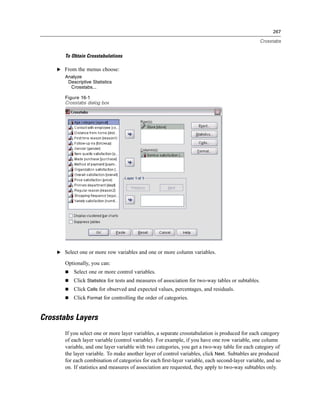
  • 421.
    397 Nonparametric Tests Tests for Several Independent Samples Define Range Figure 36-15 Several Independent Samples Define Range dialog box To define the range, enter integer values for Minimum and Maximum that correspond to the lowest and highest categories of the grouping variable. Cases with values outside of the bounds are excluded. For example, if you specify a minimum value of 1 and a maximum value of 3, only the integer values of 1 through 3 are used. The minimum value must be less than the maximum value, and both values must be specified. Tests for Several Independent Samples Options Figure 36-16 Several Independent Samples Options dialog box Statistics. You can choose one or both summary statistics. Descriptive. Displays the mean, standard deviation, minimum, maximum, and the number of nonmissing cases. Quartiles. Displays values corresponding to the 25th, 50th, and 75th percentiles. Missing Values. Controls the treatment of missing values. Exclude cases test-by-test. When several tests are specified, each test is evaluated separately for missing values. Exclude cases listwise. Cases with missing values for any variable are excluded from all analyses. NPAR TESTS Command Additional Features (K Independent Samples) The command syntax language also allows you to specify a value other than the observed median for the median test (with the MEDIAN subcommand).
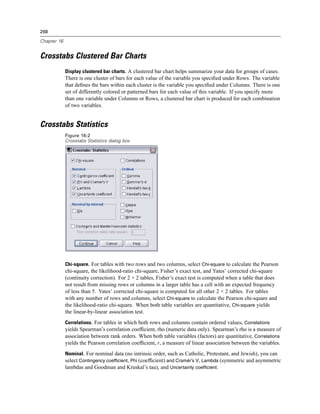
  • 422.
    398 Chapter 36 See the Command Syntax Reference for complete syntax information. Tests for Several Related Samples The Tests for Several Related Samples procedure compares the distributions of two or more variables. Example. Does the public associate different amounts of prestige with a doctor, a lawyer, a police officer, and a teacher? Ten people are asked to rank these four occupations in order of prestige. Friedman’s test indicates that the public does associate different amounts of prestige with these four professions. Statistics. Mean, standard deviation, minimum, maximum, number of nonmissing cases, and quartiles. Tests: Friedman, Kendall’s W, and Cochran’s Q. Data. Use numeric variables that can be ordered. Assumptions. Nonparametric tests do not require assumptions about the shape of the underlying distribution. Use dependent, random samples. To Obtain Tests for Several Related Samples E From the menus choose: Analyze Nonparametric Tests K Related Samples... Figure 36-17 Selecting Cochran as the test type E Select two or more numeric test variables. Tests for Several Related Samples Test Types Three tests are available to compare the distributions of several related variables.
  • 423.
    399 Nonparametric Tests The Friedman test is the nonparametric equivalent of a one-sample repeated measures design or a two-way analysis of variance with one observation per cell. Friedman tests the null hypothesis that k related variables come from the same population. For each case, the k variables are ranked from 1 to k. The test statistic is based on these ranks. Kendall’s W is a normalization of the Friedman statistic. Kendall’s W is interpretable as the coefficient of concordance, which is a measure of agreement among raters. Each case is a judge or rater, and each variable is an item or person being judged. For each variable, the sum of ranks is computed. Kendall’s W ranges between 0 (no agreement) and 1 (complete agreement). Cochran’s Q is identical to the Friedman test but is applicable when all responses are binary. This test is an extension of the McNemar test to the k-sample situation. Cochran’s Q tests the hypothesis that several related dichotomous variables have the same mean. The variables are measured on the same individual or on matched individuals. Tests for Several Related Samples Statistics Figure 36-18 Several Related Samples Statistics dialog box You can choose statistics. Descriptive. Displays the mean, standard deviation, minimum, maximum, and the number of nonmissing cases. Quartiles. Displays values corresponding to the 25th, 50th, and 75th percentiles. NPAR TESTS Command Additional Features (K Related Samples) See the Command Syntax Reference for complete syntax information.
  • 424.
    Chapter 37 Multiple Response Analysis Two procedures are available for analyzing multiple dichotomy and multiple category sets. The Multiple Response Frequencies procedure displays frequency tables. The Multiple Response Crosstabs procedure displays two- and three-dimensional crosstabulations. Before using either procedure, you must define multiple response sets. Example. This example illustrates the use of multiple response items in a market research survey. The data are fictitious and should not be interpreted as real. An airline might survey passengers flying a particular route to evaluate competing carriers. In this example, American Airlines wants to know about its passengers’ use of other airlines on the Chicago-New York route and the relative importance of schedule and service in selecting an airline. The flight attendant hands each passenger a brief questionnaire upon boarding. The first question reads: Circle all airlines you have flown at least once in the last six months on this route—American, United, TWA, USAir, Other. This is a multiple response question, since the passenger can circle more than one response. However, this question cannot be coded directly because a variable can have only one value for each case. You must use several variables to map responses to each question. There are two ways to do this. One is to define a variable corresponding to each of the choices (for example, American, United, TWA, USAir, and Other). If the passenger circles United, the variable united is assigned a code of 1, otherwise 0. This is a multiple dichotomy method of mapping variables. The other way to map responses is the multiple category method, in which you estimate the maximum number of possible responses to the question and set up the same number of variables, with codes used to specify the airline flown. By perusing a sample of questionnaires, you might discover that no user has flown more than three different airlines on this route in the last six months. Further, you find that due to the deregulation of airlines, 10 other airlines are named in the Other category. Using the multiple response method, you would define three variables, each coded as 1 = american, 2 = united, 3 = twa, 4 = usair, 5 = delta, and so on. If a given passenger circles American and TWA, the first variable has a code of 1, the second has a code of 3, and the third has a missing-value code. Another passenger might have circled American and entered Delta. Thus, the first variable has a code of 1, the second has a code of 5, and the third a missing-value code. If you use the multiple dichotomy method, on the other hand, you end up with 14 separate variables. Although either method of mapping is feasible for this survey, the method you choose depends on the distribution of responses. Multiple Response Define Sets The Define Multiple Response Sets procedure groups elementary variables into multiple dichotomy and multiple category sets, for which you can obtain frequency tables and crosstabulations. You can define up to 20 multiple response sets. Each set must have a unique 400
  • 425.
    401 Multiple Response Analysis name. To remove a set, highlight it on the list of multiple response sets and click Remove. To change a set, highlight it on the list, modify any set definition characteristics, and click Change. You can code your elementary variables as dichotomies or categories. To use dichotomous variables, select Dichotomies to create a multiple dichotomy set. Enter an integer value for Counted value. Each variable having at least one occurrence of the counted value becomes a category of the multiple dichotomy set. Select Categories to create a multiple category set having the same range of values as the component variables. Enter integer values for the minimum and maximum values of the range for categories of the multiple category set. The procedure totals each distinct integer value in the inclusive range across all component variables. Empty categories are not tabulated. Each multiple response set must be assigned a unique name of up to seven characters. The procedure prefixes a dollar sign ($) to the name you assign. You cannot use the following reserved names: casenum, sysmis, jdate, date, time, length, and width. The name of the multiple response set exists only for use in multiple response procedures. You cannot refer to multiple response set names in other procedures. Optionally, you can enter a descriptive variable label for the multiple response set. The label can be up to 40 characters long. To Define Multiple Response Sets E From the menus choose: Analyze Multiple Response Define Sets... Figure 37-1 Define Multiple Response Sets dialog box E Select two or more variables. E If your variables are coded as dichotomies, indicate which value you want to have counted. If your variables are coded as categories, define the range of the categories.
  • 426.
    402 Chapter 37 E Enter a unique name for each multiple response set. E Click Add to add the multiple response set to the list of defined sets. Multiple Response Frequencies The Multiple Response Frequencies procedure produces frequency tables for multiple response sets. You must first define one or more multiple response sets (see “Multiple Response Define Sets”). For multiple dichotomy sets, category names shown in the output come from variable labels defined for elementary variables in the group. If the variable labels are not defined, variable names are used as labels. For multiple category sets, category labels come from the value labels of the first variable in the group. If categories missing for the first variable are present for other variables in the group, define a value label for the missing categories. Missing Values. Cases with missing values are excluded on a table-by-table basis. Alternatively, you can choose one or both of the following: Exclude cases listwise within dichotomies. Excludes cases with missing values for any variable from the tabulation of the multiple dichotomy set. This applies only to multiple response sets defined as dichotomy sets. By default, a case is considered missing for a multiple dichotomy set if none of its component variables contains the counted value. Cases with missing values for some (but not all variables) are included in the tabulations of the group if at least one variable contains the counted value. Exclude cases listwise within categories. Excludes cases with missing values for any variable from tabulation of the multiple category set. This applies only to multiple response sets defined as category sets. By default, a case is considered missing for a multiple category set only if none of its components has valid values within the defined range. Example. Each variable created from a survey question is an elementary variable. To analyze a multiple response item, you must combine the variables into one of two types of multiple response sets: a multiple dichotomy set or a multiple category set. For example, if an airline survey asked which of three airlines (American, United, TWA) you have flown in the last six months and you used dichotomous variables and defined a multiple dichotomy set, each of the three variables in the set would become a category of the group variable. The counts and percentages for the three airlines are displayed in one frequency table. If you discover that no respondent mentioned more than two airlines, you could create two variables, each having three codes, one for each airline. If you define a multiple category set, the values are tabulated by adding the same codes in the elementary variables together. The resulting set of values is the same as those for each of the elementary variables. For example, 30 responses for United are the sum of the five United responses for airline 1 and the 25 United responses for airline 2. The counts and percentages for the three airlines are displayed in one frequency table. Statistics. Frequency tables displaying counts, percentages of responses, percentages of cases, number of valid cases, and number of missing cases. Data. Use multiple response sets. Assumptions. The counts and percentages provide a useful description for data from any distribution.
  • 427.
    403 Multiple Response Analysis Related procedures. The Multiple Response Define Sets procedure allows you to define multiple response sets. To Obtain Multiple Response Frequencies E From the menus choose: Analyze Multiple Response Frequencies... Figure 37-2 Multiple Response Frequencies dialog box E Select one or more multiple response sets. Multiple Response Crosstabs The Multiple Response Crosstabs procedure crosstabulates defined multiple response sets, elementary variables, or a combination. You can also obtain cell percentages based on cases or responses, modify the handling of missing values, or get paired crosstabulations. You must first define one or more multiple response sets (see “To Define Multiple Response Sets”). For multiple dichotomy sets, category names shown in the output come from variable labels defined for elementary variables in the group. If the variable labels are not defined, variable names are used as labels. For multiple category sets, category labels come from the value labels of the first variable in the group. If categories missing for the first variable are present for other variables in the group, define a value label for the missing categories. The procedure displays category labels for columns on three lines, with up to eight characters per line. To avoid splitting words, you can reverse row and column items or redefine labels. Example. Both multiple dichotomy and multiple category sets can be crosstabulated with other variables in this procedure. An airline passenger survey asks passengers for the following information: Circle all of the following airlines you have flown at least once in the last six months (American, United, TWA). Which is more important in selecting a flight—schedule or service? Select only one. After entering the data as dichotomies or multiple categories and combining them into a set, you can crosstabulate the airline choices with the question involving service or schedule.
  • 428.
    404 Chapter 37 Statistics. Crosstabulation with cell, row, column, and total counts, and cell, row, column, and total percentages. The cell percentages can be based on cases or responses. Data. Use multiple response sets or numeric categorical variables. Assumptions. The counts and percentages provide a useful description of data from any distribution. Related procedures. The Multiple Response Define Sets procedure allows you to define multiple response sets. To Obtain Multiple Response Crosstabs E From the menus choose: Analyze Multiple Response Crosstabs... Figure 37-3 Multiple Response Crosstabs dialog box E Select one or more numeric variables or multiple response sets for each dimension of the crosstabulation. E Define the range of each elementary variable. Optionally, you can obtain a two-way crosstabulation for each category of a control variable or multiple response set. Select one or more items for the Layer(s) list.
  • 429.
    405 Multiple Response Analysis Multiple Response Crosstabs Define Ranges Figure 37-4 Multiple Response Crosstabs Define Variable Range dialog box Value ranges must be defined for any elementary variable in the crosstabulation. Enter the integer minimum and maximum category values that you want to tabulate. Categories outside the range are excluded from analysis. Values within the inclusive range are assumed to be integers (non-integers are truncated). Multiple Response Crosstabs Options Figure 37-5 Multiple Response Crosstabs Options dialog box Cell Percentages. Cell counts are always displayed. You can choose to display row percentages, column percentages, and two-way table (total) percentages. Percentages Based on. You can base cell percentages on cases (or respondents). This is not available if you select matching of variables across multiple category sets. You can also base cell percentages on responses. For multiple dichotomy sets, the number of responses is equal to the number of counted values across cases. For multiple category sets, the number of responses is the number of values in the defined range. Missing Values. You can choose one or both of the following: Exclude cases listwise within dichotomies. Excludes cases with missing values for any variable from the tabulation of the multiple dichotomy set. This applies only to multiple response sets defined as dichotomy sets. By default, a case is considered missing for a multiple dichotomy set if none of its component variables contains the counted value. Cases with missing values
  • 430.
    406 Chapter 37 for some, but not all, variables are included in the tabulations of the group if at least one variable contains the counted value. Exclude cases listwise within categories. Excludes cases with missing values for any variable from tabulation of the multiple category set. This applies only to multiple response sets defined as category sets. By default, a case is considered missing for a multiple category set only if none of its components has valid values within the defined range. By default, when crosstabulating two multiple category sets, the procedure tabulates each variable in the first group with each variable in the second group and sums the counts for each cell; therefore, some responses can appear more than once in a table. You can choose the following option: Match variables across response sets. Pairs the first variable in the first group with the first variable in the second group, and so on. If you select this option, the procedure bases cell percentages on responses rather than respondents. Pairing is not available for multiple dichotomy sets or elementary variables. MULT RESPONSE Command Additional Features The command syntax language also allows you to: Obtain crosstabulation tables with up to five dimensions (with the BY subcommand). Change output formatting options, including suppression of value labels (with the FORMAT subcommand). See the Command Syntax Reference for complete syntax information.
  • 431.
    Chapter 38 Reporting Results Case listings and descriptive statistics are basic tools for studying and presenting data. You can obtain case listings with the Data Editor or the Summarize procedure, frequency counts and descriptive statistics with the Frequencies procedure, and subpopulation statistics with the Means procedure. Each of these uses a format designed to make information clear. If you want to display the information in a different format, Report Summaries in Rows and Report Summaries in Columns give you the control you need over data presentation. Report Summaries in Rows Report Summaries in Rows produces reports in which different summary statistics are laid out in rows. Case listings are also available, with or without summary statistics. Example. A company with a chain of retail stores keeps records of employee information, including salary, job tenure, and the store and division in which each employee works. You could generate a report that provides individual employee information (listing) broken down by store and division (break variables), with summary statistics (for example, mean salary) for each store, division, and division within each store. Data Columns. Lists the report variables for which you want case listings or summary statistics and controls the display format of data columns. Break Columns. Lists optional break variables that divide the report into groups and controls the summary statistics and display formats of break columns. For multiple break variables, there will be a separate group for each category of each break variable within categories of the preceding break variable in the list. Break variables should be discrete categorical variables that divide cases into a limited number of meaningful categories. Individual values of each break variable appear, sorted, in a separate column to the left of all data columns. Report. Controls overall report characteristics, including overall summary statistics, display of missing values, page numbering, and titles. Display cases. Displays the actual values (or value labels) of the data-column variables for every case. This produces a listing report, which can be much longer than a summary report. Preview. Displays only the first page of the report. This option is useful for previewing the format of your report without processing the whole report. Data are already sorted. For reports with break variables, the data file must be sorted by break variable values before generating the report. If your data file is already sorted by values of the break variables, you can save processing time by selecting this option. This option is particularly useful after running a preview report. 407
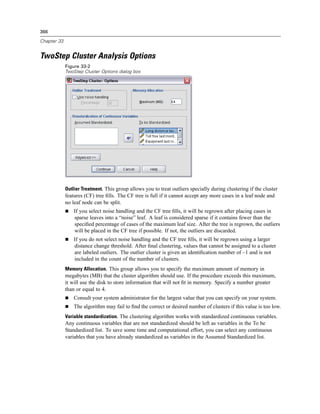
  • 432.
    408 Chapter 38 To Obtaina Summary Report: Summaries in Rows E From the menus choose: Analyze Reports Report Summaries in Rows... E Select one or more variables for Data Columns. One column in the report is generated for each variable selected. E For reports sorted and displayed by subgroups, select one or more variables for Break Columns. E For reports with summary statistics for subgroups defined by break variables, select the break variable in the Break Column Variables list and click Summary in the Break Columns group to specify the summary measure(s). E For reports with overall summary statistics, click Summary to specify the summary measure(s). Figure 38-1 Report Summaries in Rows dialog box Report Data Column/Break Format The Format dialog boxes control column titles, column width, text alignment, and the display of data values or value labels. Data Column Format controls the format of data columns on the right side of the report page. Break Format controls the format of break columns on the left side.
  • 433.
    409 Reporting Results Figure 38-2 Report Data Column Format dialog box Column Title. For the selected variable, controls the column title. Long titles are automatically wrapped within the column. Use the Enter key to manually insert line breaks where you want titles to wrap. Value Position within Column. For the selected variable, controls the alignment of data values or value labels within the column. Alignment of values or labels does not affect alignment of column headings. You can either indent the column contents by a specified number of characters or center the contents. Column Content. For the selected variable, controls the display of either data values or defined value labels. Data values are always displayed for any values that do not have defined value labels. (Not available for data columns in column summary reports.) Report Summary Lines for/Final Summary Lines The two Summary Lines dialog boxes control the display of summary statistics for break groups and for the entire report. Summary Lines controls subgroup statistics for each category defined by the break variable(s). Final Summary Lines controls overall statistics, displayed at the end of the report.
  • 434.
    410 Chapter 38 Figure 38-3 Report Summary Lines dialog box Available summary statistics are sum, mean, minimum, maximum, number of cases, percentage of cases above or below a specified value, percentage of cases within a specified range of values, standard deviation, kurtosis, variance, and skewness. Report Break Options Break Options controls spacing and pagination of break category information. Figure 38-4 Report Break Options dialog box Page Control. Controls spacing and pagination for categories of the selected break variable. You can specify a number of blank lines between break categories or start each break category on a new page. Blank Lines before Summaries. Controls the number of blank lines between break category labels or data and summary statistics. This is particularly useful for combined reports that include both individual case listings and summary statistics for break categories; in these reports, you can insert space between the case listings and the summary statistics. Report Options Report Options controls the treatment and display of missing values and report page numbering.
  • 435.
    411 Reporting Results Figure 38-5 Report Options dialog box Exclude cases with missing values listwise. Eliminates (from the report) any case with missing values for any of the report variables. Missing Values Appear as. Allows you to specify the symbol that represents missing values in the data file. The symbol can be only one character and is used to represent both system-missing and user-missing values. Number Pages from. Allows you to specify a page number for the first page of the report. Report Layout Report Layout controls the width and length of each report page, placement of the report on the page, and the insertion of blank lines and labels. Figure 38-6 Report Layout dialog box Page Layout. Controls the page margins expressed in lines (top and bottom) and characters (left and right) and reports alignment within the margins. Page Titles and Footers. Controls the number of lines that separate page titles and footers from the body of the report.
  • 436.
    412 Chapter 38 Break Columns. Controls the display of break columns. If multiple break variables are specified, they can be in separate columns or in the first column. Placing all break variables in the first column produces a narrower report. Column Titles. Controls the display of column titles, including title underlining, space between titles and the body of the report, and vertical alignment of column titles. Data Column Rows and Break Labels. Controls the placement of data column information (data values and/or summary statistics) in relation to the break labels at the start of each break category. The first row of data column information can start either on the same line as the break category label or on a specified number of lines after the break category label. (Not available for column summary reports.) Report Titles Report Titles controls the content and placement of report titles and footers. You can specify up to 10 lines of page titles and up to 10 lines of page footers, with left-justified, centered, and right-justified components on each line. Figure 38-7 Report Titles dialog box If you insert variables into titles or footers, the current value label or value of the variable is displayed in the title or footer. In titles, the value label corresponding to the value of the variable at the beginning of the page is displayed. In footers, the value label corresponding to the value of the variable at the end of the page is displayed. If there is no value label, the actual value is displayed. Special Variables. The special variables DATE and PAGE allow you to insert the current date or the page number into any line of a report header or footer. If your data file contains variables named DATE or PAGE, you cannot use these variables in report titles or footers.
  • 437.
    413 Reporting Results Report Summaries in Columns Report Summaries in Columns produces summary reports in which different summary statistics appear in separate columns. Example. A company with a chain of retail stores keeps records of employee information, including salary, job tenure, and the division in which each employee works. You could generate a report that provides summary salary statistics (for example, mean, minimum, and maximum) for each division. Data Columns. Lists the report variables for which you want summary statistics and controls the display format and summary statistics displayed for each variable. Break Columns. Lists optional break variables that divide the report into groups and controls the display formats of break columns. For multiple break variables, there will be a separate group for each category of each break variable within categories of the preceding break variable in the list. Break variables should be discrete categorical variables that divide cases into a limited number of meaningful categories. Report. Controls overall report characteristics, including display of missing values, page numbering, and titles. Preview. Displays only the first page of the report. This option is useful for previewing the format of your report without processing the whole report. Data are already sorted. For reports with break variables, the data file must be sorted by break variable values before generating the report. If your data file is already sorted by values of the break variables, you can save processing time by selecting this option. This option is particularly useful after running a preview report. To Obtain a Summary Report: Summaries in Columns E From the menus choose: Analyze Reports Report Summaries in Columns... E Select one or more variables for Data Columns. One column in the report is generated for each variable selected. E To change the summary measure for a variable, select the variable in the Data Column Variables list and click Summary. E To obtain more than one summary measure for a variable, select the variable in the source list and move it into the Data Column Variables list multiple times, one for each summary measure you want. E To display a column containing the sum, mean, ratio, or other function of existing columns, click Insert Total. This places a variable called total into the Data Columns list. E For reports sorted and displayed by subgroups, select one or more variables for Break Columns.
  • 438.
    414 Chapter 38 Figure 38-8 Report Summaries in Columns dialog box Data Columns Summary Function Summary Lines controls the summary statistic displayed for the selected data column variable.
  • 439.
    415 Reporting Results Figure 38-9 Report Summary Lines dialog box Available summary statistics are sum, mean, minimum, maximum, number of cases, percentage of cases above or below a specified value, percentage of cases within a specified range of values, standard deviation, variance, kurtosis, and skewness. Data Columns Summary for Total Column Summary Column controls the total summary statistics that summarize two or more data columns. Available total summary statistics are sum of columns, mean of columns, minimum, maximum, difference between values in two columns, quotient of values in one column divided by values in another column, and product of columns values multiplied together. Figure 38-10 Report Summary Column dialog box Sum of columns. The total column is the sum of the columns in the Summary Column list.
  • 440.
    416 Chapter 38 Mean of columns. The total column is the average of the columns in the Summary Column list. Minimum of columns. The total column is the minimum of the columns in the Summary Column list. Maximum of columns. The total column is the maximum of the columns in the Summary Column list. 1st column – 2nd column. The total column is the difference of the columns in the Summary Column list. The Summary Column list must contain exactly two columns. 1st column / 2nd column. The total column is the quotient of the columns in the Summary Column list. The Summary Column list must contain exactly two columns. % 1st column / 2nd column. The total column is the first column’s percentage of the second column in the Summary Column list. The Summary Column list must contain exactly two columns. Product of columns. The total column is the product of the columns in the Summary Column list. Report Column Format Data and break column formatting options for Report Summaries in Columns are the same as those described for Report Summaries in Rows. Report Summaries in Columns Break Options Break Options controls subtotal display, spacing, and pagination for break categories. Figure 38-11 Report Break Options dialog box Subtotal. Controls the display subtotals for break categories. Page Control. Controls spacing and pagination for categories of the selected break variable. You can specify a number of blank lines between break categories or start each break category on a new page.
  • 441.
    417 Reporting Results Blank Lines before Subtotal. Controls the number of blank lines between break category data and subtotals. Report Summaries in Columns Options Options controls the display of grand totals, the display of missing values, and pagination in column summary reports. Figure 38-12 Report Options dialog box Grand Total. Displays and labels a grand total for each column; displayed at the bottom of the column. Missing values. You can exclude missing values from the report or select a single character to indicate missing values in the report. Report Layout for Summaries in Columns Report layout options for Report Summaries in Columns are the same as those described for Report Summaries in Rows. REPORT Command Additional Features The command syntax language also allows you to: Display different summary functions in the columns of a single summary line. Insert summary lines into data columns for variables other than the data column variable or for various combinations (composite functions) of summary functions. Use Median, Mode, Frequency, and Percent as summary functions. Control more precisely the display format of summary statistics. Insert blank lines at various points in reports. Insert blank lines after every nth case in listing reports. Because of the complexity of the REPORT syntax, you may find it useful, when building a new report with syntax, to approximate the report generated from the dialog boxes, copy and paste the corresponding syntax, and refine that syntax to yield the exact report that you want.
  • 442.
    418 Chapter 38 See the Command Syntax Reference for complete syntax information.
  • 443.
    Chapter 39 Reliability Analysis Reliability analysis allows you to study the properties of measurement scales and the items that compose the scales. The Reliability Analysis procedure calculates a number of commonly used measures of scale reliability and also provides information about the relationships between individual items in the scale. Intraclass correlation coefficients can be used to compute inter-rater reliability estimates. Example. Does my questionnaire measure customer satisfaction in a useful way? Using reliability analysis, you can determine the extent to which the items in your questionnaire are related to each other, you can get an overall index of the repeatability or internal consistency of the scale as a whole, and you can identify problem items that should be excluded from the scale. Statistics. Descriptives for each variable and for the scale, summary statistics across items, inter-item correlations and covariances, reliability estimates, ANOVA table, intraclass correlation coefficients, Hotelling’s T2, and Tukey’s test of additivity. Models. The following models of reliability are available: Alpha (Cronbach). This model is a model of internal consistency, based on the average inter-item correlation. Split-half. This model splits the scale into two parts and examines the correlation between the parts. Guttman. This model computes Guttman’s lower bounds for true reliability. Parallel. This model assumes that all items have equal variances and equal error variances across replications. Strict parallel. This model makes the assumptions of the Parallel model and also assumes equal means across items. Data. Data can be dichotomous, ordinal, or interval, but the data should be coded numerically. Assumptions. Observations should be independent, and errors should be uncorrelated between items. Each pair of items should have a bivariate normal distribution. Scales should be additive, so that each item is linearly related to the total score. Related procedures. If you want to explore the dimensionality of your scale items (to see whether more than one construct is needed to account for the pattern of item scores), use factor analysis or multidimensional scaling. To identify homogeneous groups of variables, use hierarchical cluster analysis to cluster variables. 419
  • 444.
    420 Chapter 39 To Obtain a Reliability Analysis E From the menus choose: Analyze Scale Reliability Analysis... Figure 39-1 Reliability Analysis dialog box E Select two or more variables as potential components of an additive scale. E Choose a model from the Model drop-down list.
  • 445.
    421 Reliability Analysis Reliability Analysis Statistics Figure 39-2 Reliability Analysis Statistics dialog box You can select various statistics that describe your scale and items. Statistics that are reported by default include the number of cases, the number of items, and reliability estimates as follows: Alpha models. Coefficient alpha; for dichotomous data, this is equivalent to the Kuder-Richardson 20 (KR20) coefficient. Split-half models. Correlation between forms, Guttman split-half reliability, Spearman-Brown reliability (equal and unequal length), and coefficient alpha for each half. Guttman models. Reliability coefficients lambda 1 through lambda 6. Parallel and Strict parallel models. Test for goodness of fit of model; estimates of error variance, common variance, and true variance; estimated common inter-item correlation; estimated reliability; and unbiased estimate of reliability. Descriptives for. Produces descriptive statistics for scales or items across cases. Item. Produces descriptive statistics for items across cases. Scale. Produces descriptive statistics for scales. Scale if item deleted. Displays summary statistics comparing each item to the scale that is composed of the other items. Statistics include scale mean and variance if the item were to be deleted from the scale, correlation between the item and the scale that is composed of other items, and Cronbach’s alpha if the item were to be deleted from the scale. Summaries. Provides descriptive statistics of item distributions across all items in the scale.
  • 446.
    422 Chapter 39 Means. Summary statistics for item means. The smallest, largest, and average item means, the range and variance of item means, and the ratio of the largest to the smallest item means are displayed. Variances. Summary statistics for item variances. The smallest, largest, and average item variances, the range and variance of item variances, and the ratio of the largest to the smallest item variances are displayed. Covariances. Summary statistics for inter-item covariances. The smallest, largest, and average inter-item covariances, the range and variance of inter-item covariances, and the ratio of the largest to the smallest inter-item covariances are displayed. Correlations. Summary statistics for inter-item correlations. The smallest, largest, and average inter-item correlations, the range and variance of inter-item correlations, and the ratio of the largest to the smallest inter-item correlations are displayed. Inter-Item. Produces matrices of correlations or covariances between items. ANOVA Table. Produces tests of equal means. F test. Displays a repeated measures analysis-of-variance table. Friedman chi-square. Displays Friedman’s chi-square and Kendall’s coefficient of concordance. This option is appropriate for data that are in the form of ranks. The chi-square test replaces the usual F test in the ANOVA table. Cochran chi-square. Displays Cochran’s Q. This option is appropriate for data that are dichotomous. The Q statistic replaces the usual F statistic in the ANOVA table. Hotelling’s T-square. Produces a multivariate test of the null hypothesis that all items on the scale have the same mean. Tukey’s test of additivity. Produces a test of the assumption that there is no multiplicative interaction among the items. Intraclass correlation coefficient. Produces measures of consistency or agreement of values within cases. Model. Select the model for calculating the intraclass correlation coefficient. Available models are Two-Way Mixed, Two-Way Random, and One-Way Random. Select Two-Way Mixed when people effects are random and the item effects are fixed, select Two-Way Random when people effects and the item effects are random, or select One-Way Random when people effects are random. Type. Select the type of index. Available types are Consistency and Absolute Agreement. Confidence interval. Specify the level for the confidence interval. The default is 95%. Test value. Specify the hypothesized value of the coefficient for the hypothesis test. This value is the value to which the observed value is compared. The default value is 0. RELIABILITY Command Additional Features The command syntax language also allows you to: Read and analyze a correlation matrix.
  • 447.
    423 Reliability Analysis Write a correlation matrix for later analysis. Specify splits other than equal halves for the split-half method. See the Command Syntax Reference for complete syntax information.
  • 448.
    Chapter 40 Multidimensional Scaling Multidimensional scaling attempts to find the structure in a set of distance measures between objects or cases. This task is accomplished by assigning observations to specific locations in a conceptual space (usually two- or three-dimensional) such that the distances between points in the space match the given dissimilarities as closely as possible. In many cases, the dimensions of this conceptual space can be interpreted and used to further understand your data. If you have objectively measured variables, you can use multidimensional scaling as a data reduction technique (the Multidimensional Scaling procedure will compute distances from multivariate data for you, if necessary). Multidimensional scaling can also be applied to subjective ratings of dissimilarity between objects or concepts. Additionally, the Multidimensional Scaling procedure can handle dissimilarity data from multiple sources, as you might have with multiple raters or questionnaire respondents. Example. How do people perceive relationships between different cars? If you have data from respondents indicating similarity ratings between different makes and models of cars, multidimensional scaling can be used to identify dimensions that describe consumers’ perceptions. You might find, for example, that the price and size of a vehicle define a two-dimensional space, which accounts for the similarities that are reported by your respondents. Statistics. For each model: data matrix, optimally scaled data matrix, S-stress (Young’s), stress (Kruskal’s), RSQ, stimulus coordinates, average stress and RSQ for each stimulus (RMDS models). For individual difference (INDSCAL) models: subject weights and weirdness index for each subject. For each matrix in replicated multidimensional scaling models: stress and RSQ for each stimulus. Plots: stimulus coordinates (two- or three-dimensional), scatterplot of disparities versus distances. Data. If your data are dissimilarity data, all dissimilarities should be quantitative and should be measured in the same metric. If your data are multivariate data, variables can be quantitative, binary, or count data. Scaling of variables is an important issue—differences in scaling may affect your solution. If your variables have large differences in scaling (for example, one variable is measured in dollars and the other variable is measured in years), consider standardizing them (this process can be done automatically by the Multidimensional Scaling procedure). Assumptions. The Multidimensional Scaling procedure is relatively free of distributional assumptions. Be sure to select the appropriate measurement level (ordinal, interval, or ratio) in the Multidimensional Scaling Options dialog box so that the results are computed correctly. Related procedures. If your goal is data reduction, an alternative method to consider is factor analysis, particularly if your variables are quantitative. If you want to identify groups of similar cases, consider supplementing your multidimensional scaling analysis with a hierarchical or k-means cluster analysis. 424
  • 449.
    425 Multidimensional Scaling To Obtain a Multidimensional Scaling Analysis E From the menus choose: Analyze Scale Multidimensional Scaling... Figure 40-1 Multidimensional Scaling dialog box E In Distances, select either Data are distances or Create distances from data. E If your data are distances, select at least four numeric variables for analysis. (You can also click Shape to indicate the shape of the distance matrix.) E If you want to create the distances before analyzing them, select at least one numeric variable. (You can also click Measure to specify the type of distance measure that you want.) Each grouping variable can be either numeric or string, and you can create separate matrices for each category of a grouping variable by moving that variable into the Individual Matrices For list.
  • 450.
    426 Chapter 40 Multidimensional ScalingShape of Data Figure 40-2 Multidimensional Scaling Shape dialog box If your active dataset represents distances among a set of objects or represents distances between two sets of objects, specify the shape of your data matrix in order to get the correct results. Note: You cannot select Square symmetric if the Model dialog box specifies row conditionality. Multidimensional Scaling Create Measure Figure 40-3 Multidimensional Scaling Create Measure from Data dialog box Multidimensional scaling uses dissimilarity data to create a scaling solution. If your data are multivariate data (values of measured variables), you must create dissimilarity data in order to compute a multidimensional scaling solution. You can specify the details of creating dissimilarity measures from your data.
  • 451.
    427 Multidimensional Scaling Measure. Allows you to specify the dissimilarity measure for your analysis. Select one alternative from the Measure group corresponding to your type of data, and then choose one of the measures from the drop-down list corresponding to that type of measure. Available alternatives are: Interval. Euclidean distance, Squared Euclidean distance, Chebychev, Block, Minkowski, or Customized. Counts. Chi-square measure or Phi-square measure. Binary. Euclidean distance, Squared Euclidean distance, Size difference, Pattern difference, Variance, or Lance and Williams. Create Distance Matrix. Allows you to choose the unit of analysis. Alternatives are Between variables or Between cases. Transform Values. In certain cases, such as when variables are measured on very different scales, you may want to standardize values before computing proximities (not applicable to binary data). Choose a standardization method from the Standardize drop-down list. If no standardization is required, choose None. Multidimensional Scaling Model Figure 40-4 Multidimensional Scaling Model dialog box Correct estimation of a multidimensional scaling model depends on aspects of the data and the model itself. Level of Measurement. Allows you to specify the level of your data. Alternatives are Ordinal, Interval, or Ratio. If your variables are ordinal, selecting Untie tied observations requests that the variables be treated as continuous variables, so that ties (equal values for different cases) are resolved optimally.
  • 452.
    428 Chapter 40 Conditionality. Allows you to specify which comparisons are meaningful. Alternatives are Matrix, Row, or Unconditional. Dimensions. Allows you to specify the dimensionality of the scaling solution(s). One solution is calculated for each number in the range. Specify integers between 1 and 6; a minimum of 1 is allowed only if you select Euclidean distance as the scaling model. For a single solution, specify the same number for minimum and maximum. Scaling Model. Allows you to specify the assumptions by which the scaling is performed. Available alternatives are Euclidean distance or Individual differences Euclidean distance (also known as INDSCAL). For the Individual differences Euclidean distance model, you can select Allow negative subject weights, if appropriate for your data. Multidimensional Scaling Options Figure 40-5 Multidimensional Scaling Options dialog box You can specify options for your multidimensional scaling analysis. Display. Allows you to select various types of output. Available options are Group plots, Individual subject plots, Data matrix, and Model and options summary. Criteria. Allows you to determine when iteration should stop. To change the defaults, enter values for S-stress convergence, Minimum s-stress value, and Maximum iterations. Treat distances less than n as missing. Distances that are less than this value are excluded from the analysis.
  • 453.
    429 Multidimensional Scaling ALSCAL Command Additional Features The command syntax language also allows you to: Use three additional model types, known as ASCAL, AINDS, and GEMSCAL in the literature about multidimensional scaling. Carry out polynomial transformations on interval and ratio data. Analyze similarities (rather than distances) with ordinal data. Analyze nominal data. Save various coordinate and weight matrices into files and read them back in for analysis. Constrain multidimensional unfolding. See the Command Syntax Reference for complete syntax information.
  • 454.
    Chapter 41 Ratio Statistics The Ratio Statistics procedure provides a comprehensive list of summary statistics for describing the ratio between two scale variables. You can sort the output by values of a grouping variable in ascending or descending order. The ratio statistics report can be suppressed in the output, and the results can be saved to an external file. Example. Is there good uniformity in the ratio between the appraisal price and sale price of homes in each of five counties? From the output, you might learn that the distribution of ratios varies considerably from county to county. Statistics. Median, mean, weighted mean, confidence intervals, coefficient of dispersion (COD), median-centered coefficient of variation, mean-centered coefficient of variation, price-related differential (PRD), standard deviation, average absolute deviation (AAD), range, minimum and maximum values, and the concentration index computed for a user-specified range or percentage within the median ratio. Data. Use numeric codes or strings to code grouping variables (nominal or ordinal level measurements). Assumptions. The variables that define the numerator and denominator of the ratio should be scale variables that take positive values. To Obtain Ratio Statistics E From the menus choose: Analyze Descriptive Statistics Ratio... 430
  • 455.
    431 Ratio Statistics Figure 41-1 Ratio Statistics dialog box E Select a numerator variable. E Select a denominator variable. Optionally: Select a grouping variable and specify the ordering of the groups in the results. Choose whether to display the results in the Viewer. Choose whether to save the results to an external file for later use, and specify the name of the file to which the results are saved.
  • 456.
    432 Chapter 41 Ratio Statistics Figure 41-2 Ratio Statistics dialog box Central Tendency. Measures of central tendency are statistics that describe the distribution of ratios. Median. The value such that the number of ratios that are less than this value and the number of ratios that are greater than this value are the same. Mean. The result of summing the ratios and dividing the result by the total number of ratios. Weighted Mean. The result of dividing the mean of the numerator by the mean of the denominator. Weighted mean is also the mean of the ratios weighted by the denominator. Confidence Intervals. Displays confidence intervals for the mean, the median, and the weighted mean (if requested). Specify a value that is greater than or equal to 0 and less than 100 as the confidence level. Dispersion. These statistics measure the amount of variation, or spread, in the observed values. AAD. The average absolute deviation is the result of summing the absolute deviations of the ratios about the median and dividing the result by the total number of ratios. COD. The coefficient of dispersion is the result of expressing the average absolute deviation as a percentage of the median. PRD. The price-related differential, also known as the index of regressivity, is the result of dividing the mean by the weighted mean. Median Centered COV. The median-centered coefficient of variation is the result of expressing the root mean squares of deviation from the median as a percentage of the median. Mean Centered COV. The mean-centered coefficient of variation is the result of expressing the standard deviation as a percentage of the mean.
  • 457.
    433 Ratio Statistics Standard deviation. The standard deviation is the result of summing the squared deviations of the ratios about the mean, dividing the result by the total number of ratios minus one, and taking the positive square root. Range. The range is the result of subtracting the minimum ratio from the maximum ratio. Minimum. The minimum is the smallest ratio. Maximum. The maximum is the largest ratio. Concentration Index. The coefficient of concentration measures the percentage of ratios that fall within an interval. It can be computed in two different ways: Ratios Between. Here the interval is defined explicitly by specifying the low and high values of the interval. Enter values for the low proportion and high proportion, and click Add to obtain an interval. Ratios Within. Here the interval is defined implicitly by specifying the percentage of the median. Enter a value between 0 and 100, and click Add. The lower end of the interval is equal to (1 – 0.01 × value) × median, and the upper end is equal to (1 + 0.01 × value) × median.
  • 458.
    Chapter 42 ROC Curves This procedure is a useful way to evaluate the performance of classification schemes in which there is one variable with two categories by which subjects are classified. Example. It is in a bank’s interest to correctly classify customers into those customers who will and will not default on their loans, so special methods are developed for making these decisions. ROC curves can be used to evaluate how well these methods perform. Statistics. Area under the ROC curve with confidence interval and coordinate points of the ROC curve. Plots: ROC curve. Methods. The estimate of the area under the ROC curve can be computed either nonparametrically or parametrically using a binegative exponential model. Data. Test variables are quantitative. Test variables are often composed of probabilities from discriminant analysis or logistic regression or composed of scores on an arbitrary scale indicating a rater’s “strength of conviction” that a subject falls into one category or another category. The state variable can be of any type and indicates the true category to which a subject belongs. The value of the state variable indicates which category should be considered positive. Assumptions. It is assumed that increasing numbers on the rater scale represent the increasing belief that the subject belongs to one category, while decreasing numbers on the scale represent the increasing belief that the subject belongs to the other category. The user must choose which direction is positive. It is also assumed that the true category to which each subject belongs is known. To Obtain an ROC Curve E From the menus choose: Analyze ROC Curve... 434
  • 459.
    435 ROC Curves Figure 42-1 ROC Curve dialog box E Select one or more test probability variables. E Select one state variable. E Identify the positive value for the state variable.
  • 460.
    436 Chapter 42 ROC CurveOptions Figure 42-2 ROC Curve Options dialog box You can specify the following options for your ROC analysis: Classification. Allows you to specify whether the cutoff value should be included or excluded when making a positive classification. This setting currently has no effect on the output. Test Direction. Allows you to specify the direction of the scale in relation to the positive category. Parameters for Standard Error of Area. Allows you to specify the method of estimating the standard error of the area under the curve. Available methods are nonparametric and binegative exponential. Also allows you to set the level for the confidence interval. The available range is 50.1% to 99.9%. Missing Values. Allows you to specify how missing values are handled.
  • 461.
    Chapter 43 Overview of the Chart Facility High-resolution charts and plots are created by the procedures on the Graphs menu and by many of the procedures on the Analyze menu. This chapter provides an overview of the chart facility. Building and Editing a Chart Before you can create a chart, you need to have your data in the Data Editor. You can enter the data directly into the Data Editor; open a previously saved data file; or read a spreadsheet, tab-delimited data file, or database file. The Tutorial selection on the Help menu has online examples of creating and modifying a chart, and the online Help system provides information about creating and modifying all chart types. Building Charts The Chart Builder allows you to build charts from predefined gallery charts or from the individual parts (for example, axes and bars). You build a chart by dragging and dropping the gallery charts or basic elements onto the canvas, which is the large area to the right of the Variables list in the Chart Builder dialog box. As you are building the chart, the canvas displays a preview of the chart. Although the preview uses defined variable labels and measurement levels, it does not display your actual data. Instead, it uses randomly generated data to provide a rough sketch of how the chart will look. Using the gallery is the preferred method for new users. For information about using the gallery, see Building a Chart from the Gallery on p. 438. How to Start the Chart Builder E From the menus choose: Graphs Chart Builder This opens the Chart Builder dialog box. 437
  • 462.
    438 Chapter 43 Figure 43-1 Chart Builder dialog box Building a Chart from the Gallery The easiest method for building charts is to use the gallery. Following are general steps for building a chart from the gallery. E Click the Gallery tab if it is not already displayed. E In the Choose From list, select a category of charts. Each category offers several types. E Drag the picture of the desired chart onto the canvas. You can also double-click the picture. If the canvas already displays a chart, the gallery chart replaces the axis set and graphic elements on the chart. E Drag variables from the Variables list and drop them into the axis drop zones and, if available, the grouping drop zone. If an axis drop zone already displays a statistic and you want to use that statistic, you do not have to drag a variable into the drop zone. You need to add a variable to a zone only when the text in the zone is blue. If the text is black, the zone already contains a variable or statistic.
  • 463.
    439 Overview of the Chart Facility Note: The measurement level of your variables is important. The Chart Builder sets defaults based on the measurement level while you are building the chart. Furthermore, the resulting chart may also look different for different measurement levels. You can temporarily change a variable’s measurement level by right-clicking the variable and choosing an option. Figure 43-2 Chart Builder dialog box with completed drop zones E If you need to change statistics or modify attributes of the axes or legends (such as the scale range), click Element Properties.
  • 464.
    440 Chapter 43 Figure 43-3 Element Properties dialog box E In the Edit Properties Of list, select the item you want to change. (For information about the specific properties, click Help.) E After making any changes, click Apply. E If you need to add more variables to the chart (for example, for clustering or paneling), click the Groups/Point ID tab in the Chart Builder dialog box and select one or more options. Then drag categorical variables to the new drop zones that appear on the canvas. E If you want to transpose the chart (for example, to make the bars horizontal), click the Basic Elements tab and then click Transpose. E Click OK to create the chart. The chart is displayed in the Viewer.
  • 465.
    441 Overview of the Chart Facility Figure 43-4 Bar chart displayed in Viewer window Editing Charts The Chart Editor provides a powerful, easy-to-use environment where you can customize your charts and explore your data. The Chart Editor features: Simple, intuitive user interface. You can quickly select and edit parts of the chart using menus, context menus, and toolbars. You can also enter text directly on a chart. Wide range of formatting and statistical options. You can choose from a full range of styles and statistical options. Powerful exploratory tools. You can explore your data in various ways, such as by labeling, reordering, and rotating it. You can change chart types and the roles of variables in the chart. You can also add distribution curves and fit, interpolation, and reference lines. Flexible templates for consistent look and behavior. You can create customized templates and use them to easily create charts with the look and options that you want. For example, if you always want a specific orientation for axis labels, you can specify the orientation in a template and apply the template to other charts. How to View the Chart Editor E Create a chart in SPSS, or open a Viewer file with charts. E Double-click a chart in the Viewer. The chart is displayed in the Chart Editor.
  • 466.
    442 Chapter 43 Figure 43-5 Chart displayed in the Chart Editor Chart Editor Fundamentals The Chart Editor provides various methods for manipulating charts. Menus Many actions that you can perform in the Chart Editor are done with the menus, especially when you are adding an item to the chart. For example, you use the menus to add a fit line to a scatterplot. After adding an item to the chart, you often use the Properties dialog box to specify options for the added item. Properties Dialog Box Options for the chart and its chart elements can be found in the Properties dialog box. To view the Properties dialog box, you can: E Double-click a chart element. or E Select a chart element, and then from the menus choose: Edit Properties Additionally, the Properties dialog box automatically appears when you add an item to the chart.
  • 467.
    443 Overview of the Chart Facility Figure 43-6 Properties dialog box, Fill & Border tab The Properties dialog box has tabs that allow you to set the options and make other changes to a chart. The tabs that you see in the Properties dialog box are based on your current selection. Some tabs include a preview to give you an idea of how the changes will affect the selection when you apply them. However, the chart itself does not reflect your changes until you click Apply. You can make changes on more than one tab before you click Apply. If you have to change the selection to modify a different element on the chart, click Apply before changing the selection. If you do not click Apply before changing the selection, clicking Apply at a later point will apply changes only to the element or elements currently selected. Depending on your selection, only certain settings will be available. The help for the individual tabs specifies what you need to select to view the tabs. If multiple elements are selected, you can change only those settings that are common to all the elements. Toolbars The toolbars provide a shortcut for some of the functionality in the Properties dialog box. For example, instead of using the Text tab in the Properties dialog box, you can use the Edit toolbar to change the font and style of the text.
  • 468.
    444 Chapter 43 Saving the Changes Chart modifications are saved when you close the Chart Editor. The modified chart is subsequently displayed in the Viewer. Chart Definition Options When you are defining a chart in the Chart Builder, you can add titles and change options for the chart creation. Adding and Editing Titles and Footnotes You can add titles and footnotes to the chart to help a viewer interpret it. The Chart Builder also automatically displays error bar information in the footnotes. How to Add Titles and Footnotes E Click the Titles/Footnotes tab. E Select one or more titles and footnotes. The canvas displays some text to indicate that these were added to the chart. E Use the Element Properties dialog box to edit the title/footnote text. How to Remove a Title or Footnote E Click the Titles/Footnotes tab. E Deselect the title or footnote that you want to remove. How to Edit the Title or Footnote Text When you add titles and footnotes, you cannot edit their associated text directly on the chart. As with other items in the Chart Builder, you edit them using the Element Properties dialog box. E Click Element Properties if the Element Properties dialog box is not displayed. E In the Edit Properties Of list, select a title, subtitle, or footnote (for example, Title 1). E In the content box, type the text associated with the title, subtitle, or footnote. E Click Apply. Setting General Options The Chart Builder offers general options for the chart. These are options that apply to the overall chart, rather than a specific item on the chart. General options include missing value handling, templates, chart size, and panel wrapping. E Click Options.
  • 469.
    445 Overview of the Chart Facility E Modify the general options. Details about these follow. E Click Apply. User-Missing Values Break Variables. If there are missing values for the variables used to define categories or subgroups, select Include so that the category or categories of user-missing values (values identified as missing by the user) are included in the chart. These “missing” categories also act as break variables in calculating the statistic. The “missing” category or categories are displayed on the category axis or in the legend, adding, for example, an extra bar or a slice to a pie chart. If there are no missing values, the “missing” categories are not displayed. If you select this option and want to suppress display after the chart is drawn, open the chart in the Chart Editor and choose Properties from the Edit menu. Use the Categories tab to move the categories that you want to suppress to the Excluded list. Note, however, that the statistics are not recalculated if you hide the “missing” categories. Therefore, something like a percent statistic will still take the “missing” categories into account. Note: This control does not affect system-missing values. These are always excluded from the chart. Summary Statistics and Case Values. You can choose one of the following alternatives for exclusion of cases having missing values: Exclude listwise to obtain a consistent base for the chart. If any of the variables in the chart has a missing value for a given case, the whole case is excluded from the chart. Exclude variable-by-variable to maximize the use of the data. If a selected variable has any missing values, the cases having those missing values are excluded when the variable is analyzed. To see the difference between listwise and variable-by-variable exclusion of missing values, consider the following figures, which show a bar chart for each of the two options. Figure 43-7 Listwise exclusion of missing values
  • 470.
    446 Chapter 43 Figure 43-8 Variable-by-variable exclusion of missing values The charts were created from a version of the Employee data.sav file that was edited to have some system-missing (blank) values in the variables for current salary and job category. In some other cases, the value 0 was entered and defined as missing. For both charts, the option Display groups defined by missing values is selected, which adds the category Missing to the other displayed job categories. In each chart, the values of the summary function, Number of cases, are displayed in the bar labels. In both charts, 26 cases have a system-missing value for the job category, and 13 cases have the user-missing value (0). In the listwise chart, the number of cases is the same for both variables in each bar cluster because whenever a value was missing, the case was excluded for all variables. In the variable-by-variable chart, the number of nonmissing cases for each variable in a category is plotted without regard to missing values in other variables. Templates A chart template allows you to apply the attributes of one chart to another. When you open a chart in the Chart Editor, you can save it as a template. You can then apply that template by specifying it at creation or later by applying it in the Chart Editor. Default Template. This is the template specified by the Options. You can access these by choosing Options from the Edit menu in the Data Editor and then clicking the Charts tab. The default template is applied first, which means that the other templates can override it. Template Files. Click Add to specify one or more templates with the standard file selection dialog box. These are applied in the order in which they appear. Therefore, templates at the end of the list can override templates at the beginning of the list. Chart Size and Panels Chart Size. Specify a percentage greater than 100 to enlarge the chart or less than 100 to shrink it. The percentage is relative to the default chart size.
  • 471.
    447 Overview of the Chart Facility Panels. When there are many panel columns, select Wrap Panels to allow panels to wrap across rows rather than being forced to fit in a specific row. Unless this option is selected, the panels are shrunk to force them to fit in a row.
  • 472.
    Chapter 44 Utilities This chapter describes the functions found on the Utilities menu and the ability to reorder target variable lists. Variable Information The Variables dialog box displays variable definition information for the currently selected variable, including: Variable label Data format User-missing values Value labels Measurement level Figure 44-1 Variables dialog box Visible. The Visible column in the variable list indicates if the variable is currently visible in the Data Editor and in dialog box variable lists. Visibility is controlled by variable sets. For more information, see Variable Sets on p. 449. Go To. Goes to the selected variable in the Data Editor window. Paste. Pastes the selected variables into the designated syntax window at the cursor location. To modify variable definitions, use the Variable view in the Data Editor. 448
  • 473.
    449 Utilities To Obtain Variable Information E From the menus choose: Utilities Variables... E Select the variable for which you want to display variable definition information. Data File Comments You can include descriptive comments with a data file. For SPSS-format data files, these comments are saved with the data file. To Add, Modify, Delete, or Display Data File Comments E From the menus choose: Utilities Data File Comments... E To display the comments in the Viewer, select Display comments in output. Comments can be any length but are limited to 80 bytes (typically 80 characters in single-byte languages) per line; lines will automatically wrap at 80 characters. Comments are displayed in the same font as text output to accurately reflect how they will appear when displayed in the Viewer. A date stamp (the current date in parentheses) is automatically appended to the end of the list of comments whenever you add or modify comments. This may lead to some ambiguity concerning the dates associated with comments if you modify an existing comment or insert a new comment between existing comments. Variable Sets You can restrict the variables that are displayed in the Data Editor and in dialog box variable lists by defining and using variable sets. This is particularly useful for data files with a large number of variables. Small variable sets make it easier to find and select the variables for your analysis. Define Variable Sets Define Variable Sets creates subsets of variables to display in the Data Editor and in dialog box variable lists. Defined variable sets are saved with SPSS-format data files.
  • 474.
    450 Chapter 44 Figure 44-2 Define Variable Sets dialog box Set Name. Set names can be up to 64 bytes. Any characters, including blanks, can be used. Variables in Set. Any combination of numeric and string variables can be included in a set. The order of variables in the set has no effect on the display order of the variables in the Data Editor or in dialog box variable lists. A variable can belong to multiple sets. To Define Variable Sets E From the menus choose: Utilities Define Variable Sets... E Select the variables that you want to include in the set. E Enter a name for the set (up to 64 bytes). E Click Add Set. Use Variable Sets Use Variable Sets restricts the variables displayed in the Data Editor and in dialog box variable lists to the variables in the selected (checked) sets.
  • 475.
    451 Utilities Figure 44-3 Use Variable Sets dialog box The set of variables displayed in the Data Editor and in dialog box variable lists is the union of all selected sets. A variable can be included in multiple selected sets. The order of variables in the selected sets and the order of selected sets have no effect on the display order of variables in the Data Editor or in dialog box variable lists. Although the defined variable sets are saved with SPSS-format data files, the list of currently selected sets is reset to the default, built-in sets each time you open the data file. The list of available variable sets includes any variable sets defined for the active dataset, plus two built-in sets: ALLVARIABLES. This set contains all variables in the data file, including new variables created during a session. NEWVARIABLES. This set contains only new variables created during the session. Note: Even if you save the data file after creating new variables, the new variables are still included in the NEWVARIABLES set until you close and reopen the data file. At least one variable set must be selected. If ALLVARIABLES is selected, any other selected sets will not have any visible effect, since this set contains all variables. To Select Variable Sets to Display E From the menus choose: Utilities Use Variable Sets... E Select the defined variable sets that contain the variables that you want to appear in the Data Editor and in dialog box variable lists.
  • 476.
    452 Chapter 44 To Display All Variables E From the menus choose: Utilities Show All Variables Reordering Target Variable Lists Variables appear on dialog box target lists in the order in which they are selected from the source list. If you want to change the order of variables on a target list—but you don’t want to deselect all of the variables and reselect them in the new order—you can move variables up and down on the target list using the Ctrl key (Macintosh: Command key) with the up and down arrow keys. You can move multiple variables simultaneously if they are contiguous (grouped together). You cannot move noncontiguous groups of variables.
  • 477.
    Chapter 45 Options Options control a wide variety of settings, including: Session journal, which keeps a record of all commands run in every session Display order for variables in dialog box source lists Items displayed and hidden in new output results TableLook for new pivot tables Custom currency formats To Change Options Settings E From the menus choose: Edit Options... E Click the tabs for the settings that you want to change. E Change the settings. E Click OK or Apply. 453
  • 478.
    454 Chapter 45 General Options Figure 45-1 Options dialog box: General tab Variable Lists These settings control the display of variables in dialog box lists. You can display variable names or variable labels. Names or labels can be displayed in alphabetical or file order or grouped by measurement level. Display order affects only source variable lists. Target variable lists always reflect the order in which variables were selected. WIndows Look and feel. Controls the basic appearance of windows and dialog boxes. Open syntax window at startup. Syntax windows are text file windows used to enter, edit, and run commands. If you frequently work with command syntax, select this option to automatically open a syntax window at the beginning of each session. This is useful primarily for experienced users who prefer to work with command syntax instead of dialog boxes. Open only one dataset at a time. Closes the currently open data source each time you open a different data source using the menus and dialog boxes. By default, every time you use the menus and dialog boxes to open a new data source, that data source opens in a new Data Editor window, and any other data sources open in other Data Editor windows remain open and available during the session until explicitly closed.
  • 479.
    455 Options When you select this option, it takes effect immediately but does not close any datasets that were open at the time the setting was changed. This setting has no effect on data sources opened using command syntax, which relies on DATASET commands to control multiple datasets.For more information, see Working with Multiple Data Sources in Chapter 6 on p. 93. Character Encoding for Data Files and Syntax Files This controls the default behavior for determining the encoding for reading and writing data files and syntax files. You can change this setting only when there are no open data sources, and the setting remains in effect for subsequent sessions until explicitly changed. Locale’s writing system. Use the current locale setting to determine the encoding for reading and writing files. This is referred to as code page mode. Unicode (universal character set). Use Unicode encoding (UTF-8) for reading and writing files. This is referred to as Unicode mode. There are a number of important implications regarding Unicode mode and Unicode files: SPSS-format data files and syntax files saved in Unicode encoding should not be used in releases of SPSS prior to 16.0. For syntax files, you can specify the encoding when you save the file. For data files, you should open the data file in code page mode and then resave it if you want to read the file with earlier versions. When code page data files are read in Unicode mode, the defined width of all string variables is tripled. To automatically set the width of each string variable to the longest observed value for that variable, select Minimize string widths based on observed values in the Open Data dialog box. Output No scientific notation for small numbers in tables. Suppresses the display of scientific notation for small decimal values in output. Very small decimal values will be displayed as 0 (or 0.000). Measurement System. The measurement system used (points, inches, or centimeters) for specifying attributes such as pivot table cell margins, cell widths, and space between tables for printing. Language. Controls the language used in the output. Does not apply to simple text output. The list of available languages depends on the currently installed language files. Note: Custom scripts that rely on language-specific text strings in the output may not run correctly when you change the output language. For more information, see Script Options on p. 467. Notification. Controls the manner in which the program notifies you that it has finished running a procedure and that the results are available in the Viewer. Viewer Options Viewer output display options affect only new output produced after you change the settings. Output already displayed in the Viewer is not affected by changes in these settings.
  • 480.
    456 Chapter 45 Figure 45-2 Options dialog box: Viewer tab Initial Output State. Controls which items are automatically displayed or hidden each time you run a procedure and how items are initially aligned. You can control the display of the following items: log, warnings, notes, titles, pivot tables, charts, tree diagrams, and text output. You can also turn the display of commands in the log on or off. You can copy command syntax from the log and save it in a syntax file. Note: All output items are displayed left-aligned in the Viewer. Only the alignment of printed output is affected by the justification settings. Centered and right-aligned items are identified by a small symbol above and to the left of the item. Title. Controls the font style, size, and color for new output titles. Page Title. Controls the font style, size, and color for new page titles and page titles generated by TITLE and SUBTITLE command syntax or created by New Page Title on the Insert menu. Text Output Font used for text output. Text output is designed for use with a monospaced (fixed-pitch) font. If you select a proportional font, tabular output will not align properly.
  • 481.
    457 Options Data Options Figure 45-3 Options dialog box: Data tab Transformation and Merge Options. Each time the program executes a command, it reads the data file. Some data transformations (such as Compute and Recode) and file transformations (such as Add Variables and Add Cases) do not require a separate pass of the data, and execution of these commands can be delayed until the program reads the data to execute another command, such as a statistical or charting procedure. For large data files, where reading the data can take some time, you may want to select Calculate values before used to delay execution and save processing time. When this option is selected, the results of transformations you make using dialog boxes such as Compute Variable will not appear immediately in the Data Editor; new variables created by transformations will be displayed without any data values; and data values in the Data Editor cannot be changed while there are pending transformations. Any command that reads the data, such as a statistical or charting procedure, will execute the pending transformations and update the data displayed in the Data Editor. Alternatively, you can use Run Pending Transforms on the Transform menu. With the default setting of Calculate values immediately, when you paste command syntax from dialogs, an EXECUTE command is pasted after each transformation command. For more information, see Multiple Execute Commands in Chapter 12 on p. 251. Display Format for New Numeric Variables. Controls the default display width and number of decimal places for new numeric variables. There is no default display format for new string variables. If a value is too large for the specified display format, first decimal places are rounded and then values are converted to scientific notation. Display formats do not affect internal data
  • 482.
    458 Chapter 45 values. For example, the value 123456.78 may be rounded to 123457 for display, but the original unrounded value is used in any calculations. Set Century Range for 2-Digit Years. Defines the range of years for date-format variables entered and/or displayed with a two-digit year (for example, 10/28/86, 29-OCT-87). The automatic range setting is based on the current year, beginning 69 years prior to and ending 30 years after the current year (adding the current year makes a total range of 100 years). For a custom range, the ending year is automatically determined based on the value that you enter for the beginning year. Random Number Generator. Two different random number generators are available: Version 12 Compatible. The random number generator used in version 12 and previous releases. If you need to reproduce randomized results generated in previous releases based on a specified seed value, use this random number generator. Mersenne Twister. A newer random number generator that is more reliable for simulation purposes. If reproducing randomized results from version 12 or earlier is not an issue, use this random number generator. Reading External Data For data read from external file formats and older SPSS-format data files (prior to release 8.0), you can specify the minimum number of data values for a numeric variable used to classify the variable as scale or nominal. Variables with fewer than the specified number of unique values are classified as nominal. Customize Variable View. Controls the default display and order of attributes in Variable View. For more information, see Changing the Default Variable View on p. 458. Change Dictionary. Controls the language version of the dictionary used for checking the spelling of items in Variable View. For more information, see Spell Checking Variable and Value Labels in Chapter 5 on p. 85. Changing the Default Variable View You can use Customize Variable View to control which attributes are displayed by default in Variable View (for example, name, type, label) and the order in which they are displayed. Click Customize Variable View.
  • 483.
    459 Options Figure 45-4 Customize Variable View (default) E Select (check) the variable attributes you want to display. E Use the up and down arrow buttons to change the display order of the attributes. Currency Options You can create up to five custom currency display formats that can include special prefix and suffix characters and special treatment for negative values. The five custom currency format names are CCA, CCB, CCC, CCD, and CCE. You cannot change the format names or add new ones. To modify a custom currency format, select the format name from the source list and make the changes that you want.
  • 484.
    460 Chapter 45 Figure 45-5 Options dialog box: Currency tab Prefixes, suffixes, and decimal indicators defined for custom currency formats are for display purposes only. You cannot enter values in the Data Editor using custom currency characters. To Create Custom Currency Formats E Click the Currency tab. E Select one of the currency formats from the list (CCA, CCB, CCC, CCD, and CCE). E Enter the prefix, suffix, and decimal indicator values. E Click OK or Apply. Output Label Options Output label options control the display of variable and data value information in the outline and pivot tables. You can display variable names, defined variable labels and actual data values, defined value labels, or a combination. Descriptive variable and value labels (Variable view in the Data Editor, Label and Values columns) often make it easier to interpret your results. However, long labels can be awkward in some tables.
  • 485.
    461 Options Figure 45-6 Options dialog box: Output Labels tab Output label options affect only new output produced after you change the settings. Output already displayed in the Viewer is not affected by changes in these settings. These settings affect only pivot table output. Text output is not affected by these settings.
  • 486.
    462 Chapter 45 Chart Options Figure 45-7 Options dialog box: Charts tab Chart Template. New charts can use either the settings selected here or the settings from a chart template file. Click Browse to select a chart template file. To create a chart template file, create a chart with the attributes that you want and save it as a template (choose Save Chart Template from the File menu). Chart Aspect Ratio. The width-to-height ratio of the outer frame of new charts. You can specify a width-to-height ratio from 0.1 to 10.0. Values less than 1 make charts that are taller than they are wide. Values greater than 1 make charts that are wider than they are tall. A value of 1 produces a square chart. Once a chart is created, its aspect ratio cannot be changed. Current Settings. Available settings include: Font. Font used for all text in new charts. Style Cycle Preference. The initial assignment of colors and patterns for new charts. Cycle through colors only uses only colors to differentiate chart elements and does not use patterns. Cycle through patterns only uses only line styles, marker symbols, or fill patterns to differentiate chart elements and does not use color. Frame. Controls the display of inner and outer frames on new charts. Grid Lines. Controls the display of scale and category axis grid lines on new charts.
  • 487.
    463 Options Style Cycles. Customizes the colors, line styles, marker symbols, and fill patterns for new charts. You can change the order of the colors and patterns that are used when a new chart is created. Data Element Colors Specify the order in which colors should be used for the data elements (such as bars and markers) in your new chart. Colors are used whenever you select a choice that includes color in the Style Cycle Preference group in the main Chart Options dialog box. For example, if you create a clustered bar chart with two groups and you select Cycle through colors, then patterns in the main Chart Options dialog box, the first two colors in the Grouped Charts list are used as the bar colors on the new chart. To Change the Order in Which Colors Are Used E Select Simple Charts and then select a color that is used for charts without categories. E Select Grouped Charts to change the color cycle for charts with categories. To change a category’s color, select a category and then select a color for that category from the palette. Optionally, you can: Insert a new category above the selected category. Move a selected category. Remove a selected category. Reset the sequence to the default sequence. Edit a color by selecting its well and then clicking Edit. Data Element Lines Specify the order in which styles should be used for the line data elements in your new chart. Line styles are used whenever your chart includes line data elements and you select a choice that includes patterns in the Style Cycle Preference group in the main Chart Options dialog box. For example, if you create a line chart with two groups and you select Cycle through patterns only in the main Chart Options dialog box, the first two styles in the Grouped Charts list are used as the line patterns on the new chart. To Change the Order in Which Line Styles Are Used E Select Simple Charts and then select a line style that is used for line charts without categories. E Select Grouped Charts to change the pattern cycle for line charts with categories. To change a category’s line style, select a category and then select a line style for that category from the palette. Optionally, you can: Insert a new category above the selected category. Move a selected category.
  • 488.
    464 Chapter 45 Remove a selected category. Reset the sequence to the default sequence. Data Element Markers Specify the order in which symbols should be used for the marker data elements in your new chart. Marker styles are used whenever your chart includes marker data elements and you select a choice that includes patterns in the Style Cycle Preference group in the main Chart Options dialog box. For example, if you create a scatterplot chart with two groups and you select Cycle through patterns only in the main Chart Options dialog box, the first two symbols in the Grouped Charts list are used as the markers on the new chart. To Change the Order in Which Marker Styles Are Used E Select Simple Charts and then select a marker symbol that is used for charts without categories. E Select Grouped Charts to change the pattern cycle for charts with categories. To change a category’s marker symbol, select a category and then select a symbol for that category from the palette. Optionally, you can: Insert a new category above the selected category. Move a selected category. Remove a selected category. Reset the sequence to the default sequence. Data Element Fills Specify the order in which fill styles should be used for the bar and area data elements in your new chart. Fill styles are used whenever your chart includes bar or area data elements, and you select a choice that includes patterns in the Style Cycle Preference group in the main Chart Options dialog box. For example, if you create a clustered bar chart with two groups and you select Cycle through patterns only in the main Chart Options dialog box, the first two styles in the Grouped Charts list are used as the bar fill patterns on the new chart. To Change the Order in Which Fill Styles Are Used E Select Simple Charts and then select a fill pattern that is used for charts without categories. E Select Grouped Charts to change the pattern cycle for charts with categories. To change a category’s fill pattern, select a category and then select a fill pattern for that category from the palette. Optionally, you can: Insert a new category above the selected category. Move a selected category.
  • 489.
    465 Options Remove a selected category. Reset the sequence to the default sequence. Pivot Table Options Pivot Table options set the default TableLook used for new pivot table output. TableLooks can control a variety of pivot table attributes, including the display and width of grid lines; font style, size, and color; and background colors. Figure 45-8 Options dialog box: Pivot Tables tab TableLook. Select a TableLook from the list of files and click OK or Apply. You can use one of the TableLooks provided with SPSS, or you can create your own in the Pivot Table Editor (choose TableLooks from the Format menu). Browse. Allows you to select a TableLook from another directory. Set TableLook Directory. Allows you to change the default TableLook directory. Note: TableLooks created in earlier versions of SPSS cannot be used in version 16.0 or later. Adjust Column Widths for. Controls the automatic adjustment of column widths in pivot tables. Labels only. Adjusts column width to the width of the column label. This produces more compact tables, but data values wider than the label will not be displayed (asterisks indicate values too wide to be displayed). Labels and data. Adjusts column width to whichever is larger—the column label or the largest data value. This produces wider tables, but it ensures that all values will be displayed.
  • 490.
    466 Chapter 45 Default Editing Mode. Controls activation of pivot tables in the Viewer window or in a separate window. By default, double-clicking a pivot table activates all but very large tables in the Viewer window. You can choose to activate pivot tables in a separate window or select a size setting that will open smaller pivot tables in the Viewer window and larger pivot tables in a separate window. File Locations Options Options on the File Locations tab control the default location that the application will use for opening and saving files at the start of each session, the location of the journal file, the location of the temporary folder, and the number of files that appear in the recently used file list. Figure 45-9 Options dialog box: FIle Locations tab Startup Folders for Open and Save Dialog Boxes Specified folder. The specified folder is used as the default location at the start of each session. You can specify different default locations for data and other (non-data) files. Last folder used. The last folder used to either open or save files in the previous session is used as the default at the start of the next session. This applies to both data and other (non-data) files. These settings apply only to dialog boxes for opening and saving files—and the “last folder used” is determined by the last dialog box used to open or save a file. Files opened or saved via command syntax have no affect on—and are not affected by—these settings.
  • 491.
    467 Options Session Journal You can use the session journal to automatically record commands run in a session. This includes commands entered and run in syntax windows and commands generated by dialog box choices. You can edit the journal file and use the commands again in other sessions. You can turn journaling off and on, append or overwrite the journal file, and select the journal filename and location. You can copy command syntax from the journal file and save it in a syntax file. Temporary Folder This specifies the location of temporary files created during a session. In distributed mode (available with the server version), this does not affect the location of temporary data files. In distributed mode, the location of temporary data files is controlled by the environment variable SPSSTMPDIR, which can be set only on the computer running the server version of the software. If you need to change the location of the temporary directory, contact your system administrator. Recently Used File List This controls the number of recently used files that appear on the File menu. Script Options Use the Scripts tab to specify the default script language and any autoscripts you want to use. You can use scripts to automate many functions, including customizing pivot tables. Figure 45-10 Options dialog box: Scripts tab
  • 492.
    468 Chapter 45 Note: Legacy Sax Basic users must manually convert any custom autoscripts. The autoscripts installed with pre-16.0 versions are available as a set of separate script files located in the Samples subdirectory of the directory where SPSS is installed. By default, no output items are associated with autoscripts. You must manually associate all autoscripts with the desired output items, as described below. Default script language. The default script language determines the script editor that is launched when new scripts are created. It also specifies the default language whose executable will be used to run autoscripts. The available scripting languages depend on your platform. For Windows, the available scripting languages are Basic, which is installed with the Base system, and the Python programming language. For all other platforms, scripting is available with the Python programming language. Note: To enable scripting with the Python programming language, you must separately install Python and the SPSS-Python Integration Plug-in. The Python programming language is not installed with the Base system, but is available from the installation CD for Windows. The SPSS-Python Integration Plug-in is available from the installation CD for all platforms.. Enable Autoscripting. This check box allows you to enable or disable autoscripting. By default, autoscripting is enabled. Base Autoscript. An optional script that is applied to all new Viewer objects before any other autoscripts are applied. Specify the script file to be used as the base autoscript as well as the language whose executable will be used to run the script. To Apply Autoscripts to Output Items E In the Command Identifiers grid, select a command that generates output items to which autoscripts will be applied. The Objects column, in the Objects and Scripts grid, displays a list of the objects associated with the selected command. The Script column displays any existing script for the selected command. E Specify a script for any of the items shown in the Objects column. Click on the corresponding Script cell. Enter the path to the script or click the ellipsis (...) button to browse for the script. E Specify the language whose executable will be used to run the script. Note: The selected language is not affected by changing the default script language. E Click Apply or OK. To Remove Autoscript Associations E In the Objects and Scripts grid, click on the cell in the Script column corresponding to the script to dissociate. E Delete the path to the script and then click on any other cell in the Objects and Scripts grid. E Click Apply or OK.
  • 493.
    469 Options To Set Script Options From the menus, choose: Edit Options E Click the Scripts tab. E Select the desired settings. E Click Apply or OK.
  • 494.
    Chapter 46 Customizing Menus and Toolbars Menu Editor You can use the Menu Editor to customize your menus. With the Menu Editor you can: Add menu items that run customized scripts. Add menu items that run command syntax files. Add menu items that launch other applications and automatically send data to other applications. You can send data to other applications in the following formats: SPSS, Excel, Lotus 1-2-3, tab-delimited, and dBASE IV. To Add Items to Menus E From the menus choose: View Menu Editor... E In the Menu Editor dialog box, double-click the menu (or click the plus sign icon) to which you want to add a new item. E Select the menu item above which you want the new item to appear. E Click Insert Item to insert a new menu item. E Select the file type for the new item (script file, command syntax file, or external application). E Click Browse to select a file to attach to the menu item. 470
  • 495.
    471 Customizing Menus and Toolbars Figure 46-1 Menu Editor dialog box You can also add entirely new menus and separators between menu items. Optionally, you can automatically send the contents of the Data Editor to another application when you select that application on the menu. Customizing Toolbars You can customize toolbars and create new toolbars. Toolbars can contain any of the available tools, including tools for all menu actions. They can also contain custom tools that launch other applications, run command syntax files, or run script files. Show Toolbars Use Show Toolbars to show or hide toolbars, customize toolbars, and create new toolbars. Toolbars can contain any of the available tools, including tools for all menu actions. They can also contain custom tools that launch other applications, run command syntax files, or run script files.
  • 496.
    472 Chapter 46 Figure 46-2 Show Toolbars dialog box To Customize Toolbars E From the menus choose: View Toolbars Customize E Select the toolbar you want to customize and click Edit, or click New to create a new toolbar. E For new toolbars, enter a name for the toolbar, select the windows in which you want the toolbar to appear, and click Edit. E Select an item in the Categories list to display available tools in that category. E Drag and drop the tools you want onto the toolbar displayed in the dialog box. E To remove a tool from the toolbar, drag it anywhere off the toolbar displayed in the dialog box. To create a custom tool to open a file, to run a command syntax file, or to run a script: E Click New Tool in the Edit Toolbar dialog box. E Enter a descriptive label for the tool. E Select the action you want for the tool (open a file, run a command syntax file, or run a script). E Click Browse to select a file or application to associate with the tool. New tools are displayed in the User-Defined category, which also contains user-defined menu items.
  • 497.
    473 Customizing Menus and Toolbars Toolbar Properties Use Toolbar Properties to select the window types in which you want the selected toolbar to appear. This dialog box is also used for creating names for new toolbars. Figure 46-3 Toolbar Properties dialog box To Set Toolbar Properties E From the menus choose: View Toolbars Customize E For existing toolbars, click Edit, and then click Properties in the Edit Toolbar dialog box. E For new toolbars, click New Tool. E Select the window types in which you want the toolbar to appear. For new toolbars, also enter a toolbar name. Edit Toolbar Use the Edit Toolbar dialog box to customize existing toolbars and create new toolbars. Toolbars can contain any of the available tools, including tools for all menu actions. They can also contain custom tools that launch other applications, run command syntax files, or run script files.
  • 498.
    474 Chapter 46 Figure 46-4 Customize Toolbar dialog box To Change Toolbar Images E Select the tool for which you want to change the image on the toolbar display. E Click Change Image. E Select the image file that you want to use for the tool. The following image formats are supported: BMP, PNG, GIF, JPG. Images should be square. Images that are not square are clipped to a square area. Images are automatically scaled to fit. For optimal display, use 16x16 pixel images for small toolbar images or 32x32 pixel images for large toolbar images. Create New Tool Use the Create New Tool dialog box to create custom tools to launch other applications, run command syntax files, and run script files.
  • 499.
    475 Customizing Menus and Toolbars Figure 46-5 Create New Tool dialog box
  • 500.
    Chapter 47 Production Jobs Production jobs provide the ability to run SPSS in an automated fashion. The program runs unattended and terminates after executing the last command, so you can perform other tasks while it runs or schedule the production job to run automatically at scheduled times. Production jobs are useful if you often run the same set of time-consuming analyses, such as weekly reports. Production jobs use command syntax files to tell SPSS what to do. A command syntax file is a simple text file containing command syntax. You can use any text editor to create the file. You can also generate command syntax by pasting dialog box selections into a syntax window or by editing the journal file. For more information, see Working with Command Syntax in Chapter 12 on p. 246. To create a production job: E From the menus in any window choose: Utilities Production Job Figure 47-1 Production Job dialog box 476
  • 501.
    477 Production Jobs E Click New to create a new production job or Open to open an existing production job. Note: Production Facility job files (.spp) created in releases prior to 16.0 will not run in release 16.0 or later. A conversion utility is available to convert Windows and Macintosh Production Facility job files to production jobs (.spj). For more information, see Converting Production Facility Files on p. 483. E Select one or more command syntax files. Note: In distributed analysis mode, syntax file locations must be entered manually and relative paths are relative to the remote server. For more information, see Absolute versus Relative Path Specifications in Chapter 4 on p. 71. E Select the output file name, location, and format. E Click Save or Save As to save the production job. Syntax format. Controls the form of the syntax rules used for the job. Interactive. Each command must end with a period. Periods can appear anywhere within the command, and commands can continue on multiple lines, but a period as the last nonblank character on a line is interpreted as the end of the command. Continuation lines and new commands can start anywhere on a new line. These are the “interactive” rules in effect when you select and run commands in a syntax window. Batch. Each command must start at the beginning of a new line (no blank spaces before the start of the command), and continuation lines must be indented at least one space. If you want to indent new commands, you can use a plus sign, dash, or period as the first character at the start of the line and then indent the actual command. The period at the end of the command is optional. This setting is compatible with the syntax rules for command files included with the INCLUDE command. Note: Do not use the Batch option if your syntax files contain GGRAPH command syntax that includes GPL statements. GPL statements will only run under interactive rules. Error Processing. Controls the treatment of error conditions in the job. Continue processing after errors. Errors in the job do not automatically stop command processing. The commands in the production job files are treated as part of the normal command stream, and command processing continues in the normal fashion. Stop processing immediately. Command processing stops when the first error in a production job file is encountered. This is compatible with the behavior of command files included with the INCLUDE command. Output. Controls the name, location, and format of the production job results. The following format options are available: Viewer file to disk (.spv). Results are saved in SPSS Viewer format in the specified file location. Viewer file (.spv) to PES Repository. This requires the SPSS Adaptor for Enterprise Services option.
  • 502.
    478 Chapter 47 Web Reports (.spw) to PES Repository. This requires the SPSS Adaptor for Enterprise Services option. Word/RTF (*.doc). Pivot tables are exported as Word tables with all formatting attributes intact—for example, cell borders, font styles, and background colors. Text output is exported as formatted RTF. On Windows operating systems, charts are included in the document in EMF (enhanced metafile) format. On other operating systems, charts are included in PNG format. Text output is always displayed in a fixed-pitch (monospaced) font and is exported with the same font attributes. A fixed-pitch font is required for proper alignment of space-separated text output. Note: Microsoft Word may not display extremely wide tables properly. Excel (*.xls). Pivot table rows, columns, and cells are exported as Excel rows, columns, and cells, with all formatting attributes intact—for example, cell borders, font styles, and background colors. Text output is exported with all font attributes intact. Each line in the text output is a row in the Excel file, with the entire contents of the line contained in a single cell. Charts are not included. HTML (*.htm). Pivot tables are exported as HTML tables. Text output is exported as preformatted HTML. Charts are embedded by reference, and you should export charts in a suitable format for inclusion in HTML documents (for example, PNG and JPEG). Portable Document Format (*.pdf). All output is exported as it appears in Print Preview, with all formatting attributes intact. PowerPoint file (*.ppt). Pivot tables are exported as Word tables and are embedded on separate slides in the PowerPoint file, with one slide for each pivot table. All formatting attributes of the pivot table are retained—for example, cell borders, font styles, and background colors. Text output is exported as formatted RTF. Charts are exported in TIFF format. Text output in SPSS is always displayed in a fixed-pitch (monospaced) font and is exported with the same font attributes. A fixed-pitch font is required for proper alignment of space-separated text output. Note: Export to PowerPoint is available only on Windows operating systems and is not available in the Student Version. Text (*.txt). Text output formats include plain text, UTF-8, and UTF-16. Pivot tables can be exported in tab-separated or space-separated format. All text output is exported in space-separated format. For charts, a line is inserted in the text file for each chart, indicating the filename of the exported chart. Print SPSS Viewer file on completion. Sends the final Viewer output file to the printer on completion of the production job. Run Job. This runs the production job in a separate session. This is particularly useful for testing new production jobs before deploying them. Production Jobs with OUTPUT Commands Production jobs honor SPSS OUTPUT commands, such as OUTPUT SAVE, OUTPUT ACTIVATE, and OUTPUT NEW. OUTPUT SAVE commands executed during the course of a production job will write the contents of the specified output documents to the specified locations. This is in addition to the output file created by the production job. When using OUTPUT NEW to create a new output document, it is recommended that you explicitly save it with the OUTPUT SAVE command.
  • 503.
    479 Production Jobs A production job output file consists of the contents of the active output document as of the end of the job. For jobs containing OUTPUT commands, the output file may not contain all output created in the session. For example, suppose the production job consists of a number of SPSS procedures followed by an OUTPUT NEW command, followed by more SPSS procedures but no more OUTPUT commands. The OUTPUT NEW command defines a new active output document. At the end of the production job, it will contain output from only the procedures executed after the OUTPUT NEW command. HTML Options Table Options. No table options are available for HTML format. All pivot tables are converted to HTML tables. Image Options. The available image types are: EPS, JPEG, TIFF, PNG, and BMP. On Windows operating systems, EMF (enhanced metafile) format is also available. You can also scale the image size from 1% to 200%. PowerPoint Options Table Options. You can use the Viewer outline entries as slide titles. Each slide contains a single output item. The title is formed from the outline entry for the item in the outline pane of the Viewer. Image Options. You can scale the image size from 1% to 200%. (All images are exported to PowerPoint in TIFF format.) Note: PowerPoint format is only available on Windows operating systems and requires PowerPoint 97 or later. PDF Options Embed bookmarks. This option includes bookmarks in the PDF document that correspond to the Viewer outline entries. Like the Viewer outline pane, bookmarks can make it much easier to navigate documents with a large number of output objects. Embed fonts. Embedding fonts ensures that the PDF document will look the same on all computers. Otherwise, if some fonts used in the document are not available on the computer being used to view (or print) the PDF document, font substitution may yield suboptimal results. Text Options Table Options. Pivot tables can be exported in tab-separated or space-separated format. For space-separated format, you can also control: Column Width. Autofit does not wrap any column contents, and each column is as wide as the widest label or value in that column. Custom sets a maximum column width that is applied to all columns in the table, and values that exceed that width wrap onto the next line in that column. Row/Column Border Character. Controls the characters used to create row and column borders. To suppress display of row and column borders, enter blank spaces for the values.
  • 504.
    480 Chapter 47 Image Options. The available image types are: EPS, JPEG, TIFF, PNG, and BMP. On Windows operating systems, EMF (enhanced metafile) format is also available. You can also scale the image size from 1% to 200%. Runtime Values Runtime values defined in a production job file and used in a command syntax file simplify tasks such as running the same analysis for different data files or running the same set of commands for different sets of variables. For example, you could define the runtime value @datafile to prompt you for a data filename each time you run a production job that uses the string @datafile in place of a filename in the command syntax file. Figure 47-2 Production Job dialog box, Runtime Values tab Symbol. The string in the command syntax file that triggers the production job to prompt the user for a value. The symbol name must begin with an @ sign and must conform to variable naming rules. For more information, see Variable Names in Chapter 5 on p. 74. Default Value. The value that the production job supplies by default if you don’t enter a different value. This value is displayed when the production job prompts you for information. You can replace or modify the value at runtime. If you don’t provide a default value, don’t use the silent keyword when running the production job with command line switches, unless you also use the -symbol switch to specify runtime values. For more information, see Running Production Jobs from a Command Line on p. 482.
  • 505.
    481 Production Jobs User Prompt. The descriptive label that is displayed when the production job prompts you to enter information. For example, you could use the phrase “What data file do you want to use?” to identify a field that requires a data filename. Quote Value. Encloses the default value or the value entered by the user in quotes. For example, file specifications should be enclosed in quotes. Figure 47-3 Runtime symbols in a command syntax file User Prompts A production job prompts you for values whenever you run a production job that contains defined runtime symbols. You can replace or modify the default values that are displayed. Those values are then substituted for the runtime symbols in all command syntax files associated with the production job. Figure 47-4 Production User Prompts dialog box
  • 506.
    482 Chapter 47 Running ProductionJobs from a Command Line Command line switches enable you to schedule production jobs to run automatically at certain times, using scheduling utilities available on your operating system. The basic form of the command line argument is: spss filename.spj -production Depending on how you invoke the production job, you may need to include directory paths for the spss executable file (located in the directory in which the application is installed) and/or the production job file. You can run production jobs from a command line with the following switches: -production [prompt|silent]. Start the application in production mode. The prompt and silent keywords specify whether to display the dialog box that prompts for runtime values if they are specified in the job. The prompt keyword is the default and shows the dialog box. The silent keyword suppresses the dialog box. If you use the silent keyword, you can define the runtime symbols with the -symbol switch. Otherwise, the default value is used. The -switchserver and -singleseat switches are ignored when using the -production switch. -symbol <values>. List of symbol-value pairs used in the production job. Each symbol name starts with @. Values that contain spaces should be enclosed in quotes. Rules for including quotes or apostrophes in string literals may vary across operating systems, but enclosing a string that includes single quotes or apostrophes in double quotes usually works (for example, “'a quoted value'”). To run production jobs on a remote server in distributed analysis mode, you also need to specify the server login information: -server <inet:hostname:port>. The name or IP address and port number of the server. Windows only. -user <name>. A valid user name. If a domain name is required, precede the user name with the domain name and a backslash (). Windows only. -password <password>. The user’s password. Windows only. Example spss production_jobsprodjob1.spj -production silent -symbol @datafile /data/July_data.sav This example assumes that you are running the command line from the installation directory, so no path is required for the spss executable file. This example also assumes that the production job specifies that the value for @datafile should be quoted (Quote Value checkbox on the Runtime Values tab), so no quotes are necessary when specifying the data file on the command line. Otherwise, you would need to specify something like "'/data/July_data.sav'" to include quotes with the data file specification, since file specifications should be quoted in command syntax. The directory path for the location of the production job uses the Windows back slash convention. On Macintosh and Linux, use forward slashes. The forward slashes in the quoted data file specification will work on all operating systems since this quoted string is inserted
  • 507.
    483 Production Jobs into the command syntax file and forward slashes are acceptable in commands that include file specifications (for example, GET FILE, GET DATA, SAVE) on all operating systems. The silent keyword suppresses any user prompts in the production job, and the -symbol switch inserts the quoted data file name and location wherever the runtime symbol @datafile appears in the command syntax files included in the production job. Converting Production Facility Files Production Facility job files (.spp) created in releases prior to 16.0 will not run in release 16.0 or later. For Windows and Macintosh Production Facility job files created in earlier releases, you can use prodconvert, located in the installation directory, to convert those files to new production job files (.spj). The basic (and only) specification is: prodconvert filename.spp A new file with the same name but with the extension .spj is created in the same directory as the original file. Limitations WMF and EMF chart formats are not supported. PNG format is used in place of these formats. The export options Output Document (No Charts), Charts Only, and Nothing are not supported. All output objects supported by the selected format are included. The option to Show SPSS and leave open at completion of job is not supported. The production session always closes after completion of the job. Remote server settings are ignored. To specify remote server settings for distributed analysis, you need to run the production job from a command line, using command line switches to specify the server settings. For more information, see Running Production Jobs from a Command Line on p. 482. Publish to Web settings are ignored.
  • 508.
    Chapter 48 Output Management System The Output Management System (OMS) provides the ability to automatically write selected categories of output to different output files in different formats. Formats include: SPSS data file format (.sav), SPSS Viewer file format (.spv), XML, HTML, and text. For more information, see OMS Options on p. 489. To Use the Output Management System Control Panel E From the menus choose: Utilities OMS Control Panel... Figure 48-1 Output Management System Control Panel You can use the control panel to start and stop the routing of output to various destinations. Each OMS request remains active until explicitly ended or until the end of the session. A destination file that is specified on an OMS request is unavailable to other procedures and other applications until the OMS request is ended. 484
  • 509.
    485 Output Management System While an OMS request is active, the specified destination files are stored in memory (RAM), so active OMS requests that write a large amount of output to external files may consume a large amount of memory. Multiple OMS requests are independent of each other. The same output can be routed to different locations in different formats, based on the specifications in different OMS requests. The order of the output objects in any particular destination is the order in which they were created, which is determined by the order and operation of the procedures that generate the output. To Add New OMS Requests E Select the output types (tables, charts, etc.) that you want to include. For more information, see Output Object Types on p. 486. E Select the commands to include. If you want to include all output, select all items in the list. For more information, see Command Identifiers and Table Subtypes on p. 488. E For commands that produce pivot table output, select the specific table types to include. The list displays only the tables that are available in the selected commands; any table type that is available in one or more of the selected commands is displayed in the list. If no commands are selected, all table types are displayed. For more information, see Command Identifiers and Table Subtypes on p. 488. E To select tables based on text labels instead of subtypes, click Labels. For more information, see Labels on p. 488. E Click Options to specify the output format (for example, SPSS data file, XML, or HTML). By default, Output XML format is used. For more information, see OMS Options on p. 489. E Specify an output destination: File. All selected output is routed to a single file. Based on object names. Output is routed to multiple destination files based on object names. A separate file is created for each output object, with a filename based on either table subtype names or table labels. Enter the destination folder name. New dataset. For SPSS data file format output, you can route the output to a dataset. The dataset is available for subsequent use in the same session but is not saved unless you explicitly save it as a file prior to the end of the session. This option is available only for SPSS data file format output. Dataset names must conform to variable-naming rules. For more information, see Variable Names in Chapter 5 on p. 74. E Optionally: Exclude the selected output from the Viewer. If you select Exclude from Viewer, the output types in the OMS request will not be displayed in the Viewer window. If multiple active OMS requests include the same output types, the display of those output types in the Viewer
  • 510.
    486 Chapter 48 is determined by the most recent OMS request that contains those output types. For more information, see Excluding Output Display from the Viewer on p. 494. Assign an ID string to the request. All requests are automatically assigned an ID value, and you can override the system default ID string with a descriptive ID, which can be useful if you have multiple active requests that you want to identify easily. ID values that you assign cannot start with a dollar sign ($). The following tips are for selecting multiple items in a list: Press Ctrl+A to select all items in a list. Use Shift+click to select multiple contiguous items. Use Ctrl+click to select multiple noncontiguous items. To End and Delete OMS Requests Active and new OMS requests are displayed in the Requests list, with the most recent request at the top. You can change the widths of the information columns by clicking and dragging the borders, and you can scroll the list horizontally to see more information about a particular request. An asterisk (*) after the word Active in the Status column indicates an OMS request that was created with command syntax that includes features that are not available in the Control Panel. To end a specific, active OMS request: E In the Requests list, click any cell in the row for the request. E Click End. To end all active OMS requests: E Click End All. To delete a new request (a request that has been added but is not yet active): E In the Requests list, click any cell in the row for the request. E Click Delete. Note: Active OMS requests are not ended until you click OK. Output Object Types There are seven different types of output objects: Charts. Chart objects are included only with XML and HTML destination formats. For HTML format, the chart image files are saved in a separate subdirectory (folder). Logs. Log text objects. Log objects contain certain types of error and warning messages. Depending on your Options settings (Edit menu, Options, Viewer tab), log objects may also contain the command syntax that is executed during the session. Log objects are labeled Log in the outline pane of the Viewer.
  • 511.
    487 Output Management System Tables. Output objects that are pivot tables in the Viewer (includes Notes tables). Tables are the only output objects that can be routed to SPSS data file (.sav) format. Texts. Text objects that aren’t logs or headings (includes objects labeled Text Output in the outline pane of the Viewer). Headings. Text objects that are labeled Title in the outline pane of the Viewer. Heading text objects are not included with Output XML format. Warnings. Warnings objects contain certain types of error and warning messages. Trees. Tree model diagrams that are produced by the Classification Tree option. Tree objects are included only with XML and HTML destination formats. Figure 48-2 Output object types
  • 512.
    488 Chapter 48 Command Identifiersand Table Subtypes Command Identifiers Command identifiers are available for all statistical and charting procedures and any other commands that produce blocks of output with their own identifiable heading in the outline pane of the Viewer. These identifiers are usually (but not always) the same or similar to the procedure names on the menus and dialog box titles, which are usually (but not always) similar to the underlying command names. For example, the command identifier for the Frequencies procedure is “Frequencies,” and the underlying command name is also the same. There are, however, some cases where the procedure name and the command identifier and/or the command name are not all that similar. For example, all of the procedures on the Nonparametric Tests submenu (from the Analyze menu) use the same underlying command, and the command identifier is the same as the underlying command name: Npar Tests. Table Subtypes Table subtypes are the different types of pivot tables that can be produced. Some subtypes are produced by only one command; other subtypes can be produced by multiple commands (although the tables may not look similar). Although table subtype names are generally descriptive, there can be many names to choose from (particularly if you have selected a large number of commands); also, two subtypes may have very similar names. To Find Command Identifiers and Table Subtypes When in doubt, you can find command identifiers and table subtype names in the Viewer window: E Run the procedure to generate some output in the Viewer. E Right-click the item in the outline pane of the Viewer. E Choose Copy OMS Command Identifier or Copy OMS Table Subtype. E Paste the copied command identifier or table subtype name into any text editor (such as a Syntax Editor window). Labels As an alternative to table subtype names, you can select tables based on the text that is displayed in the outline pane of the Viewer. You can also select other object types based on their labels. Labels are useful for differentiating between multiple tables of the same type in which the outline text reflects some attribute of the particular output object, such as the variable names or labels. There are, however, a number of factors that can affect the label text: If split-file processing is on, split-file group identification may be appended to the label. Labels that include information about variables or values are affected by your current output label options settings (Edit menu, Options, Output Labels tab). Labels are affected by the current output language setting (Edit menu, Options, General tab).
  • 513.
    489 Output Management System To Specify Labels to Use to Identify Output Objects E In the Output Management System Control Panel, select one or more output types and then select one or more commands. E Click Labels. Figure 48-3 OMS Labels dialog box E Enter the label exactly as it appears in the outline pane of the Viewer window. (You can also right-click the item in the outline, choose Copy OMS Label, and paste the copied label into the Label text field.) E Click Add. E Repeat the process for each label that you want to include. E Click Continue. Wildcards You can use an asterisk (*) as the last character of the label string as a wildcard character. All labels that begin with the specified string (except for the asterisk) will be selected. This process works only when the asterisk is the last character, because asterisks can appear as valid characters inside a label. OMS Options You can use the OMS Options dialog box to: Specify the output format. Specify the image format (for HTML and Output XML output formats). Specify what table dimension elements should go into the row dimension. Include a variable that identifies the sequential table number that is the source for each case (for SPSS data file format).
  • 514.
    490 Chapter 48 To Specify OMS Options E Click Options in the Output Management System Control Panel. Figure 48-4 OMS Options dialog box Format Output XML. XML that conforms to the spss-output schema. Charts are included as XML that conforms to the vizml schema (xml.spss.com/spss/visualization). Tree diagrams are included as XML that conforms to the pmml schema (www.dmg.org). Instead of including charts and tree diagrams in XML format, you can save them as separate files in the selected graphics format. HTML. Output objects that would be pivot tables in the Viewer are converted to simple HTML tables. No TableLook attributes (font characteristics, border styles, colors, etc.) are supported. Text output objects are tagged <PRE> in the HTML. If you choose to include charts, they are exported as separate files in the selected graphics format and are embedded by reference. SPSS Data File. This format is a binary file format. All output object types other than tables are excluded. Each column of a table becomes a variable in the data file. To use a data file that is created with OMS in the same session, you must end the active OMS request before you can open the data file. For more information, see Routing Output to SPSS Data Files on p. 494. SPV. SPSS Viewer file format. This is the same format used when you save the contents of a Viewer window. Text. Space-separated text. Output is written as text, with tabular output aligned with spaces for fixed-pitch fonts. All charts are excluded.
  • 515.
    491 Output Management System Tabbed Text. Tab-delimited text. For output that is displayed as pivot tables in the Viewer, tabs delimit table column elements. Text block lines are written as is; no attempt is made to divide them with tabs at useful places. All charts are excluded. Graphics Images For HTML and Output XML formats, you can include charts and tree model diagrams as image files. A separate image file is created for each chart and/or tree. For HTML document format, standard <IMG SRC='filename'> tags are included in the HTML document for each image file. For Output XML document format, the XML file contains a chart element with an ImageFile attribute of the general form <chart imageFile="filepath/filename"/> for each image file. Image files are saved in a separate subdirectory (folder). The subdirectory name is the name of the destination file, without any extension and with _files appended to the end. For example, if the destination file is julydata.htm, the images subdirectory will be named julydata_files. Format. The available image formats are PNG, JPG, EMF, BMP, and VML. EMF (enhanced metafile) format is available only on Windows operating systems. VML image format is available only for HTML document format. VML image format does not create separate image files. The VML code that renders the image is embedded in the HTML. VML image format does not include tree diagrams. Size. You can scale the image size from 10% to 200%. Include Imagemaps. For HTML document format, this option creates image map ToolTips that display information for some chart elements, such as the value of the selected point on a line chart or bar on a bar chart. Table Pivots For pivot table output, you can specify the dimension element(s) that should appear in the columns. All other dimension elements appear in the rows. For SPSS data file format, table columns become variables, and rows become cases. If you specify multiple dimension elements for the columns, they are nested in the columns in the order in which they are listed. For SPSS data file format, variable names are constructed by nested column elements. For more information, see Variable Names in OMS-Generated Data Files on p. 501. If a table doesn’t contain any of the listed dimension elements, all dimension elements for that table will appear in the rows. Table pivots that are specified here have no effect on tables that are displayed in the Viewer. Each dimension of a table—row, column, layer—may contain zero or more elements. For example, a simple two-dimensional crosstabulation contains a single row dimension element and a single column dimension element, each of which contains one of the variables that are used in
  • 516.
    492 Chapter 48 the table. You can use either positional arguments or dimension element “names” to specify the dimension elements that you want to put into the column dimension. All dimensions in rows. Creates a single row for each table. For SPSS format data files, this means each table is a single case, and all the table elements are variables. List of positions. The general form of a positional argument is a letter indicating the default position of the element—C for column, R for row, or L for layer—followed by a positive integer indicating the default position within that dimension. For example, R1 would indicate the outermost row dimension element. To specify multiple elements from multiple dimensions, separate each dimension with a space—for example, R1 C2. The dimension letter followed by ALL indicates all elements in that dimension in their default order. For example, CALL is the same as the default behavior (using all column elements in their default order to create columns). CALL RALL LALL (or RALL CALL LALL, and so on) will put all dimension elements into the columns. For SPSS data file format, this creates one row/case per table in the data file. Figure 48-5 Row and column positional arguments List of dimension names. As an alternative to positional arguments, you can use dimension element “names,” which are the text labels that appear in the table. For example, a simple two-dimensional crosstabulation contains a single row dimension element and a single column dimension element, each with labels based on the variables in those dimensions, plus a single layer dimension element labeled Statistics (if English is the output language). Dimension element names may vary, based on the output language and/or settings that affect the display of variable names and/or labels in tables. Each dimension element name must be enclosed in single or double quotation marks. To specify multiple dimension element names, include a space between each quoted name. The labels that are associated with the dimension elements may not always be obvious. To See All Dimension Elements and Their Labels for a Pivot Table E Activate (double-click) the table in the Viewer.
  • 517.
    493 Output Management System E From the menus choose: View Show All and/or E If the pivoting trays aren’t displayed, from the menus choose: Pivot Pivoting Trays The element labels are dispalyed in the pivoting trays. Figure 48-6 Dimension element names displayed in table and pivoting trays Logging You can record OMS activity in a log in XML or text format. The log tracks all new OMS requests for the session but does not include OMS requests that were already active before you requested a log. The current log file ends if you specify a new log file or if you deselect (uncheck) Log OMS activity.
  • 518.
    494 Chapter 48 To specify OMS logging: E Click Logging in the Output Management System Control Panel. Excluding Output Display from the Viewer The Exclude from Viewer check box affects all output that is selected in the OMS request by suppressing the display of that output in the Viewer window. This process is often useful for production jobs that generate a lot of output and when you don’t need the results in the form of a Viewer document (.spv file). You can also use this functionality to suppress the display of particular output objects that you simply never want to see, without routing any other output to some external file and format. To suppress the display of certain output objects without routing other output to an external file: E Create an OMS request that identifies the unwanted output. E Select Exclude from Viewer. E For the output destination, select File—but leave the File field blank. E Click Add. The selected output will be excluded from the Viewer while all other output will be displayed in the Viewer in the normal fashion. Routing Output to SPSS Data Files An SPSS data file consists of variables in the columns and cases in the rows, which is essentially the format in which pivot tables are converted to data files: Columns in the table are variables in the data file. Valid variable names are constructed from the column labels. Row labels in the table become variables with generic variable names (Var1, Var2, Var3, and so on) in the data file. The values of these variables are the row labels in the table. Three table-identifier variables are automatically included in the data file: Command_, Subtype_, and Label_. All three are string variables. The first two variables correspond to the command and subtype identifiers. For more information, see Command Identifiers and Table Subtypes on p. 488. Label_ contains the table title text. Rows in the table become cases in the data file. Example: Single Two-Dimensional Table In the simplest case—a single two-dimensional table—the table columns become variables, and the rows become cases in the data file.
  • 519.
    495 Output Management System Figure 48-7 Single two-dimensional table The first three variables identify the source table by command, subtype, and label. The two elements that defined the rows in the table—values of the variable Gender and statistical measures—are assigned the generic variable names Var1 and Var2. These variables are both string variables. The column labels from the table are used to create valid variable names. In this case, those variable names are based on the variable labels of the three scale variables that are summarized in the table. If the variables didn’t have defined variable labels, or you chose to display variable names instead of variable labels as the column labels in the table, the variable names in the new data file would be the same as in the source data file. Example: Tables with Layers In addition to rows and columns, a table can also contain a third dimension: the layer dimension.
  • 520.
    496 Chapter 48 Figure 48-8 Table with layers In the table, the variable labeled Minority Classification defines the layers. In the data file, two additional variables are created: one variable that identifies the layer element and one variable that identifies the categories of the layer element. As with the variables that are created from the row elements, the variables that are created from the layer elements are string variables with generic variable names (the prefix Var followed by a sequential number). Data Files Created from Multiple Tables When multiple tables are routed to the same data file, each table is added to the data file in a fashion that is similar to merging data files by adding cases from one data file to another data file (Data menu, Merge Files, Add Cases). Each subsequent table will always add cases to the data file. If column labels in the tables differ, each table may also add variables to the data file, with missing values for cases from other tables that don’t have an identically labeled column. Example: Multiple Tables with the Same Column Labels Multiple tables that contain the same column labels will typically produce the most immediately useful data files (data files that don’t require additional manipulation). For example, two or more frequency tables from the Frequencies procedure will all have identical column labels.
  • 521.
    497 Output Management System Figure 48-9 Two tables with identical column labels The second table contributes additional cases (rows) to the data file but contributes no new variables because the column labels are exactly the same, so there are no large patches of missing data. Although the values for Command_ and Subtype_ are the same, the Label_ value identifies the source table for each group of cases because the two frequency tables have different titles. Example: Multiple Tables with Different Column Labels A new variable is created in the data file for each unique column label in the tables that are routed to the data file. This process results in blocks of missing values if the tables contain different column labels.
  • 522.
    498 Chapter 48 Figure 48-10 Two tables with different column labels The first table has columns labeled Beginning Salary and Current Salary, which are not present in the second table, resulting in missing values for those variables for cases from the second table. Conversely, the second table has columns labeled Education level and Months since Hire, which are not present in the first table, resulting in missing values for those variables for cases from the first table. Mismatched variables like the variables in this example can occur even with tables of the same subtype. In this example, both tables are the same subtype. Example: Data Files Not Created from Multiple Tables If any tables do not have the same number of row elements as the other tables, no data file will be created. The number of rows doesn’t have to be the same; the number of row elements that become variables in the data file must be the same. For example, a two-variable crosstabulation and a three-variable crosstabulation contain different numbers of row elements, because the “layer” variable is actually nested within the row variable in the default three-variable crosstabulation display.
  • 523.
    499 Output Management System Figure 48-11 Tables with different numbers of row elements Controlling Column Elements to Control Variables in the Data File In the Options dialog box of the Output Management System Control Panel, you can specify which dimension elements should be in the columns and therefore will be used to create variables in the generated data file. This process is equivalent to pivoting the table in the Viewer. For example, the Frequencies procedure produces a descriptive statistics table with statistics in the rows, while the Descriptives procedure produces a descriptive statistics table with statistics in the columns. To include both table types in the same data file in a meaningful fashion, you need to change the column dimension for one of the table types. Because both table types use the element name “Statistics” for the statistics dimension, we can put the statistics from the Frequencies statistics table in the columns simply by specifying “Statistics” (in quotation marks) in the list of dimension names in the OMS Options dialog box.
  • 524.
    500 Chapter 48 Figure 48-12 OMS Options dialog box Figure 48-13 Combining different table types in a data file by pivoting dimension elements
  • 525.
    501 Output Management System Some of the variables will have missing values, because the table structures still aren’t exactly the same with statistics in the columns. Variable Names in OMS-Generated Data Files OMS constructs valid, unique variable names from column labels: Row and layer elements are assigned generic variable names—the prefix Var followed by a sequential number. Characters that aren’t allowed in variable names (spaces, parentheses, etc.) are removed. For example, “This (Column) Label” would become a variable named ThisColumnLabel. If the label begins with a character that is allowed in variable names but not allowed as the first character (for example, a number), “@” is inserted as a prefix. For example, “2nd” would become a variable named @2nd. Underscores or periods at the end of labels are removed from the resulting variable names. The underscores at the end of the automatically generated variables Command_, Subtype_, and Label_ are not removed. If more than one element is in the column dimension, variable names are constructed by combining category labels with underscores between category labels. Group labels are not included. For example, if VarB is nested under VarA in the columns, you would get variables like CatA1_CatB1, not VarA_CatA1_VarB_CatB1. Figure 48-14 Variable names constructed from table elements OXML Table Structure Output XML (OXML) is XML that conforms to the spss-output schema. For a detailed description of the schema, see the Output Schema section of the Help system.
  • 526.
    502 Chapter 48 OMS command and subtype identifiers are used as values of the command and subType attributes in OXML. An example is as follows: <command text="Frequencies" command="Frequencies"...> <pivotTable text="Gender" label="Gender" subType="Frequencies"...> OMS command and subType attribute values are not affected by output language or display settings for variable names/labels or values/value labels. XML is case sensitive. A subType attribute value of “frequencies” is not the same as a subType attribute value of “Frequencies.” All information that is displayed in a table is contained in attribute values in OXML. At the individual cell level, OXML consists of “empty” elements that contain attributes but no “content” other than the content that is contained in attribute values. Table structure in OXML is represented row by row; elements that represent columns are nested within the rows, and individual cells are nested within the column elements: <pivotTable...> <dimension axis='row'...> <dimension axis='column'...> <category...> <cell text='...' number='...' decimals='...'/> </category> <category...> <cell text='...' number='...' decimals='...'/> </category> </dimension> </dimension> ... </pivotTable> The preceding example is a simplified representation of the structure that shows the descendant/ancestor relationships of these elements. However, the example does not necessarily show the parent/child relationships, because there are typically intervening nested element levels. The following figure shows a simple frequency table and the complete output XML representation of that table. Figure 48-15 Simple frequency table
  • 527.
    503 Output Management System Figure 48-16 Output XML for the simple frequency table <?xml version="1.0" encoding="UTF-8" ?> <outputTreeoutputTree xmlns="http://xml.spss.com/spss/oms" xmlns:xsi="http://www.w3.org/2001/XMLSchema-instance" xsi:schemaLocation="http://xml.spss.com/spss/oms http://xml.spss.com/spss/oms/spss-output-1.0.xsd"> <command text="Frequencies" command="Frequencies" displayTableValues="label" displayOutlineValues="label" displayTableVariables="label" displayOutlineVariables="label"> <pivotTable text="Gender" label="Gender" subType="Frequencies" varName="gender" variable="true"> <dimension axis="row" text="Gender" label="Gender" varName="gender" variable="true"> <group text="Valid"> <group hide="true" text="Dummy"> <category text="Female" label="Female" string="f" varName="gender"> <dimension axis="column" text="Statistics"> <category text="Frequency"> <cell text="216" number="216"/> </category> <category text="Percent"> <cell text="45.6" number="45.569620253165" decimals="1"/> </category> <category text="Valid Percent"> <cell text="45.6" number="45.569620253165" decimals="1"/> </category> <category text="Cumulative Percent"> <cell text="45.6" number="45.569620253165" decimals="1"/> </category> </dimension> </category> <category text="Male" label="Male" string="m" varName="gender"> <dimension axis="column" text="Statistics"> <category text="Frequency"> <cell text="258" number="258"/> </category> <category text="Percent"> <cell text="54.4" number="54.430379746835" decimals="1"/> </category> <category text="Valid Percent"> <cell text="54.4" number="54.430379746835" decimals="1"/> </category> <category text="Cumulative Percent"> <cell text="100.0" number="100" decimals="1"/> </category> </dimension> </category> </group> <category text="Total">
  • 528.
    504 Chapter 48 <dimension axis="column" text="Statistics"> <category text="Frequency"> <cell text="474" number="474"/> </category> <category text="Percent"> <cell text="100.0" number="100" decimals="1"/> </category> <category text="Valid Percent"> <cell text="100.0" number="100" decimals="1"/> </category> </dimension> </category> </group> </dimension> </pivotTable> </command> </outputTree> As you may notice, a simple, small table produces a substantial amount of XML. That’s partly because the XML contains some information that is not readily apparent in the original table, some information that might not even be available in the original table, and a certain amount of redundancy. The table contents as they are (or would be) displayed in a pivot table in the Viewer are contained in text attributes. An example is as follows: <command text="Frequencies" command="Frequencies"...> Text attributes can be affected by both output language and settings that affect the display of variable names/labels and values/value labels. In this example, the text attribute value will differ, depending on the output language, whereas the command attribute value remains the same, regardless of output language. Wherever variables or values of variables are used in row or column labels, the XML will contain a text attribute and one or more additional attribute values. An example is as follows: <dimension axis="row" text="Gender" label="Gender" varName="gender"> ...<category text="Female" label="Female" string="f" varName="gender"> For a numeric variable, there would be a number attribute instead of a string attribute. The label attribute is present only if the variable or values have defined labels. The <cell> elements that contain cell values for numbers will contain the text attribute and one or more additional attribute values. An example is as follows: <cell text="45.6" number="45.569620253165" decimals="1"/>
  • 529.
    505 Output Management System The number attribute is the actual, unrounded numeric value, and the decimals attribute indicates the number of decimal positions that are displayed in the table. Because columns are nested within rows, the category element that identifies each column is repeated for each row. For example, because the statistics are displayed in the columns, the element <category text="Frequency"> appears three times in the XML: once for the male row, once for the female row, and once for the total row. OMS Identifiers The OMS Identifiers dialog box is designed to assist you in writing OMS command syntax. You can use this dialog box to paste selected command and subtype identifiers into a command syntax window. Figure 48-17 OMS Identifiers dialog box To Use the OMS Identifiers Dialog Box E From the menus choose: Utilities OMS Identifiers...
  • 530.
    506 Chapter 48 E Select one or more command or subtype identifiers. (Use Ctrl+click to select multiple identifiers in each list.) E Click Paste Commands and/or Paste Subtypes. The list of available subtypes is based on the currently selected command(s). If multiple commands are selected, the list of available subtypes is the union of all subtypes that are available for any of the selected commands. If no commands are selected, all subtypes are listed. The identifiers are pasted into the designated command syntax window at the current cursor location. If there are no open command syntax windows, a new syntax window is automatically opened. Each command and/or subtype identifier is enclosed in quotation marks when pasted, because OMS command syntax requires these quotation marks. Identifier lists for the COMMANDS and SUBTYPES keywords must be enclosed in brackets, as in: /IF COMMANDS=['Crosstabs' 'Descriptives'] SUBTYPES=['Crosstabulation' 'Descriptive Statistics'] Copying OMS Identifiers from the Viewer Outline You can copy and paste OMS command and subtype identifiers from the Viewer outline pane. E In the outline pane, right-click the outline entry for the item. E Choose Copy OMS Command Identifier or Copy OMS Table Subtype. This method differs from the OMS Identifiers dialog box method in one respect: The copied identifier is not automatically pasted into a command syntax window. The identifier is simply copied to the clipboard, and you can then paste it anywhere you want. Because command and subtype identifier values are identical to the corresponding command and subtype attribute values in Output XML format (OXML), you might find this copy/paste method useful if you write XSLT transformations. Copying OMS Labels Instead of identifiers, you can copy labels for use with the LABELS keyword. Labels can be used to differentiate between multiple graphs or multiple tables of the same type in which the outline text reflects some attribute of the particular output object, such as the variable names or labels. There are, however, a number of factors that can affect the label text: If split-file processing is on, split-file group identification may be appended to the label. Labels that include information about variables or values are affected by the settings for the display of variable names/labels and values/value labels in the outline pane (Edit menu, Options, Output Labels tab). Labels are affected by the current output language setting (Edit menu, Options, General tab).
  • 531.
    507 Output Management System To copy OMS labels E In the outline pane, right-click the outline entry for the item. E Choose Copy OMS Label. As with command and subtype identifiers, the labels must be in quotation marks, and the entire list must be enclosed in square brackets, as in: /IF LABELS=['Employment Category' 'Education Level']
  • 532.
    Index Access (Microsoft), 17 beta coefficients active file, 61, 63 in Linear Regression, 328 caching, 63 binning, 116 creating a temporary active file, 63 Binomial Test, 384 virtual active file, 61 command additional features, 386 active window, 5 dichotomies, 384 adding group labels, 225 missing values, 385 adjusted R2 options, 385 in Linear Regression, 328 statistics, 385 aggregating data, 175 Bivariate Correlations aggregate functions, 177 command additional features, 313 variable names and labels, 178 correlation coefficients, 311 algorithms, 11 missing values, 313 alignment, 80, 205, 455 options, 313 in Data Editor, 80 significance level, 311 output, 205, 455 statistics, 313 alpha coefficient block distance in Reliability Analysis, 419, 421 in Distances, 319 alpha factoring, 357 Blom estimates, 137 analysis of variance BMP files, 210, 216 in Curve Estimation, 338 exporting charts, 210, 216 in Linear Regression, 328 Bonferroni in Means, 279 in GLM, 305 in One-Way ANOVA, 293 in One-Way ANOVA, 295 Anderson-Rubin factor scores, 359 borders, 235, 242 Andrews’ wave estimator displaying hidden borders, 242 in Explore, 262 boxplots ANOVA comparing factor levels, 263 in GLM Univariate, 299 comparing variables, 263 in Means, 279 in Explore, 263 in One-Way ANOVA, 293 Box’s M test model, 301 in Discriminant Analysis, 349 aspect ratio, 462 break variables attributes in Aggregate Data, 175 custom variable attributes, 82 Brown-Forsythe statistic automated production, 476 in One-Way ANOVA, 297 autoscripts, 467 build terms, 301, 337 average absolute deviation (AAD) in Ratio Statistics, 432 caching, 63 active file, 63 background color, 238 Cancel button, 7 backward elimination captions, 240–241 in Linear Regression, 323 case-control study banding, 116 Paired-Samples T Test, 289 bar charts cases, 88, 185 in Frequencies, 255 finding duplicates, 113 Bartlett factor scores, 359 finding in Data Editor, 89 Bartlett’s test of sphericity inserting new cases, 88 in Factor Analysis, 356 restructuring into variables, 185 basic steps, 9 selecting subsets, 180–181, 183 sorting, 167 508
  • 533.
    509 Index weighting, 183 Hierarchical Cluster Analysis, 371 casewise diagnostics K-Means Cluster Analysis, 376 in Linear Regression, 328 cluster frequencies categorical data, 101 in TwoStep Cluster Analysis, 369 converting interval data to discrete categories, 116 clustering cell properties, 238–239 choosing a procedure, 362 cells in pivot tables, 233, 241–242 Cochran’s Q formats, 233 in Tests for Several Related Samples, 398 hiding, 228 Cochran’s statistic showing, 228 in Crosstabs, 268 widths, 242 coefficient of dispersion (COD) centered moving average function, 159 in Ratio Statistics, 432 centering output, 205, 455 coefficient of variation (COV) Chart Builder, 437 in Ratio Statistics, 432 gallery, 438 Cohen’s kappa chart creation, 437 in Crosstabs, 268 Chart Editor, 441 collapsing categories, 116 properties, 442 collinearity diagnostics chart options, 462 in Linear Regression, 328 charts, 204, 210, 244, 437, 462 colors in pivot tables, 235 aspect ratio, 462 borders, 235 case labels, 338 column percentages Chart Builder, 437 in Crosstabs, 270 copying into other applications, 209 column summary reports, 413 creating, 437 column width, 80, 231, 242, 465 creating from pivot tables, 244 controlling default width, 465 exporting, 210 controlling maximum width, 231 hiding, 204 controlling width for wrapped text, 231 in ROC Curve, 434 in Data Editor, 80 missing values, 444 pivot tables, 242 overview, 437 columns, 242–243 size, 444 changing width in pivot tables, 242 templates, 444, 462 selecting in pivot tables, 243 wrapping panels, 444 COMMA format, 76–77 chartsoutput, 209 comma-delimited files, 29 Chebychev distance command identifiers, 488 in Distances, 319 command language, 246 chi-square, 381 command line switches, 482 expected range, 383 Production jobs, 482 expected values, 383 command syntax, 246, 250, 470, 474, 476 Fisher’s exact test, 268 accessing SPSS Command Syntax Reference, 11 for independence, 268 adding to menus, 470 in Crosstabs, 268 journal file, 251 likelihood-ratio, 268 output log, 248 linear-by-linear association, 268 pasting, 248 missing values, 383 Production jobs rules, 476 one-sample test, 381 running, 250 options, 383 running with toolbar buttons, 474 Pearson, 268 syntax rules, 246 statistics, 383 command syntax files, 250 Yates’ correction for continuity, 268 comparing groups chi-square distance in OLAP Cubes, 284 in Distances, 319 comparing variables classification in OLAP Cubes, 284 in ROC Curve, 434 compound model cluster analysis in Curve Estimation, 339 efficiency, 377
  • 534.
    510 Index computing variables, 124 Crosstabs, 266 computing new string variables, 126 cell display, 270 concentration index clustered bar charts, 268 in Ratio Statistics, 432 control variables, 267 conditional transformations, 126 formats, 271 confidence intervals fractional weights, 183 in Explore, 262 layers, 267 in GLM, 303, 308 statistics, 268 in Independent-Samples T Test, 288 suppressing tables, 266 in Linear Regression, 328 crosstabulation in One-Sample T Test, 292 in Crosstabs, 266 in One-Way ANOVA, 297 multiple response, 403 in Paired-Samples T Test, 290 CSV format in ROC Curve, 436 reading data, 29 saving in Linear Regression, 326 saving data, 43 contingency coefficient cubic model in Crosstabs, 268 in Curve Estimation, 339 contingency tables, 266 cumulative frequencies continuation text, 236 in Ordinal Regression, 334 for pivot tables, 236 cumulative sum function, 159 contrasts currency formats, 459 in GLM, 303 Curve Estimation, 338 in One-Way ANOVA, 294 analysis of variance, 338 control variables forecast, 340 in Crosstabs, 267 including constant, 338 convergence models, 339 in Factor Analysis, 357–358 saving predicted values, 340 in K-Means Cluster Analysis, 378 saving prediction intervals, 340 Cook’s distance saving residuals, 340 in GLM, 307 custom attributes, 82 in Linear Regression, 326 custom currency formats, 76, 459 correlation matrix custom models in Discriminant Analysis, 349 in GLM, 301 in Factor Analysis, 354, 356 custom variable attributes, 82 in Ordinal Regression, 334 correlations in Bivariate Correlations, 311 d in Crosstabs, 268 in Crosstabs, 268 in Partial Correlations, 314 data analysis, 9 zero-order, 315 basic steps, 9 counting occurrences, 129 data dictionary covariance matrix applying from another file, 106 in Discriminant Analysis, 349, 351 Data Editor, 72, 74, 80, 86–89, 91–92, 470 in GLM, 307 alignment, 80 in Linear Regression, 328 changing data type, 89 in Ordinal Regression, 334 column width, 80 covariance ratio data value restrictions, 87 in Linear Regression, 326 Data View, 72 Cox and Snell R2 defining variables, 74 in Ordinal Regression, 334 display options, 91 Cramér’s V editing data, 87–88 in Crosstabs, 268 entering data, 86 Cronbach’s alpha entering non-numeric data, 86 in Reliability Analysis, 421 entering numeric data, 86 Cronbach’s alpha filtered cases, 91 in Reliability Analysis, 419 inserting new cases, 88 inserting new variables, 89 moving variables, 89
  • 535.
    511 Index multiple open data files, 93, 454 replacing a table, 58 multiple views/panes, 91 replacing values in existing fields, 55 printing, 92 saving, 48 sending data to other applications, 470 saving queries, 28 Variable View, 73 selecting a data source, 17 data entry, 86 selecting data fields, 20 data files, 13–14, 29, 41–43, 48, 63, 69, 185 specifying criteria, 23 adding comments, 449 SQL syntax, 28 dictionary information, 41 table joins, 21 Dimensions, 38 updating, 48 file information, 41 verifying results, 28 flipping, 169 Where clause, 23 improving performance for large files, 63 datasets mrInterview, 38 renaming, 95 multiple open data files, 93, 454 date format variables, 76–77, 457 opening, 13–14 add or subtract from date/time variables, 141 protecting, 61 create date/time variable from set of variables, 141 Quancept, 38 create date/time variable from string, 141 Quanvert, 38 extract part of date/time variable, 141 remote servers, 69 date formats restructuring, 185 two-digit years, 457 saving, 42–43 date variables saving output as SPSS-format data files, 484 defining for time series data, 157 saving subsets of variables, 48 dBASE files, 13, 15, 42–43 text, 29 reading, 13, 15 transposing, 169 saving, 42–43 DATA LIST, 61 default file locations, 466 versus GET DATA command, 61 Define Multiple Response Sets, 400 data transformations, 457 categories, 400 computing variables, 124 dichotomies, 400 conditional transformations, 126 set labels, 400 delaying execution, 457 set names, 400 functions, 127 defining variables, 74, 76, 78–81, 97 ranking cases, 136 applying a data dictionary, 106 recoding values, 131–132, 134, 139 copying and pasting attributes, 80–81 string variables, 126 data types, 76 time series, 156, 158 missing values, 79 data types, 76–77, 89, 459 templates, 80–81 changing, 89 value labels, 78, 97 custom currency, 76, 459 variable labels, 78 defining, 76 deleted residuals display formats, 77 in GLM, 307 input formats, 77 in Linear Regression, 326 Data View, 72 deleting multiple EXECUTES in syntax files, 251 databases, 16–17, 20–21, 23, 25–26, 28 deleting output, 204 adding new fields to a table, 56 dendrograms appending records (cases) to a table, 57 in Hierarchical Cluster Analysis, 374 conditional expressions, 23 dependent t test converting strings to numeric variables, 26 in Paired-Samples T Test, 289 creating a new table, 58 descriptive statistics creating relationships, 21 in Descriptives, 257 defining variables, 26 in Explore, 262 Microsoft Access, 17 in Frequencies, 253 parameter queries, 23, 25 in GLM Univariate, 308 Prompt for Value, 25 in Ratio Statistics, 432 random sampling, 23 in Summarize, 275 reading, 16–17, 20 in TwoStep Cluster Analysis, 369
  • 536.
    512 Index Descriptives, 257 saving classification variables, 352 command additional features, 259 selecting cases, 348 display order, 258 statistics, 346, 349 saving z scores, 257 stepwise methods, 346 statistics, 258 Wilks’ lambda, 350 designated window, 5 disk space, 61, 63 detrended normal plots temporary, 61, 63 in Explore, 263 display formats, 77 deviation contrasts display order, 224 in GLM, 303 distance measures DfBeta in Distances, 319 in Linear Regression, 326 in Hierarchical Cluster Analysis, 372 DfFit Distances, 317 in Linear Regression, 326 command additional features, 320 dialog boxes, 8, 449–450, 454 computing distances between cases, 317 controls, 7 computing distances between variables, 317 defining variable sets, 449 dissimilarity measures, 319 displaying variable labels, 6, 454 example, 317 displaying variable names, 6, 454 similarity measures, 320 reordering target lists, 452 statistics, 317 selecting variables, 8 transforming measures, 319–320 using variable sets, 450 transforming values, 319–320 variable display order, 454 distributed mode, 65–66, 69–71 variable icons, 8 available procedures, 70 variable information, 8 data file access, 69 variables, 6 relative paths, 71 dictionary, 41 division difference contrasts dividing across report columns, 415 in GLM, 303 DOLLAR format, 76–77 difference function, 159 DOT format, 76–77 differences between groups Duncan’s multiple range test in OLAP Cubes, 284 in GLM, 305 differences between variables in One-Way ANOVA, 295 in OLAP Cubes, 284 Dunnett’s C Dimensions data, 38 in GLM, 305 saving, 60 Dunnett’s C direct oblimin rotation in One-Way ANOVA, 295 in Factor Analysis, 358 Dunnett’s t test Discriminant Analysis, 346 in GLM, 305 command additional features, 352 Dunnett’s t test covariance matrix, 351 in One-Way ANOVA, 295 criteria, 350 Dunnett’s T3 defining ranges, 348 in GLM, 305 descriptive statistics, 349 Dunnett’s T3 discriminant methods, 350 in One-Way ANOVA, 295 display options, 350–351 duplicate cases (records) example, 346 finding and filtering, 113 exporting model information, 352 Durbin-Watson statistic function coefficients, 349 in Linear Regression, 328 grouping variables, 346 independent variables, 346 Mahalanobis distance, 350 editing data, 87–88 matrices, 349 effect-size estimates missing values, 351 in GLM Univariate, 308 plots, 351 eigenvalues prior probabilities, 351 in Factor Analysis, 356–357 Rao’s V, 350 in Linear Regression, 328
  • 537.
    513 Index entering data, 86 extreme values non-numeric, 86 in Explore, 262 numeric, 86 using value labels, 86 environment variables, 466 Factor Analysis, 354 SPSSTMPDIR, 466 coefficient display format, 360 EPS files, 210, 217 command additional features, 360 exporting charts, 210, 217 convergence, 357–358 equamax rotation descriptives, 356 in Factor Analysis, 358 example, 354 estimated marginal means extraction methods, 357 in GLM Univariate, 308 factor scores, 359 eta loading plots, 358 in Crosstabs, 268 missing values, 360 in Means, 279 overview, 354 eta-squared rotation methods, 358 in GLM Univariate, 308 selecting cases, 355 in Means, 279 statistics, 354, 356 Euclidean distance factor scores, 359 in Distances, 319 file information, 41 Excel files, 13, 15, 43, 470 file locations adding menu item to send data to Excel, 470 controlling default file locations, 466 opening, 13, 15 file transformations, 185 saving, 42–43 aggregating data, 175 saving value labels instead of values, 42 merging data files, 170, 173 Excel format restructuring data, 185 exporting output, 210, 212 sorting cases, 167 excluding output from Viewer with OMS, 494 split-file processing, 178 EXECUTE (command) transposing variables and cases, 169 pasted from dialog boxes, 251 weighting cases, 183 expected count files, 207 in Crosstabs, 270 adding a text file to the Viewer, 207 expected frequencies opening, 13 in Ordinal Regression, 334 filtered cases, 91 Explore, 261 in Data Editor, 91 command additional features, 265 find and replace missing values, 264 viewer documents, 208 options, 264 first plots, 263 in Means, 279 power transformations, 264 in OLAP Cubes, 282 statistics, 262 in Summarize, 275 exponential model Fisher’s exact test in Curve Estimation, 339 in Crosstabs, 268 export data, 42 Fisher’s LSD exporting charts, 210, 216–217, 476 in GLM, 305 automated production, 476 fixed format, 29 exporting data, 470 fonts, 91, 207, 238 adding menu items to export data, 470 in Data Editor, 91 exporting output, 210, 213, 215 in the outline pane, 207 Excel format, 210, 212 footers, 219 HTML, 212 footnotes, 232, 240–241 HTML format, 210 charts, 444 OMS, 484 markers, 232, 241 PDF format, 210, 213 renumbering, 241 PowerPoint format, 210 forecast Word format, 210, 212 in Curve Estimation, 340 formatting columns in reports, 408
  • 538.
    514 Index forward selection grand totals in Linear Regression, 323 in column summary reports, 417 freefield format, 29 grid lines, 242 Frequencies, 252 pivot tables, 242 charts, 255 group labels, 225 display order, 255 group means, 277, 281 formats, 255 grouped median statistics, 253 in Means, 279 suppressing tables, 255 in OLAP Cubes, 282 frequency tables in Summarize, 275 in Explore, 262 grouping rows or columns, 225 in Frequencies, 252 grouping variables, 185 Friedman test creating, 185 in Tests for Several Related Samples, 398 growth model full factorial models in Curve Estimation, 339 in GLM, 301 Guttman model functions, 127 in Reliability Analysis, 419, 421 missing value treatment, 127 Hampel’s redescending M-estimator Gabriel’s pairwise comparisons test in Explore, 262 in GLM, 305 harmonic mean in One-Way ANOVA, 295 in Means, 279 Games and Howell’s pairwise comparisons test in OLAP Cubes, 282 in GLM, 305 in Summarize, 275 in One-Way ANOVA, 295 headers, 219 gamma Helmert contrasts in Crosstabs, 268 in GLM, 303 generalized least squares Help button, 7 in Factor Analysis, 357 Help windows, 11 geometric mean hiding, 204, 229, 241, 471 in Means, 279 captions, 241 in OLAP Cubes, 282 dimension labels, 229 in Summarize, 275 footnotes, 241 GET DATA, 61 procedure results, 204 versus DATA LIST command, 61 rows and columns, 229 versus GET CAPTURE command, 61 titles, 229 GLM toolbars, 471 model, 301 hiding (excluding) output from the Viewer with OMS, 494 post hoc tests, 305 Hierarchical Cluster Analysis, 371 profile plots, 304 agglomeration schedules, 373 saving matrices, 307 cluster membership, 373, 375 saving variables, 307 clustering cases, 371 sum of squares, 301 clustering methods, 372 GLM Univariate, 299, 309 clustering variables, 371 contrasts, 303 command additional features, 375 diagnostics, 308 dendrograms, 374 display, 308 distance matrices, 373 estimated marginal means, 308 distance measures, 372 options, 308 example, 371 Goodman and Kruskal’s gamma icicle plots, 374 in Crosstabs, 268 plot orientation, 374 Goodman and Kruskal’s lambda saving new variables, 375 in Crosstabs, 268 similarity measures, 372 Goodman and Kruskal’s tau statistics, 371, 373 in Crosstabs, 268 transforming measures, 372 goodness of fit transforming values, 372 in Ordinal Regression, 334 hierarchical decomposition, 302
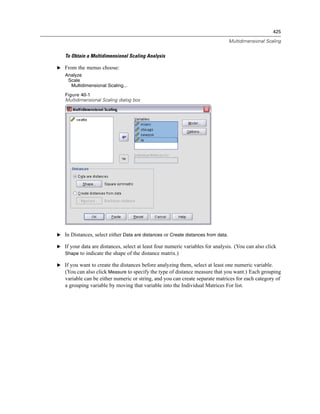
  • 539.
    515 Index histograms K-Means Cluster Analysis in Explore, 263 cluster distances, 378 in Frequencies, 255 cluster membership, 378 in Linear Regression, 325 command additional features, 380 Hochberg’s GT2 convergence criteria, 378 in GLM, 305 efficiency, 377 in One-Way ANOVA, 295 examples, 376 homogeneity-of-variance tests iterations, 378 in GLM Univariate, 308 methods, 376 in One-Way ANOVA, 297 missing values, 379 Hotelling’s T2 overview, 376 in Reliability Analysis, 419, 421 saving cluster information, 378 HTML, 210, 212 statistics, 376, 379 exporting output, 210, 212 kappa Huber’s M-estimator in Crosstabs, 268 in Explore, 262 Kendall’s tau-b in Bivariate Correlations, 311 in Crosstabs, 268 ICC. See intraclass correlation coefficient, 421 Kendall’s tau-c, 268 icicle plots in Crosstabs, 268 in Hierarchical Cluster Analysis, 374 Kendall’s W icons in Tests for Several Related Samples, 398 in dialog boxes, 8 keyed table, 173 image factoring, 357 Kolmogorov-Smirnov Z import data, 13, 16 in One-Sample Kolmogorov-Smirnov Test, 388 importance chart in Two-Independent-Samples Tests, 391 in TwoStep Cluster Analysis, 368 KR20 Independent-Samples T Test, 286 in Reliability Analysis, 421 confidence intervals, 288 Kruskal-Wallis H defining groups, 288 in Two-Independent-Samples Tests, 395 grouping variables, 288 Kruskal’s tau missing values, 288 in Crosstabs, 268 options, 288 Kuder-Richardson 20 (KR20) string variables, 288 in Reliability Analysis, 421 initial threshold kurtosis in TwoStep Cluster Analysis, 366 in Descriptives, 258 inner join, 21 in Explore, 262 input formats, 77 in Frequencies, 253 inserting group labels, 225 in Means, 279 interaction terms, 301, 337 in OLAP Cubes, 282 interactive charts, 209 in Report Summaries in Columns, 414 copying into other applications, 209 in Report Summaries in Rows, 409 intraclass correlation coefficient (ICC) in Summarize, 275 in Reliability Analysis, 421 inverse model in Curve Estimation, 339 labels, 225 iteration history deleting, 225 in Ordinal Regression, 334 inserting group labels, 225 iterations vs. subtype names in OMS, 488 in Factor Analysis, 357–358 LAG (function), 159 in K-Means Cluster Analysis, 378 lambda in Crosstabs, 268 Lance and Williams dissimilarity measure, 319 journal file, 466 in Distances, 319 JPEG files, 210, 216 language exporting charts, 210, 216 changing output language, 454 justification, 205, 455 last output, 205, 455 in Means, 279
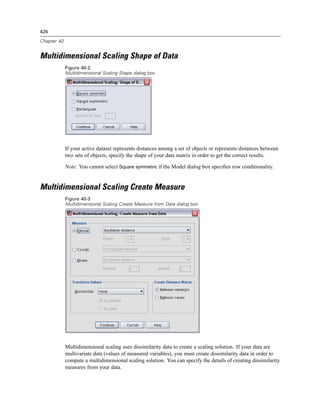
  • 540.
    516 Index in OLAP Cubes, 282 Lotus 1-2-3 files, 13, 42–43, 470 in Summarize, 275 adding menu item to send data to Lotus, 470 layers, 217, 226, 228, 231, 236 opening, 13 creating, 226 saving, 42–43 displaying, 226, 228 in Crosstabs, 267 in pivot tables, 226 M-estimators printing, 217, 231, 236 in Explore, 262 lead function, 159 Mahalanobis distance least significant difference in Discriminant Analysis, 350 in GLM, 305 in Linear Regression, 326 in One-Way ANOVA, 295 Mann-Whitney U level of measurement, 75, 101 in Two-Independent-Samples Tests, 391 defining, 75 Mantel-Haenszel statistic Levene test in Crosstabs, 268 in Explore, 263 marginal homogeneity test in GLM Univariate, 308 in Two-Related-Samples Tests, 393 in One-Way ANOVA, 297 matched-pairs study leverage values in Paired-Samples T Test, 289 in GLM, 307 maximum in Linear Regression, 326 comparing report columns, 415 likelihood-ratio chi-square in Descriptives, 258 in Crosstabs, 268 in Explore, 262 in Ordinal Regression, 334 in Frequencies, 253 Lilliefors test in Means, 279 in Explore, 263 in OLAP Cubes, 282 line breaks in Ratio Statistics, 432 variable and value labels, 79 in Summarize, 275 linear model maximum branches in Curve Estimation, 339 in TwoStep Cluster Analysis, 366 Linear Regression, 322 maximum likelihood blocks, 322 in Factor Analysis, 357 command additional features, 331 McFadden R2 exporting model information, 326 in Ordinal Regression, 334 missing values, 330 McNemar test plots, 325 in Crosstabs, 268 residuals, 326 in Two-Related-Samples Tests, 393 saving new variables, 326 mean selection variable, 324 in Descriptives, 258 statistics, 328 in Explore, 262 variable selection methods, 323, 330 in Frequencies, 253 weights, 322 in Means, 279 linear-by-linear association in OLAP Cubes, 282 in Crosstabs, 268 in One-Way ANOVA, 297 link in Ratio Statistics, 432 in Ordinal Regression, 333 in Report Summaries in Columns, 414 listing cases, 273 in Report Summaries in Rows, 409 loading plots in Summarize, 275 in Factor Analysis, 358 of multiple report columns, 415 local encoding, 250 subgroup, 277, 281 location model Means, 277 in Ordinal Regression, 335 options, 279 logarithmic model statistics, 279 in Curve Estimation, 339 measurement level, 75, 101 logging in to a server, 65 defining, 75 logistic model icons in dialog boxes, 8 in Curve Estimation, 339 measurement system, 454
  • 541.
    517 Index measures of central tendency in Multiple Response Crosstabs, 405 in Explore, 262 in Multiple Response Frequencies, 402 in Frequencies, 253 in One-Sample Kolmogorov-Smirnov Test, 389 in Ratio Statistics, 432 in One-Sample T Test, 292 measures of dispersion in One-Way ANOVA, 297 in Descriptives, 258 in Paired-Samples T Test, 290 in Explore, 262 in Partial Correlations, 315 in Frequencies, 253 in Report Summaries in Rows, 410 in Ratio Statistics, 432 in ROC Curve, 436 measures of distribution in Runs Test, 387 in Descriptives, 258 in Tests for Several Independent Samples, 397 in Frequencies, 253 in Two-Independent-Samples Tests, 392 median in Two-Related-Samples Tests, 395 in Explore, 262 replacing in time series data, 160 in Frequencies, 253 string variables, 79 in Means, 279 mode in OLAP Cubes, 282 in Frequencies, 253 in Ratio Statistics, 432 model file in Summarize, 275 loading saved models to score data, 163 median test Moses extreme reaction test in Two-Independent-Samples Tests, 395 in Two-Independent-Samples Tests, 391 memory, 454 moving rows and columns, 224 memory allocation mrInterview, 38 in TwoStep Cluster Analysis, 366 Multidimensional Scaling, 424 menus, 470 command additional features, 429 customizing, 470 conditionality, 427 merging data files creating distance matrices, 426 dictionary information, 173 criteria, 428 files with different cases, 170 defining data shape, 426 files with different variables, 173 dimensions, 427 renaming variables, 173 display options, 428 metafiles, 210 distance measures, 426 exporting charts, 210 example, 424 Microsoft Access, 17 levels of measurement, 427 minimum scaling models, 427 comparing report columns, 415 statistics, 424 in Descriptives, 258 transforming values, 426 in Explore, 262 multiple comparisons in Frequencies, 253 in One-Way ANOVA, 295 in Means, 279 multiple open data files, 93, 454 in OLAP Cubes, 282 suppressing, 96 in Ratio Statistics, 432 multiple R in Summarize, 275 in Linear Regression, 328 Minkowski distance multiple regression in Distances, 319 in Linear Regression, 322 missing values, 79, 444 Multiple Response charts, 444 command additional features, 406 defining, 79 multiple response analysis in Binomial Test, 385 crosstabulation, 403 in Bivariate Correlations, 313 frequency tables, 402 in Chi-Square Test, 383 Multiple Response Crosstabs, 403 in column summary reports, 417 Multiple Response Frequencies, 402 in Explore, 264 Multiple Response Crosstabs, 403 in Factor Analysis, 360 cell percentages, 405 in functions, 127 defining value ranges, 405 in Independent-Samples T Test, 288 matching variables across response sets, 405 in Linear Regression, 330 missing values, 405
  • 542.
    518 Index percentages basedon cases, 405 SAV file format, 489, 494 percentages based on responses, 405 SPSS data file format, 489, 494 Multiple Response Frequencies, 402 table subtypes, 488 missing values, 402 text format, 489 multiple response sets using XSLT with OXML, 506 defining, 104 variable names in SAV files, 501 multiple categories, 104 XML, 489, 501 multiple dichotomies, 104 One-Sample Kolmogorov-Smirnov Test, 388 multiple views/panes command additional features, 390 Data Editor, 91 missing values, 389 multiplication options, 389 multiplying across report columns, 415 statistics, 389 test distribution, 388 One-Sample T Test, 290 Nagelkerke R2 command additional features, 292 in Ordinal Regression, 334 confidence intervals, 292 Newman-Keuls missing values, 292 in GLM, 305 options, 292 noise handling One-Way ANOVA, 293 in TwoStep Cluster Analysis, 366 command additional features, 298 nominal, 75 contrasts, 294 measurement level, 75, 101 factor variables, 293 nonparametric tests missing values, 297 chi-square, 381 multiple comparisons, 295 One-Sample Kolmogorov-Smirnov Test, 388 options, 297 Runs Test, 386 polynomial contrasts, 294 Tests for Several Independent Samples, 395 post hoc tests, 295 Tests for Several Related Samples, 398 statistics, 297 Two-Independent-Samples Tests, 390 online Help, 11 Two-Related-Samples Tests, 393 Statistics Coach, 9 normal probability plots opening files, 13–17, 29 in Explore, 263 controlling default file locations, 466 in Linear Regression, 325 data files, 13–14 normal scores dBASE files, 13, 15 in Rank Cases, 137 Excel files, 13, 15 normality tests Lotus 1-2-3 files, 13 in Explore, 263 spreadsheet files, 13, 15 number of cases Stata files, 16 in Means, 279 SYSTAT files, 13 in OLAP Cubes, 282 tab-delimited files, 13 in Summarize, 275 text data files, 29 numeric format, 76–77 options, 454–455, 457, 459–460, 462, 465–467 charts, 462 observed count currency, 459 in Crosstabs, 270 data, 457 observed frequencies general, 454 in Ordinal Regression, 334 output labels, 460 observed means pivot table look, 465 in GLM Univariate, 308 scripts, 467 OK button, 7 temporary directory, 466 OLAP Cubes, 281 two-digit years, 457 statistics, 282 Variable View, 458 titles, 285 Viewer, 455 OMS, 484, 505 ordinal, 75 command identifiers, 488 measurement level, 75, 101 controlling table pivots, 489, 499 Ordinal Regression , 332 excluding output from the Viewer, 494 command additional features, 337 output object types, 486
  • 543.
    519 Index link, 333 missing values, 315 location model, 335 options, 315 options, 333 statistics, 315 scale model, 336 zero-order correlations, 315 statistics, 332 Partial Least Squares Regression, 342 outer join, 21 export variables, 345 outliers model, 344 in Explore, 262 partial plots in Linear Regression, 325 in Linear Regression, 325 in TwoStep Cluster Analysis, 366 Paste button, 7 outline, 205–206 pattern difference measure changing levels, 206 in Distances, 319 collapsing, 206 pattern matrix expanding, 206 in Factor Analysis, 354 in Viewer, 205 PDF output, 203–205, 209–210, 221, 455 exporting output, 210, 213 alignment, 205, 455 Pearson chi-square centering, 205, 455 in Crosstabs, 268 changing output language, 454 in Ordinal Regression, 334 copying, 204 Pearson correlation copying into other applications, 209 in Bivariate Correlations, 311 deleting, 204 in Crosstabs, 268 exporting, 210 Pearson residuals hiding, 204 in Ordinal Regression, 334 moving, 204 percentages pasting into other applications, 209 in Crosstabs, 270 saving, 221 percentiles showing, 204 in Explore, 262 Viewer, 203 in Frequencies, 253 Output Management System (OMS), 484, 505 performance, 63 output object types caching data, 63 in OMS, 486 phi OXML, 506 in Crosstabs, 268 phi-square distance measure in Distances, 319 page control pie charts in column summary reports, 416 in Frequencies, 255 in row summary reports, 410 pivot tables, 204, 209–210, 217, 223–226, 228, 230–233, page numbering, 220 235–236, 242–244, 465 in column summary reports, 417 alignment, 239 in row summary reports, 410 background color, 238 page setup, 219–220 borders, 235 chart size, 220 captions, 240–241 headers and footers, 219 cell formats, 233 Paired-Samples T Test, 289 cell properties, 238–239 missing values, 290 cell widths, 242 options, 290 changing display order, 224 selecting paired variables, 289 changing the look, 230 pane splitter continuation text, 236 Data Editor, 91 controlling table breaks, 244 parallel model copying into other applications, 209 in Reliability Analysis, 419, 421 creating charts from tables, 244 parameter estimates default column width adjustment, 465 in GLM Univariate, 308 default look for new tables, 465 in Ordinal Regression, 334 deleting group labels, 225 Partial Correlations, 314 displaying hidden borders, 242 command additional features, 316 editing, 223 in Linear Regression, 328
  • 544.
    520 Index exporting as HTML, 210 principal axis factoring, 357 fonts, 238 principal components analysis, 354, 357 footnote properties, 232 printing, 92, 217–220, 231, 236, 244 footnotes, 240–241 chart size, 220 general properties, 231 charts, 217 grid lines, 242 controlling table breaks, 244 grouping rows or columns, 225 data, 92 hiding, 204 headers and footers, 219 inserting group labels, 225 layers, 217, 231, 236 layers, 226 page numbers, 220 manipulating, 223 pivot tables, 217 margins, 239 print preview, 218 moving rows and columns, 224 scaling tables, 231, 236 pasting as tables, 209 space between output items, 220 pasting into other applications, 209 text output, 217 pivoting, 223 prior moving average function, 159 printing large tables, 244 Production Facility, 454 printing layers, 217 converting files to production jobs, 483 properties, 231 using command syntax from journal file, 454 rotating labels, 225 Production jobs, 476, 480–482 scaling to fit page, 231, 236 command line switches, 482 selecting rows and columns, 243 converting Production Facility files, 483 showing and hiding cells, 228 exporting charts, 476 transposing rows and columns, 225 output files, 476 ungrouping rows or columns, 225 running multiple production jobs, 482 using icons, 223 scheduling production jobs, 482 pivoting substituting values in syntax files, 480 controlling with OMS for exported output, 499 syntax rules, 476 PLUM profile plots in Ordinal Regression, 332 in GLM, 304 PNG files, 210, 217 programming with command language, 246 exporting charts, 210, 217 properties, 231 polynomial contrasts pivot tables, 231 in GLM, 303 tables, 231 in One-Way ANOVA, 294 proportion estimates port numbers, 66 in Rank Cases, 137 portable files Proximities variable names, 43 in Hierarchical Cluster Analysis, 371 post hoc multiple comparisons, 295 PostScript files (encapsulated), 210, 217 quadratic model exporting charts, 210, 217 in Curve Estimation, 339 power estimates Quancept, 38 in GLM Univariate, 308 Quanvert, 38 power model quartiles in Curve Estimation, 339 in Frequencies, 253 PowerPoint, 213 quartimax rotation exporting output as PowerPoint, 213 in Factor Analysis, 358 PowerPoint format exporting output, 210 predicted values r correlation coefficient saving in Curve Estimation, 340 in Bivariate Correlations, 311 saving in Linear Regression, 326 in Crosstabs, 268 prediction intervals R statistic saving in Curve Estimation, 340 in Linear Regression, 328 saving in Linear Regression, 326 in Means, 279 price-related differential (PRD) R-E-G-W F in Ratio Statistics, 432 in GLM, 305 in One-Way ANOVA, 295
  • 545.
    521 Index R-E-G-W Q data file access, 69 in GLM, 305 editing, 66 in One-Way ANOVA, 295 logging in, 65 R2 relative paths, 71 in Linear Regression, 328 removing group labels, 225 in Means, 279 renaming datasets, 95 R2 change, 328 reordering rows and columns, 224 random number seed, 128 repeated contrasts random sample, 23 in GLM, 303 databases, 23 replacing missing values random number seed, 128 linear interpolation, 161 selecting, 182 linear trend, 161 range mean of nearby points, 161 in Descriptives, 258 median of nearby points, 161 in Frequencies, 253 series mean, 161 in Means, 279 Report Summaries in Columns, 413 in OLAP Cubes, 282 column format, 408 in Ratio Statistics, 432 command additional features, 417 in Summarize, 275 grand total, 417 rank correlation coefficient missing values, 417 in Bivariate Correlations, 311 page control, 416 ranking cases, 136 page layout, 411 fractional ranks, 137 page numbering, 417 percentiles, 137 subtotals, 416 Savage scores, 137 total columns, 415 tied values, 138 Report Summaries in Rows, 407 Rankit estimates, 137 break columns, 407 Rao’s V break spacing, 410 in Discriminant Analysis, 350 column format, 408 Ratio Statistics, 430 command additional features, 417 statistics, 432 data columns, 407 recoding values, 116, 131–132, 134, 139 footers, 412 reference category missing values, 410 in GLM, 303 page control, 410 regression page layout, 411 Linear Regression, 322 page numbering, 410 multiple regression, 322 sorting sequences, 407 plots, 325 titles, 412 regression coefficients variables in titles, 412 in Linear Regression, 328 reports related samples, 393, 398 column summary reports, 413 relative risk comparing columns, 415 in Crosstabs, 268 composite totals, 415 Reliability Analysis, 419 dividing column values, 415 ANOVA table, 421 multiplying column values, 415 command additional features, 422 row summary reports, 407 descriptives, 421 total columns, 415 example, 419 Reset button, 7 Hotelling’s T2, 421 residual plots inter-item correlations and covariances, 421 in GLM Univariate, 308 intraclass correlation coefficient, 421 residuals Kuder-Richardson 20, 421 in Crosstabs, 270 statistics, 419, 421 saving in Curve Estimation, 340 Tukey’s test of additivity, 421 saving in Linear Regression, 326 remote servers, 65–66, 69–71 restructuring data, 184–185, 188–190, 192–197, 199, 201 adding, 66 and weighted data, 201 available procedures, 70
  • 546.
    522 Index creating a single index variable for variables to cases, EMF files, 210 194 EPS files, 210, 217 creating index variables for variables to cases, 192 JPEG files, 210, 216 creating multiple index variables for variables to cases, metafiles, 210 195 PICT files, 210 example of cases to variables, 188 PNG files, 217 example of one index for variables to cases, 193 PostScript files, 217 example of two indices for variables to cases, 194 TIFF files, 217 example of variables to cases, 188 saving files, 42–43 options for cases to variables, 199 controlling default file locations, 466 options for variables to cases, 196 data files, 42–43 overview, 184 database file queries, 28 selecting data for cases to variables, 197 SPSS data files, 42 selecting data for variables to cases, 190 saving output, 210, 213, 215 sorting data for cases to variables, 199 Excel format, 210, 212 types of restructuring, 185 HTML, 210, 212 variable groups for variables to cases, 189 HTML format, 210 rho PDF format, 210, 213 in Bivariate Correlations, 311 PowerPoint format, 210, 213 in Crosstabs, 268 text format, 210, 215 risk Word format, 210, 212 in Crosstabs, 268 scale, 75 ROC Curve, 434 in Multidimensional Scaling, 424 statistics and plots, 436 in Reliability Analysis, 419 rotating labels, 225 measurement level, 75, 101 row percentages scale model in Crosstabs, 270 in Ordinal Regression, 336 rows, 243 scale variables selecting in pivot tables, 243 binning to create categorical variables, 116 running median function, 159 scaling Runs Test pivot tables, 231, 236 command additional features, 388 scatterplots cut points, 386–387 in Linear Regression, 325 missing values, 387 Scheffé test options, 387 in GLM, 305 statistics, 387 in One-Way ANOVA, 295 Ryan-Einot-Gabriel-Welsch multiple F scientific notation, 76, 454 in GLM, 305 suppressing in output, 454 in One-Way ANOVA, 295 scoring Ryan-Einot-Gabriel-Welsch multiple range displaying loaded models, 165 in GLM, 305 loading saved models, 163 in One-Way ANOVA, 295 models supported for export and scoring, 162 scripts, 470, 474 adding to menus, 470 S model default language, 467 in Curve Estimation, 339 running with toolbar buttons, 474 S-stress search and replace in Multidimensional Scaling, 424 viewer documents, 208 sampling seasonal difference function, 159 random sample, 182 select cases, 180 SAS files selecting cases, 180 opening, 13 based on selection criteria, 181 saving, 42 date range, 183 SAV file format random sample, 182 routing output to an SPSS data file, 489, 494 range of cases, 183 Savage scores, 137 time range, 183 saving charts, 210, 216–217 BMP files, 210, 216
  • 547.
    523 Index selection methods, 243 speed, 63 selecting rows and columns in pivot tables, 243 caching data, 63 selection variable spelling, 85 in Linear Regression, 324 dictionary, 457 servers, 65–66 split-file processing, 178 adding, 66 split-half reliability editing, 66 in Reliability Analysis, 419, 421 logging in, 65 splitting tables, 244 names, 66 controlling table breaks, 244 port numbers, 66 spp files session journal, 466 converting to spj files, 483 Shapiro-Wilk’s test spread-versus-level plots in Explore, 263 in Explore, 263 showing, 204, 229, 241, 471 in GLM Univariate, 308 captions, 241 spreadsheet files, 13–15, 44 dimension labels, 229 opening, 15 footnotes, 241 reading ranges, 14 results, 204 reading variable names, 14 rows or columns, 229 writing variable names, 44 titles, 229 SPSS data file format toolbars, 471 routing output to a data file, 489, 494 Sidak’s t test SPSSTMPDIR environment variable, 466 in GLM, 305 squared Euclidean distance in One-Way ANOVA, 295 in Distances, 319 sign test standard deviation in Two-Related-Samples Tests, 393 in Descriptives, 258 similarity measures in Explore, 262 in Distances, 320 in Frequencies, 253 in Hierarchical Cluster Analysis, 372 in GLM Univariate, 308 simple contrasts in Means, 279 in GLM, 303 in OLAP Cubes, 282 size difference measure in Ratio Statistics, 432 in Distances, 319 in Report Summaries in Columns, 414 sizes, 206 in Report Summaries in Rows, 409 in outline, 206 in Summarize, 275 skewness standard error in Descriptives, 258 in Descriptives, 258 in Explore, 262 in Explore, 262 in Frequencies, 253 in Frequencies, 253 in Means, 279 in GLM, 307–308 in OLAP Cubes, 282 in ROC Curve, 436 in Report Summaries in Columns, 414 standard error of kurtosis in Report Summaries in Rows, 409 in Means, 279 in Summarize, 275 in OLAP Cubes, 282 smoothing function, 159 in Summarize, 275 Somers’ d standard error of skewness in Crosstabs, 268 in Means, 279 sorting in OLAP Cubes, 282 variables, 168 in Summarize, 275 sorting cases, 167 standard error of the mean sorting variables, 168 in Means, 279 space-delimited data, 29 in OLAP Cubes, 282 Spearman correlation coefficient in Summarize, 275 in Bivariate Correlations, 311 standardization in Crosstabs, 268 in TwoStep Cluster Analysis, 366 Spearman-Brown reliability standardized residuals in Reliability Analysis, 421 in GLM, 307
  • 548.
    524 Index in Linear Regression, 326 Production jobs rules, 476 standardized values running, 250 in Descriptives, 257 running command syntax with toolbar buttons, 473 Stata files, 16 syntax rules, 246 opening, 16 Unicode command syntax files, 250 reading, 13 SYSTAT files, 13 saving, 42 opening, 13 Statistics Coach, 9 status bar, 6 stem-and-leaf plots t test in Explore, 263 in GLM Univariate, 308 stepwise selection in Independent-Samples T Test, 286 in Linear Regression, 323 in One-Sample T Test, 290 stress in Paired-Samples T Test, 289 in Multidimensional Scaling, 424 T4253H smoothing, 159 strictly parallel model tab-delimited files, 13–14, 29, 42–44 in Reliability Analysis, 419, 421 opening, 13 string format, 76 reading variable names, 14 string variables, 79, 86 saving, 42–43 breaking up long strings in earlier releases, 43 writing variable names, 44 computing new string variables, 126 table breaks, 244 entering data, 86 table chart, 244 in dialog boxes, 6 table subtypes, 488 missing values, 79 vs. labels, 488 recoding into consecutive integers, 139 TableLooks, 230–231 Student-Newman-Keuls applying, 230 in GLM, 305 creating, 231 in One-Way ANOVA, 295 tables, 244 Studentized residuals alignment, 239 in Linear Regression, 326 background color, 238 Student’s t test, 286 cell properties, 238–239 subgroup means, 277, 281 controlling table breaks, 244 subsets of cases fonts, 238 random sample, 182 margins, 239 selecting, 180–181, 183 Tamhane’s T2 subtitles in GLM, 305 charts, 444 Tamhane’s T2 subtotals in One-Way ANOVA, 295 in column summary reports, 416 target lists, 452 subtypes, 488 tau-b vs. labels, 488 in Crosstabs, 268 sum tau-c in Descriptives, 258 in Crosstabs, 268 in Frequencies, 253 templates, 80–81, 444, 462 in Means, 279 charts, 444 in OLAP Cubes, 282 in charts, 462 in Summarize, 275 using an external data file as a template, 106 sum of squares, 302 variable definition, 80–81 in GLM, 301 temporary active file, 63 Summarize, 273 temporary directory, 466 options, 274 setting location in local mode, 466 statistics, 275 SPSSTMPDIR environment variable, 466 syntax, 246, 250, 473, 476 temporary disk space, 61, 63 accessing SPSS Command Syntax Reference, 11 test of parallel lines journal file, 251 in Ordinal Regression, 334 output log, 248 tests for independence pasting, 248 chi-square, 268
  • 549.
    525 Index tests for linearity in One-Way ANOVA, 295 in Means, 279 Tukey’s biweight estimator Tests for Several Independent Samples, 395 in Explore, 262 command additional features, 397 Tukey’s honestly significant difference defining range, 397 in GLM, 305 grouping variables, 397 in One-Way ANOVA, 295 missing values, 397 Tukey’s test of additivity options, 397 in Reliability Analysis, 419, 421 statistics, 397 Two-Independent-Samples Tests, 390 test types, 396 command additional features, 393 Tests for Several Related Samples, 398 defining groups, 392 command additional features, 399 grouping variables, 392 statistics, 399 missing values, 392 test types, 398 options, 392 text, 29, 207, 210, 215 statistics, 392 adding a text file to the Viewer, 207 test types, 391 adding to Viewer, 207 Two-Related-Samples Tests, 393 data files, 29 command additional features, 395 exporting output as text, 210, 215 missing values, 395 TIFF files, 217 options, 395 exporting charts, 210, 217 statistics, 395 time series analysis test types, 394 forecast, 340 two-sample t test predicting cases, 340 in Independent-Samples T Test, 286 time series data TwoStep Cluster Analysis, 363 creating new time series variables, 158 options, 366 data transformations, 156 plots, 368 defining date variables, 157 save to external file, 369 replacing missing values, 160 save to working file, 369 transformation functions, 159 statistics, 369 titles, 207 adding to Viewer, 207 uncertainty coefficient charts, 444 in Crosstabs, 268 in OLAP Cubes, 285 Unicode, 13, 42 tolerance Unicode command syntax files, 250 in Linear Regression, 328 unstandardized residuals toolbars, 471, 473–474 in GLM, 307 creating, 471, 473 unweighted least squares creating new tools, 474 in Factor Analysis, 357 customizing, 471, 473 user-missing values, 79 displaying in different windows, 473 showing and hiding, 471 total column V in reports, 415 in Crosstabs, 268 total percentages value labels, 78, 86, 91, 97, 460 in Crosstabs, 270 applying to multiple variables, 102 transformation matrix copying, 102 in Factor Analysis, 354 in Data Editor, 91 transposing rows and columns, 225 in merged data files, 173 transposing variables and cases, 169 in outline pane, 460 tree depth in pivot tables, 460 in TwoStep Cluster Analysis, 366 inserting line breaks, 79 trimmed mean saving in Excel files, 42 in Explore, 262 using for data entry, 86 Tukey estimates, 137 Van der Waerden estimates, 137 Tukey’s b test variable attributes, 80–81 in GLM, 305 copying and pasting, 80–81 custom, 82
  • 550.
    526 Index variable importance plots search and replace information, 208 in TwoStep Cluster Analysis, 368 Viewer, 203–207, 220–221, 455, 460 variable information, 448 changing outline font, 207 variable labels, 78, 454, 460 changing outline levels, 206 in dialog boxes, 6, 454 changing outline sizes, 206 in merged data files, 173 collapsing outline, 206 in outline pane, 460 deleting output, 204 in pivot tables, 460 display options, 455 inserting line breaks, 79 displaying data values, 460 variable lists, 452 displaying value labels, 460 reordering target lists, 452 displaying variable labels, 460 variable names, 74, 454 displaying variable names, 460 generated by OMS, 501 excluding output types with OMS, 494 in dialog boxes, 6, 454 expanding outline, 206 mixed case variable names, 74 hiding results, 204 portable files, 43 moving output, 204 rules, 74 outline, 205 truncating long variable names in earlier releases, 43 outline pane, 203 wrapping long variable names in output, 74 results pane, 203 variable pairs, 185 saving document, 221 creating, 185 space between output items, 220 variable sets, 449–450 virtual active file, 61 defining, 449 Visual Bander, 116 using, 450 Variable View, 73 customizing, 84, 458 Wald-Wolfowitz runs variables, 8, 74, 89, 185, 448–449, 454 in Two-Independent-Samples Tests, 391 defining, 74 Waller-Duncan t test defining variable sets, 449 in GLM, 305 definition information, 448 in One-Way ANOVA, 295 display order in dialog boxes, 454 weighted data, 201 finding in Data Editor, 89 and restructured data files, 201 in dialog boxes, 6 weighted least squares inserting new variables, 89 in Linear Regression, 322 moving, 89 weighted mean recoding, 131–132, 134, 139 in Ratio Statistics, 432 renaming for merged data files, 173 weighted predicted values restructuring into cases, 185 in GLM, 307 selecting in dialog boxes, 8 weighting cases, 183 sorting, 168 fractional weights in Crosstabs, 183 variable information in dialog boxes, 8 Welch statistic variance in One-Way ANOVA, 297 in Descriptives, 258 wide tables in Explore, 262 pasting into Microsoft Word, 209 in Frequencies, 253 Wilcoxon signed-rank test in Means, 279 in Two-Related-Samples Tests, 393 in OLAP Cubes, 282 Wilks’ lambda in Report Summaries in Columns, 414 in Discriminant Analysis, 350 in Report Summaries in Rows, 409 window splitter in Summarize, 275 Data Editor, 91 variance inflation factor windows, 4 in Linear Regression, 328 active window, 5 varimax rotation designated window, 5 in Factor Analysis, 358 Word format vertical label text, 225 exporting output, 210, 212 viewer wide tables, 210 find and replace information, 208 wrapping, 231 controlling column width for wrapped text, 231
  • 551.
    527 Index variable and value labels, 79 XML OXML output from OMS, 506 routing output to XML, 489 saving output as XML, 484 table structure in OXML, 501 XSLT using with OXML, 506 Yates’ correction for continuity in Crosstabs, 268 years, 457 two-digit values, 457 z scores in Descriptives, 257 in Rank Cases, 137 saving as variables, 257 zero-order correlations in Partial Correlations, 315